www.expertpointsolutions.com


SharePoint 2013 Performance
     Boost the Performance of SharePoint Today!


         • Brian Culver ● March 2013 ● SIA203
About Brian Culver

 • SharePoint Solutions Architect for Expert Point Solutions
 • Based in Houston, TX
 • Author
   • SharePoint 2010 Unleashed
   • Upcoming SharePoint 2013 Workflows
   • Various White Papers
 • Speaker and Blogger
Session Agenda


• Software Boundaries

• What is Performance?

• Infrastructure Performance

• Hardware Performance

• SharePoint Performance

• Testing Performance
Software Boundaries

• Understand the tested (by Microsoft) performance and capacity limits of SharePoint
  • General recommendations for average hardware and usage
  • Many come from MSIT
    • > 150,000 employees and vendors
    • Very large amounts of content
    • Globally accessed
  • Meet various goals including:
    • Backup and restore to meet standard SLAs
    • Ensure good performance early on with low hardware standards and low
      knowledge requirements
    • Allow configuration to scale and maintain decent performance

• SharePoint 2013 Software Boundaries
  • http://technet.microsoft.com/en-us/library/cc262787.aspx
• SharePoint 2010 Software Boundaries
  • http://technet.microsoft.com/en-us/library/cc262787(v=office.14).aspx
• SharePoint 2007 Software Boundaries
  • http://technet.microsoft.com/en-us/library/cc262787(v=office.12).aspx
What is Poor Performance?

• Increased end user response time
• Reduced overall system throughput
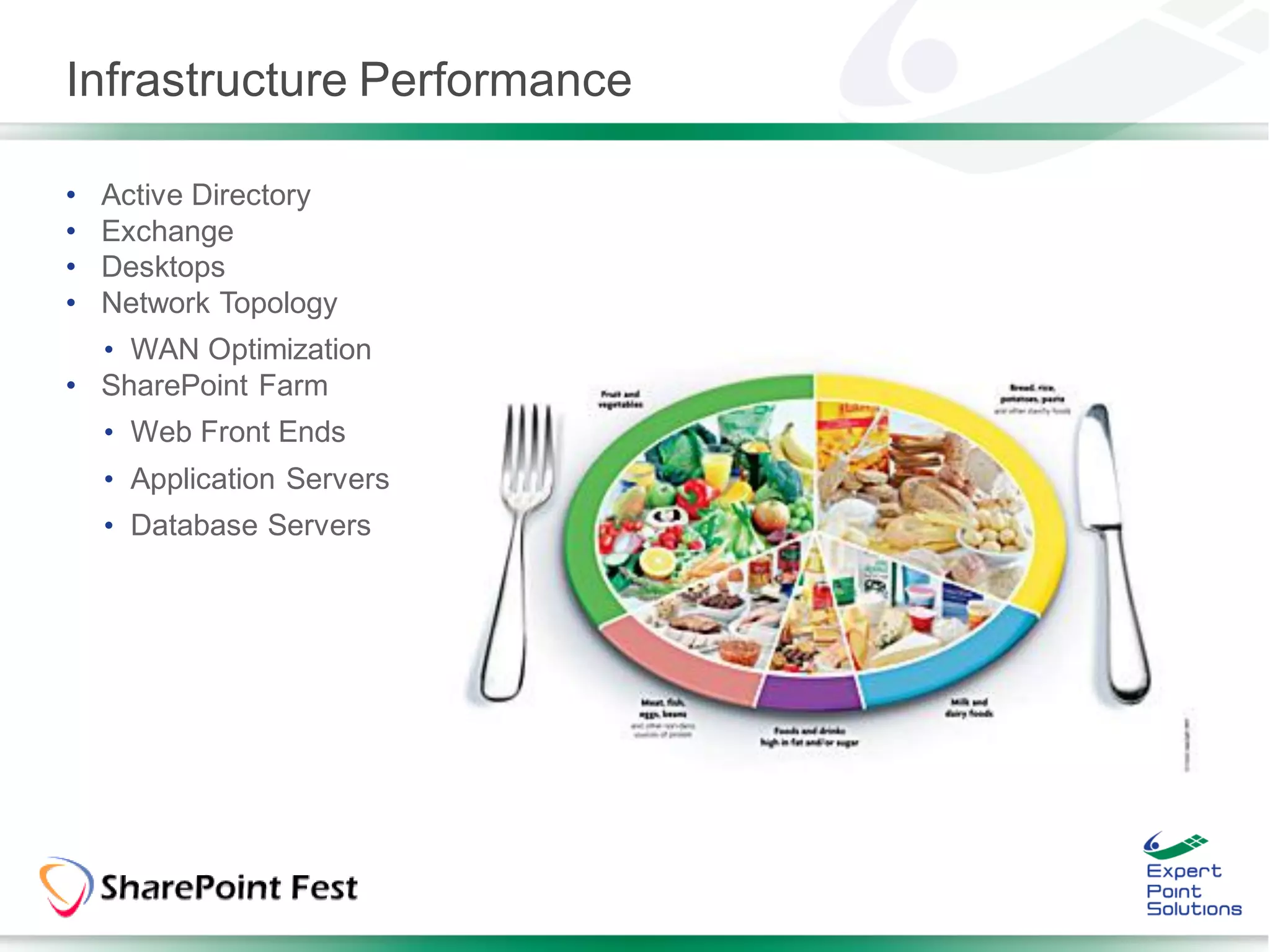
Infrastructure Performance

•   Active Directory
•   Exchange
•   Desktops
•   Network Topology
  • WAN Optimization
• SharePoint Farm
    • Web Front Ends
    • Application Servers
    • Database Servers
SharePoint Farm Performance


•   3-4 Web Servers per DC
•   8 Web Servers per SQL Server
•   Bandwidth and Latency<1 ms
•   10 Application Pools per web server
•   20 web applications per farm
•   Search: Indexing
    • iFilters
    • # of servers
    • Scheduling and throttling of crawling

• “Boundaries” vs. “Supported”

• Test, test, test
Search Performance

• Crawl Time: How long does the overall time the crawl takes?

• Corpus Size: How big is the corpus size?

• Indexing Speed: How many documents are being indexed per
second?
Search Performance


• Grouping content sources by speed
  • Tuning crawling
  • Protocol
  • Authentication
• Choosing multithreaded iFilters
• Proper infrastructure
  • Dedicated Query Apps vs Distributed Query Apps
SharePoint Farm Performance


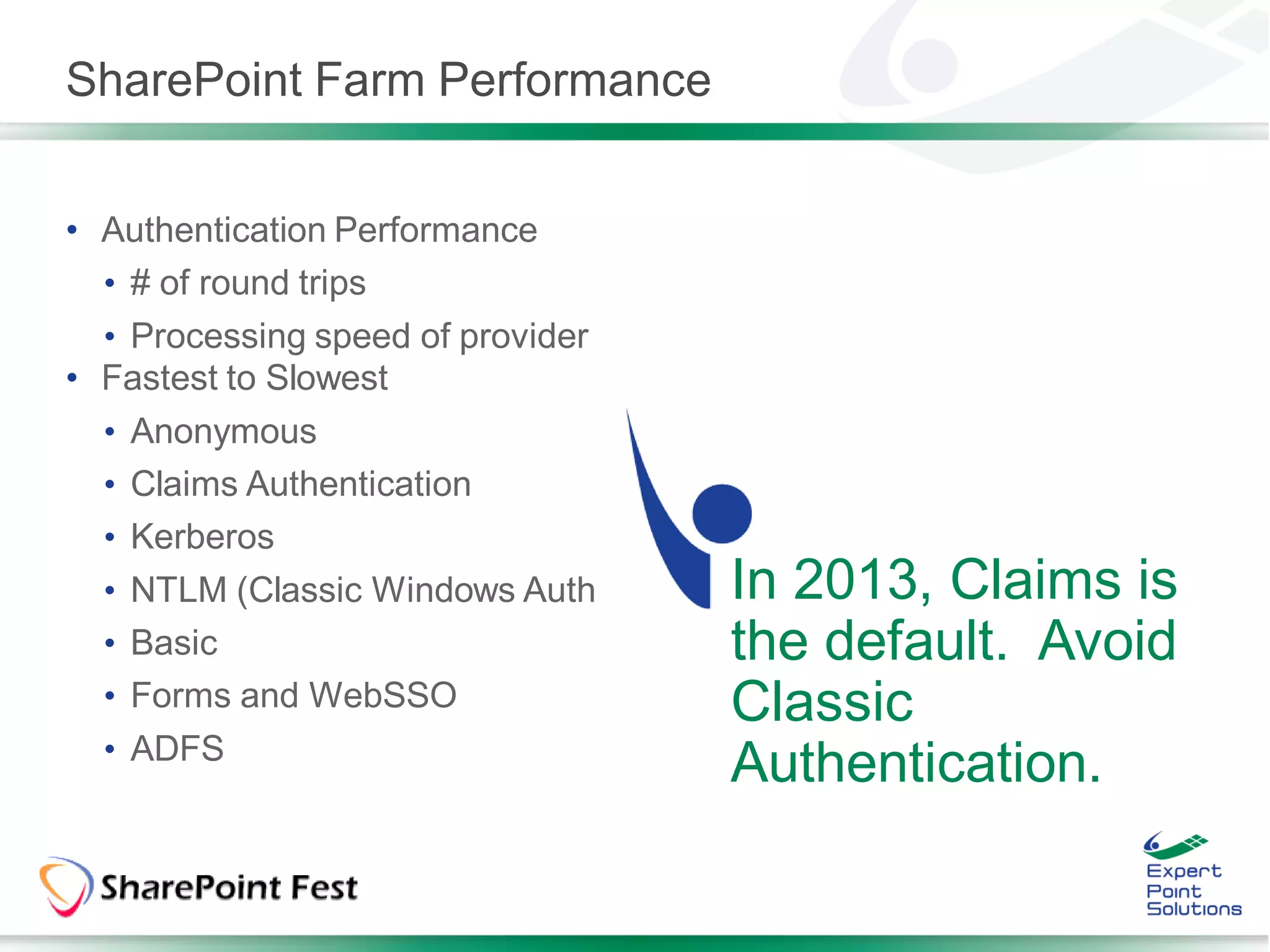
• Authentication Performance
  • # of round trips
  • Processing speed of provider
• Fastest to Slowest
  • Anonymous
  • Claims Authentication
  • Kerberos
  • NTLM (Classic Windows Auth     In 2013, Claims is
  • Basic                          the default. Avoid
  • Forms and WebSSO               Classic
  • ADFS
                                   Authentication.
SharePoint Farm Performance


• Which Machines cause the bottleneck?

• Watch
  • CPU
  • Memory
  • Disk I/O
  • Network
SharePoint Farm Performance


• Requests per Second (RPS): How many requests you can service?
RPS is used for measuring how many pages are delivered. It can
measure how many searches are executed.

• Requests per Hour (RPH): Average user requests in an hour.

• Page Time (TTLB): How long it takes to deliver a page back to the
client? Used in conjunction with RPS.

• For example, our farm needs to deliver 100 RPS and pages should
reach the client within 5 seconds.
SharePoint Farm Performance

• Understand SharePoint workload
  • Use RAID 10 over other RAID ##
  • And yes, RAID 10 for SharePoint is better than RAID 5, 50, 60, etc.

• Separate your database files
  • ** TempDB ** is the most heavily used DB **
    • Create a TempDB per proc
  • Usage database is very busy
  • Search database is very busy
  • Log files separate from data files
  • Place different databases on different volumes
  • SQL Server files separate from other uses (e.g. OS files)
  • Separate your files according to I/O workload.
    • A single volume may be fast enough to handle several databases.
Common Performance Problems


• Large Lists
• Lots of Web Parts importing non-cached data from various
places
• Cross-List queries and CBQ Web Parts
• Too Deep Site Structures
• Too many sites in a site collection
• Too many site collections in a Content DB
• Too many ACLs
SharePoint Performance

We will discuss the following:

• Large List Control
• Performance Throttling
• Developer Dashboard
  • Great for IT Pros and Developers alike
• Caching
• IIS 7.0/8.0
• Content Query Web Part
Large List Control

So what is new?

• Lists and Libraries hold 50,000,000
items
• Recommended List View
• Size:
  • Why 2000 or 5000?
• Server Overload

• Solution:
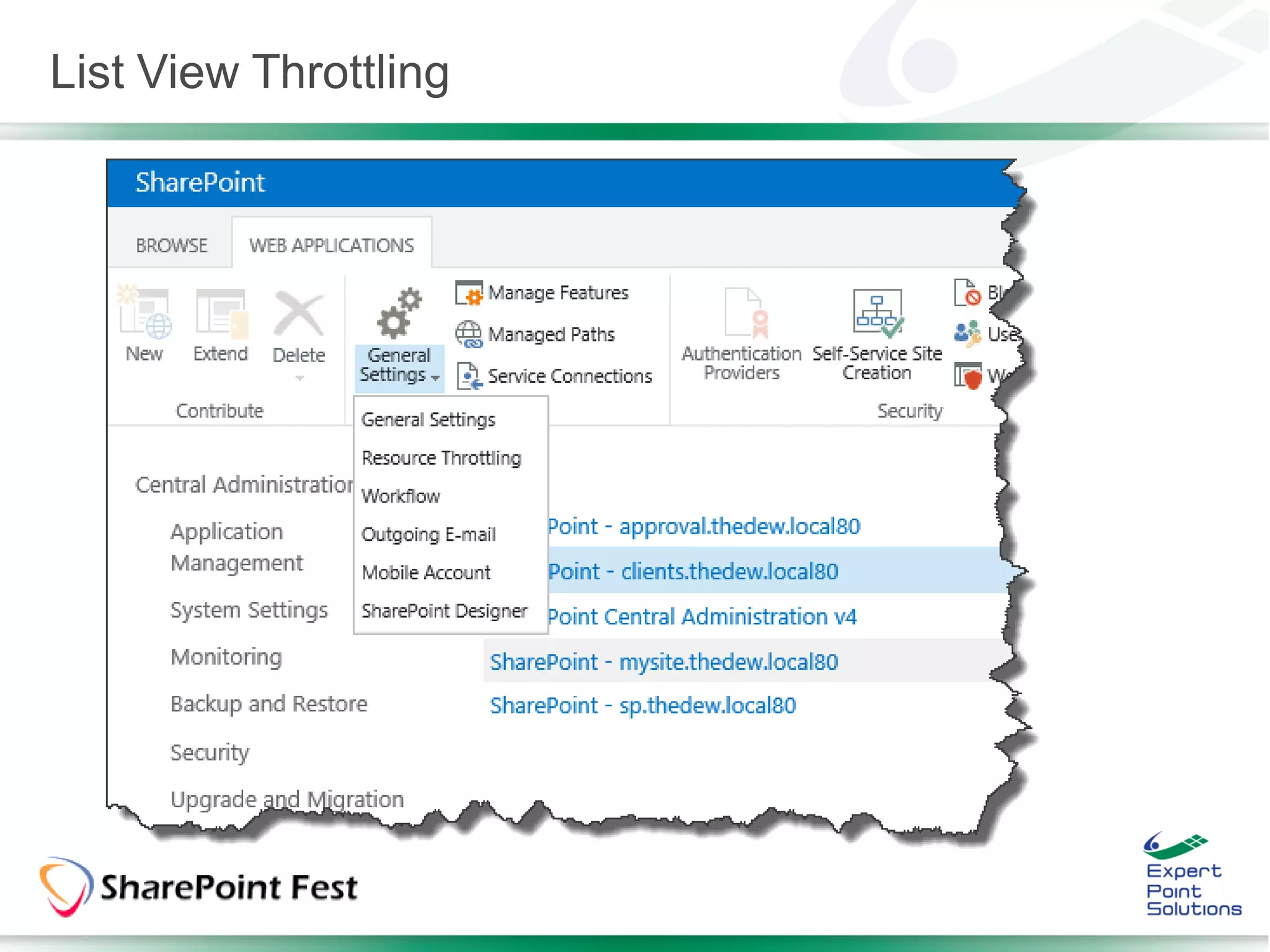
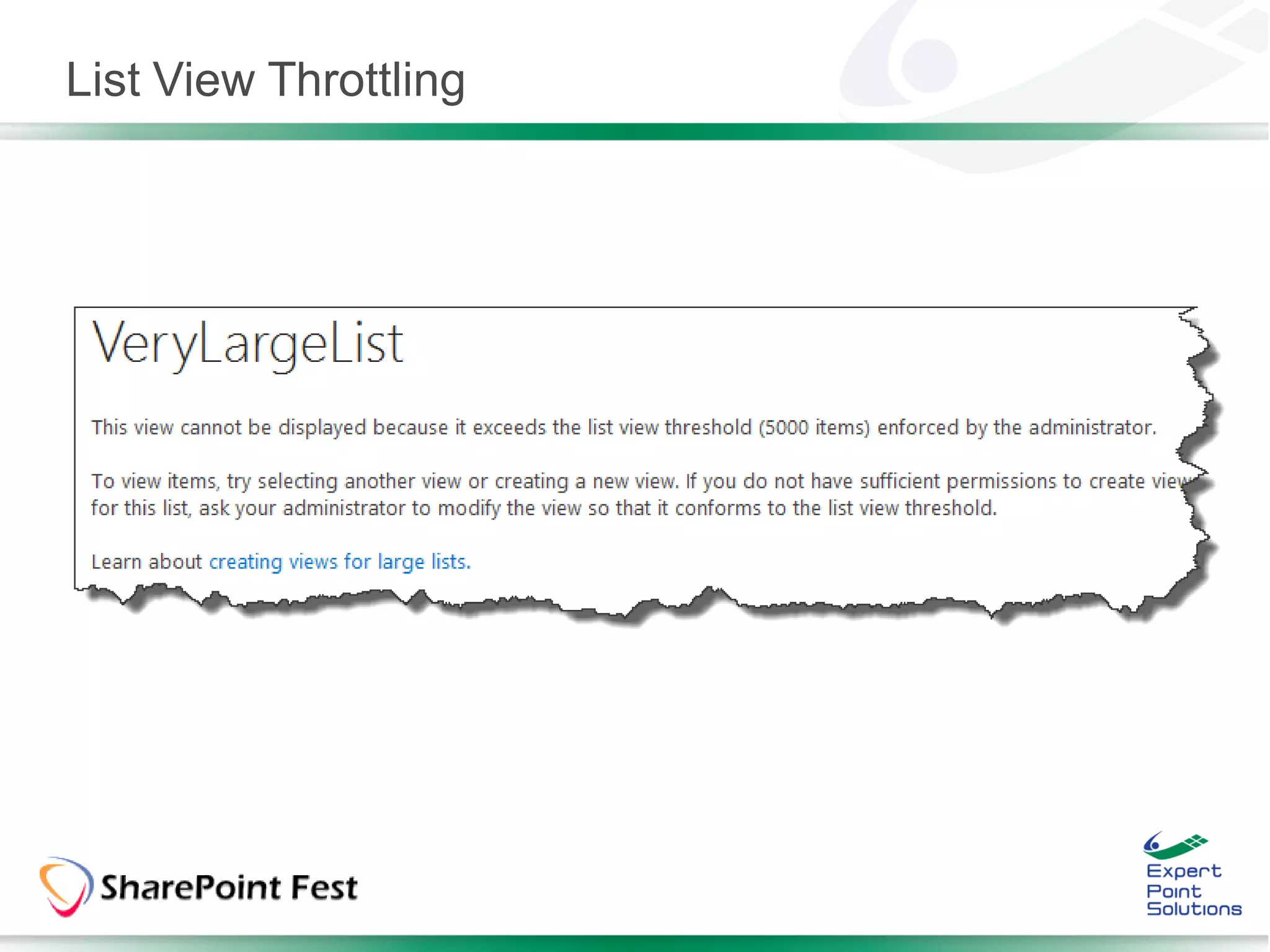
• List View Throttling
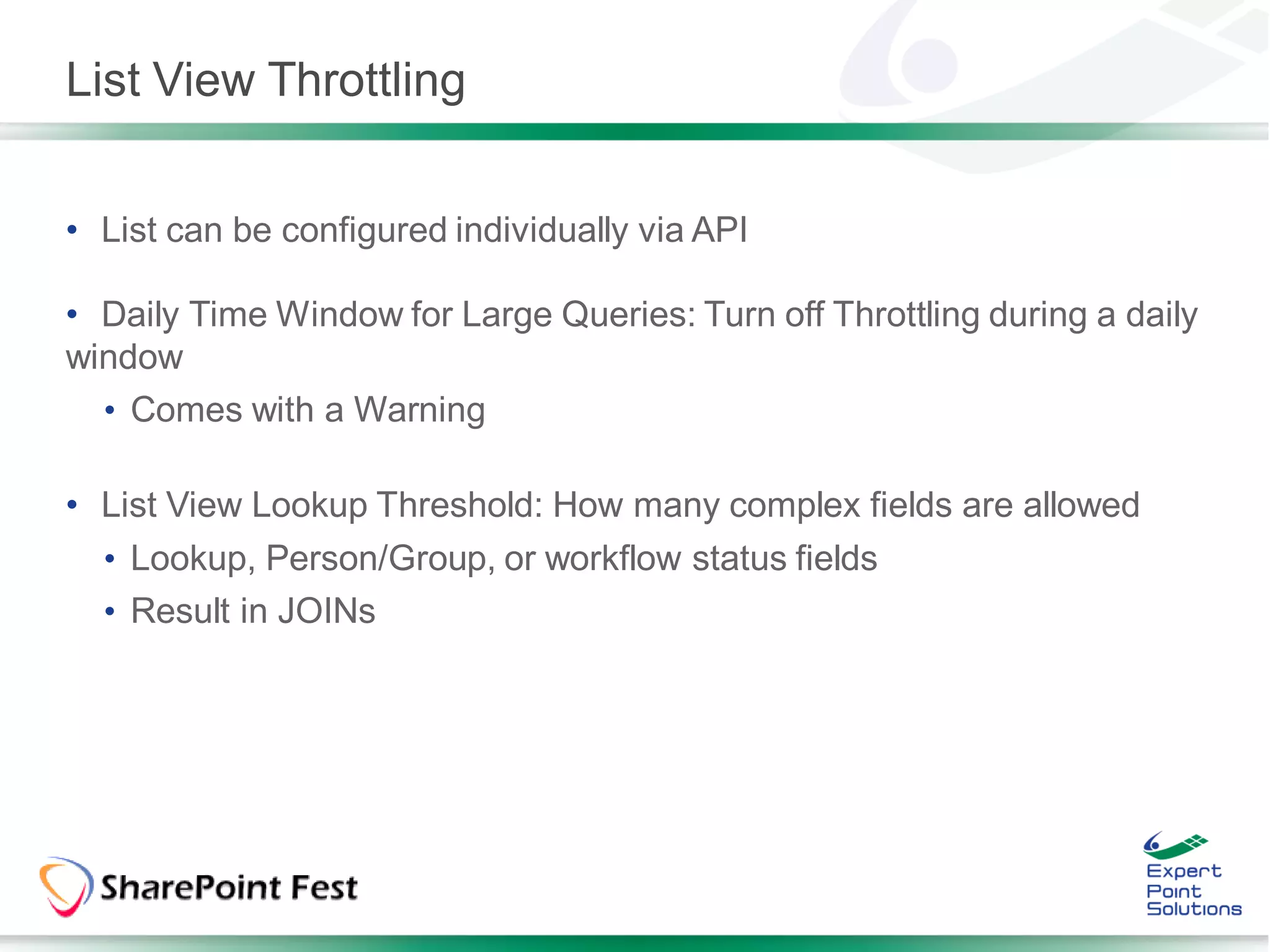
List View Throttling


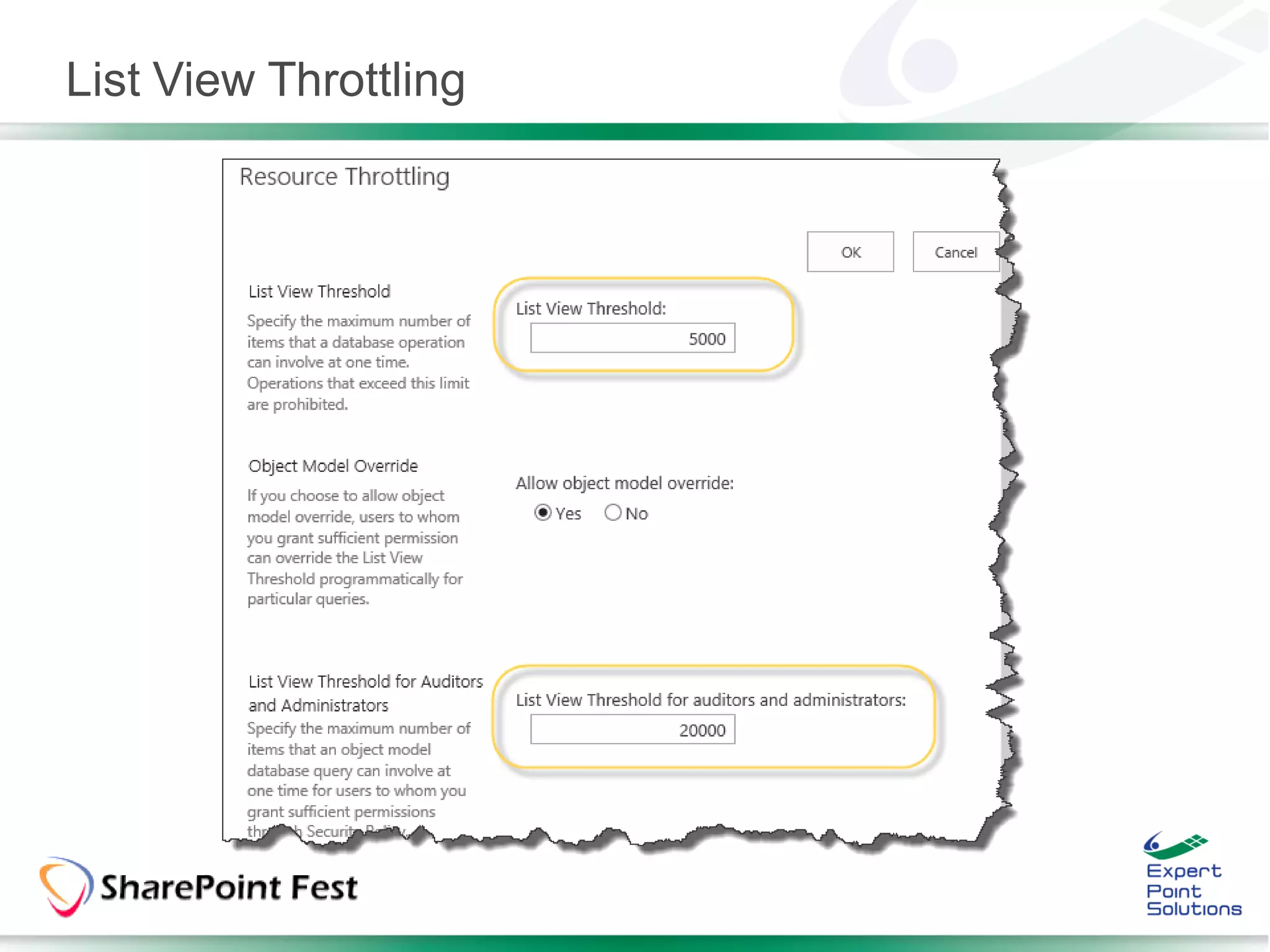
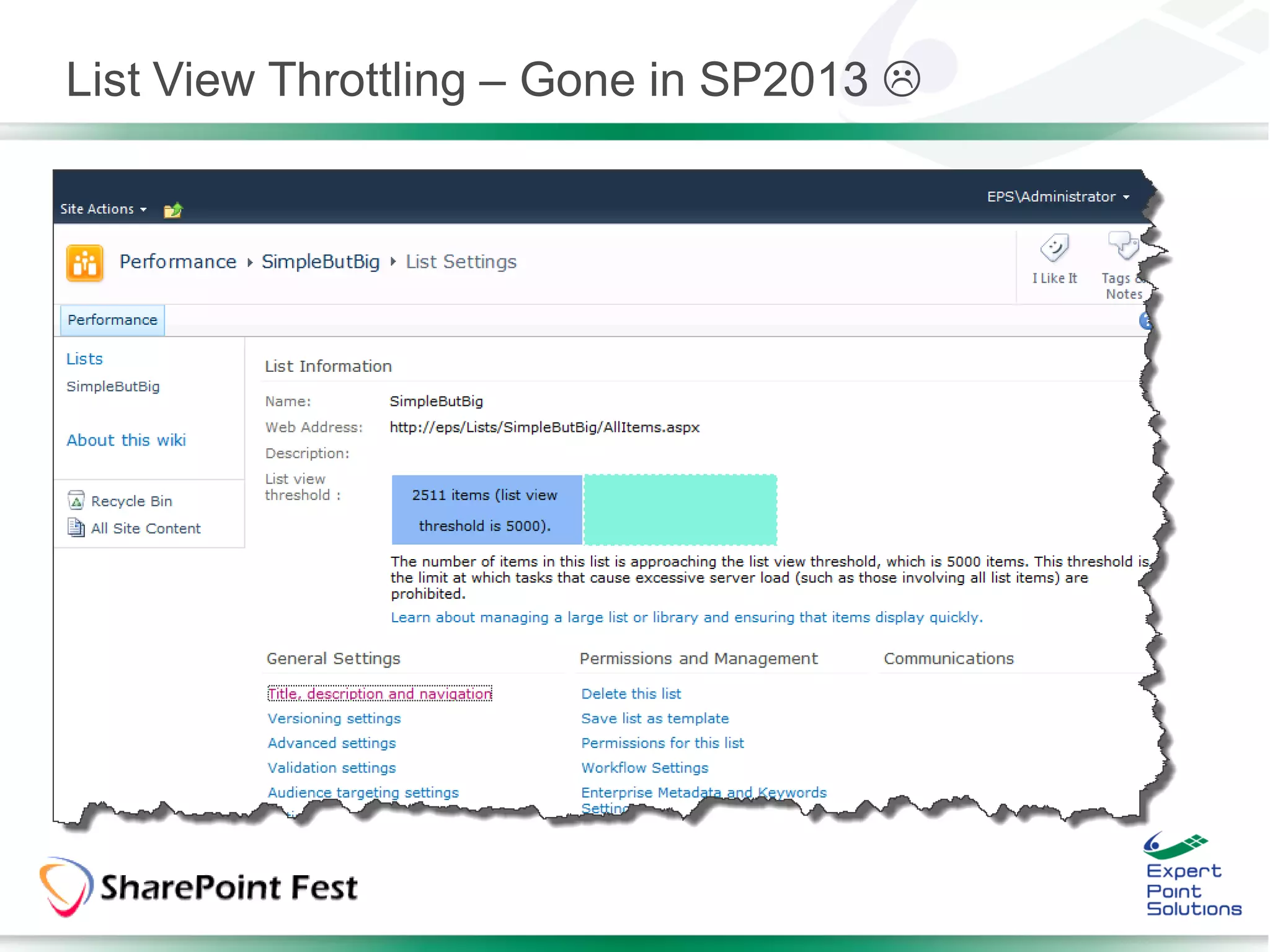
• Limits the number of list items returned per view.
  • Operations that exceed this limit are prohibited.

• Recommended to configure at the Web Application level.

• Default List View Threshold values:
  • 5000 for Users
  • 20000 for Auditors and Administrator
List View Throttling


• List can be configured individually via API

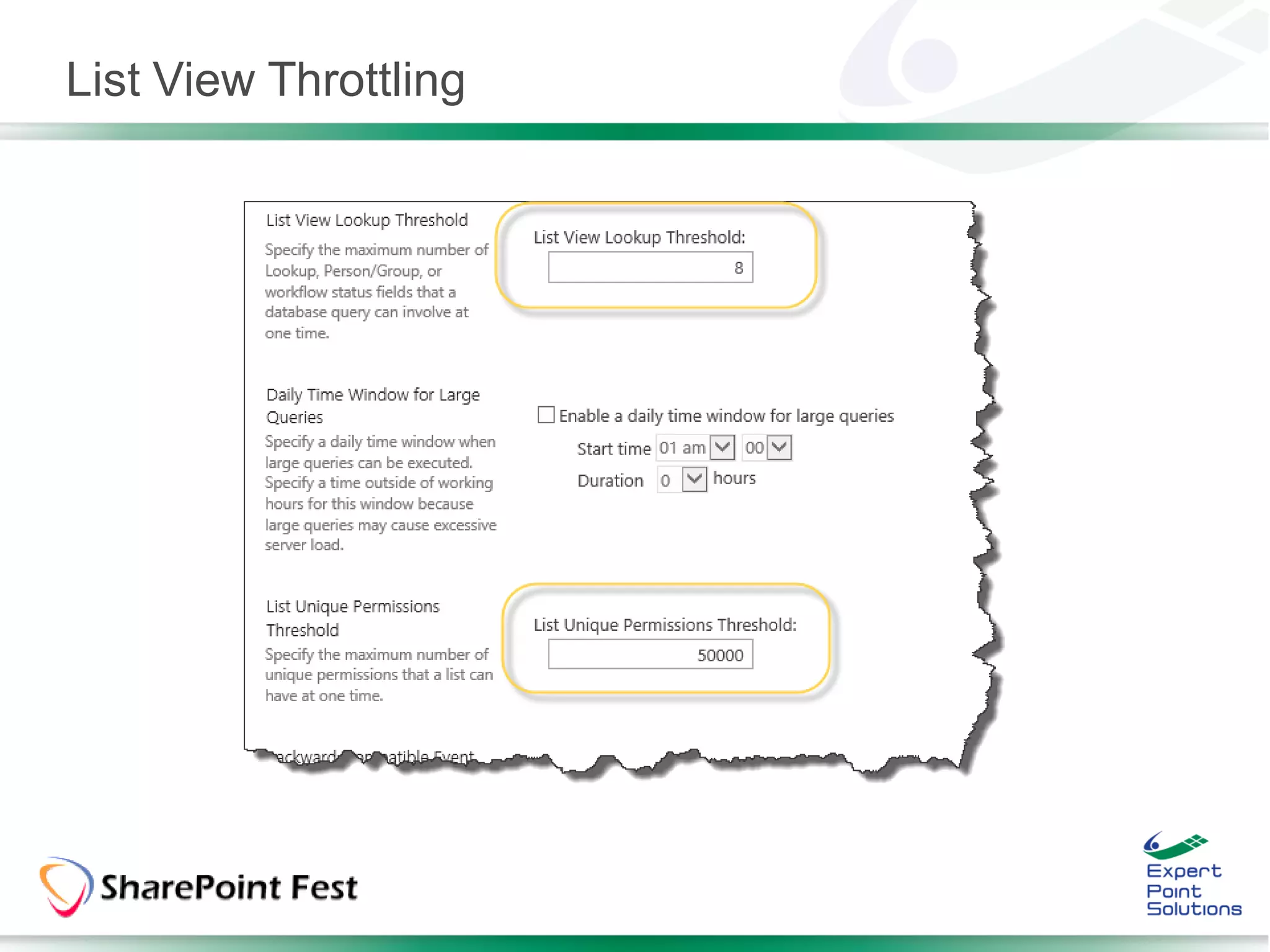
• Daily Time Window for Large Queries: Turn off Throttling during a daily
window
  • Comes with a Warning

• List View Lookup Threshold: How many complex fields are allowed
  • Lookup, Person/Group, or workflow status fields
  • Result in JOINs
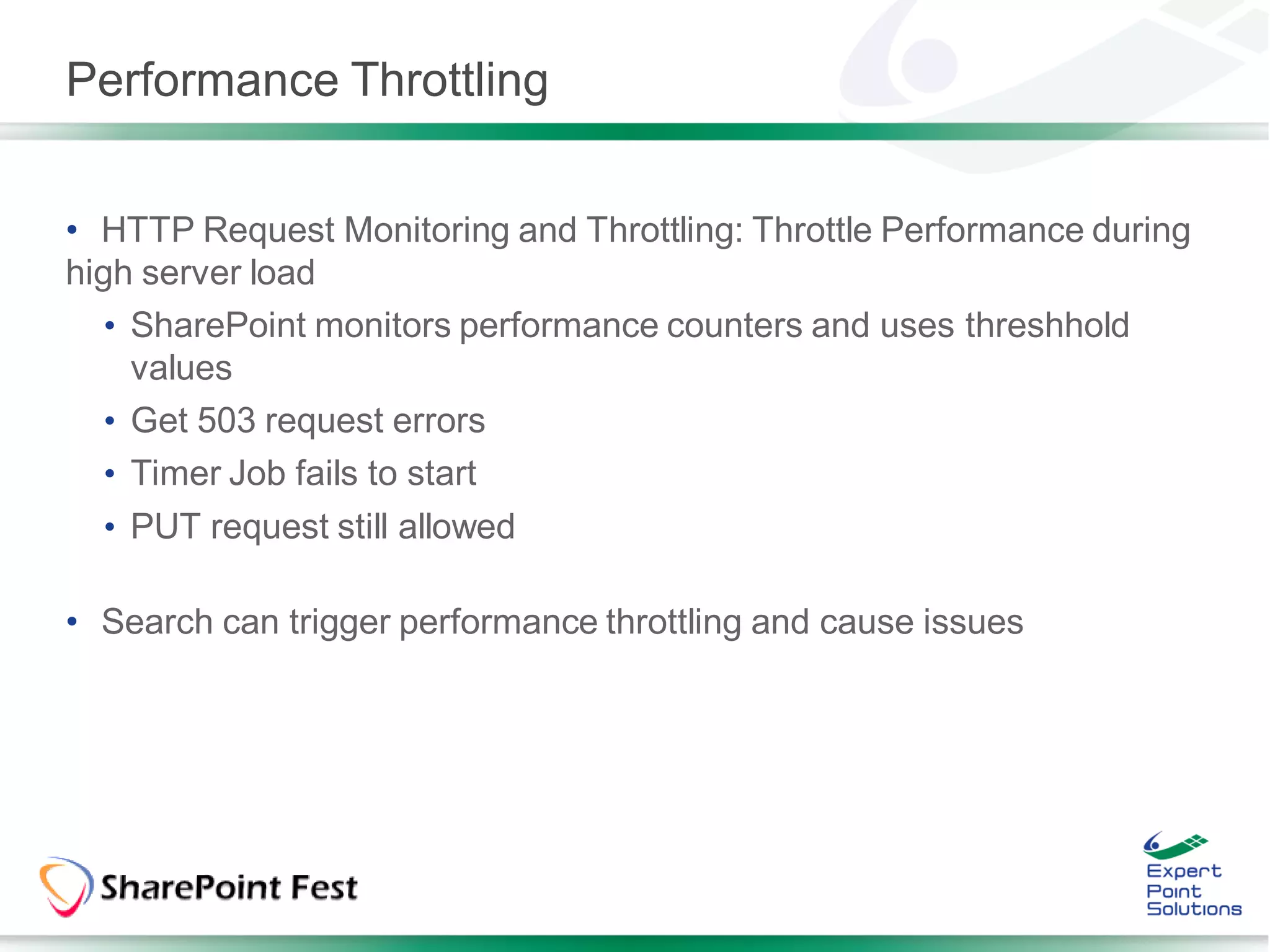
Performance Throttling


• HTTP Request Monitoring and Throttling: Throttle Performance during
high server load
   • SharePoint monitors performance counters and uses threshhold
     values
   • Get 503 request errors
   • Timer Job fails to start
  • PUT request still allowed

• Search can trigger performance throttling and cause issues
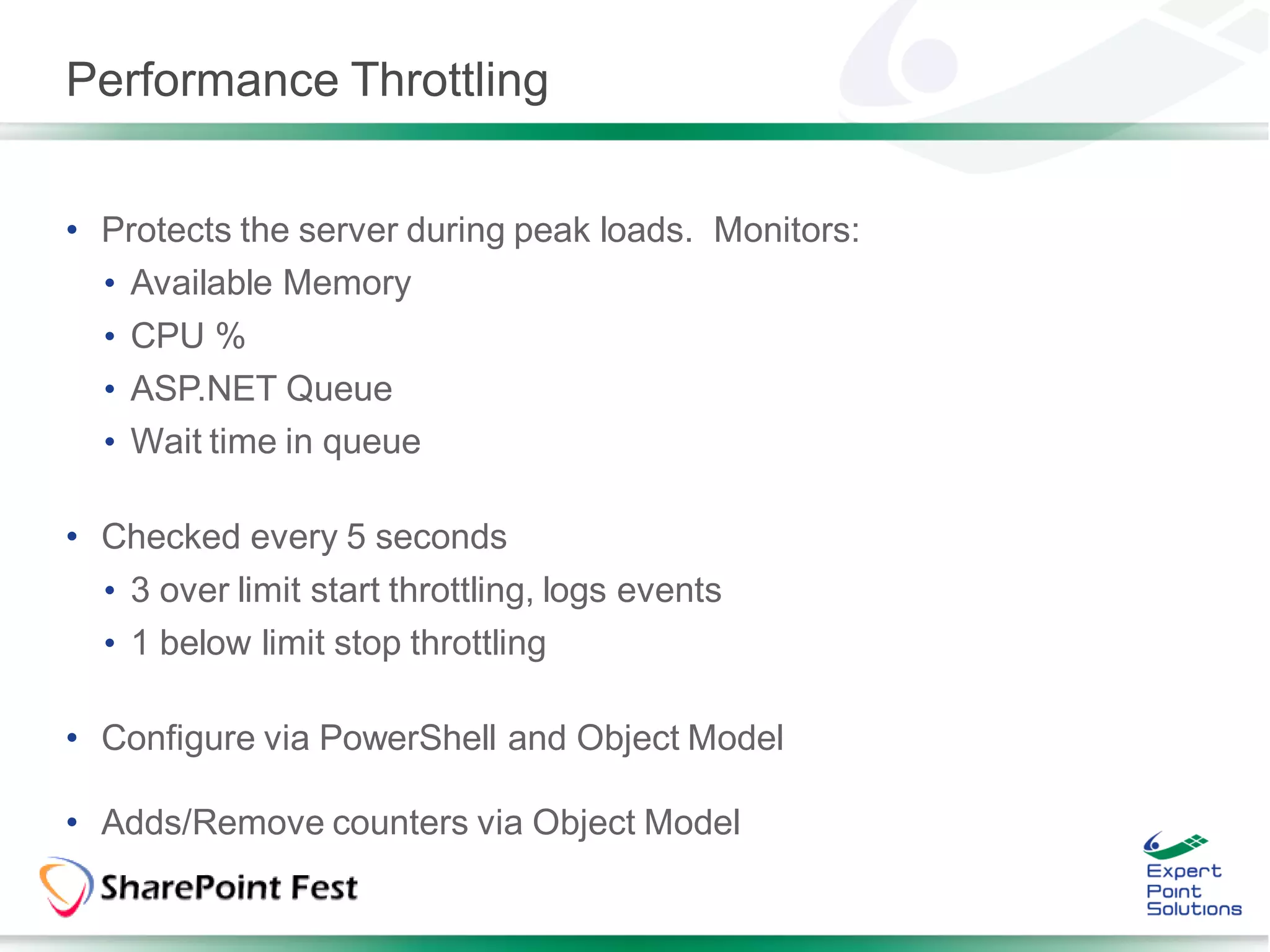
Performance Throttling


• Protects the server during peak loads. Monitors:
  • Available Memory
  • CPU %
  • ASP.NET Queue
  • Wait time in queue

• Checked every 5 seconds
  • 3 over limit start throttling, logs events
  • 1 below limit stop throttling

• Configure via PowerShell and Object Model

• Adds/Remove counters via Object Model
Demo
List View Throttling and Load Performance Throttling
List View Throttling
List View Throttling – Gone in SP2013 
List View Throttling
Caching

• Page Output Cache: for generated HTML markup for future requests
  • Cache frequently used Lists and reduce round trips to the database

• Object Cache: for common objects and query results
  • Content Query Web Part
  • List Views

• Disk-Based (BLOB) Cache: for commonly requested files on WFE
disks
   • Automatically cache BLOBs and reduce round trips to the content
     databases
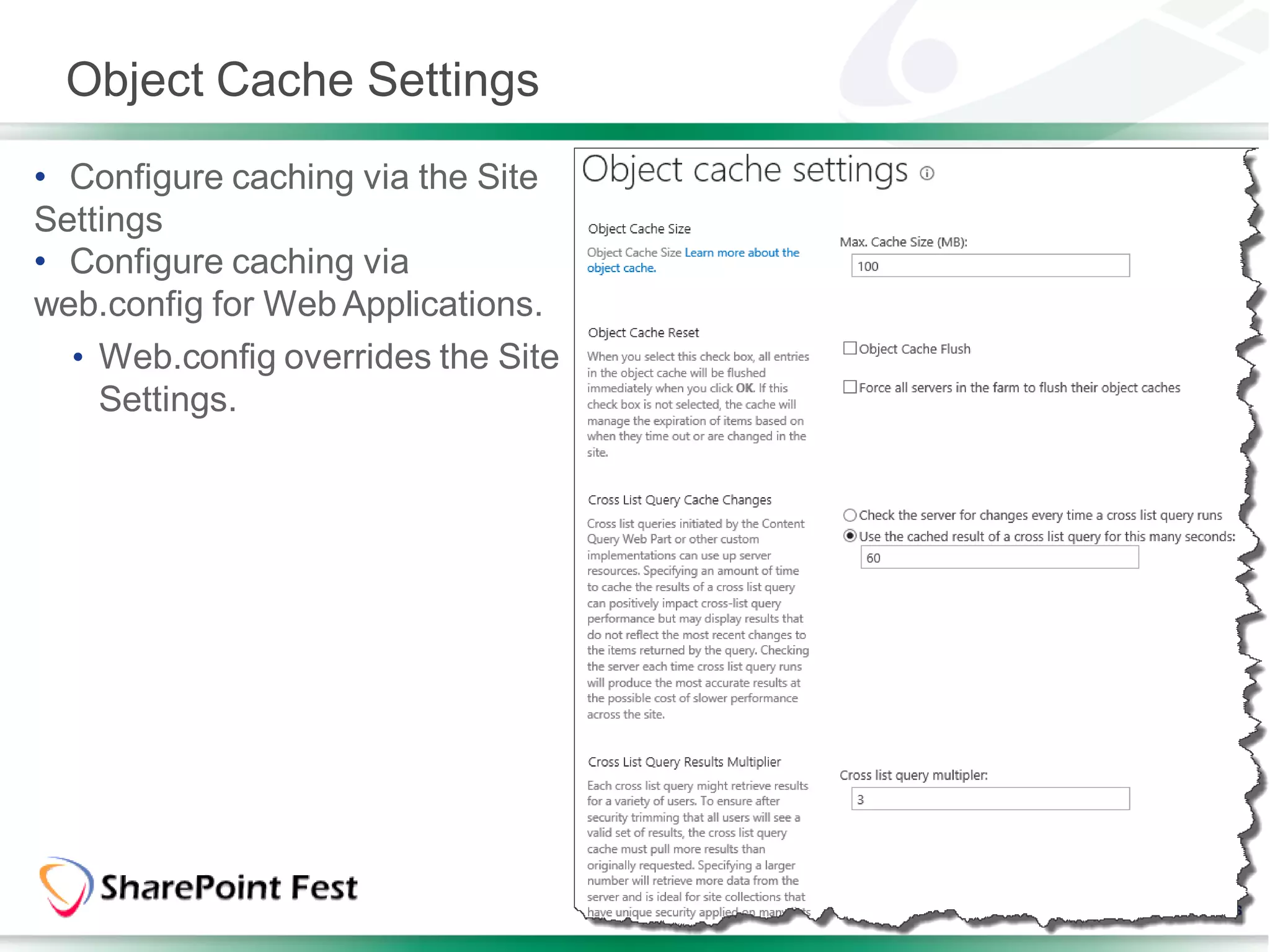
Object Cache Settings
• Configure caching via the Site
Settings
• Configure caching via
web.config for Web Applications.
  • Web.config overrides the Site
    Settings.
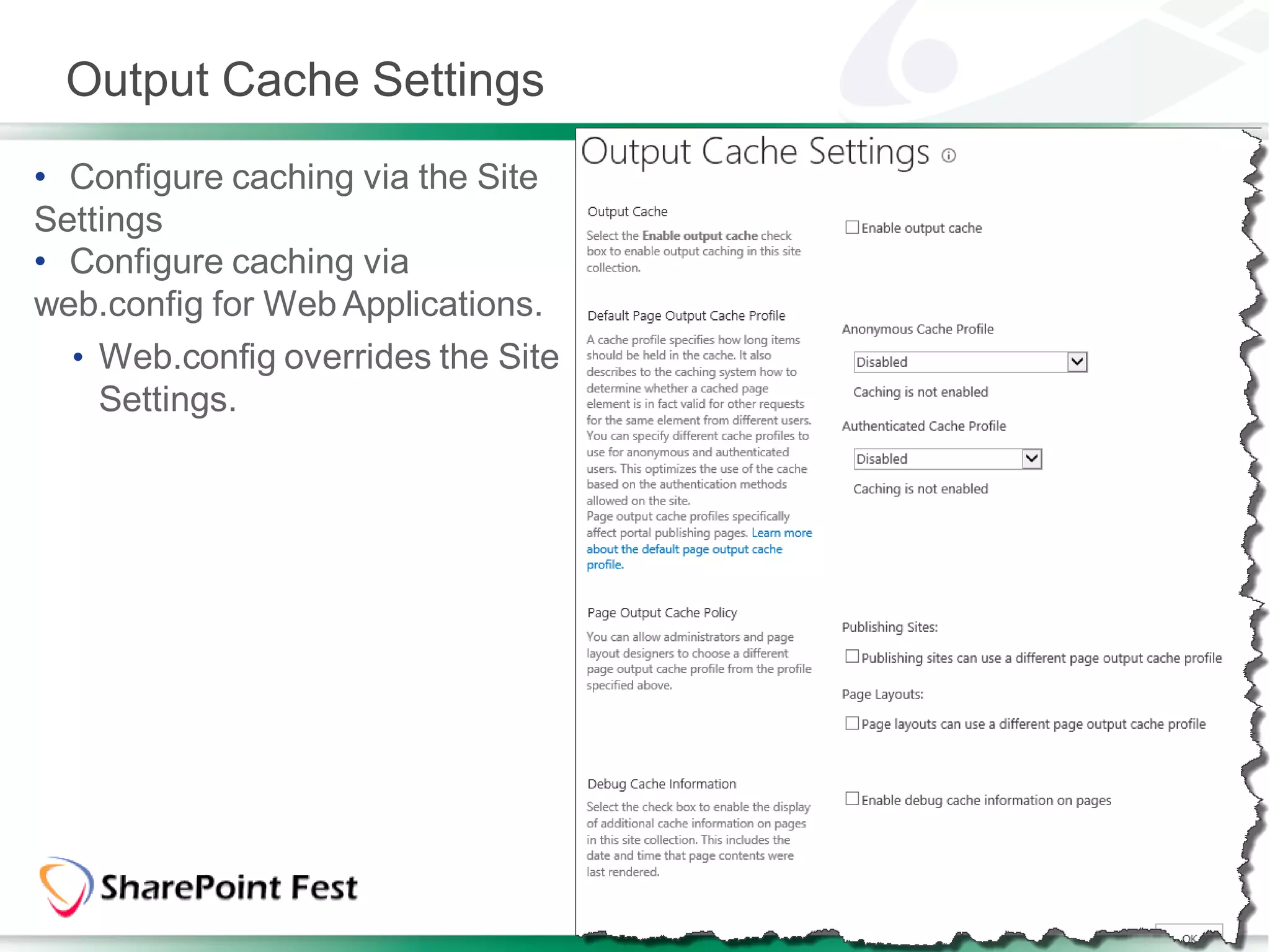
Output Cache Settings
• Configure caching via the Site
Settings
• Configure caching via
web.config for Web Applications.
  • Web.config overrides the Site
    Settings.
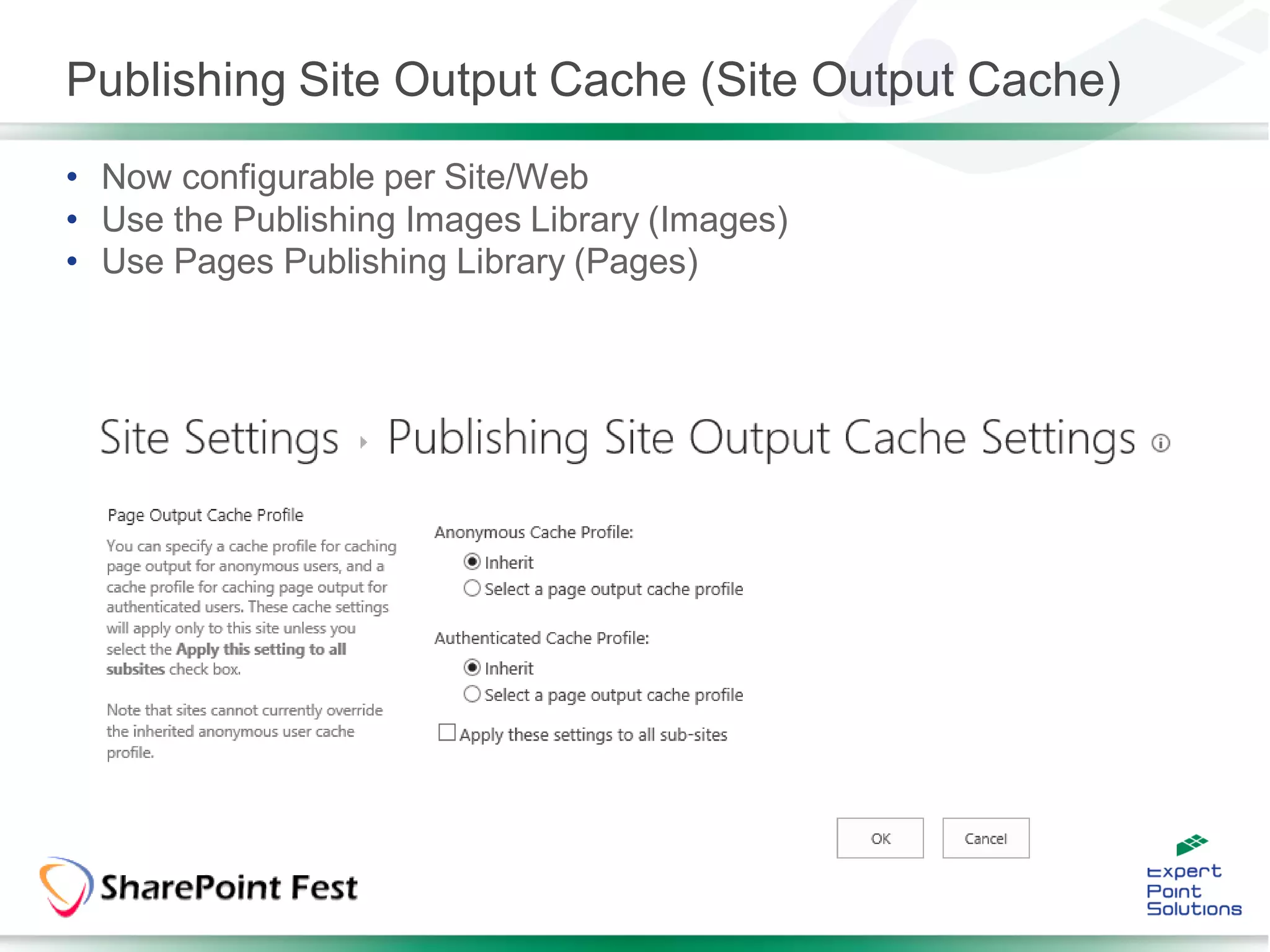
Publishing Site Output Cache (Site Output Cache)
• Now configurable per Site/Web
• Use the Publishing Images Library (Images)
• Use Pages Publishing Library (Pages)
Demo
Caching
IIS 7.0/8.0 Performance


• Design pages for fast downloading and rendering
• Lazy loading of large JavaScript files
• Clustering images
  • Reduce image requests
• Reduce the number of secured items in pages
  • Each secured request results in two roundtrips
    • Validate credentials
    • Enumeration of groups the user belongs to
• Leverage IIS Compression
  • Static Compression
  • Dynamic Compression
IIS 7.0/8.0 Performance


• Reduce amount of data sent to client and reduce the number of trips a
browser makes.
• View State Caching and Reduce Payload.
  • Cache View State to be used in subsequent post-backs
  • Minify JavaScript
    • Remove redundant white spaces and new lines
  • Reduce File Requests
    • Merge multiple JavaScript/CSS files in one request
    • Microsoft didn’t get the memo on this one in SP2013
IIS 7.0/8.0 Performance

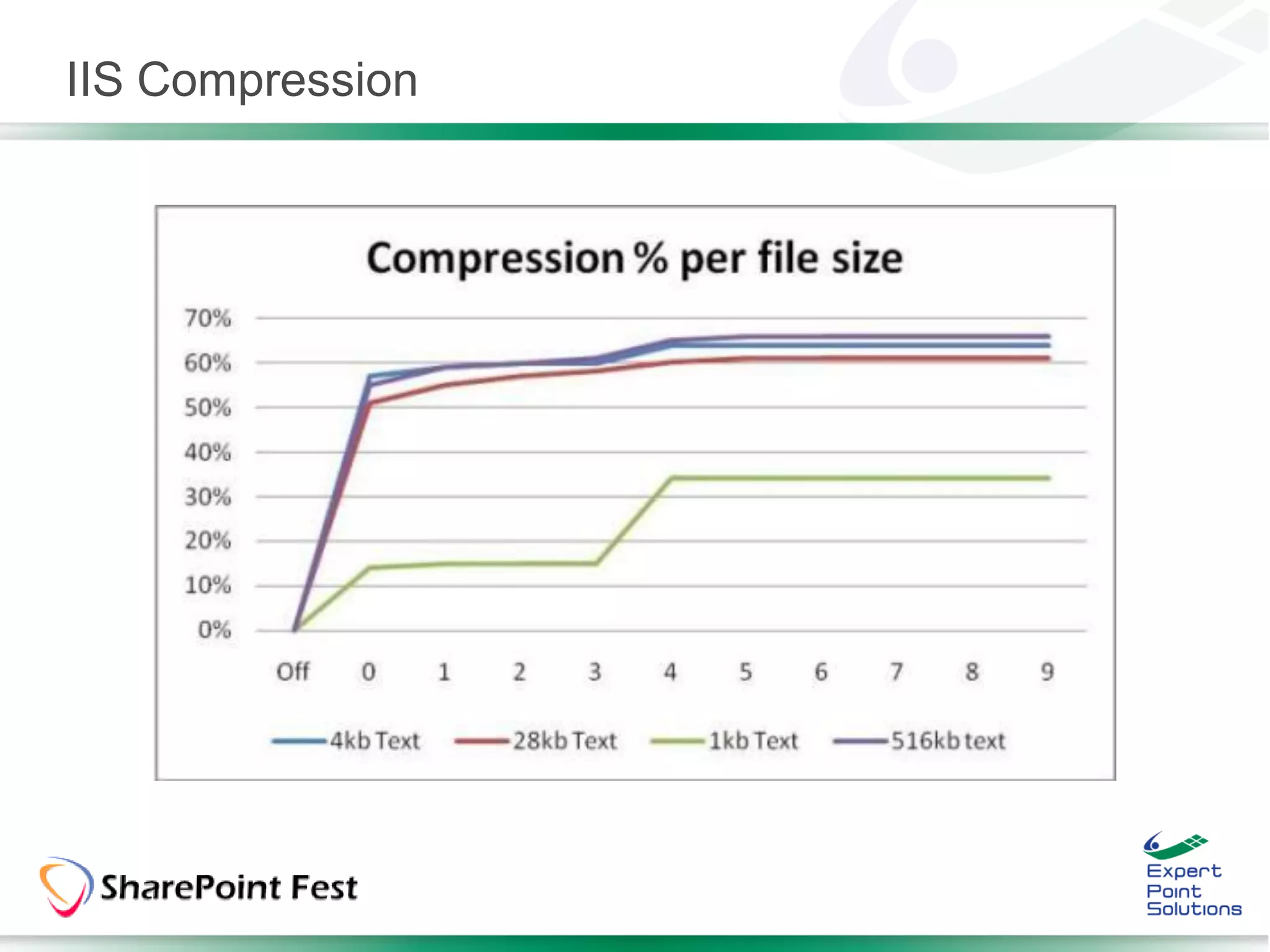
• Increase static compression level to 9 and dynamic to 9
APPCMD.EXE set config -section:httpCompression -
[name='gzip'].staticCompressionLevel:9 -[name='gzip'].dynamicCompressionLevel:9


• Change dynamic compression CPU utilization threshold range from
100-100% (This effectively disables it)

APPCMD.EXE set config –section:httpCompression /dynamicCompressionDisableCpuUsage:100
APPCMD.EXE set config –section:httpCompression /dynamicCompressionEnableCpuUsage:100


• Enable caching before insertion into page output cache

APPCMD.EXE set config –section:urlCompression /dynamicCompressionBeforeCache:true
IIS Compression
Content Search Web Part


• Powerful web part for searching, aggregating and rolling up
information from literally any source.
• Best Performance period!
  • Security Trimming
  • Cross Site Collection scoping
  • Very flexible
• Use Display Templates to customize output.
Content Query Web Part


• Powerful web part for aggregating and rolling up information from
various sources.
• Designed to leverage the object cache by caching the query results.
  • In MOSS 2007, Disabled by default
  • In SP2010 and SP2013, Enabled by default
• Best performance when content shares the same permissions and
doesn’t change often.
Custom Code

• Common cause for poor performance
• Custom inefficient features
Testing Performance

• SharePoint Load/Performance Testing
• Population tools, performance tuning techniques
Developer Dashboard

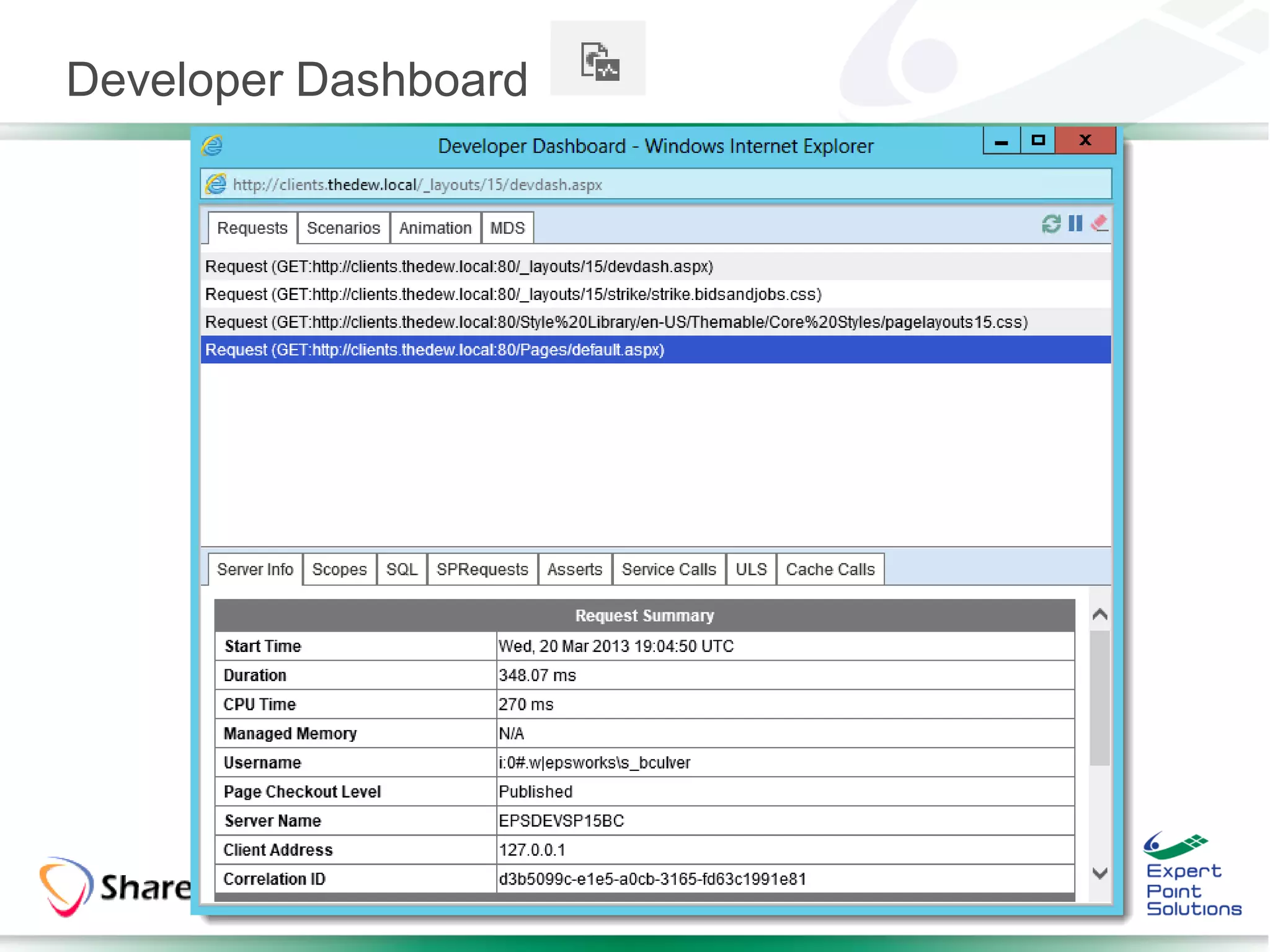
• Allows monitoring page loads and performance
• Information:
  • Times to render page
  • Page checkout level
  • DB query info
  • Web part processing time
  • Any critical events or alerts
Developer Dashboard
Developer Dashboard

       ON            •   Always ON for all users


       OFF           •   Completely OFF for all users


NOTE: Ondemand is only available in SP2010

$csvc = [Microsoft.SharePoint.Administration.SPWebService]::ContentService;
$devdash = $csvc.DeveloperDashboardSettings ;
$devdash.DisplayLevel = "On“;
$devdash.Update();
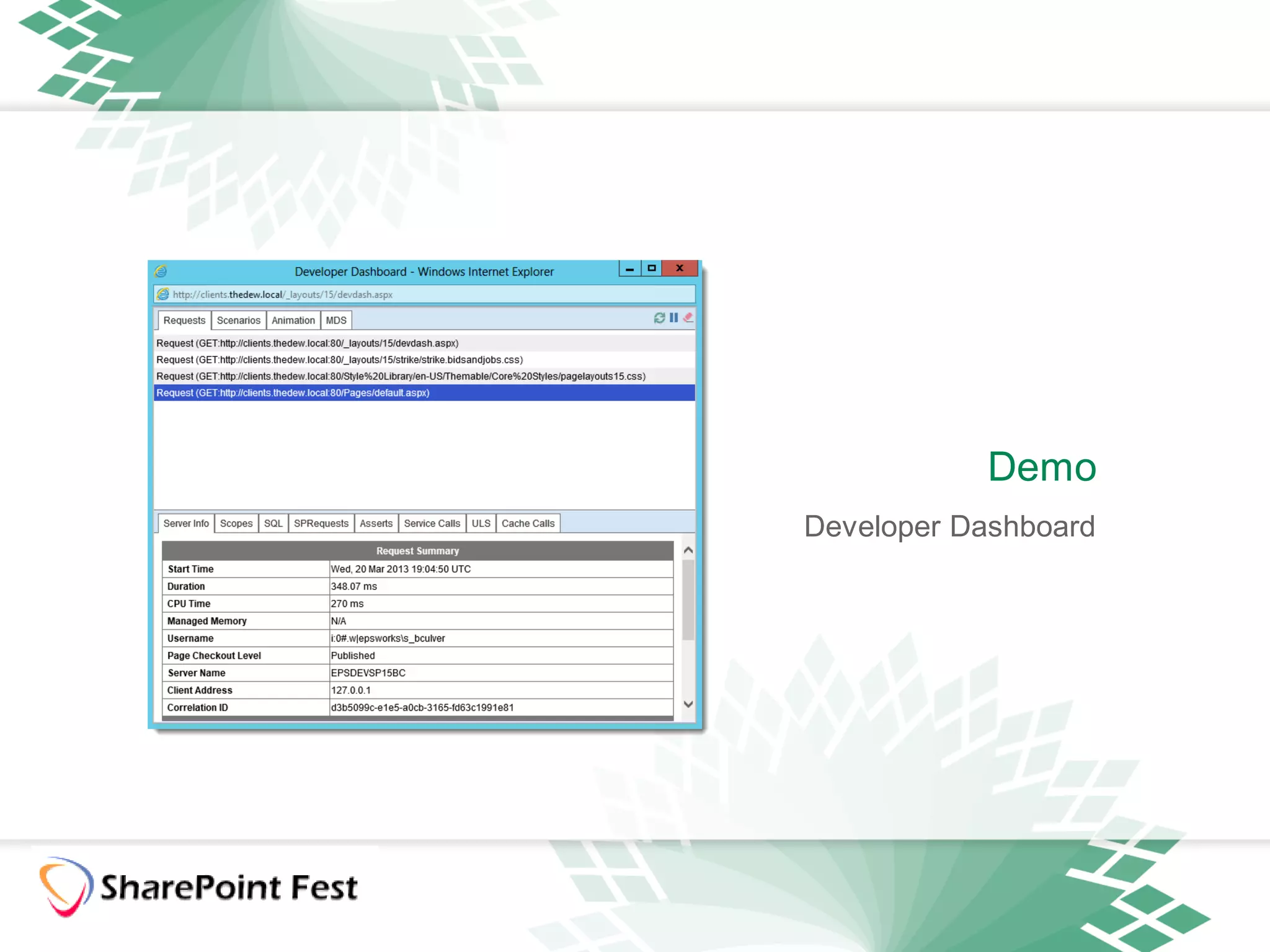
Demo
Developer Dashboard
Visual Studio Test Suite

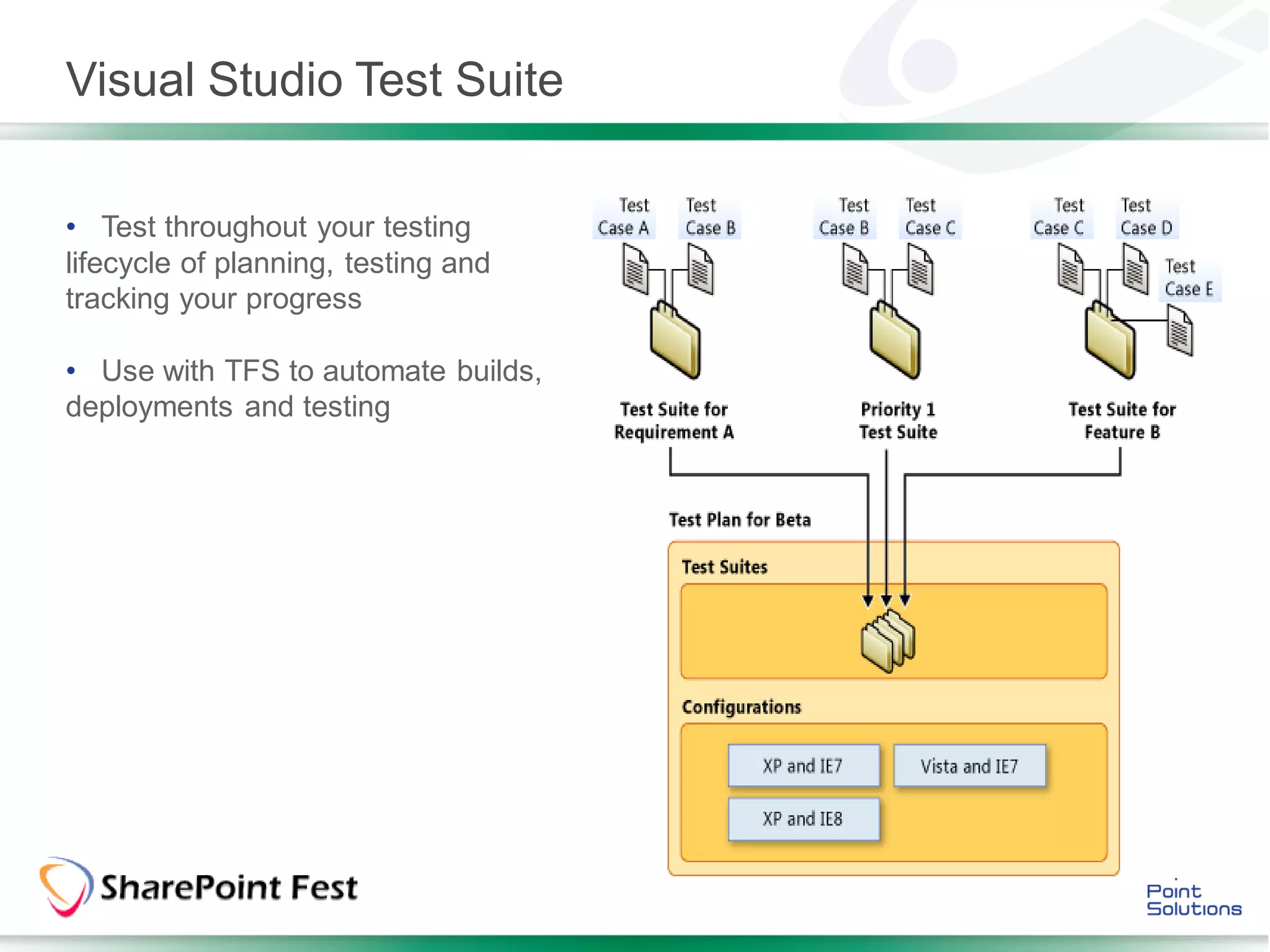
• Test throughout your testing
lifecycle of planning, testing and
tracking your progress

• Use with TFS to automate builds,
deployments and testing
Fiddler

• Great, light weight tool. Provides quick
overview of the website performance.

• Free (still .. for now)

• It can also record scripts that you can use in
Visual Studio Test Suite.

• neXpert: Fiddler Add-on that checks for
classic performance best practices and
produces a HTML report on the issues found in
a Fiddler capture.
YSlow

• Analyzes web pages and suggests
ways to improve their performance
based on a set of rules for high
performance web pages.

• Grades web page based rulesets.

• Suggests performance
improvements, summarizes page
components, statistics for the page,
and provides tools for performance
analysis.
Questions


                ?
                    ?
      ?

            ?
Constructive Feedback Is Appreciated


                                       Great information,
                                       but would like to
                                       have learned more
                       Brian – Your    about [Insert Topic]
                       presentation
                       was …

    Thanks!


              Good
              Demos!
Brian Culver, MCM
Twitter:
@spbrianculver

E-mail:
brian.culver@expertpointsolutions.com   Thank you!
Blog:
http://blog.expertpointsolutions.com/

Boost the Performance of SharePoint Today!

  • 1.
    www.expertpointsolutions.com SharePoint 2013 Performance Boost the Performance of SharePoint Today! • Brian Culver ● March 2013 ● SIA203
  • 2.
    About Brian Culver • SharePoint Solutions Architect for Expert Point Solutions • Based in Houston, TX • Author • SharePoint 2010 Unleashed • Upcoming SharePoint 2013 Workflows • Various White Papers • Speaker and Blogger
  • 3.
    Session Agenda • SoftwareBoundaries • What is Performance? • Infrastructure Performance • Hardware Performance • SharePoint Performance • Testing Performance
  • 4.
    Software Boundaries • Understandthe tested (by Microsoft) performance and capacity limits of SharePoint • General recommendations for average hardware and usage • Many come from MSIT • > 150,000 employees and vendors • Very large amounts of content • Globally accessed • Meet various goals including: • Backup and restore to meet standard SLAs • Ensure good performance early on with low hardware standards and low knowledge requirements • Allow configuration to scale and maintain decent performance • SharePoint 2013 Software Boundaries • http://technet.microsoft.com/en-us/library/cc262787.aspx • SharePoint 2010 Software Boundaries • http://technet.microsoft.com/en-us/library/cc262787(v=office.14).aspx • SharePoint 2007 Software Boundaries • http://technet.microsoft.com/en-us/library/cc262787(v=office.12).aspx
  • 5.
    What is PoorPerformance? • Increased end user response time • Reduced overall system throughput
  • 6.
    Infrastructure Performance • Active Directory • Exchange • Desktops • Network Topology • WAN Optimization • SharePoint Farm • Web Front Ends • Application Servers • Database Servers
  • 7.
    SharePoint Farm Performance • 3-4 Web Servers per DC • 8 Web Servers per SQL Server • Bandwidth and Latency<1 ms • 10 Application Pools per web server • 20 web applications per farm • Search: Indexing • iFilters • # of servers • Scheduling and throttling of crawling • “Boundaries” vs. “Supported” • Test, test, test
  • 8.
    Search Performance • CrawlTime: How long does the overall time the crawl takes? • Corpus Size: How big is the corpus size? • Indexing Speed: How many documents are being indexed per second?
  • 9.
    Search Performance • Groupingcontent sources by speed • Tuning crawling • Protocol • Authentication • Choosing multithreaded iFilters • Proper infrastructure • Dedicated Query Apps vs Distributed Query Apps
  • 10.
    SharePoint Farm Performance •Authentication Performance • # of round trips • Processing speed of provider • Fastest to Slowest • Anonymous • Claims Authentication • Kerberos • NTLM (Classic Windows Auth In 2013, Claims is • Basic the default. Avoid • Forms and WebSSO Classic • ADFS Authentication.
  • 11.
    SharePoint Farm Performance •Which Machines cause the bottleneck? • Watch • CPU • Memory • Disk I/O • Network
  • 12.
    SharePoint Farm Performance •Requests per Second (RPS): How many requests you can service? RPS is used for measuring how many pages are delivered. It can measure how many searches are executed. • Requests per Hour (RPH): Average user requests in an hour. • Page Time (TTLB): How long it takes to deliver a page back to the client? Used in conjunction with RPS. • For example, our farm needs to deliver 100 RPS and pages should reach the client within 5 seconds.
  • 13.
    SharePoint Farm Performance •Understand SharePoint workload • Use RAID 10 over other RAID ## • And yes, RAID 10 for SharePoint is better than RAID 5, 50, 60, etc. • Separate your database files • ** TempDB ** is the most heavily used DB ** • Create a TempDB per proc • Usage database is very busy • Search database is very busy • Log files separate from data files • Place different databases on different volumes • SQL Server files separate from other uses (e.g. OS files) • Separate your files according to I/O workload. • A single volume may be fast enough to handle several databases.
  • 14.
    Common Performance Problems •Large Lists • Lots of Web Parts importing non-cached data from various places • Cross-List queries and CBQ Web Parts • Too Deep Site Structures • Too many sites in a site collection • Too many site collections in a Content DB • Too many ACLs
  • 15.
    SharePoint Performance We willdiscuss the following: • Large List Control • Performance Throttling • Developer Dashboard • Great for IT Pros and Developers alike • Caching • IIS 7.0/8.0 • Content Query Web Part
  • 16.
    Large List Control Sowhat is new? • Lists and Libraries hold 50,000,000 items • Recommended List View • Size: • Why 2000 or 5000? • Server Overload • Solution: • List View Throttling
  • 17.
    List View Throttling •Limits the number of list items returned per view. • Operations that exceed this limit are prohibited. • Recommended to configure at the Web Application level. • Default List View Threshold values: • 5000 for Users • 20000 for Auditors and Administrator
  • 18.
    List View Throttling •List can be configured individually via API • Daily Time Window for Large Queries: Turn off Throttling during a daily window • Comes with a Warning • List View Lookup Threshold: How many complex fields are allowed • Lookup, Person/Group, or workflow status fields • Result in JOINs
  • 19.
    Performance Throttling • HTTPRequest Monitoring and Throttling: Throttle Performance during high server load • SharePoint monitors performance counters and uses threshhold values • Get 503 request errors • Timer Job fails to start • PUT request still allowed • Search can trigger performance throttling and cause issues
  • 20.
    Performance Throttling • Protectsthe server during peak loads. Monitors: • Available Memory • CPU % • ASP.NET Queue • Wait time in queue • Checked every 5 seconds • 3 over limit start throttling, logs events • 1 below limit stop throttling • Configure via PowerShell and Object Model • Adds/Remove counters via Object Model
  • 21.
    Demo List View Throttlingand Load Performance Throttling
  • 22.
  • 23.
  • 24.
  • 25.
    List View Throttling– Gone in SP2013 
  • 26.
  • 27.
    Caching • Page OutputCache: for generated HTML markup for future requests • Cache frequently used Lists and reduce round trips to the database • Object Cache: for common objects and query results • Content Query Web Part • List Views • Disk-Based (BLOB) Cache: for commonly requested files on WFE disks • Automatically cache BLOBs and reduce round trips to the content databases
  • 28.
    Object Cache Settings •Configure caching via the Site Settings • Configure caching via web.config for Web Applications. • Web.config overrides the Site Settings.
  • 29.
    Output Cache Settings •Configure caching via the Site Settings • Configure caching via web.config for Web Applications. • Web.config overrides the Site Settings.
  • 30.
    Publishing Site OutputCache (Site Output Cache) • Now configurable per Site/Web • Use the Publishing Images Library (Images) • Use Pages Publishing Library (Pages)
  • 31.
  • 32.
    IIS 7.0/8.0 Performance •Design pages for fast downloading and rendering • Lazy loading of large JavaScript files • Clustering images • Reduce image requests • Reduce the number of secured items in pages • Each secured request results in two roundtrips • Validate credentials • Enumeration of groups the user belongs to • Leverage IIS Compression • Static Compression • Dynamic Compression
  • 33.
    IIS 7.0/8.0 Performance •Reduce amount of data sent to client and reduce the number of trips a browser makes. • View State Caching and Reduce Payload. • Cache View State to be used in subsequent post-backs • Minify JavaScript • Remove redundant white spaces and new lines • Reduce File Requests • Merge multiple JavaScript/CSS files in one request • Microsoft didn’t get the memo on this one in SP2013
  • 34.
    IIS 7.0/8.0 Performance •Increase static compression level to 9 and dynamic to 9 APPCMD.EXE set config -section:httpCompression - [name='gzip'].staticCompressionLevel:9 -[name='gzip'].dynamicCompressionLevel:9 • Change dynamic compression CPU utilization threshold range from 100-100% (This effectively disables it) APPCMD.EXE set config –section:httpCompression /dynamicCompressionDisableCpuUsage:100 APPCMD.EXE set config –section:httpCompression /dynamicCompressionEnableCpuUsage:100 • Enable caching before insertion into page output cache APPCMD.EXE set config –section:urlCompression /dynamicCompressionBeforeCache:true
  • 35.
  • 36.
    Content Search WebPart • Powerful web part for searching, aggregating and rolling up information from literally any source. • Best Performance period! • Security Trimming • Cross Site Collection scoping • Very flexible • Use Display Templates to customize output.
  • 37.
    Content Query WebPart • Powerful web part for aggregating and rolling up information from various sources. • Designed to leverage the object cache by caching the query results. • In MOSS 2007, Disabled by default • In SP2010 and SP2013, Enabled by default • Best performance when content shares the same permissions and doesn’t change often.
  • 38.
    Custom Code • Commoncause for poor performance • Custom inefficient features
  • 39.
    Testing Performance • SharePointLoad/Performance Testing • Population tools, performance tuning techniques
  • 40.
    Developer Dashboard • Allowsmonitoring page loads and performance • Information: • Times to render page • Page checkout level • DB query info • Web part processing time • Any critical events or alerts
  • 41.
  • 42.
    Developer Dashboard ON • Always ON for all users OFF • Completely OFF for all users NOTE: Ondemand is only available in SP2010 $csvc = [Microsoft.SharePoint.Administration.SPWebService]::ContentService; $devdash = $csvc.DeveloperDashboardSettings ; $devdash.DisplayLevel = "On“; $devdash.Update();
  • 43.
  • 44.
    Visual Studio TestSuite • Test throughout your testing lifecycle of planning, testing and tracking your progress • Use with TFS to automate builds, deployments and testing
  • 45.
    Fiddler • Great, lightweight tool. Provides quick overview of the website performance. • Free (still .. for now) • It can also record scripts that you can use in Visual Studio Test Suite. • neXpert: Fiddler Add-on that checks for classic performance best practices and produces a HTML report on the issues found in a Fiddler capture.
  • 46.
    YSlow • Analyzes webpages and suggests ways to improve their performance based on a set of rules for high performance web pages. • Grades web page based rulesets. • Suggests performance improvements, summarizes page components, statistics for the page, and provides tools for performance analysis.
  • 47.
    Questions ? ? ? ?
  • 48.
    Constructive Feedback IsAppreciated Great information, but would like to have learned more Brian – Your about [Insert Topic] presentation was … Thanks! Good Demos!
  • 49.