SQL Server for
SharePoint geeks
A gentle introduction


Thomas Vochten • September 8, 2011
About Me
• SharePoint Infrastructure Consultant at
  Atos (before Siemens IT Solutions & Services)
• Accidental DBA
• Lousy .NET developer


            thomasvochten.com
            @thomasvochten
What we’ll cover
•   Disclaimer
•   Who needs a DBA anyway?
•   Importance of SQL for SharePoint
•   The SQL Landscape
•   Configuration tips
•   Common problems
•   Troubleshooting Tips
•   Counter Intelligence
•   Resources
Disclaimer
• There are no exact truths in SQL
• The standard answer always is...
PART 1 - SETTING THE SCENE
Who needs a DBA anyway?
• A quick poll...


  Who manages a production SQL instance
        that isn’t a *real* DBA?

• Don’t worry - you’re not alone...


               Meet the “Accidental” or
                 “Involuntary” DBA
Common Problems
•   Data and log file management
•   Backups
•   Corruption
•   Performance troubleshooting
•   Index fragmentation
•   Configuration issues
Importance for SharePoint
• SharePoint performance = SQL performance
• All your data is in a database
• The’re a lot of them:
SharePoint Databases
Other Important Considerations
• Capacity planning
• Performance planning
• HA / DR requirements
• Information Architecture
• Limits & Boundaries: from 100 GB to 200 GB to 4 TB and
  beyond
Why SharePoint makes DBAs cry
• GUIDs all over the place


• Don’t touch! support policy
Getting rid of the GUID
• Grey wizard is good


• White wizard is bad
SQL Landscape
Software Requirements

• SharePoint 2010 requires 64 bit all the way
• SQL Server 2008 R2 is your best friend
• Other 2008 or 2005 editions are supported too

Editions

• Standard or Enterprise?
Standard vs Enterprise
• Hardware
                      Standard   Enterprise
  # CPU               4          8
  Memory              64 GB      2 TB


• Enterprise-Only

  •   Snaphots
  •   TDE
  •   More online operations
  •   PowerPivot
What about RBS?
Just because you can, doesn’t mean you should

Pro
• Potentially cheaper storage
• Move-SPSite (after SP1)
• Disk I/O optimizations

Cons
• Backup / restore complexity
• Not supported together with mirroring
• General operational burden
• 3rd party software
A case for RBS
• Heavily focused on document libraries
• The vast majority ( >70%) of those files exceed 1MB in size.
• The SharePoint content databases holding these files are
  relatively large ( >200GB) now or in the immediately
  foreseeable future
• You have Disaster Recovery tools that are either directly RBS
  aware, or have processes designed to synchronize backups
• You have highly skilled, expert SQL and Windows
  administration staff that is currently or has the capacity and
  directive to be well trained in RBS use, administration, and
  troubleshooting

[Source: Chris Mullendore, MSFT PFE]
PART 2 - CONFIGURATION TIPS
Pre Setup (1)
• Use the latest service pack
• Consider the latest cumulative update
• Different databases: different I/O needs


                          TempDB
                            Logs
                       Search DB’s
                      Content DB’s
Pre Setup (2)
•   Use a normal domain user account as service account
•   Learn about instant file initialization
•   Learn about “lock pages in memory”
•   Check partition alignment
•   Perform a stresstest with sqlio
Setup
• Choose the right product features
• Change the default database paths
• Put TempDB in the right place immediately


• Only use Windows Authentication Mode
Post Setup
• Make sure SQL Server Agent is started
• Check Windows Firewall
• Explore server & database options

  •   Minimum & maximum memory usage
  •   Set fill factor to 80% for SharePoint
  •   MAXDOP to 1 for SharePoint
  •   Backup compression
  •   Autogrowth settings
  •   # of database files per database
  •   Model database (not for SharePoint)

• Create and test SQL aliases on your SharePoint servers
• Pregrow your SharePoint databases!
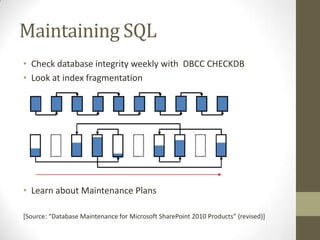
Maintaining SQL
• Check database integrity weekly with DBCC CHECKDB
• Look at index fragmentation


• Learn about Maintenance Plans

*Source: “Database Maintenance for Microsoft SharePoint 2010 Products” (revised)+
Caution
• Shrinking database files: are you sure?
• Autoshrink: the exception to the “it depends” rule
          It’s evil!
Common Problems, Revisited
Most common issues
• Data and log file management
• Backups

Due to lack of understanding of
• Recovery models and their influence on space and backups
• Backup types (full, differential & logs)

Recovery models
• Choosing between SIMPLE or FULL recovery model and what
  they bring to the table
Troubleshooting Tips
Learn how to use the tools
• Perfmon
• Activity Monitor
• PAL
• Profiler

Learn the basics, like
• Don’t restart SQL server in case of corruption
• Don’t detach and reattach problematic databases
Counter Intelligence
Get to know your SQL server, fast!
• Blitz! scripts by Brent Ozar
• Diagnostic scripts by Glenn Berry
Resources
Where do I go for SQL help?

Paul Randal (blog | twitter)
Kimberly Tripp (blog| twitter)
Brent Ozar (blog| twitter)
Glenn Berry (blog| twitter)

Fancy some blogs?
http://thomaslarock.com/rankings

Get help – fast!
#sqlhelp on Twitter
We now have #sphelp too you know 
Quick Wins Summary
•   Partition Alignment
•   Instant File Initialization
•   Databases & logs on different spindles
•   Multiple datafiles, but not for TempDB or for logfiles
•   Tune server memory usage
•   Fill factor to 80%
•   MAXDOP to 1
•   Tune autogrowth settings
•   Use SQL aliases
•   Presize your databases
•   Check integrity often
•   No shrinking of data files (autoshrink is evil)
•   Know the recovery models & their impact on drive space
Thank you

1. SQL Server forSharePoint geeksA gentle introductionThomas Vochten • September 8, 2011

  • 1.
    SQL Server for SharePointgeeks A gentle introduction Thomas Vochten • September 8, 2011
  • 2.
    About Me • SharePointInfrastructure Consultant at Atos (before Siemens IT Solutions & Services) • Accidental DBA • Lousy .NET developer thomasvochten.com @thomasvochten
  • 3.
    What we’ll cover • Disclaimer • Who needs a DBA anyway? • Importance of SQL for SharePoint • The SQL Landscape • Configuration tips • Common problems • Troubleshooting Tips • Counter Intelligence • Resources
  • 4.
    Disclaimer • There areno exact truths in SQL • The standard answer always is...
  • 5.
    PART 1 -SETTING THE SCENE
  • 6.
    Who needs aDBA anyway? • A quick poll... Who manages a production SQL instance that isn’t a *real* DBA? • Don’t worry - you’re not alone... Meet the “Accidental” or “Involuntary” DBA
  • 7.
    Common Problems • Data and log file management • Backups • Corruption • Performance troubleshooting • Index fragmentation • Configuration issues
  • 8.
    Importance for SharePoint •SharePoint performance = SQL performance • All your data is in a database • The’re a lot of them:
  • 9.
    SharePoint Databases Other ImportantConsiderations • Capacity planning • Performance planning • HA / DR requirements • Information Architecture • Limits & Boundaries: from 100 GB to 200 GB to 4 TB and beyond
  • 10.
    Why SharePoint makesDBAs cry • GUIDs all over the place • Don’t touch! support policy
  • 11.
    Getting rid ofthe GUID • Grey wizard is good • White wizard is bad
  • 12.
    SQL Landscape Software Requirements •SharePoint 2010 requires 64 bit all the way • SQL Server 2008 R2 is your best friend • Other 2008 or 2005 editions are supported too Editions • Standard or Enterprise?
  • 13.
    Standard vs Enterprise •Hardware Standard Enterprise # CPU 4 8 Memory 64 GB 2 TB • Enterprise-Only • Snaphots • TDE • More online operations • PowerPivot
  • 14.
    What about RBS? Justbecause you can, doesn’t mean you should Pro • Potentially cheaper storage • Move-SPSite (after SP1) • Disk I/O optimizations Cons • Backup / restore complexity • Not supported together with mirroring • General operational burden • 3rd party software
  • 15.
    A case forRBS • Heavily focused on document libraries • The vast majority ( >70%) of those files exceed 1MB in size. • The SharePoint content databases holding these files are relatively large ( >200GB) now or in the immediately foreseeable future • You have Disaster Recovery tools that are either directly RBS aware, or have processes designed to synchronize backups • You have highly skilled, expert SQL and Windows administration staff that is currently or has the capacity and directive to be well trained in RBS use, administration, and troubleshooting [Source: Chris Mullendore, MSFT PFE]
  • 16.
    PART 2 -CONFIGURATION TIPS
  • 17.
    Pre Setup (1) •Use the latest service pack • Consider the latest cumulative update • Different databases: different I/O needs TempDB Logs Search DB’s Content DB’s
  • 18.
    Pre Setup (2) • Use a normal domain user account as service account • Learn about instant file initialization • Learn about “lock pages in memory” • Check partition alignment • Perform a stresstest with sqlio
  • 19.
    Setup • Choose theright product features • Change the default database paths • Put TempDB in the right place immediately • Only use Windows Authentication Mode
  • 20.
    Post Setup • Makesure SQL Server Agent is started • Check Windows Firewall • Explore server & database options • Minimum & maximum memory usage • Set fill factor to 80% for SharePoint • MAXDOP to 1 for SharePoint • Backup compression • Autogrowth settings • # of database files per database • Model database (not for SharePoint) • Create and test SQL aliases on your SharePoint servers • Pregrow your SharePoint databases!
  • 21.
    Maintaining SQL • Checkdatabase integrity weekly with DBCC CHECKDB • Look at index fragmentation • Learn about Maintenance Plans *Source: “Database Maintenance for Microsoft SharePoint 2010 Products” (revised)+
  • 22.
    Caution • Shrinking databasefiles: are you sure? • Autoshrink: the exception to the “it depends” rule It’s evil!
  • 23.
    Common Problems, Revisited Mostcommon issues • Data and log file management • Backups Due to lack of understanding of • Recovery models and their influence on space and backups • Backup types (full, differential & logs) Recovery models • Choosing between SIMPLE or FULL recovery model and what they bring to the table
  • 24.
    Troubleshooting Tips Learn howto use the tools • Perfmon • Activity Monitor • PAL • Profiler Learn the basics, like • Don’t restart SQL server in case of corruption • Don’t detach and reattach problematic databases
  • 25.
    Counter Intelligence Get toknow your SQL server, fast! • Blitz! scripts by Brent Ozar • Diagnostic scripts by Glenn Berry
  • 26.
    Resources Where do Igo for SQL help? Paul Randal (blog | twitter) Kimberly Tripp (blog| twitter) Brent Ozar (blog| twitter) Glenn Berry (blog| twitter) Fancy some blogs? http://thomaslarock.com/rankings Get help – fast! #sqlhelp on Twitter We now have #sphelp too you know 
  • 27.
    Quick Wins Summary • Partition Alignment • Instant File Initialization • Databases & logs on different spindles • Multiple datafiles, but not for TempDB or for logfiles • Tune server memory usage • Fill factor to 80% • MAXDOP to 1 • Tune autogrowth settings • Use SQL aliases • Presize your databases • Check integrity often • No shrinking of data files (autoshrink is evil) • Know the recovery models & their impact on drive space
  • 28.