How to Build a Simple Virtual Office PBX System Using TekSIP and TekIVR - KKaappllaannSSoofftt - (2013)
© 2013 KaplanSoft - All rights reserved - http://www.kaplansoft.com/ 1
How to Build a Simple Virtual Office PBX System
Using TekSIP and TekIVR
This document explains how to build a simple virtual office PBX system using TekSIP and
TekIVR. In this example following components are used:
ď‚· VoIP Gateway. VoIP gateway is used for PSTN interfacing. AudioCodes MP-118 with
FXO ports (Version ID 6.60A.228.011).
ď‚· Soft IP Phone. Xten eyebeam (Version 1.1).
ď‚· TekSIP (Version 3.4.7).
ď‚· TekIVR (Version 2.3.4).
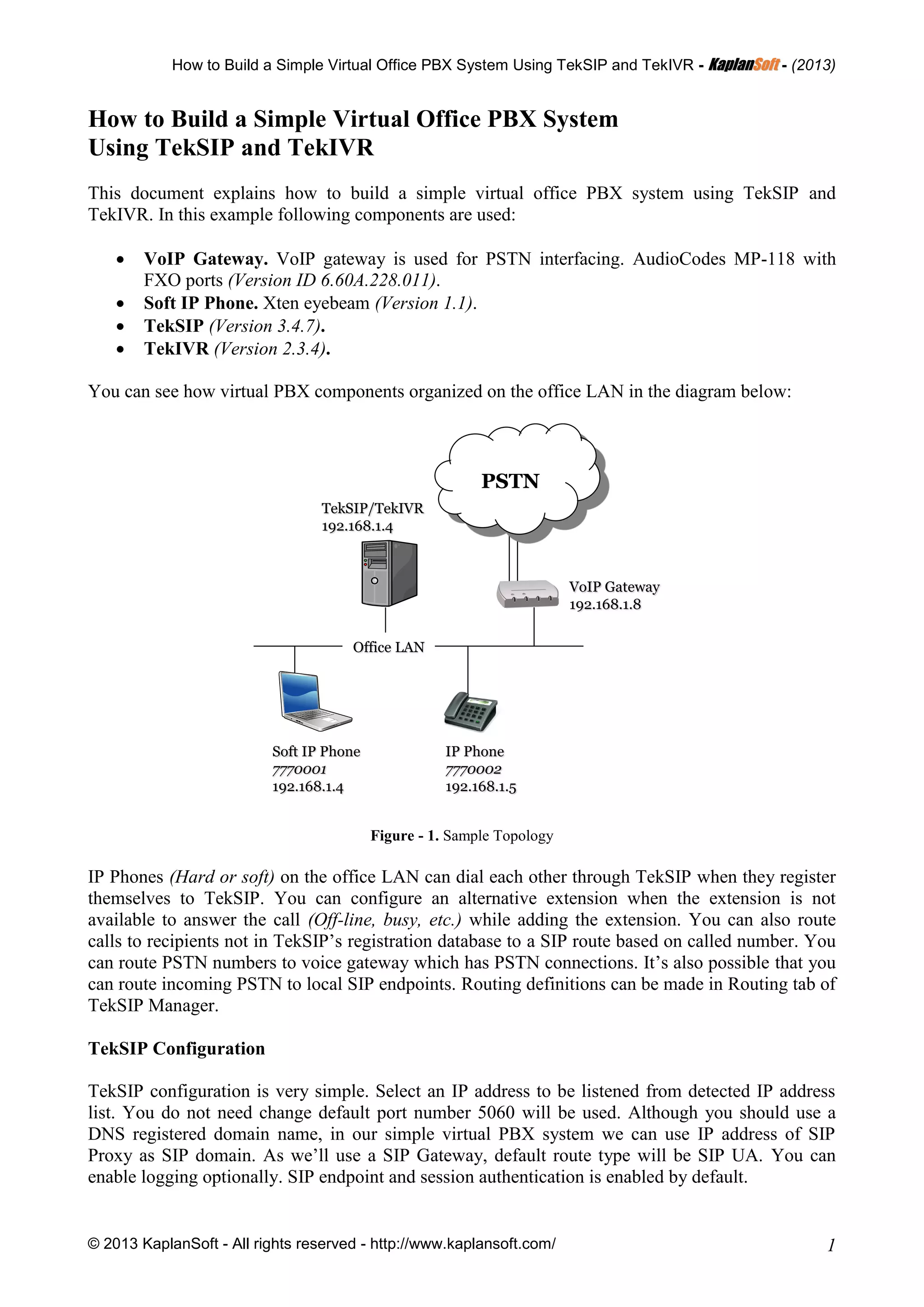
You can see how virtual PBX components organized on the office LAN in the diagram below:
PSTN
Office LAN
IP Phone
7770002
192.168.1.5
Soft IP Phone
7770001
192.168.1.4
VoIP Gateway
192.168.1.8
TekSIP/TekIVR
192.168.1.4
Figure - 1. Sample Topology
IP Phones (Hard or soft) on the office LAN can dial each other through TekSIP when they register
themselves to TekSIP. You can configure an alternative extension when the extension is not
available to answer the call (Off-line, busy, etc.) while adding the extension. You can also route
calls to recipients not in TekSIP’s registration database to a SIP route based on called number. You
can route PSTN numbers to voice gateway which has PSTN connections. It’s also possible that you
can route incoming PSTN to local SIP endpoints. Routing definitions can be made in Routing tab of
TekSIP Manager.
TekSIP Configuration
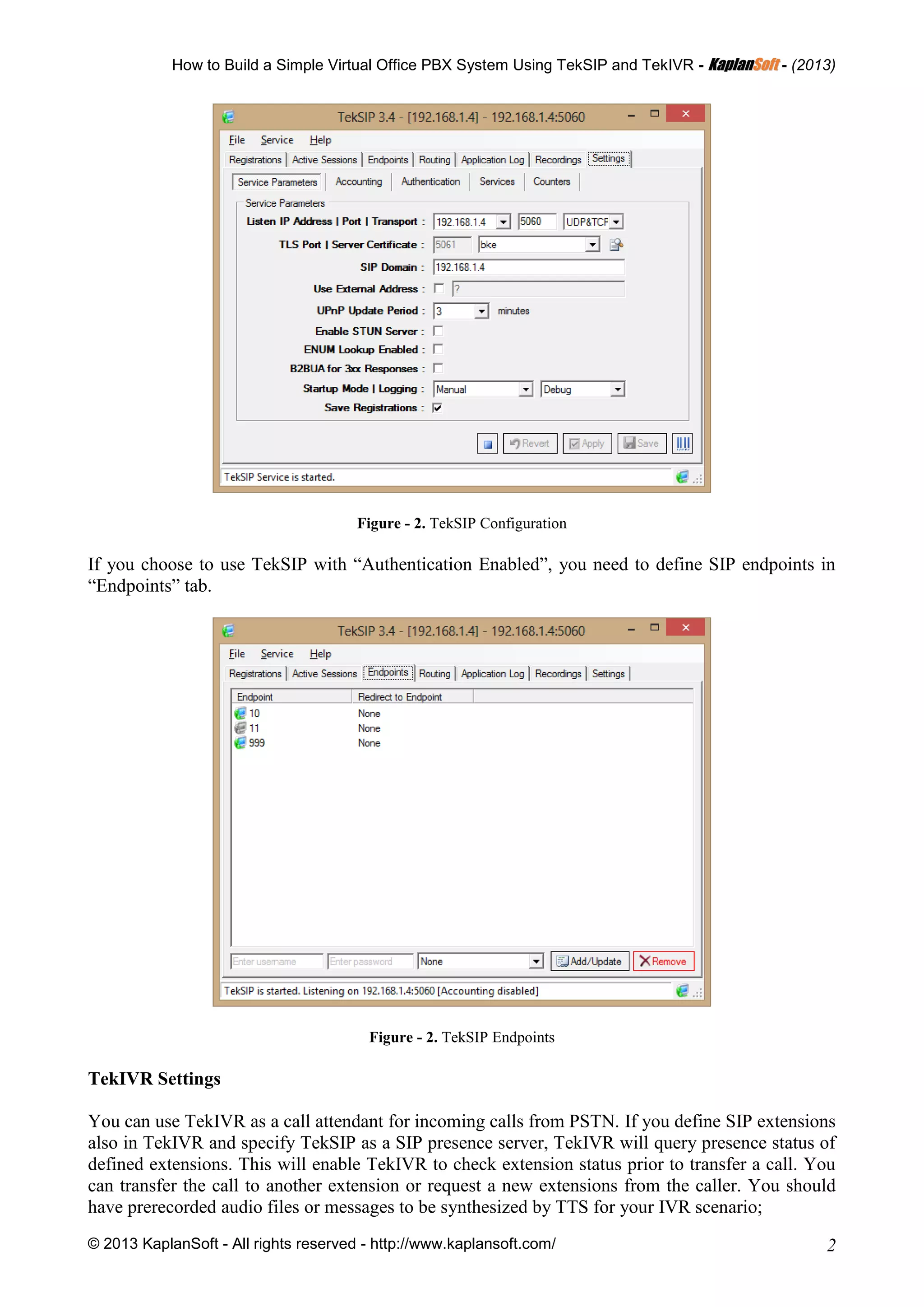
TekSIP configuration is very simple. Select an IP address to be listened from detected IP address
list. You do not need change default port number 5060 will be used. Although you should use a
DNS registered domain name, in our simple virtual PBX system we can use IP address of SIP
Proxy as SIP domain. As we’ll use a SIP Gateway, default route type will be SIP UA. You can
enable logging optionally. SIP endpoint and session authentication is enabled by default.
How to Build a Simple Virtual Office PBX System Using TekSIP and TekIVR - KKaappllaannSSoofftt - (2013)
© 2013 KaplanSoft - All rights reserved - http://www.kaplansoft.com/ 2
Figure - 2. TekSIP Configuration
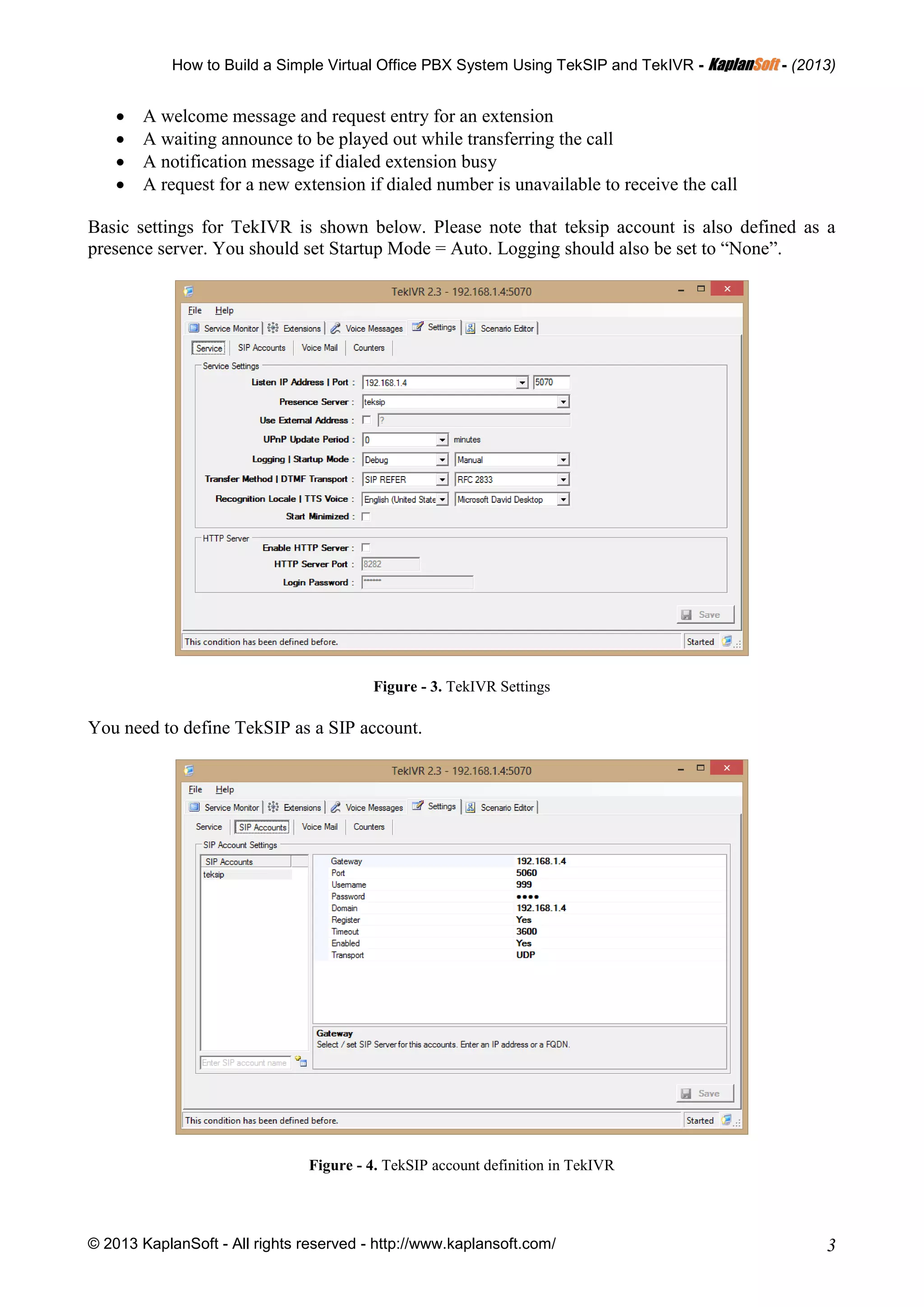
If you choose to use TekSIP with “Authentication Enabled”, you need to define SIP endpoints in
“Endpoints” tab.
Figure - 2. TekSIP Endpoints
TekIVR Settings
You can use TekIVR as a call attendant for incoming calls from PSTN. If you define SIP extensions
also in TekIVR and specify TekSIP as a SIP presence server, TekIVR will query presence status of
defined extensions. This will enable TekIVR to check extension status prior to transfer a call. You
can transfer the call to another extension or request a new extensions from the caller. You should
have prerecorded audio files or messages to be synthesized by TTS for your IVR scenario;
How to Build a Simple Virtual Office PBX System Using TekSIP and TekIVR - KKaappllaannSSoofftt - (2013)
© 2013 KaplanSoft - All rights reserved - http://www.kaplansoft.com/ 3
ď‚· A welcome message and request entry for an extension
ď‚· A waiting announce to be played out while transferring the call
ď‚· A notification message if dialed extension busy
ď‚· A request for a new extension if dialed number is unavailable to receive the call
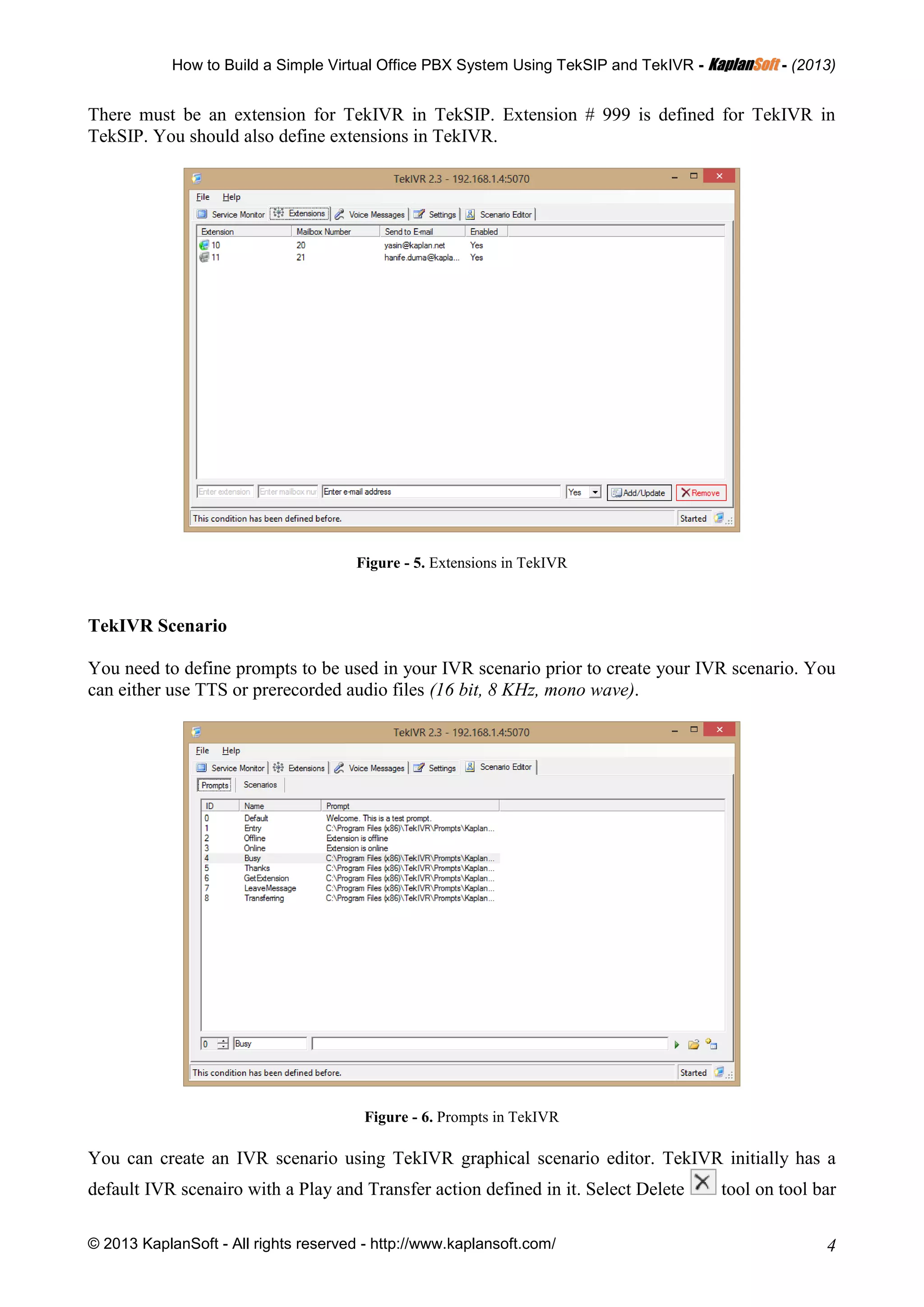
Basic settings for TekIVR is shown below. Please note that teksip account is also defined as a
presence server. You should set Startup Mode = Auto. Logging should also be set to “None”.
Figure - 3. TekIVR Settings
You need to define TekSIP as a SIP account.
Figure - 4. TekSIP account definition in TekIVR
How to Build a Simple Virtual Office PBX System Using TekSIP and TekIVR - KKaappllaannSSoofftt - (2013)
© 2013 KaplanSoft - All rights reserved - http://www.kaplansoft.com/ 4
There must be an extension for TekIVR in TekSIP. Extension # 999 is defined for TekIVR in
TekSIP. You should also define extensions in TekIVR.
Figure - 5. Extensions in TekIVR
TekIVR Scenario
You need to define prompts to be used in your IVR scenario prior to create your IVR scenario. You
can either use TTS or prerecorded audio files (16 bit, 8 KHz, mono wave).
Figure - 6. Prompts in TekIVR
You can create an IVR scenario using TekIVR graphical scenario editor. TekIVR initially has a
default IVR scenairo with a Play and Transfer action defined in it. Select Delete tool on tool bar
How to Build a Simple Virtual Office PBX System Using TekSIP and TekIVR - KKaappllaannSSoofftt - (2013)
© 2013 KaplanSoft - All rights reserved - http://www.kaplansoft.com/ 5
and delete connection between Play action and Transfer action by clicking on the connection.
Please also delete Transfer action by clicking on it.
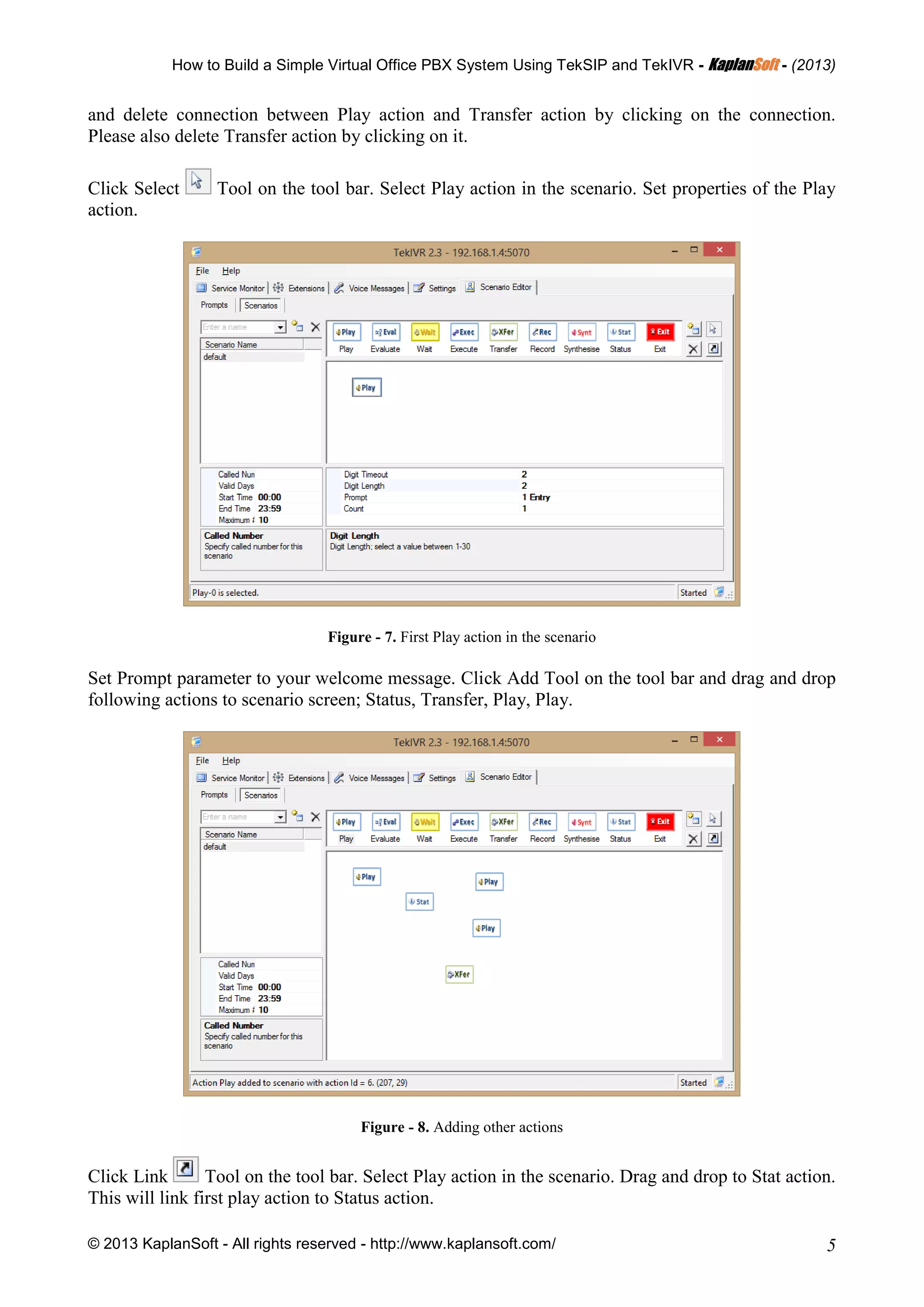
Click Select Tool on the tool bar. Select Play action in the scenario. Set properties of the Play
action.
Figure - 7. First Play action in the scenario
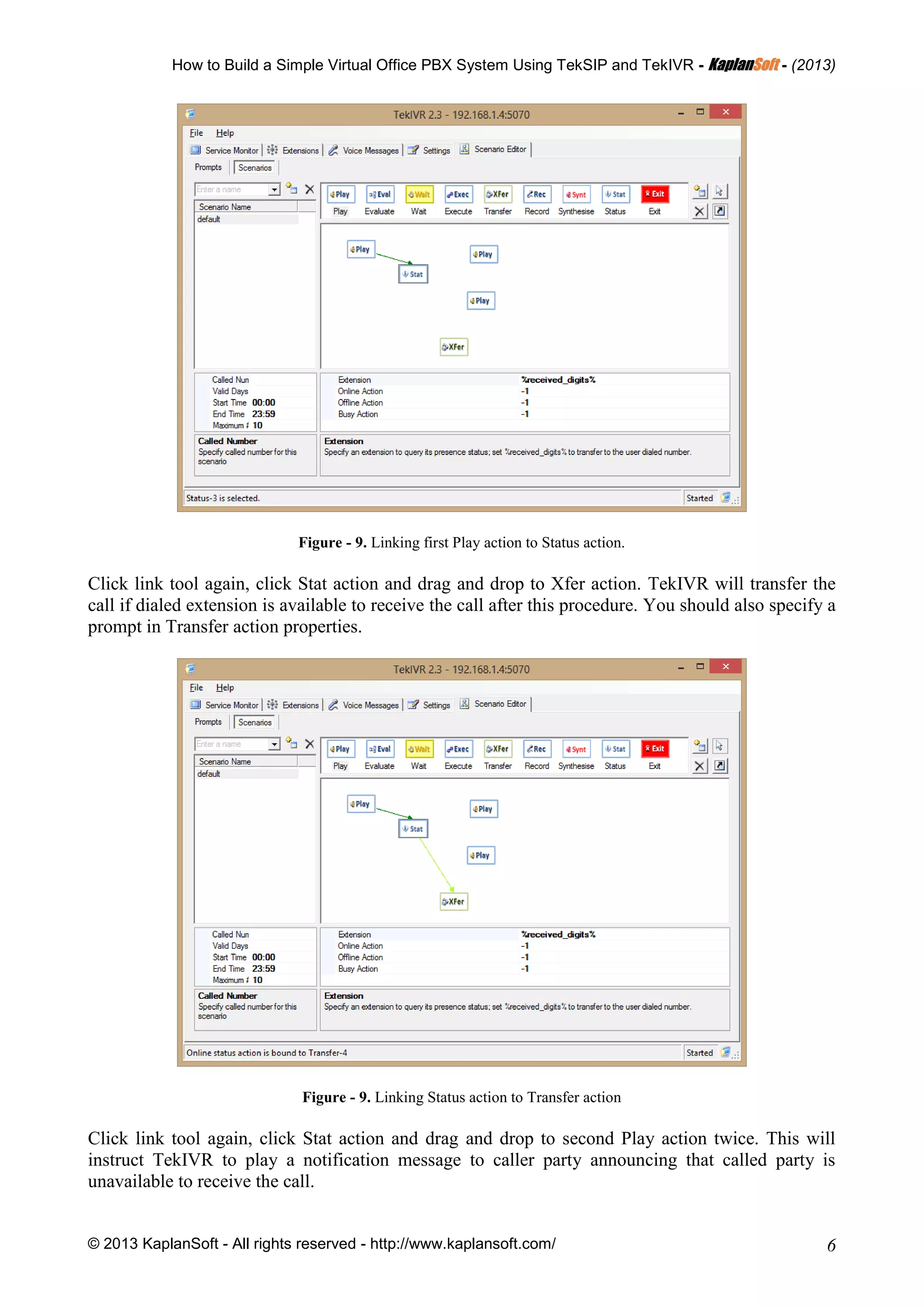
Set Prompt parameter to your welcome message. Click Add Tool on the tool bar and drag and drop
following actions to scenario screen; Status, Transfer, Play, Play.
Figure - 8. Adding other actions
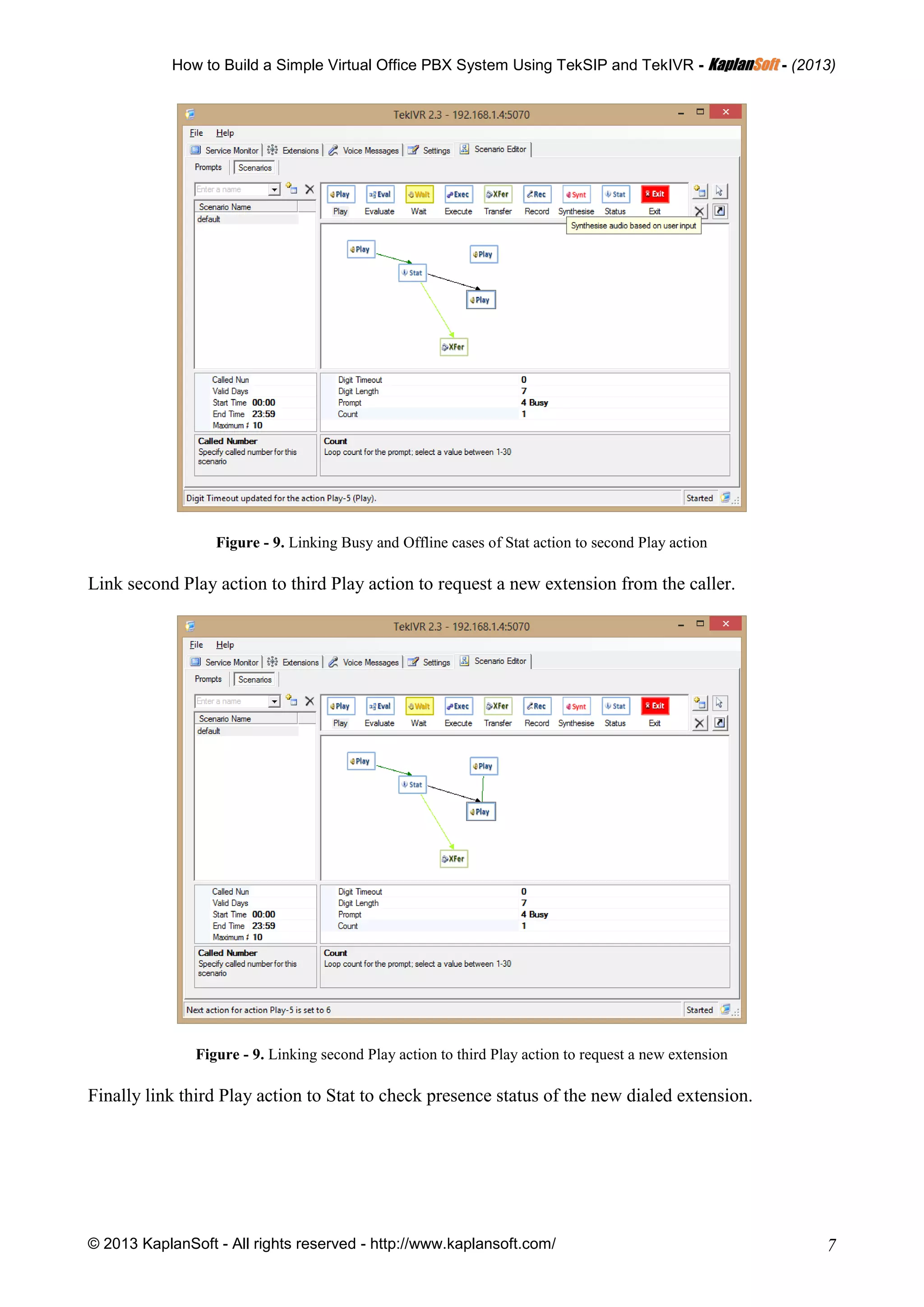
Click Link Tool on the tool bar. Select Play action in the scenario. Drag and drop to Stat action.
This will link first play action to Status action.
How to Build a Simple Virtual Office PBX System Using TekSIP and TekIVR - KKaappllaannSSoofftt - (2013)
© 2013 KaplanSoft - All rights reserved - http://www.kaplansoft.com/ 6
Figure - 9. Linking first Play action to Status action.
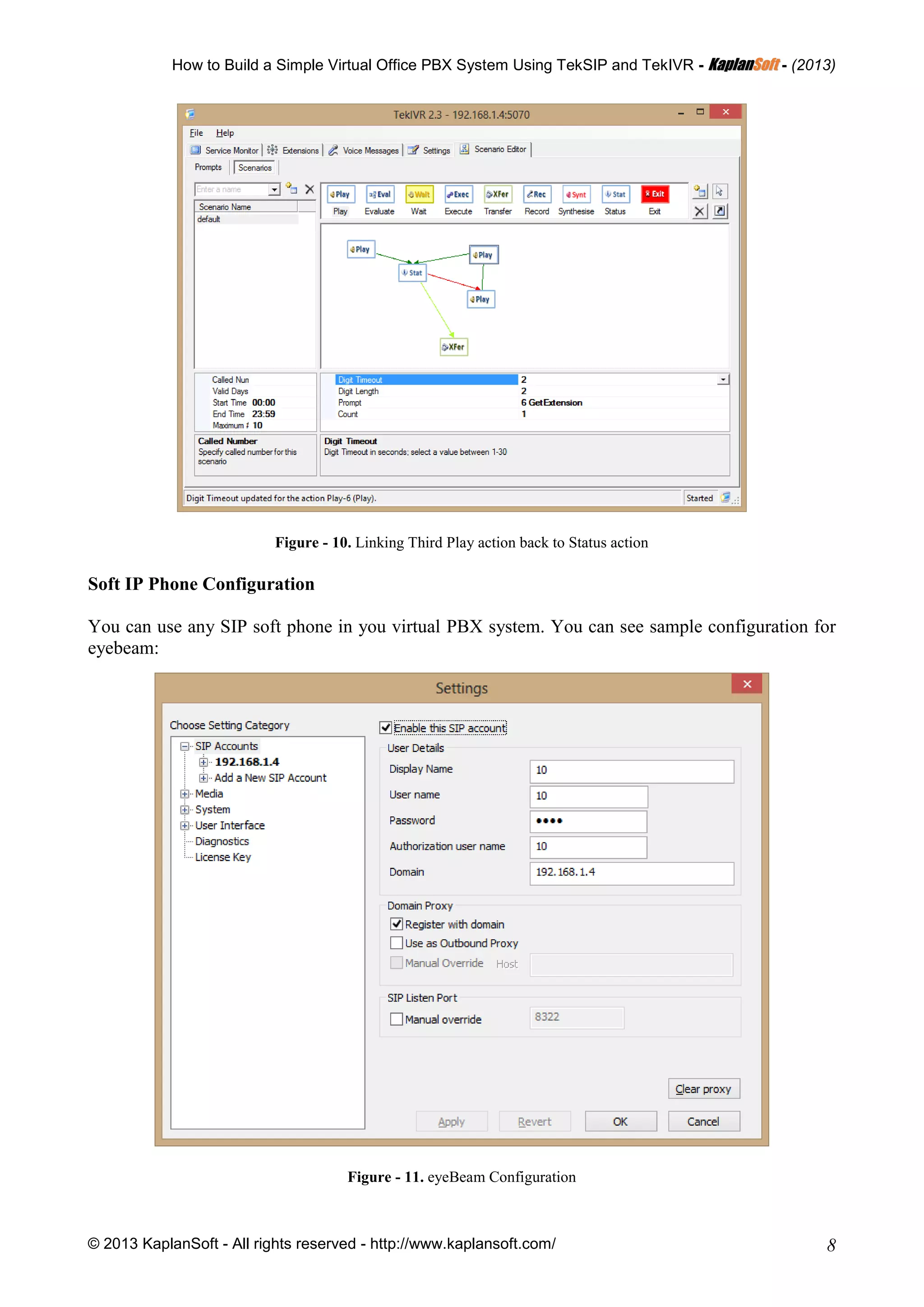
Click link tool again, click Stat action and drag and drop to Xfer action. TekIVR will transfer the
call if dialed extension is available to receive the call after this procedure. You should also specify a
prompt in Transfer action properties.
Figure - 9. Linking Status action to Transfer action
Click link tool again, click Stat action and drag and drop to second Play action twice. This will
instruct TekIVR to play a notification message to caller party announcing that called party is
unavailable to receive the call.
How to Build a Simple Virtual Office PBX System Using TekSIP and TekIVR - KKaappllaannSSoofftt - (2013)
© 2013 KaplanSoft - All rights reserved - http://www.kaplansoft.com/ 7
Figure - 9. Linking Busy and Offline cases of Stat action to second Play action
Link second Play action to third Play action to request a new extension from the caller.
Figure - 9. Linking second Play action to third Play action to request a new extension
Finally link third Play action to Stat to check presence status of the new dialed extension.
How to Build a Simple Virtual Office PBX System Using TekSIP and TekIVR - KKaappllaannSSoofftt - (2013)
© 2013 KaplanSoft - All rights reserved - http://www.kaplansoft.com/ 8
Figure - 10. Linking Third Play action back to Status action
Soft IP Phone Configuration
You can use any SIP soft phone in you virtual PBX system. You can see sample configuration for
eyebeam:
Figure - 11. eyeBeam Configuration
How to Build a Simple Virtual Office PBX System Using TekSIP and TekIVR - KKaappllaannSSoofftt - (2013)
© 2013 KaplanSoft - All rights reserved - http://www.kaplansoft.com/ 9
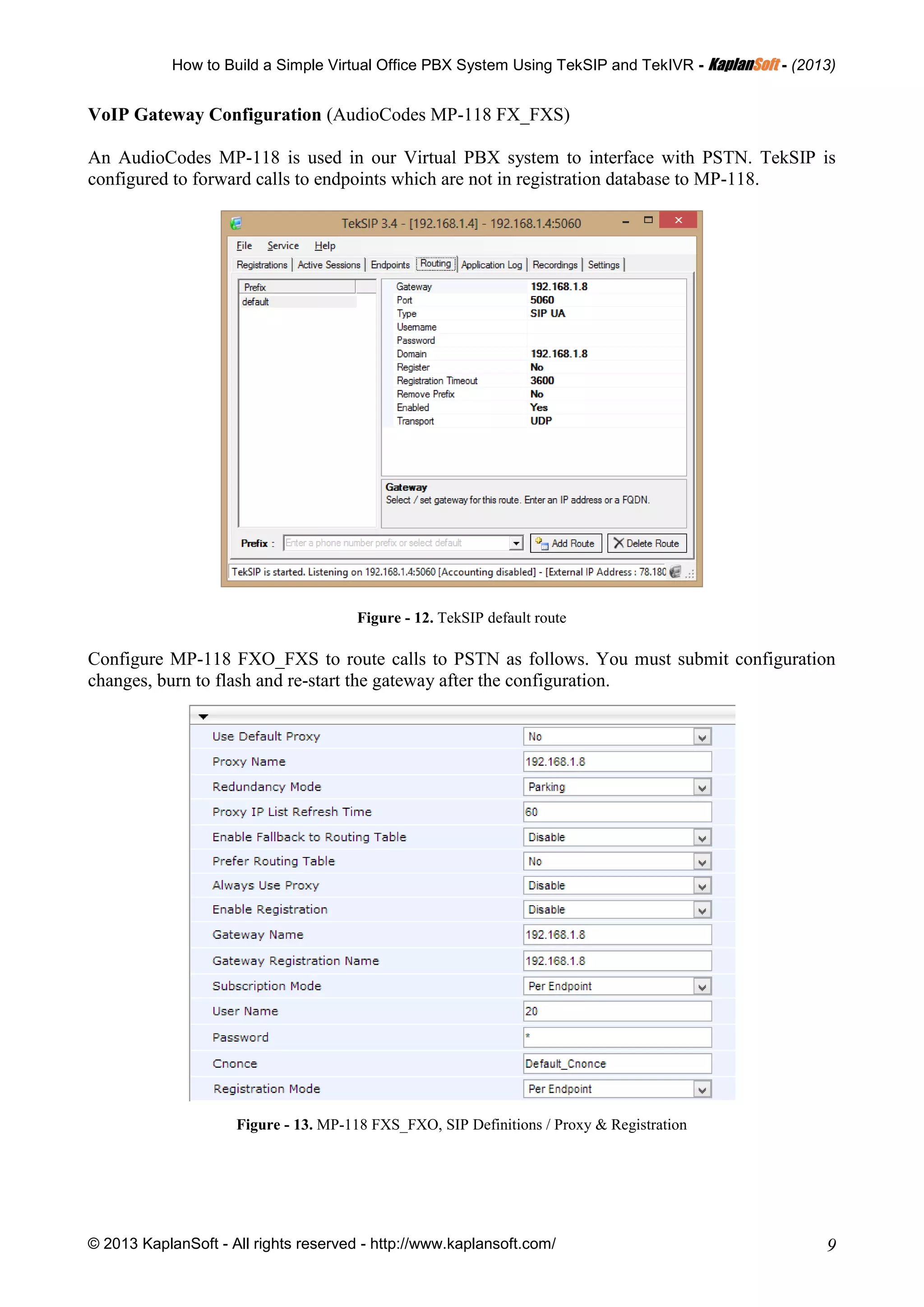
VoIP Gateway Configuration (AudioCodes MP-118 FX_FXS)
An AudioCodes MP-118 is used in our Virtual PBX system to interface with PSTN. TekSIP is
configured to forward calls to endpoints which are not in registration database to MP-118.
Figure - 12. TekSIP default route
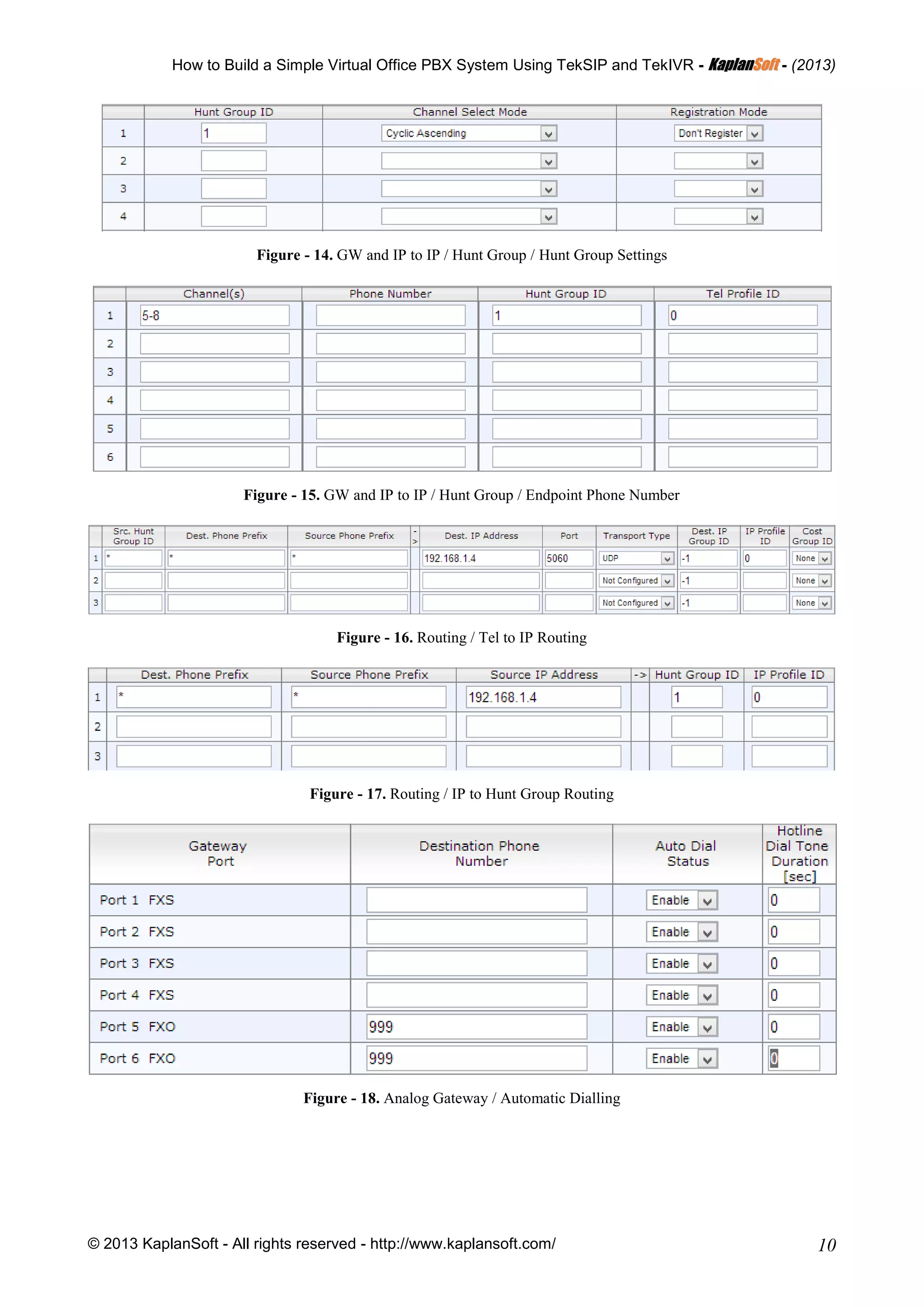
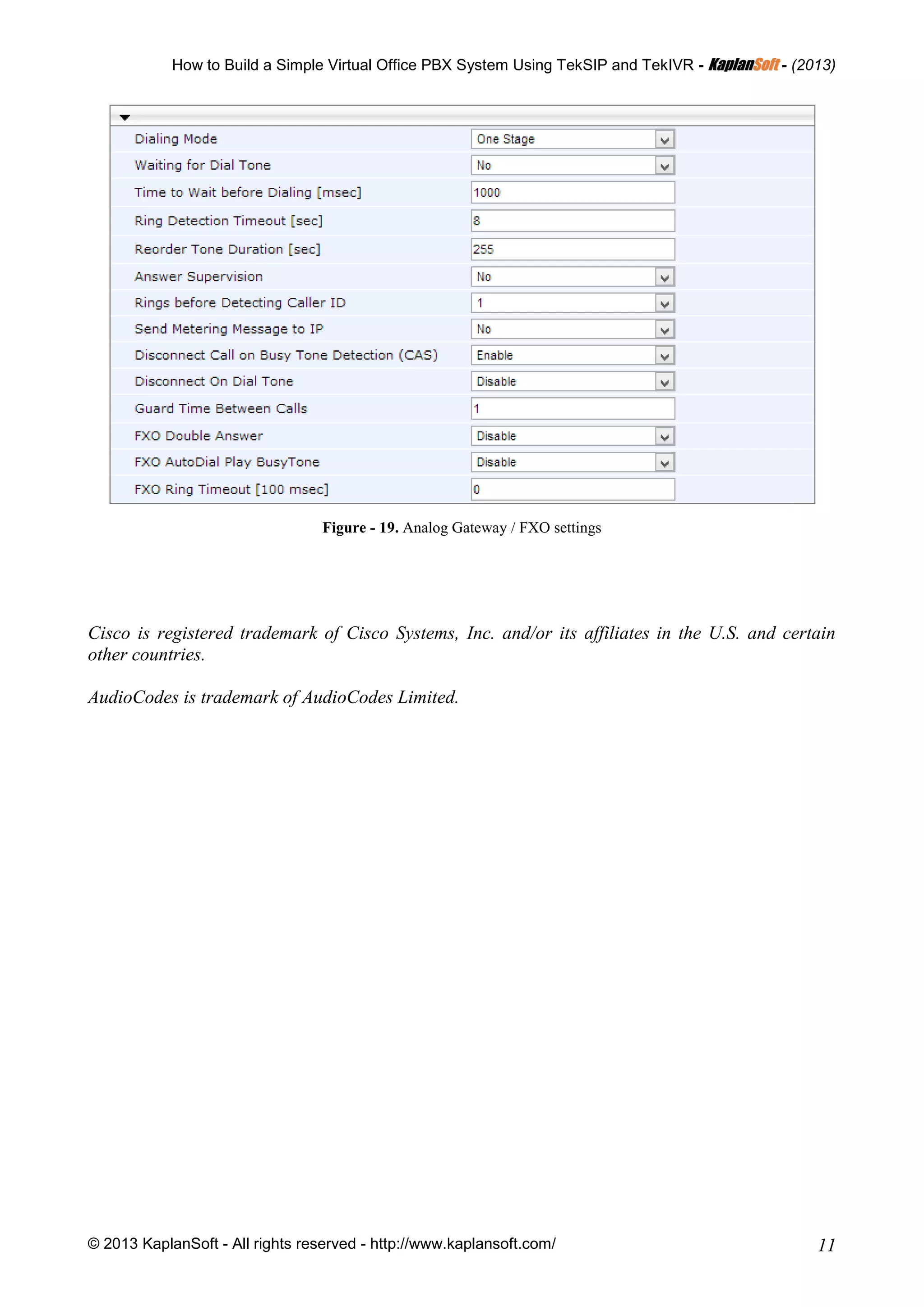
Configure MP-118 FXO_FXS to route calls to PSTN as follows. You must submit configuration
changes, burn to flash and re-start the gateway after the configuration.
Figure - 13. MP-118 FXS_FXO, SIP Definitions / Proxy & Registration
How to Build a Simple Virtual Office PBX System Using TekSIP and TekIVR - KKaappllaannSSoofftt - (2013)
© 2013 KaplanSoft - All rights reserved - http://www.kaplansoft.com/ 10
Figure - 14. GW and IP to IP / Hunt Group / Hunt Group Settings
Figure - 15. GW and IP to IP / Hunt Group / Endpoint Phone Number
Figure - 16. Routing / Tel to IP Routing
Figure - 17. Routing / IP to Hunt Group Routing
Figure - 18. Analog Gateway / Automatic Dialling
How to Build a Simple Virtual Office PBX System Using TekSIP and TekIVR - KKaappllaannSSoofftt - (2013)
© 2013 KaplanSoft - All rights reserved - http://www.kaplansoft.com/ 11
Figure - 19. Analog Gateway / FXO settings
Cisco is registered trademark of Cisco Systems, Inc. and/or its affiliates in the U.S. and certain
other countries.
AudioCodes is trademark of AudioCodes Limited.

Simple virtual office PBX with TekSIP

  • 1.
    How to Builda Simple Virtual Office PBX System Using TekSIP and TekIVR - KKaappllaannSSoofftt - (2013) © 2013 KaplanSoft - All rights reserved - http://www.kaplansoft.com/ 1 How to Build a Simple Virtual Office PBX System Using TekSIP and TekIVR This document explains how to build a simple virtual office PBX system using TekSIP and TekIVR. In this example following components are used:  VoIP Gateway. VoIP gateway is used for PSTN interfacing. AudioCodes MP-118 with FXO ports (Version ID 6.60A.228.011).  Soft IP Phone. Xten eyebeam (Version 1.1).  TekSIP (Version 3.4.7).  TekIVR (Version 2.3.4). You can see how virtual PBX components organized on the office LAN in the diagram below: PSTN Office LAN IP Phone 7770002 192.168.1.5 Soft IP Phone 7770001 192.168.1.4 VoIP Gateway 192.168.1.8 TekSIP/TekIVR 192.168.1.4 Figure - 1. Sample Topology IP Phones (Hard or soft) on the office LAN can dial each other through TekSIP when they register themselves to TekSIP. You can configure an alternative extension when the extension is not available to answer the call (Off-line, busy, etc.) while adding the extension. You can also route calls to recipients not in TekSIP’s registration database to a SIP route based on called number. You can route PSTN numbers to voice gateway which has PSTN connections. It’s also possible that you can route incoming PSTN to local SIP endpoints. Routing definitions can be made in Routing tab of TekSIP Manager. TekSIP Configuration TekSIP configuration is very simple. Select an IP address to be listened from detected IP address list. You do not need change default port number 5060 will be used. Although you should use a DNS registered domain name, in our simple virtual PBX system we can use IP address of SIP Proxy as SIP domain. As we’ll use a SIP Gateway, default route type will be SIP UA. You can enable logging optionally. SIP endpoint and session authentication is enabled by default.
  • 2.
    How to Builda Simple Virtual Office PBX System Using TekSIP and TekIVR - KKaappllaannSSoofftt - (2013) © 2013 KaplanSoft - All rights reserved - http://www.kaplansoft.com/ 2 Figure - 2. TekSIP Configuration If you choose to use TekSIP with “Authentication Enabled”, you need to define SIP endpoints in “Endpoints” tab. Figure - 2. TekSIP Endpoints TekIVR Settings You can use TekIVR as a call attendant for incoming calls from PSTN. If you define SIP extensions also in TekIVR and specify TekSIP as a SIP presence server, TekIVR will query presence status of defined extensions. This will enable TekIVR to check extension status prior to transfer a call. You can transfer the call to another extension or request a new extensions from the caller. You should have prerecorded audio files or messages to be synthesized by TTS for your IVR scenario;
  • 3.
    How to Builda Simple Virtual Office PBX System Using TekSIP and TekIVR - KKaappllaannSSoofftt - (2013) © 2013 KaplanSoft - All rights reserved - http://www.kaplansoft.com/ 3  A welcome message and request entry for an extension  A waiting announce to be played out while transferring the call  A notification message if dialed extension busy  A request for a new extension if dialed number is unavailable to receive the call Basic settings for TekIVR is shown below. Please note that teksip account is also defined as a presence server. You should set Startup Mode = Auto. Logging should also be set to “None”. Figure - 3. TekIVR Settings You need to define TekSIP as a SIP account. Figure - 4. TekSIP account definition in TekIVR
  • 4.
    How to Builda Simple Virtual Office PBX System Using TekSIP and TekIVR - KKaappllaannSSoofftt - (2013) © 2013 KaplanSoft - All rights reserved - http://www.kaplansoft.com/ 4 There must be an extension for TekIVR in TekSIP. Extension # 999 is defined for TekIVR in TekSIP. You should also define extensions in TekIVR. Figure - 5. Extensions in TekIVR TekIVR Scenario You need to define prompts to be used in your IVR scenario prior to create your IVR scenario. You can either use TTS or prerecorded audio files (16 bit, 8 KHz, mono wave). Figure - 6. Prompts in TekIVR You can create an IVR scenario using TekIVR graphical scenario editor. TekIVR initially has a default IVR scenairo with a Play and Transfer action defined in it. Select Delete tool on tool bar
  • 5.
    How to Builda Simple Virtual Office PBX System Using TekSIP and TekIVR - KKaappllaannSSoofftt - (2013) © 2013 KaplanSoft - All rights reserved - http://www.kaplansoft.com/ 5 and delete connection between Play action and Transfer action by clicking on the connection. Please also delete Transfer action by clicking on it. Click Select Tool on the tool bar. Select Play action in the scenario. Set properties of the Play action. Figure - 7. First Play action in the scenario Set Prompt parameter to your welcome message. Click Add Tool on the tool bar and drag and drop following actions to scenario screen; Status, Transfer, Play, Play. Figure - 8. Adding other actions Click Link Tool on the tool bar. Select Play action in the scenario. Drag and drop to Stat action. This will link first play action to Status action.
  • 6.
    How to Builda Simple Virtual Office PBX System Using TekSIP and TekIVR - KKaappllaannSSoofftt - (2013) © 2013 KaplanSoft - All rights reserved - http://www.kaplansoft.com/ 6 Figure - 9. Linking first Play action to Status action. Click link tool again, click Stat action and drag and drop to Xfer action. TekIVR will transfer the call if dialed extension is available to receive the call after this procedure. You should also specify a prompt in Transfer action properties. Figure - 9. Linking Status action to Transfer action Click link tool again, click Stat action and drag and drop to second Play action twice. This will instruct TekIVR to play a notification message to caller party announcing that called party is unavailable to receive the call.
  • 7.
    How to Builda Simple Virtual Office PBX System Using TekSIP and TekIVR - KKaappllaannSSoofftt - (2013) © 2013 KaplanSoft - All rights reserved - http://www.kaplansoft.com/ 7 Figure - 9. Linking Busy and Offline cases of Stat action to second Play action Link second Play action to third Play action to request a new extension from the caller. Figure - 9. Linking second Play action to third Play action to request a new extension Finally link third Play action to Stat to check presence status of the new dialed extension.
  • 8.
    How to Builda Simple Virtual Office PBX System Using TekSIP and TekIVR - KKaappllaannSSoofftt - (2013) © 2013 KaplanSoft - All rights reserved - http://www.kaplansoft.com/ 8 Figure - 10. Linking Third Play action back to Status action Soft IP Phone Configuration You can use any SIP soft phone in you virtual PBX system. You can see sample configuration for eyebeam: Figure - 11. eyeBeam Configuration
  • 9.
    How to Builda Simple Virtual Office PBX System Using TekSIP and TekIVR - KKaappllaannSSoofftt - (2013) © 2013 KaplanSoft - All rights reserved - http://www.kaplansoft.com/ 9 VoIP Gateway Configuration (AudioCodes MP-118 FX_FXS) An AudioCodes MP-118 is used in our Virtual PBX system to interface with PSTN. TekSIP is configured to forward calls to endpoints which are not in registration database to MP-118. Figure - 12. TekSIP default route Configure MP-118 FXO_FXS to route calls to PSTN as follows. You must submit configuration changes, burn to flash and re-start the gateway after the configuration. Figure - 13. MP-118 FXS_FXO, SIP Definitions / Proxy & Registration
  • 10.
    How to Builda Simple Virtual Office PBX System Using TekSIP and TekIVR - KKaappllaannSSoofftt - (2013) © 2013 KaplanSoft - All rights reserved - http://www.kaplansoft.com/ 10 Figure - 14. GW and IP to IP / Hunt Group / Hunt Group Settings Figure - 15. GW and IP to IP / Hunt Group / Endpoint Phone Number Figure - 16. Routing / Tel to IP Routing Figure - 17. Routing / IP to Hunt Group Routing Figure - 18. Analog Gateway / Automatic Dialling
  • 11.
    How to Builda Simple Virtual Office PBX System Using TekSIP and TekIVR - KKaappllaannSSoofftt - (2013) © 2013 KaplanSoft - All rights reserved - http://www.kaplansoft.com/ 11 Figure - 19. Analog Gateway / FXO settings Cisco is registered trademark of Cisco Systems, Inc. and/or its affiliates in the U.S. and certain other countries. AudioCodes is trademark of AudioCodes Limited.