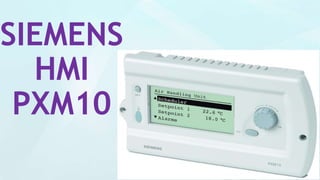
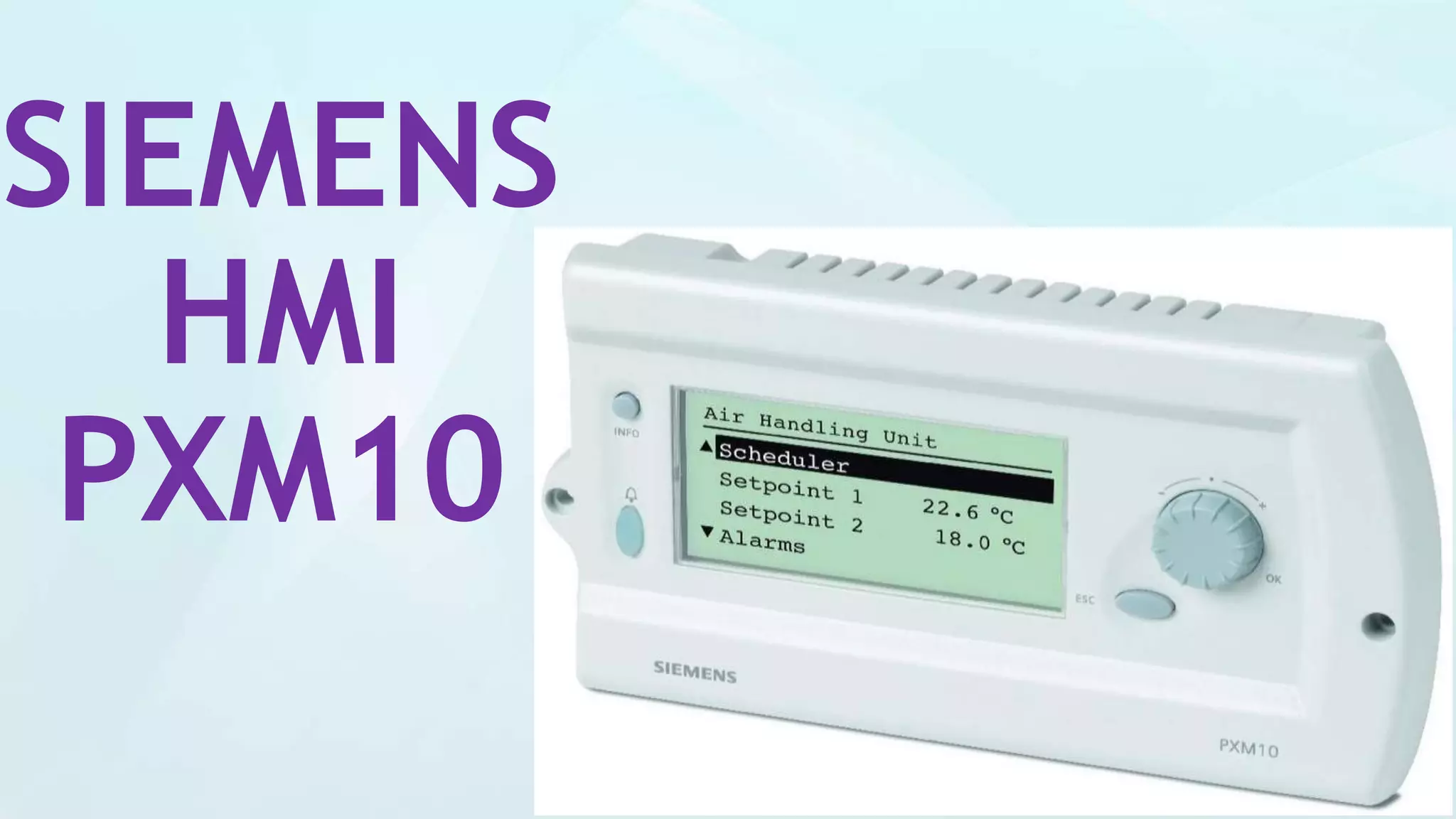
SIEMENS
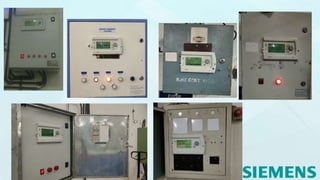
HMI
PXM10
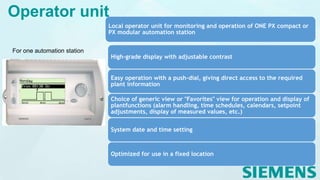
For one automation station
Local operator unit for monitoring and operation of ONE PX compact or
PX modular automation station
High-grade display with adjustable contrast
Easy operation with a push-dial, giving direct access to the required
plant information
Choice of generic view or "Favorites" view for operation and display of
plantfunctions (alarm handling, time schedules, calendars, setpoint
adjustments, display of measured values, etc.)
System date and time setting
Optimized for use in a fixed location
Operator unit
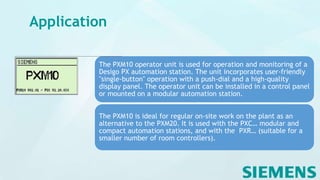
Application
The PXM10 operator unit is used for operation and monitoring of a
Desigo PX automation station. The unit incorporates user-friendly
"single-button" operation with a push-dial and a high-quality
display panel. The operator unit can be installed in a control panel
or mounted on a modular automation station.
The PXM10 is ideal for regular on-site work on the plant as an
alternative to the PXM20. It is used with the PXC… modular and
compact automation stations, and with the PXR… (suitable for a
smaller number of room controllers).
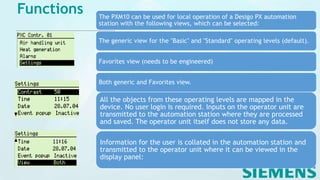
Functions The PXM10 can be used for local operation of a Desigo PX automation
station with the following views, which can be selected:
The generic view for the "Basic" and "Standard" operating levels (default).
Favorites view (needs to be engineered)
Both generic and Favorites view.
All the objects from these operating levels are mapped in the
device. No user login is required. Inputs on the operator unit are
transmitted to the automation station where they are processed
and saved. The operator unit itself does not store any data.
Information for the user is collated in the automation station and
transmitted to the operator unit where it can be viewed in the
display panel:
Functions
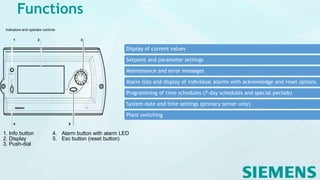
Display of current values
Setpoint and parameter settings
Maintenance and error messages
Alarm lists and display of individual alarms with acknowledge and reset options
Programming of time schedules (7-day schedules and special periods)
System date and time settings (primary server only)
Plant switching
INFO
OK
ESC
PXM10
Indicators and operator controls
1 2 3
4 5
1. Info button 4. Alarm button with alarm LED
2. Display 5. Esc button (reset button)
3. Push-dial
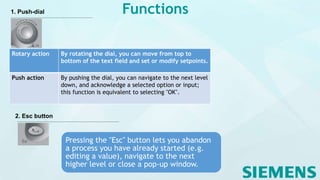
1. Push-dial
Rotary action By rotating the dial, you can move from top to
bottom of the text field and set or modify setpoints.
Push action By pushing the dial, you can navigate to the next level
down, and acknowledge a selected option or input;
this function is equivalent to selecting "OK".
2. Esc button
Pressing the "Esc" button lets you abandon
a process you have already started (e.g.
editing a value), navigate to the next
higher level or close a pop-up window.
Functions
Functions3. Info button
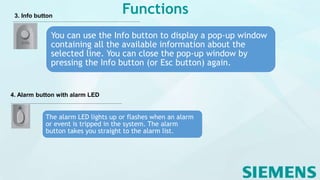
You can use the Info button to display a pop-up window
containing all the available information about the
selected line. You can close the pop-up window by
pressing the Info button (or Esc button) again.
4. Alarm button with alarm LED
The alarm LED lights up or flashes when an alarm
or event is tripped in the system. The alarm
button takes you straight to the alarm list.
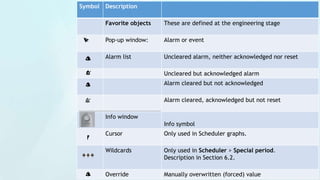
Symbol Description
Favorite objects These are defined at the engineering stage
Pop-up window: Alarm or event
Alarm list Uncleared alarm, neither acknowledged nor reset
Uncleared but acknowledged alarm
Alarm cleared but not acknowledged
Alarm cleared, acknowledged but not reset
Info window
Info symbol
Cursor Only used in Scheduler graphs.
Wildcards Only used in Scheduler > Special period.
Description in Section 6.2.
Override Manually overwritten (forced) value
Technical data
Mounting instructions
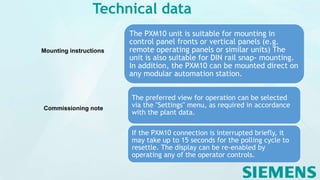
The PXM10 unit is suitable for mounting in
control panel fronts or vertical panels (e.g.
remote operating panels or similar units) The
unit is also suitable for DIN rail snap- mounting.
In addition, the PXM10 can be mounted direct on
any modular automation station.
Commissioning note
The preferred view for operation can be selected
via the "Settings" menu, as required in accordance
with the plant data.
If the PXM10 connection is interrupted briefly, it
may take up to 15 seconds for the polling cycle to
resettle. The display can be re-enabled by
operating any of the operator controls.
Technical data
Engineering note
Objects
supported
by PXM10:
Analog Input
Analog Output
Analog Value 1)
Analog Value 2)
Analog Value 3)
Binary Input
Binary Output
Binary Value 1)
Binary Value 2)
Binary Value 3)
Multi-state Input
Multi-state Output
Multi-state Value 1)
Multi-state Value 2)
Multi-state Value 3)
Calendar
Schedule
Integer Value 3)
Unsigned Value 3)
Duration Value 3)
Date Time Value 3)
String Value 3)
Hierarchy 4)
Block 4)
Favorite Object 4)
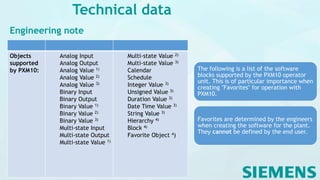
The following is a list of the software
blocks supported by the PXM10 operator
unit. This is of particular importance when
creating "Favorites" for operation with
PXM10.
Favorites are determined by the engineers
when creating the software for the plant.
They cannot be defined by the end user.
Technical data
Engineering note
Objects NOT
supported by PXM10:
Command Device
Event-Enrollment File
Group Loop
Notification Class
Program Averaging
Trendlog
Life Safety Point
Life Safety Zone Text
Group
Access Control Profile
Discipline IOs Mapping
Table Modem Setting
Group Object Pulse
Converter Alarm
Collection
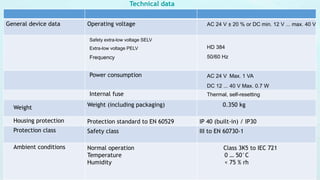
General device data Operating voltage AC 24 V ± 20 % or DC min. 12 V ... max. 40 V
Safety extra-low voltage SELV
Extra-low voltage PELV
Frequency
HD 384
50/60 Hz
Power consumption AC 24 V Max. 1 VA
DC 12 ... 40 V Max. 0.7 W
Internal fuse Thermal, self-resetting
Weight Weight (including packaging) 0.350 kg
Housing protection Protection standard to EN 60529 IP 40 (built-in) / IP30
Protection class Safety class III to EN 60730-1
Ambient conditions Normal operation
Temperature
Humidity
Class 3K5 to IEC 721
0 … 50°C
< 75 % rh
Technical data
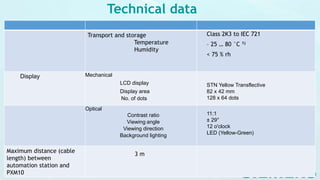
Transport and storage
Temperature
Humidity
Class 2K3 to IEC 721
– 25 … 80 °C 1)
< 75 % rh
Display Mechanical
LCD display
Display area
No. of dots
STN Yellow Transflective
82 x 42 mm
128 x 64 dots
Optical
Contrast ratio
Viewing angle
Viewing direction
Background lighting
11:1
± 29°
12 o'clock
LED (Yellow-Green)
Maximum distance (cable
length) between
automation station and
PXM10
3 m
Technical data
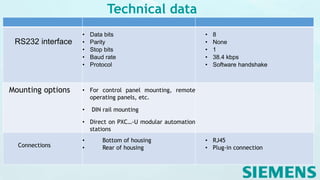
RS232 interface
• Data bits
• Parity
• Stop bits
• Baud rate
• Protocol
• 8
• None
• 1
• 38.4 kbps
• Software handshake
Mounting options • For control panel mounting, remote
operating panels, etc.
• DIN rail mounting
• Direct on PXC…-U modular automation
stations
Connections
• Bottom of housing
• Rear of housing
• RJ45
• Plug-in connection
Technical data
Technical data
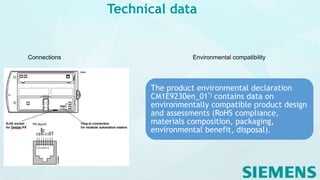
Environmental compatibility
The product environmental declaration
CM1E9230en_01*) contains data on
environmentally compatible product design
and assessments (RoHS compliance,
materials composition, packaging,
environmental benefit, disposal).
Connections
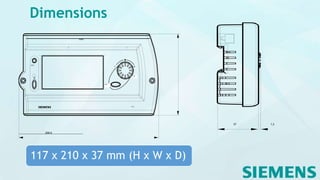
Dimensions
INFO
OK
ESC
PXM10
209,5
37 1,2
00267
117 x 210 x 37 mm (H x W x D)
SIEMENS HMI PXM10 DISPLAY

SIEMENS HMI PXM10 DISPLAY

  • 1.
  • 2.
    For one automationstation Local operator unit for monitoring and operation of ONE PX compact or PX modular automation station High-grade display with adjustable contrast Easy operation with a push-dial, giving direct access to the required plant information Choice of generic view or "Favorites" view for operation and display of plantfunctions (alarm handling, time schedules, calendars, setpoint adjustments, display of measured values, etc.) System date and time setting Optimized for use in a fixed location Operator unit
  • 3.
    Application The PXM10 operatorunit is used for operation and monitoring of a Desigo PX automation station. The unit incorporates user-friendly "single-button" operation with a push-dial and a high-quality display panel. The operator unit can be installed in a control panel or mounted on a modular automation station. The PXM10 is ideal for regular on-site work on the plant as an alternative to the PXM20. It is used with the PXC… modular and compact automation stations, and with the PXR… (suitable for a smaller number of room controllers).
  • 4.
    Functions The PXM10can be used for local operation of a Desigo PX automation station with the following views, which can be selected: The generic view for the "Basic" and "Standard" operating levels (default). Favorites view (needs to be engineered) Both generic and Favorites view. All the objects from these operating levels are mapped in the device. No user login is required. Inputs on the operator unit are transmitted to the automation station where they are processed and saved. The operator unit itself does not store any data. Information for the user is collated in the automation station and transmitted to the operator unit where it can be viewed in the display panel:
  • 5.
    Functions Display of currentvalues Setpoint and parameter settings Maintenance and error messages Alarm lists and display of individual alarms with acknowledge and reset options Programming of time schedules (7-day schedules and special periods) System date and time settings (primary server only) Plant switching INFO OK ESC PXM10 Indicators and operator controls 1 2 3 4 5 1. Info button 4. Alarm button with alarm LED 2. Display 5. Esc button (reset button) 3. Push-dial
  • 6.
    1. Push-dial Rotary actionBy rotating the dial, you can move from top to bottom of the text field and set or modify setpoints. Push action By pushing the dial, you can navigate to the next level down, and acknowledge a selected option or input; this function is equivalent to selecting "OK". 2. Esc button Pressing the "Esc" button lets you abandon a process you have already started (e.g. editing a value), navigate to the next higher level or close a pop-up window. Functions
  • 7.
    Functions3. Info button Youcan use the Info button to display a pop-up window containing all the available information about the selected line. You can close the pop-up window by pressing the Info button (or Esc button) again. 4. Alarm button with alarm LED The alarm LED lights up or flashes when an alarm or event is tripped in the system. The alarm button takes you straight to the alarm list.
  • 8.
    Symbol Description Favorite objectsThese are defined at the engineering stage Pop-up window: Alarm or event Alarm list Uncleared alarm, neither acknowledged nor reset Uncleared but acknowledged alarm Alarm cleared but not acknowledged Alarm cleared, acknowledged but not reset Info window Info symbol Cursor Only used in Scheduler graphs. Wildcards Only used in Scheduler > Special period. Description in Section 6.2. Override Manually overwritten (forced) value
  • 9.
    Technical data Mounting instructions ThePXM10 unit is suitable for mounting in control panel fronts or vertical panels (e.g. remote operating panels or similar units) The unit is also suitable for DIN rail snap- mounting. In addition, the PXM10 can be mounted direct on any modular automation station. Commissioning note The preferred view for operation can be selected via the "Settings" menu, as required in accordance with the plant data. If the PXM10 connection is interrupted briefly, it may take up to 15 seconds for the polling cycle to resettle. The display can be re-enabled by operating any of the operator controls.
  • 10.
    Technical data Engineering note Objects supported byPXM10: Analog Input Analog Output Analog Value 1) Analog Value 2) Analog Value 3) Binary Input Binary Output Binary Value 1) Binary Value 2) Binary Value 3) Multi-state Input Multi-state Output Multi-state Value 1) Multi-state Value 2) Multi-state Value 3) Calendar Schedule Integer Value 3) Unsigned Value 3) Duration Value 3) Date Time Value 3) String Value 3) Hierarchy 4) Block 4) Favorite Object 4) The following is a list of the software blocks supported by the PXM10 operator unit. This is of particular importance when creating "Favorites" for operation with PXM10. Favorites are determined by the engineers when creating the software for the plant. They cannot be defined by the end user.
  • 11.
    Technical data Engineering note ObjectsNOT supported by PXM10: Command Device Event-Enrollment File Group Loop Notification Class Program Averaging Trendlog Life Safety Point Life Safety Zone Text Group Access Control Profile Discipline IOs Mapping Table Modem Setting Group Object Pulse Converter Alarm Collection
  • 12.
    General device dataOperating voltage AC 24 V ± 20 % or DC min. 12 V ... max. 40 V Safety extra-low voltage SELV Extra-low voltage PELV Frequency HD 384 50/60 Hz Power consumption AC 24 V Max. 1 VA DC 12 ... 40 V Max. 0.7 W Internal fuse Thermal, self-resetting Weight Weight (including packaging) 0.350 kg Housing protection Protection standard to EN 60529 IP 40 (built-in) / IP30 Protection class Safety class III to EN 60730-1 Ambient conditions Normal operation Temperature Humidity Class 3K5 to IEC 721 0 … 50°C < 75 % rh Technical data
  • 13.
    Transport and storage Temperature Humidity Class2K3 to IEC 721 – 25 … 80 °C 1) < 75 % rh Display Mechanical LCD display Display area No. of dots STN Yellow Transflective 82 x 42 mm 128 x 64 dots Optical Contrast ratio Viewing angle Viewing direction Background lighting 11:1 ± 29° 12 o'clock LED (Yellow-Green) Maximum distance (cable length) between automation station and PXM10 3 m Technical data
  • 14.
    RS232 interface • Databits • Parity • Stop bits • Baud rate • Protocol • 8 • None • 1 • 38.4 kbps • Software handshake Mounting options • For control panel mounting, remote operating panels, etc. • DIN rail mounting • Direct on PXC…-U modular automation stations Connections • Bottom of housing • Rear of housing • RJ45 • Plug-in connection Technical data
  • 15.
    Technical data Environmental compatibility Theproduct environmental declaration CM1E9230en_01*) contains data on environmentally compatible product design and assessments (RoHS compliance, materials composition, packaging, environmental benefit, disposal). Connections
  • 16.