Siemens DESIGO
V4 3rd Party
LON Integration
into PX Step by
Step Guide
Part -1
3rd Party LON device Integration Workflow
Topology
Topology
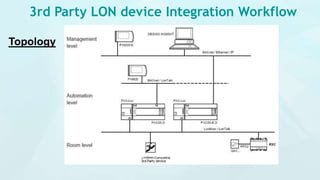
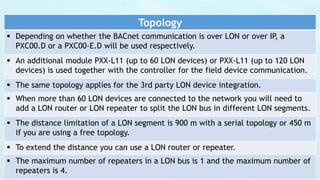
 Depending on whether the BACnet communication is over LON or over IP, a
PXC00.D or a PXC00-E.D will be used respectively.
 An additional module PXX-L11 (up to 60 LON devices) or PXX-L11 (up to 120 LON
devices) is used together with the controller for the field device communication.
 The same topology applies for the 3rd party LON device integration.
 When more than 60 LON devices are connected to the network you will need to
add a LON router or LON repeater to split the LON bus in different LON segments.
 The distance limitation of a LON segment is 900 m with a serial topology or 450 m
if you are using a free topology.
 To extend the distance you can use a LON router or repeater.
 The maximum number of repeaters in a LON bus is 1 and the maximum number of
repeaters is 4.
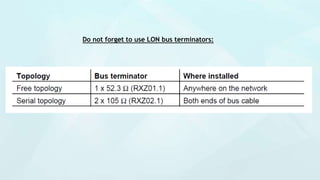
Do not forget to use LON bus terminators:
Software
 Following tools need to be installed in the commissioning PC:
 Xworks Plus (XWP)
 RXT10.3
 Marlon Tool
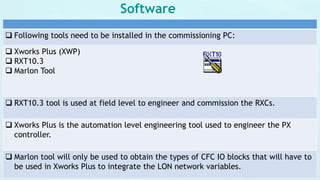
 RXT10.3 tool is used at field level to engineer and commission the RXCs.
 Xworks Plus is the automation level engineering tool used to engineer the PX
controller.
 Marlon tool will only be used to obtain the types of CFC IO blocks that will have to
be used in Xworks Plus to integrate the LON network variables.
RXTool 10.3
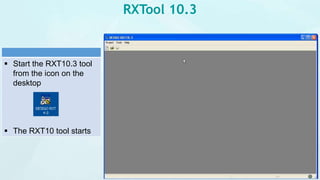
 Start the RXT10.3 tool
from the icon on the
desktop
 The RXT10 tool starts
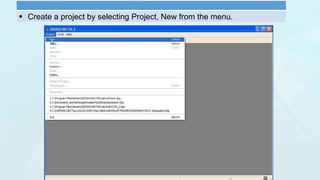
 Create a project by selecting Project, New from the menu.
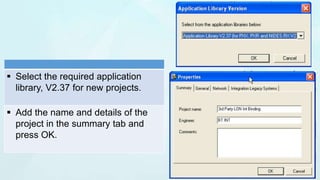
 Select the required application
library, V2.37 for new projects.
 Add the name and details of the
project in the summary tab and
press OK.
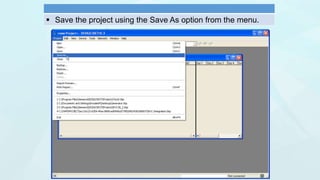
 Save the project using the Save As option from the menu.
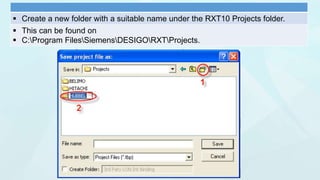
 Create a new folder with a suitable name under the RXT10 Projects folder.
 This can be found on
 C:Program FilesSiemensDESIGORXTProjects.
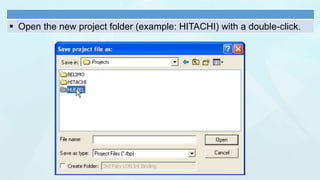
 Open the new project folder (example: HITACHI) with a double-click.
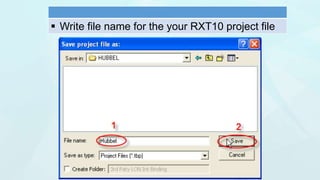
 Write file name for the your RXT10 project file
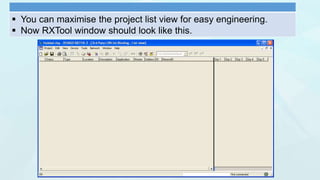
 You can maximise the project list view for easy engineering.
 Now RXTool window should look like this.
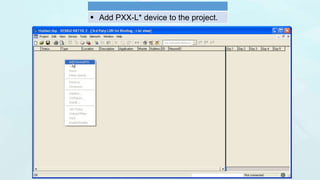
 Add PXX-L* device to the project.
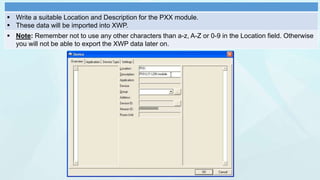
 Write a suitable Location and Description for the PXX module.
 These data will be imported into XWP.
 Note: Remember not to use any other characters than a-z, A-Z or 0-9 in the Location field. Otherwise
you will not be able to export the XWP data later on.
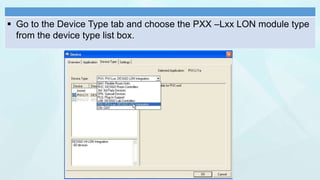
 Go to the Device Type tab and choose the PXX –Lxx LON module type
from the device type list box.
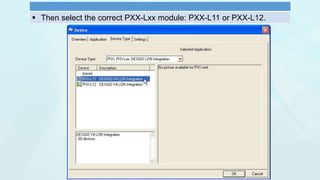
 Then select the correct PXX-Lxx module: PXX-L11 or PXX-L12.
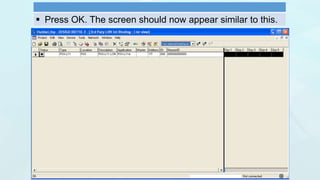
 Press OK. The screen should now appear similar to this.
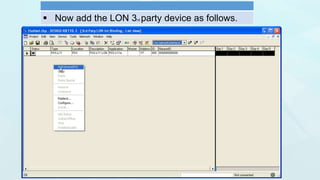
 Now add the LON 3rd party device as follows.
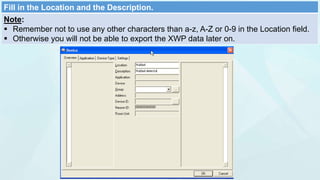
Fill in the Location and the Description.
Note:
 Remember not to use any other characters than a-z, A-Z or 0-9 in the Location field.
 Otherwise you will not be able to export the XWP data later on.
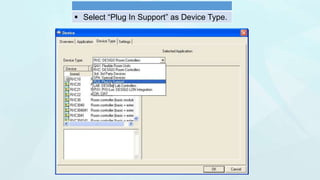
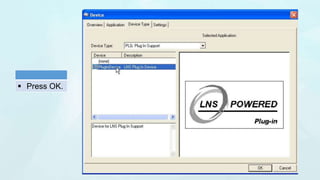
 Select “Plug In Support” as Device Type.
 Press OK.
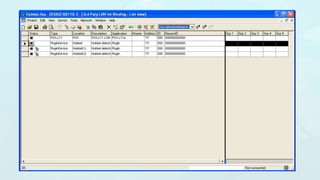
 Your screen will now look like this.
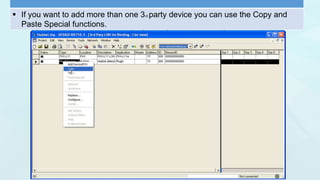
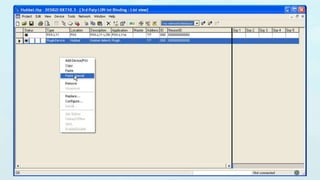
 If you want to add more than one 3rd party device you can use the Copy and
Paste Special functions.
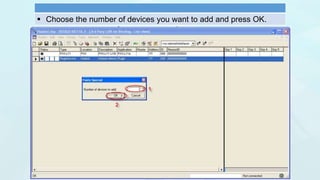
 Choose the number of devices you want to add and press OK.
Siemens Desigo part 1

Siemens Desigo part 1

  • 1.
    Siemens DESIGO V4 3rdParty LON Integration into PX Step by Step Guide Part -1
  • 2.
    3rd Party LONdevice Integration Workflow Topology
  • 3.
    Topology  Depending onwhether the BACnet communication is over LON or over IP, a PXC00.D or a PXC00-E.D will be used respectively.  An additional module PXX-L11 (up to 60 LON devices) or PXX-L11 (up to 120 LON devices) is used together with the controller for the field device communication.  The same topology applies for the 3rd party LON device integration.  When more than 60 LON devices are connected to the network you will need to add a LON router or LON repeater to split the LON bus in different LON segments.  The distance limitation of a LON segment is 900 m with a serial topology or 450 m if you are using a free topology.  To extend the distance you can use a LON router or repeater.  The maximum number of repeaters in a LON bus is 1 and the maximum number of repeaters is 4.
  • 4.
    Do not forgetto use LON bus terminators:
  • 5.
    Software  Following toolsneed to be installed in the commissioning PC:  Xworks Plus (XWP)  RXT10.3  Marlon Tool  RXT10.3 tool is used at field level to engineer and commission the RXCs.  Xworks Plus is the automation level engineering tool used to engineer the PX controller.  Marlon tool will only be used to obtain the types of CFC IO blocks that will have to be used in Xworks Plus to integrate the LON network variables.
  • 6.
    RXTool 10.3  Startthe RXT10.3 tool from the icon on the desktop  The RXT10 tool starts
  • 7.
     Create aproject by selecting Project, New from the menu.
  • 8.
     Select therequired application library, V2.37 for new projects.  Add the name and details of the project in the summary tab and press OK.
  • 9.
     Save theproject using the Save As option from the menu.
  • 10.
     Create anew folder with a suitable name under the RXT10 Projects folder.  This can be found on  C:Program FilesSiemensDESIGORXTProjects.
  • 11.
     Open thenew project folder (example: HITACHI) with a double-click.
  • 12.
     Write filename for the your RXT10 project file
  • 13.
     You canmaximise the project list view for easy engineering.  Now RXTool window should look like this.
  • 14.
     Add PXX-L*device to the project.
  • 15.
     Write asuitable Location and Description for the PXX module.  These data will be imported into XWP.  Note: Remember not to use any other characters than a-z, A-Z or 0-9 in the Location field. Otherwise you will not be able to export the XWP data later on.
  • 16.
     Go tothe Device Type tab and choose the PXX –Lxx LON module type from the device type list box.
  • 17.
     Then selectthe correct PXX-Lxx module: PXX-L11 or PXX-L12.
  • 18.
     Press OK.The screen should now appear similar to this.
  • 19.
     Now addthe LON 3rd party device as follows.
  • 20.
    Fill in theLocation and the Description. Note:  Remember not to use any other characters than a-z, A-Z or 0-9 in the Location field.  Otherwise you will not be able to export the XWP data later on.
  • 21.
     Select “PlugIn Support” as Device Type.
  • 22.
  • 23.
     Your screenwill now look like this.
  • 24.
     If youwant to add more than one 3rd party device you can use the Copy and Paste Special functions.
  • 26.
     Choose thenumber of devices you want to add and press OK.