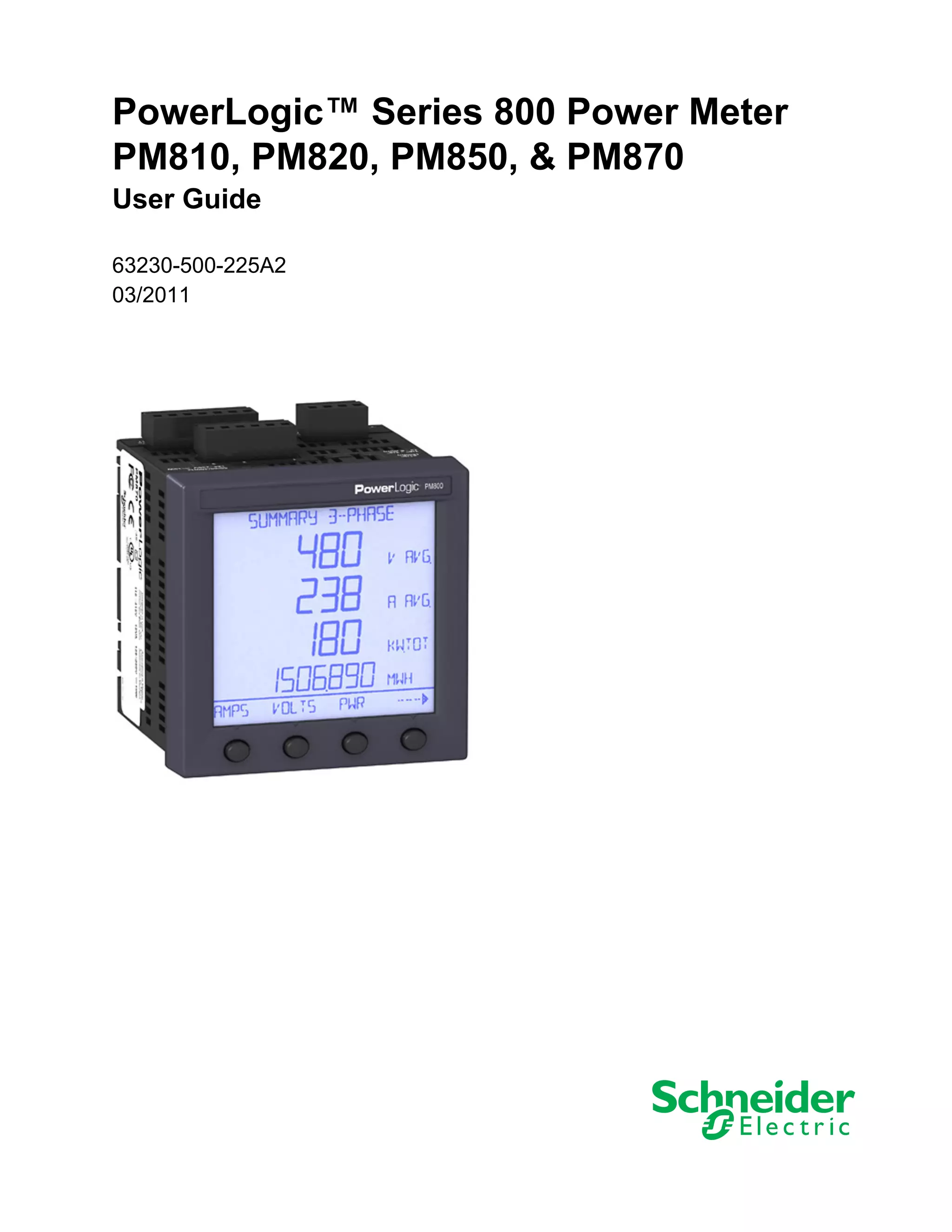
PowerLogic™ Series 800 Power Meter
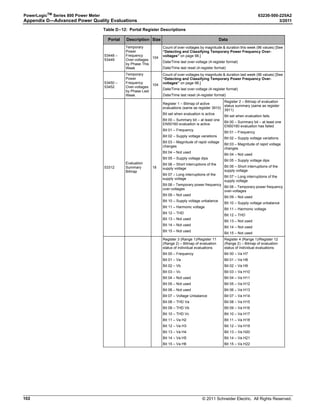
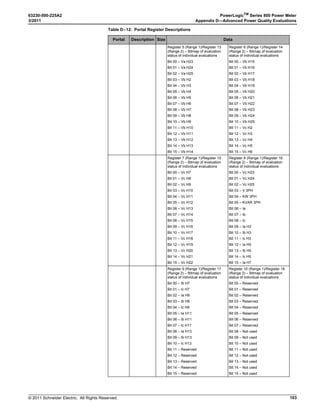
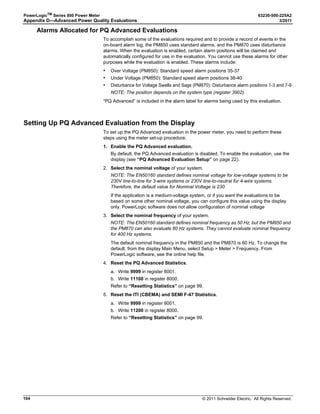
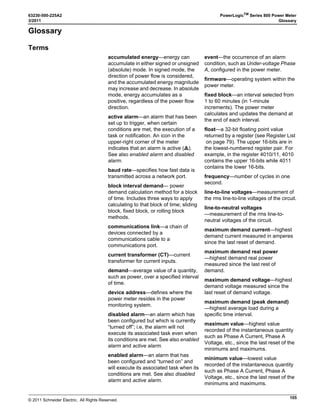
PM810, PM820, PM850, & PM870
User Guide
63230-500-225A2
03/2011
© 2011 Schneider Electric. All Rights Reserved.
63230-500-225A2 PowerLogicTM
Series 800 Power Meter
3/2011
iii
HAZARD CATEGORIES AND SPECIAL SYMBOLS
Read these instructions carefully and look at the equipment to become familiar with the
device before trying to install, operate, service, or maintain it. The following special
messages may appear throughout this bulletin or on the equipment to warn of potential
hazards or to call attention to information that clarifies or simplifies a procedure.
The addition of either symbol to a “Danger” or “Warning” safety label indicates that an
electrical hazard exists which will result in personal injury if the instructions are not
followed.
This is the safety alert symbol. It is used to alert you to potential personal injury hazards.
Obey all safety messages that follow this symbol to avoid possible injury or death.
NOTE: Provides additional information to clarify or simplify a procedure.
PLEASE NOTE
Electrical equipment should be installed, operated, serviced, and maintained only by
qualified personnel. No responsibility is assumed by Schneider Electric for any
consequences arising out of the use of this material.
CLASS A FCC STATEMENT
This equipment has been tested and found to comply with the limits for a Class A digital
device, pursuant to part 15 of the FCC Rules. These limits are designed to provide
reasonable protection against harmful interference when the equipment is operated in a
commercial environment. This equipment generates, uses, and can radiate radio frequency
energy and, if not installed and used in accordance with the instruction manual, may cause
harmful interference to radio communications. Operation of this equipment in a residential
area is likely to cause harmful interference in which case the user will be required to correct
the interference at his own expense. This Class A digital apparatus complies with Canadian
ICES-003.
DANGER
DANGER indicates an imminently hazardous situation which, if not
avoided, will result in death or serious injury.
WARNING
WARNING indicates a potentially hazardous situation which, if not
avoided, can result in death or serious injury.
CAUTION
CAUTION indicates a potentially hazardous situation which, if not
avoided, can result in minor or moderate injury.
CAUTION
CAUTION, used without the safety alert symbol, indicates a potentially
hazardous situation which, if not avoided, can result in property
damage.
© 2011 Schneider Electric. All Rights Reserved.
PowerLogicTM
Series 800 Power Meter 63230-500-225A2
3/2011
iv
© 2011 Schneider Electric. All Rights Reserved.
63230-500-225A2 PowerLogicTM
Series 800 Power Meter
3/2011 Contents
v
Contents
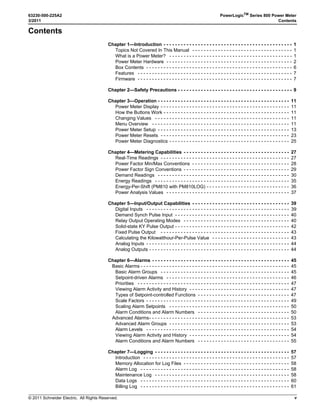
Chapter 1—Introduction - - - - - - - - - - - - - - - - - - - - - - - - - - - - - - - - - - - - - - - - - - - - - 1
Topics Not Covered In This Manual - - - - - - - - - - - - - - - - - - - - - - - - - - - - - - - - - - - 1
What is a Power Meter? - - - - - - - - - - - - - - - - - - - - - - - - - - - - - - - - - - - - - - - - - - - 1
Power Meter Hardware - - - - - - - - - - - - - - - - - - - - - - - - - - - - - - - - - - - - - - - - - - - - 2
Box Contents - - - - - - - - - - - - - - - - - - - - - - - - - - - - - - - - - - - - - - - - - - - - - - - - - - - 6
Features - - - - - - - - - - - - - - - - - - - - - - - - - - - - - - - - - - - - - - - - - - - - - - - - - - - - - - 7
Firmware - - - - - - - - - - - - - - - - - - - - - - - - - - - - - - - - - - - - - - - - - - - - - - - - - - - - - - 7
Chapter 2—Safety Precautions - - - - - - - - - - - - - - - - - - - - - - - - - - - - - - - - - - - - - - - - 9
Chapter 3—Operation - - - - - - - - - - - - - - - - - - - - - - - - - - - - - - - - - - - - - - - - - - - - - - 11
Power Meter Display - - - - - - - - - - - - - - - - - - - - - - - - - - - - - - - - - - - - - - - - - - - - - 11
How the Buttons Work - - - - - - - - - - - - - - - - - - - - - - - - - - - - - - - - - - - - - - - - - - - - 11
Changing Values - - - - - - - - - - - - - - - - - - - - - - - - - - - - - - - - - - - - - - - - - - - - - - - 11
Menu Overview - - - - - - - - - - - - - - - - - - - - - - - - - - - - - - - - - - - - - - - - - - - - - - - - 11
Power Meter Setup - - - - - - - - - - - - - - - - - - - - - - - - - - - - - - - - - - - - - - - - - - - - - - 13
Power Meter Resets - - - - - - - - - - - - - - - - - - - - - - - - - - - - - - - - - - - - - - - - - - - - - 23
Power Meter Diagnostics - - - - - - - - - - - - - - - - - - - - - - - - - - - - - - - - - - - - - - - - - - 25
Chapter 4—Metering Capabilities - - - - - - - - - - - - - - - - - - - - - - - - - - - - - - - - - - - - - 27
Real-Time Readings - - - - - - - - - - - - - - - - - - - - - - - - - - - - - - - - - - - - - - - - - - - - - 27
Power Factor Min/Max Conventions - - - - - - - - - - - - - - - - - - - - - - - - - - - - - - - - - - 28
Power Factor Sign Conventions - - - - - - - - - - - - - - - - - - - - - - - - - - - - - - - - - - - - - 29
Demand Readings - - - - - - - - - - - - - - - - - - - - - - - - - - - - - - - - - - - - - - - - - - - - - - 30
Energy Readings - - - - - - - - - - - - - - - - - - - - - - - - - - - - - - - - - - - - - - - - - - - - - - - 35
Energy-Per-Shift (PM810 with PM810LOG) - - - - - - - - - - - - - - - - - - - - - - - - - - - - - 36
Power Analysis Values - - - - - - - - - - - - - - - - - - - - - - - - - - - - - - - - - - - - - - - - - - - 37
Chapter 5—Input/Output Capabilities - - - - - - - - - - - - - - - - - - - - - - - - - - - - - - - - - - 39
Digital Inputs - - - - - - - - - - - - - - - - - - - - - - - - - - - - - - - - - - - - - - - - - - - - - - - - - - 39
Demand Synch Pulse Input - - - - - - - - - - - - - - - - - - - - - - - - - - - - - - - - - - - - - - - - 40
Relay Output Operating Modes - - - - - - - - - - - - - - - - - - - - - - - - - - - - - - - - - - - - - 40
Solid-state KY Pulse Output - - - - - - - - - - - - - - - - - - - - - - - - - - - - - - - - - - - - - - - - 42
Fixed Pulse Output - - - - - - - - - - - - - - - - - - - - - - - - - - - - - - - - - - - - - - - - - - - - - 43
Calculating the Kilowatthour-Per-Pulse Value - - - - - - - - - - - - - - - - - - - - - - - - - - - 43
Analog Inputs - - - - - - - - - - - - - - - - - - - - - - - - - - - - - - - - - - - - - - - - - - - - - - - - - - 44
Analog Outputs - - - - - - - - - - - - - - - - - - - - - - - - - - - - - - - - - - - - - - - - - - - - - - - - - 44
Chapter 6—Alarms - - - - - - - - - - - - - - - - - - - - - - - - - - - - - - - - - - - - - - - - - - - - - - - - 45
Basic Alarms - - - - - - - - - - - - - - - - - - - - - - - - - - - - - - - - - - - - - - - - - - - - - - - - - - - - 45
Basic Alarm Groups - - - - - - - - - - - - - - - - - - - - - - - - - - - - - - - - - - - - - - - - - - - - - 45
Setpoint-driven Alarms - - - - - - - - - - - - - - - - - - - - - - - - - - - - - - - - - - - - - - - - - - - 46
Priorities - - - - - - - - - - - - - - - - - - - - - - - - - - - - - - - - - - - - - - - - - - - - - - - - - - - - - 47
Viewing Alarm Activity and History - - - - - - - - - - - - - - - - - - - - - - - - - - - - - - - - - - - 47
Types of Setpoint-controlled Functions - - - - - - - - - - - - - - - - - - - - - - - - - - - - - - - - 47
Scale Factors - - - - - - - - - - - - - - - - - - - - - - - - - - - - - - - - - - - - - - - - - - - - - - - - - - 49
Scaling Alarm Setpoints - - - - - - - - - - - - - - - - - - - - - - - - - - - - - - - - - - - - - - - - - - 50
Alarm Conditions and Alarm Numbers - - - - - - - - - - - - - - - - - - - - - - - - - - - - - - - - 50
Advanced Alarms- - - - - - - - - - - - - - - - - - - - - - - - - - - - - - - - - - - - - - - - - - - - - - - - - 53
Advanced Alarm Groups - - - - - - - - - - - - - - - - - - - - - - - - - - - - - - - - - - - - - - - - - - 53
Alarm Levels - - - - - - - - - - - - - - - - - - - - - - - - - - - - - - - - - - - - - - - - - - - - - - - - - - 54
Viewing Alarm Activity and History - - - - - - - - - - - - - - - - - - - - - - - - - - - - - - - - - - - 54
Alarm Conditions and Alarm Numbers - - - - - - - - - - - - - - - - - - - - - - - - - - - - - - - - 55
Chapter 7—Logging - - - - - - - - - - - - - - - - - - - - - - - - - - - - - - - - - - - - - - - - - - - - - - - 57
Introduction - - - - - - - - - - - - - - - - - - - - - - - - - - - - - - - - - - - - - - - - - - - - - - - - - - - 57
Memory Allocation for Log Files - - - - - - - - - - - - - - - - - - - - - - - - - - - - - - - - - - - - - 58
Alarm Log - - - - - - - - - - - - - - - - - - - - - - - - - - - - - - - - - - - - - - - - - - - - - - - - - - - - 58
Maintenance Log - - - - - - - - - - - - - - - - - - - - - - - - - - - - - - - - - - - - - - - - - - - - - - - 58
Data Logs - - - - - - - - - - - - - - - - - - - - - - - - - - - - - - - - - - - - - - - - - - - - - - - - - - - - 60
Billing Log - - - - - - - - - - - - - - - - - - - - - - - - - - - - - - - - - - - - - - - - - - - - - - - - - - - - 61
© 2011 Schneider Electric. All Rights Reserved.
PowerLogicTM
Series 800 Power Meter 63230-500-225A2
Contents 3/2011
vi
Chapter 8—Waveform Capture - - - - - - - - - - - - - - - - - - - - - - - - - - - - - - - - - - - - - - -63
Introduction - - - - - - - - - - - - - - - - - - - - - - - - - - - - - - - - - - - - - - - - - - - - - - - - - - - -63
Waveform Capture - - - - - - - - - - - - - - - - - - - - - - - - - - - - - - - - - - - - - - - - - - - - - - -63
Waveform Storage - - - - - - - - - - - - - - - - - - - - - - - - - - - - - - - - - - - - - - - - - - - - - - -64
How the Power Meter Captures an Event - - - - - - - - - - - - - - - - - - - - - - - - - - - - - - -64
Channel Selection in PowerLogic Software - - - - - - - - - - - - - - - - - - - - - - - - - - - - - -64
Chapter 9—Disturbance Monitoring (PM870) - - - - - - - - - - - - - - - - - - - - - - - - - - - - -65
About Disturbance Monitoring - - - - - - - - - - - - - - - - - - - - - - - - - - - - - - - - - - - - - - -65
Capabilities of the PM870 During an Event - - - - - - - - - - - - - - - - - - - - - - - - - - - - - -67
Chapter 10—Maintenance and Troubleshooting - - - - - - - - - - - - - - - - - - - - - - - - - -69
Introduction - - - - - - - - - - - - - - - - - - - - - - - - - - - - - - - - - - - - - - - - - - - - - - - - - - - -69
Power Meter Memory - - - - - - - - - - - - - - - - - - - - - - - - - - - - - - - - - - - - - - - - - - - - -69
Identifying the Firmware Version, Model, and Serial Number - - - - - - - - - - - - - - - - -70
Viewing the Display in Different Languages - - - - - - - - - - - - - - - - - - - - - - - - - - - - -70
Technical Support - - - - - - - - - - - - - - - - - - - - - - - - - - - - - - - - - - - - - - - - - - - - - - -70
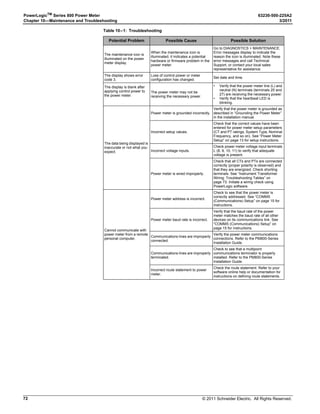
Troubleshooting - - - - - - - - - - - - - - - - - - - - - - - - - - - - - - - - - - - - - - - - - - - - - - - - -71
Appendix A—Instrument Transformer Wiring: Troubleshooting Tables - - - - - - - - 73
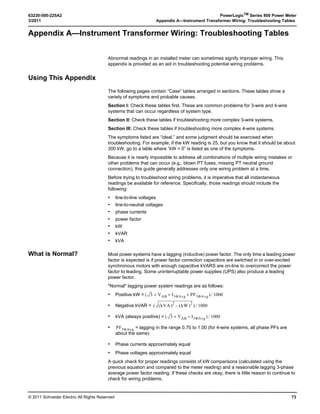
Using This Appendix - - - - - - - - - - - - - - - - - - - - - - - - - - - - - - - - - - - - - - - - - - - - -73
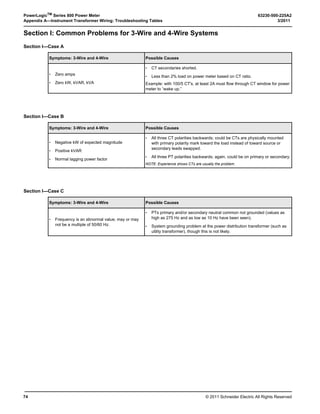
Section I: Common Problems for 3-Wire and 4-Wire Systems - - - - - - - - - - - - - - - -74
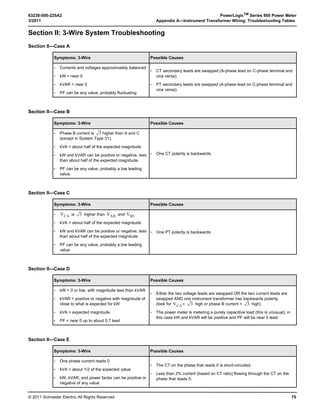
Section II: 3-Wire System Troubleshooting - - - - - - - - - - - - - - - - - - - - - - - - - - - - - -75
Section III: 4-Wire System Troubleshooting - - - - - - - - - - - - - - - - - - - - - - - - - - - - -76
Field Example - - - - - - - - - - - - - - - - - - - - - - - - - - - - - - - - - - - - - - - - - - - - - - - - - -78
Appendix B—Register List - - - - - - - - - - - - - - - - - - - - - - - - - - - - - - - - - - - - - - - - - - 79
Register List Access - - - - - - - - - - - - - - - - - - - - - - - - - - - - - - - - - - - - - - - - - - - - - -79
About Registers - - - - - - - - - - - - - - - - - - - - - - - - - - - - - - - - - - - - - - - - - - - - - - - - -79
How Date and Time are Stored in Registers - - - - - - - - - - - - - - - - - - - - - - - - - - - - -80
How Signed Power Factor is Stored in the Register - - - - - - - - - - - - - - - - - - - - - - - -80
Supported Modbus Commands - - - - - - - - - - - - - - - - - - - - - - - - - - - - - - - - - - - - - -81
Resetting Registers - - - - - - - - - - - - - - - - - - - - - - - - - - - - - - - - - - - - - - - - - - - - - -81
Appendix C—Using the Command Interface- - - - - - - - - - - - - - - - - - - - - - - - - - - - - 83
Overview of the Command Interface - - - - - - - - - - - - - - - - - - - - - - - - - - - - - - - - - -83
Operating Outputs from the Command Interface - - - - - - - - - - - - - - - - - - - - - - - - - -86
Using the Command Interface to Change Configuration Registers - - - - - - - - - - - - -86
Conditional Energy - - - - - - - - - - - - - - - - - - - - - - - - - - - - - - - - - - - - - - - - - - - - - - -87
Incremental Energy - - - - - - - - - - - - - - - - - - - - - - - - - - - - - - - - - - - - - - - - - - - - - -88
Setting Up Individual Harmonic Calculations - - - - - - - - - - - - - - - - - - - - - - - - - - - - -89
Changing Scale Factors - - - - - - - - - - - - - - - - - - - - - - - - - - - - - - - - - - - - - - - - - - -90
Enabling Floating-point Registers - - - - - - - - - - - - - - - - - - - - - - - - - - - - - - - - - - - -91
Appendix D—Advanced Power Quality Evaluations - - - - - - - - - - - - - - - - - - - - - - - 93
Power Quality Standards - - - - - - - - - - - - - - - - - - - - - - - - - - - - - - - - - - - - - - - - - -93
SEMI-F47/ITI (CBEMA) Specification - - - - - - - - - - - - - - - - - - - - - - - - - - - - - - - - - -93
EN50160:2000 Specification - - - - - - - - - - - - - - - - - - - - - - - - - - - - - - - - - - - - - - - -95
How Evaluation Results Are Reported - - - - - - - - - - - - - - - - - - - - - - - - - - - - - - - - -95
Possible Configurations Through Register Writes - - - - - - - - - - - - - - - - - - - - - - - - -96
Evaluation During Normal Operation - - - - - - - - - - - - - - - - - - - - - - - - - - - - - - - - - -96
Evaluations During Abnormal Operation - - - - - - - - - - - - - - - - - - - - - - - - - - - - - - - -97
Operation with PQ Advanced Enabled - - - - - - - - - - - - - - - - - - - - - - - - - - - - - - - - -99
Advanced Power Quality Evaluation System Configuration
and Status Registers [EN50160 and SEMI-F47/ITI (CBEMA)] - - - - - - - - - - - - - - - -99
EN50160 Evaluation Data Available Over a Communications Link - - - - - - - - - - - - 101
Setting Up PQ Advanced Evaluation from the Display - - - - - - - - - - - - - - - - - - - - - 104
Glossary - - - - - - - - - - - - - - - - - - - - - - - - - - - - - - - - - - - - - - - - - - - - - - - - - - - - - - - 105
Terms - - - - - - - - - - - - - - - - - - - - - - - - - - - - - - - - - - - - - - - - - - - - - - - - - - - - - - - 105
Abbreviations and Symbols - - - - - - - - - - - - - - - - - - - - - - - - - - - - - - - - - - - - - - - - 107
Index - - - - - - - - - - - - - - - - - - - - - - - - - - - - - - - - - - - - - - - - - - - - - - - - - - - - - - - - - - 109
© 2011 Schneider Electric. All Rights Reserved.
63230-500-225A2 PowerLogicTM
Series 800 Power Meter
3/2011 Chapter 1—Introduction
1
Chapter 1—Introduction
This user guide explains how to operate and configure a PowerLogic™
Series 800 Power
Meter. Unless otherwise noted, the information contained in this manual refers to the
following power meters:
• Power meter with integrated display
• Power meter without a display
• Power meter with a remote display
Refer to “Power Meter Parts and Accessories” on page 5 for all models and model
numbers. For a list of supported features, see “Features” on page 7.
NOTE: The power meter units on the PM810, PM810U, and the PM810RD are functionally
equivalent.
Topics Not Covered In This Manual
Some of the power meter’s advanced features, such as on-board data logs and alarm log
files, can only be set up via the communications link using PowerLogic software. This
power meter user guide describes these advanced features but does not explain how to set
them up. For information on using these features, refer to your software’s online help or
user guide.
What is a Power Meter?
A power meter is a multifunction, digital instrumentation, data acquisition and control
device. It can replace a variety of meters, relays, transducers, and other components. This
power meter is equipped with RS485 communications for integration into any power
monitoring/control system and can be installed at multiple locations within a facility.
These are true rms meters, capable of exceptionally accurate measurement of highly
non-linear loads. A sophisticated sampling technique enables accurate measurements
through the 63rd harmonic➀
. You can view over 50 metered values, plus minimum and
maximum data, either from the display or remotely using software. Table 1–1 summarizes
the readings available from the power meter.
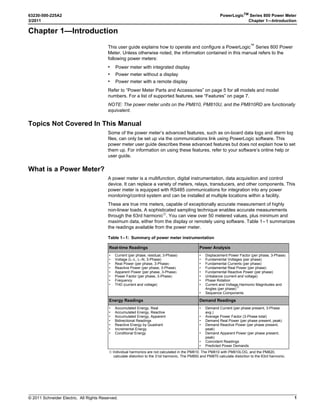
Table 1–1: Summary of power meter instrumentation
Real-time Readings Power Analysis
• Current (per phase, residual, 3-Phase)
• Voltage (L–L, L–N, 3-Phase)
• Real Power (per phase, 3-Phase
• Reactive Power (per phase, 3-Phase
• Apparent Power (per phase, 3-Phase
• Power Factor (per phase, 3-Phase
• Frequency
• THD (current and voltage)
• Displacement Power Factor (per phase, 3-Phase
• Fundamental Voltages (per phase)
• Fundamental Currents (per phase)
• Fundamental Real Power (per phase)
• Fundamental Reactive Power (per phase)
• Unbalance (current and voltage)
• Phase Rotation
• Current and Voltage Harmonic Magnitudes and
Angles (per phase)
➀
• Sequence Components
Energy Readings Demand Readings
• Accumulated Energy, Real
• Accumulated Energy, Reactive
• Accumulated Energy, Apparent
• Bidirectional Readings
• Reactive Energy by Quadrant
• Incremental Energy
• Conditional Energy
• Demand Current (per phase present, 3-Phase
avg.)
• Average Power Factor (3-Phase total)
• Demand Real Power (per phase present, peak)
• Demand Reactive Power (per phase present,
peak)
• Demand Apparent Power (per phase present,
peak)
• Coincident Readings
• Predicted Power Demands
➀ Individual harmonics are not calculated in the PM810. The PM810 with PM810LOG, and the PM820,
calculate distortion to the 31st harmonic. The PM850 and PM870 calculate distortion to the 63rd harmonic.
© 2011 Schneider Electric. All Rights Reserved.
PowerLogicTM
Series 800 Power Meter 63230-500-225A2
Chapter 1—Introduction 3/2011
2
Power Meter Hardware
Power Meter With Integrated Display
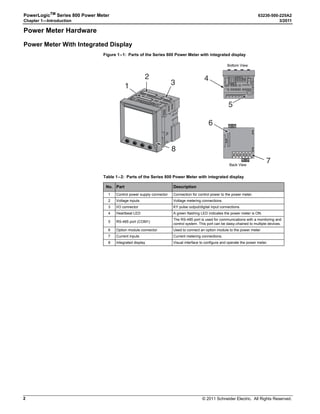
Figure 1–1: Parts of the Series 800 Power Meter with integrated display
Table 1–2: Parts of the Series 800 Power Meter with integrated display
No. Part Description
1 Control power supply connector Connection for control power to the power meter.
2 Voltage inputs Voltage metering connections.
3 I/O connector KY pulse output/digital input connections.
4 Heartbeat LED A green flashing LED indicates the power meter is ON.
5 RS-485 port (COM1)
The RS-485 port is used for communications with a monitoring and
control system. This port can be daisy-chained to multiple devices.
6 Option module connector Used to connect an option module to the power meter.
7 Current inputs Current metering connections.
8 Integrated display Visual interface to configure and operate the power meter.
1
2
3
5
6
7
4
8
Bottom View
Back View
© 2011 Schneider Electric. All Rights Reserved.
63230-500-225A2 PowerLogicTM
Series 800 Power Meter
3/2011 Chapter 1—Introduction
3
Power Meter Without Display
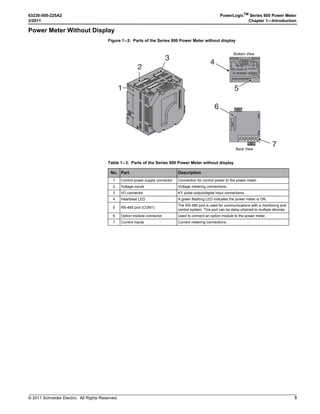
Figure 1–2: Parts of the Series 800 Power Meter without display
Table 1–3: Parts of the Series 800 Power Meter without display
No. Part Description
1 Control power supply connector Connection for control power to the power meter.
2 Voltage inputs Voltage metering connections.
3 I/O connector KY pulse output/digital input connections.
4 Heartbeat LED A green flashing LED indicates the power meter is ON.
5 RS-485 port (COM1)
The RS-485 port is used for communications with a monitoring and
control system. This port can be daisy-chained to multiple devices.
6 Option module connector Used to connect an option module to the power meter.
7 Current inputs Current metering connections.
1
2
3
5
6
7
4
Bottom View
Back View
© 2011 Schneider Electric. All Rights Reserved.
PowerLogicTM
Series 800 Power Meter 63230-500-225A2
Chapter 1—Introduction 3/2011
4
Power Meter With Remote Display
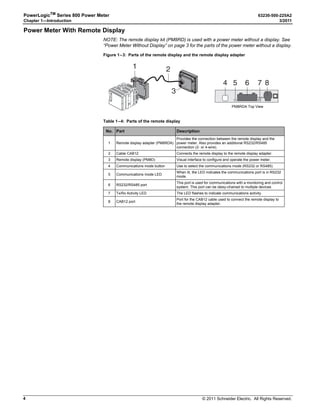
NOTE: The remote display kit (PM8RD) is used with a power meter without a display. See
“Power Meter Without Display” on page 3 for the parts of the power meter without a display.
Figure 1–3: Parts of the remote display and the remote display adapter
Table 1–4: Parts of the remote display
No. Part Description
1 Remote display adapter (PM8RDA)
Provides the connection between the remote display and the
power meter. Also provides an additional RS232/RS485
connection (2- or 4-wire).
2 Cable CAB12 Connects the remote display to the remote display adapter.
3 Remote display (PM8D) Visual interface to configure and operate the power meter.
4 Communications mode button Use to select the communications mode (RS232 or RS485).
5 Communications mode LED
When lit, the LED indicates the communications port is in RS232
mode.
6 RS232/RS485 port
This port is used for communications with a monitoring and control
system. This port can be daisy-chained to multiple devices.
7 Tx/Rx Activity LED The LED flashes to indicate communications activity.
8 CAB12 port
Port for the CAB12 cable used to connect the remote display to
the remote display adapter.
2
3
1
TX/RX
4 5 6 87
PM8RDA Top View
© 2011 Schneider Electric. All Rights Reserved.
63230-500-225A2 PowerLogicTM
Series 800 Power Meter
3/2011 Chapter 1—Introduction
5
Power Meter Parts and Accessories
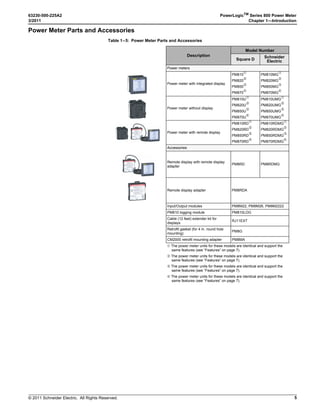
Table 1–5: Power Meter Parts and Accessories
Description
Model Number
Square D
Schneider
Electric
Power meters
Power meter with integrated display
PM810
➀
PM820
➁
PM850
➂
PM870
➃
PM810MG
➀
PM820MG
➁
PM850MG
➂
PM870MG
➃
Power meter without display
PM810U
➀
PM820U
➁
PM850U
➂
PM870U
➃
PM810UMG
➀
PM820UMG
➁
PM850UMG
➂
PM870UMG
➃
Power meter with remote display
PM810RD
➀
PM820RD
➁
PM850RD
➂
PM870RD
➃
PM810RDMG
➀
PM820RDMG
➁
PM850RDMG
➂
PM870RDMG
➃
Accessories
Remote display with remote display
adapter
PM8RD PM8RDMG
Remote display adapter PM8RDA
Input/Output modules PM8M22, PM8M26, PM8M2222
PM810 logging module PM810LOG
Cable (12 feet) extender kit for
displays
RJ11EXT
Retrofit gasket (for 4 in. round hole
mounting)
PM8G
CM2000 retrofit mounting adapter PM8MA
➀ The power meter units for these models are identical and support the
same features (see “Features” on page 7).
➁ The power meter units for these models are identical and support the
same features (see “Features” on page 7).
➂ The power meter units for these models are identical and support the
same features (see “Features” on page 7).
➃ The power meter units for these models are identical and support the
same features (see “Features” on page 7).
© 2011 Schneider Electric. All Rights Reserved.
PowerLogicTM
Series 800 Power Meter 63230-500-225A2
Chapter 1—Introduction 3/2011
6
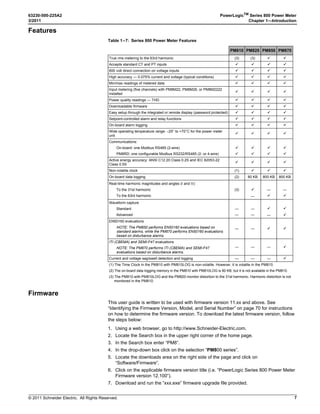
Box Contents
Table 1–6: Box contents based on model
Model Description Box Contents
Power Meter with Integrated Display
• Power Meter with integrated display
• Hardware kit (63230-500-16) containing:
— Two retainer clips
— Template
— Plug set
— Terminator MCT2W
• Power Meter installation guides (EN, FR, ES, DE)
• Power Meter specification guide
Power Meter without Display
• Power Meter without display
• Hardware kit (63230-500-16) containing:
— Two retainer clips
— Template
— DIN Slide (installed at factory)
— Plug set
— Terminator MCT2W
• Power Meter installation guides (EN, FR, ES, DE)
• Power Meter specification guide
Power Meter with Remote Display
• Power Meter without display
• Remote display (PM8D)
• Remote display adapter (PM8RDA)
• Hardware kit (63230-500-16) containing:
— Two retainer clips
— Template
— DIN Slide (installed at factory)
— Plug set
— Terminator MCT2W
• Hardware kit (63230-500-96) containing:
— Communication cable (CAB12)
— Mounting screws
• Hardware kit (63230-500-163) containing:
— Com 2 RS-485 4-wire plug
— Crimp connector
• Power Meter installation guides (EN, FR, ES, DE)
• Power Meter specification guide
© 2011 Schneider Electric. All Rights Reserved.
63230-500-225A2 PowerLogicTM
Series 800 Power Meter
3/2011 Chapter 1—Introduction
7
Features
Firmware
This user guide is written to be used with firmware version 11.xx and above. See
“Identifying the Firmware Version, Model, and Serial Number” on page 70 for instructions
on how to determine the firmware version. To download the latest firmware version, follow
the steps below:
1. Using a web browser, go to http://www.Schneider-Electric.com.
2. Locate the Search box in the upper right corner of the home page.
3. In the Search box enter “PM8”.
4. In the drop-down box click on the selection “PM800 series”.
5. Locate the downloads area on the right side of the page and click on
“Software/Firmware”.
6. Click on the applicable firmware version title (i.e. “PowerLogic Series 800 Power Meter
Firmware version 12.100”).
7. Download and run the “xxx.exe” firmware upgrade file provided.
Table 1–7: Series 800 Power Meter Features
PM810 PM820 PM850 PM870
True rms metering to the 63rd harmonic (3) (3)  
Accepts standard CT and PT inputs    
600 volt direct connection on voltage inputs    
High accuracy — 0.075% current and voltage (typical conditions)    
Min/max readings of metered data    
Input metering (five channels) with PM8M22, PM8M26, or PM8M2222
installed
   
Power quality readings — THD    
Downloadable firmware    
Easy setup through the integrated or remote display (password protected)    
Setpoint-controlled alarm and relay functions    
On-board alarm logging    
Wide operating temperature range: –25° to +70°C for the power meter
unit
   
Communications:
On-board: one Modbus RS485 (2-wire)
PM8RD: one configurable Modbus RS232/RS485 (2- or 4-wire)








Active energy accuracy: ANSI C12.20 Class 0.2S and IEC 62053-22
Class 0.5S
   
Non-volatile clock (1)   
On-board data logging (2) 80 KB 800 KB 800 KB
Real-time harmonic magnitudes and angles (I and V):
To the 31st harmonic
To the 63rd harmonic
(3) 
—
—

—

Waveform capture
Standard
Advanced
—
—
—
—

—


EN50160 evaluations
NOTE: The PM850 performs EN50160 evaluations based on
standard alarms, while the PM870 performs EN50160 evaluations
based on disturbance alarms.
— —  
ITI (CBEMA) and SEMI-F47 evaluations
NOTE: The PM870 performs ITI (CBEMA) and SEMI-F47
evaluations based on disturbance alarms.
— — — 
Current and voltage sag/swell detection and logging — — — 
(1) The Time Clock in the PM810 with PM810LOG is non-volatile. However, it is volatile in the PM810.
(2) The on-board data logging memory in the PM810 with PM810LOG is 80 KB, but it is not available in the PM810.
(3) The PM810 with PM810LOG and the PM820 monitor distortion to the 31st harmonic. Harmonic distortion is not
monitored in the PM810.
© 2011 Schneider Electric. All Rights Reserved.
PowerLogicTM
Series 800 Power Meter 63230-500-225A2
Chapter 1—Introduction 3/2011
8
© 2011 Schneider Electric. All Rights Reserved.
63230-500-225A2 PowerLogicTM
Series 800 Power Meter
3/2011 Chapter 2—Safety Precautions
9
Chapter 2—Safety Precautions
DANGER
HAZARD OF ELECTRIC SHOCK, EXPLOSION OR ARC FLASH
• Apply appropriate personal protective equipment (PPE) and follow safe electrical
practices. For example, in the United States, see NFPA 70E.
• This equipment must only be installed and serviced by qualified electrical
personnel.
• NEVER work alone.
• Before performing visual inspections, tests, or maintenance on this equipment,
disconnect all sources of electric power. Assume that all circuits are live until they
have been completely de-energized, tested, and tagged. Pay particular attention to
the design of the power system. Consider all sources of power, including the
possibility of backfeeding.
• Turn off all power supplying this equipment before working on or inside equipment.
• Always use a properly rated voltage sensing device to confirm that all power is off.
• Beware of potential hazards and carefully inspect the work area for tools and
objects that may have been left inside the equipment.
• Use caution while removing or installing panels so that they do not extend into the
energized bus; avoid handling the panels, which could cause personal injury.
• The successful operation of this equipment depends upon proper handling,
installation, and operation. Neglecting fundamental installation requirements may
lead to personal injury as well as damage to electrical equipment or other property.
• Before performing Dielectric (Hi-Pot) or Megger testing on any equipment in which
the power meter is installed, disconnect all input and output wires to the power
meter. High voltage testing may damage electronic components contained in the
power meter.
• Always use grounded external CTs for current inputs.
Failure to follow these instructions will result in death or serious injury.
© 2011 Schneider Electric. All Rights Reserved.
PowerLogicTM
Series 800 Power Meter 63230-500-225A2
Chapter 2—Safety Precautions 3/2011
10
© 2011 Schneider Electric. All Rights Reserved.
63230-500-225A2 PowerLogicTM
Series 800 Power Meter
3/2011 Chapter 3—Operation
11
Chapter 3—Operation
This section explains the features of the power meter display and the power meter setup
procedures using this display. For a list of all power meter models containing an integrated
display or a remote display, see Table 1–5 on page 5.
Power Meter Display
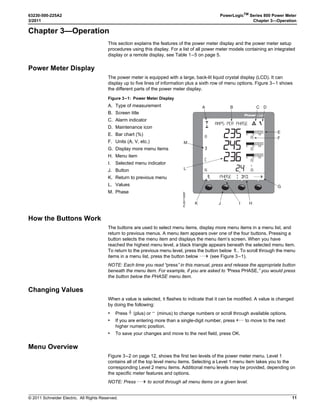
The power meter is equipped with a large, back-lit liquid crystal display (LCD). It can
display up to five lines of information plus a sixth row of menu options. Figure 3–1 shows
the different parts of the power meter display.
How the Buttons Work
The buttons are used to select menu items, display more menu items in a menu list, and
return to previous menus. A menu item appears over one of the four buttons. Pressing a
button selects the menu item and displays the menu item’s screen. When you have
reached the highest menu level, a black triangle appears beneath the selected menu item.
To return to the previous menu level, press the button below 1;. To scroll through the menu
items in a menu list, press the button below ###: (see Figure 3–1).
NOTE: Each time you read “press” in this manual, press and release the appropriate button
beneath the menu item. For example, if you are asked to “Press PHASE,” you would press
the button below the PHASE menu item.
Changing Values
When a value is selected, it flashes to indicate that it can be modified. A value is changed
by doing the following:
• Press + (plus) or - (minus) to change numbers or scroll through available options.
• If you are entering more than a single-digit number, press <-- to move to the next
higher numeric position.
• To save your changes and move to the next field, press OK.
Menu Overview
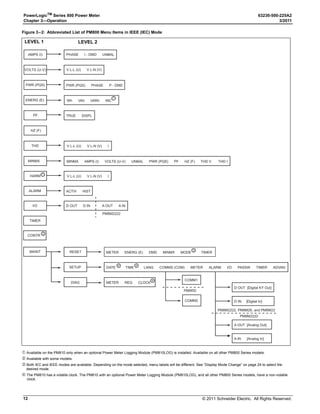
Figure 3–2 on page 12, shows the first two levels of the power meter menu. Level 1
contains all of the top level menu items. Selecting a Level 1 menu item takes you to the
corresponding Level 2 menu items. Additional menu levels may be provided, depending on
the specific meter features and options.
NOTE: Press ###: to scroll through all menu items on a given level.
Figure 3–1: Power Meter Display
A. Type of measurement
B. Screen title
C. Alarm indicator
D. Maintenance icon
E. Bar chart (%)
F. Units (A, V, etc.)
G. Display more menu items
H. Menu item
I. Selected menu indicator
J. Button
K. Return to previous menu
L. Values
M. Phase
0(!3%
!-03 0%2 0(!3%
!
 ) $-$
ZZZZZ
!
!
!

#
.
)
!
ZZZZZ
ZZZZZ


A B C D
E
G
HIK
L
M
J
F
PLSD110097
© 2011 Schneider Electric. All Rights Reserved.
PowerLogicTM
Series 800 Power Meter 63230-500-225A2
Chapter 3—Operation 3/2011
12
Figure 3–2: Abbreviated List of PM800 Menu Items in IEEE (IEC) Mode
➀ Available on the PM810 only when an optional Power Meter Logging Module (PM810LOG) is installed. Available on all other PM800 Series models.
➁ Available with some models.
➂ Both IEC and IEEE modes are available. Depending on the mode selected, menu labels will be different. See “Display Mode Change” on page 24 to select the
desired mode.
➃ The PM810 has a volatile clock. The PM810 with an optional Power Meter Logging Module (PM810LOG), and all other PM800 Series models, have a non-volatile
clock.
PHASE I - DMD UNBAL
PWR (PQS) PHASE P - DMD
TRUE DISPL
V L-L (U) V L-N (V) I
MINMX AMPS (I) VOLTS (U-V) UNBAL PWR (PQS) PF HZ (F) THD V THD I
ACTIV HIST
DATE TIME LANG COMMS (COM) METER ALARM I/O PASSW TIMER ADVAN
AMPS (I)
VOLTS (U-V)
PWR (PQS)
ENERG (E)
PF
HZ (F)
THD
MINMX
ALARM
I/O
RESET
SETUP
DIAG
HARM
METER ENERG (E) DMD MINMX MODE TIMER
CONTR
MAINT
TIMER
PM8M2222
COMM1
COMM2
PM8RD
D OUT D IN A OUT A IN
METER REG CLOCK
1
3
2
D OUT [Digital KY Out]
D IN [Digital In]
A OUT [Analog Out]
A IN [Analog In]
PM8M2222
PM8M2222, PM8M26, and PM8M22
4 4
4
1
V L-L (U) V L-N (V) I
V L-L (U) V L-N (V)
Wh VAh VARh INC
LEVEL 1 LEVEL 2
© 2011 Schneider Electric. All Rights Reserved.
63230-500-225A2 PowerLogicTM
Series 800 Power Meter
3/2011 Chapter 3—Operation
13
Power Meter Setup
Power meter setup is typically performed by using the meter’s front panel display. To
configure a power meter without a display, you will need a means of communication
between the power meter and your computer. Additionally, you will need to install
PowerLogic Meter Configuration Software or PowerLogic ION Setup Software on your
computer. These can be downloaded from the Schneider’s www.Schneider-Electric.com
website.
Power meter setup is performed through the meter’s maintenance (MAINT) option. Refer to
Figure 3–2 on page 12. Setup features may be programmed individually or in any order. To
access the Setup features, follow these steps:
SETUP MODE Access
1. Press ###: to scroll through the Level 1 menu until you see MAINT.
2. Press MAINT.
3. Press SETUP.
4. Enter your password, then press OK. The SETUP MODE screen will be displayed.
NOTE: The default password is 0000.
5. Press ###: to scroll through the setup features and select the one to be programmed.
After programming a feature, you may continue through the remaining features by returning
to the SETUP MODE screen and pressing ###: to scroll to additional features.
Once you have selected the correct options for each setup parameter, press 1; until the
SAVE CHANGES? prompt appears, then press YES. The meter will reset, briefly display
the meter info screen, then automatically return to the main screen.
Use the menu provided in Figure 3–2 on page 12 to locate the setup features described in
the following topics:
DATE Setup
1. Perform steps 1 through 5 of the SETUP MODE
Access procedure on page 11.
2. Press ###: until DATE is visible.
3. Press DATE.
4. Enter the MONTH number.
5. Press OK.
6. Enter the DAY number.
7. Press OK.
8. Enter the YEAR number.
9. Press OK.
10. Select how the date is displayed: M/D/Y,
Y/M/D, or D/M/Y).
11. Press OK to return to the SETUP MODE
screen.
12. Press1; to return to the main screen.
13. To verify the new settings, press MAINT 
DIAG  CLOCK.
NOTE: The clock in the PM810 is volatile. Each time the meter resets, the PM810 returns
to the default clock date/time of 12:00 AM 01-01-1980. See “Date and Time Settings” on
page 69 for more information. All other PM800 Series meters have a non-volatile clock
which maintains the current date and time when the meter is reset.

$!4% 3%450
/+
$!9
9%!2
-$9
-/.4(
PLSD110218
© 2011 Schneider Electric. All Rights Reserved.
PowerLogicTM
Series 800 Power Meter 63230-500-225A2
Chapter 3—Operation 3/2011
14
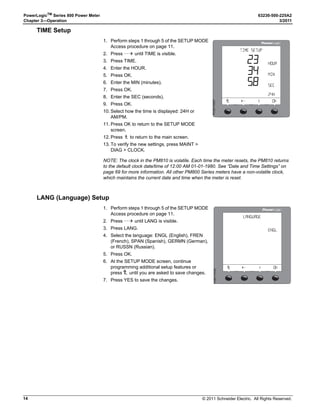
TIME Setup
LANG (Language) Setup
1. Perform steps 1 through 5 of the SETUP MODE
Access procedure on page 11.
2. Press ###: until TIME is visible.
3. Press TIME.
4. Enter the HOUR.
5. Press OK.
6. Enter the MIN (minutes).
7. Press OK.
8. Enter the SEC (seconds).
9. Press OK.
10. Select how the time is displayed: 24H or
AM/PM.
11. Press OK to return to the SETUP MODE
screen.
12. Press 1; to return to the main screen.
13. To verify the new settings, press MAINT 
DIAG  CLOCK.
NOTE: The clock in the PM810 is volatile. Each time the meter resets, the PM810 returns
to the default clock date/time of 12:00 AM 01-01-1980. See “Date and Time Settings” on
page 69 for more information. All other PM800 Series meters have a non-volatile clock,
which maintains the current date and time when the meter is reset.

4)-% 3%450
/+


-).
3DB
(
(NTQ
PLSD110227
1. Perform steps 1 through 5 of the SETUP MODE
Access procedure on page 11.
2. Press ###: until LANG is visible.
3. Press LANG.
4. Select the language: ENGL (English), FREN
(French), SPAN (Spanish), GERMN (German),
or RUSSN (Russian).
5. Press OK.
6. At the SETUP MODE screen, continue
programming additional setup features or
press1; until you are asked to save changes.
7. Press YES to save the changes.

,!.'5!'%
%.',
/+
PLSD110103
© 2011 Schneider Electric. All Rights Reserved.
63230-500-225A2 PowerLogicTM
Series 800 Power Meter
3/2011 Chapter 3—Operation
15
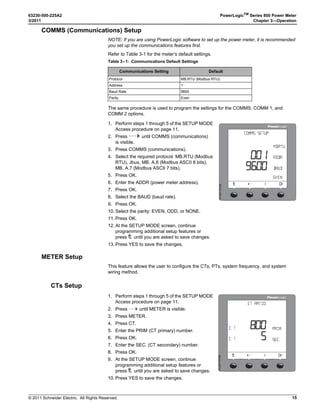
COMMS (Communications) Setup
NOTE: If you are using PowerLogic software to set up the power meter, it is recommended
you set up the communications features first.
Refer to Table 3-1 for the meter’s default settings.
The same procedure is used to program the settings for the COMMS, COMM 1, and
COMM 2 options.
METER Setup
This feature allows the user to configure the CTs, PTs, system frequency, and system
wiring method.
CTs Setup
Table 3–1: Communications Default Settings
Communications Setting Default
Protocol MB.RTU (Modbus RTU)
Address 1
Baud Rate 9600
Parity Even
1. Perform steps 1 through 5 of the SETUP MODE
Access procedure on page 11.
2. Press ###: until COMMS (communications)
is visible.
3. Press COMMS (communications).
4. Select the required protocol: MB.RTU (Modbus
RTU), Jbus, MB. A.8 (Modbus ASCII 8 bits),
MB. A.7 (Modbus ASCII 7 bits).
5. Press OK.
6. Enter the ADDR (power meter address).
7. Press OK.
8. Select the BAUD (baud rate).
9. Press OK.
10. Select the parity: EVEN, ODD, or NONE.
11. Press OK.
12. At the SETUP MODE screen, continue
programming additional setup features or
press1; until you are asked to save changes.
13. Press YES to save the changes.

#/--3 3%450
/+
!$$2
A@T$
%6%.
-245
PLSD110100
1. Perform steps 1 through 5 of the SETUP MODE
Access procedure on page 11.
2. Press ###: until METER is visible.
3. Press METER.
4. Press CT.
5. Enter the PRIM (CT primary) number.
6. Press OK.
7. Enter the SEC. (CT secondary) number.
8. Press OK.
9. At the SETUP MODE screen, continue
programming additional setup features or
press1; until you are asked to save changes.
10. Press YES to save the changes.

#4 2!4)/
/+


02)-
3%#
# 4
# 4
PLSD110106
© 2011 Schneider Electric. All Rights Reserved.
PowerLogicTM
Series 800 Power Meter 63230-500-225A2
Chapter 3—Operation 3/2011
16
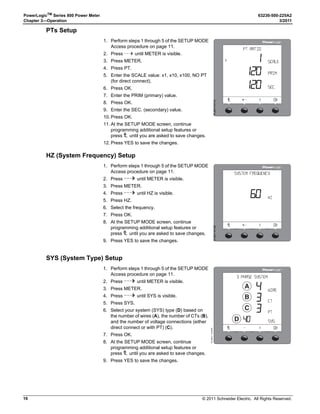
PTs Setup
HZ (System Frequency) Setup
SYS (System Type) Setup
1. Perform steps 1 through 5 of the SETUP MODE
Access procedure on page 11.
2. Press ###: until METER is visible.
3. Press METER.
4. Press PT.
5. Enter the SCALE value: x1, x10, x100, NO PT
(for direct connect).
6. Press OK.
7. Enter the PRIM (primary) value.
8. Press OK.
9. Enter the SEC. (secondary) value.
10. Press OK.
11. At the SETUP MODE screen, continue
programming additional setup features or
press1; until you are asked to save changes.
12. Press YES to save the changes.

04 2!4)/
/+
02)-
3#!,%
3%#
8
PLSD110112
1. Perform steps 1 through 5 of the SETUP MODE
Access procedure on page 11.
2. Press ###: until METER is visible.
3. Press METER.
4. Press ###: until HZ is visible.
5. Press HZ.
6. Select the frequency.
7. Press OK.
8. At the SETUP MODE screen, continue
programming additional setup features or
press1; until you are asked to save changes.
9. Press YES to save the changes.

3934%- QDPTD.BX
/+
(Y
2%1
PLSD110109
1. Perform steps 1 through 5 of the SETUP MODE
Access procedure on page 11.
2. Press ###: until METER is visible.
3. Press METER.
4. Press ###: until SYS is visible.
5. Press SYS.
6. Select your system (SYS) type (D) based on
the number of wires (A), the number of CTs (B),
and the number of voltage connections (either
direct connect or with PT) (C).
7. Press OK.
8. At the SETUP MODE screen, continue
programming additional setup features or
press1; until you are asked to save changes.
9. Press YES to save the changes.

 0(!3% 3934%-
#4
04
393
7)2%
/+
A
B
C
D
PLSD110324
© 2011 Schneider Electric. All Rights Reserved.
63230-500-225A2 PowerLogicTM
Series 800 Power Meter
3/2011 Chapter 3—Operation
17
ALARM (Alarms) Setup
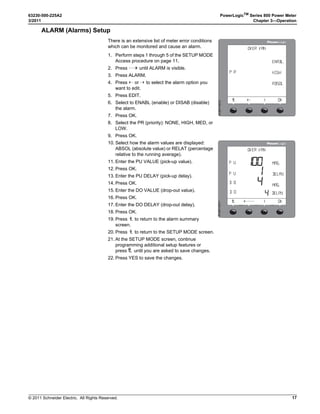
There is an extensive list of meter error conditions
which can be monitored and cause an alarm.
1. Perform steps 1 through 5 of the SETUP MODE
Access procedure on page 11.
2. Press ###: until ALARM is visible.
3. Press ALARM.
4. Press - or - to select the alarm option you
want to edit.
5. Press EDIT.
6. Select to ENABL (enable) or DISAB (disable)
the alarm.
7. Press OK.
8. Select the PR (priority): NONE, HIGH, MED, or
LOW.
9. Press OK.
10. Select how the alarm values are displayed:
ABSOL (absolute value) or RELAT (percentage
relative to the running average).
11. Enter the PU VALUE (pick-up value).
12. Press OK.
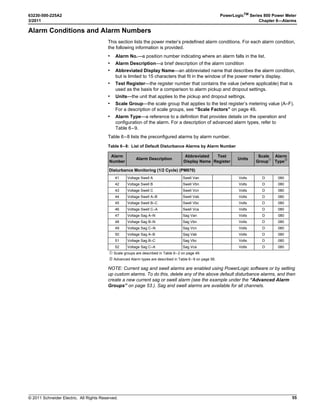
13. Enter the PU DELAY (pick-up delay).
14. Press OK.
15. Enter the DO VALUE (drop-out value).
16. Press OK.
17. Enter the DO DELAY (drop-out delay).
18. Press OK.
19. Press 1; to return to the alarm summary
screen.
20. Press 1; to return to the SETUP MODE screen.
21. At the SETUP MODE screen, continue
programming additional setup features or
press1; until you are asked to save changes.
22. Press YES to save the changes.

/6%2 6!.
/+
()'(
!3/,
0 2
%.!,
PLSD110212

/6%2 6!.
/+


$%,!9
-!'
0 5
-!'0 5
$ /
$ / $%,!9

PLSD110311
© 2011 Schneider Electric. All Rights Reserved.
PowerLogicTM
Series 800 Power Meter 63230-500-225A2
Chapter 3—Operation 3/2011
18
I/O (Input/Output) Setup
PASSW (Password) Setup
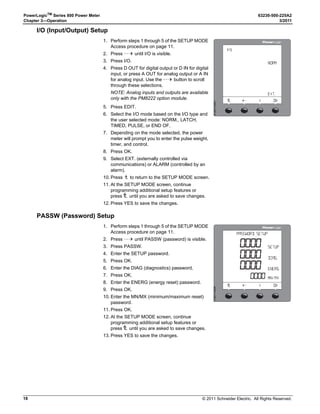
1. Perform steps 1 through 5 of the SETUP MODE
Access procedure on page 11.
2. Press ###: until I/O is visible.
3. Press I/O.
4. Press D OUT for digital output or D IN for digital
input, or press A OUT for analog output or A IN
for analog input. Use the ###: button to scroll
through these selections.
NOTE: Analog inputs and outputs are available
only with the PM8222 option module.
5. Press EDIT.
6. Select the I/O mode based on the I/O type and
the user selected mode: NORM., LATCH,
TIMED, PULSE, or END OF.
7. Depending on the mode selected, the power
meter will prompt you to enter the pulse weight,
timer, and control.
8. Press OK.
9. Select EXT. (externally controlled via
communications) or ALARM (controlled by an
alarm).
10. Press 1; to return to the SETUP MODE screen.
11. At the SETUP MODE screen, continue
programming additional setup features or
press1; until you are asked to save changes.
12. Press YES to save the changes.

+9
/+
05,3%
4)-%2
%84
./2-
PLSD110221
1. Perform steps 1 through 5 of the SETUP MODE
Access procedure on page 11.
2. Press ###: until PASSW (password) is visible.
3. Press PASSW.
4. Enter the SETUP password.
5. Press OK.
6. Enter the DIAG (diagnostics) password.
7. Press OK.
8. Enter the ENERG (energy reset) password.
9. Press OK.
10. Enter the MN/MX (minimum/maximum reset)
password.
11. Press OK.
12. At the SETUP MODE screen, continue
programming additional setup features or
press1; until you are asked to save changes.
13. Press YES to save the changes.

0!337/2$ 3%450
/+
$)!'
%.%2'
-.-8
3%450
PLSD110224
© 2011 Schneider Electric. All Rights Reserved.
63230-500-225A2 PowerLogicTM
Series 800 Power Meter
3/2011 Chapter 3—Operation
19
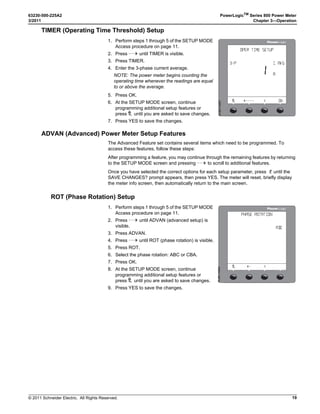
TIMER (Operating Time Threshold) Setup
ADVAN (Advanced) Power Meter Setup Features
The Advanced Feature set contains several items which need to be programmed. To
access these features, follow these steps:
After programming a feature, you may continue through the remaining features by returning
to the SETUP MODE screen and pressing ###: to scroll to additional features.
Once you have selected the correct options for each setup parameter, press 1; until the
SAVE CHANGES? prompt appears, then press YES. The meter will reset, briefly display
the meter info screen, then automatically return to the main screen.
ROT (Phase Rotation) Setup
1. Perform steps 1 through 5 of the SETUP MODE
Access procedure on page 11.
2. Press ###: until TIMER is visible.
3. Press TIMER.
4. Enter the 3-phase current average.
NOTE: The power meter begins counting the
operating time whenever the readings are equal
to or above the average.
5. Press OK.
6. At the SETUP MODE screen, continue
programming additional setup features or
press1; until you are asked to save changes.
7. Press YES to save the changes.

/0%2 4)-% 3%450
/+
!
) !6'
0
0
PLSD110257
1. Perform steps 1 through 5 of the SETUP MODE
Access procedure on page 11.
2. Press ###: until ADVAN (advanced setup) is
visible.
3. Press ADVAN.
4. Press ###: until ROT (phase rotation) is visible.
5. Press ROT.
6. Select the phase rotation: ABC or CBA.
7. Press OK.
8. At the SETUP MODE screen, continue
programming additional setup features or
press1; until you are asked to save changes.
9. Press YES to save the changes.

0(!3% 2NS@SHN.
!#
PLSD110203
© 2011 Schneider Electric. All Rights Reserved.
PowerLogicTM
Series 800 Power Meter 63230-500-225A2
Chapter 3—Operation 3/2011
20
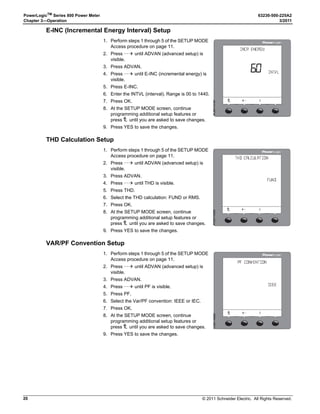
E-INC (Incremental Energy Interval) Setup
THD Calculation Setup
VAR/PF Convention Setup
1. Perform steps 1 through 5 of the SETUP MODE
Access procedure on page 11.
2. Press ###: until ADVAN (advanced setup) is
visible.
3. Press ADVAN.
4. Press ###: until E-INC (incremental energy) is
visible.
5. Press E-INC.
6. Enter the INTVL (interval). Range is 00 to 1440.
7. Press OK.
8. At the SETUP MODE screen, continue
programming additional setup features or
press1; until you are asked to save changes.
9. Press YES to save the changes.

).#2 %.%2'9
/+
).46,
PLSD110197
1. Perform steps 1 through 5 of the SETUP MODE
Access procedure on page 11.
2. Press ###: until ADVAN (advanced setup) is
visible.
3. Press ADVAN.
4. Press ###: until THD is visible.
5. Press THD.
6. Select the THD calculation: FUND or RMS.
7. Press OK.
8. At the SETUP MODE screen, continue
programming additional setup features or
press1; until you are asked to save changes.
9. Press YES to save the changes.

4($ #@KBTK@SHN.
ET.$
PLSD110206
1. Perform steps 1 through 5 of the SETUP MODE
Access procedure on page 11.
2. Press ###: until ADVAN (advanced setup) is
visible.
3. Press ADVAN.
4. Press ###: until PF is visible.
5. Press PF.
6. Select the Var/PF convention: IEEE or IEC.
7. Press OK.
8. At the SETUP MODE screen, continue
programming additional setup features or
press1; until you are asked to save changes.
9. Press YES to save the changes.

0 #N.UD.SHN.
HDDD
PLSD110209
© 2011 Schneider Electric. All Rights Reserved.
63230-500-225A2 PowerLogicTM
Series 800 Power Meter
3/2011 Chapter 3—Operation
21
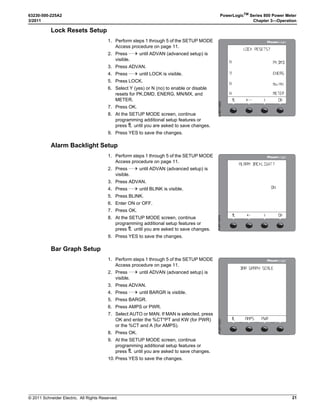
Lock Resets Setup
Alarm Backlight Setup
Bar Graph Setup
1. Perform steps 1 through 5 of the SETUP MODE
Access procedure on page 11.
2. Press ###: until ADVAN (advanced setup) is
visible.
3. Press ADVAN.
4. Press ###: until LOCK is visible.
5. Press LOCK.
6. Select Y (yes) or N (no) to enable or disable
resets for PK.DMD, ENERG, MN/MX, and
METER.
7. Press OK.
8. At the SETUP MODE screen, continue
programming additional setup features or
press1; until you are asked to save changes.
9. Press YES to save the changes.

KNBJ 2DRDSR
.
/+
%.%2'
-MLW
-DSDQ
9
.
.
0+$-$
PLSD110200
1. Perform steps 1 through 5 of the SETUP MODE
Access procedure on page 11.
2. Press ###: until ADVAN (advanced setup) is
visible.
3. Press ADVAN.
4. Press ###: until BLINK is visible.
5. Press BLINK.
6. Enter ON or OFF.
7. Press OK.
8. At the SETUP MODE screen, continue
programming additional setup features or
press1; until you are asked to save changes.
9. Press YES to save the changes.
/+
/.
!,!2- !#+,)'(4
PLSD110215
1. Perform steps 1 through 5 of the SETUP MODE
Access procedure on page 11.
2. Press ###: until ADVAN (advanced setup) is
visible.
3. Press ADVAN.
4. Press ###: until BARGR is visible.
5. Press BARGR.
6. Press AMPS or PWR.
7. Select AUTO or MAN. If MAN is selected, press
OK and enter the %CT*PT and KW (for PWR)
or the %CT and A (for AMPS).
8. Press OK.
9. At the SETUP MODE screen, continue
programming additional setup features or
press1; until you are asked to save changes.
10. Press YES to save the changes.
@Q FQ@O( RB@KD
 072!-03
PLSD110231
© 2011 Schneider Electric. All Rights Reserved.
PowerLogicTM
Series 800 Power Meter 63230-500-225A2
Chapter 3—Operation 3/2011
22
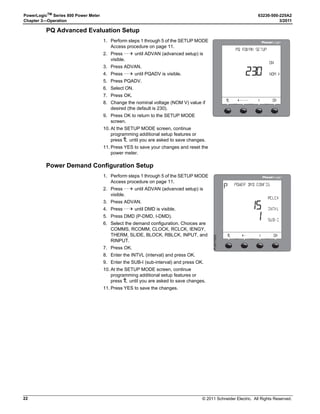
PQ Advanced Evaluation Setup
Power Demand Configuration Setup
1. Perform steps 1 through 5 of the SETUP MODE
Access procedure on page 11.
2. Press ###: until ADVAN (advanced setup) is
visible.
3. Press ADVAN.
4. Press ###: until PQADV is visible.
5. Press PQADV.
6. Select ON.
7. Press OK.
8. Change the nominal voltage (NOM V) value if
desired (the default is 230).
9. Press OK to return to the SETUP MODE
screen.
10. At the SETUP MODE screen, continue
programming additional setup features or
press1; until you are asked to save changes.
11. Press YES to save your changes and reset the
power meter.

01 !$U@. 3%450
/.
/+
./- 6
1. Perform steps 1 through 5 of the SETUP MODE
Access procedure on page 11.
2. Press ###: until ADVAN (advanced setup) is
visible.
3. Press ADVAN.
4. Press ###: until DMD is visible.
5. Press DMD (P-DMD, I-DMD).
6. Select the demand configuration. Choices are
COMMS, RCOMM, CLOCK, RCLCK, IENGY,
THERM, SLIDE, BLOCK, RBLCK, INPUT, and
RINPUT.
7. Press OK.
8. Enter the INTVL (interval) and press OK.
9. Enter the SUB-I (sub-interval) and press OK.
10. At the SETUP MODE screen, continue
programming additional setup features or
press1; until you are asked to save changes.
11. Press YES to save the changes.

0NVDQ $-$ #/.)'
/+
 ).46,
35)
2#,#+
0
PLSD110232
© 2011 Schneider Electric. All Rights Reserved.
63230-500-225A2 PowerLogicTM
Series 800 Power Meter
3/2011 Chapter 3—Operation
23
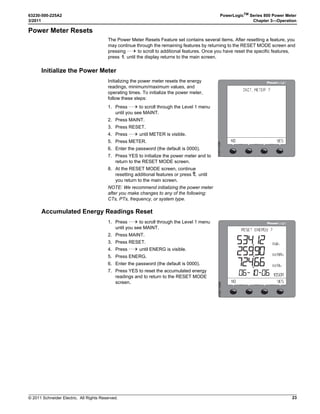
Power Meter Resets
The Power Meter Resets Feature set contains several items. After resetting a feature, you
may continue through the remaining features by returning to the RESET MODE screen and
pressing ###: to scroll to additional features. Once you have reset the specific features,
press 1; until the display returns to the main screen.
Initialize the Power Meter
Accumulated Energy Readings Reset
Initializing the power meter resets the energy
readings, minimum/maximum values, and
operating times. To initialize the power meter,
follow these steps:
1. Press ###: to scroll through the Level 1 menu
until you see MAINT.
2. Press MAINT.
3. Press RESET.
4. Press ###: until METER is visible.
5. Press METER.
6. Enter the password (the default is 0000).
7. Press YES to initialize the power meter and to
return to the RESET MODE screen.
8. At the RESET MODE screen, continue
resetting additional features or press1; until
you return to the main screen.
NOTE: We recommend initializing the power meter
after you make changes to any of the following:
CTs, PTs, frequency, or system type.
).)4 -%4%2
./ 9%3
PLSD110285
1. Press ###: to scroll through the Level 1 menu
until you see MAINT.
2. Press MAINT.
3. Press RESET.
4. Press ###: until ENERG is visible.
5. Press ENERG.
6. Enter the password (the default is 0000).
7. Press YES to reset the accumulated energy
readings and to return to the RESET MODE
screen.
2%3%4 %.%2'9
./ 9%3
J6!2G
J6!G
!
J7G
PLSD110280
© 2011 Schneider Electric. All Rights Reserved.
PowerLogicTM
Series 800 Power Meter 63230-500-225A2
Chapter 3—Operation 3/2011
24
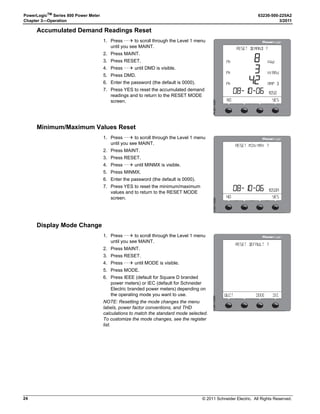
Accumulated Demand Readings Reset
Minimum/Maximum Values Reset
Display Mode Change
1. Press ###: to scroll through the Level 1 menu
until you see MAINT.
2. Press MAINT.
3. Press RESET.
4. Press ###: until DMD is visible.
5. Press DMD.
6. Enter the password (the default is 0000).
7. Press YES to reset the accumulated demand
readings and to return to the RESET MODE
screen.
2%3%4 $%-!.$
./ 9%3
J6!2C
!-0 $

J7C0J
0J
0J
PLSD110281
1. Press ###: to scroll through the Level 1 menu
until you see MAINT.
2. Press MAINT.
3. Press RESET.
4. Press ###: until MINMX is visible.
5. Press MINMX.
6. Enter the password (the default is 0000).
7. Press YES to reset the minimum/maximum
values and to return to the RESET MODE
screen.
2%3%4 -).-!8
./ 9%3
!
PLSD110282
1. Press ###: to scroll through the Level 1 menu
until you see MAINT.
2. Press MAINT.
3. Press RESET.
4. Press ###: until MODE is visible.
5. Press MODE.
6. Press IEEE (default for Square D branded
power meters) or IEC (default for Schneider
Electric branded power meters) depending on
the operating mode you want to use.
NOTE: Resetting the mode changes the menu
labels, power factor conventions, and THD
calculations to match the standard mode selected.
To customize the mode changes, see the register
list.
2%3%4 $%!5,4
15)4 )%%% )%#
PLSD110283
© 2011 Schneider Electric. All Rights Reserved.
63230-500-225A2 PowerLogicTM
Series 800 Power Meter
3/2011 Chapter 3—Operation
25
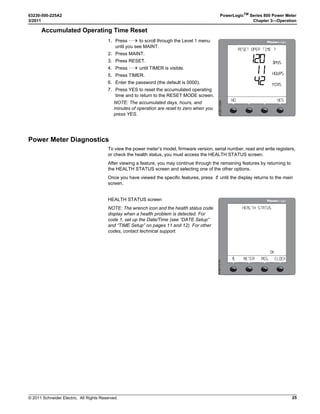
Accumulated Operating Time Reset
Power Meter Diagnostics
To view the power meter’s model, firmware version, serial number, read and write registers,
or check the health status, you must access the HEALTH STATUS screen.
After viewing a feature, you may continue through the remaining features by returning to
the HEALTH STATUS screen and selecting one of the other options.
Once you have viewed the specific features, press 1; until the display returns to the main
screen.
1. Press ###: to scroll through the Level 1 menu
until you see MAINT.
2. Press MAINT.
3. Press RESET.
4. Press ###: until TIMER is visible.
5. Press TIMER.
6. Enter the password (the default is 0000).
7. Press YES to reset the accumulated operating
time and to return to the RESET MODE screen.
NOTE: The accumulated days, hours, and
minutes of operation are reset to zero when you
press YES.
2%3%4 /0%2 4)-%
./ 9%3


(/523
-).3
$!93
PLSD110284
HEALTH STATUS screen
NOTE: The wrench icon and the health status code
display when a health problem is detected. For
code 1, set up the Date/Time (see “DATE Setup”
and “TIME Setup” on pages 11 and 12). For other
codes, contact technical support.
-%4%2
(%!,4( 34!453
 2%' #,/#+
/+
PLSD110191
© 2011 Schneider Electric. All Rights Reserved.
PowerLogicTM
Series 800 Power Meter 63230-500-225A2
Chapter 3—Operation 3/2011
26
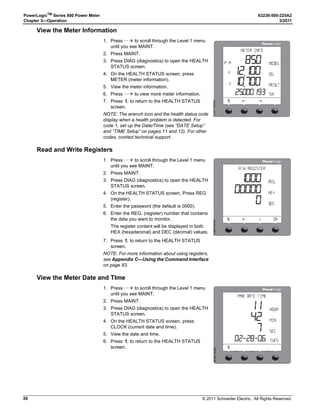
View the Meter Information
Read and Write Registers
View the Meter Date and TIme
1. Press ###: to scroll through the Level 1 menu
until you see MAINT.
2. Press MAINT.
3. Press DIAG (diagnostics) to open the HEALTH
STATUS screen.
4. On the HEALTH STATUS screen, press
METER (meter information).
5. View the meter information.
6. Press ###: to view more meter information.
7. Press 1; to return to the HEALTH STATUS
screen.
NOTE: The wrench icon and the health status code
display when a health problem is detected. For
code 1, set up the Date/Time (see “DATE Setup”
and “TIME Setup” on pages 11 and 12). For other
codes, contact technical support.

-%4%2 )./
0 -


2%3%4
3.
-/$%,
6
6
PLSD110094d
1. Press ###: to scroll through the Level 1 menu
until you see MAINT.
2. Press MAINT.
3. Press DIAG (diagnostics) to open the HEALTH
STATUS screen.
4. On the HEALTH STATUS screen, Press REG
(register).
5. Enter the password (the default is 0000).
6. Enter the REG. (register) number that contains
the data you want to monitor.
The register content will be displayed in both
HEX (hexadecimal) and DEC (decimal) values.
7. Press 1; to return to the HEALTH STATUS
screen.
NOTE: For more information about using registers,
see Appendix C—Using the Command Interface
on page 83.

27 2%')34%2
(%8
$%#
2%'
/+
PLSD110194
1. Press ###: to scroll through the Level 1 menu
until you see MAINT.
2. Press MAINT.
3. Press DIAG (diagnostics) to open the HEALTH
STATUS screen.
4. On the HEALTH STATUS screen, press
CLOCK (current date and time).
5. View the date and time.
6. Press 1; to return to the HEALTH STATUS
screen. 
0- $!4%4)-%
0 -
-).
3%#
45%3
(/52
6
6
PLSD110327
© 2011 Schneider Electric. All Rights Reserved.
63230-500-225A2 PowerLogicTM
Series 800 Power Meter
3/2011 Chapter 4—Metering Capabilities
27
Chapter 4—Metering Capabilities
Real-Time Readings
The power meter measures currents and voltages, and reports in real time the rms values
for all three phases and neutral. In addition, the power meter calculates power factor, real
power, reactive power, and more.
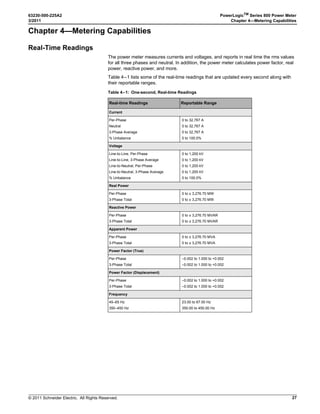
Table 4–1 lists some of the real-time readings that are updated every second along with
their reportable ranges.
Table 4–1: One-second, Real-time Readings
Real-time Readings Reportable Range
Current
Per-Phase
Neutral
3-Phase Average
% Unbalance
0 to 32,767 A
0 to 32,767 A
0 to 32,767 A
0 to 100.0%
Voltage
Line-to-Line, Per-Phase
Line-to-Line, 3-Phase Average
Line-to-Neutral, Per-Phase
Line-to-Neutral, 3-Phase Average
% Unbalance
0 to 1,200 kV
0 to 1,200 kV
0 to 1,200 kV
0 to 1,200 kV
0 to 100.0%
Real Power
Per-Phase
3-Phase Total
0 to ± 3,276.70 MW
0 to ± 3,276.70 MW
Reactive Power
Per-Phase
3-Phase Total
0 to ± 3,276.70 MVAR
Apparent Power
Per-Phase
3-Phase Total
0 to ± 3,276.70 MVA
0 to ± 3,276.70 MVA
Power Factor (True)
Per-Phase
3-Phase Total
–0.002 to 1.000 to +0.002
Power Factor (Displacement)
Per-Phase
3-Phase Total
–0.002 to 1.000 to +0.002
Frequency
45–65 Hz
350–450 Hz
23.00 to 67.00 Hz
350.00 to 450.00 Hz
© 2011 Schneider Electric. All Rights Reserved.
PowerLogicTM
Series 800 Power Meter 63230-500-225A2
Chapter 4—Metering Capabilities 3/2011
28
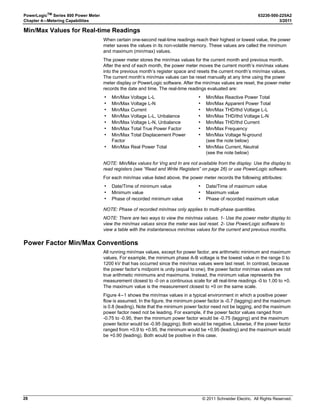
Min/Max Values for Real-time Readings
When certain one-second real-time readings reach their highest or lowest value, the power
meter saves the values in its non-volatile memory. These values are called the minimum
and maximum (min/max) values.
The power meter stores the min/max values for the current month and previous month.
After the end of each month, the power meter moves the current month’s min/max values
into the previous month’s register space and resets the current month’s min/max values.
The current month’s min/max values can be reset manually at any time using the power
meter display or PowerLogic software. After the min/max values are reset, the power meter
records the date and time. The real-time readings evaluated are:
NOTE: Min/Max values for Vng and In are not available from the display. Use the display to
read registers (see “Read and Write Registers” on page 26) or use PowerLogic software.
For each min/max value listed above, the power meter records the following attributes:
NOTE: Phase of recorded min/max only applies to multi-phase quantities.
NOTE: There are two ways to view the min/max values. 1- Use the power meter display to
view the min/max values since the meter was last reset. 2- Use PowerLogic software to
view a table with the instantaneous min/max values for the current and previous months.
Power Factor Min/Max Conventions
All running min/max values, except for power factor, are arithmetic minimum and maximum
values. For example, the minimum phase A-B voltage is the lowest value in the range 0 to
1200 kV that has occurred since the min/max values were last reset. In contrast, because
the power factor’s midpoint is unity (equal to one), the power factor min/max values are not
true arithmetic minimums and maximums. Instead, the minimum value represents the
measurement closest to -0 on a continuous scale for all real-time readings -0 to 1.00 to +0.
The maximum value is the measurement closest to +0 on the same scale.
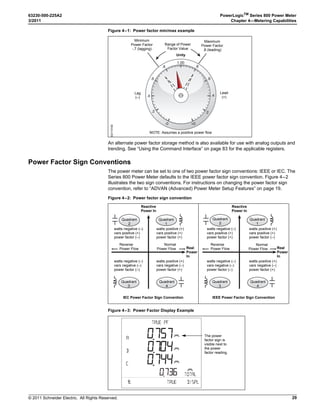
Figure 4–1 shows the min/max values in a typical environment in which a positive power
flow is assumed. In the figure, the minimum power factor is -0.7 (lagging) and the maximum
is 0.8 (leading). Note that the minimum power factor need not be lagging, and the maximum
power factor need not be leading. For example, if the power factor values ranged from
-0.75 to -0.95, then the minimum power factor would be -0.75 (lagging) and the maximum
power factor would be -0.95 (lagging). Both would be negative. Likewise, if the power factor
ranged from +0.9 to +0.95, the minimum would be +0.95 (leading) and the maximum would
be +0.90 (leading). Both would be positive in this case.
• Min/Max Voltage L-L • Min/Max Reactive Power Total
• Min/Max Voltage L-N • Min/Max Apparent Power Total
• Min/Max Current • Min/Max THD/thd Voltage L-L
• Min/Max Voltage L-L, Unbalance • Min/Max THD/thd Voltage L-N
• Min/Max Voltage L-N, Unbalance • Min/Max THD/thd Current
• Min/Max Total True Power Factor • Min/Max Frequency
• Min/Max Total Displacement Power
Factor
• Min/Max Voltage N-ground
(see the note below)
• Min/Max Real Power Total • Min/Max Current, Neutral
(see the note below)
• Date/Time of minimum value • Date/Time of maximum value
• Minimum value • Maximum value
• Phase of recorded minimum value • Phase of recorded maximum value
© 2011 Schneider Electric. All Rights Reserved.
63230-500-225A2 PowerLogicTM
Series 800 Power Meter
3/2011 Chapter 4—Metering Capabilities
29
An alternate power factor storage method is also available for use with analog outputs and
trending. See “Using the Command Interface” on page 83 for the applicable registers.
Power Factor Sign Conventions
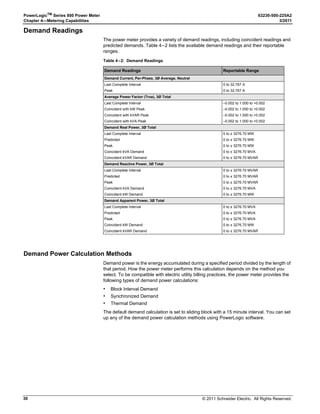
The power meter can be set to one of two power factor sign conventions: IEEE or IEC. The
Series 800 Power Meter defaults to the IEEE power factor sign convention. Figure 4–2
illustrates the two sign conventions. For instructions on changing the power factor sign
convention, refer to “ADVAN (Advanced) Power Meter Setup Features” on page 19.
Figure 4–1: Power factor min/max example
1.00
.4 .4
.6
.8
.6
.8
+0
.2
-0
.2LSD110165
Minimum
Power Factor
-.7 (lagging)
Range of Power
Factor Value
Unity
Maximum
Power Factor
.8 (leading)
Lead
(+)
Lag
(–)
NOTE: Assumes a positive power flow
Figure 4–2: Power factor sign convention
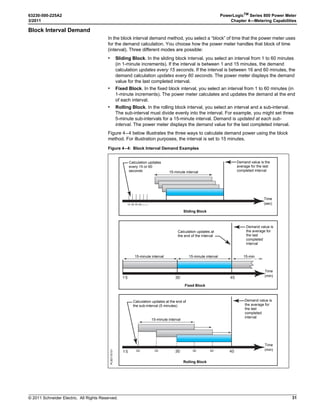
Figure 4–3: Power Factor Display Example
Real
Power
In
watts negative (–)
vars positive (+)
power factor (–)
watts positive (+)
vars positive (+)
power factor (+)
watts negative (–)
vars negative (–)
power factor (–)
watts positive (+)
vars negative (–)
power factor (+)
IEC Power Factor Sign Convention
Reverse
Power Flow
Normal
Power Flow
Reactive
Power In
Quadrant
2
Quadrant
1
Quadrant
3
Quadrant
4
watts negative (–)
vars positive (+)
power factor (+)
watts positive (+)
vars positive (+)
power factor (–)
watts negative (–)
vars negative (–)
power factor (–)
watts positive (+)
vars negative (–)
power factor (+)
Reactive
Power In
Real
Power
In
IEEE Power Factor Sign Convention
Reverse
Power Flow
Normal
Power Flow
Quadrant
2
Quadrant
1
Quadrant
3
Quadrant
4
4QTD 0
 425% $)30,
4/4!,
!

#
=
=
=
=
The power
factor sign is
visible next to
the power
factor reading.
© 2011 Schneider Electric. All Rights Reserved.
PowerLogicTM
Series 800 Power Meter 63230-500-225A2
Chapter 4—Metering Capabilities 3/2011
30
Demand Readings
The power meter provides a variety of demand readings, including coincident readings and
predicted demands. Table 4–2 lists the available demand readings and their reportable
ranges.
Demand Power Calculation Methods
Demand power is the energy accumulated during a specified period divided by the length of
that period. How the power meter performs this calculation depends on the method you
select. To be compatible with electric utility billing practices, the power meter provides the
following types of demand power calculations:
• Block Interval Demand
• Synchronized Demand
• Thermal Demand
The default demand calculation is set to sliding block with a 15 minute interval. You can set
up any of the demand power calculation methods using PowerLogic software.
Table 4–2: Demand Readings
Demand Readings Reportable Range
Demand Current, Per-Phase, 3Ø Average, Neutral
Last Complete Interval
Peak
0 to 32,767 A
0 to 32,767 A
Average Power Factor (True), 3Ø Total
Last Complete Interval
Coincident with kW Peak
Coincident with kVAR Peak
Coincident with kVA Peak
–0.002 to 1.000 to +0.002
Demand Real Power, 3Ø Total
Last Complete Interval
Predicted
Peak
Coincident kVA Demand
Coincident kVAR Demand
0 to ± 3276.70 MW
0 to ± 3276.70 MW
0 to ± 3276.70 MW
0 to ± 3276.70 MVA
0 to ± 3276.70 MVAR
Demand Reactive Power, 3Ø Total
Last Complete Interval
Predicted
Peak
Coincident kVA Demand
Coincident kW Demand
0 to ± 3276.70 MVAR
0 to ± 3276.70 MVAR
0 to ± 3276.70 MVAR
0 to ± 3276.70 MVA
0 to ± 3276.70 MW
Demand Apparent Power, 3Ø Total
Last Complete Interval
Predicted
Peak
Coincident kW Demand
Coincident kVAR Demand
0 to ± 3276.70 MVA
0 to ± 3276.70 MVA
0 to ± 3276.70 MVA
0 to ± 3276.70 MW
0 to ± 3276.70 MVAR
© 2011 Schneider Electric. All Rights Reserved.
63230-500-225A2 PowerLogicTM
Series 800 Power Meter
3/2011 Chapter 4—Metering Capabilities
31
Block Interval Demand
In the block interval demand method, you select a “block” of time that the power meter uses
for the demand calculation. You choose how the power meter handles that block of time
(interval). Three different modes are possible:
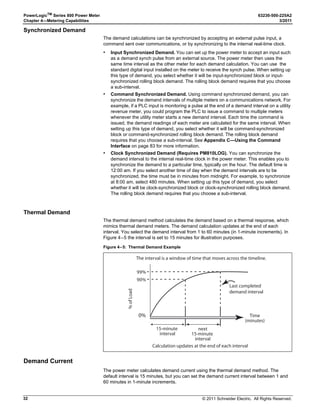
• Sliding Block. In the sliding block interval, you select an interval from 1 to 60 minutes
(in 1-minute increments). If the interval is between 1 and 15 minutes, the demand
calculation updates every 15 seconds. If the interval is between 16 and 60 minutes, the
demand calculation updates every 60 seconds. The power meter displays the demand
value for the last completed interval.
• Fixed Block. In the fixed block interval, you select an interval from 1 to 60 minutes (in
1-minute increments). The power meter calculates and updates the demand at the end
of each interval.
• Rolling Block. In the rolling block interval, you select an interval and a sub-interval.
The sub-interval must divide evenly into the interval. For example, you might set three
5-minute sub-intervals for a 15-minute interval. Demand is updated at each sub-
interval. The power meter displays the demand value for the last completed interval.
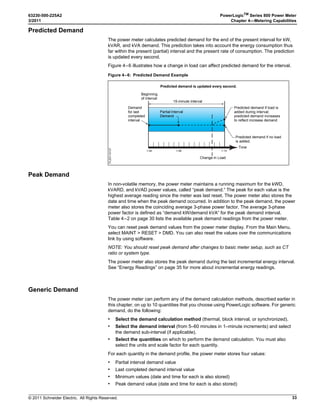
Figure 4–4 below illustrates the three ways to calculate demand power using the block
method. For illustration purposes, the interval is set to 15 minutes.
Figure 4–4: Block Interval Demand Examples
15 30 45
15 30 45
60 . . .
15 30 4520 35 4025
PLSD110131
Demand value is the
average for the last
completed interval
Demand value is
the average for
the last
completed
interval
Demand value is
the average for
the last
completed
interval
Time
(sec)
Time
(min)
Time
(min)
Calculation updates
every 15 or 60
seconds
Calculation updates at
the end of the interval
Calculation updates at the end of
the sub-interval (5 minutes)
Sliding Block
Fixed Block
Rolling Block
15-minute interval
15-minute interval
15-minute interval 15-min
15-minute interval
© 2011 Schneider Electric. All Rights Reserved.
PowerLogicTM
Series 800 Power Meter 63230-500-225A2
Chapter 4—Metering Capabilities 3/2011
32
Synchronized Demand
The demand calculations can be synchronized by accepting an external pulse input, a
command sent over communications, or by synchronizing to the internal real-time clock.
• Input Synchronized Demand. You can set up the power meter to accept an input such
as a demand synch pulse from an external source. The power meter then uses the
same time interval as the other meter for each demand calculation. You can use the
standard digital input installed on the meter to receive the synch pulse. When setting up
this type of demand, you select whether it will be input-synchronized block or input-
synchronized rolling block demand. The rolling block demand requires that you choose
a sub-interval.
• Command Synchronized Demand. Using command synchronized demand, you can
synchronize the demand intervals of multiple meters on a communications network. For
example, if a PLC input is monitoring a pulse at the end of a demand interval on a utility
revenue meter, you could program the PLC to issue a command to multiple meters
whenever the utility meter starts a new demand interval. Each time the command is
issued, the demand readings of each meter are calculated for the same interval. When
setting up this type of demand, you select whether it will be command-synchronized
block or command-synchronized rolling block demand. The rolling block demand
requires that you choose a sub-interval. See Appendix C—Using the Command
Interface on page 83 for more information.
• Clock Synchronized Demand (Requires PM810LOG). You can synchronize the
demand interval to the internal real-time clock in the power meter. This enables you to
synchronize the demand to a particular time, typically on the hour. The default time is
12:00 am. If you select another time of day when the demand intervals are to be
synchronized, the time must be in minutes from midnight. For example, to synchronize
at 8:00 am, select 480 minutes. When setting up this type of demand, you select
whether it will be clock-synchronized block or clock-synchronized rolling block demand.
The rolling block demand requires that you choose a sub-interval.
Thermal Demand
The thermal demand method calculates the demand based on a thermal response, which
mimics thermal demand meters. The demand calculation updates at the end of each
interval. You select the demand interval from 1 to 60 minutes (in 1-minute increments). In
Figure 4–5 the interval is set to 15 minutes for illustration purposes.
Demand Current
The power meter calculates demand current using the thermal demand method. The
default interval is 15 minutes, but you can set the demand current interval between 1 and
60 minutes in 1-minute increments.
Figure 4–5: Thermal Demand Example
15-minute
interval
next
15-minute
interval
Time
(minutes)
Calculation updates at the end of each interval
The interval is a window of time that moves across the timeline.
Last completed
demand interval
99%
90%
%ofLoad
0%
© 2011 Schneider Electric. All Rights Reserved.
63230-500-225A2 PowerLogicTM
Series 800 Power Meter
3/2011 Chapter 4—Metering Capabilities
33
Predicted Demand
The power meter calculates predicted demand for the end of the present interval for kW,
kVAR, and kVA demand. This prediction takes into account the energy consumption thus
far within the present (partial) interval and the present rate of consumption. The prediction
is updated every second.
Figure 4–6 illustrates how a change in load can affect predicted demand for the interval.
Peak Demand
In non-volatile memory, the power meter maintains a running maximum for the kWD,
kVARD, and kVAD power values, called “peak demand.” The peak for each value is the
highest average reading since the meter was last reset. The power meter also stores the
date and time when the peak demand occurred. In addition to the peak demand, the power
meter also stores the coinciding average 3-phase power factor. The average 3-phase
power factor is defined as “demand kW/demand kVA” for the peak demand interval.
Table 4–2 on page 30 lists the available peak demand readings from the power meter.
You can reset peak demand values from the power meter display. From the Main Menu,
select MAINT  RESET  DMD. You can also reset the values over the communications
link by using software.
NOTE: You should reset peak demand after changes to basic meter setup, such as CT
ratio or system type.
The power meter also stores the peak demand during the last incremental energy interval.
See “Energy Readings” on page 35 for more about incremental energy readings.
Generic Demand
The power meter can perform any of the demand calculation methods, described earlier in
this chapter, on up to 10 quantities that you choose using PowerLogic software. For generic
demand, do the following:
• Select the demand calculation method (thermal, block interval, or synchronized).
• Select the demand interval (from 5–60 minutes in 1–minute increments) and select
the demand sub-interval (if applicable).
• Select the quantities on which to perform the demand calculation. You must also
select the units and scale factor for each quantity.
For each quantity in the demand profile, the power meter stores four values:
• Partial interval demand value
• Last completed demand interval value
• Minimum values (date and time for each is also stored)
• Peak demand value (date and time for each is also stored)
Figure 4–6: Predicted Demand Example
1:00 1:06 1:15
PLSD110137
15-minute interval
Predicted demand if load is
added during interval;
predicted demand increases
to reflect increase demand
Predicted demand if no load
is added.
Time
Change in Load
Demand
for last
completed
interval
Beginning
of interval
Predicted demand is updated every second.
Partial Interval
Demand
© 2011 Schneider Electric. All Rights Reserved.
PowerLogicTM
Series 800 Power Meter 63230-500-225A2
Chapter 4—Metering Capabilities 3/2011
34
You can reset the minimum and peak values of the quantities in a generic demand profile
by using one of two methods:
• Use PowerLogic software, or
• Use the command interface.
Command 5115 resets the generic demand profile. See Appendix C—Using the
Command Interface on page 83 for more about the command interface.
Input Metering Demand
The power meter has five input pulse metering channels, but only one digital input. Digital
inputs can be added by installing one or more option modules (PM8M22, PM8M26, or
PM8M2222). The input pulse metering channels count pulses received from one or more
digital inputs assigned to that channel. Each channel requires a consumption pulse weight,
consumption scale factor, demand pulse weight, and demand scale factor. The
consumption pulse weight is the number of watt-hours or kilowatt-hours per pulse. The
consumption scale factor is a factor of 10 multiplier that determines the format of the value.
For example, if each incoming pulse represents 125 Wh, and you want consumption data in
watt-hours, the consumption pulse weight is 125 and the consumption scale factor is zero.
The resulting calculation is 125 x 100, which equals 125 watt-hours per pulse. If you want
the consumption data in kilowatt-hours, the calculation is 125 x 10-3
, which equals 0.125
kilowatt-hours per pulse.Time must be taken into account for demand data; so you begin by
calculating demand pulse weight using the following formula:
If each incoming pulse represents 125 Wh, using the formula above you get 450,000 watts.
If you want demand data in watts, the demand pulse weight is 450 and the demand scale
factor is three. The calculation is 450 x 103
, which equals 450,000 watts. If you want the
demand data in kilowatts, the calculation is 450 x 100
, which equals 450 kilowatts.
NOTE: The power meter counts each input transition as a pulse. Therefore, an input
transition of OFF-to-ON and ON-to-OFF will be counted as two pulses. For each channel,
the power meter maintains the following information:
• Total consumption
• Last completed interval demand—calculated demand for the last completed interval.
• Partial interval demand—demand calculation up to the present point during the interval.
• Peak demand—highest demand value since the last reset of the input pulse demand.
The date and time of the peak demand is also saved.
• Minimum demand—lowest demand value since the last reset of the input pulse
demand. The date and time of the minimum demand is also saved.
To use the channels feature, first use the display to set up the digital inputs (see “I/O
(Input/Output) Setup” on page 18). Then using PowerLogic software, you must set the I/O
operating mode to Normal and set up the channels. The demand method and interval that
you select applies to all channels.
watts
watt-hours
pulse
----------------------------
3600 seconds
hour
-------------------------------------
pulse
second
-------------------=
© 2011 Schneider Electric. All Rights Reserved.
63230-500-225A2 PowerLogicTM
Series 800 Power Meter
3/2011 Chapter 4—Metering Capabilities
35
Energy Readings
The power meter calculates and stores accumulated energy values for real and reactive
energy (kWh and kVARh) both into and out of the load, and also accumulates absolute
apparent energy. Table 4–3 lists the energy values the power meter can accumulate.
The power meter can accumulate the energy values shown in Table 4–3 in one of two
modes: signed or unsigned (absolute). In signed mode, the power meter considers the
direction of power flow, allowing the magnitude of accumulated energy to increase and
decrease. In unsigned mode, the power meter accumulates energy as a positive value,
regardless of the direction of power flow. In other words, the energy value increases, even
during reverse power flow. The default accumulation mode is unsigned.
You can view accumulated energy from the display. The resolution of the energy value will
automatically change through the range of 000.000 kWh to 000,000 MWh (000.000 kVAh
to 000,000 MVARh), or it can be fixed. See Appendix C—Using the Command Interface
on page 83 for the contents of the registers.
For conditional accumulated energy readings, you can set the real, reactive, and apparent
energy accumulation to OFF or ON when a particular condition occurs. You can do this over
the communications link using a command, or from a digital input change. For example,
you may want to track accumulated energy values during a particular process that is
controlled by a PLC. The power meter stores the date and time of the last reset of
conditional energy in non-volatile memory.
Table 4–3: Energy Readings
Energy Reading, 3-Phase Reportable Range Shown on the Display
Accumulated Energy
Real (Signed/Absolute)
Reactive (Signed/Absolute)
Real (In)
Real (Out)
Reactive (In)
Reactive (Out)
Apparent
-9,999,999,999,999,999 to
9,999,999,999,999,999 Wh
-9,999,999,999,999,999 to
9,999,999,999,999,999 VARh
0 to 9,999,999,999,999,999 Wh
0 to 9,999,999,999,999,999 VARh
0 to 9,999,999,999,999,999 VAh
0000.000 kWh to 99,999.99 MWh
and
0000.000 to 99,999.99 MVARh
Accumulated Energy, Conditional
Real (In)
Real (Out)
Reactive (In)
Reactive (Out)
Apparent
0 to 9,999,999,999,999,999 Wh
0 to 9,999,999,999,999,999 VARh
0 to 9,999,999,999,999,999 VAh
These values not shown on the
display. Readings are obtained
only through the communications
link.
Accumulated Energy, Incremental
Real (In)
Real (Out)
Reactive (In)
Reactive (Out)
Apparent
0 to 999,999,999,999 Wh
0 to 999,999,999,999 VARh
0 to 999,999,999,999 VAh
These values not shown on the
display. Readings are obtained
only through the communications
link.
Reactive Energy
Quadrant 1
Quadrant 2
Quadrant 3
Quadrant 4
0 to 999,999,999,999 VARh
These values not shown on the
display. Readings are obtained
only through the communications
link.
➀ Not shown on the power meter display.
© 2011 Schneider Electric. All Rights Reserved.
PowerLogicTM
Series 800 Power Meter 63230-500-225A2
Chapter 4—Metering Capabilities 3/2011
36
The power meter also provides an additional energy reading that is only available over the
communications link:
• Four-quadrant reactive accumulated energy readings. The power meter
accumulates reactive energy (kVARh) in four quadrants as shown in Figure 4–7. The
registers operate in unsigned (absolute) mode in which the power meter accumulates
energy as positive.
Energy-Per-Shift (PM810 with PM810LOG)
The energy-per-shift feature allows the power meter to group energy usage based on three
groups: 1st shift, 2nd shift, and 3rd shift. These groups provide a quick, historical view of
energy usage and energy cost during each shift. All data is stored in non-volatile memory.
Configuration
The start time of each shift is configured by setting registers using the display or by using
PowerLogic software. Table 4-5 summarizes the quantities needed to configure energy-
per-shift using register numbers.
Figure 4–7: Reactive energy accumulates in four quadrants
PLSD110171
watts negative (–)
vars positive (+)
watts positive (+)
vars positive (+)
watts negative (–)
vars negative (–)
watts positive (+)
vars negative (–)
Reactive
Power In
Real
Power
In
Reverse
Power Flow
Normal
Power Flow
Quadrant
2
Quadrant
1
Quadrant
3
Quadrant
4
Table 4–4: Energy-per-shift recorded values
Category Recorded Values
Time Scales
• Today
• Yesterday
• This Week
• Last Week
• This Month
• Last Month
Energy
• Real
• Apparent
Energy Cost
• Today
• Yesterday
• This Week
• Last Week
• This Month
• Last Month
User Configuration
• Meter Reading Date
• Meter Reading Time of Day
• 1st Day of the Week
© 2011 Schneider Electric. All Rights Reserved.
63230-500-225A2 PowerLogicTM
Series 800 Power Meter
3/2011 Chapter 4—Metering Capabilities
37
Power Analysis Values
The power meter provides a number of power analysis values that can be used to detect
power quality problems, diagnose wiring problems, and more. Table 4–6 on page 38
summarizes the power analysis values.
• THD. Total Harmonic Distortion (THD) is a quick measure of the total distortion present
in a waveform and is the ratio of harmonic content to the fundamental. It provides a
general indication of the “quality” of a waveform. THD is calculated for both voltage and
current. The power meter uses the following equation to calculate THD, where H is the
harmonic distortion:
• thd. An alternate method for calculating Total Harmonic Distortion, used widely in
Europe. It considers the total harmonic current and the total rms content rather than
fundamental content in the calculation. The power meter calculates thd for both voltage
and current. The power meter uses the following equation to calculate THD, where H is
the harmonic distortion:
• Displacement Power Factor. Power factor (PF) represents the degree to which
voltage and current coming into a load are out of phase. Displacement power factor is
based on the angle between the fundamental components of current and voltage.
• Harmonic Values. Harmonics can reduce the capacity of the power system. The power
meter determines the individual per-phase harmonic magnitudes and angles for all
currents and voltages through the:
— 31st harmonic (PM810 with PM810Log, and PM820) or
— 63rd harmonic (PM850, PM870)
The harmonic magnitudes can be formatted as either a percentage of the fundamental
(default), a percentage of the rms value, or the actual rms value. Refer to “Operation
with PQ Advanced Enabled” on page 99 for information on how to configure harmonic
calculations.
Table 4–5: Energy-per-shift recorded values
Quantity Register Number(s) Description
Shift Start Time
• 1st shift: 16171
• 2nd shift: 16172
• 3rd shift: 16173
For each shift, enter the minutes from
midnight at which the shift starts.
Defaults:
1st shift = 420 minutes (7:00 am)
2nd shift = 900 minutes (3:00 pm)
3rd shift = 1380 minutes (11:00 pm)
Cost per kWHr
• 1st shift: 16174
• 2nd shift: 16175
• 3rd shift: 16176
Enter the cost per kWHr for each shift.
Monetary Scale Factor 16177
The scale factor multiplied by the
monetary units to determine the
energy cost.
Values: -3 to 3
Default: 0
+ +H2
2
H3
2
H4
2
+
x 100%THD =
H
1
+ +H
2
2
H
3
2
H
4
2
Total rms
+
x 100%thd =
© 2011 Schneider Electric. All Rights Reserved.
PowerLogicTM
Series 800 Power Meter 63230-500-225A2
Chapter 4—Metering Capabilities 3/2011
38
Table 4–6: Power Analysis Values
Value Reportable Range
THD—Voltage, Current
3-phase, per-phase, neutral 0 to 3,276.7%
thd—Voltage, Current
3-phase, per-phase, neutral 0 to 3,276.7%
Fundamental Voltages (per phase)
Magnitude 0 to 1,200 kV
Angle 0.0 to 359.9°
Fundamental Currents (per phase)
Magnitude 0 to 32,767 A
Angle 0.0 to 359.9°
Miscellaneous
Displacement P.F. (per phase, 3-phase) –0.002 to 1.000 to +0.002
Phase Rotation ABC or CBA
Unbalance (current and voltage) ➀ 0.0 to 100.0%
Individual Current and Voltage Harmonic Magnitudes ➁ 0 to 327.67%
Individual Current and Voltage Harmonic Angles ➁ 0.0° to 359.9°
➀ Readings are obtained only through communications.
➁ Current and Voltage Harmonic Magnitude and Angles 2, 3, 4, 5, 6, 7, 8, 9, 10, 11, and 13 are shown on the
display.
© 2011 Schneider Electric. All Rights Reserved.
63230-500-225A2 PowerLogicTM
Series 800 Power Meter
3/2011 Chapter 5—Input/Output Capabilities
39
Chapter 5—Input/Output Capabilities
Digital Inputs
The power meter includes one solid-state digital input. A digital input is used to detect
digital signals. For example, the digital input can be used to determine circuit breaker
status, count pulses, or count motor starts. The digital input can also be associated with an
external relay. You can log digital input transitions as events in the power meter’s on-board
alarm log. The event is date and time stamped with resolution to the second. The power
meter counts OFF-to-ON transitions for each input. You can view the count for each input
using the Digital Inputs screen, and you can reset this value using the command interface.
Figure 5–1 is an example of the Digital Inputs screen.
The digital input has three operating modes:
• Normal—Use the normal mode for simple on/off digital inputs. In normal mode, digital
inputs can be used to count KY pulses for demand and energy calculation.
• Demand Interval Synch Pulse—you can configure any digital input to accept a
demand synch pulse from a utility demand meter (see “Demand Synch Pulse Input” on
page 40 of this chapter for more about this topic). For each demand profile, you can
designate only one input as a demand synch input.
• Conditional Energy Control—you can configure one digital input to control conditional
energy (see “Reactive energy accumulates in four quadrants” on page 36 in Chapter
4—Metering Capabilities for more about conditional energy).
NOTE: By default, the digital input is named DIG IN S02 and is set up for normal mode.
For custom setup, use PowerLogic software to define the name and operating mode of the
digital input. The name is a 16-character label that identifies the digital input. The operating
mode is one of those listed above.
Figure 5–1: Digital Inputs Screen
A. Lit bargraph indicates that the input is
ON. For analog inputs or outputs, the
bargraph indicates the output
percentage.
B. SI is common to all meters and
represents standard digital input.
C. A-S1 and A-S2 represent I/O point
numbers on the first (A) module.
D. Use the arrow buttons to scroll through
the remaining I/O points. Point numbers
beginning with “B” are on the second
module.

 












D
B
A

C
PLSD110233
© 2011 Schneider Electric. All Rights Reserved.
PowerLogicTM
Series 800 Power Meter 63230-500-225A2
Chapter 5—Input/Output Capabilities 3/2011
40
Demand Synch Pulse Input
You can configure the power meter to accept a demand synch pulse from an external
source, such as another demand meter. By accepting demand synch pulses through a
digital input, the power meter can make its demand interval “window” match the other
meter’s demand interval “window.” The power meter does this by “watching” the digital
input for a pulse from the other demand meter. When it sees a pulse, it starts a new
demand interval and calculates the demand for the preceding interval. The power meter
then uses the same time interval as the other meter for each demand calculation. Figure
5–2 illustrates this option. See “Demand Readings” on page 30 in Chapter 4—Metering
Capabilities for more about demand calculations.
When in demand synch pulse operating mode, the power meter will not start or stop a
demand interval without a pulse. The maximum allowable time between pulses is 60
minutes. If 66 minutes (110% of the demand interval) pass before a synch pulse is
received, the power meter throws out the demand calculations and begins a new
calculation when the next pulse is received. Once in synch with the billing meter, the power
meter can be used to verify peak demand charges.
Important facts about the power meter’s demand synch feature are listed below:
• Any installed digital input can be set to accept a demand synch pulse.
• Each system can choose whether to use an external synch pulse, but only one demand
synch pulse can be brought into the meter for each demand system. One input can be
used to synchronize any combination of the demand systems.
• The demand synch feature can be set up using PowerLogic software.
Relay Output Operating Modes
The relay output defaults to external control, but you can choose whether the relay is set to
external or internal control:
• External (remote) control—the relay is controlled either from a PC using PowerLogic
software or a programmable logic controller using commands via communications.
• Power meter alarm (internal) control—the relay is controlled by the power meter in
response to a set-point controlled alarm condition, or as a pulse initiator output. Once
you’ve set up a relay for power meter control, you can no longer operate the relay
remotely. However, you can temporarily override the relay, using PowerLogic software.
NOTE: If any basic setup parameters or I/O setup parameters are modified, all relay
outputs will be de-energized.
The 11 relay operating modes are as follows:
• Normal
— Externally Controlled: Energize the relay by issuing a command from a remote PC
or programmable controller. The relay remains energized until a command to de-
energize is issued from the remote PC or programmable controller, or until the
Figure 5–2: Demand synch pulse timing
PLSD110140
Normal Demand Mode External Synch Pulse Demand Timing
Billing Meter
Demand Timing
Power Meter
Demand Timing
Billing Meter
Demand Timing
Power Meter
Demand Timing
(Slave to Master)
Utility Meter
Synch Pulse
© 2011 Schneider Electric. All Rights Reserved.
63230-500-225A2 PowerLogicTM
Series 800 Power Meter
3/2011 Chapter 5—Input/Output Capabilities
41
power meter loses control power. When control power is restored, the relay is not
automatically re-energized.
— Power Meter Alarm: When an alarm condition assigned to the relay occurs, the
relay is energized. The relay is not de-energized until all alarm conditions assigned
to the relay have dropped out, the power meter loses control power, or the alarms
are over-ridden using PowerLogic software. If the alarm condition is still true when
the power meter regains control power, the relay will be re-energized.
• Latched
— Remotely Controlled: Energize the relay by issuing a command from a remote PC
or programmable controller. The relay remains energized until a command to de-
energize is issued from a remote PC or programmable controller, or until the power
meter loses control power. When control power is restored, the relay will not be re-
energized.
— Power Meter Controlled: When an alarm condition assigned to the relay occurs,
the relay is energized. The relay remains energized—even after all alarm conditions
assigned to the relay have dropped out—until a command to de-energize is issued
from a remote PC or programmable controller, until the high priority alarm log is
cleared from the display, or until the power meter loses control power. When control
power is restored, the relay will not be re-energized if the alarm condition is not
TRUE.
• Timed
— Remotely Controlled: Energize the relay by issuing a command from a remote PC
or programmable controller. The relay remains energized until the timer expires, or
until the power meter loses control power. If a new command to energize the relay is
issued before the timer expires, the timer restarts. If the power meter loses control
power, the relay will not be re-energized when control power is restored and the
timer will reset to zero.
— Power Meter Controlled: When an alarm condition assigned to the relay occurs, the
relay is energized. The relay remains energized for the duration of the timer. When
the timer expires, the relay will de-energize and remain de-energized. If the relay is
on and the power meter loses control power, the relay will not be re-energized when
control power is restored and the timer will reset to zero.
• End Of Power Demand Interval
This mode assigns the relay to operate as a synch pulse to another device. The output
operates in timed mode using the timer setting and turns on at the end of a power
demand interval. It turns off when the timer expires.
• Absolute kWh Pulse
This mode assigns the relay to operate as a pulse initiator with a user-defined number
of kWh per pulse. In this mode, both forward and reverse real energy are treated as
additive (as in a tie circuit breaker).
• Absolute kVARh Pulse
This mode assigns the relay to operate as a pulse initiator with a user-defined number
of kVARh per pulse. In this mode, both forward and reverse reactive energy are treated
as additive (as in a tie circuit breaker).
• kVAh Pulse
This mode assigns the relay to operate as a pulse initiator with a user-defined number
of kVAh per pulse. Since kVA has no sign, the kVAh pulse has only one mode.
• kWh In Pulse
This mode assigns the relay to operate as a pulse initiator with a user-defined number
of kWh per pulse. In this mode, only the kWh flowing into the load is considered.
• kVARh In Pulse
This mode assigns the relay to operate as a pulse initiator with a user-defined number
of kVARh per pulse. In this mode, only the kVARh flowing into the load is considered.
© 2011 Schneider Electric. All Rights Reserved.
PowerLogicTM
Series 800 Power Meter 63230-500-225A2
Chapter 5—Input/Output Capabilities 3/2011
42
• kWh Out Pulse
This mode assigns the relay to operate as a pulse initiator with a user-defined number
of kWh per pulse. In this mode, only the kWh flowing out of the load is considered.
• kVARh Out Pulse
This mode assigns the relay to operate as a pulse initiator with a user-defined number
of kVARh per pulse. In this mode, only the kVARh flowing out of the load is considered.
The last seven modes in the list above are for pulse initiator applications. All Series 800
Power Meters are equipped with one solid-state KY pulse output rated at 100 mA. The
solid-state KY output provides the long life—billions of operations—required for pulse
initiator applications.
The KY output is factory configured with Name = KY, Mode = Normal, and Control =
External. To set up custom values, press SETUP  I/O. For detailed instructions, see “I/O
(Input/Output) Setup” on page 18. Then using PowerLogic software, you must define the
following values for each mechanical relay output:
• Name—A 16-character label used to identify the digital output.
• Mode—Select one of the operating modes listed above.
• Pulse Weight—You must set the pulse weight, the multiplier of the unit being
measured, if you select any of the pulse modes (last 7 listed above).
• Timer—You must set the timer if you select the timed mode or end of power demand
interval mode (in seconds).
• Control—You must set the relay to be controlled either remotely or internally (from the
power meter) if you select the normal, latched, or timed mode.
For instructions on setting up digital I/Os using software, see your software documentation
or help file.
Solid-state KY Pulse Output
This section describes the pulse output capabilities of the power meter. For instructions on
wiring the KY pulse output, see “Wiring the Solid-State KY Output” in the installation guide.
The power meter’s digital output is generated by a solid-state device that can be used as a
KY pulse output. This solid-state relay provides the extremely long life—billions of
operations—required for pulse initiator applications.
The KY output is a Form-A contact with a maximum rating of 100 mA. Because most pulse
initiator applications feed solid-state receivers with low burdens, this 100 mA rating is
adequate for most applications.
When setting the kWh/pulse value, set the value based on a 2-wire pulse output. For
instructions on calculating the correct value, see “Calculating the Kilowatthour-Per-Pulse
Value” on page 43 in this chapter.
The KY pulse output can be configured to operate in one of 11 operating modes. See
“Relay Output Operating Modes” on page 40 for a description of the modes.
2-wire Pulse Initiator
Figure 5–3 shows a pulse train from a 2-wire pulse initiator application.
Figure 5–3: Two-wire pulse train
KY
Y
K
1 2
ΔT
3
PLSD110122
© 2011 Schneider Electric. All Rights Reserved.
63230-500-225A2 PowerLogicTM
Series 800 Power Meter
3/2011 Chapter 5—Input/Output Capabilities
43
In Figure 5–3, the transitions are marked as 1 and 2. Each transition represents the time
when the relay contact closes. Each time the relay transitions, the receiver counts a pulse.
The power meter can deliver up to 12 pulses per second in a 2-wire application.
Fixed Pulse Output
Fixed pulse output mode generates a fixed duration pulse output that can be associated
with kWh consumption. Figure 5–4 shows the difference in pulse duration values when
either TRANS mode or PULSE mode is selected. This mode selection is configured on the
MAINT  IO  ADVAN menu.
Figure 5–4: Fixed-pulse output
Calculating the Kilowatthour-Per-Pulse Value
The following example illustrates how to calculate kilowatthours per pulse (pulse weight).
To calculate this value, first determine the highest kW value you can expect and the
required pulse rate. Remember the maximum number of pulses is 8 per second.
In this example, the following conditions are set:
• The metered load should not exceed 1600 kW.
• About two KY pulses per second should normally occur. (If a higher load is reached, the
number of pulses per second can increase and still stay within the set limits.)
Step 1: Convert 1600 kW load into kWh/second.
Step 2: Calculate the kWh required per pulse.
Step 3: Adjust for the KY initiator (KY will give one pulse per two transitions of the relay).
0.02kW 0.04kW 0.06kW 0.08kW 0.1kW 0.12kW 0.14kW 0.16kW
Pulse Weight = 0.02kWHr/pulse
TRANS mode:
PULSE mode (100ms): 100 msec
Setting in ADV mode:
10, 25, 50, 100, 150,
200, 300, 500, 1000
Counts = 4
Counts = 8
TRANS  PULSE mode
(1600 kWh)
1 hour
-------------------------------
X kWh
1 second
------------------------=
(1600 kWh)
3600 seconds
-------------------------------------
X kWh
1 second
------------------------=
X 1600/3600 0.444 kWh/second= =
(1600 kW)(1 Hr) 1600 kWh=
0.444 kWh/second
2 pulses/second
------------------------------------------------- 0.222 kWh/pulse=
© 2011 Schneider Electric. All Rights Reserved.
PowerLogicTM
Series 800 Power Meter 63230-500-225A2
Chapter 5—Input/Output Capabilities 3/2011
44
Step 4: Round to nearest hundredth, since the power meter only accepts 0.01 kWh
increments.
Analog Inputs
With a PM8M2222 option module installed, a power meter can accept either voltage or
current signals through the analog inputs on the option module. The power meter stores a
minimum and a maximum value for each analog input.
For technical specifications and instructions on installing and configuring the analog inputs
on the PM8M2222, refer to the instruction bulletin (63230-502-200) that ships with the
option module. To set up an analog input, you must first set it up from the display. From the
SUMMARY screen, select MAINT  SETUP  I/O, then select the appropriate analog input
option. Then, in PowerLogic software, define the following values for each analog input:
• Name—a 16-character label used to identify the analog input.
• Units—the units of the monitored analog value (for example, “psi”).
• Scale factor—multiplies the units by this value (such as tenths or hundredths).
• Report Range Lower Limit—the value the Power Meter reports when the input
reaches a minimum value. When the input current is below the lowest valid reading, the
Power Meter reports the lower limit.
• Report Range Upper Limit—the value the power meter reports when the input
reaches the maximum value. When the input current is above highest valid reading, the
Power Meter reports the upper limit.
For instructions on setting up analog inputs using software, see your software
documentation or Help file.
Analog Outputs
This section describes the analog output capabilities when a PM8M2222 is installed on the
Power Meter. For technical specifications and instructions on installing and configuring the
analog outputs on the PM8M2222, refer to the instruction bulletin (63230-502-200) that
ships with the option module.
To set up an analog output, you must first set it up from the display. From the SUMMARY
screen, select MAINT  SETUP  I/O, then select the appropriate analog output option.
Then, in PowerLogic software, define the following values for each analog input
• Name—a 16-character label used to identify the output. Default names are assigned,
but can be customized
• Output register—the Power Meter register assigned to the analog output.
• Lower Limit—the value equivalent to the minimum output current. When the register
value is below the lower limit, the Power Meter outputs the minimum output current.
• Upper Limit—the value equivalent to the maximum output current. When the register
value is above the upper limit, the Power Meter outputs the maximum output current.
For instructions on setting up an analog output using software, see your software
documentation or Help file.
0.222 kWh/second
2
------------------------------------------------- 0.1111 kWh/pulse=
Pulse Weight (Ke) 0.11 kWh/pulse=
© 2011 Schneider Electric. All Rights Reserved.
63230-500-225A2 PowerLogicTM
Series 800 Power Meter
3/2011 Chapter 6—Alarms
45
Chapter 6—Alarms
This section describes the alarm features on all Series 800 Power Meters. For information
about advanced alarm features, go to “Advanced Alarms” on page 53.
Basic Alarms
The power meter can detect over 50 alarm conditions, including over or under conditions,
digital input changes, phase unbalance conditions, and more. It also maintains a counter
for each alarm to keep track of the total number of occurrences. A complete list of default
basic alarm configurations are described in Table 6–5 on page 51 . In addition, you can set
up your own custom alarms after installing an input/output module (PM8M22, PM8M26, or
PM8M2222).
When one or more alarm conditions are true, the power meter will execute a task
automatically. When an alarm is active, the ! alarm icon appears in the upper-right corner
of the power meter display. If a PM810LOG is installed on a PM810, PowerLogic software
can be used to set up each alarm condition to force data log entries in a single data log file.
For the PM820, PM850, and PM870 PowerLogic software can be used to set up each
alarm condition to force data log entries in up to three user-defined data log files. See
Chapter 7—Logging on page 57 for more about data logging.
NOTE: PM820 only supports one data log.
Basic Alarm Groups
When using a default alarm, you first choose the alarm group that is appropriate for the
application. Each alarm condition is assigned to one of these alarm groups:
Whether you are using a default alarm or creating a custom alarm, you first choose the
alarm group that is appropriate for the application. Each alarm condition is assigned to one
of these alarm groups:
• Standard—Standard alarms have a detection rate of 1 second and are useful for
detecting conditions such as over current and under voltage. Up to 40 alarms can be
set up in this alarm group.
• Digital—Digital alarms are triggered by an exception such as the transition of a digital
input or the end of an incremental energy interval. Up to 12 alarms can be set up in this
group.
• Custom—The power meter has many pre-defined alarms, but you can also set up your
own custom alarms using PowerLogic software. For example, you may need to alarm
on the ON-to-OFF transition of a digital input. To create this type of custom alarm:
1. Select the appropriate alarm group (digital in this case).
2. Select the type of alarm (described in Table 6–6 on page 52 ).
3. Give the alarm a name.
4. Save the custom alarm.
After creating a custom alarm, you can configure it by applying priorities, setting pickups
and dropouts (if applicable), and so forth.
Both the power meter display and PowerLogic software can be used to set up standard,
digital, and custom alarm types.
Table 6–1: Basic alarm features by model
Basic Alarm Feature PM810
PM810 with
PM810LOG
PM820 PM850 PM870
Standard alarms 33 33 33 33 33
Open slots for additional
standard alarms
7
➀
7
➀
7 7 7
Digital 12
➁
12
➁
12
➁
12
➁
12
➁
Custom alarms No No Yes Yes Yes
➀ Available when an I/O module with analog IN/OUT is installed.
➁ Requires an input/output option module (PM8M22, PM8M26, or the PM8M2222).
© 2011 Schneider Electric. All Rights Reserved.
PowerLogicTM
Series 800 Power Meter 63230-500-225A2
Chapter 6—Alarms 3/2011
46
Setpoint-driven Alarms
Many of the alarm conditions require that you define setpoints. This includes all alarms for
over, under, and phase unbalance alarm conditions. Other alarm conditions such as digital
input transitions and phase reversals do not require setpoints. For those alarm conditions
that require setpoints, you must define the following information:
• Pickup Setpoint
• Pickup Delay
• Dropout Setpoint
• Dropout Delay
NOTE: Alarms with both Pickup and Dropout setpoints set to zero are invalid.
The following two figures will help you understand how the power meter handles setpoint-
driven alarms. Figure 6–1 shows what the actual alarm Log entries for Figure 6–2 might
look like, as displayed by PowerLogic software.
NOTE: The software does not actually display the codes in parentheses—EV1, EV2, Max1,
Max2. These are only references to the codes in Figure 6–2.
EV1—The power meter records the date and time that the pickup setpoint and time delay
were satisfied, and the maximum value reached (Max1) during the pickup delay period
(T). Also, the power meter performs any tasks assigned to the event such as waveform
captures or forced data log entries.
EV2—The power meter records the date and time that the dropout setpoint and time delay
were satisfied, and the maximum value reached (Max2) during the alarm period.
The power meter also stores a correlation sequence number (CSN) for each event (such as
Under Voltage Phase A Pickup, Under Voltage Phase A Dropout). The CSN lets you relate
pickups and dropouts in the alarm log. You can sort pickups and dropouts by CSN to
correlate the pickups and dropouts of a particular alarm. The pickup and dropout entries of
an alarm will have the same CSN. You can also calculate the duration of an event by
looking at pickups and dropouts with the same CSN.
Figure 6–1: Sample alarm log entry
Figure 6–2: How the power meter handles setpoint-driven alarms
PLSD110219
(EV1) (Max1)
(EV2) (Max2)
PLSD110143
EV1
Max1
EV2
Max2
Pickup
Setpoint
Dropout
Setpoint
Pickup Delay
Alarm Period
Dropout Delay
© 2011 Schneider Electric. All Rights Reserved.
63230-500-225A2 PowerLogicTM
Series 800 Power Meter
3/2011 Chapter 6—Alarms
47
Priorities
Each alarm also has a priority level. Use the priorities to distinguish between events that
require immediate action and those that do not require action.
• High priority—if a high priority alarm occurs, the display informs you in two ways: the
LED backlight on the display flashes until you acknowledge the alarm and the alarm
icon blinks while the alarm is active.
• Medium priority—if a medium priority alarm occurs, the alarm icon blinks only while
the alarm is active. Once the alarm becomes inactive, the alarm icon stops blinking and
remains on the display.
• Low priority—if a low priority alarm occurs, the alarm icon blinks only while the alarm is
active. Once the alarm becomes inactive, the alarm icon disappears from the display.
• No priority—if an alarm is set up with no priority, no visible representation will appear
on the display. Alarms with no priority are not entered in the Alarm Log. See Chapter
7—Logging for alarm logging information.
If multiple alarms with different priorities are active at the same time, the display shows the
alarm message for the last alarm that occurred. For instructions on setting up alarms from
the power meter display, see “ALARM (Alarms) Setup” on page 17.
Viewing Alarm Activity and History
Types of Setpoint-controlled Functions
This section describes some common alarm functions to which the following information
applies:
• Values that are too large to fit into the display may require scale factors. For more
information on scale factors, refer to “Changing Scale Factors” on page 91.
• Relays can be configured as normal, latched, or timed. See “Relay Output Operating
Modes” on page 40 for more information.
• When the alarm occurs, the power meter operates any specified relays. There are two
ways to release relays that are in latched mode:
— Issue a command to de-energize a relay. See Appendix C—Using the Command
Interface on page 83 for instructions on using the command interface, or
— Acknowledge the alarm in the high priority log to release the relays from latched
mode. From the main menu of the display, press ALARM to view and acknowledge
unacknowledged alarms.
The list that follows shows the types of alarms available for some common alarm functions:
NOTE: Voltage based alarm setpoints depend on your system configuration. Alarm
setpoints for 3-wire systems are VL-L values while 4-wire systems are VL-N values.
1. Press ###: until ALARM is visible.
2. Press ALARM.
3. View the active alarm listed on the power
meter display. If there are no active
alarms, the screen reads, “NO ACTIVE
ALARM.”
4. If there are active alarms, press
--or -- to view a different alarm.
5. Press HIST.
6. Press -- or -- to view a different
alarm’s history.
7. Press 1; to return to the SUMMARY
screen.

/6%2 6#.
  !#4)6
U
$@XR

()34
PLSD110258
© 2011 Schneider Electric. All Rights Reserved.
PowerLogicTM
Series 800 Power Meter 63230-500-225A2
Chapter 6—Alarms 3/2011
48
Under-voltage: Pickup and dropout setpoints are entered in volts. The per-phase under-
voltage alarm occurs when the per-phase voltage is equal to or below the pickup setpoint
long enough to satisfy the specified pickup delay (in seconds). The under-voltage alarm
clears when the phase voltage remains above the dropout setpoint for the specified dropout
delay period.
Over-voltage: Pickup and dropout setpoints are entered in volts. The per-phase over-
voltage alarm occurs when the per-phase voltage is equal to or above the pickup setpoint
long enough to satisfy the specified pickup delay (in seconds). The over-voltage alarm
clears when the phase voltage remains below the dropout setpoint for the specified dropout
delay period.
Unbalance Current: Pickup and dropout setpoints are entered in tenths of percent, based
on the percentage difference between each phase current with respect to the average of all
phase currents. For example, enter an unbalance of 7% as 70. The unbalance current
alarm occurs when the phase current deviates from the average of the phase currents, by
the percentage pickup setpoint, for the specified pickup delay. The alarm clears when the
percentage difference between the phase current and the average of all phases remains
below the dropout setpoint for the specified dropout delay period.
Unbalance Voltage: Pickup and dropout setpoints are entered in tenths of percent, based
on the percentage difference between each phase voltage with respect to the average of all
phase voltages. For example, enter an unbalance of 7% as 70. The unbalance voltage
alarm occurs when the phase voltage deviates from the average of the phase voltages, by
the percentage pickup setpoint, for the specified pickup delay. The alarm clears when the
percentage difference between the phase voltage and the average of all phases remains
below the dropout setpoint for the specified dropout delay (in seconds).
Phase Loss—Current: Pickup and dropout setpoints are entered in amperes. The phase
loss current alarm occurs when any current value (but not all current values) is equal to or
below the pickup setpoint for the specified pickup delay (in seconds). The alarm clears
when one of the following is true:
• All of the phases remain above the dropout setpoint for the specified dropout delay, or
• All of the phases drop below the phase loss pickup setpoint.
If all of the phase currents are equal to or below the pickup setpoint, during the pickup
delay, the phase loss alarm will not activate. This is considered an under current condition.
It should be handled by configuring the under current alarm functions.
Phase Loss—Voltage: Pickup and dropout setpoints are entered in volts. The phase loss
voltage alarm occurs when any voltage value (but not all voltage values) is equal to or
below the pickup setpoint for the specified pickup delay (in seconds). The alarm clears
when one of the following is true:
• All of the phases remain above the dropout setpoint for the specified dropout delay (in
seconds), OR
• All of the phases drop below the phase loss pickup setpoint.
If all of the phase voltages are equal to or below the pickup setpoint, during the pickup
delay, the phase loss alarm will not activate. This is considered an under voltage condition.
It should be handled by configuring the under voltage alarm functions.
Reverse Power: Pickup and dropout setpoints are entered in kilowatts or kVARs. The
reverse power alarm occurs when the power flows in a negative direction and remains at or
below the negative pickup value for the specified pickup delay (in seconds). The alarm
clears when the power reading remains above the dropout setpoint for the specified
dropout delay (in seconds).
Phase Reversal: Pickup and dropout setpoints do not apply to phase reversal. The phase
reversal alarm occurs when the phase voltage rotation differs from the default phase
rotation. The power meter assumes that an ABC phase rotation is normal. If a CBA phase
rotation is normal, the user must change the power meter’s phase rotation from ABC
(default) to CBA. To change the phase rotation from the display, from the main menu select
Setup  Meter  Advanced. For more information about changing the phase rotation setting
of the power meter, refer to “ADVAN (Advanced) Power Meter Setup Features” on
page 19.
© 2011 Schneider Electric. All Rights Reserved.
63230-500-225A2 PowerLogicTM
Series 800 Power Meter
3/2011 Chapter 6—Alarms
49
Scale Factors
A scale factor is the multiplier expressed as a power of 10. For example, a multiplier of 10 is
represented as a scale factor of 1, since 101
=10; a multiplier of 100 is represented as a
scale factor of 2, since 102
=100. This allows you to make larger values fit into the register.
Normally, you do not need to change scale factors. If you are creating custom alarms, you
need to understand how scale factors work so that you do not overflow the register with a
number larger than what the register can hold. When PowerLogic software is used to set up
alarms, it automatically handles the scaling of pickup and dropout setpoints. When creating
a custom alarm using the power meter’s display, do the following:
• Determine how the corresponding metering value is scaled, and
• Take the scale factor into account when entering alarm pickup and dropout settings.
Pickup and dropout settings must be integer values in the range of -32,767 to +32,767. For
example, to set up an under voltage alarm for a 138 kV nominal system, decide upon a
setpoint value and then convert it into an integer between -32,767 and +32,767. If the under
voltage setpoint were 125,000 V, this would typically be converted to 12500 x 10 and
entered as a setpoint of 12500.
Six scale groups are defined (A through F). The scale factor is preset for all factory-
configured alarms. Table 6–2 lists the available scale factors for each of the scale groups.
If you need either an extended range or more resolution, select any of the available scale
factors to suit your need. Refer to “Changing Scale Factors” on page 91 of
Appendix C—Using the Command Interface.
Table 6–2: Scale Groups
Scale Group Measurement Range Scale Factor
Scale Group A—Phase Current
Amperes
0–327.67 A –2
0–3,276.7 A –1
0–32,767 A 0 (default)
0–327.67 kA 1
Scale Group B—Neutral Current
Amperes
0–327.67 A –2
0–3,276.7 A –1
0–32,767 A 0 (default)
0–327.67 kA 1
Scale Group D—Voltage
Voltage
0–3,276.7 V –1
0–32,767 V 0 (default)
0–327.67 kV 1
0–3,276.7 kV 2
Scale Group F—Power kW, kVAR, kVA
Power
0–32.767 kW, kVAR, kVA –3
0–327.67 kW, kVAR, kVA –2
0–3,276.7 kW, kVAR, kVA –1
0–32,767 kW, kVAR, kVA 0 (default)
0–327.67 MW, MVAR, MVA 1
0–3,276.7 MW, MVAR, MVA 2
0–32,767 MW, MVAR, MVA 3
© 2011 Schneider Electric. All Rights Reserved.
PowerLogicTM
Series 800 Power Meter 63230-500-225A2
Chapter 6—Alarms 3/2011
50
Scaling Alarm Setpoints
This section is for users who do not have PowerLogic software and need to set up alarms
from the power meter display. It explains how to scale alarm setpoints.
When the power meter is equipped with a display, most metered quantities are limited to
five characters (plus a positive or negative sign). The display will also show the engineering
units applied to that quantity.
To determine the proper scaling of an alarm setpoint, view the register number for the
associated scale group. The scale factor is the number in the Dec column for that register.
For example, the register number for Scale D to Phase Volts is 3212. If the number in the
Dec column is 1, the scale factor is 10 (101
=10). Remember that scale factor 1 in
Table 6–3 on page 50 for Scale Group D is measured in kV. Therefore, to define an alarm
setpoint of 125 kV, enter 12.5 because 12.5 multiplied by 10 is 125. Below is a table listing
the scale groups and their register numbers.
Alarm Conditions and Alarm Numbers
This section lists the power meter’s predefined alarm conditions. For each alarm condition,
the following information is provided.
• Alarm No.—a position number indicating where an alarm falls in the list.
• Alarm Description—a brief description of the alarm condition
• Abbreviated Display Name—an abbreviated name that describes the alarm condition
but is limited to 15 characters that fit in the window of the power meter’s display.
• Test Register—the register number that contains the value (where applicable) that is
used as the basis for a comparison to alarm pickup and dropout settings.
• Units—the unit that applies to the pickup and dropout settings.
• Scale Group—the scale group that applies to the test register’s metering value (A–F).
For a description of scale groups, see “Scale Factors” on page 49.
• Alarm Type—a reference to a definition that provides details on the operation and
configuration of the alarm. For a description of alarm types, refer to Table 6–6 on page
52 .
Table 6– 4 lists the default alarm configuration - factory-enabled alarms.
Table 6– 5 lists the default basic alarms by alarm number.
Table 6– 6 lists the alarm types.
Table 6–3: Scale Group Register Numbers
Scale Group Register Number
Scale Group A—Phase Current 3209
Scale Group B—Neutral Current 3210
Scale Group C—Ground Current 3211
Scale Group D—Voltage 3212
Scale Group F—Power kW, kVAR, kVA 3214
Table 6–4: Default Alarm Configuration - Factory-enabled Alarms
Alarm
No.
Standard Alarm
Pickup
Limit
Pickup
Limit Time
Delay
Dropout
Limit
Dropout
Limit Time
Delay
19 Voltage Unbalance L-N 20 (2.0%) 300 20 (2.0%) 300
20 Max. Voltage Unbalance L-L 20 (2.0%) 300 20 (2.0%) 300
53 End of Incremental Energy Interval 0 0 0 0
55 Power-up Reset 0 0 0 0
© 2011 Schneider Electric. All Rights Reserved.
63230-500-225A2 PowerLogicTM
Series 800 Power Meter
3/2011 Chapter 6—Alarms
51
Table 6–5: List of Default Basic Alarms by Alarm Number
Alarm
Number
Alarm Description
Abbreviated
Display Name
Test
Register
Units
Scale
Group➀
Alarm
Type➁
Standard Speed Alarms (1 Second)
01 Over Current Phase A Over Ia 1100 Amperes A 010
02 Over Current Phase B Over Ib 1101 Amperes A 010
03 Over Current Phase C Over Ic 1102 Amperes A 010
04 Over Current Neutral Over In 1103 Amperes B 010
05 Current Unbalance, Max I Unbal Max 1110 Tenths % — 010
06 Current Loss Current Loss 3262 Amperes A 053
07 Over Voltage Phase A–N Over Van 1124 Volts D 010
08 Over Voltage Phase B–N Over Vbn 1125 Volts D 010
09 Over Voltage Phase C–N Over Vcn 1126 Volts D 010
10 Over Voltage Phase A–B Over Vab 1120 Volts D 010
11 Over Voltage Phase B–C Over Vbc 1121 Volts D 010
12 Over Voltage Phase C–A Over Vca 1122 Volts D 010
13 Under Voltage Phase A Under Van 1124 Volts D 020
14 Under Voltage Phase B Under Vbn 1125 Volts D 020
15 Under Voltage Phase C Under Vcn 1126 Volts D 020
16 Under Voltage Phase A–B Under Vab 1120 Volts D 020
17 Under Voltage Phase B–C Under Vbc 1121 Volts D 020
18 Under Voltage Phase C–A Under Vca 1122 Volts D 020
19 Voltage Unbalance L–N, Max V Unbal L-N Max 1136 Tenths % — 010
20 Voltage Unbalance L–L, Max V Unbal L-L Max 1132 Tenths % — 010
21
Voltage Loss (loss of A,B,C, but
not all)
Voltage Loss 3262 Volts D 052
22 Phase Reversal Phase Rev 3228 — — 051
23 Over kW Demand Over kW Dmd 2151 kW F 011
24 Lagging true power factor Lag True PF 1163 Thousandths — 055
25 Over THD of Voltage Phase A–N Over THD Van 1207 Tenths % — 010
26 Over THD of Voltage Phase B–N Over THD Vbn 1208 Tenths % — 010
27 Over THD of Voltage Phase C–N Over THD Vcn 1209 Tenths % — 010
28 Over THD of Voltage Phase A–B Over THD Vab 1211 Tenths % — 010
29 Over THD of Voltage Phase B–C Over THD Vbc 1212 Tenths % — 010
30 Over THD of Voltage Phase C–A Over THD Vca 1213 Tenths % — 010
31 Over kVA Demand Over kVA Dmd 2181 kVA F 011
32 Over kW Total Over kW Total 1143 kW F 011
33 Over kVA Total Over kVA Total 1151 kVA F 011
34-40
Reserved for additional analog
alarms ➂
— — — — —
34-40 Reserved for custom alarms. — — — — —
Digital
01
End of incremental energy
interval
End Inc Enr Int N/A — — 070
02 End of power demand interval End Dmd Int N/A — — 070
03 Power up/Reset Pwr Up/Reset N/A — — 070
04 Digital Input OFF/ON DIG IN S02 2 — — 060
05-12
Reserved for additional digital
alarms ➂
— — — — —
05-12 Reserved for custom alarms — — — — —
➀ Scale groups are described in Table 6–2 on page 49 .
➁ Alarm types are described in Table 6–6 on page 52 .
➂ Additional analog and digital alarms require a corresponding I/O module to be installed.
© 2011 Schneider Electric. All Rights Reserved.
PowerLogicTM
Series 800 Power Meter 63230-500-225A2
Chapter 6—Alarms 3/2011
52
Table 6–6: Alarm Types
Type Description Operation
Standard Speed
010 Over Value Alarm
If the test register value exceeds the setpoint long enough to satisfy the pickup
delay period, the alarm condition will be true. When the value in the test register
falls below the dropout setpoint long enough to satisfy the dropout delay period,
the alarm will drop out. Pickup and dropout setpoints are positive, delays are in
seconds.
011 Over Power Alarm
If the absolute value in the test register exceeds the setpoint long enough to
satisfy the pickup delay period, the alarm condition will be true. When absolute the
value in the test register falls below the dropout setpoint long enough to satisfy the
dropout delay period, the alarm will drop out. Pickup and dropout setpoints are
positive, delays are in seconds.
012
Over Reverse
Power Alarm
If the absolute value in the test register exceeds the setpoint long enough to
satisfy the pickup delay period, the alarm condition will be true. When absolute the
value in the test register falls below the dropout setpoint long enough to satisfy the
dropout delay period, the alarm will drop out. This alarm will only hold true for
reverse power conditions. Positive power values will not cause the alarm to occur.
Pickup and dropout setpoints are positive, delays are in seconds.
020 Under Value Alarm
If the test register value is below the setpoint long enough to satisfy the pickup
delay period, the alarm condition will be true. When the value in the test register
rises above the dropout setpoint long enough to satisfy the dropout delay period,
the alarm will drop out. Pickup and dropout setpoints are positive, delays are in
seconds.
021 Under Power Alarm
If the absolute value in the test register is below the setpoint long enough to
satisfy the pickup delay period, the alarm condition will be true. When the absolute
value in the test register rises above the dropout setpoint long enough to satisfy
the dropout delay period, the alarm will drop out. Pickup and dropout setpoints are
positive, delays are in seconds.
051 Phase Reversal
The phase reversal alarm will occur whenever the phase voltage waveform
rotation differs from the default phase rotation. The ABC phase rotation is
assumed to be normal. If a CBA phase rotation is normal, the user should
reprogram the power meter’s phase rotation ABC to CBA phase rotation. The
pickup and dropout setpoints for phase reversal do not apply.
052 Phase Loss, Voltage
The phase loss voltage alarm will occur when any one or two phase voltages (but
not all) fall to the pickup value and remain at or below the pickup value long
enough to satisfy the specified pickup delay. When all of the phases remain at or
above the dropout value for the dropout delay period, or when all of the phases
drop below the specified phase loss pickup value, the alarm will drop out. Pickup
and dropout setpoints are positive, delays are in seconds.
053 Phase Loss, Current
The phase loss current alarm will occur when any one or two phase currents (but
not all) fall to the pickup value and remain at or below the pickup value long
enough to satisfy the specified pickup delay. When all of the phases remain at or
above the dropout value for the dropout delay period, or when all of the phases
drop below the specified phase loss pickup value, the alarm will drop out. Pickup
and dropout setpoints are positive, delays are in seconds.
054 Leading Power Factor
The leading power factor alarm will occur when the test register value becomes
more leading than the pickup setpoint (such as closer to 0.010) and remains more
leading long enough to satisfy the pickup delay period. When the value becomes
equal to or less leading than the dropout setpoint, that is 1.000, and remains less
leading for the dropout delay period, the alarm will drop out. Both the pickup
setpoint and the dropout setpoint must be positive values representing leading
power factor. Enter setpoints as integer values representing power factor in
thousandths. For example, to define a dropout setpoint of 0.5, enter 500. Delays
are in seconds.
055 Lagging Power Factor
The lagging power factor alarm will occur when the test register value becomes
more lagging than the pickup setpoint (such as closer to –0.010) and remains
more lagging long enough to satisfy the pickup delay period. When the value
becomes equal to or less lagging than the dropout setpoint and remains less
lagging for the dropout delay period, the alarm will drop out. Both the pickup
setpoint and the dropout setpoint must be positive values representing lagging
power factor. Enter setpoints as integer values representing power factor in
thousandths. For example, to define a dropout setpoint of –0.5, enter 500. Delays
are in seconds.
Digital
060 Digital Input On
The digital input transition alarms will occur whenever the digital input changes
from off to on. The alarm will dropout when the digital input changes back to on
from off. The pickup and dropout setpoints and delays do not apply.
061 Digital Input Off
The digital input transition alarms will occur whenever the digital input changes
from on to off.The alarm will dropout when the digital input changes back to off
from on. The pickup and dropout setpoints and delays do not apply.
070 Unary
This is a internal signal from the power meter and can be used, for example, to
alarm at the end of an interval or when the power meter is reset. Neither the
pickup and dropout delays nor the setpoints apply.
© 2011 Schneider Electric. All Rights Reserved.
63230-500-225A2 PowerLogicTM
Series 800 Power Meter
3/2011 Chapter 6—Alarms
53
Advanced Alarms
This section describes the advanced alarm features found on the PM850 and the PM870.
For information about basic alarm features, see “Basic Alarms” on page 45.
Advanced Alarm Groups
In addition to the basic alarm groups (see “Basic Alarm Groups” on page 45), the
following advanced alarm groups are available.
• Boolean—Boolean alarms use Boolean logic to combine up to four enabled alarms.
You can choose from the Boolean logic operands: AND, NAND, OR, NOR, or XOR to
combine your alarms. Up to 10 alarms can be set up in this group.
• Disturbance (PM870)—Disturbance alarms have a detection rate of half a cycle and
are useful for detecting voltage sags and swells. The Power Meter comes configured
with 12 default voltage sag and swell alarms; current sag and swell alarms are available
by configuring custom alarms. Up to 12 disturbance alarms can be set up in this group.
For more information about disturbance monitoring, see Chapter 9—Disturbance
Monitoring (PM870) on page 65.
• Custom—The power meter has many pre-defined alarms, but you can also set up your
own custom alarms using PowerLogic software. For example, you may need to alarm
on a sag condition for current A. To create this type of custom alarm:
1. Select the appropriate alarm group (Disturbance in this case).
2. Delete any of the default alarms you are not using from the disturbance alarms
group (for example, Sag Vbc). The Add button should be available now.
3. Click Add, then select Disturbance, Sag, and Current A.
4. Give the alarm a name.
5. Save the custom alarm.
After creating a custom alarm, you can configure it by applying priorities, setting pickups
and dropouts (if applicable), and so forth.
PowerLogic software can be used to configure any of the advanced alarm types, but the
power meter display cannot be used. Also, use PowerLogic software to delete an alarm
and create a new alarm for evaluating other metered quantities.
Table 6 – 7: Advanced alarm features by model
Advanced Alarm Feature PM850 PM870
Boolean alarms 10 10
Disturbance alarms — 12
Alarm levels Yes Yes
Custom alarms Yes Yes
© 2011 Schneider Electric. All Rights Reserved.
PowerLogicTM
Series 800 Power Meter 63230-500-225A2
Chapter 6—Alarms 3/2011
54
Alarm Levels
Using PowerLogic software with a PM850 or PM870, multiple alarms can be set up for one
particular quantity (parameter) to create alarm “levels”. You can take different actions
depending on the severity of the alarm.
For example, you could set up two alarms for kW Demand. A default alarm already exists
for kW Demand, but you could create another custom alarm for kW Demand, selecting
different pickup points for it. The custom kW Demand alarm, once created, will appear in
the standard alarm list. For illustration purposes, let’s set the default kW Demand alarm to
120 kW and the new custom alarm to 150 kW. One alarm named kW Demand ; the other
kW Demand 150kW as shown in Figure 6–3. If you choose to set up two alarms for the
same quantity, use slightly different names to distinguish which alarm is active. The display
can hold up to 15 characters for each name. You can create up to 10 alarm levels for each
quantity.
Viewing Alarm Activity and History
Figure 6–3:Two alarms set up for the same quantity with different pickup and dropout set
points
100
120
130
140
150
PLSD110156
kW Demand
Alarm #43 Pick Up Alarm #43 Drop Out
Alarm #26 Drop OutAlarm #26 Pick Up
Demand OK Approaching
Peak Demand
Peak Demand
Exceeded
Below Peak
Demand
Demand OK
kW Demand (default)
Alarm #26 kW Demand with pickup
of 120 kWd, medium priority
kW Demand 150 kW (custom)
Alarm #43 kW Demand with pickup
of 150 kWd, high priority
Time
1. Press ###: until ALARM is visible.
2. Press ALARM.
3. View the active alarm listed on the power
meter display. If there are no active
alarms, the screen reads, “NO ACTIVE
ALARMS.”
4. If there are active alarms, press --or --
 to view a different alarm.
5. Press HIST.
6. Press -- or -- to view a different
alarm’s history.
7. Press 1; to return to the SUMMARY
screen.

/6%2 6#.
  !#4)6
U
$@XR

()34
PLSD110258
© 2011 Schneider Electric. All Rights Reserved.
63230-500-225A2 PowerLogicTM
Series 800 Power Meter
3/2011 Chapter 6—Alarms
55
Alarm Conditions and Alarm Numbers
This section lists the power meter’s predefined alarm conditions. For each alarm condition,
the following information is provided.
• Alarm No.—a position number indicating where an alarm falls in the list.
• Alarm Description—a brief description of the alarm condition
• Abbreviated Display Name—an abbreviated name that describes the alarm condition,
but is limited to 15 characters that fit in the window of the power meter’s display.
• Test Register—the register number that contains the value (where applicable) that is
used as the basis for a comparison to alarm pickup and dropout settings.
• Units—the unit that applies to the pickup and dropout settings.
• Scale Group—the scale group that applies to the test register’s metering value (A–F).
For a description of scale groups, see “Scale Factors” on page 49.
• Alarm Type—a reference to a definition that provides details on the operation and
configuration of the alarm. For a description of advanced alarm types, refer to
Table 6–9.
Table 6–8 lists the preconfigured alarms by alarm number.
NOTE: Current sag and swell alarms are enabled using PowerLogic software or by setting
up custom alarms. To do this, delete any of the above default disturbance alarms, and then
create a new current sag or swell alarm (see the example under the “Advanced Alarm
Groups” on page 53.). Sag and swell alarms are available for all channels.
Table 6–8: List of Default Disturbance Alarms by Alarm Number
Alarm
Number
Alarm Description
Abbreviated
Display Name
Test
Register
Units
Scale
Group➀
Alarm
Type➁
Disturbance Monitoring (1/2 Cycle) (PM870)
41 Voltage Swell A Swell Van Volts D 080
42 Voltage Swell B Swell Vbn Volts D 080
43 Voltage Swell C Swell Vcn Volts D 080
44 Voltage Swell A–B Swell Vab Volts D 080
45 Voltage Swell B–C Swell Vbc Volts D 080
46 Voltage Swell C–A Swell Vca Volts D 080
47 Voltage Sag A–N Sag Van Volts D 080
48 Voltage Sag B–N Sag Vbn Volts D 080
49 Voltage Sag C–N Sag Vcn Volts D 080
50 Voltage Sag A–B Sag Vab Volts D 080
51 Voltage Sag B–C Sag Vbc Volts D 080
52 Voltage Sag C–A Sag Vca Volts D 080
➀ Scale groups are described in Table 6–2 on page 49.
➁ Advanced Alarm types are described in Table 6–9 on page 56.
© 2011 Schneider Electric. All Rights Reserved.
PowerLogicTM
Series 800 Power Meter 63230-500-225A2
Chapter 6—Alarms 3/2011
56
Table 6–9: Advanced Alarm Types
Type Description Operation
Boolean
100
Logic
AND The AND alarm will occur when all of the combined enabled alarms are
true (up to 4). The alarm will drop out when any of the enabled alarms
drops out.
101
Logic
NAND The NAND alarm will occur when any, but not all, or none of the
combined enabled alarms are true. The alarm will drop out when all of
the enabled alarms drop out, or all are true.
102
Logic
OR The OR alarm will occur when any of the combined enabled alarms are
true (up to 4). The alarm will drop out when all of the enabled alarms
are false.
103
Logic
NOR The NOR alarm will occur when none of the combined enabled alarms
are true (up to 4). The alarm will drop out when any of the enabled
alarms are true.
104
Logic
XOR The XOR alarm will occur when only one of the combined enabled
alarms is true (up to 4). The alarm will drop out when the enabled alarm
drops out or when more than one alarm becomes true.
Disturbance (PM870)
080 Voltage Swell
The voltage swell alarms will occur whenever the continuous rms
calculation is above the pickup setpoint and remains above the pickup
setpoint for the specified number of cycles. When the continuous rms
calculations fall below the dropout setpoint and remain below the
setpoint for the specified number of cycles, the alarm will drop out.
Pickup and dropout setpoints are positive and delays are in cycles.
080 Voltage Sag
The voltage sag alarms will occur whenever the continuous rms
calculation is below the pickup setpoint and remains below the pickup
setpoint for the specified number of cycles. When the continuous rms
calculations rise above the dropout setpoint and remain above the
setpoint for the specified number of cycles, the alarm will drop out.
Pickup and dropout setpoints are positive and delays are in cycles.
© 2011 Schneider Electric. All Rights Reserved.
63230-500-225A2 PowerLogicTM
Series 800 Power Meter
3/2011 Chapter 7—Logging
57
Chapter 7—Logging
Introduction
This chapter briefly describes the following logs of the power meter:
• Alarm log
• Maintenance log
• Billing log
• User-defined data logs
See the table below for a summary of logs supported by each power meter model.
Logs are files stored in the non-volatile memory of the power meter and are referred to as
“on-board logs.” The amount of memory available depends on the model (see Table 7–2).
Data and billing log files are preconfigured at the factory. You can accept the preconfigured
logs or change them to meet your specific needs. Use PowerLogic software to set up and
view all the logs. See your software’s online help or documentation for information about
working with the power meter’s on-board logs.
Waveform captures are stored in the power meter’s memory, but they are not considered
logs (see Chapter 8—Waveform Capture on page 63). Refer to “Memory Allocation for
Log Files”on the next page for information about memory allocation in the power meter.
Table 7–1: Number of Logs Supported by Model
Log Type
Number of Logs per Model
PM810
PM810 with
PM810LOG
PM820 PM850 PM870
Alarm Log 1 1 1 1 1
Maintenance Log 1 1 1 1 1
Billing Log — 1 1 1 1
Data Log 1 — 1 1 1 1
Data Log 2 — 1 1
Data Log 3 — 1 1
Data Log 4 — 1 1
Table 7–2: Available Memory for On-board Logs
Power Meter Model Total Memory Available
PM810 0 KB
PM810 with PM810LOG 80 KB
PM820 80 KB
PM850 800 KB
PM870 800 KB
© 2011 Schneider Electric. All Rights Reserved.
PowerLogicTM
Series 800 Power Meter 63230-500-225A2
Chapter 7—Logging 3/2011
58
Memory Allocation for Log Files
Each file in the power meter has a maximum memory size. Memory is not shared between
the different logs, so reducing the number of values recorded in one log will not allow more
values to be stored in a different log. The following table lists the memory allocated to each
log:
Alarm Log
By default, the power meter can log the occurrence of any alarm condition. Each time an
alarm occurs it is entered into the alarm log. The alarm log in the power meter stores the
pickup and dropout points of alarms along with the date and time associated with these
alarms. You select whether the alarm log saves data as first-in-first-out (FIFO) or fill and
hold. With PowerLogic software, you can view and save the alarm log to disk, and reset the
alarm log to clear the data out of the power meter’s memory.
Alarm Log Storage
The power meter stores alarm log data in non-volatile memory. The size of the alarm log is
fixed at 100 records.
Maintenance Log
The power meter stores a maintenance log in non-volatile memory. The file has a fixed
record length of four registers and a total of 40 records. The first register is a cumulative
counter over the life of the power meter. The last three registers contain the date/time of
when the log was updated. Table 7–4 describes the values stored in the maintenance log.
These values are cumulative over the life of the power meter and cannot be reset.
NOTE: Use PowerLogic software to view the maintenance log.
Table 7–3: Memory Allocation for Each Log
Log Type
Max. Records
Stored
Max. Register
Values Recorded
Storage
(Bytes)
Power Meter
Model
Alarm Log 100 11 2,200 All models
Maintenance Log 40 4 320 All models
Billing Log 5000 96 + 3 D/T 65,536
PM810 with
PM810LOGPM820
PM850
PM870
Data Log 1 1851 96 + 3 D/T 14,808
PM810 with
PM810LOGPM820
PM850
PM870
Data Log 2 5000 96 + 3 D/T 393,216
PM850
PM870
Data Log 3 5000 96 + 3 D/T 393,216
PM850
PM870
Data Log 4 32,000 96 + 3 D/T 393,216
PM850
PM870
© 2011 Schneider Electric. All Rights Reserved.
63230-500-225A2 PowerLogicTM
Series 800 Power Meter
3/2011 Chapter 7—Logging
59
Table 7–4: Values Stored in the Maintenance Log
Record
Number
Value Stored
1 Time stamp of the last change
2 Date and time of the last power failure
3 Date and time of the last firmware download
4 Date and time of the last option module change
5
Date and time of the latest LVC update due to configuration errors
detected during meter initialization
6–11 Reserved
12 Date and time the Present Month Min/Max was last reset
13 Date and time the Previous Month Min/Max was last reset
14 Date and time the Energy Pulse Output was overdriven
15 Date and time the Power Demand Min/Max was last reset
16 Date and time the Current Demand Min/Max was last reset
17 Date and time the Generic Demand Min/Max was last reset
18 Date and time the Input Demand Min/Max was last reset
19 Reserved
20 Date and time the Accumulated Energy value was last reset
21 Date and time the Conditional Energy value was last reset
22 Date and time the Incremental Energy value was last reset
23 Reserved
24 Date and time of the last Standard KY Output operation
25 Date and time of the last Discrete Output @A01 operation➀
26 Date and time of the last Discrete Output @A02 operation➀
27 Date and time of the last Discrete Output @A03 operation➀
28 Date and time of the last Discrete Output @A04 operation➀
29 Date and time of the last Discrete Output @A05 operation➀
30 Date and time of the last Discrete Output @A06 operation➀
31 Date and time of the last Discrete Output @A07 operation➀
32 Date and time of the last Discrete Output @A08 operation➀
33 Date and time of the last Discrete Output @B01 operation➀
34 Date and time of the last Discrete Output @B02 operation➀
35 Date and time of the last Discrete Output @B03 operation➀
36 Date and time of the last Discrete Output @B04 operation➀
37 Date and time of the last Discrete Output @B05 operation➀
38 Date and time of the last Discrete Output @B06 operation➀
39 Date and time of the last Discrete Output @B07 operation➀
40 Date and time of the last Discrete Output @B08 operation➀
➀ Additional outputs require option modules and are based on the I/O
configuration of that particular module.
© 2011 Schneider Electric. All Rights Reserved.
PowerLogicTM
Series 800 Power Meter 63230-500-225A2
Chapter 7—Logging 3/2011
60
Data Logs
The PM810 with a PM810LOG records and stores readings at regularly scheduled intervals
in one independent data log. This log is preconfigured at the factory. You can accept the
preconfigured data log or change it to meet your specific needs. You can set up the data
log to store the following information:
The PM820 records and stores readings at regularly scheduled intervals in one
independent data log. The PM850 and PM870 record and store meter readings at regularly
scheduled intervals in up to three independent data logs. Some data log files are
preconfigured at the factory. You can accept the preconfigured data logs or change them to
meet your specific needs. You can set up each data log to store the following information:
• Timed Interval—1 second to 24 hours for Data Log 1
• Timed Interval—1 second to 24 hours for Data Log 1, and 1 minute to 24 hours for Data
Logs 2, 3 and 4 (how often the values are logged)
• First-In-First-Out (FIFO) or Fill and Hold
• Values to be logged—up to 96 registers along with the date and time of each log entry
• START/STOP Time—each log has the ability to start and stop at a certain time during
the day
The default registers for Data Log 1 are listed in Table 7–5 below.
Use PowerLogic software to clear each data log file, independently of the others, from the
power meter’s memory. For instructions on setting up and clearing data log files, refer to
the PowerLogic software online help or documentation.
Table 7–5: Default Data Log 1 Register List
Description
Number of
Registers
Data Type➀ Register Number
Start Date/Time 3 D/T Current D/T
Current, Phase A 1 integer 1100
Current, Phase B 1 integer 1101
Current, Phase C 1 integer 1102
Current, Neutral 1 integer 1103
Voltage A-B 1 integer 1120
Voltage B-C 1 integer 1121
Voltage C-A 1 integer 1122
Voltage A-N 1 integer 1124
Voltage B-N 1 integer 1125
Voltage C-N 1 integer 1126
True Power Factor, Phase A 1 signed integer 1160
True Power Factor, Phase B 1 signed integer 1161
True Power Factor, Phase C 1 signed integer 1162
True Power Factor, Total 1 signed integer 1163
Last Demand, Current,
3-Phase Average
1 integer 2000
Last Demand, Real Power,
3-Phase Total
1 integer 2150
Last Demand, Reactive
Power, 3-Phase Total
1 integer 2165
Last Demand, Apparent
Power 3-Phase Total
1 integer 2180
➀ Refer to Appendix A for more information about data types.
© 2011 Schneider Electric. All Rights Reserved.
63230-500-225A2 PowerLogicTM
Series 800 Power Meter
3/2011 Chapter 7—Logging
61
Alarm-driven Data Log Entries
The PM810 with a PM810LOG can detect over 50 alarm conditions, including over/under
conditions, digital input changes, phase unbalance conditions, and more. (See Chapter
6—Alarms on page 45 for more information.) Use PowerLogic software to assign each
alarm condition one or more tasks, including forcing data log entries into Data Log 1.
The PM820, PM850, and PM870 can detect over 50 alarm conditions, including over/under
conditions, digital input changes, phase unbalance conditions, and more. (See Chapter
6—Alarms on page 45 for more information.) Use PowerLogic software to assign each
alarm condition one or more tasks, including forcing data log entries into one or more data
log files.
For example, assume you have defined three data log files. Using PowerLogic software,
you could select an alarm condition such as “Overcurrent Phase A” and set up the power
meter to force data log entries into any of the three log files each time the alarm condition
occurs.
Organizing Data Log Files (PM850, PM870)
You can organize data log files in many ways. One possible way is to organize log files
according to the logging interval. You might also define a log file for entries forced by alarm
conditions. For example, you could set up three data log files as follows:
NOTE: The same data log file can support both scheduled and alarm-driven entries.
Billing Log
The PM810 with a PM810LOG, PM820, PM850 and PM870 Power Meters store a
configurable billing log that updates every 10 to 1,440 minutes (the default interval 60
minutes). Data is stored by month, day, and the specified interval in minutes. The log
contains 24 months of monthly data and 32 days of daily data, but because the maximum
amount of memory for the billing log is 64 KB, the number of recorded intervals varies
based on the number of registers recorded in the billing log. For example, using all of the
registers listed in Table 7–6, the billing log holds 12 days of data at 60-minute intervals.
This value is calculated by doing the following:
1. Calculate the total number of registers used (see Table 7–6 on page 63 for the number
of registers). In this example, all 26 registers are used.
2. Calculate the number of bytes used for the 24 monthly records.
24 records (26 registers x 2 bytes/register) = 1,248
3. Calculate the number of bytes used for the 32 daily records.
32 (26 x 2) = 1,664
4. Calculate the number of bytes used each day (based on 15 minute intervals).
96 (26 x 2) = 4,992
5. Calculate the number of days of 60-minute interval data recorded by subtracting the
values from steps 2 and 3 from the total log file size of 65,536 bytes and then dividing
by the value in step 4.
(65,536 – 1,248 – 1,664) 4,992 = 12 days
Data Log 1: Log voltage every minute. Make the file large
enough to hold 60 entries so that you could look
back over the last hour’s voltage readings.
Data Log 2: Log energy once every day. Make the file large
enough to hold 31 entries so that you could look
back over the last month and see daily energy use.
Data Log 3: Report by exception. The report by exception file
contains data log entries that are forced by the
occurrence of an alarm condition. See the topic
above, “Alarm-driven Data Log Entries”, for more
information.
© 2011 Schneider Electric. All Rights Reserved.
PowerLogicTM
Series 800 Power Meter 63230-500-225A2
Chapter 7—Logging 3/2011
62
© 2011 Schneider Electric. All Rights Reserved.
63230-500-225A2 PowerLogicTM
Series 800 Power Meter
3/2011 Chapter 7—Logging
63
Configure the Billing Log Logging Interval
The billing log can be configured to update every 10 to 1,440 minutes. The default logging
interval is 60 minutes. To set the logging interval you can use PowerLogic software, or you
can use the power meter to write the logging interval to register 3085 (see “Read and
Write Registers” on page 26).
Table 7–6: Billing Log Register List
Description
Number of
Registers
Data Type➀ Register Number
Start Date/Time 3 D/T Current D/T
Real Energy In 4 MOD10L4 1700
Reactive Energy In 4 MOD10L4 1704
Real Energy Out 4 MOD10L4 1708
Reactive Energy Out 4 MOD10L4 1712
Apparent Energy Total 4 MOD10L4 1724
Total PF 1 INT16 1163
3P Real Power Demand 1 INT16 2151
3P Apparent Power Demand 1 INT16 2181
➀ Refer to Appendix A for more information about data types.
© 2011 Schneider Electric. All Rights Reserved.
PowerLogicTM
Series 800 Power Meter 63230-500-225A2
Chapter 7—Logging 3/2011
64
© 2011 Schneider Electric. All Rights Reserved.
63230-500-225A2 PowerLogicTM
Series 800 Power Meter
3/2011 Chapter 8—Waveform Capture
63
Chapter 8—Waveform Capture
Introduction
This section explains the waveform capture capabilities of the following Power Meter
models:
• PM850
• PM870
See Table 8–1 for a summary of waveform capture features.
Waveform Capture
A waveform capture can be initiated manually or by an alarm trigger to analyze steady-
state or disturbance events. This waveform provides information about individual
harmonics, which PowerLogic software calculates through the 63rd harmonic. It also
calculates total harmonic distortion (THD) and other power quality parameters.
NOTE: Disturbance waveform captures are available in the PM870 only.
In the PM850, the waveform capture records five individual three-cycle captures at 128
samples per cycle simultaneously on all six metered channels. In the PM870, there is a
range of one to five waveform captures, but the number of cycles captured varies based on
the number of samples per cycle and the number of channels selected in your software.
Use Figure 8–1 to determine the number of cycles captured.
NOTE: The number of cycles shown above are the total number of cycles allowed (pre-
event cycles + event cycles = total cycles).
Table 8–1: Waveform capture summary by model
Waveform Capture Feature PM850 PM870
Number of waveform captures 5 5
Waveform initiated:
Manually
By alarm




Samples per cycle 128 Configurable*
Channels (1 to 6) Configurable Configurable*
Cycles 3 Configurable*
Precycles 1 Configurable*
* See Figure 8–1.
Figure 8–1: PM870 Number of Cycles Captured
6
5
4
3
2
1
30
35
45
60
90
185
15
15
20
30
45
90
16 32 64 128
7
9
10
15
20
45
3
4
5
7
10
20
Number
of
Channels
Number of Samples per Cycle
PLSD110333
© 2011 Schneider Electric. All Rights Reserved.
PowerLogicTM
Series 800 Power Meter 63230-500-225A2
Chapter 8—Waveform Capture 3/2011
64
Initiating a Waveform
Using PowerLogic software from a remote PC, initiate a waveform capture manually by
selecting the power meter and issuing the acquire command. The software will
automatically retrieve the waveform capture from the power meter. You can display the
waveform for all three phases, or zoom in on a single waveform, which includes a data
block with extensive harmonic data. See your software’s online help or documentation for
instructions.
Waveform Storage
The power meter can store multiple captured waveforms in its non-volatile memory. The
number of waveforms stored is based on the number selected. There are a maximum of
five stored waveforms. All stored waveform data is retained on power loss.
Waveform Storage Modes
There are two ways to store waveform captures: “FIFO” and “Fill and Hold.” FIFO mode
allows the file to fill up the waveform capture file. After the file is full, the oldest waveform
capture is removed, and the most recent waveform capture is added to the file. The Fill and
Hold mode fills the file until the configured number of waveform captures is reached. New
waveform captures cannot be added until the file is cleared.
How the Power Meter Captures an Event
When the power meter senses the trigger—that is, when the digital input transitions from
OFF to ON, or an alarm condition is met—the power meter transfers the cycle data from its
data buffer into the memory allocated for event captures.
Channel Selection in PowerLogic Software
Using PowerLogic software, you can select up to six channels to include in the waveform
capture. See your software’s online help or documentation for instructions.
© 2011 Schneider Electric. All Rights Reserved.
63230-500-225A2 PowerLogicTM
Series 800 Power Meter
3/2011 Chapter 9—Disturbance Monitoring (PM870)
65
Chapter 9—Disturbance Monitoring (PM870)
This chapter provides background information about disturbance monitoring and describes
how to use the PM870 to continuously monitor for disturbances on the current and voltage
inputs.
About Disturbance Monitoring
Momentary voltage disturbances are an increasing concern for industrial plants, hospitals,
data centers, and other commercial facilities because modern equipment used in those
facilities tends to be more sensitive to voltage sags, swells, and momentary interruptions.
The power meter can detect these events by continuously monitoring and recording current
and voltage information on all metered channels. Using this information, you can diagnose
equipment problems resulting from voltage sags or swells and identify areas of
vulnerability, enabling you to take corrective action.
The interruption of an industrial process because of an abnormal voltage condition can
result in substantial costs, which manifest themselves in many ways:
• labor costs for cleanup and restart
• lost productivity
• damaged product or reduced product quality
• delivery delays and user dissatisfaction
The entire process can depend on the sensitivity of a single piece of equipment. Relays,
contactors, adjustable speed drives, programmable controllers, PCs, and data
communication networks are all susceptible to power quality problems. After the electrical
system is interrupted or shut down, determining the cause may be difficult.
Several types of voltage disturbances are possible, each potentially having a different
origin and requiring a separate solution. A momentary interruption occurs when a protective
device interrupts the circuit that feeds a facility. Swells and over-voltages can damage
equipment or cause motors to overheat. Perhaps the biggest power quality problem is the
momentary voltage sag caused by faults on remote circuits.
A voltage sag is a brief (1/2 cycle to 1 minute) decrease in rms voltage magnitude. A sag is
typically caused by a remote fault somewhere on the power system, often initiated by a
lightning strike. In Figure 9–1, the utility circuit breaker cleared the fault near plant D. The
fault not only caused an interruption to plant D, but also resulted in voltage sags to plants A,
B, and C.
NOTE: The PM870 is able to detect sag and swell events less than 1/2 cycle duration.
However, it may be impractical to have setpoints more sensitive than 10% for voltage and
current fluctuations.
© 2011 Schneider Electric. All Rights Reserved.
PowerLogicTM
Series 800 Power Meter 63230-500-225A2
Chapter 9—Disturbance Monitoring (PM870) 3/2011
66
System voltage sags are much more numerous than interruptions, since a wider part of the
distribution system is affected. And, if reclosers are operating, they may cause repeated
sags. The PM870 can record recloser sequences, too. The waveform in Figure 9–2 shows
the magnitude of a voltage sag, which persists until the remote fault is cleared.
With the information obtained from the PM870 during a disturbance, you can solve
disturbance-related problems, including the following:
• Obtain accurate measurement from your power system
— Identify the number of sags, swells, or interruptions for evaluation
— Accurately distinguish between sags and interruptions, with accurate recording of
the time and date of the occurrence
— Provide accurate data in equipment specification (ride-through, etc.)
• Determine equipment sensitivity
— Compare equipment sensitivity of different brands (contactor dropout, drive
sensitivity, etc.)
— Diagnose mysterious events such as equipment malfunctions, contactor dropout,
computer glitches, etc.
— Compare actual sensitivity of equipment to published standards
Figure 9–1: A fault can cause a voltage sag on the whole system
Figure 9–2: Waveform showing voltage sag caused by a remote fault and lasting five cycles
X
A fault near plant D, cleared by the utility circuit
breaker, can still affect plants A, B, and C,
resulting in a voltage sag.
Utility Circuit
Breakers with
Reclosers
Utility
Transformer
1 Plant A
2 Plant B
3 Plant C
4 Plant D
Fault
© 2011 Schneider Electric. All Rights Reserved.
63230-500-225A2 PowerLogicTM
Series 800 Power Meter
3/2011 Chapter 9—Disturbance Monitoring (PM870)
67
— Use waveform capture to determine exact disturbance characteristics to compare
with equipment sensitivity
— Justify purchase of power conditioning equipment
— Distinguish between equipment malfunctions and power system related problems
• Develop disturbance prevention methods
— Develop solutions to voltage sensitivity-based problems using actual data
• Work with the utility
— Discuss protection practices with the serving utility and negotiate suitable changes
to shorten the duration of potential sags (reduce interruption time delays on
protective devices)
— Work with the utility to provide alternate “stiffer” services (alternate design practices)
Capabilities of the PM870 During an Event
The PM870 calculates rms magnitudes, based on 128 data points per cycle, every 1/2
cycle. This ensures that even sub-cycle duration rms variations are not missed.
The power meter is configured with 12 default voltage disturbance alarms for all voltage
channels. Current sag and swell alarms are available by configuring custom alarms. A
maximum of 12 disturbance alarms are available. When the PM870 detects a sag or swell,
it can perform the following actions:
• Perform a waveform capture with a resolution from 185 cycles at 16 samples per
cycle on one channel down to 3 cycles at 128 samples per cycle on all six channels of
the metered current and voltage inputs (see Figure 8–1 on page 63). Use PowerLogic
software to set up the event capture and retrieve the waveform.
• Record the event in the alarm log. When an event occurs, the PM870 updates the
alarm log with an event date and time stamp with 1 millisecond resolution for a sag or
swell pickup, and an rms magnitude corresponding to the most extreme value of the
sag or swell during the event pickup delay. Also, the PM870 can record the sag or swell
dropout in the alarm log at the end of the disturbance. Information stored includes: a
dropout time stamp with 1 millisecond resolution and a second rms magnitude
corresponding to the most extreme value of the sag or swell. Use PowerLogic software
to view the alarm log.
NOTE: The Power Meter display has a 1 second resolution.
• Force a data log entry in up to 3 independent data logs. Use PowerLogic software to
set up and view the data logs.
• Operate any output relays when the event is detected.
• Indicate the alarm on the display by flashing the maintenance icon to show that a sag
or swell event has occurred.
© 2011 Schneider Electric. All Rights Reserved.
PowerLogicTM
Series 800 Power Meter 63230-500-225A2
Chapter 9—Disturbance Monitoring (PM870) 3/2011
68
© 2011 Schneider Electric. All Rights Reserved.
63230-500-225A2 PowerLogicTM
Series 800 Power Meter
3/2011 Chapter 10—Maintenance and Troubleshooting
69
Chapter 10—Maintenance and Troubleshooting
Introduction
This chapter describes information related to maintenance of your power meter.
The power meter does not contain any user-serviceable parts. If the power meter requires
service, contact your local sales representative. Do not open the power meter. Opening the
power meter voids the warranty.
Power Meter Memory
The power meter uses its non-volatile memory (RAM) to retain all data and metering
configuration values. Under the operating temperature range specified for the power meter,
this non-volatile memory has an expected life of up to 100 years. The power meter stores
its data logs on a memory chip, which has a life expectancy of up to 20 years under the
operating temperature range specified for the power meter. The life of the internal battery-
backed clock is over 10 years at 25°C.
NOTE: Life expectancy is a function of operating conditions; this does not constitute any
expressed or implied warranty.
Date and Time Settings
The clock in the PM810 is volatile. Therefore, the PM810 returns to the default clock
date/time of 12:00 AM 01-01-1980 each time the meter resets. Reset occurs when the
meter loses control power or you change meter configuration parameters including
selecting the time format (24-hr or AM/PM) or date format. To avoid resetting clock time
more than once, always set the clock date and time last. The PM810LOG (optional module)
provides a non-volatile clock in addition to on-board logging and individual harmonics
readings for the PM810.
DANGER
HAZARD OF ELECTRIC SHOCK, EXPLOSION, OR ARC FLASH
• Do not attempt to service the power meter. CT and PT inputs may contain
hazardous currents and voltages.
• Only authorized service personnel from the manufacturer should service the
power meter.
Failure to follow these instructions will result in death or serious injury.
CAUTION
HAZARD OF EQUIPMENT DAMAGE
• Do not perform a Dielectric (Hi-Pot) or Megger test on the power meter. High
voltage testing of the power meter may damage the unit.
• Before performing Hi-Pot or Megger testing on any equipment in which the power
meter is installed, disconnect all input and output wires to the power meter.
Failure to follow these instructions can result in injury or equipment damage.
© 2011 Schneider Electric. All Rights Reserved.
PowerLogicTM
Series 800 Power Meter 63230-500-225A2
Chapter 10—Maintenance and Troubleshooting 3/2011
70
Identifying the Firmware Version, Model, and Serial Number
Viewing the Display in Different Languages
The power meter can be set to use one of five different languages: English, French, and
Spanish. Other languages are available. Please contact your local sales representative for
more information about other language options.
The power meter language can be selected by doing the following:
Technical Support
For assistance with technical issues, contact your local Schneider Electric representative.
1. From the first menu level, press ###: until
MAINT is visible.
2. Press DIAG.
3. Press METER.
4. View the model, firmware (OS) version,
and serial number.
5. Press 1; to return to the MAINTENANCE
screen.

-%4%2 )./
0 -


2%3%4
3.
-/$%,
6
6
PLSD110094d
1. From the first menu level, press ###: until
MAINT is visible.
2. Press MAINT.
3. Press SETUP.
4. Enter your password, then press OK.
5. Press ###: until LANG is visible.
6. Press LANG.
7. Select the language: ENGL (English),
FREN (French), SPAN (Spanish), GERMN
(German), or RUSSN (Russian).
8. Press OK.
9. Press1;.
10. Press YES to save your changes.

,!.'5!'%
%.',
/+
PLSD110103
© 2011 Schneider Electric. All Rights Reserved.
63230-500-225A2 PowerLogicTM
Series 800 Power Meter
3/2011 Chapter 10—Maintenance and Troubleshooting
71
Troubleshooting
The information in Table 10–1 on page 72 describes potential problems and their possible
causes. It also describes checks you can perform or possible solutions for each. If you still
cannot resolve the problem after referring to this table, contact the your local Schneider
Electric sales representative for assistance.
Heartbeat LED
The heartbeat LED helps to troubleshoot the power meter. The LED works as follows:
• Normal operation — the LED flashes at a steady rate during normal operation.
• Communications — the LED flash rate changes as the communications port transmits
and receives data. If the LED flash rate does not change when data is sent from the
host computer, the power meter is not receiving requests from the host computer.
• Hardware — if the heartbeat LED remains lit and does not flash ON and OFF, there is
a hardware problem. Do a hard reset of the power meter (turn OFF power to the power
meter, then restore power to the power meter). If the heartbeat LED remains lit, contact
your local sales representative.
• Control power and display — if the heartbeat LED flashes, but the display is blank,
the display is not functioning properly. If the display is blank and the LED is not lit, verify
that control power is connected to the power meter.
DANGER
HAZARD OF ELECTRIC SHOCK, EXPLOSION, OR ARC FLASH
• Apply appropriate personal protective equipment (PPE) and follow safe
electrical practices. For example, in the United States, see NFPA 70E.
• This equipment must be installed and serviced only by qualified personnel.
• Turn off all power supplying this equipment before working on or inside.
• Always use a properly rated voltage sensing device to confirm that all power is
off.
• Carefully inspect the work area for tools and objects that may have been left
inside the equipment.
• Use caution while removing or installing panels so that they do not extend into
the energized bus; avoid handling the panels which could cause personal injury.
Failure to follow these instructions will result in death or serious injury.
© 2011 Schneider Electric. All Rights Reserved.
PowerLogicTM
Series 800 Power Meter 63230-500-225A2
Chapter 10—Maintenance and Troubleshooting 3/2011
72
Table 10–1: Troubleshooting
Potential Problem Possible Cause Possible Solution
The maintenance icon is
illuminated on the power
meter display.
When the maintenance icon is
illuminated, it indicates a potential
hardware or firmware problem in the
power meter.
Go to DIAGNOSTICS  MAINTENANCE.
Error messages display to indicate the
reason the icon is illuminated. Note these
error messages and call Technical
Support, or contact your local sales
representative for assistance.
The display shows error
code 3.
Loss of control power or meter
configuration has changed.
Set date and time.
The display is blank after
applying control power to
the power meter.
The power meter may not be
receiving the necessary power.
• Verify that the power meter line (L) and
neutral (N) terminals (terminals 25 and
27) are receiving the necessary power.
• Verify that the heartbeat LED is
blinking.
The data being displayed is
inaccurate or not what you
expect.
Power meter is grounded incorrectly.
Verify that the power meter is grounded as
described in “Grounding the Power Meter”
in the installation manual.
Incorrect setup values.
Check that the correct values have been
entered for power meter setup parameters
(CT and PT ratings, System Type, Nominal
Frequency, and so on). See “Power Meter
Setup” on page 13 for setup instructions.
Incorrect voltage inputs.
Check power meter voltage input terminals
L (8, 9, 10, 11) to verify that adequate
voltage is present.
Power meter is wired improperly.
Check that all CTs and PTs are connected
correctly (proper polarity is observed) and
that they are energized. Check shorting
terminals. See “Instrument Transformer
Wiring: Troubleshooting Tables” on
page 73. Initiate a wiring check using
PowerLogic software.
Cannot communicate with
power meter from a remote
personal computer.
Power meter address is incorrect.
Check to see that the power meter is
correctly addressed. See “COMMS
(Communications) Setup” on page 15 for
instructions.
Power meter baud rate is incorrect.
Verify that the baud rate of the power
meter matches the baud rate of all other
devices on its communications link. See
“COMMS (Communications) Setup” on
page 15 for instructions.
Communications lines are improperly
connected.
Verify the power meter communications
connections. Refer to the PM800-Series
Installation Guide.
Communications lines are improperly
terminated.
Check to see that a multipoint
communications terminator is properly
installed. Refer to the PM800-Series
Installation Guide.
Incorrect route statement to power
meter.
Check the route statement. Refer to your
software online help or documentation for
instructions on defining route statements.

Pm800 userguide

  • 1.
    PowerLogic™ Series 800Power Meter PM810, PM820, PM850, & PM870 User Guide 63230-500-225A2 03/2011
  • 3.
    © 2011 SchneiderElectric. All Rights Reserved. 63230-500-225A2 PowerLogicTM Series 800 Power Meter 3/2011 iii HAZARD CATEGORIES AND SPECIAL SYMBOLS Read these instructions carefully and look at the equipment to become familiar with the device before trying to install, operate, service, or maintain it. The following special messages may appear throughout this bulletin or on the equipment to warn of potential hazards or to call attention to information that clarifies or simplifies a procedure. The addition of either symbol to a “Danger” or “Warning” safety label indicates that an electrical hazard exists which will result in personal injury if the instructions are not followed. This is the safety alert symbol. It is used to alert you to potential personal injury hazards. Obey all safety messages that follow this symbol to avoid possible injury or death. NOTE: Provides additional information to clarify or simplify a procedure. PLEASE NOTE Electrical equipment should be installed, operated, serviced, and maintained only by qualified personnel. No responsibility is assumed by Schneider Electric for any consequences arising out of the use of this material. CLASS A FCC STATEMENT This equipment has been tested and found to comply with the limits for a Class A digital device, pursuant to part 15 of the FCC Rules. These limits are designed to provide reasonable protection against harmful interference when the equipment is operated in a commercial environment. This equipment generates, uses, and can radiate radio frequency energy and, if not installed and used in accordance with the instruction manual, may cause harmful interference to radio communications. Operation of this equipment in a residential area is likely to cause harmful interference in which case the user will be required to correct the interference at his own expense. This Class A digital apparatus complies with Canadian ICES-003. DANGER DANGER indicates an imminently hazardous situation which, if not avoided, will result in death or serious injury. WARNING WARNING indicates a potentially hazardous situation which, if not avoided, can result in death or serious injury. CAUTION CAUTION indicates a potentially hazardous situation which, if not avoided, can result in minor or moderate injury. CAUTION CAUTION, used without the safety alert symbol, indicates a potentially hazardous situation which, if not avoided, can result in property damage.
  • 4.
    © 2011 SchneiderElectric. All Rights Reserved. PowerLogicTM Series 800 Power Meter 63230-500-225A2 3/2011 iv
  • 5.
    © 2011 SchneiderElectric. All Rights Reserved. 63230-500-225A2 PowerLogicTM Series 800 Power Meter 3/2011 Contents v Contents Chapter 1—Introduction - - - - - - - - - - - - - - - - - - - - - - - - - - - - - - - - - - - - - - - - - - - - - 1 Topics Not Covered In This Manual - - - - - - - - - - - - - - - - - - - - - - - - - - - - - - - - - - - 1 What is a Power Meter? - - - - - - - - - - - - - - - - - - - - - - - - - - - - - - - - - - - - - - - - - - - 1 Power Meter Hardware - - - - - - - - - - - - - - - - - - - - - - - - - - - - - - - - - - - - - - - - - - - - 2 Box Contents - - - - - - - - - - - - - - - - - - - - - - - - - - - - - - - - - - - - - - - - - - - - - - - - - - - 6 Features - - - - - - - - - - - - - - - - - - - - - - - - - - - - - - - - - - - - - - - - - - - - - - - - - - - - - - 7 Firmware - - - - - - - - - - - - - - - - - - - - - - - - - - - - - - - - - - - - - - - - - - - - - - - - - - - - - - 7 Chapter 2—Safety Precautions - - - - - - - - - - - - - - - - - - - - - - - - - - - - - - - - - - - - - - - - 9 Chapter 3—Operation - - - - - - - - - - - - - - - - - - - - - - - - - - - - - - - - - - - - - - - - - - - - - - 11 Power Meter Display - - - - - - - - - - - - - - - - - - - - - - - - - - - - - - - - - - - - - - - - - - - - - 11 How the Buttons Work - - - - - - - - - - - - - - - - - - - - - - - - - - - - - - - - - - - - - - - - - - - - 11 Changing Values - - - - - - - - - - - - - - - - - - - - - - - - - - - - - - - - - - - - - - - - - - - - - - - 11 Menu Overview - - - - - - - - - - - - - - - - - - - - - - - - - - - - - - - - - - - - - - - - - - - - - - - - 11 Power Meter Setup - - - - - - - - - - - - - - - - - - - - - - - - - - - - - - - - - - - - - - - - - - - - - - 13 Power Meter Resets - - - - - - - - - - - - - - - - - - - - - - - - - - - - - - - - - - - - - - - - - - - - - 23 Power Meter Diagnostics - - - - - - - - - - - - - - - - - - - - - - - - - - - - - - - - - - - - - - - - - - 25 Chapter 4—Metering Capabilities - - - - - - - - - - - - - - - - - - - - - - - - - - - - - - - - - - - - - 27 Real-Time Readings - - - - - - - - - - - - - - - - - - - - - - - - - - - - - - - - - - - - - - - - - - - - - 27 Power Factor Min/Max Conventions - - - - - - - - - - - - - - - - - - - - - - - - - - - - - - - - - - 28 Power Factor Sign Conventions - - - - - - - - - - - - - - - - - - - - - - - - - - - - - - - - - - - - - 29 Demand Readings - - - - - - - - - - - - - - - - - - - - - - - - - - - - - - - - - - - - - - - - - - - - - - 30 Energy Readings - - - - - - - - - - - - - - - - - - - - - - - - - - - - - - - - - - - - - - - - - - - - - - - 35 Energy-Per-Shift (PM810 with PM810LOG) - - - - - - - - - - - - - - - - - - - - - - - - - - - - - 36 Power Analysis Values - - - - - - - - - - - - - - - - - - - - - - - - - - - - - - - - - - - - - - - - - - - 37 Chapter 5—Input/Output Capabilities - - - - - - - - - - - - - - - - - - - - - - - - - - - - - - - - - - 39 Digital Inputs - - - - - - - - - - - - - - - - - - - - - - - - - - - - - - - - - - - - - - - - - - - - - - - - - - 39 Demand Synch Pulse Input - - - - - - - - - - - - - - - - - - - - - - - - - - - - - - - - - - - - - - - - 40 Relay Output Operating Modes - - - - - - - - - - - - - - - - - - - - - - - - - - - - - - - - - - - - - 40 Solid-state KY Pulse Output - - - - - - - - - - - - - - - - - - - - - - - - - - - - - - - - - - - - - - - - 42 Fixed Pulse Output - - - - - - - - - - - - - - - - - - - - - - - - - - - - - - - - - - - - - - - - - - - - - 43 Calculating the Kilowatthour-Per-Pulse Value - - - - - - - - - - - - - - - - - - - - - - - - - - - 43 Analog Inputs - - - - - - - - - - - - - - - - - - - - - - - - - - - - - - - - - - - - - - - - - - - - - - - - - - 44 Analog Outputs - - - - - - - - - - - - - - - - - - - - - - - - - - - - - - - - - - - - - - - - - - - - - - - - - 44 Chapter 6—Alarms - - - - - - - - - - - - - - - - - - - - - - - - - - - - - - - - - - - - - - - - - - - - - - - - 45 Basic Alarms - - - - - - - - - - - - - - - - - - - - - - - - - - - - - - - - - - - - - - - - - - - - - - - - - - - - 45 Basic Alarm Groups - - - - - - - - - - - - - - - - - - - - - - - - - - - - - - - - - - - - - - - - - - - - - 45 Setpoint-driven Alarms - - - - - - - - - - - - - - - - - - - - - - - - - - - - - - - - - - - - - - - - - - - 46 Priorities - - - - - - - - - - - - - - - - - - - - - - - - - - - - - - - - - - - - - - - - - - - - - - - - - - - - - 47 Viewing Alarm Activity and History - - - - - - - - - - - - - - - - - - - - - - - - - - - - - - - - - - - 47 Types of Setpoint-controlled Functions - - - - - - - - - - - - - - - - - - - - - - - - - - - - - - - - 47 Scale Factors - - - - - - - - - - - - - - - - - - - - - - - - - - - - - - - - - - - - - - - - - - - - - - - - - - 49 Scaling Alarm Setpoints - - - - - - - - - - - - - - - - - - - - - - - - - - - - - - - - - - - - - - - - - - 50 Alarm Conditions and Alarm Numbers - - - - - - - - - - - - - - - - - - - - - - - - - - - - - - - - 50 Advanced Alarms- - - - - - - - - - - - - - - - - - - - - - - - - - - - - - - - - - - - - - - - - - - - - - - - - 53 Advanced Alarm Groups - - - - - - - - - - - - - - - - - - - - - - - - - - - - - - - - - - - - - - - - - - 53 Alarm Levels - - - - - - - - - - - - - - - - - - - - - - - - - - - - - - - - - - - - - - - - - - - - - - - - - - 54 Viewing Alarm Activity and History - - - - - - - - - - - - - - - - - - - - - - - - - - - - - - - - - - - 54 Alarm Conditions and Alarm Numbers - - - - - - - - - - - - - - - - - - - - - - - - - - - - - - - - 55 Chapter 7—Logging - - - - - - - - - - - - - - - - - - - - - - - - - - - - - - - - - - - - - - - - - - - - - - - 57 Introduction - - - - - - - - - - - - - - - - - - - - - - - - - - - - - - - - - - - - - - - - - - - - - - - - - - - 57 Memory Allocation for Log Files - - - - - - - - - - - - - - - - - - - - - - - - - - - - - - - - - - - - - 58 Alarm Log - - - - - - - - - - - - - - - - - - - - - - - - - - - - - - - - - - - - - - - - - - - - - - - - - - - - 58 Maintenance Log - - - - - - - - - - - - - - - - - - - - - - - - - - - - - - - - - - - - - - - - - - - - - - - 58 Data Logs - - - - - - - - - - - - - - - - - - - - - - - - - - - - - - - - - - - - - - - - - - - - - - - - - - - - 60 Billing Log - - - - - - - - - - - - - - - - - - - - - - - - - - - - - - - - - - - - - - - - - - - - - - - - - - - - 61
  • 6.
    © 2011 SchneiderElectric. All Rights Reserved. PowerLogicTM Series 800 Power Meter 63230-500-225A2 Contents 3/2011 vi Chapter 8—Waveform Capture - - - - - - - - - - - - - - - - - - - - - - - - - - - - - - - - - - - - - - -63 Introduction - - - - - - - - - - - - - - - - - - - - - - - - - - - - - - - - - - - - - - - - - - - - - - - - - - - -63 Waveform Capture - - - - - - - - - - - - - - - - - - - - - - - - - - - - - - - - - - - - - - - - - - - - - - -63 Waveform Storage - - - - - - - - - - - - - - - - - - - - - - - - - - - - - - - - - - - - - - - - - - - - - - -64 How the Power Meter Captures an Event - - - - - - - - - - - - - - - - - - - - - - - - - - - - - - -64 Channel Selection in PowerLogic Software - - - - - - - - - - - - - - - - - - - - - - - - - - - - - -64 Chapter 9—Disturbance Monitoring (PM870) - - - - - - - - - - - - - - - - - - - - - - - - - - - - -65 About Disturbance Monitoring - - - - - - - - - - - - - - - - - - - - - - - - - - - - - - - - - - - - - - -65 Capabilities of the PM870 During an Event - - - - - - - - - - - - - - - - - - - - - - - - - - - - - -67 Chapter 10—Maintenance and Troubleshooting - - - - - - - - - - - - - - - - - - - - - - - - - -69 Introduction - - - - - - - - - - - - - - - - - - - - - - - - - - - - - - - - - - - - - - - - - - - - - - - - - - - -69 Power Meter Memory - - - - - - - - - - - - - - - - - - - - - - - - - - - - - - - - - - - - - - - - - - - - -69 Identifying the Firmware Version, Model, and Serial Number - - - - - - - - - - - - - - - - -70 Viewing the Display in Different Languages - - - - - - - - - - - - - - - - - - - - - - - - - - - - -70 Technical Support - - - - - - - - - - - - - - - - - - - - - - - - - - - - - - - - - - - - - - - - - - - - - - -70 Troubleshooting - - - - - - - - - - - - - - - - - - - - - - - - - - - - - - - - - - - - - - - - - - - - - - - - -71 Appendix A—Instrument Transformer Wiring: Troubleshooting Tables - - - - - - - - 73 Using This Appendix - - - - - - - - - - - - - - - - - - - - - - - - - - - - - - - - - - - - - - - - - - - - -73 Section I: Common Problems for 3-Wire and 4-Wire Systems - - - - - - - - - - - - - - - -74 Section II: 3-Wire System Troubleshooting - - - - - - - - - - - - - - - - - - - - - - - - - - - - - -75 Section III: 4-Wire System Troubleshooting - - - - - - - - - - - - - - - - - - - - - - - - - - - - -76 Field Example - - - - - - - - - - - - - - - - - - - - - - - - - - - - - - - - - - - - - - - - - - - - - - - - - -78 Appendix B—Register List - - - - - - - - - - - - - - - - - - - - - - - - - - - - - - - - - - - - - - - - - - 79 Register List Access - - - - - - - - - - - - - - - - - - - - - - - - - - - - - - - - - - - - - - - - - - - - - -79 About Registers - - - - - - - - - - - - - - - - - - - - - - - - - - - - - - - - - - - - - - - - - - - - - - - - -79 How Date and Time are Stored in Registers - - - - - - - - - - - - - - - - - - - - - - - - - - - - -80 How Signed Power Factor is Stored in the Register - - - - - - - - - - - - - - - - - - - - - - - -80 Supported Modbus Commands - - - - - - - - - - - - - - - - - - - - - - - - - - - - - - - - - - - - - -81 Resetting Registers - - - - - - - - - - - - - - - - - - - - - - - - - - - - - - - - - - - - - - - - - - - - - -81 Appendix C—Using the Command Interface- - - - - - - - - - - - - - - - - - - - - - - - - - - - - 83 Overview of the Command Interface - - - - - - - - - - - - - - - - - - - - - - - - - - - - - - - - - -83 Operating Outputs from the Command Interface - - - - - - - - - - - - - - - - - - - - - - - - - -86 Using the Command Interface to Change Configuration Registers - - - - - - - - - - - - -86 Conditional Energy - - - - - - - - - - - - - - - - - - - - - - - - - - - - - - - - - - - - - - - - - - - - - - -87 Incremental Energy - - - - - - - - - - - - - - - - - - - - - - - - - - - - - - - - - - - - - - - - - - - - - -88 Setting Up Individual Harmonic Calculations - - - - - - - - - - - - - - - - - - - - - - - - - - - - -89 Changing Scale Factors - - - - - - - - - - - - - - - - - - - - - - - - - - - - - - - - - - - - - - - - - - -90 Enabling Floating-point Registers - - - - - - - - - - - - - - - - - - - - - - - - - - - - - - - - - - - -91 Appendix D—Advanced Power Quality Evaluations - - - - - - - - - - - - - - - - - - - - - - - 93 Power Quality Standards - - - - - - - - - - - - - - - - - - - - - - - - - - - - - - - - - - - - - - - - - -93 SEMI-F47/ITI (CBEMA) Specification - - - - - - - - - - - - - - - - - - - - - - - - - - - - - - - - - -93 EN50160:2000 Specification - - - - - - - - - - - - - - - - - - - - - - - - - - - - - - - - - - - - - - - -95 How Evaluation Results Are Reported - - - - - - - - - - - - - - - - - - - - - - - - - - - - - - - - -95 Possible Configurations Through Register Writes - - - - - - - - - - - - - - - - - - - - - - - - -96 Evaluation During Normal Operation - - - - - - - - - - - - - - - - - - - - - - - - - - - - - - - - - -96 Evaluations During Abnormal Operation - - - - - - - - - - - - - - - - - - - - - - - - - - - - - - - -97 Operation with PQ Advanced Enabled - - - - - - - - - - - - - - - - - - - - - - - - - - - - - - - - -99 Advanced Power Quality Evaluation System Configuration and Status Registers [EN50160 and SEMI-F47/ITI (CBEMA)] - - - - - - - - - - - - - - - -99 EN50160 Evaluation Data Available Over a Communications Link - - - - - - - - - - - - 101 Setting Up PQ Advanced Evaluation from the Display - - - - - - - - - - - - - - - - - - - - - 104 Glossary - - - - - - - - - - - - - - - - - - - - - - - - - - - - - - - - - - - - - - - - - - - - - - - - - - - - - - - 105 Terms - - - - - - - - - - - - - - - - - - - - - - - - - - - - - - - - - - - - - - - - - - - - - - - - - - - - - - - 105 Abbreviations and Symbols - - - - - - - - - - - - - - - - - - - - - - - - - - - - - - - - - - - - - - - - 107 Index - - - - - - - - - - - - - - - - - - - - - - - - - - - - - - - - - - - - - - - - - - - - - - - - - - - - - - - - - - 109
  • 7.
    © 2011 SchneiderElectric. All Rights Reserved. 63230-500-225A2 PowerLogicTM Series 800 Power Meter 3/2011 Chapter 1—Introduction 1 Chapter 1—Introduction This user guide explains how to operate and configure a PowerLogic™ Series 800 Power Meter. Unless otherwise noted, the information contained in this manual refers to the following power meters: • Power meter with integrated display • Power meter without a display • Power meter with a remote display Refer to “Power Meter Parts and Accessories” on page 5 for all models and model numbers. For a list of supported features, see “Features” on page 7. NOTE: The power meter units on the PM810, PM810U, and the PM810RD are functionally equivalent. Topics Not Covered In This Manual Some of the power meter’s advanced features, such as on-board data logs and alarm log files, can only be set up via the communications link using PowerLogic software. This power meter user guide describes these advanced features but does not explain how to set them up. For information on using these features, refer to your software’s online help or user guide. What is a Power Meter? A power meter is a multifunction, digital instrumentation, data acquisition and control device. It can replace a variety of meters, relays, transducers, and other components. This power meter is equipped with RS485 communications for integration into any power monitoring/control system and can be installed at multiple locations within a facility. These are true rms meters, capable of exceptionally accurate measurement of highly non-linear loads. A sophisticated sampling technique enables accurate measurements through the 63rd harmonic➀ . You can view over 50 metered values, plus minimum and maximum data, either from the display or remotely using software. Table 1–1 summarizes the readings available from the power meter. Table 1–1: Summary of power meter instrumentation Real-time Readings Power Analysis • Current (per phase, residual, 3-Phase) • Voltage (L–L, L–N, 3-Phase) • Real Power (per phase, 3-Phase • Reactive Power (per phase, 3-Phase • Apparent Power (per phase, 3-Phase • Power Factor (per phase, 3-Phase • Frequency • THD (current and voltage) • Displacement Power Factor (per phase, 3-Phase • Fundamental Voltages (per phase) • Fundamental Currents (per phase) • Fundamental Real Power (per phase) • Fundamental Reactive Power (per phase) • Unbalance (current and voltage) • Phase Rotation • Current and Voltage Harmonic Magnitudes and Angles (per phase) ➀ • Sequence Components Energy Readings Demand Readings • Accumulated Energy, Real • Accumulated Energy, Reactive • Accumulated Energy, Apparent • Bidirectional Readings • Reactive Energy by Quadrant • Incremental Energy • Conditional Energy • Demand Current (per phase present, 3-Phase avg.) • Average Power Factor (3-Phase total) • Demand Real Power (per phase present, peak) • Demand Reactive Power (per phase present, peak) • Demand Apparent Power (per phase present, peak) • Coincident Readings • Predicted Power Demands ➀ Individual harmonics are not calculated in the PM810. The PM810 with PM810LOG, and the PM820, calculate distortion to the 31st harmonic. The PM850 and PM870 calculate distortion to the 63rd harmonic.
  • 8.
    © 2011 SchneiderElectric. All Rights Reserved. PowerLogicTM Series 800 Power Meter 63230-500-225A2 Chapter 1—Introduction 3/2011 2 Power Meter Hardware Power Meter With Integrated Display Figure 1–1: Parts of the Series 800 Power Meter with integrated display Table 1–2: Parts of the Series 800 Power Meter with integrated display No. Part Description 1 Control power supply connector Connection for control power to the power meter. 2 Voltage inputs Voltage metering connections. 3 I/O connector KY pulse output/digital input connections. 4 Heartbeat LED A green flashing LED indicates the power meter is ON. 5 RS-485 port (COM1) The RS-485 port is used for communications with a monitoring and control system. This port can be daisy-chained to multiple devices. 6 Option module connector Used to connect an option module to the power meter. 7 Current inputs Current metering connections. 8 Integrated display Visual interface to configure and operate the power meter. 1 2 3 5 6 7 4 8 Bottom View Back View
  • 9.
    © 2011 SchneiderElectric. All Rights Reserved. 63230-500-225A2 PowerLogicTM Series 800 Power Meter 3/2011 Chapter 1—Introduction 3 Power Meter Without Display Figure 1–2: Parts of the Series 800 Power Meter without display Table 1–3: Parts of the Series 800 Power Meter without display No. Part Description 1 Control power supply connector Connection for control power to the power meter. 2 Voltage inputs Voltage metering connections. 3 I/O connector KY pulse output/digital input connections. 4 Heartbeat LED A green flashing LED indicates the power meter is ON. 5 RS-485 port (COM1) The RS-485 port is used for communications with a monitoring and control system. This port can be daisy-chained to multiple devices. 6 Option module connector Used to connect an option module to the power meter. 7 Current inputs Current metering connections. 1 2 3 5 6 7 4 Bottom View Back View
  • 10.
    © 2011 SchneiderElectric. All Rights Reserved. PowerLogicTM Series 800 Power Meter 63230-500-225A2 Chapter 1—Introduction 3/2011 4 Power Meter With Remote Display NOTE: The remote display kit (PM8RD) is used with a power meter without a display. See “Power Meter Without Display” on page 3 for the parts of the power meter without a display. Figure 1–3: Parts of the remote display and the remote display adapter Table 1–4: Parts of the remote display No. Part Description 1 Remote display adapter (PM8RDA) Provides the connection between the remote display and the power meter. Also provides an additional RS232/RS485 connection (2- or 4-wire). 2 Cable CAB12 Connects the remote display to the remote display adapter. 3 Remote display (PM8D) Visual interface to configure and operate the power meter. 4 Communications mode button Use to select the communications mode (RS232 or RS485). 5 Communications mode LED When lit, the LED indicates the communications port is in RS232 mode. 6 RS232/RS485 port This port is used for communications with a monitoring and control system. This port can be daisy-chained to multiple devices. 7 Tx/Rx Activity LED The LED flashes to indicate communications activity. 8 CAB12 port Port for the CAB12 cable used to connect the remote display to the remote display adapter. 2 3 1 TX/RX 4 5 6 87 PM8RDA Top View
  • 11.
    © 2011 SchneiderElectric. All Rights Reserved. 63230-500-225A2 PowerLogicTM Series 800 Power Meter 3/2011 Chapter 1—Introduction 5 Power Meter Parts and Accessories Table 1–5: Power Meter Parts and Accessories Description Model Number Square D Schneider Electric Power meters Power meter with integrated display PM810 ➀ PM820 ➁ PM850 ➂ PM870 ➃ PM810MG ➀ PM820MG ➁ PM850MG ➂ PM870MG ➃ Power meter without display PM810U ➀ PM820U ➁ PM850U ➂ PM870U ➃ PM810UMG ➀ PM820UMG ➁ PM850UMG ➂ PM870UMG ➃ Power meter with remote display PM810RD ➀ PM820RD ➁ PM850RD ➂ PM870RD ➃ PM810RDMG ➀ PM820RDMG ➁ PM850RDMG ➂ PM870RDMG ➃ Accessories Remote display with remote display adapter PM8RD PM8RDMG Remote display adapter PM8RDA Input/Output modules PM8M22, PM8M26, PM8M2222 PM810 logging module PM810LOG Cable (12 feet) extender kit for displays RJ11EXT Retrofit gasket (for 4 in. round hole mounting) PM8G CM2000 retrofit mounting adapter PM8MA ➀ The power meter units for these models are identical and support the same features (see “Features” on page 7). ➁ The power meter units for these models are identical and support the same features (see “Features” on page 7). ➂ The power meter units for these models are identical and support the same features (see “Features” on page 7). ➃ The power meter units for these models are identical and support the same features (see “Features” on page 7).
  • 12.
    © 2011 SchneiderElectric. All Rights Reserved. PowerLogicTM Series 800 Power Meter 63230-500-225A2 Chapter 1—Introduction 3/2011 6 Box Contents Table 1–6: Box contents based on model Model Description Box Contents Power Meter with Integrated Display • Power Meter with integrated display • Hardware kit (63230-500-16) containing: — Two retainer clips — Template — Plug set — Terminator MCT2W • Power Meter installation guides (EN, FR, ES, DE) • Power Meter specification guide Power Meter without Display • Power Meter without display • Hardware kit (63230-500-16) containing: — Two retainer clips — Template — DIN Slide (installed at factory) — Plug set — Terminator MCT2W • Power Meter installation guides (EN, FR, ES, DE) • Power Meter specification guide Power Meter with Remote Display • Power Meter without display • Remote display (PM8D) • Remote display adapter (PM8RDA) • Hardware kit (63230-500-16) containing: — Two retainer clips — Template — DIN Slide (installed at factory) — Plug set — Terminator MCT2W • Hardware kit (63230-500-96) containing: — Communication cable (CAB12) — Mounting screws • Hardware kit (63230-500-163) containing: — Com 2 RS-485 4-wire plug — Crimp connector • Power Meter installation guides (EN, FR, ES, DE) • Power Meter specification guide
  • 13.
    © 2011 SchneiderElectric. All Rights Reserved. 63230-500-225A2 PowerLogicTM Series 800 Power Meter 3/2011 Chapter 1—Introduction 7 Features Firmware This user guide is written to be used with firmware version 11.xx and above. See “Identifying the Firmware Version, Model, and Serial Number” on page 70 for instructions on how to determine the firmware version. To download the latest firmware version, follow the steps below: 1. Using a web browser, go to http://www.Schneider-Electric.com. 2. Locate the Search box in the upper right corner of the home page. 3. In the Search box enter “PM8”. 4. In the drop-down box click on the selection “PM800 series”. 5. Locate the downloads area on the right side of the page and click on “Software/Firmware”. 6. Click on the applicable firmware version title (i.e. “PowerLogic Series 800 Power Meter Firmware version 12.100”). 7. Download and run the “xxx.exe” firmware upgrade file provided. Table 1–7: Series 800 Power Meter Features PM810 PM820 PM850 PM870 True rms metering to the 63rd harmonic (3) (3)   Accepts standard CT and PT inputs     600 volt direct connection on voltage inputs     High accuracy — 0.075% current and voltage (typical conditions)     Min/max readings of metered data     Input metering (five channels) with PM8M22, PM8M26, or PM8M2222 installed     Power quality readings — THD     Downloadable firmware     Easy setup through the integrated or remote display (password protected)     Setpoint-controlled alarm and relay functions     On-board alarm logging     Wide operating temperature range: –25° to +70°C for the power meter unit     Communications: On-board: one Modbus RS485 (2-wire) PM8RD: one configurable Modbus RS232/RS485 (2- or 4-wire)         Active energy accuracy: ANSI C12.20 Class 0.2S and IEC 62053-22 Class 0.5S     Non-volatile clock (1)    On-board data logging (2) 80 KB 800 KB 800 KB Real-time harmonic magnitudes and angles (I and V): To the 31st harmonic To the 63rd harmonic (3)  — —  —  Waveform capture Standard Advanced — — — —  —   EN50160 evaluations NOTE: The PM850 performs EN50160 evaluations based on standard alarms, while the PM870 performs EN50160 evaluations based on disturbance alarms. — —   ITI (CBEMA) and SEMI-F47 evaluations NOTE: The PM870 performs ITI (CBEMA) and SEMI-F47 evaluations based on disturbance alarms. — — —  Current and voltage sag/swell detection and logging — — —  (1) The Time Clock in the PM810 with PM810LOG is non-volatile. However, it is volatile in the PM810. (2) The on-board data logging memory in the PM810 with PM810LOG is 80 KB, but it is not available in the PM810. (3) The PM810 with PM810LOG and the PM820 monitor distortion to the 31st harmonic. Harmonic distortion is not monitored in the PM810.
  • 14.
    © 2011 SchneiderElectric. All Rights Reserved. PowerLogicTM Series 800 Power Meter 63230-500-225A2 Chapter 1—Introduction 3/2011 8
  • 15.
    © 2011 SchneiderElectric. All Rights Reserved. 63230-500-225A2 PowerLogicTM Series 800 Power Meter 3/2011 Chapter 2—Safety Precautions 9 Chapter 2—Safety Precautions DANGER HAZARD OF ELECTRIC SHOCK, EXPLOSION OR ARC FLASH • Apply appropriate personal protective equipment (PPE) and follow safe electrical practices. For example, in the United States, see NFPA 70E. • This equipment must only be installed and serviced by qualified electrical personnel. • NEVER work alone. • Before performing visual inspections, tests, or maintenance on this equipment, disconnect all sources of electric power. Assume that all circuits are live until they have been completely de-energized, tested, and tagged. Pay particular attention to the design of the power system. Consider all sources of power, including the possibility of backfeeding. • Turn off all power supplying this equipment before working on or inside equipment. • Always use a properly rated voltage sensing device to confirm that all power is off. • Beware of potential hazards and carefully inspect the work area for tools and objects that may have been left inside the equipment. • Use caution while removing or installing panels so that they do not extend into the energized bus; avoid handling the panels, which could cause personal injury. • The successful operation of this equipment depends upon proper handling, installation, and operation. Neglecting fundamental installation requirements may lead to personal injury as well as damage to electrical equipment or other property. • Before performing Dielectric (Hi-Pot) or Megger testing on any equipment in which the power meter is installed, disconnect all input and output wires to the power meter. High voltage testing may damage electronic components contained in the power meter. • Always use grounded external CTs for current inputs. Failure to follow these instructions will result in death or serious injury.
  • 16.
    © 2011 SchneiderElectric. All Rights Reserved. PowerLogicTM Series 800 Power Meter 63230-500-225A2 Chapter 2—Safety Precautions 3/2011 10
  • 17.
    © 2011 SchneiderElectric. All Rights Reserved. 63230-500-225A2 PowerLogicTM Series 800 Power Meter 3/2011 Chapter 3—Operation 11 Chapter 3—Operation This section explains the features of the power meter display and the power meter setup procedures using this display. For a list of all power meter models containing an integrated display or a remote display, see Table 1–5 on page 5. Power Meter Display The power meter is equipped with a large, back-lit liquid crystal display (LCD). It can display up to five lines of information plus a sixth row of menu options. Figure 3–1 shows the different parts of the power meter display. How the Buttons Work The buttons are used to select menu items, display more menu items in a menu list, and return to previous menus. A menu item appears over one of the four buttons. Pressing a button selects the menu item and displays the menu item’s screen. When you have reached the highest menu level, a black triangle appears beneath the selected menu item. To return to the previous menu level, press the button below 1;. To scroll through the menu items in a menu list, press the button below ###: (see Figure 3–1). NOTE: Each time you read “press” in this manual, press and release the appropriate button beneath the menu item. For example, if you are asked to “Press PHASE,” you would press the button below the PHASE menu item. Changing Values When a value is selected, it flashes to indicate that it can be modified. A value is changed by doing the following: • Press + (plus) or - (minus) to change numbers or scroll through available options. • If you are entering more than a single-digit number, press <-- to move to the next higher numeric position. • To save your changes and move to the next field, press OK. Menu Overview Figure 3–2 on page 12, shows the first two levels of the power meter menu. Level 1 contains all of the top level menu items. Selecting a Level 1 menu item takes you to the corresponding Level 2 menu items. Additional menu levels may be provided, depending on the specific meter features and options. NOTE: Press ###: to scroll through all menu items on a given level. Figure 3–1: Power Meter Display A. Type of measurement B. Screen title C. Alarm indicator D. Maintenance icon E. Bar chart (%) F. Units (A, V, etc.) G. Display more menu items H. Menu item I. Selected menu indicator J. Button K. Return to previous menu L. Values M. Phase 0(!3% !-03 0%2 0(!3% ! ) $-$
  • 18.
    ZZZZZ ! ! ! # . ) ! ZZZZZ ZZZZZ A B C D E G HIK L M J F PLSD110097
  • 19.
    © 2011 SchneiderElectric. All Rights Reserved. PowerLogicTM Series 800 Power Meter 63230-500-225A2 Chapter 3—Operation 3/2011 12 Figure 3–2: Abbreviated List of PM800 Menu Items in IEEE (IEC) Mode ➀ Available on the PM810 only when an optional Power Meter Logging Module (PM810LOG) is installed. Available on all other PM800 Series models. ➁ Available with some models. ➂ Both IEC and IEEE modes are available. Depending on the mode selected, menu labels will be different. See “Display Mode Change” on page 24 to select the desired mode. ➃ The PM810 has a volatile clock. The PM810 with an optional Power Meter Logging Module (PM810LOG), and all other PM800 Series models, have a non-volatile clock. PHASE I - DMD UNBAL PWR (PQS) PHASE P - DMD TRUE DISPL V L-L (U) V L-N (V) I MINMX AMPS (I) VOLTS (U-V) UNBAL PWR (PQS) PF HZ (F) THD V THD I ACTIV HIST DATE TIME LANG COMMS (COM) METER ALARM I/O PASSW TIMER ADVAN AMPS (I) VOLTS (U-V) PWR (PQS) ENERG (E) PF HZ (F) THD MINMX ALARM I/O RESET SETUP DIAG HARM METER ENERG (E) DMD MINMX MODE TIMER CONTR MAINT TIMER PM8M2222 COMM1 COMM2 PM8RD D OUT D IN A OUT A IN METER REG CLOCK 1 3 2 D OUT [Digital KY Out] D IN [Digital In] A OUT [Analog Out] A IN [Analog In] PM8M2222 PM8M2222, PM8M26, and PM8M22 4 4 4 1 V L-L (U) V L-N (V) I V L-L (U) V L-N (V) Wh VAh VARh INC LEVEL 1 LEVEL 2
  • 20.
    © 2011 SchneiderElectric. All Rights Reserved. 63230-500-225A2 PowerLogicTM Series 800 Power Meter 3/2011 Chapter 3—Operation 13 Power Meter Setup Power meter setup is typically performed by using the meter’s front panel display. To configure a power meter without a display, you will need a means of communication between the power meter and your computer. Additionally, you will need to install PowerLogic Meter Configuration Software or PowerLogic ION Setup Software on your computer. These can be downloaded from the Schneider’s www.Schneider-Electric.com website. Power meter setup is performed through the meter’s maintenance (MAINT) option. Refer to Figure 3–2 on page 12. Setup features may be programmed individually or in any order. To access the Setup features, follow these steps: SETUP MODE Access 1. Press ###: to scroll through the Level 1 menu until you see MAINT. 2. Press MAINT. 3. Press SETUP. 4. Enter your password, then press OK. The SETUP MODE screen will be displayed. NOTE: The default password is 0000. 5. Press ###: to scroll through the setup features and select the one to be programmed. After programming a feature, you may continue through the remaining features by returning to the SETUP MODE screen and pressing ###: to scroll to additional features. Once you have selected the correct options for each setup parameter, press 1; until the SAVE CHANGES? prompt appears, then press YES. The meter will reset, briefly display the meter info screen, then automatically return to the main screen. Use the menu provided in Figure 3–2 on page 12 to locate the setup features described in the following topics: DATE Setup 1. Perform steps 1 through 5 of the SETUP MODE Access procedure on page 11. 2. Press ###: until DATE is visible. 3. Press DATE. 4. Enter the MONTH number. 5. Press OK. 6. Enter the DAY number. 7. Press OK. 8. Enter the YEAR number. 9. Press OK. 10. Select how the date is displayed: M/D/Y, Y/M/D, or D/M/Y). 11. Press OK to return to the SETUP MODE screen. 12. Press1; to return to the main screen. 13. To verify the new settings, press MAINT DIAG CLOCK. NOTE: The clock in the PM810 is volatile. Each time the meter resets, the PM810 returns to the default clock date/time of 12:00 AM 01-01-1980. See “Date and Time Settings” on page 69 for more information. All other PM800 Series meters have a non-volatile clock which maintains the current date and time when the meter is reset. $!4% 3%450
  • 21.
  • 23.
  • 24.
    © 2011 SchneiderElectric. All Rights Reserved. PowerLogicTM Series 800 Power Meter 63230-500-225A2 Chapter 3—Operation 3/2011 14 TIME Setup LANG (Language) Setup 1. Perform steps 1 through 5 of the SETUP MODE Access procedure on page 11. 2. Press ###: until TIME is visible. 3. Press TIME. 4. Enter the HOUR. 5. Press OK. 6. Enter the MIN (minutes). 7. Press OK. 8. Enter the SEC (seconds). 9. Press OK. 10. Select how the time is displayed: 24H or AM/PM. 11. Press OK to return to the SETUP MODE screen. 12. Press 1; to return to the main screen. 13. To verify the new settings, press MAINT DIAG CLOCK. NOTE: The clock in the PM810 is volatile. Each time the meter resets, the PM810 returns to the default clock date/time of 12:00 AM 01-01-1980. See “Date and Time Settings” on page 69 for more information. All other PM800 Series meters have a non-volatile clock, which maintains the current date and time when the meter is reset. 4)-% 3%450
  • 25.
    /+ -). 3DB ( (NTQ PLSD110227 1. Perform steps1 through 5 of the SETUP MODE Access procedure on page 11. 2. Press ###: until LANG is visible. 3. Press LANG. 4. Select the language: ENGL (English), FREN (French), SPAN (Spanish), GERMN (German), or RUSSN (Russian). 5. Press OK. 6. At the SETUP MODE screen, continue programming additional setup features or press1; until you are asked to save changes. 7. Press YES to save the changes. ,!.'5!'%
  • 26.
  • 27.
    © 2011 SchneiderElectric. All Rights Reserved. 63230-500-225A2 PowerLogicTM Series 800 Power Meter 3/2011 Chapter 3—Operation 15 COMMS (Communications) Setup NOTE: If you are using PowerLogic software to set up the power meter, it is recommended you set up the communications features first. Refer to Table 3-1 for the meter’s default settings. The same procedure is used to program the settings for the COMMS, COMM 1, and COMM 2 options. METER Setup This feature allows the user to configure the CTs, PTs, system frequency, and system wiring method. CTs Setup Table 3–1: Communications Default Settings Communications Setting Default Protocol MB.RTU (Modbus RTU) Address 1 Baud Rate 9600 Parity Even 1. Perform steps 1 through 5 of the SETUP MODE Access procedure on page 11. 2. Press ###: until COMMS (communications) is visible. 3. Press COMMS (communications). 4. Select the required protocol: MB.RTU (Modbus RTU), Jbus, MB. A.8 (Modbus ASCII 8 bits), MB. A.7 (Modbus ASCII 7 bits). 5. Press OK. 6. Enter the ADDR (power meter address). 7. Press OK. 8. Select the BAUD (baud rate). 9. Press OK. 10. Select the parity: EVEN, ODD, or NONE. 11. Press OK. 12. At the SETUP MODE screen, continue programming additional setup features or press1; until you are asked to save changes. 13. Press YES to save the changes. #/--3 3%450
  • 28.
  • 29.
    !$$2 A@T$ %6%. -245 PLSD110100 1. Perform steps1 through 5 of the SETUP MODE Access procedure on page 11. 2. Press ###: until METER is visible. 3. Press METER. 4. Press CT. 5. Enter the PRIM (CT primary) number. 6. Press OK. 7. Enter the SEC. (CT secondary) number. 8. Press OK. 9. At the SETUP MODE screen, continue programming additional setup features or press1; until you are asked to save changes. 10. Press YES to save the changes. #4 2!4)/
  • 30.
  • 31.
    © 2011 SchneiderElectric. All Rights Reserved. PowerLogicTM Series 800 Power Meter 63230-500-225A2 Chapter 3—Operation 3/2011 16 PTs Setup HZ (System Frequency) Setup SYS (System Type) Setup 1. Perform steps 1 through 5 of the SETUP MODE Access procedure on page 11. 2. Press ###: until METER is visible. 3. Press METER. 4. Press PT. 5. Enter the SCALE value: x1, x10, x100, NO PT (for direct connect). 6. Press OK. 7. Enter the PRIM (primary) value. 8. Press OK. 9. Enter the SEC. (secondary) value. 10. Press OK. 11. At the SETUP MODE screen, continue programming additional setup features or press1; until you are asked to save changes. 12. Press YES to save the changes. 04 2!4)/
  • 32.
    /+ 02)- 3#!,% 3%# 8 PLSD110112 1. Perform steps1 through 5 of the SETUP MODE Access procedure on page 11. 2. Press ###: until METER is visible. 3. Press METER. 4. Press ###: until HZ is visible. 5. Press HZ. 6. Select the frequency. 7. Press OK. 8. At the SETUP MODE screen, continue programming additional setup features or press1; until you are asked to save changes. 9. Press YES to save the changes. 3934%- QDPTD.BX
  • 33.
  • 35.
    (Y 2%1 PLSD110109 1. Perform steps1 through 5 of the SETUP MODE Access procedure on page 11. 2. Press ###: until METER is visible. 3. Press METER. 4. Press ###: until SYS is visible. 5. Press SYS. 6. Select your system (SYS) type (D) based on the number of wires (A), the number of CTs (B), and the number of voltage connections (either direct connect or with PT) (C). 7. Press OK. 8. At the SETUP MODE screen, continue programming additional setup features or press1; until you are asked to save changes. 9. Press YES to save the changes. 0(!3% 3934%-
  • 36.
  • 37.
    © 2011 SchneiderElectric. All Rights Reserved. 63230-500-225A2 PowerLogicTM Series 800 Power Meter 3/2011 Chapter 3—Operation 17 ALARM (Alarms) Setup There is an extensive list of meter error conditions which can be monitored and cause an alarm. 1. Perform steps 1 through 5 of the SETUP MODE Access procedure on page 11. 2. Press ###: until ALARM is visible. 3. Press ALARM. 4. Press - or - to select the alarm option you want to edit. 5. Press EDIT. 6. Select to ENABL (enable) or DISAB (disable) the alarm. 7. Press OK. 8. Select the PR (priority): NONE, HIGH, MED, or LOW. 9. Press OK. 10. Select how the alarm values are displayed: ABSOL (absolute value) or RELAT (percentage relative to the running average). 11. Enter the PU VALUE (pick-up value). 12. Press OK. 13. Enter the PU DELAY (pick-up delay). 14. Press OK. 15. Enter the DO VALUE (drop-out value). 16. Press OK. 17. Enter the DO DELAY (drop-out delay). 18. Press OK. 19. Press 1; to return to the alarm summary screen. 20. Press 1; to return to the SETUP MODE screen. 21. At the SETUP MODE screen, continue programming additional setup features or press1; until you are asked to save changes. 22. Press YES to save the changes. /6%2 6!.
  • 38.
  • 39.
    /+ $%,!9 -!' 0 5 -!'0 5 $/ $ / $%,!9 PLSD110311
  • 40.
    © 2011 SchneiderElectric. All Rights Reserved. PowerLogicTM Series 800 Power Meter 63230-500-225A2 Chapter 3—Operation 3/2011 18 I/O (Input/Output) Setup PASSW (Password) Setup 1. Perform steps 1 through 5 of the SETUP MODE Access procedure on page 11. 2. Press ###: until I/O is visible. 3. Press I/O. 4. Press D OUT for digital output or D IN for digital input, or press A OUT for analog output or A IN for analog input. Use the ###: button to scroll through these selections. NOTE: Analog inputs and outputs are available only with the PM8222 option module. 5. Press EDIT. 6. Select the I/O mode based on the I/O type and the user selected mode: NORM., LATCH, TIMED, PULSE, or END OF. 7. Depending on the mode selected, the power meter will prompt you to enter the pulse weight, timer, and control. 8. Press OK. 9. Select EXT. (externally controlled via communications) or ALARM (controlled by an alarm). 10. Press 1; to return to the SETUP MODE screen. 11. At the SETUP MODE screen, continue programming additional setup features or press1; until you are asked to save changes. 12. Press YES to save the changes. +9
  • 41.
    /+ 05,3% 4)-%2 %84 ./2- PLSD110221 1. Perform steps1 through 5 of the SETUP MODE Access procedure on page 11. 2. Press ###: until PASSW (password) is visible. 3. Press PASSW. 4. Enter the SETUP password. 5. Press OK. 6. Enter the DIAG (diagnostics) password. 7. Press OK. 8. Enter the ENERG (energy reset) password. 9. Press OK. 10. Enter the MN/MX (minimum/maximum reset) password. 11. Press OK. 12. At the SETUP MODE screen, continue programming additional setup features or press1; until you are asked to save changes. 13. Press YES to save the changes. 0!337/2$ 3%450
  • 42.
  • 43.
    © 2011 SchneiderElectric. All Rights Reserved. 63230-500-225A2 PowerLogicTM Series 800 Power Meter 3/2011 Chapter 3—Operation 19 TIMER (Operating Time Threshold) Setup ADVAN (Advanced) Power Meter Setup Features The Advanced Feature set contains several items which need to be programmed. To access these features, follow these steps: After programming a feature, you may continue through the remaining features by returning to the SETUP MODE screen and pressing ###: to scroll to additional features. Once you have selected the correct options for each setup parameter, press 1; until the SAVE CHANGES? prompt appears, then press YES. The meter will reset, briefly display the meter info screen, then automatically return to the main screen. ROT (Phase Rotation) Setup 1. Perform steps 1 through 5 of the SETUP MODE Access procedure on page 11. 2. Press ###: until TIMER is visible. 3. Press TIMER. 4. Enter the 3-phase current average. NOTE: The power meter begins counting the operating time whenever the readings are equal to or above the average. 5. Press OK. 6. At the SETUP MODE screen, continue programming additional setup features or press1; until you are asked to save changes. 7. Press YES to save the changes. /0%2 4)-% 3%450
  • 44.
    /+ ! ) !6' 0 0 PLSD110257 1. Performsteps 1 through 5 of the SETUP MODE Access procedure on page 11. 2. Press ###: until ADVAN (advanced setup) is visible. 3. Press ADVAN. 4. Press ###: until ROT (phase rotation) is visible. 5. Press ROT. 6. Select the phase rotation: ABC or CBA. 7. Press OK. 8. At the SETUP MODE screen, continue programming additional setup features or press1; until you are asked to save changes. 9. Press YES to save the changes. 0(!3% 2NS@SHN.
  • 45.
  • 46.
    © 2011 SchneiderElectric. All Rights Reserved. PowerLogicTM Series 800 Power Meter 63230-500-225A2 Chapter 3—Operation 3/2011 20 E-INC (Incremental Energy Interval) Setup THD Calculation Setup VAR/PF Convention Setup 1. Perform steps 1 through 5 of the SETUP MODE Access procedure on page 11. 2. Press ###: until ADVAN (advanced setup) is visible. 3. Press ADVAN. 4. Press ###: until E-INC (incremental energy) is visible. 5. Press E-INC. 6. Enter the INTVL (interval). Range is 00 to 1440. 7. Press OK. 8. At the SETUP MODE screen, continue programming additional setup features or press1; until you are asked to save changes. 9. Press YES to save the changes. ).#2 %.%2'9
  • 47.
  • 48.
    ).46, PLSD110197 1. Perform steps1 through 5 of the SETUP MODE Access procedure on page 11. 2. Press ###: until ADVAN (advanced setup) is visible. 3. Press ADVAN. 4. Press ###: until THD is visible. 5. Press THD. 6. Select the THD calculation: FUND or RMS. 7. Press OK. 8. At the SETUP MODE screen, continue programming additional setup features or press1; until you are asked to save changes. 9. Press YES to save the changes. 4($ #@KBTK@SHN.
  • 49.
    ET.$ PLSD110206 1. Perform steps1 through 5 of the SETUP MODE Access procedure on page 11. 2. Press ###: until ADVAN (advanced setup) is visible. 3. Press ADVAN. 4. Press ###: until PF is visible. 5. Press PF. 6. Select the Var/PF convention: IEEE or IEC. 7. Press OK. 8. At the SETUP MODE screen, continue programming additional setup features or press1; until you are asked to save changes. 9. Press YES to save the changes. 0 #N.UD.SHN.
  • 50.
  • 51.
    © 2011 SchneiderElectric. All Rights Reserved. 63230-500-225A2 PowerLogicTM Series 800 Power Meter 3/2011 Chapter 3—Operation 21 Lock Resets Setup Alarm Backlight Setup Bar Graph Setup 1. Perform steps 1 through 5 of the SETUP MODE Access procedure on page 11. 2. Press ###: until ADVAN (advanced setup) is visible. 3. Press ADVAN. 4. Press ###: until LOCK is visible. 5. Press LOCK. 6. Select Y (yes) or N (no) to enable or disable resets for PK.DMD, ENERG, MN/MX, and METER. 7. Press OK. 8. At the SETUP MODE screen, continue programming additional setup features or press1; until you are asked to save changes. 9. Press YES to save the changes. KNBJ 2DRDSR .
  • 52.
    /+ %.%2' -MLW -DSDQ 9 . . 0+$-$ PLSD110200 1. Perform steps1 through 5 of the SETUP MODE Access procedure on page 11. 2. Press ###: until ADVAN (advanced setup) is visible. 3. Press ADVAN. 4. Press ###: until BLINK is visible. 5. Press BLINK. 6. Enter ON or OFF. 7. Press OK. 8. At the SETUP MODE screen, continue programming additional setup features or press1; until you are asked to save changes. 9. Press YES to save the changes.
  • 53.
    /+ /. !,!2- !#+,)'(4 PLSD110215 1. Performsteps 1 through 5 of the SETUP MODE Access procedure on page 11. 2. Press ###: until ADVAN (advanced setup) is visible. 3. Press ADVAN. 4. Press ###: until BARGR is visible. 5. Press BARGR. 6. Press AMPS or PWR. 7. Select AUTO or MAN. If MAN is selected, press OK and enter the %CT*PT and KW (for PWR) or the %CT and A (for AMPS). 8. Press OK. 9. At the SETUP MODE screen, continue programming additional setup features or press1; until you are asked to save changes. 10. Press YES to save the changes. @Q FQ@O( RB@KD 072!-03 PLSD110231
  • 54.
    © 2011 SchneiderElectric. All Rights Reserved. PowerLogicTM Series 800 Power Meter 63230-500-225A2 Chapter 3—Operation 3/2011 22 PQ Advanced Evaluation Setup Power Demand Configuration Setup 1. Perform steps 1 through 5 of the SETUP MODE Access procedure on page 11. 2. Press ###: until ADVAN (advanced setup) is visible. 3. Press ADVAN. 4. Press ###: until PQADV is visible. 5. Press PQADV. 6. Select ON. 7. Press OK. 8. Change the nominal voltage (NOM V) value if desired (the default is 230). 9. Press OK to return to the SETUP MODE screen. 10. At the SETUP MODE screen, continue programming additional setup features or press1; until you are asked to save changes. 11. Press YES to save your changes and reset the power meter. 01 !$U@. 3%450
  • 55.
    /. /+ ./- 6 1. Performsteps 1 through 5 of the SETUP MODE Access procedure on page 11. 2. Press ###: until ADVAN (advanced setup) is visible. 3. Press ADVAN. 4. Press ###: until DMD is visible. 5. Press DMD (P-DMD, I-DMD). 6. Select the demand configuration. Choices are COMMS, RCOMM, CLOCK, RCLCK, IENGY, THERM, SLIDE, BLOCK, RBLCK, INPUT, and RINPUT. 7. Press OK. 8. Enter the INTVL (interval) and press OK. 9. Enter the SUB-I (sub-interval) and press OK. 10. At the SETUP MODE screen, continue programming additional setup features or press1; until you are asked to save changes. 11. Press YES to save the changes. 0NVDQ $-$ #/.)'
  • 56.
  • 57.
    © 2011 SchneiderElectric. All Rights Reserved. 63230-500-225A2 PowerLogicTM Series 800 Power Meter 3/2011 Chapter 3—Operation 23 Power Meter Resets The Power Meter Resets Feature set contains several items. After resetting a feature, you may continue through the remaining features by returning to the RESET MODE screen and pressing ###: to scroll to additional features. Once you have reset the specific features, press 1; until the display returns to the main screen. Initialize the Power Meter Accumulated Energy Readings Reset Initializing the power meter resets the energy readings, minimum/maximum values, and operating times. To initialize the power meter, follow these steps: 1. Press ###: to scroll through the Level 1 menu until you see MAINT. 2. Press MAINT. 3. Press RESET. 4. Press ###: until METER is visible. 5. Press METER. 6. Enter the password (the default is 0000). 7. Press YES to initialize the power meter and to return to the RESET MODE screen. 8. At the RESET MODE screen, continue resetting additional features or press1; until you return to the main screen. NOTE: We recommend initializing the power meter after you make changes to any of the following: CTs, PTs, frequency, or system type. ).)4 -%4%2 ./ 9%3 PLSD110285 1. Press ###: to scroll through the Level 1 menu until you see MAINT. 2. Press MAINT. 3. Press RESET. 4. Press ###: until ENERG is visible. 5. Press ENERG. 6. Enter the password (the default is 0000). 7. Press YES to reset the accumulated energy readings and to return to the RESET MODE screen. 2%3%4 %.%2'9 ./ 9%3
  • 61.
  • 62.
    © 2011 SchneiderElectric. All Rights Reserved. PowerLogicTM Series 800 Power Meter 63230-500-225A2 Chapter 3—Operation 3/2011 24 Accumulated Demand Readings Reset Minimum/Maximum Values Reset Display Mode Change 1. Press ###: to scroll through the Level 1 menu until you see MAINT. 2. Press MAINT. 3. Press RESET. 4. Press ###: until DMD is visible. 5. Press DMD. 6. Enter the password (the default is 0000). 7. Press YES to reset the accumulated demand readings and to return to the RESET MODE screen. 2%3%4 $%-!.$ ./ 9%3
  • 63.
    J6!2C !-0 $ J7C0J 0J 0J PLSD110281 1. Press###: to scroll through the Level 1 menu until you see MAINT. 2. Press MAINT. 3. Press RESET. 4. Press ###: until MINMX is visible. 5. Press MINMX. 6. Enter the password (the default is 0000). 7. Press YES to reset the minimum/maximum values and to return to the RESET MODE screen. 2%3%4 -).-!8 ./ 9%3
  • 64.
    ! PLSD110282 1. Press ###:to scroll through the Level 1 menu until you see MAINT. 2. Press MAINT. 3. Press RESET. 4. Press ###: until MODE is visible. 5. Press MODE. 6. Press IEEE (default for Square D branded power meters) or IEC (default for Schneider Electric branded power meters) depending on the operating mode you want to use. NOTE: Resetting the mode changes the menu labels, power factor conventions, and THD calculations to match the standard mode selected. To customize the mode changes, see the register list. 2%3%4 $%!5,4 15)4 )%%% )%# PLSD110283
  • 65.
    © 2011 SchneiderElectric. All Rights Reserved. 63230-500-225A2 PowerLogicTM Series 800 Power Meter 3/2011 Chapter 3—Operation 25 Accumulated Operating Time Reset Power Meter Diagnostics To view the power meter’s model, firmware version, serial number, read and write registers, or check the health status, you must access the HEALTH STATUS screen. After viewing a feature, you may continue through the remaining features by returning to the HEALTH STATUS screen and selecting one of the other options. Once you have viewed the specific features, press 1; until the display returns to the main screen. 1. Press ###: to scroll through the Level 1 menu until you see MAINT. 2. Press MAINT. 3. Press RESET. 4. Press ###: until TIMER is visible. 5. Press TIMER. 6. Enter the password (the default is 0000). 7. Press YES to reset the accumulated operating time and to return to the RESET MODE screen. NOTE: The accumulated days, hours, and minutes of operation are reset to zero when you press YES. 2%3%4 /0%2 4)-% ./ 9%3 (/523 -).3 $!93 PLSD110284 HEALTH STATUS screen NOTE: The wrench icon and the health status code display when a health problem is detected. For code 1, set up the Date/Time (see “DATE Setup” and “TIME Setup” on pages 11 and 12). For other codes, contact technical support. -%4%2 (%!,4( 34!453 2%' #,/#+ /+ PLSD110191
  • 66.
    © 2011 SchneiderElectric. All Rights Reserved. PowerLogicTM Series 800 Power Meter 63230-500-225A2 Chapter 3—Operation 3/2011 26 View the Meter Information Read and Write Registers View the Meter Date and TIme 1. Press ###: to scroll through the Level 1 menu until you see MAINT. 2. Press MAINT. 3. Press DIAG (diagnostics) to open the HEALTH STATUS screen. 4. On the HEALTH STATUS screen, press METER (meter information). 5. View the meter information. 6. Press ###: to view more meter information. 7. Press 1; to return to the HEALTH STATUS screen. NOTE: The wrench icon and the health status code display when a health problem is detected. For code 1, set up the Date/Time (see “DATE Setup” and “TIME Setup” on pages 11 and 12). For other codes, contact technical support. -%4%2 )./ 0 - 2%3%4 3. -/$%, 6 6 PLSD110094d 1. Press ###: to scroll through the Level 1 menu until you see MAINT. 2. Press MAINT. 3. Press DIAG (diagnostics) to open the HEALTH STATUS screen. 4. On the HEALTH STATUS screen, Press REG (register). 5. Enter the password (the default is 0000). 6. Enter the REG. (register) number that contains the data you want to monitor. The register content will be displayed in both HEX (hexadecimal) and DEC (decimal) values. 7. Press 1; to return to the HEALTH STATUS screen. NOTE: For more information about using registers, see Appendix C—Using the Command Interface on page 83. 27 2%')34%2
  • 67.
    (%8 $%# 2%' /+ PLSD110194 1. Press ###:to scroll through the Level 1 menu until you see MAINT. 2. Press MAINT. 3. Press DIAG (diagnostics) to open the HEALTH STATUS screen. 4. On the HEALTH STATUS screen, press CLOCK (current date and time). 5. View the date and time. 6. Press 1; to return to the HEALTH STATUS screen. 0- $!4%4)-% 0 -
  • 68.
  • 69.
    © 2011 SchneiderElectric. All Rights Reserved. 63230-500-225A2 PowerLogicTM Series 800 Power Meter 3/2011 Chapter 4—Metering Capabilities 27 Chapter 4—Metering Capabilities Real-Time Readings The power meter measures currents and voltages, and reports in real time the rms values for all three phases and neutral. In addition, the power meter calculates power factor, real power, reactive power, and more. Table 4–1 lists some of the real-time readings that are updated every second along with their reportable ranges. Table 4–1: One-second, Real-time Readings Real-time Readings Reportable Range Current Per-Phase Neutral 3-Phase Average % Unbalance 0 to 32,767 A 0 to 32,767 A 0 to 32,767 A 0 to 100.0% Voltage Line-to-Line, Per-Phase Line-to-Line, 3-Phase Average Line-to-Neutral, Per-Phase Line-to-Neutral, 3-Phase Average % Unbalance 0 to 1,200 kV 0 to 1,200 kV 0 to 1,200 kV 0 to 1,200 kV 0 to 100.0% Real Power Per-Phase 3-Phase Total 0 to ± 3,276.70 MW 0 to ± 3,276.70 MW Reactive Power Per-Phase 3-Phase Total 0 to ± 3,276.70 MVAR 0 to ± 3,276.70 MVAR Apparent Power Per-Phase 3-Phase Total 0 to ± 3,276.70 MVA 0 to ± 3,276.70 MVA Power Factor (True) Per-Phase 3-Phase Total –0.002 to 1.000 to +0.002 –0.002 to 1.000 to +0.002 Power Factor (Displacement) Per-Phase 3-Phase Total –0.002 to 1.000 to +0.002 –0.002 to 1.000 to +0.002 Frequency 45–65 Hz 350–450 Hz 23.00 to 67.00 Hz 350.00 to 450.00 Hz
  • 70.
    © 2011 SchneiderElectric. All Rights Reserved. PowerLogicTM Series 800 Power Meter 63230-500-225A2 Chapter 4—Metering Capabilities 3/2011 28 Min/Max Values for Real-time Readings When certain one-second real-time readings reach their highest or lowest value, the power meter saves the values in its non-volatile memory. These values are called the minimum and maximum (min/max) values. The power meter stores the min/max values for the current month and previous month. After the end of each month, the power meter moves the current month’s min/max values into the previous month’s register space and resets the current month’s min/max values. The current month’s min/max values can be reset manually at any time using the power meter display or PowerLogic software. After the min/max values are reset, the power meter records the date and time. The real-time readings evaluated are: NOTE: Min/Max values for Vng and In are not available from the display. Use the display to read registers (see “Read and Write Registers” on page 26) or use PowerLogic software. For each min/max value listed above, the power meter records the following attributes: NOTE: Phase of recorded min/max only applies to multi-phase quantities. NOTE: There are two ways to view the min/max values. 1- Use the power meter display to view the min/max values since the meter was last reset. 2- Use PowerLogic software to view a table with the instantaneous min/max values for the current and previous months. Power Factor Min/Max Conventions All running min/max values, except for power factor, are arithmetic minimum and maximum values. For example, the minimum phase A-B voltage is the lowest value in the range 0 to 1200 kV that has occurred since the min/max values were last reset. In contrast, because the power factor’s midpoint is unity (equal to one), the power factor min/max values are not true arithmetic minimums and maximums. Instead, the minimum value represents the measurement closest to -0 on a continuous scale for all real-time readings -0 to 1.00 to +0. The maximum value is the measurement closest to +0 on the same scale. Figure 4–1 shows the min/max values in a typical environment in which a positive power flow is assumed. In the figure, the minimum power factor is -0.7 (lagging) and the maximum is 0.8 (leading). Note that the minimum power factor need not be lagging, and the maximum power factor need not be leading. For example, if the power factor values ranged from -0.75 to -0.95, then the minimum power factor would be -0.75 (lagging) and the maximum power factor would be -0.95 (lagging). Both would be negative. Likewise, if the power factor ranged from +0.9 to +0.95, the minimum would be +0.95 (leading) and the maximum would be +0.90 (leading). Both would be positive in this case. • Min/Max Voltage L-L • Min/Max Reactive Power Total • Min/Max Voltage L-N • Min/Max Apparent Power Total • Min/Max Current • Min/Max THD/thd Voltage L-L • Min/Max Voltage L-L, Unbalance • Min/Max THD/thd Voltage L-N • Min/Max Voltage L-N, Unbalance • Min/Max THD/thd Current • Min/Max Total True Power Factor • Min/Max Frequency • Min/Max Total Displacement Power Factor • Min/Max Voltage N-ground (see the note below) • Min/Max Real Power Total • Min/Max Current, Neutral (see the note below) • Date/Time of minimum value • Date/Time of maximum value • Minimum value • Maximum value • Phase of recorded minimum value • Phase of recorded maximum value
  • 71.
    © 2011 SchneiderElectric. All Rights Reserved. 63230-500-225A2 PowerLogicTM Series 800 Power Meter 3/2011 Chapter 4—Metering Capabilities 29 An alternate power factor storage method is also available for use with analog outputs and trending. See “Using the Command Interface” on page 83 for the applicable registers. Power Factor Sign Conventions The power meter can be set to one of two power factor sign conventions: IEEE or IEC. The Series 800 Power Meter defaults to the IEEE power factor sign convention. Figure 4–2 illustrates the two sign conventions. For instructions on changing the power factor sign convention, refer to “ADVAN (Advanced) Power Meter Setup Features” on page 19. Figure 4–1: Power factor min/max example 1.00 .4 .4 .6 .8 .6 .8 +0 .2 -0 .2LSD110165 Minimum Power Factor -.7 (lagging) Range of Power Factor Value Unity Maximum Power Factor .8 (leading) Lead (+) Lag (–) NOTE: Assumes a positive power flow Figure 4–2: Power factor sign convention Figure 4–3: Power Factor Display Example Real Power In watts negative (–) vars positive (+) power factor (–) watts positive (+) vars positive (+) power factor (+) watts negative (–) vars negative (–) power factor (–) watts positive (+) vars negative (–) power factor (+) IEC Power Factor Sign Convention Reverse Power Flow Normal Power Flow Reactive Power In Quadrant 2 Quadrant 1 Quadrant 3 Quadrant 4 watts negative (–) vars positive (+) power factor (+) watts positive (+) vars positive (+) power factor (–) watts negative (–) vars negative (–) power factor (–) watts positive (+) vars negative (–) power factor (+) Reactive Power In Real Power In IEEE Power Factor Sign Convention Reverse Power Flow Normal Power Flow Quadrant 2 Quadrant 1 Quadrant 3 Quadrant 4 4QTD 0 425% $)30,
  • 72.
    4/4!, ! # = = = = The power factor signis visible next to the power factor reading.
  • 73.
    © 2011 SchneiderElectric. All Rights Reserved. PowerLogicTM Series 800 Power Meter 63230-500-225A2 Chapter 4—Metering Capabilities 3/2011 30 Demand Readings The power meter provides a variety of demand readings, including coincident readings and predicted demands. Table 4–2 lists the available demand readings and their reportable ranges. Demand Power Calculation Methods Demand power is the energy accumulated during a specified period divided by the length of that period. How the power meter performs this calculation depends on the method you select. To be compatible with electric utility billing practices, the power meter provides the following types of demand power calculations: • Block Interval Demand • Synchronized Demand • Thermal Demand The default demand calculation is set to sliding block with a 15 minute interval. You can set up any of the demand power calculation methods using PowerLogic software. Table 4–2: Demand Readings Demand Readings Reportable Range Demand Current, Per-Phase, 3Ø Average, Neutral Last Complete Interval Peak 0 to 32,767 A 0 to 32,767 A Average Power Factor (True), 3Ø Total Last Complete Interval Coincident with kW Peak Coincident with kVAR Peak Coincident with kVA Peak –0.002 to 1.000 to +0.002 –0.002 to 1.000 to +0.002 –0.002 to 1.000 to +0.002 –0.002 to 1.000 to +0.002 Demand Real Power, 3Ø Total Last Complete Interval Predicted Peak Coincident kVA Demand Coincident kVAR Demand 0 to ± 3276.70 MW 0 to ± 3276.70 MW 0 to ± 3276.70 MW 0 to ± 3276.70 MVA 0 to ± 3276.70 MVAR Demand Reactive Power, 3Ø Total Last Complete Interval Predicted Peak Coincident kVA Demand Coincident kW Demand 0 to ± 3276.70 MVAR 0 to ± 3276.70 MVAR 0 to ± 3276.70 MVAR 0 to ± 3276.70 MVA 0 to ± 3276.70 MW Demand Apparent Power, 3Ø Total Last Complete Interval Predicted Peak Coincident kW Demand Coincident kVAR Demand 0 to ± 3276.70 MVA 0 to ± 3276.70 MVA 0 to ± 3276.70 MVA 0 to ± 3276.70 MW 0 to ± 3276.70 MVAR
  • 74.
    © 2011 SchneiderElectric. All Rights Reserved. 63230-500-225A2 PowerLogicTM Series 800 Power Meter 3/2011 Chapter 4—Metering Capabilities 31 Block Interval Demand In the block interval demand method, you select a “block” of time that the power meter uses for the demand calculation. You choose how the power meter handles that block of time (interval). Three different modes are possible: • Sliding Block. In the sliding block interval, you select an interval from 1 to 60 minutes (in 1-minute increments). If the interval is between 1 and 15 minutes, the demand calculation updates every 15 seconds. If the interval is between 16 and 60 minutes, the demand calculation updates every 60 seconds. The power meter displays the demand value for the last completed interval. • Fixed Block. In the fixed block interval, you select an interval from 1 to 60 minutes (in 1-minute increments). The power meter calculates and updates the demand at the end of each interval. • Rolling Block. In the rolling block interval, you select an interval and a sub-interval. The sub-interval must divide evenly into the interval. For example, you might set three 5-minute sub-intervals for a 15-minute interval. Demand is updated at each sub- interval. The power meter displays the demand value for the last completed interval. Figure 4–4 below illustrates the three ways to calculate demand power using the block method. For illustration purposes, the interval is set to 15 minutes. Figure 4–4: Block Interval Demand Examples 15 30 45 15 30 45 60 . . . 15 30 4520 35 4025 PLSD110131 Demand value is the average for the last completed interval Demand value is the average for the last completed interval Demand value is the average for the last completed interval Time (sec) Time (min) Time (min) Calculation updates every 15 or 60 seconds Calculation updates at the end of the interval Calculation updates at the end of the sub-interval (5 minutes) Sliding Block Fixed Block Rolling Block 15-minute interval 15-minute interval 15-minute interval 15-min 15-minute interval
  • 75.
    © 2011 SchneiderElectric. All Rights Reserved. PowerLogicTM Series 800 Power Meter 63230-500-225A2 Chapter 4—Metering Capabilities 3/2011 32 Synchronized Demand The demand calculations can be synchronized by accepting an external pulse input, a command sent over communications, or by synchronizing to the internal real-time clock. • Input Synchronized Demand. You can set up the power meter to accept an input such as a demand synch pulse from an external source. The power meter then uses the same time interval as the other meter for each demand calculation. You can use the standard digital input installed on the meter to receive the synch pulse. When setting up this type of demand, you select whether it will be input-synchronized block or input- synchronized rolling block demand. The rolling block demand requires that you choose a sub-interval. • Command Synchronized Demand. Using command synchronized demand, you can synchronize the demand intervals of multiple meters on a communications network. For example, if a PLC input is monitoring a pulse at the end of a demand interval on a utility revenue meter, you could program the PLC to issue a command to multiple meters whenever the utility meter starts a new demand interval. Each time the command is issued, the demand readings of each meter are calculated for the same interval. When setting up this type of demand, you select whether it will be command-synchronized block or command-synchronized rolling block demand. The rolling block demand requires that you choose a sub-interval. See Appendix C—Using the Command Interface on page 83 for more information. • Clock Synchronized Demand (Requires PM810LOG). You can synchronize the demand interval to the internal real-time clock in the power meter. This enables you to synchronize the demand to a particular time, typically on the hour. The default time is 12:00 am. If you select another time of day when the demand intervals are to be synchronized, the time must be in minutes from midnight. For example, to synchronize at 8:00 am, select 480 minutes. When setting up this type of demand, you select whether it will be clock-synchronized block or clock-synchronized rolling block demand. The rolling block demand requires that you choose a sub-interval. Thermal Demand The thermal demand method calculates the demand based on a thermal response, which mimics thermal demand meters. The demand calculation updates at the end of each interval. You select the demand interval from 1 to 60 minutes (in 1-minute increments). In Figure 4–5 the interval is set to 15 minutes for illustration purposes. Demand Current The power meter calculates demand current using the thermal demand method. The default interval is 15 minutes, but you can set the demand current interval between 1 and 60 minutes in 1-minute increments. Figure 4–5: Thermal Demand Example 15-minute interval next 15-minute interval Time (minutes) Calculation updates at the end of each interval The interval is a window of time that moves across the timeline. Last completed demand interval 99% 90% %ofLoad 0%
  • 76.
    © 2011 SchneiderElectric. All Rights Reserved. 63230-500-225A2 PowerLogicTM Series 800 Power Meter 3/2011 Chapter 4—Metering Capabilities 33 Predicted Demand The power meter calculates predicted demand for the end of the present interval for kW, kVAR, and kVA demand. This prediction takes into account the energy consumption thus far within the present (partial) interval and the present rate of consumption. The prediction is updated every second. Figure 4–6 illustrates how a change in load can affect predicted demand for the interval. Peak Demand In non-volatile memory, the power meter maintains a running maximum for the kWD, kVARD, and kVAD power values, called “peak demand.” The peak for each value is the highest average reading since the meter was last reset. The power meter also stores the date and time when the peak demand occurred. In addition to the peak demand, the power meter also stores the coinciding average 3-phase power factor. The average 3-phase power factor is defined as “demand kW/demand kVA” for the peak demand interval. Table 4–2 on page 30 lists the available peak demand readings from the power meter. You can reset peak demand values from the power meter display. From the Main Menu, select MAINT RESET DMD. You can also reset the values over the communications link by using software. NOTE: You should reset peak demand after changes to basic meter setup, such as CT ratio or system type. The power meter also stores the peak demand during the last incremental energy interval. See “Energy Readings” on page 35 for more about incremental energy readings. Generic Demand The power meter can perform any of the demand calculation methods, described earlier in this chapter, on up to 10 quantities that you choose using PowerLogic software. For generic demand, do the following: • Select the demand calculation method (thermal, block interval, or synchronized). • Select the demand interval (from 5–60 minutes in 1–minute increments) and select the demand sub-interval (if applicable). • Select the quantities on which to perform the demand calculation. You must also select the units and scale factor for each quantity. For each quantity in the demand profile, the power meter stores four values: • Partial interval demand value • Last completed demand interval value • Minimum values (date and time for each is also stored) • Peak demand value (date and time for each is also stored) Figure 4–6: Predicted Demand Example 1:00 1:06 1:15 PLSD110137 15-minute interval Predicted demand if load is added during interval; predicted demand increases to reflect increase demand Predicted demand if no load is added. Time Change in Load Demand for last completed interval Beginning of interval Predicted demand is updated every second. Partial Interval Demand
  • 77.
    © 2011 SchneiderElectric. All Rights Reserved. PowerLogicTM Series 800 Power Meter 63230-500-225A2 Chapter 4—Metering Capabilities 3/2011 34 You can reset the minimum and peak values of the quantities in a generic demand profile by using one of two methods: • Use PowerLogic software, or • Use the command interface. Command 5115 resets the generic demand profile. See Appendix C—Using the Command Interface on page 83 for more about the command interface. Input Metering Demand The power meter has five input pulse metering channels, but only one digital input. Digital inputs can be added by installing one or more option modules (PM8M22, PM8M26, or PM8M2222). The input pulse metering channels count pulses received from one or more digital inputs assigned to that channel. Each channel requires a consumption pulse weight, consumption scale factor, demand pulse weight, and demand scale factor. The consumption pulse weight is the number of watt-hours or kilowatt-hours per pulse. The consumption scale factor is a factor of 10 multiplier that determines the format of the value. For example, if each incoming pulse represents 125 Wh, and you want consumption data in watt-hours, the consumption pulse weight is 125 and the consumption scale factor is zero. The resulting calculation is 125 x 100, which equals 125 watt-hours per pulse. If you want the consumption data in kilowatt-hours, the calculation is 125 x 10-3 , which equals 0.125 kilowatt-hours per pulse.Time must be taken into account for demand data; so you begin by calculating demand pulse weight using the following formula: If each incoming pulse represents 125 Wh, using the formula above you get 450,000 watts. If you want demand data in watts, the demand pulse weight is 450 and the demand scale factor is three. The calculation is 450 x 103 , which equals 450,000 watts. If you want the demand data in kilowatts, the calculation is 450 x 100 , which equals 450 kilowatts. NOTE: The power meter counts each input transition as a pulse. Therefore, an input transition of OFF-to-ON and ON-to-OFF will be counted as two pulses. For each channel, the power meter maintains the following information: • Total consumption • Last completed interval demand—calculated demand for the last completed interval. • Partial interval demand—demand calculation up to the present point during the interval. • Peak demand—highest demand value since the last reset of the input pulse demand. The date and time of the peak demand is also saved. • Minimum demand—lowest demand value since the last reset of the input pulse demand. The date and time of the minimum demand is also saved. To use the channels feature, first use the display to set up the digital inputs (see “I/O (Input/Output) Setup” on page 18). Then using PowerLogic software, you must set the I/O operating mode to Normal and set up the channels. The demand method and interval that you select applies to all channels. watts watt-hours pulse ---------------------------- 3600 seconds hour ------------------------------------- pulse second -------------------=
  • 78.
    © 2011 SchneiderElectric. All Rights Reserved. 63230-500-225A2 PowerLogicTM Series 800 Power Meter 3/2011 Chapter 4—Metering Capabilities 35 Energy Readings The power meter calculates and stores accumulated energy values for real and reactive energy (kWh and kVARh) both into and out of the load, and also accumulates absolute apparent energy. Table 4–3 lists the energy values the power meter can accumulate. The power meter can accumulate the energy values shown in Table 4–3 in one of two modes: signed or unsigned (absolute). In signed mode, the power meter considers the direction of power flow, allowing the magnitude of accumulated energy to increase and decrease. In unsigned mode, the power meter accumulates energy as a positive value, regardless of the direction of power flow. In other words, the energy value increases, even during reverse power flow. The default accumulation mode is unsigned. You can view accumulated energy from the display. The resolution of the energy value will automatically change through the range of 000.000 kWh to 000,000 MWh (000.000 kVAh to 000,000 MVARh), or it can be fixed. See Appendix C—Using the Command Interface on page 83 for the contents of the registers. For conditional accumulated energy readings, you can set the real, reactive, and apparent energy accumulation to OFF or ON when a particular condition occurs. You can do this over the communications link using a command, or from a digital input change. For example, you may want to track accumulated energy values during a particular process that is controlled by a PLC. The power meter stores the date and time of the last reset of conditional energy in non-volatile memory. Table 4–3: Energy Readings Energy Reading, 3-Phase Reportable Range Shown on the Display Accumulated Energy Real (Signed/Absolute) Reactive (Signed/Absolute) Real (In) Real (Out) Reactive (In) Reactive (Out) Apparent -9,999,999,999,999,999 to 9,999,999,999,999,999 Wh -9,999,999,999,999,999 to 9,999,999,999,999,999 VARh 0 to 9,999,999,999,999,999 Wh 0 to 9,999,999,999,999,999 Wh 0 to 9,999,999,999,999,999 VARh 0 to 9,999,999,999,999,999 VARh 0 to 9,999,999,999,999,999 VAh 0000.000 kWh to 99,999.99 MWh and 0000.000 to 99,999.99 MVARh Accumulated Energy, Conditional Real (In) Real (Out) Reactive (In) Reactive (Out) Apparent 0 to 9,999,999,999,999,999 Wh 0 to 9,999,999,999,999,999 Wh 0 to 9,999,999,999,999,999 VARh 0 to 9,999,999,999,999,999 VARh 0 to 9,999,999,999,999,999 VAh These values not shown on the display. Readings are obtained only through the communications link. Accumulated Energy, Incremental Real (In) Real (Out) Reactive (In) Reactive (Out) Apparent 0 to 999,999,999,999 Wh 0 to 999,999,999,999 Wh 0 to 999,999,999,999 VARh 0 to 999,999,999,999 VARh 0 to 999,999,999,999 VAh These values not shown on the display. Readings are obtained only through the communications link. Reactive Energy Quadrant 1 Quadrant 2 Quadrant 3 Quadrant 4 0 to 999,999,999,999 VARh 0 to 999,999,999,999 VARh 0 to 999,999,999,999 VARh 0 to 999,999,999,999 VARh These values not shown on the display. Readings are obtained only through the communications link. ➀ Not shown on the power meter display.
  • 79.
    © 2011 SchneiderElectric. All Rights Reserved. PowerLogicTM Series 800 Power Meter 63230-500-225A2 Chapter 4—Metering Capabilities 3/2011 36 The power meter also provides an additional energy reading that is only available over the communications link: • Four-quadrant reactive accumulated energy readings. The power meter accumulates reactive energy (kVARh) in four quadrants as shown in Figure 4–7. The registers operate in unsigned (absolute) mode in which the power meter accumulates energy as positive. Energy-Per-Shift (PM810 with PM810LOG) The energy-per-shift feature allows the power meter to group energy usage based on three groups: 1st shift, 2nd shift, and 3rd shift. These groups provide a quick, historical view of energy usage and energy cost during each shift. All data is stored in non-volatile memory. Configuration The start time of each shift is configured by setting registers using the display or by using PowerLogic software. Table 4-5 summarizes the quantities needed to configure energy- per-shift using register numbers. Figure 4–7: Reactive energy accumulates in four quadrants PLSD110171 watts negative (–) vars positive (+) watts positive (+) vars positive (+) watts negative (–) vars negative (–) watts positive (+) vars negative (–) Reactive Power In Real Power In Reverse Power Flow Normal Power Flow Quadrant 2 Quadrant 1 Quadrant 3 Quadrant 4 Table 4–4: Energy-per-shift recorded values Category Recorded Values Time Scales • Today • Yesterday • This Week • Last Week • This Month • Last Month Energy • Real • Apparent Energy Cost • Today • Yesterday • This Week • Last Week • This Month • Last Month User Configuration • Meter Reading Date • Meter Reading Time of Day • 1st Day of the Week
  • 80.
    © 2011 SchneiderElectric. All Rights Reserved. 63230-500-225A2 PowerLogicTM Series 800 Power Meter 3/2011 Chapter 4—Metering Capabilities 37 Power Analysis Values The power meter provides a number of power analysis values that can be used to detect power quality problems, diagnose wiring problems, and more. Table 4–6 on page 38 summarizes the power analysis values. • THD. Total Harmonic Distortion (THD) is a quick measure of the total distortion present in a waveform and is the ratio of harmonic content to the fundamental. It provides a general indication of the “quality” of a waveform. THD is calculated for both voltage and current. The power meter uses the following equation to calculate THD, where H is the harmonic distortion: • thd. An alternate method for calculating Total Harmonic Distortion, used widely in Europe. It considers the total harmonic current and the total rms content rather than fundamental content in the calculation. The power meter calculates thd for both voltage and current. The power meter uses the following equation to calculate THD, where H is the harmonic distortion: • Displacement Power Factor. Power factor (PF) represents the degree to which voltage and current coming into a load are out of phase. Displacement power factor is based on the angle between the fundamental components of current and voltage. • Harmonic Values. Harmonics can reduce the capacity of the power system. The power meter determines the individual per-phase harmonic magnitudes and angles for all currents and voltages through the: — 31st harmonic (PM810 with PM810Log, and PM820) or — 63rd harmonic (PM850, PM870) The harmonic magnitudes can be formatted as either a percentage of the fundamental (default), a percentage of the rms value, or the actual rms value. Refer to “Operation with PQ Advanced Enabled” on page 99 for information on how to configure harmonic calculations. Table 4–5: Energy-per-shift recorded values Quantity Register Number(s) Description Shift Start Time • 1st shift: 16171 • 2nd shift: 16172 • 3rd shift: 16173 For each shift, enter the minutes from midnight at which the shift starts. Defaults: 1st shift = 420 minutes (7:00 am) 2nd shift = 900 minutes (3:00 pm) 3rd shift = 1380 minutes (11:00 pm) Cost per kWHr • 1st shift: 16174 • 2nd shift: 16175 • 3rd shift: 16176 Enter the cost per kWHr for each shift. Monetary Scale Factor 16177 The scale factor multiplied by the monetary units to determine the energy cost. Values: -3 to 3 Default: 0 + +H2 2 H3 2 H4 2 + x 100%THD = H 1 + +H 2 2 H 3 2 H 4 2 Total rms + x 100%thd =
  • 81.
    © 2011 SchneiderElectric. All Rights Reserved. PowerLogicTM Series 800 Power Meter 63230-500-225A2 Chapter 4—Metering Capabilities 3/2011 38 Table 4–6: Power Analysis Values Value Reportable Range THD—Voltage, Current 3-phase, per-phase, neutral 0 to 3,276.7% thd—Voltage, Current 3-phase, per-phase, neutral 0 to 3,276.7% Fundamental Voltages (per phase) Magnitude 0 to 1,200 kV Angle 0.0 to 359.9° Fundamental Currents (per phase) Magnitude 0 to 32,767 A Angle 0.0 to 359.9° Miscellaneous Displacement P.F. (per phase, 3-phase) –0.002 to 1.000 to +0.002 Phase Rotation ABC or CBA Unbalance (current and voltage) ➀ 0.0 to 100.0% Individual Current and Voltage Harmonic Magnitudes ➁ 0 to 327.67% Individual Current and Voltage Harmonic Angles ➁ 0.0° to 359.9° ➀ Readings are obtained only through communications. ➁ Current and Voltage Harmonic Magnitude and Angles 2, 3, 4, 5, 6, 7, 8, 9, 10, 11, and 13 are shown on the display.
  • 82.
    © 2011 SchneiderElectric. All Rights Reserved. 63230-500-225A2 PowerLogicTM Series 800 Power Meter 3/2011 Chapter 5—Input/Output Capabilities 39 Chapter 5—Input/Output Capabilities Digital Inputs The power meter includes one solid-state digital input. A digital input is used to detect digital signals. For example, the digital input can be used to determine circuit breaker status, count pulses, or count motor starts. The digital input can also be associated with an external relay. You can log digital input transitions as events in the power meter’s on-board alarm log. The event is date and time stamped with resolution to the second. The power meter counts OFF-to-ON transitions for each input. You can view the count for each input using the Digital Inputs screen, and you can reset this value using the command interface. Figure 5–1 is an example of the Digital Inputs screen. The digital input has three operating modes: • Normal—Use the normal mode for simple on/off digital inputs. In normal mode, digital inputs can be used to count KY pulses for demand and energy calculation. • Demand Interval Synch Pulse—you can configure any digital input to accept a demand synch pulse from a utility demand meter (see “Demand Synch Pulse Input” on page 40 of this chapter for more about this topic). For each demand profile, you can designate only one input as a demand synch input. • Conditional Energy Control—you can configure one digital input to control conditional energy (see “Reactive energy accumulates in four quadrants” on page 36 in Chapter 4—Metering Capabilities for more about conditional energy). NOTE: By default, the digital input is named DIG IN S02 and is set up for normal mode. For custom setup, use PowerLogic software to define the name and operating mode of the digital input. The name is a 16-character label that identifies the digital input. The operating mode is one of those listed above. Figure 5–1: Digital Inputs Screen A. Lit bargraph indicates that the input is ON. For analog inputs or outputs, the bargraph indicates the output percentage. B. SI is common to all meters and represents standard digital input. C. A-S1 and A-S2 represent I/O point numbers on the first (A) module. D. Use the arrow buttons to scroll through the remaining I/O points. Point numbers beginning with “B” are on the second module.                D B A  C PLSD110233
  • 83.
    © 2011 SchneiderElectric. All Rights Reserved. PowerLogicTM Series 800 Power Meter 63230-500-225A2 Chapter 5—Input/Output Capabilities 3/2011 40 Demand Synch Pulse Input You can configure the power meter to accept a demand synch pulse from an external source, such as another demand meter. By accepting demand synch pulses through a digital input, the power meter can make its demand interval “window” match the other meter’s demand interval “window.” The power meter does this by “watching” the digital input for a pulse from the other demand meter. When it sees a pulse, it starts a new demand interval and calculates the demand for the preceding interval. The power meter then uses the same time interval as the other meter for each demand calculation. Figure 5–2 illustrates this option. See “Demand Readings” on page 30 in Chapter 4—Metering Capabilities for more about demand calculations. When in demand synch pulse operating mode, the power meter will not start or stop a demand interval without a pulse. The maximum allowable time between pulses is 60 minutes. If 66 minutes (110% of the demand interval) pass before a synch pulse is received, the power meter throws out the demand calculations and begins a new calculation when the next pulse is received. Once in synch with the billing meter, the power meter can be used to verify peak demand charges. Important facts about the power meter’s demand synch feature are listed below: • Any installed digital input can be set to accept a demand synch pulse. • Each system can choose whether to use an external synch pulse, but only one demand synch pulse can be brought into the meter for each demand system. One input can be used to synchronize any combination of the demand systems. • The demand synch feature can be set up using PowerLogic software. Relay Output Operating Modes The relay output defaults to external control, but you can choose whether the relay is set to external or internal control: • External (remote) control—the relay is controlled either from a PC using PowerLogic software or a programmable logic controller using commands via communications. • Power meter alarm (internal) control—the relay is controlled by the power meter in response to a set-point controlled alarm condition, or as a pulse initiator output. Once you’ve set up a relay for power meter control, you can no longer operate the relay remotely. However, you can temporarily override the relay, using PowerLogic software. NOTE: If any basic setup parameters or I/O setup parameters are modified, all relay outputs will be de-energized. The 11 relay operating modes are as follows: • Normal — Externally Controlled: Energize the relay by issuing a command from a remote PC or programmable controller. The relay remains energized until a command to de- energize is issued from the remote PC or programmable controller, or until the Figure 5–2: Demand synch pulse timing PLSD110140 Normal Demand Mode External Synch Pulse Demand Timing Billing Meter Demand Timing Power Meter Demand Timing Billing Meter Demand Timing Power Meter Demand Timing (Slave to Master) Utility Meter Synch Pulse
  • 84.
    © 2011 SchneiderElectric. All Rights Reserved. 63230-500-225A2 PowerLogicTM Series 800 Power Meter 3/2011 Chapter 5—Input/Output Capabilities 41 power meter loses control power. When control power is restored, the relay is not automatically re-energized. — Power Meter Alarm: When an alarm condition assigned to the relay occurs, the relay is energized. The relay is not de-energized until all alarm conditions assigned to the relay have dropped out, the power meter loses control power, or the alarms are over-ridden using PowerLogic software. If the alarm condition is still true when the power meter regains control power, the relay will be re-energized. • Latched — Remotely Controlled: Energize the relay by issuing a command from a remote PC or programmable controller. The relay remains energized until a command to de- energize is issued from a remote PC or programmable controller, or until the power meter loses control power. When control power is restored, the relay will not be re- energized. — Power Meter Controlled: When an alarm condition assigned to the relay occurs, the relay is energized. The relay remains energized—even after all alarm conditions assigned to the relay have dropped out—until a command to de-energize is issued from a remote PC or programmable controller, until the high priority alarm log is cleared from the display, or until the power meter loses control power. When control power is restored, the relay will not be re-energized if the alarm condition is not TRUE. • Timed — Remotely Controlled: Energize the relay by issuing a command from a remote PC or programmable controller. The relay remains energized until the timer expires, or until the power meter loses control power. If a new command to energize the relay is issued before the timer expires, the timer restarts. If the power meter loses control power, the relay will not be re-energized when control power is restored and the timer will reset to zero. — Power Meter Controlled: When an alarm condition assigned to the relay occurs, the relay is energized. The relay remains energized for the duration of the timer. When the timer expires, the relay will de-energize and remain de-energized. If the relay is on and the power meter loses control power, the relay will not be re-energized when control power is restored and the timer will reset to zero. • End Of Power Demand Interval This mode assigns the relay to operate as a synch pulse to another device. The output operates in timed mode using the timer setting and turns on at the end of a power demand interval. It turns off when the timer expires. • Absolute kWh Pulse This mode assigns the relay to operate as a pulse initiator with a user-defined number of kWh per pulse. In this mode, both forward and reverse real energy are treated as additive (as in a tie circuit breaker). • Absolute kVARh Pulse This mode assigns the relay to operate as a pulse initiator with a user-defined number of kVARh per pulse. In this mode, both forward and reverse reactive energy are treated as additive (as in a tie circuit breaker). • kVAh Pulse This mode assigns the relay to operate as a pulse initiator with a user-defined number of kVAh per pulse. Since kVA has no sign, the kVAh pulse has only one mode. • kWh In Pulse This mode assigns the relay to operate as a pulse initiator with a user-defined number of kWh per pulse. In this mode, only the kWh flowing into the load is considered. • kVARh In Pulse This mode assigns the relay to operate as a pulse initiator with a user-defined number of kVARh per pulse. In this mode, only the kVARh flowing into the load is considered.
  • 85.
    © 2011 SchneiderElectric. All Rights Reserved. PowerLogicTM Series 800 Power Meter 63230-500-225A2 Chapter 5—Input/Output Capabilities 3/2011 42 • kWh Out Pulse This mode assigns the relay to operate as a pulse initiator with a user-defined number of kWh per pulse. In this mode, only the kWh flowing out of the load is considered. • kVARh Out Pulse This mode assigns the relay to operate as a pulse initiator with a user-defined number of kVARh per pulse. In this mode, only the kVARh flowing out of the load is considered. The last seven modes in the list above are for pulse initiator applications. All Series 800 Power Meters are equipped with one solid-state KY pulse output rated at 100 mA. The solid-state KY output provides the long life—billions of operations—required for pulse initiator applications. The KY output is factory configured with Name = KY, Mode = Normal, and Control = External. To set up custom values, press SETUP I/O. For detailed instructions, see “I/O (Input/Output) Setup” on page 18. Then using PowerLogic software, you must define the following values for each mechanical relay output: • Name—A 16-character label used to identify the digital output. • Mode—Select one of the operating modes listed above. • Pulse Weight—You must set the pulse weight, the multiplier of the unit being measured, if you select any of the pulse modes (last 7 listed above). • Timer—You must set the timer if you select the timed mode or end of power demand interval mode (in seconds). • Control—You must set the relay to be controlled either remotely or internally (from the power meter) if you select the normal, latched, or timed mode. For instructions on setting up digital I/Os using software, see your software documentation or help file. Solid-state KY Pulse Output This section describes the pulse output capabilities of the power meter. For instructions on wiring the KY pulse output, see “Wiring the Solid-State KY Output” in the installation guide. The power meter’s digital output is generated by a solid-state device that can be used as a KY pulse output. This solid-state relay provides the extremely long life—billions of operations—required for pulse initiator applications. The KY output is a Form-A contact with a maximum rating of 100 mA. Because most pulse initiator applications feed solid-state receivers with low burdens, this 100 mA rating is adequate for most applications. When setting the kWh/pulse value, set the value based on a 2-wire pulse output. For instructions on calculating the correct value, see “Calculating the Kilowatthour-Per-Pulse Value” on page 43 in this chapter. The KY pulse output can be configured to operate in one of 11 operating modes. See “Relay Output Operating Modes” on page 40 for a description of the modes. 2-wire Pulse Initiator Figure 5–3 shows a pulse train from a 2-wire pulse initiator application. Figure 5–3: Two-wire pulse train KY Y K 1 2 ΔT 3 PLSD110122
  • 86.
    © 2011 SchneiderElectric. All Rights Reserved. 63230-500-225A2 PowerLogicTM Series 800 Power Meter 3/2011 Chapter 5—Input/Output Capabilities 43 In Figure 5–3, the transitions are marked as 1 and 2. Each transition represents the time when the relay contact closes. Each time the relay transitions, the receiver counts a pulse. The power meter can deliver up to 12 pulses per second in a 2-wire application. Fixed Pulse Output Fixed pulse output mode generates a fixed duration pulse output that can be associated with kWh consumption. Figure 5–4 shows the difference in pulse duration values when either TRANS mode or PULSE mode is selected. This mode selection is configured on the MAINT IO ADVAN menu. Figure 5–4: Fixed-pulse output Calculating the Kilowatthour-Per-Pulse Value The following example illustrates how to calculate kilowatthours per pulse (pulse weight). To calculate this value, first determine the highest kW value you can expect and the required pulse rate. Remember the maximum number of pulses is 8 per second. In this example, the following conditions are set: • The metered load should not exceed 1600 kW. • About two KY pulses per second should normally occur. (If a higher load is reached, the number of pulses per second can increase and still stay within the set limits.) Step 1: Convert 1600 kW load into kWh/second. Step 2: Calculate the kWh required per pulse. Step 3: Adjust for the KY initiator (KY will give one pulse per two transitions of the relay). 0.02kW 0.04kW 0.06kW 0.08kW 0.1kW 0.12kW 0.14kW 0.16kW Pulse Weight = 0.02kWHr/pulse TRANS mode: PULSE mode (100ms): 100 msec Setting in ADV mode: 10, 25, 50, 100, 150, 200, 300, 500, 1000 Counts = 4 Counts = 8 TRANS PULSE mode (1600 kWh) 1 hour ------------------------------- X kWh 1 second ------------------------= (1600 kWh) 3600 seconds ------------------------------------- X kWh 1 second ------------------------= X 1600/3600 0.444 kWh/second= = (1600 kW)(1 Hr) 1600 kWh= 0.444 kWh/second 2 pulses/second ------------------------------------------------- 0.222 kWh/pulse=
  • 87.
    © 2011 SchneiderElectric. All Rights Reserved. PowerLogicTM Series 800 Power Meter 63230-500-225A2 Chapter 5—Input/Output Capabilities 3/2011 44 Step 4: Round to nearest hundredth, since the power meter only accepts 0.01 kWh increments. Analog Inputs With a PM8M2222 option module installed, a power meter can accept either voltage or current signals through the analog inputs on the option module. The power meter stores a minimum and a maximum value for each analog input. For technical specifications and instructions on installing and configuring the analog inputs on the PM8M2222, refer to the instruction bulletin (63230-502-200) that ships with the option module. To set up an analog input, you must first set it up from the display. From the SUMMARY screen, select MAINT SETUP I/O, then select the appropriate analog input option. Then, in PowerLogic software, define the following values for each analog input: • Name—a 16-character label used to identify the analog input. • Units—the units of the monitored analog value (for example, “psi”). • Scale factor—multiplies the units by this value (such as tenths or hundredths). • Report Range Lower Limit—the value the Power Meter reports when the input reaches a minimum value. When the input current is below the lowest valid reading, the Power Meter reports the lower limit. • Report Range Upper Limit—the value the power meter reports when the input reaches the maximum value. When the input current is above highest valid reading, the Power Meter reports the upper limit. For instructions on setting up analog inputs using software, see your software documentation or Help file. Analog Outputs This section describes the analog output capabilities when a PM8M2222 is installed on the Power Meter. For technical specifications and instructions on installing and configuring the analog outputs on the PM8M2222, refer to the instruction bulletin (63230-502-200) that ships with the option module. To set up an analog output, you must first set it up from the display. From the SUMMARY screen, select MAINT SETUP I/O, then select the appropriate analog output option. Then, in PowerLogic software, define the following values for each analog input • Name—a 16-character label used to identify the output. Default names are assigned, but can be customized • Output register—the Power Meter register assigned to the analog output. • Lower Limit—the value equivalent to the minimum output current. When the register value is below the lower limit, the Power Meter outputs the minimum output current. • Upper Limit—the value equivalent to the maximum output current. When the register value is above the upper limit, the Power Meter outputs the maximum output current. For instructions on setting up an analog output using software, see your software documentation or Help file. 0.222 kWh/second 2 ------------------------------------------------- 0.1111 kWh/pulse= Pulse Weight (Ke) 0.11 kWh/pulse=
  • 88.
    © 2011 SchneiderElectric. All Rights Reserved. 63230-500-225A2 PowerLogicTM Series 800 Power Meter 3/2011 Chapter 6—Alarms 45 Chapter 6—Alarms This section describes the alarm features on all Series 800 Power Meters. For information about advanced alarm features, go to “Advanced Alarms” on page 53. Basic Alarms The power meter can detect over 50 alarm conditions, including over or under conditions, digital input changes, phase unbalance conditions, and more. It also maintains a counter for each alarm to keep track of the total number of occurrences. A complete list of default basic alarm configurations are described in Table 6–5 on page 51 . In addition, you can set up your own custom alarms after installing an input/output module (PM8M22, PM8M26, or PM8M2222). When one or more alarm conditions are true, the power meter will execute a task automatically. When an alarm is active, the ! alarm icon appears in the upper-right corner of the power meter display. If a PM810LOG is installed on a PM810, PowerLogic software can be used to set up each alarm condition to force data log entries in a single data log file. For the PM820, PM850, and PM870 PowerLogic software can be used to set up each alarm condition to force data log entries in up to three user-defined data log files. See Chapter 7—Logging on page 57 for more about data logging. NOTE: PM820 only supports one data log. Basic Alarm Groups When using a default alarm, you first choose the alarm group that is appropriate for the application. Each alarm condition is assigned to one of these alarm groups: Whether you are using a default alarm or creating a custom alarm, you first choose the alarm group that is appropriate for the application. Each alarm condition is assigned to one of these alarm groups: • Standard—Standard alarms have a detection rate of 1 second and are useful for detecting conditions such as over current and under voltage. Up to 40 alarms can be set up in this alarm group. • Digital—Digital alarms are triggered by an exception such as the transition of a digital input or the end of an incremental energy interval. Up to 12 alarms can be set up in this group. • Custom—The power meter has many pre-defined alarms, but you can also set up your own custom alarms using PowerLogic software. For example, you may need to alarm on the ON-to-OFF transition of a digital input. To create this type of custom alarm: 1. Select the appropriate alarm group (digital in this case). 2. Select the type of alarm (described in Table 6–6 on page 52 ). 3. Give the alarm a name. 4. Save the custom alarm. After creating a custom alarm, you can configure it by applying priorities, setting pickups and dropouts (if applicable), and so forth. Both the power meter display and PowerLogic software can be used to set up standard, digital, and custom alarm types. Table 6–1: Basic alarm features by model Basic Alarm Feature PM810 PM810 with PM810LOG PM820 PM850 PM870 Standard alarms 33 33 33 33 33 Open slots for additional standard alarms 7 ➀ 7 ➀ 7 7 7 Digital 12 ➁ 12 ➁ 12 ➁ 12 ➁ 12 ➁ Custom alarms No No Yes Yes Yes ➀ Available when an I/O module with analog IN/OUT is installed. ➁ Requires an input/output option module (PM8M22, PM8M26, or the PM8M2222).
  • 89.
    © 2011 SchneiderElectric. All Rights Reserved. PowerLogicTM Series 800 Power Meter 63230-500-225A2 Chapter 6—Alarms 3/2011 46 Setpoint-driven Alarms Many of the alarm conditions require that you define setpoints. This includes all alarms for over, under, and phase unbalance alarm conditions. Other alarm conditions such as digital input transitions and phase reversals do not require setpoints. For those alarm conditions that require setpoints, you must define the following information: • Pickup Setpoint • Pickup Delay • Dropout Setpoint • Dropout Delay NOTE: Alarms with both Pickup and Dropout setpoints set to zero are invalid. The following two figures will help you understand how the power meter handles setpoint- driven alarms. Figure 6–1 shows what the actual alarm Log entries for Figure 6–2 might look like, as displayed by PowerLogic software. NOTE: The software does not actually display the codes in parentheses—EV1, EV2, Max1, Max2. These are only references to the codes in Figure 6–2. EV1—The power meter records the date and time that the pickup setpoint and time delay were satisfied, and the maximum value reached (Max1) during the pickup delay period (T). Also, the power meter performs any tasks assigned to the event such as waveform captures or forced data log entries. EV2—The power meter records the date and time that the dropout setpoint and time delay were satisfied, and the maximum value reached (Max2) during the alarm period. The power meter also stores a correlation sequence number (CSN) for each event (such as Under Voltage Phase A Pickup, Under Voltage Phase A Dropout). The CSN lets you relate pickups and dropouts in the alarm log. You can sort pickups and dropouts by CSN to correlate the pickups and dropouts of a particular alarm. The pickup and dropout entries of an alarm will have the same CSN. You can also calculate the duration of an event by looking at pickups and dropouts with the same CSN. Figure 6–1: Sample alarm log entry Figure 6–2: How the power meter handles setpoint-driven alarms PLSD110219 (EV1) (Max1) (EV2) (Max2) PLSD110143 EV1 Max1 EV2 Max2 Pickup Setpoint Dropout Setpoint Pickup Delay Alarm Period Dropout Delay
  • 90.
    © 2011 SchneiderElectric. All Rights Reserved. 63230-500-225A2 PowerLogicTM Series 800 Power Meter 3/2011 Chapter 6—Alarms 47 Priorities Each alarm also has a priority level. Use the priorities to distinguish between events that require immediate action and those that do not require action. • High priority—if a high priority alarm occurs, the display informs you in two ways: the LED backlight on the display flashes until you acknowledge the alarm and the alarm icon blinks while the alarm is active. • Medium priority—if a medium priority alarm occurs, the alarm icon blinks only while the alarm is active. Once the alarm becomes inactive, the alarm icon stops blinking and remains on the display. • Low priority—if a low priority alarm occurs, the alarm icon blinks only while the alarm is active. Once the alarm becomes inactive, the alarm icon disappears from the display. • No priority—if an alarm is set up with no priority, no visible representation will appear on the display. Alarms with no priority are not entered in the Alarm Log. See Chapter 7—Logging for alarm logging information. If multiple alarms with different priorities are active at the same time, the display shows the alarm message for the last alarm that occurred. For instructions on setting up alarms from the power meter display, see “ALARM (Alarms) Setup” on page 17. Viewing Alarm Activity and History Types of Setpoint-controlled Functions This section describes some common alarm functions to which the following information applies: • Values that are too large to fit into the display may require scale factors. For more information on scale factors, refer to “Changing Scale Factors” on page 91. • Relays can be configured as normal, latched, or timed. See “Relay Output Operating Modes” on page 40 for more information. • When the alarm occurs, the power meter operates any specified relays. There are two ways to release relays that are in latched mode: — Issue a command to de-energize a relay. See Appendix C—Using the Command Interface on page 83 for instructions on using the command interface, or — Acknowledge the alarm in the high priority log to release the relays from latched mode. From the main menu of the display, press ALARM to view and acknowledge unacknowledged alarms. The list that follows shows the types of alarms available for some common alarm functions: NOTE: Voltage based alarm setpoints depend on your system configuration. Alarm setpoints for 3-wire systems are VL-L values while 4-wire systems are VL-N values. 1. Press ###: until ALARM is visible. 2. Press ALARM. 3. View the active alarm listed on the power meter display. If there are no active alarms, the screen reads, “NO ACTIVE ALARM.” 4. If there are active alarms, press --or -- to view a different alarm. 5. Press HIST. 6. Press -- or -- to view a different alarm’s history. 7. Press 1; to return to the SUMMARY screen. /6%2 6#. !#4)6
  • 92.
  • 93.
    © 2011 SchneiderElectric. All Rights Reserved. PowerLogicTM Series 800 Power Meter 63230-500-225A2 Chapter 6—Alarms 3/2011 48 Under-voltage: Pickup and dropout setpoints are entered in volts. The per-phase under- voltage alarm occurs when the per-phase voltage is equal to or below the pickup setpoint long enough to satisfy the specified pickup delay (in seconds). The under-voltage alarm clears when the phase voltage remains above the dropout setpoint for the specified dropout delay period. Over-voltage: Pickup and dropout setpoints are entered in volts. The per-phase over- voltage alarm occurs when the per-phase voltage is equal to or above the pickup setpoint long enough to satisfy the specified pickup delay (in seconds). The over-voltage alarm clears when the phase voltage remains below the dropout setpoint for the specified dropout delay period. Unbalance Current: Pickup and dropout setpoints are entered in tenths of percent, based on the percentage difference between each phase current with respect to the average of all phase currents. For example, enter an unbalance of 7% as 70. The unbalance current alarm occurs when the phase current deviates from the average of the phase currents, by the percentage pickup setpoint, for the specified pickup delay. The alarm clears when the percentage difference between the phase current and the average of all phases remains below the dropout setpoint for the specified dropout delay period. Unbalance Voltage: Pickup and dropout setpoints are entered in tenths of percent, based on the percentage difference between each phase voltage with respect to the average of all phase voltages. For example, enter an unbalance of 7% as 70. The unbalance voltage alarm occurs when the phase voltage deviates from the average of the phase voltages, by the percentage pickup setpoint, for the specified pickup delay. The alarm clears when the percentage difference between the phase voltage and the average of all phases remains below the dropout setpoint for the specified dropout delay (in seconds). Phase Loss—Current: Pickup and dropout setpoints are entered in amperes. The phase loss current alarm occurs when any current value (but not all current values) is equal to or below the pickup setpoint for the specified pickup delay (in seconds). The alarm clears when one of the following is true: • All of the phases remain above the dropout setpoint for the specified dropout delay, or • All of the phases drop below the phase loss pickup setpoint. If all of the phase currents are equal to or below the pickup setpoint, during the pickup delay, the phase loss alarm will not activate. This is considered an under current condition. It should be handled by configuring the under current alarm functions. Phase Loss—Voltage: Pickup and dropout setpoints are entered in volts. The phase loss voltage alarm occurs when any voltage value (but not all voltage values) is equal to or below the pickup setpoint for the specified pickup delay (in seconds). The alarm clears when one of the following is true: • All of the phases remain above the dropout setpoint for the specified dropout delay (in seconds), OR • All of the phases drop below the phase loss pickup setpoint. If all of the phase voltages are equal to or below the pickup setpoint, during the pickup delay, the phase loss alarm will not activate. This is considered an under voltage condition. It should be handled by configuring the under voltage alarm functions. Reverse Power: Pickup and dropout setpoints are entered in kilowatts or kVARs. The reverse power alarm occurs when the power flows in a negative direction and remains at or below the negative pickup value for the specified pickup delay (in seconds). The alarm clears when the power reading remains above the dropout setpoint for the specified dropout delay (in seconds). Phase Reversal: Pickup and dropout setpoints do not apply to phase reversal. The phase reversal alarm occurs when the phase voltage rotation differs from the default phase rotation. The power meter assumes that an ABC phase rotation is normal. If a CBA phase rotation is normal, the user must change the power meter’s phase rotation from ABC (default) to CBA. To change the phase rotation from the display, from the main menu select Setup Meter Advanced. For more information about changing the phase rotation setting of the power meter, refer to “ADVAN (Advanced) Power Meter Setup Features” on page 19.
  • 94.
    © 2011 SchneiderElectric. All Rights Reserved. 63230-500-225A2 PowerLogicTM Series 800 Power Meter 3/2011 Chapter 6—Alarms 49 Scale Factors A scale factor is the multiplier expressed as a power of 10. For example, a multiplier of 10 is represented as a scale factor of 1, since 101 =10; a multiplier of 100 is represented as a scale factor of 2, since 102 =100. This allows you to make larger values fit into the register. Normally, you do not need to change scale factors. If you are creating custom alarms, you need to understand how scale factors work so that you do not overflow the register with a number larger than what the register can hold. When PowerLogic software is used to set up alarms, it automatically handles the scaling of pickup and dropout setpoints. When creating a custom alarm using the power meter’s display, do the following: • Determine how the corresponding metering value is scaled, and • Take the scale factor into account when entering alarm pickup and dropout settings. Pickup and dropout settings must be integer values in the range of -32,767 to +32,767. For example, to set up an under voltage alarm for a 138 kV nominal system, decide upon a setpoint value and then convert it into an integer between -32,767 and +32,767. If the under voltage setpoint were 125,000 V, this would typically be converted to 12500 x 10 and entered as a setpoint of 12500. Six scale groups are defined (A through F). The scale factor is preset for all factory- configured alarms. Table 6–2 lists the available scale factors for each of the scale groups. If you need either an extended range or more resolution, select any of the available scale factors to suit your need. Refer to “Changing Scale Factors” on page 91 of Appendix C—Using the Command Interface. Table 6–2: Scale Groups Scale Group Measurement Range Scale Factor Scale Group A—Phase Current Amperes 0–327.67 A –2 0–3,276.7 A –1 0–32,767 A 0 (default) 0–327.67 kA 1 Scale Group B—Neutral Current Amperes 0–327.67 A –2 0–3,276.7 A –1 0–32,767 A 0 (default) 0–327.67 kA 1 Scale Group D—Voltage Voltage 0–3,276.7 V –1 0–32,767 V 0 (default) 0–327.67 kV 1 0–3,276.7 kV 2 Scale Group F—Power kW, kVAR, kVA Power 0–32.767 kW, kVAR, kVA –3 0–327.67 kW, kVAR, kVA –2 0–3,276.7 kW, kVAR, kVA –1 0–32,767 kW, kVAR, kVA 0 (default) 0–327.67 MW, MVAR, MVA 1 0–3,276.7 MW, MVAR, MVA 2 0–32,767 MW, MVAR, MVA 3
  • 95.
    © 2011 SchneiderElectric. All Rights Reserved. PowerLogicTM Series 800 Power Meter 63230-500-225A2 Chapter 6—Alarms 3/2011 50 Scaling Alarm Setpoints This section is for users who do not have PowerLogic software and need to set up alarms from the power meter display. It explains how to scale alarm setpoints. When the power meter is equipped with a display, most metered quantities are limited to five characters (plus a positive or negative sign). The display will also show the engineering units applied to that quantity. To determine the proper scaling of an alarm setpoint, view the register number for the associated scale group. The scale factor is the number in the Dec column for that register. For example, the register number for Scale D to Phase Volts is 3212. If the number in the Dec column is 1, the scale factor is 10 (101 =10). Remember that scale factor 1 in Table 6–3 on page 50 for Scale Group D is measured in kV. Therefore, to define an alarm setpoint of 125 kV, enter 12.5 because 12.5 multiplied by 10 is 125. Below is a table listing the scale groups and their register numbers. Alarm Conditions and Alarm Numbers This section lists the power meter’s predefined alarm conditions. For each alarm condition, the following information is provided. • Alarm No.—a position number indicating where an alarm falls in the list. • Alarm Description—a brief description of the alarm condition • Abbreviated Display Name—an abbreviated name that describes the alarm condition but is limited to 15 characters that fit in the window of the power meter’s display. • Test Register—the register number that contains the value (where applicable) that is used as the basis for a comparison to alarm pickup and dropout settings. • Units—the unit that applies to the pickup and dropout settings. • Scale Group—the scale group that applies to the test register’s metering value (A–F). For a description of scale groups, see “Scale Factors” on page 49. • Alarm Type—a reference to a definition that provides details on the operation and configuration of the alarm. For a description of alarm types, refer to Table 6–6 on page 52 . Table 6– 4 lists the default alarm configuration - factory-enabled alarms. Table 6– 5 lists the default basic alarms by alarm number. Table 6– 6 lists the alarm types. Table 6–3: Scale Group Register Numbers Scale Group Register Number Scale Group A—Phase Current 3209 Scale Group B—Neutral Current 3210 Scale Group C—Ground Current 3211 Scale Group D—Voltage 3212 Scale Group F—Power kW, kVAR, kVA 3214 Table 6–4: Default Alarm Configuration - Factory-enabled Alarms Alarm No. Standard Alarm Pickup Limit Pickup Limit Time Delay Dropout Limit Dropout Limit Time Delay 19 Voltage Unbalance L-N 20 (2.0%) 300 20 (2.0%) 300 20 Max. Voltage Unbalance L-L 20 (2.0%) 300 20 (2.0%) 300 53 End of Incremental Energy Interval 0 0 0 0 55 Power-up Reset 0 0 0 0
  • 96.
    © 2011 SchneiderElectric. All Rights Reserved. 63230-500-225A2 PowerLogicTM Series 800 Power Meter 3/2011 Chapter 6—Alarms 51 Table 6–5: List of Default Basic Alarms by Alarm Number Alarm Number Alarm Description Abbreviated Display Name Test Register Units Scale Group➀ Alarm Type➁ Standard Speed Alarms (1 Second) 01 Over Current Phase A Over Ia 1100 Amperes A 010 02 Over Current Phase B Over Ib 1101 Amperes A 010 03 Over Current Phase C Over Ic 1102 Amperes A 010 04 Over Current Neutral Over In 1103 Amperes B 010 05 Current Unbalance, Max I Unbal Max 1110 Tenths % — 010 06 Current Loss Current Loss 3262 Amperes A 053 07 Over Voltage Phase A–N Over Van 1124 Volts D 010 08 Over Voltage Phase B–N Over Vbn 1125 Volts D 010 09 Over Voltage Phase C–N Over Vcn 1126 Volts D 010 10 Over Voltage Phase A–B Over Vab 1120 Volts D 010 11 Over Voltage Phase B–C Over Vbc 1121 Volts D 010 12 Over Voltage Phase C–A Over Vca 1122 Volts D 010 13 Under Voltage Phase A Under Van 1124 Volts D 020 14 Under Voltage Phase B Under Vbn 1125 Volts D 020 15 Under Voltage Phase C Under Vcn 1126 Volts D 020 16 Under Voltage Phase A–B Under Vab 1120 Volts D 020 17 Under Voltage Phase B–C Under Vbc 1121 Volts D 020 18 Under Voltage Phase C–A Under Vca 1122 Volts D 020 19 Voltage Unbalance L–N, Max V Unbal L-N Max 1136 Tenths % — 010 20 Voltage Unbalance L–L, Max V Unbal L-L Max 1132 Tenths % — 010 21 Voltage Loss (loss of A,B,C, but not all) Voltage Loss 3262 Volts D 052 22 Phase Reversal Phase Rev 3228 — — 051 23 Over kW Demand Over kW Dmd 2151 kW F 011 24 Lagging true power factor Lag True PF 1163 Thousandths — 055 25 Over THD of Voltage Phase A–N Over THD Van 1207 Tenths % — 010 26 Over THD of Voltage Phase B–N Over THD Vbn 1208 Tenths % — 010 27 Over THD of Voltage Phase C–N Over THD Vcn 1209 Tenths % — 010 28 Over THD of Voltage Phase A–B Over THD Vab 1211 Tenths % — 010 29 Over THD of Voltage Phase B–C Over THD Vbc 1212 Tenths % — 010 30 Over THD of Voltage Phase C–A Over THD Vca 1213 Tenths % — 010 31 Over kVA Demand Over kVA Dmd 2181 kVA F 011 32 Over kW Total Over kW Total 1143 kW F 011 33 Over kVA Total Over kVA Total 1151 kVA F 011 34-40 Reserved for additional analog alarms ➂ — — — — — 34-40 Reserved for custom alarms. — — — — — Digital 01 End of incremental energy interval End Inc Enr Int N/A — — 070 02 End of power demand interval End Dmd Int N/A — — 070 03 Power up/Reset Pwr Up/Reset N/A — — 070 04 Digital Input OFF/ON DIG IN S02 2 — — 060 05-12 Reserved for additional digital alarms ➂ — — — — — 05-12 Reserved for custom alarms — — — — — ➀ Scale groups are described in Table 6–2 on page 49 . ➁ Alarm types are described in Table 6–6 on page 52 . ➂ Additional analog and digital alarms require a corresponding I/O module to be installed.
  • 97.
    © 2011 SchneiderElectric. All Rights Reserved. PowerLogicTM Series 800 Power Meter 63230-500-225A2 Chapter 6—Alarms 3/2011 52 Table 6–6: Alarm Types Type Description Operation Standard Speed 010 Over Value Alarm If the test register value exceeds the setpoint long enough to satisfy the pickup delay period, the alarm condition will be true. When the value in the test register falls below the dropout setpoint long enough to satisfy the dropout delay period, the alarm will drop out. Pickup and dropout setpoints are positive, delays are in seconds. 011 Over Power Alarm If the absolute value in the test register exceeds the setpoint long enough to satisfy the pickup delay period, the alarm condition will be true. When absolute the value in the test register falls below the dropout setpoint long enough to satisfy the dropout delay period, the alarm will drop out. Pickup and dropout setpoints are positive, delays are in seconds. 012 Over Reverse Power Alarm If the absolute value in the test register exceeds the setpoint long enough to satisfy the pickup delay period, the alarm condition will be true. When absolute the value in the test register falls below the dropout setpoint long enough to satisfy the dropout delay period, the alarm will drop out. This alarm will only hold true for reverse power conditions. Positive power values will not cause the alarm to occur. Pickup and dropout setpoints are positive, delays are in seconds. 020 Under Value Alarm If the test register value is below the setpoint long enough to satisfy the pickup delay period, the alarm condition will be true. When the value in the test register rises above the dropout setpoint long enough to satisfy the dropout delay period, the alarm will drop out. Pickup and dropout setpoints are positive, delays are in seconds. 021 Under Power Alarm If the absolute value in the test register is below the setpoint long enough to satisfy the pickup delay period, the alarm condition will be true. When the absolute value in the test register rises above the dropout setpoint long enough to satisfy the dropout delay period, the alarm will drop out. Pickup and dropout setpoints are positive, delays are in seconds. 051 Phase Reversal The phase reversal alarm will occur whenever the phase voltage waveform rotation differs from the default phase rotation. The ABC phase rotation is assumed to be normal. If a CBA phase rotation is normal, the user should reprogram the power meter’s phase rotation ABC to CBA phase rotation. The pickup and dropout setpoints for phase reversal do not apply. 052 Phase Loss, Voltage The phase loss voltage alarm will occur when any one or two phase voltages (but not all) fall to the pickup value and remain at or below the pickup value long enough to satisfy the specified pickup delay. When all of the phases remain at or above the dropout value for the dropout delay period, or when all of the phases drop below the specified phase loss pickup value, the alarm will drop out. Pickup and dropout setpoints are positive, delays are in seconds. 053 Phase Loss, Current The phase loss current alarm will occur when any one or two phase currents (but not all) fall to the pickup value and remain at or below the pickup value long enough to satisfy the specified pickup delay. When all of the phases remain at or above the dropout value for the dropout delay period, or when all of the phases drop below the specified phase loss pickup value, the alarm will drop out. Pickup and dropout setpoints are positive, delays are in seconds. 054 Leading Power Factor The leading power factor alarm will occur when the test register value becomes more leading than the pickup setpoint (such as closer to 0.010) and remains more leading long enough to satisfy the pickup delay period. When the value becomes equal to or less leading than the dropout setpoint, that is 1.000, and remains less leading for the dropout delay period, the alarm will drop out. Both the pickup setpoint and the dropout setpoint must be positive values representing leading power factor. Enter setpoints as integer values representing power factor in thousandths. For example, to define a dropout setpoint of 0.5, enter 500. Delays are in seconds. 055 Lagging Power Factor The lagging power factor alarm will occur when the test register value becomes more lagging than the pickup setpoint (such as closer to –0.010) and remains more lagging long enough to satisfy the pickup delay period. When the value becomes equal to or less lagging than the dropout setpoint and remains less lagging for the dropout delay period, the alarm will drop out. Both the pickup setpoint and the dropout setpoint must be positive values representing lagging power factor. Enter setpoints as integer values representing power factor in thousandths. For example, to define a dropout setpoint of –0.5, enter 500. Delays are in seconds. Digital 060 Digital Input On The digital input transition alarms will occur whenever the digital input changes from off to on. The alarm will dropout when the digital input changes back to on from off. The pickup and dropout setpoints and delays do not apply. 061 Digital Input Off The digital input transition alarms will occur whenever the digital input changes from on to off.The alarm will dropout when the digital input changes back to off from on. The pickup and dropout setpoints and delays do not apply. 070 Unary This is a internal signal from the power meter and can be used, for example, to alarm at the end of an interval or when the power meter is reset. Neither the pickup and dropout delays nor the setpoints apply.
  • 98.
    © 2011 SchneiderElectric. All Rights Reserved. 63230-500-225A2 PowerLogicTM Series 800 Power Meter 3/2011 Chapter 6—Alarms 53 Advanced Alarms This section describes the advanced alarm features found on the PM850 and the PM870. For information about basic alarm features, see “Basic Alarms” on page 45. Advanced Alarm Groups In addition to the basic alarm groups (see “Basic Alarm Groups” on page 45), the following advanced alarm groups are available. • Boolean—Boolean alarms use Boolean logic to combine up to four enabled alarms. You can choose from the Boolean logic operands: AND, NAND, OR, NOR, or XOR to combine your alarms. Up to 10 alarms can be set up in this group. • Disturbance (PM870)—Disturbance alarms have a detection rate of half a cycle and are useful for detecting voltage sags and swells. The Power Meter comes configured with 12 default voltage sag and swell alarms; current sag and swell alarms are available by configuring custom alarms. Up to 12 disturbance alarms can be set up in this group. For more information about disturbance monitoring, see Chapter 9—Disturbance Monitoring (PM870) on page 65. • Custom—The power meter has many pre-defined alarms, but you can also set up your own custom alarms using PowerLogic software. For example, you may need to alarm on a sag condition for current A. To create this type of custom alarm: 1. Select the appropriate alarm group (Disturbance in this case). 2. Delete any of the default alarms you are not using from the disturbance alarms group (for example, Sag Vbc). The Add button should be available now. 3. Click Add, then select Disturbance, Sag, and Current A. 4. Give the alarm a name. 5. Save the custom alarm. After creating a custom alarm, you can configure it by applying priorities, setting pickups and dropouts (if applicable), and so forth. PowerLogic software can be used to configure any of the advanced alarm types, but the power meter display cannot be used. Also, use PowerLogic software to delete an alarm and create a new alarm for evaluating other metered quantities. Table 6 – 7: Advanced alarm features by model Advanced Alarm Feature PM850 PM870 Boolean alarms 10 10 Disturbance alarms — 12 Alarm levels Yes Yes Custom alarms Yes Yes
  • 99.
    © 2011 SchneiderElectric. All Rights Reserved. PowerLogicTM Series 800 Power Meter 63230-500-225A2 Chapter 6—Alarms 3/2011 54 Alarm Levels Using PowerLogic software with a PM850 or PM870, multiple alarms can be set up for one particular quantity (parameter) to create alarm “levels”. You can take different actions depending on the severity of the alarm. For example, you could set up two alarms for kW Demand. A default alarm already exists for kW Demand, but you could create another custom alarm for kW Demand, selecting different pickup points for it. The custom kW Demand alarm, once created, will appear in the standard alarm list. For illustration purposes, let’s set the default kW Demand alarm to 120 kW and the new custom alarm to 150 kW. One alarm named kW Demand ; the other kW Demand 150kW as shown in Figure 6–3. If you choose to set up two alarms for the same quantity, use slightly different names to distinguish which alarm is active. The display can hold up to 15 characters for each name. You can create up to 10 alarm levels for each quantity. Viewing Alarm Activity and History Figure 6–3:Two alarms set up for the same quantity with different pickup and dropout set points 100 120 130 140 150 PLSD110156 kW Demand Alarm #43 Pick Up Alarm #43 Drop Out Alarm #26 Drop OutAlarm #26 Pick Up Demand OK Approaching Peak Demand Peak Demand Exceeded Below Peak Demand Demand OK kW Demand (default) Alarm #26 kW Demand with pickup of 120 kWd, medium priority kW Demand 150 kW (custom) Alarm #43 kW Demand with pickup of 150 kWd, high priority Time 1. Press ###: until ALARM is visible. 2. Press ALARM. 3. View the active alarm listed on the power meter display. If there are no active alarms, the screen reads, “NO ACTIVE ALARMS.” 4. If there are active alarms, press --or -- to view a different alarm. 5. Press HIST. 6. Press -- or -- to view a different alarm’s history. 7. Press 1; to return to the SUMMARY screen. /6%2 6#. !#4)6
  • 101.
  • 102.
    © 2011 SchneiderElectric. All Rights Reserved. 63230-500-225A2 PowerLogicTM Series 800 Power Meter 3/2011 Chapter 6—Alarms 55 Alarm Conditions and Alarm Numbers This section lists the power meter’s predefined alarm conditions. For each alarm condition, the following information is provided. • Alarm No.—a position number indicating where an alarm falls in the list. • Alarm Description—a brief description of the alarm condition • Abbreviated Display Name—an abbreviated name that describes the alarm condition, but is limited to 15 characters that fit in the window of the power meter’s display. • Test Register—the register number that contains the value (where applicable) that is used as the basis for a comparison to alarm pickup and dropout settings. • Units—the unit that applies to the pickup and dropout settings. • Scale Group—the scale group that applies to the test register’s metering value (A–F). For a description of scale groups, see “Scale Factors” on page 49. • Alarm Type—a reference to a definition that provides details on the operation and configuration of the alarm. For a description of advanced alarm types, refer to Table 6–9. Table 6–8 lists the preconfigured alarms by alarm number. NOTE: Current sag and swell alarms are enabled using PowerLogic software or by setting up custom alarms. To do this, delete any of the above default disturbance alarms, and then create a new current sag or swell alarm (see the example under the “Advanced Alarm Groups” on page 53.). Sag and swell alarms are available for all channels. Table 6–8: List of Default Disturbance Alarms by Alarm Number Alarm Number Alarm Description Abbreviated Display Name Test Register Units Scale Group➀ Alarm Type➁ Disturbance Monitoring (1/2 Cycle) (PM870) 41 Voltage Swell A Swell Van Volts D 080 42 Voltage Swell B Swell Vbn Volts D 080 43 Voltage Swell C Swell Vcn Volts D 080 44 Voltage Swell A–B Swell Vab Volts D 080 45 Voltage Swell B–C Swell Vbc Volts D 080 46 Voltage Swell C–A Swell Vca Volts D 080 47 Voltage Sag A–N Sag Van Volts D 080 48 Voltage Sag B–N Sag Vbn Volts D 080 49 Voltage Sag C–N Sag Vcn Volts D 080 50 Voltage Sag A–B Sag Vab Volts D 080 51 Voltage Sag B–C Sag Vbc Volts D 080 52 Voltage Sag C–A Sag Vca Volts D 080 ➀ Scale groups are described in Table 6–2 on page 49. ➁ Advanced Alarm types are described in Table 6–9 on page 56.
  • 103.
    © 2011 SchneiderElectric. All Rights Reserved. PowerLogicTM Series 800 Power Meter 63230-500-225A2 Chapter 6—Alarms 3/2011 56 Table 6–9: Advanced Alarm Types Type Description Operation Boolean 100 Logic AND The AND alarm will occur when all of the combined enabled alarms are true (up to 4). The alarm will drop out when any of the enabled alarms drops out. 101 Logic NAND The NAND alarm will occur when any, but not all, or none of the combined enabled alarms are true. The alarm will drop out when all of the enabled alarms drop out, or all are true. 102 Logic OR The OR alarm will occur when any of the combined enabled alarms are true (up to 4). The alarm will drop out when all of the enabled alarms are false. 103 Logic NOR The NOR alarm will occur when none of the combined enabled alarms are true (up to 4). The alarm will drop out when any of the enabled alarms are true. 104 Logic XOR The XOR alarm will occur when only one of the combined enabled alarms is true (up to 4). The alarm will drop out when the enabled alarm drops out or when more than one alarm becomes true. Disturbance (PM870) 080 Voltage Swell The voltage swell alarms will occur whenever the continuous rms calculation is above the pickup setpoint and remains above the pickup setpoint for the specified number of cycles. When the continuous rms calculations fall below the dropout setpoint and remain below the setpoint for the specified number of cycles, the alarm will drop out. Pickup and dropout setpoints are positive and delays are in cycles. 080 Voltage Sag The voltage sag alarms will occur whenever the continuous rms calculation is below the pickup setpoint and remains below the pickup setpoint for the specified number of cycles. When the continuous rms calculations rise above the dropout setpoint and remain above the setpoint for the specified number of cycles, the alarm will drop out. Pickup and dropout setpoints are positive and delays are in cycles.
  • 104.
    © 2011 SchneiderElectric. All Rights Reserved. 63230-500-225A2 PowerLogicTM Series 800 Power Meter 3/2011 Chapter 7—Logging 57 Chapter 7—Logging Introduction This chapter briefly describes the following logs of the power meter: • Alarm log • Maintenance log • Billing log • User-defined data logs See the table below for a summary of logs supported by each power meter model. Logs are files stored in the non-volatile memory of the power meter and are referred to as “on-board logs.” The amount of memory available depends on the model (see Table 7–2). Data and billing log files are preconfigured at the factory. You can accept the preconfigured logs or change them to meet your specific needs. Use PowerLogic software to set up and view all the logs. See your software’s online help or documentation for information about working with the power meter’s on-board logs. Waveform captures are stored in the power meter’s memory, but they are not considered logs (see Chapter 8—Waveform Capture on page 63). Refer to “Memory Allocation for Log Files”on the next page for information about memory allocation in the power meter. Table 7–1: Number of Logs Supported by Model Log Type Number of Logs per Model PM810 PM810 with PM810LOG PM820 PM850 PM870 Alarm Log 1 1 1 1 1 Maintenance Log 1 1 1 1 1 Billing Log — 1 1 1 1 Data Log 1 — 1 1 1 1 Data Log 2 — 1 1 Data Log 3 — 1 1 Data Log 4 — 1 1 Table 7–2: Available Memory for On-board Logs Power Meter Model Total Memory Available PM810 0 KB PM810 with PM810LOG 80 KB PM820 80 KB PM850 800 KB PM870 800 KB
  • 105.
    © 2011 SchneiderElectric. All Rights Reserved. PowerLogicTM Series 800 Power Meter 63230-500-225A2 Chapter 7—Logging 3/2011 58 Memory Allocation for Log Files Each file in the power meter has a maximum memory size. Memory is not shared between the different logs, so reducing the number of values recorded in one log will not allow more values to be stored in a different log. The following table lists the memory allocated to each log: Alarm Log By default, the power meter can log the occurrence of any alarm condition. Each time an alarm occurs it is entered into the alarm log. The alarm log in the power meter stores the pickup and dropout points of alarms along with the date and time associated with these alarms. You select whether the alarm log saves data as first-in-first-out (FIFO) or fill and hold. With PowerLogic software, you can view and save the alarm log to disk, and reset the alarm log to clear the data out of the power meter’s memory. Alarm Log Storage The power meter stores alarm log data in non-volatile memory. The size of the alarm log is fixed at 100 records. Maintenance Log The power meter stores a maintenance log in non-volatile memory. The file has a fixed record length of four registers and a total of 40 records. The first register is a cumulative counter over the life of the power meter. The last three registers contain the date/time of when the log was updated. Table 7–4 describes the values stored in the maintenance log. These values are cumulative over the life of the power meter and cannot be reset. NOTE: Use PowerLogic software to view the maintenance log. Table 7–3: Memory Allocation for Each Log Log Type Max. Records Stored Max. Register Values Recorded Storage (Bytes) Power Meter Model Alarm Log 100 11 2,200 All models Maintenance Log 40 4 320 All models Billing Log 5000 96 + 3 D/T 65,536 PM810 with PM810LOGPM820 PM850 PM870 Data Log 1 1851 96 + 3 D/T 14,808 PM810 with PM810LOGPM820 PM850 PM870 Data Log 2 5000 96 + 3 D/T 393,216 PM850 PM870 Data Log 3 5000 96 + 3 D/T 393,216 PM850 PM870 Data Log 4 32,000 96 + 3 D/T 393,216 PM850 PM870
  • 106.
    © 2011 SchneiderElectric. All Rights Reserved. 63230-500-225A2 PowerLogicTM Series 800 Power Meter 3/2011 Chapter 7—Logging 59 Table 7–4: Values Stored in the Maintenance Log Record Number Value Stored 1 Time stamp of the last change 2 Date and time of the last power failure 3 Date and time of the last firmware download 4 Date and time of the last option module change 5 Date and time of the latest LVC update due to configuration errors detected during meter initialization 6–11 Reserved 12 Date and time the Present Month Min/Max was last reset 13 Date and time the Previous Month Min/Max was last reset 14 Date and time the Energy Pulse Output was overdriven 15 Date and time the Power Demand Min/Max was last reset 16 Date and time the Current Demand Min/Max was last reset 17 Date and time the Generic Demand Min/Max was last reset 18 Date and time the Input Demand Min/Max was last reset 19 Reserved 20 Date and time the Accumulated Energy value was last reset 21 Date and time the Conditional Energy value was last reset 22 Date and time the Incremental Energy value was last reset 23 Reserved 24 Date and time of the last Standard KY Output operation 25 Date and time of the last Discrete Output @A01 operation➀ 26 Date and time of the last Discrete Output @A02 operation➀ 27 Date and time of the last Discrete Output @A03 operation➀ 28 Date and time of the last Discrete Output @A04 operation➀ 29 Date and time of the last Discrete Output @A05 operation➀ 30 Date and time of the last Discrete Output @A06 operation➀ 31 Date and time of the last Discrete Output @A07 operation➀ 32 Date and time of the last Discrete Output @A08 operation➀ 33 Date and time of the last Discrete Output @B01 operation➀ 34 Date and time of the last Discrete Output @B02 operation➀ 35 Date and time of the last Discrete Output @B03 operation➀ 36 Date and time of the last Discrete Output @B04 operation➀ 37 Date and time of the last Discrete Output @B05 operation➀ 38 Date and time of the last Discrete Output @B06 operation➀ 39 Date and time of the last Discrete Output @B07 operation➀ 40 Date and time of the last Discrete Output @B08 operation➀ ➀ Additional outputs require option modules and are based on the I/O configuration of that particular module.
  • 107.
    © 2011 SchneiderElectric. All Rights Reserved. PowerLogicTM Series 800 Power Meter 63230-500-225A2 Chapter 7—Logging 3/2011 60 Data Logs The PM810 with a PM810LOG records and stores readings at regularly scheduled intervals in one independent data log. This log is preconfigured at the factory. You can accept the preconfigured data log or change it to meet your specific needs. You can set up the data log to store the following information: The PM820 records and stores readings at regularly scheduled intervals in one independent data log. The PM850 and PM870 record and store meter readings at regularly scheduled intervals in up to three independent data logs. Some data log files are preconfigured at the factory. You can accept the preconfigured data logs or change them to meet your specific needs. You can set up each data log to store the following information: • Timed Interval—1 second to 24 hours for Data Log 1 • Timed Interval—1 second to 24 hours for Data Log 1, and 1 minute to 24 hours for Data Logs 2, 3 and 4 (how often the values are logged) • First-In-First-Out (FIFO) or Fill and Hold • Values to be logged—up to 96 registers along with the date and time of each log entry • START/STOP Time—each log has the ability to start and stop at a certain time during the day The default registers for Data Log 1 are listed in Table 7–5 below. Use PowerLogic software to clear each data log file, independently of the others, from the power meter’s memory. For instructions on setting up and clearing data log files, refer to the PowerLogic software online help or documentation. Table 7–5: Default Data Log 1 Register List Description Number of Registers Data Type➀ Register Number Start Date/Time 3 D/T Current D/T Current, Phase A 1 integer 1100 Current, Phase B 1 integer 1101 Current, Phase C 1 integer 1102 Current, Neutral 1 integer 1103 Voltage A-B 1 integer 1120 Voltage B-C 1 integer 1121 Voltage C-A 1 integer 1122 Voltage A-N 1 integer 1124 Voltage B-N 1 integer 1125 Voltage C-N 1 integer 1126 True Power Factor, Phase A 1 signed integer 1160 True Power Factor, Phase B 1 signed integer 1161 True Power Factor, Phase C 1 signed integer 1162 True Power Factor, Total 1 signed integer 1163 Last Demand, Current, 3-Phase Average 1 integer 2000 Last Demand, Real Power, 3-Phase Total 1 integer 2150 Last Demand, Reactive Power, 3-Phase Total 1 integer 2165 Last Demand, Apparent Power 3-Phase Total 1 integer 2180 ➀ Refer to Appendix A for more information about data types.
  • 108.
    © 2011 SchneiderElectric. All Rights Reserved. 63230-500-225A2 PowerLogicTM Series 800 Power Meter 3/2011 Chapter 7—Logging 61 Alarm-driven Data Log Entries The PM810 with a PM810LOG can detect over 50 alarm conditions, including over/under conditions, digital input changes, phase unbalance conditions, and more. (See Chapter 6—Alarms on page 45 for more information.) Use PowerLogic software to assign each alarm condition one or more tasks, including forcing data log entries into Data Log 1. The PM820, PM850, and PM870 can detect over 50 alarm conditions, including over/under conditions, digital input changes, phase unbalance conditions, and more. (See Chapter 6—Alarms on page 45 for more information.) Use PowerLogic software to assign each alarm condition one or more tasks, including forcing data log entries into one or more data log files. For example, assume you have defined three data log files. Using PowerLogic software, you could select an alarm condition such as “Overcurrent Phase A” and set up the power meter to force data log entries into any of the three log files each time the alarm condition occurs. Organizing Data Log Files (PM850, PM870) You can organize data log files in many ways. One possible way is to organize log files according to the logging interval. You might also define a log file for entries forced by alarm conditions. For example, you could set up three data log files as follows: NOTE: The same data log file can support both scheduled and alarm-driven entries. Billing Log The PM810 with a PM810LOG, PM820, PM850 and PM870 Power Meters store a configurable billing log that updates every 10 to 1,440 minutes (the default interval 60 minutes). Data is stored by month, day, and the specified interval in minutes. The log contains 24 months of monthly data and 32 days of daily data, but because the maximum amount of memory for the billing log is 64 KB, the number of recorded intervals varies based on the number of registers recorded in the billing log. For example, using all of the registers listed in Table 7–6, the billing log holds 12 days of data at 60-minute intervals. This value is calculated by doing the following: 1. Calculate the total number of registers used (see Table 7–6 on page 63 for the number of registers). In this example, all 26 registers are used. 2. Calculate the number of bytes used for the 24 monthly records. 24 records (26 registers x 2 bytes/register) = 1,248 3. Calculate the number of bytes used for the 32 daily records. 32 (26 x 2) = 1,664 4. Calculate the number of bytes used each day (based on 15 minute intervals). 96 (26 x 2) = 4,992 5. Calculate the number of days of 60-minute interval data recorded by subtracting the values from steps 2 and 3 from the total log file size of 65,536 bytes and then dividing by the value in step 4. (65,536 – 1,248 – 1,664) 4,992 = 12 days Data Log 1: Log voltage every minute. Make the file large enough to hold 60 entries so that you could look back over the last hour’s voltage readings. Data Log 2: Log energy once every day. Make the file large enough to hold 31 entries so that you could look back over the last month and see daily energy use. Data Log 3: Report by exception. The report by exception file contains data log entries that are forced by the occurrence of an alarm condition. See the topic above, “Alarm-driven Data Log Entries”, for more information.
  • 109.
    © 2011 SchneiderElectric. All Rights Reserved. PowerLogicTM Series 800 Power Meter 63230-500-225A2 Chapter 7—Logging 3/2011 62
  • 110.
    © 2011 SchneiderElectric. All Rights Reserved. 63230-500-225A2 PowerLogicTM Series 800 Power Meter 3/2011 Chapter 7—Logging 63 Configure the Billing Log Logging Interval The billing log can be configured to update every 10 to 1,440 minutes. The default logging interval is 60 minutes. To set the logging interval you can use PowerLogic software, or you can use the power meter to write the logging interval to register 3085 (see “Read and Write Registers” on page 26). Table 7–6: Billing Log Register List Description Number of Registers Data Type➀ Register Number Start Date/Time 3 D/T Current D/T Real Energy In 4 MOD10L4 1700 Reactive Energy In 4 MOD10L4 1704 Real Energy Out 4 MOD10L4 1708 Reactive Energy Out 4 MOD10L4 1712 Apparent Energy Total 4 MOD10L4 1724 Total PF 1 INT16 1163 3P Real Power Demand 1 INT16 2151 3P Apparent Power Demand 1 INT16 2181 ➀ Refer to Appendix A for more information about data types.
  • 111.
    © 2011 SchneiderElectric. All Rights Reserved. PowerLogicTM Series 800 Power Meter 63230-500-225A2 Chapter 7—Logging 3/2011 64
  • 112.
    © 2011 SchneiderElectric. All Rights Reserved. 63230-500-225A2 PowerLogicTM Series 800 Power Meter 3/2011 Chapter 8—Waveform Capture 63 Chapter 8—Waveform Capture Introduction This section explains the waveform capture capabilities of the following Power Meter models: • PM850 • PM870 See Table 8–1 for a summary of waveform capture features. Waveform Capture A waveform capture can be initiated manually or by an alarm trigger to analyze steady- state or disturbance events. This waveform provides information about individual harmonics, which PowerLogic software calculates through the 63rd harmonic. It also calculates total harmonic distortion (THD) and other power quality parameters. NOTE: Disturbance waveform captures are available in the PM870 only. In the PM850, the waveform capture records five individual three-cycle captures at 128 samples per cycle simultaneously on all six metered channels. In the PM870, there is a range of one to five waveform captures, but the number of cycles captured varies based on the number of samples per cycle and the number of channels selected in your software. Use Figure 8–1 to determine the number of cycles captured. NOTE: The number of cycles shown above are the total number of cycles allowed (pre- event cycles + event cycles = total cycles). Table 8–1: Waveform capture summary by model Waveform Capture Feature PM850 PM870 Number of waveform captures 5 5 Waveform initiated: Manually By alarm     Samples per cycle 128 Configurable* Channels (1 to 6) Configurable Configurable* Cycles 3 Configurable* Precycles 1 Configurable* * See Figure 8–1. Figure 8–1: PM870 Number of Cycles Captured 6 5 4 3 2 1 30 35 45 60 90 185 15 15 20 30 45 90 16 32 64 128 7 9 10 15 20 45 3 4 5 7 10 20 Number of Channels Number of Samples per Cycle PLSD110333
  • 113.
    © 2011 SchneiderElectric. All Rights Reserved. PowerLogicTM Series 800 Power Meter 63230-500-225A2 Chapter 8—Waveform Capture 3/2011 64 Initiating a Waveform Using PowerLogic software from a remote PC, initiate a waveform capture manually by selecting the power meter and issuing the acquire command. The software will automatically retrieve the waveform capture from the power meter. You can display the waveform for all three phases, or zoom in on a single waveform, which includes a data block with extensive harmonic data. See your software’s online help or documentation for instructions. Waveform Storage The power meter can store multiple captured waveforms in its non-volatile memory. The number of waveforms stored is based on the number selected. There are a maximum of five stored waveforms. All stored waveform data is retained on power loss. Waveform Storage Modes There are two ways to store waveform captures: “FIFO” and “Fill and Hold.” FIFO mode allows the file to fill up the waveform capture file. After the file is full, the oldest waveform capture is removed, and the most recent waveform capture is added to the file. The Fill and Hold mode fills the file until the configured number of waveform captures is reached. New waveform captures cannot be added until the file is cleared. How the Power Meter Captures an Event When the power meter senses the trigger—that is, when the digital input transitions from OFF to ON, or an alarm condition is met—the power meter transfers the cycle data from its data buffer into the memory allocated for event captures. Channel Selection in PowerLogic Software Using PowerLogic software, you can select up to six channels to include in the waveform capture. See your software’s online help or documentation for instructions.
  • 114.
    © 2011 SchneiderElectric. All Rights Reserved. 63230-500-225A2 PowerLogicTM Series 800 Power Meter 3/2011 Chapter 9—Disturbance Monitoring (PM870) 65 Chapter 9—Disturbance Monitoring (PM870) This chapter provides background information about disturbance monitoring and describes how to use the PM870 to continuously monitor for disturbances on the current and voltage inputs. About Disturbance Monitoring Momentary voltage disturbances are an increasing concern for industrial plants, hospitals, data centers, and other commercial facilities because modern equipment used in those facilities tends to be more sensitive to voltage sags, swells, and momentary interruptions. The power meter can detect these events by continuously monitoring and recording current and voltage information on all metered channels. Using this information, you can diagnose equipment problems resulting from voltage sags or swells and identify areas of vulnerability, enabling you to take corrective action. The interruption of an industrial process because of an abnormal voltage condition can result in substantial costs, which manifest themselves in many ways: • labor costs for cleanup and restart • lost productivity • damaged product or reduced product quality • delivery delays and user dissatisfaction The entire process can depend on the sensitivity of a single piece of equipment. Relays, contactors, adjustable speed drives, programmable controllers, PCs, and data communication networks are all susceptible to power quality problems. After the electrical system is interrupted or shut down, determining the cause may be difficult. Several types of voltage disturbances are possible, each potentially having a different origin and requiring a separate solution. A momentary interruption occurs when a protective device interrupts the circuit that feeds a facility. Swells and over-voltages can damage equipment or cause motors to overheat. Perhaps the biggest power quality problem is the momentary voltage sag caused by faults on remote circuits. A voltage sag is a brief (1/2 cycle to 1 minute) decrease in rms voltage magnitude. A sag is typically caused by a remote fault somewhere on the power system, often initiated by a lightning strike. In Figure 9–1, the utility circuit breaker cleared the fault near plant D. The fault not only caused an interruption to plant D, but also resulted in voltage sags to plants A, B, and C. NOTE: The PM870 is able to detect sag and swell events less than 1/2 cycle duration. However, it may be impractical to have setpoints more sensitive than 10% for voltage and current fluctuations.
  • 115.
    © 2011 SchneiderElectric. All Rights Reserved. PowerLogicTM Series 800 Power Meter 63230-500-225A2 Chapter 9—Disturbance Monitoring (PM870) 3/2011 66 System voltage sags are much more numerous than interruptions, since a wider part of the distribution system is affected. And, if reclosers are operating, they may cause repeated sags. The PM870 can record recloser sequences, too. The waveform in Figure 9–2 shows the magnitude of a voltage sag, which persists until the remote fault is cleared. With the information obtained from the PM870 during a disturbance, you can solve disturbance-related problems, including the following: • Obtain accurate measurement from your power system — Identify the number of sags, swells, or interruptions for evaluation — Accurately distinguish between sags and interruptions, with accurate recording of the time and date of the occurrence — Provide accurate data in equipment specification (ride-through, etc.) • Determine equipment sensitivity — Compare equipment sensitivity of different brands (contactor dropout, drive sensitivity, etc.) — Diagnose mysterious events such as equipment malfunctions, contactor dropout, computer glitches, etc. — Compare actual sensitivity of equipment to published standards Figure 9–1: A fault can cause a voltage sag on the whole system Figure 9–2: Waveform showing voltage sag caused by a remote fault and lasting five cycles X A fault near plant D, cleared by the utility circuit breaker, can still affect plants A, B, and C, resulting in a voltage sag. Utility Circuit Breakers with Reclosers Utility Transformer 1 Plant A 2 Plant B 3 Plant C 4 Plant D Fault
  • 116.
    © 2011 SchneiderElectric. All Rights Reserved. 63230-500-225A2 PowerLogicTM Series 800 Power Meter 3/2011 Chapter 9—Disturbance Monitoring (PM870) 67 — Use waveform capture to determine exact disturbance characteristics to compare with equipment sensitivity — Justify purchase of power conditioning equipment — Distinguish between equipment malfunctions and power system related problems • Develop disturbance prevention methods — Develop solutions to voltage sensitivity-based problems using actual data • Work with the utility — Discuss protection practices with the serving utility and negotiate suitable changes to shorten the duration of potential sags (reduce interruption time delays on protective devices) — Work with the utility to provide alternate “stiffer” services (alternate design practices) Capabilities of the PM870 During an Event The PM870 calculates rms magnitudes, based on 128 data points per cycle, every 1/2 cycle. This ensures that even sub-cycle duration rms variations are not missed. The power meter is configured with 12 default voltage disturbance alarms for all voltage channels. Current sag and swell alarms are available by configuring custom alarms. A maximum of 12 disturbance alarms are available. When the PM870 detects a sag or swell, it can perform the following actions: • Perform a waveform capture with a resolution from 185 cycles at 16 samples per cycle on one channel down to 3 cycles at 128 samples per cycle on all six channels of the metered current and voltage inputs (see Figure 8–1 on page 63). Use PowerLogic software to set up the event capture and retrieve the waveform. • Record the event in the alarm log. When an event occurs, the PM870 updates the alarm log with an event date and time stamp with 1 millisecond resolution for a sag or swell pickup, and an rms magnitude corresponding to the most extreme value of the sag or swell during the event pickup delay. Also, the PM870 can record the sag or swell dropout in the alarm log at the end of the disturbance. Information stored includes: a dropout time stamp with 1 millisecond resolution and a second rms magnitude corresponding to the most extreme value of the sag or swell. Use PowerLogic software to view the alarm log. NOTE: The Power Meter display has a 1 second resolution. • Force a data log entry in up to 3 independent data logs. Use PowerLogic software to set up and view the data logs. • Operate any output relays when the event is detected. • Indicate the alarm on the display by flashing the maintenance icon to show that a sag or swell event has occurred.
  • 117.
    © 2011 SchneiderElectric. All Rights Reserved. PowerLogicTM Series 800 Power Meter 63230-500-225A2 Chapter 9—Disturbance Monitoring (PM870) 3/2011 68
  • 118.
    © 2011 SchneiderElectric. All Rights Reserved. 63230-500-225A2 PowerLogicTM Series 800 Power Meter 3/2011 Chapter 10—Maintenance and Troubleshooting 69 Chapter 10—Maintenance and Troubleshooting Introduction This chapter describes information related to maintenance of your power meter. The power meter does not contain any user-serviceable parts. If the power meter requires service, contact your local sales representative. Do not open the power meter. Opening the power meter voids the warranty. Power Meter Memory The power meter uses its non-volatile memory (RAM) to retain all data and metering configuration values. Under the operating temperature range specified for the power meter, this non-volatile memory has an expected life of up to 100 years. The power meter stores its data logs on a memory chip, which has a life expectancy of up to 20 years under the operating temperature range specified for the power meter. The life of the internal battery- backed clock is over 10 years at 25°C. NOTE: Life expectancy is a function of operating conditions; this does not constitute any expressed or implied warranty. Date and Time Settings The clock in the PM810 is volatile. Therefore, the PM810 returns to the default clock date/time of 12:00 AM 01-01-1980 each time the meter resets. Reset occurs when the meter loses control power or you change meter configuration parameters including selecting the time format (24-hr or AM/PM) or date format. To avoid resetting clock time more than once, always set the clock date and time last. The PM810LOG (optional module) provides a non-volatile clock in addition to on-board logging and individual harmonics readings for the PM810. DANGER HAZARD OF ELECTRIC SHOCK, EXPLOSION, OR ARC FLASH • Do not attempt to service the power meter. CT and PT inputs may contain hazardous currents and voltages. • Only authorized service personnel from the manufacturer should service the power meter. Failure to follow these instructions will result in death or serious injury. CAUTION HAZARD OF EQUIPMENT DAMAGE • Do not perform a Dielectric (Hi-Pot) or Megger test on the power meter. High voltage testing of the power meter may damage the unit. • Before performing Hi-Pot or Megger testing on any equipment in which the power meter is installed, disconnect all input and output wires to the power meter. Failure to follow these instructions can result in injury or equipment damage.
  • 119.
    © 2011 SchneiderElectric. All Rights Reserved. PowerLogicTM Series 800 Power Meter 63230-500-225A2 Chapter 10—Maintenance and Troubleshooting 3/2011 70 Identifying the Firmware Version, Model, and Serial Number Viewing the Display in Different Languages The power meter can be set to use one of five different languages: English, French, and Spanish. Other languages are available. Please contact your local sales representative for more information about other language options. The power meter language can be selected by doing the following: Technical Support For assistance with technical issues, contact your local Schneider Electric representative. 1. From the first menu level, press ###: until MAINT is visible. 2. Press DIAG. 3. Press METER. 4. View the model, firmware (OS) version, and serial number. 5. Press 1; to return to the MAINTENANCE screen. -%4%2 )./ 0 - 2%3%4 3. -/$%, 6 6 PLSD110094d 1. From the first menu level, press ###: until MAINT is visible. 2. Press MAINT. 3. Press SETUP. 4. Enter your password, then press OK. 5. Press ###: until LANG is visible. 6. Press LANG. 7. Select the language: ENGL (English), FREN (French), SPAN (Spanish), GERMN (German), or RUSSN (Russian). 8. Press OK. 9. Press1;. 10. Press YES to save your changes. ,!.'5!'%
  • 120.
  • 121.
    © 2011 SchneiderElectric. All Rights Reserved. 63230-500-225A2 PowerLogicTM Series 800 Power Meter 3/2011 Chapter 10—Maintenance and Troubleshooting 71 Troubleshooting The information in Table 10–1 on page 72 describes potential problems and their possible causes. It also describes checks you can perform or possible solutions for each. If you still cannot resolve the problem after referring to this table, contact the your local Schneider Electric sales representative for assistance. Heartbeat LED The heartbeat LED helps to troubleshoot the power meter. The LED works as follows: • Normal operation — the LED flashes at a steady rate during normal operation. • Communications — the LED flash rate changes as the communications port transmits and receives data. If the LED flash rate does not change when data is sent from the host computer, the power meter is not receiving requests from the host computer. • Hardware — if the heartbeat LED remains lit and does not flash ON and OFF, there is a hardware problem. Do a hard reset of the power meter (turn OFF power to the power meter, then restore power to the power meter). If the heartbeat LED remains lit, contact your local sales representative. • Control power and display — if the heartbeat LED flashes, but the display is blank, the display is not functioning properly. If the display is blank and the LED is not lit, verify that control power is connected to the power meter. DANGER HAZARD OF ELECTRIC SHOCK, EXPLOSION, OR ARC FLASH • Apply appropriate personal protective equipment (PPE) and follow safe electrical practices. For example, in the United States, see NFPA 70E. • This equipment must be installed and serviced only by qualified personnel. • Turn off all power supplying this equipment before working on or inside. • Always use a properly rated voltage sensing device to confirm that all power is off. • Carefully inspect the work area for tools and objects that may have been left inside the equipment. • Use caution while removing or installing panels so that they do not extend into the energized bus; avoid handling the panels which could cause personal injury. Failure to follow these instructions will result in death or serious injury.
  • 122.
    © 2011 SchneiderElectric. All Rights Reserved. PowerLogicTM Series 800 Power Meter 63230-500-225A2 Chapter 10—Maintenance and Troubleshooting 3/2011 72 Table 10–1: Troubleshooting Potential Problem Possible Cause Possible Solution The maintenance icon is illuminated on the power meter display. When the maintenance icon is illuminated, it indicates a potential hardware or firmware problem in the power meter. Go to DIAGNOSTICS MAINTENANCE. Error messages display to indicate the reason the icon is illuminated. Note these error messages and call Technical Support, or contact your local sales representative for assistance. The display shows error code 3. Loss of control power or meter configuration has changed. Set date and time. The display is blank after applying control power to the power meter. The power meter may not be receiving the necessary power. • Verify that the power meter line (L) and neutral (N) terminals (terminals 25 and 27) are receiving the necessary power. • Verify that the heartbeat LED is blinking. The data being displayed is inaccurate or not what you expect. Power meter is grounded incorrectly. Verify that the power meter is grounded as described in “Grounding the Power Meter” in the installation manual. Incorrect setup values. Check that the correct values have been entered for power meter setup parameters (CT and PT ratings, System Type, Nominal Frequency, and so on). See “Power Meter Setup” on page 13 for setup instructions. Incorrect voltage inputs. Check power meter voltage input terminals L (8, 9, 10, 11) to verify that adequate voltage is present. Power meter is wired improperly. Check that all CTs and PTs are connected correctly (proper polarity is observed) and that they are energized. Check shorting terminals. See “Instrument Transformer Wiring: Troubleshooting Tables” on page 73. Initiate a wiring check using PowerLogic software. Cannot communicate with power meter from a remote personal computer. Power meter address is incorrect. Check to see that the power meter is correctly addressed. See “COMMS (Communications) Setup” on page 15 for instructions. Power meter baud rate is incorrect. Verify that the baud rate of the power meter matches the baud rate of all other devices on its communications link. See “COMMS (Communications) Setup” on page 15 for instructions. Communications lines are improperly connected. Verify the power meter communications connections. Refer to the PM800-Series Installation Guide. Communications lines are improperly terminated. Check to see that a multipoint communications terminator is properly installed. Refer to the PM800-Series Installation Guide. Incorrect route statement to power meter. Check the route statement. Refer to your software online help or documentation for instructions on defining route statements.