1
Stay on track and
deliver on time
2 http://discoversharepoint.com/timeline
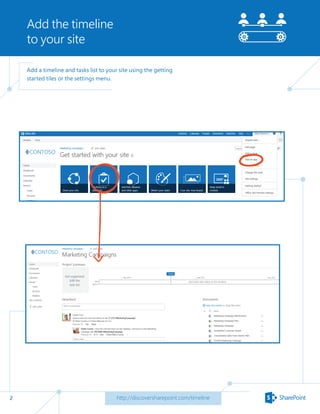
Add a timeline and tasks list to your site using the getting
started tiles or the settings menu.
Add the timeline
to your site
3
Organize and
assign tasks
http://discoversharepoint.com/timeline
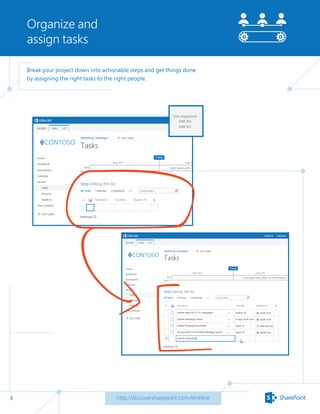
Break your project down into actionable steps and get things done
by assigning the right tasks to the right people.
4
Organize and
assign tasks
http://discoversharepoint.com/timeline
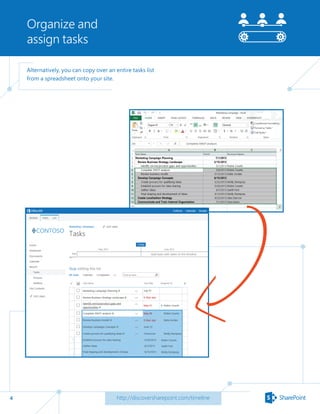
Alternatively, you can copy over an entire tasks list
from a spreadsheet onto your site.
5
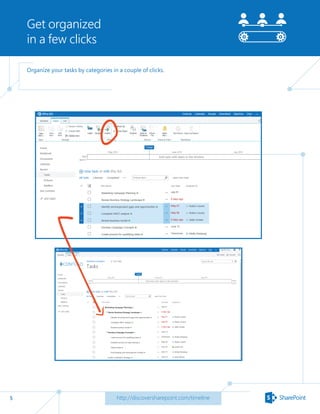
Get organized
in a few clicks
http://discoversharepoint.com/timeline
Organize your tasks by categories in a couple of clicks.
6
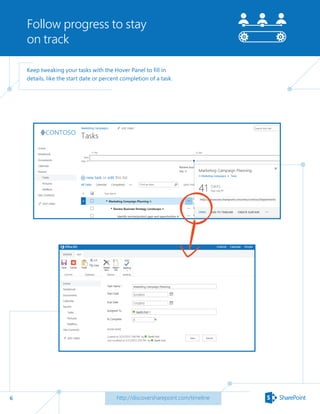
Follow progress to stay
on track
http://discoversharepoint.com/timeline
Keep tweaking your tasks with the Hover Panel to fill in
details, like the start date or percent completion of a task.
7
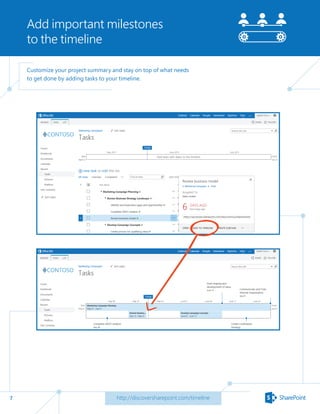
Add important milestones
to the timeline
http://discoversharepoint.com/timeline
Customize your project summary and stay on top of what needs
to get done by adding tasks to your timeline.
8
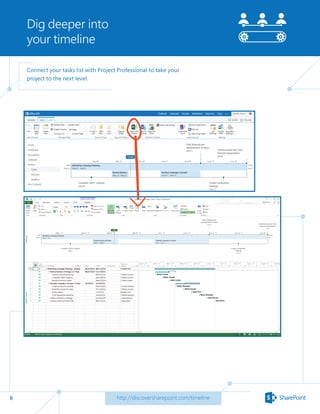
Dig deeper into
your timeline
http://discoversharepoint.com/timeline
Connect your tasks list with Project Professional to take your
project to the next level.
9
Take your project to the
next level
http://discoversharepoint.com/timeline
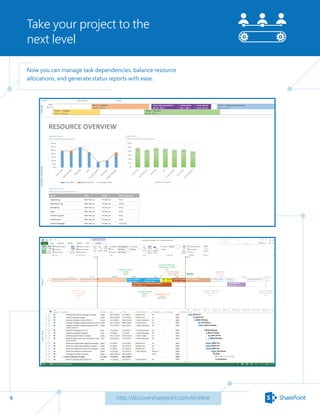
Now you can manage task dependencies, balance resource
allocations, and generate status reports with ease.
10
Take your project to the
next level
http://discoversharepoint.com/timeline
Once you’re finished, save your changes back in SharePoint
to update your timeline and tasks list.
11
Keep an eye on
important details
http://discoversharepoint.com/timeline
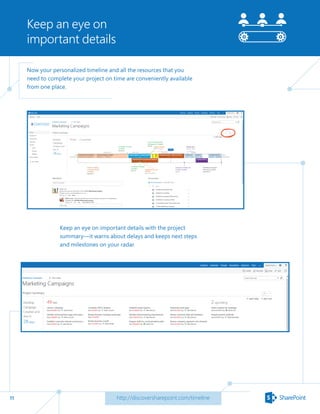
Now your personalized timeline and all the resources that you
need to complete your project on time are conveniently available
from one place.
Keep an eye on important details with the project
summary—it warns about delays and keeps next steps
and milestones on your radar.
12
Get organized
http://discoversharepoint.com/timeline
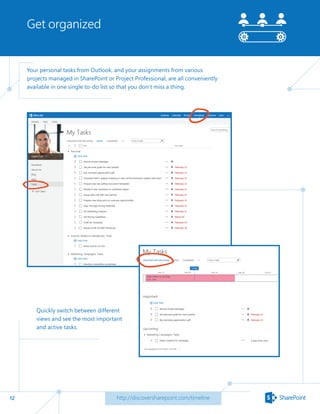
Your personal tasks from Outlook, and your assignments from various
projects managed in SharePoint or Project Professional, are all conveniently
available in one single to-do list so that you don’t miss a thing.
Quickly switch between different
views and see the most important
and active tasks.
13
Take your notes
with you
http://discoversharepoint.com/timeline
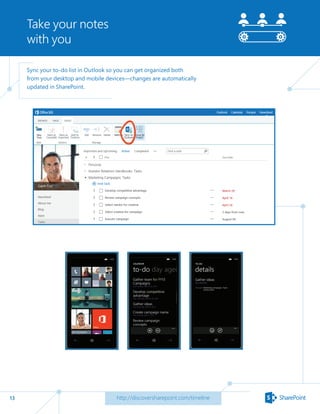
Sync your to-do list in Outlook so you can get organized both
from your desktop and mobile devices—changes are automatically
updated in SharePoint.
14
•	 Manage projects on a team site
	 http://office.microsoft.com/en-us/sharepoint-server-help/manage-projects-on-a-team-site-
HA103997099.aspx?CTT=1
•	 Open a task list in Project or Excel
	 http://office.microsoft.com/en-us/sharepoint-help/open-a-task-list-in-project-or-excel-
HA102920640.aspx?CTT=1
•	 Get started with a project site
	 http://office.microsoft.com/en-us/sharepoint-help/get-started-with-a-project-site-HA102901368.
aspx?CTT=1
•	 Add people to the project team
	 http://office.microsoft.com/en-us/sharepoint-help/add-people-to-the-project-team-
HA102901365.aspx?CTT=1
•	 Add tasks to your project
	 http://office.microsoft.com/en-us/sharepoint-help/add-tasks-to-your-project-HA102858113.
aspx?CTT=5&origin=HA102901368
•	 Upload, view, and remove project files or documents
	 http://office.microsoft.com/en-us/sharepoint-help/add-tasks-to-the-timeline-HA102901363.
aspx?CTT=5&origin=HA102901368
•	 Add tasks to the timeline
	 http://office.microsoft.com/en-us/sharepoint-help/add-tasks-to-the-timeline-HA102901363.
aspx?CTT=5&origin=HA102901368
•	 All Office Products Trainings 	
http://office.microsoft.com/en-us/support/training-FX101782702.aspx
Appendix
http://discoversharepoint.com/timeline

SharePoint - Stay on Track

  • 1.
    1 Stay on trackand deliver on time
  • 2.
    2 http://discoversharepoint.com/timeline Add atimeline and tasks list to your site using the getting started tiles or the settings menu. Add the timeline to your site
  • 3.
    3 Organize and assign tasks http://discoversharepoint.com/timeline Breakyour project down into actionable steps and get things done by assigning the right tasks to the right people.
  • 4.
    4 Organize and assign tasks http://discoversharepoint.com/timeline Alternatively,you can copy over an entire tasks list from a spreadsheet onto your site.
  • 5.
    5 Get organized in afew clicks http://discoversharepoint.com/timeline Organize your tasks by categories in a couple of clicks.
  • 6.
    6 Follow progress tostay on track http://discoversharepoint.com/timeline Keep tweaking your tasks with the Hover Panel to fill in details, like the start date or percent completion of a task.
  • 7.
    7 Add important milestones tothe timeline http://discoversharepoint.com/timeline Customize your project summary and stay on top of what needs to get done by adding tasks to your timeline.
  • 8.
    8 Dig deeper into yourtimeline http://discoversharepoint.com/timeline Connect your tasks list with Project Professional to take your project to the next level.
  • 9.
    9 Take your projectto the next level http://discoversharepoint.com/timeline Now you can manage task dependencies, balance resource allocations, and generate status reports with ease.
  • 10.
    10 Take your projectto the next level http://discoversharepoint.com/timeline Once you’re finished, save your changes back in SharePoint to update your timeline and tasks list.
  • 11.
    11 Keep an eyeon important details http://discoversharepoint.com/timeline Now your personalized timeline and all the resources that you need to complete your project on time are conveniently available from one place. Keep an eye on important details with the project summary—it warns about delays and keeps next steps and milestones on your radar.
  • 12.
    12 Get organized http://discoversharepoint.com/timeline Your personaltasks from Outlook, and your assignments from various projects managed in SharePoint or Project Professional, are all conveniently available in one single to-do list so that you don’t miss a thing. Quickly switch between different views and see the most important and active tasks.
  • 13.
    13 Take your notes withyou http://discoversharepoint.com/timeline Sync your to-do list in Outlook so you can get organized both from your desktop and mobile devices—changes are automatically updated in SharePoint.
  • 14.
    14 • Manage projectson a team site http://office.microsoft.com/en-us/sharepoint-server-help/manage-projects-on-a-team-site- HA103997099.aspx?CTT=1 • Open a task list in Project or Excel http://office.microsoft.com/en-us/sharepoint-help/open-a-task-list-in-project-or-excel- HA102920640.aspx?CTT=1 • Get started with a project site http://office.microsoft.com/en-us/sharepoint-help/get-started-with-a-project-site-HA102901368. aspx?CTT=1 • Add people to the project team http://office.microsoft.com/en-us/sharepoint-help/add-people-to-the-project-team- HA102901365.aspx?CTT=1 • Add tasks to your project http://office.microsoft.com/en-us/sharepoint-help/add-tasks-to-your-project-HA102858113. aspx?CTT=5&origin=HA102901368 • Upload, view, and remove project files or documents http://office.microsoft.com/en-us/sharepoint-help/add-tasks-to-the-timeline-HA102901363. aspx?CTT=5&origin=HA102901368 • Add tasks to the timeline http://office.microsoft.com/en-us/sharepoint-help/add-tasks-to-the-timeline-HA102901363. aspx?CTT=5&origin=HA102901368 • All Office Products Trainings http://office.microsoft.com/en-us/support/training-FX101782702.aspx Appendix http://discoversharepoint.com/timeline