1
Boost business
processes
2 www.discoversharepoint.com/workflows
Boost business processes
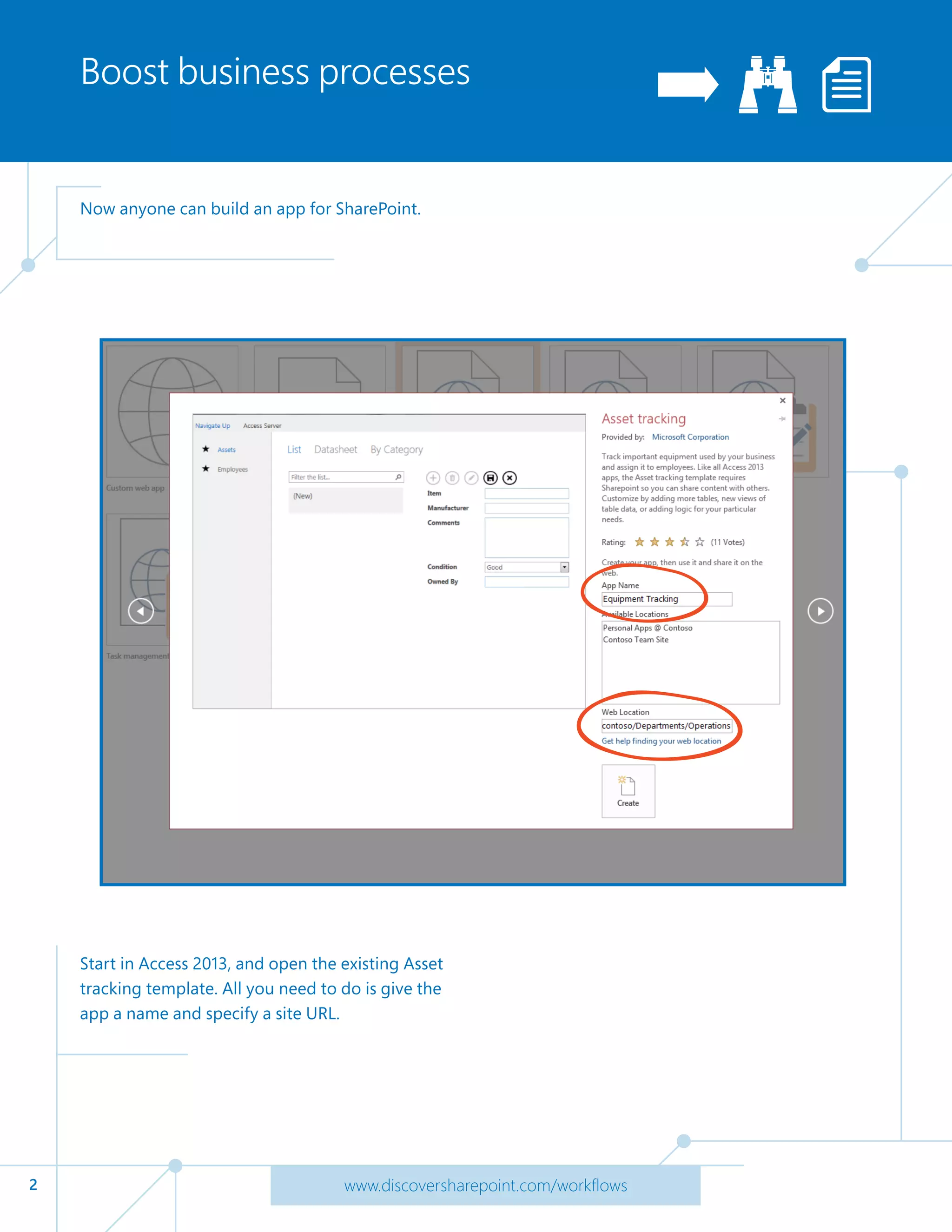
Now anyone can build an app for SharePoint.
Start in Access 2013, and open the existing Asset
tracking template. All you need to do is give the
app a name and specify a site URL.
3 www.discoversharepoint.com/workflows
Add tables and components
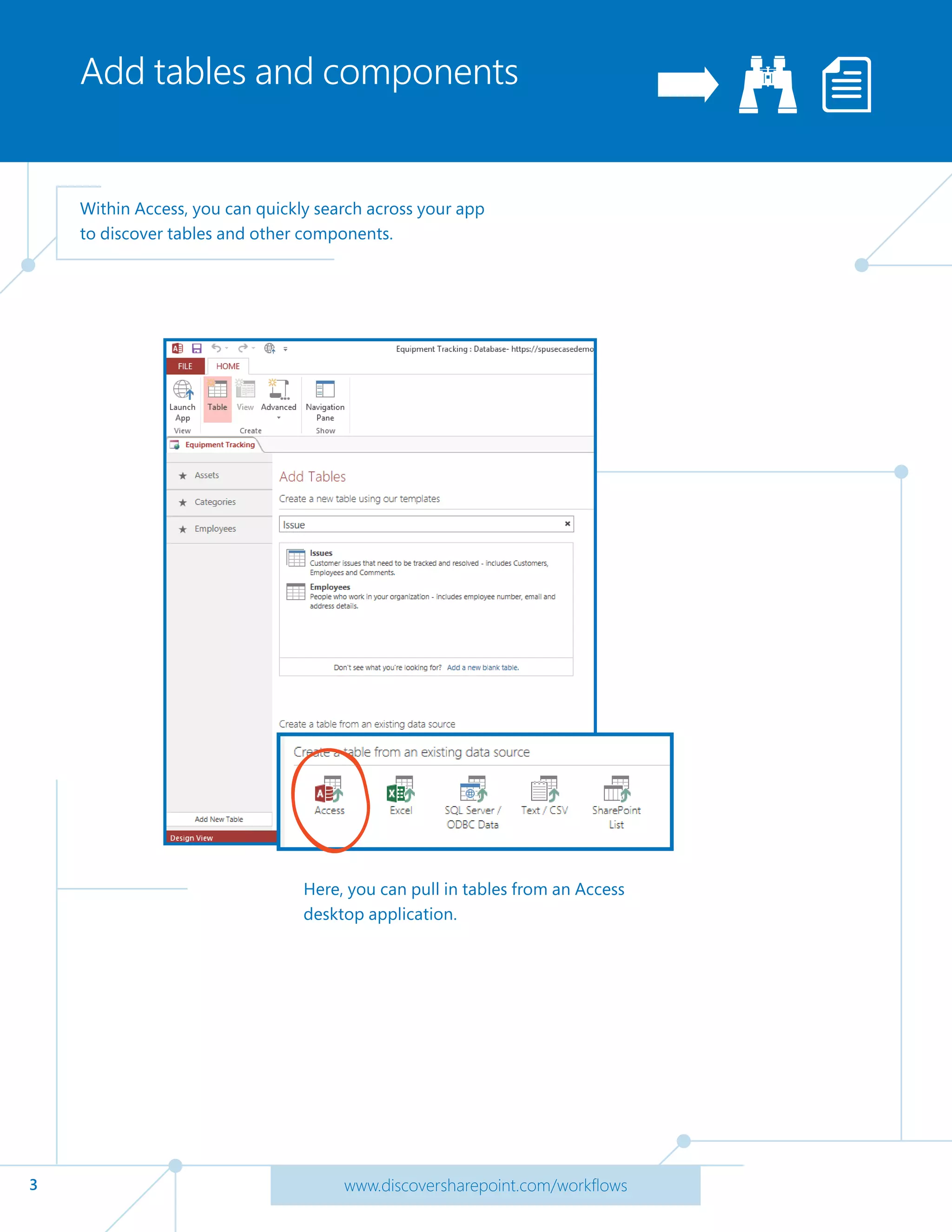
Within Access, you can quickly search across your app
to discover tables and other components.
Here, you can pull in tables from an Access
desktop application.
4 www.discoversharepoint.com/workflows
Link tables to the app
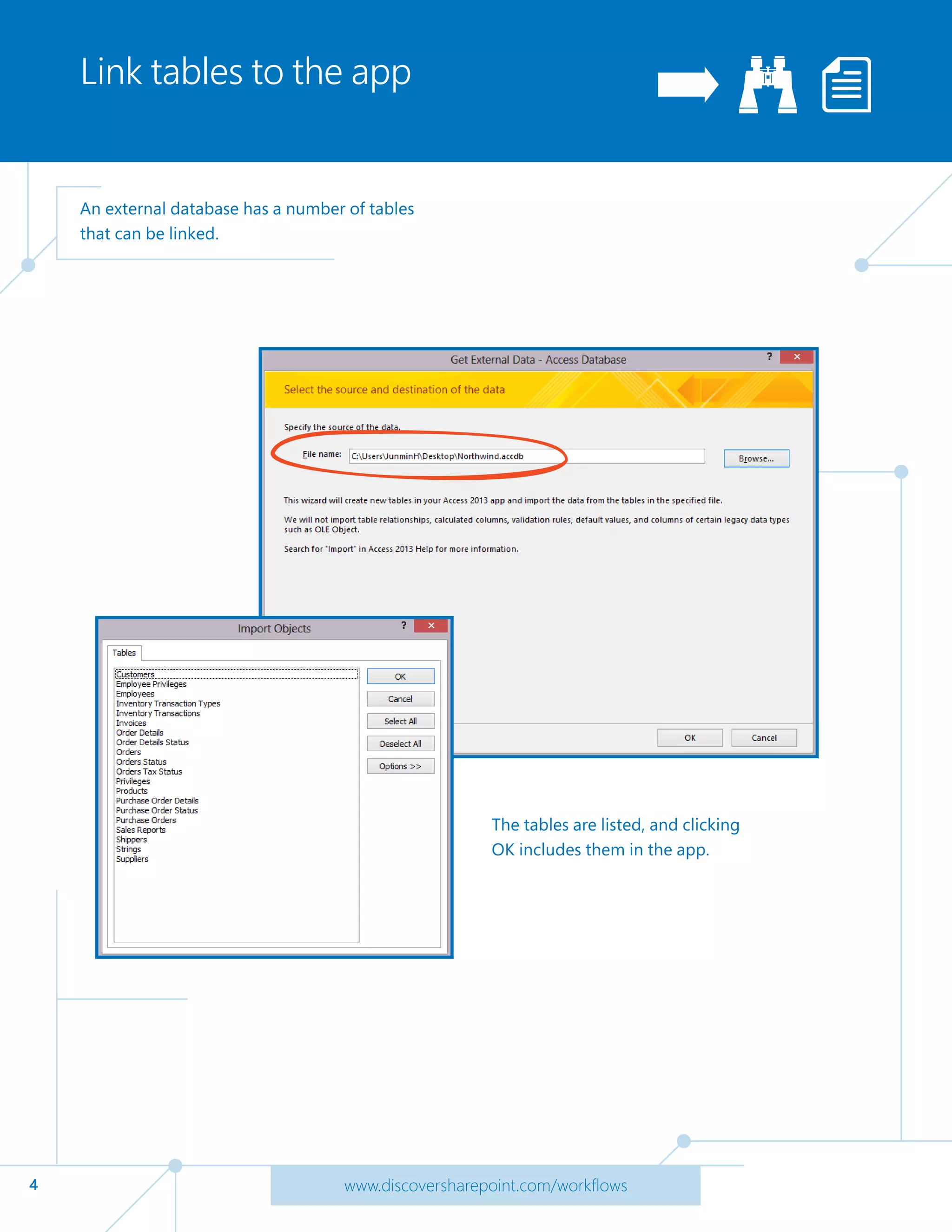
An external database has a number of tables
that can be linked.
The tables are listed, and clicking
OK includes them in the app.
5 www.discoversharepoint.com/workflows
Preview and edit tables
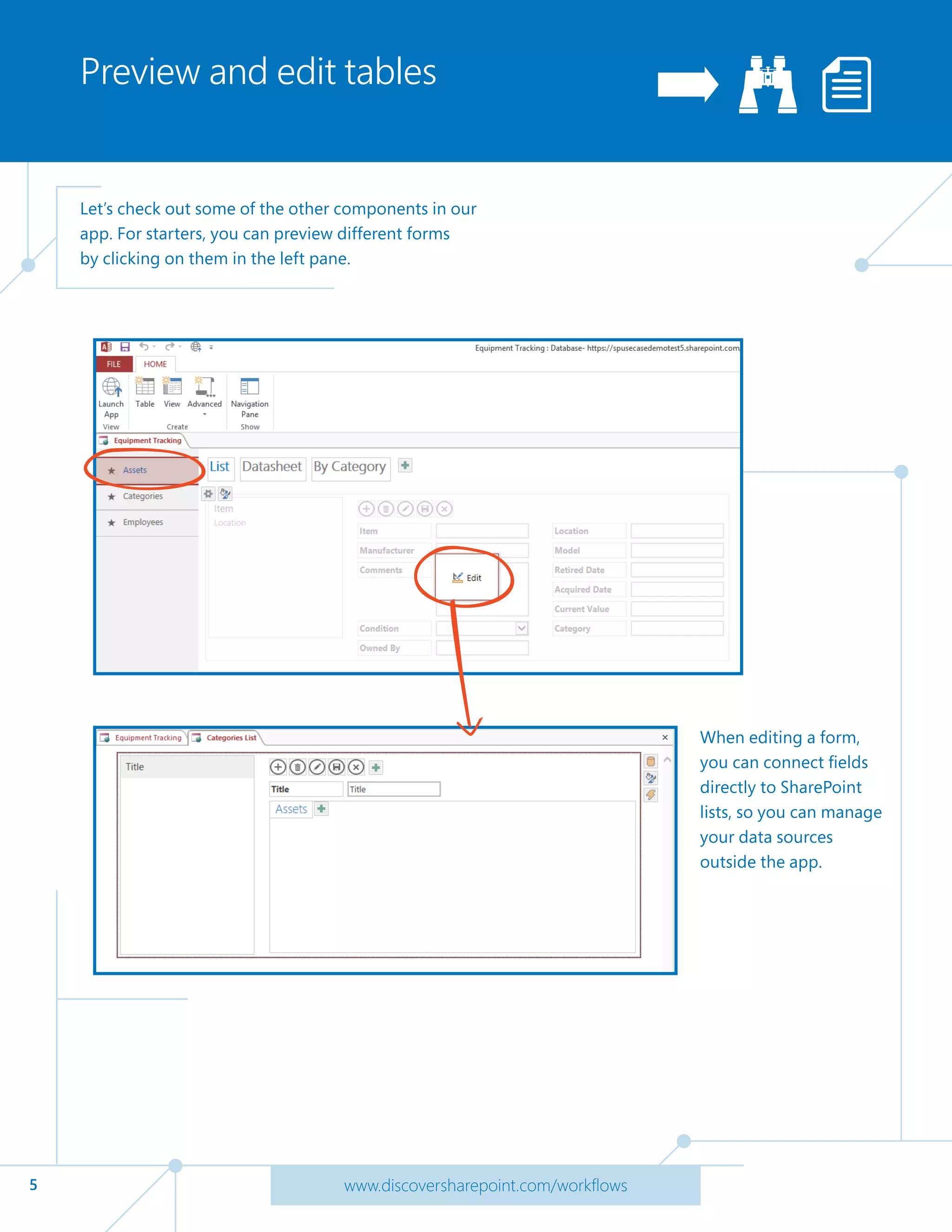
Let’s check out some of the other components in our
app. For starters, you can preview different forms
by clicking on them in the left pane.
When editing a form,
you can connect fields
directly to SharePoint
lists, so you can manage
your data sources
outside the app.
6 www.discoversharepoint.com/workflows
See your apps in action
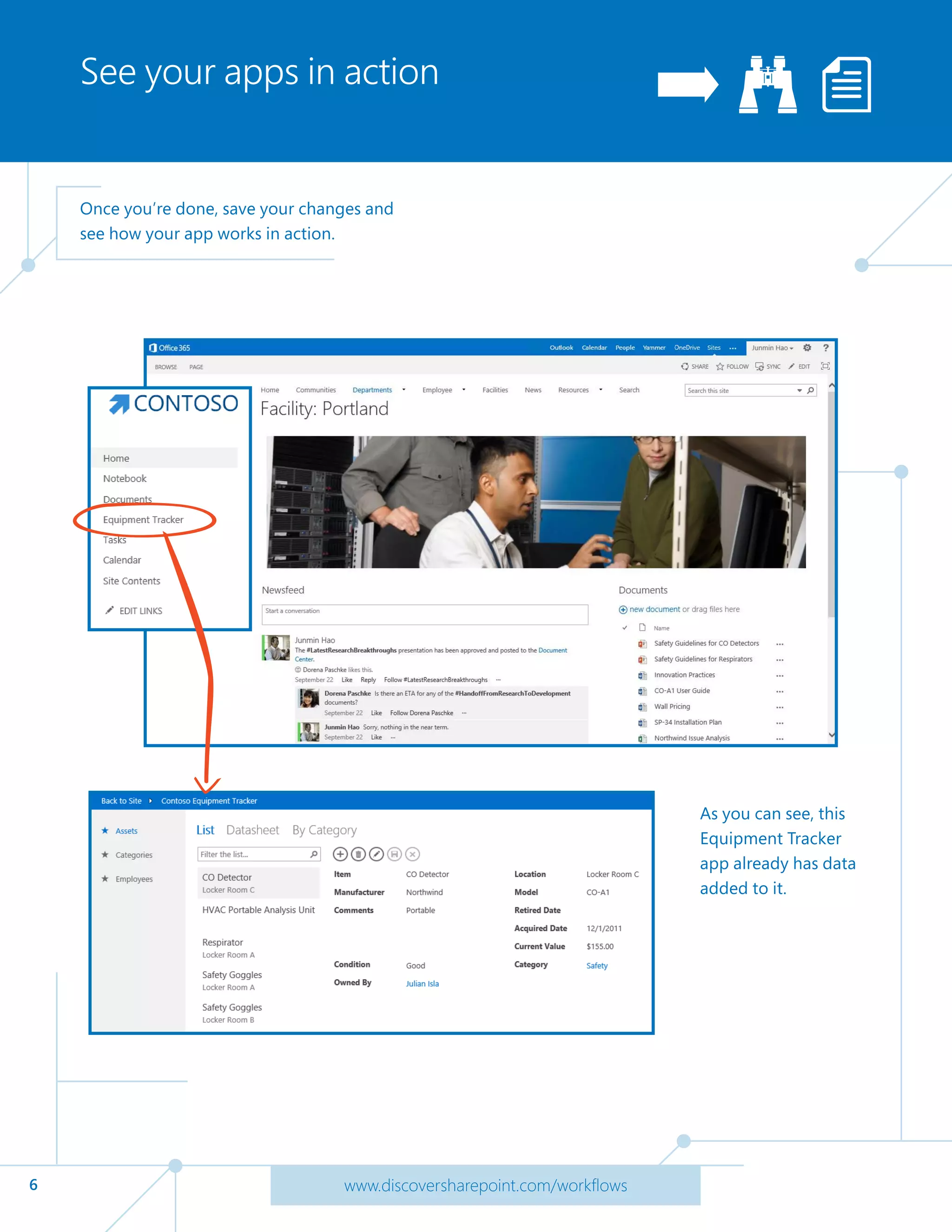
Once you’re done, save your changes and
see how your app works in action.
As you can see, this
Equipment Tracker
app already has data
added to it.
7 www.discoversharepoint.com/workflows
View app data
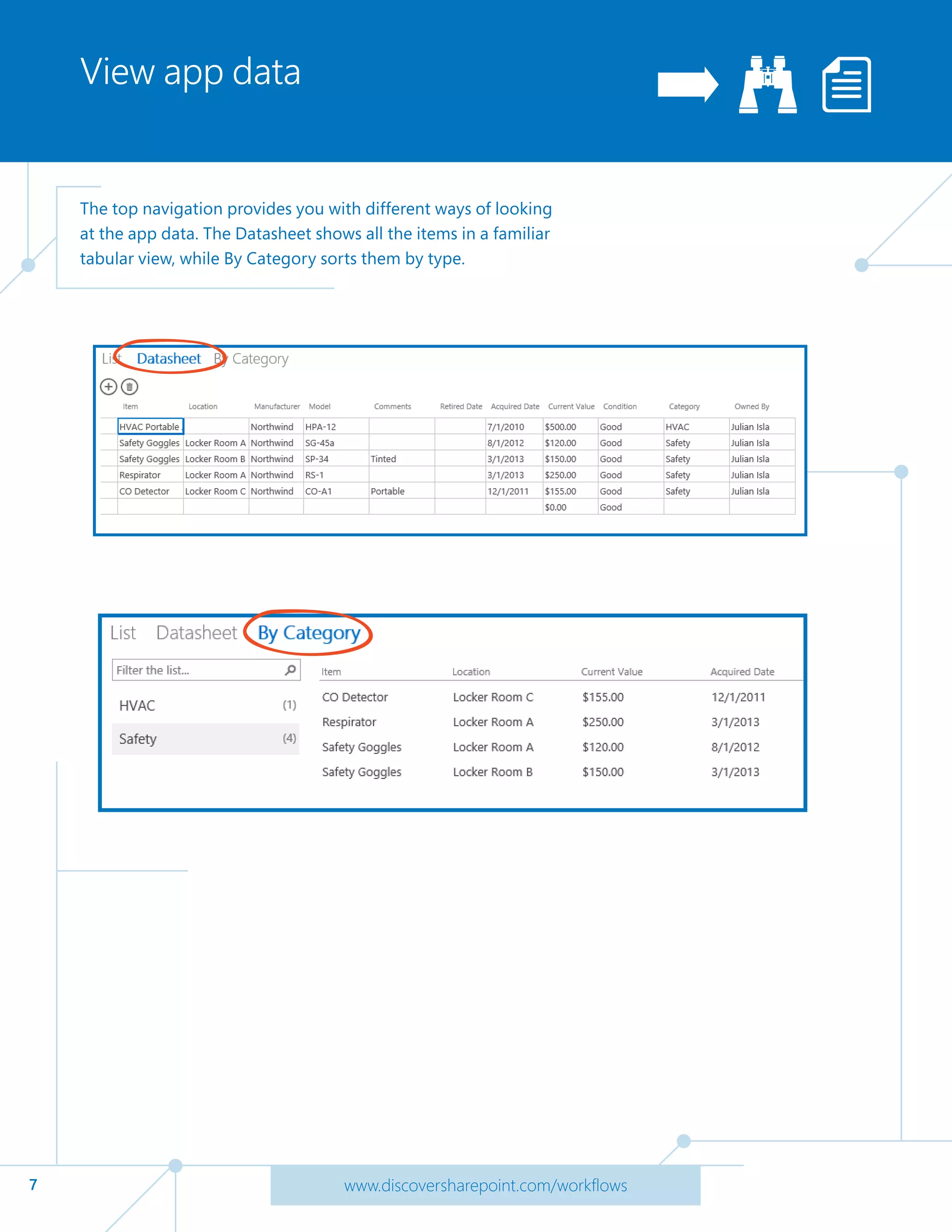
The top navigation provides you with different ways of looking
at the app data. The Datasheet shows all the items in a familiar
tabular view, while By Category sorts them by type.
8 www.discoversharepoint.com/workflows
Track app data
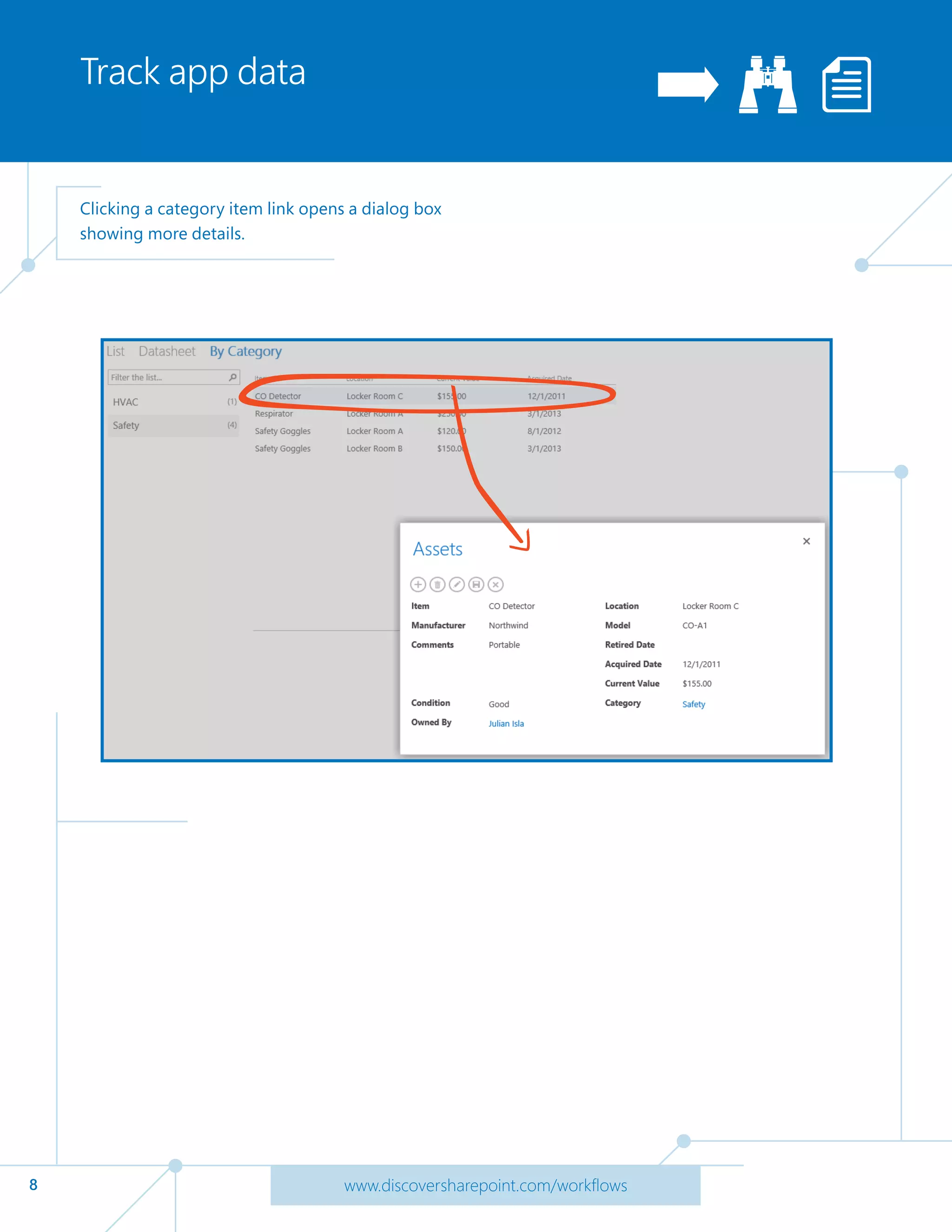
Clicking a category item link opens a dialog box
showing more details.
9 www.discoversharepoint.com/workflows
Explore app data
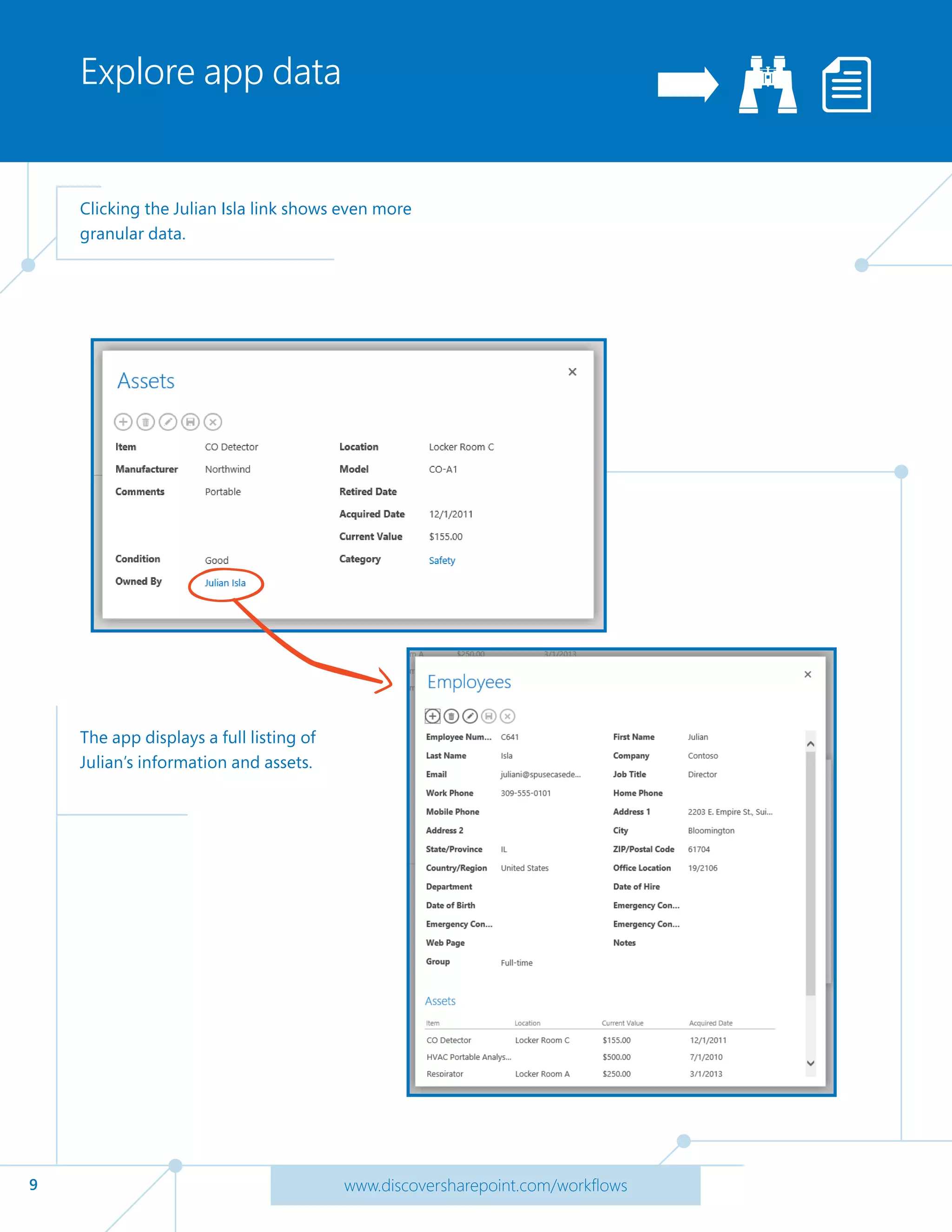
Clicking the Julian Isla link shows even more
granular data.
The app displays a full listing of
Julian’s information and assets.
10 www.discoversharepoint.com/workflows
Add data
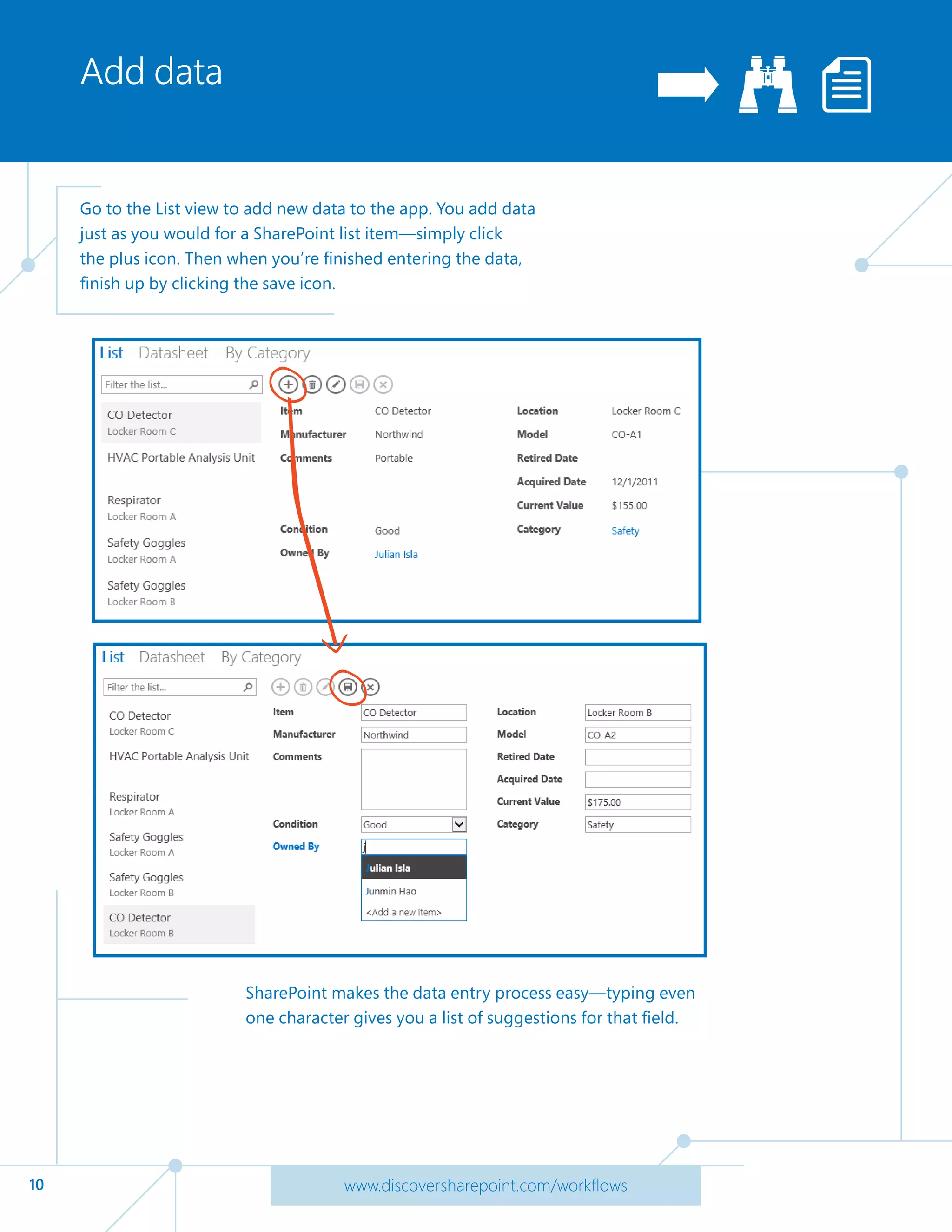
Go to the List view to add new data to the app. You add data
just as you would for a SharePoint list item—simply click
the plus icon. Then when you’re finished entering the data,
finish up by clicking the save icon.
SharePoint makes the data entry process easy—typing even
one character gives you a list of suggestions for that field.
11 www.discoversharepoint.com/workflows
Create a Visio workflow
diagram
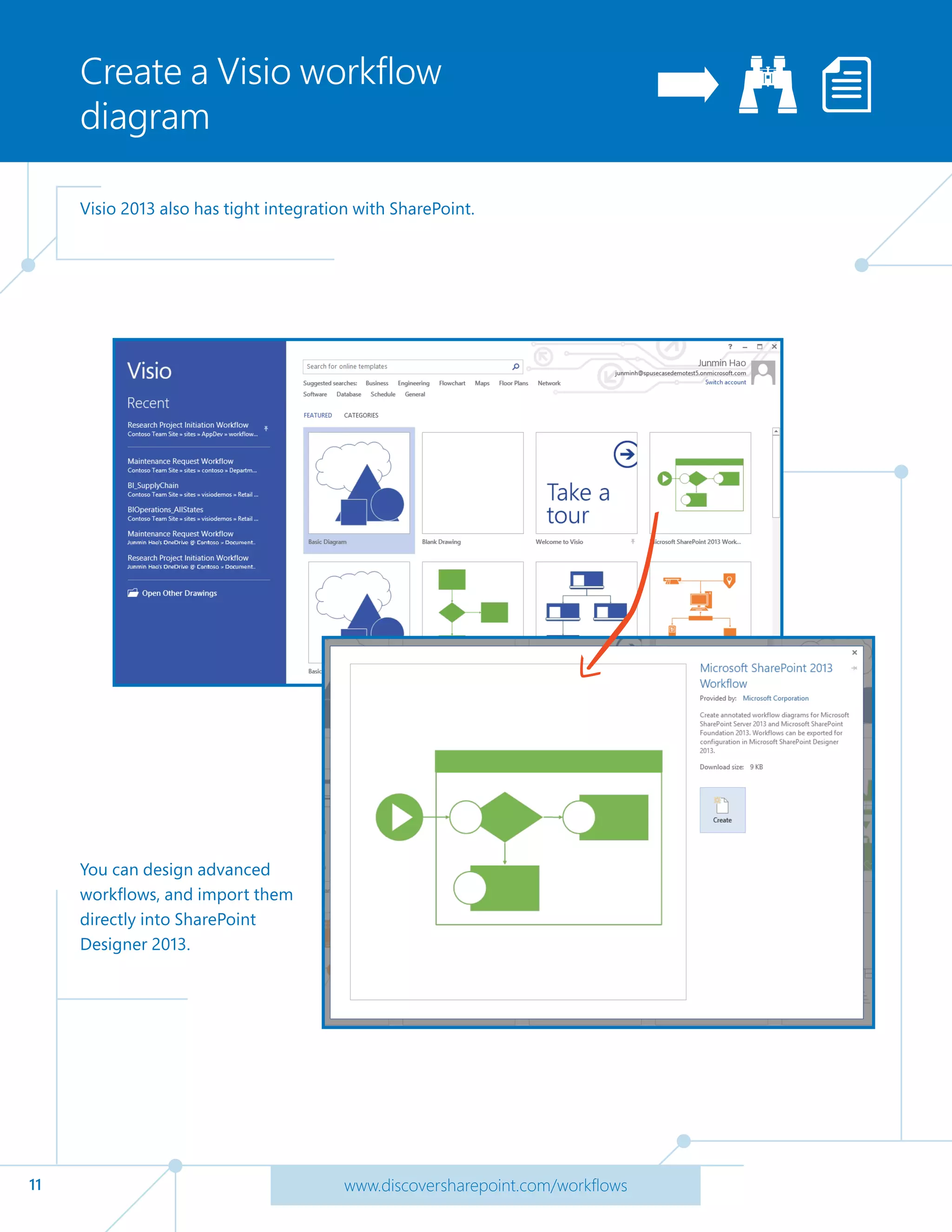
Visio 2013 also has tight integration with SharePoint.
You can design advanced
workflows, and import them
directly into SharePoint
Designer 2013.
12 www.discoversharepoint.com/workflows
Create a Stage
Outline
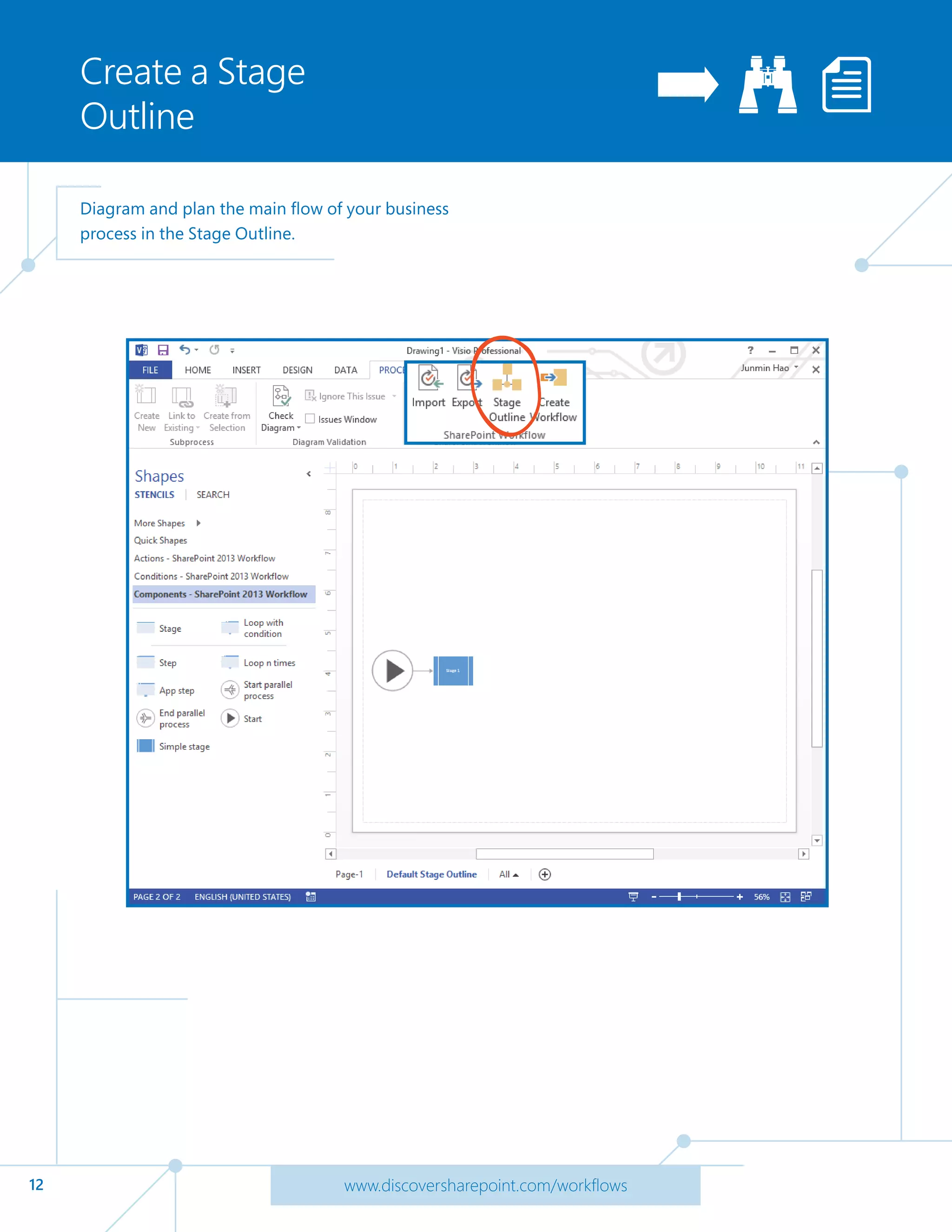
Diagram and plan the main flow of your business
process in the Stage Outline.
13 www.discoversharepoint.com/workflows
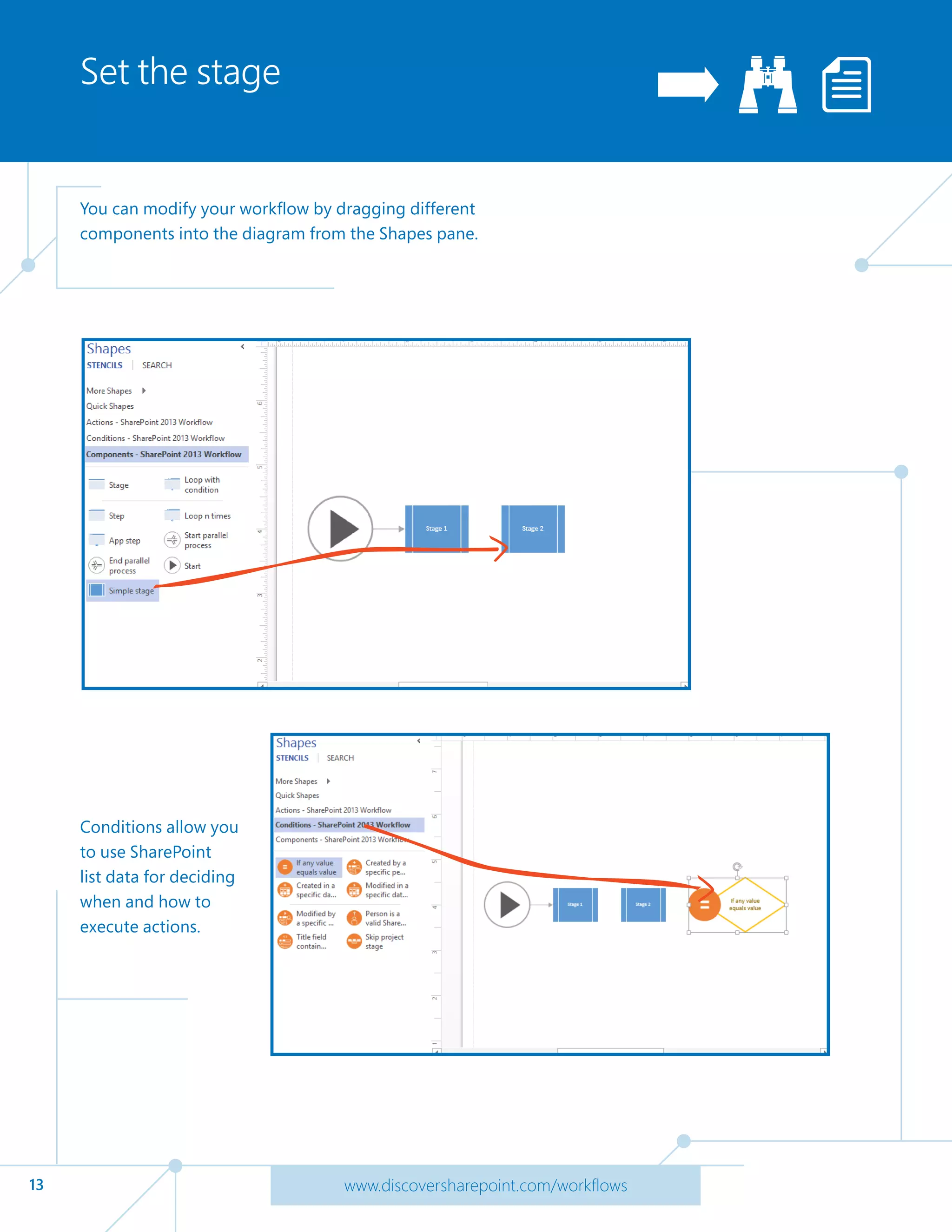
Set the stage
You can modify your workflow by dragging different
components into the diagram from the Shapes pane.
Conditions allow you
to use SharePoint
list data for deciding
when and how to
execute actions.
14 www.discoversharepoint.com/workflows
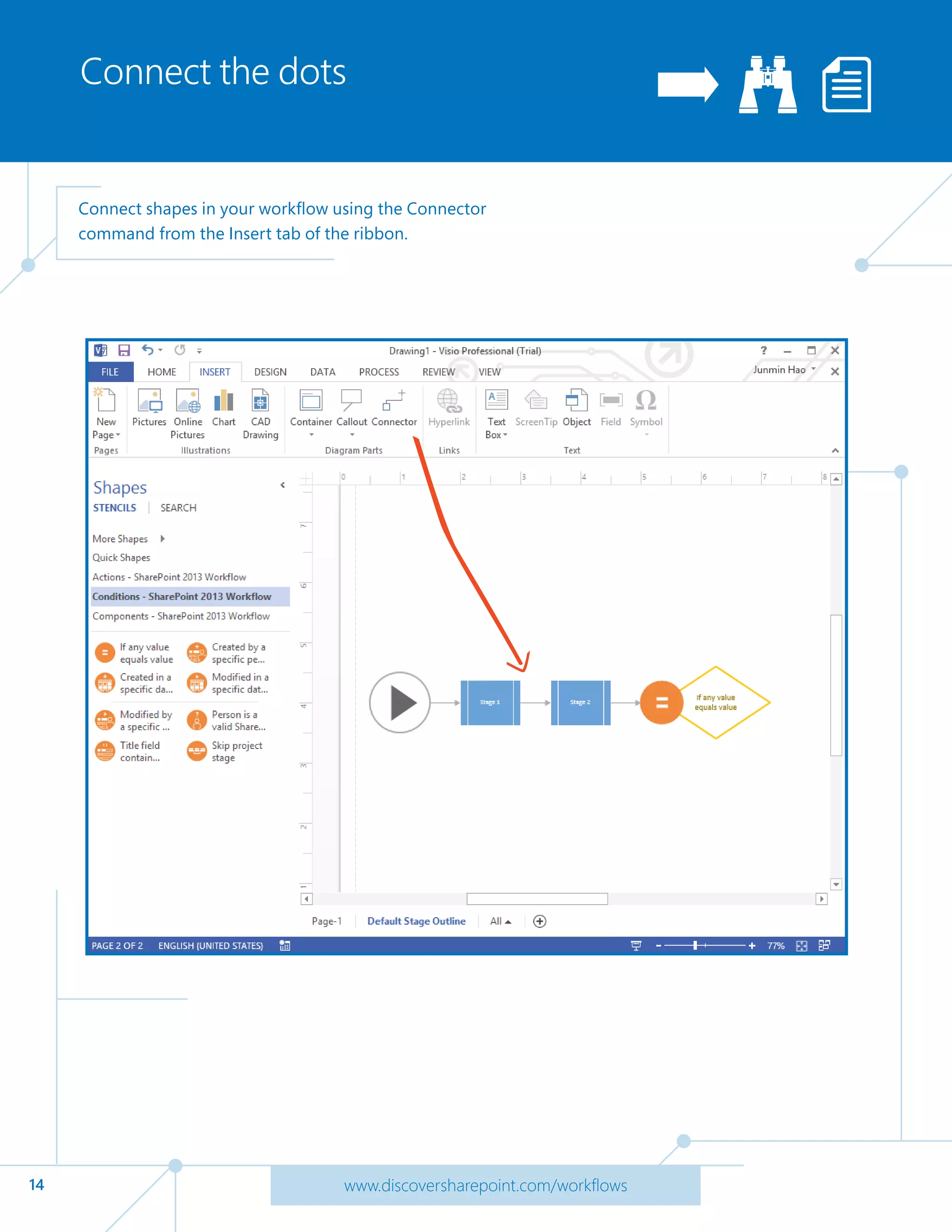
Connect the dots
Connect shapes in your workflow using the Connector
command from the Insert tab of the ribbon.
15 www.discoversharepoint.com/workflows
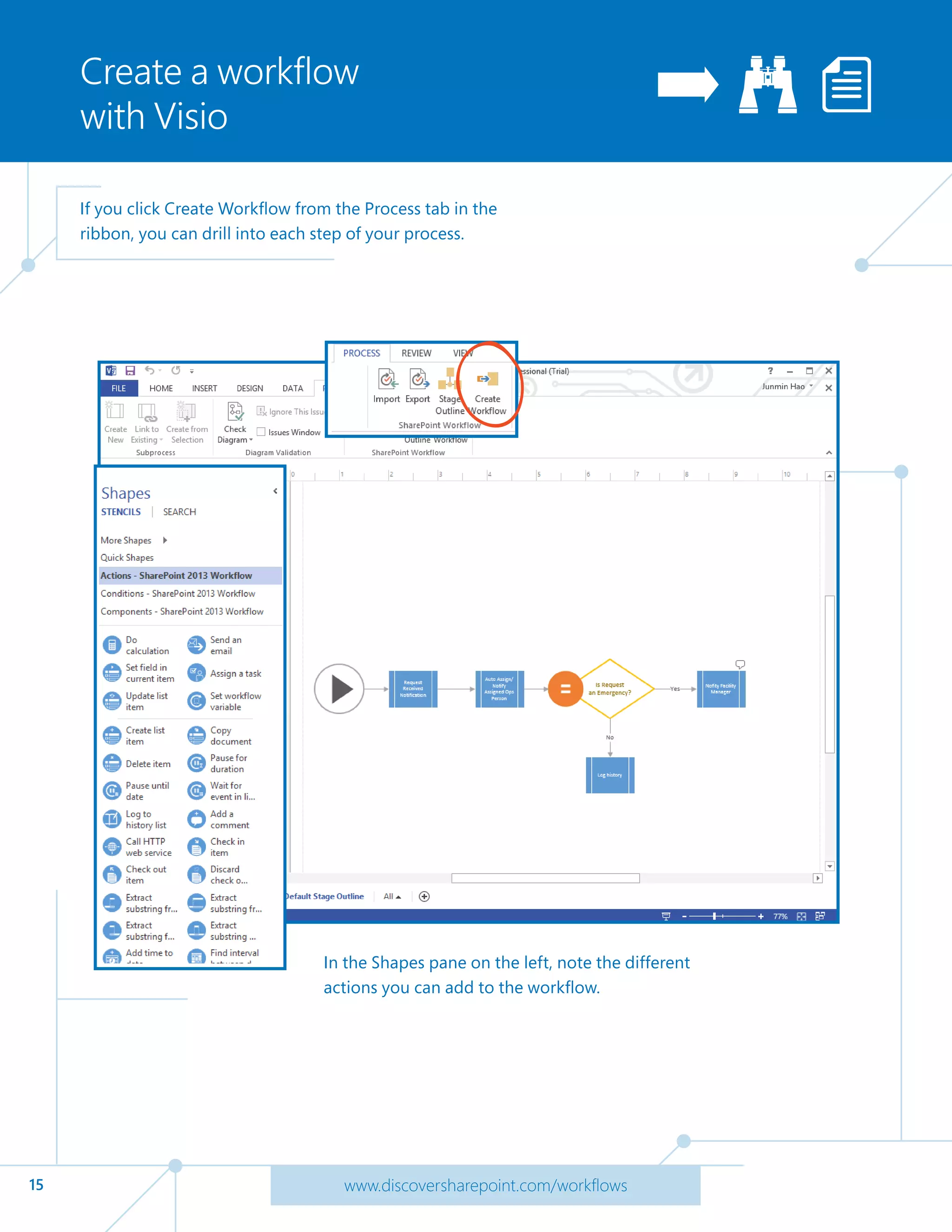
Create a workflow
with Visio
If you click Create Workflow from the Process tab in the
ribbon, you can drill into each step of your process.
In the Shapes pane on the left, note the different
actions you can add to the workflow.
16 www.discoversharepoint.com/workflows
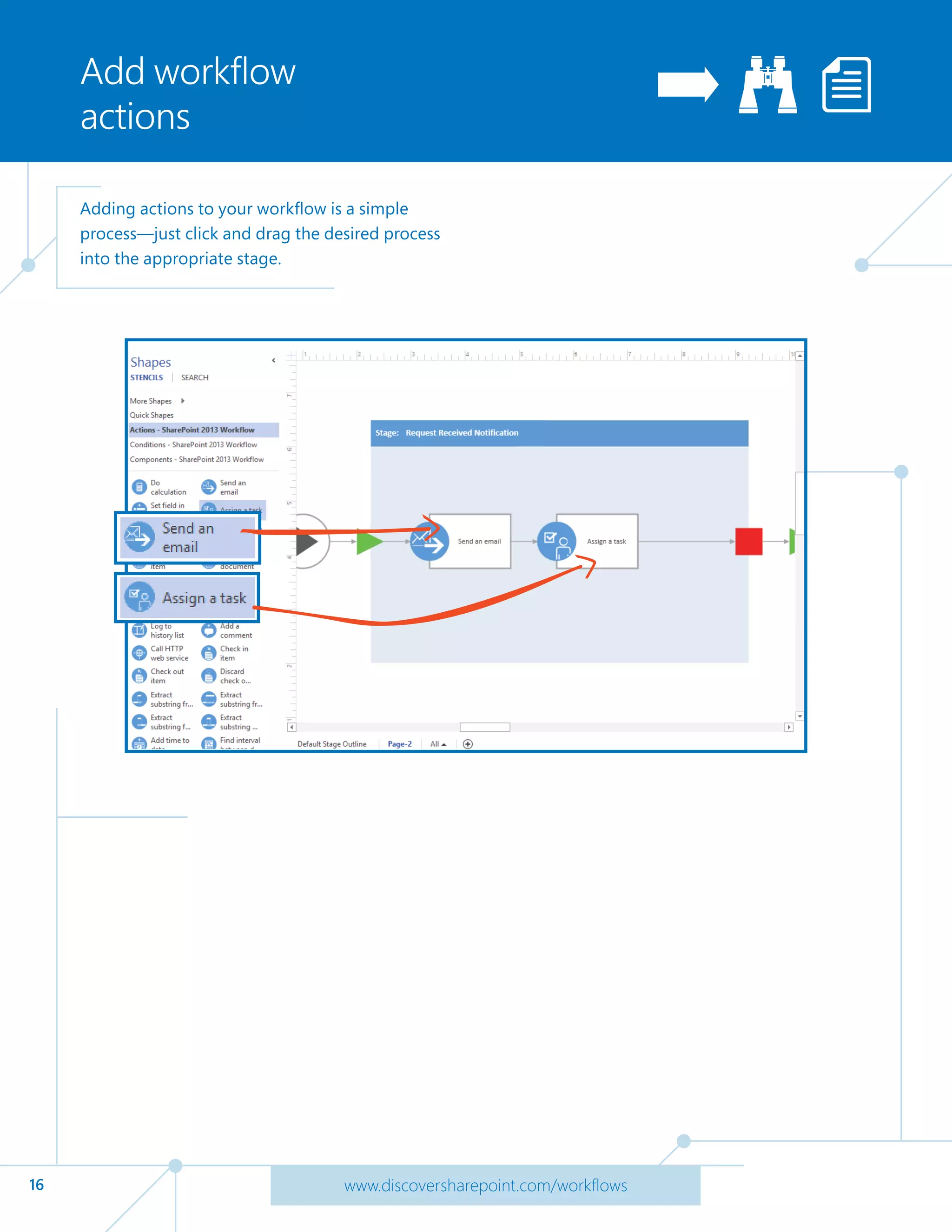
Add workflow
actions
Adding actions to your workflow is a simple
process—just click and drag the desired process
into the appropriate stage.
17 www.discoversharepoint.com/workflows
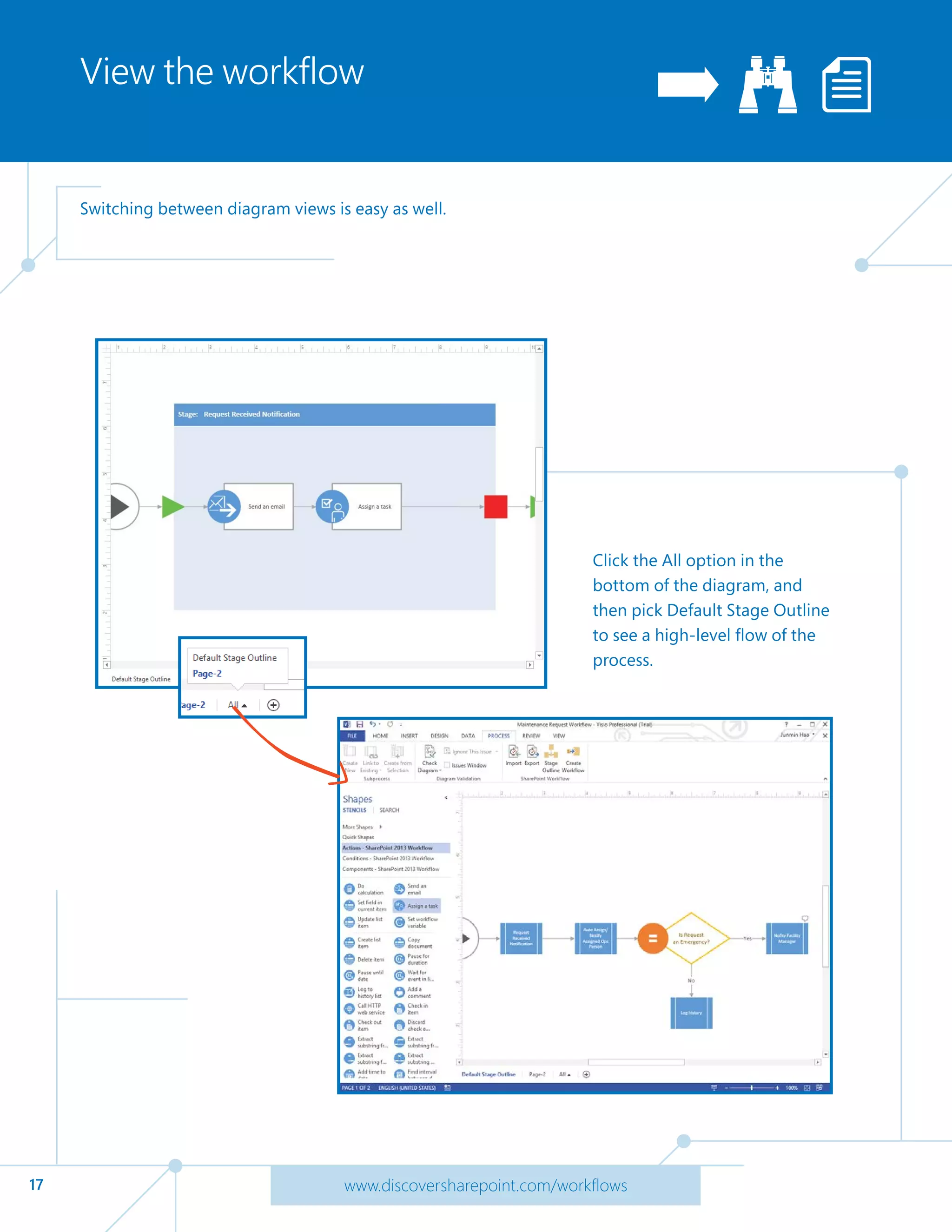
View the workflow
Switching between diagram views is easy as well.
Click the All option in the
bottom of the diagram, and
then pick Default Stage Outline
to see a high-level flow of the
process.
18 www.discoversharepoint.com/workflows
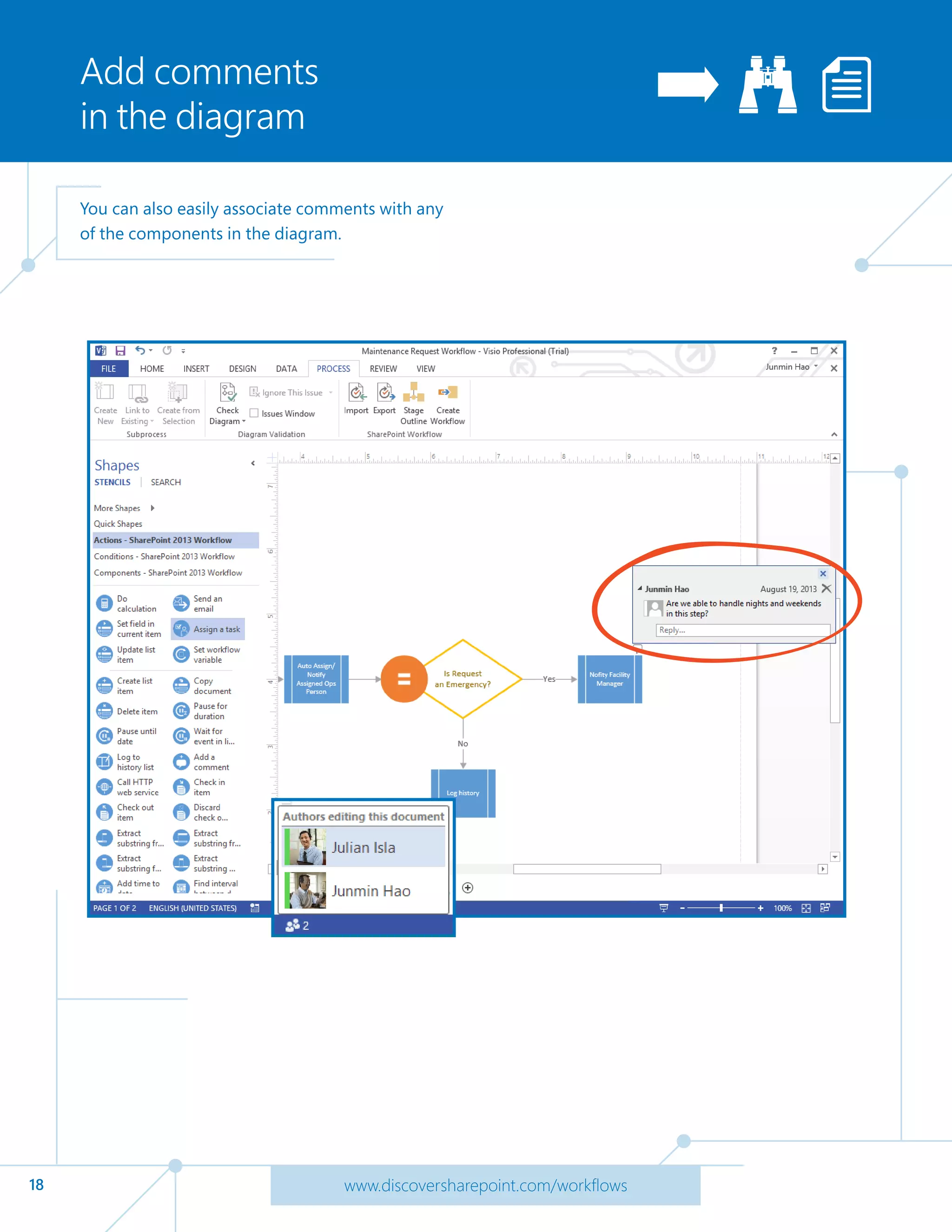
Add comments
in the diagram
You can also easily associate comments with any
of the components in the diagram.
Visio 2013 also supports co-authoring—you can see
who else might be collaborating on the document at
any given time.
19 www.discoversharepoint.com/workflows
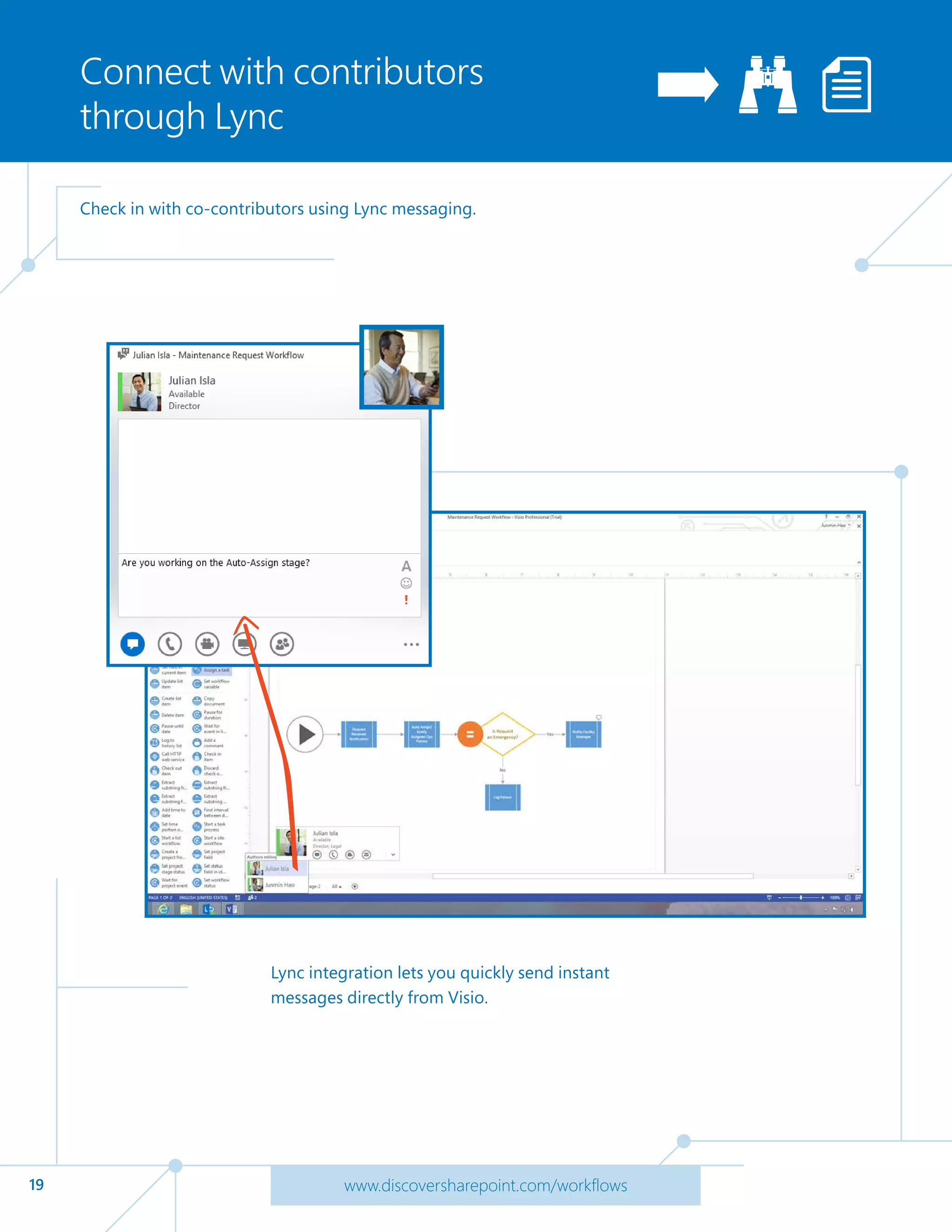
Connect with contributors
through Lync
Check in with co-contributors using Lync messaging.
Lync integration lets you quickly send instant
messages directly from Visio.
20 www.discoversharepoint.com/workflows
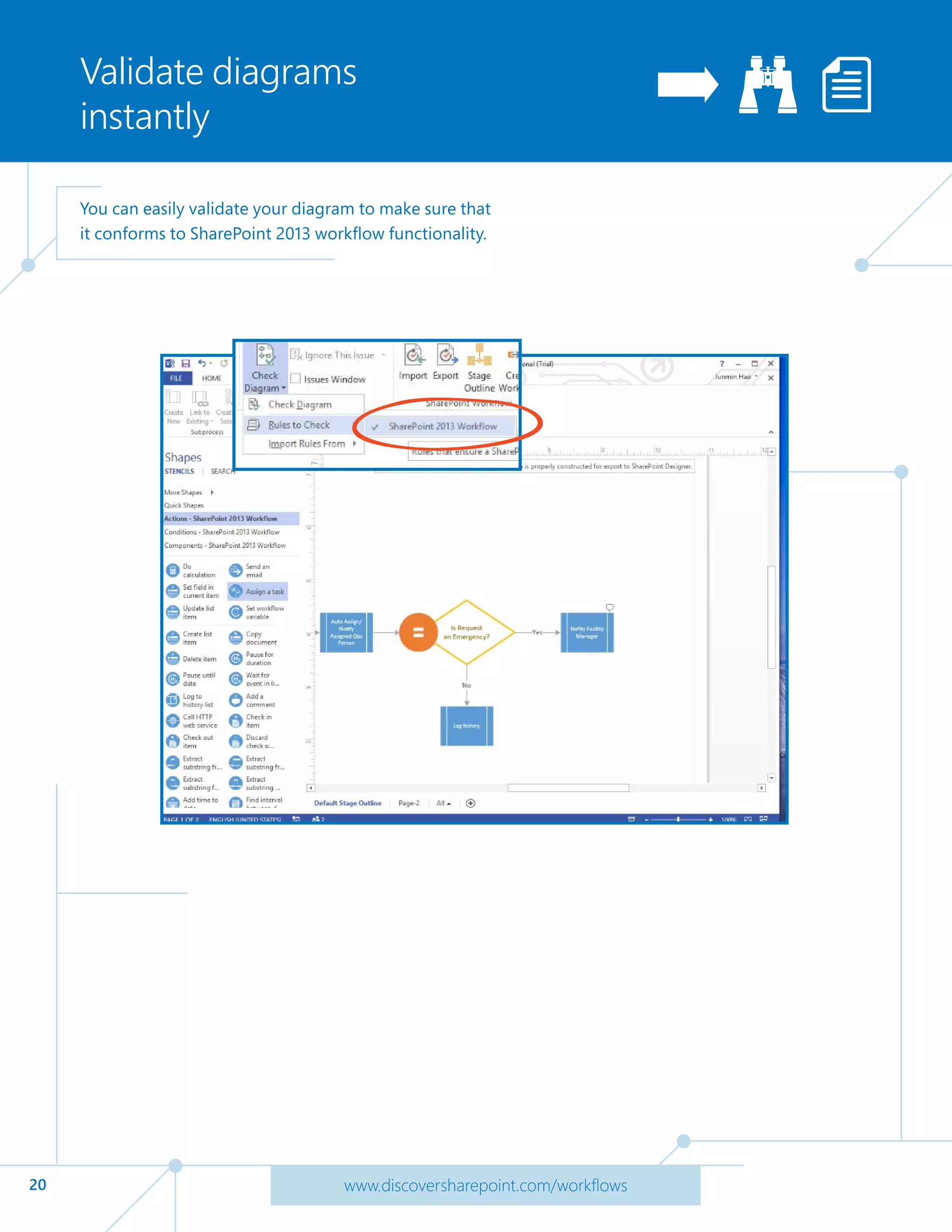
Validate diagrams
instantly
You can easily validate your diagram to make sure that
it conforms to SharePoint 2013 workflow functionality.
21 www.discoversharepoint.com/workflows
Take advantage of
SharePoint Designer 2013
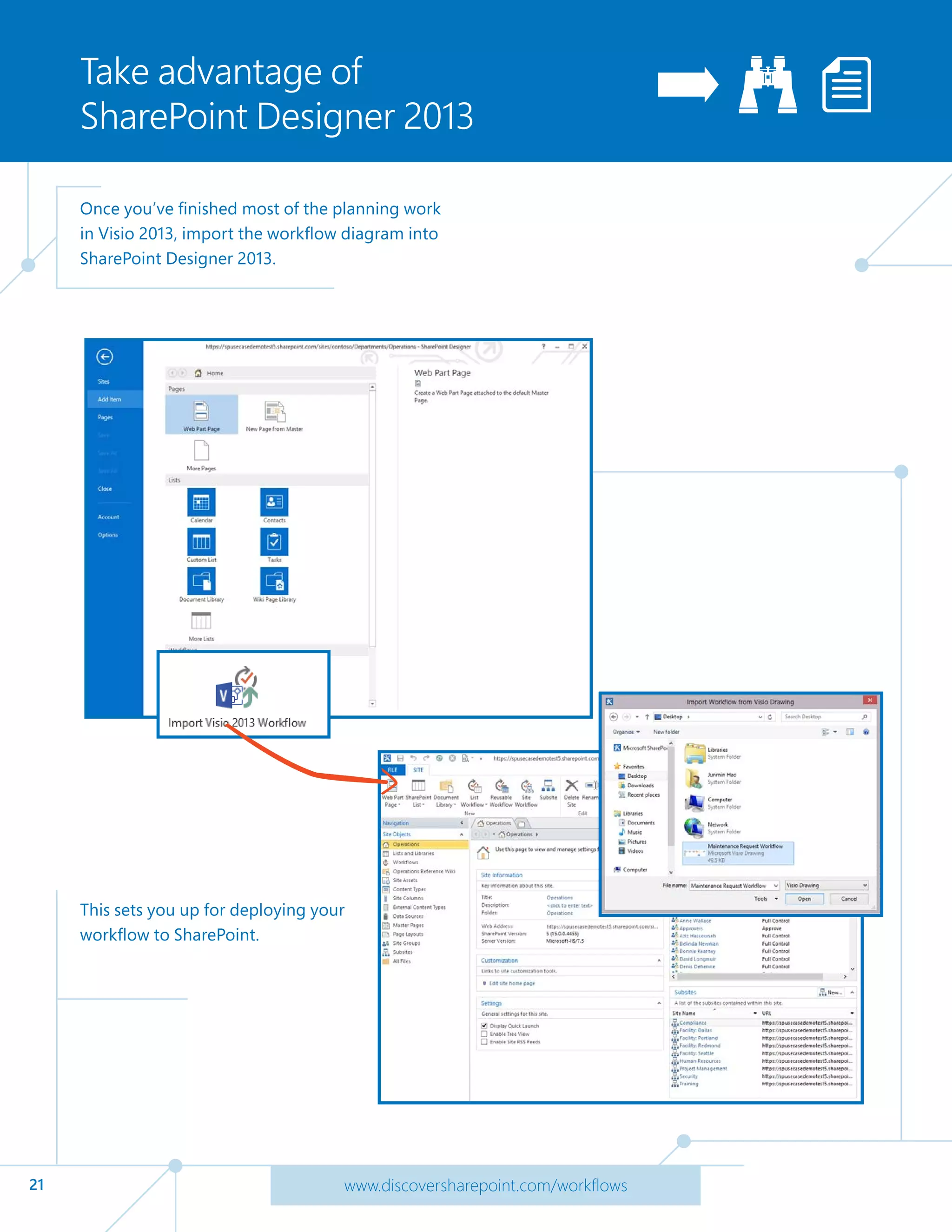
Once you’ve finished most of the planning work
in Visio 2013, import the workflow diagram into
SharePoint Designer 2013.
This sets you up for deploying your
workflow to SharePoint.
22 www.discoversharepoint.com/workflows
Create a workflow
in Designer
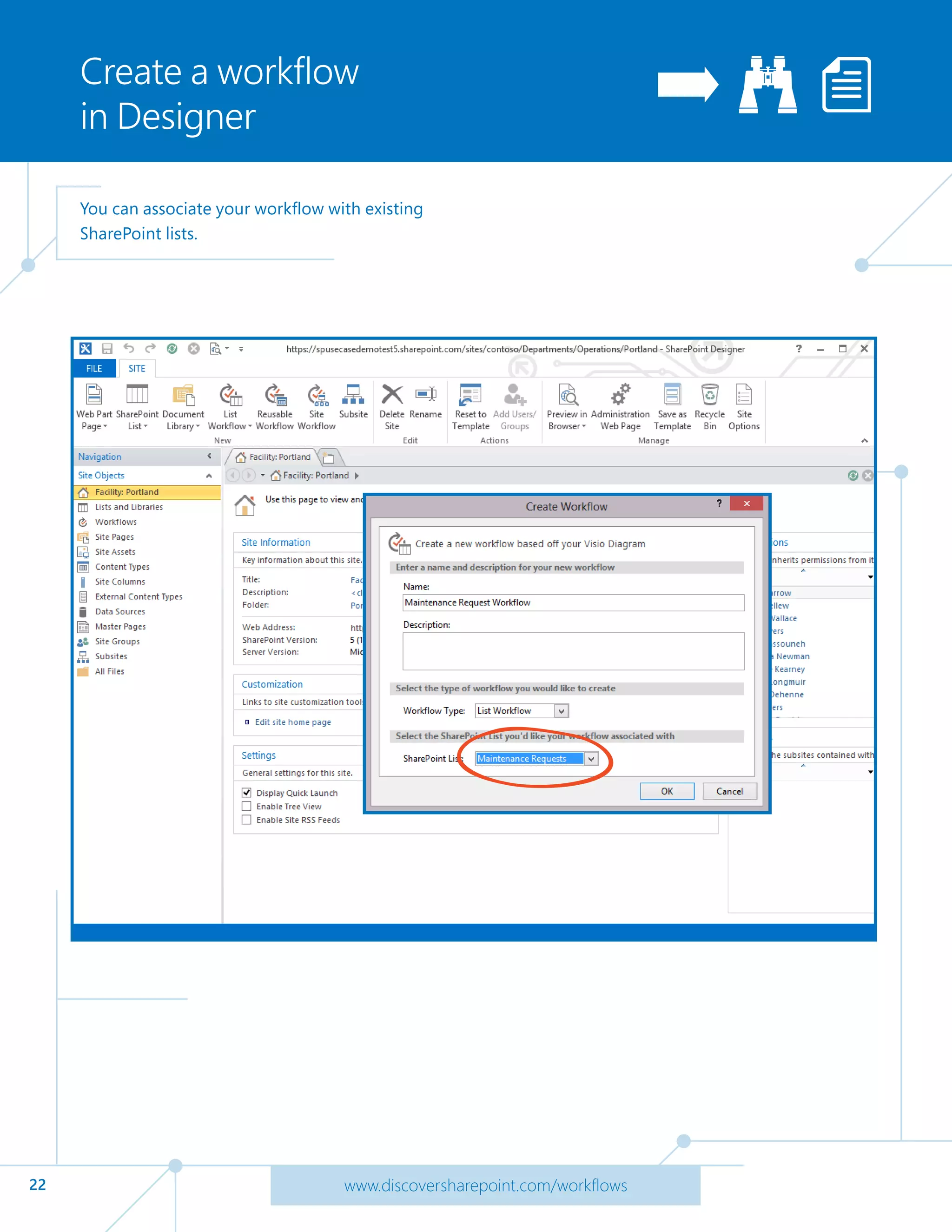
You can associate your workflow with existing
SharePoint lists.
23 www.discoversharepoint.com/workflows
Set condition triggers
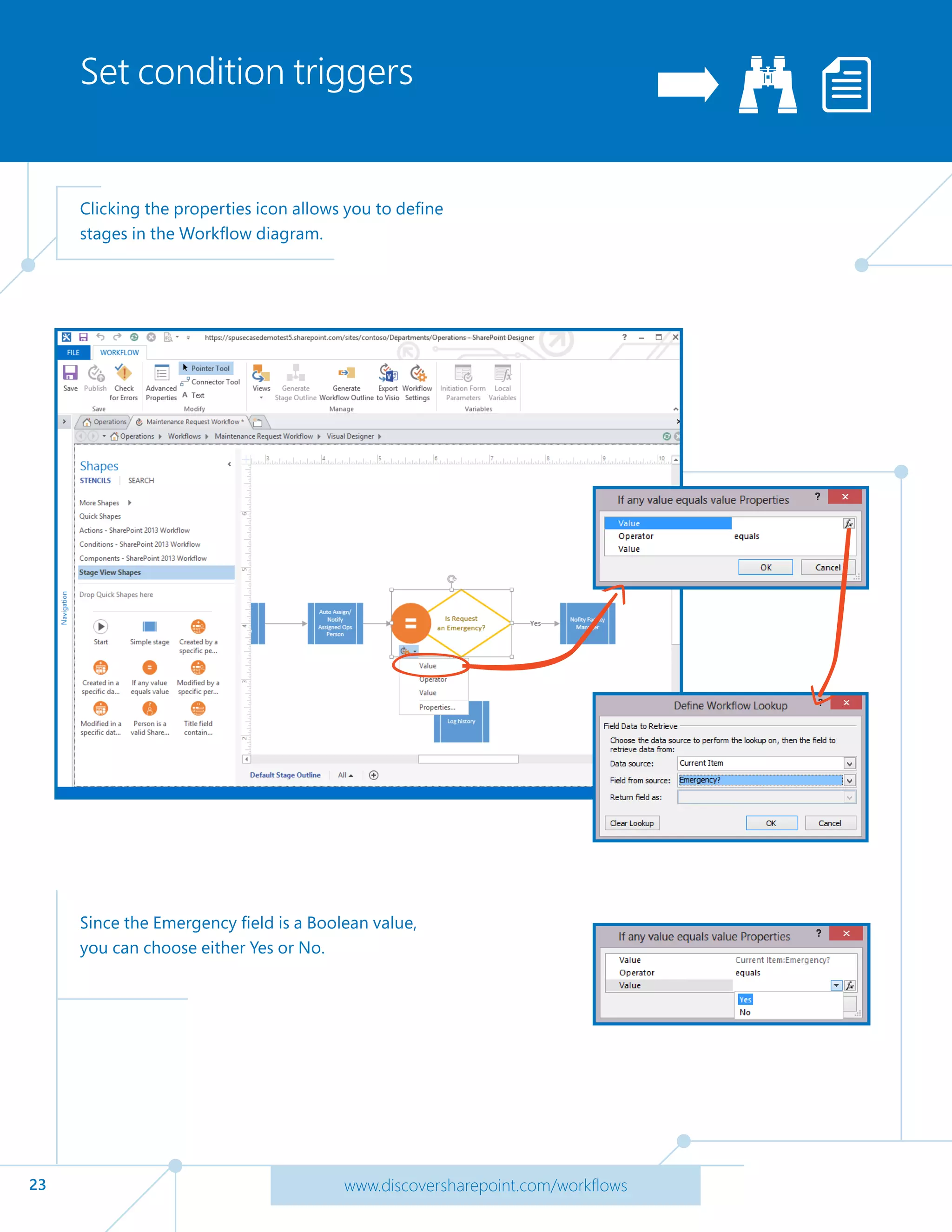
Clicking the properties icon allows you to define
stages in the Workflow diagram.
The Define Workflow Lookup dialog lets you choose
from all available fields in the list. Choosing the value
property sets the condition trigger during the workflow.
Since the Emergency field is a Boolean value,
you can choose either Yes or No.
24 www.discoversharepoint.com/workflows
Generate a Workflow
Outline
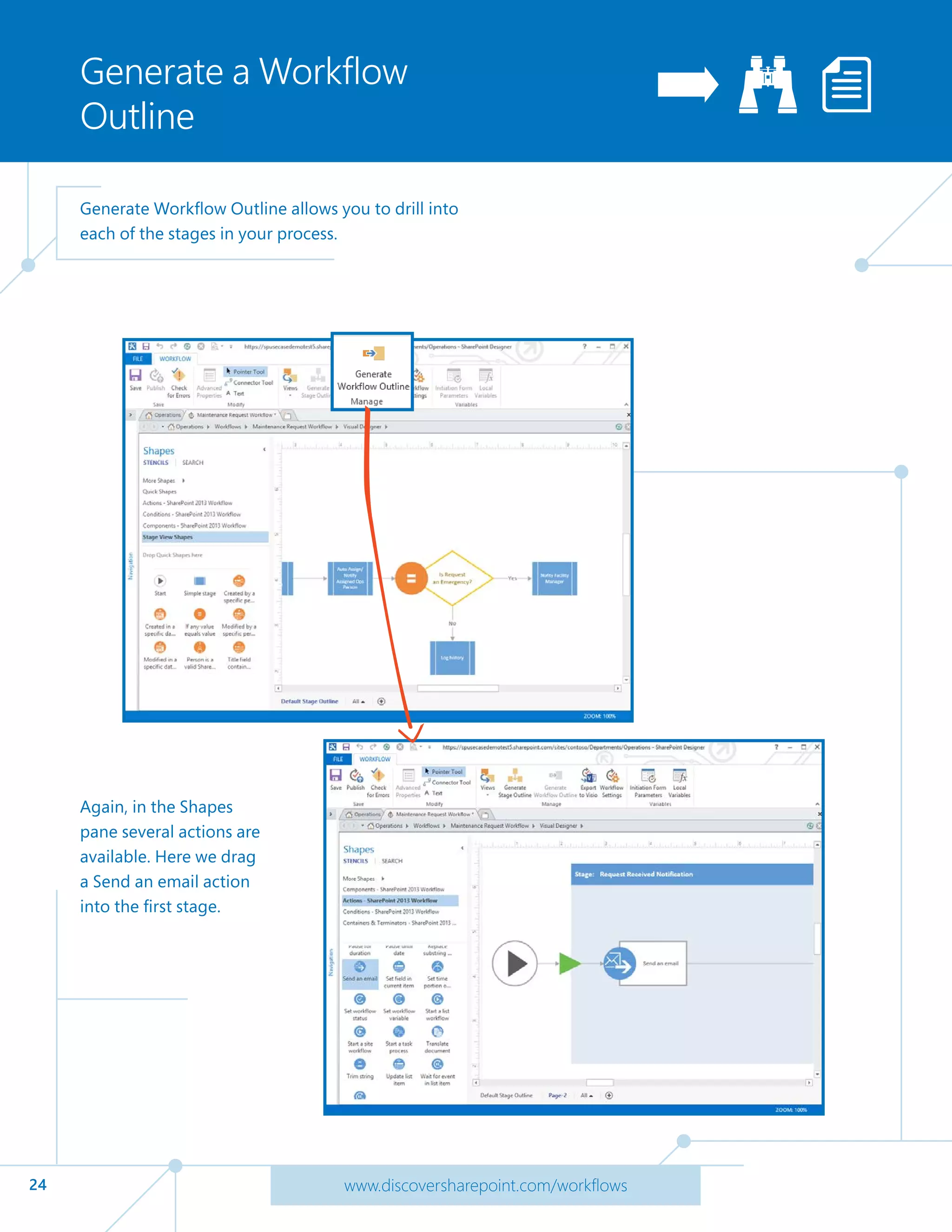
Generate Workflow Outline allows you to drill into
each of the stages in your process.
Again, in the Shapes
pane several actions are
available. Here we drag
a Send an email action
into the first stage.
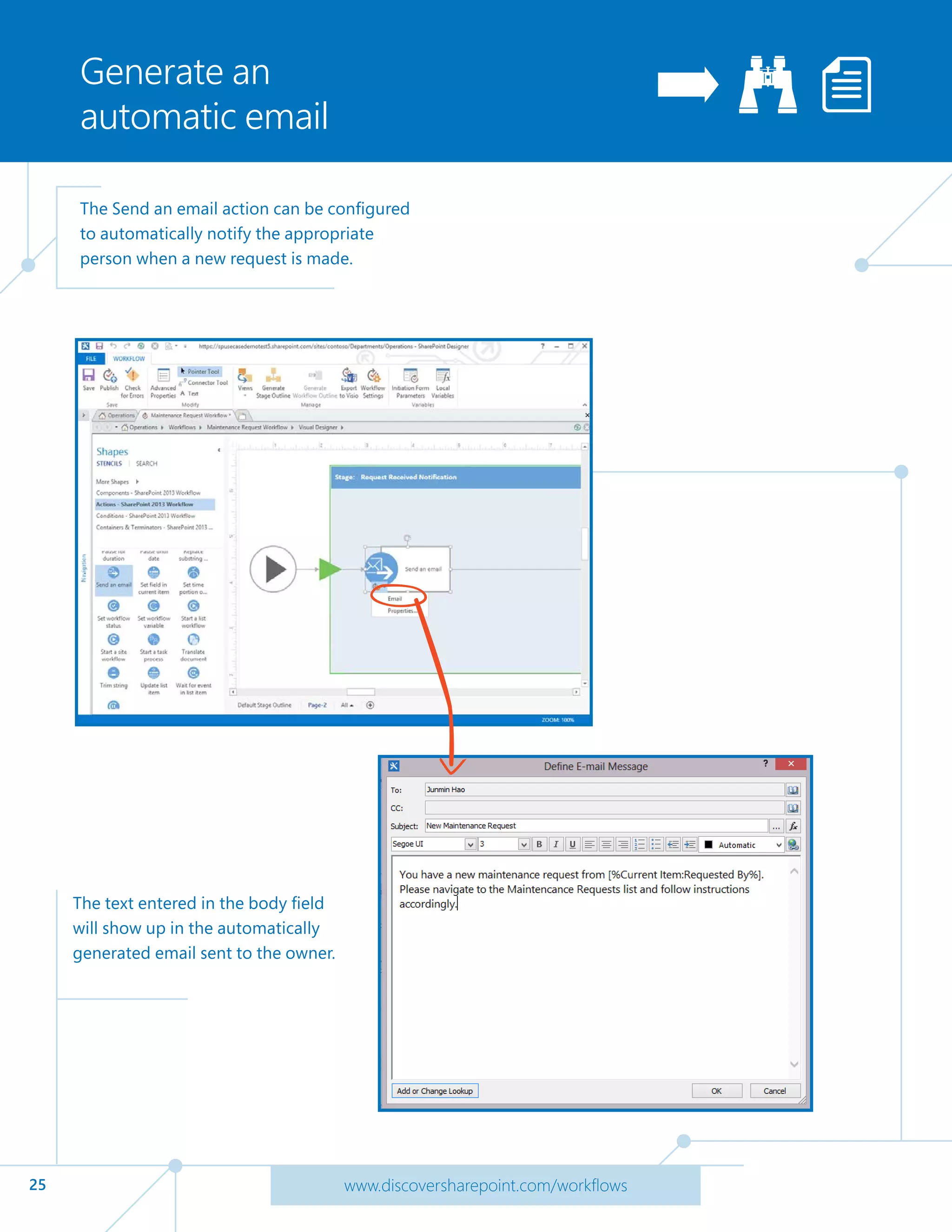
25 www.discoversharepoint.com/workflows
Generate an
automatic email
The Send an email action can be configured
to automatically notify the appropriate
person when a new request is made.
The text entered in the body field
will show up in the automatically
generated email sent to the owner.
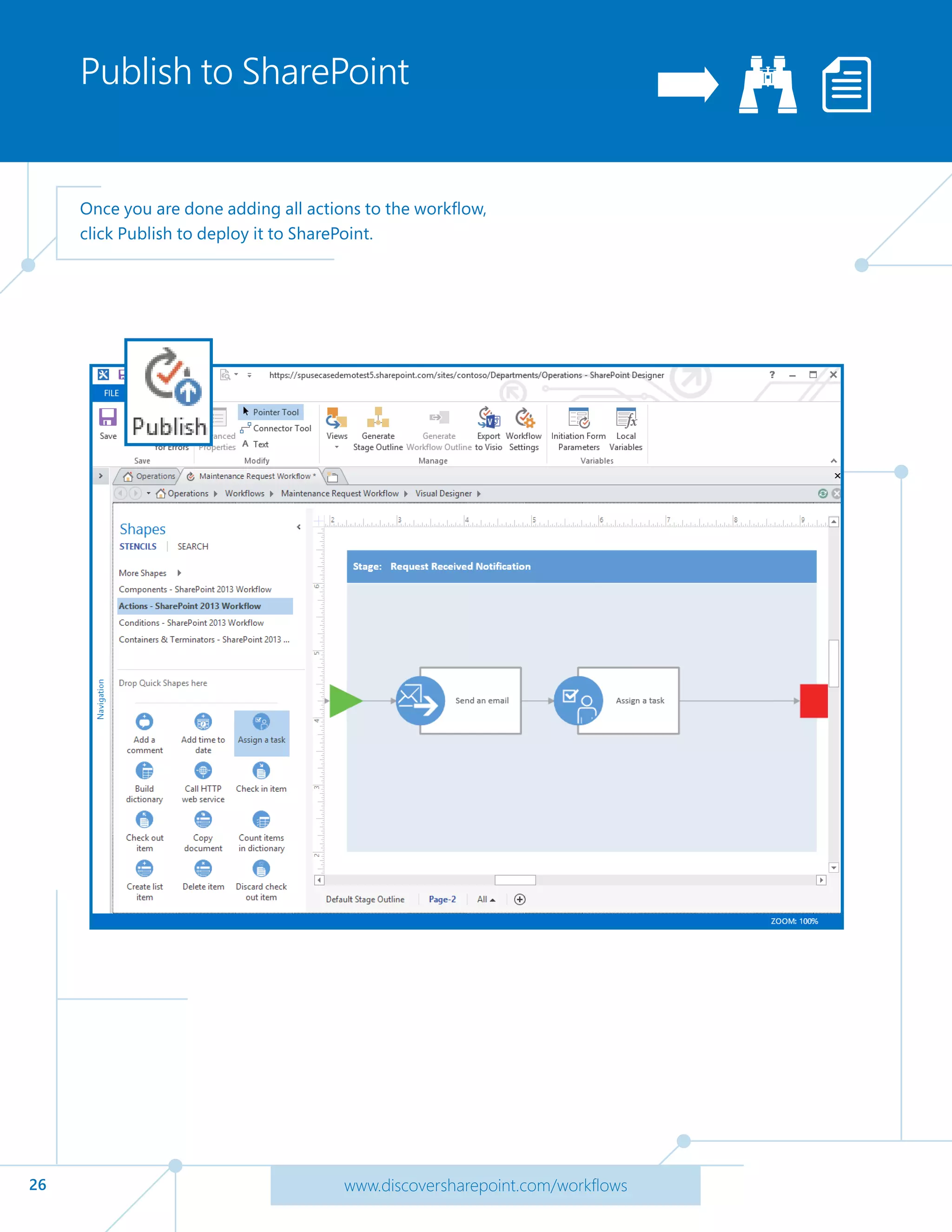
26 www.discoversharepoint.com/workflows
Publish to SharePoint
Once you are done adding all actions to the workflow,
click Publish to deploy it to SharePoint.
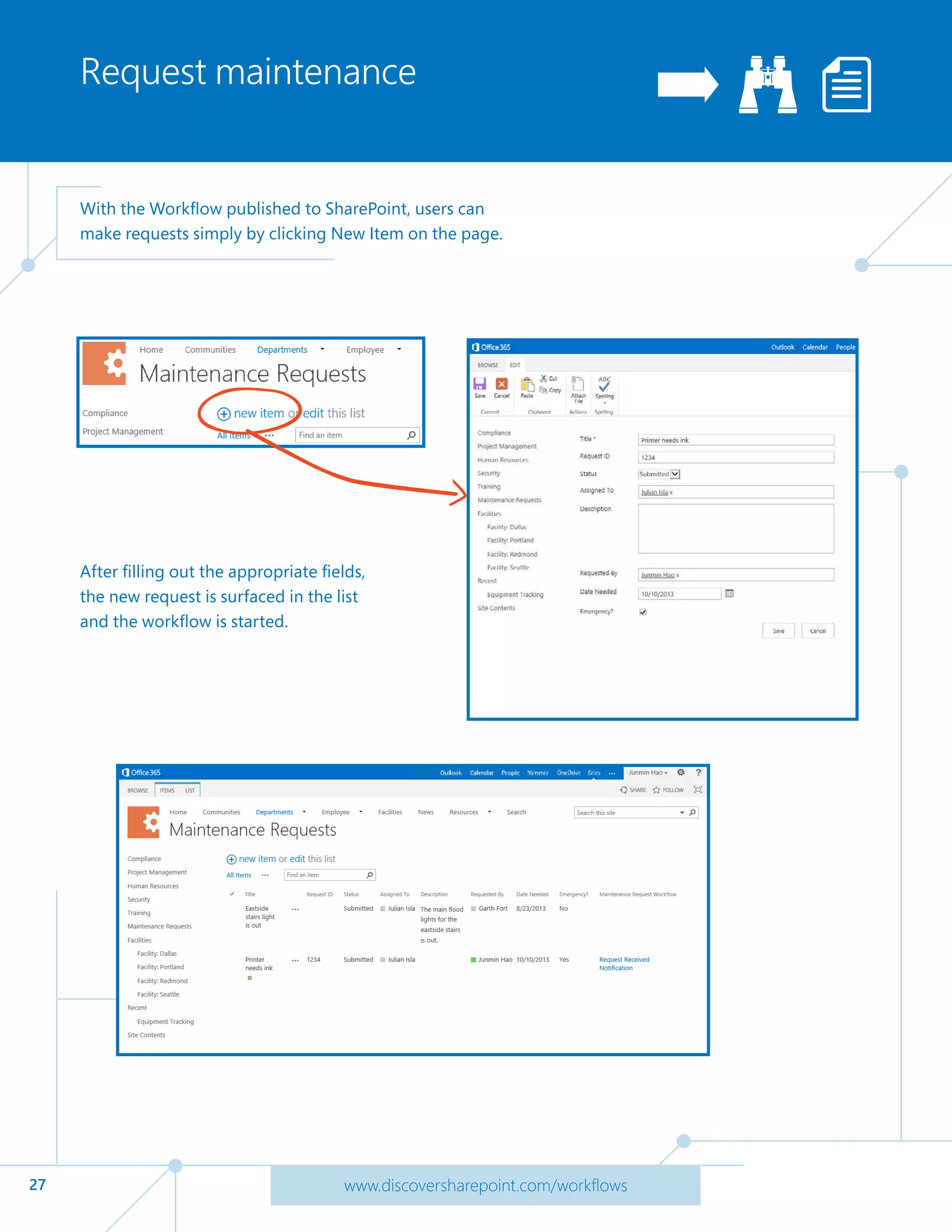
27 www.discoversharepoint.com/workflows
Request maintenance
With the Workflow published to SharePoint, users can
make requests simply by clicking New Item on the page.
After filling out the appropriate fields,
the new request is surfaced in the list
and the workflow is started.
28
Learn more
www.discoversharepoint.com/workflows
Office 365 for Business Learning Center
http://aka.ms/o365learning

SharePoint - Boost Business Processes - Atidan