



















ibm.com/redbooks
IBM PowerVM Virtualization
Introduction and Configuration
Stuart Devenish
Ingo Dimmer
Rafael Folco
Mark Roy
Stephane Saleur
Oliver Stadler
Naoya Takizawa
Basic and advanced configuration of
the Virtual I/O Server and its clients
Updated to include new
POWER7 technologies
The next generation of
PowerVM virtualization
Front cover
IBM PowerVM Virtualization
Introduction and Configuration
June 2011
International Technical Support Organization
SG24-7940-04
© Copyright International Business Machines Corporation 2010-2011. All rights reserved.
Note to U.S. Government Users Restricted Rights -- Use, duplication or disclosure restricted by GSA ADP
Schedule Contract with IBM Corp.
Fifth Edition (June 2011)
This edition applies to:
Version 7, Release 1 of AIX (product number 5765-G98)
Version 7, Release 1 of IBM i (product number 5770-SS1)
Version 2, Release 2, Modification 10, Fixpack 24, Service pack 1 of the Virtual I/O Server
Version 7, Release 7, Modification 2 of the HMC
Version EM350, release 85 of the POWER6 System Firmware
Version AL720, release 80 of the POWER7 System Firmware
Note: Before using this information and the product it supports, read the information in
“Notices” on page xvii.
© Copyright IBM Corp. 2010-2011. All rights reserved. iii
Contents
Figures . . . . . . . . . . . . . . . . . . . . . . . . . . . . . . . . . . . . . . . . . . . . . . . . . . . . . . .ix
Tables . . . . . . . . . . . . . . . . . . . . . . . . . . . . . . . . . . . . . . . . . . . . . . . . . . . . . . . xv
Notices . . . . . . . . . . . . . . . . . . . . . . . . . . . . . . . . . . . . . . . . . . . . . . . . . . . . . xvii
Trademarks . . . . . . . . . . . . . . . . . . . . . . . . . . . . . . . . . . . . . . . . . . . . . . . . . . xviii
Preface . . . . . . . . . . . . . . . . . . . . . . . . . . . . . . . . . . . . . . . . . . . . . . . . . . . . . . xix
The team who wrote this book . . . . . . . . . . . . . . . . . . . . . . . . . . . . . . . . . . . . . xix
Now you can become a published author, too! . . . . . . . . . . . . . . . . . . . . . . . xxii
Comments welcome. . . . . . . . . . . . . . . . . . . . . . . . . . . . . . . . . . . . . . . . . . . . xxii
Stay connected to IBM Redbooks . . . . . . . . . . . . . . . . . . . . . . . . . . . . . . . . . xxiii
Summary of changes. . . . . . . . . . . . . . . . . . . . . . . . . . . . . . . . . . . . . . . . . . xxv
June 2011, Fifth Edition . . . . . . . . . . . . . . . . . . . . . . . . . . . . . . . . . . . . . . . . . xxv
Chapter 1. Introduction. . . . . . . . . . . . . . . . . . . . . . . . . . . . . . . . . . . . . . . . . . 1
1.1 The value of virtualization on Power Systems. . . . . . . . . . . . . . . . . . . . . . . 2
1.2 PowerVM. . . . . . . . . . . . . . . . . . . . . . . . . . . . . . . . . . . . . . . . . . . . . . . . . . . 2
1.2.1 PowerVM editions . . . . . . . . . . . . . . . . . . . . . . . . . . . . . . . . . . . . . . . . 2
1.2.2 Logical partitions . . . . . . . . . . . . . . . . . . . . . . . . . . . . . . . . . . . . . . . . . 4
1.2.3 Virtual I/O Server. . . . . . . . . . . . . . . . . . . . . . . . . . . . . . . . . . . . . . . . . 6
1.2.4 I/O Virtualization . . . . . . . . . . . . . . . . . . . . . . . . . . . . . . . . . . . . . . . . . 7
1.2.5 Integrated Virtualization Manager . . . . . . . . . . . . . . . . . . . . . . . . . . . . 9
1.2.6 PowerVM Lx86 . . . . . . . . . . . . . . . . . . . . . . . . . . . . . . . . . . . . . . . . . . 9
1.2.7 Virtual Fibre Channel . . . . . . . . . . . . . . . . . . . . . . . . . . . . . . . . . . . . 10
1.2.8 Partition Suspend and Resume . . . . . . . . . . . . . . . . . . . . . . . . . . . . 10
1.2.9 Shared storage pools . . . . . . . . . . . . . . . . . . . . . . . . . . . . . . . . . . . . 12
1.2.10 Multiple Shared-Processor Pools . . . . . . . . . . . . . . . . . . . . . . . . . . 13
1.2.11 Active Memory Sharing . . . . . . . . . . . . . . . . . . . . . . . . . . . . . . . . . . 14
1.2.12 PowerVM Live Partition Mobility . . . . . . . . . . . . . . . . . . . . . . . . . . . 15
1.3 Complementary technologies . . . . . . . . . . . . . . . . . . . . . . . . . . . . . . . . . . 16
1.3.1 Simultaneous multithreading. . . . . . . . . . . . . . . . . . . . . . . . . . . . . . . 16
1.3.2 POWER processor modes . . . . . . . . . . . . . . . . . . . . . . . . . . . . . . . . 16
1.3.3 Active Memory Expansion. . . . . . . . . . . . . . . . . . . . . . . . . . . . . . . . . 17
1.3.4 Capacity on Demand. . . . . . . . . . . . . . . . . . . . . . . . . . . . . . . . . . . . . 18
1.3.5 System Planning Tool . . . . . . . . . . . . . . . . . . . . . . . . . . . . . . . . . . . . 19
1.4 Operating system support for virtualization . . . . . . . . . . . . . . . . . . . . . . . . 20
1.4.1 PowerVM features supported . . . . . . . . . . . . . . . . . . . . . . . . . . . . . . 20
iv IBM PowerVM Virtualization Introduction and Configuration
1.4.2 POWER7-specific Linux programming support. . . . . . . . . . . . . . . . . 21
1.5 Hardware support for virtualization . . . . . . . . . . . . . . . . . . . . . . . . . . . . . . 23
1.6 Availability of virtualized systems . . . . . . . . . . . . . . . . . . . . . . . . . . . . . . . 25
1.6.1 Reducing and avoiding outages . . . . . . . . . . . . . . . . . . . . . . . . . . . . 26
1.6.2 Serviceability in virtualized environments . . . . . . . . . . . . . . . . . . . . . 27
1.6.3 Redundant Virtual I/O Servers . . . . . . . . . . . . . . . . . . . . . . . . . . . . . 27
1.7 Security in a virtualized environment. . . . . . . . . . . . . . . . . . . . . . . . . . . . . 27
1.8 PowerVM Version 2.2 enhancements . . . . . . . . . . . . . . . . . . . . . . . . . . . . 28
1.9 Summary of PowerVM technology . . . . . . . . . . . . . . . . . . . . . . . . . . . . . . 29
Chapter 2. Virtualization technologies on IBM Power Systems . . . . . . . . 31
2.1 Editions of the PowerVM feature. . . . . . . . . . . . . . . . . . . . . . . . . . . . . . . . 32
2.1.1 PowerVM Express Edition. . . . . . . . . . . . . . . . . . . . . . . . . . . . . . . . . 33
2.1.2 PowerVM Standard Edition . . . . . . . . . . . . . . . . . . . . . . . . . . . . . . . . 34
2.1.3 PowerVM Enterprise . . . . . . . . . . . . . . . . . . . . . . . . . . . . . . . . . . . . . 35
2.1.4 Activating the PowerVM feature . . . . . . . . . . . . . . . . . . . . . . . . . . . . 36
2.1.5 Summary of PowerVM feature codes . . . . . . . . . . . . . . . . . . . . . . . . 39
2.2 Introduction to the POWER Hypervisor. . . . . . . . . . . . . . . . . . . . . . . . . . . 41
2.2.1 POWER Hypervisor virtual processor dispatch. . . . . . . . . . . . . . . . . 42
2.2.2 POWER Hypervisor and virtual I/O . . . . . . . . . . . . . . . . . . . . . . . . . . 46
2.2.3 System port (virtual TTY/console support) . . . . . . . . . . . . . . . . . . . . 47
2.3 Overview of Micro-Partitioning technologies . . . . . . . . . . . . . . . . . . . . . . . 48
2.3.1 Micro-partitions . . . . . . . . . . . . . . . . . . . . . . . . . . . . . . . . . . . . . . . . . 48
2.3.2 Shared-processor pools . . . . . . . . . . . . . . . . . . . . . . . . . . . . . . . . . . 57
2.3.3 Examples of Multiple Shared-Processor Pools . . . . . . . . . . . . . . . . . 77
2.3.4 Shared dedicated capacity . . . . . . . . . . . . . . . . . . . . . . . . . . . . . . . . 83
2.4 Memory virtualization . . . . . . . . . . . . . . . . . . . . . . . . . . . . . . . . . . . . . . . . 84
2.4.1 Active Memory Sharing . . . . . . . . . . . . . . . . . . . . . . . . . . . . . . . . . . . 86
2.4.2 Active Memory Expansion. . . . . . . . . . . . . . . . . . . . . . . . . . . . . . . . . 88
2.5 Virtual I/O Server. . . . . . . . . . . . . . . . . . . . . . . . . . . . . . . . . . . . . . . . . . . . 91
2.5.1 Supported platforms . . . . . . . . . . . . . . . . . . . . . . . . . . . . . . . . . . . . . 93
2.5.2 Virtual I/O Server sizing . . . . . . . . . . . . . . . . . . . . . . . . . . . . . . . . . . 93
2.5.3 Storage virtualization. . . . . . . . . . . . . . . . . . . . . . . . . . . . . . . . . . . . . 94
2.5.4 Shared Ethernet Adapter . . . . . . . . . . . . . . . . . . . . . . . . . . . . . . . . . 99
2.5.5 Network security . . . . . . . . . . . . . . . . . . . . . . . . . . . . . . . . . . . . . . . . 99
2.5.6 Command line interface . . . . . . . . . . . . . . . . . . . . . . . . . . . . . . . . . 100
2.5.7 Hardware Management Console integration. . . . . . . . . . . . . . . . . . 100
2.5.8 System Planning Tool support . . . . . . . . . . . . . . . . . . . . . . . . . . . . 100
2.5.9 Performance Toolbox support. . . . . . . . . . . . . . . . . . . . . . . . . . . . . 100
2.5.10 Integrated Virtualization Manager . . . . . . . . . . . . . . . . . . . . . . . . . 101
2.5.11 Tivoli support. . . . . . . . . . . . . . . . . . . . . . . . . . . . . . . . . . . . . . . . . 101
2.5.12 Allowed third party applications. . . . . . . . . . . . . . . . . . . . . . . . . . . 103
2.6 Integrated Virtualization Manager . . . . . . . . . . . . . . . . . . . . . . . . . . . . . . 103
Contents v
2.6.1 IVM setup guidelines. . . . . . . . . . . . . . . . . . . . . . . . . . . . . . . . . . . . 104
2.6.2 Partition configuration with IVM. . . . . . . . . . . . . . . . . . . . . . . . . . . . 106
2.7 Virtual SCSI introduction . . . . . . . . . . . . . . . . . . . . . . . . . . . . . . . . . . . . . 109
2.7.1 Partition access to virtual SCSI devices . . . . . . . . . . . . . . . . . . . . . 111
2.7.2 Shared Storage Pools . . . . . . . . . . . . . . . . . . . . . . . . . . . . . . . . . . . 118
2.7.3 General virtual SCSI considerations . . . . . . . . . . . . . . . . . . . . . . . . 125
2.8 N_Port ID Virtualization introduction . . . . . . . . . . . . . . . . . . . . . . . . . . . . 129
2.8.1 Redundancy configurations for virtual Fibre Channel adapters . . . 131
2.8.2 Implementation considerations . . . . . . . . . . . . . . . . . . . . . . . . . . . . 136
2.8.3 Requirements . . . . . . . . . . . . . . . . . . . . . . . . . . . . . . . . . . . . . . . . . 139
2.9 Virtual SCSI and NPIV comparison. . . . . . . . . . . . . . . . . . . . . . . . . . . . . 141
2.9.1 Overview . . . . . . . . . . . . . . . . . . . . . . . . . . . . . . . . . . . . . . . . . . . . . 141
2.9.2 Components and features. . . . . . . . . . . . . . . . . . . . . . . . . . . . . . . . 142
2.10 Virtual Networking . . . . . . . . . . . . . . . . . . . . . . . . . . . . . . . . . . . . . . . . . 144
2.10.1 Virtual Ethernet . . . . . . . . . . . . . . . . . . . . . . . . . . . . . . . . . . . . . . . 145
2.10.2 Virtual LAN . . . . . . . . . . . . . . . . . . . . . . . . . . . . . . . . . . . . . . . . . . 146
2.10.3 Virtual switches . . . . . . . . . . . . . . . . . . . . . . . . . . . . . . . . . . . . . . . 155
2.10.4 Accessing external networks. . . . . . . . . . . . . . . . . . . . . . . . . . . . . 159
2.10.5 Virtual and Shared Ethernet configuration example . . . . . . . . . . . 164
2.10.6 Integrated Virtual Ethernet . . . . . . . . . . . . . . . . . . . . . . . . . . . . . . 169
2.10.7 Performance considerations . . . . . . . . . . . . . . . . . . . . . . . . . . . . . 171
2.11 IBM i virtual I/O concepts . . . . . . . . . . . . . . . . . . . . . . . . . . . . . . . . . . . 172
2.11.1 Virtual Ethernet . . . . . . . . . . . . . . . . . . . . . . . . . . . . . . . . . . . . . . . 173
2.11.2 Virtual SCSI. . . . . . . . . . . . . . . . . . . . . . . . . . . . . . . . . . . . . . . . . . 174
2.11.3 N_Port ID Virtualization. . . . . . . . . . . . . . . . . . . . . . . . . . . . . . . . . 177
2.11.4 Multipathing and mirroring. . . . . . . . . . . . . . . . . . . . . . . . . . . . . . . 178
2.12 Linux virtual I/O concepts . . . . . . . . . . . . . . . . . . . . . . . . . . . . . . . . . . . 180
2.12.1 Linux device drivers for IBM Power Systems virtual devices . . . . 180
2.12.2 Linux as Virtual I/O Server client. . . . . . . . . . . . . . . . . . . . . . . . . . 181
2.13 Software licensing in a virtualized environment . . . . . . . . . . . . . . . . . . 184
2.13.1 Software licensing methods for operating systems. . . . . . . . . . . . 185
2.13.2 Licensing factors in a virtualized system. . . . . . . . . . . . . . . . . . . . 185
2.13.3 Capacity capping of partitions . . . . . . . . . . . . . . . . . . . . . . . . . . . . 186
2.13.4 License planning and license provisioning of IBM software . . . . . 190
2.13.5 Sub-capacity licensing for IBM software . . . . . . . . . . . . . . . . . . . . 191
2.13.6 Linux operating system licensing . . . . . . . . . . . . . . . . . . . . . . . . . 193
2.13.7 IBM License Metric Tool . . . . . . . . . . . . . . . . . . . . . . . . . . . . . . . . 193
2.14 Introduction to simultaneous multithreading . . . . . . . . . . . . . . . . . . . . . 195
2.14.1 POWER processor SMT . . . . . . . . . . . . . . . . . . . . . . . . . . . . . . . . 196
2.14.2 SMT and the operating system . . . . . . . . . . . . . . . . . . . . . . . . . . . 197
2.14.3 SMT control in IBM i . . . . . . . . . . . . . . . . . . . . . . . . . . . . . . . . . . . 201
2.14.4 SMT control in Linux . . . . . . . . . . . . . . . . . . . . . . . . . . . . . . . . . . . 202
2.15 Dynamic resources . . . . . . . . . . . . . . . . . . . . . . . . . . . . . . . . . . . . . . . . 203
vi IBM PowerVM Virtualization Introduction and Configuration
2.15.1 Dedicated-processor partitions . . . . . . . . . . . . . . . . . . . . . . . . . . . 203
2.15.2 Micro-partitions . . . . . . . . . . . . . . . . . . . . . . . . . . . . . . . . . . . . . . . 203
2.15.3 Dynamic LPAR operations . . . . . . . . . . . . . . . . . . . . . . . . . . . . . . 204
2.15.4 Capacity on Demand. . . . . . . . . . . . . . . . . . . . . . . . . . . . . . . . . . . 204
2.16 Partition Suspend and Resume. . . . . . . . . . . . . . . . . . . . . . . . . . . . . . . 205
2.16.1 Configuration requirements. . . . . . . . . . . . . . . . . . . . . . . . . . . . . . 206
2.16.2 The Reserved Storage Device Pool . . . . . . . . . . . . . . . . . . . . . . . 207
2.16.3 Suspend/Resume and Shared Memory . . . . . . . . . . . . . . . . . . . . 209
2.16.4 Shutdown . . . . . . . . . . . . . . . . . . . . . . . . . . . . . . . . . . . . . . . . . . . 214
2.16.5 Recover. . . . . . . . . . . . . . . . . . . . . . . . . . . . . . . . . . . . . . . . . . . . . 214
2.16.6 Migrate . . . . . . . . . . . . . . . . . . . . . . . . . . . . . . . . . . . . . . . . . . . . . 215
Chapter 3. Setting up virtualization: The basics . . . . . . . . . . . . . . . . . . . 217
3.1 Getting started. . . . . . . . . . . . . . . . . . . . . . . . . . . . . . . . . . . . . . . . . . . . . 218
3.1.1 Command line interface . . . . . . . . . . . . . . . . . . . . . . . . . . . . . . . . . 218
3.1.2 Hardware resources managed . . . . . . . . . . . . . . . . . . . . . . . . . . . . 223
3.1.3 Software packaging and support. . . . . . . . . . . . . . . . . . . . . . . . . . . 224
3.1.4 Updating the Virtual I/O Server using fix packs. . . . . . . . . . . . . . . . 225
3.2 Virtual I/O Server configuration . . . . . . . . . . . . . . . . . . . . . . . . . . . . . . . . 226
3.2.1 Creating the Virtual I/O Server partition . . . . . . . . . . . . . . . . . . . . . 226
3.2.2 Virtual I/O Server software installation . . . . . . . . . . . . . . . . . . . . . . 246
3.2.3 Mirroring the Virtual I/O Server rootvg . . . . . . . . . . . . . . . . . . . . . . 252
3.2.4 Creating a Shared Ethernet Adapter. . . . . . . . . . . . . . . . . . . . . . . . 254
3.2.5 Defining virtual disks . . . . . . . . . . . . . . . . . . . . . . . . . . . . . . . . . . . . 258
3.2.6 Virtual SCSI optical devices . . . . . . . . . . . . . . . . . . . . . . . . . . . . . . 272
3.2.7 Setting up a virtual tape drive . . . . . . . . . . . . . . . . . . . . . . . . . . . . . 282
3.2.8 Virtual FC devices using N_Port ID Virtualization . . . . . . . . . . . . . . 283
3.3 Client partition configuration . . . . . . . . . . . . . . . . . . . . . . . . . . . . . . . . . . 297
3.3.1 Creating a Virtual I/O Server client partition . . . . . . . . . . . . . . . . . . 297
3.3.2 Dedicated donating processors. . . . . . . . . . . . . . . . . . . . . . . . . . . . 310
3.3.3 AIX client partition installation . . . . . . . . . . . . . . . . . . . . . . . . . . . . . 312
3.3.4 IBM i client partition installation. . . . . . . . . . . . . . . . . . . . . . . . . . . . 319
3.4 Linux client partition installation. . . . . . . . . . . . . . . . . . . . . . . . . . . . . . . . 321
3.4.1 Installing Linux from the network. . . . . . . . . . . . . . . . . . . . . . . . . . . 321
3.4.2 Installing Linux from a Virtual Media Library device . . . . . . . . . . . . 324
3.5 Using system plans and System Planning Tool . . . . . . . . . . . . . . . . . . . 324
3.5.1 Creating a configuration using SPT and deploying on the HMC. . . 325
3.5.2 Installing the Virtual I/O Server image using installios . . . . . . . . . . 338
3.5.3 Creating an HMC system plan . . . . . . . . . . . . . . . . . . . . . . . . . . . . 340
3.5.4 Exporting an HMC system plan to SPT. . . . . . . . . . . . . . . . . . . . . . 345
3.5.5 Adding a partition in SPT to be deployed on the HMC . . . . . . . . . . 345
3.6 Active Memory Expansion. . . . . . . . . . . . . . . . . . . . . . . . . . . . . . . . . . . . 347
3.7 Partition Suspend and Resume. . . . . . . . . . . . . . . . . . . . . . . . . . . . . . . . 350
Contents vii
3.7.1 Creating a reserved storage device pool . . . . . . . . . . . . . . . . . . . . 350
3.7.2 Creating a suspend and resume capable partition . . . . . . . . . . . . . 357
3.7.3 Validating that a partition is suspend capable. . . . . . . . . . . . . . . . . 360
3.7.4 Suspending a partition . . . . . . . . . . . . . . . . . . . . . . . . . . . . . . . . . . 362
3.7.5 Validating that a partition is resume capable . . . . . . . . . . . . . . . . . 367
3.7.6 Resuming a partition . . . . . . . . . . . . . . . . . . . . . . . . . . . . . . . . . . . . 369
3.8 Shared Storage Pools configuration . . . . . . . . . . . . . . . . . . . . . . . . . . . . 372
3.8.1 Creating a shared storage pool. . . . . . . . . . . . . . . . . . . . . . . . . . . . 373
3.8.2 Create and map logical units in a shared storage pool . . . . . . . . . . 376
Chapter 4. Advanced virtualization configurations . . . . . . . . . . . . . . . . . 379
4.1 Virtual I/O Server redundancy . . . . . . . . . . . . . . . . . . . . . . . . . . . . . . . . . 380
4.2 Virtual storage redundancy . . . . . . . . . . . . . . . . . . . . . . . . . . . . . . . . . . . 385
4.3 Multipathing in the client partition . . . . . . . . . . . . . . . . . . . . . . . . . . . . . . 387
4.3.1 Multipathing in the AIX client partition . . . . . . . . . . . . . . . . . . . . . . . 387
4.3.2 Multipathing in the IBM i client partition. . . . . . . . . . . . . . . . . . . . . . 391
4.3.3 Multipathing in the Linux client partition . . . . . . . . . . . . . . . . . . . . . 391
4.4 Multipathing in the Virtual I/O Server. . . . . . . . . . . . . . . . . . . . . . . . . . . . 392
4.4.1 Fibre Channel device configuration. . . . . . . . . . . . . . . . . . . . . . . . . 393
4.4.2 hdisk device configuration on the Virtual I/O Server . . . . . . . . . . . . 393
4.4.3 SDDPCM and third-party multipathing software . . . . . . . . . . . . . . . 394
4.5 Mirroring in the client partition . . . . . . . . . . . . . . . . . . . . . . . . . . . . . . . . . 394
4.5.1 AIX LVM mirroring in the client partition . . . . . . . . . . . . . . . . . . . . . 394
4.5.2 IBM i mirroring in the client partition . . . . . . . . . . . . . . . . . . . . . . . . 396
4.5.3 Linux mirroring in the client partition . . . . . . . . . . . . . . . . . . . . . . . . 396
4.6 Virtual Ethernet redundancy . . . . . . . . . . . . . . . . . . . . . . . . . . . . . . . . . . 397
4.6.1 Shared Ethernet Adapter failover . . . . . . . . . . . . . . . . . . . . . . . . . . 398
4.6.2 Network Interface Backup in the client partition . . . . . . . . . . . . . . . 401
4.6.3 When to use SEA failover or Network Interface Backup. . . . . . . . . 403
4.6.4 Using Link Aggregation on the Virtual I/O Server . . . . . . . . . . . . . . 404
4.7 Configuring Multiple Shared-Processor Pools. . . . . . . . . . . . . . . . . . . . . 407
4.7.1 Shared-Processor Pool management using the HMC GUI. . . . . . . 409
4.7.2 Shared-Processor Pool management using the command line . . . 415
4.8 AIX clients supported configurations . . . . . . . . . . . . . . . . . . . . . . . . . . . . 417
4.8.1 Supported virtual SCSI configurations . . . . . . . . . . . . . . . . . . . . . . 417
4.8.2 IBM PowerHA SystemMirror for AIX virtual I/O clients . . . . . . . . . . 427
4.8.3 Concurrent disks in AIX client partitions . . . . . . . . . . . . . . . . . . . . . 431
4.8.4 General Parallel Filesystem . . . . . . . . . . . . . . . . . . . . . . . . . . . . . . 433
Chapter 5. Configuration scenarios . . . . . . . . . . . . . . . . . . . . . . . . . . . . . 435
5.1 Shared Ethernet Adapter failover . . . . . . . . . . . . . . . . . . . . . . . . . . . . . . 436
5.1.1 Configuring Shared Ethernet Adapter failover . . . . . . . . . . . . . . . . 437
5.1.2 Testing Shared Ethernet Adapter failover . . . . . . . . . . . . . . . . . . . . 440
5.2 Network Interface Backup in the AIX client . . . . . . . . . . . . . . . . . . . . . . . 442
viii IBM PowerVM Virtualization Introduction and Configuration
5.2.1 Configuring Network Interface Backup . . . . . . . . . . . . . . . . . . . . . . 443
5.2.2 Testing Network Interface Backup . . . . . . . . . . . . . . . . . . . . . . . . . 444
5.3 Linux Ethernet connection bonding. . . . . . . . . . . . . . . . . . . . . . . . . . . . . 447
5.3.1 Overview . . . . . . . . . . . . . . . . . . . . . . . . . . . . . . . . . . . . . . . . . . . . . 447
5.3.2 Testing Ethernet connection bonding . . . . . . . . . . . . . . . . . . . . . . . 448
5.4 Setting up a VLAN. . . . . . . . . . . . . . . . . . . . . . . . . . . . . . . . . . . . . . . . . . 450
5.4.1 Configuring the client partitions. . . . . . . . . . . . . . . . . . . . . . . . . . . . 452
5.4.2 Configuring the Virtual I/O Server . . . . . . . . . . . . . . . . . . . . . . . . . . 454
5.4.3 Ensuring VLAN tags are not stripped on the Virtual I/O Server . . . 455
5.4.4 Configuring the Shared Ethernet Adapter for VLAN use. . . . . . . . . 456
5.4.5 Extending multiple VLANs into client partitions. . . . . . . . . . . . . . . . 457
5.4.6 Virtual Ethernet and SEA considerations . . . . . . . . . . . . . . . . . . . . 460
5.5 Multipathing. . . . . . . . . . . . . . . . . . . . . . . . . . . . . . . . . . . . . . . . . . . . . . . 461
5.5.1 Configuring multipathing in the server. . . . . . . . . . . . . . . . . . . . . . . 463
5.5.2 AIX client multipathing. . . . . . . . . . . . . . . . . . . . . . . . . . . . . . . . . . . 470
5.5.3 IBM i client multipathing . . . . . . . . . . . . . . . . . . . . . . . . . . . . . . . . . 476
5.5.4 Linux client multipathing . . . . . . . . . . . . . . . . . . . . . . . . . . . . . . . . . 489
5.6 Mirroring . . . . . . . . . . . . . . . . . . . . . . . . . . . . . . . . . . . . . . . . . . . . . . . . . 494
5.6.1 Configuring the Virtual I/O Server for client mirroring . . . . . . . . . . . 495
5.6.2 AIX client LVM mirroring . . . . . . . . . . . . . . . . . . . . . . . . . . . . . . . . . 500
5.6.3 IBM i client mirroring . . . . . . . . . . . . . . . . . . . . . . . . . . . . . . . . . . . . 504
5.6.4 Linux client mirroring . . . . . . . . . . . . . . . . . . . . . . . . . . . . . . . . . . . . 528
Appendix A. Recent PowerVM enhancements . . . . . . . . . . . . . . . . . . . . . 533
A.1 Tracking the latest virtualization enhancements . . . . . . . . . . . . . . . . . . . 534
A.2 New features in Version 2.2 FP24-SP1 of Virtual I/O Server . . . . . . . . . 534
A.3 New features in Version 2.1 of Virtual I/O Server . . . . . . . . . . . . . . . . . . 536
A.4 Other PowerVM enhancements . . . . . . . . . . . . . . . . . . . . . . . . . . . . . . . 537
A.5 New features in Version 1.5 of the Virtual I/O Server . . . . . . . . . . . . . . . 537
A.6 New features in Version 1.4 of the Virtual I/O Server . . . . . . . . . . . . . . . 542
A.7 New features in Version 1.3 of the Virtual I/O Server . . . . . . . . . . . . . . . 542
A.8 New features in Version 1.2 of the Virtual I/O Server . . . . . . . . . . . . . . . 547
A.9 IVM V1.5 content . . . . . . . . . . . . . . . . . . . . . . . . . . . . . . . . . . . . . . . . . . 548
Abbreviations and acronyms . . . . . . . . . . . . . . . . . . . . . . . . . . . . . . . . . . . 549
Related publications . . . . . . . . . . . . . . . . . . . . . . . . . . . . . . . . . . . . . . . . . . 553
IBM Redbooks publications . . . . . . . . . . . . . . . . . . . . . . . . . . . . . . . . . . . . . . 553
Other publications . . . . . . . . . . . . . . . . . . . . . . . . . . . . . . . . . . . . . . . . . . . . . 554
Online resources . . . . . . . . . . . . . . . . . . . . . . . . . . . . . . . . . . . . . . . . . . . . . . 554
How to get Redbooks publications . . . . . . . . . . . . . . . . . . . . . . . . . . . . . . . . . 556
Help from IBM . . . . . . . . . . . . . . . . . . . . . . . . . . . . . . . . . . . . . . . . . . . . . . . . 556
Index . . . . . . . . . . . . . . . . . . . . . . . . . . . . . . . . . . . . . . . . . . . . . . . . . . . . . . . 557
© Copyright IBM Corp. 2010-2011. All rights reserved. ix
Figures
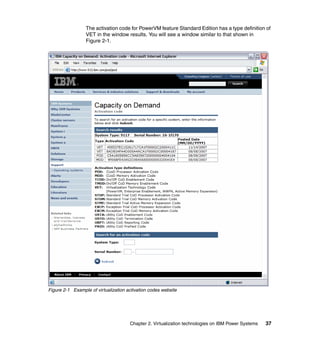
2-1 Example of virtualization activation codes website . . . . . . . . . . . . . . . . . . 37
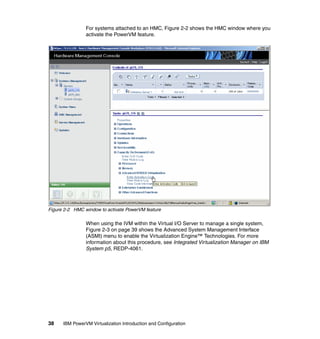
2-2 HMC window to activate PowerVM feature. . . . . . . . . . . . . . . . . . . . . . . . 38
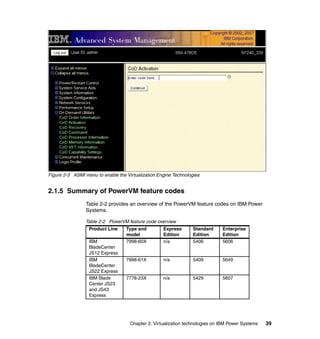
2-3 ASMI menu to enable the Virtualization Engine Technologies . . . . . . . . . 39
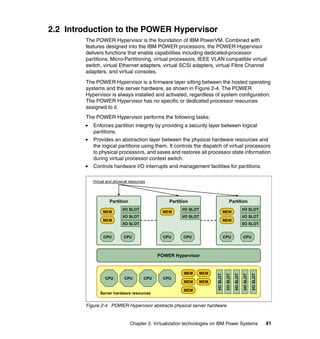
2-4 POWER Hypervisor abstracts physical server hardware . . . . . . . . . . . . . 41
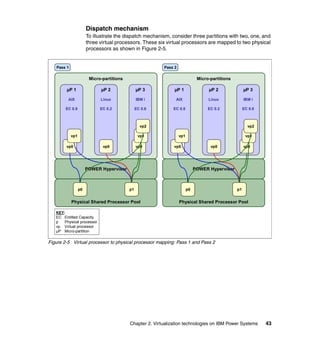
2-5 Virtual processor to physical processor mapping: Pass 1 and Pass 2 . . . 43
2-6 Micro-Partitioning processor dispatch . . . . . . . . . . . . . . . . . . . . . . . . . . . . 44
2-7 POWER5 physical shared processor pool and micro-partitions . . . . . . . . 58
2-8 Distribution of processor capacity entitlement on virtual processors . . . . 59
2-9 Example of capacity distribution of a capped micro-partition . . . . . . . . . . 61
2-10 Example of capacity distribution of an uncapped micro-partition . . . . . . 62
2-11 Overview of the architecture of Multiple Shared-Processor Pools . . . . . 63
2-12 Redistribution of ceded capacity within Shared-Processor Pool1 . . . . . . 66
2-13 Example of Multiple Shared-Processor Pools. . . . . . . . . . . . . . . . . . . . . 67
2-14 POWER6 (or later) server with two Shared-Processor Pools defined . . 70
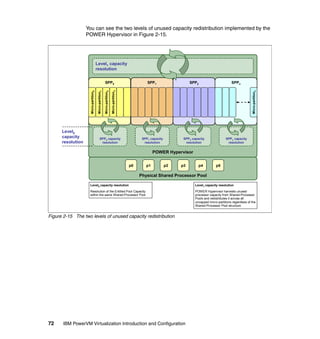
2-15 The two levels of unused capacity redistribution. . . . . . . . . . . . . . . . . . . 72
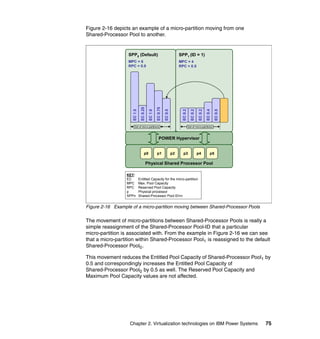
2-16 Example of a micro-partition moving between Shared-Processor Pools 75
2-17 Example of a Web-facing deployment using Shared-Processor Pools. . 77
2-18 Web deployment using Shared-Processor Pools . . . . . . . . . . . . . . . . . . 78
2-19 Capped Shared-Processor Pool offering database services . . . . . . . . . 80
2-20 Example of a system with Multiple Shared-Processor Pools . . . . . . . . . 82
2-21 Active Memory Sharing concepts . . . . . . . . . . . . . . . . . . . . . . . . . . . . . . 87
2-22 Active Memory Expansion example partition . . . . . . . . . . . . . . . . . . . . . 89
2-23 Simple Virtual I/O Server configuration . . . . . . . . . . . . . . . . . . . . . . . . . . 92
2-24 Virtual I/O Server concepts . . . . . . . . . . . . . . . . . . . . . . . . . . . . . . . . . . . 96
2-25 Integrated Virtualization Manager configuration on a POWER6 server 105
2-26 Basic configuration flow of virtual SCSI resources . . . . . . . . . . . . . . . . 112
2-27 Virtual SCSI architecture overview . . . . . . . . . . . . . . . . . . . . . . . . . . . . 114
2-28 Queue depths and virtual SCSI considerations . . . . . . . . . . . . . . . . . . 115
2-29 Logical Remote Direct Memory Access . . . . . . . . . . . . . . . . . . . . . . . . 117
2-30 Abstract image of the clustered Virtual I/O Servers . . . . . . . . . . . . . . . 121
2-31 Thin-provisioned devices in the shared storage pool . . . . . . . . . . . . . . 124
2-32 Comparing virtual SCSI and NPIV . . . . . . . . . . . . . . . . . . . . . . . . . . . . 129
2-33 Virtual I/O Server virtual Fibre Channel adapter mappings. . . . . . . . . . 130
2-34 Host bus adapter failover . . . . . . . . . . . . . . . . . . . . . . . . . . . . . . . . . . . 132
2-35 Host bus adapter and Virtual I/O Server failover. . . . . . . . . . . . . . . . . . 133
2-36 Heterogeneous multipathing configuration with NPIV. . . . . . . . . . . . . . 135
2-37 Server using redundant Virtual I/O Server partitions with NPIV . . . . . . 137
2-38 Example of VLANs . . . . . . . . . . . . . . . . . . . . . . . . . . . . . . . . . . . . . . . . 147
x IBM PowerVM Virtualization Introduction and Configuration
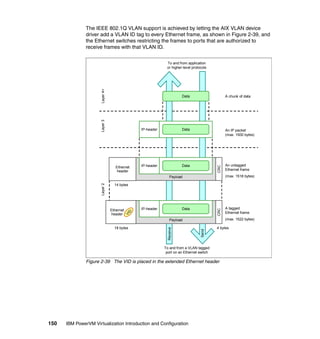
2-39 The VID is placed in the extended Ethernet header . . . . . . . . . . . . . . . 150
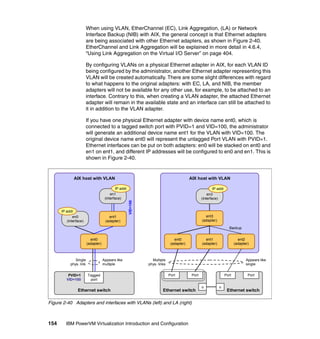
2-40 Adapters and interfaces with VLANs (left) and LA (right) . . . . . . . . . . . 154
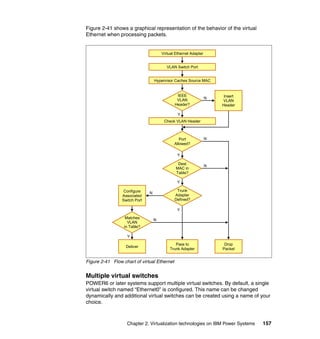
2-41 Flow chart of virtual Ethernet . . . . . . . . . . . . . . . . . . . . . . . . . . . . . . . . 157
2-42 Shared Ethernet Adapter . . . . . . . . . . . . . . . . . . . . . . . . . . . . . . . . . . . 160
2-43 Connection to external network using routing . . . . . . . . . . . . . . . . . . . . 163
2-44 VLAN configuration example. . . . . . . . . . . . . . . . . . . . . . . . . . . . . . . . . 165
2-45 Adding virtual Ethernet adapters on the Virtual I/O Server for VLANs . 167
2-46 Virtual I/O Server SEA comparison with Integrated Virtual Ethernet . . 170
2-47 Virtual Ethernet adapter reported on IBM i . . . . . . . . . . . . . . . . . . . . . . 174
2-48 Page conversion of 520-bytes to 512-bytes sectors . . . . . . . . . . . . . . . 175
2-49 Virtual SCSI disk unit reported on IBM i . . . . . . . . . . . . . . . . . . . . . . . . 176
2-50 NPIV devices reported on IBM i . . . . . . . . . . . . . . . . . . . . . . . . . . . . . . 177
2-51 IBM i multipathing or mirroring for virtual SCSI . . . . . . . . . . . . . . . . . . . 179
2-52 Single Virtual I/O Server with dual paths to the same disk . . . . . . . . . . 182
2-53 Dual Virtual I/O Server accessing the same disk . . . . . . . . . . . . . . . . . 183
2-54 Implementing mirroring at client or server level . . . . . . . . . . . . . . . . . . 184
2-55 License boundaries with different processor and pool modes . . . . . . . 189
2-56 Licensing requirements for a non-partitioned server. . . . . . . . . . . . . . . 192
2-57 Licensing requirements in a micro-partitioned server . . . . . . . . . . . . . . 192
2-58 Physical, virtual, and logical processors . . . . . . . . . . . . . . . . . . . . . . . . 197
2-59 SMIT SMT panel with options . . . . . . . . . . . . . . . . . . . . . . . . . . . . . . . . 200
2-60 IBM i processor multi-tasking system value . . . . . . . . . . . . . . . . . . . . . 201
2-61 Reserved Storage Device Pool . . . . . . . . . . . . . . . . . . . . . . . . . . . . . . . 208
2-62 Pool management interfaces . . . . . . . . . . . . . . . . . . . . . . . . . . . . . . . . 210
2-63 Shared Memory Pool and Reserved Storage Device Pool . . . . . . . . . . 211
3-1 Virtual I/O Server Config Assist menu. . . . . . . . . . . . . . . . . . . . . . . . . . . 218
3-2 Basic Virtual I/O Server scenario . . . . . . . . . . . . . . . . . . . . . . . . . . . . . . 226
3-3 Hardware Management Console server view . . . . . . . . . . . . . . . . . . . . . 227
3-4 HMC Starting the Create Logical Partition wizard. . . . . . . . . . . . . . . . . . 228
3-5 HMC Defining the partition ID and partition name. . . . . . . . . . . . . . . . . . 229
3-6 HMC Naming the partition profile . . . . . . . . . . . . . . . . . . . . . . . . . . . . . . 230
3-7 HMC Select whether processors are to be shared or dedicated. . . . . . . 231
3-8 HMC Virtual I/O Server processor settings for a micro-partition . . . . . . . 232
3-9 HMC Virtual I/O Server memory settings . . . . . . . . . . . . . . . . . . . . . . . . 234
3-10 HMC Virtual I/O Server physical I/O selection for the partition . . . . . . . 235
3-11 HMC start menu for creating virtual adapters. . . . . . . . . . . . . . . . . . . . 237
3-12 HMC Selecting to create a virtual Ethernet adapter . . . . . . . . . . . . . . . 238
3-13 HMC Creating the virtual Ethernet adapter . . . . . . . . . . . . . . . . . . . . . . 239
3-14 HMC Creating the virtual SCSI server adapter for the DVD . . . . . . . . . 240
3-15 HMC virtual SCSI server adapter for the NIM_server . . . . . . . . . . . . . . 241
3-16 HMC List of created virtual adapters. . . . . . . . . . . . . . . . . . . . . . . . . . . 242
3-17 HMC Menu for creating Logical Host Ethernet Adapters . . . . . . . . . . . 243
3-18 HMC Menu Optional Settings . . . . . . . . . . . . . . . . . . . . . . . . . . . . . . . . 244
Figures xi
3-19 HMC Menu Profile Summary . . . . . . . . . . . . . . . . . . . . . . . . . . . . . . . . 245
3-20 HMC The created partition VIO_Server1 . . . . . . . . . . . . . . . . . . . . . . . 246
3-21 HMC Activating a partition. . . . . . . . . . . . . . . . . . . . . . . . . . . . . . . . . . . 248
3-22 HMC Activate Logical Partition submenu . . . . . . . . . . . . . . . . . . . . . . . 249
3-23 HMC Selecting the SMS menu for startup . . . . . . . . . . . . . . . . . . . . . . 250
3-24 The SMS startup menu . . . . . . . . . . . . . . . . . . . . . . . . . . . . . . . . . . . . . 251
3-25 Setting TCP/IP parameters using the cfgassist command . . . . . . . . . . 257
3-26 Starting the shared storage management HMC dialog . . . . . . . . . . . . . 265
3-27 Creating a storage pool using the HMC . . . . . . . . . . . . . . . . . . . . . . . . 266
3-28 Defining storage pool attributes using the HMC GUI . . . . . . . . . . . . . . 267
3-29 Creating a virtual disk using the HMC. . . . . . . . . . . . . . . . . . . . . . . . . . 268
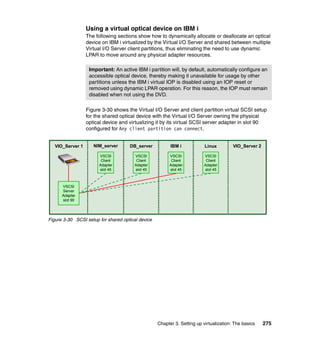
3-30 SCSI setup for shared optical device . . . . . . . . . . . . . . . . . . . . . . . . . . 275
3-31 IBM i Work with Storage Resources panel . . . . . . . . . . . . . . . . . . . . . . 276
3-32 IBM i Logical Hardware Resources panel I/O debug option . . . . . . . . . 277
3-33 IBM i Select IOP Debug Function panel IPL I/O processor option . . . . 278
3-34 IBM i Select IOP Debug Function panel Reset I/O processor option . . 279
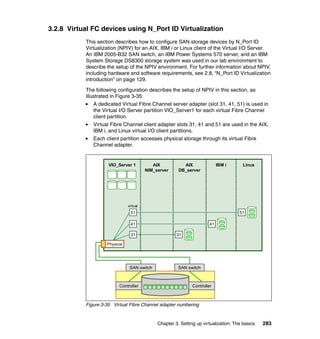
3-35 Virtual Fibre Channel adapter numbering . . . . . . . . . . . . . . . . . . . . . . . 283
3-36 Dynamically add virtual adapter . . . . . . . . . . . . . . . . . . . . . . . . . . . . . . 285
3-37 Create Fibre Channel server adapter . . . . . . . . . . . . . . . . . . . . . . . . . . 286
3-38 Set virtual adapter ID . . . . . . . . . . . . . . . . . . . . . . . . . . . . . . . . . . . . . . 287
3-39 Save the Virtual I/O Server partition configuration . . . . . . . . . . . . . . . . 288
3-40 Change profile to add virtual Fibre Channel client adapter . . . . . . . . . . 289
3-41 Create Fibre Channel client adapter . . . . . . . . . . . . . . . . . . . . . . . . . . . 290
3-42 Define virtual adapter ID values . . . . . . . . . . . . . . . . . . . . . . . . . . . . . . 291
3-43 Select virtual Fibre Channel client adapter properties . . . . . . . . . . . . . 293
3-44 Virtual Fibre Channel client adapter properties. . . . . . . . . . . . . . . . . . . 294
3-45 IBM i logical hardware resources with NPIV devices . . . . . . . . . . . . . . 296
3-46 Creating client logical partition . . . . . . . . . . . . . . . . . . . . . . . . . . . . . . . 298
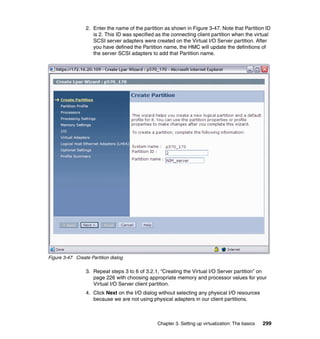
3-47 Create Partition dialog. . . . . . . . . . . . . . . . . . . . . . . . . . . . . . . . . . . . . . 299
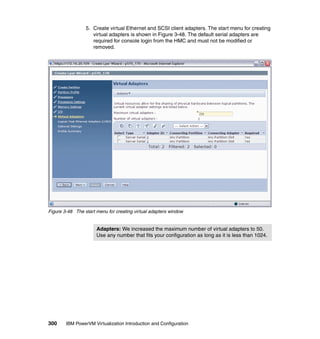
3-48 The start menu for creating virtual adapters window . . . . . . . . . . . . . . 300
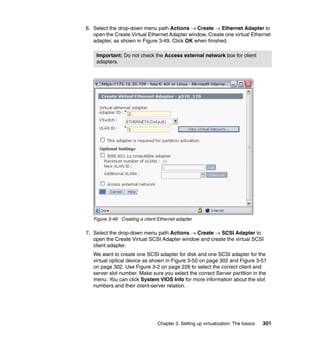
3-49 Creating a client Ethernet adapter . . . . . . . . . . . . . . . . . . . . . . . . . . . . 301
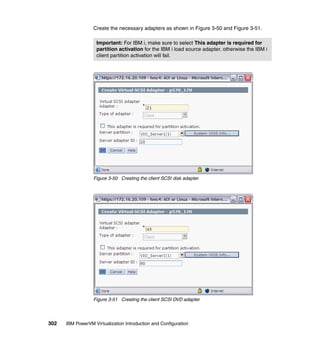
3-50 Creating the client SCSI disk adapter . . . . . . . . . . . . . . . . . . . . . . . . . . 302
3-51 Creating the client SCSI DVD adapter . . . . . . . . . . . . . . . . . . . . . . . . . 302
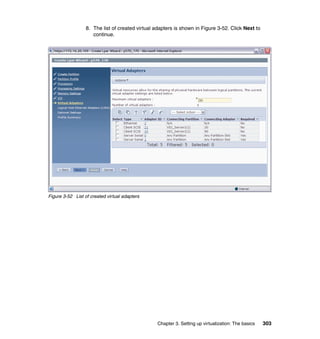
3-52 List of created virtual adapters . . . . . . . . . . . . . . . . . . . . . . . . . . . . . . . 303
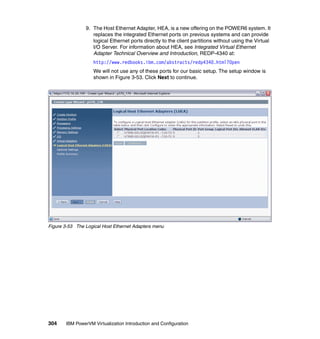
3-53 The Logical Host Ethernet Adapters menu . . . . . . . . . . . . . . . . . . . . . . 304
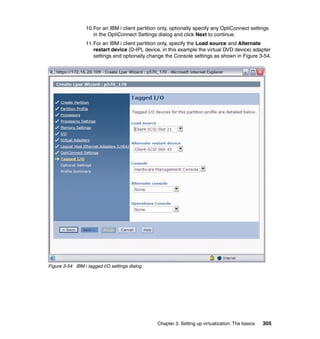
3-54 IBM i tagged I/O settings dialog . . . . . . . . . . . . . . . . . . . . . . . . . . . . . . 305
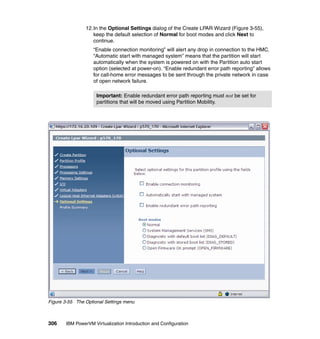
3-55 The Optional Settings menu . . . . . . . . . . . . . . . . . . . . . . . . . . . . . . . . . 306
3-56 The Profile Summary menu . . . . . . . . . . . . . . . . . . . . . . . . . . . . . . . . . 307
3-57 The list of partitions for the basic setup. . . . . . . . . . . . . . . . . . . . . . . . . 308
3-58 Backing up the profile definitions . . . . . . . . . . . . . . . . . . . . . . . . . . . . . 309
3-59 The edit Managed Profile window . . . . . . . . . . . . . . . . . . . . . . . . . . . . . 310
3-60 Setting the Processor Sharing options . . . . . . . . . . . . . . . . . . . . . . . . . 311
3-61 Activating the DB_server partition. . . . . . . . . . . . . . . . . . . . . . . . . . . . . 313
xii IBM PowerVM Virtualization Introduction and Configuration
3-62 The SMS menu . . . . . . . . . . . . . . . . . . . . . . . . . . . . . . . . . . . . . . . . . . . 314
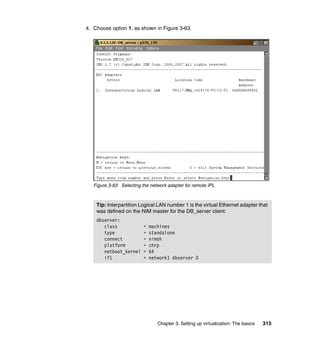
3-63 Selecting the network adapter for remote IPL. . . . . . . . . . . . . . . . . . . . 315
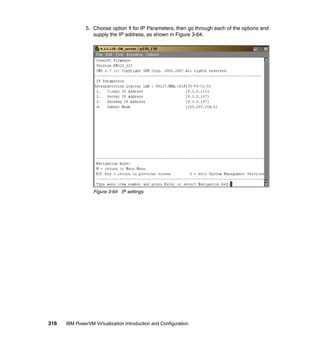
3-64 IP settings . . . . . . . . . . . . . . . . . . . . . . . . . . . . . . . . . . . . . . . . . . . . . . . 316
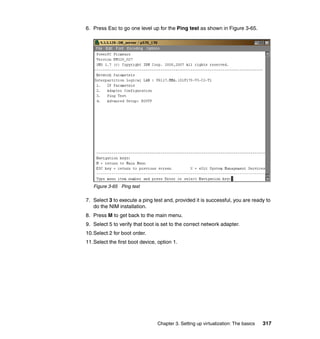
3-65 Ping test . . . . . . . . . . . . . . . . . . . . . . . . . . . . . . . . . . . . . . . . . . . . . . . . 317
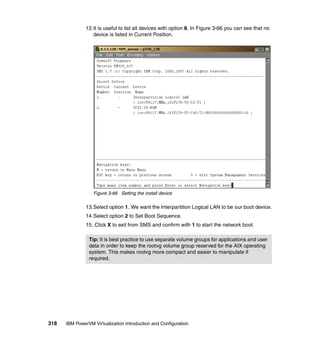
3-66 Setting the install device . . . . . . . . . . . . . . . . . . . . . . . . . . . . . . . . . . . . 318
3-67 IBM i Select load source device panel . . . . . . . . . . . . . . . . . . . . . . . . . 320
3-68 Edit Virtual Slots in SPT . . . . . . . . . . . . . . . . . . . . . . . . . . . . . . . . . . . . 326
3-69 Selecting to work with System Plans . . . . . . . . . . . . . . . . . . . . . . . . . . 327
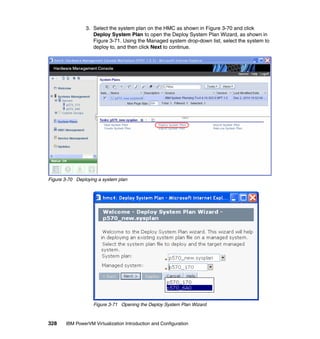
3-70 Deploying a system plan. . . . . . . . . . . . . . . . . . . . . . . . . . . . . . . . . . . . 328
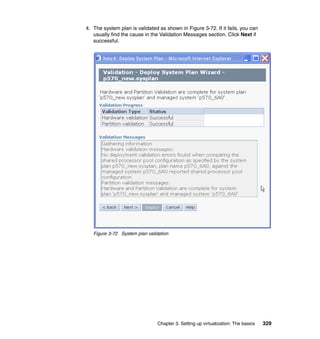
3-71 Opening the Deploy System Plan Wizard . . . . . . . . . . . . . . . . . . . . . . 328
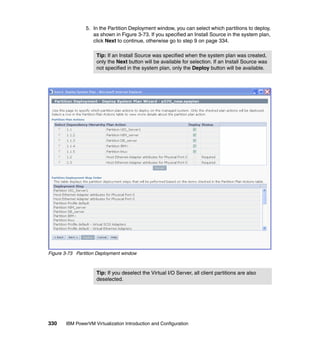
3-72 System plan validation . . . . . . . . . . . . . . . . . . . . . . . . . . . . . . . . . . . . . 329
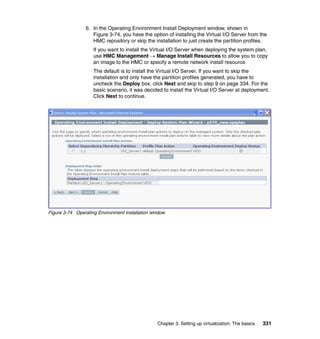
3-73 Partition Deployment window . . . . . . . . . . . . . . . . . . . . . . . . . . . . . . . . 330
3-74 Operating Environment installation window . . . . . . . . . . . . . . . . . . . . . 331
3-75 Customize Operating Environment Install. . . . . . . . . . . . . . . . . . . . . . . 332
3-76 Modify Install Settings . . . . . . . . . . . . . . . . . . . . . . . . . . . . . . . . . . . . . . 333
3-77 Summary - Deploy System Plan Wizard . . . . . . . . . . . . . . . . . . . . . . . . 334
3-78 Confirm Deployment . . . . . . . . . . . . . . . . . . . . . . . . . . . . . . . . . . . . . . . 334
3-79 Deployment Progress updating automatically. . . . . . . . . . . . . . . . . . . . 335
3-80 Deployment complete . . . . . . . . . . . . . . . . . . . . . . . . . . . . . . . . . . . . . . 336
3-81 Basic scenario deployed from the system plan created in SPT . . . . . . 337
3-82 Creating an HMC system plan for documentation . . . . . . . . . . . . . . . . 340
3-83 Giving a name to the system plan being created . . . . . . . . . . . . . . . . . 341
3-84 The created system plan. . . . . . . . . . . . . . . . . . . . . . . . . . . . . . . . . . . . 342
3-85 The back of the server and its installed adapters . . . . . . . . . . . . . . . . . 343
3-86 Options for the HMC system plan . . . . . . . . . . . . . . . . . . . . . . . . . . . . . 344
3-87 Added logical partition using the system plan . . . . . . . . . . . . . . . . . . . . 346
3-88 Enabling Active Memory Expansion on the HMC . . . . . . . . . . . . . . . . . 348
3-89 Reserved storage device pool management access menu . . . . . . . . . 351
3-90 Reserved storage device pool management. . . . . . . . . . . . . . . . . . . . . 352
3-91 Reserved storage device list selection . . . . . . . . . . . . . . . . . . . . . . . . . 353
3-92 Reserved storage device selection . . . . . . . . . . . . . . . . . . . . . . . . . . . . 354
3-93 Reserved storage device pool creation. . . . . . . . . . . . . . . . . . . . . . . . . 355
3-94 Creating a suspend and resume capable partition . . . . . . . . . . . . . . . . 357
3-95 Partition suspend menu . . . . . . . . . . . . . . . . . . . . . . . . . . . . . . . . . . . . 360
3-96 Validating suspend operation . . . . . . . . . . . . . . . . . . . . . . . . . . . . . . . . 361
3-97 Partition successful validation . . . . . . . . . . . . . . . . . . . . . . . . . . . . . . . . 361
3-98 Starting partition suspend operation . . . . . . . . . . . . . . . . . . . . . . . . . . . 362
3-99 Running partition suspend operation . . . . . . . . . . . . . . . . . . . . . . . . . . 363
3-100 Finished partition suspend operation . . . . . . . . . . . . . . . . . . . . . . . . . 364
3-101 Hardware Management Console suspended partition view . . . . . . . . 365
3-102 Reserved storage device pool properties . . . . . . . . . . . . . . . . . . . . . . 366
3-103 Partition resume menu . . . . . . . . . . . . . . . . . . . . . . . . . . . . . . . . . . . . 367
3-104 Validating resume operation . . . . . . . . . . . . . . . . . . . . . . . . . . . . . . . . 368
Figures xiii
3-105 Successful validation. . . . . . . . . . . . . . . . . . . . . . . . . . . . . . . . . . . . . . 368
3-106 Starting partition resume operation . . . . . . . . . . . . . . . . . . . . . . . . . . . 369
3-107 Running partition resume operation . . . . . . . . . . . . . . . . . . . . . . . . . . 370
3-108 Finished partition resume operation . . . . . . . . . . . . . . . . . . . . . . . . . . 371
3-109 Hardware Management Console resume view . . . . . . . . . . . . . . . . . . 372
4-1 Redundant Virtual I/O Servers before maintenance . . . . . . . . . . . . . . . . 381
4-2 Redundant Virtual I/O Servers during maintenance . . . . . . . . . . . . . . . . 382
4-3 Separating disk and network traffic . . . . . . . . . . . . . . . . . . . . . . . . . . . . . 384
4-4 Virtual SCSI redundancy using multipathing and mirroring. . . . . . . . . . . 386
4-5 MPIO attributes . . . . . . . . . . . . . . . . . . . . . . . . . . . . . . . . . . . . . . . . . . . . 390
4-6 LVM mirroring with two storage subsystems. . . . . . . . . . . . . . . . . . . . . . 395
4-7 Basic SEA failover configuration. . . . . . . . . . . . . . . . . . . . . . . . . . . . . . . 399
4-8 Alternative configuration for SEA failover . . . . . . . . . . . . . . . . . . . . . . . . 401
4-9 Network redundancy using two Virtual I/O Servers and NIB. . . . . . . . . . 402
4-10 Link Aggregation (EtherChannel) on the Virtual I/O Server . . . . . . . . . 407
4-11 Starting Shared-Processor Pool configuration . . . . . . . . . . . . . . . . . . . 410
4-12 Virtual Shared-Processor Pool selection. . . . . . . . . . . . . . . . . . . . . . . . 411
4-13 Shared-Processor Pool configuration . . . . . . . . . . . . . . . . . . . . . . . . . . 412
4-14 Virtual Shared-Processor Pool partition tab . . . . . . . . . . . . . . . . . . . . . 413
4-15 Shared-Processor Pool partition assignment . . . . . . . . . . . . . . . . . . . . 413
4-16 Overview of Shared-Processor Pool assignments . . . . . . . . . . . . . . . . 414
4-17 Supported and best ways to mirror virtual disks . . . . . . . . . . . . . . . . . . 418
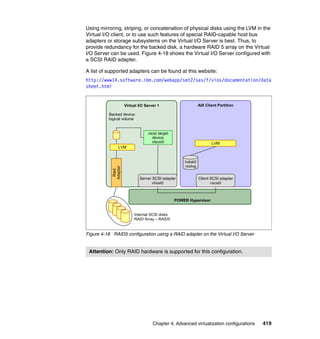
4-18 RAID5 configuration using a RAID adapter on the Virtual I/O Server . . 419
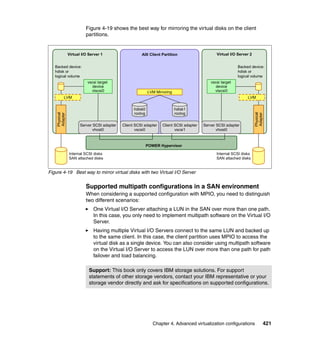
4-19 Best way to mirror virtual disks with two Virtual I/O Server. . . . . . . . . . 421
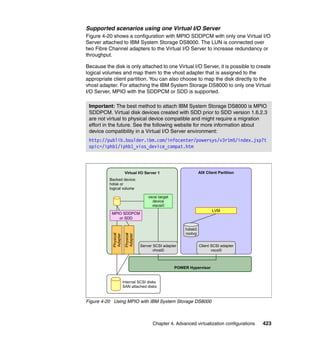
4-20 Using MPIO with IBM System Storage DS8000 . . . . . . . . . . . . . . . . . . 423
4-21 Using MPIO on the Virtual I/O Server with IBM TotalStorage. . . . . . . . 424
4-22 Configuration for IBM TotalStorage SAN Volume Controller . . . . . . . . 425
4-23 Configuration for multiple Virtual I/O Servers and IBM FAStT . . . . . . . 426
4-24 Basic issues for storage of AIX client partitions and PowerHA
SystemMirror . . . . . . . . . . . . . . . . . . . . . . . . . . . . . . . . . . . . . . . . . . . . . 428
4-25 Example of PowerHA cluster between two AIX client partitions . . . . . . 430
5-1 Highly available Shared Ethernet Adapter setup . . . . . . . . . . . . . . . . . . 436
5-2 Create an IP address on the Shared Ethernet Adapter using cfgassist . 440
5-3 NIB configuration on AIX client . . . . . . . . . . . . . . . . . . . . . . . . . . . . . . . . 442
5-4 VLAN configuration scenario. . . . . . . . . . . . . . . . . . . . . . . . . . . . . . . . . . 452
5-5 Virtual Ethernet configuration for the client partition using the HMC. . . . 453
5-6 Virtual Ethernet configuration for Virtual I/O Server using the HMC . . . . 455
5-7 HMC in a VLAN tagged environment . . . . . . . . . . . . . . . . . . . . . . . . . . . 458
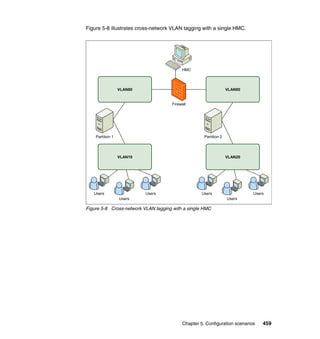
5-8 Cross-network VLAN tagging with a single HMC . . . . . . . . . . . . . . . . . . 459
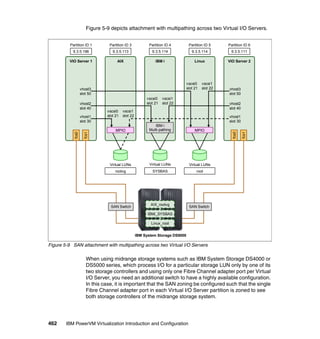
5-9 SAN attachment with multipathing across two Virtual I/O Servers . . . . . 462
5-10 IBM i System Service Tools Display disk configuration status . . . . . . . 477
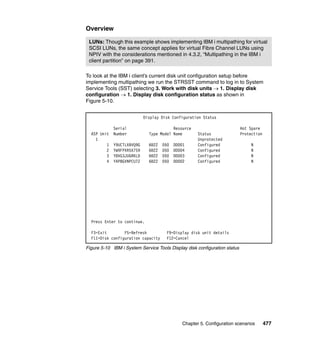
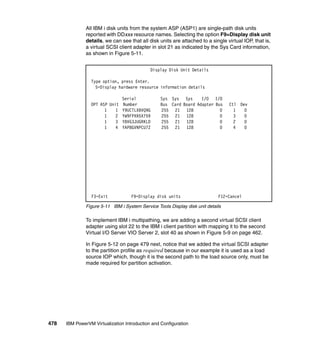
5-11 IBM i System Service Tools Display disk unit details . . . . . . . . . . . . . . 478
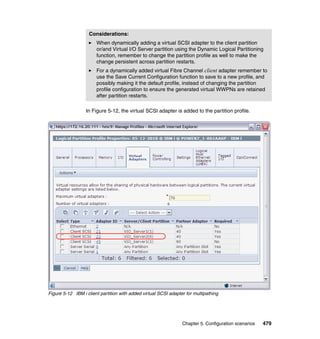
5-12 IBM i client partition with added virtual SCSI adapter for multipathing . 479
xiv IBM PowerVM Virtualization Introduction and Configuration
5-13 IBM i SST Display disk configuration status . . . . . . . . . . . . . . . . . . . . . 482
5-14 IBM i SST Display disk path status . . . . . . . . . . . . . . . . . . . . . . . . . . . . 483
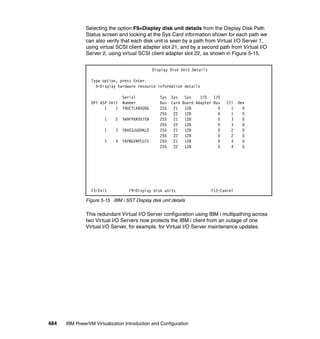
5-15 IBM i SST Display disk unit details . . . . . . . . . . . . . . . . . . . . . . . . . . . . 484
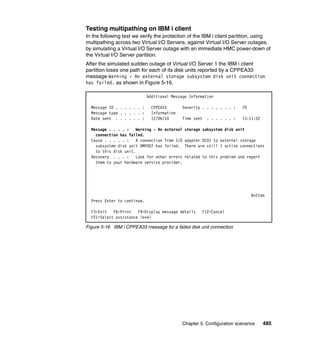
5-16 IBM i CPPEA33 message for a failed disk unit connection. . . . . . . . . . 485
5-17 IBM i SST Display disk path status after outage of Virtual I/O Server 1 486
5-18 IBM i CPPEA35 message for a restored disk unit connection . . . . . . . 487
5-19 IBM i SST Display disk path status . . . . . . . . . . . . . . . . . . . . . . . . . . . . 488
5-20 Linux client partition using MPIO to access SAN storage . . . . . . . . . . . 489
5-21 Redundant Virtual I/O Server client mirroring scenario. . . . . . . . . . . . . 494
5-22 VIO_Server2 physical adapter selection . . . . . . . . . . . . . . . . . . . . . . . . 495
5-23 Virtual SCSI adapters for VIO_Server2. . . . . . . . . . . . . . . . . . . . . . . . . 497
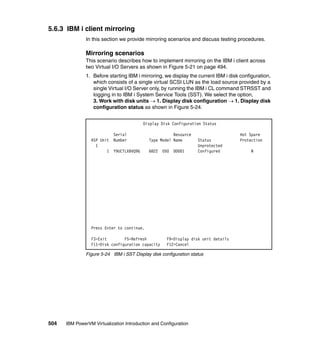
5-24 IBM i SST Display disk configuration status . . . . . . . . . . . . . . . . . . . . . 504
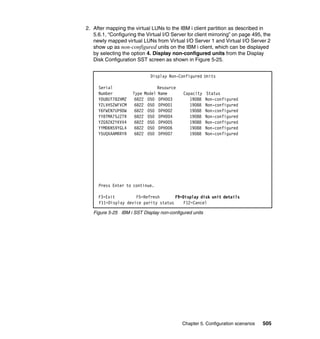
5-25 IBM i SST Display non-configured units . . . . . . . . . . . . . . . . . . . . . . . . 505
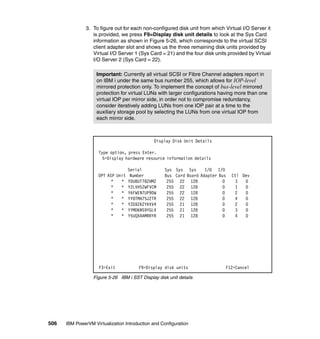
5-26 IBM i SST Display disk unit details . . . . . . . . . . . . . . . . . . . . . . . . . . . . 506
5-27 IBM i SST Specify ASPs to add units to . . . . . . . . . . . . . . . . . . . . . . . . 507
5-28 IBM i SST Problem Report Unit possibly configured for Power PC AS 508
5-29 IBM i SST Confirm Add Units . . . . . . . . . . . . . . . . . . . . . . . . . . . . . . . . 509
5-30 IBM i SST Selected units have been added successfully . . . . . . . . . . . 510
5-31 IBM i partition restart to DST using a manual IPL . . . . . . . . . . . . . . . . . 511
5-32 IBM i DST Enable remote load source mirroring. . . . . . . . . . . . . . . . . . 512
5-33 IBM i DST Work with mirrored protection . . . . . . . . . . . . . . . . . . . . . . . 513
5-34 IBM i DST Select ASP to start mirrored protection . . . . . . . . . . . . . . . . 514
5-35 IBM i DST Problem Report for Virtual disk units in the ASP . . . . . . . . . 515
5-36 IBM i DST Virtual disk units in the ASP message . . . . . . . . . . . . . . . . . 516
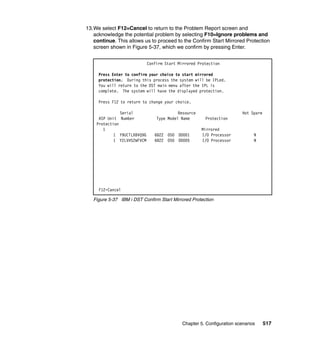
5-37 IBM i DST Confirm Start Mirrored Protection . . . . . . . . . . . . . . . . . . . . 517
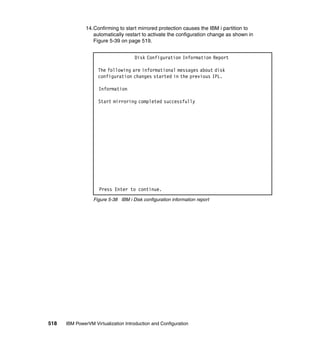
5-38 IBM i Disk configuration information report . . . . . . . . . . . . . . . . . . . . . . 518
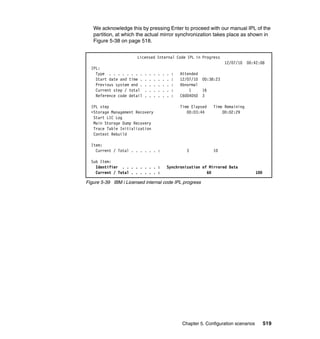
5-39 IBM i Licensed internal code IPL progress . . . . . . . . . . . . . . . . . . . . . . 519
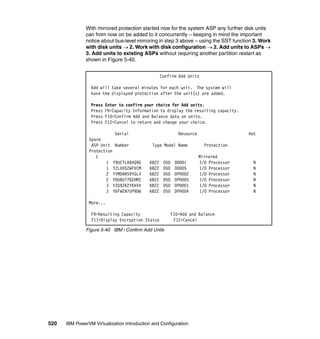
5-40 IBM i Confirm Add Units . . . . . . . . . . . . . . . . . . . . . . . . . . . . . . . . . . . . 520
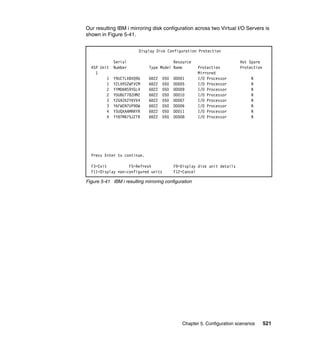
5-41 IBM i resulting mirroring configuration. . . . . . . . . . . . . . . . . . . . . . . . . . 521
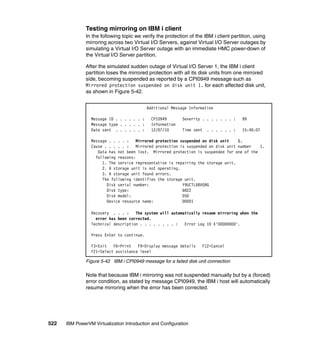
5-42 IBM i CPI0949 message for a failed disk unit connection . . . . . . . . . . . 522
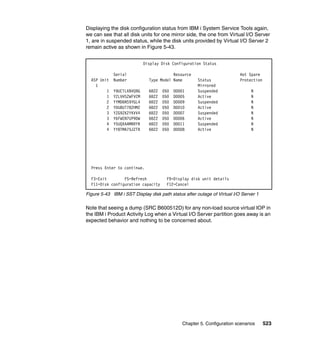
5-43 IBM i SST Display disk path status after outage of Virtual I/O Server 1 523
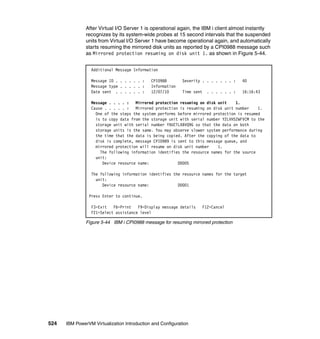
5-44 IBM i CPI0988 message for resuming mirrored protection . . . . . . . . . . 524
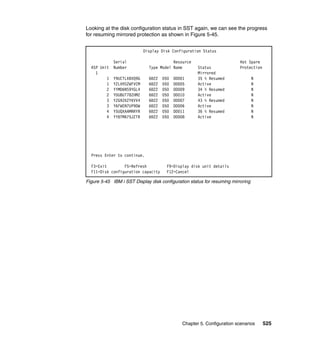
5-45 IBM i SST Display disk configuration status for resuming mirroring . . . 525
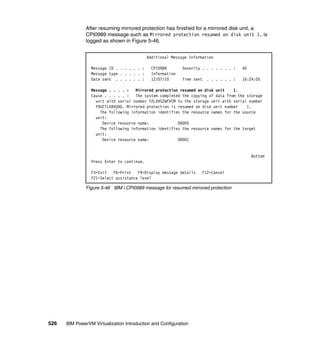
5-46 IBM i CPI0989 message for resumed mirrored protection . . . . . . . . . . 526
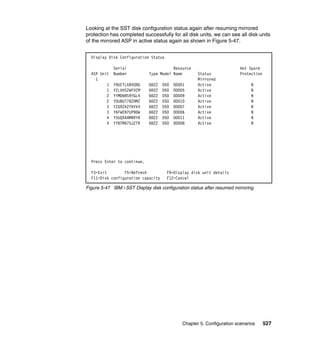
5-47 IBM i SST Display disk configuration status after resumed mirroring . . 527
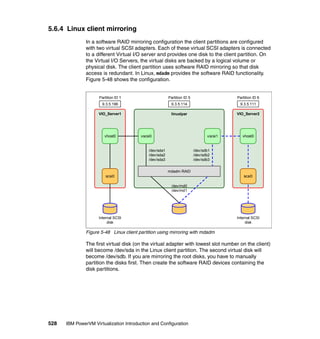
5-48 Linux client partition using mirroring with mdadm . . . . . . . . . . . . . . . . . 528
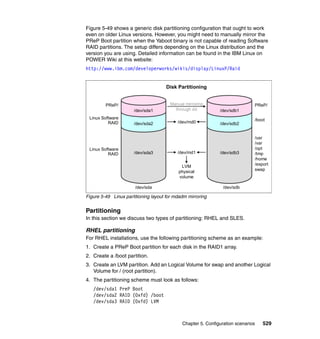
5-49 Linux partitioning layout for mdadm mirroring . . . . . . . . . . . . . . . . . . . . 529
© Copyright IBM Corp. 2010-2011. All rights reserved. xv
Tables
1-1 PowerVM capabilities . . . . . . . . . . . . . . . . . . . . . . . . . . . . . . . . . . . . . . . . . 3
1-2 Differences between virtual Ethernet technologies . . . . . . . . . . . . . . . . . . . 8
1-3 Differences between POWER6 and POWER7 mode . . . . . . . . . . . . . . . . 17
1-4 Virtualization features supported by AIX, IBM i and Linux . . . . . . . . . . . . 20
1-5 Linux support for POWER7 features. . . . . . . . . . . . . . . . . . . . . . . . . . . . . 22
1-6 Virtualization features supported by POWER technology levels. . . . . . . . 23
1-7 Server model to POWER technology level cross-reference . . . . . . . . . . . 24
2-1 Overview of PowerVM capabilities by edition . . . . . . . . . . . . . . . . . . . . . . 32
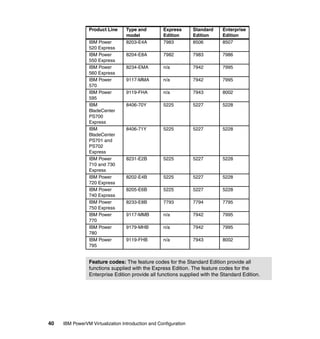
2-2 PowerVM feature code overview . . . . . . . . . . . . . . . . . . . . . . . . . . . . . . . 39
2-3 Reasonable settings for shared processor partitions . . . . . . . . . . . . . . . . 54
2-4 Entitled capacities for micro-partitions in a Shared-Processor Pool . . . . . 65
2-5 Attribute values for the default Shared-Processor Pool (SPP0) . . . . . . . . 68
2-6 AMS and AME comparison . . . . . . . . . . . . . . . . . . . . . . . . . . . . . . . . . . . . 85
2-7 Virtual I/O Server sizing examples . . . . . . . . . . . . . . . . . . . . . . . . . . . . . . 93
2-8 Suggested maximum number of devices per virtual SCSI link . . . . . . . . 116
2-9 Virtual SCSI and NPIV comparison. . . . . . . . . . . . . . . . . . . . . . . . . . . . . 141
2-10 Inter-partition VLAN communication . . . . . . . . . . . . . . . . . . . . . . . . . . . 166
2-11 VLAN communication to external network . . . . . . . . . . . . . . . . . . . . . . 168
2-12 Kernel modules for IBM Power Systems virtual devices. . . . . . . . . . . . 180
3-1 Network settings . . . . . . . . . . . . . . . . . . . . . . . . . . . . . . . . . . . . . . . . . . . 256
4-1 Main differences between EC and LA aggregation. . . . . . . . . . . . . . . . . 405
4-2 Micro-partition configuration and Shared-Processor Pool assignments . 408
4-3 Shared-Processor Pool attributes . . . . . . . . . . . . . . . . . . . . . . . . . . . . . . 409
5-1 Virtual Ethernet adapter overview for Virtual I/O Servers . . . . . . . . . . . . 438
5-2 Network interface backup configuration examples . . . . . . . . . . . . . . . . . 443
5-3 Virtual SCSI adapter configuration for MPIO . . . . . . . . . . . . . . . . . . . . . 464
5-4 Virtual SCSI adapter configuration for LVM mirroring . . . . . . . . . . . . . . . 496
xvi IBM PowerVM Virtualization Introduction and Configuration
© Copyright IBM Corp. 2010-2011. All rights reserved. xvii
Notices
This information was developed for products and services offered in the U.S.A.
IBM may not offer the products, services, or features discussed in this document in other countries. Consult
your local IBM representative for information on the products and services currently available in your area.
Any reference to an IBM product, program, or service is not intended to state or imply that only that IBM
product, program, or service may be used. Any functionally equivalent product, program, or service that
does not infringe any IBM intellectual property right may be used instead. However, it is the user's
responsibility to evaluate and verify the operation of any non-IBM product, program, or service.
IBM may have patents or pending patent applications covering subject matter described in this document.
The furnishing of this document does not give you any license to these patents. You can send license
inquiries, in writing, to:
IBM Director of Licensing, IBM Corporation, North Castle Drive, Armonk, NY 10504-1785 U.S.A.
The following paragraph does not apply to the United Kingdom or any other country where such
provisions are inconsistent with local law: INTERNATIONAL BUSINESS MACHINES CORPORATION
PROVIDES THIS PUBLICATION "AS IS" WITHOUT WARRANTY OF ANY KIND, EITHER EXPRESS OR
IMPLIED, INCLUDING, BUT NOT LIMITED TO, THE IMPLIED WARRANTIES OF NON-INFRINGEMENT,
MERCHANTABILITY OR FITNESS FOR A PARTICULAR PURPOSE. Some states do not allow disclaimer
of express or implied warranties in certain transactions, therefore, this statement may not apply to you.
This information could include technical inaccuracies or typographical errors. Changes are periodically made
to the information herein; these changes will be incorporated in new editions of the publication. IBM may
make improvements and/or changes in the product(s) and/or the program(s) described in this publication at
any time without notice.
Any references in this information to non-IBM Web sites are provided for convenience only and do not in any
manner serve as an endorsement of those Web sites. The materials at those Web sites are not part of the
materials for this IBM product and use of those Web sites is at your own risk.
IBM may use or distribute any of the information you supply in any way it believes appropriate without
incurring any obligation to you.
Any performance data contained herein was determined in a controlled environment. Therefore, the results
obtained in other operating environments may vary significantly. Some measurements may have been made
on development-level systems and there is no guarantee that these measurements will be the same on
generally available systems. Furthermore, some measurement may have been estimated through
extrapolation. Actual results may vary. Users of this document should verify the applicable data for their
specific environment.
Information concerning non-IBM products was obtained from the suppliers of those products, their published
announcements or other publicly available sources. IBM has not tested those products and cannot confirm
the accuracy of performance, compatibility or any other claims related to non-IBM products. Questions on
the capabilities of non-IBM products should be addressed to the suppliers of those products.
This information contains examples of data and reports used in daily business operations. To illustrate them
as completely as possible, the examples include the names of individuals, companies, brands, and products.
All of these names are fictitious and any similarity to the names and addresses used by an actual business
enterprise is entirely coincidental.
xviii IBM PowerVM Virtualization Introduction and Configuration
COPYRIGHT LICENSE:
This information contains sample application programs in source language, which illustrate programming
techniques on various operating platforms. You may copy, modify, and distribute these sample programs in
any form without payment to IBM, for the purposes of developing, using, marketing or distributing application
programs conforming to the application programming interface for the operating platform for which the
sample programs are written. These examples have not been thoroughly tested under all conditions. IBM,
therefore, cannot guarantee or imply reliability, serviceability, or function of these programs.
Trademarks
IBM, the IBM logo, and ibm.com are trademarks or registered trademarks of International Business
Machines Corporation in the United States, other countries, or both. These and other IBM trademarked
terms are marked on their first occurrence in this information with the appropriate symbol (® or ™),
indicating US registered or common law trademarks owned by IBM at the time this information was
published. Such trademarks may also be registered or common law trademarks in other countries. A current
list of IBM trademarks is available on the Web at http://www.ibm.com/legal/copytrade.shtml
The following terms are trademarks of the International Business Machines Corporation in the United States,
other countries, or both:
Active Memory™
AIX 5L™
AIX®
BladeCenter®
DB2®
developerWorks®
DS4000®
DS6000™
DS8000®
EnergyScale™
Enterprise Storage Server®
eServer™
GDPS®
Geographically Dispersed
Parallel Sysplex™
GPFS™
HACMP™
i5/OS®
IBM®
iSeries®
Micro-Partitioning™
OS/400®
Parallel Sysplex®
Passport Advantage®
Power Architecture®
POWER Hypervisor™
Power Systems™
POWER3™
POWER4™
POWER5™
POWER6+™
POWER6®
POWER7™
POWER7 Systems™
PowerHA™
PowerVM™
POWER®
pSeries®
Redbooks®
Redpaper™
Redbooks (logo) ®
System i®
System p5®
System p®
System Storage®
System z®
Systems Director VMControl™
Tivoli®
TotalStorage®
XIV®
The following terms are trademarks of other companies:
Windows, and the Windows logo are trademarks of Microsoft Corporation in the United States, other
countries, or both.
Intel, Intel logo, Intel Inside logo, and Intel Centrino logo are trademarks or registered trademarks of Intel
Corporation or its subsidiaries in the United States and other countries.
Linux is a trademark of Linus Torvalds in the United States, other countries, or both.
Other company, product, or service names may be trademarks or service marks of others.
© Copyright IBM Corp. 2010-2011. All rights reserved. xix
Preface
This IBM® Redbooks® publication provides an introduction to PowerVM™
virtualization technologies on Power System servers.
PowerVM is a combination of hardware, firmware, and software that provides
CPU, network, and disk virtualization. These are the main virtualization
technologies:
POWER7, POWER6™, and POWER5™ hardware
POWER Hypervisor™
Virtual I/O Server
Though the PowerVM brand includes partitioning, management software, and
other offerings, this publication focuses on the virtualization technologies that are
part of the PowerVM Standard and Enterprise Editions.
This publication is also designed to be an introduction guide for system
administrators, providing instructions for these tasks:
Configuration and creation of partitions and resources on the HMC
Installation and configuration of the Virtual I/O Server
Creation and installation of virtualized partitions
Examples using AIX, IBM i, and Linux
This edition has been updated with the new features available with the IBM
POWER7 hardware and firmware.
The team who wrote this book
This book was produced by a team of specialists from around the world working
at the International Technical Support Organization, Poughkeepsie Center.
Stuart Devenish is an IT Specialist from Brisbane, Australia. He is currently
working for Suncorp as the Team Leader of Midrange Systems. His team is
responsible for the design, implementation, and support of UNIX and Linux
based hosting platforms for all brands of the company. For the last few years he
has spent most of his time merging Power installations, consolidating data
centers, and implementing iSCSI/NFS storage configurations. He has ten years
of experience in UNIX/Linux and holds a degree in Information Technology from
Central Queensland University. His areas of expertise include AIX, PowerVM,
TCP/IP, and Perl.
xx IBM PowerVM Virtualization Introduction and Configuration
Ingo Dimmer is an IBM Consulting IT Specialist for IBM i and a PMI Project
Management Professional working in the IBM STG ATS Europe storage support
organization in Mainz, Germany. He has eleven years of experience in enterprise
storage support from working in IBM post-sales and pre-sales support. He holds
a degree in Electrical Engineering from the Gerhard-Mercator University
Duisburg. His areas of expertise include IBM i external disk and tape storage
solutions, PowerVM virtualization, I/O performance and high availability for which
he has been an author of several white papers and IBM Redbooks publications.
Rafael Folco has been working at IBM Brazil for five years as a Software
Engineer for the IBM STG Linux Technology Center in Hortolandia, Brazil. He
holds a bachelors degree in Computer Engineering from the Pontificia
Universidade Catolica and a postgraduate degree in Software Engineering from
Universidade Metodista de Piracicaba. He has five years of experience in IBM
Power systems and seven years of experience in Linux development and testing.
His areas of expertise include Linux on Power development and testing, Python,
C/C++, and PowerVM.
Mark Roy is an IBM i Specialist based in Melbourne, Australia. He was
previously with a large Australian bank, designing, installing, and enhancing their
IBM i (previously branded as CPF, OS/400®, and i5/OS®) environment. Mark
has authored several IBM Redbooks publications, covering topics such as IBM i
technical overviews, IBM i problem determination, IBM i performance
management, and IBM PowerVM. He recently established Sysarb, a company
providing freelance consulting and contracting services to IBM i customers and
service providers. He specializes in IBM i and Power Systems infrastructure
architecture, technical support, and performance and systems management.
Mark can be contacted at Mark.Roy@sysarb.com.au.
Stephane Saleur is an IT Specialist working for IBM France in the Integrated
Technology Delivery division in La Gaude. He has 15 years of experience in the
Information Technology field. His areas of expertise include AIX, PowerVM,
PowerHA, Power Systems, Storage Area Network and IBM System Storage. He
is an IBM @server Certified Systems Expert - pSeries HACMP for AIX 5L and
IBM @server Certified Advanced Technical Expert - pSeries and AIX 5L.
Oliver Stadler is a Senior IT Specialist working in Integrated Technology
Delivery in IBM Switzerland. He has 21 years of experience in the IT-industry. In
his current job he is responsible for the architecture, design, and implementation
of IBM Power Systems and AIX based solutions for IBM strategic outsourcing
customers. He has written extensively on PowerVM virtualization for IBM Power
Systems.
Preface xxi
Naoya Takizawa is an IT Specialist for Power Systems and AIX in IBM Japan
Systems Engineering that provides a part of the ATS function in Japan. He has
five years of experience in AIX and PowerVM field. He holds a Master of Science
degree in Theoretical Physics from Tokyo Institute of Technology and Sophia
University. His areas of expertise include Power Systems, PowerVM, AIX and
PowerHA SystemMirror for AIX. He also has experience in IBM System Storage.
The project that produced this publication was managed by:
Scott Vetter, PMP. Scott is a Certified Executive Project Manager at the
International Technical Support Organization, Austin Center. He has enjoyed 26
years of rich and diverse experience working for IBM in a variety of challenging
roles. His latest efforts are directed at providing world-class Power Systems
Redbooks publications, white papers, and workshop collateral.
Thanks to the following people for their contributions to this project:
John Banchy, Bob Battista, Gail Belli, Bruno Blanchard, Ralph Baumann,
Shaival Chokshi, Herman Dierks, Arpana Durgaprasad, Nathan Fontenot,
Chris Francois, Veena Ganti, Ron Gordon, Eric Haase, Robert Jennings,
Yessong Brandon JohngBrian King, Bob Kovacs, Monica Lemay, Chris Liebl,
Naresh Nayar, Terrence Nixa, Jorge Nogueras, Jim Pafumi, Amartey Pearson,
Scott Prather, Michael Reed, Sergio Reyes, Jeffrey Scheel, Naoya Takizawa,
Richard Wale, Robert Wallis, Duane Wenzel, Kristopher Whitney, Michael Wolf,
Joseph Writz, Laura Zaborowski
IBM US
Nigel Griffiths, Sam Moseley, Dai Williams
IBM UK
Joergen Berg
IBM Denmark
Bruno Blanchard
IBM France
Authors of the first edition, Advanced POWER Virtualization on IBM eServer
p5 Servers: Introduction and Basic Configuration, published in October 2004,
were:
Bill Adra, Annika Blank, Mariusz Gieparda, Joachim Haust,
Oliver Stadler, Doug Szerdi
Authors of the second edition, Advanced POWER Virtualization on IBM
System p5, December 2005, were:
Annika Blank, Paul Kiefer, Carlos Sallave Jr., Gerardo Valencia,
Jez Wain, Armin M. Warda
xxii IBM PowerVM Virtualization Introduction and Configuration
Authors of the third edition, Advanced POWER Virtualization on IBM System
p5: Introduction and Configuration, February 2007, were:
Morten Vågmo, Peter Wüstefeld
Authors of the fourth edition, PowerVM Virtualization on IBM System p:
Introduction and Configuration, May 2008, were:
Christopher Hales, Chris Milsted, Oliver Stadler, Morten Vågmo
Now you can become a published author, too!
Here's an opportunity to spotlight your skills, grow your career, and become a
published author—all at the same time! Join an ITSO residency project and help
write a book in your area of expertise, while honing your experience using
leading-edge technologies. Your efforts will help to increase product acceptance
and customer satisfaction, as you expand your network of technical contacts and
relationships. Residencies run from two to six weeks in length, and you can
participate either in person or as a remote resident working from your home
base.
Find out more about the residency program, browse the residency index, and
apply online at:
ibm.com/redbooks/residencies.html
Comments welcome
Your comments are important to us!
We want our books to be as helpful as possible. Send us your comments about
this book or other IBM Redbooks publications in one of the following ways:
Use the online Contact us review Redbooks form found at:
ibm.com/redbooks
Send your comments in an email to:
redbooks@us.ibm.com
Mail your comments to:
IBM Corporation, International Technical Support Organization
Dept. HYTD Mail Station P099
2455 South Road
Poughkeepsie, NY 12601-5400
Preface xxiii
Stay connected to IBM Redbooks
Find us on Facebook:
http://www.facebook.com/IBMRedbooks
Follow us on Twitter:
http://twitter.com/ibmredbooks
Look for us on LinkedIn:
http://www.linkedin.com/groups?home=&gid=2130806
Explore new Redbooks publications, residencies, and workshops with the
IBM Redbooks weekly newsletter:
https://www.redbooks.ibm.com/Redbooks.nsf/subscribe?OpenForm
Stay current on recent Redbooks publications with RSS Feeds:
http://www.redbooks.ibm.com/rss.html
xxiv IBM PowerVM Virtualization Introduction and Configuration
© Copyright IBM Corp. 2010-2011. All rights reserved. xxv
Summary of changes
This section describes the technical changes made in this edition of the book and
in previous editions. This edition might also include minor corrections and
editorial changes that are not identified.
Summary of Changes
for SG24-7940-04
for IBM PowerVM Virtualization Introduction and Configuration
as created or updated on June 12, 2012.
June 2011, Fifth Edition
This revision reflects the addition, deletion, or modification of new and changed
information described here.
New information
Capabilities provided by Virtual I/O Server Version 2, Release 2, Fixpack 10,
Service Pack 1, including these:
– Virtual I/O Server Clustering, see “Virtual I/O Server storage clustering
model” on page 120
– Shared Storage Pools, see 2.7.2, “Shared Storage Pools” on page 118
– Thin provisioning, see “Thin provisioning” on page 122
– Support for Peer to Peer Remote Copy, see “Peer to Peer Remote Copy”
on page 98
Major updates to the Virtual Ethernet sections, including these:
– Support for multiple virtual switches, see “Multiple virtual switches” on
page 157
– Performance considerations, see 2.10.7, “Performance considerations” on
page 171
Suspend and Resume, see 2.16, “Partition Suspend and Resume” on
page 205
In a number of sections, significant IBM i content has been added.
In a number of sections, significant Linux content has been added.
IBM License Metric Tool, see 2.13.7, “IBM License Metric Tool” on page 193
xxvi IBM PowerVM Virtualization Introduction and Configuration
Changed information
Sections describing the concepts and setup of NPIV have been moved from
the Redbooks publication, PowerVM Virtualization Managing and Monitoring,
SG24-7590.
The virtual memory section has been extended to include these:
– Active Memory Expansion, see 1.3.3, “Active Memory Expansion” on
page 17
– Active Memory Sharing, see 1.2.11, “Active Memory Sharing” on page 14
Several sections have been updated to include POWER7 based offerings.
Several sections have been updated to include new supported hardware such
as USB tape or USB Blu-ray devices.
Several sections have been updated to include Virtual Tape.
© Copyright IBM Corp. 2010-2011. All rights reserved. 1
Chapter 1. Introduction
Businesses are turning to PowerVM virtualization to consolidate multiple
workloads onto fewer systems, increasing server utilization, and reducing cost.
Power VM technology provides a secure and scalable virtualization environment
for AIX, IBM i, and Linux applications, built upon the advanced reliability,
availability, and serviceability features and the leading performance of the Power
Systems platform.
This book targets clients new to virtualization as well as more experienced
virtualization professionals. It is split into five chapters, each with a different
target audience in mind.
Chapter 1 provides a short overview of the key virtualization technologies. An
understanding of this chapter is required for the remainder of the book.
Chapter 2 is a slightly more in-depth discussion of the technology aimed more at
the estate-architect or project-architect for deployments.
Chapters 3, 4, and 5 are aimed at professionals who are deploying the
technology. Chapter 3 works through a simple scenario and Chapter 4 introduces
more advanced topics such as virtual storage and virtual network redundancy.
Chapter 5 expands on some of the introduced topics by providing worked
configuration examples.
1
2 IBM PowerVM Virtualization Introduction and Configuration
1.1 The value of virtualization on Power Systems
As you look for ways to maximize the return on your IT infrastructure
investments, consolidating workloads becomes an attractive proposition.
IBM Power Systems combined with PowerVM technology are designed to help
you consolidate and simplify your IT environment. Key capabilities include these:
Improve server utilization and sharing I/O resources to reduce total cost of
ownership and make better use of IT assets.
Improve business responsiveness and operational speed by dynamically
re-allocating resources to applications as needed — to better match changing
business needs or handle unexpected changes in demand.
Simplify IT infrastructure management by making workloads independent of
hardware resources, thereby enabling you to make business-driven policies to
deliver resources based on time, cost and service-level requirements.
This chapter discusses the virtualization technologies and features on IBM
Power Systems.
1.2 PowerVM
PowerVM is the industry-leading virtualization solution for AIX, IBM i, and Linux
environments on IBM POWER technology. PowerVM offers a secure
virtualization environment, built on the advanced RAS features and leadership
performance of the Power Systems platform. It features leading technologies
such as Power Hypervisor, Micro-Partitioning, Dynamic Logical Partitioning,
Shared Processor Pools, Shared Storage Pools, Integrated Virtualization
Manager, PowerVM Lx86, Live Partition Mobility, Active Memory Sharing, N_Port
ID Virtualization, and Suspend/Resume. PowerVM is a combination of hardware
enablement and value-added software. In 1.2.1, “PowerVM editions” on page 2
we discuss the licensed features of each of the three different editions of
PowerVM.
1.2.1 PowerVM editions
This section provides information about the virtualization capabilities of
PowerVM. There are three versions of PowerVM, suited for various purposes:
PowerVM Express Edition:
PowerVM Express Edition is designed for customers looking for an
introduction to more advanced virtualization features at a highly affordable
price.
Chapter 1. Introduction 3
PowerVM Standard Edition:
PowerVM Standard Edition provides advanced virtualization functionality for
AIX, IBM i, and Linux operating systems. PowerVM Standard Edition is
supported on all POWER processor-based servers and includes features
designed to allow businesses to increase system utilization.
PowerVM Enterprise Edition:
PowerVM Enterprise Edition includes all the features of PowerVM Standard
Edition plus two new industry-leading capabilities called Active Memory
Sharing and Live Partition Mobility. It provides the most complete
virtualization for AIX, IBM i, and Linux operating systems in the industry.
It is possible to upgrade from the Standard Edition to the Enterprise Edition.
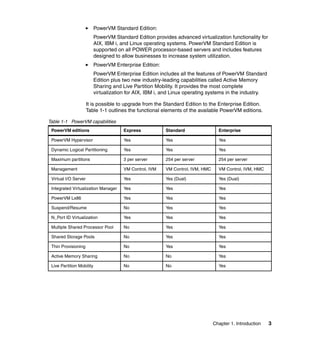
Table 1-1 outlines the functional elements of the available PowerVM editions.
Table 1-1 PowerVM capabilities
PowerVM editions Express Standard Enterprise
PowerVM Hypervisor Yes Yes Yes
Dynamic Logical Partitioning Yes Yes Yes
Maximum partitions 3 per server 254 per server 254 per server
Management VM Control, IVM VM Control, IVM, HMC VM Control, IVM, HMC
Virtual I/O Server Yes Yes (Dual) Yes (Dual)
Integrated Virtualization Manager Yes Yes Yes
PowerVM Lx86 Yes Yes Yes
Suspend/Resume No Yes Yes
N_Port ID Virtualization Yes Yes Yes
Multiple Shared Processor Pool No Yes Yes
Shared Storage Pools No Yes Yes
Thin Provisioning No Yes Yes
Active Memory Sharing No No Yes
Live Partition Mobility No No Yes
4 IBM PowerVM Virtualization Introduction and Configuration
1.2.2 Logical partitions
Logical partitions (LPARs) and virtualization increase utilization of system
resources and add a new level of configuration possibilities. This section
provides details and configuration specifications for these topics.
Dynamic logical partitioning
Logical partitioning (LPAR) was introduced for IBM POWER servers with the IBM
POWER4 processor-based product line and the IBM OS/400 V4R4 operating
system. This technology offered the capability to divide a POWER offering into
separate logical systems, allowing each LPAR to run an operating environment
on dedicated attached devices, such as processors, memory, and I/O
components.
Later, dynamic logical partitioning (DLPAR) increased the flexibility, allowing
selected system resources, such as processors, memory, and I/O components,
to be added and deleted from logical partitions while they are executing. The
ability to reconfigure dynamic LPARs encourages system administrators to
dynamically redefine all available system resources to reach the optimum
capacity for each defined dynamic LPAR.
For more information about dynamic logical partitioning, see 2.15, “Dynamic
resources” on page 203.
Micro-Partitioning
Micro-Partitioning technology allows you to allocate fractions of processors to a
logical partition. A logical partition using fractions of processors is also known as
a Shared Processor Partition or Micro-Partition. Micro-Partitions run over a set of
processors called a Shared Processor Pool.
Virtual processors are used to let the operating system manage the fractions of
processing power assigned to the logical partition. From an operating system
perspective, a virtual processor cannot be distinguished from a physical
processor, unless the operating system has been enhanced to be made aware of
the difference. Physical processors are abstracted into virtual processors that are
available to partitions. The meaning of the term physical processor in this section
is a processor core. For example, in a 2-core server there are two physical
processors.
For more information about Micro-Partitioning, see 2.3, “Overview of
Micro-Partitioning technologies” on page 48.
Chapter 1. Introduction 5
Processing mode
When you create a logical partition, you can assign entire processors for
dedicated use, or you can assign partial processor units from a shared processor
pool.
Dedicated mode
In dedicated mode, physical processors are assigned as a whole to partitions.
The simultaneous multithreading feature in the POWER technology allows the
core to execute instructions from two or four independent software threads
simultaneously. To support this feature, we use the concept of logical processors.
The operating system (AIX, IBM i, or Linux) sees one physical processor as two
or four logical processors if the simultaneous multithreading feature is on. If
simultaneous multithreading is off, then each physical processor is presented as
one logical processor and thus only one thread.
Shared dedicated mode
On POWER technology, you can configure dedicated partitions to become
processor donors for idle processors they own. Allowing for the donation of spare
CPU cycles from dedicated processor partitions to a Shared Processor Pool. The
dedicated partition maintains absolute priority for dedicated CPU cycles.
Enabling this feature can help to increase system utilization, without
compromising the computing power for critical workloads in a dedicated
processor.
Shared mode
In shared mode, logical partitions use virtual processors to access fractions of
physical processors. Shared partitions can define any number of virtual
processors (the maximum number is 10 times the number of processing units
assigned to the partition). From the POWER Hypervisor point of view, virtual
processors represent dispatching objects. The POWER Hypervisor dispatches
virtual processors to physical processors according to the partition’s processing
units entitlement.
One Processing Unit represents one physical processor’s processing capacity. At
the end of the POWER Hypervisor’s dispatch cycle (10 ms), all partitions must
receive total CPU time equal to their processing units entitlement. The logical
processors are defined on top of virtual processors. So, even with a virtual
processor, the concept of a logical processor exists and the number of logical
processors depends on whether the simultaneous multithreading is turned on or
off.
For more information about processing modes, see 2.3, “Overview of
Micro-Partitioning technologies” on page 48.
6 IBM PowerVM Virtualization Introduction and Configuration
1.2.3 Virtual I/O Server
As part of PowerVM, the Virtual I/O Server is a software appliance with which
you can associate physical resources and that allows you to share these
resources among multiple client logical partitions. The Virtual I/O Server can use
both virtualized storage and network adapters, making use of the virtual SCSI
and virtual Ethernet facilities.
For storage virtualization, these backing devices can be used:
Direct-attached entire disks from the Virtual I/O Server
SAN disks attached to the Virtual I/O Server
Logical volumes defined on either of the aforementioned disks
File-backed storage, with the files residing on either of the aforementioned
disks
Logical units from shared storage pools
Optical storage devices.
Tape storage devices
For virtual Ethernet we can define Shared Ethernet Adapters on the Virtual I/O
Server, bridging network traffic between the server internal virtual Ethernet
networks and external physical Ethernet networks.
The Virtual I/O Server technology facilitates the consolidation of LAN and disk
I/O resources and minimizes the number of physical adapters that are required,
while meeting the non-functional requirements of the server.
The Virtual I/O Server can run in either a dedicated processor partition or a
micro-partition. The different configurations for the Virtual I/O Server and
associated I/O subsystems can be seen in Advanced POWER Virtualization on
IBM System p Virtual I/O Server Deployment Examples, REDP-4224.
For more information about Virtual I/O Server, see 2.5, “Virtual I/O Server” on
page 91.
Chapter 1. Introduction 7
1.2.4 I/O Virtualization
Combined with features designed into the POWER processors, the POWER
Hypervisor delivers functions that enable other system technologies, including
logical partitioning technology, virtualized processors, IEEE VLAN compatible
virtual switch, virtual SCSI adapters, virtual Fibre Channel adapters and virtual
consoles. The POWER Hypervisor is a basic component of the system’s
firmware and offers the following functions:
Provides an abstraction between the physical hardware resources and the
logical partitions that use them
Enforces partition integrity by providing a security layer between logical
partitions
Controls the dispatch of virtual processors to physical processors (see
“Processing mode” on page 5)
Saves and restores all processor state information during a logical processor
context switch
Controls hardware I/O interrupt management facilities for logical partitions
Provides virtual LAN channels between logical partitions that help to reduce
the need for physical Ethernet adapters for inter-partition communication
Monitors the Service Processor and will perform a reset/reload if it detects the
loss of the Service Processor, notifying the operating system if the problem is
not corrected
The POWER Hypervisor is always active, regardless of the system configuration
and also when not connected to the HMC. The POWER Hypervisor provides the
following types of virtual I/O adapters:
Virtual SCSI
Virtual Ethernet
Virtual Fibre Channel
Virtual console
Virtual SCSI
The POWER Hypervisor provides a virtual SCSI mechanism for virtualization of
storage devices. The storage virtualization is accomplished using two, paired,
adapters: a virtual SCSI server adapter and a virtual SCSI client adapter. A
Virtual I/O Server partition or an IBM i partition can define virtual SCSI server
adapters, AIX, Linux, and other IBM i partitions, can then be client partitions. The
Virtual I/O Server partition is a special logical partition. The Virtual I/O Server
software is available with the optional PowerVM Edition features. Virtual SCSI
can be used for virtual disk, virtual tape (virtual tape support allows serial sharing
of selected SAS and USB tape devices), and virtual optical devices.
8 IBM PowerVM Virtualization Introduction and Configuration
Virtual Ethernet technologies
Virtualizing Ethernet on a Power System offering can be accomplished using
different technologies. Table 1-2 provides an overview of the differences between
the virtual Ethernet technologies.
Table 1-2 Differences between virtual Ethernet technologies
Virtual Ethernet
The POWER Hypervisor provides a virtual Ethernet switch function that allows
partitions on the same server to use a fast and secure communication without
any need for physical interconnection. The virtual Ethernet allows various
transmission speeds depending on the MTU size, starting at 1 Gbps. depending
on the maximum transmission unit (MTU) size and CPU entitlement. The virtual
Ethernet is part of the base system configuration and does not require Virtual I/O
Server.
Virtual Ethernet has the following major features:
The virtual Ethernet adapters can be used for both IPv4 and IPv6.
The POWER Hypervisor presents itself to partitions as a virtual 802.1Q
compliant switch.
Virtual console
Each partition needs to have access to a system console. Tasks such as
operating system installation, network setup, and some problem analysis
activities require a dedicated system console.
For AIX and Linux, the POWER Hypervisor provides the virtual console using a
virtual TTY or serial adapter and a set of Hypervisor calls to operate on them.
Virtual TTY does not require the purchase of any additional features or software
such as the PowerVM Edition features.
Feature Virtual Ethernet Shared Ethernet
Adapter
Integrated Virtual
Ethernet
Allows
interpartition
connectivity within
a server
Yes No Yes, however
connectivity must
be through the
external network
Allows partition
connectivity to
physical network
No Yes Yes
Virtual I/O Server
required?
No Yes No
Chapter 1. Introduction 9
Depending on the system configuration, the operating system console can be
provided by the Hardware Management Console virtual TTY, IVM virtual TTY, or
from a terminal emulator that is connected to a system port.
For IBM i, an HMC managed server can use the 5250 system console emulation
that is provided by a Hardware Management Console, or use an IBM i Access
Operations Console. IVM managed servers must use an IBM i Access
Operations Console.
For more information about I/O virtualization, see Chapter 2, “Virtualization
technologies on IBM Power Systems” on page 31.
1.2.5 Integrated Virtualization Manager
Integrated Virtualization Manager (IVM) is a management tool that combines
partition management and Virtual I/O Server (VIOS) functionality into a single
partition running on the system. The IVM features an easy-to-use point-and-click
interface and is supported on blades and entry-level to mid-range servers. Using
the IVM helps lower the cost of entry to PowerVM virtualization because it does
not require a Hardware Management Console.
For more information about the Integrated Virtualization Manager, see 2.6,
“Integrated Virtualization Manager” on page 103.
1.2.6 PowerVM Lx86
PowerVM Lx86 supports the installation and running of most 32-bit x86 Linux
applications on any POWER5 (or later) offering, or IBM Power Architecture
technology-based blade servers. PowerVM Lx86 creates a virtual x86
environment, within which the Linux on Intel applications can run. Currently, a
virtual PowerVM Lx86 environment supports SUSE Linux or Red Hat Linux x86
distributions. The translator and the virtual environment run strictly within user
space.
No modifications to the POWER kernel are required. PowerVM Lx86 does not
run the x86 kernel on the POWER system and is not a virtual machine. Instead,
x86 applications are encapsulated so that the operating environment appears to
be Linux on x86, even though the underlying system is a Linux on POWER
system.
Support: RHEL5 only supports POWER7 processor-based servers in
POWER6 Compatibility Mode. Customers will need to use SLES11 to take full
advantage of the POWER7 technology.
10 IBM PowerVM Virtualization Introduction and Configuration
For more information about PowerVM Lx86, see the following website:
http://www-947.ibm.com/support/entry/portal/Downloads/Software/Other_So
ftware/PowerVM_Lx86_for_x86_Linux
1.2.7 Virtual Fibre Channel
N_Port ID Virtualization (NPIV) is an industry-standard technology that allows an
NPIV capable Fibre Channel adapter to be configured with multiple virtual
world-wide port names (WWPNs). Similar to the virtual SCSI functionality, NPIV
is another way of securely sharing a physical Fibre Channel adapter among
multiple Virtual I/O Server client partitions.
From an architectural perspective, the key difference with NPIV compared to
virtual SCSI is that the Virtual I/O Server does not act as a SCSI emulator to its
client partitions but as a direct Fibre Channel pass-through for the Fibre Channel
Protocol I/O traffic through the POWER Hypervisor. Instead of generic SCSI
devices presented to the client partitions with virtual SCSI, with NPIV, the client
partitions are presented with native access to the physical SCSI target devices of
SAN disk or tape storage systems.
The benefit with NPIV is that the physical target device characteristics such as
vendor or model information remain fully visible to the Virtual I/O Server client
partition, so that device drivers such as multipathing software, middleware such
as copy services, or storage management applications that rely on the physical
device characteristics do not need to be changed.
Virtual Fibre Channel can be used for virtual disk and/or virtual tape.
1.2.8 Partition Suspend and Resume
The Virtual I/O Server provides Partition Suspend and Resume capability to
client logical partitions within the IBM POWER7 systems. Suspend/Resume
operations allow the partition’s state to be suspended and resumed at a later
time.
A suspended logical partition indicates that it is in standby/hibernated state, and
all of its resources can be used by other partitions. On the other hand, a resumed
logical partition means that the partition’s state has been successfully restored
from a suspend operation. A partition’s state is stored in a paging space on a
persistent storage device.
The Suspend/Resume feature has been built on existing Logical Partition
Mobility (LPM) and Active Memory Sharing (AMS) architecture, and it requires
PowerVM Standard Edition.
Chapter 1. Introduction 11
Suspend capable partitions are available on POWER7 Systems and support the
AIX operating system. For more details about supported hardware and operating
systems, see Table 1-6 on page 23 and Table 1-4 on page 20.
The applicability and benefits of the Suspend/Resume feature include resource
balancing and planned CEC outages for maintenance or upgrades. Lower priority
and/or long running workloads can be suspended to free resources. This is
useful for performance and energy management.
Suspend/Resume can be used in place of or in conjunction with Partition Mobility,
and might require less time and effort than a manual database shutdown/restart.
A typical scenario in which the Suspend/Resume capability is valuable is the
case where a partition with a long running application can be suspended to allow
for maintenance or upgrades and then resumed afterwards.
The availability requirements of the application might be such that configuring the
partition for Partition Mobility is not warranted. However, the application does not
provide its own periodic checkpoint capability, and shutting it down means
restarting it from the beginning at a later time.
The ability to suspend processing for the partition, save its state safely, free up
the system for whatever activities are required, and then resume it later, can be
very valuable in this scenario.
Another example is the case where a partition is running applications that require
1-2 hours to safely shut them all down before taking the partition down for system
maintenance and another 1-2 hours to bring them back up to steady state
operation after the maintenance window.
Partition migration can be used to mitigate this scenario as well, but might require
resources that are not available on another server. The ability to
Suspend/Resume the partition in less time will save hours of administrator time
in shutdown and startup activities during planned outage windows.
For more information about Suspend/Resume, see 2.16, “Partition Suspend and
Resume” on page 205.
Requirements: Suspend/Resume requires PowerVM Standard Edition (SE).
However, when used in conjunction with Partition Mobility, it requires PowerVM
Enterprise Edition (EE).
12 IBM PowerVM Virtualization Introduction and Configuration
Shared Ethernet Adapter
The Shared Ethernet Adapter (SEA) is a feature of the Virtual I/O server that
enables a Virtual I/O server to bridge Ethernet frames between a physical
adapter and the POWER Hypervisor switch. This allows multiple partitions to
simultaneously access an external network through the physical adapter. A
Shared Ethernet Adapter can be configured for High Availability (HA) by pairing it
with a Shared Ethernet Adapter on a second Virtual I/O server.
Integrated Virtual Ethernet
Integrated Virtual Ethernet (IVE) is the collective name referring to a number of
POWER 6 (or later) technologies that provide high-speed Ethernet adapter ports,
by a physical Host Ethernet Adapter (HEA), which can be shared between
multiple partitions. This technology does not require Virtual I/O server.
1.2.9 Shared storage pools
With Virtual I/O Server version 2.2.0.11 Fix Pack 11 Service Pack 1, shared
storage pools are introduced. A shared storage pool is a server based storage
virtualization that is clustered and is an extension of existing storage
virtualization on the Virtual I/O Server.
Shared storage pools can simplify the aggregation of large numbers of disks.
They also allow better utilization of the available storage by using thin
provisioning. The thinly provisioned device is not fully backed by physical storage
if the data block is not in actual use.
Shared storage pools provide a simple administration for storage management.
After the physical volumes are allocated to a Virtual I/O Server in the shared
storage pool environment, the physical volume management tasks, such as a
capacity management or an allocation of the volumes to a client partition, are
performed by the Virtual I/O Server.
The shared storage pool is supported on the Virtual I/O Server Version 2.2.0.11,
Fix Pack 24, Service Pack 1, or later.
For more information about shared storage pools, see 2.7.2, “Shared Storage
Pools” on page 118.
Cluster: At the time of writing, a cluster can only contain one Virtual I/O
Server node.
Chapter 1. Introduction 13
1.2.10 Multiple Shared-Processor Pools
Multiple Shared-Processor Pools (MSPPs) is a capability supported on POWER6
(or later) technology. This capability allows a system administrator to create a set
of micro-partitions with the purpose of controlling the processor capacity that can
be consumed from the physical shared-processor pool.
To implement MSPPs, there is a set of underlying techniques and technologies.
Micro-partitions are created and then identified as members of either the default
Shared-Processor Pool0 or a user-defined Shared-Processor Pooln. The virtual
processors that exist within the set of micro-partitions are monitored by the
POWER Hypervisor and processor capacity is managed according to
user-defined attributes.
If the Power Systems server is under heavy load, each micro-partition within a
Shared-Processor Pool is guaranteed its processor entitlement plus any capacity
that it can be allocated from the Reserved Pool Capacity if the micro-partition is
uncapped.
If certain micro-partitions in a Shared-Processor Pool do not use their capacity
entitlement, the unused capacity is ceded and other uncapped micro-partitions
within the same Shared-Processor Pool are allocated the additional capacity
according to their uncapped weighting. In this way, the Entitled Pool Capacity of a
Shared-Processor Pool is distributed to the set of micro-partitions within that
Shared-Processor Pool.
All Power Systems servers that support the Multiple Shared-Processor Pools
capability will have a minimum of one (the default) Shared-Processor Pool and
up to a maximum of 64 Shared-Processor Pools.
Multiple Shared-Processor Pools can also be useful for software license
management where sub-capacity licensing is involved. Multiple
Shared-Processor Pools can be used to isolate workloads in a pool and thus not
exceed an upper CPU limit.
For more information about sub-capacity licensing, see 2.13.5, “Sub-capacity
licensing for IBM software” on page 191.
For more information about Multiple Shared-Processor Pools, see 2.3, “Overview
of Micro-Partitioning technologies” on page 48.
14 IBM PowerVM Virtualization Introduction and Configuration
1.2.11 Active Memory Sharing
Active Memory Sharing is an IBM PowerVM advanced memory virtualization
technology that provides system memory virtualization capabilities to IBM Power
Systems, allowing multiple partitions to share a common pool of physical
memory. Active Memory Sharing is only available with the PowerVM Enterprise
edition.
The physical memory of a IBM Power System server can be assigned to multiple
partitions either in a dedicated mode or a shared mode. The system
administrator has the capability to assign part of the physical memory to a
partition and other physical memory to a pool that is shared by other partitions.
A single partition can have either dedicated or shared memory.
With a pure dedicated memory model, it is the system administrator’s task to
optimize available memory distribution among partitions. When a partition suffers
degradation due to memory constraints and other partitions have unused
memory, the administrator can react manually by issuing a dynamic memory
reconfiguration.
With a shared memory model, it is the system that automatically decides the
optimal distribution of the physical memory to partitions and adjusts the memory
assignment based on partition load. The administrator reserves physical memory
for the shared memory pool, assigns partitions to the pool, and provides access
limits to the pool.
Active Memory Sharing can be exploited to increase memory utilization on the
system either by decreasing the global memory requirement or by allowing the
creation of additional partitions on an existing system. Active Memory Sharing
can be used in parallel with Active Memory Expansion on a system running a
mixed workload of various operating systems.
For example, AIX partitions can take advantage of Active Memory Expansion
while other operating systems take advantage of Active Memory Sharing.
For additional information regarding Active Memory Sharing, see PowerVM
Virtualization Active Memory Sharing, REDP-4470.
Also see 2.4.1, “Active Memory Sharing” on page 86.
Chapter 1. Introduction 15
1.2.12 PowerVM Live Partition Mobility
PowerVM Live Partition Mobility allows you to move a running logical partition,
including its operating system and running applications, from one system to
another without any shutdown or without disrupting the operation of that logical
partition. Inactive partition mobility allows you to move a powered off logical
partition from one system to another.
Partition mobility provides systems management flexibility and improves system
availability, as follows:
Avoid planned outages for hardware or firmware maintenance by moving
logical partitions to another server and then performing the maintenance. Live
Partition Mobility can help lead to zero downtime maintenance because you
can use it to work around scheduled maintenance activities.
Avoid downtime for a server upgrade by moving logical partitions to another
server and then performing the upgrade. This allows your end users to
continue their work without disruption.
Perform preventive failure management: If a server indicates a potential
failure, you can move its logical partitions to another server before the failure
occurs. Partition mobility can help avoid unplanned downtime.
Optimize server workloads:
– Workload consolidation: You can consolidate workloads running on
several small, under-utilized servers onto a single large server.
– Flexible workload management: You can move workloads from server to
server to optimize resource use and workload performance within your
computing environment. With active partition mobility, you can manage
workloads with minimal downtime.
Use Live Partition Mobility for a migration from POWER6 to POWER7
processor-based servers without any downtime of your applications.
Using IBM Systems Director VMControl’s system pool function, virtual server
relocation using LPM can be automated, based on user defined policies or
event triggers.
For more information about Live Partition Mobility, see the IBM Redbooks
publication, IBM PowerVM Live Partition Mobility, SG24-7460.
16 IBM PowerVM Virtualization Introduction and Configuration
1.3 Complementary technologies
Other technologies are available that can produce more benefits in a virtualized
environment. In this section we discuss these complementary technologies.
1.3.1 Simultaneous multithreading
Simultaneous multithreading (SMT) is an IBM microprocessor technology that
allows multiple separate hardware instruction streams (threads) to run
concurrently on the same physical processor. SMT significantly improves overall
processor and system throughput.
SMT was first introduced on POWER5 offerings, supporting two separate
hardware instruction streams, and has been further enhanced in POWER7
offerings by allowing four separate hardware instruction streams (threads) to run
concurrently on the same physical processor.
For more information about simultaneous multithreading, see 2.14, “Introduction
to simultaneous multithreading” on page 195.
1.3.2 POWER processor modes
Although not a virtualization feature, strictly speaking, POWER modes are
described here because they have an impact on some virtualization features,
such as Live Partition Mobility.
On any Power Systems server, partitions can be configured to run in various
modes:
POWER6 compatibility mode:
This execution mode is compatible with Version 2.05 of the Power Instruction
Set Architecture (ISA), which can be found on:
http://www.power.org/resources/downloads/
POWER6+ compatibility mode:
This mode is similar to the POWER6 compatibility mode, with 8 additional
Storage Protection Keys.
POWER7 mode:
This is the native mode for POWER7 processors, implementing the v2.06 of
the Power Instruction Set Architecture,.
http://www.power.org/resources/downloads/
Chapter 1. Introduction 17
The selection of the mode is made on a per partition basis. Table 1-3 lists the
differences between these modes.
Table 1-3 Differences between POWER6 and POWER7 mode
1.3.3 Active Memory Expansion
Active Memory Expansion is an innovative POWER7 (or later) technology that
allows the effective maximum memory capacity to be much larger than the true
physical memory maximum. Compression and decompression of memory
content can allow memory expansion up to 100%. This can allow a partition to do
significantly more work or support more users with the same physical amount of
memory. Similarly, it can allow a server to run more partitions and do more work
for the same physical amount of memory.
Active Memory Expansion Enablement is an optional hardware feature of
POWER7 (or later) offerings. You can order this feature when initially ordering the
server, or it can be purchased later.
POWER6 mode (and POWER6+) POWER7 mode Customer value
2-thread SMT 4-thread SMT Throughput performance,
processor core utilization
VMX (Vector Multimedia Extension
/ AltiVec)
VSX (Vector Scalar Extension) High performance computing
Affinity OFF by default 3-tier memory, Micropartition
Affinity
Improved system performance
for system images spanning
sockets and nodes
Barrier Synchronization
Fixed 128-byte Array;
Kernel Extension Access
Enhanced Barrier
Synchronization
Variable Sized Array; User
Shared Memory Access
High performance computing
parallel programming
synchronization facility
64-core/128-thread Scaling 32-core / 128-thread
Scaling
64-core / 256-thread
Scaling
256-core / 1024-thread
Scaling
Performance and Scalability for
Large Scale-Up Single System
Image Workloads (such as
OLTP, ERP scale-up, WPAR
consolidation)
EnergyScale CPU Idle EnergyScale CPU Idle and
Folding with NAP and SLEEP
Improved Energy Efficiency
18 IBM PowerVM Virtualization Introduction and Configuration
Active Memory Expansion uses CPU resources of a partition to compress or
decompress the memory contents of this same partition. The trade off of memory
capacity for processor cycles can be an excellent choice, but the degree of
expansion varies based on how compressible the memory content is, and it also
depends on having adequate spare CPU capacity available for the compression
or decompression. Tests in IBM laboratories using sample work loads showed
excellent results for many workloads in terms of memory expansion per
additional CPU utilized. Other test workloads had more modest results.
For more information about Active Memory Expansion, see 2.4.2, “Active
Memory Expansion” on page 88.
1.3.4 Capacity on Demand
Several types of Capacity on Demand (CoD) are available to help meet changing
resource requirements in an on-demand environment, by using resources that
are installed on the system but that are not activated.
Features of CoD
The following features are available:
Capacity Upgrade on Demand
On/Off Capacity on Demand
Utility Capacity on Demand
Trial Capacity On Demand
Capacity Backup
Capacity backup for IBM i
MaxCore/TurboCore and Capacity on Demand
The IBM Redbooks publication, IBM Power 795 Technical Overview and
Introduction, REDP-4640, contains a concise summary of these features.
Software licensing and CoD
For software licensing considerations with the various CoD offerings, see the
most recent revision of the Capacity on Demand User’s Guide at this website:
http://www.ibm.com/systems/power/hardware/cod
For more information about Capacity on Demand, see 2.15.4, “Capacity on
Demand” on page 204.
Chapter 1. Introduction 19
1.3.5 System Planning Tool
The IBM System Planning Tool (SPT) helps you to design a system or systems to
be partitioned with logical partitions. You can also plan for and design
non-partitioned systems using the SPT. The resulting output of your design is
called a system plan, which is stored in a .sysplan file. This file can contain plans
for a single system or multiple systems. The .sysplan file can be used:
To create reports
As input to the IBM configuration tool (e-Config)
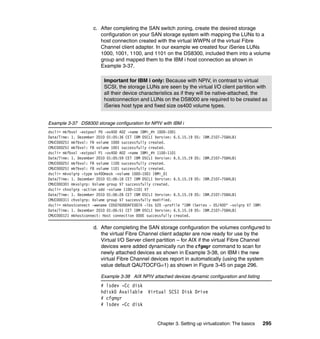
To create and deploy partitions on your systems automatically
System plans generated by the SPT can be deployed on the system by the
Hardware Management Console (HMC) or the Integrated Virtualization Manager
(IVM).
You can create an entirely new system configuration, or you can create a system
configuration based upon any of the following considerations:
Performance data from an existing system that the new system is to replace
Performance estimates that anticipate future workloads that you must support
Sample systems that you can customize to fit your needs
Integration between the SPT and both the Workload Estimator (WLE) and IBM
Performance Management (PM) allows you to create a system that is based
upon performance and capacity data from an existing system or one based on
new workloads that you specify.
Before you order a system, you can use the SPT to determine what you have to
order to support your workload. You can also use the SPT to determine how you
can partition a system that you already have.
Use the IBM System Planning Tool to estimate POWER Hypervisor requirements
and determine the memory resources required for all partitioned and
non-partitioned servers.
For more information about the System Planning Tool, see 3.5, “Using system
plans and System Planning Tool” on page 324.
Manufacturing option: Ask your IBM representative or Business Partner
representative to use the Customer Specified Placement manufacturing option
if you want to automatically deploy your partitioning environment on a new
machine. Deployment of a system plan requires the physical resource
locations to be the same as that specified in your .sysplan file.
20 IBM PowerVM Virtualization Introduction and Configuration
1.4 Operating system support for virtualization
In this section we describe the operating system support for virtualization.
1.4.1 PowerVM features supported
Table 1-4 here summarizes the PowerVM features supported by the operating
systems compatible with Power Systems technology. Using this table, combined
with Table 1-6 on page 23 and Table 1-7 on page 24, you can determine the
minimum operating system and hardware combination required for a given
feature.
Table 1-4 Virtualization features supported by AIX, IBM i and Linux
Feature AIX
5.3
AIX
6.1
AIX
7.1
IBMi
6.1.1
IBMi
7.1
RHEL
5.6
RHEL
6.1
SLES
10 SP4
SLES
11 SP1
Virtual SCSI Yes Yes Yes Yes Yes Yes Yes Yes Yes
Virtual Ethernet Yes Yes Yes Yes Yes Yes Yes Yes Yes
Shared Ethernet
Adapter
Yes Yes Yes Yes Yes Yes Yes Yes Yes
Integrated Virtual
Ethernet
Yes Yes Yes Yes Yes Yes Yes Yes Yes
Virtual Fibre Channel Yes Yes Yes Yes Yes Yes Yes Yes Yes
Virtual Tape Yes Yes Yes Yes Yes Yes Yes Yes Yes
Logical partitioning Yes Yes Yes Yes Yes Yes Yes Yes Yes
DLPAR I/O adapter
add/remove
Yes Yes Yes Yes Yes Yes Yes Yes Yes
DLPAR processor
add/remove
Yes Yes Yes Yes Yes Yes Yes Yes Yes
DLPAR memory add Yes Yes Yes Yes Yes Yes Yes Yes Yes
DLPAR memory
remove
Yes Yes Yes Yes Yes No Yes No Yes
Micro-Partitioning Yes Yes Yes Yes Yes Yes Yes Yes Yes
Shared Dedicated
Capacity
Yes Yes Yes Yes Yes Yes Yes Yes Yes
Chapter 1. Introduction 21
1.4.2 POWER7-specific Linux programming support
The IBM Linux Technology Center (LTC) contributes to the development of Linux
by providing support for IBM hardware in Linux distributions. In particular, the
LTC makes tools and code available to the Linux communities to take advantage
of the POWER7 technology, and develop POWER7 optimized software.
Multiple Shared
Processor Pools
Yes Yes Yes Yes Yes Yes Yes Yes Yes
Virtual I/O Server Yes Yes Yes Yes Yes Yes Yes Yes Yes
Integrated
Virtualization Manager
Yes Yes Yes Yes Yes Yes Yes Yes Yes
PowerVM Lx86 No No No No No Yes Yes Yes Yes
Suspend/Resume No Yes Yes No No Yes Yes No No
Shared Storage Pools Yes Yes Yes Yes Yesa Yes Yes Yes No
Thin Provisioning Yes Yes Yes Yesb
Yesb
Yes Yes Yes No
Active Memory
Sharing
No Yes Yes Yes Yes No Yes No Yes
Live Partition Mobility Yes Yes Yes No No Yes Yes Yes Yes
Simultaneous
Multi-Threading
(SMT)
Yesc Yesd Yes Yese Yes Yesc Yes Yesc Yes
Active Memory
Expansion
No Yesf Yes No No No No No No
Capacity on Demandg Yes Yes Yes Yes Yes Yes Yes Yes Yes
AIX Workload
Partitions
No Yes Yes No No No No No No
a. Requires IBM i 7.1 TR1.
b. Will become fully provisioned device when used by IBM i.
c. Only supports two threads.
d. AIX 6.1 up to TL4 SP2 only supports two threads, and supports four threads as of TL4 SP3.
e. IBM i 6.1.1 and up support SMT4.
f. On AIX 6.1 with TL4 SP2 and later.
g. Available on selected models.
Feature AIX
5.3
AIX
6.1
AIX
7.1
IBMi
6.1.1
IBMi
7.1
RHEL
5.6
RHEL
6.1
SLES
10 SP4
SLES
11 SP1
22 IBM PowerVM Virtualization Introduction and Configuration
Table 1-5 summarizes the support of specific programming features for various
versions of Linux.
Table 1-5 Linux support for POWER7 features
For information regarding Advanced Toolchain, see “How to use Advance
Toolchain for Linux” at the following website:
http://www.ibm.com/developerworks/wikis/display/hpccentral/How+to+use+A
dvance+Toolchain+for+Linux+on+POWER
Features Linux releases Comments
SLES 10 SP3 SLES 11
SP1
RHEL 5.5 RHEL 6
POWER6
compatibility
mode
Yes Yes Yes Yes
POWER7 mode No Yes No Yes
Strong Access
Ordering
No Yes No Yes Improved Lx86
performance
Scale to 256
cores / 1024
threads
No Yes No Yes Base OS support
available
4-way SMT No Yes No Yes
VSX Support No Yes No Yes
Distro toolchain
mcpu/mtune=p7
No Yes No Yes
Advance
Toolchain
Support
Yes; execution
restricted to
POWER6
instructions
Yes Yes;
execution
restricted to
POWER6
instructions
Yes Alternative IBM gnu
Toolchain
64k base page
size
No Yes Yes Yes
Tickless idle No Yes No Yes Improved energy
utilization and
virtualization of
partially to fully idle
partitions
Chapter 1. Introduction 23
You can also consult the University of Illinois Linux on Power Open Source
Repository:
http://ppclinux.ncsa.illinois.edu
ftp://linuxpatch.ncsa.uiuc.edu/toolchain/at/at05/suse/SLES_11/release_n
otes.at05-2.1-0.html
ftp://linuxpatch.ncsa.uiuc.edu/toolchain/at/at05/redhat/RHEL5/release_n
otes.at05-2.1-0.html
1.5 Hardware support for virtualization
PowerVM features are supported on the majority of the Power Systems offerings,
however, there are some exceptions. The Availability of PowerVM features by
Power Systems models web page contains a summary of which features are
available on which server models:
http://www.ibm.com/systems/power/software/virtualization/editions/featu
res.html
For more detailed information, see Table 1-6.
Table 1-6 Virtualization features supported by POWER technology levels
Feature POWER5 POWER6 POWER7
Virtual SCSI Yes Yes Yes
Virtual Ethernet Yes Yes Yes
Shared Ethernet Adapter Yes Yes Yes
Integrated Virtual Ethernet No Yes Yes
Virtual Fibre Channel No Yes Yes
Virtual Tape Yes Yes Yes
Logical partitioning Yes Yes Yes
DLPAR I/O adapter add/remove Yes Yes Yes
DLPAR processor add/remove Yes Yes Yes
DLPAR memory add Yes Yes Yes
DLPAR memory remove Yes Yes Yes
Micro-Partitioning Yes Yes Yes
Shared Dedicated Capacity Yesa Yes Yes
24 IBM PowerVM Virtualization Introduction and Configuration
Table 1-7 lists the various models of Power System servers and indicates which
POWER technology is used.
Table 1-7 Server model to POWER technology level cross-reference
Multiple Shared Processor Pools No Yes Yes
Virtual I/O Server Yes Yes Yes
Integrated Virtualization Manager Yes Yes Yes
PowerVM Lx86 Yes Yes Yes
Suspend/Resume No No Yes
Shared Storage Pools No Yes Yes
Thin Provisioning No Yes Yes
Active Memory Sharing No Yes Yes
Live Partition Mobility No Yes Yes
Simultaneous Multi-Threading Yesb
Yes Yesc
Active Memory Expansion No No Yes
Capacity on Demand 3 Yes Yes Yes
AIX Workload Partitions Yes Yes Yes
a. Only capacity from shutdown partitions can be shared.
b. POWER5 supports 2 threads.
c. POWER7 (or later) supports 4 threads.
POWER5 POWER6 POWER7
7037-A50 7778-23X/JS23 8202-E4B/720
8844-31U/JS21 7778-43X/JS43 8205-E6B/740
8844-51U/JS21 7998-60X/JS12 8231-E2B/710
9110-510 7998-61X/JS22 8231-E2B/730
9110-51A 8203-E4A/520 8233-E8B/750
9111-285 8203-E8A/550 8236-EC8/755
9111-520 8234-EMA/560 8406-70Y/PS700
9113-550 9117-MMA 8406-71Y/PS701
Feature POWER5 POWER6 POWER7
Chapter 1. Introduction 25
1.6 Availability of virtualized systems
Because individual Power Systems offerings are capable of hosting many system
images, the importance of isolating and handling service interruptions becomes
greater. These service interruptions can be planned or unplanned. Carefully
consider interruptions for systems maintenance when planning system
maintenance windows, as well as other factors such as these:
Environmentals, including cooling and power.
System firmware
Operating systems, for example, AIX, IBM i and Linux
Adapter microcode
9115-505 9119-FHA/595 8406-71Y/PS702
9116-561 9125-F2A/575 9117-MMB/770
9117-570 9406-MMA/570 9119-FHB/795
9118-575 9407-M15/520 9179-FHB/780
9119-590 9407-M25/520
9119-595 9407-M50/550
9131-52A
9133-55A
9405-520
9406-520
9406-525
9406-550
9406-570
9406-590
9406-595
9407-515
POWER5 POWER6 POWER7
26 IBM PowerVM Virtualization Introduction and Configuration
Technologies such as Live Partition Mobility or clustering (for example, IBM
PowerHA System Mirror) can be used to move workloads between machines,
allowing for scheduled maintenance, minimizing any service interruptions.
For applications requiring near-continuous availability, use clustering technology
such as IBM PowerHA System Mirror to provide protection across physical
machines. Locate these machines such that they are not reliant on any one
single support infrastructure element (for example, the same power and cooling
facilities). In addition, consider environmental factors such as earthquake zones
or flood plains.
The Power Systems servers, based on POWER technology, build upon a strong
heritage of systems designed for industry-leading availability and reliability.
IBM takes a holistic approach to systems reliability and availability—from the
microprocessor, which has dedicated circuitry and components designed into the
chip, to Live Partition Mobility and the ability to move running partitions from one
physical server to another. The extensive component, system, and software
capabilities, which focus on reliability and availability, coupled with good systems
management practice, can deliver near-continuous availability.
1.6.1 Reducing and avoiding outages
The base reliability of a computing system is, at its most fundamental level,
dependent upon the design and intrinsic reliability of the components that
comprise it. Highly reliable servers, such as Power Systems offerings, are built
with highly reliable components. Power Systems technology allows for
redundancies of several system components and mechanisms that diagnose and
handle special situations, such as errors, or failures at the component level.
For more information about the continuous availability of Power Systems servers,
see these white papers:
IBM Power Platform Reliability, Availability, and Serviceability (RAS) - Highly
Available IBM Power Systems Servers for Business-Critical Applications,
at this website:
ftp://public.dhe.ibm.com/common/ssi/ecm/en/pow03003USEN.PDF
IBM POWER Systems: Designed for Availability, at this website:
http://www.ibm.com/systems/p/hardware/whitepapers/power6_availabilit
y.html
For information about service and productivity tools for Linux on POWER, see
this website:
https://www14.software.ibm.com/webapp/set2/sas/f/lopdiags/home.html
Chapter 1. Introduction 27
1.6.2 Serviceability in virtualized environments
In partitioned environments where business-critical applications are consolidated
onto the same hardware, exceptional availability and serviceability are needed,
to ensure a smooth recovery from unplanned service interruptions. The POWER
Hypervisor ensures that issues affecting one partition do not propagate into other
logical partitions on the server.
For systems requiring the highest levels of availability, functions at the operating
system and application levels need to be investigated to allow for quick recovery
of service for the end users. An example of this might be IBM PowerHA System
Mirror.
1.6.3 Redundant Virtual I/O Servers
Because an AIX, IBM i, or Linux partition can be a client of one or more Virtual
I/O Servers at the same time, a good strategy to improve availability for sets of
client partitions is to connect them to two Virtual I/O Servers. One key reason for
redundancy is the ability to upgrade to the latest Virtual I/O Server technologies
without affecting production workloads. Techniques discussed later in the book
provide redundant configurations for each of the connections from the client
partitions to the external Ethernet network or storage resources.
1.7 Security in a virtualized environment
In POWER5 (and later) offerings, all resources are controlled by the POWER
Hypervisor. The POWER Hypervisor ensures that any partition attempting to
access resources within the system has permission to do so.
PowerVM has introduced a number of technologies allowing partitions to
securely communicate within a physical system. To maintain the complete
isolation of partition resources the POWER Hypervisor enforces communications
standards, as normally applied to external infrastructure communications. For
example, the virtual Ethernet implementation is based on the IEEE 802.1Q
standard.
The Power Systems virtualization architecture, AIX, IBM i, and some Linux
operating systems, have been security certified to the EAL4+ level. For more
information, see:
http://www.ibm.com/systems/power/software/security/solutions.html
28 IBM PowerVM Virtualization Introduction and Configuration
1.8 PowerVM Version 2.2 enhancements
The latest available PowerVM Version 2.2 contains the following enhancements:
Virtual I/O Server V2.2.0.10 FP24:
– Role Based Access Control (RBAC):
RBAC brings an added level of security and flexibility in the administration
of Virtual I/O Server (VIOS). With RBAC, you can create a set of
authorizations for the user management commands. You can assign these
authorizations to a role UserManagement, and this role can be given to
any other user. So a normal user with the role UserManagement can
manage the users on the system but will not have any further access.
With RBAC, the Virtual I/O Server has the ability of split management
functions that presently can be done only by the padmin user, provide
better security by providing only the necessary access to users, and easy
management and auditing of system functions.
– Support for LPARs:
• Support for up to 80 LPARs on Power 710 and 720
• Support for up to 160 LPARs on Power 730, 740, 750, 770, and 780
• Support for up to 254 LPARs on Power 795.
– Support for Concurrent Add of VLANs:
You can now add, modify, or remove the existing set of VLANs for a virtual
Ethernet adapter that is assigned to an active partition.
– PowerVM support for sub-chip per-core licensing on Power 710, 720, 730,
and 740.
– Support for USB tape:
The Virtual I/O Server now supports a USB DAT-320 Tape Drives and its
use as a virtual tape device for VIOS clients.
– Support for USB Blu-ray:
The Virtual I/O Server now supports USB Blu-ray optical devices. AIX
does not support mapping these as virtual optical devices to clients.
However, you can import the disk in to the virtual optical media library and
map the created file to the client as a virtual DVD drive.
Chapter 1. Introduction 29
Virtual I/O Server V2.2.0.11 FP24 SP01:
– MAC Address customizing
– Support for Suspend/Resume:
You can suspend a logical partition with its operating system and
applications, and store its virtual server state to persistent storage. At a
later time, you can resume the operation of the logical partition.
– Shared storage pools:
You can create a cluster of one Virtual I/O Server partition connected to
the same shared storage pool and having access to distributed storage.
– Thin provisioning:
With thin provisioning, a client virtual-SCSI device can be configured for
better storage space utilization. In a thin-provisioned device, the used
storage space that is shown might be greater that the actual used storage
space. If the blocks of storage space in a thin-provisioned device are
unused, the device is not entirely backed by physical storage space.
1.9 Summary of PowerVM technology
PowerVM technology on Power Systems offers industry leading virtualization
capabilities for AIX, IBM i, and Linux.
PowerVM Express Edition is designed for users looking for an introduction to
more advanced virtualization features at a highly affordable price. With PowerVM
Express Edition, users can create up to three partitions on the server, leverage
virtualized disk and optical devices, Virtual I/O Server (VIOS), and even try out
the Shared Processor Pool.
For users ready to get the full value out of their server, IBM offers PowerVM
Standard Edition, providing the most complete virtualization functionality for AIX,
IBM i, and Linux operating systems in the industry. PowerVM Standard Edition
includes features designed to allow businesses to increase system utilization;
while helping to ensure that applications continue to get the resources they need.
PowerVM Enterprise Edition includes all the features of PowerVM Standard
Edition plus two new industry-leading capabilities called Active Memory Sharing
and Live Partition Mobility. Active Memory Sharing intelligently flows system
memory from one partition to another as workload demands change.
30 IBM PowerVM Virtualization Introduction and Configuration
Live Partition Mobility allows for the movement of a running partition from one
server to another with no application downtime, resulting in better system
utilization, improved application availability, and energy savings. With Live
Partition Mobility, planned application downtime due to regular server
maintenance can be a thing of the past.
Combining these PowerVM features, we can help today’s businesses further
transform their computing departments into the agile, responsive, and energy
efficient organization demanded by today’s enterprises.
© Copyright IBM Corp. 2010-2011. All rights reserved. 31
Chapter 2. Virtualization technologies
on IBM Power Systems
In this chapter we discuss the various technologies that are part of the IBM
Power Systems:
Editions of PowerVM
POWER Hypervisor
Micro-partitioning
Virtual I/O Server
Integrated Virtualization Manager
Virtual SCSI
Virtual Fibre Channel
Shared storage pools
Virtual Ethernet
IBM i and PowerVM
Linux and PowerVM
Software licensing and PowerVM
Simultaneous Multi-threading
Suspend and resume
2
32 IBM PowerVM Virtualization Introduction and Configuration
2.1 Editions of the PowerVM feature
This section provides information about the packaging and ordering information
for the PowerVM Express Edition, Standard Edition, and Enterprise Edition,
which are available on the IBM Power Systems platform.
Table 2-1 outlines the functional elements of each edition of PowerVM.
Table 2-1 Overview of PowerVM capabilities by edition
PowerVM capability PowerVM
Express
Edition
PowerVM
Standard
Edition
PowerVM
Enterprise
Edition
Maximum VMs 3 / Server 254 / Server1
1. The maximum number of partitions in the PowerVM Standard and Enterprise
Edition feature is actually 1000. However the largest currently available IBM
Power Systems supports a maximum of 254 partitions per server.
254 / Server1
Micro-partitions Yes Yes Yes
Virtual I/O Server Yes (Single) Yes (Dual) Yes (Dual)
Integrated Virtualization
Manager managed
Yes Yes Yes
HMC managed No Yes Yes
VMControl managed Yes Yes Yes
Shared Dedicated
Capacity
Yes Yes Yes
Multiple Shared-Processor
Pools
(POWER6 or later)
No Yes Yes
Live Partition Mobility No No Yes
Active Memory Sharing No No Yes
PowerVM Lx86 Yes Yes Yes
Suspend/Resume No Yes Yes
NPIV Yes Yes Yes
Shared Storage Pools No Yes Yes
Thin Provisioning No Yes Yes
Chapter 2. Virtualization technologies on IBM Power Systems 33
For an overview of the availability of the PowerVM features by Power Systems
models, see this website:
http://www.ibm.com/systems/power/software/virtualization/editions/featu
res.html
The PowerVM feature is a combination of hardware enablement and software
that are available together as a single priced feature. It is charged at one unit for
each activated processor, including software maintenance.
The software maintenance can be ordered for a one-year or three-year period.
It is also charged for each active processor on the server.
When the hardware feature is specified with the initial system order, the firmware
is shipped already activated to support the PowerVM features.
For an HMC-attached system with the PowerVM Standard Edition or the
PowerVM Enterprise Edition, the processor-based license enables you to install
several Virtual I/O Server partitions (usually two) on a single physical server to
provide redundancy and to spread the I/O workload across several Virtual I/O
Server partitions.
Virtual Ethernet and dedicated processor LPAR are available without the
PowerVM feature for servers attached to an HMC or managed using the IVM.
2.1.1 PowerVM Express Edition
The PowerVM Express Edition is designed for users looking for an introduction to
more advanced virtualization features at a highly affordable price. It allows you to
create up to three partitions per server. Partitions and the Virtual I/O Server are
managed through the Integrated Virtualization Manager.
The PowerVM Express Edition provides the following capabilities:
Integrated Virtualization Manager Provides the capability to manage partitions
and the Virtual I/O Server from a single point
of control.
Virtual I/O Server Provides virtual I/O resources to client
partitions and enables shared access to
physical I/O resource such as disks, tape,
and optical media.
N_Port ID Virtualization Provides direct access to Fibre Channel
adapters from multiple client partitions,
simplifying the management of Fibre
Channel SAN environments.
34 IBM PowerVM Virtualization Introduction and Configuration
Shared Dedicated Capacity Allows the donation of spare CPU cycles for
dedicated processor partitions to be utilized
by the shared pool, thus increasing overall
system performance.
PowerVM Lx86 Enables the dynamic execution of x86 Linux
instructions by mapping them to instructions
on a POWER processor-based system and
caching the mapped instructions to optimize
performance.
The Virtual I/O Server provides the IVM management interface for systems with
the PowerVM Express Edition enabled. Virtual I/O Server is an appliance-style
partition that is not intended to run end-user applications, and must only be used
to provide login capability for system administrators.
2.1.2 PowerVM Standard Edition
The PowerVM Standard Edition includes features designed to allow businesses
to increase system utilization while helping to ensure that applications continue
to get the resources they need. Up to 254 partitions can be created on larger IBM
Power Systems.
Compared to the PowerVM Express edition, the PowerVM Standard Edition
additionally supports the following capabilities:
Hardware Management Console Enables management of a set of IBM Power
Systems from a single point of control.
Dual Virtual I/O Servers Increases application availability by enabling
Virtual I/O Server maintenance without a
downtime for the client partitions.
Multiple Shared Processor Pools Enables the creation of multiple processor
pools to make allocation of CPU resource
more flexible.
Shared Storage Pools Provide distributed access to storage
resources.
Partitions: The maximum number of partitions per server depends on the
server type and model. Details can be found at the following link:
http://www.ibm.com/systems/power/hardware/reports/factsfeatures.html
Chapter 2. Virtualization technologies on IBM Power Systems 35
Thin Provisioning Enables more efficient provisioning of file
backed storage from a shared storage pool
by allowing the creation of file backed
devices that appear larger than the actually
allocated physical disk space.
Suspend/Resume Enables the saving of the partition state to a
storage device from where the partition can
later be resumed on the same or on a
different server.
2.1.3 PowerVM Enterprise
The PowerVM Enterprise Edition feature code enables the full range of
virtualization capabilities that PowerVM provides. It allows users to not only
exploit hardware resources in order to drive down costs but also provides
maximum flexibility to optimize workloads across a server estate.
These are the primary additional capabilities in this edition:
PowerVM Live Partition Mobility
Active Memory Sharing
PowerVM Live Partition Mobility allows you to migrate running AIX and Linux
partitions and their hosted applications from one physical server to another
without disrupting the infrastructure services. The migration operation maintains
complete system transactional integrity. The migration transfers the entire system
environment, including processor state, memory, attached virtual devices, and
connected users.
The benefits of PowerVM Live Partition Mobility include these:
Transparent maintenance: It allows users and applications to continue
operations by moving their running partitions to available alternative systems
during the maintenance cycle.
Meeting increasingly stringent service-level agreements (SLAs): It allows you
to proactively move running partitions and applications from one server to
another.
Balancing workloads and resources: If a key application’s resource
requirements peak unexpectedly to a point where there is contention for
server resources, you can move it to a larger server or move other, less
critical, partitions to different servers, and use the freed-up resources to
absorb the peak.
36 IBM PowerVM Virtualization Introduction and Configuration
Mechanism for dynamic server consolidation facilitating continuous
server-estate optimization: Partitions with volatile resource requirements can
use PowerVM Live Partition Mobility to consolidate partitions when
appropriate or redistribute them to higher capacity servers at peak.
For more information about the Live Partition Mobility element of the PowerVM
Enterprise Edition, see IBM System p Live Partition Mobility, SG24-7460.
Active Memory Sharing is an IBM PowerVM advanced memory virtualization
technology that provides system memory virtualization capabilities to IBM Power
Systems, allowing multiple logical partitions to share a common pool of physical
memory.
Active Memory Sharing can be exploited to increase memory utilization on the
system either by decreasing the system memory requirement or by allowing the
creation of additional logical partitions on an existing system.
For more information about Active Memory Sharing, see the Redbooks
publication, PowerVM Virtualization Active Memory Sharing, REDP-4470.
2.1.4 Activating the PowerVM feature
For upgrade orders, IBM will ship a key to enable the firmware (similar to the
CUoD key).
To find the current activation codes for a specific server, clients can visit the IBM
website, where they can enter the machine type and serial number:
http://www-912.ibm.com/pod/pod
Chapter 2. Virtualization technologies on IBM Power Systems 37
The activation code for PowerVM feature Standard Edition has a type definition of
VET in the window results. You will see a window similar to that shown in
Figure 2-1.
Figure 2-1 Example of virtualization activation codes website
38 IBM PowerVM Virtualization Introduction and Configuration
For systems attached to an HMC, Figure 2-2 shows the HMC window where you
activate the PowerVM feature.
Figure 2-2 HMC window to activate PowerVM feature
When using the IVM within the Virtual I/O Server to manage a single system,
Figure 2-3 on page 39 shows the Advanced System Management Interface
(ASMI) menu to enable the Virtualization Engine™ Technologies. For more
information about this procedure, see Integrated Virtualization Manager on IBM
System p5, REDP-4061.
Chapter 2. Virtualization technologies on IBM Power Systems 39
Figure 2-3 ASMI menu to enable the Virtualization Engine Technologies
2.1.5 Summary of PowerVM feature codes
Table 2-2 provides an overview of the PowerVM feature codes on IBM Power
Systems.
Table 2-2 PowerVM feature code overview
Product Line Type and
model
Express
Edition
Standard
Edition
Enterprise
Edition
IBM
BladeCenter
JS12 Express
7998-60X n/a 5406 5606
IBM
BladeCenter
JS22 Express
7998-61X n/a 5409 5649
IBM Blade
Center JS23
and JS43
Express
7778-23X n/a 5429 5607
40 IBM PowerVM Virtualization Introduction and Configuration
IBM Power
520 Express
8203-E4A 7983 8506 8507
IBM Power
550 Express
8204-E8A 7982 7983 7986
IBM Power
560 Express
8234-EMA n/a 7942 7995
IBM Power
570
9117-MMA n/a 7942 7995
IBM Power
595
9119-FHA n/a 7943 8002
IBM
BladeCenter
PS700
Express
8406-70Y 5225 5227 5228
IBM
BladeCenter
PS701 and
PS702
Express
8406-71Y 5225 5227 5228
IBM Power
710 and 730
Express
8231-E2B 5225 5227 5228
IBM Power
720 Express
8202-E4B 5225 5227 5228
IBM Power
740 Express
8205-E6B 5225 5227 5228
IBM Power
750 Express
8233-E8B 7793 7794 7795
IBM Power
770
9117-MMB n/a 7942 7995
IBM Power
780
9179-MHB n/a 7942 7995
IBM Power
795
9119-FHB n/a 7943 8002
Feature codes: The feature codes for the Standard Edition provide all
functions supplied with the Express Edition. The feature codes for the
Enterprise Edition provide all functions supplied with the Standard Edition.
Product Line Type and
model
Express
Edition
Standard
Edition
Enterprise
Edition
Chapter 2. Virtualization technologies on IBM Power Systems 41
2.2 Introduction to the POWER Hypervisor
The POWER Hypervisor is the foundation of IBM PowerVM. Combined with
features designed into the IBM POWER processors, the POWER Hypervisor
delivers functions that enable capabilities including dedicated-processor
partitions, Micro-Partitioning, virtual processors, IEEE VLAN compatible virtual
switch, virtual Ethernet adapters, virtual SCSI adapters, virtual Fibre Channel
adapters, and virtual consoles.
The POWER Hypervisor is a firmware layer sitting between the hosted operating
systems and the server hardware, as shown in Figure 2-4. The POWER
Hypervisor is always installed and activated, regardless of system configuration.
The POWER Hypervisor has no specific or dedicated processor resources
assigned to it.
The POWER Hypervisor performs the following tasks:
Enforces partition integrity by providing a security layer between logical
partitions.
Provides an abstraction layer between the physical hardware resources and
the logical partitions using them. It controls the dispatch of virtual processors
to physical processors, and saves and restores all processor state information
during virtual processor context switch.
Controls hardware I/O interrupts and management facilities for partitions.
Figure 2-4 POWER Hypervisor abstracts physical server hardware
POWER Hypervisor
Partition
CPU
MEM
MEM
CPU
I/O SLOT
I/O SLOT
I/O SLOT
Partition
CPU
MEM
CPU
I/O SLOT
I/O SLOT
Partition
CPU
MEM
MEM
CPU
I/O SLOT
I/O SLOT
I/O SLOT
Virtual and physical resources
Server hardware resources
CPU CPU CPU CPU
MEM
MEM
MEM
MEM
MEM
I/OSLOT
I/OSLOT
I/OSLOT
I/OSLOT
I/OSLOT
42 IBM PowerVM Virtualization Introduction and Configuration
The POWER Hypervisor firmware and the hosted operating systems
communicate with each other through POWER Hypervisor calls (hcalls).
Through Micro-Partitioning, the POWER Hypervisor allows multiple instances of
operating systems to run on POWER5-based and later servers concurrently. The
supported operating systems are listed in Table 1-4 on page 20.
2.2.1 POWER Hypervisor virtual processor dispatch
Physical processors are abstracted by the POWER Hypervisor and presented to
micro-partitions as virtual processors. Micro-partitions are allocated a number of
virtual processors when they are created. The number of virtual processors
allocated to a micro-partition can be dynamically changed.
The number of virtual processors in a micro-partition and in all micro-partitions
does not necessarily have any correlation to the number of physical processors
in the physical shared-processor pool. In terms of capacity, a physical processor
can support up to ten virtual processors.
The POWER Hypervisor manages the distribution of available physical processor
cycles from the processors in the physical shared-processor pool. The POWER
Hypervisor uses a 10 ms dispatch cycle; each virtual processor is guaranteed to
receive its entitled capacity of processor cycles during each 10 ms dispatch
window.
To optimize physical processor utilization, a virtual processor will yield a physical
processor if it has no work to run or enters a wait state (such as waiting for a lock
or for I/O to complete). A virtual processor can yield a physical processor through
a POWER Hypervisor call.
Chapter 2. Virtualization technologies on IBM Power Systems 43
Dispatch mechanism
To illustrate the dispatch mechanism, consider three partitions with two, one, and
three virtual processors. These six virtual processors are mapped to two physical
processors as shown in Figure 2-5.
Figure 2-5 Virtual processor to physical processor mapping: Pass 1 and Pass 2
Micro-partitions
µP 1
AIX
EC 0.8
vp0
vp1
µP 2
Linux
EC 0.2
µP 3
IBM i
EC 0.6
vp0
POWER Hypervisor
Physical Shared Processor Pool
p0 p1
vp0
Pass 1
vp1
vp2
Pass 2
KEY:
EC Entitled Capacity
p Physical processor
vp Virtual processor
µP Micro-partition
Micro-partitions
µP 1
AIX
EC 0.8
vp0
vp1
µP 2
Linux
EC 0.2
µP 3
IBM i
EC 0.6
vp0
POWER Hypervisor
Physical Shared Processor Pool
p0 p1
vp0
vp1
vp2
44 IBM PowerVM Virtualization Introduction and Configuration
Figure 2-6 shows two POWER Hypervisor dispatch cycles for two
micro-partitions with a total of six virtual processors dispatched on to two
physical processors.
Micro-partition 1 is defined with an entitled capacity of 0.8 processing units, with
two virtual processors. This allows the micro-partition the equivalent of 80
percent of one physical processor for each 10 ms dispatch window from the
physical shared-processor pool. The workload uses 40 percent of each physical
processor during each dispatch interval.
Micro-partition 2 is configured with one virtual processor and an entitled capacity
of 0.2 processing units, entitling it to 20 percent usage of a physical processor
during each dispatch interval.
Figure 2-6 Micro-Partitioning processor dispatch
Dispatch interval: It is possible for a virtual processor to be dispatched more
than once during a dispatch interval. In the first dispatch interval, the workload
executing on virtual processor 1 in micro-partition 1 is not continuous on the
physical processor resource. This can happen if the operating system cedes
cycles, and is reactivated by a prod hcall.
LPAR 3
VP 2
LPAR 1
VP 1
LPAR 1
VP 1
IDLE
LPAR 3
VP 0
LPAR 1
VP 1
IDLE
LPAR 1
VP 0
LPAR 2
VP 0
LPAR 3
VP 0
LPAR 1
VP 0
LPAR2
VP 0
LPAR 3
VP 1
LPAR 3
VP 2
LPAR 3
VP 1
Hypervisor dispatch interval Pass 1 Hypervisor dispatch interval Pass 2
0 1 2 3 4 5 6 7 8 9 10 11 12 13 14 15 16 17 18 19 20
Time (ms)
LPAR 3
Capacity entitlement = 0.6 processing units; virtual processors = 3 (capped)
LPAR 2
Capacity entitlement = 0.2 processing units; virtual processors = 1 (capped)
LPAR 1
Capacity entitlement = 0.8 processing units; virtual processors = 2 (capped)
Chapter 2. Virtualization technologies on IBM Power Systems 45
Micro-partition 3 contains three virtual processors, with an entitled capacity of 0.6
processing units. Each of the micro-partition’s three virtual processors consumes
20 percent of a physical processor in each dispatch interval. In the case of virtual
processor 0 and 2, the physical processor they run on changes between dispatch
intervals.
Processor affinity
To optimize the use of cache memory and minimize context switching, the
POWER Hypervisor is designed to dispatch virtual processors on the same
physical processor across dispatch cycles where possible. This behavior is
called processor affinity.
The POWER Hypervisor will always attempt to dispatch the virtual processor on
to the same physical processor that it previously ran on. If this is not possible, the
POWER Hypervisor will broaden its search out to the other processor on the
POWER chip, then to another chip on the same chip module.
The Power Systems affinity provided by the POWER Hypervisor is conducted in
the following order:
1. Chip: The other processor core on the POWER chip.
2. Chip module: A processor core within the same chip module.
3. Processor card/book (dependent on system type): A processor within the
same processor card/book.
Dynamic processor de-allocation and processor sparing
If a physical processor reaches a failure threshold and needs to be taken offline
(guarded out), the POWER Hypervisor will analyze the system environment to
determine what action will be taken to replace the processor resource. The
options for handling this condition are as follows:
If there is a CUoD processor available, the POWER Hypervisor will
transparently switch the processor to the physical shared processor pool, and
no partition loss of capacity will result and an error is logged.
If there is at least 1.0 unallocated processor capacity available, it can be used
to replace the capacity lost due to the failing processor.
If not enough unallocated resource exists, the POWER Hypervisor will determine
how much capacity each micro-partition must lose to eliminate the 1.00
processor units from the physical shared processor pool. As soon as each
partition varies off the processing capacity and virtual processors, the failing
processor is taken offline by the service processor and POWER Hypervisor.
46 IBM PowerVM Virtualization Introduction and Configuration
The amount of capacity that is allocated to each micro-partition is proportional to
the total amount of entitled capacity in the partition. This is based on the amount
of capacity that can be varied off, which is controlled by the Partition Availability
Priority, which can be defined for each partition.
For more information about dynamic processor de-allocation, see the POWER7
System RAS white paper, which can be found at this website:
http://www-03.ibm.com/systems/power/hardware/whitepapers/ras7.html
System monitoring and statistics
The sharing of system resources with micro-partitions and the use of
multi-threaded processor cores with simultaneous multithreading challenges the
traditional performance data collection and reporting tools.
Within the physical processor architecture are registers to capture an accurate
cycle count. This enables the measurement of micro-partition activity during the
time slices dispatched on a physical processor.
The performance data collection and reporting tools are discussed in IBM
PowerVM Virtualization Managing and Monitoring, SG24-7590.
Monitoring Hypervisor hcalls
In AIX, the commands lparstat and mpstat can be used to display the POWER
Hypervisor and virtual processor affinity statistics. These commands are
discussed in detail in IBM PowerVM Virtualization Managing and Monitoring,
SG24-7590.
For IBM i, similar information is contained in the QAPMSYSAFN Collection
Services file.
2.2.2 POWER Hypervisor and virtual I/O
The POWER Hypervisor does not own any physical I/O devices, nor does it
provide virtual interfaces to them. All physical I/O devices in the system are
owned by logical partitions or the Virtual I/O Server.
To support virtual I/O, the POWER Hypervisor provides the following functions:
Control and configuration structures for virtual adapters
Controlled and secure transport to physical I/O adapters
Interrupt virtualization and management
Devices: Shared I/O devices are owned by the Virtual I/O Server, which
provides access to the real hardware upon which the virtual I/O device is
based.
Chapter 2. Virtualization technologies on IBM Power Systems 47
I/O types supported
The following types of virtual I/O adapters are supported by the POWER
Hypervisor:
SCSI
Fibre Channel
Ethernet
System Port (virtual console)
Virtual I/O adapters
Virtual I/O adapters are defined by system administrators during logical partition
definition. Configuration information for the virtual adapters is presented to the
partition operating system. For details, see the following sections:
Virtual SCSI is covered in detail in 2.7, “Virtual SCSI introduction” on
page 109
Virtual Ethernet and the shared Ethernet adapter are discussed in 2.10,
“Virtual Networking” on page 144
Virtual Fibre Channels are described in 2.8, “N_Port ID Virtualization
introduction” on page 129.
2.2.3 System port (virtual TTY/console support)
Each partition needs to have access to a system console. Tasks such as
operating system install, network setup, and some problem analysis activities
require a dedicated system console. For AIX and Linux, the POWER Hypervisor
provides a virtual console using a virtual TTY or serial adapter and a set of
POWER Hypervisor calls to operate on them.
Depending on the system configuration, the operating system console can be
provided by the HMC or IVM virtual TTY.
For IBM i, an HMC managed server can use the 5250 system console emulation
that is provided by a Hardware Management Console, or use an IBM i Access
Operations Console. IVM managed servers must use an IBM i Access
Operations Console.
Devices: The Virtual I/O Server supports optical devices and some SAS or
USB attached tape devices. These are presented to client partitions as virtual
SCSI devices.
48 IBM PowerVM Virtualization Introduction and Configuration
2.3 Overview of Micro-Partitioning technologies
Micro-Partitioning is the ability to distribute the processing capacity of one or
more physical processors among one or more logical partitions. Thus,
processors are shared among logical partitions.
The benefit of Micro-Partitioning is that it allows significantly increased overall
utilization of processor resources within the system. The micro-partition is
provided with a processor entitlement—the processor capacity guaranteed to it
by the POWER Hypervisor. A micro-partition must have a minimum of 0.1 of the
capacity of a physical processor and can be up to the capacity of the system.
Granularity of processor entitlement is 0.01 of a physical processor after the
minimum is met. Such fine granularity of processor capacity allocation to
micro-partitions means efficient use of processing capacity.
There are a range of technologies associated with Micro-Partitioning. This
section discusses the following technologies:
Micro-partitions
Physical shared-processor pool
Multiple Shared-Processor Pools
Shared dedicated capacity
Capacity Upgrade on Demand
Dynamic processor deallocation and processor sparing
Dynamic resources
Shared-processor considerations
2.3.1 Micro-partitions
The virtualization of physical processors in IBM Power Systems introduces an
abstraction layer that is implemented within the IBM POWER Hypervisor. The
POWER Hypervisor abstracts the physical processors and presents a set of
virtual processors to the operating system within the micro-partitions on the
system.
Ports: The serial ports on an HMC-based system are inactive. Partitions
requiring a TTY device must have an async adapter defined. The async
adapter can be dynamically moved into or out of partitions with dynamic LPAR
operations.
On the IVM, the serial ports are configured and active. They are used for initial
configuration of the system.
Chapter 2. Virtualization technologies on IBM Power Systems 49
The operating system sees only the virtual processors and dispatches runnable
tasks to them in the normal course of running a workload.
A micro-partition can have a processor entitlement from a minimum of 0.1 of a
processor up to the total processor capacity in the system. The granularity of
processor entitlement is 0.01 of a processor, allowing entitlement to be precisely
determined and configured.
Micro-partitions can have processor entitlements of, for example, 1.76, 0.14, 6.48
(all relating to the capacity of a physical processor). Thus, micro-partitions share
the available processing capacity, potentially giving rise to multiple partitions
executing on the same physical processor.
Micro-Partitioning is supported across the entire POWER5 and later server
range, from entry level to the high-end systems.
While micro-partitions can be created with a minimum of 0.1 processing units,
you can create a maximum of 10 micro-partitions per activated processor. The
maximum number of partitions depends on the server model:
Up to 80 partitions on Power 710 and 720
Up to 160 partitions on Power 730, 740, and 750
Up to 254 partitions on Power 770, 780, and 795
In contrast, dedicated-processor LPARs can only be allocated whole processors,
so the maximum number of dedicated-processor LPARs in a system is equal to
the number of physical activated processors.
It is important to point out that the maximum number of micro-partitions
supported for your system might not be the most practical configuration. Based
on production workload demands, the number of micro-partitions that your
system needs to use might be less.
Micro-partitions can use shared or dedicated memory. The I/O requirements of a
micro-partition can be supported through either physical and/or virtual resources.
A micro-partition can own dedicated network and storage resources using
dedicated physical adapters. Alternatively, micro-partitions might have some or
all of the Ethernet and/or storage I/O resources satisfied through the use of
virtual Ethernet, virtual SCSI, and virtual Fibre Channel.
Partitions are created and orchestrated by the HMC or IVM. When you start
creating a partition, you have to choose between a micro-partition and a
dedicated processor LPAR.
50 IBM PowerVM Virtualization Introduction and Configuration
When setting up a partition, you have to define the resources that belong to the
partition, such as memory and I/O resources. For micro-partitions, you have to
configure these additional attributes:
Minimum, desired, and maximum processing units of capacity
The processing sharing mode, either capped or uncapped
Minimum, desired, and maximum virtual processors
These settings are the topics of the following sections.
Processing units of capacity
Processing capacity can be configured in fractions of 0.01 processors. The
minimum amount of processing capacity that has to be assigned to a
micro-partition is 0.1 processors.
On the HMC, processing capacity is specified in terms of processing units. The
minimum capacity of 0.1 processors is specified as 0.1 processing units. To
assign a processing capacity representing 75% of a processor, 0.75 processing
units are specified on the HMC.
On a system with two processors, a maximum of 2.0 processing units can be
assigned to a micro-partition. Processing units specified on the HMC are used to
quantify the minimum, desired, and maximum amount of processing capacity for
a micro-partition.
After a micro-partition is activated, processing capacity is usually referred to as
capacity entitlement or entitled capacity.
A micro-partition is guaranteed to receive its capacity entitlement under all
systems and processing circumstances.
Capped and uncapped mode
Micro-partitions have a specific processing mode that determines the maximum
processing capacity given to them from their Shared-Processor Pool.
The processing modes are as follows:
Uncapped mode The processing capacity can exceed the entitled capacity
when resources are available in their Shared-Processor
Pool and the micro-partition is eligible to run. Extra
capacity is distributed on a weighted basis. You must
specify the uncapped weight of each micro-partition when
it is created.
Capped mode The processing capacity given can never exceed the
entitled capacity of the micro-partition.
Chapter 2. Virtualization technologies on IBM Power Systems 51
If there is competition for additional processing capacity among several
uncapped micro-partitions, the POWER Hypervisor distributes unused processor
capacity to the eligible micro-partitions in proportion to each micro-partition's
uncapped weight. The higher the uncapped weight of a micro-partition, the more
processing capacity the micro-partition will receive.
The uncapped weight must be a whole number from 0 to 255. The default
uncapped weight for uncapped micro-partitions is 128. A particular
micro-partition's share of the unused capacity can be estimated using the
following formula:
Where the following definitions apply:
AdditionalCapacityShare Share of unused processing capacity to be allocated to
a particular partition (in processor units x 100)
UCk Unused processor capacity available in their
Shared-Processor Pool for the dispatch window (in
processor units)
WPn Uncapped weight of the particular uncapped
micro-partition
rP The number of runnable (eligible) micro-partitions for
this dispatch window
We Sum of the uncapped weights of all runnable
uncapped micro-partitions
So additional capacity for an eligible uncapped micro-partition is computed by
dividing its uncapped weight by the sum of the uncapped weights for all
uncapped partitions that are currently runnable in the dispatch window.
Here is an example of this:
UCk = 200 There are 200 units of unused processing capacity
available for reallocation to eligible micro-partitions (200 =
2.0 processors)
WPn = 100 The uncapped weighting of the micro-partition that is the
subject of this calculation
AdditionalCapacityShare UCk
WPn
We
0
rP

----------------=
52 IBM PowerVM Virtualization Introduction and Configuration
rP = 5 There are 5 runnable uncapped micro-partitions
competing for the unused processor capacity denoted by
UCk
We = 800 The sum of the uncapped weighting of the runnable
uncapped micro-partitons competing for the unused
processor capacity
From this data we can compute the additional capacity share:
This gives us the following result:
In this example, the AdditionalCapacityShare of 25 equates to 0.25 processor
units.
A weight of 0 allows automated workload management software to provide the
equivalent function as a dynamic LPAR operation to change uncapped to capped
(and the reverse).
Virtual processors
A virtual processor is a depiction or a representation of a physical processor that
is presented to the operating system running in a micro-partition. The processing
entitlement capacity assigned to a micro-partition, be it a whole or a fraction of a
processing unit, will be distributed by the server firmware equally between the
virtual processors within the micro-partition to support the workload. For
example, if a micro-partition has 1.60 processing units and two virtual
processors, each virtual processor will have the capacity of 0.80 processing
units.
A virtual processor cannot have a greater processing capacity than a physical
processor. The capacity of a virtual processor will be equal to or less than the
processing capacity of a physical processor.
Important: If you set the uncapped weight at 0, the POWER Hypervisor treats
the micro-partition as a capped micro-partition. A micro-partition with an
uncapped weight of 0 cannot be allocated additional processing capacity
above its entitled capacity.
AdditionalCapacityShare 200
100
800
---------=
AdditionalCapacityShare 25=
Chapter 2. Virtualization technologies on IBM Power Systems 53
Selecting the optimal number of virtual processors depends on the workload in
the partition. The number of virtual processors can also have an impact on
software licensing. For example, if the sub-capacity licensing model is used.
2.13, “Software licensing in a virtualized environment” on page 184 describes
licensing in more detail.
By default, the number of processing units that you specify is rounded up to the
minimum whole number of virtual processors needed to satisfy the assigned
number of processing units. The default settings maintain a balance of virtual
processors to processor units. For example:
If you specify 0.50 processing units, one virtual processor will be assigned.
If you specify 2.25 processing units, three virtual processors will be assigned.
You can change the default configuration and assign more virtual processors in
the partition profile.
A micro-partition must have enough virtual processors to satisfy its assigned
processing capacity. This capacity can include its entitled capacity and any
additional capacity above its entitlement if the micro-partition is uncapped.
So, the upper boundary of processing capacity in a micro-partition is determined
by the number of virtual processors that it possesses. For example, if you have a
partition with 0.50 processing units and one virtual processor, the partition
cannot exceed 1.00 processing units. However, if the same partition with 0.50
processing units is assigned two virtual processors and processing resources
are available, the partition can then use an additional 1.50 processing units.
The minimum number of processing units that can be allocated to each virtual
processor is dependent on the server model. The maximum number of
processing units that can be allocated to a virtual processor is always 1.00.
Additionally, the number of processing units cannot exceed the total processing
unit within a Shared-Processor Pool.
Number of virtual processors
In general, the value of the minimum, desired, and maximum virtual processor
attributes needs to parallel those of the minimum, desired, and maximum
capacity attributes in some fashion. A special allowance has to be made for
uncapped micro-partitions, because they are allowed to consume more than their
capacity entitlement.
If the micro-partition is uncapped, the administrator might want to define the
desired and maximum virtual processor attributes greater than the corresponding
capacity entitlement attributes. The exact value is installation-specific, but 50 to
100 percent more is reasonable.
54 IBM PowerVM Virtualization Introduction and Configuration
Table 2-3 shows several reasonable settings of number of virtual processor,
processing units, and the capped and uncapped mode.
Table 2-3 Reasonable settings for shared processor partitions
a - Virtual processors
b - Processing units
Virtual processor folding
In order for an uncapped micro-partition to take full advantage of unused
processor capacity in the physical shared-processor pool, it must have enough
virtual processors defined. In the past, these additional virtual processors can
remain idle for substantial periods of time and consume a small but valuable
amount of resources.
Virtual processor folding effectively puts idle virtual processors into a
hibernation state so that they do not consume any resources. There are several
important benefits of this feature including improved processor affinity, reduced
POWER Hypervisor workload, and increased average time a virtual processor
executes on a physical processor.
Following are the characteristics of the virtual processor folding feature:
Idle virtual processors are not dynamically removed from the partition. They
are hibernated, and only awoken when more work arrives.
There is no benefit from this feature when partitions are busy.
If the feature is turned off, all virtual processors defined for the partition are
dispatched to physical processors.
Virtual processors having attachments, such as bindprocessor or rset
command attachments in AIX, are not excluded from being disabled.
The feature can be turned off or on; the default is on.
When a virtual processor is disabled, threads are not scheduled to run on it
unless a thread is bound to that processor.
Virtual processor folding is controlled through the vpm_xvcpus tuning setting,
which can be configured using the schedo command.
Min
VPsa
Desired
VPs
Max VPs Min PUb Desired
PU
Max. PU Capped
1 2 4 0.1 2.0 4.0 Y
1 3 or 4 8 0.1 2.0 8.0 N
1 2 6 0.1 2.0 6.0 Y
1 3 or 4 10 0.1 2.0 10.0 N
Chapter 2. Virtualization technologies on IBM Power Systems 55
For more information about virtual processor folding, including usage examples,
hardware and software requirements see the IBM EnergyScale for POWER7
Processor-Based Systems whitepaper, which can be found at this website:
http://www.ibm.com/systems/power/hardware/whitepapers/energyscale7.html
Shared processor considerations
Take the following considerations into account when implementing the
micro-partitions:
The minimum size for a micro-partition is 0.1 processing units of a physical
processor. So the number of micro-partitions you can activate for a system
depends mostly on the number of activated processors in a system.
The maximum number of micro-partitions supported on a single server
depends on the server model. The maximum on the largest server is currently
254 partitions.
The maximum number of virtual processors in a micro-partition is 64.
The minimum number of processing units you can have for each virtual
processor depends on the server model. The maximum number of processing
units that you can have for each virtual processor is always 1.00. This means
that a micro-partition cannot use more processing units than the number of
virtual processors that it is assigned, even if the micro-partition is uncapped.
A partition is either a dedicated-processor partition or a micro-partition, it
cannot be both. However, processor capacity for a micro-partition can come
from Shared Dedicated Capacity. This is unused processor capacity from
processors dedicated to a partition but that are capable of capacity donation.
This situation does not change the characteristics of either the
DEDICATED-processor partition or the micro-partition.
If you want to dynamically remove a virtual processor, you cannot select a
specific virtual processor to be removed. The operating system will choose
the virtual processor to be removed.
AIX, IBM i and Linux will utilize affinity domain information provided by
firmware (POWER Hypervisor) to build associations of virtual processors to
memory, and it will continue to show preference to redispatching a thread to
the virtual processor that it last ran on. However, this cannot be guaranteed in
all circumstances.
An uncapped micro-partition with a weight of 0 is effectively the same as a
micro-partition that is capped. This is because it will never receive any
additional capacity above it’s capacity entitlement. Using the HMC or IVM, the
weighting of a micro-partition can dynamically changed. Similarly, the HMC or
IVM can change the mode of a micro-partition from capped to uncapped (and
the reverse).
56 IBM PowerVM Virtualization Introduction and Configuration
Dedicated processors
Dedicated processors are whole processors that are assigned to
dedicated-processor partitions (LPARs). The minimum processor allocation for
an LPAR is one (1) whole processor, and can be as many as the total number of
installed processors in the server.
Each processor is wholly dedicated to the LPAR. It is not possible to mix shared
processors and dedicated processors in the same partition.
By default, the POWER Hypervisor will make the processors of a powered-off
LPAR available to the physical shared-processor pool. When the processors are
in the physical shared processor pool, an uncapped partition that requires more
processing resources can utilize the additional processing capacity. However,
when the LPAR is powered on, it will regain the processors and they will become
dedicated to the newly powered-on LPAR.
To prevent dedicated processors from being used in the physical
shared-processing pool while they are not part of a powered-on LPAR, you can
disable this function on the HMC by deselecting the “Processor Sharing: Allow
when partition is inactive” check box in the partition’s properties.
Attention: The option “Processor Sharing: Allow when partition is inactive” is
activated by default. It is not part of profile properties and it cannot be changed
dynamically.
Chapter 2. Virtualization technologies on IBM Power Systems 57
2.3.2 Shared-processor pools
Shared-processor pools have been available since the introduction of POWER5
based IBM Power Systems. Using shared-process pools processor resources
can be used very efficiently and overall system utilization can be significantly
increased.
POWER5 based servers support one shared-processor pool. It is described in
detail in “POWER5 physical shared-processor pool”.
POWER6-based and later servers support multiple shared-processor pools.
They are described in “Multiple Shared-Processor Pools” on page 62.
POWER5 physical shared-processor pool
In POWER5-based servers, a physical shared-processor pool is a set of physical
processors that are not dedicated to any logical partition. Micro-Partitioning
technology coupled with the POWER Hypervisor facilitates the sharing of
processing units between micro-partitions.
Tip: If the “Allow when partition is inactive” box is checked on the HMC and
you want to lock the dedicated processors from being released to the
physical-shared processor pool without fully activating an operating system in
a partition, you can do one of the following actions:
For AIX and Linux, boot the partition to SMS.
For IBM i, boot the partition to Dedicated Services Tools (DST).
Doing this will hold the processors and stop them from being included in the
physical shared-processor pool.
58 IBM PowerVM Virtualization Introduction and Configuration
An overview of the relationships between the physical shared-processor pool,
virtual processors, and micro-partitions can be seen in Figure 2-7.
Figure 2-7 POWER5 physical shared processor pool and micro-partitions
Figure 2-7 shows that physical processors p0 and p1 are not assigned to the
physical shared processor pool; they might be assigned to dedicated-processor
partitions or awaiting activation.
In a micro-partition, there is no fixed relationship between virtual processors and
physical processors. The POWER Hypervisor can use any physical processor in
the physical shared-processor pool when it schedules the virtual processor. By
default, it attempts to use the same physical processor, but this cannot always be
guaranteed. The POWER Hypervisor uses the concept of a home node for virtual
processors, enabling it to select the best available physical processor from a
cache affinity perspective for the virtual processor that is to be scheduled.
Terms: The term physical shared-processor pool is used in this book to
differentiate the pool of physical processors (the source of all processor
capacity for micro-partitions) from the technology that implements Multiple
Shared-Processor Pools in POWER6-based and later servers.
Micro-partitions
p1p0
Physical Shared Processor Pool
p2 p3 p4 p5 p6 p7
AIX
EC 1.6
vp0
vp1
AIX
EC 0.8
vp2
IBM I
EC 0.5
vp3
vp4
Linux
EC 1.6
vp5
vp6
vp7
IBM I
EC 0.8
vp8
Linux
EC 0.5
vp9
vp10
POWER Hypervisor
KEY:
EC Entitled Capacity
p Physical processor
vp Virtual processor
Chapter 2. Virtualization technologies on IBM Power Systems 59
Affinity scheduling is designed to preserve the content of memory caches, so
that the working data set of a job can be read or written in the shortest time
period possible. Affinity is actively managed by the POWER Hypervisor.
Figure 2-8 shows the relationship between two partitions using a physical
shared-processor pool of a single physical processor. One partition has two
virtual processors and the other a single virtual processor. The diagram also
shows how the capacity entitlement is evenly divided over the number of virtual
processors.
When you set up a partition profile, you set up the desired, minimum, and
maximum values you want for the profile. When a partition is started, the system
chooses the partition's entitled processor capacity from this specified capacity
range. The value that is chosen represents a commitment of capacity that is
reserved for the partition. This capacity cannot be used to start another
micro-partition because the overcommittment of capacity is not permitted.
Figure 2-8 Distribution of processor capacity entitlement on virtual processors
POWER Hypervisor
Physical Shared Processor Pool
Micro-partition 2
Linux
Entitled Capacity 0.4
Micro-partition 1
AIX V5.3
Entitled Capacity 0.5
vp0
0.40
vp0
0.25
vp1
0.25
p0
KEY:
p Physical processor
vp Virtual processor
60 IBM PowerVM Virtualization Introduction and Configuration
When starting a micro-partition, preference is given to the desired value, but this
value cannot always be used because there might not be enough unassigned
capacity in the system. In that case, a different value is chosen, which must be
greater than or equal to the minimum capacity attribute. If the minimum capacity
requirement cannot be met, the micro-partition will not start.
The processor entitlement capacity is reserved for the partitions in the sequence
the partitions are started. For example, consider a scenario where a physical
shared-processor pool that has 2.0 processing units is available.
Partitions 1, 2, and 3 are activated in sequence:
Partition 1 activated:
Min. = 1.0, max = 2.0, desired = 1.5
Allocated capacity entitlement: 1.5
Partition 2 activated:
Min. = 1.0, max = 2.0, desired = 1.0
Partition 2 does not start because the minimum capacity is not met.
Partition 3 activated:
Min. = 0.1, max = 1.0, desired = 0.8
Allocated capacity entitlement: 0.5
Limits: The maximum value is only used as an upper limit for dynamic
operations.
Chapter 2. Virtualization technologies on IBM Power Systems 61
Figure 2-9 shows the behavior of a capped micro-partition of the physical
shared-processor pool. Micro-partitions using the capped mode are not able to
assign more processing capacity from the physical shared-processor pool than
the capacity entitlement will allow.
Figure 2-9 Example of capacity distribution of a capped micro-partition
Pool Idle Capacity Available
Maximum Processor Capacity
Minimum Processor Capacity
Entitled Processor Capacity
Ceded Capacity
Time
Processor
Capacity
Utilization
62 IBM PowerVM Virtualization Introduction and Configuration
Figure 2-10 shows the usage of the physical shared-processor pool by an
uncapped partition. The uncapped partition is able to utilize the unused
processing capacity from the physical shared processor pool if it requires more
than its entitled capacity.
Figure 2-10 Example of capacity distribution of an uncapped micro-partition
Multiple Shared-Processor Pools
Multiple Shared-Processor Pools (MSPPs) is a capability supported on POWER6
and later servers. This capability allows a system administrator to create a set of
micro-partitions with the purpose of controlling the processor capacity that can
be consumed from the physical shared-processor pool.
Maximum Processor Capacity
Entitled Processor Capacity
Ceded Capacity
Time
Pool Idle Capacity Available
Processor
Capacity
Utilization
Chapter 2. Virtualization technologies on IBM Power Systems 63
To implement MSPPs, there is a set of underlying techniques and technologies.
An overview of the architecture of Multiple Shared-Processor Pools can be seen
in Figure 2-11.
Figure 2-11 Overview of the architecture of Multiple Shared-Processor Pools
Micro-partitions are created and then identified as members of either the default
Shared-Processor Pool0 or a user-defined Shared-Processor Pooln. The virtual
processors that exist within the set of micro-partitions are monitored by the
POWER Hypervisor and processor capacity is managed according to
user-defined attributes.
For the Multiple Shared-Processor Pools capability, you need to understand the
following terminology:
Physical Shared-Processor Pool:
The set of processors installed on a Power Systems server that are used to
run a set of micro-partitions. There is a maximum of one physical
shared-processor pool per server.
POWER Hypervisor
p1p0
Physical Shared-Processor Pool
p2 p3 p4 p5 p6 p7
Shared Processor Pool0
Set of micro-partitions
AIX V5.3
EC 1.6
AIX V6.1
EC 0.8
Linux
EC 0.5
vp0
vp1
vp2 vp3
vp4
AIX V6.1
EC 1.6
AIX V6.1
EC 0.8
Linux
EC 0.5
vp5
vp6
vp7
vp8 vp9
vp10
Shared Processor Pool1
Set of micro-partitions
Unused capacity in SPP0 is
redistributed to uncapped
micro-partitions within SPP0
Unused capacity in SPP1 is
redistributed to uncapped
micro-partitions within SPP1
KEY:
EC Entitled Capacity
p Physical processor
vp Virtual processor
SPPn Shared-Processor Pooln
64 IBM PowerVM Virtualization Introduction and Configuration
All active physical processors are part of the physical-processor pool unless
they are assigned to a dedicated-processor partition where:
– The LPAR is active and is not capable of capacity donation, or
– The LPAR is inactive (powered-off) and the systems administrator has
chosen not to make the processors available for shared-processor work,
see 3.3.2, “Dedicated donating processors” on page 310
Shared-Processor Pooln (SPPn):
A specific group of micro-partitions (and their associated virtual processors)
that are designated by the system administrator to be in a set for the purpose
of controlling the processor capacity that the set of micro-partitions can
consume from the physical shared-processor pool. The set of micro-partitions
form a unit through which processor capacity from the physical
shared-processor pool can be managed.
Maximum Pool Capacity:
Each Shared-Processor Pool has a maximum capacity associated with it. The
Maximum Pool Capacity defines the upper boundary of the processor
capacity that can be utilized by the set of micro-partitions in the
Shared-Processor Pool. The Maximum Pool Capacity must be represented by
a whole number of processor units.
Reserved Pool Capacity:
The system administrator can assign an entitled capacity to a
Shared-Processor Pool for the purpose of reserving processor capacity from
the physical shared-processor pool for the express use of the micro-partitions
in the Shared-Processor Pool. The Reserved Pool Capacity is in addition to
the processor capacity entitlements of the individual micro-partitions in the
Shared-Processor Pool. The Reserved Pool Capacity is distributed among
uncapped micro-partitions in the Shared-Processor Pool according to their
uncapped weighting. Default value for the Reserved Pool Capacity is zero (0).
Entitled Pool Capacity:
This is associated with a Shared-Processor Pool is an Entitled Pool Capacity.
The Entitled Pool Capacity of a Shared-Processor Pool defines the
guaranteed processor capacity that is available to the group of
micro-partitions in the Shared processor Pool. The Entitled Pool Capacity is
the sum of the entitlement capacities of the micro-partitions in the
Shared-Processor Pool plus the Reserved Pool Capacity.
Pools: The subscript n indicates the identifier for the Shared-Processor
Pool. For example, the term SPP0 indicates the Shared-Processor Pool
ID=0 (the default Shared-Processor Pool has the ID=0).
Chapter 2. Virtualization technologies on IBM Power Systems 65
This can be represented by the following formula:
Here, n represents the number of micro-partitions in the Shared-Processor Pool.
Using the information in Table 2-4 as an example and a Reserved Pool Capacity
of 1.5, it is easy to calculate the Entitled Pool Capacity.
Table 2-4 Entitled capacities for micro-partitions in a Shared-Processor Pool
The sum of the entitled capacities for the micro-partitions in this
Shared-Processor Pool is 4.50, which gives us the following calculation:
This gives the following result:
If the server is under heavy load, each micro-partition within a Shared-Processor
Pool is guaranteed its processor entitlement plus any capacity that it might be
allocated from the Reserved Pool Capacity if the micro-partition is uncapped.
If some micro-partitions in a Shared-Processor Pool do not use their capacity
entitlement, the unused capacity is ceded and other uncapped micro-partitions
within the same Shared-Processor Pool are allocated the additional capacity
Micro-partitions in a Shared-Processor
Pool
Entitled capacity for micro-partitions
Micro-partition 0 0.5
Micro-partition 1 1.75
Micro-partition 2 0.25
Micro-partition 3 0.25
Micro-partition 4 1.25
Micro-partition 5 0.50
EntitledPoolCapacity MicropartionEntitlement
0
n
 
 
 
ReservedPoolCapacity+=
EntitledPoolCapacity 4.50 1.50+=
EntitledPoolCapacity 6.0=
66 IBM PowerVM Virtualization Introduction and Configuration
according to their uncapped weighting. In this way, the Entitled Pool Capacity of a
Shared-Processor Pool is distributed to the set of micro-partitions within that
Shared-Processor Pool.
The example in Figure 2-12 shows a Shared-Processor Pool under load; some
micro-partitions require more processing capacity than their entitled capacity.
Figure 2-12 Redistribution of ceded capacity within Shared-Processor Pool1
Each micro-partition in Shared-Processor Pool1 (SPP1) shown in Figure 2-12 is
guaranteed to receive its processor entitlement if it is required. However, some
micro-partitions in SPP1 have not used their entire entitlement and so will cede
the capacity. The ceded capacity is redistributed to the other uncapped
micro-partitions within SPP1 on an uncapped weighted basis. However, the
ceded capacity might not be enough to satisfy the demand, and so additional
capacity can be sourced from the Reserve Pool Capacity of the
Shared-Processor Pool and distributed according to the uncapped weight of the
requesting micro-partitions.
Shared Processor Pool1
Used processor capacity
Ceded processor capacity
Additional processor capacity allocated to the
uncapped micro-partition above its entitlement
based on the uncapped weight within the SPP1
Processorcapacity
Unused capacity in SPP1 is
redistributed to uncapped micro-
partitions within SPP1
Set of micro-partitions
1 2 3 4 5 6 7 8 RPC 1.0
RPC Reserved Pool Capacity
ReservedPoolCapacity
Chapter 2. Virtualization technologies on IBM Power Systems 67
All Power Systems that support the Multiple Shared-Processor Pools capability
will have a minimum of one (the default) Shared-Processor Pool and up to a
maximum of 64 Shared-Processor Pools. The default Shared-Processor Pool
always has an ID of 0 and is referred to as Shared-Processor Pool0 (SPP0).
Figure 2-13 shows a case where Multiple Shared-Processor Pools have been
created: SPP1, SPP2, and SPP3. Each of the Multiple Shared-Processor Pools
has its own Reserved Pool Capacity (not shown), which it can distribute to its
micro-partitions on an uncapped weighted basis. In addition, each of the Multiple
Shared-Processor Pools can accumulate unused/ceded processor capacity from
the under-utilized micro-partitions and again redistribute it accordingly.
Figure 2-13 Example of Multiple Shared-Processor Pools
SPP1 appears to be heavily loaded as there is little unused capacity and several
micro-partitions receiving addition capacity. SPP2 has a moderate loading,
whereas SPP3 is lightly loaded with most micro-partitions are ceding processor
capacity.
Shared Processor Pool3Shared Processor Pool2Shared Processor Pool1
Used processor capacity
Ceded processor capacity
Additional processor capacity allocated to the uncapped micro-
partition above its entitlement based on the uncapped weight
within the SPPn
Processorcapacity
Set of micro-partitions
1 2 3 4 5 6 7 8
Set of micro-partitions
1 2 3 4 5 6 7 8
Set of micro-partitions
1 2 3 4 5 6
Pool ID: The default Shared-Processor Pool has an ID value of zero (SPP0)
and is not shown for the sake of clarity at this stage.
68 IBM PowerVM Virtualization Introduction and Configuration
Default Shared-Processor Pool (SPP0)
On all Power Systems supporting Multiple Shared-Processor Pools, a default
Shared-Processor Pool is always automatically defined (Table 2-5). The default
Shared-Processor Pool has a pool identifier of zero (SPP-ID = 0) and can also be
referred to as SPP0. The default Shared-Processor Pool has the same attributes
as a user-defined Shared-Processor Pool except that these attributes are not
directly under the control of the system administrator—they have fixed values.
Table 2-5 Attribute values for the default Shared-Processor Pool (SPP0)
SPP0 attribute Description Value
Shared-Processor Pool ID Default Shared-Processor
Pool identifier
0
Maximum Pool Capacity The maximum allowed
capacity - the upper
capacity boundary for the
Shared-Processor Pool.
For SPP0, this value
cannot be changed.
The value is equal to the
number of active physical
processors in the physical
shared-processor pool (all
capacity in the physical
shared-processor pool).
The number of processors
can vary as physical
processors enter or leave
the physical
shared-processor pool
through dynamic/other
partition activity.
Reserved Pool Capacity Reserved processor
capacity for this
Shared-Processor Pool.
For the default
Shared-Processor Pool,
this value cannot be
changed.
0
Entitled Pool Capacity Sum of the capacity
entitlements of the
micro-partitions in the
default Shared-Processor
Pool plus the Reserved
Pool Capacity (which is
always zero in the default
Shared-Processor Pool)
Sum (total) of the entitled
capacities of the
micro-partitions in the
default Shared-Processor
Pool.
Chapter 2. Virtualization technologies on IBM Power Systems 69
The maximum capacity of SPP0 can change indirectly through system
administrator action such as powering on a dedicated processor partition, or
dynamically moving physical processors in or out of the physical
shared-processor pool.
Creating Multiple Shared-Processor Pools
The default Shared-Processor Pool (SPP0) is automatically activated by the
system and is always present. Its Maximum Pool Capacity is set to the capacity
of the physical shared-processor pool. For SPP0, the Reserved Pool Capacity is
always 0.
All other Shared-Processor Pools exist, but by default, are inactive. By changing
the Maximum Pool Capacity of a Shared-Processor Pool to a value greater than
zero, it becomes active and can accept micro-partitions (either transferred from
SPP0 or newly created).
The system administrator can use the HMC to activate additional Multiple
Shared-Processor Pools. As a minimum, the Maximum Pool Capacity will need to
be specified. If you want to specify a Reserved Pool Capacity, there must be
enough unallocated physical processor capacity to guarantee the entitlement.
System behavior: The default behavior of the system, with only SPP0
defined, is the current behavior of a POWER5 server with only a physical
shared-processor pool defined. Micro-partitions are created within SPP0 by
default, and processor resources are shared in the same way.
70 IBM PowerVM Virtualization Introduction and Configuration
In the example shown in Figure 2-14, a Shared-Processor Pool has been
activated. Within the newly activated Shared-Processor Pool1, a set of eight
micro-partitions have also been created.
Figure 2-14 POWER6 (or later) server with two Shared-Processor Pools defined
Physical Shared Processor Pool
SPP1 (ID = 1)
MPC = 4
RPC = 0.5
SPP0 (Default)
MPC = 6
RPC = 0.0
POWER Hypervisor
p0 p1 p2 p3 p4 p5
EC1.5
EC0.25
EC1.0
EC0.75
Set of micro-partitions
EC0.2
EC0.4
EC0.5
EC0.2
EC0.2
Set of micro-partitions
KEY:
EC Entitled Capacity for the micro-partition
MPC Max. Pool Capacity
RPC Reserved Pool Capacity
p Physical processor
SPPn Shared-Processor Pool ID=n
Chapter 2. Virtualization technologies on IBM Power Systems 71
Shared-Processor Pool1 has been activated with the following attribute values:
ID=1
Maximum Pool Capacity = 4
Reserved Pool Capacity = 0.5
You can calculate the Entitled Pool Capacity by totalling the entitled capacities for
the micro-partitions = 2.0 and adding the Reserved Pool Capacity of 0.5. Thus,
2.5 is the Entitled Pool Capacity for Shared-Processor Pool1.
The Maximum Pool Capacity is set to 4. This means that if the Entitled Pool
Capacity for SPP1 is totally consumed by the micro-partitions within SPP1, then
any uncapped micro-partitions in SPP1 might be eligible for additional processor
capacity that has been ceded by micro-partitions in other Shared-Processor
Pools in the system. As the Maximum Pool Capacity is set to 4, the additional
processor capacity that the uncapped micro-partitions in SPP1 can receive is a
maximum of an additional 1.5.
Levels of processor capacity resolution
There are two levels of processor capacity resolution implemented by the
POWER Hypervisor and Multiple Shared-Processor Pools:
Level0 The first level, Level0, is the resolution of capacity within the same
Shared-Processor Pool. Unused processor cycles from within a
Shared-Processor Pool are harvested and then redistributed to any
eligible micro-partition within the same Shared-Processor Pool.
Level1 When all Level0 capacity has been resolved within the Multiple
Shared-Processor Pools, the POWER Hypervisor harvests unused
processor cycles and redistributes them to eligible micro-partitions
regardless of the Multiple Shared-Processor Pools structure. This is
the second level of processor capacity resolution.
72 IBM PowerVM Virtualization Introduction and Configuration
You can see the two levels of unused capacity redistribution implemented by the
POWER Hypervisor in Figure 2-15.
Figure 2-15 The two levels of unused capacity redistribution
POWER Hypervisor
SPPnSPP2SPP1SPP0
Micro-partitionn
SPP2 capacity
resolution
SPPn capacity
resolution
SPP1 capacity
resolution
SPP0 capacity
resolution
Physical Shared Processor Pool
p0 p1 p2 p3 p4 p5
Level1 capacity
resolution
Level1 capacity resolution
POWER Hypervisor harvests unused
processor capacity from Shared-Processor
Pools and redistributes it across all
uncapped micro-partitions regardless of the
Shared-Processor Pool structure
Level0 capacity resolution
Resolution of the Entitled Pool Capacity
within the same Shared-Processor Pool
Level0
capacity
resolution
Micro-partition0
Micro-partition1
Micro-partition2
Micro-partition3
Micro-partitionn
Chapter 2. Virtualization technologies on IBM Power Systems 73
Capacity allocation above the Entitled Pool Capacity (Level1)
The POWER Hypervisor initially manages the Entitled Pool Capacity at the
Shared-Processor Pool level. This is where unused processor capacity within a
Shared-Processor Pool is harvested and then redistributed to uncapped
micro-partitions within the same Shared-Processor Pool. This level of processor
capacity management is sometimes referred to as Level0 capacity resolution.
At a higher level, the POWER Hypervisor harvests unused processor capacity
from the Multiple Shared-Processor Pools that do not consume all of their
Entitled Pool Capacity. If a particular Shared-Processor Pool is heavily loaded
and some of the uncapped micro-partitions within it require additional processor
capacity (above the Entitled Pool Capacity) then the POWER Hypervisor
redistributes some of the extra capacity to the uncapped micro-partitions. This
level of processor capacity management is sometimes referred to as Level1
capacity resolution.
To redistribute unused processor capacity to uncapped micro-partitions in
Multiple Shared-Processor Pools above the Entitled Pool Capacity, the POWER
Hypervisor uses a higher level of redistribution, Level1.
Where there is unused processor capacity in underutilized Shared-Processor
Pools, the micro-partitions within the Shared-Processor Pools cede the capacity
to the POWER Hypervisor.
In busy Shared-Processor Pools where the micro-partitions have used all of the
Entitled Pool Capacity, the POWER Hypervisor will allocate additional cycles to
micro-partitions where the following conditions exist:
The Maximum Pool Capacity of the Shared-Processor Pool hosting the
micro-partition has not been met.
(and) The micro-partition is uncapped.
(and) The micro-partition has enough virtual-processors to take advantage of
the additional capacity.
Important: Level1 capacity resolution - when allocating additional processor
capacity in excess of the Entitled Pool Capacity of the Shared-Processor Pool,
the POWER Hypervisor takes the uncapped weights of all micro-partitions in
the system into account, regardless of the Multiple Shared-Processor Pool
structure.
74 IBM PowerVM Virtualization Introduction and Configuration
Under these circumstances, the POWER Hypervisor allocates additional
processor capacity to micro-partitions on the basis of their uncapped weights
independent of the Shared-Processor Pool hosting the micro-partitions. This can
be referred to as Level1 capacity resolution. Consequently, when allocating
additional processor capacity in excess of the Entitled Pool Capacity of the
Shared-Processor Pools, the POWER Hypervisor takes the uncapped weights of
all micro-partitions in the system into account, regardless of the Multiple
Shared-Processor Pools structure.
You can see in Figure 2-15 on page 72 that in Level0, the POWER Hypervisor
restricts the scope for processor capacity management to the individual
Shared-Processor Pool. It resolves capacity management issues within the
restricted scope (bounded by the Shared-Processor Pool) before harvesting or
allocating processor cycles at the higher level, Level1.
After Level0 capacity management is resolved, unused processor capacity can
be redistributed. Level1 allocates these unused processor cycles on an
uncapped-weighted basis looking across all the micro-partitions on the system
regardless of the Shared-Processor Pools structure. Therefore, the scope for
Level1 is the total set of micro-partitions on the system, and the reallocation of
cycles takes into account the uncapped weights of individual micro-partitions
competing for additional processor capacity regardless of the Shared-Processor
Pool definitions on the system.
Dynamic adjustment of Maximum Pool Capacity
The Maximum Pool Capacity of a Shared-Processor Pool, other than the default
Shared-Processor Pool0, can be adjusted dynamically from the HMC using either
the graphical or CLI interface.
Dynamic adjustment of Reserve Pool Capacity
The Reserved Pool Capacity of a Shared-Processor Pool, other than the default
Shared-Processor Pool0, can be adjusted dynamically from the HMC using either
the graphical or CLI interface.
Dynamic movement between Shared-Processor Pools
A micro-partition can be moved dynamically from one Shared-Processor Pool to
another using the HMC using either the graphical or CLI interface. As the Entitled
Pool Capacity is partly made up of the sum of the entitled capacities of the
micro-partitions, removing a micro-partition from a Shared-Processor Pool will
reduce the Entitled Pool Capacity for that Shared-Processor Pool. Similarly, the
Entitled Pool Capacity of the Shared-Processor Pool that the micro-partition joins
will increase.
Chapter 2. Virtualization technologies on IBM Power Systems 75
Figure 2-16 depicts an example of a micro-partition moving from one
Shared-Processor Pool to another.
Figure 2-16 Example of a micro-partition moving between Shared-Processor Pools
The movement of micro-partitions between Shared-Processor Pools is really a
simple reassignment of the Shared-Processor Pool-ID that a particular
micro-partition is associated with. From the example in Figure 2-16 we can see
that a micro-partition within Shared-Processor Pool1 is reassigned to the default
Shared-Processor Pool0.
This movement reduces the Entitled Pool Capacity of Shared-Processor Pool1 by
0.5 and correspondingly increases the Entitled Pool Capacity of
Shared-Processor Pool0 by 0.5 as well. The Reserved Pool Capacity and
Maximum Pool Capacity values are not affected.
Physical Shared Processor Pool
SPP1 (ID = 1)
MPC = 4
RPC = 0.5
SPP0 (Default)
MPC = 6
RPC = 0.0
POWER Hypervisor
p0 p1 p2 p3 p4 p5
KEY:
EC Entitled Capacity for the micro-partition
MPC Max. Pool Capacity
RPC Reserved Pool Capacity
p Physical processor
SPPn Shared-Processor Pool ID=n
EC1.5
EC0.25
EC1.0
EC0.75
Set of micro-partitions
EC0.5
EC0.2
EC0.4
EC0.5
EC0.2
EC0.2
Set of micro-partitions
76 IBM PowerVM Virtualization Introduction and Configuration
Deleting a Shared-Processor Pool
Shared-Processor Pools cannot be deleted from the system. However, they are
deactivated by setting the Maximum Pool Capacity and the Reserved Pool
Capacity to zero. The Shared-Processor Pool will still exist but will not be active.
Use the HMC interface to deactivate a Shared-Processor Pool. A
Shared-Processor Pool cannot be deactivated unless all micro-partitions hosted
by the Shared-Processor Pool have been removed.
Live Partition Mobility and Multiple Shared-Processor Pools
A micro-partition can leave a Shared-Processor Pool due to PowerVM Live
Partition Mobility. Similarly, a micro-partition can join a Shared-Processor Pool in
the same way. When performing PowerVM Live Partition Mobility, you are given
the opportunity to designate a destination Shared-Processor Pool on the target
server to receive and host the migrating micro-partition.
Because several simultaneous micro-partition migrations are supported by
PowerVM Live Partition Mobility, it is conceivable to migrate the entire
Shared-Processor Pool from one server to another.
Capacity: The Maximum Pool Capacity must be equal to or greater than the
Entitled Pool Capacity in a Shared-Processor Pool. If the movement of a
micro-partition to a target Shared-Processor Pool pushes the Entitled Pool
Capacity past the Maximum Pool Capacity, then movement of the
micro-partition will fail.
Considerations:
1. Shared-Processor Pools cannot be deleted from the system—they are
deactivated.
2. A Shared-Processor Pool cannot be deactivated unless all micro-partitions
hosted by the Shared-Processor Pool have been removed.
Chapter 2. Virtualization technologies on IBM Power Systems 77
2.3.3 Examples of Multiple Shared-Processor Pools
This section puts Multiple Shared-Processor Pool technologies and capabilities
into a more relevant context.
Figure 2-17 provides an example of how a Web-facing deployment maps onto a
set of micro-partitions within a Shared-Processor Pool structure. There are three
Web servers, two application servers, and a single database server.
Figure 2-17 Example of a Web-facing deployment using Shared-Processor Pools
Each of the Web server micro-partitions and application server micro-partitions
have an entitled capacity of 0.5 and the database server micro-partition has an
entitled capacity of 1.0, making the total entitled capacity for this group of
micro-partitions 3.5 processors. In addition to this, Shared-Processor Pooln has a
Reserved Pool Capacity of 1.0 which makes the Entitled Pool Capacity for
Shared-Processor Pooln 4.5 processors.
Shared Processor Pooln
WebServer
WebServer
WebServer
AppServer
AppServer
DatabaseServer
Web serving deployment pattern Set of micro-partitions
1 2 3 4 5 6 RPC 1.0
Processorcapacity
EC 0.5
EC 0.5
EC 0.5EC 0.5
EC 0.5
EC 1.0
Internet
Web Server Web ServerWeb Server
Database Server
App Server App Server
ReservedPoolCapacity
KEY:
EC Entitled Capacity for the micro-partition
RPC Reserved Pool Capacity
n Shared-Processor Pool
78 IBM PowerVM Virtualization Introduction and Configuration
If you assume that all of the micro-partitions in Shared-Processor Pooln are
uncapped (and they have adequate virtual processors configured), then all
micro-partitions will become eligible to receive extra processor capacity when
required. The Reserved Pool Capacity of 1.0 ensures that there will always be
some capacity to be allocated above the entitled capacity of the individual
micro-partitions even if the micro-partitions in Shared-Processor Pooln are under
heavy load.
You can see this resolution of processor capacity within Shared-Processor Pooln
in Figure 2-18. The left of the diagram outlines the definition of Shared-Processor
Pooln and the micro-partitions that make it up. The example on the right of the
diagram emphasizes the processor capacity resolution that takes place within
Shared-Processor Pooln during operation.
Figure 2-18 Web deployment using Shared-Processor Pools
Shared Processor Pooln
Processorcapacity
Set of micro-partitions
1 2 3 4 5 6
Shared Processor Pooln
Processorcapacity
Set of micro-partitions
1 2 3 4 5 6
AppServer
AppServer
DatabaseServer
EC0.5
EC0.5
EC0.5
EC0.5
EC0.5
EC1.0
RPC 1.0
AppServer
AppServer
DatabaseServer
RPC 1.0
Definition
MPC 5
Example during operation
MPC 5
MPC = 5
RCP = 1.0
EPC = 4.5
micro-partition entitled capacity = 3.5
Used processor capacity
Ceded/Reserved pool capacity
Additional processor capacity allocated to
the uncapped micro-partition above its
entitlement based on the uncapped weight
within the SPPn
ReservedPoolCapacity
WebServer
DatabaseServer
AppServer
WebServer
WebServer
AppServer
KEY:
EC Entitled Capacity for the micro-partition
RPC Reserved Pool Capacity
MPC Maximum Pool Capacity
n Shared-Processor Pool identifier
ReservedPoolCapacity
WebServer
WebServer
WebServer
WebServer
WebServer
WebServer
Chapter 2. Virtualization technologies on IBM Power Systems 79
In this example, during operation (one 10-ms POWER Hypervisor dispatch cycle)
the Web servers are underutilized and cede processor capacity. However, the
application servers and database server are heavily loaded and require far more
processor cycles. These extra cycles are sourced from the Reserved Pool
Capacity and the ceded capacity from the Web servers. This additional
processor capacity is allocated to the application servers and database server
using their uncapped weighting factor within Shared-Processor Pooln (Level0
capacity resolution).
You will notice that the Maximum Pool Capacity is 0.5 above the Entitled Pool
Capacity of Shared-Processor Pooln and so Level1 capacity resolution can
operate. This means that the uncapped micro-partitions within Shared-Processor
Pooln can also receive some additional processor capacity from Level1 as long
as the total capacity consumed is no greater than 5 processors (0.5 above the
Entitled Pool Capacity).
The example shown in Figure 2-18 on page 78 outlines a functional deployment
group, in this case a Web-facing deployment. Such a deployment group is likely
to provide a specific service and is self-contained. This is particularly useful for
providing controlled processor capacity to a specific business line (such as Sales
or Manufacturing) and their functional applications.
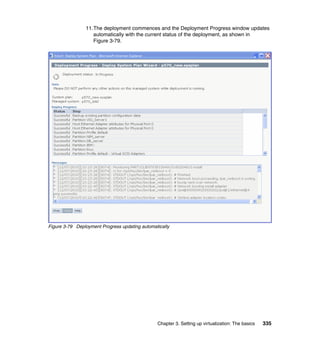
Important: Level1 capacity - additional processor capacity above the Entitled
Pool Capacity and up to the Maximum Pool Capacity is not allocated to the
Shared-Processor Pool for distribution to the micro-partitions within it.
The additional cycles are allocated directly to individual micro-partitions on an
uncapped weighted basis within the system as a whole regardless of the
Multiple Shared-Processor Pools structure. The total additional (Level1)
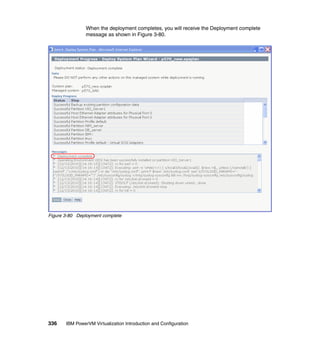
capacity allocated to micro-partitions within a particular Shared-Processor
Pool cannot be greater than the Maximum Pool Capacity for that
Shared-Processor Pool.
80 IBM PowerVM Virtualization Introduction and Configuration
There are other circumstances in which you might want to control the allocation
of processor capacity and yet gain the advantages of capacity redistribution
using the Multiple Shared-Processor Pools capabilities. In Figure 2-19 you can
see a set of micro-partitions that are all database servers. You can see from the
micro-partition definitions (left of the diagram) the entitled capacity of each
micro-partition, but there is no Reserved Pool Capacity.
Also, the Entitled Pool Capacity equals the Maximum Pool Capacity (EPC =
MPC). This essentially caps Shared-Processor Pooln and prohibits the
micro-partitions within Shared-Processor Pooln from receiving any additional
processor capacity from Level1 capacity resolution.
Figure 2-19 Capped Shared-Processor Pool offering database services
Shared Processor Pooln
Processorcapacity
1 2 3 4 5 6
Shared Processor Pooln
Processorcapacity
Set of micro-partitionsSet of micro-partitions
1 2 3 4 5 6
EC1.5
EC1.0
EC1.5
EC0.5
EC0.75
EC0.75
RPC 0.0
MPC 6
RPC 0.0
Definition Example during operation
MPC 6
MPC = 6
RCP = 0.0
EPC = 6
micro-partition entitled capacity = 6.0
Used processor capacity
Ceded/Reserved pool capacity
Additional processor capacity allocated to
the uncapped micro-partition above its
entitlement based on the uncapped weight
within the SPPn
DBServer
DBServer
DBServer
DBServer
DBServer
DBServer
DBServer
DBServer
DBServer
DBServer
DBServer
DBServer
KEY:
EC Entitled Capacity for the micro-partition
RPC Reserved Pool Capacity
MPC Maximum Pool Capacity
n Shared-Processor Pool identifier
Chapter 2. Virtualization technologies on IBM Power Systems 81
Such an arrangement restricts the processor capacity for Shared-Processor
Pooln and therefore can restrict the software licensing liability, yet it provides the
flexibility of processor capacity resolution within Shared-Processor Pooln (Level0
capacity resolution). This optimizes the use of any software licensing because
the maximum amount of work is done for the investment in the software license.
In the example in Figure 2-19 on page 80, the Shared-Processor Pooln
configuration limits the processor capacity of 6 processors, which provides the
opportunity to maximize the workload throughput for the corresponding software
investment.
You can, of course, change this definition to include a Reserved Pool Capacity.
This additional guaranteed capacity will be distributed to the micro-partitions
within Shared-Processor Pooln on an uncapped weighted basis (when a
micro-partition requires the extra resources and has enough virtual processors to
exploit it). For the example in Figure 2-19 on page 80, to accommodate an
increase in Reserved Pool Capacity you will also have to increase the Maximum
Pool Capacity. In addition, for the increase in the processor capacity for
Shared-Processor Pooln there will probably be an increase in the software
licensing costs.
If the Maximum Pool Capacity is increased further so that it is greater than the
Entitled Pool Capacity, then uncapped micro-partitions within Shared-Processor
Pooln can become eligible for Level1 capacity resolution—additional processor
capacity from elsewhere in the system. This can mean that any software for
Shared-Processor Pooln can likely be licensed for the Maximum Pool Capacity
whether or not the micro-partitions in Shared-Processor Pooln actually receive
additional cycles above the Entitled Pool Capacity.
82 IBM PowerVM Virtualization Introduction and Configuration
Figure 2-20 gives a simple example of a system with Multiple Shared-Processor
Pools. One of the three Shared-Processor Pools is Shared-Processor Pool0, the
default Shared-Processor Pool.
As you can see, the Maximum Pool Capacity and the Entitled Pool Capacity for
the DB_Services Shared-Processor Pool (Shared-Processor Pool2) are equal,
(MPC=EPC=6). Thus, DB_Services is effectively capped and cannot receive any
additional processor capacity beyond that guaranteed to it by its Entitled Pool
Capacity. Consequently, it is only affected by Level0 capacity resolution.
Figure 2-20 Example of a system with Multiple Shared-Processor Pools
However, the Prod_Web Shared-Processor Pool (SPP1) has a Maximum Pool
Capacity greater than its Entitled Pool Capacity and, therefore, the
micro-partitions within Prod_Web can be allocated additional capacity using
Level1 capacity resolution.
SPP1 Prod_Web
Used processor capacity
Ceded/Reserved pool capacity
Additional processor capacity allocated to the
uncapped micro-partition above its entitlement based
on the uncapped weight within the SPPn
Level1 processor capacity resolution: Capacity allocation above the Entitled Pool Capacity (but below the Max. Pool Capacity)
SPP0 (default)
MPC = 16 (equal to PSPP)
RCP = 0.0 (always zero)
EPC = 5.5
micro-partition entitled capacity = 5.5
Processorcapacity
Set of micro-partitions
1 2 3 4 5
MPC 16
MPC = 5
RCP = 1.0
EPC = 4.5
micro-partition entitled capacity = 3.5
Set of micro-partitions
1 2 3 4 5 6 RPC 1.0
MPC = 6
RCP = 0.0
EPC = 6
micro-partition entitled capacity = 6.0
SPP2 DB_Services
Set of micro-partitions
1 2 3 4 5 6
Level0processor
capacity
resolution
Level0processor
capacity
resolution
Level0processor
capacity
resolution
WebServer
WebServer
DatabaseServer
WebServer
WebServer
WebServer
ReservedPoolCapacity
DBServer
DBServer
DBServer
DBServer
DBServer
DBServer
DBServer
AppServer
AppServer
KEY:
MPC Maximum Pool Capacity
RPC Reserved Pool Capacity
EPC Entitled Pool Capacity
SPPn Shared-Processor Pool ID=n
Chapter 2. Virtualization technologies on IBM Power Systems 83
Shared-Processor Pool0 (default) and SPP1 both participate in Level1 capacity
resolution under certain circumstances. As the attributes of SPP0 are set to
default values and cannot be altered by the systems administrator, it is always
capable of consuming all the processor capacity in the physical
shared-processor pool. Of course, this is assuming that at least one
micro-partition in SPP0 is uncapped and there are enough virtual processors to
utilize the additional capacity.
2.3.4 Shared dedicated capacity
POWER6-based and later servers offer the capability of harvesting unused
processor cycles from dedicated-processor partitions. These unused cycles are
then donated to the physical shared-processor pool associated with
Micro-Partitioning. This ensures the opportunity for maximum processor
utilization throughout the system.
The system administrator can control which dedicated-processor partitions can
donate unused cycles and the dedicated-processor partition must be identified
as a donating partition.
The following behaviors are related to shared dedicated capacity:
When the CPU utilization of the core goes below a threshold, and all the SMT
threads of the CPU idle from a hypervisor perspective, the CPU will be
donated to the shared processor pool. The OS will make a thread idle from
hypervisor perspective when it enters the idle loop and the SMT snooze delay
expires. The delay needs to be set to zero to maximize the probability of
donation. (Other than the SMT snooze delay, the donation completes in
micro-seconds).
– For AIX, the under threshold action controlled by the
ded_cpu_donate_thresh schedo tunable. Snooze delay is controlled by
the AIX smt_snooze_delay and smt_tertiary_snooze_delay schedo
tunables. Note that the smt_tertiary_snooze_delay schedo tunable only
applies to POWER7-based and later servers.
– IBM i supports donation but does not externalize tunable controls. The
implementation uses a technique similar to AIX's snooze delay, but with
the delay value managed by LIC. With this technique, the extent of
donation is dependent on processor utilization as well as the
characteristics of the workload, for example, donation will tend to decrease
as processor utilization and workload multi-threading increase.
84 IBM PowerVM Virtualization Introduction and Configuration
– For Linux smt_snooze_delay can be set two different ways:
• At boot time, it can be set by a kernel command line parameter:
smt-snooze-delay=100.
The parameter is in microseconds.
• At runtime, the ppc64_cpu command can be used:
ppc64_cpu --smt-snooze-delay=100
– Linux does not have the concept of smt_tertiary_snooze_delay or a direct
corollary for ded_cpu_donate_thresh.
The donated processor is returned instantaneously (within micro-seconds) to
the dedicated processor partition when the timer of one of the SMT threads
on the donated CPU expires, an external interrupt for the dedicated processor
partition is presented to one of the SMT threads of the donated CPU or the
OS needs the CPU back to dispatch work on one of the SMT threads of the
donated CPU.
A workload in a shared dedicated partition might see a slight performance
impact because of the cache-effects of running micro-partitions on a donated
CPU.
Switching a partition from shared dedicated to dedicated or reverse is a
dynamic LPAR operation.
LPARs that use processor folding will tend to donate more idle capacity
because the workload is constrained to a subset of the available processors
and the remaining processors are ceded to the hypervisor on a longer term
basis than they are when snooze-delay techniques are used.
For more information, see 3.3.2, “Dedicated donating processors” on page 310.
2.4 Memory virtualization
POWER technology-based servers are very powerful and provide a lot of
processor capacity. Memory is therefore often the bottleneck that prevents an
increase in the overall server utilization.
IBM Power Systems provide two features for memory virtualization to increase
the flexibility and overall usage of physical memory:
Active Memory Sharing Is part of the PowerVM Enterprise Edition and
allows the sharing of a pool of physical memory
between a set of partitions.
Active Memory Expansion Is a separate IBM Power Systems feature
available for AIX partitions that extends the
available memory for a partitions beyond the
amount of assigned physical memory.
Chapter 2. Virtualization technologies on IBM Power Systems 85
Table 2-6 shows a comparison of the main characteristics of Active Memory
Sharing and Active Memory expansion.
Table 2-6 AMS and AME comparison
Feature Active Memory Sharing Active Memory
Expansion
Operating system support AIX, IBM i and Linux AIX
Licensing PowerVM Enterprise
Edition licensed per active
processor
Feature code #4791 or
feature code #4792
licensed per server
I/O adapters Only virtual I/O adapters
supported
Virtual and physical I/O
adapters supported
Processors Only shared processor
partitions supported
Shared processor
partitions and dedicated
processor partitions
supported
Configuration effort Configuration on Virtual
I/O Server and client
partition level
Simple configuration on
client partition level
Management Set of partitions using one
Shared Memory Pool
configuration
Single partitions each with
individual configuration
Memory: Active Memory Sharing and Active Memory Expansion can be used
in combination. Because of the higher complexity of such a configuration,
efforts for managing and problem determination can increase.
86 IBM PowerVM Virtualization Introduction and Configuration
2.4.1 Active Memory Sharing
Active Memory Sharing (AMS) enables the sharing of a pool of physical memory
among AIX, IBM i, and Linux partitions on a single IBM Power Systems server
Power 6 or later, helping to increase memory utilization and drive down system
costs.
The memory is dynamically allocated among the partitions as needed, to
optimize the overall physical memory usage in the pool. Instead of assigning a
dedicated amount of physical memory to each logical partition that uses shared
memory (hereafter referred to as Shared Memory Partitions), the POWER
Hypervisor constantly provides the physical memory from the Shared Memory
Pool to the Shared Memory Partitions as needed. The POWER Hypervisor
provides portions of the Shared Memory Pool that are not currently being used
by Shared Memory Partitions to other Shared Memory Partitions that need to use
the memory.
When a Shared Memory Partition needs more memory than the current amount
of unused memory in the Shared Memory Pool, the hypervisor stores a portion of
the memory that belongs to the Shared Memory Partition in auxiliary storage
known as a Paging Space Device. Access to the Paging Space Device is
provided by a Virtual I/O Server logical partition known as the Paging Service
Partition.
When the operating system of a Shared Memory Partition attempts to access
data that is located in a Paging Space Device, the hypervisor directs the Paging
Service Partition to retrieve the data from the Paging Space Device and write it to
the Shared Memory Pool so that the operating system can access the data.
Chapter 2. Virtualization technologies on IBM Power Systems 87
The PowerVM Active Memory Sharing technology is available with the PowerVM
Enterprise Edition hardware feature, which also includes the license for the
Virtual I/O Server software. See Figure 2-21 for an illustration of these concepts.
Figure 2-21 Active Memory Sharing concepts
Active Memory Sharing supports Live Partition Migration. In order to migrate a
shared memory partition, a Shared Memory Pool and an available paging space
device with the appropriate size are required on the target server. There are no
minimum requirements for the size or the available free memory in the Shared
Memory Pool on the target server.
Server
Shared
Memory
Partition 3
Storage area network
Hypervisor
Shared memory
pool
Shared
Memory
Partition 1
Shared
Memory
Partition 2
Shared
Memory
Partition 4
Storage assigned
to Paging Service
Partition 2
Paging Space
Device 4
Paging
Service
Partition 2
Paging
Service
Partition 1
Paging Space
Device 2
Paging Space
Device 3
Paging Space
Device 1
88 IBM PowerVM Virtualization Introduction and Configuration
The assigned physical memory for a migrated partition will not necessarily be the
same as on the source server. The memory oversubscription ratios on the target
and source server will change after a shared memory partition has been
migrated. Therefore a migration might have an impact on the performance of the
other active shared memory partitions.
During a Live Partition Migration operation the Hypervisor will page in all the
memory from the partitions paging space device on the source server.
The paging space devices used by Active Memory Sharing can also be used by
the suspend and resume feature. For more information about this topic, see 2.16,
“Partition Suspend and Resume” on page 205.
Active Memory Sharing is described in detail in the following publications:
PowerVM Virtualization Active Memory Sharing, REDP-4470-00, found at this
website:
http://www.redbooks.ibm.com/abstracts/redp4470.html
IBM PowerVM Active Memory Sharing Performance, by Mala Anand, found at
this website:
ftp://public.dhe.ibm.com/common/ssi/ecm/en/pow03017usen/POW03017USEN
.PDF
2.4.2 Active Memory Expansion
Active Memory Expansion is the ability to expand the memory available to an AIX
partition beyond the amount of assigned physical memory. Active Memory
Expansion compresses memory pages to provide additional memory capacity for
a partition.
Prerequisites
Active Memory Expansion requires the following prerequisites:
POWER7 (or later) processor based server with Active Memory Expansion
feature enabled
HMC V7R7.1.0 or later
AIX 6.1 Technology Level 6 or later
Feature: Active Memory Expansion is not a PowerVM capability but has to be
ordered as separate feature code #4971 or feature code #4792, depending on
the server type and model.
Chapter 2. Virtualization technologies on IBM Power Systems 89
Overview
When configuring a partition with Active Memory Expansion, the following two
settings define how much memory will be available:
Physical memory This is the amount of physical memory available to
the partition. Usually this corresponds to the
desired memory in the partition profile.
Memory expansion factor Defines how much the physical memory will be
expanded.
The amount of memory available to the operating system can be calculated by
multiplying the physical memory with the memory expansion factor.
For example, in a partition that has 10 GB of physical memory and is configured
with a memory expansion factor of 1.5, the operating system will see 15 GB of
available memory.
Figure 2-22 shows an example partition that has Active Memory Expansion
enabled.
Figure 2-22 Active Memory Expansion example partition
Tip: The memory expansion factor can be defined individually for each
partition.
Compressed
Pool
Expanded
Memory
Uncompressed
Pool
Memory available
to partition
15 GB
Physical Memory
10 GB
Memory
Expansion
Factor1.5
90 IBM PowerVM Virtualization Introduction and Configuration
The partition has 10 GB of physical memory assigned. It is configured with a
memory expansion factor of 1.5. This results in 15 GB of memory that is available
to the operating system running in the partition. The physical memory is
separated into the following two pools:
Uncompressed pool Contains the non-compressed memory pages that are
available to the operating system just like normal physical
memory
Compressed pool Contains the memory pages that have been compressed
by Active Memory Expansion
Some parts of the partition memory is located in the uncompressed pool others
in the compressed pool. The size of the compressed pool changes dynamically.
Depending on the memory requirements of the application, memory is moved
between the uncompressed and compressed pool.
When the uncompressed pool gets full, Active Memory Expansion will compress
pages that are infrequently used and move them to the compressed pool to free
up memory in the uncompressed pool.
When the application references a compressed page, Active Memory Expansion
will decompress it and move it to the uncompressed pool.
The pools, and also the compression and decompression activities that take
place when moving pages between the two pools, are transparent to the
application.
The compression and decompression activities require CPU cycles. Therefore
when enabling Active Memory Expansion, there have to be spare CPU resources
available in the partition for Active Memory Expansion.
Active Memory Expansion does not compress file cache pages and pinned
memory pages.
If the expansion factor is too high, the target expanded memory size cannot be
achieved and a memory deficit forms. The effect of a memory deficit is the same
as the effect of configuring a partition with too little memory. When a memory
deficit occurs, the operating system might have to resort to paging out virtual
memory to the paging space.
Planning
AIX provides the amepat command, which can be used to analyze existing
workloads. The amepat command shows statistics on the memory usage of a
partition and provides suggestions for Active Memory Expansion configurations,
including the estimated CPU usage.
Chapter 2. Virtualization technologies on IBM Power Systems 91
The amepat command can be run on any system supported by AIX 6.1 or later. It
can therefore be run on older systems such as a POWER4 based system before
consolidating the workload to an Active Memory Expansion enabled POWER7
based system.
The amepat command can also be used to monitor the performance. For more
details, see the following publication:
IBM PowerVM Virtualization Managing and Monitoring, SG24-7590-01, at the
website:
http://www.redbooks.ibm.com/abstracts/sg247590.html
These white papers provide more detailed information about Active Memory
Expansion:
Active Memory Expansion Overview and Usage Guide, by David Hepkin, at
the website:
ftp://ftp.software.ibm.com/common/ssi/sa/wh/n/pow03037usen/POW03037U
SEN.PDF
Active Memory Expansion Performance, by Dirk Michel, at the website:
ftp://ftp.software.ibm.com/common/ssi/sa/wh/n/pow03038usen/POW03038U
SEN.PDF
2.5 Virtual I/O Server
The Virtual I/O Server is packaged as part of the IBM Power Systems PowerVM
hardware feature code. The Virtual I/O Server allows the sharing of physical
resources between supported AIX, IBM i and Linux partitions to allow more
efficient utilization and flexibility for using physical storage and network devices.
The Virtual I/O Server also provides functionality for features such as Active
Memory Sharing or Suspend/Resume and is a prerequisite if you want to use
IBM Systems Director VMControl.
When using the PowerVM Standard Edition and PowerVM Enterprise Edition,
dual Virtual I/O Servers need to be deployed to provide maximum availability for
client partitions when performing Virtual I/O Server maintenance. You can find
more details about setting up a dual Virtual I/O Server configuration in 4.1,
“Virtual I/O Server redundancy” on page 380.
92 IBM PowerVM Virtualization Introduction and Configuration
Figure 2-23 shows a very basic Virtual I/O Server configuration. This diagram
only shows a small subset of the capabilities to illustrate the basic concept of how
the Virtual I/O Server works. As you can see, the physical resources such as the
physical Ethernet adapter and the physical disk adapter are accessed by the
client partition using virtual I/O devices.
Figure 2-23 Simple Virtual I/O Server configuration
This list shows the new functions that were added in Version 2.2 Fixpack 24 of
the Virtual I/O Server:
Role Based Access Control (RBAC).
Support for Concurrent Add of VLANs.
Support for USB tape.
Support for USB Blu-ray.
The following new functions were added with Version 2.2 Fixpack 24 Service
Pack 1:
Support for Suspend / Resume.
Shared Storage Pools.
Thin Provisioning.
In the following topics we describe the main functions and features of the Virtual
I/O Server.
Virtual I/O Server Hypervisor
Shared Ethernet
Adapter
Physical Ethernet
Adapter
Physical Disk
Adapter
Virtual I/O Client 1
Virtual Ethernet
Adapter
Virtual SCSI
Adapter
Virtual I/O Client 2
Virtual Ethernet
Adapter
Virtual SCSI
Adapter
Virtual Ethernet
Adapter
Virtual SCSI
Adapter
Physical
Disk
Physical
Disk
External Network
Chapter 2. Virtualization technologies on IBM Power Systems 93
2.5.1 Supported platforms
The Virtual I/O Server can run on any POWER5 or later server which has the
PowerVM Standard feature enabled. Also supported are IBM BladeCenter®
Power Blade servers. With the PowerVM Standard Edition or the PowerVM
Enterprise Edition Virtual I/O Servers can be deployed in pairs to provide high
availability.
To understand the Virtual I/O Server support for physical network and storage
devices, see the following website:
http://www14.software.ibm.com/webapp/set2/sas/f/vios/documentation/data
sheet.html
2.5.2 Virtual I/O Server sizing
The sizing of the processor and memory resources for Virtual I/O Server
depends on the amount and type of workload that the Virtual I/O Server has to
process. For example, network traffic going through a Shared Ethernet adapter
requires more processor resource than virtual SCSI traffic (Table 2-7).
Table 2-7 Virtual I/O Server sizing examples
Rules: The following examples are only rules of thumb and can be used as a
starting point when setting up an environment using the Virtual I/O Server for
the first time.
Monitoring: When the environment is in production, the processor and
memory resources on the Virtual I/O Server have to be monitored regularly
and adjusted if necessary to make sure the configuration fits with workload.
More information about monitoring CPU and memory on the Virtual I/O Server
can be found in the Redbooks publication, IBM PowerVM Virtualization
Managing and Monitoring, SG24-7590-01, at this website:
http://www.redbooks.ibm.com/abstracts/sg247590.html
Environment CPU Memory
Small environment 0.25 - 0.5 processors
(uncapped)
2 GB
Large environment 1 -2 processors
(uncapped)
4 GB
Environment using shared storage pools At least one processor
(uncapped)
4 GB
94 IBM PowerVM Virtualization Introduction and Configuration
For detailed sizing information and guidelines, see the Virtual I/O Server capacity
planning section in the IBM Power Systems Hardware Information Center:
http://publib.boulder.ibm.com/infocenter/powersys/v3r1m5/topic/p7hb1/ip
hb1_vios_planning_cap.htm
2.5.3 Storage virtualization
The Virtual I/O Server allows virtualization of physical storage resources.
Virtualized storage devices are accessed by the client partitions through one of
the following methods:
Virtual SCSI Provides standard SCSI compliant access by client
partitions to disk devices, optical devices and tape
devices.
Virtual Fibre Channel Provides access through NPIV to Fibre Channel
devices attached disk and tape libraries.
Virtualized storage devices can be backed by the following types of physical
storage devices:
Internal physical disks Server internal disks such as SCSI, SAS or SATA
attached disks located in I/O drawers.
External LUNs LUNs residing on external storage subsystems
accessed through Fibre Channel, Fibre Channel
over Ethernet or iSCSI, from IBM as well as certain
third party storage manufacturers. See “External
storage subsystems” on page 97 for more detailed
information about supported solutions.
Optical devices Devices such as DVD-RAM, DVD-ROM and
CD-ROM. Writing to a shared optical device is
currently limited to DVD-RAM. DVD+RW and
DVD-RW are not supported. A virtual optical device
can only be assigned to one client partition at a time.
Tape devices Devices such as SAS or USB attached tape devices.
A virtual tape device can only be assigned to one
client partition at a time.
Supported tape drives are as follows:
Feature Code 5907 36/72 GB 4 mm DAT72 SAS Tape Drive
Feature Code 5619 DAT160: 80/160 GB DAT160 SAS Tape Drive
Feature Code 5638 1.5/3.0 TB LTO-5 SAS Tape Drive
Feature Code 5661 DAT320: 160/320 GB DAT SAS Tape Drive
Feature Code 5673 DAT320: 160 GB USB Tape Drive
Feature Code 5746 Half High 800 GB/1.6 TB LTO4 SAS Tape Drive
Chapter 2. Virtualization technologies on IBM Power Systems 95
Additionally, the following logical storage devices can be used to back virtualized
storage devices:
Logical volumes Internal disks as well as LUNs residing on
external storage subsystems can be split
into logical volumes on the Virtual I/O Server
and then be exported to the client partitions.
Logical volume storage pools A logical volume storage pool is a collection
of internal or external disks split up into
logical volumes that are used as backing
devices for virtualized storage devices.
File storage pools File storage pools are always part of a
logical volume storage pool. A file storage
pool contains files that are used as backing
devices for virtualized storage devices.
Shared storage pools Shared storage pools provide distributed
access to storage resources using a cluster.
Shared storage pools use files called logical
units as backup devices for virtualized
storage devices.
Virtual media repository The virtual media repository provides a
container for file backed optical media files
such as ISO images. Only one virtual media
repository is available per Virtual I/O Server.
Considerations:
Virtual tape is supported in AIX, IBM i, and Linux client partitions.
AIX client partitions must be running AIX Version 5.3 TL9, AIX Version 6.1
TL2, AIX Version 7.1 TL0, or higher on a POWER6 and POWER7 System
for virtual tape support.
Virtual I/O Server Version 2.2.0.10, Fix Pack 24 is required for USB 320
DAT Tape drive as a virtual tape device.
At the time of writing, IBM i does not support USB tape drives as a virtual
tape device.
SAN Fibre Channel tape drives are supported through N-port ID
virtualization (NPIV).
96 IBM PowerVM Virtualization Introduction and Configuration
Figure 2-24 illustrates the aforementioned concepts.
Figure 2-24 Virtual I/O Server concepts
Client partition 1 on the left side of the diagram has a virtual SCSI disk assigned,
which is backed by a whole physical volume accessed through a Fibre Channel
adapter on the Virtual I/O Server.
Client partition 2 has two virtual SCSI disks assigned. On the Virtual I/O Server
these disks are backed by two logical volumes that are part of a logical volume
backed storage pool. The logical volume backed storage pool consists of a local
physical disk that has been partitioned into several logical volumes.
Client partition 3 has two virtual SCSI disks assigned. On the Virtual I/O Server
these disks are backed by two files that are part of the file backed storage pool.
File backed storage pools are always part of a logical volume backed storage
pool. A file backed storage pool is a logical volume inside a logical volume
backed storage pool.
Virtual I/O Server
Client Partition 1
Physical
Disk 1
Physical
Tape
Drive
Virtual SCSI
Disk
hdisk0
Client Partition 2
Virtual SCSI
Disk
hdisk0
Virtual SCSI
Disk
hdisk1
Virtual SCSI
Client Adapter
Client Partition 4
Virtual
Optical
cd0
Physical
Disk
hdisk0
Virtual
Tape
Drive
Client Partition 3
Virtual SCSI
Client Adapter
Virtual SCSI
Disk
hdisk0
Virtual SCSI
Disk
hdisk1
Virtual SCSI
Server Adapter
Physical
Disk 3
Logical volume backed
storage pool
Virtual Media Repository
file3.iso
Physical
Disk 2
File backed
storage pool
Logical Volume 2
Logical Volume 1
file1
file2
Virtual SCSI
Server Adapter
Virtual SCSI
Server Adapter
Virtual SCSI
Client Adapter
Physical FC
Adapter
Virtual SCSI
Client Adapter
Virtual FC
Client Adapter
Virtual SCSI
Server Adapter
Virtual FC
Server Adapter
Physical SCSI
Adapter
Physical FC
Adapter
Physical SCSI
Adapter
Chapter 2. Virtualization technologies on IBM Power Systems 97
Although each of these three partitions has different backing devices, they
appear in the same way as virtual SCSI disks in the client partitions.
Client partition 4 has a virtual optical device and virtual tape drive assigned. The
virtual optical device is backed by an ISO image file that has been loaded into the
virtual media repository. The virtual tape drive is backed by a physical tape drive
on the Virtual I/O Server.
Additionally, client partition 4 has a whole physical disk assigned that is passed
through by the Virtual I/O Server using NPIV. In contrast to client partition 1,
which has a whole physical disk assigned through virtual SCSI, the disk does not
appear as a virtual SCSI device. It appears in the same way as if it was provided
through a physical Fibre Channel adapter (for example, as an IBM MPIO FC
2107 device in case of an AIX client partition).
External storage subsystems
A large number of IBM storage solutions are supported, including these:
IBM XIV Storage System
DS8000™ series
DS6000™ series
DS4000™ series
NSeries network attaches storage with Fibre Channel or iSCSI attach
Enterprise Storage Server® (ESS)
SAN Volume Controller (SVC)
Additionally, the Virtual I/O Server has been tested on selected configurations
using third party storage subsystems. You can find a list of supported
configurations on the Virtual I/O Server support website or on the System
Storage Interoperation Center (SSIC) website.
For the Virtual I/O Server support website, see the following website:
http://www14.software.ibm.com/webapp/set2/sas/f/vios/documentation/data
sheet.html
For the System Storage Interoperation Center (SSIC), see the following website:
http://www-03.ibm.com/systems/support/storage/config/ssic
Shared storage pools: Be aware that Figure 2-24 on page 96 does not show
a shared storage pool configuration. See 2.7.2, “Shared Storage Pools” on
page 118 for an example configuration of a shared storage pool.
98 IBM PowerVM Virtualization Introduction and Configuration
Peer to Peer Remote Copy
Peer to Peer Remote Copy (PPRC) is a block level data replication mechanism
available on IBM System Storage disk subsystem products, and is the underlying
technology used by the Metro Mirror and Global Mirror features as defined here:
Metro Mirror A mechanism whereby a disk mirroring relationship is
established between a primary (source) volume and a
secondary (target) volume such that both volumes are
updated simultaneously. It is based on synchronous PPRC.
Global Mirror A mechanism to provide data replication over extended
distances between two sites for disaster recovery and
business continuity. It is based on asynchronous
implementation of PPRC.
When using these configurations, the storage system typically provides limited
(read-only) access to the PPRC target device to avoid data corruption. Prior to
Virtual I/O Server 2.2, configuring PPRC target devices on a Virtual I/O Server
produced mixed results due to the ways various storage subsystems respond
when a PPRC target is accessed.
The mkvdev command generally requires a disk device to be able to be opened in
order to create virtual target devices. Virtual I/O Server 2.2 and newer provides
an attributed called “mirrored” to the mkvdev command, which enables the system
administrator to explicitly identify PPRC target devices when creating a virtual
disk mapping. When this flag is used, the Virtual I/O Server uses an alternative
method to access the disk, which allows it to successfully create the virtual target
device.
This allows the virtual client partitions to access the PPRC target, although
access will still be restricted to the limitations imposed by the storage system.
When the PPRC relationship is removed or reversed, the client partition will gain
read/write access to the device.
With the mirrored parameter, the system administrator can pre-configure the
entire end-to-end client configuration. This saves time and reduces human error
compared to attempting to configure the mappings during a fail-over event.
PPRC: There is no standard mechanism in the various storage systems to
detect and report that a given disk belongs to a PPRC pair and that it is
functioning as a PPRC primary or secondary. Hence the mirrored attribute
depends upon the system administrator to identify PPRC targets at the time
the virtual target device is created.
Chapter 2. Virtualization technologies on IBM Power Systems 99
2.5.4 Shared Ethernet Adapter
The Virtual I/O Server allows shared access to external networks through the
Shared Ethernet Adapter (SEA). The Shared Ethernet Adapter supports the
following features:
Link Aggregation Bundling of several physical network adapters
into one logical device using EtherChannel
functionality.
SEA failover The SEA failover feature allows highly available
configurations by using two Shared Ethernet
Adapters running in two different Virtual I/O
Servers.
TCP segmentation offload The SEA supports the large send and large
receive features.
GVRP GVRP (GARP VLAN Registration Protocol) is a
protocol that facilitates control of VLANs within
larger networks. It helps to maintain VLAN
configurations dynamically based on network
adapter configurations.
2.5.5 Network security
The Virtual I/O Server supports OpenSSH for secure remote logins. It also
provides a firewall for limiting access by ports, network services, and IP
addresses.
Starting with Virtual I/O Server 1.5 or later, an expansion pack is provided that
delivers additional security functions, including these:
SNMP v3 SNMPv3 provides secure access by a combination of
authenticating and encrypting packets over the network.
Kerberos Kerberos is a system that provides a central authentication
mechanism for a variety of client/server applications using
passwords and secret keys.
LDAP LDAP is a directory service that can be used for centralized user
management.
100 IBM PowerVM Virtualization Introduction and Configuration
2.5.6 Command line interface
The Virtual l/O Server provides a command line interface to perform
management tasks such as:
Management of mappings between physical and virtual resources
Gathering and displaying utilization data of resources through commands
such as topas, vmstat, iostat. or viostat for performance management
Troubleshooting of physical and virtual resources using the hardware error log
Updating the Virtual I/O Server
Securing the Virtual I/O Server by configuring user security and firewall
policies
2.5.7 Hardware Management Console integration
The Hardware Management Console (HMC) provides functions to simplify the
handling of the Virtual I/O Server environment. For example, an overview of the
Virtual Ethernet and Virtual SCSI topologies is available. It is also possible to
execute Virtual I/O Server commands from the HMC.
2.5.8 System Planning Tool support
Using the System Planning Tool, complex Virtual I/O Server configurations such
as these can be planned and deployed:
Virtual SCSI adapter configuration
Virtual Fibre Channel configuration
Virtual Ethernet adapter configuration
Shared Ethernet Adapter configuration with failover and EtherChannel
More information about how to use the System Planning Tool can be found in 3.5,
“Using system plans and System Planning Tool” on page 324.
2.5.9 Performance Toolbox support
Included with the Virtual I/O Server is a Performance Toolbox (PTX®) agent that
extracts performance data. This data can be viewed through an X Windows®
GUI if you have licensed the AIX Performance Toolbox.
Tasks: Most tasks can also be performed through SMIT style menus using the
cfgassist command.
Chapter 2. Virtualization technologies on IBM Power Systems 101
2.5.10 Integrated Virtualization Manager
The Integrated Virtualization Manager (IVM) is used to manage selected Power
Systems servers using a Web-based graphical interface without requiring an
HMC.
This reduces the hardware needed for the adoption of virtualization technology,
particularly for low-end systems. This solution fits in small and functionally simple
environments where only few servers are deployed or some advanced HMC-like
functions are required.
The Integrated Virtualization Manager (IVM) is a basic hardware management
solution, included in the VIO software that inherits key Hardware Management
Console (HMC) features. For further information about IVM, see 2.6, “Integrated
Virtualization Manager” on page 103 or the Redpaper Integrated Virtualization
manager on IBM System p5, REDP-4061.
2.5.11 Tivoli support
Included with the Virtual I/O Server are a number of pre-installed Tivoli agents
that allow easy integration into an existing Tivoli Systems Management
infrastructure.
Tivoli Storage Manager (TSM) client
The Tivoli Storage Manager (TSM) client can be used to back up Virtual I/O
Server configuration data to a TSM server.
More information about TSM can be found at this website:
http://www-306.ibm.com/software/tivoli/products/storage-mgr/
IBM Tivoli Application Dependency Discovery Manager
IBM Tivoli Application Dependency Discovery Manager (TADDM) provides
deep-dive discovery for Power Systems including their dependencies on the
network and applications along with its configuration data, subsystems, and
virtualized LPARs. TADDM is currently capable of recognizing a Virtual I/O
Server and the software level it is running.
More information about TADDM can be found at this website:
http://www-306.ibm.com/software/tivoli/products/taddm/
102 IBM PowerVM Virtualization Introduction and Configuration
IBM Tivoli Usage and Accounting Management agent
The IBM Tivoli Usage and Accounting Management (ITUAM) agent can be used
to collect accounting and usage data of Virtual I/O Server resources so that they
can be fed into ITUAM where they can be analyzed and used for reporting and
billing.
More information about ITUAM can be found at this website:
http://www-306.ibm.com/software/tivoli/products/usage-accounting/
Tivoli Identity Manager
Tivoli Identity Manager (TIM) provides a secure, automated and policy-based
user management solution that can be used to manage Virtual I/O Server users.
More information about TIM can be found at this website:
http://www-306.ibm.com/software/tivoli/products/identity-mgr/
IBM TotalStorage Productivity Center
Starting with Virtual I/O Server 1.5.2, you can configure the IBM TotalStorage
Productivity Center agents on the Virtual I/O Server. TotalStorage Productivity
Center is an integrated, storage infrastructure management suite that is
designed to help simplify and automate the management of storage devices,
storage networks, and capacity utilization of file systems and databases.
When you install and configure the TotalStorage Productivity Center agents on
the Virtual I/O Server, you can use the TotalStorage Productivity Center user
interface to collect and view information about the Virtual I/O Server.
You can then perform the following tasks using the TotalStorage Productivity
Center user interface:
Run a discovery job for the agents on the Virtual I/O Server.
Run probes, run scans, and ping jobs to collect storage information about the
Virtual I/O Server.
Generate reports using the Fabric Manager and the Data Manager to view the
storage information gathered.
View the storage information gathered using the topology Viewer.
Chapter 2. Virtualization technologies on IBM Power Systems 103
IBM Tivoli Monitoring
The Virtual I/O Server includes the IBM Tivoli Monitoring agent. Preinstalled are
the IBM Tivoli Monitoring Premium Agent for VIOS (product code va) and the
IBM Tivoli Monitoring CEC Agent. The IBM Tivoli Monitoring agent enables
integration of the Virtual I/O Server into the IBM Tivoli Monitoring infrastructure
and allows the monitoring of the health and availability of a Virtual I/O Server
using the IBM Tivoli Enterprise Portal.
More information about IBM Tivoli Monitoring can be found at this website:
http://www-01.ibm.com/software/tivoli/products/monitor
IBM Tivoli Security Compliance Manager
Protects business against vulnerable software configurations in small, medium
and large businesses by defining consistent security policies and monitor
compliance of these defined security policies.
More information about IBM Tivoli Security Compliance Manager can be found at
this website:
http://www-01.ibm.com/software/tivoli/products/security-compliance-mgr
2.5.12 Allowed third party applications
There are a number of third party applications that are allowed to be installed on
the Virtual I/O Server. You can get a list of the allowed applications at this
website:
http://www.ibm.com/partnerworld/gsd/searchprofile.do?name=VIOS_Recogniz
ed_List
Although these applications are allowed to be installed, IBM does not provide
support for them. In case of problems, contact the application vendor.
2.6 Integrated Virtualization Manager
This section provides a short introduction to the Integrated Virtualization
Manager. For further information and detailed configuration steps, see the
Redpaper, Integrated Virtualization Manager on IBM System p5, REDP-4061.
For a smaller or distributed environment, not all functions of an HMC are
required, and the deployment of additional HMC hardware might not be suitable.
104 IBM PowerVM Virtualization Introduction and Configuration
IBM has developed the IVM, a hardware management solution that performs a
subset of the HMC features for a single server, avoiding the need for a dedicated
HMC server. IVM manages standalone servers so a second server managed by
IVM will have its own instance of the IVM. With the subset of HMC server
functionality, IVM provides a solution that enables the administrator to quickly set
up a system. The IVM is integrated within the Virtual I/O Server product, which
services I/O and processor virtualization in IBM Power Systems.
The primary hardware management solution that IBM has developed relies on an
appliance server called Hardware Management Console (HMC), packaged as an
external tower or rack-mounted server.
The HMC is a centralized point of hardware control. A single HMC can handle
multiple IBM Power Systems, and two HMCs can manage the same set of
servers in a dual-active configuration providing resilience.
Hardware management is done using the HMC interface (Web browser-based
starting with HMC version 7), which communicates to the servers using a
standard Ethernet connection to the service processor of each server. Interacting
with the service processor, the HMC is able to create, manage, and modify
logical partitions, modify the hardware configuration of the managed system, and
manage service calls.
2.6.1 IVM setup guidelines
To manage a system using IVM, some implicit rules apply to the server
configuration and setup. The following guidelines are designed to assist you:
The system is configured in Factory Default mode, which means that a single
partition with service authority predefined owns all the hardware resources. If
the system is not configured in Factory Default mode because it is already
partitioned or attached to an HMC, you can reset the system to Factory
Default mode using the Advanced System Management Interface (ASMI) for
the service processor.
The predefined partition is started automatically at system power on. A
terminal console will be required for the initial IVM install and configuration of
an IP address, before the IVM GUI can be used. A null-modem serial cable
and a computer running Windows (HyperTerm) or Linux (minicom) can be
used for this.
The PowerVM feature has to be enabled. When ordering one of the features
with the system, it ought to be enabled by default; otherwise, it can be
enabled using the ASMI.
Virtual I/O Server Version 1.2 or higher has to be installed on the predefined
partition.
Chapter 2. Virtualization technologies on IBM Power Systems 105
The Virtual I/O Server then automatically allocates all I/O resources. All other
LPARs are configured using the built-in IVM on the Virtual I/O Server. Starting
with IVM 1.5.1.1 and supported POWER6 or later systems, you can assign
physical adapters to LPARs, otherwise all physical resources are owned by the
IVM partition.
The configuration can be done using the IVM GUI or by using the command line
interface on the IVM Server. The administrator can use a Web browser to
connect to IVM to set up the system configuration.
Figure 2-25 shows a sample configuration using IVM on a POWER6 machine
with dedicated physical and virtual adapters configured.
Figure 2-25 Integrated Virtualization Manager configuration on a POWER6 server
The tight relationship between the Virtual I/O Server and IVM enables the
administrator to manage a partitioned system without the HMC. The software
that is normally running on the HMC has been reworked to fit inside the Virtual
I/O Server, selecting the subset of functions required by the IVM configuration
model. Because IVM is running using system resources, the design has been
developed to have minimal impact on their consumption.
IVM does not require network connectivity with the system’s service processor.
A specific device named the Virtual Management Channel (VMC) has been
developed on Virtual I/O Server to enable a direct POWER Hypervisor
configuration without requiring additional network connections to be set up.
This device is activated by default when Virtual I/O Server is installed as the first
partition on a system without an HMC console.
Physical
adapters
POWER System
IVM / VIOS
IBM i / LPAR1
AIX / LPAR2
Virtualadapters
LAN
IVM on administrator’s browser
106 IBM PowerVM Virtualization Introduction and Configuration
The VMC device allows IVM to provide basic logical partitioning functions:
Logical partitioning configuration, including dynamic LPAR
Boot, start, and stop actions for individual partitions
Displaying partition status
Managing virtual Ethernet
Managing virtual storage
Providing basic system management
Because IVM is executing in an LPAR, it has limited service functions and ASMI
must be used. For example, system power-on must be done by physically
pushing the system power-on button or remotely accessing ASMI, because IVM
is not executing while the system is powered off. ASMI and IVM together provide
a basic, but effective, solution for a single partitioned server.
LPAR management with IVM is accomplished through a Web interface developed
to make administration tasks easier and quicker for those unfamiliar with the full
HMC solution. It is important to recognize, though, that the HMC can manage
more than one server simultaneously and offers some advanced features not
present in IVM. Being integrated within the Virtual I/O Server code, IVM also
handles all virtualization tasks that normally require Virtual I/O Server commands
to be run.
IVM manages the system in a similar way to the HMC, but using a different
interface. An administrator new to Power Systems will quickly learn the required
skills, while an HMC expert can study the differences before using IVM.
2.6.2 Partition configuration with IVM
LPAR configuration is made by assigning processors, memory, and I/O using a
Web GUI wizard. In each step of the process, simple questions are asked of the
administrator, and the range of possible answers are provided. Most of the
parameters related to LPAR setup are hidden during creation time to ease the
setup and can be changed after the creation in the partition properties if needed.
Resources that are assigned to an LPAR are immediately allocated and are no
longer available to other partitions, regardless of the fact that the LPAR is
activated or powered down. This behavior makes management more direct and
different than an HMC-managed system, where resource overcommitment is
allowed.
LPARs in an IVM-managed system are isolated exactly as in all IBM Power
Systems and cannot interact except using the virtual (and now physical) devices.
Chapter 2. Virtualization technologies on IBM Power Systems 107
Only IVM has been enabled to perform limited actions on the other LPARs, such
as these:
Power on and power off
Shutting down the operating system gracefully
Creating and deleting LPARs
Viewing and changing configuration of LPARs
Starting with Virtual I/O Server Version 1.3, dynamic LPAR is supported with
IVM.
Processors
An LPAR can be defined either with dedicated or with shared processors.
When shared processors are selected for a partition, the wizard lets the
administrator choose only the number of virtual processors to be activated. For
each virtual processor, 0.1 processing units are implicitly assigned and the LPAR
is created in uncapped mode, with a weight of 128.
Processing unit value, uncapped mode, and the weight can be changed,
modifying the LPAR configuration after it has been created.
Virtual Ethernet
The IVM managed system is configured with four predefined virtual Ethernet
networks, each having a virtual Ethernet ID ranging from 1 to 4. Starting with IVM
Version 1.5, you can now add additional VLANs and adapters to LPARs across
the entire 802.1Q supported range of 1-4094 (using IVM line-mode commands).
Prior to Version 1.5, every LPAR can have up to two virtual Ethernet adapters
that can be connected to any of the four virtual networks in the system.
Each virtual Ethernet network can be bridged by Virtual I/O Server to a physical
network using only one physical adapter or, if POWER6 or later systems, logical
HEA adapter. The same physical adapter cannot bridge more than one virtual
network.
The virtual Ethernet network is a bootable device and can be used to install the
LPAR’s operating system.
Virtual storage
Every LPAR is equipped with one or more virtual SCSI disks using a single
virtual SCSI adapter. The virtual disks are bootable devices and treated by the
operating system as normal SCSI disks.
108 IBM PowerVM Virtualization Introduction and Configuration
Virtual optical device
Any optical device equipped on the Virtual I/O Server partition (either CD-ROM,
DVD-ROM, or DVD-RAM) can be virtualized and assigned at any logical
partition, one at a time, using the same virtual SCSI adapter provided to virtual
disks. Virtual optical devices can be used to install the operating system and, if
DVD-RAM, to make backups.
Virtual tape
Tape devices attached to the Virtual I/O Server partition can be virtualized and
assigned to any logical partition, one at a time, using the same virtual SCSI
adapter provided to virtual disks.
Virtual TTY
In order to allow LPAR installation and management, IVM provides a virtual
terminal environment for LPAR console handling. When a new LPAR is defined, it
is automatically assigned a client virtual serial adapter to be used as the default
console device. With IVM, a matching server virtual terminal adapter is created
and linked to the LPAR’s client virtual client.
Integrated Virtual Ethernet
For supported POWER6 and later systems, the IVM allows the configuration of
Integrated Virtual Ethernet and the assignment of HEA adapters to LPARs.
The wizard allows the user to configure speed and duplex of the physical HEA
ports and will present the user with a simple check box to allow the configuration
of one logical HEA adapter per physical HEA port when defining LPARs.
Values such as MCS are set to their minimum values; for more information, see
Integrated Virtual Ethernet Adapter Technical Overview and Introduction,
REDP-4340.
Physical adapters
Starting with IVM 1.5 on selected POWER6 systems or later, you can assign
dedicated I/O adapters to partitions other than the IVM LPAR. Using this
functionality, you can have IVM-controlled LPARs with dedicated Ethernet or disk
adapters in addition to the virtual resources described before.
Support: Multiple Shared Processor Pools are not supported on
IVM-managed Power systems.
Chapter 2. Virtualization technologies on IBM Power Systems 109
Virtual Fibre Channel
On POWER6 and later systems, you can share a physical Fibre Channel adapter
between several LPARs using NPIV and virtual Fibre Channel.
2.7 Virtual SCSI introduction
Virtual SCSI is used to refer to a virtualized implementation of the SCSI protocol.
Virtual SCSI requires POWER5 or later hardware with the PowerVM feature
activated. It provides virtual SCSI support for AIX, IBM i (requires POWER6 or
later), and supported versions of Linux.
Consider the two most popular ways of provisioning storage to servers:
Integrated disks:
With integrated server disks growing ever larger, requiring fewer disks for a
given amount of storage, a significant cost can be associated with the
adapters and the attachment of these disks to servers. With such large disks,
it is also more difficult to utilize all the available space.
External storage subsystems, for example, SAN disks or NAS disks:
Again with the introduction of ever larger and cheaper disks driving down the
costs per gigabyte of storage, this leaves the costs of adapters (and
additionally any switches and cabling) as a significant investment if a number
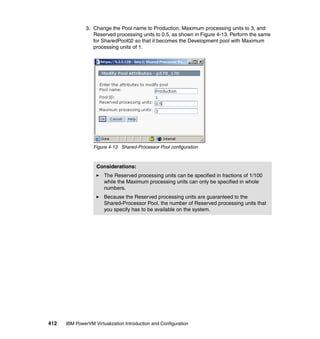
of servers are involved.
In many cases it is beneficial to combine the storage requirements through a
single adapter to better utilize the available bandwidth, taking into account the
cost savings of not only the server related cost such as adapters or I/O slots, but
also these components:
Switches and switch ports (SAN or Etherchannel)
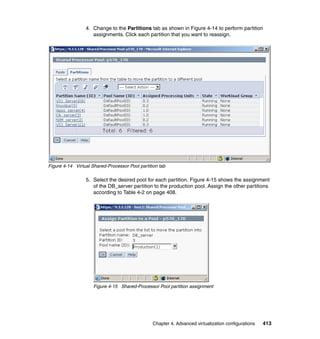
Purchase of cables
Installation of cables and patching panels
Very quickly the cost benefits for virtualizing storage can be realized, and that is
before considering any additional benefits from the simplification of processes or
organization in the business.
110 IBM PowerVM Virtualization Introduction and Configuration
PowerVM on the IBM Power Systems platform supports up to 10 partitions per
processor, up to a maximum of 254 partitions per server. With each partition
typically requiring one I/O slot for disk attachment and a second Ethernet
attachment, at least 508 I/O slots are required when using dedicated physical
adapters, and that is before any resilience or adapter redundancy is considered.
Whereas the high-end IBM Power Systems can provide such a high number of
physical I/O slots by attaching expansion drawers, the mid-end systems typically
have a lower maximum number of I/O ports.
To overcome these physical requirements, I/O resources can be shared. Virtual
SCSI and virtual Fibre Channel, provided by the Virtual I/O Server, provide the
means to do this.
Most customers are deploying a pair of Virtual I/O Servers per physical server
and using multipathing or mirroring technology to provide resilient access to
storage. This configuration provides continuous availability to the disk resources,
even if there is a requirement to perform maintenance on the Virtual I/O Servers.
Terms: You will see different terms in this book that refer to the various
components involved with virtual SCSI. Depending on the context, these
terms might vary. With SCSI, usually the terms initiator and target are used,
so you might see terms such as virtual SCSI initiator and virtual SCSI target.
On the HMC or IVM, the terms virtual SCSI server adapter and virtual SCSI
client adapter are used to refer to the initiator and target, respectively.
Chapter 2. Virtualization technologies on IBM Power Systems 111
2.7.1 Partition access to virtual SCSI devices
The following sections describe the virtual SCSI architecture and guide you
through its implementation.
Virtual SCSI client and server architecture overview
Virtual SCSI is based on a client/server relationship. The Virtual I/O Server owns
the physical resources and acts as server or, in SCSI terms, target device. The
client logical partitions access the virtual SCSI backing storage devices provided
by the Virtual I/O Server as clients.
The virtual I/O adapters are configured using an HMC or through the Integrated
Virtualization Manager on smaller systems. The interaction between a Virtual I/O
Server and an AIX, IBM i, or Linux client partition is enabled when both the
virtual SCSI server adapter configured in the Virtual I/O Server’s partition profile
and the virtual SCSI client adapter configured in the client partition’s profile have
mapped slot numbers, and both the Virtual I/O Server and client operating
system recognize their virtual adapter.
Dynamically added virtual SCSI adapters are recognized on the Virtual I/O
Server after running the cfgdev command and on an AIX client partition after
running the cfgmgr command. For IBM i and Linux, this additional step is not
required; these operating systems will automatically recognize dynamically
added virtual SCSI adapters.
After the interaction between virtual SCSI server and virtual SCSI client adapters
is enabled, mapping storage resources from the Virtual I/O Server to the client
partition is needed. The client partition configures and uses the storage
resources when it starts up or when it is reconfigured at runtime.
The process runs as follows:
The HMC maps interaction between virtual SCSI adapters.
The mapping of storage resources is performed in the Virtual I/O Server.
The client partition recognizes the newly mapped storage either dynamically
as IBM i or Linux does, or after it has been told to scan for new devices, for
example, after a reboot or by running the cfgmgr command on AIX.
112 IBM PowerVM Virtualization Introduction and Configuration
Figure 2-26 shows the flow needed to enable virtual SCSI resources to AIX,
IBM i, or Linux clients. Notice that the Virtual I/O Server and client partitions do
not need to restart when new virtual SCSI server and client adapters are created
using the dynamic LPAR menus in the HMC and dynamic LPAR operations are
enabled in the operating systems.
Figure 2-26 Basic configuration flow of virtual SCSI resources
To enable the AIX, IBM i, or Linux client partitions to interact with virtual SCSI
resources, the following steps are necessary:
1. Plan which virtual slot will be used in the Virtual I/O Server for the virtual SCSI
server adapter and which slot in the client partition for the virtual SCSI client
adapter (each partition has its own pool of virtual slots). In the Virtual I/O
Server, consider ranges of slot numbers for virtual adapters that serve a
specific partition (for example, slots 20 through 29 for virtual SCSI server
adapters for an AIX client partition).
2. Define the virtual SCSI server adapter on the Virtual I/O Server.
3. Define the virtual SCSI client adapter on the AIX, IBM i, or Linux client
partition.
4. Map the desired SCSI devices on the Virtual I/O Server to its virtual SCSI
server adapter using the mkvdev command, or the HMC, as described in 3.2.5,
“Defining virtual disks” on page 258, so the mapped devices can be accessed
by the corresponding client partition. For a running AIX client partition to
recognize the newly mapped devices run the cfgmgr command or the mkdev
command. A running IBM i (using the default system value QAUTOCFG=1) or
Linux client partition recognizes the newly mapped devices automatically.
LPAR
Client
LPAR
Client
VIOS
1. Make Virtual SCSI server
and client definitions in
partition profiles (use
DLPAR for running
partitions)
2. Map storage resources to
Virtual SCSI server
adapter (for example
vhost0)
3. Reconfigure operating
system in client partitions
or install client partitions (if
not installed and running)
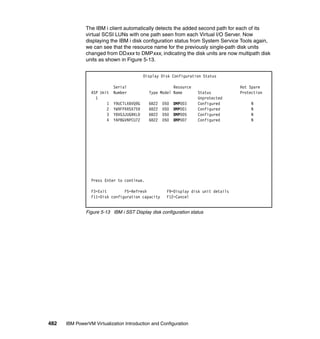
Configuration of new virtual SCSI adapters and mapping of devices
LV
LPAR
Client
VIOS
LV
LPAR
Client
VIOS
Chapter 2. Virtualization technologies on IBM Power Systems 113
Provisioning of virtual SCSI disk resources
The provisioning of virtual disk resources is provided by the Virtual I/O Server.
Physical disks presented to the Virtual I/O Server can be exported and assigned
to a client partition in a number of different ways:
The entire disk is presented to the client partition.
The disk is divided into several logical volumes, which can be presented to a
single client or multiple different clients.
With the introduction of Virtual I/O Server 1.5, files can be created on these
disks and file-backed storage can be created.
With the introduction of Virtual I/O Server 2.2 Fixpack 24 Service Pack 1,
logical units from a shared storage pool can be created.
The logical volumes or files can be assigned to different partitions. Therefore,
virtual SCSI enables sharing of adapters as well as disk devices.
To make a physical disk, logical volume or file backed storage device available to
a client partition, it is assigned to a virtual SCSI server adapter in the Virtual I/O
Server. The virtual SCSI adapter is represented by a vhost device as follows:
vhost0 Available Virtual SCSI Server Adapter
The client partition accesses its assigned disks through a virtual SCSI client
adapter. The virtual SCSI client adapter sees the disks, logical volumes, or
file-backed storage through this virtual adapter as virtual SCSI disk devices.
Example 2-1 shows how the virtual SCSI devices appear on an AIX client
partition.
Example 2-1 Virtual SCSI devices on an AIX client partition
# lsdev -Cc disk -s vscsi
hdisk2 Available Virtual SCSI Disk Drive
# lscfg -vpl hdisk2
hdisk2 U9117.MMA.100F6A0-V4-C40-T1-L810000000000 Virtual SCSI Disk
Drive
114 IBM PowerVM Virtualization Introduction and Configuration
For an example of how the virtual SCSI devices appear on an IBM i client
partition, see Figure 2-49 on page 176.
The vhost SCSI adapter is the same as a normal SCSI adapter. You can have
multiple disks assigned it.
Usually one virtual SCSI server adapter mapped to one virtual SCSI client
adapter will be configured, mapping backing devices through to individual
LPARs. It is possible to map these virtual SCSI servers to multiple LPARs, which
is useful for creating virtual optical and/or tape devices, allowing removable
media devices to be shared between multiple client partitions.
Figure 2-27 shows an example where one physical disk is divided into two logical
volumes by the Virtual I/O Server. Each of the two client partitions is assigned
one logical volume, which is then accessed through a virtual I/O adapter (VSCSI
Client Adapter). Inside the partition, the disk is seen as a generic SCSI LUN.
Figure 2-27 Virtual SCSI architecture overview
Client Partition 1 Client Partition 2I/O Server Partition
POWER Hypervisor
LVM
Physical
Adapter
SCSI LUN SCSI LUNLogical
Volume 1
Logical
Volume 2
VSCSI
Server
Adapter
VSCSI
Client
Adapter
VSCSI
Client
Adapter
Physical Disk
(SCSI, FC)
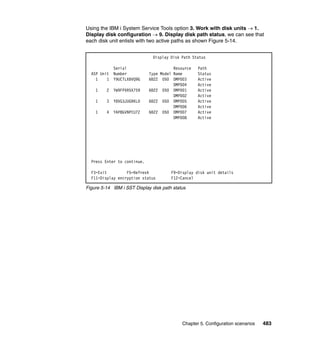
VSCSI
Server
Adapter
Chapter 2. Virtualization technologies on IBM Power Systems 115
Multiple backing devices per virtual SCSI adapter
After these virtual SCSI server/client adapter connections have been set up, one
or more backing devices (whole disks, logical volumes, or files) can be presented
using the same virtual SCSI adapter.
Each virtual SCSI adapter can handle 510 I/O requests in parallel (also referred
to as the queue depth), which provides enough I/O concurrency even for multiple
backing devices that can be assigned to each virtual SCSI adapter, as shown in
Figure 2-28.
Figure 2-28 Queue depths and virtual SCSI considerations
Power Systems Server
LPAR1
LPAR2
….
File backed Storage Internal SCSI disks SAN disks
VIOS1
VSCSI
Server
Adapter
VSCSI
Server
Adapter
Physical Disk
adapters
VSCSI
Client
Adapter
VSCSI
Client
Adapter
VSCSI
Client
Adapter
VSCSI
Client
Adapter
VIOS2
VSCSI
Server
Adapter
VSCSI
Server
Adapter
Queue
Depth of
510
116 IBM PowerVM Virtualization Introduction and Configuration
Each device will have an associated queue depth, which is the number of I/O
requests each device can handle concurrently. Table 2-8 shows default values
and suggested maximum numbers of devices to present through a single virtual
SCSI server/client adapter connection.
Table 2-8 Suggested maximum number of devices per virtual SCSI link
SCSI Remote Direct Memory Access
The SCSI family of standards provides many different transport protocols that
define the rules for exchanging information between SCSI initiators and targets.
Virtual SCSI uses the SCSI RDMA Protocol (SRP), which defines the rules for
exchanging SCSI information in an environment where the SCSI initiators and
targets have the ability to directly transfer information between their respective
memory address spaces.
SCSI requests and responses are sent using the virtual SCSI adapters that
communicate through the POWER Hypervisor.
The actual data transfer, however, is done directly between a data buffer in the
client partition and the physical adapter in the Virtual I/O Server using the Logical
Remote Direct Memory Access (LRDMA) protocol.
Queue depth: If you have disks with high I/O requirements or have tuned the
queue depths, make sure that you take these into consideration. The
file-backed devices will inherit the queue depth of their backing device.
Disk type Default queue depth Suggested max per
virtual SCSI linkage1
1. IBM i supports up to 16 virtual disk LUNs and up to 16 virtual optical LUNs per
virtual SCSI client adapter.
Internal SCSI disk 3 85
SAN disk 10 26
Chapter 2. Virtualization technologies on IBM Power Systems 117
Figure 2-29 demonstrates data transfer using LRDMA. The VSCSI initiator of the
client partition uses the POWER Hypervisor to request data access from the
VSCSI target device. The Virtual I/O Server then determines which physical
adapter this data is to be transferred from and sends it’s address to the POWER
Hypervisor. The POWER Hypervisor maps this physical adapter address to the
client partition’s data buffer address to set up the data transfer directly from the
physical adapter of the Virtual I/O Server to the client partition’s data buffer.
Figure 2-29 Logical Remote Direct Memory Access
Dynamic partitioning for virtual SCSI devices
Virtual SCSI server and client devices can be assigned and removed dynamically
using the HMC or IVM. This needs to be coordinated with the linking and removal
of the backing devices in the Virtual I/O Servers.
With a physical device mapped to a virtual server (vhost) adapter, there are two
options for moving disks between partitions:
Reassign the VSCSI adapter on the server partition to a new client partition,
then create a VSCSI client adapter in the new target partition. On the client,
the cfgmgr command is run and the new VSCSI disk is available.
If the virtual SCSI server and client adapters are already created for the new
LPAR, just remove and recreate the linkage (vtscsi) device on the VIO server
and then run the cfgmgr command on the target LPAR.
Tip: The cfgmgr command is only required for AIX. IBM i and Linux will
automatically recognize that the new adapter is assigned to the partition.
I/O ServerVSCSI Client
Physical
Adapter
Driver
Data
Buffer
VSCSI
Initiator
VSCSI
Target
SCSI Control
POWER Hypervisor
PCI Adapter
Data
118 IBM PowerVM Virtualization Introduction and Configuration
Virtual SCSI optical devices
A DVD or CD device can be virtualized and assigned to Virtual I/O clients. Only
one virtual I/O client can have access to the drive at a time. The advantage of a
virtual optical device is that you do not have to move the parent SCSI adapter
between virtual I/O clients.
For more information, see 3.2.6, “Virtual SCSI optical devices” on page 272.
2.7.2 Shared Storage Pools
Shared storage pools are a new capability that is available with Virtual I/O Server
Version 2.2.0.11, Fix Pack 24, Service Pack 1. Shared storage pools provide the
following benefits:
Simplify the aggregation of large numbers of disks across multiple Virtual I/O
Servers.
Improve the utilization of the available storage.
Simplify administration tasks.
The following sections describe shared storage pools in more detail.
Shared storage pool architecture overview
A shared storage pool is a pool of SAN storage devices that can span multiple
Virtual I/O Servers. It is based on a cluster of Virtual I/O Servers and a
distributed data object repository with a global namespace. Each Virtual I/O
Server that is part of a cluster represents a cluster node.
Attention: The virtual optical drive cannot be moved to another Virtual I/O
Server because client SCSI adapters cannot be created in a Virtual I/O
Server. If you want the CD or DVD drive in another Virtual I/O Server, the
virtual device must be de-configured and the parent SCSI adapter must be
de-configured and moved, as described later in this section.
Support: At the time of writing, only one single node per cluster and one
single shared storage pool per cluster are supported.
Chapter 2. Virtualization technologies on IBM Power Systems 119
The distributed data object repository is using a cluster filesystem that has been
developed specifically for the purpose of storage virtualization using the Virtual
I/O Server. It provides redirect-on-write capability and is highly scalable. The
distributed object repository is the foundation for advanced storage virtualization
features, such as thin provisioning. Additional features will be added in future
releases. They will provide significant benefits by facilitating key capabilities for
emerging technologies such as cloud computing.
When using shared storage pools, the Virtual I/O Server provides storage
through logical units that are assigned to client partitions. A logical unit is a file
backed storage device that resides in the cluster filesystem in the shared storage
pool. It appears as a virtual SCSI disk in the client partition, in the same way as a
for example, a virtual SCSI device backed by a physical disk or a logical volume.
Prerequisites
A shared storage pool requires the following prerequisites:
POWER6 (and above) based servers (including Blades).
PowerVM Standard Edition or PowerVM Enterprise Edition.
Virtual I/O Server requirements:
– Version 2.2.0.11, Fix Pack 24, Service Pack 1, or later
– Processor entitlement of at least one physical processor
– At least 4 GB memory
Client partition operating system requirements:
– AIX 5.3, or later
– IBM i 6.1.1 or IBM i 7.1 TR 1, or later
Local or DNS TCP/IP name resolution for all Virtual I/O Servers in the cluster.
Conditions: At the time of writing, the following conditions apply:
Client partitions using virtual devices from the shared storage pool are not
supported for Live Partition Mobility.
The number of maximum client partitions per Virtual I/O Server in a cluster
is 20.
The number of maximum physical volumes in a shared storage pool is 128.
The number of maximum logical units in a cluster is 200.
Support: IBM intends to support the shared storage pool for Linux clients
in 2011.
120 IBM PowerVM Virtualization Introduction and Configuration
Minimum storage requirements for the shared storage pool:
– One Fibre Channel attached disk for repository with at least 20 GB disk
space.
– At least one Fibre Channel attached disk for shared storage pool data.
Each disk must have at least 20 GB disk space.
All physical volumes for the repository and the shared storage pool must have
redundancy at the storage level.
Virtual I/O Server storage clustering model
The Virtual I/O Servers that are part of the shared storage pool are joined
together to form a cluster. A Virtual I/O Server that is part of a cluster is also
referred to as cluster node. Only Virtual I/O Server partitions can be part of a
cluster.
The Virtual I/O Server clustering model is based on Cluster Aware AIX (CAA)
and RSCT technology. The cluster for the shared storage pool is an RSCT Peer
Domain cluster. Therefore a network connection is needed between all the
Virtual I/O servers that are part of the shared storage pool.
Conditions: At the time of writing, the following conditions apply:
The IP address used for the cluster must be the first entry in the
/etc/hosts file.
Changing the hostname is not supported when the Virtual I/O Server is
part of a cluster.
The cluster network for the shared storage pool supports IPv4
compliant network only.
Conditions: At the time of writing, the following conditions apply:
Fibre Channel over Ethernet (FCoE) adapters are not supported for
Fibre Channel attached disks when using shared storage pools.
At the time of writing, only MPIO based multipathing software (AIX
default PCM, SDDPCM, PowerPath PCM, HDLM PCM, and so on) is
supported for physical devices in the shared storage pool on the Virtual
I/O Server. Legacy non-MPIO multipathing software (SDD, PowerPath,
legacy HDLM, and so on) is not supported.
Attention: At the time of writing, physical volumes in the shared storage
pool cannot be replaced or removed from the shared storage pool.
Chapter 2. Virtualization technologies on IBM Power Systems 121
On the Virtual I/O Server, the poold daemon handles group services and is
running in the user space. The vio_daemon daemon is responsible for monitoring
the health of the cluster nodes and the pool as well as the pool capacity.
Each Virtual I/O Server in the cluster requires at least one physical volume for the
repository that is used by the CAA subsystem and one or more physical volumes
for the storage pool.
All cluster nodes in a cluster can see all the disks. Therefore the disks need to be
zoned to all the cluster nodes that are part of the shared storage pools. All nodes
can read and write to the shared storage pool. The cluster uses a distributed lock
manager to manage access to the storage.
Figure 2-30 shows an abstract image of a shared storage pool. The Virtual I/O
Servers in the cluster communicate with each other using Ethernet connections.
They share the repository disk and the disks for the storage pool through the
SAN.
Figure 2-30 Abstract image of the clustered Virtual I/O Servers
Attention: At the time of writing, the shared storage pool supports a single
node Virtual I/O Server cluster. Although there is a single node in a cluster, the
shared storage pool does not work if the poold or vio_daemon do not work
correctly.
VIOS VIOS VIOS VIOS
Repository
Storage
Pool
Storage
Pool
Ethernet
SAN
122 IBM PowerVM Virtualization Introduction and Configuration
Shared storage pool layout
The shared storage pool manages logical units as a file. Portions of the logical
unit are cached on the client node in a cluster. The logical unit consists of virtual
blocks and has a virtual block address space.
The physical volumes in the shared storage pool are managed as an aggregation
of physical blocks and user data is stored in these blocks. These physical blocks
are managed by a meta-data area on the physical volumes. Therefore, the
physical volumes in the shared storage pool consist of physical blocks and have
a physical block address space.
The translation from a virtual block address to a physical block address is
performed by the Virtual Address Translation Lookaside (VATL).
The system reserves a small amount of each physical volume in the shared
storage pool to record meta-data. The remainder of the shared storage pool
capacity is available for client partition user data. Therefore, not all of the space
of physical volumes in the shared storage pool can be used for user data.
Thin provisioning
A thin-provisioned device represents a larger image than the actual physical disk
space it is using. It is not fully backed by physical storage as long as the blocks
are not in use.
A thin-provisioned logical unit is defined with a user-specified size when it is
created. It appears in the client partition as a virtual SCSI disk with that
user-specified size. However, on a thin-provisioned logical unit, blocks on the
physical disks in the shared storage pool are only allocated when they are used.
Compared to a traditional storage device, which allocates all the disk space when
the device is created, this can result in significant savings in physical disk space.
It also allows over-committing of the physical disk space.
Conditions: At the time of writing, the following conditions apply:
The Virtual I/O Server in a cluster cannot be a mover service partition
(MSP) for Live Partition Mobility or a paging service partition (PSP) for
Active Memory Sharing and Suspend/Resume.
The Virtual I/O Server in a cluster does not support Shared Ethernet
Adapters in interrupt mode.
Chapter 2. Virtualization technologies on IBM Power Systems 123
Consider a shared storage pool that has a size of 20 GB. If you create a logical
unit with a size of 15 GB, the client partition will see a virtual disk with a size of
15 GB. But as long as the client partition does not write to the disk, only a small
portion of that space will initially be used from the shared storage pool. If you
create a second logical unit also with a size of 15 GB, the client partition will see
two virtual SCSI disks, each with a size of 15 GB. So although the shared
storage pool has only 20 GB of physical disk space, the client partition sees
30 GB of disk space in total. After the client partition starts writing to the disks,
physical blocks will be allocated in the shared storage pool and the amount of
free space in the shared storage pool will decrease.
After the physical blocks are allocated to a logical unit to write actual data, the
physical blocks allocated are not released from the logical unit until the logical
unit is removed from the shared storage pool. Deleting files, file systems or
logical volumes, which reside on the virtual disk from the shared storage pool, on
a client partition does not increase free space of the shared storage pool.
When the shared storage pool is full, client partitions that are using virtual SCSI
disks backed by logical units from the shared storage pool will see an I/O error on
the virtual SCSI disk. Therefore even though the client partition will report free
space to be available on a disk, that information might not be accurate if the
shared storage pool is full.
To prevent such a situation, the shared storage pool provides a threshold that,
if reached, writes an event in the errorlog of the Virtual I/O Server. The default
threshold value is 75, which means an event is logged if the shared storage pool
has less than 75% free space. The errorlog must be monitored for this event so
that additional space can be added before the shared storage pool becomes full.
The threshold can be changed using the alert command.
Example 2-2 shows a shared storage pool that initially has almost 40 GB of free
space. The threshold is at the default value of 75. After the free space drops
below 75%, the alert is triggered, as you can see from the errlog command
output.
Example 2-2 Shared storage pool free space alert
$ alert -list -clustername clusterA -spname poolA
Pool Name PoolID
Threshold Percentage
poolA 15757390541369634258 75
$ lssp -clustername clusterA
Pool Size(mb) Free(mb) LUs Type PoolID
poolA 40704 40142 1 CLPOOL
15757390541369634258
$ lssp -clustername clusterA
124 IBM PowerVM Virtualization Introduction and Configuration
Pool Size(mb) Free(mb) LUs Type PoolID
poolA 40704 29982 1 CLPOOL
15757390541369634258
$ errlog
IDENTIFIER TIMESTAMP T C RESOURCE_NAME DESCRIPTION
0FD4CF1A 1214152010 I O VIO1_-26893535 Informational Message
Figure 2-31 shows an image of two thin-provisioned logical units in a shared
storage pool. As you can see not all of the blocks of the virtual disk in the client
partition are backed by physical blocks on the disk devices in the shared storage
pool.
A logical unit cannot be resized after creation. If you need more space from the
shared storage pool on the client partition, you can map an additional logical unit
to the client partition or replace the existing logical unit with a larger one.
Figure 2-31 Thin-provisioned devices in the shared storage pool
Support: At the time of writing, the shared storage pool supports
thin-provisioned devices only.
VIOS
Client Partition A
POWER Hypervisor
Client Partition B
Shared Storage Pool
Logical Unit Logical Unit
Chapter 2. Virtualization technologies on IBM Power Systems 125
The virtual target device for the logical unit from the shared storage pool is
dependent on the following components:
Shared storage pool
Distributed object data repository
Clustering infrastructure
If there is a problem with one of these components, the virtual target device will
go into a state where it will fail most commands sent from the client partitions,
including any I/O. If the dependent component recovers, the virtual target device
also needs to recover.
Persistent reservation support
The virtual SCSI disk devices exported from the shared storage pool supports
SCSI persistent reservations. These SCSI persistent reservations persist across
hard resets, logical unit resets, or initiator target nexus loss. The persistent
reservations supported by the virtual SCSI disk from the shared storage pool
support the required features for the SCSI-3 Persistent Reserves standard.
The additional options, PR_exclusive and PR_shared, are added to the reserve
policy for the virtual SCSI disk device from the shared storage pool. The
PR_exclusive is a persistent reserve for exclusive hot access, and the PR_shared
is a persistent reserve for shared hot access.
2.7.3 General virtual SCSI considerations
Consider the following areas when implementing virtual SCSI:
Virtual SCSI supports Fibre Channel, parallel SCSI, SCSI RAID devices, and
optical devices, including DVD-RAM and DVD-ROM. Other protocols, such as
SSA and tape devices, are not supported.
A logical volume on the Virtual I/O Server used as a virtual SCSI disk cannot
exceed 1 TB in size.
The SCSI protocol defines mandatory and optional commands. While virtual
SCSI supports all the mandatory commands, not all optional commands are
supported.
126 IBM PowerVM Virtualization Introduction and Configuration
Installation and migration considerations
These are the major installation and migration considerations:
Consider the client partition root volume group sizes prior to creating logical
volumes when using AIX levels lower than AIX 6.1 Technology Level 4.
Increasing a rootvg by extending its associated Virtual I/O Server logical
volume is only supported on AIX 6.1 Technology Level 4 or later.
Important: Although logical volumes that span multiple physical volumes are
possible, for optimum performance, a logical volume has to reside wholly on a
single physical volume. To guarantee this, volume groups can be composed of
single physical volumes.
Keeping an exported storage pool backing device or logical volume on a single
hdisk results in optimized performance.
Bad Block Relocation on the Virtual I/O Server Version 2.1.2 and above is
supported:
As long as a virtual SCSI device is not striped
As long as a virtual SCSI device is not mirrored
When the logical volume wholly resides on a single physical volume
Although supported, Bad Block Relocation must not be enabled on the Virtual
I/O Server for virtual SCSI devices. Bad Block Relocation has to be enabled
for virtual SCSI devices on the clients to obtain better performance, such as
for a virtual tape device. Bad Block Relocation needs to be used for paging
spaces used by Active Memory Sharing (AMS). Use the chlv command to
change the Bad Block Relocation policy for logical volumes on the Virtual I/O
Server.
To verify that a logical volume does not span multiple disks, run the lslv
command as shown here:
$ lslv -pv app_vg
app_vg:N/A
PV COPIES IN BAND DISTRIBUTION
hdisk5 320:000:000 99% 000:319:001:000:000
Only one disk must appear in the resulting list.
Chapter 2. Virtualization technologies on IBM Power Systems 127
Virtual SCSI itself does not have any maximums in terms of number of
supported devices or adapters. The Virtual I/O Server supports a maximum of
1024 virtual I/O slots per Virtual I/O Server. A maximum of 256 virtual I/O
slots can be assigned to a single client partition.
Every I/O slot needs some physical server resources to be created.
Therefore, the resources assigned to the Virtual I/O Server puts a limit on the
number of virtual adapters that can be configured.
Migration considerations
A storage device can be moved from physically connected SCSI to a virtually
connected SCSI device if it meets the following criteria:
The device is an entire physical volume (for example, a LUN).
The device capacity is identical in both physical and virtual environments.
The Virtual I/O Server is able to manage the device using a UDID or iEEE ID.
Devices managed by the following multipathing solutions within the Virtual I/O
Server are expected to be UDID devices:
All multipath I/O (MPIO) versions, including Subsystem Device Driver Path
Control Module (SDDPCM), EMC PCM, and Hitachi Dynamic Link Manager
(HDLM) PCM
EMC PowerPath 4.4.2.2 or later
IBM Subsystem Device Driver (SDD) 1.6.2.3 or later
Hitachi HDLM 5.6.1 or later
Virtual SCSI devices created with earlier versions of PowerPath, HDLM, and
SDD are not managed by UDID format and are not expected to be p2v compliant.
The operations mentioned before (for example, data replication or movement
between Virtual I/O Server and non-Virtual I/O Server environments) are not
likely to work in these cases.
Support: Physical to virtual (p2v) migration is not supported for IBM i storage
devices due to the unique 520 byte sector size that IBM i uses natively.
128 IBM PowerVM Virtualization Introduction and Configuration
The chkdev command can be used to verify if a device that is attached to a
Virtual I/O Server can be migrated from a physical adapter to using virtual
adapter. Example 2-3 shows a LUN provided by an external storage subsystem.
As you can see, it shows YES in the PHYS2VIRT_CAPABLE field. Therefore it
can be migrated to a virtual device simply by mapping it to a virtual SCSI server
adapter.
Example 2-3 Using chkdev to verify p2v compliance
$ chkdev -dev hdisk4 -verbose
NAME: hdisk4
IDENTIFIER: 200B75BALB1101207210790003IBMfcp
PHYS2VIRT_CAPABLE: YES
VIRT2NPIV_CAPABLE: NA
VIRT2PHYS_CAPABLE: NA
PVID: 00f61aa66682ec680000000000000000
UDID: 200B75BALB1101207210790003IBMfcp
IEEE:
VTD:
For more information, see the IBM Power Systems Hardware Information Center
at this website:
http://publib.boulder.ibm.com/infocenter/powersys/v3r1m5/topic/p7hb1/ip
hb1_vios_device_compat.htm
For a description of physical to virtual storage migration, see the Redbooks
publication, PowerVM Migration from Physical to Virtual Storage, SG24-7825-00,
available at the following website:
http://www.redbooks.ibm.com/abstracts/sg247825.html
Performance considerations
Provided that there is sufficient CPU processing capacity available, the
performance of virtual SCSI has to be comparable to dedicated I/O devices.
Virtual Ethernet, having non-persistent traffic, runs at a higher priority than the
virtual SCSI on the VIO server. To make sure that high volumes of networking
traffic will not starve virtual SCSI of CPU cycles, a threaded mode of operation
has been implemented for the Virtual I/O Server by default since version 1.2.
Chapter 2. Virtualization technologies on IBM Power Systems 129
2.8 N_Port ID Virtualization introduction
N_Port ID Virtualization (NPIV) is an industry-standard Fibre Channel (FC)
technology that allows the Virtual I/O Server to directly share a NPIV capable FC
adapter among multiple client partitions. For NPIV, the Virtual I/O Server acts as
an FC pass-through instead of a SCSI emulator such as when using virtual SCSI
(see Figure 2-32).
Figure 2-32 Comparing virtual SCSI and NPIV
POWER Hypervisor
Virtual I/O ServerVirtual I/O Server Virtual I/O Client Partition
SCSI
LUNs
#1-n
VSCSI
Client
Adapter ID10
VSCSI
Client
Adapter ID20
Hdisk
#1-n
Multi-pathing Multi-pathing
Hdisk
#1-n
FC
Adapter
FC
Adapter
FC
Adapter
FC
Adapter
* *
Device DriverDevice Driver
VSCSI
Server
Adapter ID10
VSCSI
Server
Adapter ID20
Storage virtualization with Virtual SCSI
Virtual I/O Server
acting as
SCSI emulator
IBM DS8000
POWER Hypervisor
Virtual I/O ServerVirtual I/O Server Virtual I/O Client Partition
2107
LUNs
#1-n
VFC
Client
Adapter ID10
VFC
Client
Adapter ID20
FC
Adapter
FC
Adapter
* *
VFC
Server
Adapter ID10
VFC
Server
Adapter ID20
Storage virtualization with NPIV
Virtual I/O Server
acting as
FC pass-through
NPIV-capable
SAN Switch
IBM DS8000
130 IBM PowerVM Virtualization Introduction and Configuration
With NPIV, a Virtual Fibre Channel (VFC) server adapter in the Virtual I/O Server
is mapped on the one hand to a port of the physical FC adapter, and on the other
hand to a VFC client adapter from the client partition as shown in the basic NPIV
configuration in Figure 2-33.
Figure 2-33 Virtual I/O Server virtual Fibre Channel adapter mappings
Two unique virtual world-wide port names (WWPNs) starting with the letter c are
generated by the HMC for the VFC client adapter, which after activation of the
client partition, log into the SAN like any other WWPNs from a physical port so
that disk or tape storage target devices can be assigned to them as if they were
physical FC ports.
Tip: Unless using PowerVM Live Partition Mobility or Suspend/Resume, only
the first of the two created virtual WWPNs of a VFC client adapter is used.
Virtual I/O Server
Physical
Storage 1
Physical
Storage 2
Physical
Storage 3
Server virtual fibre
channel adapter
Server virtual fibre
channel adapter
Server virtual fibre
channel adapter
Client logical
partition 1
Client virtual
fibre channel
adapter
Client logical
partition 2
Client virtual
fibre channel
adapter
Client logical
partition 3
Client virtual
fibre channel
adapter
POWER Hypervisor
Physical fibre
channel adapter
Storage
Area
Network
Chapter 2. Virtualization technologies on IBM Power Systems 131
The following considerations apply when using NPIV:
One VFC client adapter per physical port per client partition:
Intended to avoid a single point of failure
Maximum of 64 active VFC client adapter per physical port:
Might be less due to other VIOS resource constraints
Maximum of 64 targets per virtual Fibre Channel adapter
32,000 unique WWPN pairs per system platform:
– Removing adapter does not reclaim WWPNs:
• Can be manually reclaimed through CLI (mksyscfg, chhwres…)
• Or use “virtual_fc_adapters” attribute
– If exhausted, contact your IBM sales representative or Business Partner
representative to purchase an activation code for more
2.8.1 Redundancy configurations for virtual Fibre Channel adapters
To implement highly reliable virtual I/O storage configurations, use the following
redundancy configurations to protect your virtual I/O production environment
from physical adapter failures as well as from Virtual I/O Server failures.
Host bus adapter redundancy
Similar to virtual SCSI redundancy, virtual Fibre Channel redundancy can be
achieved using multipathing or mirroring at the client logical partition. The
difference between redundancy with virtual SCSI adapters and the NPIV
technology using virtual Fibre Channel client adapters is that the redundancy
occurs at the client, because only the virtual I/O client logical partition recognizes
the disk. The Virtual I/O Server is essentially just a Fibre Channel pass-through
managing the data transfer through the POWER Hypervisor.
132 IBM PowerVM Virtualization Introduction and Configuration
A host bus adapter is a physical Fibre Channel adapter that can be assigned to a
logical partition. A host bus adapter (HBA) failover provides a basic level of
redundancy for the client logical partition, as shown in Figure 2-34.
Figure 2-34 Host bus adapter failover
Figure 2-34 shows the following connections:
The SAN connects physical storage to two physical Fibre Channel adapters
located on the managed system.
Two physical Fibre Channel adapters are assigned to the Virtual I/O Server
partition and support NPIV.
The physical Fibre Channel ports are each connected to a virtual Fibre
Channel server adapter on the Virtual I/O Server. The two virtual Fibre
Channel server adapters on the Virtual I/O Server are connected to ports on
two different physical Fibre Channel adapters to provide redundancy for the
physical adapters.
Each virtual Fibre Channel server adapter in the Virtual I/O Server partition is
connected to one virtual Fibre Channel client adapter on a virtual I/O client
partition. Each virtual Fibre Channel client adapter on each virtual I/O client
partition receives a pair of unique WWPNs. The virtual I/O client partition
uses one WWPN to log into the SAN at any given time. The other WWPN is
used when the client logical partition is moved to another managed system
using PowerVM Live Partition Mobility.
Virtual I/O Server
Physical
storage
Hypervisor
Client logical partition
Client virtual
fibre channel
adapter 1
Client virtual
fibre channel
adapter 2
Storage
Area
Network Physical fibre
channel adapter
Server virtual fibre
channel adapter
Server virtual fibre
channel adapter
Physical fibre
channel adapter
Chapter 2. Virtualization technologies on IBM Power Systems 133
The virtual Fibre Channel adapters always have a one-to-one relationship
between the virtual I/O client partitions and the virtual Fibre Channel adapters
in the Virtual I/O Server partition. That is, each virtual Fibre Channel client
adapter that is assigned to a virtual I/O client partition must connect to only
one virtual Fibre Channel server adapter in the Virtual I/O Server partition,
and each virtual Fibre Channel server adapter in the Virtual I/O Server
partition must connect to only one virtual Fibre Channel client adapter in a
virtual I/O client partition.
Because multipathing is used in the virtual I/O client partition, it can access
the physical storage through virtual Fibre Channel client adapter 1 or 2. If a
physical Fibre Channel adapter in the Virtual I/O Server fails, the virtual I/O
client uses the alternate path. This example does not show redundancy in the
physical storage, but rather assumes it will be built into the SAN storage
device.
Host bus adapter and Virtual I/O Server redundancy
A host bus adapter and Virtual I/O Server redundancy configuration provides a
more advanced level of redundancy for the virtual I/O client partition, as shown in
Figure 2-35.
Figure 2-35 Host bus adapter and Virtual I/O Server failover
Hypervisor
Virtual I/O Server 1 Client logical partitionVirtual I/O Server 2
Storage
Area
Network Physical fibre
channel adapter
Physical fibre
channel adapter
Physical fibre
channel adapter
Physical fibre
channel adapter
Server virtual fibre
channel adapter
Server virtual fibre
channel adapter
Physical
storage
Server virtual fibre
channel adapter
Server virtual fibre
channel adapter
Client virtual
fibre channel
adapter 1
Client virtual
fibre channel
adapter 2
Client virtual
fibre channel
adapter 3
Client virtual
fibre channel
adapter 4
134 IBM PowerVM Virtualization Introduction and Configuration
Figure 2-35 on page 133 shows the following connections:
The SAN connects physical storage to four physical Fibre Channel adapters
located on the managed system.
There are two Virtual I/O Server partitions to provide redundancy at the
Virtual I/O Server level.
Two physical Fibre Channel adapters are assigned to their respective Virtual
I/O Server partitions and support NPIV.
The physical Fibre Channel ports are each connected to a virtual Fibre
Channel server adapter on the Virtual I/O Server partition. The two virtual
Fibre Channel server adapters on the Virtual I/O Server are connected to
ports on two different physical Fibre Channel adapters to provide the most
redundant solution for the physical adapters.
Each virtual Fibre Channel server adapter in the Virtual I/O Server partition is
connected to one virtual Fibre Channel client adapter in a virtual I/O client
partition. Each virtual Fibre Channel client adapter on each virtual I/O client
partition receives a pair of unique WWPNs. The client logical partition uses
one WWPN to log into the SAN at any given time. The other WWPN is used
when the client logical partition is moved to another managed system by
PowerVM Live Partition Mobility.
The virtual I/O client partition can access the physical storage through virtual
Fibre Channel client adapter 1 or 2 on the client logical partition through Virtual
I/O Server 2. The client can also access the physical storage through virtual
Fibre Channel client adapter 3 or 4 on the client logical partition through Virtual
I/O Server 1. If a physical Fibre Channel adapter fails on Virtual I/O Server 1, the
client uses the other physical adapter connected to Virtual I/O Server 1 or uses
the paths connected through Virtual I/O Server 2. If Virtual I/O Server 1 needs to
be shut down for maintenance reasons, then the client uses the path through
Virtual I/O Server 2. This example does not show redundancy in the physical
storage, but rather assumes it will be built into the SAN.
Chapter 2. Virtualization technologies on IBM Power Systems 135
Heterogeneous configuration with NPIV
Combining virtual Fibre Channel client adapters with physical adapters in the
client logical partition using AIX native MPIO or IBM i multipathing is supported,
as shown in Figure 2-36. One virtual Fibre Channel client adapter and one
physical adapter form two paths to the same LUN.
Figure 2-36 Heterogeneous multipathing configuration with NPIV
Redundancy considerations for NPIV
These examples can become more complex as you add physical storage
redundancy and multiple clients, but the concepts remain the same. Consider the
following points:
To avoid configuring the physical Fibre Channel adapter to be a single point of
failure for the connection between the virtual I/O client partition and its
physical storage on the SAN, do not connect two virtual Fibre Channel client
adapters from the same virtual I/O client partition to the same physical Fibre
Channel adapter in the Virtual I/O Server partition. Instead, connect each
virtual Fibre Channel server adapter to a different physical Fibre Channel
adapter.
Consider load balancing when mapping a virtual Fibre Channel server
adapter in the Virtual I/O Server partition to a physical port on the physical
Fibre Channel adapter.
Consider what level of redundancy already exists in the SAN to determine
whether to configure multiple physical storage units.
POWER Hypervisor
AIX IBM iVirtual I/O Server
SAN Switch
Passthru module
NPIV
IBM i
Multi-pathing
NPIV
MPIO
NPIV
NPIV
Controller Controller
Physical
FCHBA
Fibre
HBA
SAN Switch
Physical
FCHBA
136 IBM PowerVM Virtualization Introduction and Configuration
Consider using two Virtual I/O Server partitions. Because the Virtual I/O
Server is central to communication between virtual I/O client partitions and
the external network, it is important to provide a level of redundancy for the
Virtual I/O Server especially to prevent disruptions for maintenance actions
such as a Virtual I/O Server upgrade requiring a reboot for activation.
Multiple Virtual I/O Server partitions require more resources as well, so plan
accordingly.
NPIV technology is useful when you want to move logical partitions between
servers. For example, in an active PowerVM Live Partition Mobility
environment, if you use the redundant configurations previously described in
combination with physical adapters, you can stop all I/O activity through the
dedicated, physical adapter and direct all traffic through a virtual Fibre
Channel client adapter until the virtual I/O client partition is successfully
moved. The dedicated physical adapter needs to be connected to the same
storage as the virtual path.
Because you cannot migrate a physical adapter, all I/O activity is routed
through the virtual path while you move the partition. After the logical partition
is moved successfully, you need to set up the dedicated path (on the
destination virtual I/O client partition) if you want to use the same redundancy
configuration as you had configured on the original logical partition. Then the
I/O activity can resume through the dedicated adapter, using the virtual Fibre
Channel client adapter as a secondary path.
2.8.2 Implementation considerations
To use NPIV on the managed system, a Virtual I/O Server partition at Version 2.1
or later is required that provides virtual resources to virtual I/O client partitions. At
least one 8 Gigabit PCI Express Dual Port Fibre Channel Adapter is needed in
the Virtual I/O Server logical partition. A virtual Fibre Channel server adapter
needs to be created by the HMC or IVM for the Virtual I/O Server partition profile
that connects to a virtual Fibre Channel client adapter created in the client
partition.
The Virtual I/O Server partition provides the connection between the virtual Fibre
Channel server adapters and the physical Fibre Channel adapters assigned to
the Virtual I/O Server partition on the managed system.
Fibre Channel: A virtual Fibre Channel client adapter is a virtual device that
provides virtual I/O client partitions with a Fibre Channel connection to a
storage area network through the Virtual I/O Server partition.
Chapter 2. Virtualization technologies on IBM Power Systems 137
Figure 2-37 shows a managed system configured to use NPIV, running two
Virtual I/O Server partitions each with one physical Fibre Channel card. Each
Virtual I/O Server partition provides virtual Fibre Channel adapters to the virtual
I/O client. For increased serviceability multipathing is used in the virtual I/O client
partitions.
Figure 2-37 Server using redundant Virtual I/O Server partitions with NPIV
Figure 2-37 shows the following connections:
A SAN connects several LUNs from an external physical storage system to a
physical Fibre Channel adapter that is located on the managed system. Each
LUN is connected through both Virtual I/O Servers for redundancy. The
physical Fibre Channel adapter is assigned to the Virtual I/O Server and
supports NPIV.
There are five virtual Fibre Channel adapters available in each of the two
Virtual I/O Servers. Three of them are mapped with the physical Fibre
Channel adapter (adapter slots 10, 20 and 30 respectively 11, 21 and 31). All
three virtual Fibre Channel server adapters are mapped to the same physical
port on the physical Fibre Channel adapter.
Controller Controller
50
40
30
20
10
51
41
31
21
11
VIOS 1 AIX V6.1 AIX V5.3 IBMi611 RHEL SLES VIOS 2
10 11
MPIO
20 21
MPIO
SAN switchSAN switch
PhysicalPhysical
30 31
IBM i
Multi-pathing
138 IBM PowerVM Virtualization Introduction and Configuration
Each virtual Fibre Channel server adapter on the Virtual I/O Server partition
connects to one virtual Fibre Channel client adapter on a virtual I/O client
partition. Each virtual Fibre Channel client adapter receives a pair of unique
WWPNs. The pair is critical, and both must be zoned if Live Partition
Migration is planned to be used for AIX or Linux. The virtual I/O client partition
uses one WWPN to log into the SAN at any given time. The other WWPN is
used by the system when you move the virtual I/O client partition to another
managed system with PowerVM Live Partition Mobility.
Using their unique WWPNs and the virtual Fibre Channel connections to the
physical Fibre Channel adapter, the client operating system that runs in the
virtual I/O client partitions discovers, instantiates, and manages the physical
storage located on the SAN as if it were natively connected to the SAN storage
device. The Virtual I/O Server provides the virtual I/O client partitions with a
connection to the physical Fibre Channel adapters on the managed system.
There is always a one-to-one relationship between the virtual Fibre Channel
client adapter and the virtual Fibre Channel server adapter.
Using the SAN tools of the SAN switch vendor, you zone your NPIV-enabled
switch to include WWPNs that are created by the HMC for any virtual Fibre
Channel client adapter on virtual I/O client partitions with the WWPNs from your
storage device in a zone, as for a physical environment. The SAN uses zones to
provide access to the targets based on WWPNs.
Redundancy configurations help to increase the serviceability of your Virtual I/O
Server environment. With NPIV, you can configure the managed system so that
multiple virtual I/O client partitions can independently access physical storage
through the same physical Fibre Channel adapter. Each virtual Fibre Channel
client adapter is identified by a unique WWPN, which means that you can
connect each virtual I/O partition to independent physical storage on a SAN.
Similar to virtual SCSI redundancy, virtual Fibre Channel redundancy can be
achieved using multipathing or mirroring at the virtual I/O client partition. The
difference between traditional redundancy with SCSI adapters and the NPIV
technology using virtual Fibre Channel adapters is that the redundancy occurs
on the client, because only the client recognizes the disk. The Virtual I/O Server
is essentially just a pass-through managing the data transfer through the
POWER hypervisor.
Mixtures: Though any mixture of Virtual I/O Server native SCSI, virtual SCSI,
and NPIV I/O traffic is supported on the same physical FC adapter port,
consider the implications that this might have for the manageability and
serviceability of such a mixed configuration.
Chapter 2. Virtualization technologies on IBM Power Systems 139
2.8.3 Requirements
You must meet the following requirements to set up and use NPIV.
1. Hardware:
– Any POWER6-based system or later.
For NPIV support on IBM POWER Blades, see the IBM BladeCenter
Interoperability Guide at this website:
http://www-947.ibm.com/support/entry/portal/docdisplay?brand=5000
020&lndocid=MIGR-5073016
Install a minimum System Firmware level of EL340_039 for the IBM Power
520 and Power 550, and EM340_036 for the IBM Power 560 and IBM
Power 570 models.
– Minimum of one 8 Gigabit PCI Express Dual Port Fibre Channel Adapter
(feature code 5735, low-profile feature code 5273) or one 10 Gb FCoE PCI
Express Dual Port Adapter (feature code 5708, low-profile feature code
5270)
Install the latest available firmware for the Fibre Channel adapter available
at the following IBM Fix Central support website:
http://www.ibm.com/support/fixcentral
For detailed instructions on how to update the Virtual I/O Server adapter
firmware, see IBM PowerVM Virtualization Managing and Monitoring,
SG24-7590, available at this website:
http://www.redbooks.ibm.com/abstracts/sg247590.html?Open
Support: Only the 8 Gigabit PCI Express Dual Port Fibre Channel
Adapter (feature code 5735) and the 10 Gb FCoE PCI Express Dual
Port Adapter (feature code 5708) are supported for NPIV.
Important: Establishing a process for regular adapter firmware
maintenance is especially important for IBM i customers because the
automatic adapter FW update process by IBM i System Licensed
Internal Code (SLIC) updates does not apply to any I/O adapters owned
by the Virtual I/O Server.
140 IBM PowerVM Virtualization Introduction and Configuration
– NPIV-enabled SAN switch:
Only the first SAN switch that is attached to the Fibre Channel adapter in
the Virtual I/O Server needs to be NPIV-capable. Other switches in your
SAN environment do not need to be NPIV-capable.
2. Software:
– HMC V7.3.4, or later
– Virtual I/O Server Version 2.1 with Fix Pack 20.1, or later
– AIX 5.3 TL9, or later
– AIX 6.1 TL2, or later
– SDD 1.7.2.0 + PTF 1.7.2.2
– SDDPCM 2.2.0.0 + PTF v2.2.0.6
– SDDPCM 2.4.0.0 + PTF v2.4.0.1
– IBM i 6.1.1, or later
• Requires HMC V7.3.5, or later, and POWER6 firmware Ex350, or later
• Support for the 10 Gb FCoE PCI Express Dual Port Adapter (feature
codes 5708 and 5270) requires Virtual I/O Server Version 2.2 (Fix Pack
24), or later
• Supports IBM System Storage DS8000 series and selected IBM
System Storage tape libraries
See the following IBM i KBS document #550098932 for further
requirements and supported storage devices:
http://www-01.ibm.com/support/docview.wss?uid=nas13b3ed3c69d4b
7f25862576b700710198
– SUSE Linux® Enterprise Server 10 SP 3 or later
– Red Hat Enterprise Linux Version 5.4 or later
Conditions: At the time of writing, the following conditions apply:
Check with the storage vendor as to whether your SAN switch is
NPIV-enabled.
For information about IBM SAN switches, see Implementing an
IBM/Brocade SAN with 8 Gbps Directors and Switches, SG24-6116,
and search for NPIV.
Use the latest supported firmware level for your SAN switch.
Chapter 2. Virtualization technologies on IBM Power Systems 141
2.9 Virtual SCSI and NPIV comparison
Virtual SCSI and NPIV both offer significant benefits by enabling shared
utilization of physical I/O resources. In the following paragraphs we compare both
capabilities and provide guidance for selecting the most suitable option.
2.9.1 Overview
Table 2-9 shows a high level comparison of virtual SCSI and NPIV
Table 2-9 Virtual SCSI and NPIV comparison
Virtual SCSI NPIV
Server based storage
virtualization
Yes No
Adapter level sharing Yes Yes
Device level sharing Yes No
LPM, AMS, Suspend
Resume capable
Yes Yes
Shared storage pool
capable
Yes No
SCSI-3 compliant
(persistent reserve)
No1
1. Unless using Shared Storage Pools
Yes
Generic device interface Yes No
Tape library and LANfree
backup support
No Yes
Virtual tape and virtual
optical support
Yes No
Support for IBM PowerHA
System Mirror for i2
2. Only applies to IBM i partitions
No Yes
142 IBM PowerVM Virtualization Introduction and Configuration
2.9.2 Components and features
In this section we describe the various components and features.
Device types
Virtual SCSI provides virtualized access to disk devices, optical devices, and
tape devices.
With NPIV, SAN disk devices and tape libraries can be attached. The access to
tape libraries enables the use of LAN-Free backup, which is not possible with
virtual SCSI.
Adapter and device sharing
Virtual SCSI allows sharing of physical storage adapters. It also allows sharing of
storage devices by creating storage pools that can be partitioned to provide
logical volume or file backed devices.
NPIV allows sharing of physical Fibre Channel adapters only.
Hardware requirements
NPIV requires NPIV capable Fibre Channel adapters on the Virtual I/O Server as
well as NPIV capable SAN switches.
Virtual SCSI supports a broad range of physical adapters.
Storage virtualization
Virtual SCSI server provides servers based storage virtualization. Storage
resources can be aggregated and pooled on the Virtual I/O Server.
When using NPIV the Virtual I/O Server is only passing-through I/O to the client
partition. Storage virtualization is done on the storage infrastructure in the SAN.
Storage assignment
With virtual SCSI, the storage is assigned (zoned) to the Virtual I/O Servers.
From a storage administration perspective there is no end to end view to see
which storage is allocated to which client partition. When new disks are added to
an existing client partition, they have to be mapped accordingly on the Virtual I/O
Server. When using Live Partition Mobility storage needs to be assigned to the
Virtual I/O Servers on the target server.
Chapter 2. Virtualization technologies on IBM Power Systems 143
With NPIV, the storage is assigned to the client partitions, as in an environment
where physical adapters are used. No intervention is required on the Virtual I/O
Server when new disks are added to an existing partition. When using Live
Partition Mobility, storage moves to the target server without requiring a
reassignment because the virtual Fibre Channels have their own WWPNs that
move with the client partitions to the target server.
Support of PowerVM capabilities
Both virtual SCSI and NPIV support most PowerVM capabilities such as Live
Partition Mobility, Suspend and Resume, or Active Memory Sharing.
NPIV does not support virtualization capabilities that are based on the shared
storage pool such as thin provisioning.
Client partition considerations
Virtual SCSI uses a generic device interface. That means regardless of the
backing device used the devices appear in the same way in the client partition.
When using virtual SCSI no additional device drivers need to be installed in the
client partition. Virtual SCSI does not support load balancing across virtual
adapters in a client partition.
With NPIV device drivers such as SDD, SDDPCM or Atape need to be installed
in the client partition for the disk devices or tape devices. SDD or SDDPCM allow
load balancing across virtual adapters. Upgrading of these drivers requires
special attention when you are using SAN devices as boot disks for the operating
system.
World Wide Port Names
With redundant configurations using two Virtual I/O Servers and two physical
Fibre Channel adapters as shown in 2.8.1, “Redundancy configurations for
virtual Fibre Channel adapters” on page 131, up to 8 World Wide Port Names
(WWPNs) will be used. Some SAN storage devices have a limit on the number of
WWPNs they can manage. Therefore, before deploying NPIV, verify that the SAN
infrastructure can support the planned number of WWPNs.
Virtual SCSI uses only WWPNs of the physical adapters on the Virtual I/O
Server.
144 IBM PowerVM Virtualization Introduction and Configuration
Hybrid configurations
Virtual SCSI and NPIV can be deployed in hybrid configurations. The next two
examples show how both capabilities can be combined in real-world scenarios:
1. In an environment constrained in the number of WWPNs, virtual SCSI can be
used to provide access to disk devices, while for partitions that require
LAN-Free backup, access to tape libraries can be provided using NPIV.
2. To simplify the upgrade of device drivers NPIV can be used to provide access
to application data while virtual SCSI can be used for access to the operating
system boot disks.
2.10 Virtual Networking
POWER systems offer an extensive range of networking options. PowerVM
enables further virtualization capabilities that can be used to provide greater
flexibility and security, and to increase the utilization of the hardware.
It is easy to confuse virtual networking terms and technologies as many of them
are named similarly. For clarity and reference, common terms are defined here:
Virtual Ethernet The collective name for technologies that comprise
a virtualized Ethernet environment.
Virtual Ethernet Adapter A hypervisor-provided network adapter that is
configured within a partition to enable
communication in a virtual Ethernet.
Virtual LAN Technology pertaining to the segmentation of
virtual Ethernet networks. More commonly referred
to as VLANs.
Virtual Switch An in-memory, hypervisor implementation of a
Layer-2 switch.
Shared Ethernet Adapter A Virtual I/O Server software adapter that bridges
physical and virtual Ethernet networks.
Integrated Virtual Ethernet The collective name for the hypervisor-attached,
physical Ethernet port and its capability to be
shared among partitions.
Host Ethernet Adapter A hypervisor-provided network adapter that is
backed by a physical Ethernet port in an IVE
configuration.
The remainder of this chapter covers these concepts in greater detail.
Chapter 2. Virtualization technologies on IBM Power Systems 145
2.10.1 Virtual Ethernet
Virtual Ethernet enables inter-partition communication without the need for
physical network adapters assigned to each partition.
Overview
Virtual Ethernet allows the administrator to define in-memory connections
between partitions handled at the system level (POWER Hypervisor and
operating systems interaction). These connections are represented as virtual
Ethernet adapters and exhibit characteristics similar to physical high-bandwidth
Ethernet adapters. They support the industry standard protocols (such as IPv4,
IPv6, ICMP, or ARP).
Virtual Ethernet requires the following components:
An IBM Power server (POWER5 or newer).
The appropriate level of AIX (V5R3 or later), IBM i (5.4 or later) or Linux.
Hardware Management Console (HMC) or Integrated Virtualization Manager
(IVM) to define the virtual Ethernet adapters.
For AIX, a virtual Ethernet adapter is not much different from a physical Ethernet
adapter. It can be used as follows:
To configure an Ethernet interface with an IP address onto it
To configure VLAN adapters (one per VID) onto it
As a member of a Network Interface Backup adapter
But it cannot be used for EtherChannel or Link Aggregation.
Virtual Ethernet does not require the purchase of any additional features or
software.
Custom MAC Addresses
A Media Access Control (MAC) address is a unique address assigned to a port
on Ethernet adapter that enables identification during network communication.
Most modern operating systems are capable of overriding the hardware MAC
address of an Ethernet adapter and system administrators chose to do so for a
variety of reasons relating to system testing, security and manageability.
An operating system MAC address override generally occurs at the driver level of
the adapter and does not truly change the underlying hardware. This is not
always desired and can pose potential security implications.
146 IBM PowerVM Virtualization Introduction and Configuration
In a Power system, the hardware MAC address of a virtual Ethernet adapter is
automatically generated by the HMC when it is defined. Enhancements
introduced in POWER7 servers allow the partition administrator to do these
tasks:
Specify the hardware MAC address of the virtual Ethernet adapter at creation
time.
Restrict the range of addresses that are allowed to be configured by the
operating system within the partition.
These features further improve the flexibility and security of the PowerVM
networking stack.
For information on how to configure these features, refer to IBM PowerVM
Virtualization Managing and Monitoring, SG24-7590
2.10.2 Virtual LAN
This section discusses the general concepts of Virtual LAN (VLAN) technology.
Specific reference to its implementation within AIX is given after emphasizing the
benefits of VLANs.
Virtual LAN overview
Virtual LAN is a technology used for establishing virtual network segments, also
called network partitions, on top of physical switch devices. A Virtual LAN is a
layer-2 (L2) concept of the OSI model, so it operates below TCP/IP. If configured
appropriately, a single switch can support multiple VLANs, and a VLAN definition
can also straddle multiple switches. VLANs on a switch can be separated or
overlapping regarding the switch-ports assigned to them.
Typically, a VLAN is a single broadcast domain that enables all nodes in the
VLAN to communicate with each other without any routing (L3 forwarding) or
inter-VLAN bridging (L2 forwarding). For TCP/IP, this means that all node’s
interfaces in the same VLAN typically share the same IP subnet/netmask and
can resolve all IP addresses on this VLAN to MAC addresses by using the
Address Resolution Protocol (ARP).
Even if a VLAN spans multiple switches, from the TCP/IP point-of-view, all nodes
on the same VLAN can be reached with a single hop. This is in contrast to
communication with nodes in other VLANs: their IP addresses cannot (and need
not) be resolved by ARP, because these nodes are reached by making an

additional hop through an L3 router (which server administrators sometimes refer
to as a gateway).
Chapter 2. Virtualization technologies on IBM Power Systems 147
In Figure 2-38, two VLANs (VLAN 1 and 2) are defined on three switches (Switch
A, B, and C). There are seven hosts (A-1, A-2, B-1, B-2, B-3, C-1, and C-2)
connected to the three switches. The physical network topology of the LAN forms
a tree, which is typical for a non-redundant LAN:
Switch A:
– Node A-1
– Node A-2
– Switch B:
• Node B-1
• Node B-2
• Node B-3
– Switch C:
• Node C-1
• Node C-2
Figure 2-38 Example of VLANs
Node C-1
Switch A
Node C-2
Node B-3
Node B-2
Node B-1
Node A-2
Node A-1
Switch B
Switch C
VLAN 1
VLAN 2
148 IBM PowerVM Virtualization Introduction and Configuration
In many situations, the physical network topology has to take into account the
physical constraints of the environment, such as rooms, walls, floors, buildings,
and campuses, to name a few. But VLANs can be independent of the physical
topology:
VLAN 1:
– Node A-1
– Node B-1
– Node B-2
– Node C-1
VLAN 2:
– Node A-2
– Node B-3
– Node C-2
Although nodes C-1 and C-2 are physically connected to the same switch C,
traffic between two nodes is blocked. To enable communication between VLAN 1
and 2, L3 routing or inter-VLAN bridging has to be established between them;
typically provided by an L3 device, for example, a router or firewall plugged into
switch A.
Consider the uplinks between the switches: they carry traffic for both VLANs 1
and 2. Thus, there only has to be one physical uplink from B to A, not one per
VLAN. The switches will not be confused and will not mix up the different VLANs’
traffic, because packets travelling through the trunk ports over the uplink will have
been tagged appropriately.
Virtual LAN benefits
The use of VLAN technology provides more flexible network deployment over
traditional network technology. It can help overcome physical constraints of the
environment and help reduce the number of required switches, ports, adapters,
cabling, and uplinks. This simplification in physical deployment does not come for
free: the configuration of switches and hosts becomes more complex when using
VLANs. But the overall complexity is not increased; it is just shifted from physical
to virtual.
Chapter 2. Virtualization technologies on IBM Power Systems 149
VLANs also have the potential to improve network performance. By splitting up a
network into different VLANs, you also split up broadcast domains. Thus, when a
node sends a broadcast, only the nodes on the same VLAN will be interrupted by
receiving the broadcast. The reason is that normally broadcasts are not
forwarded by routers. You have to keep this in mind if you implement VLANs and
want to use protocols that rely on broadcasting, such as BOOTP or DHCP for IP
auto-configuration.
It is also common practice to use VLANs if Gigabit Ethernet’s Jumbo Frames are
implemented in an environment, where not all nodes or switches are able to use
or are compatible with Jumbo Frames. Jumbo Frames allow for an MTU size of
9000 instead of Ethernet’s default 1500. This can improve throughput and reduce
processor load on the receiving node in a heavy loaded scenario, such as
backing up files over the network.
VLANs can provide additional security by allowing an administrator to block
packets from one domain to another domain on the same switch. This provides
an additional control on what LAN traffic is visible to specific Ethernet ports on
the switch. Packet filters and firewalls can be placed between VLANs, and
Network Address Translation (NAT) can be implemented between VLANs.
VLANs can make the system less vulnerable to attacks.
AIX virtual LAN support
Technologies for implementing VLANs include these:
Port-based VLAN
Layer-2 VLAN
Policy-based VLAN
IEEE 802.1Q VLAN
Port-based VLAN can also be used with AIX and is completely transparent to
AIX. VLAN support is not specific to PowerVM, it is available on all IBM Power
servers with the appropriate level of AIX.
Support: VLAN support in AIX and PowerVM is based on the IEEE 802.1Q
VLAN implementation.
150 IBM PowerVM Virtualization Introduction and Configuration
The IEEE 802.1Q VLAN support is achieved by letting the AIX VLAN device
driver add a VLAN ID tag to every Ethernet frame, as shown in Figure 2-39, and
the Ethernet switches restricting the frames to ports that are authorized to
receive frames with that VLAN ID.
Figure 2-39 The VID is placed in the extended Ethernet header
Payload
To and from application
or higher-level protocols
Layer4+Layer3Layer2
A chunk of data
An IP packet
(max. 1500 bytes)
An untagged
Ethernet frame
(max. 1518 bytes)
A tagged
Ethernet frame
(max. 1522 bytes)
4 bytes18 bytes
14 bytes
To and from a VLAN tagged
port on an Ethernet switch
Data
Data
DataIP-header
CRC
Ethernet
header
VID
Payload
DataIP-header
CRC
Ethernet
header
IP-header
Send
Receive
Data
Chapter 2. Virtualization technologies on IBM Power Systems 151
The VLAN ID is placed in the Ethernet header and consequently does not create
an additional header. To be able to do this, the Ethernet frame size for tagged
frames was increased from 1518 bytes to 1522 bytes and the Ethernet header
format was slightly modified with the introduction of IEEE802.1Q. Thus, in
contrast to, for example, Point-to-Point-Protocol-over-Ethernet (PPPoE), which is
commonly used for xDSL with a MTU of 1492, you do not have to care about
reducing the TCP/IP’s MTU of 1500 with respect to VLAN ID tagging.
A port on a VLAN-capable switch has a default port virtual LAN ID (PVID) that
indicates the default VLAN the port belongs to. The switch adds the PVID tag to
untagged packets that are received by that port. In addition to a PVID, a port can
belong to additional VLANs and have those VLAN IDs assigned to it that indicate
the additional VLANs that the port belongs to:
A switch port with a PVID only is called an untagged port.
Untagged ports are used to connect VLAN-unaware hosts.
A port with a PVID and additional VIDs is called a tagged port.
Tagged ports are used to connect VLAN-aware hosts.
VLAN-aware means that the host is IEEE 802.1Q compatible and can
manipulate VLAN tags, and thus can interpret them, add them, and remove them
from Ethernet frames. A VLAN-unaware host might be confused by receiving a
tagged Ethernet frame. It might drop the frame and indicate a frame error.
Considerations:
1. You do not have to reduce the TCP/IP default MTU size of 1500 for
Ethernet due to the additional 4 bytes introduced by IEEE 802.1Q VLANs.
2. If you increase the TCP/IP’s MTU size for virtual Ethernet adapters that are
implemented by the POWER Hypervisor, as introduced in 2.10.1, “Virtual
Ethernet” on page 145, you must take the additional 4 bytes introduced by
IEEE 802.1Q VLANs into account: the maximum MTU is 65394 without
VLANs and 65390 bytes with VLANs. This is due to a limit of 65408 bytes
for virtual Ethernet frames transmitted through the POWER Hypervisor.
(The Ethernet headers are 14 and 18 bytes, respectively, but there is no
need for the 4-byte CRC in the POWER Hypervisor).
152 IBM PowerVM Virtualization Introduction and Configuration
Receiving packets on a tagged port
A tagged port uses the following rules when receiving a packet from a host:
1. Tagged port receives an untagged packet: the packet will be tagged with the
PVID, then forwarded.
2. Tagged port receives a packet tagged with the PVID or one of the assigned
VIDs: the packet will be forwarded without modification.
3. Tagged port receives a packet tagged with any VLAN ID other than the PVID
or assigned additional VIDs: the packet will be discarded.
Thus, a tagged port will only accept untagged packets and packets with a VLAN
ID (PVID or additional VIDs) tag of these VLANs that the port has been assigned
to. The second case is the most typical.
Receiving packets on an untagged port
A switch port configured in the untagged mode is only allowed to have a PVID
and will receive untagged packets or packets tagged with the PVID. The
untagged port feature helps systems that do not understand VLAN tagging
(VLAN unaware hosts) to communicate with other systems using standard
Ethernet.
An untagged port uses the following rules when receiving a packet from a host:
1. Untagged port receives an untagged packet: the packet is tagged with the
PVID, then forwarded.
2. Untagged port receives a packet tagged with the PVID: the packet is
forwarded without modification.
3. Untagged port receives a packet tagged with any VLAN ID other than the
PVID: the packet is discarded.
The first case is the most typical; the other two must not occur in a properly
configured system.
After having successfully received a packet over a tagged or untagged port, the
switch internally does not need to handle untagged packets any more, just
tagged packets. This is the reason why multiple VLANs can easily share one
physical uplink to a neighbor switch. The physical uplink is being made through
trunk ports that have all the appropriate VLANs assigned.
Chapter 2. Virtualization technologies on IBM Power Systems 153
Sending packets on a tagged or untagged port
Before sending a packet out, the destination ports of the packet must be
determined by the switch based on the destination MAC address in the packet.
The destination port must have a PVID or VID matching the VLAN ID of the
packet. If the packet is a broadcast (or multicast), it is forwarded to all (or many)
ports in the VLAN, even using uplinks to other switches. If no valid destination
port can be determined, the packet is simply discarded. Finally, after internally
forwarding the packet to the destination switch ports, before sending the packet
out to the receiving host, the VLAN ID might be stripped-off or not, depending on
the port-type:
Tagged port sends out a packet: the PVID or VID remains tagged to the
packet.
Untagged port sends out a packet: the PVID is stripped from the packet.
Therefore, tagged and untagged switch ports behave similarly with respect to
receiving packets, but they behave differently with respect to sending packets
out.
Ethernet adapters and interfaces in AIX
AIX differentiates between a network adapter and network interface:
Network adapter Represents the layer-2 device, for example, the Ethernet
adapter ent0 has a MAC address, such as
06:56:C0:00:20:03
Network interface Represents the layer-3 device, for example, the Ethernet
interface en0 has an IP address, such as 9.3.5.195
Typically, a network interface is attached to a network adapter, for example, an
Ethernet interface en0 is attached to an Ethernet adapter ent0. There are also
some network interfaces in AIX that are not attached to a network adapter, for
example, the loopback interface lo0 or a Virtual IP Address (VIPA) interface, such
as vi0, if defined.
Device naming: Linux does not distinguish between a network adapter and a
network interface with respect to device naming: there is just one device name
for both. In Linux, a network device eth0 represents the network adapter and
the network interface, and the device has attributes from layer-2 and layer-3,
such as a MAC address and an IP address.
154 IBM PowerVM Virtualization Introduction and Configuration
When using VLAN, EtherChannel (EC), Link Aggregation, (LA) or Network
Interface Backup (NIB) with AIX, the general concept is that Ethernet adapters
are being associated with other Ethernet adapters, as shown in Figure 2-40.
EtherChannel and Link Aggregation will be explained in more detail in 4.6.4,
“Using Link Aggregation on the Virtual I/O Server” on page 404.
By configuring VLANs on a physical Ethernet adapter in AIX, for each VLAN ID
being configured by the administrator, another Ethernet adapter representing this
VLAN will be created automatically. There are some slight differences with regard
to what happens to the original adapters: with EC, LA, and NIB, the member
adapters will not be available for any other use, for example, to be attached to an
interface. Contrary to this, when creating a VLAN adapter, the attached Ethernet
adapter will remain in the available state and an interface can still be attached to
it in addition to the VLAN adapter.
If you have one physical Ethernet adapter with device name ent0, which is
connected to a tagged switch port with PVID=1 and VID=100, the administrator
will generate an additional device name ent1 for the VLAN with VID=100. The
original device name ent0 will represent the untagged Port VLAN with PVID=1.
Ethernet interfaces can be put on both adapters: en0 will be stacked on ent0 and
en1 on ent1, and different IP addresses will be configured to en0 and en1. This is
shown in Figure 2-40.
Figure 2-40 Adapters and interfaces with VLANs (left) and LA (right)
AIX host with VLANAIX host with VLAN
en0
(interface)
IP addr
Ethernet switch
PVID=1
VID=100
Single
phys. link
Appears like
multiple
ent0
(adapter)
Tagged
port
VID=100
ent1
(adapter)
en1
(interface)
IP addr
Multiple
phys. links
Appears like
single
ent0
(adapter)
ent1
(adapter)
ent2
(adapter)
ent3
(adapter)
en3
(interface)
IP addr
Backup
Ethernet switch
u
Ethernet switch
u
Port Port Port Port
Chapter 2. Virtualization technologies on IBM Power Systems 155
2.10.3 Virtual switches
The POWER Hypervisor implements an IEEE 802.1Q VLAN style virtual
Ethernet switch. Similar to a physical IEEE 802.1Q Ethernet switch, it can
support tagged and untagged ports. A virtual switch does not really need ports,
so the virtual ports correspond directly to virtual Ethernet adapters that can be
assigned to partitions from the HMC or IVM. There is no need to explicitly attach
a virtual Ethernet adapter to a virtual Ethernet switch port. To draw on the
analogy of physical Ethernet switches, a virtual Ethernet switch port is configured
when you configure the virtual Ethernet adapter on the HMC or IVM.
The POWER Hypervisor’s virtual Ethernet switch can support virtual Ethernet
frames of up to 65408 bytes size, which is much larger than what physical
switches support: 1522 bytes is standard and 9000 bytes are supported with
Gigabit Ethernet Jumbo Frames. Thus, with the POWER Hypervisor’s virtual
Ethernet, you can increase TCP/IP’s MTU size to 65394 (= 65408 - 14 for the
header, no CRC) in the non-VLAN-case and to 65390 (= 65408 - 14 - 4 for the
VLAN, again no CRC) if you use VLAN.
Increasing the MTU size can benefit performance because it can improve the
efficiency of the transport. This is dependent on the communication data
requirements of the running workload.
156 IBM PowerVM Virtualization Introduction and Configuration
Implementation
The POWER Hypervisor switch is consistent with IEEE 802.1 Q. It works on
OSI-Layer 2 and supports up to 4094 networks (4094 VLAN IDs).
When a message arrives at a Logical LAN switch port from a Logical LAN
adapter, the POWER Hypervisor caches the message’s source MAC address to
use as a filter for future messages to the adapter. The POWER Hypervisor then
processes the message depending on whether the port is configured for IEEE
VLAN headers. If the port is configured for VLAN headers, the VLAN header is
checked against the port’s allowable VLAN list. If the message specified VLAN is
not in the port’s configuration, the message is dropped. After the message
passes the VLAN header check, it passes onto destination MAC address
processing.
If the port is not configured for VLAN headers, the POWER Hypervisor inserts a
two-byte VLAN header (based on the port’s configured VLAN number) into the
message. Next, the destination MAC address is processed by searching the
table of cached MAC addresses.
If a match for the MAC address is not found and if no trunk adapter is defined for
the specified VLAN number, the message is dropped; otherwise, if a match for
the MAC address is not found and if a trunk adapter is defined for the specified
VLAN number, the message is passed on to the trunk adapter. If a MAC address
match is found, then the associated switch port’s configured, allowable VLAN
number table is scanned for a match to the VLAN number contained in the
message’s VLAN header. If a match is not found, the message is dropped.
Next, the VLAN header configuration of the destination switch port is checked. If
the port is configured for VLAN headers, the message is delivered to the
destination Logical LAN adapters, including any inserted VLAN header. If the
port is configured for no VLAN headers, the VLAN header is removed before
being delivered to the destination Logical LAN adapter.
Chapter 2. Virtualization technologies on IBM Power Systems 157
Figure 2-41 shows a graphical representation of the behavior of the virtual
Ethernet when processing packets.
Figure 2-41 Flow chart of virtual Ethernet
Multiple virtual switches
POWER6 or later systems support multiple virtual switches. By default, a single
virtual switch named “Ethernet0” is configured. This name can be changed
dynamically and additional virtual switches can be created using a name of your
choice.
Hypervisor Caches Source MAC
Insert
VLAN
Header
Check VLAN Header
Configure
Associated
Switch Port
Deliver
Pass to
Trunk Adapter
Drop
Packet
VLAN Switch Port
Virtual Ethernet Adapter
IEEE
VLAN
Header?
Dest
MAC in
Table?
Matches
VLAN
in Table?
Y
N
Y
N
N
Y
N
Y
N
Y
Trunk
Adapter
Defined?
Port
Allowed?
158 IBM PowerVM Virtualization Introduction and Configuration
Additional virtual switches can be used to provide an additional layer of security
or to increase the flexibility of a virtual Ethernet configuration.
For example, to isolate traffic in a Demilitarized Zone (DMZ) from an internal
network without relying entirely on VLAN separation, two virtual switches can be
used. Systems that participate in the DMZ network will have their virtual adapters
configured to use one virtual switch, whereas systems that participate in the
internal network will be configured to use another.
Consider the following points when using multiple virtual switches:
A virtual Ethernet adapter can only be associated with a single virtual switch.
Each virtual switch supports the full range of VLAN IDs (1-4094).
The same VLAN ID can exist in all virtual switches independently of each
other.
Virtual Switches can be created and removed dynamically, however a virtual
switch cannot be removed if there is an active virtual Ethernet adapter using
it.
Virtual switch names can be modified dynamically without interruption to
connected virtual Ethernet adapters.
For live partition mobility, virtual switch names must match between the
source and target systems. The validation phase will fail if this is not true.
All virtual adapters in a Shared Ethernet Adapter must be members of the
same virtual switch.
Important: When using a Shared Ethernet Adapter, the name of the virtual
switch is recorded in the configuration of the SEA on the Virtual I/O server at
creation time. If the virtual switch name is modified, the name change is not
reflected in this configuration until the Virtual I/O server is rebooted, or the
SEA device is reconfigured. The rmdev -l command followed by cfgmgr is
sufficient to update the configuration. If this is not updated, it can cause a Live
Partition Migration validation process to fail because the Virtual I/O server will
still reference the old name.
ASM method versus HMC method: There is an alternate method to
configuring virtual switches that is accessible by the Advanced System
Management (ASM) interface on the server as opposed to the HMC. Virtual
switches configured by this interface do not behave in the same manner as
HMC configured virtual switches. In general, the preferred method is to use the
HMC method. Consult your IBM representative before attempting to modify
the virtual switch configuration in the ASM.
Chapter 2. Virtualization technologies on IBM Power Systems 159
2.10.4 Accessing external networks
Virtual Ethernet enables inter-partition communication on the same server. There
are two approaches to connect a virtual Ethernet to an external network:
Bridging Layer-2 Ethernet frame forwarding
Routing Layer-3 IP packet forwarding
Shared Ethernet Adapter
A Shared Ethernet Adapter (SEA) can be used to connect a physical Ethernet
network to a virtual Ethernet network. It also provides the ability for several client
partitions to share one physical adapter. Using a SEA, you can connect internal
and external VLANs using a physical adapter. The SEA hosted in the Virtual I/O
Server acts as a layer-2 bridge between the internal and external network.
A SEA is a layer-2 network bridge to securely transport network traffic between
virtual Ethernet networks and physical network adapters. The Shared Ethernet
Adapter service runs in the Virtual I/O Server. It cannot be run in a general
purpose AIX or Linux partition.
These are considerations regarding the use of SEA:
Virtual Ethernet requires the POWER Hypervisor and PowerVM feature
(Standard or Enterprise Edition) and the installation of a Virtual I/O Server.
Virtual Ethernet cannot be used prior to AIX 5L Version 5.3. Thus, an AIX 5L
Version 5.2 partition will need a physical Ethernet adapter.
The Shared Ethernet Adapter allows partitions to communicate outside the
system without having to dedicate a physical I/O slot and a physical network
adapter to a client partition. The Shared Ethernet Adapter has the following
characteristics:
Virtual Ethernet MAC addresses of virtual Ethernet adapters are visible to
outside systems (using the arp -a command).
Unicast, broadcast, and multicast is supported, so protocols that rely on
broadcast or multicast, such as Address Resolution Protocol (ARP), Dynamic
Host Configuration Protocol (DHCP), Boot Protocol (BOOTP), and Neighbor
Discovery Protocol (NDP) can work across an SEA.
Tip: A Linux partition can provide bridging function as well, with the brctl
command.
160 IBM PowerVM Virtualization Introduction and Configuration
In order to bridge network traffic between the virtual Ethernet and external
networks, the Virtual I/O Server has to be configured with at least one physical
Ethernet adapter. One SEA can be shared by multiple virtual Ethernet adapters
and each can support multiple VLANs.
Figure 2-42 shows a configuration example of an SEA with one physical and two
virtual Ethernet adapters. An SEA can include up to 16 virtual Ethernet adapters
on the Virtual I/O Server that share the physical access.
Figure 2-42 Shared Ethernet Adapter
A virtual Ethernet adapter connected to the Shared Ethernet Adapter must have
the Access External Networks check box (named the trunk flag in some earlier
releases of the HMC) enabled. When an Ethernet frame is sent from a virtual
Ethernet adapter on a client partition to the POWER Hypervisor, the POWER
Hypervisor searches for the destination MAC address within the VLAN. If no
such MAC address exists within the VLAN, it forwards the frame to the virtual
Ethernet adapter on the VLAN that has the Access External Networks option
enabled. This virtual Ethernet adapter corresponds to a port of a layer-2 bridge,
while the physical Ethernet adapter constitutes another port of the same bridge.
VIOS Client 1
Ethernet
switch
VLAN=2 PVID=1
ent3
(sea)
en3
(if.)
en0
(if.)
Client 2
en0
(if.)
ent0
(virt.)
Client 3
en0
(if.)
ent0
(virt.)
ent1
(virt.)
ent2
(virt.)
ent0
(virt.)
VLAN=2
PVID=2
PVID=99
VID=2
PVID=1
PVID=1
PVID=1
VLAN=1
Hypervisor
ent0
(phy.)
External
Network
Chapter 2. Virtualization technologies on IBM Power Systems 161
The SEA directs packets based on the VLAN ID tags. One of the virtual adapters
in the Shared Ethernet Adapter on the Virtual I/O Server must be designated as
the default PVID adapter. Ethernet frames without any VLAN ID tags that the
SEA receives from the external network are forwarded to this adapter and
assigned the default PVID. In Figure 2-42 on page 160, ent2 is designated as the
default adapter, so all untagged frames received by ent0 from the external
network will be forwarded to ent2. Because ent1 is not the default PVID adapter,
only VID=2 will be used on this adapter, and the PVID=99 of ent1 is not
important. It can be set to any unused VLAN ID. Alternatively, ent1 and ent2 can
also be merged into a single virtual adapter ent1 with PVID=1 and VID=2, being
flagged as the default adapter.
When the SEA receives or sends IP (IPv4 or IPv6) packets that are larger than
the MTU of the adapter that the packet is forwarded through, either IP
fragmentation is performed, or an ICMP packet too big message is returned to
the sender, if the Do not fragment flag is set in the IP header. This is used, for
example, with Path MTU discovery.
Theoretically, one adapter can act as the only contact with external networks for
all client partitions. For more demanding network traffic scenarios (large number
of client partitions or heavy network usage), it is important to adjust the
throughput capabilities of the physical Ethernet configuration to accommodate
the demand.
Tip: A Shared Ethernet Adapter does not need to have IP configured to be
able to perform the Ethernet bridging functionality. It is very convenient to
configure IP on the Virtual I/O Server. This is because the Virtual I/O Server
can then be reached by TCP/IP, for example, to perform dynamic LPAR
operations or to enable remote login. This can be done by configuring an IP
address directly on the SEA device, but it can also be defined on an additional
virtual Ethernet adapter in the Virtual I/O Server carrying the IP address. This
leaves the SEA without the IP address, allowing for maintenance on the SEA
without losing IP connectivity if SEA failover has been configured. Neither has
a remarkable impact on Ethernet performance.
162 IBM PowerVM Virtualization Introduction and Configuration
There are various ways to configure physical and virtual Ethernet adapters into
Shared Ethernet Adapters to maximize throughput:
Using Link Aggregation (EtherChannel), several physical network adapters
can be aggregated. See 4.6.4, “Using Link Aggregation on the Virtual I/O
Server” on page 404 for more details.
Using several Shared Ethernet Adapters provides more queues and more
performance.
Other aspects to consider are availability (see 4.3, “Multipathing in the client
partition” on page 387) and the ability to connect to different networks.
Routing
By enabling the IP forwarding capabilities of an AIX, IBM i, or Linux partition with
virtual and physical Ethernet adapters, the partition can act as a router.
Figure 2-43 on page 163 shows a sample configuration. The client partitions
have their default routes set to the partition. This routes the traffic to the external
network.
The routing approach has the following characteristics:
It does not require the purchase of either PowerVM features and use of a
Virtual I/O Server.
IP filtering, firewalling, or Quality of Service (QoS) can be implemented on
these routing partitions.
The routing partitions can also act as endpoints for IPsec tunnels, thus
providing for encrypted communication over external networks for all
partitions, without having to configure IPSec on all partitions.
Continuous availability can be enhanced by implementing more than one
such routing partition and by configuring IP multipathing on the clients, or by
implementing IP address fail over on routing partitions. This is discussed in
4.3, “Multipathing in the client partition” on page 387.
Routing: In this type of configuration, the partition that routes the traffic to the
external network cannot be the Virtual I/O Server. This is so, because you
cannot enable IP forwarding from the Virtual I/O Server command line
interface.
Chapter 2. Virtualization technologies on IBM Power Systems 163
See Figure 2-43 for an illustration of these concepts.
Figure 2-43 Connection to external network using routing
Other system
AIX router partition
3.0.1.0/24
Ethernet
switch
Client
en0
(if.)
ent1
(virt.)
ent0
(virt.)
en1
(if.)
ent0
(phy.)
en0
(if.)
ent0
(phy.)
en0
(if.)
10.1.2.0/24
Hypervisor
3.0.1.1/24
10.1.2.1/24
10.1.2.2/24
3.0.1.2/24
164 IBM PowerVM Virtualization Introduction and Configuration
When to use routing or bridging
Where several servers are consolidated onto a single system or where LPARs
are moved to another server, bridging is often the preferred choice. This is so,
because the network topology does not have to be changed and IP subnets and
IP addresses of the consolidated servers can stay unmodified. Even an existing
multiple VLAN scheme can be bridged.
Routing can be worth consideration under certain circumstances:
Additional functions to basic packet forwarding are required and need to be
performed in a central place:
– IP filtering
– Firewalling
– QoS Routing
– IPsec tunneling
The external network is a layer-3-switched Ethernet with the dynamic routing
protocol OSPF, as found in many IBM System z™ environments.
Avoid purchasing the PowerVM feature (Standard or Enterprise Edition)
because the routing approach does not require the use of the Virtual I/O
Server.
To summarize: In most typical environments, bridging will be the most
appropriate option, being simpler to configure, so consider it as the default
approach.
2.10.5 Virtual and Shared Ethernet configuration example
After having introduced the basic concepts of VLANs, virtual Ethernet, and
Shared Ethernet Adapters in the previous sections, in this section we discuss in
more detail how communication between partitions and with external networks
operates. The sample configuration in Figure 2-44 on page 165 is used as an
example.
Sample configuration
The configuration is using three client partitions (Partition 1 through Partition 3)
running AIX, IBM i, and Linux as well as one Virtual I/O Server (VIOS). Each of
the client partitions is defined with one virtual Ethernet adapter. The Virtual I/O
Server has a Shared Ethernet Adapter (SEA) that bridges traffic to the external
network.
Chapter 2. Virtualization technologies on IBM Power Systems 165
Figure 2-44 VLAN configuration example
Partition 2 is running IBM i, which does not support IEEE802.1Q VLAN tagging.
Therefore it is using virtual Ethernet adapters with the Port virtual LAN ID (PVID)
only. This indicates the following conditions:
The operating system running in such a partition is not aware of the VLANs.
Only packets for the VLAN specified as PVID are received.
Packets have their VLAN tag removed by the POWER Hypervisor before the
partitions receive them.
Packets sent by these partitions have a VLAN tag attached for the VLAN
specified as PVID by the POWER Hypervisor.
In addition to the PVID, the virtual Ethernet adapters in Partition 1 and Partition 3
are also configured for VLAN 10. In the AIX partition a VLAN Ethernet adapter
and network interface (en1) are configured through smitty vlan. On Linux, a
VLAN Ethernet adapter eth0.10 is configured using the vconfig command.
VIOS
Ethernet
switch
VID=10 PVID=1
en2
(if.)
VLAN=1
PVID=1
VID=10
VLAN=10
Hypervisor
IBM i
ETH01
(if.)
External
Network
Default
PVID=1
Default
ent2
(sea)
AIX
ent1
(VID=
10)
en1
(if.)
en0
(if.)
Linux
eth0.10
(VID=10)
VID=10
PVID=1
PVID=1
VID=10
ent0
(virt.)
CMN01
(virt.)
PVID=1
eth0
(virt.)
ent1
(virt.)
ent0
(phy.)
166 IBM PowerVM Virtualization Introduction and Configuration
From this, we can also make the following assumptions:
Packets sent through network interfaces en1 and eth0.10 are tagged for
VLAN 10 by the VLAN Ethernet adapter running in the client partition.
Only packets for VLAN 10 are received by the network interfaces en1 and
eth0.10.
Packets sent through en0 or eth0 are not tagged by the operating system, but
are automatically tagged for the VLAN specified as PVID by the POWER
Hypervisor.
Only packets for the VLAN specified as PVID are received by the network
interfaces en0 and eth0.
In the configuration shown in Figure 2-44 on page 165, the Virtual I/O Server
(VIOS) bridges both VLAN 1 and VLAN 10 through the Shared Ethernet Adapter
(SEA) to the external Ethernet switch. But the Virtual I/O Server itself can only
communicate with VLAN 1 through its network interface en2 attached to the
SEA. Because this is associated with the PVID, VLAN tags are automatically
added and removed by the POWER Hypervisor when sending and receiving
packets to other internal partitions through interface en2.
Table 2-10 summarizes which partitions in the virtual Ethernet configuration from
Figure 2-44 on page 165 can communicate with each other internally through
which network interfaces.
Table 2-10 Inter-partition VLAN communication
If the Virtual I/O Server is required to communicate with VLAN 10 as well, then it
will need to have an additional Ethernet adapter and network interface with an IP
address for VLAN 10, as shown on the left in Figure 2-45 on page 167. A
VLAN-unaware virtual Ethernet adapter with a PVID only, as shown on the left in
Figure 2-45 on page 167, will be sufficient; there is no need for a VLAN-aware
Ethernet adapter (ent4), as shown in the center of Figure 2-45 on page 167.
Internal VLAN Partition / network interface
1 Partition 1 / en0
Partition 2 / ETH0
Partition 3 / eth0
Virtual I/O Server / en2
10 Partition 1 / en1
Partition 3 / eth0.10
Chapter 2. Virtualization technologies on IBM Power Systems 167
The simpler configuration with a PVID only will be effective, because the Virtual
IO/Server already has access to VLAN 1 through the network interface (en2)
attached to the SEA (ent2). Alternatively, you can associate an additional VLAN
Ethernet adapter (ent3) to the SEA (ent2), as shown on the right in Figure 2-45.
Figure 2-45 Adding virtual Ethernet adapters on the Virtual I/O Server for VLANs
Shared Ethernet Adapter
The Shared Ethernet Adapter (SEA) of Figure 2-44 on page 165 is configured
with default PVID 1 and default adapter ent1. This means that untagged packets
or packets with VID=1 that are received by the SEA from the external network are
forwarded to adapter ent1. The virtual Ethernet adapter ent1 has the additional
VID 10. Thus, packets tagged with VID 10 will be forwarded to ent1 as well.
VIOS
en2
(if.)
en3
(if.)PVID=1
VID=10
PVID=10
VLAN=10
VLAN=1
Hypervisor
ent0
(phy.)
ent1
(virt.)
ent3
(virt.)
VIOS
en2
(if.)
en4
(if.)
PVID=1
VID=10
VLAN=10
VLAN=1
Hypervisor
ent0
(phy.)
ent1
(virt.)
ent4
(VID=
10)
VID=10
ent3
(virt.)
PVID=1
VIOS
en2
(if.)
en3
(if.)
PVID=1
VID=10
VLAN=10
VLAN=1
Hypervisor
ent0
(phy.)
ent1
(virt.)
ent3
(VID=
10)
ent2
(sea)
ent2
(sea)
ent2
(sea)
Tip: Although it is possible to configure multiple IP addresses on a Virtual I/O
Server, it can cause unexpected results because some commands of the
command line interface make the assumption that there is only one.
An IP address is necessary on a Virtual I/O Server to allow communication
with the HMC through RMC, which is a prerequisite to perform dynamic LPAR
operations.
168 IBM PowerVM Virtualization Introduction and Configuration
The handling of outgoing traffic to the external network depends on the VLAN tag
of the outgoing packets:
Packets tagged with VLAN 1, which matches the PVID of the virtual Ethernet
Adapter ent1, are untagged by the POWER Hypervisor before they are
received by ent1, bridged to ent0 by the SEA, and sent out to the external
network.
Packets tagged with a VLAN other than the PVID 1 of the virtual Ethernet
adapter ent1, such as VID 10, are processed with the VLAN tag unmodified.
In the virtual Ethernet and VLAN configuration example of Figure 2-44 on
page 165, the client partitions have access to the external Ethernet through the
network interfaces en0, ETH0 and eth0 using PVID 1.
Because packets with VLAN 1 are using the PVID, the POWER Hypervisor
will remove the VLAN tags before these packets are received by the virtual
Ethernet adapter of the client partition.
Because VLAN 1 is also the PVID of ent1 of the SEA in the Virtual I/O Server,
these packets will be processed by the SEA without VLAN tags and will be
send out untagged to the external network.
Therefore, VLAN-unaware destination devices on the external network will be
able to receive the packets as well.
Partition 1 and Partition 3 have access to the external Ethernet through network
interface en1 and eth0.10 to VLAN 10.
These packets are sent out by the VLAN Ethernet adapters ent1 and eth0.10,
tagged with VLAN 10, through the physical Ethernet adapter ent0.
The virtual Ethernet adapter ent1 of the SEA in the Virtual I/O Server also
uses VID 10 and will receive the packet from the POWER Hypervisor with the
VLAN tag unmodified. The packet will then be sent out through ent0 with the
VLAN tag unmodified.
So, only VLAN-capable destination devices will be able to receive these.
Table 2-11 summarizes which partitions in the virtual Ethernet configuration from
Figure 2-44 on page 165 can communicate with which external VLANs through
which network interface.
Table 2-11 VLAN communication to external network
External VLAN Partition / network interface
1 Partition 1 / en0
Partition 2 / ETH0
Partition 3 / eth0
Virtual I/O Server / en2
10 Partition 1 / en1
Partition 3 / eth0.10
Chapter 2. Virtualization technologies on IBM Power Systems 169
If this configuration must be extended to enable Partition 4 to communicate with
devices on the external network, but without making Partition 4 VLAN-aware, the
following alternatives can be considered:
An additional physical Ethernet adapter can be added to Partition 4.
An additional virtual Ethernet adapter ent1 with PVID=1 can be added to
Partition 4. Then Partition 4 will be able to communicate with devices on the
external network using the default VLAN=1.
An additional virtual Ethernet adapter ent1 with PVID=10 can be added to
Partition 4. Then Partition 4 will be able to communicate with devices on the
external network using VLAN=10.
VLAN 2 can be added as additional VID to ent1 of the Virtual I/O Server
partition, thus bridging VLAN 2 to the external Ethernet, just like VLAN 10.
Then Partition 4 will be able to communicate with devices on the external
network using VLAN=2. This will work only if VLAN 2 is also known to the
external Ethernet and there are some devices on the external network in
VLAN 2.
Partition 3 can act as a router between VLAN 2 and VLAN 10 by enabling IP
forwarding on Partition 3 and adding a default route by Partition 3 to
Partition 4.
2.10.6 Integrated Virtual Ethernet
POWER6 and newer systems have extended virtualization networking
capabilities. Integrated Virtual Ethernet (IVE) is the collective name referring to a
number of technologies including:
Hardware - Host Ethernet Adapter (HEA)
Software components
POWER Hypervisor functions
Together these technologies make up IVE and provide integrated high-speed
Ethernet adapter ports with hardware-assisted virtualization capability.
IVE is a standard set of features that is offered on selected Power servers
beginning with POWER6. You can select from different offerings according to the
specific server model. IVE offers the following capability:
Either two 10 Gbps Ethernet ports (on fiber), or four 1 Gbps Ethernet ports
(on copper), or two 1 Gbps Ethernet ports (on copper)
External network connectivity for partitions using dedicated ports without the
need for a Virtual I/O Server
Industry-standard acceleration with flexible configuration possibilities
The performance of the GX+ bus
170 IBM PowerVM Virtualization Introduction and Configuration
IVE offers greater throughput and lower latency than PCIe or PCI-X bus
connected Ethernet adapters because it is connected to the GX+ bus of the
server. In addition, IVE includes special hardware features that provide logical
Ethernet adapters that can communicate directly with logical partitions running
on the system.
IVE offers an alternative to the use of virtual Ethernet or the Shared Ethernet
Adapter service of the Virtual I/O Server.
Figure 2-46 shows a sample Virtual I/O Server and Integrated Virtual Ethernet
configuration.
Figure 2-46 Virtual I/O Server SEA comparison with Integrated Virtual Ethernet
The IVE design is comprised of the virtualization of a network port that can
connect to external networks and share this connectivity to all virtualized logical
ports without using the Virtual I/O Server. This approach can reduce complexity
in overall system deployment.
Logical ports have the following characteristics:
Logical ports are grouped together into a port-group and any port-group offers
16 ports with one or two physical ports in the group.
An IVE has layer-2 switches, one per physical port-group.
Partitions
VIOS
Packet
Forwarder
AIX
Virtual
Ethernet
Adapter
IBM i
Virtual
Ethernet
Adapter
Linux
Partitions
IBM iAIX Linux
POWER Hypervisor
Network Adapters
Networks
Integrated Virtual Ethernet
Using Virtual I/O Server Shared Ethernet Adapter Using Integrated Virtual Ethernet
Virtual
Ethernet
Adapter
Logical
Host
Ethernet
Adapter
Logical
Host
Ethernet
Adapter
Logical
Host
Ethernet
Adapter
Chapter 2. Virtualization technologies on IBM Power Systems 171
Each logical port can be assigned to any partition and partitions can have one
logical port per physical port.
Every logical port on a particular IVE has a unique MAC address that is
determined by a base-address stored in the VPD (vital product data) of that
card.
A logical port belongs only to one physical port and one virtual switch—there
can be two logical ports in the same port-group that do not share a virtual
switch if located on different physical ports.
From a logical point of view, any logical port can be the Ethernet interface of a
client device.
Partitions that have logical ports associated with the same physical port (and
therefore the same virtual layer-2 switch) and can communicate without the
need for external hardware.
You can use NIB between 2 logical ports on different physical adapters to
provide redundancy.
For more information regarding Integrated Virtual Ethernet, see the IBM
Redbooks publication, Integrated Virtual Ethernet Adapter Technical Overview
and Introduction, REDP-4340.
2.10.7 Performance considerations
When using virtual networking, there are some performance implications to
consider. Networking configurations are very site specific, therefore there are no
guaranteed rules for performance tuning.
With Virtual and Shared Ethernet Adapter, we have the following considerations:
The use of virtual Ethernet adapter in a partition does not increase its CPU
requirement. High levels of network traffic within a partition will increase CPU
utilization, however this behavior is not specific to virtual networking
configurations.
The use of Shared Ethernet Adapter in a Virtual I/O Server will increase the
CPU utilization of the partition due to the bridging functionality of the SEA.
Use the threading option on the SEA when the Virtual/O Server is also
hosting virtual SCSI.
SEA configurations using 10 Gb/sec physical adapters can be demanding on
CPU resources within the Virtual I/O Server. Consider using physical or
dedicated shared CPUs on Virtual I/O Servers with these configurations.
172 IBM PowerVM Virtualization Introduction and Configuration
Consider using an IVE adapter as the physical device when creating a Shared
Ethernet Adapter. The performance characteristics of the IVE will be applied
to the SEA. This is especially true for 10Gb/sec configurations as the benefits
of the GX+ bus and lower latencies can result in significant throughput
increases compared to the PCI-X and PCI-E adapters.
Consider the use of jumbo frames and increasing the MTU to 9000 bytes
when using 10Gb adapters if possible. Jumbo frames will enable higher
throughput for less CPU cycles, however the external network also needs to
be configured to support the larger frame size.
With Integrated Virtual Ethernet, we have the following considerations:
The use of virtual Ethernet adapter in a partition does not increase its CPU
requirement. High levels of network traffic within a partition will increase CPU
utilization, however this behavior is not specific to virtual networking
configurations.
Each IVE adapter in a partition requires a small amount of memory
depending on the operating system.
2.11 IBM i virtual I/O concepts
IBM i, formerly known as i5/OS and OS/400, has a long virtual I/O heritage. It has
been able to be a host partition for other clients such as AIX (since i5/OS V5R3),
Linux (since OS/400 V5R1), or Windows by using a virtual SCSI connection for
network server storage spaces and using virtual Ethernet.
Starting with a more recent operating system level, IBM i 6.1, the IBM i
virtualization support was extended on IBM POWER™ Systems POWER6
models or later. IBM i can now support being a client partition itself, to either the
PowerVM Virtual I/O Server or another IBM i 6.1 or later hosting partition.
For a list of supported IBM System Storage storage systems with IBM i as a
client of the Virtual I/O Server see the IBM i Virtualization and Open Storage
Read-me First at the following website:
http://www-03.ibm.com/systems/resources/systems_i_Virtualization_Open_S
torage.pdf
The following sections describe the IBM i virtual I/O support as a client of the
PowerVM Virtual I/O Server.
Chapter 2. Virtualization technologies on IBM Power Systems 173
2.11.1 Virtual Ethernet
IBM i supports various virtual Ethernet implementations available on IBM Power
Systems, as follows:
Virtual LAN (VLAN) for inter-partition communication on the same IBM Power
Systems server through a 1 Gb virtual Ethernet switch in the POWER
hypervisor based on the IEEE 802.1Q VLAN standard.
Integrated Virtual Ethernet (IVE) hardware accelerated virtualization of the
physical Ethernet ports of the Host Ethernet Adapter (HEA) on the GX+ bus
of IBM POWER6 servers or later.
Shared Ethernet Adapter (SEA) virtual Ethernet (including SEA failover)
provided by the PowerVM Virtual I/O Server acting an OSI layer 2 bridge
between a physical Ethernet adapter and up to 16 virtual Ethernet adapters
each supporting up to 20 VLANs.
Up to 32767 virtual Ethernet adapters are supported for each IBM i logical
partition that can belong to a maximum of 4094 virtual LANs.
To implement Ethernet redundancy for IBM i, one of the following methods can
be used:
Shared Ethernet Adapter (SEA) failover with two Virtual I/O Servers.
Virtual IP Address (VIPA) failover with two or more physical Ethernet ports or
or HEA ports.
Support: IBM i does not support IEEE 802.1Q VLAN tagging.
Considerations:
VIPA failover with HEA requires IBM i 6.1 PTF MF44073 (APAR
MA36089), or its supersede.
Using VIPA failover is not supported with SEA because physical link
state changes are not propagated to the virtual adapter seen by the
IBM i client.
174 IBM PowerVM Virtualization Introduction and Configuration
From an IBM i client perspective, a virtual Ethernet adapter reports in as a model
268C and type 002 for the virtual IOP/IOA and port as shown in Figure 2-47, and
needs to be configured with an Ethernet line description and interface just like a
physical Ethernet adapter.
Figure 2-47 Virtual Ethernet adapter reported on IBM i
2.11.2 Virtual SCSI
From a disk storage perspective, IBM i 6.1 or later, as a client partition of the
PowerVM Virtual I/O Server, offers completely new possibilities for IBM i external
storage attachment. Instead of IBM i 520 bytes/sector formatted storage, which
includes 8 bytes header information and 512 bytes data per sector, the Virtual I/O
Server attaches to industry standard 512 bytes/sector formatted storage. This
now allows common 512 bytes/sector storage systems such as the supported
IBM midrange storage systems or the IBM SAN Volume Controller to be attached
to IBM i by the Virtual I/O Server’s virtual SCSI interface.
To make IBM i compatible with 512 bytes/sector storage, the POWER hypervisor
has been enhanced for POWER6 servers or later to support conversion from 8 x
520 bytes/sector pages into 9 x 512 bytes/sector pages.
Logical Hardware Resources Associated with IOP
Type options, press Enter.
2=Change detail 4=Remove 5=Display detail 6=I/O debug
7=Verify 8=Associated packaging resource(s)
Resource
Opt Description Type-Model Status Name
Virtual IOP 268C-002 Operational CMB06
Virtual Comm IOA 268C-002 Operational LIN03
Virtual Comm Port 268C-002 Operational CMN03
F3=Exit F5=Refresh F6=Print F8=Include non-reporting resources
F9=Failed resources F10=Non-reporting resources
F11=Display serial/part numbers F12=Cancel
Chapter 2. Virtualization technologies on IBM Power Systems 175
The additional 9th sector, called an iSeries Specific Information (ISSI) sector, is
used to store the 8 bytes header information from each of the 8 x 520 bytes
sectors of a page so they fit into 9 x 512 bytes. To ensure data atomicity, that is,
ensuring that all 9 sectors now representing a 4 KB page are processed as an
atomic block, 8 bytes of control information are added so that in addition to the
headers, also 64 bytes of user data are shifted into the 9th sector. Figure 2-48
illustrates the 520-bytes to 512-bytes sector page conversion.
Figure 2-48 Page conversion of 520-bytes to 512-bytes sectors
Capacity: Due to the 8 to 9 sector conversion, the usable and reported
capacity of virtual SCSI LUNs on IBM i, is only 8/9 of the configured storage
capacity, that is, 11% less than the storage capacity configured for the Virtual
I/O Server.
8B Control_Info
504B Data
8B Control_Info
504B Data
8B Control_Info
504B Data
8B Control_Info
504B Data
8B Control_Info
504B Data
8B Control_Info
504B Data
8B Control_Info
504B Data
8B Control_Info
504B Data
8B Header
512B Data
8B Header
512B Data
8B Header
512B Data
8B Header
512B Data
8B Header
512B Data
8B Header
512B Data
8B Header
512B Data
8B Header
512B Data
8B Control_Info
64B Headers
64B Data
64B Control_Info
Reserved
8B Control_Info
ISSI
Page conversion of 520-bytes to 512-bytes sectors
PHYP
176 IBM PowerVM Virtualization Introduction and Configuration
Each virtual SCSI LUN is reports in on the IBM i client as a generic virtual disk
unit of type 6B22 model 050, under a virtual storage IOA and IOP type 290A
representing the virtual SCSI client adapter as shown in Figure 2-49.
Figure 2-49 Virtual SCSI disk unit reported on IBM i
IBM i uses a queue depth of 32 per virtual SCSI disk unit and path, which is
considerably large when compared to the queue depths of 6, used for IBM i NPIV
or native SAN storage attachment.
The IBM i virtual tape support by the Virtual I/O Server is slightly different when
compared to the virtual SCSI support for disk storage devices. The IBM i client
partition needs to know about the physical tape drive device characteristics,
Logical Hardware Resources Associated with IOP
Type options, press Enter.
2=Change detail 4=Remove 5=Display detail 6=I/O debug
7=Verify 8=Associated packaging resource(s)
Resource
Opt Description Type-Model Status Name
Virtual IOP * 290A-001 Operational CMB01
Virtual Storage IOA 290A-001 Operational DC01
Disk Unit * 6B22-050 Operational DD001
Disk Unit 6B22-050 Operational DD003
Disk Unit 6B22-050 Operational DD004
Disk Unit 6B22-050 Operational DD002
F3=Exit F5=Refresh F6=Print F8=Include non-reporting resources
F9=Failed resources F10=Non-reporting resources
F11=Display serial/part numbers F12=Cancel
Support: Up to 16 virtual disk LUNs and up to 16 virtual optical LUNs are
supported per IBM i virtual SCSI client adapter.
Tip: There is usually no need to be concerned about the larger IBM i queue
depth. If the IBM i disk I/O response time shows a high amount of wait time as
an indication for a bursty I/O behavior, consider using more LUNs or more
paths to increase the IBM i I/O concurrency.
Chapter 2. Virtualization technologies on IBM Power Systems 177
especially for Backup Recovery and Media Services (BRMS). This information is
needed to determine, for example, which device class to use, and which tape
drives (of the same device class) can be used for parallel saves/restores, for
example, to avoid mixing together virtualized DAT and LTO drives.
Therefore, unlike virtual SCSI disk support, virtual tape support in the Virtual I/O
Server provides a virtual SCSI special pass-through mode, to provide the IBM i
client partition with the real device characteristics. The virtual LTO or DAT tape
drive thus reports in on IBM i under a virtual storage IOP/IOA 29A0 with its native
device type and model, such as 3580-004 for a LTO4 tape.
2.11.3 N_Port ID Virtualization
IBM i 6.1.1 or later, as a client of the PowerVM Virtual I/O Server, supports
N_Port ID Virtualization (NPIV) for IBM System Storage DS8000 series and
selected IBM System Storage tape libraries (see also 2.8.3, “Requirements” on
page 139).
Instead of emulated generic SCSI devices presented to the IBM i client partition
by the Virtual I/O Server when using virtual SCSI, using NPIV uses the Virtual
I/O Server acting as a Fibre Channel pass-through. This allows the IBM i client
partition to see its assigned SCSI target devices, with all their device
characteristics such as type and model information, as if they were natively
attached, as shown in Figure 2-50.
Figure 2-50 NPIV devices reported on IBM i
Logical Hardware Resources Associated with IOP
Resource
Type-Model Status Name
6B25-001 Operational CMB02
6B25-001 Operational DC02
2107-A85 Operational DD004
2107-A85 Operational DD002
3584-032 Operational TAPMLB02
3580-003 Operational TAP01
Opt Description
_ Virtual IOP
_ Virtual Storage IOA
_ Disk Unit
_ Disk Unit
_ Tape Library
_ Tape Unit
Type options, press Enter.
2=Change detail 4=Remove 5=Display detail 6=I/O debug
7=Verify 8=Associated packaging resource(s)
F3=Exit F5=Refresh F6=Print F8=Include non-reporting resources
F9=Failed resources F10=Non-reporting resources
F11=Display serial/part numbers F12=Cancel
178 IBM PowerVM Virtualization Introduction and Configuration
From this perspective, NPIV support for IBM i is especially interesting for tape
library attachment or DS8000 series attachment with PowerHA SystemMirror for i
using DS8000 Copy Services storage-based replication for high availability or
disaster recovery, for which virtual SCSI is not supported.
NPIV allows sharing a physical Fibre Channel adapter between multiple IBM i
partitions, to provide each of them native-like access to an IBM tape library. This
avoids the need to move Fibre Channel adapters between partitions using the
dynamic LPAR function.
IBM PowerHA SystemMirror for i with using DS8000 CopyServices fully supports
NPIV on IBM i. It even allows sharing a physical Fibre Channel adapter between
different IBM i Independent Auxiliary Storage Pools (IASPs) or SYSBAS. Using
NPIV with PowerHA does not require dedicated Fibre Channel adapters for each
SYSBAS and IASP anymore. This is because the IOP reset, which occurs when
switching an IASP, affects the virtual Fibre Channel client adapter only. In a
native-attached storage environment, switching an IASP will reset all the ports of
the physical Fibre Channel adapter.
2.11.4 Multipathing and mirroring
The IBM i mirroring support for virtual SCSI LUNs, available since IBM i 6.1, was
extended with IBM i 6.1.1 or later to support IBM i multipathing for virtual SCSI
LUNs also.
Both IBM i multipathing and IBM i mirroring are also supported with NPIV.
Chapter 2. Virtualization technologies on IBM Power Systems 179
When using IBM i as a client of the Virtual I/O Server, consider using either IBM i
multipathing or mirroring across two Virtual I/O Servers for redundancy, to protect
the IBM i client from Virtual I/O Server outages, such as disruptive maintenance
actions such as fix pack activations, as shown in Figure 2-51.
Figure 2-51 IBM i multipathing or mirroring for virtual SCSI
Both the IBM i mirroring and the IBM i multipathing function are fully integrated
functions implemented in the IBM i System Licensed Internal Code storage
management component. Unlike other Open System platforms, no additional
device drivers are required to support these functions on IBM i.
With IBM i mirroring, disk write I/O operations are sent to each side, A and B, of a
mirrored disk unit. For read I/O the IBM i mirroring algorithm selects the side to
read from for a mirrored disk unit based on which side has the least amount of
outstanding I/O. With equal storage performance on each mirror side, the read
I/O is evenly spread across both sides of a mirrored disk unit.
IBM i multipathing supports up to 8 paths for each multipath disk unit. It uses a
round-robin algorithm for load balancing to distribute the disk I/O across the
available paths for each disk unit.
IBM i Client Partition
POWER Hypervisor
Virtual I/O ServerVirtual I/O Server
SCSI
LUNs
#1-n
Hdisk
#1-n
Multi-pathing Multi-pathing
Hdisk
#1-n
FC
Adapter
FC
Adapter
FC
Adapter
FC
Adapter
Device DriverDevice Driver
VSCSI
Server
Adapter ID10
VSCSI
Server
Adapter ID20
IBM System Storage
IBM I Multi-pathing
or
IBM I MirroringVSCSI
Client
Adapter ID10
VSCSI
Client
Adapter ID20
180 IBM PowerVM Virtualization Introduction and Configuration
2.12 Linux virtual I/O concepts
Most of the PowerVM capabilities can be used by the supported versions of
Linux. Linux can be installed in a dedicated or shared processor partition. Linux
running in a partition can use physical devices and virtual devices. It can also
participate in virtual Ethernet and can access external networks through Shared
Ethernet Adapters (SEAs). A Linux partition can use virtual SCSI adapters and
virtual Fibre Channel adapters.
The following terms and definitions are general:
Virtual I/O client Any partition that is using virtualized devices provided by
other partitions.
Virtual I/O Server A special-function appliance partition that is providing
virtualized devices to be used by client partitions.
2.12.1 Linux device drivers for IBM Power Systems virtual devices
IBM worked with Linux developers to create device drivers for the Linux 2.6
kernel that enable Linux to use the IBM Power Systems virtualization features.
Table 2.1 shows all the kernel modules for IBM Power Systems virtual devices.
Table 2-12 Kernel modules for IBM Power Systems virtual devices
The Linux 2.6 kernel source can be downloaded from this site:
ftp://ftp.kernel.org/pub/linux/kernel/v2.6/
Precompiled Linux kernel modules are included with some Linux distributions.
Tools: For Linux on POWER systems, hardware service diagnostic aids and
productivity tools, as well as installation aids for IBM servers running the Linux
operating systems on POWER4 and later processors, are available from the
IBM Service and productivity web page:
http://www14.software.ibm.com/webapp/set2/sas/f/lopdiags/home.html
Linux 2.6
kernel module
Supported virtual device Source file locations, relative to
/usr/src/linux/drivers/
hvcs virtual console server char/hvc*
ibmveth virtual Ethernet net/ibmveth*
ibmvscsic virtual SCSI - client/initiator scsi/ibmvscsi*
ibmvfc virtual Fibre Channel scsi/ibmvscsi*
Chapter 2. Virtualization technologies on IBM Power Systems 181
2.12.2 Linux as Virtual I/O Server client
Linux running in a partition of an IBM Power Systems server can use virtual
Ethernet adapters and virtual storage devices provided by Virtual I/O Servers.
Virtual console
IBM Power Systems provide a virtual console /dev/hvc0 to each Linux partition.
Virtual Ethernet
To use virtual Ethernet adapters with Linux, the Linux kernel module ibmveth
must be loaded. If IEEE 802.1Q VLANs are used, then, in addition, the Linux
kernel module 8021q must be available. Virtual Ethernet adapters use the same
naming scheme such as physical Ethernet adapters, such as eth0 for the first
adapter. VLANs are configured by the vconfig command.
Linux can use inter-partition networking with other partitions and share access to
external networks with other Linux and AIX partitions, for example, through a
Shared Ethernet Adapter (SEA) of a PowerVM Virtual I/O Server.
Virtual SCSI client
The IBM virtual SCSI client for Linux is implemented by the ibmvscsic Linux
kernel module. When this kernel module is loaded, it scans and auto-discovers
any virtual SCSI disks provided by the Virtual I/O Servers.
Virtual SCSI disks will be named just as regular SCSI disks, for example,
/dev/sda for the first SCSI disk or /dev/sdb3 for the third partition on the second
SCSI disk.
Virtual Fibre Channel client
The IBM virtual Fibre Channel client for Linux is implemented by the ibmvfc Linux
kernel module. When this kernel module is loaded, it scans and auto-discovers
any virtual Fibre Channel devices provided by the Virtual I/O Servers.
MPIO
Linux has support for generic and some vendor-specific implementations of
Multipath I/O (MPIO), and some vendors provide additional MPIO-capable device
drivers for Linux.
MPIO involving the Linux client can be configured in the following ways:
MPIO access to the same disk through two Virtual I/O servers.
MPIO access to the same disk through one Virtual I/O server that has two
paths to the same disk.
182 IBM PowerVM Virtualization Introduction and Configuration
MPIO single client and single Virtual I/O Server
Figure 2-52 shows how MPIO can be implemented in the Virtual I/O Server to
provide redundant access to external disks for the virtual I/O client. However,
implementing MPIO in the Virtual I/O Server instead of in the virtual I/O client
does not provide the same degree of high availability to the virtual I/O client,
because the virtual I/O client has to be shut down when the single Virtual I/O
Server is brought down, for example, when the Virtual I/O Server is upgraded.
Figure 2-52 Single Virtual I/O Server with dual paths to the same disk
MPIO single client and dual Virtual I/O Server
MPIO can also be implemented using a single virtual Linux client and a dual
Virtual I/O servers where the two Virtual I/O servers are accessing the same
disks. This creates an environment of flexibility and reliability. In the event that
one Virtual I/O Server is shut down, the virtual client can utilize the other Virtual
I/O Server to access the single disk.
VIO Client
VIOS 1
MPIO
Phy. Disk
Chapter 2. Virtualization technologies on IBM Power Systems 183
This capability is possible in SLES 9 and later as well as RHEL 5 and later.
Red Hat 5 distributions require one boot parameter for this configuration to work
correctly. The parameter “install mpath” must be added to the kernel boot line for
the configuration shown in Figure 2-53 to work correctly. Starting with Red Hat 6,
this parameter is no longer required.
Figure 2-53 Dual Virtual I/O Server accessing the same disk
Mirroring
Linux can mirror disks by use of the RAID-Tools. Thus, for redundancy, you can
mirror each virtual disk provided by one Virtual I/O Server to another virtual disk
provided by a different Virtual I/O Server.
Implementing mirroring in a single Virtual I/O Server instead of mirroring the
virtual I/O client storage within the client through two Virtual I/O Servers does not
provide the same degree of high availability. This is because the virtual I/O client
will lose its connection to the storage when the single Virtual I/O Server is
upgraded or serviced.
VIOS 2
VIO Client
VIOS 1
Phy. Disk
MPIO
184 IBM PowerVM Virtualization Introduction and Configuration
The difference between mirroring in the virtual I/O client and in the Virtual I/O
Server is shown in Figure 2-54.
Figure 2-54 Implementing mirroring at client or server level
Considerations
The use of Linux as a virtual I/O client is subject to the following considerations:
Only specific Linux distributions are supported as virtual I/O clients
Use of the Virtual I/O Server requires the purchase of the PowerVM
2.13 Software licensing in a virtualized environment
As the virtualization capabilities of Power Systems technology evolves, so must
the software licensing models to support and take best advantage of this. A
number of software vendors, including IBM, are working towards new licensing
methods to best take advantage of these technologies. By making use of
features such as Multiple Shared-Processor Pool technology (MSPP) there is an
opportunity for software vendors to provide new and innovative licensing terms,
allowing us to be able to define pools of processors supporting different licensed
software. Within this shared processor pool all of the partitions can be uncapped,
allowing them to flex within the license boundary set by the MSPP.
VIOS 2
VIO Client
VIOS 1
Phy. Disk
Mirror
Phy. Disk
VIO Client
VIOS 1
Mirror
Phy. Disk Phy. Disk
Chapter 2. Virtualization technologies on IBM Power Systems 185
For more information, you can contact your software vendor. For IBM software,
the latest information describing the sub-capacity licensing model can be found
on the Licensing web page, located at:
http://www.ibm.com/software/lotus/passportadvantage/licensing.html
2.13.1 Software licensing methods for operating systems
Most software vendors license operating systems using a per-CPU model might
be applying different weighting factors, depending on the power of the
processors. As part of the license agreement most companies will provide some
form of software maintenance agreement that provides support and updates for
the operating system.
A Power Systems server can have a number of installed processors, not all of
which need to be activated. These processors can be supplied as Capacity
Upgrade on Demand processors that can be activated with a simple code. For
the active processors, an operating system license and software maintenance
agreement must be in place.
For example, a Power Systems server with 16 installed processors, 8 of which
are active, will require an operating system software license to cover the 8 active
processors only. When a Capacity Upgrade on Demand code is requested, it will
cover the additional operating system licensing and software maintenance cost
associated with activating additional processors.
2.13.2 Licensing factors in a virtualized system
With the mainstream adoption of virtualization, more and more Independent
Software Vendors (ISVs) are adapting their licensing to accommodate the new
virtualization technologies. At the time of writing, there was no clear
sub-processor licensing model prevalent in the industry. Rather, a number of
different models exist, varying with the ISVs. When calculating the cost of
licensing and evaluating which virtualization technology to use, consider the
following factors:
ISV recognition of virtualization technology and capacity capping method
ISV sub-capacity licensing available for selected software products
ISV method for monitoring and management of sub-capacity licensing
ISV flexibility as license requirements change
186 IBM PowerVM Virtualization Introduction and Configuration
Cost of software licenses
A careful consideration of the licensing factors in advance can help reduce the
overall cost in providing business applications. Traditional software licensing has
been based on a fixed machine with a fixed amount of resources. With these new
PowerVM technologies, there are a number of challenges to this model:
It is possible to migrate partitions between different physical machines (with
different speeds and numbers of total processors activated).
Consider a number of partitions which, at different times, are all using four
processors. However, these can all now be grouped using Multiple Shared
Processor Pool technology, which will cap the overall CPU always at four
CPUs in total.
When the ISV support for these technologies is in place, it is anticipated that it
will be possible to increase the utilization within a fixed cost of software licenses.
Active processors and hardware boundaries
The upper boundary for licensing is always the quantity of active processors in
the physical system (assigned and unassigned), because only active processors
can be real engines for software.
Above the physical system level, on Power Systems servers, partitions can be
defined. Most software vendors consider each partition as a standalone server
and, depending on whether it is using dedicated processors or micro-partitioning,
will license software per-partition.
The quantity of processors for a certain partition can vary over time, for example,
with dynamic partition operations, but the overall licenses must equal or exceed
the total number of processors used by the software at any point in time. If you
are using uncapped micro-partitions, then the licensing must take into account
the fact that the partition can use extra processor cycles above the initial capacity
entitlement.
2.13.3 Capacity capping of partitions
There are two main models for licensing software:
Pre-pay license based on server capacity or number of users.
Post-pay license based on auditing and accounting for actual capacity used.
With most software vendors offering the pre-pay method, the question most
vendors will ask will be about how much capacity a partition can use. With this in
mind the following sections illustrate how to calculate the amount of processing
power a partition can use.
Chapter 2. Virtualization technologies on IBM Power Systems 187
Dedicated or dedicated donating partitions
In a partition with dedicated processors, the initial licensing needs to be based on
the number of processors assigned to the partition at activation. Depending on
the partition profile maximums, if there are additional active processors or
Capacity Upgrade on Demand processors available in the system, these can be
added dynamically allowing operators to increase the quantity of processors.
Consider the number of software licenses before any additional processors are
added, even temporarily, for example, with dynamic partition operations. Clients
need to note that some ISVs can require licenses for the maximum possible
number of processors for each of the partitions where the software is installed
(the maximum quantity of processors in the partition profile).
The sharing of idle processor cycles from running dedicated processor partitions
will not change the licensing considerations.
Micro-partitions
A number of factors must be considered when calculating the capacity of
micro-partitions. To allow the POWER Hypervisor to create micro-partitions the
physical processors are presented to the operating system as virtual processors.
As micro-partitions are allocated processing time by the POWER Hypervisor,
these virtual processors are dispatched on physical processors on a time-share
basis.
With each logical processor mapping to a physical processor, the maximum
capacity an uncapped micro-partition can use is the number of available virtual
processors, with the following assumptions:
This capacity does not exceed the number of active processors in the physical
machine.
This capacity does not exceed the available capacity in the shared processing
pool (more on this next).
The following sections discuss the different configurations possible and the
licensing implications of each.
Capped micro-partition
For a micro-partition, the desired entitled capacity is a guaranteed capacity of
computing power that a partition is given upon activation. For a capped
micro-partition, the entitled capacity is also the maximum processing power the
partition can use,
Using DLPAR operations, you can vary this between the maximum or minimum
values in the profile by executing dynamic partition operations.
188 IBM PowerVM Virtualization Introduction and Configuration
Uncapped micro-partition without MSPP technology
For an uncapped micro-partition, the entitled capacity given to the partition is not
necessarily a limit on the processing power. An uncapped micro-partition can use
more than the entitled capacity if there are some available resources within the
system.
In this case, on a Power Systems server using the Shared Processor Pool or
using only the default shared processor pool on POWER6 (or later), the limiting
factor for uncapped micro-partition is the number of virtual processors. The
micro-partition can use up to the number of physical processors in the shared
processor pool, because each virtual processor is dispatched to a physical
processor.
With only the single pool, the total resources available in the shared processor
pool will be equal to the activated processors in the machine minus any
dedicated (non-donating) partitions. This assumes that at a point in time all other
partitions will be completely idle.
The total licensing liability for an uncapped partition without MSPP technology
will be either the number of virtual processors or the number of processors in the
shared processor pool, whichever is smallest.
Uncapped micro-partition with MSPP technology
As before, for an uncapped micro-partition the entitled capacity given to the
partition is not necessarily a limit on the processing power. An uncapped
micro-partition can use more than the entitled capacity if there are some
available resources within the system.
For POWER6 (or later) server, using Multiple Shared Processor Pool technology,
it is possible to group micro-partitions together and place a limit on the overall
group maximum processing units. After defining a Shared Processor Pool group,
operators can group specific micro-partitions together that are running the same
software (software licensing terms permitting) allowing a pool of capacity that
can then be shared among a number of different micro-partitions. However,
overall, the total capacity used at any point in time will never exceed the pool
maximum.
Chapter 2. Virtualization technologies on IBM Power Systems 189
Summary of licensing factors
Depending on the licensing model supported by the software vendor, it is
possible to work out licensing costs based on these factors:
Capped versus uncapped
Number of virtual processors
Unused processing cycles available in the machine, from dedicated donating
partitions and other micro-partitions
(Multiple) shared processor pool maximum
Active physical processors in the system
An example of the license boundaries is illustrated in Figure 2-55.
Figure 2-55 License boundaries with different processor and pool modes
Active Processors in the System
Micro-Partition-Uncapped
Micro-Partition-Capped
Shared Processor Pool
DedicatedDonating
DedicatedProcessors
VP
VP
VP
VP
VP
VP
VP
VP
CPU CPU CPU CPU CPU CPUCPU CPU
4 VP
1.0 EC
4 VP
1.0 EC
CUoD
CPU CPU
Dedicated
processors
dictate
processing
boundaries
Dedicated
processors
dictate
processing
boundaries
Capped, capacity
entitlement dictates
processing
boundary
Uncapped, number
of virtual
processors dictates
processing
boundary
Size of shared pool
is 6 CPU, even
uncapped partitions
cannot use more
than this
190 IBM PowerVM Virtualization Introduction and Configuration
System with Capacity Upgrade on Demand processors
Processors in the Capacity Upgrade on Demand (CUoD) pool do not count for
licensing purposes until the following events happen:
They become temporarily or permanently active and are assigned to
partitions.
They become temporarily or permanently active in systems with PowerVM
technology and can be used by micro-partitions.
Clients can provision licenses of selected software for temporary or permanent
use on their systems. Such licenses can be used to align with the possible
temporary or permanent use of CUoD processors in existing or new AIX, IBM i,
or Linux partitions.
For more information about processors on demand On/Off, see 2.15.4, “Capacity
on Demand” on page 204.
2.13.4 License planning and license provisioning of IBM software
With the widespread introduction of multi-core chips, IBM software is moving to a
licensing model based on a Processor Value Unit.
Improving throughput
In the past, a new processor might have provided a throughput gain with a speed
increase over an existing generation. Nowadays, a new processor can improve
throughput using other methods, such as these:
Number of cores per physical chip
Number of threads each core can simultaneously dispatch
Size and speed of cache
Specialist processing units, for example, decimal floating point in POWER6
The traditional measure for software licensing, the number and speed of
processors, is no longer a direct comparison of chip performance. In addition to
this vendors are introducing virtualization technologies, allowing the definition of
logical servers that use fractions of processing power.
The Processor Value Units will allow the licensing of software to reflect the
relative processor performance and allow the licensing of sub-capacity units.
For non-IBM software contact your independent software vendor sales
representative. For more information about IBM software licensing, see the links
in 2.13, “Software licensing in a virtualized environment” on page 184.
Chapter 2. Virtualization technologies on IBM Power Systems 191
Selected IBM software programs eligible under IBM Passport Advantage and
licensed on a per-processor basis can qualify for sub-capacity terms, so licenses
are required only for those partitions where the programs are installed. To be
eligible for sub-capacity terms, the client must agree to the terms of the IBM
International Passport Advantage Agreement Attachment for sub-capacity
Terms.
Capacity Upgrade on Demand
Only selected IBM software for the Power Systems offerings is eligible for on
demand licensing. When planning for software charges on a per-processor basis
for the systems, the client must also differentiate between these licenses:
Initial licensing The client calculates the initial license entitlements, based
on the licensing rules and the drivers for licensing. The
client purchases processor licenses based on the
planned needs. The client can also purchase temporary
On/Off licenses of selected Power System related
software.
Additional licensing The client checks the actual usage of software licenses or
future planned needs and calculates the additional
license entitlements (temporary On/Off licenses also)
based on the licensing rules and the drivers for licensing.
On demand licensingThe client contacts IBM or a Business Partner for the
submission of a Passport Advantage Program
enrollment. The client follows the procedures of the
licensing method (sub-capacity licensing for selected
IBM Passport Advantage eligible programs) including
any auditing requirements and is billed for the capacity
used.
2.13.5 Sub-capacity licensing for IBM software
Since the introduction of POWER6 technology, there have been a number of
challenges to the traditional licensing model, the traditional model being based
on a fixed number of processors in a machine with a fixed serial number. Some
of these challenges are discussed in 2.13.2, “Licensing factors in a virtualized
system” on page 185.
IBM already offers some software under sub-capacity licenses. For more
information about the terms, see this website:
http://www-306.ibm.com/software/lotus/passportadvantage/licensing.html
192 IBM PowerVM Virtualization Introduction and Configuration
Example using sub-capacity licensing
An implementation similar to the following one might be possible using
sub-capacity licensing.
Consider a non-partitioned system with a fixed number of cores running an MQ
and DB2 workload. The licensing calculation might be similar to that in
Figure 2-56.
Figure 2-56 Licensing requirements for a non-partitioned server
Using Power System virtualization technology, it is possible to take advantage of
micro-partitioning to reduce the licensing costs in a manner similar to that in
Figure 2-57.
Figure 2-57 Licensing requirements in a micro-partitioned server
Single Non-Partitioned Server
Installed Processors in the System
CPU CPU CPU CPU CPU CPU CPU CPU
WebSphere
MQ
DB2
Cores to be licensed:
16 Cores required
Total Cores88
DB2WebSphere MQ
Cores to be licensed:
10 Cores required
4
4
4
-
-
-
4
DB2
Sub-total10
Total Capacity of Pool6
LPAR14
LPAR24
LPAR32
LPAR4-
Total Cores for licensing6
WebSphere MQ
Shared Processor Pool
CPU CPU CPU CPU CPU CPU
LPAR 1
WebSphere
MQ
DB2
VP VP
VP VP
LPAR 2
WebSphere
MQ
VP VP
VP VP
LPAR 3
WebSphere
MQ
VP VP
LPAR 4
Other
Software
CPU CPU
Active Processors in the System
Cores to be licensed:
Chapter 2. Virtualization technologies on IBM Power Systems 193
More information
For additional information about terms and conditions for sub-capacity licensing
of selected IBM software for your geography, contact your IBM representative or
visit this website:
http://www.ibm.com/software/passportadvantage
2.13.6 Linux operating system licensing
License terms and conditions of Linux operating system distributions are
provided by the Linux distributor, but all base Linux operating systems are
licensed under the GPL. Distributor pricing for Linux includes media,
packaging/shipping, and documentation costs, and they can offer additional
programs under other licenses as well as bundled service and support.
Clients or authorized business partners are responsible for the installation of the
Linux operating system, with orders handled pursuant to license agreements
between the client and the Linux distributor.
Clients need to consider the quantity of virtual processors in micro-partitions for
scalability and licensing purposes (uncapped partitions) when installing Linux in
a virtualized Power System server.
Each Linux distributor sets its own pricing method for their distribution, service,
and support. Consult the distributor’s website for information, or see these:
http://www.novell.com/products/server/
https://www.redhat.com/
2.13.7 IBM License Metric Tool
IBM License Metric Tool (ILMT) helps Passport Advantage clients determine their
full and sub-capacity PVU licensing requirements.
IBM License Metric Tool is a no-charge offering that helps calculate number of
Processor Value Units (PVUs) including supported virtualized servers that are
available to installed Passport Advantage PVU-based software:
Achieve and maintain compliance:
Use the reports to help determine if you have the appropriate number of PVU
license entitlements (Full and Sub-capacity) for each Passport Advantage
PVU-based product installed in your IT environment. IBM Passport
Advantage Sub-capacity offerings license terms require IBM License Metric
Tool reports to be created, verified, adjusted, signed, and saved
Support distributed server virtualization:
194 IBM PowerVM Virtualization Introduction and Configuration
Help manage diversified workload consolidations onto virtualized servers with
partition specific PVU-based software inventory reports.
Lower liability risks:
Reduce the risks of not meeting your Passport Advantage PVU-based
contractual licensing conditions as well as the unplanned cost of license
compliance payments.
Track IBM PVU-based software inventory:
Helps maintain a continuously updated inventory of where IBM Passport
Advantage PVU-based software assets are installed on your networks.
IBM Passport Advantage (PA) or Passport Advantage Express (PAE) customers
can order IBM License Metric Tool at no-charge by PA or PAE for ILMT using part
number D561HLL.
The tool comprises both server and agent components. The supported servers
are as follows:
Servers:
– AIX
– HP-UX
– Red Hat Enterprise Linux
– Sun Solaris
– SUSE Linux Enterprise Server
– Windows
Agents:
– AIX
– HP-UX
– IBM i
– Red Hat Enterprise Linux
– Sun Solaris
– SUSE Linux Enterprise Server
– Windows
ILMT: Depending on your licensing terms with IBM, the use of ILMT might be
mandatory. For example:
The IBM Passport Advantage PVU-based offerings license terms require
ILMT reports be created, verified, adjusted, signed and saved.
Clients running AIX Express Edition on a medium or high tier server
(Power 560 and above) are required to download, install, and use the IBM
License Management Tool within 180 days of deployment.
Chapter 2. Virtualization technologies on IBM Power Systems 195
For more information about the tool, see the IBM License Metric Tool website:
http://www.ibm.com/software/tivoli/products/license-metric-tool/
IBM’s Passport Advantage website has a useful set of ILMT FAQs on the
Sub-capacity licensing FAQs webpage, which can be found at:
http://www-01.ibm.com/software/lotus/passportadvantage/subcapfaqilmt.ht
ml
For assistance downloading ILMT, through to generating your first audit report,
see the IBM developerWorks IBM License Metric Tool website:
http://www.ibm.com/developerworks/wikis/display/tivoli/IBM+License+Metr
ic+Tool
This site contains ITLM self-help and education materials, information about
QuickStart services and also contact information for the ILMT Central team.
The IBM License Metric Tool Central Team (ICT) is a special team created for
clients who are new to subcapacity licensing and the tool itself. Their goal is to
guide you through the implementation of License Metric Tool, by utilizing a variety
of resources available within IBM.
The ILMT Central Team is neither a support team nor a services team. They are
prepared to help direct you to the resources you need to accomplish your goal of
implementing the IBM License Metric Tool for audit reporting in your
infrastructure.
2.14 Introduction to simultaneous multithreading
Simultaneous Multithreading (SMT) is a method used to increase the throughput
for a given amount of hardware. The principle behind SMT is to allow instructions
from more than one thread to be executed at the same time on a processor. This
allows the processor to continue performing useful work even if one thread has to
wait for data to be loaded.
To perform work, a Central Processing Unit needs input information in the form of
instructions. Ideally this information will have been loaded into the CPU cache,
which allows the information to be quickly accessed. If this information cannot be
found in the processor cache, it must be fetched from other storage (other levels
of cache, memory or disk) which, in computer terms, can take a long time. While
this is happening, the CPU has no information to process, which can result in the
CPU idling instead of performing useful work.
196 IBM PowerVM Virtualization Introduction and Configuration
2.14.1 POWER processor SMT
The SMT implementation for POWER differs slightly depending on the type of
POWER processor. Each new POWER processor generation has been
increasing the throughput offered by SMT as seen in most commercial
workloads.
Here we compare, at a high level, the implementation of SMT in the different
processors:
In POWER5, the processor uses two separate program counters, one for
each thread. Instruction fetches alternate between the two threads. The two
threads share the instruction cache.
In POWER6, the two threads form a single group of up to seven instructions
to be dispatched simultaneously (with up to five from a single thread),
increasing the throughput benefit over POWER5 by between 15 to 30
percent.
In POWER7, the processor enables the execution of four instruction threads
simultaneously offering a significant increase in core efficiency. Additionally it
features Intelligent Threads that can vary based on the workload demand.
The system either automatically selects (or the system administrator can
manually select) whether a workload benefits from dedicating as much
capability as possible to a single thread of work, or if the workload benefits
more from having capability spread across two or four threads of work. With
more threads, the POWER7 processor can deliver more total capacity as
more tasks are accomplished in parallel. With fewer threads, those workloads
that need very fast individual tasks can get the performance they need for
maximum benefit.
Although almost all applications benefit from SMT, some highly optimized
workloads might not. For this reason, the POWER processors support
single-threaded (ST) execution mode. In this mode, the POWER processor gives
all the physical processor resources to the active thread.
The benefit of SMT is greatest where there are numerous concurrently executing
threads, as is typical in commercial environments, for example, for a Web server
or database server. Some specific workloads, for example, certain high
performance computing workloads, will generally perform better with ST.
Chapter 2. Virtualization technologies on IBM Power Systems 197
2.14.2 SMT and the operating system
The operating system scheduler dispatches execution threads to logical
processors. Dedicated and virtual processors have one, two or four logical
processors associated with them, depending on the number of threads SMT is
enabled with. Within each partition it is possible to list the dedicated or virtual
processors and their associated logical processors. Because each set of logical
processors will be associated with a single virtual or dedicated processor, they
will all be in the same partition.
Figure 2-58 shows the relationship between physical, virtual, and logical
processors. SMT is configured individually for each partition.
The partition on the left side, hosting operating system 1, has dedicated physical
processors assigned and SMT is disabled. For each dedicated physical
processor, the operating system sees one logical processor.
The partition in the middle, hosting operating system 2, has SMT enabled with
two threads (SMT-2). It is a micro-partition with one virtual processor configured.
The operating system sees two logical processors on that virtual processor.
The partition on the right, hosting operating system 3, has SMT enabled with four
threads (SMT-4). It is also a micro partition with one virtual processor. But it sees
four logical processors on that virtual processor.
Figure 2-58 Physical, virtual, and logical processors
Dedicated processors,
SMT=off
Operating System 1
Logical
CPU
CPU
Logical
CPU
CPU
Shared processors, SMT=on, Shared processors, SMT=on,
Threads=2 Threads=4
Operating System 2
Logical
CPU
Logical
CPU
Virtual
CPU
Operating System 3
Virtual
CPU
Logical
CPU
Logical
CPU
Logical
CPU
Logical
CPU
Shared Processor Pool
CPU CPU CPU CPU CPU CPU
198 IBM PowerVM Virtualization Introduction and Configuration
SMT control in AIX
SMT is controlled by the AIX smtctl command or with the system management
interface tool (SMIT). SMT can be enabled or disabled in two different ways:
Dynamically on a logical partition
After the next operating system reboot is performed
Setting SMT mode using the command line
The smtctl command must be run by users with root authority.
The options associated with smtctl are -m, -w, and -t; they are defined as
follows:
-m off Will set SMT mode to disabled.
-m on Will set SMT mode to enabled.
-w boot Makes the SMT mode change effective on the next and
subsequent reboots.
-w now Makes the mode change effective immediately, but will not persist
across reboot.
-t #SMT Number of threads per processor. On a POWER7 based server the
valid numbers are 1 (SMT disabled), 2 or 4. If the -t flag is omitted
the maximum number of threads are enabled.
Rebuilding the boot image
The smtctl command does not rebuild the boot image. If you want to change the
default SMT mode of AIX, the bosboot command must be used to rebuild the
boot image. The boot image in AIX Version 5.3 and later has been extended to
include an indicator that controls the default SMT mode.
SMT: Enabling or disabling SMT can take a while. During the operation the
HMC will show a reference code 2000 (when enabling) or 2001 (when
disabling).
Boots: If neither the -w boot nor the -w now flags are entered, the mode
change is made immediately and will persist across reboots. The boot image
must be remade with the bosboot command in order for a mode change to
persist across subsequent boots, regardless of -w flag usage.
Chapter 2. Virtualization technologies on IBM Power Systems 199
The smtctl command entered without a flag will show the current state of SMT in
the partition. Example 2-4 shows an example where SMT is enabled using the
smtctl command.
Example 2-4 Enabling SMT using the smtctl command
# smtctl -m on
smtctl: SMT is now enabled. It will persist across reboots if
you run the bosboot command before the next reboot.
# smtctl
This system is SMT capable.
This system supports up to 4 SMT threads per processor.
SMT is currently enabled.
SMT boot mode is set to enabled.
SMT threads are bound to the same virtual processor.
proc0 has 4 SMT threads.
Bind processor 0 is bound with proc0
Bind processor 2 is bound with proc0
Bind processor 3 is bound with proc0
Bind processor 4 is bound with proc0
proc4 has 4 SMT threads.
Bind processor 1 is bound with proc4
Bind processor 5 is bound with proc4
Bind processor 6 is bound with proc4
Bind processor 7 is bound with proc4
200 IBM PowerVM Virtualization Introduction and Configuration
Setting SMT mode using SMIT
Use the smitty smt fast path to access the SMIT SMT control panel. From the
main SMIT panel, the selection sequence is Performance & Resource
Scheduling Simultaneous Multi-Threading Processor Mode  Change
SMT Mode. Figure 2-59 shows the SMIT SMT panel.
Figure 2-59 SMIT SMT panel with options
SMT performance monitor and tuning
AIX includes additional commands or extended options to existing commands for
the monitoring and tuning of system parameters in SMT mode. For more
information, see IBM PowerVM Virtualization Managing and Monitoring,
SG24-7590.
SMT: It is not possible to specify the number of threads when enabling SMT
using SMIT.
Chapter 2. Virtualization technologies on IBM Power Systems 201
2.14.3 SMT control in IBM i
Usage of the SMT processor feature by IBM i is controlled by the QPRCMLTTSK
system value. A change of this system value requires an IPL of the IBM i partition
to make it effective. Because IBM i automatically makes use of an existing SMT
processor capability with the default QPRCMLTTSK=2 setting as shown in
Figure 2-60, this system value typically must not be changed.
Figure 2-60 IBM i processor multi-tasking system value
Display System Value
System value . . . . . : QPRCMLTTSK
Description . . . . . : Processor multi tasking
Processor multi tasking . : 2 0=Off
1=On
2=System-controlled
................................................................
: Processor multitasking - Help :
: :
: 0 Processor multitasking is turned off :
: :
: 1 Processor multitasking is turned on :
: :
: 2 Processor multitasking is set to :
: System-controlled :
: :
: Bottom :
Press Enter t : F2=Extended help F3=Exit help F10=Move to top :
: F12=Cancel F13=Information Assistant F14=Print help :
F3=Exit F12 : :
:..............................................................:
202 IBM PowerVM Virtualization Introduction and Configuration
2.14.4 SMT control in Linux
SMT can be enabled or disabled at boot time or dynamically after the partition is
running.
Controlling SMT at boot time
After the next operating system reboot is performed, to enable or disable SMT at
boot, use the following boot option at the boot prompt:
boot: linux smt-enabled=on
Change the on to off to disable SMT at boot time. The default is SMT on. On a
POWER5 or POWER6 based server SMT-2 will be enabled on a POWER7
server with a POWER7 enabled kernel SMT-4 will be enabled.
Controlling SMT using the ppc64_cpu command
When Linux is up and running SMT can be controlled using the ppc64_cpu
command. Example 2-5 shows an example of how SMT can be turned on
dynamically. After SMT has been enabled, Linux sees two processors in
/proc/cpuinfo. In the example, Red Hat 5.6 was used, which does not yet support
POWER7. Therefore the processors appear as POWER6 and only two threads
are available.
Example 2-5 Using ppc64_cpu to control SMT on Linux
[root@P7-1-RHEL ~]# ppc64_cpu --smt
SMT is off
[root@P7-1-RHEL ~]# ppc64_cpu --smt=on
[root@P7-1-RHEL ~]# ppc64_cpu --smt
SMT is on
[root@P7-1-RHEL ~]# cat /proc/cpuinfo
processor : 0
cpu : POWER6 (architected), altivec supported
clock : 3000.000000MHz
revision : 2.1 (pvr 003f 0201)
processor : 1
cpu : POWER6 (architected), altivec supported
clock : 3000.000000MHz
revision : 2.1 (pvr 003f 0201)
timebase : 512000000
platform : pSeries
machine : CHRP IBM,8233-E8B
[root@P7-1-RHEL ~]#
Chapter 2. Virtualization technologies on IBM Power Systems 203
2.15 Dynamic resources
In both dedicated-processor partitions and micro-partitions, resources can be
dynamically added and removed. In order to execute dynamic LPAR operations,
each LPAR required communication access to the HMC or IVM.
2.15.1 Dedicated-processor partitions
Support for dynamic resources in dedicated-processor partitions provides for the
dynamic movement of the following resources:
One dedicated processor.
A 16 MB memory region (dependent on the Logical Memory Block size).
One I/O adapter slot (either physical or virtual).
It is only possible to dynamically add, move, or remove whole processors. When
you dynamically remove a processor from a dedicated partition, the processor is
then assigned to the shared processor pool.
2.15.2 Micro-partitions
The resources and attributes for micro-partitions include processor capacity,
capped or uncapped mode, memory, and virtual or physical I/O adapter slots. All
of these can be dynamically changed. For micro-partitions, it is possible to carry
out the following operations dynamically:
Remove, move, or add entitled capacity.
Change the weight of an uncapped attribute.
Add and remove virtual processors.
Change mode between capped and uncapped.
204 IBM PowerVM Virtualization Introduction and Configuration
2.15.3 Dynamic LPAR operations
There are several things you need to be aware of when carrying out dynamic
LPAR operations that pertain to both virtualized and non-virtualized server
resources:
Make sure resources such as physical and virtual adapters being added and
moved between partitions are not being used by other partitions. This means
doing the appropriate cleanup on the client side by deleting them from the
operating system or taking them offline by executing PCI hot-plug procedures
if they are physical adapters.
You will be able to dynamically add memory to a running partition up to the
maximum setting that you had defined in the profile.
The HMC must be able to communicate to the logical partitions over a
network for RMC connections.
Be aware of performance implications when removing memory from logical
partitions.
Running applications can be dynamic LPAR-aware when doing dynamic
resource allocation and deallocation so the system is able to resize itself and
accommodate changes in hardware resources.
2.15.4 Capacity on Demand
Several types of Capacity on Demand (CoD) are available to help meet changing
resource requirements in an on-demand environment, by using resources that
are installed on the system but that are not activated:
Capacity Upgrade on Demand
On/Off Capacity on Demand
Utility Capacity on Demand
Trial Capacity On Demand
Capacity Backup
Capacity backup for IBM i
MaxCore/TurboCore and Capacity on Demand
Processor resource that are added using Capacity on Demand features are
initially added to the default shared processor pool.
Memory resources that are added using Capacity on Demand features are
added to available memory on the server. From there they can be added to a
Shared Memory Pool or as dedicated memory to a partition.
The IBM Redbooks publication, IBM Power 795 Technical Overview and
Introduction, REDP-4640, contains a concise summary of these features.
Chapter 2. Virtualization technologies on IBM Power Systems 205
2.16 Partition Suspend and Resume
When a logical partition is suspended, the operating system and applications
running are also suspended, and the partition’s virtual server state is saved.
At a later stage, you can resume the operation of a logical partition, and all the
processes that were running prior to the suspend operation are resumed.
When a partition is suspended, all of its processors and memory resources can
be re-assigned to other partitions as needed. Virtual adapter configuration
entries with associated VIOS partitions are temporarily removed. These are
saved in the storage device and restored as part of the resume processing flow.
HMC shows the partition in a state of suspended and the state of the partition is
preserved across any CEC outage planned or unplanned.
At partition create time, the Suspend/Resume attribute can be set using a
checkbox in the HMC GUI or with the suspend_capable parameter in the HMC
CLI. Suspend capability is disabled by default.
If the suspend setting is enabled on existing inactive partitions the HMC enables
the suspend setting without any validation and marks the partition as
non-bootable. This forces validation by the HMC at the next partition activation
and prevents auto boot.
If the suspend setting is enabled on an existing active partition, the HMC
validates resources and restrictions, and if it is a Shared Memory partition it
checks for storage device size requirement based on maximum memory, number
of Virtual I/O adapters, and Hypervisor Page Table (HPT) ratio. The HMC
enables the Suspend setting only if above validations succeeded.
For partitions created with older firmware levels, users can mark the partition
Suspend capable and HMC validates the partition profile to ensure it is valid for
Suspend/Resume.
When in a suspended state, a partition can be resumed, shutdown, or migrated:
Resumed: Returns the partition to the state it was in when suspended.
Shutdown: Invalidates suspend state and moves a partition to a state of
powered off. If the storage device that contains the partition state is available
then all saved virtual adapter configuration entries are restored.
Migrated: Migrates the suspended partition to another managed system.
Partition Mobility requires PowerVM Enterprise Edition.
206 IBM PowerVM Virtualization Introduction and Configuration
2.16.1 Configuration requirements
You can suspend a logical partition only when the logical partition is capable of
suspension. At this time of writing, the Suspend/Resume capability requires the
following firmware and software levels:
POWER 7 Firmware 7.2.0 SP1
HMC v7 r7.2.0
VIOS 2.2 0.11-FP24 SP01
AIX 7.1 TL0 SP2 or AIX 6.1 TL6 SP3
The maximum supported concurrent operations for Suspend/Resume and
Partition Mobility is limited to 4. However, there is no limitation for the maximum
number of partitions that can be in a suspended state.
The configuration requirements for suspending a logical partition are as follows:
The reserved storage device must be kept persistently associated with the
logical partition.
The HMC ensures that the Reserved Storage Device Pool is configured with
at least one active VIOS partition available in the pool.
The logical partition must not have physical I/O adapters assigned.
The logical partition must not be a full system partition, an IBM i partition, a
VIOS partition or a service partition.
The logical partition must not be an alternative error logging partition.
The logical partition must not have a Barrier Synchronization Register (BSR).
The logical partition must not have huge memory pages.
The logical partition must not have its rootvg volume group on a logical
volume or have any exported optical drives.
Monitoring systems must be manually stopped/resumed while suspending
and resuming logical partitions.
Two WWPNs are required for NPIV and must be zoned in the switch.
Virtual Media Library must be manually removed from the Virtual I/O Server
configuration before suspending a partition.
Partitions: The requirements for Live Partition Mobility also apply for
suspended partitions.
Chapter 2. Virtualization technologies on IBM Power Systems 207
2.16.2 The Reserved Storage Device Pool
The partition state is stored on a persistent storage device that must be assigned
on Reserved Storage Device Pool interface at the HMC. The Reserved Storage
Device Pool has the assigned storage devices to save data for suspend capable
partitions. The storage device space required is approximately 110% of the
partition’s configured maximum memory size.
A Reserved Storage Device Pool has reserved storage devices called paging
space devices and it is basically like a Shared Memory Pool of memory size 0.
Paging space on a storage device is required for each partition to be suspended.
One Virtual I/O Server must be associated as the Paging Service Partition to the
Reserved Storage Device Pool. Additionally, you can associate a second Virtual
I/O Server partition with the Reserved Storage Device Pool in order to provide a
redundant path and therefore higher availability to the paging space devices.
The Reserved Storage Device Pool is visible on HMC and can be accessed only
when the Hypervisor is suspend capable. You can access the Reserved Storage
Pool through the HMC CLI and GUI interfaces.
During a suspend operation the HMC assigns a storage device from Reserved
Storage Device Pool and it automatically picks an unused and suitable (size
suggested by Hypervisor) device from this pool to store partition suspend data.
Reserved storage device must be available in the Reserved Storage Device Pool
at the time of suspending a logical partition.
Next we illustrate how paging devices are allocated from the Reserved Storage
Device Pool.
In this example, partitions 1, 2, and 3 use paging space devices 1, 2, and 3,
which are SAN disks. Partition 4 uses paging space device 4, which is a local
disk assigned to Paging VIOS partition 2. Both VIOS partitions are connected to
the SAN as illustrated by the black lines. Green lines indicate the paging space
devices mapped by the Paging VIOS partition 1, and blue lines indicate paging
space devices mapped by the Paging VIOS Partition 2. Paging space devices 2
and 3 have redundant paths but not paging device 1.
Tip: SAN disks have better performance than local disks for Suspend/Resume
operations when allocated to the Reserved Storage Device Pool.
208 IBM PowerVM Virtualization Introduction and Configuration
See Figure 2-61 for a diagram of these concepts.
Figure 2-61 Reserved Storage Device Pool
On PowerVM Standard Edition, the Reserved Storage pool interface is used to
manage paging spaces in the pool. You can perform the following operations on
the Reserved Storage Pool interface:
Create/Delete the Reserved Storage Device Pool
Add/Remove VIOS to/from the pool
Add/Remove reserved storage devices to/from the pool
Suspend
capable
partition 1
Suspend
capable
partition 2
Suspend
capable
partition 3
Suspend
capable
partition 4
Storage area network
Server
Paging
VIOS
partition 1
Paging space
device 2
Paging space
device 1
Paging space
device 3
Storage assigned
to Paging VIOS
partition 2
Paging space
device 4
Paging
VIOS
partition 2
Paging Space Device Pool
Hypervisor
Chapter 2. Virtualization technologies on IBM Power Systems 209
2.16.3 Suspend/Resume and Shared Memory
On POWER7 systems, Shared Memory partitions can also be Suspend capable
partitions. Shared Memory partitions require PowerVM Enterprise Edition. On
PowerVM Enterprise Edition the Shared Memory Pool interface is used to
manage paging devices in the pool. Additionally, the Reserved Storage pool
interface can be used to manage paging spaces in the pool.
Shared Memory partitions that are also suspend capable have only one single
pool. The same paging space devices that are used to save suspension data are
also used for Shared Memory.
Because there is only one paging space device pool for both Shared Memory
and Suspend/Resume, Shared Memory partitions reuse the paging space
devices at suspend operation to store data.
Interactions between two pools are as follows:
When Shared Memory Pool is created, Reserved Storage pool gets created
When Shared Memory Pool is deleted, Reserved Storage pool is not
automatically deleted
When Reserved Storage pool is created, Shared memory pool is not
automatically visible to user
When Shared memory pool already exists, Reserved Storage pool cannot be
deleted as it serves as storage provider to Shared memory pool
A pool cannot be deleted when the devices in pool are in use by a partition
Pools: There is only one single paging space Device Pool for both Shared
Memory Pool and Reserved Storage Device Pool. In spite of having different
purposes, both pools use the same paging space devices.
210 IBM PowerVM Virtualization Introduction and Configuration
A comparison between PowerVM SE and PowerVM EE regarding pool
management interfaces is shown in Figure 2-62.
Figure 2-62 Pool management interfaces
Next we illustrate how the paging space devices are allocated from the Shared
Memory Pool and Reserved Storage Device Pool.
Partitions 1 and 2 use the paging space devices 1 and 2 from the pool at the SAN
storage. Similarly, partition 4 uses the local storage assigned to VIOS partition 2.
The suspend/resume operations using a physical VIOS storage device has
slower performance than using a SAN disk.
Partition 3 is suspend capable only and therefore it does not have allocated
memory in the Shared Memory Pool. In this case, paging space device 3
represented in yellow is used to store the state for partition 3 when it is
suspended. On the other hand, partitions 1, 2 and 4 are Shared Memory
partitions and require allocated memory space in the Shared memory pool.
Paging space devices
Shared memory pool
(size 0)
Reserved Storage Device Pool
management interface
Paging space devices
Shared Memory
Pool
Shared Memory Pool
Reserved Storage Device Pool
management interface
Shared Memory Pool
management interface
Power VM SE Edition Power VM EE Edition
Chapter 2. Virtualization technologies on IBM Power Systems 211
See Figure 2-63 for a diagram of these concepts.
Figure 2-63 Shared Memory Pool and Reserved Storage Device Pool
Shared Memory
Suspend capable
partition 1
Shared
memory
partition 2
Suspend
capable
partition 3
Shared Memory
Suspend capable
partition 4
Storage area network
Server
Paging
VIOS
partition 1
Paging space
device 2
Paging space
device 1
Paging space
device 3
Shared Memory
Pool
Storage assigned
to Paging VIOS
partition 2
Paging space
device 4
Paging
VIOS
partition 2
Paging Space Device Pool
Hypervisor
212 IBM PowerVM Virtualization Introduction and Configuration
Suspend
These are the HMC high level steps for suspend validation on an active partition:
1. Checks if CEC is Suspend capable and if partition is active and has Suspend
setting enabled.
2. Checks for max number of concurrent suspend operations in progress.
3. Checks for presence of Reserved Storage Device Pool, and at least one
active Virtual I/O Server with RMC connection.
4. Checks for the presence of restricted resources and restricted settings on the
partition.
5. If partition already has a paging device, checks the size requirement. If the
partition does not have a paging device, checks for availability of suitable
device in the pool.
6. Checks with OS (using RMC) if it is capable of suspend and if it is ready for
suspend.
These are the HMC high level steps for suspend operation on an active partition:
1. Performs validation.
2. Associates the storage device to the partition if not already associated.
3. Initiates the suspend process.
4. Keeps note of progress (at both Hypervisor and in HMC) based on Hypervisor
async messages. All the HMC data transfer happens by Hypervisor through
Virtual I/O Server to the storage device using VASI channel.
5. Displays the progress information to the user:
a. GUI: Progress bar with % complete.
b. CLI: Total and remaining MB with lssyscfg command.
6. User has option to stop the suspend operation. User initiated cancel of
suspend operation is accepted until Hypervisor completes its works.
7. If the suspend operation fails, HMC auto recovers from the operation.
8. If HMC auto recover fails, user can initiate recover explicitly.
9. After the partition is suspended, the HMC performs a cleanup operation,
which involves removing virtual adapters from the Virtual I/O Servers and
updating their last activated profiles.
10.After HMC cleanup, the partition power state is changed to Suspended.
Chapter 2. Virtualization technologies on IBM Power Systems 213
The progress states visible in the HMC GUI are as follows:
Starting
Validating
Saving HMC data
Saving partition data
Completing
Resume
These are the HMC high level steps for resume validation on an active partition:
1. Checks for presence of Reserved Storage Device Pool, and at least one
active Virtual I/O Server with RMC connection.
2. Reads the partition configuration data from the storage device and checks:
a. Partition compatibility.
b. If all the virtual I/O adapters can be restored.
c. If processor and memory types are supported and the quantity of
resources for the partitions can be re-allocated.
3. If validation fails, the error information is displayed to the user. User can
decide on appropriate corrective action.
These are the HMC high level steps for resume operation on an active partition:
1. Performs validation
2. Initiates the resume process:
a. HMC does the resource allocation (processor and memory), and
reconfigure the partition’s virtual adapters.
b. The Virtual I/O Server’s runtime virtual adapters are updated along with its
virtual adapters in its last activated profile.
3. Keeps note of progress (at both Hypervisor and in HMC) based on Hypervisor
async messages.
4. Displays the progress information to the user:
a. GUI: Progress bar with % complete.
b. CLI: Total and remaining MB with lssyscfg command.
5. User has option to cancel the resume operation. User initiated cancel of
resume operation is accepted until Hypervisor completes its works.
6. If the resume operation fails, HMC auto-recovers from the operation.
7. If HMC auto-recover fails, user can initiate recover explicitly.
Tip: Saving partition data step can be a long running process, depending on
the memory size. It can take several minutes to complete the operation.
214 IBM PowerVM Virtualization Introduction and Configuration
8. After partition is resumed, the partition power state is changed to Running.
The storage device is released after the resume operation is complete (only if
not a Shared Memory partition).
The progress states visible in the HMC GUI are as follows:
Preparing
Validating
Restoring partition configuration
Reading partition data
Completing
2.16.4 Shutdown
When a suspended partition is shutdown the HMC reconfigures all virtual
adapters and hence follows the resume flow partially. This ensures subsequent
activation of the partition with last activated profile succeeds.
A force shutdown option is available if virtual adapter reconfiguration faces an
unrecoverable error. Using the force option might leave the partition in an
inconsistent state, especially if the paging device containing the Suspended state
cannot be accessed.
If you perform a force shutdown of a suspended partition, you might need to
manually clear the paging device that was used to contain the suspended state
of the partition. Otherwise the paging device might be left in an state that will
prevent it from being used for future Suspend/Resume operations.
When a partition is shutdown, the paging device is released if not an Shared
Memory partition.
2.16.5 Recover
A user can issue a recover in one of the following situations:
Suspend/Resume is taking long time and user ends the operation abruptly.
User is not able to abort Suspend/Resume successfully.
Initiating a Suspend/Resume has resulted in an extended error indicating
partition’s state is not valid.
Shutdown: The normal process is to resume the partition and manually shut
down. Force shutdown of a suspended partition can result in problems on the
next reboot.
Chapter 2. Virtualization technologies on IBM Power Systems 215
HMC determines the last successful step in the operation from progress data,
which is stored on both HMC and Hypervisor. Based on the last successful step,
HMC tries to either proceed further to continue the operation or rollback the
operation. If there is no progress data available, user has to use the force option
to recover. In this case HMC recovers as much as possible. User can recover
operation using the same HMC or a different HMC.
2.16.6 Migrate
Live Partition Mobility (LPM) allows the movement of logical partitions from one
server to another. LPM requires PowerVM Enterprise Edition.
A suspended logical partition can be migrated between two POWER7
technology-based systems if the destination system has enough resources to
host the partition.
When a suspended partition is migrated to another CEC, the partition’s profile
and configuration data are moved to the destination. The partition can be
resumed at a later stage on the destination CEC that it was migrated to.
See the IBM PowerVM Live Partition Mobility, SG24-7460 for more detailed
information.
216 IBM PowerVM Virtualization Introduction and Configuration
© Copyright IBM Corp. 2010-2011. All rights reserved. 217
Chapter 3. Setting up virtualization:
The basics
In this chapter we introduce the basics of configuring a virtual environment on an
IBM Power Systems server, covering the Virtual I/O Server installation and
configuration in its entirety. We also demonstrate a basic scenario of configuring
a Virtual I/O Server along with deploying client partitions.
We cover the following topics:
Virtual I/O Server installation
Mirroring the Virtual I/O Server rootvg
Creating a Shared Ethernet Adapter
Setting up virtual SCSI disks, virtual optical devices, virtual tape, N_Port ID
virtualization
Client partition configuration
Using system plans and System Planning Tool
Active Memory Expansion
Partition Suspend and Resume
Shared Storage Pool Configuration
3
218 IBM PowerVM Virtualization Introduction and Configuration
3.1 Getting started
This section introduces the operating environment, support, and maintenance of
the Virtual I/O Server.
3.1.1 Command line interface
The Virtual I/O Server as a virtualization software appliance provides a
restricted, scriptable command line interface (IOSCLI). All Virtual I/O Server
configurations must be made on this IOSCLI using the restricted shell provided.
Figure 3-1 Virtual I/O Server Config Assist menu
Important: Only supported third party storage configuration must be done
under the oem_setup_env shell environment. The cfgassist command offers
SMIT-like menus for common configuration tasks, as shown in Figure 3-1.
Config Assist for VIOS
Move cursor to desired item and press Enter.
Set Date and TimeZone
Change Passwords
Set System Security
VIOS TCP/IP Configuration
Install and Update Software
Storage Management
Devices
Performance
Role Based Access Control (RBAC)
VIOS Cluster Storage Subsystem
Electronic Service Agent
F1=Help F2=Refresh F3=Cancel F8=Image
F9=Shell F10=Exit Enter=Do
Chapter 3. Setting up virtualization: The basics 219
The following Virtual I/O Server administration activities are done through the
Virtual I/O Server command line interface:
Device management (physical and virtual)
Network configuration
Software installation and update
Security
User management
Installation of OEM software
Maintenance tasks
For the initial login to the Virtual I/O Server, use the padmin user ID, which is the
primary administrator. Upon login, a password change is required. There is no
default.
Upon logging into the Virtual I/O Server, you will be placed into a restricted Korn
shell, which works the same way as a regular Korn shell with some restrictions.
Specifically, users cannot do the following actions:
Change the current working directory.
Set the value of the SHELL, ENV, or PATH variable.
Specify the path name of the command that contains a redirect output of a
command with a >, >|, <>, or >.
As a result of these restrictions, you are not able to run commands that are not
accessible to your PATH variable. These restrictions prevent you from directly
sending the output of the command to a file, requiring you to pipe the output to
the tee command instead.
After you are logged on, you can enter the help command to get an overview of
the supported commands, as in Example 3-1.
Example 3-1 Supported commands on Virtual I/O Server Version 2.2 FP24-SP1
$ help
Install Commands Security Commands
ioslevel lsfailedlogin
license lsgcl
lpar_netboot viosecure
lssw mkldap
oem_platform_level ldapadd
oem_setup_env ldapsearch
remote_management snmpv3_ssw
updateios mkkrb5clnt
220 IBM PowerVM Virtualization Introduction and Configuration
mkauth
LAN Commands chauth
cfglnagg lsauth
cfgnamesrv rmauth
entstat mkrole
fcstat chrole
hostmap lsrole
hostname rmrole
lsnetsvc swrole
lstcpip rolelist
mktcpip setsecattr
chtcpip lssecattr
netstat rmsecattr
optimizenet setkst
ping tracepriv
prepdev
rmtcpip UserID Commands
seastat chuser
startnetsvc lsuser
stopnetsvc mkuser
traceroute passwd
vasistat rmuser
Device Commands Maintenance Commands
chdev alt_root_vg
chkdev backup
chpath backupios
cfgdev bootlist
lsdev cattracerpt
lsmap chdate
lsnports chlang
lspath cfgassist
mkpath cl_snmp
mkvdev cpvdi
mkvt dsmc
rmdev diagmenu
rmpath errlog
rmvdev fsck
rmvt invscout
vfcmap ldfware
loginmsg
Chapter 3. Setting up virtualization: The basics 221
Physical Volume Commands lsfware
lspv lslparinfo
migratepv motd
mount
Logical Volume Commands pdump
chlv replphyvol
cplv restore
extendlv restorevgstruct
lslv save_base
mklv savevgstruct
mklvcopy showmount
rmlv shutdown
rmlvcopy snap
snmp_info
Volume Group Commands snmp_trap
activatevg startsysdump
chvg starttrace
deactivatevg stoptrace
exportvg svmon
extendvg sysstat
importvg topas
lsvg uname
mirrorios unmount
mkvg viostat
redefvg vmstat
reducevg viosbr
syncvg wkldmgr
unmirrorios wkldagent
wkldout
Storage Pool Commands artexget
chbdsp artexset
chsp artexmerge
lssp artexlist
mkbdsp artexdiff
mksp
rmbdsp Monitoring Commands
rmsp cfgsvc
cluster lssvc
alert postprocesssvc
startsvc
Virtual Media Commands stopsvc
chrep
222 IBM PowerVM Virtualization Introduction and Configuration
chvopt Shell Commands
loadopt awk
lsrep cat
lsvopt chmod
mkrep clear
mkvopt cp
rmrep crontab
rmvopt date
unloadopt ftp
grep
head
ls
man
mkdir
more
mv
rm
sed
stty
tail
tee
vi
wall
wc
who
To receive further help about these commands, use the help command, as
shown in Example 3-2.
Example 3-2 Help command
$ help errlog
Usage: errlog [[ -ls][-seq Sequence_number] | -rm Days]]
Displays or clears the error log.
-ls Displays information about errors in the error log file
in a detailed format.
-seq Displays information about a specific error in the error log file
by the sequence number.
-rm Deletes all entries from the error log older than the
number of days specified by the Days parameter.
Chapter 3. Setting up virtualization: The basics 223
3.1.2 Hardware resources managed
The PowerVM feature (Express, Standard or Enterprise Edition) that enables
Micro-Partitioning on a server provides the Virtual I/O Server installation media.
A Virtual I/O Server partition with dedicated physical resources to share to other
partitions is also required.
The following minimum hardware requirements must be met to create the Virtual
I/O Server:
POWER5 or later server The Virtual I/O capable machine.
Hardware Management The HMC is needed to create the partition and assign
or IVM resources or an installed IVM either on the predefined
partition or pre-installed.
Storage adapter The server partition needs at least one storage
adapter.
Physical disk If you want to share your disk to client partitions, you
need a disk large enough to make sufficient-sized
logical volumes on it. The Virtual I/O Server itself
requires at least 30 GB of disk capacity.
Ethernet adapter This adapter is needed if you want to allow securely
routed network traffic from a virtual Ethernet to a real
network adapter.
Memory At least 768 MB of memory is required. Similar to an
operating system, the complexity of the I/O subsystem
and the number of the virtual devices have a bearing
on the amount of memory required
The Virtual I/O Server is designed for selected configurations that include
specific models of IBM and other vendor storage products.
Consult your IBM representative or Business Partner for the latest information
and included configurations.
Virtual devices exported to client partitions by the Virtual I/O Server must be
attached through supported adapters. An updated list of supported adapters and
storage devices is available at:
http://www14.software.ibm.com/webapp/set2/sas/f/vios/documentation/data
sheet.html
Plan carefully before you begin the configuration and installation of your Virtual
I/O Server and client partitions. Depending on the type of workload and needs of
an application, it is possible to mix virtual and physical devices in the client
partitions.
224 IBM PowerVM Virtualization Introduction and Configuration
For further information about the Virtual I/O Server, including planning
information, see the IBM Systems Hardware Information Center at this website:
http://publib.boulder.ibm.com/infocenter/powersys/v3r1m5/index.jsp?topi
c=/p7hb1/iphb1kickoff.htm
3.1.3 Software packaging and support
Installation of the Virtual I/O Server partition is performed from DVD-ROM
installation media that is provided to clients that order the PowerVM feature. The
Virtual I/O Server software is only supported in Virtual I/O Server partitions.
The Virtual I/O Server DVD-ROM installation media can be installed in the
following ways:
Media (assigning the DVD-ROM drive to the partition and booting from the
media).
The HMC (inserting the media in the DVD-ROM drive on the HMC and using
the installios command, or installing from a media image copied to the
HMC).
Using the DVD-ROM media together with the NIM server and executing the
smitty installios command (the secure shell needs to be working between
NIM and HMC).
NIM by copying the DVD-ROM media to the NIM server and generating NIM
resources for installation.
Example 3-3 shows the steps to copy the DVD mksysb image of the Virtual I/O
Server on to a NIM repository.
Example 3-3 Copying the Virtual I/O Server DVD media on to a NIM server
# mount /cdrom
# cd /cdrom
# ls
.Version RPMS installp nimol sbin
OSLEVEL bosinst.data ismp ppc udi
README.vios image.data mkcd.data root usr
# cd usr/sys/inst.images
# ls -l
total 3429200
-rw-r--r-- 1 root system 1755750400 Jun 06 2007 mksysb_image
# cp mksysb_image /nim/images/vios1.mksysb
# cp /cdrom/bosinst.data /nim/resources
Chapter 3. Setting up virtualization: The basics 225
For more information about the installation of the Virtual I/O Server, see 3.2.2,
“Virtual I/O Server software installation” on page 246.
3.1.4 Updating the Virtual I/O Server using fix packs
Existing Virtual I/O Server installations can move to the latest level by applying
the latest cumulative fix pack.
Fix packs provide a migration path for existing Virtual I/O Server installations.
Applying the latest fix pack will update the Virtual I/O Server to the latest level. All
fix packs are cumulative and contain all fixes from previous fix packs. The
download page maintains a list of all fixes included with each fix pack.
Fix packs are typically a general update intended for all Virtual I/O Server
installations. Fix packs can be applied to either HMC-managed or IVM-managed
Virtual I/O Servers. All interim fixes applied must be manually removed before
applying any fix pack.
To check the latest release and instructions for the installation of Virtual I/O
Server, visit:
http://www14.software.ibm.com/webapp/set2/sas/f/vios/home.html
For a reference about recent Virtual I/O Server version enhancements, see
Appendix A, “Recent PowerVM enhancements” on page 533.
Important:
Copy the bosinst.data file from the Virtual I/O Server DVD to the NIM
repository and define it as a NIM resource. Specify this resource when you
set up your NIM installation. The bosinst.data script will perform the SSH.
For IVM, the DVD/CD drive is automatically virtualized from the Virtual I/O
Server to be available to partitions.
The installios command is not applicable for IVM-managed systems.
Installation is from the Virtual I/O Server mksysb image.
Tip: All Virtual I/O Server fix packs are cumulative and contain all fixes from
previous fix packs. Applying the latest fix pack upgrades an existing Virtual I/O
Server to the latest supported level.
226 IBM PowerVM Virtualization Introduction and Configuration
3.2 Virtual I/O Server configuration
The following sections describe the steps to create a Virtual I/O Server logical
partition on the HMC, install the Virtual I/O Server software and configure the
Virtual I/O Server for providing virtualized devices to its client partitions.
For demonstration purposes, we will use a simple configuration consisting of a
single Virtual I/O Server partition servicing virtual SCSI devices and a single
network to four logical client partitions as shown in Figure 3-2.
Figure 3-2 Basic Virtual I/O Server scenario
3.2.1 Creating the Virtual I/O Server partition
Experience has shown that a shared, uncapped partition is adequate in most
cases to use for the Virtual I/O Server.
VIO Server 1
slot 11
ent2
slot 20
slot 30
slot 40
slot 50
slot 90
SEA
ent3
CD/DVD
Linux
slot 45
slot 2
slot 21
NIM_server
slot 45
slot 2
slot 21
DB_server
slot 45
slot 2
slot 21
IBM i
slot 45
slot 2
slot 21
9.3.5.196
ent0
External
network
Virtual Ethernet
9.3.5.112 9.3.5.113 9.3.5.114 9.3.5.115
Partition ID 1
Partition ID 2 Partition ID 3 Partition ID 4 Partition ID 5
rootvg SYSBAS Linux rootrootvg
NIM rootvg
DB_rootvg
IBMi_SYSBAS
linux_root
Tip: If you do not have access to a NIM server, you can configure NIM in a
partition temporarily for easy installation of partitions.
Chapter 3. Setting up virtualization: The basics 227
Figure 3-3 shows the HMC with two attached managed systems. For our basic
Virtual I/O Server configuration setup example, we use the managed system
named p570_170. This is a chosen name based on part of the serial number for
easy identification on the HMC.
Figure 3-3 Hardware Management Console server view
User interface: The user interface of HMC V7 has changed from earlier
versions. The HMC V7 Web browser-based interface is intuitive. See also the
Hardware Management Console V7 Handbook, SG24-7491 for more
information.
228 IBM PowerVM Virtualization Introduction and Configuration
In the following panels we create our first Virtual I/O Server partition:
1. Select the managed system p570_170, then select Configuration  Create
Logical Partition  VIO Server as shown in Figure 3-4, to start the Create
Logical Partition Wizard.
Figure 3-4 HMC Starting the Create Logical Partition wizard
Chapter 3. Setting up virtualization: The basics 229
2. Enter the partition name and ID as shown in Figure 3-5. – or keep the ID
selected by the HMC; IDs must be unique.
Click Next to continue.
Figure 3-5 HMC Defining the partition ID and partition name
Attention: Leave the Mover service partition box checked, if the Virtual
I/O Server partition to be created must support Partition Mobility. However,
if Shared Storage Pools are to be used, deselect it, because in this case, a
Virtual I/O Server cannot become a mover service partition
230 IBM PowerVM Virtualization Introduction and Configuration
3. Give the partition a profile name as shown in Figure 3-6. This becomes the
default profile. A partition can have several profiles and you can change which
profile is default. Click Next to continue.
Figure 3-6 HMC Naming the partition profile
Attention: If the check box Use all resources in the system is checked,
the logical partition being defined will get all the resources in the managed
system and the partition will behave like a single server.
Chapter 3. Setting up virtualization: The basics 231
4. Select whether processors are to be part of a shared pool or dedicated for this
partition. If shared is selected, it means that this will be a micro-partition. See
Figure 3-7. Click Next to continue.
Figure 3-7 HMC Select whether processors are to be shared or dedicated
232 IBM PowerVM Virtualization Introduction and Configuration
5. Figure 3-8 shows the Processing Settings for micro-partitions. We increased
the default weight of 128 to 191 because this is a Virtual I/O Server partition
that must have priority.
Figure 3-8 HMC Virtual I/O Server processor settings for a micro-partition
If you want to exploit the Multiple Shared Processor Pools capabilities and
you have defined shared processor pools, you can specify here which pool
this partition must belong to. See 4.7, “Configuring Multiple Shared-Processor
Pools” on page 407. Click Next to continue.
Chapter 3. Setting up virtualization: The basics 233
Rules: The following rules apply to the processor settings:
The system will try to allocate the desired values.
The partition will not start if the managed system cannot provide the
minimum amount of processing units.
You cannot dynamically increase the amount of processing units to
more than the defined maximum. If you want more processing units, the
partition needs to be stopped and reactivated in order to read the
updated profile (not just rebooted).
The maximum number of processing units cannot exceed the total
Managed System processing units.
Reference: See 2.3, “Overview of Micro-Partitioning technologies” on
page 48 for more information about processing units, capped and
uncapped mode, and virtual processors.
234 IBM PowerVM Virtualization Introduction and Configuration
6. Choose the memory settings, as shown in Figure 3-9. Click Next to continue.
Figure 3-9 HMC Virtual I/O Server memory settings
Rules: The following rules apply to Figure 3-9:
The system will try to allocate the desired values.
If the managed system is not able to provide the minimum amount of
memory, the partition will not start.
You cannot dynamically increase the amount of memory in a partition to
more than the defined maximum. If you want more memory than the
maximum, the partition needs to be stopped and the profile updated
and then restarted.
The ratio between minimum amount of memory and maximum cannot
be more than 1/64.
Chapter 3. Setting up virtualization: The basics 235
7. Select the physical I/O adapters for the partition as shown in Figure 3-10.
Required means that the partition will not be able to start unless these are
available to this partition. Desired means that the partition can start also
without these adapters.
Click Add as required.
We are creating a Virtual I/O Server partition, which in our case requires a
Fibre Channel adapter to attach SAN disks for the client partitions. It also
requires an Ethernet adapter for Shared Ethernet adapter bridging to external
networks. The SAS adapter is attached to the internal disks and the
DVD-RAM on this POWER6 system. Click Next to continue.
The latest versions of the Virtual I/O Server require a minimum of 30 GB of
disk space to store the installed contents of the installation media.
Figure 3-10 HMC Virtual I/O Server physical I/O selection for the partition
236 IBM PowerVM Virtualization Introduction and Configuration
Adapters: The adapters for the Virtual I/O Server are set to required
because they are needed to provide I/O to the client partitions. A required
adapter cannot be moved in a dynamic LPAR operation. To change the
setting from required to desired for an adapter, you have to change the
profile, stop, and restart the partition.
Considerations:
Do not set the adapter (if separate adapter) that holds the DVD to
required, as it might be moved in a dynamic LPAR operation later.
The installed Ethernet adapter in this system is a 2-port adapter. Both
ports are owned by the same partition. In general, all devices attached
to an adapter are owned by the partition that holds the adapter.
Virtualization will usually reduce the required number of physical
adapters and cables.
If possible, use hot-plug Ethernet adapters for the Virtual I/O Server for
increased serviceability.
Chapter 3. Setting up virtualization: The basics 237
8. Create virtual Ethernet and virtual SCSI adapters. The start menu is shown in
Figure 3-11. We increased the maximum number of virtual adapters to 100 to
allow for a flexible numbering scheme.
Figure 3-11 HMC start menu for creating virtual adapters.
Important: The default serial adapters are required for console login from
the HMC. Do not change these.
Attention: The maximum number of adapters must not be set above 1024.
238 IBM PowerVM Virtualization Introduction and Configuration
9. Click Actions and select Create Virtual Adapter  Ethernet Adapter as
shown in Figure 3-12 to open the Create Virtual Ethernet Adapter window.
Figure 3-12 HMC Selecting to create a virtual Ethernet adapter
Chapter 3. Setting up virtualization: The basics 239
10.A Virtual Ethernet adapter is a logical adapter that emulates the function of a
physical I/O adapter in a logical partition. Virtual Ethernet adapters enable
communication to other logical partitions within the managed system without
using physical hardware and cabling. A Virtual I/O Server is only required for
communication to an external network. Input the Adapter ID (in this case 11)
and a VLAN ID (in this case1) as shown in Figure 3-13. IEEE 802.1q is not
needed here because VLAN tagging is not used. Select the Access External
network check box to use this adapter as a gateway between an internal and
an external network. This virtual Ethernet will be configured as part of a
Shared Ethernet Adapter. You can select the IEEE 802.1Q compatible
adapter check box if you want to add additional virtual LAN IDs.
Click OK when finished.
You can create more adapters if you need more networks.
Figure 3-13 HMC Creating the virtual Ethernet adapter
Reference: For more information about trunk priority, see 4.6.1, “Shared
Ethernet Adapter failover” on page 398.
240 IBM PowerVM Virtualization Introduction and Configuration
11.In the Virtual Adapters dialog click Actions and select Create Virtual
Adapter  SCSI Adapter to open the Create Virtual SCSI Adapter window
shown in Figure 3-14.
Create a server adapter to be used by the virtual optical device (CD or DVD).
Adapter number 90 is used here but you can use any unique number that fits
your configuration. Note that this adapter is set to Any client partition can
connect. Click OK when finished. This dedicated adapter for the virtual
optical device helps to make things easier from a system management point
of view.
Figure 3-14 HMC Creating the virtual SCSI server adapter for the DVD
Considerations:
Adapter ID and slot ID are used interchangeably.
Selecting the Access External Networks check box makes sense only
for a Virtual I/O Server partition. Do not select this flag when configuring
the client partitions virtual Ethernet adapters.
Tip: You can create an additional virtual Ethernet adapter for the Virtual I/O
Server if you prefer to configure the IP address on a separate adapter
instead of the SEA.
Chapter 3. Setting up virtualization: The basics 241
12.Click Actions and select Create Virtual Adapter  SCSI Adapter again to
open the Create Virtual SCSI Adapter window shown in Figure 3-15 to create
additional virtual SCSI adapters for client partition disks. We will create 4
client partitions later, so we need 4 server adapters with slot numbers 20, 30,
40, 50. Client slot is set to 21 for all clients.
At this stage, the clients are not known to the HMC. If you create the SCSI
server adapters now, you will have to specify the partition ID in the Client
Adapter field or specify that Any client partition can connect, which means
you will have to change this after you have created the client partitions. We
plan to have partition ID of 2, 3, 4 and 5 (the Virtual I/O Server is 1). The HMC
will use the partition names when the client partitions have been created.
Click OK when finished.
Figure 3-15 HMC virtual SCSI server adapter for the NIM_server
Adapters: For virtual server adapters, it is not necessary to check the box.
This adapter is required for partition activation.
242 IBM PowerVM Virtualization Introduction and Configuration
13.Repeat step 12 to create the SCSI server adapters for the rest of the client
partitions according to Figure 3-2 on page 226. Figure 3-16 shows the list of
created virtual adapters and their slot numbers. Click Next to continue.
Figure 3-16 HMC List of created virtual adapters
Chapter 3. Setting up virtualization: The basics 243
14.The Host Ethernet Adapter, HEA, is an offering on POWER6 or later systems.
It replaces the integrated Ethernet ports on selected systems and can provide
logical Ethernet ports directly to the client partitions without using the Virtual
I/O Server (Figure 3-17). We will not use any of these ports for the Virtual I/O
Server. For information about HEA, see Integrated Virtual Ethernet Adapter
Technical Overview and Introduction, REDP-4340 at this website:
http://www.redbooks.ibm.com/abstracts/redp4340.html
Click Next to continue.
Figure 3-17 HMC Menu for creating Logical Host Ethernet Adapters
244 IBM PowerVM Virtualization Introduction and Configuration
15.In the Optional Settings dialog for the partition, click Next to continue
(Figure 3-18). The partition will boot in normal mode by default. “Enable
connection monitoring” will alert any drop in connection to the HMC.
Automatic start with managed system means that the partition will start
automatically when the system is powered on with the “Partition auto start”
option (selected at power-on). “Enable redundant error path reporting” allows
for call-home error messages to be sent through the private network in case
of open network failure.
Figure 3-18 HMC Menu Optional Settings
Important: “Enable redundant error path reporting” must not be set for
partitions that will be moved using Partition Mobility.
Chapter 3. Setting up virtualization: The basics 245
16.The Profile Summary menu shows details about the partition configuration
(Figure 3-19). You can check details about the I/O devices by clicking Details,
or click Back to go back and modify any of the previous settings. Click Finish
to complete the Virtual I/O Server partition creation.
Figure 3-19 HMC Menu Profile Summary
246 IBM PowerVM Virtualization Introduction and Configuration
Figure 3-20 shows the created Virtual I/O Server partition on the HMC.
Figure 3-20 HMC The created partition VIO_Server1
3.2.2 Virtual I/O Server software installation
This section describes the installation of the Virtual I/O Server software into the
previously created Virtual I/O partition named VIO_Server1. There are three
supported methods of installing the Virtual I/O Server software:
Using the DVD allocated to the Virtual I/O Server partition and booting from it
is one method.
Installing the Virtual I/O Server software can be done from the HMC using the
installios command, which is using NIM for a network installation. If you just
enter installios without any flags, a wizard will be invoked and then you will
be prompted to interactively enter the information contained in the flags. The
default is to use the optical drive on the HMC for the Virtual I/O Server
installation media, but you can also specify a remote file system instead.
For details on how to install the Virtual I/O Server from the HMC, see the IBM
Systems Hardware Information Center at:
http://publib.boulder.ibm.com/infocenter/powersys/v3r1m5/index.jsp?t
opic=/p7hb1/iphb1_vios_configuring_installhmc.htm
Chapter 3. Setting up virtualization: The basics 247
When installing the media using NIM, the installios command is also
available in AIX both for the NIM server and any NIM client. If you run the
installios command on a NIM client, you are prompted for the location of
the bos.sysmgt.nim.master fileset. The NIM client is then configured as a NIM
master. Use the following link and search for installios for additional
information:
http://publib.boulder.ibm.com/infocenter/pseries/v6r1/index.jsp
Requirement: A network adapter with connection to the HMC network is
required for the Virtual I/O Server installation through the HMC.
Tip: If you plan on using two Virtual I/O Servers (described in 4.1, “Virtual I/O
Server redundancy” on page 380), you can install the first server, apply
updates, multipath drivers, and customization; then make a NIM backup and
use this customized image for installing the second Virtual I/O Server.
Considerations: The architecture of POWER processor-based systems can
allow swapping an optical media device used for installs between partitions by
reassigning the Other SCSI Controller. The disks on these systems can be on
their own SCSI Controller. On several systems, the media devices and internal
storage can be part of a single “SAS Controller” group, or simply share a
controller, preventing you from separating the install device and a subset of
the internal disks.
With this in mind, there are two approaches to install a second VIOS.
NIM install of the second VIOS from an AIX system using the installios
command.
Assign the install media to the first VIOS and install on the SAS disks that
do not have the optical device as part of the group. Then unassign the
installed disks and install on the disks that are part of the group.
VIOS: The VIOS has a minimum disk storage capacity requirement of 30 GB.
248 IBM PowerVM Virtualization Introduction and Configuration
The following steps show the installation using the optical install device:
1. Place the Virtual I/O Server DVD install media in the drive of the Power
Systems server.
2. Activate the VIO_Server1 partition by selecting the partition and clicking
Operations  Activate  Profile, as shown in Figure 3-21.
Figure 3-21 HMC Activating a partition
Chapter 3. Setting up virtualization: The basics 249
3. Select the default profile and then check the Open a terminal window or
console session check box, as shown in Figure 3-22, and then click
Advanced.
Figure 3-22 HMC Activate Logical Partition submenu
250 IBM PowerVM Virtualization Introduction and Configuration
4. Under the Boot Mode drop-down list, choose SMS, as shown in Figure 3-23,
and then click OK, then back in the Activate Logical partition window, click OK
as well.
Figure 3-23 HMC Selecting the SMS menu for startup
Chapter 3. Setting up virtualization: The basics 251
5. Figure 3-24 shows the SMS menu after booting the partition in SMS mode.
Figure 3-24 The SMS startup menu
6. Follow these steps to continue and boot the Virtual I/O Server partition. The
process is similar to installing AIX:
a. Choose 5. Select Boot Options and then press Enter.
b. Choose 1. Select Install/Boot Device and then press Enter.
c. Choose 7. List all Devices, look for the CD-ROM (press n to get to next
page if required), enter the number for the CD_ROM and then press Enter.
d. Choose 2. Normal Mode Boot and then press Enter.
e. Confirm your choice with selecting 1. Yes and then press Enter.
Version EM350_085
SMS 1.7 (c) Copyright IBM Corp. 2000,2008 All rights reserved.
-------------------------------------------------------------------------------
Main Menu
1. Select Language
2. Setup Remote IPL (Initial Program Load)
3. Change SCSI Settings
4. Select Console
5. Select Boot Options
-------------------------------------------------------------------------------
Navigation Keys:
X = eXit System Management Services
-------------------------------------------------------------------------------
Type menu item number and press Enter or select Navigation key:
Tip: It is useful to list all devices to check that the required devices are
available. Only adapters will be visible at this point unless underlaying
disks have a boot device on them.
252 IBM PowerVM Virtualization Introduction and Configuration
f. Next you are prompted to accept the terminal as console and then to
select the installation language.
g. You are then presented with the installation menu. It is best to check the
settings (option 2) before proceeding with the installation. Check if the
selected installation disk is correct.
See the IBM Systems Hardware Information Center for more information
about the installation process:
http://publib.boulder.ibm.com/infocenter/powersys/v3r1m5/index.jsp
7. When the installation procedure has finished, use the padmin user name to
log in. Upon initial login, you will be asked to supply the password. There is no
default password.
After logging in successfully, you will be placed under the Virtual I/O Server
command line interface (CLI).
Enter a (and press Enter) to accept the Software Maintenance Agreement terms,
then type in the following command to accept the license:
$ license -accept
You are now ready to use the newly installed Virtual I/O Server software.
3.2.3 Mirroring the Virtual I/O Server rootvg
When the installation of the Virtual I/O Server is complete, consider using the
following commands to mirror the Virtual I/O Server’s rootvg volume group to a
second physical volume for redundancy to help protect against Virtual I/O Server
outages due to disk failures.
The following steps show how to mirror the Virtual I/O Server rootvg:
1. Use the extendvg command to include hdisk2 as part of the rootvg volume
group. The same LVM concept applies; you cannot use an hdisk that belongs
to another volume group and the disk needs to be of equal size or greater.
Updates: Before actually using the Virtual I/O Server, consider updating it to
the latest Virtual I/O Server fix pack to benefit from latest enhancements and
fixes (see 3.1.4, “Updating the Virtual I/O Server using fix packs” on
page 225).
Chapter 3. Setting up virtualization: The basics 253
2. Use the lspv command, as shown in Example 3-4, to confirm that rootvg has
been extended to include hdisk2.
Example 3-4 lspv command output before mirroring
$ extendvg -f rootvg hdisk2
0516-1162 extendvg: Warning, The Physical Partition Size of 128
requires the creation of 2235 partitions for hdisk2. The limitation
for volume group rootvg is 1016 physical partitions per physical
volume. Use chvg command with -t option to attempt to change the
maximum Physical Partitions per Physical volume for this volume
group.
0516-792 extendvg: Unable to extend volume group.
$ chvg -factor 6 rootvg
0516-1164 chvg: Volume group rootvg changed. With given
characteristics rootvg can include upto 5 physical volumes with 6096
physical partitions each.
$ extendvg -f rootvg hdisk2
$
$ lspv
NAME PVID VG
STATUS
hdisk0 00c1f170d7a97dec rootvg
active
hdisk1 00c1f170e170ae72 rootvg_clients
active
hdisk2 00c1f170e170c9cd rootvg
hdisk3 00c1f170e170dac6 None
3. Use the mirrorios command to mirror the rootvg to hdisk1, as shown in
Example 3-5. With the -f flag, the mirrorios command will automatically
reboot the Virtual I/O Server partition.
Example 3-5 Mirroring the Virtual I/O Server rootvg volume group
$ mirrorios -f hdisk2
SHUTDOWN PROGRAM
Fri Nov 23 18:35:34 CST 2007
0513-044 The sshd Subsystem was requested to stop.
Wait for 'Rebooting...' before stopping.
Attention: SAN disks are usually RAID protected in the storage
subsystem. If you use a SAN disk for the rootvg of the Virtual I/O Server,
mirroring might not be required.
254 IBM PowerVM Virtualization Introduction and Configuration
4. Check if logical volumes are mirrored and if the normal boot sequence has
been updated, as shown in Example 3-6. Both mirrored boot devices must
appear in the bootlist, when correctly configured.
Example 3-6 Logical partitions are mapped to two physical partitions
$ lsvg -lv rootvg
rootvg:
LV NAME TYPE LPs PPs PVs LV STATE MOUNT
POINT
hd5 boot 1 2 2 closed/syncd N/A
hd6 paging 4 8 2 open/syncd N/A
paging00 paging 8 16 2 open/syncd N/A
hd8 jfs2log 1 2 2 open/syncd N/A
hd4 jfs2 2 4 2 open/syncd /
hd2 jfs2 23 46 2 open/syncd /usr
hd9var jfs2 5 10 2 open/syncd /var
hd3 jfs2 18 36 2 open/syncd /tmp
hd1 jfs2 80 160 2 open/syncd /home
hd10opt jfs2 6 12 2 open/syncd /opt
lg_dumplv sysdump 8 8 1 open/syncd N/A
$ bootlist -mode normal -ls
hdisk0 blv=hd5
hdisk2 blv=hd5
3.2.4 Creating a Shared Ethernet Adapter
This section describes the steps to create a Shared Ethernet adapter on the
Virtual I/O Server to share a physical Ethernet adapter assigned to the Virtual I/O
Server between different client partitions using virtual Ethernet.
1. Open a terminal window on the HMC.
2. Use the lsdev command on the Virtual I/O Server to verify that the Ethernet
trunk adapter (virtual Ethernet adapter that had the Access external
network box checked on the HMC) is available (see Example 3-7). In this
case it is ent2.
Example 3-7 Check for virtual Ethernet adapter
$ lsdev -virtual
name status description
ent2 Available Virtual I/O Ethernet Adapter (l-lan)
vasi0 Available Virtual Asynchronous Services Interface
(VASI)
vhost0 Available Virtual SCSI Server Adapter
Chapter 3. Setting up virtualization: The basics 255
vhost1 Available Virtual SCSI Server Adapter
vhost2 Available Virtual SCSI Server Adapter
vhost3 Available Virtual SCSI Server Adapter
vhost4 Available Virtual SCSI Server Adapter
vsa0 Available LPAR Virtual Serial Adapter
3. Select the appropriate physical Ethernet adapter that will be used to create
the Shared Ethernet Adapter. The lsdev command will show a list of available
physical adapters (see Example 3-8). In this case it is ent0.
Example 3-8 Check for physical Ethernet adapter
$ lsdev -type adapter
name status description
ent0 Available 2-Port 10/100/1000 Base-TX PCI-X Adapter (14108902)
ent1 Available 2-Port 10/100/1000 Base-TX PCI-X Adapter (14108902)
ent2 Available Virtual I/O Ethernet Adapter (l-lan)
fcs0 Available 4Gb FC PCI Express Adapter (df1000fe)
fcs1 Available 4Gb FC PCI Express Adapter (df1000fe)
sissas0 Available PCI-X266 Planar 3Gb SAS Adapter
vasi0 Available Virtual Asynchronous Services Interface (VASI)
vhost0 Available Virtual SCSI Server Adapter
vhost1 Available Virtual SCSI Server Adapter
vhost2 Available Virtual SCSI Server Adapter
vhost3 Available Virtual SCSI Server Adapter
vhost4 Available Virtual SCSI Server Adapter
vsa0 Available LPAR Virtual Serial Adapter
You can use the lsmap -all -net command to check the slot numbers of the
virtual Ethernet adapters. We use ent2 in slot 11 (see Example 3-9).
Example 3-9 Checking slot numbers
$ lsmap -all -net
SVEA Physloc
------ --------------------------------------------
ent2 U9117.MMA.101F170-V1-C11-T1
SEA NO SHARED ETHERNET ADAPTER FOUND
4. Use the mkvdev command to create a new ent3 device as the Shared Ethernet
Adapter. ent0 will be used as the physical Ethernet adapter and ent2 as the
virtual Ethernet adapter (Example 3-10 on page 256). The -default flag
specifies the default virtual adapter to be used by the SEA for
non-VLAN-tagged packets.
256 IBM PowerVM Virtualization Introduction and Configuration
For more information about Virtual I/O Server commands, you can find the
Virtual I/O Server Command Reference at this website:
http://www14.software.ibm.com/webapp/set2/sas/f/vios/documentation/h
ome.html
Example 3-10 Create Shared Ethernet Adapter
$ mkvdev -sea ent0 -vadapter ent2 -default ent2 -defaultid 1
ent3 Available
en3
et3
5. Confirm that the newly created Shared Ethernet Adapter is available using the
lsmap -all -net command (Example 3-11).
Example 3-11 Confirm that the Shared Ethernet Adapter is available
$ lsmap -all -net
SVEA Physloc
------ --------------------------------------------
ent2 U9117.MMA.101F170-V1-C11-T1
SEA ent3
Backing device ent0
Status Available
Physloc U789D.001.DQDYKYW-P1-C4-T1
The Shared Ethernet Adapter will form a bridge, allowing communication
between the inter-partition VLAN and the external network.
We used the following values for our scenario (Table 3-1).
Table 3-1 Network settings
Attention: Any interface with an IP address on the adapters used when
defining the SEA must be detached (Example 3-10).
Settings Value
hostname VIO_Server1
IP-address 9.3.5.196
netmask 255.255.254.0
gateway 9.3.4.1
Chapter 3. Setting up virtualization: The basics 257
6. Use the cfgassist command (see Figure 3-25) or the mktcpip command
(see Example 3-12) to configure the interface on the SEA, ent3.
Figure 3-25 Setting TCP/IP parameters using the cfgassist command
Example 3-12 Defining IP settings on the created SEA
$ mktcpip -hostname VIO_Server1 -inetaddr 9.3.5.196 -interface en3
-netmask 255.255.254.0 -gateway 9.3.4.1
VIOS TCP/IP Configuration
Type or select values in entry fields.
Press Enter AFTER making all desired changes.
[Entry Fields]
* Hostname [VIO_Server1]
* Internet ADDRESS (dotted decimal) [9.3.5.196]
Network MASK (dotted decimal) [255.255.254.0]
* Network INTERFACE en3
Default Gateway (dotted decimal) [9.3.4.1]
NAMESERVER
Internet ADDRESS (dotted decimal) [9.3.4.2]
DOMAIN Name [itsc.austin.ibm.com]
CableType bnc +
F1=Help F2=Refresh F3=Cancel F4=List
F5=Reset F6=Command F7=Edit F8=Image
F9=Shell F10=Exit Enter=Do
Tip: There is no performance penalty for adding the IP address to the SEA
interface instead of keeping it on a separate virtual Ethernet adapter.
However, the SEA can be redefined without having to detach the interface
when the interface is kept on a separate virtual Ethernet adapter. This
provides increased serviceability.
258 IBM PowerVM Virtualization Introduction and Configuration
3.2.5 Defining virtual disks
Virtual disks can either be whole physical disks, logical volumes, or files. The
physical disks can either be Power Systems internal disks or SAN attached disks.
SAN disks can be used both for the Virtual I/O Server rootvg (using SAN boot)
and for virtual I/O client disks.
Virtual disks can be defined using the Hardware Management Console or the
Virtual I/O Server.
The Hardware Management Console provides a graphical user interface which
makes the creation and mapping of virtual disks very easy without requiring a
login on the Virtual I/O Server. However some functionalities such as specifying a
name for the virtual target devices, displaying LUN IDs of SAN storage devices or
the removal of virtual disks can not be done through the HMC.
The Virtual I/O Server provides a command-line interface for creating and
managing virtual disks. While it is not as easy to use as the Hardware
Management Console graphical user interface it provides access to the full range
of available commands and options for managing virtual disks.
The following paragraph shows how virtual disks can be defined using the Virtual
I/O Server. Reading through it you will get a clear understanding of the individual
steps required to create and map a virtual disk. “Defining virtual disks using the
HMC” on page 265 then shows how virtual disks can be created using the HMC
GUI.
Defining virtual disks using the Virtual I/O Server
Use the following steps to build the logical volumes required to create the virtual
disk for the client partition’s rootvg based on our basic scenario using the Virtual
I/O Server:
1. Log in with the padmin user ID and run the cfgdev command to rebuild the list
of visible devices used by the Virtual I/O Server.
The virtual SCSI server adapters are now available to the Virtual I/O Server.
The name of these adapters will be vhostx, where x is a number assigned by
the system.
Mapping: A virtual disk, physical volume, can be mapped to more than one
partition, for example. when using PowerHA SystemMirror for AIX concurrent
volume groups, by using the -f option of the mkvdev command for the second
mapping of the disk. See 4.8.3, “Concurrent disks in AIX client partitions” on
page 431.
Chapter 3. Setting up virtualization: The basics 259
2. Use the lsdev -virtual command to make sure that your five new virtual
SCSI server adapters are available, as shown in Example 3-13.
Example 3-13 Listing virtual devices
$ lsdev -virtual
name status description
ent2 Available Virtual I/O Ethernet Adapter (l-lan)
vasi0 Available Virtual Asynchronous Services Interface
(VASI)
vhost0 Available Virtual SCSI Server Adapter
vhost1 Available Virtual SCSI Server Adapter
vhost2 Available Virtual SCSI Server Adapter
vhost3 Available Virtual SCSI Server Adapter
vhost4 Available Virtual SCSI Server Adapter
vsa0 Available LPAR Virtual Serial Adapter
ent3 Available Shared Ethernet Adapter
3. Use the lsmap -all command to check slot numbers and vhost adapter
numbers as shown in Example 3-14.
Example 3-14 Verifying slot numbers and vhost adapter numbers
$ lsmap -all
SVSA Physloc Client Partition ID
--------------- -------------------------------------------- ------------------
vhost0 U9117.MMA.101F170-V1-C20 0x00000000
VTD NO VIRTUAL TARGET DEVICE FOUND
SVSA Physloc Client Partition ID
--------------- -------------------------------------------- ------------------
vhost1 U9117.MMA.101F170-V1-C30 0x00000000
VTD NO VIRTUAL TARGET DEVICE FOUND
SVSA Physloc Client Partition ID
--------------- -------------------------------------------- ------------------
vhost2 U9117.MMA.101F170-V1-C40 0x00000000
VTD NO VIRTUAL TARGET DEVICE FOUND
SVSA Physloc Client Partition ID
--------------- -------------------------------------------- ------------------
vhost3 U9117.MMA.101F170-V1-C50 0x00000000
VTD NO VIRTUAL TARGET DEVICE FOUND
SVSA Physloc Client Partition ID
--------------- -------------------------------------------- ------------------
vhost4 U9117.MMA.101F170-V1-C90 0x00000000
260 IBM PowerVM Virtualization Introduction and Configuration
VTD NO VIRTUAL TARGET DEVICE FOUND
If the devices are not available, then there was a problem defining them. You
can use the rmdev -dev vhost0 -recursive command for each device and
then reboot the Virtual I/O Server if needed. Upon reboot, the configuration
manager will detect the hardware and recreate the vhost devices. Also check
the profile on the HMC.
Using file-backed devices
For our basic scenario as shown in Figure 3-2 on page 226, we are only showing
how to use logical volumes and physical disks from the Virtual I/O Server for
virtual SCSI devices for the client partitions in the following sections.
If you are not as much concerned about the virtual SCSI I/O performance by
introducing another I/O layer with the Virtual I/O Server’s filesystem and prefer to
use file-backed devices from the Virtual I/O Server for the virtual SCSI devices
for the client partitions, use the mksp and mkbdsp commands as shown in
Example 3-15.
Example 3-15 Creating a Virtual I/O Server file-backed device for a client partition
$ mksp -f rootvg_clients hdisk2
rootvg_clients
$ mksp -fb clients_fsp -sp rootvg_clients -size 80G
clients_fsp
File system created successfully.
83555644 kilobytes total disk space.
New File System size is 167772160
$ lssp
Pool Size(mb) Free(mb) Alloc Size(mb) BDs Type
rootvg 139776 94976 256 0 LVPOOL
rootvg_clients 139904 57984 128 0 LVPOOL
clients_fsp 81588 81587 128 0 FBPOOL
$ mkbdsp -sp clients_fsp 20G -bd vdbsrv_rvg -vadapter vhost1
Creating file "vdbsrv_rvg" in storage pool "clients_fsp".
Assigning file "vdbsrv_rvg" as a backing device.
vtscsi0 Available
vdbsrv_rvg
$ lsmap -vadapter vhost1
SVSA Physloc Client Partition ID
--------------- -------------------------------------------- ------------------
vhost1 U8233.E8B.061AA6P-V1-C30 0x00000003
VTD vtscsi0
Chapter 3. Setting up virtualization: The basics 261
Status Available
LUN 0x8100000000000000
Backing device /var/vio/storagepools/clients_fsp/vdbsrv_rvg
Physloc
Mirrored N/A
Using logical volumes
In our basic scenario, we will create the volume group named rootvg_clients on
hdisk2 and partition it into logical volumes to serve as boot disks to our client
partitions.
1. Create a volume group rootvg_clients on hdisk2 using the mkvg command, as
shown in Example 3-16.
Example 3-16 Creating the rootvg_clients volume group
$ mkvg -f -vg rootvg_clients hdisk2
rootvg_clients
2. Define all the logical volumes that are going to be presented to the client
partitions as hdisks using the mklv command. In our case, these logical
volumes will be our rootvg for the client partitions (see Example 3-17).
Example 3-17 Create logical volumes
$ mklv -lv dbsrv_rvg rootvg_clients 10G
dbsrv_rvg
$ mklv -lv IBMi_LS rootvg_clients 20G
Considerations:
For IBM i client partitions, consider mapping whole physical disks or SAN
storage LUNs (hdisks) on the Virtual I/O Server to the IBM i client for
performance reasons and configuration simplicity as described in “Using
physical disks” on page 268.
Raw logical volumes used as virtual devices by the Virtual I/O Server must
have their own backup policy, because the backupios command does not
back up raw logical volumes.
If you choose to use raw logical volumes on rootvg, you need to re-create
the virtual target device (VTD) after restoring.
Important: The Virtual I/O Server rootvg disks must not be used for virtual
client disks (logical volumes).
262 IBM PowerVM Virtualization Introduction and Configuration
IBMi_LS
$ mklv -lv nimsrv_rvg rootvg_clients 10G
nimsrv_rvg
$ mklv -lv linux rootvg_clients 2G
linux
3. Define the SCSI mappings to create the virtual target device that associates
to the logical volume you have defined in the previous step. Based on
Example 3-18, we have four virtual host devices on the Virtual I/O Server.
These vhost devices are the ones we are going to map to our logical volumes.
Adapter vhost4 is the adapter for the virtual DVD. See 3.2.6, “Virtual SCSI
optical devices” on page 272 for details on virtual optical devices.
Example 3-18 Create virtual device mappings
$ lsdev -vpd|grep vhost
vhost4 U9117.MMA.101F170-V1-C90 Virtual SCSI Server Adapter
vhost3 U9117.MMA.101F170-V1-C50 Virtual SCSI Server Adapter
vhost2 U9117.MMA.101F170-V1-C40 Virtual SCSI Server Adapter
vhost1 U9117.MMA.101F170-V1-C30 Virtual SCSI Server Adapter
vhost0 U9117.MMA.101F170-V1-C20 Virtual SCSI Server Adapter
$ mkvdev -vdev nimsrv_rvg -vadapter vhost0 -dev vnimsrv_rvg
vnimsrv_rvg Available
$ mkvdev -vdev dbsrv_rvg -vadapter vhost1 -dev vdbsrv_rvg
vdbsrv_rvg Available
$ mkvdev -vdev IBMi_LS -vadapter vhost2 -dev vIBMi_LS
vIBMi_LS Available
$ mkvdev -vdev linux -vadapter vhost3 -dev vlinux
vlinux Available
$ mkvdev -vdev cd0 -vadapter vhost4 -dev vcd
vcd Available
$ lsdev -virtual
name status description
ent2 Available Virtual I/O Ethernet Adapter (l-lan)
vasi0 Available Virtual Asynchronous Services Interface
(VASI)
vhost0 Available Virtual SCSI Server Adapter
vhost1 Available Virtual SCSI Server Adapter
vhost2 Available Virtual SCSI Server Adapter
vhost3 Available Virtual SCSI Server Adapter
vhost4 Available Virtual SCSI Server Adapter
vsa0 Available LPAR Virtual Serial Adapter
vIBMi_LS Available Virtual Target Device - Logical Volume
Chapter 3. Setting up virtualization: The basics 263
vcd Available Virtual Target Device - Optical Media
vdbsrv_rvg Available Virtual Target Device - Logical Volume
vlinux Available Virtual Target Device - Logical Volume
vnimsrv_rvg Available Virtual Target Device - Logical Volume
ent3 Available Shared Ethernet Adapter
4. Use the lsmap command to ensure that all logical connections between newly
created devices are correct, as shown in Example 3-19.
Example 3-19 Checking mappings
$ lsmap -all
SVSA Physloc Client
Partition ID
--------------- --------------------------------------------
------------------
vhost0 U9117.MMA.101F170-V1-C20 0x00000000
VTD vnimsrv_rvg
Status Available
LUN 0x8100000000000000
Backing device nimsrv_rvg
Physloc
SVSA Physloc Client
Partition ID
--------------- --------------------------------------------
------------------
vhost1 U9117.MMA.101F170-V1-C30 0x00000000
VTD vdbsrv_rvg
Status Available
LUN 0x8100000000000000
Backing device dbsrv_rvg
Tip: It is useful to give the virtual device a name using the -dev flag with
the mkvdev command for easier identification.
Slot numbering: Based on the lsdev -vpd command, the mappings
exactly correspond to the slot numbering we intended (see Figure 3-2 on
page 226). For example, the vhost0 device is slot number 20
(U9117.MMA.101F170-V1-C20) on the Virtual I/O Server, which is then
being shared to the NIM_server partition. The NIM_server partition has its
virtual SCSI device slot set to 21. This slot numbering is for easy
association between virtual SCSI devices on the server and client side.
264 IBM PowerVM Virtualization Introduction and Configuration
Physloc
SVSA Physloc Client
Partition ID
--------------- --------------------------------------------
------------------
vhost2 U9117.MMA.101F170-V1-C40 0x00000000
VTD vIBMi_LS
Status Available
LUN 0x8100000000000000
Backing device IBMi_LS
Physloc
SVSA Physloc Client
Partition ID
--------------- --------------------------------------------
------------------
vhost3 U9117.MMA.101F170-V1-C50 0x00000000
VTD vlinux
Status Available
LUN 0x8100000000000000
Backing device linux
Physloc
SVSA Physloc Client
Partition ID
--------------- --------------------------------------------
------------------
vhost4 U9117.MMA.101F170-V1-C90 0x00000000
VTD vcd
Status Available
LUN 0x8100000000000000
Backing device cd0
Physloc U789D.001.DQDYKYW-P4-D1
The mapped virtual disks will now appear to client partitions as generic SCSI
disks.
Tips:
1. The same concept applies when creating virtual disks that are going to be
used as data volumes instead of boot volumes.
2. You can map several disks through the same client-server adapter pair.
Chapter 3. Setting up virtualization: The basics 265
Defining virtual disks using the HMC
Use the following steps to build the logical volumes required to create the virtual
disk for the client partition’s rootvg based on our basic scenario using the
Hardware Management Console:
1. Log in to the Hardware Management Console using the hscroot user ID.
When you are logged in, select Configuration  Virtual Storage
Management as shown in Figure 3-26.
Figure 3-26 Starting the shared storage management HMC dialog
266 IBM PowerVM Virtualization Introduction and Configuration
2. In the window that displays, click the Query VIOS button so that the Hardware
Management Console queries the current storage configuration from the
Virtual I/O Server.
3. Change to the Storage Pools tab and click the Create storage pool button
as shown in Figure 3-27.
Figure 3-27 Creating a storage pool using the HMC
4. In the Create Storage Pool window, specify the Storage pool name and
select the Volume Group based option from the Storage pool type
pull-down menu. Then select the hdisks that have to be part of the storage
pool.
Chapter 3. Setting up virtualization: The basics 267
Figure 3-28 shows the settings for our example configuration. After clicking
OK, the storage pool will be created.
Figure 3-28 Defining storage pool attributes using the HMC GUI
5. Change to the Virtual Disks tab and start creating the virtual disks by clicking
the Create virtual disk button. A window as shown in Figure 3-29 on
page 268 will appear. You have to define the name of the virtual disk in the
Virtual disk name field. Then select in which storage pool the virtual disk will
be created by using the Storage pool name pull down menu. The size of the
virtual disk is specified in the Virtual disk size field.
If the client partition that the virtual disks must be assigned to already exists,
you can select it from the Assigned partition pull-down menu. If the partition
does not yet exist, select None and assign the disk later. Client partition
creation is described in 3.3, “Client partition configuration” on page 297.
268 IBM PowerVM Virtualization Introduction and Configuration
Figure 3-29 shows the creation of a 10 GB virtual disk called dbsrv_rvg that
will be assigned to partition DB_server.
Figure 3-29 Creating a virtual disk using the HMC
Using physical disks
Instead of creating logical volumes on the Virtual I/O Server and mapping them
to its client partitions, Power Systems internal physical disks or SAN storage
LUNs can also be directly mapped to client partitions as whole disks without
going through the Virtual I/O Server’s logical volume management.
Considerations: For performance reasons and configuration simplicity
consider mapping whole LUNs to the Virtual I/O Server’s client partitions when
using SAN storage rather than to split a LUN into separate logical volumes.
Chapter 3. Setting up virtualization: The basics 269
You can verify the available hdisks with the lspv command. When used with no
options, the lspv command displays all available hdisk devices (Example 3-20).
If the lspv -free command is used, only the hdisks which are free to be used as
backing devices are displayed. We will use the newly defined hdisk6 to hdisk9.
Example 3-20 Listing hdisks
# lspv
hdisk0 00c1f170d7a97dec rootvg active
hdisk1 00c1f170e170ae72 None
hdisk2 00c1f170e170c9cd None
hdisk3 00c1f170e170dac6 None
hdisk4 00c1f17093dc5a63 None
hdisk5 00c1f170e170fbb2 None
hdisk6 none None
hdisk7 none None
hdisk8 none None
hdisk9 none None
It is useful to be able to correlate the SAN storage LUN IDs to hdisk numbers on
the Virtual I/O Server. For SAN storage devices attached by the default MPIO
multipath device driver, such as the IBM System Storage DS5000 series, the
mpio_get_config -Av command is available for a listing of LUN names. In our
example we used the pcmpath query device command from the SDDPCM
multipath device driver for DS8000 storage as shown in Example 3-21.
These commands are part of the storage device drivers and you will have to use
the oem_setup_env command to access them.
Example 3-21 Listing of LUN to hdisk mapping
$ oem_setup_env
# pcmpath query device
Total Dual Active and Active/Asymmetric Devices : 4
DEV#: 6 DEVICE NAME: hdisk6 TYPE: 2107900 ALGORITHM: Load Balance
SERIAL: 75BALB11011
==========================================================================
Path# Adapter/Path Name State Mode Select Errors
0 fscsi0/path0 CLOSE NORMAL 0 0
1 fscsi1/path1 CLOSE NORMAL 0 0
Important: Take special care to verify that an hdisk you are going to use is
really not in use already by a client partition, especially because PVIDs written
by an AIX client are not displayed by default on the Virtual I/O Server, and IBM
i, or Linux, do not even use PVIDs as known by AIX.
270 IBM PowerVM Virtualization Introduction and Configuration
DEV#: 7 DEVICE NAME: hdisk7 TYPE: 2107900 ALGORITHM: Load Balance
SERIAL: 75BALB11012
==========================================================================
Path# Adapter/Path Name State Mode Select Errors
0 fscsi0/path0 CLOSE NORMAL 0 0
1 fscsi1/path1 CLOSE NORMAL 0 0
DEV#: 8 DEVICE NAME: hdisk8 TYPE: 2107900 ALGORITHM: Load Balance
SERIAL: 75BALB11013
==========================================================================
Path# Adapter/Path Name State Mode Select Errors
0 fscsi0/path0 CLOSE NORMAL 0 0
1 fscsi1/path1 CLOSE NORMAL 0 0
DEV#: 9 DEVICE NAME: hdisk9 TYPE: 2107900 ALGORITHM: Load Balance
SERIAL: 75BALB11014
==========================================================================
Path# Adapter/Path Name State Mode Select Errors
0 fscsi0/path0 CLOSE NORMAL 0 0
You can also find the LUN number for an hdisk with the lsdev -dev hdiskn -vpd
command, where n is the hdisk number as shown in Example 3-22.
Example 3-22 Finding the LUN number
$ lsdev -dev hdisk6 -vpd
hdisk6
U789D.001.DQDYKYW-P1-C1-T1-W500507630410412C-L4010401100000000 IBM MPIO FC
2107
Manufacturer................IBM
Machine Type and Model......2107900
Serial Number...............75BALB11011
EC Level.....................278
Device Specific.(Z0)........10
Device Specific.(Z1)........0201
Device Specific.(Z2)........075
Device Specific.(Z3)........29205
Device Specific.(Z4)........08
Device Specific.(Z5)........00
PLATFORM SPECIFIC
Name: disk
Node: disk
Device Type: block
Chapter 3. Setting up virtualization: The basics 271
These are the steps to map whole disks in the same way as in the previous
section using the same virtual SCSI server adapters:
1. You can use the lsdev -vpd command to list the virtual slot numbers
corresponding to vhost numbers as shown in Example 3-23.
Example 3-23 Listing of slot number to vhost mapping
$ lsdev -vpd|grep vhost
vhost4 U9117.MMA.101F170-V1-C90 Virtual SCSI Server Adapter
vhost3 U9117.MMA.101F170-V1-C50 Virtual SCSI Server Adapter
vhost2 U9117.MMA.101F170-V1-C40 Virtual SCSI Server Adapter
vhost1 U9117.MMA.101F170-V1-C30 Virtual SCSI Server Adapter
vhost0 U9117.MMA.101F170-V1-C20 Virtual SCSI Server Adapter
2. Define the SCSI mappings to create the virtual target devices that associate
to the logical volume you have defined in the previous step. Based on
Example 3-18 on page 262, we have five virtual SCSI server vhost devices on
the Virtual I/O Server. Four of these vhost devices are the ones we use for
mapping our disks to. We also map the physical DVD drive to a virtual SCSI
server adapter vhost4 to be accessible for the client partitions and call it vcd
as shown in Example 3-24.
Example 3-24 Mapping SAN disks and the DVD drive, cd0
$ mkvdev -vdev hdisk6 -vadapter vhost0 -dev vnimsrv_rvg
vnimsrv_rvg Available
$ mkvdev -vdev hdisk7 -vadapter vhost1 -dev vdbsrv_rvg
vdbsrv_rvg Available
$ mkvdev -vdev hdisk8 -vadapter vhost2 -dev vIBMi_LS
vIBMi_LS Available
$ mkvdev -vdev hdisk9 -vadapter vhost3 -dev vlinux
vlinux Available
$ mkvdev -vdev cd0 -vadapter vhost4 -dev vcd
vcd Available
You are now ready to install AIX, IBM i, or Linux in each of the partitions. The
disks must be available for client partitions to use at this point.
Considerations:
1. The same concept applies when creating disks that are to be used as
data volumes instead of boot volumes.
2. You can map data disks through the same vhost adapters that are used
for rootvg. VSCSI connections operate at memory speed and each
adapter can handle a large number of target devices.
272 IBM PowerVM Virtualization Introduction and Configuration
3.2.6 Virtual SCSI optical devices
A DVD or CD device assigned to the Virtual I/O Server partition can be
virtualized for use by the Virtual I/O Server’s client partitions. Only one virtual I/O
client partition can have access to the drive at a time. The advantage of a virtual
optical device is that you do not have to move the parent SCSI adapter between
virtual I/O clients, which might even not be possible when this SCSI adapter also
controls the internal disk drives on which the Virtual I/O Server was installed.
Creating a virtual optical device on the Virtual I/O Server
Follow these steps:
1. Assign the physical DVD drive to the Virtual I/O Server.
2. Create a virtual SCSI server adapter using the HMC where any partition can
connect as shown in Figure 3-14 on page 240.
3. Run the cfgdev command to get the new vhost adapter. You can find the new
adapter number with the lsdev -virtual command.
4. In the Virtual I/O Server, VIO_Server, you create the virtual device with the
following command:
$ mkvdev -vdev <DVD drive> -vadapter vhostn -dev <any name>
Where n is the number of the vhost adapter. See Example 3-25.
Example 3-25 Making the virtual device for the DVD drive
$ mkvdev -vdev cd0 -vadapter vhost4 -dev vcd
5. Create a client SCSI adapter in each LPAR using the HMC. The client adapter
must point to the server adapter created in the previous step. In our basic
setup we used slot 90 for the server adapter and slot 45 for all client adapters.
Attention: The virtual drive cannot be moved to another Virtual I/O Server
because client SCSI adapters cannot be created in a Virtual I/O Server. If you
want the CD or DVD drive in another Virtual I/O Server, the virtual device must
be unconfigured and the parent SCSI adapter must be unconfigured and
moved using dynamic LPAR, as described later in this section.
Important: This must not be an adapter already used for disks because it
will be removed or unconfigured when not holding the optical drive.
Chapter 3. Setting up virtualization: The basics 273
Using a virtual optical device on AIX
This section describes how to allocate and deallocate a shared optical drive to or
from an AIX client partition.
Allocating a shared optical device on AIX
In the AIX client partition, run the cfgmgr command to assign the virtual optical
drive to it. If the drive is already assigned to another partition, you will get an error
message and you have to release the drive from the partition holding it.
Deallocating a shared optical drive on AIX
Use the rmdev -Rl vscsin command to change the vscsi adapter and the optical
drive to a defined state in the AIX partition that holds the drive.
If your documentation does not provide the vscsi adapter number, you can find it
with the lscfg|grep Cn command, where n is the slot number of the virtual client
adapter from the HMC.
Tip: Both virtual optical devices and virtual tape devices must be assigned
dedicated virtual SCSI server-client adapter pairs. Because the server
adapter is configured with the Any client partition can connect option,
these pairs are not suited for client disks.
IVM: In IVM, the optical device is moved using the graphical user interface.
Optical drive: The virtual optical drive can also be used to install an AIX
partition when selected in the SMS startup menu, provided that the drive is not
assigned to another LPAR.
SSH: Set the DSH_REMOTE_CMD=/usr/bin/ssh variable if you use SSH for
authentication:
# export DSH_REMOTE_CMD=/usr/bin/ssh
# export DSH_LIST=<file listing lpars>
# dsh lsdev -Cc cdrom|dshbak
274 IBM PowerVM Virtualization Introduction and Configuration
You can use the dsh command to find the LPAR currently holding the drive, as
shown in Example 3-26. dsh is installed by default in AIX. You can use dsh with
rsh, ssh or Kerberos authentication as long as dsh can run commands without
being prompted for a password.
Example 3-26 Finding which LPAR is holding the optical drive using dsh
# dsh lsdev -Cc cdrom|dshbak
HOST: DB_server
--------------
cd0 Available Virtual SCSI Optical Served by VIO Server
HOST: NIM_server
---------
cd0 Defined Virtual SCSI Optical Served by VIO Server
Or you can use the ssh command. See Example 3-27.
Example 3-27 Finding which LPAR is holding the optical drive using ssh
# for i in NIM_server DB_server
> do
> echo $i; ssh $i lsdev -Cc cdrom
> done
NIM_server
cd0 Defined Virtual SCSI Optical Served by VIO Server
DB_server
cd0 Available Virtual SCSI Optical Served by VIO Server
Tip: Put the DSH_LIST and DSH_REMOTE_CMD definitions in .profile on
your admin server. You can change the file containing names of target LPARs
without redefining DSH_LIST.
Tip: If some partitions do not appear in the list, it is usually because the drive
has never been assigned to the partition or completely removed with the -d
option.
Tips:
You can also find the Partition ID of the partition holding the drive from the
lsmap -all command on the Virtual I/O Server.
AIX 6.1 or later offers a new graphical interface to system management
called IBM Systems Console for AIX. This has a menu setup for dsh.
Chapter 3. Setting up virtualization: The basics 275
Using a virtual optical device on IBM i
The following sections show how to dynamically allocate or deallocate an optical
device on IBM i virtualized by the Virtual I/O Server and shared between multiple
Virtual I/O Server client partitions, thus eliminating the need to use dynamic
LPAR to move around any physical adapter resources.
Figure 3-30 shows the Virtual I/O Server and client partition virtual SCSI setup
for the shared optical device with the Virtual I/O Server owning the physical
optical device and virtualizing it by its virtual SCSI server adapter in slot 90
configured for Any client partition can connect.
Figure 3-30 SCSI setup for shared optical device
Important: An active IBM i partition will, by default, automatically configure an
accessible optical device, thereby making it unavailable for usage by other
partitions unless the IBM i virtual IOP is disabled using an IOP reset or
removed using dynamic LPAR operation. For this reason, the IOP must remain
disabled when not using the DVD.
NIM_server DB_server VIO_Server 2VIO_Server 1 IBM i
VSCSI
Server
Adapter
slot 90
Linux
VSCSI
Client
Adapter
slot 45
VSCSI
Client
Adapter
slot 45
VSCSI
Client
Adapter
slot 45
VSCSI
Client
Adapter
slot 45
276 IBM PowerVM Virtualization Introduction and Configuration
Allocating a shared optical device on IBM i
Follow these steps:
1. Use the WRKHDWRSC *STG command to verify that the IBM i virtual IOP
(type 290A) for the optical device is operational.
If it is inoperational as shown here in Figure 3-31, locate the logical resource
for the virtual IOP in SST Hardware Service Manager and re-IPL the virtual
IOP by using the I/O debug and IPL I/O processor option as shown in
Figure 3-32 on page 277 and Figure 3-33 on page 278.
Figure 3-31 IBM i Work with Storage Resources panel
Work with Storage Resources
System:E101F170
Type options, press Enter.
7=Display resource detail 9=Work with resource
Opt Resource Type-model Status Text
CMB01 290A-001 Operational Storage Controller
DC01 290A-001 Operational Storage Controller
CMB02 290A-001 Operational Storage Controller
DC02 290A-001 Operational Storage Controller
CMB03 290A-001 Inoperative Storage Controller
DC03 290A-001 Inoperative Storage Controller
CMB05 268C-001 Operational Storage Controller
DC05 6B02-001 Operational Storage Controller
Bottom
F3=Exit F5=Refresh F6=Print F12=Cancel
Chapter 3. Setting up virtualization: The basics 277
Figure 3-32 shows the I/O debug option.
Figure 3-32 IBM i Logical Hardware Resources panel I/O debug option
Logical Hardware Resources
Type options, press Enter.
2=Change detail 4=Remove 5=Display detail 6=I/O debug
7=Verify 8=Associated packaging resource(s)
Resource
Opt Description Type-Model Status Name
6 Virtual IOP 290A-001 Disabled CMB03
F3=Exit F5=Refresh F6=Print F9=Failed resources
F10=Non-reporting resources F11=Display serial/part numbers F12=Cancel
CMB03 located successfully.
278 IBM PowerVM Virtualization Introduction and Configuration
Figure 3-33 shows the IPL I/O processor option.
Figure 3-33 IBM i Select IOP Debug Function panel IPL I/O processor option
2. After the IOP is operational, vary on the optical drive using the command:
VRYCFG CFGOBJ(OPT01) CFGTYPE(*DEV) STATUS(*ON)
Select IOP Debug Function
Resource name . . . . . . . . : CMB03
Dump type . . . . . . . . . . : Normal
Select one of the following:
1. Read/Write I/O processor data
2. Dump I/O processor data
3. Reset I/O processor
4. IPL I/O processor
5. Enable I/O processor trace
6. Disable I/O processor trace
Selection
_
F3=Exit F12=Cancel
F8=Disable I/O processor reset F9=Disable I/O processor IPL
Re-IPL of IOP was successful.
Tip: As an alternative to using the VRYCFG command, you can use the
WRKCFGSTS *DEV command to access the options on the Work with
Configuration Status panel.
Chapter 3. Setting up virtualization: The basics 279
Deallocating a shared virtual optical device on IBM i
1. Use the following VRYCFG command to vary off the optical device from IBM i:
VRYCFG CFGOBJ(OPT01) CFGTYPE(*DEV) STATUS(*OFF)s
2. To release the optical device for use by another Virtual I/O Server client
partition, disable its virtual IOP from the SST Hardware Service Manager.
First locate the logical resource for the virtual IOP, and then select the I/O
debug option. Next, select the Reset I/O processor option, as shown in
Figure 3-34.
Figure 3-34 IBM i Select IOP Debug Function panel Reset I/O processor option
Using a virtual optical device on Linux
A virtual optical device can be assigned to a Red Hat or Novell® SuSE Linux
partition. However, the partition needs to be rebooted to be able to assign the
free drive.
Likewise, the partition needs to be shut down to release the drive.
Linux automatically detects virtual optical devices provided by the Virtual I/O
Server. Usually virtual optical devices are named as /dev/sr<ID>.
Select IOP Debug Function
Resource name . . . . . . . . : CMB03
Dump type . . . . . . . . . . : Normal
Select one of the following:
1. Read/Write I/O processor data
2. Dump I/O processor data
3. Reset I/O processor
4. IPL I/O processor
5. Enable I/O processor trace
6. Disable I/O processor trace
Selection
_
F3=Exit F12=Cancel
F8=Disable I/O processor reset F9=Disable I/O processor IPL
Reset of IOP was successful.
280 IBM PowerVM Virtualization Introduction and Configuration
Using a virtual optical device on the Virtual I/O Server
Use the following steps to unconfigure the virtual optical device when it is going
to be used in the Virtual I/O Server for local backups:
1. Release the drive from the partition holding it.
2. Unconfigure the virtual device in the Virtual I/O Server.
3. When finished using the drive locally, use the cfgdev command in the Virtual
I/O Server to restore the drive as a virtual drive.
Use the following steps to unconfigure the virtual optical device in one Virtual I/O
Server when it is going to be moved physically to another partition and to move it
back:
1. Release the drive from the partition holding it.
2. Unconfigure the virtual device in the Virtual I/O Server.
3. Unconfigure the PCI or SAS adapter recursively.
4. Use the HMC to move the adapter to the target partition.
5. Run the cfgmgr command (or the cfgdev command for a Virtual I/O Server
partition) to configure the drive.
6. When finished, remove the PCI adapter recursively
7. Use the HMC to move the adapter back.
8. Run the cfgmgr command (or the cfgdev command for a Virtual I/O Server
partition) to configure the drive.
Use the cfgdev command on the Virtual I/O Server to reconfigure the drive when
it is reassigned to the original partition in order to make it available as a virtual
optical drive again. See Example 3-28 for unconfiguring and configuring the drive
(disregard the error message from our test system).
Example 3-28 Unconfiguring and reconfiguring the DVD drive
$ rmdev -dev vcd -ucfg
vcd Defined
$ lsdev -slots
Tip: If any media is in the drive, it will not unconfigure because it is then
allocated.
Attention: Take care not to unconfigure recursively when production disks
share the same adapter as the optical drive.
Chapter 3. Setting up virtualization: The basics 281
# Slot Description Device(s)
U787B.001.DNW108F-P1-C1 Logical I/O Slot pci3 ent0
U787B.001.DNW108F-P1-C3 Logical I/O Slot pci4 fcs0
U787B.001.DNW108F-P1-C4 Logical I/O Slot pci2 sisioa0
U787B.001.DNW108F-P1-T16 Logical I/O Slot pci5 ide0
U9113.550.105E9DE-V1-C0 Virtual I/O Slot vsa0
U9113.550.105E9DE-V1-C2 Virtual I/O Slot ent1
U9113.550.105E9DE-V1-C3 Virtual I/O Slot ent2
U9113.550.105E9DE-V1-C4 Virtual I/O Slot vhost0
U9113.550.105E9DE-V1-C20 Virtual I/O Slot vhost1
U9113.550.105E9DE-V1-C22 Virtual I/O Slot vhost6
U9113.550.105E9DE-V1-C30 Virtual I/O Slot vhost2
U9113.550.105E9DE-V1-C40 Virtual I/O Slot vhost3
U9113.550.105E9DE-V1-C50 Virtual I/O Slot vhost4
$ rmdev -dev pci5 -recursive -ucfg
cd0 Defined
ide0 Defined
pci5 Defined
$ cfgdev
Method error (/usr/lib/methods/cfg_vt_optical -l vcd ):
$ lsdev -virtual
name status
description
ent1 Available Virtual I/O Ethernet Adapter (l-lan)
ent2 Available Virtual I/O Ethernet Adapter (l-lan)
vhost0 Available Virtual SCSI Server Adapter
vhost1 Available Virtual SCSI Server Adapter
vhost2 Available Virtual SCSI Server Adapter
vhost3 Available Virtual SCSI Server Adapter
vhost4 Available Virtual SCSI Server Adapter
vhost6 Available Virtual SCSI Server Adapter
vsa0 Available LPAR Virtual Serial Adapter
apps_rootvg Available Virtual Target Device - Disk
db_rootvg Available Virtual Target Device - Disk
linux_lvm Available Virtual Target Device - Disk
nim_rootvg Available Virtual Target Device - Disk
vcd Available Virtual Target Device - Optical Media
vtscsi0 Available Virtual Target Device - Logical Volume
ent3 Available Shared Ethernet Adapter
282 IBM PowerVM Virtualization Introduction and Configuration
3.2.7 Setting up a virtual tape drive
This sections describes the steps to set up a virtual tape drive for Virtual I/O
Server client partitions:
1. Assign the physical tape drive to the Virtual I/O Server partition.
2. Create a virtual SCSI server adapter using the HMC to which any partition
can connect.
3. Run the cfgdev command to configure the new vhost adapter. You can find
the new adapter number with the lsdev -virtual command.
4. In the Virtual I/O Server, VIOS1, you create the virtual target device with the
following command:
mkvdev -vdev tape_drive -vadapter vhostn -dev device_name
Where n is the number of the vhost adapter and device_name is the name for
the virtual target device. See Example 3-29.
Example 3-29 Making the virtual device for the tape drive
$ mkvdev -vdev rmt0 -vadapter vhost3 -dev vtape
5. Create a virtual SCSI client adapter in each LPAR using the HMC. The client
adapter must point to the server adapter created in Step 4. In the scenario,
slot 60 is used on the server and also for each of the client adapters.
6. In the AIX client, run the cfgmgr command to assign the drive to the LPAR. If
the drive is already assigned to another LPAR, you will receive an error
message and will have to release the drive from the LPAR that is holding it.
On IBM i, the virtual tape device reports in automatically (when using the
default system value QAUTOCFG=1) with a resource name of TAPxx with its
corresponding physical device type such as 3580-004 for a SAS LTO4 tape
under a virtual SCSI IOP/IOA type 290A.
On Linux, the virtual tape device is automatically detected when the virtual
tape is created on the Virtual I/O Server. Virtual tape devices are named just
like physical tapes, such as /dev/st0, /dev/st1, and so on. Use the mt
command for managing and tracing tape devices on Linux.
Important: Do not allow this adapter to be shared with disks, because it
will be removed or unconfigured when not holding the tape drive.
Tip: It is useful to use the same slot number for all the clients.
Chapter 3. Setting up virtualization: The basics 283
3.2.8 Virtual FC devices using N_Port ID Virtualization
This section describes how to configure SAN storage devices by N_Port ID
Virtualization (NPIV) for an AIX, IBM i or Linux client of the Virtual I/O Server.
An IBM 2005-B32 SAN switch, an IBM Power Systems 570 server, and an IBM
System Storage DS8300 storage system was used in our lab environment to
describe the setup of the NPIV environment. For further information about NPIV,
including hardware and software requirements, see 2.8, “N_Port ID Virtualization
introduction” on page 129.
The following configuration describes the setup of NPIV in this section, as
illustrated in Figure 3-35:
A dedicated Virtual Fibre Channel server adapter (slot 31, 41, 51) is used in
the Virtual I/O Server partition VIO_Server1 for each virtual Fibre Channel
client partition.
Virtual Fibre Channel client adapter slots 31, 41 and 51 are used in the AIX,
IBM i, and Linux virtual I/O client partitions.
Each client partition accesses physical storage through its virtual Fibre
Channel adapter.
Figure 3-35 Virtual Fibre Channel adapter numbering
AIX
NIM_server
AIX
DB_server
VIO_Server 1 IBM i Linux
41
3131
51
41
51
virtual
Controller Controller
SAN switchSAN switch
Physical
284 IBM PowerVM Virtualization Introduction and Configuration
The following steps describe how to set up the NPIV environment:
1. On the SAN switch, you must perform two tasks before it can be used for
NPIV:
a. Update the firmware to a minimum level of Fabric OS (FOS) 5.3.0. To
check the level of Fabric OS on the switch, log on to the switch and run the
version command, as shown in Example 3-30:
Example 3-30 version command shows Fabric OS level
itso-aus-san-01:admin> version
Kernel: 2.6.14
Fabric OS: v5.3.0
Made on: Thu Jun 14 19:06:31 2007
Flash: Tue Oct 13 12:30:07 2009
BootProm: 4.6.4
b. After a successful firmware update, you must enable the NPIV capability
on each port of the SAN switch. Run the portCfgNPIVPort command to
enable NPIV, for example, for port 15 as follows:
itso-aus-san-01:admin> portCfgNPIVPort 15, 1
The portcfgshow command lists information for all ports, as shown in
Example 3-31.
Example 3-31 List port configuration
itso-aus-san-01:admin> portcfgshow
Ports of Slot 0 0 1 2 3 4 5 6 7 8 9 10 11 12 13 14 15
-----------------+--+--+--+--+----+--+--+--+----+--+--+--+----+--+--+--
Speed AN AN AN AN AN AN AN AN AN AN AN AN AN AN AN AN
Trunk Port ON ON ON ON ON ON ON ON ON ON ON ON ON ON ON ON
Long Distance .. .. .. .. .. .. .. .. .. .. .. .. .. .. .. ..
VC Link Init .. .. .. .. .. .. .. .. .. .. .. .. .. .. .. ..
Locked L_Port .. .. .. .. .. .. .. .. .. .. .. .. .. .. .. ..
Locked G_Port .. .. .. .. .. .. .. .. .. .. .. .. .. .. .. ..
Disabled E_Port .. .. .. .. .. .. .. .. .. .. .. .. .. .. .. ..
ISL R_RDY Mode .. .. .. .. .. .. .. .. .. .. .. .. .. .. .. ..
RSCN Suppressed .. .. .. .. .. .. .. .. .. .. .. .. .. .. .. ..
Persistent Disable.. .. .. .. .. .. .. .. .. .. .. .. .. .. .. ..
Reference: You can find the firmware for IBM SAN switches at:
http://www-03.ibm.com/systems/storage/san/index.html
Click Support and select Storage are network (SAN) in the Product
family. Then select your SAN product.
Chapter 3. Setting up virtualization: The basics 285
NPIV capability ON ON ON ON ON ON ON ON ON ON ON ON ON ON ON ON
where AN:AutoNegotiate, ..:OFF, ??:INVALID,
SN:Software controlled AutoNegotiation.
2. Follow these steps to create the virtual Fibre Channel server adapter in the
Virtual I/O Server partition:
a. On the HMC, select the managed server to be configured:
Systems Management  Servers  <servername>
b. Select the Virtual I/O Server partition on which the virtual Fibre Channel
server adapter is to be configured. Then select from the tasks popup menu
Dynamic Logical Partitioning  Virtual Adapters as shown in
Figure 3-36.
Figure 3-36 Dynamically add virtual adapter
Tip: See your SAN switch users guide for the command to enable NPIV on
your SAN switch.
286 IBM PowerVM Virtualization Introduction and Configuration
c. To create a virtual Fibre Channel server adapter, select Actions 
Create  Fibre Channel Adapter... as shown in Figure 3-37.
Figure 3-37 Create Fibre Channel server adapter
Chapter 3. Setting up virtualization: The basics 287
d. Enter the virtual slot number for the Virtual Fibre Channel server adapter.
Then select the Client Partition to which the adapter can be assigned, and
enter the Client adapter ID as shown in Figure 3-38. Click OK.
Figure 3-38 Set virtual adapter ID
e. Click OK in the Virtual Adapters dialog to save the changes.
288 IBM PowerVM Virtualization Introduction and Configuration
f. Remember to update the partition profile of the Virtual I/O Server partition
using the Configuration  Save Current Configuration option as
shown in Figure 3-39 to save the changes to a new profile.
Figure 3-39 Save the Virtual I/O Server partition configuration
Chapter 3. Setting up virtualization: The basics 289
3. Follow these steps to create a virtual Fibre Channel client adapter in the
virtual I/O client partition.
a. Select the virtual I/O client partition on which the virtual Fibre Channel
client adapter is to be configured. Assuming the partition is not activated
change the partition profile by selecting Configuration  Manage
Profiles as shown in Figure 3-40.
Figure 3-40 Change profile to add virtual Fibre Channel client adapter
Important: A virtual Fibre Channel adapter can also be added to a
running client partition using Dynamic Logical Partitioning (DLPAR),
however notice that if then manually changing the partition profile to
reflect the DLPAR change for trying to make it persistent across
partition restarts, another different pair of virtual WWPNs will be
generated. To prevent this undesired situation, which will require
another SAN zoning and storage configuration change for the changed
virtual WWPN to prevent an access loss condition, make sure to save
any virtual Fibre Channel client adapter DLPAR changes into a new
partition profile by selecting Configuration  Save Current
Configuration and change the default partition profile to the new
profile.
290 IBM PowerVM Virtualization Introduction and Configuration
b. Click the profile name to edit and select the Virtual Adapters tab in the
Logical Partition Profile Properties dialog, then to create a virtual Fibre
Channel client adapter, select Actions  Create  Fibre Channel
Adapter as shown in Figure 3-41.
Figure 3-41 Create Fibre Channel client adapter
Chapter 3. Setting up virtualization: The basics 291
c. Enter virtual slot number for the Virtual Fibre Channel client adapter. Then
select the Virtual I/O Server partition to which the adapter can be assigned
and enter the Server adapter ID as shown in Figure 3-42. Click OK.
Figure 3-42 Define virtual adapter ID values
d. Click OK and Close in the Managed Profiles dialog to save the changes.
4. Logon to the Virtual I/O Server partition as user padmin.
5. Run the cfgdev command to get the virtual Fibre Channel server adapter(s)
configured.
6. Run the command lsdev -dev vfchost* to list all available virtual Fibre
Channel server adapters in the Virtual I/O Server partition before mapping to
a physical adapter, as shown in Example 3-32.
Example 3-32 lsdev -dev vfchost* command on the Virtual I/O Server
$ lsdev -dev vfchost*
name status description
vfchost0 Available Virtual FC Server Adapter
7. The lsdev -dev fcs* command lists all available physical Fibre Channel
server adapters in the Virtual I/O Server partition, as shown in Example 3-33.
Example 3-33 lsdev -dev fcs* command on the Virtual I/O Server
$ lsdev -dev fcs*
name status description
fcs0 Available 8Gb PCI Express Dual Port FC Adapter (df1000f114108a03)
fcs1 Available 8Gb PCI Express Dual Port FC Adapter (df1000f114108a03)
292 IBM PowerVM Virtualization Introduction and Configuration
8. Run the lsnports command to check the Fibre Channel adapter NPIV
readiness of the adapter and the SAN switch. Example 3-34 shows that the
fabric attribute for the physical Fibre Channel adapter in slot C1 is set to 1.
This means the adapter and the SAN switch are NPIV ready. If the value
equals 0, then the adapter or SAN switch is not NPIV ready, and you need to
check the SAN switch configuration.
Example 3-34 lsnports command on the Virtual I/O Server
$ lsnports
name physloc fabric tports aports swwpns awwpns
fcs0 U789D.001.DQDYKYW-P1-C1-T1 1 64 64 2048 2047
fcs1 U789D.001.DQDYKYW-P1-C1-T2 1 64 64 2048 2047
9. Before mapping the virtual FC adapter to a physical adapter, get the vfchost
name of the virtual adapter you created and the fcs name for the FC adapter
from the previous lsdev commands output.
10.To map the virtual Fibre Channel server adapter vfchost0 to the physical Fibre
Channel adapter fcs0, use the vfcmap command as shown in Example 3-35.
Example 3-35 vfcmap command with vfchost2 and fcs3
$ vfcmap -vadapter vfchost0 -fcp fcs0
vfchost0 changed
11.To list the mappings use the lsmap -all -npiv command, as shown in
Example 3-36.
Example 3-36 lsmap -npiv -vadapter vfchost0 command
$ lsmap -all -npiv
Name Physloc ClntID ClntName ClntOS
------------- ---------------------------------- ------ -------------- -------
vfchost0 U9117.MMA.101F170-V1-C41 4 IBM i IBM i
Status:LOGGED_IN
FC name:fcs0 FC loc code:U789D.001.DQDYKYW-P1-C1-T1
Ports logged in:1
Flags:a<LOGGED_IN,STRIP_MERGE>
VFC client name:DC04 VFC client DRC:U9117.MMA.101F170-V4-C41
Chapter 3. Setting up virtualization: The basics 293
12.After you have created the virtual Fibre Channel server adapters in the Virtual
I/O server partition and in the virtual I/O client partition, you need to do the
correct zoning in the SAN switch. Follow the next steps:
a. Get the information about the WWPN of the virtual Fibre Channel client
adapter created in the virtual I/O client partition.
i. Select the appropriate virtual I/O client partition, then from the task
popup-menu click Properties. Expand the Virtual Adapters tab, select
the Client Fibre Channel client adapter and then select Actions 
Properties to list the properties of the virtual Fibre Channel client
adapter, as shown in Figure 3-43.
Figure 3-43 Select virtual Fibre Channel client adapter properties
294 IBM PowerVM Virtualization Introduction and Configuration
ii. Figure 3-44 shows the properties of the virtual Fibre Channel client
adapter. Here you can get the virtual WWPN that is required for the
zoning.
Figure 3-44 Virtual Fibre Channel client adapter properties
b. Logon to your SAN switch and create a new zone for the virtual WWPN
and the corresponding physical storage ports, or customize an existing
one.
Tip: Unless using Live Partition Mobility or POWER7 partition
suspend/resume, only the first listed WWPN is used and needs to be
considered for the SAN zoning and storage configuration.
Chapter 3. Setting up virtualization: The basics 295
c. After completing the SAN switch zoning, create the desired storage
configuration on your SAN storage system with mapping the LUNs to a
host connection created with the virtual WWPN of the virtual Fibre
Channel client adapter. In our example we created four iSeries LUNs
1000, 1001, 1100, and 1101 on the DS8300, included them into a volume
group and mapped them to the IBM i host connection as shown in
Example 3-37.
Example 3-37 DS8300 storage configuration for NPIV with IBM i
dscli> mkfbvol -extpool P0 -os400 A02 -name IBMi_#h 1000-1001
Date/Time: 1. Dezember 2010 01:05:36 CET IBM DSCLI Version: 6.5.15.19 DS: IBM.2107-75BALB1
CMUC00025I mkfbvol: FB volume 1000 successfully created.
CMUC00025I mkfbvol: FB volume 1001 successfully created.
dscli> mkfbvol -extpool P1 -os400 A02 -name IBMi_#h 1100-1101
Date/Time: 1. Dezember 2010 01:05:59 CET IBM DSCLI Version: 6.5.15.19 DS: IBM.2107-75BALB1
CMUC00025I mkfbvol: FB volume 1100 successfully created.
CMUC00025I mkfbvol: FB volume 1101 successfully created.
dscli> mkvolgrp -type os400mask -volume 1000-1001 IBMi_01
Date/Time: 1. Dezember 2010 01:06:18 CET IBM DSCLI Version: 6.5.15.19 DS: IBM.2107-75BALB1
CMUC00030I mkvolgrp: Volume group V7 successfully created.
dscli> chvolgrp -action add -volume 1100-1101 V7
Date/Time: 1. Dezember 2010 01:06:28 CET IBM DSCLI Version: 6.5.15.19 DS: IBM.2107-75BALB1
CMUC00031I chvolgrp: Volume group V7 successfully modified.
dscli> mkhostconnect -wwname C05076000AFE007A -lbs 520 -profile "IBM iSeries - OS/400" -volgrp V7 IBMi
Date/Time: 1. Dezember 2010 01:06:51 CET IBM DSCLI Version: 6.5.15.19 DS: IBM.2107-75BALB1
CMUC00012I mkhostconnect: Host connection 000E successfully created.
d. After completing the SAN storage configuration the volumes configured to
the virtual Fibre Channel client adapter are now ready for use by the
Virtual I/O Server client partition – for AIX if the virtual Fibre Channel
devices were added dynamically run the cfgmgr command to scan for
newly attached devices as shown in Example 3-38, on IBM i the new
virtual Fibre Channel devices report in automatically (using the system
value default QAUTOCFG=1) as shown in Figure 3-45 on page 296.
Example 3-38 AIX NPIV attached devices dynamic configuration and listing
# lsdev -Cc disk
hdisk0 Available Virtual SCSI Disk Drive
# cfgmgr
# lsdev -Cc disk
Important for IBM i only: Because with NPIV, in contrast to virtual
SCSI, the storage LUNs are seen by the virtual I/O client partition with
all their device characteristics as if they will be native-attached, the
hostconnection and LUNs on the DS8000 are required to be created as
iSeries host type and fixed size os400 volume types.
296 IBM PowerVM Virtualization Introduction and Configuration
hdisk0 Available Virtual SCSI Disk Drive
hdisk1 Available 31-T1-01 IBM MPIO FC 2107
hdisk2 Available 31-T1-01 IBM MPIO FC 2107
Figure 3-45 IBM i logical hardware resources with NPIV devices
From the Linux client perspective, virtual Fibre Channel has to look like a
native/physical Fibre Channel device. There is no special requirement or
configuration needed to set up a N_Port ID Virtualization (NPIV) on Linux.
After the ibmvfc driver is loaded and a virtual Fibre Channel Adapter is mapped
to a physical Fibre Channel adapter on the Virtual I/O Server, the Fibre Channel
port automatically shows up on the Linux partition. You can check if the ibmvfc
driver is loaded on the system with the lsmod command.
[root@Power7-2-RHEL ~]# lsmod |grep ibmvfc
ibmvfc 98929 4
scsi_transport_fc 84177 1 ibmvfc
scsi_mod 245569 6
scsi_dh,sg,ibmvfc,scsi_transport_fc,ibmvscsic,sd_mod
Logical Hardware Resources Associated with IOP
Type options, press Enter.
2=Change detail 4=Remove 5=Display detail 6=I/O debug
7=Verify 8=Associated packaging resource(s)
Resource
Opt Description Type-Model Status Name
Virtual IOP 6B25-001 Operational CMB07
Virtual Storage IOA 6B25-001 Operational DC04
Disk Unit 2107-A02 Operational DD005
Disk Unit 2107-A02 Operational DD006
Disk Unit 2107-A02 Operational DD007
Disk Unit 2107-A02 Operational DD008
F3=Exit F5=Refresh F6=Print F8=Include non-reporting resources
F9=Failed resources F10=Non-reporting resources
F11=Display serial/part numbers F12=Cancel
Chapter 3. Setting up virtualization: The basics 297
You can also check the devices on the kernel log at the /var/log/messages file or
by using the dmesg command output.
[root@Power7-2-RHEL ~]# dmesg |grep vfc
ibmvfc: IBM Virtual Fibre Channel Driver version: 1.0.6 (May 28, 2009)
vio_register_driver: driver ibmvfc registering
ibmvfc 30000038: Partner initialization complete
ibmvfc 30000038: Host partition: P7_2_vios1, device: vfchost0
U5802.001.0087356-P1-C2-T1 U8233.E8B.061AB2P-V1-C56 max sectors 2048
ibmvfc 30000039: Partner initialization complete
ibmvfc 30000039: Host partition: P7_2_vios2, device: vfchost0
U5802.001.0087356-P1-C3-T1 U8233.E8B.061AB2P-V2-C57 max sectors 2048
To list the virtual Fibre Channel device, use the command lsscsi, as shown in
this example:
[root@Power7-2-RHEL ~]# lsscsi -H -v |grep fc
[5] ibmvfc
[6] ibmvfc
You can perform NPIV tracing on Linux through the filesystem attributes located
at the /sys/class directories. The files containing the devices’ attributes are useful
for checking detailed information about the virtual device and also can be used
for troubleshooting as well. These attributes files can be accessed at the
following directories:
/sys/class/fc_host/
/sys/class/fc_remote_port/
/sys/class/scsi_host/
3.3 Client partition configuration
This section shows you how to create and install the four client partitions for our
basic Virtual I/O scenario shown in Figure 3-2 on page 226.
3.3.1 Creating a Virtual I/O Server client partition
The client partition definitions are similar to the creation of our Virtual I/O Server
partition, but instead of selecting VIO Server, choose AIX or Linux, or IBM i.
298 IBM PowerVM Virtualization Introduction and Configuration
Follow these steps to create the client partitions:
1. Restart the Create Logical Partition Wizard by selecting the server to create
the logical partition on and choosing Configuration  Create Logical
Partition with selecting either AIX or Linux or IBM i as shown in Figure 3-46.
Figure 3-46 Creating client logical partition
Chapter 3. Setting up virtualization: The basics 299
2. Enter the name of the partition as shown in Figure 3-47. Note that Partition ID
is 2. This ID was specified as the connecting client partition when the virtual
SCSI server adapters were created on the Virtual I/O Server partition. After
you have defined the Partition name, the HMC will update the definitions of
the server SCSI adapters to add that Partition name.
Figure 3-47 Create Partition dialog
3. Repeat steps 3 to 6 of 3.2.1, “Creating the Virtual I/O Server partition” on
page 226 with choosing appropriate memory and processor values for your
Virtual I/O Server client partition.
4. Click Next on the I/O dialog without selecting any physical I/O resources
because we are not using physical adapters in our client partitions.
300 IBM PowerVM Virtualization Introduction and Configuration
5. Create virtual Ethernet and SCSI client adapters. The start menu for creating
virtual adapters is shown in Figure 3-48. The default serial adapters are
required for console login from the HMC and must not be modified or
removed.
Figure 3-48 The start menu for creating virtual adapters window
Adapters: We increased the maximum number of virtual adapters to 50.
Use any number that fits your configuration as long as it is less than 1024.
Chapter 3. Setting up virtualization: The basics 301
6. Select the drop-down menu path Actions  Create  Ethernet Adapter to
open the Create Virtual Ethernet Adapter window. Create one virtual Ethernet
adapter, as shown in Figure 3-49. Click OK when finished.
Figure 3-49 Creating a client Ethernet adapter
7. Select the drop-down menu path Actions  Create  SCSI Adapter to
open the Create Virtual SCSI Adapter window and create the virtual SCSI
client adapter.
We want to create one SCSI adapter for disk and one SCSI adapter for the
virtual optical device as shown in Figure 3-50 on page 302 and Figure 3-51
on page 302. Use Figure 3-2 on page 226 to select the correct client and
server slot number. Make sure you select the correct Server partition in the
menu. You can click System VIOS Info for more information about the slot
numbers and their client-server relation.
Important: Do not check the Access external network box for client
adapters.
302 IBM PowerVM Virtualization Introduction and Configuration
Create the necessary adapters as shown in Figure 3-50 and Figure 3-51.
Figure 3-50 Creating the client SCSI disk adapter
Figure 3-51 Creating the client SCSI DVD adapter
Important: For IBM i, make sure to select This adapter is required for
partition activation for the IBM i load source adapter, otherwise the IBM i
client partition activation will fail.
Chapter 3. Setting up virtualization: The basics 303
8. The list of created virtual adapters is shown in Figure 3-52. Click Next to
continue.
Figure 3-52 List of created virtual adapters
304 IBM PowerVM Virtualization Introduction and Configuration
9. The Host Ethernet Adapter, HEA, is a new offering on the POWER6 system. It
replaces the integrated Ethernet ports on previous systems and can provide
logical Ethernet ports directly to the client partitions without using the Virtual
I/O Server. For information about HEA, see Integrated Virtual Ethernet
Adapter Technical Overview and Introduction, REDP-4340 at:
http://www.redbooks.ibm.com/abstracts/redp4340.html?Open
We will not use any of these ports for our basic setup. The setup window is
shown in Figure 3-53. Click Next to continue.
Figure 3-53 The Logical Host Ethernet Adapters menu
Chapter 3. Setting up virtualization: The basics 305
10.For an IBM i client partition only, optionally specify any OptiConnect settings
in the OptiConnect Settings dialog and click Next to continue.
11.For an IBM i client partition only, specify the Load source and Alternate
restart device (D-IPL device, in this example the virtual DVD device) adapter
settings and optionally change the Console settings as shown in Figure 3-54.
Figure 3-54 IBM i tagged I/O settings dialog
306 IBM PowerVM Virtualization Introduction and Configuration
12.In the Optional Settings dialog of the Create LPAR Wizard (Figure 3-55),
keep the default selection of Normal for boot modes and click Next to
continue.
“Enable connection monitoring” will alert any drop in connection to the HMC.
“Automatic start with managed system” means that the partition will start
automatically when the system is powered on with the Partition auto start
option (selected at power-on). “Enable redundant error path reporting” allows
for call-home error messages to be sent through the private network in case
of open network failure.
Figure 3-55 The Optional Settings menu
Important: Enable redundant error path reporting must not be set for
partitions that will be moved using Partition Mobility.
Chapter 3. Setting up virtualization: The basics 307
13.The Profile Summary menu (Figure 3-56) shows details about the partition.
You can check details about the I/O devices by clicking Details or clicking
Back to go back and modify any of the previous settings. Click Finish to
complete the creation of the client partition.
Figure 3-56 The Profile Summary menu
308 IBM PowerVM Virtualization Introduction and Configuration
14.The complete list of partitions for the basic setup is shown in Figure 3-57. The
NIM_server is selected for installation.
Figure 3-57 The list of partitions for the basic setup
Chapter 3. Setting up virtualization: The basics 309
15.It is best practice to back up the profile definition in case you want to restore it
later. Activating the backup is shown in Figure 3-58. A menu is opened where
you specify the name of the backup. Click OK to complete.
Figure 3-58 Backing up the profile definitions
310 IBM PowerVM Virtualization Introduction and Configuration
3.3.2 Dedicated donating processors
When using dedicated processors, consider the options to donate unused
processor cycles to Virtual Shared Processor Pools on POWER6 or later
systems.
These options are set when editing the profile after it is created.
To set this option, do the following steps:
1. Select the partition with dedicated processors.
2. Select Configuration  Manage Profiles to open the Managed Profiles
window.
3. Select a profile and click Actions  Edit as shown in Figure 3-59.
Figure 3-59 The edit Managed Profile window
Chapter 3. Setting up virtualization: The basics 311
4. The Logical Partition Profile Properties is opened. Open the Processors tab
as shown in Figure 3-60 where the Processor Sharing options can be set.
– The option Allow when partition is inactive is set by default and
indicates whether the dedicated processors are made available to shared
processor partitions when the logical partition that is associated with this
partition profile is shut down.
– The option Allow when partition is active, which is available on
POWER6 systems or later, indicates whether the dedicated processors
are made available to shared processor partitions when the logical
partition that is associated with this partition profile is active.
Figure 3-60 Setting the Processor Sharing options
Tip: You can get to the dialog shown in Figure 3-60 while a partition is
running by clicking LPAR properties to change this dynamically.
312 IBM PowerVM Virtualization Introduction and Configuration
3.3.3 AIX client partition installation
This section describes the method to install AIX onto a previously defined client
partition. You can choose your preferred method, but for our basic scenario, we
opted to install the NIM_server from CD and then install the DB_server partition
using the Network Installation Manager (NIM) from the NIM_server. We are also
going to use the virtual Ethernet adapters for network booting and the virtual
SCSI disks that were previously allocated to client partitions for rootvg.
Assuming that a NIM master is configured, the following basic steps are required
to perform an AIX installation using NIM:
1. Create the NIM machine client dbserver and definitions on your NIM master.
Example 3-39 shows how to check for allocated resources.
Example 3-39 Check if resources had been allocated
# lsnim -l dbserver
dbserver:
class = machines
type = standalone
connect = nimsh
platform = chrp
netboot_kernel = 64
if1 = network1 dbserver 0
cable_type1 = N/A
Cstate = BOS installation has been enabled
prev_state = ready for a NIM operation
Mstate = not running
boot = boot
lpp_source = aix61_lppsource
nim_script = nim_script
spot = aix61_spot
control = master
# tail /etc/bootptab
# T170 -- (xstation only) -- server port number
# T175 -- (xstation only) -- primary / secondary boot host
indicator
# T176 -- (xstation only) -- enable tablet
# T177 -- (xstation only) -- xstation 130 hard file usage
# T178 -- (xstation only) -- enable XDMCP
# T179 -- (xstation only) -- XDMCP host
Tip: A virtual optical device can be used for a CD or DVD installation as long
as it is not already assigned to another client partition.
Chapter 3. Setting up virtualization: The basics 313
# T180 -- (xstation only) -- enable virtual screen
dbserver:bf=/tftpboot/dbserver:ip=9.3.5.113:ht=ethernet:sa=9.3.5.197
:sm=255.255.254.0:
2. Initiate the install process by activating the DB_server client partition in SMS
mode (see Figure 3-61). Figure 3-22 on page 249 and Figure 3-23 on
page 250 show how to activate a partition in SMS mode.
Figure 3-61 Activating the DB_server partition
Continue with the following steps in SMS.
314 IBM PowerVM Virtualization Introduction and Configuration
3. Set up the network boot information by choosing option 2, Setup Remote IPL
(see Figure 3-62).
Figure 3-62 The SMS menu
Chapter 3. Setting up virtualization: The basics 315
4. Choose option 1, as shown in Figure 3-63.
Figure 3-63 Selecting the network adapter for remote IPL
Tip: Interpartition Logical LAN number 1 is the virtual Ethernet adapter that
was defined on the NIM master for the DB_server client:
dbserver:
class = machines
type = standalone
connect = nimsh
platform = chrp
netboot_kernel = 64
if1 = network1 dbserver 0
316 IBM PowerVM Virtualization Introduction and Configuration
5. Choose option 1 for IP Parameters, then go through each of the options and
supply the IP address, as shown in Figure 3-64.
Figure 3-64 IP settings
Chapter 3. Setting up virtualization: The basics 317
6. Press Esc to go one level up for the Ping test as shown in Figure 3-65.
Figure 3-65 Ping test
7. Select 3 to execute a ping test and, provided it is successful, you are ready to
do the NIM installation.
8. Press M to get back to the main menu.
9. Select 5 to verify that boot is set to the correct network adapter.
10.Select 2 for boot order.
11.Select the first boot device, option 1.
318 IBM PowerVM Virtualization Introduction and Configuration
12.It is useful to list all devices with option 8. In Figure 3-66 you can see that no
device is listed in Current Position.
Figure 3-66 Setting the install device
13.Select option 1. We want the Interpartition Logical LAN to be our boot device.
14.Select option 2 to Set Boot Sequence.
15..Click X to exit from SMS and confirm with 1 to start the network boot.
Tip: It is best practice to use separate volume groups for applications and user
data in order to keep the rootvg volume group reserved for the AIX operating
system. This makes rootvg more compact and easier to manipulate if
required.
Chapter 3. Setting up virtualization: The basics 319
3.3.4 IBM i client partition installation
The IBM i installation process for using virtual devices is the same as for native
attached storage devices.
Before activating the IBM i virtual I/O client partition using a D-IPL manual mode
for installing IBM i, ensure that the following requirements are met:
The load source is tagged to the virtual SCSI or virtual Fibre Channel adapter
mapped on the Virtual I/O Server for the IBM i client partition.
The alternate restart device is tagged to the virtual SCSI optical or virtual tape
device or else to a native attached restart device such as a physical tape.
For further information about installing IBM i on a new logical partition, see the
IBM i Information Center at this website:
http://publib.boulder.ibm.com/infocenter/iseries/v7r1m0/index.jsp?topic
=/rzahc/rzahcinstall.htm
320 IBM PowerVM Virtualization Introduction and Configuration
As with any IBM i installation on a new partition, after selecting the Install
Licensed Internal Code option, the Select Load Source Device screen is shown
as in Figure 3-67.
Notice that virtual SCSI disk devices are shown with a generic type 6B22 and
model 050. The Sys Card information shows the virtual SCSI client adapter ID as
defined in the partition profile. The Ctl information XOR 0x80 corresponds to the
virtual target device LUN information as shown in the Virtual I/O Server’s lsmap
-all command output, for example, Ctl 1 corresponds to LUN 0x81.
Figure 3-67 IBM i Select load source device panel
Select Load Source Device
Type 1 to select, press Enter.
Sys Sys I/O I/O
Opt Serial Number Type Model Bus Card Adapter Bus Ctl Dev
YAP8GVNPCU7Z 6B22 050 255 21 0 0 4 0
Y8VG3JUGRKLD 6B22 050 255 21 0 0 2 0
1 Y9UCTLXBVQ9G 6B22 050 255 21 0 0 1 0
YW9FPXR5X759 6B22 050 255 21 0 0 3 0
F3=Exit F5=Refresh F12=Cancel
Chapter 3. Setting up virtualization: The basics 321
3.4 Linux client partition installation
The following sections describe how to install Linux on a client partition either
from the network or from a Virtual Media Library on the Virtual I/O Server. The
Virtual Media Library installation is faster than a physical DVD media and it is
simple to set up.
To install RHEL 5 and older releases on multipath devices, the dm-multipath
driver must be loaded with the kernel boot prompt parameter mpath. This is not
required for RHEL 6 and SLES installations. For SLES 10 multipath installations
see this website
http://www.novell.com/documentation/sles10/stor_admin/?page=/documentat
ion/sles10/stor_admin/data/mpiotools.html
3.4.1 Installing Linux from the network
Although Linux on POWER can be installed from CD or DVD in a virtualized
environment, you normally use network installation. A Linux installation can be
fully automated and run unattended using the distribution-specific tools such as
autoyast or kickstart.
After the initial installation, additional service and productivity tools provided by
IBM must be installed. These tools are required for the dynamic LPAR
functionality. You can find the tools and the installation instructions at this
website:
http://www.software.ibm.com/webapp/set2/sas/f/lopdiags/home.html
Linux network installation on POWER requires the following components:
BOOTP or DHCP server to answer BOOTP requests
TFTP server to provide the boot file
NFS, FTP, or HTTP server to provide the installation files repository
Optional kickstart or autoyast file for unattended automated installation
These components are usually located on the same server. As installation server
you can use an AIX server (for example, a NIM server) or a Linux server used for
other Linux installations.
Important: You might have configuration issues if performing an RHEL
installation on a single path device and configuring multipath in a later stage
for the installed device.
322 IBM PowerVM Virtualization Introduction and Configuration
Using an AIX server for Linux installation
If you plan to use an AIX server for installing Linux, it must have BOOTP, TFTP
and NFS enabled. This is normally already the case if the AIX server is used as a
NIM server. If not, you have to configure these services in /etc/inetd.conf and
refresh the inetd daemon.
The following steps are required to enable a Linux network installation from an
AIX server:
1. Add the following line to the /etc/bootptab file. Adapt the IP addresses and
subnet mask according to your environment:
linuxlpar0:bf=/tftpboot/ppc64.img:ip=9.3.5.200:ht=ethernet:sa=9.3.5.
197:sm=255.255.254.0:
If you are going to initiate a broadcast BOOTP request, add the MAC address
to the line using the ha=XXXXXXXXXXXX statement. The ha statement must
be placed after ht=ethernet statement.
2. Copy the content of the installation DVDs to the installation server, then
export the directory by adding it to the /etc/exports file as shown here:
/export/linux/rhel
/export/linux/sles
3. Copy the network boot kernel to /etc/tftpboot. For SLES 10 the file is called
inst64. For Red Hat 5 the file is called ppc64.img. Starting with RHEL 6 the
netboot installation procedures have changed. Due to the increase in the size
of the install image and the limited amount of real memory available to the
installer, Yaboot must be used to perform network installations.
Tip: If you are getting “permission denied” errors when trying to NFS
mount, add the IP address of the Linux partition you are trying to install to
the /etc/hosts file on the installation server.
Yaboot: RHEL 6 installations use Yaboot search for the configuration file
tftpboot/etc/yaboot.conf to determine where to get the installation image.
For multiple installations, create the Yaboot configuration files in the
01-<mac_address> format.
Chapter 3. Setting up virtualization: The basics 323
4. Set up the remote IPL settings in SMS or use the Open Firmware prompt to
perform a network boot. The Open Firmware prompt is only needed to
provide boot arguments for the Red Hat 5 installation for example, to enable
multipath or to have VNC during the installation. The following example shows
how to perform a network boot from the Open Firmware prompt:
0 > devalias net /vdevice/l-lan@30000002 ok
0 > boot net:9.3.5.197,,9.3.5.115, install mpath vnc
vncpassword=abc123
More details on the installation can be found at:
http://www.ibm.com/collaboration/wiki/display/LinuxP/Installation
The Linux on POWER installation is also described in Chapter 2 of Deploying
Linux on IBM eserver pSeries Clusters, SG24-7014, which can be found at this
website:
http://www.redbooks.ibm.com/abstracts/sg247014.html
Using a Linux installation server for installation
If you have a Linux installation server with DHCP enabled, it can be used for the
installation of Linux on POWER partitions.
Add the following lines to /etc/dhcpd.conf:
ignore unknown-clients;
not authoritative;
allow bootp;
allow booting;
Boot: RHEL 6 does not require the mpath boot parameter to install on a
multipath device. The dm-multipath driver is automatically loaded and the
devices can be selected in the graphical interface.
Attention: The DHCP server only answers to BOOTP broadcast requests.
Therefore, the IPL settings defined in SMS must not contain any IP address
settings. If you set the IP address in order to test connectivity to the installation
server using the ping functionality in SMS, make sure that you reset the values
back to zero before initiating the installation.
324 IBM PowerVM Virtualization Introduction and Configuration
3.4.2 Installing Linux from a Virtual Media Library device
An alternative to the network installation is to create a Virtual Media Library
device on the Virtual I/O Server and load Linux distribution image file on the
virtual device. To set up a Virtual Media Library device, follow these steps:
1. Add one Virtual SCSI Adapter to the Virtual I/O Server partition profile. Also
add a Virtual SCSI adapter to the Linux client partition and map the client
adapter to the server adapter number.
2. On the Virtual I/O Server, create the Virtual Media Library device with the
following command:
$ mkvdev -fbo -vadapter vhostX
3. Download Linux distribution image and run the mkvopt command:
$ mkvopt -name linux -file /home/padmin/linux.iso
4. Load the Linux distribution image to the virtual device:
$ loadopt -vtd vtoptX -disk linux
5. Activate the Linux partition and set the option on SMS menus to boot from the
optical device.
To unload the Linux distribution image, run the following command on the Virtual
I/O Server:
$ unloadopt -vtd vtoptX
3.5 Using system plans and System Planning Tool
This section describes how the HMC system plans and the PC-based System
Planning Tool (SPT) can document your configuration and simplify partition
deployment. SPT can be downloaded for free from the SPT website.
For in-depth information, see the website:
http://www.ibm.com/systems/support/tools/systemplanningtool
SPT is introduced in order to simplify planning and deployment of LPAR
configurations:
SPT allows for planning of new systems before delivery and deployment of
system plans on the HMC or IVM, which can speed up the process.
Automatic checking in SPT when you create a system plan and validation
during the deployment process on the HMC can help to install a correct
configurations faster than by manual input on the HMC.
Chapter 3. Setting up virtualization: The basics 325
The website also has references to documentation such as IBM System i and p
System Planning and Deployment: Simplifying Logical Partitioning, SG24-7487.
3.5.1 Creating a configuration using SPT and deploying on the HMC
A new system plan (sysplan) can be created using SPT in several ways:
Create a new system (advanced)
Import from another system plan
Based on IBM-supplied sample systems
Based on existing performance data based on IBM Systems Workload
Estimator (WLE)
Based on new workloads you want to run
A new system plan can be created to be the basis for a new system or a new
configuration of an existing system.
The Basic Virtual I/O Server scenario in 3.2, “Virtual I/O Server configuration” on
page 226 was created using SPT, imported on the HMC and deployed as shown
in Figure 3-81 on page 337.
Creating a system plan using SPT is outside the scope of this book. The tool is
intuitive; you can see the SPT website for more information.
These are the steps to deploy the Basic scenario in 3.2, “Virtual I/O Server
configuration” on page 226:
1. Create a valid system plan using the Edit Virtual Slots window in SPT, shown
in Figure 3-68 on page 326. This menu is very useful for ensuring correct
virtual adapter slot numbering and correct pairing of server-client virtual SCSI
adapters. You can edit slot numbers and a total (maximum) slots number to fit
your configuration and planned numbering.
Version: The version of SPT used at the time of writing is 4.10.323.0.
326 IBM PowerVM Virtualization Introduction and Configuration
Figure 3-68 shows the Edit Virtual Slots window in SPT.
Figure 3-68 Edit Virtual Slots in SPT
Chapter 3. Setting up virtualization: The basics 327
2. Log on to the HMC where the system plan is to be deployed and select
System Plans  Import System Plan as shown in Figure 3-69 to import the
system plan on the HMC, then select the Import from this computer to the
HMC option on the Import System Plan window. Select the system plan file to
be imported from your PC.
Figure 3-69 Selecting to work with System Plans
Requirement: All system plan file names on the HMC and SPT must have
the extension .sysplan.
328 IBM PowerVM Virtualization Introduction and Configuration
3. Select the system plan on the HMC as shown in Figure 3-70 and click
Deploy System Plan to open the Deploy System Plan Wizard, as shown in
Figure 3-71. Using the Managed system drop-down list, select the system to
deploy to, and then click Next to continue.
Figure 3-70 Deploying a system plan
Figure 3-71 Opening the Deploy System Plan Wizard
Chapter 3. Setting up virtualization: The basics 329
4. The system plan is validated as shown in Figure 3-72. If it fails, you can
usually find the cause in the Validation Messages section. Click Next if
successful.
Figure 3-72 System plan validation
330 IBM PowerVM Virtualization Introduction and Configuration
5. In the Partition Deployment window, you can select which partitions to deploy,
as shown in Figure 3-73. If you specified an Install Source in the system plan,
click Next to continue, otherwise go to step 9 on page 334.
Figure 3-73 Partition Deployment window
Tip: If an Install Source was specified when the system plan was created,
only the Next button will be available for selection. If an Install Source was
not specified in the system plan, only the Deploy button will be available.
Tip: If you deselect the Virtual I/O Server, all client partitions are also
deselected.
Chapter 3. Setting up virtualization: The basics 331
6. In the Operating Environment Install Deployment window, shown in
Figure 3-74, you have the option of installing the Virtual I/O Server from the
HMC repository or skip the installation to just create the partition profiles.
If you want to install the Virtual I/O Server when deploying the system plan,
use HMC Management  Manage Install Resources to allow you to copy
an image to the HMC or specify a remote network install resource.
The default is to install the Virtual I/O Server. If you want to skip the
installation and only have the partition profiles generated, you have to
uncheck the Deploy box, click Next and skip to step 9 on page 334. For the
basic scenario, it was decided to install the Virtual I/O Server at deployment.
Click Next to continue.
Figure 3-74 Operating Environment installation window
332 IBM PowerVM Virtualization Introduction and Configuration
7. In the Customize Operating Environment Install window, you provide
information about the Virtual I/O Server source on the HMC and the network
information to be set for the partition. Select the radio button beside the
desired partition in the Operating Environment Install Steps list and then
make the selections shown in Figure 3-75:
– Select the Install Image Resource from the drop-down list.
– Click Modify Settings.
Figure 3-75 Customize Operating Environment Install
HMC: The Operating Environment Install Image Resource drop-down list
includes any existing installation images on the HMC. If none exist, use the
HMC Management  Manage Install Resources option to add one.
Chapter 3. Setting up virtualization: The basics 333
8. On the Manage Install Resources window, enter the desired the information
for the desired network configuration for the partition to be deployed, as
shown in Figure 3-76, and select OK, the click Next.
Figure 3-76 Modify Install Settings
Tip: The adapter displayed in the menu is the adapter you selected for
installation in SPT. Verify that the Ethernet adapter is correct and connected to
the network, especially if you are using a remote network installation image.
Important: If the HMC and the target client partition are on the same subnet,
you can specify the HMC’s Network adapter address as the Gateway address.
Failure to do can cause the installation of the operating system to fail.
334 IBM PowerVM Virtualization Introduction and Configuration
9. In the Summary window, verify your settings and then click Deploy, as shown
in Figure 3-77.
Figure 3-77 Summary - Deploy System Plan Wizard
10.On the Confirm Deployment window, click Yes, as shown in Figure 3-78.
Figure 3-78 Confirm Deployment
Chapter 3. Setting up virtualization: The basics 335
11.The deployment commences and the Deployment Progress window updates
automatically with the current status of the deployment, as shown in
Figure 3-79.
Figure 3-79 Deployment Progress updating automatically
336 IBM PowerVM Virtualization Introduction and Configuration
When the deployment completes, you will receive the Deployment complete
message as shown in Figure 3-80.
Figure 3-80 Deployment complete
Chapter 3. Setting up virtualization: The basics 337
Figure 3-81 shows the basic scenario deployed using SPT. The Virtual I/O
Server is ready for installation and subsequent configuration of virtual
devices.
Figure 3-81 Basic scenario deployed from the system plan created in SPT
The Virtual I/O Server is now ready for installation and customization.
For more information about how to deploy a system plan to a system, see
“Partitioning the server” in the IBM Systems Hardware Information Center at:
http://publib.boulder.ibm.com/infocenter/powersys/v3r1m5/topic/ipha1/sy
stemplanschapter.htm
SCSI: The SPT does not have the possibility to create a server SCSI adapter
with “any client can connect” setting (one to many) such as the SCSI adapter
used for the virtual DVD. This adapter must be added after deployment.
338 IBM PowerVM Virtualization Introduction and Configuration
3.5.2 Installing the Virtual I/O Server image using installios
You can also use the installios command on the HMC to install the Virtual I/O
Server image, either stored on the HMC or the Virtual I/O Server install media in
the HMC’s DVD drive. Example 3-40 shows the dialog from the installios
command without options. In our example we installed from the image on the
install media inserted into the HMC’s DVD drive. If you had previously copied this
image to the HMC hard disk, you can specify the location of the copied image
instead of the DVD drive.
Example 3-40 Running installios on the HMC
hscroot@hmc4:~> installios
The following objects of type "managed system" were found. Please
select one:
1. p570_170
2. p570_6A0
Enter a number (1-2): 2
The following objects of type "virtual I/O server partition" were
found. Please select one:
1. VIO_Server1
Enter a number: 1
The following objects of type "profile" were found. Please select one:
1. default
Enter a number: 1
Enter the source of the installation images [/dev/cdrom]: /dev/cdrom
Enter the client's intended IP address: 172.16.20.191
Enter the client's intended subnet mask: 255.255.252.0
Enter the client's gateway: 172.16.20.109
Enter the client's speed [100]: auto
Enter the client's duplex [full]: auto
Would you like to configure the client's network after the
installation [yes]/no? no
Please select an adapter you would like to use for this installation.
(WARNING: The client IP address must be reachable through this adapter!
1. eth0 10.1.1.109
Chapter 3. Setting up virtualization: The basics 339
2. eth1 172.16.20.109
3. eth2 10.255.255.1
4. eth3
Enter a number (1-4): 2
Retrieving information for available network adapters
This will take several minutes...
The following objects of type "ethernet adapters" were found. Please
select one:
1. ent U9117.MMA.100F6A0-V1-C11-T1 a24e5655040b /vdevice/l-lan@3000000b
n/a virtual
2. ent U789D.001.DQDWWHY-P1-C10-T2 00145e5e1f20
/lhea@23c00100/ethernet@23e00000 n/a physical
3. ent U789D.001.DQDWWHY-P1-C5-T1 001125cb6f64
/pci@800000020000202/pci@1/ethernet@4 n/a physical
4. ent U789D.001.DQDWWHY-P1-C5-T2 001125cb6f65
/pci@800000020000202/pci@1/ethernet@4,1 n/a physical
5. ent U789D.001.DQDWWHY-P1-C5-T3 001125cb6f66
/pci@800000020000202/pci@1/ethernet@6 n/a physical
6. ent U789D.001.DQDWWHY-P1-C5-T4 001125cb6f67
/pci@800000020000202/pci@1/ethernet@6,1 n/a physical
Enter a number (1-6): 3
Enter a language and locale [en_US]: en_US
Here are the values you entered:
managed system = p570_6A0
virtual I/O server partition = VIO_Server1
profile = default
source = /dev/cdrom
IP address = 172.16.20.191
subnet mask = 255.255.252.0
gateway = 172.16.20.109
speed = auto
duplex = auto
configure network = no
install interface = eth1
ethernet adapters = 00:11:25:cb:6f:64
language = en_US
Press enter to proceed or type Ctrl-C to cancel...
340 IBM PowerVM Virtualization Introduction and Configuration
3.5.3 Creating an HMC system plan
On the HMC (or from IVM) you can generate a system plan to document your
configuration.
In the System Plan window, shown in Figure 3-82, you see the option to create a
system plan.
Figure 3-82 Creating an HMC system plan for documentation
Tips:
If you answer yes to configure the client network and you want to use this
physical adapter to be part of a Shared Ethernet Adapter (SEA), you will
have to detach this interface to configure SEA.
If you plan on using dual Virtual I/O Servers, it is practical to install and
upgrade the first Virtual I/O Server to the desired level, then make a NIM
backup and install the second Virtual I/O Server using NIM installation.
Chapter 3. Setting up virtualization: The basics 341
Click Create System Plan to launch the menu shown in Figure 3-83 and give the
system plan a name. Click Create to start.
Figure 3-83 Giving a name to the system plan being created
Tip: If there is more than one managed system, use the Managed system
drop-down list to select the required system.
342 IBM PowerVM Virtualization Introduction and Configuration
A view of the created system plan is shown in Figure 3-84.
Figure 3-84 The created system plan
Chapter 3. Setting up virtualization: The basics 343
Figure 3-85 shows the back view of a POWER6 p570 server and its installed
adapters, in the system plan.
Figure 3-85 The back of the server and its installed adapters
Important: The HMC system plan can also be redeployed, serving as a
backup of the configuration.
Considerations:
It is still best to back up profile data in the Servers menu: Configuration 
Manage Partition Data  Backup. Also, you need to back up HMC data
in the HMC Management menu.
There is currently no discovery of devices belonging to an adapter such as
disks on a SCSI adapter.
344 IBM PowerVM Virtualization Introduction and Configuration
When the process is finished, you can select the newly created system plan;
Figure 3-86 shows the menu options.
Figure 3-86 Options for the HMC system plan
A system plan can also be created with the HMC command
mksysplan -m machine -f filename.sysplan
as shown in Example 3-41.
Example 3-41 Creating a system plan using the command line
hscroot@hmc4:~> mksysplan -m p570_6A0 -f p570_installed.sysplan
hscroot@hmc4:~>
Tip: If the create system plan fails, you can try the HMC command:
mksysplan -m machine -f filename.sysplan -v -o noprobe
Specify noprobe to limit the inventory gathering to obtain only the PCI slot
devices without any further inventory probes to active partitions, nor any
refresh of inactive partition or unallocated hardware information.
Chapter 3. Setting up virtualization: The basics 345
3.5.4 Exporting an HMC system plan to SPT
An HMC system plan can be exported to another system and also back to SPT.
When importing to SPT, the file must be converted to the SPT format.
3.5.5 Adding a partition in SPT to be deployed on the HMC
You can add a partition to the SPT system plan, import it to the HMC, and deploy
it.
When deploying on the HMC, the system plan is validated against the installed
system and all existing partition profiles. Usually the HMC configuration will be
further customized compared to the SPT system plan.
In this case the deployment can be done with the HMC command deploysysplan
with the -o d option, as shown in Example 3-42 where validation against
existing systems is omitted.
Example 3-42 System plan deployment with the deploysysplan command
hscroot@hmc4:~> deploysysplan -f new_lpar.sysplan -m p570_6A0 -o d
System plan p570_170 was not completely deployed on managed system p570_6A0. At
least one planned operating environment that was part of the system plan was
not deployed. See previous messages to determine which planned operating
environments were not installed.
Considerations:
This functionality was added in SPT 2.07.313.
The system plan must be converted when imported to SPT. The system
plan usually requires some editing of storage devices to be valid in SPT.
The virtual SCSI server adapter for the DVD will not be available in SPT
because the feature of having an adapter where any client can connect is
currently not implemented.
346 IBM PowerVM Virtualization Introduction and Configuration
The new partition is added and the Virtual I/O Server, VIO_Server, is updated
with the virtual adapters required for the new profile (Figure 3-87).
Figure 3-87 Added logical partition using the system plan
Chapter 3. Setting up virtualization: The basics 347
3.6 Active Memory Expansion
The following example shows how to enable Active Memory Expansion for an
existing AIX partition. The partition used in this example initially has 10 GB of
physical memory assigned.
We assume that on the server where the partition is running, another partition
needs more physical memory. Because no spare memory is available, the
memory footprint of the example partition has to be reduced.
As a first step, the amepat command is run to analyze the workload in the
partition and get a suggestion for a reasonable physical memory size and
memory expansion factor. Example 3-43 shows the amepat command output.
Example 3-43 amepat command example
.
.[Lines omitted for clarity]
.
Active Memory Expansion Modeled Statistics :
-------------------------------------------
Modeled Expanded Memory Size : 10.00 GB
Achievable Compression ratio :2.85
Expansion Modeled True Modeled CPU Usage
Factor Memory Size Memory Gain Estimate
--------- ------------- ------------------ -----------
1.03 9.75 GB 256.00 MB [ 3%] 0.00 [ 0%]
1.22 8.25 GB 1.75 GB [ 21%] 0.00 [ 0%]
1.38 7.25 GB 2.75 GB [ 38%] 0.00 [ 0%]
1.54 6.50 GB 3.50 GB [ 54%] 0.00 [ 0%]
1.67 6.00 GB 4.00 GB [ 67%] 0.00 [ 0%]
1.82 5.50 GB 4.50 GB [ 82%] 0.00 [ 0%]
2.00 5.00 GB 5.00 GB [100%] 0.52 [ 26%]
.
.[Lines omitted for clarity]
.
In this case the optimum memory size is 5.5 GB with a memory expansion factor
of 1.82. With these settings, the operating system in the partition will still see
10 GB of available memory, but the amount of physical memory can be reduced
by almost half. A higher expansion factor means that significantly more CPU
resources will be needed for performing the compression and decompression.
348 IBM PowerVM Virtualization Introduction and Configuration
Figure 3-88 shows the required updates in the partition profile to achieve the
memory savings just described. First the amount of physical memory is reduced
from 10 GB to 5.5. GB. To enable Active Memory Expansion the check box in the
Active Memory Expansion section of the Memory tab at the bottom has to be
checked and the memory expansion factor must be set. In our example a
memory expansion factor of 1.82 is defined.
Figure 3-88 Enabling Active Memory Expansion on the HMC
Chapter 3. Setting up virtualization: The basics 349
To enable Active Memory Expansion the partition has to be deactivated and
reactivated.
As you can see in Example 3-44, the partition shows 10 GB of memory available
after the reboot. When displaying the detailed partition configuration using the
lparstat -i command, the amount of physical memory and the expansion factor
are displayed.
Example 3-44 Using lparstat to display AME configuration
# lparstat
System configuration: type=Shared mode=Uncapped smt=4 lcpu=8
mem=10240MB psize=14 ent=0.20
%user %sys %wait %idle physc %entc lbusy vcsw phint
----- ----- ------ ------ ----- ----- ------ ----- -----
0.0 0.0 0.0 100.0 0.00 0.0 0.5 239527 8
# lparstat -i
Node Name : P7_1_AIX
Partition Name : P7_1_AIX
Partition Number : 3
Type : Shared-SMT-4
Mode : Uncapped
Entitled Capacity : 0.20
Partition Group-ID : 32771
Shared Pool ID : 0
Online Virtual CPUs : 2
Maximum Virtual CPUs : 4
Minimum Virtual CPUs : 1
Online Memory : 5632 MB
Maximum Memory : 20480 MB
Minimum Memory : 256 MB
Variable Capacity Weight : 128
Minimum Capacity : 0.10
Maximum Capacity : 2.00
Capacity Increment : 0.01
Maximum Physical CPUs in system : 16
Active Physical CPUs in system : 16
Active CPUs in Pool : 14
Shared Physical CPUs in system : 14
Maximum Capacity of Pool : 1400
Entitled Capacity of Pool : 20
Unallocated Capacity : 0.00
Physical CPU Percentage : 10.00%
Unallocated Weight : 0
350 IBM PowerVM Virtualization Introduction and Configuration
Memory Mode : Dedicated-Expanded
Total I/O Memory Entitlement : -
Variable Memory Capacity Weight : -
Memory Pool ID : -
Physical Memory in the Pool : -
Hypervisor Page Size : -
Unallocated Variable Memory Capacity Weight: -
Unallocated I/O Memory entitlement : -
Memory Group ID of LPAR : -
Desired Virtual CPUs : 2
Desired Memory : 5632 MB
Desired Variable Capacity Weight : 128
Desired Capacity : 0.20
Target Memory Expansion Factor : 1.82
Target Memory Expansion Size : 10240 MB
Power Saving Mode : Disabled
#
3.7 Partition Suspend and Resume
This section describes how to configure Partition Suspend and Resume
capability on IBM POWER7 processor-based servers.
3.7.1 Creating a reserved storage device pool
This section shows how to create the reserved storage device pool using the
HMC. The creation of the reserved storage device pool is required in order to use
the Partition Suspend and Resume capability on a Power VM Standard Edition
environment, or in a Power VM Enterprise Edition environment where Active
Memory Sharing has not been configured.
Tip: After Active Memory Expansion has been enabled, the memory
expansion factor can be changed dynamically using DLPAR.
Attention: When configuring Active Memory Sharing, the reserved storage
device pool gets automatically created when creating a shared memory pool.
Chapter 3. Setting up virtualization: The basics 351
Follow these steps:
1. On the HMC, select the managed system on which the reserved storage
device pool must be created, then select Configuration  Virtual
Resources  Reserved Storage Device Pool Manager, as shown in
Figure 3-89.
Figure 3-89 Reserved storage device pool management access menu
352 IBM PowerVM Virtualization Introduction and Configuration
2. Select the Virtual I/O Server on which the reserved storage device pool must
be created, as shown in Figure 3-90, then click Select Devices.
Figure 3-90 Reserved storage device pool management
Tip: A second Virtual I/O Server with access to the reserved storage device
can be selected to increase availability.
Chapter 3. Setting up virtualization: The basics 353
3. Select the device type, optionally select the minimum and maximum device
size, as shown in Figure 3-91, then click Refresh to display the list of
available devices.
Figure 3-91 Reserved storage device list selection
354 IBM PowerVM Virtualization Introduction and Configuration
4. Select the devices to add to the reserved storage device pool, as shown in
Figure 3-92, then click OK.
Figure 3-92 Reserved storage device selection
Chapter 3. Setting up virtualization: The basics 355
5. Review the Virtual I/O Server and devices selected, as shown in Figure 3-93,
then click OK to process with the reserved storage pool device creation.
Figure 3-93 Reserved storage device pool creation
After the reserved storage device pool has been created, as for the shared
memory pool, four new VASI and VBSD devices, as well as one VRMPAGE
device for each device in the reserved storage device pool, will be visible on the
Virtual I/O Server, as shown in Example 3-45.
Example 3-45 Listing VASI, VBSD and VRMPAGE devices
$ lsdev -dev vasi*
name status description
vasi0 Available Virtual Asynchronous Services Interface (VASI)
vasi1 Available Virtual Asynchronous Services Interface (VASI)
vasi2 Available Virtual Asynchronous Services Interface (VASI)
vasi3 Available Virtual Asynchronous Services Interface (VASI)
vasi4 Available Virtual Asynchronous Services Interface (VASI)
$ lsdev -dev vbsd*
name status description
vbsd0 Available Virtual Block Storage Device (VBSD)
vbsd1 Available Virtual Block Storage Device (VBSD)
vbsd2 Available Virtual Block Storage Device (VBSD)
vbsd3 Available Virtual Block Storage Device (VBSD)
vbsd4 Available Virtual Block Storage Device (VBSD)
$ lsdev -dev vrmpage*
name status description
vrmpage0 Defined Paging Device - Disk
356 IBM PowerVM Virtualization Introduction and Configuration
From the HMC command line interface, the command lshwres can be used to
display the reserved storage device pool configuration, as shown in
Example 3-46.
Example 3-46 Displaying reserved storage device pool using lshwres
hscroot@hmc9:~> lshwres -r rspool -m POWER7_2-061AB2P
vios_names=P7_2_vios1,vios_ids=1
When using the lshwres command with the --rsubtype rsdev flag, as shown in
Example 3-47, the attributes and status of each device in the reserved storage
device pool are displayed.
Example 3-47 Displaying devices in the reserved storage device pool using lshwres
hscroot@hmc9:~> lshwres -r rspool -m POWER7_2-061AB2P --rsubtype rsdev
device_name=hdisk15,vios_name=P7_2_vios1,vios_id=1,size=20480,type=phys
,state=Inactive,phys_loc=U5802.001.0087356-P1-C2-T1-W500507630410412C-L
4011401200000000,is_redundant=0,lpar
Devices: In an Active Memory Sharing configuration, devices used as paging
devices will be listed when displaying the devices in the reserved storage
device pool, and equally, devices in the reserved storage device pool will be
listed when displaying paging devices.
Chapter 3. Setting up virtualization: The basics 357
3.7.2 Creating a suspend and resume capable partition
The process to create a suspend and resume capable partition is almost
identical as the process to create any other partition. The only difference resides
in the Create Partition section of the Create Lpar Wizard, where the check box
Allow this partition to be suspended, as shown in Figure 3-94, must be
selected.
Figure 3-94 Creating a suspend and resume capable partition
358 IBM PowerVM Virtualization Introduction and Configuration
For active partitions that were created without enabling Allow this partition to
be suspended, or for active partitions that were created with a Hardware
Management Console version lower than 7.7.2.0, you can enable this feature
while the partition is running.
From the Hardware management Console, perform the following steps:
1. Select the partition.
2. Select Properties.
3. In the General panel, mark the check box Allow this partition to be
suspended.
From the Hardware Management Console command line interface, you can use
the chsyscfg command, as shown in Example 3-48, to enable the partition
suspend capability.
Example 3-48 Enabling the resume and suspend capability with the chsyscfg command
hscroot@hmc9:~> chsyscfg -r lpar -m POWER7_2-061AB2P -i
"name=P7_2_AIX,suspend_capable=1"
hscroot@hmc9:~>
Considerations:
The Allow this partition to be suspended option is not enabled by
default when using the HMC GUI Create Lpar Wizard.
The parameter suspend_capable is optional when using the mksyscfg
command from the HMC command line interface to define a new partition.
Chapter 3. Setting up virtualization: The basics 359
If you want to verify that a partition is suspend and resume capable enabled, from
the Hardware Management Console command line interface, you can use the
lssyscfg command, as shown in Example 3-49.
Example 3-49 Display the partition attribute with the lssyscfg command
hscroot@hmc9:~> lssyscfg -r lpar -m POWER7_2-061AB2P --filter
"lpar_names=P7_2_AIX"
name=P7_2_AIX,lpar_id=3,lpar_env=aixlinux,state=Running,resource_config
=1,os_version=AIX 7.1
7100-00-00-0000,logical_serial_num=061AB2P3,default_profile=default,cur
r_profile=default,work_group_id=none,shared_proc_pool_util_auth=0,allow
_perf_collection=0,power_ctrl_lpar_ids=none,boot_mode=norm,lpar_keylock
=norm,auto_start=0,redundant_err_path_reporting=0,rmc_state=active,rmc_
ipaddr=172.16.20.172,time_ref=0,lpar_avail_priority=127,desired_lpar_pr
oc_compat_mode=default,curr_lpar_proc_compat_mode=POWER7,suspend_capabl
e=1
Validation: When modifying the suspend_capable attribute of a running
partition, the Hardware Management Console validates resources and
settings restrictions before applying the change.
360 IBM PowerVM Virtualization Introduction and Configuration
3.7.3 Validating that a partition is suspend capable
The suspend validation process verifies that a given partition meets all the
requirements to be suspended and that no major configuration issue can prevent
this operation from being performed successfully.
The validation process is included in the suspend and resume operation wizard,
therefore, you have the possibility to perform a validation prior to executing the
actual suspend operation.
This section shows how to perform the suspend validation operation using the
HMC:
1. On the HMC, select the partition you want the suspend validation to be
performed on, then select Operations  Suspend Operations  Suspend
as shown in Figure 3-95.
Figure 3-95 Partition suspend menu
Chapter 3. Setting up virtualization: The basics 361
2. Verify, and modify if necessary, the information provided in the Partition
Suspend/Resume window, as shown in Figure 3-96, then click Validate.
Figure 3-96 Validating suspend operation
3. After completion, the VALIDATE windows will provide information regarding
the status of the operation, as shown in Figure 3-97. You can now select OK.
Figure 3-97 Partition successful validation
362 IBM PowerVM Virtualization Introduction and Configuration
From the HMC command line interface, use the command chlparstate to
perform the validation, as shown in Example 3-50.
Example 3-50 Partition suspend validation
hscroot@hmc9:~> chlparstate -o validate -t suspend -m POWER7_2-061AB2P
-p P7_2_AIX -i primary_vios_name=P7_2_vios1
hscroot@hmc9:~>
3.7.4 Suspending a partition
This section shows how to suspend a partition using the HMC:
1. On the HMC, select the partition you want to suspend, then select
Operations  Suspend Operations  Suspend as shown in Figure 3-95
on page 360.
2. Verify, and modify if necessary, the information provided in the Partition
Suspend/Resume windows, as shown in Figure 3-98, then click Suspend
when you are ready to perform the suspend operation.
Figure 3-98 Starting partition suspend operation
Requirements: To be resume and suspend capable, a partition needs to meet
specific requirements, see 2.16, “Partition Suspend and Resume” on
page 205 for partition suspend and resume capability requirements.
Chapter 3. Setting up virtualization: The basics 363
The suspend operation will start immediately, and a window, as shown in
Figure 3-99, will provide information regarding the status and the percentage
of completion.
Figure 3-99 Running partition suspend operation
364 IBM PowerVM Virtualization Introduction and Configuration
3. After completion, the Suspend status windows will provide information
regarding the status of the operation, as shown in Figure 3-100. You can now
select Close.
Figure 3-100 Finished partition suspend operation
Chapter 3. Setting up virtualization: The basics 365
In the main Hardware Management Console windows, the status of the partition
is now Suspended, as shown in Figure 3-101.
Figure 3-101 Hardware Management Console suspended partition view
Considerations:
The suspend operation will remove all virtual devices mapping from the
Virtual I/O Servers for the suspended partition.
The suspend operation will remove all virtual server adapters used by the
suspended partition from the Virtual I/O Servers.
The physical volumes used as backing devices by the suspended partition
will now appear as volumes that are available for use.
366 IBM PowerVM Virtualization Introduction and Configuration
On the HMC, select the suspended partition managed system, then select
Configuration  Virtual Resources  Reserved Storage Device Pool
Manager to view the reserved storage device used to save suspension data for
partition as shown in Figure 3-102.
Figure 3-102 Reserved storage device pool properties
From the Hardware Management Console command line interface, the command
lshwres with the --rsubtype rsdev flag can be used view the reserved storage
device used to save suspension data for a partition, as shown in Example 3-51.
Example 3-51 Using lshwres command to view reserved storage device pool properties
hscroot@hmc9:~> lshwres -r rspool -m POWER7_2-061AB2P --rsubtype rsdev
device_name=hdisk15,vios_name=P7_2_vios1,vios_id=1,size=20480,type=phys
,state=Active,phys_loc=U5802.001.0087356-P1-C2-T1-W500507630410412C-L40
11401200000000,is_redundant=0,lpar_name=P7_2_AIX,lpar_id=3
Considerations:
Hardware Management Console auto picks an unused and suitable device
from the reserved storage device pool to save suspension data.
Active Memory Sharing partitions will used their paging space devices to
save suspension data.
One paging space storage device is required for each partition to be
suspended.
Storage device required is approximately 110% of the partition’s configured
maximum memory size.
Chapter 3. Setting up virtualization: The basics 367
3.7.5 Validating that a partition is resume capable
The resume validation process verifies that a given partition meets all the
requirements to be resumed and that no major configuration issue can prevent
this operation from being performed successfully.
As for the suspend validation, the resume validation process is included in the
suspend and resume operation wizard.
This section shows how to perform the resume validation operation using the
HMC:
1. On the HMC, select the partition you want the suspend validation to be
performed on, then select Operations  Suspend Operations  Resume
as shown in Figure 3-103.
Figure 3-103 Partition resume menu
368 IBM PowerVM Virtualization Introduction and Configuration
2. Verify, and modify if necessary, the information provided in the Partition
Suspend/Resume window, as shown in Figure 3-104, then click Validate.
Figure 3-104 Validating resume operation
3. After completion, the VALIDATE window provides information regarding the
status of the operation, as shown in Figure 3-105. You can now select OK.
Figure 3-105 Successful validation
Chapter 3. Setting up virtualization: The basics 369
From the HMC command line interface, use the command chlparstate to
perform the validation, as shown in Example 3-52.
Example 3-52
hscroot@hmc9:~> chlparstate -o validate -t resume -m POWER7_2-061AB2P
-p P7_2_AIX
hscroot@hmc9:~>
3.7.6 Resuming a partition
This section shows how to resume a partition using the HMC:
1. On the HMC, select the suspended partition you want to resume, then select
Operations  Suspend Operations  Resume as shown in Figure 3-103
on page 367.
2. Verify, and modify if necessary, the information provided in the Partition
Suspend/Resume window, as shown in Figure 3-106, then click Resume
when you are ready to perform the resume operation.
Figure 3-106 Starting partition resume operation
370 IBM PowerVM Virtualization Introduction and Configuration
The resume operation starts immediately, and a window, as shown in
Figure 3-107, provides information regarding the status and the percentage of
completion.
Figure 3-107 Running partition resume operation
Chapter 3. Setting up virtualization: The basics 371
3. After completion, the Resume status windows provide information regarding
the status of the operation, as shown in Figure 3-108. You can now select
Close.
Figure 3-108 Finished partition resume operation
372 IBM PowerVM Virtualization Introduction and Configuration
In the main Hardware Management Console windows, the status of the partition
is now Running, as shown in Figure 3-109.
Figure 3-109 Hardware Management Console resume view
3.8 Shared Storage Pools configuration
This section describes the steps to create a shared storage pool on the Virtual
I/O Server.
Chapter 3. Setting up virtualization: The basics 373
3.8.1 Creating a shared storage pool
This section shows how to create a shared storage pool. To create a shared
storage pool, you need to create a cluster with a single Virtual I/O Server:
1. Locate the physical volumes to be used for the shared storage pool. For
example, use the lspv -free command to list physical volumes that are not in
use, that is, neither used as a backing device nor as shared memory paging
device, as shown in Example 3-53.
Example 3-53 List free physical volumes
$ lspv -free
NAME PVID SIZE(megabytes)
hdisk1 00f61aa68ceadd61 140013
hdisk2 00f61aa68ceb18ae 140013
hdisk3 none 20480
hdisk5 none 20480
hdisk6 none 20480
hdisk7 none 20480
hdisk8 none 20480
hdisk9 none 20480
hdisk10 none 20480
hdisk11 none 20480
hdisk12 none 20480
hdisk13 none 20480
hdisk14 00f61ab266893de3 20480
hdisk15 none 20480
hdisk16 none 20480
hdisk17 none 20480
hdisk18 none 20480
hdisk19 none 20480
hdisk20 none 20480
hdisk21 none 20480
hdisk22 none 20480
Considerations for creating a shared storage pool:
The repository and shared storage pool physical volumes must each
have at least 20 GB capacity.
The repository and shared storage pool physical volumes must be
provided through a SAN.
The IP address used for creating the shared storage pool must be the
first entry in the /etc/hosts file.
374 IBM PowerVM Virtualization Introduction and Configuration
2. Create a cluster on the Virtual I/O Server by using the cluster command.
In our case, we specify hdisk16 as a repository physical volume and hdisk17,
hdisk18 as storage pool physical volumes, as shown in Example 3-54.
Example 3-54 Create a cluster
$ cluster -create -clustername clusterA -repopvs hdisk16 -spname poolA -sppvs -sppvs
hdisk17 hdisk18 -hostname `hostname`
mkcluster: Cluster shared disks are automatically renamed to names such as
cldisk1, [cldisk2, ...] on all cluster nodes. However, this cannot
take place while a disk is busy or on a node which is down or not
reachable. If any disks cannot be renamed now, they will be renamed
later by the clconfd daemon, when the node is available and the disks
are not busy.
Cluster clusterA has been created successfully.
3. After creating the cluster, the physical volumes for a shared storage pool
might get renamed. In this case, the repository disk hdisk16 is renamed to
caa_private0 and storage pool disks hdisk17 and hdisk18 are renamed to
cldisk1 and cldisk2 as shown in Example 3-55.
Example 3-55 Renamed storage pool physical volumes
$ lspv
NAME PVID VG STATUS
hdisk0 00f61aa68974321d rootvg active
hdisk1 00f61aa68ceadd61 None
hdisk2 00f61aa68ceb18ae None
hdisk3 none None
hdisk4 00f61aa66682ec68 None
hdisk5 none None
hdisk6 none None
hdisk7 none None
hdisk8 none None
hdisk9 none None
hdisk10 none None
hdisk11 none None
hdisk12 none None
hdisk13 none None
hdisk14 00f61ab266893de3 None
hdisk15 none None
caa_private0 00f61aa6793ca67c caavg_private active
cldisk1 none None
cldisk2 none None
hdisk19 none None
hdisk20 none None
hdisk21 none None
hdisk22 none None
Chapter 3. Setting up virtualization: The basics 375
4. Using the lspv -free command again to list physical volumes that are not in
use after creating the cluster, hdisk16, hdisk17, and hdisk18 are removed
from the list, because these disks are used now as the repository and storage
pool physical volumes as shown in Example 3-56.
Example 3-56 List free physical volumes after creating the cluster
$ lspv -free
NAME PVID SIZE(megabytes)
hdisk1 00f61aa68ceadd61 140013
hdisk2 00f61aa68ceb18ae 140013
hdisk3 none 20480
hdisk5 none 20480
hdisk6 none 20480
hdisk7 none 20480
hdisk8 none 20480
hdisk9 none 20480
hdisk10 none 20480
hdisk11 none 20480
hdisk12 none 20480
hdisk13 none 20480
hdisk14 00f61ab266893de3 20480
hdisk15 none 20480
hdisk19 none 20480
hdisk20 none 20480
hdisk21 none 20480
hdisk22 none 20480
5. To display the physical volumes in the shared storage pool, use the lspv
command with clustername and sp flags as shown in Example 3-57
Example 3-57 List the physical volumes belonging to the shared storage pool
$ lspv -clustername clusterA -sp poolA
PV NAME SIZE(MB) PVUDID
cldisk2 20480 200B75BALB1111507210790003IBMfcp
cldisk1 20480 200B75BALB1111407210790003IBMfcp
Rules: The repository disk belongs to the caavg_private volume group.
Volume group commands such as exportvg and lsvg must not be run on it.
376 IBM PowerVM Virtualization Introduction and Configuration
3.8.2 Create and map logical units in a shared storage pool
This section shows how to create shared storage pool backed logical units and
map them to a client partition.
1. Use the lsmap -all command to display the physical location for the virtual
SCSI server adapter as shown in Example 3-58.
Example 3-58 List the physical location of the virtual SCSI server adapter
$ lsmap -all
SVSA Physloc Client Partition ID
--------------- -------------------------------------------- ------------------
vhost0 U8233.E8B.061AA6P-V2-C34 0x00000003
VTD vtscsi0
Status Available
LUN 0x8100000000000000
Backing device hdisk4
Physloc U5802.001.0086848-P1-C3-T2-W500507630419C12C-L4010401200000000
Mirrored false
2. Create the logical unit by using the mkbdsp command. In Example 3-59, the
logical unit luA1 is created with a initial provisional size of 100 MB.
Example 3-59 create the shared storage pool backed logical unit
$ mkbdsp -clustername clusterA -sp poolA 100M -bd luA1
Logical Unit luA1 has been created with udid: 8b08033c27d37d84331788e9df9b0b0f.
3. Map the logical unit created previous step to the virtual SCSI server adapter
associated with a client partition by using the mkbdsp command as shown in
Example 3-60.
Example 3-60 Map the logical unit to the virtual SCSI server adapter
$ mkbdsp -clustername clusterA -sp poolA -bd luA1 -vadapter vhost0
Assigning file "luA1" as a backing device.
vtscsi1 Available.
Support: Multipath I/O (MPIO) is not supported on the client partitions for
storage exported from the shared storage pool on the Virtual I/O Server.
Chapter 3. Setting up virtualization: The basics 377
4. Display the logical unit information by using the lssp command and
lsmap -all command as shown in Example 3-61.
Example 3-61 List the logical unit information
$ lssp -clustername clusterA -sp poolA -bd
Lu(Disk) Name Size(MB) Lu Udid
luA1 100
8b08033c27d37d84331788e9df9b0b0f
$ lsmap -all
SVSA Physloc Client Partition ID
--------------- -------------------------------------------- ------------------
vhost0 U8233.E8B.061AA6P-V2-C34 0x00000003
VTD vtscsi0
Status Available
LUN 0x8100000000000000
Backing device hdisk4
Physloc U5802.001.0086848-P1-C3-T2-W500507630419C12C-L4010401200000000
Mirrored false
VTD vtscsi1
Status Available
LUN 0x8200000000000000
Backing device luA1.8b08033c27d37d84331788e9df9b0b0f
Physloc
Mirrored N/A
5. On an AIX client partition, use the cfgmgr command to make the virtual
physical volume mapped in the previous step visible.
Tips:
Creating and mapping the logical unit can also be done simultaneously
by specifying the size of the logical unit and using the -vadapter flag.
An arbitrary virtual target device name can be specified by using the
-tn flag in mkbdsp command.
378 IBM PowerVM Virtualization Introduction and Configuration
© Copyright IBM Corp. 2010-2011. All rights reserved. 379
Chapter 4. Advanced virtualization
configurations
In this chapter we describe advanced virtualization topics, including these:
Providing high availability for virtual I/O:
This topic includes a discussion of how high availability for Virtual I/O Server,
virtual Ethernet, and virtual storage can be achieved.
Configuring Multiple Shared-Processor Pools:
This topic explains the concept of Multiple Shared-Processor Pools.
Supported configurations:
This topic lists supported configurations, concluding with advice on the use of
IBM Storage Solutions, PowerHA SystemMirror, and GPFS™ in a virtualized
environment.
4
380 IBM PowerVM Virtualization Introduction and Configuration
4.1 Virtual I/O Server redundancy
This section discusses requirements for providing high availability for virtual I/O.
Several considerations are taken into account when deciding to use multiple
Virtual I/O Servers. Client uptime, predicted I/O load averages for both network
and storage, and system manageability are areas requiring consideration when
planning the Virtual I/O Server configuration. With PowerVM Standard or
PowerVM Enterprise edition, multiple Virtual I/O Servers provide the
performance and redundancy expected for those types of environment.
For a small system with limited resources and limited I/O adapters, the system
might not have enough resources for a second Virtual I/O Server. With limited I/O
adapters, having a second Virtual I/O Server might adversely affect the overall
performance provided to the clients if the additional adapters are used for
increasing redundancy, not throughput.
For a larger system, there is a lower resource constraint, and multiple Virtual I/O
Servers can be deployed without affecting overall client performance. More I/O
adapters cater for both throughput and redundancy when used with additional
Virtual I/O Servers.
The Virtual I/O Server is extremely robust. It mainly runs device drivers and does
not run any application workloads, and regular users do not log in. Redundancy
can be built into the Virtual I/O Server itself by using redundant physical adapters
combined with MPIO or LVM mirroring for storage devices and Link Aggregation
for network devices.
In a dual Virtual I/O Server configuration, virtual SCSI and Shared Ethernet
Adapter can be configured in a redundant fashion allowing system maintenance
such as reboot, software updates or even reinstallation to be performed on a
Virtual I/O Server without affecting the virtual I/O clients. This is the main reason
to implement two Virtual I/O Severs.
With the proper planning and architecture implementation, maintenance can now
be performed, not only on a Virtual I/O Server, but also on any external device it
connects to, such as a network or SAN switch, removing the layer of physical
resource dependency.
With the client partition using multipathing and using SEA failover, no actions will
need to be performed on the client partition while the system maintenance is
being performed or after it has completed. This results in improved uptime and
reduced system administration efforts for the client partitions.
Chapter 4. Advanced virtualization configurations 381
Upgrading and rebooting a Virtual I/O Server, network switch, or SAN switch is
simpler and more compartmentalized, because the client is no longer dependent
on the availability of all of the environment.
In Figure 4-1, a client partition has virtual SCSI devices and a virtual Ethernet
adapter hosted from two Virtual I/O Servers. The client has multipathing
implemented across the virtual SCSI devices and Shared Ethernet Adapter
failover for the virtual Ethernet.
Figure 4-1 Redundant Virtual I/O Servers before maintenance
Tip: A combination of multipathing for disk redundancy and Shared Ethernet
Adapter failover for network redundancy is best.
Support: IVM supports a single Virtual I/O Server.
Client Partition
Virtual I/O Server 1
FC
ent3(virt.)
ent2(SEA)
SAN Switch SAN Switch
ent0
VSCSI
Virtual
Switch
Virtual
Ethernet
Interface
Virtual
Ethernet Port
VSCSI VSCSI
Multi-pathing
Virtual I/O Server 2
FC
ent3(virt.)
ent2(SEA)
ent0
VSCSI
Network
Switch
Network
Switch
Control Channel
ent1(virt.) ent1(virt.)
382 IBM PowerVM Virtualization Introduction and Configuration
When Virtual I/O Server 2 is shut down for maintenance, as shown in Figure 4-2,
the client partition continues to access the network and SAN storage through
Virtual I/O Server 1.
Figure 4-2 Redundant Virtual I/O Servers during maintenance
When Virtual I/O Server 2 returns to a full running state, these events occur:
An AIX client will continue using the MPIO path through Virtual I/O Server 1,
unless the MPIO path is manually changed to Virtual I/O Server 2.
An IBM i or Linux multipathing client, which uses a round-robin multipathing
algorithm, will automatically start using both paths when the path to Virtual
I/O Server 2 becomes operational again.
If Virtual I/O Server 2 is the primary Shared Ethernet Adapter, client network
traffic going thru the backup Shared Ethernet Adapter on Virtual I/O Server 1
will automatically resume on Virtual I/O Server 2.
ent3(virt.)
Client Partition
Virtual I/O Server 1
FC
ent3(virt.)
ent2(SEA)
SAN Switch SAN Switch
ent0
VSCSI
Virtual
Switch
Virtual
Ethernet
Interface
Virtual
Ethernet Port
VSCSI VSCSI
Multi-pathing
Virtual I/O Server 2
Shutdown
FC
ent0
Network
Switch
Network
Switch
Control Channel
ent1(virt.)
Chapter 4. Advanced virtualization configurations 383
In addition to continuous availability, a dual Virtual I/O Server setup also provides
the ability to separate or balance the virtual I/O load and the resulting resource
consumption across the Virtual I/O Servers.
Virtual Ethernet traffic is generally heavier on the Virtual I/O Server than virtual
SCSI traffic. Virtual Ethernet connections generally take up more CPU cycles
than connections through physical Ethernet adapters. The reason is that modern
physical Ethernet adapters contain many functions to off-load some work from
the system’s CPUs, for example, checksum computation and verification,
interrupt modulation, and packet reassembly.
In a configuration running MPIO and a single SEA per Virtual I/O Server you
typically separate the traffic in such a way that the virtual Ethernet traffic is going
through one Virtual I/O Server and the virtual SCSI traffic is going through the
other. This is done by defining the SEA trunk priority and the MPIO path priority.
See 5.1, “Shared Ethernet Adapter failover” on page 436 for details on SEA
failover configuration and 5.5, “Multipathing” on page 461 for details on MPIO
configuration.
In an MPIO configuration with several Shared Ethernet Adapters per Virtual I/O
Server, you typically balance the network and virtual SCSI traffic between the
Virtual I/O Servers.
Important: Do not switch off SEA threading on the Virtual I/O Server that is
used as primary for the network traffic. It will do both disk and network serving
in case the other Virtual I/O Server is unavailable.
Tip: By default, MPIO traffic is normally routed through the first Virtual I/O
Server. The easiest way to separate disk and network traffic is therefore to
define the Shared Ethernet Adapter to use the second Virtual I/O Server as
primary channel. The path priorities for the virtual hdisk can be left
unchanged. Otherwise you have to update the path priorities for each hdisk in
each client partition.
Paths: Use the storage configuration software to check that the preferred
paths on the storage subsystem are in accordance with the path priorities set
in the virtual I/O clients.
384 IBM PowerVM Virtualization Introduction and Configuration
When using MPIO together with NIB, the virtual Ethernet traffic can be spread
more flexibly. For each network interface running in NIB mode, you can configure
through which Virtual I/O server the traffic must go. If your network traffic is
driving one Virtual I/O Server to its limits, you can balance the workloads by
adapting the NIB configuration.
If the Virtual I/O Servers are running in uncapped mode, processor resources are
automatically balanced.
See 5.2, “Network Interface Backup in the AIX client” on page 442 for details on
configuring NIB and 5.5, “Multipathing” on page 461 for details configuring MPIO.
Figure 4-3 shows an example configuration where network and disk traffic are
separated:
Virtual I/O Server 1 has priority 1 for network and priority 2 for disk.
Virtual I/O Server 2 has priority 2 for network and priority 1 for disk.
Figure 4-3 Separating disk and network traffic
Virtual I/O
Server 2
ent2 (SEA)
ent0 fcs0
vhost0
ent1
Client Partition
Virtual I/O
Server 1
MPIO
ent2 (SEA)
fcs0 ent0
vhost0
ent1
ent0vscsi0 vscsi1
Priority 1
SAN
Switch
Network
Switch
Network
Switch
SAN
Switch
SAN
Disk
Physical Resources
Virtual Resources
Priority 2
Chapter 4. Advanced virtualization configurations 385
4.2 Virtual storage redundancy
Virtual Fibre Channel or virtual SCSI redundancy can be achieved using MPIO
and LVM mirroring at the client partition and Virtual I/O Server level.
Figure 2-35 on page 133 in “Host bus adapter and Virtual I/O Server
redundancy” on page 133 depicts a redundant virtual Fibre Channel
configuration. See that section to understand how to implement highly reliable
virtual I/O storage configurations based on NPIV technology.
Figure 4-4 on page 386 depicts a virtual SCSI redundancy advanced setup using
both MPIO and LVM mirroring in the client partition at the same time. Two Virtual
I/O Servers host disks for a client partition. The client is using MPIO to access a
SAN disk and LVM mirroring to access two SCSI disks. From the client
perspective, the following situations can be handled without causing downtime
for the client:
Either path to the SAN disk can fail, but the client will still be able to access
the data on the SAN disk through the other path. No action has to be taken to
reintegrate the failed path to the SAN disk after repair if MPIO is configured as
described in 4.3, “Multipathing in the client partition” on page 387.
The failure of a SCSI disk will cause stale partitions on AIX for the volume
group with the assigned virtual disks, a suspended disk units on IBM i, or a
disk marked as failed on Linux. The client partition will still be able to access
the data on the second copy of the mirrored disk. After the failed disk is
available again, the stale partitions have to be synchronized on the AIX client
using the varyonvg command, the IBM i client will automatically resume
mirrored protection, while on the Linux client, the command mdadm and a
rescan of the devices will be required. These scenarios are described in 5.6,
“Mirroring” on page 494.
Either Virtual I/O Server can be rebooted for maintenance. This will result in a
temporary simultaneous failure of one path to the SAN disk and stale
partitions for the volume group on the SCSI disks, as described before.
386 IBM PowerVM Virtualization Introduction and Configuration
Figure 4-4 illustrates these concepts.
Figure 4-4 Virtual SCSI redundancy using multipathing and mirroring
For further examples of virtual SCSI configurations, see 4.8.1, “Supported virtual
SCSI configurations” on page 417.
Client Partition
VIOS 1
Physical Resources
Virtual Resources
SAN
Disk
SAN
Switch
SAN
Switch
Physical
FC Adapter
Physical
FC Adapter
MPIO
Server SCSI
Adapter
Server SCSI
Adapter
LV2
LV1
Free
SCSI Disk
VIOS 2
Physical
FC Adapter
Physical
FC Adapter
MPIO
Server SCSI
Adapter
Server SCSI
Adapter
LV2
LV1
Free
SCSI Disk
LV Mirroring
Client SCSI
Adapter
Client SCSI
Adapter
Client SCSI
Adapter
Client SCSI
Adapter
Multi-pathing
Considerations for redundancy:
If mirroring and multipathing are both configurable in your setup,
multipathing is the preferred method for adding disk connection
redundancy to the client. Mirroring causes stale partitions on AIX or Linux,
and suspended disk units on IBM i, which require synchronization,
whereas multipathing does not. Depending on the RAID level used on the
SAN disks, the disk space requirements for mirroring can be higher, though
mirroring across two storage systems even allows enhancement of the
redundancy provided in a single storage system by RAID technology.
Two Fibre Channel adapters in each Virtual I/O Server allow for adapter
redundancy.
Chapter 4. Advanced virtualization configurations 387
4.3 Multipathing in the client partition
With multipathing in the virtual I/O client partition, each Virtual I/O Server can
present a virtual SCSI or virtual Fibre Channel device that is physically
connected to the same physical disk. This achieves redundancy for the Virtual
I/O Server itself and for any adapter, switch, or device that is used between the
Virtual I/O Server and the disk.
The following sections describe using multipathing for each different AIX, IBM i
and Linux client partition across two Virtual I/O Servers as shown in Figure 4-1
on page 381.
4.3.1 Multipathing in the AIX client partition
MPIO for virtual Fibre Channel devices in the AIX client partition does not require
any specific configuration. NPIV in the client partition allows the use of the
existing tools and techniques for storage management, including multipathing
software. MPIO for virtual Fibre Channel devices in the AIX client partition
supports round robin, load balancing, and failover mode.
MPIO for virtual SCSI devices in the AIX client partition only supports failover
mode. For any given virtual SCSI disk, a client partition will use a primary path to
one Virtual I/O Server and fail over to the secondary path to use the other Virtual
I/O Server. Only one path is used at a given time even when both paths are
enabled.
To balance the load of multiple client partitions across two Virtual I/O Servers, the
priority on each virtual SCSI disk on the client partition can be set to select the
primary path and, therefore, a specific Virtual I/O Server. The priority is set on a
per virtual SCSI disk basis using the chpath command as shown in the following
example (1 is the highest priority):
chpath -l hdisk0 -p vscsi0 -a priority=2
Due to this granularity, a system administrator can specify whether all the disks
or alternate disks on a client partition use one of the Virtual I/O Servers as the
primary path. The best method is to divide the client partitions between the two
Virtual I/O Servers.
Important: The priority path can be set per VSCSI LUN, enabling fine
granularity of load balancing in dual Virtual I/O Server configurations between
primary and backup.
388 IBM PowerVM Virtualization Introduction and Configuration
For MPIO support of virtual SCSI devices in the AIX client partition, the SAN LUN
must be presented as a physical drive (hdiskx) from the Virtual I/O Server to the
client partition. It is not possible to provide a large SAN LUN and then further
subdivide it into logical volumes at the Virtual I/O Server level when using two
Virtual I/O Servers. There is no volume group created on the SAN LUNs on the
Virtual I/O Server. The storage management for this configuration is performed in
the SAN, so there is a one-to-one mapping of SAN LUNs on the Virtual I/O
Servers to virtual SCSI drives on the client partition.
The heartbeat check interval for each disk using MPIO must be configured so the
path status is updated automatically. Specifying hcheck_mode=nonactive means
that healthcheck commands are sent down paths that have no active I/O,
including paths with a state of failed. The hcheck_interval attribute defines how
often the healthcheck is performed. In the client partition the hcheck_interval for
virtual SCSI devices is set to 0 by default which means healthchecking is
disabled. It must be enabled using the chdev command as shown in the following
example:
chdev -l hdisk0 -a hcheck_interval=60 -a hcheck_mode=nonactive -P
Never set the hcheck_interval lower than the read/write timeout value of the
underlying physical disk on the Virtual I/O Server. Otherwise, an error detected
by the Fibre Channel adapter causes new healthcheck requests to be sent
before the running requests time out. The consequence is a backlog of normal
I/O requests from applications or databases waiting on path health checks to
complete. In the event of adapter or path issues, setting the hcheck_interval too
low can cause severe performance degradation or possibly cause I/O hangs.
The minimum recommended value for the hcheck_interval attribute is 60 for both
Virtual I/O and non Virtual I/O configurations.
Example 4-1 on page 389 shows a properly configured hdisk device on a Virtual
I/O Server.
Important: If each Virtual I/O Server has a different number of drives or the
drives were zoned at different times, the device names (hdiskx) might be
different between Virtual I/O Servers. Always check that the LUN IDs match
when presenting a drive to the same client partition using dual Virtual I/O
Servers. It is useful from an administration point of view to have the same
device names on both Virtual I/O Servers.
Attention: Because the attribute cannot be changed while the vscsi device is
in the active state, the -P flag is used so that the change is made in the ODM
only. The changes are applied to the device when the system is rebooted.
Chapter 4. Advanced virtualization configurations 389
Example 4-1 Properly configured hdcheck_interval
$ lsdev -dev hdisk30 -attr
attribute value description user_settable
PCM PCM/friend/sddpcm PCM True
PR_key_value none Reserve Key True
algorithm load_balance Algorithm True
clr_q no Device CLEARS its Queue on error True
dist_err_pcnt 0 Distributed Error Percentage True
dist_tw_width 50 Distributed Error Sample Time True
hcheck_interval 60 Health Check Interval True
hcheck_mode nonactive Health Check Mode True
location Location Label True
lun_id 0x7000000000000 Logical Unit Number ID False
lun_reset_spt yes Support SCSI LUN reset True
max_transfer 0x40000 Maximum TRANSFER Size True
node_name 0x5005076801003701 FC Node Name False
pvid 00c1ea606260227c0000000000000000 Physical volume identifier False
q_err yes Use QERR bit True
q_type simple Queuing TYPE True
qfull_dly 20 delay in seconds for SCSI TASK SET FULL True
queue_depth 20 Queue DEPTH True
reserve_policy no_reserve Reserve Policy True
rw_timeout 60 READ/WRITE time out value True
scbsy_dly 20 delay in seconds for SCSI BUSY True
scsi_id 0x641413 SCSI ID False
start_timeout 180 START unit time out value True
unique_id 332136005076801918129480000000000031904214503IBMfcp Device Unique Identification False
ww_name 0x5005076801403701 FC World Wide Name False
$
The queue depth value for each disk using MPIO on the client partition, which
determines how many requests the disk head driver will queue to the virtual
SCSI client driver at any one time, must be configured to match the queue depth
value used for the physical disk on the Virtual I/O Server. It must be changed
using the chdev command as shown in the following example:
chdev -l hdisk0 -a queue_depth=20 -P
On the virtual SCSI client adapter, the virtual SCSI adapter path timeout must be
configured. It allows the client adapter to check the health of the Virtual I/O
Server servicing a particular adapter and detect if a Virtual I/O Server is not
responding to I/O requests. In such a case, the client will failover to an alternate
Tip: To further limit the number of healthcheck commands, it is best not to
configure more than 4 to 8 paths per LUN, and set the hcheck_interval to 60 in
the client partition and on the Virtual I/O Server.
Important: When using an SSDPCM level higher than 2.1.2.3, the default
value for the hcheck_interval is 60 for the hdisk devices on the Virtual I/O
Server. If you are using a lower level of SDDPCM, you need to increase the
hcheck_interval level manually for each hdisk device.
390 IBM PowerVM Virtualization Introduction and Configuration
path if the Virtual SCSI adapter path timeout is configured. This path timeout is
configured using the chdev command as shown in the following example.
chdev -l vscsi0 -a vscsi_path_to=30 -P
Starting with AIX 5.3 TL9 (APAR IZ28537) and AIX 6.1 TL2 (APAR IZ28554), a
new Virtual SCSI adapter error recovery parameter has been added and must
be configured to fast_fail. When this parameter is set to fast_fail, the virtual client
adapter sends FAST_FAIL_MAD to the Virtual I/O Server and it fails the I/Os
immediately rather than delayed. This parameter is configured using the chdev
command as shown in the following example.
chdev -l vscsi0 -a vscsi_err_recov=fast_fail -P
Figure 4-5 shows a configuration where MPIO is used in the client partition. The
Virtual I/O Server is using SAN storage, provided IBM System Storage SAN
Volume Controller, and the SDDPCM module. It shows which attributes must be
set in this configuration. MPIO in the client partition can be used without
configuring MPIO on the Virtual I/O Server. This will be the case if each Virtual
I/O Server has just a single Fibre Channel adapter configured.
Figure 4-5 MPIO attributes
Physical Resources
Virtual Resources
hdiskx
I/O Server 1
hdiskx
VSCSI
Server Adapter
Physical
FC Adapter
Physical
FC Adapter
SAN
Switch
SAN
Switch
Client Partition
hdiskx
MPIO
VSCSI
Client Adapter
VSCSI
Client Adapter
I/O Server 2
hdiskx
VSCSI
Server Adapter
Physical
FC Adapter
Physical
FC Adapter
SAN
Switch
hdisk devices in client
• algorithm=failover
• reserve_policy=no_reserve
• hcheck_mode=nonactive
• hcheck_interval=60
• queue_depth=xxx
vscsi devices in client
• vscsi_path_to=30
• vscsi_err_recov=fast_fail
hdisk devices on VIOS
• algorithm=load_balance
• reserve_policy=no_reserve
• hcheck_mode=nonactive
• hcheck_interval=60
fscsi devices on VIOS
• dyntrk=yes
• fc_err_recov=fast_fail
Chapter 4. Advanced virtualization configurations 391
The settings when using multiple Fibre Channel adapters and MPIO on the
Virtual I/O Server level are described in detail in 5.5, “Multipathing” on page 461.
4.3.2 Multipathing in the IBM i client partition
There is nothing special to consider for using IBM i multipathing with virtual SCSI
or virtual Fibre Channel devices, which is supported with IBM i 6.1.1 or later,
compared to physical devices. In the following topics we provide background
information about using IBM i multipathing.
The same multipathing algorithm and rules apply as for native-attached storage
systems, that is, IBM i multipathing uses a round-robin algorithm for load
balancing and supports up to 8 paths supported per disk unit.
After a disk unit is recognized by IBM i as a multipath disk unit, that is, the disk
unit enlists by a second path, its resource name gets automatically changed from
DDxxx to DMPxxx. However, if for any reason, paths fail or get removed again
such that only one operational path is left, the resource name is not changed
back to DDxxx. If paths have intentionally been removed by a configuration
change, they must be removed from the IBM i configuration after an IPL, to clean
up orphan resources and prevent delays at further IPLs for the System Licensed
Internal Code waiting for the missing paths to show up, by using the System
Service Tools’s MULTIPATHRESETTER macro or the corresponding function in
the Hardware Service Manager (for further information, see IBM i and IBM
System Storage: A Guide to Implementing External Disks on IBM i, SG24-7120).
Paths to a multipath disk unit that failed and become operational again are
automatically used again by IBM i without user intervention.
See 5.5.3, “IBM i client multipathing” on page 476 for an example of an IBM i
multipathing configuration.
4.3.3 Multipathing in the Linux client partition
Multipathing using virtual I/O on Linux can be done through virtual SCSI adapters
or virtual Fibre Channel adapters. Although these multipathing solutions are
similar, the former solution uses ibmvscsi driver and the disk is virtualized. The
latter uses ibmvfc driver and the Fibre Channel is virtualized. See 3.2.8, “Virtual
FC devices using N_Port ID Virtualization” on page 283 for an example of NPIV
configuration for multipathing.
Support: IBM i multipathing is not supported for tape devices.
392 IBM PowerVM Virtualization Introduction and Configuration
Linux automatically detects disks as long as their adapters are correctly mapped
in the partition profile. After the physical devices are assigned to the Virtual I/O
Servers and mapped to the client partition, you can list the devices with fdisk or
lsscsi commands. Device paths are named as regular physical disks such as
/dev/sda or /dev/sdb.
The module dm_multipath must be loaded to detect multipath devices in the
system. The round-robin algorithm is used for load balancing, making the I/O
operations to be splitted among the paths. Multipath devices are named as
mpath0, mpath1, and so on.
Although there are no special considerations to implement a multipath solution
on Linux, certain requirements must be observed:
The ibmvscsi driver must be loaded.
The ibmvfc driver must be loaded when using NPIV.
The dm_multipath module must be loaded.
The /etc/multipath.conf must be edited accordingly.
The multipathd daemon must be started.
The multipath command must be used for tracing.
To install Linux on a multipath device, you must ensure that dm-multipath module
is loaded during the installation and specify the multipath device accordingly.
Failed paths are automatically detected by Linux, and recovered paths become
active again without user intervention. These events are logged and can be found
at the /var/log/messages file.
See 5.5.4, “Linux client multipathing” on page 489 for an example of a Linux
multipathing configuration.
4.4 Multipathing in the Virtual I/O Server
This section describes the configuration of the Virtual I/O Server when deploying
MPIO in a dual Virtual I/O Servers environment.
Attention: Naming conventions for multipath devices can vary between one
Linux distribution and another.
Chapter 4. Advanced virtualization configurations 393
4.4.1 Fibre Channel device configuration
The fscsi devices include specific attributes that must be changed on both Virtual
I/O Servers. These attributes are fc_err_recov and the dyntrk attribute. Both
attributes can be changed using the chdev command as follows:
$ chdev -dev fscsi0 -attr fc_err_recov=fast_fail dyntrk=yes -perm
fscsi0 changed
Changing the fc_err_recov attribute to fast_fail will fail any I/Os immediately if
the adapter detects a link event, such as a lost link between a storage device and
a switch. The fast_fail setting is only desirable for dual Virtual I/O Servers
configurations. Setting the dyntrk attribute to yes allows the Virtual I/O Server to
tolerate cabling changes in the SAN. Both Virtual I/O Servers need to be
rebooted for these changed attributes to take effect.
4.4.2 hdisk device configuration on the Virtual I/O Server
To correctly enable the presentation of a physical drive to a client partition by dual
Virtual I/O Servers, the reserve_policy attribute on each disk must be set to
no_reserve. Using hdisk1 as an example, use the chdev command to change
both the reserve policy and algorithm on the hdisk:
$ chdev -dev hdisk1 -attr reserve_policy=no_reserve
hdisk1 changed
In addition, to enable load balancing across multiple Fibre Channel adapters
within the Virtual I/O Servers when using the base AIX MPIO support, change
the default fail_over algorithm to round_robin for each physical disk as shown in
Example 4-2. This is not required when you use SDD or SDDPCM as
multipathing software:
Example 4-2 Changing disks to round_robin algorithm
$ chdev -dev hdisk1 -attr algorithm=round_robin
hdisk1 changed
$ lsdev -dev hdisk1 -attr
attribute value description
user_settable
PCM PCM/friend/scsiscsd Path Control Module False
algorithm round_robin Algorithm True
dist_err_pcnt 0 Distributed Error Percentage True
dist_tw_width 50 Distributed Error Sample Time True
hcheck_interval 0 Health Check Interval True
hcheck_mode nonactive Health Check Mode True
max_transfer 0x40000 Maximum TRANSFER Size True
pvid 0021768a0151feb40000000000000000 Physical volume identifier False
queue_depth 3 Queue DEPTH False
394 IBM PowerVM Virtualization Introduction and Configuration
reserve_policy no_reserve Reserve Policy True
size_in_mb 18200 Size in Megabytes False
4.4.3 SDDPCM and third-party multipathing software
For Virtual I/O Servers attached to IBM SAN storage (such as SVC, DS8000,
DS6000, and ESS), Subsystem Device Driver Path Control Module (SDDPCM)
multipathing software is installed on the Virtual I/O Servers to provide the load
balancing and redundancy across multiple Fibre Channel connections between
the Virtual I/O Servers and the IBM SAN Storage. Download the SDDPCM
software from the following IBM Storage website:
http://www.ibm.com/support/docview.wss?uid=ssg1S4000201
In addition to IBM SAN storage, the Virtual I/O Server also supports many
third-party SAN storage solutions and allows the installation of third-party,
vendor-specific multipathing software. For more information about supported
configurations see 4.8.1, “Supported virtual SCSI configurations” on page 417
and the support matrix for all IBM and third-party storage solutions for the Virtual
I/O Server which can be found at the following website:
http://www14.software.ibm.com/webapp/set2/sas/f/vios/documentation/data
sheet.html
4.5 Mirroring in the client partition
The following sections describe using mirroring for each different AIX, IBM i, and
Linux client partition across two Virtual I/O Servers
4.5.1 AIX LVM mirroring in the client partition
In order to provide storage redundancy in the AIX client partition, AIX LVM
mirroring can be used for virtual Fibre Channel devices or virtual SCSI devices.
Support: SDDPCM on the Virtual I/O Server is not supported with
DS4000/DS5000/DS5020/DS3950 subsystem devices. MPIO or RDAC must
be used with these subsystem devices.
Important: Third-party storage vendors provide their own advice relating to
the installation of their storage devices on AIX and the Virtual I/O Server. See
the vendor-specific installation guides for configuration instructions.
Chapter 4. Advanced virtualization configurations 395
When using virtual SCSI and AIX client partition mirroring between two storage
susbsystems, in certain situations, errors on hdisks located on a single storage
subsystem can cause all hdisks connected to a virtual SCSI adapter to become
inaccessible.
To avoid losing access to mirrored data, the best approach is to provide the disks
of each mirror copy through a different virtual SCSI adapter as in Figure 4-6.
Figure 4-6 LVM mirroring with two storage subsystems
AIX client volume group mirroring is also required when a Virtual I/O Server
logical volume is used as a virtual SCSI device on the client. In this case, the
virtual SCSI devices are associated with different SCSI disks, each controlled by
one of the two Virtual I/O Servers. You can find a sample LVM mirroring
configuration in 5.6, “Mirroring” on page 494.
VIOS 1
Physical Resources
Virtual Resources
Storage
Subsystem
A
SAN
Switch
SAN
Switch
Physical
FC Adapter
Physical
FC Adapter
MPIO
Server SCSI
Adapter
Server SCSI
Adapter
Client Partition
LVM Mirroring
hdiskx hdiskx
Client SCSI
Adapter
Client SCSI
Adapter
Client SCSI
Adapter
Client SCSI
Adapter
MPIO
VIOS 2
Physical
FC Adapter
Physical
FC Adapter
MPIO
Server SCSI
Adapter
Server SCSI
Adapter
Storage
Subsystem
B
396 IBM PowerVM Virtualization Introduction and Configuration
4.5.2 IBM i mirroring in the client partition
Using IBM i mirroring in the client partition to enable storage redundancy, ideally
across two Virtual I/O Servers and two separate storage systems, is supported
for virtual SCSI or DS8000 virtual Fibre Channel LUNs attached by NPIV.
Virtual SCSI LUNs are always presented by the Virtual I/O Server as unprotected
LUNs of type-model 6B22-050 to the IBM i client so they are always eligible for
IBM i mirroring. For DS8000 virtual Fibre Channel LUNs, as with DS8000 native
attachment, the LUNs need to be created as unprotected models (OS/400 model
A8x) on the DS8000 to be eligible for IBM i mirroring.
See 5.6.3, “IBM i client mirroring” on page 504 for an example of an IBM i
mirroring configuration.
4.5.3 Linux mirroring in the client partition
Mirroring on Linux partitions is implemented with Linux software RAID
functionality provided by md (Multiple Devices) device driver. The md driver
combines devices in one array for performance improvements and redundancy.
An md device with RAID1 level indicates a mirrored device with redundancy.
RAID devices on Linux are usually represented as md0, md1, and so on.
Linux software RAID devices are managed and listed with the mdadm command.
You can also list RAID devices with the cat /proc/mdstat command.
All devices in a RAID1 array must have the same size, otherwise the smallest
device space is used and any extra space on other devices is wasted.
See 5.6.4, “Linux client mirroring” on page 528 for an example of a Linux
mirroring configuration.
Important: Currently all virtual SCSI or Fibre Channel adapters report in on
IBM i under the same bus number 255, which allows for IOP-level mirrored
protection only. To implement the concept of bus-level mirrored protection for
virtual LUNs with larger configurations having more than one virtual IOP per
mirror side, in order not to compromise redundancy, consider iteratively adding
LUNs from one IOP pair at a time to the auxiliary storage pool by selecting the
LUNs from one virtual IOP from each mirror side.
Chapter 4. Advanced virtualization configurations 397
4.6 Virtual Ethernet redundancy
In a single Virtual I/O Server configuration, communication to external networks
ceases if the Virtual I/O Server looses connection to the external network. Client
partitions will experience this disruption if they use the Shared Ethernet Adapter
(SEA) as a means to access the external networks. Communication through the
SEA is, for example, suspended when the physical network adapter in the Virtual
I/O Server fails or loses connectivity to the external network because of a switch
failure.
Another reason might be a planned shutdown of the Virtual I/O Server for
maintenance purposes. Communication resumes as soon as the Virtual I/O
Server regains connectivity to the external network. Internal communication
between partitions through virtual Ethernet connections continues unaffected
while access to the external network is unavailable. Virtual I/O clients do not have
to be rebooted or otherwise reconfigured to resume communication through the
SEA. The clients are similarly affected as when unplugging and replugging an
uplink of a physical Ethernet switch.
If the temporary failure of communication with external networks is unacceptable,
more than a single forwarding instance and some function for failover has to be
implemented in the Virtual I/O Server.
There are several approaches to achieve high availability for shared Ethernet
access to external networks. Most commonly used are Shared Ethernet Adapter
Failover and Network Interface Backup, which are described in detail in the
following paragraphs.
There are other approaches to achieve high availability for shared Ethernet
access by taking advantage of configurations that are also used in physical
network environments, such as these:
IP Multipathing with Dead Gateway Detection (DGD) or Virtual IP Addresses
(VIPA) and dynamic routing protocols, such as Open Shortest Path First
(OSPF)
IP Address Takeover (IPAT), with High Availability Cluster Management or
Automation Software, such as PowerHA SystemMirror for AIX or Tivoli
System Automation (TSA)
Support: The Integrated Virtualization Manager (IVM) supports a single
Virtual I/O Server. This section only applies to systems managed by the
Hardware Management Console (HMC).
398 IBM PowerVM Virtualization Introduction and Configuration
4.6.1 Shared Ethernet Adapter failover
Shared Ethernet Adapter failover offers Ethernet redundancy to the client at the
Virtual I/O Server level. In a SEA failover configuration, two Virtual I/O Servers
have the bridging functionality of the Shared Ethernet Adapter. They use a
control channel to determine which of them is supplying the Ethernet service to
the client. If one SEA loses access to the external network through its physical
Ethernet adapter or one Virtual I/O Server is shut down for maintenance, it will
automatically fail over to the other Virtual I/O Server SEA. You can also trigger a
manual failover.
The client partition gets one virtual Ethernet adapter bridged by two Virtual I/O
Servers. The client partition has no special protocol or software configured and
uses the virtual Ethernet adapter as if it was bridged by only one Virtual I/O
Server.
Shared Ethernet Adapter failover supports IEEE 802.1Q VLAN tagging just like
the basic SEA feature.
As shown in Figure 4-7 on page 399, both Virtual I/O Servers attach to the same
virtual and physical Ethernet networks and VLANs, and both virtual Ethernet
adapters of both SEAs will have the access external network flag enabled and a
trunk priority set.
An additional virtual Ethernet connection has to be set up as a separate VLAN
between the two Virtual I/O Servers and must be attached to the Shared
Ethernet Adapter (SEA) as a control channel, not as a regular member of the
SEA. This VLAN serves as a channel for the exchange of keep-alive or heartbeat
messages between the two Virtual I/O Servers and therefore controls the failover
of the bridging functionality. No network interfaces have to be attached to the
control channel Ethernet adapters. The control channel adapter must be placed
on a dedicated VLAN that is not used for anything else.
Chapter 4. Advanced virtualization configurations 399
Figure 4-7 illustrates the basic SEA failover configuration.
Figure 4-7 Basic SEA failover configuration
You must select different priorities for the two SEAs by setting all virtual Ethernet
adapters of each SEA to that priority value. The priority value defines which of
the two SEAs will be the primary (active) and which will be the backup (standby).
The lower the priority value, the higher the priority, thus priority=1 means highest
priority.
There can also be some types of network failures that will not trigger a failover of
the SEA, because keep-alive messages are only sent over the control channel.
No keep-alive messages are sent over other SEA networks, especially not over
the external network. The SEA failover feature can be configured to periodically
check the reachability of a given IP address. The SEA will periodically ping this IP
address, so it can detect some other network failures. This is similar to the IP
address to ping that can be configured with Network Interface Backup.
Support: SEA failover configurations are only supported on dual Virtual I/O
Server configuration.
VIOS 2
Hypervisor
Standby
VIOS 1
en2
(if.)
ent0
(phy.)
ent3
(virt.)
ent2
(sea)
Prim
ary
ha_mode=auto
ctl_chan=ent3
prio=1
en2
(if.)
ent0
(phy.)
ent3
(virt.)
ent2
(sea)
ha_mode=auto
ctl_chan=ent3
prio=2
Client Partition
en0
(if.)
ent0
(virt.)
Ethernet
switch
ent1
(virt.)
Control
channel
VLAN ID=99
VLAN ID=1
ent1
(virt.)
Ethernet
switch
Uplink
VLAN=1
400 IBM PowerVM Virtualization Introduction and Configuration
There are basically four different cases that will initiate a SEA failover:
1. The standby SEA detects that keep-alive messages from the active SEA are
no longer received over the control channel.
2. The active SEA detects that a loss of the physical link is reported by the
physical Ethernet adapter’s device driver.
3. On the Virtual I/O Server with the active SEA, a manual failover can be
initiated by setting the active SEA to standby mode.
4. The active SEA detects that it cannot ping a given IP address anymore.
An end of the keep-alive messages will occur when the Virtual I/O Server with
the primary SEA is shut down or halted, has stopped responding, or has been
deactivated from the HMC.
Important: The Shared Ethernet Adapters must have network interfaces, with
IP addresses associated, to be able to use this periodic reachability test.
These IP addresses have to be unique and you have to use different IP
addresses on the two SEAs.
Important: You might experience up to a 30-second delay in failover when
using SEA failover. The behavior depends on the network switch and the
spanning tree settings. Any of the following three hints can help in reducing
this delay to a minimum:
For all AIX client partitions, set up Dead Gateway Detection (DGD) on the
default route:
a. Set up DGD on de default route:
# route change default -active_dgd
b. Add the command route change default -active_dgd to the
/etc/rc.tcpip file to make this change permanent.
c. Set interval between pings of a gateway by DGD to 2 seconds
(default is 5 seconds, setting this parameter to 1 or 2 seconds will allow
faster recovery):
# no -p -o dgd_ping_time=2
On the network switch, enable PortFast if Spanning Tree is on or disable
Spanning Tree.
On the network switch, set the channel group for your ports to Active if
they are currently set to Passive.
Chapter 4. Advanced virtualization configurations 401
Figure 4-8 shows an alternative setup where the IP address of the Virtual I/O
Servers is configured on a separate physical Ethernet adapter. In this
configuration it is not possible for the SEAs to periodically ping a given IP
address. It is best to associate the interface and IP address to the SEA, as
shown in Figure 4-7 on page 399.
Figure 4-8 Alternative configuration for SEA failover
4.6.2 Network Interface Backup in the client partition
Network Interface Backup (NIB) in the client partition can be used to achieve
network redundancy when using two Virtual I/O Severs. An EtherChannel with
only one primary adapter and one backup adapter is said to be operating in
Network Interface Backup mode.
The client partition uses two virtual Ethernet adapters to create an EtherChannel
that consists of one primary adapter and one backup adapter. The interface is
defined on the EtherChannel. If the primary adapter becomes unavailable, the
Network Interface Backup switches to the backup adapter. See 5.2, “Network
Interface Backup in the AIX client” on page 442 for setup details. Figure 4-9 on
page 402 shows the concept.
VIOS 2
Hypervisor
Standby
VIOS 1
ent0
(phy.)
ent2
(sea)
Primary
prio=1
Client Partition
en0
(if.)
ent0
(virt.)
Ethernet
switch
Control
channel
Default VLAN ID=99
Default VLAN ID=1
Ethernet
switch
Uplink
VLAN=1
en4
(if.)
ent4
(virt.)
ent0
(phy.)
ent2
(sea)
prio=2
ent1
(virt.)
en4
(if.)
ent3
(virt.)
ent3
(virt.)
ent1
(virt.)
ent4
(virt.)
PVID=1 PVID=1
402 IBM PowerVM Virtualization Introduction and Configuration
A Link Aggregation of more than one active virtual Ethernet adapter is not
supported. Only one primary virtual Ethernet adapter plus one backup virtual
Ethernet adapter are supported. To increase the bandwidth of a virtual Ethernet
adapter Link Aggregation has to be done on the Virtual I/O Server as described
in 4.6.4, “Using Link Aggregation on the Virtual I/O Server” on page 404.
When configuring NIB in a client partition, each virtual Ethernet adapter has to
be configured on a different VLAN. It is not possible to configure additional
VLANs. The two different internal VLANs are then bridged to the same external
VLAN, as shown in Figure 4-9.
Figure 4-9 Network redundancy using two Virtual I/O Servers and NIB
Important: When using NIB with virtual Ethernet adapters, it is mandatory to
use the ping-to-address feature to be able to detect network failures, because
there is no hardware link failure for virtual Ethernet adapters to trigger a
failover to the other adapter.
Hypervisor
VIOS 1
ent0
(phy.)
ent2
(sea)
Ethernet
switch
Ethernet
switch
ent1
(virt.)
en2
(if.)
VIOS 2
ent0
(phy.)
ent2
(sea)
ent1
(virt.)
en2
(if.)
Client Partition
ent2
(virt.)
ent1
(virt.)
en2
(if.)
VLAN ID=2
Standby
Prim
ary
ent0
(virt.)
VLAN ID=1
Chapter 4. Advanced virtualization configurations 403
4.6.3 When to use SEA failover or Network Interface Backup
In the previous sections, we described two different approaches on how to
provide high availability for bridged (layer-2) access to external networks with
redundant Shared Ethernet Adapters for two Virtual I/O Servers. The following
sections discuss which approach to use when.
Advantages of Shared Ethernet Adapter Failover
The Shared Ethernet Adapter Failover provides the following advantages over
Network Interface Backup:
Shared Ethernet Adapter Failover is implemented on the Virtual I/O Server,
which simplifies the virtual network administration.
The client partitions only require a single virtual Ethernet adapter and VLAN
with no fail-over logic implemented, making the configuration of clients easier.
When using the Network Interface Backup approach, the client partition
configuration is more complex because all clients have to configure a second
virtual Ethernet adapter on a different VLAN and a link aggregation adapter
with the NIB feature.
Shared Ethernet Adapter Failover has the added support of IEEE 802.1Q
VLAN tagging.
SEA failover simplifies NIM installation because only a single virtual Ethernet
device is required on the client partition. The Ethernet configuration does not
need to be modified after a NIM installation.
Only the SEAs send out periodic ping requests for checking the network
availability. With NIB every client partition will send out ping requests resulting
in more network traffic.
When to use SEA failover
Use Shared Ethernet Adapter Failover rather than the Network Interface Backup
option for the following situations:
You want to provide virtual Ethernet redundancy with minimum effort for setup
and management.
You use VLAN tagging.
You are running IBM i or Linux operating system.
You do not need load balancing per Shared Ethernet Adapter between the
primary and standby Virtual I/O Servers.
Tip: In most cases, the advantages of SEA failover will outweigh those of NIB,
so SEA failover can be the default approach to provide high-availability for
bridged access to external networks.
404 IBM PowerVM Virtualization Introduction and Configuration
Advantages of Network Interface Backup
NIB can provide better resource utilization as a result of the following features:
With NIB, you can distribute the clients over both Shared Ethernet Adapters in
such a way that half of them will use the Shared Ethernet Adapter on the first
Virtual I/O Server as the primary adapter, and the other half will use the
Shared Ethernet Adapter on the second Virtual I/O Server as the primary
adapter. This enables the bandwidth of the physical Ethernet adapters in both
the Virtual I/O Servers Shared Ethernet Adapters to be used concurrently by
different client partitions. You are able to do this using additional pairs for
additional VLANS and also requiring additional hardware.
With Shared Ethernet Adapter Failover, only one of the two Shared Ethernet
Adapters is actively used at any time, while the other Shared Ethernet
Adapter is only a standby. Therefore, the bandwidth of the physical Ethernet
adapters of the standby Shared Ethernet Adapter is not used.
When to use Network Interface Backup
Using NIB might be preferable over the Shared Ethernet Adapter Failover option
in the following situations:
You want to load balance client partitions to use both Virtual I/O Servers.
You are not using VLAN tagging.
4.6.4 Using Link Aggregation on the Virtual I/O Server
Link Aggregation is a network port aggregation technology that allows several
Ethernet adapters to be aggregated together to form a single pseudo Ethernet
adapter. This technology can be used on the Virtual I/O Server to increase the
bandwidth compared to when using a single network adapter and avoid
bottlenecks when sharing one network adapter among many client partitions.
The main benefit of a Link Aggregation is that it has the network bandwidth of all
of its adapters in a single network presence. If an adapter fails, the packets are
automatically sent on the next available adapter without disruption to existing
user connections. The adapter is automatically returned to service on the Link
Aggregation when it recovers. Thus, Link Aggregation also provides some
degree of increased availability. A link or adapter failure will lead to a
performance degradation, but not a disruption.
Tip: SEA failover and NIB have a common behavior: They do not check the
reachability of the specified IP address through the backup-path as long as
the primary path is active. That is because the virtual Ethernet adapter is
always connected and there is no link up event as is the case with physical
adapters. You do not know if you really have an operational backup until your
primary path fails.
Chapter 4. Advanced virtualization configurations 405
Depending on the manufacturer, Link Aggregation is not a complete
high-availability networking solution because all the aggregated links must
connect to the same switch. By using a backup adapter, you can add a single
additional link to the Link Aggregation, which is connected to a different Ethernet
switch with the same VLAN. This single link will only be used as a backup.
As an example for Link Aggregation, ent0 and ent1 can be aggregated to ent2.
The system considers these aggregated adapters as one adapter. Interface en2
will then be configured with an IP address. Therefore, IP is configured as on any
other Ethernet adapter. In addition, all adapters in the Link Aggregation are given
the same hardware (MAC) address, so they are treated by remote systems as
though they were one adapter.
Two variants of Link Aggregation are supported:
Cisco EtherChannel (EC)
IEEE 802.3ad Link Aggregation (LA)
While EC is a Cisco-specific implementation of adapter aggregation, LA follows
the IEEE 802.3ad standard. Table 4-1 shows the main differences between EC
and LA.
Table 4-1 Main differences between EC and LA aggregation
Using IEEE 802.3ad Link Aggregation allows for the use of Ethernet switches
which support the IEEE 802.3ad standard but may not support EtherChannel.
The benefit of EtherChannel is the support of different packet distribution modes.
This means it is possible to influence the load balancing of the aggregated
adapters. In the remainder of this book, we use Link Aggregation where possible
because that is considered a more universally understood term.
Cisco EtherChannel (EC) IEEE 802.3ad Link Aggregation (LA)
Cisco-specific. Open Standard.
Requires switch configuration. Little, if any, configuration of switch
required to form aggregation. Some initial
setup of the switch might be required.
Supports different packet distribution
modes.
Supports only standard distribution mode.
Note: When using IEE 802.3ad Link Aggregation ensure that your Ethernet
switch hardware supports the IEEE 802.3ad standard. With VIOS Version 2.2,
configuring an Ethernet interface to use the 802.3ad mode requires that the
Ethernet switch ports also be configured in IEEE 802.3ad mode.
406 IBM PowerVM Virtualization Introduction and Configuration
Figure 4-10 on page 407 shows the aggregation of two plus one adapters to a
single pseudo-Ethernet device, including a backup feature. The Ethernet
adapters ent0 and ent1 are aggregated for bandwidth and must be connected to
the same Ethernet switch, while ent2 connects to a different switch, but is only
used for backup, for example, if the main Ethernet switch fails. The adapters ent0
and ent1 are now exclusively accessible through the pseudo Ethernet adapter
ent5 and its interface en5. You cannot, for example, attach a network interface
en0 to ent0, as long as ent0 is a member of an EtherChannel or Link
Aggregation.
A Link Aggregation with only one primary Ethernet adapter and one backup
adapter is said to be operating in Network Interface Backup (NIB).
Important: In previous versions of VIOS, the implementation of the IEEE
802.3ad protocol did not require Ethernet switch ports to be configured to use
802.3ad protocol. VIOS Version 2.2 require the corresponding Ethernet switch
ports be configured in IEEE 802.3ad mode when the Ethernet interface is
operating in the 802.3ad mode. When planning to upgrade or migrate to VIOS
2.2, ensure that any Ethernet switch ports in use by an 802.3ad Link
Aggregation are configured to support the 802.3ad protocol.
Support: A Link Aggregation or EtherChannel of virtual Ethernet adapters is
not supported. But you can use the Network Interface Backup feature of Link
Aggregation with virtual Ethernet adapters.
Chapter 4. Advanced virtualization configurations 407
Figure 4-10 Link Aggregation (EtherChannel) on the Virtual I/O Server
4.7 Configuring Multiple Shared-Processor Pools
Before reading this section, you need to be familiar with the concepts and terms
for Multiple Shared-Processor Pools as described in 2.3.2, “Shared-processor
pools” on page 57.
This section describes how to create Multiple Shared-Processor Pools to limit the
amount of processing capacity that can be consumed by the micro-partitions.
The micro-partitions entitlement, virtual processors, pool name, and pool ID are
Virtual I/O Server
ent3
(link agg
device)
en5
(interface)
IP addr
Backup
Ethernet switch
u
Ethernet switch
u
Port Port Port Port
ent5
(sea)
ent4
(virt.)
ent2
(phy.)
ent1
(phy.)
ent0
(phy.)
Terminology: The terms used in “Multiple Shared-Processor Pools” on
page 62 are not the same as you will see on the HMC. The Maximum Pool
Capacity (MPC) is called maximum processing units in the HMC dialogs.
Reserved Pool Capacity (RPC) is referred to as reserved processing units.
In the text of the following section, the terms as they are defined in 2.3.2,
“Shared-processor pools” on page 57 are used. On the screen captures, you
will see the HMC terminology.
408 IBM PowerVM Virtualization Introduction and Configuration
described in Table 4-2. In this configuration, all micro-partitions are running in
uncapped mode.
Table 4-2 Micro-partition configuration and Shared-Processor Pool assignments
The two Virtual I/O Servers are created in the Shared-Processor Pool with ID 0.
On the HMC this pool is referred to as DefaultPool. The DefaultPool cannot be
modified. Each of the Virtual I/O Servers has an entitlement of 0.3 processing
units and 2 virtual processors configured. Each one is therefore guaranteed to
get 0.3 processing units and can consume up to 2 processing units if required
and if spare processing capacity is available in the DefaultPool.
The DB_server and the Apps_server micro-partitions are assigned to the
Shared-Processor Pool with ID 1 called Production. On the HMC, the pool IDs in
the range between 1 and 63 represent Shared-Processor Pools that can be
modified. This is in contrast to the DefaultPool, which cannot be modified.
As shown in Table 4-3 on page 409, the Maximum Pool Capacity of the
Production pool is limited to 3. A reason for limiting a production workload might
be to reduce licensing cost for applications running in these partitions.
The Entitled Pool Capacity, which is the amount of processing units that the pool
is guaranteed to get, is 2.5 for the Production pool. This is the sum of the
entitlements of the partitions in the pool (in this case 1.0 for the DB_server and
1.0 for the Apps_server) plus the Reserved Pool Capacity of 0.5 processing
units. The Reserved Pool Capacity is distributed within the bounds of the pool
according to the weighting factors defined for each partition. A reason for using
Reserved Pool Capacity might be to guarantee unallocated processor resource
to balance workload demand in production workloads.
Partition
name
Entitlement Number of
virtual
processors
Pool name Pool ID
VIO_Server1 0.3 2 DefaultPool 0
VIO_Server2 0.3 2 DefaultPool 0
DB_server 1 3 Production 1
Apps_server 1 3 Production 1
NIM_server 0.2 1 Development 2
linuxlpar 0.2 1 Development 2
Chapter 4. Advanced virtualization configurations 409
Table 4-3 Shared-Processor Pool attributes
Although the DB_server and the Apps_server micro-partitions each have 3
virtual processors configured, the total processing capacity which can be used by
the two micro-partitions at a time is limited to 3 physical processors. This is due
to the Maximum Pool Capacity in the Shared-Processor Pool. If they were
assigned to the DefaultPool, they can use up to 6 physical processors if capacity
is available.
The NIM_server and the linuxlpar partitions are assigned to the Development
pool. The Development pool has a maximum pool capacity of 1 processing unit.
The micro-partitions in the Development pool can use at most the capacity of
1 physical processor. The Entitled Pool Capacity of the Development pool is 0.4
as shown in Table 4-3.
4.7.1 Shared-Processor Pool management using the HMC GUI
To configure the pools as just described, perform the following steps:
1. Select the server for which you want to configure the pools. Then select
Configuration  Shared Processor Pool Management as shown in
Figure 4-11 on page 410 to open the Shared-Processor Pool configuration
window.
Attention: On the HMC you can only see the Maximum Pool Capacity and the
Reserved Pool Capacity. The Entitled Pool Capacity cannot be displayed on
the HMC. To calculate the Entitled Pool Capacity for a Shared-Processor Pool,
you have to add the entitlements of all micro-partitions assigned to a
Shared-Processor Pool plus the Reserved Pool Capacity.
Pool name Maximum pool
capacity
Entitled pool
capacity
Reserved pool
capacity
Production 3 2.5 0.5
Development 1 0.4 0
Tip: The pool name can be up to 14 characters long and can contain blanks.
Tip: The pool attributes and partition assignments can be changed
dynamically while the micro-partitions are running.
410 IBM PowerVM Virtualization Introduction and Configuration
Figure 4-11 Starting Shared-Processor Pool configuration
Chapter 4. Advanced virtualization configurations 411
2. Click SharedPool01 to open the window for setting the pool attributes, as
shown in Figure 4-12.
Figure 4-12 Virtual Shared-Processor Pool selection
412 IBM PowerVM Virtualization Introduction and Configuration
3. Change the Pool name to Production, Maximum processing units to 3, and
Reserved processing units to 0.5, as shown in Figure 4-13. Perform the same
for SharedPool02 so that it becomes the Development pool with Maximum
processing units of 1.
Figure 4-13 Shared-Processor Pool configuration
Considerations:
The Reserved processing units can be specified in fractions of 1/100
while the Maximum processing units can only be specified in whole
numbers.
Because the Reserved processing units are guaranteed to the
Shared-Processor Pool, the number of Reserved processing units that
you specify has to be available on the system.
Chapter 4. Advanced virtualization configurations 413
4. Change to the Partitions tab as shown in Figure 4-14 to perform partition
assignments. Click each partition that you want to reassign.
Figure 4-14 Virtual Shared-Processor Pool partition tab
5. Select the desired pool for each partition. Figure 4-15 shows the assignment
of the DB_server partition to the production pool. Assign the other partitions
according to Table 4-2 on page 408.
Figure 4-15 Shared-Processor Pool partition assignment
414 IBM PowerVM Virtualization Introduction and Configuration
Figure 4-16 shows the configuration after all partitions have been assigned.
Figure 4-16 Overview of Shared-Processor Pool assignments
Tip: You cannot assign a micro-partition to a Shared-Processor Pool if it
causes the Entitled Pool Capacity to exceed the Maximum Pool Capacity.
Tip: Partitions that have not been activated since they were created do not
show up in the window with available partitions like the one shown in
Figure 4-14. To change the assignment of a partition that has never been
activated to another Shared-Processor Pool, you have to update the
Shared-Processor Pool attribute, which can be found in the Processors tab
of the partition profile.
Important: If you move a partition to another Shared-Processor Pool, the
partition profile will not be updated. Unless you change the profile the partition
will be assigned to the original pool the next time it is activated. This is similar
to when you are performing dynamic LPAR updates to a partition. When you
save the current configuration of a running partition into a new profile, the
currently assigned Shared-Processor Pool will be saved.
Chapter 4. Advanced virtualization configurations 415
4.7.2 Shared-Processor Pool management using the command line
You can also manage Shared-Processor Pools through the HMC command line
using the chhwres command. Example 4-3 shows how to configure the two
Shared-Processor Pools as shown in Table 4-3 on page 409.
Example 4-3 Defining Shared-Processor Pools using the command line
hscroot@hmc1:~> chhwres -r procpool -m p570_170 -o s --poolid 1 -a
"new_name=Production,max_pool_proc_units=3,reserved_pool_proc_units=0.5"
hscroot@hmc1:~> chhwres -r procpool -m p570_170 -o s --poolid 2 -a
"new_name=Development,max_pool_proc_units=1,reserved_pool_proc_units=0"
As shown in Example 4-4, the lshwres command can be used to display the
Shared-Processor Pool configuration.
Example 4-4 Displaying Shared-Processor Pools using chhwres
hscroot@hmc1:~> lshwres -r procpool -m p570_170
name=DefaultPool,shared_proc_pool_id=0,"lpar_names=VIO_Server1,VIO_Server2,DB_server,Apps_serve
r,NIM_server,linuxlpar","lpar_ids=1,6,3,4,2,5"
name=Production,shared_proc_pool_id=1,max_pool_proc_units=3.0,curr_reserved_pool_proc_units=0.0
,pend_reserved_pool_proc_units=0.0,lpar_ids=none
name=Development,shared_proc_pool_id=2,max_pool_proc_units=1.0,curr_reserved_pool_proc_units=0.
0,pend_reserved_pool_proc_units=0.0,lpar_ids=none
The assignment of a partition to a Shared-Processor Pool is also done using the
chhwres command. Example 4-5 shows the assignment of the example partitions
according to Table 4-2 on page 408.
Example 4-5 Assigning partitions to Shared-Processor Pools using chhwres
hscroot@hmc1:~> chhwres -r procpool -m p570_170 -o s -p DB_server -a
"shared_proc_pool_name=Production"
hscroot@hmc1:~> chhwres -r procpool -m p570_170 -o s -p Apps_server -a
"shared_proc_pool_name=Production"
hscroot@hmc1:~> chhwres -r procpool -m p570_170 -o s -p NIM_server -a
"shared_proc_pool_name=Development"
hscroot@hmc1:~> chhwres -r procpool -m p570_170 -o s -p linuxlpar -a
"shared_proc_pool_name=Development"
416 IBM PowerVM Virtualization Introduction and Configuration
Partitions can be dynamically moved between the Shared-Processor Pools.
Example 4-6 shows how to move the linuxlpar partition from the Development
pool to the Production pool.
Example 4-6 Moving a micro-partition to another Shared-Processor Pool
hscroot@hmc1:~> chhwres -r procpool -m p570_170 -o s -p linuxlpar -a
"shared_proc_pool_name=Production"
To deactivate a Shared-Processor Pool, all the micro-partitions have to be
removed from it and the Maximum Pool Capacity as well as the Reserved Pool
Capacity have to be set to 0. Example 4-7 shows the commands required to
deactivate the Development pool. The NIM_server micro-partition is moved to
the DefaultPool and then the Development pool is set to 0 and renamed to the
default name it had initially.
Example 4-7 Deactivating a Shared-Processor Pool using chhwres
hscroot@hmc1:~> chhwres -r procpool -m p570_170 -o s -p NIM_server -a
"shared_proc_pool_name=DefaultPool"
hscroot@hmc1:~> chhwres -r procpool -m p570_170 -o s --poolid 2 -a
"new_name=SharedPool02,max_pool_proc_units=0,reserved_pool_proc_units=0"
Tip: If you try to assign a partition that has never been activated, you get the
following error:
This operation is not allowed because the partition is using
dedicated processors
To change the assignment of a partition that has never been activated to
another Shared-Processor Pool, you have to update the
shared_proc_pool_name or shared_proc_pool_id attributes in the partition
profile using the chsyscfg command.
Considerations:
When you move a partition to another Shared-Processor Pool, the Entitled
Pool Capacities change. In our case the Entitled Pool capacity of the
Development pool is reduced by 0.2 while the Entitled Pool Capacity of the
Production Pool is increased by 0.2.
If you move a partition to another Shared-Processor Pool the partition
profile will not be updated. Unless you change the profile the partition will
be assigned to the original pool the next time it is activated. This is similar
to when you are performing dynamic LPAR updates to a partition. When
you save the current configuration of running partition in to a new profile
the currently assigned Shared-Processor Pool will be saved.
Chapter 4. Advanced virtualization configurations 417
4.8 AIX clients supported configurations
This section discusses various supported configurations in a Virtual I/O Server
environment. The following configurations are described:
Supported virtual SCSI configurations with:
– Mirrored virtual SCSI devices on the client and server
– Multipath configurations in a SAN environment
Virtual devices and PowerHA SystemMirror support
Virtual devices and GPFS support
The configurations described in this section are not a complete list of all available
supported configurations. We show a collection of the most frequently adopted
configurations that meet the requirements of most production environments.
For the latest information about Virtual I/O Server supported environments, visit
the following website:
http://techsupport.services.ibm.com/server/vios/documentation/datasheet
.html
4.8.1 Supported virtual SCSI configurations
In this section we present a detailed discussion of virtual SCSI configurations,
including supported and best configurations when using the Virtual I/O Server.
This is an extension to the discussion in 4.6, “Virtual Ethernet redundancy” on
page 397. We assume that you have an understanding of the principles of
redundancy and availability.
See 2.7, “Virtual SCSI introduction” on page 109 for considerations when using
logical volumes on the Virtual I/O Server as virtual disks for client partitions.
Supported configurations with mirrored VSCSI devices
Figure 4-17 on page 418 shows a supported way for mirroring disks with only
one Virtual I/O Server.
On the Virtual I/O Server, you either configure two logical volumes and map them
to the vhost adapter assigned to the client partition or you directly map the hdisks
to the vhost adapter. On the client partition, the mapped devices will appear as
two disks. The AIX client mirrors the two virtual disks using standard AIX LVM
mirroring.
418 IBM PowerVM Virtualization Introduction and Configuration
In Figure 4-17, two separate physical disks on the Virtual I/O Server are attached
to two separate physical adapters for high availability. This also works when the
disks are attached to only one physical adapter, but in this case it does not
protect against an adapter failure.
Figure 4-17 Supported and best ways to mirror virtual disks
Important: A logical volume of the Virtual I/O Server used as a virtual disk
must not span multiple disks.
You can verify that a logical volume is confined to a single disk with the lslv
-pv lvname command. The output of this command must only display a single
disk.
POWER Hypervisor
AIX Client PartitionVirtual I/O Server 1
vscsi target
device
vtscsi0 LVM Mirroring
hdisk0
rootvg
hdisk1
rootvg
Server SCSI adapter
vhost0
Internal SCSI disks
SAN attached disks
Physical
Adapter
Physical
Adapter
Backed device:
hdisk or
logical volume
vscsi target
device
vtscsi1
Client SCSI adapter
vscsi0
LVM
Chapter 4. Advanced virtualization configurations 419
Using mirroring, striping, or concatenation of physical disks using the LVM in the
Virtual I/O client, or to use such features of special RAID-capable host bus
adapters or storage subsystems on the Virtual I/O Server is best. Thus, to
provide redundancy for the backed disk, a hardware RAID 5 array on the Virtual
I/O Server can be used. Figure 4-18 shows the Virtual I/O Server configured with
a SCSI RAID adapter.
A list of supported adapters can be found at this website:
http://www14.software.ibm.com/webapp/set2/sas/f/vios/documentation/data
sheet.html
Figure 4-18 RAID5 configuration using a RAID adapter on the Virtual I/O Server
Attention: Only RAID hardware is supported for this configuration.
POWER Hypervisor
AIX Client PartitionVirtual I/O Server 1
vscsi target
device
vtscsi0 LVM
hdisk0
rootvg
Server SCSI adapter
vhost0
Internal SCSI disks
RAID Array – RAID5
Raid
Adapter
Backed device:
logical volume
Client SCSI adapter
vscsi0
LVM
420 IBM PowerVM Virtualization Introduction and Configuration
After creating a RAID 5 array, it will appear as one hdisk on the Virtual I/O Server.
You can then divide the large disk into logical volumes and map them to your
client partitions. Note that in this configuration, the RAID adapter is a single point
of failure.
When using this configuration, plan for two additional disks for the installation of
the Virtual I/O Server, that must be mirrored over two physical disks.
When planning for multiple Virtual I/O Servers, consider the best way for
mirroring the virtual disks on the client partitions (Figure 4-19 on page 421).
Either configure a logical volume on each Virtual I/O Server and map it to the
vhost adapter that is assigned to the same client partition or directly map an
hdisk to the appropriate vhost adapter. The mapped logical volume or hdisk will
be configured as an hdisk on the client side, each belonging to a different Virtual
I/O Server. Then use LVM mirroring on the client side.
Important: Do not use the Virtual I/O Server rootvg for logical volumes that
will be exported as virtual disks for the clients.
Support: One Virtual I/O Server is supported on the Integrated Virtualization
Manager (IVM). Use the HMC to manage more than one Virtual I/O Server.
IBM supports up to ten Virtual I/O Servers within a single IBM Power System
managed by an HMC. Though architecturally up to 254 partitions depending
on IBM Power Systems models are supported, more than ten Virtual I/O
Server partitions within a single server have not been tested and therefore are
not advisable.
Chapter 4. Advanced virtualization configurations 421
Figure 4-19 shows the best way for mirroring the virtual disks on the client
partitions.
Figure 4-19 Best way to mirror virtual disks with two Virtual I/O Server
Supported multipath configurations in a SAN environment
When considering a supported configuration with MPIO, you need to distinguish
two different scenarios:
One Virtual I/O Server attaching a LUN in the SAN over more than one path.
In this case, you only need to implement multipath software on the Virtual I/O
Server.
Having multiple Virtual I/O Servers connect to the same LUN and backed up
to the same client. In this case, the client partition uses MPIO to access the
virtual disk as a single device. You can also consider using multipath software
on the Virtual I/O Server to access the LUN over more than one path for path
failover and load balancing.
POWER Hypervisor
AIX Client PartitionVirtual I/O Server 1
Server SCSI adapter
vhost0
Backed device:
hdisk or
logical volume
vscsi target
device
vtscsi0
Virtual I/O Server 2
Server SCSI adapter
vhost0
Backed device:
hdisk or
logical volume
Client SCSI adapter
vscsi0
Client SCSI adapter
vscsi1
LVM Mirroring
LVMLVM
hdisk0
rootvg
Physical
Adapter
Internal SCSI disks
SAN attached disks
hdisk1
rootvg
vscsi target
device
vtscsi0
Physical
Adapter
Internal SCSI disks
SAN attached disks
Support: This book only covers IBM storage solutions. For support
statements of other storage vendors, contact your IBM representative or your
storage vendor directly and ask for specifications on supported configurations.
422 IBM PowerVM Virtualization Introduction and Configuration
Supported IBM storage solutions
A large number of IBM storage solutions are supported, including these:
IBM XIV Storage System
DS8000™ series
DS6000™ series
DS4000™ series
NSeries network attaches storage with Fibre Channel or iSCSI attach
Enterprise Storage Server® (ESS)
SAN Volume Controller (SVC)
Additionally, the Virtual I/O Server has been tested on selected configurations
using third party storage subsystems. You can find a list of supported
configurations on the Virtual I/O Server support website or on the System
Storage Interoperation Center (SSIC) website.
For Virtual I/O Server support, visit the following website:
http://www14.software.ibm.com/webapp/set2/sas/f/vios/documentation/data
sheet.html
For the System Storage Interoperation Center (SSIC), visit the following website:
http://www-03.ibm.com/systems/support/storage/config/ssic
Chapter 4. Advanced virtualization configurations 423
Supported scenarios using one Virtual I/O Server
Figure 4-20 shows a configuration with MPIO SDDPCM with only one Virtual I/O
Server attached to IBM System Storage DS8000. The LUN is connected over
two Fibre Channel adapters to the Virtual I/O Server to increase redundancy or
throughput.
Because the disk is only attached to one Virtual I/O Server, it is possible to create
logical volumes and map them to the vhost adapter that is assigned to the
appropriate client partition. You can also choose to map the disk directly to the
vhost adapter. For attaching the IBM System Storage DS8000 to only one Virtual
I/O Server, MPIO with the SDDPCM or SDD is supported.
Figure 4-20 Using MPIO with IBM System Storage DS8000
Important: The best method to attach IBM System Storage DS8000 is MPIO
SDDPCM. Virtual disk devices created with SDD prior to SDD version 1.6.2.3
are not virtual to physical device compatible and might require a migration
effort in the future. See the following website for more information about
device compatibility in a Virtual I/O Server environment:
http://publib.boulder.ibm.com/infocenter/powersys/v3r1m5/index.jsp?t
opic=/iphb1/iphb1_vios_device_compat.htm
POWER Hypervisor
AIX Client PartitionVirtual I/O Server 1
vscsi target
device
vtscsi0
LVM
hdisk0
rootvg
Server SCSI adapter
vhost0
Internal SCSI disks
SAN attached disks
Physical
Adapter
Physical
Adapter
Backed device:
hdisk or
logical volume
Client SCSI adapter
vscsi0
MPIO SDDPCM
or SDD
424 IBM PowerVM Virtualization Introduction and Configuration
Figure 4-21 shows the configuration with only one Virtual I/O Server for IBM
TotalStorage DS Family using default MPIO.
Figure 4-21 Using MPIO on the Virtual I/O Server with IBM TotalStorage
POWER Hypervisor
AIX Client PartitionVirtual I/O Server 1
vscsi target
device
vtscsi0
LVM
hdisk0
rootvg
Server SCSI adapter
vhost0
IBM TotalStorage
DS Family (FAStT)
Physical
Adapter
Physical
Adapter
Backed device:
hdisk or
logical volume
Client SCSI adapter
vscsi0
MPIO
Chapter 4. Advanced virtualization configurations 425
Supported scenarios using multiple Virtual I/O Servers
When configuring multiple Virtual I/O Servers, Figure 4-22 shows a supported
configuration when attaching IBM TotalStorage SAN Volume Controller using
multipath software on the Virtual I/O Server for additional redundancy and
throughput.
Figure 4-22 Configuration for IBM TotalStorage SAN Volume Controller
Support: When using multiple Virtual I/O Servers, and exporting the same
LUN to the client partitions, only mapping of hdisks is supported (logical
volumes are not supported).
POWER Hypervisor
AIX Client PartitionVirtual I/O Server 1
Server SCSI adapter
vhost0
Backed device:
hdisk or
reserve_policy=no_reserve
vscsi target
device
vtscsi0
Virtual I/O Server 2
Server SCSI adapter
vhost0
Backed device:
hdisk or
reserve_policy=no_reserve
Client SCSI adapter
vscsi0
Client SCSI adapter
vscsi1
LVM
hdisk0
rootvg
vscsi target
device
vtscsi0
Physical
Adapter
MPIO default PCM
failover only
Physical
Adapter
Physical
Adapter
MPIO SDDPCM
load balancing
MPIO SDDPCM
load balancing
Physical
Adapter
SAN Storage
IBM TotalStorage SAN Volume Controller
426 IBM PowerVM Virtualization Introduction and Configuration
You can also attach IBM TotalStorage DS Family using the MPIO driver, as
shown in Figure 4-23.
Figure 4-23 Configuration for multiple Virtual I/O Servers and IBM FAStT
On both Virtual I/O Servers, you have to set the hdisk attribute reserve_policy to
no. This attribute prevents the Virtual I/O Server setting a reservation flag on the
disk at the time of mapping. The MPIO component on the client partition will take
the responsibility of managing the disk.
On the client partition MPIO, using the default PCM is supported, which only
allows a failover policy and no load balancing. Only one path to the disks is
active; the other path is used in the event that the active path fails, for example,
when the Virtual I/O Server that serves the disk over the active path is rebooted.
It is possible to choose the active path on the client side. Users can manually
configure the active paths for clients, enabling you to spread the workload evenly
across the Virtual I/O Server. For detailed configuration steps, see 4.3,
“Multipathing in the client partition” on page 387.
POWER Hypervisor
AIX Client PartitionVirtual I/O Server 1
Server SCSI adapter
vhost0
Backed device:
hdisk or
reserve_policy=no_reserve
vscsi target
device
vtscsi0
Virtual I/O Server 2
Server SCSI adapter
vhost0
Backed device:
hdisk or
reserve_policy=no_reserve
Client SCSI adapter
vscsi0
Client SCSI adapter
vscsi1
LVM
hdisk0
rootvg
vscsi target
device
vtscsi0
Physical
Adapter
MPIO default PCM
failover only
Physical
Adapter
Physical
Adapter
Physical
Adapter
IBM TotalStorage DS Family (FAStT)
MPIO MPIO
Chapter 4. Advanced virtualization configurations 427
4.8.2 IBM PowerHA SystemMirror for AIX virtual I/O clients
The IBM PowerHA SystemMirror software provides a computing environment
that ensures that mission-critical applications running in AIX stand-alone servers
or partitions can recover quickly from hardware and software failures. The
PowerHA SystemMirror software is a high availability solution that ensures that
critical resources for an application are available for processing in a cluster of
servers or partitions. High availability combines custom software with hardware
to minimize downtime by quickly restoring services if a system, component, or
application fails.
In order to help clients improve the availability for their virtualized servers, IBM
tested and certified PowerHA SystemMirror for AIX with the PowerVM features of
virtual SCSI, NPIV and virtual Ethernet. Clients can design highly available
clusters of dedicated-processor partitions or micro-partitions that use services
from Virtual I/O Servers for their critical applications. Information about the
PowerHA announcement of support for the PowerVM feature can be found at this
website:
http://www.ibm.com/support/techdocs/atsmastr.nsf/WebIndex/FLASH10691
The tasks related to maintaining active cluster storage resources in each of the
Virtual I/O Servers that serve AIX client partitions (cluster nodes) are handled by
the combination of certified software levels and the configuration of disk drives
and volume groups. The most important considerations include these:
The external storage content (volume groups and logical volumes) is handled
at the AIX client partition level. Virtual I/O Servers only connect external
storage with PowerHA SystemMirror/AIX nodes (client partitions).
No disk reservations apply at the hardware level. Storage access, depending
on the configuration, is a combination of PowerHA SystemMirror/AIX LVM.
All the volume groups must be Enhanced Concurrent volume groups
regardless of whether they are used in concurrent access mode or not.
If any PowerHA SystemMirror/AIX nodes access the volume groups through a
Virtual I/O Server, then all nodes must access through the Virtual I/O Server.
All the PowerHA SystemMirror/AIX nodes must use the volume groups with
the same basis, concurrent or not concurrent.
Reference: For the latest information about supported multipath drivers on
storage subsystems, see the System Storage Interoperation Center (SSIC)
website:
http://www-03.ibm.com/systems/support/storage/config/ssic
428 IBM PowerVM Virtualization Introduction and Configuration
Figure 4-24 shows the basic issues for storage of AIX client partitions and
PowerHA SystemMirror.
Figure 4-24 Basic issues for storage of AIX client partitions and PowerHA SystemMirror
This section outlines the supported configurations for using PowerHA
SystemMirror with the virtual Ethernet, virtual SCSI, and NPIV features. Such
configurations have to be accomplished with the minimum levels of software and
specific virtual Ethernet, and virtual SCSI or NPIV attached disk configurations.
AIX
Client
A
VIOS
A
AIX
Client
B
VIOS
B
Failover
Basic cluster issues:
• Storage resources must
be active in each VIOS to
allow AIX client partitions
to vary on VGs.
• Storage resources are
still active in VIOS when
served AIX partitions get
out of service.
PowerHA SystemMirror cluster
Chapter 4. Advanced virtualization configurations 429
PowerHA SystemMirror for AIX and virtual storage
The volume group must be defined as Enhanced Concurrent Mode. In general,
Enhanced Concurrent Mode is the best mode for sharing volume groups in
PowerHA SystemMirror clusters because volumes are accessible by multiple
PowerHA SystemMirror nodes, resulting in faster failover in the event of a node
failure.
If file systems are used on the standby nodes, they are not mounted until the
point of failover, because the volume groups are in full active read/write mode
only on the home node; the standby nodes have the volume groups in passive
mode, which does not allow access to the logical volumes or file systems. If
shared volumes (raw logical volumes) are accessed directly in Enhanced
Concurrent Mode, these volumes are accessible from multiple nodes, so access
must be controlled at a higher layer, such as databases.
If any cluster node accesses shared volumes through virtual SCSI, all nodes
must do so. This means that disks cannot be shared between a partition using
virtual SCSI and a server or partition directly accessing those disks.
Disks can be shared by a cluster node accessing those disks through a Virtual
I/O Server NPIV configuration and a cluster node accessing those disks directly.
All volume group construction and maintenance on these shared disks is done
from the PowerHA SystemMirror nodes using C-SPOC, not from the Virtual I/O
Server.
PowerHA SystemMirror for AIX and virtual Ethernet
IP Address Takeover (IPAT) through aliasing must be used. IPAT using
replacement and MAC Address Takeover are not supported. In general, IPAT
using aliasing is best for all PowerHA SystemMirror networks that can support it.
All virtual Ethernet interfaces defined to PowerHA SystemMirror must be treated
as single-adapter networks. In particular, configure the file netmon.cf to include a
list of clients to ping. It must be used to monitor and detect failure of the network
interfaces. Due to the nature of virtual Ethernet, other mechanisms to detect the
failure of network interfaces are not effective. See APAR IZ01331 for more
information regarding the specific setup required for the netmon.cf file:
http://www-01.ibm.com/support/docview.wss?uid=isg1IZ01331
Attention: Partitions using virtual SCSI cannot be mixed in a PowerHA
SystemMirror cluster with partitions using dedicated adapters accessing the
same shared disks.
430 IBM PowerVM Virtualization Introduction and Configuration
There are several ways to configure AIX client partitions and Virtual I/O Server
resources for additional high availability with PowerHA SystemMirror. Dual Virtual
I/O Servers configuration allows online service for virtual I/O with improved
uptime for user applications. In Figure 4-25, there is an example of a PowerHA
SystemMirror cluster between two AIX client partitions.
Figure 4-25 Example of PowerHA cluster between two AIX client partitions
You can also see the following article, which provides useful information and
describes the implementation of a two nodes PowerHA SystemMirror cluster in a
Dual Virtual I/O Servers environment:
http://www.ibm.com/developerworks/aix/library/au-powerha/
For more information regarding the concepts, planning, and installation guide for
PowerHA SystemMirror clusters with AIX client partitions, see the Information
Center:
http://publib.boulder.ibm.com/infocenter/aix/v6r1/topic/com.ibm.aix.doc
/doc/base/powerha_pdf
Disk
heartbeat
PowerHA clusterIBM Power System
LPAR X
PowerHA / AIX
VIOS A
LPAR Y
POWER
Hypervisor
PowerHA / AIX
LPAR Z
S B
POWER
Hypervisor
External
shared
storage
IBM Power System
Data
AIX AIX
VIOS C
VIOS B
S B Data
SAN
LAN
Data
Chapter 4. Advanced virtualization configurations 431
4.8.3 Concurrent disks in AIX client partitions
Normally, a disk is assigned to one machine and this machine is responsible for
handling the access to files or raw devices on that disk. Concurrent disks are
disks that are accessed from more than one machine at the same time. This
happens regularly with clustering software and application software that is
designed to run on more than one machine in parallel. It is possible to implement
concurrent virtual disks on one physical machine, using Virtual I/O Servers on
that machine. For redundancy reasons with clustering software, you have to use
at least two machines if a redundant environment is needed.
A storage subsystem is required that can assign a disk to more than one
machine. This can be some kind of Fibre Channel disk, for example, a DS4000
disk subsystem. Additionally, for smooth operation, connect the Virtual I/O
Servers redundantly to the storage subsystem.
On the operating system, the following software has to be installed:
bos.clvm as the basic layer, to enable concurrent access.
The cluster software that is responsible for managing concurrent disks.
The application software that is responsible for handling the locking
mechanism on files or raw devices on the disk.
The following steps show how to set up concurrent disk access for a SAN disk
that is assigned to two client partitions. Each client partition sees the disk
through two Virtual I/O Servers. On the disk an enhanced concurrent volume
group is created. This volume group is varied on in active mode in the first
partition. This means that updates to the file systems are possible. On the
second partition the volume group is varied on in read-only mode. This means
that no updates to the file systems are possible. This kind of configuration can be
used to build a two-node PowerHA test cluster on a single machine:
1. Create the disk on the storage device.
Follow the directions provided by the storage subsystem provider.
2. Assign the disk to the Virtual I/O Servers.
How to do that depends on the type of storage subsystem. On a DS4000 type
disk subsystem, for example, it will be assigned to a host group.
3. On the first Virtual I/O Server, scan for the newly assigned disk:
$ cfgdev
4. On the first Virtual I/O Server, change the SCSI reservation of that disk to
no_reserve so that the SCSI reservation bit on that disk is not set if the disk is
accessed:
$ chdev -dev hdiskN -attr reserve_policy=no_reserve
432 IBM PowerVM Virtualization Introduction and Configuration
Where N is the number of the disk in question; reservation commands are
specific to the multipathing disk driver in use. This parameter is used with
DS4000 disks; it can be different with other disk subsystems.
5. On the first Virtual I/O Server, assign the disk to the first partition:
$ mkvdev -vdev hdiskN -vadapter vhostN [ -dev Name ]
Where N is the number of the disk respectively; the vhost in question and the
device name can be chosen to your liking but also left out entirely; the system
will then create a name automatically.
6. On the first Virtual I/O Server, assign the disk to the second partition:
$ mkvdev -f -vdev hdiskN -vadapter vhostN [ -dev Name ]
7. On the second Virtual I/O Server, scan for the disk:
$ cfgdev
8. On the second Virtual I/O Server, change the SCSI reservation of that disk:
$ chdev -dev hdiskN -attr reserve_policy=no_reserve
9. On the second Virtual I/O Server, assign the disk to the first partition:
$ mkvdev -vdev hdiskN -vadapter vhostN [ -dev Name ]
10.On the second Virtual I/O Server, assign the disk to the second partition:
$ mkvdev -f -vdev hdiskN -vadapter vhostN [ -dev Name ]
11.On the first partition, scan for that disk:
# cfgmgr
12.On the first partition, create an enhanced concurrent capable volume group
with a file system:
# mkvg -C -y sharedvg hdiskN
# mklv -y sharedlv -t jfs2 sharedvg 10M
# crfs -v jfs2 -d sharedlv -m /sharedfs
# mount /sharedfs
# touch /sharedfs/testfile
13.The system will inform you that the volume group is not varied on
automatically and that it has to be done manually. Although it is possible to
create an enhanced concurrent capable volume group without cluster
manager software installed, it is not desirable. All accesses to the enhanced
concurrent enabled volume group are not coordinated between both servers,
which can lead to data corruption on this volume group.
Tip: You must specify the -f flag so that an already assigned disk can be
assigned again.
Chapter 4. Advanced virtualization configurations 433
14.On the second partition, scan for the disk:
# cfgmgr
15.On the second partition, import the volume group:
# importvg -n -y sharedvg hdiskN
16.On the second partition varyon volume group in read-only mode and mount
the file system in read-only mode. You must see the test file in the /sharefs file
system.
# varyonvg -r sharedvg
# mount -r /sharedfs
# cd /sharedfs
# ls
4.8.4 General Parallel Filesystem
General Parallel Filesystem (GPFS) allows the exploitation of Virtual I/O Server
configurations. N_Port ID Virtualization, virtual SCSI, Live Partition Mobility and
Shared Ethernet Adapter are supported in single and multiple Central Electronics
Complex (CEC) configurations. This support is limited to GPFS nodes that are
using the AIX V6.1 or V5.3 operating system or a Linux distribution that is
supported by both VIOS and GPFS.
All partitions in a IBM Power System that are GPFS cluster members must have
all the virtual I/O disks mapped to each LPAR using virtual SCSI or N_Port ID
Virtualization. This creates to GPFS a SAN environment where each node has
access to disks on a local path without requiring network access. All of the NSDs
in these configurations must not be coded with any NSD server associated with
them.
The minimum requirements for GPFS are as follows:
VIOS Version 2.1.1.0.
AIX 5L V5.3 Service Pack 5300-05-01
AIX V6.1
SLES 10 for POWER
RHEL 5 for POWER
For details or updates on supported configurations, see the GPFS FAQ at this
website:
http://publib.boulder.ibm.com/infocenter/clresctr/index.jsp?topic=/com.
ibm.cluster.gpfs.doc/gpfs_faqs/gpfsclustersfaq.html
434 IBM PowerVM Virtualization Introduction and Configuration
© Copyright IBM Corp. 2010-2011. All rights reserved. 435
Chapter 5. Configuration scenarios
In this chapter we cover the most common configuration scenarios of
virtualization for providing high availability for virtual I/O. This includes a
discussion of how high availability for communication with external networks and
virtualized storage can be achieved.
The concepts are applied in the following scenarios:
Shared Ethernet Adapter failover
Network Interface Backup in the AIX client
Linux Ethernet connection bonding
Setting up a VLAN
Multipathing
Mirroring
5
436 IBM PowerVM Virtualization Introduction and Configuration
5.1 Shared Ethernet Adapter failover
This scenario shows how to set up a highly available Shared Ethernet Adapter
configuration using Shared Ethernet Adapter failover. Figure 5-1 shows the
configuration. To keep the picture simple, only the AIX client partition DB_Server
is shown in the picture. In a Shared Ethernet Adapter failover configuration, there
are two Virtual I/O Servers, each running a Shared Ethernet Adapter.
The Shared Ethernet Adapters communicate with each other on a control
channel using two virtual Ethernet adapters configured on a separate VLAN.
The control channel is used to carry heartbeat packets between the two Shared
Ethernet Adapters. When the primary Shared Ethernet Adapter loses
connectivity or the Virtual I/O Server is shut down for maintenance, the network
traffic is automatically switched to the backup Shared Ethernet Adapter.
Figure 5-1 Highly available Shared Ethernet Adapter setup
VIO_Server2
Hypervisor
Standby
VIO_Server1
en4
(if.)
ent0
(phy.)
ent3
(virt.)
ent4
(sea)
Prim
ary
prio=1
en4
(if.)
ent0
(phy.)
ent3
(virt.)
ent4
(sea)
prio=2
DB_server
en0
(if.)
ent0
(virt.)
Ethernet
switch
ent2
(virt.)
Control
channel
VLAN=99
VLAN=1
ent2
(virt.)
Ethernet
switch
Uplink
VLAN=1
PVID=1PVID=1
PVID=1
PVID=1
PVID=1
PVID=99
PVID=99
Chapter 5. Configuration scenarios 437
Shared Ethernet Adapter failover, as described in 5.1, “Shared Ethernet Adapter
failover” on page 436, works in the same fashion for AIX, IBM i, or Linux client
partitions. No special configuration is required in the client partition.
In most installation scenarios, Shared Ethernet Adapter failover is the best
solution for providing redundant access to external networks because it is easy to
set up and maintain.
Ethernet connection bonding in an AIX or Linux client partition offers more
flexibility for separating network traffic between the Virtual I/O Servers but
requires more configuration efforts. See 4.6.3, “When to use SEA failover or
Network Interface Backup” on page 403 for a more detailed comparison of the
two solutions.
Note that for an IBM i client partition as mentioned in 2.11, “IBM i virtual I/O
concepts” on page 172, Ethernet connection bonding with using virtual IP
address (VIPA) failover is not supported with Shared Ethernet Adapters because
physical link state changes are not propagated to the virtual adapter seen by the
IBM i client.
5.1.1 Configuring Shared Ethernet Adapter failover
Use the following steps to set up the scenario:
1. Create two Virtual I/O Server partitions and name them VIO_Server1 and
VIO_Server2, following the instructions in 3.2.1, “Creating the Virtual I/O
Server partition” on page 226. In step 10, select one physical Ethernet
adapter and one physical storage adapter.
2. Install both Virtual I/O Servers by following the instructions in 3.2.2, “Virtual
I/O Server software installation” on page 246.
3. Configure each Virtual I/O Server with two virtual Ethernet adapters. One
virtual Ethernet adapter is configured on VLAN 1 and is used for network
traffic to the external network. The second virtual Ethernet adapter is on
VLAN 99 and is used for heartbeat traffic between to the SEAs. Table 5-1 on
page 438 shows an overview of the required virtual Ethernet adapters. The
trunk priority for the Virtual Ethernet adapter on VIO_Server1 which has the
Access external network flag set is set to 1. This means that normally the
network traffic will go through VIO_Server1. VIO_Server2 with trunk priority 2
is used as backup in case VIO_Server1 has no connectivity to the external
network.
Tip: The two adapters used for SEA heartbeat must be on the same VLAN.
The VLAN must be the same for both adapters and must not be used by
any other adapter on the machine.
438 IBM PowerVM Virtualization Introduction and Configuration
Table 5-1 lists the required virtual Ethernet adapters.
Table 5-1 Virtual Ethernet adapter overview for Virtual I/O Servers
4. Also make the virtual SCSI or virtual Fibre Channel configuration highly
available by either configuring multipathing as described in 5.5, “Multipathing”
on page 461 or mirroring as described in 5.6, “Mirroring” on page 494.
5. Define the SEA adapter device on VIO_Server1 and VIO_Server2 using the
mkvdev command, as shown in Example 5-1. The SEA is defined with an IP
address to ping using the -netaddr flag. The SEA will periodically ping this IP
address, so it can detect some other network failures. This is similar to the IP
address to ping that can be configured with Network Interface Backup. In this
example, the SEA is also configured with the largesend option to enable TCP
segmentation offload.
Example 5-1 Shared Ethernet Adapter with failover creation
$ mkvdev -sea ent0 -vadapter ent2 -default ent2 -defaultid 1 -attr
ha_mode=auto ctl_chan=ent3 netaddr=9.3.4.1 largesend=1
ent4 Available
en4
et4
Virtual I/O
Server
Virtual I/O
Server slot
VLAN ID Trunk
priority
Access
external
network
VIO_Server1 10 1 1 yes
VIO_Server1 11 99 0 no
VIO_Server2 10 1 2 yes
VIO_Server2 11 99 0 no
Important: Mismatching SEA and SEA failover can cause broadcast
storms to occur and affect the stability of your network. When upgrading
from an SEA to an SEA failover environment, it is imperative that the
Virtual I/O Server with the regular SEA is modified to SEA failover prior to
creating the second SEA with SEA failover enablement.
Tip: If you have an existing SEA, to configure it to failover mode, you use
the chdev command as shown here:
$ chdev -dev ent4 -attr ha_mode=auto ctl_chan=ent3
Chapter 5. Configuration scenarios 439
6. Verify the SEA adapter attributes on both Virtual I/O Servers’ SEA adapter, as
shown in Example 5-2.
Example 5-2 Verify and change attributes for SEA adapter
$ lsdev -dev ent4 -attr
attribute value description
user_settable
ctl_chan ent3 Control Channel adapter for SEA failover True
gvrp no Enable GARP VLAN Registration Protocol (GVRP) True
ha_mode auto High Availability Mode True
jumbo_frames no Enable Gigabit Ethernet Jumbo Frames True
large_receive no Enable receive TCP segment aggregation True
largesend 1 Enable Hardware Transmit TCP Resegmentation True
netaddr 9.3.4.1 Address to ping True
pvid 1 PVID to use for the SEA device True
pvid_adapter ent2 Default virtual adapter to use for non-VLAN-tagged packets True
real_adapter ent0 Physical adapter associated with the SEA True
thread 1 Thread mode enabled (1) or disabled (0) True
virt_adapters ent2 List of virtual adapters associated with the SEA (comma separated) True
440 IBM PowerVM Virtualization Introduction and Configuration
7. Define the network configuration for each Virtual I/O Server on the newly
created SEA interface. You can use the mktcpip command or the cfgassist
command to launch the SMIT menus, as shown in Figure 5-2 for
VIO_Server2.
Figure 5-2 Create an IP address on the Shared Ethernet Adapter using cfgassist
8. Create the client partitions following the instructions in 3.3, “Client partition
configuration” on page 297. Each client partition needs to be configured with
one virtual Ethernet adapter in VLAN 1.
5.1.2 Testing Shared Ethernet Adapter failover
Perform the following steps to test whether the SEA failover configuration works
as expected:
1. Open a remote session from a system on the external network to any of the
client partitions. If your session gets disconnected during any of the tests your
configuration is not highly available. You might want to run a ping command to
verify that you have continuous connectivity.
Chapter 5. Configuration scenarios 441
2. On the VIO_Server1, check whether the primary adapter is active using the
entstat command:
$ entstat -all ent4 | grep Active
Priority: 1 Active: True
3. Perform a manual SEA failover using the following chdev command to switch
to the standby adapter:
$ chdev -dev ent4 -attr ha_mode=standby
4. Check whether the SEA failover was successful using the entstat command.
On VIO_Server1 the entstat output has to look like this:
$ entstat -all ent4 | grep Active
Priority: 1 Active: False
You must also see the following entry in the errorlog when you issue the
errlog command:
40D97644 1205135007 I H ent4 BECOME BACKUP
On VIO_Server2 the entstat output has to look like this:
$ entstat -all ent4 | grep Active
Priority: 2 Active: True
You must see the following entry in the errorlog when you issue the errlog
command.
E136EAFA 1205135007 I H ent4 BECOME PRIMARY
5. On VIO_Server1, switch back to the primary adapter and verify that the
primary adapter is active using these commands:
$ chdev -dev ent4 -attr ha_mode=auto
ent4 changed
$ entstat -all ent4 | grep Active
Priority: 1 Active: True
6. Unplug the link of the physical adapter on VIO_Server1. Use the entstat
command to check whether the SEA has failed over to the standby adapter.
7. Re-plug the link of the physical adapter on VIO_Server1 and verify that the
SEA has switched back to the primary.
Important: You might experience up to 30 seconds delay in failover when
using SEA failover. The behavior depends on the network switch and the
spanning tree settings.
442 IBM PowerVM Virtualization Introduction and Configuration
5.2 Network Interface Backup in the AIX client
Network Interface Backup (NIB) can be used on AIX client partitions to provide
redundant access to external networks when two Virtual I/O Servers are used.
Figure 5-3 shows the sample configuration. To keep the picture simple, only the
AIX client partition DB_Server is shown.
In a NIB configuration the Shared Ethernet Adapters (SEA) on the two Virtual I/O
Servers are each configured on a different VLAN. In our example VIO_Server1 is
configured on VLAN 1 and VIO_Server2 is configured on VLAN 2. Each Virtual
I/O Server therefore needs a virtual Ethernet Adapter configured with the correct
VLAN ID.
The client partition has two virtual Ethernet Adapters. One of them is configured
on VLAN 1 providing the connection to the SEA in VIO_Server1. The second one
is configured on VLAN 2 connecting to VIO_Server2. Using these two adapters
an EtherChannel in Network Interface Backup mode is configured.
Figure 5-3 NIB configuration on AIX client
Hypervisor
VIO_Server1
ent0
(phy.)
ent4
(sea)
Ethernet
switch
Ethernet
switch
VLAN=1
ent2
(virt.)
en4
(if.)
VIO_Server2
ent0
(phy.)
ent4
(sea)
ent2
(virt.)
en4
(if.)
DB_server
ent0
(virt.)
ent2
(virt.)
ent1
(virt.)
en2
(if.)
VLAN=2
Standby
Prim
ary
Chapter 5. Configuration scenarios 443
5.2.1 Configuring Network Interface Backup
Use the following steps to set up the scenario:
1. Create two Virtual I/O Server partitions and name them VIO_Server1 and
VIO_Server2, following the instructions in 3.2.1, “Creating the Virtual I/O
Server partition” on page 226. In step 10, select one Ethernet Adapter and
one storage adapter.
2. Install both Virtual I/O Servers by following the instructions in 3.2.2, “Virtual
I/O Server software installation” on page 246.
3. Configure each Virtual I/O Server with one virtual Ethernet adapter. Each
Virtual I/O Server needs to be on a different VLAN. See Example 5-2 on
page 439.
Table 5-2 Network interface backup configuration examples
4. On each Virtual I/O Server, define a Shared Ethernet Adapter with the correct
VLAN ID. Example 5-3 shows the configuration of the SEA on VIO_Server1
with VLAN ID 1 through the defaultid flag. Example 5-4 shows the
configuration of the SEA on VIO_Server2 with VLAN ID 2.
Example 5-3 SEA adapter configuration on VIO_Server1
$ mkvdev -sea ent0 -vadapter ent2 -default ent2 -defaultid 1
ent4 Available
en4
et4
Example 5-4 SEA adapter configuration on VIO_Server2
$ mkvdev -sea ent0 -vadapter ent2 -default ent2 -defaultid 2
ent4 Available
en4
et4
5. Also add virtual SCSI adapters to have a highly available virtual SCSI
configuration as described in 5.5, “Multipathing” on page 461 or 5.6,
“Mirroring” on page 494.
6. Create the client partitions following the instructions in 3.3, “Client partition
configuration” on page 297. Each client partition needs to be configured with
one virtual Ethernet adapter in VLAN1 and one in VLAN2.
Virtual I/O Server Virtual I/O Server slot VLAN
VIO_Server1 10 1
VIO_Server2 10 2
444 IBM PowerVM Virtualization Introduction and Configuration
7. In each client partition, define the EtherChannel entering smit and selecting
Devices  Communication  EtherChannel / IEEE 802.3ad Link
Aggregation  Add An EtherChannel / Link Aggregation or using the
smitty etherchannel command. Select the primary adapter, ent0, and press
Enter. Example 5-5 shows the SMIT menu for adding an EtherChannel/Link
Aggregation.
Example 5-5 Add An EtherChannel / Link Aggregation smit menu
Add An EtherChannel / Link Aggregation
Type or select values in entry fields.
Press Enter AFTER making all desired changes.
[Entry Fields]
EtherChannel / Link Aggregation Adapters ent0 +
Enable Alternate Address no +
Alternate Address [] +
Enable Gigabit Ethernet Jumbo Frames no +
Mode standard +
Hash Mode default +
Backup Adapter ent1 +
Automatically Recover to Main Channel yes +
Perform Lossless Failover After Ping Failure yes +
Internet Address to Ping [9.3.4.1]
Number of Retries [] +#
Retry Timeout (sec) [] +#
Esc+1=Help Esc+2=Refresh Esc+3=Cancel Esc+4=List
Esc+5=Reset F6=Command F7=Edit F8=Image
F9=Shell F10=Exit Enter=Do
5.2.2 Testing Network Interface Backup
Perform the following steps to verify that the NIB configuration works as
expected. The procedure shows how failover works when the network connection
of a Virtual I/O Server is disconnected. The failover works in the same fashion
when a Virtual I/O Server is rebooted. You can test this by rebooting
VIO_Server1 instead of unplugging the network cable in step 2.
Tip: The following message, which appears in the errorlog when the
EtherChannel is created, can be ignored:
5561971C 1123194707 P S ent2 UNSUPPORTED IOCTL IN DEVICE DRIVER
Chapter 5. Configuration scenarios 445
Follow these steps to verify the NIB configuration:
1. Do a remote login to the client partition using Telnet or SSH. After you are
logged in, check whether the primary channel that is connected to
VIO_Server1 is active using the entstat command, as shown in Example 5-6.
Example 5-6 Verifying the active channel in an EtherChannel
# entstat -d ent2 | grep Active
Active channel: primary channel
2. Unplug the network cable from the physical network adapter that is connected
to VIO_Server1.
3. As soon as the EtherChannel notices that it has lost connection, it has to
perform a switchover to the backup adapter. You will see a message as shown
in Example 5-7 in the errorlog.
Example 5-7 Errorlog message when primary channel fails
LABEL: ECH_PING_FAIL_PRMRY
IDENTIFIER: 9F7B0FA6
Date/Time: Fri Nov 23 19:53:35 CST 2007
Sequence Number: 141
Machine Id: 00C1F1704C00
Node Id: NIM_server
Class: H
Type: INFO
WPAR: Global
Resource Name: ent2
Resource Class: adapter
Resource Type: ibm_ech
Location:
Description
PING TO REMOTE HOST FAILED
Probable Causes
CABLE
SWITCH
ADAPTER
Important: Your telnet or SSH connection must not be disconnected. If it is
disconnected, your configuration is not highly available.
446 IBM PowerVM Virtualization Introduction and Configuration
Failure Causes
CABLES AND CONNECTIONS
Recommended Actions
CHECK CABLE AND ITS CONNECTIONS
IF ERROR PERSISTS, REPLACE ADAPTER CARD.
Detail Data
FAILING ADAPTER
PRIMARY
SWITCHING TO ADAPTER
ent1
Unable to reach remote host through primary adapter: switching over
to backup adapter
As shown in Example 5-8, the entstat command will also show that the
backup adapter is now active.
Example 5-8 Verifying the active channel in an EtherChannel
# entstat -d ent2 | grep Active
Active channel: backup adapter
4. Reconnect the physical adapter in VIO_Server1.
5. The EtherChannel will not automatically switch back to the primary channel.
In the SMIT menu, there is an option to “Automatically Recover to Main
Channel”. It is set to Yes by default and this is the behavior when using
physical adapters. However, virtual adapters do not adhere to this. Instead,
the backup channel is used until it fails and then switches to the primary
channel. You have to manually switch back using the
/usr/lib/methods/ethchan_config -f command as shown in Example 5-9.
A message will appear in the errorlog when the EtherChannel recovers to the
primary channel.
Example 5-9 Manual switch to primary channel using entstat
# /usr/lib/methods/ethchan_config -f ent2
# entstat -d ent2 | grep Active
Active channel: primary channel
# errpt
8650BE3F 1123195807 I H ent2 ETHERCHANNEL RECOVERY
Tip: You can use the dsh command to automate the check or switch back if
you have a lot of client partitions.
Chapter 5. Configuration scenarios 447
5.3 Linux Ethernet connection bonding
Ethernet connection bonding in a Linux on POWER client partition can be used
to achieve network redundancy when using two Virtual I/O Servers.
5.3.1 Overview
In such a configuration each Virtual I/O Server provides an active Ethernet
connection which is combined in a bonding device. For more details on the
bonding configuration, see this website:
http://www.ibm.com/developerworks/wiki/display/LinuxP/Bonding+configura
tion
Because there is no hardware link failure for virtual Ethernet devices to trigger a
failover to the other adapter network interface, backup mode with ARP broadcast
is used. The kernel must support the arp_validation feature. This is the case
starting with kernel version 2.6.19.
The bonding options are set during the module load. They are added to the
/etc/modprobe.conf as shown in Example 5-10.
Example 5-10 /etc/modprobe.conf example
alias bond0 bonding
options bond0 mode=active-backup arp_interval=1000
arp_ip_target=9.156.175.1,9.156.175.8 primary=eth0 arp_validate=all
alias eth0 ibmveth
alias eth1 ibmveth
alias scsi_hostadapter ibmvscsic
After the module is loaded, the interfaces have to be configured. Example 5-11
shows an example configuration in the /etc/sysconfig/network-scripts/ifcfg-bond0
file.
Example 5-11 /etc/sysconfig/network-scripts/ifcfg-bond0
DEVICE=bond0
BOOTPROTO=static
BROADCAST=9.3.5.255
IPADDR=9.3.5.115
NETMASK=255.255.255.0
NETWORK=9.3.5.0
ONBOOT=yes
GATEWAY=9.3.5.1
448 IBM PowerVM Virtualization Introduction and Configuration
Example 5-12 and Example 5-13 show the configuration files for the slave
devices. Make sure that the slave devices have no IP addresses defined and that
there are no definitions left from previous configurations. The ifconfig -a
command only shows the IP address assigned to all the devices.
Example 5-12 etc/sysconfig/network-scripts/ifcfg-eth0
DEVICE=eth0
BOOTPROTO=none
ONBOOT=yes
MASTER=bond0
SLAVE=yes
USERCTL=no
Example 5-13 etc/sysconfig/network-scripts/ifcfg-eth1
DEVICE=eth1
BOOTPROTO=none
ONBOOT=yes
MASTER=bond0
SLAVE=yes
USERCTL=no
5.3.2 Testing Ethernet connection bonding
To verify that the device mapper multipath configuration works as expected,
perform the following steps:
1. Verify that both links are up as shown here. The status of both slave interfaces
must be up, and the link failure count must be 0. In the following example, the
active slave adapter is eth0.
# cat /proc/net/bonding/bond0
Ethernet Channel Bonding Driver: v2.6.3-rh (June 8, 2005)
Bonding Mode: fault-tolerance (active-backup)
Primary Slave: None
Currently Active Slave: eth0
MII Status: up
MII Polling Interval (ms): 0
Up Delay (ms): 0
Tip: In most installation scenarios, SEA failover is easier to use and to
maintain and therefore is the best solution. Also see 4.1, “Virtual I/O Server
redundancy” on page 380.
Chapter 5. Configuration scenarios 449
Down Delay (ms): 0
Slave Interface: eth0
MII Status: up
Link Failure Count: 0
Permanent HW addr: ba:d3:f0:00:40:02
Slave Interface: eth1
MII Status: up
Link Failure Count: 0
Permanent HW addr: ba:d3:f0:00:40:03
2. Unplug the connection of the SEA in one of the Virtual I/O Servers to the
external network. In our example we are unplugging the link in VIO_Server1
to which the slave interface eth0 is connected. As you can see in the example
here, the slave interface is going to status down. The currently active slave
interface has changed to eth1.
# cat /proc/net/bonding/bond0
Ethernet Channel Bonding Driver: v2.6.3-rh (June 8, 2005)
Bonding Mode: fault-tolerance (active-backup)
Primary Slave: None
Currently Active Slave: eth1
MII Status: up
MII Polling Interval (ms): 0
Up Delay (ms): 0
Down Delay (ms): 0
Slave Interface: eth0
MII Status: down
Link Failure Count: 1
Permanent HW addr: ba:d3:f0:00:40:02
Slave Interface: eth1
MII Status: up
Link Failure Count: 0
Permanent HW addr: ba:d3:f0:00:40:03
3. You can also see the status of the Ethernet bonding connection using the
dmesg command as shown here:
bonding: bond0: link status down for active interface eth0,
disabling it
bonding: bond0: making interface eth1 the new active one.
450 IBM PowerVM Virtualization Introduction and Configuration
5.4 Setting up a VLAN
In a PowerVM environment, it is the Virtual I/O Server that provides the link
between the internal virtual and external physical LANs. This can introduce an
increased level of complexity due to multiple VLANs within a server that needs to
be connected to multiple VLANs outside the server in a secure manner. The
Virtual I/O Server, therefore, needs to be connected to all of the VLANs but must
not allow packets to move between the VLANs.
In this scenario, as shown in Figure 5-4 on page 452, the following requirements
must be met:
All client partitions must be able to communicate with other client partitions on
the same VLAN.
All client partitions must be able to communicate to a single virtual Ethernet
adapter in the Virtual I/O Server. This is achieved by using IEEE 802.1Q on
the Virtual I/O Servers virtual Ethernet adapter to allow more than one virtual
LAN ID to be accepted at the virtual Ethernet adapter.
Ensure that the VLAN tags are not stripped from arriving packets from the
client partitions. Stripped VLAN tags will result in the Virtual I/O Server not
being able to forward the packets to the correct external VLAN.
Enable the Shared Ethernet Adapter (SEA) to allow packets from multiple
VLANs.
Tip: After the primary slave interface becomes active again, there is no
automatic switch back.
Chapter 5. Configuration scenarios 451
This implementation requires that the enterprise security policy encompasses
the following considerations:
The enterprise security policy recognizes IEEE 802.1Q VLAN tagging.
The IEEE 802.1Q VLAN tagging is implemented in the PowerVM hypervisor
firmware. The Virtual I/O Server is able to have up to 21 VLANs per Shared
Ethernet Adapter, but in order to use these, the physical network port must
support the same number of VLANs. The physical VLAN policy within the
enterprise therefore determines the virtual VLAN policy.
The enterprise security policy allows a network switch to have multiple
VLANs.
The enterprise security policy allows multiple VLANs to share a network
switch (non-physical security). If it is a security requirement that a network
switch only have one VLAN, then every VLAN requires a separate Shared
Ethernet Adapter or Virtual I/O Server. If you just make a separate Virtual I/O
Server in a managed system, the hypervisor firmware acts like one switch
with multiple VLANs, which in this case, is not allowed by the security policy
outside the Virtual I/O Server.
Figure 5-4 on page 452 shows four partitions and a single Virtual I/O Server. In
this example the VLAN interfaces are defined on an SEA adapter so that the
Virtual I/O Server can communicate on these VLANs.
The following virtual LAN IDs are used:
10
20
30
Attention: Security in a virtual environment depends on the HMC or
Integrated Virtualization Manager (IVM) and the Virtual I/O Server. Access to
the HMC, IVM, and Virtual I/O Server must be closely monitored to prevent
unauthorized modification of existing network and VLAN assignments, or
establishing new network assignments on LPARs within the managed
systems.
452 IBM PowerVM Virtualization Introduction and Configuration
In addition, the default virtual LAN ID 199 is also used. This default virtual LAN ID
must be unique and not used by any clients in the network or physical Ethernet
switch ports (Figure 5-4). For further details, see 5.4.3, “Ensuring VLAN tags are
not stripped on the Virtual I/O Server” on page 455.
Figure 5-4 VLAN configuration scenario
5.4.1 Configuring the client partitions
The configuration and setup of the internal VLAN is a straightforward process.
Use the scenario shown in Figure 5-4.
Ethernet
switch
Virtual I/O Server Client
Partition 1
en3
(if.)
en0
(if.)
Client
Partition 2
en0
(if.)
ent0
(virt.)
Hypervisor
Client
Partition 3
en0
(if.)
ent0
(virt.)
External
network
ent3
ent4
ent5
Additional IEEE
802.1Q Virtual LAN
IDs = 10, 20, 30
Default
Virtual LAN
ID=199
Client
Partition 4
en0
(if.)
ent0
(virt.)
Default Virtual
LAN ID=10
Default Virtual
LAN ID=20
Default Virtual
LAN ID=30
Default Virtual
LAN ID=30
ent1
(virt.)
ent0
(virt.)
ent0
(phy.)
ent2
(sea)
Additional IEEE
802.1Q Virtual LAN
IDs = 10, 20, 30
Default Virtual LAN
ID=100
Support: Not all physical network switches support VLAN tagging. If you want
to extend VLAN tagging outside your virtual network to your physical network,
your physical network must also support VLAN tagging.
Chapter 5. Configuration scenarios 453
Perform the following steps on each client partition to configure the internal
VLAN:
1. Log on to the HMC.
2. Begin creating a partition.
3. In the virtual Ethernet adapter window, assign each client partition a virtual
Ethernet adapter with a default virtual LAN ID, as shown in Figure 5-4 on
page 452. Figure 5-5 here shows an example of creating a virtual Ethernet
adapter for client partition 1. Make sure both the Access external network and
IEEE 802.1Q compatible adapter flags are cleared.
4. Finalize the partition creation.
Figure 5-5 Virtual Ethernet configuration for the client partition using the HMC
After the configuration completes, the virtual LAN ID on the virtual Ethernet
adapter is added to the packets from the client partition. This ID is used to route
packets to the correct partition. The Hypervisor will strip them off before delivery.
For example, as shown in Figure 5-4 on page 452, client partition 3 and client
partition 4 have the same virtual LAN ID, and thus are able to communicate
directly. Client partition 1 and client partition 2 have different virtual LAN IDs, and
thus are unable to communicate with client partition 3 and client partition 4 or
each other, but are ready to communicate with other machines on VLANs
external to the machine.
454 IBM PowerVM Virtualization Introduction and Configuration
5.4.2 Configuring the Virtual I/O Server
The Virtual I/O Server is the relay point between multiple internal VLANs and the
external physical Ethernet adapter or adapters and LAN. To bridge the virtual
and physical networks, the Shared Ethernet Adapter (SEA) device is used to link
one or more virtual adapters to the physical adapter. Using the scenario in
Figure 5-4 on page 452, we implement a single virtual Ethernet adapter
connecting to multiple internal VLANs.
To correctly set up this configuration, the virtual Ethernet adapter that is created
in the Virtual I/O Server needs to name all the internal VLANs that are
connected, as shown in Figure 5-6 on page 455.
Perform the following steps:
1. Log on to the HMC.
2. In the virtual Ethernet adapter window, assign the Virtual I/O Server a virtual
Ethernet adapter with a unique default virtual LAN ID. This ID must not be
used by any client partition or physical network. In this scenario, we use the
virtual LAN ID 199.
3. Select the IEEE 802.1Q compatible adapter flag.
4. Add additional virtual LAN IDs associated with the client partitions. In this
scenario, the additional virtual LAN IDs are 10, 20, 30. To display a list of the
VLANs which have been added click the arrow next to the additional VLANs
field.
5. Make sure that the Access external network flag is selected. Leave the
Trunk priority as the default unless using a SEA failover configuration.
Chapter 5. Configuration scenarios 455
Figure 5-6 shows the setup for this configuration.
Figure 5-6 Virtual Ethernet configuration for Virtual I/O Server using the HMC
In this instance, the Access external network flag is selected because this
Virtual I/O Server is using the Shared Ethernet Adapter function to transfer
packets to and from the external network. The IEEE 802.1Q compatible adapter
flag is selected to allow the Shared Ethernet Adapter to transmit packets on
additional virtual LAN IDs. These additional virtual LAN IDs are the same as the
virtual LAN IDs configured in the client partitions; therefore, packets that arrive
from the client partition with the VLAN tag added by the hypervisor are allowed to
pass through the Shared Ethernet Adapter.
5.4.3 Ensuring VLAN tags are not stripped on the Virtual I/O Server
It is important that the virtual LAN ID added to the packets leaving the client
partitions (the default virtual LAN ID number) is not removed on entering the
Virtual I/O Server. This is what happens when a default configuration is used.
It is for this reason that the default virtual LAN ID on the Virtual I/O Servers virtual
Ethernet adapter, as shown in Figure 5-6, must be set to an unused virtual LAN
ID (in this scenario, 199).
456 IBM PowerVM Virtualization Introduction and Configuration
If a packet arrives with this virtual LAN ID (199), the virtual LAN ID tag will be
stripped off (untagged) and cannot then be forwarded on to the correct external
VLAN. If this was sent through the Shared Ethernet Adapter to the external
physical network, it will arrive at the Ethernet switch as untagged. The resulting
outcome depends on the settings on the physical Ethernet switch. The packet
might be discarded or sent on to a default VLAN, but the chances of it going to
virtual LAN ID 199 are remote unless the network administrator has explicitly set
this up (for example, the Ethernet switch port has a default virtual LAN ID of 199).
5.4.4 Configuring the Shared Ethernet Adapter for VLAN use
In this scenario, use the mkvdev -sea command on the Virtual I/O Server. This
takes the virtual Ethernet adapter and physical Ethernet adapter to create the
Shared Ethernet Adapter. To configure the Shared Ethernet Adapter and access
the multiple VLANs, perform the following steps:
1. Use the mkvdev command on the Virtual I/O Server to create the Shared
Ethernet Adapter. In this scenario, the virtual Ethernet adapter ent1 and
physical Ethernet adapter ent0 are used to create the new Shared Ethernet
Adapter ent2.
$ mkvdev -sea ent0 -vadapter ent1 -default ent1 -defaultid 199
ent2 Available
en2
et2
When creating the Shared Ethernet Adapter, the -default ent1 option is the
default internal virtual Ethernet adapter to send the packet onto if the packet
is untagged. In this scenario, there is only one virtual Ethernet adapter, but
this will be used in the more complex case of multiple virtual Ethernet
adapters specified in the command. Also, the -defaultid 199 option is the
virtual LAN ID to use for untagged packets (in effect, this is the default virtual
LAN ID of the SEA). We are not expecting untagged packets, and by using an
unused number like this, these packets are not delivered because no client
will accept VLAN 199 packets. Running the lsdev command displays the
newly created SEA:
$ lsdev -type adapter
name status
description
ent0 Available 10/100/1000 Base-TX PCI-X Adapter
(14106902)
ent1 Available Virtual I/O Ethernet Adapter (l-lan)
ent2 Available Shared Ethernet Adapter
ide0 Available ATA/IDE Controller Device
sisioa0 Available PCI-X Dual Channel U320 SCSI RAID Adapter
vhost0 Available Virtual SCSI Server Adapter
vsa0 Available LPAR Virtual Serial Adapter
Chapter 5. Configuration scenarios 457
2. Using the mkvdev -vlan command, configure the newly created Shared
Ethernet Adapter (ent2) to allow packets from the additional virtual LAN IDs
(10, 20, 30):
$ mkvdev -vlan ent2 -tagid 10
ent3 Available
en3
et3
$ mkvdev -vlan ent2 -tagid 20
ent4 Available
en4
et4
$ mkvdev -vlan ent2 -tagid 30
ent5 Available
en5
et5
3. Using the mktcpip command or the cfgassist command, configure an IP
address on one of the new VLANs to allow administrators network access to
the Virtual I/O Server. In this scenario, as shown in Figure 5-4 on page 452,
we use en3, which resides on VLAN 10, to configure an IP address for Virtual
I/O Server network connectivity.
5.4.5 Extending multiple VLANs into client partitions
There are two different ways how VLANs can be configured in a client partition.
Figure 5-7 on page 458 shows a configuration where both Partition 1 and
Partition 2 can communicate on two different VLANs.
Partition 1 has only one Virtual Ethernet adapter that has an unused PVID
configured and VLANs 10 and 80 configured as 802.1Q VLANs. For VLAN 10
and 80 there is a separate network interface configured on the Virtual Ethernet
adapter. A network packet sent through en0 is tagged with VLAN ID 80 in the
Tip: This creates a new Ethernet adapter for each of the previous
commands.
The addition of VLAN interfaces to the SEA adapter is only necessary if the
VIO Server itself needs to communicate on these VLANs.
Tip: Typically, the IP address is only required on the Virtual I/O Server for
administrative purposes. As such, you can configure the IP address on the
management VLAN only to allow administrators network access to the Virtual
I/O Server.
458 IBM PowerVM Virtualization Introduction and Configuration
client partition. No VLAN tag is added by the Hypervisor switch. The VLAN tag is
not stripped off by the SEA because the VLAN ID does not match the PVID of the
virtual Ethernet adapter in the SEA.
Partition 2 has two virtual Ethernet adapters where the VLAN is configured using
the PVID. One is configured for VLAN 20 and the other for VLAN 90. No VLAN
interfaces need to be configured in the client partition. A network packet sent
through en0 is tagged with VLAN ID 90 by the Hypervisor switch. The VLAN tag
is not stripped off by the SEA because the VLAN ID does not match the PVID of
the virtual Ethernet adapter in the SEA. This method is normally the preferred
one because it is easier to configure in the client partition.
For dynamic LPAR operations the HMC needs connectivity to all the partitions.
Therefore it is important to consider in which network the HMC is placed.
Because the HMC does not offer VLAN tagging, a solution can be to put the
HMC behind a firewall as shown in Figure 5-7 and Figure 5-8 on page 459.
Figure 5-7 HMC in a VLAN tagged environment
VIOS Partition 2Partition 1
Firewall HMC
Ethernet
switch
Ethernet
switch
en0
(if.)
en1
(if.)
ent2
(vlan)
ent0
(virt.)
ent1
(virt.)
en0
(if.)
en1
(if.)802.1Q VLAN
IDs=20,90
PVID=99
802.1Q VLAN
IDs=10,80
PVID=99
802.1Q VLAN
IDs=10,80
PVID=99
VLAN 90 VLAN 20 VLAN 80 VLAN 10
VLAN90
VLAN20
VLAN80
VLAN10
VLAN90
VLAN20
VLAN10
ent4
(virt.)
ent3
(phy.)
ent0
(phy.)
ent1
(virt.)
ent5
(sea)
ent2
(sea)
ent1
(vlan)
ent0
(virt.)
Hypervisor
Chapter 5. Configuration scenarios 459
Figure 5-8 illustrates cross-network VLAN tagging with a single HMC.
Figure 5-8 Cross-network VLAN tagging with a single HMC
Users
Users
Users
Firewall
HMC
Partition 1
VLAN80 VLAN90
Partition 2
Users
Users
Users
VLAN10 VLAN20
460 IBM PowerVM Virtualization Introduction and Configuration
5.4.6 Virtual Ethernet and SEA considerations
The following considerations apply when implementing virtual Ethernet and
Shared Ethernet Adapters in the Virtual I/O Server:
Virtual Ethernet requires a POWER5 or POWER6 processor-based system
running IVM or an HMC to define the virtual Ethernet adapters.
Virtual Ethernet is available on all POWER5 or POWER6 processor-based
systems, while Shared Ethernet Adapter and the Virtual I/O Server require
the configuration of the PowerVM Standard Edition or PowerVM Enterprise
Edition feature on some models.
Virtual Ethernet can be used in both shared and dedicated processor
partitions.
Virtual Ethernet does not require a Virtual I/O Server for communication
between partitions in the same system.
A maximum of up to 256 virtual Ethernet adapters are permitted per partition.
Each virtual Ethernet adapter is capable of being associated with up to 20
VLANs (19 VIDs and 1 PVID).
A system can support up to 4096 different VLANs, as defined in the
IEEE802.1Q standard.
The partition must be running a minimum level of AIX Version 5.3, IBM i 6.1,
or Linux with the 2.6 kernel or a kernel that supports virtual Ethernet.
A mixture of virtual Ethernet connections, real network adapters, or both are
permitted within a partition.
Virtual Ethernet can only connect partitions within a single system.
Virtual Ethernet connections between AIX, IBM i and Linux partitions are
supported.
Virtual Ethernet uses the system processors for all communication functions
instead of off-loading that load to processors on network adapter cards. As a
result, there is an increase in system processor load generated by the use of
virtual Ethernet.
Up to 16 virtual Ethernet adapters with 20 VLANs (19 VID and 1 PVID) on
each can be associated to a Shared Ethernet Adapter, sharing a single
physical network adapter.
There is no explicit limit on the number of partitions that can attach to a VLAN.
In practice, the amount of network traffic will limit the number of clients that
can be served through a single adapter.
Chapter 5. Configuration scenarios 461
To provide highly available virtual Ethernet connections to external networks,
two Virtual I/O Servers with Shared Ethernet Adapter Failover or another
network HA mechanism has to be implemented.
You cannot use SEA failover with Integrated Virtualization Manager (IVM),
because IVM only supports a single Virtual I/O Server.
5.5 Multipathing
The scenarios in this section show how to set up a highly available virtual SCSI
or virtual Fibre Channel (NPIV) configuration using multipathing in the client
partition. Figure 5-9 on page 462 shows the configuration we use for the
scenarios of implementing multipathing in AIX, IBM i and Linux client partitions.
The disks are located on an external storage subsystem on the SAN. For virtual
SCSI the disks on the storage subsystem are assigned to both Virtual I/O
Servers, while for virtual Fibre Channel each client has the disks assigned to
both of its virtual Fibre Channel adapters. The client partitions see the disks
through two paths using multipathing. Each of the paths is going through a
different Virtual I/O server.
In our scenario the disk subsystem is an IBM System Storage DS8000. To
provide Fibre Channel adapter redundancy each Virtual I/O Server is attached to
the DS8000 SAN storage using two Fiber Channel adapters. For the virtual SCSI
scenarios, besides the required DS8000 Host Attachment script, the Subsystem
Device Driver Path Control Module (SDDPCM) is installed for multipath access of
the Virtual I/O Server itself to the DS8000 SAN storage.
Support: For AIX client partitions, MPIO for virtual SCSI devices only
supports failover mode.
462 IBM PowerVM Virtualization Introduction and Configuration
Figure 5-9 depicts attachment with multipathing across two Virtual I/O Servers.
Figure 5-9 SAN attachment with multipathing across two Virtual I/O Servers
When using midrange storage systems such as IBM System Storage DS4000 or
DS5000 series, which process I/O for a particular storage LUN only by one of its
two storage controllers and using only one Fibre Channel adapter port per Virtual
I/O Server, you need an additional switch to have a highly available configuration.
In this case, it is important that the SAN zoning be configured such that the single
Fibre Channel adapter port in each Virtual I/O Server partition is zoned to see
both storage controllers of the midrange storage system.
VIO Server 1
vhost3
slot 50
IBM System Storage DS8000
9.3.5.196
Partition ID 1
fcs0
fcs1
VIO Server 2
9.3.5.111
Partition ID 6
fcs0
fcs1
AIX
Virtual LUNs
9.3.5.113
Partition ID 3
rootvg
IBM i
9.3.5.114
Partition ID 4
SYSBAS
Virtual LUNs
Linux
9.3.5.114
Partition ID 5
root
Virtual LUNs
AIX_rootvg
IBMi_SYSBAS
Linux_root
SAN Switch SAN Switch
vhost2
slot 40
vhost1
slot 30
vscsi0
slot 21
vscsi1
slot 22
vscsi0
slot 21
vscsi1
slot 22
vscsi0
slot 21
vscsi1
slot 22 vhost3
slot 50
vhost2
slot 40
vhost1
slot 30
MPIO
IBM i
Multi-pathing MPIO
Chapter 5. Configuration scenarios 463
5.5.1 Configuring multipathing in the server
Use the following steps to set up the scenario:
1. Create two Virtual I/O Server partitions and name them VIO_Server1 and
VIO_Server2, following the instructions in 3.2.1, “Creating the Virtual I/O
Server partition” on page 226. In step 10, select one Fibre Channel adapter in
addition to the shown physical adapter.
2. Install both Virtual I/O Servers by following the instructions in 3.2.2, “Virtual
I/O Server software installation” on page 246.
3. Change the fc_err_recov to fast_fail and dyntrk to yes attributes on the Fibre
Channel adapters’ SCSI protocol devices fscsiX. You can use the lsdev |
grep fscsi command to list them which are as many as there are physical
Fibre Channel adapter ports. Use the chdev command, as shown in
Example 5-14, to change the attributes.
Example 5-14 Changing the attributes of the Fibre Channel adapter
$ chdev -dev fscsi0 -attr fc_err_recov=fast_fail dyntrk=yes -perm
fscsi0 changed
$ lsdev -dev fscsi0 -attr
attribute value description user_settable
attach switch How this adapter is CONNECTED False
dyntrk yes Dynamic Tracking of FC Devices True
fc_err_recov fast_fail FC Fabric Event Error RECOVERY Policy True
scsi_id 0x660c00 Adapter SCSI ID False
sw_fc_class 3 FC Class for Fabric True
The reason for changing the fc_err_recov attribute to fast_fail is that if the
Fibre Channel adapter driver detects a link event, such as a lost link between
a storage device and a switch, then any new I/O or future retries of the failed
I/O operations will be failed immediately by the adapter until the adapter driver
detects that the device has rejoined the fabric. The default setting for this
attribute is delayed_fail.
Setting the dyntrk attribute to yes makes AIX tolerate cabling changes in the
SAN. Be aware that this function is not supported on all storage systems.
Check with your storage vendor for support.
4. Reboot the Virtual I/O Servers for the changes to the Fibre Channel devices
to take effect.
Important: If you have two or more Fibre Channel adapters per Virtual I/O
Server you have to change the attributes for each of them.
464 IBM PowerVM Virtualization Introduction and Configuration
5. Create the client partitions following the instructions in 3.3, “Client partition
configuration” on page 297. Table 5-3 shows the required virtual SCSI
adapters based on the configuration shown in Table 5-3.
Table 5-3 Virtual SCSI adapter configuration for MPIO
6. Also add one or two virtual Ethernet adapters to each client to provide the
highly available network access: One adapter if you plan on using SEA
failover for network redundancy, as described in 5.1, “Shared Ethernet
Adapter failover” on page 436, or two adapters for AIX or Linux if you plan on
using Network Interface Backup for network redundancy, as described in 5.2,
“Network Interface Backup in the AIX client” on page 442.
Virtual I/O Server Virtual I/O
Server slot
Client partition Client partition
slot
VIO_Server1 30 AIX 21
VIO_Server1 40 IBM i 21
VIO_Server1 50 Linux 21
VIO_Server2 30 AIX 22
VIO_Server2 40 IBM i 22
VIO_Server2 50 Linux 22
Chapter 5. Configuration scenarios 465
7. On VIO_Server1 and VIO_Server2 use the pcmpath query device command
from oem_setup_env to get the LUN to hdisk mappings, as shown in
Example 5-15. In this example hdisk2 and hdisk3 are used for the client
partitions. It is important that you identify the same disks on both Virtual I/O
Servers.
Example 5-15 Listing the LUN to hdisk mappings
# pcmpath query device
Total Dual Active and Active/Asymmetrc Devices : 20
DEV#: 3 DEVICE NAME: hdisk3 TYPE: 2107900 ALGORITHM: Load Balance
SERIAL: 75BALB11011
==========================================================================
Path# Adapter/Path Name State Mode Select Errors
0 fscsi1/path1 CLOSE NORMAL 20 0
1 fscsi0/path0 CLOSE NORMAL 17 0
DEV#: 4 DEVICE NAME: hdisk4 TYPE: 2107900 ALGORITHM: Load Balance
SERIAL: 75BALB11012
==========================================================================
Path# Adapter/Path Name State Mode Select Errors
0 fscsi1/path1 OPEN NORMAL 42 0
1 fscsi0/path0 OPEN NORMAL 25 0
...
DEV#: 10 DEVICE NAME: hdisk10 TYPE: 2107900 ALGORITHM: Load Balance
SERIAL: 75BALB11018
===========================================================================
Path# Adapter/Path Name State Mode Select Errors
0 fscsi0/path0 OPEN NORMAL 369 0
1 fscsi1/path1 OPEN NORMAL 303 0
...
Tip: Depending on the multipathing software you use on the Virtual I/O
Server, the commands to identify the SAN disks will be different:
If you use MPIO, use the mpio_get_config -Av command.
If you use RDAC, use the fget_config -Av command.
If you have SDDPCM installed, use pcmpath query device command.
If you have SDD installed, use the datapath query device command.
466 IBM PowerVM Virtualization Introduction and Configuration
You can also use the lsdev -dev hdiskn -vpd command, where n is the hdisk
number, to retrieve this information, as shown in Example 5-16.
Example 5-16 Listing the LUN to hdisk mapping using the lsdev command
$ lsdev -dev hdisk3 -vpd
hdisk3
U5802.001.0086848-P1-C2-T1-W500507630410412C-L4010401100000000 IBM MPIO FC
2107
Manufacturer................IBM
Machine Type and Model......2107900
Serial Number...............75BALB11011
EC Level.....................278
Device Specific.(Z0)........10
Device Specific.(Z1)........0312
Device Specific.(Z2)........075
Device Specific.(Z3)........29205
Device Specific.(Z4)........08
Device Specific.(Z5)........00
PLATFORM SPECIFIC
Name: disk
Node: disk
Device Type: block
8. The disks are to be accessed through both Virtual I/O Servers. The
reserve_policy for each disk must be set to no_reserve on VIO_Server1 and
VIO_Server2. Change the reserve_policy attribute to no_reserve using the
chdev command, as shown in Example 5-17.
Example 5-17 Set the attribute to no_reserve
$ chdev -dev hdisk3 -attr reserve_policy=no_reserve
hdisk3 changed
$ chdev -dev hdisk4 -attr reserve_policy=no_reserve
hdisk4 changed
Tip: If possible, keep the hdisk numbering on the two Virtual I/O Servers
identical. Having identical numbering makes the management of the
mappings easier.
Chapter 5. Configuration scenarios 467
9. Check, using the lsdev command, to make sure reserve_policy attribute is
now set to no_reserve, as shown in Example 5-18.
Example 5-18 Output of the hdisk attribute with changed reserve_policy attribute
$ lsdev -dev hdisk3 -attr
attribute value description
user_settable
PCM PCM/friend/sddpcm PCM True
PR_key_value none Reserve Key True
algorithm load_balance Algorithm True
clr_q no Device CLEARS its Queue on error True
dist_err_pcnt 0 Distributed Error Percentage True
dist_tw_width 50 Distributed Error Sample Time True
hcheck_interval 60 Health Check Interval True
hcheck_mode nonactive Health Check Mode True
location Location Label True
lun_id 0x4010401100000000 Logical Unit Number ID False
lun_reset_spt yes Support SCSI LUN reset True
max_transfer 0x100000 Maximum TRANSFER Size True
node_name 0x5005076304ffc12c FC Node Name False
pvid none Physical volume identifier False
q_err yes Use QERR bit True
q_type simple Queuing TYPE True
qfull_dly 2 delay in seconds for SCSI TASK SET FULL True
queue_depth 20 Queue DEPTH True
reserve_policy no_reserve Reserve Policy True
retry_timeout 120 Retry Timeout True
rw_timeout 60 READ/WRITE time out value True
scbsy_dly 20 delay in seconds for SCSI BUSY True
scsi_id 0x10c00 SCSI ID False
start_timeout 180 START unit time out value True
unique_id 200B75BALB1101107210790003IBMfcp Device Unique Identification False
ww_name 0x500507630410412c FC World Wide Name False
10.Double-check both Virtual I/O Servers to make sure that the vhost adapters
have the correct slot numbers by running the lsmap -all command.
Important: The no_reserve policy has to be set for each hdisk that will be
used for client multipathing across multiple Virtual I/O Servers.
468 IBM PowerVM Virtualization Introduction and Configuration
11.Map the hdisks to the vhost adapters using the mkvdev command, as shown in
Example 5-19.
Example 5-19 Mapping the disks to the vhost adapters
$ mkvdev -vdev hdisk4 -vadapter vhost0 -dev AIX_rootvg
AIX_rootvg Available
$ mkvdev -vdev hdisk10 -vadapter vhost5 -dev vIBMi_LS
vIBMi_LS Available
Check the mappings, as shown in Example 5-20.
Example 5-20 lsmap -all output after mapping the disks on VIO_Server1
$ lsmap -all
SVSA Physloc Client Partition ID
--------------- -------------------------------------------- ------------------
vhost0 U8233.E8B.061AA6P-V1-C30 0x00000003
VTD AIX_rootvg
Status Available
LUN 0x8100000000000000
Backing device hdisk4
Physloc
U5802.001.0086848-P1-C2-T1-W500507630410412C-L4010401200000000
Mirrored false
...
SVSA Physloc Client Partition ID
--------------- -------------------------------------------- ------------------
vhost5 U8233.E8B.061AA6P-V1-C40 0x00000004
VTD vIBMi_2
Status Available
LUN 0x8200000000000000
Backing device hdisk11
Physloc
U5802.001.0086848-P1-C2-T1-W500507630410412C-L4010401900000000
Mirrored false
VTD vIBMi_3
Status Available
LUN 0x8300000000000000
Backing device hdisk12
Physloc
U5802.001.0086848-P1-C2-T1-W500507630410412C-L4010401A00000000
Important: When multiple Virtual I/O Servers attach to the same disk, only
hdisk is supported as a backing device. You cannot create a volume group
on these disks and use a logical volume as a backing device.
Chapter 5. Configuration scenarios 469
Mirrored false
VTD vIBMi_4
Status Available
LUN 0x8400000000000000
Backing device hdisk13
Physloc
U5802.001.0086848-P1-C2-T1-W500507630410412C-L4011401000000000
Mirrored false
VTD vIBMi_LS
Status Available
LUN 0x8100000000000000
Backing device hdisk10
Physloc
U5802.001.0086848-P1-C2-T1-W500507630410412C-L4010401800000000
Mirrored false
Notice the highlighted DS8000 volume IDs included in the Physloc output
from the lsmap listing from both Virtual I/O Servers which need to match for
the mapping of virtual SCSI devices for each client partition as shown in
Example 5-20 on page 468 and Example 5-21. This allows the virtual I/O
client partitions to see each of their virtual SCSI LUNs, backed by the same
DS8000 volume, by two Virtual I/O Servers.
Example 5-21 lsmap -all output after mapping the disks on VIO_Server2
$ lsmap -all
SVSA Physloc Client Partition ID
--------------- -------------------------------------------- ------------------
vhost0 U8233.E8B.061AA6P-V2-C30 0x00000003
VTD AIX_rootvg
Status Available
LUN 0x8100000000000000
Backing device hdisk4
Physloc
U5802.001.0086848-P1-C3-T1-W500507630414C12C-L4010401200000000
Mirrored false
...
SVSA Physloc Client Partition ID
--------------- -------------------------------------------- ------------------
vhost3 U8233.E8B.061AA6P-V2-C40 0x00000006
VTD vIBMi_2
Status Available
LUN 0x8200000000000000
Backing device hdisk11
Physloc
U5802.001.0086848-P1-C3-T1-W500507630414C12C-L4010401900000000
470 IBM PowerVM Virtualization Introduction and Configuration
Mirrored false
VTD vIBMi_3
Status Available
LUN 0x8300000000000000
Backing device hdisk12
Physloc
U5802.001.0086848-P1-C3-T1-W500507630414C12C-L4010401A00000000
Mirrored false
VTD vIBMi_4
Status Available
LUN 0x8400000000000000
Backing device hdisk13
Physloc
U5802.001.0086848-P1-C3-T1-W500507630414C12C-L4011401000000000
Mirrored false
VTD vIBMi_LS
Status Available
LUN 0x8100000000000000
Backing device hdisk10
Physloc
U5802.001.0086848-P1-C3-T1-W500507630414C12C-L4010401800000000
Mirrored false
12.Install the client partitions. For further information about installing an AIX or
IBM i client partition, see the corresponding section of 3.3, “Client partition
configuration” on page 297.
5.5.2 AIX client multipathing
The following steps are used to configure MPIO in the AIX client partitions.
Overview
In our example the DB_server partition uses VIO_Server1 as the primary path for
virtual SCSI traffic. The APP_server partition will use VIO_Server2 as the
primary path.
Alternatively, if you use SEA failover for network redundancy, you can direct all
virtual SCSI traffic to the backup Virtual I/O Server for the network. See 4.1,
“Virtual I/O Server redundancy” on page 380 for details on separating traffic.
Support: MPIO for virtual SCSI devices currently only support failover mode
in AIX.
Chapter 5. Configuration scenarios 471
The following steps show how to configure the client partitions:
1. Check the MPIO configuration by running the commands shown in
Example 5-22. Only one configured hdisk shows up in this scenario.
Example 5-22 Verifying the disk configuration on the client partitions
# lspv
hdisk0 00c1f1707355c8e5 rootvg
active
# lsdev -Cc disk
hdisk0 Available Virtual SCSI Disk Drive
2. Run the lspath command to verify that the disk is attached using two different
paths. Example 5-23 shows that hdisk0 is attached using the VSCSI0 and
VSCSI1 adapter that point to different Virtual I/O Servers. Both Virtual I/O
Servers are up and running. Both paths are enabled.
Example 5-23 Verifying the paths of hdisk0
# lspath
Enabled hdisk0 vscsi0
Enabled hdisk0 vscsi1
472 IBM PowerVM Virtualization Introduction and Configuration
3. Enable the health check mode for the disk so that the status of the disks is
automatically updated. Health check mode is disabled by default
(hckeck_interval=0). As long as it is disabled the client partition does not
update the path status in case of a failure of the active path. To activate the
health check function, use the chdev command, as shown in Example 5-24. In
this example, we use a health check interval of 50 seconds. To check for the
attribute setting, use the lsattr command.
Example 5-24 Changing the health check interval
# chdev -l hdisk0 -a hcheck_interval=50 -P
hdisk0 changed
# lsattr -El hdisk0
PCM PCM/friend/vscsi Path Control Module False
algorithm fail_over Algorithm True
hcheck_cmd test_unit_rdy Health Check Command True
hcheck_interval 50 Health Check Interval True
hcheck_mode nonactive Health Check Mode True
max_transfer 0x40000 Maximum TRANSFER Size True
pvid 00c1f1707355c8e50000000000000000 Physical volume identifier False
queue_depth 3 Queue DEPTH True
reserve_policy no_reserve Reserve Policy True
Tip: The path switching also works if the hcheck_interval attribute is
disabled, but it still has to be set to have the status updated automatically.
Failover: MPIO on the client partition runs a fail_over algorithm. That
means only one path is active at a time. If you shut down a Virtual I/O
Server that serves the inactive path, then the path mode does not change
to failed because no I/O is using this path.
Failover might require a small period of time in which the client
re-establishes a path to the SAN. Testing of production workloads must be
done in order to verify that this delay is acceptable.
Chapter 5. Configuration scenarios 473
4. Enable the virtual SCSI client adapter path timeout feature for each virtual
SCSI client adapter. By default the feature is disabled (vscsi_path_to=0).
To activate it use the chdev command as shown in the following example. In
Example 5-25 the timeout is set to the minimum value of 30 seconds.
Example 5-25 Configuring the virtual SCSI client adapter path timeout feature
# chdev -l vscsi0 -a vscsi_path_to=30 -P
vscsi0 changed
# lsattr -El vscsi0
vscsi_err_recov delayed_fail N/A True
vscsi_path_to 30 Virtual SCSI Path Timeout True
5. Set the virtual SCSI adapter error recovery for each virtual SCSI client
adapter to fast_fail. By default this feature is set delayed_fail. To activate it
use the chdev command as shown in Example 5-26.
Example 5-26 Configuring the virtual client adapter error recovery feature
# chdev -l vscsi0 -a vscsi_err_recov=fast_fail -P
vscsi0 changed
# lsattr -El vscsi0
vscsi_err_recov fast_fail N/A True
vscsi_path_to 30 Virtual SCSI Path Timeout True
6. In our example we want the DB_server virtual SCSI traffic to go through
VIO_Server1 and the Apps_server traffic to through VIO_Server2. Determine
which path is connected to which Virtual I/O Servers using the lscfg
command and verify the slot numbers for the VSCSI devices, as shown in
Example 5-27.
Example 5-27 Find out which parent belongs to which path
# lscfg -vl vscsi0
vscsi0 U9117.MMA.101F170-V3-C21-T1 Virtual SCSI Client Adapter
Hardware Location Code......U9117.MMA.101F170-V3-C21-T1
# lscfg -vl vscsi1
vscsi1 U9117.MMA.101F170-V3-C22-T1 Virtual SCSI Client Adapter
Hardware Location Code......U9117.MMA.101F170-V3-C22-T1
Tip: If you try to set a value smaller than 30 seconds for the vscsi_path_to
attribute, it will be automatically changed to 30 seconds.
474 IBM PowerVM Virtualization Introduction and Configuration
In our example slot number 21 points to VIO_Server1 and slot number 22 to
VIO_Server2.
7. By default all the paths are defined with priority 1 meaning that traffic will go
through the first path (Priority 1 is the highest priority, and you can define a
priority from 1 to 255). For the DB_server partition no updates to the path
priority are necessary because the first path is using vscsi0 which is
connected to VIO_Server1. For the Apps_server partition the path priority has
to be updated so that the primary path is going through VIO_Server2.
To set the primary path to use the VSCSI1 device, the priority of the VSCI0
path is changed to 2 so that it becomes a lower priority, as shown in
Example 5-28. The priority for the VSCSI1 devices remains at 0 so that it is
the primary path.
Example 5-28 Changing the priority of a path
# chpath -l hdisk0 -p vscsi0 -a priority=2
path Changed
# lspath -AHE -l hdisk0 -p vscsi0
attribute value description user_settable
priority 2 Priority True
# lspath -AHE -l hdisk0 -p vscsi1
attribute value description user_settable
priority 1 Priority True
8. Reboot the client partition for the changes to take effect. Both changes
require a reboot to be activated because this disk belongs to the rootvg and is
in use.
Testing multipathing on AIX client
Perform the following steps to verify that the MPIO configuration works as
expected. The steps here show how failover works when one Virtual I/O Server is
shutdown. This can happen if you are performing maintenance on the Virtual I/O
Server.
Tip: You might have to update the Preferred Path in the SAN to reflect the
changed priority settings.
Chapter 5. Configuration scenarios 475
This example shows how path failover works in the DB_server partition.
1. Log in to the client partition and verify that all the paths are enabled using the
lspath command as shown in Example 5-29.
Example 5-29 Displaying MPIO path status in the client partition
# lspath
Enabled hdisk0 vscsi0
Enabled hdisk0 vscsi1
2. Shut down VIO_Server2.
3. As soon as the failover to the alternate path has been done you will see a
message in the errorlog, as shown in Example 5-30. The lspath command
will show the path as failed, as shown in Example 5-31 on page 476.
Example 5-30 Errorlog message when path fails
LABEL: SC_DISK_ERR7
IDENTIFIER: DE3B8540
Date/Time: Sat Nov 24 15:21:39 CST 2007
Sequence Number: 10
Machine Id: 00C1F1704C00
Node Id: db_server1
Class: H
Type: PERM
WPAR: Global
Resource Name: hdisk0
Resource Class: disk
Resource Type: vdisk
Location: U9117.MMA.101F170-V3-C21-T1-L810000000000
Description
PATH HAS FAILED
Probable Causes
ADAPTER HARDWARE OR CABLE
DASD DEVICE
Failure Causes
UNDETERMINED
Recommended Actions
PERFORM PROBLEM DETERMINATION PROCEDURES
CHECK PATH
476 IBM PowerVM Virtualization Introduction and Configuration
Detail Data
PATH ID
1
SENSE DATA
0A00 2800 0017 0E38 0000 0804 0000 0000 0000 0000 0000 0000 0200
0B00 0000 0000
0000 0000 0000 0000 0000 0000 0000 0000 0000 0000 0000 0000 0000
0000 0000 0000
0000 0000 0000 0000 0000 0000 0000 0000 0000 0000 0000 0000 0000
0000 0000 0000
0000 0000 0000 0000 0000 0000 0000 0000 0000 0000 0000 0000 0000
0000 0000 0000
0000 0000 0000 0000 0000 0000 0000 0000 0000 0000 0000 0000 0000
0000
Example 5-31 lspath output with failed path
# lspath
Enabled hdisk0 vscsi0
Failed hdisk0 vscsi1
4. Start the Virtual I/O Server.
5. When the Virtual I/O Server comes up the status of the failed path will go
back to enabled if the hcheck_interval has been set. Use the lspath
command as show in Example 5-32 to verify that all paths are enabled again.
Example 5-32 lspath output with enabled paths
# lspath
Enabled hdisk0 vscsi0
Enabled hdisk0 vscsi1
5.5.3 IBM i client multipathing
For this scenario, to show setting up IBM i client multipathing, we start from the
basic configuration of the IBM i client configured with virtual SCSI LUNs from a
single Virtual I/O Server as shown in Figure 3-2 on page 226.
Tip: The path will only automatically go back to enabled status if the
hcheck_interval has been defined. Else you have to manually set it back to
enabled status using the chpath command as shown in the following example:
chpath -s enabled -l hdisk -p vscsi0
Chapter 5. Configuration scenarios 477
Overview
To look at the IBM i client’s current disk unit configuration setup before
implementing multipathing we run the STRSST command to log in to System
Service Tools (SST) selecting 3. Work with disk units  1. Display disk
configuration  1. Display disk configuration status as shown in
Figure 5-10.
Figure 5-10 IBM i System Service Tools Display disk configuration status
LUNs: Though this example shows implementing IBM i multipathing for virtual
SCSI LUNs, the same concept applies for virtual Fibre Channel LUNs using
NPIV with the considerations mentioned in 4.3.2, “Multipathing in the IBM i
client partition” on page 391.
Display Disk Configuration Status
Serial Resource Hot Spare
ASP Unit Number Type Model Name Status Protection
1 Unprotected
1 Y9UCTLXBVQ9G 6B22 050 DD001 Configured N
2 YW9FPXR5X759 6B22 050 DD004 Configured N
3 Y8VG3JUGRKLD 6B22 050 DD003 Configured N
4 YAP8GVNPCU7Z 6B22 050 DD002 Configured N
Press Enter to continue.
F3=Exit F5=Refresh F9=Display disk unit details
F11=Disk configuration capacity F12=Cancel
478 IBM PowerVM Virtualization Introduction and Configuration
All IBM i disk units from the system ASP (ASP1) are single-path disk units
reported with DDxxx resource names. Selecting the option F9=Display disk unit
details, we can see that all disk units are attached to a single virtual IOP, that is,
a virtual SCSI client adapter in slot 21 as indicated by the Sys Card information,
as shown in Figure 5-11.
Figure 5-11 IBM i System Service Tools Display disk unit details
To implement IBM i multipathing, we are adding a second virtual SCSI client
adapter using slot 22 to the IBM i client partition with mapping it to the second
Virtual I/O Server VIO Server 2, slot 40 as shown in Figure 5-9 on page 462.
In Figure 5-12 on page 479 next, notice that we added the virtual SCSI adapter
to the partition profile as required because in our example it is used as a load
source IOP which, though it is the second path to the load source only, must be
made required for partition activation.
Display Disk Unit Details
Type option, press Enter.
5=Display hardware resource information details
Serial Sys Sys Sys I/O I/O
OPT ASP Unit Number Bus Card Board Adapter Bus Ctl Dev
1 1 Y9UCTLXBVQ9G 255 21 128 0 1 0
1 2 YW9FPXR5X759 255 21 128 0 3 0
1 3 Y8VG3JUGRKLD 255 21 128 0 2 0
1 4 YAP8GVNPCU7Z 255 21 128 0 4 0
F3=Exit F9=Display disk units F12=Cancel
Chapter 5. Configuration scenarios 479
In Figure 5-12, the virtual SCSI adapter is added to the partition profile.
Figure 5-12 IBM i client partition with added virtual SCSI adapter for multipathing
Considerations:
When dynamically adding a virtual SCSI adapter to the client partition
or/and Virtual I/O Server partition using the Dynamic Logical Partitioning
function, remember to change the partition profile as well to make the
change persistent across partition restarts.
For a dynamically added virtual Fibre Channel client adapter remember to
use the Save Current Configuration function to save to a new profile, and
possibly making it the default profile, instead of changing the partition
profile configuration to ensure the generated virtual WWPNs are retained
after partition restarts.
480 IBM PowerVM Virtualization Introduction and Configuration
After establishing the virtual SCSI adapter mapping for the second path, we
verify again that the SAN storage volumes on both Virtual I/O Servers were
changed to no_reserve policy as described in 5.5.1, “Configuring multipathing in
the server” on page 463 and map them on the second Virtual I/O Server, as well
to the IBM i client, using the mkvdev command as shown in Example 5-33.
Example 5-33 Volume mapping to the IBM i client on the second Virtual I/O Server
$ for i in 10 11 12 13 ; do lsdev -dev hdisk$i -attr reserve_policy ; done
value
no_reserve
value
no_reserve
value
no_reserve
value
no_reserve
$ lsmap -vadapter vhost4
SVSA Physloc Client Partition ID
--------------- -------------------------------------------- ------------------
vhost4 U8233.E8B.061AA6P-V2-C40 0x00000006
VTD NO VIRTUAL TARGET DEVICE FOUND
$ mkvdev -vdev hdisk10 -vadapter vhost4 -dev vIBMi_LS
vIBMi_LS Available
$ mkvdev -vdev hdisk11 -vadapter vhost4 -dev vIBMi_2
vIBMi_2 Available
$ mkvdev -vdev hdisk12 -vadapter vhost4 -dev vIBMi_3
vIBMi_3 Available
$ mkvdev -vdev hdisk13 -vadapter vhost4 -dev vIBMi_4
vIBMi_4 Available
$ lsmap -vadapter vhost4
SVSA Physloc Client Partition ID
--------------- -------------------------------------------- ------------------
vhost4 U8233.E8B.061AA6P-V2-C40 0x00000006
VTD vIBMi_2
Status Available
LUN 0x8200000000000000
Backing device hdisk11
Physloc
U5802.001.0086848-P1-C3-T1-W500507630414C12C-L4010401900000000
Mirrored false
VTD vIBMi_3
Chapter 5. Configuration scenarios 481
Status Available
LUN 0x8300000000000000
Backing device hdisk12
Physloc
U5802.001.0086848-P1-C3-T1-W500507630414C12C-L4010401A00000000
Mirrored false
VTD vIBMi_4
Status Available
LUN 0x8400000000000000
Backing device hdisk13
Physloc
U5802.001.0086848-P1-C3-T1-W500507630414C12C-L4011401000000000
Mirrored false
VTD vIBMi_LS
Status Available
LUN 0x8100000000000000
Backing device hdisk10
Physloc
U5802.001.0086848-P1-C3-T1-W500507630414C12C-L4010401800000000
Mirrored false
482 IBM PowerVM Virtualization Introduction and Configuration
The IBM i client automatically detects the added second path for each of its
virtual SCSI LUNs with one path seen from each Virtual I/O Server. Now
displaying the IBM i disk configuration status from System Service Tools again,
we can see that the resource name for the previously single-path disk units
changed from DDxxx to DMPxxx, indicating the disk units are now multipath disk
units as shown in Figure 5-13.
Figure 5-13 IBM i SST Display disk configuration status
Display Disk Configuration Status
Serial Resource Hot Spare
ASP Unit Number Type Model Name Status Protection
1 Unprotected
1 Y9UCTLXBVQ9G 6B22 050 DMP003 Configured N
2 YW9FPXR5X759 6B22 050 DMP001 Configured N
3 Y8VG3JUGRKLD 6B22 050 DMP005 Configured N
4 YAP8GVNPCU7Z 6B22 050 DMP007 Configured N
Press Enter to continue.
F3=Exit F5=Refresh F9=Display disk unit details
F11=Disk configuration capacity F12=Cancel
Chapter 5. Configuration scenarios 483
Using the IBM i System Service Tools option 3. Work with disk units  1.
Display disk configuration  9. Display disk path status, we can see that
each disk unit enlists with two active paths as shown Figure 5-14.
Figure 5-14 IBM i SST Display disk path status
Display Disk Path Status
Serial Resource Path
ASP Unit Number Type Model Name Status
1 1 Y9UCTLXBVQ9G 6B22 050 DMP003 Active
DMP004 Active
1 2 YW9FPXR5X759 6B22 050 DMP001 Active
DMP002 Active
1 3 Y8VG3JUGRKLD 6B22 050 DMP005 Active
DMP006 Active
1 4 YAP8GVNPCU7Z 6B22 050 DMP007 Active
DMP008 Active
Press Enter to continue.
F3=Exit F5=Refresh F9=Display disk unit details
F11=Display encryption status F12=Cancel
484 IBM PowerVM Virtualization Introduction and Configuration
Selecting the option F9=Display disk unit details from the Display Disk Path
Status screen and looking at the Sys Card information shown for each path we
can also verify that each disk unit is seen by a path from Virtual I/O Server 1,
using virtual SCSI client adapter slot 21, and by a second path from Virtual I/O
Server 2, using virtual SCSI client adapter slot 22, as shown in Figure 5-15.
Figure 5-15 IBM i SST Display disk unit details
This redundant Virtual I/O Server configuration using IBM i multipathing across
two Virtual I/O Servers now protects the IBM i client from an outage of one
Virtual I/O Server, for example, for Virtual I/O Server maintenance updates.
Display Disk Unit Details
Type option, press Enter.
5=Display hardware resource information details
Serial Sys Sys Sys I/O I/O
OPT ASP Unit Number Bus Card Board Adapter Bus Ctl Dev
1 1 Y9UCTLXBVQ9G 255 21 128 0 1 0
255 22 128 0 1 0
1 2 YW9FPXR5X759 255 21 128 0 3 0
255 22 128 0 3 0
1 3 Y8VG3JUGRKLD 255 21 128 0 2 0
255 22 128 0 2 0
1 4 YAP8GVNPCU7Z 255 21 128 0 4 0
255 22 128 0 4 0
F3=Exit F9=Display disk units F12=Cancel
Chapter 5. Configuration scenarios 485
Testing multipathing on IBM i client
In the following test we verify the protection of the IBM i client partition, using
multipathing across two Virtual I/O Servers, against Virtual I/O Server outages,
by simulating a Virtual I/O Server outage with an immediate HMC power-down of
the Virtual I/O Server partition.
After the simulated sudden outage of Virtual I/O Server 1 the IBM i client
partition loses one path for each of its disk units reported by a CPPEA33
message Warning - An external storage subsystem disk unit connection
has failed. as shown in Figure 5-16.
Figure 5-16 IBM i CPPEA33 message for a failed disk unit connection
Additional Message Information
Message ID . . . . . . : CPPEA33 Severity . . . . . . . : 70
Message type . . . . . : Information
Date sent . . . . . . : 12/06/10 Time sent . . . . . . : 13:11:52
Message . . . . : Warning - An external storage subsystem disk unit
connection has failed.
Cause . . . . . : A connection from I/O adapter DC01 to external storage
subsystem disk unit DMP007 has failed. There are still 1 active connections
to this disk unit.
Recovery . . . : Look for other errors related to this problem and report
them to your hardware service provider.
Bottom
Press Enter to continue.
F3=Exit F6=Print F9=Display message details F12=Cancel
F21=Select assistance level
486 IBM PowerVM Virtualization Introduction and Configuration
Displaying the disk path status from IBM i System Service Tools again we can
see that one path for the disk units, the one to Virtual I/O Server 1, is in failed
status, while the path to Virtual I/O Server 2 remains active as shown in
Figure 5-17.
Figure 5-17 IBM i SST Display disk path status after outage of Virtual I/O Server 1
Note that seeing a dump (SRC B600512D) for any non-load source virtual IOP in
the IBM i Product Activity Log when a Virtual I/O Server partition goes away is an
expected behavior and nothing to be concerned about.
Display Disk Path Status
Serial Resource Path
ASP Unit Number Type Model Name Status
1 1 Y9UCTLXBVQ9G 6B22 050 DMP003 Failed
DMP004 Active
1 2 YW9FPXR5X759 6B22 050 DMP001 Failed
DMP002 Active
1 3 Y8VG3JUGRKLD 6B22 050 DMP005 Failed
DMP006 Active
1 4 YAP8GVNPCU7Z 6B22 050 DMP007 Failed
DMP008 Active
Press Enter to continue.
F3=Exit F5=Refresh F9=Display disk unit details
F11=Display encryption status F12=Cancel
Chapter 5. Configuration scenarios 487
After Virtual I/O Server 1 is operational again, the IBM i client almost instantly
recognizes by its system-wide probes at 15 second intervals that the failed path
by Virtual I/O Server 1 has become operational again and automatically starts
using the path again as reported by message CPPEA35 Informational only.
A connection to an external storage subsystem disk unit has been
restored. as shown in Figure 5-18.
Figure 5-18 IBM i CPPEA35 message for a restored disk unit connection
Additional Message Information
Message ID . . . . . . : CPPEA35 Severity . . . . . . . : 40
Message type . . . . . : Information
Date sent . . . . . . : 12/06/10 Time sent . . . . . . : 13:27:52
Message . . . . : Informational only. A connection to an external storage
subsystem disk unit has been restored.
Cause . . . . . : A connection from I/O adapter DC01 to external storage
subsystem disk unit DMP007 has been restored. There are now 2 active
connections to this disk unit.
Recovery . . . : No action required.
Bottom
Press Enter to continue.
F3=Exit F6=Print F9=Display message details F12=Cancel
F21=Select assistance level
488 IBM PowerVM Virtualization Introduction and Configuration
Displaying the disk unit path status from IBM i System Service Tools now also
shows both paths active again as shown in Figure 5-19.
Figure 5-19 IBM i SST Display disk path status
Display Disk Path Status
Serial Resource Path
ASP Unit Number Type Model Name Status
1 1 Y9UCTLXBVQ9G 6B22 050 DMP003 Active
DMP004 Active
1 2 YW9FPXR5X759 6B22 050 DMP001 Active
DMP002 Active
1 3 Y8VG3JUGRKLD 6B22 050 DMP005 Active
DMP006 Active
1 4 YAP8GVNPCU7Z 6B22 050 DMP007 Active
DMP008 Active
Press Enter to continue.
F3=Exit F5=Refresh F9=Display disk unit details
F11=Display encryption status F12=Cancel
Chapter 5. Configuration scenarios 489
5.5.4 Linux client multipathing
The example in Figure 5-20 shows a configuration where the disks are located
on an external storage subsystem in the SAN. The disks are assigned to both
Virtual I/O Servers. The client partitions see the disks through two paths using
device mapper multipath. Each of the paths is going through a different Virtual
I/O server.
Figure 5-20 Linux client partition using MPIO to access SAN storage
VIO_Server1
9.3.5.196
Partition ID 1
linuxlpar
/dev/sda1
/dev/sda2
/dev/sda3
9.3.5.114
Partition ID 5
VIO_Server2
9.3.5.111
Partition ID 6
vhost0
fcs0
vscsi0
/dev/sdb1
/dev/sdb2
/dev/sdb3
vscsi1
mdadm multi-path
/dev/md0
/dev/md1
vhost0
fcs0
DS4200
A B
hostgroup
root disk
490 IBM PowerVM Virtualization Introduction and Configuration
To set up a Red Hat Linux 5 client partition with multipathing enabled, the mpath
argument has to be specified when performing the initial Linux installation (see
3.4, “Linux client partition installation” on page 321.
To install SuSE Linux Enterprise Server 10 SP3 and prior releases on a multipath
device, /boot must be created as a non-multipathed partition. More details on that
topic can be found at the following website:
http://www.novell.com/documentation/sles10/stor_admin/?page=/documentat
ion/sles10/stor_admin/data/mpiotools.html
The main advantage of the MPIO configuration compared to RAID mirroring is
that after the failure, the lost paths will be automatically recovered when they are
available again. There is no need to log in to a client partition and take corrective
actions.
Another advantage of using multipath instead of Linux Software RAID mirroring
is that the multipath solution requires half of the storage space compared to the
mirroring solution.
Use the multipathd -k command to start the interactive mode. The multipath
configuration can also be changed directly at /etc/multipath.conf file. Note that
the multipathd daemon must be restarted to make the changes effective. The
following example shows a simple configuration with sdc device as a
non-multipathed disk.
blacklist {
devnode “sdc”
}
defaults {
path_checker readsector0
user_friendly_names yes
}
The device mapper multipath devices can be listed using the multipath -ll
command. For a more verbose output, use multipath -v3.
Tip: On Red Hat Enterprise Linux 6, release there is no need to specify the
mpath argument on the installation because multipath is enabled by default at
the boot time. SuSE Linux Enterprise Server 11 has full multipath support as
well.
Tip: The option user_friendly_names must be set in order to have short
names for the paths such as mpath0.
Chapter 5. Configuration scenarios 491
Testing multipathing on the Linux client
To verify that your device mapper multipath configuration works as expected,
perform the following steps:
1. Verify that both paths are active using the multipath command:
# multipath -ll
mpath0 (3600a0b80000bdc160000052847436d1e) dm-0 AIX,VDASD
[size=20G][features=0][hwhandler=0]
_ round-robin 0 [prio=1][active]
_ 0:0:1:0 sda 8:0 [active][ready]
_ round-robin 0 [prio=1][enabled]
_ 1:0:1:0 sdb 8:16 [active][ready]
2. Shut down one of the Virtual I/O Servers. In this example VIO_Server1 is shut
down. In var/log/messages you will see the following messages:
ibmvscsi: Partner adapter not ready
ibmvscsi: error after reset
Dec 7 15:46:57 localhost kernel: ibmvscsi: Virtual adapter failed rc 2!
Dec 7 15:46:57 localhost kernel: rpa_vscsi: SPR_VERSION: 16.a
Dec 7 15:46:57 localhost kernel: ibmvscsi: Partner adapter not ready
Dec 7 15:46:57 localhost kernel: ibmvscsi: error after reset
device-mapper: multipath: Failing path 8:0.
Dec 7 15:47:01 localhost kernel: device-mapper: multipath: Failing path 8:0.
Dec 7 15:47:01 localhost multipathd: 8:0: reinstated
Dec 7 15:47:01 localhost multipathd: mpath0: remaining active paths: 2
Dec 7 15:47:01 localhost multipathd: sda: readsector0 checker reports path is down
Dec 7 15:47:01 localhost multipathd: checker failed path 8:0 in map mpath0
Dec 7 15:47:01 localhost multipathd: mpath0: remaining active paths: 1
Dec 7 15:47:06 localhost multipathd: sda: readsector0 checker reports path is down
Tip: For path management, you can also use the interactive shell, which
can be started using the multipathd -k command. You can enter an
interactive command, you can enter help to get a list of available
commands, or you can enter CTRL-D to quit.
492 IBM PowerVM Virtualization Introduction and Configuration
3. When using the multipath command to display the path status, one path
must be marked as failed as shown here:
# multipath -ll
sda: checker msg is "readsector0 checker reports path is down"
mpath0 (3600a0b80000bdc160000052847436d1e) dm-0 AIX,VDASD
[size=20G][features=0][hwhandler=0]
_ round-robin 0 [prio=0][enabled]
_ 0:0:1:0 sda 8:0 [failed][faulty]
_ round-robin 0 [prio=1][active]
_ 1:0:1:0 sdb 8:16 [active][ready]
[root@localhost ~]#
4. Restart the Virtual I/O Server. After the Virtual I/O Server is rebooted, you will
see the following messages in /var/adm/messages:
ibmvscsic: sent SRP login
ibmvscsi: host srp version: 16.a, host partition VIO_Server1 (1), OS 3, max io
1048576
Dec 7 15:50:36 localhost last message repeated 9 times
Dec 7 15:50:39 localhost kernel: ibmvscsi: partner initialized
Dec 7 15:50:39 localhost kernel: ibmvscsic: sent SRP login
Dec 7 15:50:39 localhost kernel: ibmvscsi: SRP_LOGIN succeeded
Dec 7 15:50:39 localhost kernel: ibmvscsi: host srp version: 16.a, host partition
VIO_Server1 (1), OS 3, max io 1048576
Dec 7 15:50:41 localhost multipathd: sda: readsector0 checker reports path is down
Dec 7 15:50:46 localhost multipathd: sda: readsector0 checker reports path is up
Dec 7 15:50:46 localhost multipathd: 8:0: reinstated
Dec 7 15:50:46 localhost multipathd: mpath0: remaining active paths: 2
5. When using the multipath command to display the path status, both paths
must be active again:
# multipath -ll
mpath0 (3600a0b80000bdc160000052847436d1e) dm-0 AIX,VDASD
[size=20G][features=0][hwhandler=0]
_ round-robin 0 [prio=1][enabled]
_ 0:0:1:0 sda 8:0 [active][ready]
_ round-robin 0 [prio=1][active]
_ 1:0:1:0 sdb 8:16 [active][ready]
Chapter 5. Configuration scenarios 493
Using NPIV for multipathing
The multipath configuration using NPIV is basically the same as for a physical
Fibre Channel device. To set up a multipath device using NPIV you need to
assign the virtual Fibre Channels’ WWPNs to the SAN logical drives. Virtual
Fibre Channel’s WWPNs can be retrieved from the partition profile at the HMC
interface. Additionally, you can list the WWPNs directly from Linux as follows:
root@Power7-2-RHEL ~]# cat /sys/class/fc_host/host5/port_name
0xc0507603039e0003
Two WWPNs for each NPIV port are required in order to support Live Partition
Mobility. When configuring the SAN, you must be sure to assign both WWPNs to
each LUN. In the case of multipath, that will be a total of 4 WWPNs as follows:
0xc0507603039e0002
0xc0507603039e0003
0xc0507603039e0008
0xc0507603039e0009
After the mappings are done on the Virtual I/O Server and the WWPNs are
assigned to the SAN disk, the paths are automatically detected by Linux.
[root@Power7-2-RHEL ~]# lsscsi -v|grep rport
5:0:0:0] disk IBM 2107900 .278 /dev/sdc
dir: /sys/bus/scsi/devices/5:0:0:0
[/sys/devices/vio/30000038/host5/rport-5:0-0/target5:0:0/5:0:0:0]
[6:0:0:0] disk IBM 2107900 .278 /dev/sdd
dir: /sys/bus/scsi/devices/6:0:0:0
[/sys/devices/vio/30000039/host6/rport-6:0-0/target6:0:0/6:0:0:0]
The multipath devices can be listed with multipath -ll command as follows:
[root@Power7-2-RHEL ~]# multipath -ll
mpath1 (36005076304ffc12c0000000000001020) dm-2 IBM,2107900
[size=15G][features=0][hwhandler=0][rw]
_ round-robin 0 [prio=2][active]
_ 5:0:0:0 sdc 8:32 [active][ready]
_ 6:0:0:0 sdd 8:48 [active][ready]
Tip: The fast_io_fail_tmo attribute of the fc_remote_port can be enabled in
order to change the time it takes to failover when a path fails. The setup differs
from distribution to another and it can be enabled by default. To change the
timeout to 5 seconds set fast_io_fail_tmo as follows:
echo 5 > /sys/class/fc_remote_ports/rport-3:0-0/fast_io_fail_tmo
494 IBM PowerVM Virtualization Introduction and Configuration
5.6 Mirroring
This scenario shows how to set up a highly available virtual SCSI or virtual Fibre
Channel (NPIV) configuration using mirroring in the client partition. In our
example shown in Figure 5-21 each client partition is configured with two virtual
SCSI adapters. Each of these virtual adapters is connected to a different Virtual
I/O server and provides virtual SCSI LUNs to the client partition.
On the Virtual I/O Servers, the virtual SCSI disks for the AIX, and Linux client
partitions are backed by a logical volume while for the IBM i client partition the
virtual LUNs are backed by LUNs from two different SAN storage system. The
AIX, and Linux client partitions use LVM mirroring so that the rootvg disk access
is redundant. The IBM i client partition uses IBM i mirroring of its SYSBAS disk
space for protection against both, Virtual I/O Server and SAN storage system
outages.
Figure 5-21 Redundant Virtual I/O Server client mirroring scenario
VIO Server 1
vhost0
slot 20
9.3.5.196
Partition ID 1
vhost1
slot 30
vhost2
slot 40
VIO Server 2
9.3.5.111
Partition ID 6
linuxlpar
9.3.5.114
Partition ID 5
vscsi0
slot 21
vscsi1
slot 22
DB_server
9.3.5.113
Partition ID 3
vscsi0
slot 21
vscsi1
slot 22
IBM i
9.3.5.114
Partition ID 4
vscsi0
slot 21
vscsi1
slot 22
NIM rootvg
DB_rootvg
IBMi_SYSBAS
linuxlpar
NIM_server
9.3.5.112
Partition ID 2
vscsi0
slot 21
vscsi1
slot 22
vhost3
slot 50
vhost0
slot 20
vhost1
slot 30
vhost2
slot 40
vhost3
slot 50
rootvg rootvg SYSBAS rootvg
LVM mirrorLVM mirrorLVM mirror IBM i mirroring
NIM rootvg
DB_rootvg
IBMi_SYSBAS
linuxlpar
Chapter 5. Configuration scenarios 495
5.6.1 Configuring the Virtual I/O Server for client mirroring
Use the following steps to set up the scenario:
1. Create two Virtual I/O Server partitions and name them VIO_Server1 and
VIO_Server2, following the instructions in 3.2.1, “Creating the Virtual I/O
Server partition” on page 226. In step 10, select one Ethernet Adapter and
one storage adapter. Depending on the hardware configuration you have this
might be a Fibre Channel adapter or a SCSI adapter.
Figure 5-22 shows the adapters that were selected in the example
configuration for VIO_Server2. Slot C5 on bus 514 contains an Ethernet
adapter and slot c3 on bus 518 contains a Fibre Channel adapter.
Figure 5-22 VIO_Server2 physical adapter selection
496 IBM PowerVM Virtualization Introduction and Configuration
2. Install both Virtual I/O Servers by following the instructions in 3.2.2, “Virtual
I/O Server software installation” on page 246.
3. Configure the virtual SCSI adapters on VIO_Server1 and VIO_Server2 as
shown in Table 5-4.
Table 5-4 Virtual SCSI adapter configuration for LVM mirroring
Virtual I/O Server Virtual I/O
Server slot
Client partition Client
partition slot
VIO_Server1 20 NIM_server 21
VIO_Server1 30 DB_server 21
VIO_Server1 40 IBM i 21
VIO_Server1 50 linuxlpar 21
VIO_Server2 20 NIM_server 22
VIO_Server2 30 DB_server 22
VIO_Server2 40 IBM i 22
VIO_Server2 50 linuxlpar 22
Chapter 5. Configuration scenarios 497
4. Create the client partitions as shown in Figure 5-21 on page 494 following the
instructions in 3.2.1, “Creating the Virtual I/O Server partition” on page 226.
Each client partition needs to be configured with two virtual SCSI adapters as
shown in Table 5-4 on page 496. Figure 5-23 shows the virtual SCSI adapter
configuration for VIO_Server2 on the HMC.
Figure 5-23 Virtual SCSI adapters for VIO_Server2
5. Also add one or two virtual Ethernet adapters to each client to provide the
highly available network access: One adapter if you plan on using SEA
failover for network redundancy, as described in 5.1, “Shared Ethernet
Adapter failover” on page 436, or two adapters if you plan on using Network
Interface Backup instead, as described in 5.2, “Network Interface Backup in
the AIX client” on page 442.
Tip: In Figure 5-23 there is a filter applied to the Type column so that only
the virtual SCSI adapters are shown.
498 IBM PowerVM Virtualization Introduction and Configuration
6. Create the volume group and logical volumes on VIO_Server1 and
VIO_Server2 for the AIX, and Linux client partitions. See 3.2.5, “Defining
virtual disks” on page 258 for more information.
7. Check the devices list on VIO_Server1 and VIO_Server2 using the lsdev
command, as in Example 5-34. There must be four vhost devices available,
that is, one virtual SCSI server adapter for connection of each client partition.
Example 5-34 VIO_Server2 partition
$ lsdev -virtual
name status
description
ent1 Available Virtual I/O Ethernet Adapter (l-lan)
ent2 Available Virtual I/O Ethernet Adapter (l-lan)
vasi0 Available Virtual Asynchronous Services Interface (VASI)
vhost0 Available Virtual SCSI Server Adapter
vhost1 Available Virtual SCSI Server Adapter
vhost2 Available Virtual SCSI Server Adapter
vhost3 Available Virtual SCSI Server Adapter
vsa0 Available LPAR Virtual Serial Adapter
vappssrv_rvg Available Virtual Target Device - Logical Volume
vdbsrv_rvg Available Virtual Target Device - Logical Volume
vlinux Available Virtual Target Device - Logical Volume
vnimsrv_rvg Available Virtual Target Device - Logical Volume
8. On each of two Virtual I/O Servers, an equal size logical volume from the
rootvg_clients volume group is mapped to each of the AIX and Linux client
partitions, and four equal size SAN storage LUNs are mapped to the IBM i
client partition, as shown in Example 5-35.
Example 5-35 Virtual SCSI mappings
$ mkvdev -vdev nimsrv_rvg -vadapter vhost0 -dev vnimsrv_rvg
vnimsrv_rvg Available
$ mkvdev -vdev dbsrv_rvg -vadapter vhost1 -dev vdbsrv_rvg
vdbsrv_rvg Available
$ mkvdev -vdev hdisk23 -vadapter vhost2 -dev vIBMi_LS
vIBMi_LS Available
$ mkvdev -vdev hdisk24 -vadapter vhost2 -dev vIBMi_2
vIBMi_2 Available
$ mkvdev -vdev hdisk25 -vadapter vhost2 -dev vIBMi_3
vIBMi_3 Available
$ mkvdev -vdev hdisk26 -vadapter vhost2 -dev vIBMi_4
vIBMi_4 Available
$ mkvdev -vdev linux -vadapter vhost3 -dev vlinux
vlinux Available
$ lsmap -all
SVSA Physloc Client Partition ID
--------------- -------------------------------------------- ------------------
Chapter 5. Configuration scenarios 499
vhost0 U9117.MMA.101F170-V6-C20 0x00000000
VTD vnimsrv_rvg
Status Available
LUN 0x8100000000000000
Backing device nimsrv_rvg
Physloc
SVSA Physloc Client Partition ID
--------------- -------------------------------------------- ------------------
vhost1 U9117.MMA.101F170-V6-C30 0x00000000
VTD vdbsrv_rvg
Status Available
LUN 0x8100000000000000
Backing device dbsrv_rvg
Physloc
SVSA Physloc Client Partition ID
--------------- -------------------------------------------- ------------------
vhost2 U9117.MMA.101F170-V6-C40 0x00000000
VTD vIBMi_2
Status Available
LUN 0x8200000000000000
Backing device hdisk11
Physloc U5802.001.0086848-P1-C2-T1-W500507630410412C-L4010401900000000
Mirrored false
VTD vIBMi_3
Status Available
LUN 0x8300000000000000
Backing device hdisk12
Physloc U5802.001.0086848-P1-C2-T1-W500507630410412C-L4010401A00000000
Mirrored false
VTD vIBMi_4
Status Available
LUN 0x8400000000000000
Backing device hdisk13
Physloc U5802.001.0086848-P1-C2-T1-W500507630410412C-L4011401000000000
Mirrored false
VTD vIBMi_LS
Status Available
LUN 0x8100000000000000
Backing device hdisk10
Physloc U5802.001.0086848-P1-C2-T1-W500507630410412C-L4010401800000000
Mirrored false
500 IBM PowerVM Virtualization Introduction and Configuration
SVSA Physloc Client Partition ID
--------------- -------------------------------------------- ------------------
vhost3 U9117.MMA.101F170-V6-C50 0x00000000
VTD vlinux
Status Available
LUN 0x8100000000000000
Backing device linux
Physloc
5.6.2 AIX client LVM mirroring
In this section we provide mirroring scenarios and discuss testing procedures.
Mirroring scenarios
After completing the Virtual I/O Server configuration for client mirroring, when
you bring up the AIX client partition, you must have hdisk0 and hdisk1 available,
as shown in Example 5-36. Mirror the rootvg as you normally do on AIX.
Example 5-36 NIM_server partition with hdisk1 served off of VIO_Server2
# hostname
NIM_server
# lspv
hdisk0 00c1f1706e8787f9 rootvg active
hdisk1 none None
# lsdev -Cc disk
hdisk0 Available Virtual SCSI Disk Drive
hdisk1 Available Virtual SCSI Disk Drive
# lsdev -p vscsi0
hdisk0 Available Virtual SCSI Disk Drive
# lsdev -p vscsi1
hdisk1 Available Virtual SCSI Disk Drive
# extendvg rootvg hdisk1
0516-1254 extendvg: Changing the PVID in the ODM.
# mirrorvg -m rootvg hdisk1
0516-1804 chvg: The quorum change takes effect immediately.
0516-1126 mirrorvg: rootvg successfully mirrored, user should perform
bosboot of system to initialize boot records. Then, user must modify
bootlist to include: hdisk0 hdisk1.
# bosboot -a -d /dev/hdisk1
bosboot: Boot image is 26927 512 byte blocks.
# bootlist -m normal hdisk0 hdisk1
# bootlist -m normal -o
hdisk0 blv=hd5
hdisk1 blv=hd5
Chapter 5. Configuration scenarios 501
Testing LVM mirroring on the AIX client
Perform the following steps to test if the LVM mirroring configuration works as
expected:
1. Make sure that all logical volumes in the rootvg volume group are correctly
mirrored. One mirror copy must be on the virtual disk provided by
VIO_Server1, while the other needs to be on the virtual disk provided by
VIO_Server2.
2. Verify that all the logical volumes are synchronized and that you have no stale
partitions, as shown in Example 5-37.
Example 5-37 Verifying synchronization status using the lsvg command
# lsvg -l rootvg
rootvg:
LV NAME TYPE LPs PPs PVs LV STATE MOUNT POINT
hd5 boot 3 6 2 closed/syncd N/A
hd6 paging 64 128 2 open/syncd N/A
hd8 jfs2log 1 2 2 open/syncd N/A
hd4 jfs2 3 6 2 open/syncd /
hd2 jfs2 82 164 2 open/syncd /usr
hd9var jfs2 2 4 2 open/syncd /var
hd3 jfs2 8 16 2 open/syncd /tmp
hd1 jfs2 2 4 2 open/syncd /home
hd10opt jfs2 10 20 2 open/syncd /opt
hd11admin jfs2 16 32 2 open/syncd /admin
Important: If your Virtual I/O Servers also provide Shared Ethernet
Adapters, then Shared Ethernet Adapter of Network Interface Backup
failovers will occur on the VIO clients when a Virtual I/O Server shuts down
or fails.
502 IBM PowerVM Virtualization Introduction and Configuration
3. Shut down the VIO_Server2 partition using the shutdown command.
4. When VIO_Server2 is down, the hdisks that are served by this Virtual I/O
Server must go to missing state in the client partitions. You will also start to
see stale partitions as shown in Example 5-38 in the errorlog. The client
partitions must continue to be available and not experience a crash.
Example 5-38 Errors when virtual disk becomes unavailable
# errpt
IDENTIFIER TIMESTAMP T C RESOURCE_NAME DESCRIPTION
EAA3D429 1123163907 U S LVDD PHYSICAL PARTITION MARKED STALE
F7DDA124 1123163907 U H LVDD PHYSICAL VOLUME DECLARED MISSING
52715FA5 1123163907 U H LVDD FAILED TO WRITE VOLUME GROUP STATUS
AREA
E86653C3 1123163907 P H LVDD I/O ERROR DETECTED BY LVM
EAA3D429 1123163907 U S LVDD PHYSICAL PARTITION MARKED STALE
E86653C3 1123163907 P H LVDD I/O ERROR DETECTED BY LVM
857033C6 1123163907 T S vscsi1 Underlying transport error
# lspv hdisk1
PHYSICAL VOLUME: hdisk1 VOLUME GROUP: rootvg
PV IDENTIFIER: 00c1f1706e9e4ca9 VG IDENTIFIER
00c1f17000004c00000001166e8788c9
PV STATE: missing
STALE PARTITIONS: 16 ALLOCATABLE: yes
PP SIZE: 8 megabyte(s) LOGICAL VOLUMES: 10
TOTAL PPs: 639 (5112 megabytes) VG DESCRIPTORS: 1
FREE PPs: 448 (3584 megabytes) HOT SPARE: no
USED PPs: 191 (1528 megabytes) MAX REQUEST: 256 kilobytes
FREE DISTRIBUTION: 125..64..03..128..128
USED DISTRIBUTION: 03..64..124..00..00
#
5. Reactivate the VIO_Server2 partition from the HMC. When it is up, issue a
varyonvg rootvg command in the client partition. This will put the missing
hdisk back into active state and synchronize the stale partitions as shown in
Example 5-39 on page 503. Depending on the size of the volume group and
the number of stale partitions, it might take a few minutes until all logical
volumes are synchronized. You can also issue the varyonvg -n rootvg
command and then start the synchronization manually with the syncvg -v
rootvg command.
Chapter 5. Configuration scenarios 503
Example 5-39 Adding the missing disk back
# varyonvg rootvg
# lspv hdisk1
PHYSICAL VOLUME: hdisk1 VOLUME GROUP: rootvg
PV IDENTIFIER: 00c1f1706e9e4ca9 VG IDENTIFIER
00c1f17000004c00000001166e8788c9
PV STATE: active
STALE PARTITIONS: 0 ALLOCATABLE: yes
PP SIZE: 8 megabyte(s) LOGICAL VOLUMES: 10
TOTAL PPs: 639 (5112 megabytes) VG DESCRIPTORS: 1
FREE PPs: 448 (3584 megabytes) HOT SPARE: no
USED PPs: 191 (1528 megabytes) MAX REQUEST: 256 kilobytes
FREE DISTRIBUTION: 125..64..03..128..128
USED DISTRIBUTION: 03..64..124..00..00
# lsvg -l rootvg
rootvg:
LV NAME TYPE LPs PPs PVs LV STATE MOUNT POINT
hd5 boot 3 6 2 closed/syncd N/A
hd6 paging 64 128 2 open/syncd N/A
hd8 jfs2log 1 2 2 open/syncd N/A
hd4 jfs2 3 6 2 open/syncd /
hd2 jfs2 82 164 2 open/syncd /usr
hd9var jfs2 2 4 2 open/syncd /var
hd3 jfs2 8 16 2 open/syncd /tmp
hd1 jfs2 2 4 2 open/syncd /home
hd10opt jfs2 10 20 2 open/syncd /opt
hd11admin jfs2 16 32 2 open/syncd
/admin
Important: If you have several volume groups in a client partition that are
served by Virtual I/O Server, make sure that you issue a varyonvg for each
of them and verify each one if there are no stale partitions.
Tip: Depending on your dump device configuration, you might receive the
following error message when issuing the varyonvg rootvg command:
0516-1774 varyonvg: Cannot varyon volume group with an active
dump device on a missing physical volume.
Use sysdumpdev to temporarily replace the dump device with
/dev/sysdumpnull and try again.
In this case, set the dump device temporarily to /dev/sysdumpnull and
restore the original dump device configuration after the varyonvg.
504 IBM PowerVM Virtualization Introduction and Configuration
5.6.3 IBM i client mirroring
In this section we provide mirroring scenarios and discuss testing procedures.
Mirroring scenarios
This scenario describes how to implement mirroring on the IBM i client across
two Virtual I/O Servers as shown in Figure 5-21 on page 494.
1. Before starting IBM i mirroring, we display the current IBM i disk configuration,
which consists of a single virtual SCSI LUN as the load source provided by a
single Virtual I/O Server only, by running the IBM i CL command STRSST and
logging in to IBM i System Service Tools (SST). We select the option,
3. Work with disk units  1. Display disk configuration  1. Display disk
configuration status as shown in Figure 5-24.
Figure 5-24 IBM i SST Display disk configuration status
Display Disk Configuration Status
Serial Resource Hot Spare
ASP Unit Number Type Model Name Status Protection
1 Unprotected
1 Y9UCTLXBVQ9G 6B22 050 DD001 Configured N
Press Enter to continue.
F3=Exit F5=Refresh F9=Display disk unit details
F11=Disk configuration capacity F12=Cancel
Chapter 5. Configuration scenarios 505
2. After mapping the virtual LUNs to the IBM i client partition as described in
5.6.1, “Configuring the Virtual I/O Server for client mirroring” on page 495, the
newly mapped virtual LUNs from Virtual I/O Server 1 and Virtual I/O Server 2
show up as non-configured units on the IBM i client, which can be displayed
by selecting the option 4. Display non-configured units from the Display
Disk Configuration SST screen as shown in Figure 5-25.
Figure 5-25 IBM i SST Display non-configured units
Display Non-Configured Units
Serial Resource
Number Type Model Name Capacity Status
YDU8UT78ZHMZ 6B22 050 DPH003 19088 Non-configured
Y2LVHS2WFVCM 6B22 050 DPH001 19088 Non-configured
Y6FWEN7UP9DW 6B22 050 DPH002 19088 Non-configured
YY8TMA75JZTR 6B22 050 DPH004 19088 Non-configured
YZG9ZK2YKVV4 6B22 050 DPH005 19088 Non-configured
YYMD6NS9YGL4 6B22 050 DPH006 19088 Non-configured
Y5UQXAAMRRYR 6B22 050 DPH007 19088 Non-configured
Press Enter to continue.
F3=Exit F5=Refresh F9=Display disk unit details
F11=Display device parity status F12=Cancel
506 IBM PowerVM Virtualization Introduction and Configuration
3. To figure out for each non-configured disk unit from which Virtual I/O Server it
is provided, we press F9=Display disk unit details to look at the Sys Card
information as shown in Figure 5-26, which corresponds to the virtual SCSI
client adapter slot and shows us the three remaining disk units provided by
Virtual I/O Server 1 (Sys Card = 21) and the four disk units provided by Virtual
I/O Server 2 (Sys Card = 22).
Figure 5-26 IBM i SST Display disk unit details
Important: Currently all virtual SCSI or Fibre Channel adapters report in
on IBM i under the same bus number 255, which allows for IOP-level
mirrored protection only. To implement the concept of bus-level mirrored
protection for virtual LUNs with larger configurations having more than one
virtual IOP per mirror side, in order not to compromise redundancy,
consider iteratively adding LUNs from one IOP pair at a time to the
auxiliary storage pool by selecting the LUNs from one virtual IOP from
each mirror side.
Display Disk Unit Details
Type option, press Enter.
5=Display hardware resource information details
Serial Sys Sys Sys I/O I/O
OPT ASP Unit Number Bus Card Board Adapter Bus Ctl Dev
* * YDU8UT78ZHMZ 255 22 128 0 3 0
* * Y2LVHS2WFVCM 255 22 128 0 1 0
* * Y6FWEN7UP9DW 255 22 128 0 2 0
* * YY8TMA75JZTR 255 22 128 0 4 0
* * YZG9ZK2YKVV4 255 21 128 0 2 0
* * YYMD6NS9YGL4 255 21 128 0 3 0
* * Y5UQXAAMRRYR 255 21 128 0 4 0
F3=Exit F9=Display disk units F12=Cancel
Chapter 5. Configuration scenarios 507
4. Before we are able to start mirrored protection for the IBM i system auxiliary
storage pool (ASP1), we need to have an even number of disk units
configured in the ASP because each mirrored disk unit requires two sub-units
A and B for each mirror side. Pressing F12=Cancel twice to get back to the
Work with Disk Units screen, we select 2. Work with Disk Configuration 
2. Add units to ASPs  3. Add units to existing ASPs, then select the first
virtual SCSI LUN (Ctl = 1) from Virtual I/O Server 2 (Sys Card = 22), that is,
the second one displayed in the list (see Figure 5-26 on page 506), to be
added to ASP 1 as shown in Figure 5-27 and press Enter.
Figure 5-27 IBM i SST Specify ASPs to add units to
Tip: We add a single disk unit at this time only, to minimize the time for
synchronization at the subsequently required IPL to activate mirrored
protection. Any further disk units can then be added to the mirrored ASP
concurrently from SST when the IPL completed and IBM i is available
again.
Specify ASPs to Add Units to
Specify the existing ASP to add each unit to.
Specify Serial Resource
ASP Number Type Model Capacity Name
YDU8UT78ZHMZ 6B22 050 19088 DPH003
1 Y2LVHS2WFVCM 6B22 050 19088 DPH001
Y6FWEN7UP9DW 6B22 050 19088 DPH002
YY8TMA75JZTR 6B22 050 19088 DPH004
YZG9ZK2YKVV4 6B22 050 19088 DPH005
YYMD6NS9YGL4 6B22 050 19088 DPH006
Y5UQXAAMRRYR 6B22 050 19088 DPH007
F3=Exit F5=Refresh F11=Display disk configuration capacity
F12=Cancel
508 IBM PowerVM Virtualization Introduction and Configuration
5. We confirm the warning message that the disk unit might possibly be
configured for another operating system by pressing F10=Ignore problems
and continue as shown in Figure 5-28.
Figure 5-28 IBM i SST Problem Report Unit possibly configured for Power PC AS
Problem Report
Note: Some action for the problems listed below may need to
be taken. Please select a problem to display more detailed
information about the problem and to see what possible
action may be taken to correct the problem.
Type option, press Enter.
5=Display Detailed Report
OPT Problem
Unit possibly configured for Power PC AS
F3=Exit F10=Ignore problems and continue F12=Cancel
Chapter 5. Configuration scenarios 509
6. The resulting ASP configuration after completing the Add to ASP function is
shown for verification which we confirm by pressing Enter to continue as
shown in Figure 5-29.
Figure 5-29 IBM i SST Confirm Add Units
Confirm Add Units
Add will take several minutes for each unit. The system will
have the displayed protection after the unit(s) are added.
Press Enter to confirm your choice for Add units.
Press F9=Capacity Information to display the resulting capacity.
Press F10=Confirm Add and Balance data on units.
Press F12=Cancel to return and change your choice.
Serial Resource Hot Spare
ASP Unit Number Type Model Name Protection Protection
1 Unprotected
1 Y9UCTLXBVQ9G 6B22 050 DD001 Unprotected N
2 Y2LVHS2WFVCM 6B22 050 DPH001 Unprotected N
F9=Resulting Capacity F10=Add and Balance
F11=Display Encryption Status F12=Cancel
510 IBM PowerVM Virtualization Introduction and Configuration
While being added to the ASP, the percentage progress for the new disk units
being initialized, that is, formatted, and configured for usage by IBM i is
displayed until its completion message as shown in Figure 5-30.
Figure 5-30 IBM i SST Selected units have been added successfully
Add Units to ASPs
Select one of the following:
1. Create unencrypted ASPs
2. Create encrypted ASPs
3. Add units to existing ASPs
Selection
F3=Exit F12=Cancel
Selected units have been added successfully
Chapter 5. Configuration scenarios 511
7. To start IBM i mirrored protection for the system auxiliary storage pool
(ASP 1) – or a user ASP 2 to ASP 32 – the IBM i client partition needs to be
started to Dedicated Service Tools (DST). This requires a manual mode IPL,
which we perform by ensuring the IBM i partition properties setting Keylock
position is set to manual on the HMC as shown in Figure 5-31 before exiting
from SST and using the PWRDWNSYS RESTART(*YES) CL command to
restart the IBM i client partition to DST.
Figure 5-31 IBM i partition restart to DST using a manual IPL
512 IBM PowerVM Virtualization Introduction and Configuration
8. After the IBM i partition restart, we are presented with the IPL or Install the
System screen, for which we select the option 3. Use Dedicated Service
Tools (DST) to log in to DST and choose the options 4. Work with disk
units  1. Work with disk configuration  4. Work with mirrored
protection  4. Enable remote load source mirroring as shown in
Figure 5-32. This allows us to mirror the IBM i load source, that is, disk unit 1,
across different (virtual) I/O processors (IOPs).
Figure 5-32 IBM i DST Enable remote load source mirroring
Enable Remote Load Source Mirroring
Remote load source mirroring will allow you to place the two
units that make up a mirrored load source disk unit (unit 1) on
two different IOPs. This may allow for higher availability
if there is a failure on the IOP.
This function will not start mirrored protection.
Press Enter to enable remote load source mirroring.
F3=Exit F12=Cancel
Chapter 5. Configuration scenarios 513
9. After pressing Enter to confirm enabling remote load source mirroring, we
select option 2. Start mirrored protection as shown in Figure 5-33.
Figure 5-33 IBM i DST Work with mirrored protection
Work with Mirrored Protection
Select one of the following:
1. Display disk configuration
2. Start mirrored protection
3. Stop mirrored protection
4. Enable remote load source mirroring
5. Disable remote load source mirroring
6. Select delay for unit synchronization
Selection
2
F3=Exit F12=Cancel
Remote load source mirroring enabled successfully.
514 IBM PowerVM Virtualization Introduction and Configuration
10.We select the ASP which is the system ASP (ASP 1) to start mirrored
protection on, as shown in Figure 5-34, and press Enter at the confirmation
message to continue.
Figure 5-34 IBM i DST Select ASP to start mirrored protection
Select ASP to Start Mirrored Protection
Select the ASPs to start mirrored protection on.
Type options, press Enter.
1=Select
Option ASP Protection
1 1 Unprotected
F3=Exit F12=Cancel
Chapter 5. Configuration scenarios 515
11.At the Problem Report screen for Virtual disk units in the ASP, we select
option 5=Display Detailed Report for demonstration purposes to view an
important warning message as shown in Figure 5-35.
Figure 5-35 IBM i DST Problem Report for Virtual disk units in the ASP
Problem Report
Note: Some action for the problems listed below may need to
be taken. Please select a problem to display more detailed
information about the problem and to see what possible
action may be taken to correct the problem.
Type option, press Enter.
5=Display Detailed Report
OPT Problem
5 Virtual disk units in the ASP
F3=Exit F10=Ignore problems and continue F12=Cancel
516 IBM PowerVM Virtualization Introduction and Configuration
12.We are presented with an important warning message about using mirrored
protection with virtual disk units shown in Figure 5-36, which reminds us to
make sure that the desired level of mirrored protection, in our case IOP level
mirroring for mirroring across the two virtual IOPs each connected to another
Virtual I/O Server, can be achieved with the virtual I/O configuration, which
basically requires the volumes from each mirror side to be provided by
another Virtual I/O Server.
Figure 5-36 IBM i DST Virtual disk units in the ASP message
Virtual disk units in the ASP
You have selected to start mirrored protection on an ASP that
contains virtual disk units. Mirror protected virtual disk
units may utilize common hardware which could result in a loss
of availability for certain hardware failures. The failure
of a physical disk unit in the server partition may cause the
loss of data if both subunits of a mirror pair reside on that
same physical disk unit. You should examine the virtual server
partition configuration to determine the level of protection
for virtual disk units assigned to this ASP.
F3=Exit F12=Cancel
Chapter 5. Configuration scenarios 517
13.We select F12=Cancel to return to the Problem Report screen and
acknowledge the potential problem by selecting F10=Ignore problems and
continue. This allows us to proceed to the Confirm Start Mirrored Protection
screen shown in Figure 5-37, which we confirm by pressing Enter.
Figure 5-37 IBM i DST Confirm Start Mirrored Protection
Confirm Start Mirrored Protection
Press Enter to confirm your choice to start mirrored
protection. During this process the system will be IPLed.
You will return to the DST main menu after the IPL is
complete. The system will have the displayed protection.
Press F12 to return to change your choice.
Serial Resource Hot Spare
ASP Unit Number Type Model Name Protection
Protection
1 Mirrored
1 Y9UCTLXBVQ9G 6B22 050 DD001 I/O Processor N
1 Y2LVHS2WFVCM 6B22 050 DD005 I/O Processor N
F12=Cancel
518 IBM PowerVM Virtualization Introduction and Configuration
14.Confirming to start mirrored protection causes the IBM i partition to
automatically restart to activate the configuration change as shown in
Figure 5-39 on page 519.
Figure 5-38 IBM i Disk configuration information report
Disk Configuration Information Report
The following are informational messages about disk
configuration changes started in the previous IPL.
Information
Start mirroring completed successfully
Press Enter to continue.
Chapter 5. Configuration scenarios 519
We acknowledge this by pressing Enter to proceed with our manual IPL of the
partition, at which the actual mirror synchronization takes place as shown in
Figure 5-38 on page 518.
Figure 5-39 IBM i Licensed internal code IPL progress
Licensed Internal Code IPL in Progress
12/07/10 00:42:08
IPL:
Type . . . . . . . . . . . . . . : Attended
Start date and time . . . . . . . : 12/07/10 00:38:23
Previous system end . . . . . . . : Abnormal
Current step / total . . . . . . : 1 16
Reference code detail . . . . . . : C6004050 3
IPL step Time Elapsed Time Remaining
>Storage Management Recovery 00:03:44 00:02:29
Start LIC Log
Main Storage Dump Recovery
Trace Table Initialization
Context Rebuild
Item:
Current / Total . . . . . . : 3 10
Sub Item:
Identifier . . . . . . . . : Synchronization of Mirrored Data
Current / Total . . . . . . : 60 100
520 IBM PowerVM Virtualization Introduction and Configuration
With mirrored protection started now for the system ASP any further disk units
can from now on be added to it concurrently – keeping in mind the important
notice about bus-level mirroring in step 3 above – using the SST function 3. Work
with disk units  2. Work with disk configuration  2. Add units to ASPs 
3. Add units to existing ASPs without requiring another partition restart as
shown in Figure 5-40.
Figure 5-40 IBM i Confirm Add Units
Confirm Add Units
Add will take several minutes for each unit. The system will
have the displayed protection after the unit(s) are added.
Press Enter to confirm your choice for Add units.
Press F9=Capacity Information to display the resulting capacity.
Press F10=Confirm Add and Balance data on units.
Press F12=Cancel to return and change your choice.
Serial Resource Hot
Spare
ASP Unit Number Type Model Name Protection
Protection
1 Mirrored
1 Y9UCTLXBVQ9G 6B22 050 DD001 I/O Processor N
1 Y2LVHS2WFVCM 6B22 050 DD005 I/O Processor N
2 YYMD6NS9YGL4 6B22 050 DPH002 I/O Processor N
2 YDU8UT78ZHMZ 6B22 050 DPH005 I/O Processor N
3 YZG9ZK2YKVV4 6B22 050 DPH001 I/O Processor N
3 Y6FWEN7UP9DW 6B22 050 DPH004 I/O Processor N
More...
F9=Resulting Capacity F10=Add and Balance
F11=Display Encryption Status F12=Cancel
Chapter 5. Configuration scenarios 521
Our resulting IBM i mirroring disk configuration across two Virtual I/O Servers is
shown in Figure 5-41.
Figure 5-41 IBM i resulting mirroring configuration
Display Disk Configuration Protection
Serial Resource Hot Spare
ASP Unit Number Type Model Name Protection Protection
1 Mirrored
1 Y9UCTLXBVQ9G 6B22 050 DD001 I/O Processor N
1 Y2LVHS2WFVCM 6B22 050 DD005 I/O Processor N
2 YYMD6NS9YGL4 6B22 050 DD009 I/O Processor N
2 YDU8UT78ZHMZ 6B22 050 DD010 I/O Processor N
3 YZG9ZK2YKVV4 6B22 050 DD007 I/O Processor N
3 Y6FWEN7UP9DW 6B22 050 DD006 I/O Processor N
4 Y5UQXAAMRRYR 6B22 050 DD011 I/O Processor N
4 YY8TMA75JZTR 6B22 050 DD008 I/O Processor N
Press Enter to continue.
F3=Exit F5=Refresh F9=Display disk unit details
F11=Display non-configured units F12=Cancel
522 IBM PowerVM Virtualization Introduction and Configuration
Testing mirroring on IBM i client
In the following topic we verify the protection of the IBM i client partition, using
mirroring across two Virtual I/O Servers, against Virtual I/O Server outages by
simulating a Virtual I/O Server outage with an immediate HMC power-down of
the Virtual I/O Server partition.
After the simulated sudden outage of Virtual I/O Server 1, the IBM i client
partition loses the mirrored protection with all its disk units from one mirrored
side, becoming suspended as reported by a CPI0949 message such as
Mirrored protection suspended on disk unit 1. for each affected disk unit,
as shown in Figure 5-42.
Figure 5-42 IBM i CPI0949 message for a failed disk unit connection
Note that because IBM i mirroring was not suspended manually but by a (forced)
error condition, as stated by message CPI0949, the IBM i host will automatically
resume mirroring when the error has been corrected.
Additional Message Information
Message ID . . . . . . : CPI0949 Severity . . . . . . . : 99
Message type . . . . . : Information
Date sent . . . . . . : 12/07/10 Time sent . . . . . . : 15:40:07
Message . . . . : Mirrored protection suspended on disk unit 1.
Cause . . . . . : Mirrored protection is suspended on disk unit number 1.
Data has not been lost. Mirrored protection is suspended for one of the
following reasons:
1. The service representative is repairing the storage unit.
2. A storage unit is not operating.
3. A storage unit found errors.
The following identifies the storage unit.
Disk serial number: Y9UCTLXBVQ9G
Disk type: 6B22
Disk model: 050
Device resource name: DD001
Recovery . . . : The system will automatically resume mirroring when the
error has been corrected.
Technical description . . . . . . . . : Error Log ID X'00000000'.
Press Enter to continue.
F3=Exit F6=Print F9=Display message details F12=Cancel
F21=Select assistance level
Chapter 5. Configuration scenarios 523
Displaying the disk configuration status from IBM i System Service Tools again,
we can see that all disk units for one mirror side, the one from Virtual I/O Server
1, are in suspended status, while the disk units provided by Virtual I/O Server 2
remain active as shown in Figure 5-43.
Figure 5-43 IBM i SST Display disk path status after outage of Virtual I/O Server 1
Note that seeing a dump (SRC B600512D) for any non-load source virtual IOP in
the IBM i Product Activity Log when a Virtual I/O Server partition goes away is an
expected behavior and nothing to be concerned about.
Display Disk Configuration Status
Serial Resource Hot Spare
ASP Unit Number Type Model Name Status Protection
1 Mirrored
1 Y9UCTLXBVQ9G 6B22 050 DD001 Suspended N
1 Y2LVHS2WFVCM 6B22 050 DD005 Active N
2 YYMD6NS9YGL4 6B22 050 DD009 Suspended N
2 YDU8UT78ZHMZ 6B22 050 DD010 Active N
3 YZG9ZK2YKVV4 6B22 050 DD007 Suspended N
3 Y6FWEN7UP9DW 6B22 050 DD006 Active N
4 Y5UQXAAMRRYR 6B22 050 DD011 Suspended N
4 YY8TMA75JZTR 6B22 050 DD008 Active N
Press Enter to continue.
F3=Exit F5=Refresh F9=Display disk unit details
F11=Disk configuration capacity F12=Cancel
524 IBM PowerVM Virtualization Introduction and Configuration
After Virtual I/O Server 1 is operational again, the IBM i client almost instantly
recognizes by its system-wide probes at 15 second intervals that the suspended
units from Virtual I/O Server 1 have become operational again, and automatically
starts resuming the mirrored disk units as reported by a CPI0988 message such
as Mirrored protection resuming on disk unit 1. as shown in Figure 5-44.
Figure 5-44 IBM i CPI0988 message for resuming mirrored protection
Additional Message Information
Message ID . . . . . . : CPI0988 Severity . . . . . . . : 40
Message type . . . . . : Information
Date sent . . . . . . : 12/07/10 Time sent . . . . . . : 16:16:43
Message . . . . : Mirrored protection resuming on disk unit 1.
Cause . . . . . : Mirrored protection is resuming on disk unit number 1.
One of the steps the system performs before mirrored protection is resumed
is to copy data from the storage unit with serial number Y2LVHS2WFVCM to the
storage unit with serial number Y9UCTLXBVQ9G so that the data on both
storage units is the same. You may observe slower system performance during
the time that the data is being copied. After the copying of the data to
disk is complete, message CPI0989 is sent to this message queue, and
mirrored protection will resume on disk unit number 1.
The following information identifies the resource names for the source
unit:
Device resource name: DD005
The following information identifies the resource names for the target
unit:
Device resource name: DD001
Press Enter to continue.
F3=Exit F6=Print F9=Display message details F12=Cancel
F21=Select assistance level
Chapter 5. Configuration scenarios 525
Looking at the disk configuration status in SST again, we can see the progress
for resuming mirrored protection as shown in Figure 5-45.
Figure 5-45 IBM i SST Display disk configuration status for resuming mirroring
Display Disk Configuration Status
Serial Resource Hot Spare
ASP Unit Number Type Model Name Status Protection
1 Mirrored
1 Y9UCTLXBVQ9G 6B22 050 DD001 35 % Resumed N
1 Y2LVHS2WFVCM 6B22 050 DD005 Active N
2 YYMD6NS9YGL4 6B22 050 DD009 34 % Resumed N
2 YDU8UT78ZHMZ 6B22 050 DD010 Active N
3 YZG9ZK2YKVV4 6B22 050 DD007 43 % Resumed N
3 Y6FWEN7UP9DW 6B22 050 DD006 Active N
4 Y5UQXAAMRRYR 6B22 050 DD011 36 % Resumed N
4 YY8TMA75JZTR 6B22 050 DD008 Active N
Press Enter to continue.
F3=Exit F5=Refresh F9=Display disk unit details
F11=Disk configuration capacity F12=Cancel
526 IBM PowerVM Virtualization Introduction and Configuration
After resuming mirrored protection has finished for a mirrored disk unit, a
CPI0989 message such as Mirrored protection resumed on disk unit 1. is
logged as shown in Figure 5-46.
Figure 5-46 IBM i CPI0989 message for resumed mirrored protection
Additional Message Information
Message ID . . . . . . : CPI0989 Severity . . . . . . . : 40
Message type . . . . . : Information
Date sent . . . . . . : 12/07/10 Time sent . . . . . . : 16:24:05
Message . . . . : Mirrored protection resumed on disk unit 1.
Cause . . . . . : The system completed the copying of data from the storage
unit with serial number Y2LVHS2WFVCM to the storage unit with serial number
Y9UCTLXBVQ9G. Mirrored protection is resumed on disk unit number 1.
The following information identifies the resource names for the source
unit:
Device resource name: DD005
The following information identifies the resource names for the target
unit:
Device resource name: DD001
Bottom
Press Enter to continue.
F3=Exit F6=Print F9=Display message details F12=Cancel
F21=Select assistance level
Chapter 5. Configuration scenarios 527
Looking at the SST disk configuration status again after resuming mirrored
protection has completed successfully for all disk units, we can see all disk units
of the mirrored ASP in active status again as shown in Figure 5-47.
Figure 5-47 IBM i SST Display disk configuration status after resumed mirroring
Display Disk Configuration Status
Serial Resource Hot Spare
ASP Unit Number Type Model Name Status Protection
1 Mirrored
1 Y9UCTLXBVQ9G 6B22 050 DD001 Active N
1 Y2LVHS2WFVCM 6B22 050 DD005 Active N
2 YYMD6NS9YGL4 6B22 050 DD009 Active N
2 YDU8UT78ZHMZ 6B22 050 DD010 Active N
3 YZG9ZK2YKVV4 6B22 050 DD007 Active N
3 Y6FWEN7UP9DW 6B22 050 DD006 Active N
4 Y5UQXAAMRRYR 6B22 050 DD011 Active N
4 YY8TMA75JZTR 6B22 050 DD008 Active N
Press Enter to continue.
F3=Exit F5=Refresh F9=Display disk unit details
F11=Disk configuration capacity F12=Cancel
528 IBM PowerVM Virtualization Introduction and Configuration
5.6.4 Linux client mirroring
In a software RAID mirroring configuration the client partitions are configured
with two virtual SCSI adapters. Each of these virtual SCSI adapters is connected
to a different Virtual I/O server and provides one disk to the client partition. On
the Virtual I/O Servers, the virtual disks are backed by a logical volume or
physical disk. The client partition uses software RAID mirroring so that disk
access is redundant. In Linux, mdadm provides the software RAID functionality.
Figure 5-48 shows the configuration.
Figure 5-48 Linux client partition using mirroring with mdadm
The first virtual disk (on the virtual adapter with lowest slot number on the client)
will become /dev/sda in the Linux client partition. The second virtual disk will
become /dev/sdb. If you are mirroring the root disks, you have to manually
partition the disks first. Then create the software RAID devices containing the
disk partitions.
VIO_Server1
9.3.5.196
Partition ID 1
linuxlpar
/dev/sda1
/dev/sda2
/dev/sda3
9.3.5.114
Partition ID 5
VIO_Server2
9.3.5.111
Partition ID 6
vhost0 vscsi0
/dev/sdb1
/dev/sdb2
/dev/sdb3
vscsi1
mdadm RAID
/dev/md0
/dev/md1
vhost0
scsi0scsi0
Internal SCSI
disk
Internal SCSI
disk
Chapter 5. Configuration scenarios 529
Figure 5-49 shows a generic disk partitioning configuration that ought to work
even on older Linux versions. However, you might need to manually mirror the
PReP Boot partition when the Yaboot binary is not capable of reading Software
RAID partitions. The setup differs depending on the Linux distribution and the
version you are using. Detailed information can be found in the IBM Linux on
POWER Wiki at this website:
http://www.ibm.com/developerworks/wikis/display/LinuxP/Raid
Figure 5-49 Linux partitioning layout for mdadm mirroring
Partitioning
In this section we discuss two types of partitioning: RHEL and SLES.
RHEL partitioning
For RHEL installations, use the following partitioning scheme as an example:
1. Create a PReP Boot partition for each disk in the RAID1 array.
2. Create a /boot partition.
3. Create an LVM partition. Add an Logical Volume for swap and another Logical
Volume for / (root partition).
4. The partitioning scheme must look as follows:
/dev/sda1 PreP Boot
/dev/sda2 RAID (0xfd) /boot
/dev/sda3 RAID (0xfd) LVM
/dev/sda
PReP/
/dev/sda3
/dev/sda2
/dev/sda1
Linux Software
RAID
Linux Software
RAID
Manual mirroring
through dd
/dev/md0
/dev/md1
LVM
physical
volume
PReP/
/boot
/usr
/var
/opt
/tmp
/home
/export
swap
/dev/sdb
/dev/sdb3
/dev/sdb2
/dev/sdb1
Disk Partitioning
530 IBM PowerVM Virtualization Introduction and Configuration
SLES partitioning
When partitioning on SLES, the first partition on each disk must be of type
FAT16. Create the following partitioning scheme to avoid the need of doing
manual mirroring:
1. Create the RAID1 partition, but do not create a filesystem on it or mount it.
Then create an LVM Volume Group and create an Logical Volume for swap
and an Logical Volume for / (root partition):
/dev/sda1 64M FAT16 Boot
/dev/sda2 RAID (0xfd)
2. Proceed with the installation as usual.
3. After the installation completes, look in /etc/lilo.conf at the boot = line. Find
the other device that is in the mirrored pair and add a similar line to lilo.conf,
except make it a clone = line rather than a boot = line. The lilo.conf file must
look as follows:
boot = /dev/disk/by-id/scsi-3500507670cc05da0-part1
clone = /dev/dev/disk/by-id/scsi-scsi-3500507670cc05cf7-part1
4. After editing lilo.conf, run the nlilo command to load the new configuration.
Testing mirroring on the Linux client
If a virtualized disk is not accessible, you will see the disk marked as failed as
shown in Example 5-40.
Example 5-40 cat /proc/mdstat showing lost disk
[root@op720-1-client4 ~]# cat /proc/mdstat
Personalities : [raid1]
md1 : active raid1 sdb3[1] sda3[0]
1953728 blocks [2/2] [UU]
md2 : active raid1 sdb4[1] sda4[2](F)
21794752 blocks [2/1] [_U]
md0 : active raid1 sdb2[1] sda2[2](F)
98240 blocks [2/1] [_U]
unused devices: <none>
Chapter 5. Configuration scenarios 531
To recover the disk, perform the following steps:
1. Set the disk to faulty status:
# mdadm --manage --set-faulty /dev/md0 /dev/sda2
# mdadm --manage --set-faulty /dev/md1 /dev/sda3
# mdadm --manage --set-faulty /dev/md2 /dev/sda4
2. Remove the device:
# mdadm --manage --remove /dev/md0 /dev/sda2
# mdadm --manage --remove /dev/md1 /dev/sda3
# mdadm --manage --remove /dev/md2 /dev/sda4
3. Rescan the device (choose the corresponding path):
echo 1 > /sys/class/scsi_device/0:0:1:0/device/rescan
4. Hot add the device to mdadm:
# mdadm --manage --add /dev/md0 /dev/sda2
# mdadm --manage --add /dev/md1 /dev/sda3
# mdadm --manage --add /dev/md2 /dev/sda4
5. Verify that resynchronization is running:
# cat /proc/mdstat
Personalities : [raid1]
md1 : active raid1 sda3[0] sdb3[1]
1953728 blocks [2/2] [UU]
md2 : active raid1 sda4[2] sdb4[1]
21794752 blocks [2/1] [_U]
[=>...................] recovery = 5.8% (1285600/21794752)
finish=8.2min speed=41470K/sec
md0 : active raid1 sda2[0] sdb2[1]
98240 blocks [2/2] [UU]
Important: Never reboot the other Virtual I/O Server as long as the recovery
is not finished.
532 IBM PowerVM Virtualization Introduction and Configuration
© Copyright IBM Corp. 2010-2011. All rights reserved. 533
Appendix A. Recent PowerVM
enhancements
In this appendix we provide an overview of the virtualization enhancements in
recent IBM PowerVM Virtual I/O Server versions.
A
534 IBM PowerVM Virtualization Introduction and Configuration
A.1 Tracking the latest virtualization enhancements
The following sections provide an overview of new features released for recent
Virtual I/O Server versions.
However, the development of new functions for virtualization is an ongoing
process. Therefore, it is best to visit the following website, where you can find
more information about the new and existing features:
http://www14.software.ibm.com/webapp/set2/sas/f/vios/documentation/home
.html
A.2 New features in Version 2.2 FP24-SP1 of Virtual I/O
Server
Virtual I/O Server Version 2.2 FP24-SP1 includes the following enhancements:
Suspend / Resume:
Using Suspend / Resume, clients can provide long-term suspension (greater
than 5-10 seconds) of partitions, saving partition state (memory, NVRAM, and
VSP state) on persistent storage, freeing server resources that were in use by
that partition, restoring partition state to server resources, and resuming
operation of that partition and its applications either on the same server or on
a different server.
Requirements for Suspend / Resume:
All resources must be virtualized prior to suspending a partition. If the
partition is to be resumed on a different server, then the shared external I/O
(disk and LAN) must remain identical. Suspend / Resume works with AIX and
Linux workloads when managed by HMC.
Shared storage pools:
VIOS 2.2 allows the creation of storage pools that can be accessed by VIOS
partitions deployed across multiple Power Systems servers so that an
assigned allocation of storage capacity can be efficiently managed and
shared.
Thin provisioning:
VIOS 2.2 supports highly efficient storage provisioning, whereby virtualized
workloads in VMs can have storage resources from a shared storage pool
dynamically added or released as required.
Appendix A. Recent PowerVM enhancements 535
VIOS grouping:
Multiple VIOS 2.2 partitions can utilize a common shared storage pool to
more efficiently utilize limited storage resources and simplify the management
and integration of storage subsystems.
Virtual I/O Server fix pack 24 provides the following changes, new function, and
enhancements:
Role Based Access Control (RBAC):
RBAC brings an added level of security and flexibility to the administration of
VIOS. With RBAC, you can create a set of authorizations the user
management commands. These authorizations can be assigned to a role
“UserManagement,” and then this role can be given to any other user. A
normal user with the role “UserManagement” can manage the users on the
system but will have no further access. Whenever the system administrator
no longer wants to give user management functionalities to “tom”, then he can
simply remove the role for user “tom,” With RBAC, VIOS will have: the ability
to split management functions which presently can be done only by the
“padmin” user, provide better security by providing only the necessary access
to users, and easy management and auditing of system functions.
USB tape:
Added support for USB 320 DAT tape drive (Feature Code 5673) and the use
of that as a virtual tape device for clients of the VIOS.
USB Blu ray:
USB Blu ray optical devices are now supported. See AIX release notes for
further information. The VIOS does not support mapping these devices as
virtual optical devices to clients. However, you can import the disk into the
virtual optical media library, and then map the created file to the client as a
virtual DVD drive.
Other enhancements:
Updates to the IBM Tivoli Monitoring: VIOS Premium Agent and CEC Base
Agent version 6.2.2.1.
536 IBM PowerVM Virtualization Introduction and Configuration
A.3 New features in Version 2.1 of Virtual I/O Server
IBM PowerVM technology has been enhanced to boost the flexibility of Power
Systems servers with support for the following features:
N_Port ID Virtualization (NPIV):
N_Port ID Virtualization provides direct access to Fibre Channel adapters
from multiple client partitions. It simplifies the management of SAN
environments. NPIV support is included with PowerVM Express, Standard,
and Enterprise Edition.
Virtual tape:
Two methods for using SAS tape devices are supported:
– Access to SAN tape libraries using shared physical HBA resources
through NPIV.
– Virtual tape support allows serial sharing of selected SAS tape devices.
Enhancements to PowerVM Live Partition Mobility:
Two major functions have been added to PowerVM Live Partition Mobility:
– Multiple path support enhances the flexibility and redundancy of Live
Partition Mobility.
– PowerVM Live Partition Mobility is now supported in environments with
two Hardware Management Consoles (HMC). This enables larger and
flexible configurations.
Enhancements to PowerVM Lx86:
PowerVM Lx86 offers the following additional enhancements:
– Enhanced PowerVM Lx86 installer supports archiving the previously
installed environment for backup or migration to other systems.
– You can automate installation for a non-interactive installation.
– You can automate installation from an archive.
– It supports installation using the IBM Installation Toolkit for Linux.
– SUSE Linux is supported by PowerVM Lx86 when running on RHEL.
For more information about PowerVM Lx86, visit this website:
http://www.ibm.com/systems/power/software/linux
Appendix A. Recent PowerVM enhancements 537
Enhancements to PowerVM monitoring:
New functions have been added to monitor logical volumes statistics, volume
group statistics, network and Shared Ethernet Adapter (SEA) statistics and
disk service time metrics. A new topasrec tool will help you to record
monitoring statistics. A window has also been added to enable you to view
Virtual I/O Server and Client throughput.
A.4 Other PowerVM enhancements
There are three additional enhancements for PowerVM, as described here:
Active Memory™ Sharing:
Active Memory Sharing will intelligently flow memory from one partition to
another for increased utilization and flexibility of memory.
IP Version 6 Support:
Beginning with Virtual I/O Server Version 1.5.2, IP Version 6 is now also
supported in a Virtual I/O Server partition.
Dual HMC support for PowerVM Live Partition Mobility:
PowerVM Live Partition Mobility is now supported in environments with two
Hardware Management Consoles supporting larger and more flexible
configurations. Partitions can be migrated between systems that are
managed by two independent HMCs (a case commonly occurring prior to
server consolidation where a distributed set of systems are consolidated).
This support is provided for AIX V5.3, AIX V6.1, and Linux partitions on
POWER6 processor-based servers.
A.5 New features in Version 1.5 of the Virtual I/O Server
The following functions are enabled or enhanced for Virtual I/O Server 1.5:
File-backed virtual SCSI devices. Provides additional flexibility for virtual SCSI
device provisioning and management. In addition to backing a Virtual SCSI
device (disk or optical) by physical storage, a virtual SCSI device can now be
backed by a file. All virtual SCSI devices, including file-backed virtual SCSI
devices, are accessed as standard SCSI-compliant LUNs.
Virtual I/O Server installation media includes an expansion pack that delivers
additional Virtual I/O Server Security functionality: Kerberos (Network
Authentication Service for users and Client and Server Applications), LDAP
(Lightweight Directory Access Protocol client functionality), and SNMP V3
(Simple Network Management Protocol Version 3).
538 IBM PowerVM Virtualization Introduction and Configuration
Support for POWER6 BladeCenter JS22.
Partition Mobility enables System p users to move partitions easily from one
POWER6 server to another. Partition Mobility is licensed by the optional
PowerVM Enterprise Edition.
– Live Partition Mobility:
• Move a running LPAR and all of its running applications from one
server to another with no application downtime.
• Avoid application and partition downtime by moving running AIX and
Linux partitions to other systems prior to upgrades/maintenance.
• Balance resource utilization across multiple servers.
• Limit the impact of planned server outages.
– Inactive Partition Mobility:
• Move a powered-off LPAR from one system to another.
• Move a partition and all virtual devices to the destination server, ready
for activation.
– Partition Mobility requirements:
• POWER6 servers and PowerVM Enterprise Edition.
• Virtual I/O Server for virtualizing resources and providing mobility
infrastructure on source and destination servers.
• AIX/Linux partitions with OS levels supporting Partition Mobility.
• HMC managing both source and destination servers or IVM-managed
to IVM-managed server migrations supported.
• Partitions can be diskless, dataless, or use SAN-attached storage by
the Virtual I/O Server. Any virtual disks must be SAN-attached and
accessed through Virtual I/O Server.
– Partition Mobility minimum requirements:
• HMC V7R3.2.0, or later
• System Firmware EM320_31 (for a 570), EL320_040 (for 520 and 550)
or higher
• AIX V5.3 TL7, or later, or AIX V6.1, or later
• Virtual I/O Server V1.5, or later
• Red Hat Enterprise Linux (RHEL) 5.1, or later
• SUSE Linux Enterprise Server (SLES) 10 SP1
Appendix A. Recent PowerVM enhancements 539
The System Planning Tool (SPT) and the Workload Estimator are designed to
ease the deployment of a virtualized infrastructure:
The SPT consists of tools to assist clients with deploying a virtualized
environment and is available as a no-charge download from:
http://www.ibm.com/systems/support/tools/systemplanningtool/
Use the SPT for designing Power Systems servers and partitions. The
resulting design, represented by a System Plan, can then be imported onto
HMC V5.2, or later, and the IVM, where by the new System Plan feature,
clients can automate configuration of the partitions designed by the SPT. The
System Plan feature of the HMC also allows generation of system plans by
the mksysplan command.
A major new feature in this version of the SPT is support for Virtual I/O Server
resource planning, allowing clients to seamlessly size, plan, and deploy their
Virtual I/O Server partitions.
Highlights of SPT include these:
– Export system configuration to IBM for order processing by the IBM Sales
Configurator (eConfig)
– Export system configuration to HMC or IVM for support of Power
Architecture-based systems configuration
– Workload Estimator (WLE) integration to aid in sizing workloads
– Performance Monitor and WLE integration to aid in sizing workloads
– Conversion of HMC-generated system plans to obtain partition
configuration, system units, and expansion units within SPT
Support for System p includes these:
– Virtual I/O Server Resource Planning based on Performance Analysis and
Workload Sizing Tool
– SPT integration with Performance Analysis and Sizing (PTX/WLE), which
allows VIO simulation and adds validation of resulting configuration
– Virtual I/O Server LPAR Deployment, which automates deployment in a
seamless manner by predefined, validated plan (SPT)
– Complex configurations that can be planned and deployed, including
Redundancy, Shared Ethernet, SAN connections and Internal Storage,
and MPIO attachments
– Make system plan, which can capture VIO configuration, enabling
configuration recovery
– Deployment Planning and Configuration of IVM-managed partitions
540 IBM PowerVM Virtualization Introduction and Configuration
– Automated configuration of partitions from SPT system plan by
deployment wizard on the IVM partition
System Plan Viewer:
– Allows viewing and printing of the System Plan, which contains the
hardware inventory and partition profile attributes for the system
– Allows viewing of sysplan report generated by mksysplan on HMC or IVM
– Provides reporting enhancements; report shows both HTML and text view,
system diagram
For more information, see the following website:
http://www-304.ibm.com/jct01004c/systems/support/tools/systemplannin
gtool
Added new SMIT menus to Install and Update Virtual I/O Server software.
Added support for large receive for SEA with new SEA attribute
large_receive.
Added support for the large receive feature for SEA.
Added support to identify HEA and PCI-E type devices that can be used to
create SEA using the lsdev command.
Added support to invoke ssh and scp from the restricted shell by default.
IBM Systems Director and IBM Tivoli Management Tools. The IBM Systems
Director Family is a suite of products consisting of a no-charge base (IBM
Director) and for-a-fee extensions. Software support is optionally available for
a fee. Using IBM Director and IVM, System p clients can perform basic
monitoring and management of their System p (as well as cross-platform)
virtualized and nonvirtualized environments from a single console view. Using
these tools, clients can view and perform base management across IBM
Systems in their enterprise. More information about IBM Systems Director
can be found at this website:
http://www.ibm.com/systems/virtualization/systemsdirector/
– ADDM provides deep-dive discovery for the System p servers (POWER5,
or later), including its dependencies on the network and applications,
along with its configuration data, subsystems, and virtualized LPARs. The
discovery includes the HMC, Virtual I/O Server, IVM, System p servers,
and each of the LPARs. For more information, visit:
http://www.ibm.com/software/tivoli/products/taddm/
Appendix A. Recent PowerVM enhancements 541
– IBM Tivoli Monitoring:
IBM Tivoli Monitoring V6.1 now includes new System p agents, including
an enhanced AIX monitoring agent, as well as new monitoring agents for
the System p Central Electronics Complex, Virtual I/O Server, and HMC.
These agents provide improved monitoring of System p performance,
throughput, health, and availability, for both physical and LPARs.
Monitoring of virtual environments on System p servers is greatly
enhanced with this release. Best practices are built into these monitors to
provide quicker time to value and improved manageability of System p
servers. These enhancements deliver additional performance and
throughput monitoring for AIX and the Virtual I/O Server beyond that
previously provided by the IBM Tivoli Monitoring System Edition for
System p V6.1 product, which is available at no charge to System p
clients.
Clients interested in adding these capabilities can purchase IBM Tivoli
Monitoring V6.1 and, because both products use the same infrastructure,
can upgrade from IBM Tivoli Monitoring System Edition for System p V6.1
with minimal effort.
For further information, see this website:
http://www.ibm.com/software/tivoli/products/monitor-systemp/
To access or download the readme document, you must sign in with your
IBM ID and password, and then accept license terms.
Tivoli Identity Manager (TIM):
Virtual I/O Server is enabled for user administration from TIM.
When user administration is being managed in the enterprise using TIM,
the client can use the Virtual I/O Server-specific TIM adapter (part of TIM
software packages) to manage Virtual I/O Server-related users, allowing
clients to manage Virtual I/O Server users centrally and apply
enterprise-specific security policies to the Virtual I/O Server administrators
and users.
For more information, see the following TIM documentation:
– TIM home page:
http://www.ibm.com/software/sysmgmt/products/support/IBMTivoliIde
ntityManager.html
– TIM 4.6 adapters:
http://www.ibm.com/support/docview.wss?rs=644&context=SSTFWV&uid=
swg21246156&loc=en_US&cs=utf-8<=en
542 IBM PowerVM Virtualization Introduction and Configuration
A.6 New features in Version 1.4 of the Virtual I/O Server
Features:
Enablement for POWER6 System p
Lightweight Directory Access Protocol client (LDAP) to facilitate centralized
user management
Simple Network Management Protocol (SNMP)
nSeries and NetApp® storage subsystems
iSCSI and Fibre Channel attachments
SAS and SATA interconnects
Integrated Virtual Ethernet (IVE)
Virtual I/O Server CLI enhancements
Added support for dynamic registration and deregistration of VLANs
(Standard IEEE 802.1Q)
Client support for these:
Tivoli Storage Manager (TSM)
IBM Tivoli Usage and Accounting Manager (ITUAM)
Tivoli Application Dependency Discovery Manager (TADDM)
New CLI commands:
save_base
repphyvol
su
alt_root_vg
cfgassist
A.7 New features in Version 1.3 of the Virtual I/O Server
The following list describes the new and enhanced features in Version 1.3:
Virtual I/O Server:
The Virtual I/O Server received the following major enhancements:
– Newly added software: SSH now comes preinstalled with the Virtual I/O
Server.
Appendix A. Recent PowerVM enhancements 543
– Improved monitoring with additional topas and viostat command
performance metrics.
The topas command received a new -cecdisp flag that shows the overall
performance of the physical machine as well as the load on active LPARs.
The viostat command received a new -extdisk flag that shows detailed
disk statistics. For the viostat command to work with disk history, the
system has to be changed to keep the measurements using the following
command:
$ chdev -dev sys0 -attr iostat=true
– Enabled Performance (PTX) agent (PTX is a separately purchased LPP.)
– Increased performance for virtual SCSI and virtual Ethernet
Due to improvements in the code, the performance of both is increased.
– Enhanced command-line interface:
Several new commands have been added:
• The wklmgr and wkldagent commands for handling Workload Manager.
If enabled, they can be used to record performance data that can then
be analyzed by wkldout and viewed.
• The chtcpip command for online management of TCP/IP parameters.
• The crontab command for handling cron jobs.
• The viosecure command for handling the security settings. This is in
fact a central point to control security settings of the Virtual I/O Server,
also handling the local firewall settings to secure the Virtual I/O Server
based either on standard values or customized on a per-port basis.
Other commands that received enhancements are startnetsvc,
stopnetsvc, lstcpip, lsdev, and mkbdsp.
– Enabled additional storage solutions:
This feature refers to the enablement of N series Storage Subsystems.
The complete and always updated list of supported storage subsystems,
operating systems, and adapters can be found at this website:
http://www14.software.ibm.com/webapp/set2/sas/f/vios/documentation/da
tasheet.html
Virtual SCSI and shared Fibre Channel adapters:
Disk-based I/O was enhanced in the following ways:
– Support for iSCSI TOE adapter and virtual devices backed by System
Storage™ N series iSCSI disks
544 IBM PowerVM Virtualization Introduction and Configuration
– Virtual SCSI (VSCSI) functional enhancements:
• Support for SCSI reserve/release for limited configurations. Enables
virtual SCSI for certain clustered/distributed configurations.
• Support on the AIX 5L client for a changeable queue depth attribute for
virtual disks. Allows the system administrator to tune the size of the I/O
queue for each virtual disk.
With this enhancement, it is now possible to tune virtual disks using the
command:
$ chdev -dev hdiskN -attr queue_depth=X
Where N is the number of the hdisk and X denotes the desired depth of
the queue. Therefore it is now possible to have values larger than
three, which was the previous non-changeable default. Improvements
for altering virtual device capacity without disruption.
When expanding the LUN size on an FC attached storage subsystem
as well as extending a Logical Volume within a volume group, the
Virtual I/O Server will detect this and the virtual SCSI server adapter
will present this change to the virtual SCSI client adapter. Upon
recognition of the change, the volume group in the LPAR containing the
hdisk represented by the LUN can take advantage of the bigger disk
with the command:
# chvg -g volume_group
It will immediately be able to use the additional storage capacity. This is
valid for non-rootvg disks only. The chvg command is not supported
with rootvg, as stated in the manual page.
• A configurable attribute that, when enabled, allows the virtual client
adapter driver to determine the health of the Virtual I/O Server to
improve and expedite path failover processing.
The vscsi_path_to attribute of the virtual SCSI client adapter was
added. A value of 0 (default) disables it, while any other value defines
the number of seconds the VSCSI client adapter will wait for
commands issued to the VSCSI server adapter and not serviced. If that
time is exceeded, the VSCSI client adapter attempts the commands
again and waits up to 60 seconds until it fails the outstanding
commands, writes an error to the error log and, if MPIO is used, tries
another path to the disk. Therefore, this parameter must only be set for
MPIO installations with dual Virtual I/O Servers.
• VSCSI device error log enhancements.
Appendix A. Recent PowerVM enhancements 545
Virtual Ethernet and shared Ethernet adapter:
Ethernet support was enhanced in the following ways:
– TCP Segmentation Offload:
TCP segmentation offload (large send) enables TCP large send capability
(also known as segmentation offload) from logical partitions to the physical
adapter. The physical adapter in the SEA must be enabled for TCP large
send for the segmentation offload from the LPAR to the SEA to work, and
the SEA itself must be enabled for large send. Also, the operating system
must be capable of performing a large send operation. AIX 5L virtual
Ethernet adapters are, by default, capable of large sends.
You can enable or disable TCP large send on the SEA using the CLI chdev
command. To enable it, use the -attr largesend=1 option. To disable it, use
the -attr largesend=0 option. For example, the following command enables
large send for Shared Ethernet Adapter ent1:
# chdev -dev ent1 -attr largesend=1.
By default, the setting is disabled (largesend=0).
LPARs can now offload TCP segmentation to Virtual I/O Server Ethernet
adapter, benefitting CPU intensive applications running on the LPAR.
If a physical Ethernet adapter is used that supports large_send (packets of
64 KB are directly handed to the physical adapter layer where they are
processed and split up in the packet size the physical network supports),
this parameter can be enabled to boost performance. All writes to the
physical network will benefit from this; the internal virtual network will use
performance optimized network settings.
To enable large send on a physical adapter on AIX 5L, use the following
command:
# chdev -l entX -a large_send=yes
To enable large send on a physical adapter on the on the Virtual I/O
Server, use the following command:
# chdev -dev entX -attr large_send=yes
As of Virtual I/O Server Version 1.3, the default value for large send on
physical Ethernet adapters is yes. The default for the Shared Ethernet
Adapter is 0 (meaning no).
This will benefit only outbound traffic that is data to be sent. Inbound traffic
will be received in packets as they arrive from the physical network.
546 IBM PowerVM Virtualization Introduction and Configuration
Monitoring:
Agents for monitoring using Topas (included with AIX) and PTX. Note that
PTX is a separately purchased LPP.
IVM enhancements:
Industry leading functions in this release include:
– Support for dynamic logical partitioning (dynamic LPAR) for memory and
processors in managed partitions. This can be done on the command-line
as well as in the IVM Web interface.
– IP configuration support for IVM:
After initial configuration of TCP/IP, the Web interface can be contacted;
from that time on, new interfaces can be created and configured by the
Web interface.
– Task Manager for long-running tasks:
The last 40 tasks can graphically be monitored and shown with the button
“Monitor Tasks” in the Web interface. Every task can be examined to see
the properties of that task.
Similar to volume groups, storage pools are collections of one or more
physical volumes that abstract the organization of the underlying disks. The
physical volumes that comprise a storage pool can be of varying sizes and
types.
Using storage pools, you are no longer required to have extensive knowledge on
how to manage volume groups and logical volumes to create and assign logical
storage to a client partition. Devices created using the storage pool are not
limited to the size of the individual physical volumes.
Tip:
To modify large send on a physical Ethernet adapter, use the
command option:
large_send=yes or large_send=no
To modify large send on a Shared Ethernet Adapter (SEA), use the
command option:
largesend=1 or largesend=0
Appendix A. Recent PowerVM enhancements 547
Storage pools are created and managed using the following commands:
mksp Creates a storage pool, using the physical volumes represented
by the physical volume parameter.
chsp Adds or removes physical volumes from a storage pool, or sets
the default storage pool.
lssp Lists information about storage pools.
mkbdsp Attaches storage from a storage pool to a virtual SCSI adapter.
rmbdsp Removes storage from a virtual SCSI adapter and returns it to
the storage pool.
The default storage pool is rootvg. Create another storage pool where you define
your backing devices that are used as virtual disks on your client partition.
The backing devices are created using the mkbdsp command. In only one step,
you can create a backing device with a specified size and map it to the virtual
SCSI server adapter that is assigned to the appropriate client partition.
A.8 New features in Version 1.2 of the Virtual I/O Server
This section contains a short overview of the features that are included in Version
1.2 of the Virtual I/O Server, such as:
Virtual optical device support
Shared Ethernet Adapter failover
Integrated Virtualization Manager
Storage pool commands
HMC enhancements for easier configuration and maintenance
Many of the improvements in the Virtual I/O Server Version 1.2 are intended to
simplify the configuration and management of the virtualized I/O environment.
Note: When assigning whole physical volumes as backing devices, they
cannot be part of a storage pool. In this case, you have to directly map the
physical disk.
Note: To use all the new features listed in this section, an update of the
system’s microcode, HMC code, and the Virtual I/O Server might be needed.
548 IBM PowerVM Virtualization Introduction and Configuration
A.9 IVM V1.5 content
IVM adds support for new POWER6 functions and provides significant
enhancements to existing functions.
POWER6 feature support:
– PowerVM Live Partition Mobility support: IVM has full support for migrating
an active partition between two physical IVM managed systems with no
application downtime. The partition must be using shared SAN storage or
be running in diskless / dataless mode. Live Partition Mobility is licensed
by PowerVM Enterprise Edition.
– Integrated Virtual Ethernet (also known as Host Ethernet Adapter): Allows
multiple partitions to share a single physical Ethernet port without the
need for the Shared Ethernet Adapter bridge.
– Support for Dedicated I/O: IVM now offers support for both shared and
dedicated I/O, thus offering clients a choice when configuring their system.
– Shared Dedicated Capacity: Allows for the donation of unused dedicated
CPU cycles to the shared processor pool, thus increasing overall system
performance.
– Partition recovery priorities: Manages a processor failure, designed so that
the partitions with the highest priority continue running.
– Processor compatibility mode: Allows the operating system to run in
POWER5, POWER6, or POWER6 enhanced mode.
Existing feature enhancements:
– IVM now supports assigning any number of virtual Ethernet adapters to
partitions, assigning virtual Ethernet IDs, and full support for IEEE 802.1Q
adapters. Virtual optical support has been extended to support loading
and unloading of optical media files to a virtual optical device in the
partition. Read-only support enables multiple partitions to access the
same ISO image simultaneously. Read-write support allows partitions to
treat the device as a DVD-RAM drive. In addition to the optical support,
files can now be used for virtual disk in addition to physical and logical
volumes.
– The virtual terminal or console of a partition can now be accessed by a
secure encrypted (SSH) connection directly from the Web browser.
– User interface enhancements include items such as a more intuitive task
layout and improved virtual Ethernet management.
© Copyright IBM Corp. 2010-2011. All rights reserved. 549
ABI Application Binary Interface
AC Alternating Current
ACL Access Control List
AFPA Adaptive Fast Path
Architecture
AIO Asynchronous I/O
AIX Advanced Interactive
Executive
APAR Authorized Program Analysis
Report
API Application Programming
Interface
ARP Address Resolution Protocol
ASMI Advanced System
Management Interface
BFF Backup File Format
BIND Berkeley Internet Name
Domain
BIST Built-In Self-Test
BLV Boot Logical Volume
BOOTP Boot Protocol
BOS Base Operating System
BSD Berkeley Software Distribution
CA Certificate Authority
CATE Certified Advanced Technical
Expert
CD Compact Disk
CDE Common Desktop
Environment
CD-R CD Recordable
CD-ROM Compact Disk-Read Only
Memory
CEC Central Electronics Complex
Abbreviations and acronyms
CHRP Common Hardware
Reference Platform
CLI Command Line Interface
CLVM Concurrent LVM
CPU Central Processing Unit
CRC Cyclic Redundancy Check
CSM Cluster Systems
Management
CUoD Capacity Upgrade on
Demand
DCM Dual Chip Module
DES Data Encryption Standard
DGD Dead Gateway Detection
DHCP Dynamic Host Configuration
Protocol
DLPAR Dynamic LPAR
DMA Direct Memory Access
DNS Domain Naming System
DRM Dynamic Reconfiguration
Manager
DR Dynamic Reconfiguration
DVD Digital Versatile Disk
EC EtherChannel
ECC Error Checking and
Correcting
EOF End of File
EPOW Environmental and Power
Warning
ERRM Event Response resource
manager
ESS Enterprise Storage Server
F/C Feature Code
FC Fibre Channel
FCAL Fibre Channel Arbitrated Loop
550 IBM PowerVM Virtualization Introduction and Configuration
FDX Full Duplex
FLOP Floating Point Operation
FRU Field Replaceable Unit
FTP File Transfer Protocol
GDPS® Geographically Dispersed
Parallel Sysplex™
GID Group ID
GPFS General Parallel File
System™
GUI Graphical User Interface
HACMP High Availability Cluster
Multiprocessing
HBA Host Bus Adapters
HMC Hardware Management
Console
HTML Hypertext Markup Language
HTTP Hypertext Transfer Protocol
Hz Hertz
I/O Input/Output
IBM International Business
Machines
ID Identification
IDE Integrated Device Electronics
IEEE Institute of Electrical and
Electronics Engineers
IP Internetwork Protocol
IPAT IP Address Takeover
IPL Initial Program Load
IPMP IP Multipathing
ISV Independent Software Vendor
ITSO International Technical
Support Organization
IVM Integrated Virtualization
Manager
JFS Journaled File System
L1 Level 1
L2 Level 2
L3 Level 3
LA Link Aggregation
LACP Link Aggregation Control
Protocol
LAN Local Area Network
LDAP Lightweight Directory Access
Protocol
LED Light Emitting Diode
LMB Logical Memory Block
LPAR Logical Partition
LPP Licensed Program Product
LUN Logical Unit Number
LV Logical Volume
LVCB Logical Volume Control Block
LVM Logical Volume Manager
MAC Media Access Control
Mbps Megabits Per Second
MBps Megabytes Per Second
MCM Multichip Module
ML Maintenance Level
MP Multiprocessor
MPIO Multipath I/O
MTU Maximum Transmission Unit
NFS Network File System
NIB Network Interface Backup
NIM Network Installation
Management
NIMOL NIM on Linux
NVRAM Non-Volatile Random Access
Memory
ODM Object Data Manager
OSPF Open Shortest Path First
PCI Peripheral Component
Interconnect
PIC Pool Idle Count
PID Process ID
PKI Public Key Infrastructure
PLM Partition Load Manager
Abbreviations and acronyms 551
POST Power-On Self-test
POWER Performance Optimization
with Enhanced Risc
(Architecture)
PPC Physical Processor
Consumption
PPFC Physical Processor Fraction
Consumed
PTF Program Temporary Fix
PTX Performance Toolbox
PURR Processor Utilization
Resource Register
PV Physical Volume
PVID Physical Volume Identifier
PVID Port Virtual LAN Identifier
QoS Quality of Service
RAID Redundant Array of
Independent Disks
RAM Random Access Memory
RAS Reliability, Availability, and
Serviceability
RBAC Role bases access control
RCP Remote Copy
RDAC Redundant Disk Array
Controller
RIO Remote I/O
RIP Routing Information Protocol
RISC Reduced Instruction-Set
Computer
RMC Resource Monitoring and
Control
RPC Remote Procedure Call
RPL Remote Program Loader
RPM Red Hat Package Manager
RSA Rivet, Shamir, Adelman
RSCT Reliable Scalable Cluster
Technology
RSH Remote Shell
SAN Storage Area Network
SCSI Small Computer System
Interface
SDD Subsystem Device Driver
SMIT System Management
Interface Tool
SMP Symmetric Multiprocessor
SMS System Management
Services
SMT Simultaneous Multithreading
SP Service Processor
SPOT Shared Product Object Tree
SRC System Resource Controller
SRN Service Request Number
SSA Serial Storage Architecture
SSH Secure Shell
SSL Secure Socket Layer
SUID Set User ID
SVC SAN Virtualization Controller
TCP/IP Transmission Control
Protocol/Internet Protocol
TSA Tivoli System Automation
TL Technology Level
UDF Universal Disk Format
UDID Universal Disk Identification
VIPA Virtual IP Address
VG Volume Group
VGDA Volume Group Descriptor
Area
VGSA Volume Group Status Area
VLAN Virtual Local Area Network
VP Virtual Processor
VPD Vital Product Data
VPN Virtual Private Network
VRRP Virtual Router Redundancy
Protocol
VSD Virtual Shared Disk
552 IBM PowerVM Virtualization Introduction and Configuration
WLM Workload Manager
© Copyright IBM Corp. 2010-2011. All rights reserved. 553
Related publications
The publications listed in this section are considered particularly suitable for a
more detailed discussion of the topics covered in this book.
IBM Redbooks publications
For information about ordering these publications, see “How to get Redbooks
publications” on page 556. Note that some of the documents referenced here
may be available in softcopy only.
PowerVM Virtualization on IBM System p Managing and Monitoring,
SG24-7590
IBM PowerVM Live Partition Mobility, SG24-7460-01
PowerVM Migration from Physical to Virtual Storage, SG24-7825-00
PowerVM Virtualization Active Memory Sharing, REDP-4470-00
Getting Started with PowerVM Lx86, REDP-4298-01
LPAR Simplification Tools Handbook, SG24-7231-00
Getting Started with PowerVM Lx86, REDP-4298-01
Hardware Management Console V7 Handbook, SG24-7491
Integrated Virtualization Manager on IBM System p5, REDP-4061
Integrated Virtual Ethernet Adapter Technical Overview and Introduction,
REDP-4340-00
Introduction to pSeries Provisioning, SG24-6389
IBM AIX Version 7.1 Differences Guide, SG24-7910
Introduction to Workload Partition Management in IBM AIX Version 6.1,
SG24-7431
PowerHA for AIX Cookbook, SG24-7739-00
Managing AIX Server Farms, SG24-6606
NIM from A to Z in AIX 5L, SG24-7296
IBM System i and System p, SG24-7487
i5/OS on eServer p5 Models A Guide to Planning, Implementation, and
Operation, SG24-8001
554 IBM PowerVM Virtualization Introduction and Configuration
IBM i and Midrange External Storage, SG24-7668
Linux Applications on pSeries, SG24-6033
Virtualizing an Infrastructure with System p and Linux, SG24-7499-00
Tuning Linux OS on System p The POWER Of Innovation, SG24-7338-00
Other publications
These publications are also relevant as further information sources:
The following types of documentation are located through the Internet at the
following URL:
http://publib.boulder.ibm.com/infocenter/powersys/v3r1m5/index.jsp
– User guides
– System management guides
– Application programmer guides
– All commands reference volumes
– Files reference
– Technical reference volumes used by application programmers
Detailed documentation about the PowerVM feature and the Virtual I/O
Server:
https://www14.software.ibm.com/webapp/set2/sas/f/vios/documentation/
home.html
Online resources
These Web sites are also relevant as further information sources:
These Web sites and URLs are also relevant as further information sources:
AIX and Linux on POWER community
http://www-03.ibm.com/systems/p/community/
Capacity on Demand
http://www.ibm.com/systems/p/cod/
Related publications 555
IBM PowerVM
http://www.ibm.com/systems/power/software/virtualization/index.html
AIX 7.1 Information Center
http://publib.boulder.ibm.com/infocenter/aix/v7r1/index.jsp
IBM System Planning Tool
http://www.ibm.com/servers/eserver/support/tools/systemplanningtool/
IBM Systems Hardware Information Center
http://publib.boulder.ibm.com/infocenter/systems/scope/hw/index.jsp
IBM Systems Workload Estimator
http://www-304.ibm.com/jct01004c/systems/support/tools/estimator/ind
ex.html
Latest Multipath Subsystem Device Driver home page
http://www-1.ibm.com/support/docview.wss?uid=ssg1S4000201
Novell SUSE LINUX Enterprise Server information
http://www.novell.com/products/server/index.html
SCSI T10 Technical Committee
http://www.t10.org
SDDPCM software download page
http://www.ibm.com/support/docview.wss?uid=ssg1S4000201
Service and productivity tools for Linux on POWER
https://www14.software.ibm.com/webapp/set2/sas/f/lopdiags/home.html
Virtual I/O Server home page
http://www14.software.ibm.com/webapp/set2/sas/f/vios/home.html
Virtual I/O Server fix pack download page
http://www14.software.ibm.com/webapp/set2/sas/f/vios/download/home.h
tml
556 IBM PowerVM Virtualization Introduction and Configuration
How to get Redbooks publications
You can search for, view, or download Redbooks publications, Redpaper
publications, Technotes, draft publications, and Additional materials, as well as
order hardcopy Redbooks, at this website:
ibm.com/redbooks
Help from IBM
IBM Support and downloads:
ibm.com/support
IBM Global Services:
ibm.com/services
© Copyright IBM Corp. 2010-2011. All rights reserved. 557
Index
Symbols
.sysplan file extension 327
A
access external network flag 254, 301, 398
Active Memory Expansion 84, 88, 347
characteristics 85
compressed pool 90
DLPAR 350
enabling 348
feature code 88
memory deficit 90
memory expansion factor 89
requirements 88
uncompressed pool 90
Active Memory Sharing 84, 537
characteristics 85
Live Partition Migration 87
paging space partition 86
shared memory partition 86
shared memory pool 86
adapter
list of supported 543
network 153
physical 46
Advanced System Management Interface 38
advanced virtualization configurations 379
affinity 45
AIX
boot image 198
EtherChannel 154
Ethernet adapters and interfaces 153
link aggregation 154
mirroring 500
monitoring 46
multipathing 470
network adapter 153
network interface backup 154
SMIT 200
alert command 123
alt_root_vg command 542
amepat command 90, 347
APV Enterprise Edition 538
ARP 159
assigned processor 186
autoyast 321
B
backupios command 261
bindprocessor command 54
boot 106
boot image 198
boot mode, SMS 250
bootlist command 500
BootP 149
bosboot command 198, 500
bridging, virtual Ethernet 159, 164
broadcast 159
C
cache 196
capacity
upper boundary 53
Capacity Upgrade on Demand
licensing 190
capped 54
capped micro-partition 50, 55, 61, 203
cfgassist command 218, 257, 440
cfgdev command 258, 272, 282
cfgmgr command 111, 117, 273, 282
chdev command 388–389, 393, 463
chhwres command 131, 415
chkdev command 128
chlparstate command 362, 369
chpath command 387, 474
chsyscfg command 358
chtcpip command 543
client adapter
virtual SCSI 110
cluster 120
create 373
repository 373, 375
cluster command 374
command line interface
IOSCLI 218
commands
558 IBM PowerVM Virtualization Introduction and Configuration
AIX
amepat 347
amepat command 90
arp 159
bindprocessor 54
bootlist 500
bosboot 198, 500
cfgmgr 111, 117, 273, 282
chdev 388–389
chpath 387, 474
chtcpip 543
chvg 544
crontab 543
dsh 274
errpt 502
ethchan_config 446
lparstat 46, 349
lscfg 113, 273
lsdev 113, 543
lspath 471, 475
lspv 471, 502
lstcpip 543
mirrorvg 500
mkbdsp 543
mkvdev 273
mpstat 46
rset 54
smctl 198
smitty 200
smitty installios 224
smtctl 198
startnetsvc 543
stopnetsvc 543
syncvg 502
topas 543
topasrec 537
varyonvg 385, 502
viostat 543
wkldagent 543
HMC
chhwres 131, 415
chlparstate 362, 369
chsyscfg 358
installios 338
lshwres 356, 415
lssyscfg 359
mksyscfg 131
mksysplan 344, 539
IBM i
QPRCMLTTSK 201
VRYCFG 278
WRKCFGSTS 278
WRKHDWRSC 276
Linux
arp 159
brctl 159
dmesg 297
fdisk 392
lilo 530
lsmod 296
lsscsi 297, 392, 493
mdadm 385, 396, 531
mt 282
multipath 392, 491
ppc64_cpu 202
vconfig 181
NIM
lsnim 312
SAN switch
portCfgNPIVPort 284
portcfgshow 284
version 284
VIOS
alert 123
alt_root_vg 542
backupios 261
cfgassist 218, 257, 440
cfgdev 258, 272, 282
chdev 393, 463
chkdev 128
chsp 547
chtcpip 543
cluster 374
crontab 543
entstat 441
extendvg 252
help 219
installios 224–225, 246
license 252
loadopt 324
lscfg 473
lsdev 254, 259, 262, 270, 272, 282, 291,
393, 439, 543
lslv 126
lsmap 259, 263, 292
lsnports 292
lspv 269
lssp 377, 547
Index 559
mirrorios 253
mkbdsp 260, 376–377, 543, 547
mklv 261
mksp 260, 547
mktcpip 257, 440
mkvdev 112, 255, 282, 438, 443
mkvg 261
mkvopt 324
mpio_get_config 269
oem_setup_env 269
pcmpath query device 269
repphyvol 542
rmbdsp 547
rmdev 260
save_base 542
startnetsvc 543
stopnetsvc 543
su 542
tee 219
topasrec 537
unloadopt 324
vfcmap 292
viosecure 543
wkldagent 543
wkldmgr 543
wkldout 543
compressed pool 90
concurrent volume groups 431
configuration
IVM 106
virtual Ethernet 164
virtual SCSI 111
console 41, 47
IVM 108
continuous availability 26, 531
control channel 436
Create Logical Partition Wizard 228
crontab command 543
D
Dead Gateway Detection, DGD 397, 400
dedicated memory 49
dedicated processor 49, 56, 187, 203
dedicated processor donation 310
dedicated-processor partition 56, 58, 203
defaultid 443
DefaultPool 408
defining the Virtual I/O Server partition 226
device
optical 47, 108
virtual SCSI 111
device drivers
Linux 180
DHCP 149
dispatch 42–43
dm_multipath 392
dmesg command 297
dsh command 274
DSH_LIST variable 274
DSH_REMOTE_CMD variable 274
dynamic LPAR 186, 203
dynamic LPAR operations 204
IVM 204, 546
RMC 204
SLES 184
virtual SCSI 117
dynamic resources 203
considerations 55
dynamic LPAR operations 204
micro-partitions 203
dynamic routing protocols 397
dyntrk 393, 463
E
enhanced concurrent volume groups 427, 431
Entitled Pool Capacity 408
entstat command 441
errorlog 475, 502
errpt command 502
ethchan_config command 446
EtherChannel 99, 154, 401, 444
Ethernet 47
adapter 153
EtherChannel 154
link aggregation 154
network interface backup 154
TCP Segmentation Offload 545
virtual Ethernet 155
VLAN 41
Ethernet connection bonding 531
extendvg command 252
F
fast_fail 393, 463
fast_io_fail_tmo 493
fc_err_recov 393, 463
560 IBM PowerVM Virtualization Introduction and Configuration
fdisk command 392
file storage pool 95
firewall 162
firmware 41, 52, 55
G
General Parallel Filesystem, GPFS 433
GNU Public License, GPL 193
H
Hardware Management Console, HMC 100
backup partition data 343
create system plan 341
create virtual adapter
any client partition can connect 241
Ethernet adapter 238, 301
SCSI adapter 241, 301
virtual Fibre Channel adapter 286
dedicated processors 231
desired values 233
dynamic partitioning 117, 458
enable connection monitoring 306
enable redundant error path reporting 244, 306
IVM 104
manage install resources 331
maximum values 233
maximum virtual adapters 237
minimum values 233
mover service partition 229
partition auto start 244
shared processors 231
system plans 327
use all resources in the system 230
virtual console 47
virtual storage management 265
HBA and Virtual I/O Server failover 133
hcall 42, 46
help command 219
heterogeneous multipathing 135
Host bus adapter failover 131
Host Ethernet Adapter, HEA 243, 304
I
IBM i
alternate restart device 305
DS8000 Copy Services support 178
Ethernet line description 174
Ethernet redundancy 173
host partition 172
Independent Auxiliary Storage Pools 178
installation 319
Integrated Virtual Ethernet 173
IOP debug function 278
IPL I/O processor 278
load source 305
load source adapter 302
logical hardware resources 277
mirroring 178, 504
multipathing 178, 476
N_Port ID Virtualization, NPIV 177
network server storage space 172
PowerHA SystemMirror for i 178
queue depth 176
reset IOP 276
sector/page conversion 174
Shared Ethernet Adapter 173
storage system support 174
tagged I/O settings 305
virtual Ethernet 173
virtual IOP 275
Virtual IP Address, VIPA 173
virtual LAN 173
virtual optical device 275
virtual SCSI 174
virtual SCSI adapter 176
virtual SCSI disk devices 320
virtual SCSI disks 176
virtual tape support 176
work with storage resources 276
IBM Passport Advantage 191
IBM Storage Solutions, supported configuration
422
IBM Tivoli Application Dependency Discovery
Manager, TADDM 101, 542
IBM Tivoli Monitoring 103
IBM Tivoli Monitoring, ITM 541
IBM Tivoli Security Compliance Manager 103
IBM Tivoli Usage and Accounting Management,
ITUAM 102
IBM Tivoli Usage and Accounting Manager (ITUAM)
542
IBM TotalStorage Productivity Center 102
IEEE 802.1Q 149
IEEE 802.1Q compatible adapter 239
installios command 224–225, 246, 338
Integrated Virtual Ethernet, IVE 169, 542
Index 561
features 169
IBM i support 173
logical Ethernet adapters 170
logical ports 170
overview 169
Integrated Virtualization Manager, IVM 101, 273
Integrated Virtual Ethernet 108
introduction 103
partition
configuration 106
physical adapters 108
processors 107
sample configuration 105
setup guidelines 104
virtual console 47
virtual Ethernet 107
Virtual I/O Server 104
virtual SCSI 107
VMC 105
inter-partition networking 145, 155
virtual Ethernet 155
interrupts 41
IOSCLI 218
IP Address Takeover, IPAT 397
IP filtering 162
IP fragmentation 161
IPSec 162
J
jumbo frames
virtual Ethernet 155
VLAN 149
K
kernel 2.6
Linux 180
kickstart 321
L
layer-2 bridge 159–160
license command 252
licensing
Linux 193
Lightweight Directory Access Protocol client (LDAP)
542
lilo command 530
Link Aggregation 154, 162, 404
Cisco EtherChannel 405
EtherChannel 405
IEEE 802.3ad 405
LACP 405
Link Aggregation Control Protocol 405
NIB 444
of virtual Ethernet adapters 406
Linux
/sys/class directories 297
/var/log/messages file 297
automated installation 321
considerations 184
device drivers 180
distributor 193
Ethernet connection bonding 531
GPL 193
ibmvfc driver 296
Installation 321
kernel 2.6 180
LVM 184
mirroring 528
mpath 490
MPIO 181
multipathing 489
multipathing, MPIO 181
network installation 321
NPIV 296, 493
RAID 183
software licensing 193
VIO client 181
virtual console 181
virtual Ethernet 181
virtual Fibre Channel, NPIV 181
virtual media library installation 324
virtual optical device 279
virtual SCSI 181
Yaboot 322
Live Partition Migration
shared memory partition 87
Live Partition Mobility 536, 538
dual HMC support 537
minimum requirements 538
Multiple Shared-Processor Pools 76
loadopt command 324
Logical Remote Direct Memory Access, LRDMA
116
logical volume 95, 125
Logical Volume Manager
Linux 184
562 IBM PowerVM Virtualization Introduction and Configuration
logical volume storage pool 95
lparstat command 349
lscfg command 273, 473
lsdev command 254, 259, 262, 270, 272, 282, 291,
393, 439, 543
lshwres command 356, 415
lsmap command 259, 263, 292
lsnim command 312
lsnports command 292
lspath command 471, 475
lspv command 269, 471, 502
lsscsi command 297, 392, 493
lssp command 377
lssyscfg command 359
lstctpip command 543
LVM mirroring
scenario 494
M
MAC address 146, 160
Maximum Pool Capacity 408
mdadm command 385, 531
memory deficit 90
memory expansion factor 89, 347
Memory virtualization 84
microcode 547
Micro-Partitioning
entitled processor capacity 60
micro-partitions 48
capped 50, 55, 61, 203
configuration attributes 50
considerations 55
dedicated memory 49
entitled processor capacity 44, 59, 62
I/O requirements 49
introduction 41
licensing
capped 187
entitlement capacity 187
uncapped 188
maximum 49
mode 50
overview 48
processor entitlement 48
share of the unused capacity 51
uncapped 50, 55, 203
uncapped weight 51
virtual console 41
virtual SCSI 41
VLAN 41
mirroring 394
AIX 500
IBM i 504
Linux 528
mirrorios command 253
mirrorvg command 500
mkbdsp command 260, 376–377, 543
mklv command 261
mksp command 260
mksyscfg command 131
mksysplan command 344, 539
mktcpip command 257, 440
mkvdev command 112, 255, 282, 438, 443
mkvg command 261
mkvopt command 324
monitoring 46
mpath 490
MPIO
SDD 423
SDDPCM 394, 423
third-party multipathing software 394
mpio_get_config command 269
MTU 149
multicast 159
multipath command 392, 491
Multipath I/O
Linux 181
multipathing 387
AIX 470
IBM i 476
Linux 489
NPIV 493
multipathing, MPIO
Linux 181
scenario 461
Multiple Shared-Processor Pools, MSPPs 62
architecture 63
capacity redistribution 66
capacity resolution 71
Level0 71, 74
Level1 71, 73
capped 82
capping 80
ceded processor capacity 66
configuring 407
creating 69
default Shared-Processor Pool 63, 67
Index 563
deleting 76
dynamic adjustment 74
dynamic movement 74
Entitled Pool Capacity 64, 73
examples 77
database 80
Web-facing 77
HMC 69, 74
Live Partition Mobility 76
maximum 67
Maximum Pool Capacity 64, 76
micro-partition uncapped weights 74
Physical Shared-Processor Pool 63
Reserved Pool Capacity 64–65
scope (Level1) 74
set of micro-partitions 62
Shared-Processor Pool ID 64
N
N_Port ID Virtualization, NPIV 10, 95, 129, 283,
536
adapter relationship 138
heterogeneous multipathing 135
IBM i support 177
implementation considerations 136
NPIV-enabled SAN switch 140
redundancy considerations 135
requirements 139
SAN switch zoning 138
using with IBM i 295
using with Linux 296
virtual Fibre Channel adapter 130
virtual WWPN 130, 294
NAT 149
NDP 159
network
adapter 153
interface backup 154
Network Installation Manager, NIM
AIX installation 312
bosinst.data script 225
master 312
repository 224
Network Interface Backup, NIB 401
advantages 403–404
errorlog 445
EtherChannel 444
scenario 442
testing 444
when to use 403
no_reserve 466
NPIV 493
fast_io_fail_tmo 493
O
oem_setup_env command 269
Open Firmware prompt 323
operating system 41
AIX
boot image 198
monitoring 46
SMIT 200
reboot 198, 202
optical device 47
IVM 108
OSI-Layer 2 156
OSPF 397
P
padmin
userid 219, 258
paging space device 207
Active Memory Sharing
paging space device 86
paging space partition 86
partition
auto start 244
boot 106
boot mode 250
configuration
IVM 106
dedicated 203
definition 47
DLPAR 186, 203
virtual SCSI 117
dynamic
IVM 204
SLES 184
enable redundant error path reporting 244
force shutdown 214
inter-partition networking 145, 155
licensing
capped 187
entitled capacity 187
uncapped 188
migrate 215
564 IBM PowerVM Virtualization Introduction and Configuration
processor sharing
allow when partition is active 311
allow when partition is inactive 311
profile 59
profile summary 245, 307
recover 214
resume 213, 369
resume validation 367
shutdown 214
standby/hibernated 10
suspend 212, 362
Suspend and Resume 10, 205
suspend capable 11, 205, 357
suspend validation 360
partition deployment 324
Partition Migration 229
Partition Mobility 538
minimum requirements 538
partitions
IBM i tagged I/O settings 305
save current configuration 289
Passport Advantage 191
pcmpath query device command 269
performance
SMT 200
virtual SCSI 127
Performance Toolbox 100
Persistent reservation support 125
physical adapters 203
physical devices 46
physical processor 43, 55
physical shared-processor pool 54, 56
affinity scheduling 59
POWER5 57
physical shared-processor pools
POWER6 and later 63
physical to virtual migration 128
Ping test 317
poold daemon 121
Port Virtual LAN ID, PVID 151, 161, 165
portCfgNPIVPort command 284
portcfgshow command 284
POWER Hypervisor
abstraction layer 41
calls 46
dispatch cycle 79
dispatch mechanism 43
firmware 42
inter-partition networking 155
introduction 41
partition integrity 41
physical shared-processor pool 42, 44, 58
processor affinity 45
processor dispatch 42
processor sparing 45
RDMA 116
virtual I/O adapter types 47
virtual I/O operations 46
virtual TTY console support 47
VLAN 151
Power Systems servers 26
POWER6 Blade JS22 538
PowerHA SystemMirror 397, 427, 431
PowerHA SystemMirror for i 178
PowerVM 32
activation 36
Enterprise Edition 35
Express Edition 33
feature codes 39
IVM 104
Live Partition Mobility 35
ordering 32
Standard Edition 32, 34
virtual SCSI 109
ppc64_cpu command 202
PPPoE 151
PR_exclusive reservation 125
PR_shared reservation 125
processing unit 45, 50, 53, 55
processor
affinity 45
assigned 186
de-allocation 45
dedicated 49, 56, 203
dispatching 42–43
donation 310
physical 43, 48, 55
POWER 41, 43, 45
POWER6 62, 169
sparing 45
unassigned 186
unit 45, 50, 53
virtual 41, 43, 52–53, 55, 59, 203
virtual folding 54
virtual licensing 188
protocol
TCP/IP 146
Index 565
Q
QPRCMLTTSK command 201
Quality of Service, QoS 162
queue_depth 389
R
RAID 183, 419
reboot 198, 202
Redbooks publications website 556
Redbooks Web site
Contact us xxii
redundant Virtual I/O Servers 27
repphyvol command 542
reserve_policy 393, 426
Reserved Pool Capacity 408
reserved storage device pool
creating 350
displaying 356
listing volumes 356
operations 208
suspend and resume
reserved storage device pool 207
restricted Korn shell 219
RMC 167, 204
rmdev command 260, 273
Role Based Access Control, RBAC 535
routing
virtual Ethernet 159, 164
rset command 54
S
SAN switch zoning 138
save_base command 542
SCSI mappings
defining 262, 271
SCSI Remote Direct Memory Access, RDMA 116
SCSI reservation 125
SDD 423
SDDPCM 269, 423
SEA failover 398
control channel 398
delay 400
priorities 399
scenario 436
testing 440
when to use 403
security
certifications 27
virtualized environment 27
server adapter,virtual SCSI 110
service processor, IVM 104
serviceability 27
Shared Dedicated Capacity 83
Shared Ethernet Adapter 99, 159, 167
advantages 403–404
bridging 159, 164
configuring for VLANs 456
considerations 460
creating a shared Ethernet adapter 254
external networks 167
failover 99, 436
filtering 162
firewall 162
GARP VLAN Registration Protocol 99
IBM i support 173
inter-partition networking 166
IPSec 162
Link Aggregation 99
QoS 162
routing 159, 164
TCP segmentation offload 99
shared memory partition 86
shared memory pool 86
shared optical device 275
shared storage pool 95, 118, 121
cluster
create 373
repository 373, 375
configuration 372
create logical units 376
logical unit 119
map logical units 376
persistent reservation support 125
prerequisites 119
thin provisioning 122
threshold 120
Shared Storage Pools 534
Shared-Processor Pool 50, 407
Simple Network Management Protocol (SNMP)
542
simultaneous multithreading 195–196
AIX 197
IBM i 201
instruction cache 196
Linux 202
mode setting 198
single-threaded execution mode 196
566 IBM PowerVM Virtualization Introduction and Configuration
SMT-2 197
SMT-4 197
sizing 93
smitty installios command 224
SMS boot mode 250, 313
SMS menu 251, 314
smtctl command 198
software licensing 81, 184
capped micro-partitions 187
CUoD 190–191
dedicated processor 187
factors 185
IBM software 191
licensing factors 186
licensing methods 184–185
Linux 193
Multiple Shared-Processor Pools 184, 188
on demand 191
Passport Advantage 191
planning 190–191
shared dedicated partitions 187
SSH 542
sub-capacity program 191
enrollment 191
sub-processor licensing 185
summary 189
uncapped micro-partition 188
software maintenance 33
SSA support 125
stale partitions 385
startnetsvc command 543
stopnetsvc command 543
storage pools 546
creation 260, 266
storage virtualization 6
su command 542
Suspend and Resume 10, 205, 350, 534
configuration requirements 206
force shutdown 214
migrate 215
paging space device 207
partition 357
recover 214
resume 213, 369
shutdown 214
suspend 212, 362
validate 360, 367
switch,virtual Ethernet 155
SWMA 33
syncvg command 502
System Plan 539
System Plan Viewer 540
System Planning Tool, SPT 100, 324, 539
T
tagged packets 152
tagged port 152
tape device 47
target 110, 117
target device 262
TCP Segmentation Offload 545
tee command 219
Thin Provisioning 534
third-party multipathing software 394
thread 55
Tivoli Identity Manager, TIM 102, 541
Tivoli Storage Manager, TSM 101, 542
Tivoli System Automation, TSA 397
topas command 543
topasrec command 537
trunk flag 160, 398
trunk priority 240
TTY 47
IVM 108
U
unassigned processor 186
uncapped 50, 53, 55, 188, 203
weight 51, 55
uncompressed pool 90
unloadopt command 324
untagged packets 151
untagged port 152
unused processor capacity 51
updating the Virtual I/O Server using fix packs 225
V
varyonvg command 385, 502
vconfig command 181
version command 284
vfcmap command 292
vio_daemon daemon
shared storage pool 121
VIOS
cluster 120
external storage subsystem 97
Index 567
file storage pool 95
logical volume 95
logical volume storage pool 95
NPIV 95
shared storage pool 95
sizing 93
supported tape drives 94
thin provisioning 122
third party applications 103
third party support 97
virtual media repository 95
viosecure command 543
viostat command 543
VIPA 397
virtual console 41, 47
IVM 108
Linux 181
virtual disks 258
considerations for IBM i 261
file-backed devices 260
logical volumes 261
physical disks 258, 268
virtual Ethernet
AIX adapters and interfaces 153
ARP 159
bridging 159, 164
broadcast 159
configuration 164
Etherchannel 162
filtering 162
firewall 162
flowchart 157
IBM i 173
IEEE VLAN header 156
IEEE802.1Q 151
inter-partition networking 155
introduction 145, 441
IPSec 162
IVM 106–107
jumbo frames 155
layer-2 bridge 160
link aggregation 162
Linux 181
multicast 159
NDP 159
POWER Hypervisor switch implementation 156
PVID 161, 165
QoS 162
routing 159, 164
switch 155
trunk adapter 156
trunk flag 160
VLAN 166
virtual Ethernet adapter
access external network flag 239, 398
creating a virtual Ethernet adapter for the VIOS
239
IEEE 802.1Q compatible adapter 239
maximum number 460
maximum number of VLANs 460
trunk flag 398
trunk priority 437
Virtual Ethernet redundancy 397
virtual Fibre Channel 10, 130
virtual Fibre Channel adapter 136, 283
redundancy 131
virtual Fibre Channel, NPIV
Linux 181
virtual I/O
client 180
IBM i 172
Linux 184
server 180
virtual I/O adapters 47
Ethernet 47
Fibre Channel 47, 130
SCSI 47
TTY 47
virtual console 47
Virtual I/O Server 6, 46, 91, 537, 542, 547
access external network 239
client partition creation 297
command line interface 100
disk presentation 113
enhancements 533
file-backed virtual devices 537
fix packs 225
functions 92
hardware requirements 223
HMC integration 100
installation 126
installation media 224
IP v6 support 537
IVM 104
logical volume 125
mirroring 419
mksysb image 224
mover service partition 229
568 IBM PowerVM Virtualization Introduction and Configuration
MPIO 421
network security 99
partition creation 226
Performance Toolbox support 100
planning 223
redundancy 133
RMC 167
Role Based Access Control, RBAC 535
Shared Ethernet Adapter 99
Shared Ethernet Adapters 6
software installation 246
storage pools 546
storage virtualization 94
supported commands 219
supported platforms 93
system maintenance 380
System Planning Tool support 100
Tivoli support 101
upgrading 381
USB Blu ray support 535
USB tape support 535
using multiple 425
using single 423
version 1.5 92
virtual LAN, VLAN 41, 146, 166
AIX support 149
benefits 148
IBM i support 173
IEEE 802.1Q 149
overview 146
POWER Hypervisor 151
PPPoE 151
PVID 151
tagged port 152
untagged port 152
Virtual Management Channel, VMC 105
virtual media repository 95
virtual optical devices 272
creation 272
using on AIX 273
using on IBM i 275
using on Linux 279
virtual processor 43, 53, 59, 203
licensing 188
reasonable settings 54
virtual processor folding
default mode 54
virtual SCSI 41
client adapter 110
client partition 113
client/server architecture 111
configuration 111
considerations 125
devices 111
dynamic partitioning 117
error recovery 390
failover 544
growing disks 544
heartbeat check interval 388
IBM i support 174
initiator 110, 117
introduction 109
IVM 106–107
Linux 181
logical volume 125
mirrored devices 417
multiple backing devices 115
new features in VIO 1.3 543
optical device 108
path timeout 389
performance considerations 127
queue depth 544
server adapter 110
shared optical device 275
SSA support 125
target 110, 117
transport protocols 116
virtual SCSI adapter
IBM i support 176
virtual SCSI Server adapter 112
virtual tape 282, 536
IBM i support 176
IVM 108
virtual TTY 47
virtual WWPN 294
virtualization
hardware support 23
operating system support 20
VLAN
BootP 149
DHCP 149
DLPAR 458
extending into client partition 457
HMC 458
MAC address 146
MTU 149
NAT 149
scenario 450
Index 569
VNC 323
VRYCFG command 278
W
wkldagent command 543
wkldout command 543
wklmgr command 543
WRKCFGSTS command 278
WRKHDWRSC command 276
WWPNs, world-wide port names 130
Y
Yaboot 322
570 IBM PowerVM Virtualization Introduction and Configuration
(1.0”spine)
0.875”<->1.498”
460<->788pages
IBMPowerVMVirtualization
IntroductionandConfiguration
®
SG24-7940-04 ISBN 0738435538
INTERNATIONAL
TECHNICAL
SUPPORT
ORGANIZATION
BUILDING TECHNICAL
INFORMATION BASED ON
PRACTICAL EXPERIENCE
IBM Redbooks are developed by
the IBM International Technical
Support Organization. Experts
from IBM, Customers and
Partners from around the world
create timely technical
information based on realistic
scenarios. Specific
recommendations are provided
to help you implement IT
solutions more effectively in
your environment.
For more information:
ibm.com/redbooks
®
IBM PowerVM Virtualization
Introduction and Configuration
Basic and advanced
configuration of the
VirtualI/OServerand
its clients
Updated to include
new POWER7
technologies
The next generation
of PowerVM
virtualization
This IBM Redbooks publication provides an introduction to
PowerVM virtualization technologies on Power System
servers.
PowerVM is a combination of hardware, firmware, and
software that provides CPU, network, and disk virtualization.
These are the main virtualization technologies:
POWER7, POWER6, and POWER5 hardware
POWER Hypervisor
Virtual I/O Server
Though the PowerVM brand includes partitioning,
management software, and other offerings, this publication
focuses on the virtualization technologies that are part of the
PowerVM Standard and Enterprise Editions.
This publication is also designed to be an introduction guide
for system administrators, providing instructions for these
tasks:
Configuration and creation of partitions and resources on
the HMC
Installation and configuration of the Virtual I/O Server
Creation and installation of virtualized partitions
Examples using AIX, IBM i, and Linux
Back cover

IBM PowerVM Virtualization Introduction and Configuration

  • 1.
    ibm.com/redbooks IBM PowerVM Virtualization Introductionand Configuration Stuart Devenish Ingo Dimmer Rafael Folco Mark Roy Stephane Saleur Oliver Stadler Naoya Takizawa Basic and advanced configuration of the Virtual I/O Server and its clients Updated to include new POWER7 technologies The next generation of PowerVM virtualization Front cover
  • 3.
    IBM PowerVM Virtualization Introductionand Configuration June 2011 International Technical Support Organization SG24-7940-04
  • 4.
    © Copyright InternationalBusiness Machines Corporation 2010-2011. All rights reserved. Note to U.S. Government Users Restricted Rights -- Use, duplication or disclosure restricted by GSA ADP Schedule Contract with IBM Corp. Fifth Edition (June 2011) This edition applies to: Version 7, Release 1 of AIX (product number 5765-G98) Version 7, Release 1 of IBM i (product number 5770-SS1) Version 2, Release 2, Modification 10, Fixpack 24, Service pack 1 of the Virtual I/O Server Version 7, Release 7, Modification 2 of the HMC Version EM350, release 85 of the POWER6 System Firmware Version AL720, release 80 of the POWER7 System Firmware Note: Before using this information and the product it supports, read the information in “Notices” on page xvii.
  • 5.
    © Copyright IBMCorp. 2010-2011. All rights reserved. iii Contents Figures . . . . . . . . . . . . . . . . . . . . . . . . . . . . . . . . . . . . . . . . . . . . . . . . . . . . . . .ix Tables . . . . . . . . . . . . . . . . . . . . . . . . . . . . . . . . . . . . . . . . . . . . . . . . . . . . . . . xv Notices . . . . . . . . . . . . . . . . . . . . . . . . . . . . . . . . . . . . . . . . . . . . . . . . . . . . . xvii Trademarks . . . . . . . . . . . . . . . . . . . . . . . . . . . . . . . . . . . . . . . . . . . . . . . . . . xviii Preface . . . . . . . . . . . . . . . . . . . . . . . . . . . . . . . . . . . . . . . . . . . . . . . . . . . . . . xix The team who wrote this book . . . . . . . . . . . . . . . . . . . . . . . . . . . . . . . . . . . . . xix Now you can become a published author, too! . . . . . . . . . . . . . . . . . . . . . . . xxii Comments welcome. . . . . . . . . . . . . . . . . . . . . . . . . . . . . . . . . . . . . . . . . . . . xxii Stay connected to IBM Redbooks . . . . . . . . . . . . . . . . . . . . . . . . . . . . . . . . . xxiii Summary of changes. . . . . . . . . . . . . . . . . . . . . . . . . . . . . . . . . . . . . . . . . . xxv June 2011, Fifth Edition . . . . . . . . . . . . . . . . . . . . . . . . . . . . . . . . . . . . . . . . . xxv Chapter 1. Introduction. . . . . . . . . . . . . . . . . . . . . . . . . . . . . . . . . . . . . . . . . . 1 1.1 The value of virtualization on Power Systems. . . . . . . . . . . . . . . . . . . . . . . 2 1.2 PowerVM. . . . . . . . . . . . . . . . . . . . . . . . . . . . . . . . . . . . . . . . . . . . . . . . . . . 2 1.2.1 PowerVM editions . . . . . . . . . . . . . . . . . . . . . . . . . . . . . . . . . . . . . . . . 2 1.2.2 Logical partitions . . . . . . . . . . . . . . . . . . . . . . . . . . . . . . . . . . . . . . . . . 4 1.2.3 Virtual I/O Server. . . . . . . . . . . . . . . . . . . . . . . . . . . . . . . . . . . . . . . . . 6 1.2.4 I/O Virtualization . . . . . . . . . . . . . . . . . . . . . . . . . . . . . . . . . . . . . . . . . 7 1.2.5 Integrated Virtualization Manager . . . . . . . . . . . . . . . . . . . . . . . . . . . . 9 1.2.6 PowerVM Lx86 . . . . . . . . . . . . . . . . . . . . . . . . . . . . . . . . . . . . . . . . . . 9 1.2.7 Virtual Fibre Channel . . . . . . . . . . . . . . . . . . . . . . . . . . . . . . . . . . . . 10 1.2.8 Partition Suspend and Resume . . . . . . . . . . . . . . . . . . . . . . . . . . . . 10 1.2.9 Shared storage pools . . . . . . . . . . . . . . . . . . . . . . . . . . . . . . . . . . . . 12 1.2.10 Multiple Shared-Processor Pools . . . . . . . . . . . . . . . . . . . . . . . . . . 13 1.2.11 Active Memory Sharing . . . . . . . . . . . . . . . . . . . . . . . . . . . . . . . . . . 14 1.2.12 PowerVM Live Partition Mobility . . . . . . . . . . . . . . . . . . . . . . . . . . . 15 1.3 Complementary technologies . . . . . . . . . . . . . . . . . . . . . . . . . . . . . . . . . . 16 1.3.1 Simultaneous multithreading. . . . . . . . . . . . . . . . . . . . . . . . . . . . . . . 16 1.3.2 POWER processor modes . . . . . . . . . . . . . . . . . . . . . . . . . . . . . . . . 16 1.3.3 Active Memory Expansion. . . . . . . . . . . . . . . . . . . . . . . . . . . . . . . . . 17 1.3.4 Capacity on Demand. . . . . . . . . . . . . . . . . . . . . . . . . . . . . . . . . . . . . 18 1.3.5 System Planning Tool . . . . . . . . . . . . . . . . . . . . . . . . . . . . . . . . . . . . 19 1.4 Operating system support for virtualization . . . . . . . . . . . . . . . . . . . . . . . . 20 1.4.1 PowerVM features supported . . . . . . . . . . . . . . . . . . . . . . . . . . . . . . 20
  • 6.
    iv IBM PowerVMVirtualization Introduction and Configuration 1.4.2 POWER7-specific Linux programming support. . . . . . . . . . . . . . . . . 21 1.5 Hardware support for virtualization . . . . . . . . . . . . . . . . . . . . . . . . . . . . . . 23 1.6 Availability of virtualized systems . . . . . . . . . . . . . . . . . . . . . . . . . . . . . . . 25 1.6.1 Reducing and avoiding outages . . . . . . . . . . . . . . . . . . . . . . . . . . . . 26 1.6.2 Serviceability in virtualized environments . . . . . . . . . . . . . . . . . . . . . 27 1.6.3 Redundant Virtual I/O Servers . . . . . . . . . . . . . . . . . . . . . . . . . . . . . 27 1.7 Security in a virtualized environment. . . . . . . . . . . . . . . . . . . . . . . . . . . . . 27 1.8 PowerVM Version 2.2 enhancements . . . . . . . . . . . . . . . . . . . . . . . . . . . . 28 1.9 Summary of PowerVM technology . . . . . . . . . . . . . . . . . . . . . . . . . . . . . . 29 Chapter 2. Virtualization technologies on IBM Power Systems . . . . . . . . 31 2.1 Editions of the PowerVM feature. . . . . . . . . . . . . . . . . . . . . . . . . . . . . . . . 32 2.1.1 PowerVM Express Edition. . . . . . . . . . . . . . . . . . . . . . . . . . . . . . . . . 33 2.1.2 PowerVM Standard Edition . . . . . . . . . . . . . . . . . . . . . . . . . . . . . . . . 34 2.1.3 PowerVM Enterprise . . . . . . . . . . . . . . . . . . . . . . . . . . . . . . . . . . . . . 35 2.1.4 Activating the PowerVM feature . . . . . . . . . . . . . . . . . . . . . . . . . . . . 36 2.1.5 Summary of PowerVM feature codes . . . . . . . . . . . . . . . . . . . . . . . . 39 2.2 Introduction to the POWER Hypervisor. . . . . . . . . . . . . . . . . . . . . . . . . . . 41 2.2.1 POWER Hypervisor virtual processor dispatch. . . . . . . . . . . . . . . . . 42 2.2.2 POWER Hypervisor and virtual I/O . . . . . . . . . . . . . . . . . . . . . . . . . . 46 2.2.3 System port (virtual TTY/console support) . . . . . . . . . . . . . . . . . . . . 47 2.3 Overview of Micro-Partitioning technologies . . . . . . . . . . . . . . . . . . . . . . . 48 2.3.1 Micro-partitions . . . . . . . . . . . . . . . . . . . . . . . . . . . . . . . . . . . . . . . . . 48 2.3.2 Shared-processor pools . . . . . . . . . . . . . . . . . . . . . . . . . . . . . . . . . . 57 2.3.3 Examples of Multiple Shared-Processor Pools . . . . . . . . . . . . . . . . . 77 2.3.4 Shared dedicated capacity . . . . . . . . . . . . . . . . . . . . . . . . . . . . . . . . 83 2.4 Memory virtualization . . . . . . . . . . . . . . . . . . . . . . . . . . . . . . . . . . . . . . . . 84 2.4.1 Active Memory Sharing . . . . . . . . . . . . . . . . . . . . . . . . . . . . . . . . . . . 86 2.4.2 Active Memory Expansion. . . . . . . . . . . . . . . . . . . . . . . . . . . . . . . . . 88 2.5 Virtual I/O Server. . . . . . . . . . . . . . . . . . . . . . . . . . . . . . . . . . . . . . . . . . . . 91 2.5.1 Supported platforms . . . . . . . . . . . . . . . . . . . . . . . . . . . . . . . . . . . . . 93 2.5.2 Virtual I/O Server sizing . . . . . . . . . . . . . . . . . . . . . . . . . . . . . . . . . . 93 2.5.3 Storage virtualization. . . . . . . . . . . . . . . . . . . . . . . . . . . . . . . . . . . . . 94 2.5.4 Shared Ethernet Adapter . . . . . . . . . . . . . . . . . . . . . . . . . . . . . . . . . 99 2.5.5 Network security . . . . . . . . . . . . . . . . . . . . . . . . . . . . . . . . . . . . . . . . 99 2.5.6 Command line interface . . . . . . . . . . . . . . . . . . . . . . . . . . . . . . . . . 100 2.5.7 Hardware Management Console integration. . . . . . . . . . . . . . . . . . 100 2.5.8 System Planning Tool support . . . . . . . . . . . . . . . . . . . . . . . . . . . . 100 2.5.9 Performance Toolbox support. . . . . . . . . . . . . . . . . . . . . . . . . . . . . 100 2.5.10 Integrated Virtualization Manager . . . . . . . . . . . . . . . . . . . . . . . . . 101 2.5.11 Tivoli support. . . . . . . . . . . . . . . . . . . . . . . . . . . . . . . . . . . . . . . . . 101 2.5.12 Allowed third party applications. . . . . . . . . . . . . . . . . . . . . . . . . . . 103 2.6 Integrated Virtualization Manager . . . . . . . . . . . . . . . . . . . . . . . . . . . . . . 103
  • 7.
    Contents v 2.6.1 IVMsetup guidelines. . . . . . . . . . . . . . . . . . . . . . . . . . . . . . . . . . . . 104 2.6.2 Partition configuration with IVM. . . . . . . . . . . . . . . . . . . . . . . . . . . . 106 2.7 Virtual SCSI introduction . . . . . . . . . . . . . . . . . . . . . . . . . . . . . . . . . . . . . 109 2.7.1 Partition access to virtual SCSI devices . . . . . . . . . . . . . . . . . . . . . 111 2.7.2 Shared Storage Pools . . . . . . . . . . . . . . . . . . . . . . . . . . . . . . . . . . . 118 2.7.3 General virtual SCSI considerations . . . . . . . . . . . . . . . . . . . . . . . . 125 2.8 N_Port ID Virtualization introduction . . . . . . . . . . . . . . . . . . . . . . . . . . . . 129 2.8.1 Redundancy configurations for virtual Fibre Channel adapters . . . 131 2.8.2 Implementation considerations . . . . . . . . . . . . . . . . . . . . . . . . . . . . 136 2.8.3 Requirements . . . . . . . . . . . . . . . . . . . . . . . . . . . . . . . . . . . . . . . . . 139 2.9 Virtual SCSI and NPIV comparison. . . . . . . . . . . . . . . . . . . . . . . . . . . . . 141 2.9.1 Overview . . . . . . . . . . . . . . . . . . . . . . . . . . . . . . . . . . . . . . . . . . . . . 141 2.9.2 Components and features. . . . . . . . . . . . . . . . . . . . . . . . . . . . . . . . 142 2.10 Virtual Networking . . . . . . . . . . . . . . . . . . . . . . . . . . . . . . . . . . . . . . . . . 144 2.10.1 Virtual Ethernet . . . . . . . . . . . . . . . . . . . . . . . . . . . . . . . . . . . . . . . 145 2.10.2 Virtual LAN . . . . . . . . . . . . . . . . . . . . . . . . . . . . . . . . . . . . . . . . . . 146 2.10.3 Virtual switches . . . . . . . . . . . . . . . . . . . . . . . . . . . . . . . . . . . . . . . 155 2.10.4 Accessing external networks. . . . . . . . . . . . . . . . . . . . . . . . . . . . . 159 2.10.5 Virtual and Shared Ethernet configuration example . . . . . . . . . . . 164 2.10.6 Integrated Virtual Ethernet . . . . . . . . . . . . . . . . . . . . . . . . . . . . . . 169 2.10.7 Performance considerations . . . . . . . . . . . . . . . . . . . . . . . . . . . . . 171 2.11 IBM i virtual I/O concepts . . . . . . . . . . . . . . . . . . . . . . . . . . . . . . . . . . . 172 2.11.1 Virtual Ethernet . . . . . . . . . . . . . . . . . . . . . . . . . . . . . . . . . . . . . . . 173 2.11.2 Virtual SCSI. . . . . . . . . . . . . . . . . . . . . . . . . . . . . . . . . . . . . . . . . . 174 2.11.3 N_Port ID Virtualization. . . . . . . . . . . . . . . . . . . . . . . . . . . . . . . . . 177 2.11.4 Multipathing and mirroring. . . . . . . . . . . . . . . . . . . . . . . . . . . . . . . 178 2.12 Linux virtual I/O concepts . . . . . . . . . . . . . . . . . . . . . . . . . . . . . . . . . . . 180 2.12.1 Linux device drivers for IBM Power Systems virtual devices . . . . 180 2.12.2 Linux as Virtual I/O Server client. . . . . . . . . . . . . . . . . . . . . . . . . . 181 2.13 Software licensing in a virtualized environment . . . . . . . . . . . . . . . . . . 184 2.13.1 Software licensing methods for operating systems. . . . . . . . . . . . 185 2.13.2 Licensing factors in a virtualized system. . . . . . . . . . . . . . . . . . . . 185 2.13.3 Capacity capping of partitions . . . . . . . . . . . . . . . . . . . . . . . . . . . . 186 2.13.4 License planning and license provisioning of IBM software . . . . . 190 2.13.5 Sub-capacity licensing for IBM software . . . . . . . . . . . . . . . . . . . . 191 2.13.6 Linux operating system licensing . . . . . . . . . . . . . . . . . . . . . . . . . 193 2.13.7 IBM License Metric Tool . . . . . . . . . . . . . . . . . . . . . . . . . . . . . . . . 193 2.14 Introduction to simultaneous multithreading . . . . . . . . . . . . . . . . . . . . . 195 2.14.1 POWER processor SMT . . . . . . . . . . . . . . . . . . . . . . . . . . . . . . . . 196 2.14.2 SMT and the operating system . . . . . . . . . . . . . . . . . . . . . . . . . . . 197 2.14.3 SMT control in IBM i . . . . . . . . . . . . . . . . . . . . . . . . . . . . . . . . . . . 201 2.14.4 SMT control in Linux . . . . . . . . . . . . . . . . . . . . . . . . . . . . . . . . . . . 202 2.15 Dynamic resources . . . . . . . . . . . . . . . . . . . . . . . . . . . . . . . . . . . . . . . . 203
  • 8.
    vi IBM PowerVMVirtualization Introduction and Configuration 2.15.1 Dedicated-processor partitions . . . . . . . . . . . . . . . . . . . . . . . . . . . 203 2.15.2 Micro-partitions . . . . . . . . . . . . . . . . . . . . . . . . . . . . . . . . . . . . . . . 203 2.15.3 Dynamic LPAR operations . . . . . . . . . . . . . . . . . . . . . . . . . . . . . . 204 2.15.4 Capacity on Demand. . . . . . . . . . . . . . . . . . . . . . . . . . . . . . . . . . . 204 2.16 Partition Suspend and Resume. . . . . . . . . . . . . . . . . . . . . . . . . . . . . . . 205 2.16.1 Configuration requirements. . . . . . . . . . . . . . . . . . . . . . . . . . . . . . 206 2.16.2 The Reserved Storage Device Pool . . . . . . . . . . . . . . . . . . . . . . . 207 2.16.3 Suspend/Resume and Shared Memory . . . . . . . . . . . . . . . . . . . . 209 2.16.4 Shutdown . . . . . . . . . . . . . . . . . . . . . . . . . . . . . . . . . . . . . . . . . . . 214 2.16.5 Recover. . . . . . . . . . . . . . . . . . . . . . . . . . . . . . . . . . . . . . . . . . . . . 214 2.16.6 Migrate . . . . . . . . . . . . . . . . . . . . . . . . . . . . . . . . . . . . . . . . . . . . . 215 Chapter 3. Setting up virtualization: The basics . . . . . . . . . . . . . . . . . . . 217 3.1 Getting started. . . . . . . . . . . . . . . . . . . . . . . . . . . . . . . . . . . . . . . . . . . . . 218 3.1.1 Command line interface . . . . . . . . . . . . . . . . . . . . . . . . . . . . . . . . . 218 3.1.2 Hardware resources managed . . . . . . . . . . . . . . . . . . . . . . . . . . . . 223 3.1.3 Software packaging and support. . . . . . . . . . . . . . . . . . . . . . . . . . . 224 3.1.4 Updating the Virtual I/O Server using fix packs. . . . . . . . . . . . . . . . 225 3.2 Virtual I/O Server configuration . . . . . . . . . . . . . . . . . . . . . . . . . . . . . . . . 226 3.2.1 Creating the Virtual I/O Server partition . . . . . . . . . . . . . . . . . . . . . 226 3.2.2 Virtual I/O Server software installation . . . . . . . . . . . . . . . . . . . . . . 246 3.2.3 Mirroring the Virtual I/O Server rootvg . . . . . . . . . . . . . . . . . . . . . . 252 3.2.4 Creating a Shared Ethernet Adapter. . . . . . . . . . . . . . . . . . . . . . . . 254 3.2.5 Defining virtual disks . . . . . . . . . . . . . . . . . . . . . . . . . . . . . . . . . . . . 258 3.2.6 Virtual SCSI optical devices . . . . . . . . . . . . . . . . . . . . . . . . . . . . . . 272 3.2.7 Setting up a virtual tape drive . . . . . . . . . . . . . . . . . . . . . . . . . . . . . 282 3.2.8 Virtual FC devices using N_Port ID Virtualization . . . . . . . . . . . . . . 283 3.3 Client partition configuration . . . . . . . . . . . . . . . . . . . . . . . . . . . . . . . . . . 297 3.3.1 Creating a Virtual I/O Server client partition . . . . . . . . . . . . . . . . . . 297 3.3.2 Dedicated donating processors. . . . . . . . . . . . . . . . . . . . . . . . . . . . 310 3.3.3 AIX client partition installation . . . . . . . . . . . . . . . . . . . . . . . . . . . . . 312 3.3.4 IBM i client partition installation. . . . . . . . . . . . . . . . . . . . . . . . . . . . 319 3.4 Linux client partition installation. . . . . . . . . . . . . . . . . . . . . . . . . . . . . . . . 321 3.4.1 Installing Linux from the network. . . . . . . . . . . . . . . . . . . . . . . . . . . 321 3.4.2 Installing Linux from a Virtual Media Library device . . . . . . . . . . . . 324 3.5 Using system plans and System Planning Tool . . . . . . . . . . . . . . . . . . . 324 3.5.1 Creating a configuration using SPT and deploying on the HMC. . . 325 3.5.2 Installing the Virtual I/O Server image using installios . . . . . . . . . . 338 3.5.3 Creating an HMC system plan . . . . . . . . . . . . . . . . . . . . . . . . . . . . 340 3.5.4 Exporting an HMC system plan to SPT. . . . . . . . . . . . . . . . . . . . . . 345 3.5.5 Adding a partition in SPT to be deployed on the HMC . . . . . . . . . . 345 3.6 Active Memory Expansion. . . . . . . . . . . . . . . . . . . . . . . . . . . . . . . . . . . . 347 3.7 Partition Suspend and Resume. . . . . . . . . . . . . . . . . . . . . . . . . . . . . . . . 350
  • 9.
    Contents vii 3.7.1 Creatinga reserved storage device pool . . . . . . . . . . . . . . . . . . . . 350 3.7.2 Creating a suspend and resume capable partition . . . . . . . . . . . . . 357 3.7.3 Validating that a partition is suspend capable. . . . . . . . . . . . . . . . . 360 3.7.4 Suspending a partition . . . . . . . . . . . . . . . . . . . . . . . . . . . . . . . . . . 362 3.7.5 Validating that a partition is resume capable . . . . . . . . . . . . . . . . . 367 3.7.6 Resuming a partition . . . . . . . . . . . . . . . . . . . . . . . . . . . . . . . . . . . . 369 3.8 Shared Storage Pools configuration . . . . . . . . . . . . . . . . . . . . . . . . . . . . 372 3.8.1 Creating a shared storage pool. . . . . . . . . . . . . . . . . . . . . . . . . . . . 373 3.8.2 Create and map logical units in a shared storage pool . . . . . . . . . . 376 Chapter 4. Advanced virtualization configurations . . . . . . . . . . . . . . . . . 379 4.1 Virtual I/O Server redundancy . . . . . . . . . . . . . . . . . . . . . . . . . . . . . . . . . 380 4.2 Virtual storage redundancy . . . . . . . . . . . . . . . . . . . . . . . . . . . . . . . . . . . 385 4.3 Multipathing in the client partition . . . . . . . . . . . . . . . . . . . . . . . . . . . . . . 387 4.3.1 Multipathing in the AIX client partition . . . . . . . . . . . . . . . . . . . . . . . 387 4.3.2 Multipathing in the IBM i client partition. . . . . . . . . . . . . . . . . . . . . . 391 4.3.3 Multipathing in the Linux client partition . . . . . . . . . . . . . . . . . . . . . 391 4.4 Multipathing in the Virtual I/O Server. . . . . . . . . . . . . . . . . . . . . . . . . . . . 392 4.4.1 Fibre Channel device configuration. . . . . . . . . . . . . . . . . . . . . . . . . 393 4.4.2 hdisk device configuration on the Virtual I/O Server . . . . . . . . . . . . 393 4.4.3 SDDPCM and third-party multipathing software . . . . . . . . . . . . . . . 394 4.5 Mirroring in the client partition . . . . . . . . . . . . . . . . . . . . . . . . . . . . . . . . . 394 4.5.1 AIX LVM mirroring in the client partition . . . . . . . . . . . . . . . . . . . . . 394 4.5.2 IBM i mirroring in the client partition . . . . . . . . . . . . . . . . . . . . . . . . 396 4.5.3 Linux mirroring in the client partition . . . . . . . . . . . . . . . . . . . . . . . . 396 4.6 Virtual Ethernet redundancy . . . . . . . . . . . . . . . . . . . . . . . . . . . . . . . . . . 397 4.6.1 Shared Ethernet Adapter failover . . . . . . . . . . . . . . . . . . . . . . . . . . 398 4.6.2 Network Interface Backup in the client partition . . . . . . . . . . . . . . . 401 4.6.3 When to use SEA failover or Network Interface Backup. . . . . . . . . 403 4.6.4 Using Link Aggregation on the Virtual I/O Server . . . . . . . . . . . . . . 404 4.7 Configuring Multiple Shared-Processor Pools. . . . . . . . . . . . . . . . . . . . . 407 4.7.1 Shared-Processor Pool management using the HMC GUI. . . . . . . 409 4.7.2 Shared-Processor Pool management using the command line . . . 415 4.8 AIX clients supported configurations . . . . . . . . . . . . . . . . . . . . . . . . . . . . 417 4.8.1 Supported virtual SCSI configurations . . . . . . . . . . . . . . . . . . . . . . 417 4.8.2 IBM PowerHA SystemMirror for AIX virtual I/O clients . . . . . . . . . . 427 4.8.3 Concurrent disks in AIX client partitions . . . . . . . . . . . . . . . . . . . . . 431 4.8.4 General Parallel Filesystem . . . . . . . . . . . . . . . . . . . . . . . . . . . . . . 433 Chapter 5. Configuration scenarios . . . . . . . . . . . . . . . . . . . . . . . . . . . . . 435 5.1 Shared Ethernet Adapter failover . . . . . . . . . . . . . . . . . . . . . . . . . . . . . . 436 5.1.1 Configuring Shared Ethernet Adapter failover . . . . . . . . . . . . . . . . 437 5.1.2 Testing Shared Ethernet Adapter failover . . . . . . . . . . . . . . . . . . . . 440 5.2 Network Interface Backup in the AIX client . . . . . . . . . . . . . . . . . . . . . . . 442
  • 10.
    viii IBM PowerVMVirtualization Introduction and Configuration 5.2.1 Configuring Network Interface Backup . . . . . . . . . . . . . . . . . . . . . . 443 5.2.2 Testing Network Interface Backup . . . . . . . . . . . . . . . . . . . . . . . . . 444 5.3 Linux Ethernet connection bonding. . . . . . . . . . . . . . . . . . . . . . . . . . . . . 447 5.3.1 Overview . . . . . . . . . . . . . . . . . . . . . . . . . . . . . . . . . . . . . . . . . . . . . 447 5.3.2 Testing Ethernet connection bonding . . . . . . . . . . . . . . . . . . . . . . . 448 5.4 Setting up a VLAN. . . . . . . . . . . . . . . . . . . . . . . . . . . . . . . . . . . . . . . . . . 450 5.4.1 Configuring the client partitions. . . . . . . . . . . . . . . . . . . . . . . . . . . . 452 5.4.2 Configuring the Virtual I/O Server . . . . . . . . . . . . . . . . . . . . . . . . . . 454 5.4.3 Ensuring VLAN tags are not stripped on the Virtual I/O Server . . . 455 5.4.4 Configuring the Shared Ethernet Adapter for VLAN use. . . . . . . . . 456 5.4.5 Extending multiple VLANs into client partitions. . . . . . . . . . . . . . . . 457 5.4.6 Virtual Ethernet and SEA considerations . . . . . . . . . . . . . . . . . . . . 460 5.5 Multipathing. . . . . . . . . . . . . . . . . . . . . . . . . . . . . . . . . . . . . . . . . . . . . . . 461 5.5.1 Configuring multipathing in the server. . . . . . . . . . . . . . . . . . . . . . . 463 5.5.2 AIX client multipathing. . . . . . . . . . . . . . . . . . . . . . . . . . . . . . . . . . . 470 5.5.3 IBM i client multipathing . . . . . . . . . . . . . . . . . . . . . . . . . . . . . . . . . 476 5.5.4 Linux client multipathing . . . . . . . . . . . . . . . . . . . . . . . . . . . . . . . . . 489 5.6 Mirroring . . . . . . . . . . . . . . . . . . . . . . . . . . . . . . . . . . . . . . . . . . . . . . . . . 494 5.6.1 Configuring the Virtual I/O Server for client mirroring . . . . . . . . . . . 495 5.6.2 AIX client LVM mirroring . . . . . . . . . . . . . . . . . . . . . . . . . . . . . . . . . 500 5.6.3 IBM i client mirroring . . . . . . . . . . . . . . . . . . . . . . . . . . . . . . . . . . . . 504 5.6.4 Linux client mirroring . . . . . . . . . . . . . . . . . . . . . . . . . . . . . . . . . . . . 528 Appendix A. Recent PowerVM enhancements . . . . . . . . . . . . . . . . . . . . . 533 A.1 Tracking the latest virtualization enhancements . . . . . . . . . . . . . . . . . . . 534 A.2 New features in Version 2.2 FP24-SP1 of Virtual I/O Server . . . . . . . . . 534 A.3 New features in Version 2.1 of Virtual I/O Server . . . . . . . . . . . . . . . . . . 536 A.4 Other PowerVM enhancements . . . . . . . . . . . . . . . . . . . . . . . . . . . . . . . 537 A.5 New features in Version 1.5 of the Virtual I/O Server . . . . . . . . . . . . . . . 537 A.6 New features in Version 1.4 of the Virtual I/O Server . . . . . . . . . . . . . . . 542 A.7 New features in Version 1.3 of the Virtual I/O Server . . . . . . . . . . . . . . . 542 A.8 New features in Version 1.2 of the Virtual I/O Server . . . . . . . . . . . . . . . 547 A.9 IVM V1.5 content . . . . . . . . . . . . . . . . . . . . . . . . . . . . . . . . . . . . . . . . . . 548 Abbreviations and acronyms . . . . . . . . . . . . . . . . . . . . . . . . . . . . . . . . . . . 549 Related publications . . . . . . . . . . . . . . . . . . . . . . . . . . . . . . . . . . . . . . . . . . 553 IBM Redbooks publications . . . . . . . . . . . . . . . . . . . . . . . . . . . . . . . . . . . . . . 553 Other publications . . . . . . . . . . . . . . . . . . . . . . . . . . . . . . . . . . . . . . . . . . . . . 554 Online resources . . . . . . . . . . . . . . . . . . . . . . . . . . . . . . . . . . . . . . . . . . . . . . 554 How to get Redbooks publications . . . . . . . . . . . . . . . . . . . . . . . . . . . . . . . . . 556 Help from IBM . . . . . . . . . . . . . . . . . . . . . . . . . . . . . . . . . . . . . . . . . . . . . . . . 556 Index . . . . . . . . . . . . . . . . . . . . . . . . . . . . . . . . . . . . . . . . . . . . . . . . . . . . . . . 557
  • 11.
    © Copyright IBMCorp. 2010-2011. All rights reserved. ix Figures 2-1 Example of virtualization activation codes website . . . . . . . . . . . . . . . . . . 37 2-2 HMC window to activate PowerVM feature. . . . . . . . . . . . . . . . . . . . . . . . 38 2-3 ASMI menu to enable the Virtualization Engine Technologies . . . . . . . . . 39 2-4 POWER Hypervisor abstracts physical server hardware . . . . . . . . . . . . . 41 2-5 Virtual processor to physical processor mapping: Pass 1 and Pass 2 . . . 43 2-6 Micro-Partitioning processor dispatch . . . . . . . . . . . . . . . . . . . . . . . . . . . . 44 2-7 POWER5 physical shared processor pool and micro-partitions . . . . . . . . 58 2-8 Distribution of processor capacity entitlement on virtual processors . . . . 59 2-9 Example of capacity distribution of a capped micro-partition . . . . . . . . . . 61 2-10 Example of capacity distribution of an uncapped micro-partition . . . . . . 62 2-11 Overview of the architecture of Multiple Shared-Processor Pools . . . . . 63 2-12 Redistribution of ceded capacity within Shared-Processor Pool1 . . . . . . 66 2-13 Example of Multiple Shared-Processor Pools. . . . . . . . . . . . . . . . . . . . . 67 2-14 POWER6 (or later) server with two Shared-Processor Pools defined . . 70 2-15 The two levels of unused capacity redistribution. . . . . . . . . . . . . . . . . . . 72 2-16 Example of a micro-partition moving between Shared-Processor Pools 75 2-17 Example of a Web-facing deployment using Shared-Processor Pools. . 77 2-18 Web deployment using Shared-Processor Pools . . . . . . . . . . . . . . . . . . 78 2-19 Capped Shared-Processor Pool offering database services . . . . . . . . . 80 2-20 Example of a system with Multiple Shared-Processor Pools . . . . . . . . . 82 2-21 Active Memory Sharing concepts . . . . . . . . . . . . . . . . . . . . . . . . . . . . . . 87 2-22 Active Memory Expansion example partition . . . . . . . . . . . . . . . . . . . . . 89 2-23 Simple Virtual I/O Server configuration . . . . . . . . . . . . . . . . . . . . . . . . . . 92 2-24 Virtual I/O Server concepts . . . . . . . . . . . . . . . . . . . . . . . . . . . . . . . . . . . 96 2-25 Integrated Virtualization Manager configuration on a POWER6 server 105 2-26 Basic configuration flow of virtual SCSI resources . . . . . . . . . . . . . . . . 112 2-27 Virtual SCSI architecture overview . . . . . . . . . . . . . . . . . . . . . . . . . . . . 114 2-28 Queue depths and virtual SCSI considerations . . . . . . . . . . . . . . . . . . 115 2-29 Logical Remote Direct Memory Access . . . . . . . . . . . . . . . . . . . . . . . . 117 2-30 Abstract image of the clustered Virtual I/O Servers . . . . . . . . . . . . . . . 121 2-31 Thin-provisioned devices in the shared storage pool . . . . . . . . . . . . . . 124 2-32 Comparing virtual SCSI and NPIV . . . . . . . . . . . . . . . . . . . . . . . . . . . . 129 2-33 Virtual I/O Server virtual Fibre Channel adapter mappings. . . . . . . . . . 130 2-34 Host bus adapter failover . . . . . . . . . . . . . . . . . . . . . . . . . . . . . . . . . . . 132 2-35 Host bus adapter and Virtual I/O Server failover. . . . . . . . . . . . . . . . . . 133 2-36 Heterogeneous multipathing configuration with NPIV. . . . . . . . . . . . . . 135 2-37 Server using redundant Virtual I/O Server partitions with NPIV . . . . . . 137 2-38 Example of VLANs . . . . . . . . . . . . . . . . . . . . . . . . . . . . . . . . . . . . . . . . 147
  • 12.
    x IBM PowerVMVirtualization Introduction and Configuration 2-39 The VID is placed in the extended Ethernet header . . . . . . . . . . . . . . . 150 2-40 Adapters and interfaces with VLANs (left) and LA (right) . . . . . . . . . . . 154 2-41 Flow chart of virtual Ethernet . . . . . . . . . . . . . . . . . . . . . . . . . . . . . . . . 157 2-42 Shared Ethernet Adapter . . . . . . . . . . . . . . . . . . . . . . . . . . . . . . . . . . . 160 2-43 Connection to external network using routing . . . . . . . . . . . . . . . . . . . . 163 2-44 VLAN configuration example. . . . . . . . . . . . . . . . . . . . . . . . . . . . . . . . . 165 2-45 Adding virtual Ethernet adapters on the Virtual I/O Server for VLANs . 167 2-46 Virtual I/O Server SEA comparison with Integrated Virtual Ethernet . . 170 2-47 Virtual Ethernet adapter reported on IBM i . . . . . . . . . . . . . . . . . . . . . . 174 2-48 Page conversion of 520-bytes to 512-bytes sectors . . . . . . . . . . . . . . . 175 2-49 Virtual SCSI disk unit reported on IBM i . . . . . . . . . . . . . . . . . . . . . . . . 176 2-50 NPIV devices reported on IBM i . . . . . . . . . . . . . . . . . . . . . . . . . . . . . . 177 2-51 IBM i multipathing or mirroring for virtual SCSI . . . . . . . . . . . . . . . . . . . 179 2-52 Single Virtual I/O Server with dual paths to the same disk . . . . . . . . . . 182 2-53 Dual Virtual I/O Server accessing the same disk . . . . . . . . . . . . . . . . . 183 2-54 Implementing mirroring at client or server level . . . . . . . . . . . . . . . . . . 184 2-55 License boundaries with different processor and pool modes . . . . . . . 189 2-56 Licensing requirements for a non-partitioned server. . . . . . . . . . . . . . . 192 2-57 Licensing requirements in a micro-partitioned server . . . . . . . . . . . . . . 192 2-58 Physical, virtual, and logical processors . . . . . . . . . . . . . . . . . . . . . . . . 197 2-59 SMIT SMT panel with options . . . . . . . . . . . . . . . . . . . . . . . . . . . . . . . . 200 2-60 IBM i processor multi-tasking system value . . . . . . . . . . . . . . . . . . . . . 201 2-61 Reserved Storage Device Pool . . . . . . . . . . . . . . . . . . . . . . . . . . . . . . . 208 2-62 Pool management interfaces . . . . . . . . . . . . . . . . . . . . . . . . . . . . . . . . 210 2-63 Shared Memory Pool and Reserved Storage Device Pool . . . . . . . . . . 211 3-1 Virtual I/O Server Config Assist menu. . . . . . . . . . . . . . . . . . . . . . . . . . . 218 3-2 Basic Virtual I/O Server scenario . . . . . . . . . . . . . . . . . . . . . . . . . . . . . . 226 3-3 Hardware Management Console server view . . . . . . . . . . . . . . . . . . . . . 227 3-4 HMC Starting the Create Logical Partition wizard. . . . . . . . . . . . . . . . . . 228 3-5 HMC Defining the partition ID and partition name. . . . . . . . . . . . . . . . . . 229 3-6 HMC Naming the partition profile . . . . . . . . . . . . . . . . . . . . . . . . . . . . . . 230 3-7 HMC Select whether processors are to be shared or dedicated. . . . . . . 231 3-8 HMC Virtual I/O Server processor settings for a micro-partition . . . . . . . 232 3-9 HMC Virtual I/O Server memory settings . . . . . . . . . . . . . . . . . . . . . . . . 234 3-10 HMC Virtual I/O Server physical I/O selection for the partition . . . . . . . 235 3-11 HMC start menu for creating virtual adapters. . . . . . . . . . . . . . . . . . . . 237 3-12 HMC Selecting to create a virtual Ethernet adapter . . . . . . . . . . . . . . . 238 3-13 HMC Creating the virtual Ethernet adapter . . . . . . . . . . . . . . . . . . . . . . 239 3-14 HMC Creating the virtual SCSI server adapter for the DVD . . . . . . . . . 240 3-15 HMC virtual SCSI server adapter for the NIM_server . . . . . . . . . . . . . . 241 3-16 HMC List of created virtual adapters. . . . . . . . . . . . . . . . . . . . . . . . . . . 242 3-17 HMC Menu for creating Logical Host Ethernet Adapters . . . . . . . . . . . 243 3-18 HMC Menu Optional Settings . . . . . . . . . . . . . . . . . . . . . . . . . . . . . . . . 244
  • 13.
    Figures xi 3-19 HMCMenu Profile Summary . . . . . . . . . . . . . . . . . . . . . . . . . . . . . . . . 245 3-20 HMC The created partition VIO_Server1 . . . . . . . . . . . . . . . . . . . . . . . 246 3-21 HMC Activating a partition. . . . . . . . . . . . . . . . . . . . . . . . . . . . . . . . . . . 248 3-22 HMC Activate Logical Partition submenu . . . . . . . . . . . . . . . . . . . . . . . 249 3-23 HMC Selecting the SMS menu for startup . . . . . . . . . . . . . . . . . . . . . . 250 3-24 The SMS startup menu . . . . . . . . . . . . . . . . . . . . . . . . . . . . . . . . . . . . . 251 3-25 Setting TCP/IP parameters using the cfgassist command . . . . . . . . . . 257 3-26 Starting the shared storage management HMC dialog . . . . . . . . . . . . . 265 3-27 Creating a storage pool using the HMC . . . . . . . . . . . . . . . . . . . . . . . . 266 3-28 Defining storage pool attributes using the HMC GUI . . . . . . . . . . . . . . 267 3-29 Creating a virtual disk using the HMC. . . . . . . . . . . . . . . . . . . . . . . . . . 268 3-30 SCSI setup for shared optical device . . . . . . . . . . . . . . . . . . . . . . . . . . 275 3-31 IBM i Work with Storage Resources panel . . . . . . . . . . . . . . . . . . . . . . 276 3-32 IBM i Logical Hardware Resources panel I/O debug option . . . . . . . . . 277 3-33 IBM i Select IOP Debug Function panel IPL I/O processor option . . . . 278 3-34 IBM i Select IOP Debug Function panel Reset I/O processor option . . 279 3-35 Virtual Fibre Channel adapter numbering . . . . . . . . . . . . . . . . . . . . . . . 283 3-36 Dynamically add virtual adapter . . . . . . . . . . . . . . . . . . . . . . . . . . . . . . 285 3-37 Create Fibre Channel server adapter . . . . . . . . . . . . . . . . . . . . . . . . . . 286 3-38 Set virtual adapter ID . . . . . . . . . . . . . . . . . . . . . . . . . . . . . . . . . . . . . . 287 3-39 Save the Virtual I/O Server partition configuration . . . . . . . . . . . . . . . . 288 3-40 Change profile to add virtual Fibre Channel client adapter . . . . . . . . . . 289 3-41 Create Fibre Channel client adapter . . . . . . . . . . . . . . . . . . . . . . . . . . . 290 3-42 Define virtual adapter ID values . . . . . . . . . . . . . . . . . . . . . . . . . . . . . . 291 3-43 Select virtual Fibre Channel client adapter properties . . . . . . . . . . . . . 293 3-44 Virtual Fibre Channel client adapter properties. . . . . . . . . . . . . . . . . . . 294 3-45 IBM i logical hardware resources with NPIV devices . . . . . . . . . . . . . . 296 3-46 Creating client logical partition . . . . . . . . . . . . . . . . . . . . . . . . . . . . . . . 298 3-47 Create Partition dialog. . . . . . . . . . . . . . . . . . . . . . . . . . . . . . . . . . . . . . 299 3-48 The start menu for creating virtual adapters window . . . . . . . . . . . . . . 300 3-49 Creating a client Ethernet adapter . . . . . . . . . . . . . . . . . . . . . . . . . . . . 301 3-50 Creating the client SCSI disk adapter . . . . . . . . . . . . . . . . . . . . . . . . . . 302 3-51 Creating the client SCSI DVD adapter . . . . . . . . . . . . . . . . . . . . . . . . . 302 3-52 List of created virtual adapters . . . . . . . . . . . . . . . . . . . . . . . . . . . . . . . 303 3-53 The Logical Host Ethernet Adapters menu . . . . . . . . . . . . . . . . . . . . . . 304 3-54 IBM i tagged I/O settings dialog . . . . . . . . . . . . . . . . . . . . . . . . . . . . . . 305 3-55 The Optional Settings menu . . . . . . . . . . . . . . . . . . . . . . . . . . . . . . . . . 306 3-56 The Profile Summary menu . . . . . . . . . . . . . . . . . . . . . . . . . . . . . . . . . 307 3-57 The list of partitions for the basic setup. . . . . . . . . . . . . . . . . . . . . . . . . 308 3-58 Backing up the profile definitions . . . . . . . . . . . . . . . . . . . . . . . . . . . . . 309 3-59 The edit Managed Profile window . . . . . . . . . . . . . . . . . . . . . . . . . . . . . 310 3-60 Setting the Processor Sharing options . . . . . . . . . . . . . . . . . . . . . . . . . 311 3-61 Activating the DB_server partition. . . . . . . . . . . . . . . . . . . . . . . . . . . . . 313
  • 14.
    xii IBM PowerVMVirtualization Introduction and Configuration 3-62 The SMS menu . . . . . . . . . . . . . . . . . . . . . . . . . . . . . . . . . . . . . . . . . . . 314 3-63 Selecting the network adapter for remote IPL. . . . . . . . . . . . . . . . . . . . 315 3-64 IP settings . . . . . . . . . . . . . . . . . . . . . . . . . . . . . . . . . . . . . . . . . . . . . . . 316 3-65 Ping test . . . . . . . . . . . . . . . . . . . . . . . . . . . . . . . . . . . . . . . . . . . . . . . . 317 3-66 Setting the install device . . . . . . . . . . . . . . . . . . . . . . . . . . . . . . . . . . . . 318 3-67 IBM i Select load source device panel . . . . . . . . . . . . . . . . . . . . . . . . . 320 3-68 Edit Virtual Slots in SPT . . . . . . . . . . . . . . . . . . . . . . . . . . . . . . . . . . . . 326 3-69 Selecting to work with System Plans . . . . . . . . . . . . . . . . . . . . . . . . . . 327 3-70 Deploying a system plan. . . . . . . . . . . . . . . . . . . . . . . . . . . . . . . . . . . . 328 3-71 Opening the Deploy System Plan Wizard . . . . . . . . . . . . . . . . . . . . . . 328 3-72 System plan validation . . . . . . . . . . . . . . . . . . . . . . . . . . . . . . . . . . . . . 329 3-73 Partition Deployment window . . . . . . . . . . . . . . . . . . . . . . . . . . . . . . . . 330 3-74 Operating Environment installation window . . . . . . . . . . . . . . . . . . . . . 331 3-75 Customize Operating Environment Install. . . . . . . . . . . . . . . . . . . . . . . 332 3-76 Modify Install Settings . . . . . . . . . . . . . . . . . . . . . . . . . . . . . . . . . . . . . . 333 3-77 Summary - Deploy System Plan Wizard . . . . . . . . . . . . . . . . . . . . . . . . 334 3-78 Confirm Deployment . . . . . . . . . . . . . . . . . . . . . . . . . . . . . . . . . . . . . . . 334 3-79 Deployment Progress updating automatically. . . . . . . . . . . . . . . . . . . . 335 3-80 Deployment complete . . . . . . . . . . . . . . . . . . . . . . . . . . . . . . . . . . . . . . 336 3-81 Basic scenario deployed from the system plan created in SPT . . . . . . 337 3-82 Creating an HMC system plan for documentation . . . . . . . . . . . . . . . . 340 3-83 Giving a name to the system plan being created . . . . . . . . . . . . . . . . . 341 3-84 The created system plan. . . . . . . . . . . . . . . . . . . . . . . . . . . . . . . . . . . . 342 3-85 The back of the server and its installed adapters . . . . . . . . . . . . . . . . . 343 3-86 Options for the HMC system plan . . . . . . . . . . . . . . . . . . . . . . . . . . . . . 344 3-87 Added logical partition using the system plan . . . . . . . . . . . . . . . . . . . . 346 3-88 Enabling Active Memory Expansion on the HMC . . . . . . . . . . . . . . . . . 348 3-89 Reserved storage device pool management access menu . . . . . . . . . 351 3-90 Reserved storage device pool management. . . . . . . . . . . . . . . . . . . . . 352 3-91 Reserved storage device list selection . . . . . . . . . . . . . . . . . . . . . . . . . 353 3-92 Reserved storage device selection . . . . . . . . . . . . . . . . . . . . . . . . . . . . 354 3-93 Reserved storage device pool creation. . . . . . . . . . . . . . . . . . . . . . . . . 355 3-94 Creating a suspend and resume capable partition . . . . . . . . . . . . . . . . 357 3-95 Partition suspend menu . . . . . . . . . . . . . . . . . . . . . . . . . . . . . . . . . . . . 360 3-96 Validating suspend operation . . . . . . . . . . . . . . . . . . . . . . . . . . . . . . . . 361 3-97 Partition successful validation . . . . . . . . . . . . . . . . . . . . . . . . . . . . . . . . 361 3-98 Starting partition suspend operation . . . . . . . . . . . . . . . . . . . . . . . . . . . 362 3-99 Running partition suspend operation . . . . . . . . . . . . . . . . . . . . . . . . . . 363 3-100 Finished partition suspend operation . . . . . . . . . . . . . . . . . . . . . . . . . 364 3-101 Hardware Management Console suspended partition view . . . . . . . . 365 3-102 Reserved storage device pool properties . . . . . . . . . . . . . . . . . . . . . . 366 3-103 Partition resume menu . . . . . . . . . . . . . . . . . . . . . . . . . . . . . . . . . . . . 367 3-104 Validating resume operation . . . . . . . . . . . . . . . . . . . . . . . . . . . . . . . . 368
  • 15.
    Figures xiii 3-105 Successfulvalidation. . . . . . . . . . . . . . . . . . . . . . . . . . . . . . . . . . . . . . 368 3-106 Starting partition resume operation . . . . . . . . . . . . . . . . . . . . . . . . . . . 369 3-107 Running partition resume operation . . . . . . . . . . . . . . . . . . . . . . . . . . 370 3-108 Finished partition resume operation . . . . . . . . . . . . . . . . . . . . . . . . . . 371 3-109 Hardware Management Console resume view . . . . . . . . . . . . . . . . . . 372 4-1 Redundant Virtual I/O Servers before maintenance . . . . . . . . . . . . . . . . 381 4-2 Redundant Virtual I/O Servers during maintenance . . . . . . . . . . . . . . . . 382 4-3 Separating disk and network traffic . . . . . . . . . . . . . . . . . . . . . . . . . . . . . 384 4-4 Virtual SCSI redundancy using multipathing and mirroring. . . . . . . . . . . 386 4-5 MPIO attributes . . . . . . . . . . . . . . . . . . . . . . . . . . . . . . . . . . . . . . . . . . . . 390 4-6 LVM mirroring with two storage subsystems. . . . . . . . . . . . . . . . . . . . . . 395 4-7 Basic SEA failover configuration. . . . . . . . . . . . . . . . . . . . . . . . . . . . . . . 399 4-8 Alternative configuration for SEA failover . . . . . . . . . . . . . . . . . . . . . . . . 401 4-9 Network redundancy using two Virtual I/O Servers and NIB. . . . . . . . . . 402 4-10 Link Aggregation (EtherChannel) on the Virtual I/O Server . . . . . . . . . 407 4-11 Starting Shared-Processor Pool configuration . . . . . . . . . . . . . . . . . . . 410 4-12 Virtual Shared-Processor Pool selection. . . . . . . . . . . . . . . . . . . . . . . . 411 4-13 Shared-Processor Pool configuration . . . . . . . . . . . . . . . . . . . . . . . . . . 412 4-14 Virtual Shared-Processor Pool partition tab . . . . . . . . . . . . . . . . . . . . . 413 4-15 Shared-Processor Pool partition assignment . . . . . . . . . . . . . . . . . . . . 413 4-16 Overview of Shared-Processor Pool assignments . . . . . . . . . . . . . . . . 414 4-17 Supported and best ways to mirror virtual disks . . . . . . . . . . . . . . . . . . 418 4-18 RAID5 configuration using a RAID adapter on the Virtual I/O Server . . 419 4-19 Best way to mirror virtual disks with two Virtual I/O Server. . . . . . . . . . 421 4-20 Using MPIO with IBM System Storage DS8000 . . . . . . . . . . . . . . . . . . 423 4-21 Using MPIO on the Virtual I/O Server with IBM TotalStorage. . . . . . . . 424 4-22 Configuration for IBM TotalStorage SAN Volume Controller . . . . . . . . 425 4-23 Configuration for multiple Virtual I/O Servers and IBM FAStT . . . . . . . 426 4-24 Basic issues for storage of AIX client partitions and PowerHA SystemMirror . . . . . . . . . . . . . . . . . . . . . . . . . . . . . . . . . . . . . . . . . . . . . 428 4-25 Example of PowerHA cluster between two AIX client partitions . . . . . . 430 5-1 Highly available Shared Ethernet Adapter setup . . . . . . . . . . . . . . . . . . 436 5-2 Create an IP address on the Shared Ethernet Adapter using cfgassist . 440 5-3 NIB configuration on AIX client . . . . . . . . . . . . . . . . . . . . . . . . . . . . . . . . 442 5-4 VLAN configuration scenario. . . . . . . . . . . . . . . . . . . . . . . . . . . . . . . . . . 452 5-5 Virtual Ethernet configuration for the client partition using the HMC. . . . 453 5-6 Virtual Ethernet configuration for Virtual I/O Server using the HMC . . . . 455 5-7 HMC in a VLAN tagged environment . . . . . . . . . . . . . . . . . . . . . . . . . . . 458 5-8 Cross-network VLAN tagging with a single HMC . . . . . . . . . . . . . . . . . . 459 5-9 SAN attachment with multipathing across two Virtual I/O Servers . . . . . 462 5-10 IBM i System Service Tools Display disk configuration status . . . . . . . 477 5-11 IBM i System Service Tools Display disk unit details . . . . . . . . . . . . . . 478 5-12 IBM i client partition with added virtual SCSI adapter for multipathing . 479
  • 16.
    xiv IBM PowerVMVirtualization Introduction and Configuration 5-13 IBM i SST Display disk configuration status . . . . . . . . . . . . . . . . . . . . . 482 5-14 IBM i SST Display disk path status . . . . . . . . . . . . . . . . . . . . . . . . . . . . 483 5-15 IBM i SST Display disk unit details . . . . . . . . . . . . . . . . . . . . . . . . . . . . 484 5-16 IBM i CPPEA33 message for a failed disk unit connection. . . . . . . . . . 485 5-17 IBM i SST Display disk path status after outage of Virtual I/O Server 1 486 5-18 IBM i CPPEA35 message for a restored disk unit connection . . . . . . . 487 5-19 IBM i SST Display disk path status . . . . . . . . . . . . . . . . . . . . . . . . . . . . 488 5-20 Linux client partition using MPIO to access SAN storage . . . . . . . . . . . 489 5-21 Redundant Virtual I/O Server client mirroring scenario. . . . . . . . . . . . . 494 5-22 VIO_Server2 physical adapter selection . . . . . . . . . . . . . . . . . . . . . . . . 495 5-23 Virtual SCSI adapters for VIO_Server2. . . . . . . . . . . . . . . . . . . . . . . . . 497 5-24 IBM i SST Display disk configuration status . . . . . . . . . . . . . . . . . . . . . 504 5-25 IBM i SST Display non-configured units . . . . . . . . . . . . . . . . . . . . . . . . 505 5-26 IBM i SST Display disk unit details . . . . . . . . . . . . . . . . . . . . . . . . . . . . 506 5-27 IBM i SST Specify ASPs to add units to . . . . . . . . . . . . . . . . . . . . . . . . 507 5-28 IBM i SST Problem Report Unit possibly configured for Power PC AS 508 5-29 IBM i SST Confirm Add Units . . . . . . . . . . . . . . . . . . . . . . . . . . . . . . . . 509 5-30 IBM i SST Selected units have been added successfully . . . . . . . . . . . 510 5-31 IBM i partition restart to DST using a manual IPL . . . . . . . . . . . . . . . . . 511 5-32 IBM i DST Enable remote load source mirroring. . . . . . . . . . . . . . . . . . 512 5-33 IBM i DST Work with mirrored protection . . . . . . . . . . . . . . . . . . . . . . . 513 5-34 IBM i DST Select ASP to start mirrored protection . . . . . . . . . . . . . . . . 514 5-35 IBM i DST Problem Report for Virtual disk units in the ASP . . . . . . . . . 515 5-36 IBM i DST Virtual disk units in the ASP message . . . . . . . . . . . . . . . . . 516 5-37 IBM i DST Confirm Start Mirrored Protection . . . . . . . . . . . . . . . . . . . . 517 5-38 IBM i Disk configuration information report . . . . . . . . . . . . . . . . . . . . . . 518 5-39 IBM i Licensed internal code IPL progress . . . . . . . . . . . . . . . . . . . . . . 519 5-40 IBM i Confirm Add Units . . . . . . . . . . . . . . . . . . . . . . . . . . . . . . . . . . . . 520 5-41 IBM i resulting mirroring configuration. . . . . . . . . . . . . . . . . . . . . . . . . . 521 5-42 IBM i CPI0949 message for a failed disk unit connection . . . . . . . . . . . 522 5-43 IBM i SST Display disk path status after outage of Virtual I/O Server 1 523 5-44 IBM i CPI0988 message for resuming mirrored protection . . . . . . . . . . 524 5-45 IBM i SST Display disk configuration status for resuming mirroring . . . 525 5-46 IBM i CPI0989 message for resumed mirrored protection . . . . . . . . . . 526 5-47 IBM i SST Display disk configuration status after resumed mirroring . . 527 5-48 Linux client partition using mirroring with mdadm . . . . . . . . . . . . . . . . . 528 5-49 Linux partitioning layout for mdadm mirroring . . . . . . . . . . . . . . . . . . . . 529
  • 17.
    © Copyright IBMCorp. 2010-2011. All rights reserved. xv Tables 1-1 PowerVM capabilities . . . . . . . . . . . . . . . . . . . . . . . . . . . . . . . . . . . . . . . . . 3 1-2 Differences between virtual Ethernet technologies . . . . . . . . . . . . . . . . . . . 8 1-3 Differences between POWER6 and POWER7 mode . . . . . . . . . . . . . . . . 17 1-4 Virtualization features supported by AIX, IBM i and Linux . . . . . . . . . . . . 20 1-5 Linux support for POWER7 features. . . . . . . . . . . . . . . . . . . . . . . . . . . . . 22 1-6 Virtualization features supported by POWER technology levels. . . . . . . . 23 1-7 Server model to POWER technology level cross-reference . . . . . . . . . . . 24 2-1 Overview of PowerVM capabilities by edition . . . . . . . . . . . . . . . . . . . . . . 32 2-2 PowerVM feature code overview . . . . . . . . . . . . . . . . . . . . . . . . . . . . . . . 39 2-3 Reasonable settings for shared processor partitions . . . . . . . . . . . . . . . . 54 2-4 Entitled capacities for micro-partitions in a Shared-Processor Pool . . . . . 65 2-5 Attribute values for the default Shared-Processor Pool (SPP0) . . . . . . . . 68 2-6 AMS and AME comparison . . . . . . . . . . . . . . . . . . . . . . . . . . . . . . . . . . . . 85 2-7 Virtual I/O Server sizing examples . . . . . . . . . . . . . . . . . . . . . . . . . . . . . . 93 2-8 Suggested maximum number of devices per virtual SCSI link . . . . . . . . 116 2-9 Virtual SCSI and NPIV comparison. . . . . . . . . . . . . . . . . . . . . . . . . . . . . 141 2-10 Inter-partition VLAN communication . . . . . . . . . . . . . . . . . . . . . . . . . . . 166 2-11 VLAN communication to external network . . . . . . . . . . . . . . . . . . . . . . 168 2-12 Kernel modules for IBM Power Systems virtual devices. . . . . . . . . . . . 180 3-1 Network settings . . . . . . . . . . . . . . . . . . . . . . . . . . . . . . . . . . . . . . . . . . . 256 4-1 Main differences between EC and LA aggregation. . . . . . . . . . . . . . . . . 405 4-2 Micro-partition configuration and Shared-Processor Pool assignments . 408 4-3 Shared-Processor Pool attributes . . . . . . . . . . . . . . . . . . . . . . . . . . . . . . 409 5-1 Virtual Ethernet adapter overview for Virtual I/O Servers . . . . . . . . . . . . 438 5-2 Network interface backup configuration examples . . . . . . . . . . . . . . . . . 443 5-3 Virtual SCSI adapter configuration for MPIO . . . . . . . . . . . . . . . . . . . . . 464 5-4 Virtual SCSI adapter configuration for LVM mirroring . . . . . . . . . . . . . . . 496
  • 18.
    xvi IBM PowerVMVirtualization Introduction and Configuration
  • 19.
    © Copyright IBMCorp. 2010-2011. All rights reserved. xvii Notices This information was developed for products and services offered in the U.S.A. IBM may not offer the products, services, or features discussed in this document in other countries. Consult your local IBM representative for information on the products and services currently available in your area. Any reference to an IBM product, program, or service is not intended to state or imply that only that IBM product, program, or service may be used. Any functionally equivalent product, program, or service that does not infringe any IBM intellectual property right may be used instead. However, it is the user's responsibility to evaluate and verify the operation of any non-IBM product, program, or service. IBM may have patents or pending patent applications covering subject matter described in this document. The furnishing of this document does not give you any license to these patents. You can send license inquiries, in writing, to: IBM Director of Licensing, IBM Corporation, North Castle Drive, Armonk, NY 10504-1785 U.S.A. The following paragraph does not apply to the United Kingdom or any other country where such provisions are inconsistent with local law: INTERNATIONAL BUSINESS MACHINES CORPORATION PROVIDES THIS PUBLICATION "AS IS" WITHOUT WARRANTY OF ANY KIND, EITHER EXPRESS OR IMPLIED, INCLUDING, BUT NOT LIMITED TO, THE IMPLIED WARRANTIES OF NON-INFRINGEMENT, MERCHANTABILITY OR FITNESS FOR A PARTICULAR PURPOSE. Some states do not allow disclaimer of express or implied warranties in certain transactions, therefore, this statement may not apply to you. This information could include technical inaccuracies or typographical errors. Changes are periodically made to the information herein; these changes will be incorporated in new editions of the publication. IBM may make improvements and/or changes in the product(s) and/or the program(s) described in this publication at any time without notice. Any references in this information to non-IBM Web sites are provided for convenience only and do not in any manner serve as an endorsement of those Web sites. The materials at those Web sites are not part of the materials for this IBM product and use of those Web sites is at your own risk. IBM may use or distribute any of the information you supply in any way it believes appropriate without incurring any obligation to you. Any performance data contained herein was determined in a controlled environment. Therefore, the results obtained in other operating environments may vary significantly. Some measurements may have been made on development-level systems and there is no guarantee that these measurements will be the same on generally available systems. Furthermore, some measurement may have been estimated through extrapolation. Actual results may vary. Users of this document should verify the applicable data for their specific environment. Information concerning non-IBM products was obtained from the suppliers of those products, their published announcements or other publicly available sources. IBM has not tested those products and cannot confirm the accuracy of performance, compatibility or any other claims related to non-IBM products. Questions on the capabilities of non-IBM products should be addressed to the suppliers of those products. This information contains examples of data and reports used in daily business operations. To illustrate them as completely as possible, the examples include the names of individuals, companies, brands, and products. All of these names are fictitious and any similarity to the names and addresses used by an actual business enterprise is entirely coincidental.
  • 20.
    xviii IBM PowerVMVirtualization Introduction and Configuration COPYRIGHT LICENSE: This information contains sample application programs in source language, which illustrate programming techniques on various operating platforms. You may copy, modify, and distribute these sample programs in any form without payment to IBM, for the purposes of developing, using, marketing or distributing application programs conforming to the application programming interface for the operating platform for which the sample programs are written. These examples have not been thoroughly tested under all conditions. IBM, therefore, cannot guarantee or imply reliability, serviceability, or function of these programs. Trademarks IBM, the IBM logo, and ibm.com are trademarks or registered trademarks of International Business Machines Corporation in the United States, other countries, or both. These and other IBM trademarked terms are marked on their first occurrence in this information with the appropriate symbol (® or ™), indicating US registered or common law trademarks owned by IBM at the time this information was published. Such trademarks may also be registered or common law trademarks in other countries. A current list of IBM trademarks is available on the Web at http://www.ibm.com/legal/copytrade.shtml The following terms are trademarks of the International Business Machines Corporation in the United States, other countries, or both: Active Memory™ AIX 5L™ AIX® BladeCenter® DB2® developerWorks® DS4000® DS6000™ DS8000® EnergyScale™ Enterprise Storage Server® eServer™ GDPS® Geographically Dispersed Parallel Sysplex™ GPFS™ HACMP™ i5/OS® IBM® iSeries® Micro-Partitioning™ OS/400® Parallel Sysplex® Passport Advantage® Power Architecture® POWER Hypervisor™ Power Systems™ POWER3™ POWER4™ POWER5™ POWER6+™ POWER6® POWER7™ POWER7 Systems™ PowerHA™ PowerVM™ POWER® pSeries® Redbooks® Redpaper™ Redbooks (logo) ® System i® System p5® System p® System Storage® System z® Systems Director VMControl™ Tivoli® TotalStorage® XIV® The following terms are trademarks of other companies: Windows, and the Windows logo are trademarks of Microsoft Corporation in the United States, other countries, or both. Intel, Intel logo, Intel Inside logo, and Intel Centrino logo are trademarks or registered trademarks of Intel Corporation or its subsidiaries in the United States and other countries. Linux is a trademark of Linus Torvalds in the United States, other countries, or both. Other company, product, or service names may be trademarks or service marks of others.
  • 21.
    © Copyright IBMCorp. 2010-2011. All rights reserved. xix Preface This IBM® Redbooks® publication provides an introduction to PowerVM™ virtualization technologies on Power System servers. PowerVM is a combination of hardware, firmware, and software that provides CPU, network, and disk virtualization. These are the main virtualization technologies: POWER7, POWER6™, and POWER5™ hardware POWER Hypervisor™ Virtual I/O Server Though the PowerVM brand includes partitioning, management software, and other offerings, this publication focuses on the virtualization technologies that are part of the PowerVM Standard and Enterprise Editions. This publication is also designed to be an introduction guide for system administrators, providing instructions for these tasks: Configuration and creation of partitions and resources on the HMC Installation and configuration of the Virtual I/O Server Creation and installation of virtualized partitions Examples using AIX, IBM i, and Linux This edition has been updated with the new features available with the IBM POWER7 hardware and firmware. The team who wrote this book This book was produced by a team of specialists from around the world working at the International Technical Support Organization, Poughkeepsie Center. Stuart Devenish is an IT Specialist from Brisbane, Australia. He is currently working for Suncorp as the Team Leader of Midrange Systems. His team is responsible for the design, implementation, and support of UNIX and Linux based hosting platforms for all brands of the company. For the last few years he has spent most of his time merging Power installations, consolidating data centers, and implementing iSCSI/NFS storage configurations. He has ten years of experience in UNIX/Linux and holds a degree in Information Technology from Central Queensland University. His areas of expertise include AIX, PowerVM, TCP/IP, and Perl.
  • 22.
    xx IBM PowerVMVirtualization Introduction and Configuration Ingo Dimmer is an IBM Consulting IT Specialist for IBM i and a PMI Project Management Professional working in the IBM STG ATS Europe storage support organization in Mainz, Germany. He has eleven years of experience in enterprise storage support from working in IBM post-sales and pre-sales support. He holds a degree in Electrical Engineering from the Gerhard-Mercator University Duisburg. His areas of expertise include IBM i external disk and tape storage solutions, PowerVM virtualization, I/O performance and high availability for which he has been an author of several white papers and IBM Redbooks publications. Rafael Folco has been working at IBM Brazil for five years as a Software Engineer for the IBM STG Linux Technology Center in Hortolandia, Brazil. He holds a bachelors degree in Computer Engineering from the Pontificia Universidade Catolica and a postgraduate degree in Software Engineering from Universidade Metodista de Piracicaba. He has five years of experience in IBM Power systems and seven years of experience in Linux development and testing. His areas of expertise include Linux on Power development and testing, Python, C/C++, and PowerVM. Mark Roy is an IBM i Specialist based in Melbourne, Australia. He was previously with a large Australian bank, designing, installing, and enhancing their IBM i (previously branded as CPF, OS/400®, and i5/OS®) environment. Mark has authored several IBM Redbooks publications, covering topics such as IBM i technical overviews, IBM i problem determination, IBM i performance management, and IBM PowerVM. He recently established Sysarb, a company providing freelance consulting and contracting services to IBM i customers and service providers. He specializes in IBM i and Power Systems infrastructure architecture, technical support, and performance and systems management. Mark can be contacted at Mark.Roy@sysarb.com.au. Stephane Saleur is an IT Specialist working for IBM France in the Integrated Technology Delivery division in La Gaude. He has 15 years of experience in the Information Technology field. His areas of expertise include AIX, PowerVM, PowerHA, Power Systems, Storage Area Network and IBM System Storage. He is an IBM @server Certified Systems Expert - pSeries HACMP for AIX 5L and IBM @server Certified Advanced Technical Expert - pSeries and AIX 5L. Oliver Stadler is a Senior IT Specialist working in Integrated Technology Delivery in IBM Switzerland. He has 21 years of experience in the IT-industry. In his current job he is responsible for the architecture, design, and implementation of IBM Power Systems and AIX based solutions for IBM strategic outsourcing customers. He has written extensively on PowerVM virtualization for IBM Power Systems.
  • 23.
    Preface xxi Naoya Takizawais an IT Specialist for Power Systems and AIX in IBM Japan Systems Engineering that provides a part of the ATS function in Japan. He has five years of experience in AIX and PowerVM field. He holds a Master of Science degree in Theoretical Physics from Tokyo Institute of Technology and Sophia University. His areas of expertise include Power Systems, PowerVM, AIX and PowerHA SystemMirror for AIX. He also has experience in IBM System Storage. The project that produced this publication was managed by: Scott Vetter, PMP. Scott is a Certified Executive Project Manager at the International Technical Support Organization, Austin Center. He has enjoyed 26 years of rich and diverse experience working for IBM in a variety of challenging roles. His latest efforts are directed at providing world-class Power Systems Redbooks publications, white papers, and workshop collateral. Thanks to the following people for their contributions to this project: John Banchy, Bob Battista, Gail Belli, Bruno Blanchard, Ralph Baumann, Shaival Chokshi, Herman Dierks, Arpana Durgaprasad, Nathan Fontenot, Chris Francois, Veena Ganti, Ron Gordon, Eric Haase, Robert Jennings, Yessong Brandon JohngBrian King, Bob Kovacs, Monica Lemay, Chris Liebl, Naresh Nayar, Terrence Nixa, Jorge Nogueras, Jim Pafumi, Amartey Pearson, Scott Prather, Michael Reed, Sergio Reyes, Jeffrey Scheel, Naoya Takizawa, Richard Wale, Robert Wallis, Duane Wenzel, Kristopher Whitney, Michael Wolf, Joseph Writz, Laura Zaborowski IBM US Nigel Griffiths, Sam Moseley, Dai Williams IBM UK Joergen Berg IBM Denmark Bruno Blanchard IBM France Authors of the first edition, Advanced POWER Virtualization on IBM eServer p5 Servers: Introduction and Basic Configuration, published in October 2004, were: Bill Adra, Annika Blank, Mariusz Gieparda, Joachim Haust, Oliver Stadler, Doug Szerdi Authors of the second edition, Advanced POWER Virtualization on IBM System p5, December 2005, were: Annika Blank, Paul Kiefer, Carlos Sallave Jr., Gerardo Valencia, Jez Wain, Armin M. Warda
  • 24.
    xxii IBM PowerVMVirtualization Introduction and Configuration Authors of the third edition, Advanced POWER Virtualization on IBM System p5: Introduction and Configuration, February 2007, were: Morten Vågmo, Peter Wüstefeld Authors of the fourth edition, PowerVM Virtualization on IBM System p: Introduction and Configuration, May 2008, were: Christopher Hales, Chris Milsted, Oliver Stadler, Morten Vågmo Now you can become a published author, too! Here's an opportunity to spotlight your skills, grow your career, and become a published author—all at the same time! Join an ITSO residency project and help write a book in your area of expertise, while honing your experience using leading-edge technologies. Your efforts will help to increase product acceptance and customer satisfaction, as you expand your network of technical contacts and relationships. Residencies run from two to six weeks in length, and you can participate either in person or as a remote resident working from your home base. Find out more about the residency program, browse the residency index, and apply online at: ibm.com/redbooks/residencies.html Comments welcome Your comments are important to us! We want our books to be as helpful as possible. Send us your comments about this book or other IBM Redbooks publications in one of the following ways: Use the online Contact us review Redbooks form found at: ibm.com/redbooks Send your comments in an email to: redbooks@us.ibm.com Mail your comments to: IBM Corporation, International Technical Support Organization Dept. HYTD Mail Station P099 2455 South Road Poughkeepsie, NY 12601-5400
  • 25.
    Preface xxiii Stay connectedto IBM Redbooks Find us on Facebook: http://www.facebook.com/IBMRedbooks Follow us on Twitter: http://twitter.com/ibmredbooks Look for us on LinkedIn: http://www.linkedin.com/groups?home=&gid=2130806 Explore new Redbooks publications, residencies, and workshops with the IBM Redbooks weekly newsletter: https://www.redbooks.ibm.com/Redbooks.nsf/subscribe?OpenForm Stay current on recent Redbooks publications with RSS Feeds: http://www.redbooks.ibm.com/rss.html
  • 26.
    xxiv IBM PowerVMVirtualization Introduction and Configuration
  • 27.
    © Copyright IBMCorp. 2010-2011. All rights reserved. xxv Summary of changes This section describes the technical changes made in this edition of the book and in previous editions. This edition might also include minor corrections and editorial changes that are not identified. Summary of Changes for SG24-7940-04 for IBM PowerVM Virtualization Introduction and Configuration as created or updated on June 12, 2012. June 2011, Fifth Edition This revision reflects the addition, deletion, or modification of new and changed information described here. New information Capabilities provided by Virtual I/O Server Version 2, Release 2, Fixpack 10, Service Pack 1, including these: – Virtual I/O Server Clustering, see “Virtual I/O Server storage clustering model” on page 120 – Shared Storage Pools, see 2.7.2, “Shared Storage Pools” on page 118 – Thin provisioning, see “Thin provisioning” on page 122 – Support for Peer to Peer Remote Copy, see “Peer to Peer Remote Copy” on page 98 Major updates to the Virtual Ethernet sections, including these: – Support for multiple virtual switches, see “Multiple virtual switches” on page 157 – Performance considerations, see 2.10.7, “Performance considerations” on page 171 Suspend and Resume, see 2.16, “Partition Suspend and Resume” on page 205 In a number of sections, significant IBM i content has been added. In a number of sections, significant Linux content has been added. IBM License Metric Tool, see 2.13.7, “IBM License Metric Tool” on page 193
  • 28.
    xxvi IBM PowerVMVirtualization Introduction and Configuration Changed information Sections describing the concepts and setup of NPIV have been moved from the Redbooks publication, PowerVM Virtualization Managing and Monitoring, SG24-7590. The virtual memory section has been extended to include these: – Active Memory Expansion, see 1.3.3, “Active Memory Expansion” on page 17 – Active Memory Sharing, see 1.2.11, “Active Memory Sharing” on page 14 Several sections have been updated to include POWER7 based offerings. Several sections have been updated to include new supported hardware such as USB tape or USB Blu-ray devices. Several sections have been updated to include Virtual Tape.
  • 29.
    © Copyright IBMCorp. 2010-2011. All rights reserved. 1 Chapter 1. Introduction Businesses are turning to PowerVM virtualization to consolidate multiple workloads onto fewer systems, increasing server utilization, and reducing cost. Power VM technology provides a secure and scalable virtualization environment for AIX, IBM i, and Linux applications, built upon the advanced reliability, availability, and serviceability features and the leading performance of the Power Systems platform. This book targets clients new to virtualization as well as more experienced virtualization professionals. It is split into five chapters, each with a different target audience in mind. Chapter 1 provides a short overview of the key virtualization technologies. An understanding of this chapter is required for the remainder of the book. Chapter 2 is a slightly more in-depth discussion of the technology aimed more at the estate-architect or project-architect for deployments. Chapters 3, 4, and 5 are aimed at professionals who are deploying the technology. Chapter 3 works through a simple scenario and Chapter 4 introduces more advanced topics such as virtual storage and virtual network redundancy. Chapter 5 expands on some of the introduced topics by providing worked configuration examples. 1
  • 30.
    2 IBM PowerVMVirtualization Introduction and Configuration 1.1 The value of virtualization on Power Systems As you look for ways to maximize the return on your IT infrastructure investments, consolidating workloads becomes an attractive proposition. IBM Power Systems combined with PowerVM technology are designed to help you consolidate and simplify your IT environment. Key capabilities include these: Improve server utilization and sharing I/O resources to reduce total cost of ownership and make better use of IT assets. Improve business responsiveness and operational speed by dynamically re-allocating resources to applications as needed — to better match changing business needs or handle unexpected changes in demand. Simplify IT infrastructure management by making workloads independent of hardware resources, thereby enabling you to make business-driven policies to deliver resources based on time, cost and service-level requirements. This chapter discusses the virtualization technologies and features on IBM Power Systems. 1.2 PowerVM PowerVM is the industry-leading virtualization solution for AIX, IBM i, and Linux environments on IBM POWER technology. PowerVM offers a secure virtualization environment, built on the advanced RAS features and leadership performance of the Power Systems platform. It features leading technologies such as Power Hypervisor, Micro-Partitioning, Dynamic Logical Partitioning, Shared Processor Pools, Shared Storage Pools, Integrated Virtualization Manager, PowerVM Lx86, Live Partition Mobility, Active Memory Sharing, N_Port ID Virtualization, and Suspend/Resume. PowerVM is a combination of hardware enablement and value-added software. In 1.2.1, “PowerVM editions” on page 2 we discuss the licensed features of each of the three different editions of PowerVM. 1.2.1 PowerVM editions This section provides information about the virtualization capabilities of PowerVM. There are three versions of PowerVM, suited for various purposes: PowerVM Express Edition: PowerVM Express Edition is designed for customers looking for an introduction to more advanced virtualization features at a highly affordable price.
  • 31.
    Chapter 1. Introduction3 PowerVM Standard Edition: PowerVM Standard Edition provides advanced virtualization functionality for AIX, IBM i, and Linux operating systems. PowerVM Standard Edition is supported on all POWER processor-based servers and includes features designed to allow businesses to increase system utilization. PowerVM Enterprise Edition: PowerVM Enterprise Edition includes all the features of PowerVM Standard Edition plus two new industry-leading capabilities called Active Memory Sharing and Live Partition Mobility. It provides the most complete virtualization for AIX, IBM i, and Linux operating systems in the industry. It is possible to upgrade from the Standard Edition to the Enterprise Edition. Table 1-1 outlines the functional elements of the available PowerVM editions. Table 1-1 PowerVM capabilities PowerVM editions Express Standard Enterprise PowerVM Hypervisor Yes Yes Yes Dynamic Logical Partitioning Yes Yes Yes Maximum partitions 3 per server 254 per server 254 per server Management VM Control, IVM VM Control, IVM, HMC VM Control, IVM, HMC Virtual I/O Server Yes Yes (Dual) Yes (Dual) Integrated Virtualization Manager Yes Yes Yes PowerVM Lx86 Yes Yes Yes Suspend/Resume No Yes Yes N_Port ID Virtualization Yes Yes Yes Multiple Shared Processor Pool No Yes Yes Shared Storage Pools No Yes Yes Thin Provisioning No Yes Yes Active Memory Sharing No No Yes Live Partition Mobility No No Yes
  • 32.
    4 IBM PowerVMVirtualization Introduction and Configuration 1.2.2 Logical partitions Logical partitions (LPARs) and virtualization increase utilization of system resources and add a new level of configuration possibilities. This section provides details and configuration specifications for these topics. Dynamic logical partitioning Logical partitioning (LPAR) was introduced for IBM POWER servers with the IBM POWER4 processor-based product line and the IBM OS/400 V4R4 operating system. This technology offered the capability to divide a POWER offering into separate logical systems, allowing each LPAR to run an operating environment on dedicated attached devices, such as processors, memory, and I/O components. Later, dynamic logical partitioning (DLPAR) increased the flexibility, allowing selected system resources, such as processors, memory, and I/O components, to be added and deleted from logical partitions while they are executing. The ability to reconfigure dynamic LPARs encourages system administrators to dynamically redefine all available system resources to reach the optimum capacity for each defined dynamic LPAR. For more information about dynamic logical partitioning, see 2.15, “Dynamic resources” on page 203. Micro-Partitioning Micro-Partitioning technology allows you to allocate fractions of processors to a logical partition. A logical partition using fractions of processors is also known as a Shared Processor Partition or Micro-Partition. Micro-Partitions run over a set of processors called a Shared Processor Pool. Virtual processors are used to let the operating system manage the fractions of processing power assigned to the logical partition. From an operating system perspective, a virtual processor cannot be distinguished from a physical processor, unless the operating system has been enhanced to be made aware of the difference. Physical processors are abstracted into virtual processors that are available to partitions. The meaning of the term physical processor in this section is a processor core. For example, in a 2-core server there are two physical processors. For more information about Micro-Partitioning, see 2.3, “Overview of Micro-Partitioning technologies” on page 48.
  • 33.
    Chapter 1. Introduction5 Processing mode When you create a logical partition, you can assign entire processors for dedicated use, or you can assign partial processor units from a shared processor pool. Dedicated mode In dedicated mode, physical processors are assigned as a whole to partitions. The simultaneous multithreading feature in the POWER technology allows the core to execute instructions from two or four independent software threads simultaneously. To support this feature, we use the concept of logical processors. The operating system (AIX, IBM i, or Linux) sees one physical processor as two or four logical processors if the simultaneous multithreading feature is on. If simultaneous multithreading is off, then each physical processor is presented as one logical processor and thus only one thread. Shared dedicated mode On POWER technology, you can configure dedicated partitions to become processor donors for idle processors they own. Allowing for the donation of spare CPU cycles from dedicated processor partitions to a Shared Processor Pool. The dedicated partition maintains absolute priority for dedicated CPU cycles. Enabling this feature can help to increase system utilization, without compromising the computing power for critical workloads in a dedicated processor. Shared mode In shared mode, logical partitions use virtual processors to access fractions of physical processors. Shared partitions can define any number of virtual processors (the maximum number is 10 times the number of processing units assigned to the partition). From the POWER Hypervisor point of view, virtual processors represent dispatching objects. The POWER Hypervisor dispatches virtual processors to physical processors according to the partition’s processing units entitlement. One Processing Unit represents one physical processor’s processing capacity. At the end of the POWER Hypervisor’s dispatch cycle (10 ms), all partitions must receive total CPU time equal to their processing units entitlement. The logical processors are defined on top of virtual processors. So, even with a virtual processor, the concept of a logical processor exists and the number of logical processors depends on whether the simultaneous multithreading is turned on or off. For more information about processing modes, see 2.3, “Overview of Micro-Partitioning technologies” on page 48.
  • 34.
    6 IBM PowerVMVirtualization Introduction and Configuration 1.2.3 Virtual I/O Server As part of PowerVM, the Virtual I/O Server is a software appliance with which you can associate physical resources and that allows you to share these resources among multiple client logical partitions. The Virtual I/O Server can use both virtualized storage and network adapters, making use of the virtual SCSI and virtual Ethernet facilities. For storage virtualization, these backing devices can be used: Direct-attached entire disks from the Virtual I/O Server SAN disks attached to the Virtual I/O Server Logical volumes defined on either of the aforementioned disks File-backed storage, with the files residing on either of the aforementioned disks Logical units from shared storage pools Optical storage devices. Tape storage devices For virtual Ethernet we can define Shared Ethernet Adapters on the Virtual I/O Server, bridging network traffic between the server internal virtual Ethernet networks and external physical Ethernet networks. The Virtual I/O Server technology facilitates the consolidation of LAN and disk I/O resources and minimizes the number of physical adapters that are required, while meeting the non-functional requirements of the server. The Virtual I/O Server can run in either a dedicated processor partition or a micro-partition. The different configurations for the Virtual I/O Server and associated I/O subsystems can be seen in Advanced POWER Virtualization on IBM System p Virtual I/O Server Deployment Examples, REDP-4224. For more information about Virtual I/O Server, see 2.5, “Virtual I/O Server” on page 91.
  • 35.
    Chapter 1. Introduction7 1.2.4 I/O Virtualization Combined with features designed into the POWER processors, the POWER Hypervisor delivers functions that enable other system technologies, including logical partitioning technology, virtualized processors, IEEE VLAN compatible virtual switch, virtual SCSI adapters, virtual Fibre Channel adapters and virtual consoles. The POWER Hypervisor is a basic component of the system’s firmware and offers the following functions: Provides an abstraction between the physical hardware resources and the logical partitions that use them Enforces partition integrity by providing a security layer between logical partitions Controls the dispatch of virtual processors to physical processors (see “Processing mode” on page 5) Saves and restores all processor state information during a logical processor context switch Controls hardware I/O interrupt management facilities for logical partitions Provides virtual LAN channels between logical partitions that help to reduce the need for physical Ethernet adapters for inter-partition communication Monitors the Service Processor and will perform a reset/reload if it detects the loss of the Service Processor, notifying the operating system if the problem is not corrected The POWER Hypervisor is always active, regardless of the system configuration and also when not connected to the HMC. The POWER Hypervisor provides the following types of virtual I/O adapters: Virtual SCSI Virtual Ethernet Virtual Fibre Channel Virtual console Virtual SCSI The POWER Hypervisor provides a virtual SCSI mechanism for virtualization of storage devices. The storage virtualization is accomplished using two, paired, adapters: a virtual SCSI server adapter and a virtual SCSI client adapter. A Virtual I/O Server partition or an IBM i partition can define virtual SCSI server adapters, AIX, Linux, and other IBM i partitions, can then be client partitions. The Virtual I/O Server partition is a special logical partition. The Virtual I/O Server software is available with the optional PowerVM Edition features. Virtual SCSI can be used for virtual disk, virtual tape (virtual tape support allows serial sharing of selected SAS and USB tape devices), and virtual optical devices.
  • 36.
    8 IBM PowerVMVirtualization Introduction and Configuration Virtual Ethernet technologies Virtualizing Ethernet on a Power System offering can be accomplished using different technologies. Table 1-2 provides an overview of the differences between the virtual Ethernet technologies. Table 1-2 Differences between virtual Ethernet technologies Virtual Ethernet The POWER Hypervisor provides a virtual Ethernet switch function that allows partitions on the same server to use a fast and secure communication without any need for physical interconnection. The virtual Ethernet allows various transmission speeds depending on the MTU size, starting at 1 Gbps. depending on the maximum transmission unit (MTU) size and CPU entitlement. The virtual Ethernet is part of the base system configuration and does not require Virtual I/O Server. Virtual Ethernet has the following major features: The virtual Ethernet adapters can be used for both IPv4 and IPv6. The POWER Hypervisor presents itself to partitions as a virtual 802.1Q compliant switch. Virtual console Each partition needs to have access to a system console. Tasks such as operating system installation, network setup, and some problem analysis activities require a dedicated system console. For AIX and Linux, the POWER Hypervisor provides the virtual console using a virtual TTY or serial adapter and a set of Hypervisor calls to operate on them. Virtual TTY does not require the purchase of any additional features or software such as the PowerVM Edition features. Feature Virtual Ethernet Shared Ethernet Adapter Integrated Virtual Ethernet Allows interpartition connectivity within a server Yes No Yes, however connectivity must be through the external network Allows partition connectivity to physical network No Yes Yes Virtual I/O Server required? No Yes No
  • 37.
    Chapter 1. Introduction9 Depending on the system configuration, the operating system console can be provided by the Hardware Management Console virtual TTY, IVM virtual TTY, or from a terminal emulator that is connected to a system port. For IBM i, an HMC managed server can use the 5250 system console emulation that is provided by a Hardware Management Console, or use an IBM i Access Operations Console. IVM managed servers must use an IBM i Access Operations Console. For more information about I/O virtualization, see Chapter 2, “Virtualization technologies on IBM Power Systems” on page 31. 1.2.5 Integrated Virtualization Manager Integrated Virtualization Manager (IVM) is a management tool that combines partition management and Virtual I/O Server (VIOS) functionality into a single partition running on the system. The IVM features an easy-to-use point-and-click interface and is supported on blades and entry-level to mid-range servers. Using the IVM helps lower the cost of entry to PowerVM virtualization because it does not require a Hardware Management Console. For more information about the Integrated Virtualization Manager, see 2.6, “Integrated Virtualization Manager” on page 103. 1.2.6 PowerVM Lx86 PowerVM Lx86 supports the installation and running of most 32-bit x86 Linux applications on any POWER5 (or later) offering, or IBM Power Architecture technology-based blade servers. PowerVM Lx86 creates a virtual x86 environment, within which the Linux on Intel applications can run. Currently, a virtual PowerVM Lx86 environment supports SUSE Linux or Red Hat Linux x86 distributions. The translator and the virtual environment run strictly within user space. No modifications to the POWER kernel are required. PowerVM Lx86 does not run the x86 kernel on the POWER system and is not a virtual machine. Instead, x86 applications are encapsulated so that the operating environment appears to be Linux on x86, even though the underlying system is a Linux on POWER system. Support: RHEL5 only supports POWER7 processor-based servers in POWER6 Compatibility Mode. Customers will need to use SLES11 to take full advantage of the POWER7 technology.
  • 38.
    10 IBM PowerVMVirtualization Introduction and Configuration For more information about PowerVM Lx86, see the following website: http://www-947.ibm.com/support/entry/portal/Downloads/Software/Other_So ftware/PowerVM_Lx86_for_x86_Linux 1.2.7 Virtual Fibre Channel N_Port ID Virtualization (NPIV) is an industry-standard technology that allows an NPIV capable Fibre Channel adapter to be configured with multiple virtual world-wide port names (WWPNs). Similar to the virtual SCSI functionality, NPIV is another way of securely sharing a physical Fibre Channel adapter among multiple Virtual I/O Server client partitions. From an architectural perspective, the key difference with NPIV compared to virtual SCSI is that the Virtual I/O Server does not act as a SCSI emulator to its client partitions but as a direct Fibre Channel pass-through for the Fibre Channel Protocol I/O traffic through the POWER Hypervisor. Instead of generic SCSI devices presented to the client partitions with virtual SCSI, with NPIV, the client partitions are presented with native access to the physical SCSI target devices of SAN disk or tape storage systems. The benefit with NPIV is that the physical target device characteristics such as vendor or model information remain fully visible to the Virtual I/O Server client partition, so that device drivers such as multipathing software, middleware such as copy services, or storage management applications that rely on the physical device characteristics do not need to be changed. Virtual Fibre Channel can be used for virtual disk and/or virtual tape. 1.2.8 Partition Suspend and Resume The Virtual I/O Server provides Partition Suspend and Resume capability to client logical partitions within the IBM POWER7 systems. Suspend/Resume operations allow the partition’s state to be suspended and resumed at a later time. A suspended logical partition indicates that it is in standby/hibernated state, and all of its resources can be used by other partitions. On the other hand, a resumed logical partition means that the partition’s state has been successfully restored from a suspend operation. A partition’s state is stored in a paging space on a persistent storage device. The Suspend/Resume feature has been built on existing Logical Partition Mobility (LPM) and Active Memory Sharing (AMS) architecture, and it requires PowerVM Standard Edition.
  • 39.
    Chapter 1. Introduction11 Suspend capable partitions are available on POWER7 Systems and support the AIX operating system. For more details about supported hardware and operating systems, see Table 1-6 on page 23 and Table 1-4 on page 20. The applicability and benefits of the Suspend/Resume feature include resource balancing and planned CEC outages for maintenance or upgrades. Lower priority and/or long running workloads can be suspended to free resources. This is useful for performance and energy management. Suspend/Resume can be used in place of or in conjunction with Partition Mobility, and might require less time and effort than a manual database shutdown/restart. A typical scenario in which the Suspend/Resume capability is valuable is the case where a partition with a long running application can be suspended to allow for maintenance or upgrades and then resumed afterwards. The availability requirements of the application might be such that configuring the partition for Partition Mobility is not warranted. However, the application does not provide its own periodic checkpoint capability, and shutting it down means restarting it from the beginning at a later time. The ability to suspend processing for the partition, save its state safely, free up the system for whatever activities are required, and then resume it later, can be very valuable in this scenario. Another example is the case where a partition is running applications that require 1-2 hours to safely shut them all down before taking the partition down for system maintenance and another 1-2 hours to bring them back up to steady state operation after the maintenance window. Partition migration can be used to mitigate this scenario as well, but might require resources that are not available on another server. The ability to Suspend/Resume the partition in less time will save hours of administrator time in shutdown and startup activities during planned outage windows. For more information about Suspend/Resume, see 2.16, “Partition Suspend and Resume” on page 205. Requirements: Suspend/Resume requires PowerVM Standard Edition (SE). However, when used in conjunction with Partition Mobility, it requires PowerVM Enterprise Edition (EE).
  • 40.
    12 IBM PowerVMVirtualization Introduction and Configuration Shared Ethernet Adapter The Shared Ethernet Adapter (SEA) is a feature of the Virtual I/O server that enables a Virtual I/O server to bridge Ethernet frames between a physical adapter and the POWER Hypervisor switch. This allows multiple partitions to simultaneously access an external network through the physical adapter. A Shared Ethernet Adapter can be configured for High Availability (HA) by pairing it with a Shared Ethernet Adapter on a second Virtual I/O server. Integrated Virtual Ethernet Integrated Virtual Ethernet (IVE) is the collective name referring to a number of POWER 6 (or later) technologies that provide high-speed Ethernet adapter ports, by a physical Host Ethernet Adapter (HEA), which can be shared between multiple partitions. This technology does not require Virtual I/O server. 1.2.9 Shared storage pools With Virtual I/O Server version 2.2.0.11 Fix Pack 11 Service Pack 1, shared storage pools are introduced. A shared storage pool is a server based storage virtualization that is clustered and is an extension of existing storage virtualization on the Virtual I/O Server. Shared storage pools can simplify the aggregation of large numbers of disks. They also allow better utilization of the available storage by using thin provisioning. The thinly provisioned device is not fully backed by physical storage if the data block is not in actual use. Shared storage pools provide a simple administration for storage management. After the physical volumes are allocated to a Virtual I/O Server in the shared storage pool environment, the physical volume management tasks, such as a capacity management or an allocation of the volumes to a client partition, are performed by the Virtual I/O Server. The shared storage pool is supported on the Virtual I/O Server Version 2.2.0.11, Fix Pack 24, Service Pack 1, or later. For more information about shared storage pools, see 2.7.2, “Shared Storage Pools” on page 118. Cluster: At the time of writing, a cluster can only contain one Virtual I/O Server node.
  • 41.
    Chapter 1. Introduction13 1.2.10 Multiple Shared-Processor Pools Multiple Shared-Processor Pools (MSPPs) is a capability supported on POWER6 (or later) technology. This capability allows a system administrator to create a set of micro-partitions with the purpose of controlling the processor capacity that can be consumed from the physical shared-processor pool. To implement MSPPs, there is a set of underlying techniques and technologies. Micro-partitions are created and then identified as members of either the default Shared-Processor Pool0 or a user-defined Shared-Processor Pooln. The virtual processors that exist within the set of micro-partitions are monitored by the POWER Hypervisor and processor capacity is managed according to user-defined attributes. If the Power Systems server is under heavy load, each micro-partition within a Shared-Processor Pool is guaranteed its processor entitlement plus any capacity that it can be allocated from the Reserved Pool Capacity if the micro-partition is uncapped. If certain micro-partitions in a Shared-Processor Pool do not use their capacity entitlement, the unused capacity is ceded and other uncapped micro-partitions within the same Shared-Processor Pool are allocated the additional capacity according to their uncapped weighting. In this way, the Entitled Pool Capacity of a Shared-Processor Pool is distributed to the set of micro-partitions within that Shared-Processor Pool. All Power Systems servers that support the Multiple Shared-Processor Pools capability will have a minimum of one (the default) Shared-Processor Pool and up to a maximum of 64 Shared-Processor Pools. Multiple Shared-Processor Pools can also be useful for software license management where sub-capacity licensing is involved. Multiple Shared-Processor Pools can be used to isolate workloads in a pool and thus not exceed an upper CPU limit. For more information about sub-capacity licensing, see 2.13.5, “Sub-capacity licensing for IBM software” on page 191. For more information about Multiple Shared-Processor Pools, see 2.3, “Overview of Micro-Partitioning technologies” on page 48.
  • 42.
    14 IBM PowerVMVirtualization Introduction and Configuration 1.2.11 Active Memory Sharing Active Memory Sharing is an IBM PowerVM advanced memory virtualization technology that provides system memory virtualization capabilities to IBM Power Systems, allowing multiple partitions to share a common pool of physical memory. Active Memory Sharing is only available with the PowerVM Enterprise edition. The physical memory of a IBM Power System server can be assigned to multiple partitions either in a dedicated mode or a shared mode. The system administrator has the capability to assign part of the physical memory to a partition and other physical memory to a pool that is shared by other partitions. A single partition can have either dedicated or shared memory. With a pure dedicated memory model, it is the system administrator’s task to optimize available memory distribution among partitions. When a partition suffers degradation due to memory constraints and other partitions have unused memory, the administrator can react manually by issuing a dynamic memory reconfiguration. With a shared memory model, it is the system that automatically decides the optimal distribution of the physical memory to partitions and adjusts the memory assignment based on partition load. The administrator reserves physical memory for the shared memory pool, assigns partitions to the pool, and provides access limits to the pool. Active Memory Sharing can be exploited to increase memory utilization on the system either by decreasing the global memory requirement or by allowing the creation of additional partitions on an existing system. Active Memory Sharing can be used in parallel with Active Memory Expansion on a system running a mixed workload of various operating systems. For example, AIX partitions can take advantage of Active Memory Expansion while other operating systems take advantage of Active Memory Sharing. For additional information regarding Active Memory Sharing, see PowerVM Virtualization Active Memory Sharing, REDP-4470. Also see 2.4.1, “Active Memory Sharing” on page 86.
  • 43.
    Chapter 1. Introduction15 1.2.12 PowerVM Live Partition Mobility PowerVM Live Partition Mobility allows you to move a running logical partition, including its operating system and running applications, from one system to another without any shutdown or without disrupting the operation of that logical partition. Inactive partition mobility allows you to move a powered off logical partition from one system to another. Partition mobility provides systems management flexibility and improves system availability, as follows: Avoid planned outages for hardware or firmware maintenance by moving logical partitions to another server and then performing the maintenance. Live Partition Mobility can help lead to zero downtime maintenance because you can use it to work around scheduled maintenance activities. Avoid downtime for a server upgrade by moving logical partitions to another server and then performing the upgrade. This allows your end users to continue their work without disruption. Perform preventive failure management: If a server indicates a potential failure, you can move its logical partitions to another server before the failure occurs. Partition mobility can help avoid unplanned downtime. Optimize server workloads: – Workload consolidation: You can consolidate workloads running on several small, under-utilized servers onto a single large server. – Flexible workload management: You can move workloads from server to server to optimize resource use and workload performance within your computing environment. With active partition mobility, you can manage workloads with minimal downtime. Use Live Partition Mobility for a migration from POWER6 to POWER7 processor-based servers without any downtime of your applications. Using IBM Systems Director VMControl’s system pool function, virtual server relocation using LPM can be automated, based on user defined policies or event triggers. For more information about Live Partition Mobility, see the IBM Redbooks publication, IBM PowerVM Live Partition Mobility, SG24-7460.
  • 44.
    16 IBM PowerVMVirtualization Introduction and Configuration 1.3 Complementary technologies Other technologies are available that can produce more benefits in a virtualized environment. In this section we discuss these complementary technologies. 1.3.1 Simultaneous multithreading Simultaneous multithreading (SMT) is an IBM microprocessor technology that allows multiple separate hardware instruction streams (threads) to run concurrently on the same physical processor. SMT significantly improves overall processor and system throughput. SMT was first introduced on POWER5 offerings, supporting two separate hardware instruction streams, and has been further enhanced in POWER7 offerings by allowing four separate hardware instruction streams (threads) to run concurrently on the same physical processor. For more information about simultaneous multithreading, see 2.14, “Introduction to simultaneous multithreading” on page 195. 1.3.2 POWER processor modes Although not a virtualization feature, strictly speaking, POWER modes are described here because they have an impact on some virtualization features, such as Live Partition Mobility. On any Power Systems server, partitions can be configured to run in various modes: POWER6 compatibility mode: This execution mode is compatible with Version 2.05 of the Power Instruction Set Architecture (ISA), which can be found on: http://www.power.org/resources/downloads/ POWER6+ compatibility mode: This mode is similar to the POWER6 compatibility mode, with 8 additional Storage Protection Keys. POWER7 mode: This is the native mode for POWER7 processors, implementing the v2.06 of the Power Instruction Set Architecture,. http://www.power.org/resources/downloads/
  • 45.
    Chapter 1. Introduction17 The selection of the mode is made on a per partition basis. Table 1-3 lists the differences between these modes. Table 1-3 Differences between POWER6 and POWER7 mode 1.3.3 Active Memory Expansion Active Memory Expansion is an innovative POWER7 (or later) technology that allows the effective maximum memory capacity to be much larger than the true physical memory maximum. Compression and decompression of memory content can allow memory expansion up to 100%. This can allow a partition to do significantly more work or support more users with the same physical amount of memory. Similarly, it can allow a server to run more partitions and do more work for the same physical amount of memory. Active Memory Expansion Enablement is an optional hardware feature of POWER7 (or later) offerings. You can order this feature when initially ordering the server, or it can be purchased later. POWER6 mode (and POWER6+) POWER7 mode Customer value 2-thread SMT 4-thread SMT Throughput performance, processor core utilization VMX (Vector Multimedia Extension / AltiVec) VSX (Vector Scalar Extension) High performance computing Affinity OFF by default 3-tier memory, Micropartition Affinity Improved system performance for system images spanning sockets and nodes Barrier Synchronization Fixed 128-byte Array; Kernel Extension Access Enhanced Barrier Synchronization Variable Sized Array; User Shared Memory Access High performance computing parallel programming synchronization facility 64-core/128-thread Scaling 32-core / 128-thread Scaling 64-core / 256-thread Scaling 256-core / 1024-thread Scaling Performance and Scalability for Large Scale-Up Single System Image Workloads (such as OLTP, ERP scale-up, WPAR consolidation) EnergyScale CPU Idle EnergyScale CPU Idle and Folding with NAP and SLEEP Improved Energy Efficiency
  • 46.
    18 IBM PowerVMVirtualization Introduction and Configuration Active Memory Expansion uses CPU resources of a partition to compress or decompress the memory contents of this same partition. The trade off of memory capacity for processor cycles can be an excellent choice, but the degree of expansion varies based on how compressible the memory content is, and it also depends on having adequate spare CPU capacity available for the compression or decompression. Tests in IBM laboratories using sample work loads showed excellent results for many workloads in terms of memory expansion per additional CPU utilized. Other test workloads had more modest results. For more information about Active Memory Expansion, see 2.4.2, “Active Memory Expansion” on page 88. 1.3.4 Capacity on Demand Several types of Capacity on Demand (CoD) are available to help meet changing resource requirements in an on-demand environment, by using resources that are installed on the system but that are not activated. Features of CoD The following features are available: Capacity Upgrade on Demand On/Off Capacity on Demand Utility Capacity on Demand Trial Capacity On Demand Capacity Backup Capacity backup for IBM i MaxCore/TurboCore and Capacity on Demand The IBM Redbooks publication, IBM Power 795 Technical Overview and Introduction, REDP-4640, contains a concise summary of these features. Software licensing and CoD For software licensing considerations with the various CoD offerings, see the most recent revision of the Capacity on Demand User’s Guide at this website: http://www.ibm.com/systems/power/hardware/cod For more information about Capacity on Demand, see 2.15.4, “Capacity on Demand” on page 204.
  • 47.
    Chapter 1. Introduction19 1.3.5 System Planning Tool The IBM System Planning Tool (SPT) helps you to design a system or systems to be partitioned with logical partitions. You can also plan for and design non-partitioned systems using the SPT. The resulting output of your design is called a system plan, which is stored in a .sysplan file. This file can contain plans for a single system or multiple systems. The .sysplan file can be used: To create reports As input to the IBM configuration tool (e-Config) To create and deploy partitions on your systems automatically System plans generated by the SPT can be deployed on the system by the Hardware Management Console (HMC) or the Integrated Virtualization Manager (IVM). You can create an entirely new system configuration, or you can create a system configuration based upon any of the following considerations: Performance data from an existing system that the new system is to replace Performance estimates that anticipate future workloads that you must support Sample systems that you can customize to fit your needs Integration between the SPT and both the Workload Estimator (WLE) and IBM Performance Management (PM) allows you to create a system that is based upon performance and capacity data from an existing system or one based on new workloads that you specify. Before you order a system, you can use the SPT to determine what you have to order to support your workload. You can also use the SPT to determine how you can partition a system that you already have. Use the IBM System Planning Tool to estimate POWER Hypervisor requirements and determine the memory resources required for all partitioned and non-partitioned servers. For more information about the System Planning Tool, see 3.5, “Using system plans and System Planning Tool” on page 324. Manufacturing option: Ask your IBM representative or Business Partner representative to use the Customer Specified Placement manufacturing option if you want to automatically deploy your partitioning environment on a new machine. Deployment of a system plan requires the physical resource locations to be the same as that specified in your .sysplan file.
  • 48.
    20 IBM PowerVMVirtualization Introduction and Configuration 1.4 Operating system support for virtualization In this section we describe the operating system support for virtualization. 1.4.1 PowerVM features supported Table 1-4 here summarizes the PowerVM features supported by the operating systems compatible with Power Systems technology. Using this table, combined with Table 1-6 on page 23 and Table 1-7 on page 24, you can determine the minimum operating system and hardware combination required for a given feature. Table 1-4 Virtualization features supported by AIX, IBM i and Linux Feature AIX 5.3 AIX 6.1 AIX 7.1 IBMi 6.1.1 IBMi 7.1 RHEL 5.6 RHEL 6.1 SLES 10 SP4 SLES 11 SP1 Virtual SCSI Yes Yes Yes Yes Yes Yes Yes Yes Yes Virtual Ethernet Yes Yes Yes Yes Yes Yes Yes Yes Yes Shared Ethernet Adapter Yes Yes Yes Yes Yes Yes Yes Yes Yes Integrated Virtual Ethernet Yes Yes Yes Yes Yes Yes Yes Yes Yes Virtual Fibre Channel Yes Yes Yes Yes Yes Yes Yes Yes Yes Virtual Tape Yes Yes Yes Yes Yes Yes Yes Yes Yes Logical partitioning Yes Yes Yes Yes Yes Yes Yes Yes Yes DLPAR I/O adapter add/remove Yes Yes Yes Yes Yes Yes Yes Yes Yes DLPAR processor add/remove Yes Yes Yes Yes Yes Yes Yes Yes Yes DLPAR memory add Yes Yes Yes Yes Yes Yes Yes Yes Yes DLPAR memory remove Yes Yes Yes Yes Yes No Yes No Yes Micro-Partitioning Yes Yes Yes Yes Yes Yes Yes Yes Yes Shared Dedicated Capacity Yes Yes Yes Yes Yes Yes Yes Yes Yes
  • 49.
    Chapter 1. Introduction21 1.4.2 POWER7-specific Linux programming support The IBM Linux Technology Center (LTC) contributes to the development of Linux by providing support for IBM hardware in Linux distributions. In particular, the LTC makes tools and code available to the Linux communities to take advantage of the POWER7 technology, and develop POWER7 optimized software. Multiple Shared Processor Pools Yes Yes Yes Yes Yes Yes Yes Yes Yes Virtual I/O Server Yes Yes Yes Yes Yes Yes Yes Yes Yes Integrated Virtualization Manager Yes Yes Yes Yes Yes Yes Yes Yes Yes PowerVM Lx86 No No No No No Yes Yes Yes Yes Suspend/Resume No Yes Yes No No Yes Yes No No Shared Storage Pools Yes Yes Yes Yes Yesa Yes Yes Yes No Thin Provisioning Yes Yes Yes Yesb Yesb Yes Yes Yes No Active Memory Sharing No Yes Yes Yes Yes No Yes No Yes Live Partition Mobility Yes Yes Yes No No Yes Yes Yes Yes Simultaneous Multi-Threading (SMT) Yesc Yesd Yes Yese Yes Yesc Yes Yesc Yes Active Memory Expansion No Yesf Yes No No No No No No Capacity on Demandg Yes Yes Yes Yes Yes Yes Yes Yes Yes AIX Workload Partitions No Yes Yes No No No No No No a. Requires IBM i 7.1 TR1. b. Will become fully provisioned device when used by IBM i. c. Only supports two threads. d. AIX 6.1 up to TL4 SP2 only supports two threads, and supports four threads as of TL4 SP3. e. IBM i 6.1.1 and up support SMT4. f. On AIX 6.1 with TL4 SP2 and later. g. Available on selected models. Feature AIX 5.3 AIX 6.1 AIX 7.1 IBMi 6.1.1 IBMi 7.1 RHEL 5.6 RHEL 6.1 SLES 10 SP4 SLES 11 SP1
  • 50.
    22 IBM PowerVMVirtualization Introduction and Configuration Table 1-5 summarizes the support of specific programming features for various versions of Linux. Table 1-5 Linux support for POWER7 features For information regarding Advanced Toolchain, see “How to use Advance Toolchain for Linux” at the following website: http://www.ibm.com/developerworks/wikis/display/hpccentral/How+to+use+A dvance+Toolchain+for+Linux+on+POWER Features Linux releases Comments SLES 10 SP3 SLES 11 SP1 RHEL 5.5 RHEL 6 POWER6 compatibility mode Yes Yes Yes Yes POWER7 mode No Yes No Yes Strong Access Ordering No Yes No Yes Improved Lx86 performance Scale to 256 cores / 1024 threads No Yes No Yes Base OS support available 4-way SMT No Yes No Yes VSX Support No Yes No Yes Distro toolchain mcpu/mtune=p7 No Yes No Yes Advance Toolchain Support Yes; execution restricted to POWER6 instructions Yes Yes; execution restricted to POWER6 instructions Yes Alternative IBM gnu Toolchain 64k base page size No Yes Yes Yes Tickless idle No Yes No Yes Improved energy utilization and virtualization of partially to fully idle partitions
  • 51.
    Chapter 1. Introduction23 You can also consult the University of Illinois Linux on Power Open Source Repository: http://ppclinux.ncsa.illinois.edu ftp://linuxpatch.ncsa.uiuc.edu/toolchain/at/at05/suse/SLES_11/release_n otes.at05-2.1-0.html ftp://linuxpatch.ncsa.uiuc.edu/toolchain/at/at05/redhat/RHEL5/release_n otes.at05-2.1-0.html 1.5 Hardware support for virtualization PowerVM features are supported on the majority of the Power Systems offerings, however, there are some exceptions. The Availability of PowerVM features by Power Systems models web page contains a summary of which features are available on which server models: http://www.ibm.com/systems/power/software/virtualization/editions/featu res.html For more detailed information, see Table 1-6. Table 1-6 Virtualization features supported by POWER technology levels Feature POWER5 POWER6 POWER7 Virtual SCSI Yes Yes Yes Virtual Ethernet Yes Yes Yes Shared Ethernet Adapter Yes Yes Yes Integrated Virtual Ethernet No Yes Yes Virtual Fibre Channel No Yes Yes Virtual Tape Yes Yes Yes Logical partitioning Yes Yes Yes DLPAR I/O adapter add/remove Yes Yes Yes DLPAR processor add/remove Yes Yes Yes DLPAR memory add Yes Yes Yes DLPAR memory remove Yes Yes Yes Micro-Partitioning Yes Yes Yes Shared Dedicated Capacity Yesa Yes Yes
  • 52.
    24 IBM PowerVMVirtualization Introduction and Configuration Table 1-7 lists the various models of Power System servers and indicates which POWER technology is used. Table 1-7 Server model to POWER technology level cross-reference Multiple Shared Processor Pools No Yes Yes Virtual I/O Server Yes Yes Yes Integrated Virtualization Manager Yes Yes Yes PowerVM Lx86 Yes Yes Yes Suspend/Resume No No Yes Shared Storage Pools No Yes Yes Thin Provisioning No Yes Yes Active Memory Sharing No Yes Yes Live Partition Mobility No Yes Yes Simultaneous Multi-Threading Yesb Yes Yesc Active Memory Expansion No No Yes Capacity on Demand 3 Yes Yes Yes AIX Workload Partitions Yes Yes Yes a. Only capacity from shutdown partitions can be shared. b. POWER5 supports 2 threads. c. POWER7 (or later) supports 4 threads. POWER5 POWER6 POWER7 7037-A50 7778-23X/JS23 8202-E4B/720 8844-31U/JS21 7778-43X/JS43 8205-E6B/740 8844-51U/JS21 7998-60X/JS12 8231-E2B/710 9110-510 7998-61X/JS22 8231-E2B/730 9110-51A 8203-E4A/520 8233-E8B/750 9111-285 8203-E8A/550 8236-EC8/755 9111-520 8234-EMA/560 8406-70Y/PS700 9113-550 9117-MMA 8406-71Y/PS701 Feature POWER5 POWER6 POWER7
  • 53.
    Chapter 1. Introduction25 1.6 Availability of virtualized systems Because individual Power Systems offerings are capable of hosting many system images, the importance of isolating and handling service interruptions becomes greater. These service interruptions can be planned or unplanned. Carefully consider interruptions for systems maintenance when planning system maintenance windows, as well as other factors such as these: Environmentals, including cooling and power. System firmware Operating systems, for example, AIX, IBM i and Linux Adapter microcode 9115-505 9119-FHA/595 8406-71Y/PS702 9116-561 9125-F2A/575 9117-MMB/770 9117-570 9406-MMA/570 9119-FHB/795 9118-575 9407-M15/520 9179-FHB/780 9119-590 9407-M25/520 9119-595 9407-M50/550 9131-52A 9133-55A 9405-520 9406-520 9406-525 9406-550 9406-570 9406-590 9406-595 9407-515 POWER5 POWER6 POWER7
  • 54.
    26 IBM PowerVMVirtualization Introduction and Configuration Technologies such as Live Partition Mobility or clustering (for example, IBM PowerHA System Mirror) can be used to move workloads between machines, allowing for scheduled maintenance, minimizing any service interruptions. For applications requiring near-continuous availability, use clustering technology such as IBM PowerHA System Mirror to provide protection across physical machines. Locate these machines such that they are not reliant on any one single support infrastructure element (for example, the same power and cooling facilities). In addition, consider environmental factors such as earthquake zones or flood plains. The Power Systems servers, based on POWER technology, build upon a strong heritage of systems designed for industry-leading availability and reliability. IBM takes a holistic approach to systems reliability and availability—from the microprocessor, which has dedicated circuitry and components designed into the chip, to Live Partition Mobility and the ability to move running partitions from one physical server to another. The extensive component, system, and software capabilities, which focus on reliability and availability, coupled with good systems management practice, can deliver near-continuous availability. 1.6.1 Reducing and avoiding outages The base reliability of a computing system is, at its most fundamental level, dependent upon the design and intrinsic reliability of the components that comprise it. Highly reliable servers, such as Power Systems offerings, are built with highly reliable components. Power Systems technology allows for redundancies of several system components and mechanisms that diagnose and handle special situations, such as errors, or failures at the component level. For more information about the continuous availability of Power Systems servers, see these white papers: IBM Power Platform Reliability, Availability, and Serviceability (RAS) - Highly Available IBM Power Systems Servers for Business-Critical Applications, at this website: ftp://public.dhe.ibm.com/common/ssi/ecm/en/pow03003USEN.PDF IBM POWER Systems: Designed for Availability, at this website: http://www.ibm.com/systems/p/hardware/whitepapers/power6_availabilit y.html For information about service and productivity tools for Linux on POWER, see this website: https://www14.software.ibm.com/webapp/set2/sas/f/lopdiags/home.html
  • 55.
    Chapter 1. Introduction27 1.6.2 Serviceability in virtualized environments In partitioned environments where business-critical applications are consolidated onto the same hardware, exceptional availability and serviceability are needed, to ensure a smooth recovery from unplanned service interruptions. The POWER Hypervisor ensures that issues affecting one partition do not propagate into other logical partitions on the server. For systems requiring the highest levels of availability, functions at the operating system and application levels need to be investigated to allow for quick recovery of service for the end users. An example of this might be IBM PowerHA System Mirror. 1.6.3 Redundant Virtual I/O Servers Because an AIX, IBM i, or Linux partition can be a client of one or more Virtual I/O Servers at the same time, a good strategy to improve availability for sets of client partitions is to connect them to two Virtual I/O Servers. One key reason for redundancy is the ability to upgrade to the latest Virtual I/O Server technologies without affecting production workloads. Techniques discussed later in the book provide redundant configurations for each of the connections from the client partitions to the external Ethernet network or storage resources. 1.7 Security in a virtualized environment In POWER5 (and later) offerings, all resources are controlled by the POWER Hypervisor. The POWER Hypervisor ensures that any partition attempting to access resources within the system has permission to do so. PowerVM has introduced a number of technologies allowing partitions to securely communicate within a physical system. To maintain the complete isolation of partition resources the POWER Hypervisor enforces communications standards, as normally applied to external infrastructure communications. For example, the virtual Ethernet implementation is based on the IEEE 802.1Q standard. The Power Systems virtualization architecture, AIX, IBM i, and some Linux operating systems, have been security certified to the EAL4+ level. For more information, see: http://www.ibm.com/systems/power/software/security/solutions.html
  • 56.
    28 IBM PowerVMVirtualization Introduction and Configuration 1.8 PowerVM Version 2.2 enhancements The latest available PowerVM Version 2.2 contains the following enhancements: Virtual I/O Server V2.2.0.10 FP24: – Role Based Access Control (RBAC): RBAC brings an added level of security and flexibility in the administration of Virtual I/O Server (VIOS). With RBAC, you can create a set of authorizations for the user management commands. You can assign these authorizations to a role UserManagement, and this role can be given to any other user. So a normal user with the role UserManagement can manage the users on the system but will not have any further access. With RBAC, the Virtual I/O Server has the ability of split management functions that presently can be done only by the padmin user, provide better security by providing only the necessary access to users, and easy management and auditing of system functions. – Support for LPARs: • Support for up to 80 LPARs on Power 710 and 720 • Support for up to 160 LPARs on Power 730, 740, 750, 770, and 780 • Support for up to 254 LPARs on Power 795. – Support for Concurrent Add of VLANs: You can now add, modify, or remove the existing set of VLANs for a virtual Ethernet adapter that is assigned to an active partition. – PowerVM support for sub-chip per-core licensing on Power 710, 720, 730, and 740. – Support for USB tape: The Virtual I/O Server now supports a USB DAT-320 Tape Drives and its use as a virtual tape device for VIOS clients. – Support for USB Blu-ray: The Virtual I/O Server now supports USB Blu-ray optical devices. AIX does not support mapping these as virtual optical devices to clients. However, you can import the disk in to the virtual optical media library and map the created file to the client as a virtual DVD drive.
  • 57.
    Chapter 1. Introduction29 Virtual I/O Server V2.2.0.11 FP24 SP01: – MAC Address customizing – Support for Suspend/Resume: You can suspend a logical partition with its operating system and applications, and store its virtual server state to persistent storage. At a later time, you can resume the operation of the logical partition. – Shared storage pools: You can create a cluster of one Virtual I/O Server partition connected to the same shared storage pool and having access to distributed storage. – Thin provisioning: With thin provisioning, a client virtual-SCSI device can be configured for better storage space utilization. In a thin-provisioned device, the used storage space that is shown might be greater that the actual used storage space. If the blocks of storage space in a thin-provisioned device are unused, the device is not entirely backed by physical storage space. 1.9 Summary of PowerVM technology PowerVM technology on Power Systems offers industry leading virtualization capabilities for AIX, IBM i, and Linux. PowerVM Express Edition is designed for users looking for an introduction to more advanced virtualization features at a highly affordable price. With PowerVM Express Edition, users can create up to three partitions on the server, leverage virtualized disk and optical devices, Virtual I/O Server (VIOS), and even try out the Shared Processor Pool. For users ready to get the full value out of their server, IBM offers PowerVM Standard Edition, providing the most complete virtualization functionality for AIX, IBM i, and Linux operating systems in the industry. PowerVM Standard Edition includes features designed to allow businesses to increase system utilization; while helping to ensure that applications continue to get the resources they need. PowerVM Enterprise Edition includes all the features of PowerVM Standard Edition plus two new industry-leading capabilities called Active Memory Sharing and Live Partition Mobility. Active Memory Sharing intelligently flows system memory from one partition to another as workload demands change.
  • 58.
    30 IBM PowerVMVirtualization Introduction and Configuration Live Partition Mobility allows for the movement of a running partition from one server to another with no application downtime, resulting in better system utilization, improved application availability, and energy savings. With Live Partition Mobility, planned application downtime due to regular server maintenance can be a thing of the past. Combining these PowerVM features, we can help today’s businesses further transform their computing departments into the agile, responsive, and energy efficient organization demanded by today’s enterprises.
  • 59.
    © Copyright IBMCorp. 2010-2011. All rights reserved. 31 Chapter 2. Virtualization technologies on IBM Power Systems In this chapter we discuss the various technologies that are part of the IBM Power Systems: Editions of PowerVM POWER Hypervisor Micro-partitioning Virtual I/O Server Integrated Virtualization Manager Virtual SCSI Virtual Fibre Channel Shared storage pools Virtual Ethernet IBM i and PowerVM Linux and PowerVM Software licensing and PowerVM Simultaneous Multi-threading Suspend and resume 2
  • 60.
    32 IBM PowerVMVirtualization Introduction and Configuration 2.1 Editions of the PowerVM feature This section provides information about the packaging and ordering information for the PowerVM Express Edition, Standard Edition, and Enterprise Edition, which are available on the IBM Power Systems platform. Table 2-1 outlines the functional elements of each edition of PowerVM. Table 2-1 Overview of PowerVM capabilities by edition PowerVM capability PowerVM Express Edition PowerVM Standard Edition PowerVM Enterprise Edition Maximum VMs 3 / Server 254 / Server1 1. The maximum number of partitions in the PowerVM Standard and Enterprise Edition feature is actually 1000. However the largest currently available IBM Power Systems supports a maximum of 254 partitions per server. 254 / Server1 Micro-partitions Yes Yes Yes Virtual I/O Server Yes (Single) Yes (Dual) Yes (Dual) Integrated Virtualization Manager managed Yes Yes Yes HMC managed No Yes Yes VMControl managed Yes Yes Yes Shared Dedicated Capacity Yes Yes Yes Multiple Shared-Processor Pools (POWER6 or later) No Yes Yes Live Partition Mobility No No Yes Active Memory Sharing No No Yes PowerVM Lx86 Yes Yes Yes Suspend/Resume No Yes Yes NPIV Yes Yes Yes Shared Storage Pools No Yes Yes Thin Provisioning No Yes Yes
  • 61.
    Chapter 2. Virtualizationtechnologies on IBM Power Systems 33 For an overview of the availability of the PowerVM features by Power Systems models, see this website: http://www.ibm.com/systems/power/software/virtualization/editions/featu res.html The PowerVM feature is a combination of hardware enablement and software that are available together as a single priced feature. It is charged at one unit for each activated processor, including software maintenance. The software maintenance can be ordered for a one-year or three-year period. It is also charged for each active processor on the server. When the hardware feature is specified with the initial system order, the firmware is shipped already activated to support the PowerVM features. For an HMC-attached system with the PowerVM Standard Edition or the PowerVM Enterprise Edition, the processor-based license enables you to install several Virtual I/O Server partitions (usually two) on a single physical server to provide redundancy and to spread the I/O workload across several Virtual I/O Server partitions. Virtual Ethernet and dedicated processor LPAR are available without the PowerVM feature for servers attached to an HMC or managed using the IVM. 2.1.1 PowerVM Express Edition The PowerVM Express Edition is designed for users looking for an introduction to more advanced virtualization features at a highly affordable price. It allows you to create up to three partitions per server. Partitions and the Virtual I/O Server are managed through the Integrated Virtualization Manager. The PowerVM Express Edition provides the following capabilities: Integrated Virtualization Manager Provides the capability to manage partitions and the Virtual I/O Server from a single point of control. Virtual I/O Server Provides virtual I/O resources to client partitions and enables shared access to physical I/O resource such as disks, tape, and optical media. N_Port ID Virtualization Provides direct access to Fibre Channel adapters from multiple client partitions, simplifying the management of Fibre Channel SAN environments.
  • 62.
    34 IBM PowerVMVirtualization Introduction and Configuration Shared Dedicated Capacity Allows the donation of spare CPU cycles for dedicated processor partitions to be utilized by the shared pool, thus increasing overall system performance. PowerVM Lx86 Enables the dynamic execution of x86 Linux instructions by mapping them to instructions on a POWER processor-based system and caching the mapped instructions to optimize performance. The Virtual I/O Server provides the IVM management interface for systems with the PowerVM Express Edition enabled. Virtual I/O Server is an appliance-style partition that is not intended to run end-user applications, and must only be used to provide login capability for system administrators. 2.1.2 PowerVM Standard Edition The PowerVM Standard Edition includes features designed to allow businesses to increase system utilization while helping to ensure that applications continue to get the resources they need. Up to 254 partitions can be created on larger IBM Power Systems. Compared to the PowerVM Express edition, the PowerVM Standard Edition additionally supports the following capabilities: Hardware Management Console Enables management of a set of IBM Power Systems from a single point of control. Dual Virtual I/O Servers Increases application availability by enabling Virtual I/O Server maintenance without a downtime for the client partitions. Multiple Shared Processor Pools Enables the creation of multiple processor pools to make allocation of CPU resource more flexible. Shared Storage Pools Provide distributed access to storage resources. Partitions: The maximum number of partitions per server depends on the server type and model. Details can be found at the following link: http://www.ibm.com/systems/power/hardware/reports/factsfeatures.html
  • 63.
    Chapter 2. Virtualizationtechnologies on IBM Power Systems 35 Thin Provisioning Enables more efficient provisioning of file backed storage from a shared storage pool by allowing the creation of file backed devices that appear larger than the actually allocated physical disk space. Suspend/Resume Enables the saving of the partition state to a storage device from where the partition can later be resumed on the same or on a different server. 2.1.3 PowerVM Enterprise The PowerVM Enterprise Edition feature code enables the full range of virtualization capabilities that PowerVM provides. It allows users to not only exploit hardware resources in order to drive down costs but also provides maximum flexibility to optimize workloads across a server estate. These are the primary additional capabilities in this edition: PowerVM Live Partition Mobility Active Memory Sharing PowerVM Live Partition Mobility allows you to migrate running AIX and Linux partitions and their hosted applications from one physical server to another without disrupting the infrastructure services. The migration operation maintains complete system transactional integrity. The migration transfers the entire system environment, including processor state, memory, attached virtual devices, and connected users. The benefits of PowerVM Live Partition Mobility include these: Transparent maintenance: It allows users and applications to continue operations by moving their running partitions to available alternative systems during the maintenance cycle. Meeting increasingly stringent service-level agreements (SLAs): It allows you to proactively move running partitions and applications from one server to another. Balancing workloads and resources: If a key application’s resource requirements peak unexpectedly to a point where there is contention for server resources, you can move it to a larger server or move other, less critical, partitions to different servers, and use the freed-up resources to absorb the peak.
  • 64.
    36 IBM PowerVMVirtualization Introduction and Configuration Mechanism for dynamic server consolidation facilitating continuous server-estate optimization: Partitions with volatile resource requirements can use PowerVM Live Partition Mobility to consolidate partitions when appropriate or redistribute them to higher capacity servers at peak. For more information about the Live Partition Mobility element of the PowerVM Enterprise Edition, see IBM System p Live Partition Mobility, SG24-7460. Active Memory Sharing is an IBM PowerVM advanced memory virtualization technology that provides system memory virtualization capabilities to IBM Power Systems, allowing multiple logical partitions to share a common pool of physical memory. Active Memory Sharing can be exploited to increase memory utilization on the system either by decreasing the system memory requirement or by allowing the creation of additional logical partitions on an existing system. For more information about Active Memory Sharing, see the Redbooks publication, PowerVM Virtualization Active Memory Sharing, REDP-4470. 2.1.4 Activating the PowerVM feature For upgrade orders, IBM will ship a key to enable the firmware (similar to the CUoD key). To find the current activation codes for a specific server, clients can visit the IBM website, where they can enter the machine type and serial number: http://www-912.ibm.com/pod/pod
  • 65.
    Chapter 2. Virtualizationtechnologies on IBM Power Systems 37 The activation code for PowerVM feature Standard Edition has a type definition of VET in the window results. You will see a window similar to that shown in Figure 2-1. Figure 2-1 Example of virtualization activation codes website
  • 66.
    38 IBM PowerVMVirtualization Introduction and Configuration For systems attached to an HMC, Figure 2-2 shows the HMC window where you activate the PowerVM feature. Figure 2-2 HMC window to activate PowerVM feature When using the IVM within the Virtual I/O Server to manage a single system, Figure 2-3 on page 39 shows the Advanced System Management Interface (ASMI) menu to enable the Virtualization Engine™ Technologies. For more information about this procedure, see Integrated Virtualization Manager on IBM System p5, REDP-4061.
  • 67.
    Chapter 2. Virtualizationtechnologies on IBM Power Systems 39 Figure 2-3 ASMI menu to enable the Virtualization Engine Technologies 2.1.5 Summary of PowerVM feature codes Table 2-2 provides an overview of the PowerVM feature codes on IBM Power Systems. Table 2-2 PowerVM feature code overview Product Line Type and model Express Edition Standard Edition Enterprise Edition IBM BladeCenter JS12 Express 7998-60X n/a 5406 5606 IBM BladeCenter JS22 Express 7998-61X n/a 5409 5649 IBM Blade Center JS23 and JS43 Express 7778-23X n/a 5429 5607
  • 68.
    40 IBM PowerVMVirtualization Introduction and Configuration IBM Power 520 Express 8203-E4A 7983 8506 8507 IBM Power 550 Express 8204-E8A 7982 7983 7986 IBM Power 560 Express 8234-EMA n/a 7942 7995 IBM Power 570 9117-MMA n/a 7942 7995 IBM Power 595 9119-FHA n/a 7943 8002 IBM BladeCenter PS700 Express 8406-70Y 5225 5227 5228 IBM BladeCenter PS701 and PS702 Express 8406-71Y 5225 5227 5228 IBM Power 710 and 730 Express 8231-E2B 5225 5227 5228 IBM Power 720 Express 8202-E4B 5225 5227 5228 IBM Power 740 Express 8205-E6B 5225 5227 5228 IBM Power 750 Express 8233-E8B 7793 7794 7795 IBM Power 770 9117-MMB n/a 7942 7995 IBM Power 780 9179-MHB n/a 7942 7995 IBM Power 795 9119-FHB n/a 7943 8002 Feature codes: The feature codes for the Standard Edition provide all functions supplied with the Express Edition. The feature codes for the Enterprise Edition provide all functions supplied with the Standard Edition. Product Line Type and model Express Edition Standard Edition Enterprise Edition
  • 69.
    Chapter 2. Virtualizationtechnologies on IBM Power Systems 41 2.2 Introduction to the POWER Hypervisor The POWER Hypervisor is the foundation of IBM PowerVM. Combined with features designed into the IBM POWER processors, the POWER Hypervisor delivers functions that enable capabilities including dedicated-processor partitions, Micro-Partitioning, virtual processors, IEEE VLAN compatible virtual switch, virtual Ethernet adapters, virtual SCSI adapters, virtual Fibre Channel adapters, and virtual consoles. The POWER Hypervisor is a firmware layer sitting between the hosted operating systems and the server hardware, as shown in Figure 2-4. The POWER Hypervisor is always installed and activated, regardless of system configuration. The POWER Hypervisor has no specific or dedicated processor resources assigned to it. The POWER Hypervisor performs the following tasks: Enforces partition integrity by providing a security layer between logical partitions. Provides an abstraction layer between the physical hardware resources and the logical partitions using them. It controls the dispatch of virtual processors to physical processors, and saves and restores all processor state information during virtual processor context switch. Controls hardware I/O interrupts and management facilities for partitions. Figure 2-4 POWER Hypervisor abstracts physical server hardware POWER Hypervisor Partition CPU MEM MEM CPU I/O SLOT I/O SLOT I/O SLOT Partition CPU MEM CPU I/O SLOT I/O SLOT Partition CPU MEM MEM CPU I/O SLOT I/O SLOT I/O SLOT Virtual and physical resources Server hardware resources CPU CPU CPU CPU MEM MEM MEM MEM MEM I/OSLOT I/OSLOT I/OSLOT I/OSLOT I/OSLOT
  • 70.
    42 IBM PowerVMVirtualization Introduction and Configuration The POWER Hypervisor firmware and the hosted operating systems communicate with each other through POWER Hypervisor calls (hcalls). Through Micro-Partitioning, the POWER Hypervisor allows multiple instances of operating systems to run on POWER5-based and later servers concurrently. The supported operating systems are listed in Table 1-4 on page 20. 2.2.1 POWER Hypervisor virtual processor dispatch Physical processors are abstracted by the POWER Hypervisor and presented to micro-partitions as virtual processors. Micro-partitions are allocated a number of virtual processors when they are created. The number of virtual processors allocated to a micro-partition can be dynamically changed. The number of virtual processors in a micro-partition and in all micro-partitions does not necessarily have any correlation to the number of physical processors in the physical shared-processor pool. In terms of capacity, a physical processor can support up to ten virtual processors. The POWER Hypervisor manages the distribution of available physical processor cycles from the processors in the physical shared-processor pool. The POWER Hypervisor uses a 10 ms dispatch cycle; each virtual processor is guaranteed to receive its entitled capacity of processor cycles during each 10 ms dispatch window. To optimize physical processor utilization, a virtual processor will yield a physical processor if it has no work to run or enters a wait state (such as waiting for a lock or for I/O to complete). A virtual processor can yield a physical processor through a POWER Hypervisor call.
  • 71.
    Chapter 2. Virtualizationtechnologies on IBM Power Systems 43 Dispatch mechanism To illustrate the dispatch mechanism, consider three partitions with two, one, and three virtual processors. These six virtual processors are mapped to two physical processors as shown in Figure 2-5. Figure 2-5 Virtual processor to physical processor mapping: Pass 1 and Pass 2 Micro-partitions µP 1 AIX EC 0.8 vp0 vp1 µP 2 Linux EC 0.2 µP 3 IBM i EC 0.6 vp0 POWER Hypervisor Physical Shared Processor Pool p0 p1 vp0 Pass 1 vp1 vp2 Pass 2 KEY: EC Entitled Capacity p Physical processor vp Virtual processor µP Micro-partition Micro-partitions µP 1 AIX EC 0.8 vp0 vp1 µP 2 Linux EC 0.2 µP 3 IBM i EC 0.6 vp0 POWER Hypervisor Physical Shared Processor Pool p0 p1 vp0 vp1 vp2
  • 72.
    44 IBM PowerVMVirtualization Introduction and Configuration Figure 2-6 shows two POWER Hypervisor dispatch cycles for two micro-partitions with a total of six virtual processors dispatched on to two physical processors. Micro-partition 1 is defined with an entitled capacity of 0.8 processing units, with two virtual processors. This allows the micro-partition the equivalent of 80 percent of one physical processor for each 10 ms dispatch window from the physical shared-processor pool. The workload uses 40 percent of each physical processor during each dispatch interval. Micro-partition 2 is configured with one virtual processor and an entitled capacity of 0.2 processing units, entitling it to 20 percent usage of a physical processor during each dispatch interval. Figure 2-6 Micro-Partitioning processor dispatch Dispatch interval: It is possible for a virtual processor to be dispatched more than once during a dispatch interval. In the first dispatch interval, the workload executing on virtual processor 1 in micro-partition 1 is not continuous on the physical processor resource. This can happen if the operating system cedes cycles, and is reactivated by a prod hcall. LPAR 3 VP 2 LPAR 1 VP 1 LPAR 1 VP 1 IDLE LPAR 3 VP 0 LPAR 1 VP 1 IDLE LPAR 1 VP 0 LPAR 2 VP 0 LPAR 3 VP 0 LPAR 1 VP 0 LPAR2 VP 0 LPAR 3 VP 1 LPAR 3 VP 2 LPAR 3 VP 1 Hypervisor dispatch interval Pass 1 Hypervisor dispatch interval Pass 2 0 1 2 3 4 5 6 7 8 9 10 11 12 13 14 15 16 17 18 19 20 Time (ms) LPAR 3 Capacity entitlement = 0.6 processing units; virtual processors = 3 (capped) LPAR 2 Capacity entitlement = 0.2 processing units; virtual processors = 1 (capped) LPAR 1 Capacity entitlement = 0.8 processing units; virtual processors = 2 (capped)
  • 73.
    Chapter 2. Virtualizationtechnologies on IBM Power Systems 45 Micro-partition 3 contains three virtual processors, with an entitled capacity of 0.6 processing units. Each of the micro-partition’s three virtual processors consumes 20 percent of a physical processor in each dispatch interval. In the case of virtual processor 0 and 2, the physical processor they run on changes between dispatch intervals. Processor affinity To optimize the use of cache memory and minimize context switching, the POWER Hypervisor is designed to dispatch virtual processors on the same physical processor across dispatch cycles where possible. This behavior is called processor affinity. The POWER Hypervisor will always attempt to dispatch the virtual processor on to the same physical processor that it previously ran on. If this is not possible, the POWER Hypervisor will broaden its search out to the other processor on the POWER chip, then to another chip on the same chip module. The Power Systems affinity provided by the POWER Hypervisor is conducted in the following order: 1. Chip: The other processor core on the POWER chip. 2. Chip module: A processor core within the same chip module. 3. Processor card/book (dependent on system type): A processor within the same processor card/book. Dynamic processor de-allocation and processor sparing If a physical processor reaches a failure threshold and needs to be taken offline (guarded out), the POWER Hypervisor will analyze the system environment to determine what action will be taken to replace the processor resource. The options for handling this condition are as follows: If there is a CUoD processor available, the POWER Hypervisor will transparently switch the processor to the physical shared processor pool, and no partition loss of capacity will result and an error is logged. If there is at least 1.0 unallocated processor capacity available, it can be used to replace the capacity lost due to the failing processor. If not enough unallocated resource exists, the POWER Hypervisor will determine how much capacity each micro-partition must lose to eliminate the 1.00 processor units from the physical shared processor pool. As soon as each partition varies off the processing capacity and virtual processors, the failing processor is taken offline by the service processor and POWER Hypervisor.
  • 74.
    46 IBM PowerVMVirtualization Introduction and Configuration The amount of capacity that is allocated to each micro-partition is proportional to the total amount of entitled capacity in the partition. This is based on the amount of capacity that can be varied off, which is controlled by the Partition Availability Priority, which can be defined for each partition. For more information about dynamic processor de-allocation, see the POWER7 System RAS white paper, which can be found at this website: http://www-03.ibm.com/systems/power/hardware/whitepapers/ras7.html System monitoring and statistics The sharing of system resources with micro-partitions and the use of multi-threaded processor cores with simultaneous multithreading challenges the traditional performance data collection and reporting tools. Within the physical processor architecture are registers to capture an accurate cycle count. This enables the measurement of micro-partition activity during the time slices dispatched on a physical processor. The performance data collection and reporting tools are discussed in IBM PowerVM Virtualization Managing and Monitoring, SG24-7590. Monitoring Hypervisor hcalls In AIX, the commands lparstat and mpstat can be used to display the POWER Hypervisor and virtual processor affinity statistics. These commands are discussed in detail in IBM PowerVM Virtualization Managing and Monitoring, SG24-7590. For IBM i, similar information is contained in the QAPMSYSAFN Collection Services file. 2.2.2 POWER Hypervisor and virtual I/O The POWER Hypervisor does not own any physical I/O devices, nor does it provide virtual interfaces to them. All physical I/O devices in the system are owned by logical partitions or the Virtual I/O Server. To support virtual I/O, the POWER Hypervisor provides the following functions: Control and configuration structures for virtual adapters Controlled and secure transport to physical I/O adapters Interrupt virtualization and management Devices: Shared I/O devices are owned by the Virtual I/O Server, which provides access to the real hardware upon which the virtual I/O device is based.
  • 75.
    Chapter 2. Virtualizationtechnologies on IBM Power Systems 47 I/O types supported The following types of virtual I/O adapters are supported by the POWER Hypervisor: SCSI Fibre Channel Ethernet System Port (virtual console) Virtual I/O adapters Virtual I/O adapters are defined by system administrators during logical partition definition. Configuration information for the virtual adapters is presented to the partition operating system. For details, see the following sections: Virtual SCSI is covered in detail in 2.7, “Virtual SCSI introduction” on page 109 Virtual Ethernet and the shared Ethernet adapter are discussed in 2.10, “Virtual Networking” on page 144 Virtual Fibre Channels are described in 2.8, “N_Port ID Virtualization introduction” on page 129. 2.2.3 System port (virtual TTY/console support) Each partition needs to have access to a system console. Tasks such as operating system install, network setup, and some problem analysis activities require a dedicated system console. For AIX and Linux, the POWER Hypervisor provides a virtual console using a virtual TTY or serial adapter and a set of POWER Hypervisor calls to operate on them. Depending on the system configuration, the operating system console can be provided by the HMC or IVM virtual TTY. For IBM i, an HMC managed server can use the 5250 system console emulation that is provided by a Hardware Management Console, or use an IBM i Access Operations Console. IVM managed servers must use an IBM i Access Operations Console. Devices: The Virtual I/O Server supports optical devices and some SAS or USB attached tape devices. These are presented to client partitions as virtual SCSI devices.
  • 76.
    48 IBM PowerVMVirtualization Introduction and Configuration 2.3 Overview of Micro-Partitioning technologies Micro-Partitioning is the ability to distribute the processing capacity of one or more physical processors among one or more logical partitions. Thus, processors are shared among logical partitions. The benefit of Micro-Partitioning is that it allows significantly increased overall utilization of processor resources within the system. The micro-partition is provided with a processor entitlement—the processor capacity guaranteed to it by the POWER Hypervisor. A micro-partition must have a minimum of 0.1 of the capacity of a physical processor and can be up to the capacity of the system. Granularity of processor entitlement is 0.01 of a physical processor after the minimum is met. Such fine granularity of processor capacity allocation to micro-partitions means efficient use of processing capacity. There are a range of technologies associated with Micro-Partitioning. This section discusses the following technologies: Micro-partitions Physical shared-processor pool Multiple Shared-Processor Pools Shared dedicated capacity Capacity Upgrade on Demand Dynamic processor deallocation and processor sparing Dynamic resources Shared-processor considerations 2.3.1 Micro-partitions The virtualization of physical processors in IBM Power Systems introduces an abstraction layer that is implemented within the IBM POWER Hypervisor. The POWER Hypervisor abstracts the physical processors and presents a set of virtual processors to the operating system within the micro-partitions on the system. Ports: The serial ports on an HMC-based system are inactive. Partitions requiring a TTY device must have an async adapter defined. The async adapter can be dynamically moved into or out of partitions with dynamic LPAR operations. On the IVM, the serial ports are configured and active. They are used for initial configuration of the system.
  • 77.
    Chapter 2. Virtualizationtechnologies on IBM Power Systems 49 The operating system sees only the virtual processors and dispatches runnable tasks to them in the normal course of running a workload. A micro-partition can have a processor entitlement from a minimum of 0.1 of a processor up to the total processor capacity in the system. The granularity of processor entitlement is 0.01 of a processor, allowing entitlement to be precisely determined and configured. Micro-partitions can have processor entitlements of, for example, 1.76, 0.14, 6.48 (all relating to the capacity of a physical processor). Thus, micro-partitions share the available processing capacity, potentially giving rise to multiple partitions executing on the same physical processor. Micro-Partitioning is supported across the entire POWER5 and later server range, from entry level to the high-end systems. While micro-partitions can be created with a minimum of 0.1 processing units, you can create a maximum of 10 micro-partitions per activated processor. The maximum number of partitions depends on the server model: Up to 80 partitions on Power 710 and 720 Up to 160 partitions on Power 730, 740, and 750 Up to 254 partitions on Power 770, 780, and 795 In contrast, dedicated-processor LPARs can only be allocated whole processors, so the maximum number of dedicated-processor LPARs in a system is equal to the number of physical activated processors. It is important to point out that the maximum number of micro-partitions supported for your system might not be the most practical configuration. Based on production workload demands, the number of micro-partitions that your system needs to use might be less. Micro-partitions can use shared or dedicated memory. The I/O requirements of a micro-partition can be supported through either physical and/or virtual resources. A micro-partition can own dedicated network and storage resources using dedicated physical adapters. Alternatively, micro-partitions might have some or all of the Ethernet and/or storage I/O resources satisfied through the use of virtual Ethernet, virtual SCSI, and virtual Fibre Channel. Partitions are created and orchestrated by the HMC or IVM. When you start creating a partition, you have to choose between a micro-partition and a dedicated processor LPAR.
  • 78.
    50 IBM PowerVMVirtualization Introduction and Configuration When setting up a partition, you have to define the resources that belong to the partition, such as memory and I/O resources. For micro-partitions, you have to configure these additional attributes: Minimum, desired, and maximum processing units of capacity The processing sharing mode, either capped or uncapped Minimum, desired, and maximum virtual processors These settings are the topics of the following sections. Processing units of capacity Processing capacity can be configured in fractions of 0.01 processors. The minimum amount of processing capacity that has to be assigned to a micro-partition is 0.1 processors. On the HMC, processing capacity is specified in terms of processing units. The minimum capacity of 0.1 processors is specified as 0.1 processing units. To assign a processing capacity representing 75% of a processor, 0.75 processing units are specified on the HMC. On a system with two processors, a maximum of 2.0 processing units can be assigned to a micro-partition. Processing units specified on the HMC are used to quantify the minimum, desired, and maximum amount of processing capacity for a micro-partition. After a micro-partition is activated, processing capacity is usually referred to as capacity entitlement or entitled capacity. A micro-partition is guaranteed to receive its capacity entitlement under all systems and processing circumstances. Capped and uncapped mode Micro-partitions have a specific processing mode that determines the maximum processing capacity given to them from their Shared-Processor Pool. The processing modes are as follows: Uncapped mode The processing capacity can exceed the entitled capacity when resources are available in their Shared-Processor Pool and the micro-partition is eligible to run. Extra capacity is distributed on a weighted basis. You must specify the uncapped weight of each micro-partition when it is created. Capped mode The processing capacity given can never exceed the entitled capacity of the micro-partition.
  • 79.
    Chapter 2. Virtualizationtechnologies on IBM Power Systems 51 If there is competition for additional processing capacity among several uncapped micro-partitions, the POWER Hypervisor distributes unused processor capacity to the eligible micro-partitions in proportion to each micro-partition's uncapped weight. The higher the uncapped weight of a micro-partition, the more processing capacity the micro-partition will receive. The uncapped weight must be a whole number from 0 to 255. The default uncapped weight for uncapped micro-partitions is 128. A particular micro-partition's share of the unused capacity can be estimated using the following formula: Where the following definitions apply: AdditionalCapacityShare Share of unused processing capacity to be allocated to a particular partition (in processor units x 100) UCk Unused processor capacity available in their Shared-Processor Pool for the dispatch window (in processor units) WPn Uncapped weight of the particular uncapped micro-partition rP The number of runnable (eligible) micro-partitions for this dispatch window We Sum of the uncapped weights of all runnable uncapped micro-partitions So additional capacity for an eligible uncapped micro-partition is computed by dividing its uncapped weight by the sum of the uncapped weights for all uncapped partitions that are currently runnable in the dispatch window. Here is an example of this: UCk = 200 There are 200 units of unused processing capacity available for reallocation to eligible micro-partitions (200 = 2.0 processors) WPn = 100 The uncapped weighting of the micro-partition that is the subject of this calculation AdditionalCapacityShare UCk WPn We 0 rP  ----------------=
  • 80.
    52 IBM PowerVMVirtualization Introduction and Configuration rP = 5 There are 5 runnable uncapped micro-partitions competing for the unused processor capacity denoted by UCk We = 800 The sum of the uncapped weighting of the runnable uncapped micro-partitons competing for the unused processor capacity From this data we can compute the additional capacity share: This gives us the following result: In this example, the AdditionalCapacityShare of 25 equates to 0.25 processor units. A weight of 0 allows automated workload management software to provide the equivalent function as a dynamic LPAR operation to change uncapped to capped (and the reverse). Virtual processors A virtual processor is a depiction or a representation of a physical processor that is presented to the operating system running in a micro-partition. The processing entitlement capacity assigned to a micro-partition, be it a whole or a fraction of a processing unit, will be distributed by the server firmware equally between the virtual processors within the micro-partition to support the workload. For example, if a micro-partition has 1.60 processing units and two virtual processors, each virtual processor will have the capacity of 0.80 processing units. A virtual processor cannot have a greater processing capacity than a physical processor. The capacity of a virtual processor will be equal to or less than the processing capacity of a physical processor. Important: If you set the uncapped weight at 0, the POWER Hypervisor treats the micro-partition as a capped micro-partition. A micro-partition with an uncapped weight of 0 cannot be allocated additional processing capacity above its entitled capacity. AdditionalCapacityShare 200 100 800 ---------= AdditionalCapacityShare 25=
  • 81.
    Chapter 2. Virtualizationtechnologies on IBM Power Systems 53 Selecting the optimal number of virtual processors depends on the workload in the partition. The number of virtual processors can also have an impact on software licensing. For example, if the sub-capacity licensing model is used. 2.13, “Software licensing in a virtualized environment” on page 184 describes licensing in more detail. By default, the number of processing units that you specify is rounded up to the minimum whole number of virtual processors needed to satisfy the assigned number of processing units. The default settings maintain a balance of virtual processors to processor units. For example: If you specify 0.50 processing units, one virtual processor will be assigned. If you specify 2.25 processing units, three virtual processors will be assigned. You can change the default configuration and assign more virtual processors in the partition profile. A micro-partition must have enough virtual processors to satisfy its assigned processing capacity. This capacity can include its entitled capacity and any additional capacity above its entitlement if the micro-partition is uncapped. So, the upper boundary of processing capacity in a micro-partition is determined by the number of virtual processors that it possesses. For example, if you have a partition with 0.50 processing units and one virtual processor, the partition cannot exceed 1.00 processing units. However, if the same partition with 0.50 processing units is assigned two virtual processors and processing resources are available, the partition can then use an additional 1.50 processing units. The minimum number of processing units that can be allocated to each virtual processor is dependent on the server model. The maximum number of processing units that can be allocated to a virtual processor is always 1.00. Additionally, the number of processing units cannot exceed the total processing unit within a Shared-Processor Pool. Number of virtual processors In general, the value of the minimum, desired, and maximum virtual processor attributes needs to parallel those of the minimum, desired, and maximum capacity attributes in some fashion. A special allowance has to be made for uncapped micro-partitions, because they are allowed to consume more than their capacity entitlement. If the micro-partition is uncapped, the administrator might want to define the desired and maximum virtual processor attributes greater than the corresponding capacity entitlement attributes. The exact value is installation-specific, but 50 to 100 percent more is reasonable.
  • 82.
    54 IBM PowerVMVirtualization Introduction and Configuration Table 2-3 shows several reasonable settings of number of virtual processor, processing units, and the capped and uncapped mode. Table 2-3 Reasonable settings for shared processor partitions a - Virtual processors b - Processing units Virtual processor folding In order for an uncapped micro-partition to take full advantage of unused processor capacity in the physical shared-processor pool, it must have enough virtual processors defined. In the past, these additional virtual processors can remain idle for substantial periods of time and consume a small but valuable amount of resources. Virtual processor folding effectively puts idle virtual processors into a hibernation state so that they do not consume any resources. There are several important benefits of this feature including improved processor affinity, reduced POWER Hypervisor workload, and increased average time a virtual processor executes on a physical processor. Following are the characteristics of the virtual processor folding feature: Idle virtual processors are not dynamically removed from the partition. They are hibernated, and only awoken when more work arrives. There is no benefit from this feature when partitions are busy. If the feature is turned off, all virtual processors defined for the partition are dispatched to physical processors. Virtual processors having attachments, such as bindprocessor or rset command attachments in AIX, are not excluded from being disabled. The feature can be turned off or on; the default is on. When a virtual processor is disabled, threads are not scheduled to run on it unless a thread is bound to that processor. Virtual processor folding is controlled through the vpm_xvcpus tuning setting, which can be configured using the schedo command. Min VPsa Desired VPs Max VPs Min PUb Desired PU Max. PU Capped 1 2 4 0.1 2.0 4.0 Y 1 3 or 4 8 0.1 2.0 8.0 N 1 2 6 0.1 2.0 6.0 Y 1 3 or 4 10 0.1 2.0 10.0 N
  • 83.
    Chapter 2. Virtualizationtechnologies on IBM Power Systems 55 For more information about virtual processor folding, including usage examples, hardware and software requirements see the IBM EnergyScale for POWER7 Processor-Based Systems whitepaper, which can be found at this website: http://www.ibm.com/systems/power/hardware/whitepapers/energyscale7.html Shared processor considerations Take the following considerations into account when implementing the micro-partitions: The minimum size for a micro-partition is 0.1 processing units of a physical processor. So the number of micro-partitions you can activate for a system depends mostly on the number of activated processors in a system. The maximum number of micro-partitions supported on a single server depends on the server model. The maximum on the largest server is currently 254 partitions. The maximum number of virtual processors in a micro-partition is 64. The minimum number of processing units you can have for each virtual processor depends on the server model. The maximum number of processing units that you can have for each virtual processor is always 1.00. This means that a micro-partition cannot use more processing units than the number of virtual processors that it is assigned, even if the micro-partition is uncapped. A partition is either a dedicated-processor partition or a micro-partition, it cannot be both. However, processor capacity for a micro-partition can come from Shared Dedicated Capacity. This is unused processor capacity from processors dedicated to a partition but that are capable of capacity donation. This situation does not change the characteristics of either the DEDICATED-processor partition or the micro-partition. If you want to dynamically remove a virtual processor, you cannot select a specific virtual processor to be removed. The operating system will choose the virtual processor to be removed. AIX, IBM i and Linux will utilize affinity domain information provided by firmware (POWER Hypervisor) to build associations of virtual processors to memory, and it will continue to show preference to redispatching a thread to the virtual processor that it last ran on. However, this cannot be guaranteed in all circumstances. An uncapped micro-partition with a weight of 0 is effectively the same as a micro-partition that is capped. This is because it will never receive any additional capacity above it’s capacity entitlement. Using the HMC or IVM, the weighting of a micro-partition can dynamically changed. Similarly, the HMC or IVM can change the mode of a micro-partition from capped to uncapped (and the reverse).
  • 84.
    56 IBM PowerVMVirtualization Introduction and Configuration Dedicated processors Dedicated processors are whole processors that are assigned to dedicated-processor partitions (LPARs). The minimum processor allocation for an LPAR is one (1) whole processor, and can be as many as the total number of installed processors in the server. Each processor is wholly dedicated to the LPAR. It is not possible to mix shared processors and dedicated processors in the same partition. By default, the POWER Hypervisor will make the processors of a powered-off LPAR available to the physical shared-processor pool. When the processors are in the physical shared processor pool, an uncapped partition that requires more processing resources can utilize the additional processing capacity. However, when the LPAR is powered on, it will regain the processors and they will become dedicated to the newly powered-on LPAR. To prevent dedicated processors from being used in the physical shared-processing pool while they are not part of a powered-on LPAR, you can disable this function on the HMC by deselecting the “Processor Sharing: Allow when partition is inactive” check box in the partition’s properties. Attention: The option “Processor Sharing: Allow when partition is inactive” is activated by default. It is not part of profile properties and it cannot be changed dynamically.
  • 85.
    Chapter 2. Virtualizationtechnologies on IBM Power Systems 57 2.3.2 Shared-processor pools Shared-processor pools have been available since the introduction of POWER5 based IBM Power Systems. Using shared-process pools processor resources can be used very efficiently and overall system utilization can be significantly increased. POWER5 based servers support one shared-processor pool. It is described in detail in “POWER5 physical shared-processor pool”. POWER6-based and later servers support multiple shared-processor pools. They are described in “Multiple Shared-Processor Pools” on page 62. POWER5 physical shared-processor pool In POWER5-based servers, a physical shared-processor pool is a set of physical processors that are not dedicated to any logical partition. Micro-Partitioning technology coupled with the POWER Hypervisor facilitates the sharing of processing units between micro-partitions. Tip: If the “Allow when partition is inactive” box is checked on the HMC and you want to lock the dedicated processors from being released to the physical-shared processor pool without fully activating an operating system in a partition, you can do one of the following actions: For AIX and Linux, boot the partition to SMS. For IBM i, boot the partition to Dedicated Services Tools (DST). Doing this will hold the processors and stop them from being included in the physical shared-processor pool.
  • 86.
    58 IBM PowerVMVirtualization Introduction and Configuration An overview of the relationships between the physical shared-processor pool, virtual processors, and micro-partitions can be seen in Figure 2-7. Figure 2-7 POWER5 physical shared processor pool and micro-partitions Figure 2-7 shows that physical processors p0 and p1 are not assigned to the physical shared processor pool; they might be assigned to dedicated-processor partitions or awaiting activation. In a micro-partition, there is no fixed relationship between virtual processors and physical processors. The POWER Hypervisor can use any physical processor in the physical shared-processor pool when it schedules the virtual processor. By default, it attempts to use the same physical processor, but this cannot always be guaranteed. The POWER Hypervisor uses the concept of a home node for virtual processors, enabling it to select the best available physical processor from a cache affinity perspective for the virtual processor that is to be scheduled. Terms: The term physical shared-processor pool is used in this book to differentiate the pool of physical processors (the source of all processor capacity for micro-partitions) from the technology that implements Multiple Shared-Processor Pools in POWER6-based and later servers. Micro-partitions p1p0 Physical Shared Processor Pool p2 p3 p4 p5 p6 p7 AIX EC 1.6 vp0 vp1 AIX EC 0.8 vp2 IBM I EC 0.5 vp3 vp4 Linux EC 1.6 vp5 vp6 vp7 IBM I EC 0.8 vp8 Linux EC 0.5 vp9 vp10 POWER Hypervisor KEY: EC Entitled Capacity p Physical processor vp Virtual processor
  • 87.
    Chapter 2. Virtualizationtechnologies on IBM Power Systems 59 Affinity scheduling is designed to preserve the content of memory caches, so that the working data set of a job can be read or written in the shortest time period possible. Affinity is actively managed by the POWER Hypervisor. Figure 2-8 shows the relationship between two partitions using a physical shared-processor pool of a single physical processor. One partition has two virtual processors and the other a single virtual processor. The diagram also shows how the capacity entitlement is evenly divided over the number of virtual processors. When you set up a partition profile, you set up the desired, minimum, and maximum values you want for the profile. When a partition is started, the system chooses the partition's entitled processor capacity from this specified capacity range. The value that is chosen represents a commitment of capacity that is reserved for the partition. This capacity cannot be used to start another micro-partition because the overcommittment of capacity is not permitted. Figure 2-8 Distribution of processor capacity entitlement on virtual processors POWER Hypervisor Physical Shared Processor Pool Micro-partition 2 Linux Entitled Capacity 0.4 Micro-partition 1 AIX V5.3 Entitled Capacity 0.5 vp0 0.40 vp0 0.25 vp1 0.25 p0 KEY: p Physical processor vp Virtual processor
  • 88.
    60 IBM PowerVMVirtualization Introduction and Configuration When starting a micro-partition, preference is given to the desired value, but this value cannot always be used because there might not be enough unassigned capacity in the system. In that case, a different value is chosen, which must be greater than or equal to the minimum capacity attribute. If the minimum capacity requirement cannot be met, the micro-partition will not start. The processor entitlement capacity is reserved for the partitions in the sequence the partitions are started. For example, consider a scenario where a physical shared-processor pool that has 2.0 processing units is available. Partitions 1, 2, and 3 are activated in sequence: Partition 1 activated: Min. = 1.0, max = 2.0, desired = 1.5 Allocated capacity entitlement: 1.5 Partition 2 activated: Min. = 1.0, max = 2.0, desired = 1.0 Partition 2 does not start because the minimum capacity is not met. Partition 3 activated: Min. = 0.1, max = 1.0, desired = 0.8 Allocated capacity entitlement: 0.5 Limits: The maximum value is only used as an upper limit for dynamic operations.
  • 89.
    Chapter 2. Virtualizationtechnologies on IBM Power Systems 61 Figure 2-9 shows the behavior of a capped micro-partition of the physical shared-processor pool. Micro-partitions using the capped mode are not able to assign more processing capacity from the physical shared-processor pool than the capacity entitlement will allow. Figure 2-9 Example of capacity distribution of a capped micro-partition Pool Idle Capacity Available Maximum Processor Capacity Minimum Processor Capacity Entitled Processor Capacity Ceded Capacity Time Processor Capacity Utilization
  • 90.
    62 IBM PowerVMVirtualization Introduction and Configuration Figure 2-10 shows the usage of the physical shared-processor pool by an uncapped partition. The uncapped partition is able to utilize the unused processing capacity from the physical shared processor pool if it requires more than its entitled capacity. Figure 2-10 Example of capacity distribution of an uncapped micro-partition Multiple Shared-Processor Pools Multiple Shared-Processor Pools (MSPPs) is a capability supported on POWER6 and later servers. This capability allows a system administrator to create a set of micro-partitions with the purpose of controlling the processor capacity that can be consumed from the physical shared-processor pool. Maximum Processor Capacity Entitled Processor Capacity Ceded Capacity Time Pool Idle Capacity Available Processor Capacity Utilization
  • 91.
    Chapter 2. Virtualizationtechnologies on IBM Power Systems 63 To implement MSPPs, there is a set of underlying techniques and technologies. An overview of the architecture of Multiple Shared-Processor Pools can be seen in Figure 2-11. Figure 2-11 Overview of the architecture of Multiple Shared-Processor Pools Micro-partitions are created and then identified as members of either the default Shared-Processor Pool0 or a user-defined Shared-Processor Pooln. The virtual processors that exist within the set of micro-partitions are monitored by the POWER Hypervisor and processor capacity is managed according to user-defined attributes. For the Multiple Shared-Processor Pools capability, you need to understand the following terminology: Physical Shared-Processor Pool: The set of processors installed on a Power Systems server that are used to run a set of micro-partitions. There is a maximum of one physical shared-processor pool per server. POWER Hypervisor p1p0 Physical Shared-Processor Pool p2 p3 p4 p5 p6 p7 Shared Processor Pool0 Set of micro-partitions AIX V5.3 EC 1.6 AIX V6.1 EC 0.8 Linux EC 0.5 vp0 vp1 vp2 vp3 vp4 AIX V6.1 EC 1.6 AIX V6.1 EC 0.8 Linux EC 0.5 vp5 vp6 vp7 vp8 vp9 vp10 Shared Processor Pool1 Set of micro-partitions Unused capacity in SPP0 is redistributed to uncapped micro-partitions within SPP0 Unused capacity in SPP1 is redistributed to uncapped micro-partitions within SPP1 KEY: EC Entitled Capacity p Physical processor vp Virtual processor SPPn Shared-Processor Pooln
  • 92.
    64 IBM PowerVMVirtualization Introduction and Configuration All active physical processors are part of the physical-processor pool unless they are assigned to a dedicated-processor partition where: – The LPAR is active and is not capable of capacity donation, or – The LPAR is inactive (powered-off) and the systems administrator has chosen not to make the processors available for shared-processor work, see 3.3.2, “Dedicated donating processors” on page 310 Shared-Processor Pooln (SPPn): A specific group of micro-partitions (and their associated virtual processors) that are designated by the system administrator to be in a set for the purpose of controlling the processor capacity that the set of micro-partitions can consume from the physical shared-processor pool. The set of micro-partitions form a unit through which processor capacity from the physical shared-processor pool can be managed. Maximum Pool Capacity: Each Shared-Processor Pool has a maximum capacity associated with it. The Maximum Pool Capacity defines the upper boundary of the processor capacity that can be utilized by the set of micro-partitions in the Shared-Processor Pool. The Maximum Pool Capacity must be represented by a whole number of processor units. Reserved Pool Capacity: The system administrator can assign an entitled capacity to a Shared-Processor Pool for the purpose of reserving processor capacity from the physical shared-processor pool for the express use of the micro-partitions in the Shared-Processor Pool. The Reserved Pool Capacity is in addition to the processor capacity entitlements of the individual micro-partitions in the Shared-Processor Pool. The Reserved Pool Capacity is distributed among uncapped micro-partitions in the Shared-Processor Pool according to their uncapped weighting. Default value for the Reserved Pool Capacity is zero (0). Entitled Pool Capacity: This is associated with a Shared-Processor Pool is an Entitled Pool Capacity. The Entitled Pool Capacity of a Shared-Processor Pool defines the guaranteed processor capacity that is available to the group of micro-partitions in the Shared processor Pool. The Entitled Pool Capacity is the sum of the entitlement capacities of the micro-partitions in the Shared-Processor Pool plus the Reserved Pool Capacity. Pools: The subscript n indicates the identifier for the Shared-Processor Pool. For example, the term SPP0 indicates the Shared-Processor Pool ID=0 (the default Shared-Processor Pool has the ID=0).
  • 93.
    Chapter 2. Virtualizationtechnologies on IBM Power Systems 65 This can be represented by the following formula: Here, n represents the number of micro-partitions in the Shared-Processor Pool. Using the information in Table 2-4 as an example and a Reserved Pool Capacity of 1.5, it is easy to calculate the Entitled Pool Capacity. Table 2-4 Entitled capacities for micro-partitions in a Shared-Processor Pool The sum of the entitled capacities for the micro-partitions in this Shared-Processor Pool is 4.50, which gives us the following calculation: This gives the following result: If the server is under heavy load, each micro-partition within a Shared-Processor Pool is guaranteed its processor entitlement plus any capacity that it might be allocated from the Reserved Pool Capacity if the micro-partition is uncapped. If some micro-partitions in a Shared-Processor Pool do not use their capacity entitlement, the unused capacity is ceded and other uncapped micro-partitions within the same Shared-Processor Pool are allocated the additional capacity Micro-partitions in a Shared-Processor Pool Entitled capacity for micro-partitions Micro-partition 0 0.5 Micro-partition 1 1.75 Micro-partition 2 0.25 Micro-partition 3 0.25 Micro-partition 4 1.25 Micro-partition 5 0.50 EntitledPoolCapacity MicropartionEntitlement 0 n       ReservedPoolCapacity+= EntitledPoolCapacity 4.50 1.50+= EntitledPoolCapacity 6.0=
  • 94.
    66 IBM PowerVMVirtualization Introduction and Configuration according to their uncapped weighting. In this way, the Entitled Pool Capacity of a Shared-Processor Pool is distributed to the set of micro-partitions within that Shared-Processor Pool. The example in Figure 2-12 shows a Shared-Processor Pool under load; some micro-partitions require more processing capacity than their entitled capacity. Figure 2-12 Redistribution of ceded capacity within Shared-Processor Pool1 Each micro-partition in Shared-Processor Pool1 (SPP1) shown in Figure 2-12 is guaranteed to receive its processor entitlement if it is required. However, some micro-partitions in SPP1 have not used their entire entitlement and so will cede the capacity. The ceded capacity is redistributed to the other uncapped micro-partitions within SPP1 on an uncapped weighted basis. However, the ceded capacity might not be enough to satisfy the demand, and so additional capacity can be sourced from the Reserve Pool Capacity of the Shared-Processor Pool and distributed according to the uncapped weight of the requesting micro-partitions. Shared Processor Pool1 Used processor capacity Ceded processor capacity Additional processor capacity allocated to the uncapped micro-partition above its entitlement based on the uncapped weight within the SPP1 Processorcapacity Unused capacity in SPP1 is redistributed to uncapped micro- partitions within SPP1 Set of micro-partitions 1 2 3 4 5 6 7 8 RPC 1.0 RPC Reserved Pool Capacity ReservedPoolCapacity
  • 95.
    Chapter 2. Virtualizationtechnologies on IBM Power Systems 67 All Power Systems that support the Multiple Shared-Processor Pools capability will have a minimum of one (the default) Shared-Processor Pool and up to a maximum of 64 Shared-Processor Pools. The default Shared-Processor Pool always has an ID of 0 and is referred to as Shared-Processor Pool0 (SPP0). Figure 2-13 shows a case where Multiple Shared-Processor Pools have been created: SPP1, SPP2, and SPP3. Each of the Multiple Shared-Processor Pools has its own Reserved Pool Capacity (not shown), which it can distribute to its micro-partitions on an uncapped weighted basis. In addition, each of the Multiple Shared-Processor Pools can accumulate unused/ceded processor capacity from the under-utilized micro-partitions and again redistribute it accordingly. Figure 2-13 Example of Multiple Shared-Processor Pools SPP1 appears to be heavily loaded as there is little unused capacity and several micro-partitions receiving addition capacity. SPP2 has a moderate loading, whereas SPP3 is lightly loaded with most micro-partitions are ceding processor capacity. Shared Processor Pool3Shared Processor Pool2Shared Processor Pool1 Used processor capacity Ceded processor capacity Additional processor capacity allocated to the uncapped micro- partition above its entitlement based on the uncapped weight within the SPPn Processorcapacity Set of micro-partitions 1 2 3 4 5 6 7 8 Set of micro-partitions 1 2 3 4 5 6 7 8 Set of micro-partitions 1 2 3 4 5 6 Pool ID: The default Shared-Processor Pool has an ID value of zero (SPP0) and is not shown for the sake of clarity at this stage.
  • 96.
    68 IBM PowerVMVirtualization Introduction and Configuration Default Shared-Processor Pool (SPP0) On all Power Systems supporting Multiple Shared-Processor Pools, a default Shared-Processor Pool is always automatically defined (Table 2-5). The default Shared-Processor Pool has a pool identifier of zero (SPP-ID = 0) and can also be referred to as SPP0. The default Shared-Processor Pool has the same attributes as a user-defined Shared-Processor Pool except that these attributes are not directly under the control of the system administrator—they have fixed values. Table 2-5 Attribute values for the default Shared-Processor Pool (SPP0) SPP0 attribute Description Value Shared-Processor Pool ID Default Shared-Processor Pool identifier 0 Maximum Pool Capacity The maximum allowed capacity - the upper capacity boundary for the Shared-Processor Pool. For SPP0, this value cannot be changed. The value is equal to the number of active physical processors in the physical shared-processor pool (all capacity in the physical shared-processor pool). The number of processors can vary as physical processors enter or leave the physical shared-processor pool through dynamic/other partition activity. Reserved Pool Capacity Reserved processor capacity for this Shared-Processor Pool. For the default Shared-Processor Pool, this value cannot be changed. 0 Entitled Pool Capacity Sum of the capacity entitlements of the micro-partitions in the default Shared-Processor Pool plus the Reserved Pool Capacity (which is always zero in the default Shared-Processor Pool) Sum (total) of the entitled capacities of the micro-partitions in the default Shared-Processor Pool.
  • 97.
    Chapter 2. Virtualizationtechnologies on IBM Power Systems 69 The maximum capacity of SPP0 can change indirectly through system administrator action such as powering on a dedicated processor partition, or dynamically moving physical processors in or out of the physical shared-processor pool. Creating Multiple Shared-Processor Pools The default Shared-Processor Pool (SPP0) is automatically activated by the system and is always present. Its Maximum Pool Capacity is set to the capacity of the physical shared-processor pool. For SPP0, the Reserved Pool Capacity is always 0. All other Shared-Processor Pools exist, but by default, are inactive. By changing the Maximum Pool Capacity of a Shared-Processor Pool to a value greater than zero, it becomes active and can accept micro-partitions (either transferred from SPP0 or newly created). The system administrator can use the HMC to activate additional Multiple Shared-Processor Pools. As a minimum, the Maximum Pool Capacity will need to be specified. If you want to specify a Reserved Pool Capacity, there must be enough unallocated physical processor capacity to guarantee the entitlement. System behavior: The default behavior of the system, with only SPP0 defined, is the current behavior of a POWER5 server with only a physical shared-processor pool defined. Micro-partitions are created within SPP0 by default, and processor resources are shared in the same way.
  • 98.
    70 IBM PowerVMVirtualization Introduction and Configuration In the example shown in Figure 2-14, a Shared-Processor Pool has been activated. Within the newly activated Shared-Processor Pool1, a set of eight micro-partitions have also been created. Figure 2-14 POWER6 (or later) server with two Shared-Processor Pools defined Physical Shared Processor Pool SPP1 (ID = 1) MPC = 4 RPC = 0.5 SPP0 (Default) MPC = 6 RPC = 0.0 POWER Hypervisor p0 p1 p2 p3 p4 p5 EC1.5 EC0.25 EC1.0 EC0.75 Set of micro-partitions EC0.2 EC0.4 EC0.5 EC0.2 EC0.2 Set of micro-partitions KEY: EC Entitled Capacity for the micro-partition MPC Max. Pool Capacity RPC Reserved Pool Capacity p Physical processor SPPn Shared-Processor Pool ID=n
  • 99.
    Chapter 2. Virtualizationtechnologies on IBM Power Systems 71 Shared-Processor Pool1 has been activated with the following attribute values: ID=1 Maximum Pool Capacity = 4 Reserved Pool Capacity = 0.5 You can calculate the Entitled Pool Capacity by totalling the entitled capacities for the micro-partitions = 2.0 and adding the Reserved Pool Capacity of 0.5. Thus, 2.5 is the Entitled Pool Capacity for Shared-Processor Pool1. The Maximum Pool Capacity is set to 4. This means that if the Entitled Pool Capacity for SPP1 is totally consumed by the micro-partitions within SPP1, then any uncapped micro-partitions in SPP1 might be eligible for additional processor capacity that has been ceded by micro-partitions in other Shared-Processor Pools in the system. As the Maximum Pool Capacity is set to 4, the additional processor capacity that the uncapped micro-partitions in SPP1 can receive is a maximum of an additional 1.5. Levels of processor capacity resolution There are two levels of processor capacity resolution implemented by the POWER Hypervisor and Multiple Shared-Processor Pools: Level0 The first level, Level0, is the resolution of capacity within the same Shared-Processor Pool. Unused processor cycles from within a Shared-Processor Pool are harvested and then redistributed to any eligible micro-partition within the same Shared-Processor Pool. Level1 When all Level0 capacity has been resolved within the Multiple Shared-Processor Pools, the POWER Hypervisor harvests unused processor cycles and redistributes them to eligible micro-partitions regardless of the Multiple Shared-Processor Pools structure. This is the second level of processor capacity resolution.
  • 100.
    72 IBM PowerVMVirtualization Introduction and Configuration You can see the two levels of unused capacity redistribution implemented by the POWER Hypervisor in Figure 2-15. Figure 2-15 The two levels of unused capacity redistribution POWER Hypervisor SPPnSPP2SPP1SPP0 Micro-partitionn SPP2 capacity resolution SPPn capacity resolution SPP1 capacity resolution SPP0 capacity resolution Physical Shared Processor Pool p0 p1 p2 p3 p4 p5 Level1 capacity resolution Level1 capacity resolution POWER Hypervisor harvests unused processor capacity from Shared-Processor Pools and redistributes it across all uncapped micro-partitions regardless of the Shared-Processor Pool structure Level0 capacity resolution Resolution of the Entitled Pool Capacity within the same Shared-Processor Pool Level0 capacity resolution Micro-partition0 Micro-partition1 Micro-partition2 Micro-partition3 Micro-partitionn
  • 101.
    Chapter 2. Virtualizationtechnologies on IBM Power Systems 73 Capacity allocation above the Entitled Pool Capacity (Level1) The POWER Hypervisor initially manages the Entitled Pool Capacity at the Shared-Processor Pool level. This is where unused processor capacity within a Shared-Processor Pool is harvested and then redistributed to uncapped micro-partitions within the same Shared-Processor Pool. This level of processor capacity management is sometimes referred to as Level0 capacity resolution. At a higher level, the POWER Hypervisor harvests unused processor capacity from the Multiple Shared-Processor Pools that do not consume all of their Entitled Pool Capacity. If a particular Shared-Processor Pool is heavily loaded and some of the uncapped micro-partitions within it require additional processor capacity (above the Entitled Pool Capacity) then the POWER Hypervisor redistributes some of the extra capacity to the uncapped micro-partitions. This level of processor capacity management is sometimes referred to as Level1 capacity resolution. To redistribute unused processor capacity to uncapped micro-partitions in Multiple Shared-Processor Pools above the Entitled Pool Capacity, the POWER Hypervisor uses a higher level of redistribution, Level1. Where there is unused processor capacity in underutilized Shared-Processor Pools, the micro-partitions within the Shared-Processor Pools cede the capacity to the POWER Hypervisor. In busy Shared-Processor Pools where the micro-partitions have used all of the Entitled Pool Capacity, the POWER Hypervisor will allocate additional cycles to micro-partitions where the following conditions exist: The Maximum Pool Capacity of the Shared-Processor Pool hosting the micro-partition has not been met. (and) The micro-partition is uncapped. (and) The micro-partition has enough virtual-processors to take advantage of the additional capacity. Important: Level1 capacity resolution - when allocating additional processor capacity in excess of the Entitled Pool Capacity of the Shared-Processor Pool, the POWER Hypervisor takes the uncapped weights of all micro-partitions in the system into account, regardless of the Multiple Shared-Processor Pool structure.
  • 102.
    74 IBM PowerVMVirtualization Introduction and Configuration Under these circumstances, the POWER Hypervisor allocates additional processor capacity to micro-partitions on the basis of their uncapped weights independent of the Shared-Processor Pool hosting the micro-partitions. This can be referred to as Level1 capacity resolution. Consequently, when allocating additional processor capacity in excess of the Entitled Pool Capacity of the Shared-Processor Pools, the POWER Hypervisor takes the uncapped weights of all micro-partitions in the system into account, regardless of the Multiple Shared-Processor Pools structure. You can see in Figure 2-15 on page 72 that in Level0, the POWER Hypervisor restricts the scope for processor capacity management to the individual Shared-Processor Pool. It resolves capacity management issues within the restricted scope (bounded by the Shared-Processor Pool) before harvesting or allocating processor cycles at the higher level, Level1. After Level0 capacity management is resolved, unused processor capacity can be redistributed. Level1 allocates these unused processor cycles on an uncapped-weighted basis looking across all the micro-partitions on the system regardless of the Shared-Processor Pools structure. Therefore, the scope for Level1 is the total set of micro-partitions on the system, and the reallocation of cycles takes into account the uncapped weights of individual micro-partitions competing for additional processor capacity regardless of the Shared-Processor Pool definitions on the system. Dynamic adjustment of Maximum Pool Capacity The Maximum Pool Capacity of a Shared-Processor Pool, other than the default Shared-Processor Pool0, can be adjusted dynamically from the HMC using either the graphical or CLI interface. Dynamic adjustment of Reserve Pool Capacity The Reserved Pool Capacity of a Shared-Processor Pool, other than the default Shared-Processor Pool0, can be adjusted dynamically from the HMC using either the graphical or CLI interface. Dynamic movement between Shared-Processor Pools A micro-partition can be moved dynamically from one Shared-Processor Pool to another using the HMC using either the graphical or CLI interface. As the Entitled Pool Capacity is partly made up of the sum of the entitled capacities of the micro-partitions, removing a micro-partition from a Shared-Processor Pool will reduce the Entitled Pool Capacity for that Shared-Processor Pool. Similarly, the Entitled Pool Capacity of the Shared-Processor Pool that the micro-partition joins will increase.
  • 103.
    Chapter 2. Virtualizationtechnologies on IBM Power Systems 75 Figure 2-16 depicts an example of a micro-partition moving from one Shared-Processor Pool to another. Figure 2-16 Example of a micro-partition moving between Shared-Processor Pools The movement of micro-partitions between Shared-Processor Pools is really a simple reassignment of the Shared-Processor Pool-ID that a particular micro-partition is associated with. From the example in Figure 2-16 we can see that a micro-partition within Shared-Processor Pool1 is reassigned to the default Shared-Processor Pool0. This movement reduces the Entitled Pool Capacity of Shared-Processor Pool1 by 0.5 and correspondingly increases the Entitled Pool Capacity of Shared-Processor Pool0 by 0.5 as well. The Reserved Pool Capacity and Maximum Pool Capacity values are not affected. Physical Shared Processor Pool SPP1 (ID = 1) MPC = 4 RPC = 0.5 SPP0 (Default) MPC = 6 RPC = 0.0 POWER Hypervisor p0 p1 p2 p3 p4 p5 KEY: EC Entitled Capacity for the micro-partition MPC Max. Pool Capacity RPC Reserved Pool Capacity p Physical processor SPPn Shared-Processor Pool ID=n EC1.5 EC0.25 EC1.0 EC0.75 Set of micro-partitions EC0.5 EC0.2 EC0.4 EC0.5 EC0.2 EC0.2 Set of micro-partitions
  • 104.
    76 IBM PowerVMVirtualization Introduction and Configuration Deleting a Shared-Processor Pool Shared-Processor Pools cannot be deleted from the system. However, they are deactivated by setting the Maximum Pool Capacity and the Reserved Pool Capacity to zero. The Shared-Processor Pool will still exist but will not be active. Use the HMC interface to deactivate a Shared-Processor Pool. A Shared-Processor Pool cannot be deactivated unless all micro-partitions hosted by the Shared-Processor Pool have been removed. Live Partition Mobility and Multiple Shared-Processor Pools A micro-partition can leave a Shared-Processor Pool due to PowerVM Live Partition Mobility. Similarly, a micro-partition can join a Shared-Processor Pool in the same way. When performing PowerVM Live Partition Mobility, you are given the opportunity to designate a destination Shared-Processor Pool on the target server to receive and host the migrating micro-partition. Because several simultaneous micro-partition migrations are supported by PowerVM Live Partition Mobility, it is conceivable to migrate the entire Shared-Processor Pool from one server to another. Capacity: The Maximum Pool Capacity must be equal to or greater than the Entitled Pool Capacity in a Shared-Processor Pool. If the movement of a micro-partition to a target Shared-Processor Pool pushes the Entitled Pool Capacity past the Maximum Pool Capacity, then movement of the micro-partition will fail. Considerations: 1. Shared-Processor Pools cannot be deleted from the system—they are deactivated. 2. A Shared-Processor Pool cannot be deactivated unless all micro-partitions hosted by the Shared-Processor Pool have been removed.
  • 105.
    Chapter 2. Virtualizationtechnologies on IBM Power Systems 77 2.3.3 Examples of Multiple Shared-Processor Pools This section puts Multiple Shared-Processor Pool technologies and capabilities into a more relevant context. Figure 2-17 provides an example of how a Web-facing deployment maps onto a set of micro-partitions within a Shared-Processor Pool structure. There are three Web servers, two application servers, and a single database server. Figure 2-17 Example of a Web-facing deployment using Shared-Processor Pools Each of the Web server micro-partitions and application server micro-partitions have an entitled capacity of 0.5 and the database server micro-partition has an entitled capacity of 1.0, making the total entitled capacity for this group of micro-partitions 3.5 processors. In addition to this, Shared-Processor Pooln has a Reserved Pool Capacity of 1.0 which makes the Entitled Pool Capacity for Shared-Processor Pooln 4.5 processors. Shared Processor Pooln WebServer WebServer WebServer AppServer AppServer DatabaseServer Web serving deployment pattern Set of micro-partitions 1 2 3 4 5 6 RPC 1.0 Processorcapacity EC 0.5 EC 0.5 EC 0.5EC 0.5 EC 0.5 EC 1.0 Internet Web Server Web ServerWeb Server Database Server App Server App Server ReservedPoolCapacity KEY: EC Entitled Capacity for the micro-partition RPC Reserved Pool Capacity n Shared-Processor Pool
  • 106.
    78 IBM PowerVMVirtualization Introduction and Configuration If you assume that all of the micro-partitions in Shared-Processor Pooln are uncapped (and they have adequate virtual processors configured), then all micro-partitions will become eligible to receive extra processor capacity when required. The Reserved Pool Capacity of 1.0 ensures that there will always be some capacity to be allocated above the entitled capacity of the individual micro-partitions even if the micro-partitions in Shared-Processor Pooln are under heavy load. You can see this resolution of processor capacity within Shared-Processor Pooln in Figure 2-18. The left of the diagram outlines the definition of Shared-Processor Pooln and the micro-partitions that make it up. The example on the right of the diagram emphasizes the processor capacity resolution that takes place within Shared-Processor Pooln during operation. Figure 2-18 Web deployment using Shared-Processor Pools Shared Processor Pooln Processorcapacity Set of micro-partitions 1 2 3 4 5 6 Shared Processor Pooln Processorcapacity Set of micro-partitions 1 2 3 4 5 6 AppServer AppServer DatabaseServer EC0.5 EC0.5 EC0.5 EC0.5 EC0.5 EC1.0 RPC 1.0 AppServer AppServer DatabaseServer RPC 1.0 Definition MPC 5 Example during operation MPC 5 MPC = 5 RCP = 1.0 EPC = 4.5 micro-partition entitled capacity = 3.5 Used processor capacity Ceded/Reserved pool capacity Additional processor capacity allocated to the uncapped micro-partition above its entitlement based on the uncapped weight within the SPPn ReservedPoolCapacity WebServer DatabaseServer AppServer WebServer WebServer AppServer KEY: EC Entitled Capacity for the micro-partition RPC Reserved Pool Capacity MPC Maximum Pool Capacity n Shared-Processor Pool identifier ReservedPoolCapacity WebServer WebServer WebServer WebServer WebServer WebServer
  • 107.
    Chapter 2. Virtualizationtechnologies on IBM Power Systems 79 In this example, during operation (one 10-ms POWER Hypervisor dispatch cycle) the Web servers are underutilized and cede processor capacity. However, the application servers and database server are heavily loaded and require far more processor cycles. These extra cycles are sourced from the Reserved Pool Capacity and the ceded capacity from the Web servers. This additional processor capacity is allocated to the application servers and database server using their uncapped weighting factor within Shared-Processor Pooln (Level0 capacity resolution). You will notice that the Maximum Pool Capacity is 0.5 above the Entitled Pool Capacity of Shared-Processor Pooln and so Level1 capacity resolution can operate. This means that the uncapped micro-partitions within Shared-Processor Pooln can also receive some additional processor capacity from Level1 as long as the total capacity consumed is no greater than 5 processors (0.5 above the Entitled Pool Capacity). The example shown in Figure 2-18 on page 78 outlines a functional deployment group, in this case a Web-facing deployment. Such a deployment group is likely to provide a specific service and is self-contained. This is particularly useful for providing controlled processor capacity to a specific business line (such as Sales or Manufacturing) and their functional applications. Important: Level1 capacity - additional processor capacity above the Entitled Pool Capacity and up to the Maximum Pool Capacity is not allocated to the Shared-Processor Pool for distribution to the micro-partitions within it. The additional cycles are allocated directly to individual micro-partitions on an uncapped weighted basis within the system as a whole regardless of the Multiple Shared-Processor Pools structure. The total additional (Level1) capacity allocated to micro-partitions within a particular Shared-Processor Pool cannot be greater than the Maximum Pool Capacity for that Shared-Processor Pool.
  • 108.
    80 IBM PowerVMVirtualization Introduction and Configuration There are other circumstances in which you might want to control the allocation of processor capacity and yet gain the advantages of capacity redistribution using the Multiple Shared-Processor Pools capabilities. In Figure 2-19 you can see a set of micro-partitions that are all database servers. You can see from the micro-partition definitions (left of the diagram) the entitled capacity of each micro-partition, but there is no Reserved Pool Capacity. Also, the Entitled Pool Capacity equals the Maximum Pool Capacity (EPC = MPC). This essentially caps Shared-Processor Pooln and prohibits the micro-partitions within Shared-Processor Pooln from receiving any additional processor capacity from Level1 capacity resolution. Figure 2-19 Capped Shared-Processor Pool offering database services Shared Processor Pooln Processorcapacity 1 2 3 4 5 6 Shared Processor Pooln Processorcapacity Set of micro-partitionsSet of micro-partitions 1 2 3 4 5 6 EC1.5 EC1.0 EC1.5 EC0.5 EC0.75 EC0.75 RPC 0.0 MPC 6 RPC 0.0 Definition Example during operation MPC 6 MPC = 6 RCP = 0.0 EPC = 6 micro-partition entitled capacity = 6.0 Used processor capacity Ceded/Reserved pool capacity Additional processor capacity allocated to the uncapped micro-partition above its entitlement based on the uncapped weight within the SPPn DBServer DBServer DBServer DBServer DBServer DBServer DBServer DBServer DBServer DBServer DBServer DBServer KEY: EC Entitled Capacity for the micro-partition RPC Reserved Pool Capacity MPC Maximum Pool Capacity n Shared-Processor Pool identifier
  • 109.
    Chapter 2. Virtualizationtechnologies on IBM Power Systems 81 Such an arrangement restricts the processor capacity for Shared-Processor Pooln and therefore can restrict the software licensing liability, yet it provides the flexibility of processor capacity resolution within Shared-Processor Pooln (Level0 capacity resolution). This optimizes the use of any software licensing because the maximum amount of work is done for the investment in the software license. In the example in Figure 2-19 on page 80, the Shared-Processor Pooln configuration limits the processor capacity of 6 processors, which provides the opportunity to maximize the workload throughput for the corresponding software investment. You can, of course, change this definition to include a Reserved Pool Capacity. This additional guaranteed capacity will be distributed to the micro-partitions within Shared-Processor Pooln on an uncapped weighted basis (when a micro-partition requires the extra resources and has enough virtual processors to exploit it). For the example in Figure 2-19 on page 80, to accommodate an increase in Reserved Pool Capacity you will also have to increase the Maximum Pool Capacity. In addition, for the increase in the processor capacity for Shared-Processor Pooln there will probably be an increase in the software licensing costs. If the Maximum Pool Capacity is increased further so that it is greater than the Entitled Pool Capacity, then uncapped micro-partitions within Shared-Processor Pooln can become eligible for Level1 capacity resolution—additional processor capacity from elsewhere in the system. This can mean that any software for Shared-Processor Pooln can likely be licensed for the Maximum Pool Capacity whether or not the micro-partitions in Shared-Processor Pooln actually receive additional cycles above the Entitled Pool Capacity.
  • 110.
    82 IBM PowerVMVirtualization Introduction and Configuration Figure 2-20 gives a simple example of a system with Multiple Shared-Processor Pools. One of the three Shared-Processor Pools is Shared-Processor Pool0, the default Shared-Processor Pool. As you can see, the Maximum Pool Capacity and the Entitled Pool Capacity for the DB_Services Shared-Processor Pool (Shared-Processor Pool2) are equal, (MPC=EPC=6). Thus, DB_Services is effectively capped and cannot receive any additional processor capacity beyond that guaranteed to it by its Entitled Pool Capacity. Consequently, it is only affected by Level0 capacity resolution. Figure 2-20 Example of a system with Multiple Shared-Processor Pools However, the Prod_Web Shared-Processor Pool (SPP1) has a Maximum Pool Capacity greater than its Entitled Pool Capacity and, therefore, the micro-partitions within Prod_Web can be allocated additional capacity using Level1 capacity resolution. SPP1 Prod_Web Used processor capacity Ceded/Reserved pool capacity Additional processor capacity allocated to the uncapped micro-partition above its entitlement based on the uncapped weight within the SPPn Level1 processor capacity resolution: Capacity allocation above the Entitled Pool Capacity (but below the Max. Pool Capacity) SPP0 (default) MPC = 16 (equal to PSPP) RCP = 0.0 (always zero) EPC = 5.5 micro-partition entitled capacity = 5.5 Processorcapacity Set of micro-partitions 1 2 3 4 5 MPC 16 MPC = 5 RCP = 1.0 EPC = 4.5 micro-partition entitled capacity = 3.5 Set of micro-partitions 1 2 3 4 5 6 RPC 1.0 MPC = 6 RCP = 0.0 EPC = 6 micro-partition entitled capacity = 6.0 SPP2 DB_Services Set of micro-partitions 1 2 3 4 5 6 Level0processor capacity resolution Level0processor capacity resolution Level0processor capacity resolution WebServer WebServer DatabaseServer WebServer WebServer WebServer ReservedPoolCapacity DBServer DBServer DBServer DBServer DBServer DBServer DBServer AppServer AppServer KEY: MPC Maximum Pool Capacity RPC Reserved Pool Capacity EPC Entitled Pool Capacity SPPn Shared-Processor Pool ID=n
  • 111.
    Chapter 2. Virtualizationtechnologies on IBM Power Systems 83 Shared-Processor Pool0 (default) and SPP1 both participate in Level1 capacity resolution under certain circumstances. As the attributes of SPP0 are set to default values and cannot be altered by the systems administrator, it is always capable of consuming all the processor capacity in the physical shared-processor pool. Of course, this is assuming that at least one micro-partition in SPP0 is uncapped and there are enough virtual processors to utilize the additional capacity. 2.3.4 Shared dedicated capacity POWER6-based and later servers offer the capability of harvesting unused processor cycles from dedicated-processor partitions. These unused cycles are then donated to the physical shared-processor pool associated with Micro-Partitioning. This ensures the opportunity for maximum processor utilization throughout the system. The system administrator can control which dedicated-processor partitions can donate unused cycles and the dedicated-processor partition must be identified as a donating partition. The following behaviors are related to shared dedicated capacity: When the CPU utilization of the core goes below a threshold, and all the SMT threads of the CPU idle from a hypervisor perspective, the CPU will be donated to the shared processor pool. The OS will make a thread idle from hypervisor perspective when it enters the idle loop and the SMT snooze delay expires. The delay needs to be set to zero to maximize the probability of donation. (Other than the SMT snooze delay, the donation completes in micro-seconds). – For AIX, the under threshold action controlled by the ded_cpu_donate_thresh schedo tunable. Snooze delay is controlled by the AIX smt_snooze_delay and smt_tertiary_snooze_delay schedo tunables. Note that the smt_tertiary_snooze_delay schedo tunable only applies to POWER7-based and later servers. – IBM i supports donation but does not externalize tunable controls. The implementation uses a technique similar to AIX's snooze delay, but with the delay value managed by LIC. With this technique, the extent of donation is dependent on processor utilization as well as the characteristics of the workload, for example, donation will tend to decrease as processor utilization and workload multi-threading increase.
  • 112.
    84 IBM PowerVMVirtualization Introduction and Configuration – For Linux smt_snooze_delay can be set two different ways: • At boot time, it can be set by a kernel command line parameter: smt-snooze-delay=100. The parameter is in microseconds. • At runtime, the ppc64_cpu command can be used: ppc64_cpu --smt-snooze-delay=100 – Linux does not have the concept of smt_tertiary_snooze_delay or a direct corollary for ded_cpu_donate_thresh. The donated processor is returned instantaneously (within micro-seconds) to the dedicated processor partition when the timer of one of the SMT threads on the donated CPU expires, an external interrupt for the dedicated processor partition is presented to one of the SMT threads of the donated CPU or the OS needs the CPU back to dispatch work on one of the SMT threads of the donated CPU. A workload in a shared dedicated partition might see a slight performance impact because of the cache-effects of running micro-partitions on a donated CPU. Switching a partition from shared dedicated to dedicated or reverse is a dynamic LPAR operation. LPARs that use processor folding will tend to donate more idle capacity because the workload is constrained to a subset of the available processors and the remaining processors are ceded to the hypervisor on a longer term basis than they are when snooze-delay techniques are used. For more information, see 3.3.2, “Dedicated donating processors” on page 310. 2.4 Memory virtualization POWER technology-based servers are very powerful and provide a lot of processor capacity. Memory is therefore often the bottleneck that prevents an increase in the overall server utilization. IBM Power Systems provide two features for memory virtualization to increase the flexibility and overall usage of physical memory: Active Memory Sharing Is part of the PowerVM Enterprise Edition and allows the sharing of a pool of physical memory between a set of partitions. Active Memory Expansion Is a separate IBM Power Systems feature available for AIX partitions that extends the available memory for a partitions beyond the amount of assigned physical memory.
  • 113.
    Chapter 2. Virtualizationtechnologies on IBM Power Systems 85 Table 2-6 shows a comparison of the main characteristics of Active Memory Sharing and Active Memory expansion. Table 2-6 AMS and AME comparison Feature Active Memory Sharing Active Memory Expansion Operating system support AIX, IBM i and Linux AIX Licensing PowerVM Enterprise Edition licensed per active processor Feature code #4791 or feature code #4792 licensed per server I/O adapters Only virtual I/O adapters supported Virtual and physical I/O adapters supported Processors Only shared processor partitions supported Shared processor partitions and dedicated processor partitions supported Configuration effort Configuration on Virtual I/O Server and client partition level Simple configuration on client partition level Management Set of partitions using one Shared Memory Pool configuration Single partitions each with individual configuration Memory: Active Memory Sharing and Active Memory Expansion can be used in combination. Because of the higher complexity of such a configuration, efforts for managing and problem determination can increase.
  • 114.
    86 IBM PowerVMVirtualization Introduction and Configuration 2.4.1 Active Memory Sharing Active Memory Sharing (AMS) enables the sharing of a pool of physical memory among AIX, IBM i, and Linux partitions on a single IBM Power Systems server Power 6 or later, helping to increase memory utilization and drive down system costs. The memory is dynamically allocated among the partitions as needed, to optimize the overall physical memory usage in the pool. Instead of assigning a dedicated amount of physical memory to each logical partition that uses shared memory (hereafter referred to as Shared Memory Partitions), the POWER Hypervisor constantly provides the physical memory from the Shared Memory Pool to the Shared Memory Partitions as needed. The POWER Hypervisor provides portions of the Shared Memory Pool that are not currently being used by Shared Memory Partitions to other Shared Memory Partitions that need to use the memory. When a Shared Memory Partition needs more memory than the current amount of unused memory in the Shared Memory Pool, the hypervisor stores a portion of the memory that belongs to the Shared Memory Partition in auxiliary storage known as a Paging Space Device. Access to the Paging Space Device is provided by a Virtual I/O Server logical partition known as the Paging Service Partition. When the operating system of a Shared Memory Partition attempts to access data that is located in a Paging Space Device, the hypervisor directs the Paging Service Partition to retrieve the data from the Paging Space Device and write it to the Shared Memory Pool so that the operating system can access the data.
  • 115.
    Chapter 2. Virtualizationtechnologies on IBM Power Systems 87 The PowerVM Active Memory Sharing technology is available with the PowerVM Enterprise Edition hardware feature, which also includes the license for the Virtual I/O Server software. See Figure 2-21 for an illustration of these concepts. Figure 2-21 Active Memory Sharing concepts Active Memory Sharing supports Live Partition Migration. In order to migrate a shared memory partition, a Shared Memory Pool and an available paging space device with the appropriate size are required on the target server. There are no minimum requirements for the size or the available free memory in the Shared Memory Pool on the target server. Server Shared Memory Partition 3 Storage area network Hypervisor Shared memory pool Shared Memory Partition 1 Shared Memory Partition 2 Shared Memory Partition 4 Storage assigned to Paging Service Partition 2 Paging Space Device 4 Paging Service Partition 2 Paging Service Partition 1 Paging Space Device 2 Paging Space Device 3 Paging Space Device 1
  • 116.
    88 IBM PowerVMVirtualization Introduction and Configuration The assigned physical memory for a migrated partition will not necessarily be the same as on the source server. The memory oversubscription ratios on the target and source server will change after a shared memory partition has been migrated. Therefore a migration might have an impact on the performance of the other active shared memory partitions. During a Live Partition Migration operation the Hypervisor will page in all the memory from the partitions paging space device on the source server. The paging space devices used by Active Memory Sharing can also be used by the suspend and resume feature. For more information about this topic, see 2.16, “Partition Suspend and Resume” on page 205. Active Memory Sharing is described in detail in the following publications: PowerVM Virtualization Active Memory Sharing, REDP-4470-00, found at this website: http://www.redbooks.ibm.com/abstracts/redp4470.html IBM PowerVM Active Memory Sharing Performance, by Mala Anand, found at this website: ftp://public.dhe.ibm.com/common/ssi/ecm/en/pow03017usen/POW03017USEN .PDF 2.4.2 Active Memory Expansion Active Memory Expansion is the ability to expand the memory available to an AIX partition beyond the amount of assigned physical memory. Active Memory Expansion compresses memory pages to provide additional memory capacity for a partition. Prerequisites Active Memory Expansion requires the following prerequisites: POWER7 (or later) processor based server with Active Memory Expansion feature enabled HMC V7R7.1.0 or later AIX 6.1 Technology Level 6 or later Feature: Active Memory Expansion is not a PowerVM capability but has to be ordered as separate feature code #4971 or feature code #4792, depending on the server type and model.
  • 117.
    Chapter 2. Virtualizationtechnologies on IBM Power Systems 89 Overview When configuring a partition with Active Memory Expansion, the following two settings define how much memory will be available: Physical memory This is the amount of physical memory available to the partition. Usually this corresponds to the desired memory in the partition profile. Memory expansion factor Defines how much the physical memory will be expanded. The amount of memory available to the operating system can be calculated by multiplying the physical memory with the memory expansion factor. For example, in a partition that has 10 GB of physical memory and is configured with a memory expansion factor of 1.5, the operating system will see 15 GB of available memory. Figure 2-22 shows an example partition that has Active Memory Expansion enabled. Figure 2-22 Active Memory Expansion example partition Tip: The memory expansion factor can be defined individually for each partition. Compressed Pool Expanded Memory Uncompressed Pool Memory available to partition 15 GB Physical Memory 10 GB Memory Expansion Factor1.5
  • 118.
    90 IBM PowerVMVirtualization Introduction and Configuration The partition has 10 GB of physical memory assigned. It is configured with a memory expansion factor of 1.5. This results in 15 GB of memory that is available to the operating system running in the partition. The physical memory is separated into the following two pools: Uncompressed pool Contains the non-compressed memory pages that are available to the operating system just like normal physical memory Compressed pool Contains the memory pages that have been compressed by Active Memory Expansion Some parts of the partition memory is located in the uncompressed pool others in the compressed pool. The size of the compressed pool changes dynamically. Depending on the memory requirements of the application, memory is moved between the uncompressed and compressed pool. When the uncompressed pool gets full, Active Memory Expansion will compress pages that are infrequently used and move them to the compressed pool to free up memory in the uncompressed pool. When the application references a compressed page, Active Memory Expansion will decompress it and move it to the uncompressed pool. The pools, and also the compression and decompression activities that take place when moving pages between the two pools, are transparent to the application. The compression and decompression activities require CPU cycles. Therefore when enabling Active Memory Expansion, there have to be spare CPU resources available in the partition for Active Memory Expansion. Active Memory Expansion does not compress file cache pages and pinned memory pages. If the expansion factor is too high, the target expanded memory size cannot be achieved and a memory deficit forms. The effect of a memory deficit is the same as the effect of configuring a partition with too little memory. When a memory deficit occurs, the operating system might have to resort to paging out virtual memory to the paging space. Planning AIX provides the amepat command, which can be used to analyze existing workloads. The amepat command shows statistics on the memory usage of a partition and provides suggestions for Active Memory Expansion configurations, including the estimated CPU usage.
  • 119.
    Chapter 2. Virtualizationtechnologies on IBM Power Systems 91 The amepat command can be run on any system supported by AIX 6.1 or later. It can therefore be run on older systems such as a POWER4 based system before consolidating the workload to an Active Memory Expansion enabled POWER7 based system. The amepat command can also be used to monitor the performance. For more details, see the following publication: IBM PowerVM Virtualization Managing and Monitoring, SG24-7590-01, at the website: http://www.redbooks.ibm.com/abstracts/sg247590.html These white papers provide more detailed information about Active Memory Expansion: Active Memory Expansion Overview and Usage Guide, by David Hepkin, at the website: ftp://ftp.software.ibm.com/common/ssi/sa/wh/n/pow03037usen/POW03037U SEN.PDF Active Memory Expansion Performance, by Dirk Michel, at the website: ftp://ftp.software.ibm.com/common/ssi/sa/wh/n/pow03038usen/POW03038U SEN.PDF 2.5 Virtual I/O Server The Virtual I/O Server is packaged as part of the IBM Power Systems PowerVM hardware feature code. The Virtual I/O Server allows the sharing of physical resources between supported AIX, IBM i and Linux partitions to allow more efficient utilization and flexibility for using physical storage and network devices. The Virtual I/O Server also provides functionality for features such as Active Memory Sharing or Suspend/Resume and is a prerequisite if you want to use IBM Systems Director VMControl. When using the PowerVM Standard Edition and PowerVM Enterprise Edition, dual Virtual I/O Servers need to be deployed to provide maximum availability for client partitions when performing Virtual I/O Server maintenance. You can find more details about setting up a dual Virtual I/O Server configuration in 4.1, “Virtual I/O Server redundancy” on page 380.
  • 120.
    92 IBM PowerVMVirtualization Introduction and Configuration Figure 2-23 shows a very basic Virtual I/O Server configuration. This diagram only shows a small subset of the capabilities to illustrate the basic concept of how the Virtual I/O Server works. As you can see, the physical resources such as the physical Ethernet adapter and the physical disk adapter are accessed by the client partition using virtual I/O devices. Figure 2-23 Simple Virtual I/O Server configuration This list shows the new functions that were added in Version 2.2 Fixpack 24 of the Virtual I/O Server: Role Based Access Control (RBAC). Support for Concurrent Add of VLANs. Support for USB tape. Support for USB Blu-ray. The following new functions were added with Version 2.2 Fixpack 24 Service Pack 1: Support for Suspend / Resume. Shared Storage Pools. Thin Provisioning. In the following topics we describe the main functions and features of the Virtual I/O Server. Virtual I/O Server Hypervisor Shared Ethernet Adapter Physical Ethernet Adapter Physical Disk Adapter Virtual I/O Client 1 Virtual Ethernet Adapter Virtual SCSI Adapter Virtual I/O Client 2 Virtual Ethernet Adapter Virtual SCSI Adapter Virtual Ethernet Adapter Virtual SCSI Adapter Physical Disk Physical Disk External Network
  • 121.
    Chapter 2. Virtualizationtechnologies on IBM Power Systems 93 2.5.1 Supported platforms The Virtual I/O Server can run on any POWER5 or later server which has the PowerVM Standard feature enabled. Also supported are IBM BladeCenter® Power Blade servers. With the PowerVM Standard Edition or the PowerVM Enterprise Edition Virtual I/O Servers can be deployed in pairs to provide high availability. To understand the Virtual I/O Server support for physical network and storage devices, see the following website: http://www14.software.ibm.com/webapp/set2/sas/f/vios/documentation/data sheet.html 2.5.2 Virtual I/O Server sizing The sizing of the processor and memory resources for Virtual I/O Server depends on the amount and type of workload that the Virtual I/O Server has to process. For example, network traffic going through a Shared Ethernet adapter requires more processor resource than virtual SCSI traffic (Table 2-7). Table 2-7 Virtual I/O Server sizing examples Rules: The following examples are only rules of thumb and can be used as a starting point when setting up an environment using the Virtual I/O Server for the first time. Monitoring: When the environment is in production, the processor and memory resources on the Virtual I/O Server have to be monitored regularly and adjusted if necessary to make sure the configuration fits with workload. More information about monitoring CPU and memory on the Virtual I/O Server can be found in the Redbooks publication, IBM PowerVM Virtualization Managing and Monitoring, SG24-7590-01, at this website: http://www.redbooks.ibm.com/abstracts/sg247590.html Environment CPU Memory Small environment 0.25 - 0.5 processors (uncapped) 2 GB Large environment 1 -2 processors (uncapped) 4 GB Environment using shared storage pools At least one processor (uncapped) 4 GB
  • 122.
    94 IBM PowerVMVirtualization Introduction and Configuration For detailed sizing information and guidelines, see the Virtual I/O Server capacity planning section in the IBM Power Systems Hardware Information Center: http://publib.boulder.ibm.com/infocenter/powersys/v3r1m5/topic/p7hb1/ip hb1_vios_planning_cap.htm 2.5.3 Storage virtualization The Virtual I/O Server allows virtualization of physical storage resources. Virtualized storage devices are accessed by the client partitions through one of the following methods: Virtual SCSI Provides standard SCSI compliant access by client partitions to disk devices, optical devices and tape devices. Virtual Fibre Channel Provides access through NPIV to Fibre Channel devices attached disk and tape libraries. Virtualized storage devices can be backed by the following types of physical storage devices: Internal physical disks Server internal disks such as SCSI, SAS or SATA attached disks located in I/O drawers. External LUNs LUNs residing on external storage subsystems accessed through Fibre Channel, Fibre Channel over Ethernet or iSCSI, from IBM as well as certain third party storage manufacturers. See “External storage subsystems” on page 97 for more detailed information about supported solutions. Optical devices Devices such as DVD-RAM, DVD-ROM and CD-ROM. Writing to a shared optical device is currently limited to DVD-RAM. DVD+RW and DVD-RW are not supported. A virtual optical device can only be assigned to one client partition at a time. Tape devices Devices such as SAS or USB attached tape devices. A virtual tape device can only be assigned to one client partition at a time. Supported tape drives are as follows: Feature Code 5907 36/72 GB 4 mm DAT72 SAS Tape Drive Feature Code 5619 DAT160: 80/160 GB DAT160 SAS Tape Drive Feature Code 5638 1.5/3.0 TB LTO-5 SAS Tape Drive Feature Code 5661 DAT320: 160/320 GB DAT SAS Tape Drive Feature Code 5673 DAT320: 160 GB USB Tape Drive Feature Code 5746 Half High 800 GB/1.6 TB LTO4 SAS Tape Drive
  • 123.
    Chapter 2. Virtualizationtechnologies on IBM Power Systems 95 Additionally, the following logical storage devices can be used to back virtualized storage devices: Logical volumes Internal disks as well as LUNs residing on external storage subsystems can be split into logical volumes on the Virtual I/O Server and then be exported to the client partitions. Logical volume storage pools A logical volume storage pool is a collection of internal or external disks split up into logical volumes that are used as backing devices for virtualized storage devices. File storage pools File storage pools are always part of a logical volume storage pool. A file storage pool contains files that are used as backing devices for virtualized storage devices. Shared storage pools Shared storage pools provide distributed access to storage resources using a cluster. Shared storage pools use files called logical units as backup devices for virtualized storage devices. Virtual media repository The virtual media repository provides a container for file backed optical media files such as ISO images. Only one virtual media repository is available per Virtual I/O Server. Considerations: Virtual tape is supported in AIX, IBM i, and Linux client partitions. AIX client partitions must be running AIX Version 5.3 TL9, AIX Version 6.1 TL2, AIX Version 7.1 TL0, or higher on a POWER6 and POWER7 System for virtual tape support. Virtual I/O Server Version 2.2.0.10, Fix Pack 24 is required for USB 320 DAT Tape drive as a virtual tape device. At the time of writing, IBM i does not support USB tape drives as a virtual tape device. SAN Fibre Channel tape drives are supported through N-port ID virtualization (NPIV).
  • 124.
    96 IBM PowerVMVirtualization Introduction and Configuration Figure 2-24 illustrates the aforementioned concepts. Figure 2-24 Virtual I/O Server concepts Client partition 1 on the left side of the diagram has a virtual SCSI disk assigned, which is backed by a whole physical volume accessed through a Fibre Channel adapter on the Virtual I/O Server. Client partition 2 has two virtual SCSI disks assigned. On the Virtual I/O Server these disks are backed by two logical volumes that are part of a logical volume backed storage pool. The logical volume backed storage pool consists of a local physical disk that has been partitioned into several logical volumes. Client partition 3 has two virtual SCSI disks assigned. On the Virtual I/O Server these disks are backed by two files that are part of the file backed storage pool. File backed storage pools are always part of a logical volume backed storage pool. A file backed storage pool is a logical volume inside a logical volume backed storage pool. Virtual I/O Server Client Partition 1 Physical Disk 1 Physical Tape Drive Virtual SCSI Disk hdisk0 Client Partition 2 Virtual SCSI Disk hdisk0 Virtual SCSI Disk hdisk1 Virtual SCSI Client Adapter Client Partition 4 Virtual Optical cd0 Physical Disk hdisk0 Virtual Tape Drive Client Partition 3 Virtual SCSI Client Adapter Virtual SCSI Disk hdisk0 Virtual SCSI Disk hdisk1 Virtual SCSI Server Adapter Physical Disk 3 Logical volume backed storage pool Virtual Media Repository file3.iso Physical Disk 2 File backed storage pool Logical Volume 2 Logical Volume 1 file1 file2 Virtual SCSI Server Adapter Virtual SCSI Server Adapter Virtual SCSI Client Adapter Physical FC Adapter Virtual SCSI Client Adapter Virtual FC Client Adapter Virtual SCSI Server Adapter Virtual FC Server Adapter Physical SCSI Adapter Physical FC Adapter Physical SCSI Adapter
  • 125.
    Chapter 2. Virtualizationtechnologies on IBM Power Systems 97 Although each of these three partitions has different backing devices, they appear in the same way as virtual SCSI disks in the client partitions. Client partition 4 has a virtual optical device and virtual tape drive assigned. The virtual optical device is backed by an ISO image file that has been loaded into the virtual media repository. The virtual tape drive is backed by a physical tape drive on the Virtual I/O Server. Additionally, client partition 4 has a whole physical disk assigned that is passed through by the Virtual I/O Server using NPIV. In contrast to client partition 1, which has a whole physical disk assigned through virtual SCSI, the disk does not appear as a virtual SCSI device. It appears in the same way as if it was provided through a physical Fibre Channel adapter (for example, as an IBM MPIO FC 2107 device in case of an AIX client partition). External storage subsystems A large number of IBM storage solutions are supported, including these: IBM XIV Storage System DS8000™ series DS6000™ series DS4000™ series NSeries network attaches storage with Fibre Channel or iSCSI attach Enterprise Storage Server® (ESS) SAN Volume Controller (SVC) Additionally, the Virtual I/O Server has been tested on selected configurations using third party storage subsystems. You can find a list of supported configurations on the Virtual I/O Server support website or on the System Storage Interoperation Center (SSIC) website. For the Virtual I/O Server support website, see the following website: http://www14.software.ibm.com/webapp/set2/sas/f/vios/documentation/data sheet.html For the System Storage Interoperation Center (SSIC), see the following website: http://www-03.ibm.com/systems/support/storage/config/ssic Shared storage pools: Be aware that Figure 2-24 on page 96 does not show a shared storage pool configuration. See 2.7.2, “Shared Storage Pools” on page 118 for an example configuration of a shared storage pool.
  • 126.
    98 IBM PowerVMVirtualization Introduction and Configuration Peer to Peer Remote Copy Peer to Peer Remote Copy (PPRC) is a block level data replication mechanism available on IBM System Storage disk subsystem products, and is the underlying technology used by the Metro Mirror and Global Mirror features as defined here: Metro Mirror A mechanism whereby a disk mirroring relationship is established between a primary (source) volume and a secondary (target) volume such that both volumes are updated simultaneously. It is based on synchronous PPRC. Global Mirror A mechanism to provide data replication over extended distances between two sites for disaster recovery and business continuity. It is based on asynchronous implementation of PPRC. When using these configurations, the storage system typically provides limited (read-only) access to the PPRC target device to avoid data corruption. Prior to Virtual I/O Server 2.2, configuring PPRC target devices on a Virtual I/O Server produced mixed results due to the ways various storage subsystems respond when a PPRC target is accessed. The mkvdev command generally requires a disk device to be able to be opened in order to create virtual target devices. Virtual I/O Server 2.2 and newer provides an attributed called “mirrored” to the mkvdev command, which enables the system administrator to explicitly identify PPRC target devices when creating a virtual disk mapping. When this flag is used, the Virtual I/O Server uses an alternative method to access the disk, which allows it to successfully create the virtual target device. This allows the virtual client partitions to access the PPRC target, although access will still be restricted to the limitations imposed by the storage system. When the PPRC relationship is removed or reversed, the client partition will gain read/write access to the device. With the mirrored parameter, the system administrator can pre-configure the entire end-to-end client configuration. This saves time and reduces human error compared to attempting to configure the mappings during a fail-over event. PPRC: There is no standard mechanism in the various storage systems to detect and report that a given disk belongs to a PPRC pair and that it is functioning as a PPRC primary or secondary. Hence the mirrored attribute depends upon the system administrator to identify PPRC targets at the time the virtual target device is created.
  • 127.
    Chapter 2. Virtualizationtechnologies on IBM Power Systems 99 2.5.4 Shared Ethernet Adapter The Virtual I/O Server allows shared access to external networks through the Shared Ethernet Adapter (SEA). The Shared Ethernet Adapter supports the following features: Link Aggregation Bundling of several physical network adapters into one logical device using EtherChannel functionality. SEA failover The SEA failover feature allows highly available configurations by using two Shared Ethernet Adapters running in two different Virtual I/O Servers. TCP segmentation offload The SEA supports the large send and large receive features. GVRP GVRP (GARP VLAN Registration Protocol) is a protocol that facilitates control of VLANs within larger networks. It helps to maintain VLAN configurations dynamically based on network adapter configurations. 2.5.5 Network security The Virtual I/O Server supports OpenSSH for secure remote logins. It also provides a firewall for limiting access by ports, network services, and IP addresses. Starting with Virtual I/O Server 1.5 or later, an expansion pack is provided that delivers additional security functions, including these: SNMP v3 SNMPv3 provides secure access by a combination of authenticating and encrypting packets over the network. Kerberos Kerberos is a system that provides a central authentication mechanism for a variety of client/server applications using passwords and secret keys. LDAP LDAP is a directory service that can be used for centralized user management.
  • 128.
    100 IBM PowerVMVirtualization Introduction and Configuration 2.5.6 Command line interface The Virtual l/O Server provides a command line interface to perform management tasks such as: Management of mappings between physical and virtual resources Gathering and displaying utilization data of resources through commands such as topas, vmstat, iostat. or viostat for performance management Troubleshooting of physical and virtual resources using the hardware error log Updating the Virtual I/O Server Securing the Virtual I/O Server by configuring user security and firewall policies 2.5.7 Hardware Management Console integration The Hardware Management Console (HMC) provides functions to simplify the handling of the Virtual I/O Server environment. For example, an overview of the Virtual Ethernet and Virtual SCSI topologies is available. It is also possible to execute Virtual I/O Server commands from the HMC. 2.5.8 System Planning Tool support Using the System Planning Tool, complex Virtual I/O Server configurations such as these can be planned and deployed: Virtual SCSI adapter configuration Virtual Fibre Channel configuration Virtual Ethernet adapter configuration Shared Ethernet Adapter configuration with failover and EtherChannel More information about how to use the System Planning Tool can be found in 3.5, “Using system plans and System Planning Tool” on page 324. 2.5.9 Performance Toolbox support Included with the Virtual I/O Server is a Performance Toolbox (PTX®) agent that extracts performance data. This data can be viewed through an X Windows® GUI if you have licensed the AIX Performance Toolbox. Tasks: Most tasks can also be performed through SMIT style menus using the cfgassist command.
  • 129.
    Chapter 2. Virtualizationtechnologies on IBM Power Systems 101 2.5.10 Integrated Virtualization Manager The Integrated Virtualization Manager (IVM) is used to manage selected Power Systems servers using a Web-based graphical interface without requiring an HMC. This reduces the hardware needed for the adoption of virtualization technology, particularly for low-end systems. This solution fits in small and functionally simple environments where only few servers are deployed or some advanced HMC-like functions are required. The Integrated Virtualization Manager (IVM) is a basic hardware management solution, included in the VIO software that inherits key Hardware Management Console (HMC) features. For further information about IVM, see 2.6, “Integrated Virtualization Manager” on page 103 or the Redpaper Integrated Virtualization manager on IBM System p5, REDP-4061. 2.5.11 Tivoli support Included with the Virtual I/O Server are a number of pre-installed Tivoli agents that allow easy integration into an existing Tivoli Systems Management infrastructure. Tivoli Storage Manager (TSM) client The Tivoli Storage Manager (TSM) client can be used to back up Virtual I/O Server configuration data to a TSM server. More information about TSM can be found at this website: http://www-306.ibm.com/software/tivoli/products/storage-mgr/ IBM Tivoli Application Dependency Discovery Manager IBM Tivoli Application Dependency Discovery Manager (TADDM) provides deep-dive discovery for Power Systems including their dependencies on the network and applications along with its configuration data, subsystems, and virtualized LPARs. TADDM is currently capable of recognizing a Virtual I/O Server and the software level it is running. More information about TADDM can be found at this website: http://www-306.ibm.com/software/tivoli/products/taddm/
  • 130.
    102 IBM PowerVMVirtualization Introduction and Configuration IBM Tivoli Usage and Accounting Management agent The IBM Tivoli Usage and Accounting Management (ITUAM) agent can be used to collect accounting and usage data of Virtual I/O Server resources so that they can be fed into ITUAM where they can be analyzed and used for reporting and billing. More information about ITUAM can be found at this website: http://www-306.ibm.com/software/tivoli/products/usage-accounting/ Tivoli Identity Manager Tivoli Identity Manager (TIM) provides a secure, automated and policy-based user management solution that can be used to manage Virtual I/O Server users. More information about TIM can be found at this website: http://www-306.ibm.com/software/tivoli/products/identity-mgr/ IBM TotalStorage Productivity Center Starting with Virtual I/O Server 1.5.2, you can configure the IBM TotalStorage Productivity Center agents on the Virtual I/O Server. TotalStorage Productivity Center is an integrated, storage infrastructure management suite that is designed to help simplify and automate the management of storage devices, storage networks, and capacity utilization of file systems and databases. When you install and configure the TotalStorage Productivity Center agents on the Virtual I/O Server, you can use the TotalStorage Productivity Center user interface to collect and view information about the Virtual I/O Server. You can then perform the following tasks using the TotalStorage Productivity Center user interface: Run a discovery job for the agents on the Virtual I/O Server. Run probes, run scans, and ping jobs to collect storage information about the Virtual I/O Server. Generate reports using the Fabric Manager and the Data Manager to view the storage information gathered. View the storage information gathered using the topology Viewer.
  • 131.
    Chapter 2. Virtualizationtechnologies on IBM Power Systems 103 IBM Tivoli Monitoring The Virtual I/O Server includes the IBM Tivoli Monitoring agent. Preinstalled are the IBM Tivoli Monitoring Premium Agent for VIOS (product code va) and the IBM Tivoli Monitoring CEC Agent. The IBM Tivoli Monitoring agent enables integration of the Virtual I/O Server into the IBM Tivoli Monitoring infrastructure and allows the monitoring of the health and availability of a Virtual I/O Server using the IBM Tivoli Enterprise Portal. More information about IBM Tivoli Monitoring can be found at this website: http://www-01.ibm.com/software/tivoli/products/monitor IBM Tivoli Security Compliance Manager Protects business against vulnerable software configurations in small, medium and large businesses by defining consistent security policies and monitor compliance of these defined security policies. More information about IBM Tivoli Security Compliance Manager can be found at this website: http://www-01.ibm.com/software/tivoli/products/security-compliance-mgr 2.5.12 Allowed third party applications There are a number of third party applications that are allowed to be installed on the Virtual I/O Server. You can get a list of the allowed applications at this website: http://www.ibm.com/partnerworld/gsd/searchprofile.do?name=VIOS_Recogniz ed_List Although these applications are allowed to be installed, IBM does not provide support for them. In case of problems, contact the application vendor. 2.6 Integrated Virtualization Manager This section provides a short introduction to the Integrated Virtualization Manager. For further information and detailed configuration steps, see the Redpaper, Integrated Virtualization Manager on IBM System p5, REDP-4061. For a smaller or distributed environment, not all functions of an HMC are required, and the deployment of additional HMC hardware might not be suitable.
  • 132.
    104 IBM PowerVMVirtualization Introduction and Configuration IBM has developed the IVM, a hardware management solution that performs a subset of the HMC features for a single server, avoiding the need for a dedicated HMC server. IVM manages standalone servers so a second server managed by IVM will have its own instance of the IVM. With the subset of HMC server functionality, IVM provides a solution that enables the administrator to quickly set up a system. The IVM is integrated within the Virtual I/O Server product, which services I/O and processor virtualization in IBM Power Systems. The primary hardware management solution that IBM has developed relies on an appliance server called Hardware Management Console (HMC), packaged as an external tower or rack-mounted server. The HMC is a centralized point of hardware control. A single HMC can handle multiple IBM Power Systems, and two HMCs can manage the same set of servers in a dual-active configuration providing resilience. Hardware management is done using the HMC interface (Web browser-based starting with HMC version 7), which communicates to the servers using a standard Ethernet connection to the service processor of each server. Interacting with the service processor, the HMC is able to create, manage, and modify logical partitions, modify the hardware configuration of the managed system, and manage service calls. 2.6.1 IVM setup guidelines To manage a system using IVM, some implicit rules apply to the server configuration and setup. The following guidelines are designed to assist you: The system is configured in Factory Default mode, which means that a single partition with service authority predefined owns all the hardware resources. If the system is not configured in Factory Default mode because it is already partitioned or attached to an HMC, you can reset the system to Factory Default mode using the Advanced System Management Interface (ASMI) for the service processor. The predefined partition is started automatically at system power on. A terminal console will be required for the initial IVM install and configuration of an IP address, before the IVM GUI can be used. A null-modem serial cable and a computer running Windows (HyperTerm) or Linux (minicom) can be used for this. The PowerVM feature has to be enabled. When ordering one of the features with the system, it ought to be enabled by default; otherwise, it can be enabled using the ASMI. Virtual I/O Server Version 1.2 or higher has to be installed on the predefined partition.
  • 133.
    Chapter 2. Virtualizationtechnologies on IBM Power Systems 105 The Virtual I/O Server then automatically allocates all I/O resources. All other LPARs are configured using the built-in IVM on the Virtual I/O Server. Starting with IVM 1.5.1.1 and supported POWER6 or later systems, you can assign physical adapters to LPARs, otherwise all physical resources are owned by the IVM partition. The configuration can be done using the IVM GUI or by using the command line interface on the IVM Server. The administrator can use a Web browser to connect to IVM to set up the system configuration. Figure 2-25 shows a sample configuration using IVM on a POWER6 machine with dedicated physical and virtual adapters configured. Figure 2-25 Integrated Virtualization Manager configuration on a POWER6 server The tight relationship between the Virtual I/O Server and IVM enables the administrator to manage a partitioned system without the HMC. The software that is normally running on the HMC has been reworked to fit inside the Virtual I/O Server, selecting the subset of functions required by the IVM configuration model. Because IVM is running using system resources, the design has been developed to have minimal impact on their consumption. IVM does not require network connectivity with the system’s service processor. A specific device named the Virtual Management Channel (VMC) has been developed on Virtual I/O Server to enable a direct POWER Hypervisor configuration without requiring additional network connections to be set up. This device is activated by default when Virtual I/O Server is installed as the first partition on a system without an HMC console. Physical adapters POWER System IVM / VIOS IBM i / LPAR1 AIX / LPAR2 Virtualadapters LAN IVM on administrator’s browser
  • 134.
    106 IBM PowerVMVirtualization Introduction and Configuration The VMC device allows IVM to provide basic logical partitioning functions: Logical partitioning configuration, including dynamic LPAR Boot, start, and stop actions for individual partitions Displaying partition status Managing virtual Ethernet Managing virtual storage Providing basic system management Because IVM is executing in an LPAR, it has limited service functions and ASMI must be used. For example, system power-on must be done by physically pushing the system power-on button or remotely accessing ASMI, because IVM is not executing while the system is powered off. ASMI and IVM together provide a basic, but effective, solution for a single partitioned server. LPAR management with IVM is accomplished through a Web interface developed to make administration tasks easier and quicker for those unfamiliar with the full HMC solution. It is important to recognize, though, that the HMC can manage more than one server simultaneously and offers some advanced features not present in IVM. Being integrated within the Virtual I/O Server code, IVM also handles all virtualization tasks that normally require Virtual I/O Server commands to be run. IVM manages the system in a similar way to the HMC, but using a different interface. An administrator new to Power Systems will quickly learn the required skills, while an HMC expert can study the differences before using IVM. 2.6.2 Partition configuration with IVM LPAR configuration is made by assigning processors, memory, and I/O using a Web GUI wizard. In each step of the process, simple questions are asked of the administrator, and the range of possible answers are provided. Most of the parameters related to LPAR setup are hidden during creation time to ease the setup and can be changed after the creation in the partition properties if needed. Resources that are assigned to an LPAR are immediately allocated and are no longer available to other partitions, regardless of the fact that the LPAR is activated or powered down. This behavior makes management more direct and different than an HMC-managed system, where resource overcommitment is allowed. LPARs in an IVM-managed system are isolated exactly as in all IBM Power Systems and cannot interact except using the virtual (and now physical) devices.
  • 135.
    Chapter 2. Virtualizationtechnologies on IBM Power Systems 107 Only IVM has been enabled to perform limited actions on the other LPARs, such as these: Power on and power off Shutting down the operating system gracefully Creating and deleting LPARs Viewing and changing configuration of LPARs Starting with Virtual I/O Server Version 1.3, dynamic LPAR is supported with IVM. Processors An LPAR can be defined either with dedicated or with shared processors. When shared processors are selected for a partition, the wizard lets the administrator choose only the number of virtual processors to be activated. For each virtual processor, 0.1 processing units are implicitly assigned and the LPAR is created in uncapped mode, with a weight of 128. Processing unit value, uncapped mode, and the weight can be changed, modifying the LPAR configuration after it has been created. Virtual Ethernet The IVM managed system is configured with four predefined virtual Ethernet networks, each having a virtual Ethernet ID ranging from 1 to 4. Starting with IVM Version 1.5, you can now add additional VLANs and adapters to LPARs across the entire 802.1Q supported range of 1-4094 (using IVM line-mode commands). Prior to Version 1.5, every LPAR can have up to two virtual Ethernet adapters that can be connected to any of the four virtual networks in the system. Each virtual Ethernet network can be bridged by Virtual I/O Server to a physical network using only one physical adapter or, if POWER6 or later systems, logical HEA adapter. The same physical adapter cannot bridge more than one virtual network. The virtual Ethernet network is a bootable device and can be used to install the LPAR’s operating system. Virtual storage Every LPAR is equipped with one or more virtual SCSI disks using a single virtual SCSI adapter. The virtual disks are bootable devices and treated by the operating system as normal SCSI disks.
  • 136.
    108 IBM PowerVMVirtualization Introduction and Configuration Virtual optical device Any optical device equipped on the Virtual I/O Server partition (either CD-ROM, DVD-ROM, or DVD-RAM) can be virtualized and assigned at any logical partition, one at a time, using the same virtual SCSI adapter provided to virtual disks. Virtual optical devices can be used to install the operating system and, if DVD-RAM, to make backups. Virtual tape Tape devices attached to the Virtual I/O Server partition can be virtualized and assigned to any logical partition, one at a time, using the same virtual SCSI adapter provided to virtual disks. Virtual TTY In order to allow LPAR installation and management, IVM provides a virtual terminal environment for LPAR console handling. When a new LPAR is defined, it is automatically assigned a client virtual serial adapter to be used as the default console device. With IVM, a matching server virtual terminal adapter is created and linked to the LPAR’s client virtual client. Integrated Virtual Ethernet For supported POWER6 and later systems, the IVM allows the configuration of Integrated Virtual Ethernet and the assignment of HEA adapters to LPARs. The wizard allows the user to configure speed and duplex of the physical HEA ports and will present the user with a simple check box to allow the configuration of one logical HEA adapter per physical HEA port when defining LPARs. Values such as MCS are set to their minimum values; for more information, see Integrated Virtual Ethernet Adapter Technical Overview and Introduction, REDP-4340. Physical adapters Starting with IVM 1.5 on selected POWER6 systems or later, you can assign dedicated I/O adapters to partitions other than the IVM LPAR. Using this functionality, you can have IVM-controlled LPARs with dedicated Ethernet or disk adapters in addition to the virtual resources described before. Support: Multiple Shared Processor Pools are not supported on IVM-managed Power systems.
  • 137.
    Chapter 2. Virtualizationtechnologies on IBM Power Systems 109 Virtual Fibre Channel On POWER6 and later systems, you can share a physical Fibre Channel adapter between several LPARs using NPIV and virtual Fibre Channel. 2.7 Virtual SCSI introduction Virtual SCSI is used to refer to a virtualized implementation of the SCSI protocol. Virtual SCSI requires POWER5 or later hardware with the PowerVM feature activated. It provides virtual SCSI support for AIX, IBM i (requires POWER6 or later), and supported versions of Linux. Consider the two most popular ways of provisioning storage to servers: Integrated disks: With integrated server disks growing ever larger, requiring fewer disks for a given amount of storage, a significant cost can be associated with the adapters and the attachment of these disks to servers. With such large disks, it is also more difficult to utilize all the available space. External storage subsystems, for example, SAN disks or NAS disks: Again with the introduction of ever larger and cheaper disks driving down the costs per gigabyte of storage, this leaves the costs of adapters (and additionally any switches and cabling) as a significant investment if a number of servers are involved. In many cases it is beneficial to combine the storage requirements through a single adapter to better utilize the available bandwidth, taking into account the cost savings of not only the server related cost such as adapters or I/O slots, but also these components: Switches and switch ports (SAN or Etherchannel) Purchase of cables Installation of cables and patching panels Very quickly the cost benefits for virtualizing storage can be realized, and that is before considering any additional benefits from the simplification of processes or organization in the business.
  • 138.
    110 IBM PowerVMVirtualization Introduction and Configuration PowerVM on the IBM Power Systems platform supports up to 10 partitions per processor, up to a maximum of 254 partitions per server. With each partition typically requiring one I/O slot for disk attachment and a second Ethernet attachment, at least 508 I/O slots are required when using dedicated physical adapters, and that is before any resilience or adapter redundancy is considered. Whereas the high-end IBM Power Systems can provide such a high number of physical I/O slots by attaching expansion drawers, the mid-end systems typically have a lower maximum number of I/O ports. To overcome these physical requirements, I/O resources can be shared. Virtual SCSI and virtual Fibre Channel, provided by the Virtual I/O Server, provide the means to do this. Most customers are deploying a pair of Virtual I/O Servers per physical server and using multipathing or mirroring technology to provide resilient access to storage. This configuration provides continuous availability to the disk resources, even if there is a requirement to perform maintenance on the Virtual I/O Servers. Terms: You will see different terms in this book that refer to the various components involved with virtual SCSI. Depending on the context, these terms might vary. With SCSI, usually the terms initiator and target are used, so you might see terms such as virtual SCSI initiator and virtual SCSI target. On the HMC or IVM, the terms virtual SCSI server adapter and virtual SCSI client adapter are used to refer to the initiator and target, respectively.
  • 139.
    Chapter 2. Virtualizationtechnologies on IBM Power Systems 111 2.7.1 Partition access to virtual SCSI devices The following sections describe the virtual SCSI architecture and guide you through its implementation. Virtual SCSI client and server architecture overview Virtual SCSI is based on a client/server relationship. The Virtual I/O Server owns the physical resources and acts as server or, in SCSI terms, target device. The client logical partitions access the virtual SCSI backing storage devices provided by the Virtual I/O Server as clients. The virtual I/O adapters are configured using an HMC or through the Integrated Virtualization Manager on smaller systems. The interaction between a Virtual I/O Server and an AIX, IBM i, or Linux client partition is enabled when both the virtual SCSI server adapter configured in the Virtual I/O Server’s partition profile and the virtual SCSI client adapter configured in the client partition’s profile have mapped slot numbers, and both the Virtual I/O Server and client operating system recognize their virtual adapter. Dynamically added virtual SCSI adapters are recognized on the Virtual I/O Server after running the cfgdev command and on an AIX client partition after running the cfgmgr command. For IBM i and Linux, this additional step is not required; these operating systems will automatically recognize dynamically added virtual SCSI adapters. After the interaction between virtual SCSI server and virtual SCSI client adapters is enabled, mapping storage resources from the Virtual I/O Server to the client partition is needed. The client partition configures and uses the storage resources when it starts up or when it is reconfigured at runtime. The process runs as follows: The HMC maps interaction between virtual SCSI adapters. The mapping of storage resources is performed in the Virtual I/O Server. The client partition recognizes the newly mapped storage either dynamically as IBM i or Linux does, or after it has been told to scan for new devices, for example, after a reboot or by running the cfgmgr command on AIX.
  • 140.
    112 IBM PowerVMVirtualization Introduction and Configuration Figure 2-26 shows the flow needed to enable virtual SCSI resources to AIX, IBM i, or Linux clients. Notice that the Virtual I/O Server and client partitions do not need to restart when new virtual SCSI server and client adapters are created using the dynamic LPAR menus in the HMC and dynamic LPAR operations are enabled in the operating systems. Figure 2-26 Basic configuration flow of virtual SCSI resources To enable the AIX, IBM i, or Linux client partitions to interact with virtual SCSI resources, the following steps are necessary: 1. Plan which virtual slot will be used in the Virtual I/O Server for the virtual SCSI server adapter and which slot in the client partition for the virtual SCSI client adapter (each partition has its own pool of virtual slots). In the Virtual I/O Server, consider ranges of slot numbers for virtual adapters that serve a specific partition (for example, slots 20 through 29 for virtual SCSI server adapters for an AIX client partition). 2. Define the virtual SCSI server adapter on the Virtual I/O Server. 3. Define the virtual SCSI client adapter on the AIX, IBM i, or Linux client partition. 4. Map the desired SCSI devices on the Virtual I/O Server to its virtual SCSI server adapter using the mkvdev command, or the HMC, as described in 3.2.5, “Defining virtual disks” on page 258, so the mapped devices can be accessed by the corresponding client partition. For a running AIX client partition to recognize the newly mapped devices run the cfgmgr command or the mkdev command. A running IBM i (using the default system value QAUTOCFG=1) or Linux client partition recognizes the newly mapped devices automatically. LPAR Client LPAR Client VIOS 1. Make Virtual SCSI server and client definitions in partition profiles (use DLPAR for running partitions) 2. Map storage resources to Virtual SCSI server adapter (for example vhost0) 3. Reconfigure operating system in client partitions or install client partitions (if not installed and running) Configuration of new virtual SCSI adapters and mapping of devices LV LPAR Client VIOS LV LPAR Client VIOS
  • 141.
    Chapter 2. Virtualizationtechnologies on IBM Power Systems 113 Provisioning of virtual SCSI disk resources The provisioning of virtual disk resources is provided by the Virtual I/O Server. Physical disks presented to the Virtual I/O Server can be exported and assigned to a client partition in a number of different ways: The entire disk is presented to the client partition. The disk is divided into several logical volumes, which can be presented to a single client or multiple different clients. With the introduction of Virtual I/O Server 1.5, files can be created on these disks and file-backed storage can be created. With the introduction of Virtual I/O Server 2.2 Fixpack 24 Service Pack 1, logical units from a shared storage pool can be created. The logical volumes or files can be assigned to different partitions. Therefore, virtual SCSI enables sharing of adapters as well as disk devices. To make a physical disk, logical volume or file backed storage device available to a client partition, it is assigned to a virtual SCSI server adapter in the Virtual I/O Server. The virtual SCSI adapter is represented by a vhost device as follows: vhost0 Available Virtual SCSI Server Adapter The client partition accesses its assigned disks through a virtual SCSI client adapter. The virtual SCSI client adapter sees the disks, logical volumes, or file-backed storage through this virtual adapter as virtual SCSI disk devices. Example 2-1 shows how the virtual SCSI devices appear on an AIX client partition. Example 2-1 Virtual SCSI devices on an AIX client partition # lsdev -Cc disk -s vscsi hdisk2 Available Virtual SCSI Disk Drive # lscfg -vpl hdisk2 hdisk2 U9117.MMA.100F6A0-V4-C40-T1-L810000000000 Virtual SCSI Disk Drive
  • 142.
    114 IBM PowerVMVirtualization Introduction and Configuration For an example of how the virtual SCSI devices appear on an IBM i client partition, see Figure 2-49 on page 176. The vhost SCSI adapter is the same as a normal SCSI adapter. You can have multiple disks assigned it. Usually one virtual SCSI server adapter mapped to one virtual SCSI client adapter will be configured, mapping backing devices through to individual LPARs. It is possible to map these virtual SCSI servers to multiple LPARs, which is useful for creating virtual optical and/or tape devices, allowing removable media devices to be shared between multiple client partitions. Figure 2-27 shows an example where one physical disk is divided into two logical volumes by the Virtual I/O Server. Each of the two client partitions is assigned one logical volume, which is then accessed through a virtual I/O adapter (VSCSI Client Adapter). Inside the partition, the disk is seen as a generic SCSI LUN. Figure 2-27 Virtual SCSI architecture overview Client Partition 1 Client Partition 2I/O Server Partition POWER Hypervisor LVM Physical Adapter SCSI LUN SCSI LUNLogical Volume 1 Logical Volume 2 VSCSI Server Adapter VSCSI Client Adapter VSCSI Client Adapter Physical Disk (SCSI, FC) VSCSI Server Adapter
  • 143.
    Chapter 2. Virtualizationtechnologies on IBM Power Systems 115 Multiple backing devices per virtual SCSI adapter After these virtual SCSI server/client adapter connections have been set up, one or more backing devices (whole disks, logical volumes, or files) can be presented using the same virtual SCSI adapter. Each virtual SCSI adapter can handle 510 I/O requests in parallel (also referred to as the queue depth), which provides enough I/O concurrency even for multiple backing devices that can be assigned to each virtual SCSI adapter, as shown in Figure 2-28. Figure 2-28 Queue depths and virtual SCSI considerations Power Systems Server LPAR1 LPAR2 …. File backed Storage Internal SCSI disks SAN disks VIOS1 VSCSI Server Adapter VSCSI Server Adapter Physical Disk adapters VSCSI Client Adapter VSCSI Client Adapter VSCSI Client Adapter VSCSI Client Adapter VIOS2 VSCSI Server Adapter VSCSI Server Adapter Queue Depth of 510
  • 144.
    116 IBM PowerVMVirtualization Introduction and Configuration Each device will have an associated queue depth, which is the number of I/O requests each device can handle concurrently. Table 2-8 shows default values and suggested maximum numbers of devices to present through a single virtual SCSI server/client adapter connection. Table 2-8 Suggested maximum number of devices per virtual SCSI link SCSI Remote Direct Memory Access The SCSI family of standards provides many different transport protocols that define the rules for exchanging information between SCSI initiators and targets. Virtual SCSI uses the SCSI RDMA Protocol (SRP), which defines the rules for exchanging SCSI information in an environment where the SCSI initiators and targets have the ability to directly transfer information between their respective memory address spaces. SCSI requests and responses are sent using the virtual SCSI adapters that communicate through the POWER Hypervisor. The actual data transfer, however, is done directly between a data buffer in the client partition and the physical adapter in the Virtual I/O Server using the Logical Remote Direct Memory Access (LRDMA) protocol. Queue depth: If you have disks with high I/O requirements or have tuned the queue depths, make sure that you take these into consideration. The file-backed devices will inherit the queue depth of their backing device. Disk type Default queue depth Suggested max per virtual SCSI linkage1 1. IBM i supports up to 16 virtual disk LUNs and up to 16 virtual optical LUNs per virtual SCSI client adapter. Internal SCSI disk 3 85 SAN disk 10 26
  • 145.
    Chapter 2. Virtualizationtechnologies on IBM Power Systems 117 Figure 2-29 demonstrates data transfer using LRDMA. The VSCSI initiator of the client partition uses the POWER Hypervisor to request data access from the VSCSI target device. The Virtual I/O Server then determines which physical adapter this data is to be transferred from and sends it’s address to the POWER Hypervisor. The POWER Hypervisor maps this physical adapter address to the client partition’s data buffer address to set up the data transfer directly from the physical adapter of the Virtual I/O Server to the client partition’s data buffer. Figure 2-29 Logical Remote Direct Memory Access Dynamic partitioning for virtual SCSI devices Virtual SCSI server and client devices can be assigned and removed dynamically using the HMC or IVM. This needs to be coordinated with the linking and removal of the backing devices in the Virtual I/O Servers. With a physical device mapped to a virtual server (vhost) adapter, there are two options for moving disks between partitions: Reassign the VSCSI adapter on the server partition to a new client partition, then create a VSCSI client adapter in the new target partition. On the client, the cfgmgr command is run and the new VSCSI disk is available. If the virtual SCSI server and client adapters are already created for the new LPAR, just remove and recreate the linkage (vtscsi) device on the VIO server and then run the cfgmgr command on the target LPAR. Tip: The cfgmgr command is only required for AIX. IBM i and Linux will automatically recognize that the new adapter is assigned to the partition. I/O ServerVSCSI Client Physical Adapter Driver Data Buffer VSCSI Initiator VSCSI Target SCSI Control POWER Hypervisor PCI Adapter Data
  • 146.
    118 IBM PowerVMVirtualization Introduction and Configuration Virtual SCSI optical devices A DVD or CD device can be virtualized and assigned to Virtual I/O clients. Only one virtual I/O client can have access to the drive at a time. The advantage of a virtual optical device is that you do not have to move the parent SCSI adapter between virtual I/O clients. For more information, see 3.2.6, “Virtual SCSI optical devices” on page 272. 2.7.2 Shared Storage Pools Shared storage pools are a new capability that is available with Virtual I/O Server Version 2.2.0.11, Fix Pack 24, Service Pack 1. Shared storage pools provide the following benefits: Simplify the aggregation of large numbers of disks across multiple Virtual I/O Servers. Improve the utilization of the available storage. Simplify administration tasks. The following sections describe shared storage pools in more detail. Shared storage pool architecture overview A shared storage pool is a pool of SAN storage devices that can span multiple Virtual I/O Servers. It is based on a cluster of Virtual I/O Servers and a distributed data object repository with a global namespace. Each Virtual I/O Server that is part of a cluster represents a cluster node. Attention: The virtual optical drive cannot be moved to another Virtual I/O Server because client SCSI adapters cannot be created in a Virtual I/O Server. If you want the CD or DVD drive in another Virtual I/O Server, the virtual device must be de-configured and the parent SCSI adapter must be de-configured and moved, as described later in this section. Support: At the time of writing, only one single node per cluster and one single shared storage pool per cluster are supported.
  • 147.
    Chapter 2. Virtualizationtechnologies on IBM Power Systems 119 The distributed data object repository is using a cluster filesystem that has been developed specifically for the purpose of storage virtualization using the Virtual I/O Server. It provides redirect-on-write capability and is highly scalable. The distributed object repository is the foundation for advanced storage virtualization features, such as thin provisioning. Additional features will be added in future releases. They will provide significant benefits by facilitating key capabilities for emerging technologies such as cloud computing. When using shared storage pools, the Virtual I/O Server provides storage through logical units that are assigned to client partitions. A logical unit is a file backed storage device that resides in the cluster filesystem in the shared storage pool. It appears as a virtual SCSI disk in the client partition, in the same way as a for example, a virtual SCSI device backed by a physical disk or a logical volume. Prerequisites A shared storage pool requires the following prerequisites: POWER6 (and above) based servers (including Blades). PowerVM Standard Edition or PowerVM Enterprise Edition. Virtual I/O Server requirements: – Version 2.2.0.11, Fix Pack 24, Service Pack 1, or later – Processor entitlement of at least one physical processor – At least 4 GB memory Client partition operating system requirements: – AIX 5.3, or later – IBM i 6.1.1 or IBM i 7.1 TR 1, or later Local or DNS TCP/IP name resolution for all Virtual I/O Servers in the cluster. Conditions: At the time of writing, the following conditions apply: Client partitions using virtual devices from the shared storage pool are not supported for Live Partition Mobility. The number of maximum client partitions per Virtual I/O Server in a cluster is 20. The number of maximum physical volumes in a shared storage pool is 128. The number of maximum logical units in a cluster is 200. Support: IBM intends to support the shared storage pool for Linux clients in 2011.
  • 148.
    120 IBM PowerVMVirtualization Introduction and Configuration Minimum storage requirements for the shared storage pool: – One Fibre Channel attached disk for repository with at least 20 GB disk space. – At least one Fibre Channel attached disk for shared storage pool data. Each disk must have at least 20 GB disk space. All physical volumes for the repository and the shared storage pool must have redundancy at the storage level. Virtual I/O Server storage clustering model The Virtual I/O Servers that are part of the shared storage pool are joined together to form a cluster. A Virtual I/O Server that is part of a cluster is also referred to as cluster node. Only Virtual I/O Server partitions can be part of a cluster. The Virtual I/O Server clustering model is based on Cluster Aware AIX (CAA) and RSCT technology. The cluster for the shared storage pool is an RSCT Peer Domain cluster. Therefore a network connection is needed between all the Virtual I/O servers that are part of the shared storage pool. Conditions: At the time of writing, the following conditions apply: The IP address used for the cluster must be the first entry in the /etc/hosts file. Changing the hostname is not supported when the Virtual I/O Server is part of a cluster. The cluster network for the shared storage pool supports IPv4 compliant network only. Conditions: At the time of writing, the following conditions apply: Fibre Channel over Ethernet (FCoE) adapters are not supported for Fibre Channel attached disks when using shared storage pools. At the time of writing, only MPIO based multipathing software (AIX default PCM, SDDPCM, PowerPath PCM, HDLM PCM, and so on) is supported for physical devices in the shared storage pool on the Virtual I/O Server. Legacy non-MPIO multipathing software (SDD, PowerPath, legacy HDLM, and so on) is not supported. Attention: At the time of writing, physical volumes in the shared storage pool cannot be replaced or removed from the shared storage pool.
  • 149.
    Chapter 2. Virtualizationtechnologies on IBM Power Systems 121 On the Virtual I/O Server, the poold daemon handles group services and is running in the user space. The vio_daemon daemon is responsible for monitoring the health of the cluster nodes and the pool as well as the pool capacity. Each Virtual I/O Server in the cluster requires at least one physical volume for the repository that is used by the CAA subsystem and one or more physical volumes for the storage pool. All cluster nodes in a cluster can see all the disks. Therefore the disks need to be zoned to all the cluster nodes that are part of the shared storage pools. All nodes can read and write to the shared storage pool. The cluster uses a distributed lock manager to manage access to the storage. Figure 2-30 shows an abstract image of a shared storage pool. The Virtual I/O Servers in the cluster communicate with each other using Ethernet connections. They share the repository disk and the disks for the storage pool through the SAN. Figure 2-30 Abstract image of the clustered Virtual I/O Servers Attention: At the time of writing, the shared storage pool supports a single node Virtual I/O Server cluster. Although there is a single node in a cluster, the shared storage pool does not work if the poold or vio_daemon do not work correctly. VIOS VIOS VIOS VIOS Repository Storage Pool Storage Pool Ethernet SAN
  • 150.
    122 IBM PowerVMVirtualization Introduction and Configuration Shared storage pool layout The shared storage pool manages logical units as a file. Portions of the logical unit are cached on the client node in a cluster. The logical unit consists of virtual blocks and has a virtual block address space. The physical volumes in the shared storage pool are managed as an aggregation of physical blocks and user data is stored in these blocks. These physical blocks are managed by a meta-data area on the physical volumes. Therefore, the physical volumes in the shared storage pool consist of physical blocks and have a physical block address space. The translation from a virtual block address to a physical block address is performed by the Virtual Address Translation Lookaside (VATL). The system reserves a small amount of each physical volume in the shared storage pool to record meta-data. The remainder of the shared storage pool capacity is available for client partition user data. Therefore, not all of the space of physical volumes in the shared storage pool can be used for user data. Thin provisioning A thin-provisioned device represents a larger image than the actual physical disk space it is using. It is not fully backed by physical storage as long as the blocks are not in use. A thin-provisioned logical unit is defined with a user-specified size when it is created. It appears in the client partition as a virtual SCSI disk with that user-specified size. However, on a thin-provisioned logical unit, blocks on the physical disks in the shared storage pool are only allocated when they are used. Compared to a traditional storage device, which allocates all the disk space when the device is created, this can result in significant savings in physical disk space. It also allows over-committing of the physical disk space. Conditions: At the time of writing, the following conditions apply: The Virtual I/O Server in a cluster cannot be a mover service partition (MSP) for Live Partition Mobility or a paging service partition (PSP) for Active Memory Sharing and Suspend/Resume. The Virtual I/O Server in a cluster does not support Shared Ethernet Adapters in interrupt mode.
  • 151.
    Chapter 2. Virtualizationtechnologies on IBM Power Systems 123 Consider a shared storage pool that has a size of 20 GB. If you create a logical unit with a size of 15 GB, the client partition will see a virtual disk with a size of 15 GB. But as long as the client partition does not write to the disk, only a small portion of that space will initially be used from the shared storage pool. If you create a second logical unit also with a size of 15 GB, the client partition will see two virtual SCSI disks, each with a size of 15 GB. So although the shared storage pool has only 20 GB of physical disk space, the client partition sees 30 GB of disk space in total. After the client partition starts writing to the disks, physical blocks will be allocated in the shared storage pool and the amount of free space in the shared storage pool will decrease. After the physical blocks are allocated to a logical unit to write actual data, the physical blocks allocated are not released from the logical unit until the logical unit is removed from the shared storage pool. Deleting files, file systems or logical volumes, which reside on the virtual disk from the shared storage pool, on a client partition does not increase free space of the shared storage pool. When the shared storage pool is full, client partitions that are using virtual SCSI disks backed by logical units from the shared storage pool will see an I/O error on the virtual SCSI disk. Therefore even though the client partition will report free space to be available on a disk, that information might not be accurate if the shared storage pool is full. To prevent such a situation, the shared storage pool provides a threshold that, if reached, writes an event in the errorlog of the Virtual I/O Server. The default threshold value is 75, which means an event is logged if the shared storage pool has less than 75% free space. The errorlog must be monitored for this event so that additional space can be added before the shared storage pool becomes full. The threshold can be changed using the alert command. Example 2-2 shows a shared storage pool that initially has almost 40 GB of free space. The threshold is at the default value of 75. After the free space drops below 75%, the alert is triggered, as you can see from the errlog command output. Example 2-2 Shared storage pool free space alert $ alert -list -clustername clusterA -spname poolA Pool Name PoolID Threshold Percentage poolA 15757390541369634258 75 $ lssp -clustername clusterA Pool Size(mb) Free(mb) LUs Type PoolID poolA 40704 40142 1 CLPOOL 15757390541369634258 $ lssp -clustername clusterA
  • 152.
    124 IBM PowerVMVirtualization Introduction and Configuration Pool Size(mb) Free(mb) LUs Type PoolID poolA 40704 29982 1 CLPOOL 15757390541369634258 $ errlog IDENTIFIER TIMESTAMP T C RESOURCE_NAME DESCRIPTION 0FD4CF1A 1214152010 I O VIO1_-26893535 Informational Message Figure 2-31 shows an image of two thin-provisioned logical units in a shared storage pool. As you can see not all of the blocks of the virtual disk in the client partition are backed by physical blocks on the disk devices in the shared storage pool. A logical unit cannot be resized after creation. If you need more space from the shared storage pool on the client partition, you can map an additional logical unit to the client partition or replace the existing logical unit with a larger one. Figure 2-31 Thin-provisioned devices in the shared storage pool Support: At the time of writing, the shared storage pool supports thin-provisioned devices only. VIOS Client Partition A POWER Hypervisor Client Partition B Shared Storage Pool Logical Unit Logical Unit
  • 153.
    Chapter 2. Virtualizationtechnologies on IBM Power Systems 125 The virtual target device for the logical unit from the shared storage pool is dependent on the following components: Shared storage pool Distributed object data repository Clustering infrastructure If there is a problem with one of these components, the virtual target device will go into a state where it will fail most commands sent from the client partitions, including any I/O. If the dependent component recovers, the virtual target device also needs to recover. Persistent reservation support The virtual SCSI disk devices exported from the shared storage pool supports SCSI persistent reservations. These SCSI persistent reservations persist across hard resets, logical unit resets, or initiator target nexus loss. The persistent reservations supported by the virtual SCSI disk from the shared storage pool support the required features for the SCSI-3 Persistent Reserves standard. The additional options, PR_exclusive and PR_shared, are added to the reserve policy for the virtual SCSI disk device from the shared storage pool. The PR_exclusive is a persistent reserve for exclusive hot access, and the PR_shared is a persistent reserve for shared hot access. 2.7.3 General virtual SCSI considerations Consider the following areas when implementing virtual SCSI: Virtual SCSI supports Fibre Channel, parallel SCSI, SCSI RAID devices, and optical devices, including DVD-RAM and DVD-ROM. Other protocols, such as SSA and tape devices, are not supported. A logical volume on the Virtual I/O Server used as a virtual SCSI disk cannot exceed 1 TB in size. The SCSI protocol defines mandatory and optional commands. While virtual SCSI supports all the mandatory commands, not all optional commands are supported.
  • 154.
    126 IBM PowerVMVirtualization Introduction and Configuration Installation and migration considerations These are the major installation and migration considerations: Consider the client partition root volume group sizes prior to creating logical volumes when using AIX levels lower than AIX 6.1 Technology Level 4. Increasing a rootvg by extending its associated Virtual I/O Server logical volume is only supported on AIX 6.1 Technology Level 4 or later. Important: Although logical volumes that span multiple physical volumes are possible, for optimum performance, a logical volume has to reside wholly on a single physical volume. To guarantee this, volume groups can be composed of single physical volumes. Keeping an exported storage pool backing device or logical volume on a single hdisk results in optimized performance. Bad Block Relocation on the Virtual I/O Server Version 2.1.2 and above is supported: As long as a virtual SCSI device is not striped As long as a virtual SCSI device is not mirrored When the logical volume wholly resides on a single physical volume Although supported, Bad Block Relocation must not be enabled on the Virtual I/O Server for virtual SCSI devices. Bad Block Relocation has to be enabled for virtual SCSI devices on the clients to obtain better performance, such as for a virtual tape device. Bad Block Relocation needs to be used for paging spaces used by Active Memory Sharing (AMS). Use the chlv command to change the Bad Block Relocation policy for logical volumes on the Virtual I/O Server. To verify that a logical volume does not span multiple disks, run the lslv command as shown here: $ lslv -pv app_vg app_vg:N/A PV COPIES IN BAND DISTRIBUTION hdisk5 320:000:000 99% 000:319:001:000:000 Only one disk must appear in the resulting list.
  • 155.
    Chapter 2. Virtualizationtechnologies on IBM Power Systems 127 Virtual SCSI itself does not have any maximums in terms of number of supported devices or adapters. The Virtual I/O Server supports a maximum of 1024 virtual I/O slots per Virtual I/O Server. A maximum of 256 virtual I/O slots can be assigned to a single client partition. Every I/O slot needs some physical server resources to be created. Therefore, the resources assigned to the Virtual I/O Server puts a limit on the number of virtual adapters that can be configured. Migration considerations A storage device can be moved from physically connected SCSI to a virtually connected SCSI device if it meets the following criteria: The device is an entire physical volume (for example, a LUN). The device capacity is identical in both physical and virtual environments. The Virtual I/O Server is able to manage the device using a UDID or iEEE ID. Devices managed by the following multipathing solutions within the Virtual I/O Server are expected to be UDID devices: All multipath I/O (MPIO) versions, including Subsystem Device Driver Path Control Module (SDDPCM), EMC PCM, and Hitachi Dynamic Link Manager (HDLM) PCM EMC PowerPath 4.4.2.2 or later IBM Subsystem Device Driver (SDD) 1.6.2.3 or later Hitachi HDLM 5.6.1 or later Virtual SCSI devices created with earlier versions of PowerPath, HDLM, and SDD are not managed by UDID format and are not expected to be p2v compliant. The operations mentioned before (for example, data replication or movement between Virtual I/O Server and non-Virtual I/O Server environments) are not likely to work in these cases. Support: Physical to virtual (p2v) migration is not supported for IBM i storage devices due to the unique 520 byte sector size that IBM i uses natively.
  • 156.
    128 IBM PowerVMVirtualization Introduction and Configuration The chkdev command can be used to verify if a device that is attached to a Virtual I/O Server can be migrated from a physical adapter to using virtual adapter. Example 2-3 shows a LUN provided by an external storage subsystem. As you can see, it shows YES in the PHYS2VIRT_CAPABLE field. Therefore it can be migrated to a virtual device simply by mapping it to a virtual SCSI server adapter. Example 2-3 Using chkdev to verify p2v compliance $ chkdev -dev hdisk4 -verbose NAME: hdisk4 IDENTIFIER: 200B75BALB1101207210790003IBMfcp PHYS2VIRT_CAPABLE: YES VIRT2NPIV_CAPABLE: NA VIRT2PHYS_CAPABLE: NA PVID: 00f61aa66682ec680000000000000000 UDID: 200B75BALB1101207210790003IBMfcp IEEE: VTD: For more information, see the IBM Power Systems Hardware Information Center at this website: http://publib.boulder.ibm.com/infocenter/powersys/v3r1m5/topic/p7hb1/ip hb1_vios_device_compat.htm For a description of physical to virtual storage migration, see the Redbooks publication, PowerVM Migration from Physical to Virtual Storage, SG24-7825-00, available at the following website: http://www.redbooks.ibm.com/abstracts/sg247825.html Performance considerations Provided that there is sufficient CPU processing capacity available, the performance of virtual SCSI has to be comparable to dedicated I/O devices. Virtual Ethernet, having non-persistent traffic, runs at a higher priority than the virtual SCSI on the VIO server. To make sure that high volumes of networking traffic will not starve virtual SCSI of CPU cycles, a threaded mode of operation has been implemented for the Virtual I/O Server by default since version 1.2.
  • 157.
    Chapter 2. Virtualizationtechnologies on IBM Power Systems 129 2.8 N_Port ID Virtualization introduction N_Port ID Virtualization (NPIV) is an industry-standard Fibre Channel (FC) technology that allows the Virtual I/O Server to directly share a NPIV capable FC adapter among multiple client partitions. For NPIV, the Virtual I/O Server acts as an FC pass-through instead of a SCSI emulator such as when using virtual SCSI (see Figure 2-32). Figure 2-32 Comparing virtual SCSI and NPIV POWER Hypervisor Virtual I/O ServerVirtual I/O Server Virtual I/O Client Partition SCSI LUNs #1-n VSCSI Client Adapter ID10 VSCSI Client Adapter ID20 Hdisk #1-n Multi-pathing Multi-pathing Hdisk #1-n FC Adapter FC Adapter FC Adapter FC Adapter * * Device DriverDevice Driver VSCSI Server Adapter ID10 VSCSI Server Adapter ID20 Storage virtualization with Virtual SCSI Virtual I/O Server acting as SCSI emulator IBM DS8000 POWER Hypervisor Virtual I/O ServerVirtual I/O Server Virtual I/O Client Partition 2107 LUNs #1-n VFC Client Adapter ID10 VFC Client Adapter ID20 FC Adapter FC Adapter * * VFC Server Adapter ID10 VFC Server Adapter ID20 Storage virtualization with NPIV Virtual I/O Server acting as FC pass-through NPIV-capable SAN Switch IBM DS8000
  • 158.
    130 IBM PowerVMVirtualization Introduction and Configuration With NPIV, a Virtual Fibre Channel (VFC) server adapter in the Virtual I/O Server is mapped on the one hand to a port of the physical FC adapter, and on the other hand to a VFC client adapter from the client partition as shown in the basic NPIV configuration in Figure 2-33. Figure 2-33 Virtual I/O Server virtual Fibre Channel adapter mappings Two unique virtual world-wide port names (WWPNs) starting with the letter c are generated by the HMC for the VFC client adapter, which after activation of the client partition, log into the SAN like any other WWPNs from a physical port so that disk or tape storage target devices can be assigned to them as if they were physical FC ports. Tip: Unless using PowerVM Live Partition Mobility or Suspend/Resume, only the first of the two created virtual WWPNs of a VFC client adapter is used. Virtual I/O Server Physical Storage 1 Physical Storage 2 Physical Storage 3 Server virtual fibre channel adapter Server virtual fibre channel adapter Server virtual fibre channel adapter Client logical partition 1 Client virtual fibre channel adapter Client logical partition 2 Client virtual fibre channel adapter Client logical partition 3 Client virtual fibre channel adapter POWER Hypervisor Physical fibre channel adapter Storage Area Network
  • 159.
    Chapter 2. Virtualizationtechnologies on IBM Power Systems 131 The following considerations apply when using NPIV: One VFC client adapter per physical port per client partition: Intended to avoid a single point of failure Maximum of 64 active VFC client adapter per physical port: Might be less due to other VIOS resource constraints Maximum of 64 targets per virtual Fibre Channel adapter 32,000 unique WWPN pairs per system platform: – Removing adapter does not reclaim WWPNs: • Can be manually reclaimed through CLI (mksyscfg, chhwres…) • Or use “virtual_fc_adapters” attribute – If exhausted, contact your IBM sales representative or Business Partner representative to purchase an activation code for more 2.8.1 Redundancy configurations for virtual Fibre Channel adapters To implement highly reliable virtual I/O storage configurations, use the following redundancy configurations to protect your virtual I/O production environment from physical adapter failures as well as from Virtual I/O Server failures. Host bus adapter redundancy Similar to virtual SCSI redundancy, virtual Fibre Channel redundancy can be achieved using multipathing or mirroring at the client logical partition. The difference between redundancy with virtual SCSI adapters and the NPIV technology using virtual Fibre Channel client adapters is that the redundancy occurs at the client, because only the virtual I/O client logical partition recognizes the disk. The Virtual I/O Server is essentially just a Fibre Channel pass-through managing the data transfer through the POWER Hypervisor.
  • 160.
    132 IBM PowerVMVirtualization Introduction and Configuration A host bus adapter is a physical Fibre Channel adapter that can be assigned to a logical partition. A host bus adapter (HBA) failover provides a basic level of redundancy for the client logical partition, as shown in Figure 2-34. Figure 2-34 Host bus adapter failover Figure 2-34 shows the following connections: The SAN connects physical storage to two physical Fibre Channel adapters located on the managed system. Two physical Fibre Channel adapters are assigned to the Virtual I/O Server partition and support NPIV. The physical Fibre Channel ports are each connected to a virtual Fibre Channel server adapter on the Virtual I/O Server. The two virtual Fibre Channel server adapters on the Virtual I/O Server are connected to ports on two different physical Fibre Channel adapters to provide redundancy for the physical adapters. Each virtual Fibre Channel server adapter in the Virtual I/O Server partition is connected to one virtual Fibre Channel client adapter on a virtual I/O client partition. Each virtual Fibre Channel client adapter on each virtual I/O client partition receives a pair of unique WWPNs. The virtual I/O client partition uses one WWPN to log into the SAN at any given time. The other WWPN is used when the client logical partition is moved to another managed system using PowerVM Live Partition Mobility. Virtual I/O Server Physical storage Hypervisor Client logical partition Client virtual fibre channel adapter 1 Client virtual fibre channel adapter 2 Storage Area Network Physical fibre channel adapter Server virtual fibre channel adapter Server virtual fibre channel adapter Physical fibre channel adapter
  • 161.
    Chapter 2. Virtualizationtechnologies on IBM Power Systems 133 The virtual Fibre Channel adapters always have a one-to-one relationship between the virtual I/O client partitions and the virtual Fibre Channel adapters in the Virtual I/O Server partition. That is, each virtual Fibre Channel client adapter that is assigned to a virtual I/O client partition must connect to only one virtual Fibre Channel server adapter in the Virtual I/O Server partition, and each virtual Fibre Channel server adapter in the Virtual I/O Server partition must connect to only one virtual Fibre Channel client adapter in a virtual I/O client partition. Because multipathing is used in the virtual I/O client partition, it can access the physical storage through virtual Fibre Channel client adapter 1 or 2. If a physical Fibre Channel adapter in the Virtual I/O Server fails, the virtual I/O client uses the alternate path. This example does not show redundancy in the physical storage, but rather assumes it will be built into the SAN storage device. Host bus adapter and Virtual I/O Server redundancy A host bus adapter and Virtual I/O Server redundancy configuration provides a more advanced level of redundancy for the virtual I/O client partition, as shown in Figure 2-35. Figure 2-35 Host bus adapter and Virtual I/O Server failover Hypervisor Virtual I/O Server 1 Client logical partitionVirtual I/O Server 2 Storage Area Network Physical fibre channel adapter Physical fibre channel adapter Physical fibre channel adapter Physical fibre channel adapter Server virtual fibre channel adapter Server virtual fibre channel adapter Physical storage Server virtual fibre channel adapter Server virtual fibre channel adapter Client virtual fibre channel adapter 1 Client virtual fibre channel adapter 2 Client virtual fibre channel adapter 3 Client virtual fibre channel adapter 4
  • 162.
    134 IBM PowerVMVirtualization Introduction and Configuration Figure 2-35 on page 133 shows the following connections: The SAN connects physical storage to four physical Fibre Channel adapters located on the managed system. There are two Virtual I/O Server partitions to provide redundancy at the Virtual I/O Server level. Two physical Fibre Channel adapters are assigned to their respective Virtual I/O Server partitions and support NPIV. The physical Fibre Channel ports are each connected to a virtual Fibre Channel server adapter on the Virtual I/O Server partition. The two virtual Fibre Channel server adapters on the Virtual I/O Server are connected to ports on two different physical Fibre Channel adapters to provide the most redundant solution for the physical adapters. Each virtual Fibre Channel server adapter in the Virtual I/O Server partition is connected to one virtual Fibre Channel client adapter in a virtual I/O client partition. Each virtual Fibre Channel client adapter on each virtual I/O client partition receives a pair of unique WWPNs. The client logical partition uses one WWPN to log into the SAN at any given time. The other WWPN is used when the client logical partition is moved to another managed system by PowerVM Live Partition Mobility. The virtual I/O client partition can access the physical storage through virtual Fibre Channel client adapter 1 or 2 on the client logical partition through Virtual I/O Server 2. The client can also access the physical storage through virtual Fibre Channel client adapter 3 or 4 on the client logical partition through Virtual I/O Server 1. If a physical Fibre Channel adapter fails on Virtual I/O Server 1, the client uses the other physical adapter connected to Virtual I/O Server 1 or uses the paths connected through Virtual I/O Server 2. If Virtual I/O Server 1 needs to be shut down for maintenance reasons, then the client uses the path through Virtual I/O Server 2. This example does not show redundancy in the physical storage, but rather assumes it will be built into the SAN.
  • 163.
    Chapter 2. Virtualizationtechnologies on IBM Power Systems 135 Heterogeneous configuration with NPIV Combining virtual Fibre Channel client adapters with physical adapters in the client logical partition using AIX native MPIO or IBM i multipathing is supported, as shown in Figure 2-36. One virtual Fibre Channel client adapter and one physical adapter form two paths to the same LUN. Figure 2-36 Heterogeneous multipathing configuration with NPIV Redundancy considerations for NPIV These examples can become more complex as you add physical storage redundancy and multiple clients, but the concepts remain the same. Consider the following points: To avoid configuring the physical Fibre Channel adapter to be a single point of failure for the connection between the virtual I/O client partition and its physical storage on the SAN, do not connect two virtual Fibre Channel client adapters from the same virtual I/O client partition to the same physical Fibre Channel adapter in the Virtual I/O Server partition. Instead, connect each virtual Fibre Channel server adapter to a different physical Fibre Channel adapter. Consider load balancing when mapping a virtual Fibre Channel server adapter in the Virtual I/O Server partition to a physical port on the physical Fibre Channel adapter. Consider what level of redundancy already exists in the SAN to determine whether to configure multiple physical storage units. POWER Hypervisor AIX IBM iVirtual I/O Server SAN Switch Passthru module NPIV IBM i Multi-pathing NPIV MPIO NPIV NPIV Controller Controller Physical FCHBA Fibre HBA SAN Switch Physical FCHBA
  • 164.
    136 IBM PowerVMVirtualization Introduction and Configuration Consider using two Virtual I/O Server partitions. Because the Virtual I/O Server is central to communication between virtual I/O client partitions and the external network, it is important to provide a level of redundancy for the Virtual I/O Server especially to prevent disruptions for maintenance actions such as a Virtual I/O Server upgrade requiring a reboot for activation. Multiple Virtual I/O Server partitions require more resources as well, so plan accordingly. NPIV technology is useful when you want to move logical partitions between servers. For example, in an active PowerVM Live Partition Mobility environment, if you use the redundant configurations previously described in combination with physical adapters, you can stop all I/O activity through the dedicated, physical adapter and direct all traffic through a virtual Fibre Channel client adapter until the virtual I/O client partition is successfully moved. The dedicated physical adapter needs to be connected to the same storage as the virtual path. Because you cannot migrate a physical adapter, all I/O activity is routed through the virtual path while you move the partition. After the logical partition is moved successfully, you need to set up the dedicated path (on the destination virtual I/O client partition) if you want to use the same redundancy configuration as you had configured on the original logical partition. Then the I/O activity can resume through the dedicated adapter, using the virtual Fibre Channel client adapter as a secondary path. 2.8.2 Implementation considerations To use NPIV on the managed system, a Virtual I/O Server partition at Version 2.1 or later is required that provides virtual resources to virtual I/O client partitions. At least one 8 Gigabit PCI Express Dual Port Fibre Channel Adapter is needed in the Virtual I/O Server logical partition. A virtual Fibre Channel server adapter needs to be created by the HMC or IVM for the Virtual I/O Server partition profile that connects to a virtual Fibre Channel client adapter created in the client partition. The Virtual I/O Server partition provides the connection between the virtual Fibre Channel server adapters and the physical Fibre Channel adapters assigned to the Virtual I/O Server partition on the managed system. Fibre Channel: A virtual Fibre Channel client adapter is a virtual device that provides virtual I/O client partitions with a Fibre Channel connection to a storage area network through the Virtual I/O Server partition.
  • 165.
    Chapter 2. Virtualizationtechnologies on IBM Power Systems 137 Figure 2-37 shows a managed system configured to use NPIV, running two Virtual I/O Server partitions each with one physical Fibre Channel card. Each Virtual I/O Server partition provides virtual Fibre Channel adapters to the virtual I/O client. For increased serviceability multipathing is used in the virtual I/O client partitions. Figure 2-37 Server using redundant Virtual I/O Server partitions with NPIV Figure 2-37 shows the following connections: A SAN connects several LUNs from an external physical storage system to a physical Fibre Channel adapter that is located on the managed system. Each LUN is connected through both Virtual I/O Servers for redundancy. The physical Fibre Channel adapter is assigned to the Virtual I/O Server and supports NPIV. There are five virtual Fibre Channel adapters available in each of the two Virtual I/O Servers. Three of them are mapped with the physical Fibre Channel adapter (adapter slots 10, 20 and 30 respectively 11, 21 and 31). All three virtual Fibre Channel server adapters are mapped to the same physical port on the physical Fibre Channel adapter. Controller Controller 50 40 30 20 10 51 41 31 21 11 VIOS 1 AIX V6.1 AIX V5.3 IBMi611 RHEL SLES VIOS 2 10 11 MPIO 20 21 MPIO SAN switchSAN switch PhysicalPhysical 30 31 IBM i Multi-pathing
  • 166.
    138 IBM PowerVMVirtualization Introduction and Configuration Each virtual Fibre Channel server adapter on the Virtual I/O Server partition connects to one virtual Fibre Channel client adapter on a virtual I/O client partition. Each virtual Fibre Channel client adapter receives a pair of unique WWPNs. The pair is critical, and both must be zoned if Live Partition Migration is planned to be used for AIX or Linux. The virtual I/O client partition uses one WWPN to log into the SAN at any given time. The other WWPN is used by the system when you move the virtual I/O client partition to another managed system with PowerVM Live Partition Mobility. Using their unique WWPNs and the virtual Fibre Channel connections to the physical Fibre Channel adapter, the client operating system that runs in the virtual I/O client partitions discovers, instantiates, and manages the physical storage located on the SAN as if it were natively connected to the SAN storage device. The Virtual I/O Server provides the virtual I/O client partitions with a connection to the physical Fibre Channel adapters on the managed system. There is always a one-to-one relationship between the virtual Fibre Channel client adapter and the virtual Fibre Channel server adapter. Using the SAN tools of the SAN switch vendor, you zone your NPIV-enabled switch to include WWPNs that are created by the HMC for any virtual Fibre Channel client adapter on virtual I/O client partitions with the WWPNs from your storage device in a zone, as for a physical environment. The SAN uses zones to provide access to the targets based on WWPNs. Redundancy configurations help to increase the serviceability of your Virtual I/O Server environment. With NPIV, you can configure the managed system so that multiple virtual I/O client partitions can independently access physical storage through the same physical Fibre Channel adapter. Each virtual Fibre Channel client adapter is identified by a unique WWPN, which means that you can connect each virtual I/O partition to independent physical storage on a SAN. Similar to virtual SCSI redundancy, virtual Fibre Channel redundancy can be achieved using multipathing or mirroring at the virtual I/O client partition. The difference between traditional redundancy with SCSI adapters and the NPIV technology using virtual Fibre Channel adapters is that the redundancy occurs on the client, because only the client recognizes the disk. The Virtual I/O Server is essentially just a pass-through managing the data transfer through the POWER hypervisor. Mixtures: Though any mixture of Virtual I/O Server native SCSI, virtual SCSI, and NPIV I/O traffic is supported on the same physical FC adapter port, consider the implications that this might have for the manageability and serviceability of such a mixed configuration.
  • 167.
    Chapter 2. Virtualizationtechnologies on IBM Power Systems 139 2.8.3 Requirements You must meet the following requirements to set up and use NPIV. 1. Hardware: – Any POWER6-based system or later. For NPIV support on IBM POWER Blades, see the IBM BladeCenter Interoperability Guide at this website: http://www-947.ibm.com/support/entry/portal/docdisplay?brand=5000 020&lndocid=MIGR-5073016 Install a minimum System Firmware level of EL340_039 for the IBM Power 520 and Power 550, and EM340_036 for the IBM Power 560 and IBM Power 570 models. – Minimum of one 8 Gigabit PCI Express Dual Port Fibre Channel Adapter (feature code 5735, low-profile feature code 5273) or one 10 Gb FCoE PCI Express Dual Port Adapter (feature code 5708, low-profile feature code 5270) Install the latest available firmware for the Fibre Channel adapter available at the following IBM Fix Central support website: http://www.ibm.com/support/fixcentral For detailed instructions on how to update the Virtual I/O Server adapter firmware, see IBM PowerVM Virtualization Managing and Monitoring, SG24-7590, available at this website: http://www.redbooks.ibm.com/abstracts/sg247590.html?Open Support: Only the 8 Gigabit PCI Express Dual Port Fibre Channel Adapter (feature code 5735) and the 10 Gb FCoE PCI Express Dual Port Adapter (feature code 5708) are supported for NPIV. Important: Establishing a process for regular adapter firmware maintenance is especially important for IBM i customers because the automatic adapter FW update process by IBM i System Licensed Internal Code (SLIC) updates does not apply to any I/O adapters owned by the Virtual I/O Server.
  • 168.
    140 IBM PowerVMVirtualization Introduction and Configuration – NPIV-enabled SAN switch: Only the first SAN switch that is attached to the Fibre Channel adapter in the Virtual I/O Server needs to be NPIV-capable. Other switches in your SAN environment do not need to be NPIV-capable. 2. Software: – HMC V7.3.4, or later – Virtual I/O Server Version 2.1 with Fix Pack 20.1, or later – AIX 5.3 TL9, or later – AIX 6.1 TL2, or later – SDD 1.7.2.0 + PTF 1.7.2.2 – SDDPCM 2.2.0.0 + PTF v2.2.0.6 – SDDPCM 2.4.0.0 + PTF v2.4.0.1 – IBM i 6.1.1, or later • Requires HMC V7.3.5, or later, and POWER6 firmware Ex350, or later • Support for the 10 Gb FCoE PCI Express Dual Port Adapter (feature codes 5708 and 5270) requires Virtual I/O Server Version 2.2 (Fix Pack 24), or later • Supports IBM System Storage DS8000 series and selected IBM System Storage tape libraries See the following IBM i KBS document #550098932 for further requirements and supported storage devices: http://www-01.ibm.com/support/docview.wss?uid=nas13b3ed3c69d4b 7f25862576b700710198 – SUSE Linux® Enterprise Server 10 SP 3 or later – Red Hat Enterprise Linux Version 5.4 or later Conditions: At the time of writing, the following conditions apply: Check with the storage vendor as to whether your SAN switch is NPIV-enabled. For information about IBM SAN switches, see Implementing an IBM/Brocade SAN with 8 Gbps Directors and Switches, SG24-6116, and search for NPIV. Use the latest supported firmware level for your SAN switch.
  • 169.
    Chapter 2. Virtualizationtechnologies on IBM Power Systems 141 2.9 Virtual SCSI and NPIV comparison Virtual SCSI and NPIV both offer significant benefits by enabling shared utilization of physical I/O resources. In the following paragraphs we compare both capabilities and provide guidance for selecting the most suitable option. 2.9.1 Overview Table 2-9 shows a high level comparison of virtual SCSI and NPIV Table 2-9 Virtual SCSI and NPIV comparison Virtual SCSI NPIV Server based storage virtualization Yes No Adapter level sharing Yes Yes Device level sharing Yes No LPM, AMS, Suspend Resume capable Yes Yes Shared storage pool capable Yes No SCSI-3 compliant (persistent reserve) No1 1. Unless using Shared Storage Pools Yes Generic device interface Yes No Tape library and LANfree backup support No Yes Virtual tape and virtual optical support Yes No Support for IBM PowerHA System Mirror for i2 2. Only applies to IBM i partitions No Yes
  • 170.
    142 IBM PowerVMVirtualization Introduction and Configuration 2.9.2 Components and features In this section we describe the various components and features. Device types Virtual SCSI provides virtualized access to disk devices, optical devices, and tape devices. With NPIV, SAN disk devices and tape libraries can be attached. The access to tape libraries enables the use of LAN-Free backup, which is not possible with virtual SCSI. Adapter and device sharing Virtual SCSI allows sharing of physical storage adapters. It also allows sharing of storage devices by creating storage pools that can be partitioned to provide logical volume or file backed devices. NPIV allows sharing of physical Fibre Channel adapters only. Hardware requirements NPIV requires NPIV capable Fibre Channel adapters on the Virtual I/O Server as well as NPIV capable SAN switches. Virtual SCSI supports a broad range of physical adapters. Storage virtualization Virtual SCSI server provides servers based storage virtualization. Storage resources can be aggregated and pooled on the Virtual I/O Server. When using NPIV the Virtual I/O Server is only passing-through I/O to the client partition. Storage virtualization is done on the storage infrastructure in the SAN. Storage assignment With virtual SCSI, the storage is assigned (zoned) to the Virtual I/O Servers. From a storage administration perspective there is no end to end view to see which storage is allocated to which client partition. When new disks are added to an existing client partition, they have to be mapped accordingly on the Virtual I/O Server. When using Live Partition Mobility storage needs to be assigned to the Virtual I/O Servers on the target server.
  • 171.
    Chapter 2. Virtualizationtechnologies on IBM Power Systems 143 With NPIV, the storage is assigned to the client partitions, as in an environment where physical adapters are used. No intervention is required on the Virtual I/O Server when new disks are added to an existing partition. When using Live Partition Mobility, storage moves to the target server without requiring a reassignment because the virtual Fibre Channels have their own WWPNs that move with the client partitions to the target server. Support of PowerVM capabilities Both virtual SCSI and NPIV support most PowerVM capabilities such as Live Partition Mobility, Suspend and Resume, or Active Memory Sharing. NPIV does not support virtualization capabilities that are based on the shared storage pool such as thin provisioning. Client partition considerations Virtual SCSI uses a generic device interface. That means regardless of the backing device used the devices appear in the same way in the client partition. When using virtual SCSI no additional device drivers need to be installed in the client partition. Virtual SCSI does not support load balancing across virtual adapters in a client partition. With NPIV device drivers such as SDD, SDDPCM or Atape need to be installed in the client partition for the disk devices or tape devices. SDD or SDDPCM allow load balancing across virtual adapters. Upgrading of these drivers requires special attention when you are using SAN devices as boot disks for the operating system. World Wide Port Names With redundant configurations using two Virtual I/O Servers and two physical Fibre Channel adapters as shown in 2.8.1, “Redundancy configurations for virtual Fibre Channel adapters” on page 131, up to 8 World Wide Port Names (WWPNs) will be used. Some SAN storage devices have a limit on the number of WWPNs they can manage. Therefore, before deploying NPIV, verify that the SAN infrastructure can support the planned number of WWPNs. Virtual SCSI uses only WWPNs of the physical adapters on the Virtual I/O Server.
  • 172.
    144 IBM PowerVMVirtualization Introduction and Configuration Hybrid configurations Virtual SCSI and NPIV can be deployed in hybrid configurations. The next two examples show how both capabilities can be combined in real-world scenarios: 1. In an environment constrained in the number of WWPNs, virtual SCSI can be used to provide access to disk devices, while for partitions that require LAN-Free backup, access to tape libraries can be provided using NPIV. 2. To simplify the upgrade of device drivers NPIV can be used to provide access to application data while virtual SCSI can be used for access to the operating system boot disks. 2.10 Virtual Networking POWER systems offer an extensive range of networking options. PowerVM enables further virtualization capabilities that can be used to provide greater flexibility and security, and to increase the utilization of the hardware. It is easy to confuse virtual networking terms and technologies as many of them are named similarly. For clarity and reference, common terms are defined here: Virtual Ethernet The collective name for technologies that comprise a virtualized Ethernet environment. Virtual Ethernet Adapter A hypervisor-provided network adapter that is configured within a partition to enable communication in a virtual Ethernet. Virtual LAN Technology pertaining to the segmentation of virtual Ethernet networks. More commonly referred to as VLANs. Virtual Switch An in-memory, hypervisor implementation of a Layer-2 switch. Shared Ethernet Adapter A Virtual I/O Server software adapter that bridges physical and virtual Ethernet networks. Integrated Virtual Ethernet The collective name for the hypervisor-attached, physical Ethernet port and its capability to be shared among partitions. Host Ethernet Adapter A hypervisor-provided network adapter that is backed by a physical Ethernet port in an IVE configuration. The remainder of this chapter covers these concepts in greater detail.
  • 173.
    Chapter 2. Virtualizationtechnologies on IBM Power Systems 145 2.10.1 Virtual Ethernet Virtual Ethernet enables inter-partition communication without the need for physical network adapters assigned to each partition. Overview Virtual Ethernet allows the administrator to define in-memory connections between partitions handled at the system level (POWER Hypervisor and operating systems interaction). These connections are represented as virtual Ethernet adapters and exhibit characteristics similar to physical high-bandwidth Ethernet adapters. They support the industry standard protocols (such as IPv4, IPv6, ICMP, or ARP). Virtual Ethernet requires the following components: An IBM Power server (POWER5 or newer). The appropriate level of AIX (V5R3 or later), IBM i (5.4 or later) or Linux. Hardware Management Console (HMC) or Integrated Virtualization Manager (IVM) to define the virtual Ethernet adapters. For AIX, a virtual Ethernet adapter is not much different from a physical Ethernet adapter. It can be used as follows: To configure an Ethernet interface with an IP address onto it To configure VLAN adapters (one per VID) onto it As a member of a Network Interface Backup adapter But it cannot be used for EtherChannel or Link Aggregation. Virtual Ethernet does not require the purchase of any additional features or software. Custom MAC Addresses A Media Access Control (MAC) address is a unique address assigned to a port on Ethernet adapter that enables identification during network communication. Most modern operating systems are capable of overriding the hardware MAC address of an Ethernet adapter and system administrators chose to do so for a variety of reasons relating to system testing, security and manageability. An operating system MAC address override generally occurs at the driver level of the adapter and does not truly change the underlying hardware. This is not always desired and can pose potential security implications.
  • 174.
    146 IBM PowerVMVirtualization Introduction and Configuration In a Power system, the hardware MAC address of a virtual Ethernet adapter is automatically generated by the HMC when it is defined. Enhancements introduced in POWER7 servers allow the partition administrator to do these tasks: Specify the hardware MAC address of the virtual Ethernet adapter at creation time. Restrict the range of addresses that are allowed to be configured by the operating system within the partition. These features further improve the flexibility and security of the PowerVM networking stack. For information on how to configure these features, refer to IBM PowerVM Virtualization Managing and Monitoring, SG24-7590 2.10.2 Virtual LAN This section discusses the general concepts of Virtual LAN (VLAN) technology. Specific reference to its implementation within AIX is given after emphasizing the benefits of VLANs. Virtual LAN overview Virtual LAN is a technology used for establishing virtual network segments, also called network partitions, on top of physical switch devices. A Virtual LAN is a layer-2 (L2) concept of the OSI model, so it operates below TCP/IP. If configured appropriately, a single switch can support multiple VLANs, and a VLAN definition can also straddle multiple switches. VLANs on a switch can be separated or overlapping regarding the switch-ports assigned to them. Typically, a VLAN is a single broadcast domain that enables all nodes in the VLAN to communicate with each other without any routing (L3 forwarding) or inter-VLAN bridging (L2 forwarding). For TCP/IP, this means that all node’s interfaces in the same VLAN typically share the same IP subnet/netmask and can resolve all IP addresses on this VLAN to MAC addresses by using the Address Resolution Protocol (ARP). Even if a VLAN spans multiple switches, from the TCP/IP point-of-view, all nodes on the same VLAN can be reached with a single hop. This is in contrast to communication with nodes in other VLANs: their IP addresses cannot (and need not) be resolved by ARP, because these nodes are reached by making an additional hop through an L3 router (which server administrators sometimes refer to as a gateway).
  • 175.
    Chapter 2. Virtualizationtechnologies on IBM Power Systems 147 In Figure 2-38, two VLANs (VLAN 1 and 2) are defined on three switches (Switch A, B, and C). There are seven hosts (A-1, A-2, B-1, B-2, B-3, C-1, and C-2) connected to the three switches. The physical network topology of the LAN forms a tree, which is typical for a non-redundant LAN: Switch A: – Node A-1 – Node A-2 – Switch B: • Node B-1 • Node B-2 • Node B-3 – Switch C: • Node C-1 • Node C-2 Figure 2-38 Example of VLANs Node C-1 Switch A Node C-2 Node B-3 Node B-2 Node B-1 Node A-2 Node A-1 Switch B Switch C VLAN 1 VLAN 2
  • 176.
    148 IBM PowerVMVirtualization Introduction and Configuration In many situations, the physical network topology has to take into account the physical constraints of the environment, such as rooms, walls, floors, buildings, and campuses, to name a few. But VLANs can be independent of the physical topology: VLAN 1: – Node A-1 – Node B-1 – Node B-2 – Node C-1 VLAN 2: – Node A-2 – Node B-3 – Node C-2 Although nodes C-1 and C-2 are physically connected to the same switch C, traffic between two nodes is blocked. To enable communication between VLAN 1 and 2, L3 routing or inter-VLAN bridging has to be established between them; typically provided by an L3 device, for example, a router or firewall plugged into switch A. Consider the uplinks between the switches: they carry traffic for both VLANs 1 and 2. Thus, there only has to be one physical uplink from B to A, not one per VLAN. The switches will not be confused and will not mix up the different VLANs’ traffic, because packets travelling through the trunk ports over the uplink will have been tagged appropriately. Virtual LAN benefits The use of VLAN technology provides more flexible network deployment over traditional network technology. It can help overcome physical constraints of the environment and help reduce the number of required switches, ports, adapters, cabling, and uplinks. This simplification in physical deployment does not come for free: the configuration of switches and hosts becomes more complex when using VLANs. But the overall complexity is not increased; it is just shifted from physical to virtual.
  • 177.
    Chapter 2. Virtualizationtechnologies on IBM Power Systems 149 VLANs also have the potential to improve network performance. By splitting up a network into different VLANs, you also split up broadcast domains. Thus, when a node sends a broadcast, only the nodes on the same VLAN will be interrupted by receiving the broadcast. The reason is that normally broadcasts are not forwarded by routers. You have to keep this in mind if you implement VLANs and want to use protocols that rely on broadcasting, such as BOOTP or DHCP for IP auto-configuration. It is also common practice to use VLANs if Gigabit Ethernet’s Jumbo Frames are implemented in an environment, where not all nodes or switches are able to use or are compatible with Jumbo Frames. Jumbo Frames allow for an MTU size of 9000 instead of Ethernet’s default 1500. This can improve throughput and reduce processor load on the receiving node in a heavy loaded scenario, such as backing up files over the network. VLANs can provide additional security by allowing an administrator to block packets from one domain to another domain on the same switch. This provides an additional control on what LAN traffic is visible to specific Ethernet ports on the switch. Packet filters and firewalls can be placed between VLANs, and Network Address Translation (NAT) can be implemented between VLANs. VLANs can make the system less vulnerable to attacks. AIX virtual LAN support Technologies for implementing VLANs include these: Port-based VLAN Layer-2 VLAN Policy-based VLAN IEEE 802.1Q VLAN Port-based VLAN can also be used with AIX and is completely transparent to AIX. VLAN support is not specific to PowerVM, it is available on all IBM Power servers with the appropriate level of AIX. Support: VLAN support in AIX and PowerVM is based on the IEEE 802.1Q VLAN implementation.
  • 178.
    150 IBM PowerVMVirtualization Introduction and Configuration The IEEE 802.1Q VLAN support is achieved by letting the AIX VLAN device driver add a VLAN ID tag to every Ethernet frame, as shown in Figure 2-39, and the Ethernet switches restricting the frames to ports that are authorized to receive frames with that VLAN ID. Figure 2-39 The VID is placed in the extended Ethernet header Payload To and from application or higher-level protocols Layer4+Layer3Layer2 A chunk of data An IP packet (max. 1500 bytes) An untagged Ethernet frame (max. 1518 bytes) A tagged Ethernet frame (max. 1522 bytes) 4 bytes18 bytes 14 bytes To and from a VLAN tagged port on an Ethernet switch Data Data DataIP-header CRC Ethernet header VID Payload DataIP-header CRC Ethernet header IP-header Send Receive Data
  • 179.
    Chapter 2. Virtualizationtechnologies on IBM Power Systems 151 The VLAN ID is placed in the Ethernet header and consequently does not create an additional header. To be able to do this, the Ethernet frame size for tagged frames was increased from 1518 bytes to 1522 bytes and the Ethernet header format was slightly modified with the introduction of IEEE802.1Q. Thus, in contrast to, for example, Point-to-Point-Protocol-over-Ethernet (PPPoE), which is commonly used for xDSL with a MTU of 1492, you do not have to care about reducing the TCP/IP’s MTU of 1500 with respect to VLAN ID tagging. A port on a VLAN-capable switch has a default port virtual LAN ID (PVID) that indicates the default VLAN the port belongs to. The switch adds the PVID tag to untagged packets that are received by that port. In addition to a PVID, a port can belong to additional VLANs and have those VLAN IDs assigned to it that indicate the additional VLANs that the port belongs to: A switch port with a PVID only is called an untagged port. Untagged ports are used to connect VLAN-unaware hosts. A port with a PVID and additional VIDs is called a tagged port. Tagged ports are used to connect VLAN-aware hosts. VLAN-aware means that the host is IEEE 802.1Q compatible and can manipulate VLAN tags, and thus can interpret them, add them, and remove them from Ethernet frames. A VLAN-unaware host might be confused by receiving a tagged Ethernet frame. It might drop the frame and indicate a frame error. Considerations: 1. You do not have to reduce the TCP/IP default MTU size of 1500 for Ethernet due to the additional 4 bytes introduced by IEEE 802.1Q VLANs. 2. If you increase the TCP/IP’s MTU size for virtual Ethernet adapters that are implemented by the POWER Hypervisor, as introduced in 2.10.1, “Virtual Ethernet” on page 145, you must take the additional 4 bytes introduced by IEEE 802.1Q VLANs into account: the maximum MTU is 65394 without VLANs and 65390 bytes with VLANs. This is due to a limit of 65408 bytes for virtual Ethernet frames transmitted through the POWER Hypervisor. (The Ethernet headers are 14 and 18 bytes, respectively, but there is no need for the 4-byte CRC in the POWER Hypervisor).
  • 180.
    152 IBM PowerVMVirtualization Introduction and Configuration Receiving packets on a tagged port A tagged port uses the following rules when receiving a packet from a host: 1. Tagged port receives an untagged packet: the packet will be tagged with the PVID, then forwarded. 2. Tagged port receives a packet tagged with the PVID or one of the assigned VIDs: the packet will be forwarded without modification. 3. Tagged port receives a packet tagged with any VLAN ID other than the PVID or assigned additional VIDs: the packet will be discarded. Thus, a tagged port will only accept untagged packets and packets with a VLAN ID (PVID or additional VIDs) tag of these VLANs that the port has been assigned to. The second case is the most typical. Receiving packets on an untagged port A switch port configured in the untagged mode is only allowed to have a PVID and will receive untagged packets or packets tagged with the PVID. The untagged port feature helps systems that do not understand VLAN tagging (VLAN unaware hosts) to communicate with other systems using standard Ethernet. An untagged port uses the following rules when receiving a packet from a host: 1. Untagged port receives an untagged packet: the packet is tagged with the PVID, then forwarded. 2. Untagged port receives a packet tagged with the PVID: the packet is forwarded without modification. 3. Untagged port receives a packet tagged with any VLAN ID other than the PVID: the packet is discarded. The first case is the most typical; the other two must not occur in a properly configured system. After having successfully received a packet over a tagged or untagged port, the switch internally does not need to handle untagged packets any more, just tagged packets. This is the reason why multiple VLANs can easily share one physical uplink to a neighbor switch. The physical uplink is being made through trunk ports that have all the appropriate VLANs assigned.
  • 181.
    Chapter 2. Virtualizationtechnologies on IBM Power Systems 153 Sending packets on a tagged or untagged port Before sending a packet out, the destination ports of the packet must be determined by the switch based on the destination MAC address in the packet. The destination port must have a PVID or VID matching the VLAN ID of the packet. If the packet is a broadcast (or multicast), it is forwarded to all (or many) ports in the VLAN, even using uplinks to other switches. If no valid destination port can be determined, the packet is simply discarded. Finally, after internally forwarding the packet to the destination switch ports, before sending the packet out to the receiving host, the VLAN ID might be stripped-off or not, depending on the port-type: Tagged port sends out a packet: the PVID or VID remains tagged to the packet. Untagged port sends out a packet: the PVID is stripped from the packet. Therefore, tagged and untagged switch ports behave similarly with respect to receiving packets, but they behave differently with respect to sending packets out. Ethernet adapters and interfaces in AIX AIX differentiates between a network adapter and network interface: Network adapter Represents the layer-2 device, for example, the Ethernet adapter ent0 has a MAC address, such as 06:56:C0:00:20:03 Network interface Represents the layer-3 device, for example, the Ethernet interface en0 has an IP address, such as 9.3.5.195 Typically, a network interface is attached to a network adapter, for example, an Ethernet interface en0 is attached to an Ethernet adapter ent0. There are also some network interfaces in AIX that are not attached to a network adapter, for example, the loopback interface lo0 or a Virtual IP Address (VIPA) interface, such as vi0, if defined. Device naming: Linux does not distinguish between a network adapter and a network interface with respect to device naming: there is just one device name for both. In Linux, a network device eth0 represents the network adapter and the network interface, and the device has attributes from layer-2 and layer-3, such as a MAC address and an IP address.
  • 182.
    154 IBM PowerVMVirtualization Introduction and Configuration When using VLAN, EtherChannel (EC), Link Aggregation, (LA) or Network Interface Backup (NIB) with AIX, the general concept is that Ethernet adapters are being associated with other Ethernet adapters, as shown in Figure 2-40. EtherChannel and Link Aggregation will be explained in more detail in 4.6.4, “Using Link Aggregation on the Virtual I/O Server” on page 404. By configuring VLANs on a physical Ethernet adapter in AIX, for each VLAN ID being configured by the administrator, another Ethernet adapter representing this VLAN will be created automatically. There are some slight differences with regard to what happens to the original adapters: with EC, LA, and NIB, the member adapters will not be available for any other use, for example, to be attached to an interface. Contrary to this, when creating a VLAN adapter, the attached Ethernet adapter will remain in the available state and an interface can still be attached to it in addition to the VLAN adapter. If you have one physical Ethernet adapter with device name ent0, which is connected to a tagged switch port with PVID=1 and VID=100, the administrator will generate an additional device name ent1 for the VLAN with VID=100. The original device name ent0 will represent the untagged Port VLAN with PVID=1. Ethernet interfaces can be put on both adapters: en0 will be stacked on ent0 and en1 on ent1, and different IP addresses will be configured to en0 and en1. This is shown in Figure 2-40. Figure 2-40 Adapters and interfaces with VLANs (left) and LA (right) AIX host with VLANAIX host with VLAN en0 (interface) IP addr Ethernet switch PVID=1 VID=100 Single phys. link Appears like multiple ent0 (adapter) Tagged port VID=100 ent1 (adapter) en1 (interface) IP addr Multiple phys. links Appears like single ent0 (adapter) ent1 (adapter) ent2 (adapter) ent3 (adapter) en3 (interface) IP addr Backup Ethernet switch u Ethernet switch u Port Port Port Port
  • 183.
    Chapter 2. Virtualizationtechnologies on IBM Power Systems 155 2.10.3 Virtual switches The POWER Hypervisor implements an IEEE 802.1Q VLAN style virtual Ethernet switch. Similar to a physical IEEE 802.1Q Ethernet switch, it can support tagged and untagged ports. A virtual switch does not really need ports, so the virtual ports correspond directly to virtual Ethernet adapters that can be assigned to partitions from the HMC or IVM. There is no need to explicitly attach a virtual Ethernet adapter to a virtual Ethernet switch port. To draw on the analogy of physical Ethernet switches, a virtual Ethernet switch port is configured when you configure the virtual Ethernet adapter on the HMC or IVM. The POWER Hypervisor’s virtual Ethernet switch can support virtual Ethernet frames of up to 65408 bytes size, which is much larger than what physical switches support: 1522 bytes is standard and 9000 bytes are supported with Gigabit Ethernet Jumbo Frames. Thus, with the POWER Hypervisor’s virtual Ethernet, you can increase TCP/IP’s MTU size to 65394 (= 65408 - 14 for the header, no CRC) in the non-VLAN-case and to 65390 (= 65408 - 14 - 4 for the VLAN, again no CRC) if you use VLAN. Increasing the MTU size can benefit performance because it can improve the efficiency of the transport. This is dependent on the communication data requirements of the running workload.
  • 184.
    156 IBM PowerVMVirtualization Introduction and Configuration Implementation The POWER Hypervisor switch is consistent with IEEE 802.1 Q. It works on OSI-Layer 2 and supports up to 4094 networks (4094 VLAN IDs). When a message arrives at a Logical LAN switch port from a Logical LAN adapter, the POWER Hypervisor caches the message’s source MAC address to use as a filter for future messages to the adapter. The POWER Hypervisor then processes the message depending on whether the port is configured for IEEE VLAN headers. If the port is configured for VLAN headers, the VLAN header is checked against the port’s allowable VLAN list. If the message specified VLAN is not in the port’s configuration, the message is dropped. After the message passes the VLAN header check, it passes onto destination MAC address processing. If the port is not configured for VLAN headers, the POWER Hypervisor inserts a two-byte VLAN header (based on the port’s configured VLAN number) into the message. Next, the destination MAC address is processed by searching the table of cached MAC addresses. If a match for the MAC address is not found and if no trunk adapter is defined for the specified VLAN number, the message is dropped; otherwise, if a match for the MAC address is not found and if a trunk adapter is defined for the specified VLAN number, the message is passed on to the trunk adapter. If a MAC address match is found, then the associated switch port’s configured, allowable VLAN number table is scanned for a match to the VLAN number contained in the message’s VLAN header. If a match is not found, the message is dropped. Next, the VLAN header configuration of the destination switch port is checked. If the port is configured for VLAN headers, the message is delivered to the destination Logical LAN adapters, including any inserted VLAN header. If the port is configured for no VLAN headers, the VLAN header is removed before being delivered to the destination Logical LAN adapter.
  • 185.
    Chapter 2. Virtualizationtechnologies on IBM Power Systems 157 Figure 2-41 shows a graphical representation of the behavior of the virtual Ethernet when processing packets. Figure 2-41 Flow chart of virtual Ethernet Multiple virtual switches POWER6 or later systems support multiple virtual switches. By default, a single virtual switch named “Ethernet0” is configured. This name can be changed dynamically and additional virtual switches can be created using a name of your choice. Hypervisor Caches Source MAC Insert VLAN Header Check VLAN Header Configure Associated Switch Port Deliver Pass to Trunk Adapter Drop Packet VLAN Switch Port Virtual Ethernet Adapter IEEE VLAN Header? Dest MAC in Table? Matches VLAN in Table? Y N Y N N Y N Y N Y Trunk Adapter Defined? Port Allowed?
  • 186.
    158 IBM PowerVMVirtualization Introduction and Configuration Additional virtual switches can be used to provide an additional layer of security or to increase the flexibility of a virtual Ethernet configuration. For example, to isolate traffic in a Demilitarized Zone (DMZ) from an internal network without relying entirely on VLAN separation, two virtual switches can be used. Systems that participate in the DMZ network will have their virtual adapters configured to use one virtual switch, whereas systems that participate in the internal network will be configured to use another. Consider the following points when using multiple virtual switches: A virtual Ethernet adapter can only be associated with a single virtual switch. Each virtual switch supports the full range of VLAN IDs (1-4094). The same VLAN ID can exist in all virtual switches independently of each other. Virtual Switches can be created and removed dynamically, however a virtual switch cannot be removed if there is an active virtual Ethernet adapter using it. Virtual switch names can be modified dynamically without interruption to connected virtual Ethernet adapters. For live partition mobility, virtual switch names must match between the source and target systems. The validation phase will fail if this is not true. All virtual adapters in a Shared Ethernet Adapter must be members of the same virtual switch. Important: When using a Shared Ethernet Adapter, the name of the virtual switch is recorded in the configuration of the SEA on the Virtual I/O server at creation time. If the virtual switch name is modified, the name change is not reflected in this configuration until the Virtual I/O server is rebooted, or the SEA device is reconfigured. The rmdev -l command followed by cfgmgr is sufficient to update the configuration. If this is not updated, it can cause a Live Partition Migration validation process to fail because the Virtual I/O server will still reference the old name. ASM method versus HMC method: There is an alternate method to configuring virtual switches that is accessible by the Advanced System Management (ASM) interface on the server as opposed to the HMC. Virtual switches configured by this interface do not behave in the same manner as HMC configured virtual switches. In general, the preferred method is to use the HMC method. Consult your IBM representative before attempting to modify the virtual switch configuration in the ASM.
  • 187.
    Chapter 2. Virtualizationtechnologies on IBM Power Systems 159 2.10.4 Accessing external networks Virtual Ethernet enables inter-partition communication on the same server. There are two approaches to connect a virtual Ethernet to an external network: Bridging Layer-2 Ethernet frame forwarding Routing Layer-3 IP packet forwarding Shared Ethernet Adapter A Shared Ethernet Adapter (SEA) can be used to connect a physical Ethernet network to a virtual Ethernet network. It also provides the ability for several client partitions to share one physical adapter. Using a SEA, you can connect internal and external VLANs using a physical adapter. The SEA hosted in the Virtual I/O Server acts as a layer-2 bridge between the internal and external network. A SEA is a layer-2 network bridge to securely transport network traffic between virtual Ethernet networks and physical network adapters. The Shared Ethernet Adapter service runs in the Virtual I/O Server. It cannot be run in a general purpose AIX or Linux partition. These are considerations regarding the use of SEA: Virtual Ethernet requires the POWER Hypervisor and PowerVM feature (Standard or Enterprise Edition) and the installation of a Virtual I/O Server. Virtual Ethernet cannot be used prior to AIX 5L Version 5.3. Thus, an AIX 5L Version 5.2 partition will need a physical Ethernet adapter. The Shared Ethernet Adapter allows partitions to communicate outside the system without having to dedicate a physical I/O slot and a physical network adapter to a client partition. The Shared Ethernet Adapter has the following characteristics: Virtual Ethernet MAC addresses of virtual Ethernet adapters are visible to outside systems (using the arp -a command). Unicast, broadcast, and multicast is supported, so protocols that rely on broadcast or multicast, such as Address Resolution Protocol (ARP), Dynamic Host Configuration Protocol (DHCP), Boot Protocol (BOOTP), and Neighbor Discovery Protocol (NDP) can work across an SEA. Tip: A Linux partition can provide bridging function as well, with the brctl command.
  • 188.
    160 IBM PowerVMVirtualization Introduction and Configuration In order to bridge network traffic between the virtual Ethernet and external networks, the Virtual I/O Server has to be configured with at least one physical Ethernet adapter. One SEA can be shared by multiple virtual Ethernet adapters and each can support multiple VLANs. Figure 2-42 shows a configuration example of an SEA with one physical and two virtual Ethernet adapters. An SEA can include up to 16 virtual Ethernet adapters on the Virtual I/O Server that share the physical access. Figure 2-42 Shared Ethernet Adapter A virtual Ethernet adapter connected to the Shared Ethernet Adapter must have the Access External Networks check box (named the trunk flag in some earlier releases of the HMC) enabled. When an Ethernet frame is sent from a virtual Ethernet adapter on a client partition to the POWER Hypervisor, the POWER Hypervisor searches for the destination MAC address within the VLAN. If no such MAC address exists within the VLAN, it forwards the frame to the virtual Ethernet adapter on the VLAN that has the Access External Networks option enabled. This virtual Ethernet adapter corresponds to a port of a layer-2 bridge, while the physical Ethernet adapter constitutes another port of the same bridge. VIOS Client 1 Ethernet switch VLAN=2 PVID=1 ent3 (sea) en3 (if.) en0 (if.) Client 2 en0 (if.) ent0 (virt.) Client 3 en0 (if.) ent0 (virt.) ent1 (virt.) ent2 (virt.) ent0 (virt.) VLAN=2 PVID=2 PVID=99 VID=2 PVID=1 PVID=1 PVID=1 VLAN=1 Hypervisor ent0 (phy.) External Network
  • 189.
    Chapter 2. Virtualizationtechnologies on IBM Power Systems 161 The SEA directs packets based on the VLAN ID tags. One of the virtual adapters in the Shared Ethernet Adapter on the Virtual I/O Server must be designated as the default PVID adapter. Ethernet frames without any VLAN ID tags that the SEA receives from the external network are forwarded to this adapter and assigned the default PVID. In Figure 2-42 on page 160, ent2 is designated as the default adapter, so all untagged frames received by ent0 from the external network will be forwarded to ent2. Because ent1 is not the default PVID adapter, only VID=2 will be used on this adapter, and the PVID=99 of ent1 is not important. It can be set to any unused VLAN ID. Alternatively, ent1 and ent2 can also be merged into a single virtual adapter ent1 with PVID=1 and VID=2, being flagged as the default adapter. When the SEA receives or sends IP (IPv4 or IPv6) packets that are larger than the MTU of the adapter that the packet is forwarded through, either IP fragmentation is performed, or an ICMP packet too big message is returned to the sender, if the Do not fragment flag is set in the IP header. This is used, for example, with Path MTU discovery. Theoretically, one adapter can act as the only contact with external networks for all client partitions. For more demanding network traffic scenarios (large number of client partitions or heavy network usage), it is important to adjust the throughput capabilities of the physical Ethernet configuration to accommodate the demand. Tip: A Shared Ethernet Adapter does not need to have IP configured to be able to perform the Ethernet bridging functionality. It is very convenient to configure IP on the Virtual I/O Server. This is because the Virtual I/O Server can then be reached by TCP/IP, for example, to perform dynamic LPAR operations or to enable remote login. This can be done by configuring an IP address directly on the SEA device, but it can also be defined on an additional virtual Ethernet adapter in the Virtual I/O Server carrying the IP address. This leaves the SEA without the IP address, allowing for maintenance on the SEA without losing IP connectivity if SEA failover has been configured. Neither has a remarkable impact on Ethernet performance.
  • 190.
    162 IBM PowerVMVirtualization Introduction and Configuration There are various ways to configure physical and virtual Ethernet adapters into Shared Ethernet Adapters to maximize throughput: Using Link Aggregation (EtherChannel), several physical network adapters can be aggregated. See 4.6.4, “Using Link Aggregation on the Virtual I/O Server” on page 404 for more details. Using several Shared Ethernet Adapters provides more queues and more performance. Other aspects to consider are availability (see 4.3, “Multipathing in the client partition” on page 387) and the ability to connect to different networks. Routing By enabling the IP forwarding capabilities of an AIX, IBM i, or Linux partition with virtual and physical Ethernet adapters, the partition can act as a router. Figure 2-43 on page 163 shows a sample configuration. The client partitions have their default routes set to the partition. This routes the traffic to the external network. The routing approach has the following characteristics: It does not require the purchase of either PowerVM features and use of a Virtual I/O Server. IP filtering, firewalling, or Quality of Service (QoS) can be implemented on these routing partitions. The routing partitions can also act as endpoints for IPsec tunnels, thus providing for encrypted communication over external networks for all partitions, without having to configure IPSec on all partitions. Continuous availability can be enhanced by implementing more than one such routing partition and by configuring IP multipathing on the clients, or by implementing IP address fail over on routing partitions. This is discussed in 4.3, “Multipathing in the client partition” on page 387. Routing: In this type of configuration, the partition that routes the traffic to the external network cannot be the Virtual I/O Server. This is so, because you cannot enable IP forwarding from the Virtual I/O Server command line interface.
  • 191.
    Chapter 2. Virtualizationtechnologies on IBM Power Systems 163 See Figure 2-43 for an illustration of these concepts. Figure 2-43 Connection to external network using routing Other system AIX router partition 3.0.1.0/24 Ethernet switch Client en0 (if.) ent1 (virt.) ent0 (virt.) en1 (if.) ent0 (phy.) en0 (if.) ent0 (phy.) en0 (if.) 10.1.2.0/24 Hypervisor 3.0.1.1/24 10.1.2.1/24 10.1.2.2/24 3.0.1.2/24
  • 192.
    164 IBM PowerVMVirtualization Introduction and Configuration When to use routing or bridging Where several servers are consolidated onto a single system or where LPARs are moved to another server, bridging is often the preferred choice. This is so, because the network topology does not have to be changed and IP subnets and IP addresses of the consolidated servers can stay unmodified. Even an existing multiple VLAN scheme can be bridged. Routing can be worth consideration under certain circumstances: Additional functions to basic packet forwarding are required and need to be performed in a central place: – IP filtering – Firewalling – QoS Routing – IPsec tunneling The external network is a layer-3-switched Ethernet with the dynamic routing protocol OSPF, as found in many IBM System z™ environments. Avoid purchasing the PowerVM feature (Standard or Enterprise Edition) because the routing approach does not require the use of the Virtual I/O Server. To summarize: In most typical environments, bridging will be the most appropriate option, being simpler to configure, so consider it as the default approach. 2.10.5 Virtual and Shared Ethernet configuration example After having introduced the basic concepts of VLANs, virtual Ethernet, and Shared Ethernet Adapters in the previous sections, in this section we discuss in more detail how communication between partitions and with external networks operates. The sample configuration in Figure 2-44 on page 165 is used as an example. Sample configuration The configuration is using three client partitions (Partition 1 through Partition 3) running AIX, IBM i, and Linux as well as one Virtual I/O Server (VIOS). Each of the client partitions is defined with one virtual Ethernet adapter. The Virtual I/O Server has a Shared Ethernet Adapter (SEA) that bridges traffic to the external network.
  • 193.
    Chapter 2. Virtualizationtechnologies on IBM Power Systems 165 Figure 2-44 VLAN configuration example Partition 2 is running IBM i, which does not support IEEE802.1Q VLAN tagging. Therefore it is using virtual Ethernet adapters with the Port virtual LAN ID (PVID) only. This indicates the following conditions: The operating system running in such a partition is not aware of the VLANs. Only packets for the VLAN specified as PVID are received. Packets have their VLAN tag removed by the POWER Hypervisor before the partitions receive them. Packets sent by these partitions have a VLAN tag attached for the VLAN specified as PVID by the POWER Hypervisor. In addition to the PVID, the virtual Ethernet adapters in Partition 1 and Partition 3 are also configured for VLAN 10. In the AIX partition a VLAN Ethernet adapter and network interface (en1) are configured through smitty vlan. On Linux, a VLAN Ethernet adapter eth0.10 is configured using the vconfig command. VIOS Ethernet switch VID=10 PVID=1 en2 (if.) VLAN=1 PVID=1 VID=10 VLAN=10 Hypervisor IBM i ETH01 (if.) External Network Default PVID=1 Default ent2 (sea) AIX ent1 (VID= 10) en1 (if.) en0 (if.) Linux eth0.10 (VID=10) VID=10 PVID=1 PVID=1 VID=10 ent0 (virt.) CMN01 (virt.) PVID=1 eth0 (virt.) ent1 (virt.) ent0 (phy.)
  • 194.
    166 IBM PowerVMVirtualization Introduction and Configuration From this, we can also make the following assumptions: Packets sent through network interfaces en1 and eth0.10 are tagged for VLAN 10 by the VLAN Ethernet adapter running in the client partition. Only packets for VLAN 10 are received by the network interfaces en1 and eth0.10. Packets sent through en0 or eth0 are not tagged by the operating system, but are automatically tagged for the VLAN specified as PVID by the POWER Hypervisor. Only packets for the VLAN specified as PVID are received by the network interfaces en0 and eth0. In the configuration shown in Figure 2-44 on page 165, the Virtual I/O Server (VIOS) bridges both VLAN 1 and VLAN 10 through the Shared Ethernet Adapter (SEA) to the external Ethernet switch. But the Virtual I/O Server itself can only communicate with VLAN 1 through its network interface en2 attached to the SEA. Because this is associated with the PVID, VLAN tags are automatically added and removed by the POWER Hypervisor when sending and receiving packets to other internal partitions through interface en2. Table 2-10 summarizes which partitions in the virtual Ethernet configuration from Figure 2-44 on page 165 can communicate with each other internally through which network interfaces. Table 2-10 Inter-partition VLAN communication If the Virtual I/O Server is required to communicate with VLAN 10 as well, then it will need to have an additional Ethernet adapter and network interface with an IP address for VLAN 10, as shown on the left in Figure 2-45 on page 167. A VLAN-unaware virtual Ethernet adapter with a PVID only, as shown on the left in Figure 2-45 on page 167, will be sufficient; there is no need for a VLAN-aware Ethernet adapter (ent4), as shown in the center of Figure 2-45 on page 167. Internal VLAN Partition / network interface 1 Partition 1 / en0 Partition 2 / ETH0 Partition 3 / eth0 Virtual I/O Server / en2 10 Partition 1 / en1 Partition 3 / eth0.10
  • 195.
    Chapter 2. Virtualizationtechnologies on IBM Power Systems 167 The simpler configuration with a PVID only will be effective, because the Virtual IO/Server already has access to VLAN 1 through the network interface (en2) attached to the SEA (ent2). Alternatively, you can associate an additional VLAN Ethernet adapter (ent3) to the SEA (ent2), as shown on the right in Figure 2-45. Figure 2-45 Adding virtual Ethernet adapters on the Virtual I/O Server for VLANs Shared Ethernet Adapter The Shared Ethernet Adapter (SEA) of Figure 2-44 on page 165 is configured with default PVID 1 and default adapter ent1. This means that untagged packets or packets with VID=1 that are received by the SEA from the external network are forwarded to adapter ent1. The virtual Ethernet adapter ent1 has the additional VID 10. Thus, packets tagged with VID 10 will be forwarded to ent1 as well. VIOS en2 (if.) en3 (if.)PVID=1 VID=10 PVID=10 VLAN=10 VLAN=1 Hypervisor ent0 (phy.) ent1 (virt.) ent3 (virt.) VIOS en2 (if.) en4 (if.) PVID=1 VID=10 VLAN=10 VLAN=1 Hypervisor ent0 (phy.) ent1 (virt.) ent4 (VID= 10) VID=10 ent3 (virt.) PVID=1 VIOS en2 (if.) en3 (if.) PVID=1 VID=10 VLAN=10 VLAN=1 Hypervisor ent0 (phy.) ent1 (virt.) ent3 (VID= 10) ent2 (sea) ent2 (sea) ent2 (sea) Tip: Although it is possible to configure multiple IP addresses on a Virtual I/O Server, it can cause unexpected results because some commands of the command line interface make the assumption that there is only one. An IP address is necessary on a Virtual I/O Server to allow communication with the HMC through RMC, which is a prerequisite to perform dynamic LPAR operations.
  • 196.
    168 IBM PowerVMVirtualization Introduction and Configuration The handling of outgoing traffic to the external network depends on the VLAN tag of the outgoing packets: Packets tagged with VLAN 1, which matches the PVID of the virtual Ethernet Adapter ent1, are untagged by the POWER Hypervisor before they are received by ent1, bridged to ent0 by the SEA, and sent out to the external network. Packets tagged with a VLAN other than the PVID 1 of the virtual Ethernet adapter ent1, such as VID 10, are processed with the VLAN tag unmodified. In the virtual Ethernet and VLAN configuration example of Figure 2-44 on page 165, the client partitions have access to the external Ethernet through the network interfaces en0, ETH0 and eth0 using PVID 1. Because packets with VLAN 1 are using the PVID, the POWER Hypervisor will remove the VLAN tags before these packets are received by the virtual Ethernet adapter of the client partition. Because VLAN 1 is also the PVID of ent1 of the SEA in the Virtual I/O Server, these packets will be processed by the SEA without VLAN tags and will be send out untagged to the external network. Therefore, VLAN-unaware destination devices on the external network will be able to receive the packets as well. Partition 1 and Partition 3 have access to the external Ethernet through network interface en1 and eth0.10 to VLAN 10. These packets are sent out by the VLAN Ethernet adapters ent1 and eth0.10, tagged with VLAN 10, through the physical Ethernet adapter ent0. The virtual Ethernet adapter ent1 of the SEA in the Virtual I/O Server also uses VID 10 and will receive the packet from the POWER Hypervisor with the VLAN tag unmodified. The packet will then be sent out through ent0 with the VLAN tag unmodified. So, only VLAN-capable destination devices will be able to receive these. Table 2-11 summarizes which partitions in the virtual Ethernet configuration from Figure 2-44 on page 165 can communicate with which external VLANs through which network interface. Table 2-11 VLAN communication to external network External VLAN Partition / network interface 1 Partition 1 / en0 Partition 2 / ETH0 Partition 3 / eth0 Virtual I/O Server / en2 10 Partition 1 / en1 Partition 3 / eth0.10
  • 197.
    Chapter 2. Virtualizationtechnologies on IBM Power Systems 169 If this configuration must be extended to enable Partition 4 to communicate with devices on the external network, but without making Partition 4 VLAN-aware, the following alternatives can be considered: An additional physical Ethernet adapter can be added to Partition 4. An additional virtual Ethernet adapter ent1 with PVID=1 can be added to Partition 4. Then Partition 4 will be able to communicate with devices on the external network using the default VLAN=1. An additional virtual Ethernet adapter ent1 with PVID=10 can be added to Partition 4. Then Partition 4 will be able to communicate with devices on the external network using VLAN=10. VLAN 2 can be added as additional VID to ent1 of the Virtual I/O Server partition, thus bridging VLAN 2 to the external Ethernet, just like VLAN 10. Then Partition 4 will be able to communicate with devices on the external network using VLAN=2. This will work only if VLAN 2 is also known to the external Ethernet and there are some devices on the external network in VLAN 2. Partition 3 can act as a router between VLAN 2 and VLAN 10 by enabling IP forwarding on Partition 3 and adding a default route by Partition 3 to Partition 4. 2.10.6 Integrated Virtual Ethernet POWER6 and newer systems have extended virtualization networking capabilities. Integrated Virtual Ethernet (IVE) is the collective name referring to a number of technologies including: Hardware - Host Ethernet Adapter (HEA) Software components POWER Hypervisor functions Together these technologies make up IVE and provide integrated high-speed Ethernet adapter ports with hardware-assisted virtualization capability. IVE is a standard set of features that is offered on selected Power servers beginning with POWER6. You can select from different offerings according to the specific server model. IVE offers the following capability: Either two 10 Gbps Ethernet ports (on fiber), or four 1 Gbps Ethernet ports (on copper), or two 1 Gbps Ethernet ports (on copper) External network connectivity for partitions using dedicated ports without the need for a Virtual I/O Server Industry-standard acceleration with flexible configuration possibilities The performance of the GX+ bus
  • 198.
    170 IBM PowerVMVirtualization Introduction and Configuration IVE offers greater throughput and lower latency than PCIe or PCI-X bus connected Ethernet adapters because it is connected to the GX+ bus of the server. In addition, IVE includes special hardware features that provide logical Ethernet adapters that can communicate directly with logical partitions running on the system. IVE offers an alternative to the use of virtual Ethernet or the Shared Ethernet Adapter service of the Virtual I/O Server. Figure 2-46 shows a sample Virtual I/O Server and Integrated Virtual Ethernet configuration. Figure 2-46 Virtual I/O Server SEA comparison with Integrated Virtual Ethernet The IVE design is comprised of the virtualization of a network port that can connect to external networks and share this connectivity to all virtualized logical ports without using the Virtual I/O Server. This approach can reduce complexity in overall system deployment. Logical ports have the following characteristics: Logical ports are grouped together into a port-group and any port-group offers 16 ports with one or two physical ports in the group. An IVE has layer-2 switches, one per physical port-group. Partitions VIOS Packet Forwarder AIX Virtual Ethernet Adapter IBM i Virtual Ethernet Adapter Linux Partitions IBM iAIX Linux POWER Hypervisor Network Adapters Networks Integrated Virtual Ethernet Using Virtual I/O Server Shared Ethernet Adapter Using Integrated Virtual Ethernet Virtual Ethernet Adapter Logical Host Ethernet Adapter Logical Host Ethernet Adapter Logical Host Ethernet Adapter
  • 199.
    Chapter 2. Virtualizationtechnologies on IBM Power Systems 171 Each logical port can be assigned to any partition and partitions can have one logical port per physical port. Every logical port on a particular IVE has a unique MAC address that is determined by a base-address stored in the VPD (vital product data) of that card. A logical port belongs only to one physical port and one virtual switch—there can be two logical ports in the same port-group that do not share a virtual switch if located on different physical ports. From a logical point of view, any logical port can be the Ethernet interface of a client device. Partitions that have logical ports associated with the same physical port (and therefore the same virtual layer-2 switch) and can communicate without the need for external hardware. You can use NIB between 2 logical ports on different physical adapters to provide redundancy. For more information regarding Integrated Virtual Ethernet, see the IBM Redbooks publication, Integrated Virtual Ethernet Adapter Technical Overview and Introduction, REDP-4340. 2.10.7 Performance considerations When using virtual networking, there are some performance implications to consider. Networking configurations are very site specific, therefore there are no guaranteed rules for performance tuning. With Virtual and Shared Ethernet Adapter, we have the following considerations: The use of virtual Ethernet adapter in a partition does not increase its CPU requirement. High levels of network traffic within a partition will increase CPU utilization, however this behavior is not specific to virtual networking configurations. The use of Shared Ethernet Adapter in a Virtual I/O Server will increase the CPU utilization of the partition due to the bridging functionality of the SEA. Use the threading option on the SEA when the Virtual/O Server is also hosting virtual SCSI. SEA configurations using 10 Gb/sec physical adapters can be demanding on CPU resources within the Virtual I/O Server. Consider using physical or dedicated shared CPUs on Virtual I/O Servers with these configurations.
  • 200.
    172 IBM PowerVMVirtualization Introduction and Configuration Consider using an IVE adapter as the physical device when creating a Shared Ethernet Adapter. The performance characteristics of the IVE will be applied to the SEA. This is especially true for 10Gb/sec configurations as the benefits of the GX+ bus and lower latencies can result in significant throughput increases compared to the PCI-X and PCI-E adapters. Consider the use of jumbo frames and increasing the MTU to 9000 bytes when using 10Gb adapters if possible. Jumbo frames will enable higher throughput for less CPU cycles, however the external network also needs to be configured to support the larger frame size. With Integrated Virtual Ethernet, we have the following considerations: The use of virtual Ethernet adapter in a partition does not increase its CPU requirement. High levels of network traffic within a partition will increase CPU utilization, however this behavior is not specific to virtual networking configurations. Each IVE adapter in a partition requires a small amount of memory depending on the operating system. 2.11 IBM i virtual I/O concepts IBM i, formerly known as i5/OS and OS/400, has a long virtual I/O heritage. It has been able to be a host partition for other clients such as AIX (since i5/OS V5R3), Linux (since OS/400 V5R1), or Windows by using a virtual SCSI connection for network server storage spaces and using virtual Ethernet. Starting with a more recent operating system level, IBM i 6.1, the IBM i virtualization support was extended on IBM POWER™ Systems POWER6 models or later. IBM i can now support being a client partition itself, to either the PowerVM Virtual I/O Server or another IBM i 6.1 or later hosting partition. For a list of supported IBM System Storage storage systems with IBM i as a client of the Virtual I/O Server see the IBM i Virtualization and Open Storage Read-me First at the following website: http://www-03.ibm.com/systems/resources/systems_i_Virtualization_Open_S torage.pdf The following sections describe the IBM i virtual I/O support as a client of the PowerVM Virtual I/O Server.
  • 201.
    Chapter 2. Virtualizationtechnologies on IBM Power Systems 173 2.11.1 Virtual Ethernet IBM i supports various virtual Ethernet implementations available on IBM Power Systems, as follows: Virtual LAN (VLAN) for inter-partition communication on the same IBM Power Systems server through a 1 Gb virtual Ethernet switch in the POWER hypervisor based on the IEEE 802.1Q VLAN standard. Integrated Virtual Ethernet (IVE) hardware accelerated virtualization of the physical Ethernet ports of the Host Ethernet Adapter (HEA) on the GX+ bus of IBM POWER6 servers or later. Shared Ethernet Adapter (SEA) virtual Ethernet (including SEA failover) provided by the PowerVM Virtual I/O Server acting an OSI layer 2 bridge between a physical Ethernet adapter and up to 16 virtual Ethernet adapters each supporting up to 20 VLANs. Up to 32767 virtual Ethernet adapters are supported for each IBM i logical partition that can belong to a maximum of 4094 virtual LANs. To implement Ethernet redundancy for IBM i, one of the following methods can be used: Shared Ethernet Adapter (SEA) failover with two Virtual I/O Servers. Virtual IP Address (VIPA) failover with two or more physical Ethernet ports or or HEA ports. Support: IBM i does not support IEEE 802.1Q VLAN tagging. Considerations: VIPA failover with HEA requires IBM i 6.1 PTF MF44073 (APAR MA36089), or its supersede. Using VIPA failover is not supported with SEA because physical link state changes are not propagated to the virtual adapter seen by the IBM i client.
  • 202.
    174 IBM PowerVMVirtualization Introduction and Configuration From an IBM i client perspective, a virtual Ethernet adapter reports in as a model 268C and type 002 for the virtual IOP/IOA and port as shown in Figure 2-47, and needs to be configured with an Ethernet line description and interface just like a physical Ethernet adapter. Figure 2-47 Virtual Ethernet adapter reported on IBM i 2.11.2 Virtual SCSI From a disk storage perspective, IBM i 6.1 or later, as a client partition of the PowerVM Virtual I/O Server, offers completely new possibilities for IBM i external storage attachment. Instead of IBM i 520 bytes/sector formatted storage, which includes 8 bytes header information and 512 bytes data per sector, the Virtual I/O Server attaches to industry standard 512 bytes/sector formatted storage. This now allows common 512 bytes/sector storage systems such as the supported IBM midrange storage systems or the IBM SAN Volume Controller to be attached to IBM i by the Virtual I/O Server’s virtual SCSI interface. To make IBM i compatible with 512 bytes/sector storage, the POWER hypervisor has been enhanced for POWER6 servers or later to support conversion from 8 x 520 bytes/sector pages into 9 x 512 bytes/sector pages. Logical Hardware Resources Associated with IOP Type options, press Enter. 2=Change detail 4=Remove 5=Display detail 6=I/O debug 7=Verify 8=Associated packaging resource(s) Resource Opt Description Type-Model Status Name Virtual IOP 268C-002 Operational CMB06 Virtual Comm IOA 268C-002 Operational LIN03 Virtual Comm Port 268C-002 Operational CMN03 F3=Exit F5=Refresh F6=Print F8=Include non-reporting resources F9=Failed resources F10=Non-reporting resources F11=Display serial/part numbers F12=Cancel
  • 203.
    Chapter 2. Virtualizationtechnologies on IBM Power Systems 175 The additional 9th sector, called an iSeries Specific Information (ISSI) sector, is used to store the 8 bytes header information from each of the 8 x 520 bytes sectors of a page so they fit into 9 x 512 bytes. To ensure data atomicity, that is, ensuring that all 9 sectors now representing a 4 KB page are processed as an atomic block, 8 bytes of control information are added so that in addition to the headers, also 64 bytes of user data are shifted into the 9th sector. Figure 2-48 illustrates the 520-bytes to 512-bytes sector page conversion. Figure 2-48 Page conversion of 520-bytes to 512-bytes sectors Capacity: Due to the 8 to 9 sector conversion, the usable and reported capacity of virtual SCSI LUNs on IBM i, is only 8/9 of the configured storage capacity, that is, 11% less than the storage capacity configured for the Virtual I/O Server. 8B Control_Info 504B Data 8B Control_Info 504B Data 8B Control_Info 504B Data 8B Control_Info 504B Data 8B Control_Info 504B Data 8B Control_Info 504B Data 8B Control_Info 504B Data 8B Control_Info 504B Data 8B Header 512B Data 8B Header 512B Data 8B Header 512B Data 8B Header 512B Data 8B Header 512B Data 8B Header 512B Data 8B Header 512B Data 8B Header 512B Data 8B Control_Info 64B Headers 64B Data 64B Control_Info Reserved 8B Control_Info ISSI Page conversion of 520-bytes to 512-bytes sectors PHYP
  • 204.
    176 IBM PowerVMVirtualization Introduction and Configuration Each virtual SCSI LUN is reports in on the IBM i client as a generic virtual disk unit of type 6B22 model 050, under a virtual storage IOA and IOP type 290A representing the virtual SCSI client adapter as shown in Figure 2-49. Figure 2-49 Virtual SCSI disk unit reported on IBM i IBM i uses a queue depth of 32 per virtual SCSI disk unit and path, which is considerably large when compared to the queue depths of 6, used for IBM i NPIV or native SAN storage attachment. The IBM i virtual tape support by the Virtual I/O Server is slightly different when compared to the virtual SCSI support for disk storage devices. The IBM i client partition needs to know about the physical tape drive device characteristics, Logical Hardware Resources Associated with IOP Type options, press Enter. 2=Change detail 4=Remove 5=Display detail 6=I/O debug 7=Verify 8=Associated packaging resource(s) Resource Opt Description Type-Model Status Name Virtual IOP * 290A-001 Operational CMB01 Virtual Storage IOA 290A-001 Operational DC01 Disk Unit * 6B22-050 Operational DD001 Disk Unit 6B22-050 Operational DD003 Disk Unit 6B22-050 Operational DD004 Disk Unit 6B22-050 Operational DD002 F3=Exit F5=Refresh F6=Print F8=Include non-reporting resources F9=Failed resources F10=Non-reporting resources F11=Display serial/part numbers F12=Cancel Support: Up to 16 virtual disk LUNs and up to 16 virtual optical LUNs are supported per IBM i virtual SCSI client adapter. Tip: There is usually no need to be concerned about the larger IBM i queue depth. If the IBM i disk I/O response time shows a high amount of wait time as an indication for a bursty I/O behavior, consider using more LUNs or more paths to increase the IBM i I/O concurrency.
  • 205.
    Chapter 2. Virtualizationtechnologies on IBM Power Systems 177 especially for Backup Recovery and Media Services (BRMS). This information is needed to determine, for example, which device class to use, and which tape drives (of the same device class) can be used for parallel saves/restores, for example, to avoid mixing together virtualized DAT and LTO drives. Therefore, unlike virtual SCSI disk support, virtual tape support in the Virtual I/O Server provides a virtual SCSI special pass-through mode, to provide the IBM i client partition with the real device characteristics. The virtual LTO or DAT tape drive thus reports in on IBM i under a virtual storage IOP/IOA 29A0 with its native device type and model, such as 3580-004 for a LTO4 tape. 2.11.3 N_Port ID Virtualization IBM i 6.1.1 or later, as a client of the PowerVM Virtual I/O Server, supports N_Port ID Virtualization (NPIV) for IBM System Storage DS8000 series and selected IBM System Storage tape libraries (see also 2.8.3, “Requirements” on page 139). Instead of emulated generic SCSI devices presented to the IBM i client partition by the Virtual I/O Server when using virtual SCSI, using NPIV uses the Virtual I/O Server acting as a Fibre Channel pass-through. This allows the IBM i client partition to see its assigned SCSI target devices, with all their device characteristics such as type and model information, as if they were natively attached, as shown in Figure 2-50. Figure 2-50 NPIV devices reported on IBM i Logical Hardware Resources Associated with IOP Resource Type-Model Status Name 6B25-001 Operational CMB02 6B25-001 Operational DC02 2107-A85 Operational DD004 2107-A85 Operational DD002 3584-032 Operational TAPMLB02 3580-003 Operational TAP01 Opt Description _ Virtual IOP _ Virtual Storage IOA _ Disk Unit _ Disk Unit _ Tape Library _ Tape Unit Type options, press Enter. 2=Change detail 4=Remove 5=Display detail 6=I/O debug 7=Verify 8=Associated packaging resource(s) F3=Exit F5=Refresh F6=Print F8=Include non-reporting resources F9=Failed resources F10=Non-reporting resources F11=Display serial/part numbers F12=Cancel
  • 206.
    178 IBM PowerVMVirtualization Introduction and Configuration From this perspective, NPIV support for IBM i is especially interesting for tape library attachment or DS8000 series attachment with PowerHA SystemMirror for i using DS8000 Copy Services storage-based replication for high availability or disaster recovery, for which virtual SCSI is not supported. NPIV allows sharing a physical Fibre Channel adapter between multiple IBM i partitions, to provide each of them native-like access to an IBM tape library. This avoids the need to move Fibre Channel adapters between partitions using the dynamic LPAR function. IBM PowerHA SystemMirror for i with using DS8000 CopyServices fully supports NPIV on IBM i. It even allows sharing a physical Fibre Channel adapter between different IBM i Independent Auxiliary Storage Pools (IASPs) or SYSBAS. Using NPIV with PowerHA does not require dedicated Fibre Channel adapters for each SYSBAS and IASP anymore. This is because the IOP reset, which occurs when switching an IASP, affects the virtual Fibre Channel client adapter only. In a native-attached storage environment, switching an IASP will reset all the ports of the physical Fibre Channel adapter. 2.11.4 Multipathing and mirroring The IBM i mirroring support for virtual SCSI LUNs, available since IBM i 6.1, was extended with IBM i 6.1.1 or later to support IBM i multipathing for virtual SCSI LUNs also. Both IBM i multipathing and IBM i mirroring are also supported with NPIV.
  • 207.
    Chapter 2. Virtualizationtechnologies on IBM Power Systems 179 When using IBM i as a client of the Virtual I/O Server, consider using either IBM i multipathing or mirroring across two Virtual I/O Servers for redundancy, to protect the IBM i client from Virtual I/O Server outages, such as disruptive maintenance actions such as fix pack activations, as shown in Figure 2-51. Figure 2-51 IBM i multipathing or mirroring for virtual SCSI Both the IBM i mirroring and the IBM i multipathing function are fully integrated functions implemented in the IBM i System Licensed Internal Code storage management component. Unlike other Open System platforms, no additional device drivers are required to support these functions on IBM i. With IBM i mirroring, disk write I/O operations are sent to each side, A and B, of a mirrored disk unit. For read I/O the IBM i mirroring algorithm selects the side to read from for a mirrored disk unit based on which side has the least amount of outstanding I/O. With equal storage performance on each mirror side, the read I/O is evenly spread across both sides of a mirrored disk unit. IBM i multipathing supports up to 8 paths for each multipath disk unit. It uses a round-robin algorithm for load balancing to distribute the disk I/O across the available paths for each disk unit. IBM i Client Partition POWER Hypervisor Virtual I/O ServerVirtual I/O Server SCSI LUNs #1-n Hdisk #1-n Multi-pathing Multi-pathing Hdisk #1-n FC Adapter FC Adapter FC Adapter FC Adapter Device DriverDevice Driver VSCSI Server Adapter ID10 VSCSI Server Adapter ID20 IBM System Storage IBM I Multi-pathing or IBM I MirroringVSCSI Client Adapter ID10 VSCSI Client Adapter ID20
  • 208.
    180 IBM PowerVMVirtualization Introduction and Configuration 2.12 Linux virtual I/O concepts Most of the PowerVM capabilities can be used by the supported versions of Linux. Linux can be installed in a dedicated or shared processor partition. Linux running in a partition can use physical devices and virtual devices. It can also participate in virtual Ethernet and can access external networks through Shared Ethernet Adapters (SEAs). A Linux partition can use virtual SCSI adapters and virtual Fibre Channel adapters. The following terms and definitions are general: Virtual I/O client Any partition that is using virtualized devices provided by other partitions. Virtual I/O Server A special-function appliance partition that is providing virtualized devices to be used by client partitions. 2.12.1 Linux device drivers for IBM Power Systems virtual devices IBM worked with Linux developers to create device drivers for the Linux 2.6 kernel that enable Linux to use the IBM Power Systems virtualization features. Table 2.1 shows all the kernel modules for IBM Power Systems virtual devices. Table 2-12 Kernel modules for IBM Power Systems virtual devices The Linux 2.6 kernel source can be downloaded from this site: ftp://ftp.kernel.org/pub/linux/kernel/v2.6/ Precompiled Linux kernel modules are included with some Linux distributions. Tools: For Linux on POWER systems, hardware service diagnostic aids and productivity tools, as well as installation aids for IBM servers running the Linux operating systems on POWER4 and later processors, are available from the IBM Service and productivity web page: http://www14.software.ibm.com/webapp/set2/sas/f/lopdiags/home.html Linux 2.6 kernel module Supported virtual device Source file locations, relative to /usr/src/linux/drivers/ hvcs virtual console server char/hvc* ibmveth virtual Ethernet net/ibmveth* ibmvscsic virtual SCSI - client/initiator scsi/ibmvscsi* ibmvfc virtual Fibre Channel scsi/ibmvscsi*
  • 209.
    Chapter 2. Virtualizationtechnologies on IBM Power Systems 181 2.12.2 Linux as Virtual I/O Server client Linux running in a partition of an IBM Power Systems server can use virtual Ethernet adapters and virtual storage devices provided by Virtual I/O Servers. Virtual console IBM Power Systems provide a virtual console /dev/hvc0 to each Linux partition. Virtual Ethernet To use virtual Ethernet adapters with Linux, the Linux kernel module ibmveth must be loaded. If IEEE 802.1Q VLANs are used, then, in addition, the Linux kernel module 8021q must be available. Virtual Ethernet adapters use the same naming scheme such as physical Ethernet adapters, such as eth0 for the first adapter. VLANs are configured by the vconfig command. Linux can use inter-partition networking with other partitions and share access to external networks with other Linux and AIX partitions, for example, through a Shared Ethernet Adapter (SEA) of a PowerVM Virtual I/O Server. Virtual SCSI client The IBM virtual SCSI client for Linux is implemented by the ibmvscsic Linux kernel module. When this kernel module is loaded, it scans and auto-discovers any virtual SCSI disks provided by the Virtual I/O Servers. Virtual SCSI disks will be named just as regular SCSI disks, for example, /dev/sda for the first SCSI disk or /dev/sdb3 for the third partition on the second SCSI disk. Virtual Fibre Channel client The IBM virtual Fibre Channel client for Linux is implemented by the ibmvfc Linux kernel module. When this kernel module is loaded, it scans and auto-discovers any virtual Fibre Channel devices provided by the Virtual I/O Servers. MPIO Linux has support for generic and some vendor-specific implementations of Multipath I/O (MPIO), and some vendors provide additional MPIO-capable device drivers for Linux. MPIO involving the Linux client can be configured in the following ways: MPIO access to the same disk through two Virtual I/O servers. MPIO access to the same disk through one Virtual I/O server that has two paths to the same disk.
  • 210.
    182 IBM PowerVMVirtualization Introduction and Configuration MPIO single client and single Virtual I/O Server Figure 2-52 shows how MPIO can be implemented in the Virtual I/O Server to provide redundant access to external disks for the virtual I/O client. However, implementing MPIO in the Virtual I/O Server instead of in the virtual I/O client does not provide the same degree of high availability to the virtual I/O client, because the virtual I/O client has to be shut down when the single Virtual I/O Server is brought down, for example, when the Virtual I/O Server is upgraded. Figure 2-52 Single Virtual I/O Server with dual paths to the same disk MPIO single client and dual Virtual I/O Server MPIO can also be implemented using a single virtual Linux client and a dual Virtual I/O servers where the two Virtual I/O servers are accessing the same disks. This creates an environment of flexibility and reliability. In the event that one Virtual I/O Server is shut down, the virtual client can utilize the other Virtual I/O Server to access the single disk. VIO Client VIOS 1 MPIO Phy. Disk
  • 211.
    Chapter 2. Virtualizationtechnologies on IBM Power Systems 183 This capability is possible in SLES 9 and later as well as RHEL 5 and later. Red Hat 5 distributions require one boot parameter for this configuration to work correctly. The parameter “install mpath” must be added to the kernel boot line for the configuration shown in Figure 2-53 to work correctly. Starting with Red Hat 6, this parameter is no longer required. Figure 2-53 Dual Virtual I/O Server accessing the same disk Mirroring Linux can mirror disks by use of the RAID-Tools. Thus, for redundancy, you can mirror each virtual disk provided by one Virtual I/O Server to another virtual disk provided by a different Virtual I/O Server. Implementing mirroring in a single Virtual I/O Server instead of mirroring the virtual I/O client storage within the client through two Virtual I/O Servers does not provide the same degree of high availability. This is because the virtual I/O client will lose its connection to the storage when the single Virtual I/O Server is upgraded or serviced. VIOS 2 VIO Client VIOS 1 Phy. Disk MPIO
  • 212.
    184 IBM PowerVMVirtualization Introduction and Configuration The difference between mirroring in the virtual I/O client and in the Virtual I/O Server is shown in Figure 2-54. Figure 2-54 Implementing mirroring at client or server level Considerations The use of Linux as a virtual I/O client is subject to the following considerations: Only specific Linux distributions are supported as virtual I/O clients Use of the Virtual I/O Server requires the purchase of the PowerVM 2.13 Software licensing in a virtualized environment As the virtualization capabilities of Power Systems technology evolves, so must the software licensing models to support and take best advantage of this. A number of software vendors, including IBM, are working towards new licensing methods to best take advantage of these technologies. By making use of features such as Multiple Shared-Processor Pool technology (MSPP) there is an opportunity for software vendors to provide new and innovative licensing terms, allowing us to be able to define pools of processors supporting different licensed software. Within this shared processor pool all of the partitions can be uncapped, allowing them to flex within the license boundary set by the MSPP. VIOS 2 VIO Client VIOS 1 Phy. Disk Mirror Phy. Disk VIO Client VIOS 1 Mirror Phy. Disk Phy. Disk
  • 213.
    Chapter 2. Virtualizationtechnologies on IBM Power Systems 185 For more information, you can contact your software vendor. For IBM software, the latest information describing the sub-capacity licensing model can be found on the Licensing web page, located at: http://www.ibm.com/software/lotus/passportadvantage/licensing.html 2.13.1 Software licensing methods for operating systems Most software vendors license operating systems using a per-CPU model might be applying different weighting factors, depending on the power of the processors. As part of the license agreement most companies will provide some form of software maintenance agreement that provides support and updates for the operating system. A Power Systems server can have a number of installed processors, not all of which need to be activated. These processors can be supplied as Capacity Upgrade on Demand processors that can be activated with a simple code. For the active processors, an operating system license and software maintenance agreement must be in place. For example, a Power Systems server with 16 installed processors, 8 of which are active, will require an operating system software license to cover the 8 active processors only. When a Capacity Upgrade on Demand code is requested, it will cover the additional operating system licensing and software maintenance cost associated with activating additional processors. 2.13.2 Licensing factors in a virtualized system With the mainstream adoption of virtualization, more and more Independent Software Vendors (ISVs) are adapting their licensing to accommodate the new virtualization technologies. At the time of writing, there was no clear sub-processor licensing model prevalent in the industry. Rather, a number of different models exist, varying with the ISVs. When calculating the cost of licensing and evaluating which virtualization technology to use, consider the following factors: ISV recognition of virtualization technology and capacity capping method ISV sub-capacity licensing available for selected software products ISV method for monitoring and management of sub-capacity licensing ISV flexibility as license requirements change
  • 214.
    186 IBM PowerVMVirtualization Introduction and Configuration Cost of software licenses A careful consideration of the licensing factors in advance can help reduce the overall cost in providing business applications. Traditional software licensing has been based on a fixed machine with a fixed amount of resources. With these new PowerVM technologies, there are a number of challenges to this model: It is possible to migrate partitions between different physical machines (with different speeds and numbers of total processors activated). Consider a number of partitions which, at different times, are all using four processors. However, these can all now be grouped using Multiple Shared Processor Pool technology, which will cap the overall CPU always at four CPUs in total. When the ISV support for these technologies is in place, it is anticipated that it will be possible to increase the utilization within a fixed cost of software licenses. Active processors and hardware boundaries The upper boundary for licensing is always the quantity of active processors in the physical system (assigned and unassigned), because only active processors can be real engines for software. Above the physical system level, on Power Systems servers, partitions can be defined. Most software vendors consider each partition as a standalone server and, depending on whether it is using dedicated processors or micro-partitioning, will license software per-partition. The quantity of processors for a certain partition can vary over time, for example, with dynamic partition operations, but the overall licenses must equal or exceed the total number of processors used by the software at any point in time. If you are using uncapped micro-partitions, then the licensing must take into account the fact that the partition can use extra processor cycles above the initial capacity entitlement. 2.13.3 Capacity capping of partitions There are two main models for licensing software: Pre-pay license based on server capacity or number of users. Post-pay license based on auditing and accounting for actual capacity used. With most software vendors offering the pre-pay method, the question most vendors will ask will be about how much capacity a partition can use. With this in mind the following sections illustrate how to calculate the amount of processing power a partition can use.
  • 215.
    Chapter 2. Virtualizationtechnologies on IBM Power Systems 187 Dedicated or dedicated donating partitions In a partition with dedicated processors, the initial licensing needs to be based on the number of processors assigned to the partition at activation. Depending on the partition profile maximums, if there are additional active processors or Capacity Upgrade on Demand processors available in the system, these can be added dynamically allowing operators to increase the quantity of processors. Consider the number of software licenses before any additional processors are added, even temporarily, for example, with dynamic partition operations. Clients need to note that some ISVs can require licenses for the maximum possible number of processors for each of the partitions where the software is installed (the maximum quantity of processors in the partition profile). The sharing of idle processor cycles from running dedicated processor partitions will not change the licensing considerations. Micro-partitions A number of factors must be considered when calculating the capacity of micro-partitions. To allow the POWER Hypervisor to create micro-partitions the physical processors are presented to the operating system as virtual processors. As micro-partitions are allocated processing time by the POWER Hypervisor, these virtual processors are dispatched on physical processors on a time-share basis. With each logical processor mapping to a physical processor, the maximum capacity an uncapped micro-partition can use is the number of available virtual processors, with the following assumptions: This capacity does not exceed the number of active processors in the physical machine. This capacity does not exceed the available capacity in the shared processing pool (more on this next). The following sections discuss the different configurations possible and the licensing implications of each. Capped micro-partition For a micro-partition, the desired entitled capacity is a guaranteed capacity of computing power that a partition is given upon activation. For a capped micro-partition, the entitled capacity is also the maximum processing power the partition can use, Using DLPAR operations, you can vary this between the maximum or minimum values in the profile by executing dynamic partition operations.
  • 216.
    188 IBM PowerVMVirtualization Introduction and Configuration Uncapped micro-partition without MSPP technology For an uncapped micro-partition, the entitled capacity given to the partition is not necessarily a limit on the processing power. An uncapped micro-partition can use more than the entitled capacity if there are some available resources within the system. In this case, on a Power Systems server using the Shared Processor Pool or using only the default shared processor pool on POWER6 (or later), the limiting factor for uncapped micro-partition is the number of virtual processors. The micro-partition can use up to the number of physical processors in the shared processor pool, because each virtual processor is dispatched to a physical processor. With only the single pool, the total resources available in the shared processor pool will be equal to the activated processors in the machine minus any dedicated (non-donating) partitions. This assumes that at a point in time all other partitions will be completely idle. The total licensing liability for an uncapped partition without MSPP technology will be either the number of virtual processors or the number of processors in the shared processor pool, whichever is smallest. Uncapped micro-partition with MSPP technology As before, for an uncapped micro-partition the entitled capacity given to the partition is not necessarily a limit on the processing power. An uncapped micro-partition can use more than the entitled capacity if there are some available resources within the system. For POWER6 (or later) server, using Multiple Shared Processor Pool technology, it is possible to group micro-partitions together and place a limit on the overall group maximum processing units. After defining a Shared Processor Pool group, operators can group specific micro-partitions together that are running the same software (software licensing terms permitting) allowing a pool of capacity that can then be shared among a number of different micro-partitions. However, overall, the total capacity used at any point in time will never exceed the pool maximum.
  • 217.
    Chapter 2. Virtualizationtechnologies on IBM Power Systems 189 Summary of licensing factors Depending on the licensing model supported by the software vendor, it is possible to work out licensing costs based on these factors: Capped versus uncapped Number of virtual processors Unused processing cycles available in the machine, from dedicated donating partitions and other micro-partitions (Multiple) shared processor pool maximum Active physical processors in the system An example of the license boundaries is illustrated in Figure 2-55. Figure 2-55 License boundaries with different processor and pool modes Active Processors in the System Micro-Partition-Uncapped Micro-Partition-Capped Shared Processor Pool DedicatedDonating DedicatedProcessors VP VP VP VP VP VP VP VP CPU CPU CPU CPU CPU CPUCPU CPU 4 VP 1.0 EC 4 VP 1.0 EC CUoD CPU CPU Dedicated processors dictate processing boundaries Dedicated processors dictate processing boundaries Capped, capacity entitlement dictates processing boundary Uncapped, number of virtual processors dictates processing boundary Size of shared pool is 6 CPU, even uncapped partitions cannot use more than this
  • 218.
    190 IBM PowerVMVirtualization Introduction and Configuration System with Capacity Upgrade on Demand processors Processors in the Capacity Upgrade on Demand (CUoD) pool do not count for licensing purposes until the following events happen: They become temporarily or permanently active and are assigned to partitions. They become temporarily or permanently active in systems with PowerVM technology and can be used by micro-partitions. Clients can provision licenses of selected software for temporary or permanent use on their systems. Such licenses can be used to align with the possible temporary or permanent use of CUoD processors in existing or new AIX, IBM i, or Linux partitions. For more information about processors on demand On/Off, see 2.15.4, “Capacity on Demand” on page 204. 2.13.4 License planning and license provisioning of IBM software With the widespread introduction of multi-core chips, IBM software is moving to a licensing model based on a Processor Value Unit. Improving throughput In the past, a new processor might have provided a throughput gain with a speed increase over an existing generation. Nowadays, a new processor can improve throughput using other methods, such as these: Number of cores per physical chip Number of threads each core can simultaneously dispatch Size and speed of cache Specialist processing units, for example, decimal floating point in POWER6 The traditional measure for software licensing, the number and speed of processors, is no longer a direct comparison of chip performance. In addition to this vendors are introducing virtualization technologies, allowing the definition of logical servers that use fractions of processing power. The Processor Value Units will allow the licensing of software to reflect the relative processor performance and allow the licensing of sub-capacity units. For non-IBM software contact your independent software vendor sales representative. For more information about IBM software licensing, see the links in 2.13, “Software licensing in a virtualized environment” on page 184.
  • 219.
    Chapter 2. Virtualizationtechnologies on IBM Power Systems 191 Selected IBM software programs eligible under IBM Passport Advantage and licensed on a per-processor basis can qualify for sub-capacity terms, so licenses are required only for those partitions where the programs are installed. To be eligible for sub-capacity terms, the client must agree to the terms of the IBM International Passport Advantage Agreement Attachment for sub-capacity Terms. Capacity Upgrade on Demand Only selected IBM software for the Power Systems offerings is eligible for on demand licensing. When planning for software charges on a per-processor basis for the systems, the client must also differentiate between these licenses: Initial licensing The client calculates the initial license entitlements, based on the licensing rules and the drivers for licensing. The client purchases processor licenses based on the planned needs. The client can also purchase temporary On/Off licenses of selected Power System related software. Additional licensing The client checks the actual usage of software licenses or future planned needs and calculates the additional license entitlements (temporary On/Off licenses also) based on the licensing rules and the drivers for licensing. On demand licensingThe client contacts IBM or a Business Partner for the submission of a Passport Advantage Program enrollment. The client follows the procedures of the licensing method (sub-capacity licensing for selected IBM Passport Advantage eligible programs) including any auditing requirements and is billed for the capacity used. 2.13.5 Sub-capacity licensing for IBM software Since the introduction of POWER6 technology, there have been a number of challenges to the traditional licensing model, the traditional model being based on a fixed number of processors in a machine with a fixed serial number. Some of these challenges are discussed in 2.13.2, “Licensing factors in a virtualized system” on page 185. IBM already offers some software under sub-capacity licenses. For more information about the terms, see this website: http://www-306.ibm.com/software/lotus/passportadvantage/licensing.html
  • 220.
    192 IBM PowerVMVirtualization Introduction and Configuration Example using sub-capacity licensing An implementation similar to the following one might be possible using sub-capacity licensing. Consider a non-partitioned system with a fixed number of cores running an MQ and DB2 workload. The licensing calculation might be similar to that in Figure 2-56. Figure 2-56 Licensing requirements for a non-partitioned server Using Power System virtualization technology, it is possible to take advantage of micro-partitioning to reduce the licensing costs in a manner similar to that in Figure 2-57. Figure 2-57 Licensing requirements in a micro-partitioned server Single Non-Partitioned Server Installed Processors in the System CPU CPU CPU CPU CPU CPU CPU CPU WebSphere MQ DB2 Cores to be licensed: 16 Cores required Total Cores88 DB2WebSphere MQ Cores to be licensed: 10 Cores required 4 4 4 - - - 4 DB2 Sub-total10 Total Capacity of Pool6 LPAR14 LPAR24 LPAR32 LPAR4- Total Cores for licensing6 WebSphere MQ Shared Processor Pool CPU CPU CPU CPU CPU CPU LPAR 1 WebSphere MQ DB2 VP VP VP VP LPAR 2 WebSphere MQ VP VP VP VP LPAR 3 WebSphere MQ VP VP LPAR 4 Other Software CPU CPU Active Processors in the System Cores to be licensed:
  • 221.
    Chapter 2. Virtualizationtechnologies on IBM Power Systems 193 More information For additional information about terms and conditions for sub-capacity licensing of selected IBM software for your geography, contact your IBM representative or visit this website: http://www.ibm.com/software/passportadvantage 2.13.6 Linux operating system licensing License terms and conditions of Linux operating system distributions are provided by the Linux distributor, but all base Linux operating systems are licensed under the GPL. Distributor pricing for Linux includes media, packaging/shipping, and documentation costs, and they can offer additional programs under other licenses as well as bundled service and support. Clients or authorized business partners are responsible for the installation of the Linux operating system, with orders handled pursuant to license agreements between the client and the Linux distributor. Clients need to consider the quantity of virtual processors in micro-partitions for scalability and licensing purposes (uncapped partitions) when installing Linux in a virtualized Power System server. Each Linux distributor sets its own pricing method for their distribution, service, and support. Consult the distributor’s website for information, or see these: http://www.novell.com/products/server/ https://www.redhat.com/ 2.13.7 IBM License Metric Tool IBM License Metric Tool (ILMT) helps Passport Advantage clients determine their full and sub-capacity PVU licensing requirements. IBM License Metric Tool is a no-charge offering that helps calculate number of Processor Value Units (PVUs) including supported virtualized servers that are available to installed Passport Advantage PVU-based software: Achieve and maintain compliance: Use the reports to help determine if you have the appropriate number of PVU license entitlements (Full and Sub-capacity) for each Passport Advantage PVU-based product installed in your IT environment. IBM Passport Advantage Sub-capacity offerings license terms require IBM License Metric Tool reports to be created, verified, adjusted, signed, and saved Support distributed server virtualization:
  • 222.
    194 IBM PowerVMVirtualization Introduction and Configuration Help manage diversified workload consolidations onto virtualized servers with partition specific PVU-based software inventory reports. Lower liability risks: Reduce the risks of not meeting your Passport Advantage PVU-based contractual licensing conditions as well as the unplanned cost of license compliance payments. Track IBM PVU-based software inventory: Helps maintain a continuously updated inventory of where IBM Passport Advantage PVU-based software assets are installed on your networks. IBM Passport Advantage (PA) or Passport Advantage Express (PAE) customers can order IBM License Metric Tool at no-charge by PA or PAE for ILMT using part number D561HLL. The tool comprises both server and agent components. The supported servers are as follows: Servers: – AIX – HP-UX – Red Hat Enterprise Linux – Sun Solaris – SUSE Linux Enterprise Server – Windows Agents: – AIX – HP-UX – IBM i – Red Hat Enterprise Linux – Sun Solaris – SUSE Linux Enterprise Server – Windows ILMT: Depending on your licensing terms with IBM, the use of ILMT might be mandatory. For example: The IBM Passport Advantage PVU-based offerings license terms require ILMT reports be created, verified, adjusted, signed and saved. Clients running AIX Express Edition on a medium or high tier server (Power 560 and above) are required to download, install, and use the IBM License Management Tool within 180 days of deployment.
  • 223.
    Chapter 2. Virtualizationtechnologies on IBM Power Systems 195 For more information about the tool, see the IBM License Metric Tool website: http://www.ibm.com/software/tivoli/products/license-metric-tool/ IBM’s Passport Advantage website has a useful set of ILMT FAQs on the Sub-capacity licensing FAQs webpage, which can be found at: http://www-01.ibm.com/software/lotus/passportadvantage/subcapfaqilmt.ht ml For assistance downloading ILMT, through to generating your first audit report, see the IBM developerWorks IBM License Metric Tool website: http://www.ibm.com/developerworks/wikis/display/tivoli/IBM+License+Metr ic+Tool This site contains ITLM self-help and education materials, information about QuickStart services and also contact information for the ILMT Central team. The IBM License Metric Tool Central Team (ICT) is a special team created for clients who are new to subcapacity licensing and the tool itself. Their goal is to guide you through the implementation of License Metric Tool, by utilizing a variety of resources available within IBM. The ILMT Central Team is neither a support team nor a services team. They are prepared to help direct you to the resources you need to accomplish your goal of implementing the IBM License Metric Tool for audit reporting in your infrastructure. 2.14 Introduction to simultaneous multithreading Simultaneous Multithreading (SMT) is a method used to increase the throughput for a given amount of hardware. The principle behind SMT is to allow instructions from more than one thread to be executed at the same time on a processor. This allows the processor to continue performing useful work even if one thread has to wait for data to be loaded. To perform work, a Central Processing Unit needs input information in the form of instructions. Ideally this information will have been loaded into the CPU cache, which allows the information to be quickly accessed. If this information cannot be found in the processor cache, it must be fetched from other storage (other levels of cache, memory or disk) which, in computer terms, can take a long time. While this is happening, the CPU has no information to process, which can result in the CPU idling instead of performing useful work.
  • 224.
    196 IBM PowerVMVirtualization Introduction and Configuration 2.14.1 POWER processor SMT The SMT implementation for POWER differs slightly depending on the type of POWER processor. Each new POWER processor generation has been increasing the throughput offered by SMT as seen in most commercial workloads. Here we compare, at a high level, the implementation of SMT in the different processors: In POWER5, the processor uses two separate program counters, one for each thread. Instruction fetches alternate between the two threads. The two threads share the instruction cache. In POWER6, the two threads form a single group of up to seven instructions to be dispatched simultaneously (with up to five from a single thread), increasing the throughput benefit over POWER5 by between 15 to 30 percent. In POWER7, the processor enables the execution of four instruction threads simultaneously offering a significant increase in core efficiency. Additionally it features Intelligent Threads that can vary based on the workload demand. The system either automatically selects (or the system administrator can manually select) whether a workload benefits from dedicating as much capability as possible to a single thread of work, or if the workload benefits more from having capability spread across two or four threads of work. With more threads, the POWER7 processor can deliver more total capacity as more tasks are accomplished in parallel. With fewer threads, those workloads that need very fast individual tasks can get the performance they need for maximum benefit. Although almost all applications benefit from SMT, some highly optimized workloads might not. For this reason, the POWER processors support single-threaded (ST) execution mode. In this mode, the POWER processor gives all the physical processor resources to the active thread. The benefit of SMT is greatest where there are numerous concurrently executing threads, as is typical in commercial environments, for example, for a Web server or database server. Some specific workloads, for example, certain high performance computing workloads, will generally perform better with ST.
  • 225.
    Chapter 2. Virtualizationtechnologies on IBM Power Systems 197 2.14.2 SMT and the operating system The operating system scheduler dispatches execution threads to logical processors. Dedicated and virtual processors have one, two or four logical processors associated with them, depending on the number of threads SMT is enabled with. Within each partition it is possible to list the dedicated or virtual processors and their associated logical processors. Because each set of logical processors will be associated with a single virtual or dedicated processor, they will all be in the same partition. Figure 2-58 shows the relationship between physical, virtual, and logical processors. SMT is configured individually for each partition. The partition on the left side, hosting operating system 1, has dedicated physical processors assigned and SMT is disabled. For each dedicated physical processor, the operating system sees one logical processor. The partition in the middle, hosting operating system 2, has SMT enabled with two threads (SMT-2). It is a micro-partition with one virtual processor configured. The operating system sees two logical processors on that virtual processor. The partition on the right, hosting operating system 3, has SMT enabled with four threads (SMT-4). It is also a micro partition with one virtual processor. But it sees four logical processors on that virtual processor. Figure 2-58 Physical, virtual, and logical processors Dedicated processors, SMT=off Operating System 1 Logical CPU CPU Logical CPU CPU Shared processors, SMT=on, Shared processors, SMT=on, Threads=2 Threads=4 Operating System 2 Logical CPU Logical CPU Virtual CPU Operating System 3 Virtual CPU Logical CPU Logical CPU Logical CPU Logical CPU Shared Processor Pool CPU CPU CPU CPU CPU CPU
  • 226.
    198 IBM PowerVMVirtualization Introduction and Configuration SMT control in AIX SMT is controlled by the AIX smtctl command or with the system management interface tool (SMIT). SMT can be enabled or disabled in two different ways: Dynamically on a logical partition After the next operating system reboot is performed Setting SMT mode using the command line The smtctl command must be run by users with root authority. The options associated with smtctl are -m, -w, and -t; they are defined as follows: -m off Will set SMT mode to disabled. -m on Will set SMT mode to enabled. -w boot Makes the SMT mode change effective on the next and subsequent reboots. -w now Makes the mode change effective immediately, but will not persist across reboot. -t #SMT Number of threads per processor. On a POWER7 based server the valid numbers are 1 (SMT disabled), 2 or 4. If the -t flag is omitted the maximum number of threads are enabled. Rebuilding the boot image The smtctl command does not rebuild the boot image. If you want to change the default SMT mode of AIX, the bosboot command must be used to rebuild the boot image. The boot image in AIX Version 5.3 and later has been extended to include an indicator that controls the default SMT mode. SMT: Enabling or disabling SMT can take a while. During the operation the HMC will show a reference code 2000 (when enabling) or 2001 (when disabling). Boots: If neither the -w boot nor the -w now flags are entered, the mode change is made immediately and will persist across reboots. The boot image must be remade with the bosboot command in order for a mode change to persist across subsequent boots, regardless of -w flag usage.
  • 227.
    Chapter 2. Virtualizationtechnologies on IBM Power Systems 199 The smtctl command entered without a flag will show the current state of SMT in the partition. Example 2-4 shows an example where SMT is enabled using the smtctl command. Example 2-4 Enabling SMT using the smtctl command # smtctl -m on smtctl: SMT is now enabled. It will persist across reboots if you run the bosboot command before the next reboot. # smtctl This system is SMT capable. This system supports up to 4 SMT threads per processor. SMT is currently enabled. SMT boot mode is set to enabled. SMT threads are bound to the same virtual processor. proc0 has 4 SMT threads. Bind processor 0 is bound with proc0 Bind processor 2 is bound with proc0 Bind processor 3 is bound with proc0 Bind processor 4 is bound with proc0 proc4 has 4 SMT threads. Bind processor 1 is bound with proc4 Bind processor 5 is bound with proc4 Bind processor 6 is bound with proc4 Bind processor 7 is bound with proc4
  • 228.
    200 IBM PowerVMVirtualization Introduction and Configuration Setting SMT mode using SMIT Use the smitty smt fast path to access the SMIT SMT control panel. From the main SMIT panel, the selection sequence is Performance & Resource Scheduling Simultaneous Multi-Threading Processor Mode  Change SMT Mode. Figure 2-59 shows the SMIT SMT panel. Figure 2-59 SMIT SMT panel with options SMT performance monitor and tuning AIX includes additional commands or extended options to existing commands for the monitoring and tuning of system parameters in SMT mode. For more information, see IBM PowerVM Virtualization Managing and Monitoring, SG24-7590. SMT: It is not possible to specify the number of threads when enabling SMT using SMIT.
  • 229.
    Chapter 2. Virtualizationtechnologies on IBM Power Systems 201 2.14.3 SMT control in IBM i Usage of the SMT processor feature by IBM i is controlled by the QPRCMLTTSK system value. A change of this system value requires an IPL of the IBM i partition to make it effective. Because IBM i automatically makes use of an existing SMT processor capability with the default QPRCMLTTSK=2 setting as shown in Figure 2-60, this system value typically must not be changed. Figure 2-60 IBM i processor multi-tasking system value Display System Value System value . . . . . : QPRCMLTTSK Description . . . . . : Processor multi tasking Processor multi tasking . : 2 0=Off 1=On 2=System-controlled ................................................................ : Processor multitasking - Help : : : : 0 Processor multitasking is turned off : : : : 1 Processor multitasking is turned on : : : : 2 Processor multitasking is set to : : System-controlled : : : : Bottom : Press Enter t : F2=Extended help F3=Exit help F10=Move to top : : F12=Cancel F13=Information Assistant F14=Print help : F3=Exit F12 : : :..............................................................:
  • 230.
    202 IBM PowerVMVirtualization Introduction and Configuration 2.14.4 SMT control in Linux SMT can be enabled or disabled at boot time or dynamically after the partition is running. Controlling SMT at boot time After the next operating system reboot is performed, to enable or disable SMT at boot, use the following boot option at the boot prompt: boot: linux smt-enabled=on Change the on to off to disable SMT at boot time. The default is SMT on. On a POWER5 or POWER6 based server SMT-2 will be enabled on a POWER7 server with a POWER7 enabled kernel SMT-4 will be enabled. Controlling SMT using the ppc64_cpu command When Linux is up and running SMT can be controlled using the ppc64_cpu command. Example 2-5 shows an example of how SMT can be turned on dynamically. After SMT has been enabled, Linux sees two processors in /proc/cpuinfo. In the example, Red Hat 5.6 was used, which does not yet support POWER7. Therefore the processors appear as POWER6 and only two threads are available. Example 2-5 Using ppc64_cpu to control SMT on Linux [root@P7-1-RHEL ~]# ppc64_cpu --smt SMT is off [root@P7-1-RHEL ~]# ppc64_cpu --smt=on [root@P7-1-RHEL ~]# ppc64_cpu --smt SMT is on [root@P7-1-RHEL ~]# cat /proc/cpuinfo processor : 0 cpu : POWER6 (architected), altivec supported clock : 3000.000000MHz revision : 2.1 (pvr 003f 0201) processor : 1 cpu : POWER6 (architected), altivec supported clock : 3000.000000MHz revision : 2.1 (pvr 003f 0201) timebase : 512000000 platform : pSeries machine : CHRP IBM,8233-E8B [root@P7-1-RHEL ~]#
  • 231.
    Chapter 2. Virtualizationtechnologies on IBM Power Systems 203 2.15 Dynamic resources In both dedicated-processor partitions and micro-partitions, resources can be dynamically added and removed. In order to execute dynamic LPAR operations, each LPAR required communication access to the HMC or IVM. 2.15.1 Dedicated-processor partitions Support for dynamic resources in dedicated-processor partitions provides for the dynamic movement of the following resources: One dedicated processor. A 16 MB memory region (dependent on the Logical Memory Block size). One I/O adapter slot (either physical or virtual). It is only possible to dynamically add, move, or remove whole processors. When you dynamically remove a processor from a dedicated partition, the processor is then assigned to the shared processor pool. 2.15.2 Micro-partitions The resources and attributes for micro-partitions include processor capacity, capped or uncapped mode, memory, and virtual or physical I/O adapter slots. All of these can be dynamically changed. For micro-partitions, it is possible to carry out the following operations dynamically: Remove, move, or add entitled capacity. Change the weight of an uncapped attribute. Add and remove virtual processors. Change mode between capped and uncapped.
  • 232.
    204 IBM PowerVMVirtualization Introduction and Configuration 2.15.3 Dynamic LPAR operations There are several things you need to be aware of when carrying out dynamic LPAR operations that pertain to both virtualized and non-virtualized server resources: Make sure resources such as physical and virtual adapters being added and moved between partitions are not being used by other partitions. This means doing the appropriate cleanup on the client side by deleting them from the operating system or taking them offline by executing PCI hot-plug procedures if they are physical adapters. You will be able to dynamically add memory to a running partition up to the maximum setting that you had defined in the profile. The HMC must be able to communicate to the logical partitions over a network for RMC connections. Be aware of performance implications when removing memory from logical partitions. Running applications can be dynamic LPAR-aware when doing dynamic resource allocation and deallocation so the system is able to resize itself and accommodate changes in hardware resources. 2.15.4 Capacity on Demand Several types of Capacity on Demand (CoD) are available to help meet changing resource requirements in an on-demand environment, by using resources that are installed on the system but that are not activated: Capacity Upgrade on Demand On/Off Capacity on Demand Utility Capacity on Demand Trial Capacity On Demand Capacity Backup Capacity backup for IBM i MaxCore/TurboCore and Capacity on Demand Processor resource that are added using Capacity on Demand features are initially added to the default shared processor pool. Memory resources that are added using Capacity on Demand features are added to available memory on the server. From there they can be added to a Shared Memory Pool or as dedicated memory to a partition. The IBM Redbooks publication, IBM Power 795 Technical Overview and Introduction, REDP-4640, contains a concise summary of these features.
  • 233.
    Chapter 2. Virtualizationtechnologies on IBM Power Systems 205 2.16 Partition Suspend and Resume When a logical partition is suspended, the operating system and applications running are also suspended, and the partition’s virtual server state is saved. At a later stage, you can resume the operation of a logical partition, and all the processes that were running prior to the suspend operation are resumed. When a partition is suspended, all of its processors and memory resources can be re-assigned to other partitions as needed. Virtual adapter configuration entries with associated VIOS partitions are temporarily removed. These are saved in the storage device and restored as part of the resume processing flow. HMC shows the partition in a state of suspended and the state of the partition is preserved across any CEC outage planned or unplanned. At partition create time, the Suspend/Resume attribute can be set using a checkbox in the HMC GUI or with the suspend_capable parameter in the HMC CLI. Suspend capability is disabled by default. If the suspend setting is enabled on existing inactive partitions the HMC enables the suspend setting without any validation and marks the partition as non-bootable. This forces validation by the HMC at the next partition activation and prevents auto boot. If the suspend setting is enabled on an existing active partition, the HMC validates resources and restrictions, and if it is a Shared Memory partition it checks for storage device size requirement based on maximum memory, number of Virtual I/O adapters, and Hypervisor Page Table (HPT) ratio. The HMC enables the Suspend setting only if above validations succeeded. For partitions created with older firmware levels, users can mark the partition Suspend capable and HMC validates the partition profile to ensure it is valid for Suspend/Resume. When in a suspended state, a partition can be resumed, shutdown, or migrated: Resumed: Returns the partition to the state it was in when suspended. Shutdown: Invalidates suspend state and moves a partition to a state of powered off. If the storage device that contains the partition state is available then all saved virtual adapter configuration entries are restored. Migrated: Migrates the suspended partition to another managed system. Partition Mobility requires PowerVM Enterprise Edition.
  • 234.
    206 IBM PowerVMVirtualization Introduction and Configuration 2.16.1 Configuration requirements You can suspend a logical partition only when the logical partition is capable of suspension. At this time of writing, the Suspend/Resume capability requires the following firmware and software levels: POWER 7 Firmware 7.2.0 SP1 HMC v7 r7.2.0 VIOS 2.2 0.11-FP24 SP01 AIX 7.1 TL0 SP2 or AIX 6.1 TL6 SP3 The maximum supported concurrent operations for Suspend/Resume and Partition Mobility is limited to 4. However, there is no limitation for the maximum number of partitions that can be in a suspended state. The configuration requirements for suspending a logical partition are as follows: The reserved storage device must be kept persistently associated with the logical partition. The HMC ensures that the Reserved Storage Device Pool is configured with at least one active VIOS partition available in the pool. The logical partition must not have physical I/O adapters assigned. The logical partition must not be a full system partition, an IBM i partition, a VIOS partition or a service partition. The logical partition must not be an alternative error logging partition. The logical partition must not have a Barrier Synchronization Register (BSR). The logical partition must not have huge memory pages. The logical partition must not have its rootvg volume group on a logical volume or have any exported optical drives. Monitoring systems must be manually stopped/resumed while suspending and resuming logical partitions. Two WWPNs are required for NPIV and must be zoned in the switch. Virtual Media Library must be manually removed from the Virtual I/O Server configuration before suspending a partition. Partitions: The requirements for Live Partition Mobility also apply for suspended partitions.
  • 235.
    Chapter 2. Virtualizationtechnologies on IBM Power Systems 207 2.16.2 The Reserved Storage Device Pool The partition state is stored on a persistent storage device that must be assigned on Reserved Storage Device Pool interface at the HMC. The Reserved Storage Device Pool has the assigned storage devices to save data for suspend capable partitions. The storage device space required is approximately 110% of the partition’s configured maximum memory size. A Reserved Storage Device Pool has reserved storage devices called paging space devices and it is basically like a Shared Memory Pool of memory size 0. Paging space on a storage device is required for each partition to be suspended. One Virtual I/O Server must be associated as the Paging Service Partition to the Reserved Storage Device Pool. Additionally, you can associate a second Virtual I/O Server partition with the Reserved Storage Device Pool in order to provide a redundant path and therefore higher availability to the paging space devices. The Reserved Storage Device Pool is visible on HMC and can be accessed only when the Hypervisor is suspend capable. You can access the Reserved Storage Pool through the HMC CLI and GUI interfaces. During a suspend operation the HMC assigns a storage device from Reserved Storage Device Pool and it automatically picks an unused and suitable (size suggested by Hypervisor) device from this pool to store partition suspend data. Reserved storage device must be available in the Reserved Storage Device Pool at the time of suspending a logical partition. Next we illustrate how paging devices are allocated from the Reserved Storage Device Pool. In this example, partitions 1, 2, and 3 use paging space devices 1, 2, and 3, which are SAN disks. Partition 4 uses paging space device 4, which is a local disk assigned to Paging VIOS partition 2. Both VIOS partitions are connected to the SAN as illustrated by the black lines. Green lines indicate the paging space devices mapped by the Paging VIOS partition 1, and blue lines indicate paging space devices mapped by the Paging VIOS Partition 2. Paging space devices 2 and 3 have redundant paths but not paging device 1. Tip: SAN disks have better performance than local disks for Suspend/Resume operations when allocated to the Reserved Storage Device Pool.
  • 236.
    208 IBM PowerVMVirtualization Introduction and Configuration See Figure 2-61 for a diagram of these concepts. Figure 2-61 Reserved Storage Device Pool On PowerVM Standard Edition, the Reserved Storage pool interface is used to manage paging spaces in the pool. You can perform the following operations on the Reserved Storage Pool interface: Create/Delete the Reserved Storage Device Pool Add/Remove VIOS to/from the pool Add/Remove reserved storage devices to/from the pool Suspend capable partition 1 Suspend capable partition 2 Suspend capable partition 3 Suspend capable partition 4 Storage area network Server Paging VIOS partition 1 Paging space device 2 Paging space device 1 Paging space device 3 Storage assigned to Paging VIOS partition 2 Paging space device 4 Paging VIOS partition 2 Paging Space Device Pool Paging Space Device Pool Hypervisor
  • 237.
    Chapter 2. Virtualizationtechnologies on IBM Power Systems 209 2.16.3 Suspend/Resume and Shared Memory On POWER7 systems, Shared Memory partitions can also be Suspend capable partitions. Shared Memory partitions require PowerVM Enterprise Edition. On PowerVM Enterprise Edition the Shared Memory Pool interface is used to manage paging devices in the pool. Additionally, the Reserved Storage pool interface can be used to manage paging spaces in the pool. Shared Memory partitions that are also suspend capable have only one single pool. The same paging space devices that are used to save suspension data are also used for Shared Memory. Because there is only one paging space device pool for both Shared Memory and Suspend/Resume, Shared Memory partitions reuse the paging space devices at suspend operation to store data. Interactions between two pools are as follows: When Shared Memory Pool is created, Reserved Storage pool gets created When Shared Memory Pool is deleted, Reserved Storage pool is not automatically deleted When Reserved Storage pool is created, Shared memory pool is not automatically visible to user When Shared memory pool already exists, Reserved Storage pool cannot be deleted as it serves as storage provider to Shared memory pool A pool cannot be deleted when the devices in pool are in use by a partition Pools: There is only one single paging space Device Pool for both Shared Memory Pool and Reserved Storage Device Pool. In spite of having different purposes, both pools use the same paging space devices.
  • 238.
    210 IBM PowerVMVirtualization Introduction and Configuration A comparison between PowerVM SE and PowerVM EE regarding pool management interfaces is shown in Figure 2-62. Figure 2-62 Pool management interfaces Next we illustrate how the paging space devices are allocated from the Shared Memory Pool and Reserved Storage Device Pool. Partitions 1 and 2 use the paging space devices 1 and 2 from the pool at the SAN storage. Similarly, partition 4 uses the local storage assigned to VIOS partition 2. The suspend/resume operations using a physical VIOS storage device has slower performance than using a SAN disk. Partition 3 is suspend capable only and therefore it does not have allocated memory in the Shared Memory Pool. In this case, paging space device 3 represented in yellow is used to store the state for partition 3 when it is suspended. On the other hand, partitions 1, 2 and 4 are Shared Memory partitions and require allocated memory space in the Shared memory pool. Paging space devices Shared memory pool (size 0) Reserved Storage Device Pool Reserved Storage Device Pool management interface Paging space devices Shared Memory Pool Shared Memory Pool Reserved Storage Device Pool Reserved Storage Device Pool management interface Shared Memory Pool management interface Power VM SE Edition Power VM EE Edition
  • 239.
    Chapter 2. Virtualizationtechnologies on IBM Power Systems 211 See Figure 2-63 for a diagram of these concepts. Figure 2-63 Shared Memory Pool and Reserved Storage Device Pool Shared Memory Suspend capable partition 1 Shared memory partition 2 Suspend capable partition 3 Shared Memory Suspend capable partition 4 Storage area network Server Paging VIOS partition 1 Paging space device 2 Paging space device 1 Paging space device 3 Shared Memory Pool Storage assigned to Paging VIOS partition 2 Paging space device 4 Paging VIOS partition 2 Paging Space Device Pool Paging Space Device Pool Hypervisor
  • 240.
    212 IBM PowerVMVirtualization Introduction and Configuration Suspend These are the HMC high level steps for suspend validation on an active partition: 1. Checks if CEC is Suspend capable and if partition is active and has Suspend setting enabled. 2. Checks for max number of concurrent suspend operations in progress. 3. Checks for presence of Reserved Storage Device Pool, and at least one active Virtual I/O Server with RMC connection. 4. Checks for the presence of restricted resources and restricted settings on the partition. 5. If partition already has a paging device, checks the size requirement. If the partition does not have a paging device, checks for availability of suitable device in the pool. 6. Checks with OS (using RMC) if it is capable of suspend and if it is ready for suspend. These are the HMC high level steps for suspend operation on an active partition: 1. Performs validation. 2. Associates the storage device to the partition if not already associated. 3. Initiates the suspend process. 4. Keeps note of progress (at both Hypervisor and in HMC) based on Hypervisor async messages. All the HMC data transfer happens by Hypervisor through Virtual I/O Server to the storage device using VASI channel. 5. Displays the progress information to the user: a. GUI: Progress bar with % complete. b. CLI: Total and remaining MB with lssyscfg command. 6. User has option to stop the suspend operation. User initiated cancel of suspend operation is accepted until Hypervisor completes its works. 7. If the suspend operation fails, HMC auto recovers from the operation. 8. If HMC auto recover fails, user can initiate recover explicitly. 9. After the partition is suspended, the HMC performs a cleanup operation, which involves removing virtual adapters from the Virtual I/O Servers and updating their last activated profiles. 10.After HMC cleanup, the partition power state is changed to Suspended.
  • 241.
    Chapter 2. Virtualizationtechnologies on IBM Power Systems 213 The progress states visible in the HMC GUI are as follows: Starting Validating Saving HMC data Saving partition data Completing Resume These are the HMC high level steps for resume validation on an active partition: 1. Checks for presence of Reserved Storage Device Pool, and at least one active Virtual I/O Server with RMC connection. 2. Reads the partition configuration data from the storage device and checks: a. Partition compatibility. b. If all the virtual I/O adapters can be restored. c. If processor and memory types are supported and the quantity of resources for the partitions can be re-allocated. 3. If validation fails, the error information is displayed to the user. User can decide on appropriate corrective action. These are the HMC high level steps for resume operation on an active partition: 1. Performs validation 2. Initiates the resume process: a. HMC does the resource allocation (processor and memory), and reconfigure the partition’s virtual adapters. b. The Virtual I/O Server’s runtime virtual adapters are updated along with its virtual adapters in its last activated profile. 3. Keeps note of progress (at both Hypervisor and in HMC) based on Hypervisor async messages. 4. Displays the progress information to the user: a. GUI: Progress bar with % complete. b. CLI: Total and remaining MB with lssyscfg command. 5. User has option to cancel the resume operation. User initiated cancel of resume operation is accepted until Hypervisor completes its works. 6. If the resume operation fails, HMC auto-recovers from the operation. 7. If HMC auto-recover fails, user can initiate recover explicitly. Tip: Saving partition data step can be a long running process, depending on the memory size. It can take several minutes to complete the operation.
  • 242.
    214 IBM PowerVMVirtualization Introduction and Configuration 8. After partition is resumed, the partition power state is changed to Running. The storage device is released after the resume operation is complete (only if not a Shared Memory partition). The progress states visible in the HMC GUI are as follows: Preparing Validating Restoring partition configuration Reading partition data Completing 2.16.4 Shutdown When a suspended partition is shutdown the HMC reconfigures all virtual adapters and hence follows the resume flow partially. This ensures subsequent activation of the partition with last activated profile succeeds. A force shutdown option is available if virtual adapter reconfiguration faces an unrecoverable error. Using the force option might leave the partition in an inconsistent state, especially if the paging device containing the Suspended state cannot be accessed. If you perform a force shutdown of a suspended partition, you might need to manually clear the paging device that was used to contain the suspended state of the partition. Otherwise the paging device might be left in an state that will prevent it from being used for future Suspend/Resume operations. When a partition is shutdown, the paging device is released if not an Shared Memory partition. 2.16.5 Recover A user can issue a recover in one of the following situations: Suspend/Resume is taking long time and user ends the operation abruptly. User is not able to abort Suspend/Resume successfully. Initiating a Suspend/Resume has resulted in an extended error indicating partition’s state is not valid. Shutdown: The normal process is to resume the partition and manually shut down. Force shutdown of a suspended partition can result in problems on the next reboot.
  • 243.
    Chapter 2. Virtualizationtechnologies on IBM Power Systems 215 HMC determines the last successful step in the operation from progress data, which is stored on both HMC and Hypervisor. Based on the last successful step, HMC tries to either proceed further to continue the operation or rollback the operation. If there is no progress data available, user has to use the force option to recover. In this case HMC recovers as much as possible. User can recover operation using the same HMC or a different HMC. 2.16.6 Migrate Live Partition Mobility (LPM) allows the movement of logical partitions from one server to another. LPM requires PowerVM Enterprise Edition. A suspended logical partition can be migrated between two POWER7 technology-based systems if the destination system has enough resources to host the partition. When a suspended partition is migrated to another CEC, the partition’s profile and configuration data are moved to the destination. The partition can be resumed at a later stage on the destination CEC that it was migrated to. See the IBM PowerVM Live Partition Mobility, SG24-7460 for more detailed information.
  • 244.
    216 IBM PowerVMVirtualization Introduction and Configuration
  • 245.
    © Copyright IBMCorp. 2010-2011. All rights reserved. 217 Chapter 3. Setting up virtualization: The basics In this chapter we introduce the basics of configuring a virtual environment on an IBM Power Systems server, covering the Virtual I/O Server installation and configuration in its entirety. We also demonstrate a basic scenario of configuring a Virtual I/O Server along with deploying client partitions. We cover the following topics: Virtual I/O Server installation Mirroring the Virtual I/O Server rootvg Creating a Shared Ethernet Adapter Setting up virtual SCSI disks, virtual optical devices, virtual tape, N_Port ID virtualization Client partition configuration Using system plans and System Planning Tool Active Memory Expansion Partition Suspend and Resume Shared Storage Pool Configuration 3
  • 246.
    218 IBM PowerVMVirtualization Introduction and Configuration 3.1 Getting started This section introduces the operating environment, support, and maintenance of the Virtual I/O Server. 3.1.1 Command line interface The Virtual I/O Server as a virtualization software appliance provides a restricted, scriptable command line interface (IOSCLI). All Virtual I/O Server configurations must be made on this IOSCLI using the restricted shell provided. Figure 3-1 Virtual I/O Server Config Assist menu Important: Only supported third party storage configuration must be done under the oem_setup_env shell environment. The cfgassist command offers SMIT-like menus for common configuration tasks, as shown in Figure 3-1. Config Assist for VIOS Move cursor to desired item and press Enter. Set Date and TimeZone Change Passwords Set System Security VIOS TCP/IP Configuration Install and Update Software Storage Management Devices Performance Role Based Access Control (RBAC) VIOS Cluster Storage Subsystem Electronic Service Agent F1=Help F2=Refresh F3=Cancel F8=Image F9=Shell F10=Exit Enter=Do
  • 247.
    Chapter 3. Settingup virtualization: The basics 219 The following Virtual I/O Server administration activities are done through the Virtual I/O Server command line interface: Device management (physical and virtual) Network configuration Software installation and update Security User management Installation of OEM software Maintenance tasks For the initial login to the Virtual I/O Server, use the padmin user ID, which is the primary administrator. Upon login, a password change is required. There is no default. Upon logging into the Virtual I/O Server, you will be placed into a restricted Korn shell, which works the same way as a regular Korn shell with some restrictions. Specifically, users cannot do the following actions: Change the current working directory. Set the value of the SHELL, ENV, or PATH variable. Specify the path name of the command that contains a redirect output of a command with a >, >|, <>, or >. As a result of these restrictions, you are not able to run commands that are not accessible to your PATH variable. These restrictions prevent you from directly sending the output of the command to a file, requiring you to pipe the output to the tee command instead. After you are logged on, you can enter the help command to get an overview of the supported commands, as in Example 3-1. Example 3-1 Supported commands on Virtual I/O Server Version 2.2 FP24-SP1 $ help Install Commands Security Commands ioslevel lsfailedlogin license lsgcl lpar_netboot viosecure lssw mkldap oem_platform_level ldapadd oem_setup_env ldapsearch remote_management snmpv3_ssw updateios mkkrb5clnt
  • 248.
    220 IBM PowerVMVirtualization Introduction and Configuration mkauth LAN Commands chauth cfglnagg lsauth cfgnamesrv rmauth entstat mkrole fcstat chrole hostmap lsrole hostname rmrole lsnetsvc swrole lstcpip rolelist mktcpip setsecattr chtcpip lssecattr netstat rmsecattr optimizenet setkst ping tracepriv prepdev rmtcpip UserID Commands seastat chuser startnetsvc lsuser stopnetsvc mkuser traceroute passwd vasistat rmuser Device Commands Maintenance Commands chdev alt_root_vg chkdev backup chpath backupios cfgdev bootlist lsdev cattracerpt lsmap chdate lsnports chlang lspath cfgassist mkpath cl_snmp mkvdev cpvdi mkvt dsmc rmdev diagmenu rmpath errlog rmvdev fsck rmvt invscout vfcmap ldfware loginmsg
  • 249.
    Chapter 3. Settingup virtualization: The basics 221 Physical Volume Commands lsfware lspv lslparinfo migratepv motd mount Logical Volume Commands pdump chlv replphyvol cplv restore extendlv restorevgstruct lslv save_base mklv savevgstruct mklvcopy showmount rmlv shutdown rmlvcopy snap snmp_info Volume Group Commands snmp_trap activatevg startsysdump chvg starttrace deactivatevg stoptrace exportvg svmon extendvg sysstat importvg topas lsvg uname mirrorios unmount mkvg viostat redefvg vmstat reducevg viosbr syncvg wkldmgr unmirrorios wkldagent wkldout Storage Pool Commands artexget chbdsp artexset chsp artexmerge lssp artexlist mkbdsp artexdiff mksp rmbdsp Monitoring Commands rmsp cfgsvc cluster lssvc alert postprocesssvc startsvc Virtual Media Commands stopsvc chrep
  • 250.
    222 IBM PowerVMVirtualization Introduction and Configuration chvopt Shell Commands loadopt awk lsrep cat lsvopt chmod mkrep clear mkvopt cp rmrep crontab rmvopt date unloadopt ftp grep head ls man mkdir more mv rm sed stty tail tee vi wall wc who To receive further help about these commands, use the help command, as shown in Example 3-2. Example 3-2 Help command $ help errlog Usage: errlog [[ -ls][-seq Sequence_number] | -rm Days]] Displays or clears the error log. -ls Displays information about errors in the error log file in a detailed format. -seq Displays information about a specific error in the error log file by the sequence number. -rm Deletes all entries from the error log older than the number of days specified by the Days parameter.
  • 251.
    Chapter 3. Settingup virtualization: The basics 223 3.1.2 Hardware resources managed The PowerVM feature (Express, Standard or Enterprise Edition) that enables Micro-Partitioning on a server provides the Virtual I/O Server installation media. A Virtual I/O Server partition with dedicated physical resources to share to other partitions is also required. The following minimum hardware requirements must be met to create the Virtual I/O Server: POWER5 or later server The Virtual I/O capable machine. Hardware Management The HMC is needed to create the partition and assign or IVM resources or an installed IVM either on the predefined partition or pre-installed. Storage adapter The server partition needs at least one storage adapter. Physical disk If you want to share your disk to client partitions, you need a disk large enough to make sufficient-sized logical volumes on it. The Virtual I/O Server itself requires at least 30 GB of disk capacity. Ethernet adapter This adapter is needed if you want to allow securely routed network traffic from a virtual Ethernet to a real network adapter. Memory At least 768 MB of memory is required. Similar to an operating system, the complexity of the I/O subsystem and the number of the virtual devices have a bearing on the amount of memory required The Virtual I/O Server is designed for selected configurations that include specific models of IBM and other vendor storage products. Consult your IBM representative or Business Partner for the latest information and included configurations. Virtual devices exported to client partitions by the Virtual I/O Server must be attached through supported adapters. An updated list of supported adapters and storage devices is available at: http://www14.software.ibm.com/webapp/set2/sas/f/vios/documentation/data sheet.html Plan carefully before you begin the configuration and installation of your Virtual I/O Server and client partitions. Depending on the type of workload and needs of an application, it is possible to mix virtual and physical devices in the client partitions.
  • 252.
    224 IBM PowerVMVirtualization Introduction and Configuration For further information about the Virtual I/O Server, including planning information, see the IBM Systems Hardware Information Center at this website: http://publib.boulder.ibm.com/infocenter/powersys/v3r1m5/index.jsp?topi c=/p7hb1/iphb1kickoff.htm 3.1.3 Software packaging and support Installation of the Virtual I/O Server partition is performed from DVD-ROM installation media that is provided to clients that order the PowerVM feature. The Virtual I/O Server software is only supported in Virtual I/O Server partitions. The Virtual I/O Server DVD-ROM installation media can be installed in the following ways: Media (assigning the DVD-ROM drive to the partition and booting from the media). The HMC (inserting the media in the DVD-ROM drive on the HMC and using the installios command, or installing from a media image copied to the HMC). Using the DVD-ROM media together with the NIM server and executing the smitty installios command (the secure shell needs to be working between NIM and HMC). NIM by copying the DVD-ROM media to the NIM server and generating NIM resources for installation. Example 3-3 shows the steps to copy the DVD mksysb image of the Virtual I/O Server on to a NIM repository. Example 3-3 Copying the Virtual I/O Server DVD media on to a NIM server # mount /cdrom # cd /cdrom # ls .Version RPMS installp nimol sbin OSLEVEL bosinst.data ismp ppc udi README.vios image.data mkcd.data root usr # cd usr/sys/inst.images # ls -l total 3429200 -rw-r--r-- 1 root system 1755750400 Jun 06 2007 mksysb_image # cp mksysb_image /nim/images/vios1.mksysb # cp /cdrom/bosinst.data /nim/resources
  • 253.
    Chapter 3. Settingup virtualization: The basics 225 For more information about the installation of the Virtual I/O Server, see 3.2.2, “Virtual I/O Server software installation” on page 246. 3.1.4 Updating the Virtual I/O Server using fix packs Existing Virtual I/O Server installations can move to the latest level by applying the latest cumulative fix pack. Fix packs provide a migration path for existing Virtual I/O Server installations. Applying the latest fix pack will update the Virtual I/O Server to the latest level. All fix packs are cumulative and contain all fixes from previous fix packs. The download page maintains a list of all fixes included with each fix pack. Fix packs are typically a general update intended for all Virtual I/O Server installations. Fix packs can be applied to either HMC-managed or IVM-managed Virtual I/O Servers. All interim fixes applied must be manually removed before applying any fix pack. To check the latest release and instructions for the installation of Virtual I/O Server, visit: http://www14.software.ibm.com/webapp/set2/sas/f/vios/home.html For a reference about recent Virtual I/O Server version enhancements, see Appendix A, “Recent PowerVM enhancements” on page 533. Important: Copy the bosinst.data file from the Virtual I/O Server DVD to the NIM repository and define it as a NIM resource. Specify this resource when you set up your NIM installation. The bosinst.data script will perform the SSH. For IVM, the DVD/CD drive is automatically virtualized from the Virtual I/O Server to be available to partitions. The installios command is not applicable for IVM-managed systems. Installation is from the Virtual I/O Server mksysb image. Tip: All Virtual I/O Server fix packs are cumulative and contain all fixes from previous fix packs. Applying the latest fix pack upgrades an existing Virtual I/O Server to the latest supported level.
  • 254.
    226 IBM PowerVMVirtualization Introduction and Configuration 3.2 Virtual I/O Server configuration The following sections describe the steps to create a Virtual I/O Server logical partition on the HMC, install the Virtual I/O Server software and configure the Virtual I/O Server for providing virtualized devices to its client partitions. For demonstration purposes, we will use a simple configuration consisting of a single Virtual I/O Server partition servicing virtual SCSI devices and a single network to four logical client partitions as shown in Figure 3-2. Figure 3-2 Basic Virtual I/O Server scenario 3.2.1 Creating the Virtual I/O Server partition Experience has shown that a shared, uncapped partition is adequate in most cases to use for the Virtual I/O Server. VIO Server 1 slot 11 ent2 slot 20 slot 30 slot 40 slot 50 slot 90 SEA ent3 CD/DVD Linux slot 45 slot 2 slot 21 NIM_server slot 45 slot 2 slot 21 DB_server slot 45 slot 2 slot 21 IBM i slot 45 slot 2 slot 21 9.3.5.196 ent0 External network Virtual Ethernet 9.3.5.112 9.3.5.113 9.3.5.114 9.3.5.115 Partition ID 1 Partition ID 2 Partition ID 3 Partition ID 4 Partition ID 5 rootvg SYSBAS Linux rootrootvg NIM rootvg DB_rootvg IBMi_SYSBAS linux_root Tip: If you do not have access to a NIM server, you can configure NIM in a partition temporarily for easy installation of partitions.
  • 255.
    Chapter 3. Settingup virtualization: The basics 227 Figure 3-3 shows the HMC with two attached managed systems. For our basic Virtual I/O Server configuration setup example, we use the managed system named p570_170. This is a chosen name based on part of the serial number for easy identification on the HMC. Figure 3-3 Hardware Management Console server view User interface: The user interface of HMC V7 has changed from earlier versions. The HMC V7 Web browser-based interface is intuitive. See also the Hardware Management Console V7 Handbook, SG24-7491 for more information.
  • 256.
    228 IBM PowerVMVirtualization Introduction and Configuration In the following panels we create our first Virtual I/O Server partition: 1. Select the managed system p570_170, then select Configuration  Create Logical Partition  VIO Server as shown in Figure 3-4, to start the Create Logical Partition Wizard. Figure 3-4 HMC Starting the Create Logical Partition wizard
  • 257.
    Chapter 3. Settingup virtualization: The basics 229 2. Enter the partition name and ID as shown in Figure 3-5. – or keep the ID selected by the HMC; IDs must be unique. Click Next to continue. Figure 3-5 HMC Defining the partition ID and partition name Attention: Leave the Mover service partition box checked, if the Virtual I/O Server partition to be created must support Partition Mobility. However, if Shared Storage Pools are to be used, deselect it, because in this case, a Virtual I/O Server cannot become a mover service partition
  • 258.
    230 IBM PowerVMVirtualization Introduction and Configuration 3. Give the partition a profile name as shown in Figure 3-6. This becomes the default profile. A partition can have several profiles and you can change which profile is default. Click Next to continue. Figure 3-6 HMC Naming the partition profile Attention: If the check box Use all resources in the system is checked, the logical partition being defined will get all the resources in the managed system and the partition will behave like a single server.
  • 259.
    Chapter 3. Settingup virtualization: The basics 231 4. Select whether processors are to be part of a shared pool or dedicated for this partition. If shared is selected, it means that this will be a micro-partition. See Figure 3-7. Click Next to continue. Figure 3-7 HMC Select whether processors are to be shared or dedicated
  • 260.
    232 IBM PowerVMVirtualization Introduction and Configuration 5. Figure 3-8 shows the Processing Settings for micro-partitions. We increased the default weight of 128 to 191 because this is a Virtual I/O Server partition that must have priority. Figure 3-8 HMC Virtual I/O Server processor settings for a micro-partition If you want to exploit the Multiple Shared Processor Pools capabilities and you have defined shared processor pools, you can specify here which pool this partition must belong to. See 4.7, “Configuring Multiple Shared-Processor Pools” on page 407. Click Next to continue.
  • 261.
    Chapter 3. Settingup virtualization: The basics 233 Rules: The following rules apply to the processor settings: The system will try to allocate the desired values. The partition will not start if the managed system cannot provide the minimum amount of processing units. You cannot dynamically increase the amount of processing units to more than the defined maximum. If you want more processing units, the partition needs to be stopped and reactivated in order to read the updated profile (not just rebooted). The maximum number of processing units cannot exceed the total Managed System processing units. Reference: See 2.3, “Overview of Micro-Partitioning technologies” on page 48 for more information about processing units, capped and uncapped mode, and virtual processors.
  • 262.
    234 IBM PowerVMVirtualization Introduction and Configuration 6. Choose the memory settings, as shown in Figure 3-9. Click Next to continue. Figure 3-9 HMC Virtual I/O Server memory settings Rules: The following rules apply to Figure 3-9: The system will try to allocate the desired values. If the managed system is not able to provide the minimum amount of memory, the partition will not start. You cannot dynamically increase the amount of memory in a partition to more than the defined maximum. If you want more memory than the maximum, the partition needs to be stopped and the profile updated and then restarted. The ratio between minimum amount of memory and maximum cannot be more than 1/64.
  • 263.
    Chapter 3. Settingup virtualization: The basics 235 7. Select the physical I/O adapters for the partition as shown in Figure 3-10. Required means that the partition will not be able to start unless these are available to this partition. Desired means that the partition can start also without these adapters. Click Add as required. We are creating a Virtual I/O Server partition, which in our case requires a Fibre Channel adapter to attach SAN disks for the client partitions. It also requires an Ethernet adapter for Shared Ethernet adapter bridging to external networks. The SAS adapter is attached to the internal disks and the DVD-RAM on this POWER6 system. Click Next to continue. The latest versions of the Virtual I/O Server require a minimum of 30 GB of disk space to store the installed contents of the installation media. Figure 3-10 HMC Virtual I/O Server physical I/O selection for the partition
  • 264.
    236 IBM PowerVMVirtualization Introduction and Configuration Adapters: The adapters for the Virtual I/O Server are set to required because they are needed to provide I/O to the client partitions. A required adapter cannot be moved in a dynamic LPAR operation. To change the setting from required to desired for an adapter, you have to change the profile, stop, and restart the partition. Considerations: Do not set the adapter (if separate adapter) that holds the DVD to required, as it might be moved in a dynamic LPAR operation later. The installed Ethernet adapter in this system is a 2-port adapter. Both ports are owned by the same partition. In general, all devices attached to an adapter are owned by the partition that holds the adapter. Virtualization will usually reduce the required number of physical adapters and cables. If possible, use hot-plug Ethernet adapters for the Virtual I/O Server for increased serviceability.
  • 265.
    Chapter 3. Settingup virtualization: The basics 237 8. Create virtual Ethernet and virtual SCSI adapters. The start menu is shown in Figure 3-11. We increased the maximum number of virtual adapters to 100 to allow for a flexible numbering scheme. Figure 3-11 HMC start menu for creating virtual adapters. Important: The default serial adapters are required for console login from the HMC. Do not change these. Attention: The maximum number of adapters must not be set above 1024.
  • 266.
    238 IBM PowerVMVirtualization Introduction and Configuration 9. Click Actions and select Create Virtual Adapter  Ethernet Adapter as shown in Figure 3-12 to open the Create Virtual Ethernet Adapter window. Figure 3-12 HMC Selecting to create a virtual Ethernet adapter
  • 267.
    Chapter 3. Settingup virtualization: The basics 239 10.A Virtual Ethernet adapter is a logical adapter that emulates the function of a physical I/O adapter in a logical partition. Virtual Ethernet adapters enable communication to other logical partitions within the managed system without using physical hardware and cabling. A Virtual I/O Server is only required for communication to an external network. Input the Adapter ID (in this case 11) and a VLAN ID (in this case1) as shown in Figure 3-13. IEEE 802.1q is not needed here because VLAN tagging is not used. Select the Access External network check box to use this adapter as a gateway between an internal and an external network. This virtual Ethernet will be configured as part of a Shared Ethernet Adapter. You can select the IEEE 802.1Q compatible adapter check box if you want to add additional virtual LAN IDs. Click OK when finished. You can create more adapters if you need more networks. Figure 3-13 HMC Creating the virtual Ethernet adapter Reference: For more information about trunk priority, see 4.6.1, “Shared Ethernet Adapter failover” on page 398.
  • 268.
    240 IBM PowerVMVirtualization Introduction and Configuration 11.In the Virtual Adapters dialog click Actions and select Create Virtual Adapter  SCSI Adapter to open the Create Virtual SCSI Adapter window shown in Figure 3-14. Create a server adapter to be used by the virtual optical device (CD or DVD). Adapter number 90 is used here but you can use any unique number that fits your configuration. Note that this adapter is set to Any client partition can connect. Click OK when finished. This dedicated adapter for the virtual optical device helps to make things easier from a system management point of view. Figure 3-14 HMC Creating the virtual SCSI server adapter for the DVD Considerations: Adapter ID and slot ID are used interchangeably. Selecting the Access External Networks check box makes sense only for a Virtual I/O Server partition. Do not select this flag when configuring the client partitions virtual Ethernet adapters. Tip: You can create an additional virtual Ethernet adapter for the Virtual I/O Server if you prefer to configure the IP address on a separate adapter instead of the SEA.
  • 269.
    Chapter 3. Settingup virtualization: The basics 241 12.Click Actions and select Create Virtual Adapter  SCSI Adapter again to open the Create Virtual SCSI Adapter window shown in Figure 3-15 to create additional virtual SCSI adapters for client partition disks. We will create 4 client partitions later, so we need 4 server adapters with slot numbers 20, 30, 40, 50. Client slot is set to 21 for all clients. At this stage, the clients are not known to the HMC. If you create the SCSI server adapters now, you will have to specify the partition ID in the Client Adapter field or specify that Any client partition can connect, which means you will have to change this after you have created the client partitions. We plan to have partition ID of 2, 3, 4 and 5 (the Virtual I/O Server is 1). The HMC will use the partition names when the client partitions have been created. Click OK when finished. Figure 3-15 HMC virtual SCSI server adapter for the NIM_server Adapters: For virtual server adapters, it is not necessary to check the box. This adapter is required for partition activation.
  • 270.
    242 IBM PowerVMVirtualization Introduction and Configuration 13.Repeat step 12 to create the SCSI server adapters for the rest of the client partitions according to Figure 3-2 on page 226. Figure 3-16 shows the list of created virtual adapters and their slot numbers. Click Next to continue. Figure 3-16 HMC List of created virtual adapters
  • 271.
    Chapter 3. Settingup virtualization: The basics 243 14.The Host Ethernet Adapter, HEA, is an offering on POWER6 or later systems. It replaces the integrated Ethernet ports on selected systems and can provide logical Ethernet ports directly to the client partitions without using the Virtual I/O Server (Figure 3-17). We will not use any of these ports for the Virtual I/O Server. For information about HEA, see Integrated Virtual Ethernet Adapter Technical Overview and Introduction, REDP-4340 at this website: http://www.redbooks.ibm.com/abstracts/redp4340.html Click Next to continue. Figure 3-17 HMC Menu for creating Logical Host Ethernet Adapters
  • 272.
    244 IBM PowerVMVirtualization Introduction and Configuration 15.In the Optional Settings dialog for the partition, click Next to continue (Figure 3-18). The partition will boot in normal mode by default. “Enable connection monitoring” will alert any drop in connection to the HMC. Automatic start with managed system means that the partition will start automatically when the system is powered on with the “Partition auto start” option (selected at power-on). “Enable redundant error path reporting” allows for call-home error messages to be sent through the private network in case of open network failure. Figure 3-18 HMC Menu Optional Settings Important: “Enable redundant error path reporting” must not be set for partitions that will be moved using Partition Mobility.
  • 273.
    Chapter 3. Settingup virtualization: The basics 245 16.The Profile Summary menu shows details about the partition configuration (Figure 3-19). You can check details about the I/O devices by clicking Details, or click Back to go back and modify any of the previous settings. Click Finish to complete the Virtual I/O Server partition creation. Figure 3-19 HMC Menu Profile Summary
  • 274.
    246 IBM PowerVMVirtualization Introduction and Configuration Figure 3-20 shows the created Virtual I/O Server partition on the HMC. Figure 3-20 HMC The created partition VIO_Server1 3.2.2 Virtual I/O Server software installation This section describes the installation of the Virtual I/O Server software into the previously created Virtual I/O partition named VIO_Server1. There are three supported methods of installing the Virtual I/O Server software: Using the DVD allocated to the Virtual I/O Server partition and booting from it is one method. Installing the Virtual I/O Server software can be done from the HMC using the installios command, which is using NIM for a network installation. If you just enter installios without any flags, a wizard will be invoked and then you will be prompted to interactively enter the information contained in the flags. The default is to use the optical drive on the HMC for the Virtual I/O Server installation media, but you can also specify a remote file system instead. For details on how to install the Virtual I/O Server from the HMC, see the IBM Systems Hardware Information Center at: http://publib.boulder.ibm.com/infocenter/powersys/v3r1m5/index.jsp?t opic=/p7hb1/iphb1_vios_configuring_installhmc.htm
  • 275.
    Chapter 3. Settingup virtualization: The basics 247 When installing the media using NIM, the installios command is also available in AIX both for the NIM server and any NIM client. If you run the installios command on a NIM client, you are prompted for the location of the bos.sysmgt.nim.master fileset. The NIM client is then configured as a NIM master. Use the following link and search for installios for additional information: http://publib.boulder.ibm.com/infocenter/pseries/v6r1/index.jsp Requirement: A network adapter with connection to the HMC network is required for the Virtual I/O Server installation through the HMC. Tip: If you plan on using two Virtual I/O Servers (described in 4.1, “Virtual I/O Server redundancy” on page 380), you can install the first server, apply updates, multipath drivers, and customization; then make a NIM backup and use this customized image for installing the second Virtual I/O Server. Considerations: The architecture of POWER processor-based systems can allow swapping an optical media device used for installs between partitions by reassigning the Other SCSI Controller. The disks on these systems can be on their own SCSI Controller. On several systems, the media devices and internal storage can be part of a single “SAS Controller” group, or simply share a controller, preventing you from separating the install device and a subset of the internal disks. With this in mind, there are two approaches to install a second VIOS. NIM install of the second VIOS from an AIX system using the installios command. Assign the install media to the first VIOS and install on the SAS disks that do not have the optical device as part of the group. Then unassign the installed disks and install on the disks that are part of the group. VIOS: The VIOS has a minimum disk storage capacity requirement of 30 GB.
  • 276.
    248 IBM PowerVMVirtualization Introduction and Configuration The following steps show the installation using the optical install device: 1. Place the Virtual I/O Server DVD install media in the drive of the Power Systems server. 2. Activate the VIO_Server1 partition by selecting the partition and clicking Operations  Activate  Profile, as shown in Figure 3-21. Figure 3-21 HMC Activating a partition
  • 277.
    Chapter 3. Settingup virtualization: The basics 249 3. Select the default profile and then check the Open a terminal window or console session check box, as shown in Figure 3-22, and then click Advanced. Figure 3-22 HMC Activate Logical Partition submenu
  • 278.
    250 IBM PowerVMVirtualization Introduction and Configuration 4. Under the Boot Mode drop-down list, choose SMS, as shown in Figure 3-23, and then click OK, then back in the Activate Logical partition window, click OK as well. Figure 3-23 HMC Selecting the SMS menu for startup
  • 279.
    Chapter 3. Settingup virtualization: The basics 251 5. Figure 3-24 shows the SMS menu after booting the partition in SMS mode. Figure 3-24 The SMS startup menu 6. Follow these steps to continue and boot the Virtual I/O Server partition. The process is similar to installing AIX: a. Choose 5. Select Boot Options and then press Enter. b. Choose 1. Select Install/Boot Device and then press Enter. c. Choose 7. List all Devices, look for the CD-ROM (press n to get to next page if required), enter the number for the CD_ROM and then press Enter. d. Choose 2. Normal Mode Boot and then press Enter. e. Confirm your choice with selecting 1. Yes and then press Enter. Version EM350_085 SMS 1.7 (c) Copyright IBM Corp. 2000,2008 All rights reserved. ------------------------------------------------------------------------------- Main Menu 1. Select Language 2. Setup Remote IPL (Initial Program Load) 3. Change SCSI Settings 4. Select Console 5. Select Boot Options ------------------------------------------------------------------------------- Navigation Keys: X = eXit System Management Services ------------------------------------------------------------------------------- Type menu item number and press Enter or select Navigation key: Tip: It is useful to list all devices to check that the required devices are available. Only adapters will be visible at this point unless underlaying disks have a boot device on them.
  • 280.
    252 IBM PowerVMVirtualization Introduction and Configuration f. Next you are prompted to accept the terminal as console and then to select the installation language. g. You are then presented with the installation menu. It is best to check the settings (option 2) before proceeding with the installation. Check if the selected installation disk is correct. See the IBM Systems Hardware Information Center for more information about the installation process: http://publib.boulder.ibm.com/infocenter/powersys/v3r1m5/index.jsp 7. When the installation procedure has finished, use the padmin user name to log in. Upon initial login, you will be asked to supply the password. There is no default password. After logging in successfully, you will be placed under the Virtual I/O Server command line interface (CLI). Enter a (and press Enter) to accept the Software Maintenance Agreement terms, then type in the following command to accept the license: $ license -accept You are now ready to use the newly installed Virtual I/O Server software. 3.2.3 Mirroring the Virtual I/O Server rootvg When the installation of the Virtual I/O Server is complete, consider using the following commands to mirror the Virtual I/O Server’s rootvg volume group to a second physical volume for redundancy to help protect against Virtual I/O Server outages due to disk failures. The following steps show how to mirror the Virtual I/O Server rootvg: 1. Use the extendvg command to include hdisk2 as part of the rootvg volume group. The same LVM concept applies; you cannot use an hdisk that belongs to another volume group and the disk needs to be of equal size or greater. Updates: Before actually using the Virtual I/O Server, consider updating it to the latest Virtual I/O Server fix pack to benefit from latest enhancements and fixes (see 3.1.4, “Updating the Virtual I/O Server using fix packs” on page 225).
  • 281.
    Chapter 3. Settingup virtualization: The basics 253 2. Use the lspv command, as shown in Example 3-4, to confirm that rootvg has been extended to include hdisk2. Example 3-4 lspv command output before mirroring $ extendvg -f rootvg hdisk2 0516-1162 extendvg: Warning, The Physical Partition Size of 128 requires the creation of 2235 partitions for hdisk2. The limitation for volume group rootvg is 1016 physical partitions per physical volume. Use chvg command with -t option to attempt to change the maximum Physical Partitions per Physical volume for this volume group. 0516-792 extendvg: Unable to extend volume group. $ chvg -factor 6 rootvg 0516-1164 chvg: Volume group rootvg changed. With given characteristics rootvg can include upto 5 physical volumes with 6096 physical partitions each. $ extendvg -f rootvg hdisk2 $ $ lspv NAME PVID VG STATUS hdisk0 00c1f170d7a97dec rootvg active hdisk1 00c1f170e170ae72 rootvg_clients active hdisk2 00c1f170e170c9cd rootvg hdisk3 00c1f170e170dac6 None 3. Use the mirrorios command to mirror the rootvg to hdisk1, as shown in Example 3-5. With the -f flag, the mirrorios command will automatically reboot the Virtual I/O Server partition. Example 3-5 Mirroring the Virtual I/O Server rootvg volume group $ mirrorios -f hdisk2 SHUTDOWN PROGRAM Fri Nov 23 18:35:34 CST 2007 0513-044 The sshd Subsystem was requested to stop. Wait for 'Rebooting...' before stopping. Attention: SAN disks are usually RAID protected in the storage subsystem. If you use a SAN disk for the rootvg of the Virtual I/O Server, mirroring might not be required.
  • 282.
    254 IBM PowerVMVirtualization Introduction and Configuration 4. Check if logical volumes are mirrored and if the normal boot sequence has been updated, as shown in Example 3-6. Both mirrored boot devices must appear in the bootlist, when correctly configured. Example 3-6 Logical partitions are mapped to two physical partitions $ lsvg -lv rootvg rootvg: LV NAME TYPE LPs PPs PVs LV STATE MOUNT POINT hd5 boot 1 2 2 closed/syncd N/A hd6 paging 4 8 2 open/syncd N/A paging00 paging 8 16 2 open/syncd N/A hd8 jfs2log 1 2 2 open/syncd N/A hd4 jfs2 2 4 2 open/syncd / hd2 jfs2 23 46 2 open/syncd /usr hd9var jfs2 5 10 2 open/syncd /var hd3 jfs2 18 36 2 open/syncd /tmp hd1 jfs2 80 160 2 open/syncd /home hd10opt jfs2 6 12 2 open/syncd /opt lg_dumplv sysdump 8 8 1 open/syncd N/A $ bootlist -mode normal -ls hdisk0 blv=hd5 hdisk2 blv=hd5 3.2.4 Creating a Shared Ethernet Adapter This section describes the steps to create a Shared Ethernet adapter on the Virtual I/O Server to share a physical Ethernet adapter assigned to the Virtual I/O Server between different client partitions using virtual Ethernet. 1. Open a terminal window on the HMC. 2. Use the lsdev command on the Virtual I/O Server to verify that the Ethernet trunk adapter (virtual Ethernet adapter that had the Access external network box checked on the HMC) is available (see Example 3-7). In this case it is ent2. Example 3-7 Check for virtual Ethernet adapter $ lsdev -virtual name status description ent2 Available Virtual I/O Ethernet Adapter (l-lan) vasi0 Available Virtual Asynchronous Services Interface (VASI) vhost0 Available Virtual SCSI Server Adapter
  • 283.
    Chapter 3. Settingup virtualization: The basics 255 vhost1 Available Virtual SCSI Server Adapter vhost2 Available Virtual SCSI Server Adapter vhost3 Available Virtual SCSI Server Adapter vhost4 Available Virtual SCSI Server Adapter vsa0 Available LPAR Virtual Serial Adapter 3. Select the appropriate physical Ethernet adapter that will be used to create the Shared Ethernet Adapter. The lsdev command will show a list of available physical adapters (see Example 3-8). In this case it is ent0. Example 3-8 Check for physical Ethernet adapter $ lsdev -type adapter name status description ent0 Available 2-Port 10/100/1000 Base-TX PCI-X Adapter (14108902) ent1 Available 2-Port 10/100/1000 Base-TX PCI-X Adapter (14108902) ent2 Available Virtual I/O Ethernet Adapter (l-lan) fcs0 Available 4Gb FC PCI Express Adapter (df1000fe) fcs1 Available 4Gb FC PCI Express Adapter (df1000fe) sissas0 Available PCI-X266 Planar 3Gb SAS Adapter vasi0 Available Virtual Asynchronous Services Interface (VASI) vhost0 Available Virtual SCSI Server Adapter vhost1 Available Virtual SCSI Server Adapter vhost2 Available Virtual SCSI Server Adapter vhost3 Available Virtual SCSI Server Adapter vhost4 Available Virtual SCSI Server Adapter vsa0 Available LPAR Virtual Serial Adapter You can use the lsmap -all -net command to check the slot numbers of the virtual Ethernet adapters. We use ent2 in slot 11 (see Example 3-9). Example 3-9 Checking slot numbers $ lsmap -all -net SVEA Physloc ------ -------------------------------------------- ent2 U9117.MMA.101F170-V1-C11-T1 SEA NO SHARED ETHERNET ADAPTER FOUND 4. Use the mkvdev command to create a new ent3 device as the Shared Ethernet Adapter. ent0 will be used as the physical Ethernet adapter and ent2 as the virtual Ethernet adapter (Example 3-10 on page 256). The -default flag specifies the default virtual adapter to be used by the SEA for non-VLAN-tagged packets.
  • 284.
    256 IBM PowerVMVirtualization Introduction and Configuration For more information about Virtual I/O Server commands, you can find the Virtual I/O Server Command Reference at this website: http://www14.software.ibm.com/webapp/set2/sas/f/vios/documentation/h ome.html Example 3-10 Create Shared Ethernet Adapter $ mkvdev -sea ent0 -vadapter ent2 -default ent2 -defaultid 1 ent3 Available en3 et3 5. Confirm that the newly created Shared Ethernet Adapter is available using the lsmap -all -net command (Example 3-11). Example 3-11 Confirm that the Shared Ethernet Adapter is available $ lsmap -all -net SVEA Physloc ------ -------------------------------------------- ent2 U9117.MMA.101F170-V1-C11-T1 SEA ent3 Backing device ent0 Status Available Physloc U789D.001.DQDYKYW-P1-C4-T1 The Shared Ethernet Adapter will form a bridge, allowing communication between the inter-partition VLAN and the external network. We used the following values for our scenario (Table 3-1). Table 3-1 Network settings Attention: Any interface with an IP address on the adapters used when defining the SEA must be detached (Example 3-10). Settings Value hostname VIO_Server1 IP-address 9.3.5.196 netmask 255.255.254.0 gateway 9.3.4.1
  • 285.
    Chapter 3. Settingup virtualization: The basics 257 6. Use the cfgassist command (see Figure 3-25) or the mktcpip command (see Example 3-12) to configure the interface on the SEA, ent3. Figure 3-25 Setting TCP/IP parameters using the cfgassist command Example 3-12 Defining IP settings on the created SEA $ mktcpip -hostname VIO_Server1 -inetaddr 9.3.5.196 -interface en3 -netmask 255.255.254.0 -gateway 9.3.4.1 VIOS TCP/IP Configuration Type or select values in entry fields. Press Enter AFTER making all desired changes. [Entry Fields] * Hostname [VIO_Server1] * Internet ADDRESS (dotted decimal) [9.3.5.196] Network MASK (dotted decimal) [255.255.254.0] * Network INTERFACE en3 Default Gateway (dotted decimal) [9.3.4.1] NAMESERVER Internet ADDRESS (dotted decimal) [9.3.4.2] DOMAIN Name [itsc.austin.ibm.com] CableType bnc + F1=Help F2=Refresh F3=Cancel F4=List F5=Reset F6=Command F7=Edit F8=Image F9=Shell F10=Exit Enter=Do Tip: There is no performance penalty for adding the IP address to the SEA interface instead of keeping it on a separate virtual Ethernet adapter. However, the SEA can be redefined without having to detach the interface when the interface is kept on a separate virtual Ethernet adapter. This provides increased serviceability.
  • 286.
    258 IBM PowerVMVirtualization Introduction and Configuration 3.2.5 Defining virtual disks Virtual disks can either be whole physical disks, logical volumes, or files. The physical disks can either be Power Systems internal disks or SAN attached disks. SAN disks can be used both for the Virtual I/O Server rootvg (using SAN boot) and for virtual I/O client disks. Virtual disks can be defined using the Hardware Management Console or the Virtual I/O Server. The Hardware Management Console provides a graphical user interface which makes the creation and mapping of virtual disks very easy without requiring a login on the Virtual I/O Server. However some functionalities such as specifying a name for the virtual target devices, displaying LUN IDs of SAN storage devices or the removal of virtual disks can not be done through the HMC. The Virtual I/O Server provides a command-line interface for creating and managing virtual disks. While it is not as easy to use as the Hardware Management Console graphical user interface it provides access to the full range of available commands and options for managing virtual disks. The following paragraph shows how virtual disks can be defined using the Virtual I/O Server. Reading through it you will get a clear understanding of the individual steps required to create and map a virtual disk. “Defining virtual disks using the HMC” on page 265 then shows how virtual disks can be created using the HMC GUI. Defining virtual disks using the Virtual I/O Server Use the following steps to build the logical volumes required to create the virtual disk for the client partition’s rootvg based on our basic scenario using the Virtual I/O Server: 1. Log in with the padmin user ID and run the cfgdev command to rebuild the list of visible devices used by the Virtual I/O Server. The virtual SCSI server adapters are now available to the Virtual I/O Server. The name of these adapters will be vhostx, where x is a number assigned by the system. Mapping: A virtual disk, physical volume, can be mapped to more than one partition, for example. when using PowerHA SystemMirror for AIX concurrent volume groups, by using the -f option of the mkvdev command for the second mapping of the disk. See 4.8.3, “Concurrent disks in AIX client partitions” on page 431.
  • 287.
    Chapter 3. Settingup virtualization: The basics 259 2. Use the lsdev -virtual command to make sure that your five new virtual SCSI server adapters are available, as shown in Example 3-13. Example 3-13 Listing virtual devices $ lsdev -virtual name status description ent2 Available Virtual I/O Ethernet Adapter (l-lan) vasi0 Available Virtual Asynchronous Services Interface (VASI) vhost0 Available Virtual SCSI Server Adapter vhost1 Available Virtual SCSI Server Adapter vhost2 Available Virtual SCSI Server Adapter vhost3 Available Virtual SCSI Server Adapter vhost4 Available Virtual SCSI Server Adapter vsa0 Available LPAR Virtual Serial Adapter ent3 Available Shared Ethernet Adapter 3. Use the lsmap -all command to check slot numbers and vhost adapter numbers as shown in Example 3-14. Example 3-14 Verifying slot numbers and vhost adapter numbers $ lsmap -all SVSA Physloc Client Partition ID --------------- -------------------------------------------- ------------------ vhost0 U9117.MMA.101F170-V1-C20 0x00000000 VTD NO VIRTUAL TARGET DEVICE FOUND SVSA Physloc Client Partition ID --------------- -------------------------------------------- ------------------ vhost1 U9117.MMA.101F170-V1-C30 0x00000000 VTD NO VIRTUAL TARGET DEVICE FOUND SVSA Physloc Client Partition ID --------------- -------------------------------------------- ------------------ vhost2 U9117.MMA.101F170-V1-C40 0x00000000 VTD NO VIRTUAL TARGET DEVICE FOUND SVSA Physloc Client Partition ID --------------- -------------------------------------------- ------------------ vhost3 U9117.MMA.101F170-V1-C50 0x00000000 VTD NO VIRTUAL TARGET DEVICE FOUND SVSA Physloc Client Partition ID --------------- -------------------------------------------- ------------------ vhost4 U9117.MMA.101F170-V1-C90 0x00000000
  • 288.
    260 IBM PowerVMVirtualization Introduction and Configuration VTD NO VIRTUAL TARGET DEVICE FOUND If the devices are not available, then there was a problem defining them. You can use the rmdev -dev vhost0 -recursive command for each device and then reboot the Virtual I/O Server if needed. Upon reboot, the configuration manager will detect the hardware and recreate the vhost devices. Also check the profile on the HMC. Using file-backed devices For our basic scenario as shown in Figure 3-2 on page 226, we are only showing how to use logical volumes and physical disks from the Virtual I/O Server for virtual SCSI devices for the client partitions in the following sections. If you are not as much concerned about the virtual SCSI I/O performance by introducing another I/O layer with the Virtual I/O Server’s filesystem and prefer to use file-backed devices from the Virtual I/O Server for the virtual SCSI devices for the client partitions, use the mksp and mkbdsp commands as shown in Example 3-15. Example 3-15 Creating a Virtual I/O Server file-backed device for a client partition $ mksp -f rootvg_clients hdisk2 rootvg_clients $ mksp -fb clients_fsp -sp rootvg_clients -size 80G clients_fsp File system created successfully. 83555644 kilobytes total disk space. New File System size is 167772160 $ lssp Pool Size(mb) Free(mb) Alloc Size(mb) BDs Type rootvg 139776 94976 256 0 LVPOOL rootvg_clients 139904 57984 128 0 LVPOOL clients_fsp 81588 81587 128 0 FBPOOL $ mkbdsp -sp clients_fsp 20G -bd vdbsrv_rvg -vadapter vhost1 Creating file "vdbsrv_rvg" in storage pool "clients_fsp". Assigning file "vdbsrv_rvg" as a backing device. vtscsi0 Available vdbsrv_rvg $ lsmap -vadapter vhost1 SVSA Physloc Client Partition ID --------------- -------------------------------------------- ------------------ vhost1 U8233.E8B.061AA6P-V1-C30 0x00000003 VTD vtscsi0
  • 289.
    Chapter 3. Settingup virtualization: The basics 261 Status Available LUN 0x8100000000000000 Backing device /var/vio/storagepools/clients_fsp/vdbsrv_rvg Physloc Mirrored N/A Using logical volumes In our basic scenario, we will create the volume group named rootvg_clients on hdisk2 and partition it into logical volumes to serve as boot disks to our client partitions. 1. Create a volume group rootvg_clients on hdisk2 using the mkvg command, as shown in Example 3-16. Example 3-16 Creating the rootvg_clients volume group $ mkvg -f -vg rootvg_clients hdisk2 rootvg_clients 2. Define all the logical volumes that are going to be presented to the client partitions as hdisks using the mklv command. In our case, these logical volumes will be our rootvg for the client partitions (see Example 3-17). Example 3-17 Create logical volumes $ mklv -lv dbsrv_rvg rootvg_clients 10G dbsrv_rvg $ mklv -lv IBMi_LS rootvg_clients 20G Considerations: For IBM i client partitions, consider mapping whole physical disks or SAN storage LUNs (hdisks) on the Virtual I/O Server to the IBM i client for performance reasons and configuration simplicity as described in “Using physical disks” on page 268. Raw logical volumes used as virtual devices by the Virtual I/O Server must have their own backup policy, because the backupios command does not back up raw logical volumes. If you choose to use raw logical volumes on rootvg, you need to re-create the virtual target device (VTD) after restoring. Important: The Virtual I/O Server rootvg disks must not be used for virtual client disks (logical volumes).
  • 290.
    262 IBM PowerVMVirtualization Introduction and Configuration IBMi_LS $ mklv -lv nimsrv_rvg rootvg_clients 10G nimsrv_rvg $ mklv -lv linux rootvg_clients 2G linux 3. Define the SCSI mappings to create the virtual target device that associates to the logical volume you have defined in the previous step. Based on Example 3-18, we have four virtual host devices on the Virtual I/O Server. These vhost devices are the ones we are going to map to our logical volumes. Adapter vhost4 is the adapter for the virtual DVD. See 3.2.6, “Virtual SCSI optical devices” on page 272 for details on virtual optical devices. Example 3-18 Create virtual device mappings $ lsdev -vpd|grep vhost vhost4 U9117.MMA.101F170-V1-C90 Virtual SCSI Server Adapter vhost3 U9117.MMA.101F170-V1-C50 Virtual SCSI Server Adapter vhost2 U9117.MMA.101F170-V1-C40 Virtual SCSI Server Adapter vhost1 U9117.MMA.101F170-V1-C30 Virtual SCSI Server Adapter vhost0 U9117.MMA.101F170-V1-C20 Virtual SCSI Server Adapter $ mkvdev -vdev nimsrv_rvg -vadapter vhost0 -dev vnimsrv_rvg vnimsrv_rvg Available $ mkvdev -vdev dbsrv_rvg -vadapter vhost1 -dev vdbsrv_rvg vdbsrv_rvg Available $ mkvdev -vdev IBMi_LS -vadapter vhost2 -dev vIBMi_LS vIBMi_LS Available $ mkvdev -vdev linux -vadapter vhost3 -dev vlinux vlinux Available $ mkvdev -vdev cd0 -vadapter vhost4 -dev vcd vcd Available $ lsdev -virtual name status description ent2 Available Virtual I/O Ethernet Adapter (l-lan) vasi0 Available Virtual Asynchronous Services Interface (VASI) vhost0 Available Virtual SCSI Server Adapter vhost1 Available Virtual SCSI Server Adapter vhost2 Available Virtual SCSI Server Adapter vhost3 Available Virtual SCSI Server Adapter vhost4 Available Virtual SCSI Server Adapter vsa0 Available LPAR Virtual Serial Adapter vIBMi_LS Available Virtual Target Device - Logical Volume
  • 291.
    Chapter 3. Settingup virtualization: The basics 263 vcd Available Virtual Target Device - Optical Media vdbsrv_rvg Available Virtual Target Device - Logical Volume vlinux Available Virtual Target Device - Logical Volume vnimsrv_rvg Available Virtual Target Device - Logical Volume ent3 Available Shared Ethernet Adapter 4. Use the lsmap command to ensure that all logical connections between newly created devices are correct, as shown in Example 3-19. Example 3-19 Checking mappings $ lsmap -all SVSA Physloc Client Partition ID --------------- -------------------------------------------- ------------------ vhost0 U9117.MMA.101F170-V1-C20 0x00000000 VTD vnimsrv_rvg Status Available LUN 0x8100000000000000 Backing device nimsrv_rvg Physloc SVSA Physloc Client Partition ID --------------- -------------------------------------------- ------------------ vhost1 U9117.MMA.101F170-V1-C30 0x00000000 VTD vdbsrv_rvg Status Available LUN 0x8100000000000000 Backing device dbsrv_rvg Tip: It is useful to give the virtual device a name using the -dev flag with the mkvdev command for easier identification. Slot numbering: Based on the lsdev -vpd command, the mappings exactly correspond to the slot numbering we intended (see Figure 3-2 on page 226). For example, the vhost0 device is slot number 20 (U9117.MMA.101F170-V1-C20) on the Virtual I/O Server, which is then being shared to the NIM_server partition. The NIM_server partition has its virtual SCSI device slot set to 21. This slot numbering is for easy association between virtual SCSI devices on the server and client side.
  • 292.
    264 IBM PowerVMVirtualization Introduction and Configuration Physloc SVSA Physloc Client Partition ID --------------- -------------------------------------------- ------------------ vhost2 U9117.MMA.101F170-V1-C40 0x00000000 VTD vIBMi_LS Status Available LUN 0x8100000000000000 Backing device IBMi_LS Physloc SVSA Physloc Client Partition ID --------------- -------------------------------------------- ------------------ vhost3 U9117.MMA.101F170-V1-C50 0x00000000 VTD vlinux Status Available LUN 0x8100000000000000 Backing device linux Physloc SVSA Physloc Client Partition ID --------------- -------------------------------------------- ------------------ vhost4 U9117.MMA.101F170-V1-C90 0x00000000 VTD vcd Status Available LUN 0x8100000000000000 Backing device cd0 Physloc U789D.001.DQDYKYW-P4-D1 The mapped virtual disks will now appear to client partitions as generic SCSI disks. Tips: 1. The same concept applies when creating virtual disks that are going to be used as data volumes instead of boot volumes. 2. You can map several disks through the same client-server adapter pair.
  • 293.
    Chapter 3. Settingup virtualization: The basics 265 Defining virtual disks using the HMC Use the following steps to build the logical volumes required to create the virtual disk for the client partition’s rootvg based on our basic scenario using the Hardware Management Console: 1. Log in to the Hardware Management Console using the hscroot user ID. When you are logged in, select Configuration  Virtual Storage Management as shown in Figure 3-26. Figure 3-26 Starting the shared storage management HMC dialog
  • 294.
    266 IBM PowerVMVirtualization Introduction and Configuration 2. In the window that displays, click the Query VIOS button so that the Hardware Management Console queries the current storage configuration from the Virtual I/O Server. 3. Change to the Storage Pools tab and click the Create storage pool button as shown in Figure 3-27. Figure 3-27 Creating a storage pool using the HMC 4. In the Create Storage Pool window, specify the Storage pool name and select the Volume Group based option from the Storage pool type pull-down menu. Then select the hdisks that have to be part of the storage pool.
  • 295.
    Chapter 3. Settingup virtualization: The basics 267 Figure 3-28 shows the settings for our example configuration. After clicking OK, the storage pool will be created. Figure 3-28 Defining storage pool attributes using the HMC GUI 5. Change to the Virtual Disks tab and start creating the virtual disks by clicking the Create virtual disk button. A window as shown in Figure 3-29 on page 268 will appear. You have to define the name of the virtual disk in the Virtual disk name field. Then select in which storage pool the virtual disk will be created by using the Storage pool name pull down menu. The size of the virtual disk is specified in the Virtual disk size field. If the client partition that the virtual disks must be assigned to already exists, you can select it from the Assigned partition pull-down menu. If the partition does not yet exist, select None and assign the disk later. Client partition creation is described in 3.3, “Client partition configuration” on page 297.
  • 296.
    268 IBM PowerVMVirtualization Introduction and Configuration Figure 3-29 shows the creation of a 10 GB virtual disk called dbsrv_rvg that will be assigned to partition DB_server. Figure 3-29 Creating a virtual disk using the HMC Using physical disks Instead of creating logical volumes on the Virtual I/O Server and mapping them to its client partitions, Power Systems internal physical disks or SAN storage LUNs can also be directly mapped to client partitions as whole disks without going through the Virtual I/O Server’s logical volume management. Considerations: For performance reasons and configuration simplicity consider mapping whole LUNs to the Virtual I/O Server’s client partitions when using SAN storage rather than to split a LUN into separate logical volumes.
  • 297.
    Chapter 3. Settingup virtualization: The basics 269 You can verify the available hdisks with the lspv command. When used with no options, the lspv command displays all available hdisk devices (Example 3-20). If the lspv -free command is used, only the hdisks which are free to be used as backing devices are displayed. We will use the newly defined hdisk6 to hdisk9. Example 3-20 Listing hdisks # lspv hdisk0 00c1f170d7a97dec rootvg active hdisk1 00c1f170e170ae72 None hdisk2 00c1f170e170c9cd None hdisk3 00c1f170e170dac6 None hdisk4 00c1f17093dc5a63 None hdisk5 00c1f170e170fbb2 None hdisk6 none None hdisk7 none None hdisk8 none None hdisk9 none None It is useful to be able to correlate the SAN storage LUN IDs to hdisk numbers on the Virtual I/O Server. For SAN storage devices attached by the default MPIO multipath device driver, such as the IBM System Storage DS5000 series, the mpio_get_config -Av command is available for a listing of LUN names. In our example we used the pcmpath query device command from the SDDPCM multipath device driver for DS8000 storage as shown in Example 3-21. These commands are part of the storage device drivers and you will have to use the oem_setup_env command to access them. Example 3-21 Listing of LUN to hdisk mapping $ oem_setup_env # pcmpath query device Total Dual Active and Active/Asymmetric Devices : 4 DEV#: 6 DEVICE NAME: hdisk6 TYPE: 2107900 ALGORITHM: Load Balance SERIAL: 75BALB11011 ========================================================================== Path# Adapter/Path Name State Mode Select Errors 0 fscsi0/path0 CLOSE NORMAL 0 0 1 fscsi1/path1 CLOSE NORMAL 0 0 Important: Take special care to verify that an hdisk you are going to use is really not in use already by a client partition, especially because PVIDs written by an AIX client are not displayed by default on the Virtual I/O Server, and IBM i, or Linux, do not even use PVIDs as known by AIX.
  • 298.
    270 IBM PowerVMVirtualization Introduction and Configuration DEV#: 7 DEVICE NAME: hdisk7 TYPE: 2107900 ALGORITHM: Load Balance SERIAL: 75BALB11012 ========================================================================== Path# Adapter/Path Name State Mode Select Errors 0 fscsi0/path0 CLOSE NORMAL 0 0 1 fscsi1/path1 CLOSE NORMAL 0 0 DEV#: 8 DEVICE NAME: hdisk8 TYPE: 2107900 ALGORITHM: Load Balance SERIAL: 75BALB11013 ========================================================================== Path# Adapter/Path Name State Mode Select Errors 0 fscsi0/path0 CLOSE NORMAL 0 0 1 fscsi1/path1 CLOSE NORMAL 0 0 DEV#: 9 DEVICE NAME: hdisk9 TYPE: 2107900 ALGORITHM: Load Balance SERIAL: 75BALB11014 ========================================================================== Path# Adapter/Path Name State Mode Select Errors 0 fscsi0/path0 CLOSE NORMAL 0 0 You can also find the LUN number for an hdisk with the lsdev -dev hdiskn -vpd command, where n is the hdisk number as shown in Example 3-22. Example 3-22 Finding the LUN number $ lsdev -dev hdisk6 -vpd hdisk6 U789D.001.DQDYKYW-P1-C1-T1-W500507630410412C-L4010401100000000 IBM MPIO FC 2107 Manufacturer................IBM Machine Type and Model......2107900 Serial Number...............75BALB11011 EC Level.....................278 Device Specific.(Z0)........10 Device Specific.(Z1)........0201 Device Specific.(Z2)........075 Device Specific.(Z3)........29205 Device Specific.(Z4)........08 Device Specific.(Z5)........00 PLATFORM SPECIFIC Name: disk Node: disk Device Type: block
  • 299.
    Chapter 3. Settingup virtualization: The basics 271 These are the steps to map whole disks in the same way as in the previous section using the same virtual SCSI server adapters: 1. You can use the lsdev -vpd command to list the virtual slot numbers corresponding to vhost numbers as shown in Example 3-23. Example 3-23 Listing of slot number to vhost mapping $ lsdev -vpd|grep vhost vhost4 U9117.MMA.101F170-V1-C90 Virtual SCSI Server Adapter vhost3 U9117.MMA.101F170-V1-C50 Virtual SCSI Server Adapter vhost2 U9117.MMA.101F170-V1-C40 Virtual SCSI Server Adapter vhost1 U9117.MMA.101F170-V1-C30 Virtual SCSI Server Adapter vhost0 U9117.MMA.101F170-V1-C20 Virtual SCSI Server Adapter 2. Define the SCSI mappings to create the virtual target devices that associate to the logical volume you have defined in the previous step. Based on Example 3-18 on page 262, we have five virtual SCSI server vhost devices on the Virtual I/O Server. Four of these vhost devices are the ones we use for mapping our disks to. We also map the physical DVD drive to a virtual SCSI server adapter vhost4 to be accessible for the client partitions and call it vcd as shown in Example 3-24. Example 3-24 Mapping SAN disks and the DVD drive, cd0 $ mkvdev -vdev hdisk6 -vadapter vhost0 -dev vnimsrv_rvg vnimsrv_rvg Available $ mkvdev -vdev hdisk7 -vadapter vhost1 -dev vdbsrv_rvg vdbsrv_rvg Available $ mkvdev -vdev hdisk8 -vadapter vhost2 -dev vIBMi_LS vIBMi_LS Available $ mkvdev -vdev hdisk9 -vadapter vhost3 -dev vlinux vlinux Available $ mkvdev -vdev cd0 -vadapter vhost4 -dev vcd vcd Available You are now ready to install AIX, IBM i, or Linux in each of the partitions. The disks must be available for client partitions to use at this point. Considerations: 1. The same concept applies when creating disks that are to be used as data volumes instead of boot volumes. 2. You can map data disks through the same vhost adapters that are used for rootvg. VSCSI connections operate at memory speed and each adapter can handle a large number of target devices.
  • 300.
    272 IBM PowerVMVirtualization Introduction and Configuration 3.2.6 Virtual SCSI optical devices A DVD or CD device assigned to the Virtual I/O Server partition can be virtualized for use by the Virtual I/O Server’s client partitions. Only one virtual I/O client partition can have access to the drive at a time. The advantage of a virtual optical device is that you do not have to move the parent SCSI adapter between virtual I/O clients, which might even not be possible when this SCSI adapter also controls the internal disk drives on which the Virtual I/O Server was installed. Creating a virtual optical device on the Virtual I/O Server Follow these steps: 1. Assign the physical DVD drive to the Virtual I/O Server. 2. Create a virtual SCSI server adapter using the HMC where any partition can connect as shown in Figure 3-14 on page 240. 3. Run the cfgdev command to get the new vhost adapter. You can find the new adapter number with the lsdev -virtual command. 4. In the Virtual I/O Server, VIO_Server, you create the virtual device with the following command: $ mkvdev -vdev <DVD drive> -vadapter vhostn -dev <any name> Where n is the number of the vhost adapter. See Example 3-25. Example 3-25 Making the virtual device for the DVD drive $ mkvdev -vdev cd0 -vadapter vhost4 -dev vcd 5. Create a client SCSI adapter in each LPAR using the HMC. The client adapter must point to the server adapter created in the previous step. In our basic setup we used slot 90 for the server adapter and slot 45 for all client adapters. Attention: The virtual drive cannot be moved to another Virtual I/O Server because client SCSI adapters cannot be created in a Virtual I/O Server. If you want the CD or DVD drive in another Virtual I/O Server, the virtual device must be unconfigured and the parent SCSI adapter must be unconfigured and moved using dynamic LPAR, as described later in this section. Important: This must not be an adapter already used for disks because it will be removed or unconfigured when not holding the optical drive.
  • 301.
    Chapter 3. Settingup virtualization: The basics 273 Using a virtual optical device on AIX This section describes how to allocate and deallocate a shared optical drive to or from an AIX client partition. Allocating a shared optical device on AIX In the AIX client partition, run the cfgmgr command to assign the virtual optical drive to it. If the drive is already assigned to another partition, you will get an error message and you have to release the drive from the partition holding it. Deallocating a shared optical drive on AIX Use the rmdev -Rl vscsin command to change the vscsi adapter and the optical drive to a defined state in the AIX partition that holds the drive. If your documentation does not provide the vscsi adapter number, you can find it with the lscfg|grep Cn command, where n is the slot number of the virtual client adapter from the HMC. Tip: Both virtual optical devices and virtual tape devices must be assigned dedicated virtual SCSI server-client adapter pairs. Because the server adapter is configured with the Any client partition can connect option, these pairs are not suited for client disks. IVM: In IVM, the optical device is moved using the graphical user interface. Optical drive: The virtual optical drive can also be used to install an AIX partition when selected in the SMS startup menu, provided that the drive is not assigned to another LPAR. SSH: Set the DSH_REMOTE_CMD=/usr/bin/ssh variable if you use SSH for authentication: # export DSH_REMOTE_CMD=/usr/bin/ssh # export DSH_LIST=<file listing lpars> # dsh lsdev -Cc cdrom|dshbak
  • 302.
    274 IBM PowerVMVirtualization Introduction and Configuration You can use the dsh command to find the LPAR currently holding the drive, as shown in Example 3-26. dsh is installed by default in AIX. You can use dsh with rsh, ssh or Kerberos authentication as long as dsh can run commands without being prompted for a password. Example 3-26 Finding which LPAR is holding the optical drive using dsh # dsh lsdev -Cc cdrom|dshbak HOST: DB_server -------------- cd0 Available Virtual SCSI Optical Served by VIO Server HOST: NIM_server --------- cd0 Defined Virtual SCSI Optical Served by VIO Server Or you can use the ssh command. See Example 3-27. Example 3-27 Finding which LPAR is holding the optical drive using ssh # for i in NIM_server DB_server > do > echo $i; ssh $i lsdev -Cc cdrom > done NIM_server cd0 Defined Virtual SCSI Optical Served by VIO Server DB_server cd0 Available Virtual SCSI Optical Served by VIO Server Tip: Put the DSH_LIST and DSH_REMOTE_CMD definitions in .profile on your admin server. You can change the file containing names of target LPARs without redefining DSH_LIST. Tip: If some partitions do not appear in the list, it is usually because the drive has never been assigned to the partition or completely removed with the -d option. Tips: You can also find the Partition ID of the partition holding the drive from the lsmap -all command on the Virtual I/O Server. AIX 6.1 or later offers a new graphical interface to system management called IBM Systems Console for AIX. This has a menu setup for dsh.
  • 303.
    Chapter 3. Settingup virtualization: The basics 275 Using a virtual optical device on IBM i The following sections show how to dynamically allocate or deallocate an optical device on IBM i virtualized by the Virtual I/O Server and shared between multiple Virtual I/O Server client partitions, thus eliminating the need to use dynamic LPAR to move around any physical adapter resources. Figure 3-30 shows the Virtual I/O Server and client partition virtual SCSI setup for the shared optical device with the Virtual I/O Server owning the physical optical device and virtualizing it by its virtual SCSI server adapter in slot 90 configured for Any client partition can connect. Figure 3-30 SCSI setup for shared optical device Important: An active IBM i partition will, by default, automatically configure an accessible optical device, thereby making it unavailable for usage by other partitions unless the IBM i virtual IOP is disabled using an IOP reset or removed using dynamic LPAR operation. For this reason, the IOP must remain disabled when not using the DVD. NIM_server DB_server VIO_Server 2VIO_Server 1 IBM i VSCSI Server Adapter slot 90 Linux VSCSI Client Adapter slot 45 VSCSI Client Adapter slot 45 VSCSI Client Adapter slot 45 VSCSI Client Adapter slot 45
  • 304.
    276 IBM PowerVMVirtualization Introduction and Configuration Allocating a shared optical device on IBM i Follow these steps: 1. Use the WRKHDWRSC *STG command to verify that the IBM i virtual IOP (type 290A) for the optical device is operational. If it is inoperational as shown here in Figure 3-31, locate the logical resource for the virtual IOP in SST Hardware Service Manager and re-IPL the virtual IOP by using the I/O debug and IPL I/O processor option as shown in Figure 3-32 on page 277 and Figure 3-33 on page 278. Figure 3-31 IBM i Work with Storage Resources panel Work with Storage Resources System:E101F170 Type options, press Enter. 7=Display resource detail 9=Work with resource Opt Resource Type-model Status Text CMB01 290A-001 Operational Storage Controller DC01 290A-001 Operational Storage Controller CMB02 290A-001 Operational Storage Controller DC02 290A-001 Operational Storage Controller CMB03 290A-001 Inoperative Storage Controller DC03 290A-001 Inoperative Storage Controller CMB05 268C-001 Operational Storage Controller DC05 6B02-001 Operational Storage Controller Bottom F3=Exit F5=Refresh F6=Print F12=Cancel
  • 305.
    Chapter 3. Settingup virtualization: The basics 277 Figure 3-32 shows the I/O debug option. Figure 3-32 IBM i Logical Hardware Resources panel I/O debug option Logical Hardware Resources Type options, press Enter. 2=Change detail 4=Remove 5=Display detail 6=I/O debug 7=Verify 8=Associated packaging resource(s) Resource Opt Description Type-Model Status Name 6 Virtual IOP 290A-001 Disabled CMB03 F3=Exit F5=Refresh F6=Print F9=Failed resources F10=Non-reporting resources F11=Display serial/part numbers F12=Cancel CMB03 located successfully.
  • 306.
    278 IBM PowerVMVirtualization Introduction and Configuration Figure 3-33 shows the IPL I/O processor option. Figure 3-33 IBM i Select IOP Debug Function panel IPL I/O processor option 2. After the IOP is operational, vary on the optical drive using the command: VRYCFG CFGOBJ(OPT01) CFGTYPE(*DEV) STATUS(*ON) Select IOP Debug Function Resource name . . . . . . . . : CMB03 Dump type . . . . . . . . . . : Normal Select one of the following: 1. Read/Write I/O processor data 2. Dump I/O processor data 3. Reset I/O processor 4. IPL I/O processor 5. Enable I/O processor trace 6. Disable I/O processor trace Selection _ F3=Exit F12=Cancel F8=Disable I/O processor reset F9=Disable I/O processor IPL Re-IPL of IOP was successful. Tip: As an alternative to using the VRYCFG command, you can use the WRKCFGSTS *DEV command to access the options on the Work with Configuration Status panel.
  • 307.
    Chapter 3. Settingup virtualization: The basics 279 Deallocating a shared virtual optical device on IBM i 1. Use the following VRYCFG command to vary off the optical device from IBM i: VRYCFG CFGOBJ(OPT01) CFGTYPE(*DEV) STATUS(*OFF)s 2. To release the optical device for use by another Virtual I/O Server client partition, disable its virtual IOP from the SST Hardware Service Manager. First locate the logical resource for the virtual IOP, and then select the I/O debug option. Next, select the Reset I/O processor option, as shown in Figure 3-34. Figure 3-34 IBM i Select IOP Debug Function panel Reset I/O processor option Using a virtual optical device on Linux A virtual optical device can be assigned to a Red Hat or Novell® SuSE Linux partition. However, the partition needs to be rebooted to be able to assign the free drive. Likewise, the partition needs to be shut down to release the drive. Linux automatically detects virtual optical devices provided by the Virtual I/O Server. Usually virtual optical devices are named as /dev/sr<ID>. Select IOP Debug Function Resource name . . . . . . . . : CMB03 Dump type . . . . . . . . . . : Normal Select one of the following: 1. Read/Write I/O processor data 2. Dump I/O processor data 3. Reset I/O processor 4. IPL I/O processor 5. Enable I/O processor trace 6. Disable I/O processor trace Selection _ F3=Exit F12=Cancel F8=Disable I/O processor reset F9=Disable I/O processor IPL Reset of IOP was successful.
  • 308.
    280 IBM PowerVMVirtualization Introduction and Configuration Using a virtual optical device on the Virtual I/O Server Use the following steps to unconfigure the virtual optical device when it is going to be used in the Virtual I/O Server for local backups: 1. Release the drive from the partition holding it. 2. Unconfigure the virtual device in the Virtual I/O Server. 3. When finished using the drive locally, use the cfgdev command in the Virtual I/O Server to restore the drive as a virtual drive. Use the following steps to unconfigure the virtual optical device in one Virtual I/O Server when it is going to be moved physically to another partition and to move it back: 1. Release the drive from the partition holding it. 2. Unconfigure the virtual device in the Virtual I/O Server. 3. Unconfigure the PCI or SAS adapter recursively. 4. Use the HMC to move the adapter to the target partition. 5. Run the cfgmgr command (or the cfgdev command for a Virtual I/O Server partition) to configure the drive. 6. When finished, remove the PCI adapter recursively 7. Use the HMC to move the adapter back. 8. Run the cfgmgr command (or the cfgdev command for a Virtual I/O Server partition) to configure the drive. Use the cfgdev command on the Virtual I/O Server to reconfigure the drive when it is reassigned to the original partition in order to make it available as a virtual optical drive again. See Example 3-28 for unconfiguring and configuring the drive (disregard the error message from our test system). Example 3-28 Unconfiguring and reconfiguring the DVD drive $ rmdev -dev vcd -ucfg vcd Defined $ lsdev -slots Tip: If any media is in the drive, it will not unconfigure because it is then allocated. Attention: Take care not to unconfigure recursively when production disks share the same adapter as the optical drive.
  • 309.
    Chapter 3. Settingup virtualization: The basics 281 # Slot Description Device(s) U787B.001.DNW108F-P1-C1 Logical I/O Slot pci3 ent0 U787B.001.DNW108F-P1-C3 Logical I/O Slot pci4 fcs0 U787B.001.DNW108F-P1-C4 Logical I/O Slot pci2 sisioa0 U787B.001.DNW108F-P1-T16 Logical I/O Slot pci5 ide0 U9113.550.105E9DE-V1-C0 Virtual I/O Slot vsa0 U9113.550.105E9DE-V1-C2 Virtual I/O Slot ent1 U9113.550.105E9DE-V1-C3 Virtual I/O Slot ent2 U9113.550.105E9DE-V1-C4 Virtual I/O Slot vhost0 U9113.550.105E9DE-V1-C20 Virtual I/O Slot vhost1 U9113.550.105E9DE-V1-C22 Virtual I/O Slot vhost6 U9113.550.105E9DE-V1-C30 Virtual I/O Slot vhost2 U9113.550.105E9DE-V1-C40 Virtual I/O Slot vhost3 U9113.550.105E9DE-V1-C50 Virtual I/O Slot vhost4 $ rmdev -dev pci5 -recursive -ucfg cd0 Defined ide0 Defined pci5 Defined $ cfgdev Method error (/usr/lib/methods/cfg_vt_optical -l vcd ): $ lsdev -virtual name status description ent1 Available Virtual I/O Ethernet Adapter (l-lan) ent2 Available Virtual I/O Ethernet Adapter (l-lan) vhost0 Available Virtual SCSI Server Adapter vhost1 Available Virtual SCSI Server Adapter vhost2 Available Virtual SCSI Server Adapter vhost3 Available Virtual SCSI Server Adapter vhost4 Available Virtual SCSI Server Adapter vhost6 Available Virtual SCSI Server Adapter vsa0 Available LPAR Virtual Serial Adapter apps_rootvg Available Virtual Target Device - Disk db_rootvg Available Virtual Target Device - Disk linux_lvm Available Virtual Target Device - Disk nim_rootvg Available Virtual Target Device - Disk vcd Available Virtual Target Device - Optical Media vtscsi0 Available Virtual Target Device - Logical Volume ent3 Available Shared Ethernet Adapter
  • 310.
    282 IBM PowerVMVirtualization Introduction and Configuration 3.2.7 Setting up a virtual tape drive This sections describes the steps to set up a virtual tape drive for Virtual I/O Server client partitions: 1. Assign the physical tape drive to the Virtual I/O Server partition. 2. Create a virtual SCSI server adapter using the HMC to which any partition can connect. 3. Run the cfgdev command to configure the new vhost adapter. You can find the new adapter number with the lsdev -virtual command. 4. In the Virtual I/O Server, VIOS1, you create the virtual target device with the following command: mkvdev -vdev tape_drive -vadapter vhostn -dev device_name Where n is the number of the vhost adapter and device_name is the name for the virtual target device. See Example 3-29. Example 3-29 Making the virtual device for the tape drive $ mkvdev -vdev rmt0 -vadapter vhost3 -dev vtape 5. Create a virtual SCSI client adapter in each LPAR using the HMC. The client adapter must point to the server adapter created in Step 4. In the scenario, slot 60 is used on the server and also for each of the client adapters. 6. In the AIX client, run the cfgmgr command to assign the drive to the LPAR. If the drive is already assigned to another LPAR, you will receive an error message and will have to release the drive from the LPAR that is holding it. On IBM i, the virtual tape device reports in automatically (when using the default system value QAUTOCFG=1) with a resource name of TAPxx with its corresponding physical device type such as 3580-004 for a SAS LTO4 tape under a virtual SCSI IOP/IOA type 290A. On Linux, the virtual tape device is automatically detected when the virtual tape is created on the Virtual I/O Server. Virtual tape devices are named just like physical tapes, such as /dev/st0, /dev/st1, and so on. Use the mt command for managing and tracing tape devices on Linux. Important: Do not allow this adapter to be shared with disks, because it will be removed or unconfigured when not holding the tape drive. Tip: It is useful to use the same slot number for all the clients.
  • 311.
    Chapter 3. Settingup virtualization: The basics 283 3.2.8 Virtual FC devices using N_Port ID Virtualization This section describes how to configure SAN storage devices by N_Port ID Virtualization (NPIV) for an AIX, IBM i or Linux client of the Virtual I/O Server. An IBM 2005-B32 SAN switch, an IBM Power Systems 570 server, and an IBM System Storage DS8300 storage system was used in our lab environment to describe the setup of the NPIV environment. For further information about NPIV, including hardware and software requirements, see 2.8, “N_Port ID Virtualization introduction” on page 129. The following configuration describes the setup of NPIV in this section, as illustrated in Figure 3-35: A dedicated Virtual Fibre Channel server adapter (slot 31, 41, 51) is used in the Virtual I/O Server partition VIO_Server1 for each virtual Fibre Channel client partition. Virtual Fibre Channel client adapter slots 31, 41 and 51 are used in the AIX, IBM i, and Linux virtual I/O client partitions. Each client partition accesses physical storage through its virtual Fibre Channel adapter. Figure 3-35 Virtual Fibre Channel adapter numbering AIX NIM_server AIX DB_server VIO_Server 1 IBM i Linux 41 3131 51 41 51 virtual Controller Controller SAN switchSAN switch Physical
  • 312.
    284 IBM PowerVMVirtualization Introduction and Configuration The following steps describe how to set up the NPIV environment: 1. On the SAN switch, you must perform two tasks before it can be used for NPIV: a. Update the firmware to a minimum level of Fabric OS (FOS) 5.3.0. To check the level of Fabric OS on the switch, log on to the switch and run the version command, as shown in Example 3-30: Example 3-30 version command shows Fabric OS level itso-aus-san-01:admin> version Kernel: 2.6.14 Fabric OS: v5.3.0 Made on: Thu Jun 14 19:06:31 2007 Flash: Tue Oct 13 12:30:07 2009 BootProm: 4.6.4 b. After a successful firmware update, you must enable the NPIV capability on each port of the SAN switch. Run the portCfgNPIVPort command to enable NPIV, for example, for port 15 as follows: itso-aus-san-01:admin> portCfgNPIVPort 15, 1 The portcfgshow command lists information for all ports, as shown in Example 3-31. Example 3-31 List port configuration itso-aus-san-01:admin> portcfgshow Ports of Slot 0 0 1 2 3 4 5 6 7 8 9 10 11 12 13 14 15 -----------------+--+--+--+--+----+--+--+--+----+--+--+--+----+--+--+-- Speed AN AN AN AN AN AN AN AN AN AN AN AN AN AN AN AN Trunk Port ON ON ON ON ON ON ON ON ON ON ON ON ON ON ON ON Long Distance .. .. .. .. .. .. .. .. .. .. .. .. .. .. .. .. VC Link Init .. .. .. .. .. .. .. .. .. .. .. .. .. .. .. .. Locked L_Port .. .. .. .. .. .. .. .. .. .. .. .. .. .. .. .. Locked G_Port .. .. .. .. .. .. .. .. .. .. .. .. .. .. .. .. Disabled E_Port .. .. .. .. .. .. .. .. .. .. .. .. .. .. .. .. ISL R_RDY Mode .. .. .. .. .. .. .. .. .. .. .. .. .. .. .. .. RSCN Suppressed .. .. .. .. .. .. .. .. .. .. .. .. .. .. .. .. Persistent Disable.. .. .. .. .. .. .. .. .. .. .. .. .. .. .. .. Reference: You can find the firmware for IBM SAN switches at: http://www-03.ibm.com/systems/storage/san/index.html Click Support and select Storage are network (SAN) in the Product family. Then select your SAN product.
  • 313.
    Chapter 3. Settingup virtualization: The basics 285 NPIV capability ON ON ON ON ON ON ON ON ON ON ON ON ON ON ON ON where AN:AutoNegotiate, ..:OFF, ??:INVALID, SN:Software controlled AutoNegotiation. 2. Follow these steps to create the virtual Fibre Channel server adapter in the Virtual I/O Server partition: a. On the HMC, select the managed server to be configured: Systems Management  Servers  <servername> b. Select the Virtual I/O Server partition on which the virtual Fibre Channel server adapter is to be configured. Then select from the tasks popup menu Dynamic Logical Partitioning  Virtual Adapters as shown in Figure 3-36. Figure 3-36 Dynamically add virtual adapter Tip: See your SAN switch users guide for the command to enable NPIV on your SAN switch.
  • 314.
    286 IBM PowerVMVirtualization Introduction and Configuration c. To create a virtual Fibre Channel server adapter, select Actions  Create  Fibre Channel Adapter... as shown in Figure 3-37. Figure 3-37 Create Fibre Channel server adapter
  • 315.
    Chapter 3. Settingup virtualization: The basics 287 d. Enter the virtual slot number for the Virtual Fibre Channel server adapter. Then select the Client Partition to which the adapter can be assigned, and enter the Client adapter ID as shown in Figure 3-38. Click OK. Figure 3-38 Set virtual adapter ID e. Click OK in the Virtual Adapters dialog to save the changes.
  • 316.
    288 IBM PowerVMVirtualization Introduction and Configuration f. Remember to update the partition profile of the Virtual I/O Server partition using the Configuration  Save Current Configuration option as shown in Figure 3-39 to save the changes to a new profile. Figure 3-39 Save the Virtual I/O Server partition configuration
  • 317.
    Chapter 3. Settingup virtualization: The basics 289 3. Follow these steps to create a virtual Fibre Channel client adapter in the virtual I/O client partition. a. Select the virtual I/O client partition on which the virtual Fibre Channel client adapter is to be configured. Assuming the partition is not activated change the partition profile by selecting Configuration  Manage Profiles as shown in Figure 3-40. Figure 3-40 Change profile to add virtual Fibre Channel client adapter Important: A virtual Fibre Channel adapter can also be added to a running client partition using Dynamic Logical Partitioning (DLPAR), however notice that if then manually changing the partition profile to reflect the DLPAR change for trying to make it persistent across partition restarts, another different pair of virtual WWPNs will be generated. To prevent this undesired situation, which will require another SAN zoning and storage configuration change for the changed virtual WWPN to prevent an access loss condition, make sure to save any virtual Fibre Channel client adapter DLPAR changes into a new partition profile by selecting Configuration  Save Current Configuration and change the default partition profile to the new profile.
  • 318.
    290 IBM PowerVMVirtualization Introduction and Configuration b. Click the profile name to edit and select the Virtual Adapters tab in the Logical Partition Profile Properties dialog, then to create a virtual Fibre Channel client adapter, select Actions  Create  Fibre Channel Adapter as shown in Figure 3-41. Figure 3-41 Create Fibre Channel client adapter
  • 319.
    Chapter 3. Settingup virtualization: The basics 291 c. Enter virtual slot number for the Virtual Fibre Channel client adapter. Then select the Virtual I/O Server partition to which the adapter can be assigned and enter the Server adapter ID as shown in Figure 3-42. Click OK. Figure 3-42 Define virtual adapter ID values d. Click OK and Close in the Managed Profiles dialog to save the changes. 4. Logon to the Virtual I/O Server partition as user padmin. 5. Run the cfgdev command to get the virtual Fibre Channel server adapter(s) configured. 6. Run the command lsdev -dev vfchost* to list all available virtual Fibre Channel server adapters in the Virtual I/O Server partition before mapping to a physical adapter, as shown in Example 3-32. Example 3-32 lsdev -dev vfchost* command on the Virtual I/O Server $ lsdev -dev vfchost* name status description vfchost0 Available Virtual FC Server Adapter 7. The lsdev -dev fcs* command lists all available physical Fibre Channel server adapters in the Virtual I/O Server partition, as shown in Example 3-33. Example 3-33 lsdev -dev fcs* command on the Virtual I/O Server $ lsdev -dev fcs* name status description fcs0 Available 8Gb PCI Express Dual Port FC Adapter (df1000f114108a03) fcs1 Available 8Gb PCI Express Dual Port FC Adapter (df1000f114108a03)
  • 320.
    292 IBM PowerVMVirtualization Introduction and Configuration 8. Run the lsnports command to check the Fibre Channel adapter NPIV readiness of the adapter and the SAN switch. Example 3-34 shows that the fabric attribute for the physical Fibre Channel adapter in slot C1 is set to 1. This means the adapter and the SAN switch are NPIV ready. If the value equals 0, then the adapter or SAN switch is not NPIV ready, and you need to check the SAN switch configuration. Example 3-34 lsnports command on the Virtual I/O Server $ lsnports name physloc fabric tports aports swwpns awwpns fcs0 U789D.001.DQDYKYW-P1-C1-T1 1 64 64 2048 2047 fcs1 U789D.001.DQDYKYW-P1-C1-T2 1 64 64 2048 2047 9. Before mapping the virtual FC adapter to a physical adapter, get the vfchost name of the virtual adapter you created and the fcs name for the FC adapter from the previous lsdev commands output. 10.To map the virtual Fibre Channel server adapter vfchost0 to the physical Fibre Channel adapter fcs0, use the vfcmap command as shown in Example 3-35. Example 3-35 vfcmap command with vfchost2 and fcs3 $ vfcmap -vadapter vfchost0 -fcp fcs0 vfchost0 changed 11.To list the mappings use the lsmap -all -npiv command, as shown in Example 3-36. Example 3-36 lsmap -npiv -vadapter vfchost0 command $ lsmap -all -npiv Name Physloc ClntID ClntName ClntOS ------------- ---------------------------------- ------ -------------- ------- vfchost0 U9117.MMA.101F170-V1-C41 4 IBM i IBM i Status:LOGGED_IN FC name:fcs0 FC loc code:U789D.001.DQDYKYW-P1-C1-T1 Ports logged in:1 Flags:a<LOGGED_IN,STRIP_MERGE> VFC client name:DC04 VFC client DRC:U9117.MMA.101F170-V4-C41
  • 321.
    Chapter 3. Settingup virtualization: The basics 293 12.After you have created the virtual Fibre Channel server adapters in the Virtual I/O server partition and in the virtual I/O client partition, you need to do the correct zoning in the SAN switch. Follow the next steps: a. Get the information about the WWPN of the virtual Fibre Channel client adapter created in the virtual I/O client partition. i. Select the appropriate virtual I/O client partition, then from the task popup-menu click Properties. Expand the Virtual Adapters tab, select the Client Fibre Channel client adapter and then select Actions  Properties to list the properties of the virtual Fibre Channel client adapter, as shown in Figure 3-43. Figure 3-43 Select virtual Fibre Channel client adapter properties
  • 322.
    294 IBM PowerVMVirtualization Introduction and Configuration ii. Figure 3-44 shows the properties of the virtual Fibre Channel client adapter. Here you can get the virtual WWPN that is required for the zoning. Figure 3-44 Virtual Fibre Channel client adapter properties b. Logon to your SAN switch and create a new zone for the virtual WWPN and the corresponding physical storage ports, or customize an existing one. Tip: Unless using Live Partition Mobility or POWER7 partition suspend/resume, only the first listed WWPN is used and needs to be considered for the SAN zoning and storage configuration.
  • 323.
    Chapter 3. Settingup virtualization: The basics 295 c. After completing the SAN switch zoning, create the desired storage configuration on your SAN storage system with mapping the LUNs to a host connection created with the virtual WWPN of the virtual Fibre Channel client adapter. In our example we created four iSeries LUNs 1000, 1001, 1100, and 1101 on the DS8300, included them into a volume group and mapped them to the IBM i host connection as shown in Example 3-37. Example 3-37 DS8300 storage configuration for NPIV with IBM i dscli> mkfbvol -extpool P0 -os400 A02 -name IBMi_#h 1000-1001 Date/Time: 1. Dezember 2010 01:05:36 CET IBM DSCLI Version: 6.5.15.19 DS: IBM.2107-75BALB1 CMUC00025I mkfbvol: FB volume 1000 successfully created. CMUC00025I mkfbvol: FB volume 1001 successfully created. dscli> mkfbvol -extpool P1 -os400 A02 -name IBMi_#h 1100-1101 Date/Time: 1. Dezember 2010 01:05:59 CET IBM DSCLI Version: 6.5.15.19 DS: IBM.2107-75BALB1 CMUC00025I mkfbvol: FB volume 1100 successfully created. CMUC00025I mkfbvol: FB volume 1101 successfully created. dscli> mkvolgrp -type os400mask -volume 1000-1001 IBMi_01 Date/Time: 1. Dezember 2010 01:06:18 CET IBM DSCLI Version: 6.5.15.19 DS: IBM.2107-75BALB1 CMUC00030I mkvolgrp: Volume group V7 successfully created. dscli> chvolgrp -action add -volume 1100-1101 V7 Date/Time: 1. Dezember 2010 01:06:28 CET IBM DSCLI Version: 6.5.15.19 DS: IBM.2107-75BALB1 CMUC00031I chvolgrp: Volume group V7 successfully modified. dscli> mkhostconnect -wwname C05076000AFE007A -lbs 520 -profile "IBM iSeries - OS/400" -volgrp V7 IBMi Date/Time: 1. Dezember 2010 01:06:51 CET IBM DSCLI Version: 6.5.15.19 DS: IBM.2107-75BALB1 CMUC00012I mkhostconnect: Host connection 000E successfully created. d. After completing the SAN storage configuration the volumes configured to the virtual Fibre Channel client adapter are now ready for use by the Virtual I/O Server client partition – for AIX if the virtual Fibre Channel devices were added dynamically run the cfgmgr command to scan for newly attached devices as shown in Example 3-38, on IBM i the new virtual Fibre Channel devices report in automatically (using the system value default QAUTOCFG=1) as shown in Figure 3-45 on page 296. Example 3-38 AIX NPIV attached devices dynamic configuration and listing # lsdev -Cc disk hdisk0 Available Virtual SCSI Disk Drive # cfgmgr # lsdev -Cc disk Important for IBM i only: Because with NPIV, in contrast to virtual SCSI, the storage LUNs are seen by the virtual I/O client partition with all their device characteristics as if they will be native-attached, the hostconnection and LUNs on the DS8000 are required to be created as iSeries host type and fixed size os400 volume types.
  • 324.
    296 IBM PowerVMVirtualization Introduction and Configuration hdisk0 Available Virtual SCSI Disk Drive hdisk1 Available 31-T1-01 IBM MPIO FC 2107 hdisk2 Available 31-T1-01 IBM MPIO FC 2107 Figure 3-45 IBM i logical hardware resources with NPIV devices From the Linux client perspective, virtual Fibre Channel has to look like a native/physical Fibre Channel device. There is no special requirement or configuration needed to set up a N_Port ID Virtualization (NPIV) on Linux. After the ibmvfc driver is loaded and a virtual Fibre Channel Adapter is mapped to a physical Fibre Channel adapter on the Virtual I/O Server, the Fibre Channel port automatically shows up on the Linux partition. You can check if the ibmvfc driver is loaded on the system with the lsmod command. [root@Power7-2-RHEL ~]# lsmod |grep ibmvfc ibmvfc 98929 4 scsi_transport_fc 84177 1 ibmvfc scsi_mod 245569 6 scsi_dh,sg,ibmvfc,scsi_transport_fc,ibmvscsic,sd_mod Logical Hardware Resources Associated with IOP Type options, press Enter. 2=Change detail 4=Remove 5=Display detail 6=I/O debug 7=Verify 8=Associated packaging resource(s) Resource Opt Description Type-Model Status Name Virtual IOP 6B25-001 Operational CMB07 Virtual Storage IOA 6B25-001 Operational DC04 Disk Unit 2107-A02 Operational DD005 Disk Unit 2107-A02 Operational DD006 Disk Unit 2107-A02 Operational DD007 Disk Unit 2107-A02 Operational DD008 F3=Exit F5=Refresh F6=Print F8=Include non-reporting resources F9=Failed resources F10=Non-reporting resources F11=Display serial/part numbers F12=Cancel
  • 325.
    Chapter 3. Settingup virtualization: The basics 297 You can also check the devices on the kernel log at the /var/log/messages file or by using the dmesg command output. [root@Power7-2-RHEL ~]# dmesg |grep vfc ibmvfc: IBM Virtual Fibre Channel Driver version: 1.0.6 (May 28, 2009) vio_register_driver: driver ibmvfc registering ibmvfc 30000038: Partner initialization complete ibmvfc 30000038: Host partition: P7_2_vios1, device: vfchost0 U5802.001.0087356-P1-C2-T1 U8233.E8B.061AB2P-V1-C56 max sectors 2048 ibmvfc 30000039: Partner initialization complete ibmvfc 30000039: Host partition: P7_2_vios2, device: vfchost0 U5802.001.0087356-P1-C3-T1 U8233.E8B.061AB2P-V2-C57 max sectors 2048 To list the virtual Fibre Channel device, use the command lsscsi, as shown in this example: [root@Power7-2-RHEL ~]# lsscsi -H -v |grep fc [5] ibmvfc [6] ibmvfc You can perform NPIV tracing on Linux through the filesystem attributes located at the /sys/class directories. The files containing the devices’ attributes are useful for checking detailed information about the virtual device and also can be used for troubleshooting as well. These attributes files can be accessed at the following directories: /sys/class/fc_host/ /sys/class/fc_remote_port/ /sys/class/scsi_host/ 3.3 Client partition configuration This section shows you how to create and install the four client partitions for our basic Virtual I/O scenario shown in Figure 3-2 on page 226. 3.3.1 Creating a Virtual I/O Server client partition The client partition definitions are similar to the creation of our Virtual I/O Server partition, but instead of selecting VIO Server, choose AIX or Linux, or IBM i.
  • 326.
    298 IBM PowerVMVirtualization Introduction and Configuration Follow these steps to create the client partitions: 1. Restart the Create Logical Partition Wizard by selecting the server to create the logical partition on and choosing Configuration  Create Logical Partition with selecting either AIX or Linux or IBM i as shown in Figure 3-46. Figure 3-46 Creating client logical partition
  • 327.
    Chapter 3. Settingup virtualization: The basics 299 2. Enter the name of the partition as shown in Figure 3-47. Note that Partition ID is 2. This ID was specified as the connecting client partition when the virtual SCSI server adapters were created on the Virtual I/O Server partition. After you have defined the Partition name, the HMC will update the definitions of the server SCSI adapters to add that Partition name. Figure 3-47 Create Partition dialog 3. Repeat steps 3 to 6 of 3.2.1, “Creating the Virtual I/O Server partition” on page 226 with choosing appropriate memory and processor values for your Virtual I/O Server client partition. 4. Click Next on the I/O dialog without selecting any physical I/O resources because we are not using physical adapters in our client partitions.
  • 328.
    300 IBM PowerVMVirtualization Introduction and Configuration 5. Create virtual Ethernet and SCSI client adapters. The start menu for creating virtual adapters is shown in Figure 3-48. The default serial adapters are required for console login from the HMC and must not be modified or removed. Figure 3-48 The start menu for creating virtual adapters window Adapters: We increased the maximum number of virtual adapters to 50. Use any number that fits your configuration as long as it is less than 1024.
  • 329.
    Chapter 3. Settingup virtualization: The basics 301 6. Select the drop-down menu path Actions  Create  Ethernet Adapter to open the Create Virtual Ethernet Adapter window. Create one virtual Ethernet adapter, as shown in Figure 3-49. Click OK when finished. Figure 3-49 Creating a client Ethernet adapter 7. Select the drop-down menu path Actions  Create  SCSI Adapter to open the Create Virtual SCSI Adapter window and create the virtual SCSI client adapter. We want to create one SCSI adapter for disk and one SCSI adapter for the virtual optical device as shown in Figure 3-50 on page 302 and Figure 3-51 on page 302. Use Figure 3-2 on page 226 to select the correct client and server slot number. Make sure you select the correct Server partition in the menu. You can click System VIOS Info for more information about the slot numbers and their client-server relation. Important: Do not check the Access external network box for client adapters.
  • 330.
    302 IBM PowerVMVirtualization Introduction and Configuration Create the necessary adapters as shown in Figure 3-50 and Figure 3-51. Figure 3-50 Creating the client SCSI disk adapter Figure 3-51 Creating the client SCSI DVD adapter Important: For IBM i, make sure to select This adapter is required for partition activation for the IBM i load source adapter, otherwise the IBM i client partition activation will fail.
  • 331.
    Chapter 3. Settingup virtualization: The basics 303 8. The list of created virtual adapters is shown in Figure 3-52. Click Next to continue. Figure 3-52 List of created virtual adapters
  • 332.
    304 IBM PowerVMVirtualization Introduction and Configuration 9. The Host Ethernet Adapter, HEA, is a new offering on the POWER6 system. It replaces the integrated Ethernet ports on previous systems and can provide logical Ethernet ports directly to the client partitions without using the Virtual I/O Server. For information about HEA, see Integrated Virtual Ethernet Adapter Technical Overview and Introduction, REDP-4340 at: http://www.redbooks.ibm.com/abstracts/redp4340.html?Open We will not use any of these ports for our basic setup. The setup window is shown in Figure 3-53. Click Next to continue. Figure 3-53 The Logical Host Ethernet Adapters menu
  • 333.
    Chapter 3. Settingup virtualization: The basics 305 10.For an IBM i client partition only, optionally specify any OptiConnect settings in the OptiConnect Settings dialog and click Next to continue. 11.For an IBM i client partition only, specify the Load source and Alternate restart device (D-IPL device, in this example the virtual DVD device) adapter settings and optionally change the Console settings as shown in Figure 3-54. Figure 3-54 IBM i tagged I/O settings dialog
  • 334.
    306 IBM PowerVMVirtualization Introduction and Configuration 12.In the Optional Settings dialog of the Create LPAR Wizard (Figure 3-55), keep the default selection of Normal for boot modes and click Next to continue. “Enable connection monitoring” will alert any drop in connection to the HMC. “Automatic start with managed system” means that the partition will start automatically when the system is powered on with the Partition auto start option (selected at power-on). “Enable redundant error path reporting” allows for call-home error messages to be sent through the private network in case of open network failure. Figure 3-55 The Optional Settings menu Important: Enable redundant error path reporting must not be set for partitions that will be moved using Partition Mobility.
  • 335.
    Chapter 3. Settingup virtualization: The basics 307 13.The Profile Summary menu (Figure 3-56) shows details about the partition. You can check details about the I/O devices by clicking Details or clicking Back to go back and modify any of the previous settings. Click Finish to complete the creation of the client partition. Figure 3-56 The Profile Summary menu
  • 336.
    308 IBM PowerVMVirtualization Introduction and Configuration 14.The complete list of partitions for the basic setup is shown in Figure 3-57. The NIM_server is selected for installation. Figure 3-57 The list of partitions for the basic setup
  • 337.
    Chapter 3. Settingup virtualization: The basics 309 15.It is best practice to back up the profile definition in case you want to restore it later. Activating the backup is shown in Figure 3-58. A menu is opened where you specify the name of the backup. Click OK to complete. Figure 3-58 Backing up the profile definitions
  • 338.
    310 IBM PowerVMVirtualization Introduction and Configuration 3.3.2 Dedicated donating processors When using dedicated processors, consider the options to donate unused processor cycles to Virtual Shared Processor Pools on POWER6 or later systems. These options are set when editing the profile after it is created. To set this option, do the following steps: 1. Select the partition with dedicated processors. 2. Select Configuration  Manage Profiles to open the Managed Profiles window. 3. Select a profile and click Actions  Edit as shown in Figure 3-59. Figure 3-59 The edit Managed Profile window
  • 339.
    Chapter 3. Settingup virtualization: The basics 311 4. The Logical Partition Profile Properties is opened. Open the Processors tab as shown in Figure 3-60 where the Processor Sharing options can be set. – The option Allow when partition is inactive is set by default and indicates whether the dedicated processors are made available to shared processor partitions when the logical partition that is associated with this partition profile is shut down. – The option Allow when partition is active, which is available on POWER6 systems or later, indicates whether the dedicated processors are made available to shared processor partitions when the logical partition that is associated with this partition profile is active. Figure 3-60 Setting the Processor Sharing options Tip: You can get to the dialog shown in Figure 3-60 while a partition is running by clicking LPAR properties to change this dynamically.
  • 340.
    312 IBM PowerVMVirtualization Introduction and Configuration 3.3.3 AIX client partition installation This section describes the method to install AIX onto a previously defined client partition. You can choose your preferred method, but for our basic scenario, we opted to install the NIM_server from CD and then install the DB_server partition using the Network Installation Manager (NIM) from the NIM_server. We are also going to use the virtual Ethernet adapters for network booting and the virtual SCSI disks that were previously allocated to client partitions for rootvg. Assuming that a NIM master is configured, the following basic steps are required to perform an AIX installation using NIM: 1. Create the NIM machine client dbserver and definitions on your NIM master. Example 3-39 shows how to check for allocated resources. Example 3-39 Check if resources had been allocated # lsnim -l dbserver dbserver: class = machines type = standalone connect = nimsh platform = chrp netboot_kernel = 64 if1 = network1 dbserver 0 cable_type1 = N/A Cstate = BOS installation has been enabled prev_state = ready for a NIM operation Mstate = not running boot = boot lpp_source = aix61_lppsource nim_script = nim_script spot = aix61_spot control = master # tail /etc/bootptab # T170 -- (xstation only) -- server port number # T175 -- (xstation only) -- primary / secondary boot host indicator # T176 -- (xstation only) -- enable tablet # T177 -- (xstation only) -- xstation 130 hard file usage # T178 -- (xstation only) -- enable XDMCP # T179 -- (xstation only) -- XDMCP host Tip: A virtual optical device can be used for a CD or DVD installation as long as it is not already assigned to another client partition.
  • 341.
    Chapter 3. Settingup virtualization: The basics 313 # T180 -- (xstation only) -- enable virtual screen dbserver:bf=/tftpboot/dbserver:ip=9.3.5.113:ht=ethernet:sa=9.3.5.197 :sm=255.255.254.0: 2. Initiate the install process by activating the DB_server client partition in SMS mode (see Figure 3-61). Figure 3-22 on page 249 and Figure 3-23 on page 250 show how to activate a partition in SMS mode. Figure 3-61 Activating the DB_server partition Continue with the following steps in SMS.
  • 342.
    314 IBM PowerVMVirtualization Introduction and Configuration 3. Set up the network boot information by choosing option 2, Setup Remote IPL (see Figure 3-62). Figure 3-62 The SMS menu
  • 343.
    Chapter 3. Settingup virtualization: The basics 315 4. Choose option 1, as shown in Figure 3-63. Figure 3-63 Selecting the network adapter for remote IPL Tip: Interpartition Logical LAN number 1 is the virtual Ethernet adapter that was defined on the NIM master for the DB_server client: dbserver: class = machines type = standalone connect = nimsh platform = chrp netboot_kernel = 64 if1 = network1 dbserver 0
  • 344.
    316 IBM PowerVMVirtualization Introduction and Configuration 5. Choose option 1 for IP Parameters, then go through each of the options and supply the IP address, as shown in Figure 3-64. Figure 3-64 IP settings
  • 345.
    Chapter 3. Settingup virtualization: The basics 317 6. Press Esc to go one level up for the Ping test as shown in Figure 3-65. Figure 3-65 Ping test 7. Select 3 to execute a ping test and, provided it is successful, you are ready to do the NIM installation. 8. Press M to get back to the main menu. 9. Select 5 to verify that boot is set to the correct network adapter. 10.Select 2 for boot order. 11.Select the first boot device, option 1.
  • 346.
    318 IBM PowerVMVirtualization Introduction and Configuration 12.It is useful to list all devices with option 8. In Figure 3-66 you can see that no device is listed in Current Position. Figure 3-66 Setting the install device 13.Select option 1. We want the Interpartition Logical LAN to be our boot device. 14.Select option 2 to Set Boot Sequence. 15..Click X to exit from SMS and confirm with 1 to start the network boot. Tip: It is best practice to use separate volume groups for applications and user data in order to keep the rootvg volume group reserved for the AIX operating system. This makes rootvg more compact and easier to manipulate if required.
  • 347.
    Chapter 3. Settingup virtualization: The basics 319 3.3.4 IBM i client partition installation The IBM i installation process for using virtual devices is the same as for native attached storage devices. Before activating the IBM i virtual I/O client partition using a D-IPL manual mode for installing IBM i, ensure that the following requirements are met: The load source is tagged to the virtual SCSI or virtual Fibre Channel adapter mapped on the Virtual I/O Server for the IBM i client partition. The alternate restart device is tagged to the virtual SCSI optical or virtual tape device or else to a native attached restart device such as a physical tape. For further information about installing IBM i on a new logical partition, see the IBM i Information Center at this website: http://publib.boulder.ibm.com/infocenter/iseries/v7r1m0/index.jsp?topic =/rzahc/rzahcinstall.htm
  • 348.
    320 IBM PowerVMVirtualization Introduction and Configuration As with any IBM i installation on a new partition, after selecting the Install Licensed Internal Code option, the Select Load Source Device screen is shown as in Figure 3-67. Notice that virtual SCSI disk devices are shown with a generic type 6B22 and model 050. The Sys Card information shows the virtual SCSI client adapter ID as defined in the partition profile. The Ctl information XOR 0x80 corresponds to the virtual target device LUN information as shown in the Virtual I/O Server’s lsmap -all command output, for example, Ctl 1 corresponds to LUN 0x81. Figure 3-67 IBM i Select load source device panel Select Load Source Device Type 1 to select, press Enter. Sys Sys I/O I/O Opt Serial Number Type Model Bus Card Adapter Bus Ctl Dev YAP8GVNPCU7Z 6B22 050 255 21 0 0 4 0 Y8VG3JUGRKLD 6B22 050 255 21 0 0 2 0 1 Y9UCTLXBVQ9G 6B22 050 255 21 0 0 1 0 YW9FPXR5X759 6B22 050 255 21 0 0 3 0 F3=Exit F5=Refresh F12=Cancel
  • 349.
    Chapter 3. Settingup virtualization: The basics 321 3.4 Linux client partition installation The following sections describe how to install Linux on a client partition either from the network or from a Virtual Media Library on the Virtual I/O Server. The Virtual Media Library installation is faster than a physical DVD media and it is simple to set up. To install RHEL 5 and older releases on multipath devices, the dm-multipath driver must be loaded with the kernel boot prompt parameter mpath. This is not required for RHEL 6 and SLES installations. For SLES 10 multipath installations see this website http://www.novell.com/documentation/sles10/stor_admin/?page=/documentat ion/sles10/stor_admin/data/mpiotools.html 3.4.1 Installing Linux from the network Although Linux on POWER can be installed from CD or DVD in a virtualized environment, you normally use network installation. A Linux installation can be fully automated and run unattended using the distribution-specific tools such as autoyast or kickstart. After the initial installation, additional service and productivity tools provided by IBM must be installed. These tools are required for the dynamic LPAR functionality. You can find the tools and the installation instructions at this website: http://www.software.ibm.com/webapp/set2/sas/f/lopdiags/home.html Linux network installation on POWER requires the following components: BOOTP or DHCP server to answer BOOTP requests TFTP server to provide the boot file NFS, FTP, or HTTP server to provide the installation files repository Optional kickstart or autoyast file for unattended automated installation These components are usually located on the same server. As installation server you can use an AIX server (for example, a NIM server) or a Linux server used for other Linux installations. Important: You might have configuration issues if performing an RHEL installation on a single path device and configuring multipath in a later stage for the installed device.
  • 350.
    322 IBM PowerVMVirtualization Introduction and Configuration Using an AIX server for Linux installation If you plan to use an AIX server for installing Linux, it must have BOOTP, TFTP and NFS enabled. This is normally already the case if the AIX server is used as a NIM server. If not, you have to configure these services in /etc/inetd.conf and refresh the inetd daemon. The following steps are required to enable a Linux network installation from an AIX server: 1. Add the following line to the /etc/bootptab file. Adapt the IP addresses and subnet mask according to your environment: linuxlpar0:bf=/tftpboot/ppc64.img:ip=9.3.5.200:ht=ethernet:sa=9.3.5. 197:sm=255.255.254.0: If you are going to initiate a broadcast BOOTP request, add the MAC address to the line using the ha=XXXXXXXXXXXX statement. The ha statement must be placed after ht=ethernet statement. 2. Copy the content of the installation DVDs to the installation server, then export the directory by adding it to the /etc/exports file as shown here: /export/linux/rhel /export/linux/sles 3. Copy the network boot kernel to /etc/tftpboot. For SLES 10 the file is called inst64. For Red Hat 5 the file is called ppc64.img. Starting with RHEL 6 the netboot installation procedures have changed. Due to the increase in the size of the install image and the limited amount of real memory available to the installer, Yaboot must be used to perform network installations. Tip: If you are getting “permission denied” errors when trying to NFS mount, add the IP address of the Linux partition you are trying to install to the /etc/hosts file on the installation server. Yaboot: RHEL 6 installations use Yaboot search for the configuration file tftpboot/etc/yaboot.conf to determine where to get the installation image. For multiple installations, create the Yaboot configuration files in the 01-<mac_address> format.
  • 351.
    Chapter 3. Settingup virtualization: The basics 323 4. Set up the remote IPL settings in SMS or use the Open Firmware prompt to perform a network boot. The Open Firmware prompt is only needed to provide boot arguments for the Red Hat 5 installation for example, to enable multipath or to have VNC during the installation. The following example shows how to perform a network boot from the Open Firmware prompt: 0 > devalias net /vdevice/l-lan@30000002 ok 0 > boot net:9.3.5.197,,9.3.5.115, install mpath vnc vncpassword=abc123 More details on the installation can be found at: http://www.ibm.com/collaboration/wiki/display/LinuxP/Installation The Linux on POWER installation is also described in Chapter 2 of Deploying Linux on IBM eserver pSeries Clusters, SG24-7014, which can be found at this website: http://www.redbooks.ibm.com/abstracts/sg247014.html Using a Linux installation server for installation If you have a Linux installation server with DHCP enabled, it can be used for the installation of Linux on POWER partitions. Add the following lines to /etc/dhcpd.conf: ignore unknown-clients; not authoritative; allow bootp; allow booting; Boot: RHEL 6 does not require the mpath boot parameter to install on a multipath device. The dm-multipath driver is automatically loaded and the devices can be selected in the graphical interface. Attention: The DHCP server only answers to BOOTP broadcast requests. Therefore, the IPL settings defined in SMS must not contain any IP address settings. If you set the IP address in order to test connectivity to the installation server using the ping functionality in SMS, make sure that you reset the values back to zero before initiating the installation.
  • 352.
    324 IBM PowerVMVirtualization Introduction and Configuration 3.4.2 Installing Linux from a Virtual Media Library device An alternative to the network installation is to create a Virtual Media Library device on the Virtual I/O Server and load Linux distribution image file on the virtual device. To set up a Virtual Media Library device, follow these steps: 1. Add one Virtual SCSI Adapter to the Virtual I/O Server partition profile. Also add a Virtual SCSI adapter to the Linux client partition and map the client adapter to the server adapter number. 2. On the Virtual I/O Server, create the Virtual Media Library device with the following command: $ mkvdev -fbo -vadapter vhostX 3. Download Linux distribution image and run the mkvopt command: $ mkvopt -name linux -file /home/padmin/linux.iso 4. Load the Linux distribution image to the virtual device: $ loadopt -vtd vtoptX -disk linux 5. Activate the Linux partition and set the option on SMS menus to boot from the optical device. To unload the Linux distribution image, run the following command on the Virtual I/O Server: $ unloadopt -vtd vtoptX 3.5 Using system plans and System Planning Tool This section describes how the HMC system plans and the PC-based System Planning Tool (SPT) can document your configuration and simplify partition deployment. SPT can be downloaded for free from the SPT website. For in-depth information, see the website: http://www.ibm.com/systems/support/tools/systemplanningtool SPT is introduced in order to simplify planning and deployment of LPAR configurations: SPT allows for planning of new systems before delivery and deployment of system plans on the HMC or IVM, which can speed up the process. Automatic checking in SPT when you create a system plan and validation during the deployment process on the HMC can help to install a correct configurations faster than by manual input on the HMC.
  • 353.
    Chapter 3. Settingup virtualization: The basics 325 The website also has references to documentation such as IBM System i and p System Planning and Deployment: Simplifying Logical Partitioning, SG24-7487. 3.5.1 Creating a configuration using SPT and deploying on the HMC A new system plan (sysplan) can be created using SPT in several ways: Create a new system (advanced) Import from another system plan Based on IBM-supplied sample systems Based on existing performance data based on IBM Systems Workload Estimator (WLE) Based on new workloads you want to run A new system plan can be created to be the basis for a new system or a new configuration of an existing system. The Basic Virtual I/O Server scenario in 3.2, “Virtual I/O Server configuration” on page 226 was created using SPT, imported on the HMC and deployed as shown in Figure 3-81 on page 337. Creating a system plan using SPT is outside the scope of this book. The tool is intuitive; you can see the SPT website for more information. These are the steps to deploy the Basic scenario in 3.2, “Virtual I/O Server configuration” on page 226: 1. Create a valid system plan using the Edit Virtual Slots window in SPT, shown in Figure 3-68 on page 326. This menu is very useful for ensuring correct virtual adapter slot numbering and correct pairing of server-client virtual SCSI adapters. You can edit slot numbers and a total (maximum) slots number to fit your configuration and planned numbering. Version: The version of SPT used at the time of writing is 4.10.323.0.
  • 354.
    326 IBM PowerVMVirtualization Introduction and Configuration Figure 3-68 shows the Edit Virtual Slots window in SPT. Figure 3-68 Edit Virtual Slots in SPT
  • 355.
    Chapter 3. Settingup virtualization: The basics 327 2. Log on to the HMC where the system plan is to be deployed and select System Plans  Import System Plan as shown in Figure 3-69 to import the system plan on the HMC, then select the Import from this computer to the HMC option on the Import System Plan window. Select the system plan file to be imported from your PC. Figure 3-69 Selecting to work with System Plans Requirement: All system plan file names on the HMC and SPT must have the extension .sysplan.
  • 356.
    328 IBM PowerVMVirtualization Introduction and Configuration 3. Select the system plan on the HMC as shown in Figure 3-70 and click Deploy System Plan to open the Deploy System Plan Wizard, as shown in Figure 3-71. Using the Managed system drop-down list, select the system to deploy to, and then click Next to continue. Figure 3-70 Deploying a system plan Figure 3-71 Opening the Deploy System Plan Wizard
  • 357.
    Chapter 3. Settingup virtualization: The basics 329 4. The system plan is validated as shown in Figure 3-72. If it fails, you can usually find the cause in the Validation Messages section. Click Next if successful. Figure 3-72 System plan validation
  • 358.
    330 IBM PowerVMVirtualization Introduction and Configuration 5. In the Partition Deployment window, you can select which partitions to deploy, as shown in Figure 3-73. If you specified an Install Source in the system plan, click Next to continue, otherwise go to step 9 on page 334. Figure 3-73 Partition Deployment window Tip: If an Install Source was specified when the system plan was created, only the Next button will be available for selection. If an Install Source was not specified in the system plan, only the Deploy button will be available. Tip: If you deselect the Virtual I/O Server, all client partitions are also deselected.
  • 359.
    Chapter 3. Settingup virtualization: The basics 331 6. In the Operating Environment Install Deployment window, shown in Figure 3-74, you have the option of installing the Virtual I/O Server from the HMC repository or skip the installation to just create the partition profiles. If you want to install the Virtual I/O Server when deploying the system plan, use HMC Management  Manage Install Resources to allow you to copy an image to the HMC or specify a remote network install resource. The default is to install the Virtual I/O Server. If you want to skip the installation and only have the partition profiles generated, you have to uncheck the Deploy box, click Next and skip to step 9 on page 334. For the basic scenario, it was decided to install the Virtual I/O Server at deployment. Click Next to continue. Figure 3-74 Operating Environment installation window
  • 360.
    332 IBM PowerVMVirtualization Introduction and Configuration 7. In the Customize Operating Environment Install window, you provide information about the Virtual I/O Server source on the HMC and the network information to be set for the partition. Select the radio button beside the desired partition in the Operating Environment Install Steps list and then make the selections shown in Figure 3-75: – Select the Install Image Resource from the drop-down list. – Click Modify Settings. Figure 3-75 Customize Operating Environment Install HMC: The Operating Environment Install Image Resource drop-down list includes any existing installation images on the HMC. If none exist, use the HMC Management  Manage Install Resources option to add one.
  • 361.
    Chapter 3. Settingup virtualization: The basics 333 8. On the Manage Install Resources window, enter the desired the information for the desired network configuration for the partition to be deployed, as shown in Figure 3-76, and select OK, the click Next. Figure 3-76 Modify Install Settings Tip: The adapter displayed in the menu is the adapter you selected for installation in SPT. Verify that the Ethernet adapter is correct and connected to the network, especially if you are using a remote network installation image. Important: If the HMC and the target client partition are on the same subnet, you can specify the HMC’s Network adapter address as the Gateway address. Failure to do can cause the installation of the operating system to fail.
  • 362.
    334 IBM PowerVMVirtualization Introduction and Configuration 9. In the Summary window, verify your settings and then click Deploy, as shown in Figure 3-77. Figure 3-77 Summary - Deploy System Plan Wizard 10.On the Confirm Deployment window, click Yes, as shown in Figure 3-78. Figure 3-78 Confirm Deployment
  • 363.
    Chapter 3. Settingup virtualization: The basics 335 11.The deployment commences and the Deployment Progress window updates automatically with the current status of the deployment, as shown in Figure 3-79. Figure 3-79 Deployment Progress updating automatically
  • 364.
    336 IBM PowerVMVirtualization Introduction and Configuration When the deployment completes, you will receive the Deployment complete message as shown in Figure 3-80. Figure 3-80 Deployment complete
  • 365.
    Chapter 3. Settingup virtualization: The basics 337 Figure 3-81 shows the basic scenario deployed using SPT. The Virtual I/O Server is ready for installation and subsequent configuration of virtual devices. Figure 3-81 Basic scenario deployed from the system plan created in SPT The Virtual I/O Server is now ready for installation and customization. For more information about how to deploy a system plan to a system, see “Partitioning the server” in the IBM Systems Hardware Information Center at: http://publib.boulder.ibm.com/infocenter/powersys/v3r1m5/topic/ipha1/sy stemplanschapter.htm SCSI: The SPT does not have the possibility to create a server SCSI adapter with “any client can connect” setting (one to many) such as the SCSI adapter used for the virtual DVD. This adapter must be added after deployment.
  • 366.
    338 IBM PowerVMVirtualization Introduction and Configuration 3.5.2 Installing the Virtual I/O Server image using installios You can also use the installios command on the HMC to install the Virtual I/O Server image, either stored on the HMC or the Virtual I/O Server install media in the HMC’s DVD drive. Example 3-40 shows the dialog from the installios command without options. In our example we installed from the image on the install media inserted into the HMC’s DVD drive. If you had previously copied this image to the HMC hard disk, you can specify the location of the copied image instead of the DVD drive. Example 3-40 Running installios on the HMC hscroot@hmc4:~> installios The following objects of type "managed system" were found. Please select one: 1. p570_170 2. p570_6A0 Enter a number (1-2): 2 The following objects of type "virtual I/O server partition" were found. Please select one: 1. VIO_Server1 Enter a number: 1 The following objects of type "profile" were found. Please select one: 1. default Enter a number: 1 Enter the source of the installation images [/dev/cdrom]: /dev/cdrom Enter the client's intended IP address: 172.16.20.191 Enter the client's intended subnet mask: 255.255.252.0 Enter the client's gateway: 172.16.20.109 Enter the client's speed [100]: auto Enter the client's duplex [full]: auto Would you like to configure the client's network after the installation [yes]/no? no Please select an adapter you would like to use for this installation. (WARNING: The client IP address must be reachable through this adapter! 1. eth0 10.1.1.109
  • 367.
    Chapter 3. Settingup virtualization: The basics 339 2. eth1 172.16.20.109 3. eth2 10.255.255.1 4. eth3 Enter a number (1-4): 2 Retrieving information for available network adapters This will take several minutes... The following objects of type "ethernet adapters" were found. Please select one: 1. ent U9117.MMA.100F6A0-V1-C11-T1 a24e5655040b /vdevice/l-lan@3000000b n/a virtual 2. ent U789D.001.DQDWWHY-P1-C10-T2 00145e5e1f20 /lhea@23c00100/ethernet@23e00000 n/a physical 3. ent U789D.001.DQDWWHY-P1-C5-T1 001125cb6f64 /pci@800000020000202/pci@1/ethernet@4 n/a physical 4. ent U789D.001.DQDWWHY-P1-C5-T2 001125cb6f65 /pci@800000020000202/pci@1/ethernet@4,1 n/a physical 5. ent U789D.001.DQDWWHY-P1-C5-T3 001125cb6f66 /pci@800000020000202/pci@1/ethernet@6 n/a physical 6. ent U789D.001.DQDWWHY-P1-C5-T4 001125cb6f67 /pci@800000020000202/pci@1/ethernet@6,1 n/a physical Enter a number (1-6): 3 Enter a language and locale [en_US]: en_US Here are the values you entered: managed system = p570_6A0 virtual I/O server partition = VIO_Server1 profile = default source = /dev/cdrom IP address = 172.16.20.191 subnet mask = 255.255.252.0 gateway = 172.16.20.109 speed = auto duplex = auto configure network = no install interface = eth1 ethernet adapters = 00:11:25:cb:6f:64 language = en_US Press enter to proceed or type Ctrl-C to cancel...
  • 368.
    340 IBM PowerVMVirtualization Introduction and Configuration 3.5.3 Creating an HMC system plan On the HMC (or from IVM) you can generate a system plan to document your configuration. In the System Plan window, shown in Figure 3-82, you see the option to create a system plan. Figure 3-82 Creating an HMC system plan for documentation Tips: If you answer yes to configure the client network and you want to use this physical adapter to be part of a Shared Ethernet Adapter (SEA), you will have to detach this interface to configure SEA. If you plan on using dual Virtual I/O Servers, it is practical to install and upgrade the first Virtual I/O Server to the desired level, then make a NIM backup and install the second Virtual I/O Server using NIM installation.
  • 369.
    Chapter 3. Settingup virtualization: The basics 341 Click Create System Plan to launch the menu shown in Figure 3-83 and give the system plan a name. Click Create to start. Figure 3-83 Giving a name to the system plan being created Tip: If there is more than one managed system, use the Managed system drop-down list to select the required system.
  • 370.
    342 IBM PowerVMVirtualization Introduction and Configuration A view of the created system plan is shown in Figure 3-84. Figure 3-84 The created system plan
  • 371.
    Chapter 3. Settingup virtualization: The basics 343 Figure 3-85 shows the back view of a POWER6 p570 server and its installed adapters, in the system plan. Figure 3-85 The back of the server and its installed adapters Important: The HMC system plan can also be redeployed, serving as a backup of the configuration. Considerations: It is still best to back up profile data in the Servers menu: Configuration  Manage Partition Data  Backup. Also, you need to back up HMC data in the HMC Management menu. There is currently no discovery of devices belonging to an adapter such as disks on a SCSI adapter.
  • 372.
    344 IBM PowerVMVirtualization Introduction and Configuration When the process is finished, you can select the newly created system plan; Figure 3-86 shows the menu options. Figure 3-86 Options for the HMC system plan A system plan can also be created with the HMC command mksysplan -m machine -f filename.sysplan as shown in Example 3-41. Example 3-41 Creating a system plan using the command line hscroot@hmc4:~> mksysplan -m p570_6A0 -f p570_installed.sysplan hscroot@hmc4:~> Tip: If the create system plan fails, you can try the HMC command: mksysplan -m machine -f filename.sysplan -v -o noprobe Specify noprobe to limit the inventory gathering to obtain only the PCI slot devices without any further inventory probes to active partitions, nor any refresh of inactive partition or unallocated hardware information.
  • 373.
    Chapter 3. Settingup virtualization: The basics 345 3.5.4 Exporting an HMC system plan to SPT An HMC system plan can be exported to another system and also back to SPT. When importing to SPT, the file must be converted to the SPT format. 3.5.5 Adding a partition in SPT to be deployed on the HMC You can add a partition to the SPT system plan, import it to the HMC, and deploy it. When deploying on the HMC, the system plan is validated against the installed system and all existing partition profiles. Usually the HMC configuration will be further customized compared to the SPT system plan. In this case the deployment can be done with the HMC command deploysysplan with the -o d option, as shown in Example 3-42 where validation against existing systems is omitted. Example 3-42 System plan deployment with the deploysysplan command hscroot@hmc4:~> deploysysplan -f new_lpar.sysplan -m p570_6A0 -o d System plan p570_170 was not completely deployed on managed system p570_6A0. At least one planned operating environment that was part of the system plan was not deployed. See previous messages to determine which planned operating environments were not installed. Considerations: This functionality was added in SPT 2.07.313. The system plan must be converted when imported to SPT. The system plan usually requires some editing of storage devices to be valid in SPT. The virtual SCSI server adapter for the DVD will not be available in SPT because the feature of having an adapter where any client can connect is currently not implemented.
  • 374.
    346 IBM PowerVMVirtualization Introduction and Configuration The new partition is added and the Virtual I/O Server, VIO_Server, is updated with the virtual adapters required for the new profile (Figure 3-87). Figure 3-87 Added logical partition using the system plan
  • 375.
    Chapter 3. Settingup virtualization: The basics 347 3.6 Active Memory Expansion The following example shows how to enable Active Memory Expansion for an existing AIX partition. The partition used in this example initially has 10 GB of physical memory assigned. We assume that on the server where the partition is running, another partition needs more physical memory. Because no spare memory is available, the memory footprint of the example partition has to be reduced. As a first step, the amepat command is run to analyze the workload in the partition and get a suggestion for a reasonable physical memory size and memory expansion factor. Example 3-43 shows the amepat command output. Example 3-43 amepat command example . .[Lines omitted for clarity] . Active Memory Expansion Modeled Statistics : ------------------------------------------- Modeled Expanded Memory Size : 10.00 GB Achievable Compression ratio :2.85 Expansion Modeled True Modeled CPU Usage Factor Memory Size Memory Gain Estimate --------- ------------- ------------------ ----------- 1.03 9.75 GB 256.00 MB [ 3%] 0.00 [ 0%] 1.22 8.25 GB 1.75 GB [ 21%] 0.00 [ 0%] 1.38 7.25 GB 2.75 GB [ 38%] 0.00 [ 0%] 1.54 6.50 GB 3.50 GB [ 54%] 0.00 [ 0%] 1.67 6.00 GB 4.00 GB [ 67%] 0.00 [ 0%] 1.82 5.50 GB 4.50 GB [ 82%] 0.00 [ 0%] 2.00 5.00 GB 5.00 GB [100%] 0.52 [ 26%] . .[Lines omitted for clarity] . In this case the optimum memory size is 5.5 GB with a memory expansion factor of 1.82. With these settings, the operating system in the partition will still see 10 GB of available memory, but the amount of physical memory can be reduced by almost half. A higher expansion factor means that significantly more CPU resources will be needed for performing the compression and decompression.
  • 376.
    348 IBM PowerVMVirtualization Introduction and Configuration Figure 3-88 shows the required updates in the partition profile to achieve the memory savings just described. First the amount of physical memory is reduced from 10 GB to 5.5. GB. To enable Active Memory Expansion the check box in the Active Memory Expansion section of the Memory tab at the bottom has to be checked and the memory expansion factor must be set. In our example a memory expansion factor of 1.82 is defined. Figure 3-88 Enabling Active Memory Expansion on the HMC
  • 377.
    Chapter 3. Settingup virtualization: The basics 349 To enable Active Memory Expansion the partition has to be deactivated and reactivated. As you can see in Example 3-44, the partition shows 10 GB of memory available after the reboot. When displaying the detailed partition configuration using the lparstat -i command, the amount of physical memory and the expansion factor are displayed. Example 3-44 Using lparstat to display AME configuration # lparstat System configuration: type=Shared mode=Uncapped smt=4 lcpu=8 mem=10240MB psize=14 ent=0.20 %user %sys %wait %idle physc %entc lbusy vcsw phint ----- ----- ------ ------ ----- ----- ------ ----- ----- 0.0 0.0 0.0 100.0 0.00 0.0 0.5 239527 8 # lparstat -i Node Name : P7_1_AIX Partition Name : P7_1_AIX Partition Number : 3 Type : Shared-SMT-4 Mode : Uncapped Entitled Capacity : 0.20 Partition Group-ID : 32771 Shared Pool ID : 0 Online Virtual CPUs : 2 Maximum Virtual CPUs : 4 Minimum Virtual CPUs : 1 Online Memory : 5632 MB Maximum Memory : 20480 MB Minimum Memory : 256 MB Variable Capacity Weight : 128 Minimum Capacity : 0.10 Maximum Capacity : 2.00 Capacity Increment : 0.01 Maximum Physical CPUs in system : 16 Active Physical CPUs in system : 16 Active CPUs in Pool : 14 Shared Physical CPUs in system : 14 Maximum Capacity of Pool : 1400 Entitled Capacity of Pool : 20 Unallocated Capacity : 0.00 Physical CPU Percentage : 10.00% Unallocated Weight : 0
  • 378.
    350 IBM PowerVMVirtualization Introduction and Configuration Memory Mode : Dedicated-Expanded Total I/O Memory Entitlement : - Variable Memory Capacity Weight : - Memory Pool ID : - Physical Memory in the Pool : - Hypervisor Page Size : - Unallocated Variable Memory Capacity Weight: - Unallocated I/O Memory entitlement : - Memory Group ID of LPAR : - Desired Virtual CPUs : 2 Desired Memory : 5632 MB Desired Variable Capacity Weight : 128 Desired Capacity : 0.20 Target Memory Expansion Factor : 1.82 Target Memory Expansion Size : 10240 MB Power Saving Mode : Disabled # 3.7 Partition Suspend and Resume This section describes how to configure Partition Suspend and Resume capability on IBM POWER7 processor-based servers. 3.7.1 Creating a reserved storage device pool This section shows how to create the reserved storage device pool using the HMC. The creation of the reserved storage device pool is required in order to use the Partition Suspend and Resume capability on a Power VM Standard Edition environment, or in a Power VM Enterprise Edition environment where Active Memory Sharing has not been configured. Tip: After Active Memory Expansion has been enabled, the memory expansion factor can be changed dynamically using DLPAR. Attention: When configuring Active Memory Sharing, the reserved storage device pool gets automatically created when creating a shared memory pool.
  • 379.
    Chapter 3. Settingup virtualization: The basics 351 Follow these steps: 1. On the HMC, select the managed system on which the reserved storage device pool must be created, then select Configuration  Virtual Resources  Reserved Storage Device Pool Manager, as shown in Figure 3-89. Figure 3-89 Reserved storage device pool management access menu
  • 380.
    352 IBM PowerVMVirtualization Introduction and Configuration 2. Select the Virtual I/O Server on which the reserved storage device pool must be created, as shown in Figure 3-90, then click Select Devices. Figure 3-90 Reserved storage device pool management Tip: A second Virtual I/O Server with access to the reserved storage device can be selected to increase availability.
  • 381.
    Chapter 3. Settingup virtualization: The basics 353 3. Select the device type, optionally select the minimum and maximum device size, as shown in Figure 3-91, then click Refresh to display the list of available devices. Figure 3-91 Reserved storage device list selection
  • 382.
    354 IBM PowerVMVirtualization Introduction and Configuration 4. Select the devices to add to the reserved storage device pool, as shown in Figure 3-92, then click OK. Figure 3-92 Reserved storage device selection
  • 383.
    Chapter 3. Settingup virtualization: The basics 355 5. Review the Virtual I/O Server and devices selected, as shown in Figure 3-93, then click OK to process with the reserved storage pool device creation. Figure 3-93 Reserved storage device pool creation After the reserved storage device pool has been created, as for the shared memory pool, four new VASI and VBSD devices, as well as one VRMPAGE device for each device in the reserved storage device pool, will be visible on the Virtual I/O Server, as shown in Example 3-45. Example 3-45 Listing VASI, VBSD and VRMPAGE devices $ lsdev -dev vasi* name status description vasi0 Available Virtual Asynchronous Services Interface (VASI) vasi1 Available Virtual Asynchronous Services Interface (VASI) vasi2 Available Virtual Asynchronous Services Interface (VASI) vasi3 Available Virtual Asynchronous Services Interface (VASI) vasi4 Available Virtual Asynchronous Services Interface (VASI) $ lsdev -dev vbsd* name status description vbsd0 Available Virtual Block Storage Device (VBSD) vbsd1 Available Virtual Block Storage Device (VBSD) vbsd2 Available Virtual Block Storage Device (VBSD) vbsd3 Available Virtual Block Storage Device (VBSD) vbsd4 Available Virtual Block Storage Device (VBSD) $ lsdev -dev vrmpage* name status description vrmpage0 Defined Paging Device - Disk
  • 384.
    356 IBM PowerVMVirtualization Introduction and Configuration From the HMC command line interface, the command lshwres can be used to display the reserved storage device pool configuration, as shown in Example 3-46. Example 3-46 Displaying reserved storage device pool using lshwres hscroot@hmc9:~> lshwres -r rspool -m POWER7_2-061AB2P vios_names=P7_2_vios1,vios_ids=1 When using the lshwres command with the --rsubtype rsdev flag, as shown in Example 3-47, the attributes and status of each device in the reserved storage device pool are displayed. Example 3-47 Displaying devices in the reserved storage device pool using lshwres hscroot@hmc9:~> lshwres -r rspool -m POWER7_2-061AB2P --rsubtype rsdev device_name=hdisk15,vios_name=P7_2_vios1,vios_id=1,size=20480,type=phys ,state=Inactive,phys_loc=U5802.001.0087356-P1-C2-T1-W500507630410412C-L 4011401200000000,is_redundant=0,lpar Devices: In an Active Memory Sharing configuration, devices used as paging devices will be listed when displaying the devices in the reserved storage device pool, and equally, devices in the reserved storage device pool will be listed when displaying paging devices.
  • 385.
    Chapter 3. Settingup virtualization: The basics 357 3.7.2 Creating a suspend and resume capable partition The process to create a suspend and resume capable partition is almost identical as the process to create any other partition. The only difference resides in the Create Partition section of the Create Lpar Wizard, where the check box Allow this partition to be suspended, as shown in Figure 3-94, must be selected. Figure 3-94 Creating a suspend and resume capable partition
  • 386.
    358 IBM PowerVMVirtualization Introduction and Configuration For active partitions that were created without enabling Allow this partition to be suspended, or for active partitions that were created with a Hardware Management Console version lower than 7.7.2.0, you can enable this feature while the partition is running. From the Hardware management Console, perform the following steps: 1. Select the partition. 2. Select Properties. 3. In the General panel, mark the check box Allow this partition to be suspended. From the Hardware Management Console command line interface, you can use the chsyscfg command, as shown in Example 3-48, to enable the partition suspend capability. Example 3-48 Enabling the resume and suspend capability with the chsyscfg command hscroot@hmc9:~> chsyscfg -r lpar -m POWER7_2-061AB2P -i "name=P7_2_AIX,suspend_capable=1" hscroot@hmc9:~> Considerations: The Allow this partition to be suspended option is not enabled by default when using the HMC GUI Create Lpar Wizard. The parameter suspend_capable is optional when using the mksyscfg command from the HMC command line interface to define a new partition.
  • 387.
    Chapter 3. Settingup virtualization: The basics 359 If you want to verify that a partition is suspend and resume capable enabled, from the Hardware Management Console command line interface, you can use the lssyscfg command, as shown in Example 3-49. Example 3-49 Display the partition attribute with the lssyscfg command hscroot@hmc9:~> lssyscfg -r lpar -m POWER7_2-061AB2P --filter "lpar_names=P7_2_AIX" name=P7_2_AIX,lpar_id=3,lpar_env=aixlinux,state=Running,resource_config =1,os_version=AIX 7.1 7100-00-00-0000,logical_serial_num=061AB2P3,default_profile=default,cur r_profile=default,work_group_id=none,shared_proc_pool_util_auth=0,allow _perf_collection=0,power_ctrl_lpar_ids=none,boot_mode=norm,lpar_keylock =norm,auto_start=0,redundant_err_path_reporting=0,rmc_state=active,rmc_ ipaddr=172.16.20.172,time_ref=0,lpar_avail_priority=127,desired_lpar_pr oc_compat_mode=default,curr_lpar_proc_compat_mode=POWER7,suspend_capabl e=1 Validation: When modifying the suspend_capable attribute of a running partition, the Hardware Management Console validates resources and settings restrictions before applying the change.
  • 388.
    360 IBM PowerVMVirtualization Introduction and Configuration 3.7.3 Validating that a partition is suspend capable The suspend validation process verifies that a given partition meets all the requirements to be suspended and that no major configuration issue can prevent this operation from being performed successfully. The validation process is included in the suspend and resume operation wizard, therefore, you have the possibility to perform a validation prior to executing the actual suspend operation. This section shows how to perform the suspend validation operation using the HMC: 1. On the HMC, select the partition you want the suspend validation to be performed on, then select Operations  Suspend Operations  Suspend as shown in Figure 3-95. Figure 3-95 Partition suspend menu
  • 389.
    Chapter 3. Settingup virtualization: The basics 361 2. Verify, and modify if necessary, the information provided in the Partition Suspend/Resume window, as shown in Figure 3-96, then click Validate. Figure 3-96 Validating suspend operation 3. After completion, the VALIDATE windows will provide information regarding the status of the operation, as shown in Figure 3-97. You can now select OK. Figure 3-97 Partition successful validation
  • 390.
    362 IBM PowerVMVirtualization Introduction and Configuration From the HMC command line interface, use the command chlparstate to perform the validation, as shown in Example 3-50. Example 3-50 Partition suspend validation hscroot@hmc9:~> chlparstate -o validate -t suspend -m POWER7_2-061AB2P -p P7_2_AIX -i primary_vios_name=P7_2_vios1 hscroot@hmc9:~> 3.7.4 Suspending a partition This section shows how to suspend a partition using the HMC: 1. On the HMC, select the partition you want to suspend, then select Operations  Suspend Operations  Suspend as shown in Figure 3-95 on page 360. 2. Verify, and modify if necessary, the information provided in the Partition Suspend/Resume windows, as shown in Figure 3-98, then click Suspend when you are ready to perform the suspend operation. Figure 3-98 Starting partition suspend operation Requirements: To be resume and suspend capable, a partition needs to meet specific requirements, see 2.16, “Partition Suspend and Resume” on page 205 for partition suspend and resume capability requirements.
  • 391.
    Chapter 3. Settingup virtualization: The basics 363 The suspend operation will start immediately, and a window, as shown in Figure 3-99, will provide information regarding the status and the percentage of completion. Figure 3-99 Running partition suspend operation
  • 392.
    364 IBM PowerVMVirtualization Introduction and Configuration 3. After completion, the Suspend status windows will provide information regarding the status of the operation, as shown in Figure 3-100. You can now select Close. Figure 3-100 Finished partition suspend operation
  • 393.
    Chapter 3. Settingup virtualization: The basics 365 In the main Hardware Management Console windows, the status of the partition is now Suspended, as shown in Figure 3-101. Figure 3-101 Hardware Management Console suspended partition view Considerations: The suspend operation will remove all virtual devices mapping from the Virtual I/O Servers for the suspended partition. The suspend operation will remove all virtual server adapters used by the suspended partition from the Virtual I/O Servers. The physical volumes used as backing devices by the suspended partition will now appear as volumes that are available for use.
  • 394.
    366 IBM PowerVMVirtualization Introduction and Configuration On the HMC, select the suspended partition managed system, then select Configuration  Virtual Resources  Reserved Storage Device Pool Manager to view the reserved storage device used to save suspension data for partition as shown in Figure 3-102. Figure 3-102 Reserved storage device pool properties From the Hardware Management Console command line interface, the command lshwres with the --rsubtype rsdev flag can be used view the reserved storage device used to save suspension data for a partition, as shown in Example 3-51. Example 3-51 Using lshwres command to view reserved storage device pool properties hscroot@hmc9:~> lshwres -r rspool -m POWER7_2-061AB2P --rsubtype rsdev device_name=hdisk15,vios_name=P7_2_vios1,vios_id=1,size=20480,type=phys ,state=Active,phys_loc=U5802.001.0087356-P1-C2-T1-W500507630410412C-L40 11401200000000,is_redundant=0,lpar_name=P7_2_AIX,lpar_id=3 Considerations: Hardware Management Console auto picks an unused and suitable device from the reserved storage device pool to save suspension data. Active Memory Sharing partitions will used their paging space devices to save suspension data. One paging space storage device is required for each partition to be suspended. Storage device required is approximately 110% of the partition’s configured maximum memory size.
  • 395.
    Chapter 3. Settingup virtualization: The basics 367 3.7.5 Validating that a partition is resume capable The resume validation process verifies that a given partition meets all the requirements to be resumed and that no major configuration issue can prevent this operation from being performed successfully. As for the suspend validation, the resume validation process is included in the suspend and resume operation wizard. This section shows how to perform the resume validation operation using the HMC: 1. On the HMC, select the partition you want the suspend validation to be performed on, then select Operations  Suspend Operations  Resume as shown in Figure 3-103. Figure 3-103 Partition resume menu
  • 396.
    368 IBM PowerVMVirtualization Introduction and Configuration 2. Verify, and modify if necessary, the information provided in the Partition Suspend/Resume window, as shown in Figure 3-104, then click Validate. Figure 3-104 Validating resume operation 3. After completion, the VALIDATE window provides information regarding the status of the operation, as shown in Figure 3-105. You can now select OK. Figure 3-105 Successful validation
  • 397.
    Chapter 3. Settingup virtualization: The basics 369 From the HMC command line interface, use the command chlparstate to perform the validation, as shown in Example 3-52. Example 3-52 hscroot@hmc9:~> chlparstate -o validate -t resume -m POWER7_2-061AB2P -p P7_2_AIX hscroot@hmc9:~> 3.7.6 Resuming a partition This section shows how to resume a partition using the HMC: 1. On the HMC, select the suspended partition you want to resume, then select Operations  Suspend Operations  Resume as shown in Figure 3-103 on page 367. 2. Verify, and modify if necessary, the information provided in the Partition Suspend/Resume window, as shown in Figure 3-106, then click Resume when you are ready to perform the resume operation. Figure 3-106 Starting partition resume operation
  • 398.
    370 IBM PowerVMVirtualization Introduction and Configuration The resume operation starts immediately, and a window, as shown in Figure 3-107, provides information regarding the status and the percentage of completion. Figure 3-107 Running partition resume operation
  • 399.
    Chapter 3. Settingup virtualization: The basics 371 3. After completion, the Resume status windows provide information regarding the status of the operation, as shown in Figure 3-108. You can now select Close. Figure 3-108 Finished partition resume operation
  • 400.
    372 IBM PowerVMVirtualization Introduction and Configuration In the main Hardware Management Console windows, the status of the partition is now Running, as shown in Figure 3-109. Figure 3-109 Hardware Management Console resume view 3.8 Shared Storage Pools configuration This section describes the steps to create a shared storage pool on the Virtual I/O Server.
  • 401.
    Chapter 3. Settingup virtualization: The basics 373 3.8.1 Creating a shared storage pool This section shows how to create a shared storage pool. To create a shared storage pool, you need to create a cluster with a single Virtual I/O Server: 1. Locate the physical volumes to be used for the shared storage pool. For example, use the lspv -free command to list physical volumes that are not in use, that is, neither used as a backing device nor as shared memory paging device, as shown in Example 3-53. Example 3-53 List free physical volumes $ lspv -free NAME PVID SIZE(megabytes) hdisk1 00f61aa68ceadd61 140013 hdisk2 00f61aa68ceb18ae 140013 hdisk3 none 20480 hdisk5 none 20480 hdisk6 none 20480 hdisk7 none 20480 hdisk8 none 20480 hdisk9 none 20480 hdisk10 none 20480 hdisk11 none 20480 hdisk12 none 20480 hdisk13 none 20480 hdisk14 00f61ab266893de3 20480 hdisk15 none 20480 hdisk16 none 20480 hdisk17 none 20480 hdisk18 none 20480 hdisk19 none 20480 hdisk20 none 20480 hdisk21 none 20480 hdisk22 none 20480 Considerations for creating a shared storage pool: The repository and shared storage pool physical volumes must each have at least 20 GB capacity. The repository and shared storage pool physical volumes must be provided through a SAN. The IP address used for creating the shared storage pool must be the first entry in the /etc/hosts file.
  • 402.
    374 IBM PowerVMVirtualization Introduction and Configuration 2. Create a cluster on the Virtual I/O Server by using the cluster command. In our case, we specify hdisk16 as a repository physical volume and hdisk17, hdisk18 as storage pool physical volumes, as shown in Example 3-54. Example 3-54 Create a cluster $ cluster -create -clustername clusterA -repopvs hdisk16 -spname poolA -sppvs -sppvs hdisk17 hdisk18 -hostname `hostname` mkcluster: Cluster shared disks are automatically renamed to names such as cldisk1, [cldisk2, ...] on all cluster nodes. However, this cannot take place while a disk is busy or on a node which is down or not reachable. If any disks cannot be renamed now, they will be renamed later by the clconfd daemon, when the node is available and the disks are not busy. Cluster clusterA has been created successfully. 3. After creating the cluster, the physical volumes for a shared storage pool might get renamed. In this case, the repository disk hdisk16 is renamed to caa_private0 and storage pool disks hdisk17 and hdisk18 are renamed to cldisk1 and cldisk2 as shown in Example 3-55. Example 3-55 Renamed storage pool physical volumes $ lspv NAME PVID VG STATUS hdisk0 00f61aa68974321d rootvg active hdisk1 00f61aa68ceadd61 None hdisk2 00f61aa68ceb18ae None hdisk3 none None hdisk4 00f61aa66682ec68 None hdisk5 none None hdisk6 none None hdisk7 none None hdisk8 none None hdisk9 none None hdisk10 none None hdisk11 none None hdisk12 none None hdisk13 none None hdisk14 00f61ab266893de3 None hdisk15 none None caa_private0 00f61aa6793ca67c caavg_private active cldisk1 none None cldisk2 none None hdisk19 none None hdisk20 none None hdisk21 none None hdisk22 none None
  • 403.
    Chapter 3. Settingup virtualization: The basics 375 4. Using the lspv -free command again to list physical volumes that are not in use after creating the cluster, hdisk16, hdisk17, and hdisk18 are removed from the list, because these disks are used now as the repository and storage pool physical volumes as shown in Example 3-56. Example 3-56 List free physical volumes after creating the cluster $ lspv -free NAME PVID SIZE(megabytes) hdisk1 00f61aa68ceadd61 140013 hdisk2 00f61aa68ceb18ae 140013 hdisk3 none 20480 hdisk5 none 20480 hdisk6 none 20480 hdisk7 none 20480 hdisk8 none 20480 hdisk9 none 20480 hdisk10 none 20480 hdisk11 none 20480 hdisk12 none 20480 hdisk13 none 20480 hdisk14 00f61ab266893de3 20480 hdisk15 none 20480 hdisk19 none 20480 hdisk20 none 20480 hdisk21 none 20480 hdisk22 none 20480 5. To display the physical volumes in the shared storage pool, use the lspv command with clustername and sp flags as shown in Example 3-57 Example 3-57 List the physical volumes belonging to the shared storage pool $ lspv -clustername clusterA -sp poolA PV NAME SIZE(MB) PVUDID cldisk2 20480 200B75BALB1111507210790003IBMfcp cldisk1 20480 200B75BALB1111407210790003IBMfcp Rules: The repository disk belongs to the caavg_private volume group. Volume group commands such as exportvg and lsvg must not be run on it.
  • 404.
    376 IBM PowerVMVirtualization Introduction and Configuration 3.8.2 Create and map logical units in a shared storage pool This section shows how to create shared storage pool backed logical units and map them to a client partition. 1. Use the lsmap -all command to display the physical location for the virtual SCSI server adapter as shown in Example 3-58. Example 3-58 List the physical location of the virtual SCSI server adapter $ lsmap -all SVSA Physloc Client Partition ID --------------- -------------------------------------------- ------------------ vhost0 U8233.E8B.061AA6P-V2-C34 0x00000003 VTD vtscsi0 Status Available LUN 0x8100000000000000 Backing device hdisk4 Physloc U5802.001.0086848-P1-C3-T2-W500507630419C12C-L4010401200000000 Mirrored false 2. Create the logical unit by using the mkbdsp command. In Example 3-59, the logical unit luA1 is created with a initial provisional size of 100 MB. Example 3-59 create the shared storage pool backed logical unit $ mkbdsp -clustername clusterA -sp poolA 100M -bd luA1 Logical Unit luA1 has been created with udid: 8b08033c27d37d84331788e9df9b0b0f. 3. Map the logical unit created previous step to the virtual SCSI server adapter associated with a client partition by using the mkbdsp command as shown in Example 3-60. Example 3-60 Map the logical unit to the virtual SCSI server adapter $ mkbdsp -clustername clusterA -sp poolA -bd luA1 -vadapter vhost0 Assigning file "luA1" as a backing device. vtscsi1 Available. Support: Multipath I/O (MPIO) is not supported on the client partitions for storage exported from the shared storage pool on the Virtual I/O Server.
  • 405.
    Chapter 3. Settingup virtualization: The basics 377 4. Display the logical unit information by using the lssp command and lsmap -all command as shown in Example 3-61. Example 3-61 List the logical unit information $ lssp -clustername clusterA -sp poolA -bd Lu(Disk) Name Size(MB) Lu Udid luA1 100 8b08033c27d37d84331788e9df9b0b0f $ lsmap -all SVSA Physloc Client Partition ID --------------- -------------------------------------------- ------------------ vhost0 U8233.E8B.061AA6P-V2-C34 0x00000003 VTD vtscsi0 Status Available LUN 0x8100000000000000 Backing device hdisk4 Physloc U5802.001.0086848-P1-C3-T2-W500507630419C12C-L4010401200000000 Mirrored false VTD vtscsi1 Status Available LUN 0x8200000000000000 Backing device luA1.8b08033c27d37d84331788e9df9b0b0f Physloc Mirrored N/A 5. On an AIX client partition, use the cfgmgr command to make the virtual physical volume mapped in the previous step visible. Tips: Creating and mapping the logical unit can also be done simultaneously by specifying the size of the logical unit and using the -vadapter flag. An arbitrary virtual target device name can be specified by using the -tn flag in mkbdsp command.
  • 406.
    378 IBM PowerVMVirtualization Introduction and Configuration
  • 407.
    © Copyright IBMCorp. 2010-2011. All rights reserved. 379 Chapter 4. Advanced virtualization configurations In this chapter we describe advanced virtualization topics, including these: Providing high availability for virtual I/O: This topic includes a discussion of how high availability for Virtual I/O Server, virtual Ethernet, and virtual storage can be achieved. Configuring Multiple Shared-Processor Pools: This topic explains the concept of Multiple Shared-Processor Pools. Supported configurations: This topic lists supported configurations, concluding with advice on the use of IBM Storage Solutions, PowerHA SystemMirror, and GPFS™ in a virtualized environment. 4
  • 408.
    380 IBM PowerVMVirtualization Introduction and Configuration 4.1 Virtual I/O Server redundancy This section discusses requirements for providing high availability for virtual I/O. Several considerations are taken into account when deciding to use multiple Virtual I/O Servers. Client uptime, predicted I/O load averages for both network and storage, and system manageability are areas requiring consideration when planning the Virtual I/O Server configuration. With PowerVM Standard or PowerVM Enterprise edition, multiple Virtual I/O Servers provide the performance and redundancy expected for those types of environment. For a small system with limited resources and limited I/O adapters, the system might not have enough resources for a second Virtual I/O Server. With limited I/O adapters, having a second Virtual I/O Server might adversely affect the overall performance provided to the clients if the additional adapters are used for increasing redundancy, not throughput. For a larger system, there is a lower resource constraint, and multiple Virtual I/O Servers can be deployed without affecting overall client performance. More I/O adapters cater for both throughput and redundancy when used with additional Virtual I/O Servers. The Virtual I/O Server is extremely robust. It mainly runs device drivers and does not run any application workloads, and regular users do not log in. Redundancy can be built into the Virtual I/O Server itself by using redundant physical adapters combined with MPIO or LVM mirroring for storage devices and Link Aggregation for network devices. In a dual Virtual I/O Server configuration, virtual SCSI and Shared Ethernet Adapter can be configured in a redundant fashion allowing system maintenance such as reboot, software updates or even reinstallation to be performed on a Virtual I/O Server without affecting the virtual I/O clients. This is the main reason to implement two Virtual I/O Severs. With the proper planning and architecture implementation, maintenance can now be performed, not only on a Virtual I/O Server, but also on any external device it connects to, such as a network or SAN switch, removing the layer of physical resource dependency. With the client partition using multipathing and using SEA failover, no actions will need to be performed on the client partition while the system maintenance is being performed or after it has completed. This results in improved uptime and reduced system administration efforts for the client partitions.
  • 409.
    Chapter 4. Advancedvirtualization configurations 381 Upgrading and rebooting a Virtual I/O Server, network switch, or SAN switch is simpler and more compartmentalized, because the client is no longer dependent on the availability of all of the environment. In Figure 4-1, a client partition has virtual SCSI devices and a virtual Ethernet adapter hosted from two Virtual I/O Servers. The client has multipathing implemented across the virtual SCSI devices and Shared Ethernet Adapter failover for the virtual Ethernet. Figure 4-1 Redundant Virtual I/O Servers before maintenance Tip: A combination of multipathing for disk redundancy and Shared Ethernet Adapter failover for network redundancy is best. Support: IVM supports a single Virtual I/O Server. Client Partition Virtual I/O Server 1 FC ent3(virt.) ent2(SEA) SAN Switch SAN Switch ent0 VSCSI Virtual Switch Virtual Ethernet Interface Virtual Ethernet Port VSCSI VSCSI Multi-pathing Virtual I/O Server 2 FC ent3(virt.) ent2(SEA) ent0 VSCSI Network Switch Network Switch Control Channel ent1(virt.) ent1(virt.)
  • 410.
    382 IBM PowerVMVirtualization Introduction and Configuration When Virtual I/O Server 2 is shut down for maintenance, as shown in Figure 4-2, the client partition continues to access the network and SAN storage through Virtual I/O Server 1. Figure 4-2 Redundant Virtual I/O Servers during maintenance When Virtual I/O Server 2 returns to a full running state, these events occur: An AIX client will continue using the MPIO path through Virtual I/O Server 1, unless the MPIO path is manually changed to Virtual I/O Server 2. An IBM i or Linux multipathing client, which uses a round-robin multipathing algorithm, will automatically start using both paths when the path to Virtual I/O Server 2 becomes operational again. If Virtual I/O Server 2 is the primary Shared Ethernet Adapter, client network traffic going thru the backup Shared Ethernet Adapter on Virtual I/O Server 1 will automatically resume on Virtual I/O Server 2. ent3(virt.) Client Partition Virtual I/O Server 1 FC ent3(virt.) ent2(SEA) SAN Switch SAN Switch ent0 VSCSI Virtual Switch Virtual Ethernet Interface Virtual Ethernet Port VSCSI VSCSI Multi-pathing Virtual I/O Server 2 Shutdown FC ent0 Network Switch Network Switch Control Channel ent1(virt.)
  • 411.
    Chapter 4. Advancedvirtualization configurations 383 In addition to continuous availability, a dual Virtual I/O Server setup also provides the ability to separate or balance the virtual I/O load and the resulting resource consumption across the Virtual I/O Servers. Virtual Ethernet traffic is generally heavier on the Virtual I/O Server than virtual SCSI traffic. Virtual Ethernet connections generally take up more CPU cycles than connections through physical Ethernet adapters. The reason is that modern physical Ethernet adapters contain many functions to off-load some work from the system’s CPUs, for example, checksum computation and verification, interrupt modulation, and packet reassembly. In a configuration running MPIO and a single SEA per Virtual I/O Server you typically separate the traffic in such a way that the virtual Ethernet traffic is going through one Virtual I/O Server and the virtual SCSI traffic is going through the other. This is done by defining the SEA trunk priority and the MPIO path priority. See 5.1, “Shared Ethernet Adapter failover” on page 436 for details on SEA failover configuration and 5.5, “Multipathing” on page 461 for details on MPIO configuration. In an MPIO configuration with several Shared Ethernet Adapters per Virtual I/O Server, you typically balance the network and virtual SCSI traffic between the Virtual I/O Servers. Important: Do not switch off SEA threading on the Virtual I/O Server that is used as primary for the network traffic. It will do both disk and network serving in case the other Virtual I/O Server is unavailable. Tip: By default, MPIO traffic is normally routed through the first Virtual I/O Server. The easiest way to separate disk and network traffic is therefore to define the Shared Ethernet Adapter to use the second Virtual I/O Server as primary channel. The path priorities for the virtual hdisk can be left unchanged. Otherwise you have to update the path priorities for each hdisk in each client partition. Paths: Use the storage configuration software to check that the preferred paths on the storage subsystem are in accordance with the path priorities set in the virtual I/O clients.
  • 412.
    384 IBM PowerVMVirtualization Introduction and Configuration When using MPIO together with NIB, the virtual Ethernet traffic can be spread more flexibly. For each network interface running in NIB mode, you can configure through which Virtual I/O server the traffic must go. If your network traffic is driving one Virtual I/O Server to its limits, you can balance the workloads by adapting the NIB configuration. If the Virtual I/O Servers are running in uncapped mode, processor resources are automatically balanced. See 5.2, “Network Interface Backup in the AIX client” on page 442 for details on configuring NIB and 5.5, “Multipathing” on page 461 for details configuring MPIO. Figure 4-3 shows an example configuration where network and disk traffic are separated: Virtual I/O Server 1 has priority 1 for network and priority 2 for disk. Virtual I/O Server 2 has priority 2 for network and priority 1 for disk. Figure 4-3 Separating disk and network traffic Virtual I/O Server 2 ent2 (SEA) ent0 fcs0 vhost0 ent1 Client Partition Virtual I/O Server 1 MPIO ent2 (SEA) fcs0 ent0 vhost0 ent1 ent0vscsi0 vscsi1 Priority 1 SAN Switch Network Switch Network Switch SAN Switch SAN Disk Physical Resources Virtual Resources Priority 2
  • 413.
    Chapter 4. Advancedvirtualization configurations 385 4.2 Virtual storage redundancy Virtual Fibre Channel or virtual SCSI redundancy can be achieved using MPIO and LVM mirroring at the client partition and Virtual I/O Server level. Figure 2-35 on page 133 in “Host bus adapter and Virtual I/O Server redundancy” on page 133 depicts a redundant virtual Fibre Channel configuration. See that section to understand how to implement highly reliable virtual I/O storage configurations based on NPIV technology. Figure 4-4 on page 386 depicts a virtual SCSI redundancy advanced setup using both MPIO and LVM mirroring in the client partition at the same time. Two Virtual I/O Servers host disks for a client partition. The client is using MPIO to access a SAN disk and LVM mirroring to access two SCSI disks. From the client perspective, the following situations can be handled without causing downtime for the client: Either path to the SAN disk can fail, but the client will still be able to access the data on the SAN disk through the other path. No action has to be taken to reintegrate the failed path to the SAN disk after repair if MPIO is configured as described in 4.3, “Multipathing in the client partition” on page 387. The failure of a SCSI disk will cause stale partitions on AIX for the volume group with the assigned virtual disks, a suspended disk units on IBM i, or a disk marked as failed on Linux. The client partition will still be able to access the data on the second copy of the mirrored disk. After the failed disk is available again, the stale partitions have to be synchronized on the AIX client using the varyonvg command, the IBM i client will automatically resume mirrored protection, while on the Linux client, the command mdadm and a rescan of the devices will be required. These scenarios are described in 5.6, “Mirroring” on page 494. Either Virtual I/O Server can be rebooted for maintenance. This will result in a temporary simultaneous failure of one path to the SAN disk and stale partitions for the volume group on the SCSI disks, as described before.
  • 414.
    386 IBM PowerVMVirtualization Introduction and Configuration Figure 4-4 illustrates these concepts. Figure 4-4 Virtual SCSI redundancy using multipathing and mirroring For further examples of virtual SCSI configurations, see 4.8.1, “Supported virtual SCSI configurations” on page 417. Client Partition VIOS 1 Physical Resources Virtual Resources SAN Disk SAN Switch SAN Switch Physical FC Adapter Physical FC Adapter MPIO Server SCSI Adapter Server SCSI Adapter LV2 LV1 Free SCSI Disk VIOS 2 Physical FC Adapter Physical FC Adapter MPIO Server SCSI Adapter Server SCSI Adapter LV2 LV1 Free SCSI Disk LV Mirroring Client SCSI Adapter Client SCSI Adapter Client SCSI Adapter Client SCSI Adapter Multi-pathing Considerations for redundancy: If mirroring and multipathing are both configurable in your setup, multipathing is the preferred method for adding disk connection redundancy to the client. Mirroring causes stale partitions on AIX or Linux, and suspended disk units on IBM i, which require synchronization, whereas multipathing does not. Depending on the RAID level used on the SAN disks, the disk space requirements for mirroring can be higher, though mirroring across two storage systems even allows enhancement of the redundancy provided in a single storage system by RAID technology. Two Fibre Channel adapters in each Virtual I/O Server allow for adapter redundancy.
  • 415.
    Chapter 4. Advancedvirtualization configurations 387 4.3 Multipathing in the client partition With multipathing in the virtual I/O client partition, each Virtual I/O Server can present a virtual SCSI or virtual Fibre Channel device that is physically connected to the same physical disk. This achieves redundancy for the Virtual I/O Server itself and for any adapter, switch, or device that is used between the Virtual I/O Server and the disk. The following sections describe using multipathing for each different AIX, IBM i and Linux client partition across two Virtual I/O Servers as shown in Figure 4-1 on page 381. 4.3.1 Multipathing in the AIX client partition MPIO for virtual Fibre Channel devices in the AIX client partition does not require any specific configuration. NPIV in the client partition allows the use of the existing tools and techniques for storage management, including multipathing software. MPIO for virtual Fibre Channel devices in the AIX client partition supports round robin, load balancing, and failover mode. MPIO for virtual SCSI devices in the AIX client partition only supports failover mode. For any given virtual SCSI disk, a client partition will use a primary path to one Virtual I/O Server and fail over to the secondary path to use the other Virtual I/O Server. Only one path is used at a given time even when both paths are enabled. To balance the load of multiple client partitions across two Virtual I/O Servers, the priority on each virtual SCSI disk on the client partition can be set to select the primary path and, therefore, a specific Virtual I/O Server. The priority is set on a per virtual SCSI disk basis using the chpath command as shown in the following example (1 is the highest priority): chpath -l hdisk0 -p vscsi0 -a priority=2 Due to this granularity, a system administrator can specify whether all the disks or alternate disks on a client partition use one of the Virtual I/O Servers as the primary path. The best method is to divide the client partitions between the two Virtual I/O Servers. Important: The priority path can be set per VSCSI LUN, enabling fine granularity of load balancing in dual Virtual I/O Server configurations between primary and backup.
  • 416.
    388 IBM PowerVMVirtualization Introduction and Configuration For MPIO support of virtual SCSI devices in the AIX client partition, the SAN LUN must be presented as a physical drive (hdiskx) from the Virtual I/O Server to the client partition. It is not possible to provide a large SAN LUN and then further subdivide it into logical volumes at the Virtual I/O Server level when using two Virtual I/O Servers. There is no volume group created on the SAN LUNs on the Virtual I/O Server. The storage management for this configuration is performed in the SAN, so there is a one-to-one mapping of SAN LUNs on the Virtual I/O Servers to virtual SCSI drives on the client partition. The heartbeat check interval for each disk using MPIO must be configured so the path status is updated automatically. Specifying hcheck_mode=nonactive means that healthcheck commands are sent down paths that have no active I/O, including paths with a state of failed. The hcheck_interval attribute defines how often the healthcheck is performed. In the client partition the hcheck_interval for virtual SCSI devices is set to 0 by default which means healthchecking is disabled. It must be enabled using the chdev command as shown in the following example: chdev -l hdisk0 -a hcheck_interval=60 -a hcheck_mode=nonactive -P Never set the hcheck_interval lower than the read/write timeout value of the underlying physical disk on the Virtual I/O Server. Otherwise, an error detected by the Fibre Channel adapter causes new healthcheck requests to be sent before the running requests time out. The consequence is a backlog of normal I/O requests from applications or databases waiting on path health checks to complete. In the event of adapter or path issues, setting the hcheck_interval too low can cause severe performance degradation or possibly cause I/O hangs. The minimum recommended value for the hcheck_interval attribute is 60 for both Virtual I/O and non Virtual I/O configurations. Example 4-1 on page 389 shows a properly configured hdisk device on a Virtual I/O Server. Important: If each Virtual I/O Server has a different number of drives or the drives were zoned at different times, the device names (hdiskx) might be different between Virtual I/O Servers. Always check that the LUN IDs match when presenting a drive to the same client partition using dual Virtual I/O Servers. It is useful from an administration point of view to have the same device names on both Virtual I/O Servers. Attention: Because the attribute cannot be changed while the vscsi device is in the active state, the -P flag is used so that the change is made in the ODM only. The changes are applied to the device when the system is rebooted.
  • 417.
    Chapter 4. Advancedvirtualization configurations 389 Example 4-1 Properly configured hdcheck_interval $ lsdev -dev hdisk30 -attr attribute value description user_settable PCM PCM/friend/sddpcm PCM True PR_key_value none Reserve Key True algorithm load_balance Algorithm True clr_q no Device CLEARS its Queue on error True dist_err_pcnt 0 Distributed Error Percentage True dist_tw_width 50 Distributed Error Sample Time True hcheck_interval 60 Health Check Interval True hcheck_mode nonactive Health Check Mode True location Location Label True lun_id 0x7000000000000 Logical Unit Number ID False lun_reset_spt yes Support SCSI LUN reset True max_transfer 0x40000 Maximum TRANSFER Size True node_name 0x5005076801003701 FC Node Name False pvid 00c1ea606260227c0000000000000000 Physical volume identifier False q_err yes Use QERR bit True q_type simple Queuing TYPE True qfull_dly 20 delay in seconds for SCSI TASK SET FULL True queue_depth 20 Queue DEPTH True reserve_policy no_reserve Reserve Policy True rw_timeout 60 READ/WRITE time out value True scbsy_dly 20 delay in seconds for SCSI BUSY True scsi_id 0x641413 SCSI ID False start_timeout 180 START unit time out value True unique_id 332136005076801918129480000000000031904214503IBMfcp Device Unique Identification False ww_name 0x5005076801403701 FC World Wide Name False $ The queue depth value for each disk using MPIO on the client partition, which determines how many requests the disk head driver will queue to the virtual SCSI client driver at any one time, must be configured to match the queue depth value used for the physical disk on the Virtual I/O Server. It must be changed using the chdev command as shown in the following example: chdev -l hdisk0 -a queue_depth=20 -P On the virtual SCSI client adapter, the virtual SCSI adapter path timeout must be configured. It allows the client adapter to check the health of the Virtual I/O Server servicing a particular adapter and detect if a Virtual I/O Server is not responding to I/O requests. In such a case, the client will failover to an alternate Tip: To further limit the number of healthcheck commands, it is best not to configure more than 4 to 8 paths per LUN, and set the hcheck_interval to 60 in the client partition and on the Virtual I/O Server. Important: When using an SSDPCM level higher than 2.1.2.3, the default value for the hcheck_interval is 60 for the hdisk devices on the Virtual I/O Server. If you are using a lower level of SDDPCM, you need to increase the hcheck_interval level manually for each hdisk device.
  • 418.
    390 IBM PowerVMVirtualization Introduction and Configuration path if the Virtual SCSI adapter path timeout is configured. This path timeout is configured using the chdev command as shown in the following example. chdev -l vscsi0 -a vscsi_path_to=30 -P Starting with AIX 5.3 TL9 (APAR IZ28537) and AIX 6.1 TL2 (APAR IZ28554), a new Virtual SCSI adapter error recovery parameter has been added and must be configured to fast_fail. When this parameter is set to fast_fail, the virtual client adapter sends FAST_FAIL_MAD to the Virtual I/O Server and it fails the I/Os immediately rather than delayed. This parameter is configured using the chdev command as shown in the following example. chdev -l vscsi0 -a vscsi_err_recov=fast_fail -P Figure 4-5 shows a configuration where MPIO is used in the client partition. The Virtual I/O Server is using SAN storage, provided IBM System Storage SAN Volume Controller, and the SDDPCM module. It shows which attributes must be set in this configuration. MPIO in the client partition can be used without configuring MPIO on the Virtual I/O Server. This will be the case if each Virtual I/O Server has just a single Fibre Channel adapter configured. Figure 4-5 MPIO attributes Physical Resources Virtual Resources hdiskx I/O Server 1 hdiskx VSCSI Server Adapter Physical FC Adapter Physical FC Adapter SAN Switch SAN Switch Client Partition hdiskx MPIO VSCSI Client Adapter VSCSI Client Adapter I/O Server 2 hdiskx VSCSI Server Adapter Physical FC Adapter Physical FC Adapter SAN Switch hdisk devices in client • algorithm=failover • reserve_policy=no_reserve • hcheck_mode=nonactive • hcheck_interval=60 • queue_depth=xxx vscsi devices in client • vscsi_path_to=30 • vscsi_err_recov=fast_fail hdisk devices on VIOS • algorithm=load_balance • reserve_policy=no_reserve • hcheck_mode=nonactive • hcheck_interval=60 fscsi devices on VIOS • dyntrk=yes • fc_err_recov=fast_fail
  • 419.
    Chapter 4. Advancedvirtualization configurations 391 The settings when using multiple Fibre Channel adapters and MPIO on the Virtual I/O Server level are described in detail in 5.5, “Multipathing” on page 461. 4.3.2 Multipathing in the IBM i client partition There is nothing special to consider for using IBM i multipathing with virtual SCSI or virtual Fibre Channel devices, which is supported with IBM i 6.1.1 or later, compared to physical devices. In the following topics we provide background information about using IBM i multipathing. The same multipathing algorithm and rules apply as for native-attached storage systems, that is, IBM i multipathing uses a round-robin algorithm for load balancing and supports up to 8 paths supported per disk unit. After a disk unit is recognized by IBM i as a multipath disk unit, that is, the disk unit enlists by a second path, its resource name gets automatically changed from DDxxx to DMPxxx. However, if for any reason, paths fail or get removed again such that only one operational path is left, the resource name is not changed back to DDxxx. If paths have intentionally been removed by a configuration change, they must be removed from the IBM i configuration after an IPL, to clean up orphan resources and prevent delays at further IPLs for the System Licensed Internal Code waiting for the missing paths to show up, by using the System Service Tools’s MULTIPATHRESETTER macro or the corresponding function in the Hardware Service Manager (for further information, see IBM i and IBM System Storage: A Guide to Implementing External Disks on IBM i, SG24-7120). Paths to a multipath disk unit that failed and become operational again are automatically used again by IBM i without user intervention. See 5.5.3, “IBM i client multipathing” on page 476 for an example of an IBM i multipathing configuration. 4.3.3 Multipathing in the Linux client partition Multipathing using virtual I/O on Linux can be done through virtual SCSI adapters or virtual Fibre Channel adapters. Although these multipathing solutions are similar, the former solution uses ibmvscsi driver and the disk is virtualized. The latter uses ibmvfc driver and the Fibre Channel is virtualized. See 3.2.8, “Virtual FC devices using N_Port ID Virtualization” on page 283 for an example of NPIV configuration for multipathing. Support: IBM i multipathing is not supported for tape devices.
  • 420.
    392 IBM PowerVMVirtualization Introduction and Configuration Linux automatically detects disks as long as their adapters are correctly mapped in the partition profile. After the physical devices are assigned to the Virtual I/O Servers and mapped to the client partition, you can list the devices with fdisk or lsscsi commands. Device paths are named as regular physical disks such as /dev/sda or /dev/sdb. The module dm_multipath must be loaded to detect multipath devices in the system. The round-robin algorithm is used for load balancing, making the I/O operations to be splitted among the paths. Multipath devices are named as mpath0, mpath1, and so on. Although there are no special considerations to implement a multipath solution on Linux, certain requirements must be observed: The ibmvscsi driver must be loaded. The ibmvfc driver must be loaded when using NPIV. The dm_multipath module must be loaded. The /etc/multipath.conf must be edited accordingly. The multipathd daemon must be started. The multipath command must be used for tracing. To install Linux on a multipath device, you must ensure that dm-multipath module is loaded during the installation and specify the multipath device accordingly. Failed paths are automatically detected by Linux, and recovered paths become active again without user intervention. These events are logged and can be found at the /var/log/messages file. See 5.5.4, “Linux client multipathing” on page 489 for an example of a Linux multipathing configuration. 4.4 Multipathing in the Virtual I/O Server This section describes the configuration of the Virtual I/O Server when deploying MPIO in a dual Virtual I/O Servers environment. Attention: Naming conventions for multipath devices can vary between one Linux distribution and another.
  • 421.
    Chapter 4. Advancedvirtualization configurations 393 4.4.1 Fibre Channel device configuration The fscsi devices include specific attributes that must be changed on both Virtual I/O Servers. These attributes are fc_err_recov and the dyntrk attribute. Both attributes can be changed using the chdev command as follows: $ chdev -dev fscsi0 -attr fc_err_recov=fast_fail dyntrk=yes -perm fscsi0 changed Changing the fc_err_recov attribute to fast_fail will fail any I/Os immediately if the adapter detects a link event, such as a lost link between a storage device and a switch. The fast_fail setting is only desirable for dual Virtual I/O Servers configurations. Setting the dyntrk attribute to yes allows the Virtual I/O Server to tolerate cabling changes in the SAN. Both Virtual I/O Servers need to be rebooted for these changed attributes to take effect. 4.4.2 hdisk device configuration on the Virtual I/O Server To correctly enable the presentation of a physical drive to a client partition by dual Virtual I/O Servers, the reserve_policy attribute on each disk must be set to no_reserve. Using hdisk1 as an example, use the chdev command to change both the reserve policy and algorithm on the hdisk: $ chdev -dev hdisk1 -attr reserve_policy=no_reserve hdisk1 changed In addition, to enable load balancing across multiple Fibre Channel adapters within the Virtual I/O Servers when using the base AIX MPIO support, change the default fail_over algorithm to round_robin for each physical disk as shown in Example 4-2. This is not required when you use SDD or SDDPCM as multipathing software: Example 4-2 Changing disks to round_robin algorithm $ chdev -dev hdisk1 -attr algorithm=round_robin hdisk1 changed $ lsdev -dev hdisk1 -attr attribute value description user_settable PCM PCM/friend/scsiscsd Path Control Module False algorithm round_robin Algorithm True dist_err_pcnt 0 Distributed Error Percentage True dist_tw_width 50 Distributed Error Sample Time True hcheck_interval 0 Health Check Interval True hcheck_mode nonactive Health Check Mode True max_transfer 0x40000 Maximum TRANSFER Size True pvid 0021768a0151feb40000000000000000 Physical volume identifier False queue_depth 3 Queue DEPTH False
  • 422.
    394 IBM PowerVMVirtualization Introduction and Configuration reserve_policy no_reserve Reserve Policy True size_in_mb 18200 Size in Megabytes False 4.4.3 SDDPCM and third-party multipathing software For Virtual I/O Servers attached to IBM SAN storage (such as SVC, DS8000, DS6000, and ESS), Subsystem Device Driver Path Control Module (SDDPCM) multipathing software is installed on the Virtual I/O Servers to provide the load balancing and redundancy across multiple Fibre Channel connections between the Virtual I/O Servers and the IBM SAN Storage. Download the SDDPCM software from the following IBM Storage website: http://www.ibm.com/support/docview.wss?uid=ssg1S4000201 In addition to IBM SAN storage, the Virtual I/O Server also supports many third-party SAN storage solutions and allows the installation of third-party, vendor-specific multipathing software. For more information about supported configurations see 4.8.1, “Supported virtual SCSI configurations” on page 417 and the support matrix for all IBM and third-party storage solutions for the Virtual I/O Server which can be found at the following website: http://www14.software.ibm.com/webapp/set2/sas/f/vios/documentation/data sheet.html 4.5 Mirroring in the client partition The following sections describe using mirroring for each different AIX, IBM i, and Linux client partition across two Virtual I/O Servers 4.5.1 AIX LVM mirroring in the client partition In order to provide storage redundancy in the AIX client partition, AIX LVM mirroring can be used for virtual Fibre Channel devices or virtual SCSI devices. Support: SDDPCM on the Virtual I/O Server is not supported with DS4000/DS5000/DS5020/DS3950 subsystem devices. MPIO or RDAC must be used with these subsystem devices. Important: Third-party storage vendors provide their own advice relating to the installation of their storage devices on AIX and the Virtual I/O Server. See the vendor-specific installation guides for configuration instructions.
  • 423.
    Chapter 4. Advancedvirtualization configurations 395 When using virtual SCSI and AIX client partition mirroring between two storage susbsystems, in certain situations, errors on hdisks located on a single storage subsystem can cause all hdisks connected to a virtual SCSI adapter to become inaccessible. To avoid losing access to mirrored data, the best approach is to provide the disks of each mirror copy through a different virtual SCSI adapter as in Figure 4-6. Figure 4-6 LVM mirroring with two storage subsystems AIX client volume group mirroring is also required when a Virtual I/O Server logical volume is used as a virtual SCSI device on the client. In this case, the virtual SCSI devices are associated with different SCSI disks, each controlled by one of the two Virtual I/O Servers. You can find a sample LVM mirroring configuration in 5.6, “Mirroring” on page 494. VIOS 1 Physical Resources Virtual Resources Storage Subsystem A SAN Switch SAN Switch Physical FC Adapter Physical FC Adapter MPIO Server SCSI Adapter Server SCSI Adapter Client Partition LVM Mirroring hdiskx hdiskx Client SCSI Adapter Client SCSI Adapter Client SCSI Adapter Client SCSI Adapter MPIO VIOS 2 Physical FC Adapter Physical FC Adapter MPIO Server SCSI Adapter Server SCSI Adapter Storage Subsystem B
  • 424.
    396 IBM PowerVMVirtualization Introduction and Configuration 4.5.2 IBM i mirroring in the client partition Using IBM i mirroring in the client partition to enable storage redundancy, ideally across two Virtual I/O Servers and two separate storage systems, is supported for virtual SCSI or DS8000 virtual Fibre Channel LUNs attached by NPIV. Virtual SCSI LUNs are always presented by the Virtual I/O Server as unprotected LUNs of type-model 6B22-050 to the IBM i client so they are always eligible for IBM i mirroring. For DS8000 virtual Fibre Channel LUNs, as with DS8000 native attachment, the LUNs need to be created as unprotected models (OS/400 model A8x) on the DS8000 to be eligible for IBM i mirroring. See 5.6.3, “IBM i client mirroring” on page 504 for an example of an IBM i mirroring configuration. 4.5.3 Linux mirroring in the client partition Mirroring on Linux partitions is implemented with Linux software RAID functionality provided by md (Multiple Devices) device driver. The md driver combines devices in one array for performance improvements and redundancy. An md device with RAID1 level indicates a mirrored device with redundancy. RAID devices on Linux are usually represented as md0, md1, and so on. Linux software RAID devices are managed and listed with the mdadm command. You can also list RAID devices with the cat /proc/mdstat command. All devices in a RAID1 array must have the same size, otherwise the smallest device space is used and any extra space on other devices is wasted. See 5.6.4, “Linux client mirroring” on page 528 for an example of a Linux mirroring configuration. Important: Currently all virtual SCSI or Fibre Channel adapters report in on IBM i under the same bus number 255, which allows for IOP-level mirrored protection only. To implement the concept of bus-level mirrored protection for virtual LUNs with larger configurations having more than one virtual IOP per mirror side, in order not to compromise redundancy, consider iteratively adding LUNs from one IOP pair at a time to the auxiliary storage pool by selecting the LUNs from one virtual IOP from each mirror side.
  • 425.
    Chapter 4. Advancedvirtualization configurations 397 4.6 Virtual Ethernet redundancy In a single Virtual I/O Server configuration, communication to external networks ceases if the Virtual I/O Server looses connection to the external network. Client partitions will experience this disruption if they use the Shared Ethernet Adapter (SEA) as a means to access the external networks. Communication through the SEA is, for example, suspended when the physical network adapter in the Virtual I/O Server fails or loses connectivity to the external network because of a switch failure. Another reason might be a planned shutdown of the Virtual I/O Server for maintenance purposes. Communication resumes as soon as the Virtual I/O Server regains connectivity to the external network. Internal communication between partitions through virtual Ethernet connections continues unaffected while access to the external network is unavailable. Virtual I/O clients do not have to be rebooted or otherwise reconfigured to resume communication through the SEA. The clients are similarly affected as when unplugging and replugging an uplink of a physical Ethernet switch. If the temporary failure of communication with external networks is unacceptable, more than a single forwarding instance and some function for failover has to be implemented in the Virtual I/O Server. There are several approaches to achieve high availability for shared Ethernet access to external networks. Most commonly used are Shared Ethernet Adapter Failover and Network Interface Backup, which are described in detail in the following paragraphs. There are other approaches to achieve high availability for shared Ethernet access by taking advantage of configurations that are also used in physical network environments, such as these: IP Multipathing with Dead Gateway Detection (DGD) or Virtual IP Addresses (VIPA) and dynamic routing protocols, such as Open Shortest Path First (OSPF) IP Address Takeover (IPAT), with High Availability Cluster Management or Automation Software, such as PowerHA SystemMirror for AIX or Tivoli System Automation (TSA) Support: The Integrated Virtualization Manager (IVM) supports a single Virtual I/O Server. This section only applies to systems managed by the Hardware Management Console (HMC).
  • 426.
    398 IBM PowerVMVirtualization Introduction and Configuration 4.6.1 Shared Ethernet Adapter failover Shared Ethernet Adapter failover offers Ethernet redundancy to the client at the Virtual I/O Server level. In a SEA failover configuration, two Virtual I/O Servers have the bridging functionality of the Shared Ethernet Adapter. They use a control channel to determine which of them is supplying the Ethernet service to the client. If one SEA loses access to the external network through its physical Ethernet adapter or one Virtual I/O Server is shut down for maintenance, it will automatically fail over to the other Virtual I/O Server SEA. You can also trigger a manual failover. The client partition gets one virtual Ethernet adapter bridged by two Virtual I/O Servers. The client partition has no special protocol or software configured and uses the virtual Ethernet adapter as if it was bridged by only one Virtual I/O Server. Shared Ethernet Adapter failover supports IEEE 802.1Q VLAN tagging just like the basic SEA feature. As shown in Figure 4-7 on page 399, both Virtual I/O Servers attach to the same virtual and physical Ethernet networks and VLANs, and both virtual Ethernet adapters of both SEAs will have the access external network flag enabled and a trunk priority set. An additional virtual Ethernet connection has to be set up as a separate VLAN between the two Virtual I/O Servers and must be attached to the Shared Ethernet Adapter (SEA) as a control channel, not as a regular member of the SEA. This VLAN serves as a channel for the exchange of keep-alive or heartbeat messages between the two Virtual I/O Servers and therefore controls the failover of the bridging functionality. No network interfaces have to be attached to the control channel Ethernet adapters. The control channel adapter must be placed on a dedicated VLAN that is not used for anything else.
  • 427.
    Chapter 4. Advancedvirtualization configurations 399 Figure 4-7 illustrates the basic SEA failover configuration. Figure 4-7 Basic SEA failover configuration You must select different priorities for the two SEAs by setting all virtual Ethernet adapters of each SEA to that priority value. The priority value defines which of the two SEAs will be the primary (active) and which will be the backup (standby). The lower the priority value, the higher the priority, thus priority=1 means highest priority. There can also be some types of network failures that will not trigger a failover of the SEA, because keep-alive messages are only sent over the control channel. No keep-alive messages are sent over other SEA networks, especially not over the external network. The SEA failover feature can be configured to periodically check the reachability of a given IP address. The SEA will periodically ping this IP address, so it can detect some other network failures. This is similar to the IP address to ping that can be configured with Network Interface Backup. Support: SEA failover configurations are only supported on dual Virtual I/O Server configuration. VIOS 2 Hypervisor Standby VIOS 1 en2 (if.) ent0 (phy.) ent3 (virt.) ent2 (sea) Prim ary ha_mode=auto ctl_chan=ent3 prio=1 en2 (if.) ent0 (phy.) ent3 (virt.) ent2 (sea) ha_mode=auto ctl_chan=ent3 prio=2 Client Partition en0 (if.) ent0 (virt.) Ethernet switch ent1 (virt.) Control channel VLAN ID=99 VLAN ID=1 ent1 (virt.) Ethernet switch Uplink VLAN=1
  • 428.
    400 IBM PowerVMVirtualization Introduction and Configuration There are basically four different cases that will initiate a SEA failover: 1. The standby SEA detects that keep-alive messages from the active SEA are no longer received over the control channel. 2. The active SEA detects that a loss of the physical link is reported by the physical Ethernet adapter’s device driver. 3. On the Virtual I/O Server with the active SEA, a manual failover can be initiated by setting the active SEA to standby mode. 4. The active SEA detects that it cannot ping a given IP address anymore. An end of the keep-alive messages will occur when the Virtual I/O Server with the primary SEA is shut down or halted, has stopped responding, or has been deactivated from the HMC. Important: The Shared Ethernet Adapters must have network interfaces, with IP addresses associated, to be able to use this periodic reachability test. These IP addresses have to be unique and you have to use different IP addresses on the two SEAs. Important: You might experience up to a 30-second delay in failover when using SEA failover. The behavior depends on the network switch and the spanning tree settings. Any of the following three hints can help in reducing this delay to a minimum: For all AIX client partitions, set up Dead Gateway Detection (DGD) on the default route: a. Set up DGD on de default route: # route change default -active_dgd b. Add the command route change default -active_dgd to the /etc/rc.tcpip file to make this change permanent. c. Set interval between pings of a gateway by DGD to 2 seconds (default is 5 seconds, setting this parameter to 1 or 2 seconds will allow faster recovery): # no -p -o dgd_ping_time=2 On the network switch, enable PortFast if Spanning Tree is on or disable Spanning Tree. On the network switch, set the channel group for your ports to Active if they are currently set to Passive.
  • 429.
    Chapter 4. Advancedvirtualization configurations 401 Figure 4-8 shows an alternative setup where the IP address of the Virtual I/O Servers is configured on a separate physical Ethernet adapter. In this configuration it is not possible for the SEAs to periodically ping a given IP address. It is best to associate the interface and IP address to the SEA, as shown in Figure 4-7 on page 399. Figure 4-8 Alternative configuration for SEA failover 4.6.2 Network Interface Backup in the client partition Network Interface Backup (NIB) in the client partition can be used to achieve network redundancy when using two Virtual I/O Severs. An EtherChannel with only one primary adapter and one backup adapter is said to be operating in Network Interface Backup mode. The client partition uses two virtual Ethernet adapters to create an EtherChannel that consists of one primary adapter and one backup adapter. The interface is defined on the EtherChannel. If the primary adapter becomes unavailable, the Network Interface Backup switches to the backup adapter. See 5.2, “Network Interface Backup in the AIX client” on page 442 for setup details. Figure 4-9 on page 402 shows the concept. VIOS 2 Hypervisor Standby VIOS 1 ent0 (phy.) ent2 (sea) Primary prio=1 Client Partition en0 (if.) ent0 (virt.) Ethernet switch Control channel Default VLAN ID=99 Default VLAN ID=1 Ethernet switch Uplink VLAN=1 en4 (if.) ent4 (virt.) ent0 (phy.) ent2 (sea) prio=2 ent1 (virt.) en4 (if.) ent3 (virt.) ent3 (virt.) ent1 (virt.) ent4 (virt.) PVID=1 PVID=1
  • 430.
    402 IBM PowerVMVirtualization Introduction and Configuration A Link Aggregation of more than one active virtual Ethernet adapter is not supported. Only one primary virtual Ethernet adapter plus one backup virtual Ethernet adapter are supported. To increase the bandwidth of a virtual Ethernet adapter Link Aggregation has to be done on the Virtual I/O Server as described in 4.6.4, “Using Link Aggregation on the Virtual I/O Server” on page 404. When configuring NIB in a client partition, each virtual Ethernet adapter has to be configured on a different VLAN. It is not possible to configure additional VLANs. The two different internal VLANs are then bridged to the same external VLAN, as shown in Figure 4-9. Figure 4-9 Network redundancy using two Virtual I/O Servers and NIB Important: When using NIB with virtual Ethernet adapters, it is mandatory to use the ping-to-address feature to be able to detect network failures, because there is no hardware link failure for virtual Ethernet adapters to trigger a failover to the other adapter. Hypervisor VIOS 1 ent0 (phy.) ent2 (sea) Ethernet switch Ethernet switch ent1 (virt.) en2 (if.) VIOS 2 ent0 (phy.) ent2 (sea) ent1 (virt.) en2 (if.) Client Partition ent2 (virt.) ent1 (virt.) en2 (if.) VLAN ID=2 Standby Prim ary ent0 (virt.) VLAN ID=1
  • 431.
    Chapter 4. Advancedvirtualization configurations 403 4.6.3 When to use SEA failover or Network Interface Backup In the previous sections, we described two different approaches on how to provide high availability for bridged (layer-2) access to external networks with redundant Shared Ethernet Adapters for two Virtual I/O Servers. The following sections discuss which approach to use when. Advantages of Shared Ethernet Adapter Failover The Shared Ethernet Adapter Failover provides the following advantages over Network Interface Backup: Shared Ethernet Adapter Failover is implemented on the Virtual I/O Server, which simplifies the virtual network administration. The client partitions only require a single virtual Ethernet adapter and VLAN with no fail-over logic implemented, making the configuration of clients easier. When using the Network Interface Backup approach, the client partition configuration is more complex because all clients have to configure a second virtual Ethernet adapter on a different VLAN and a link aggregation adapter with the NIB feature. Shared Ethernet Adapter Failover has the added support of IEEE 802.1Q VLAN tagging. SEA failover simplifies NIM installation because only a single virtual Ethernet device is required on the client partition. The Ethernet configuration does not need to be modified after a NIM installation. Only the SEAs send out periodic ping requests for checking the network availability. With NIB every client partition will send out ping requests resulting in more network traffic. When to use SEA failover Use Shared Ethernet Adapter Failover rather than the Network Interface Backup option for the following situations: You want to provide virtual Ethernet redundancy with minimum effort for setup and management. You use VLAN tagging. You are running IBM i or Linux operating system. You do not need load balancing per Shared Ethernet Adapter between the primary and standby Virtual I/O Servers. Tip: In most cases, the advantages of SEA failover will outweigh those of NIB, so SEA failover can be the default approach to provide high-availability for bridged access to external networks.
  • 432.
    404 IBM PowerVMVirtualization Introduction and Configuration Advantages of Network Interface Backup NIB can provide better resource utilization as a result of the following features: With NIB, you can distribute the clients over both Shared Ethernet Adapters in such a way that half of them will use the Shared Ethernet Adapter on the first Virtual I/O Server as the primary adapter, and the other half will use the Shared Ethernet Adapter on the second Virtual I/O Server as the primary adapter. This enables the bandwidth of the physical Ethernet adapters in both the Virtual I/O Servers Shared Ethernet Adapters to be used concurrently by different client partitions. You are able to do this using additional pairs for additional VLANS and also requiring additional hardware. With Shared Ethernet Adapter Failover, only one of the two Shared Ethernet Adapters is actively used at any time, while the other Shared Ethernet Adapter is only a standby. Therefore, the bandwidth of the physical Ethernet adapters of the standby Shared Ethernet Adapter is not used. When to use Network Interface Backup Using NIB might be preferable over the Shared Ethernet Adapter Failover option in the following situations: You want to load balance client partitions to use both Virtual I/O Servers. You are not using VLAN tagging. 4.6.4 Using Link Aggregation on the Virtual I/O Server Link Aggregation is a network port aggregation technology that allows several Ethernet adapters to be aggregated together to form a single pseudo Ethernet adapter. This technology can be used on the Virtual I/O Server to increase the bandwidth compared to when using a single network adapter and avoid bottlenecks when sharing one network adapter among many client partitions. The main benefit of a Link Aggregation is that it has the network bandwidth of all of its adapters in a single network presence. If an adapter fails, the packets are automatically sent on the next available adapter without disruption to existing user connections. The adapter is automatically returned to service on the Link Aggregation when it recovers. Thus, Link Aggregation also provides some degree of increased availability. A link or adapter failure will lead to a performance degradation, but not a disruption. Tip: SEA failover and NIB have a common behavior: They do not check the reachability of the specified IP address through the backup-path as long as the primary path is active. That is because the virtual Ethernet adapter is always connected and there is no link up event as is the case with physical adapters. You do not know if you really have an operational backup until your primary path fails.
  • 433.
    Chapter 4. Advancedvirtualization configurations 405 Depending on the manufacturer, Link Aggregation is not a complete high-availability networking solution because all the aggregated links must connect to the same switch. By using a backup adapter, you can add a single additional link to the Link Aggregation, which is connected to a different Ethernet switch with the same VLAN. This single link will only be used as a backup. As an example for Link Aggregation, ent0 and ent1 can be aggregated to ent2. The system considers these aggregated adapters as one adapter. Interface en2 will then be configured with an IP address. Therefore, IP is configured as on any other Ethernet adapter. In addition, all adapters in the Link Aggregation are given the same hardware (MAC) address, so they are treated by remote systems as though they were one adapter. Two variants of Link Aggregation are supported: Cisco EtherChannel (EC) IEEE 802.3ad Link Aggregation (LA) While EC is a Cisco-specific implementation of adapter aggregation, LA follows the IEEE 802.3ad standard. Table 4-1 shows the main differences between EC and LA. Table 4-1 Main differences between EC and LA aggregation Using IEEE 802.3ad Link Aggregation allows for the use of Ethernet switches which support the IEEE 802.3ad standard but may not support EtherChannel. The benefit of EtherChannel is the support of different packet distribution modes. This means it is possible to influence the load balancing of the aggregated adapters. In the remainder of this book, we use Link Aggregation where possible because that is considered a more universally understood term. Cisco EtherChannel (EC) IEEE 802.3ad Link Aggregation (LA) Cisco-specific. Open Standard. Requires switch configuration. Little, if any, configuration of switch required to form aggregation. Some initial setup of the switch might be required. Supports different packet distribution modes. Supports only standard distribution mode. Note: When using IEE 802.3ad Link Aggregation ensure that your Ethernet switch hardware supports the IEEE 802.3ad standard. With VIOS Version 2.2, configuring an Ethernet interface to use the 802.3ad mode requires that the Ethernet switch ports also be configured in IEEE 802.3ad mode.
  • 434.
    406 IBM PowerVMVirtualization Introduction and Configuration Figure 4-10 on page 407 shows the aggregation of two plus one adapters to a single pseudo-Ethernet device, including a backup feature. The Ethernet adapters ent0 and ent1 are aggregated for bandwidth and must be connected to the same Ethernet switch, while ent2 connects to a different switch, but is only used for backup, for example, if the main Ethernet switch fails. The adapters ent0 and ent1 are now exclusively accessible through the pseudo Ethernet adapter ent5 and its interface en5. You cannot, for example, attach a network interface en0 to ent0, as long as ent0 is a member of an EtherChannel or Link Aggregation. A Link Aggregation with only one primary Ethernet adapter and one backup adapter is said to be operating in Network Interface Backup (NIB). Important: In previous versions of VIOS, the implementation of the IEEE 802.3ad protocol did not require Ethernet switch ports to be configured to use 802.3ad protocol. VIOS Version 2.2 require the corresponding Ethernet switch ports be configured in IEEE 802.3ad mode when the Ethernet interface is operating in the 802.3ad mode. When planning to upgrade or migrate to VIOS 2.2, ensure that any Ethernet switch ports in use by an 802.3ad Link Aggregation are configured to support the 802.3ad protocol. Support: A Link Aggregation or EtherChannel of virtual Ethernet adapters is not supported. But you can use the Network Interface Backup feature of Link Aggregation with virtual Ethernet adapters.
  • 435.
    Chapter 4. Advancedvirtualization configurations 407 Figure 4-10 Link Aggregation (EtherChannel) on the Virtual I/O Server 4.7 Configuring Multiple Shared-Processor Pools Before reading this section, you need to be familiar with the concepts and terms for Multiple Shared-Processor Pools as described in 2.3.2, “Shared-processor pools” on page 57. This section describes how to create Multiple Shared-Processor Pools to limit the amount of processing capacity that can be consumed by the micro-partitions. The micro-partitions entitlement, virtual processors, pool name, and pool ID are Virtual I/O Server ent3 (link agg device) en5 (interface) IP addr Backup Ethernet switch u Ethernet switch u Port Port Port Port ent5 (sea) ent4 (virt.) ent2 (phy.) ent1 (phy.) ent0 (phy.) Terminology: The terms used in “Multiple Shared-Processor Pools” on page 62 are not the same as you will see on the HMC. The Maximum Pool Capacity (MPC) is called maximum processing units in the HMC dialogs. Reserved Pool Capacity (RPC) is referred to as reserved processing units. In the text of the following section, the terms as they are defined in 2.3.2, “Shared-processor pools” on page 57 are used. On the screen captures, you will see the HMC terminology.
  • 436.
    408 IBM PowerVMVirtualization Introduction and Configuration described in Table 4-2. In this configuration, all micro-partitions are running in uncapped mode. Table 4-2 Micro-partition configuration and Shared-Processor Pool assignments The two Virtual I/O Servers are created in the Shared-Processor Pool with ID 0. On the HMC this pool is referred to as DefaultPool. The DefaultPool cannot be modified. Each of the Virtual I/O Servers has an entitlement of 0.3 processing units and 2 virtual processors configured. Each one is therefore guaranteed to get 0.3 processing units and can consume up to 2 processing units if required and if spare processing capacity is available in the DefaultPool. The DB_server and the Apps_server micro-partitions are assigned to the Shared-Processor Pool with ID 1 called Production. On the HMC, the pool IDs in the range between 1 and 63 represent Shared-Processor Pools that can be modified. This is in contrast to the DefaultPool, which cannot be modified. As shown in Table 4-3 on page 409, the Maximum Pool Capacity of the Production pool is limited to 3. A reason for limiting a production workload might be to reduce licensing cost for applications running in these partitions. The Entitled Pool Capacity, which is the amount of processing units that the pool is guaranteed to get, is 2.5 for the Production pool. This is the sum of the entitlements of the partitions in the pool (in this case 1.0 for the DB_server and 1.0 for the Apps_server) plus the Reserved Pool Capacity of 0.5 processing units. The Reserved Pool Capacity is distributed within the bounds of the pool according to the weighting factors defined for each partition. A reason for using Reserved Pool Capacity might be to guarantee unallocated processor resource to balance workload demand in production workloads. Partition name Entitlement Number of virtual processors Pool name Pool ID VIO_Server1 0.3 2 DefaultPool 0 VIO_Server2 0.3 2 DefaultPool 0 DB_server 1 3 Production 1 Apps_server 1 3 Production 1 NIM_server 0.2 1 Development 2 linuxlpar 0.2 1 Development 2
  • 437.
    Chapter 4. Advancedvirtualization configurations 409 Table 4-3 Shared-Processor Pool attributes Although the DB_server and the Apps_server micro-partitions each have 3 virtual processors configured, the total processing capacity which can be used by the two micro-partitions at a time is limited to 3 physical processors. This is due to the Maximum Pool Capacity in the Shared-Processor Pool. If they were assigned to the DefaultPool, they can use up to 6 physical processors if capacity is available. The NIM_server and the linuxlpar partitions are assigned to the Development pool. The Development pool has a maximum pool capacity of 1 processing unit. The micro-partitions in the Development pool can use at most the capacity of 1 physical processor. The Entitled Pool Capacity of the Development pool is 0.4 as shown in Table 4-3. 4.7.1 Shared-Processor Pool management using the HMC GUI To configure the pools as just described, perform the following steps: 1. Select the server for which you want to configure the pools. Then select Configuration  Shared Processor Pool Management as shown in Figure 4-11 on page 410 to open the Shared-Processor Pool configuration window. Attention: On the HMC you can only see the Maximum Pool Capacity and the Reserved Pool Capacity. The Entitled Pool Capacity cannot be displayed on the HMC. To calculate the Entitled Pool Capacity for a Shared-Processor Pool, you have to add the entitlements of all micro-partitions assigned to a Shared-Processor Pool plus the Reserved Pool Capacity. Pool name Maximum pool capacity Entitled pool capacity Reserved pool capacity Production 3 2.5 0.5 Development 1 0.4 0 Tip: The pool name can be up to 14 characters long and can contain blanks. Tip: The pool attributes and partition assignments can be changed dynamically while the micro-partitions are running.
  • 438.
    410 IBM PowerVMVirtualization Introduction and Configuration Figure 4-11 Starting Shared-Processor Pool configuration
  • 439.
    Chapter 4. Advancedvirtualization configurations 411 2. Click SharedPool01 to open the window for setting the pool attributes, as shown in Figure 4-12. Figure 4-12 Virtual Shared-Processor Pool selection
  • 440.
    412 IBM PowerVMVirtualization Introduction and Configuration 3. Change the Pool name to Production, Maximum processing units to 3, and Reserved processing units to 0.5, as shown in Figure 4-13. Perform the same for SharedPool02 so that it becomes the Development pool with Maximum processing units of 1. Figure 4-13 Shared-Processor Pool configuration Considerations: The Reserved processing units can be specified in fractions of 1/100 while the Maximum processing units can only be specified in whole numbers. Because the Reserved processing units are guaranteed to the Shared-Processor Pool, the number of Reserved processing units that you specify has to be available on the system.
  • 441.
    Chapter 4. Advancedvirtualization configurations 413 4. Change to the Partitions tab as shown in Figure 4-14 to perform partition assignments. Click each partition that you want to reassign. Figure 4-14 Virtual Shared-Processor Pool partition tab 5. Select the desired pool for each partition. Figure 4-15 shows the assignment of the DB_server partition to the production pool. Assign the other partitions according to Table 4-2 on page 408. Figure 4-15 Shared-Processor Pool partition assignment
  • 442.
    414 IBM PowerVMVirtualization Introduction and Configuration Figure 4-16 shows the configuration after all partitions have been assigned. Figure 4-16 Overview of Shared-Processor Pool assignments Tip: You cannot assign a micro-partition to a Shared-Processor Pool if it causes the Entitled Pool Capacity to exceed the Maximum Pool Capacity. Tip: Partitions that have not been activated since they were created do not show up in the window with available partitions like the one shown in Figure 4-14. To change the assignment of a partition that has never been activated to another Shared-Processor Pool, you have to update the Shared-Processor Pool attribute, which can be found in the Processors tab of the partition profile. Important: If you move a partition to another Shared-Processor Pool, the partition profile will not be updated. Unless you change the profile the partition will be assigned to the original pool the next time it is activated. This is similar to when you are performing dynamic LPAR updates to a partition. When you save the current configuration of a running partition into a new profile, the currently assigned Shared-Processor Pool will be saved.
  • 443.
    Chapter 4. Advancedvirtualization configurations 415 4.7.2 Shared-Processor Pool management using the command line You can also manage Shared-Processor Pools through the HMC command line using the chhwres command. Example 4-3 shows how to configure the two Shared-Processor Pools as shown in Table 4-3 on page 409. Example 4-3 Defining Shared-Processor Pools using the command line hscroot@hmc1:~> chhwres -r procpool -m p570_170 -o s --poolid 1 -a "new_name=Production,max_pool_proc_units=3,reserved_pool_proc_units=0.5" hscroot@hmc1:~> chhwres -r procpool -m p570_170 -o s --poolid 2 -a "new_name=Development,max_pool_proc_units=1,reserved_pool_proc_units=0" As shown in Example 4-4, the lshwres command can be used to display the Shared-Processor Pool configuration. Example 4-4 Displaying Shared-Processor Pools using chhwres hscroot@hmc1:~> lshwres -r procpool -m p570_170 name=DefaultPool,shared_proc_pool_id=0,"lpar_names=VIO_Server1,VIO_Server2,DB_server,Apps_serve r,NIM_server,linuxlpar","lpar_ids=1,6,3,4,2,5" name=Production,shared_proc_pool_id=1,max_pool_proc_units=3.0,curr_reserved_pool_proc_units=0.0 ,pend_reserved_pool_proc_units=0.0,lpar_ids=none name=Development,shared_proc_pool_id=2,max_pool_proc_units=1.0,curr_reserved_pool_proc_units=0. 0,pend_reserved_pool_proc_units=0.0,lpar_ids=none The assignment of a partition to a Shared-Processor Pool is also done using the chhwres command. Example 4-5 shows the assignment of the example partitions according to Table 4-2 on page 408. Example 4-5 Assigning partitions to Shared-Processor Pools using chhwres hscroot@hmc1:~> chhwres -r procpool -m p570_170 -o s -p DB_server -a "shared_proc_pool_name=Production" hscroot@hmc1:~> chhwres -r procpool -m p570_170 -o s -p Apps_server -a "shared_proc_pool_name=Production" hscroot@hmc1:~> chhwres -r procpool -m p570_170 -o s -p NIM_server -a "shared_proc_pool_name=Development" hscroot@hmc1:~> chhwres -r procpool -m p570_170 -o s -p linuxlpar -a "shared_proc_pool_name=Development"
  • 444.
    416 IBM PowerVMVirtualization Introduction and Configuration Partitions can be dynamically moved between the Shared-Processor Pools. Example 4-6 shows how to move the linuxlpar partition from the Development pool to the Production pool. Example 4-6 Moving a micro-partition to another Shared-Processor Pool hscroot@hmc1:~> chhwres -r procpool -m p570_170 -o s -p linuxlpar -a "shared_proc_pool_name=Production" To deactivate a Shared-Processor Pool, all the micro-partitions have to be removed from it and the Maximum Pool Capacity as well as the Reserved Pool Capacity have to be set to 0. Example 4-7 shows the commands required to deactivate the Development pool. The NIM_server micro-partition is moved to the DefaultPool and then the Development pool is set to 0 and renamed to the default name it had initially. Example 4-7 Deactivating a Shared-Processor Pool using chhwres hscroot@hmc1:~> chhwres -r procpool -m p570_170 -o s -p NIM_server -a "shared_proc_pool_name=DefaultPool" hscroot@hmc1:~> chhwres -r procpool -m p570_170 -o s --poolid 2 -a "new_name=SharedPool02,max_pool_proc_units=0,reserved_pool_proc_units=0" Tip: If you try to assign a partition that has never been activated, you get the following error: This operation is not allowed because the partition is using dedicated processors To change the assignment of a partition that has never been activated to another Shared-Processor Pool, you have to update the shared_proc_pool_name or shared_proc_pool_id attributes in the partition profile using the chsyscfg command. Considerations: When you move a partition to another Shared-Processor Pool, the Entitled Pool Capacities change. In our case the Entitled Pool capacity of the Development pool is reduced by 0.2 while the Entitled Pool Capacity of the Production Pool is increased by 0.2. If you move a partition to another Shared-Processor Pool the partition profile will not be updated. Unless you change the profile the partition will be assigned to the original pool the next time it is activated. This is similar to when you are performing dynamic LPAR updates to a partition. When you save the current configuration of running partition in to a new profile the currently assigned Shared-Processor Pool will be saved.
  • 445.
    Chapter 4. Advancedvirtualization configurations 417 4.8 AIX clients supported configurations This section discusses various supported configurations in a Virtual I/O Server environment. The following configurations are described: Supported virtual SCSI configurations with: – Mirrored virtual SCSI devices on the client and server – Multipath configurations in a SAN environment Virtual devices and PowerHA SystemMirror support Virtual devices and GPFS support The configurations described in this section are not a complete list of all available supported configurations. We show a collection of the most frequently adopted configurations that meet the requirements of most production environments. For the latest information about Virtual I/O Server supported environments, visit the following website: http://techsupport.services.ibm.com/server/vios/documentation/datasheet .html 4.8.1 Supported virtual SCSI configurations In this section we present a detailed discussion of virtual SCSI configurations, including supported and best configurations when using the Virtual I/O Server. This is an extension to the discussion in 4.6, “Virtual Ethernet redundancy” on page 397. We assume that you have an understanding of the principles of redundancy and availability. See 2.7, “Virtual SCSI introduction” on page 109 for considerations when using logical volumes on the Virtual I/O Server as virtual disks for client partitions. Supported configurations with mirrored VSCSI devices Figure 4-17 on page 418 shows a supported way for mirroring disks with only one Virtual I/O Server. On the Virtual I/O Server, you either configure two logical volumes and map them to the vhost adapter assigned to the client partition or you directly map the hdisks to the vhost adapter. On the client partition, the mapped devices will appear as two disks. The AIX client mirrors the two virtual disks using standard AIX LVM mirroring.
  • 446.
    418 IBM PowerVMVirtualization Introduction and Configuration In Figure 4-17, two separate physical disks on the Virtual I/O Server are attached to two separate physical adapters for high availability. This also works when the disks are attached to only one physical adapter, but in this case it does not protect against an adapter failure. Figure 4-17 Supported and best ways to mirror virtual disks Important: A logical volume of the Virtual I/O Server used as a virtual disk must not span multiple disks. You can verify that a logical volume is confined to a single disk with the lslv -pv lvname command. The output of this command must only display a single disk. POWER Hypervisor AIX Client PartitionVirtual I/O Server 1 vscsi target device vtscsi0 LVM Mirroring hdisk0 rootvg hdisk1 rootvg Server SCSI adapter vhost0 Internal SCSI disks SAN attached disks Physical Adapter Physical Adapter Backed device: hdisk or logical volume vscsi target device vtscsi1 Client SCSI adapter vscsi0 LVM
  • 447.
    Chapter 4. Advancedvirtualization configurations 419 Using mirroring, striping, or concatenation of physical disks using the LVM in the Virtual I/O client, or to use such features of special RAID-capable host bus adapters or storage subsystems on the Virtual I/O Server is best. Thus, to provide redundancy for the backed disk, a hardware RAID 5 array on the Virtual I/O Server can be used. Figure 4-18 shows the Virtual I/O Server configured with a SCSI RAID adapter. A list of supported adapters can be found at this website: http://www14.software.ibm.com/webapp/set2/sas/f/vios/documentation/data sheet.html Figure 4-18 RAID5 configuration using a RAID adapter on the Virtual I/O Server Attention: Only RAID hardware is supported for this configuration. POWER Hypervisor AIX Client PartitionVirtual I/O Server 1 vscsi target device vtscsi0 LVM hdisk0 rootvg Server SCSI adapter vhost0 Internal SCSI disks RAID Array – RAID5 Raid Adapter Backed device: logical volume Client SCSI adapter vscsi0 LVM
  • 448.
    420 IBM PowerVMVirtualization Introduction and Configuration After creating a RAID 5 array, it will appear as one hdisk on the Virtual I/O Server. You can then divide the large disk into logical volumes and map them to your client partitions. Note that in this configuration, the RAID adapter is a single point of failure. When using this configuration, plan for two additional disks for the installation of the Virtual I/O Server, that must be mirrored over two physical disks. When planning for multiple Virtual I/O Servers, consider the best way for mirroring the virtual disks on the client partitions (Figure 4-19 on page 421). Either configure a logical volume on each Virtual I/O Server and map it to the vhost adapter that is assigned to the same client partition or directly map an hdisk to the appropriate vhost adapter. The mapped logical volume or hdisk will be configured as an hdisk on the client side, each belonging to a different Virtual I/O Server. Then use LVM mirroring on the client side. Important: Do not use the Virtual I/O Server rootvg for logical volumes that will be exported as virtual disks for the clients. Support: One Virtual I/O Server is supported on the Integrated Virtualization Manager (IVM). Use the HMC to manage more than one Virtual I/O Server. IBM supports up to ten Virtual I/O Servers within a single IBM Power System managed by an HMC. Though architecturally up to 254 partitions depending on IBM Power Systems models are supported, more than ten Virtual I/O Server partitions within a single server have not been tested and therefore are not advisable.
  • 449.
    Chapter 4. Advancedvirtualization configurations 421 Figure 4-19 shows the best way for mirroring the virtual disks on the client partitions. Figure 4-19 Best way to mirror virtual disks with two Virtual I/O Server Supported multipath configurations in a SAN environment When considering a supported configuration with MPIO, you need to distinguish two different scenarios: One Virtual I/O Server attaching a LUN in the SAN over more than one path. In this case, you only need to implement multipath software on the Virtual I/O Server. Having multiple Virtual I/O Servers connect to the same LUN and backed up to the same client. In this case, the client partition uses MPIO to access the virtual disk as a single device. You can also consider using multipath software on the Virtual I/O Server to access the LUN over more than one path for path failover and load balancing. POWER Hypervisor AIX Client PartitionVirtual I/O Server 1 Server SCSI adapter vhost0 Backed device: hdisk or logical volume vscsi target device vtscsi0 Virtual I/O Server 2 Server SCSI adapter vhost0 Backed device: hdisk or logical volume Client SCSI adapter vscsi0 Client SCSI adapter vscsi1 LVM Mirroring LVMLVM hdisk0 rootvg Physical Adapter Internal SCSI disks SAN attached disks hdisk1 rootvg vscsi target device vtscsi0 Physical Adapter Internal SCSI disks SAN attached disks Support: This book only covers IBM storage solutions. For support statements of other storage vendors, contact your IBM representative or your storage vendor directly and ask for specifications on supported configurations.
  • 450.
    422 IBM PowerVMVirtualization Introduction and Configuration Supported IBM storage solutions A large number of IBM storage solutions are supported, including these: IBM XIV Storage System DS8000™ series DS6000™ series DS4000™ series NSeries network attaches storage with Fibre Channel or iSCSI attach Enterprise Storage Server® (ESS) SAN Volume Controller (SVC) Additionally, the Virtual I/O Server has been tested on selected configurations using third party storage subsystems. You can find a list of supported configurations on the Virtual I/O Server support website or on the System Storage Interoperation Center (SSIC) website. For Virtual I/O Server support, visit the following website: http://www14.software.ibm.com/webapp/set2/sas/f/vios/documentation/data sheet.html For the System Storage Interoperation Center (SSIC), visit the following website: http://www-03.ibm.com/systems/support/storage/config/ssic
  • 451.
    Chapter 4. Advancedvirtualization configurations 423 Supported scenarios using one Virtual I/O Server Figure 4-20 shows a configuration with MPIO SDDPCM with only one Virtual I/O Server attached to IBM System Storage DS8000. The LUN is connected over two Fibre Channel adapters to the Virtual I/O Server to increase redundancy or throughput. Because the disk is only attached to one Virtual I/O Server, it is possible to create logical volumes and map them to the vhost adapter that is assigned to the appropriate client partition. You can also choose to map the disk directly to the vhost adapter. For attaching the IBM System Storage DS8000 to only one Virtual I/O Server, MPIO with the SDDPCM or SDD is supported. Figure 4-20 Using MPIO with IBM System Storage DS8000 Important: The best method to attach IBM System Storage DS8000 is MPIO SDDPCM. Virtual disk devices created with SDD prior to SDD version 1.6.2.3 are not virtual to physical device compatible and might require a migration effort in the future. See the following website for more information about device compatibility in a Virtual I/O Server environment: http://publib.boulder.ibm.com/infocenter/powersys/v3r1m5/index.jsp?t opic=/iphb1/iphb1_vios_device_compat.htm POWER Hypervisor AIX Client PartitionVirtual I/O Server 1 vscsi target device vtscsi0 LVM hdisk0 rootvg Server SCSI adapter vhost0 Internal SCSI disks SAN attached disks Physical Adapter Physical Adapter Backed device: hdisk or logical volume Client SCSI adapter vscsi0 MPIO SDDPCM or SDD
  • 452.
    424 IBM PowerVMVirtualization Introduction and Configuration Figure 4-21 shows the configuration with only one Virtual I/O Server for IBM TotalStorage DS Family using default MPIO. Figure 4-21 Using MPIO on the Virtual I/O Server with IBM TotalStorage POWER Hypervisor AIX Client PartitionVirtual I/O Server 1 vscsi target device vtscsi0 LVM hdisk0 rootvg Server SCSI adapter vhost0 IBM TotalStorage DS Family (FAStT) Physical Adapter Physical Adapter Backed device: hdisk or logical volume Client SCSI adapter vscsi0 MPIO
  • 453.
    Chapter 4. Advancedvirtualization configurations 425 Supported scenarios using multiple Virtual I/O Servers When configuring multiple Virtual I/O Servers, Figure 4-22 shows a supported configuration when attaching IBM TotalStorage SAN Volume Controller using multipath software on the Virtual I/O Server for additional redundancy and throughput. Figure 4-22 Configuration for IBM TotalStorage SAN Volume Controller Support: When using multiple Virtual I/O Servers, and exporting the same LUN to the client partitions, only mapping of hdisks is supported (logical volumes are not supported). POWER Hypervisor AIX Client PartitionVirtual I/O Server 1 Server SCSI adapter vhost0 Backed device: hdisk or reserve_policy=no_reserve vscsi target device vtscsi0 Virtual I/O Server 2 Server SCSI adapter vhost0 Backed device: hdisk or reserve_policy=no_reserve Client SCSI adapter vscsi0 Client SCSI adapter vscsi1 LVM hdisk0 rootvg vscsi target device vtscsi0 Physical Adapter MPIO default PCM failover only Physical Adapter Physical Adapter MPIO SDDPCM load balancing MPIO SDDPCM load balancing Physical Adapter SAN Storage IBM TotalStorage SAN Volume Controller
  • 454.
    426 IBM PowerVMVirtualization Introduction and Configuration You can also attach IBM TotalStorage DS Family using the MPIO driver, as shown in Figure 4-23. Figure 4-23 Configuration for multiple Virtual I/O Servers and IBM FAStT On both Virtual I/O Servers, you have to set the hdisk attribute reserve_policy to no. This attribute prevents the Virtual I/O Server setting a reservation flag on the disk at the time of mapping. The MPIO component on the client partition will take the responsibility of managing the disk. On the client partition MPIO, using the default PCM is supported, which only allows a failover policy and no load balancing. Only one path to the disks is active; the other path is used in the event that the active path fails, for example, when the Virtual I/O Server that serves the disk over the active path is rebooted. It is possible to choose the active path on the client side. Users can manually configure the active paths for clients, enabling you to spread the workload evenly across the Virtual I/O Server. For detailed configuration steps, see 4.3, “Multipathing in the client partition” on page 387. POWER Hypervisor AIX Client PartitionVirtual I/O Server 1 Server SCSI adapter vhost0 Backed device: hdisk or reserve_policy=no_reserve vscsi target device vtscsi0 Virtual I/O Server 2 Server SCSI adapter vhost0 Backed device: hdisk or reserve_policy=no_reserve Client SCSI adapter vscsi0 Client SCSI adapter vscsi1 LVM hdisk0 rootvg vscsi target device vtscsi0 Physical Adapter MPIO default PCM failover only Physical Adapter Physical Adapter Physical Adapter IBM TotalStorage DS Family (FAStT) MPIO MPIO
  • 455.
    Chapter 4. Advancedvirtualization configurations 427 4.8.2 IBM PowerHA SystemMirror for AIX virtual I/O clients The IBM PowerHA SystemMirror software provides a computing environment that ensures that mission-critical applications running in AIX stand-alone servers or partitions can recover quickly from hardware and software failures. The PowerHA SystemMirror software is a high availability solution that ensures that critical resources for an application are available for processing in a cluster of servers or partitions. High availability combines custom software with hardware to minimize downtime by quickly restoring services if a system, component, or application fails. In order to help clients improve the availability for their virtualized servers, IBM tested and certified PowerHA SystemMirror for AIX with the PowerVM features of virtual SCSI, NPIV and virtual Ethernet. Clients can design highly available clusters of dedicated-processor partitions or micro-partitions that use services from Virtual I/O Servers for their critical applications. Information about the PowerHA announcement of support for the PowerVM feature can be found at this website: http://www.ibm.com/support/techdocs/atsmastr.nsf/WebIndex/FLASH10691 The tasks related to maintaining active cluster storage resources in each of the Virtual I/O Servers that serve AIX client partitions (cluster nodes) are handled by the combination of certified software levels and the configuration of disk drives and volume groups. The most important considerations include these: The external storage content (volume groups and logical volumes) is handled at the AIX client partition level. Virtual I/O Servers only connect external storage with PowerHA SystemMirror/AIX nodes (client partitions). No disk reservations apply at the hardware level. Storage access, depending on the configuration, is a combination of PowerHA SystemMirror/AIX LVM. All the volume groups must be Enhanced Concurrent volume groups regardless of whether they are used in concurrent access mode or not. If any PowerHA SystemMirror/AIX nodes access the volume groups through a Virtual I/O Server, then all nodes must access through the Virtual I/O Server. All the PowerHA SystemMirror/AIX nodes must use the volume groups with the same basis, concurrent or not concurrent. Reference: For the latest information about supported multipath drivers on storage subsystems, see the System Storage Interoperation Center (SSIC) website: http://www-03.ibm.com/systems/support/storage/config/ssic
  • 456.
    428 IBM PowerVMVirtualization Introduction and Configuration Figure 4-24 shows the basic issues for storage of AIX client partitions and PowerHA SystemMirror. Figure 4-24 Basic issues for storage of AIX client partitions and PowerHA SystemMirror This section outlines the supported configurations for using PowerHA SystemMirror with the virtual Ethernet, virtual SCSI, and NPIV features. Such configurations have to be accomplished with the minimum levels of software and specific virtual Ethernet, and virtual SCSI or NPIV attached disk configurations. AIX Client A VIOS A AIX Client B VIOS B Failover Basic cluster issues: • Storage resources must be active in each VIOS to allow AIX client partitions to vary on VGs. • Storage resources are still active in VIOS when served AIX partitions get out of service. PowerHA SystemMirror cluster
  • 457.
    Chapter 4. Advancedvirtualization configurations 429 PowerHA SystemMirror for AIX and virtual storage The volume group must be defined as Enhanced Concurrent Mode. In general, Enhanced Concurrent Mode is the best mode for sharing volume groups in PowerHA SystemMirror clusters because volumes are accessible by multiple PowerHA SystemMirror nodes, resulting in faster failover in the event of a node failure. If file systems are used on the standby nodes, they are not mounted until the point of failover, because the volume groups are in full active read/write mode only on the home node; the standby nodes have the volume groups in passive mode, which does not allow access to the logical volumes or file systems. If shared volumes (raw logical volumes) are accessed directly in Enhanced Concurrent Mode, these volumes are accessible from multiple nodes, so access must be controlled at a higher layer, such as databases. If any cluster node accesses shared volumes through virtual SCSI, all nodes must do so. This means that disks cannot be shared between a partition using virtual SCSI and a server or partition directly accessing those disks. Disks can be shared by a cluster node accessing those disks through a Virtual I/O Server NPIV configuration and a cluster node accessing those disks directly. All volume group construction and maintenance on these shared disks is done from the PowerHA SystemMirror nodes using C-SPOC, not from the Virtual I/O Server. PowerHA SystemMirror for AIX and virtual Ethernet IP Address Takeover (IPAT) through aliasing must be used. IPAT using replacement and MAC Address Takeover are not supported. In general, IPAT using aliasing is best for all PowerHA SystemMirror networks that can support it. All virtual Ethernet interfaces defined to PowerHA SystemMirror must be treated as single-adapter networks. In particular, configure the file netmon.cf to include a list of clients to ping. It must be used to monitor and detect failure of the network interfaces. Due to the nature of virtual Ethernet, other mechanisms to detect the failure of network interfaces are not effective. See APAR IZ01331 for more information regarding the specific setup required for the netmon.cf file: http://www-01.ibm.com/support/docview.wss?uid=isg1IZ01331 Attention: Partitions using virtual SCSI cannot be mixed in a PowerHA SystemMirror cluster with partitions using dedicated adapters accessing the same shared disks.
  • 458.
    430 IBM PowerVMVirtualization Introduction and Configuration There are several ways to configure AIX client partitions and Virtual I/O Server resources for additional high availability with PowerHA SystemMirror. Dual Virtual I/O Servers configuration allows online service for virtual I/O with improved uptime for user applications. In Figure 4-25, there is an example of a PowerHA SystemMirror cluster between two AIX client partitions. Figure 4-25 Example of PowerHA cluster between two AIX client partitions You can also see the following article, which provides useful information and describes the implementation of a two nodes PowerHA SystemMirror cluster in a Dual Virtual I/O Servers environment: http://www.ibm.com/developerworks/aix/library/au-powerha/ For more information regarding the concepts, planning, and installation guide for PowerHA SystemMirror clusters with AIX client partitions, see the Information Center: http://publib.boulder.ibm.com/infocenter/aix/v6r1/topic/com.ibm.aix.doc /doc/base/powerha_pdf Disk heartbeat PowerHA clusterIBM Power System LPAR X PowerHA / AIX VIOS A LPAR Y POWER Hypervisor PowerHA / AIX LPAR Z S B POWER Hypervisor External shared storage IBM Power System Data AIX AIX VIOS C VIOS B S B Data SAN LAN Data
  • 459.
    Chapter 4. Advancedvirtualization configurations 431 4.8.3 Concurrent disks in AIX client partitions Normally, a disk is assigned to one machine and this machine is responsible for handling the access to files or raw devices on that disk. Concurrent disks are disks that are accessed from more than one machine at the same time. This happens regularly with clustering software and application software that is designed to run on more than one machine in parallel. It is possible to implement concurrent virtual disks on one physical machine, using Virtual I/O Servers on that machine. For redundancy reasons with clustering software, you have to use at least two machines if a redundant environment is needed. A storage subsystem is required that can assign a disk to more than one machine. This can be some kind of Fibre Channel disk, for example, a DS4000 disk subsystem. Additionally, for smooth operation, connect the Virtual I/O Servers redundantly to the storage subsystem. On the operating system, the following software has to be installed: bos.clvm as the basic layer, to enable concurrent access. The cluster software that is responsible for managing concurrent disks. The application software that is responsible for handling the locking mechanism on files or raw devices on the disk. The following steps show how to set up concurrent disk access for a SAN disk that is assigned to two client partitions. Each client partition sees the disk through two Virtual I/O Servers. On the disk an enhanced concurrent volume group is created. This volume group is varied on in active mode in the first partition. This means that updates to the file systems are possible. On the second partition the volume group is varied on in read-only mode. This means that no updates to the file systems are possible. This kind of configuration can be used to build a two-node PowerHA test cluster on a single machine: 1. Create the disk on the storage device. Follow the directions provided by the storage subsystem provider. 2. Assign the disk to the Virtual I/O Servers. How to do that depends on the type of storage subsystem. On a DS4000 type disk subsystem, for example, it will be assigned to a host group. 3. On the first Virtual I/O Server, scan for the newly assigned disk: $ cfgdev 4. On the first Virtual I/O Server, change the SCSI reservation of that disk to no_reserve so that the SCSI reservation bit on that disk is not set if the disk is accessed: $ chdev -dev hdiskN -attr reserve_policy=no_reserve
  • 460.
    432 IBM PowerVMVirtualization Introduction and Configuration Where N is the number of the disk in question; reservation commands are specific to the multipathing disk driver in use. This parameter is used with DS4000 disks; it can be different with other disk subsystems. 5. On the first Virtual I/O Server, assign the disk to the first partition: $ mkvdev -vdev hdiskN -vadapter vhostN [ -dev Name ] Where N is the number of the disk respectively; the vhost in question and the device name can be chosen to your liking but also left out entirely; the system will then create a name automatically. 6. On the first Virtual I/O Server, assign the disk to the second partition: $ mkvdev -f -vdev hdiskN -vadapter vhostN [ -dev Name ] 7. On the second Virtual I/O Server, scan for the disk: $ cfgdev 8. On the second Virtual I/O Server, change the SCSI reservation of that disk: $ chdev -dev hdiskN -attr reserve_policy=no_reserve 9. On the second Virtual I/O Server, assign the disk to the first partition: $ mkvdev -vdev hdiskN -vadapter vhostN [ -dev Name ] 10.On the second Virtual I/O Server, assign the disk to the second partition: $ mkvdev -f -vdev hdiskN -vadapter vhostN [ -dev Name ] 11.On the first partition, scan for that disk: # cfgmgr 12.On the first partition, create an enhanced concurrent capable volume group with a file system: # mkvg -C -y sharedvg hdiskN # mklv -y sharedlv -t jfs2 sharedvg 10M # crfs -v jfs2 -d sharedlv -m /sharedfs # mount /sharedfs # touch /sharedfs/testfile 13.The system will inform you that the volume group is not varied on automatically and that it has to be done manually. Although it is possible to create an enhanced concurrent capable volume group without cluster manager software installed, it is not desirable. All accesses to the enhanced concurrent enabled volume group are not coordinated between both servers, which can lead to data corruption on this volume group. Tip: You must specify the -f flag so that an already assigned disk can be assigned again.
  • 461.
    Chapter 4. Advancedvirtualization configurations 433 14.On the second partition, scan for the disk: # cfgmgr 15.On the second partition, import the volume group: # importvg -n -y sharedvg hdiskN 16.On the second partition varyon volume group in read-only mode and mount the file system in read-only mode. You must see the test file in the /sharefs file system. # varyonvg -r sharedvg # mount -r /sharedfs # cd /sharedfs # ls 4.8.4 General Parallel Filesystem General Parallel Filesystem (GPFS) allows the exploitation of Virtual I/O Server configurations. N_Port ID Virtualization, virtual SCSI, Live Partition Mobility and Shared Ethernet Adapter are supported in single and multiple Central Electronics Complex (CEC) configurations. This support is limited to GPFS nodes that are using the AIX V6.1 or V5.3 operating system or a Linux distribution that is supported by both VIOS and GPFS. All partitions in a IBM Power System that are GPFS cluster members must have all the virtual I/O disks mapped to each LPAR using virtual SCSI or N_Port ID Virtualization. This creates to GPFS a SAN environment where each node has access to disks on a local path without requiring network access. All of the NSDs in these configurations must not be coded with any NSD server associated with them. The minimum requirements for GPFS are as follows: VIOS Version 2.1.1.0. AIX 5L V5.3 Service Pack 5300-05-01 AIX V6.1 SLES 10 for POWER RHEL 5 for POWER For details or updates on supported configurations, see the GPFS FAQ at this website: http://publib.boulder.ibm.com/infocenter/clresctr/index.jsp?topic=/com. ibm.cluster.gpfs.doc/gpfs_faqs/gpfsclustersfaq.html
  • 462.
    434 IBM PowerVMVirtualization Introduction and Configuration
  • 463.
    © Copyright IBMCorp. 2010-2011. All rights reserved. 435 Chapter 5. Configuration scenarios In this chapter we cover the most common configuration scenarios of virtualization for providing high availability for virtual I/O. This includes a discussion of how high availability for communication with external networks and virtualized storage can be achieved. The concepts are applied in the following scenarios: Shared Ethernet Adapter failover Network Interface Backup in the AIX client Linux Ethernet connection bonding Setting up a VLAN Multipathing Mirroring 5
  • 464.
    436 IBM PowerVMVirtualization Introduction and Configuration 5.1 Shared Ethernet Adapter failover This scenario shows how to set up a highly available Shared Ethernet Adapter configuration using Shared Ethernet Adapter failover. Figure 5-1 shows the configuration. To keep the picture simple, only the AIX client partition DB_Server is shown in the picture. In a Shared Ethernet Adapter failover configuration, there are two Virtual I/O Servers, each running a Shared Ethernet Adapter. The Shared Ethernet Adapters communicate with each other on a control channel using two virtual Ethernet adapters configured on a separate VLAN. The control channel is used to carry heartbeat packets between the two Shared Ethernet Adapters. When the primary Shared Ethernet Adapter loses connectivity or the Virtual I/O Server is shut down for maintenance, the network traffic is automatically switched to the backup Shared Ethernet Adapter. Figure 5-1 Highly available Shared Ethernet Adapter setup VIO_Server2 Hypervisor Standby VIO_Server1 en4 (if.) ent0 (phy.) ent3 (virt.) ent4 (sea) Prim ary prio=1 en4 (if.) ent0 (phy.) ent3 (virt.) ent4 (sea) prio=2 DB_server en0 (if.) ent0 (virt.) Ethernet switch ent2 (virt.) Control channel VLAN=99 VLAN=1 ent2 (virt.) Ethernet switch Uplink VLAN=1 PVID=1PVID=1 PVID=1 PVID=1 PVID=1 PVID=99 PVID=99
  • 465.
    Chapter 5. Configurationscenarios 437 Shared Ethernet Adapter failover, as described in 5.1, “Shared Ethernet Adapter failover” on page 436, works in the same fashion for AIX, IBM i, or Linux client partitions. No special configuration is required in the client partition. In most installation scenarios, Shared Ethernet Adapter failover is the best solution for providing redundant access to external networks because it is easy to set up and maintain. Ethernet connection bonding in an AIX or Linux client partition offers more flexibility for separating network traffic between the Virtual I/O Servers but requires more configuration efforts. See 4.6.3, “When to use SEA failover or Network Interface Backup” on page 403 for a more detailed comparison of the two solutions. Note that for an IBM i client partition as mentioned in 2.11, “IBM i virtual I/O concepts” on page 172, Ethernet connection bonding with using virtual IP address (VIPA) failover is not supported with Shared Ethernet Adapters because physical link state changes are not propagated to the virtual adapter seen by the IBM i client. 5.1.1 Configuring Shared Ethernet Adapter failover Use the following steps to set up the scenario: 1. Create two Virtual I/O Server partitions and name them VIO_Server1 and VIO_Server2, following the instructions in 3.2.1, “Creating the Virtual I/O Server partition” on page 226. In step 10, select one physical Ethernet adapter and one physical storage adapter. 2. Install both Virtual I/O Servers by following the instructions in 3.2.2, “Virtual I/O Server software installation” on page 246. 3. Configure each Virtual I/O Server with two virtual Ethernet adapters. One virtual Ethernet adapter is configured on VLAN 1 and is used for network traffic to the external network. The second virtual Ethernet adapter is on VLAN 99 and is used for heartbeat traffic between to the SEAs. Table 5-1 on page 438 shows an overview of the required virtual Ethernet adapters. The trunk priority for the Virtual Ethernet adapter on VIO_Server1 which has the Access external network flag set is set to 1. This means that normally the network traffic will go through VIO_Server1. VIO_Server2 with trunk priority 2 is used as backup in case VIO_Server1 has no connectivity to the external network. Tip: The two adapters used for SEA heartbeat must be on the same VLAN. The VLAN must be the same for both adapters and must not be used by any other adapter on the machine.
  • 466.
    438 IBM PowerVMVirtualization Introduction and Configuration Table 5-1 lists the required virtual Ethernet adapters. Table 5-1 Virtual Ethernet adapter overview for Virtual I/O Servers 4. Also make the virtual SCSI or virtual Fibre Channel configuration highly available by either configuring multipathing as described in 5.5, “Multipathing” on page 461 or mirroring as described in 5.6, “Mirroring” on page 494. 5. Define the SEA adapter device on VIO_Server1 and VIO_Server2 using the mkvdev command, as shown in Example 5-1. The SEA is defined with an IP address to ping using the -netaddr flag. The SEA will periodically ping this IP address, so it can detect some other network failures. This is similar to the IP address to ping that can be configured with Network Interface Backup. In this example, the SEA is also configured with the largesend option to enable TCP segmentation offload. Example 5-1 Shared Ethernet Adapter with failover creation $ mkvdev -sea ent0 -vadapter ent2 -default ent2 -defaultid 1 -attr ha_mode=auto ctl_chan=ent3 netaddr=9.3.4.1 largesend=1 ent4 Available en4 et4 Virtual I/O Server Virtual I/O Server slot VLAN ID Trunk priority Access external network VIO_Server1 10 1 1 yes VIO_Server1 11 99 0 no VIO_Server2 10 1 2 yes VIO_Server2 11 99 0 no Important: Mismatching SEA and SEA failover can cause broadcast storms to occur and affect the stability of your network. When upgrading from an SEA to an SEA failover environment, it is imperative that the Virtual I/O Server with the regular SEA is modified to SEA failover prior to creating the second SEA with SEA failover enablement. Tip: If you have an existing SEA, to configure it to failover mode, you use the chdev command as shown here: $ chdev -dev ent4 -attr ha_mode=auto ctl_chan=ent3
  • 467.
    Chapter 5. Configurationscenarios 439 6. Verify the SEA adapter attributes on both Virtual I/O Servers’ SEA adapter, as shown in Example 5-2. Example 5-2 Verify and change attributes for SEA adapter $ lsdev -dev ent4 -attr attribute value description user_settable ctl_chan ent3 Control Channel adapter for SEA failover True gvrp no Enable GARP VLAN Registration Protocol (GVRP) True ha_mode auto High Availability Mode True jumbo_frames no Enable Gigabit Ethernet Jumbo Frames True large_receive no Enable receive TCP segment aggregation True largesend 1 Enable Hardware Transmit TCP Resegmentation True netaddr 9.3.4.1 Address to ping True pvid 1 PVID to use for the SEA device True pvid_adapter ent2 Default virtual adapter to use for non-VLAN-tagged packets True real_adapter ent0 Physical adapter associated with the SEA True thread 1 Thread mode enabled (1) or disabled (0) True virt_adapters ent2 List of virtual adapters associated with the SEA (comma separated) True
  • 468.
    440 IBM PowerVMVirtualization Introduction and Configuration 7. Define the network configuration for each Virtual I/O Server on the newly created SEA interface. You can use the mktcpip command or the cfgassist command to launch the SMIT menus, as shown in Figure 5-2 for VIO_Server2. Figure 5-2 Create an IP address on the Shared Ethernet Adapter using cfgassist 8. Create the client partitions following the instructions in 3.3, “Client partition configuration” on page 297. Each client partition needs to be configured with one virtual Ethernet adapter in VLAN 1. 5.1.2 Testing Shared Ethernet Adapter failover Perform the following steps to test whether the SEA failover configuration works as expected: 1. Open a remote session from a system on the external network to any of the client partitions. If your session gets disconnected during any of the tests your configuration is not highly available. You might want to run a ping command to verify that you have continuous connectivity.
  • 469.
    Chapter 5. Configurationscenarios 441 2. On the VIO_Server1, check whether the primary adapter is active using the entstat command: $ entstat -all ent4 | grep Active Priority: 1 Active: True 3. Perform a manual SEA failover using the following chdev command to switch to the standby adapter: $ chdev -dev ent4 -attr ha_mode=standby 4. Check whether the SEA failover was successful using the entstat command. On VIO_Server1 the entstat output has to look like this: $ entstat -all ent4 | grep Active Priority: 1 Active: False You must also see the following entry in the errorlog when you issue the errlog command: 40D97644 1205135007 I H ent4 BECOME BACKUP On VIO_Server2 the entstat output has to look like this: $ entstat -all ent4 | grep Active Priority: 2 Active: True You must see the following entry in the errorlog when you issue the errlog command. E136EAFA 1205135007 I H ent4 BECOME PRIMARY 5. On VIO_Server1, switch back to the primary adapter and verify that the primary adapter is active using these commands: $ chdev -dev ent4 -attr ha_mode=auto ent4 changed $ entstat -all ent4 | grep Active Priority: 1 Active: True 6. Unplug the link of the physical adapter on VIO_Server1. Use the entstat command to check whether the SEA has failed over to the standby adapter. 7. Re-plug the link of the physical adapter on VIO_Server1 and verify that the SEA has switched back to the primary. Important: You might experience up to 30 seconds delay in failover when using SEA failover. The behavior depends on the network switch and the spanning tree settings.
  • 470.
    442 IBM PowerVMVirtualization Introduction and Configuration 5.2 Network Interface Backup in the AIX client Network Interface Backup (NIB) can be used on AIX client partitions to provide redundant access to external networks when two Virtual I/O Servers are used. Figure 5-3 shows the sample configuration. To keep the picture simple, only the AIX client partition DB_Server is shown. In a NIB configuration the Shared Ethernet Adapters (SEA) on the two Virtual I/O Servers are each configured on a different VLAN. In our example VIO_Server1 is configured on VLAN 1 and VIO_Server2 is configured on VLAN 2. Each Virtual I/O Server therefore needs a virtual Ethernet Adapter configured with the correct VLAN ID. The client partition has two virtual Ethernet Adapters. One of them is configured on VLAN 1 providing the connection to the SEA in VIO_Server1. The second one is configured on VLAN 2 connecting to VIO_Server2. Using these two adapters an EtherChannel in Network Interface Backup mode is configured. Figure 5-3 NIB configuration on AIX client Hypervisor VIO_Server1 ent0 (phy.) ent4 (sea) Ethernet switch Ethernet switch VLAN=1 ent2 (virt.) en4 (if.) VIO_Server2 ent0 (phy.) ent4 (sea) ent2 (virt.) en4 (if.) DB_server ent0 (virt.) ent2 (virt.) ent1 (virt.) en2 (if.) VLAN=2 Standby Prim ary
  • 471.
    Chapter 5. Configurationscenarios 443 5.2.1 Configuring Network Interface Backup Use the following steps to set up the scenario: 1. Create two Virtual I/O Server partitions and name them VIO_Server1 and VIO_Server2, following the instructions in 3.2.1, “Creating the Virtual I/O Server partition” on page 226. In step 10, select one Ethernet Adapter and one storage adapter. 2. Install both Virtual I/O Servers by following the instructions in 3.2.2, “Virtual I/O Server software installation” on page 246. 3. Configure each Virtual I/O Server with one virtual Ethernet adapter. Each Virtual I/O Server needs to be on a different VLAN. See Example 5-2 on page 439. Table 5-2 Network interface backup configuration examples 4. On each Virtual I/O Server, define a Shared Ethernet Adapter with the correct VLAN ID. Example 5-3 shows the configuration of the SEA on VIO_Server1 with VLAN ID 1 through the defaultid flag. Example 5-4 shows the configuration of the SEA on VIO_Server2 with VLAN ID 2. Example 5-3 SEA adapter configuration on VIO_Server1 $ mkvdev -sea ent0 -vadapter ent2 -default ent2 -defaultid 1 ent4 Available en4 et4 Example 5-4 SEA adapter configuration on VIO_Server2 $ mkvdev -sea ent0 -vadapter ent2 -default ent2 -defaultid 2 ent4 Available en4 et4 5. Also add virtual SCSI adapters to have a highly available virtual SCSI configuration as described in 5.5, “Multipathing” on page 461 or 5.6, “Mirroring” on page 494. 6. Create the client partitions following the instructions in 3.3, “Client partition configuration” on page 297. Each client partition needs to be configured with one virtual Ethernet adapter in VLAN1 and one in VLAN2. Virtual I/O Server Virtual I/O Server slot VLAN VIO_Server1 10 1 VIO_Server2 10 2
  • 472.
    444 IBM PowerVMVirtualization Introduction and Configuration 7. In each client partition, define the EtherChannel entering smit and selecting Devices  Communication  EtherChannel / IEEE 802.3ad Link Aggregation  Add An EtherChannel / Link Aggregation or using the smitty etherchannel command. Select the primary adapter, ent0, and press Enter. Example 5-5 shows the SMIT menu for adding an EtherChannel/Link Aggregation. Example 5-5 Add An EtherChannel / Link Aggregation smit menu Add An EtherChannel / Link Aggregation Type or select values in entry fields. Press Enter AFTER making all desired changes. [Entry Fields] EtherChannel / Link Aggregation Adapters ent0 + Enable Alternate Address no + Alternate Address [] + Enable Gigabit Ethernet Jumbo Frames no + Mode standard + Hash Mode default + Backup Adapter ent1 + Automatically Recover to Main Channel yes + Perform Lossless Failover After Ping Failure yes + Internet Address to Ping [9.3.4.1] Number of Retries [] +# Retry Timeout (sec) [] +# Esc+1=Help Esc+2=Refresh Esc+3=Cancel Esc+4=List Esc+5=Reset F6=Command F7=Edit F8=Image F9=Shell F10=Exit Enter=Do 5.2.2 Testing Network Interface Backup Perform the following steps to verify that the NIB configuration works as expected. The procedure shows how failover works when the network connection of a Virtual I/O Server is disconnected. The failover works in the same fashion when a Virtual I/O Server is rebooted. You can test this by rebooting VIO_Server1 instead of unplugging the network cable in step 2. Tip: The following message, which appears in the errorlog when the EtherChannel is created, can be ignored: 5561971C 1123194707 P S ent2 UNSUPPORTED IOCTL IN DEVICE DRIVER
  • 473.
    Chapter 5. Configurationscenarios 445 Follow these steps to verify the NIB configuration: 1. Do a remote login to the client partition using Telnet or SSH. After you are logged in, check whether the primary channel that is connected to VIO_Server1 is active using the entstat command, as shown in Example 5-6. Example 5-6 Verifying the active channel in an EtherChannel # entstat -d ent2 | grep Active Active channel: primary channel 2. Unplug the network cable from the physical network adapter that is connected to VIO_Server1. 3. As soon as the EtherChannel notices that it has lost connection, it has to perform a switchover to the backup adapter. You will see a message as shown in Example 5-7 in the errorlog. Example 5-7 Errorlog message when primary channel fails LABEL: ECH_PING_FAIL_PRMRY IDENTIFIER: 9F7B0FA6 Date/Time: Fri Nov 23 19:53:35 CST 2007 Sequence Number: 141 Machine Id: 00C1F1704C00 Node Id: NIM_server Class: H Type: INFO WPAR: Global Resource Name: ent2 Resource Class: adapter Resource Type: ibm_ech Location: Description PING TO REMOTE HOST FAILED Probable Causes CABLE SWITCH ADAPTER Important: Your telnet or SSH connection must not be disconnected. If it is disconnected, your configuration is not highly available.
  • 474.
    446 IBM PowerVMVirtualization Introduction and Configuration Failure Causes CABLES AND CONNECTIONS Recommended Actions CHECK CABLE AND ITS CONNECTIONS IF ERROR PERSISTS, REPLACE ADAPTER CARD. Detail Data FAILING ADAPTER PRIMARY SWITCHING TO ADAPTER ent1 Unable to reach remote host through primary adapter: switching over to backup adapter As shown in Example 5-8, the entstat command will also show that the backup adapter is now active. Example 5-8 Verifying the active channel in an EtherChannel # entstat -d ent2 | grep Active Active channel: backup adapter 4. Reconnect the physical adapter in VIO_Server1. 5. The EtherChannel will not automatically switch back to the primary channel. In the SMIT menu, there is an option to “Automatically Recover to Main Channel”. It is set to Yes by default and this is the behavior when using physical adapters. However, virtual adapters do not adhere to this. Instead, the backup channel is used until it fails and then switches to the primary channel. You have to manually switch back using the /usr/lib/methods/ethchan_config -f command as shown in Example 5-9. A message will appear in the errorlog when the EtherChannel recovers to the primary channel. Example 5-9 Manual switch to primary channel using entstat # /usr/lib/methods/ethchan_config -f ent2 # entstat -d ent2 | grep Active Active channel: primary channel # errpt 8650BE3F 1123195807 I H ent2 ETHERCHANNEL RECOVERY Tip: You can use the dsh command to automate the check or switch back if you have a lot of client partitions.
  • 475.
    Chapter 5. Configurationscenarios 447 5.3 Linux Ethernet connection bonding Ethernet connection bonding in a Linux on POWER client partition can be used to achieve network redundancy when using two Virtual I/O Servers. 5.3.1 Overview In such a configuration each Virtual I/O Server provides an active Ethernet connection which is combined in a bonding device. For more details on the bonding configuration, see this website: http://www.ibm.com/developerworks/wiki/display/LinuxP/Bonding+configura tion Because there is no hardware link failure for virtual Ethernet devices to trigger a failover to the other adapter network interface, backup mode with ARP broadcast is used. The kernel must support the arp_validation feature. This is the case starting with kernel version 2.6.19. The bonding options are set during the module load. They are added to the /etc/modprobe.conf as shown in Example 5-10. Example 5-10 /etc/modprobe.conf example alias bond0 bonding options bond0 mode=active-backup arp_interval=1000 arp_ip_target=9.156.175.1,9.156.175.8 primary=eth0 arp_validate=all alias eth0 ibmveth alias eth1 ibmveth alias scsi_hostadapter ibmvscsic After the module is loaded, the interfaces have to be configured. Example 5-11 shows an example configuration in the /etc/sysconfig/network-scripts/ifcfg-bond0 file. Example 5-11 /etc/sysconfig/network-scripts/ifcfg-bond0 DEVICE=bond0 BOOTPROTO=static BROADCAST=9.3.5.255 IPADDR=9.3.5.115 NETMASK=255.255.255.0 NETWORK=9.3.5.0 ONBOOT=yes GATEWAY=9.3.5.1
  • 476.
    448 IBM PowerVMVirtualization Introduction and Configuration Example 5-12 and Example 5-13 show the configuration files for the slave devices. Make sure that the slave devices have no IP addresses defined and that there are no definitions left from previous configurations. The ifconfig -a command only shows the IP address assigned to all the devices. Example 5-12 etc/sysconfig/network-scripts/ifcfg-eth0 DEVICE=eth0 BOOTPROTO=none ONBOOT=yes MASTER=bond0 SLAVE=yes USERCTL=no Example 5-13 etc/sysconfig/network-scripts/ifcfg-eth1 DEVICE=eth1 BOOTPROTO=none ONBOOT=yes MASTER=bond0 SLAVE=yes USERCTL=no 5.3.2 Testing Ethernet connection bonding To verify that the device mapper multipath configuration works as expected, perform the following steps: 1. Verify that both links are up as shown here. The status of both slave interfaces must be up, and the link failure count must be 0. In the following example, the active slave adapter is eth0. # cat /proc/net/bonding/bond0 Ethernet Channel Bonding Driver: v2.6.3-rh (June 8, 2005) Bonding Mode: fault-tolerance (active-backup) Primary Slave: None Currently Active Slave: eth0 MII Status: up MII Polling Interval (ms): 0 Up Delay (ms): 0 Tip: In most installation scenarios, SEA failover is easier to use and to maintain and therefore is the best solution. Also see 4.1, “Virtual I/O Server redundancy” on page 380.
  • 477.
    Chapter 5. Configurationscenarios 449 Down Delay (ms): 0 Slave Interface: eth0 MII Status: up Link Failure Count: 0 Permanent HW addr: ba:d3:f0:00:40:02 Slave Interface: eth1 MII Status: up Link Failure Count: 0 Permanent HW addr: ba:d3:f0:00:40:03 2. Unplug the connection of the SEA in one of the Virtual I/O Servers to the external network. In our example we are unplugging the link in VIO_Server1 to which the slave interface eth0 is connected. As you can see in the example here, the slave interface is going to status down. The currently active slave interface has changed to eth1. # cat /proc/net/bonding/bond0 Ethernet Channel Bonding Driver: v2.6.3-rh (June 8, 2005) Bonding Mode: fault-tolerance (active-backup) Primary Slave: None Currently Active Slave: eth1 MII Status: up MII Polling Interval (ms): 0 Up Delay (ms): 0 Down Delay (ms): 0 Slave Interface: eth0 MII Status: down Link Failure Count: 1 Permanent HW addr: ba:d3:f0:00:40:02 Slave Interface: eth1 MII Status: up Link Failure Count: 0 Permanent HW addr: ba:d3:f0:00:40:03 3. You can also see the status of the Ethernet bonding connection using the dmesg command as shown here: bonding: bond0: link status down for active interface eth0, disabling it bonding: bond0: making interface eth1 the new active one.
  • 478.
    450 IBM PowerVMVirtualization Introduction and Configuration 5.4 Setting up a VLAN In a PowerVM environment, it is the Virtual I/O Server that provides the link between the internal virtual and external physical LANs. This can introduce an increased level of complexity due to multiple VLANs within a server that needs to be connected to multiple VLANs outside the server in a secure manner. The Virtual I/O Server, therefore, needs to be connected to all of the VLANs but must not allow packets to move between the VLANs. In this scenario, as shown in Figure 5-4 on page 452, the following requirements must be met: All client partitions must be able to communicate with other client partitions on the same VLAN. All client partitions must be able to communicate to a single virtual Ethernet adapter in the Virtual I/O Server. This is achieved by using IEEE 802.1Q on the Virtual I/O Servers virtual Ethernet adapter to allow more than one virtual LAN ID to be accepted at the virtual Ethernet adapter. Ensure that the VLAN tags are not stripped from arriving packets from the client partitions. Stripped VLAN tags will result in the Virtual I/O Server not being able to forward the packets to the correct external VLAN. Enable the Shared Ethernet Adapter (SEA) to allow packets from multiple VLANs. Tip: After the primary slave interface becomes active again, there is no automatic switch back.
  • 479.
    Chapter 5. Configurationscenarios 451 This implementation requires that the enterprise security policy encompasses the following considerations: The enterprise security policy recognizes IEEE 802.1Q VLAN tagging. The IEEE 802.1Q VLAN tagging is implemented in the PowerVM hypervisor firmware. The Virtual I/O Server is able to have up to 21 VLANs per Shared Ethernet Adapter, but in order to use these, the physical network port must support the same number of VLANs. The physical VLAN policy within the enterprise therefore determines the virtual VLAN policy. The enterprise security policy allows a network switch to have multiple VLANs. The enterprise security policy allows multiple VLANs to share a network switch (non-physical security). If it is a security requirement that a network switch only have one VLAN, then every VLAN requires a separate Shared Ethernet Adapter or Virtual I/O Server. If you just make a separate Virtual I/O Server in a managed system, the hypervisor firmware acts like one switch with multiple VLANs, which in this case, is not allowed by the security policy outside the Virtual I/O Server. Figure 5-4 on page 452 shows four partitions and a single Virtual I/O Server. In this example the VLAN interfaces are defined on an SEA adapter so that the Virtual I/O Server can communicate on these VLANs. The following virtual LAN IDs are used: 10 20 30 Attention: Security in a virtual environment depends on the HMC or Integrated Virtualization Manager (IVM) and the Virtual I/O Server. Access to the HMC, IVM, and Virtual I/O Server must be closely monitored to prevent unauthorized modification of existing network and VLAN assignments, or establishing new network assignments on LPARs within the managed systems.
  • 480.
    452 IBM PowerVMVirtualization Introduction and Configuration In addition, the default virtual LAN ID 199 is also used. This default virtual LAN ID must be unique and not used by any clients in the network or physical Ethernet switch ports (Figure 5-4). For further details, see 5.4.3, “Ensuring VLAN tags are not stripped on the Virtual I/O Server” on page 455. Figure 5-4 VLAN configuration scenario 5.4.1 Configuring the client partitions The configuration and setup of the internal VLAN is a straightforward process. Use the scenario shown in Figure 5-4. Ethernet switch Virtual I/O Server Client Partition 1 en3 (if.) en0 (if.) Client Partition 2 en0 (if.) ent0 (virt.) Hypervisor Client Partition 3 en0 (if.) ent0 (virt.) External network ent3 ent4 ent5 Additional IEEE 802.1Q Virtual LAN IDs = 10, 20, 30 Default Virtual LAN ID=199 Client Partition 4 en0 (if.) ent0 (virt.) Default Virtual LAN ID=10 Default Virtual LAN ID=20 Default Virtual LAN ID=30 Default Virtual LAN ID=30 ent1 (virt.) ent0 (virt.) ent0 (phy.) ent2 (sea) Additional IEEE 802.1Q Virtual LAN IDs = 10, 20, 30 Default Virtual LAN ID=100 Support: Not all physical network switches support VLAN tagging. If you want to extend VLAN tagging outside your virtual network to your physical network, your physical network must also support VLAN tagging.
  • 481.
    Chapter 5. Configurationscenarios 453 Perform the following steps on each client partition to configure the internal VLAN: 1. Log on to the HMC. 2. Begin creating a partition. 3. In the virtual Ethernet adapter window, assign each client partition a virtual Ethernet adapter with a default virtual LAN ID, as shown in Figure 5-4 on page 452. Figure 5-5 here shows an example of creating a virtual Ethernet adapter for client partition 1. Make sure both the Access external network and IEEE 802.1Q compatible adapter flags are cleared. 4. Finalize the partition creation. Figure 5-5 Virtual Ethernet configuration for the client partition using the HMC After the configuration completes, the virtual LAN ID on the virtual Ethernet adapter is added to the packets from the client partition. This ID is used to route packets to the correct partition. The Hypervisor will strip them off before delivery. For example, as shown in Figure 5-4 on page 452, client partition 3 and client partition 4 have the same virtual LAN ID, and thus are able to communicate directly. Client partition 1 and client partition 2 have different virtual LAN IDs, and thus are unable to communicate with client partition 3 and client partition 4 or each other, but are ready to communicate with other machines on VLANs external to the machine.
  • 482.
    454 IBM PowerVMVirtualization Introduction and Configuration 5.4.2 Configuring the Virtual I/O Server The Virtual I/O Server is the relay point between multiple internal VLANs and the external physical Ethernet adapter or adapters and LAN. To bridge the virtual and physical networks, the Shared Ethernet Adapter (SEA) device is used to link one or more virtual adapters to the physical adapter. Using the scenario in Figure 5-4 on page 452, we implement a single virtual Ethernet adapter connecting to multiple internal VLANs. To correctly set up this configuration, the virtual Ethernet adapter that is created in the Virtual I/O Server needs to name all the internal VLANs that are connected, as shown in Figure 5-6 on page 455. Perform the following steps: 1. Log on to the HMC. 2. In the virtual Ethernet adapter window, assign the Virtual I/O Server a virtual Ethernet adapter with a unique default virtual LAN ID. This ID must not be used by any client partition or physical network. In this scenario, we use the virtual LAN ID 199. 3. Select the IEEE 802.1Q compatible adapter flag. 4. Add additional virtual LAN IDs associated with the client partitions. In this scenario, the additional virtual LAN IDs are 10, 20, 30. To display a list of the VLANs which have been added click the arrow next to the additional VLANs field. 5. Make sure that the Access external network flag is selected. Leave the Trunk priority as the default unless using a SEA failover configuration.
  • 483.
    Chapter 5. Configurationscenarios 455 Figure 5-6 shows the setup for this configuration. Figure 5-6 Virtual Ethernet configuration for Virtual I/O Server using the HMC In this instance, the Access external network flag is selected because this Virtual I/O Server is using the Shared Ethernet Adapter function to transfer packets to and from the external network. The IEEE 802.1Q compatible adapter flag is selected to allow the Shared Ethernet Adapter to transmit packets on additional virtual LAN IDs. These additional virtual LAN IDs are the same as the virtual LAN IDs configured in the client partitions; therefore, packets that arrive from the client partition with the VLAN tag added by the hypervisor are allowed to pass through the Shared Ethernet Adapter. 5.4.3 Ensuring VLAN tags are not stripped on the Virtual I/O Server It is important that the virtual LAN ID added to the packets leaving the client partitions (the default virtual LAN ID number) is not removed on entering the Virtual I/O Server. This is what happens when a default configuration is used. It is for this reason that the default virtual LAN ID on the Virtual I/O Servers virtual Ethernet adapter, as shown in Figure 5-6, must be set to an unused virtual LAN ID (in this scenario, 199).
  • 484.
    456 IBM PowerVMVirtualization Introduction and Configuration If a packet arrives with this virtual LAN ID (199), the virtual LAN ID tag will be stripped off (untagged) and cannot then be forwarded on to the correct external VLAN. If this was sent through the Shared Ethernet Adapter to the external physical network, it will arrive at the Ethernet switch as untagged. The resulting outcome depends on the settings on the physical Ethernet switch. The packet might be discarded or sent on to a default VLAN, but the chances of it going to virtual LAN ID 199 are remote unless the network administrator has explicitly set this up (for example, the Ethernet switch port has a default virtual LAN ID of 199). 5.4.4 Configuring the Shared Ethernet Adapter for VLAN use In this scenario, use the mkvdev -sea command on the Virtual I/O Server. This takes the virtual Ethernet adapter and physical Ethernet adapter to create the Shared Ethernet Adapter. To configure the Shared Ethernet Adapter and access the multiple VLANs, perform the following steps: 1. Use the mkvdev command on the Virtual I/O Server to create the Shared Ethernet Adapter. In this scenario, the virtual Ethernet adapter ent1 and physical Ethernet adapter ent0 are used to create the new Shared Ethernet Adapter ent2. $ mkvdev -sea ent0 -vadapter ent1 -default ent1 -defaultid 199 ent2 Available en2 et2 When creating the Shared Ethernet Adapter, the -default ent1 option is the default internal virtual Ethernet adapter to send the packet onto if the packet is untagged. In this scenario, there is only one virtual Ethernet adapter, but this will be used in the more complex case of multiple virtual Ethernet adapters specified in the command. Also, the -defaultid 199 option is the virtual LAN ID to use for untagged packets (in effect, this is the default virtual LAN ID of the SEA). We are not expecting untagged packets, and by using an unused number like this, these packets are not delivered because no client will accept VLAN 199 packets. Running the lsdev command displays the newly created SEA: $ lsdev -type adapter name status description ent0 Available 10/100/1000 Base-TX PCI-X Adapter (14106902) ent1 Available Virtual I/O Ethernet Adapter (l-lan) ent2 Available Shared Ethernet Adapter ide0 Available ATA/IDE Controller Device sisioa0 Available PCI-X Dual Channel U320 SCSI RAID Adapter vhost0 Available Virtual SCSI Server Adapter vsa0 Available LPAR Virtual Serial Adapter
  • 485.
    Chapter 5. Configurationscenarios 457 2. Using the mkvdev -vlan command, configure the newly created Shared Ethernet Adapter (ent2) to allow packets from the additional virtual LAN IDs (10, 20, 30): $ mkvdev -vlan ent2 -tagid 10 ent3 Available en3 et3 $ mkvdev -vlan ent2 -tagid 20 ent4 Available en4 et4 $ mkvdev -vlan ent2 -tagid 30 ent5 Available en5 et5 3. Using the mktcpip command or the cfgassist command, configure an IP address on one of the new VLANs to allow administrators network access to the Virtual I/O Server. In this scenario, as shown in Figure 5-4 on page 452, we use en3, which resides on VLAN 10, to configure an IP address for Virtual I/O Server network connectivity. 5.4.5 Extending multiple VLANs into client partitions There are two different ways how VLANs can be configured in a client partition. Figure 5-7 on page 458 shows a configuration where both Partition 1 and Partition 2 can communicate on two different VLANs. Partition 1 has only one Virtual Ethernet adapter that has an unused PVID configured and VLANs 10 and 80 configured as 802.1Q VLANs. For VLAN 10 and 80 there is a separate network interface configured on the Virtual Ethernet adapter. A network packet sent through en0 is tagged with VLAN ID 80 in the Tip: This creates a new Ethernet adapter for each of the previous commands. The addition of VLAN interfaces to the SEA adapter is only necessary if the VIO Server itself needs to communicate on these VLANs. Tip: Typically, the IP address is only required on the Virtual I/O Server for administrative purposes. As such, you can configure the IP address on the management VLAN only to allow administrators network access to the Virtual I/O Server.
  • 486.
    458 IBM PowerVMVirtualization Introduction and Configuration client partition. No VLAN tag is added by the Hypervisor switch. The VLAN tag is not stripped off by the SEA because the VLAN ID does not match the PVID of the virtual Ethernet adapter in the SEA. Partition 2 has two virtual Ethernet adapters where the VLAN is configured using the PVID. One is configured for VLAN 20 and the other for VLAN 90. No VLAN interfaces need to be configured in the client partition. A network packet sent through en0 is tagged with VLAN ID 90 by the Hypervisor switch. The VLAN tag is not stripped off by the SEA because the VLAN ID does not match the PVID of the virtual Ethernet adapter in the SEA. This method is normally the preferred one because it is easier to configure in the client partition. For dynamic LPAR operations the HMC needs connectivity to all the partitions. Therefore it is important to consider in which network the HMC is placed. Because the HMC does not offer VLAN tagging, a solution can be to put the HMC behind a firewall as shown in Figure 5-7 and Figure 5-8 on page 459. Figure 5-7 HMC in a VLAN tagged environment VIOS Partition 2Partition 1 Firewall HMC Ethernet switch Ethernet switch en0 (if.) en1 (if.) ent2 (vlan) ent0 (virt.) ent1 (virt.) en0 (if.) en1 (if.)802.1Q VLAN IDs=20,90 PVID=99 802.1Q VLAN IDs=10,80 PVID=99 802.1Q VLAN IDs=10,80 PVID=99 VLAN 90 VLAN 20 VLAN 80 VLAN 10 VLAN90 VLAN20 VLAN80 VLAN10 VLAN90 VLAN20 VLAN10 ent4 (virt.) ent3 (phy.) ent0 (phy.) ent1 (virt.) ent5 (sea) ent2 (sea) ent1 (vlan) ent0 (virt.) Hypervisor
  • 487.
    Chapter 5. Configurationscenarios 459 Figure 5-8 illustrates cross-network VLAN tagging with a single HMC. Figure 5-8 Cross-network VLAN tagging with a single HMC Users Users Users Firewall HMC Partition 1 VLAN80 VLAN90 Partition 2 Users Users Users VLAN10 VLAN20
  • 488.
    460 IBM PowerVMVirtualization Introduction and Configuration 5.4.6 Virtual Ethernet and SEA considerations The following considerations apply when implementing virtual Ethernet and Shared Ethernet Adapters in the Virtual I/O Server: Virtual Ethernet requires a POWER5 or POWER6 processor-based system running IVM or an HMC to define the virtual Ethernet adapters. Virtual Ethernet is available on all POWER5 or POWER6 processor-based systems, while Shared Ethernet Adapter and the Virtual I/O Server require the configuration of the PowerVM Standard Edition or PowerVM Enterprise Edition feature on some models. Virtual Ethernet can be used in both shared and dedicated processor partitions. Virtual Ethernet does not require a Virtual I/O Server for communication between partitions in the same system. A maximum of up to 256 virtual Ethernet adapters are permitted per partition. Each virtual Ethernet adapter is capable of being associated with up to 20 VLANs (19 VIDs and 1 PVID). A system can support up to 4096 different VLANs, as defined in the IEEE802.1Q standard. The partition must be running a minimum level of AIX Version 5.3, IBM i 6.1, or Linux with the 2.6 kernel or a kernel that supports virtual Ethernet. A mixture of virtual Ethernet connections, real network adapters, or both are permitted within a partition. Virtual Ethernet can only connect partitions within a single system. Virtual Ethernet connections between AIX, IBM i and Linux partitions are supported. Virtual Ethernet uses the system processors for all communication functions instead of off-loading that load to processors on network adapter cards. As a result, there is an increase in system processor load generated by the use of virtual Ethernet. Up to 16 virtual Ethernet adapters with 20 VLANs (19 VID and 1 PVID) on each can be associated to a Shared Ethernet Adapter, sharing a single physical network adapter. There is no explicit limit on the number of partitions that can attach to a VLAN. In practice, the amount of network traffic will limit the number of clients that can be served through a single adapter.
  • 489.
    Chapter 5. Configurationscenarios 461 To provide highly available virtual Ethernet connections to external networks, two Virtual I/O Servers with Shared Ethernet Adapter Failover or another network HA mechanism has to be implemented. You cannot use SEA failover with Integrated Virtualization Manager (IVM), because IVM only supports a single Virtual I/O Server. 5.5 Multipathing The scenarios in this section show how to set up a highly available virtual SCSI or virtual Fibre Channel (NPIV) configuration using multipathing in the client partition. Figure 5-9 on page 462 shows the configuration we use for the scenarios of implementing multipathing in AIX, IBM i and Linux client partitions. The disks are located on an external storage subsystem on the SAN. For virtual SCSI the disks on the storage subsystem are assigned to both Virtual I/O Servers, while for virtual Fibre Channel each client has the disks assigned to both of its virtual Fibre Channel adapters. The client partitions see the disks through two paths using multipathing. Each of the paths is going through a different Virtual I/O server. In our scenario the disk subsystem is an IBM System Storage DS8000. To provide Fibre Channel adapter redundancy each Virtual I/O Server is attached to the DS8000 SAN storage using two Fiber Channel adapters. For the virtual SCSI scenarios, besides the required DS8000 Host Attachment script, the Subsystem Device Driver Path Control Module (SDDPCM) is installed for multipath access of the Virtual I/O Server itself to the DS8000 SAN storage. Support: For AIX client partitions, MPIO for virtual SCSI devices only supports failover mode.
  • 490.
    462 IBM PowerVMVirtualization Introduction and Configuration Figure 5-9 depicts attachment with multipathing across two Virtual I/O Servers. Figure 5-9 SAN attachment with multipathing across two Virtual I/O Servers When using midrange storage systems such as IBM System Storage DS4000 or DS5000 series, which process I/O for a particular storage LUN only by one of its two storage controllers and using only one Fibre Channel adapter port per Virtual I/O Server, you need an additional switch to have a highly available configuration. In this case, it is important that the SAN zoning be configured such that the single Fibre Channel adapter port in each Virtual I/O Server partition is zoned to see both storage controllers of the midrange storage system. VIO Server 1 vhost3 slot 50 IBM System Storage DS8000 9.3.5.196 Partition ID 1 fcs0 fcs1 VIO Server 2 9.3.5.111 Partition ID 6 fcs0 fcs1 AIX Virtual LUNs 9.3.5.113 Partition ID 3 rootvg IBM i 9.3.5.114 Partition ID 4 SYSBAS Virtual LUNs Linux 9.3.5.114 Partition ID 5 root Virtual LUNs AIX_rootvg IBMi_SYSBAS Linux_root SAN Switch SAN Switch vhost2 slot 40 vhost1 slot 30 vscsi0 slot 21 vscsi1 slot 22 vscsi0 slot 21 vscsi1 slot 22 vscsi0 slot 21 vscsi1 slot 22 vhost3 slot 50 vhost2 slot 40 vhost1 slot 30 MPIO IBM i Multi-pathing MPIO
  • 491.
    Chapter 5. Configurationscenarios 463 5.5.1 Configuring multipathing in the server Use the following steps to set up the scenario: 1. Create two Virtual I/O Server partitions and name them VIO_Server1 and VIO_Server2, following the instructions in 3.2.1, “Creating the Virtual I/O Server partition” on page 226. In step 10, select one Fibre Channel adapter in addition to the shown physical adapter. 2. Install both Virtual I/O Servers by following the instructions in 3.2.2, “Virtual I/O Server software installation” on page 246. 3. Change the fc_err_recov to fast_fail and dyntrk to yes attributes on the Fibre Channel adapters’ SCSI protocol devices fscsiX. You can use the lsdev | grep fscsi command to list them which are as many as there are physical Fibre Channel adapter ports. Use the chdev command, as shown in Example 5-14, to change the attributes. Example 5-14 Changing the attributes of the Fibre Channel adapter $ chdev -dev fscsi0 -attr fc_err_recov=fast_fail dyntrk=yes -perm fscsi0 changed $ lsdev -dev fscsi0 -attr attribute value description user_settable attach switch How this adapter is CONNECTED False dyntrk yes Dynamic Tracking of FC Devices True fc_err_recov fast_fail FC Fabric Event Error RECOVERY Policy True scsi_id 0x660c00 Adapter SCSI ID False sw_fc_class 3 FC Class for Fabric True The reason for changing the fc_err_recov attribute to fast_fail is that if the Fibre Channel adapter driver detects a link event, such as a lost link between a storage device and a switch, then any new I/O or future retries of the failed I/O operations will be failed immediately by the adapter until the adapter driver detects that the device has rejoined the fabric. The default setting for this attribute is delayed_fail. Setting the dyntrk attribute to yes makes AIX tolerate cabling changes in the SAN. Be aware that this function is not supported on all storage systems. Check with your storage vendor for support. 4. Reboot the Virtual I/O Servers for the changes to the Fibre Channel devices to take effect. Important: If you have two or more Fibre Channel adapters per Virtual I/O Server you have to change the attributes for each of them.
  • 492.
    464 IBM PowerVMVirtualization Introduction and Configuration 5. Create the client partitions following the instructions in 3.3, “Client partition configuration” on page 297. Table 5-3 shows the required virtual SCSI adapters based on the configuration shown in Table 5-3. Table 5-3 Virtual SCSI adapter configuration for MPIO 6. Also add one or two virtual Ethernet adapters to each client to provide the highly available network access: One adapter if you plan on using SEA failover for network redundancy, as described in 5.1, “Shared Ethernet Adapter failover” on page 436, or two adapters for AIX or Linux if you plan on using Network Interface Backup for network redundancy, as described in 5.2, “Network Interface Backup in the AIX client” on page 442. Virtual I/O Server Virtual I/O Server slot Client partition Client partition slot VIO_Server1 30 AIX 21 VIO_Server1 40 IBM i 21 VIO_Server1 50 Linux 21 VIO_Server2 30 AIX 22 VIO_Server2 40 IBM i 22 VIO_Server2 50 Linux 22
  • 493.
    Chapter 5. Configurationscenarios 465 7. On VIO_Server1 and VIO_Server2 use the pcmpath query device command from oem_setup_env to get the LUN to hdisk mappings, as shown in Example 5-15. In this example hdisk2 and hdisk3 are used for the client partitions. It is important that you identify the same disks on both Virtual I/O Servers. Example 5-15 Listing the LUN to hdisk mappings # pcmpath query device Total Dual Active and Active/Asymmetrc Devices : 20 DEV#: 3 DEVICE NAME: hdisk3 TYPE: 2107900 ALGORITHM: Load Balance SERIAL: 75BALB11011 ========================================================================== Path# Adapter/Path Name State Mode Select Errors 0 fscsi1/path1 CLOSE NORMAL 20 0 1 fscsi0/path0 CLOSE NORMAL 17 0 DEV#: 4 DEVICE NAME: hdisk4 TYPE: 2107900 ALGORITHM: Load Balance SERIAL: 75BALB11012 ========================================================================== Path# Adapter/Path Name State Mode Select Errors 0 fscsi1/path1 OPEN NORMAL 42 0 1 fscsi0/path0 OPEN NORMAL 25 0 ... DEV#: 10 DEVICE NAME: hdisk10 TYPE: 2107900 ALGORITHM: Load Balance SERIAL: 75BALB11018 =========================================================================== Path# Adapter/Path Name State Mode Select Errors 0 fscsi0/path0 OPEN NORMAL 369 0 1 fscsi1/path1 OPEN NORMAL 303 0 ... Tip: Depending on the multipathing software you use on the Virtual I/O Server, the commands to identify the SAN disks will be different: If you use MPIO, use the mpio_get_config -Av command. If you use RDAC, use the fget_config -Av command. If you have SDDPCM installed, use pcmpath query device command. If you have SDD installed, use the datapath query device command.
  • 494.
    466 IBM PowerVMVirtualization Introduction and Configuration You can also use the lsdev -dev hdiskn -vpd command, where n is the hdisk number, to retrieve this information, as shown in Example 5-16. Example 5-16 Listing the LUN to hdisk mapping using the lsdev command $ lsdev -dev hdisk3 -vpd hdisk3 U5802.001.0086848-P1-C2-T1-W500507630410412C-L4010401100000000 IBM MPIO FC 2107 Manufacturer................IBM Machine Type and Model......2107900 Serial Number...............75BALB11011 EC Level.....................278 Device Specific.(Z0)........10 Device Specific.(Z1)........0312 Device Specific.(Z2)........075 Device Specific.(Z3)........29205 Device Specific.(Z4)........08 Device Specific.(Z5)........00 PLATFORM SPECIFIC Name: disk Node: disk Device Type: block 8. The disks are to be accessed through both Virtual I/O Servers. The reserve_policy for each disk must be set to no_reserve on VIO_Server1 and VIO_Server2. Change the reserve_policy attribute to no_reserve using the chdev command, as shown in Example 5-17. Example 5-17 Set the attribute to no_reserve $ chdev -dev hdisk3 -attr reserve_policy=no_reserve hdisk3 changed $ chdev -dev hdisk4 -attr reserve_policy=no_reserve hdisk4 changed Tip: If possible, keep the hdisk numbering on the two Virtual I/O Servers identical. Having identical numbering makes the management of the mappings easier.
  • 495.
    Chapter 5. Configurationscenarios 467 9. Check, using the lsdev command, to make sure reserve_policy attribute is now set to no_reserve, as shown in Example 5-18. Example 5-18 Output of the hdisk attribute with changed reserve_policy attribute $ lsdev -dev hdisk3 -attr attribute value description user_settable PCM PCM/friend/sddpcm PCM True PR_key_value none Reserve Key True algorithm load_balance Algorithm True clr_q no Device CLEARS its Queue on error True dist_err_pcnt 0 Distributed Error Percentage True dist_tw_width 50 Distributed Error Sample Time True hcheck_interval 60 Health Check Interval True hcheck_mode nonactive Health Check Mode True location Location Label True lun_id 0x4010401100000000 Logical Unit Number ID False lun_reset_spt yes Support SCSI LUN reset True max_transfer 0x100000 Maximum TRANSFER Size True node_name 0x5005076304ffc12c FC Node Name False pvid none Physical volume identifier False q_err yes Use QERR bit True q_type simple Queuing TYPE True qfull_dly 2 delay in seconds for SCSI TASK SET FULL True queue_depth 20 Queue DEPTH True reserve_policy no_reserve Reserve Policy True retry_timeout 120 Retry Timeout True rw_timeout 60 READ/WRITE time out value True scbsy_dly 20 delay in seconds for SCSI BUSY True scsi_id 0x10c00 SCSI ID False start_timeout 180 START unit time out value True unique_id 200B75BALB1101107210790003IBMfcp Device Unique Identification False ww_name 0x500507630410412c FC World Wide Name False 10.Double-check both Virtual I/O Servers to make sure that the vhost adapters have the correct slot numbers by running the lsmap -all command. Important: The no_reserve policy has to be set for each hdisk that will be used for client multipathing across multiple Virtual I/O Servers.
  • 496.
    468 IBM PowerVMVirtualization Introduction and Configuration 11.Map the hdisks to the vhost adapters using the mkvdev command, as shown in Example 5-19. Example 5-19 Mapping the disks to the vhost adapters $ mkvdev -vdev hdisk4 -vadapter vhost0 -dev AIX_rootvg AIX_rootvg Available $ mkvdev -vdev hdisk10 -vadapter vhost5 -dev vIBMi_LS vIBMi_LS Available Check the mappings, as shown in Example 5-20. Example 5-20 lsmap -all output after mapping the disks on VIO_Server1 $ lsmap -all SVSA Physloc Client Partition ID --------------- -------------------------------------------- ------------------ vhost0 U8233.E8B.061AA6P-V1-C30 0x00000003 VTD AIX_rootvg Status Available LUN 0x8100000000000000 Backing device hdisk4 Physloc U5802.001.0086848-P1-C2-T1-W500507630410412C-L4010401200000000 Mirrored false ... SVSA Physloc Client Partition ID --------------- -------------------------------------------- ------------------ vhost5 U8233.E8B.061AA6P-V1-C40 0x00000004 VTD vIBMi_2 Status Available LUN 0x8200000000000000 Backing device hdisk11 Physloc U5802.001.0086848-P1-C2-T1-W500507630410412C-L4010401900000000 Mirrored false VTD vIBMi_3 Status Available LUN 0x8300000000000000 Backing device hdisk12 Physloc U5802.001.0086848-P1-C2-T1-W500507630410412C-L4010401A00000000 Important: When multiple Virtual I/O Servers attach to the same disk, only hdisk is supported as a backing device. You cannot create a volume group on these disks and use a logical volume as a backing device.
  • 497.
    Chapter 5. Configurationscenarios 469 Mirrored false VTD vIBMi_4 Status Available LUN 0x8400000000000000 Backing device hdisk13 Physloc U5802.001.0086848-P1-C2-T1-W500507630410412C-L4011401000000000 Mirrored false VTD vIBMi_LS Status Available LUN 0x8100000000000000 Backing device hdisk10 Physloc U5802.001.0086848-P1-C2-T1-W500507630410412C-L4010401800000000 Mirrored false Notice the highlighted DS8000 volume IDs included in the Physloc output from the lsmap listing from both Virtual I/O Servers which need to match for the mapping of virtual SCSI devices for each client partition as shown in Example 5-20 on page 468 and Example 5-21. This allows the virtual I/O client partitions to see each of their virtual SCSI LUNs, backed by the same DS8000 volume, by two Virtual I/O Servers. Example 5-21 lsmap -all output after mapping the disks on VIO_Server2 $ lsmap -all SVSA Physloc Client Partition ID --------------- -------------------------------------------- ------------------ vhost0 U8233.E8B.061AA6P-V2-C30 0x00000003 VTD AIX_rootvg Status Available LUN 0x8100000000000000 Backing device hdisk4 Physloc U5802.001.0086848-P1-C3-T1-W500507630414C12C-L4010401200000000 Mirrored false ... SVSA Physloc Client Partition ID --------------- -------------------------------------------- ------------------ vhost3 U8233.E8B.061AA6P-V2-C40 0x00000006 VTD vIBMi_2 Status Available LUN 0x8200000000000000 Backing device hdisk11 Physloc U5802.001.0086848-P1-C3-T1-W500507630414C12C-L4010401900000000
  • 498.
    470 IBM PowerVMVirtualization Introduction and Configuration Mirrored false VTD vIBMi_3 Status Available LUN 0x8300000000000000 Backing device hdisk12 Physloc U5802.001.0086848-P1-C3-T1-W500507630414C12C-L4010401A00000000 Mirrored false VTD vIBMi_4 Status Available LUN 0x8400000000000000 Backing device hdisk13 Physloc U5802.001.0086848-P1-C3-T1-W500507630414C12C-L4011401000000000 Mirrored false VTD vIBMi_LS Status Available LUN 0x8100000000000000 Backing device hdisk10 Physloc U5802.001.0086848-P1-C3-T1-W500507630414C12C-L4010401800000000 Mirrored false 12.Install the client partitions. For further information about installing an AIX or IBM i client partition, see the corresponding section of 3.3, “Client partition configuration” on page 297. 5.5.2 AIX client multipathing The following steps are used to configure MPIO in the AIX client partitions. Overview In our example the DB_server partition uses VIO_Server1 as the primary path for virtual SCSI traffic. The APP_server partition will use VIO_Server2 as the primary path. Alternatively, if you use SEA failover for network redundancy, you can direct all virtual SCSI traffic to the backup Virtual I/O Server for the network. See 4.1, “Virtual I/O Server redundancy” on page 380 for details on separating traffic. Support: MPIO for virtual SCSI devices currently only support failover mode in AIX.
  • 499.
    Chapter 5. Configurationscenarios 471 The following steps show how to configure the client partitions: 1. Check the MPIO configuration by running the commands shown in Example 5-22. Only one configured hdisk shows up in this scenario. Example 5-22 Verifying the disk configuration on the client partitions # lspv hdisk0 00c1f1707355c8e5 rootvg active # lsdev -Cc disk hdisk0 Available Virtual SCSI Disk Drive 2. Run the lspath command to verify that the disk is attached using two different paths. Example 5-23 shows that hdisk0 is attached using the VSCSI0 and VSCSI1 adapter that point to different Virtual I/O Servers. Both Virtual I/O Servers are up and running. Both paths are enabled. Example 5-23 Verifying the paths of hdisk0 # lspath Enabled hdisk0 vscsi0 Enabled hdisk0 vscsi1
  • 500.
    472 IBM PowerVMVirtualization Introduction and Configuration 3. Enable the health check mode for the disk so that the status of the disks is automatically updated. Health check mode is disabled by default (hckeck_interval=0). As long as it is disabled the client partition does not update the path status in case of a failure of the active path. To activate the health check function, use the chdev command, as shown in Example 5-24. In this example, we use a health check interval of 50 seconds. To check for the attribute setting, use the lsattr command. Example 5-24 Changing the health check interval # chdev -l hdisk0 -a hcheck_interval=50 -P hdisk0 changed # lsattr -El hdisk0 PCM PCM/friend/vscsi Path Control Module False algorithm fail_over Algorithm True hcheck_cmd test_unit_rdy Health Check Command True hcheck_interval 50 Health Check Interval True hcheck_mode nonactive Health Check Mode True max_transfer 0x40000 Maximum TRANSFER Size True pvid 00c1f1707355c8e50000000000000000 Physical volume identifier False queue_depth 3 Queue DEPTH True reserve_policy no_reserve Reserve Policy True Tip: The path switching also works if the hcheck_interval attribute is disabled, but it still has to be set to have the status updated automatically. Failover: MPIO on the client partition runs a fail_over algorithm. That means only one path is active at a time. If you shut down a Virtual I/O Server that serves the inactive path, then the path mode does not change to failed because no I/O is using this path. Failover might require a small period of time in which the client re-establishes a path to the SAN. Testing of production workloads must be done in order to verify that this delay is acceptable.
  • 501.
    Chapter 5. Configurationscenarios 473 4. Enable the virtual SCSI client adapter path timeout feature for each virtual SCSI client adapter. By default the feature is disabled (vscsi_path_to=0). To activate it use the chdev command as shown in the following example. In Example 5-25 the timeout is set to the minimum value of 30 seconds. Example 5-25 Configuring the virtual SCSI client adapter path timeout feature # chdev -l vscsi0 -a vscsi_path_to=30 -P vscsi0 changed # lsattr -El vscsi0 vscsi_err_recov delayed_fail N/A True vscsi_path_to 30 Virtual SCSI Path Timeout True 5. Set the virtual SCSI adapter error recovery for each virtual SCSI client adapter to fast_fail. By default this feature is set delayed_fail. To activate it use the chdev command as shown in Example 5-26. Example 5-26 Configuring the virtual client adapter error recovery feature # chdev -l vscsi0 -a vscsi_err_recov=fast_fail -P vscsi0 changed # lsattr -El vscsi0 vscsi_err_recov fast_fail N/A True vscsi_path_to 30 Virtual SCSI Path Timeout True 6. In our example we want the DB_server virtual SCSI traffic to go through VIO_Server1 and the Apps_server traffic to through VIO_Server2. Determine which path is connected to which Virtual I/O Servers using the lscfg command and verify the slot numbers for the VSCSI devices, as shown in Example 5-27. Example 5-27 Find out which parent belongs to which path # lscfg -vl vscsi0 vscsi0 U9117.MMA.101F170-V3-C21-T1 Virtual SCSI Client Adapter Hardware Location Code......U9117.MMA.101F170-V3-C21-T1 # lscfg -vl vscsi1 vscsi1 U9117.MMA.101F170-V3-C22-T1 Virtual SCSI Client Adapter Hardware Location Code......U9117.MMA.101F170-V3-C22-T1 Tip: If you try to set a value smaller than 30 seconds for the vscsi_path_to attribute, it will be automatically changed to 30 seconds.
  • 502.
    474 IBM PowerVMVirtualization Introduction and Configuration In our example slot number 21 points to VIO_Server1 and slot number 22 to VIO_Server2. 7. By default all the paths are defined with priority 1 meaning that traffic will go through the first path (Priority 1 is the highest priority, and you can define a priority from 1 to 255). For the DB_server partition no updates to the path priority are necessary because the first path is using vscsi0 which is connected to VIO_Server1. For the Apps_server partition the path priority has to be updated so that the primary path is going through VIO_Server2. To set the primary path to use the VSCSI1 device, the priority of the VSCI0 path is changed to 2 so that it becomes a lower priority, as shown in Example 5-28. The priority for the VSCSI1 devices remains at 0 so that it is the primary path. Example 5-28 Changing the priority of a path # chpath -l hdisk0 -p vscsi0 -a priority=2 path Changed # lspath -AHE -l hdisk0 -p vscsi0 attribute value description user_settable priority 2 Priority True # lspath -AHE -l hdisk0 -p vscsi1 attribute value description user_settable priority 1 Priority True 8. Reboot the client partition for the changes to take effect. Both changes require a reboot to be activated because this disk belongs to the rootvg and is in use. Testing multipathing on AIX client Perform the following steps to verify that the MPIO configuration works as expected. The steps here show how failover works when one Virtual I/O Server is shutdown. This can happen if you are performing maintenance on the Virtual I/O Server. Tip: You might have to update the Preferred Path in the SAN to reflect the changed priority settings.
  • 503.
    Chapter 5. Configurationscenarios 475 This example shows how path failover works in the DB_server partition. 1. Log in to the client partition and verify that all the paths are enabled using the lspath command as shown in Example 5-29. Example 5-29 Displaying MPIO path status in the client partition # lspath Enabled hdisk0 vscsi0 Enabled hdisk0 vscsi1 2. Shut down VIO_Server2. 3. As soon as the failover to the alternate path has been done you will see a message in the errorlog, as shown in Example 5-30. The lspath command will show the path as failed, as shown in Example 5-31 on page 476. Example 5-30 Errorlog message when path fails LABEL: SC_DISK_ERR7 IDENTIFIER: DE3B8540 Date/Time: Sat Nov 24 15:21:39 CST 2007 Sequence Number: 10 Machine Id: 00C1F1704C00 Node Id: db_server1 Class: H Type: PERM WPAR: Global Resource Name: hdisk0 Resource Class: disk Resource Type: vdisk Location: U9117.MMA.101F170-V3-C21-T1-L810000000000 Description PATH HAS FAILED Probable Causes ADAPTER HARDWARE OR CABLE DASD DEVICE Failure Causes UNDETERMINED Recommended Actions PERFORM PROBLEM DETERMINATION PROCEDURES CHECK PATH
  • 504.
    476 IBM PowerVMVirtualization Introduction and Configuration Detail Data PATH ID 1 SENSE DATA 0A00 2800 0017 0E38 0000 0804 0000 0000 0000 0000 0000 0000 0200 0B00 0000 0000 0000 0000 0000 0000 0000 0000 0000 0000 0000 0000 0000 0000 0000 0000 0000 0000 0000 0000 0000 0000 0000 0000 0000 0000 0000 0000 0000 0000 0000 0000 0000 0000 0000 0000 0000 0000 0000 0000 0000 0000 0000 0000 0000 0000 0000 0000 0000 0000 0000 0000 0000 0000 0000 0000 0000 0000 0000 0000 0000 0000 0000 0000 Example 5-31 lspath output with failed path # lspath Enabled hdisk0 vscsi0 Failed hdisk0 vscsi1 4. Start the Virtual I/O Server. 5. When the Virtual I/O Server comes up the status of the failed path will go back to enabled if the hcheck_interval has been set. Use the lspath command as show in Example 5-32 to verify that all paths are enabled again. Example 5-32 lspath output with enabled paths # lspath Enabled hdisk0 vscsi0 Enabled hdisk0 vscsi1 5.5.3 IBM i client multipathing For this scenario, to show setting up IBM i client multipathing, we start from the basic configuration of the IBM i client configured with virtual SCSI LUNs from a single Virtual I/O Server as shown in Figure 3-2 on page 226. Tip: The path will only automatically go back to enabled status if the hcheck_interval has been defined. Else you have to manually set it back to enabled status using the chpath command as shown in the following example: chpath -s enabled -l hdisk -p vscsi0
  • 505.
    Chapter 5. Configurationscenarios 477 Overview To look at the IBM i client’s current disk unit configuration setup before implementing multipathing we run the STRSST command to log in to System Service Tools (SST) selecting 3. Work with disk units  1. Display disk configuration  1. Display disk configuration status as shown in Figure 5-10. Figure 5-10 IBM i System Service Tools Display disk configuration status LUNs: Though this example shows implementing IBM i multipathing for virtual SCSI LUNs, the same concept applies for virtual Fibre Channel LUNs using NPIV with the considerations mentioned in 4.3.2, “Multipathing in the IBM i client partition” on page 391. Display Disk Configuration Status Serial Resource Hot Spare ASP Unit Number Type Model Name Status Protection 1 Unprotected 1 Y9UCTLXBVQ9G 6B22 050 DD001 Configured N 2 YW9FPXR5X759 6B22 050 DD004 Configured N 3 Y8VG3JUGRKLD 6B22 050 DD003 Configured N 4 YAP8GVNPCU7Z 6B22 050 DD002 Configured N Press Enter to continue. F3=Exit F5=Refresh F9=Display disk unit details F11=Disk configuration capacity F12=Cancel
  • 506.
    478 IBM PowerVMVirtualization Introduction and Configuration All IBM i disk units from the system ASP (ASP1) are single-path disk units reported with DDxxx resource names. Selecting the option F9=Display disk unit details, we can see that all disk units are attached to a single virtual IOP, that is, a virtual SCSI client adapter in slot 21 as indicated by the Sys Card information, as shown in Figure 5-11. Figure 5-11 IBM i System Service Tools Display disk unit details To implement IBM i multipathing, we are adding a second virtual SCSI client adapter using slot 22 to the IBM i client partition with mapping it to the second Virtual I/O Server VIO Server 2, slot 40 as shown in Figure 5-9 on page 462. In Figure 5-12 on page 479 next, notice that we added the virtual SCSI adapter to the partition profile as required because in our example it is used as a load source IOP which, though it is the second path to the load source only, must be made required for partition activation. Display Disk Unit Details Type option, press Enter. 5=Display hardware resource information details Serial Sys Sys Sys I/O I/O OPT ASP Unit Number Bus Card Board Adapter Bus Ctl Dev 1 1 Y9UCTLXBVQ9G 255 21 128 0 1 0 1 2 YW9FPXR5X759 255 21 128 0 3 0 1 3 Y8VG3JUGRKLD 255 21 128 0 2 0 1 4 YAP8GVNPCU7Z 255 21 128 0 4 0 F3=Exit F9=Display disk units F12=Cancel
  • 507.
    Chapter 5. Configurationscenarios 479 In Figure 5-12, the virtual SCSI adapter is added to the partition profile. Figure 5-12 IBM i client partition with added virtual SCSI adapter for multipathing Considerations: When dynamically adding a virtual SCSI adapter to the client partition or/and Virtual I/O Server partition using the Dynamic Logical Partitioning function, remember to change the partition profile as well to make the change persistent across partition restarts. For a dynamically added virtual Fibre Channel client adapter remember to use the Save Current Configuration function to save to a new profile, and possibly making it the default profile, instead of changing the partition profile configuration to ensure the generated virtual WWPNs are retained after partition restarts.
  • 508.
    480 IBM PowerVMVirtualization Introduction and Configuration After establishing the virtual SCSI adapter mapping for the second path, we verify again that the SAN storage volumes on both Virtual I/O Servers were changed to no_reserve policy as described in 5.5.1, “Configuring multipathing in the server” on page 463 and map them on the second Virtual I/O Server, as well to the IBM i client, using the mkvdev command as shown in Example 5-33. Example 5-33 Volume mapping to the IBM i client on the second Virtual I/O Server $ for i in 10 11 12 13 ; do lsdev -dev hdisk$i -attr reserve_policy ; done value no_reserve value no_reserve value no_reserve value no_reserve $ lsmap -vadapter vhost4 SVSA Physloc Client Partition ID --------------- -------------------------------------------- ------------------ vhost4 U8233.E8B.061AA6P-V2-C40 0x00000006 VTD NO VIRTUAL TARGET DEVICE FOUND $ mkvdev -vdev hdisk10 -vadapter vhost4 -dev vIBMi_LS vIBMi_LS Available $ mkvdev -vdev hdisk11 -vadapter vhost4 -dev vIBMi_2 vIBMi_2 Available $ mkvdev -vdev hdisk12 -vadapter vhost4 -dev vIBMi_3 vIBMi_3 Available $ mkvdev -vdev hdisk13 -vadapter vhost4 -dev vIBMi_4 vIBMi_4 Available $ lsmap -vadapter vhost4 SVSA Physloc Client Partition ID --------------- -------------------------------------------- ------------------ vhost4 U8233.E8B.061AA6P-V2-C40 0x00000006 VTD vIBMi_2 Status Available LUN 0x8200000000000000 Backing device hdisk11 Physloc U5802.001.0086848-P1-C3-T1-W500507630414C12C-L4010401900000000 Mirrored false VTD vIBMi_3
  • 509.
    Chapter 5. Configurationscenarios 481 Status Available LUN 0x8300000000000000 Backing device hdisk12 Physloc U5802.001.0086848-P1-C3-T1-W500507630414C12C-L4010401A00000000 Mirrored false VTD vIBMi_4 Status Available LUN 0x8400000000000000 Backing device hdisk13 Physloc U5802.001.0086848-P1-C3-T1-W500507630414C12C-L4011401000000000 Mirrored false VTD vIBMi_LS Status Available LUN 0x8100000000000000 Backing device hdisk10 Physloc U5802.001.0086848-P1-C3-T1-W500507630414C12C-L4010401800000000 Mirrored false
  • 510.
    482 IBM PowerVMVirtualization Introduction and Configuration The IBM i client automatically detects the added second path for each of its virtual SCSI LUNs with one path seen from each Virtual I/O Server. Now displaying the IBM i disk configuration status from System Service Tools again, we can see that the resource name for the previously single-path disk units changed from DDxxx to DMPxxx, indicating the disk units are now multipath disk units as shown in Figure 5-13. Figure 5-13 IBM i SST Display disk configuration status Display Disk Configuration Status Serial Resource Hot Spare ASP Unit Number Type Model Name Status Protection 1 Unprotected 1 Y9UCTLXBVQ9G 6B22 050 DMP003 Configured N 2 YW9FPXR5X759 6B22 050 DMP001 Configured N 3 Y8VG3JUGRKLD 6B22 050 DMP005 Configured N 4 YAP8GVNPCU7Z 6B22 050 DMP007 Configured N Press Enter to continue. F3=Exit F5=Refresh F9=Display disk unit details F11=Disk configuration capacity F12=Cancel
  • 511.
    Chapter 5. Configurationscenarios 483 Using the IBM i System Service Tools option 3. Work with disk units  1. Display disk configuration  9. Display disk path status, we can see that each disk unit enlists with two active paths as shown Figure 5-14. Figure 5-14 IBM i SST Display disk path status Display Disk Path Status Serial Resource Path ASP Unit Number Type Model Name Status 1 1 Y9UCTLXBVQ9G 6B22 050 DMP003 Active DMP004 Active 1 2 YW9FPXR5X759 6B22 050 DMP001 Active DMP002 Active 1 3 Y8VG3JUGRKLD 6B22 050 DMP005 Active DMP006 Active 1 4 YAP8GVNPCU7Z 6B22 050 DMP007 Active DMP008 Active Press Enter to continue. F3=Exit F5=Refresh F9=Display disk unit details F11=Display encryption status F12=Cancel
  • 512.
    484 IBM PowerVMVirtualization Introduction and Configuration Selecting the option F9=Display disk unit details from the Display Disk Path Status screen and looking at the Sys Card information shown for each path we can also verify that each disk unit is seen by a path from Virtual I/O Server 1, using virtual SCSI client adapter slot 21, and by a second path from Virtual I/O Server 2, using virtual SCSI client adapter slot 22, as shown in Figure 5-15. Figure 5-15 IBM i SST Display disk unit details This redundant Virtual I/O Server configuration using IBM i multipathing across two Virtual I/O Servers now protects the IBM i client from an outage of one Virtual I/O Server, for example, for Virtual I/O Server maintenance updates. Display Disk Unit Details Type option, press Enter. 5=Display hardware resource information details Serial Sys Sys Sys I/O I/O OPT ASP Unit Number Bus Card Board Adapter Bus Ctl Dev 1 1 Y9UCTLXBVQ9G 255 21 128 0 1 0 255 22 128 0 1 0 1 2 YW9FPXR5X759 255 21 128 0 3 0 255 22 128 0 3 0 1 3 Y8VG3JUGRKLD 255 21 128 0 2 0 255 22 128 0 2 0 1 4 YAP8GVNPCU7Z 255 21 128 0 4 0 255 22 128 0 4 0 F3=Exit F9=Display disk units F12=Cancel
  • 513.
    Chapter 5. Configurationscenarios 485 Testing multipathing on IBM i client In the following test we verify the protection of the IBM i client partition, using multipathing across two Virtual I/O Servers, against Virtual I/O Server outages, by simulating a Virtual I/O Server outage with an immediate HMC power-down of the Virtual I/O Server partition. After the simulated sudden outage of Virtual I/O Server 1 the IBM i client partition loses one path for each of its disk units reported by a CPPEA33 message Warning - An external storage subsystem disk unit connection has failed. as shown in Figure 5-16. Figure 5-16 IBM i CPPEA33 message for a failed disk unit connection Additional Message Information Message ID . . . . . . : CPPEA33 Severity . . . . . . . : 70 Message type . . . . . : Information Date sent . . . . . . : 12/06/10 Time sent . . . . . . : 13:11:52 Message . . . . : Warning - An external storage subsystem disk unit connection has failed. Cause . . . . . : A connection from I/O adapter DC01 to external storage subsystem disk unit DMP007 has failed. There are still 1 active connections to this disk unit. Recovery . . . : Look for other errors related to this problem and report them to your hardware service provider. Bottom Press Enter to continue. F3=Exit F6=Print F9=Display message details F12=Cancel F21=Select assistance level
  • 514.
    486 IBM PowerVMVirtualization Introduction and Configuration Displaying the disk path status from IBM i System Service Tools again we can see that one path for the disk units, the one to Virtual I/O Server 1, is in failed status, while the path to Virtual I/O Server 2 remains active as shown in Figure 5-17. Figure 5-17 IBM i SST Display disk path status after outage of Virtual I/O Server 1 Note that seeing a dump (SRC B600512D) for any non-load source virtual IOP in the IBM i Product Activity Log when a Virtual I/O Server partition goes away is an expected behavior and nothing to be concerned about. Display Disk Path Status Serial Resource Path ASP Unit Number Type Model Name Status 1 1 Y9UCTLXBVQ9G 6B22 050 DMP003 Failed DMP004 Active 1 2 YW9FPXR5X759 6B22 050 DMP001 Failed DMP002 Active 1 3 Y8VG3JUGRKLD 6B22 050 DMP005 Failed DMP006 Active 1 4 YAP8GVNPCU7Z 6B22 050 DMP007 Failed DMP008 Active Press Enter to continue. F3=Exit F5=Refresh F9=Display disk unit details F11=Display encryption status F12=Cancel
  • 515.
    Chapter 5. Configurationscenarios 487 After Virtual I/O Server 1 is operational again, the IBM i client almost instantly recognizes by its system-wide probes at 15 second intervals that the failed path by Virtual I/O Server 1 has become operational again and automatically starts using the path again as reported by message CPPEA35 Informational only. A connection to an external storage subsystem disk unit has been restored. as shown in Figure 5-18. Figure 5-18 IBM i CPPEA35 message for a restored disk unit connection Additional Message Information Message ID . . . . . . : CPPEA35 Severity . . . . . . . : 40 Message type . . . . . : Information Date sent . . . . . . : 12/06/10 Time sent . . . . . . : 13:27:52 Message . . . . : Informational only. A connection to an external storage subsystem disk unit has been restored. Cause . . . . . : A connection from I/O adapter DC01 to external storage subsystem disk unit DMP007 has been restored. There are now 2 active connections to this disk unit. Recovery . . . : No action required. Bottom Press Enter to continue. F3=Exit F6=Print F9=Display message details F12=Cancel F21=Select assistance level
  • 516.
    488 IBM PowerVMVirtualization Introduction and Configuration Displaying the disk unit path status from IBM i System Service Tools now also shows both paths active again as shown in Figure 5-19. Figure 5-19 IBM i SST Display disk path status Display Disk Path Status Serial Resource Path ASP Unit Number Type Model Name Status 1 1 Y9UCTLXBVQ9G 6B22 050 DMP003 Active DMP004 Active 1 2 YW9FPXR5X759 6B22 050 DMP001 Active DMP002 Active 1 3 Y8VG3JUGRKLD 6B22 050 DMP005 Active DMP006 Active 1 4 YAP8GVNPCU7Z 6B22 050 DMP007 Active DMP008 Active Press Enter to continue. F3=Exit F5=Refresh F9=Display disk unit details F11=Display encryption status F12=Cancel
  • 517.
    Chapter 5. Configurationscenarios 489 5.5.4 Linux client multipathing The example in Figure 5-20 shows a configuration where the disks are located on an external storage subsystem in the SAN. The disks are assigned to both Virtual I/O Servers. The client partitions see the disks through two paths using device mapper multipath. Each of the paths is going through a different Virtual I/O server. Figure 5-20 Linux client partition using MPIO to access SAN storage VIO_Server1 9.3.5.196 Partition ID 1 linuxlpar /dev/sda1 /dev/sda2 /dev/sda3 9.3.5.114 Partition ID 5 VIO_Server2 9.3.5.111 Partition ID 6 vhost0 fcs0 vscsi0 /dev/sdb1 /dev/sdb2 /dev/sdb3 vscsi1 mdadm multi-path /dev/md0 /dev/md1 vhost0 fcs0 DS4200 A B hostgroup root disk
  • 518.
    490 IBM PowerVMVirtualization Introduction and Configuration To set up a Red Hat Linux 5 client partition with multipathing enabled, the mpath argument has to be specified when performing the initial Linux installation (see 3.4, “Linux client partition installation” on page 321. To install SuSE Linux Enterprise Server 10 SP3 and prior releases on a multipath device, /boot must be created as a non-multipathed partition. More details on that topic can be found at the following website: http://www.novell.com/documentation/sles10/stor_admin/?page=/documentat ion/sles10/stor_admin/data/mpiotools.html The main advantage of the MPIO configuration compared to RAID mirroring is that after the failure, the lost paths will be automatically recovered when they are available again. There is no need to log in to a client partition and take corrective actions. Another advantage of using multipath instead of Linux Software RAID mirroring is that the multipath solution requires half of the storage space compared to the mirroring solution. Use the multipathd -k command to start the interactive mode. The multipath configuration can also be changed directly at /etc/multipath.conf file. Note that the multipathd daemon must be restarted to make the changes effective. The following example shows a simple configuration with sdc device as a non-multipathed disk. blacklist { devnode “sdc” } defaults { path_checker readsector0 user_friendly_names yes } The device mapper multipath devices can be listed using the multipath -ll command. For a more verbose output, use multipath -v3. Tip: On Red Hat Enterprise Linux 6, release there is no need to specify the mpath argument on the installation because multipath is enabled by default at the boot time. SuSE Linux Enterprise Server 11 has full multipath support as well. Tip: The option user_friendly_names must be set in order to have short names for the paths such as mpath0.
  • 519.
    Chapter 5. Configurationscenarios 491 Testing multipathing on the Linux client To verify that your device mapper multipath configuration works as expected, perform the following steps: 1. Verify that both paths are active using the multipath command: # multipath -ll mpath0 (3600a0b80000bdc160000052847436d1e) dm-0 AIX,VDASD [size=20G][features=0][hwhandler=0] _ round-robin 0 [prio=1][active] _ 0:0:1:0 sda 8:0 [active][ready] _ round-robin 0 [prio=1][enabled] _ 1:0:1:0 sdb 8:16 [active][ready] 2. Shut down one of the Virtual I/O Servers. In this example VIO_Server1 is shut down. In var/log/messages you will see the following messages: ibmvscsi: Partner adapter not ready ibmvscsi: error after reset Dec 7 15:46:57 localhost kernel: ibmvscsi: Virtual adapter failed rc 2! Dec 7 15:46:57 localhost kernel: rpa_vscsi: SPR_VERSION: 16.a Dec 7 15:46:57 localhost kernel: ibmvscsi: Partner adapter not ready Dec 7 15:46:57 localhost kernel: ibmvscsi: error after reset device-mapper: multipath: Failing path 8:0. Dec 7 15:47:01 localhost kernel: device-mapper: multipath: Failing path 8:0. Dec 7 15:47:01 localhost multipathd: 8:0: reinstated Dec 7 15:47:01 localhost multipathd: mpath0: remaining active paths: 2 Dec 7 15:47:01 localhost multipathd: sda: readsector0 checker reports path is down Dec 7 15:47:01 localhost multipathd: checker failed path 8:0 in map mpath0 Dec 7 15:47:01 localhost multipathd: mpath0: remaining active paths: 1 Dec 7 15:47:06 localhost multipathd: sda: readsector0 checker reports path is down Tip: For path management, you can also use the interactive shell, which can be started using the multipathd -k command. You can enter an interactive command, you can enter help to get a list of available commands, or you can enter CTRL-D to quit.
  • 520.
    492 IBM PowerVMVirtualization Introduction and Configuration 3. When using the multipath command to display the path status, one path must be marked as failed as shown here: # multipath -ll sda: checker msg is "readsector0 checker reports path is down" mpath0 (3600a0b80000bdc160000052847436d1e) dm-0 AIX,VDASD [size=20G][features=0][hwhandler=0] _ round-robin 0 [prio=0][enabled] _ 0:0:1:0 sda 8:0 [failed][faulty] _ round-robin 0 [prio=1][active] _ 1:0:1:0 sdb 8:16 [active][ready] [root@localhost ~]# 4. Restart the Virtual I/O Server. After the Virtual I/O Server is rebooted, you will see the following messages in /var/adm/messages: ibmvscsic: sent SRP login ibmvscsi: host srp version: 16.a, host partition VIO_Server1 (1), OS 3, max io 1048576 Dec 7 15:50:36 localhost last message repeated 9 times Dec 7 15:50:39 localhost kernel: ibmvscsi: partner initialized Dec 7 15:50:39 localhost kernel: ibmvscsic: sent SRP login Dec 7 15:50:39 localhost kernel: ibmvscsi: SRP_LOGIN succeeded Dec 7 15:50:39 localhost kernel: ibmvscsi: host srp version: 16.a, host partition VIO_Server1 (1), OS 3, max io 1048576 Dec 7 15:50:41 localhost multipathd: sda: readsector0 checker reports path is down Dec 7 15:50:46 localhost multipathd: sda: readsector0 checker reports path is up Dec 7 15:50:46 localhost multipathd: 8:0: reinstated Dec 7 15:50:46 localhost multipathd: mpath0: remaining active paths: 2 5. When using the multipath command to display the path status, both paths must be active again: # multipath -ll mpath0 (3600a0b80000bdc160000052847436d1e) dm-0 AIX,VDASD [size=20G][features=0][hwhandler=0] _ round-robin 0 [prio=1][enabled] _ 0:0:1:0 sda 8:0 [active][ready] _ round-robin 0 [prio=1][active] _ 1:0:1:0 sdb 8:16 [active][ready]
  • 521.
    Chapter 5. Configurationscenarios 493 Using NPIV for multipathing The multipath configuration using NPIV is basically the same as for a physical Fibre Channel device. To set up a multipath device using NPIV you need to assign the virtual Fibre Channels’ WWPNs to the SAN logical drives. Virtual Fibre Channel’s WWPNs can be retrieved from the partition profile at the HMC interface. Additionally, you can list the WWPNs directly from Linux as follows: root@Power7-2-RHEL ~]# cat /sys/class/fc_host/host5/port_name 0xc0507603039e0003 Two WWPNs for each NPIV port are required in order to support Live Partition Mobility. When configuring the SAN, you must be sure to assign both WWPNs to each LUN. In the case of multipath, that will be a total of 4 WWPNs as follows: 0xc0507603039e0002 0xc0507603039e0003 0xc0507603039e0008 0xc0507603039e0009 After the mappings are done on the Virtual I/O Server and the WWPNs are assigned to the SAN disk, the paths are automatically detected by Linux. [root@Power7-2-RHEL ~]# lsscsi -v|grep rport 5:0:0:0] disk IBM 2107900 .278 /dev/sdc dir: /sys/bus/scsi/devices/5:0:0:0 [/sys/devices/vio/30000038/host5/rport-5:0-0/target5:0:0/5:0:0:0] [6:0:0:0] disk IBM 2107900 .278 /dev/sdd dir: /sys/bus/scsi/devices/6:0:0:0 [/sys/devices/vio/30000039/host6/rport-6:0-0/target6:0:0/6:0:0:0] The multipath devices can be listed with multipath -ll command as follows: [root@Power7-2-RHEL ~]# multipath -ll mpath1 (36005076304ffc12c0000000000001020) dm-2 IBM,2107900 [size=15G][features=0][hwhandler=0][rw] _ round-robin 0 [prio=2][active] _ 5:0:0:0 sdc 8:32 [active][ready] _ 6:0:0:0 sdd 8:48 [active][ready] Tip: The fast_io_fail_tmo attribute of the fc_remote_port can be enabled in order to change the time it takes to failover when a path fails. The setup differs from distribution to another and it can be enabled by default. To change the timeout to 5 seconds set fast_io_fail_tmo as follows: echo 5 > /sys/class/fc_remote_ports/rport-3:0-0/fast_io_fail_tmo
  • 522.
    494 IBM PowerVMVirtualization Introduction and Configuration 5.6 Mirroring This scenario shows how to set up a highly available virtual SCSI or virtual Fibre Channel (NPIV) configuration using mirroring in the client partition. In our example shown in Figure 5-21 each client partition is configured with two virtual SCSI adapters. Each of these virtual adapters is connected to a different Virtual I/O server and provides virtual SCSI LUNs to the client partition. On the Virtual I/O Servers, the virtual SCSI disks for the AIX, and Linux client partitions are backed by a logical volume while for the IBM i client partition the virtual LUNs are backed by LUNs from two different SAN storage system. The AIX, and Linux client partitions use LVM mirroring so that the rootvg disk access is redundant. The IBM i client partition uses IBM i mirroring of its SYSBAS disk space for protection against both, Virtual I/O Server and SAN storage system outages. Figure 5-21 Redundant Virtual I/O Server client mirroring scenario VIO Server 1 vhost0 slot 20 9.3.5.196 Partition ID 1 vhost1 slot 30 vhost2 slot 40 VIO Server 2 9.3.5.111 Partition ID 6 linuxlpar 9.3.5.114 Partition ID 5 vscsi0 slot 21 vscsi1 slot 22 DB_server 9.3.5.113 Partition ID 3 vscsi0 slot 21 vscsi1 slot 22 IBM i 9.3.5.114 Partition ID 4 vscsi0 slot 21 vscsi1 slot 22 NIM rootvg DB_rootvg IBMi_SYSBAS linuxlpar NIM_server 9.3.5.112 Partition ID 2 vscsi0 slot 21 vscsi1 slot 22 vhost3 slot 50 vhost0 slot 20 vhost1 slot 30 vhost2 slot 40 vhost3 slot 50 rootvg rootvg SYSBAS rootvg LVM mirrorLVM mirrorLVM mirror IBM i mirroring NIM rootvg DB_rootvg IBMi_SYSBAS linuxlpar
  • 523.
    Chapter 5. Configurationscenarios 495 5.6.1 Configuring the Virtual I/O Server for client mirroring Use the following steps to set up the scenario: 1. Create two Virtual I/O Server partitions and name them VIO_Server1 and VIO_Server2, following the instructions in 3.2.1, “Creating the Virtual I/O Server partition” on page 226. In step 10, select one Ethernet Adapter and one storage adapter. Depending on the hardware configuration you have this might be a Fibre Channel adapter or a SCSI adapter. Figure 5-22 shows the adapters that were selected in the example configuration for VIO_Server2. Slot C5 on bus 514 contains an Ethernet adapter and slot c3 on bus 518 contains a Fibre Channel adapter. Figure 5-22 VIO_Server2 physical adapter selection
  • 524.
    496 IBM PowerVMVirtualization Introduction and Configuration 2. Install both Virtual I/O Servers by following the instructions in 3.2.2, “Virtual I/O Server software installation” on page 246. 3. Configure the virtual SCSI adapters on VIO_Server1 and VIO_Server2 as shown in Table 5-4. Table 5-4 Virtual SCSI adapter configuration for LVM mirroring Virtual I/O Server Virtual I/O Server slot Client partition Client partition slot VIO_Server1 20 NIM_server 21 VIO_Server1 30 DB_server 21 VIO_Server1 40 IBM i 21 VIO_Server1 50 linuxlpar 21 VIO_Server2 20 NIM_server 22 VIO_Server2 30 DB_server 22 VIO_Server2 40 IBM i 22 VIO_Server2 50 linuxlpar 22
  • 525.
    Chapter 5. Configurationscenarios 497 4. Create the client partitions as shown in Figure 5-21 on page 494 following the instructions in 3.2.1, “Creating the Virtual I/O Server partition” on page 226. Each client partition needs to be configured with two virtual SCSI adapters as shown in Table 5-4 on page 496. Figure 5-23 shows the virtual SCSI adapter configuration for VIO_Server2 on the HMC. Figure 5-23 Virtual SCSI adapters for VIO_Server2 5. Also add one or two virtual Ethernet adapters to each client to provide the highly available network access: One adapter if you plan on using SEA failover for network redundancy, as described in 5.1, “Shared Ethernet Adapter failover” on page 436, or two adapters if you plan on using Network Interface Backup instead, as described in 5.2, “Network Interface Backup in the AIX client” on page 442. Tip: In Figure 5-23 there is a filter applied to the Type column so that only the virtual SCSI adapters are shown.
  • 526.
    498 IBM PowerVMVirtualization Introduction and Configuration 6. Create the volume group and logical volumes on VIO_Server1 and VIO_Server2 for the AIX, and Linux client partitions. See 3.2.5, “Defining virtual disks” on page 258 for more information. 7. Check the devices list on VIO_Server1 and VIO_Server2 using the lsdev command, as in Example 5-34. There must be four vhost devices available, that is, one virtual SCSI server adapter for connection of each client partition. Example 5-34 VIO_Server2 partition $ lsdev -virtual name status description ent1 Available Virtual I/O Ethernet Adapter (l-lan) ent2 Available Virtual I/O Ethernet Adapter (l-lan) vasi0 Available Virtual Asynchronous Services Interface (VASI) vhost0 Available Virtual SCSI Server Adapter vhost1 Available Virtual SCSI Server Adapter vhost2 Available Virtual SCSI Server Adapter vhost3 Available Virtual SCSI Server Adapter vsa0 Available LPAR Virtual Serial Adapter vappssrv_rvg Available Virtual Target Device - Logical Volume vdbsrv_rvg Available Virtual Target Device - Logical Volume vlinux Available Virtual Target Device - Logical Volume vnimsrv_rvg Available Virtual Target Device - Logical Volume 8. On each of two Virtual I/O Servers, an equal size logical volume from the rootvg_clients volume group is mapped to each of the AIX and Linux client partitions, and four equal size SAN storage LUNs are mapped to the IBM i client partition, as shown in Example 5-35. Example 5-35 Virtual SCSI mappings $ mkvdev -vdev nimsrv_rvg -vadapter vhost0 -dev vnimsrv_rvg vnimsrv_rvg Available $ mkvdev -vdev dbsrv_rvg -vadapter vhost1 -dev vdbsrv_rvg vdbsrv_rvg Available $ mkvdev -vdev hdisk23 -vadapter vhost2 -dev vIBMi_LS vIBMi_LS Available $ mkvdev -vdev hdisk24 -vadapter vhost2 -dev vIBMi_2 vIBMi_2 Available $ mkvdev -vdev hdisk25 -vadapter vhost2 -dev vIBMi_3 vIBMi_3 Available $ mkvdev -vdev hdisk26 -vadapter vhost2 -dev vIBMi_4 vIBMi_4 Available $ mkvdev -vdev linux -vadapter vhost3 -dev vlinux vlinux Available $ lsmap -all SVSA Physloc Client Partition ID --------------- -------------------------------------------- ------------------
  • 527.
    Chapter 5. Configurationscenarios 499 vhost0 U9117.MMA.101F170-V6-C20 0x00000000 VTD vnimsrv_rvg Status Available LUN 0x8100000000000000 Backing device nimsrv_rvg Physloc SVSA Physloc Client Partition ID --------------- -------------------------------------------- ------------------ vhost1 U9117.MMA.101F170-V6-C30 0x00000000 VTD vdbsrv_rvg Status Available LUN 0x8100000000000000 Backing device dbsrv_rvg Physloc SVSA Physloc Client Partition ID --------------- -------------------------------------------- ------------------ vhost2 U9117.MMA.101F170-V6-C40 0x00000000 VTD vIBMi_2 Status Available LUN 0x8200000000000000 Backing device hdisk11 Physloc U5802.001.0086848-P1-C2-T1-W500507630410412C-L4010401900000000 Mirrored false VTD vIBMi_3 Status Available LUN 0x8300000000000000 Backing device hdisk12 Physloc U5802.001.0086848-P1-C2-T1-W500507630410412C-L4010401A00000000 Mirrored false VTD vIBMi_4 Status Available LUN 0x8400000000000000 Backing device hdisk13 Physloc U5802.001.0086848-P1-C2-T1-W500507630410412C-L4011401000000000 Mirrored false VTD vIBMi_LS Status Available LUN 0x8100000000000000 Backing device hdisk10 Physloc U5802.001.0086848-P1-C2-T1-W500507630410412C-L4010401800000000 Mirrored false
  • 528.
    500 IBM PowerVMVirtualization Introduction and Configuration SVSA Physloc Client Partition ID --------------- -------------------------------------------- ------------------ vhost3 U9117.MMA.101F170-V6-C50 0x00000000 VTD vlinux Status Available LUN 0x8100000000000000 Backing device linux Physloc 5.6.2 AIX client LVM mirroring In this section we provide mirroring scenarios and discuss testing procedures. Mirroring scenarios After completing the Virtual I/O Server configuration for client mirroring, when you bring up the AIX client partition, you must have hdisk0 and hdisk1 available, as shown in Example 5-36. Mirror the rootvg as you normally do on AIX. Example 5-36 NIM_server partition with hdisk1 served off of VIO_Server2 # hostname NIM_server # lspv hdisk0 00c1f1706e8787f9 rootvg active hdisk1 none None # lsdev -Cc disk hdisk0 Available Virtual SCSI Disk Drive hdisk1 Available Virtual SCSI Disk Drive # lsdev -p vscsi0 hdisk0 Available Virtual SCSI Disk Drive # lsdev -p vscsi1 hdisk1 Available Virtual SCSI Disk Drive # extendvg rootvg hdisk1 0516-1254 extendvg: Changing the PVID in the ODM. # mirrorvg -m rootvg hdisk1 0516-1804 chvg: The quorum change takes effect immediately. 0516-1126 mirrorvg: rootvg successfully mirrored, user should perform bosboot of system to initialize boot records. Then, user must modify bootlist to include: hdisk0 hdisk1. # bosboot -a -d /dev/hdisk1 bosboot: Boot image is 26927 512 byte blocks. # bootlist -m normal hdisk0 hdisk1 # bootlist -m normal -o hdisk0 blv=hd5 hdisk1 blv=hd5
  • 529.
    Chapter 5. Configurationscenarios 501 Testing LVM mirroring on the AIX client Perform the following steps to test if the LVM mirroring configuration works as expected: 1. Make sure that all logical volumes in the rootvg volume group are correctly mirrored. One mirror copy must be on the virtual disk provided by VIO_Server1, while the other needs to be on the virtual disk provided by VIO_Server2. 2. Verify that all the logical volumes are synchronized and that you have no stale partitions, as shown in Example 5-37. Example 5-37 Verifying synchronization status using the lsvg command # lsvg -l rootvg rootvg: LV NAME TYPE LPs PPs PVs LV STATE MOUNT POINT hd5 boot 3 6 2 closed/syncd N/A hd6 paging 64 128 2 open/syncd N/A hd8 jfs2log 1 2 2 open/syncd N/A hd4 jfs2 3 6 2 open/syncd / hd2 jfs2 82 164 2 open/syncd /usr hd9var jfs2 2 4 2 open/syncd /var hd3 jfs2 8 16 2 open/syncd /tmp hd1 jfs2 2 4 2 open/syncd /home hd10opt jfs2 10 20 2 open/syncd /opt hd11admin jfs2 16 32 2 open/syncd /admin Important: If your Virtual I/O Servers also provide Shared Ethernet Adapters, then Shared Ethernet Adapter of Network Interface Backup failovers will occur on the VIO clients when a Virtual I/O Server shuts down or fails.
  • 530.
    502 IBM PowerVMVirtualization Introduction and Configuration 3. Shut down the VIO_Server2 partition using the shutdown command. 4. When VIO_Server2 is down, the hdisks that are served by this Virtual I/O Server must go to missing state in the client partitions. You will also start to see stale partitions as shown in Example 5-38 in the errorlog. The client partitions must continue to be available and not experience a crash. Example 5-38 Errors when virtual disk becomes unavailable # errpt IDENTIFIER TIMESTAMP T C RESOURCE_NAME DESCRIPTION EAA3D429 1123163907 U S LVDD PHYSICAL PARTITION MARKED STALE F7DDA124 1123163907 U H LVDD PHYSICAL VOLUME DECLARED MISSING 52715FA5 1123163907 U H LVDD FAILED TO WRITE VOLUME GROUP STATUS AREA E86653C3 1123163907 P H LVDD I/O ERROR DETECTED BY LVM EAA3D429 1123163907 U S LVDD PHYSICAL PARTITION MARKED STALE E86653C3 1123163907 P H LVDD I/O ERROR DETECTED BY LVM 857033C6 1123163907 T S vscsi1 Underlying transport error # lspv hdisk1 PHYSICAL VOLUME: hdisk1 VOLUME GROUP: rootvg PV IDENTIFIER: 00c1f1706e9e4ca9 VG IDENTIFIER 00c1f17000004c00000001166e8788c9 PV STATE: missing STALE PARTITIONS: 16 ALLOCATABLE: yes PP SIZE: 8 megabyte(s) LOGICAL VOLUMES: 10 TOTAL PPs: 639 (5112 megabytes) VG DESCRIPTORS: 1 FREE PPs: 448 (3584 megabytes) HOT SPARE: no USED PPs: 191 (1528 megabytes) MAX REQUEST: 256 kilobytes FREE DISTRIBUTION: 125..64..03..128..128 USED DISTRIBUTION: 03..64..124..00..00 # 5. Reactivate the VIO_Server2 partition from the HMC. When it is up, issue a varyonvg rootvg command in the client partition. This will put the missing hdisk back into active state and synchronize the stale partitions as shown in Example 5-39 on page 503. Depending on the size of the volume group and the number of stale partitions, it might take a few minutes until all logical volumes are synchronized. You can also issue the varyonvg -n rootvg command and then start the synchronization manually with the syncvg -v rootvg command.
  • 531.
    Chapter 5. Configurationscenarios 503 Example 5-39 Adding the missing disk back # varyonvg rootvg # lspv hdisk1 PHYSICAL VOLUME: hdisk1 VOLUME GROUP: rootvg PV IDENTIFIER: 00c1f1706e9e4ca9 VG IDENTIFIER 00c1f17000004c00000001166e8788c9 PV STATE: active STALE PARTITIONS: 0 ALLOCATABLE: yes PP SIZE: 8 megabyte(s) LOGICAL VOLUMES: 10 TOTAL PPs: 639 (5112 megabytes) VG DESCRIPTORS: 1 FREE PPs: 448 (3584 megabytes) HOT SPARE: no USED PPs: 191 (1528 megabytes) MAX REQUEST: 256 kilobytes FREE DISTRIBUTION: 125..64..03..128..128 USED DISTRIBUTION: 03..64..124..00..00 # lsvg -l rootvg rootvg: LV NAME TYPE LPs PPs PVs LV STATE MOUNT POINT hd5 boot 3 6 2 closed/syncd N/A hd6 paging 64 128 2 open/syncd N/A hd8 jfs2log 1 2 2 open/syncd N/A hd4 jfs2 3 6 2 open/syncd / hd2 jfs2 82 164 2 open/syncd /usr hd9var jfs2 2 4 2 open/syncd /var hd3 jfs2 8 16 2 open/syncd /tmp hd1 jfs2 2 4 2 open/syncd /home hd10opt jfs2 10 20 2 open/syncd /opt hd11admin jfs2 16 32 2 open/syncd /admin Important: If you have several volume groups in a client partition that are served by Virtual I/O Server, make sure that you issue a varyonvg for each of them and verify each one if there are no stale partitions. Tip: Depending on your dump device configuration, you might receive the following error message when issuing the varyonvg rootvg command: 0516-1774 varyonvg: Cannot varyon volume group with an active dump device on a missing physical volume. Use sysdumpdev to temporarily replace the dump device with /dev/sysdumpnull and try again. In this case, set the dump device temporarily to /dev/sysdumpnull and restore the original dump device configuration after the varyonvg.
  • 532.
    504 IBM PowerVMVirtualization Introduction and Configuration 5.6.3 IBM i client mirroring In this section we provide mirroring scenarios and discuss testing procedures. Mirroring scenarios This scenario describes how to implement mirroring on the IBM i client across two Virtual I/O Servers as shown in Figure 5-21 on page 494. 1. Before starting IBM i mirroring, we display the current IBM i disk configuration, which consists of a single virtual SCSI LUN as the load source provided by a single Virtual I/O Server only, by running the IBM i CL command STRSST and logging in to IBM i System Service Tools (SST). We select the option, 3. Work with disk units  1. Display disk configuration  1. Display disk configuration status as shown in Figure 5-24. Figure 5-24 IBM i SST Display disk configuration status Display Disk Configuration Status Serial Resource Hot Spare ASP Unit Number Type Model Name Status Protection 1 Unprotected 1 Y9UCTLXBVQ9G 6B22 050 DD001 Configured N Press Enter to continue. F3=Exit F5=Refresh F9=Display disk unit details F11=Disk configuration capacity F12=Cancel
  • 533.
    Chapter 5. Configurationscenarios 505 2. After mapping the virtual LUNs to the IBM i client partition as described in 5.6.1, “Configuring the Virtual I/O Server for client mirroring” on page 495, the newly mapped virtual LUNs from Virtual I/O Server 1 and Virtual I/O Server 2 show up as non-configured units on the IBM i client, which can be displayed by selecting the option 4. Display non-configured units from the Display Disk Configuration SST screen as shown in Figure 5-25. Figure 5-25 IBM i SST Display non-configured units Display Non-Configured Units Serial Resource Number Type Model Name Capacity Status YDU8UT78ZHMZ 6B22 050 DPH003 19088 Non-configured Y2LVHS2WFVCM 6B22 050 DPH001 19088 Non-configured Y6FWEN7UP9DW 6B22 050 DPH002 19088 Non-configured YY8TMA75JZTR 6B22 050 DPH004 19088 Non-configured YZG9ZK2YKVV4 6B22 050 DPH005 19088 Non-configured YYMD6NS9YGL4 6B22 050 DPH006 19088 Non-configured Y5UQXAAMRRYR 6B22 050 DPH007 19088 Non-configured Press Enter to continue. F3=Exit F5=Refresh F9=Display disk unit details F11=Display device parity status F12=Cancel
  • 534.
    506 IBM PowerVMVirtualization Introduction and Configuration 3. To figure out for each non-configured disk unit from which Virtual I/O Server it is provided, we press F9=Display disk unit details to look at the Sys Card information as shown in Figure 5-26, which corresponds to the virtual SCSI client adapter slot and shows us the three remaining disk units provided by Virtual I/O Server 1 (Sys Card = 21) and the four disk units provided by Virtual I/O Server 2 (Sys Card = 22). Figure 5-26 IBM i SST Display disk unit details Important: Currently all virtual SCSI or Fibre Channel adapters report in on IBM i under the same bus number 255, which allows for IOP-level mirrored protection only. To implement the concept of bus-level mirrored protection for virtual LUNs with larger configurations having more than one virtual IOP per mirror side, in order not to compromise redundancy, consider iteratively adding LUNs from one IOP pair at a time to the auxiliary storage pool by selecting the LUNs from one virtual IOP from each mirror side. Display Disk Unit Details Type option, press Enter. 5=Display hardware resource information details Serial Sys Sys Sys I/O I/O OPT ASP Unit Number Bus Card Board Adapter Bus Ctl Dev * * YDU8UT78ZHMZ 255 22 128 0 3 0 * * Y2LVHS2WFVCM 255 22 128 0 1 0 * * Y6FWEN7UP9DW 255 22 128 0 2 0 * * YY8TMA75JZTR 255 22 128 0 4 0 * * YZG9ZK2YKVV4 255 21 128 0 2 0 * * YYMD6NS9YGL4 255 21 128 0 3 0 * * Y5UQXAAMRRYR 255 21 128 0 4 0 F3=Exit F9=Display disk units F12=Cancel
  • 535.
    Chapter 5. Configurationscenarios 507 4. Before we are able to start mirrored protection for the IBM i system auxiliary storage pool (ASP1), we need to have an even number of disk units configured in the ASP because each mirrored disk unit requires two sub-units A and B for each mirror side. Pressing F12=Cancel twice to get back to the Work with Disk Units screen, we select 2. Work with Disk Configuration  2. Add units to ASPs  3. Add units to existing ASPs, then select the first virtual SCSI LUN (Ctl = 1) from Virtual I/O Server 2 (Sys Card = 22), that is, the second one displayed in the list (see Figure 5-26 on page 506), to be added to ASP 1 as shown in Figure 5-27 and press Enter. Figure 5-27 IBM i SST Specify ASPs to add units to Tip: We add a single disk unit at this time only, to minimize the time for synchronization at the subsequently required IPL to activate mirrored protection. Any further disk units can then be added to the mirrored ASP concurrently from SST when the IPL completed and IBM i is available again. Specify ASPs to Add Units to Specify the existing ASP to add each unit to. Specify Serial Resource ASP Number Type Model Capacity Name YDU8UT78ZHMZ 6B22 050 19088 DPH003 1 Y2LVHS2WFVCM 6B22 050 19088 DPH001 Y6FWEN7UP9DW 6B22 050 19088 DPH002 YY8TMA75JZTR 6B22 050 19088 DPH004 YZG9ZK2YKVV4 6B22 050 19088 DPH005 YYMD6NS9YGL4 6B22 050 19088 DPH006 Y5UQXAAMRRYR 6B22 050 19088 DPH007 F3=Exit F5=Refresh F11=Display disk configuration capacity F12=Cancel
  • 536.
    508 IBM PowerVMVirtualization Introduction and Configuration 5. We confirm the warning message that the disk unit might possibly be configured for another operating system by pressing F10=Ignore problems and continue as shown in Figure 5-28. Figure 5-28 IBM i SST Problem Report Unit possibly configured for Power PC AS Problem Report Note: Some action for the problems listed below may need to be taken. Please select a problem to display more detailed information about the problem and to see what possible action may be taken to correct the problem. Type option, press Enter. 5=Display Detailed Report OPT Problem Unit possibly configured for Power PC AS F3=Exit F10=Ignore problems and continue F12=Cancel
  • 537.
    Chapter 5. Configurationscenarios 509 6. The resulting ASP configuration after completing the Add to ASP function is shown for verification which we confirm by pressing Enter to continue as shown in Figure 5-29. Figure 5-29 IBM i SST Confirm Add Units Confirm Add Units Add will take several minutes for each unit. The system will have the displayed protection after the unit(s) are added. Press Enter to confirm your choice for Add units. Press F9=Capacity Information to display the resulting capacity. Press F10=Confirm Add and Balance data on units. Press F12=Cancel to return and change your choice. Serial Resource Hot Spare ASP Unit Number Type Model Name Protection Protection 1 Unprotected 1 Y9UCTLXBVQ9G 6B22 050 DD001 Unprotected N 2 Y2LVHS2WFVCM 6B22 050 DPH001 Unprotected N F9=Resulting Capacity F10=Add and Balance F11=Display Encryption Status F12=Cancel
  • 538.
    510 IBM PowerVMVirtualization Introduction and Configuration While being added to the ASP, the percentage progress for the new disk units being initialized, that is, formatted, and configured for usage by IBM i is displayed until its completion message as shown in Figure 5-30. Figure 5-30 IBM i SST Selected units have been added successfully Add Units to ASPs Select one of the following: 1. Create unencrypted ASPs 2. Create encrypted ASPs 3. Add units to existing ASPs Selection F3=Exit F12=Cancel Selected units have been added successfully
  • 539.
    Chapter 5. Configurationscenarios 511 7. To start IBM i mirrored protection for the system auxiliary storage pool (ASP 1) – or a user ASP 2 to ASP 32 – the IBM i client partition needs to be started to Dedicated Service Tools (DST). This requires a manual mode IPL, which we perform by ensuring the IBM i partition properties setting Keylock position is set to manual on the HMC as shown in Figure 5-31 before exiting from SST and using the PWRDWNSYS RESTART(*YES) CL command to restart the IBM i client partition to DST. Figure 5-31 IBM i partition restart to DST using a manual IPL
  • 540.
    512 IBM PowerVMVirtualization Introduction and Configuration 8. After the IBM i partition restart, we are presented with the IPL or Install the System screen, for which we select the option 3. Use Dedicated Service Tools (DST) to log in to DST and choose the options 4. Work with disk units  1. Work with disk configuration  4. Work with mirrored protection  4. Enable remote load source mirroring as shown in Figure 5-32. This allows us to mirror the IBM i load source, that is, disk unit 1, across different (virtual) I/O processors (IOPs). Figure 5-32 IBM i DST Enable remote load source mirroring Enable Remote Load Source Mirroring Remote load source mirroring will allow you to place the two units that make up a mirrored load source disk unit (unit 1) on two different IOPs. This may allow for higher availability if there is a failure on the IOP. This function will not start mirrored protection. Press Enter to enable remote load source mirroring. F3=Exit F12=Cancel
  • 541.
    Chapter 5. Configurationscenarios 513 9. After pressing Enter to confirm enabling remote load source mirroring, we select option 2. Start mirrored protection as shown in Figure 5-33. Figure 5-33 IBM i DST Work with mirrored protection Work with Mirrored Protection Select one of the following: 1. Display disk configuration 2. Start mirrored protection 3. Stop mirrored protection 4. Enable remote load source mirroring 5. Disable remote load source mirroring 6. Select delay for unit synchronization Selection 2 F3=Exit F12=Cancel Remote load source mirroring enabled successfully.
  • 542.
    514 IBM PowerVMVirtualization Introduction and Configuration 10.We select the ASP which is the system ASP (ASP 1) to start mirrored protection on, as shown in Figure 5-34, and press Enter at the confirmation message to continue. Figure 5-34 IBM i DST Select ASP to start mirrored protection Select ASP to Start Mirrored Protection Select the ASPs to start mirrored protection on. Type options, press Enter. 1=Select Option ASP Protection 1 1 Unprotected F3=Exit F12=Cancel
  • 543.
    Chapter 5. Configurationscenarios 515 11.At the Problem Report screen for Virtual disk units in the ASP, we select option 5=Display Detailed Report for demonstration purposes to view an important warning message as shown in Figure 5-35. Figure 5-35 IBM i DST Problem Report for Virtual disk units in the ASP Problem Report Note: Some action for the problems listed below may need to be taken. Please select a problem to display more detailed information about the problem and to see what possible action may be taken to correct the problem. Type option, press Enter. 5=Display Detailed Report OPT Problem 5 Virtual disk units in the ASP F3=Exit F10=Ignore problems and continue F12=Cancel
  • 544.
    516 IBM PowerVMVirtualization Introduction and Configuration 12.We are presented with an important warning message about using mirrored protection with virtual disk units shown in Figure 5-36, which reminds us to make sure that the desired level of mirrored protection, in our case IOP level mirroring for mirroring across the two virtual IOPs each connected to another Virtual I/O Server, can be achieved with the virtual I/O configuration, which basically requires the volumes from each mirror side to be provided by another Virtual I/O Server. Figure 5-36 IBM i DST Virtual disk units in the ASP message Virtual disk units in the ASP You have selected to start mirrored protection on an ASP that contains virtual disk units. Mirror protected virtual disk units may utilize common hardware which could result in a loss of availability for certain hardware failures. The failure of a physical disk unit in the server partition may cause the loss of data if both subunits of a mirror pair reside on that same physical disk unit. You should examine the virtual server partition configuration to determine the level of protection for virtual disk units assigned to this ASP. F3=Exit F12=Cancel
  • 545.
    Chapter 5. Configurationscenarios 517 13.We select F12=Cancel to return to the Problem Report screen and acknowledge the potential problem by selecting F10=Ignore problems and continue. This allows us to proceed to the Confirm Start Mirrored Protection screen shown in Figure 5-37, which we confirm by pressing Enter. Figure 5-37 IBM i DST Confirm Start Mirrored Protection Confirm Start Mirrored Protection Press Enter to confirm your choice to start mirrored protection. During this process the system will be IPLed. You will return to the DST main menu after the IPL is complete. The system will have the displayed protection. Press F12 to return to change your choice. Serial Resource Hot Spare ASP Unit Number Type Model Name Protection Protection 1 Mirrored 1 Y9UCTLXBVQ9G 6B22 050 DD001 I/O Processor N 1 Y2LVHS2WFVCM 6B22 050 DD005 I/O Processor N F12=Cancel
  • 546.
    518 IBM PowerVMVirtualization Introduction and Configuration 14.Confirming to start mirrored protection causes the IBM i partition to automatically restart to activate the configuration change as shown in Figure 5-39 on page 519. Figure 5-38 IBM i Disk configuration information report Disk Configuration Information Report The following are informational messages about disk configuration changes started in the previous IPL. Information Start mirroring completed successfully Press Enter to continue.
  • 547.
    Chapter 5. Configurationscenarios 519 We acknowledge this by pressing Enter to proceed with our manual IPL of the partition, at which the actual mirror synchronization takes place as shown in Figure 5-38 on page 518. Figure 5-39 IBM i Licensed internal code IPL progress Licensed Internal Code IPL in Progress 12/07/10 00:42:08 IPL: Type . . . . . . . . . . . . . . : Attended Start date and time . . . . . . . : 12/07/10 00:38:23 Previous system end . . . . . . . : Abnormal Current step / total . . . . . . : 1 16 Reference code detail . . . . . . : C6004050 3 IPL step Time Elapsed Time Remaining >Storage Management Recovery 00:03:44 00:02:29 Start LIC Log Main Storage Dump Recovery Trace Table Initialization Context Rebuild Item: Current / Total . . . . . . : 3 10 Sub Item: Identifier . . . . . . . . : Synchronization of Mirrored Data Current / Total . . . . . . : 60 100
  • 548.
    520 IBM PowerVMVirtualization Introduction and Configuration With mirrored protection started now for the system ASP any further disk units can from now on be added to it concurrently – keeping in mind the important notice about bus-level mirroring in step 3 above – using the SST function 3. Work with disk units  2. Work with disk configuration  2. Add units to ASPs  3. Add units to existing ASPs without requiring another partition restart as shown in Figure 5-40. Figure 5-40 IBM i Confirm Add Units Confirm Add Units Add will take several minutes for each unit. The system will have the displayed protection after the unit(s) are added. Press Enter to confirm your choice for Add units. Press F9=Capacity Information to display the resulting capacity. Press F10=Confirm Add and Balance data on units. Press F12=Cancel to return and change your choice. Serial Resource Hot Spare ASP Unit Number Type Model Name Protection Protection 1 Mirrored 1 Y9UCTLXBVQ9G 6B22 050 DD001 I/O Processor N 1 Y2LVHS2WFVCM 6B22 050 DD005 I/O Processor N 2 YYMD6NS9YGL4 6B22 050 DPH002 I/O Processor N 2 YDU8UT78ZHMZ 6B22 050 DPH005 I/O Processor N 3 YZG9ZK2YKVV4 6B22 050 DPH001 I/O Processor N 3 Y6FWEN7UP9DW 6B22 050 DPH004 I/O Processor N More... F9=Resulting Capacity F10=Add and Balance F11=Display Encryption Status F12=Cancel
  • 549.
    Chapter 5. Configurationscenarios 521 Our resulting IBM i mirroring disk configuration across two Virtual I/O Servers is shown in Figure 5-41. Figure 5-41 IBM i resulting mirroring configuration Display Disk Configuration Protection Serial Resource Hot Spare ASP Unit Number Type Model Name Protection Protection 1 Mirrored 1 Y9UCTLXBVQ9G 6B22 050 DD001 I/O Processor N 1 Y2LVHS2WFVCM 6B22 050 DD005 I/O Processor N 2 YYMD6NS9YGL4 6B22 050 DD009 I/O Processor N 2 YDU8UT78ZHMZ 6B22 050 DD010 I/O Processor N 3 YZG9ZK2YKVV4 6B22 050 DD007 I/O Processor N 3 Y6FWEN7UP9DW 6B22 050 DD006 I/O Processor N 4 Y5UQXAAMRRYR 6B22 050 DD011 I/O Processor N 4 YY8TMA75JZTR 6B22 050 DD008 I/O Processor N Press Enter to continue. F3=Exit F5=Refresh F9=Display disk unit details F11=Display non-configured units F12=Cancel
  • 550.
    522 IBM PowerVMVirtualization Introduction and Configuration Testing mirroring on IBM i client In the following topic we verify the protection of the IBM i client partition, using mirroring across two Virtual I/O Servers, against Virtual I/O Server outages by simulating a Virtual I/O Server outage with an immediate HMC power-down of the Virtual I/O Server partition. After the simulated sudden outage of Virtual I/O Server 1, the IBM i client partition loses the mirrored protection with all its disk units from one mirrored side, becoming suspended as reported by a CPI0949 message such as Mirrored protection suspended on disk unit 1. for each affected disk unit, as shown in Figure 5-42. Figure 5-42 IBM i CPI0949 message for a failed disk unit connection Note that because IBM i mirroring was not suspended manually but by a (forced) error condition, as stated by message CPI0949, the IBM i host will automatically resume mirroring when the error has been corrected. Additional Message Information Message ID . . . . . . : CPI0949 Severity . . . . . . . : 99 Message type . . . . . : Information Date sent . . . . . . : 12/07/10 Time sent . . . . . . : 15:40:07 Message . . . . : Mirrored protection suspended on disk unit 1. Cause . . . . . : Mirrored protection is suspended on disk unit number 1. Data has not been lost. Mirrored protection is suspended for one of the following reasons: 1. The service representative is repairing the storage unit. 2. A storage unit is not operating. 3. A storage unit found errors. The following identifies the storage unit. Disk serial number: Y9UCTLXBVQ9G Disk type: 6B22 Disk model: 050 Device resource name: DD001 Recovery . . . : The system will automatically resume mirroring when the error has been corrected. Technical description . . . . . . . . : Error Log ID X'00000000'. Press Enter to continue. F3=Exit F6=Print F9=Display message details F12=Cancel F21=Select assistance level
  • 551.
    Chapter 5. Configurationscenarios 523 Displaying the disk configuration status from IBM i System Service Tools again, we can see that all disk units for one mirror side, the one from Virtual I/O Server 1, are in suspended status, while the disk units provided by Virtual I/O Server 2 remain active as shown in Figure 5-43. Figure 5-43 IBM i SST Display disk path status after outage of Virtual I/O Server 1 Note that seeing a dump (SRC B600512D) for any non-load source virtual IOP in the IBM i Product Activity Log when a Virtual I/O Server partition goes away is an expected behavior and nothing to be concerned about. Display Disk Configuration Status Serial Resource Hot Spare ASP Unit Number Type Model Name Status Protection 1 Mirrored 1 Y9UCTLXBVQ9G 6B22 050 DD001 Suspended N 1 Y2LVHS2WFVCM 6B22 050 DD005 Active N 2 YYMD6NS9YGL4 6B22 050 DD009 Suspended N 2 YDU8UT78ZHMZ 6B22 050 DD010 Active N 3 YZG9ZK2YKVV4 6B22 050 DD007 Suspended N 3 Y6FWEN7UP9DW 6B22 050 DD006 Active N 4 Y5UQXAAMRRYR 6B22 050 DD011 Suspended N 4 YY8TMA75JZTR 6B22 050 DD008 Active N Press Enter to continue. F3=Exit F5=Refresh F9=Display disk unit details F11=Disk configuration capacity F12=Cancel
  • 552.
    524 IBM PowerVMVirtualization Introduction and Configuration After Virtual I/O Server 1 is operational again, the IBM i client almost instantly recognizes by its system-wide probes at 15 second intervals that the suspended units from Virtual I/O Server 1 have become operational again, and automatically starts resuming the mirrored disk units as reported by a CPI0988 message such as Mirrored protection resuming on disk unit 1. as shown in Figure 5-44. Figure 5-44 IBM i CPI0988 message for resuming mirrored protection Additional Message Information Message ID . . . . . . : CPI0988 Severity . . . . . . . : 40 Message type . . . . . : Information Date sent . . . . . . : 12/07/10 Time sent . . . . . . : 16:16:43 Message . . . . : Mirrored protection resuming on disk unit 1. Cause . . . . . : Mirrored protection is resuming on disk unit number 1. One of the steps the system performs before mirrored protection is resumed is to copy data from the storage unit with serial number Y2LVHS2WFVCM to the storage unit with serial number Y9UCTLXBVQ9G so that the data on both storage units is the same. You may observe slower system performance during the time that the data is being copied. After the copying of the data to disk is complete, message CPI0989 is sent to this message queue, and mirrored protection will resume on disk unit number 1. The following information identifies the resource names for the source unit: Device resource name: DD005 The following information identifies the resource names for the target unit: Device resource name: DD001 Press Enter to continue. F3=Exit F6=Print F9=Display message details F12=Cancel F21=Select assistance level
  • 553.
    Chapter 5. Configurationscenarios 525 Looking at the disk configuration status in SST again, we can see the progress for resuming mirrored protection as shown in Figure 5-45. Figure 5-45 IBM i SST Display disk configuration status for resuming mirroring Display Disk Configuration Status Serial Resource Hot Spare ASP Unit Number Type Model Name Status Protection 1 Mirrored 1 Y9UCTLXBVQ9G 6B22 050 DD001 35 % Resumed N 1 Y2LVHS2WFVCM 6B22 050 DD005 Active N 2 YYMD6NS9YGL4 6B22 050 DD009 34 % Resumed N 2 YDU8UT78ZHMZ 6B22 050 DD010 Active N 3 YZG9ZK2YKVV4 6B22 050 DD007 43 % Resumed N 3 Y6FWEN7UP9DW 6B22 050 DD006 Active N 4 Y5UQXAAMRRYR 6B22 050 DD011 36 % Resumed N 4 YY8TMA75JZTR 6B22 050 DD008 Active N Press Enter to continue. F3=Exit F5=Refresh F9=Display disk unit details F11=Disk configuration capacity F12=Cancel
  • 554.
    526 IBM PowerVMVirtualization Introduction and Configuration After resuming mirrored protection has finished for a mirrored disk unit, a CPI0989 message such as Mirrored protection resumed on disk unit 1. is logged as shown in Figure 5-46. Figure 5-46 IBM i CPI0989 message for resumed mirrored protection Additional Message Information Message ID . . . . . . : CPI0989 Severity . . . . . . . : 40 Message type . . . . . : Information Date sent . . . . . . : 12/07/10 Time sent . . . . . . : 16:24:05 Message . . . . : Mirrored protection resumed on disk unit 1. Cause . . . . . : The system completed the copying of data from the storage unit with serial number Y2LVHS2WFVCM to the storage unit with serial number Y9UCTLXBVQ9G. Mirrored protection is resumed on disk unit number 1. The following information identifies the resource names for the source unit: Device resource name: DD005 The following information identifies the resource names for the target unit: Device resource name: DD001 Bottom Press Enter to continue. F3=Exit F6=Print F9=Display message details F12=Cancel F21=Select assistance level
  • 555.
    Chapter 5. Configurationscenarios 527 Looking at the SST disk configuration status again after resuming mirrored protection has completed successfully for all disk units, we can see all disk units of the mirrored ASP in active status again as shown in Figure 5-47. Figure 5-47 IBM i SST Display disk configuration status after resumed mirroring Display Disk Configuration Status Serial Resource Hot Spare ASP Unit Number Type Model Name Status Protection 1 Mirrored 1 Y9UCTLXBVQ9G 6B22 050 DD001 Active N 1 Y2LVHS2WFVCM 6B22 050 DD005 Active N 2 YYMD6NS9YGL4 6B22 050 DD009 Active N 2 YDU8UT78ZHMZ 6B22 050 DD010 Active N 3 YZG9ZK2YKVV4 6B22 050 DD007 Active N 3 Y6FWEN7UP9DW 6B22 050 DD006 Active N 4 Y5UQXAAMRRYR 6B22 050 DD011 Active N 4 YY8TMA75JZTR 6B22 050 DD008 Active N Press Enter to continue. F3=Exit F5=Refresh F9=Display disk unit details F11=Disk configuration capacity F12=Cancel
  • 556.
    528 IBM PowerVMVirtualization Introduction and Configuration 5.6.4 Linux client mirroring In a software RAID mirroring configuration the client partitions are configured with two virtual SCSI adapters. Each of these virtual SCSI adapters is connected to a different Virtual I/O server and provides one disk to the client partition. On the Virtual I/O Servers, the virtual disks are backed by a logical volume or physical disk. The client partition uses software RAID mirroring so that disk access is redundant. In Linux, mdadm provides the software RAID functionality. Figure 5-48 shows the configuration. Figure 5-48 Linux client partition using mirroring with mdadm The first virtual disk (on the virtual adapter with lowest slot number on the client) will become /dev/sda in the Linux client partition. The second virtual disk will become /dev/sdb. If you are mirroring the root disks, you have to manually partition the disks first. Then create the software RAID devices containing the disk partitions. VIO_Server1 9.3.5.196 Partition ID 1 linuxlpar /dev/sda1 /dev/sda2 /dev/sda3 9.3.5.114 Partition ID 5 VIO_Server2 9.3.5.111 Partition ID 6 vhost0 vscsi0 /dev/sdb1 /dev/sdb2 /dev/sdb3 vscsi1 mdadm RAID /dev/md0 /dev/md1 vhost0 scsi0scsi0 Internal SCSI disk Internal SCSI disk
  • 557.
    Chapter 5. Configurationscenarios 529 Figure 5-49 shows a generic disk partitioning configuration that ought to work even on older Linux versions. However, you might need to manually mirror the PReP Boot partition when the Yaboot binary is not capable of reading Software RAID partitions. The setup differs depending on the Linux distribution and the version you are using. Detailed information can be found in the IBM Linux on POWER Wiki at this website: http://www.ibm.com/developerworks/wikis/display/LinuxP/Raid Figure 5-49 Linux partitioning layout for mdadm mirroring Partitioning In this section we discuss two types of partitioning: RHEL and SLES. RHEL partitioning For RHEL installations, use the following partitioning scheme as an example: 1. Create a PReP Boot partition for each disk in the RAID1 array. 2. Create a /boot partition. 3. Create an LVM partition. Add an Logical Volume for swap and another Logical Volume for / (root partition). 4. The partitioning scheme must look as follows: /dev/sda1 PreP Boot /dev/sda2 RAID (0xfd) /boot /dev/sda3 RAID (0xfd) LVM /dev/sda PReP/ /dev/sda3 /dev/sda2 /dev/sda1 Linux Software RAID Linux Software RAID Manual mirroring through dd /dev/md0 /dev/md1 LVM physical volume PReP/ /boot /usr /var /opt /tmp /home /export swap /dev/sdb /dev/sdb3 /dev/sdb2 /dev/sdb1 Disk Partitioning
  • 558.
    530 IBM PowerVMVirtualization Introduction and Configuration SLES partitioning When partitioning on SLES, the first partition on each disk must be of type FAT16. Create the following partitioning scheme to avoid the need of doing manual mirroring: 1. Create the RAID1 partition, but do not create a filesystem on it or mount it. Then create an LVM Volume Group and create an Logical Volume for swap and an Logical Volume for / (root partition): /dev/sda1 64M FAT16 Boot /dev/sda2 RAID (0xfd) 2. Proceed with the installation as usual. 3. After the installation completes, look in /etc/lilo.conf at the boot = line. Find the other device that is in the mirrored pair and add a similar line to lilo.conf, except make it a clone = line rather than a boot = line. The lilo.conf file must look as follows: boot = /dev/disk/by-id/scsi-3500507670cc05da0-part1 clone = /dev/dev/disk/by-id/scsi-scsi-3500507670cc05cf7-part1 4. After editing lilo.conf, run the nlilo command to load the new configuration. Testing mirroring on the Linux client If a virtualized disk is not accessible, you will see the disk marked as failed as shown in Example 5-40. Example 5-40 cat /proc/mdstat showing lost disk [root@op720-1-client4 ~]# cat /proc/mdstat Personalities : [raid1] md1 : active raid1 sdb3[1] sda3[0] 1953728 blocks [2/2] [UU] md2 : active raid1 sdb4[1] sda4[2](F) 21794752 blocks [2/1] [_U] md0 : active raid1 sdb2[1] sda2[2](F) 98240 blocks [2/1] [_U] unused devices: <none>
  • 559.
    Chapter 5. Configurationscenarios 531 To recover the disk, perform the following steps: 1. Set the disk to faulty status: # mdadm --manage --set-faulty /dev/md0 /dev/sda2 # mdadm --manage --set-faulty /dev/md1 /dev/sda3 # mdadm --manage --set-faulty /dev/md2 /dev/sda4 2. Remove the device: # mdadm --manage --remove /dev/md0 /dev/sda2 # mdadm --manage --remove /dev/md1 /dev/sda3 # mdadm --manage --remove /dev/md2 /dev/sda4 3. Rescan the device (choose the corresponding path): echo 1 > /sys/class/scsi_device/0:0:1:0/device/rescan 4. Hot add the device to mdadm: # mdadm --manage --add /dev/md0 /dev/sda2 # mdadm --manage --add /dev/md1 /dev/sda3 # mdadm --manage --add /dev/md2 /dev/sda4 5. Verify that resynchronization is running: # cat /proc/mdstat Personalities : [raid1] md1 : active raid1 sda3[0] sdb3[1] 1953728 blocks [2/2] [UU] md2 : active raid1 sda4[2] sdb4[1] 21794752 blocks [2/1] [_U] [=>...................] recovery = 5.8% (1285600/21794752) finish=8.2min speed=41470K/sec md0 : active raid1 sda2[0] sdb2[1] 98240 blocks [2/2] [UU] Important: Never reboot the other Virtual I/O Server as long as the recovery is not finished.
  • 560.
    532 IBM PowerVMVirtualization Introduction and Configuration
  • 561.
    © Copyright IBMCorp. 2010-2011. All rights reserved. 533 Appendix A. Recent PowerVM enhancements In this appendix we provide an overview of the virtualization enhancements in recent IBM PowerVM Virtual I/O Server versions. A
  • 562.
    534 IBM PowerVMVirtualization Introduction and Configuration A.1 Tracking the latest virtualization enhancements The following sections provide an overview of new features released for recent Virtual I/O Server versions. However, the development of new functions for virtualization is an ongoing process. Therefore, it is best to visit the following website, where you can find more information about the new and existing features: http://www14.software.ibm.com/webapp/set2/sas/f/vios/documentation/home .html A.2 New features in Version 2.2 FP24-SP1 of Virtual I/O Server Virtual I/O Server Version 2.2 FP24-SP1 includes the following enhancements: Suspend / Resume: Using Suspend / Resume, clients can provide long-term suspension (greater than 5-10 seconds) of partitions, saving partition state (memory, NVRAM, and VSP state) on persistent storage, freeing server resources that were in use by that partition, restoring partition state to server resources, and resuming operation of that partition and its applications either on the same server or on a different server. Requirements for Suspend / Resume: All resources must be virtualized prior to suspending a partition. If the partition is to be resumed on a different server, then the shared external I/O (disk and LAN) must remain identical. Suspend / Resume works with AIX and Linux workloads when managed by HMC. Shared storage pools: VIOS 2.2 allows the creation of storage pools that can be accessed by VIOS partitions deployed across multiple Power Systems servers so that an assigned allocation of storage capacity can be efficiently managed and shared. Thin provisioning: VIOS 2.2 supports highly efficient storage provisioning, whereby virtualized workloads in VMs can have storage resources from a shared storage pool dynamically added or released as required.
  • 563.
    Appendix A. RecentPowerVM enhancements 535 VIOS grouping: Multiple VIOS 2.2 partitions can utilize a common shared storage pool to more efficiently utilize limited storage resources and simplify the management and integration of storage subsystems. Virtual I/O Server fix pack 24 provides the following changes, new function, and enhancements: Role Based Access Control (RBAC): RBAC brings an added level of security and flexibility to the administration of VIOS. With RBAC, you can create a set of authorizations the user management commands. These authorizations can be assigned to a role “UserManagement,” and then this role can be given to any other user. A normal user with the role “UserManagement” can manage the users on the system but will have no further access. Whenever the system administrator no longer wants to give user management functionalities to “tom”, then he can simply remove the role for user “tom,” With RBAC, VIOS will have: the ability to split management functions which presently can be done only by the “padmin” user, provide better security by providing only the necessary access to users, and easy management and auditing of system functions. USB tape: Added support for USB 320 DAT tape drive (Feature Code 5673) and the use of that as a virtual tape device for clients of the VIOS. USB Blu ray: USB Blu ray optical devices are now supported. See AIX release notes for further information. The VIOS does not support mapping these devices as virtual optical devices to clients. However, you can import the disk into the virtual optical media library, and then map the created file to the client as a virtual DVD drive. Other enhancements: Updates to the IBM Tivoli Monitoring: VIOS Premium Agent and CEC Base Agent version 6.2.2.1.
  • 564.
    536 IBM PowerVMVirtualization Introduction and Configuration A.3 New features in Version 2.1 of Virtual I/O Server IBM PowerVM technology has been enhanced to boost the flexibility of Power Systems servers with support for the following features: N_Port ID Virtualization (NPIV): N_Port ID Virtualization provides direct access to Fibre Channel adapters from multiple client partitions. It simplifies the management of SAN environments. NPIV support is included with PowerVM Express, Standard, and Enterprise Edition. Virtual tape: Two methods for using SAS tape devices are supported: – Access to SAN tape libraries using shared physical HBA resources through NPIV. – Virtual tape support allows serial sharing of selected SAS tape devices. Enhancements to PowerVM Live Partition Mobility: Two major functions have been added to PowerVM Live Partition Mobility: – Multiple path support enhances the flexibility and redundancy of Live Partition Mobility. – PowerVM Live Partition Mobility is now supported in environments with two Hardware Management Consoles (HMC). This enables larger and flexible configurations. Enhancements to PowerVM Lx86: PowerVM Lx86 offers the following additional enhancements: – Enhanced PowerVM Lx86 installer supports archiving the previously installed environment for backup or migration to other systems. – You can automate installation for a non-interactive installation. – You can automate installation from an archive. – It supports installation using the IBM Installation Toolkit for Linux. – SUSE Linux is supported by PowerVM Lx86 when running on RHEL. For more information about PowerVM Lx86, visit this website: http://www.ibm.com/systems/power/software/linux
  • 565.
    Appendix A. RecentPowerVM enhancements 537 Enhancements to PowerVM monitoring: New functions have been added to monitor logical volumes statistics, volume group statistics, network and Shared Ethernet Adapter (SEA) statistics and disk service time metrics. A new topasrec tool will help you to record monitoring statistics. A window has also been added to enable you to view Virtual I/O Server and Client throughput. A.4 Other PowerVM enhancements There are three additional enhancements for PowerVM, as described here: Active Memory™ Sharing: Active Memory Sharing will intelligently flow memory from one partition to another for increased utilization and flexibility of memory. IP Version 6 Support: Beginning with Virtual I/O Server Version 1.5.2, IP Version 6 is now also supported in a Virtual I/O Server partition. Dual HMC support for PowerVM Live Partition Mobility: PowerVM Live Partition Mobility is now supported in environments with two Hardware Management Consoles supporting larger and more flexible configurations. Partitions can be migrated between systems that are managed by two independent HMCs (a case commonly occurring prior to server consolidation where a distributed set of systems are consolidated). This support is provided for AIX V5.3, AIX V6.1, and Linux partitions on POWER6 processor-based servers. A.5 New features in Version 1.5 of the Virtual I/O Server The following functions are enabled or enhanced for Virtual I/O Server 1.5: File-backed virtual SCSI devices. Provides additional flexibility for virtual SCSI device provisioning and management. In addition to backing a Virtual SCSI device (disk or optical) by physical storage, a virtual SCSI device can now be backed by a file. All virtual SCSI devices, including file-backed virtual SCSI devices, are accessed as standard SCSI-compliant LUNs. Virtual I/O Server installation media includes an expansion pack that delivers additional Virtual I/O Server Security functionality: Kerberos (Network Authentication Service for users and Client and Server Applications), LDAP (Lightweight Directory Access Protocol client functionality), and SNMP V3 (Simple Network Management Protocol Version 3).
  • 566.
    538 IBM PowerVMVirtualization Introduction and Configuration Support for POWER6 BladeCenter JS22. Partition Mobility enables System p users to move partitions easily from one POWER6 server to another. Partition Mobility is licensed by the optional PowerVM Enterprise Edition. – Live Partition Mobility: • Move a running LPAR and all of its running applications from one server to another with no application downtime. • Avoid application and partition downtime by moving running AIX and Linux partitions to other systems prior to upgrades/maintenance. • Balance resource utilization across multiple servers. • Limit the impact of planned server outages. – Inactive Partition Mobility: • Move a powered-off LPAR from one system to another. • Move a partition and all virtual devices to the destination server, ready for activation. – Partition Mobility requirements: • POWER6 servers and PowerVM Enterprise Edition. • Virtual I/O Server for virtualizing resources and providing mobility infrastructure on source and destination servers. • AIX/Linux partitions with OS levels supporting Partition Mobility. • HMC managing both source and destination servers or IVM-managed to IVM-managed server migrations supported. • Partitions can be diskless, dataless, or use SAN-attached storage by the Virtual I/O Server. Any virtual disks must be SAN-attached and accessed through Virtual I/O Server. – Partition Mobility minimum requirements: • HMC V7R3.2.0, or later • System Firmware EM320_31 (for a 570), EL320_040 (for 520 and 550) or higher • AIX V5.3 TL7, or later, or AIX V6.1, or later • Virtual I/O Server V1.5, or later • Red Hat Enterprise Linux (RHEL) 5.1, or later • SUSE Linux Enterprise Server (SLES) 10 SP1
  • 567.
    Appendix A. RecentPowerVM enhancements 539 The System Planning Tool (SPT) and the Workload Estimator are designed to ease the deployment of a virtualized infrastructure: The SPT consists of tools to assist clients with deploying a virtualized environment and is available as a no-charge download from: http://www.ibm.com/systems/support/tools/systemplanningtool/ Use the SPT for designing Power Systems servers and partitions. The resulting design, represented by a System Plan, can then be imported onto HMC V5.2, or later, and the IVM, where by the new System Plan feature, clients can automate configuration of the partitions designed by the SPT. The System Plan feature of the HMC also allows generation of system plans by the mksysplan command. A major new feature in this version of the SPT is support for Virtual I/O Server resource planning, allowing clients to seamlessly size, plan, and deploy their Virtual I/O Server partitions. Highlights of SPT include these: – Export system configuration to IBM for order processing by the IBM Sales Configurator (eConfig) – Export system configuration to HMC or IVM for support of Power Architecture-based systems configuration – Workload Estimator (WLE) integration to aid in sizing workloads – Performance Monitor and WLE integration to aid in sizing workloads – Conversion of HMC-generated system plans to obtain partition configuration, system units, and expansion units within SPT Support for System p includes these: – Virtual I/O Server Resource Planning based on Performance Analysis and Workload Sizing Tool – SPT integration with Performance Analysis and Sizing (PTX/WLE), which allows VIO simulation and adds validation of resulting configuration – Virtual I/O Server LPAR Deployment, which automates deployment in a seamless manner by predefined, validated plan (SPT) – Complex configurations that can be planned and deployed, including Redundancy, Shared Ethernet, SAN connections and Internal Storage, and MPIO attachments – Make system plan, which can capture VIO configuration, enabling configuration recovery – Deployment Planning and Configuration of IVM-managed partitions
  • 568.
    540 IBM PowerVMVirtualization Introduction and Configuration – Automated configuration of partitions from SPT system plan by deployment wizard on the IVM partition System Plan Viewer: – Allows viewing and printing of the System Plan, which contains the hardware inventory and partition profile attributes for the system – Allows viewing of sysplan report generated by mksysplan on HMC or IVM – Provides reporting enhancements; report shows both HTML and text view, system diagram For more information, see the following website: http://www-304.ibm.com/jct01004c/systems/support/tools/systemplannin gtool Added new SMIT menus to Install and Update Virtual I/O Server software. Added support for large receive for SEA with new SEA attribute large_receive. Added support for the large receive feature for SEA. Added support to identify HEA and PCI-E type devices that can be used to create SEA using the lsdev command. Added support to invoke ssh and scp from the restricted shell by default. IBM Systems Director and IBM Tivoli Management Tools. The IBM Systems Director Family is a suite of products consisting of a no-charge base (IBM Director) and for-a-fee extensions. Software support is optionally available for a fee. Using IBM Director and IVM, System p clients can perform basic monitoring and management of their System p (as well as cross-platform) virtualized and nonvirtualized environments from a single console view. Using these tools, clients can view and perform base management across IBM Systems in their enterprise. More information about IBM Systems Director can be found at this website: http://www.ibm.com/systems/virtualization/systemsdirector/ – ADDM provides deep-dive discovery for the System p servers (POWER5, or later), including its dependencies on the network and applications, along with its configuration data, subsystems, and virtualized LPARs. The discovery includes the HMC, Virtual I/O Server, IVM, System p servers, and each of the LPARs. For more information, visit: http://www.ibm.com/software/tivoli/products/taddm/
  • 569.
    Appendix A. RecentPowerVM enhancements 541 – IBM Tivoli Monitoring: IBM Tivoli Monitoring V6.1 now includes new System p agents, including an enhanced AIX monitoring agent, as well as new monitoring agents for the System p Central Electronics Complex, Virtual I/O Server, and HMC. These agents provide improved monitoring of System p performance, throughput, health, and availability, for both physical and LPARs. Monitoring of virtual environments on System p servers is greatly enhanced with this release. Best practices are built into these monitors to provide quicker time to value and improved manageability of System p servers. These enhancements deliver additional performance and throughput monitoring for AIX and the Virtual I/O Server beyond that previously provided by the IBM Tivoli Monitoring System Edition for System p V6.1 product, which is available at no charge to System p clients. Clients interested in adding these capabilities can purchase IBM Tivoli Monitoring V6.1 and, because both products use the same infrastructure, can upgrade from IBM Tivoli Monitoring System Edition for System p V6.1 with minimal effort. For further information, see this website: http://www.ibm.com/software/tivoli/products/monitor-systemp/ To access or download the readme document, you must sign in with your IBM ID and password, and then accept license terms. Tivoli Identity Manager (TIM): Virtual I/O Server is enabled for user administration from TIM. When user administration is being managed in the enterprise using TIM, the client can use the Virtual I/O Server-specific TIM adapter (part of TIM software packages) to manage Virtual I/O Server-related users, allowing clients to manage Virtual I/O Server users centrally and apply enterprise-specific security policies to the Virtual I/O Server administrators and users. For more information, see the following TIM documentation: – TIM home page: http://www.ibm.com/software/sysmgmt/products/support/IBMTivoliIde ntityManager.html – TIM 4.6 adapters: http://www.ibm.com/support/docview.wss?rs=644&context=SSTFWV&uid= swg21246156&loc=en_US&cs=utf-8<=en
  • 570.
    542 IBM PowerVMVirtualization Introduction and Configuration A.6 New features in Version 1.4 of the Virtual I/O Server Features: Enablement for POWER6 System p Lightweight Directory Access Protocol client (LDAP) to facilitate centralized user management Simple Network Management Protocol (SNMP) nSeries and NetApp® storage subsystems iSCSI and Fibre Channel attachments SAS and SATA interconnects Integrated Virtual Ethernet (IVE) Virtual I/O Server CLI enhancements Added support for dynamic registration and deregistration of VLANs (Standard IEEE 802.1Q) Client support for these: Tivoli Storage Manager (TSM) IBM Tivoli Usage and Accounting Manager (ITUAM) Tivoli Application Dependency Discovery Manager (TADDM) New CLI commands: save_base repphyvol su alt_root_vg cfgassist A.7 New features in Version 1.3 of the Virtual I/O Server The following list describes the new and enhanced features in Version 1.3: Virtual I/O Server: The Virtual I/O Server received the following major enhancements: – Newly added software: SSH now comes preinstalled with the Virtual I/O Server.
  • 571.
    Appendix A. RecentPowerVM enhancements 543 – Improved monitoring with additional topas and viostat command performance metrics. The topas command received a new -cecdisp flag that shows the overall performance of the physical machine as well as the load on active LPARs. The viostat command received a new -extdisk flag that shows detailed disk statistics. For the viostat command to work with disk history, the system has to be changed to keep the measurements using the following command: $ chdev -dev sys0 -attr iostat=true – Enabled Performance (PTX) agent (PTX is a separately purchased LPP.) – Increased performance for virtual SCSI and virtual Ethernet Due to improvements in the code, the performance of both is increased. – Enhanced command-line interface: Several new commands have been added: • The wklmgr and wkldagent commands for handling Workload Manager. If enabled, they can be used to record performance data that can then be analyzed by wkldout and viewed. • The chtcpip command for online management of TCP/IP parameters. • The crontab command for handling cron jobs. • The viosecure command for handling the security settings. This is in fact a central point to control security settings of the Virtual I/O Server, also handling the local firewall settings to secure the Virtual I/O Server based either on standard values or customized on a per-port basis. Other commands that received enhancements are startnetsvc, stopnetsvc, lstcpip, lsdev, and mkbdsp. – Enabled additional storage solutions: This feature refers to the enablement of N series Storage Subsystems. The complete and always updated list of supported storage subsystems, operating systems, and adapters can be found at this website: http://www14.software.ibm.com/webapp/set2/sas/f/vios/documentation/da tasheet.html Virtual SCSI and shared Fibre Channel adapters: Disk-based I/O was enhanced in the following ways: – Support for iSCSI TOE adapter and virtual devices backed by System Storage™ N series iSCSI disks
  • 572.
    544 IBM PowerVMVirtualization Introduction and Configuration – Virtual SCSI (VSCSI) functional enhancements: • Support for SCSI reserve/release for limited configurations. Enables virtual SCSI for certain clustered/distributed configurations. • Support on the AIX 5L client for a changeable queue depth attribute for virtual disks. Allows the system administrator to tune the size of the I/O queue for each virtual disk. With this enhancement, it is now possible to tune virtual disks using the command: $ chdev -dev hdiskN -attr queue_depth=X Where N is the number of the hdisk and X denotes the desired depth of the queue. Therefore it is now possible to have values larger than three, which was the previous non-changeable default. Improvements for altering virtual device capacity without disruption. When expanding the LUN size on an FC attached storage subsystem as well as extending a Logical Volume within a volume group, the Virtual I/O Server will detect this and the virtual SCSI server adapter will present this change to the virtual SCSI client adapter. Upon recognition of the change, the volume group in the LPAR containing the hdisk represented by the LUN can take advantage of the bigger disk with the command: # chvg -g volume_group It will immediately be able to use the additional storage capacity. This is valid for non-rootvg disks only. The chvg command is not supported with rootvg, as stated in the manual page. • A configurable attribute that, when enabled, allows the virtual client adapter driver to determine the health of the Virtual I/O Server to improve and expedite path failover processing. The vscsi_path_to attribute of the virtual SCSI client adapter was added. A value of 0 (default) disables it, while any other value defines the number of seconds the VSCSI client adapter will wait for commands issued to the VSCSI server adapter and not serviced. If that time is exceeded, the VSCSI client adapter attempts the commands again and waits up to 60 seconds until it fails the outstanding commands, writes an error to the error log and, if MPIO is used, tries another path to the disk. Therefore, this parameter must only be set for MPIO installations with dual Virtual I/O Servers. • VSCSI device error log enhancements.
  • 573.
    Appendix A. RecentPowerVM enhancements 545 Virtual Ethernet and shared Ethernet adapter: Ethernet support was enhanced in the following ways: – TCP Segmentation Offload: TCP segmentation offload (large send) enables TCP large send capability (also known as segmentation offload) from logical partitions to the physical adapter. The physical adapter in the SEA must be enabled for TCP large send for the segmentation offload from the LPAR to the SEA to work, and the SEA itself must be enabled for large send. Also, the operating system must be capable of performing a large send operation. AIX 5L virtual Ethernet adapters are, by default, capable of large sends. You can enable or disable TCP large send on the SEA using the CLI chdev command. To enable it, use the -attr largesend=1 option. To disable it, use the -attr largesend=0 option. For example, the following command enables large send for Shared Ethernet Adapter ent1: # chdev -dev ent1 -attr largesend=1. By default, the setting is disabled (largesend=0). LPARs can now offload TCP segmentation to Virtual I/O Server Ethernet adapter, benefitting CPU intensive applications running on the LPAR. If a physical Ethernet adapter is used that supports large_send (packets of 64 KB are directly handed to the physical adapter layer where they are processed and split up in the packet size the physical network supports), this parameter can be enabled to boost performance. All writes to the physical network will benefit from this; the internal virtual network will use performance optimized network settings. To enable large send on a physical adapter on AIX 5L, use the following command: # chdev -l entX -a large_send=yes To enable large send on a physical adapter on the on the Virtual I/O Server, use the following command: # chdev -dev entX -attr large_send=yes As of Virtual I/O Server Version 1.3, the default value for large send on physical Ethernet adapters is yes. The default for the Shared Ethernet Adapter is 0 (meaning no). This will benefit only outbound traffic that is data to be sent. Inbound traffic will be received in packets as they arrive from the physical network.
  • 574.
    546 IBM PowerVMVirtualization Introduction and Configuration Monitoring: Agents for monitoring using Topas (included with AIX) and PTX. Note that PTX is a separately purchased LPP. IVM enhancements: Industry leading functions in this release include: – Support for dynamic logical partitioning (dynamic LPAR) for memory and processors in managed partitions. This can be done on the command-line as well as in the IVM Web interface. – IP configuration support for IVM: After initial configuration of TCP/IP, the Web interface can be contacted; from that time on, new interfaces can be created and configured by the Web interface. – Task Manager for long-running tasks: The last 40 tasks can graphically be monitored and shown with the button “Monitor Tasks” in the Web interface. Every task can be examined to see the properties of that task. Similar to volume groups, storage pools are collections of one or more physical volumes that abstract the organization of the underlying disks. The physical volumes that comprise a storage pool can be of varying sizes and types. Using storage pools, you are no longer required to have extensive knowledge on how to manage volume groups and logical volumes to create and assign logical storage to a client partition. Devices created using the storage pool are not limited to the size of the individual physical volumes. Tip: To modify large send on a physical Ethernet adapter, use the command option: large_send=yes or large_send=no To modify large send on a Shared Ethernet Adapter (SEA), use the command option: largesend=1 or largesend=0
  • 575.
    Appendix A. RecentPowerVM enhancements 547 Storage pools are created and managed using the following commands: mksp Creates a storage pool, using the physical volumes represented by the physical volume parameter. chsp Adds or removes physical volumes from a storage pool, or sets the default storage pool. lssp Lists information about storage pools. mkbdsp Attaches storage from a storage pool to a virtual SCSI adapter. rmbdsp Removes storage from a virtual SCSI adapter and returns it to the storage pool. The default storage pool is rootvg. Create another storage pool where you define your backing devices that are used as virtual disks on your client partition. The backing devices are created using the mkbdsp command. In only one step, you can create a backing device with a specified size and map it to the virtual SCSI server adapter that is assigned to the appropriate client partition. A.8 New features in Version 1.2 of the Virtual I/O Server This section contains a short overview of the features that are included in Version 1.2 of the Virtual I/O Server, such as: Virtual optical device support Shared Ethernet Adapter failover Integrated Virtualization Manager Storage pool commands HMC enhancements for easier configuration and maintenance Many of the improvements in the Virtual I/O Server Version 1.2 are intended to simplify the configuration and management of the virtualized I/O environment. Note: When assigning whole physical volumes as backing devices, they cannot be part of a storage pool. In this case, you have to directly map the physical disk. Note: To use all the new features listed in this section, an update of the system’s microcode, HMC code, and the Virtual I/O Server might be needed.
  • 576.
    548 IBM PowerVMVirtualization Introduction and Configuration A.9 IVM V1.5 content IVM adds support for new POWER6 functions and provides significant enhancements to existing functions. POWER6 feature support: – PowerVM Live Partition Mobility support: IVM has full support for migrating an active partition between two physical IVM managed systems with no application downtime. The partition must be using shared SAN storage or be running in diskless / dataless mode. Live Partition Mobility is licensed by PowerVM Enterprise Edition. – Integrated Virtual Ethernet (also known as Host Ethernet Adapter): Allows multiple partitions to share a single physical Ethernet port without the need for the Shared Ethernet Adapter bridge. – Support for Dedicated I/O: IVM now offers support for both shared and dedicated I/O, thus offering clients a choice when configuring their system. – Shared Dedicated Capacity: Allows for the donation of unused dedicated CPU cycles to the shared processor pool, thus increasing overall system performance. – Partition recovery priorities: Manages a processor failure, designed so that the partitions with the highest priority continue running. – Processor compatibility mode: Allows the operating system to run in POWER5, POWER6, or POWER6 enhanced mode. Existing feature enhancements: – IVM now supports assigning any number of virtual Ethernet adapters to partitions, assigning virtual Ethernet IDs, and full support for IEEE 802.1Q adapters. Virtual optical support has been extended to support loading and unloading of optical media files to a virtual optical device in the partition. Read-only support enables multiple partitions to access the same ISO image simultaneously. Read-write support allows partitions to treat the device as a DVD-RAM drive. In addition to the optical support, files can now be used for virtual disk in addition to physical and logical volumes. – The virtual terminal or console of a partition can now be accessed by a secure encrypted (SSH) connection directly from the Web browser. – User interface enhancements include items such as a more intuitive task layout and improved virtual Ethernet management.
  • 577.
    © Copyright IBMCorp. 2010-2011. All rights reserved. 549 ABI Application Binary Interface AC Alternating Current ACL Access Control List AFPA Adaptive Fast Path Architecture AIO Asynchronous I/O AIX Advanced Interactive Executive APAR Authorized Program Analysis Report API Application Programming Interface ARP Address Resolution Protocol ASMI Advanced System Management Interface BFF Backup File Format BIND Berkeley Internet Name Domain BIST Built-In Self-Test BLV Boot Logical Volume BOOTP Boot Protocol BOS Base Operating System BSD Berkeley Software Distribution CA Certificate Authority CATE Certified Advanced Technical Expert CD Compact Disk CDE Common Desktop Environment CD-R CD Recordable CD-ROM Compact Disk-Read Only Memory CEC Central Electronics Complex Abbreviations and acronyms CHRP Common Hardware Reference Platform CLI Command Line Interface CLVM Concurrent LVM CPU Central Processing Unit CRC Cyclic Redundancy Check CSM Cluster Systems Management CUoD Capacity Upgrade on Demand DCM Dual Chip Module DES Data Encryption Standard DGD Dead Gateway Detection DHCP Dynamic Host Configuration Protocol DLPAR Dynamic LPAR DMA Direct Memory Access DNS Domain Naming System DRM Dynamic Reconfiguration Manager DR Dynamic Reconfiguration DVD Digital Versatile Disk EC EtherChannel ECC Error Checking and Correcting EOF End of File EPOW Environmental and Power Warning ERRM Event Response resource manager ESS Enterprise Storage Server F/C Feature Code FC Fibre Channel FCAL Fibre Channel Arbitrated Loop
  • 578.
    550 IBM PowerVMVirtualization Introduction and Configuration FDX Full Duplex FLOP Floating Point Operation FRU Field Replaceable Unit FTP File Transfer Protocol GDPS® Geographically Dispersed Parallel Sysplex™ GID Group ID GPFS General Parallel File System™ GUI Graphical User Interface HACMP High Availability Cluster Multiprocessing HBA Host Bus Adapters HMC Hardware Management Console HTML Hypertext Markup Language HTTP Hypertext Transfer Protocol Hz Hertz I/O Input/Output IBM International Business Machines ID Identification IDE Integrated Device Electronics IEEE Institute of Electrical and Electronics Engineers IP Internetwork Protocol IPAT IP Address Takeover IPL Initial Program Load IPMP IP Multipathing ISV Independent Software Vendor ITSO International Technical Support Organization IVM Integrated Virtualization Manager JFS Journaled File System L1 Level 1 L2 Level 2 L3 Level 3 LA Link Aggregation LACP Link Aggregation Control Protocol LAN Local Area Network LDAP Lightweight Directory Access Protocol LED Light Emitting Diode LMB Logical Memory Block LPAR Logical Partition LPP Licensed Program Product LUN Logical Unit Number LV Logical Volume LVCB Logical Volume Control Block LVM Logical Volume Manager MAC Media Access Control Mbps Megabits Per Second MBps Megabytes Per Second MCM Multichip Module ML Maintenance Level MP Multiprocessor MPIO Multipath I/O MTU Maximum Transmission Unit NFS Network File System NIB Network Interface Backup NIM Network Installation Management NIMOL NIM on Linux NVRAM Non-Volatile Random Access Memory ODM Object Data Manager OSPF Open Shortest Path First PCI Peripheral Component Interconnect PIC Pool Idle Count PID Process ID PKI Public Key Infrastructure PLM Partition Load Manager
  • 579.
    Abbreviations and acronyms551 POST Power-On Self-test POWER Performance Optimization with Enhanced Risc (Architecture) PPC Physical Processor Consumption PPFC Physical Processor Fraction Consumed PTF Program Temporary Fix PTX Performance Toolbox PURR Processor Utilization Resource Register PV Physical Volume PVID Physical Volume Identifier PVID Port Virtual LAN Identifier QoS Quality of Service RAID Redundant Array of Independent Disks RAM Random Access Memory RAS Reliability, Availability, and Serviceability RBAC Role bases access control RCP Remote Copy RDAC Redundant Disk Array Controller RIO Remote I/O RIP Routing Information Protocol RISC Reduced Instruction-Set Computer RMC Resource Monitoring and Control RPC Remote Procedure Call RPL Remote Program Loader RPM Red Hat Package Manager RSA Rivet, Shamir, Adelman RSCT Reliable Scalable Cluster Technology RSH Remote Shell SAN Storage Area Network SCSI Small Computer System Interface SDD Subsystem Device Driver SMIT System Management Interface Tool SMP Symmetric Multiprocessor SMS System Management Services SMT Simultaneous Multithreading SP Service Processor SPOT Shared Product Object Tree SRC System Resource Controller SRN Service Request Number SSA Serial Storage Architecture SSH Secure Shell SSL Secure Socket Layer SUID Set User ID SVC SAN Virtualization Controller TCP/IP Transmission Control Protocol/Internet Protocol TSA Tivoli System Automation TL Technology Level UDF Universal Disk Format UDID Universal Disk Identification VIPA Virtual IP Address VG Volume Group VGDA Volume Group Descriptor Area VGSA Volume Group Status Area VLAN Virtual Local Area Network VP Virtual Processor VPD Vital Product Data VPN Virtual Private Network VRRP Virtual Router Redundancy Protocol VSD Virtual Shared Disk
  • 580.
    552 IBM PowerVMVirtualization Introduction and Configuration WLM Workload Manager
  • 581.
    © Copyright IBMCorp. 2010-2011. All rights reserved. 553 Related publications The publications listed in this section are considered particularly suitable for a more detailed discussion of the topics covered in this book. IBM Redbooks publications For information about ordering these publications, see “How to get Redbooks publications” on page 556. Note that some of the documents referenced here may be available in softcopy only. PowerVM Virtualization on IBM System p Managing and Monitoring, SG24-7590 IBM PowerVM Live Partition Mobility, SG24-7460-01 PowerVM Migration from Physical to Virtual Storage, SG24-7825-00 PowerVM Virtualization Active Memory Sharing, REDP-4470-00 Getting Started with PowerVM Lx86, REDP-4298-01 LPAR Simplification Tools Handbook, SG24-7231-00 Getting Started with PowerVM Lx86, REDP-4298-01 Hardware Management Console V7 Handbook, SG24-7491 Integrated Virtualization Manager on IBM System p5, REDP-4061 Integrated Virtual Ethernet Adapter Technical Overview and Introduction, REDP-4340-00 Introduction to pSeries Provisioning, SG24-6389 IBM AIX Version 7.1 Differences Guide, SG24-7910 Introduction to Workload Partition Management in IBM AIX Version 6.1, SG24-7431 PowerHA for AIX Cookbook, SG24-7739-00 Managing AIX Server Farms, SG24-6606 NIM from A to Z in AIX 5L, SG24-7296 IBM System i and System p, SG24-7487 i5/OS on eServer p5 Models A Guide to Planning, Implementation, and Operation, SG24-8001
  • 582.
    554 IBM PowerVMVirtualization Introduction and Configuration IBM i and Midrange External Storage, SG24-7668 Linux Applications on pSeries, SG24-6033 Virtualizing an Infrastructure with System p and Linux, SG24-7499-00 Tuning Linux OS on System p The POWER Of Innovation, SG24-7338-00 Other publications These publications are also relevant as further information sources: The following types of documentation are located through the Internet at the following URL: http://publib.boulder.ibm.com/infocenter/powersys/v3r1m5/index.jsp – User guides – System management guides – Application programmer guides – All commands reference volumes – Files reference – Technical reference volumes used by application programmers Detailed documentation about the PowerVM feature and the Virtual I/O Server: https://www14.software.ibm.com/webapp/set2/sas/f/vios/documentation/ home.html Online resources These Web sites are also relevant as further information sources: These Web sites and URLs are also relevant as further information sources: AIX and Linux on POWER community http://www-03.ibm.com/systems/p/community/ Capacity on Demand http://www.ibm.com/systems/p/cod/
  • 583.
    Related publications 555 IBMPowerVM http://www.ibm.com/systems/power/software/virtualization/index.html AIX 7.1 Information Center http://publib.boulder.ibm.com/infocenter/aix/v7r1/index.jsp IBM System Planning Tool http://www.ibm.com/servers/eserver/support/tools/systemplanningtool/ IBM Systems Hardware Information Center http://publib.boulder.ibm.com/infocenter/systems/scope/hw/index.jsp IBM Systems Workload Estimator http://www-304.ibm.com/jct01004c/systems/support/tools/estimator/ind ex.html Latest Multipath Subsystem Device Driver home page http://www-1.ibm.com/support/docview.wss?uid=ssg1S4000201 Novell SUSE LINUX Enterprise Server information http://www.novell.com/products/server/index.html SCSI T10 Technical Committee http://www.t10.org SDDPCM software download page http://www.ibm.com/support/docview.wss?uid=ssg1S4000201 Service and productivity tools for Linux on POWER https://www14.software.ibm.com/webapp/set2/sas/f/lopdiags/home.html Virtual I/O Server home page http://www14.software.ibm.com/webapp/set2/sas/f/vios/home.html Virtual I/O Server fix pack download page http://www14.software.ibm.com/webapp/set2/sas/f/vios/download/home.h tml
  • 584.
    556 IBM PowerVMVirtualization Introduction and Configuration How to get Redbooks publications You can search for, view, or download Redbooks publications, Redpaper publications, Technotes, draft publications, and Additional materials, as well as order hardcopy Redbooks, at this website: ibm.com/redbooks Help from IBM IBM Support and downloads: ibm.com/support IBM Global Services: ibm.com/services
  • 585.
    © Copyright IBMCorp. 2010-2011. All rights reserved. 557 Index Symbols .sysplan file extension 327 A access external network flag 254, 301, 398 Active Memory Expansion 84, 88, 347 characteristics 85 compressed pool 90 DLPAR 350 enabling 348 feature code 88 memory deficit 90 memory expansion factor 89 requirements 88 uncompressed pool 90 Active Memory Sharing 84, 537 characteristics 85 Live Partition Migration 87 paging space partition 86 shared memory partition 86 shared memory pool 86 adapter list of supported 543 network 153 physical 46 Advanced System Management Interface 38 advanced virtualization configurations 379 affinity 45 AIX boot image 198 EtherChannel 154 Ethernet adapters and interfaces 153 link aggregation 154 mirroring 500 monitoring 46 multipathing 470 network adapter 153 network interface backup 154 SMIT 200 alert command 123 alt_root_vg command 542 amepat command 90, 347 APV Enterprise Edition 538 ARP 159 assigned processor 186 autoyast 321 B backupios command 261 bindprocessor command 54 boot 106 boot image 198 boot mode, SMS 250 bootlist command 500 BootP 149 bosboot command 198, 500 bridging, virtual Ethernet 159, 164 broadcast 159 C cache 196 capacity upper boundary 53 Capacity Upgrade on Demand licensing 190 capped 54 capped micro-partition 50, 55, 61, 203 cfgassist command 218, 257, 440 cfgdev command 258, 272, 282 cfgmgr command 111, 117, 273, 282 chdev command 388–389, 393, 463 chhwres command 131, 415 chkdev command 128 chlparstate command 362, 369 chpath command 387, 474 chsyscfg command 358 chtcpip command 543 client adapter virtual SCSI 110 cluster 120 create 373 repository 373, 375 cluster command 374 command line interface IOSCLI 218 commands
  • 586.
    558 IBM PowerVMVirtualization Introduction and Configuration AIX amepat 347 amepat command 90 arp 159 bindprocessor 54 bootlist 500 bosboot 198, 500 cfgmgr 111, 117, 273, 282 chdev 388–389 chpath 387, 474 chtcpip 543 chvg 544 crontab 543 dsh 274 errpt 502 ethchan_config 446 lparstat 46, 349 lscfg 113, 273 lsdev 113, 543 lspath 471, 475 lspv 471, 502 lstcpip 543 mirrorvg 500 mkbdsp 543 mkvdev 273 mpstat 46 rset 54 smctl 198 smitty 200 smitty installios 224 smtctl 198 startnetsvc 543 stopnetsvc 543 syncvg 502 topas 543 topasrec 537 varyonvg 385, 502 viostat 543 wkldagent 543 HMC chhwres 131, 415 chlparstate 362, 369 chsyscfg 358 installios 338 lshwres 356, 415 lssyscfg 359 mksyscfg 131 mksysplan 344, 539 IBM i QPRCMLTTSK 201 VRYCFG 278 WRKCFGSTS 278 WRKHDWRSC 276 Linux arp 159 brctl 159 dmesg 297 fdisk 392 lilo 530 lsmod 296 lsscsi 297, 392, 493 mdadm 385, 396, 531 mt 282 multipath 392, 491 ppc64_cpu 202 vconfig 181 NIM lsnim 312 SAN switch portCfgNPIVPort 284 portcfgshow 284 version 284 VIOS alert 123 alt_root_vg 542 backupios 261 cfgassist 218, 257, 440 cfgdev 258, 272, 282 chdev 393, 463 chkdev 128 chsp 547 chtcpip 543 cluster 374 crontab 543 entstat 441 extendvg 252 help 219 installios 224–225, 246 license 252 loadopt 324 lscfg 473 lsdev 254, 259, 262, 270, 272, 282, 291, 393, 439, 543 lslv 126 lsmap 259, 263, 292 lsnports 292 lspv 269 lssp 377, 547
  • 587.
    Index 559 mirrorios 253 mkbdsp260, 376–377, 543, 547 mklv 261 mksp 260, 547 mktcpip 257, 440 mkvdev 112, 255, 282, 438, 443 mkvg 261 mkvopt 324 mpio_get_config 269 oem_setup_env 269 pcmpath query device 269 repphyvol 542 rmbdsp 547 rmdev 260 save_base 542 startnetsvc 543 stopnetsvc 543 su 542 tee 219 topasrec 537 unloadopt 324 vfcmap 292 viosecure 543 wkldagent 543 wkldmgr 543 wkldout 543 compressed pool 90 concurrent volume groups 431 configuration IVM 106 virtual Ethernet 164 virtual SCSI 111 console 41, 47 IVM 108 continuous availability 26, 531 control channel 436 Create Logical Partition Wizard 228 crontab command 543 D Dead Gateway Detection, DGD 397, 400 dedicated memory 49 dedicated processor 49, 56, 187, 203 dedicated processor donation 310 dedicated-processor partition 56, 58, 203 defaultid 443 DefaultPool 408 defining the Virtual I/O Server partition 226 device optical 47, 108 virtual SCSI 111 device drivers Linux 180 DHCP 149 dispatch 42–43 dm_multipath 392 dmesg command 297 dsh command 274 DSH_LIST variable 274 DSH_REMOTE_CMD variable 274 dynamic LPAR 186, 203 dynamic LPAR operations 204 IVM 204, 546 RMC 204 SLES 184 virtual SCSI 117 dynamic resources 203 considerations 55 dynamic LPAR operations 204 micro-partitions 203 dynamic routing protocols 397 dyntrk 393, 463 E enhanced concurrent volume groups 427, 431 Entitled Pool Capacity 408 entstat command 441 errorlog 475, 502 errpt command 502 ethchan_config command 446 EtherChannel 99, 154, 401, 444 Ethernet 47 adapter 153 EtherChannel 154 link aggregation 154 network interface backup 154 TCP Segmentation Offload 545 virtual Ethernet 155 VLAN 41 Ethernet connection bonding 531 extendvg command 252 F fast_fail 393, 463 fast_io_fail_tmo 493 fc_err_recov 393, 463
  • 588.
    560 IBM PowerVMVirtualization Introduction and Configuration fdisk command 392 file storage pool 95 firewall 162 firmware 41, 52, 55 G General Parallel Filesystem, GPFS 433 GNU Public License, GPL 193 H Hardware Management Console, HMC 100 backup partition data 343 create system plan 341 create virtual adapter any client partition can connect 241 Ethernet adapter 238, 301 SCSI adapter 241, 301 virtual Fibre Channel adapter 286 dedicated processors 231 desired values 233 dynamic partitioning 117, 458 enable connection monitoring 306 enable redundant error path reporting 244, 306 IVM 104 manage install resources 331 maximum values 233 maximum virtual adapters 237 minimum values 233 mover service partition 229 partition auto start 244 shared processors 231 system plans 327 use all resources in the system 230 virtual console 47 virtual storage management 265 HBA and Virtual I/O Server failover 133 hcall 42, 46 help command 219 heterogeneous multipathing 135 Host bus adapter failover 131 Host Ethernet Adapter, HEA 243, 304 I IBM i alternate restart device 305 DS8000 Copy Services support 178 Ethernet line description 174 Ethernet redundancy 173 host partition 172 Independent Auxiliary Storage Pools 178 installation 319 Integrated Virtual Ethernet 173 IOP debug function 278 IPL I/O processor 278 load source 305 load source adapter 302 logical hardware resources 277 mirroring 178, 504 multipathing 178, 476 N_Port ID Virtualization, NPIV 177 network server storage space 172 PowerHA SystemMirror for i 178 queue depth 176 reset IOP 276 sector/page conversion 174 Shared Ethernet Adapter 173 storage system support 174 tagged I/O settings 305 virtual Ethernet 173 virtual IOP 275 Virtual IP Address, VIPA 173 virtual LAN 173 virtual optical device 275 virtual SCSI 174 virtual SCSI adapter 176 virtual SCSI disk devices 320 virtual SCSI disks 176 virtual tape support 176 work with storage resources 276 IBM Passport Advantage 191 IBM Storage Solutions, supported configuration 422 IBM Tivoli Application Dependency Discovery Manager, TADDM 101, 542 IBM Tivoli Monitoring 103 IBM Tivoli Monitoring, ITM 541 IBM Tivoli Security Compliance Manager 103 IBM Tivoli Usage and Accounting Management, ITUAM 102 IBM Tivoli Usage and Accounting Manager (ITUAM) 542 IBM TotalStorage Productivity Center 102 IEEE 802.1Q 149 IEEE 802.1Q compatible adapter 239 installios command 224–225, 246, 338 Integrated Virtual Ethernet, IVE 169, 542
  • 589.
    Index 561 features 169 IBMi support 173 logical Ethernet adapters 170 logical ports 170 overview 169 Integrated Virtualization Manager, IVM 101, 273 Integrated Virtual Ethernet 108 introduction 103 partition configuration 106 physical adapters 108 processors 107 sample configuration 105 setup guidelines 104 virtual console 47 virtual Ethernet 107 Virtual I/O Server 104 virtual SCSI 107 VMC 105 inter-partition networking 145, 155 virtual Ethernet 155 interrupts 41 IOSCLI 218 IP Address Takeover, IPAT 397 IP filtering 162 IP fragmentation 161 IPSec 162 J jumbo frames virtual Ethernet 155 VLAN 149 K kernel 2.6 Linux 180 kickstart 321 L layer-2 bridge 159–160 license command 252 licensing Linux 193 Lightweight Directory Access Protocol client (LDAP) 542 lilo command 530 Link Aggregation 154, 162, 404 Cisco EtherChannel 405 EtherChannel 405 IEEE 802.3ad 405 LACP 405 Link Aggregation Control Protocol 405 NIB 444 of virtual Ethernet adapters 406 Linux /sys/class directories 297 /var/log/messages file 297 automated installation 321 considerations 184 device drivers 180 distributor 193 Ethernet connection bonding 531 GPL 193 ibmvfc driver 296 Installation 321 kernel 2.6 180 LVM 184 mirroring 528 mpath 490 MPIO 181 multipathing 489 multipathing, MPIO 181 network installation 321 NPIV 296, 493 RAID 183 software licensing 193 VIO client 181 virtual console 181 virtual Ethernet 181 virtual Fibre Channel, NPIV 181 virtual media library installation 324 virtual optical device 279 virtual SCSI 181 Yaboot 322 Live Partition Migration shared memory partition 87 Live Partition Mobility 536, 538 dual HMC support 537 minimum requirements 538 Multiple Shared-Processor Pools 76 loadopt command 324 Logical Remote Direct Memory Access, LRDMA 116 logical volume 95, 125 Logical Volume Manager Linux 184
  • 590.
    562 IBM PowerVMVirtualization Introduction and Configuration logical volume storage pool 95 lparstat command 349 lscfg command 273, 473 lsdev command 254, 259, 262, 270, 272, 282, 291, 393, 439, 543 lshwres command 356, 415 lsmap command 259, 263, 292 lsnim command 312 lsnports command 292 lspath command 471, 475 lspv command 269, 471, 502 lsscsi command 297, 392, 493 lssp command 377 lssyscfg command 359 lstctpip command 543 LVM mirroring scenario 494 M MAC address 146, 160 Maximum Pool Capacity 408 mdadm command 385, 531 memory deficit 90 memory expansion factor 89, 347 Memory virtualization 84 microcode 547 Micro-Partitioning entitled processor capacity 60 micro-partitions 48 capped 50, 55, 61, 203 configuration attributes 50 considerations 55 dedicated memory 49 entitled processor capacity 44, 59, 62 I/O requirements 49 introduction 41 licensing capped 187 entitlement capacity 187 uncapped 188 maximum 49 mode 50 overview 48 processor entitlement 48 share of the unused capacity 51 uncapped 50, 55, 203 uncapped weight 51 virtual console 41 virtual SCSI 41 VLAN 41 mirroring 394 AIX 500 IBM i 504 Linux 528 mirrorios command 253 mirrorvg command 500 mkbdsp command 260, 376–377, 543 mklv command 261 mksp command 260 mksyscfg command 131 mksysplan command 344, 539 mktcpip command 257, 440 mkvdev command 112, 255, 282, 438, 443 mkvg command 261 mkvopt command 324 monitoring 46 mpath 490 MPIO SDD 423 SDDPCM 394, 423 third-party multipathing software 394 mpio_get_config command 269 MTU 149 multicast 159 multipath command 392, 491 Multipath I/O Linux 181 multipathing 387 AIX 470 IBM i 476 Linux 489 NPIV 493 multipathing, MPIO Linux 181 scenario 461 Multiple Shared-Processor Pools, MSPPs 62 architecture 63 capacity redistribution 66 capacity resolution 71 Level0 71, 74 Level1 71, 73 capped 82 capping 80 ceded processor capacity 66 configuring 407 creating 69 default Shared-Processor Pool 63, 67
  • 591.
    Index 563 deleting 76 dynamicadjustment 74 dynamic movement 74 Entitled Pool Capacity 64, 73 examples 77 database 80 Web-facing 77 HMC 69, 74 Live Partition Mobility 76 maximum 67 Maximum Pool Capacity 64, 76 micro-partition uncapped weights 74 Physical Shared-Processor Pool 63 Reserved Pool Capacity 64–65 scope (Level1) 74 set of micro-partitions 62 Shared-Processor Pool ID 64 N N_Port ID Virtualization, NPIV 10, 95, 129, 283, 536 adapter relationship 138 heterogeneous multipathing 135 IBM i support 177 implementation considerations 136 NPIV-enabled SAN switch 140 redundancy considerations 135 requirements 139 SAN switch zoning 138 using with IBM i 295 using with Linux 296 virtual Fibre Channel adapter 130 virtual WWPN 130, 294 NAT 149 NDP 159 network adapter 153 interface backup 154 Network Installation Manager, NIM AIX installation 312 bosinst.data script 225 master 312 repository 224 Network Interface Backup, NIB 401 advantages 403–404 errorlog 445 EtherChannel 444 scenario 442 testing 444 when to use 403 no_reserve 466 NPIV 493 fast_io_fail_tmo 493 O oem_setup_env command 269 Open Firmware prompt 323 operating system 41 AIX boot image 198 monitoring 46 SMIT 200 reboot 198, 202 optical device 47 IVM 108 OSI-Layer 2 156 OSPF 397 P padmin userid 219, 258 paging space device 207 Active Memory Sharing paging space device 86 paging space partition 86 partition auto start 244 boot 106 boot mode 250 configuration IVM 106 dedicated 203 definition 47 DLPAR 186, 203 virtual SCSI 117 dynamic IVM 204 SLES 184 enable redundant error path reporting 244 force shutdown 214 inter-partition networking 145, 155 licensing capped 187 entitled capacity 187 uncapped 188 migrate 215
  • 592.
    564 IBM PowerVMVirtualization Introduction and Configuration processor sharing allow when partition is active 311 allow when partition is inactive 311 profile 59 profile summary 245, 307 recover 214 resume 213, 369 resume validation 367 shutdown 214 standby/hibernated 10 suspend 212, 362 Suspend and Resume 10, 205 suspend capable 11, 205, 357 suspend validation 360 partition deployment 324 Partition Migration 229 Partition Mobility 538 minimum requirements 538 partitions IBM i tagged I/O settings 305 save current configuration 289 Passport Advantage 191 pcmpath query device command 269 performance SMT 200 virtual SCSI 127 Performance Toolbox 100 Persistent reservation support 125 physical adapters 203 physical devices 46 physical processor 43, 55 physical shared-processor pool 54, 56 affinity scheduling 59 POWER5 57 physical shared-processor pools POWER6 and later 63 physical to virtual migration 128 Ping test 317 poold daemon 121 Port Virtual LAN ID, PVID 151, 161, 165 portCfgNPIVPort command 284 portcfgshow command 284 POWER Hypervisor abstraction layer 41 calls 46 dispatch cycle 79 dispatch mechanism 43 firmware 42 inter-partition networking 155 introduction 41 partition integrity 41 physical shared-processor pool 42, 44, 58 processor affinity 45 processor dispatch 42 processor sparing 45 RDMA 116 virtual I/O adapter types 47 virtual I/O operations 46 virtual TTY console support 47 VLAN 151 Power Systems servers 26 POWER6 Blade JS22 538 PowerHA SystemMirror 397, 427, 431 PowerHA SystemMirror for i 178 PowerVM 32 activation 36 Enterprise Edition 35 Express Edition 33 feature codes 39 IVM 104 Live Partition Mobility 35 ordering 32 Standard Edition 32, 34 virtual SCSI 109 ppc64_cpu command 202 PPPoE 151 PR_exclusive reservation 125 PR_shared reservation 125 processing unit 45, 50, 53, 55 processor affinity 45 assigned 186 de-allocation 45 dedicated 49, 56, 203 dispatching 42–43 donation 310 physical 43, 48, 55 POWER 41, 43, 45 POWER6 62, 169 sparing 45 unassigned 186 unit 45, 50, 53 virtual 41, 43, 52–53, 55, 59, 203 virtual folding 54 virtual licensing 188 protocol TCP/IP 146
  • 593.
    Index 565 Q QPRCMLTTSK command201 Quality of Service, QoS 162 queue_depth 389 R RAID 183, 419 reboot 198, 202 Redbooks publications website 556 Redbooks Web site Contact us xxii redundant Virtual I/O Servers 27 repphyvol command 542 reserve_policy 393, 426 Reserved Pool Capacity 408 reserved storage device pool creating 350 displaying 356 listing volumes 356 operations 208 suspend and resume reserved storage device pool 207 restricted Korn shell 219 RMC 167, 204 rmdev command 260, 273 Role Based Access Control, RBAC 535 routing virtual Ethernet 159, 164 rset command 54 S SAN switch zoning 138 save_base command 542 SCSI mappings defining 262, 271 SCSI Remote Direct Memory Access, RDMA 116 SCSI reservation 125 SDD 423 SDDPCM 269, 423 SEA failover 398 control channel 398 delay 400 priorities 399 scenario 436 testing 440 when to use 403 security certifications 27 virtualized environment 27 server adapter,virtual SCSI 110 service processor, IVM 104 serviceability 27 Shared Dedicated Capacity 83 Shared Ethernet Adapter 99, 159, 167 advantages 403–404 bridging 159, 164 configuring for VLANs 456 considerations 460 creating a shared Ethernet adapter 254 external networks 167 failover 99, 436 filtering 162 firewall 162 GARP VLAN Registration Protocol 99 IBM i support 173 inter-partition networking 166 IPSec 162 Link Aggregation 99 QoS 162 routing 159, 164 TCP segmentation offload 99 shared memory partition 86 shared memory pool 86 shared optical device 275 shared storage pool 95, 118, 121 cluster create 373 repository 373, 375 configuration 372 create logical units 376 logical unit 119 map logical units 376 persistent reservation support 125 prerequisites 119 thin provisioning 122 threshold 120 Shared Storage Pools 534 Shared-Processor Pool 50, 407 Simple Network Management Protocol (SNMP) 542 simultaneous multithreading 195–196 AIX 197 IBM i 201 instruction cache 196 Linux 202 mode setting 198 single-threaded execution mode 196
  • 594.
    566 IBM PowerVMVirtualization Introduction and Configuration SMT-2 197 SMT-4 197 sizing 93 smitty installios command 224 SMS boot mode 250, 313 SMS menu 251, 314 smtctl command 198 software licensing 81, 184 capped micro-partitions 187 CUoD 190–191 dedicated processor 187 factors 185 IBM software 191 licensing factors 186 licensing methods 184–185 Linux 193 Multiple Shared-Processor Pools 184, 188 on demand 191 Passport Advantage 191 planning 190–191 shared dedicated partitions 187 SSH 542 sub-capacity program 191 enrollment 191 sub-processor licensing 185 summary 189 uncapped micro-partition 188 software maintenance 33 SSA support 125 stale partitions 385 startnetsvc command 543 stopnetsvc command 543 storage pools 546 creation 260, 266 storage virtualization 6 su command 542 Suspend and Resume 10, 205, 350, 534 configuration requirements 206 force shutdown 214 migrate 215 paging space device 207 partition 357 recover 214 resume 213, 369 shutdown 214 suspend 212, 362 validate 360, 367 switch,virtual Ethernet 155 SWMA 33 syncvg command 502 System Plan 539 System Plan Viewer 540 System Planning Tool, SPT 100, 324, 539 T tagged packets 152 tagged port 152 tape device 47 target 110, 117 target device 262 TCP Segmentation Offload 545 tee command 219 Thin Provisioning 534 third-party multipathing software 394 thread 55 Tivoli Identity Manager, TIM 102, 541 Tivoli Storage Manager, TSM 101, 542 Tivoli System Automation, TSA 397 topas command 543 topasrec command 537 trunk flag 160, 398 trunk priority 240 TTY 47 IVM 108 U unassigned processor 186 uncapped 50, 53, 55, 188, 203 weight 51, 55 uncompressed pool 90 unloadopt command 324 untagged packets 151 untagged port 152 unused processor capacity 51 updating the Virtual I/O Server using fix packs 225 V varyonvg command 385, 502 vconfig command 181 version command 284 vfcmap command 292 vio_daemon daemon shared storage pool 121 VIOS cluster 120 external storage subsystem 97
  • 595.
    Index 567 file storagepool 95 logical volume 95 logical volume storage pool 95 NPIV 95 shared storage pool 95 sizing 93 supported tape drives 94 thin provisioning 122 third party applications 103 third party support 97 virtual media repository 95 viosecure command 543 viostat command 543 VIPA 397 virtual console 41, 47 IVM 108 Linux 181 virtual disks 258 considerations for IBM i 261 file-backed devices 260 logical volumes 261 physical disks 258, 268 virtual Ethernet AIX adapters and interfaces 153 ARP 159 bridging 159, 164 broadcast 159 configuration 164 Etherchannel 162 filtering 162 firewall 162 flowchart 157 IBM i 173 IEEE VLAN header 156 IEEE802.1Q 151 inter-partition networking 155 introduction 145, 441 IPSec 162 IVM 106–107 jumbo frames 155 layer-2 bridge 160 link aggregation 162 Linux 181 multicast 159 NDP 159 POWER Hypervisor switch implementation 156 PVID 161, 165 QoS 162 routing 159, 164 switch 155 trunk adapter 156 trunk flag 160 VLAN 166 virtual Ethernet adapter access external network flag 239, 398 creating a virtual Ethernet adapter for the VIOS 239 IEEE 802.1Q compatible adapter 239 maximum number 460 maximum number of VLANs 460 trunk flag 398 trunk priority 437 Virtual Ethernet redundancy 397 virtual Fibre Channel 10, 130 virtual Fibre Channel adapter 136, 283 redundancy 131 virtual Fibre Channel, NPIV Linux 181 virtual I/O client 180 IBM i 172 Linux 184 server 180 virtual I/O adapters 47 Ethernet 47 Fibre Channel 47, 130 SCSI 47 TTY 47 virtual console 47 Virtual I/O Server 6, 46, 91, 537, 542, 547 access external network 239 client partition creation 297 command line interface 100 disk presentation 113 enhancements 533 file-backed virtual devices 537 fix packs 225 functions 92 hardware requirements 223 HMC integration 100 installation 126 installation media 224 IP v6 support 537 IVM 104 logical volume 125 mirroring 419 mksysb image 224 mover service partition 229
  • 596.
    568 IBM PowerVMVirtualization Introduction and Configuration MPIO 421 network security 99 partition creation 226 Performance Toolbox support 100 planning 223 redundancy 133 RMC 167 Role Based Access Control, RBAC 535 Shared Ethernet Adapter 99 Shared Ethernet Adapters 6 software installation 246 storage pools 546 storage virtualization 94 supported commands 219 supported platforms 93 system maintenance 380 System Planning Tool support 100 Tivoli support 101 upgrading 381 USB Blu ray support 535 USB tape support 535 using multiple 425 using single 423 version 1.5 92 virtual LAN, VLAN 41, 146, 166 AIX support 149 benefits 148 IBM i support 173 IEEE 802.1Q 149 overview 146 POWER Hypervisor 151 PPPoE 151 PVID 151 tagged port 152 untagged port 152 Virtual Management Channel, VMC 105 virtual media repository 95 virtual optical devices 272 creation 272 using on AIX 273 using on IBM i 275 using on Linux 279 virtual processor 43, 53, 59, 203 licensing 188 reasonable settings 54 virtual processor folding default mode 54 virtual SCSI 41 client adapter 110 client partition 113 client/server architecture 111 configuration 111 considerations 125 devices 111 dynamic partitioning 117 error recovery 390 failover 544 growing disks 544 heartbeat check interval 388 IBM i support 174 initiator 110, 117 introduction 109 IVM 106–107 Linux 181 logical volume 125 mirrored devices 417 multiple backing devices 115 new features in VIO 1.3 543 optical device 108 path timeout 389 performance considerations 127 queue depth 544 server adapter 110 shared optical device 275 SSA support 125 target 110, 117 transport protocols 116 virtual SCSI adapter IBM i support 176 virtual SCSI Server adapter 112 virtual tape 282, 536 IBM i support 176 IVM 108 virtual TTY 47 virtual WWPN 294 virtualization hardware support 23 operating system support 20 VLAN BootP 149 DHCP 149 DLPAR 458 extending into client partition 457 HMC 458 MAC address 146 MTU 149 NAT 149 scenario 450
  • 597.
    Index 569 VNC 323 VRYCFGcommand 278 W wkldagent command 543 wkldout command 543 wklmgr command 543 WRKCFGSTS command 278 WRKHDWRSC command 276 WWPNs, world-wide port names 130 Y Yaboot 322
  • 598.
    570 IBM PowerVMVirtualization Introduction and Configuration
  • 599.
  • 602.
    ® SG24-7940-04 ISBN 0738435538 INTERNATIONAL TECHNICAL SUPPORT ORGANIZATION BUILDINGTECHNICAL INFORMATION BASED ON PRACTICAL EXPERIENCE IBM Redbooks are developed by the IBM International Technical Support Organization. Experts from IBM, Customers and Partners from around the world create timely technical information based on realistic scenarios. Specific recommendations are provided to help you implement IT solutions more effectively in your environment. For more information: ibm.com/redbooks ® IBM PowerVM Virtualization Introduction and Configuration Basic and advanced configuration of the VirtualI/OServerand its clients Updated to include new POWER7 technologies The next generation of PowerVM virtualization This IBM Redbooks publication provides an introduction to PowerVM virtualization technologies on Power System servers. PowerVM is a combination of hardware, firmware, and software that provides CPU, network, and disk virtualization. These are the main virtualization technologies: POWER7, POWER6, and POWER5 hardware POWER Hypervisor Virtual I/O Server Though the PowerVM brand includes partitioning, management software, and other offerings, this publication focuses on the virtualization technologies that are part of the PowerVM Standard and Enterprise Editions. This publication is also designed to be an introduction guide for system administrators, providing instructions for these tasks: Configuration and creation of partitions and resources on the HMC Installation and configuration of the Virtual I/O Server Creation and installation of virtualized partitions Examples using AIX, IBM i, and Linux Back cover