Hortonworks Sandbox
Startup Guide for VirtualBox

© Hortonworks Inc. 2013..

Page 1
Basics
1. Download and install VirtualBox
– www.virtualbox.org

2. Download Sandbox
– www.hortonworks.com/sandbox

© Hortonworks Inc. 2013..

Page 2
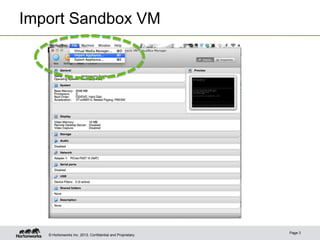
Import Sandbox VM

© Hortonworks Inc. 2013..

Page 3
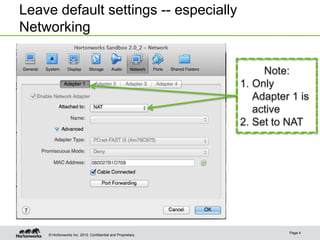
Leave default settings -- especially
Networking
Note:
1. Only
Adapter 1 is
active
2. Set to NAT

© Hortonworks Inc. 2013..

Page 4
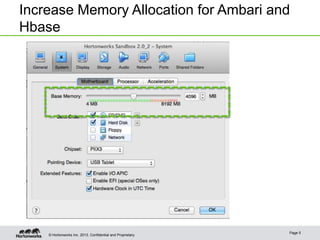
Increase Memory Allocation for Ambari and
Hbase

© Hortonworks Inc. 2013..

Page 5
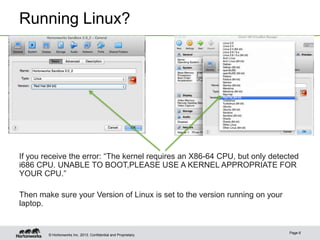
Running Linux?

If you receive the error: “The kernel requires an X86-64 CPU, but only detected
i686 CPU. UNABLE TO BOOT,PLEASE USE A KERNEL APPROPRIATE FOR
YOUR CPU.”
Then make sure your Version of Linux is set to the version running on your
laptop.

© Hortonworks Inc. 2013..

Page 6
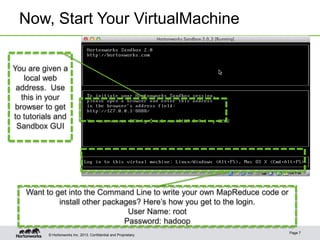
Now, Start Your VirtualMachine
You are given a
local web
address. Use
this in your
browser to get
to tutorials and
Sandbox GUI

Want to get into the Command Line to write your own MapReduce code or
install other packages? Here’s how you get to the login.
User Name: root
Password: hadoop
© Hortonworks Inc. 2013..

Page 7
Supported Browsers
• Internet Explorer 9
• Chrome 25
• Safari 6+
• Firefox (latest stable version)
• NOTE: Sandbox DOES NOT RUN on Internet Explorer
10

© Hortonworks Inc. 2013..

Page 8
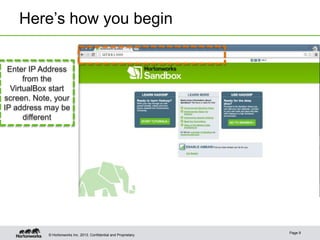
Here’s how you begin
Enter IP Address
from the
VirtualBox start
screen. Note, your
IP address may be
different

© Hortonworks Inc. 2013..

Page 9
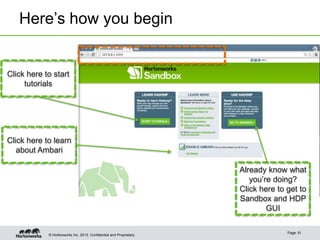
Here’s how you begin

Click here to start
tutorials

Click here to learn
about Ambari
Already know what
you’re doing?
Click here to get to
Sandbox and HDP
GUI

© Hortonworks Inc. 2013..

Page 10
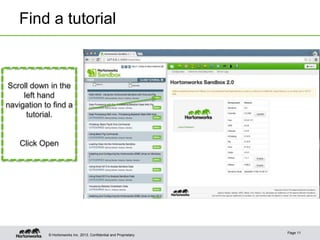
Find a tutorial

Scroll down in the
left hand
navigation to find a
tutorial.

Click Open

© Hortonworks Inc. 2013..

Page 11
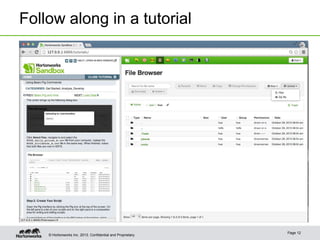
Follow along in a tutorial

© Hortonworks Inc. 2013..

Page 12
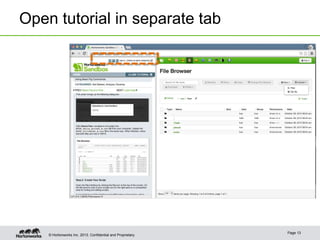
Open tutorial in separate tab

© Hortonworks Inc. 2013..

Page 13
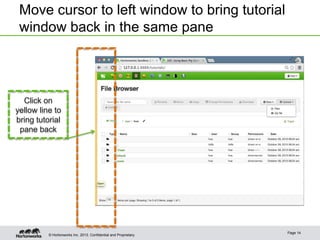
Move cursor to left window to bring tutorial
window back in the same pane

Click on
yellow line to
bring tutorial
pane back

© Hortonworks Inc. 2013..

Page 14
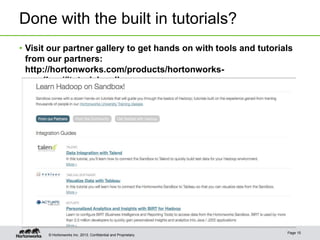
Done with the built in tutorials?
• Visit our partner gallery to get hands on with tools and tutorials
from our partners:
http://hortonworks.com/products/hortonworkssandbox/#tutorial_gallery

© Hortonworks Inc. 2013..

Page 15
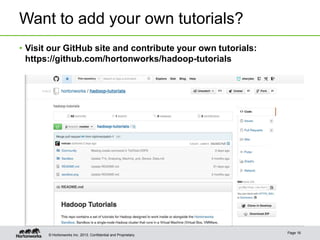
Want to add your own tutorials?
• Visit our GitHub site and contribute your own tutorials:
https://github.com/hortonworks/hadoop-tutorials

© Hortonworks Inc. 2013..

Page 16
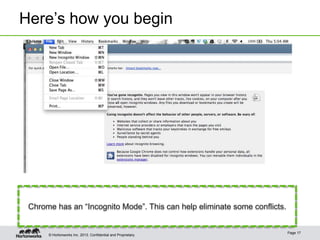
Here’s how you begin

Chrome has an “Incognito Mode”. This can help eliminate some conflicts.

© Hortonworks Inc. 2013..

Page 17
Thanks for using the Sandbox!
Help:
Sandbox Forums are available for assistance:
http://hortonworks.com/community/forums/forum/hortonworks-sandbox/
Contribute:
Want to develop and publish your own tutorial? Contribute
through GitHub to:
https://github.com/hortonworks/hadoop-tutorials

© Hortonworks Inc. 2013..

Page 18

Hortonworks Sandbox Startup Guide for VirtualBox

  • 1.
    Hortonworks Sandbox Startup Guidefor VirtualBox © Hortonworks Inc. 2013.. Page 1
  • 2.
    Basics 1. Download andinstall VirtualBox – www.virtualbox.org 2. Download Sandbox – www.hortonworks.com/sandbox © Hortonworks Inc. 2013.. Page 2
  • 3.
    Import Sandbox VM ©Hortonworks Inc. 2013.. Page 3
  • 4.
    Leave default settings-- especially Networking Note: 1. Only Adapter 1 is active 2. Set to NAT © Hortonworks Inc. 2013.. Page 4
  • 5.
    Increase Memory Allocationfor Ambari and Hbase © Hortonworks Inc. 2013.. Page 5
  • 6.
    Running Linux? If youreceive the error: “The kernel requires an X86-64 CPU, but only detected i686 CPU. UNABLE TO BOOT,PLEASE USE A KERNEL APPROPRIATE FOR YOUR CPU.” Then make sure your Version of Linux is set to the version running on your laptop. © Hortonworks Inc. 2013.. Page 6
  • 7.
    Now, Start YourVirtualMachine You are given a local web address. Use this in your browser to get to tutorials and Sandbox GUI Want to get into the Command Line to write your own MapReduce code or install other packages? Here’s how you get to the login. User Name: root Password: hadoop © Hortonworks Inc. 2013.. Page 7
  • 8.
    Supported Browsers • InternetExplorer 9 • Chrome 25 • Safari 6+ • Firefox (latest stable version) • NOTE: Sandbox DOES NOT RUN on Internet Explorer 10 © Hortonworks Inc. 2013.. Page 8
  • 9.
    Here’s how youbegin Enter IP Address from the VirtualBox start screen. Note, your IP address may be different © Hortonworks Inc. 2013.. Page 9
  • 10.
    Here’s how youbegin Click here to start tutorials Click here to learn about Ambari Already know what you’re doing? Click here to get to Sandbox and HDP GUI © Hortonworks Inc. 2013.. Page 10
  • 11.
    Find a tutorial Scrolldown in the left hand navigation to find a tutorial. Click Open © Hortonworks Inc. 2013.. Page 11
  • 12.
    Follow along ina tutorial © Hortonworks Inc. 2013.. Page 12
  • 13.
    Open tutorial inseparate tab © Hortonworks Inc. 2013.. Page 13
  • 14.
    Move cursor toleft window to bring tutorial window back in the same pane Click on yellow line to bring tutorial pane back © Hortonworks Inc. 2013.. Page 14
  • 15.
    Done with thebuilt in tutorials? • Visit our partner gallery to get hands on with tools and tutorials from our partners: http://hortonworks.com/products/hortonworkssandbox/#tutorial_gallery © Hortonworks Inc. 2013.. Page 15
  • 16.
    Want to addyour own tutorials? • Visit our GitHub site and contribute your own tutorials: https://github.com/hortonworks/hadoop-tutorials © Hortonworks Inc. 2013.. Page 16
  • 17.
    Here’s how youbegin Chrome has an “Incognito Mode”. This can help eliminate some conflicts. © Hortonworks Inc. 2013.. Page 17
  • 18.
    Thanks for usingthe Sandbox! Help: Sandbox Forums are available for assistance: http://hortonworks.com/community/forums/forum/hortonworks-sandbox/ Contribute: Want to develop and publish your own tutorial? Contribute through GitHub to: https://github.com/hortonworks/hadoop-tutorials © Hortonworks Inc. 2013.. Page 18