the ROUND OFF feature
of
Tally ERP 9
Automatic Rounding is a very useful feature in Tally ERP 9, helps to
speed up Sales and Purchase transactions.
Apart from these two vouchers Auto Rounding can be used in voucher
types like Credit note, Debit note, Delivery note, Receipt note etc.
How/When to use Round off ?
Rounding off is the adjusting of smaller fractions of amount (Eg:
paisa) to it’s nearest bigger value (Rupees). The Rounding could be
➢

Upward Rounding

➢

Downward Rounding

➢

Normal Rounding
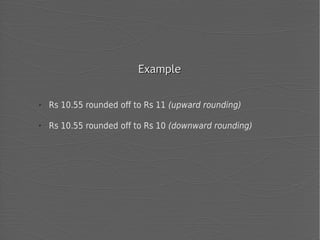
Example
➢

Rs 10.55 rounded off to Rs 11 (upward rounding)

➢

Rs 10.55 rounded off to Rs 10 (downward rounding)
In accounting we can treat Rounding either as an income or an
expense. If Round off ledger shows a debit balance it is an expense to the
business, if it shows a credit balance it can be treated as income. Finally
used in profit and loss account for profit calculation at the end of the
financial year.
Hence create a Round off ledger under indirect income or indirect
expense, the normal procedure of treatment of Round off in Tally ERP 9.
Automatic Round off in sales voucher

At first we should create a ledger namely Round off under indirect
expense or indirect income.
Creating Voucher class
The second step is to create a voucher class; Voucher class has several
uses in Tally accounting.
To create voucher class
Go to
➢

Gateway of Tally >> Accounts info >> Voucher Types >> Alter
Select Sales voucher and press Enter, in the voucher type alteration
screen, continue to press enter until you reach “Name of class”
Type a voucher class name there; Let’s type name “Retail”
Under Additional accounting entries
Ledger Name: Round off (select the ledger we have created at the
beginning)
Type of calculation: Select “As total amount rounding”.
There are several rounding calculations available like As Flat rate, as
additional exercise, as surcharge, as user defined value, based on
quantity, on current subtotal, on item rate, on Total sales etc.
Press Enter, you will get a new screen, called “class screen”
In the class screen press enter and under
Default accounting allocations for each item invoice
Ledger name: select any sales ledger here Sale
Percentage: 100%
Rounding method: Three rounding method available, Normal, Downward
and upward. Let’s select “Normal rounding”
rounding
Rounding Limit: You can set a limit for rounding, the maximum limit to
which an amount is to be rounded. This may be up to Rs 1, Rs 10, or
Rs 50 Etc. The setting depends on the decision of management. Set the
limit Rs 1 here.
Remove if zero: Yes
The final screen will look like
Press Enter and save the screen; save the voucher type alteration
screen also.
Now enter a sales transaction
Crocodile T shirt XL sold for Rs 699.99
Go to
Gateway of Tally >> Accounting Vouchers >> Sales
Press F8 or click on sales button to have the sales voucher screen.
Tally ERP 9 will ask to select the voucher class to be used for the entry
with voucher class list. See image below
Select newly created voucher class “Retail”
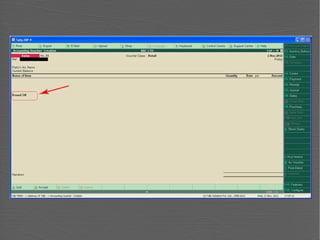
You can see a round off ledger already existing in sales voucher, see the
image.
Put the entry of the transaction Crocodile T shirt XL sold for Rs 699.99
Immediately after entering Quantity and Rate, the Round off amount will
be calculated automatically, according to the method chose.

See the below image
How to use the Automatic Round Off feature in Tally ERP 9?

How to use the Automatic Round Off feature in Tally ERP 9?

  • 1.
    the ROUND OFFfeature of Tally ERP 9
  • 2.
    Automatic Rounding isa very useful feature in Tally ERP 9, helps to speed up Sales and Purchase transactions. Apart from these two vouchers Auto Rounding can be used in voucher types like Credit note, Debit note, Delivery note, Receipt note etc.
  • 3.
    How/When to useRound off ?
  • 4.
    Rounding off isthe adjusting of smaller fractions of amount (Eg: paisa) to it’s nearest bigger value (Rupees). The Rounding could be ➢ Upward Rounding ➢ Downward Rounding ➢ Normal Rounding
  • 5.
    Example ➢ Rs 10.55 roundedoff to Rs 11 (upward rounding) ➢ Rs 10.55 rounded off to Rs 10 (downward rounding)
  • 6.
    In accounting wecan treat Rounding either as an income or an expense. If Round off ledger shows a debit balance it is an expense to the business, if it shows a credit balance it can be treated as income. Finally used in profit and loss account for profit calculation at the end of the financial year. Hence create a Round off ledger under indirect income or indirect expense, the normal procedure of treatment of Round off in Tally ERP 9.
  • 7.
    Automatic Round offin sales voucher At first we should create a ledger namely Round off under indirect expense or indirect income.
  • 9.
    Creating Voucher class Thesecond step is to create a voucher class; Voucher class has several uses in Tally accounting. To create voucher class Go to ➢ Gateway of Tally >> Accounts info >> Voucher Types >> Alter
  • 11.
    Select Sales voucherand press Enter, in the voucher type alteration screen, continue to press enter until you reach “Name of class” Type a voucher class name there; Let’s type name “Retail”
  • 13.
    Under Additional accountingentries Ledger Name: Round off (select the ledger we have created at the beginning) Type of calculation: Select “As total amount rounding”. There are several rounding calculations available like As Flat rate, as additional exercise, as surcharge, as user defined value, based on quantity, on current subtotal, on item rate, on Total sales etc.
  • 14.
    Press Enter, youwill get a new screen, called “class screen” In the class screen press enter and under Default accounting allocations for each item invoice Ledger name: select any sales ledger here Sale Percentage: 100%
  • 16.
    Rounding method: Threerounding method available, Normal, Downward and upward. Let’s select “Normal rounding” rounding Rounding Limit: You can set a limit for rounding, the maximum limit to which an amount is to be rounded. This may be up to Rs 1, Rs 10, or Rs 50 Etc. The setting depends on the decision of management. Set the limit Rs 1 here. Remove if zero: Yes The final screen will look like
  • 18.
    Press Enter andsave the screen; save the voucher type alteration screen also. Now enter a sales transaction Crocodile T shirt XL sold for Rs 699.99 Go to Gateway of Tally >> Accounting Vouchers >> Sales Press F8 or click on sales button to have the sales voucher screen. Tally ERP 9 will ask to select the voucher class to be used for the entry with voucher class list. See image below
  • 20.
    Select newly createdvoucher class “Retail” You can see a round off ledger already existing in sales voucher, see the image.
  • 22.
    Put the entryof the transaction Crocodile T shirt XL sold for Rs 699.99 Immediately after entering Quantity and Rate, the Round off amount will be calculated automatically, according to the method chose. See the below image