Title: RepartitionHardDrive Windows10 WithoutDiskManagement
Keywords: repartitionharddrive windows 10,how to repartitionahard drive,repartitionhard
drives
Description: How to repartition a hard drive with and without Disk Management in Windows 10? Let
MiniTool Partition Wizard help you! This article also compares both tools.
URL: https://www.partitionwizard.com/resizepartition/repartition-hard-drive-windows-10.html
Summary: This article writes everything you need and you want to know about repartitioning hard
drive in Windows 10. For Disk Management (DM) vs MiniTool Partition Wizard, which is better for
disk managing? Find the answer in the following content.
What Does Repartition Hard Drive Windows 10 Do?
Repartitionahard drive inWindows10 referstoreallocate orreassignharddrive space to hard drive
partitions.Itwill change the harddisklayoutwith the numberof partitionsandlocationof
partitions.Repartitioningwill alsochange the specificationsof involvedpartitionincludingpartition
size,label,driveletter,partitiontype (primaryorlogical),filesystem(NTFS,FAT32,etc.),aswell as
clustersize,etc.
Why Need to Repartition Hard Drive in Windows 10?
Usually,whenyoubuya computereithernew orold,itwill come withharddrive(s) that hasalready
partitionedbyitsmanufacturerorformerowner.Youmay be not satisfiedwiththe diskstorage
space arrangementandfindthe arrangementisunreasonable,especiallyforthe second-hand
machine.Evenforthe grand-newcomputer,afterseveral yearsof usage,youmaybe boredwithits
disklayout.So,youneedtorepartitionthe harddrives.
Or, afterusingthe harddrive foryears,youmay encounter low diskspace problems (usuallyhappens
to systempartitionC) whichmeansthe targetpartitionisrunningoutof storage space.If there isa
partitiononthe same diskthat has enoughfree space,youmayconsiderallocatingitsfree space to
the lowdiskspace partition. Therefore,youneedto repartitionhard drivesWindows10.
How to Repartition Hard Drive Windows 10 with Disk Management?
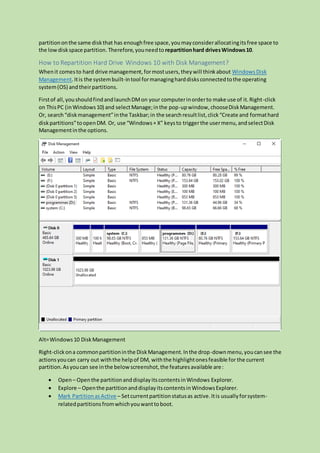
Whenit comesto hard drive management,formostusers,theywill thinkabout WindowsDisk
Management.Itis the systembuilt-intool formanagingharddisksconnectedtothe operating
system(OS) andtheirpartitions.
Firstof all,youshouldfindandlaunchDMon your computerinorderto make use of it.Right-click
on ThisPC (inWindows10) and selectManage;inthe pop-upwindow,chooseDiskManagement.
Or, search“diskmanagement”inthe Taskbar;in the searchresultlist,click“Create and formathard
diskpartitions”toopenDM. Or, use “Windows+ X” keysto triggerthe usermenu,andselectDisk
Managementinthe options.
Alt=Windows10 DiskManagement
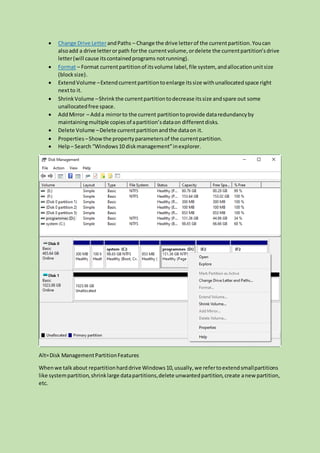
Right-clickona commonpartitioninthe DiskManagement.Inthe drop-downmenu,youcansee the
actionsyoucan carry out withthe helpof DM, withthe highlightonesfeasible for the current
partition.Asyoucan see inthe belowscreenshot,the featuresavailable are:
 Open – Openthe partitionanddisplayitscontentsinWindows Explorer.
 Explore – Openthe partitionanddisplayitscontentsinWindowsExplorer.
 Mark PartitionasActive – Setcurrentpartitionstatusas active.Itis usuallyforsystem-
relatedpartitionsfromwhichyouwanttoboot.
 Change Drive LetterandPaths – Change the drive letterof the currentpartition.Youcan
alsoadd a drive letterorpath forthe currentvolume,ordelete the currentpartition’sdrive
letter(will cause itscontainedprograms notrunning).
 Format – Format currentpartitionof itsvolume label,file system, andallocationunitsize
(blocksize).
 ExtendVolume –Extendcurrentpartitiontoenlarge itssize withunallocatedspace right
nextto it.
 ShrinkVolume –Shrink the currentpartitiontodecrease itssize andspare out some
unallocatedfree space.
 AddMirror – Adda mirrorto the current partitiontoprovide dataredundancyby
maintainingmultiple copiesof apartition’sdataon differentdisks.
 Delete Volume –Delete currentpartitionandthe dataon it.
 Properties –Showthe propertyparametersof the currentpartition.
 Help– Search “Windows10 diskmanagement”inexplorer.
Alt=Disk ManagementPartitionFeatures
Whenwe talkabout repartitionharddrive Windows10,usually,we refertoextendsmallpartitions
like systempartition,shrinklarge datapartitions,delete unwantedpartition,create anew partition,
etc.
Delete Partition with Disk Management
Deletingapartitionwill alsodelete all the datastoredonit.Before starting,youare recommended
to back up importantfiles ontargetpartitionandsave the copyon anotherplace,betteronanother
hard diskdrive,oran external harddrive,USBflashdrive,etc.
For deletinganexistingpartitioninDiskManagement,youshouldright-clickonthe partitionyoudo
not needanymore andselect Delete Volume.Readthe warningandclick Yes.
Create Partition Within Disk Management
In DM, you are onlyable to create partitionsfromthe unallocatedspace.Youcan’tcreate a partition
fromthe free space withinanalreadyexistingpartition.If there isn’tany unallocatedspace onthe
hard drive,youcan’tcreate a partitionunlessyoudeleteone orall existingpartitionstomake some
unallocatedspace accordingtothe guide inthe above.
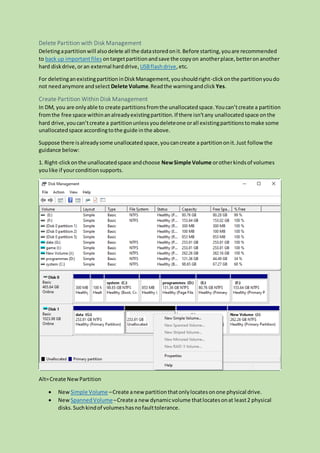
Suppose there isalreadysome unallocatedspace,youcancreate a partitiononit. Just follow the
guidance below:
1. Right-clickonthe unallocatedspace andchoose NewSimple Volume orotherkindsof volumes
youlike if yourconditionsupports.
Alt=Create NewPartition
 New Simple Volume –Create anew partitionthatonlylocatesonone physical drive.
 New SpannedVolume–Create a new dynamicvolume thatlocatesonat least2 physical
disks. Suchkindof volumeshasnofaulttolerance.
 New StripedVolume–Create a new dynamicvolume thatlocates onat least2 physical disks
and all physical drivesprovide the same amountof storage space.Suchkindof volumes
improve readandwrite speed,buttheydon’thave faulttolerance.
 New MirroredVolume –Create 2 identical dynamicvolumesthatlocate on2 physical drives
respectively.Whenyouwrite dataintothe mirroredvolume,itactuallywritesthe same data
intothe two identical volumessimultaneously.So,the availablespace of a mirroredvolume
isactuallyhalf of its size.When eitherof the 2 identical volumesfails,the otherone can
worknormally.So,the mirroredvolume isfault-tolerant.
 New RAID-5Volume –Create a new dynamicvolume basedon atleast3 dynamichard
drives.A RAID-5volume hasfaulttolerance andfastread& write speed.
2. Read the notificationandclick Next.
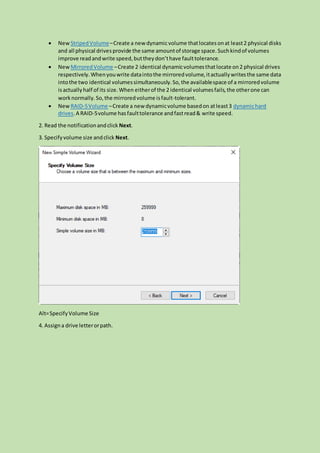
3. Specifyvolume size andclick Next.
Alt=SpecifyVolume Size
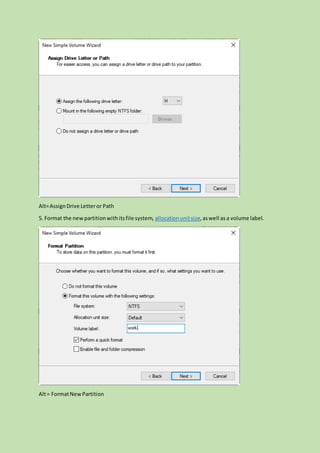
4. Assigna drive letterorpath.
Alt=AssignDrive Letteror Path
5. Format the newpartitionwithitsfile system, allocationunitsize,aswell as a volume label.
Alt= FormatNewPartition
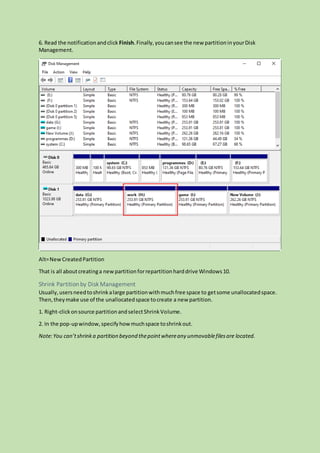
6. Read the notificationandclick Finish.Finally,youcansee the new partitioninyourDisk
Management.
Alt=NewCreatedPartition
That is all aboutcreatinga newpartitionforrepartitionharddrive Windows10.
Shrink Partition by Disk Management
Usually,usersneedtoshrinkalarge partitionwithmuchfree space to getsome unallocatedspace.
Then,theymake use of the unallocatedspace tocreate a new partition.
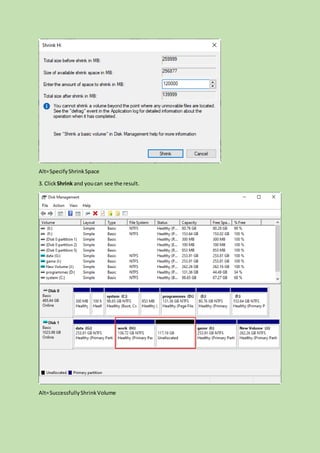
1. Right-clickonsource partitionandselectShrinkVolume.
2. In the pop-upwindow,specifyhowmuchspace toshrinkout.
Note:You can’tshrinka partition beyond thepointwhereany unmovablefilesare located.
Alt=SpecifyShrinkSpace
3. ClickShrink and youcan see the result.
Alt=SuccessfullyShrinkVolume
Extend Partition Through Disk Management
Justas mentionedinthe above,youcanonlyextendapartitionwithunallocatedspace rightbehind
it.If there isno suchunallocatedspace,youcancreate some bydeletingthe existingpartition
behind.
How aboutshrinkingone partitionforsome unallocatedspace?No,itdoesn’thelp!The shrinking
out space islocatedrightbehind itsoriginal partition;youcannotuse itto extendotherpartitions
insteadof the original one (thatismeaningless). So,the onlywayforcreatingunallocatedspace for
extendingone partitionistodeletethe partitionthatisrightbehind.
Tip: You should firstly movethe dataon the partition thatyou are going to delete to anotherplace
beforedeletion.
Suppose there isalready unallocatedspace rightbehind the targetpartition,justfollow the below
stepsto extendthe targetvolume.
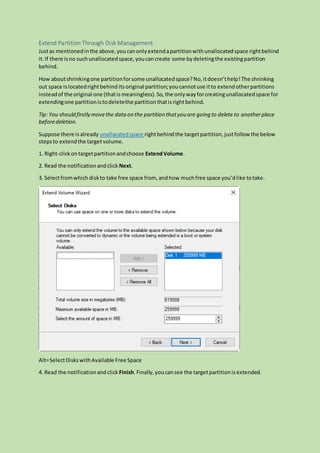
1. Right-clickontargetpartitionandchoose ExtendVolume.
2. Read the notificationandclick Next.
3. Selectfromwhichdiskto take free space from, andhow muchfree space you’dlike totake.
Alt=SelectDiskswithAvailable Free Space
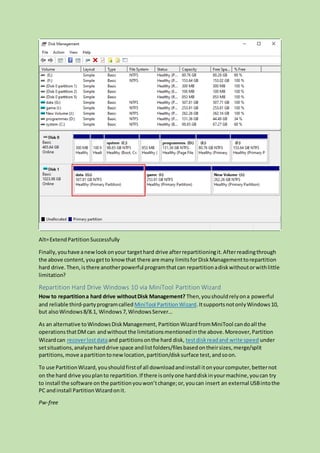
4. Read the notificationandclick Finish.Finally,youcansee the targetpartitionisextended.
Alt=ExtendPartitionSuccessfully
Finally,youhave anewlookonyour targethard drive afterrepartitioningit.Afterreadingthrough
the above content,yougetto knowthat there are many limitsforDiskManagementtorepartition
hard drive.Then,isthere anotherpowerful programthatcan repartitionadiskwithoutorwithlittle
limitation?
Repartition Hard Drive Windows 10 via MiniTool Partition Wizard
How to repartitiona hard drive withoutDisk Management? Then,youshouldrelyona powerful
and reliable third-partyprogramcalled MiniTool PartitionWizard.ItsupportsnotonlyWindows10,
but alsoWindows8/8.1, Windows7,WindowsServer…
As an alternative toWindowsDiskManagement, PartitionWizard fromMiniTool candoall the
operationsthatDMcan andwithout the limitationsmentionedinthe above.Moreover,Partition
Wizardcan recoverlostdataand partitionsonthe hard disk, testdiskreadand write speed under
setsituations,analyze harddrive space andlistfolders/filesbasedontheirsizes,merge/split
partitions,move apartitiontonewlocation,partition/disksurface test,andsoon.
To use PartitionWizard,youshouldfirstof all downloadandinstall itonyourcomputer,betternot
on the hard drive youplanto repartition.If there isonlyone harddiskinyourmachine,youcan try
to install the software onthe partitionyouwon’tchange;or,youcan insert an external USBintothe
PC andinstall PartitionWizardonit.
Pw-free
Create Partition from Existing Partition
Step 1. Launch MiniTool PartitionWizard.InitsmainUI, right-clickonanexistingpartitionfrom
whichyouare goingto create a newpartitionandselect Split.
Alt=SelectSplitPartition
Step 2. Specifythe size of the newpartitioneitherbydraggingthe graphicbar left(shrink) orright
(extend),or, byinputtingasize number.Or,youcan justkeepthe defaultspace allocationof
assigningthe same space toboth partitions.
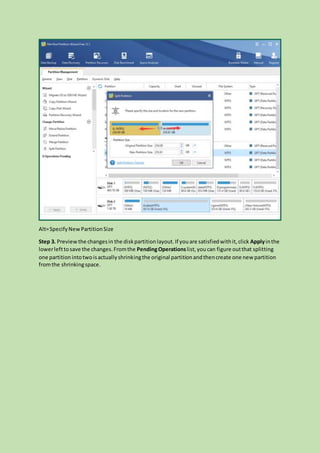
Alt=SpecifyNewPartitionSize
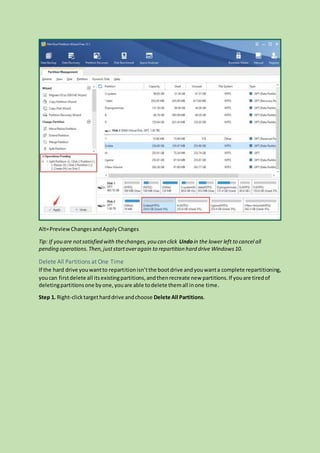
Step 3. Previewthe changesin the diskpartitionlayout.If youare satisfiedwithit,click Applyinthe
lowerlefttosave the changes.Fromthe PendingOperationslist,you can figure outthat splitting
one partitionintotwoisactuallyshrinkingthe original partitionandthencreate one new partition
fromthe shrinkingspace.
Alt=PreviewChangesandApplyChanges
Tip: If you are notsatisfied with thechanges,you can click Undoin the lower left to cancel all
pending operations.Then,juststartoveragain to repartition hard drive Windows10.
Delete All Partitions at One Time
If the hard drive youwantto repartitionisn’tthe bootdrive andyouwanta complete repartitioning,
youcan firstdelete all itsexistingpartitions,andthenrecreate new partitions.If youare tiredof
deletingpartitionsone byone,youare able todelete themall inone time.
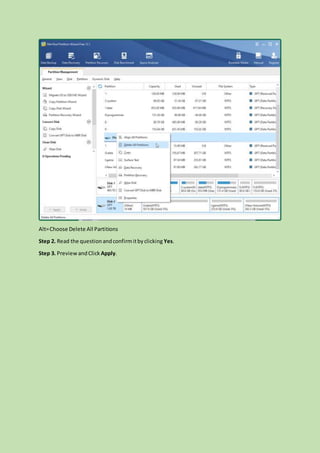
Step 1. Right-clicktargetharddrive andchoose Delete All Partitions.
Alt=Choose Delete All Partitions
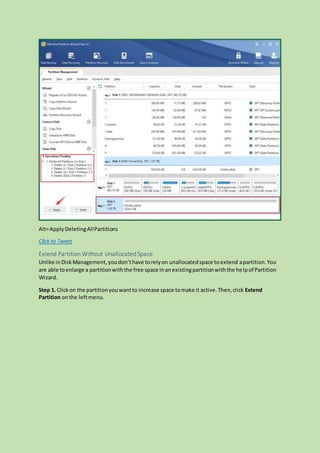
Step 2. Read the questionandconfirmitbyclicking Yes.
Step 3. PreviewandClick Apply.
Alt=ApplyDeletingAllPartitions
Click to Tweet
Extend Partition Without Unallocated Space
Unlike inDiskManagement,youdon’thave torelyon unallocatedspace toextend apartition.You
are able toenlarge a partitionwiththe free space inanexistingpartitionwiththe helpof Partition
Wizard.
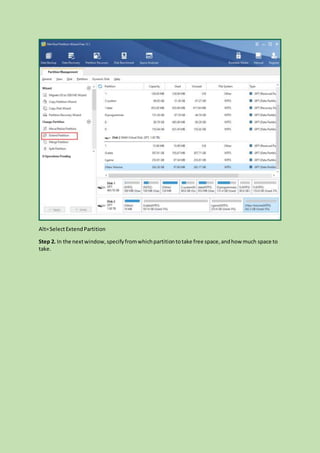
Step 1. Clickon the partitionyouwantto increase space tomake it active.Then,click Extend
Partition onthe leftmenu.
Alt=SelectExtendPartition
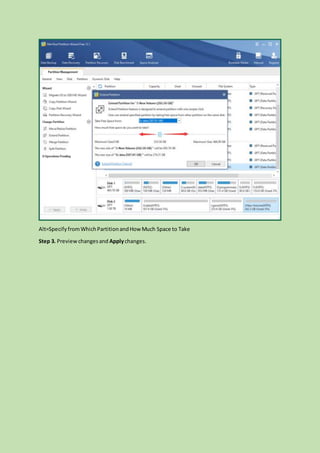
Step 2. In the nextwindow,specifyfromwhichpartitiontotake free space,andhow much space to
take.
Alt=SpecifyfromWhichPartitionandHow Much Space to Take
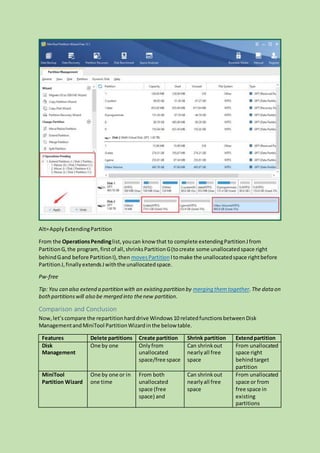
Step 3. Previewchangesand Applychanges.
Alt=ApplyExtendingPartition
From the OperationsPendinglist,youcan know that to complete extendingPartitionJfrom
PartitionG,the program,firstof all,shrinksPartitionG(tocreate some unallocatedspace right
behindGand before PartitionI),then movesPartition Itomake the unallocatedspace rightbefore
PartitionJ,finallyextendsJwiththe unallocatedspace.
Pw-free
Tip: You can also extend a partition with an existing partition by merging themtogether.The data on
bothpartitionswill also be merged into thenew partition.
Comparison and Conclusion
Now,let’scompare the repartitionharddrive Windows10 relatedfunctionsbetweenDisk
ManagementandMiniTool PartitionWizardinthe below table.
Features Delete partitions Create partition Shrink partition Extendpartition
Disk
Management
One by one Onlyfrom
unallocated
space/free space
Can shrinkout
nearlyall free
space
From unallocated
space right
behindtarget
partition
MiniTool
Partition Wizard
One by one or in
one time
From both
unallocated
space (free
space) and
Can shrinkout
nearlyall free
space
From unallocated
space or from
free space in
existing
partitions
existing
partitions
By comparingthe repartitioning-relatedutilitiesof bothDMand PartitionWizard,youcan know that
the latteris muchmore powerful thanthe former.Moreover,there are alot of otheruseful features
offeredbyPartitionWizardand mostof themare free of charge!

Repartition hard-drive-windows-10

  • 1.
    Title: RepartitionHardDrive Windows10WithoutDiskManagement Keywords: repartitionharddrive windows 10,how to repartitionahard drive,repartitionhard drives Description: How to repartition a hard drive with and without Disk Management in Windows 10? Let MiniTool Partition Wizard help you! This article also compares both tools. URL: https://www.partitionwizard.com/resizepartition/repartition-hard-drive-windows-10.html Summary: This article writes everything you need and you want to know about repartitioning hard drive in Windows 10. For Disk Management (DM) vs MiniTool Partition Wizard, which is better for disk managing? Find the answer in the following content. What Does Repartition Hard Drive Windows 10 Do? Repartitionahard drive inWindows10 referstoreallocate orreassignharddrive space to hard drive partitions.Itwill change the harddisklayoutwith the numberof partitionsandlocationof partitions.Repartitioningwill alsochange the specificationsof involvedpartitionincludingpartition size,label,driveletter,partitiontype (primaryorlogical),filesystem(NTFS,FAT32,etc.),aswell as clustersize,etc. Why Need to Repartition Hard Drive in Windows 10? Usually,whenyoubuya computereithernew orold,itwill come withharddrive(s) that hasalready partitionedbyitsmanufacturerorformerowner.Youmay be not satisfiedwiththe diskstorage space arrangementandfindthe arrangementisunreasonable,especiallyforthe second-hand machine.Evenforthe grand-newcomputer,afterseveral yearsof usage,youmaybe boredwithits disklayout.So,youneedtorepartitionthe harddrives. Or, afterusingthe harddrive foryears,youmay encounter low diskspace problems (usuallyhappens to systempartitionC) whichmeansthe targetpartitionisrunningoutof storage space.If there isa
  • 2.
    partitiononthe same diskthathas enoughfree space,youmayconsiderallocatingitsfree space to the lowdiskspace partition. Therefore,youneedto repartitionhard drivesWindows10. How to Repartition Hard Drive Windows 10 with Disk Management? Whenit comesto hard drive management,formostusers,theywill thinkabout WindowsDisk Management.Itis the systembuilt-intool formanagingharddisksconnectedtothe operating system(OS) andtheirpartitions. Firstof all,youshouldfindandlaunchDMon your computerinorderto make use of it.Right-click on ThisPC (inWindows10) and selectManage;inthe pop-upwindow,chooseDiskManagement. Or, search“diskmanagement”inthe Taskbar;in the searchresultlist,click“Create and formathard diskpartitions”toopenDM. Or, use “Windows+ X” keysto triggerthe usermenu,andselectDisk Managementinthe options. Alt=Windows10 DiskManagement Right-clickona commonpartitioninthe DiskManagement.Inthe drop-downmenu,youcansee the actionsyoucan carry out withthe helpof DM, withthe highlightonesfeasible for the current partition.Asyoucan see inthe belowscreenshot,the featuresavailable are:  Open – Openthe partitionanddisplayitscontentsinWindows Explorer.  Explore – Openthe partitionanddisplayitscontentsinWindowsExplorer.  Mark PartitionasActive – Setcurrentpartitionstatusas active.Itis usuallyforsystem- relatedpartitionsfromwhichyouwanttoboot.
  • 3.
     Change DriveLetterandPaths – Change the drive letterof the currentpartition.Youcan alsoadd a drive letterorpath forthe currentvolume,ordelete the currentpartition’sdrive letter(will cause itscontainedprograms notrunning).  Format – Format currentpartitionof itsvolume label,file system, andallocationunitsize (blocksize).  ExtendVolume –Extendcurrentpartitiontoenlarge itssize withunallocatedspace right nextto it.  ShrinkVolume –Shrink the currentpartitiontodecrease itssize andspare out some unallocatedfree space.  AddMirror – Adda mirrorto the current partitiontoprovide dataredundancyby maintainingmultiple copiesof apartition’sdataon differentdisks.  Delete Volume –Delete currentpartitionandthe dataon it.  Properties –Showthe propertyparametersof the currentpartition.  Help– Search “Windows10 diskmanagement”inexplorer. Alt=Disk ManagementPartitionFeatures Whenwe talkabout repartitionharddrive Windows10,usually,we refertoextendsmallpartitions like systempartition,shrinklarge datapartitions,delete unwantedpartition,create anew partition, etc.
  • 4.
    Delete Partition withDisk Management Deletingapartitionwill alsodelete all the datastoredonit.Before starting,youare recommended to back up importantfiles ontargetpartitionandsave the copyon anotherplace,betteronanother hard diskdrive,oran external harddrive,USBflashdrive,etc. For deletinganexistingpartitioninDiskManagement,youshouldright-clickonthe partitionyoudo not needanymore andselect Delete Volume.Readthe warningandclick Yes. Create Partition Within Disk Management In DM, you are onlyable to create partitionsfromthe unallocatedspace.Youcan’tcreate a partition fromthe free space withinanalreadyexistingpartition.If there isn’tany unallocatedspace onthe hard drive,youcan’tcreate a partitionunlessyoudeleteone orall existingpartitionstomake some unallocatedspace accordingtothe guide inthe above. Suppose there isalreadysome unallocatedspace,youcancreate a partitiononit. Just follow the guidance below: 1. Right-clickonthe unallocatedspace andchoose NewSimple Volume orotherkindsof volumes youlike if yourconditionsupports. Alt=Create NewPartition  New Simple Volume –Create anew partitionthatonlylocatesonone physical drive.  New SpannedVolume–Create a new dynamicvolume thatlocatesonat least2 physical disks. Suchkindof volumeshasnofaulttolerance.
  • 5.
     New StripedVolume–Createa new dynamicvolume thatlocates onat least2 physical disks and all physical drivesprovide the same amountof storage space.Suchkindof volumes improve readandwrite speed,buttheydon’thave faulttolerance.  New MirroredVolume –Create 2 identical dynamicvolumesthatlocate on2 physical drives respectively.Whenyouwrite dataintothe mirroredvolume,itactuallywritesthe same data intothe two identical volumessimultaneously.So,the availablespace of a mirroredvolume isactuallyhalf of its size.When eitherof the 2 identical volumesfails,the otherone can worknormally.So,the mirroredvolume isfault-tolerant.  New RAID-5Volume –Create a new dynamicvolume basedon atleast3 dynamichard drives.A RAID-5volume hasfaulttolerance andfastread& write speed. 2. Read the notificationandclick Next. 3. Specifyvolume size andclick Next. Alt=SpecifyVolume Size 4. Assigna drive letterorpath.
  • 6.
    Alt=AssignDrive Letteror Path 5.Format the newpartitionwithitsfile system, allocationunitsize,aswell as a volume label. Alt= FormatNewPartition
  • 7.
    6. Read thenotificationandclick Finish.Finally,youcansee the new partitioninyourDisk Management. Alt=NewCreatedPartition That is all aboutcreatinga newpartitionforrepartitionharddrive Windows10. Shrink Partition by Disk Management Usually,usersneedtoshrinkalarge partitionwithmuchfree space to getsome unallocatedspace. Then,theymake use of the unallocatedspace tocreate a new partition. 1. Right-clickonsource partitionandselectShrinkVolume. 2. In the pop-upwindow,specifyhowmuchspace toshrinkout. Note:You can’tshrinka partition beyond thepointwhereany unmovablefilesare located.
  • 8.
    Alt=SpecifyShrinkSpace 3. ClickShrink andyoucan see the result. Alt=SuccessfullyShrinkVolume
  • 9.
    Extend Partition ThroughDisk Management Justas mentionedinthe above,youcanonlyextendapartitionwithunallocatedspace rightbehind it.If there isno suchunallocatedspace,youcancreate some bydeletingthe existingpartition behind. How aboutshrinkingone partitionforsome unallocatedspace?No,itdoesn’thelp!The shrinking out space islocatedrightbehind itsoriginal partition;youcannotuse itto extendotherpartitions insteadof the original one (thatismeaningless). So,the onlywayforcreatingunallocatedspace for extendingone partitionistodeletethe partitionthatisrightbehind. Tip: You should firstly movethe dataon the partition thatyou are going to delete to anotherplace beforedeletion. Suppose there isalready unallocatedspace rightbehind the targetpartition,justfollow the below stepsto extendthe targetvolume. 1. Right-clickontargetpartitionandchoose ExtendVolume. 2. Read the notificationandclick Next. 3. Selectfromwhichdiskto take free space from, andhow muchfree space you’dlike totake. Alt=SelectDiskswithAvailable Free Space 4. Read the notificationandclick Finish.Finally,youcansee the targetpartitionisextended.
  • 10.
    Alt=ExtendPartitionSuccessfully Finally,youhave anewlookonyour targetharddrive afterrepartitioningit.Afterreadingthrough the above content,yougetto knowthat there are many limitsforDiskManagementtorepartition hard drive.Then,isthere anotherpowerful programthatcan repartitionadiskwithoutorwithlittle limitation? Repartition Hard Drive Windows 10 via MiniTool Partition Wizard How to repartitiona hard drive withoutDisk Management? Then,youshouldrelyona powerful and reliable third-partyprogramcalled MiniTool PartitionWizard.ItsupportsnotonlyWindows10, but alsoWindows8/8.1, Windows7,WindowsServer… As an alternative toWindowsDiskManagement, PartitionWizard fromMiniTool candoall the operationsthatDMcan andwithout the limitationsmentionedinthe above.Moreover,Partition Wizardcan recoverlostdataand partitionsonthe hard disk, testdiskreadand write speed under setsituations,analyze harddrive space andlistfolders/filesbasedontheirsizes,merge/split partitions,move apartitiontonewlocation,partition/disksurface test,andsoon. To use PartitionWizard,youshouldfirstof all downloadandinstall itonyourcomputer,betternot on the hard drive youplanto repartition.If there isonlyone harddiskinyourmachine,youcan try to install the software onthe partitionyouwon’tchange;or,youcan insert an external USBintothe PC andinstall PartitionWizardonit. Pw-free
  • 11.
    Create Partition fromExisting Partition Step 1. Launch MiniTool PartitionWizard.InitsmainUI, right-clickonanexistingpartitionfrom whichyouare goingto create a newpartitionandselect Split. Alt=SelectSplitPartition Step 2. Specifythe size of the newpartitioneitherbydraggingthe graphicbar left(shrink) orright (extend),or, byinputtingasize number.Or,youcan justkeepthe defaultspace allocationof assigningthe same space toboth partitions.
  • 12.
    Alt=SpecifyNewPartitionSize Step 3. Previewthechangesin the diskpartitionlayout.If youare satisfiedwithit,click Applyinthe lowerlefttosave the changes.Fromthe PendingOperationslist,you can figure outthat splitting one partitionintotwoisactuallyshrinkingthe original partitionandthencreate one new partition fromthe shrinkingspace.
  • 13.
    Alt=PreviewChangesandApplyChanges Tip: If youare notsatisfied with thechanges,you can click Undoin the lower left to cancel all pending operations.Then,juststartoveragain to repartition hard drive Windows10. Delete All Partitions at One Time If the hard drive youwantto repartitionisn’tthe bootdrive andyouwanta complete repartitioning, youcan firstdelete all itsexistingpartitions,andthenrecreate new partitions.If youare tiredof deletingpartitionsone byone,youare able todelete themall inone time. Step 1. Right-clicktargetharddrive andchoose Delete All Partitions.
  • 14.
    Alt=Choose Delete AllPartitions Step 2. Read the questionandconfirmitbyclicking Yes. Step 3. PreviewandClick Apply.
  • 15.
    Alt=ApplyDeletingAllPartitions Click to Tweet ExtendPartition Without Unallocated Space Unlike inDiskManagement,youdon’thave torelyon unallocatedspace toextend apartition.You are able toenlarge a partitionwiththe free space inanexistingpartitionwiththe helpof Partition Wizard. Step 1. Clickon the partitionyouwantto increase space tomake it active.Then,click Extend Partition onthe leftmenu.
  • 16.
    Alt=SelectExtendPartition Step 2. Inthe nextwindow,specifyfromwhichpartitiontotake free space,andhow much space to take.
  • 17.
    Alt=SpecifyfromWhichPartitionandHow Much Spaceto Take Step 3. Previewchangesand Applychanges.
  • 18.
    Alt=ApplyExtendingPartition From the OperationsPendinglist,youcanknow that to complete extendingPartitionJfrom PartitionG,the program,firstof all,shrinksPartitionG(tocreate some unallocatedspace right behindGand before PartitionI),then movesPartition Itomake the unallocatedspace rightbefore PartitionJ,finallyextendsJwiththe unallocatedspace. Pw-free Tip: You can also extend a partition with an existing partition by merging themtogether.The data on bothpartitionswill also be merged into thenew partition. Comparison and Conclusion Now,let’scompare the repartitionharddrive Windows10 relatedfunctionsbetweenDisk ManagementandMiniTool PartitionWizardinthe below table. Features Delete partitions Create partition Shrink partition Extendpartition Disk Management One by one Onlyfrom unallocated space/free space Can shrinkout nearlyall free space From unallocated space right behindtarget partition MiniTool Partition Wizard One by one or in one time From both unallocated space (free space) and Can shrinkout nearlyall free space From unallocated space or from free space in existing partitions
  • 19.
    existing partitions By comparingthe repartitioning-relatedutilitiesofbothDMand PartitionWizard,youcan know that the latteris muchmore powerful thanthe former.Moreover,there are alot of otheruseful features offeredbyPartitionWizardand mostof themare free of charge!