SUBMITTED BY:
ANJALI NEGI
&
YANGSHAIN LAGZOMJI
CONTENTS
 Overview of disk management
 Difference between a disc & a disk
 Disk terminology
 Disk Structure
 Disk Scheduling
 Disk Operations
 Disk management tools
Overview of Disk Management
Disk Management is a system utility for managing hard disks and
the volumes, or partitions, that they contain.
Disk Management enables you to perform most disk-related tasks
without shutting down the system or interrupting users; most
configuration changes take effect immediately.
Simplified tasks and intuitive user interface. Disk Management is
easy to use. Menus that are accessible from the right mouse
button display the tasks you can perform on the selected object,
and wizards guide you through creating partitions or volumes
and initializing or converting disks.
Introduction to Disk
What's the difference between a "disc" and a
"disk?“
Discs
A disc refers to optical media, such as an audio CD, CD-
ROM, DVD-ROM, DVD-RAM, or DVD-Video disc. Some
discs are read-only (ROM), others allow you to burn
content (write files) to the disc once (such as a CD-R or
DVD-R, unless you do a multisession burn), and some can
be erased and rewritten over many times (such as CD-RW,
DVD-RW, and DVD-RAM discs).
All discs are removable, meaning when you unmount or
eject the disc from your desktop or Finder, it physically
comes out of your computer.
Introduction to Disk(contd..)
Disks
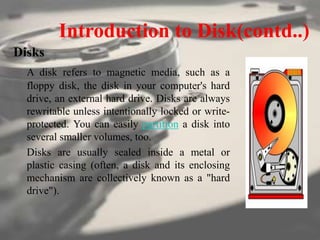
A disk refers to magnetic media, such as a
floppy disk, the disk in your computer's hard
drive, an external hard drive. Disks are always
rewritable unless intentionally locked or write-
protected. You can easily partition a disk into
several smaller volumes, too.
Disks are usually sealed inside a metal or
plastic casing (often, a disk and its enclosing
mechanism are collectively known as a "hard
drive").
Disk Terminology
Disk Terminology
Cylinder
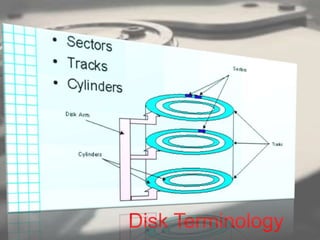
It is the sum set of tracks that have the same
track value of all discs. A cylinder is a group
of tracks with same radius
Track
It is a circular path on the surface of disk or
diskette on which information is
magnetically recorded and from which
recorded information is read.
Disk Terminology(contd..)
Sector
It is a subdivision of a track on a magnetic
disk or optical disk. Each sector stores a
fixed amount of user accessible data.
Disk Structure
Disk Structure
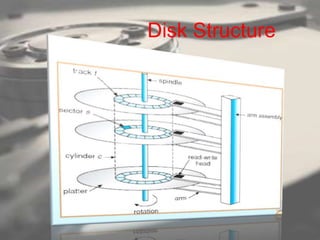
The above figure is the internal structure of a typical disk
drive. The disk doesn't contain a single disk but a bulk of
them which look like CD's and are called Platters. The
surface of each platter is logically divided into tracks
which are in turn divided into sectors. The both sides of
platter are covered with magnetic material. The
information is magnetically stored on these materials.

There will also be read-write heads used for reading or
writing data. These are attached to a disk arm, that
moves all the heads as a unit. All the tracks at one arm
position form a cylinder.
.
Transfer time is the time needed for transferring
of data between the hard drive and computer. It
has two parts
1. The time needed to move the disk arm to the
desired cylinder called seek time and
2. The time needed for the desired sector to
rotate under the read-write head called
rotational latency
Disk Performance Parameters
 Seek Time
 The time it takes to move the disk arm to the required cylinder
 Rotational Latency
 The time it takes for the disk to rotate so that the required sector
is above the hard disk
• Access Time
 The time it takes to get in position to read or write.
 Seek time + Rotational Latency
• Time to get the data
Access Time + Transfer time
Disk Scheduling
 A disk operation request specifies several pieces of
information:
 Is this input or output?
 Disk address for the transfer .
 Memory address for the transfer
 Number of bytes to be transfered
When a request is initiated by a process, if the disk is
available, the request is serviced immediately
If the disk is busy, a request queue can form.
Upon completion of a disk request, the operating system
can choose which pending request to service next
We discuss several disk scheduling algorithms that
determine how to choose the next request to service
First Come First Served
In FCFS, we process the requests in the
order they arrive, without regard to the
current position of the heads.
Shortest Seek Time
The SSTF disk scheduling algorithm moves
the heads the minimum amount it can to
satisfy any pending requests
Scan Disk Scheduling
The read/write heads are move in toward
the spindle, then out toward the platter
edge, then back toward the spindle and so
forth.
HAVE YOU EVER HEARD
OF A HEAD CRASH???
A head crash is a hard-disk failure that occurs
when a read–write head of a hard disk drive
comes in contact with its rotating platter,
resulting in permanent and usually
irreparable damage to the magnetic media on
the platter surface. It is most commonly caused
by a sudden severe motion of the disk
Disk Management
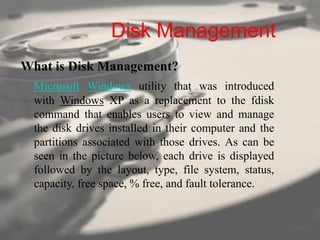
What is Disk Management?
Microsoft Windows utility that was introduced
with Windows XP as a replacement to the fdisk
command that enables users to view and manage
the disk drives installed in their computer and the
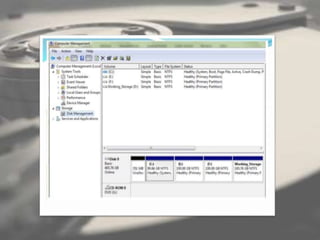
partitions associated with those drives. As can be
seen in the picture below, each drive is displayed
followed by the layout, type, file system, status,
capacity, free space, % free, and fault tolerance.
OPERATIONS
PERFORMED ON DISK
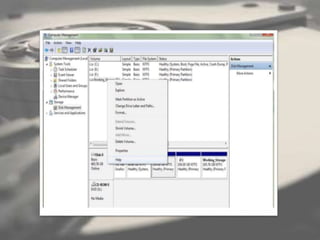
How to partition hard disk
Extend Volume
You can add more space to existing primary
partitions and logical drives by extending them
into adjacent unallocated space on the same disk.
To extend a basic volume, it must be raw or
formatted with the NTFS file system. You can
extend a logical drive within contiguous free space
in the extended partition that contains it. If you
extend a logical drive beyond the free space
available in the extended partition, the extended
partition grows to contain the logical drive.
Shrink value
You can decrease the space used by primary
partitions and logical drives by shrinking them into
adjacent, contiguous space on the same disk. For
example, if you discover that you need an
additional partition but do not have additional
disks, you can shrink the existing partition from
the end of the volume to create new unallocated
space that can then be used for a new partition.
Change driver letter and
path
You can use Disk Management to assign a
mount-point folder path (rather than a drive
letter) to the drive. Mount-point folder paths
are available only on empty folders on basic or
dynamic NTFS volumes.
Reactivate Volume
A dynamic disk may become Offline if it
is corrupted or intermittently
unavailable. A dynamic disk may also
become Offline if you attempt to import a
foreign (dynamic) disk and the import
fails. An error icon appears on the Offline
disk. Only dynamic disks display the
Missing or Offline status. Only
dynamic disks can be reactivated.
Install disks in the new computer
If the disks are external, plug them into
the computer. If the disks are internal,
make sure the computer is turned off and
then physically install the disks in that
computer.
Start the computer that contains the disks
you moved and follow the instructions on
the Found New Hardware dialog box.
Initialize Disk
New disks appear as Not Initialized. Before
you can use a disk, you must first initialize it.
If you start Disk Management after adding a
disk, the Initialize Disk Wizard appears so
you can initialize the disk. The disk is
initialized as a basic disk.
Disk Management Tools
Here are some of the free tools for
partitioning, cloning, diagnostics, repair,
recovery, encryption, wiping or drive
information
TestDisk
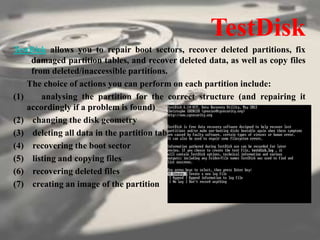
TestDisk allows you to repair boot sectors, recover deleted partitions, fix
damaged partition tables, and recover deleted data, as well as copy files
from deleted/inaccessible partitions.
The choice of actions you can perform on each partition include:
(1) analysing the partition for the correct structure (and repairing it
accordingly if a problem is found)
(2) changing the disk geometry
(3) deleting all data in the partition table
(4) recovering the boot sector
(5) listing and copying files
(6) recovering deleted files
(7) creating an image of the partition
WinDirStat
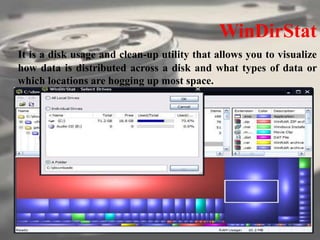
It is a disk usage and clean-up utility that allows you to visualize
how data is distributed across a disk and what types of data or
which locations are hogging up most space.
Defraggler
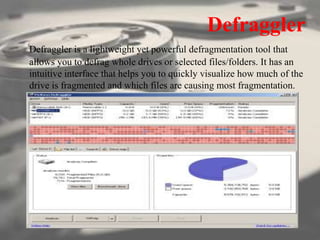
Defraggler is a lightweight yet powerful defragmentation tool that
allows you to defrag whole drives or selected files/folders. It has an
intuitive interface that helps you to quickly visualize how much of the
drive is fragmented and which files are causing most fragmentation.
HD Tune
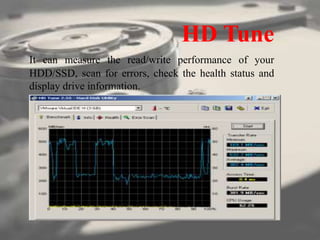
It can measure the read/write performance of your
HDD/SSD, scan for errors, check the health status and
display drive information.
Recuva
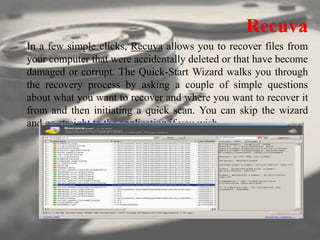
In a few simple clicks, Recuva allows you to recover files from
your computer that were accidentally deleted or that have become
damaged or corrupt. The Quick-Start Wizard walks you through
the recovery process by asking a couple of simple questions
about what you want to recover and where you want to recover it
from and then initiating a quick scan. You can skip the wizard
and go straight to the application if you wish.
References
THANK YOU

Disk Management.pdf

  • 1.
  • 2.
    CONTENTS  Overview ofdisk management  Difference between a disc & a disk  Disk terminology  Disk Structure  Disk Scheduling  Disk Operations  Disk management tools
  • 3.
    Overview of DiskManagement Disk Management is a system utility for managing hard disks and the volumes, or partitions, that they contain. Disk Management enables you to perform most disk-related tasks without shutting down the system or interrupting users; most configuration changes take effect immediately. Simplified tasks and intuitive user interface. Disk Management is easy to use. Menus that are accessible from the right mouse button display the tasks you can perform on the selected object, and wizards guide you through creating partitions or volumes and initializing or converting disks.
  • 4.
    Introduction to Disk What'sthe difference between a "disc" and a "disk?“ Discs A disc refers to optical media, such as an audio CD, CD- ROM, DVD-ROM, DVD-RAM, or DVD-Video disc. Some discs are read-only (ROM), others allow you to burn content (write files) to the disc once (such as a CD-R or DVD-R, unless you do a multisession burn), and some can be erased and rewritten over many times (such as CD-RW, DVD-RW, and DVD-RAM discs). All discs are removable, meaning when you unmount or eject the disc from your desktop or Finder, it physically comes out of your computer.
  • 5.
    Introduction to Disk(contd..) Disks Adisk refers to magnetic media, such as a floppy disk, the disk in your computer's hard drive, an external hard drive. Disks are always rewritable unless intentionally locked or write- protected. You can easily partition a disk into several smaller volumes, too. Disks are usually sealed inside a metal or plastic casing (often, a disk and its enclosing mechanism are collectively known as a "hard drive").
  • 6.
  • 7.
    Disk Terminology Cylinder It isthe sum set of tracks that have the same track value of all discs. A cylinder is a group of tracks with same radius Track It is a circular path on the surface of disk or diskette on which information is magnetically recorded and from which recorded information is read.
  • 8.
    Disk Terminology(contd..) Sector It isa subdivision of a track on a magnetic disk or optical disk. Each sector stores a fixed amount of user accessible data.
  • 9.
  • 10.
    Disk Structure The abovefigure is the internal structure of a typical disk drive. The disk doesn't contain a single disk but a bulk of them which look like CD's and are called Platters. The surface of each platter is logically divided into tracks which are in turn divided into sectors. The both sides of platter are covered with magnetic material. The information is magnetically stored on these materials. There will also be read-write heads used for reading or writing data. These are attached to a disk arm, that moves all the heads as a unit. All the tracks at one arm position form a cylinder. .
  • 11.
    Transfer time isthe time needed for transferring of data between the hard drive and computer. It has two parts 1. The time needed to move the disk arm to the desired cylinder called seek time and 2. The time needed for the desired sector to rotate under the read-write head called rotational latency
  • 12.
    Disk Performance Parameters Seek Time  The time it takes to move the disk arm to the required cylinder  Rotational Latency  The time it takes for the disk to rotate so that the required sector is above the hard disk • Access Time  The time it takes to get in position to read or write.  Seek time + Rotational Latency • Time to get the data Access Time + Transfer time
  • 13.
    Disk Scheduling  Adisk operation request specifies several pieces of information:  Is this input or output?  Disk address for the transfer .  Memory address for the transfer  Number of bytes to be transfered When a request is initiated by a process, if the disk is available, the request is serviced immediately If the disk is busy, a request queue can form. Upon completion of a disk request, the operating system can choose which pending request to service next We discuss several disk scheduling algorithms that determine how to choose the next request to service
  • 14.
    First Come FirstServed In FCFS, we process the requests in the order they arrive, without regard to the current position of the heads. Shortest Seek Time The SSTF disk scheduling algorithm moves the heads the minimum amount it can to satisfy any pending requests
  • 15.
    Scan Disk Scheduling Theread/write heads are move in toward the spindle, then out toward the platter edge, then back toward the spindle and so forth.
  • 16.
    HAVE YOU EVERHEARD OF A HEAD CRASH???
  • 17.
    A head crashis a hard-disk failure that occurs when a read–write head of a hard disk drive comes in contact with its rotating platter, resulting in permanent and usually irreparable damage to the magnetic media on the platter surface. It is most commonly caused by a sudden severe motion of the disk
  • 18.
    Disk Management What isDisk Management? Microsoft Windows utility that was introduced with Windows XP as a replacement to the fdisk command that enables users to view and manage the disk drives installed in their computer and the partitions associated with those drives. As can be seen in the picture below, each drive is displayed followed by the layout, type, file system, status, capacity, free space, % free, and fault tolerance.
  • 19.
  • 20.
  • 23.
    Extend Volume You canadd more space to existing primary partitions and logical drives by extending them into adjacent unallocated space on the same disk. To extend a basic volume, it must be raw or formatted with the NTFS file system. You can extend a logical drive within contiguous free space in the extended partition that contains it. If you extend a logical drive beyond the free space available in the extended partition, the extended partition grows to contain the logical drive.
  • 24.
    Shrink value You candecrease the space used by primary partitions and logical drives by shrinking them into adjacent, contiguous space on the same disk. For example, if you discover that you need an additional partition but do not have additional disks, you can shrink the existing partition from the end of the volume to create new unallocated space that can then be used for a new partition.
  • 25.
    Change driver letterand path You can use Disk Management to assign a mount-point folder path (rather than a drive letter) to the drive. Mount-point folder paths are available only on empty folders on basic or dynamic NTFS volumes.
  • 26.
    Reactivate Volume A dynamicdisk may become Offline if it is corrupted or intermittently unavailable. A dynamic disk may also become Offline if you attempt to import a foreign (dynamic) disk and the import fails. An error icon appears on the Offline disk. Only dynamic disks display the Missing or Offline status. Only dynamic disks can be reactivated.
  • 27.
    Install disks inthe new computer If the disks are external, plug them into the computer. If the disks are internal, make sure the computer is turned off and then physically install the disks in that computer. Start the computer that contains the disks you moved and follow the instructions on the Found New Hardware dialog box.
  • 28.
    Initialize Disk New disksappear as Not Initialized. Before you can use a disk, you must first initialize it. If you start Disk Management after adding a disk, the Initialize Disk Wizard appears so you can initialize the disk. The disk is initialized as a basic disk.
  • 29.
    Disk Management Tools Hereare some of the free tools for partitioning, cloning, diagnostics, repair, recovery, encryption, wiping or drive information
  • 30.
    TestDisk TestDisk allows youto repair boot sectors, recover deleted partitions, fix damaged partition tables, and recover deleted data, as well as copy files from deleted/inaccessible partitions. The choice of actions you can perform on each partition include: (1) analysing the partition for the correct structure (and repairing it accordingly if a problem is found) (2) changing the disk geometry (3) deleting all data in the partition table (4) recovering the boot sector (5) listing and copying files (6) recovering deleted files (7) creating an image of the partition
  • 31.
    WinDirStat It is adisk usage and clean-up utility that allows you to visualize how data is distributed across a disk and what types of data or which locations are hogging up most space.
  • 32.
    Defraggler Defraggler is alightweight yet powerful defragmentation tool that allows you to defrag whole drives or selected files/folders. It has an intuitive interface that helps you to quickly visualize how much of the drive is fragmented and which files are causing most fragmentation.
  • 33.
    HD Tune It canmeasure the read/write performance of your HDD/SSD, scan for errors, check the health status and display drive information.
  • 34.
    Recuva In a fewsimple clicks, Recuva allows you to recover files from your computer that were accidentally deleted or that have become damaged or corrupt. The Quick-Start Wizard walks you through the recovery process by asking a couple of simple questions about what you want to recover and where you want to recover it from and then initiating a quick scan. You can skip the wizard and go straight to the application if you wish.
  • 35.
  • 36.