Title: How to Map Network Drive Windows 10 via External Hard Drive?
Keywords: networkexternal harddrive,map network drive windows 10, how to map a network
drive,how to map a network drive windows 10, mapping a network drive
Description: How to map a network drive Windows 10 with an external hard drive? This post will
focus on this topic about network external hard drive.
URL: https://www.partitionwizard.com/partitionmanager/network-external-hard-drive.html
Summary: The below article is going to show you the reason, method and frequently asked questions
about network external hard drive. After reading, you are supposed to know how to map a network
drive in Windows 10 as well as other system versions. View more info from MiniTool partition
manager website.
Networkexternalharddrive here meansanexternal harddrive beingconnected toyourcomputer
networkviaa USB port and servingasa storage fordigital data from anothermachine inthe same
network.
Why Need Network External Hard Drive?
Aftera longtime of usage of yourcomputer or withmanyhours perday,you are probablysuffering
froma lowdiskspace problem.Thatis,youare runningoutof yourlocal internal harddrive storage.
Therefore,itisof greatemergencytofinda wayto solve thatissue.And,one of the easymethodsis
to make use of a networkdrive.
Besides,inyourdailylifeeitherof work orof private,youhave manyfilesthatneedtobe usedevery
day.It is space-wastingtosave a copy of those filesoneachcomputeryouruse.Still,itis
troublesome totake those fileswithyouwhereveryougo.Thus,youcan relyona networkdrive to
store only inone place while accessingthemoneverycomputeryouuse nomatterinthe office orat
home.
A networkdrive canbe createdby an internal diskoran external drive.Since the local storage is
preciousforeverymachine,itiswise tomap network drive Windows10 witha large external hard
drive.
Tip: Not only the desktops,laptops,tablets,notebooksbutalso yourmobilephones,cellphones,
smartphonescan makeuseof thenetworkdrive in yournetwork.You can upload yourwork
documentsand family photosto thenetworkdrive;shareyourfavoritemusicand movies with your
household;accessfilesin thenetworkdrive on all devicesin yournetwork.
Choose Your Network External Hard Drive
For the external harddrive tobe mappedas a network drive,itall dependsonyourneeds.Itcanbe
a USB flashdrive,athumbdrive,harddiskdrive (HDD),solidstate drive (SSD) andsoon.The
capacityof the external diskrangesfromseveral GBtotensof TB, such as 12TB external harddrive.
https://www.partitionwizard.com/partitionmanager/10tb-hard-drive.html
Preparation Before Mapping a Network Drive
Eitheryourexternal harddrive isa newone or an oldpiece,youare recommendedtogive ita
refreshbefore mappingitasa networkdisk.The refreshhere meanstoformatitwitha properdisk
type,partitionfile system aswell asclustersize.Also,youcanassigna meaningful drive letter and
partitionlabel toit.
Since the external harddrive isusedtostore data within the LAN,itisrecommendedtomake itfully
servingasa networkdrive.Thus,youshouldfirstof all copyall itsdatato anotherstorage place and
thenwipe partition completely. Or,if there isnodataon the hard diskor the data are not important
at all,youcan directly wipe itout. Next,create awhole new partitiononthe external harddrive.
To do the above operations,youneedhelpfromathird-partyprogram. MiniTool PartitionWizard is
a professional andreliablepartitionanddiskmanagementsoftware.Withit,youcanquicklyformat
your external harddrive partition withanew partitionlabel,drive letter,file system, etc.
Pw-free
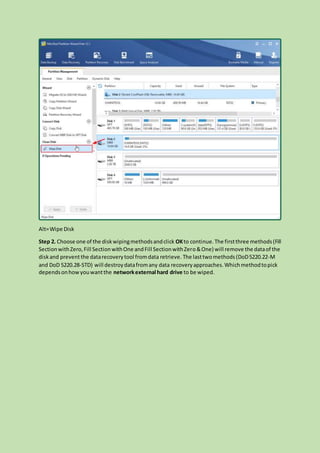
Step 1. Clickon the target external harddrive toactivate it. Then,selectWipe Diskinthe leftpanel
underthe CleanDiskpart.
Alt=Wipe Disk
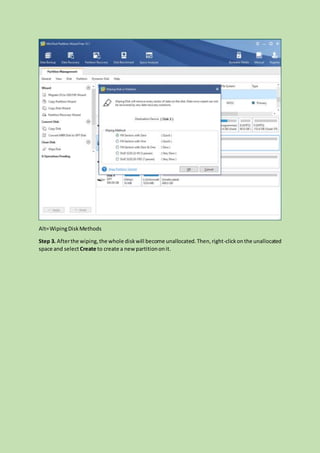
Step 2. Choose one of the diskwipingmethodsandclick OKto continue.The firstthree methods(Fill
SectionwithZero,Fill SectionwithOne andFill SectionwithZero&One) will remove the dataof the
disk and preventthe datarecoverytool fromdata retrieve. The lasttwomethods(DoD5220.22-M
and DoD 5220.28-STD) will destroydatafromany data recoveryapproaches.Whichmethodtopick
dependsonhowyouwantthe networkexternal hard drive to be wiped.
Alt=WipingDiskMethods
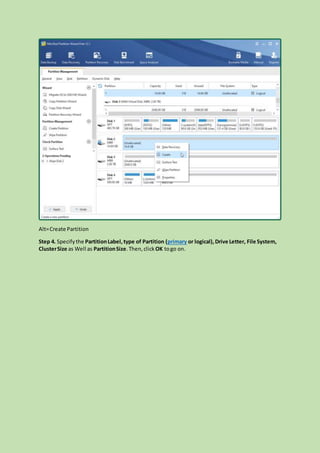
Step 3. Afterthe wiping,the whole diskwill become unallocated.Then,right-clickonthe unallocated
space and select Create to create a newpartitiononit.
Alt=Create Partition
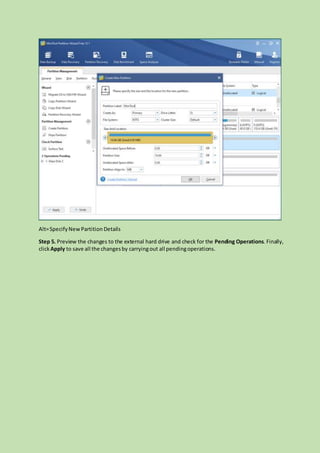
Step 4. Specifythe PartitionLabel, type of Partition (primary or logical),Drive Letter, File System,
ClusterSize as Well as PartitionSize.Then,click OK togo on.
Alt=SpecifyNewPartition Details
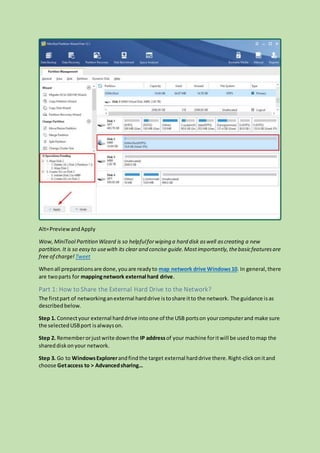
Step 5. Preview the changes to the external hard drive and check for the Pending Operations. Finally,
clickApply to save all the changesby carryingout all pendingoperations.
Alt=PreviewandApply
Wow,MiniTool Partition Wizard is so helpfulforwiping a hard disk aswell ascreating a new
partition.It is so easy to usewith its clear and concise guide.Mostimportantly,thebasicfeaturesare
free of charge! Tweet
Whenall preparationsare done,you are readyto map network drive Windows10. In general,there
are twoparts for mappingnetwork external hard drive.
Part 1: How to Share the External Hard Drive to the Network?
The firstpart of networkinganexternal harddrive istoshare itto the network. The guidance isas
describedbelow.
Step 1. Connectyour external harddrive intoone of the USB portson yourcomputerand make sure
the selectedUSBport isalwayson.
Step 2. Rememberorjustwrite downthe IP addressof your machine foritwill be usedtomap the
shareddiskonyour network.
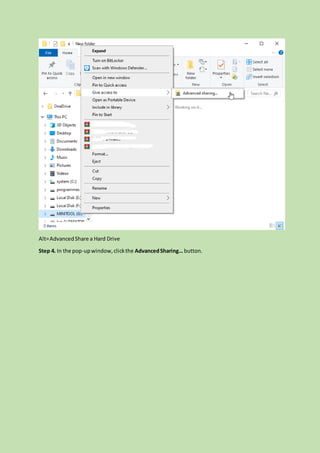
Step 3. Go to WindowsExplorerandfind the target external harddrive there.Right-clickonitand
choose Getaccess to > Advancedsharing…
Alt=AdvancedShare a Hard Drive
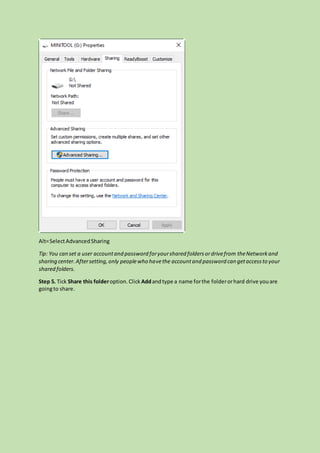
Step 4. In the pop-upwindow,clickthe AdvancedSharing… button.
Alt=SelectAdvancedSharing
Tip: You can set a user accountand password foryourshared foldersordrivefrom theNetworkand
sharing center.Aftersetting,only peoplewho havethe accountand password can getaccessto your
shared folders.
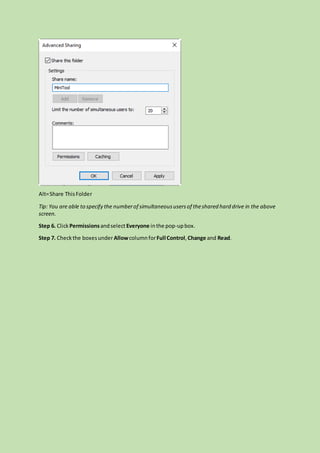
Step 5. Tick Share this folderoption.Click Addandtype a name forthe folderorhard drive youare
goingto share.
Alt=Share ThisFolder
Tip: You are able to specify the numberof simultaneoususersof theshared hard drive in the above
screen.
Step 6. Click PermissionsandselectEveryone inthe pop-upbox.
Step 7. Checkthe boxesunderAllowcolumnforFull Control,Change and Read.
Alt=Permissionsforthe SharedDrive
Step 8. Click Apply andthen OK toexitthe Permissionswindow.Then,click ApplyandOKto close
the Advanced Sharing window.Finally,click Close toexitthe drive Propertieswindow.
Kind reminder:
 You can also connectyour hard drive directlytoyourrouter.Then,goto the router’s
firmware tosetup the drive.Signin to the router’sfirmware withyourIPaddressoruser
account (if notchanged,itshouldbe the adminaccount) througha browseroran
application,andusually,it is192.168.1.1. Then,youcan enable filesharingforthe drive as
well ascustomize itsname,drive letter,password,etc.
 If your network external hard drive is a wirelessone,youshouldfire upitandsetup a
wirelessconnectiontothe drive fromyourcomputerfollowingthe manual.Tosetupthe
drive (name,accessingpassword,etc.),youprobablyneedtoinstall andlaunchthe program
for the disk.Also,make sure the harddrive isfullychargedorrunningoff external power.
Relatedarticle:5SolutionstoFix the NetworkPathNotFoundWindows10
Now,the external harddrive shouldbe sharedoverthe network.Tocheckwhetheryouhave done it
successfully,justtake alookat the drive letterof the external diskinthe leftpanellistinWindows
Explorer.If there isa two-people icononthe harddiskicon,congratulations!Youmade it.If not,you
may checkyour operationswiththe above guidecarefullytofindoutwhere youhave done
incorrectly.
Part 2: How to Map a Network Drive Windows 10?
The secondpart of mappinganexternal harddrive as a networkdrive istoconnectitto another
computerinthe network.The stepsare easyas the followingones.
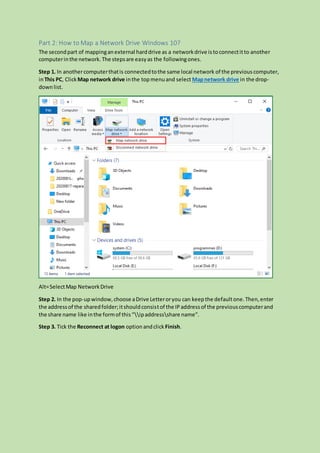
Step 1. In anothercomputerthatis connectedtothe same local network of the previouscomputer,
inThis PC, ClickMap network drive inthe topmenuand select Mapnetwork drive in the drop-
downlist.
Alt=SelectMap NetworkDrive
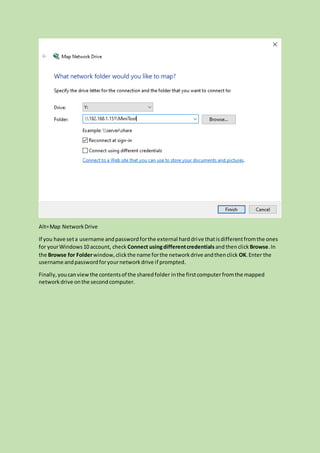
Step 2. In the pop-upwindow,choose aDrive Letteroryou can keepthe defaultone.Then,enter
the addressof the sharedfolder;itshouldconsistof the IPaddressof the previouscomputerand
the share name like inthe formof this“ipaddressshare name”.
Step 3. Tick the Reconnect at logon option andclick Finish.
Alt=Map NetworkDrive
If you have seta username andpasswordforthe external harddrive thatisdifferentfromthe ones
for yourWindows10 account, check Connect usingdifferentcredentials andthenclick Browse.In
the Browse for Folderwindow,clickthe name forthe networkdrive andthenclick OK.Enter the
username andpasswordforyournetworkdrive if prompted.
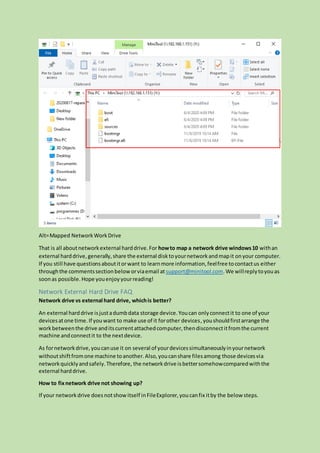
Finally,youcanviewthe contentsof the sharedfolder inthe firstcomputerfromthe mapped
networkdrive onthe secondcomputer.
Alt=Mapped NetworkWorkDrive
That is all aboutnetworkexternal harddrive.For howto map a network drive windows10 withan
external harddrive,generally,share the external disktoyournetworkandmapit onyour computer.
If you still have questionsaboutitorwant to learnmore information,feelfree tocontactus either
throughthe commentssectionbeloworviaemail at support@minitool.com.We willreplytoyouas
soonas possible. Hope youenjoyyourreading!
Network External Hard Drive FAQ
Network drive vs external hard drive, whichis better?
An external harddrive isjustadumbdata storage device.Youcan onlyconnectit to one of your
devicesatone time.If youwant to make use of it forother devices,youshouldfirstarrange the
workbetweenthe drive anditscurrentattachedcomputer,thendisconnectitfromthe current
machine andconnectit to the nextdevice.
As fornetworkdrive,youcanuse it on several of yourdevicessimultaneouslyinyournetwork
withoutshiftfromone machine toanother.Also,youcanshare filesamong those devicesvia
networkquicklyandsafely.Therefore, the networkdrive isbettersomehowcomparedwiththe
external harddrive.
How to fixnetwork drive not showing up?
If your networkdrive doesnotshowitself inFileExplorer,youcanfix itby the below steps.
1. In RegistryEditor,navigate to
HKEY_LOCAL_MACHINE> SOFTWARE> Microsoft> Windows > CurrentVersion >Policies > System
2. Right-clickSystemandchoose New> DWORD Value.
3. Name the newvalue as EnableLinkedConnections.
4. Right-clickthe newvalue andselectModify tochange its Valuedata to1.
Thismethodcan helpmostpeople,yet,if yourproblemcan’tbe solved inthisway,view more
solutionsfrom HowtoFix NetworkDrive NotShowingIssue?
How to findthe IP addressof your computer?
You can findyourIP addressinthe followingways:
1. In the Network& InternetSettings.Right-clickonthe networkicononthe Taskbarand select
Open Network& InternetSettings.Inthe pop-upwindow,choose View yournetworkproperties.In
the firstEthernetpropertiesgroup,usually,youcansee yourIPaddressbehindthe IPv4address.
2. By CMD. You can make use of the commandprompt.Justtype ipconfig orderand press Enter to
findoutyour IPaddress.
3. From the router.On the back of the routeror in itsmanual,youare able tofindyour IPaddress.
4. Search online.Youcansearch “ipaddress”inany explorersuchasGoogle,andthere are websites
that can directlydetectyourIPaddress.
How to findthe path of a network drive?
In CMD, type netuse and pressEnter.View more infovia Full Guide –How to Findthe Pathof a
NetworkDrive Windows10.

Network external hard drive

  • 1.
    Title: How toMap Network Drive Windows 10 via External Hard Drive? Keywords: networkexternal harddrive,map network drive windows 10, how to map a network drive,how to map a network drive windows 10, mapping a network drive Description: How to map a network drive Windows 10 with an external hard drive? This post will focus on this topic about network external hard drive. URL: https://www.partitionwizard.com/partitionmanager/network-external-hard-drive.html Summary: The below article is going to show you the reason, method and frequently asked questions about network external hard drive. After reading, you are supposed to know how to map a network drive in Windows 10 as well as other system versions. View more info from MiniTool partition manager website. Networkexternalharddrive here meansanexternal harddrive beingconnected toyourcomputer networkviaa USB port and servingasa storage fordigital data from anothermachine inthe same network. Why Need Network External Hard Drive? Aftera longtime of usage of yourcomputer or withmanyhours perday,you are probablysuffering froma lowdiskspace problem.Thatis,youare runningoutof yourlocal internal harddrive storage. Therefore,itisof greatemergencytofinda wayto solve thatissue.And,one of the easymethodsis to make use of a networkdrive. Besides,inyourdailylifeeitherof work orof private,youhave manyfilesthatneedtobe usedevery day.It is space-wastingtosave a copy of those filesoneachcomputeryouruse.Still,itis troublesome totake those fileswithyouwhereveryougo.Thus,youcan relyona networkdrive to store only inone place while accessingthemoneverycomputeryouuse nomatterinthe office orat home.
  • 2.
    A networkdrive canbecreatedby an internal diskoran external drive.Since the local storage is preciousforeverymachine,itiswise tomap network drive Windows10 witha large external hard drive. Tip: Not only the desktops,laptops,tablets,notebooksbutalso yourmobilephones,cellphones, smartphonescan makeuseof thenetworkdrive in yournetwork.You can upload yourwork documentsand family photosto thenetworkdrive;shareyourfavoritemusicand movies with your household;accessfilesin thenetworkdrive on all devicesin yournetwork. Choose Your Network External Hard Drive For the external harddrive tobe mappedas a network drive,itall dependsonyourneeds.Itcanbe a USB flashdrive,athumbdrive,harddiskdrive (HDD),solidstate drive (SSD) andsoon.The capacityof the external diskrangesfromseveral GBtotensof TB, such as 12TB external harddrive. https://www.partitionwizard.com/partitionmanager/10tb-hard-drive.html Preparation Before Mapping a Network Drive Eitheryourexternal harddrive isa newone or an oldpiece,youare recommendedtogive ita refreshbefore mappingitasa networkdisk.The refreshhere meanstoformatitwitha properdisk type,partitionfile system aswell asclustersize.Also,youcanassigna meaningful drive letter and partitionlabel toit. Since the external harddrive isusedtostore data within the LAN,itisrecommendedtomake itfully servingasa networkdrive.Thus,youshouldfirstof all copyall itsdatato anotherstorage place and thenwipe partition completely. Or,if there isnodataon the hard diskor the data are not important at all,youcan directly wipe itout. Next,create awhole new partitiononthe external harddrive. To do the above operations,youneedhelpfromathird-partyprogram. MiniTool PartitionWizard is a professional andreliablepartitionanddiskmanagementsoftware.Withit,youcanquicklyformat your external harddrive partition withanew partitionlabel,drive letter,file system, etc. Pw-free Step 1. Clickon the target external harddrive toactivate it. Then,selectWipe Diskinthe leftpanel underthe CleanDiskpart.
  • 3.
    Alt=Wipe Disk Step 2.Choose one of the diskwipingmethodsandclick OKto continue.The firstthree methods(Fill SectionwithZero,Fill SectionwithOne andFill SectionwithZero&One) will remove the dataof the disk and preventthe datarecoverytool fromdata retrieve. The lasttwomethods(DoD5220.22-M and DoD 5220.28-STD) will destroydatafromany data recoveryapproaches.Whichmethodtopick dependsonhowyouwantthe networkexternal hard drive to be wiped.
  • 4.
    Alt=WipingDiskMethods Step 3. Afterthewiping,the whole diskwill become unallocated.Then,right-clickonthe unallocated space and select Create to create a newpartitiononit.
  • 5.
    Alt=Create Partition Step 4.Specifythe PartitionLabel, type of Partition (primary or logical),Drive Letter, File System, ClusterSize as Well as PartitionSize.Then,click OK togo on.
  • 6.
    Alt=SpecifyNewPartition Details Step 5.Preview the changes to the external hard drive and check for the Pending Operations. Finally, clickApply to save all the changesby carryingout all pendingoperations.
  • 7.
    Alt=PreviewandApply Wow,MiniTool Partition Wizardis so helpfulforwiping a hard disk aswell ascreating a new partition.It is so easy to usewith its clear and concise guide.Mostimportantly,thebasicfeaturesare free of charge! Tweet Whenall preparationsare done,you are readyto map network drive Windows10. In general,there are twoparts for mappingnetwork external hard drive. Part 1: How to Share the External Hard Drive to the Network? The firstpart of networkinganexternal harddrive istoshare itto the network. The guidance isas describedbelow. Step 1. Connectyour external harddrive intoone of the USB portson yourcomputerand make sure the selectedUSBport isalwayson. Step 2. Rememberorjustwrite downthe IP addressof your machine foritwill be usedtomap the shareddiskonyour network. Step 3. Go to WindowsExplorerandfind the target external harddrive there.Right-clickonitand choose Getaccess to > Advancedsharing…
  • 8.
    Alt=AdvancedShare a HardDrive Step 4. In the pop-upwindow,clickthe AdvancedSharing… button.
  • 9.
    Alt=SelectAdvancedSharing Tip: You canset a user accountand password foryourshared foldersordrivefrom theNetworkand sharing center.Aftersetting,only peoplewho havethe accountand password can getaccessto your shared folders. Step 5. Tick Share this folderoption.Click Addandtype a name forthe folderorhard drive youare goingto share.
  • 10.
    Alt=Share ThisFolder Tip: Youare able to specify the numberof simultaneoususersof theshared hard drive in the above screen. Step 6. Click PermissionsandselectEveryone inthe pop-upbox. Step 7. Checkthe boxesunderAllowcolumnforFull Control,Change and Read.
  • 11.
    Alt=Permissionsforthe SharedDrive Step 8.Click Apply andthen OK toexitthe Permissionswindow.Then,click ApplyandOKto close the Advanced Sharing window.Finally,click Close toexitthe drive Propertieswindow. Kind reminder:  You can also connectyour hard drive directlytoyourrouter.Then,goto the router’s firmware tosetup the drive.Signin to the router’sfirmware withyourIPaddressoruser account (if notchanged,itshouldbe the adminaccount) througha browseroran application,andusually,it is192.168.1.1. Then,youcan enable filesharingforthe drive as well ascustomize itsname,drive letter,password,etc.  If your network external hard drive is a wirelessone,youshouldfire upitandsetup a wirelessconnectiontothe drive fromyourcomputerfollowingthe manual.Tosetupthe drive (name,accessingpassword,etc.),youprobablyneedtoinstall andlaunchthe program for the disk.Also,make sure the harddrive isfullychargedorrunningoff external power. Relatedarticle:5SolutionstoFix the NetworkPathNotFoundWindows10 Now,the external harddrive shouldbe sharedoverthe network.Tocheckwhetheryouhave done it successfully,justtake alookat the drive letterof the external diskinthe leftpanellistinWindows Explorer.If there isa two-people icononthe harddiskicon,congratulations!Youmade it.If not,you may checkyour operationswiththe above guidecarefullytofindoutwhere youhave done incorrectly.
  • 12.
    Part 2: Howto Map a Network Drive Windows 10? The secondpart of mappinganexternal harddrive as a networkdrive istoconnectitto another computerinthe network.The stepsare easyas the followingones. Step 1. In anothercomputerthatis connectedtothe same local network of the previouscomputer, inThis PC, ClickMap network drive inthe topmenuand select Mapnetwork drive in the drop- downlist. Alt=SelectMap NetworkDrive Step 2. In the pop-upwindow,choose aDrive Letteroryou can keepthe defaultone.Then,enter the addressof the sharedfolder;itshouldconsistof the IPaddressof the previouscomputerand the share name like inthe formof this“ipaddressshare name”. Step 3. Tick the Reconnect at logon option andclick Finish.
  • 13.
    Alt=Map NetworkDrive If youhave seta username andpasswordforthe external harddrive thatisdifferentfromthe ones for yourWindows10 account, check Connect usingdifferentcredentials andthenclick Browse.In the Browse for Folderwindow,clickthe name forthe networkdrive andthenclick OK.Enter the username andpasswordforyournetworkdrive if prompted. Finally,youcanviewthe contentsof the sharedfolder inthe firstcomputerfromthe mapped networkdrive onthe secondcomputer.
  • 14.
    Alt=Mapped NetworkWorkDrive That isall aboutnetworkexternal harddrive.For howto map a network drive windows10 withan external harddrive,generally,share the external disktoyournetworkandmapit onyour computer. If you still have questionsaboutitorwant to learnmore information,feelfree tocontactus either throughthe commentssectionbeloworviaemail at support@minitool.com.We willreplytoyouas soonas possible. Hope youenjoyyourreading! Network External Hard Drive FAQ Network drive vs external hard drive, whichis better? An external harddrive isjustadumbdata storage device.Youcan onlyconnectit to one of your devicesatone time.If youwant to make use of it forother devices,youshouldfirstarrange the workbetweenthe drive anditscurrentattachedcomputer,thendisconnectitfromthe current machine andconnectit to the nextdevice. As fornetworkdrive,youcanuse it on several of yourdevicessimultaneouslyinyournetwork withoutshiftfromone machine toanother.Also,youcanshare filesamong those devicesvia networkquicklyandsafely.Therefore, the networkdrive isbettersomehowcomparedwiththe external harddrive. How to fixnetwork drive not showing up? If your networkdrive doesnotshowitself inFileExplorer,youcanfix itby the below steps.
  • 15.
    1. In RegistryEditor,navigateto HKEY_LOCAL_MACHINE> SOFTWARE> Microsoft> Windows > CurrentVersion >Policies > System 2. Right-clickSystemandchoose New> DWORD Value. 3. Name the newvalue as EnableLinkedConnections. 4. Right-clickthe newvalue andselectModify tochange its Valuedata to1. Thismethodcan helpmostpeople,yet,if yourproblemcan’tbe solved inthisway,view more solutionsfrom HowtoFix NetworkDrive NotShowingIssue? How to findthe IP addressof your computer? You can findyourIP addressinthe followingways: 1. In the Network& InternetSettings.Right-clickonthe networkicononthe Taskbarand select Open Network& InternetSettings.Inthe pop-upwindow,choose View yournetworkproperties.In the firstEthernetpropertiesgroup,usually,youcansee yourIPaddressbehindthe IPv4address. 2. By CMD. You can make use of the commandprompt.Justtype ipconfig orderand press Enter to findoutyour IPaddress. 3. From the router.On the back of the routeror in itsmanual,youare able tofindyour IPaddress. 4. Search online.Youcansearch “ipaddress”inany explorersuchasGoogle,andthere are websites that can directlydetectyourIPaddress. How to findthe path of a network drive? In CMD, type netuse and pressEnter.View more infovia Full Guide –How to Findthe Pathof a NetworkDrive Windows10.