Creating Disk Partitions
By: Sir Lau
Video Clip
https://tinyurl.com/
CSSShrinkHDD
OBJECTIVES
At the end of the Lesson the student must be able to:
1. define what disk partitioning is,
2. explain the purpose and benefits of creating disk partitions,
3. identify situations where creating a partition is necessary; and
4. demonstrate the steps to create a disk partition using Disk
Management in Windows.
Disk Partition
is a section of a physical hard drive that is
separated and treated as an individual unit by
the operating system. It allows users to divide
a single hard drive into multiple logical drives,
each with its own file system and purpose.
Reasons for Creating Partitions:
1. Organize Data:
•Separate the operating system, applications, and personal files.
•Easier backup and file management.
2. Dual Boot Setup:
•Install multiple operating systems (e.g., Windows and Linux) on the same physical drive.
3.Improve Performance:
•System files on one partition can improve access speed.
•Easier defragmentation and scanning.
4. Data Security:
•Reduce risk of data loss if one partition becomes corrupted.
5. Efficient Disk Management:
•Set different file systems for different uses.
•Faster system restoration if OS is on a separate partition.
Tools for Partitioning:
1.Built-in Tools (Windows):
•Disk Management (diskmgmt.msc)
•Command Prompt (diskpart)
2.Third-Party Applications:
•MiniTool Partition Wizard
•EaseUS Partition Master
•AOMEI Partition Assistant
•GParted (Linux-based GUI)
Safety Tips Before Partitioning:
•Back up your data. Partitioning can risk data loss if done incorrectly.
•Check available space before shrinking a drive.
•Close all applications to avoid conflicts during the operation.
•Do not interrupt the partitioning process once it starts.
•If unsure, use a virtual machine or simulation software for practice.
Video Clip:
The teacher will ask the
student on their insight based
on the video clip
PROCESS QUESTION:
Why is it important to
separate system files from
personal data?
Step-by-Step Guide Using Windows Disk
Management:
1.Open Disk Management:
•Press Windows + X → Click on Disk Management
•OR press Windows + R, type diskmgmt.msc, then press Enter.
2.Shrink an Existing Volume:
•Right-click on a partition (usually C:) → Select Shrink Volume
•Enter the amount of space to shrink (in MB) → Click Shrink
Step-by-Step Guide Using Windows Disk
Management:
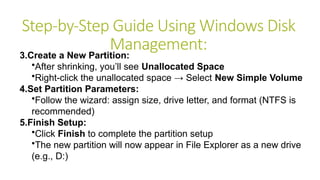
3.Create a New Partition:
•After shrinking, you’ll see Unallocated Space
•Right-click the unallocated space → Select New Simple Volume
4.Set Partition Parameters:
•Follow the wizard: assign size, drive letter, and format (NTFS is
recommended)
5.Finish Setup:
•Click Finish to complete the partition setup
•The new partition will now appear in File Explorer as a new drive
(e.g., D:)
HANDS ON ACTIVITY
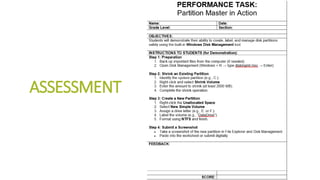
ASSESSMENT
ASSIGNMENT
Research at least 2 free third-party disk
partition tools and write a short comparison
(features, pros/cons, user interface).

CSSW23.pptx-Computer Systems Servicing (CSS)

  • 1.
  • 2.
  • 3.
    OBJECTIVES At the endof the Lesson the student must be able to: 1. define what disk partitioning is, 2. explain the purpose and benefits of creating disk partitions, 3. identify situations where creating a partition is necessary; and 4. demonstrate the steps to create a disk partition using Disk Management in Windows.
  • 4.
    Disk Partition is asection of a physical hard drive that is separated and treated as an individual unit by the operating system. It allows users to divide a single hard drive into multiple logical drives, each with its own file system and purpose.
  • 5.
    Reasons for CreatingPartitions: 1. Organize Data: •Separate the operating system, applications, and personal files. •Easier backup and file management. 2. Dual Boot Setup: •Install multiple operating systems (e.g., Windows and Linux) on the same physical drive. 3.Improve Performance: •System files on one partition can improve access speed. •Easier defragmentation and scanning. 4. Data Security: •Reduce risk of data loss if one partition becomes corrupted. 5. Efficient Disk Management: •Set different file systems for different uses. •Faster system restoration if OS is on a separate partition.
  • 6.
    Tools for Partitioning: 1.Built-inTools (Windows): •Disk Management (diskmgmt.msc) •Command Prompt (diskpart) 2.Third-Party Applications: •MiniTool Partition Wizard •EaseUS Partition Master •AOMEI Partition Assistant •GParted (Linux-based GUI)
  • 7.
    Safety Tips BeforePartitioning: •Back up your data. Partitioning can risk data loss if done incorrectly. •Check available space before shrinking a drive. •Close all applications to avoid conflicts during the operation. •Do not interrupt the partitioning process once it starts. •If unsure, use a virtual machine or simulation software for practice.
  • 8.
    Video Clip: The teacherwill ask the student on their insight based on the video clip
  • 9.
    PROCESS QUESTION: Why isit important to separate system files from personal data?
  • 10.
    Step-by-Step Guide UsingWindows Disk Management: 1.Open Disk Management: •Press Windows + X → Click on Disk Management •OR press Windows + R, type diskmgmt.msc, then press Enter. 2.Shrink an Existing Volume: •Right-click on a partition (usually C:) → Select Shrink Volume •Enter the amount of space to shrink (in MB) → Click Shrink
  • 11.
    Step-by-Step Guide UsingWindows Disk Management: 3.Create a New Partition: •After shrinking, you’ll see Unallocated Space •Right-click the unallocated space → Select New Simple Volume 4.Set Partition Parameters: •Follow the wizard: assign size, drive letter, and format (NTFS is recommended) 5.Finish Setup: •Click Finish to complete the partition setup •The new partition will now appear in File Explorer as a new drive (e.g., D:)
  • 12.
  • 13.
  • 14.
    ASSIGNMENT Research at least2 free third-party disk partition tools and write a short comparison (features, pros/cons, user interface).