Unit 1—Computer Basics Lesson 5 Input, Output, and Storage
Objectives Identify and describe the most common input devices. Identify and describe the most common output devices. Identify and describe storage devices. Identify and describe how input and output devices are connected to the computer. Computer Concepts BASICS -
Input and Output Devices Input devices enable a user to input data and commands to the computer to be processed. Output devices enable the computer to give or show you the results of its processing. Some devices can perform both input and output operations. Computer Concepts BASICS -
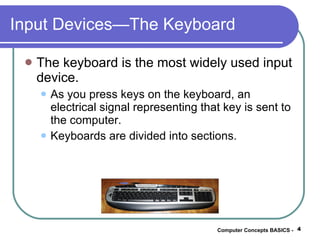
Input Devices—The Keyboard The keyboard is the most widely used input device. As you press keys on the keyboard, an electrical signal representing that key is sent to the computer. Keyboards are divided into sections. Computer Concepts BASICS -
Input Devices—The Keyboard (cont.) Typewriter keys:  The standard alphabetic and numeric characters you would find on a typewriter Function keys:  Special keys that perform some specific function for the application being run Numeric keypad:  Used for mathematical operations Directional keys:  Used to move the cursor around the screen Computer Concepts BASICS -
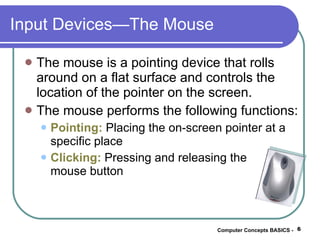
Input Devices—The Mouse The mouse is a pointing device that rolls around on a flat surface and controls the location of the pointer on the screen. The mouse performs the following functions: Pointing:  Placing the on-screen pointer at a specific place Clicking:  Pressing and releasing the  mouse button Computer Concepts BASICS -
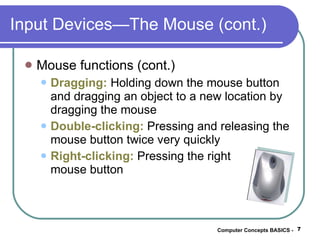
Input Devices—The Mouse (cont.) Mouse functions (cont.) Dragging:   Holding down the mouse button and dragging an object to a new location by dragging the mouse Double-clicking:  Pressing and releasing the mouse button twice very quickly Right-clicking:  Pressing the right  mouse button Computer Concepts BASICS -
Other Pointing Devices Other devices that control the on-screen pointer: Trackball:  This is like a mouse turned upside down. You roll a ball around with your fingers to control the location of the pointer. These frequently are found on notebook computers. Computer Concepts BASICS -
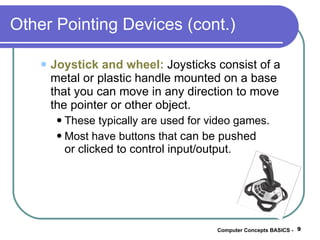
Other Pointing Devices (cont.) Joystick and wheel:  Joysticks consist of a metal or plastic handle mounted on a base that you can move in any direction to move the pointer or other object. These typically are used for video games. Most have buttons that  can be pushed  or clicked to control input/output. Computer Concepts BASICS -
Other Input Devices Pointing stick:  A pressure-sensitive device that resembles a pencil eraser; found mostly on notebook computers Graphics tablet:  A flat drawing surface connected to the computer The user draws on the surface, and the figures or writing on the tablet can be input to the computer for processing. Computer Concepts BASICS -
Other Input Devices (cont.) Touch display:  Screens that contain pictures or shapes that the user can press  to input that data Stylus/digital pen:  Used with mobile devices to input data   Touchpad:   Used mostly in laptop/notebook computers Computer Concepts BASICS -
Other Input Devices (cont.) Audio/voice input:  Inputting sound and/or voice These usually require a microphone and special voice recognition software to be installed on the computer. Computer Concepts BASICS -
Other Input Devices (cont.) Scanners:  Devices that can convert a graphical image into a digital image and input it to the computer  Types of scanners include Image scanners for scanning images and text Bar code scanners to read product bar codes Magnetic scanners to read the magnetic strip on a credit card Computer Concepts BASICS -
Other Input Devices (cont.) Digital cameras:  Used to take pictures and store them on a magnetic disk instead of on film Their images can be input directly into the computer. Video input:  Input from a camcorder or VCR using video capture cards Computer Concepts BASICS -
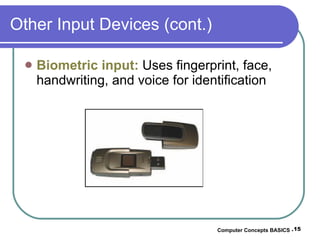
Other Input Devices (cont.) Biometric input:   Uses fingerprint, face, handwriting, and voice for identification Computer Concepts BASICS -
Magnetic Storage Devices Floppy disks:  Small, portable disks that hold a limited amount of data Hard disks:  Large-capacity and fast-access storage devices Zip disks:  Auxiliary storage devices that can hold large quantities of data and can be portable Magnetic tape drives:  Used for making system backups and storing large quantities of data Computer Concepts BASICS -
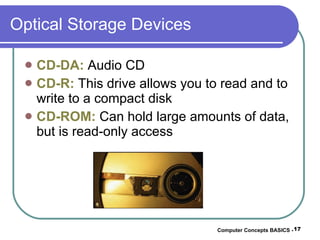
Optical Storage Devices CD-DA:  Audio CD CD-R:  This drive allows you to read and to write to a compact disk CD-ROM:  Can hold large amounts of data, but is read-only access Computer Concepts BASICS -
Optical Storage Devices (cont.) CD-RW:  Can be written on several times DVD-ROM:  Read-only DVD format DVD-R:  Similar to CD, but holds more data; read-only DVD-RW:  Can be written on several times PhotoCD : Used for storing digital photographs on a CD Computer Concepts BASICS -
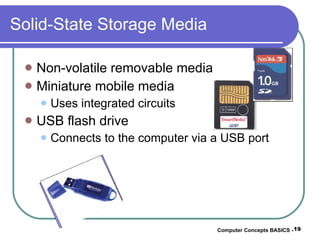
Solid-State Storage Media Non-volatile removable media Miniature mobile media Uses integrated circuits USB flash drive Connects to the computer via a USB port Computer Concepts BASICS -
Caring for Storage Media To safeguard your data from damage, follow these tips when dealing with removable media: Keep away from magnetic fields. Avoid extreme temperatures. Never try to disassemble the case. Remove media from drive when not being used. Computer Concepts BASICS -
Caring for Storage Media (cont.) Tips for dealing with storage media (cont.) Write-protect important data. Hold optical disks at their edges. Never remove the media from the drive if the access light is on. Keep disks in a sturdy case when transporting them. Computer Concepts BASICS -
Output Devices—Monitors Monitors  are used to display video output to a user. Monitors may be monochromatic or color. Monochromatic monitors display output in a single-color display. Computer Concepts BASICS -
Output Devices—Monitors (cont.) Factors that influence the quality of a monitor Screen size: The diagonal measurement in inches of the display area Resolution: The number of pixels that can be displayed in the display area Dot pitch: The distance between each pixel in the display area Computer Concepts BASICS -
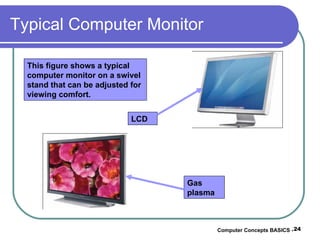
Typical Computer Monitor Computer Concepts BASICS -  This figure shows a typical computer monitor on a swivel stand that can be adjusted for viewing comfort. LCD Gas plasma
Output Devices—Printers Printers are used to create a hard copy of a document or image. Printers vary by speed, quality, and price. Computer Concepts BASICS -
Output Devices—Printers (cont.) The most popular types of printers are Laser:  Produce images using the same techniques as copier machines Ink jet:  Use fine nozzles to spray ink onto the page as the paper passes through Dot matrix:  Work similarly to a typewriter in that ink is transferred to the paper by some part of the printer striking a ribbon to transfer an image Computer Concepts BASICS -
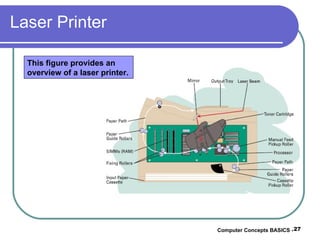
Laser Printer Computer Concepts BASICS -  This figure provides an overview of a laser printer.
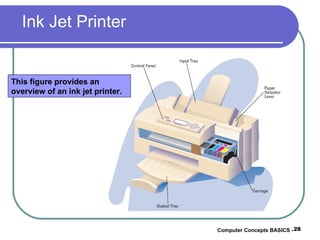
Ink Jet Printer Computer Concepts BASICS -  This figure provides an overview of an ink jet printer.
Other Types of Output Devices Speakers and headsets Fax machines and fax modems Multifunctional devices Contain a variation of output options Data projectors Computer Concepts BASICS -
Connecting I/O Devices to the Computer Input and output devices must be connected to the computer before they can be used. Connecting I/O devices to the computer: Plug the device into an existing socket or port on the back of the computer. Install an expansion card with the port you need included on the back of the card. Connect wirelessly. Computer Concepts BASICS -
Summary Input devices enable you to input data and commands into the computer. The most common input devices are the keyboard and mouse. Other types of input devices include trackball, joystick and wheel, pointing stick, graphics tablet, touch display screen, stylus, voice recognition devices, touchpad, scanner, digital camera, video input, and biometric input. Computer Concepts BASICS -
Summary (cont.) To maintain a permanent copy of data, you should store it on some type of storage medium. The three categories of storage media are magnetic storage, optical storage, and solid-state storage. Monitors and printers are examples of output devices. Computer Concepts BASICS -
Summary (cont.) Monitors produce soft copy. Printers are used to produce a paper or hard copy of the processed result. Criteria for selecting a printer include speed, print quality, and cost. Input and output devices must be physically connected to the computer. Computer Concepts BASICS -
Summary (cont.) Some input devices communicate with the computer through a physical connection. Wireless devices communicate with the computer through infrared or radio waves. Computer Concepts BASICS -

Ppt lesson 05

  • 1.
    Unit 1—Computer BasicsLesson 5 Input, Output, and Storage
  • 2.
    Objectives Identify anddescribe the most common input devices. Identify and describe the most common output devices. Identify and describe storage devices. Identify and describe how input and output devices are connected to the computer. Computer Concepts BASICS -
  • 3.
    Input and OutputDevices Input devices enable a user to input data and commands to the computer to be processed. Output devices enable the computer to give or show you the results of its processing. Some devices can perform both input and output operations. Computer Concepts BASICS -
  • 4.
    Input Devices—The KeyboardThe keyboard is the most widely used input device. As you press keys on the keyboard, an electrical signal representing that key is sent to the computer. Keyboards are divided into sections. Computer Concepts BASICS -
  • 5.
    Input Devices—The Keyboard(cont.) Typewriter keys: The standard alphabetic and numeric characters you would find on a typewriter Function keys: Special keys that perform some specific function for the application being run Numeric keypad: Used for mathematical operations Directional keys: Used to move the cursor around the screen Computer Concepts BASICS -
  • 6.
    Input Devices—The MouseThe mouse is a pointing device that rolls around on a flat surface and controls the location of the pointer on the screen. The mouse performs the following functions: Pointing: Placing the on-screen pointer at a specific place Clicking: Pressing and releasing the mouse button Computer Concepts BASICS -
  • 7.
    Input Devices—The Mouse(cont.) Mouse functions (cont.) Dragging: Holding down the mouse button and dragging an object to a new location by dragging the mouse Double-clicking: Pressing and releasing the mouse button twice very quickly Right-clicking: Pressing the right mouse button Computer Concepts BASICS -
  • 8.
    Other Pointing DevicesOther devices that control the on-screen pointer: Trackball: This is like a mouse turned upside down. You roll a ball around with your fingers to control the location of the pointer. These frequently are found on notebook computers. Computer Concepts BASICS -
  • 9.
    Other Pointing Devices(cont.) Joystick and wheel: Joysticks consist of a metal or plastic handle mounted on a base that you can move in any direction to move the pointer or other object. These typically are used for video games. Most have buttons that can be pushed or clicked to control input/output. Computer Concepts BASICS -
  • 10.
    Other Input DevicesPointing stick: A pressure-sensitive device that resembles a pencil eraser; found mostly on notebook computers Graphics tablet: A flat drawing surface connected to the computer The user draws on the surface, and the figures or writing on the tablet can be input to the computer for processing. Computer Concepts BASICS -
  • 11.
    Other Input Devices(cont.) Touch display: Screens that contain pictures or shapes that the user can press to input that data Stylus/digital pen: Used with mobile devices to input data Touchpad: Used mostly in laptop/notebook computers Computer Concepts BASICS -
  • 12.
    Other Input Devices(cont.) Audio/voice input: Inputting sound and/or voice These usually require a microphone and special voice recognition software to be installed on the computer. Computer Concepts BASICS -
  • 13.
    Other Input Devices(cont.) Scanners: Devices that can convert a graphical image into a digital image and input it to the computer Types of scanners include Image scanners for scanning images and text Bar code scanners to read product bar codes Magnetic scanners to read the magnetic strip on a credit card Computer Concepts BASICS -
  • 14.
    Other Input Devices(cont.) Digital cameras: Used to take pictures and store them on a magnetic disk instead of on film Their images can be input directly into the computer. Video input: Input from a camcorder or VCR using video capture cards Computer Concepts BASICS -
  • 15.
    Other Input Devices(cont.) Biometric input: Uses fingerprint, face, handwriting, and voice for identification Computer Concepts BASICS -
  • 16.
    Magnetic Storage DevicesFloppy disks: Small, portable disks that hold a limited amount of data Hard disks: Large-capacity and fast-access storage devices Zip disks: Auxiliary storage devices that can hold large quantities of data and can be portable Magnetic tape drives: Used for making system backups and storing large quantities of data Computer Concepts BASICS -
  • 17.
    Optical Storage DevicesCD-DA: Audio CD CD-R: This drive allows you to read and to write to a compact disk CD-ROM: Can hold large amounts of data, but is read-only access Computer Concepts BASICS -
  • 18.
    Optical Storage Devices(cont.) CD-RW: Can be written on several times DVD-ROM: Read-only DVD format DVD-R: Similar to CD, but holds more data; read-only DVD-RW: Can be written on several times PhotoCD : Used for storing digital photographs on a CD Computer Concepts BASICS -
  • 19.
    Solid-State Storage MediaNon-volatile removable media Miniature mobile media Uses integrated circuits USB flash drive Connects to the computer via a USB port Computer Concepts BASICS -
  • 20.
    Caring for StorageMedia To safeguard your data from damage, follow these tips when dealing with removable media: Keep away from magnetic fields. Avoid extreme temperatures. Never try to disassemble the case. Remove media from drive when not being used. Computer Concepts BASICS -
  • 21.
    Caring for StorageMedia (cont.) Tips for dealing with storage media (cont.) Write-protect important data. Hold optical disks at their edges. Never remove the media from the drive if the access light is on. Keep disks in a sturdy case when transporting them. Computer Concepts BASICS -
  • 22.
    Output Devices—Monitors Monitors are used to display video output to a user. Monitors may be monochromatic or color. Monochromatic monitors display output in a single-color display. Computer Concepts BASICS -
  • 23.
    Output Devices—Monitors (cont.)Factors that influence the quality of a monitor Screen size: The diagonal measurement in inches of the display area Resolution: The number of pixels that can be displayed in the display area Dot pitch: The distance between each pixel in the display area Computer Concepts BASICS -
  • 24.
    Typical Computer MonitorComputer Concepts BASICS - This figure shows a typical computer monitor on a swivel stand that can be adjusted for viewing comfort. LCD Gas plasma
  • 25.
    Output Devices—Printers Printersare used to create a hard copy of a document or image. Printers vary by speed, quality, and price. Computer Concepts BASICS -
  • 26.
    Output Devices—Printers (cont.)The most popular types of printers are Laser: Produce images using the same techniques as copier machines Ink jet: Use fine nozzles to spray ink onto the page as the paper passes through Dot matrix: Work similarly to a typewriter in that ink is transferred to the paper by some part of the printer striking a ribbon to transfer an image Computer Concepts BASICS -
  • 27.
    Laser Printer ComputerConcepts BASICS - This figure provides an overview of a laser printer.
  • 28.
    Ink Jet PrinterComputer Concepts BASICS - This figure provides an overview of an ink jet printer.
  • 29.
    Other Types ofOutput Devices Speakers and headsets Fax machines and fax modems Multifunctional devices Contain a variation of output options Data projectors Computer Concepts BASICS -
  • 30.
    Connecting I/O Devicesto the Computer Input and output devices must be connected to the computer before they can be used. Connecting I/O devices to the computer: Plug the device into an existing socket or port on the back of the computer. Install an expansion card with the port you need included on the back of the card. Connect wirelessly. Computer Concepts BASICS -
  • 31.
    Summary Input devicesenable you to input data and commands into the computer. The most common input devices are the keyboard and mouse. Other types of input devices include trackball, joystick and wheel, pointing stick, graphics tablet, touch display screen, stylus, voice recognition devices, touchpad, scanner, digital camera, video input, and biometric input. Computer Concepts BASICS -
  • 32.
    Summary (cont.) Tomaintain a permanent copy of data, you should store it on some type of storage medium. The three categories of storage media are magnetic storage, optical storage, and solid-state storage. Monitors and printers are examples of output devices. Computer Concepts BASICS -
  • 33.
    Summary (cont.) Monitorsproduce soft copy. Printers are used to produce a paper or hard copy of the processed result. Criteria for selecting a printer include speed, print quality, and cost. Input and output devices must be physically connected to the computer. Computer Concepts BASICS -
  • 34.
    Summary (cont.) Someinput devices communicate with the computer through a physical connection. Wireless devices communicate with the computer through infrared or radio waves. Computer Concepts BASICS -