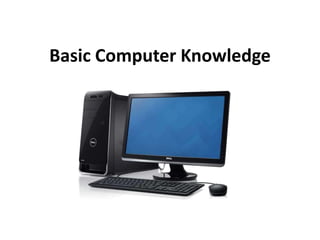
Basic Computer Knowledge
Computer
• A Computer is a General purpose machine,
commonly consisting of digital circuitry, that
accepts (inputs), stores, manipulates, and
generates (outputs) data as numbers, text,
graphics, voice, video files, or electrical
signals, in accordance with instructions called
a program.
More About Computer
• Father of the computer – Charles Babbage.
• Father of the modern computer – Alan Turing.
• Basic Architecture of Computer: John Von
Neumann (1947-49).
• First Programmer: Lady Ada Lovelace (1880).
• First Electronic Computer: ENIAC (1946) – J.P.
Eckert & J.W. Mauchly.
• The first computer for the home user introduced
– IBM in 1981.
Full form of Computer
• C – Commonly
• O – Operated
• M – Machine
• P – Particularly
• U – Used for
• T – Technical
• E-Education
• R – Research
Characteristics of Computer
• Speed
• Accuracy
• Storage
• Diligence
• Versatility
• Automation
Computer – An Introduction
• A computer is a device that can receive process and
store data.
• However, all computers have several parts in common:
• Input devices allow data and commands to the
computer (Mouse, Keyboard etc.)
• Memory for storing commands and data.
• Central Processing Unit which controls the processing.
• Monitor Process the information in the form of output.
Types of computers
• Computers range in size and capability. There
are supercomputers, very large computers
with thousands of microprocessors that
perform extremely complex calculations.
• There are tiny computers embedded in cars,
TVs, stereo systems, calculators, and
appliances. These computers are built to
perform a few number of tasks.
Desktop computers
• Desktop computers design is made for use at a
desk or table.
• They are typically larger and more powerful than
other types of personal computers.
• The main component, called the system unit, is
usually a rectangular case that sits on or
underneath a desk.
• Other components, such as the monitor, mouse,
and keyboard, connect to the system unit.
Laptops
• The Laptops are lightweight mobile PCs with a
thin screen.
• Laptops can operate on batteries, so you can
take them anywhere.
• Unlike desktops, laptops combine the CPU,
screen, and keyboard in a single case.
• The screen folds down onto the keyboard
when not in use.
Handheld computers (PDA)
• Handheld computers, also known as personal digital
assistants (PDAs), are battery-power computers small
enough to carry almost anywhere.
• These are useful for scheduling appointments,
storing addresses and phone numbers, and playing
games.
• Some have advanced capabilities, such as making
telephone calls or accessing the Internet.
• Instead of keyboards, handheld computers have
touch screens that you use with your finger.
Peripheral Devices
• The peripheral device connects to a computer system
to add functionality. Examples are a mouse,
keyboard, monitor, printer and scanner.
• A computer peripheral is a device that connects to a
computer but is not part of the core computer
architecture.
• The core elements of a computer are the central
processing unit, power supply, motherboard and the
computer case that contains those three
components.
Types of Peripheral Devices
• There are many peripheral devices, but they fall into
three general categories:
• Input devices, such as a mouse and a keyboard
• Output devices, such as a monitor and a printer
• Storage devices, such as a hard drive or flash drive
Computer Knowledge – Main Parts of Computer
Hardware
• Computer hardware is what you can physically touch
includes the computer case, monitor, keyboard, and
mouse.
• It also includes all the parts inside the computer
case, such as the hard disk drive, motherboard, video
card, and many others.
Computer Knowledge – Main Parts of Computer
Input Devices
• In computing, an input device is a peripheral (piece
of computer hardware equipment) used to provide
data and control signals to an information processing
system.
• It will control devices such as a computer or
information appliance.
Examples: keyboards, mice, scanners, digital cameras
and joysticks.
Computer Knowledge – Main Parts of Computer
Keyboard
• A Keyboard is the most fundamental input device for any
computer system.
• It helps to enter data on the computer.
Mouse
• A mouse is used to input data by sending a signal to the
computer, based on hovering the cursor and selecting with
the left mouse button.
• The left mouse acts as an ‘enter’ button. The right mouse
button can be selected and will often pop up a window of
choices.
• The scrolling wheel is used to move the view of the screen up
or down.
• By moving your mouse to a location in a document, on a
digital photo or over a choice of music, you can click the left
mouse button to place the cursor.
Basic Knowledge of Computer – Main
Parts of Computer
Barcode reader
• A barcode reader (or barcode scanner) is an
electronic device that can read and output printed
barcodes to a computer.
• Like a flatbed scanner, it consists of a light source, a
lens and a light sensor translating optical impulses
into electrical ones.
Basic Knowledge of Computer – Main
Parts of Computer
Digital camera
• A camera which produces digital images that can be
stored in a computer and displayed on the screen.
Basic Knowledge of Computer – Main
Parts of Computer
Gamepad
• The gamepad is a handheld controller for video
games.
Basic Knowledge of Computer – Main
Parts of Computer
Joystick
• The joystick is a lever that can be moved in
several directions to control the movement of
an image on a computer or similar display
screen. It mainly used in playing games.
Basic Knowledge of Computer – Main
Parts of Computer
• Microphone
• Micro Phone is an instrument for converting sound
waves into electrical energy variations which may
then be amplified, transmitted, or recorded.
Basic Knowledge of Computer – Main
Parts of Computer
• Scanner
• The scanner is a device that scans documents and
converts them into digital data.
Basic Knowledge of Computer – Main
Parts of Computer
Webcam
• A webcam is a video camera connected to a
computer, allowing its images to be seen by Internet
users.
Basic Knowledge of Computer – Main
Parts of Computer
Optical character recognition (OCR)
• Optical character recognition is the
mechanical or electronic conversion of images
of typed, handwritten or printed text into
machine-encoded text.
Basic Knowledge of Computer – Main
Parts of Computer
Digitizer
• It converts analogue information into digital form.
Basic Knowledge of Computer – Main
Parts of Computer
Optical Mark Reading (OMR)
• Optical Mark Readers reads pencil or pen marks
made in pre-defined positions on paper forms as
responses to questions or tick list prompts.
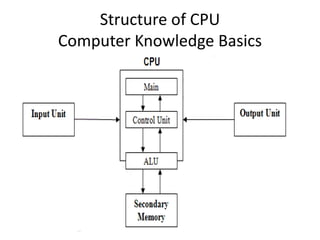
Structure of CPU
Computer Knowledge Basics
Input and Output devices
Input Devices – Computer Knowledge
• An input device feeds data to the computer
system for processing.
• We are going to discuss the most commonly
used input devices in this article.
Input and Output devices
Input Devices – Computer Knowledge
Keyboard
• The computer keyboard is to enter text information
into the computer.
• The main use of the keyboard is to type commands
directing the computer to perform certain actions.
Input Devices – Computer Knowledge
Mouse
• A device that controls the movement of the cursor or
pointer on a display screen.
• A mouse is a small object you can roll along a hard,
flat surface.
• The invention of the mouse is made by Douglas
Engelbart of Stanford Research Center in 1963.
Input Devices – Computer Knowledge
Joystick
• Joysticks and similar game controllers can also
be connected to a computer as pointing
devices
Input Devices – Computer Knowledge
Scanner
• A scanner is a device that images a printed page or
graphics by digitizing it, producing an image made of
tiny pixels of different brightness and colour values
which are represented numerically and sent to the
computer.
• Scanners not only scan graphics, but they can also
scan pages of text.
Input Devices – Computer Knowledge
MIDI Devices
• MIDI (Musical Instrument Digital Interface) is a
system design to transmit information between
electronic musical instruments.
Input Devices – Computer Knowledge
Trackball
• The trackball is sort of like an upside-down mouse,
with the ball located on top.
• You use your fingers to roll the trackball, and internal
rollers (similar to what’s inside a mouse) sense the
motion which is transmitted to the computer.
• Trackballs have the advantage over mice in that the
body of the trackball remains stationary on your
desk.
Input Devices – Computer Knowledge
Graphics Tablet
• A graphics tablet consists of an electronic writing
area and a special “pen” that works with it.
• A graphics tablet allows creating graphical images
with motions and actions.
Computer Knowledge – Output Devices
Monitor
• Monitors, commonly called as Visual Display Unit
(VDU), are the main output device of a computer.
• It forms images from tiny dots, known as pixels that
make an arrangement in a form of a rectangular
form.
• The sharpness of the image depends upon the
number of pixels.
Computer Knowledge – Output Devices
Printers
• The printer is an output device, which is to print
information on paper.
• There are two types of printers:
1. Impact Printers
2. Non-Impact Printers
Computer Knowledge – Output Devices
Plotters
• A plotter is a printer that interprets commands from
a computer to make line drawings on paper with one
or more automated pens.
• Unlike a regular printer, the plotter can draw
continuous point-to-point lines directly from vector
graphics files or commands.
Computer Knowledge – Output Devices
Projector
• A projector or image projector is an optical device,
which projects an image (or moving images) onto a
surface, commonly a projection screen.
Computer Knowledge – Output Devices
Speakers
• Speakers are one of the most common output
devices with computer systems.
• Some speakers are designed for work
specifically with computers, while others can
be hooked up to any type of sound system.
Memory
• Memory is the storage space in the computer where
data get the process and instructions required for
processing get store. The memory is split into a large
number of small parts known as cells. Each location
or cell has a unique address which varies from zero
to memory size minus one.
Memory
Memory
Memory is of three types
• Cache Memory
• Primary Memory
• Secondary Memory
Memory
Cache Memory
• Cache memory is a very high-speed
semiconductor memory which can speed up
CPU. It acts as a buffer between the CPU and
main memory.
Memory
Primary Memory (Main Memory)
• Primary memory holds only those data and
instructions on which computer is currently working.
• It has limited capacity and data is lost when power is
switched off.
• It is generally made up of the semiconductor device.
• The data and instruction require being processed
reside in main memory.
Memory
There are two sub-categories ROM and RAM in Primary memory.
RAM :
• The RAM (random access memory) is the place in a computer
where the operating system, application programs, and data
in current use are kept.
• RAM is much faster to read from and write to than the other
kinds of storage in a computer, the hard disk, floppy disk, and
CD-ROM.
It has two parts:
• A. SRAM: Static Random Access Memory
• B. DRAM: Dynamic Random Access Memory.
Memory
ROM:
• As the name suggests ROM, stores information that
can only be read. Modifying it is impossible or very
difficult.
• ROM is also a type of non-volatile storage, which
means that the information in it stays even if the
computer loses power.
• This is another type of ROM that is impossible or
difficult to change.
• PROM – Programmable Read Only Memory.
• EPROM – Erasable Programmable Read Only Memory.
• EEPROM – Electrically Erasable Programmable Read
Only Memory.
Important Computer Knowledge –
Development of computer
• Abacus
• Abacus is known to be the first mechanical
calculating device.
• Which was used to be performed addition and
subtraction easily and speedily.
• Abacus is made up of the wooden frame in
which rod where fitted across with rounds
beads sliding on the rod.
Important Computer Knowledge –
Development of computer
• Pascal Calculator
• In the year 1642, Blaise Pascal a French
scientist invented the adding machine called
Pascal’s calculator, which represents the
position of the digit with the help of gears in
it.
Important Computer Knowledge –
Development of computer
• Analytical Engine
• A scientist from England knows to be Charles
Babbage invented such the machine.
• This device is known as Analytical engine and it is
the first mechanical computer.
• It includes such feature which we use in today’s
computer language.
• For this great invention of the computer, Sir
Charles Babbage is also known as the father of
the computer.
Generation of computers – Computer
Knowledge
• Ist Generation: (1940-1956)
• Vacuum tubes got use in circuits.
• These computers are very large in size.
• It requires a large amount of electricity.
• They produce more heat.
• They are less revival.
• Ex.: ENIAC, UNIVAC.
Generation of computers – Computer
Knowledge
• IInd Generation: (1957-1962)
• Vacuum tubes got the replacement by
transistors in circuits.
• Small size as compared to Ist Generation
computers.
• Less amount of heat Generation.
• Less electricity consumption.
• Ex.: IBM 350
Generation of computers – Computer
Knowledge
• IIIrd Generation: (1963-1972)
• Transistors got the replacement by I.C. in circuits. (I.C.-
Integrated circuits)
• Small size as compared to IInd Generation computer.
• Less amount of heat as compared to IInd Generation
computer.
• Less electricity consumption.
• Faster and more accurate than the IInd Generation
computer.
• Ex.: IBM 360/370
Generation of computers – Computer
Knowledge
• IVth Generation: (1973-Present)
• LSI and LSVI technologies are used.
• LSI- Large-scale integration.
• LSVI-Very large scale integration.
• Apple-II, STAR 1000
Generation of computers – Computer
Knowledge
• Vth Generation: (Present & Beyond)
• It is based on the technique of Artificial
Intelligence (AI).
• The computer can understand spoken words.
• Scientists are constantly working to increase the
processing power of computers.
• They are trying to create a computer with real IQ
with the help of advanced programming and
technologies.
• Ex.: IBM Watson.
Basic Computer Knowledge –
Classification of Computers
Classification of working system
• Digital computer
• The digital computer is the most common
type of computer and is used to process
information with quantities using digits,
usually using the binary number system. Ex –
MacBook.
Basic Computer Knowledge –
Classification of Computers
• Analog Computer
• Analog computer that operates with numbers
represented by directly measurable quantities
(as voltages or rotations) — compare digital
computer, hybrid computer.
Basic Computer Knowledge –
Classification of Computers
• Hybrid Computer
• Hybrid Computer is a computer that combines
the characteristics of a digital computer and
an analogue computer by its capacity to
accept input and provide output in either
digital or analogue form and to process
information digitally.
Software – Computer Knowledge
• Computer software is a program or simply
software is a series of instructions that directs
a computer to perform specific tasks or
operations. Computer software consists of
computer programs, libraries and related non-
executable data (such as online
documentation or digital media).
Software – Computer Knowledge
• There are two main types of software: systems
software and application software.
• Systems Software
• Systems software includes the programs that dedicate
to managing the computer itself, such as the operating
system, file management utilities, and disk operating
system (or DOS).
• The operating system manages the computer hardware
resources in addition to applications and data.
• Without systems software installed on our computers,
we would have to type the instructions for everything
we wanted the computer to do.
Software – Computer Knowledge
• Applications Software
• Application software, or simply applications, are often called productivity
programs or end-user programs.
• They will enable the user to complete tasks such as creating documents,
spreadsheets, databases, and publications, doing online research, sending
email, designing graphics, running businesses, and even playing games.
• Application software is specific to the task which can be as simple as a
calculator application or as complex as a word processing application.
• When you begin creating a document, the word processing software has
already set the margins, font style and size, and the line spacing for you.
• But you can change these settings, and you have many more formatting
options available.
• For example, the word processor application makes it easy to add colour,
headings, add pictures or delete, copy, move, and change the document’s
appearance to suit your needs.
Software – Computer Knowledge
Bug
• A software bug is an error, flaw, failure or fault
in a computer program or system that causes
it to produce an incorrect or unexpected
result, or to behave in unintended ways.
Software – Computer Knowledge
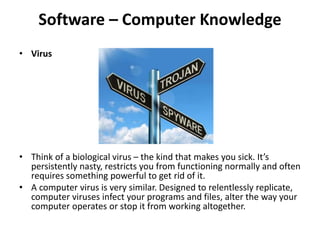
• Virus
• Think of a biological virus – the kind that makes you sick. It’s
persistently nasty, restricts you from functioning normally and often
requires something powerful to get rid of it.
• A computer virus is very similar. Designed to relentlessly replicate,
computer viruses infect your programs and files, alter the way your
computer operates or stop it from working altogether.
Software – Computer Knowledge
• How does a computer get a virus?
• Even if you’re careful you can pick up computer
viruses through normal Web activities like:
• Sharing music, files or photos with other users
• Visiting an infected Website.
• Opening spam email or an email attachment
• Downloading free games, toolbars, media players
and other system utilities
• Installing mainstream software applications
without fully reading license agreements

Basic Computer Knowledge.pptx

  • 1.
  • 2.
    Computer • A Computeris a General purpose machine, commonly consisting of digital circuitry, that accepts (inputs), stores, manipulates, and generates (outputs) data as numbers, text, graphics, voice, video files, or electrical signals, in accordance with instructions called a program.
  • 3.
    More About Computer •Father of the computer – Charles Babbage. • Father of the modern computer – Alan Turing. • Basic Architecture of Computer: John Von Neumann (1947-49). • First Programmer: Lady Ada Lovelace (1880). • First Electronic Computer: ENIAC (1946) – J.P. Eckert & J.W. Mauchly. • The first computer for the home user introduced – IBM in 1981.
  • 4.
    Full form ofComputer • C – Commonly • O – Operated • M – Machine • P – Particularly • U – Used for • T – Technical • E-Education • R – Research
  • 5.
    Characteristics of Computer •Speed • Accuracy • Storage • Diligence • Versatility • Automation
  • 6.
    Computer – AnIntroduction • A computer is a device that can receive process and store data. • However, all computers have several parts in common: • Input devices allow data and commands to the computer (Mouse, Keyboard etc.) • Memory for storing commands and data. • Central Processing Unit which controls the processing. • Monitor Process the information in the form of output.
  • 7.
    Types of computers •Computers range in size and capability. There are supercomputers, very large computers with thousands of microprocessors that perform extremely complex calculations. • There are tiny computers embedded in cars, TVs, stereo systems, calculators, and appliances. These computers are built to perform a few number of tasks.
  • 8.
    Desktop computers • Desktopcomputers design is made for use at a desk or table. • They are typically larger and more powerful than other types of personal computers. • The main component, called the system unit, is usually a rectangular case that sits on or underneath a desk. • Other components, such as the monitor, mouse, and keyboard, connect to the system unit.
  • 9.
    Laptops • The Laptopsare lightweight mobile PCs with a thin screen. • Laptops can operate on batteries, so you can take them anywhere. • Unlike desktops, laptops combine the CPU, screen, and keyboard in a single case. • The screen folds down onto the keyboard when not in use.
  • 10.
    Handheld computers (PDA) •Handheld computers, also known as personal digital assistants (PDAs), are battery-power computers small enough to carry almost anywhere. • These are useful for scheduling appointments, storing addresses and phone numbers, and playing games. • Some have advanced capabilities, such as making telephone calls or accessing the Internet. • Instead of keyboards, handheld computers have touch screens that you use with your finger.
  • 11.
    Peripheral Devices • Theperipheral device connects to a computer system to add functionality. Examples are a mouse, keyboard, monitor, printer and scanner. • A computer peripheral is a device that connects to a computer but is not part of the core computer architecture. • The core elements of a computer are the central processing unit, power supply, motherboard and the computer case that contains those three components.
  • 12.
    Types of PeripheralDevices • There are many peripheral devices, but they fall into three general categories: • Input devices, such as a mouse and a keyboard • Output devices, such as a monitor and a printer • Storage devices, such as a hard drive or flash drive
  • 13.
    Computer Knowledge –Main Parts of Computer Hardware • Computer hardware is what you can physically touch includes the computer case, monitor, keyboard, and mouse. • It also includes all the parts inside the computer case, such as the hard disk drive, motherboard, video card, and many others.
  • 14.
    Computer Knowledge –Main Parts of Computer Input Devices • In computing, an input device is a peripheral (piece of computer hardware equipment) used to provide data and control signals to an information processing system. • It will control devices such as a computer or information appliance. Examples: keyboards, mice, scanners, digital cameras and joysticks.
  • 15.
    Computer Knowledge –Main Parts of Computer Keyboard • A Keyboard is the most fundamental input device for any computer system. • It helps to enter data on the computer. Mouse • A mouse is used to input data by sending a signal to the computer, based on hovering the cursor and selecting with the left mouse button. • The left mouse acts as an ‘enter’ button. The right mouse button can be selected and will often pop up a window of choices. • The scrolling wheel is used to move the view of the screen up or down. • By moving your mouse to a location in a document, on a digital photo or over a choice of music, you can click the left mouse button to place the cursor.
  • 16.
    Basic Knowledge ofComputer – Main Parts of Computer Barcode reader • A barcode reader (or barcode scanner) is an electronic device that can read and output printed barcodes to a computer. • Like a flatbed scanner, it consists of a light source, a lens and a light sensor translating optical impulses into electrical ones.
  • 17.
    Basic Knowledge ofComputer – Main Parts of Computer Digital camera • A camera which produces digital images that can be stored in a computer and displayed on the screen.
  • 18.
    Basic Knowledge ofComputer – Main Parts of Computer Gamepad • The gamepad is a handheld controller for video games.
  • 19.
    Basic Knowledge ofComputer – Main Parts of Computer Joystick • The joystick is a lever that can be moved in several directions to control the movement of an image on a computer or similar display screen. It mainly used in playing games.
  • 20.
    Basic Knowledge ofComputer – Main Parts of Computer • Microphone • Micro Phone is an instrument for converting sound waves into electrical energy variations which may then be amplified, transmitted, or recorded.
  • 21.
    Basic Knowledge ofComputer – Main Parts of Computer • Scanner • The scanner is a device that scans documents and converts them into digital data.
  • 22.
    Basic Knowledge ofComputer – Main Parts of Computer Webcam • A webcam is a video camera connected to a computer, allowing its images to be seen by Internet users.
  • 23.
    Basic Knowledge ofComputer – Main Parts of Computer Optical character recognition (OCR) • Optical character recognition is the mechanical or electronic conversion of images of typed, handwritten or printed text into machine-encoded text.
  • 24.
    Basic Knowledge ofComputer – Main Parts of Computer Digitizer • It converts analogue information into digital form.
  • 25.
    Basic Knowledge ofComputer – Main Parts of Computer Optical Mark Reading (OMR) • Optical Mark Readers reads pencil or pen marks made in pre-defined positions on paper forms as responses to questions or tick list prompts.
  • 26.
    Structure of CPU ComputerKnowledge Basics
  • 27.
    Input and Outputdevices Input Devices – Computer Knowledge • An input device feeds data to the computer system for processing. • We are going to discuss the most commonly used input devices in this article.
  • 28.
    Input and Outputdevices Input Devices – Computer Knowledge Keyboard • The computer keyboard is to enter text information into the computer. • The main use of the keyboard is to type commands directing the computer to perform certain actions.
  • 29.
    Input Devices –Computer Knowledge Mouse • A device that controls the movement of the cursor or pointer on a display screen. • A mouse is a small object you can roll along a hard, flat surface. • The invention of the mouse is made by Douglas Engelbart of Stanford Research Center in 1963.
  • 30.
    Input Devices –Computer Knowledge Joystick • Joysticks and similar game controllers can also be connected to a computer as pointing devices
  • 31.
    Input Devices –Computer Knowledge Scanner • A scanner is a device that images a printed page or graphics by digitizing it, producing an image made of tiny pixels of different brightness and colour values which are represented numerically and sent to the computer. • Scanners not only scan graphics, but they can also scan pages of text.
  • 32.
    Input Devices –Computer Knowledge MIDI Devices • MIDI (Musical Instrument Digital Interface) is a system design to transmit information between electronic musical instruments.
  • 33.
    Input Devices –Computer Knowledge Trackball • The trackball is sort of like an upside-down mouse, with the ball located on top. • You use your fingers to roll the trackball, and internal rollers (similar to what’s inside a mouse) sense the motion which is transmitted to the computer. • Trackballs have the advantage over mice in that the body of the trackball remains stationary on your desk.
  • 34.
    Input Devices –Computer Knowledge Graphics Tablet • A graphics tablet consists of an electronic writing area and a special “pen” that works with it. • A graphics tablet allows creating graphical images with motions and actions.
  • 35.
    Computer Knowledge –Output Devices Monitor • Monitors, commonly called as Visual Display Unit (VDU), are the main output device of a computer. • It forms images from tiny dots, known as pixels that make an arrangement in a form of a rectangular form. • The sharpness of the image depends upon the number of pixels.
  • 36.
    Computer Knowledge –Output Devices Printers • The printer is an output device, which is to print information on paper. • There are two types of printers: 1. Impact Printers 2. Non-Impact Printers
  • 37.
    Computer Knowledge –Output Devices Plotters • A plotter is a printer that interprets commands from a computer to make line drawings on paper with one or more automated pens. • Unlike a regular printer, the plotter can draw continuous point-to-point lines directly from vector graphics files or commands.
  • 38.
    Computer Knowledge –Output Devices Projector • A projector or image projector is an optical device, which projects an image (or moving images) onto a surface, commonly a projection screen.
  • 39.
    Computer Knowledge –Output Devices Speakers • Speakers are one of the most common output devices with computer systems. • Some speakers are designed for work specifically with computers, while others can be hooked up to any type of sound system.
  • 40.
    Memory • Memory isthe storage space in the computer where data get the process and instructions required for processing get store. The memory is split into a large number of small parts known as cells. Each location or cell has a unique address which varies from zero to memory size minus one.
  • 41.
  • 42.
    Memory Memory is ofthree types • Cache Memory • Primary Memory • Secondary Memory
  • 43.
    Memory Cache Memory • Cachememory is a very high-speed semiconductor memory which can speed up CPU. It acts as a buffer between the CPU and main memory.
  • 44.
    Memory Primary Memory (MainMemory) • Primary memory holds only those data and instructions on which computer is currently working. • It has limited capacity and data is lost when power is switched off. • It is generally made up of the semiconductor device. • The data and instruction require being processed reside in main memory.
  • 45.
    Memory There are twosub-categories ROM and RAM in Primary memory. RAM : • The RAM (random access memory) is the place in a computer where the operating system, application programs, and data in current use are kept. • RAM is much faster to read from and write to than the other kinds of storage in a computer, the hard disk, floppy disk, and CD-ROM. It has two parts: • A. SRAM: Static Random Access Memory • B. DRAM: Dynamic Random Access Memory.
  • 46.
    Memory ROM: • As thename suggests ROM, stores information that can only be read. Modifying it is impossible or very difficult. • ROM is also a type of non-volatile storage, which means that the information in it stays even if the computer loses power. • This is another type of ROM that is impossible or difficult to change. • PROM – Programmable Read Only Memory. • EPROM – Erasable Programmable Read Only Memory. • EEPROM – Electrically Erasable Programmable Read Only Memory.
  • 47.
    Important Computer Knowledge– Development of computer • Abacus • Abacus is known to be the first mechanical calculating device. • Which was used to be performed addition and subtraction easily and speedily. • Abacus is made up of the wooden frame in which rod where fitted across with rounds beads sliding on the rod.
  • 48.
    Important Computer Knowledge– Development of computer • Pascal Calculator • In the year 1642, Blaise Pascal a French scientist invented the adding machine called Pascal’s calculator, which represents the position of the digit with the help of gears in it.
  • 49.
    Important Computer Knowledge– Development of computer • Analytical Engine • A scientist from England knows to be Charles Babbage invented such the machine. • This device is known as Analytical engine and it is the first mechanical computer. • It includes such feature which we use in today’s computer language. • For this great invention of the computer, Sir Charles Babbage is also known as the father of the computer.
  • 50.
    Generation of computers– Computer Knowledge • Ist Generation: (1940-1956) • Vacuum tubes got use in circuits. • These computers are very large in size. • It requires a large amount of electricity. • They produce more heat. • They are less revival. • Ex.: ENIAC, UNIVAC.
  • 51.
    Generation of computers– Computer Knowledge • IInd Generation: (1957-1962) • Vacuum tubes got the replacement by transistors in circuits. • Small size as compared to Ist Generation computers. • Less amount of heat Generation. • Less electricity consumption. • Ex.: IBM 350
  • 52.
    Generation of computers– Computer Knowledge • IIIrd Generation: (1963-1972) • Transistors got the replacement by I.C. in circuits. (I.C.- Integrated circuits) • Small size as compared to IInd Generation computer. • Less amount of heat as compared to IInd Generation computer. • Less electricity consumption. • Faster and more accurate than the IInd Generation computer. • Ex.: IBM 360/370
  • 53.
    Generation of computers– Computer Knowledge • IVth Generation: (1973-Present) • LSI and LSVI technologies are used. • LSI- Large-scale integration. • LSVI-Very large scale integration. • Apple-II, STAR 1000
  • 54.
    Generation of computers– Computer Knowledge • Vth Generation: (Present & Beyond) • It is based on the technique of Artificial Intelligence (AI). • The computer can understand spoken words. • Scientists are constantly working to increase the processing power of computers. • They are trying to create a computer with real IQ with the help of advanced programming and technologies. • Ex.: IBM Watson.
  • 55.
    Basic Computer Knowledge– Classification of Computers Classification of working system • Digital computer • The digital computer is the most common type of computer and is used to process information with quantities using digits, usually using the binary number system. Ex – MacBook.
  • 56.
    Basic Computer Knowledge– Classification of Computers • Analog Computer • Analog computer that operates with numbers represented by directly measurable quantities (as voltages or rotations) — compare digital computer, hybrid computer.
  • 57.
    Basic Computer Knowledge– Classification of Computers • Hybrid Computer • Hybrid Computer is a computer that combines the characteristics of a digital computer and an analogue computer by its capacity to accept input and provide output in either digital or analogue form and to process information digitally.
  • 58.
    Software – ComputerKnowledge • Computer software is a program or simply software is a series of instructions that directs a computer to perform specific tasks or operations. Computer software consists of computer programs, libraries and related non- executable data (such as online documentation or digital media).
  • 59.
    Software – ComputerKnowledge • There are two main types of software: systems software and application software. • Systems Software • Systems software includes the programs that dedicate to managing the computer itself, such as the operating system, file management utilities, and disk operating system (or DOS). • The operating system manages the computer hardware resources in addition to applications and data. • Without systems software installed on our computers, we would have to type the instructions for everything we wanted the computer to do.
  • 60.
    Software – ComputerKnowledge • Applications Software • Application software, or simply applications, are often called productivity programs or end-user programs. • They will enable the user to complete tasks such as creating documents, spreadsheets, databases, and publications, doing online research, sending email, designing graphics, running businesses, and even playing games. • Application software is specific to the task which can be as simple as a calculator application or as complex as a word processing application. • When you begin creating a document, the word processing software has already set the margins, font style and size, and the line spacing for you. • But you can change these settings, and you have many more formatting options available. • For example, the word processor application makes it easy to add colour, headings, add pictures or delete, copy, move, and change the document’s appearance to suit your needs.
  • 61.
    Software – ComputerKnowledge Bug • A software bug is an error, flaw, failure or fault in a computer program or system that causes it to produce an incorrect or unexpected result, or to behave in unintended ways.
  • 62.
    Software – ComputerKnowledge • Virus • Think of a biological virus – the kind that makes you sick. It’s persistently nasty, restricts you from functioning normally and often requires something powerful to get rid of it. • A computer virus is very similar. Designed to relentlessly replicate, computer viruses infect your programs and files, alter the way your computer operates or stop it from working altogether.
  • 63.
    Software – ComputerKnowledge • How does a computer get a virus? • Even if you’re careful you can pick up computer viruses through normal Web activities like: • Sharing music, files or photos with other users • Visiting an infected Website. • Opening spam email or an email attachment • Downloading free games, toolbars, media players and other system utilities • Installing mainstream software applications without fully reading license agreements