INTRODUCTION TO
POWERPOINT
14-07-2021 SOA ,NIU FIRST YEAR 1
WHAT IS POWERPOINT?
• PowerPoint (PPT) is a powerful, easy-to-use presentation
graphics software program which allows you to create
professional-looking electronic slide shows. PPT is used to
present information in an organized manner to an individual
or group. Using clip art, sound clips, movie clips, graphs,
organization charts, imported Web screens, and many other
features, you can easily create a presentation that will
impress your audience and convey your message clearly and
professionally.
14-07-2021 2
USING HELP
• PowerPoint Help menu offers you numerous ways to find help for a particular task. Type a subject in the
search window to see help topics.
14-07-2021 3
• EXERCISE: Creating a Presentation (Please follow along with instructor)
14-07-2021 4
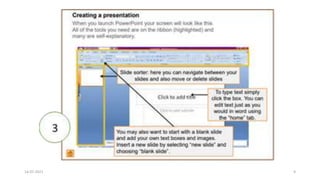
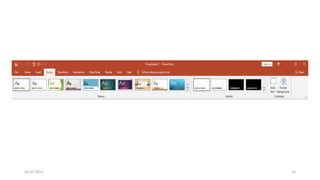
• (Step 1) – Select a design template
1. In the PPT Start-up Window, click “From Design Template” located on the right-hand side of the screen under
the heading “New.”
2. Scroll down to see the various templates and click on one of them.
14-07-2021 5
1
14-07-2021 6
14-07-2021 7
POWER POINT
14-07-2021 8
14-07-2021 9
14-07-2021 10
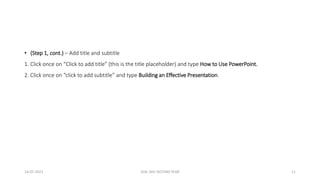
• (Step 1, cont.) – Add title and subtitle
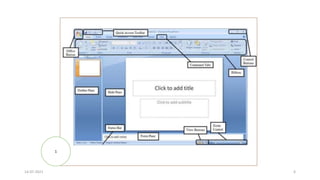
1. Click once on “Click to add title” (this is the title placeholder) and type How to Use PowerPoint.
2. Click once on “click to add subtitle” and type Building an Effective Presentation.
14-07-2021 SOA ,NIU SECOND YEAR 11
POWERPOINT
• Welcome to PP session
14-07-2021 12
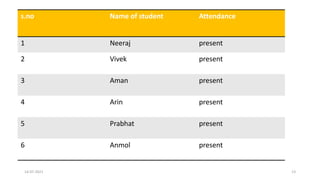
s.no Name of student Attendance
1 Neeraj present
2 Vivek present
3 Aman present
4 Arin present
5 Prabhat present
6 Anmol present
14-07-2021 13
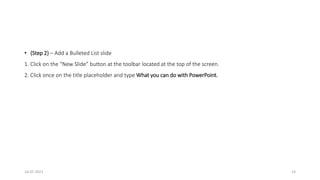
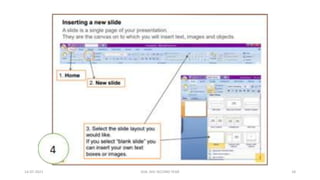
• (Step 2) – Add a Bulleted List slide
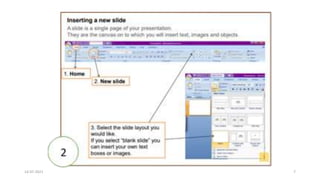
1. Click on the “New Slide” button at the toolbar located at the top of the screen.
2. Click once on the title placeholder and type What you can do with PowerPoint.
14-07-2021 14
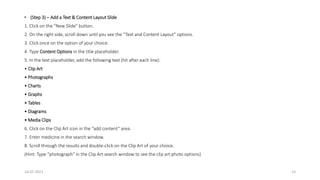
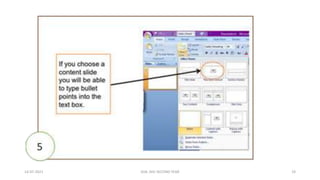
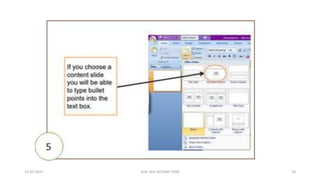
• (Step 3) – Add a Text & Content Layout Slide
1. Click on the “New Slide” button.
2. On the right side, scroll down until you see the “Text and Content Layout” options.
3. Click once on the option of your choice.
4. Type Content Options in the title placeholder.
5. In the text placeholder, add the following text (hit after each line):
• Clip Art
• Photographs
• Charts
• Graphs
• Tables
• Diagrams
• Media Clips
6. Click on the Clip Art icon in the “add content” area.
7. Enter medicine in the search window.
8. Scroll through the results and double-click on the Clip Art of your choice.
(Hint: Type “photograph” in the Clip Art search window to see the clip art photo options)
14-07-2021 15
Jaswanth thada, Rajasthan
14-07-2021 SOA ,NIU SECOND YEAR 16
14-07-2021 SOA ,NIU SECOND YEAR 17
14-07-2021 SOA ,NIU SECOND YEAR 18
14-07-2021 SOA ,NIU SECOND YEAR 19
14-07-2021 SOA ,NIU SECOND YEAR 20
14-07-2021 SOA ,NIU SECOND YEAR 21
14-07-2021 SOA ,NIU SECOND YEAR 22
POWER POINT PRESENTATION
14-07-2021 SOA ,NIU SECOND YEAR 23
14-07-2021 SOA ,NIU SECOND YEAR 24
14-07-2021 SOA ,NIU SECOND YEAR 25
9
14-07-2021 SOA ,NIU SECOND YEAR 26
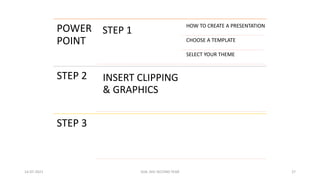
POWER
POINT
STEP 1
HOW TO CREATE A PRESENTATION
CHOOSE A TEMPLATE
SELECT YOUR THEME
STEP 2 INSERT CLIPPING
& GRAPHICS
STEP 3
14-07-2021 SOA ,NIU SECOND YEAR 27
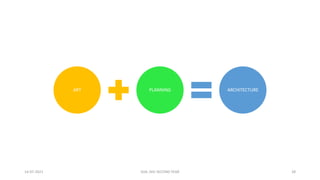
ART PLANNING ARCHITECTURE
14-07-2021 SOA ,NIU SECOND YEAR 28
14-07-2021 SOA ,NIU SECOND YEAR 29
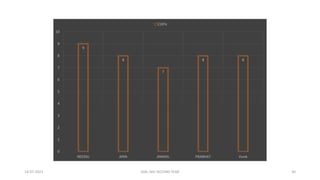
9
8
7
8 8
0
1
2
3
4
5
6
7
8
9
10
NEERAJ ARIN ANMOL PRABHAT Vivek
CGPA
14-07-2021 SOA ,NIU SECOND YEAR 30
14-07-2021 SOA ,NIU SECOND YEAR 31
CREATE YOUR PORTFOLIO
ASSIGNMENT :
THANK YOU
14-07-2021 SOA ,NIU FIRST YEAR 32

Power point

  • 1.
  • 2.
    WHAT IS POWERPOINT? •PowerPoint (PPT) is a powerful, easy-to-use presentation graphics software program which allows you to create professional-looking electronic slide shows. PPT is used to present information in an organized manner to an individual or group. Using clip art, sound clips, movie clips, graphs, organization charts, imported Web screens, and many other features, you can easily create a presentation that will impress your audience and convey your message clearly and professionally. 14-07-2021 2
  • 3.
    USING HELP • PowerPointHelp menu offers you numerous ways to find help for a particular task. Type a subject in the search window to see help topics. 14-07-2021 3
  • 4.
    • EXERCISE: Creatinga Presentation (Please follow along with instructor) 14-07-2021 4
  • 5.
    • (Step 1)– Select a design template 1. In the PPT Start-up Window, click “From Design Template” located on the right-hand side of the screen under the heading “New.” 2. Scroll down to see the various templates and click on one of them. 14-07-2021 5
  • 6.
  • 7.
  • 8.
  • 9.
  • 10.
  • 11.
    • (Step 1,cont.) – Add title and subtitle 1. Click once on “Click to add title” (this is the title placeholder) and type How to Use PowerPoint. 2. Click once on “click to add subtitle” and type Building an Effective Presentation. 14-07-2021 SOA ,NIU SECOND YEAR 11
  • 12.
    POWERPOINT • Welcome toPP session 14-07-2021 12
  • 13.
    s.no Name ofstudent Attendance 1 Neeraj present 2 Vivek present 3 Aman present 4 Arin present 5 Prabhat present 6 Anmol present 14-07-2021 13
  • 14.
    • (Step 2)– Add a Bulleted List slide 1. Click on the “New Slide” button at the toolbar located at the top of the screen. 2. Click once on the title placeholder and type What you can do with PowerPoint. 14-07-2021 14
  • 15.
    • (Step 3)– Add a Text & Content Layout Slide 1. Click on the “New Slide” button. 2. On the right side, scroll down until you see the “Text and Content Layout” options. 3. Click once on the option of your choice. 4. Type Content Options in the title placeholder. 5. In the text placeholder, add the following text (hit after each line): • Clip Art • Photographs • Charts • Graphs • Tables • Diagrams • Media Clips 6. Click on the Clip Art icon in the “add content” area. 7. Enter medicine in the search window. 8. Scroll through the results and double-click on the Clip Art of your choice. (Hint: Type “photograph” in the Clip Art search window to see the clip art photo options) 14-07-2021 15
  • 16.
    Jaswanth thada, Rajasthan 14-07-2021SOA ,NIU SECOND YEAR 16
  • 17.
    14-07-2021 SOA ,NIUSECOND YEAR 17
  • 18.
    14-07-2021 SOA ,NIUSECOND YEAR 18
  • 19.
    14-07-2021 SOA ,NIUSECOND YEAR 19
  • 20.
    14-07-2021 SOA ,NIUSECOND YEAR 20
  • 21.
    14-07-2021 SOA ,NIUSECOND YEAR 21
  • 22.
    14-07-2021 SOA ,NIUSECOND YEAR 22
  • 23.
    POWER POINT PRESENTATION 14-07-2021SOA ,NIU SECOND YEAR 23
  • 24.
    14-07-2021 SOA ,NIUSECOND YEAR 24
  • 25.
    14-07-2021 SOA ,NIUSECOND YEAR 25
  • 26.
    9 14-07-2021 SOA ,NIUSECOND YEAR 26
  • 27.
    POWER POINT STEP 1 HOW TOCREATE A PRESENTATION CHOOSE A TEMPLATE SELECT YOUR THEME STEP 2 INSERT CLIPPING & GRAPHICS STEP 3 14-07-2021 SOA ,NIU SECOND YEAR 27
  • 28.
    ART PLANNING ARCHITECTURE 14-07-2021SOA ,NIU SECOND YEAR 28
  • 29.
    14-07-2021 SOA ,NIUSECOND YEAR 29
  • 30.
    9 8 7 8 8 0 1 2 3 4 5 6 7 8 9 10 NEERAJ ARINANMOL PRABHAT Vivek CGPA 14-07-2021 SOA ,NIU SECOND YEAR 30
  • 31.
    14-07-2021 SOA ,NIUSECOND YEAR 31 CREATE YOUR PORTFOLIO ASSIGNMENT :
  • 32.
    THANK YOU 14-07-2021 SOA,NIU FIRST YEAR 32