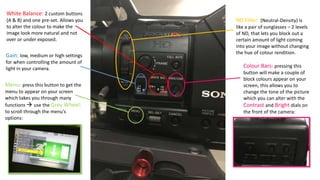
Gain: low, medium or high settings
for when controlling the amount of
light in your camera.
White Balance: 2 custom buttons
(A & B) and one pre-set. Allows you
to alter the colour to make the
image look more natural and not
over or under exposed.
Menu: press this button to get the
menu to appear on your screen
which takes you through many
functions  use the Grey Wheel:
to scroll through the menu’s
options:
ND Filter: (Neutral-Density) is
like a pair of sunglasses – 2 levels
of ND, that lets you block out a
certain amount of light coming
into your image without changing
the hue of colour rendition.
Colour Bars: pressing this
button will make a couple of
block colours appear on your
screen, this allows you to
change the tone of the picture
which you can alter with the
Contrast and Bright dials on
the front of the camera:
Audio: These buttons allow
you to be in control of the
sound. The top two are for
channel 1 and the bottom two
are for channel 2. You can
either have your audio on
automatic or manual and
either interior or exterior,
depending on where you are
shooting.
Levels: The audio levels are
behind a clear lid to ensure there’s
no altering of them once they’ve
been put into place. You can adjust
the levels of sound from each
channels, ranging from 0 to 10.
Memory Card Slot: There
are two slots so you can
record lots of footage. When
the card is inside correctly,
the light will flash green so
you know it’s working. EX3’s
use SxS cards which are very
expensive, and so there are
adapters that allow SD cards
to be placed into the slot:
Don’t forget to format your
card every time you put it in
the camera so make sure all
wanted media on there is
saved to a computer!
Focus: The furthest ring on
the camera allows you to focus
on your subject. You either
zoom into something, focus
the image and zoom out to
ensure your picture is clear, or
for artistic shots, you can go
from blurry to focus easily and
cleanly.
Zoom: The middle ring lets you
zoom in and out of whatever
you are filming. There is a small
stick on the ring that is helpful
for when using the zoom.
Iris: The thinnest and closest
ring is the iris, which allows you
to alter the brightness of your
image.
Manual/Auto: There are
switches between the rings
that enables you to either be
on auto (the camera’s settings)
or manual (your settings)
which is what you should be
using so you can choose how
you want your footage to look.
Lens Info: Assign 1 button, is a
depth-of-field indicator that you
press once to turn on, and again for
it to be turned off.
Brightness Display: Assign 2
button, is a brightness-display
indicator which will show on
the menu screen so you can
see how bright your image is.
Histogram: Assign 3 button,
is a histogram indicator,
which appears on your screen
and shows you a moving
graph that lets you know how
luminous your image is. It’s a
good tool to check light
levels:
Peaking: allows you to quickly
focus on the subject you want
and also to change what you are
wanting to focus on, e.g. focusing
on something in the foreground,
then switching to something in
the background. When using this
dial, you need to also use the
zoom ring on the camera.
Contrast and Brightness:
These dials are used when you
want to alter the brightness of
the image, and when you’re on
the Colour Bars.
Zebra: This button once
pressed shows a zebra
striped pattern on your
viewfinder so you can see
when you are close to
overexposure.
Mirror Image: This switch
enables you to flip the image in
your viewfinder, so if you have the
camera facing you and you want to
see what’s in the screen, you can.
White Balance: This
button lets you can
make your image
more natural. Simply
put a piece of white
paper in front of the
lens, focus on it and
press white balance
and it should give you
a more natural image.
Shutter: the door
opens for an instant and
the film is exposed to
the incoming light. The
shutter "opens" and
"closes" once for each
frame of video. The
main effect of higher
shutter speeds is that
individual frames
appear sharper, due to
the minimisation
of motion blur. This
occurs when the subject
moves within the frame
while the shutter is
open. The less time the
shutter is open (i.e. the
faster the shutter
speed), the less
movement will take
place.
Sony PMW-EX3 Annotation

Sony PMW-EX3 Annotation

  • 1.
    Gain: low, mediumor high settings for when controlling the amount of light in your camera. White Balance: 2 custom buttons (A & B) and one pre-set. Allows you to alter the colour to make the image look more natural and not over or under exposed. Menu: press this button to get the menu to appear on your screen which takes you through many functions  use the Grey Wheel: to scroll through the menu’s options: ND Filter: (Neutral-Density) is like a pair of sunglasses – 2 levels of ND, that lets you block out a certain amount of light coming into your image without changing the hue of colour rendition. Colour Bars: pressing this button will make a couple of block colours appear on your screen, this allows you to change the tone of the picture which you can alter with the Contrast and Bright dials on the front of the camera:
  • 2.
    Audio: These buttonsallow you to be in control of the sound. The top two are for channel 1 and the bottom two are for channel 2. You can either have your audio on automatic or manual and either interior or exterior, depending on where you are shooting. Levels: The audio levels are behind a clear lid to ensure there’s no altering of them once they’ve been put into place. You can adjust the levels of sound from each channels, ranging from 0 to 10. Memory Card Slot: There are two slots so you can record lots of footage. When the card is inside correctly, the light will flash green so you know it’s working. EX3’s use SxS cards which are very expensive, and so there are adapters that allow SD cards to be placed into the slot: Don’t forget to format your card every time you put it in the camera so make sure all wanted media on there is saved to a computer!
  • 3.
    Focus: The furthestring on the camera allows you to focus on your subject. You either zoom into something, focus the image and zoom out to ensure your picture is clear, or for artistic shots, you can go from blurry to focus easily and cleanly. Zoom: The middle ring lets you zoom in and out of whatever you are filming. There is a small stick on the ring that is helpful for when using the zoom. Iris: The thinnest and closest ring is the iris, which allows you to alter the brightness of your image. Manual/Auto: There are switches between the rings that enables you to either be on auto (the camera’s settings) or manual (your settings) which is what you should be using so you can choose how you want your footage to look.
  • 4.
    Lens Info: Assign1 button, is a depth-of-field indicator that you press once to turn on, and again for it to be turned off. Brightness Display: Assign 2 button, is a brightness-display indicator which will show on the menu screen so you can see how bright your image is. Histogram: Assign 3 button, is a histogram indicator, which appears on your screen and shows you a moving graph that lets you know how luminous your image is. It’s a good tool to check light levels:
  • 5.
    Peaking: allows youto quickly focus on the subject you want and also to change what you are wanting to focus on, e.g. focusing on something in the foreground, then switching to something in the background. When using this dial, you need to also use the zoom ring on the camera. Contrast and Brightness: These dials are used when you want to alter the brightness of the image, and when you’re on the Colour Bars. Zebra: This button once pressed shows a zebra striped pattern on your viewfinder so you can see when you are close to overexposure. Mirror Image: This switch enables you to flip the image in your viewfinder, so if you have the camera facing you and you want to see what’s in the screen, you can.
  • 6.
    White Balance: This buttonlets you can make your image more natural. Simply put a piece of white paper in front of the lens, focus on it and press white balance and it should give you a more natural image. Shutter: the door opens for an instant and the film is exposed to the incoming light. The shutter "opens" and "closes" once for each frame of video. The main effect of higher shutter speeds is that individual frames appear sharper, due to the minimisation of motion blur. This occurs when the subject moves within the frame while the shutter is open. The less time the shutter is open (i.e. the faster the shutter speed), the less movement will take place.