Adobe Photoshop is a softwares that will
enable the students to use the various tools
and effects available for photo editing and
              graphic design.

 Because of the growth of technology in this
day and age, it is necessary to have the ability
to work with digital media. This presentation
  is an introduction to the basics of Adobe
                   Photoshop.
Basic concepts


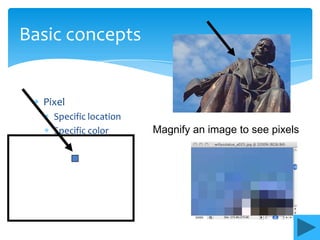
  Pixel
    Specific location
    Specific color      Magnify an image to see pixels
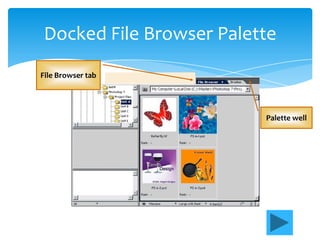
Docked File Browser Palette
File Browser tab


                         Palette well
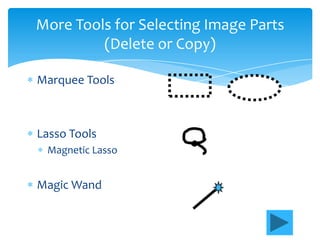
More Tools for Selecting Image Parts
         (Delete or Copy)

Marquee Tools


Lasso Tools
 Magnetic Lasso


Magic Wand
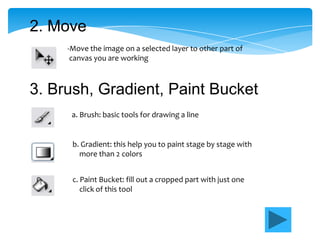
2. Move
     -Move the image on a selected layer to other part of
      canvas you are working


3. Brush, Gradient, Paint Bucket
      a. Brush: basic tools for drawing a line


      b. Gradient: this help you to paint stage by stage with
        more than 2 colors


      c. Paint Bucket: fill out a cropped part with just one
         click of this tool
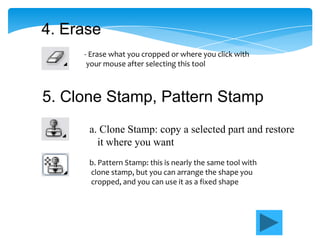
4. Erase
     - Erase what you cropped or where you click with
      your mouse after selecting this tool


5. Clone Stamp, Pattern Stamp
      a. Clone Stamp: copy a selected part and restore
        it where you want
      b. Pattern Stamp: this is nearly the same tool with
      clone stamp, but you can arrange the shape you
      cropped, and you can use it as a fixed shape
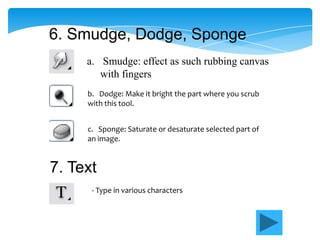
6. Smudge, Dodge, Sponge
     a. Smudge: effect as such rubbing canvas
        with fingers
     b. Dodge: Make it bright the part where you scrub
     with this tool.


     c. Sponge: Saturate or desaturate selected part of
     an image.


7. Text
      - Type in various characters
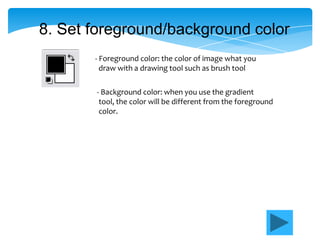
8. Set foreground/background color
       - Foreground color: the color of image what you
         draw with a drawing tool such as brush tool

       - Background color: when you use the gradient
        tool, the color will be different from the foreground
        color.
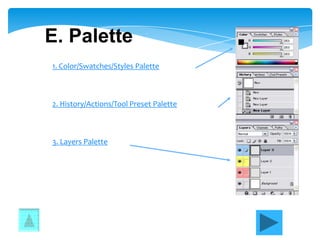
E. Palette
1. Color/Swatches/Styles Palette


2. History/Actions/Tool Preset Palette


3. Layers Palette
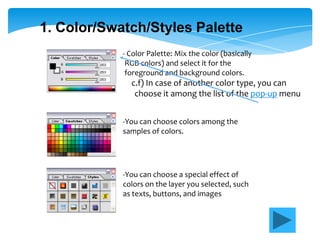
1. Color/Swatch/Styles Palette
            - Color Palette: Mix the color (basically
             RGB colors) and select it for the
             foreground and background colors.
              c.f) In case of another color type, you can
               choose it among the list of the pop-up menu


            -You can choose colors among the
            samples of colors.


            -You can choose a special effect of
            colors on the layer you selected, such
            as texts, buttons, and images
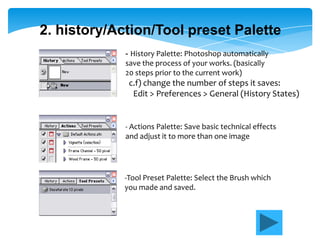
2. history/Action/Tool preset Palette
             - History Palette: Photoshop automatically
             save the process of your works. (basically
             20 steps prior to the current work)
              c.f) change the number of steps it saves:
               Edit > Preferences > General (History States)


             - Actions Palette: Save basic technical effects
             and adjust it to more than one image


             -Tool Preset Palette: Select the Brush which
             you made and saved.
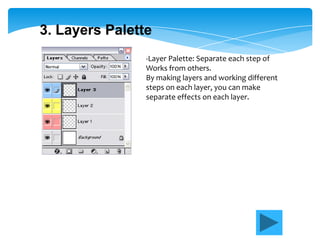
3. Layers Palette
                -Layer Palette: Separate each step of
                Works from others.
                By making layers and working different
                steps on each layer, you can make
                separate effects on each layer.
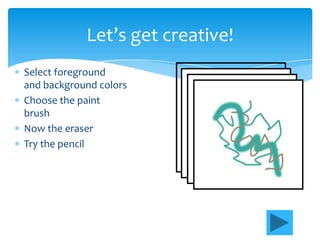
Let’s get creative!
Select foreground
and background colors
Choose the paint
brush
Now the eraser
Try the pencil
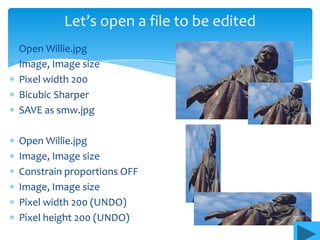
Let’s open a file to be edited
Open Willie.jpg
Image, Image size
Pixel width 200
Bicubic Sharper
SAVE as smw.jpg

Open Willie.jpg
Image, Image size
Constrain proportions OFF
Image, Image size
Pixel width 200 (UNDO)
Pixel height 200 (UNDO)
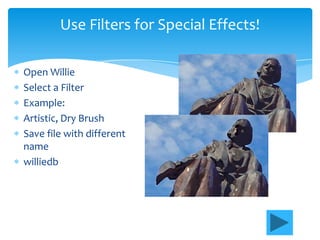
Use Filters for Special Effects!

Open Willie
Select a Filter
Example:
Artistic, Dry Brush
Save file with different
name
williedb
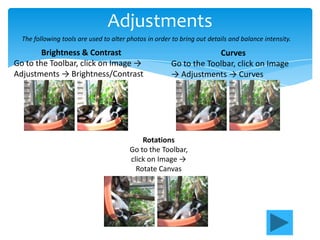
Adjustments
  The following tools are used to alter photos in order to bring out details and balance intensity.

        Brightness & Contrast                                       Curves
Go to the Toolbar, click on Image →                    Go to the Toolbar, click on Image
Adjustments → Brightness/Contrast                      → Adjustments → Curves


                                            Rotations
                                        Go to the Toolbar,
                                        click on Image →
                                          Rotate Canvas
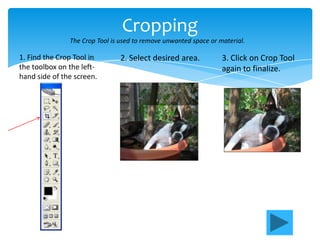
Cropping
               The Crop Tool is used to remove unwanted space or material.

1. Find the Crop Tool in        2. Select desired area.           3. Click on Crop Tool
the toolbox on the left-                                          again to finalize.
hand side of the screen.
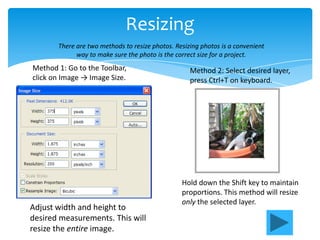
Resizing
       There are two methods to resize photos. Resizing photos is a convenient
             way to make sure the photo is the correct size for a project.
Method 1: Go to the Toolbar,                        Method 2: Select desired layer,
click on Image → Image Size.                        press Ctrl+T on keyboard.


                                                 Hold down the Shift key to maintain
                                                 proportions. This method will resize
                                                 only the selected layer.
Adjust width and height to
desired measurements. This will
resize the entire image.
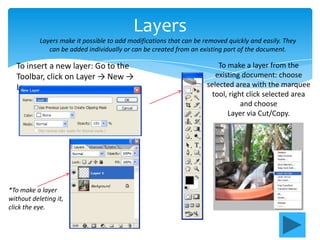
Layers
           Layers make it possible to add modifications that can be removed quickly and easily. They
              can be added individually or can be created from an existing part of the document.

  To insert a new layer: Go to the                                       To make a layer from the
  Toolbar, click on Layer → New →                                       existing document: choose
  Layer.                                                             selected area with the marquee
                                                                       tool, right click selected area
                                                                                 and choose
                                                                            Layer via Cut/Copy.


*To make a layer
without deleting it,
click the eye.
Ppt

Ppt

  • 2.
    Adobe Photoshop isa softwares that will enable the students to use the various tools and effects available for photo editing and graphic design. Because of the growth of technology in this day and age, it is necessary to have the ability to work with digital media. This presentation is an introduction to the basics of Adobe Photoshop.
  • 3.
    Basic concepts Pixel Specific location Specific color Magnify an image to see pixels
  • 4.
    Docked File BrowserPalette File Browser tab Palette well
  • 5.
    More Tools forSelecting Image Parts (Delete or Copy) Marquee Tools Lasso Tools Magnetic Lasso Magic Wand
  • 6.
    2. Move -Move the image on a selected layer to other part of canvas you are working 3. Brush, Gradient, Paint Bucket a. Brush: basic tools for drawing a line b. Gradient: this help you to paint stage by stage with more than 2 colors c. Paint Bucket: fill out a cropped part with just one click of this tool
  • 7.
    4. Erase - Erase what you cropped or where you click with your mouse after selecting this tool 5. Clone Stamp, Pattern Stamp a. Clone Stamp: copy a selected part and restore it where you want b. Pattern Stamp: this is nearly the same tool with clone stamp, but you can arrange the shape you cropped, and you can use it as a fixed shape
  • 8.
    6. Smudge, Dodge,Sponge a. Smudge: effect as such rubbing canvas with fingers b. Dodge: Make it bright the part where you scrub with this tool. c. Sponge: Saturate or desaturate selected part of an image. 7. Text - Type in various characters
  • 9.
    8. Set foreground/backgroundcolor - Foreground color: the color of image what you draw with a drawing tool such as brush tool - Background color: when you use the gradient tool, the color will be different from the foreground color.
  • 10.
    E. Palette 1. Color/Swatches/StylesPalette 2. History/Actions/Tool Preset Palette 3. Layers Palette
  • 11.
    1. Color/Swatch/Styles Palette - Color Palette: Mix the color (basically RGB colors) and select it for the foreground and background colors. c.f) In case of another color type, you can choose it among the list of the pop-up menu -You can choose colors among the samples of colors. -You can choose a special effect of colors on the layer you selected, such as texts, buttons, and images
  • 12.
    2. history/Action/Tool presetPalette - History Palette: Photoshop automatically save the process of your works. (basically 20 steps prior to the current work) c.f) change the number of steps it saves: Edit > Preferences > General (History States) - Actions Palette: Save basic technical effects and adjust it to more than one image -Tool Preset Palette: Select the Brush which you made and saved.
  • 13.
    3. Layers Palette -Layer Palette: Separate each step of Works from others. By making layers and working different steps on each layer, you can make separate effects on each layer.
  • 14.
    Let’s get creative! Selectforeground and background colors Choose the paint brush Now the eraser Try the pencil
  • 15.
    Let’s open afile to be edited Open Willie.jpg Image, Image size Pixel width 200 Bicubic Sharper SAVE as smw.jpg Open Willie.jpg Image, Image size Constrain proportions OFF Image, Image size Pixel width 200 (UNDO) Pixel height 200 (UNDO)
  • 16.
    Use Filters forSpecial Effects! Open Willie Select a Filter Example: Artistic, Dry Brush Save file with different name williedb
  • 17.
    Adjustments Thefollowing tools are used to alter photos in order to bring out details and balance intensity. Brightness & Contrast Curves Go to the Toolbar, click on Image → Go to the Toolbar, click on Image Adjustments → Brightness/Contrast → Adjustments → Curves Rotations Go to the Toolbar, click on Image → Rotate Canvas
  • 18.
    Cropping The Crop Tool is used to remove unwanted space or material. 1. Find the Crop Tool in 2. Select desired area. 3. Click on Crop Tool the toolbox on the left- again to finalize. hand side of the screen.
  • 19.
    Resizing There are two methods to resize photos. Resizing photos is a convenient way to make sure the photo is the correct size for a project. Method 1: Go to the Toolbar, Method 2: Select desired layer, click on Image → Image Size. press Ctrl+T on keyboard. Hold down the Shift key to maintain proportions. This method will resize only the selected layer. Adjust width and height to desired measurements. This will resize the entire image.
  • 20.
    Layers Layers make it possible to add modifications that can be removed quickly and easily. They can be added individually or can be created from an existing part of the document. To insert a new layer: Go to the To make a layer from the Toolbar, click on Layer → New → existing document: choose Layer. selected area with the marquee tool, right click selected area and choose Layer via Cut/Copy. *To make a layer without deleting it, click the eye.