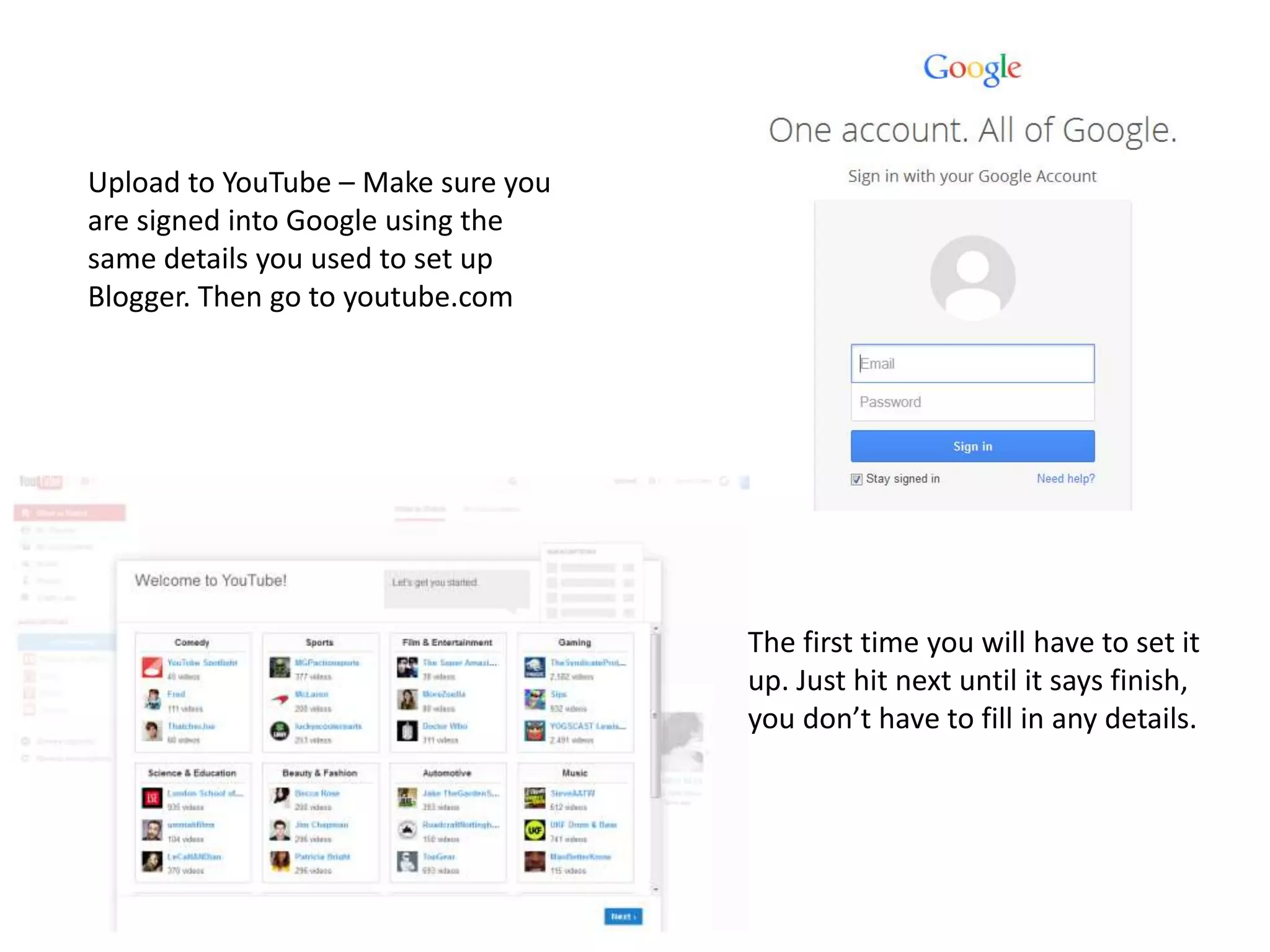
Upload to YouTube – Make sure you
are signed into Google using the
same details you used to set up
Blogger. Then go to youtube.com
The first time you will have to set it
up. Just hit next until it says finish,
you don’t have to fill in any details.
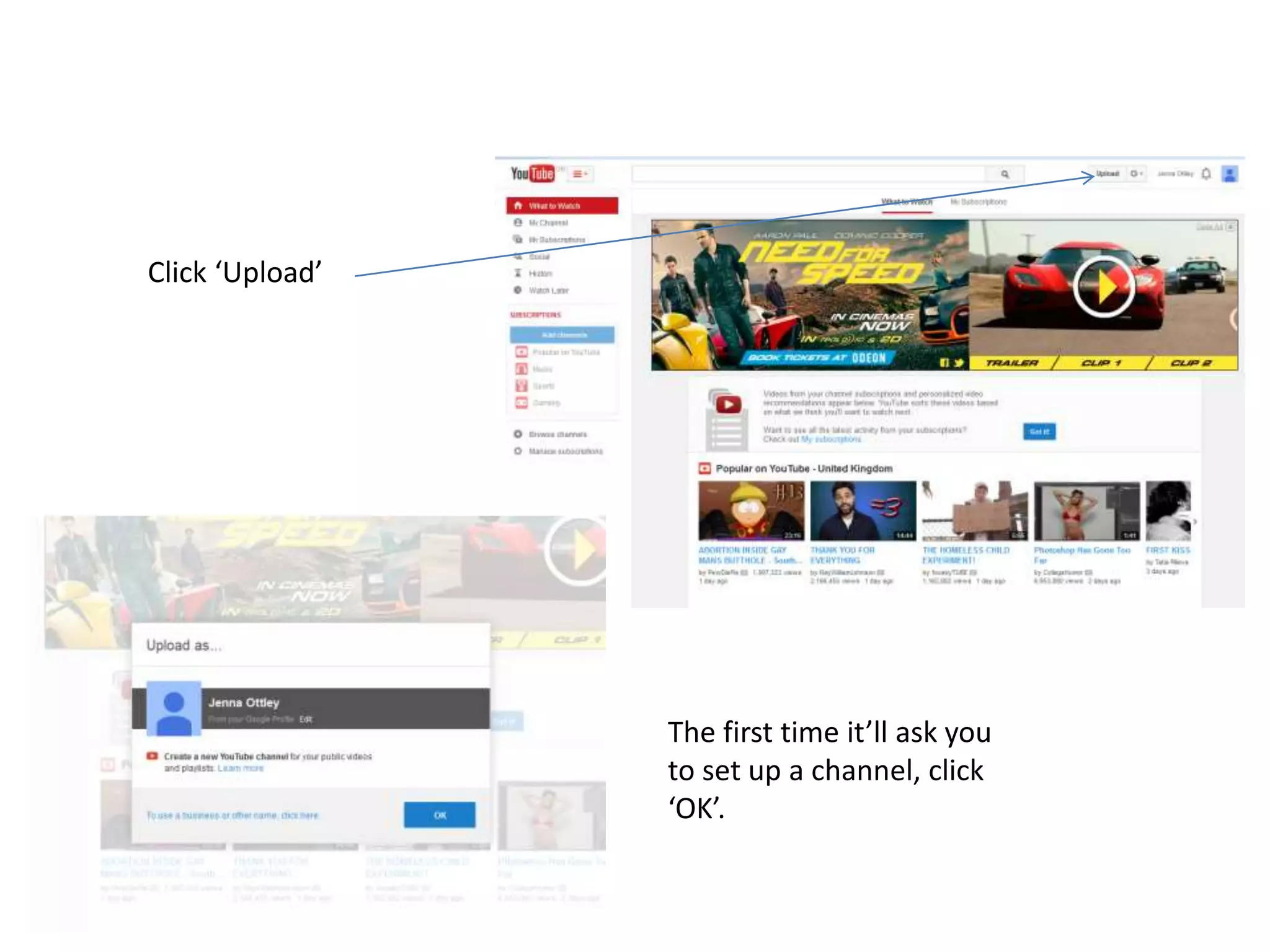
Click ‘Upload’
The first time it’ll ask you
to set up a channel, click
‘OK’.
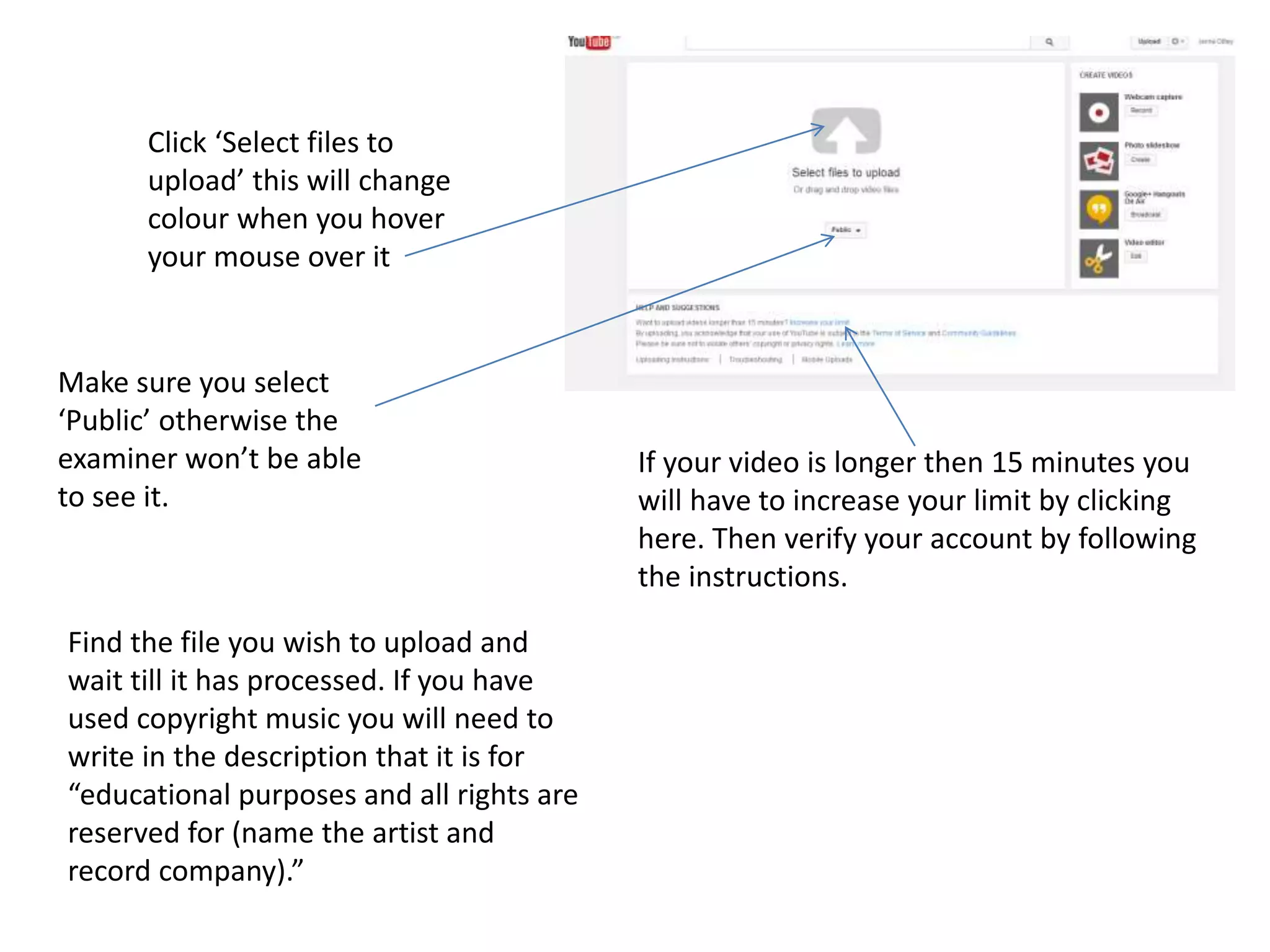
Click ‘Select files to
upload’ this will change
colour when you hover
your mouse over it
Make sure you select
‘Public’ otherwise the
examiner won’t be able
to see it.
If your video is longer then 15 minutes you
will have to increase your limit by clicking
here. Then verify your account by following
the instructions.
Find the file you wish to upload and
wait till it has processed. If you have
used copyright music you will need to
write in the description that it is for
“educational purposes and all rights are
reserved for (name the artist and
record company).”

How to upload to YouTube

  • 2.
    Upload to YouTube– Make sure you are signed into Google using the same details you used to set up Blogger. Then go to youtube.com The first time you will have to set it up. Just hit next until it says finish, you don’t have to fill in any details.
  • 3.
    Click ‘Upload’ The firsttime it’ll ask you to set up a channel, click ‘OK’.
  • 4.
    Click ‘Select filesto upload’ this will change colour when you hover your mouse over it Make sure you select ‘Public’ otherwise the examiner won’t be able to see it. If your video is longer then 15 minutes you will have to increase your limit by clicking here. Then verify your account by following the instructions. Find the file you wish to upload and wait till it has processed. If you have used copyright music you will need to write in the description that it is for “educational purposes and all rights are reserved for (name the artist and record company).”