Microsoft outlook 2010Ten Tips for Outlook 2010
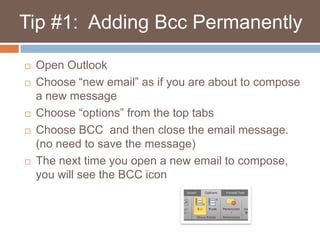
   Tip #1:  Adding Bcc Permanently Open OutlookChoose “new email” as if you are about to compose a new messageChoose “options” from the top tabsChoose BCC  and then close the email message. (no need to save the message)The next time you open a new email to compose, you will see the BCC icon
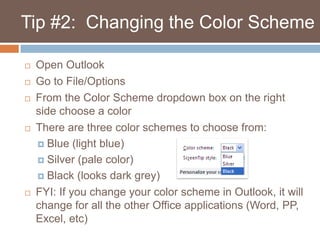
Tip #2:  Changing the Color SchemeOpen OutlookGo to File/OptionsFrom the Color Scheme dropdown box on the right side choose a colorThere are three color schemes to choose from:Blue (light blue)Silver (pale color)Black (looks dark grey)FYI: If you change your color scheme in Outlook, it will change for all the other Office applications (Word, PP, Excel, etc)
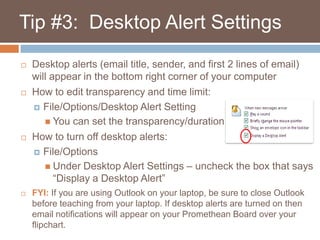
   Tip #3:  Desktop Alert SettingsDesktop alerts (email title, sender, and first 2 lines of email) will appear in the bottom right corner of your computerHow to edit transparency and time limit:File/Options/Desktop Alert SettingYou can set the transparency/duration How to turn off desktop alerts:File/OptionsUnder Desktop Alert Settings – uncheck the box that says “Display a Desktop Alert”FYI: If you are using Outlook on your laptop, be sure to close Outlook before teaching from your laptop. If desktop alerts are turned on then email notifications will appear on your Promethean Board over your flipchart.
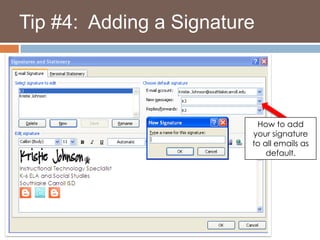
   Tip #4:  Adding a SignatureGo to File/Options/Mail (on the left side)Click “Signatures” icon on the right sideClick “New” and type your name in the popup boxType in your name and title/change font/change color of font in the box below your signatureYou can add a hyperlink or picture using the icons on the toolbarBe sure to choose your name from the dropdown boxes on the top right side so your name appears automaticallyClick OK on the bottom right corner when finished
   Tip #4:  Adding a SignatureHow to add your signature to all emails as default.
   Tip #5:  Adding District GroupsChoose “Contacts” icon from the bottom left corner.Choose “Add New Group”Title your group and choose “add member”Choose “from address book” on the dropdown boxYou will see the district address book where you can search for members by name Double click their name to add them to the “member” box located at the bottom of the popupDo NOT close until you have all the names of the members you want to add Don’t forget to SAVE! (top left corner)
   Tip #6:  Adding Skyward GroupsExport an excel file of your parent names and emailsOpen the Excel document, delete the parent name or student name cell (you can only have one name field)Copy the name and email cells (Ctrl + C = copy)Open Contacts, choose add new group, then choose add members from address bookIn the “members” box paste the names/emails you just copied from Excel (Ctrl + V = paste)You can click on each member and from their contact box choose “add to Outlook contact” to be able edit their information. Don’t forget to SAVE! (top left)FYI:  If you need one on one assistance, please contact your              Instructional Technology Specialist.
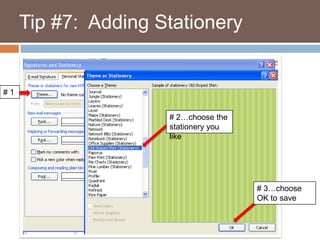
   Tip #7:  Adding StationeryOpen Outlook/Choose File/then Options/then MailChoose Stationery and Fonts from the right sideClick on the “Themes” tab in the top left cornerScroll through the list to see what stationery (background) you would like. (the ones that have the word “stationery” in the ( ) are backgrounds)You should be able to see the background when you click on itChoose OK to saveNext time you open a new email message you will see your new theme/background
   Tip #7:  Adding Stationery# 1# 2…choose the stationery you like# 3…choose OK to save
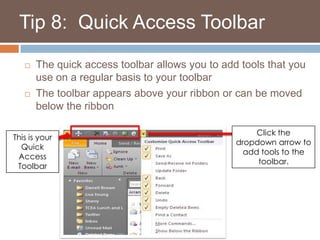
   Tip 8:  Quick Access ToolbarThe quick access toolbar allows you to add tools that you use on a regular basis to your toolbarThe toolbar appears above your ribbon or can be moved below the ribbonClick the dropdown arrow to add tools to the toolbar. This is your Quick Access Toolbar
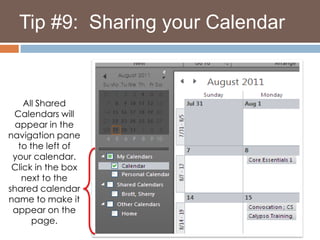
   Tip #9:  Sharing your CalendarClick on the Calendar icon on the bottom left cornerChoose the “Share Calendar” icon from the toolbarEnter the email address of whom you would like to shareYou can choose what availability you would like to share...availability only, limited details, or full detailsOnce the shared calendar is opened from email it will appear next to your calendar With shared calendars you can choose to display them next to your calendar or not by placing a check mark in the box next to the person’s name who shared with you
   Tip #9:  Sharing your CalendarAll Shared Calendars will appear in the navigation pane to the left of your calendar. Click in the box next to the shared calendar name to make it appear on the page.
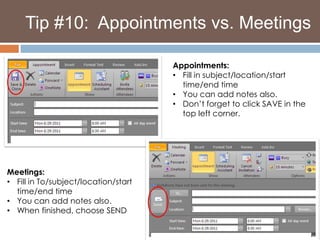
   Tip #10:  Appointments vs. MeetingsCalendar appointments are how you add events to your calendar that involve NO invitations to anyone elseCalendar meetings are used when you want to invite someone via email to a scheduled meetingClick on “New Appointment” or “New Meeting” to get started Follow the prompts on the screenDon’t forget to SAVE before you close
Tip #10:  Appointments vs. MeetingsAppointments:Fill in subject/location/start time/end time

Outlook 2010 tips

  • 1.
    Microsoft outlook 2010TenTips for Outlook 2010
  • 2.
    Tip #1: Adding Bcc Permanently Open OutlookChoose “new email” as if you are about to compose a new messageChoose “options” from the top tabsChoose BCC and then close the email message. (no need to save the message)The next time you open a new email to compose, you will see the BCC icon
  • 3.
    Tip #2: Changing the Color SchemeOpen OutlookGo to File/OptionsFrom the Color Scheme dropdown box on the right side choose a colorThere are three color schemes to choose from:Blue (light blue)Silver (pale color)Black (looks dark grey)FYI: If you change your color scheme in Outlook, it will change for all the other Office applications (Word, PP, Excel, etc)
  • 4.
    Tip #3: Desktop Alert SettingsDesktop alerts (email title, sender, and first 2 lines of email) will appear in the bottom right corner of your computerHow to edit transparency and time limit:File/Options/Desktop Alert SettingYou can set the transparency/duration How to turn off desktop alerts:File/OptionsUnder Desktop Alert Settings – uncheck the box that says “Display a Desktop Alert”FYI: If you are using Outlook on your laptop, be sure to close Outlook before teaching from your laptop. If desktop alerts are turned on then email notifications will appear on your Promethean Board over your flipchart.
  • 5.
    Tip #4: Adding a SignatureGo to File/Options/Mail (on the left side)Click “Signatures” icon on the right sideClick “New” and type your name in the popup boxType in your name and title/change font/change color of font in the box below your signatureYou can add a hyperlink or picture using the icons on the toolbarBe sure to choose your name from the dropdown boxes on the top right side so your name appears automaticallyClick OK on the bottom right corner when finished
  • 6.
    Tip #4: Adding a SignatureHow to add your signature to all emails as default.
  • 7.
    Tip #5: Adding District GroupsChoose “Contacts” icon from the bottom left corner.Choose “Add New Group”Title your group and choose “add member”Choose “from address book” on the dropdown boxYou will see the district address book where you can search for members by name Double click their name to add them to the “member” box located at the bottom of the popupDo NOT close until you have all the names of the members you want to add Don’t forget to SAVE! (top left corner)
  • 8.
    Tip #6: Adding Skyward GroupsExport an excel file of your parent names and emailsOpen the Excel document, delete the parent name or student name cell (you can only have one name field)Copy the name and email cells (Ctrl + C = copy)Open Contacts, choose add new group, then choose add members from address bookIn the “members” box paste the names/emails you just copied from Excel (Ctrl + V = paste)You can click on each member and from their contact box choose “add to Outlook contact” to be able edit their information. Don’t forget to SAVE! (top left)FYI: If you need one on one assistance, please contact your Instructional Technology Specialist.
  • 9.
    Tip #7: Adding StationeryOpen Outlook/Choose File/then Options/then MailChoose Stationery and Fonts from the right sideClick on the “Themes” tab in the top left cornerScroll through the list to see what stationery (background) you would like. (the ones that have the word “stationery” in the ( ) are backgrounds)You should be able to see the background when you click on itChoose OK to saveNext time you open a new email message you will see your new theme/background
  • 10.
    Tip #7: Adding Stationery# 1# 2…choose the stationery you like# 3…choose OK to save
  • 11.
    Tip 8: Quick Access ToolbarThe quick access toolbar allows you to add tools that you use on a regular basis to your toolbarThe toolbar appears above your ribbon or can be moved below the ribbonClick the dropdown arrow to add tools to the toolbar. This is your Quick Access Toolbar
  • 12.
    Tip #9: Sharing your CalendarClick on the Calendar icon on the bottom left cornerChoose the “Share Calendar” icon from the toolbarEnter the email address of whom you would like to shareYou can choose what availability you would like to share...availability only, limited details, or full detailsOnce the shared calendar is opened from email it will appear next to your calendar With shared calendars you can choose to display them next to your calendar or not by placing a check mark in the box next to the person’s name who shared with you
  • 13.
    Tip #9: Sharing your CalendarAll Shared Calendars will appear in the navigation pane to the left of your calendar. Click in the box next to the shared calendar name to make it appear on the page.
  • 14.
    Tip #10: Appointments vs. MeetingsCalendar appointments are how you add events to your calendar that involve NO invitations to anyone elseCalendar meetings are used when you want to invite someone via email to a scheduled meetingClick on “New Appointment” or “New Meeting” to get started Follow the prompts on the screenDon’t forget to SAVE before you close
  • 15.
    Tip #10: Appointments vs. MeetingsAppointments:Fill in subject/location/start time/end time