Microsoft Outlook
What is Microsoft Outlook?
Microsoft Outlook is primarily used as an email client software. A
user can send or receive mails using Microsoft Outlook.
Outlook Introduction Video
What are the major Functions of Microsoft
Outlook?
 Email
 Calendaring
 Task managing
 Contact managing
 Note taking
 Schedule an appointment
What are the major Functions of Microsoft
Outlook?
• Individuals can use Outlook as a stand-alone application. Organizations can deploy it as
multi-user software (through Microsoft Exchange Server or SharePoint) for such shared
functions as mailboxes, calendars, folders, data aggregation (i.e., SharePoint lists), and
appointment scheduling.
• Microsoft has released apps for most mobile platforms, including iOS and Android. In
addition, Windows Phone devices can synchronize almost all Outlook data to Outlook
Mobile. Using Microsoft Visual Studio, developers can also build their own custom software
that works with Outlook and Office components.
Add an email account to
Outlook
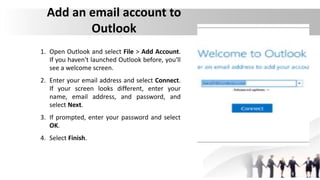
1. Open Outlook and select File > Add Account.
If you haven't launched Outlook before, you'll
see a welcome screen.
2. Enter your email address and select Connect.
If your screen looks different, enter your
name, email address, and password, and
select Next.
3. If prompted, enter your password and select
OK.
4. Select Finish.
Create and send email
in Outlook
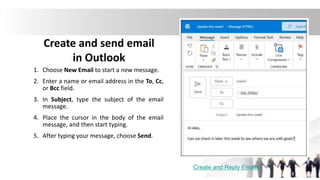
1. Choose New Email to start a new message.
2. Enter a name or email address in the To, Cc,
or Bcc field.
3. In Subject, type the subject of the email
message.
4. Place the cursor in the body of the email
message, and then start typing.
5. After typing your message, choose Send.
Create and Reply Emails
Use @mentions to get
someone's attention
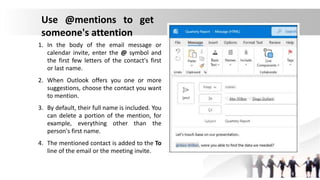
1. In the body of the email message or
calendar invite, enter the @ symbol and
the first few letters of the contact's first
or last name.
2. When Outlook offers you one or more
suggestions, choose the contact you want
to mention.
3. By default, their full name is included. You
can delete a portion of the mention, for
example, everything other than the
person's first name.
4. The mentioned contact is added to the To
line of the email or the meeting invite.
Add an attachment
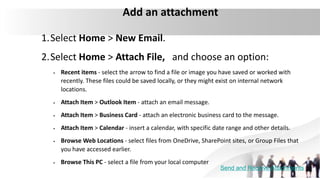
1.Select Home > New Email.
2.Select Home > Attach File, and choose an option:
 Recent items - select the arrow to find a file or image you have saved or worked with
recently. These files could be saved locally, or they might exist on internal network
locations.
 Attach Item > Outlook Item - attach an email message.
 Attach Item > Business Card - attach an electronic business card to the message.
 Attach Item > Calendar - insert a calendar, with specific date range and other details.
 Browse Web Locations - select files from OneDrive, SharePoint sites, or Group Files that
you have accessed earlier.
 Browse This PC - select a file from your local computer
Send and Receive Attachments
Create and send an email, reply to an email
message, and forward one.
Create and send an email
1. Select Home > New Email.
2. Add recipients, a subject, and a
message in the email body.
3. Select Send.
Reply to an email
1. Select an email to reply to.
2. Select Reply.
3. Type your message.
4. Select Send.
Forward to share email with others
1. Select an email to forward.
2. Select Forward.
3. Add who you'd like to forward to.
4. Add a note in the email body if you'd like.
5. Select Send.
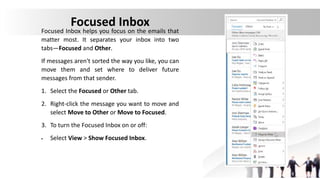
Focused Inbox
Focused Inbox helps you focus on the emails that
matter most. It separates your inbox into two
tabs—Focused and Other.
If messages aren't sorted the way you like, you can
move them and set where to deliver future
messages from that sender.
1. Select the Focused or Other tab.
2. Right-click the message you want to move and
select Move to Other or Move to Focused.
3. To turn the Focused Inbox on or off:
 Select View > Show Focused Inbox.
Manage your calendar and
contacts in Outlook
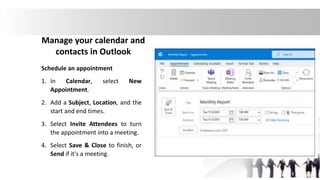
Schedule an appointment
1. In Calendar, select New
Appointment.
2. Add a Subject, Location, and the
start and end times.
3. Select Invite Attendees to turn
the appointment into a meeting.
4. Select Save & Close to finish, or
Send if it's a meeting.
Create Appointments and Meetings
• In your calendar, Appointments are just for you, Meetings are to invite people to.
1. For a meeting, select New Meeting.
2. Add people in the To field, and then enter a Subject and Location.
3. Select a Start time and End time. Or select Scheduling Assistant to check the availability for
attendees and pick a time.
• Note: AutoPick selects the next available free time for the attendees and location.
4. Select Teams Meeting to have an online meeting.
5. Add your notes or an agenda.
6. When ready, select Send.
Create Appointment and Meetings
Use the Scheduling Assistant
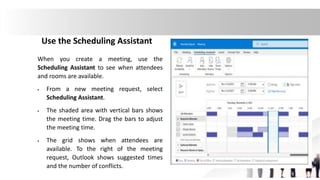
When you create a meeting, use the
Scheduling Assistant to see when attendees
and rooms are available.
 From a new meeting request, select
Scheduling Assistant.
 The shaded area with vertical bars shows
the meeting time. Drag the bars to adjust
the meeting time.
 The grid shows when attendees are
available. To the right of the meeting
request, Outlook shows suggested times
and the number of conflicts.
Add a contact
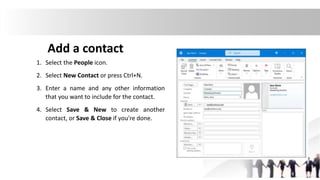
1. Select the People icon.
2. Select New Contact or press Ctrl+N.
3. Enter a name and any other information
that you want to include for the contact.
4. Select Save & New to create another
contact, or Save & Close if you're done.
Collaborate in Outlook
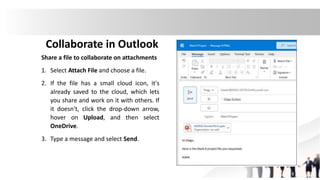
Share a file to collaborate on attachments
1. Select Attach File and choose a file.
2. If the file has a small cloud icon, it's
already saved to the cloud, which lets
you share and work on it with others. If
it doesn't, click the drop-down arrow,
hover on Upload, and then select
OneDrive.
3. Type a message and select Send.
Set up an online meeting
and shared note
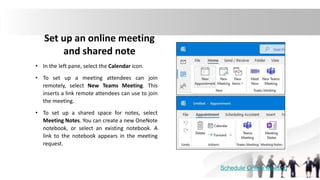
• In the left pane, select the Calendar icon.
• To set up a meeting attendees can join
remotely, select New Teams Meeting. This
inserts a link remote attendees can use to join
the meeting.
• To set up a shared space for notes, select
Meeting Notes. You can create a new OneNote
notebook, or select an existing notebook. A
link to the notebook appears in the meeting
request.
Schedule Online Meeting

microsoftoutlook-230220170028-23f40e03.pptx

  • 1.
  • 2.
    What is MicrosoftOutlook? Microsoft Outlook is primarily used as an email client software. A user can send or receive mails using Microsoft Outlook. Outlook Introduction Video
  • 3.
    What are themajor Functions of Microsoft Outlook?  Email  Calendaring  Task managing  Contact managing  Note taking  Schedule an appointment
  • 4.
    What are themajor Functions of Microsoft Outlook? • Individuals can use Outlook as a stand-alone application. Organizations can deploy it as multi-user software (through Microsoft Exchange Server or SharePoint) for such shared functions as mailboxes, calendars, folders, data aggregation (i.e., SharePoint lists), and appointment scheduling. • Microsoft has released apps for most mobile platforms, including iOS and Android. In addition, Windows Phone devices can synchronize almost all Outlook data to Outlook Mobile. Using Microsoft Visual Studio, developers can also build their own custom software that works with Outlook and Office components.
  • 5.
    Add an emailaccount to Outlook 1. Open Outlook and select File > Add Account. If you haven't launched Outlook before, you'll see a welcome screen. 2. Enter your email address and select Connect. If your screen looks different, enter your name, email address, and password, and select Next. 3. If prompted, enter your password and select OK. 4. Select Finish.
  • 6.
    Create and sendemail in Outlook 1. Choose New Email to start a new message. 2. Enter a name or email address in the To, Cc, or Bcc field. 3. In Subject, type the subject of the email message. 4. Place the cursor in the body of the email message, and then start typing. 5. After typing your message, choose Send. Create and Reply Emails
  • 7.
    Use @mentions toget someone's attention 1. In the body of the email message or calendar invite, enter the @ symbol and the first few letters of the contact's first or last name. 2. When Outlook offers you one or more suggestions, choose the contact you want to mention. 3. By default, their full name is included. You can delete a portion of the mention, for example, everything other than the person's first name. 4. The mentioned contact is added to the To line of the email or the meeting invite.
  • 8.
    Add an attachment 1.SelectHome > New Email. 2.Select Home > Attach File, and choose an option:  Recent items - select the arrow to find a file or image you have saved or worked with recently. These files could be saved locally, or they might exist on internal network locations.  Attach Item > Outlook Item - attach an email message.  Attach Item > Business Card - attach an electronic business card to the message.  Attach Item > Calendar - insert a calendar, with specific date range and other details.  Browse Web Locations - select files from OneDrive, SharePoint sites, or Group Files that you have accessed earlier.  Browse This PC - select a file from your local computer Send and Receive Attachments
  • 9.
    Create and sendan email, reply to an email message, and forward one. Create and send an email 1. Select Home > New Email. 2. Add recipients, a subject, and a message in the email body. 3. Select Send. Reply to an email 1. Select an email to reply to. 2. Select Reply. 3. Type your message. 4. Select Send.
  • 10.
    Forward to shareemail with others 1. Select an email to forward. 2. Select Forward. 3. Add who you'd like to forward to. 4. Add a note in the email body if you'd like. 5. Select Send.
  • 11.
    Focused Inbox Focused Inboxhelps you focus on the emails that matter most. It separates your inbox into two tabs—Focused and Other. If messages aren't sorted the way you like, you can move them and set where to deliver future messages from that sender. 1. Select the Focused or Other tab. 2. Right-click the message you want to move and select Move to Other or Move to Focused. 3. To turn the Focused Inbox on or off:  Select View > Show Focused Inbox.
  • 12.
    Manage your calendarand contacts in Outlook Schedule an appointment 1. In Calendar, select New Appointment. 2. Add a Subject, Location, and the start and end times. 3. Select Invite Attendees to turn the appointment into a meeting. 4. Select Save & Close to finish, or Send if it's a meeting.
  • 13.
    Create Appointments andMeetings • In your calendar, Appointments are just for you, Meetings are to invite people to. 1. For a meeting, select New Meeting. 2. Add people in the To field, and then enter a Subject and Location. 3. Select a Start time and End time. Or select Scheduling Assistant to check the availability for attendees and pick a time. • Note: AutoPick selects the next available free time for the attendees and location. 4. Select Teams Meeting to have an online meeting. 5. Add your notes or an agenda. 6. When ready, select Send. Create Appointment and Meetings
  • 14.
    Use the SchedulingAssistant When you create a meeting, use the Scheduling Assistant to see when attendees and rooms are available.  From a new meeting request, select Scheduling Assistant.  The shaded area with vertical bars shows the meeting time. Drag the bars to adjust the meeting time.  The grid shows when attendees are available. To the right of the meeting request, Outlook shows suggested times and the number of conflicts.
  • 15.
    Add a contact 1.Select the People icon. 2. Select New Contact or press Ctrl+N. 3. Enter a name and any other information that you want to include for the contact. 4. Select Save & New to create another contact, or Save & Close if you're done.
  • 16.
    Collaborate in Outlook Sharea file to collaborate on attachments 1. Select Attach File and choose a file. 2. If the file has a small cloud icon, it's already saved to the cloud, which lets you share and work on it with others. If it doesn't, click the drop-down arrow, hover on Upload, and then select OneDrive. 3. Type a message and select Send.
  • 17.
    Set up anonline meeting and shared note • In the left pane, select the Calendar icon. • To set up a meeting attendees can join remotely, select New Teams Meeting. This inserts a link remote attendees can use to join the meeting. • To set up a shared space for notes, select Meeting Notes. You can create a new OneNote notebook, or select an existing notebook. A link to the notebook appears in the meeting request. Schedule Online Meeting