Introduction to Outlook Express IST and Peace Academy  are proud to present….
Introduction to MS Word 2003 Welcome Logistics  Course Topics
Welcome Over 15 years experience in Information Technology   Served as lead trainer for major organizations such as Cigna Insurance, Yale Locks, SAIC, Department of Energy, and other major corporations   E-mail address:   [email_address] Instructor:  Sister Linda Jenkins
Logistics Prayer Times – We will break 5 min prior –  Need Volunteer Timekeeper Maghrib Prayer 8:15 p.m. – Library (ladies) Isha Prayer 9:31 p.m. For copies of documents, please provide e-mail address to Brother Mohanad and he will send to you after course is completed Because of time restraints, there may be limited time for questions.  At the end of class each evening there will be a question and answer session where individual questions can also be addressed.  If you still have questions, please feel free to e-mail me or speak directly with me after class.
Tonight’s Topics Running the Outlook Express Wizard to set up an e-mail account Using Outlook Express
What is Outlook Express 2003? Outlook Express 2003 is the default e-mail program of the Microsoft Office suite that allows you to create and send e-mail from within your Microsoft Office suite.  Before you can use Outlook Express to send and receive e-mail, you need to set up an account. You can have more than one account—for business, online shopping, and so on—and each person who uses your computer may have their own, completely separate account. Outlook Express gracefully handles it all.
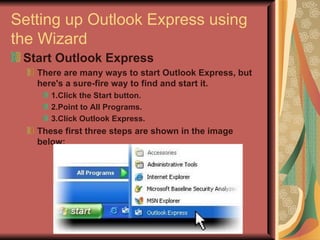
Setting up Outlook Express using the Wizard Start Outlook Express There are many ways to start Outlook Express, but here's a sure-fire way to find and start it. 1.Click the Start button.  2.Point to All Programs. 3.Click Outlook Express. These first three steps are shown in the image below:
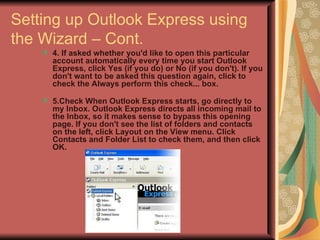
Setting up Outlook Express using the Wizard – Cont. 4. If asked whether you'd like to open this particular account automatically every time you start Outlook Express, click Yes (if you do) or No (if you don't). If you don't want to be asked this question again, click to check the Always perform this check... box.  5.Check When Outlook Express starts, go directly to my Inbox. Outlook Express directs all incoming mail to the Inbox, so it makes sense to bypass this opening page. If you don't see the list of folders and contacts on the left, click Layout on the View menu. Click Contacts and Folder List to check them, and then click OK.
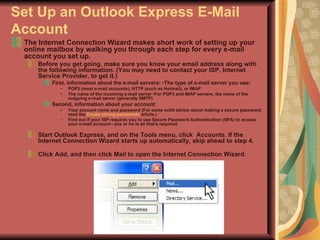
Set Up an Outlook Express E-Mail Account The Internet Connection Wizard makes short work of setting up your online mailbox by walking you through each step for every e-mail account you set up. Before you get going, make sure you know your email address along with the following information. (You may need to contact your ISP, Internet Service Provider, to get it.)  First, information about the e-mail servers: •The type of e-mail server you use:  POP3 (most e-mail accounts), HTTP (such as Hotmail), or IMAP  The name of the incoming e-mail server •For POP3 and IMAP servers, the name of the outgoing e-mail server (generally SMTP)  Second, information about your account:  Your account name and password (For some solid advice about making a secure password, read the  Create strong passwords  article.) Find out if your ISP requires you to use Secure Password Authentication (SPA) to access your e-mail account—yes or no is all that's required.  Start Outlook Express, and on the Tools menu, click  Accounts. If the Internet Connection Wizard starts up automatically, skip ahead to step 4.  Click Add, and then click Mail to open the Internet Connection Wizard.
Review – Questions & Answers Using Outlook Express Wizard The different types of E-mail boxes Starting fresh after setup Review and Questions
Thank you for attending! I want to thank each of you for your time and attendance tonight.  If you have any questions that haven’t been answered or if any of my explanations have confused you, please submit them to me so that I can address them on Wednesday night’s class.  I look forward to seeing you then for more fun and learning!  If you have a special topic of interest directly related to MS Word 2003 that you would like for us to address on Wednesday’s course, please let me know so I can get it added to the schedule for you. Again, if you need to contact me my e-mail address is …  [email_address]

Introduction To Outlook Express

  • 1.
    Introduction to OutlookExpress IST and Peace Academy are proud to present….
  • 2.
    Introduction to MSWord 2003 Welcome Logistics Course Topics
  • 3.
    Welcome Over 15years experience in Information Technology  Served as lead trainer for major organizations such as Cigna Insurance, Yale Locks, SAIC, Department of Energy, and other major corporations E-mail address: [email_address] Instructor: Sister Linda Jenkins
  • 4.
    Logistics Prayer Times– We will break 5 min prior – Need Volunteer Timekeeper Maghrib Prayer 8:15 p.m. – Library (ladies) Isha Prayer 9:31 p.m. For copies of documents, please provide e-mail address to Brother Mohanad and he will send to you after course is completed Because of time restraints, there may be limited time for questions. At the end of class each evening there will be a question and answer session where individual questions can also be addressed. If you still have questions, please feel free to e-mail me or speak directly with me after class.
  • 5.
    Tonight’s Topics Runningthe Outlook Express Wizard to set up an e-mail account Using Outlook Express
  • 6.
    What is OutlookExpress 2003? Outlook Express 2003 is the default e-mail program of the Microsoft Office suite that allows you to create and send e-mail from within your Microsoft Office suite. Before you can use Outlook Express to send and receive e-mail, you need to set up an account. You can have more than one account—for business, online shopping, and so on—and each person who uses your computer may have their own, completely separate account. Outlook Express gracefully handles it all.
  • 7.
    Setting up OutlookExpress using the Wizard Start Outlook Express There are many ways to start Outlook Express, but here's a sure-fire way to find and start it. 1.Click the Start button. 2.Point to All Programs. 3.Click Outlook Express. These first three steps are shown in the image below:
  • 8.
    Setting up OutlookExpress using the Wizard – Cont. 4. If asked whether you'd like to open this particular account automatically every time you start Outlook Express, click Yes (if you do) or No (if you don't). If you don't want to be asked this question again, click to check the Always perform this check... box. 5.Check When Outlook Express starts, go directly to my Inbox. Outlook Express directs all incoming mail to the Inbox, so it makes sense to bypass this opening page. If you don't see the list of folders and contacts on the left, click Layout on the View menu. Click Contacts and Folder List to check them, and then click OK.
  • 9.
    Set Up anOutlook Express E-Mail Account The Internet Connection Wizard makes short work of setting up your online mailbox by walking you through each step for every e-mail account you set up. Before you get going, make sure you know your email address along with the following information. (You may need to contact your ISP, Internet Service Provider, to get it.) First, information about the e-mail servers: •The type of e-mail server you use: POP3 (most e-mail accounts), HTTP (such as Hotmail), or IMAP The name of the incoming e-mail server •For POP3 and IMAP servers, the name of the outgoing e-mail server (generally SMTP) Second, information about your account: Your account name and password (For some solid advice about making a secure password, read the Create strong passwords article.) Find out if your ISP requires you to use Secure Password Authentication (SPA) to access your e-mail account—yes or no is all that's required. Start Outlook Express, and on the Tools menu, click Accounts. If the Internet Connection Wizard starts up automatically, skip ahead to step 4. Click Add, and then click Mail to open the Internet Connection Wizard.
  • 10.
    Review – Questions& Answers Using Outlook Express Wizard The different types of E-mail boxes Starting fresh after setup Review and Questions
  • 11.
    Thank you forattending! I want to thank each of you for your time and attendance tonight. If you have any questions that haven’t been answered or if any of my explanations have confused you, please submit them to me so that I can address them on Wednesday night’s class. I look forward to seeing you then for more fun and learning! If you have a special topic of interest directly related to MS Word 2003 that you would like for us to address on Wednesday’s course, please let me know so I can get it added to the schedule for you. Again, if you need to contact me my e-mail address is … [email_address]