Office Ergonomics
What is Ergonomics?
• Ergonomics involves optimizing human
  performance by designing equipment and the
  environment to safely minimize effort.
• Ergonomic designs are also used to eliminate
  or minimize the risk of Musculoskeletal
  Disorders (MSDs).
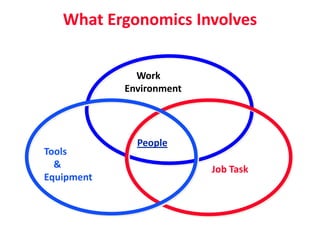
What Ergonomics Involves


              Work
            Environment


              People
Tools
  &                       Job Task
Equipment
What are
  Musculoskeletal Disorders (MSDs)?
• MSDs are chronic disorders involving muscles,
  tendons and nerves; soft tissues
• MSDs can be caused or aggravated by various risk
  factors - either alone or multiples of the following:
      – Repetitive motion
      – Forceful exertion
      – Awkward posture
      – Environmental factors
MSD = CTD, RMI, RSI
   Cumulative Trauma Disorder (CTD)
     Repetitive Motion Illness (RMI)
       Repetitive Stress Illness (RSI)
Whatever the name, they occur over time.
They differ from injuries such as cuts, bruises
      or the like which occur suddenly.
Why is repetition a concern?
• Repetitive motion requires prolonged use of a
  muscle or muscle group. Without intermittent
  rest, the muscle will fatigue and may
  eventually become damaged.
• Tendons connect muscles to the bones. With
  excessive use, they may become irritated
  causing tendonitis.
How is posture related?
• Joints have optimum, limited and maximum
  ranges of motion. If exceeded, stress may
  occur.
• Muscles work best when flexed, not fully
  stretched.
• Forces on the body increase or vary as loads
  or forces shift.
• All joints have neutral positions.
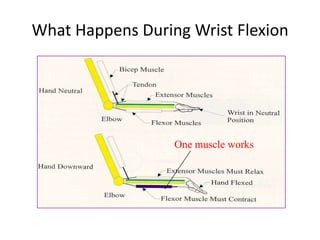
What Happens During Wrist Flexion


                  One muscle works
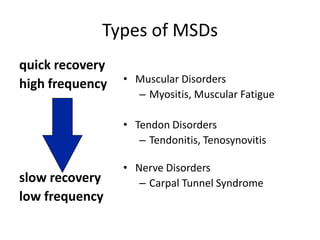
Types of MSDs
quick recovery
high frequency   • Muscular Disorders
                   – Myositis, Muscular Fatigue

                 • Tendon Disorders
                    – Tendonitis, Tenosynovitis

                 • Nerve Disorders
slow recovery       – Carpal Tunnel Syndrome
low frequency
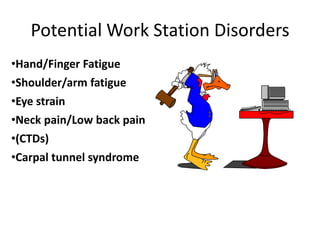
Potential Work Station Disorders
•Hand/Finger Fatigue
•Shoulder/arm fatigue
•Eye strain
•Neck pain/Low back pain
•(CTDs)
•Carpal tunnel syndrome
Preventing MSDs

• Take frequent micro breaks
• Keep physically fit
• Vary postures/tasks throughout the day
• Assess work areas
• Organize your work area.
Early Reporting is Necessary
•   Awareness of signs and symptoms
•   Ask questions
•   Report any signs and symptoms
•   Listen to your body
•   “When in doubt ask more questions”
Risk Factors in Office
   Environments
         and
How to Arrange the
     Work Area
Assessing the Office Work
               Environment
•   Physical Work Area
•   Visual Requirements
•   Acoustics
•   Tasks and Processes
•   Technology
Physical Work Area
Workstations and Work Surfaces
• Should provide sufficient leg space (designed for
  the larger person), spatial arrangement and
  reach considerations (designed for the smaller
  person)
• Work functions are critical to design
• Chairs to fit the PC work area and writing area
• Should provide sufficient room for work in
  progress, such as data entry materials
Chair Design
• Seat pan height should be adjustable so feet rest flat
  on the floor or a foot rest with the knee joint at
  approximately 90°
• Seat back height should be adjustable.
• If armrests are present, they should be adjustable and
  not be an interference
• When fully seated, approximately a 2-finger space
  between the back of the knee and the seat edge
• The chair should have a 5-point base
Chair Use
Adjust chair so that:
• Thighs are parallel to the floor
• Feet rest comfortably on the floor or on a foot
  rest.
• The back support fits in the lower curve of your
  back.
• Arm rests are just below elbow height, arms
  alongside the torso.
• Position your chair before other workstation
  adjustments.
Keyboards
• Types - sloped, dished, stepped and split
• Should be positioned at elbow height or just
  below, so wrists are straight (neutral)
• Should be flat or in a negative tilt to promote
  using a straight wrist posture
• Articulating keyboard trays should
  complement work area, keyboard and mouse
The Keyboard
Position keyboard so that:
• Hands are in-line with the forearm; a neutral or
  straight wrist posture. It should be in front of your
  body center.
• Arms alongside the torso, not raised or abducted.
• Arms/elbows should be at or near a 90 degree angle
• The keyboard should have a
  wrist/palm rest which is the
  same height as the space bar.
Pointing Devices
• Locate at the same height level as the keyboard
• Next to or as near to the keyboard as possible.
• Different styles or options exist
   – Mouse
   – Track ball
   – Touch screen
   – Joystick
   – Light Pen
The Mouse
Position the mouse (pointing device):
 Beside the keyboard, to the left or right.
 So that it is within easy reach, with the arm
 bent near 90 degrees during use.
 So that it is at about the same height as the
 keyboard
 So that you can keep your wrist straight when
 using it.
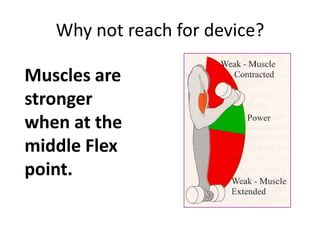
Why not reach for device?

Muscles are
stronger
when at the
middle Flex
point.
Monitors
• Position at arm’s length, no closer than 20 inches.
• Screens should be perpendicular to the window or
  other light sources to reduce glare
• Screens should be positioned so the top of the screen
  is at eye level
• Position monitors lower for those who wear bifocals
• Glare screens should be avoided, unless used for
  privacy
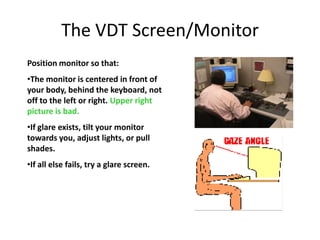
The VDT Screen/Monitor
Position monitor so that:
•The monitor is centered in front of
your body, behind the keyboard, not
off to the left or right. Upper right
picture is bad.
•If glare exists, tilt your monitor
towards you, adjust lights, or pull
shades.
•If all else fails, try a glare screen.
Work Accessories
• Accessories should complement the work area
• A copy holder should be positioned close to the
  monitor, to minimize the amount of neck
  rotation
• A task light should be positioned to illuminate
  work surface without creating a glare on the
  monitor screen
• Foot rests should be avoided because they limit
  the individual’s ability to alternate posture
Miscellaneous Issues
• Do not cradle the phone on the shoulder
• Do not lean on sharp desk edges
• Place the document holder next to the screen
  at same viewing distance as the screen
• Keep under-desk areas clear
• Keep non-work items on desk to a minimum.
Miscellaneous Issues (cont”d)
• Relaxed pen/pencil grip
• Scan with your eyes, not your head
• Place your foot rest at a 25o angle
• Do not sit on your legs.
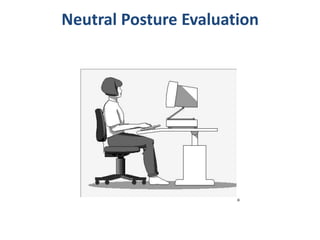
Neutral Posture Evaluation
Work at Proper Heights
• Work at elbow height
• Maintain consistent work heights within the
  office space
• Avoid reaching above shoulder height
• Avoid “winged” elbows
• Do not reach into low desk drawers while
  leaning to the side
Maintain Good Posture
• Maintain the natural curve of the spine
• Keep head/neck straight and erect
• Keep arms and elbows in
• Maintain neutral wrist positions
• Avoid twisting motions
• Avoid static or sustained postures
• Utilize equipment such as a copy holder and
  headset to achieve good posture
Seated Body Posture
• Upper arms and lower legs near vertical.
• Lower arms and thighs parallel to the seat
  pan
• Head straight forward
• No slouching. Sit erect.
• Relax; avoid tension
Minimize Direct Pressure
• Direct pressure inhibits blood flow and nerve
  functions resulting in numbness and “pins and
  needles” sensations
• Direct pressure affects the:
  – Palms, forearms, thighs and feet
• Direct pressure can be reduced by:
  – Padding sharp edges of tables and chairs
• Optimum goal is to distribute the contact area
  over more surface area of the body
Visual Requirements
Visual Display Considerations
• Size of characters should not be too small
• Maximize color contrast between background
  and characters
• Screen size should be appropriate
• Screen colors should be selected so they are
  not too “busy”
Lighting
• Inadequate lighting:      • Consider:
  –   fatigue, discomfort     –   brightness
  –   eye strain              –   glare
  –   headaches               –   color
  –   poor posture            –   quantity
                              –   positioning
Lighting
• Lighting without glare
• Minimize glare with proper display and
  positioning
• Lighting requirements will vary from viewing the
  monitor to reading text
• Suggested ambient illuminance of 30 - 50 fc
• If task lighting is used, general/ambient lighting
  should be about 1/3 of the task lighting
Is Ergonomics Used Only to Prevent
                MSDs?
• Optimizing human movements can increase
  productivity
• Optimizing human motions reduces fatigue
  levels and has a positive impact on product
  quality and morale
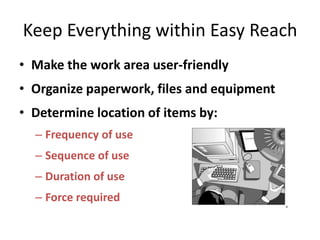
Keep Everything within Easy Reach
• Make the work area user-friendly
• Organize paperwork, files and equipment
• Determine location of items by:
  – Frequency of use
  – Sequence of use
  – Duration of use
  – Force required
Work Accessories/Materials
• Place materials within 16 inches of the body
  to avoid reaching
• Keep materials within a 90 degree arc of
  body center
• Keep frequently used items handy
Apply Task Variety
• Alternate body posture   • Combine tasks
• Adjust workstation       • Stand while using the
  height                     phone
• Reposition chair and     • Take a 10-15 second
  keyboard                   mini-break every hour
Control Work Flow
• Utilize the computer software efficiently by
  creating shortcuts and macros
• Know the sequence of steps required to
  complete the task
• Avoid “hurry-up-and-wait” situations
• Assist others in understanding the task
• Avoid “deadline” posture
Technology
Interactive Software
• Office Ergonomic Software aids in training
  employees on business habits that maximize
  proper body postures and body mechanics
  and promotes proper work breaks
Making Adjustments

•Verify that a new risk is not introduced

•Emphasis on good typing technique and
 posture, proper equipment set-up, and good
 work habits
•Not ergonomic gadgets

•Document changes and their effects
Stretching
Why Stretch?
• Work creates stress on certain muscle groups
  within the body
• Muscles stressed more than usual during work
  will begin to tighten when work stops
• Stretching helps avoid stiffness and soreness
• Stretching can help improve flexibility and
  circulation in muscles and tendons
• Stretching prepares the body for the work tasks
Prevention
• Stretching should be used for warming up,
  cooling down and maintaining comfort
  throughout the work day
• Stretches are preventative as well as
  rehabilitative
Types of Stretches
• Upper Back Stretch: While seated, clasp your hands behind your
  head, elbows out. Gently lean backward in your chair. Hold for a
  count of 10. Repeat for a total of three (3) stretches.
• Neck Side Stretch: Tilt your head to one side, putting your ear over
  one shoulder. Hold your opposite shoulder down, using your other
  arm to help. Hold for a count of 10. Repeat for a total of three (3)
  stretches for both the left and right sides.
• Shoulder/Upper Back Stretch: Raise your right arm and grasp it
  below the elbow with your left hand. Gently pull your right elbow
  toward your left shoulder. Repeat with the opposite arm. Hold for
  a count of 10. Repeat for a total of three (3) stretches, each arm.
Types of Stretches
• Elbow and Wrist Stretch: Straighten your elbow with
  your arm in front of you or at shoulder height. Gently
  bend your wrist back with the other hand, in both the
  downward position and then the upward position.
  Hold each position for a count of 10. Repeat for a total
  of three (3) stretches for both the left an right sides.
• Finger Spread: With palms down, spread your fingers
  apart as far as you can. Hold for a count of five (5).
  Repeat for a total of three (3) stretches.
• Eye Relief: Look away from monitor approximately 20
  feet and blink easily.
Office Furniture Guidelines
Office Furniture Selection
• Office Ergonomics Guidelines should be used
  when selecting appropriate office furniture,
  equipment and accessories
• Adjustability and flexibility is critical
• Specifications based on research and
  Americans with Disabilities guidelines
Using the Laptop Computer
Laptop Computers

• Concerns when using the Laptop Computer
  • Keyboard size
  • Pointing Devices
  • Not designed for long term use.
Viewing Laptop Computers

• Take mini-breaks
• Keep the screen clean
• Control glare
• Angle the screen properly
• Adjust brightness
Posture and Laptop Computers

•   Change positions often
•   Take periodic breaks
•   Type lightly
•   Keep hands and wrists neutral
•   Keep hands and wrists free
•   Keep fingers relaxed
•   Keep elbows close to body
Posture and Laptop Computers

• Non-adjustable chairs:
    Place pillows, towels or books to add height
    Use books under feet
    Make a lumbar support with towel or pillow
Using the Laptop Computer

• In a Car
• Do not try to use from driver’s seat
• Use only in the passenger seat

• On a Plane
• Not recommended for regular seats
• Reserve bulkhead seat or exit row seat
TRAINER
              Takeaway Tools
• For the Trainer/Evaluator
• Quick Guide to CTD Complaints
• Computer Workstation Set-up
• Workstation Checklist
• For the Worker (Handouts)
• Neutral Posture Evaluation
• Office Self Assessment Checklist
• Types of Stretches

Office Ergonomics Training

  • 1.
  • 2.
    What is Ergonomics? •Ergonomics involves optimizing human performance by designing equipment and the environment to safely minimize effort. • Ergonomic designs are also used to eliminate or minimize the risk of Musculoskeletal Disorders (MSDs).
  • 3.
    What Ergonomics Involves Work Environment People Tools & Job Task Equipment
  • 4.
    What are Musculoskeletal Disorders (MSDs)? • MSDs are chronic disorders involving muscles, tendons and nerves; soft tissues • MSDs can be caused or aggravated by various risk factors - either alone or multiples of the following: – Repetitive motion – Forceful exertion – Awkward posture – Environmental factors
  • 5.
    MSD = CTD,RMI, RSI Cumulative Trauma Disorder (CTD) Repetitive Motion Illness (RMI) Repetitive Stress Illness (RSI) Whatever the name, they occur over time. They differ from injuries such as cuts, bruises or the like which occur suddenly.
  • 6.
    Why is repetitiona concern? • Repetitive motion requires prolonged use of a muscle or muscle group. Without intermittent rest, the muscle will fatigue and may eventually become damaged. • Tendons connect muscles to the bones. With excessive use, they may become irritated causing tendonitis.
  • 7.
    How is posturerelated? • Joints have optimum, limited and maximum ranges of motion. If exceeded, stress may occur. • Muscles work best when flexed, not fully stretched. • Forces on the body increase or vary as loads or forces shift. • All joints have neutral positions.
  • 8.
    What Happens DuringWrist Flexion One muscle works
  • 9.
    Types of MSDs quickrecovery high frequency • Muscular Disorders – Myositis, Muscular Fatigue • Tendon Disorders – Tendonitis, Tenosynovitis • Nerve Disorders slow recovery – Carpal Tunnel Syndrome low frequency
  • 10.
    Potential Work StationDisorders •Hand/Finger Fatigue •Shoulder/arm fatigue •Eye strain •Neck pain/Low back pain •(CTDs) •Carpal tunnel syndrome
  • 11.
    Preventing MSDs • Takefrequent micro breaks • Keep physically fit • Vary postures/tasks throughout the day • Assess work areas • Organize your work area.
  • 12.
    Early Reporting isNecessary • Awareness of signs and symptoms • Ask questions • Report any signs and symptoms • Listen to your body • “When in doubt ask more questions”
  • 13.
    Risk Factors inOffice Environments and How to Arrange the Work Area
  • 14.
    Assessing the OfficeWork Environment • Physical Work Area • Visual Requirements • Acoustics • Tasks and Processes • Technology
  • 15.
  • 16.
    Workstations and WorkSurfaces • Should provide sufficient leg space (designed for the larger person), spatial arrangement and reach considerations (designed for the smaller person) • Work functions are critical to design • Chairs to fit the PC work area and writing area • Should provide sufficient room for work in progress, such as data entry materials
  • 17.
    Chair Design • Seatpan height should be adjustable so feet rest flat on the floor or a foot rest with the knee joint at approximately 90° • Seat back height should be adjustable. • If armrests are present, they should be adjustable and not be an interference • When fully seated, approximately a 2-finger space between the back of the knee and the seat edge • The chair should have a 5-point base
  • 18.
    Chair Use Adjust chairso that: • Thighs are parallel to the floor • Feet rest comfortably on the floor or on a foot rest. • The back support fits in the lower curve of your back. • Arm rests are just below elbow height, arms alongside the torso. • Position your chair before other workstation adjustments.
  • 19.
    Keyboards • Types -sloped, dished, stepped and split • Should be positioned at elbow height or just below, so wrists are straight (neutral) • Should be flat or in a negative tilt to promote using a straight wrist posture • Articulating keyboard trays should complement work area, keyboard and mouse
  • 20.
    The Keyboard Position keyboardso that: • Hands are in-line with the forearm; a neutral or straight wrist posture. It should be in front of your body center. • Arms alongside the torso, not raised or abducted. • Arms/elbows should be at or near a 90 degree angle • The keyboard should have a wrist/palm rest which is the same height as the space bar.
  • 21.
    Pointing Devices • Locateat the same height level as the keyboard • Next to or as near to the keyboard as possible. • Different styles or options exist – Mouse – Track ball – Touch screen – Joystick – Light Pen
  • 22.
    The Mouse Position themouse (pointing device):  Beside the keyboard, to the left or right.  So that it is within easy reach, with the arm bent near 90 degrees during use.  So that it is at about the same height as the keyboard  So that you can keep your wrist straight when using it.
  • 23.
    Why not reachfor device? Muscles are stronger when at the middle Flex point.
  • 24.
    Monitors • Position atarm’s length, no closer than 20 inches. • Screens should be perpendicular to the window or other light sources to reduce glare • Screens should be positioned so the top of the screen is at eye level • Position monitors lower for those who wear bifocals • Glare screens should be avoided, unless used for privacy
  • 25.
    The VDT Screen/Monitor Positionmonitor so that: •The monitor is centered in front of your body, behind the keyboard, not off to the left or right. Upper right picture is bad. •If glare exists, tilt your monitor towards you, adjust lights, or pull shades. •If all else fails, try a glare screen.
  • 26.
    Work Accessories • Accessoriesshould complement the work area • A copy holder should be positioned close to the monitor, to minimize the amount of neck rotation • A task light should be positioned to illuminate work surface without creating a glare on the monitor screen • Foot rests should be avoided because they limit the individual’s ability to alternate posture
  • 27.
    Miscellaneous Issues • Donot cradle the phone on the shoulder • Do not lean on sharp desk edges • Place the document holder next to the screen at same viewing distance as the screen • Keep under-desk areas clear • Keep non-work items on desk to a minimum.
  • 28.
    Miscellaneous Issues (cont”d) •Relaxed pen/pencil grip • Scan with your eyes, not your head • Place your foot rest at a 25o angle • Do not sit on your legs.
  • 29.
  • 30.
    Work at ProperHeights • Work at elbow height • Maintain consistent work heights within the office space • Avoid reaching above shoulder height • Avoid “winged” elbows • Do not reach into low desk drawers while leaning to the side
  • 31.
    Maintain Good Posture •Maintain the natural curve of the spine • Keep head/neck straight and erect • Keep arms and elbows in • Maintain neutral wrist positions • Avoid twisting motions • Avoid static or sustained postures • Utilize equipment such as a copy holder and headset to achieve good posture
  • 32.
    Seated Body Posture •Upper arms and lower legs near vertical. • Lower arms and thighs parallel to the seat pan • Head straight forward • No slouching. Sit erect. • Relax; avoid tension
  • 33.
    Minimize Direct Pressure •Direct pressure inhibits blood flow and nerve functions resulting in numbness and “pins and needles” sensations • Direct pressure affects the: – Palms, forearms, thighs and feet • Direct pressure can be reduced by: – Padding sharp edges of tables and chairs • Optimum goal is to distribute the contact area over more surface area of the body
  • 34.
  • 35.
    Visual Display Considerations •Size of characters should not be too small • Maximize color contrast between background and characters • Screen size should be appropriate • Screen colors should be selected so they are not too “busy”
  • 36.
    Lighting • Inadequate lighting: • Consider: – fatigue, discomfort – brightness – eye strain – glare – headaches – color – poor posture – quantity – positioning
  • 37.
    Lighting • Lighting withoutglare • Minimize glare with proper display and positioning • Lighting requirements will vary from viewing the monitor to reading text • Suggested ambient illuminance of 30 - 50 fc • If task lighting is used, general/ambient lighting should be about 1/3 of the task lighting
  • 38.
    Is Ergonomics UsedOnly to Prevent MSDs? • Optimizing human movements can increase productivity • Optimizing human motions reduces fatigue levels and has a positive impact on product quality and morale
  • 39.
    Keep Everything withinEasy Reach • Make the work area user-friendly • Organize paperwork, files and equipment • Determine location of items by: – Frequency of use – Sequence of use – Duration of use – Force required
  • 40.
    Work Accessories/Materials • Placematerials within 16 inches of the body to avoid reaching • Keep materials within a 90 degree arc of body center • Keep frequently used items handy
  • 41.
    Apply Task Variety •Alternate body posture • Combine tasks • Adjust workstation • Stand while using the height phone • Reposition chair and • Take a 10-15 second keyboard mini-break every hour
  • 42.
    Control Work Flow •Utilize the computer software efficiently by creating shortcuts and macros • Know the sequence of steps required to complete the task • Avoid “hurry-up-and-wait” situations • Assist others in understanding the task • Avoid “deadline” posture
  • 43.
  • 44.
    Interactive Software • OfficeErgonomic Software aids in training employees on business habits that maximize proper body postures and body mechanics and promotes proper work breaks
  • 45.
    Making Adjustments •Verify thata new risk is not introduced •Emphasis on good typing technique and posture, proper equipment set-up, and good work habits •Not ergonomic gadgets •Document changes and their effects
  • 46.
  • 47.
    Why Stretch? • Workcreates stress on certain muscle groups within the body • Muscles stressed more than usual during work will begin to tighten when work stops • Stretching helps avoid stiffness and soreness • Stretching can help improve flexibility and circulation in muscles and tendons • Stretching prepares the body for the work tasks
  • 48.
    Prevention • Stretching shouldbe used for warming up, cooling down and maintaining comfort throughout the work day • Stretches are preventative as well as rehabilitative
  • 49.
    Types of Stretches •Upper Back Stretch: While seated, clasp your hands behind your head, elbows out. Gently lean backward in your chair. Hold for a count of 10. Repeat for a total of three (3) stretches. • Neck Side Stretch: Tilt your head to one side, putting your ear over one shoulder. Hold your opposite shoulder down, using your other arm to help. Hold for a count of 10. Repeat for a total of three (3) stretches for both the left and right sides. • Shoulder/Upper Back Stretch: Raise your right arm and grasp it below the elbow with your left hand. Gently pull your right elbow toward your left shoulder. Repeat with the opposite arm. Hold for a count of 10. Repeat for a total of three (3) stretches, each arm.
  • 50.
    Types of Stretches •Elbow and Wrist Stretch: Straighten your elbow with your arm in front of you or at shoulder height. Gently bend your wrist back with the other hand, in both the downward position and then the upward position. Hold each position for a count of 10. Repeat for a total of three (3) stretches for both the left an right sides. • Finger Spread: With palms down, spread your fingers apart as far as you can. Hold for a count of five (5). Repeat for a total of three (3) stretches. • Eye Relief: Look away from monitor approximately 20 feet and blink easily.
  • 51.
  • 52.
    Office Furniture Selection •Office Ergonomics Guidelines should be used when selecting appropriate office furniture, equipment and accessories • Adjustability and flexibility is critical • Specifications based on research and Americans with Disabilities guidelines
  • 53.
  • 54.
    Laptop Computers • Concernswhen using the Laptop Computer • Keyboard size • Pointing Devices • Not designed for long term use.
  • 55.
    Viewing Laptop Computers •Take mini-breaks • Keep the screen clean • Control glare • Angle the screen properly • Adjust brightness
  • 56.
    Posture and LaptopComputers • Change positions often • Take periodic breaks • Type lightly • Keep hands and wrists neutral • Keep hands and wrists free • Keep fingers relaxed • Keep elbows close to body
  • 57.
    Posture and LaptopComputers • Non-adjustable chairs: Place pillows, towels or books to add height Use books under feet Make a lumbar support with towel or pillow
  • 58.
    Using the LaptopComputer • In a Car • Do not try to use from driver’s seat • Use only in the passenger seat • On a Plane • Not recommended for regular seats • Reserve bulkhead seat or exit row seat
  • 59.
    TRAINER Takeaway Tools • For the Trainer/Evaluator • Quick Guide to CTD Complaints • Computer Workstation Set-up • Workstation Checklist • For the Worker (Handouts) • Neutral Posture Evaluation • Office Self Assessment Checklist • Types of Stretches