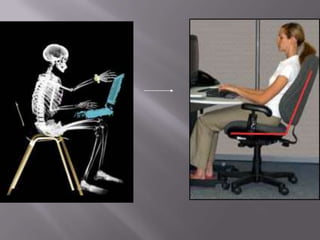
EVOLUTION??
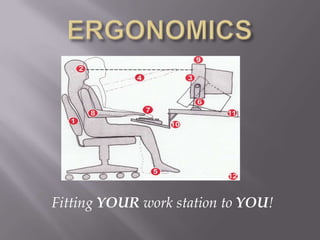
ERGONOMICSFitting YOUR work station to YOU!
What is ergonomics?Ergonomics is the science of fitting a job, job tasks, and job-related equipment to individual human physical and psychological characteristics . One of the focuses is on designing workstations, tools, lighting, and work tasks for safety, efficiency and comfort.
Why do I care?Effective ergonomic design reduces discomfort and injuries and increases job satisfaction and productivity. Prevention/reduction of Musculoskeletal Disorders (MSD’s).
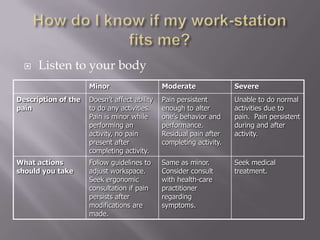
How do I know if my work-station fits me?Listen to your body
How do I know if my work-station fits me?If you experience recurrent or worsening discomfort, especially if the discomfort includes non-remitting pain, numbness, or weakness, promptly consult a qualified physician.The earlier a problem is identified, diagnosed, and treated, the less chance there is that it will progress to a disabling condition
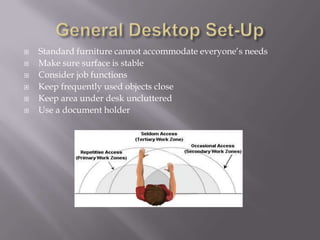
General Desktop Set-UpStandard furniture cannot accommodate everyone’s needs Make sure surface is stableConsider job functionsKeep frequently used objects close Keep area under desk unclutteredUse a document holder
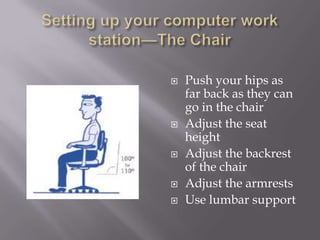
Setting up your computer work station—The ChairPush your hips as far back as they can go in the chair
Adjust the seat height
Adjust the backrest of the chair
Adjust the armrests
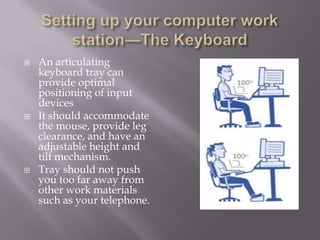
Use lumbar supportSetting up your computer work station—The KeyboardAn articulating keyboard tray can provide optimal positioning of input devices
It should accommodate the mouse, provide leg clearance, and have an adjustable height and tilt mechanism.
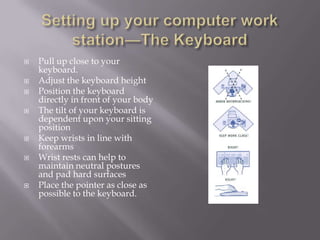
Tray should not push you too far away from other work materials such as your telephone.Setting up your computer work station—The KeyboardPull up close to your keyboard.
Adjust the keyboard height
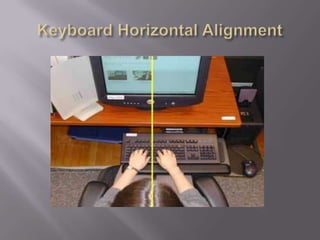
Position the keyboard directly in front of your body
The tilt of your keyboard is dependent upon your sitting position
Keep wrists in line with forearms
Wrist rests can help to maintain neutral postures and pad hard surfaces
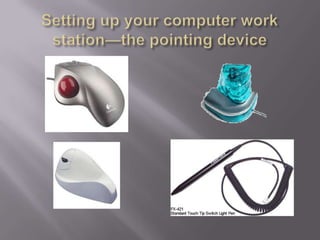
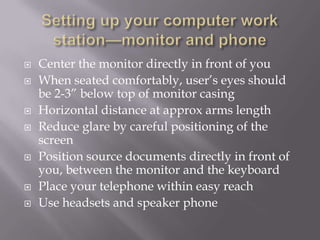
Place the pointer as close as possible to the keyboard. Keyboard Horizontal Alignment

Office ergonomics 06 29-10

  • 1.
  • 2.
  • 3.
    What is ergonomics?Ergonomicsis the science of fitting a job, job tasks, and job-related equipment to individual human physical and psychological characteristics . One of the focuses is on designing workstations, tools, lighting, and work tasks for safety, efficiency and comfort.
  • 4.
    Why do Icare?Effective ergonomic design reduces discomfort and injuries and increases job satisfaction and productivity. Prevention/reduction of Musculoskeletal Disorders (MSD’s).
  • 5.
    How do Iknow if my work-station fits me?Listen to your body
  • 6.
    How do Iknow if my work-station fits me?If you experience recurrent or worsening discomfort, especially if the discomfort includes non-remitting pain, numbness, or weakness, promptly consult a qualified physician.The earlier a problem is identified, diagnosed, and treated, the less chance there is that it will progress to a disabling condition
  • 7.
    General Desktop Set-UpStandardfurniture cannot accommodate everyone’s needs Make sure surface is stableConsider job functionsKeep frequently used objects close Keep area under desk unclutteredUse a document holder
  • 8.
    Setting up yourcomputer work station—The ChairPush your hips as far back as they can go in the chair
  • 9.
  • 10.
  • 11.
  • 12.
    Use lumbar supportSettingup your computer work station—The KeyboardAn articulating keyboard tray can provide optimal positioning of input devices
  • 13.
    It should accommodatethe mouse, provide leg clearance, and have an adjustable height and tilt mechanism.
  • 14.
    Tray should notpush you too far away from other work materials such as your telephone.Setting up your computer work station—The KeyboardPull up close to your keyboard.
  • 15.
  • 16.
    Position the keyboarddirectly in front of your body
  • 17.
    The tilt ofyour keyboard is dependent upon your sitting position
  • 18.
    Keep wrists inline with forearms
  • 19.
    Wrist rests canhelp to maintain neutral postures and pad hard surfaces
  • 20.
    Place the pointeras close as possible to the keyboard. Keyboard Horizontal Alignment