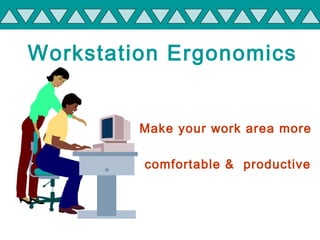
Workstation Ergonomics
Make your work area more
comfortable & productive
• What is Ergonomics ?
• Basic Risk factors
• Work station essentials & General
rules for office ergonomics setups
• Common risks
• Signs and symptoms
• Prevention
• Summary
AGENDA
What is Ergonomics?
 ERGO=“work”
 NOMICS=
“rules” or “laws”
 Ergonomics literally
means “the laws of work”
Basic Risk Factors
• Repetitive activity
• Non-Neutral Postures
• Static Postures
• Contact Pressures
• Material Handling
• Forceful exertions
• Work Habit & Style
• Environmental Factors
Workstation Essentials
Office furniture
– Adjustable and supportive chair
– A fixed height desk with a height adjustable
footrest, or, an adjustable desk
Workstation Essentials
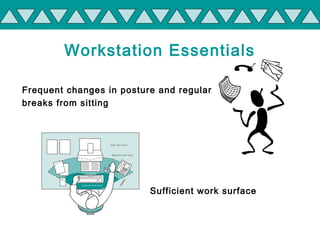
Frequent changes in posture and regular
breaks from sitting
Sufficient work surface
Workstation Essentials
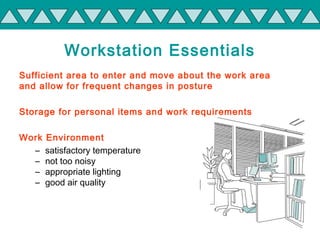
Sufficient area to enter and move about the work area
and allow for frequent changes in posture
Storage for personal items and work requirements
Work Environment
– satisfactory temperature
– not too noisy
– appropriate lighting
– good air quality
General office setups
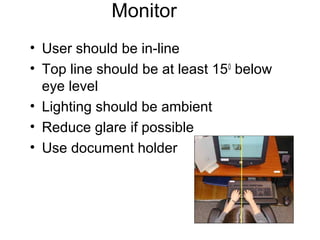
Monitor
• User should be in-line
• Top line should be at least 150
below
eye level
• Lighting should be ambient
• Reduce glare if possible
• Use document holder
Keyboard/Mouse
• Keyboard and mouse should be at
the same level
• Keep wrist in a neutral position
• Keep mouse close as possible
• Avoid clicking too hard
• Avoid typing too hard
Chair
•Chairs should be adjustable
•Forearms, thighs, and wrist parallel
to the floor
•Armrest should be adjustable
•Avoid cradling the phone
•Chair should have backrest
46-76 cm
(arm’s length)
58-71 cm
40-52 cm
• Top of screen about eye level;
lower for bifocal wearers
• Document holder in same
plane as screen
• Chair: provide low back
support, prefer adjustments
can be made while seated
• Keyboard height allows
elbows in and wrists straight
• Mouse same height and
distance as keyboard
• Keyboard rest: if used,
should be padded
• Allow room for legs and feet
• Feet should rest on floor or
footrest
90-105°
90-105°
Computer workstation setup
W o r k s t a t i o n
FAULTY POSTURE 1
What is wrong with
this picture?
Improve mouse location
What is wrong with
this picture?
Wrong methods of carrying material
Reduce awkward
posture
Telephone handling Experiments in lab
What is wrong with
this picture?
What is wrong with
this picture?
What is wrong with
this picture?
What is wrong with
this picture?
Common Risks for
Office & Lab Personnel
Poor posture
– back pain
– head and neck discomfort
– shoulder, arm, hand and wrist
discomfort
– leg and foot discomfort
– circulation problems
– headaches
Glare and lighting
• eye discomfort, eye strain
and
headaches
Poor working environment
– exposure to noise, poor air
quality and uncomfortable
temperature.
Long duration and lack of task variety
musculoskeletal injury and occupational health hazards
B a c k P r o b l e m s
P o o r
P o s t u r e s
P o o rP o o r
S t r e n g t hS t r e n g t h
C a u s e s..
P o o rP o o r
B o d y M e c h a n i c sB o d y M e c h a n i c s
C r a d l i n g
T e l e p h o n e
C a u s e s..
N e c kN e c k
S t r a i nS t r a i n
T e n s i o nT e n s i o n
H e a d a c h e sH e a d a c h e s
Signs and symptoms
• Fatigue
• Discomfort/pain
• Swelling
• Loss of motion
• Loss of strength
• Numbness and tingling
*Information provided by Richard W. Bunch, PhD, PT
Prevention
is better
than Cure
Prevention
• Reduce excessive repetition
• Work in neutral position
• Take breaks (stretching)
• Soft contact points
• Material handling loads
• Reduce excessive forces
and weights
• Environmental Factors
• Work space
• Proper Workstation Setup
• Change the Postural
• Good Work habits
HOW TO PREVENT
Change the posture
• Neck Posture
• Sitting Posture
• Typing Posture
• Use of Mouse
Ideal
W o r k H a b i t s
• Take rest breaks
• Practice good body mechanics
• Exercise at work – s-t-r-e-t-c-h
EXERCISE THERAPY
20-20-20 rule
20 minutes-20 feet -20 seconds
Workstation Ergonomic
Self-Assessment
If you are worried about the
comfort of your workstation
you should carry out a
Workstation Ergonomics
Self-Assessment
Workstation Evaluation
If the results of your self assessment identify that problems
exist with your workstation, you should in the first
instance discuss these issues with your Supervisor.
If you have any further concerns or require further
assistance, please contact the
Environment, Health & Safety Team.
Summary
• Remember good body position
• Modify your work place suitable to the
work
• Give Regular breaks and do some ergo
stretches
• Remember to report any pain/soreness
.GOOD ERGONOMICS IS GOOD
ECONOMICS
It
Enhances comfort
Reduces musculoskeletal discomfort & work injuries.
Decreases absenteeism.
Improves individual efficiency.
Improves job satisfaction and morale.
THERE BY
INCREASING THE PRODUCTIVITY
OF THE ORGANISATION
Ergonomics

Ergonomics

  • 1.
    Workstation Ergonomics Make yourwork area more comfortable & productive
  • 2.
    • What isErgonomics ? • Basic Risk factors • Work station essentials & General rules for office ergonomics setups • Common risks • Signs and symptoms • Prevention • Summary AGENDA
  • 3.
    What is Ergonomics? ERGO=“work”  NOMICS= “rules” or “laws”  Ergonomics literally means “the laws of work”
  • 4.
    Basic Risk Factors •Repetitive activity • Non-Neutral Postures • Static Postures • Contact Pressures • Material Handling • Forceful exertions • Work Habit & Style • Environmental Factors
  • 5.
    Workstation Essentials Office furniture –Adjustable and supportive chair – A fixed height desk with a height adjustable footrest, or, an adjustable desk
  • 6.
    Workstation Essentials Frequent changesin posture and regular breaks from sitting Sufficient work surface
  • 7.
    Workstation Essentials Sufficient areato enter and move about the work area and allow for frequent changes in posture Storage for personal items and work requirements Work Environment – satisfactory temperature – not too noisy – appropriate lighting – good air quality
  • 8.
  • 9.
    Monitor • User shouldbe in-line • Top line should be at least 150 below eye level • Lighting should be ambient • Reduce glare if possible • Use document holder
  • 10.
    Keyboard/Mouse • Keyboard andmouse should be at the same level • Keep wrist in a neutral position • Keep mouse close as possible • Avoid clicking too hard • Avoid typing too hard
  • 11.
    Chair •Chairs should beadjustable •Forearms, thighs, and wrist parallel to the floor •Armrest should be adjustable •Avoid cradling the phone •Chair should have backrest
  • 12.
    46-76 cm (arm’s length) 58-71cm 40-52 cm • Top of screen about eye level; lower for bifocal wearers • Document holder in same plane as screen • Chair: provide low back support, prefer adjustments can be made while seated • Keyboard height allows elbows in and wrists straight • Mouse same height and distance as keyboard • Keyboard rest: if used, should be padded • Allow room for legs and feet • Feet should rest on floor or footrest 90-105° 90-105° Computer workstation setup
  • 13.
    W o rk s t a t i o n
  • 14.
    W o rk s t a t i o n
  • 15.
  • 16.
    What is wrongwith this picture?
  • 17.
  • 18.
    What is wrongwith this picture?
  • 19.
    Wrong methods ofcarrying material
  • 20.
  • 21.
    What is wrongwith this picture?
  • 22.
    What is wrongwith this picture?
  • 23.
    What is wrongwith this picture?
  • 24.
    What is wrongwith this picture?
  • 25.
    Common Risks for Office& Lab Personnel Poor posture – back pain – head and neck discomfort – shoulder, arm, hand and wrist discomfort – leg and foot discomfort – circulation problems – headaches
  • 26.
    Glare and lighting •eye discomfort, eye strain and headaches Poor working environment – exposure to noise, poor air quality and uncomfortable temperature. Long duration and lack of task variety musculoskeletal injury and occupational health hazards
  • 27.
    B a ck P r o b l e m s
  • 28.
    P o or P o s t u r e s P o o rP o o r S t r e n g t hS t r e n g t h C a u s e s..
  • 29.
    P o orP o o r B o d y M e c h a n i c sB o d y M e c h a n i c s
  • 30.
    C r ad l i n g T e l e p h o n e C a u s e s..
  • 31.
    N e ckN e c k S t r a i nS t r a i n T e n s i o nT e n s i o n H e a d a c h e sH e a d a c h e s
  • 32.
    Signs and symptoms •Fatigue • Discomfort/pain • Swelling • Loss of motion • Loss of strength • Numbness and tingling *Information provided by Richard W. Bunch, PhD, PT
  • 33.
  • 34.
    Prevention • Reduce excessiverepetition • Work in neutral position • Take breaks (stretching) • Soft contact points • Material handling loads • Reduce excessive forces and weights • Environmental Factors • Work space
  • 35.
    • Proper WorkstationSetup • Change the Postural • Good Work habits HOW TO PREVENT
  • 36.
    Change the posture •Neck Posture • Sitting Posture • Typing Posture • Use of Mouse Ideal
  • 37.
    W o rk H a b i t s • Take rest breaks • Practice good body mechanics • Exercise at work – s-t-r-e-t-c-h
  • 38.
    EXERCISE THERAPY 20-20-20 rule 20minutes-20 feet -20 seconds
  • 39.
    Workstation Ergonomic Self-Assessment If youare worried about the comfort of your workstation you should carry out a Workstation Ergonomics Self-Assessment
  • 40.
    Workstation Evaluation If theresults of your self assessment identify that problems exist with your workstation, you should in the first instance discuss these issues with your Supervisor. If you have any further concerns or require further assistance, please contact the Environment, Health & Safety Team.
  • 41.
    Summary • Remember goodbody position • Modify your work place suitable to the work • Give Regular breaks and do some ergo stretches • Remember to report any pain/soreness
  • 42.
    .GOOD ERGONOMICS ISGOOD ECONOMICS It Enhances comfort Reduces musculoskeletal discomfort & work injuries. Decreases absenteeism. Improves individual efficiency. Improves job satisfaction and morale. THERE BY INCREASING THE PRODUCTIVITY OF THE ORGANISATION

Editor's Notes

  • #18 With this new style mouse there is no ball or hand held object to move. Either one or both index fingers can operate the roller bar to smoothly and accurately position the curser. The mouse is actually the roller bar and the four gray buttons you see at the bottom of the keyboard. This allows for a totally different application by the user, minimal hand movement and you let your fingers do the walking.