INTRODUCTION TO OFFICE
ERGONOMICS

Presented To:
Dr. A. Bharadwaj
Mech. Engg. Dept.
MNIT Jaipur

Presented By:
Kapil Jain
Gaurav Kumar
Ayush Mathur

1
Review your Work Area
•We spend most of our day in our
work area.
•We don’t want our work area to
contribute to ergonomic problems
•Ergonomic Rule #1

Work Comfortably!
If most of our work is done in an office continue

If most of our work is done outside of an office continue

2
Office Ergonomics-

The right equipment, the right place

Use a good CHAIR
Backrest is provides good lower back support
Arms adjustable
Front edge of seat pan
curves down

Height adjustable

Seat pan adjustable
horizontally and
tilts
On rollers

Five feet for base-most stable
3
Office Ergonomics-

The right equipment, the right place

MONITOR HEIGHT


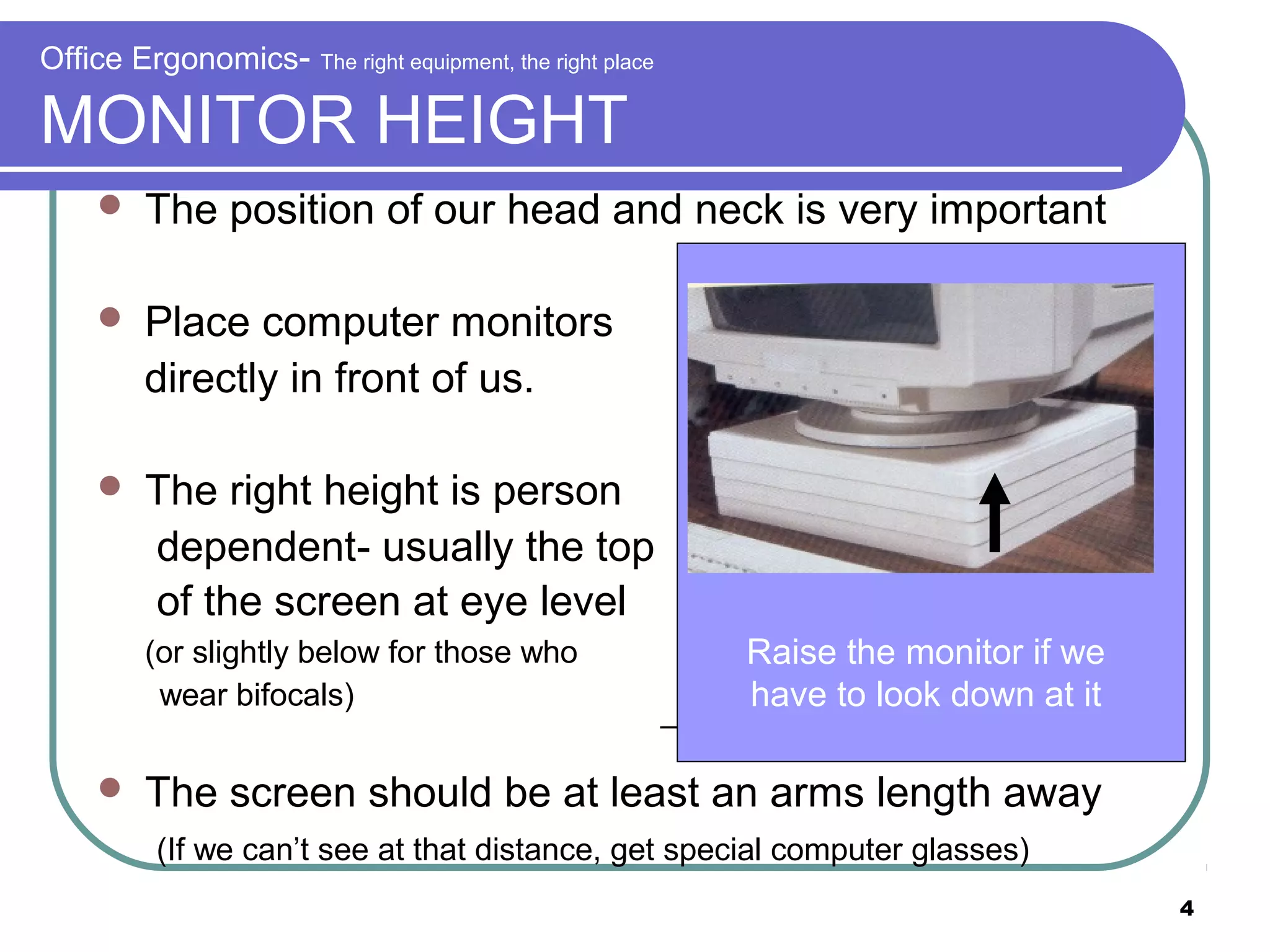
The position of our head and neck is very important



Place computer monitors
directly in front of us.



The right height is person
dependent- usually the top
of the screen at eye level
(or slightly below for those who
wear bifocals)



Raise the monitor if we
have to look down at it

The screen should be at least an arms length away
(If we can’t see at that distance, get special computer glasses)
4
Office Ergonomics-

The right equipment, the right place

KEYBOARD STYLES

A variety of styles are available.
Choose one that is comfortable for us.

5
Office Ergonomics-

The right equipment, the right place

KEYBOARD HOLDER
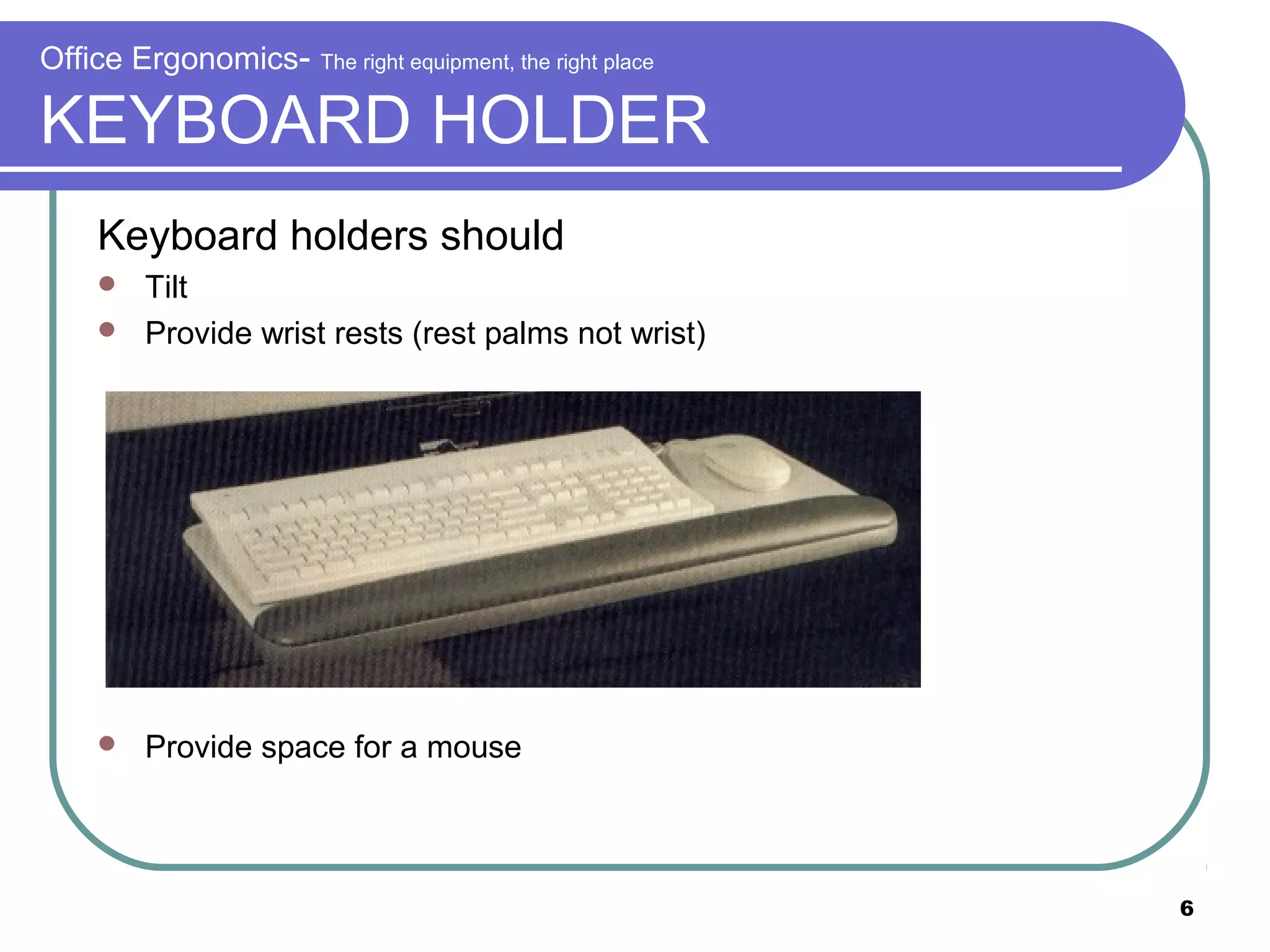
Keyboard holders should
Tilt
 Provide wrist rests (rest palms not wrist)




Provide space for a mouse

6
Keyboard Trays
 Keyboard

tray with
adjustability (swivels
left and right, tilts
forward and back,
allows for mouse,
extends to different
heights and positions)
 Position so wrists are
in neutral posture

7
Neutral Postures Include
Wrist posture
Wrists straight, not bent or twisted

8
Office Ergonomics-

The right equipment, the right place

MOUSE HOLDERS
Mouse trays or mouse holders can bring a
mouse to a better position

9
Office Ergonomics-

The right equipment, the right place

MOUSE STYLES
Choose a style comfortable for our hand and fingers

10
Workplace Ergonomics

11
Office Ergonomics-

The right equipment, the right place

WORK PLACEMENT


Position equipment so that our body is in a comfortable and
natural position most of the time while we are working.



Don’t place things so we have to reach, twist or bend continually



Place work at monitor height or place in path of monitor



Listen to our body. If we cannot focus or often feel tired or
uncomfortable, We are probably not working in a good position.



See what we can do to make our work more comfortable for us.

Disclaimer: Wait a minute! Though this position may look comfortable, it
is NOT a comfortable position to work in.
Imagine how our back would feel after typing a few pages in this position!
Do not equate comfortable leisure positions with comfortable work positions!
12
Office Ergonomics-

The right equipment, the right place

Everyone needs a relaxed, neutral position
DO WHAT’S COMFORTABLE FOR OUR BODY!

Wrists straight
Forearms and thighs parallel to the
floor

13
Office Ergonomics-

The right equipment, the right place

MOUSE POSITION


Mouse should be
close to the
keyboard and the
same height or
slightly higher

NO!

14
Office Ergonomics-

The right equipment, the right place

Phone PLACEMENT
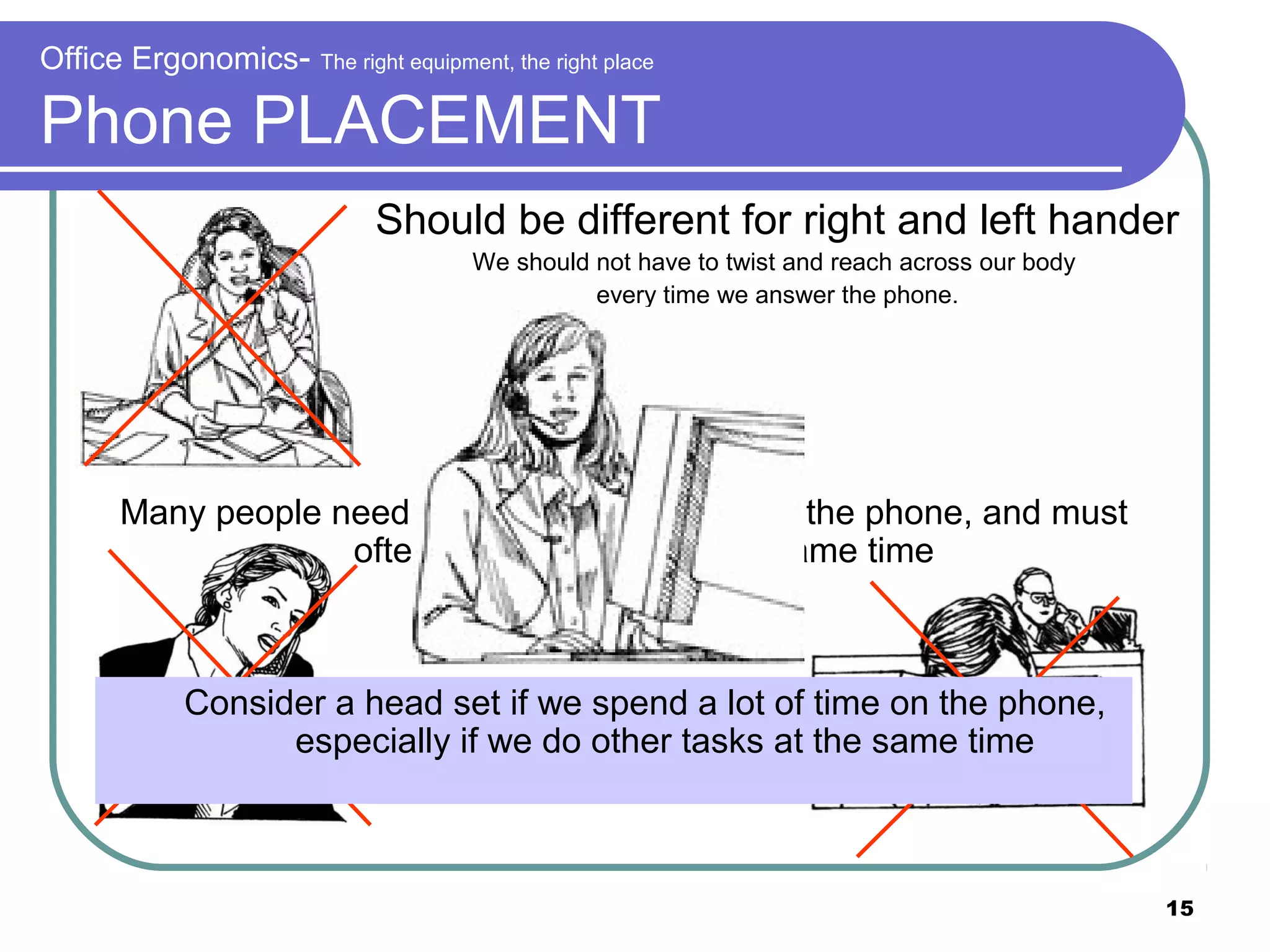
Should be different for right and left hander
We should not have to twist and reach across our body
every time we answer the phone.

Many people need to spend a lot of time on the phone, and must
often do other tasks at the same time
This creates a lot of stress
for neck and shoulder muscles

Consider a head set if we spend a lot of time on the phone,
especially if we do other tasks at the same time

15
Office Ergonomics-

The right equipment, the right place

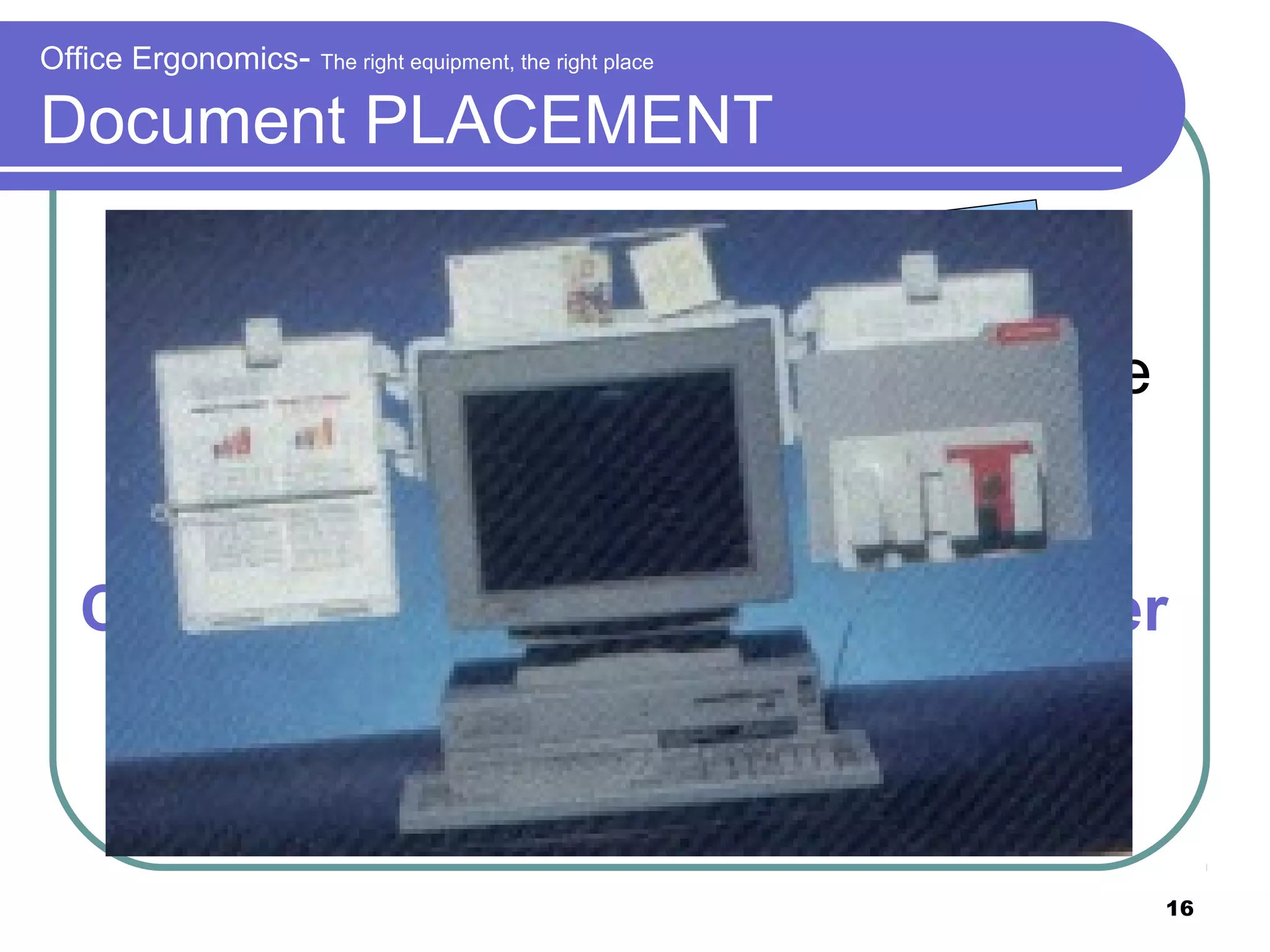
Document PLACEMENT
Place documents so that we don’t
need to bend our head to read while
on keyboard
Consider getting a document holder

16
Ergonomic STRESSORS

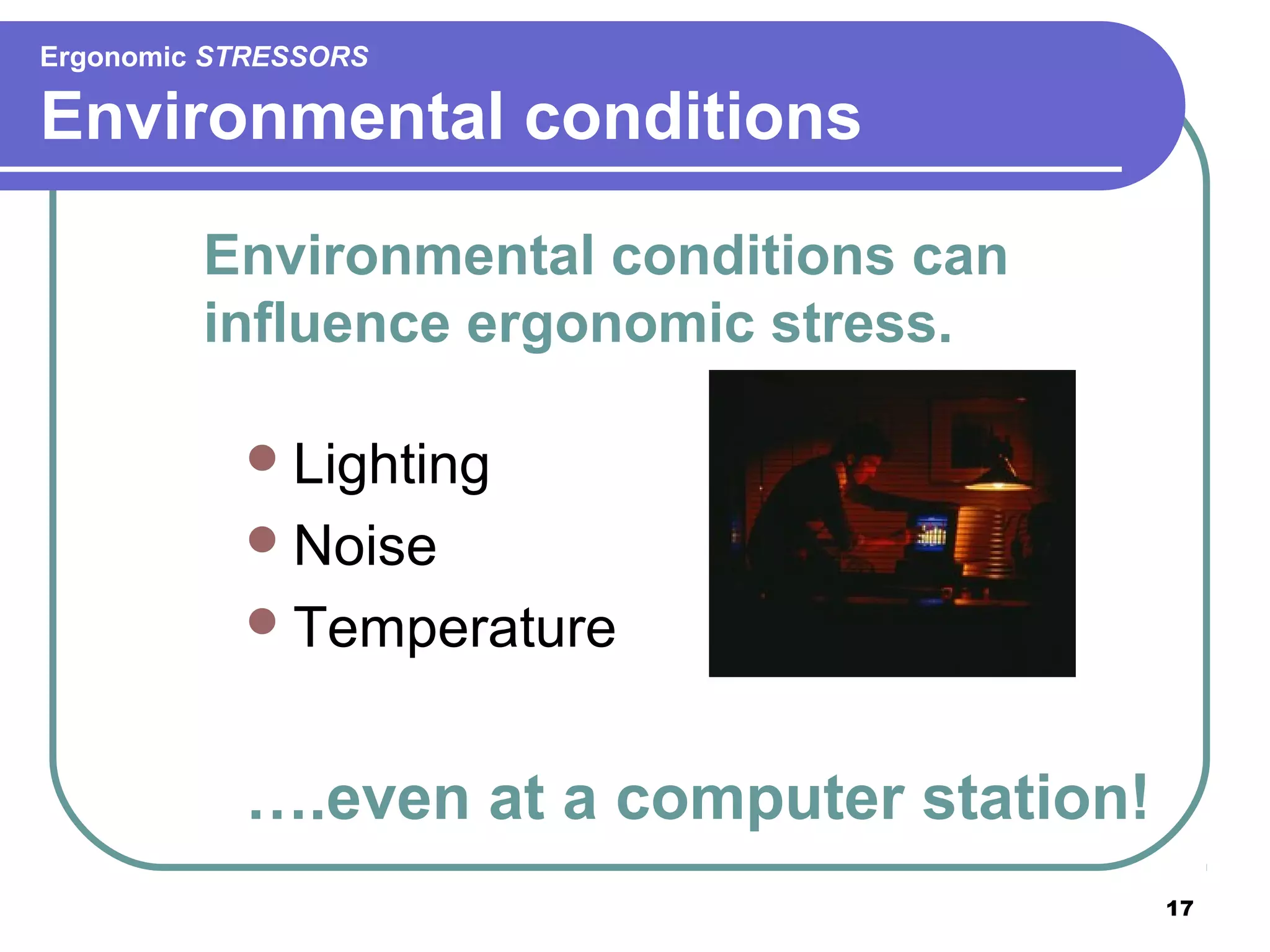
Environmental conditions
Environmental conditions can
influence ergonomic stress.
 Lighting
 Noise
 Temperature

….even at a computer station!
17
Ergonomic STRESSORS

LIGHTING & MONITOR GLARE


Lighting should be
indirect and adequate



Not too much light,
or it may cause a glare,
headaches and eye
fatigue



If there is a glare on our
eyes as we work, use
anti-glare screens on
computers, or adjustable
blinds at windows

Ideal is 35-50 foot candles
18
Office Ergonomics-

The right equipment, the right place

GLARE SCREENS

19
Have to Consider the Whole
Working Space

20
COMPUTER VISION SYNDROME
can be prevented
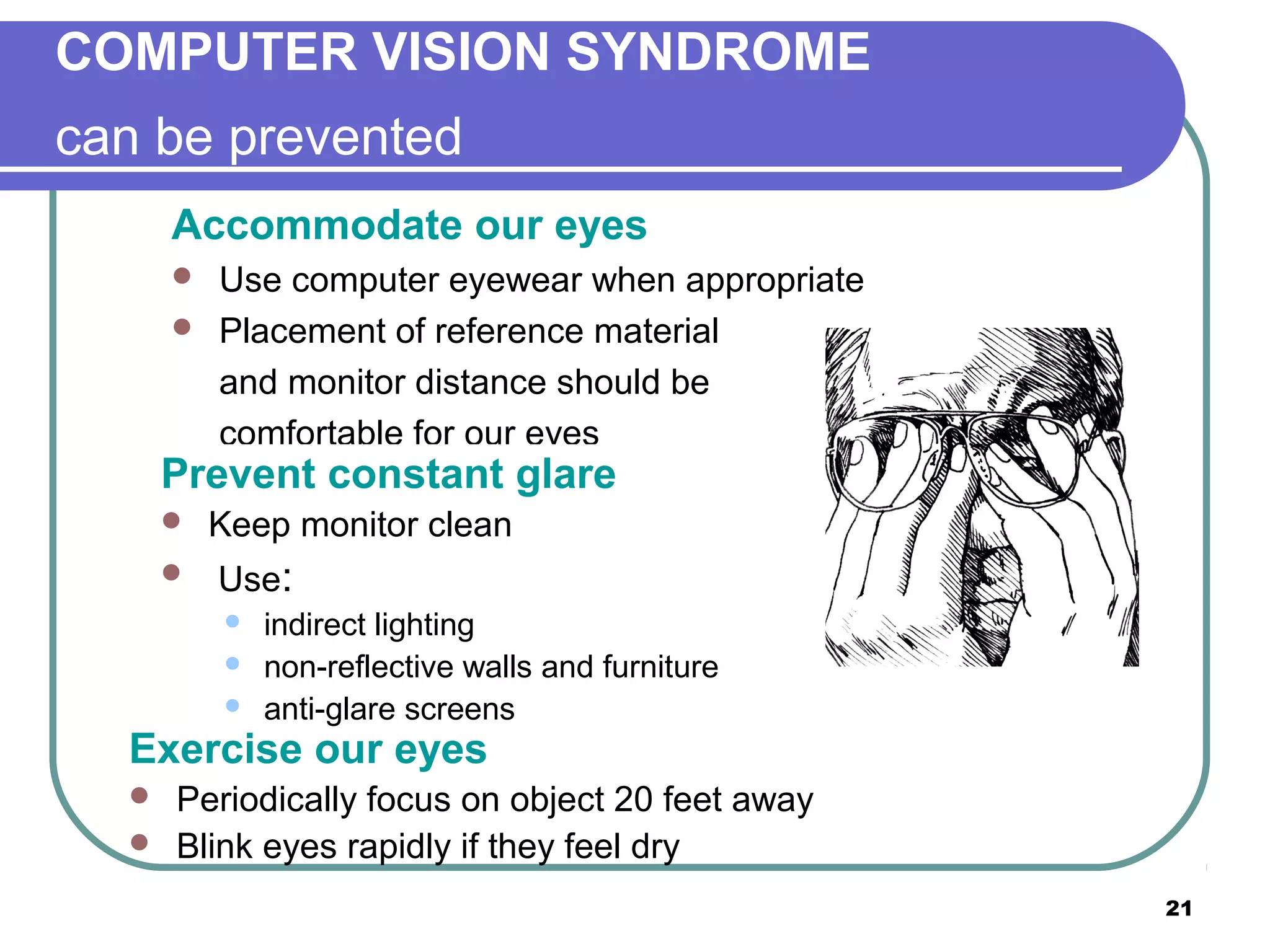
Accommodate our eyes



Use computer eyewear when appropriate
Placement of reference material
and monitor distance should be
comfortable for our eyes

Prevent constant glare



Keep monitor clean
Use:




indirect lighting
non-reflective walls and furniture
anti-glare screens

Exercise our eyes



Periodically focus on object 20 feet away
Blink eyes rapidly if they feel dry
21
Ergonomic STRESSORS

Noise can be a STRESSOR
 If

our office is near a noise source, close
our door, or wear ear plugs

 Besides

causing ear damage, constant
noise can create extra muscle tension in
the body causing fatigue and making it
easier for ergonomic injuries to occur.
22
Ergonomic STRESSORS

Temperature
 People

are more prone to ergonomic injuries
in cold environments. Muscles and other
tissues are more tense, because of decreased
circulation.

 Dress

appropriately

 Do

some warm up exercises, such as
stretching our hands, to loosen our finger
muscles before keyboarding.
23
Ergonomic STRESSORS

FORCE can be a stressor
A

task can require a moderate amount of
force to be applied to very small muscles

 Examples:

Dragging and dropping with the mouse
 Gripping the sides of the mouse or phone tightly
 Pounding on the keyboard
 Grasping thick file folders
 Stapling or stamping
 Opening 3-ring binder
 Lifting heavy manuals with one hand


24
Ergonomic STRESSORS

MECHANICAL CONTACT STRESS
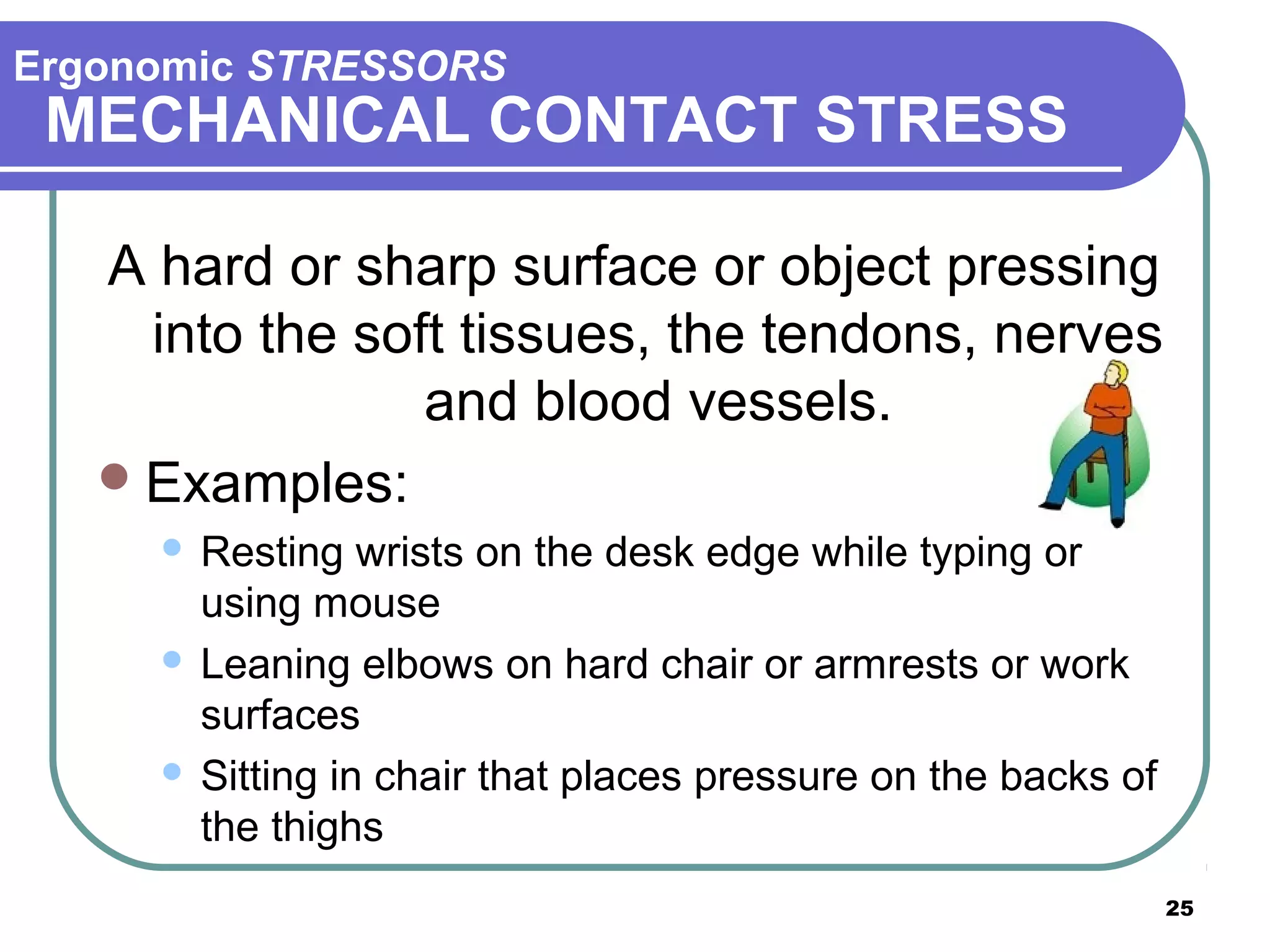
A hard or sharp surface or object pressing
into the soft tissues, the tendons, nerves
and blood vessels.
 Examples:
Resting wrists on the desk edge while typing or
using mouse
 Leaning elbows on hard chair or armrests or work
surfaces
 Sitting in chair that places pressure on the backs of
the thighs


25
Ergonomic STRESSORS

Noise can be a STRESSOR
 If

we work near a constant noise
source, such as generators or
fans, close your door, or wear ear
plugs.

 Besides

causing ear damage,
constant noise can create extra
muscle tension in the body causing
fatigue and making it easier for
ergonomic injuries to occur.
26
Ergonomic STRESSORS

Noise can be a STRESSOR


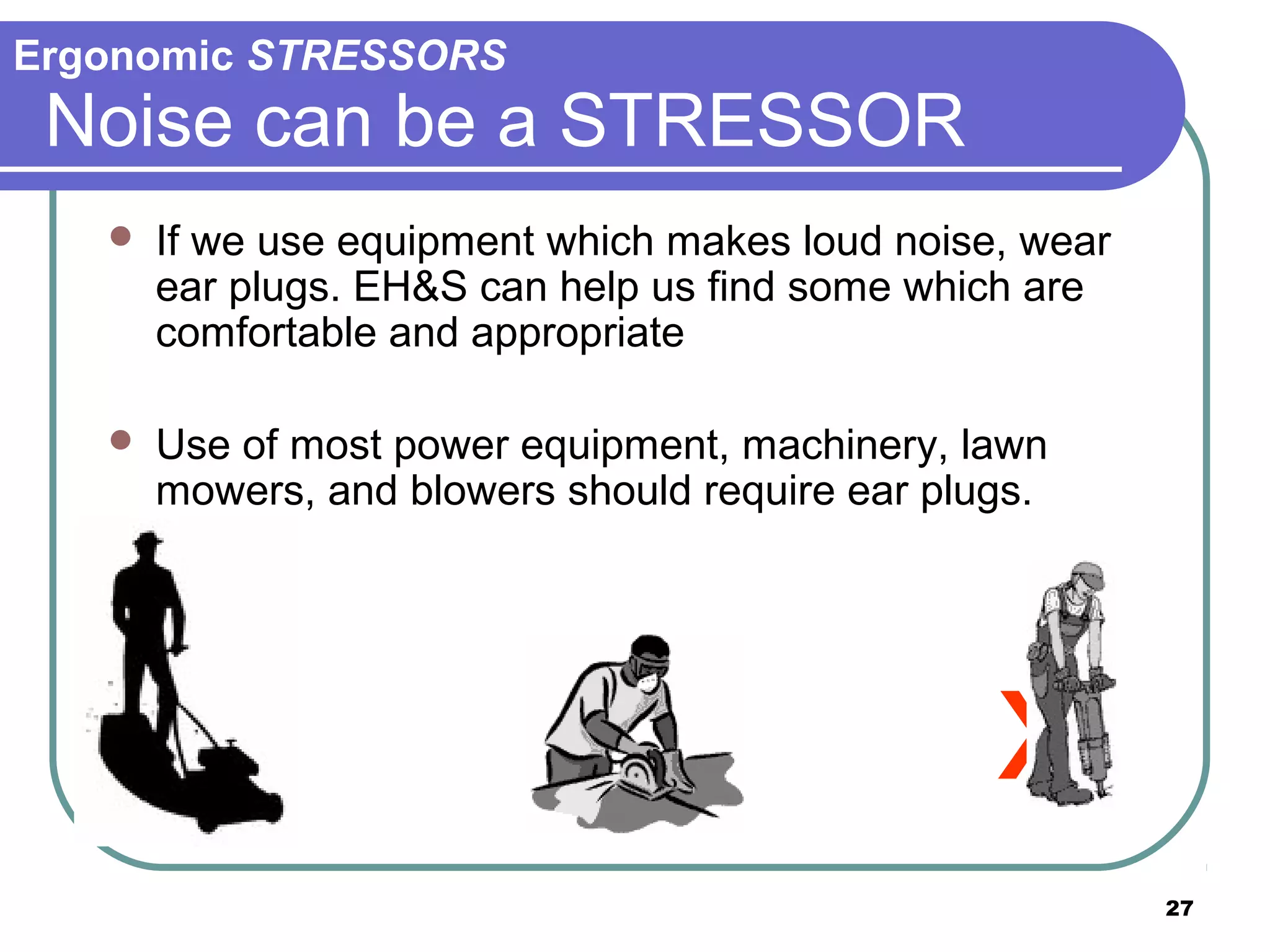
If we use equipment which makes loud noise, wear
ear plugs. EH&S can help us find some which are
comfortable and appropriate



Use of most power equipment, machinery, lawn
mowers, and blowers should require ear plugs.

x
27
Solutions

Individual work routine and habit
Fortunately,
most STRESSORS can be minimized
or eliminated
by individual habits
and work routine.
The solution to most ergonomic
problems is to work comfortably
and avoid a few common
ergonomic pitfalls.

28
Solutions

Avoid REPETITION
Performing the same or similar motions repeatedly for
extended periods without time for rest and recovery
can lead to discomfort or trauma.
Examples:








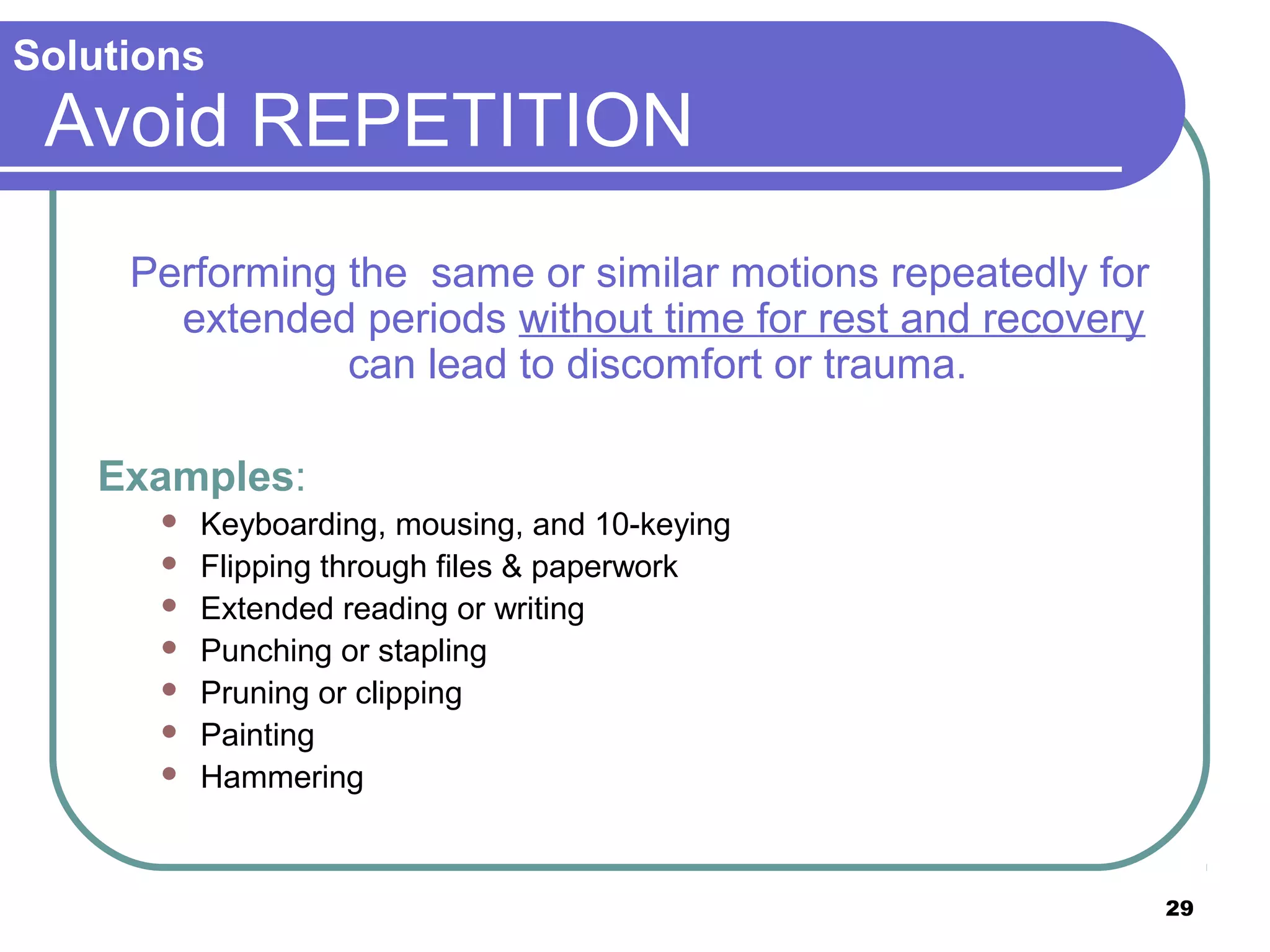
Keyboarding, mousing, and 10-keying
Flipping through files & paperwork
Extended reading or writing
Punching or stapling
Pruning or clipping
Painting
Hammering

29
Solutions

AVOID LONG DURATION OF SAME TASK
 The

length of time spent at a task without
breaks, shifts in position, or stretches is more
important than the actual task.

 The

longer the uninterrupted duration of a
task, the more potential for discomfort or injury

Our bodies are designed to do work.
But the result on the body of doing a
repetitive task for 2 hours verses 6
hours straight is very different.
30
Solutions

STRETCHES & BREAKS
 Static

positions are our enemy!

 Whenever

we think of it, change position

 Small

frequent stretches go a long way in
preventing MSD’s.

31
Solutions

Avoid BAD POSTURES
Everyone has seen these….
Slouching over a computer

Propping a phone on shoulder

Bad postures are a primary cause of ergonomic injuries

32
Solutions

Avoid AWKARD POSITIONS
Awkward positions bend the joints in a way that
they are more likely to become injured.

Examples:









Reaching up and over
Slouching or leaning forward in the chair
Leaning forward or bending over work
Holding heavy items in position
Lifting, pushing pulling
Turning head side to side to view the monitor
Cradling the phone between the ear and shoulder
Typing with bent wrists

AW
PO KW
SIT AR
IO D
NS
cre
ate
ST
RE
SS

33
Evaluate this office

34
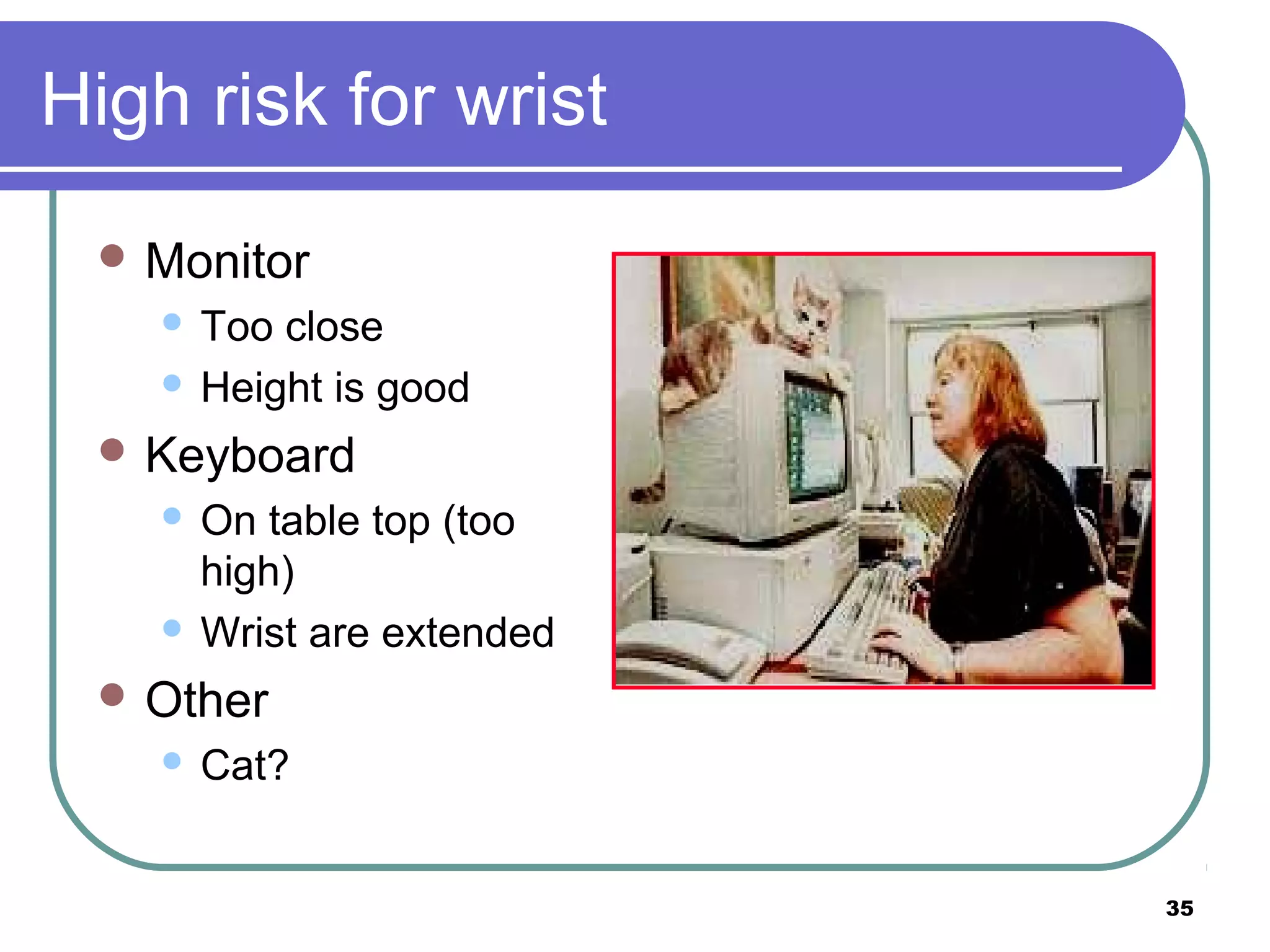
High risk for wrist
 Monitor

Too close
 Height is good


 Keyboard

On table top (too
high)
 Wrist are extended


 Other


Cat?
35
Evaluate this office

36
HELP!!!
 Monitor


Not bad

 Keyboard

and

mouse
Way low
 Arm is extended out
 Worker slouched


 Risk

for wrist, arm,
neck and back
37
References





ERGONOMICS HAND BOOK, Fifth
Edition, Occupational Health Clinics for Ontario
Workers Inc.
Office Ergonomics-Karl H.E. Kroemer
Research
Paper-Health
and
Performance
Consequences of Office Ergonomic Interventions
Among Computer Workers-Michelle M. Robertson
OFFICE

38
Suggestion &
Comments…

39

Office ergonomics by kapil

  • 1.
    INTRODUCTION TO OFFICE ERGONOMICS PresentedTo: Dr. A. Bharadwaj Mech. Engg. Dept. MNIT Jaipur Presented By: Kapil Jain Gaurav Kumar Ayush Mathur 1
  • 2.
    Review your WorkArea •We spend most of our day in our work area. •We don’t want our work area to contribute to ergonomic problems •Ergonomic Rule #1 Work Comfortably! If most of our work is done in an office continue If most of our work is done outside of an office continue 2
  • 3.
    Office Ergonomics- The rightequipment, the right place Use a good CHAIR Backrest is provides good lower back support Arms adjustable Front edge of seat pan curves down Height adjustable Seat pan adjustable horizontally and tilts On rollers Five feet for base-most stable 3
  • 4.
    Office Ergonomics- The rightequipment, the right place MONITOR HEIGHT  The position of our head and neck is very important  Place computer monitors directly in front of us.  The right height is person dependent- usually the top of the screen at eye level (or slightly below for those who wear bifocals)  Raise the monitor if we have to look down at it The screen should be at least an arms length away (If we can’t see at that distance, get special computer glasses) 4
  • 5.
    Office Ergonomics- The rightequipment, the right place KEYBOARD STYLES A variety of styles are available. Choose one that is comfortable for us. 5
  • 6.
    Office Ergonomics- The rightequipment, the right place KEYBOARD HOLDER Keyboard holders should Tilt  Provide wrist rests (rest palms not wrist)   Provide space for a mouse 6
  • 7.
    Keyboard Trays  Keyboard traywith adjustability (swivels left and right, tilts forward and back, allows for mouse, extends to different heights and positions)  Position so wrists are in neutral posture 7
  • 8.
    Neutral Postures Include Wristposture Wrists straight, not bent or twisted 8
  • 9.
    Office Ergonomics- The rightequipment, the right place MOUSE HOLDERS Mouse trays or mouse holders can bring a mouse to a better position 9
  • 10.
    Office Ergonomics- The rightequipment, the right place MOUSE STYLES Choose a style comfortable for our hand and fingers 10
  • 11.
  • 12.
    Office Ergonomics- The rightequipment, the right place WORK PLACEMENT  Position equipment so that our body is in a comfortable and natural position most of the time while we are working.  Don’t place things so we have to reach, twist or bend continually  Place work at monitor height or place in path of monitor  Listen to our body. If we cannot focus or often feel tired or uncomfortable, We are probably not working in a good position.  See what we can do to make our work more comfortable for us. Disclaimer: Wait a minute! Though this position may look comfortable, it is NOT a comfortable position to work in. Imagine how our back would feel after typing a few pages in this position! Do not equate comfortable leisure positions with comfortable work positions! 12
  • 13.
    Office Ergonomics- The rightequipment, the right place Everyone needs a relaxed, neutral position DO WHAT’S COMFORTABLE FOR OUR BODY! Wrists straight Forearms and thighs parallel to the floor 13
  • 14.
    Office Ergonomics- The rightequipment, the right place MOUSE POSITION  Mouse should be close to the keyboard and the same height or slightly higher NO! 14
  • 15.
    Office Ergonomics- The rightequipment, the right place Phone PLACEMENT Should be different for right and left hander We should not have to twist and reach across our body every time we answer the phone. Many people need to spend a lot of time on the phone, and must often do other tasks at the same time This creates a lot of stress for neck and shoulder muscles Consider a head set if we spend a lot of time on the phone, especially if we do other tasks at the same time 15
  • 16.
    Office Ergonomics- The rightequipment, the right place Document PLACEMENT Place documents so that we don’t need to bend our head to read while on keyboard Consider getting a document holder 16
  • 17.
    Ergonomic STRESSORS Environmental conditions Environmentalconditions can influence ergonomic stress.  Lighting  Noise  Temperature ….even at a computer station! 17
  • 18.
    Ergonomic STRESSORS LIGHTING &MONITOR GLARE  Lighting should be indirect and adequate  Not too much light, or it may cause a glare, headaches and eye fatigue  If there is a glare on our eyes as we work, use anti-glare screens on computers, or adjustable blinds at windows Ideal is 35-50 foot candles 18
  • 19.
    Office Ergonomics- The rightequipment, the right place GLARE SCREENS 19
  • 20.
    Have to Considerthe Whole Working Space 20
  • 21.
    COMPUTER VISION SYNDROME canbe prevented Accommodate our eyes   Use computer eyewear when appropriate Placement of reference material and monitor distance should be comfortable for our eyes Prevent constant glare   Keep monitor clean Use:    indirect lighting non-reflective walls and furniture anti-glare screens Exercise our eyes   Periodically focus on object 20 feet away Blink eyes rapidly if they feel dry 21
  • 22.
    Ergonomic STRESSORS Noise canbe a STRESSOR  If our office is near a noise source, close our door, or wear ear plugs  Besides causing ear damage, constant noise can create extra muscle tension in the body causing fatigue and making it easier for ergonomic injuries to occur. 22
  • 23.
    Ergonomic STRESSORS Temperature  People aremore prone to ergonomic injuries in cold environments. Muscles and other tissues are more tense, because of decreased circulation.  Dress appropriately  Do some warm up exercises, such as stretching our hands, to loosen our finger muscles before keyboarding. 23
  • 24.
    Ergonomic STRESSORS FORCE canbe a stressor A task can require a moderate amount of force to be applied to very small muscles  Examples: Dragging and dropping with the mouse  Gripping the sides of the mouse or phone tightly  Pounding on the keyboard  Grasping thick file folders  Stapling or stamping  Opening 3-ring binder  Lifting heavy manuals with one hand  24
  • 25.
    Ergonomic STRESSORS MECHANICAL CONTACTSTRESS A hard or sharp surface or object pressing into the soft tissues, the tendons, nerves and blood vessels.  Examples: Resting wrists on the desk edge while typing or using mouse  Leaning elbows on hard chair or armrests or work surfaces  Sitting in chair that places pressure on the backs of the thighs  25
  • 26.
    Ergonomic STRESSORS Noise canbe a STRESSOR  If we work near a constant noise source, such as generators or fans, close your door, or wear ear plugs.  Besides causing ear damage, constant noise can create extra muscle tension in the body causing fatigue and making it easier for ergonomic injuries to occur. 26
  • 27.
    Ergonomic STRESSORS Noise canbe a STRESSOR  If we use equipment which makes loud noise, wear ear plugs. EH&S can help us find some which are comfortable and appropriate  Use of most power equipment, machinery, lawn mowers, and blowers should require ear plugs. x 27
  • 28.
    Solutions Individual work routineand habit Fortunately, most STRESSORS can be minimized or eliminated by individual habits and work routine. The solution to most ergonomic problems is to work comfortably and avoid a few common ergonomic pitfalls. 28
  • 29.
    Solutions Avoid REPETITION Performing thesame or similar motions repeatedly for extended periods without time for rest and recovery can lead to discomfort or trauma. Examples:        Keyboarding, mousing, and 10-keying Flipping through files & paperwork Extended reading or writing Punching or stapling Pruning or clipping Painting Hammering 29
  • 30.
    Solutions AVOID LONG DURATIONOF SAME TASK  The length of time spent at a task without breaks, shifts in position, or stretches is more important than the actual task.  The longer the uninterrupted duration of a task, the more potential for discomfort or injury Our bodies are designed to do work. But the result on the body of doing a repetitive task for 2 hours verses 6 hours straight is very different. 30
  • 31.
    Solutions STRETCHES & BREAKS Static positions are our enemy!  Whenever we think of it, change position  Small frequent stretches go a long way in preventing MSD’s. 31
  • 32.
    Solutions Avoid BAD POSTURES Everyonehas seen these…. Slouching over a computer Propping a phone on shoulder Bad postures are a primary cause of ergonomic injuries 32
  • 33.
    Solutions Avoid AWKARD POSITIONS Awkwardpositions bend the joints in a way that they are more likely to become injured. Examples:         Reaching up and over Slouching or leaning forward in the chair Leaning forward or bending over work Holding heavy items in position Lifting, pushing pulling Turning head side to side to view the monitor Cradling the phone between the ear and shoulder Typing with bent wrists AW PO KW SIT AR IO D NS cre ate ST RE SS 33
  • 34.
  • 35.
    High risk forwrist  Monitor Too close  Height is good   Keyboard On table top (too high)  Wrist are extended   Other  Cat? 35
  • 36.
  • 37.
    HELP!!!  Monitor  Not bad Keyboard and mouse Way low  Arm is extended out  Worker slouched   Risk for wrist, arm, neck and back 37
  • 38.
    References    ERGONOMICS HAND BOOK,Fifth Edition, Occupational Health Clinics for Ontario Workers Inc. Office Ergonomics-Karl H.E. Kroemer Research Paper-Health and Performance Consequences of Office Ergonomic Interventions Among Computer Workers-Michelle M. Robertson OFFICE 38
  • 39.