ERGONOMICS
WORK STATION SELF ERGONOMIC
ASSESSMENT
Case Study : Office Based Employees
INTRODUCTION
SELF ERGONOMIC ASSESSMENT
• Self Evaluation Tool as a guide to adjust your workstation
and make sure you are working in a neutral posture
• This checklist is to assist in setting up your workstation in
line with basic ergonomic principles and to minimize the
risk of musculoskeletal disorder.
• When setting up the position of workstation furniture it
is important to experiment and try new positions to find
the most comfortable.
• Remember to give your body a chance to get used to the
changes, it may take several hours or even days to find
the best position.
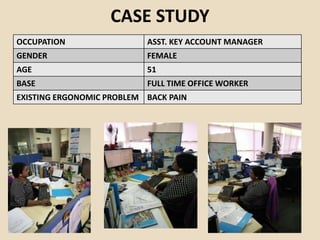
CASE STUDY
OCCUPATION ASST. KEY ACCOUNT MANAGER
GENDER FEMALE
AGE 51
BASE FULL TIME OFFICE WORKER
EXISTING ERGONOMIC PROBLEM BACK PAIN
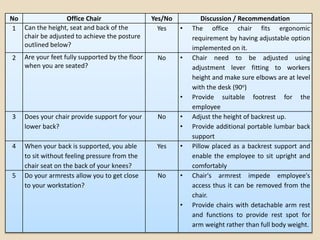
No Office Chair Yes/No Discussion / Recommendation
1 Can the height, seat and back of the
chair be adjusted to achieve the posture
outlined below?
Yes • The office chair fits ergonomic
requirement by having adjustable option
implemented on it.
2 Are your feet fully supported by the floor
when you are seated?
No • Chair need to be adjusted using
adjustment lever fitting to workers
height and make sure elbows are at level
with the desk (90o)
• Provide suitable footrest for the
employee
3 Does your chair provide support for your
lower back?
No • Adjust the height of backrest up.
• Provide additional portable lumbar back
support
4 When your back is supported, you able
to sit without feeling pressure from the
chair seat on the back of your knees?
Yes • Pillow placed as a backrest support and
enable the employee to sit upright and
comfortably
5 Do your armrests allow you to get close
to your workstation?
No • Chair's armrest impede employee's
access thus it can be removed from the
chair.
• Provide chairs with detachable arm rest
and functions to provide rest spot for
arm weight rather than full body weight.
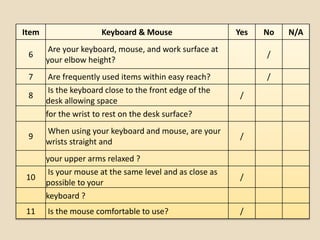
Item Keyboard & Mouse Yes No N/A
6
Are your keyboard, mouse, and work surface at
your elbow height?
/
7 Are frequently used items within easy reach? /
8
Is the keyboard close to the front edge of the
desk allowing space
/
for the wrist to rest on the desk surface?
9
When using your keyboard and mouse, are your
wrists straight and
/
your upper arms relaxed ?
10
Is your mouse at the same level and as close as
possible to your
/
keyboard ?
11 Is the mouse comfortable to use? /
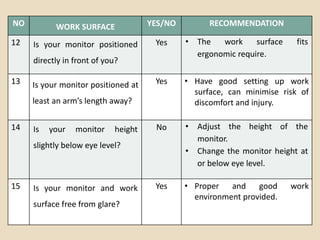
NO WORK SURFACE YES/NO RECOMMENDATION
12 Is your monitor positioned
directly in front of you?
Yes • The work surface fits
ergonomic require.
13 Is your monitor positioned at
least an arm’s length away?
Yes • Have good setting up work
surface, can minimise risk of
discomfort and injury.
14 Is your monitor height
slightly below eye level?
No • Adjust the height of the
monitor.
• Change the monitor height at
or below eye level.
15 Is your monitor and work
surface free from glare?
Yes • Proper and good work
environment provided.
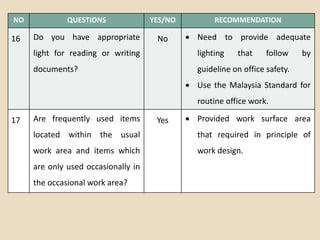
NO QUESTIONS YES/NO RECOMMENDATION
16 Do you have appropriate
light for reading or writing
documents?
No  Need to provide adequate
lighting that follow by
guideline on office safety.
 Use the Malaysia Standard for
routine office work.
17 Are frequently used items
located within the usual
work area and items which
are only used occasionally in
the occasional work area?
Yes  Provided work surface area
that required in principle of
work design.
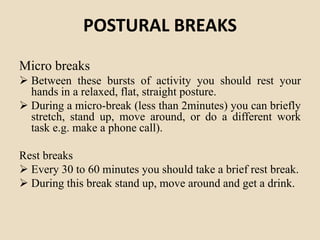
POSTURAL BREAKS
Micro breaks
 Between these bursts of activity you should rest your
hands in a relaxed, flat, straight posture.
 During a micro-break (less than 2minutes) you can briefly
stretch, stand up, move around, or do a different work
task e.g. make a phone call).
Rest breaks
 Every 30 to 60 minutes you should take a brief rest break.
 During this break stand up, move around and get a drink.
Exercise breaks
 There are many stretching and gentle exercises that
you can do to help relieve muscle fatigue. You
should do these every 1-2 hours.
Ergonomic software
 You can get excellent ergonomic software that you
can install on your computer
(http://www.magnitude.com).
 The best software will run in the background and it
will monitor how much you've been using the
computer.
 It will prompt you to take a rest break at appropriate
intervals, and it will suggest simple exercises.
EYE BREAKS
• Looking at a computer screen causes some
changes in eyes blinks and expose more of the
eye surface to the air.
• Every 15 minutes look away from the screen
for a minute or two preferably something more
that 20 feet away to let the muscles inside the
eyes relax.
• Blink your rapidly for a few seconds. This
refreshes the tear film and clear dust from the
eyes surface
ACCESSORIES
Obtain an angle board
 For the purpose good neck and back posture and to
avoid back pain.
 Easy to reach, placement of things and can adjust
depends on our comfortable posture.
Obtain document holder beside the screen
 Poorly placed documents on the desk may lead to
muscle discomfort or eye strain.
 An angled reading/ writing board or document holder
can improve neck posture when reading or writing
for significant periods.
Obtain a headset if using the phone and keyboard
 Telephone headsets should be used when there is
sustained phone use or workers are required to write
or use the computer at the same time.
 Wireless headsets or appropriately corded headsets
allow the user to stand up and move around their
work station at suitable time during or between calls

Ergonomics Workstation Self Ergonomic Assessment

  • 1.
    ERGONOMICS WORK STATION SELFERGONOMIC ASSESSMENT Case Study : Office Based Employees
  • 2.
    INTRODUCTION SELF ERGONOMIC ASSESSMENT •Self Evaluation Tool as a guide to adjust your workstation and make sure you are working in a neutral posture • This checklist is to assist in setting up your workstation in line with basic ergonomic principles and to minimize the risk of musculoskeletal disorder. • When setting up the position of workstation furniture it is important to experiment and try new positions to find the most comfortable. • Remember to give your body a chance to get used to the changes, it may take several hours or even days to find the best position.
  • 3.
    CASE STUDY OCCUPATION ASST.KEY ACCOUNT MANAGER GENDER FEMALE AGE 51 BASE FULL TIME OFFICE WORKER EXISTING ERGONOMIC PROBLEM BACK PAIN
  • 4.
    No Office ChairYes/No Discussion / Recommendation 1 Can the height, seat and back of the chair be adjusted to achieve the posture outlined below? Yes • The office chair fits ergonomic requirement by having adjustable option implemented on it. 2 Are your feet fully supported by the floor when you are seated? No • Chair need to be adjusted using adjustment lever fitting to workers height and make sure elbows are at level with the desk (90o) • Provide suitable footrest for the employee 3 Does your chair provide support for your lower back? No • Adjust the height of backrest up. • Provide additional portable lumbar back support 4 When your back is supported, you able to sit without feeling pressure from the chair seat on the back of your knees? Yes • Pillow placed as a backrest support and enable the employee to sit upright and comfortably 5 Do your armrests allow you to get close to your workstation? No • Chair's armrest impede employee's access thus it can be removed from the chair. • Provide chairs with detachable arm rest and functions to provide rest spot for arm weight rather than full body weight.
  • 5.
    Item Keyboard &Mouse Yes No N/A 6 Are your keyboard, mouse, and work surface at your elbow height? / 7 Are frequently used items within easy reach? / 8 Is the keyboard close to the front edge of the desk allowing space / for the wrist to rest on the desk surface? 9 When using your keyboard and mouse, are your wrists straight and / your upper arms relaxed ? 10 Is your mouse at the same level and as close as possible to your / keyboard ? 11 Is the mouse comfortable to use? /
  • 6.
    NO WORK SURFACEYES/NO RECOMMENDATION 12 Is your monitor positioned directly in front of you? Yes • The work surface fits ergonomic require. 13 Is your monitor positioned at least an arm’s length away? Yes • Have good setting up work surface, can minimise risk of discomfort and injury. 14 Is your monitor height slightly below eye level? No • Adjust the height of the monitor. • Change the monitor height at or below eye level. 15 Is your monitor and work surface free from glare? Yes • Proper and good work environment provided.
  • 7.
    NO QUESTIONS YES/NORECOMMENDATION 16 Do you have appropriate light for reading or writing documents? No  Need to provide adequate lighting that follow by guideline on office safety.  Use the Malaysia Standard for routine office work. 17 Are frequently used items located within the usual work area and items which are only used occasionally in the occasional work area? Yes  Provided work surface area that required in principle of work design.
  • 8.
    POSTURAL BREAKS Micro breaks Between these bursts of activity you should rest your hands in a relaxed, flat, straight posture.  During a micro-break (less than 2minutes) you can briefly stretch, stand up, move around, or do a different work task e.g. make a phone call). Rest breaks  Every 30 to 60 minutes you should take a brief rest break.  During this break stand up, move around and get a drink.
  • 9.
    Exercise breaks  Thereare many stretching and gentle exercises that you can do to help relieve muscle fatigue. You should do these every 1-2 hours. Ergonomic software  You can get excellent ergonomic software that you can install on your computer (http://www.magnitude.com).  The best software will run in the background and it will monitor how much you've been using the computer.  It will prompt you to take a rest break at appropriate intervals, and it will suggest simple exercises.
  • 10.
    EYE BREAKS • Lookingat a computer screen causes some changes in eyes blinks and expose more of the eye surface to the air. • Every 15 minutes look away from the screen for a minute or two preferably something more that 20 feet away to let the muscles inside the eyes relax. • Blink your rapidly for a few seconds. This refreshes the tear film and clear dust from the eyes surface
  • 11.
    ACCESSORIES Obtain an angleboard  For the purpose good neck and back posture and to avoid back pain.  Easy to reach, placement of things and can adjust depends on our comfortable posture. Obtain document holder beside the screen  Poorly placed documents on the desk may lead to muscle discomfort or eye strain.  An angled reading/ writing board or document holder can improve neck posture when reading or writing for significant periods.
  • 12.
    Obtain a headsetif using the phone and keyboard  Telephone headsets should be used when there is sustained phone use or workers are required to write or use the computer at the same time.  Wireless headsets or appropriately corded headsets allow the user to stand up and move around their work station at suitable time during or between calls