



Dawson College Pedagogical Day – October 18th, 2013

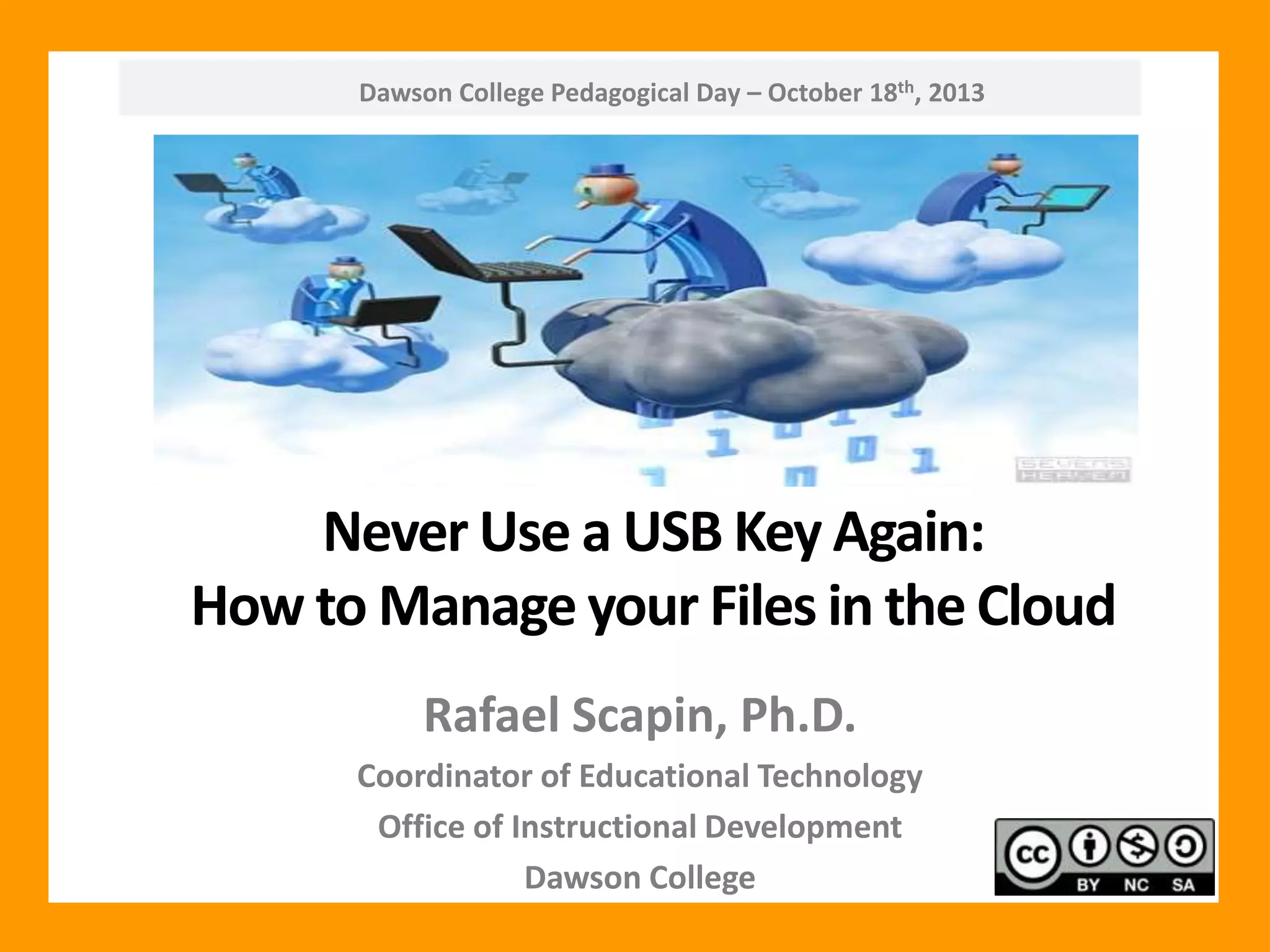
Never Use a USB Key Again:
How to Manage your Files in the Cloud
Rafael Scapin, Ph.D.
Coordinator of Educational Technology
Office of Instructional Development
Dawson College
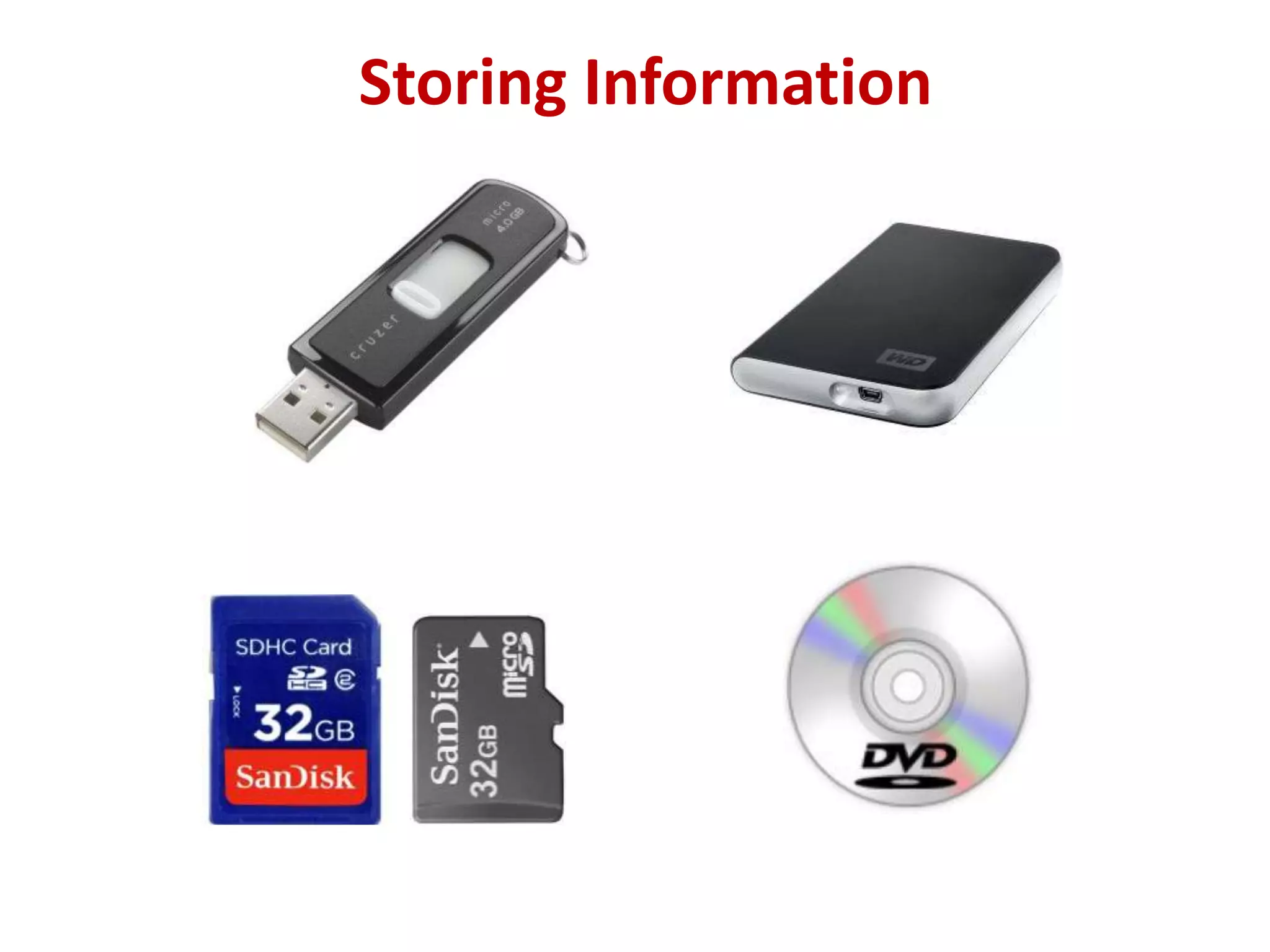
Storing Information
Copyright (C) Warner Bros. Television

Problems With USB Keys / Flash Drives

Source: http://www.youtube.com/watch?v=tkfOYtaumew
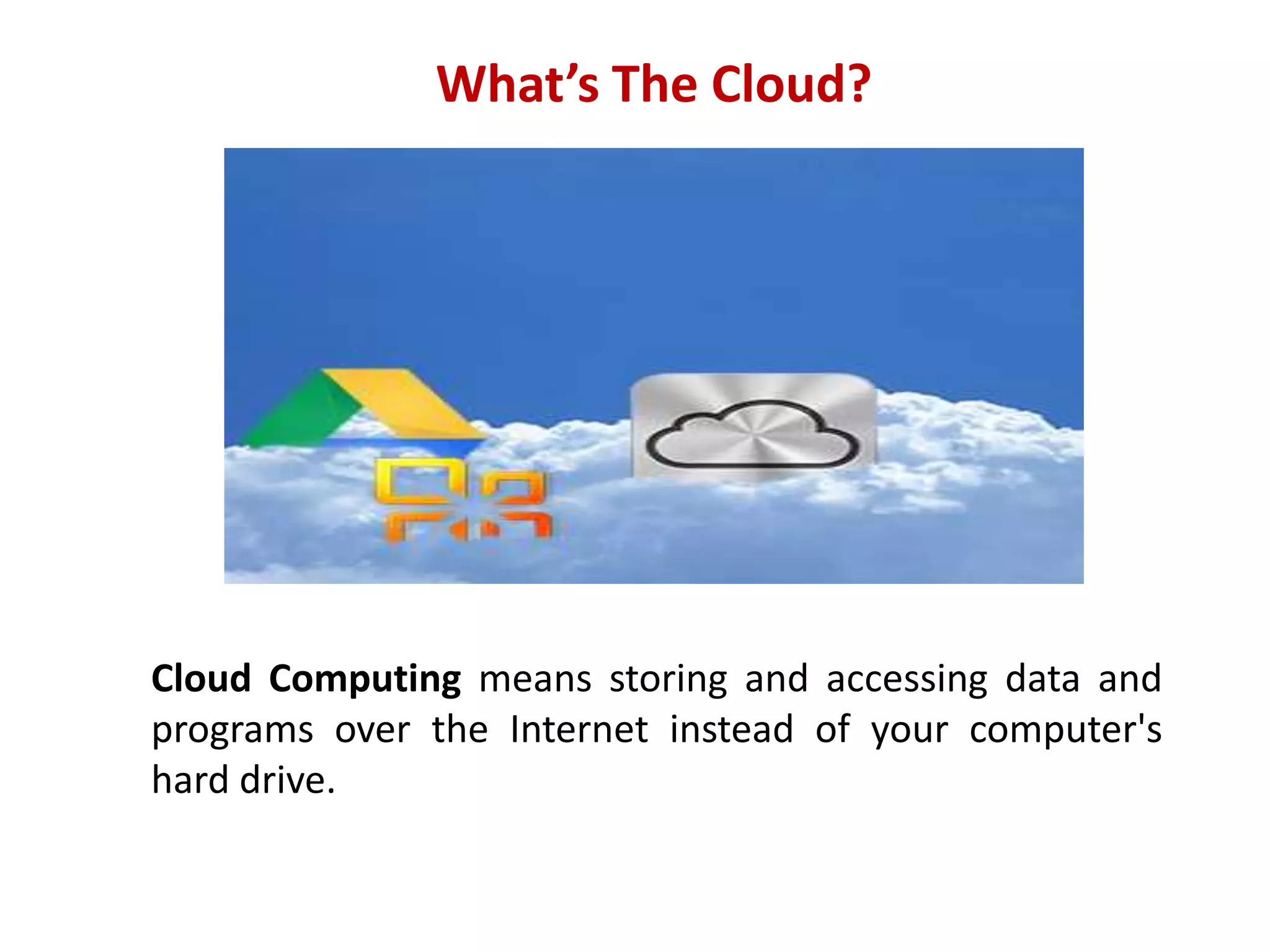
What’s The Cloud?

Cloud Computing means storing and accessing data and
programs over the Internet instead of your computer's
hard drive.
Popular Cloud Storage Platforms
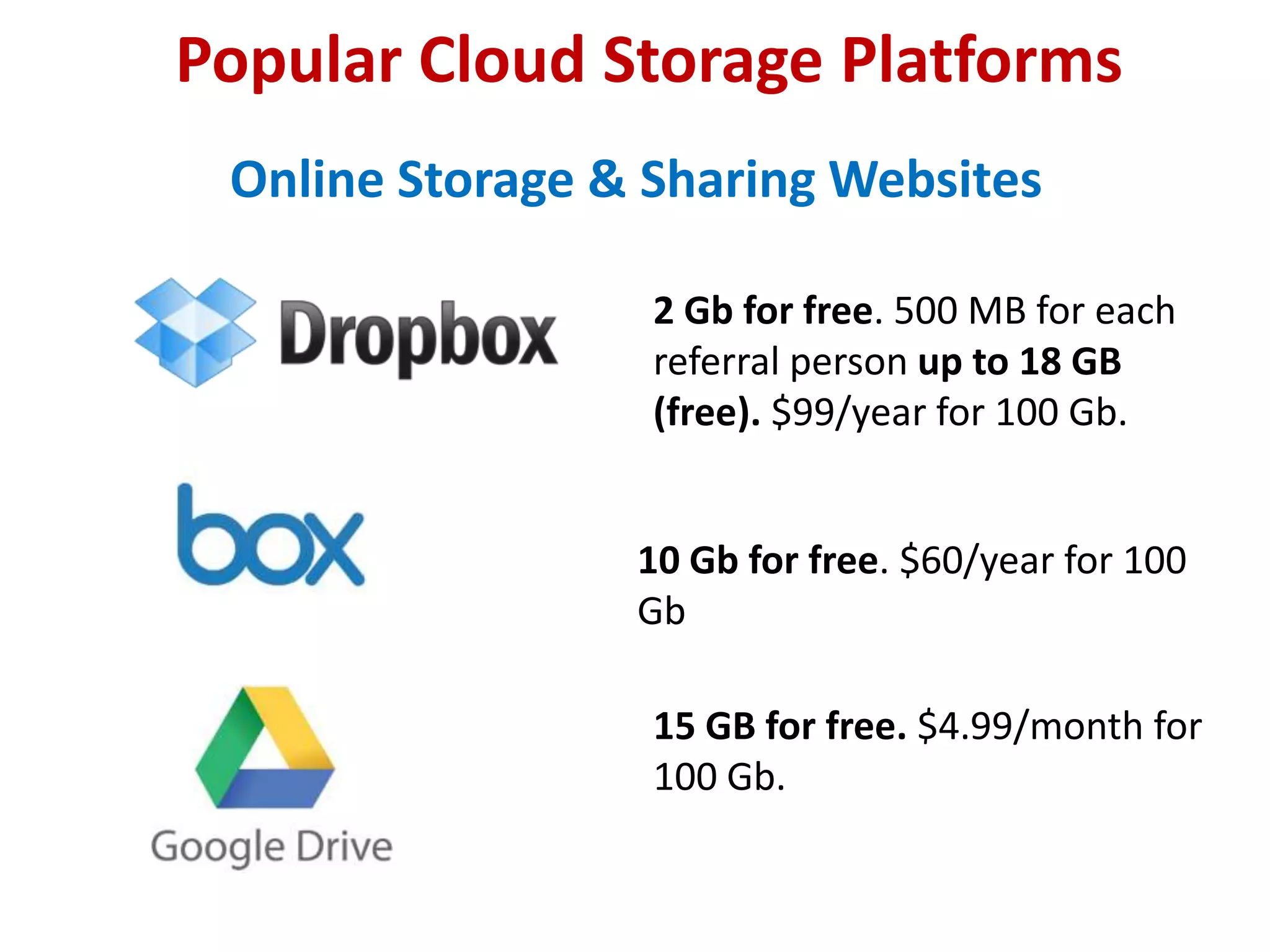
Online Storage & Sharing Websites
2 Gb for free. 500 MB for each
referral person up to 18 GB
(free). $99/year for 100 Gb.

10 Gb for free. $60/year for 100
Gb
15 GB for free. $4.99/month for
100 Gb.
Popular Cloud Storage Platforms
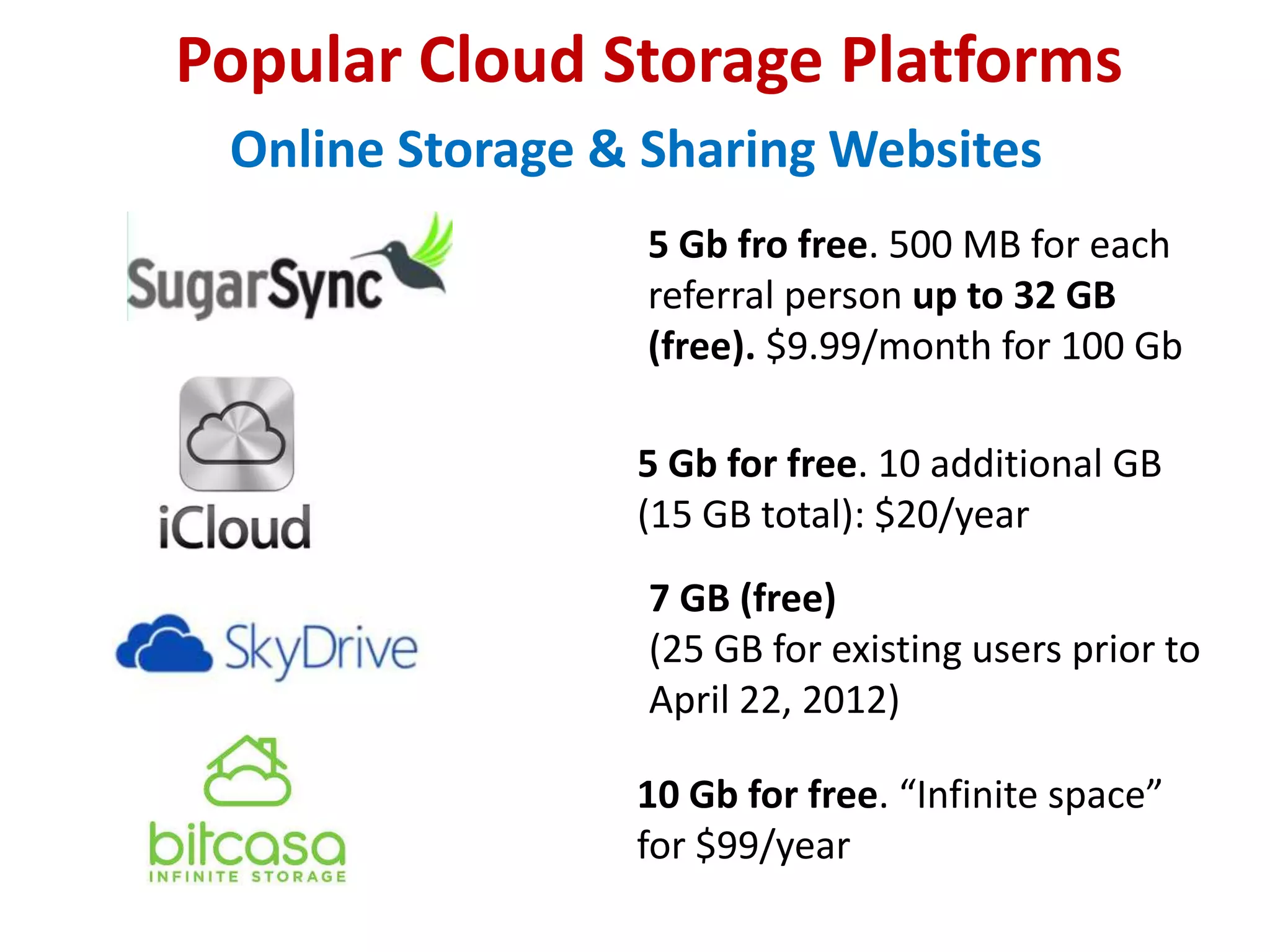
Online Storage & Sharing Websites
5 Gb fro free. 500 MB for each
referral person up to 32 GB
(free). $9.99/month for 100 Gb
5 Gb for free. 10 additional GB
(15 GB total): $20/year
7 GB (free)
(25 GB for existing users prior to
April 22, 2012)
10 Gb for free. “Infinite space”
for $99/year
How Safe is it?
Dropbox uses modern encryption methods to both
transfer and store your data.
Secure Sockets Layer (SSL) and AES-256 bit
encryption.
Two-step verification is available for an extra layer of
security at login.

You can choose to receive security codes by text
message or apps.
How Safe is it?
Why Using Cloud Storage?
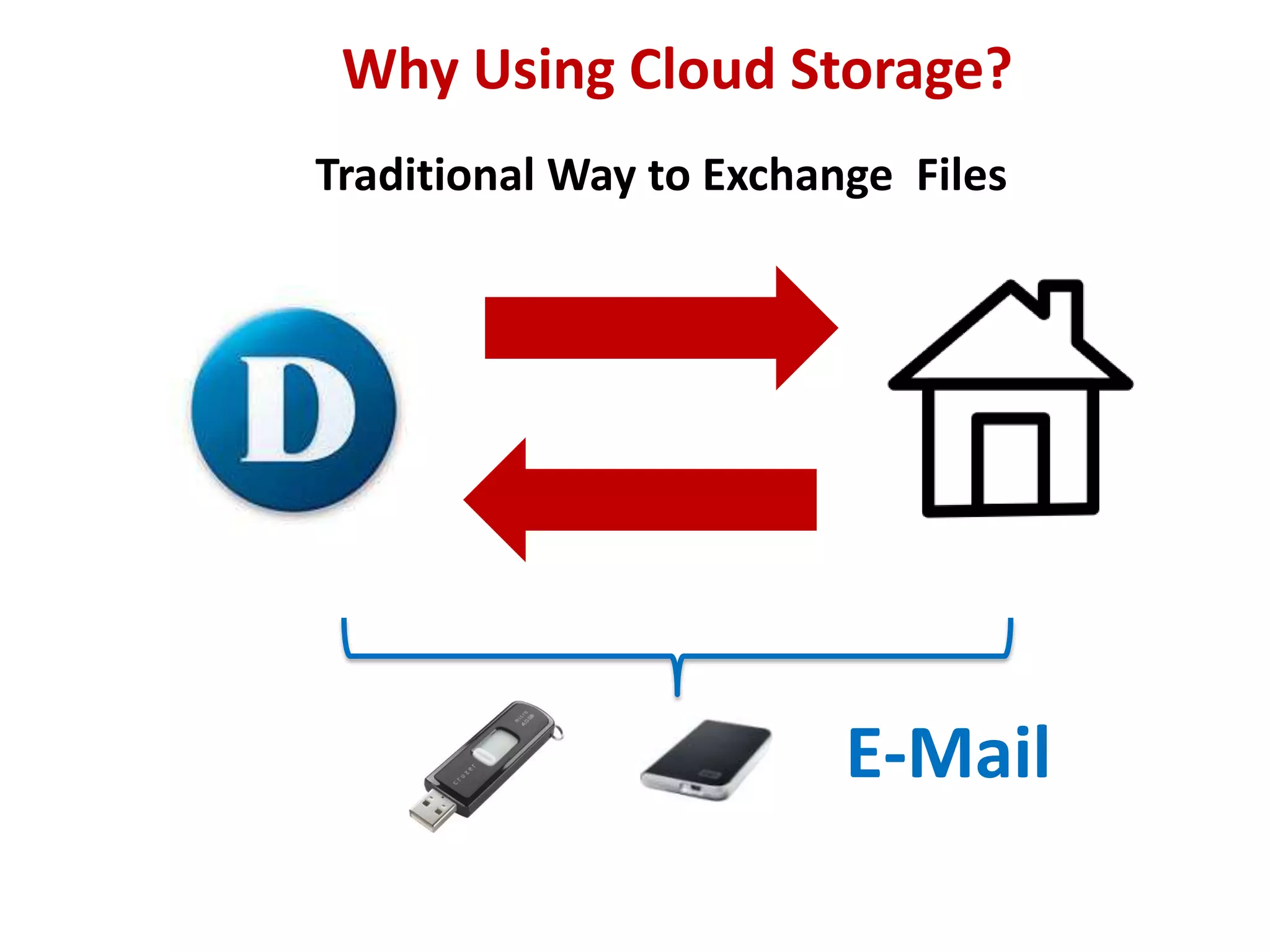
Traditional Way to Exchange Files

E-Mail
Why Using Cloud Storage?
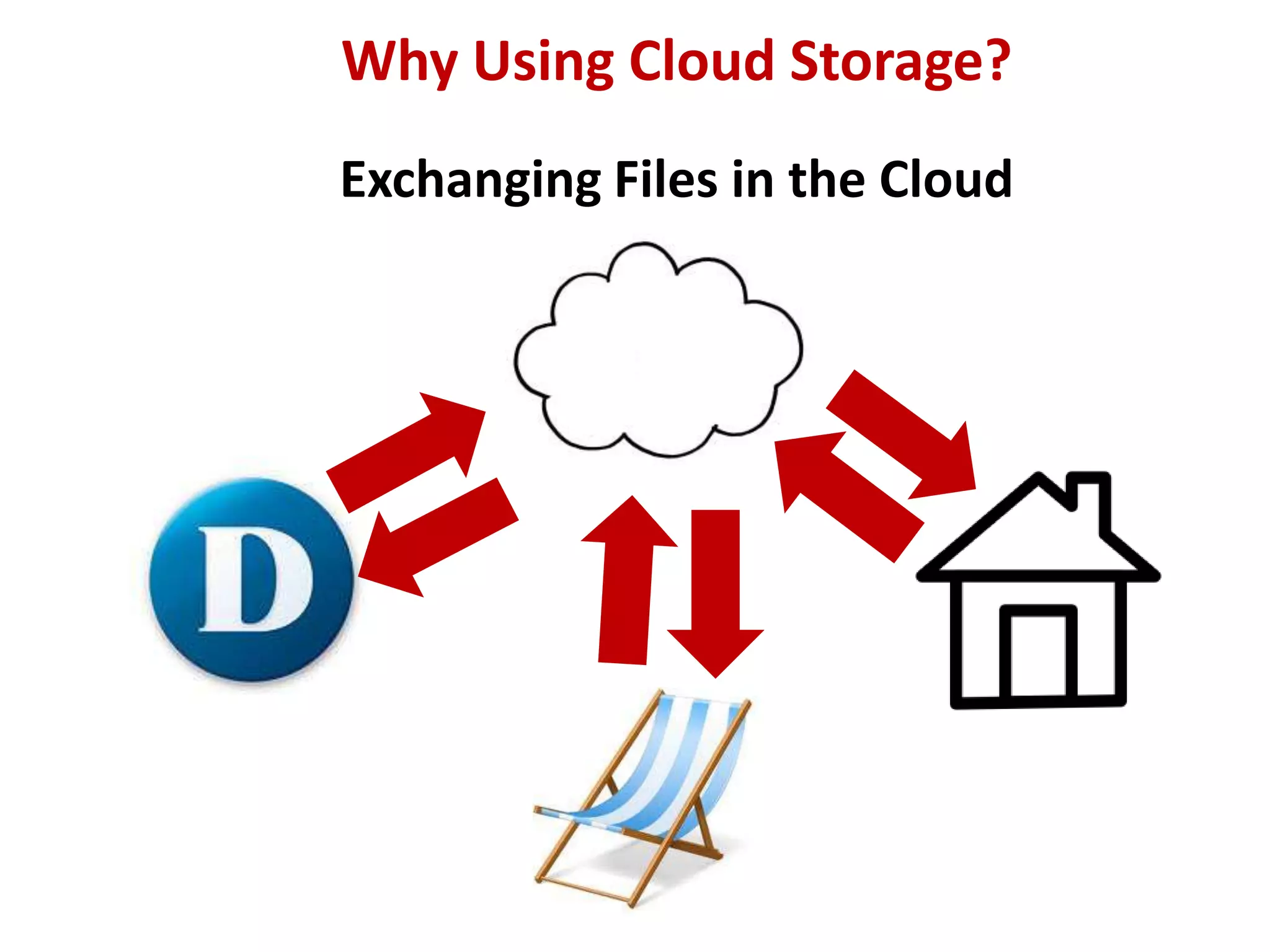
Exchanging Files in the Cloud
Why Using Cloud Storage?
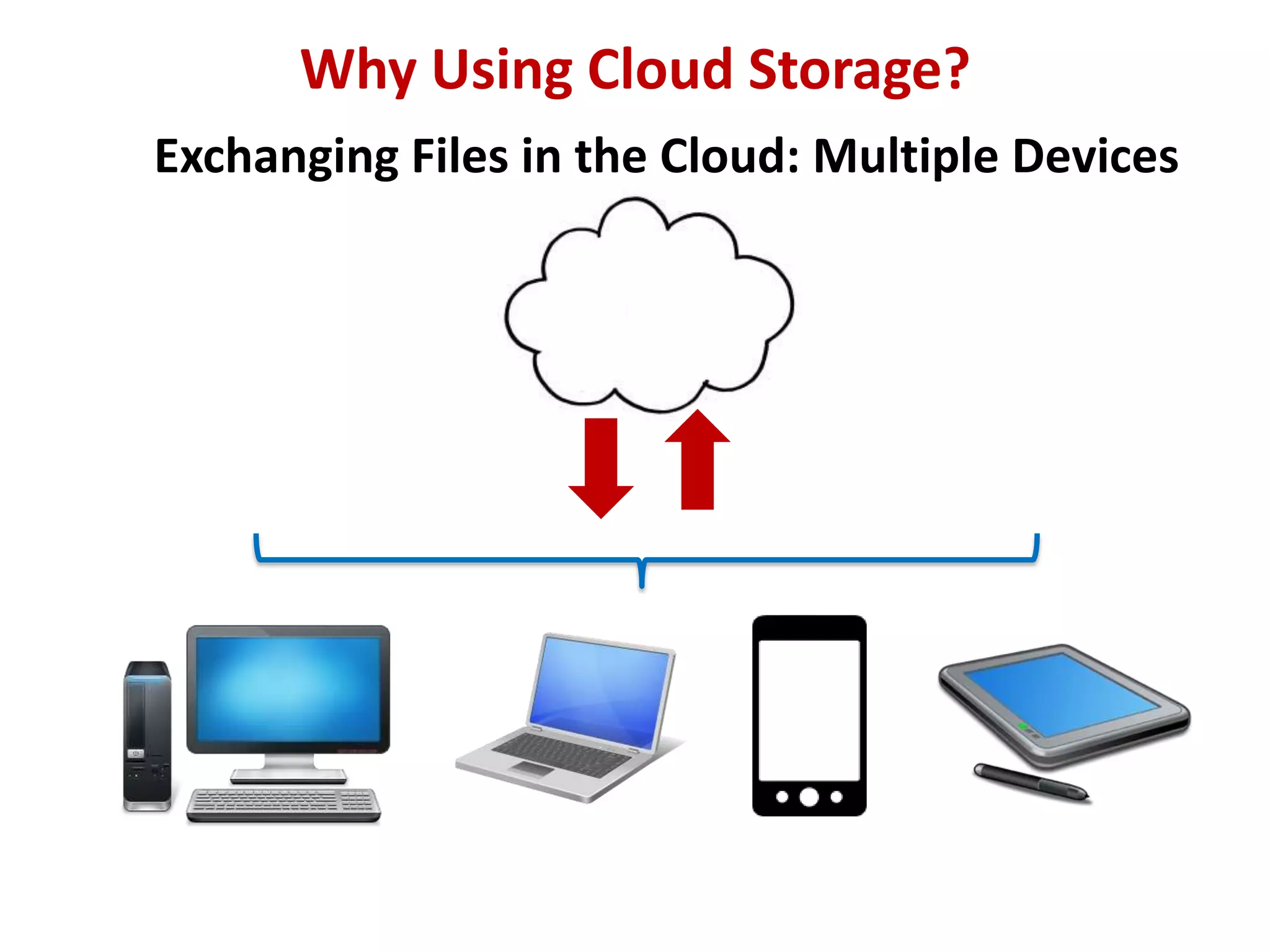
Exchanging Files in the Cloud: Multiple Devices
Why Using Cloud Storage?
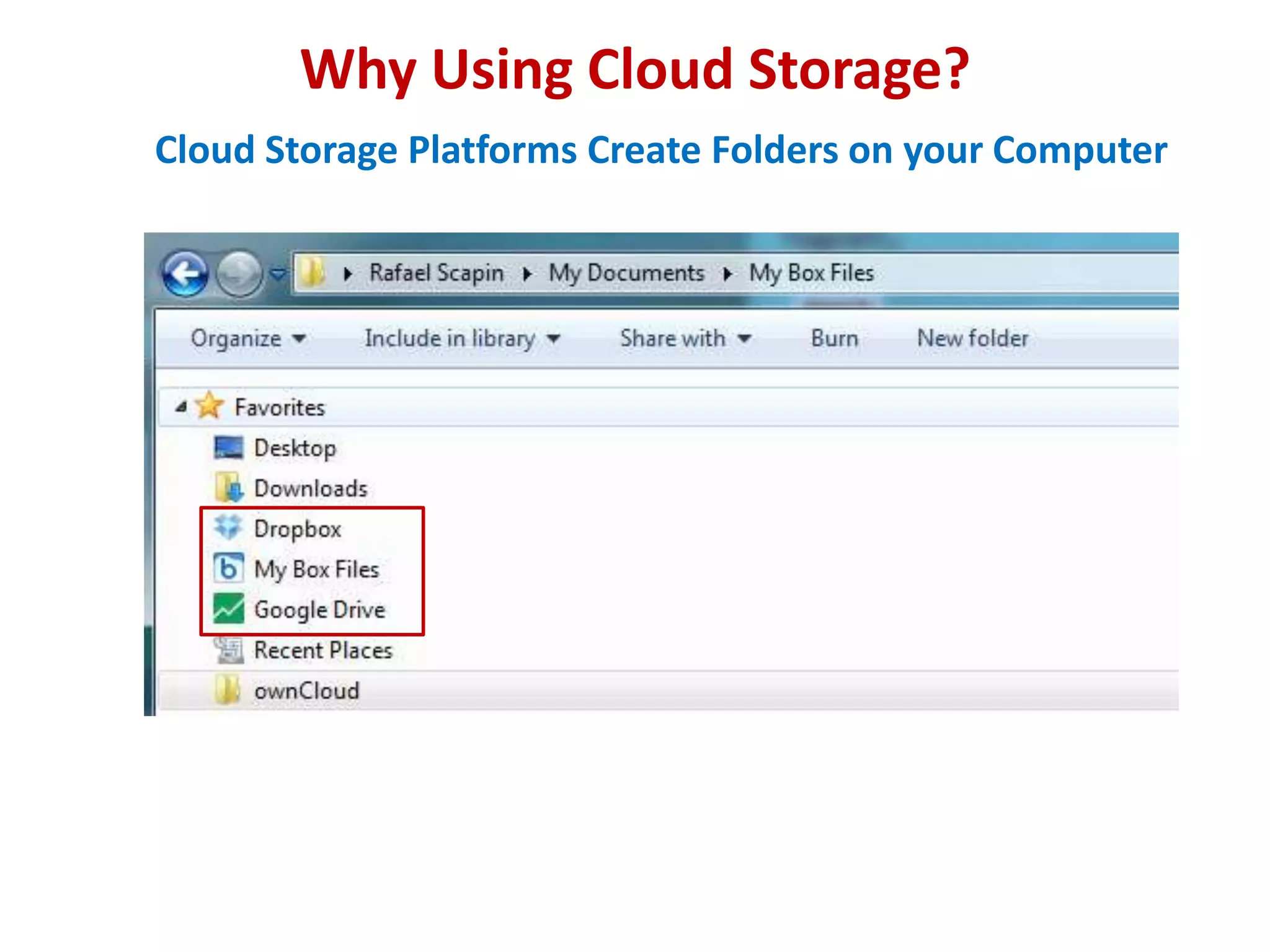
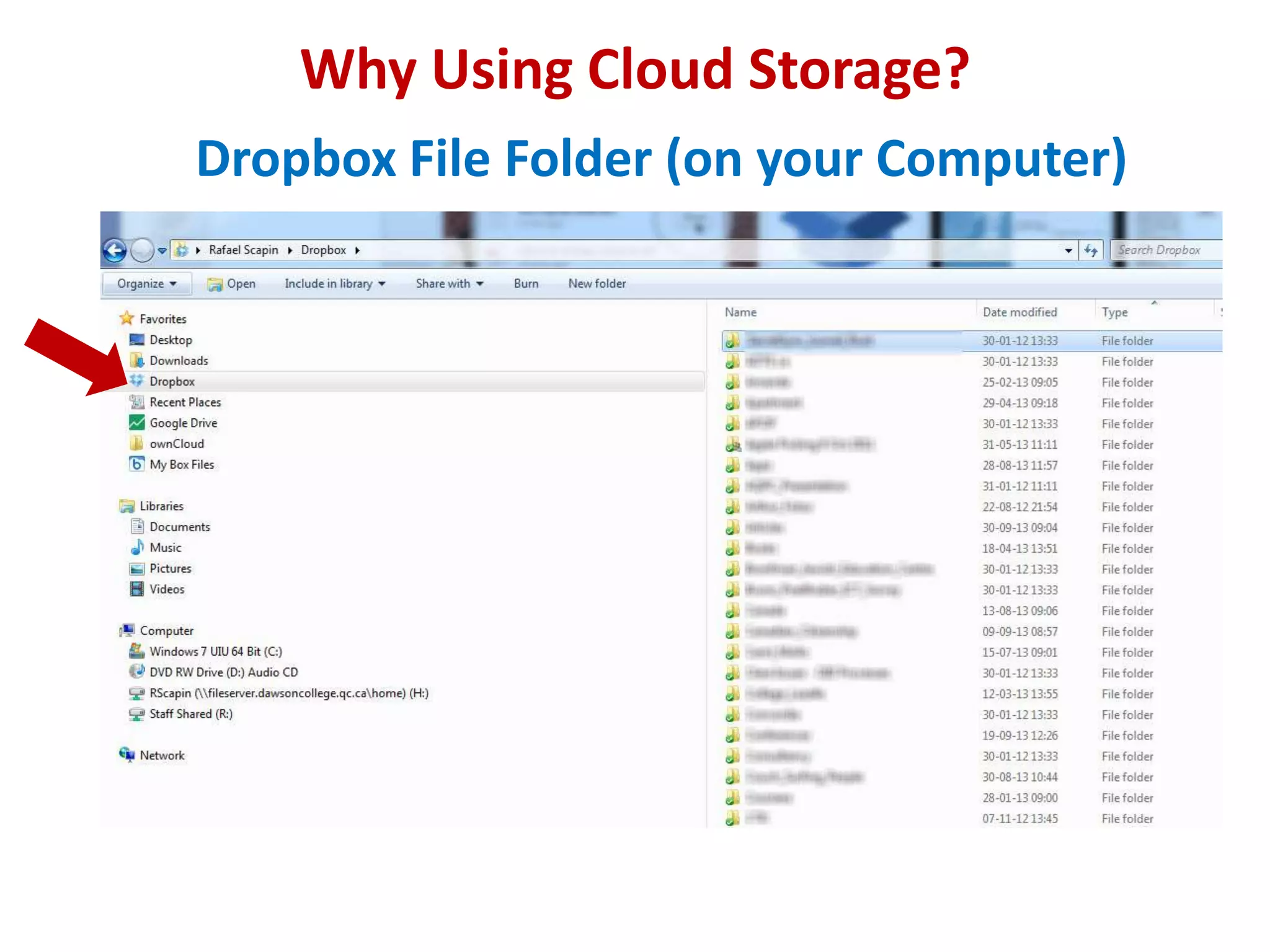
Cloud Storage Platforms Create Folders on your Computer
Why Using Cloud Storage?
Dropbox File Folder (on your Computer)
Why Using Cloud Storage?
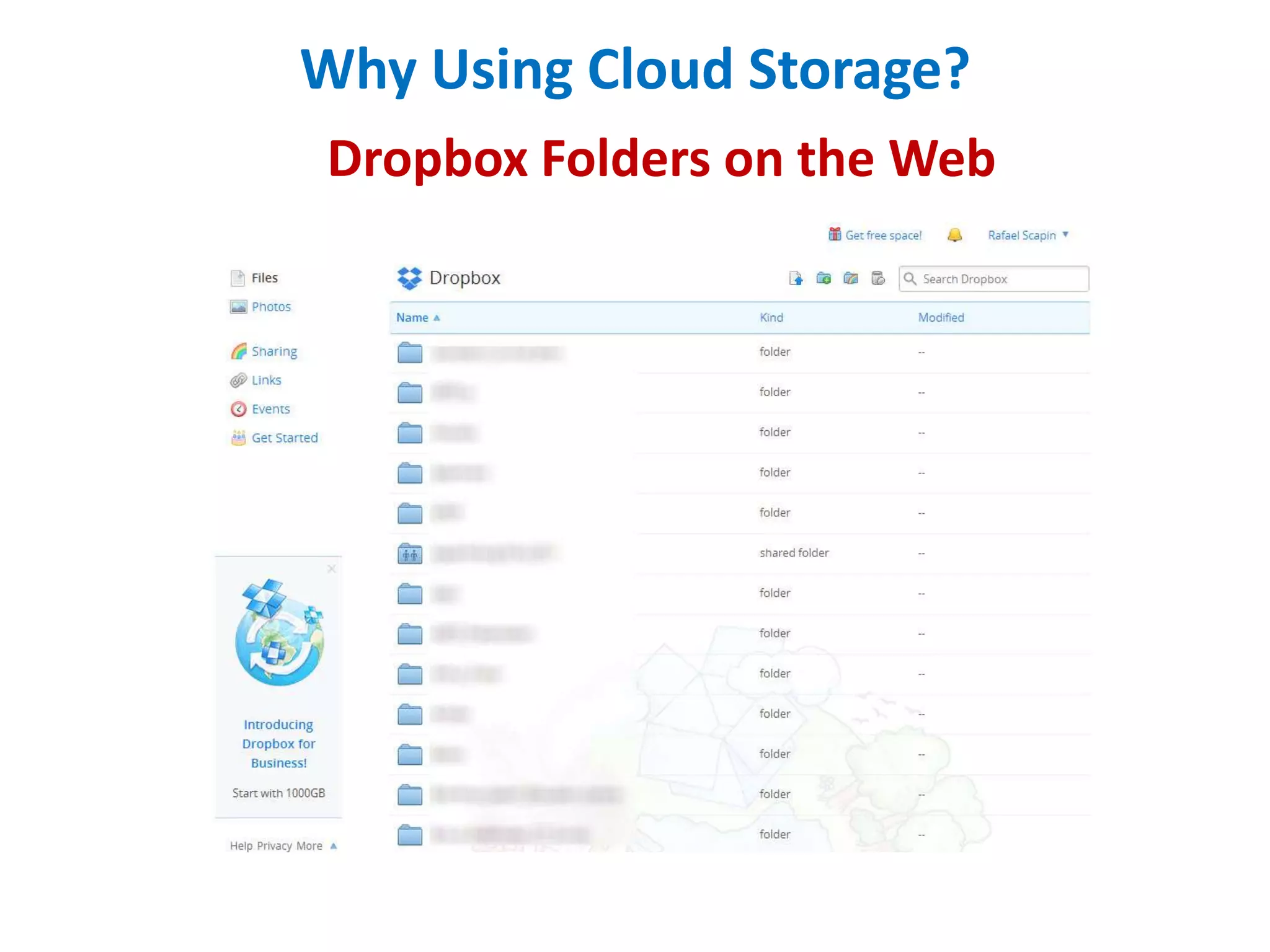
Dropbox Folders on the Web
Why Using Cloud Storage?
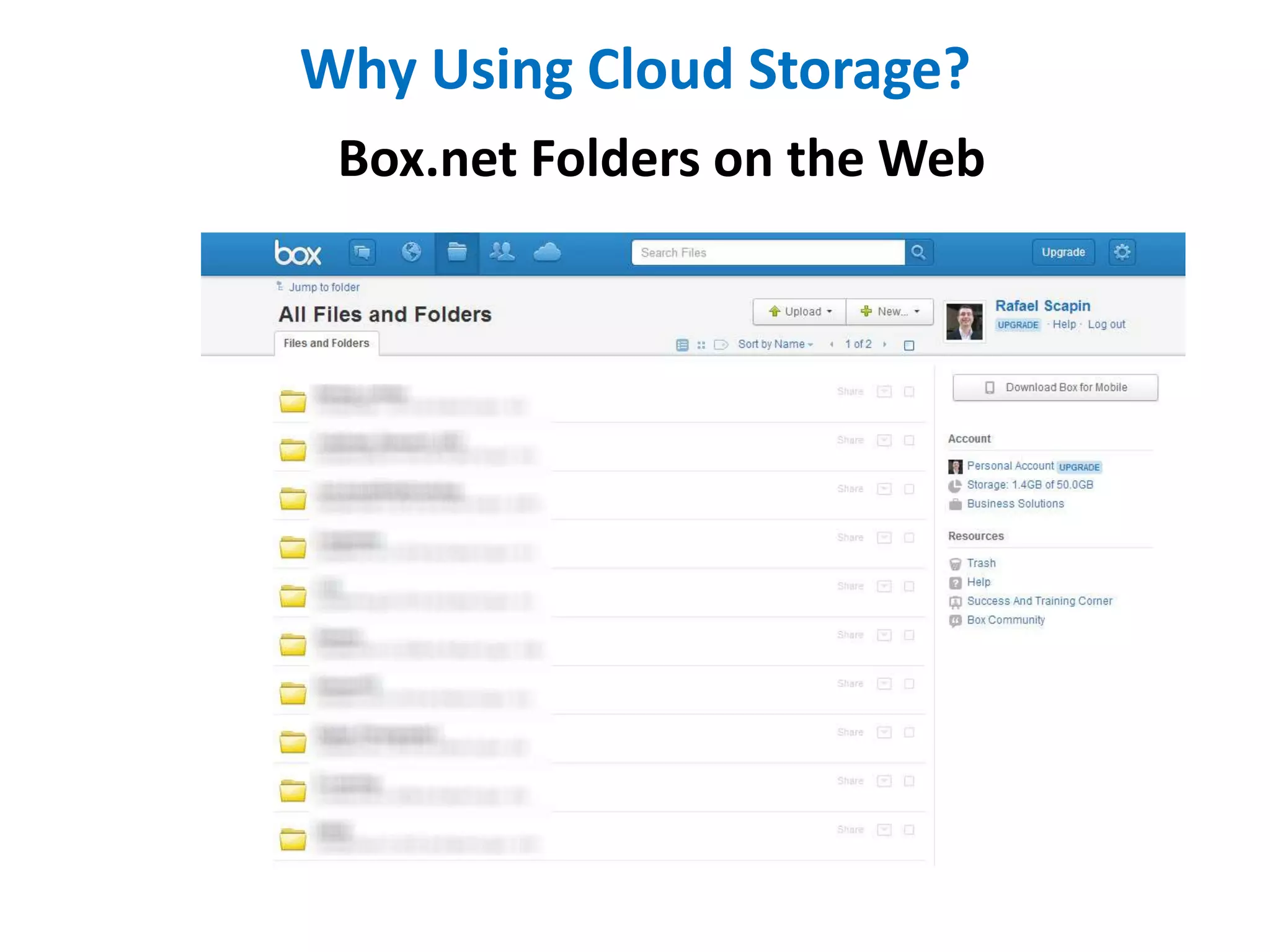
Box.net Folders on the Web
Why Using Cloud Storage?
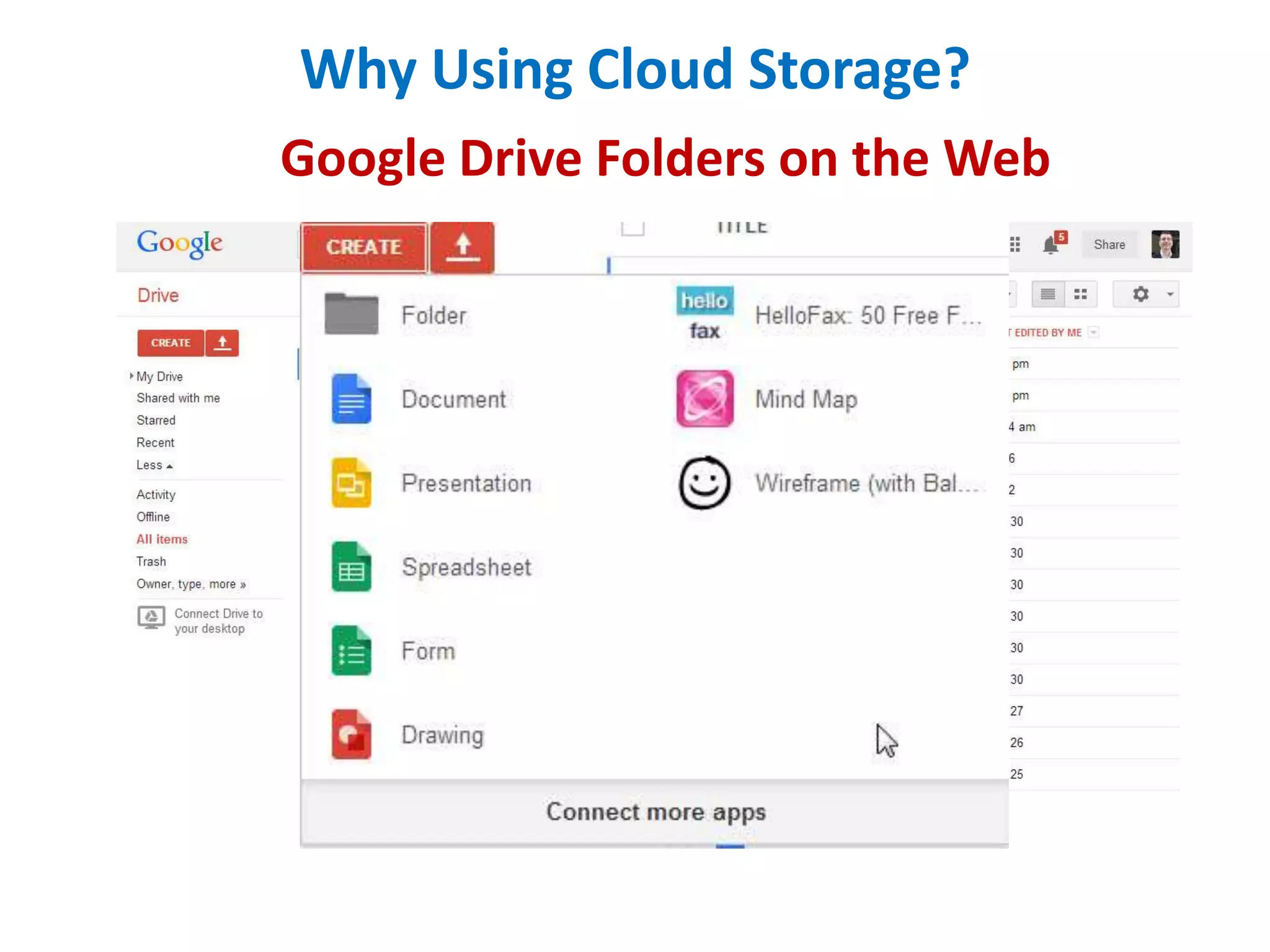
Google Drive Folders on the Web
Why Using Cloud Storage?
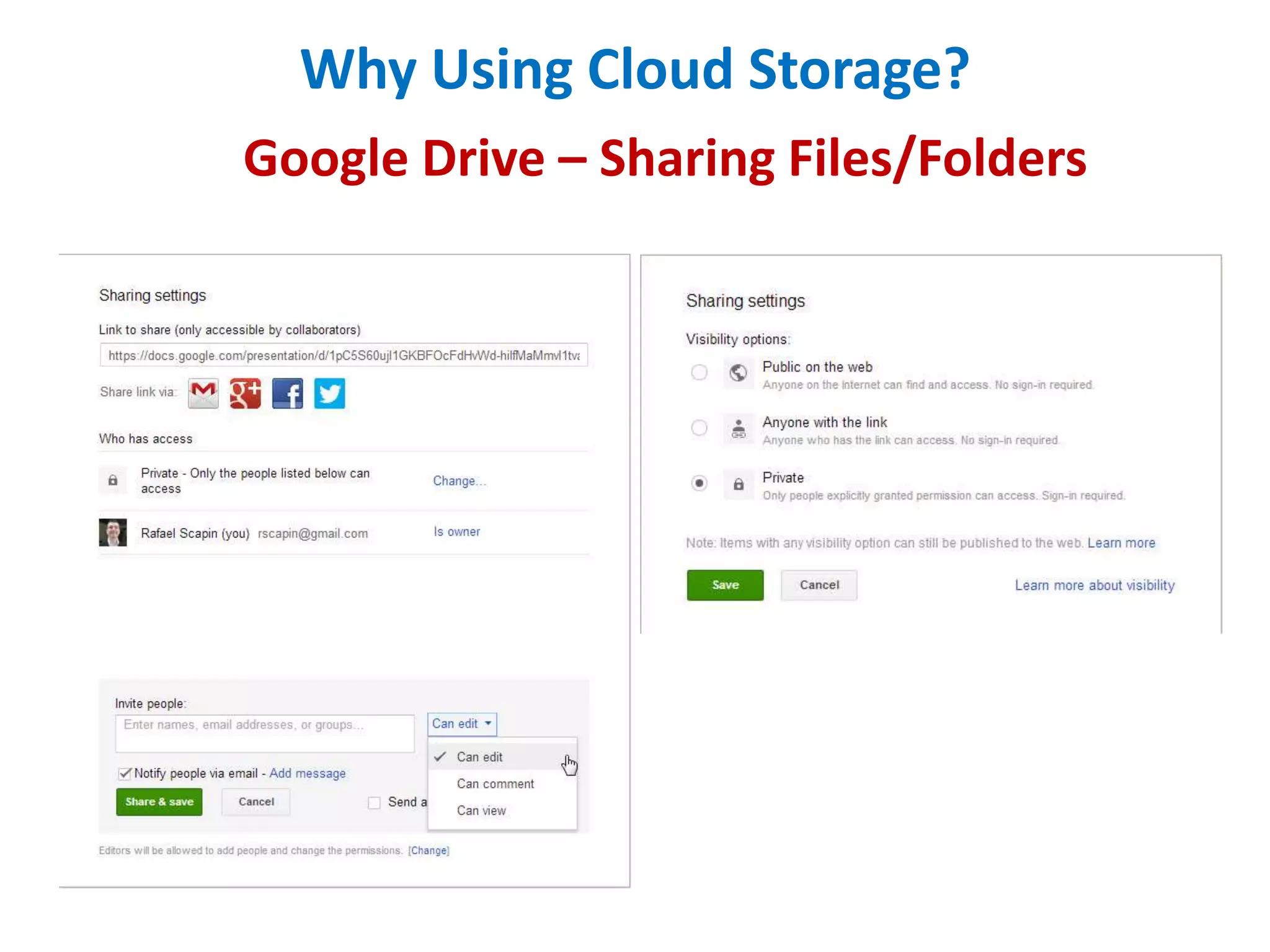
Google Drive – Sharing Files/Folders
Why Using Cloud Storage?
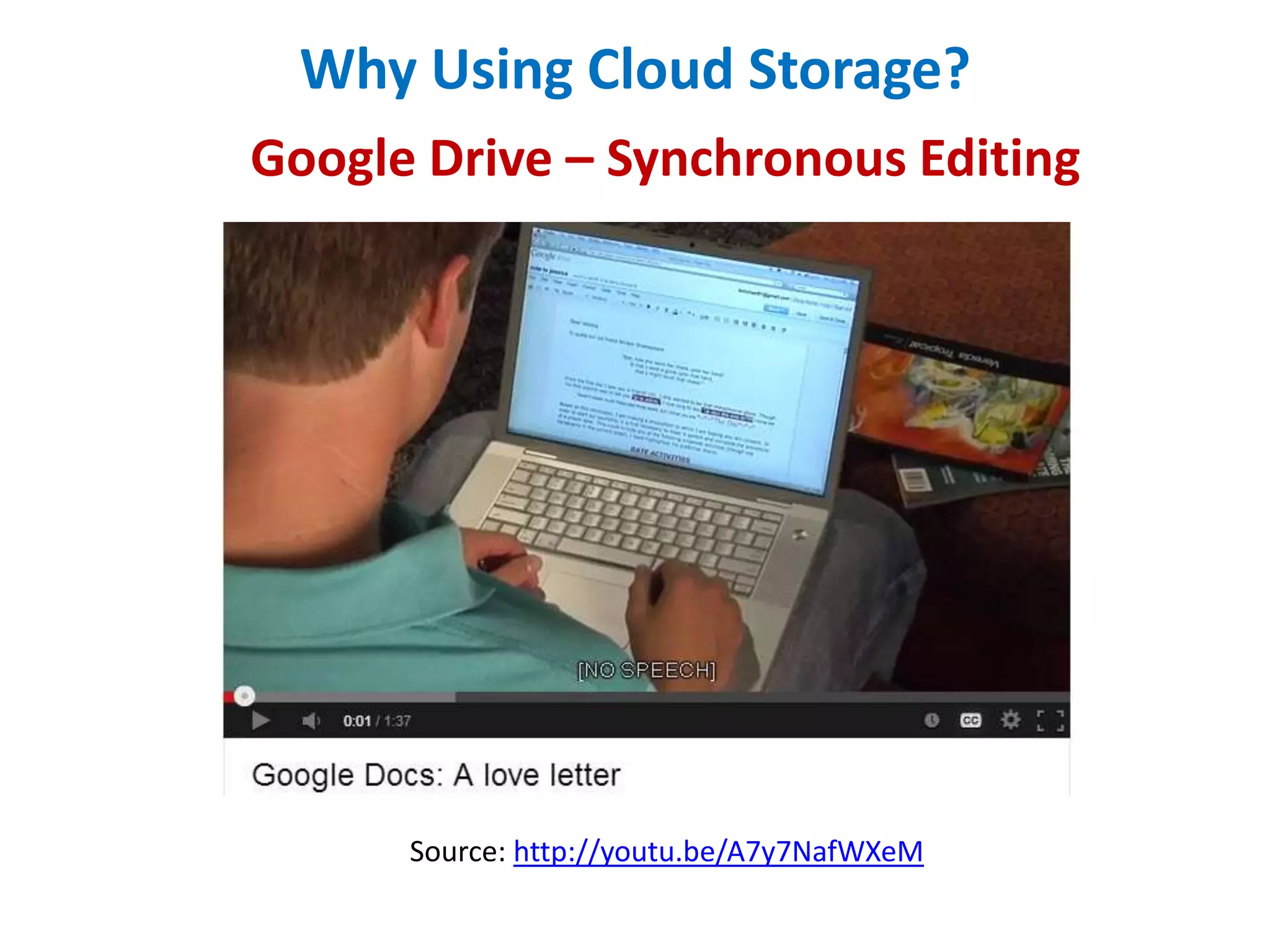
Google Drive – Synchronous Editing

Source: http://youtu.be/A7y7NafWXeM
Why Using Cloud Storage?
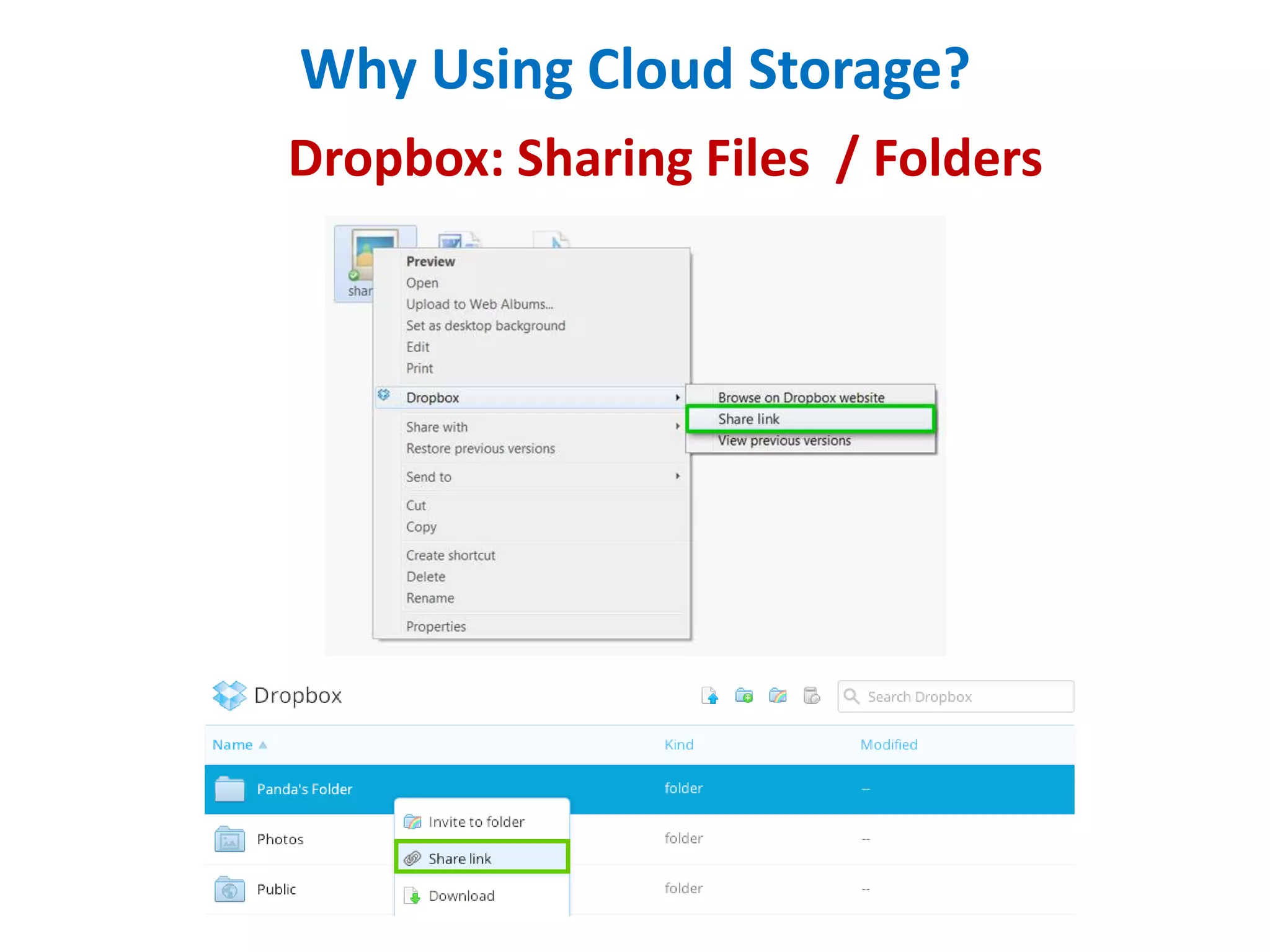
Dropbox: Sharing Files / Folders
Why Using Cloud Storage?
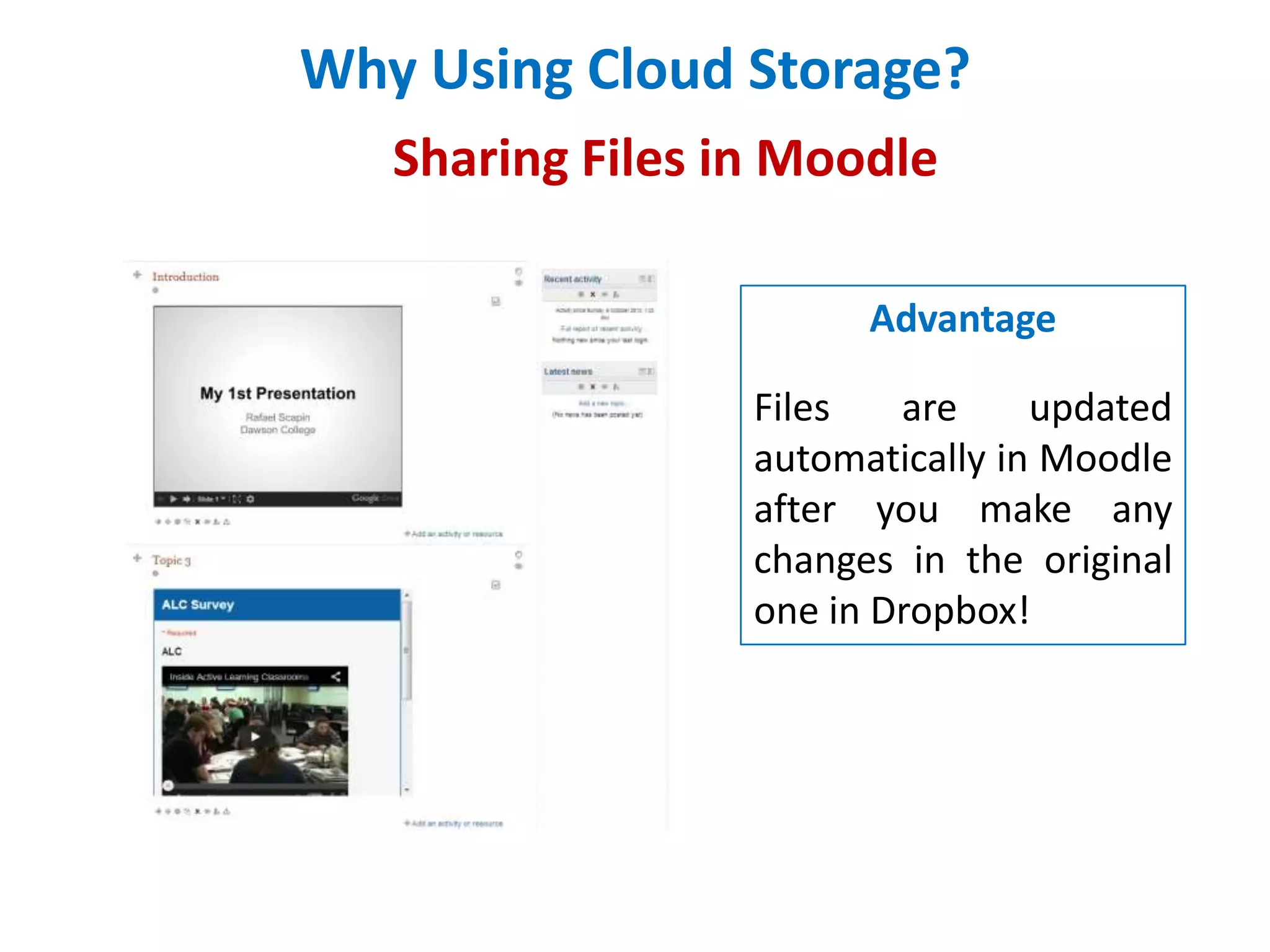
Sharing Files in Moodle
Advantage
Files
are
updated
automatically in Moodle
after you make any
changes in the original
one in Dropbox!
Store Students’ Documents Online
Storing Assignments & Sending Feedback
Store Students’ Documents Online
3-Party Websites: DropitTome
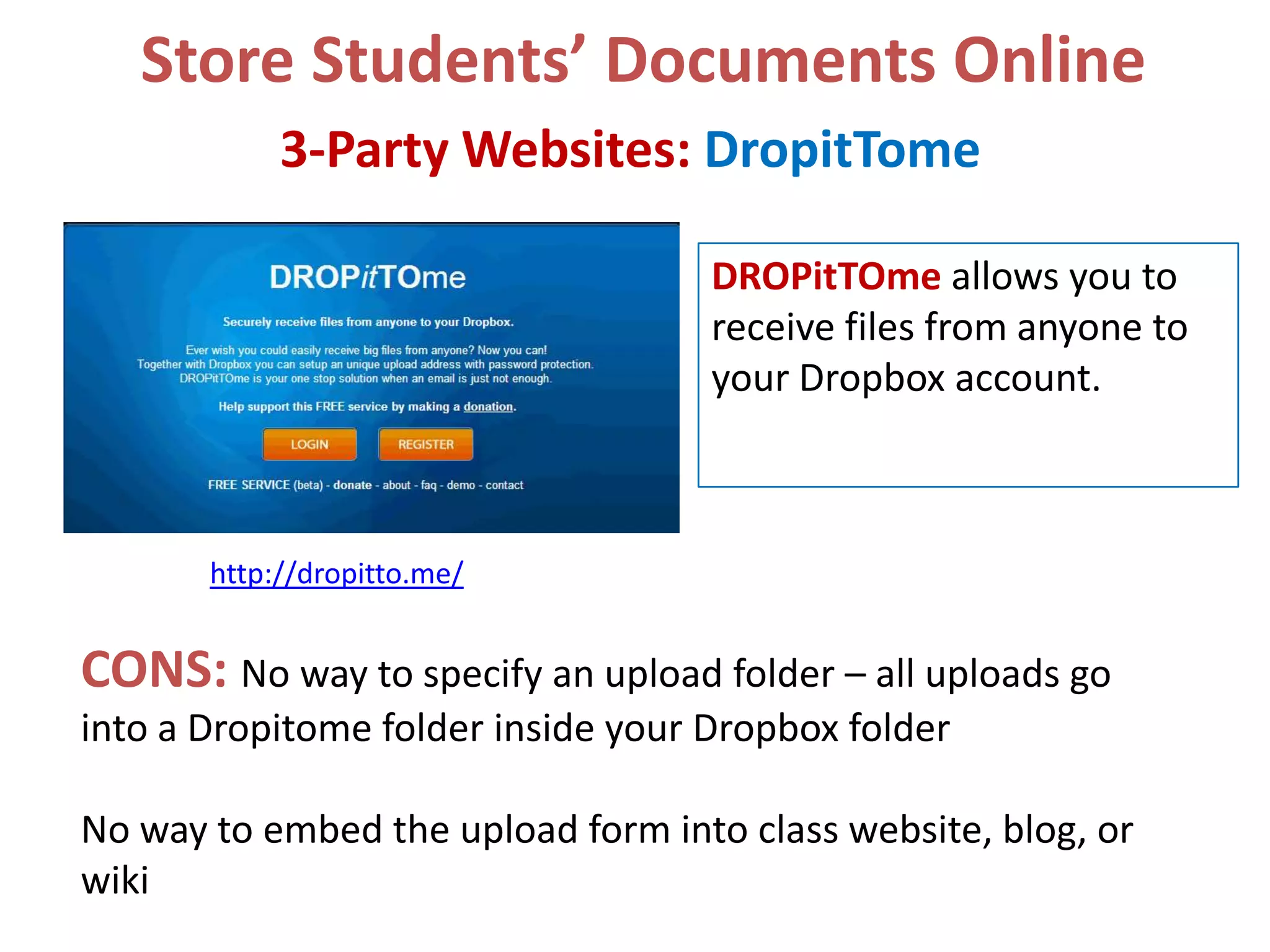
DROPitTOme allows you to
receive files from anyone to
your Dropbox account.

http://dropitto.me/

CONS: No way to specify an upload folder – all uploads go
into a Dropitome folder inside your Dropbox folder
No way to embed the upload form into class website, blog, or
wiki
Store Students’ Documents Online
3-Party Websites: Send to Dropbox
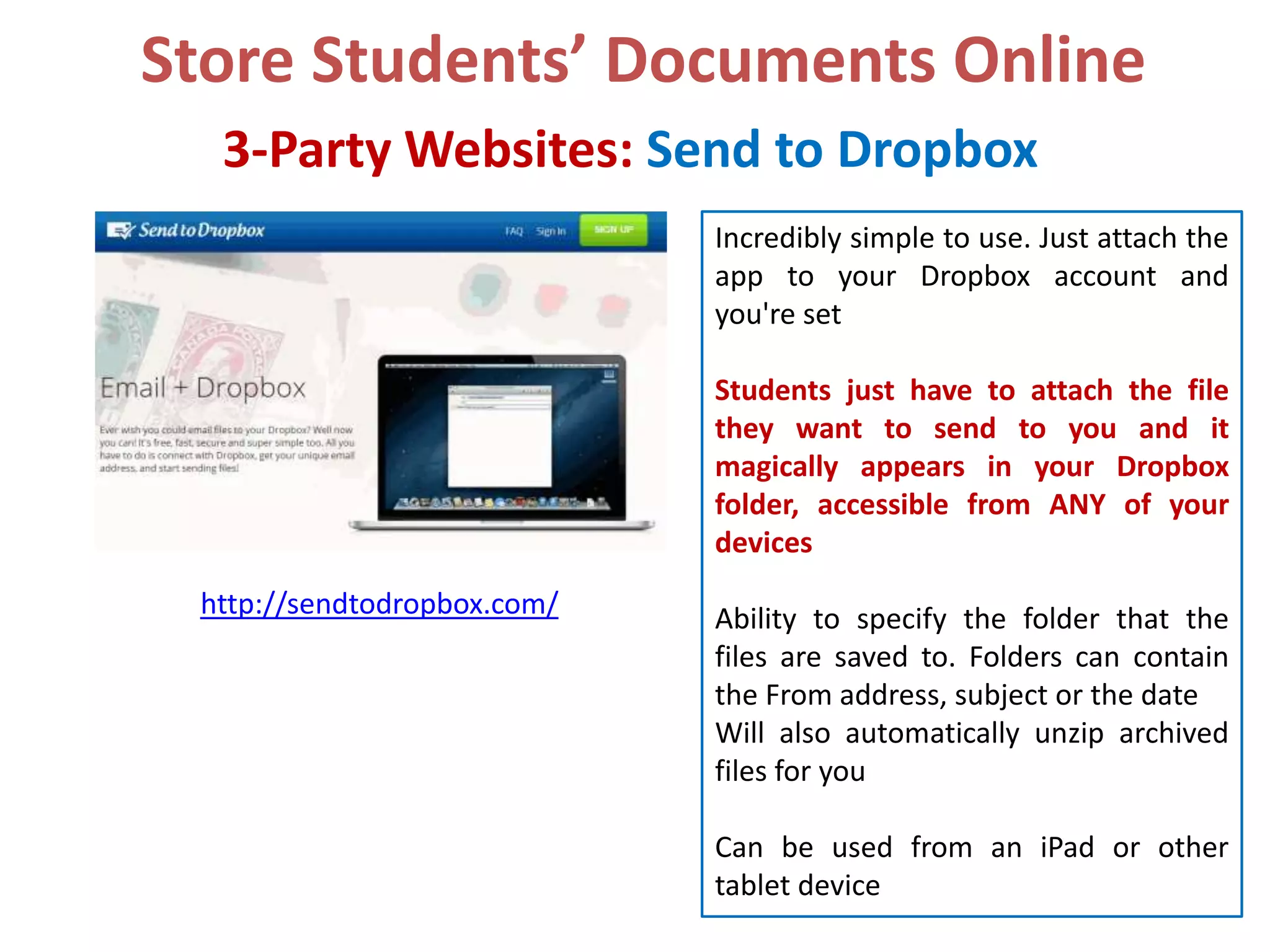
Incredibly simple to use. Just attach the
app to your Dropbox account and
you're set
Students just have to attach the file
they want to send to you and it
magically appears in your Dropbox
folder, accessible from ANY of your
devices
http://sendtodropbox.com/

Ability to specify the folder that the
files are saved to. Folders can contain
the From address, subject or the date
Will also automatically unzip archived
files for you
Can be used from an iPad or other
tablet device
Store Students’ Documents Online
3-Party Websites: JotForm
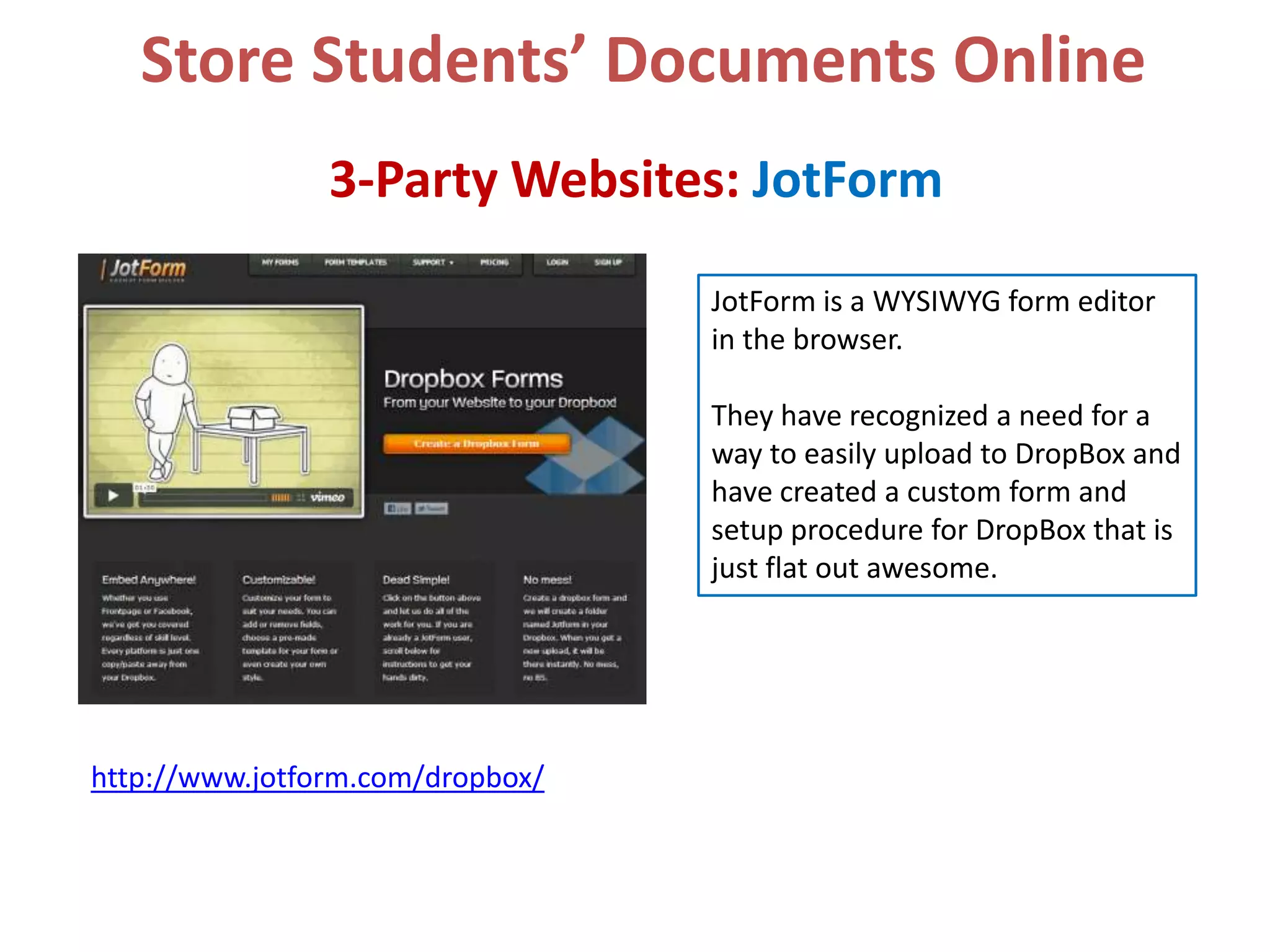
JotForm is a WYSIWYG form editor
in the browser.
They have recognized a need for a
way to easily upload to DropBox and
have created a custom form and
setup procedure for DropBox that is
just flat out awesome.

http://www.jotform.com/dropbox/
Store Students’ Documents Online
3-Party Websites
All thre services offer a fantastic way to allow your students
to send their digital work directly to your Dropbox folder for
collection.
If you’re looking for something incredibly quick and
simple, DropItTo.me would be the way to go.
If you’d like to specify the folder that your files are sent
to, then send to dropbox would be your choice.
If you would like an embeddable, completely customizable
form for your students to upload their work, then JotForm is
for you.
Searching Different Cloud Services
CloudMagic: Fast search across
Dropbox, Box, Google
Drive, iCloud, SkyDrive, Gmail, Evernote, Facebo
ok, Twitter and much more.
http://cloudmagic.com

Source: http://youtu.be/F1tH-S2HjGg
Searching Different Cloud Services

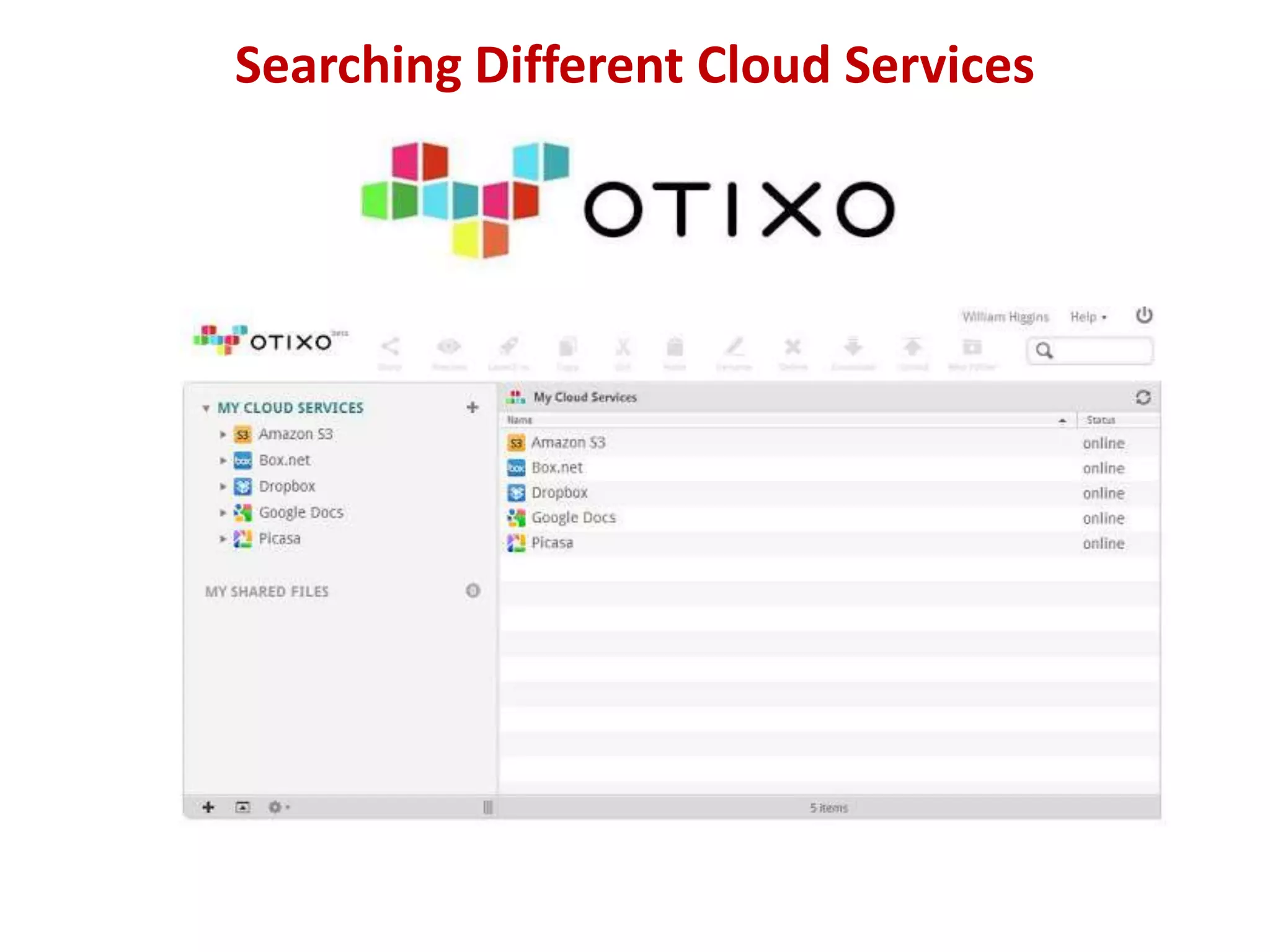
Manage all your clouds from one login with services
like: Dropbox, Box, SkyDrive, Google
Drive, SugarSync, Picasa, Amazon S3, FTP sites
and WebDav drives...all from one simple app.
http://otixo.com
Searching Different Cloud Services
Questions
Contact Me
Rafael Scapin, Ph.D.
rscapin@dawsoncollege.qc.ca
rscapin
1404

DawsonITE Blog
http://dawsonite.dawsoncollege.qc.ca
Never Use a USB Key Again: How to Manage your Files in the Cloud

Never Use a USB Key Again: How to Manage your Files in the Cloud

  • 1.
    Dawson College PedagogicalDay – October 18th, 2013 Never Use a USB Key Again: How to Manage your Files in the Cloud Rafael Scapin, Ph.D. Coordinator of Educational Technology Office of Instructional Development Dawson College
  • 2.
  • 3.
    Copyright (C) WarnerBros. Television Problems With USB Keys / Flash Drives Source: http://www.youtube.com/watch?v=tkfOYtaumew
  • 4.
    What’s The Cloud? CloudComputing means storing and accessing data and programs over the Internet instead of your computer's hard drive.
  • 6.
  • 7.
    Popular Cloud StoragePlatforms Online Storage & Sharing Websites 2 Gb for free. 500 MB for each referral person up to 18 GB (free). $99/year for 100 Gb. 10 Gb for free. $60/year for 100 Gb 15 GB for free. $4.99/month for 100 Gb.
  • 8.
    Popular Cloud StoragePlatforms Online Storage & Sharing Websites 5 Gb fro free. 500 MB for each referral person up to 32 GB (free). $9.99/month for 100 Gb 5 Gb for free. 10 additional GB (15 GB total): $20/year 7 GB (free) (25 GB for existing users prior to April 22, 2012) 10 Gb for free. “Infinite space” for $99/year
  • 9.
    How Safe isit? Dropbox uses modern encryption methods to both transfer and store your data. Secure Sockets Layer (SSL) and AES-256 bit encryption. Two-step verification is available for an extra layer of security at login. You can choose to receive security codes by text message or apps.
  • 10.
  • 11.
    Why Using CloudStorage? Traditional Way to Exchange Files E-Mail
  • 12.
    Why Using CloudStorage? Exchanging Files in the Cloud
  • 13.
    Why Using CloudStorage? Exchanging Files in the Cloud: Multiple Devices
  • 14.
    Why Using CloudStorage? Cloud Storage Platforms Create Folders on your Computer
  • 15.
    Why Using CloudStorage? Dropbox File Folder (on your Computer)
  • 16.
    Why Using CloudStorage? Dropbox Folders on the Web
  • 17.
    Why Using CloudStorage? Box.net Folders on the Web
  • 18.
    Why Using CloudStorage? Google Drive Folders on the Web
  • 19.
    Why Using CloudStorage? Google Drive – Sharing Files/Folders
  • 20.
    Why Using CloudStorage? Google Drive – Synchronous Editing Source: http://youtu.be/A7y7NafWXeM
  • 21.
    Why Using CloudStorage? Dropbox: Sharing Files / Folders
  • 22.
    Why Using CloudStorage? Sharing Files in Moodle Advantage Files are updated automatically in Moodle after you make any changes in the original one in Dropbox!
  • 23.
    Store Students’ DocumentsOnline Storing Assignments & Sending Feedback
  • 24.
    Store Students’ DocumentsOnline 3-Party Websites: DropitTome DROPitTOme allows you to receive files from anyone to your Dropbox account. http://dropitto.me/ CONS: No way to specify an upload folder – all uploads go into a Dropitome folder inside your Dropbox folder No way to embed the upload form into class website, blog, or wiki
  • 25.
    Store Students’ DocumentsOnline 3-Party Websites: Send to Dropbox Incredibly simple to use. Just attach the app to your Dropbox account and you're set Students just have to attach the file they want to send to you and it magically appears in your Dropbox folder, accessible from ANY of your devices http://sendtodropbox.com/ Ability to specify the folder that the files are saved to. Folders can contain the From address, subject or the date Will also automatically unzip archived files for you Can be used from an iPad or other tablet device
  • 26.
    Store Students’ DocumentsOnline 3-Party Websites: JotForm JotForm is a WYSIWYG form editor in the browser. They have recognized a need for a way to easily upload to DropBox and have created a custom form and setup procedure for DropBox that is just flat out awesome. http://www.jotform.com/dropbox/
  • 27.
    Store Students’ DocumentsOnline 3-Party Websites All thre services offer a fantastic way to allow your students to send their digital work directly to your Dropbox folder for collection. If you’re looking for something incredibly quick and simple, DropItTo.me would be the way to go. If you’d like to specify the folder that your files are sent to, then send to dropbox would be your choice. If you would like an embeddable, completely customizable form for your students to upload their work, then JotForm is for you.
  • 28.
    Searching Different CloudServices CloudMagic: Fast search across Dropbox, Box, Google Drive, iCloud, SkyDrive, Gmail, Evernote, Facebo ok, Twitter and much more. http://cloudmagic.com Source: http://youtu.be/F1tH-S2HjGg
  • 29.
    Searching Different CloudServices Manage all your clouds from one login with services like: Dropbox, Box, SkyDrive, Google Drive, SugarSync, Picasa, Amazon S3, FTP sites and WebDav drives...all from one simple app. http://otixo.com
  • 30.
  • 31.
  • 32.
    Contact Me Rafael Scapin,Ph.D. rscapin@dawsoncollege.qc.ca rscapin 1404 DawsonITE Blog http://dawsonite.dawsoncollege.qc.ca