Let’s manage our files
 Open File Manager and View our folders on Students’ Drive
 Make a sub-folder for your 2012 work
 Cut and paste all your 2012 files into this new sub-folder
 Save new work into your folder
• Open File manager and locate our folder
• View our folders in the LEFT sidebar
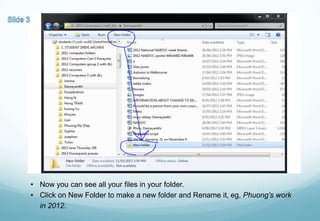
• Now you can see all your files in your folder.
• Click on New Folder to make a new folder and Rename it, eg, Phuong’s work
  in 2012.
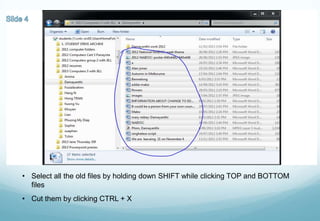
• Select all the old files by holding down SHIFT while clicking TOP and BOTTOM
  files
• Cut them by clicking CTRL + X
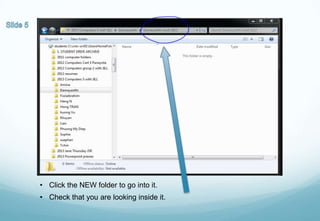
• Click the NEW folder to go into it.
• Check that you are looking inside it.
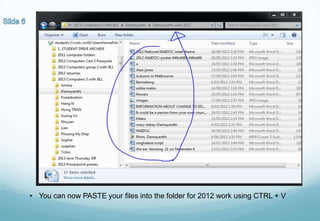
• You can now PASTE your files into the folder for 2012 work using CTRL + V
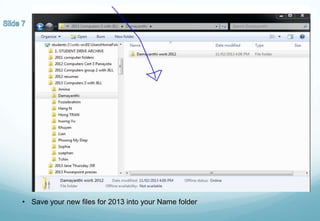
• Save your new files for 2013 into your Name folder

Lets manage our files

  • 1.
    Let’s manage ourfiles  Open File Manager and View our folders on Students’ Drive  Make a sub-folder for your 2012 work  Cut and paste all your 2012 files into this new sub-folder  Save new work into your folder
  • 2.
    • Open Filemanager and locate our folder
  • 3.
    • View ourfolders in the LEFT sidebar
  • 4.
    • Now youcan see all your files in your folder. • Click on New Folder to make a new folder and Rename it, eg, Phuong’s work in 2012.
  • 5.
    • Select allthe old files by holding down SHIFT while clicking TOP and BOTTOM files • Cut them by clicking CTRL + X
  • 6.
    • Click theNEW folder to go into it. • Check that you are looking inside it.
  • 7.
    • You cannow PASTE your files into the folder for 2012 work using CTRL + V
  • 8.
    • Save yournew files for 2013 into your Name folder