Form CreationGoogle Docs User GuideEmie Cabanela
Getting Started
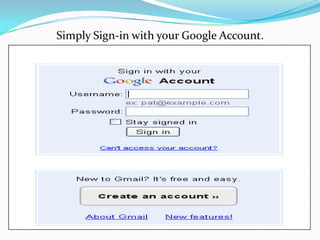
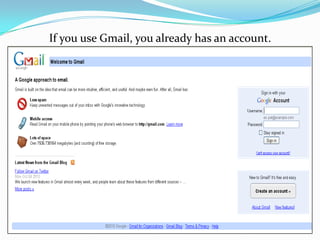
Simply Sign-in with your Google Account.
If you use Gmail, you already has an account.
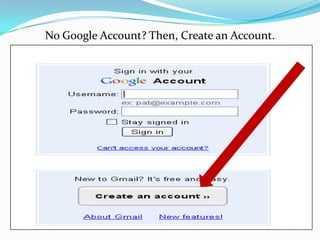
No Google Account? Then, Create an Account.
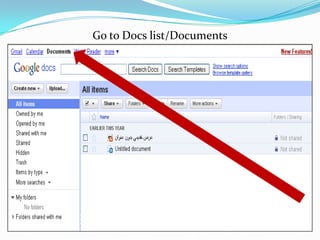
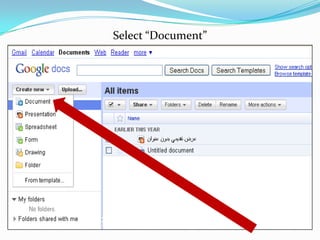
Go to Docs list/Documents
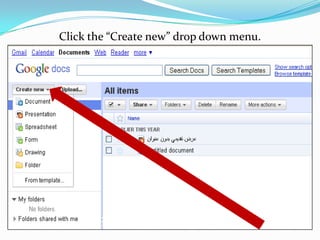
Click the “Create new” drop down menu.
Select “Document”
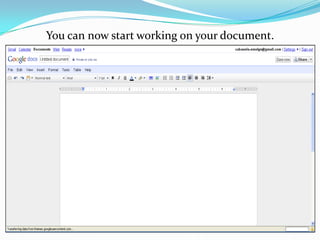
You can now start working on your document.
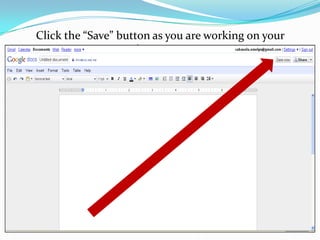
Click the “Save” button as you are working on your document.
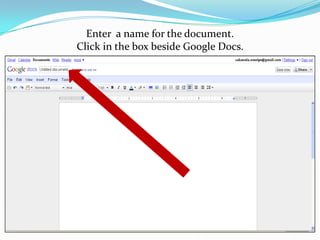
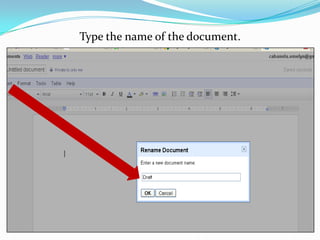
Enter  a name for the document. Click in the box beside Google Docs.
Type the name of the document.
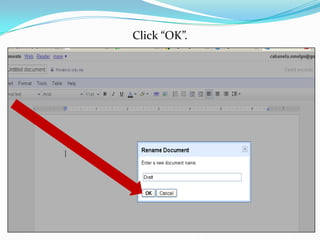
Click “OK”.
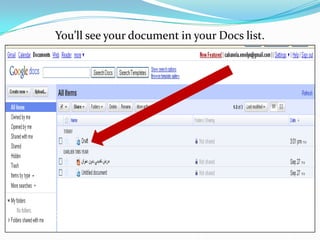
You’ll see your document in your Docs list.
Saving a local copy of the document
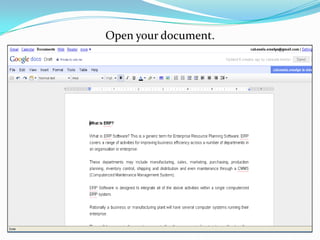
Open your document.
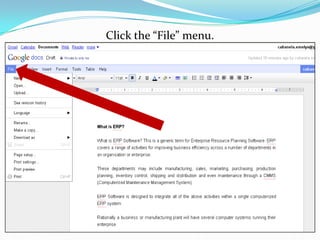
Click the “File” menu.
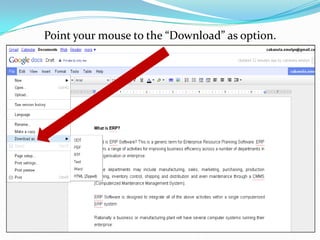
Point your mouse to the “Download” as option.
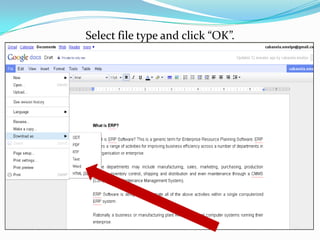
Select file type and click “OK”.
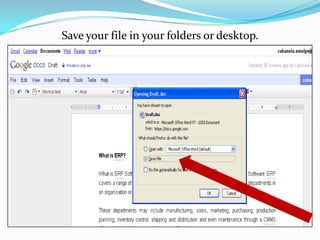
Save your file in your folders or desktop.
Uploading the Document
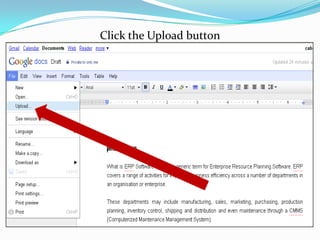
Click the Upload button
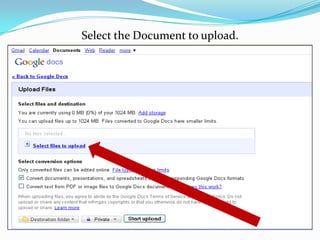
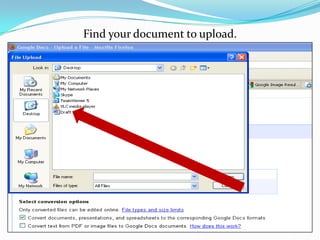
Select the Document to upload.
Find your document to upload.
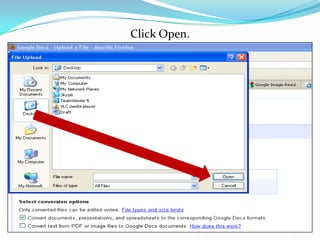
Click Open.
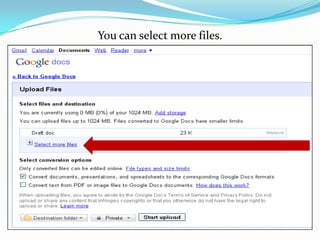
You can select more files.
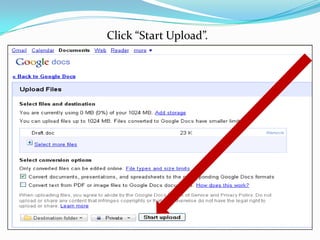
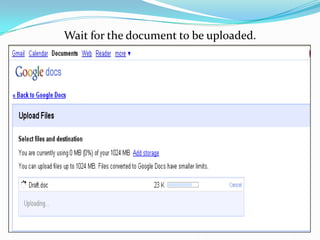
Click “Start Upload”.
Wait for the document to be uploaded.
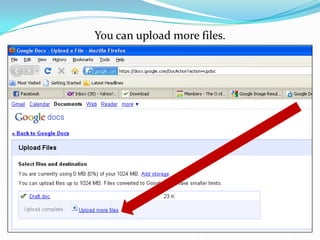
You can upload more files.
Inserting Images
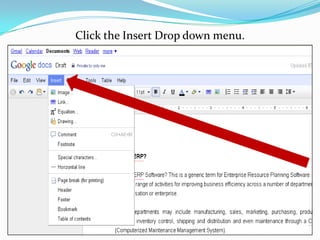
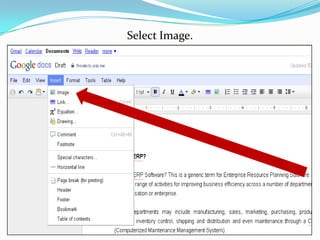
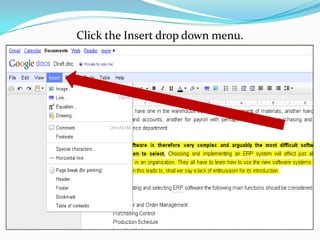
Click the Insert Drop down menu.
Select Image.
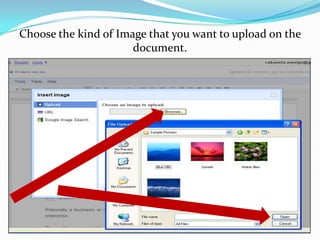
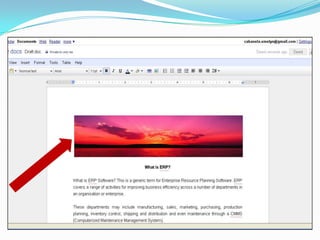
Choose the kind of Image that you want to upload on the document.
Adding Comments
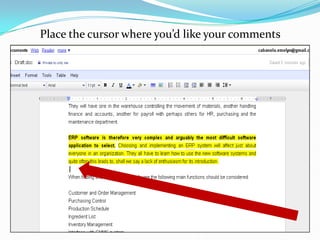
Place the cursor where you’d like your comments to appear.
Click the Insert drop down menu.
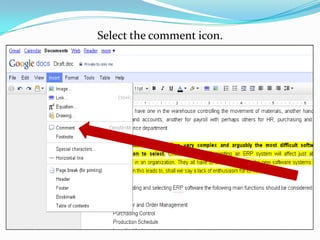
Select the comment icon.
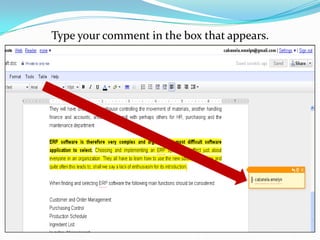
Type your comment in the box that appears.
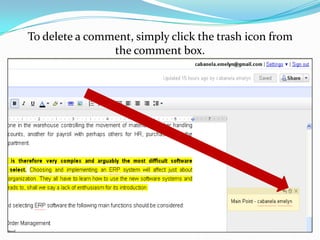
To delete a comment, simply click the trash icon from the comment box.
Inserting Links
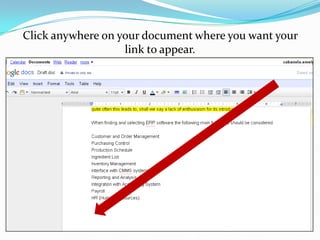
Click anywhere on your document where you want your link to appear.
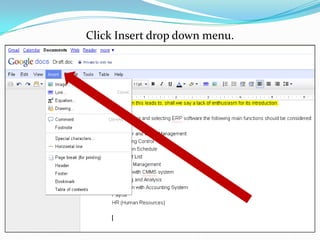
Click Insert drop down menu.
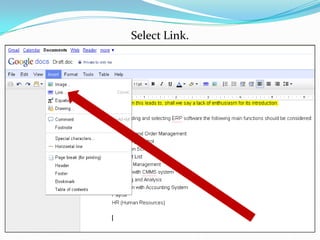
Select Link.
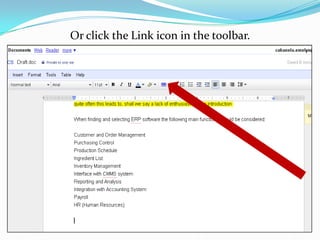
Or click the Link icon in the toolbar.
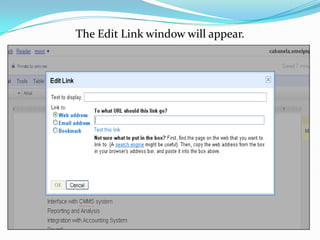
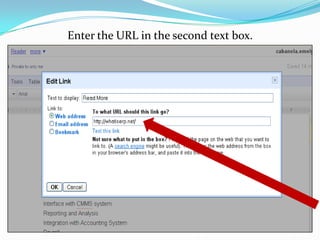
The Edit Link window will appear.
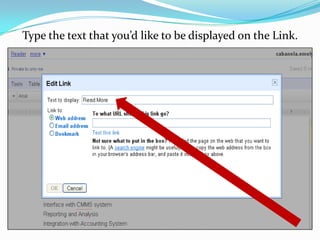
Type the text that you’d like to be displayed on the Link.
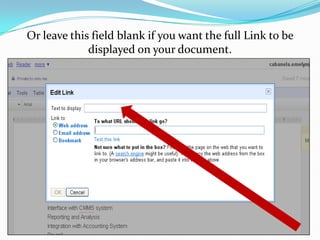
Or leave this field blank if you want the full Link to be displayed on your document.
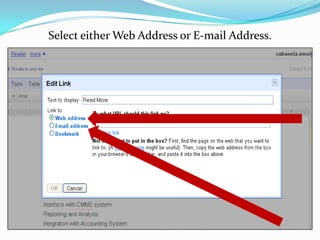
Select either Web Address or E-mail Address.
Enter the URL in the second text box.
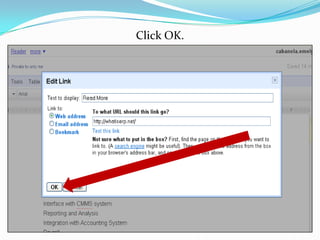
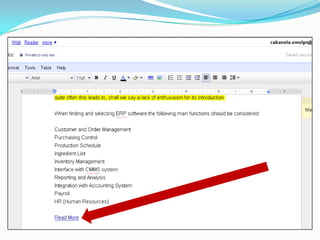
Click OK.
Sharing your Document
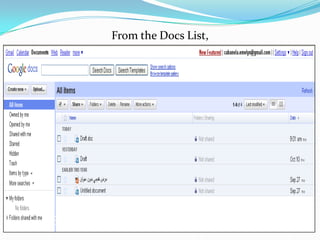
From the Docs List,
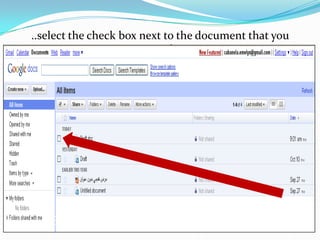
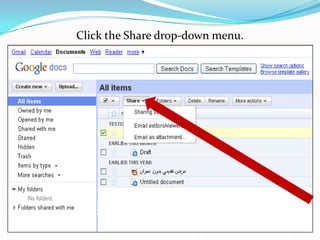
..select the check box next to the document that you want to share.
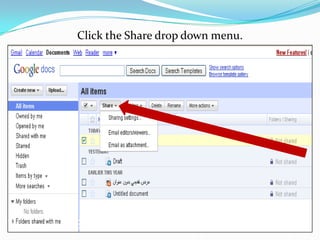
Click the Share drop down menu.
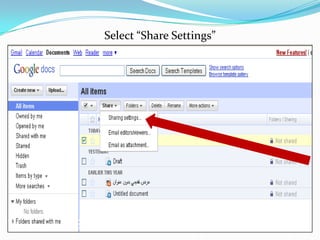
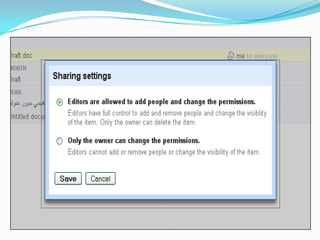
Select “Share Settings”
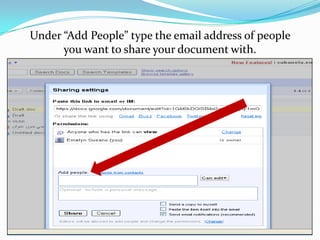
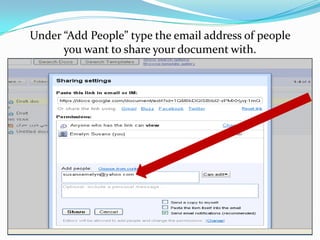
Under “Add People” type the email address of people  you want to share your document with.
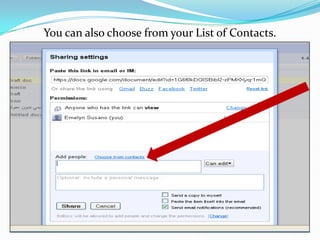
You can also choose from your List of Contacts.
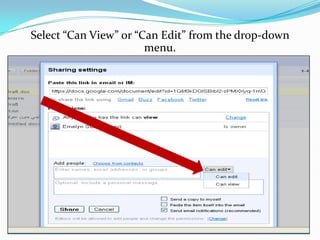
Select “Can View” or “Can Edit” from the drop-down menu.
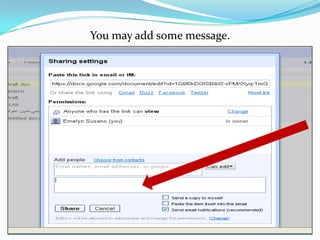
You may add some message.
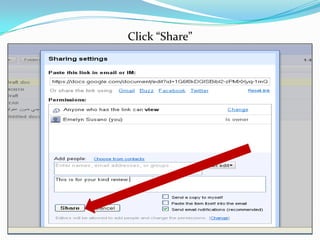
Click “Share”
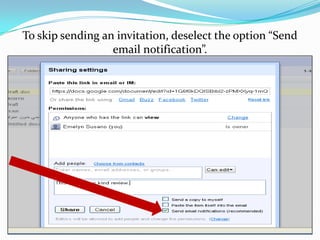
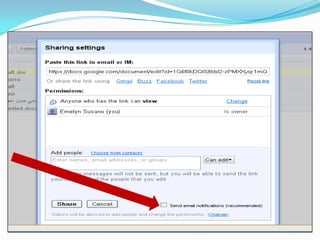
To skip sending an invitation, deselect the option “Send email notification”.
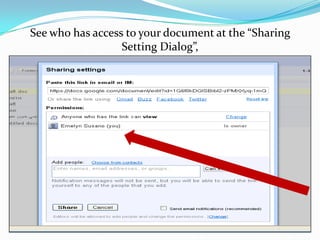
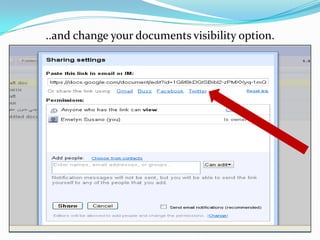
See who has access to your document at the “Sharing Setting Dialog”,
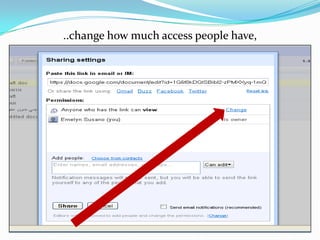
..change how much access people have,
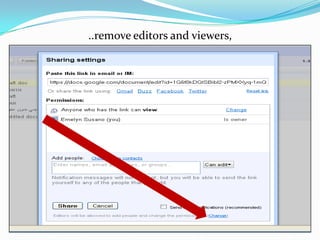
..remove editors and viewers,
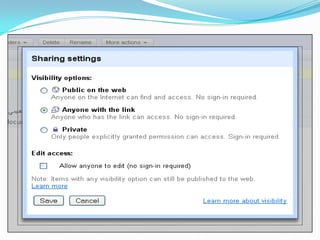
..and change your documents visibility option.
Click the Share drop-down menu.
Printing
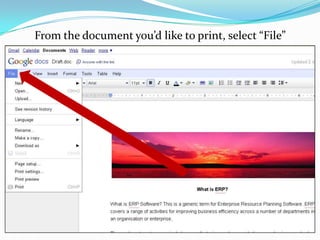
From the document you’d like to print, select “File”
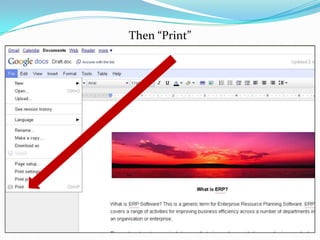
Then “Print”
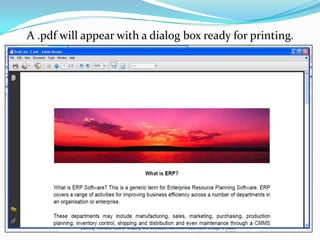
A .pdf will appear with a dialog box ready for printing.
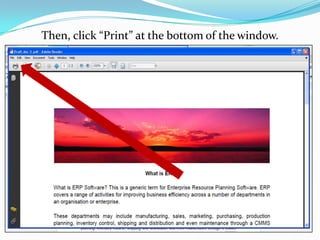
Then, click “Print” at the bottom of the window.
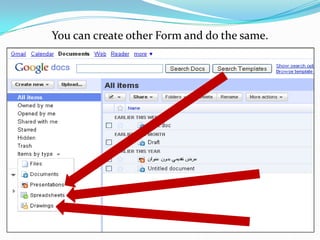
You can create other Form and do the same.

Create Froms with Google Docs