ONLINE
NAVIGATION
Navigation:
Getting the user from A to
(where you want them to) B.
For users:
1. Find stuff they want
2.Get an overview of what’s
on the site
3.See where they are
4.See where they can go
For site owners:
1.Drive people to action points
2.Cross-sell services or highlight
additional information
3.Show what is/isn’t available
4.Be found on Google
Role of navigation…
• Why the navigation is there (its role)
• Who will be using it
• Where they want to go
• What YOU want them to do
• How you will manage it (CMS etc)
Choosing a navigation style
The Structural-Browser Model
• The Family-Tree model
• Creates a clear hierarchy of content
• Collection of links advance the user to other pages
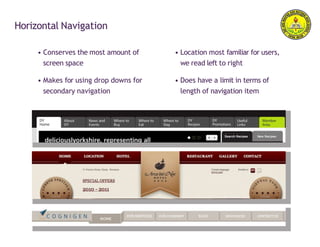
Horizontal Navigation
• Conserves the most amount of
screen space
• Makes for using drop downs for
secondary navigation
• Location most familiar for users,
we read left to right
• Does have a limit in terms of
length of navigation item
Horizontal Navigation
Vertical Navigation
Vertical Navigation
• Good for sites with a lot of
main navigation items
• Supports multiple types of
secondary navigation
• Can act as a page design
element
• Normally takes up more space
then horizontal navigation
Vertical Navigation
Secondary Navigation
• Common location for displaying
B-level pages
• Moves out of the way when not
active to conserver screen space
• Don’t rely on more then 2 levels
of pop-out/drop down menus
• Design enough contrast with the
information below so the user
can clearly read the text
Utility Navigation
Utility Navigation
• Assistant pages
• Pages that don’t fit into a single
logical category
• Location/Language selectors
• Shopping Cart/User login info
• Pages that you want displayed on
every page
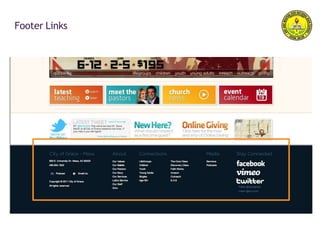
Footer Links
Footer Links
• Provides a place for important
information away from other content
• Acts as a visual “End” to your page
• Allows users to access pages without
scrolling back to the top
• Can be styled as multiple columns
Breadcrumb Trails
Breadcrumb Trails
• Convenient for users
• Reduces clicks to return to higher-
level pages
• Doesn’t usually hog screen space
• Don’t use when you don’t need to
• Don’t use as primary navigation
• Don’t use when pages have multiple
categories
Search Boxes
Search Boxes
• Not every website needs a search box
• The box must be clearly visible, quickly
recognizable and easy to use
• A search box should be a box.
• A search box should be simple
• Don’t make the input field too short
• Don’t making the submit button
too small
Pagination Navigation
• Provide large clickable areas
• Identify the current page
• Space out page links
• Provide Previous and Next links
• Use First and Last links
• Put First and Last links on the outside
• Give the user a sense of volume
The Golden
Rules of Web
Navigation.
1. Don’t make the user think
The Golden
Rules of Web
Navigation.
1. Don’t make the user think
2. Don’t test user patience
The Golden
Rules of Web
Navigation.
1. Don’t make the user think
2. Don’t test user patience
3.Focus their attention
The Golden
Rules of Web
Navigation.
1. Don’t make the user think
2. Don’t test user patience
3.Focus their attention
4.Organize your content
The Golden
Rules of Web
Navigation.
1. Don’t make the user think
2. Don’t test user patience
3.Focus their attention
4.Organize your content
5.Use natural descriptions
The Golden
Rules of Web
Navigation.
1. Don’t make the user think
2. Don’t test user patience
3.Focus their attention
4.Organize your content
5.Use natural descriptions
6. Strive for Simplicity
The Golden
Rules of Web
Navigation.
1. Don’t make the user think
2. Don’t test user patience
3.Focus their attention
4.Organize your content
5.Use natural descriptions
6. Strive for Simplicity
7.Embrace whitespace
The Golden
Rules of Web
Navigation.
1. Don’t make the user think
2. Don’t test user patience
3.Focus their attention
4.Organize your content
5.Use natural descriptions
6. Strive for simplicity
7.Embrace whitespace
8. Don’t assume
THANK YOU!

MODULE 3- WEEK 3- EMP.pptx

  • 1.
  • 2.
    Navigation: Getting the userfrom A to (where you want them to) B.
  • 3.
    For users: 1. Findstuff they want 2.Get an overview of what’s on the site 3.See where they are 4.See where they can go For site owners: 1.Drive people to action points 2.Cross-sell services or highlight additional information 3.Show what is/isn’t available 4.Be found on Google Role of navigation…
  • 4.
    • Why thenavigation is there (its role) • Who will be using it • Where they want to go • What YOU want them to do • How you will manage it (CMS etc) Choosing a navigation style
  • 5.
    The Structural-Browser Model •The Family-Tree model • Creates a clear hierarchy of content • Collection of links advance the user to other pages
  • 6.
  • 7.
    Horizontal Navigation • Conservesthe most amount of screen space • Makes for using drop downs for secondary navigation • Location most familiar for users, we read left to right • Does have a limit in terms of length of navigation item
  • 8.
  • 9.
  • 10.
    Vertical Navigation • Goodfor sites with a lot of main navigation items • Supports multiple types of secondary navigation • Can act as a page design element • Normally takes up more space then horizontal navigation
  • 11.
  • 12.
  • 13.
    Secondary Navigation • Commonlocation for displaying B-level pages • Moves out of the way when not active to conserver screen space • Don’t rely on more then 2 levels of pop-out/drop down menus • Design enough contrast with the information below so the user can clearly read the text
  • 14.
  • 15.
    Utility Navigation • Assistantpages • Pages that don’t fit into a single logical category • Location/Language selectors • Shopping Cart/User login info • Pages that you want displayed on every page
  • 16.
  • 17.
    Footer Links • Providesa place for important information away from other content • Acts as a visual “End” to your page • Allows users to access pages without scrolling back to the top • Can be styled as multiple columns
  • 18.
  • 19.
    Breadcrumb Trails • Convenientfor users • Reduces clicks to return to higher- level pages • Doesn’t usually hog screen space • Don’t use when you don’t need to • Don’t use as primary navigation • Don’t use when pages have multiple categories
  • 20.
  • 21.
    Search Boxes • Notevery website needs a search box • The box must be clearly visible, quickly recognizable and easy to use • A search box should be a box. • A search box should be simple • Don’t make the input field too short • Don’t making the submit button too small
  • 22.
  • 23.
    Pagination Navigation • Providelarge clickable areas • Identify the current page • Space out page links • Provide Previous and Next links • Use First and Last links • Put First and Last links on the outside • Give the user a sense of volume
  • 24.
    The Golden Rules ofWeb Navigation. 1. Don’t make the user think
  • 25.
    The Golden Rules ofWeb Navigation. 1. Don’t make the user think 2. Don’t test user patience
  • 26.
    The Golden Rules ofWeb Navigation. 1. Don’t make the user think 2. Don’t test user patience 3.Focus their attention
  • 27.
    The Golden Rules ofWeb Navigation. 1. Don’t make the user think 2. Don’t test user patience 3.Focus their attention 4.Organize your content
  • 28.
    The Golden Rules ofWeb Navigation. 1. Don’t make the user think 2. Don’t test user patience 3.Focus their attention 4.Organize your content 5.Use natural descriptions
  • 29.
    The Golden Rules ofWeb Navigation. 1. Don’t make the user think 2. Don’t test user patience 3.Focus their attention 4.Organize your content 5.Use natural descriptions 6. Strive for Simplicity
  • 30.
    The Golden Rules ofWeb Navigation. 1. Don’t make the user think 2. Don’t test user patience 3.Focus their attention 4.Organize your content 5.Use natural descriptions 6. Strive for Simplicity 7.Embrace whitespace
  • 31.
    The Golden Rules ofWeb Navigation. 1. Don’t make the user think 2. Don’t test user patience 3.Focus their attention 4.Organize your content 5.Use natural descriptions 6. Strive for simplicity 7.Embrace whitespace 8. Don’t assume
  • 32.