UI Design
         Ivano Malavolta
    ivano.malavolta@univaq.it
http://www.di.univaq.it/malavolta
Some apps are just so
shiny you want to lick them
                         [cit.]
Roadmap

•   Intro + Examples
•   Human Interface Principles
•   Platform Characteristics
•   UX Guidelines
Introduction

Before focussing on UI….

in mobile you can always control


    Content                    Visual
    naming                     Design
Content Naming
Before you start reasoning on the UI…

Define an APP DICTIONARY

Write down the terms and messages used in
 the app

Ex.
      – tweets in Twitter
      – Likes in Facebook
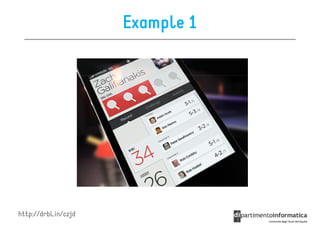
Visual Design

The direct representation of everything under
  your app

The first impression the user will have

     It is not only about layout & colors…
      it is about SENSORY SENSATIONS
Example 1


http://drbl.in/czjd
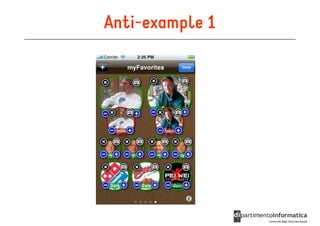
Anti-example 1
Roadmap

•   Intro + Examples
•   Human Interface Principles
•   Platform Characteristics
•   UX Guidelines
Aesthetic Integrity

It’s a measure of how well the appearance of
  the app integrates with its function

• Productive app    order & clarity
• Game    gamish, frivoulous
• …
Consistency

Take advantage of the standards and paradigms
  people are comfortable with

Does it use system-provided controls, views, and icons correctly
                                                       correctly?
Is the application consistent within itself
                                     itself?
Does text use uniform terminology and style
                                         style?
Can people predict what will happen?
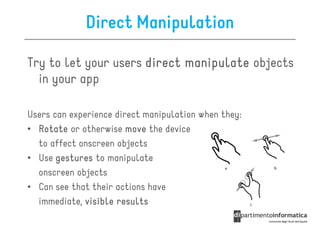
Direct Manipulation

Try to let your users direct manipulate objects
  in your app

Users can experience direct manipulation when they:
• Rotate or otherwise move the device
  to affect onscreen objects
• Use gestures to manipulate
  onscreen objects
• Can see that their actions have
  immediate, visible results
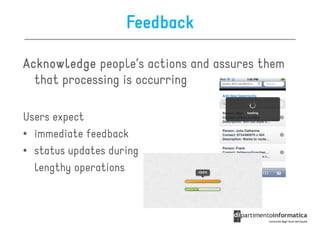
Feedback

Acknowledge people’s actions and assures them
  that processing is occurring

Users expect
• immediate feedback
• status updates during
  lengthy operations
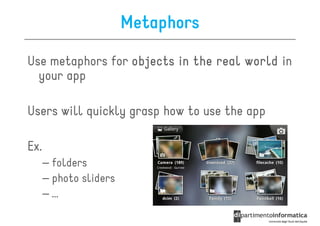
Metaphors

Use metaphors for objects in the real world in
  your app

Users will quickly grasp how to use the app

Ex.
      – folders
      – photo sliders
      –…
User Control
People, not apps, should initiate and control
  actions

Apps can suggest actions, but users must do them

Apps can only infer data from the context

Users expect to be able to stop an operation that’s
  underway
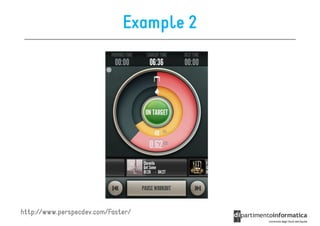
Example 2


http://www.perspecdev.com/Faster/
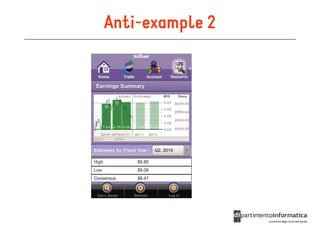
Anti-example 2
Roadmap

•   Intro + Examples
•   Human Interface Principles
•   Platform Characteristics
•   UX Guidelines
Display is Paramount

The DISPLAY is (usually) the only means that users use
  to interact with your app!

• The comfortable minimum size of tappable UI
  elements is 44 x 44 points
• The quality of app artwork is fundamental
• The user’s focus is on the content
Display Orientation

Users can rotate the device at any time and for
  any reason

users tend to expect apps to launch in the
  device orientation they’re currently using

TIP.
TIP You can use the splashscreen image to let the user rotate
  the device
Gestures
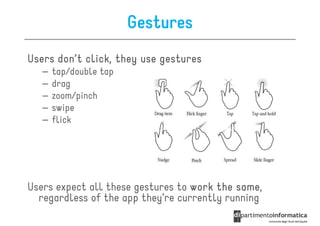
Users don’t click, they use gestures
   –   tap/double tap
   –   drag
   –   zoom/pinch
   –   swipe
   –   flick


Users expect all these gestures to work the same,
                                            same
  regardless of the app they’re currently running
One App at a Time

(at the moment) One app is visible in the foreground
  at a time

When people switch from one app to another, the
 previous app goes in background and its user
 interface goes away

Some applications might need to continue running in
  the background
User Help

Keep onscreen user help as minimal as possible

In general, users don’t need onscreen help
  content to tell them how to use the device or
  the apps

Remember of the Consistency human-interface
  principle
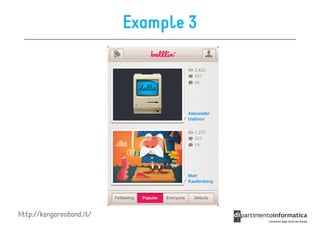
Example 3


http://kangarooband.it/
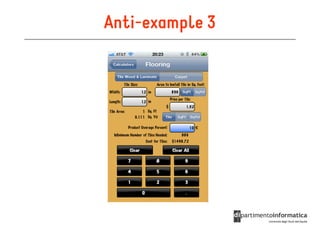
Anti-example 3
Roadmap

•   Intro + Examples
•   Human Interface Principles
•   Platform Characteristics
•   UX Guidelines
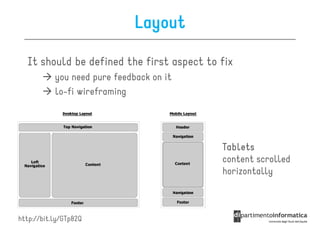
Layout

  It should be defined the first aspect to fix
           you need pure feedback on it
           lo-fi wireframing


                                           Tablets
                                           content scrolled
                                           horizontally


http://bit.ly/GTp82Q
Colors psychology

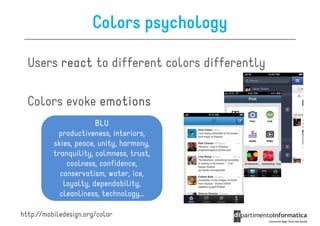
  Users react to different colors differently

  Colors evoke emotions
                       BLU
           productiveness, interiors,
          skies, peace, unity, harmony,
          tranquility, calmness, trust,
              coolness, confidence,
            conservatism, water, ice,
             loyalty, dependability,
            cleanliness, technology…

http://mobiledesign.org/color
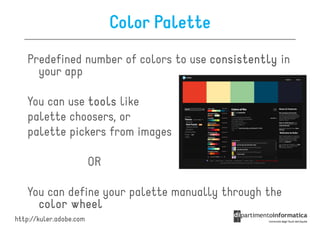
Color Palette
   Predefined number of colors to use consistently in
     your app

   You can use tools like
   palette choosers, or
   palette pickers from images

                         OR

   You can define your palette manually through the
     color wheel
http://kuler.adobe.com
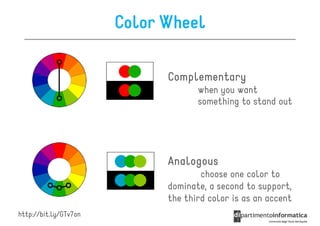
Color Wheel

                             Complementary
                                    when you want
                                    something to stand out


                             Analogous
                                     choose one color to
                             dominate, a second to support,
                             the third color is as an accent
http://bit.ly/GTv7on
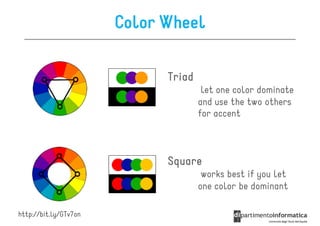
Color Wheel

                             Triad
                                      let one color dominate
                                     and use the two others
                                     for accent


                             Square
                                      works best if you let
                                     one color be dominant

http://bit.ly/GTv7on
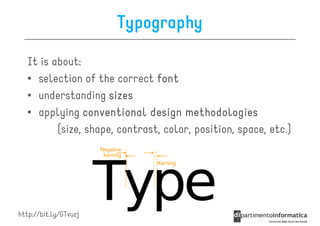
Typography

   It is about:
   • selection of the correct font
   • understanding sizes
   • applying conventional design methodologies
          (size, shape, contrast, color, position, space, etc.)


http://bit.ly/GTvuzj
Readability guidelines

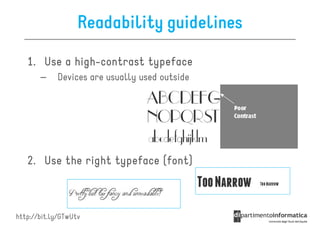
   1. Use a high-contrast typeface
            high-
       –    Devices are usually used outside


   2. Use the right typeface (font)


http://bit.ly/GTwUtv
Readability guidelines
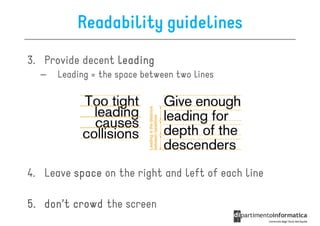
3. Provide decent leading
  –   Leading = the space between two lines


4. Leave space on the right and left of each line

5. don’t crowd the screen
Readability guidelines

6. Generously utilize headings
  –   Divide the content into paragraphs


7. Use short paragraphs
  –   2-3 sentences at most
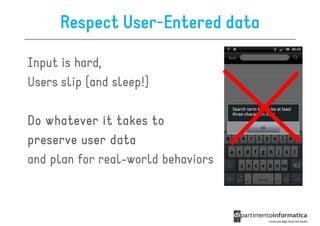
Respect User-Entered data

Input is hard,
Users slip (and sleep!)

Do whatever it takes to
preserve user data
and plan for real-world behaviors
Realize That Mobiles Are Personal


          one device for one person

Don’t continuously ask for name, data, etc.

Only implement passwords and clear personal
  information when required
Ensure That Lives Take Precedence


           Don’t interrupt people’s life!

Differently from desktops
  Mobiles are glanced at, used in gaps between
  conversation and driving and watching TV
Use Your Sensors

Whenever possible, perform actions for the
 user based on sensors and user data

Ex.
Why should you have to silence your phone for a meeting, when
    the phone knows where you physically are and knows from your
    calendar that you have a meeting in that room right now?
Focus on the Primary Task

you need to determine what’s most important in
  each context or screen and…

                       exclusively!
           focus on it exclusively!

Your app definition statement will help you
  focus your app on its primary task
Elevate the Content that People Care
                About
     Give your users what they need most!
                                    most!

For example, in a game, people care about the experience,
they don’t expect to manage, consume, or create content

• Minimize the number of controls in the UI

• Customize controls so that they integrate with your
  app’s graphical style

• Fade controls away after people have stopped
  interacting with them for a little while
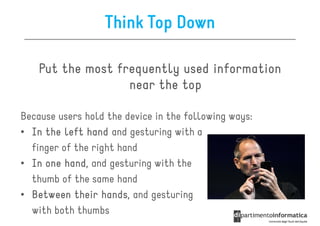
Think Top Down

    Put the most frequently used information
                   near the top

Because users hold the device in the following ways:
• In the left hand and gesturing with a
  finger of the right hand
• In one hand and gesturing with the
          hand,
  thumb of the same hand
• Between their hands and gesturing
                  hands,
  with both thumbs
Logical Path

Make the path through the information you
 present logical and easy to predict

  – put markers to let them where they are
  – put a back-button


Give users only one path to a screen
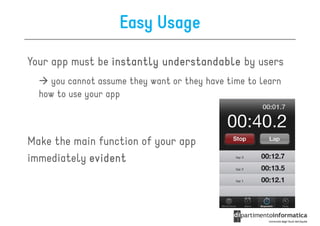
Easy Usage

Your app must be instantly understandable by users
    you cannot assume they want or they have time to learn
  how to use your app


Make the main function of your app
immediately evident
User-Centric Terminology


use terminology your users understand

avoid technical jargon
  – This does not hold if your target user is a technical guy
Minimize the Effort Required for User
                    Input

Inputting information takes time and attention,
  minimize it

TIP.
TIP If your app asks users a lot of input data, you have to
  revise your design!

Balance any request for input by users with what
  you offer them in return

Get information from the OS when appropriate
                         OS,
   – for example: contacts, address, events in the calendar…
Enable Collaboration
Push for collaboration and sharing with others

When appropriate, make it easy for users to
 interact with others
  – allow them to share things like their location,
    opinions, and high scores


For tablets think of ways to allow more than one
    tablets:
  person to use your app on the same device
Brand Appropriately

Incorporate a brand’s colors or images in a refined,
  unobtrusive way

Avoid taking space away from the content people care
  about
   – Alternative: subtly customize the background of a screen
Make Search Quick
In apps with a lot of data, SEARCH can be a
  primary function

Build indexes of your data so that you are always prepared
  for search

Live-
Live-filter local data so that you can display results
   more quickly

Display a search bar above a list or the index in a list

Display placeholder content right away and partial
   results as they become available
Be Succinct

Think like a newspaper editor, and strive to convey
  information in a condensed, headline style

 When your UI text is short and direct users can
                                direct,
 absorb it quickly and easily

Give controls short labels, or use well-understood
                    labels         well-
  symbols
      users should tell what they do at a glance
Use UI Elements Consistently

Follow the recommended usages for standard user
  interface elements
    you can build on users’ prior experience


Avoid radically changing the appearance of a control
  that performs a standard action

Never use the standard buttons and icons to mean
  something else
Make Targets Fingertip-Size

Display may change, but the average size of a
  fingertip does not!

Give tappable elements in your application a
  target area of about 44 x 44 points
If you create smaller controls, the app becomes much less
   enjoyable
        or people may focus on the interface only, rather than
   the content
Ask People to Save Only When
                Necessary
People should have confidence that their work is
  always preserved unless they explicitly cancel or
  delete it

Never ask for saving data it should be done
                     data,
  automatically
   – You can ask to either edit or delete data
Make Modal Tasks Occasional

Modality prevents users’ freedom by interrupting
 their workflow and forcing them to choose a
 particular path

Keep modal tasks fairly short and narrowly
  focused

Always provide an obvious and safe way to exit a
  modal task
Start Instantly

Avoid displaying an About window or a splash screen

Avoid asking people to supply setup information

Delay a login requirement for long as possible:
   – Focus your solution on the needs of 80 percent of your
     users
   – Get as much information as possible from other sources
   – If you must ask for setup information, put it in your app’s
     settings
Always Be Prepared to Stop


Save user data as often as reasonable

Save the current state when stopping
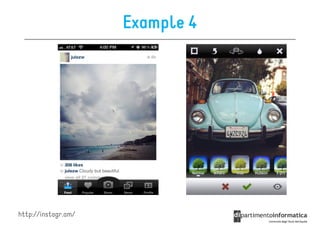
Example 4


http://instagr.am/
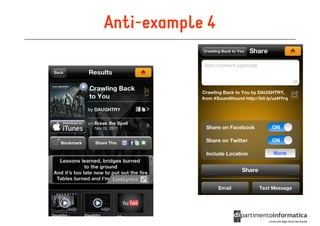
Anti-example 4
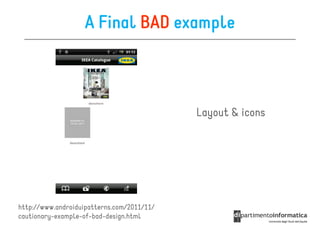
A Final BAD example


                                            Layout & icons


http://www.androiduipatterns.com/2011/11/
cautionary-example-of-bad-design.html
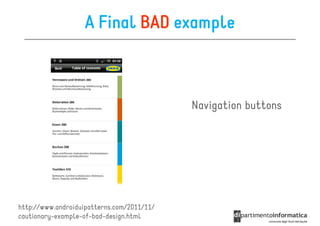
A Final BAD example


                                            Navigation buttons


http://www.androiduipatterns.com/2011/11/
cautionary-example-of-bad-design.html
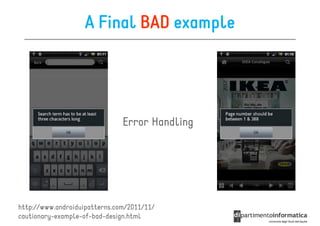
A Final BAD example


                               Error Handling


http://www.androiduipatterns.com/2011/11/
cautionary-example-of-bad-design.html
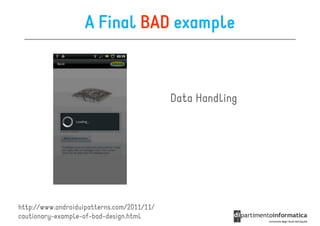
A Final BAD example


                                            Data Handling


http://www.androiduipatterns.com/2011/11/
cautionary-example-of-bad-design.html
And maybe a good one…


                 …developed in one single night…

http://www.musicatch.info
References


Chapter 8
        http://bit.ly/H4GnKZ
        http://bit.ly/H4Gqq5
BRAINSTORMING

UI Design

  • 1.
    UI Design Ivano Malavolta ivano.malavolta@univaq.it http://www.di.univaq.it/malavolta
  • 2.
    Some apps arejust so shiny you want to lick them [cit.]
  • 3.
    Roadmap • Intro + Examples • Human Interface Principles • Platform Characteristics • UX Guidelines
  • 4.
    Introduction Before focussing onUI…. in mobile you can always control Content Visual naming Design
  • 5.
    Content Naming Before youstart reasoning on the UI… Define an APP DICTIONARY Write down the terms and messages used in the app Ex. – tweets in Twitter – Likes in Facebook
  • 6.
    Visual Design The directrepresentation of everything under your app The first impression the user will have It is not only about layout & colors… it is about SENSORY SENSATIONS
  • 7.
  • 8.
  • 9.
    Roadmap • Intro + Examples • Human Interface Principles • Platform Characteristics • UX Guidelines
  • 10.
    Aesthetic Integrity It’s ameasure of how well the appearance of the app integrates with its function • Productive app order & clarity • Game gamish, frivoulous • …
  • 11.
    Consistency Take advantage ofthe standards and paradigms people are comfortable with Does it use system-provided controls, views, and icons correctly correctly? Is the application consistent within itself itself? Does text use uniform terminology and style style? Can people predict what will happen?
  • 12.
    Direct Manipulation Try tolet your users direct manipulate objects in your app Users can experience direct manipulation when they: • Rotate or otherwise move the device to affect onscreen objects • Use gestures to manipulate onscreen objects • Can see that their actions have immediate, visible results
  • 13.
    Feedback Acknowledge people’s actionsand assures them that processing is occurring Users expect • immediate feedback • status updates during lengthy operations
  • 14.
    Metaphors Use metaphors forobjects in the real world in your app Users will quickly grasp how to use the app Ex. – folders – photo sliders –…
  • 15.
    User Control People, notapps, should initiate and control actions Apps can suggest actions, but users must do them Apps can only infer data from the context Users expect to be able to stop an operation that’s underway
  • 16.
  • 17.
  • 18.
    Roadmap • Intro + Examples • Human Interface Principles • Platform Characteristics • UX Guidelines
  • 19.
    Display is Paramount TheDISPLAY is (usually) the only means that users use to interact with your app! • The comfortable minimum size of tappable UI elements is 44 x 44 points • The quality of app artwork is fundamental • The user’s focus is on the content
  • 20.
    Display Orientation Users canrotate the device at any time and for any reason users tend to expect apps to launch in the device orientation they’re currently using TIP. TIP You can use the splashscreen image to let the user rotate the device
  • 21.
    Gestures Users don’t click,they use gestures – tap/double tap – drag – zoom/pinch – swipe – flick Users expect all these gestures to work the same, same regardless of the app they’re currently running
  • 22.
    One App ata Time (at the moment) One app is visible in the foreground at a time When people switch from one app to another, the previous app goes in background and its user interface goes away Some applications might need to continue running in the background
  • 23.
    User Help Keep onscreenuser help as minimal as possible In general, users don’t need onscreen help content to tell them how to use the device or the apps Remember of the Consistency human-interface principle
  • 24.
  • 25.
  • 26.
    Roadmap • Intro + Examples • Human Interface Principles • Platform Characteristics • UX Guidelines
  • 27.
    Layout Itshould be defined the first aspect to fix you need pure feedback on it lo-fi wireframing Tablets content scrolled horizontally http://bit.ly/GTp82Q
  • 28.
    Colors psychology Users react to different colors differently Colors evoke emotions BLU productiveness, interiors, skies, peace, unity, harmony, tranquility, calmness, trust, coolness, confidence, conservatism, water, ice, loyalty, dependability, cleanliness, technology… http://mobiledesign.org/color
  • 29.
    Color Palette Predefined number of colors to use consistently in your app You can use tools like palette choosers, or palette pickers from images OR You can define your palette manually through the color wheel http://kuler.adobe.com
  • 30.
    Color Wheel Complementary when you want something to stand out Analogous choose one color to dominate, a second to support, the third color is as an accent http://bit.ly/GTv7on
  • 31.
    Color Wheel Triad let one color dominate and use the two others for accent Square works best if you let one color be dominant http://bit.ly/GTv7on
  • 32.
    Typography It is about: • selection of the correct font • understanding sizes • applying conventional design methodologies (size, shape, contrast, color, position, space, etc.) http://bit.ly/GTvuzj
  • 33.
    Readability guidelines 1. Use a high-contrast typeface high- – Devices are usually used outside 2. Use the right typeface (font) http://bit.ly/GTwUtv
  • 34.
    Readability guidelines 3. Providedecent leading – Leading = the space between two lines 4. Leave space on the right and left of each line 5. don’t crowd the screen
  • 35.
    Readability guidelines 6. Generouslyutilize headings – Divide the content into paragraphs 7. Use short paragraphs – 2-3 sentences at most
  • 36.
    Respect User-Entered data Inputis hard, Users slip (and sleep!) Do whatever it takes to preserve user data and plan for real-world behaviors
  • 37.
    Realize That MobilesAre Personal one device for one person Don’t continuously ask for name, data, etc. Only implement passwords and clear personal information when required
  • 38.
    Ensure That LivesTake Precedence Don’t interrupt people’s life! Differently from desktops Mobiles are glanced at, used in gaps between conversation and driving and watching TV
  • 39.
    Use Your Sensors Wheneverpossible, perform actions for the user based on sensors and user data Ex. Why should you have to silence your phone for a meeting, when the phone knows where you physically are and knows from your calendar that you have a meeting in that room right now?
  • 40.
    Focus on thePrimary Task you need to determine what’s most important in each context or screen and… exclusively! focus on it exclusively! Your app definition statement will help you focus your app on its primary task
  • 41.
    Elevate the Contentthat People Care About Give your users what they need most! most! For example, in a game, people care about the experience, they don’t expect to manage, consume, or create content • Minimize the number of controls in the UI • Customize controls so that they integrate with your app’s graphical style • Fade controls away after people have stopped interacting with them for a little while
  • 42.
    Think Top Down Put the most frequently used information near the top Because users hold the device in the following ways: • In the left hand and gesturing with a finger of the right hand • In one hand and gesturing with the hand, thumb of the same hand • Between their hands and gesturing hands, with both thumbs
  • 43.
    Logical Path Make thepath through the information you present logical and easy to predict – put markers to let them where they are – put a back-button Give users only one path to a screen
  • 44.
    Easy Usage Your appmust be instantly understandable by users you cannot assume they want or they have time to learn how to use your app Make the main function of your app immediately evident
  • 45.
    User-Centric Terminology use terminologyyour users understand avoid technical jargon – This does not hold if your target user is a technical guy
  • 46.
    Minimize the EffortRequired for User Input Inputting information takes time and attention, minimize it TIP. TIP If your app asks users a lot of input data, you have to revise your design! Balance any request for input by users with what you offer them in return Get information from the OS when appropriate OS, – for example: contacts, address, events in the calendar…
  • 47.
    Enable Collaboration Push forcollaboration and sharing with others When appropriate, make it easy for users to interact with others – allow them to share things like their location, opinions, and high scores For tablets think of ways to allow more than one tablets: person to use your app on the same device
  • 48.
    Brand Appropriately Incorporate abrand’s colors or images in a refined, unobtrusive way Avoid taking space away from the content people care about – Alternative: subtly customize the background of a screen
  • 49.
    Make Search Quick Inapps with a lot of data, SEARCH can be a primary function Build indexes of your data so that you are always prepared for search Live- Live-filter local data so that you can display results more quickly Display a search bar above a list or the index in a list Display placeholder content right away and partial results as they become available
  • 50.
    Be Succinct Think likea newspaper editor, and strive to convey information in a condensed, headline style When your UI text is short and direct users can direct, absorb it quickly and easily Give controls short labels, or use well-understood labels well- symbols users should tell what they do at a glance
  • 51.
    Use UI ElementsConsistently Follow the recommended usages for standard user interface elements you can build on users’ prior experience Avoid radically changing the appearance of a control that performs a standard action Never use the standard buttons and icons to mean something else
  • 52.
    Make Targets Fingertip-Size Displaymay change, but the average size of a fingertip does not! Give tappable elements in your application a target area of about 44 x 44 points If you create smaller controls, the app becomes much less enjoyable or people may focus on the interface only, rather than the content
  • 53.
    Ask People toSave Only When Necessary People should have confidence that their work is always preserved unless they explicitly cancel or delete it Never ask for saving data it should be done data, automatically – You can ask to either edit or delete data
  • 54.
    Make Modal TasksOccasional Modality prevents users’ freedom by interrupting their workflow and forcing them to choose a particular path Keep modal tasks fairly short and narrowly focused Always provide an obvious and safe way to exit a modal task
  • 55.
    Start Instantly Avoid displayingan About window or a splash screen Avoid asking people to supply setup information Delay a login requirement for long as possible: – Focus your solution on the needs of 80 percent of your users – Get as much information as possible from other sources – If you must ask for setup information, put it in your app’s settings
  • 56.
    Always Be Preparedto Stop Save user data as often as reasonable Save the current state when stopping
  • 57.
  • 58.
  • 59.
    A Final BADexample Layout & icons http://www.androiduipatterns.com/2011/11/ cautionary-example-of-bad-design.html
  • 60.
    A Final BADexample Navigation buttons http://www.androiduipatterns.com/2011/11/ cautionary-example-of-bad-design.html
  • 61.
    A Final BADexample Error Handling http://www.androiduipatterns.com/2011/11/ cautionary-example-of-bad-design.html
  • 62.
    A Final BADexample Data Handling http://www.androiduipatterns.com/2011/11/ cautionary-example-of-bad-design.html
  • 63.
    And maybe agood one… …developed in one single night… http://www.musicatch.info
  • 64.
    References Chapter 8 http://bit.ly/H4GnKZ http://bit.ly/H4Gqq5
  • 65.