WELCOME
MIS – 104:
Computing
Fundamentals
BBA
Department of MIS
University of Dhaka
3
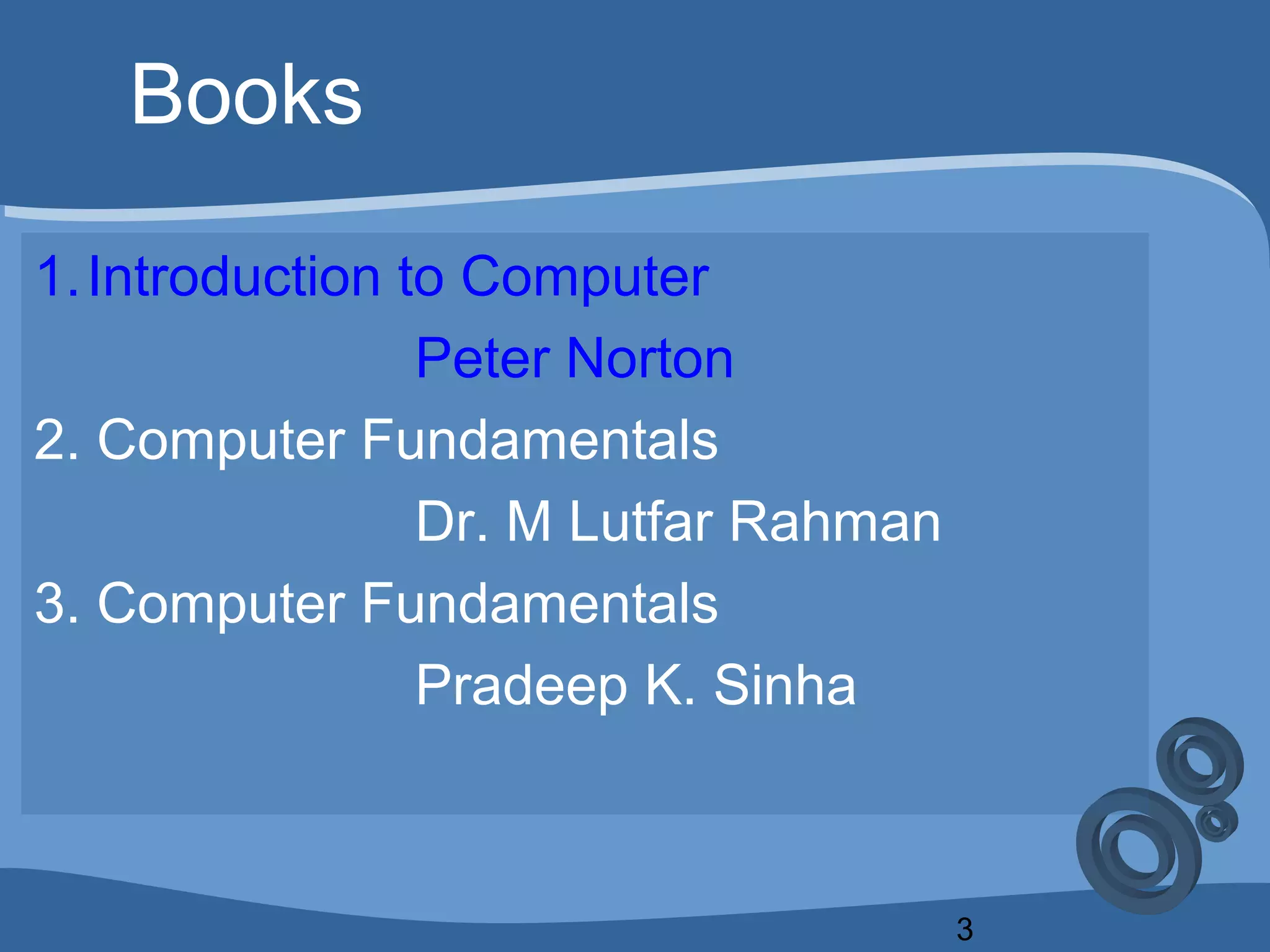
Books
1.Introduction to Computer
Peter Norton
2. Computer Fundamentals
Dr. M Lutfar Rahman
3. Computer Fundamentals
Pradeep K. Sinha
4
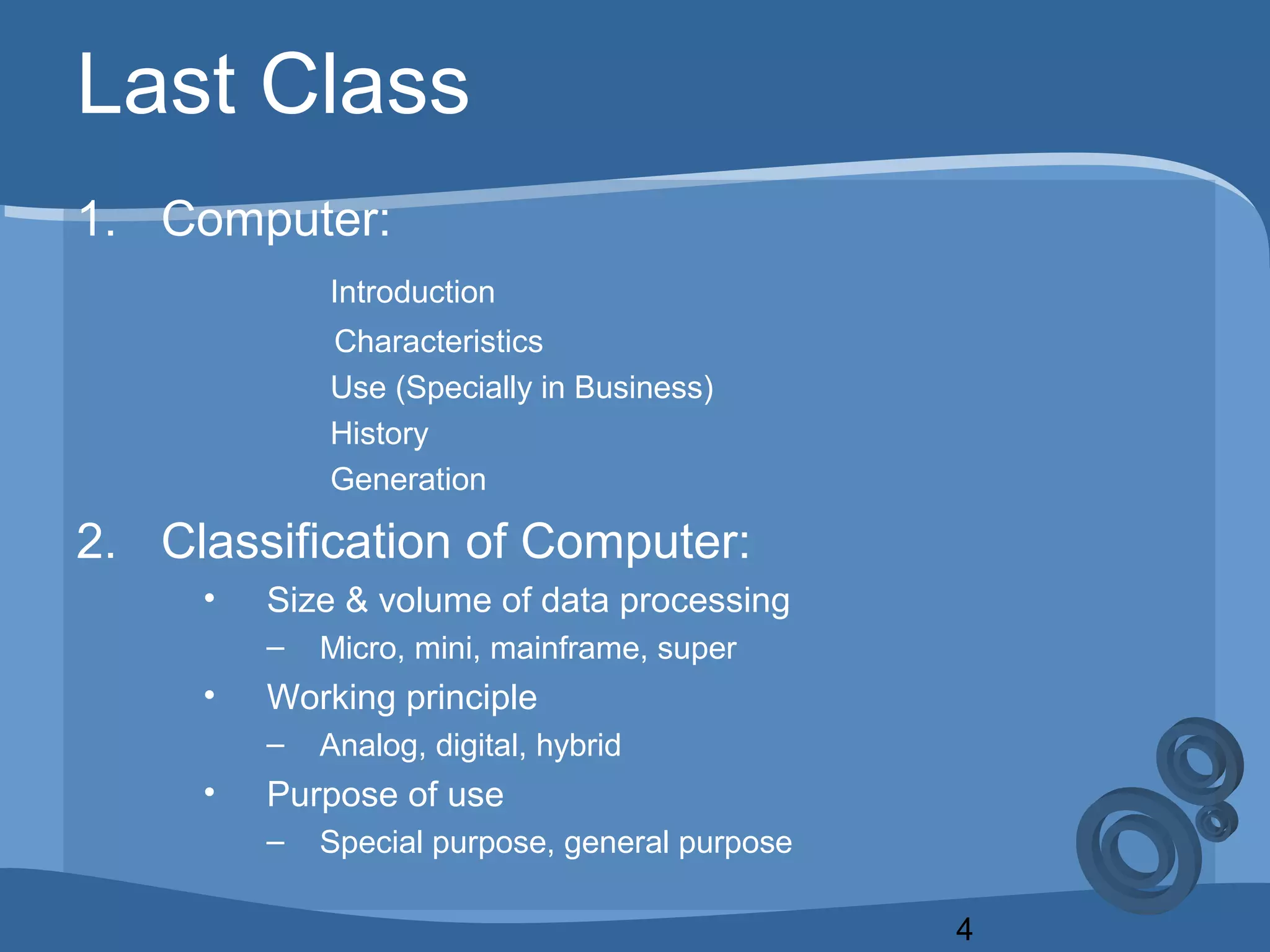
Last Class
1. Computer:
Introduction
Characteristics
Use (Specially in Business)
History
Generation
2. Classification of Computer:
• Size & volume of data processing
– Micro, mini, mainframe, super
• Working principle
– Analog, digital, hybrid
• Purpose of use
– Special purpose, general purpose
Today’s Class
6
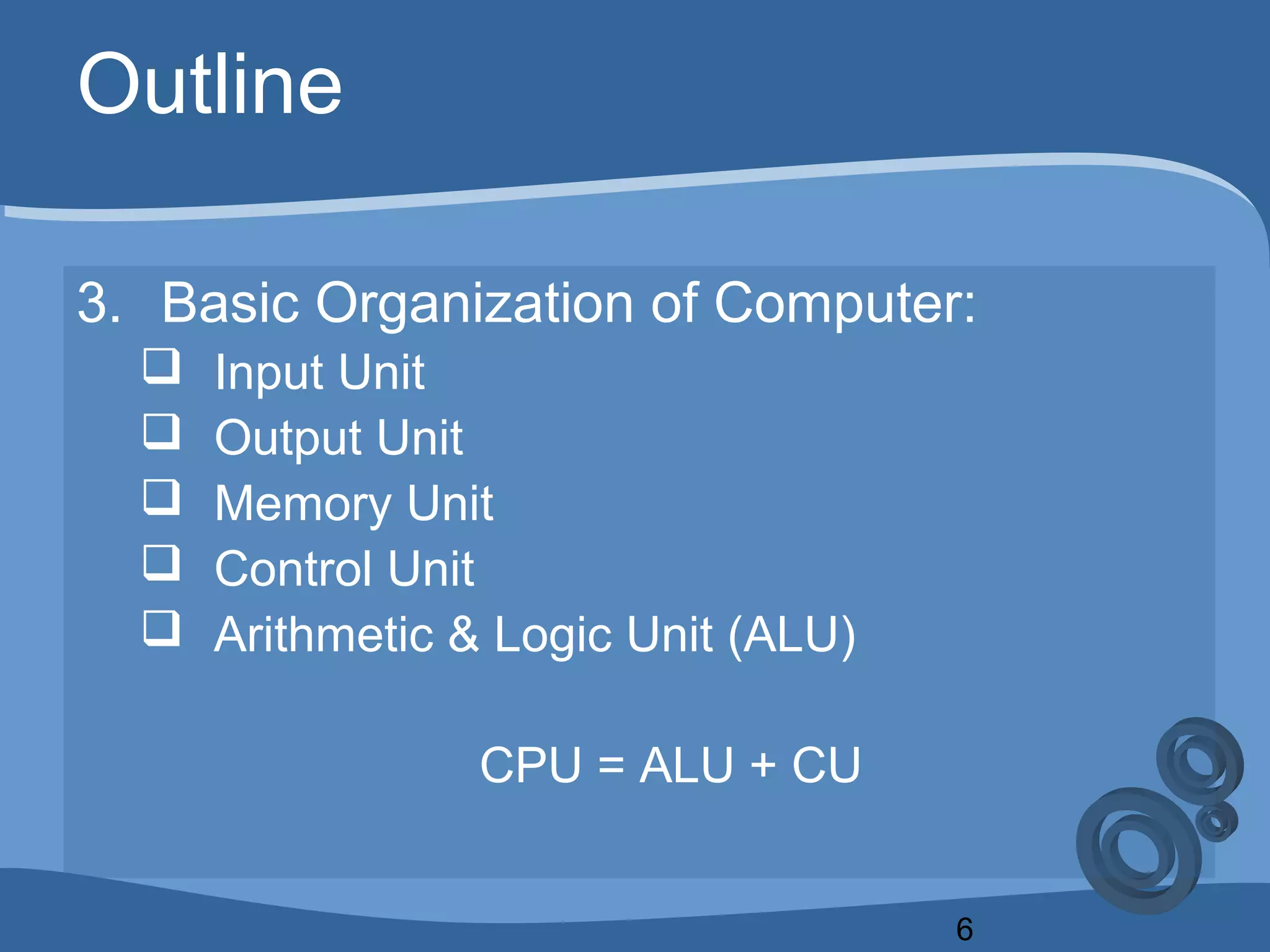
Outline
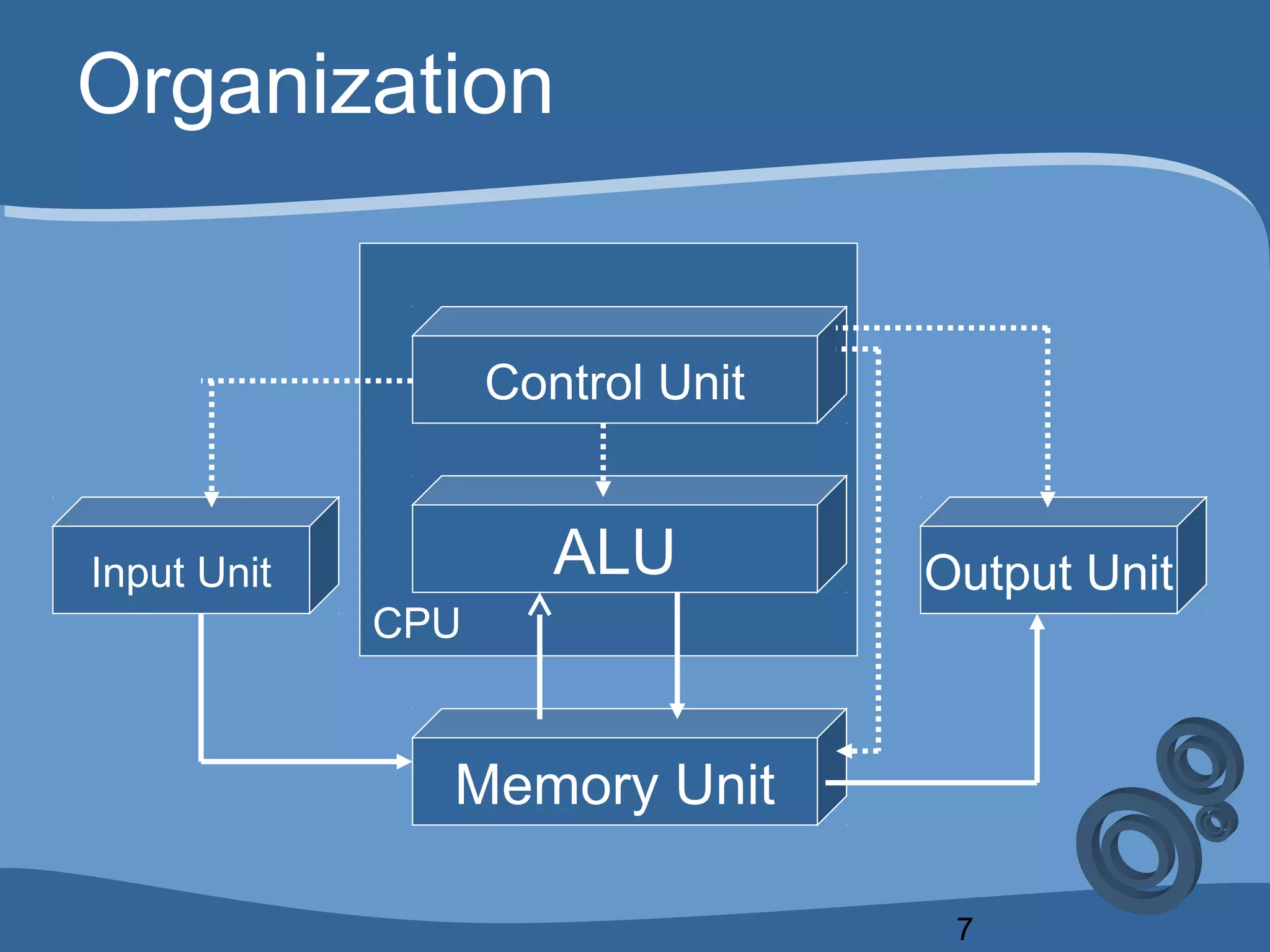
3. Basic Organization of Computer:
 Input Unit
 Output Unit
 Memory Unit
 Control Unit
 Arithmetic & Logic Unit (ALU)
CPU = ALU + CU
7
Organization
CPU
Input Unit Output UnitALU
Control Unit
Memory Unit
Today’s Class
9
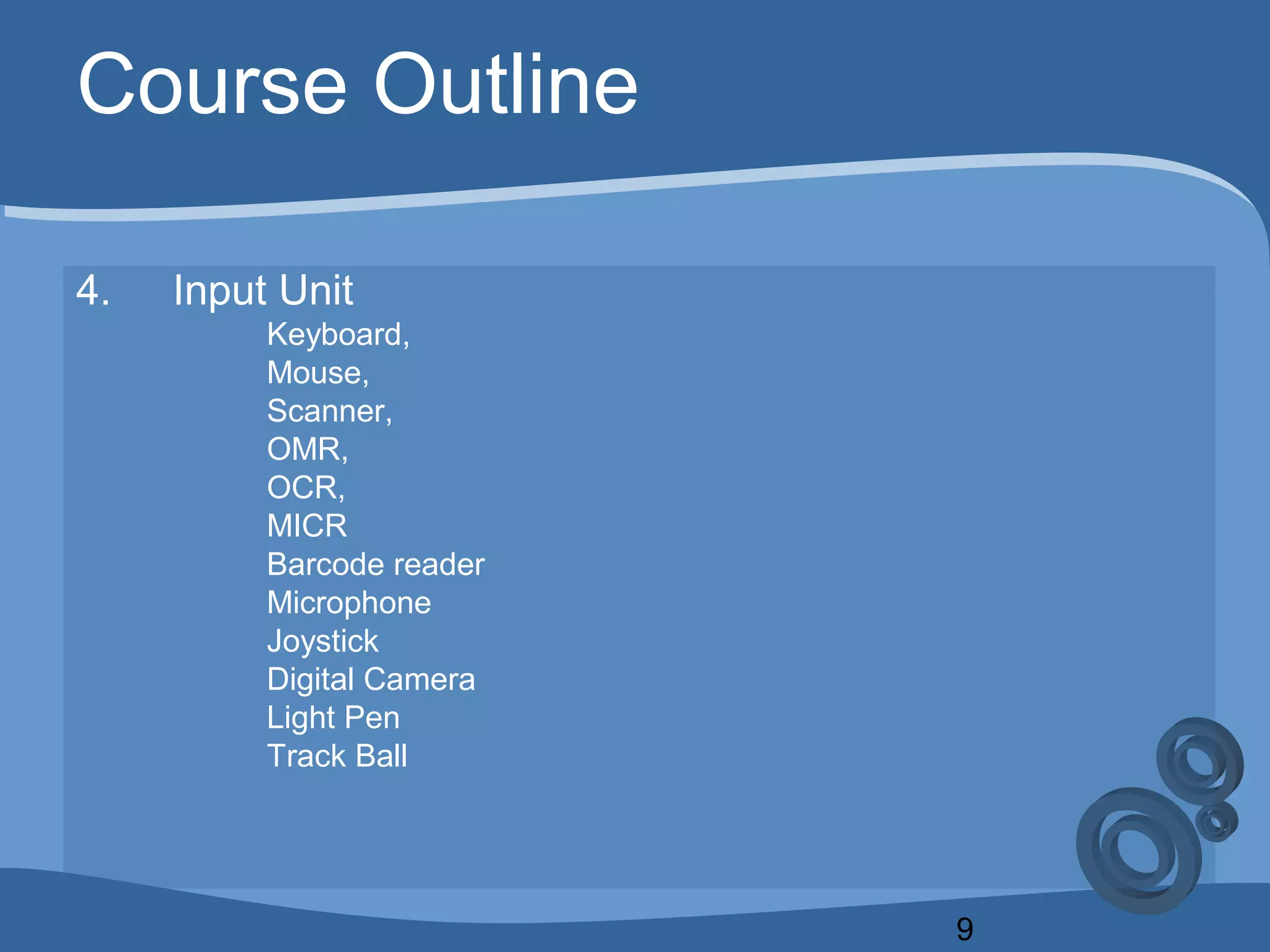
Course Outline
4. Input Unit
Keyboard,
Mouse,
Scanner,
OMR,
OCR,
MICR
Barcode reader
Microphone
Joystick
Digital Camera
Light Pen
Track Ball
10
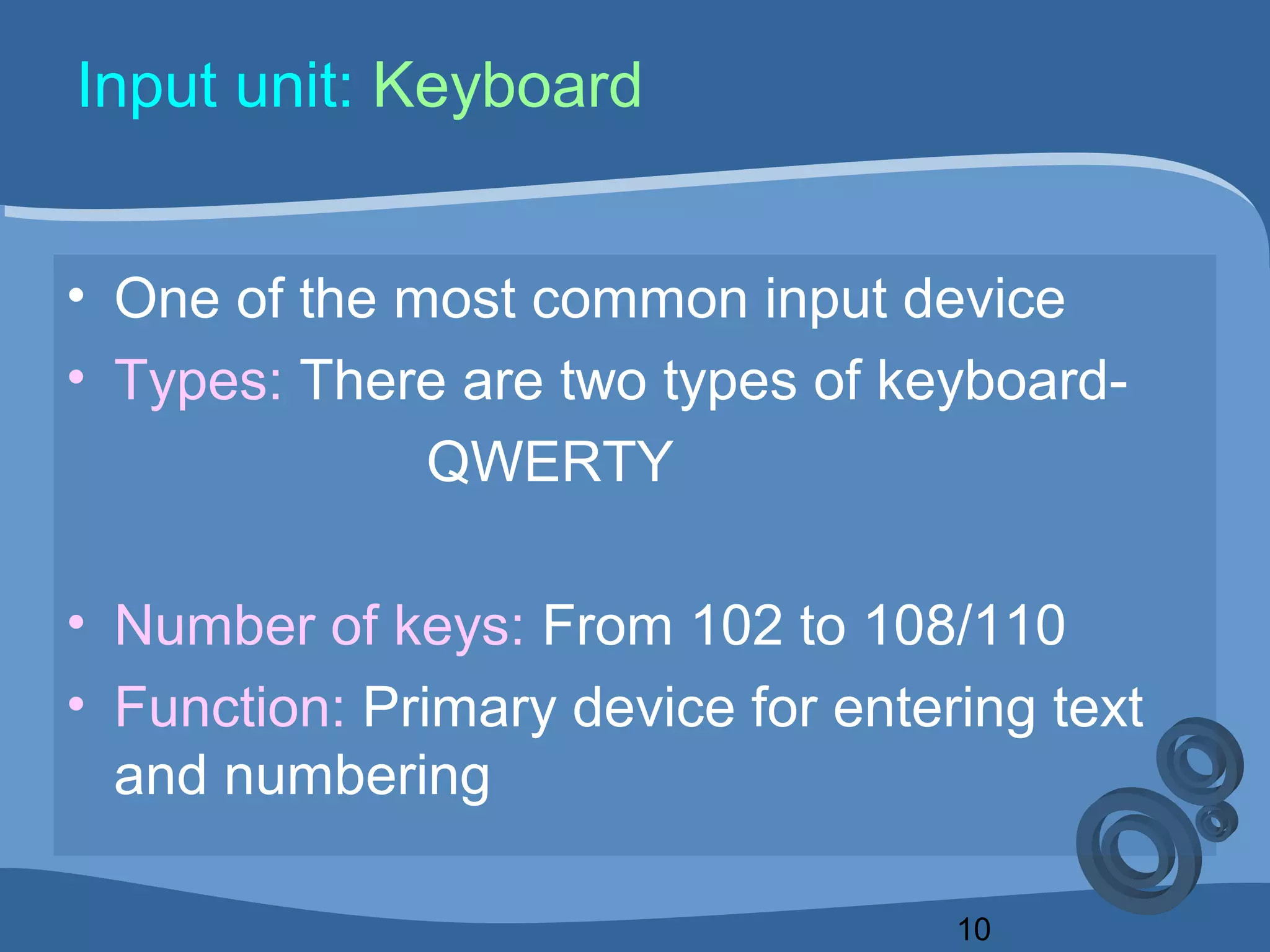
Input unit: Keyboard
• One of the most common input device
• Types: There are two types of keyboard-
QWERTY
• Number of keys: From 102 to 108/110
• Function: Primary device for entering text
and numbering
11
Input unit: Keyboard
12
Input unit: Keyboard
• Description: `QWERTY` keyboard
• The name of this keyboard comes from the first
06 alphabets placed at the top
• Keyboard adapter contains `8-bit ASCII code`
• micro- processor sends keystroke through BUS.
13
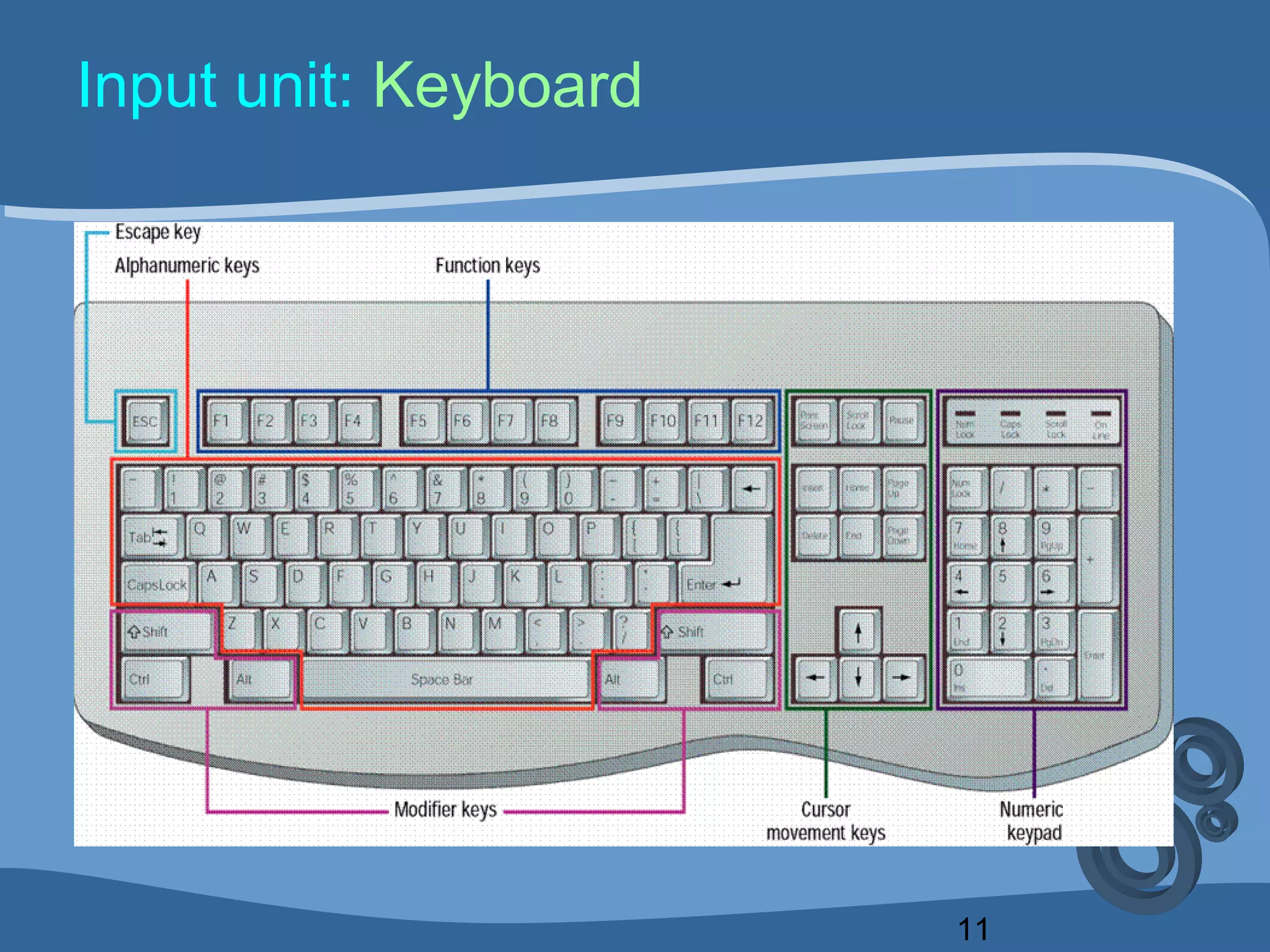
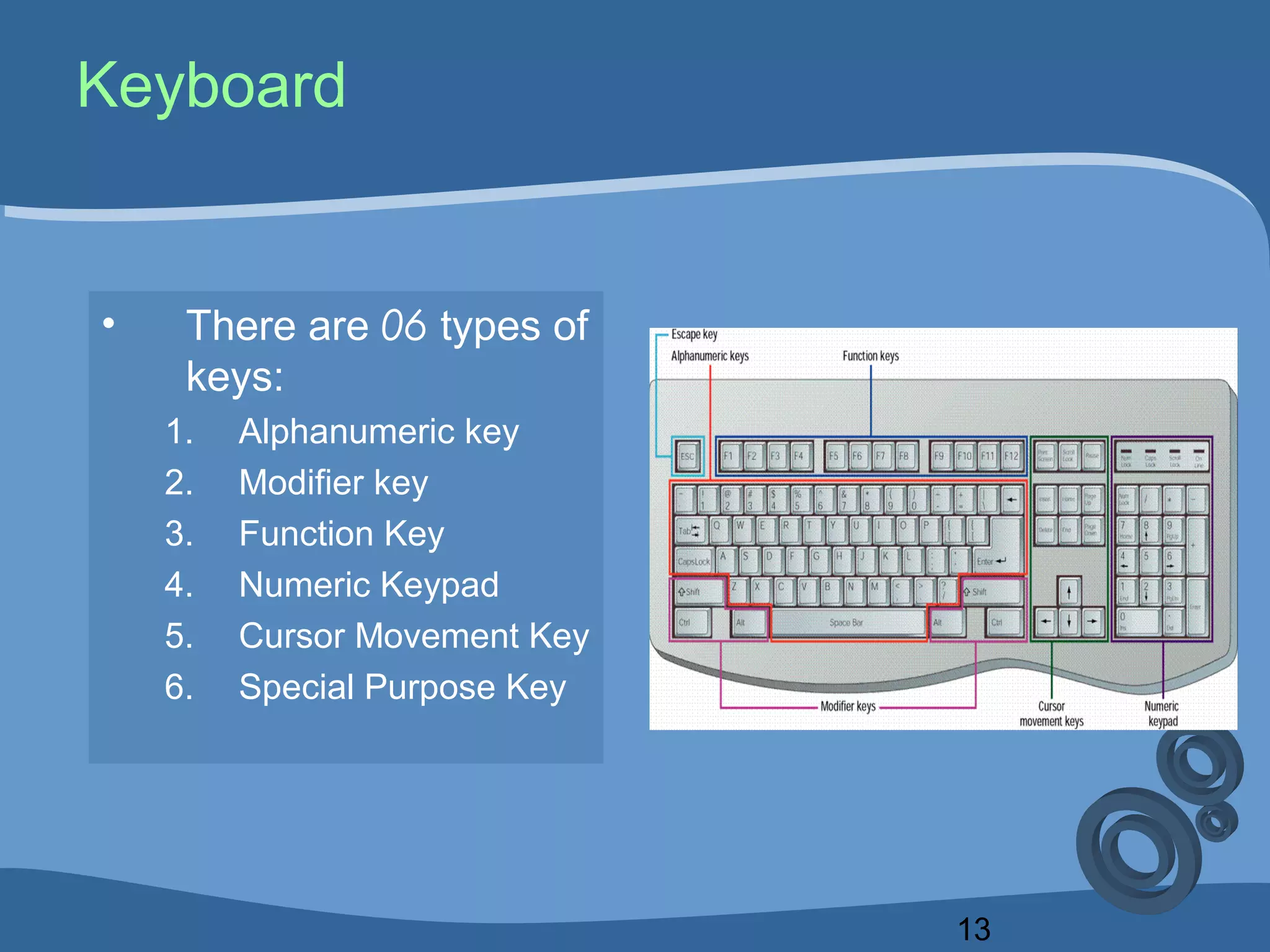
Keyboard
• There are 06 types of
keys:
1. Alphanumeric key
2. Modifier key
3. Function Key
4. Numeric Keypad
5. Cursor Movement Key
6. Special Purpose Key
14
Input unit: Keyboard
• Description: Alphanumeric keys
• It includes over 50 keys consumes most of the area of
keyboard
• Ex-A,B,C,D,E,F,G,H,I,J,K,L,M,N,O,P,Q,R,S,
T,U,V,W,X,Y,Z, -,=,+,<,>,$,{,[,},@,$,%,^,& etc
• Besides there are 04 keys whose have special purpose
like `TAB,ENTER,CAPSLOCK,BACKSPACE`
15
Input unit: Keyboard
• Description: Modifier keys
• Some keys modifies the input of other keys
• Example:
– Shift,
– Alt,
– Ctrl
• Application: In MS Word if you press (Ctrl and A)
immediately then all the written text will be selected. Here
alphabet `A` will be modified due to “Ctrl” key.
16
Input unit: Keyboard
• Description: Numeric keypad
• Usually located at the right side of the keyboard
like calculator keys
• There is a key called `Num Lock`. When it is off
keypad performs as cursor movement
• Example: 1,2,3,4,5,6,7,8,9,0,/,*,.,-,+ etc
17
Input unit: Keyboard
• Description: Function keys
• Located at the top row of the keyboard
• Usually with this we can input command without typing long
strings
• Their function varies with the variation of running program
• There are 12 function keys like F1, F2, F3,……..F12
• For almost all programs, F1 = Help
18
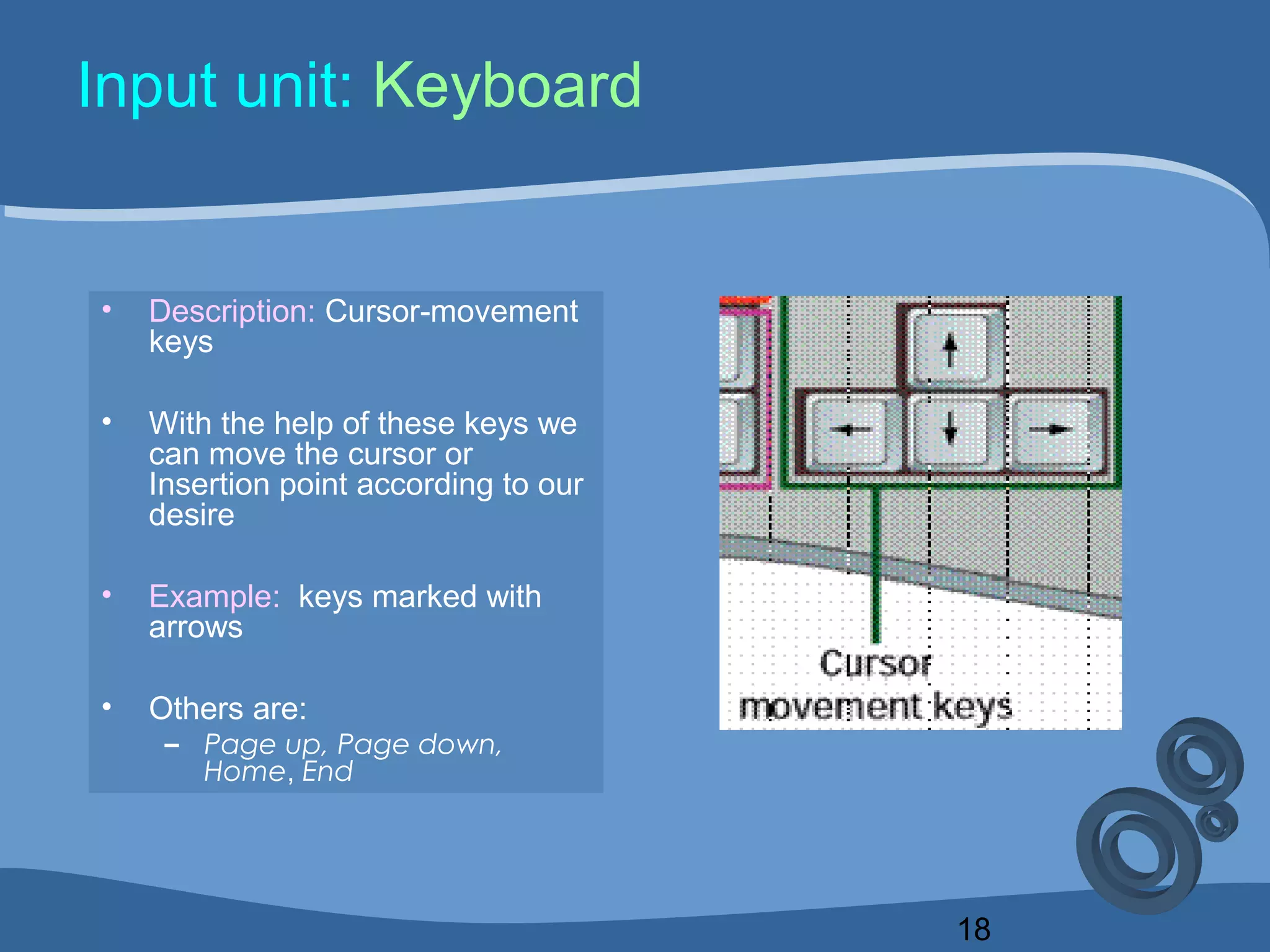
Input unit: Keyboard
• Description: Cursor-movement
keys
• With the help of these keys we
can move the cursor or
Insertion point according to our
desire
• Example: keys marked with
arrows
• Others are:
– Page up, Page down,
Home, End
19
Input unit: Keyboard
• Description: Special purpose key
• They are desired to work with `Operating system`
• Example: “Windows logo key” usually used to start
windows operating system
• Besides there is another key whose work is as like as `
Right button` of mouse
• Rests are: ESCAPE, INSERT, DELETE, PRINT
SCREEN, SCROLL LOCK, PAUSE
20
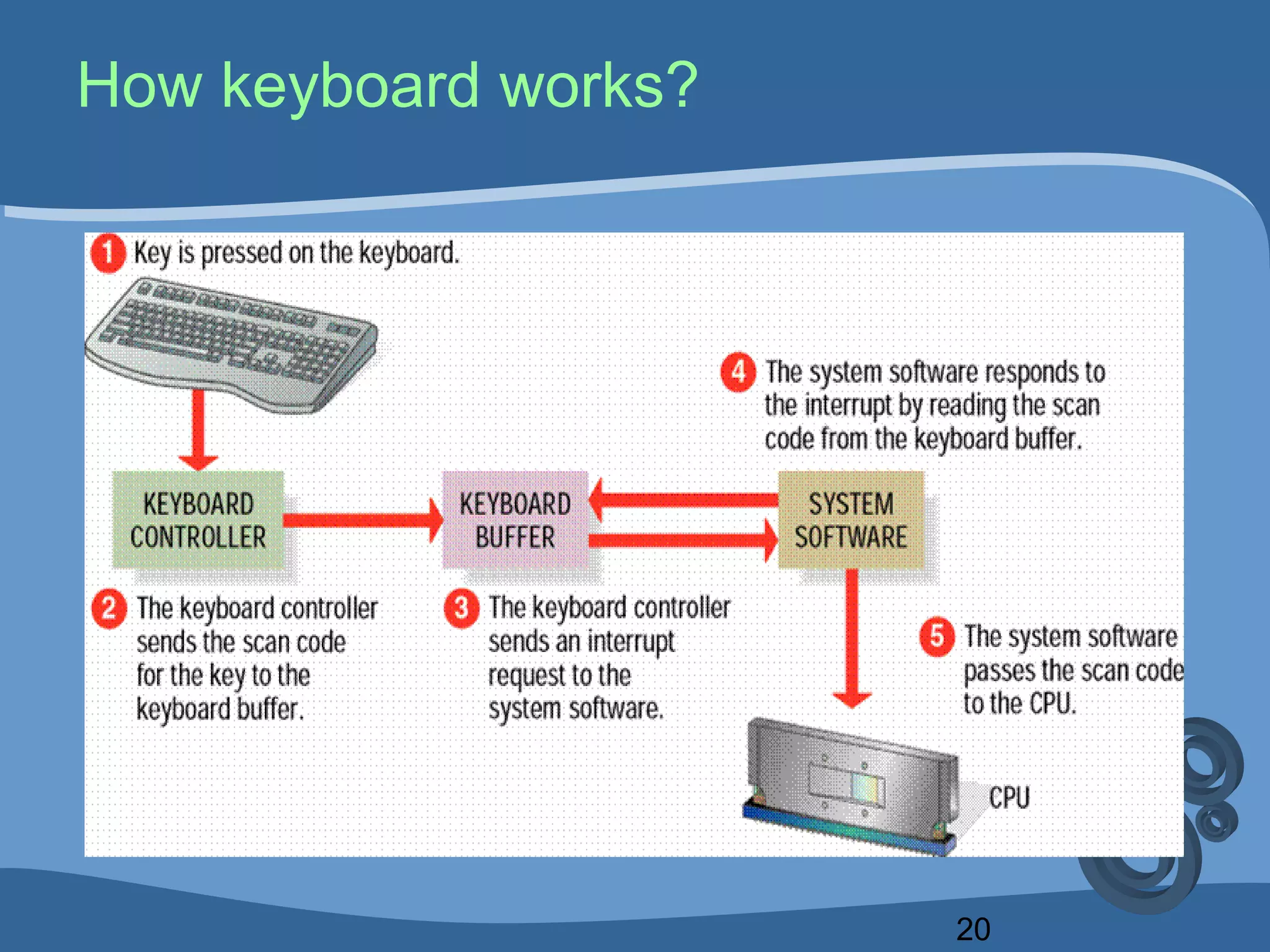
How keyboard works?
21
How keyboard works?
• It's a complex function, described below-
1. Suppose, a key is pressed on keyboard
2. The` keyboard controller` sends the scan
code for that key to the `keyboard buffer`
3. The keyboard controller sends an
`interrupt` request to the system software
4. The `system software` responds to the
interruption.
22
How keyboard works?
5. The system software can read the scan
code from keyboard buffer that’s why it
can respond.
6. The system software passes the scan
code to CPU
7. Then for an input key we can see the
output result
23
Continuous pressing of key………..
• There is a standard & specific time to show
output for a key ,
• when a key is pressed for more than that time,
after a definite time it thinks that the key has
pressed again.
• The same steps what it followed starts to follow
again. Thus we see the same output
consecutively.
24
Input device: Mouse
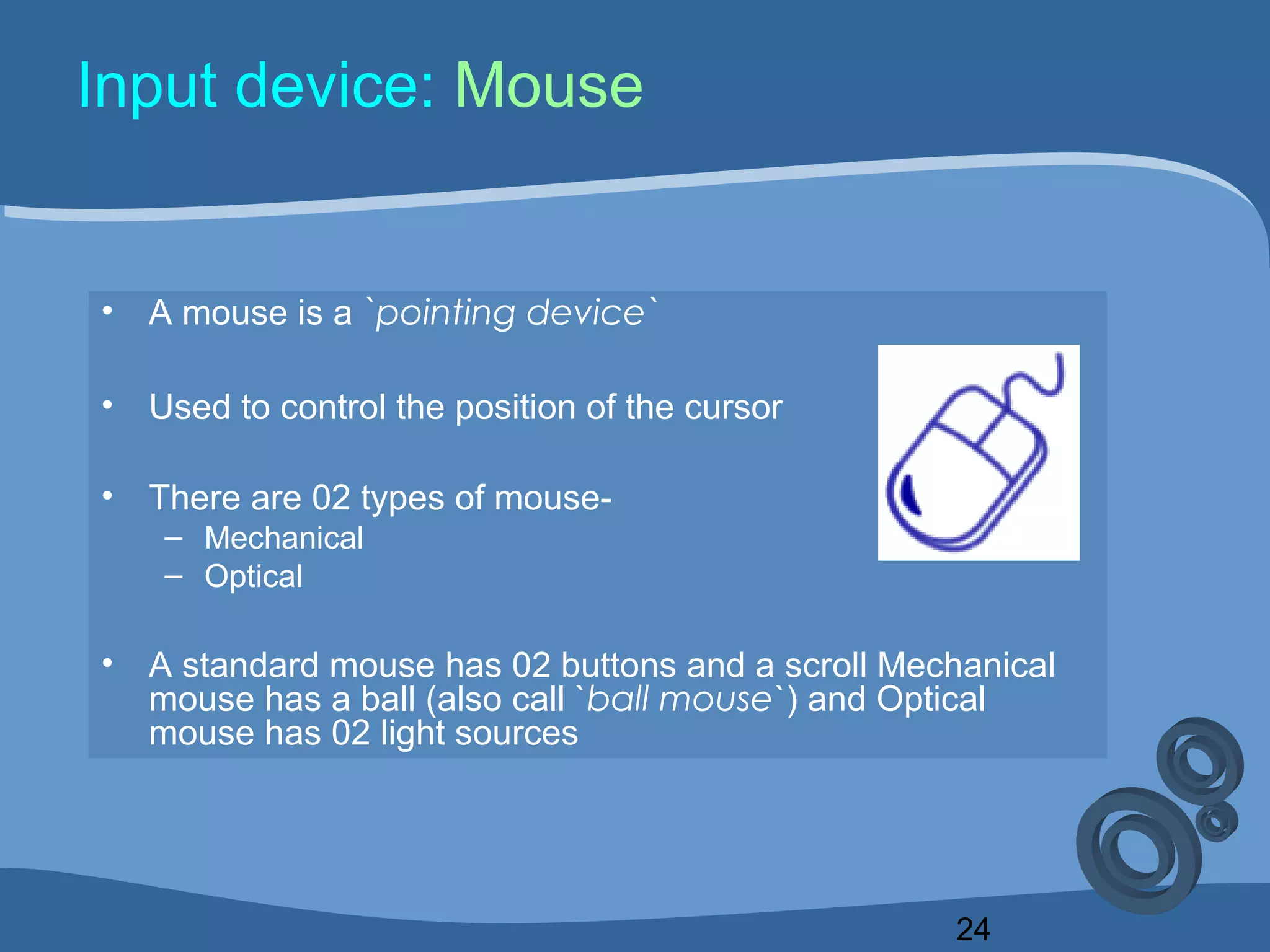
• A mouse is a `pointing device`
• Used to control the position of the cursor
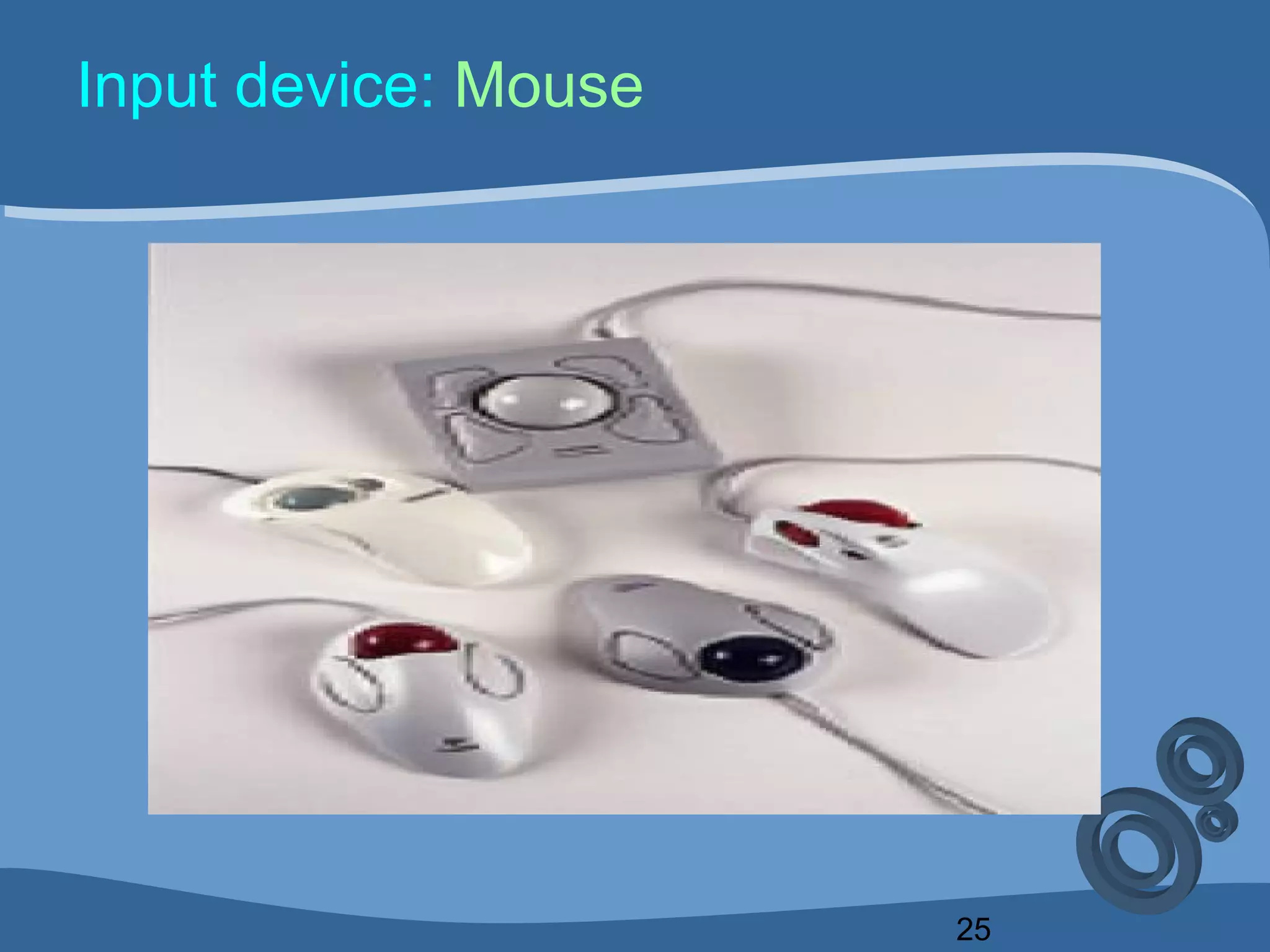
• There are 02 types of mouse-
– Mechanical
– Optical
• A standard mouse has 02 buttons and a scroll Mechanical
mouse has a ball (also call `ball mouse`) and Optical
mouse has 02 light sources
25
Input device: Mouse
26
Input device: Mouse
• Function:
– A mechanical mouse has some sensors inside
it, with the help of ball they are touched and
moved to change the position of the cursor
– An optical mouse has 2 sensory light sources,
the amount of `light reflected` from surface
determine the position of X-Y axis in the
monitor
27
Other functions of mouse
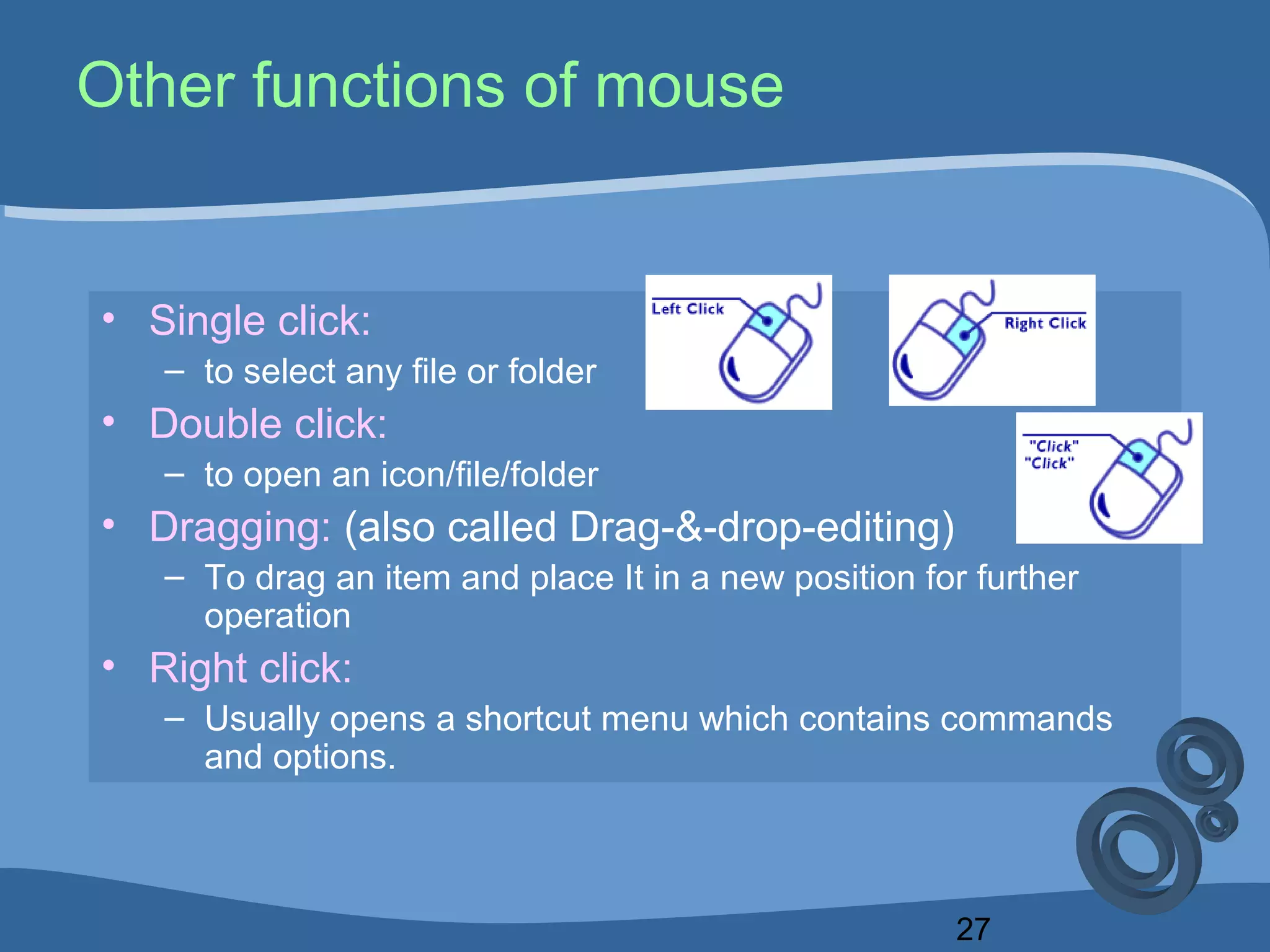
• Single click:
– to select any file or folder
• Double click:
– to open an icon/file/folder
• Dragging: (also called Drag-&-drop-editing)
– To drag an item and place It in a new position for further
operation
• Right click:
– Usually opens a shortcut menu which contains commands
and options.
28
Advantages of mouse
1. To select or open any file or folder
without using cursor movement key
2. Sometimes to input command without
using keyboard
29
Input device: Scanner
• They are mostly used to input printers, photography etc
directly inside the computer
• There are three types of scanner-
1. Flatbed:
– Large, can't be carried but a large size image can be scanned
2. Hand hold:
– Small, can be carried but a large size image can not be
scanned
3. Sheet fed:
– Used to scan single, ordinary size sheets
30
Input device: Scanner (How it works?)
1. A light source is moved across the page
2. The light bounces of the page & is passed
through a lens..
3. Light sensitive Diodes convert reflected light
into electric signal.
4. Circuit board converts the electric signals into
digital numbers & sends the information to the
computers
5. Overall, sensing the intensity of light reflection
is important here
31
Colour Scanner
• The colour scanners use filters to
separate the components into `Primary
additive colours`( RGB- means Red,
Green, Blue).
• RGB can be combined to produce any
type of other colours.
32
Input device: OCR
• Means `Optical Character Reader`
• Generally it is used in the banks, with the help of
OCR the complex process of deposit & withdraw
of money can be done easily & quickly
• OCR requires- 01. Specified symbol
02. Specified ink
03. Specified paper
33
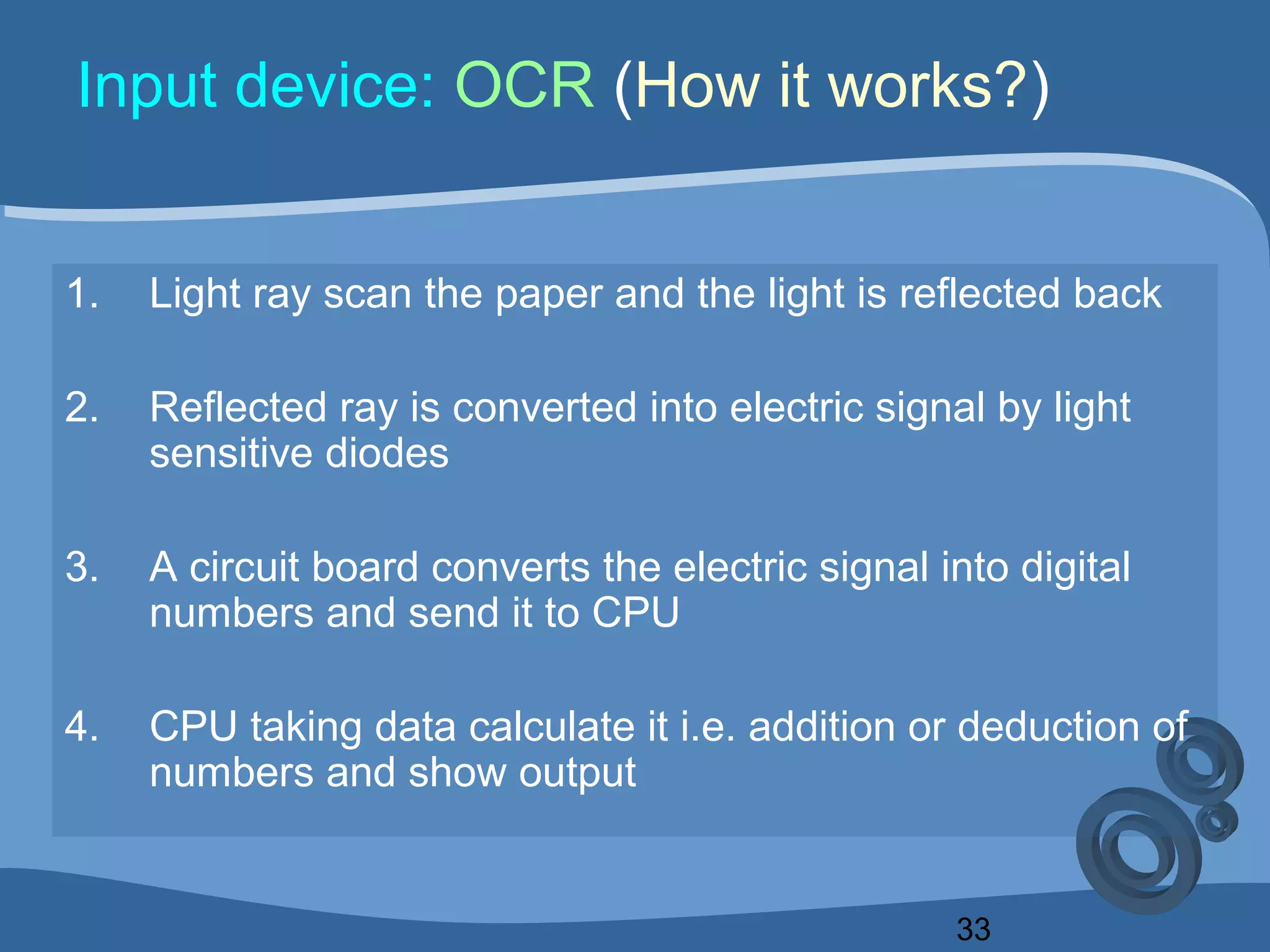
Input device: OCR (How it works?)
1. Light ray scan the paper and the light is reflected back
2. Reflected ray is converted into electric signal by light
sensitive diodes
3. A circuit board converts the electric signal into digital
numbers and send it to CPU
4. CPU taking data calculate it i.e. addition or deduction of
numbers and show output
34
Input device: OMR
• Means- `Optical Mark Reader`
• Generally used to examine the objective type
questions, also do other functions
• Requires:
– Specified paper
– Specified ink
• Working procedure is as like as OCR
35
Input device: MICR
• Means- `Magnetic Ink Character Reader`
• This system can read data pre-recorded on checks &
deposit slips with a special ferrite-impregnated ink.
• The magnetized character can be read & interpreted by
MICR equipment
• Primary means of processing checks
• Can read numeric characters and special symbols printed
with magnetic ink
36
Input device: MICR
Requirements:
– Cheque routine symbol
– Bankers transit number
– Customer account number
– Cheque number
– Cheque account
37
MICR: Advantages
• Human involvement is minimal
• Error chance is less
• It is fast, automatic and reliable
• If there is any mistake, then automatic
detection of error
38
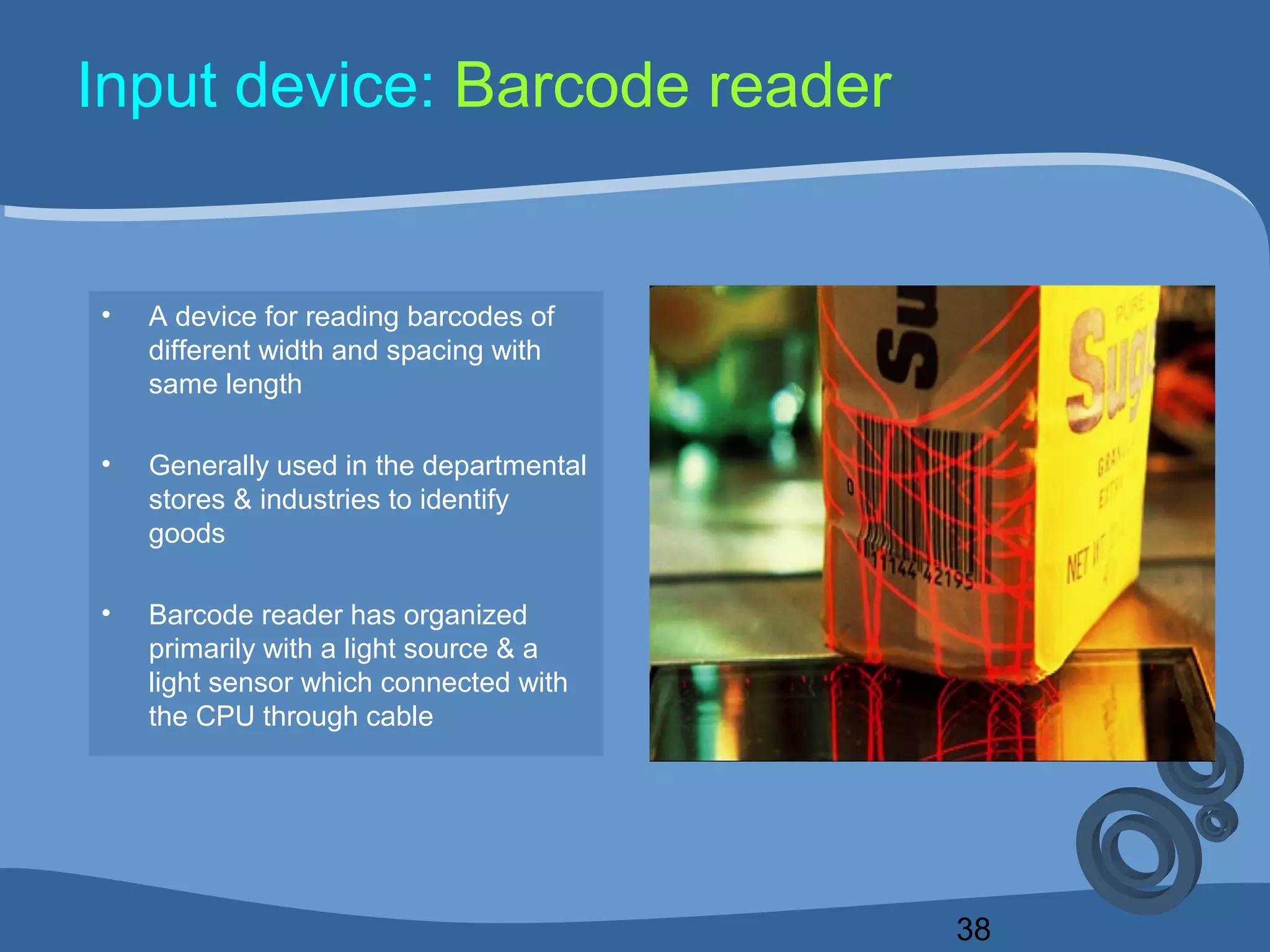
Input device: Barcode reader
• A device for reading barcodes of
different width and spacing with
same length
• Generally used in the departmental
stores & industries to identify
goods
• Barcode reader has organized
primarily with a light source & a
light sensor which connected with
the CPU through cable
39
Barcode reader: (How it works?)
• When this machine is on then the ray falls on the
printed bar & this light ray is reflected
• This ray is converted into the signals which is
understable by the CPU
• Then database examine the incoming data &
identify the products
• At last CPU shows result on monitor or print
through special printer called `POS printer`
Question...???
Next Class
42
Course Outline
5. Output Unit
Printer
Monitor
plotter
Speaker
Touch Screen
43
Course Outline
6. Memory Unit
Definitions:
Classification
Processor: Registers
Primary: RAM, ROM
Secondary: FDD, HDD, Tape
FDD
HDD
CDROM
DVD ROM
Chache Memory
Virtual memory
Thank You

Lec 5 input unit

  • 1.
  • 2.
  • 3.
    3 Books 1.Introduction to Computer PeterNorton 2. Computer Fundamentals Dr. M Lutfar Rahman 3. Computer Fundamentals Pradeep K. Sinha
  • 4.
    4 Last Class 1. Computer: Introduction Characteristics Use(Specially in Business) History Generation 2. Classification of Computer: • Size & volume of data processing – Micro, mini, mainframe, super • Working principle – Analog, digital, hybrid • Purpose of use – Special purpose, general purpose
  • 5.
  • 6.
    6 Outline 3. Basic Organizationof Computer:  Input Unit  Output Unit  Memory Unit  Control Unit  Arithmetic & Logic Unit (ALU) CPU = ALU + CU
  • 7.
    7 Organization CPU Input Unit OutputUnitALU Control Unit Memory Unit
  • 8.
  • 9.
    9 Course Outline 4. InputUnit Keyboard, Mouse, Scanner, OMR, OCR, MICR Barcode reader Microphone Joystick Digital Camera Light Pen Track Ball
  • 10.
    10 Input unit: Keyboard •One of the most common input device • Types: There are two types of keyboard- QWERTY • Number of keys: From 102 to 108/110 • Function: Primary device for entering text and numbering
  • 11.
  • 12.
    12 Input unit: Keyboard •Description: `QWERTY` keyboard • The name of this keyboard comes from the first 06 alphabets placed at the top • Keyboard adapter contains `8-bit ASCII code` • micro- processor sends keystroke through BUS.
  • 13.
    13 Keyboard • There are06 types of keys: 1. Alphanumeric key 2. Modifier key 3. Function Key 4. Numeric Keypad 5. Cursor Movement Key 6. Special Purpose Key
  • 14.
    14 Input unit: Keyboard •Description: Alphanumeric keys • It includes over 50 keys consumes most of the area of keyboard • Ex-A,B,C,D,E,F,G,H,I,J,K,L,M,N,O,P,Q,R,S, T,U,V,W,X,Y,Z, -,=,+,<,>,$,{,[,},@,$,%,^,& etc • Besides there are 04 keys whose have special purpose like `TAB,ENTER,CAPSLOCK,BACKSPACE`
  • 15.
    15 Input unit: Keyboard •Description: Modifier keys • Some keys modifies the input of other keys • Example: – Shift, – Alt, – Ctrl • Application: In MS Word if you press (Ctrl and A) immediately then all the written text will be selected. Here alphabet `A` will be modified due to “Ctrl” key.
  • 16.
    16 Input unit: Keyboard •Description: Numeric keypad • Usually located at the right side of the keyboard like calculator keys • There is a key called `Num Lock`. When it is off keypad performs as cursor movement • Example: 1,2,3,4,5,6,7,8,9,0,/,*,.,-,+ etc
  • 17.
    17 Input unit: Keyboard •Description: Function keys • Located at the top row of the keyboard • Usually with this we can input command without typing long strings • Their function varies with the variation of running program • There are 12 function keys like F1, F2, F3,……..F12 • For almost all programs, F1 = Help
  • 18.
    18 Input unit: Keyboard •Description: Cursor-movement keys • With the help of these keys we can move the cursor or Insertion point according to our desire • Example: keys marked with arrows • Others are: – Page up, Page down, Home, End
  • 19.
    19 Input unit: Keyboard •Description: Special purpose key • They are desired to work with `Operating system` • Example: “Windows logo key” usually used to start windows operating system • Besides there is another key whose work is as like as ` Right button` of mouse • Rests are: ESCAPE, INSERT, DELETE, PRINT SCREEN, SCROLL LOCK, PAUSE
  • 20.
  • 21.
    21 How keyboard works? •It's a complex function, described below- 1. Suppose, a key is pressed on keyboard 2. The` keyboard controller` sends the scan code for that key to the `keyboard buffer` 3. The keyboard controller sends an `interrupt` request to the system software 4. The `system software` responds to the interruption.
  • 22.
    22 How keyboard works? 5.The system software can read the scan code from keyboard buffer that’s why it can respond. 6. The system software passes the scan code to CPU 7. Then for an input key we can see the output result
  • 23.
    23 Continuous pressing ofkey……….. • There is a standard & specific time to show output for a key , • when a key is pressed for more than that time, after a definite time it thinks that the key has pressed again. • The same steps what it followed starts to follow again. Thus we see the same output consecutively.
  • 24.
    24 Input device: Mouse •A mouse is a `pointing device` • Used to control the position of the cursor • There are 02 types of mouse- – Mechanical – Optical • A standard mouse has 02 buttons and a scroll Mechanical mouse has a ball (also call `ball mouse`) and Optical mouse has 02 light sources
  • 25.
  • 26.
    26 Input device: Mouse •Function: – A mechanical mouse has some sensors inside it, with the help of ball they are touched and moved to change the position of the cursor – An optical mouse has 2 sensory light sources, the amount of `light reflected` from surface determine the position of X-Y axis in the monitor
  • 27.
    27 Other functions ofmouse • Single click: – to select any file or folder • Double click: – to open an icon/file/folder • Dragging: (also called Drag-&-drop-editing) – To drag an item and place It in a new position for further operation • Right click: – Usually opens a shortcut menu which contains commands and options.
  • 28.
    28 Advantages of mouse 1.To select or open any file or folder without using cursor movement key 2. Sometimes to input command without using keyboard
  • 29.
    29 Input device: Scanner •They are mostly used to input printers, photography etc directly inside the computer • There are three types of scanner- 1. Flatbed: – Large, can't be carried but a large size image can be scanned 2. Hand hold: – Small, can be carried but a large size image can not be scanned 3. Sheet fed: – Used to scan single, ordinary size sheets
  • 30.
    30 Input device: Scanner(How it works?) 1. A light source is moved across the page 2. The light bounces of the page & is passed through a lens.. 3. Light sensitive Diodes convert reflected light into electric signal. 4. Circuit board converts the electric signals into digital numbers & sends the information to the computers 5. Overall, sensing the intensity of light reflection is important here
  • 31.
    31 Colour Scanner • Thecolour scanners use filters to separate the components into `Primary additive colours`( RGB- means Red, Green, Blue). • RGB can be combined to produce any type of other colours.
  • 32.
    32 Input device: OCR •Means `Optical Character Reader` • Generally it is used in the banks, with the help of OCR the complex process of deposit & withdraw of money can be done easily & quickly • OCR requires- 01. Specified symbol 02. Specified ink 03. Specified paper
  • 33.
    33 Input device: OCR(How it works?) 1. Light ray scan the paper and the light is reflected back 2. Reflected ray is converted into electric signal by light sensitive diodes 3. A circuit board converts the electric signal into digital numbers and send it to CPU 4. CPU taking data calculate it i.e. addition or deduction of numbers and show output
  • 34.
    34 Input device: OMR •Means- `Optical Mark Reader` • Generally used to examine the objective type questions, also do other functions • Requires: – Specified paper – Specified ink • Working procedure is as like as OCR
  • 35.
    35 Input device: MICR •Means- `Magnetic Ink Character Reader` • This system can read data pre-recorded on checks & deposit slips with a special ferrite-impregnated ink. • The magnetized character can be read & interpreted by MICR equipment • Primary means of processing checks • Can read numeric characters and special symbols printed with magnetic ink
  • 36.
    36 Input device: MICR Requirements: –Cheque routine symbol – Bankers transit number – Customer account number – Cheque number – Cheque account
  • 37.
    37 MICR: Advantages • Humaninvolvement is minimal • Error chance is less • It is fast, automatic and reliable • If there is any mistake, then automatic detection of error
  • 38.
    38 Input device: Barcodereader • A device for reading barcodes of different width and spacing with same length • Generally used in the departmental stores & industries to identify goods • Barcode reader has organized primarily with a light source & a light sensor which connected with the CPU through cable
  • 39.
    39 Barcode reader: (Howit works?) • When this machine is on then the ray falls on the printed bar & this light ray is reflected • This ray is converted into the signals which is understable by the CPU • Then database examine the incoming data & identify the products • At last CPU shows result on monitor or print through special printer called `POS printer`
  • 40.
  • 41.
  • 42.
    42 Course Outline 5. OutputUnit Printer Monitor plotter Speaker Touch Screen
  • 43.
    43 Course Outline 6. MemoryUnit Definitions: Classification Processor: Registers Primary: RAM, ROM Secondary: FDD, HDD, Tape FDD HDD CDROM DVD ROM Chache Memory Virtual memory
  • 44.