Online  Electronic Portfolio Tutorial   By Loreen Hayes
Main Menu Introduction The Google Advantage Step 1: Digital Format Step 2: Create a Google account Step 3: Google Site Creation Step 4: Adjust Web Site Design Theme Colors and Fonts  Layout Step 5: Limit Public Access Step 6: Contents of a portfolio Step 7: Home Page Contents Step 8: Add a Web Page Step 9: Add Additional Pages Add a Document, Spreadsheet or Presentation Add an Image from a File Add an Image from Picassa Web Album Step 10: Hyperlinking Step 11: Student Safety Conclusion Google Applications Quiz Video Menu References
Introduction to Online Electronic Portfolios The following tutorial will guide you through transforming a document-based portfolio into an online ePortolio that could include images, video, sound and presentations. The following applications will be highlighted in the portfolio development:  Google Docs  and  Google Sites .  Depending on the age level and purpose, the contents will vary, so this tutorial concentrates on formatting an ePortfolio and not the specific contents within it. This ePortfolio tutorial is presented from a teaching perspective, but can be adapted to the creation of a professional ePortfolio.
The Google Advantage Software   is free!  Google apps will not cost you a penny. Site hosting and multimedia storage is free!  Google will host your Web site, allow you to create and store documents, spreadsheets and presentations, and store your pictures (Picasa) and video (YouTube), all for free.  Training and  support  are free!  Google provides a variety of support including application training, discussion groups, email and chats.
Step 1: Digital Format All artifacts (documents, presentations, pictures, etc.) should be in digital format. Use Google Docs for creating and sharing documents, spreadsheets and presentations. If you are unfamiliar with this application, visit the  Google Docs  training page. Or use software such as, Microsoft Office or  OpenOffice.org  (open source software), and then upload to Google Docs for storage. Artifacts not created in a digital format may be converted using: Scanners Digital cameras Digital video conversion
Step 2: Create a Google Account Go to  Google’s  home page. In the upper right hand corner, click on ”Sign In”. Then click the" Create an account” button. Choose a login name and password. Teachers may want to choose specific login account names for their students. Once you have a Google account, you have access to most of the necessary portfolio content integration tools. Google Account Video
Step 3: Google Site Creation Remain logged in on your Google account. Click on “more” at the upper left of the screen, and then “even more” on the drop down list. Choose the “Sites” link. Click on the “Create site” button. At this point a site name is chosen. If this portfolio is for a student, keep the site name non-identifying. For example, use a first name only. Google Sites Video
Step 3: Google Site Creation The next most important step is to check the circle in the “Share with” section next to “Only people I specify can view  this site”.  (In step 5, account permissions will be discussed.) Choose a theme for the Web site. A professional may want to choose a more conservative theme such as the “iceberg” or “simple” theme. Type the code shown in the box, and then click the create site button.
Step 4: Adjust Web Site Design Your basic Web site should be displayed at this time. Depending upon the age of the student and the time allotted for the portfolio development, you may or may not want to make changes to the Web site design.  If no changes are to be made, skip to  step 5   in the tutorial. Step 5
Step 4: Adjust Web Site Design If changes are to be made, choose one of the following site appearance adjustments: Themes  – Use this to change the pre-packaged colors and layouts of the Web site. Colors and Fonts   – Use this to change the color of the titles, typed content and background. Site layout   - Use this to make adjustments to the position of  the words and artifacts on the page. Step 5
Step 4 : Theme Design When you first created your Web site you chose a theme, but you may change that theme at any time. CAUTION!   Changing your theme will discard any changes you made the colors and fonts, but your Site Elements (documents, pictures, etc,) will be retained.
Step 4 : Theme Design Under the “More actions” button in the upper right corner, choose “Manage site” from the drop down list. Choose “Themes” from the site content list on the left side of the screen. Choose a different theme, then “preview” it. If you like the theme design press “Save changes”, if not, try another theme or press cancel to discard any changes. Theme Change Video
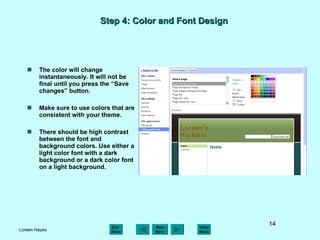
Step 4: Color and Font Design Click “More actions” (upper right), then choose “Manage site” from the drop down list. Click on “Colors and Fonts” at the bottom of the menu. Another menu and a color pallet will appear on the screen. This menu displays the Web page design variables. Choose one of the variables on the left and a corresponding color change from the pallet on the right. Color Pallet Design Variables Color and Font Change Video
Step 4: Color and Font Design The color will change instantaneously. It will not be final until you press the “Save changes” button. Make sure to use colors that are consistent with your theme. There should be high contrast between the font and background colors. Use either a light color font with a dark background or a dark color font on a light background.
Step 4: Page Layout The “layout” refers to the arrangement of the information on the Web page. Google limits the layout design choices within its Web page templates.  The layout choice can be different for each page contained in the site. Layout Layout Change Video
Step 4: Page Layout Change Layout Instructions: Choose your home page or any other page that you wish to change the layout on. Click “Edit page” in the upper right corner. Click on “Layout” in the upper left corner. Then choose 1 of the 9 templates. If you do not like the choice, choose another before you “save” the edit. Press “Save” in the upper right corner. Layout
Step 5: Limiting Public Access Maintaining a secure Web site is very important when dealing with children. In Step 2 you should have checked the circle in the “Share with” section, next to “Only people I specify can view this site”.  In this section you will choose who may view or collaborate on the site.
Step 5: Limiting Public Access Instructions for adding collaborators: Under the “More actions” button in the upper right corner, choose “Share this site” from the drop down list. In the box titled “Invite people to your site”, check the circle labeled “as collaborators”.  Insert the teacher’s e-mail address in the box below. Now press the “invite these people” button. At this time you are given the option of sending an invitation or skipping it. as  Collaborators
Step 5: Limiting Public Access Instructions for adding viewers: Viewers are only allowed to view the material, not edit it. To add viewers, use the same method, except check the “as viewers” circle. Viewers may include: Classmates Parents  Administrators as  Viewers
Step 6: Portfolio Contents As discussed earlier, the required content of a portfolio differs from course to course. First, a portfolio content outline should be developed. The outline will be the skeleton for the Web site. Generally, most portfolios contain: Title page or Introduction page Table of contents Examples of student work Examples of Student Work
Step 7: Home Page The “Home” page is the first page on your Web site.  In the case of an online electronic portfolio, it will be your “Introduction” or “Title Page”. This page may contain a student introduction, a project introduction or both. The table of contents may also be inserted here instead of using a separate page. Also, any type of graphics or images may be inserted here. Click on “Edit page” in the upper right corner, and then add text or insert images. Save your changes.
Step 8: Add a Web Page Again, it is optional to add a separate Table of Contents page. From the Home page, click on the “Create page” button in the upper right of the screen. By default, it will select a Web page template. Give the page a name, such as Portfolio Contents. Choose “Put page under Home”. Press “Create page” button to save. Add a Page Video
Step 8: Add a Web Page The navigation bar on the left should show the added “Portfolio Contents” page slightly indented from the “Home” page. Just as with the “Home” page, you may add text, images or artifacts via the “Edit page” button in the upper right corner. Web page name appears here Add a Page Video
Step 9: Add Additional Pages These additional pages you add will contain the content from your portfolio outline. Depending on the artifacts you have chosen to include, choose from the following topics for instruction: Add a document, spreadsheet or presentation . Add an image from a file Add an image from Picassa Web Album
Step 9: Add a Document, Spreadsheet or Presentation Since you’ve already uploaded your documents, spreadsheets and presentations to Google Docs, this step will be similar to step 8. From the “Portfolio Contents” page, click on the “Create page” button in the upper right of the screen. Give the page a name that describes the page content, such as “Research Paper”. This time you will check the circle next to “Put page under Portfolio Contents”. Then click the “Create Page” button to save. Add a Document Video
Step 9: Add a Document, Spreadsheet or Presentation On the page you have just created, click the “Edit page” button. From the “Insert” drop down list (upper left), choose “Documents”. A box will pop up with a list of the documents that were uploaded to Google Docs. Choose one document, then press “Select”.  Another box will pop up titled “Insert Google Document.” Uncheck “Include title” box, and then save. Replay Animation
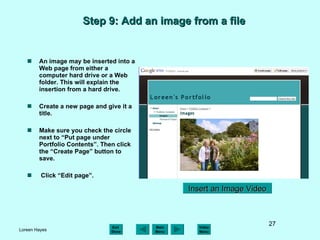
Step 9: Add an image from a file An image may be inserted into a Web page from either a computer hard drive or a Web folder. This will explain the insertion from a hard drive. Create a new page and give it a title. Make sure you check the circle next to “Put page under Portfolio Contents”. Then click the “Create Page” button to save. Click “Edit page”. Insert an Image Video
Step 9: Add an image from Picasa Click “Insert” (upper left), then “Image” from the drop down list. Choose “Upload images” in the pop up window.  Click on the “Browse”  button to locate the image file on your computer. Click “OK”. Once the image is fully uploaded,  activate the picture by clicking on it. You may make adjustments to the size and placement of the image using the controls below the image, and then save it.
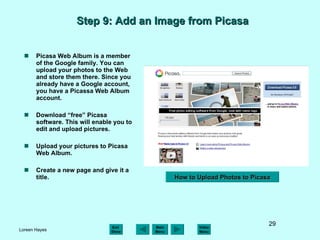
Step 9: Add an Image from Picasa  Picasa Web Album is a member of the Google family. You can upload your photos to the Web and store them there. Since you already have a Google account, you have a Picassa Web Album account. Download “free” Picasa software. This will enable you to edit and upload pictures.  Upload your pictures to Picasa Web Album. Create a new page and give it a title. How to Upload Photos to Picasa
Step 9: Add an Image from Picasa  Make sure you check the circle next to “Put page under Portfolio Contents”. Then click the “Create Page” button to save. Click “Edit page”. Click “Insert” (upper left), then choose “Picasa Photos” from the drop down list. Choose a photo, and then press “Select”. You may make adjustments to the size and placement of the image using the controls below the image, and then save it. Download Picasa Editing Software
Step 10: Hyperlinking A hyperlink or link, when clicked, will Connect the user to a specified location within the current Web site or to an external Web site. In this case you want to link (connect) the items in the Table of Contents with their respective Web pages within your site.  An example would be linking the words Research Paper on the table of Contents page with the Research Paper page that you created. When the words “Research Paper” are clicked, the Research Paper Web page will open in the browser. Hyperlinking Video
Step 10: Hyperlinking Go to your “Table of Contents” page and click “Edit page”. Highlight the word (ex. Research Paper) that you want to link to a Web page. Click “Insert” (upper left), then “Link” from the drop down list. A pop up window will appear. Choose a Web page title that coincides with the highlighted word (Research Paper) from the list in the “Create Link” window. Click “OK”. Repeat this process for every item on the Table of Contents list. Hyperlinking Video
Step 11: Student Safety Student safety cannot be emphasized enough when utilizing the Web for student work. Double check the “sharing” permissions under the “Manage site” section. Review  Step 5- public access . Determine school policies on student image publishing. Use caricatures (clipart) as an alternative to actual photographs. Do not use full names of students. Use a Pseudonym as an alternative. Do not tell others the site password. Do not publish personal information, such as student home and e-mail addresses. Caricature
Conclusion An ePortfolio can be created and utilized by elementary through secondary students and post-secondary students as a form of authentic assessment or by professionals to demonstrate work and achievements.  Now that you know how to create an online electronic portfolio you may want to: See Tutorial References Take a Quiz See a List of Video Tutorials
Video Demonstrations  Menu Google account sign-up Google Web site creation Change site theme Change colors and fonts Change site layout Add a Web page Add a document Add an Image Picasa Web Album uploading Hyperlinking
Would you like to take a small quiz? YES NO
Google Apps Quiz Which Google application can be used to create and store presentations and documents? Google Sites Google Docs Google Picasa Web Album Which Google application can be used to store digital photographs? Google Sites Google Docs Google Picasa Web Album Which Google application can be used to create a Web site? Google Sites Google Docs Google Picasa Web Album A A C B B B C C A
You are Correct! Back to Quiz
Sorry, that is Incorrect! Back to Quiz
References Web Sites Barrett, H. (September 28, 2009). In  electronicporfolios.org . Retrieved October 20, 2009, from   http://electronicportfolios.org/ . ePortfolio Levels (K-12 Schools). In  ePortfolios with GoogleApps . Retrieved October 21, 2009, from  http://sites.google.com/site/eportfolioapps/overview/levels . Google Docs. In  Google Apps Training . Retrieved October 21, 2009, from  http://services.google.com/apps/resources/overviews/welcome/topicDocs/index.html . Google Apps Help (2009). In  Google Apps . Retrieved October 21, 2009, from  http://www.google.com/support/a/users/ . More Google Products (2009). In  Google . Retrieved October 21, 2009, from  http://www.google.com/intl/en/options/ . Images Binder clipart Clker.com. Retrieved November 6, 2009, from  http:// www.clker.com/cliparts / 4/5/1/d/12075839502082178140johnny_automatic_binder_folder.svg.med.png Computer clipart Public-Domain-Photos.com. (2009). Retrieved November 4, 2009, from  http://www.public-domain-photos.com/free-cliparts/computer/hardware/computer-aj_aj_ashton_01-1860.htm Scanner clipart Vignoni, D. (April 29, 2006). In  Wikimedia Commons . Retrieved October 30, 2009, from  http://commons.wikimedia.org/wiki/File:Gnome-dev-scanner.svg Smiley face animations smilys.net. Retrieved November 6, 2009, from  http://www.smilys.net/smilies_sagen_ja/smiley3308.gif
References Sounds buzzer.wav Guitarguy1985. In  thefreesoundproject.org . Retrieved on November 6, 2009, from  http://www.freesound.org/samplesViewSingle.php?id=54047 . applause_3.wav  Syna-Max. In  thefreesoundproject . org . Retrieved on November 6, 2009, from  http://www.freesound.org/samplesViewSingle.php?id=61652 .

L Hayes Online E Portfolio

  • 1.
    Online ElectronicPortfolio Tutorial By Loreen Hayes
  • 2.
    Main Menu IntroductionThe Google Advantage Step 1: Digital Format Step 2: Create a Google account Step 3: Google Site Creation Step 4: Adjust Web Site Design Theme Colors and Fonts Layout Step 5: Limit Public Access Step 6: Contents of a portfolio Step 7: Home Page Contents Step 8: Add a Web Page Step 9: Add Additional Pages Add a Document, Spreadsheet or Presentation Add an Image from a File Add an Image from Picassa Web Album Step 10: Hyperlinking Step 11: Student Safety Conclusion Google Applications Quiz Video Menu References
  • 3.
    Introduction to OnlineElectronic Portfolios The following tutorial will guide you through transforming a document-based portfolio into an online ePortolio that could include images, video, sound and presentations. The following applications will be highlighted in the portfolio development: Google Docs and Google Sites . Depending on the age level and purpose, the contents will vary, so this tutorial concentrates on formatting an ePortfolio and not the specific contents within it. This ePortfolio tutorial is presented from a teaching perspective, but can be adapted to the creation of a professional ePortfolio.
  • 4.
    The Google AdvantageSoftware is free! Google apps will not cost you a penny. Site hosting and multimedia storage is free! Google will host your Web site, allow you to create and store documents, spreadsheets and presentations, and store your pictures (Picasa) and video (YouTube), all for free. Training and support are free! Google provides a variety of support including application training, discussion groups, email and chats.
  • 5.
    Step 1: DigitalFormat All artifacts (documents, presentations, pictures, etc.) should be in digital format. Use Google Docs for creating and sharing documents, spreadsheets and presentations. If you are unfamiliar with this application, visit the Google Docs training page. Or use software such as, Microsoft Office or OpenOffice.org (open source software), and then upload to Google Docs for storage. Artifacts not created in a digital format may be converted using: Scanners Digital cameras Digital video conversion
  • 6.
    Step 2: Createa Google Account Go to Google’s home page. In the upper right hand corner, click on ”Sign In”. Then click the" Create an account” button. Choose a login name and password. Teachers may want to choose specific login account names for their students. Once you have a Google account, you have access to most of the necessary portfolio content integration tools. Google Account Video
  • 7.
    Step 3: GoogleSite Creation Remain logged in on your Google account. Click on “more” at the upper left of the screen, and then “even more” on the drop down list. Choose the “Sites” link. Click on the “Create site” button. At this point a site name is chosen. If this portfolio is for a student, keep the site name non-identifying. For example, use a first name only. Google Sites Video
  • 8.
    Step 3: GoogleSite Creation The next most important step is to check the circle in the “Share with” section next to “Only people I specify can view this site”. (In step 5, account permissions will be discussed.) Choose a theme for the Web site. A professional may want to choose a more conservative theme such as the “iceberg” or “simple” theme. Type the code shown in the box, and then click the create site button.
  • 9.
    Step 4: AdjustWeb Site Design Your basic Web site should be displayed at this time. Depending upon the age of the student and the time allotted for the portfolio development, you may or may not want to make changes to the Web site design. If no changes are to be made, skip to step 5 in the tutorial. Step 5
  • 10.
    Step 4: AdjustWeb Site Design If changes are to be made, choose one of the following site appearance adjustments: Themes – Use this to change the pre-packaged colors and layouts of the Web site. Colors and Fonts – Use this to change the color of the titles, typed content and background. Site layout - Use this to make adjustments to the position of the words and artifacts on the page. Step 5
  • 11.
    Step 4 :Theme Design When you first created your Web site you chose a theme, but you may change that theme at any time. CAUTION! Changing your theme will discard any changes you made the colors and fonts, but your Site Elements (documents, pictures, etc,) will be retained.
  • 12.
    Step 4 :Theme Design Under the “More actions” button in the upper right corner, choose “Manage site” from the drop down list. Choose “Themes” from the site content list on the left side of the screen. Choose a different theme, then “preview” it. If you like the theme design press “Save changes”, if not, try another theme or press cancel to discard any changes. Theme Change Video
  • 13.
    Step 4: Colorand Font Design Click “More actions” (upper right), then choose “Manage site” from the drop down list. Click on “Colors and Fonts” at the bottom of the menu. Another menu and a color pallet will appear on the screen. This menu displays the Web page design variables. Choose one of the variables on the left and a corresponding color change from the pallet on the right. Color Pallet Design Variables Color and Font Change Video
  • 14.
    Step 4: Colorand Font Design The color will change instantaneously. It will not be final until you press the “Save changes” button. Make sure to use colors that are consistent with your theme. There should be high contrast between the font and background colors. Use either a light color font with a dark background or a dark color font on a light background.
  • 15.
    Step 4: PageLayout The “layout” refers to the arrangement of the information on the Web page. Google limits the layout design choices within its Web page templates. The layout choice can be different for each page contained in the site. Layout Layout Change Video
  • 16.
    Step 4: PageLayout Change Layout Instructions: Choose your home page or any other page that you wish to change the layout on. Click “Edit page” in the upper right corner. Click on “Layout” in the upper left corner. Then choose 1 of the 9 templates. If you do not like the choice, choose another before you “save” the edit. Press “Save” in the upper right corner. Layout
  • 17.
    Step 5: LimitingPublic Access Maintaining a secure Web site is very important when dealing with children. In Step 2 you should have checked the circle in the “Share with” section, next to “Only people I specify can view this site”. In this section you will choose who may view or collaborate on the site.
  • 18.
    Step 5: LimitingPublic Access Instructions for adding collaborators: Under the “More actions” button in the upper right corner, choose “Share this site” from the drop down list. In the box titled “Invite people to your site”, check the circle labeled “as collaborators”. Insert the teacher’s e-mail address in the box below. Now press the “invite these people” button. At this time you are given the option of sending an invitation or skipping it. as Collaborators
  • 19.
    Step 5: LimitingPublic Access Instructions for adding viewers: Viewers are only allowed to view the material, not edit it. To add viewers, use the same method, except check the “as viewers” circle. Viewers may include: Classmates Parents Administrators as Viewers
  • 20.
    Step 6: PortfolioContents As discussed earlier, the required content of a portfolio differs from course to course. First, a portfolio content outline should be developed. The outline will be the skeleton for the Web site. Generally, most portfolios contain: Title page or Introduction page Table of contents Examples of student work Examples of Student Work
  • 21.
    Step 7: HomePage The “Home” page is the first page on your Web site. In the case of an online electronic portfolio, it will be your “Introduction” or “Title Page”. This page may contain a student introduction, a project introduction or both. The table of contents may also be inserted here instead of using a separate page. Also, any type of graphics or images may be inserted here. Click on “Edit page” in the upper right corner, and then add text or insert images. Save your changes.
  • 22.
    Step 8: Adda Web Page Again, it is optional to add a separate Table of Contents page. From the Home page, click on the “Create page” button in the upper right of the screen. By default, it will select a Web page template. Give the page a name, such as Portfolio Contents. Choose “Put page under Home”. Press “Create page” button to save. Add a Page Video
  • 23.
    Step 8: Adda Web Page The navigation bar on the left should show the added “Portfolio Contents” page slightly indented from the “Home” page. Just as with the “Home” page, you may add text, images or artifacts via the “Edit page” button in the upper right corner. Web page name appears here Add a Page Video
  • 24.
    Step 9: AddAdditional Pages These additional pages you add will contain the content from your portfolio outline. Depending on the artifacts you have chosen to include, choose from the following topics for instruction: Add a document, spreadsheet or presentation . Add an image from a file Add an image from Picassa Web Album
  • 25.
    Step 9: Adda Document, Spreadsheet or Presentation Since you’ve already uploaded your documents, spreadsheets and presentations to Google Docs, this step will be similar to step 8. From the “Portfolio Contents” page, click on the “Create page” button in the upper right of the screen. Give the page a name that describes the page content, such as “Research Paper”. This time you will check the circle next to “Put page under Portfolio Contents”. Then click the “Create Page” button to save. Add a Document Video
  • 26.
    Step 9: Adda Document, Spreadsheet or Presentation On the page you have just created, click the “Edit page” button. From the “Insert” drop down list (upper left), choose “Documents”. A box will pop up with a list of the documents that were uploaded to Google Docs. Choose one document, then press “Select”. Another box will pop up titled “Insert Google Document.” Uncheck “Include title” box, and then save. Replay Animation
  • 27.
    Step 9: Addan image from a file An image may be inserted into a Web page from either a computer hard drive or a Web folder. This will explain the insertion from a hard drive. Create a new page and give it a title. Make sure you check the circle next to “Put page under Portfolio Contents”. Then click the “Create Page” button to save. Click “Edit page”. Insert an Image Video
  • 28.
    Step 9: Addan image from Picasa Click “Insert” (upper left), then “Image” from the drop down list. Choose “Upload images” in the pop up window. Click on the “Browse” button to locate the image file on your computer. Click “OK”. Once the image is fully uploaded, activate the picture by clicking on it. You may make adjustments to the size and placement of the image using the controls below the image, and then save it.
  • 29.
    Step 9: Addan Image from Picasa Picasa Web Album is a member of the Google family. You can upload your photos to the Web and store them there. Since you already have a Google account, you have a Picassa Web Album account. Download “free” Picasa software. This will enable you to edit and upload pictures. Upload your pictures to Picasa Web Album. Create a new page and give it a title. How to Upload Photos to Picasa
  • 30.
    Step 9: Addan Image from Picasa Make sure you check the circle next to “Put page under Portfolio Contents”. Then click the “Create Page” button to save. Click “Edit page”. Click “Insert” (upper left), then choose “Picasa Photos” from the drop down list. Choose a photo, and then press “Select”. You may make adjustments to the size and placement of the image using the controls below the image, and then save it. Download Picasa Editing Software
  • 31.
    Step 10: HyperlinkingA hyperlink or link, when clicked, will Connect the user to a specified location within the current Web site or to an external Web site. In this case you want to link (connect) the items in the Table of Contents with their respective Web pages within your site. An example would be linking the words Research Paper on the table of Contents page with the Research Paper page that you created. When the words “Research Paper” are clicked, the Research Paper Web page will open in the browser. Hyperlinking Video
  • 32.
    Step 10: HyperlinkingGo to your “Table of Contents” page and click “Edit page”. Highlight the word (ex. Research Paper) that you want to link to a Web page. Click “Insert” (upper left), then “Link” from the drop down list. A pop up window will appear. Choose a Web page title that coincides with the highlighted word (Research Paper) from the list in the “Create Link” window. Click “OK”. Repeat this process for every item on the Table of Contents list. Hyperlinking Video
  • 33.
    Step 11: StudentSafety Student safety cannot be emphasized enough when utilizing the Web for student work. Double check the “sharing” permissions under the “Manage site” section. Review Step 5- public access . Determine school policies on student image publishing. Use caricatures (clipart) as an alternative to actual photographs. Do not use full names of students. Use a Pseudonym as an alternative. Do not tell others the site password. Do not publish personal information, such as student home and e-mail addresses. Caricature
  • 34.
    Conclusion An ePortfoliocan be created and utilized by elementary through secondary students and post-secondary students as a form of authentic assessment or by professionals to demonstrate work and achievements. Now that you know how to create an online electronic portfolio you may want to: See Tutorial References Take a Quiz See a List of Video Tutorials
  • 35.
    Video Demonstrations Menu Google account sign-up Google Web site creation Change site theme Change colors and fonts Change site layout Add a Web page Add a document Add an Image Picasa Web Album uploading Hyperlinking
  • 36.
    Would you liketo take a small quiz? YES NO
  • 37.
    Google Apps QuizWhich Google application can be used to create and store presentations and documents? Google Sites Google Docs Google Picasa Web Album Which Google application can be used to store digital photographs? Google Sites Google Docs Google Picasa Web Album Which Google application can be used to create a Web site? Google Sites Google Docs Google Picasa Web Album A A C B B B C C A
  • 38.
    You are Correct!Back to Quiz
  • 39.
    Sorry, that isIncorrect! Back to Quiz
  • 40.
    References Web SitesBarrett, H. (September 28, 2009). In electronicporfolios.org . Retrieved October 20, 2009, from http://electronicportfolios.org/ . ePortfolio Levels (K-12 Schools). In ePortfolios with GoogleApps . Retrieved October 21, 2009, from http://sites.google.com/site/eportfolioapps/overview/levels . Google Docs. In Google Apps Training . Retrieved October 21, 2009, from http://services.google.com/apps/resources/overviews/welcome/topicDocs/index.html . Google Apps Help (2009). In Google Apps . Retrieved October 21, 2009, from http://www.google.com/support/a/users/ . More Google Products (2009). In Google . Retrieved October 21, 2009, from http://www.google.com/intl/en/options/ . Images Binder clipart Clker.com. Retrieved November 6, 2009, from http:// www.clker.com/cliparts / 4/5/1/d/12075839502082178140johnny_automatic_binder_folder.svg.med.png Computer clipart Public-Domain-Photos.com. (2009). Retrieved November 4, 2009, from http://www.public-domain-photos.com/free-cliparts/computer/hardware/computer-aj_aj_ashton_01-1860.htm Scanner clipart Vignoni, D. (April 29, 2006). In Wikimedia Commons . Retrieved October 30, 2009, from http://commons.wikimedia.org/wiki/File:Gnome-dev-scanner.svg Smiley face animations smilys.net. Retrieved November 6, 2009, from http://www.smilys.net/smilies_sagen_ja/smiley3308.gif
  • 41.
    References Sounds buzzer.wavGuitarguy1985. In thefreesoundproject.org . Retrieved on November 6, 2009, from http://www.freesound.org/samplesViewSingle.php?id=54047 . applause_3.wav Syna-Max. In thefreesoundproject . org . Retrieved on November 6, 2009, from http://www.freesound.org/samplesViewSingle.php?id=61652 .