How to Make a Weebly
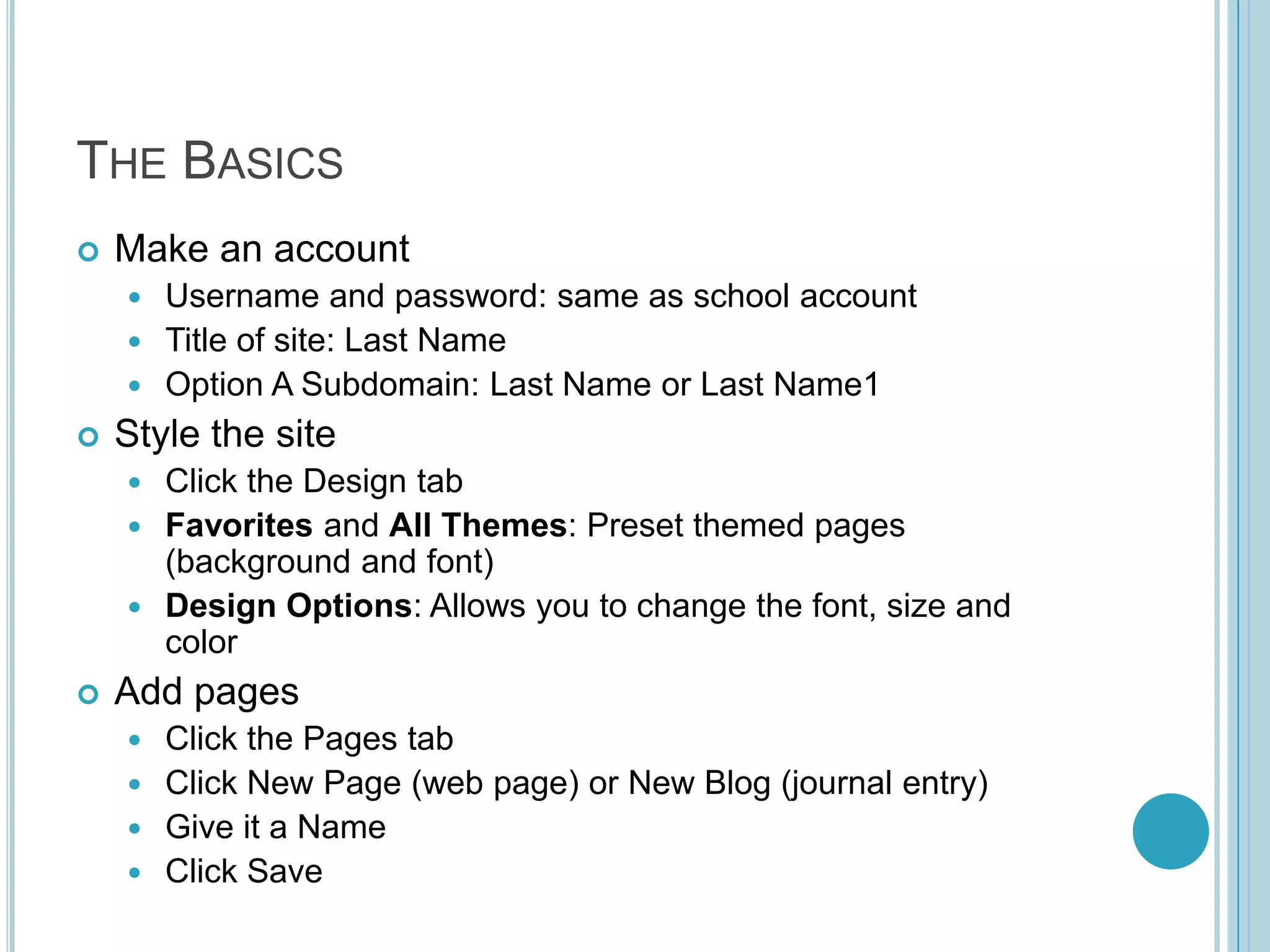
The BasicsMake an accountUsername and password: same as school accountTitle of site: Last NameOption A Subdomain: Last Name or Last Name1Style the siteClick the Design tabFavorites and All Themes: Preset themed pages (background and font)Design Options: Allows you to change the font, size and colorAdd pagesClick the Pages tabClick New Page (web page) or New Blog (journal entry)Give it a Name Click Save
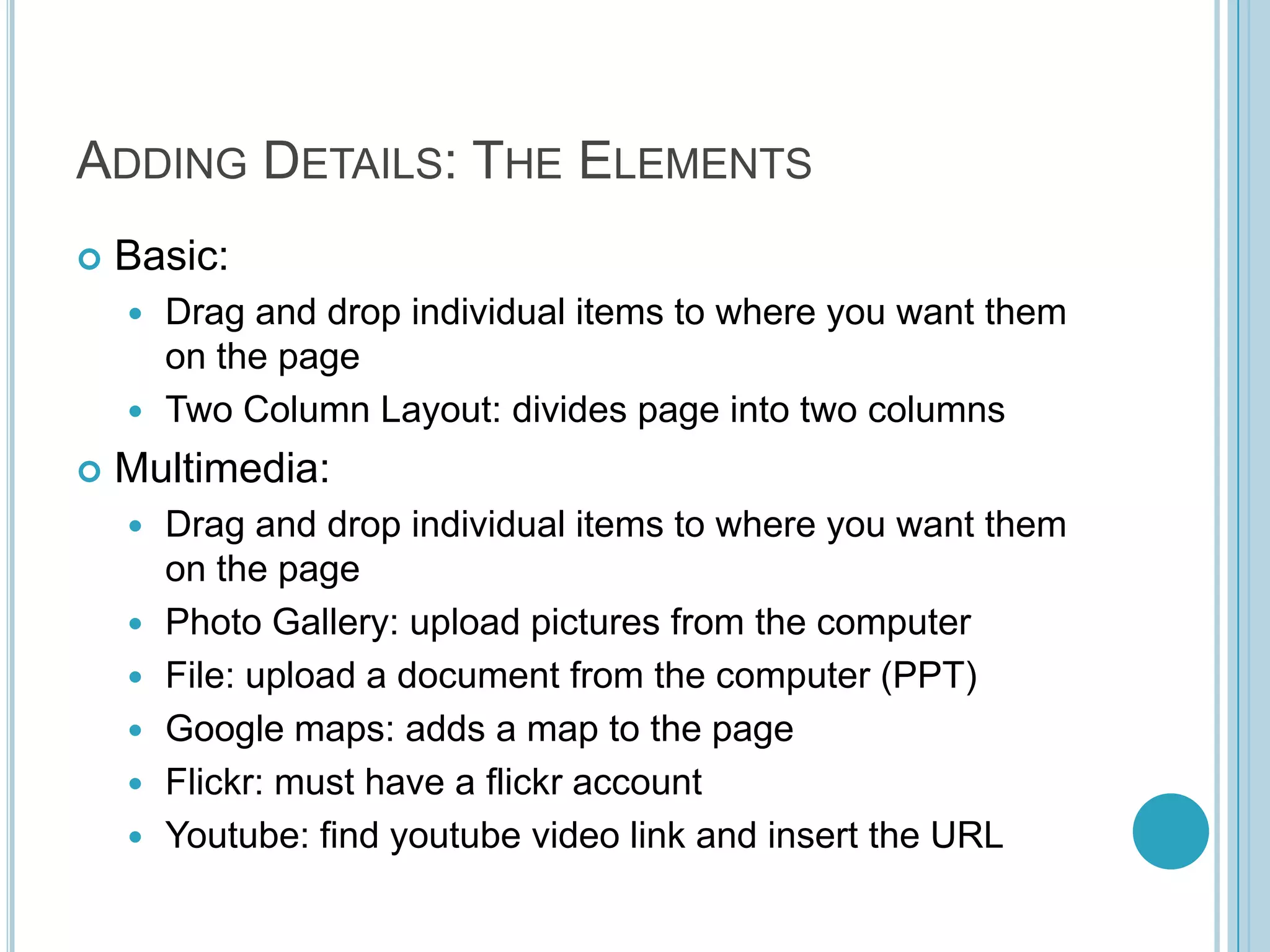
Adding Details: The ElementsBasic:Drag and drop individual items to where you want them on the pageTwo Column Layout: divides page into two columnsMultimedia:Drag and drop individual items to where you want them on the pagePhoto Gallery: upload pictures from the computerFile: upload a document from the computer (PPT)Google maps: adds a map to the pageFlickr: must have a flickr accountYoutube: find youtube video link and insert the URL
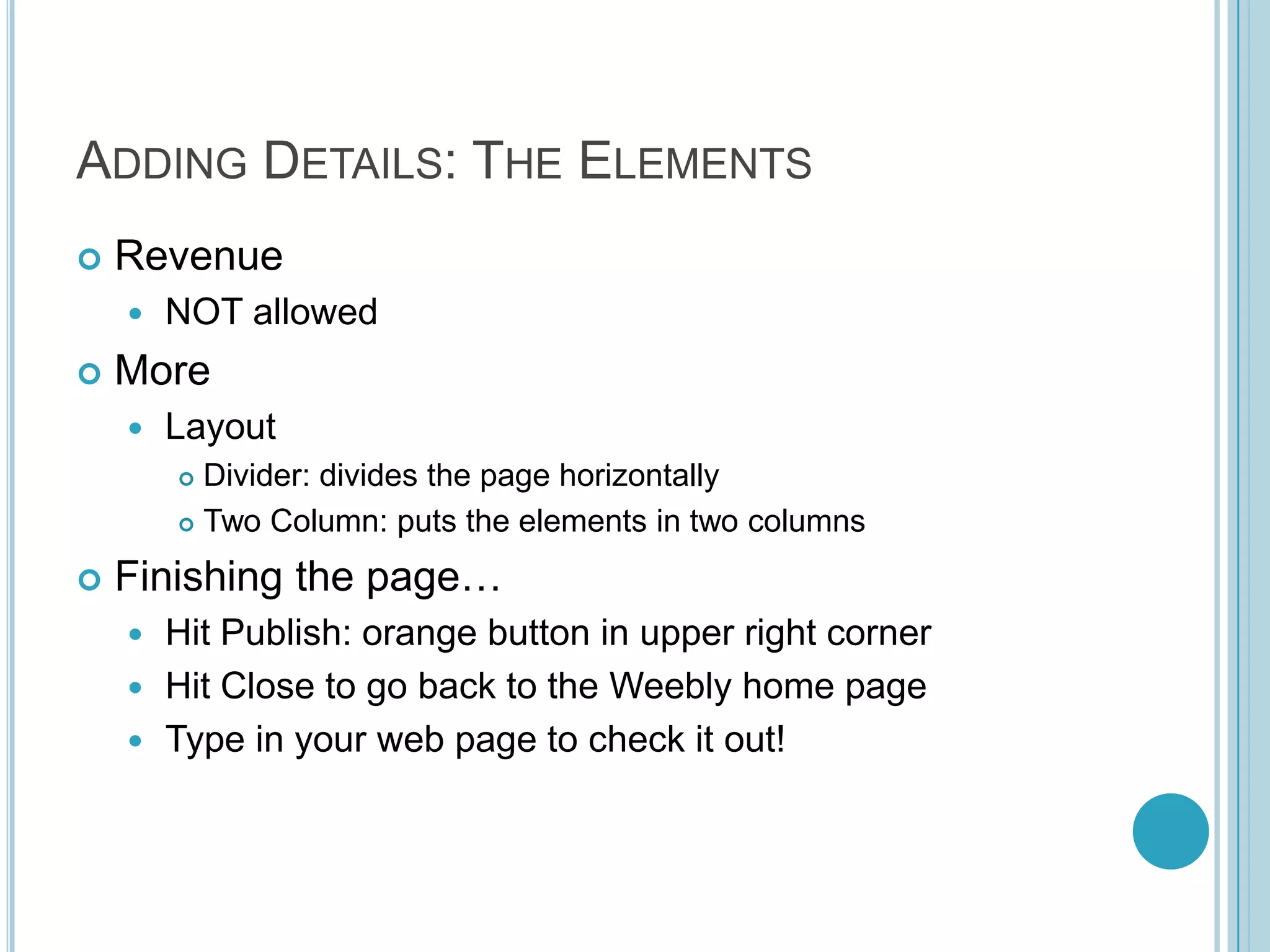
Adding Details: The ElementsRevenueNOT allowedMoreLayoutDivider: divides the page horizontallyTwo Column: puts the elements in two columnsFinishing the page…Hit Publish: orange button in upper right cornerHit Close to go back to the Weebly home pageType in your web page to check it out!
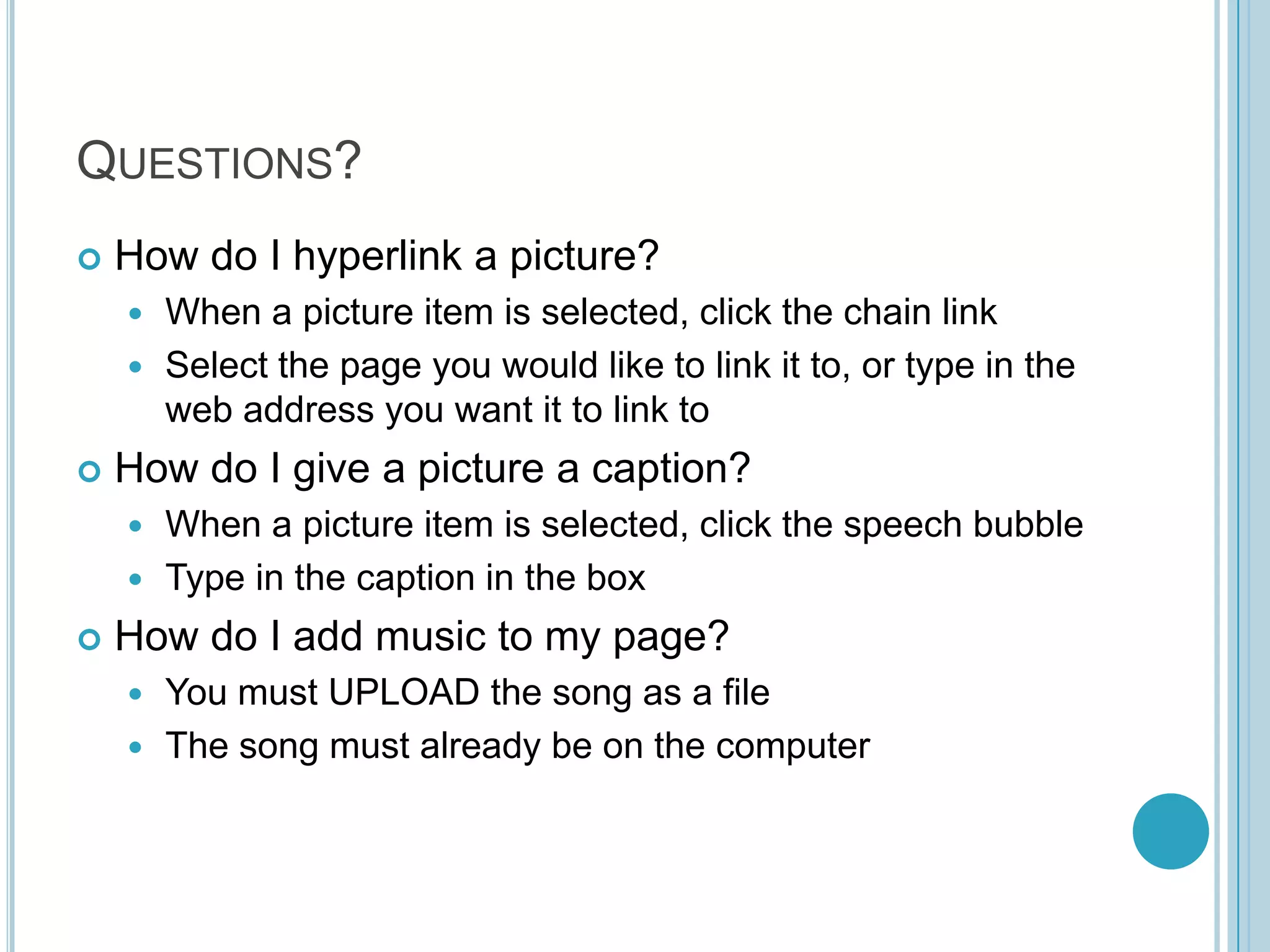
Questions?How do I hyperlink a picture?When a picture item is selected, click the chain linkSelect the page you would like to link it to, or type in the web address you want it to link toHow do I give a picture a caption?When a picture item is selected, click the speech bubbleType in the caption in the boxHow do I add music to my page?You must UPLOAD the song as a fileThe song must already be on the computer

How to make a weebly

  • 1.
    How to Makea Weebly
  • 2.
    The BasicsMake anaccountUsername and password: same as school accountTitle of site: Last NameOption A Subdomain: Last Name or Last Name1Style the siteClick the Design tabFavorites and All Themes: Preset themed pages (background and font)Design Options: Allows you to change the font, size and colorAdd pagesClick the Pages tabClick New Page (web page) or New Blog (journal entry)Give it a Name Click Save
  • 3.
    Adding Details: TheElementsBasic:Drag and drop individual items to where you want them on the pageTwo Column Layout: divides page into two columnsMultimedia:Drag and drop individual items to where you want them on the pagePhoto Gallery: upload pictures from the computerFile: upload a document from the computer (PPT)Google maps: adds a map to the pageFlickr: must have a flickr accountYoutube: find youtube video link and insert the URL
  • 4.
    Adding Details: TheElementsRevenueNOT allowedMoreLayoutDivider: divides the page horizontallyTwo Column: puts the elements in two columnsFinishing the page…Hit Publish: orange button in upper right cornerHit Close to go back to the Weebly home pageType in your web page to check it out!
  • 5.
    Questions?How do Ihyperlink a picture?When a picture item is selected, click the chain linkSelect the page you would like to link it to, or type in the web address you want it to link toHow do I give a picture a caption?When a picture item is selected, click the speech bubbleType in the caption in the boxHow do I add music to my page?You must UPLOAD the song as a fileThe song must already be on the computer