Content
Management
made easy with
(a beginner’s guide)
Part 1:
* Short company profile
* App profile
* App features (Part 1)
- Content Inbox
- Research
- Connect Accounts
Hi there!
Welcome to your
tutorial
Let’s start off with
a little history
of
is a content
management tool
developed by affiliate
marketers
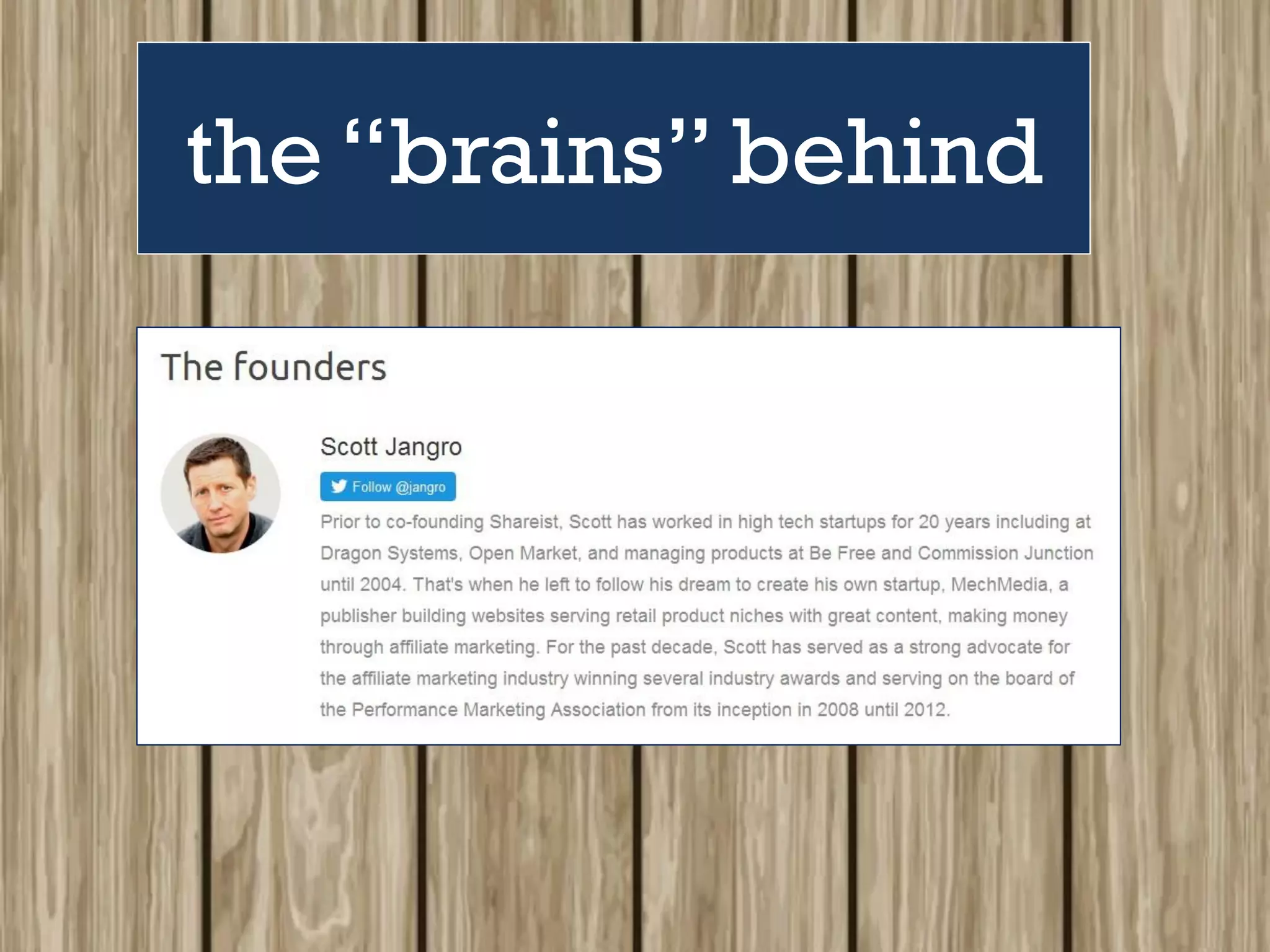
Scott Jangro
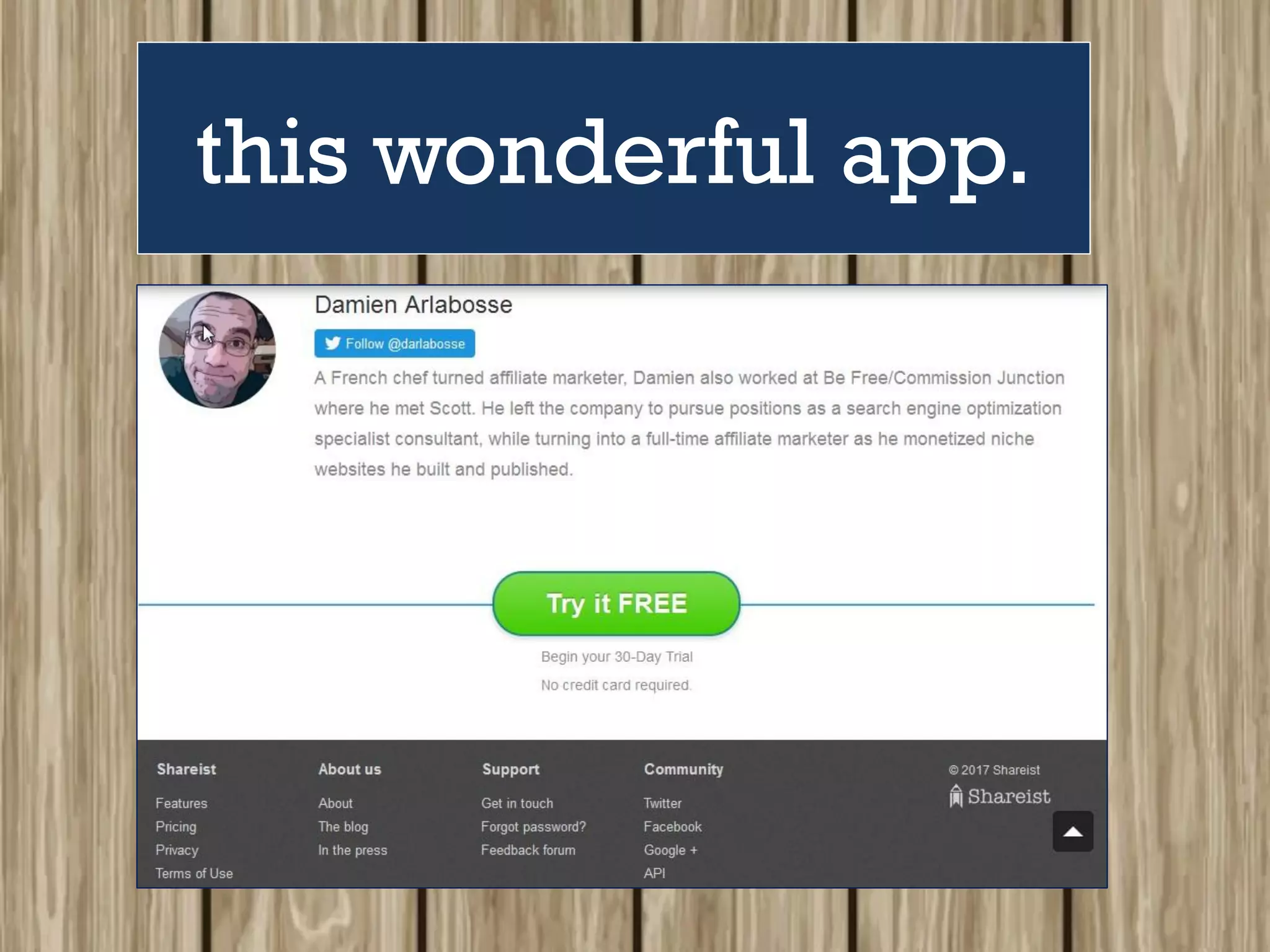
and
Damien Arlabosse.
Scott Jangro
perfectly describes
Shareist as
“a full workflow for
capturing ideas,
creating content, and
publishing.
It closes the gap
between ideas and
getting them
published.”
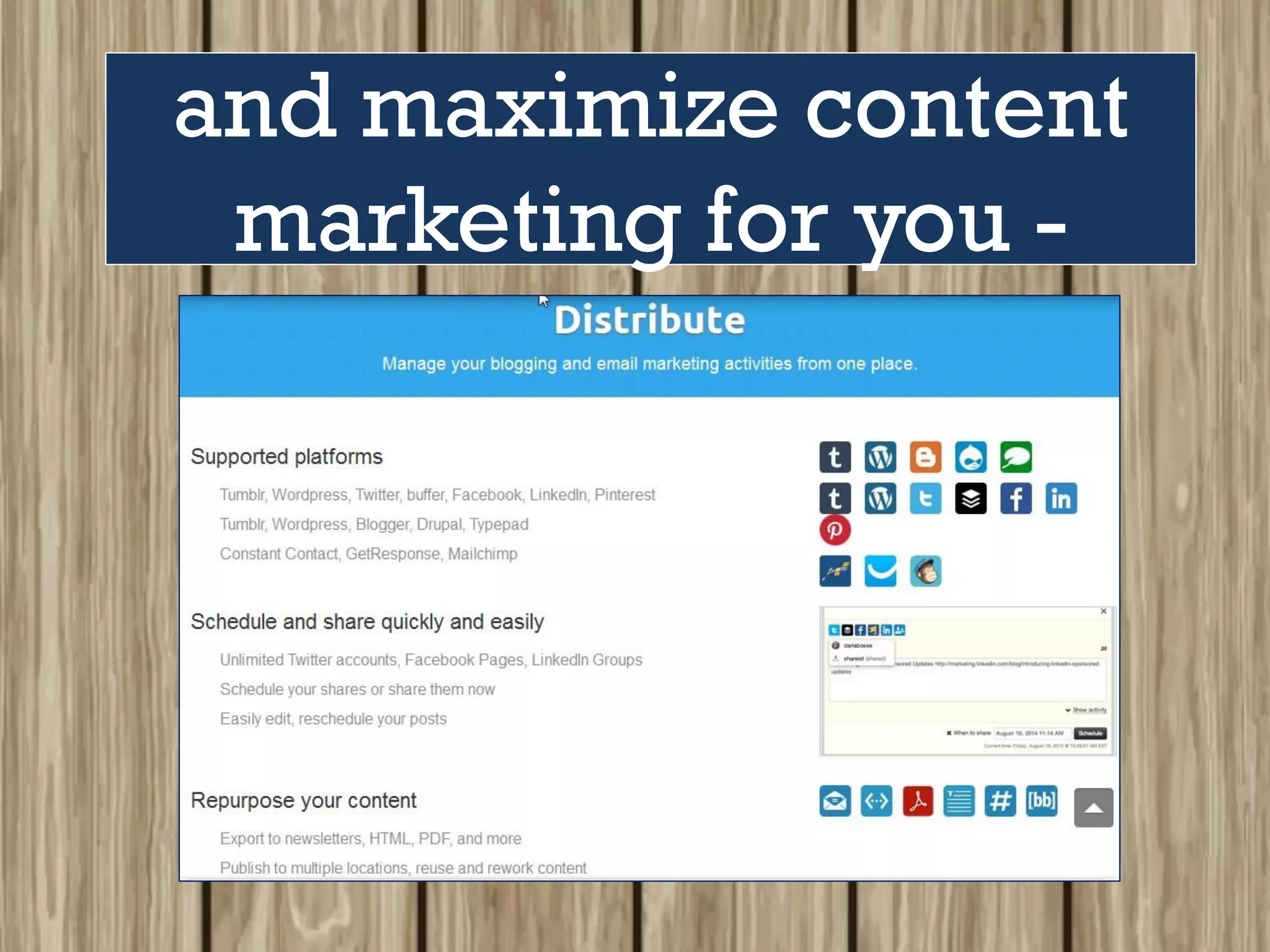
helps you manage
all your social
platforms
from one central
location – saving
you time
by cutting workflow
and making
web sharing /
content marketing
more effective.
Their slogan says it all:
So let’s get started!
First, make your own
Shareist account.
Open your web
browser (Google/
Mozilla /Yahoo)
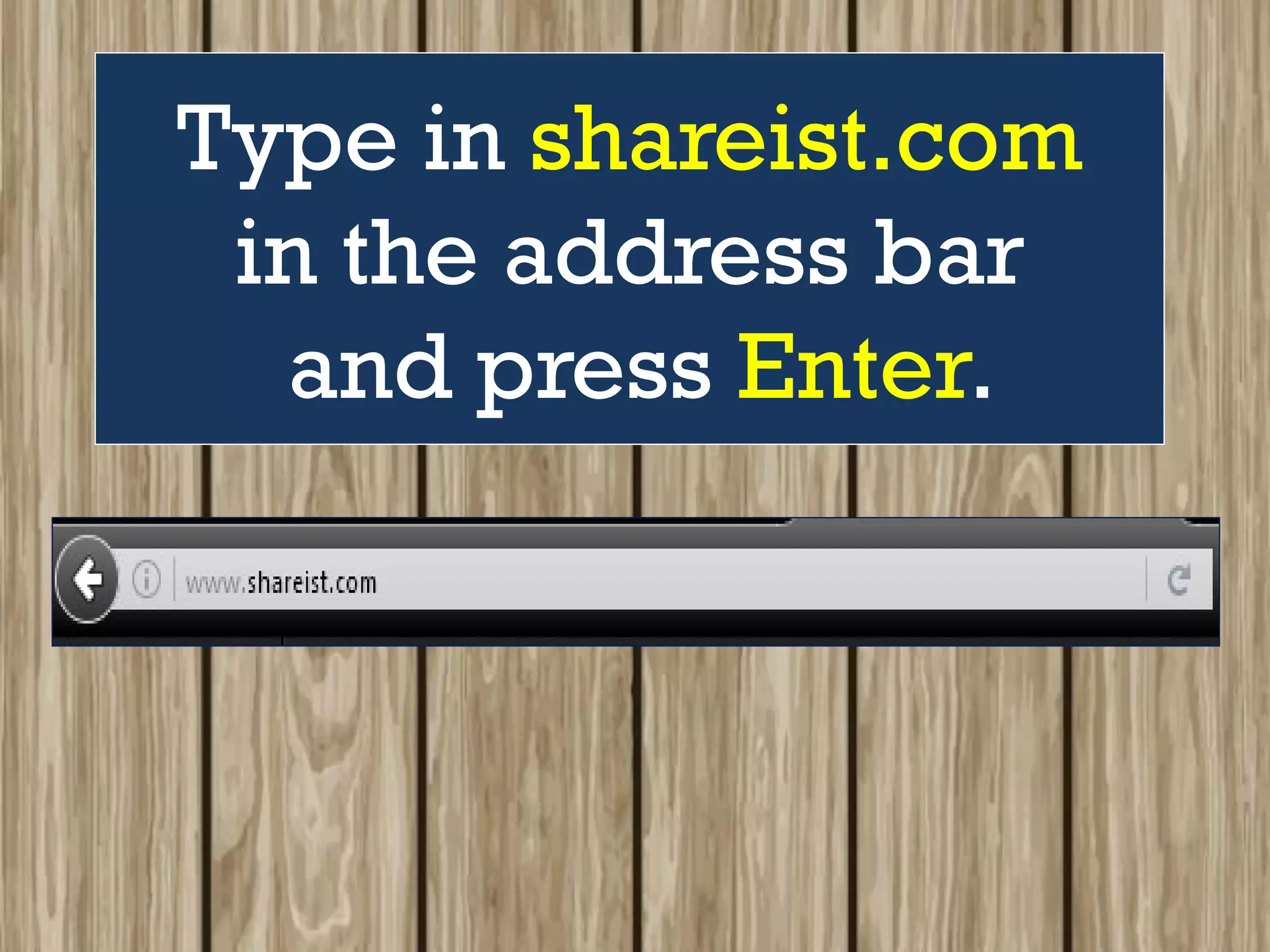
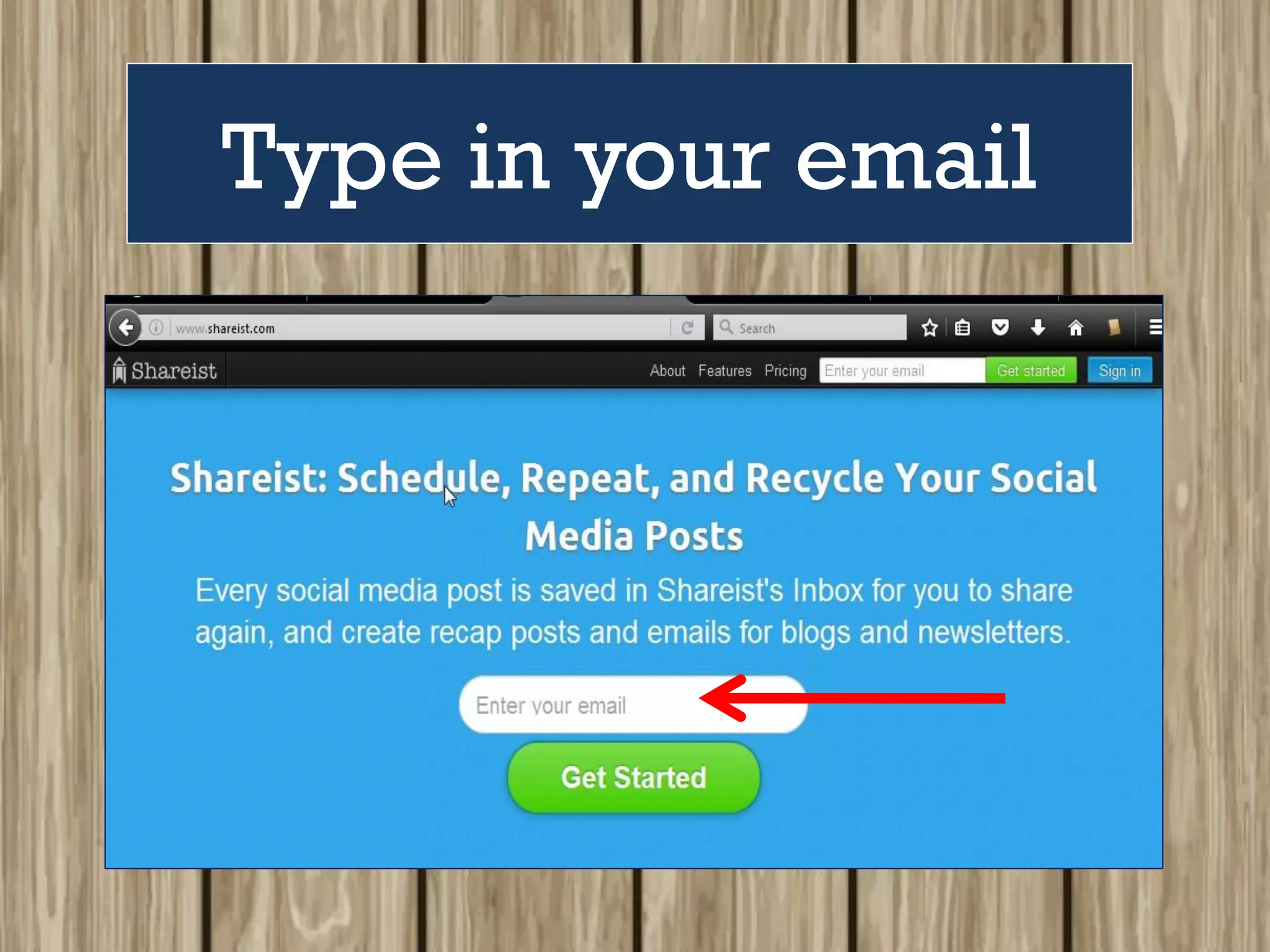
Type in shareist.com
in the address bar
and press Enter.
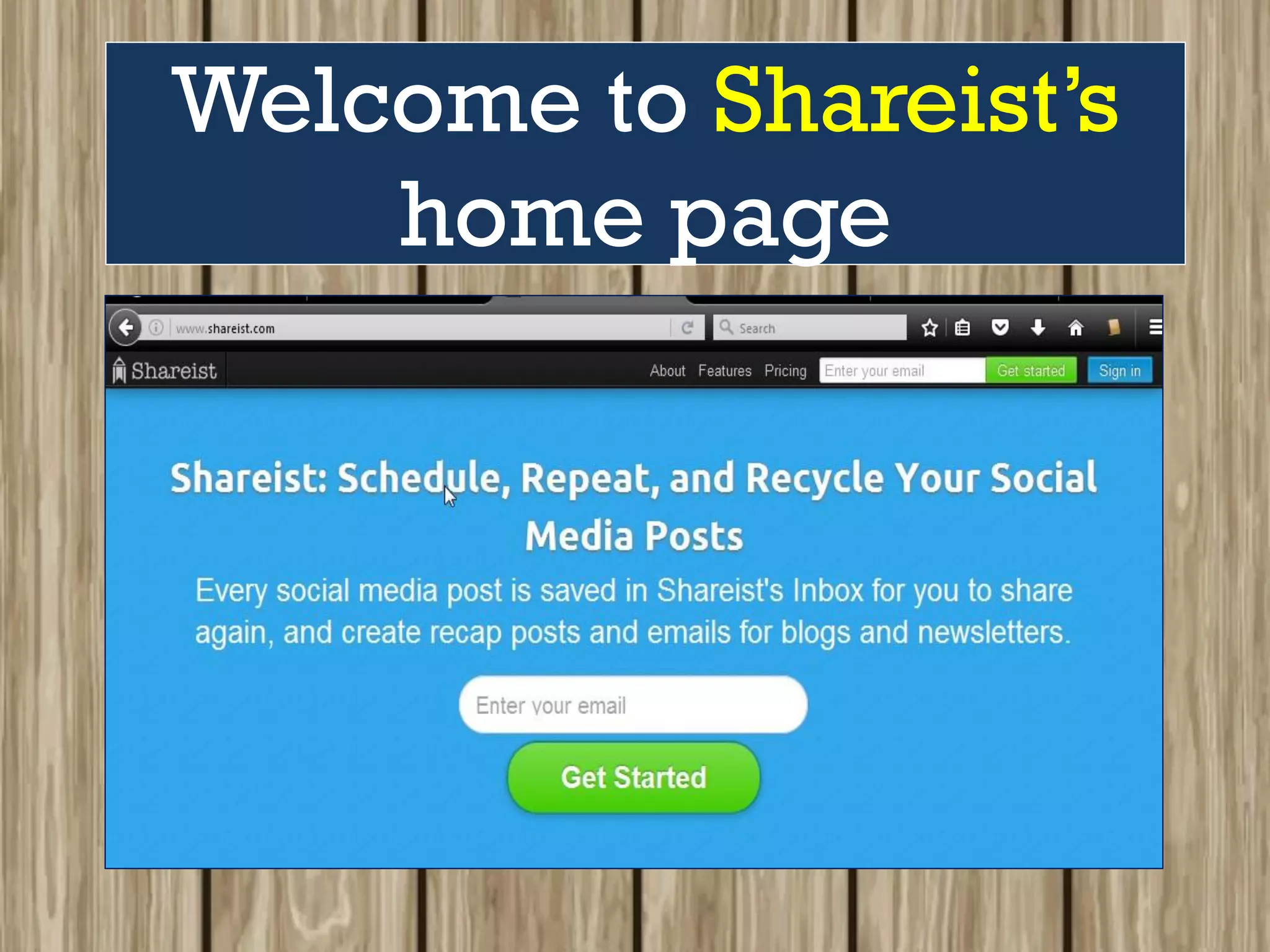
Welcome to Shareist’s
home page
Type in your email
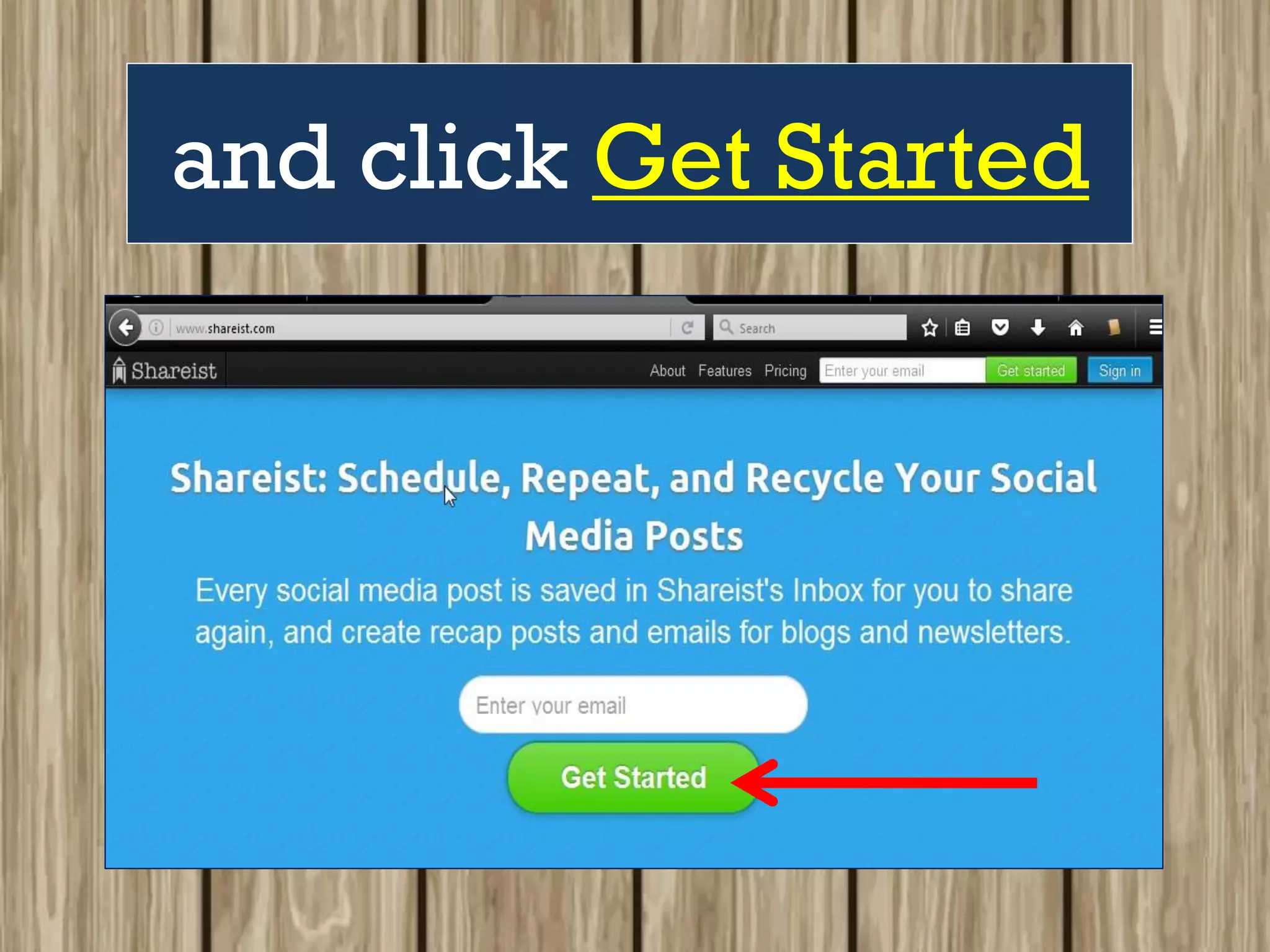
and click Get Started
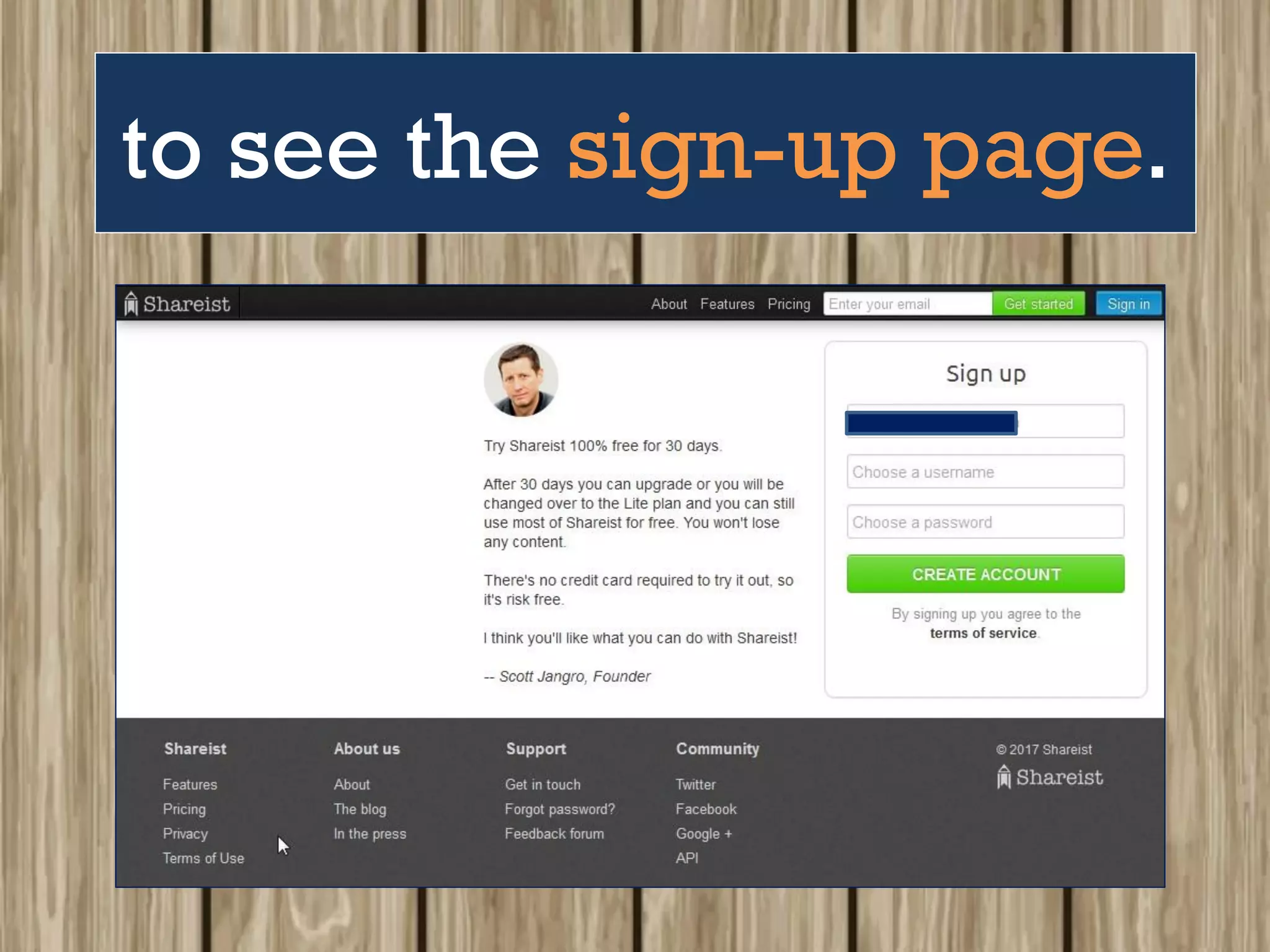
to see the sign-up page.
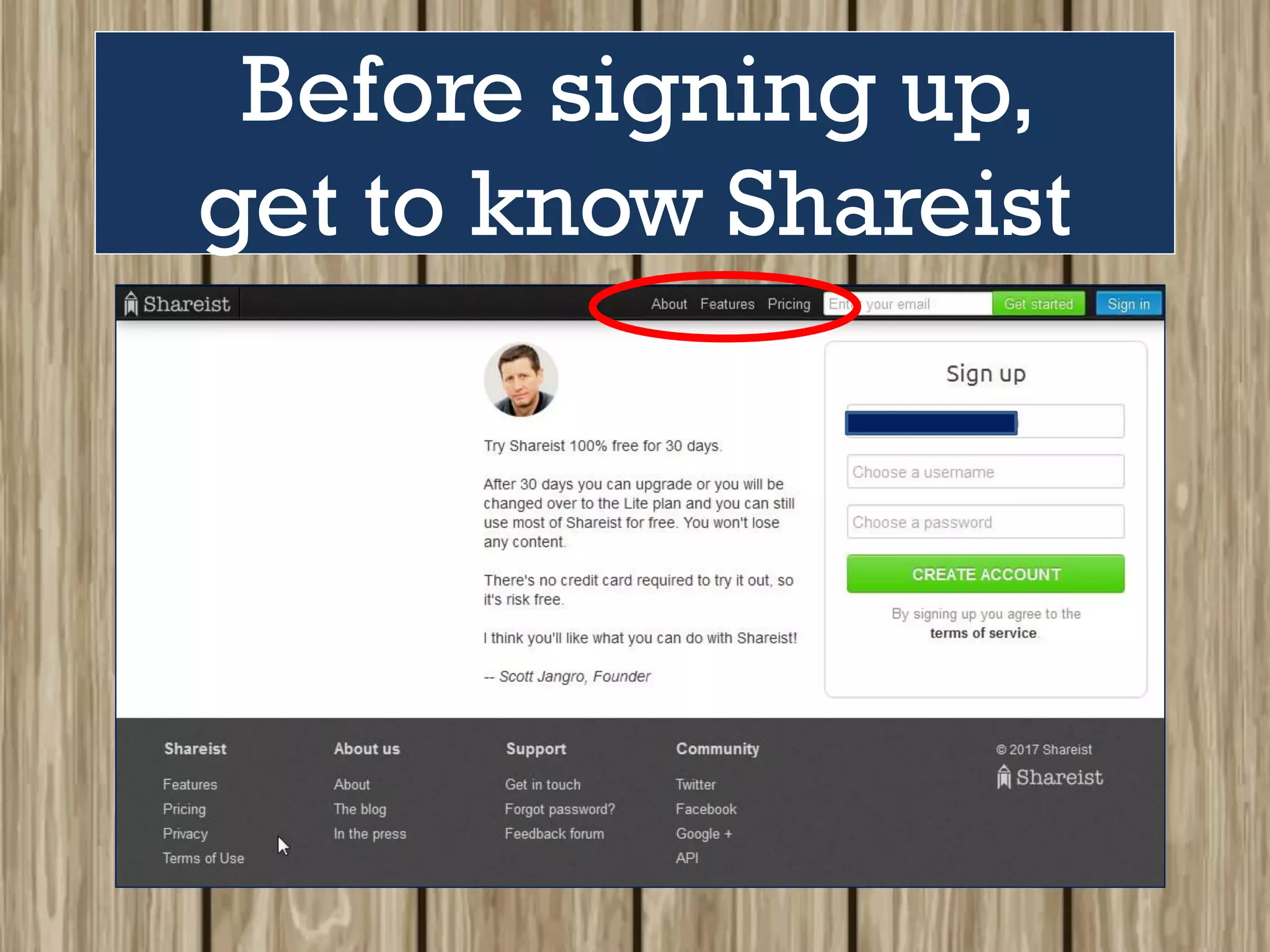
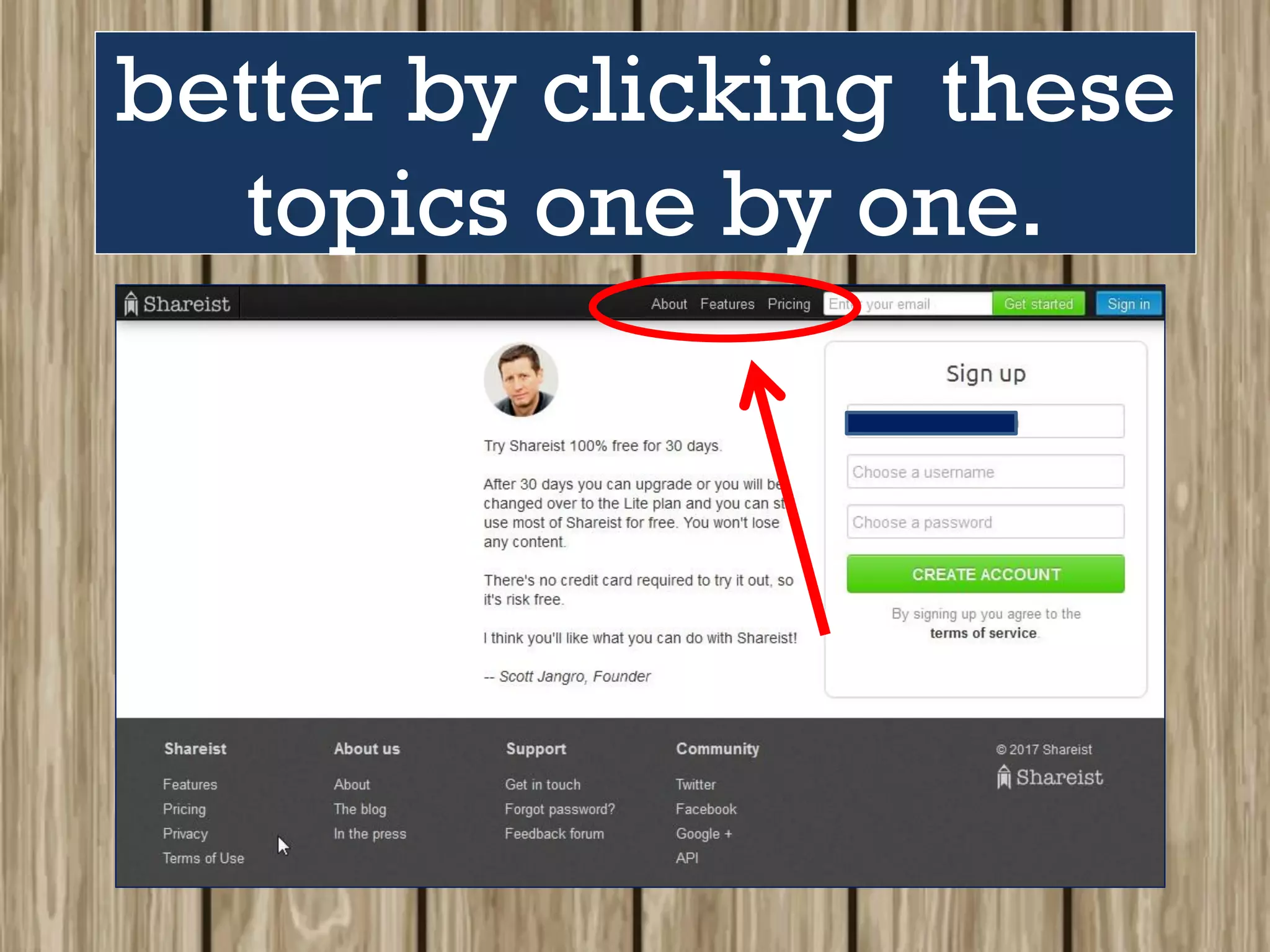
Before signing up,
get to know Shareist
better by clicking these
topics one by one.
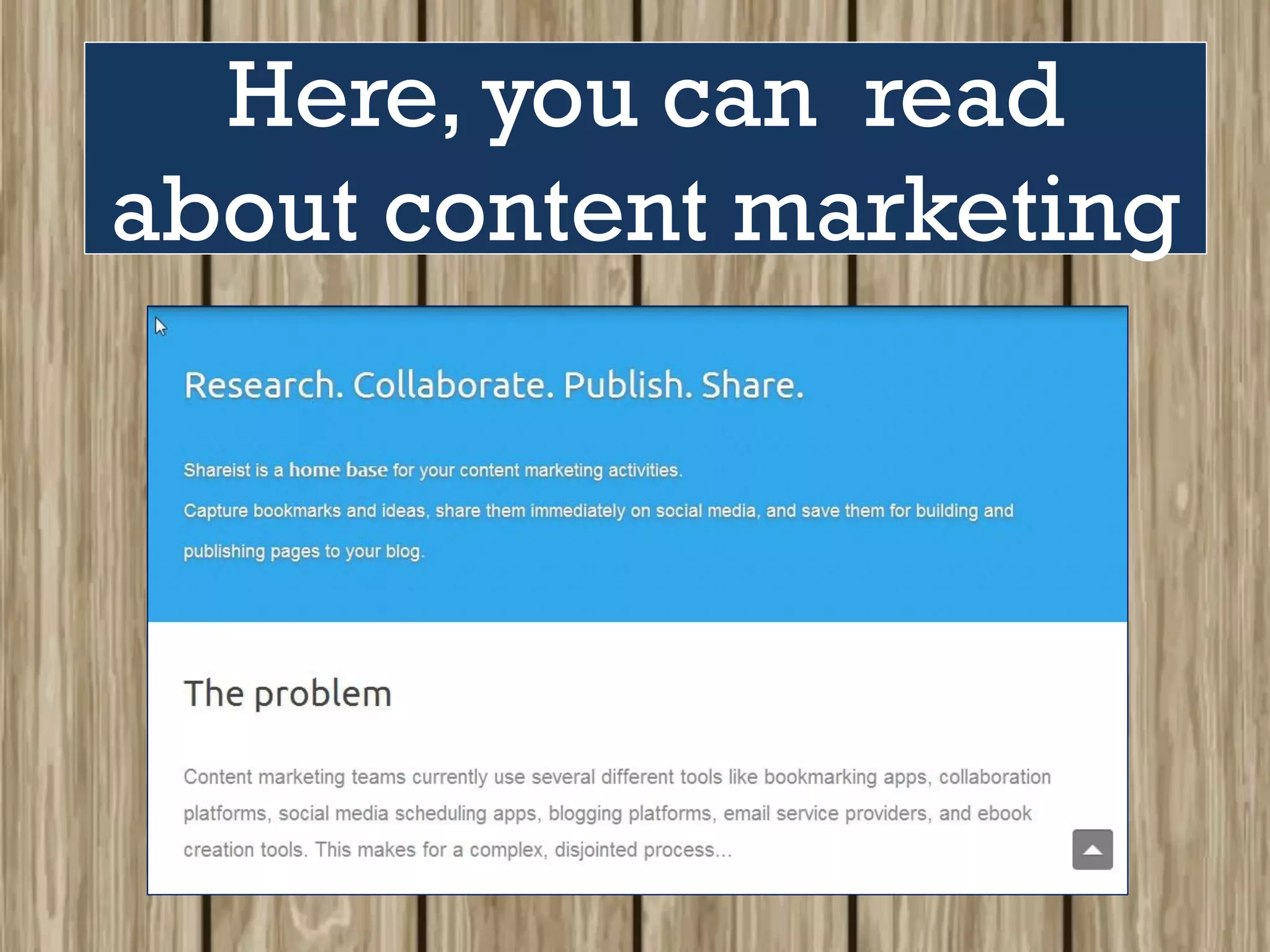
ABOUT
Here, you can read
about content marketing
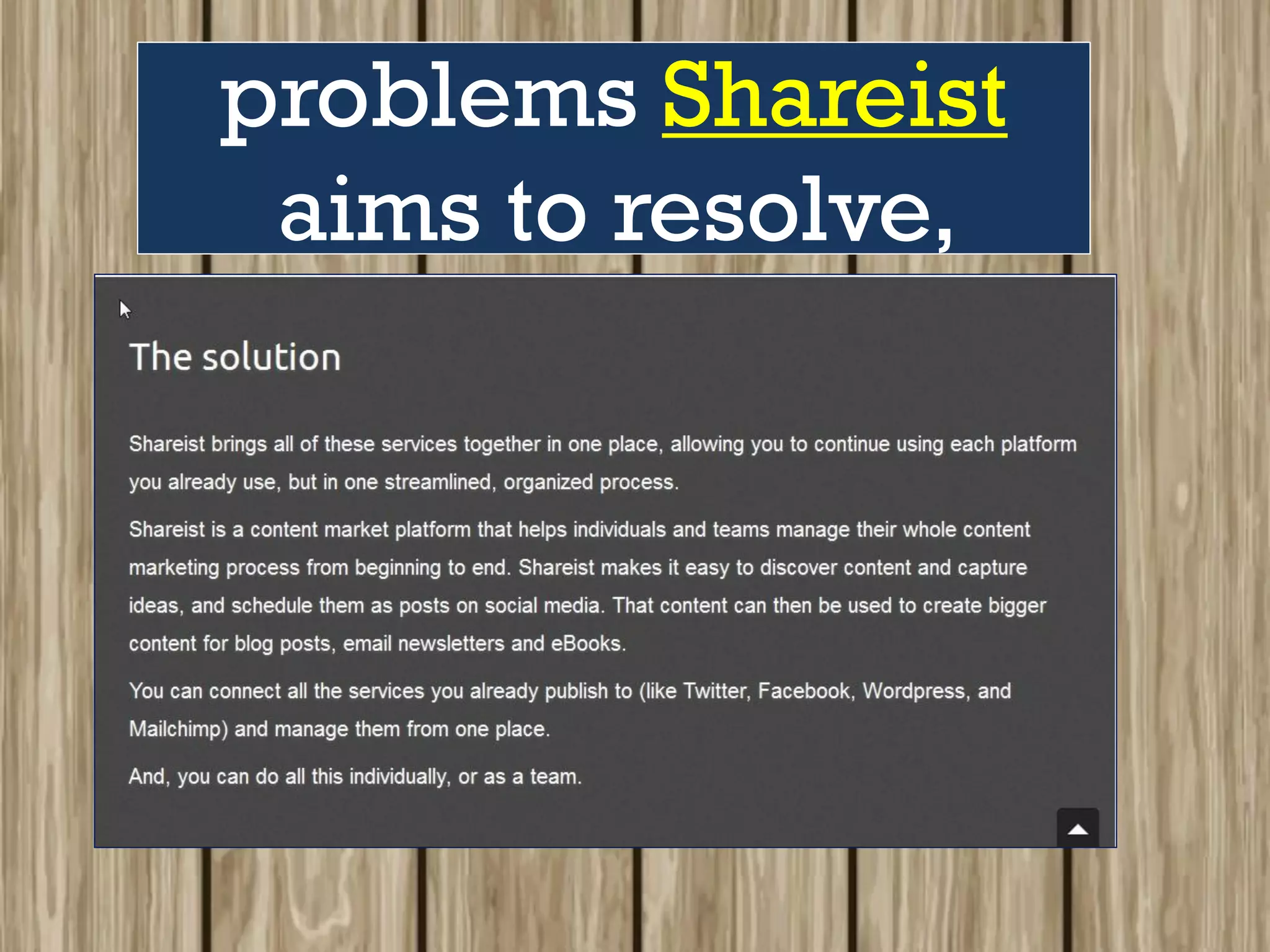
problems Shareist
aims to resolve,
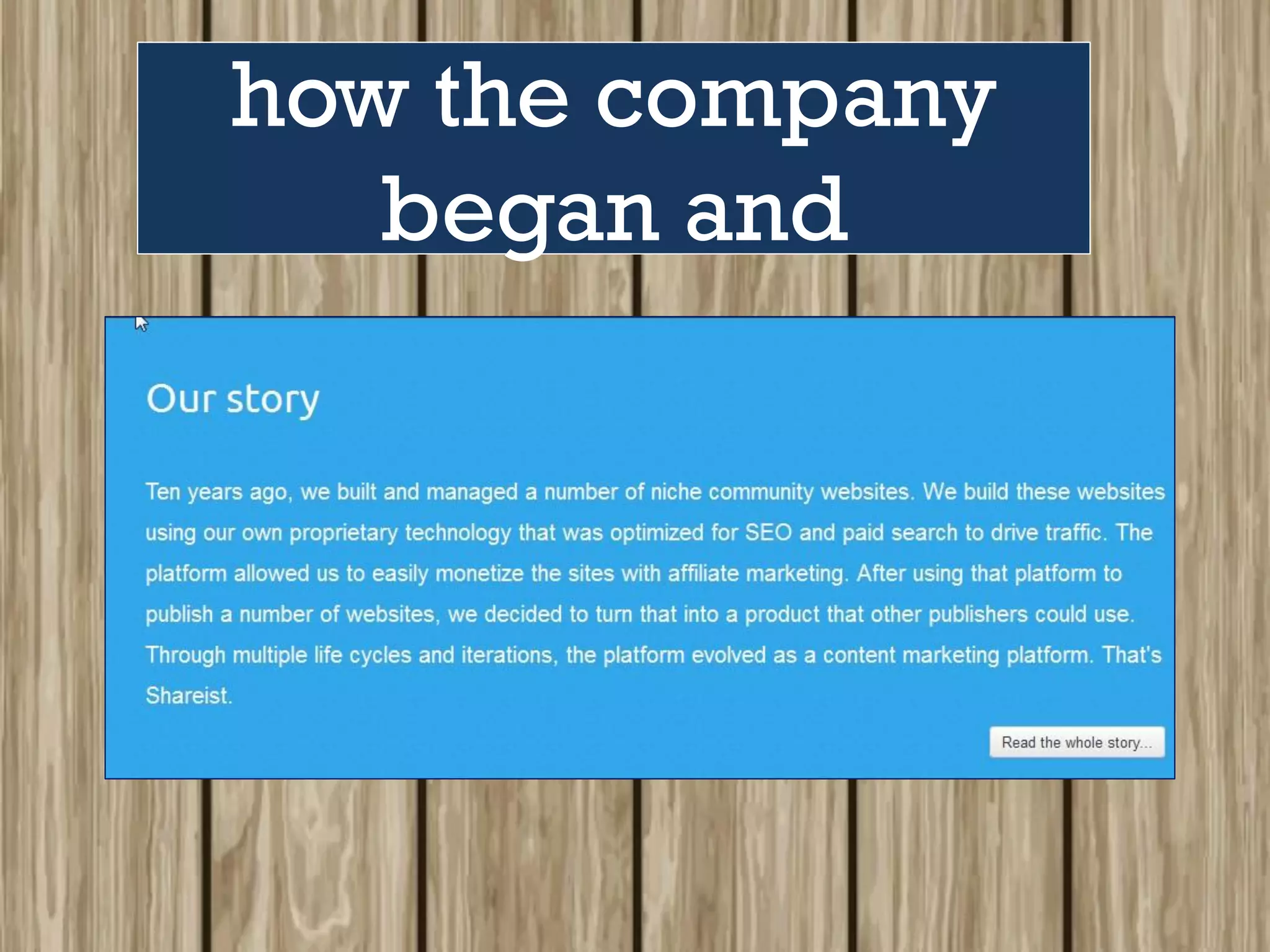
how the company
began and
the “brains” behind
this wonderful app.
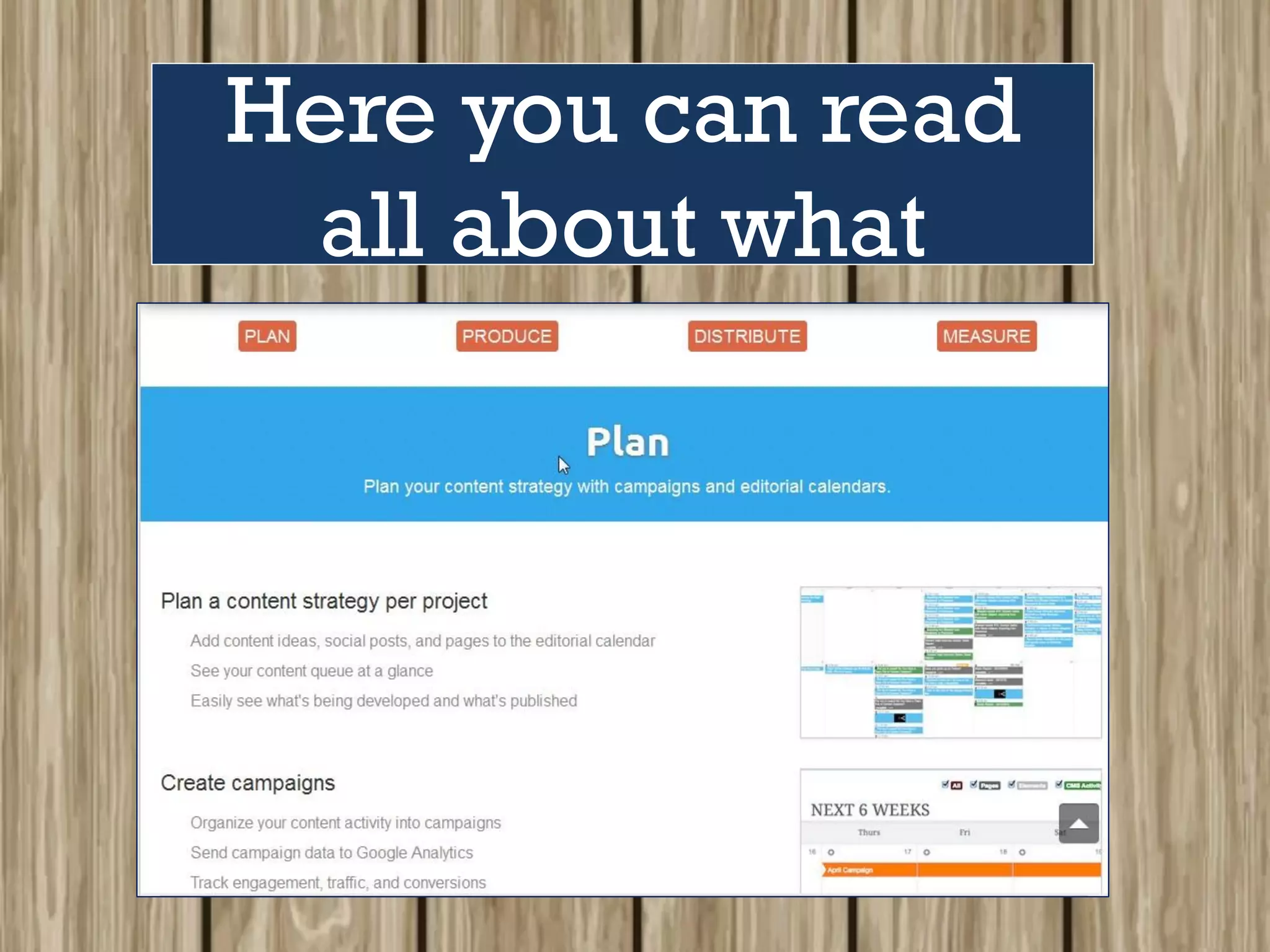
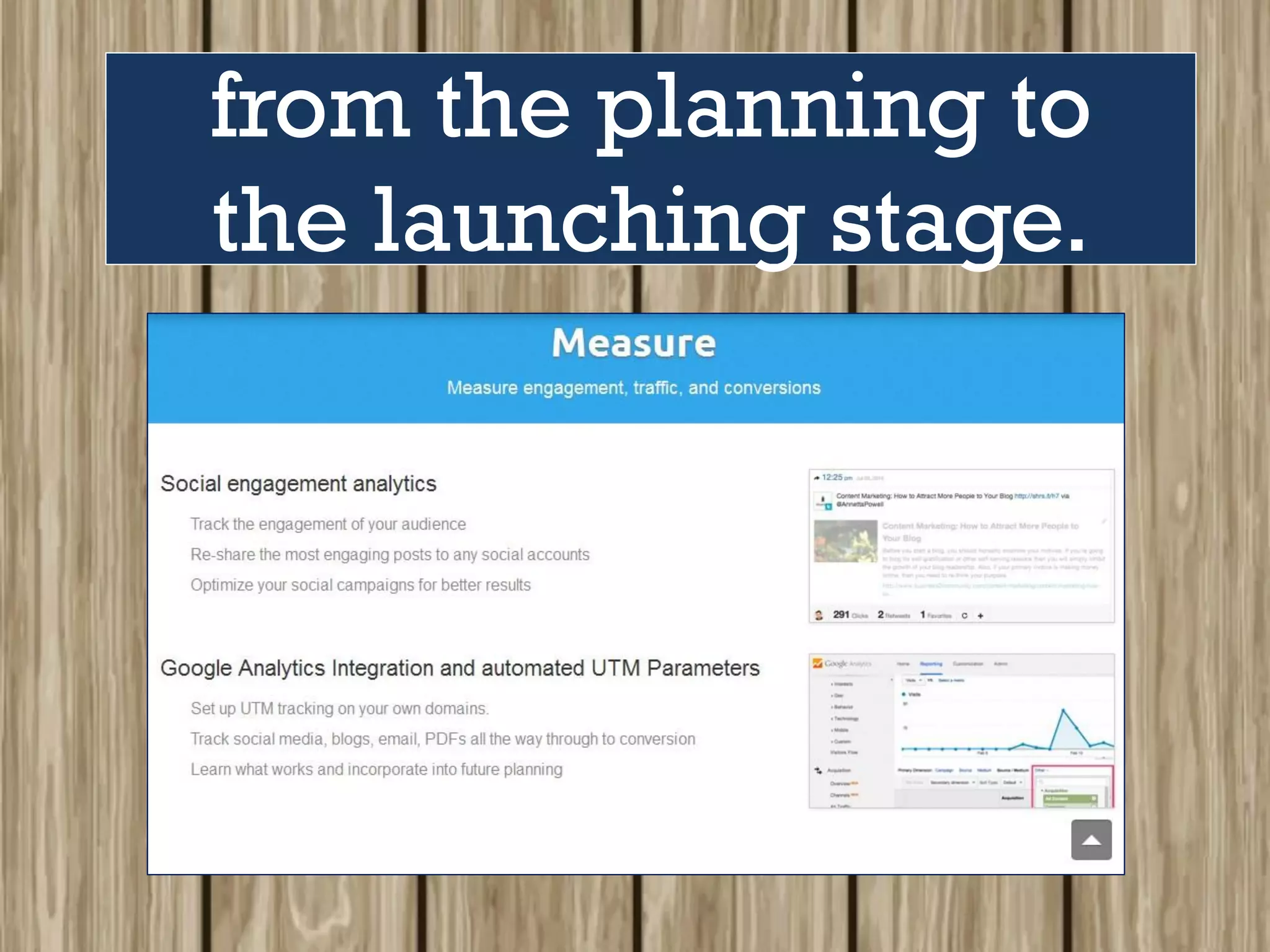
FEATURES
Here you can read
all about what
Shareist can do to
help organize
and maximize content
marketing for you -
from the planning to
the launching stage.
PRICING
Here you can select
the best plan
Shareist offers to
suit your needs
or …
try their 3o-day
free trial first!!
Done reading ?!!
Photo by Keilidh Ewan on Unsplash
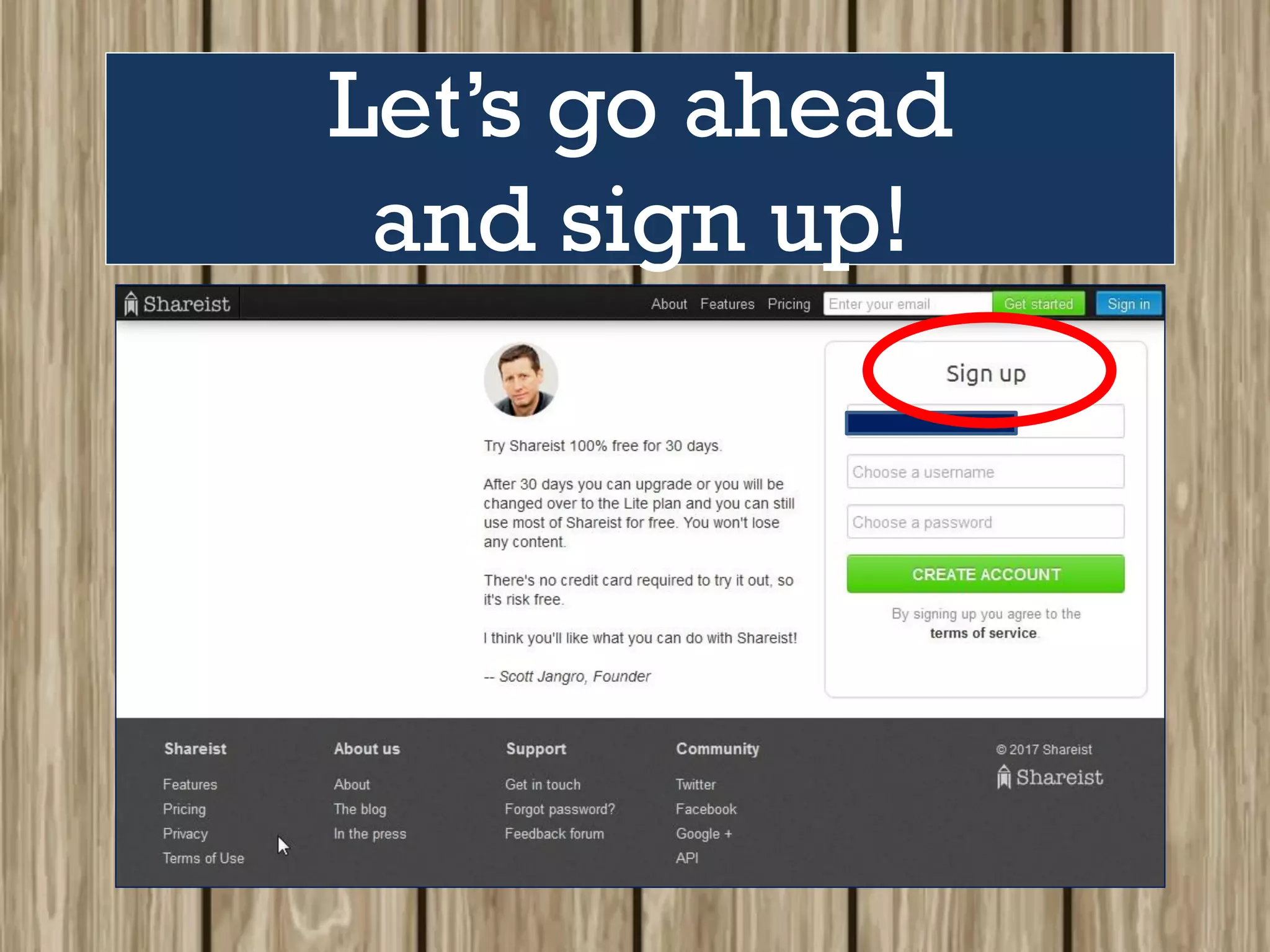
Let’s go ahead
and sign up!
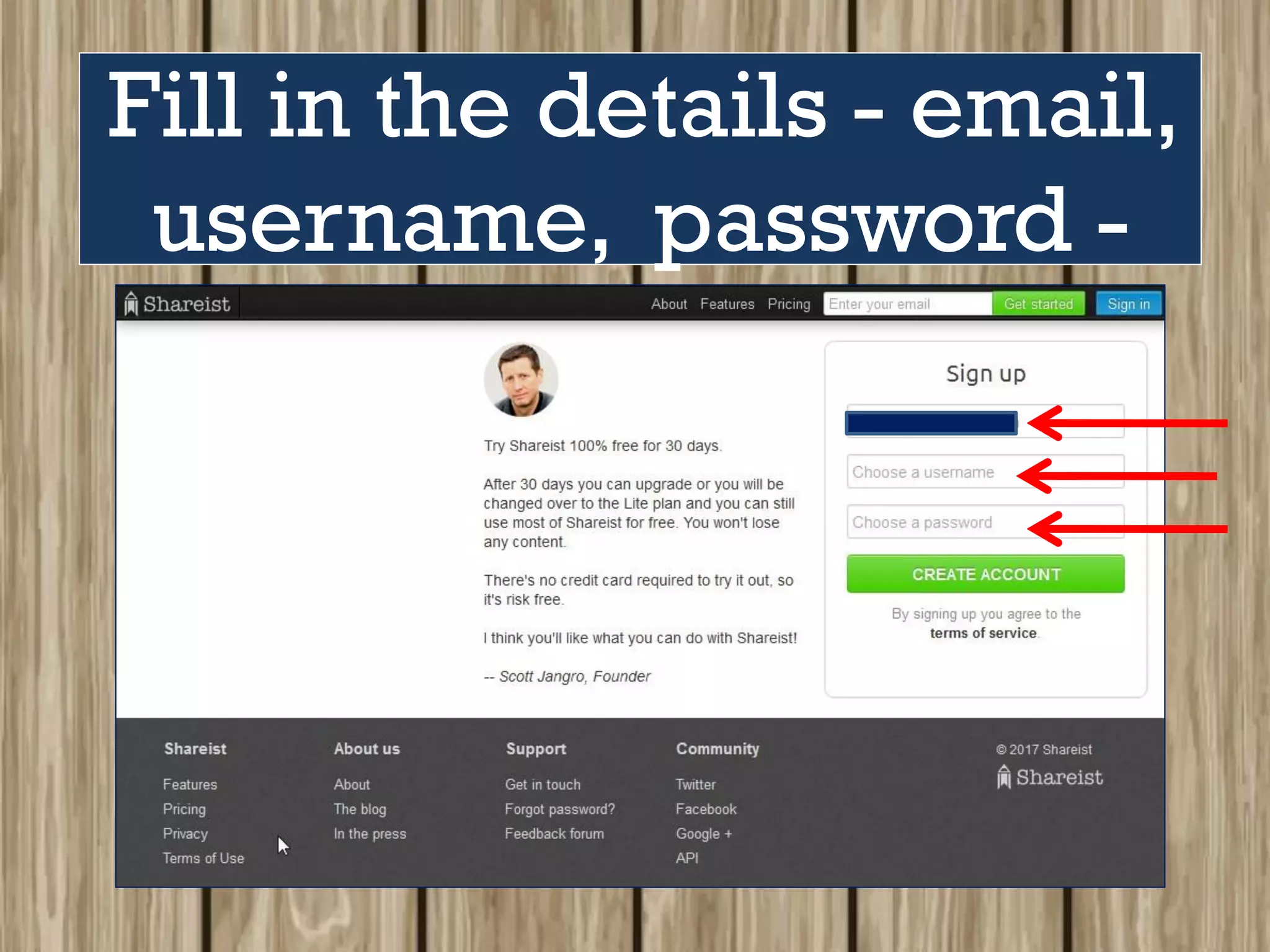
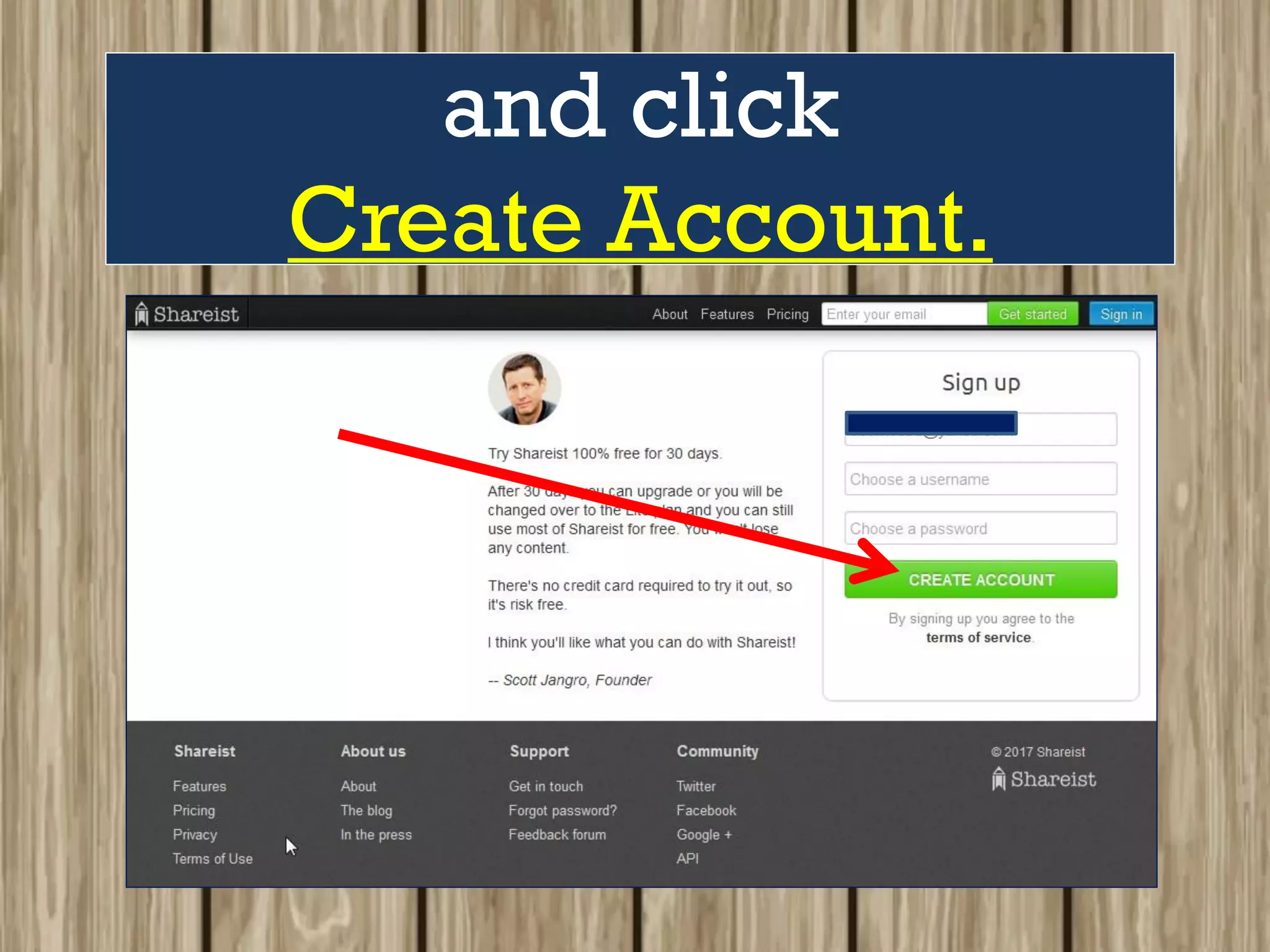
Fill in the details - email,
username, password -
and click
Create Account.
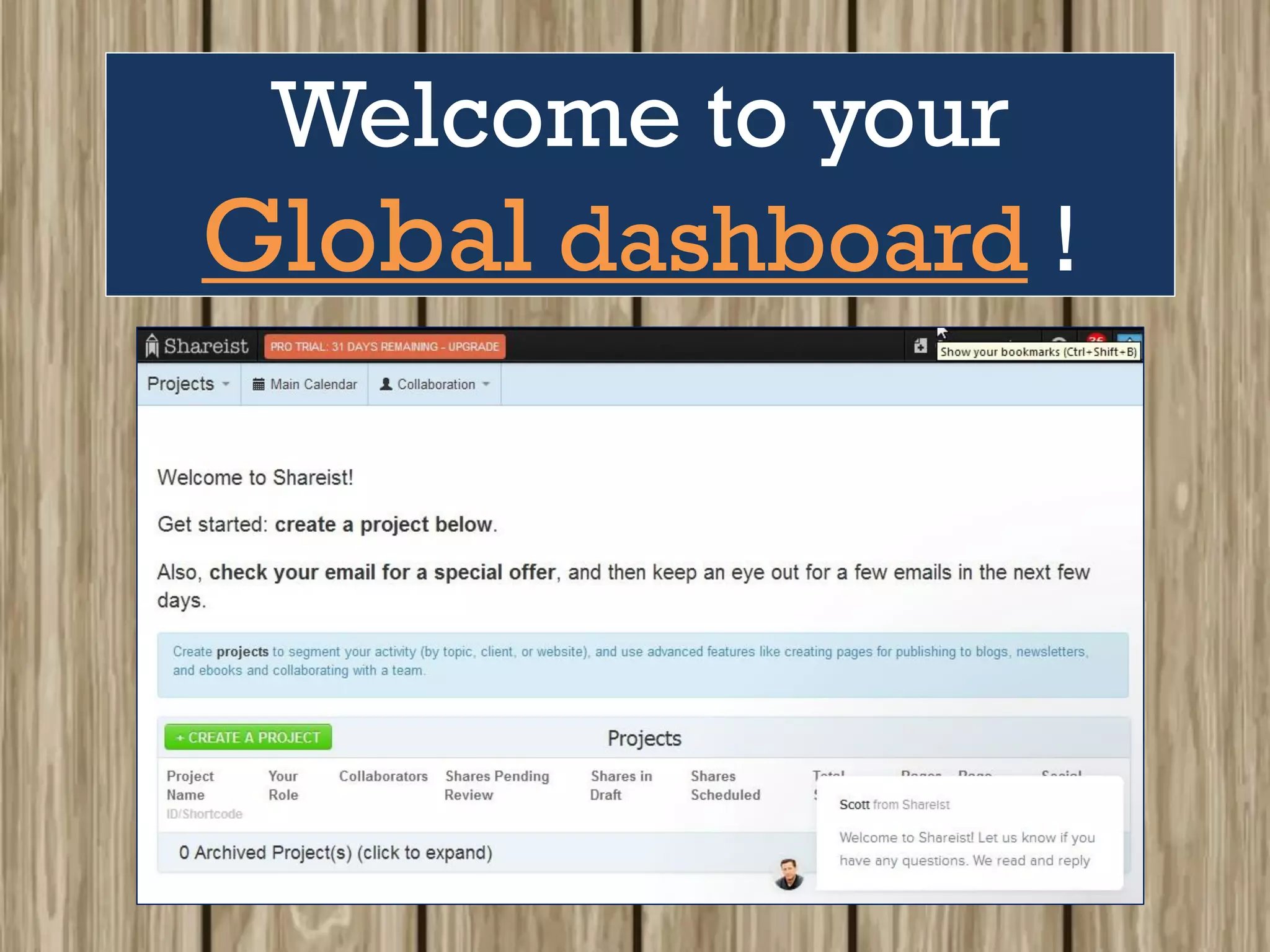
Welcome to your
Global dashboard !
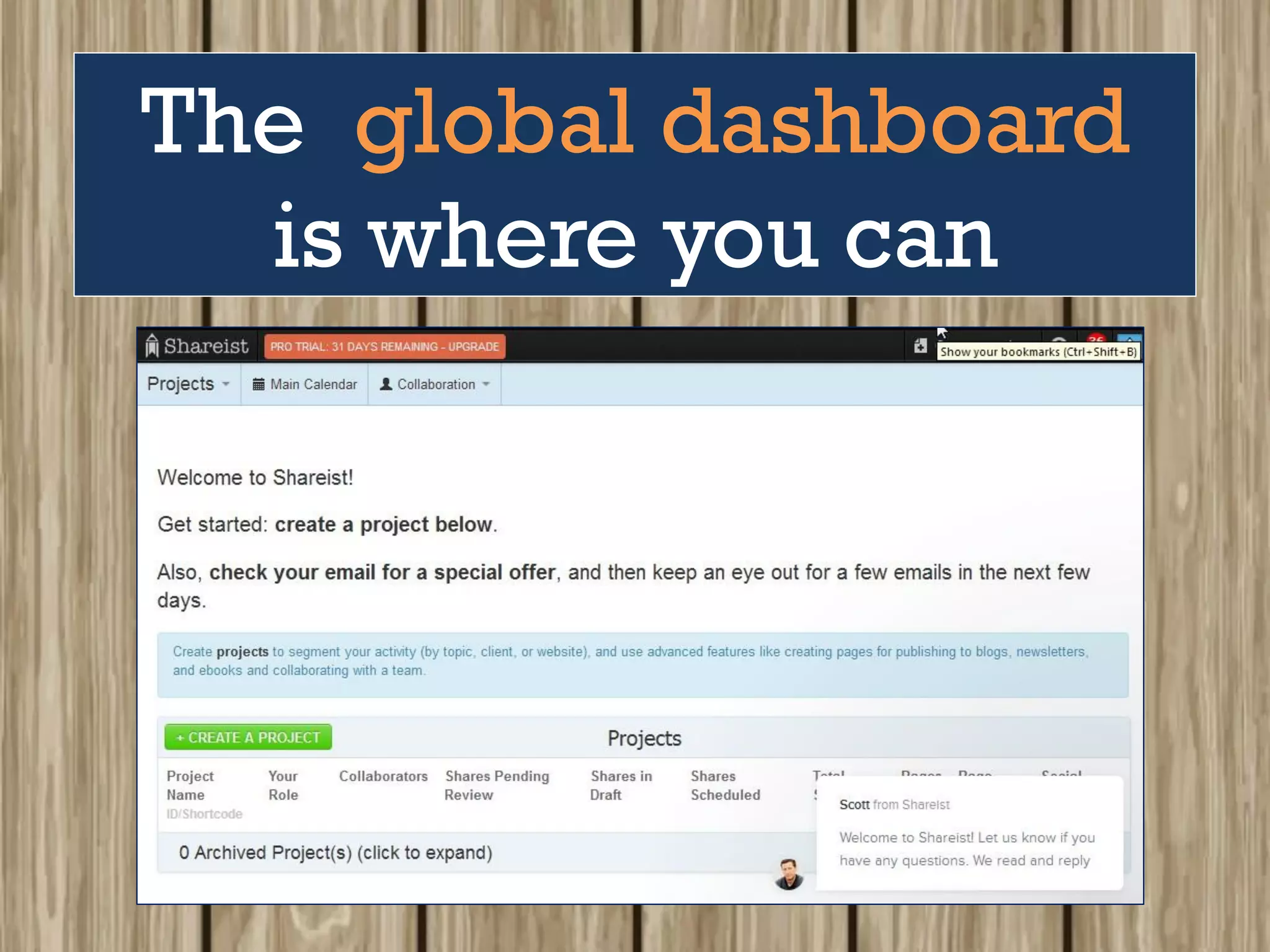
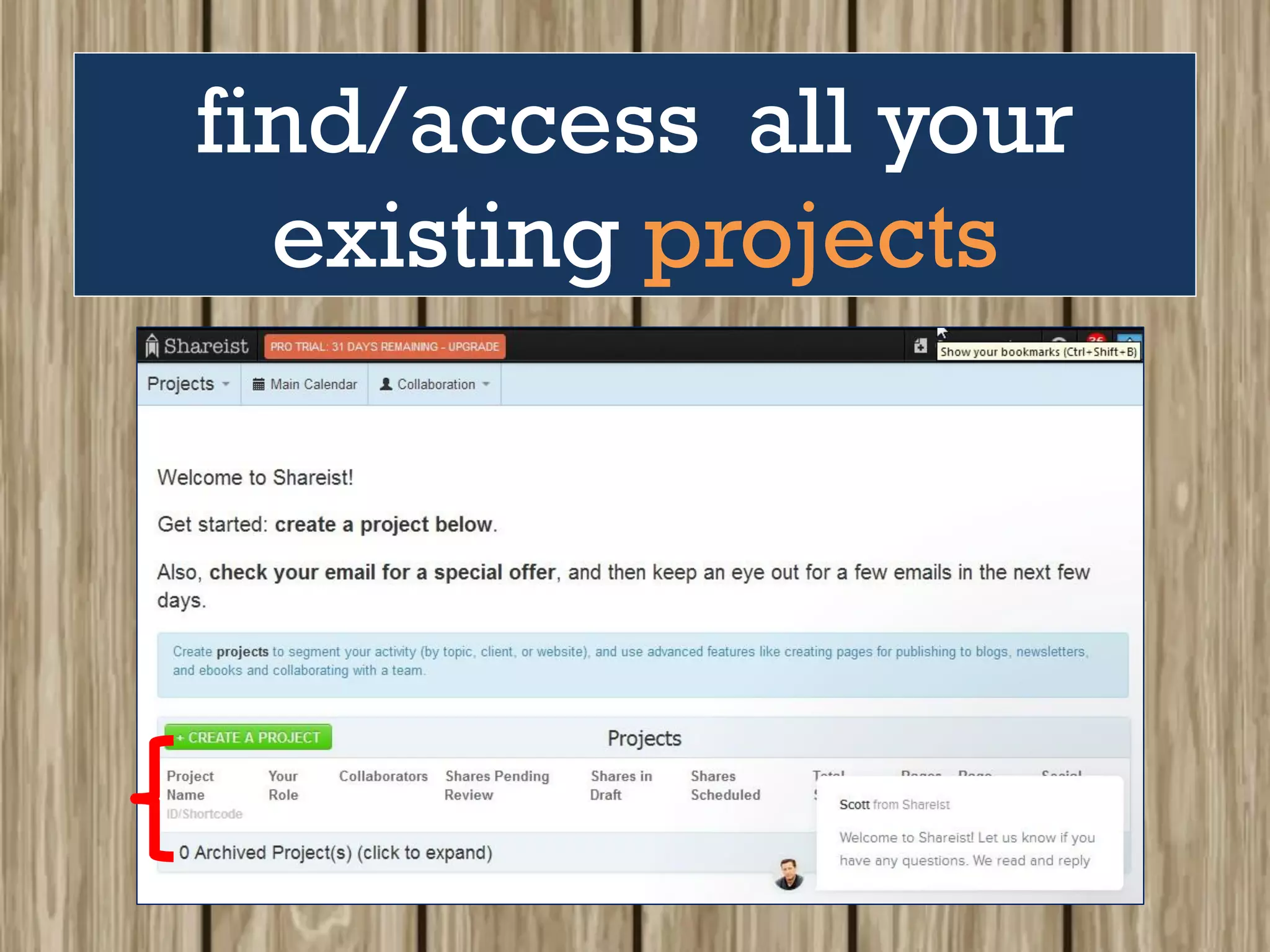
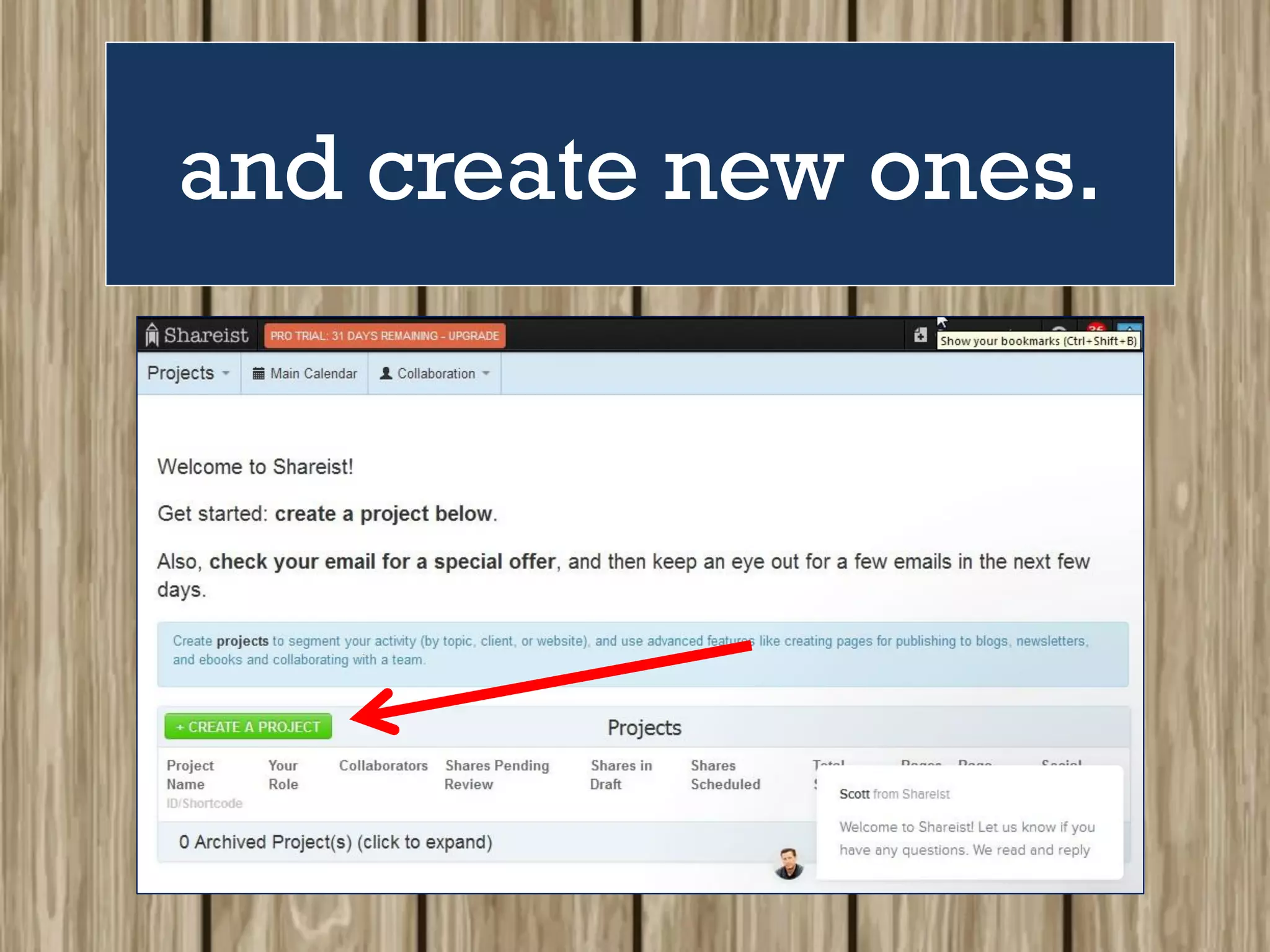
The global dashboard
is where you can
find/access all your
existing projects
and create new ones.
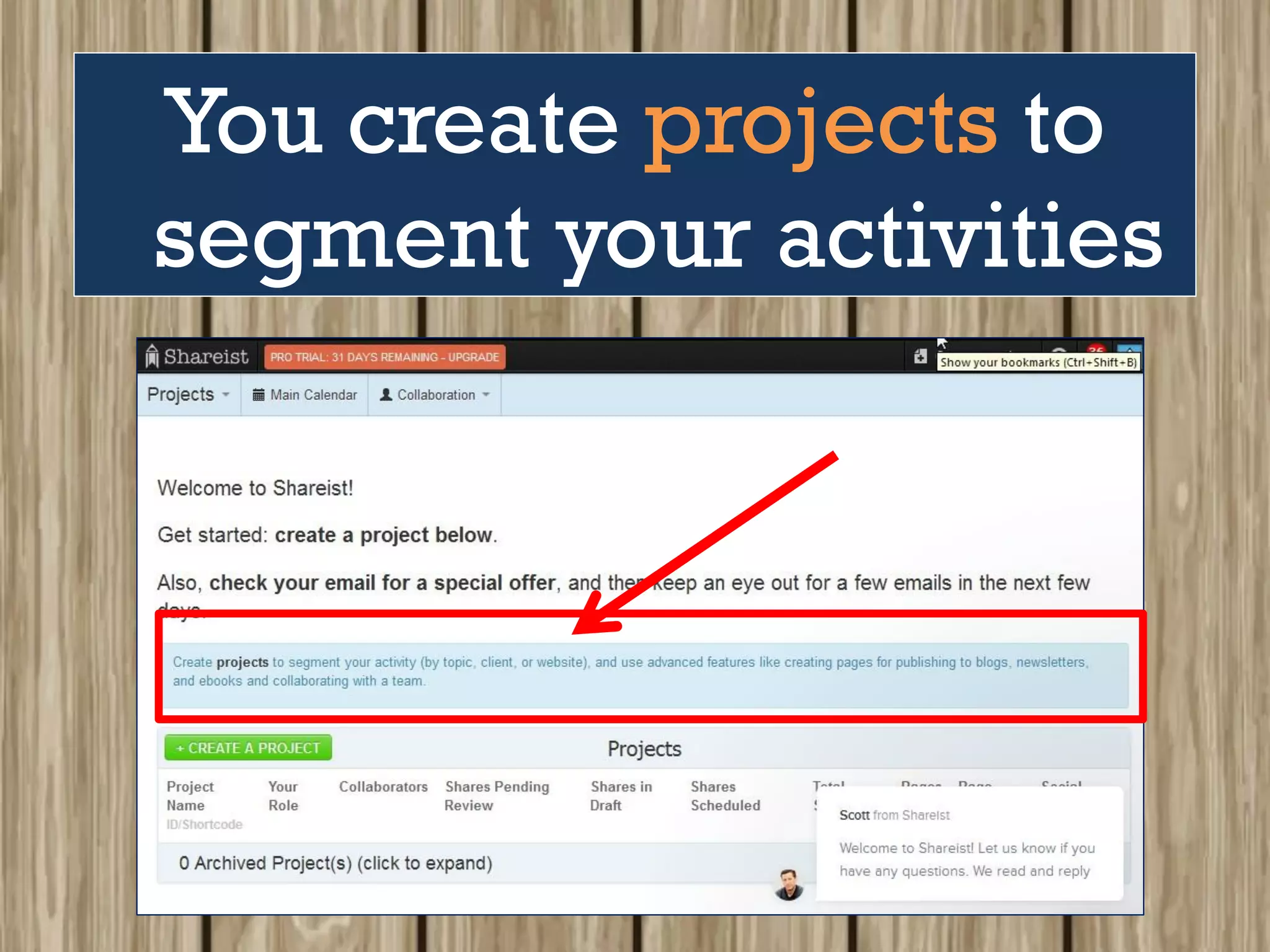
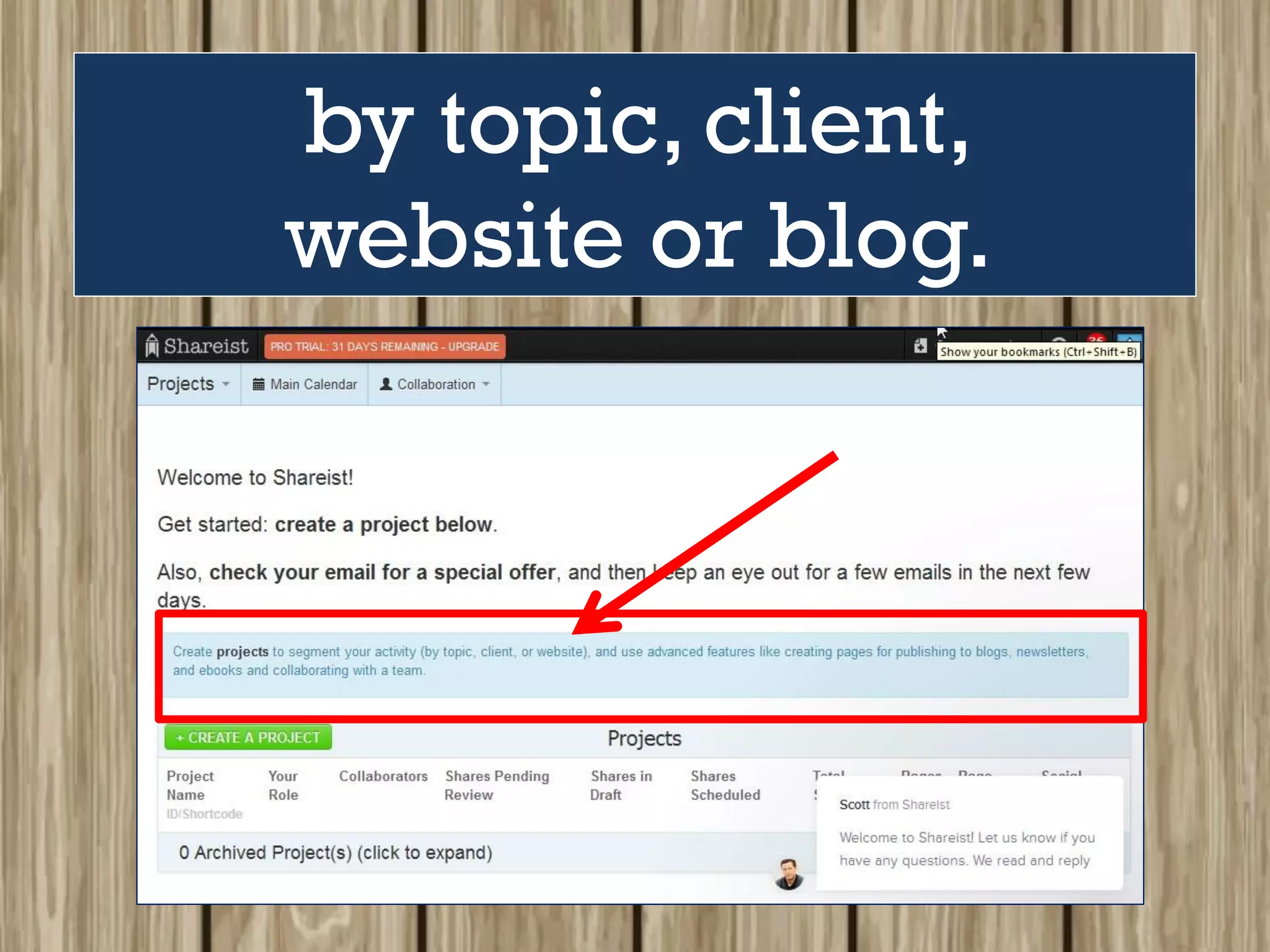
You create projects to
segment your activities
by topic, client,
website or blog.
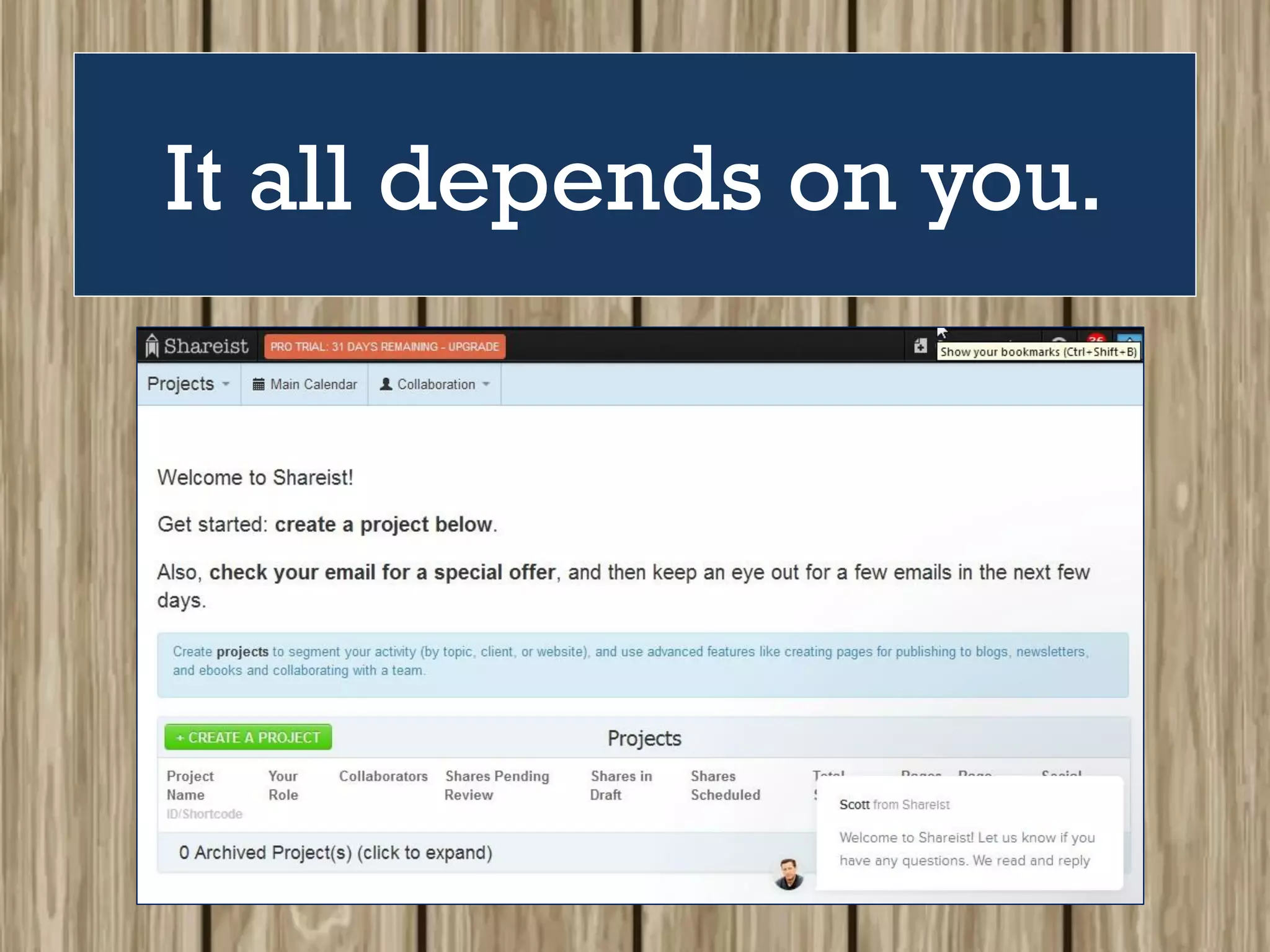
It all depends on you.
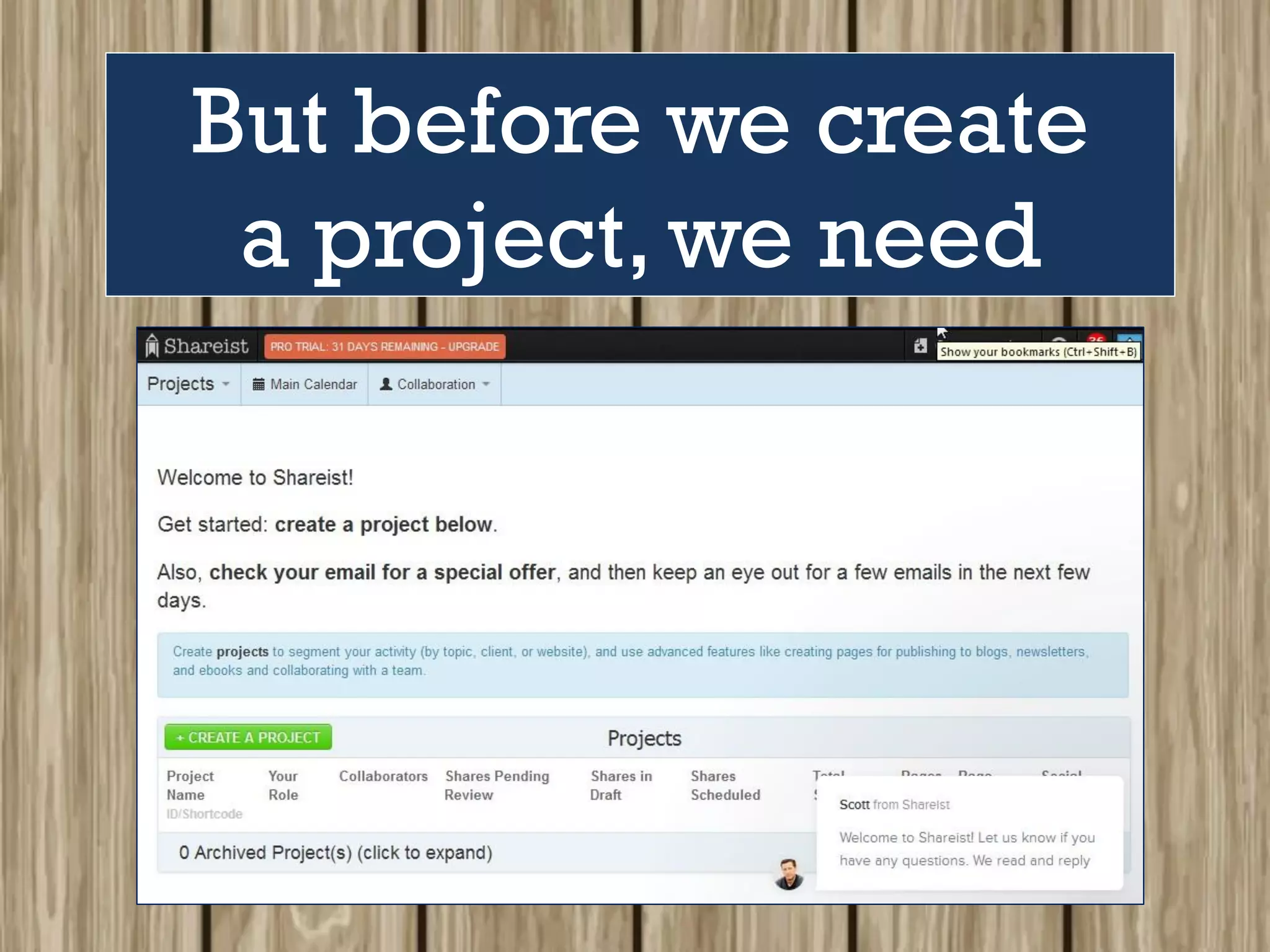
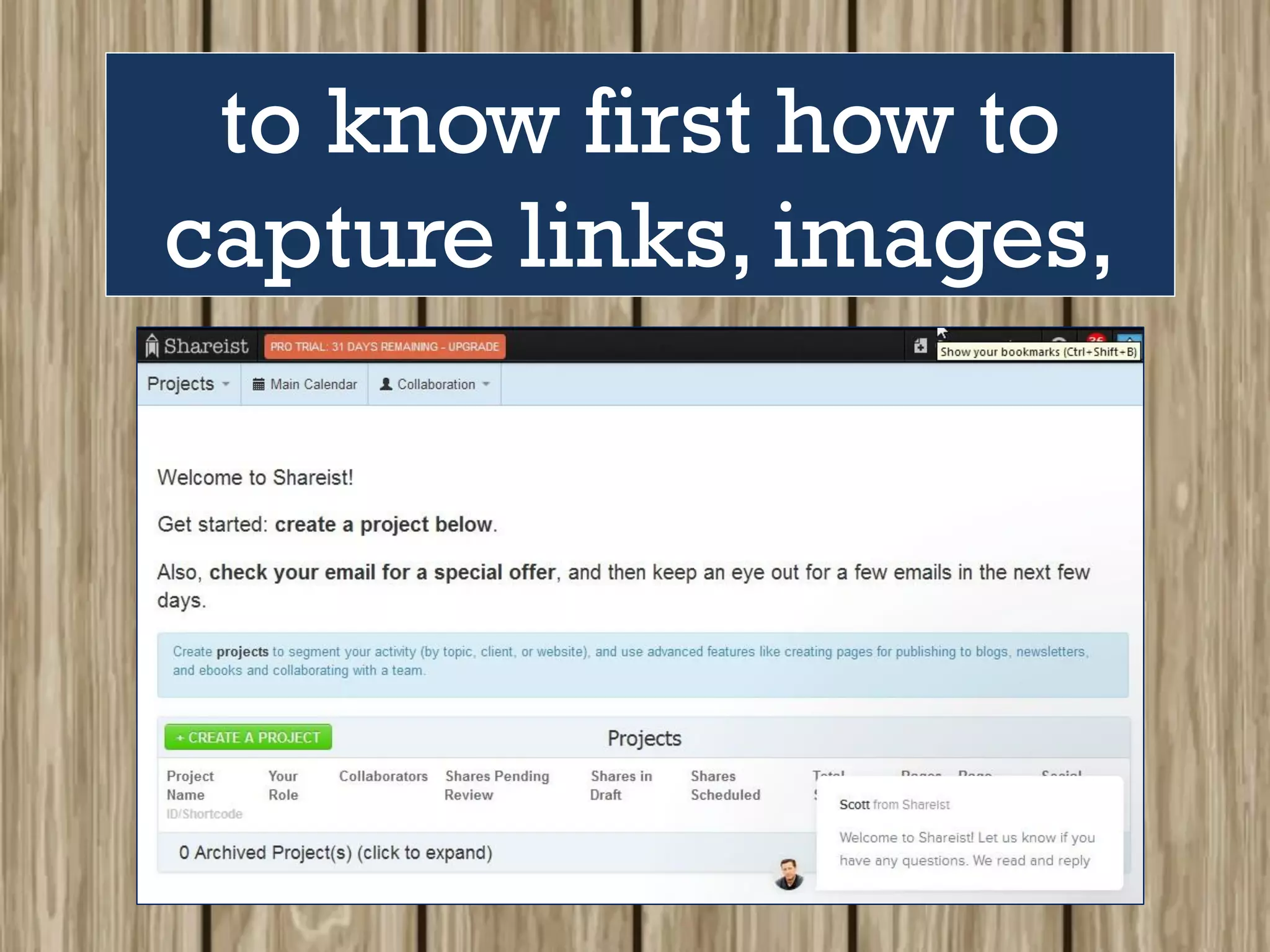
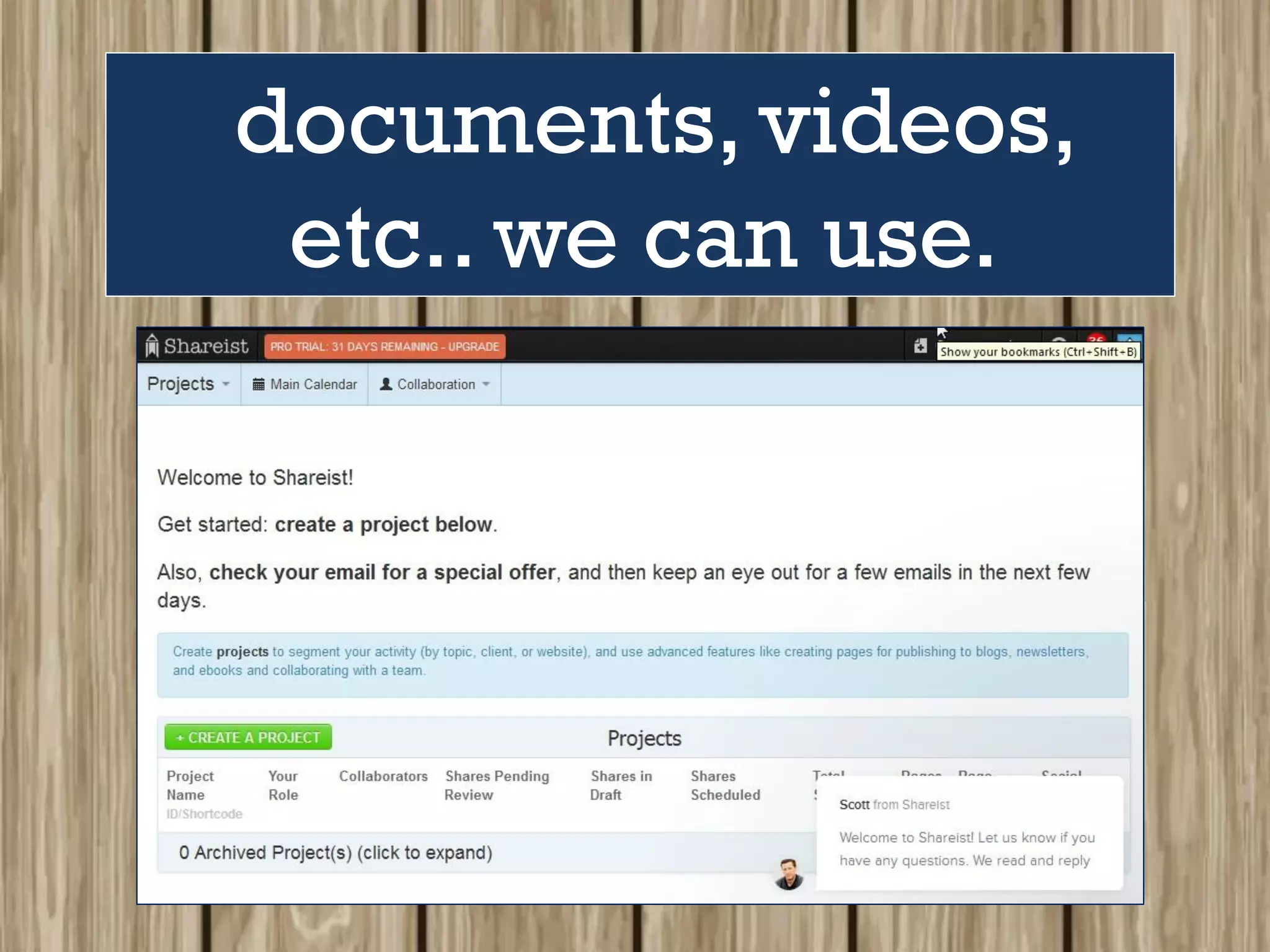
But before we create
a project, we need
to know first how to
capture links, images,
documents, videos,
etc.. we can use.
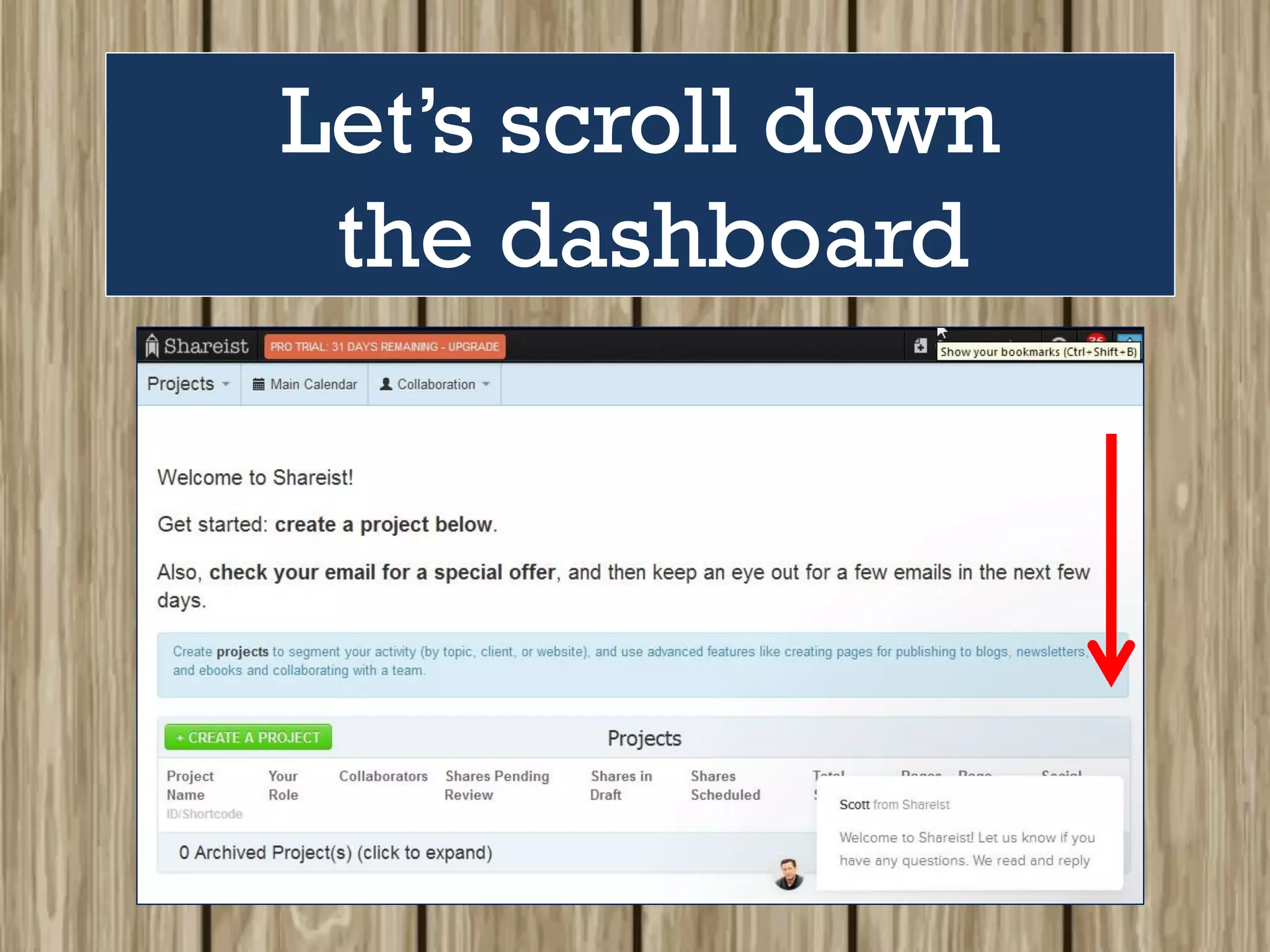
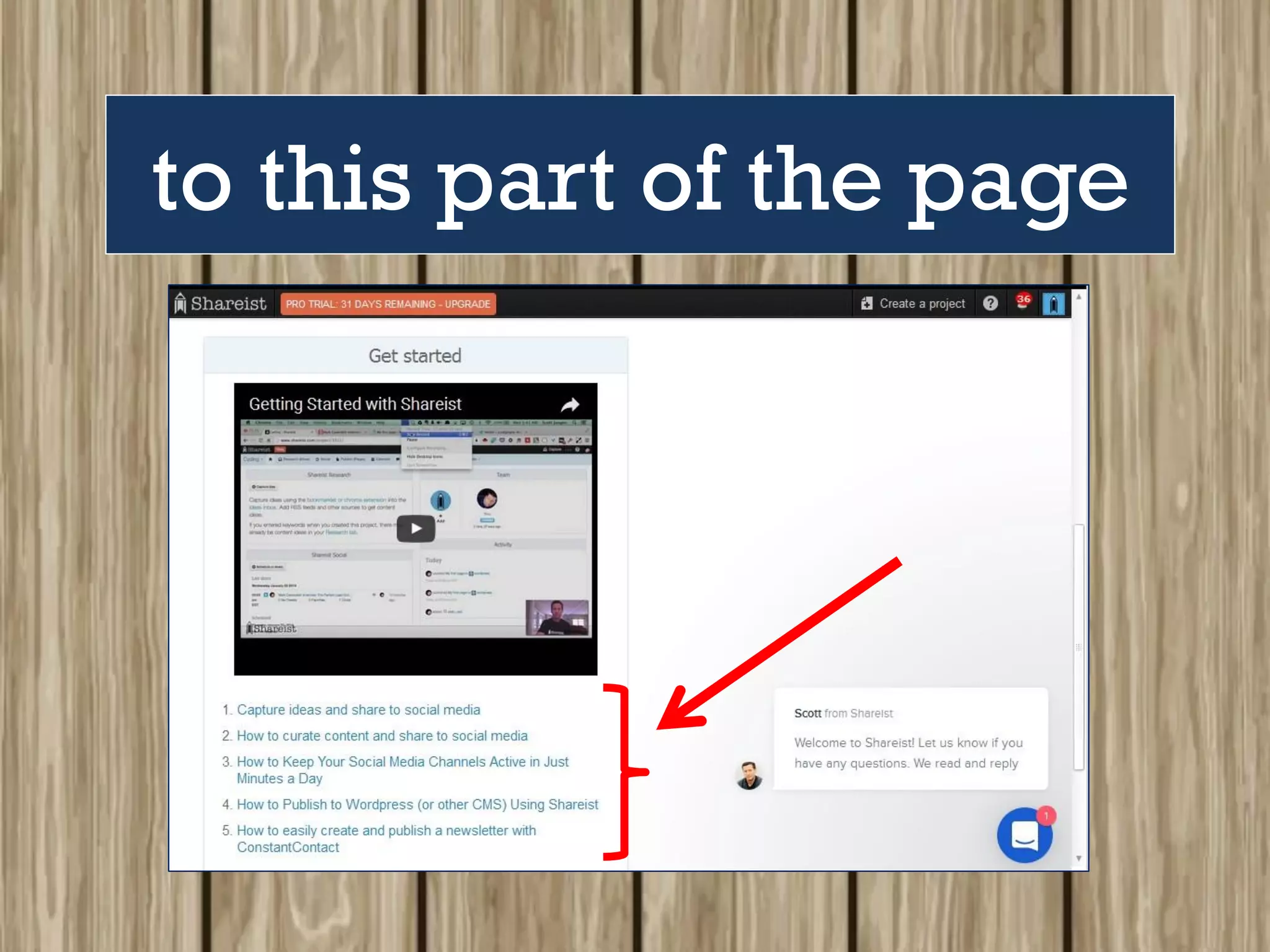
Let’s scroll down
the dashboard
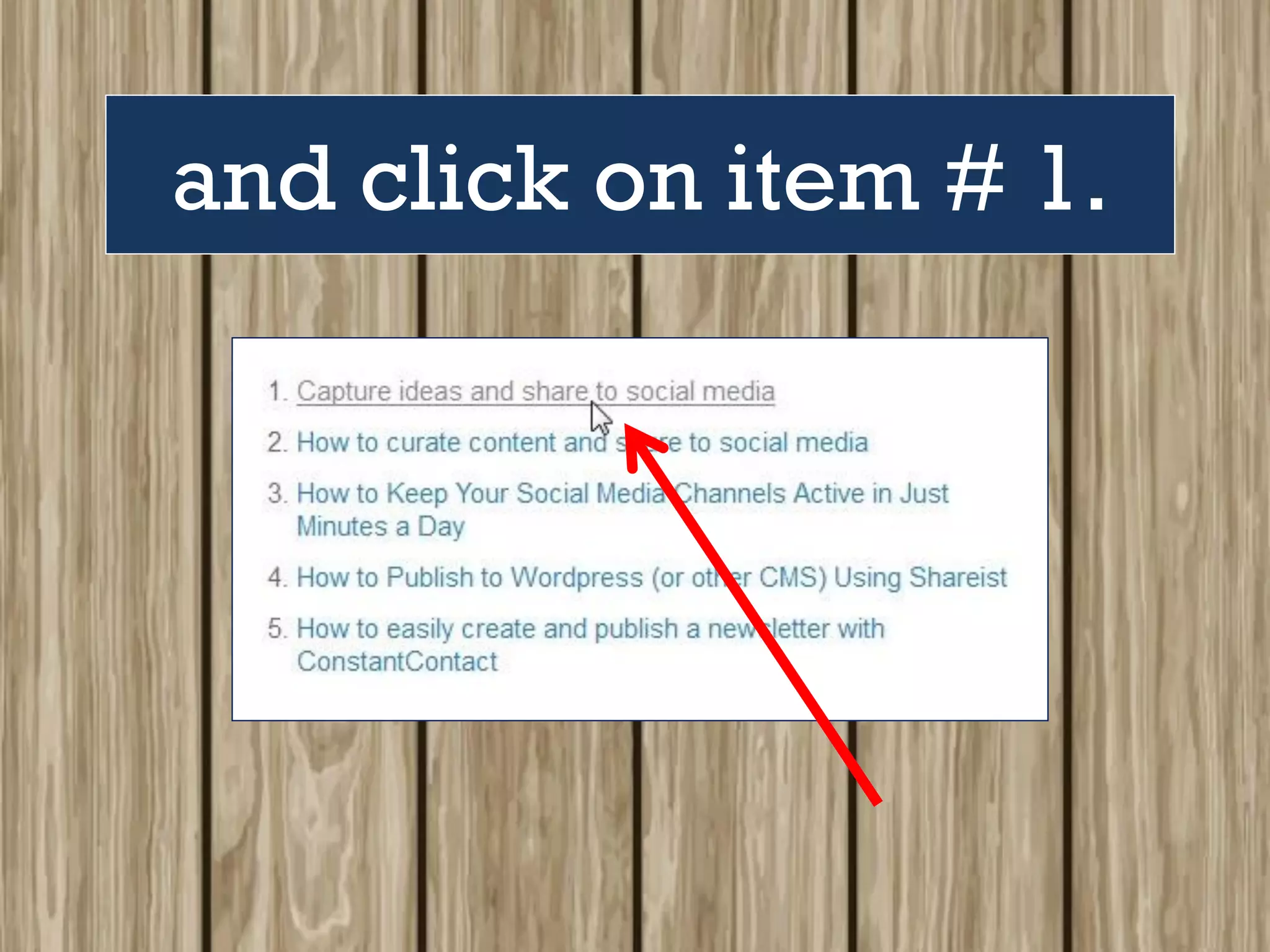
to this part of the page
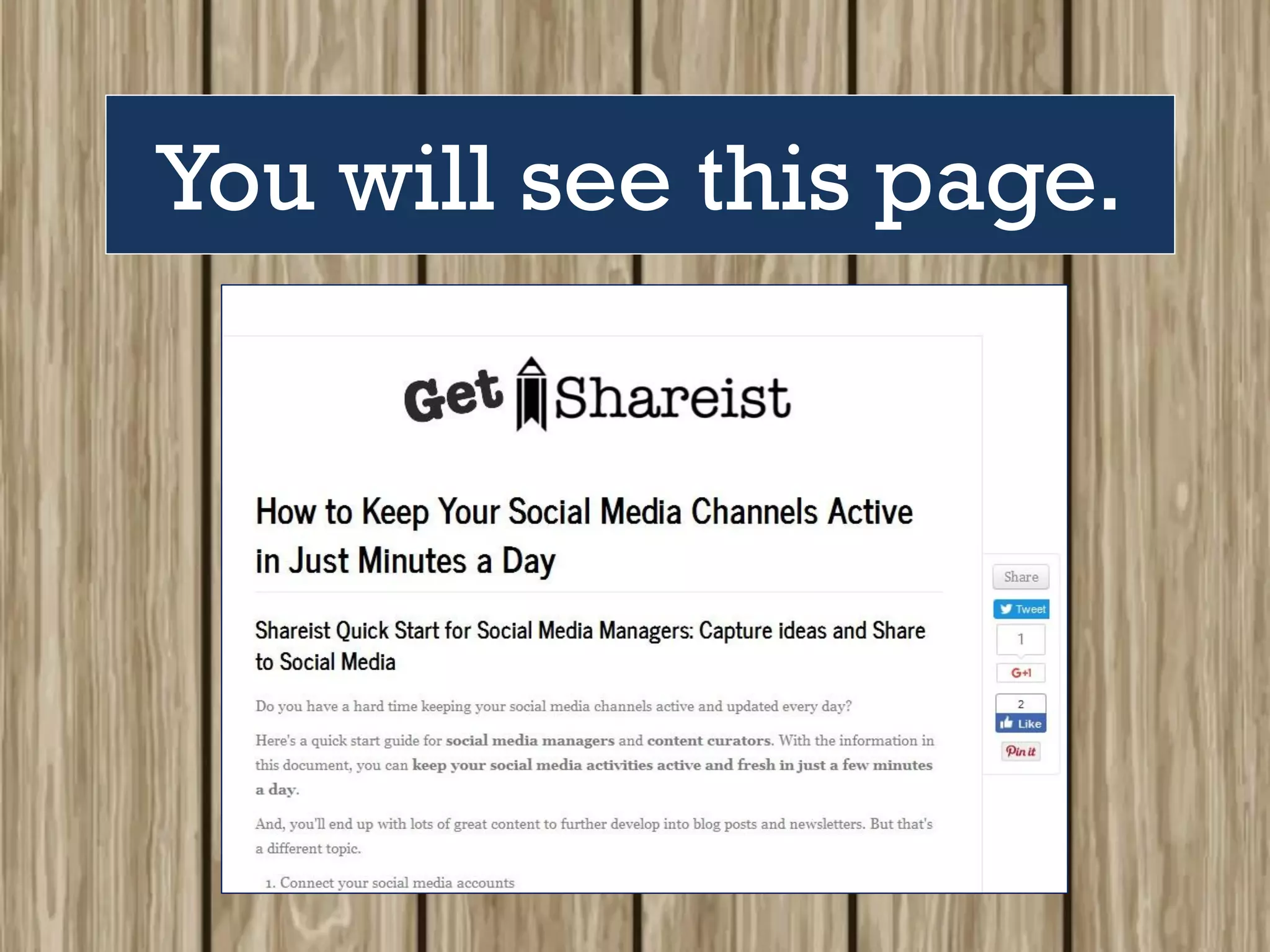
and click on item # 1.
You will see this page.
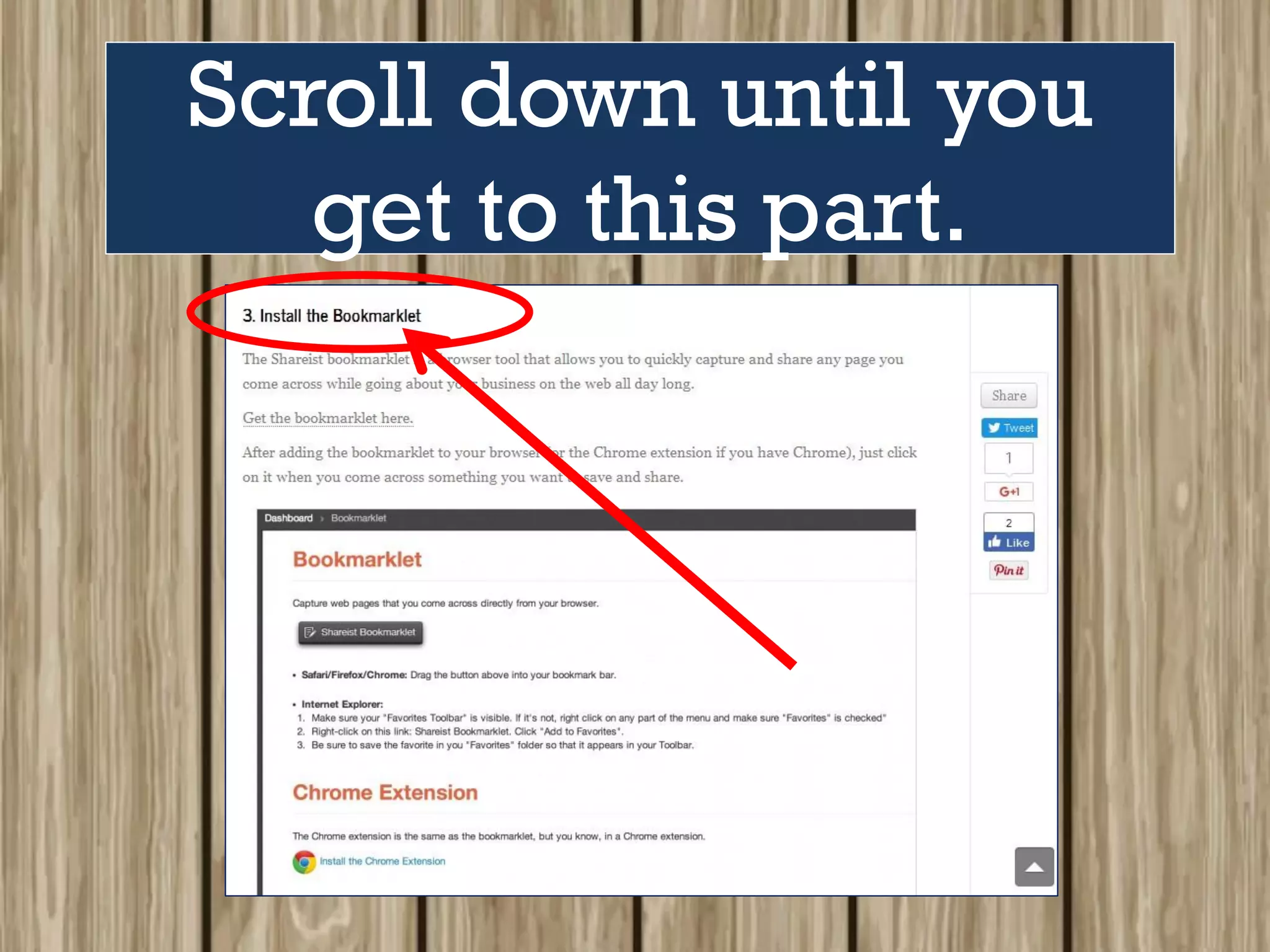
Scroll down until you
get to this part.
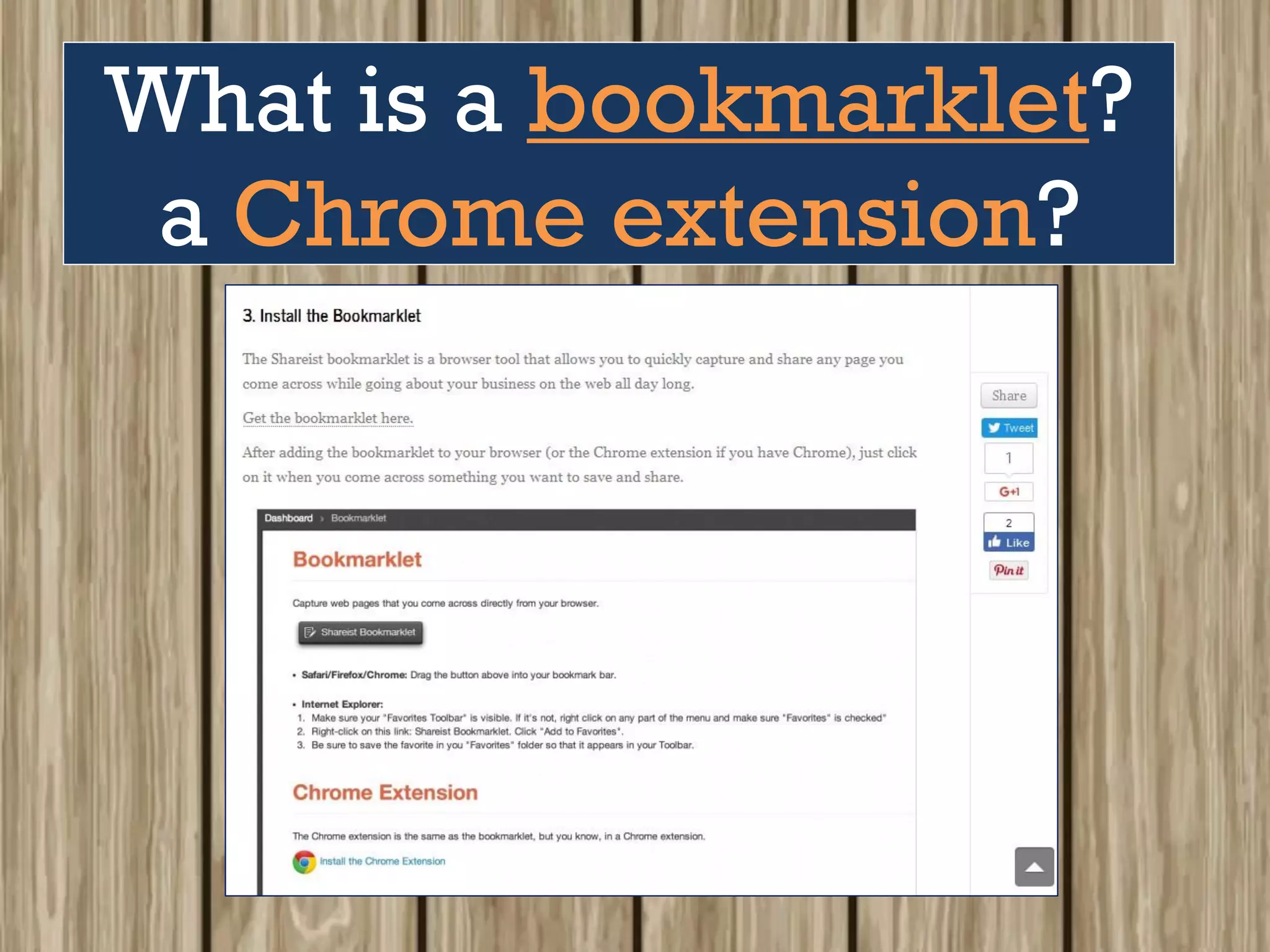
What is a bookmarklet?
a Chrome extension?
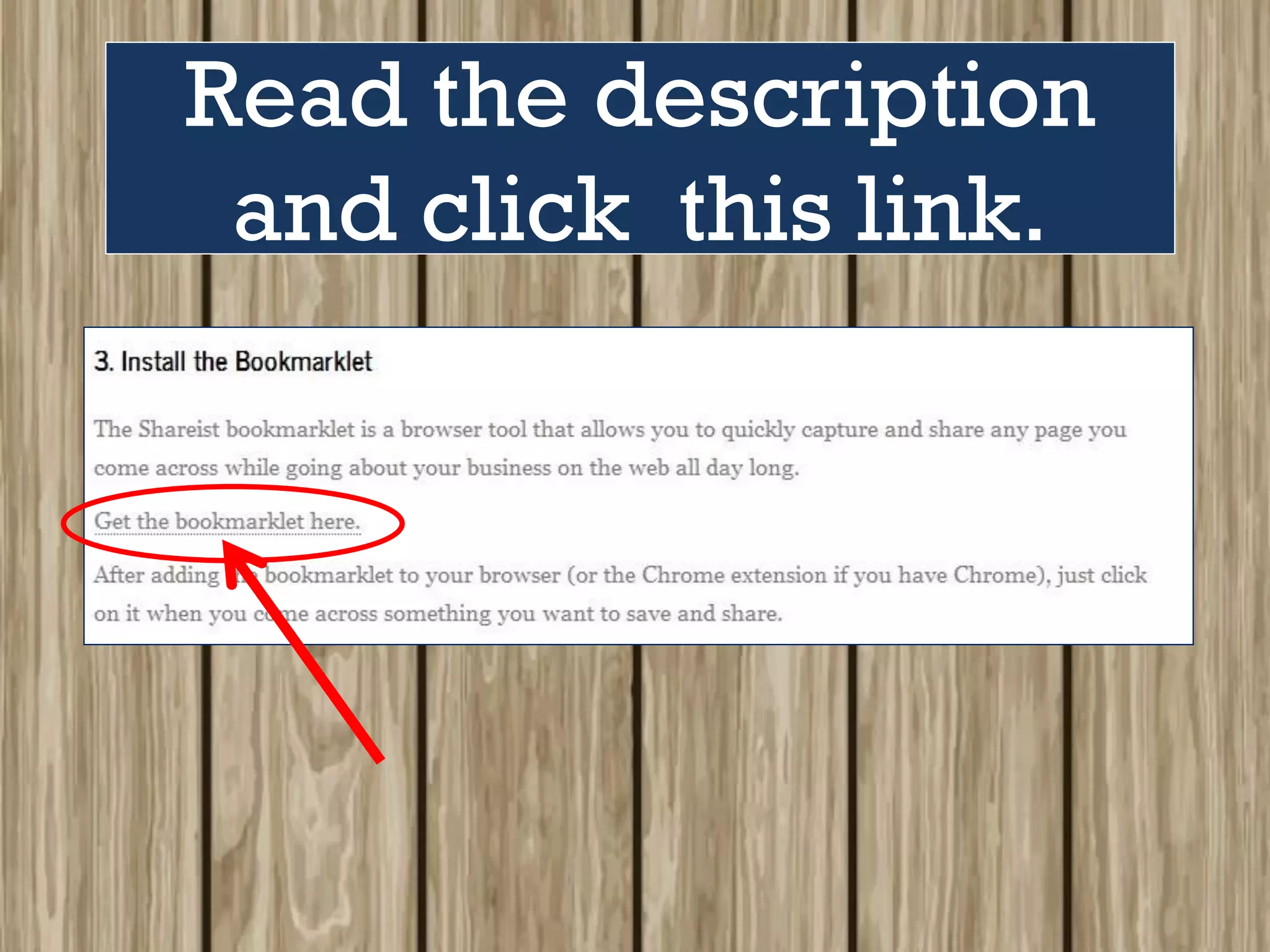
Read the description
and click this link.
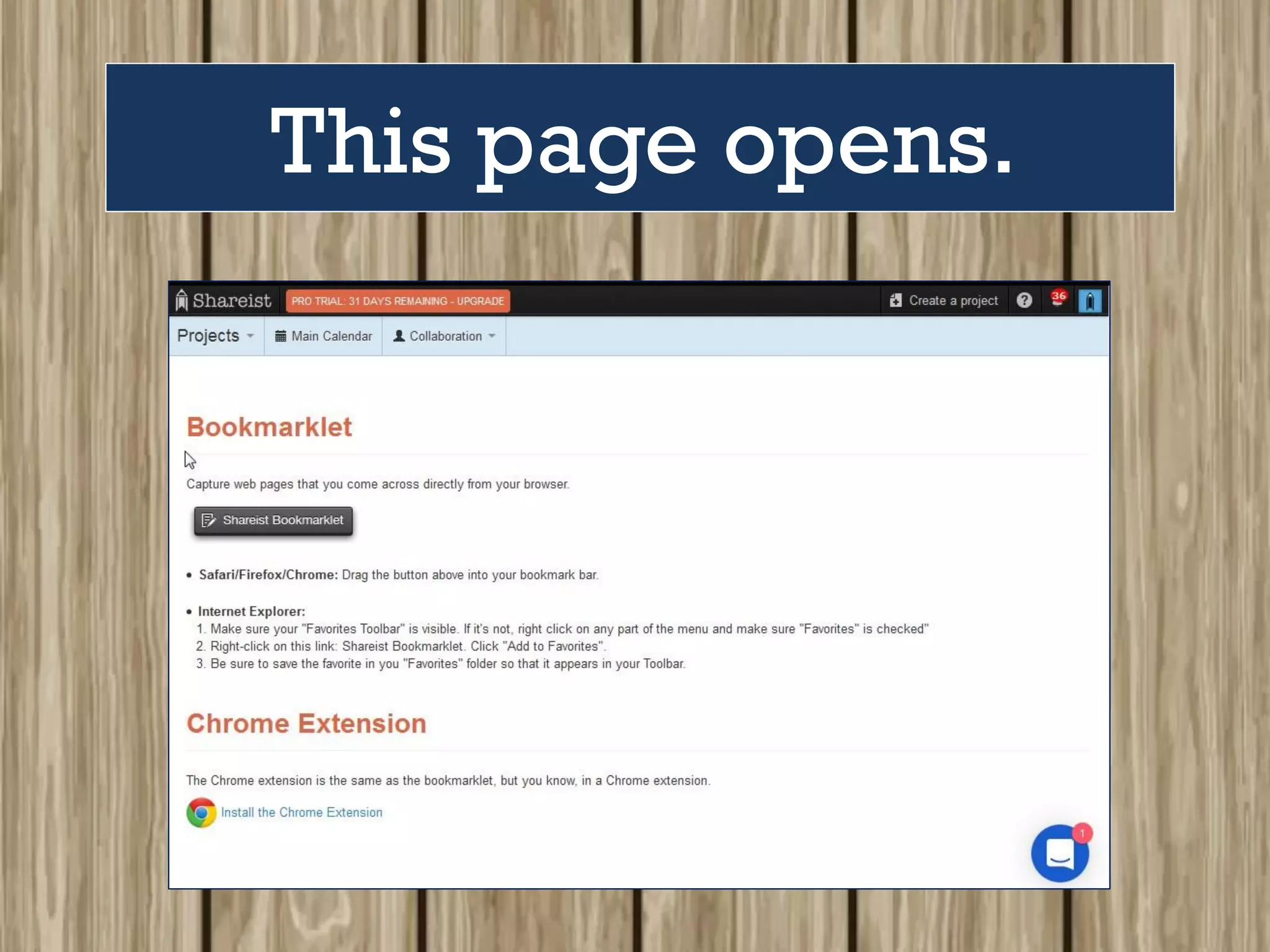
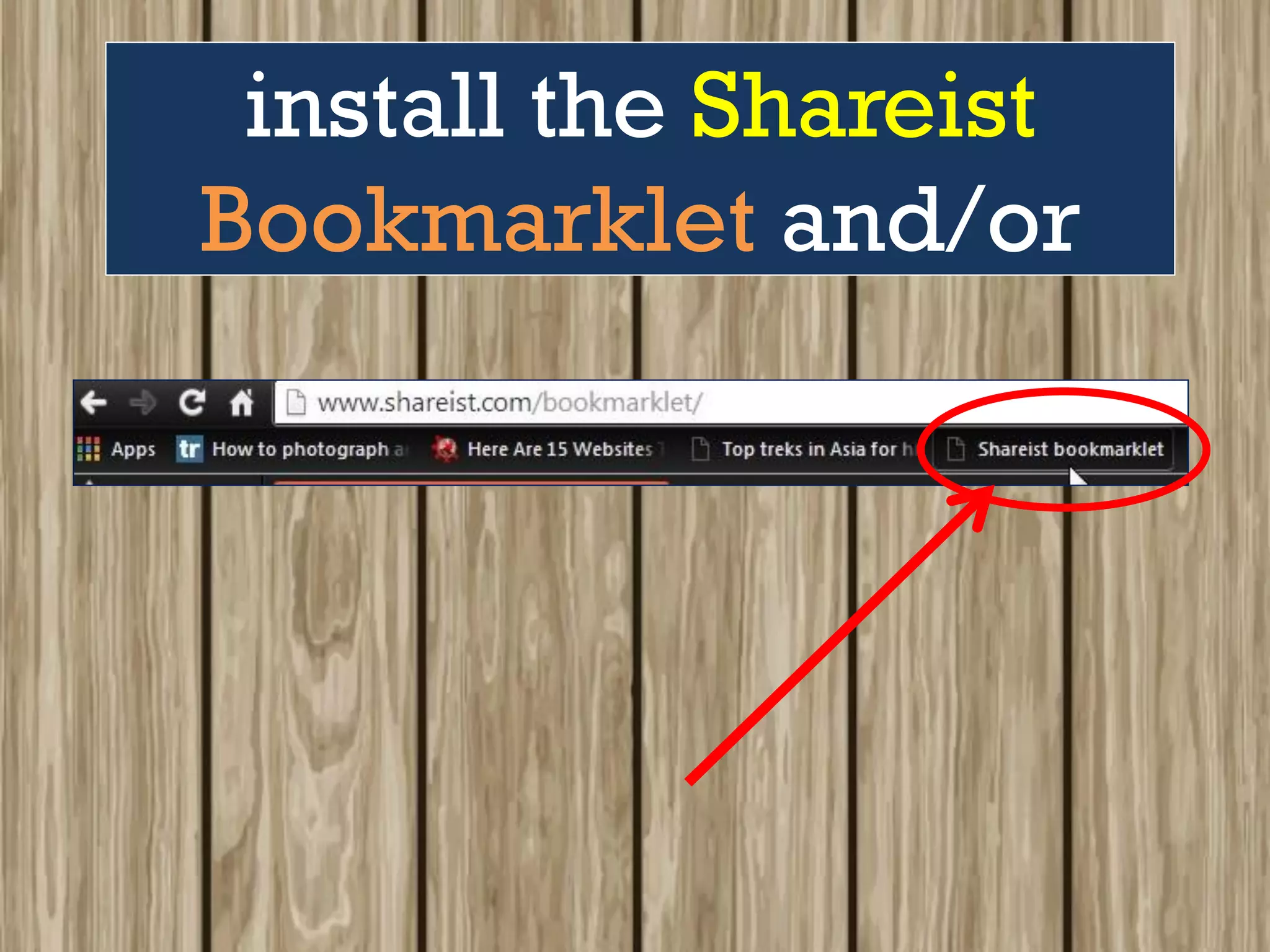
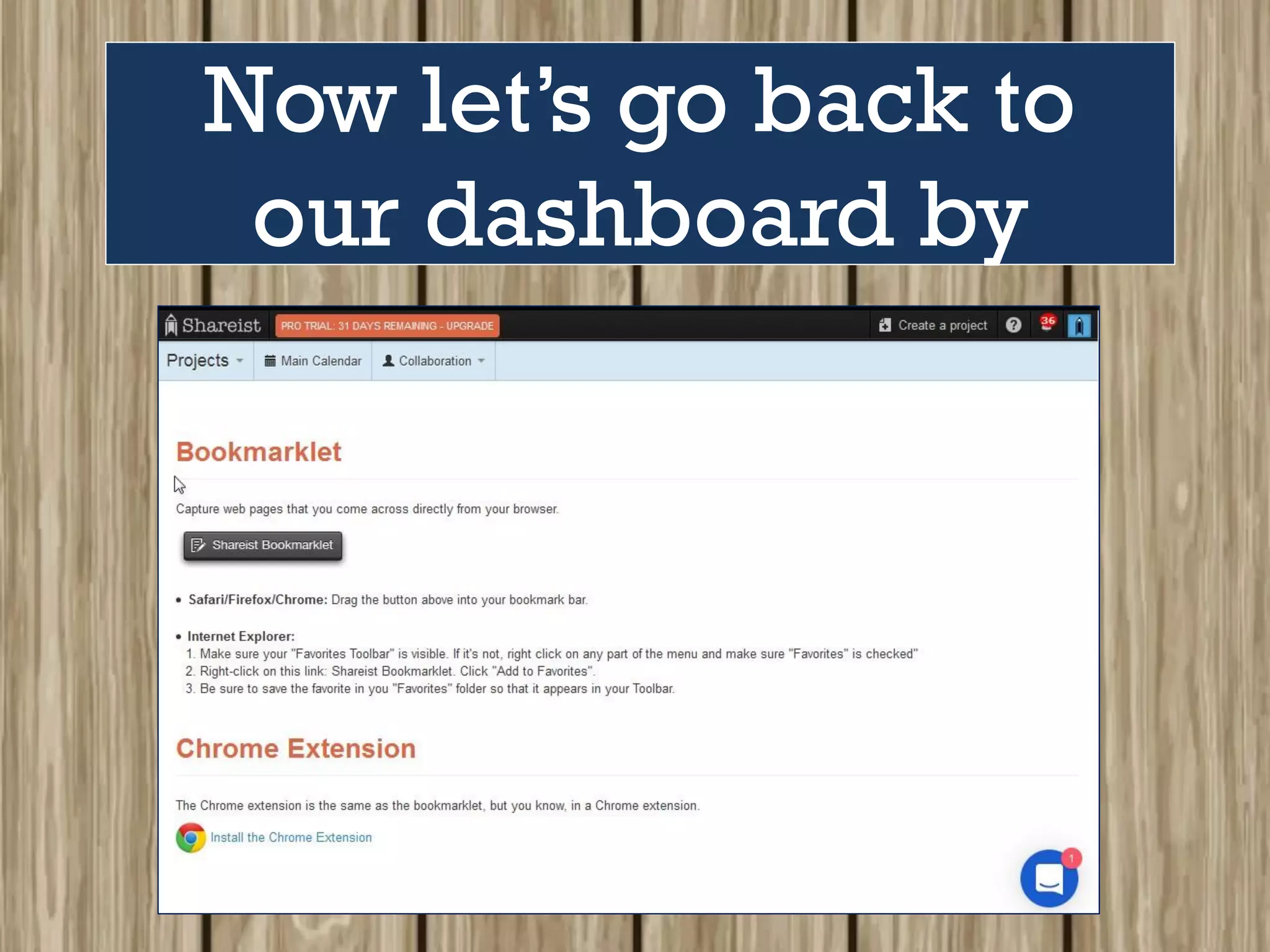
This page opens.
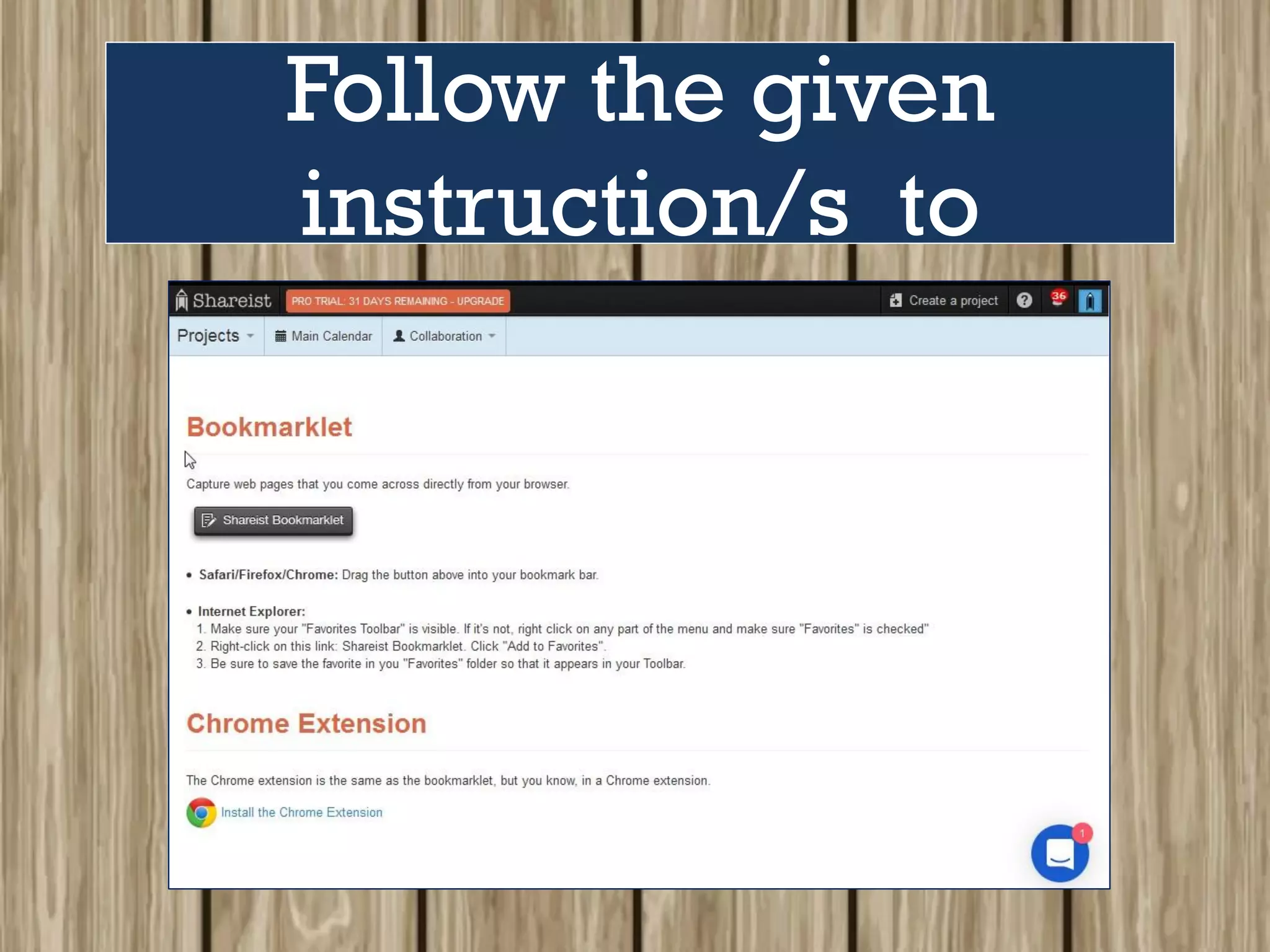
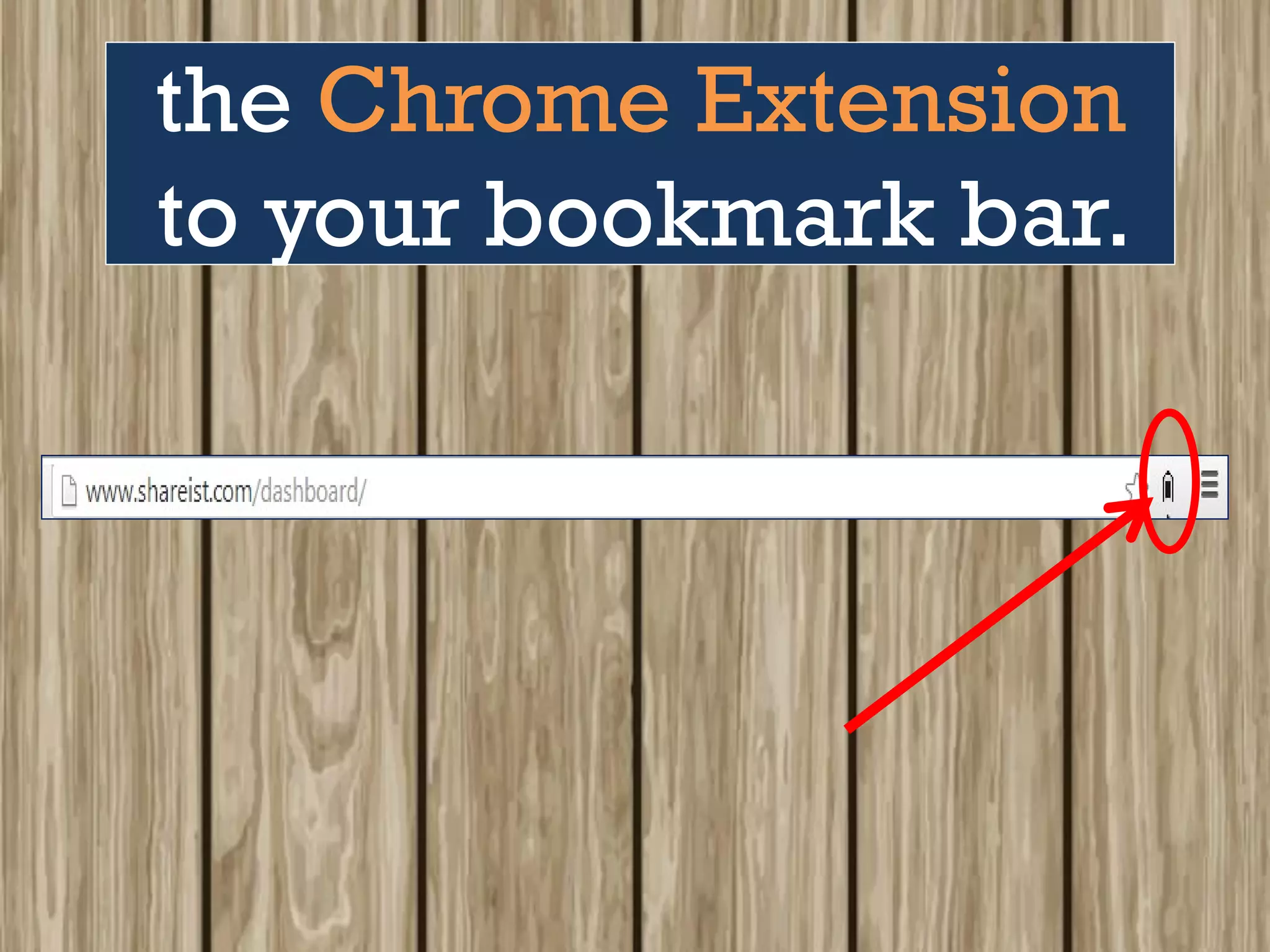
Follow the given
instruction/s to
install the Shareist
Bookmarklet and/or
the Chrome Extension
to your bookmark bar.
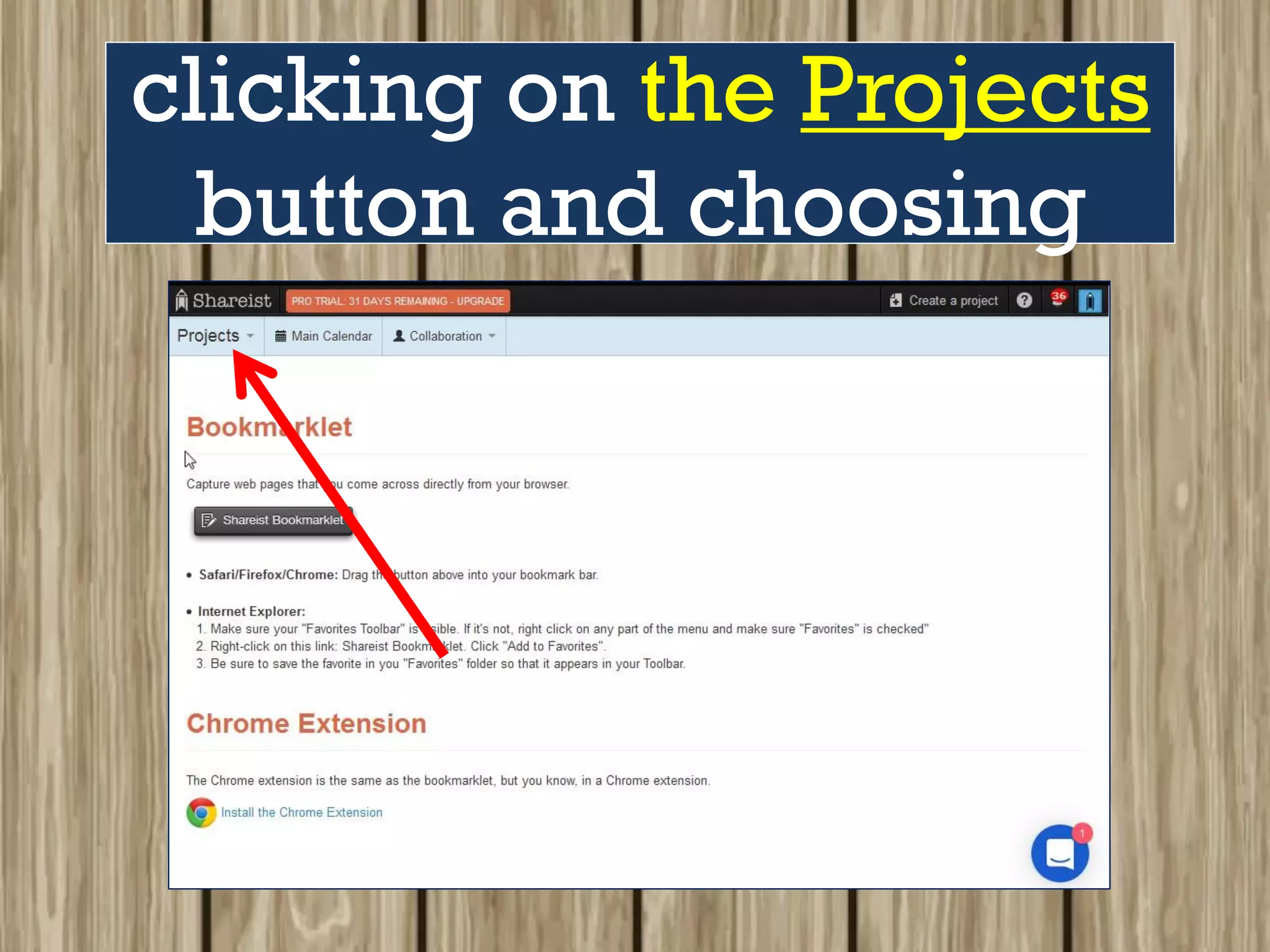
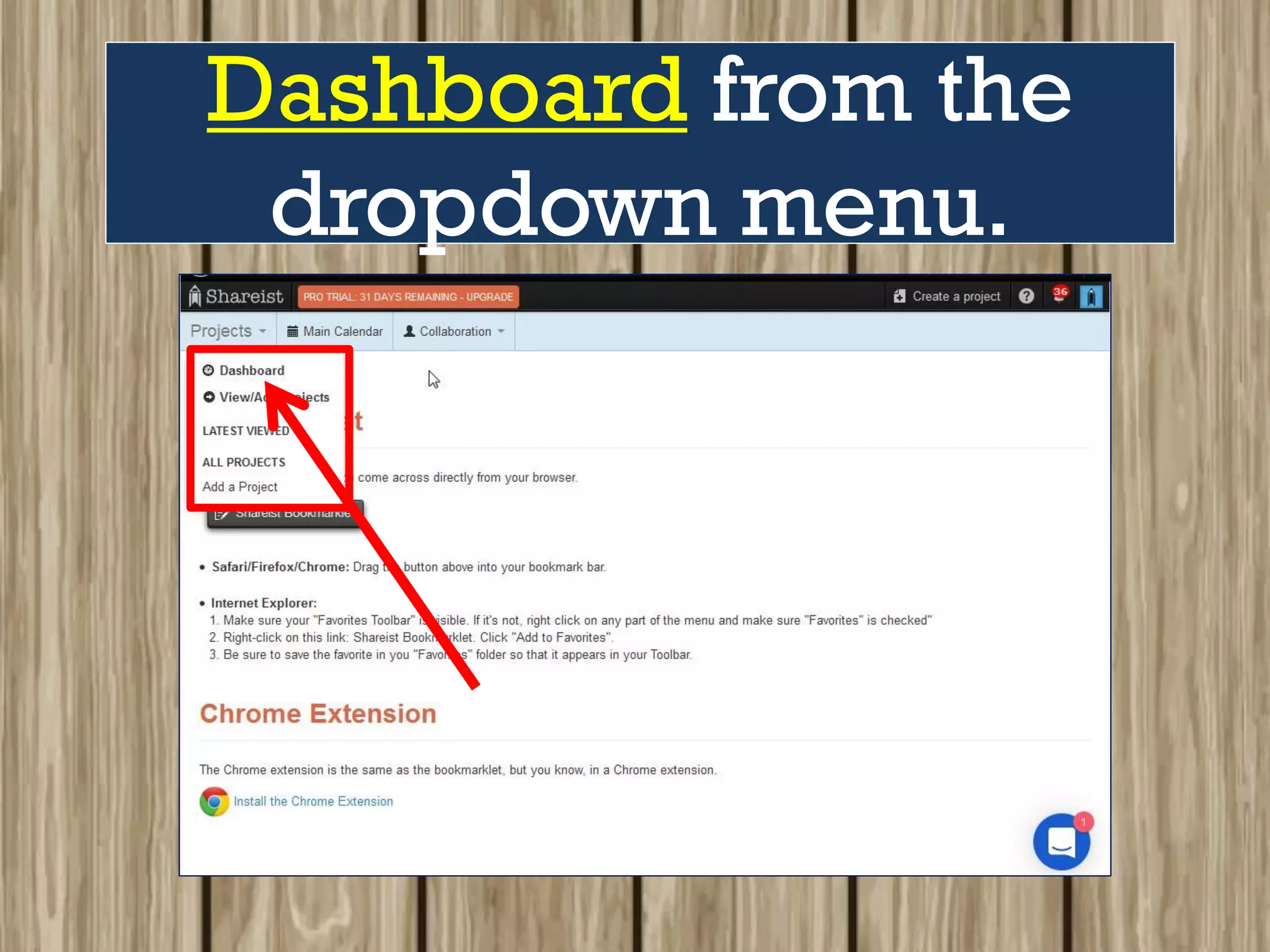
Now let’s go back to
our dashboard by
clicking on the Projects
button and choosing
Dashboard from the
dropdown menu.
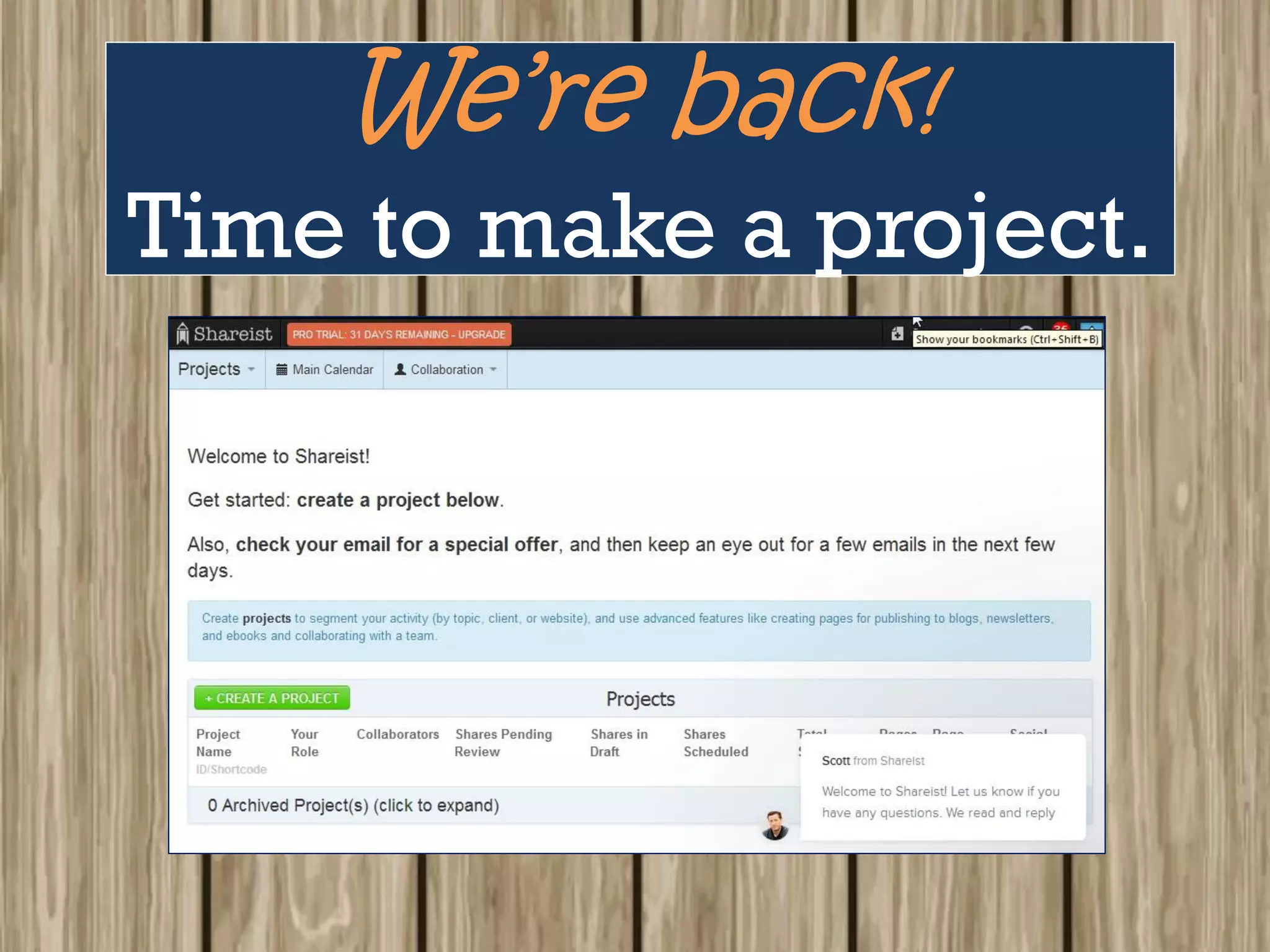
We’re back!
Time to make a project.
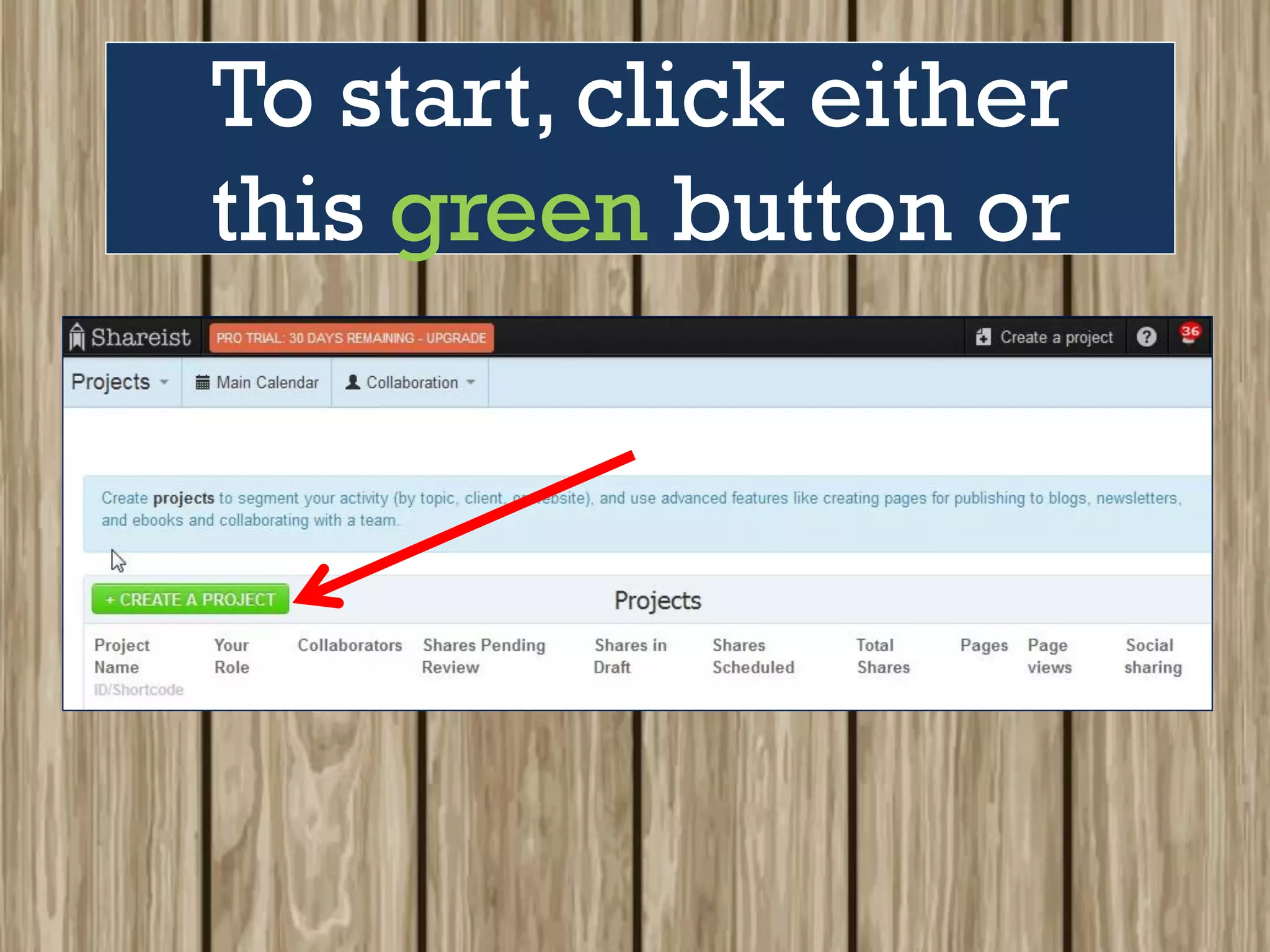
To start, click either
this green button or
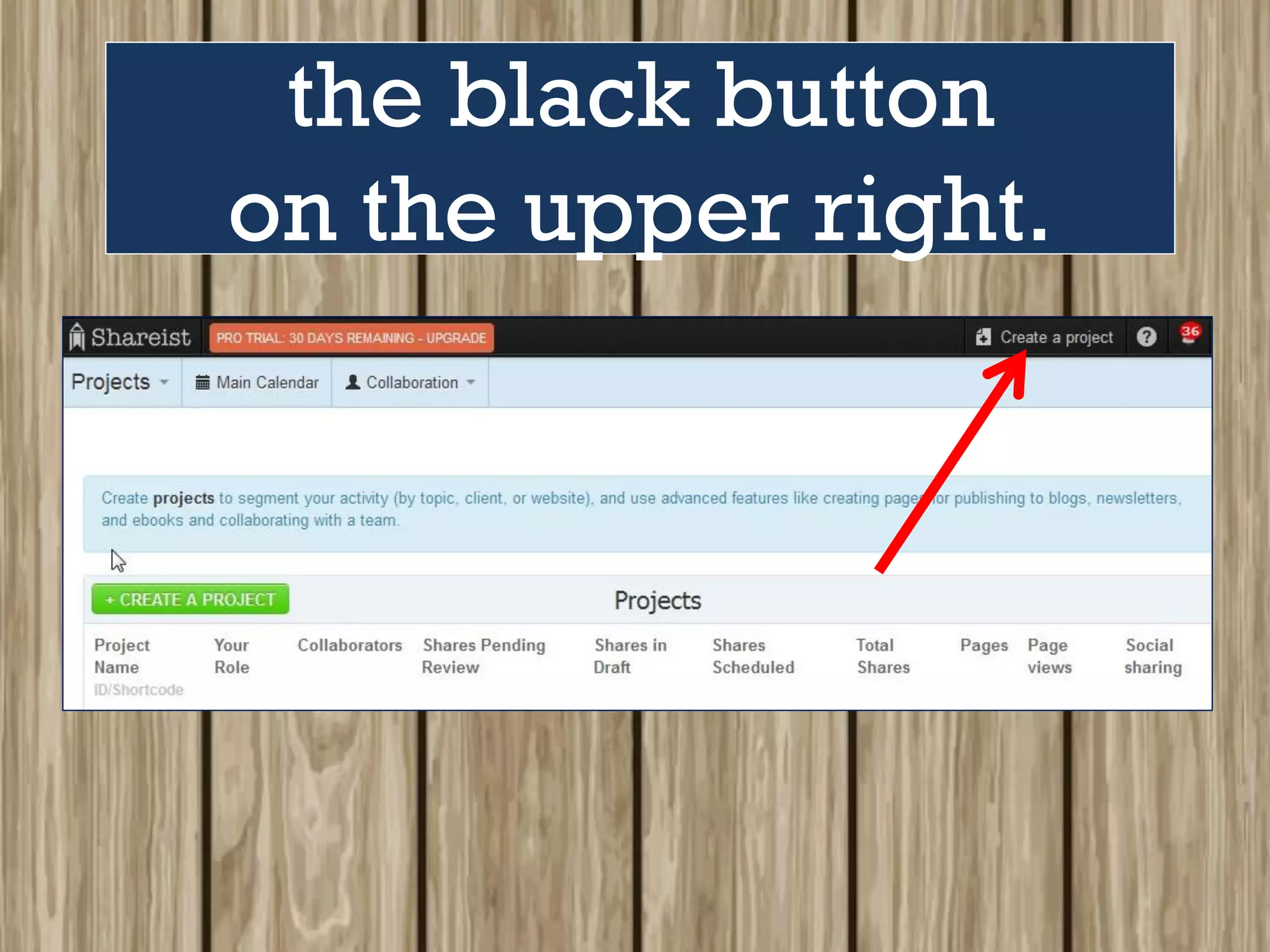
the black button
on the upper right.
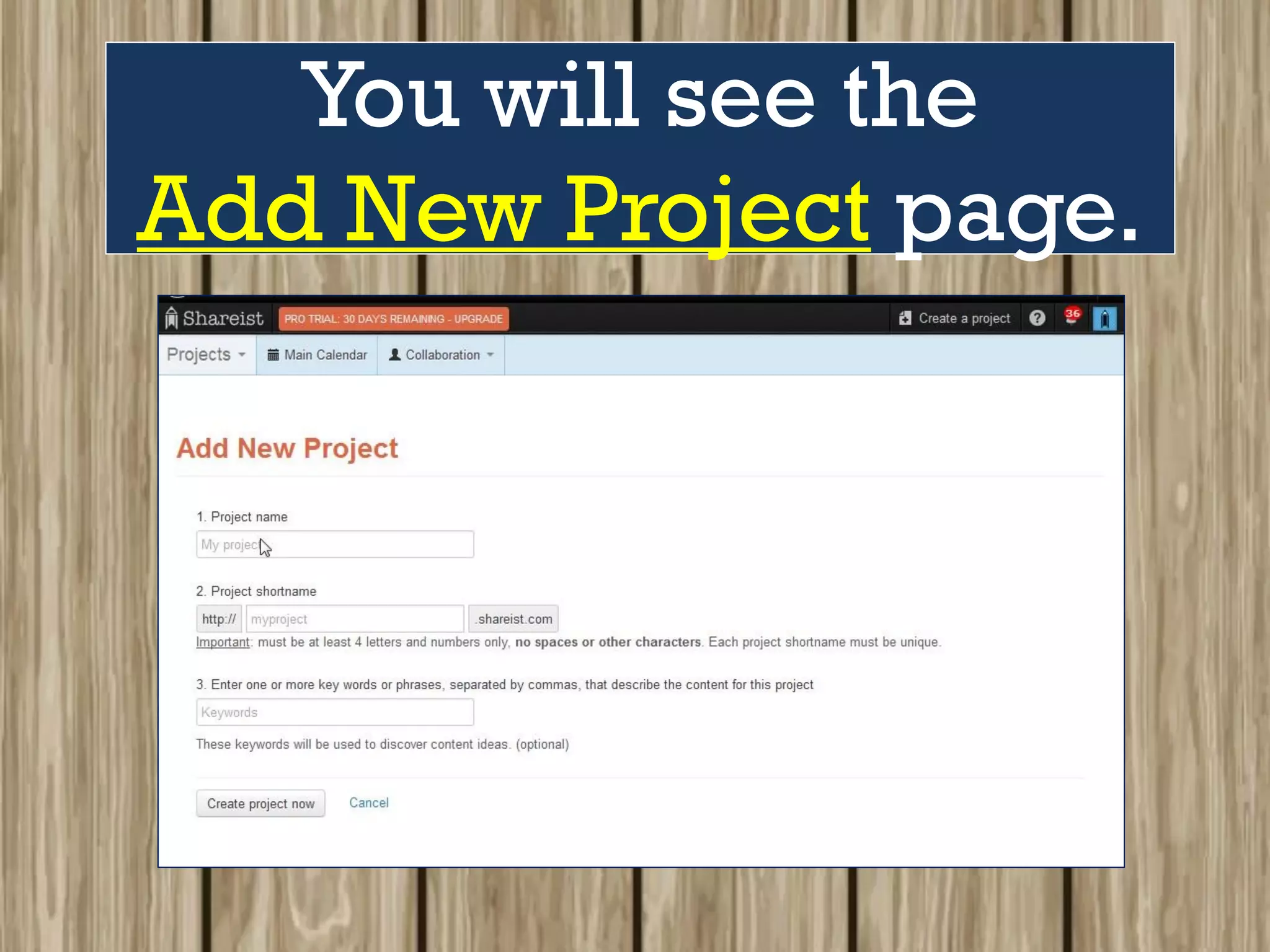
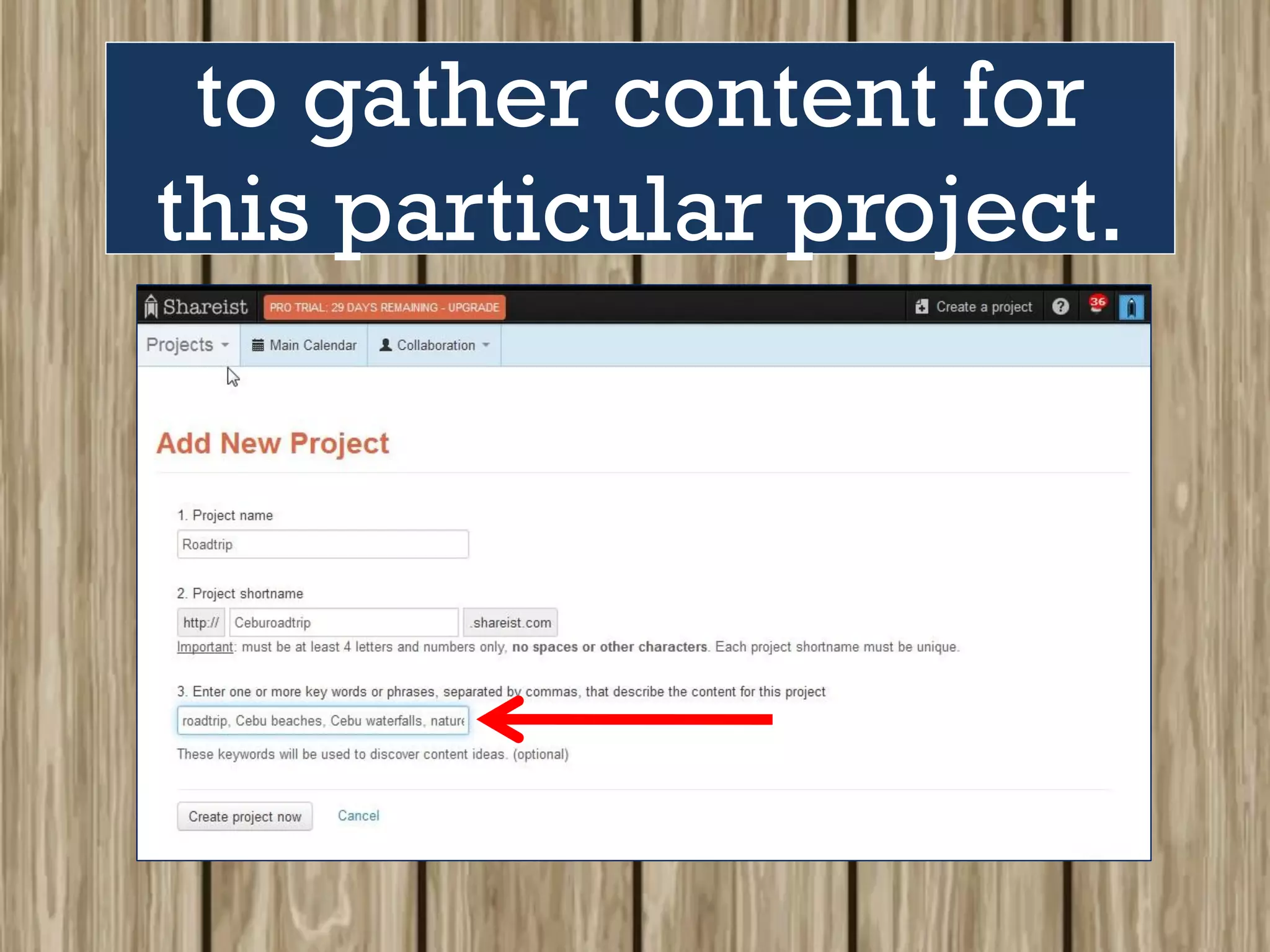
You will see the
Add New Project page.
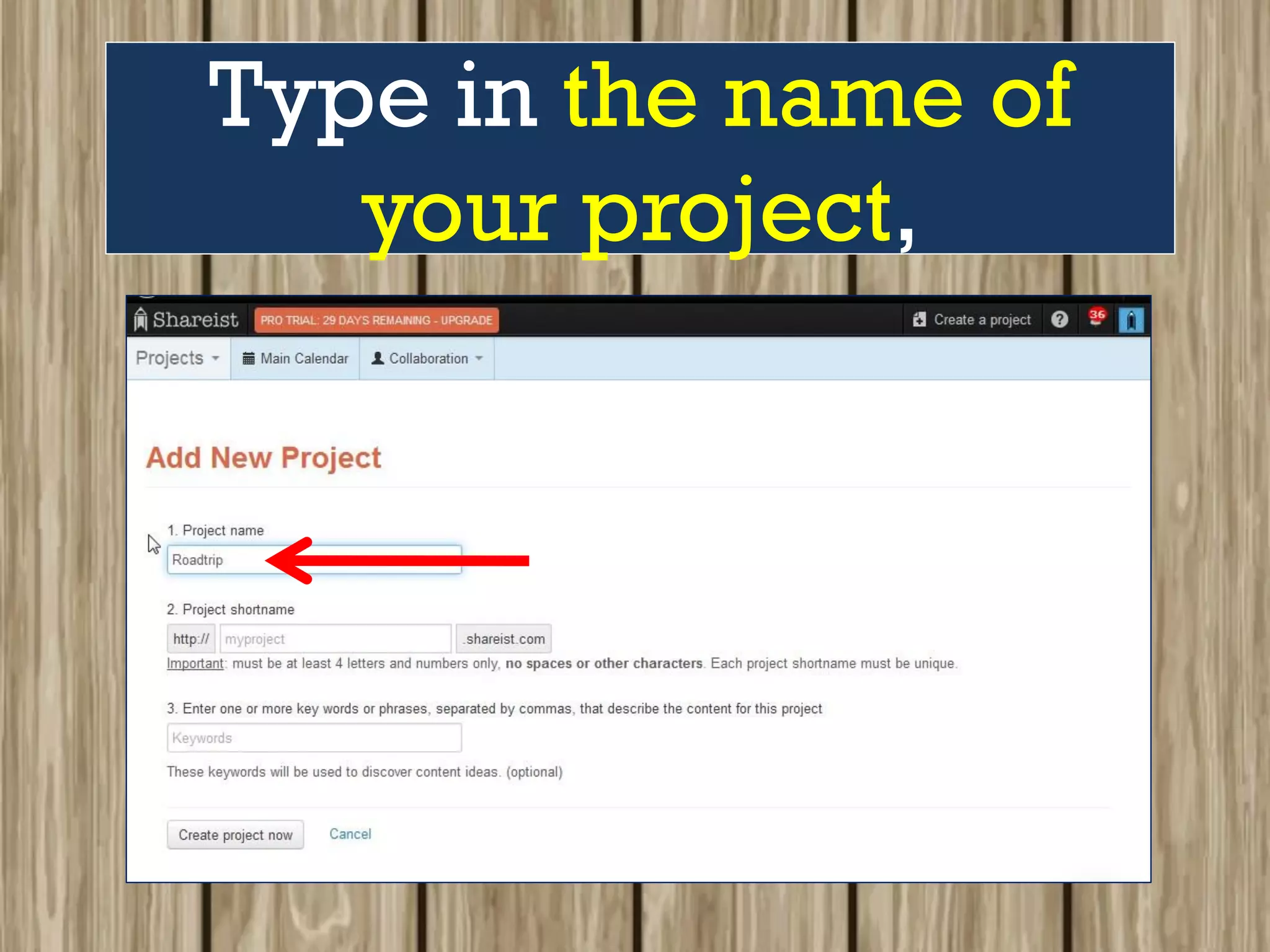
Type in the name of
your project,
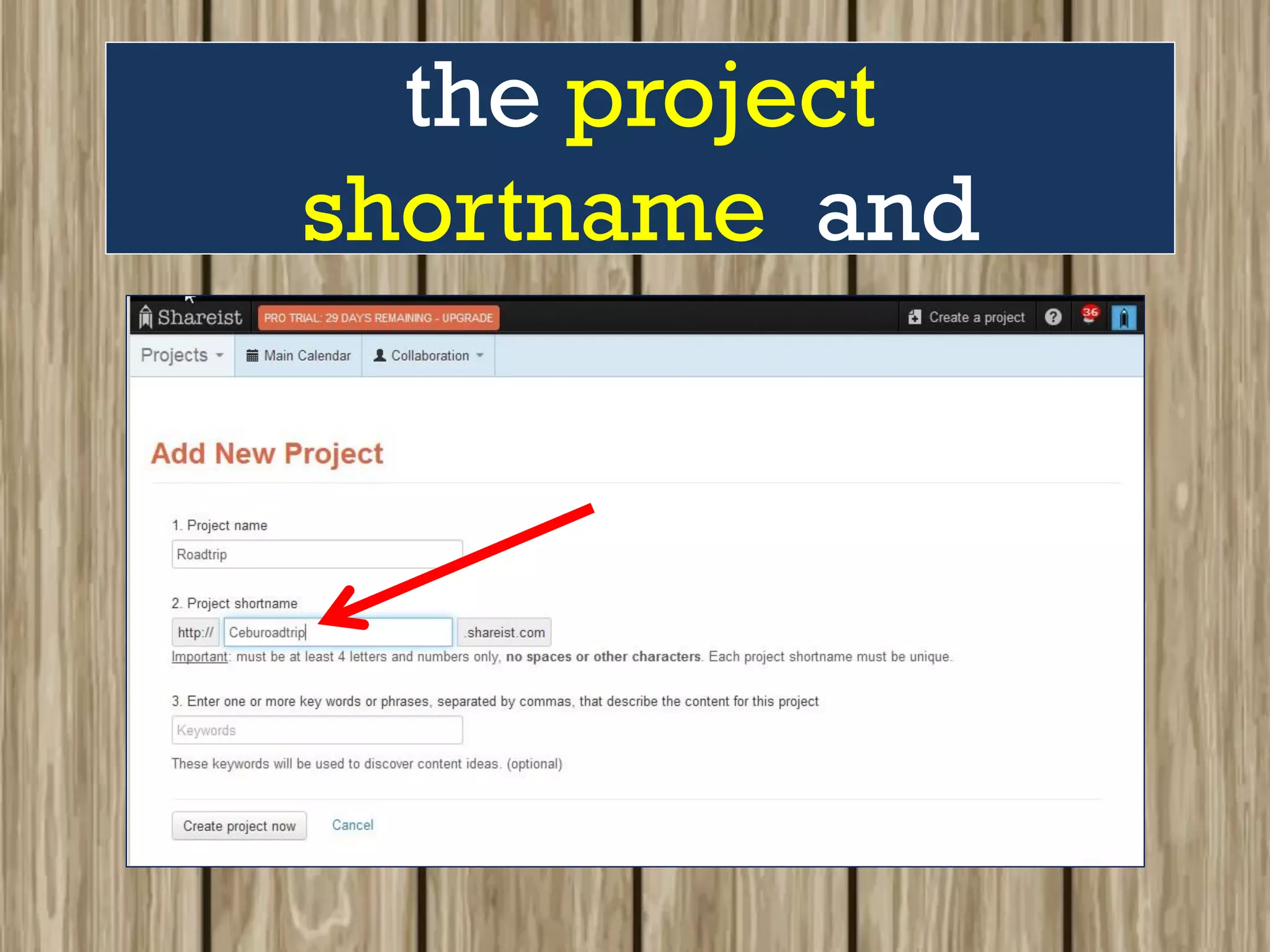
the project
shortname and
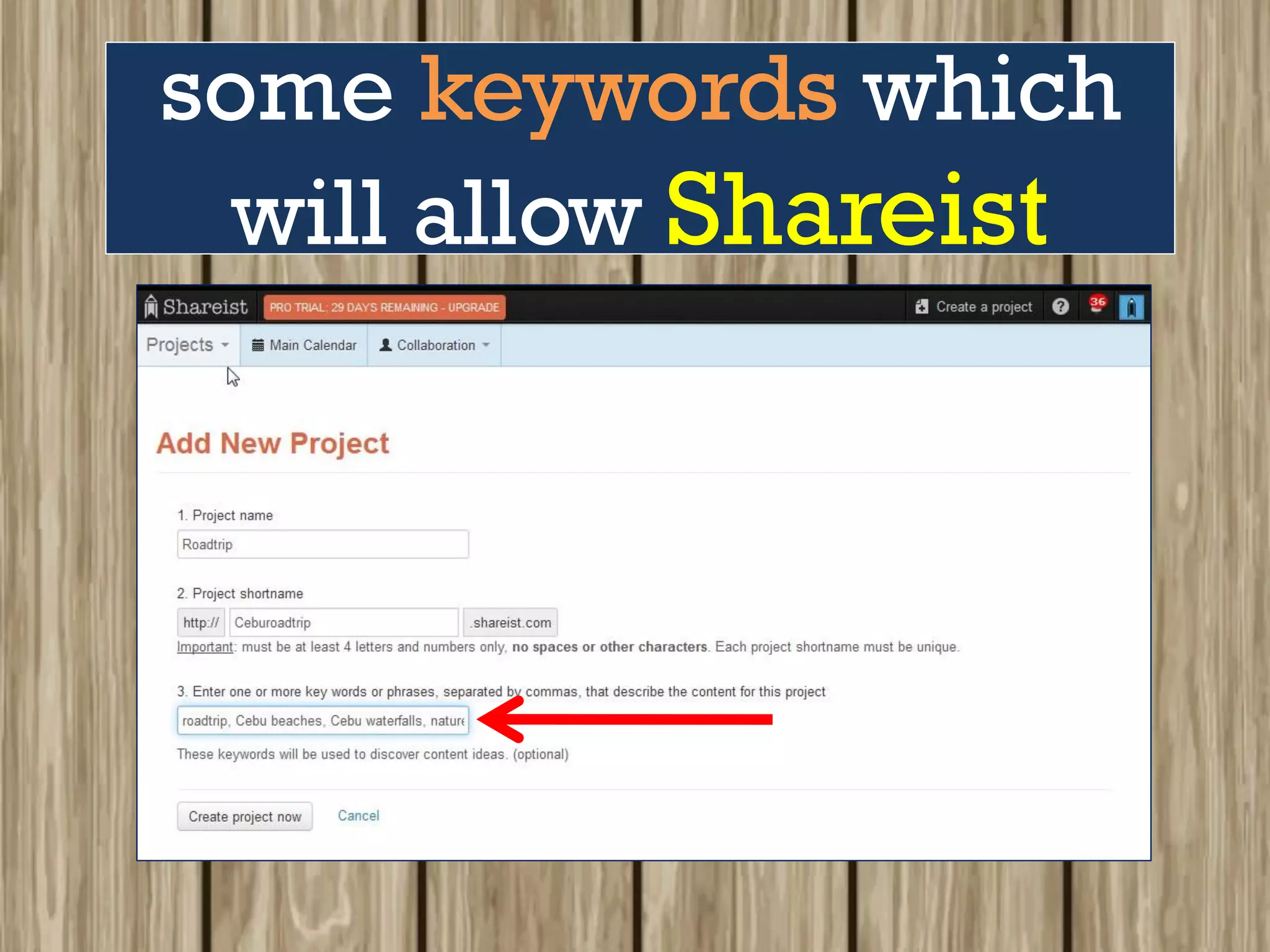
some keywords which
will allow Shareist
to gather content for
this particular project.
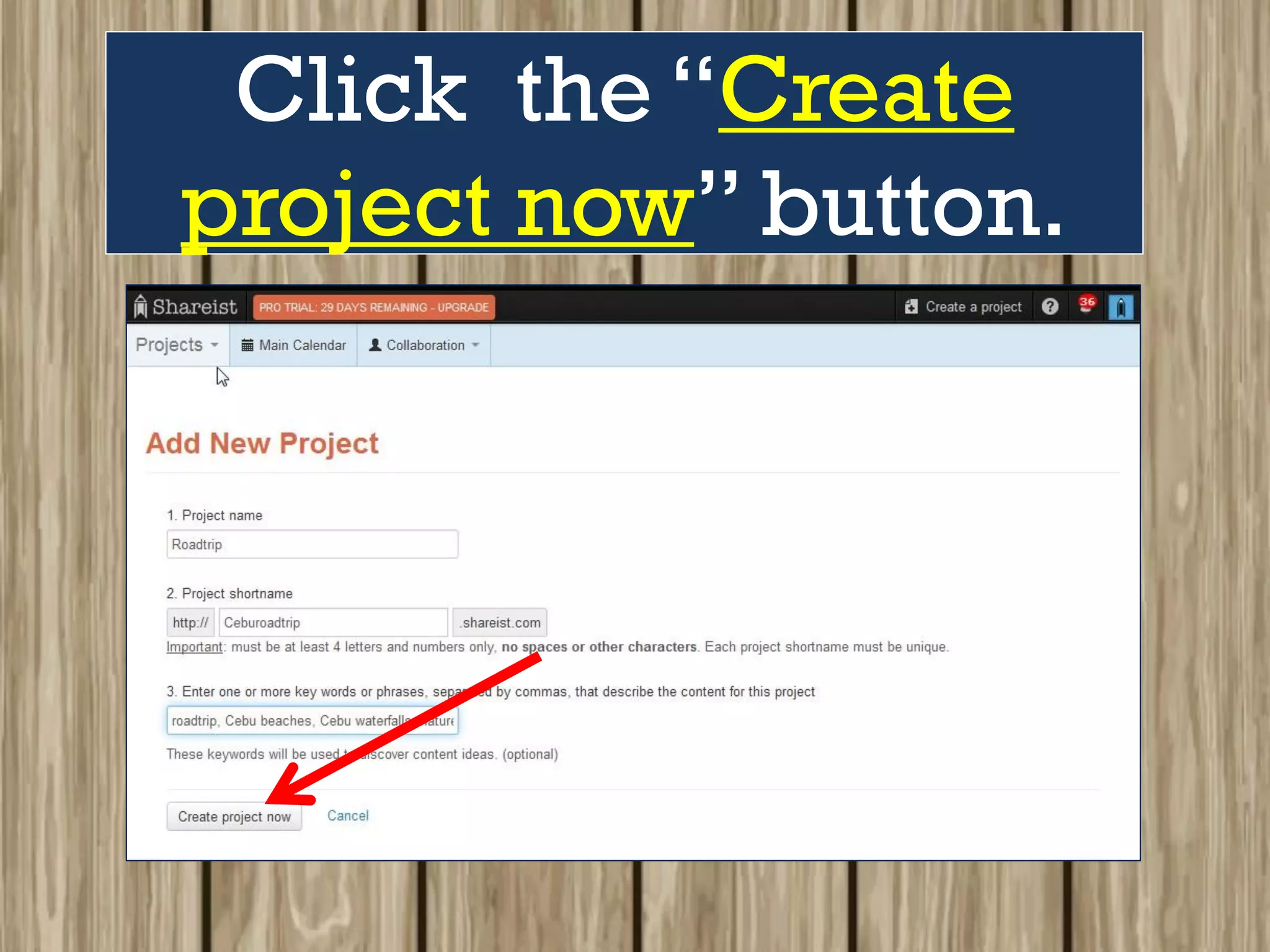
Click the “Create
project now” button.
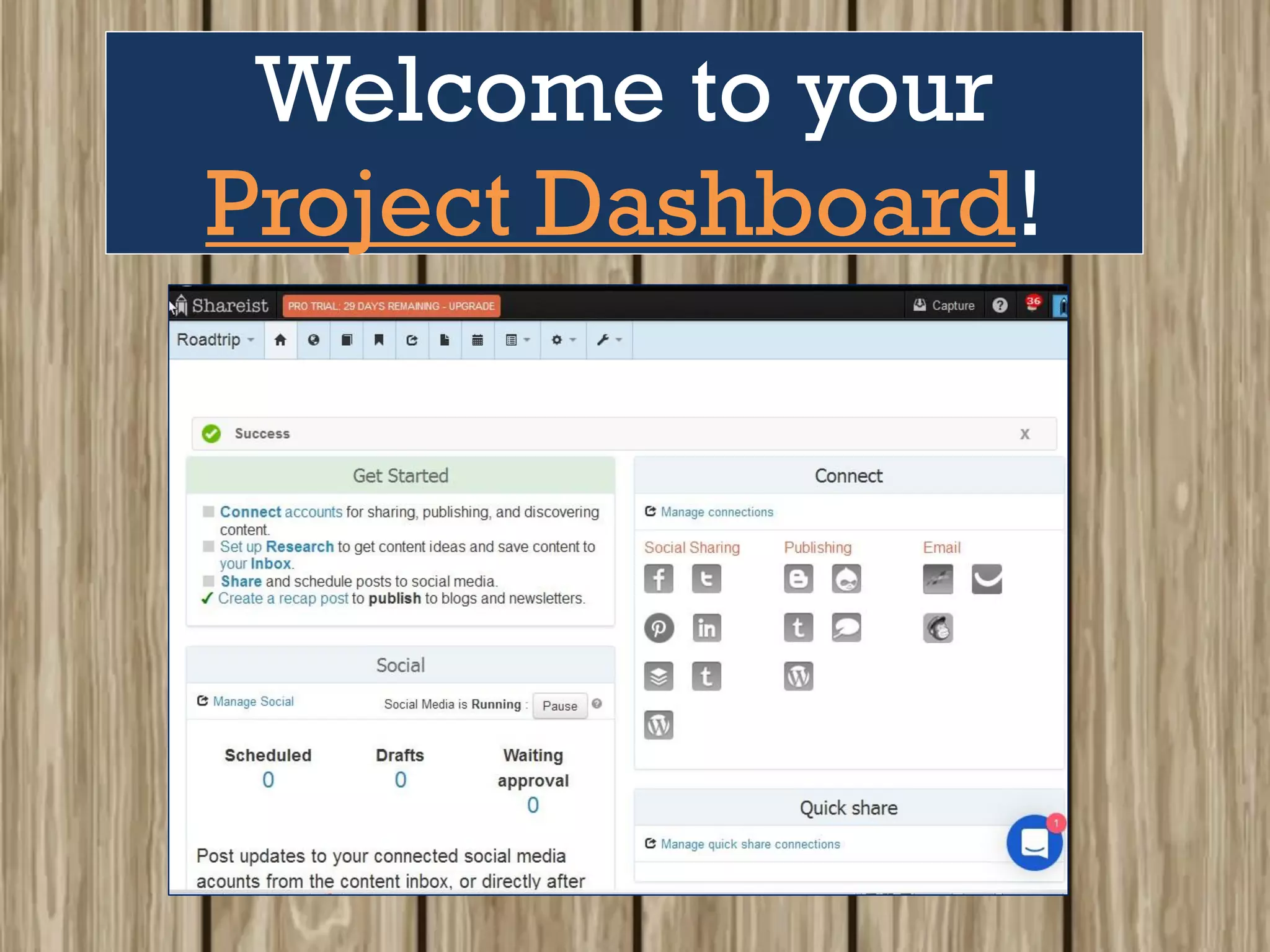
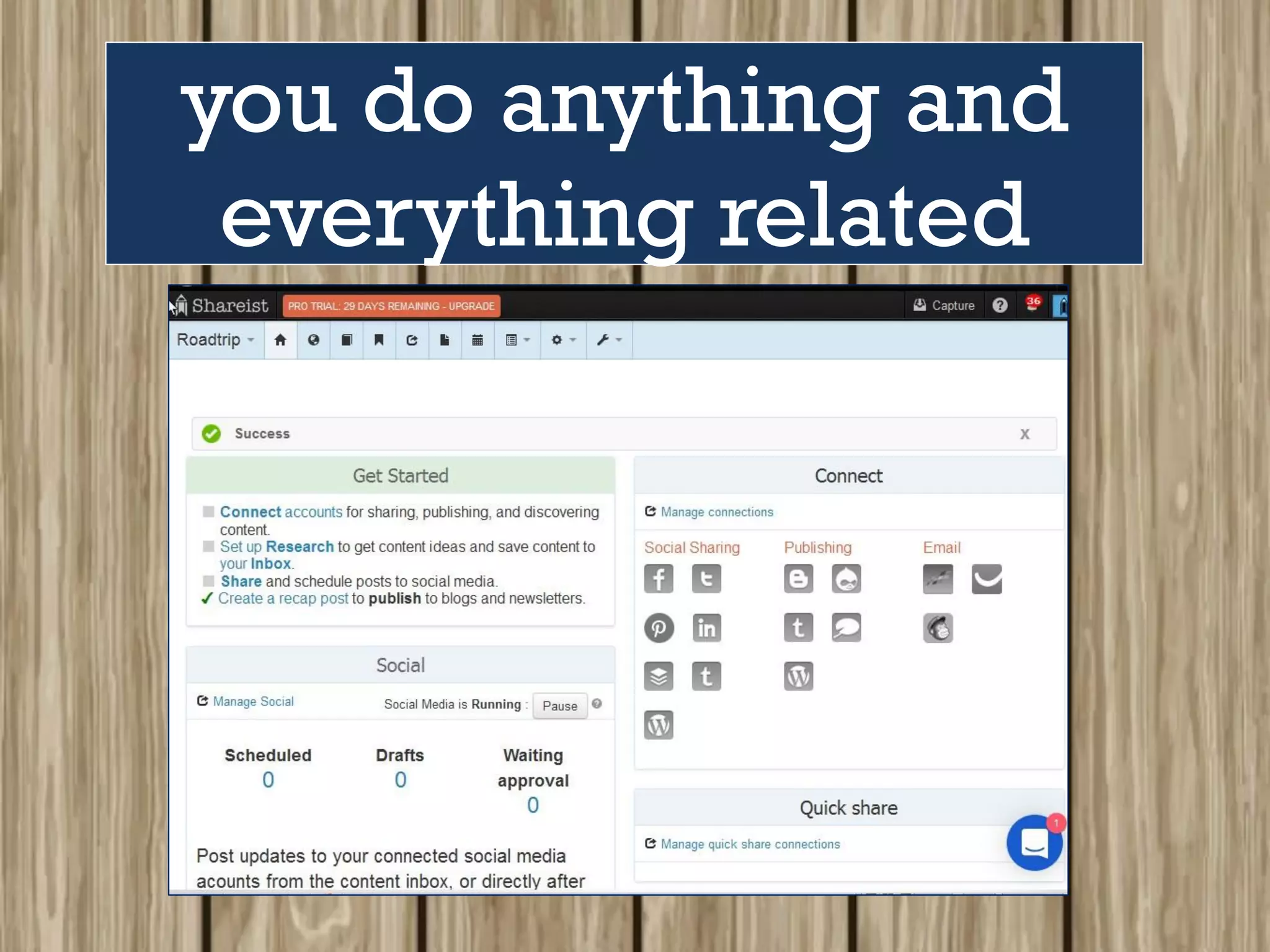
Welcome to your
Project Dashboard!
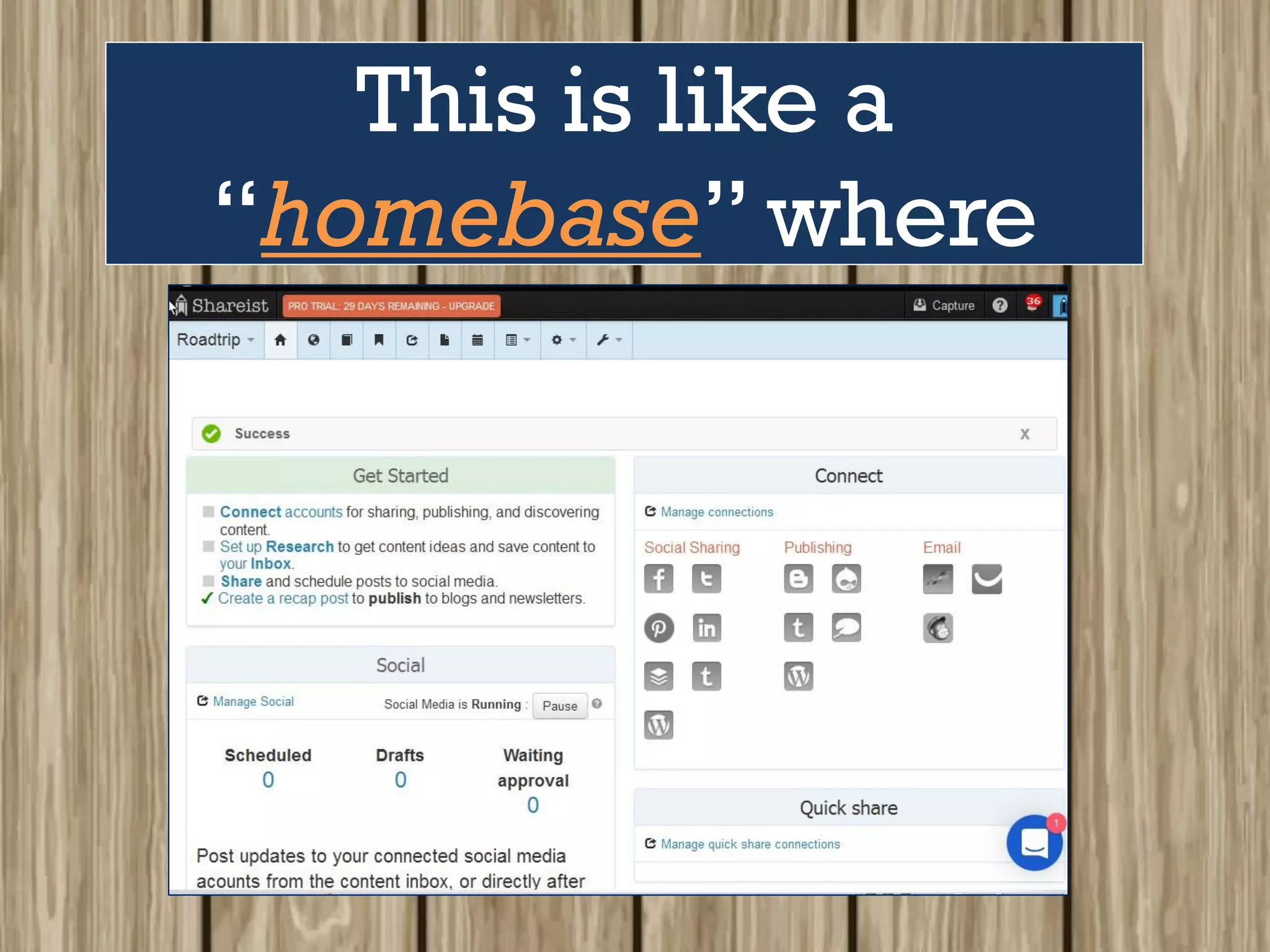
This is like a
“homebase” where
you do anything and
everything related
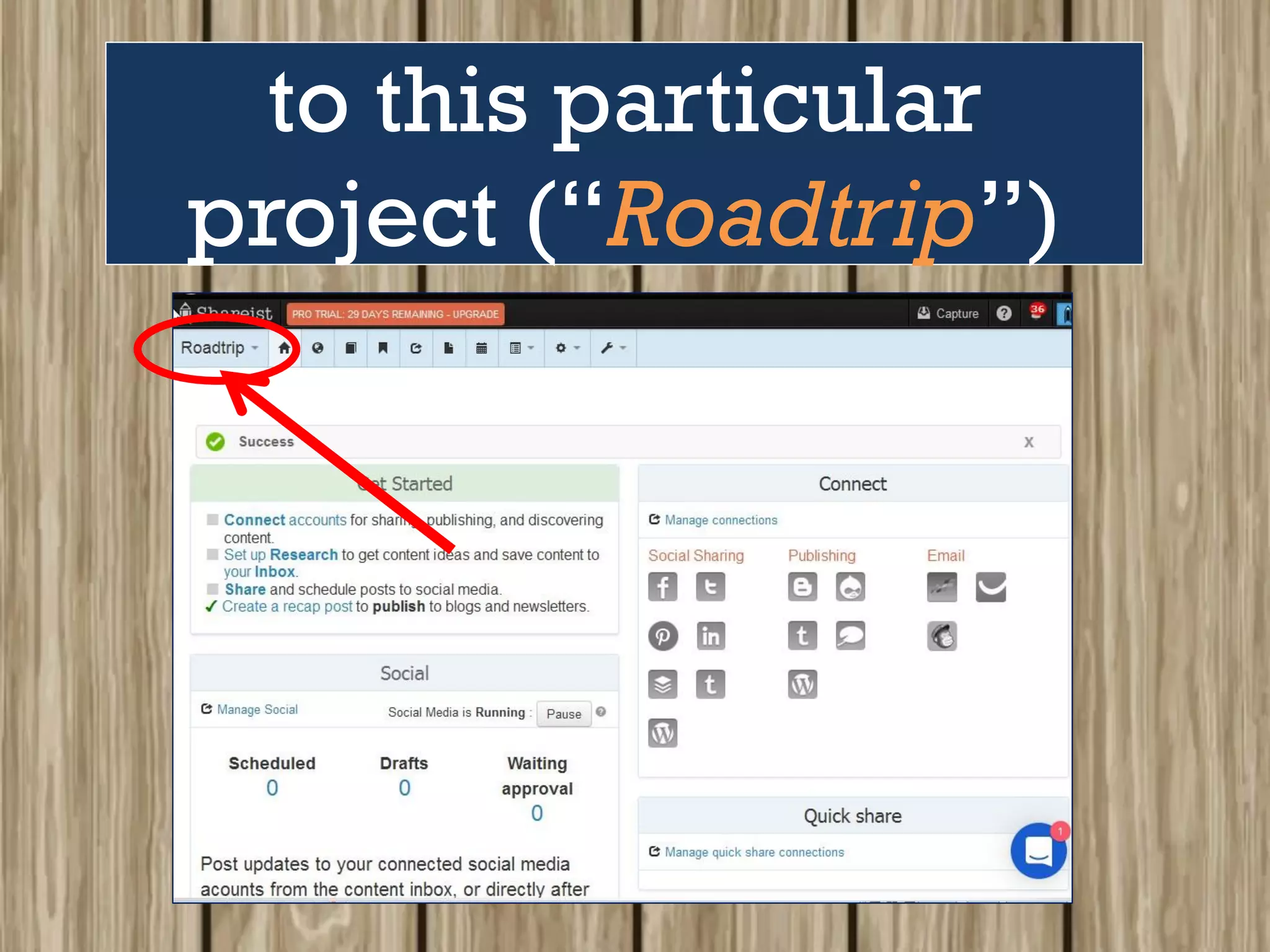
to this particular
project (“Roadtrip”)
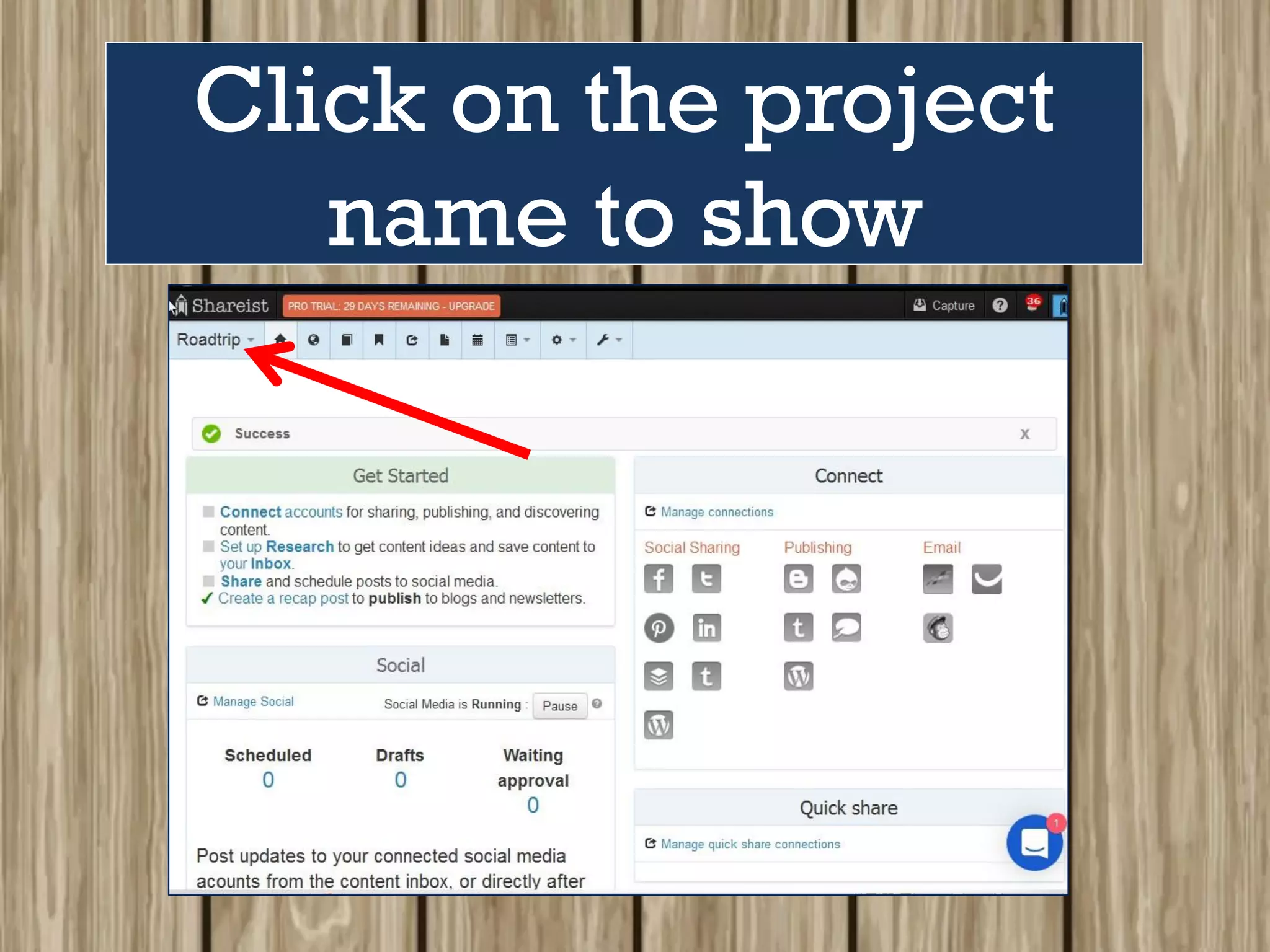
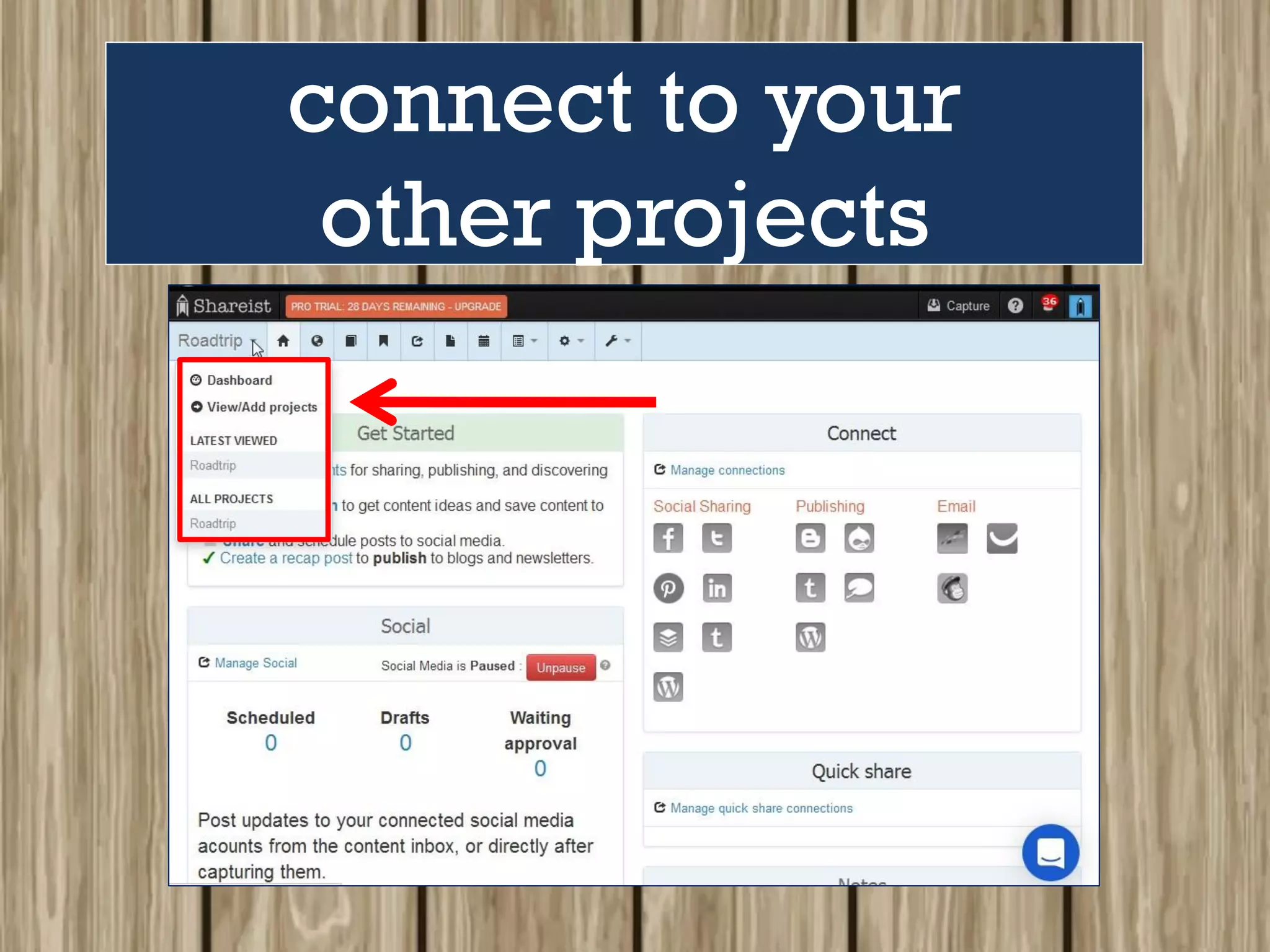
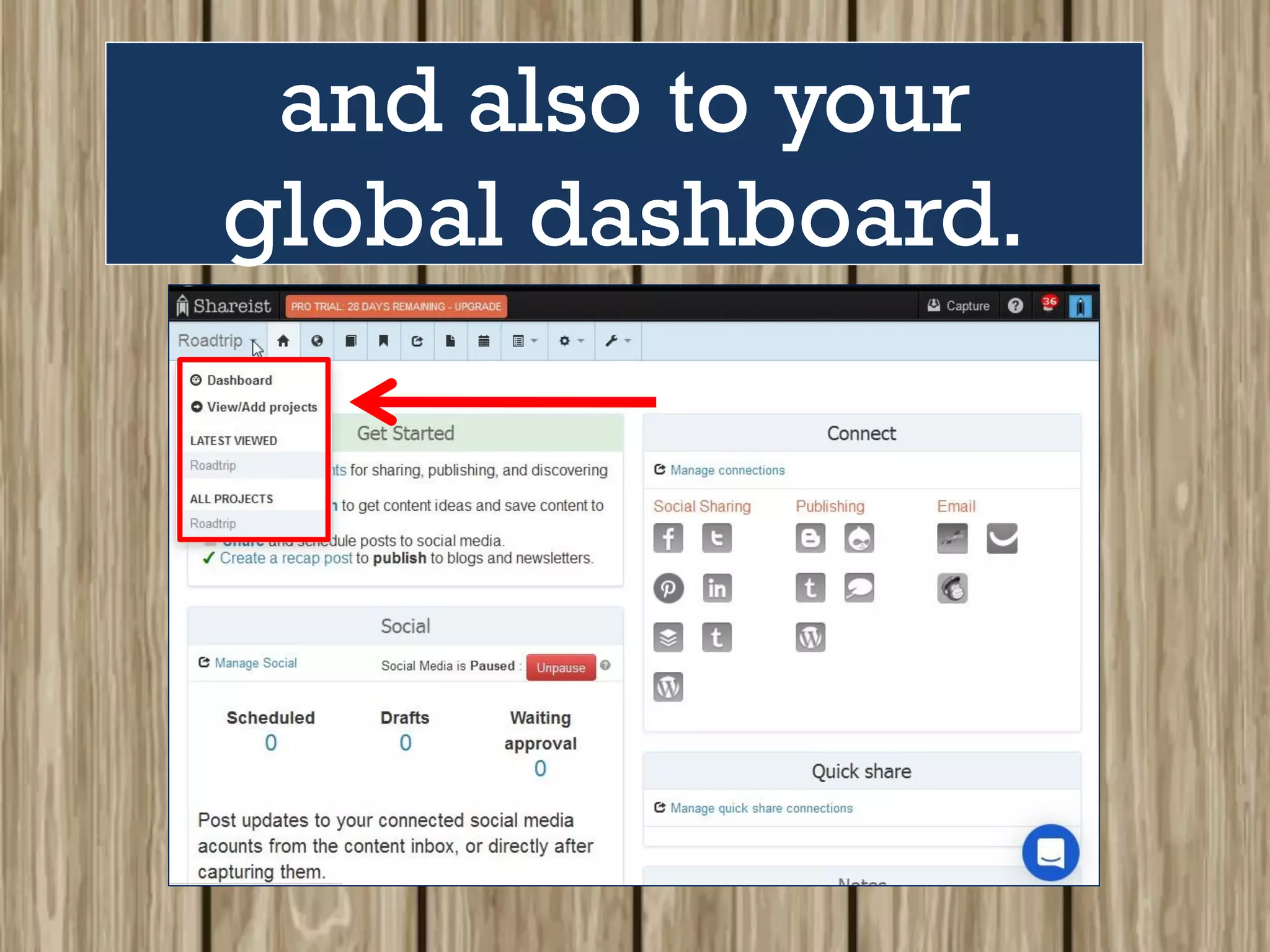
Click on the project
name to show
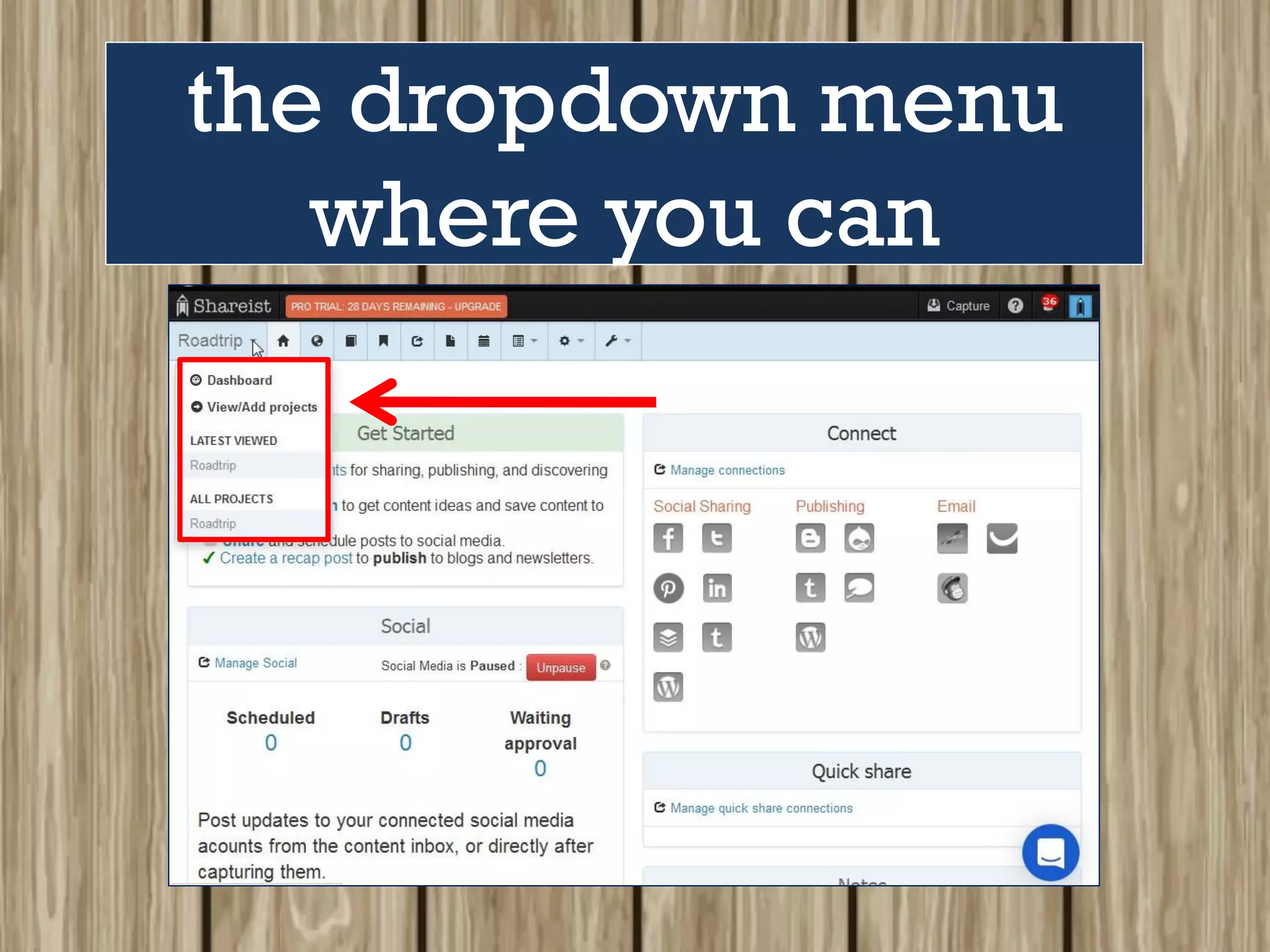
the dropdown menu
where you can
connect to your
other projects
and also to your
global dashboard.
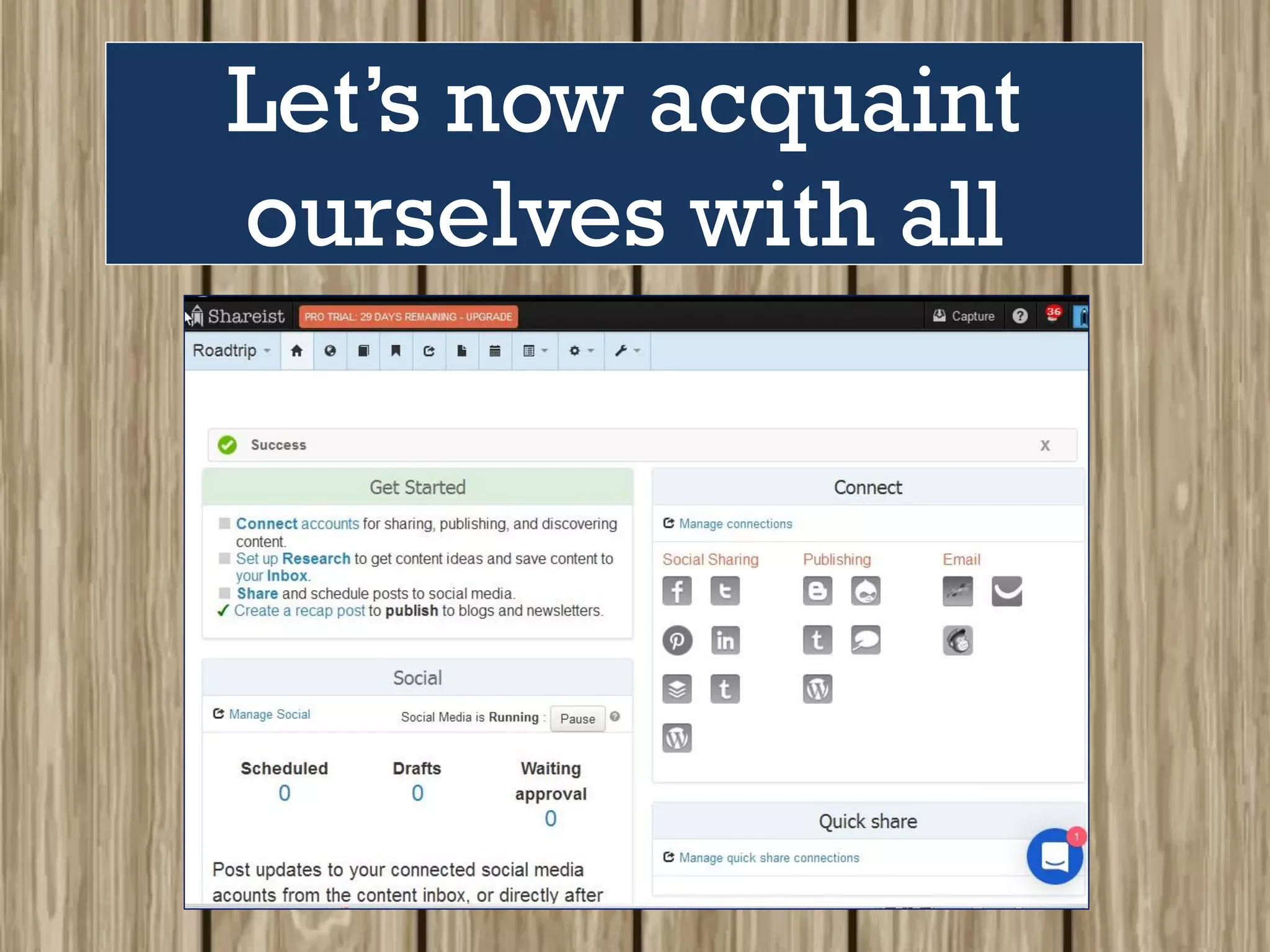
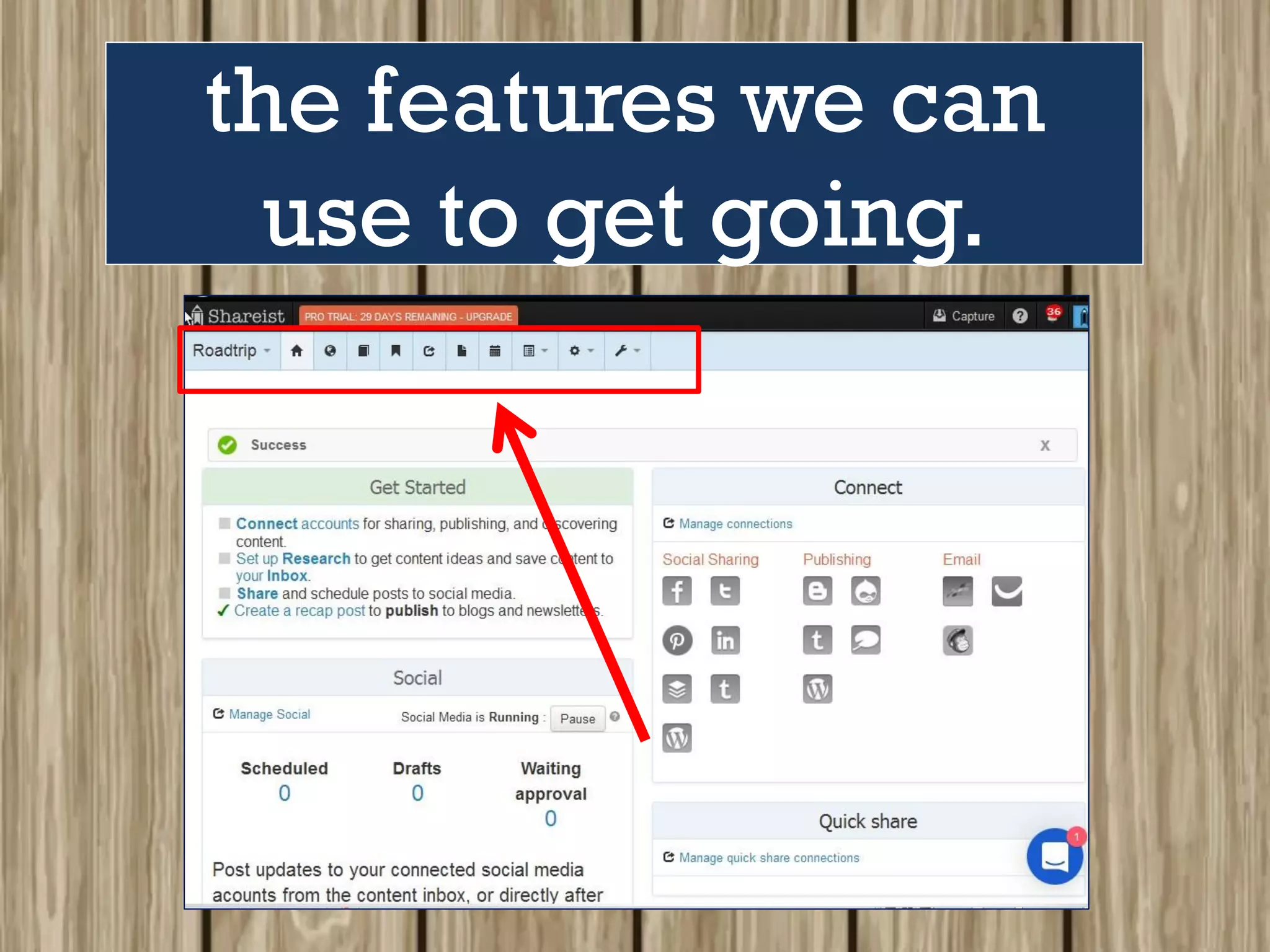
Let’s now acquaint
ourselves with all
the features we can
use to get going.
Let’s start with…
Content Inbox
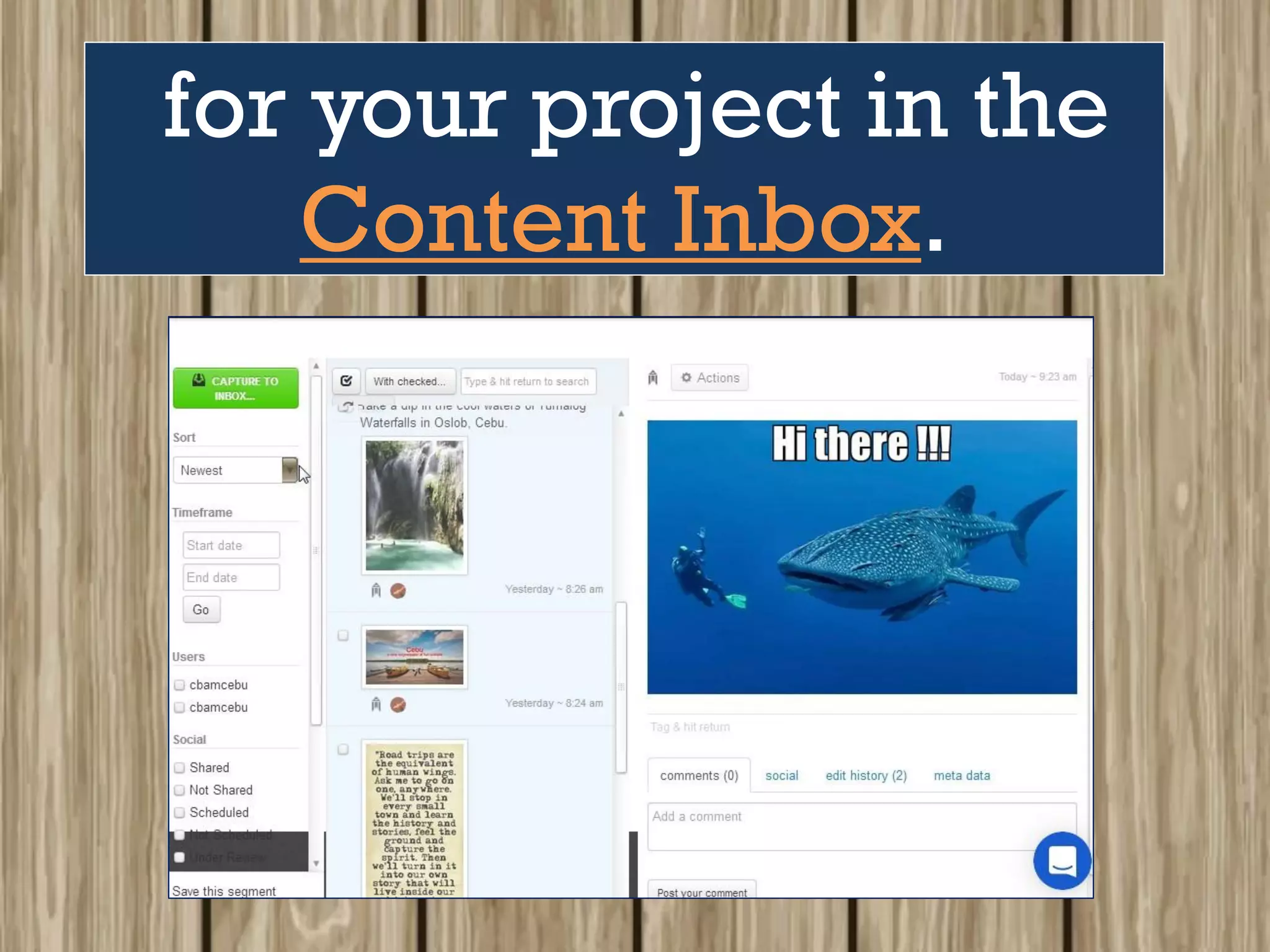
The Content Inbox
is where everything
starts.
Here, you can
add, save and edit
content
for sharing to
social media or
making blog posts,
newsletters ,etc…
But you have
the option to just
keep the content
as personal file for
future use /
reference.
You can also
capture content
from Inbox
aside from using
Shareist Research.
(we will discuss this later on)
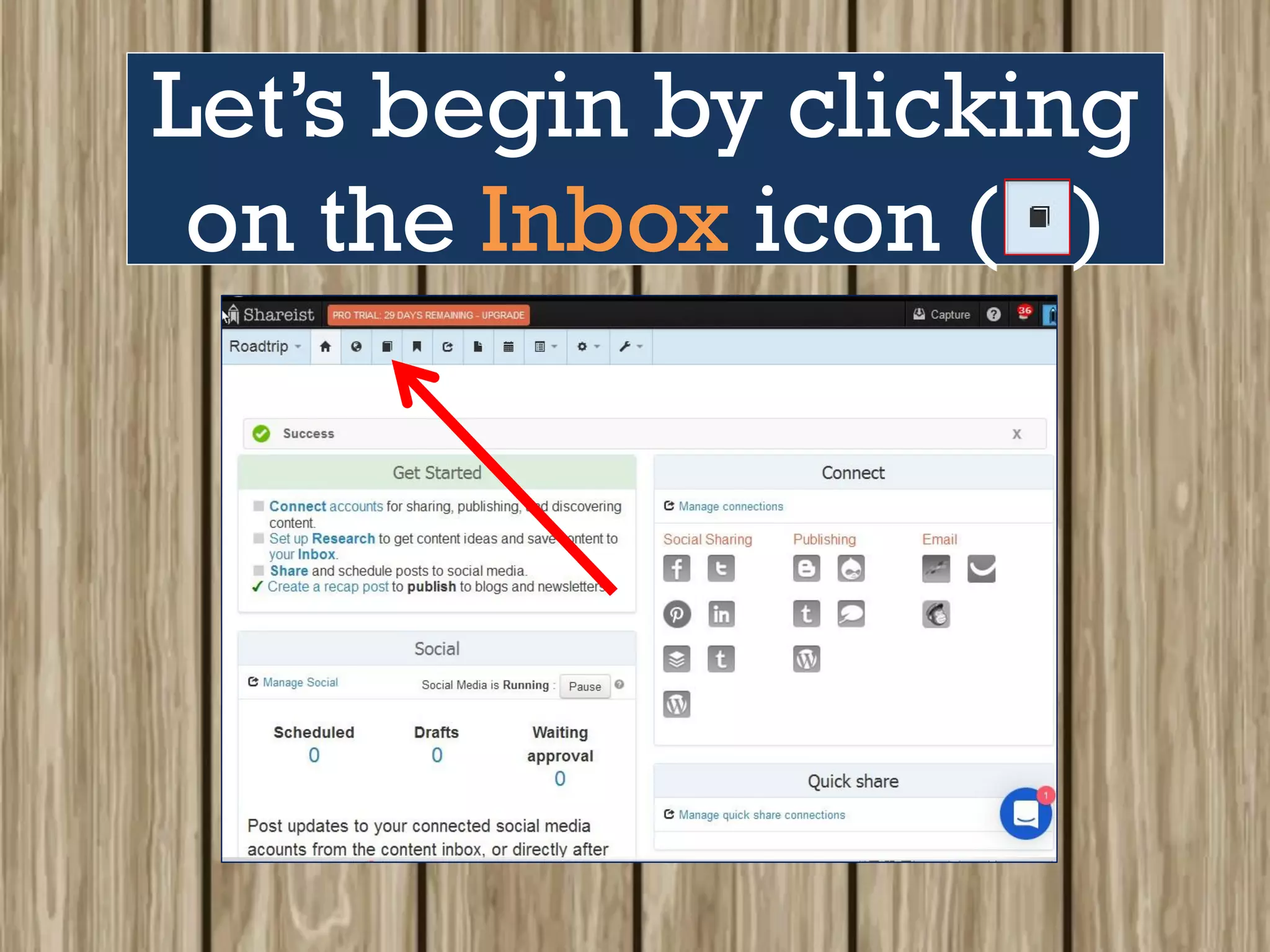
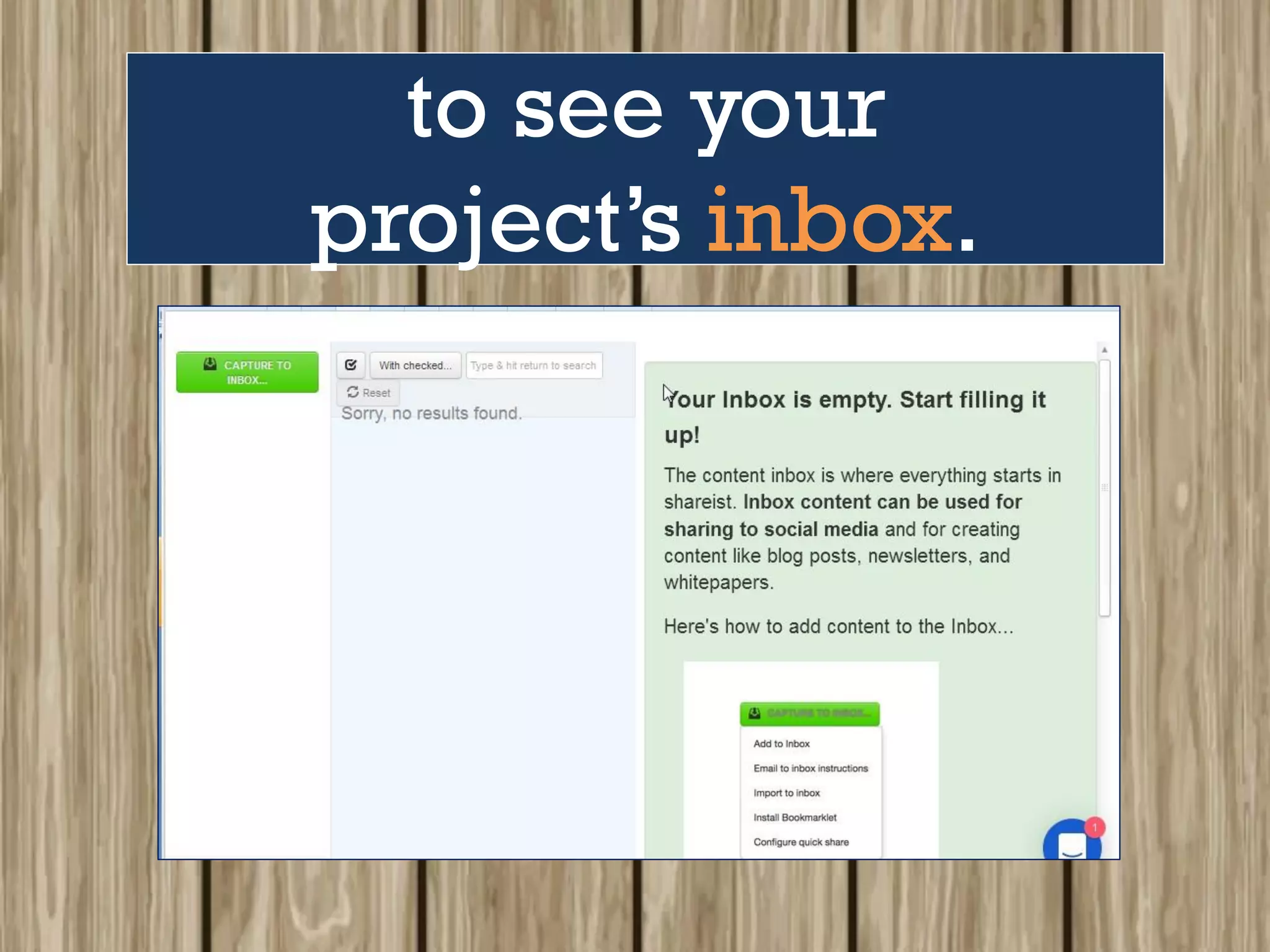
Let’s begin by clicking
on the Inbox icon ( )
to see your
project’s inbox.
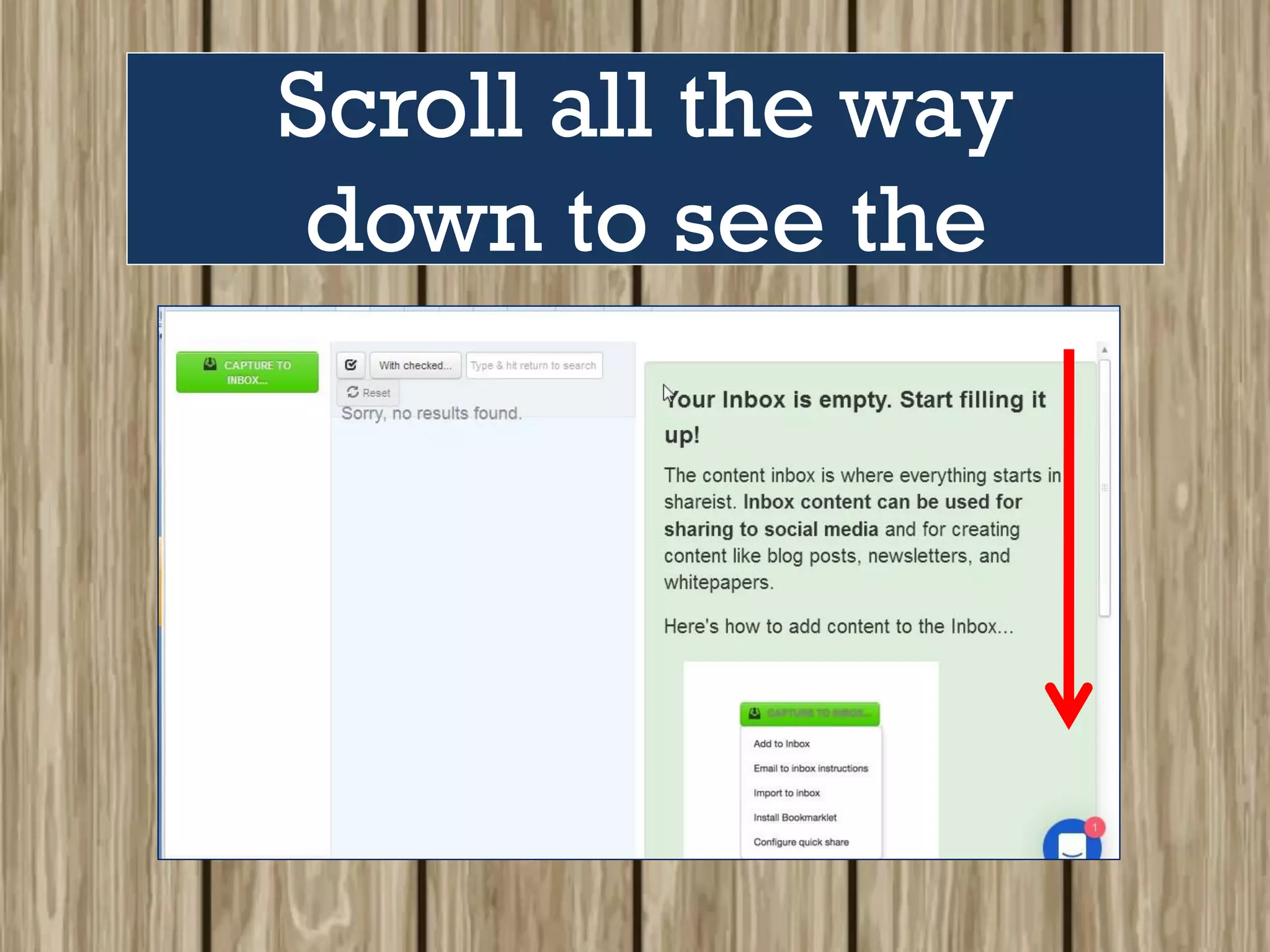
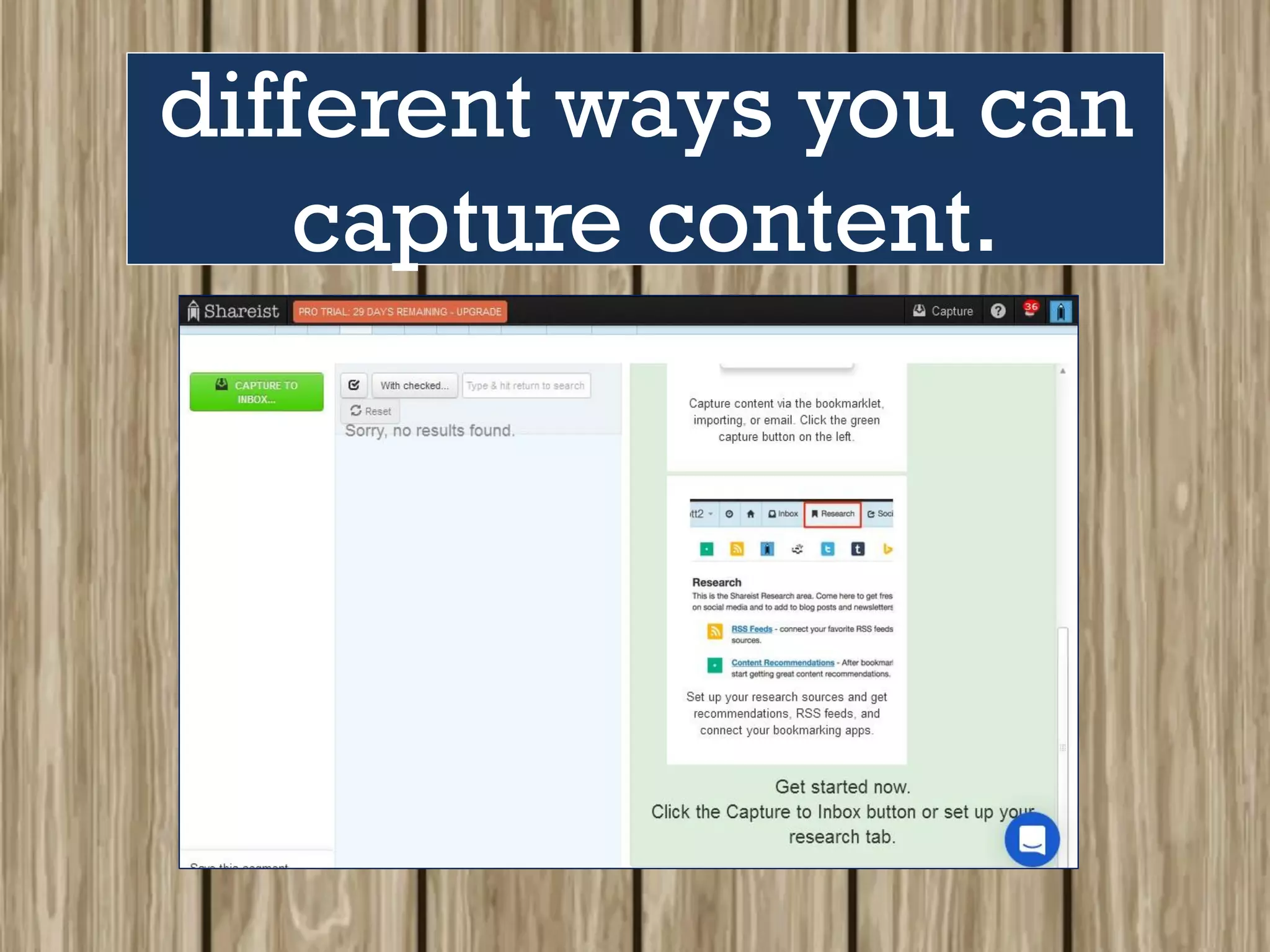
Scroll all the way
down to see the
different ways you can
capture content.
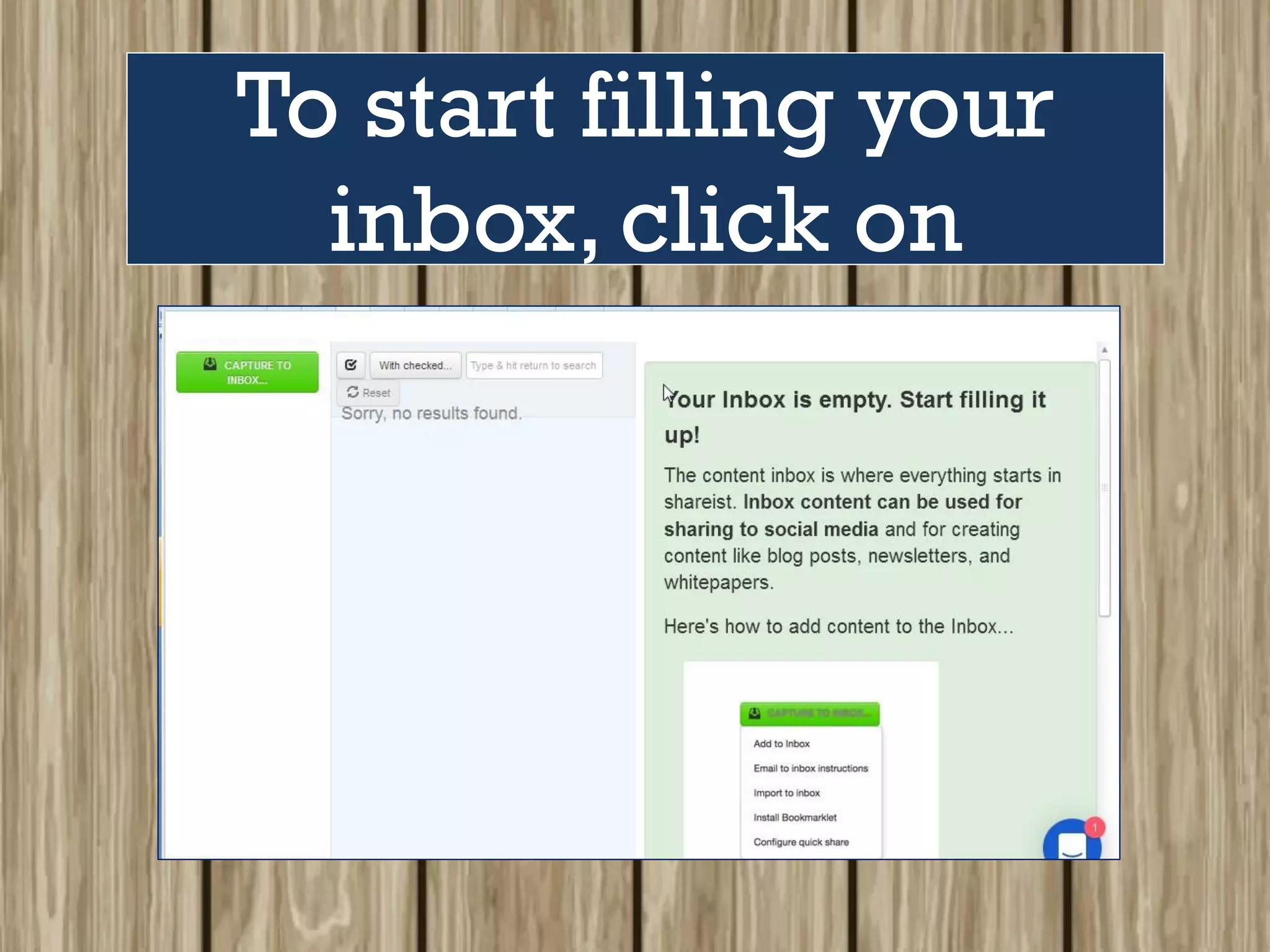
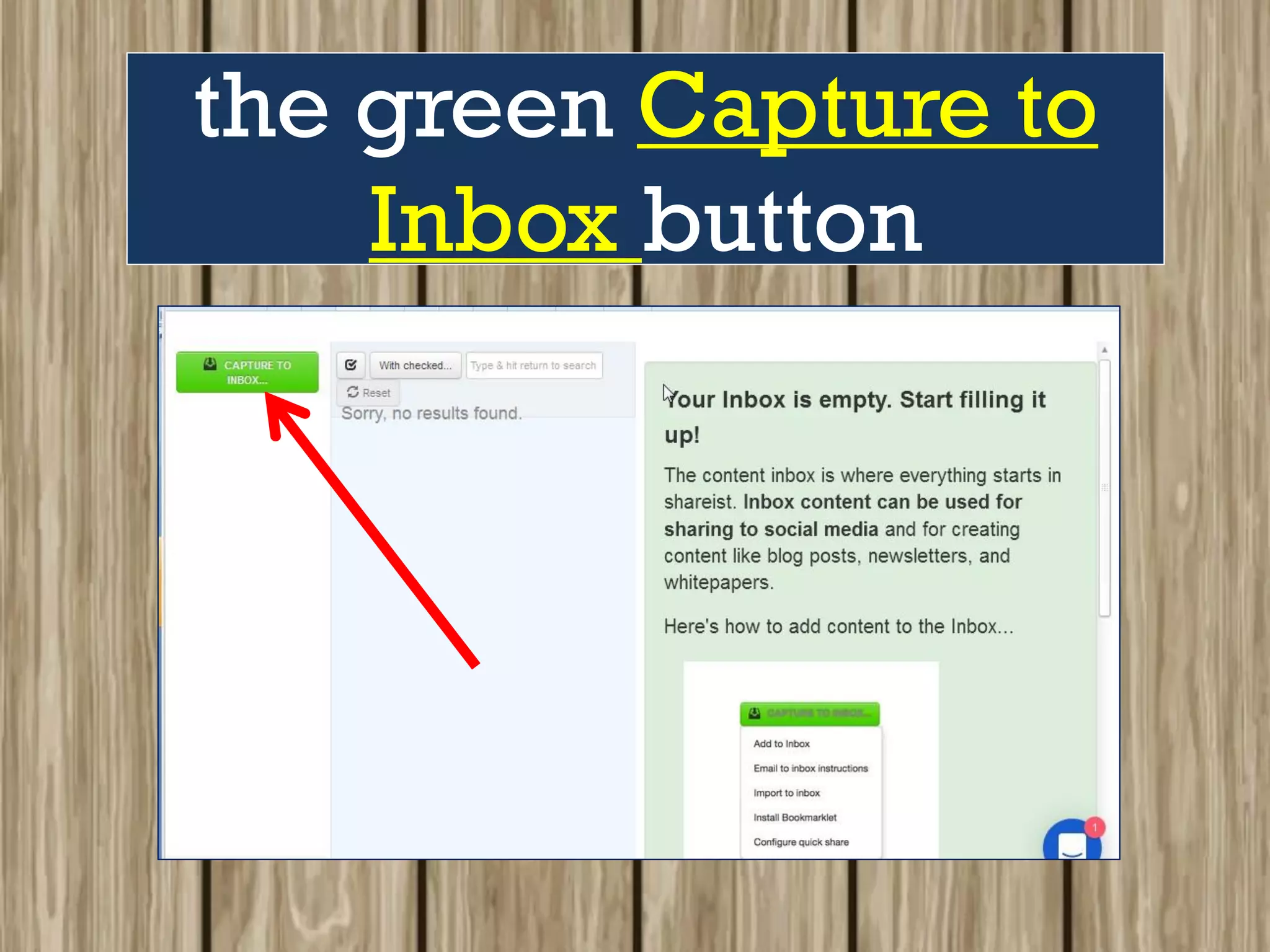
To start filling your
inbox, click on
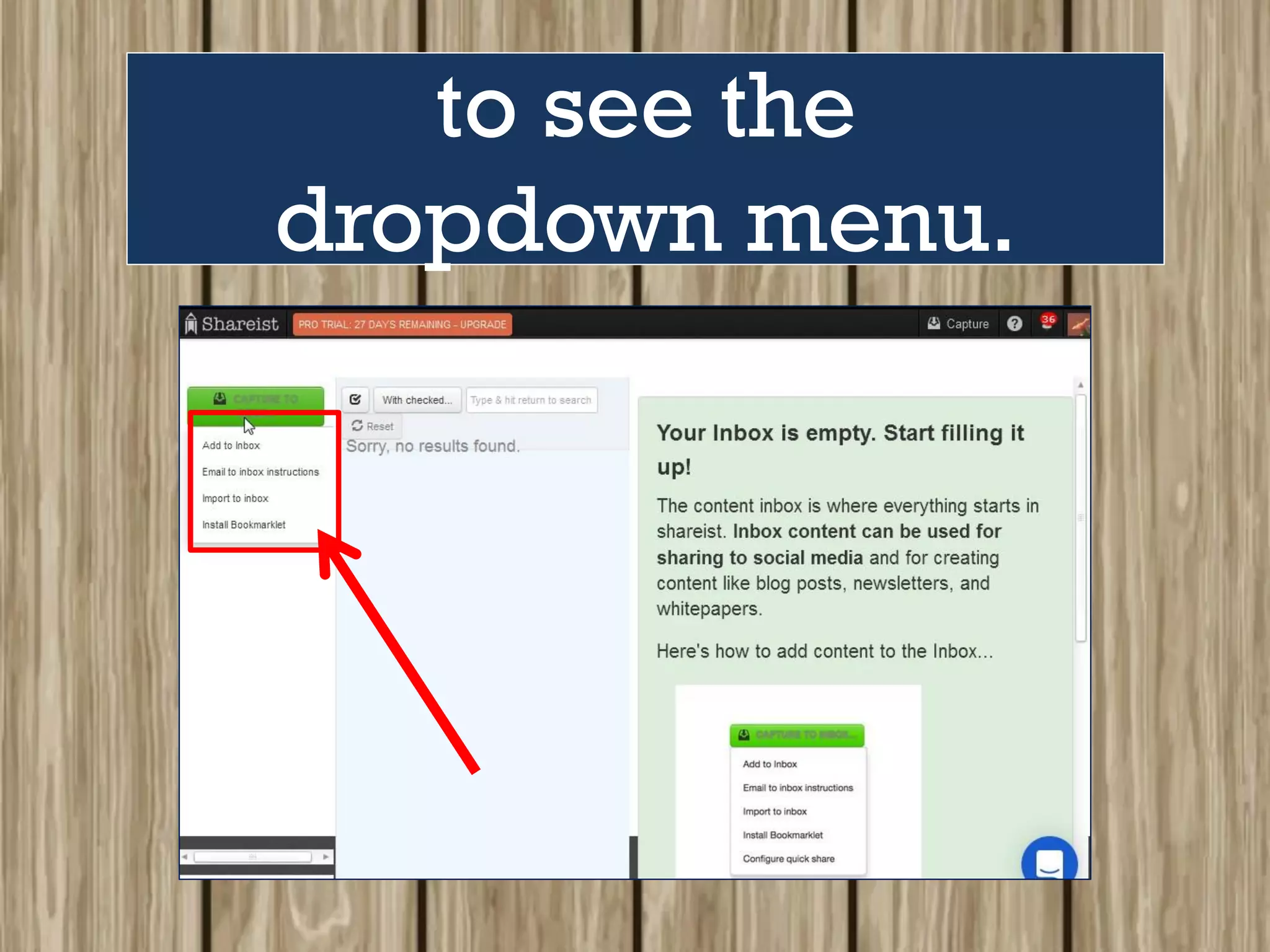
the green Capture to
Inbox button
to see the
dropdown menu.
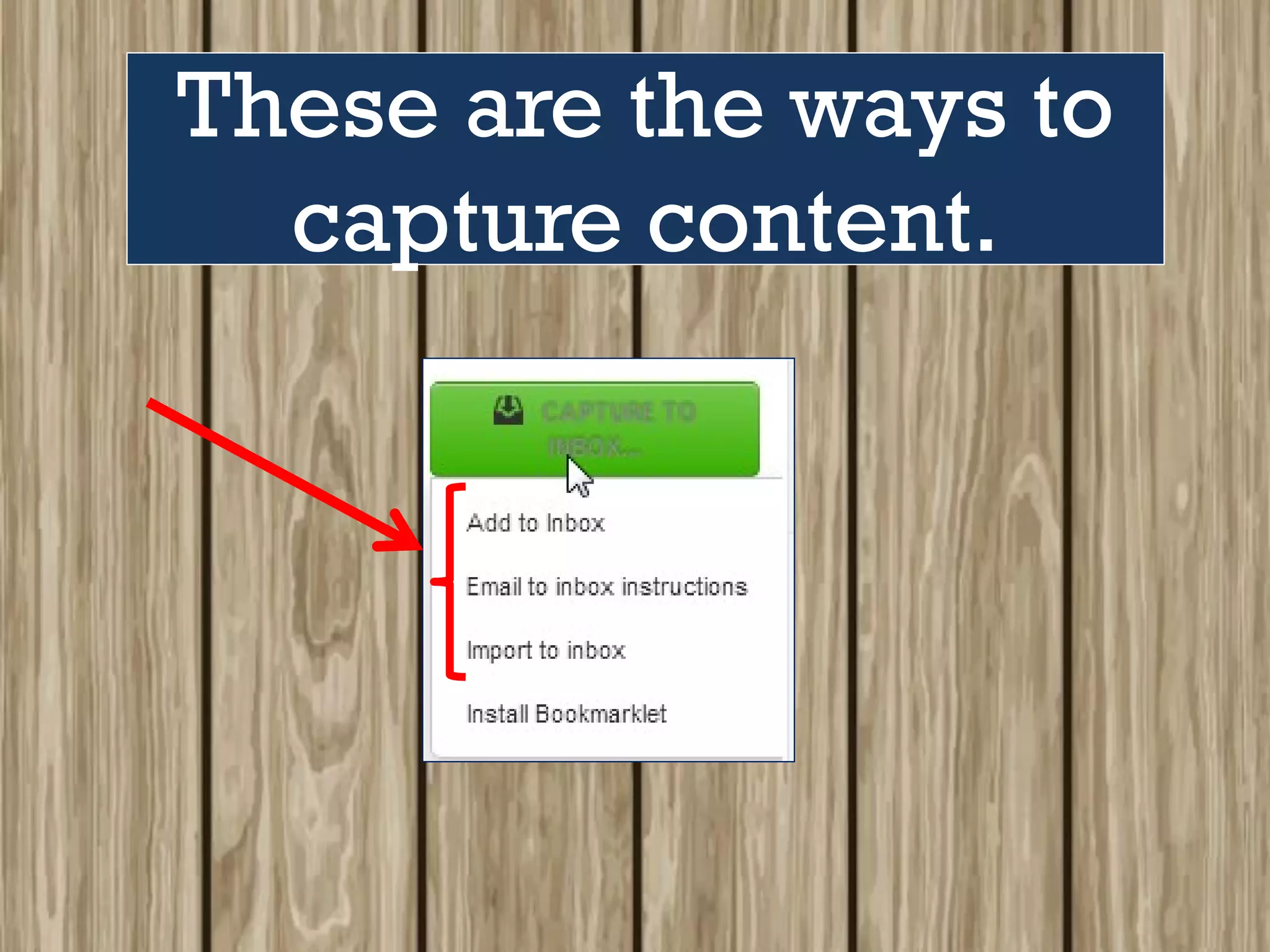
These are the ways to
capture content.
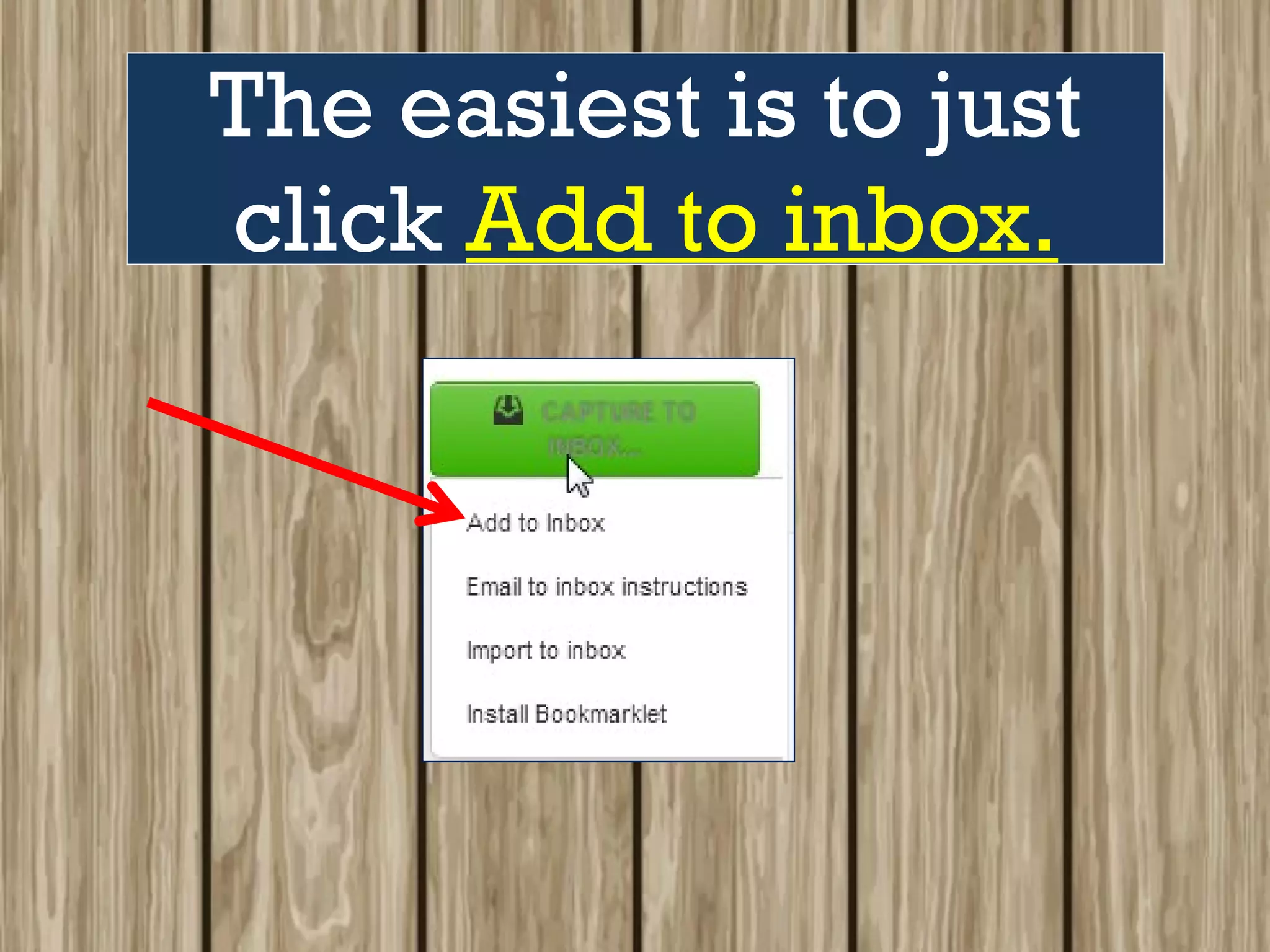
The easiest is to just
click Add to inbox.
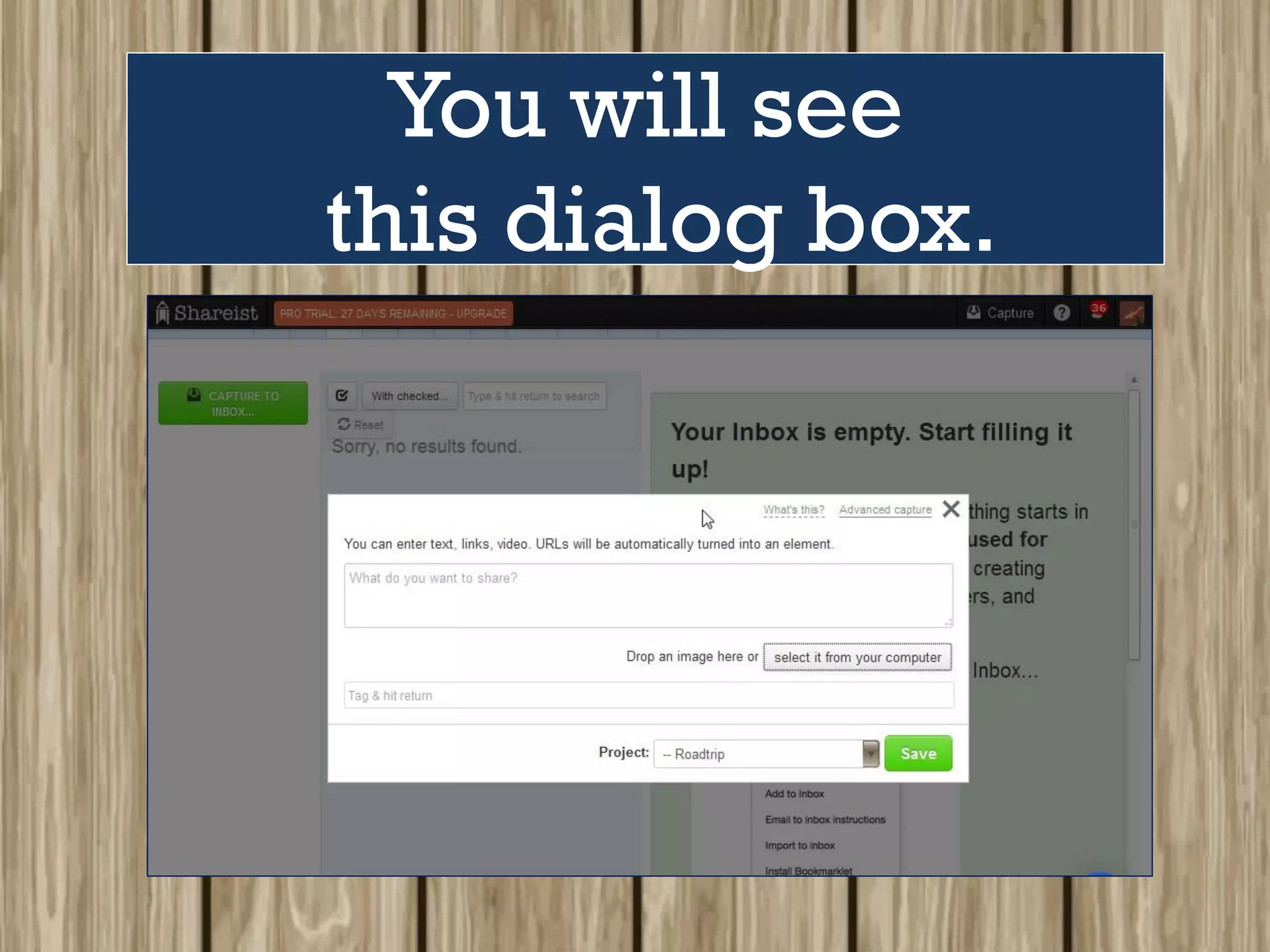
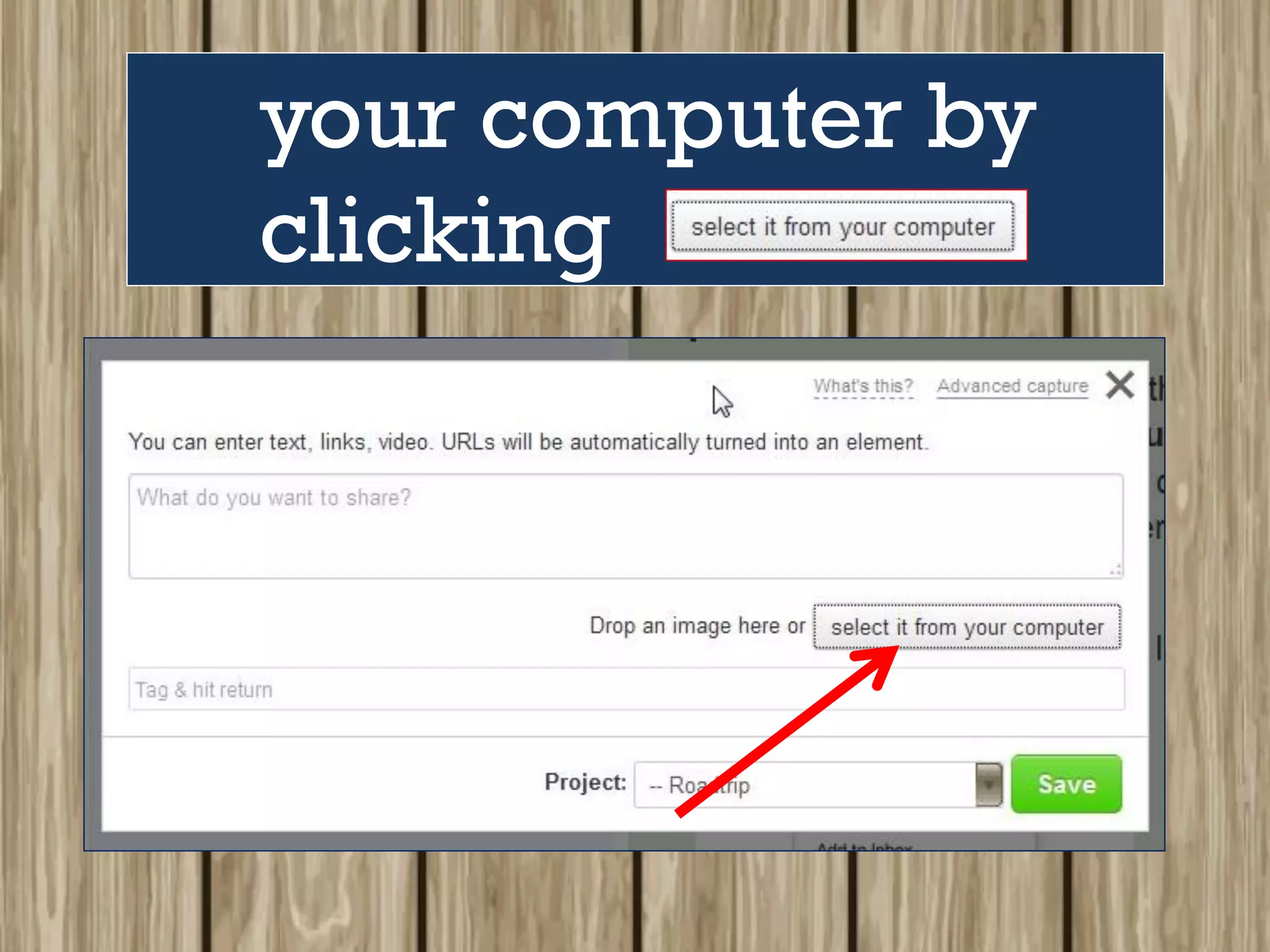
You will see
this dialog box.
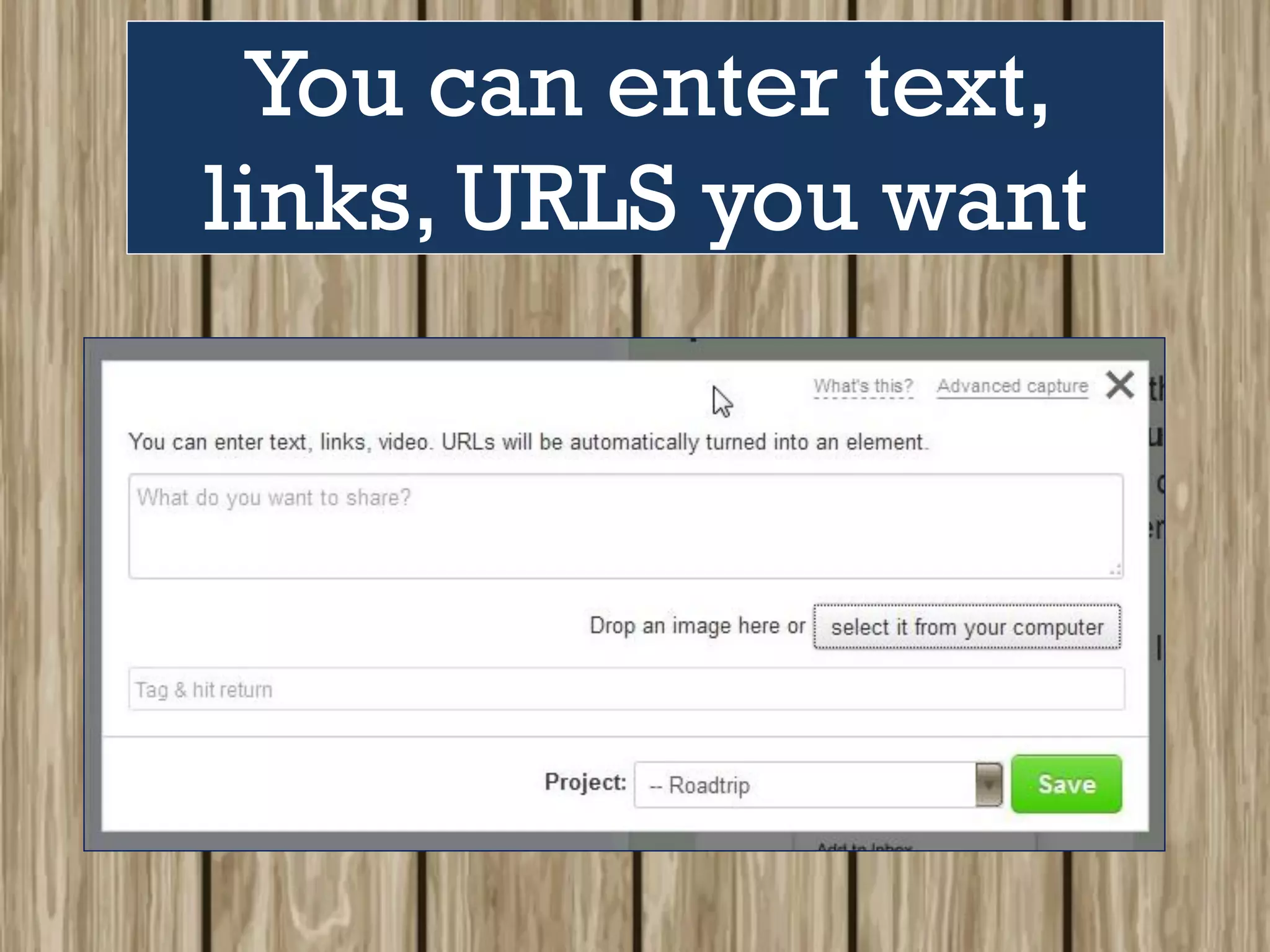
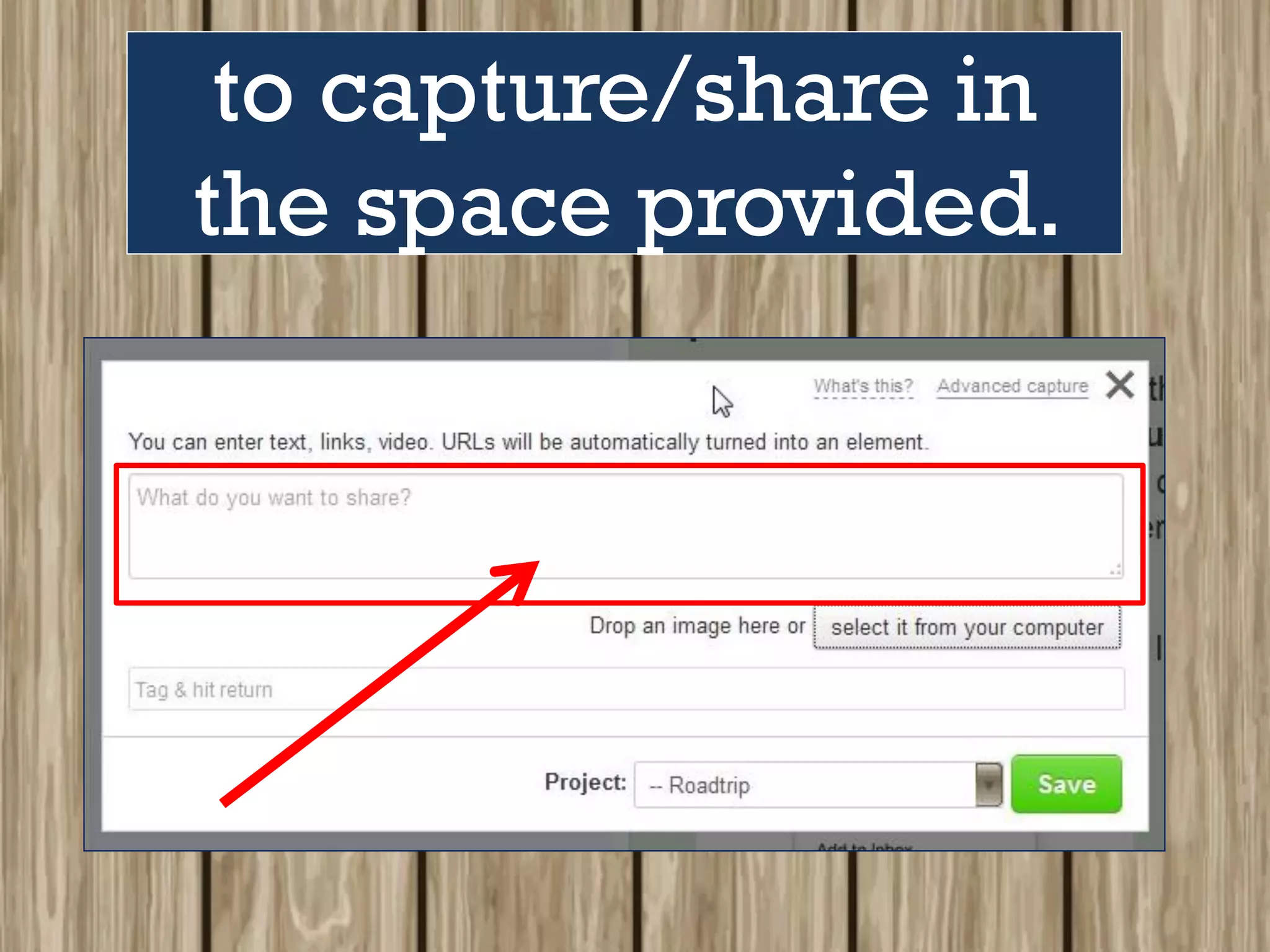
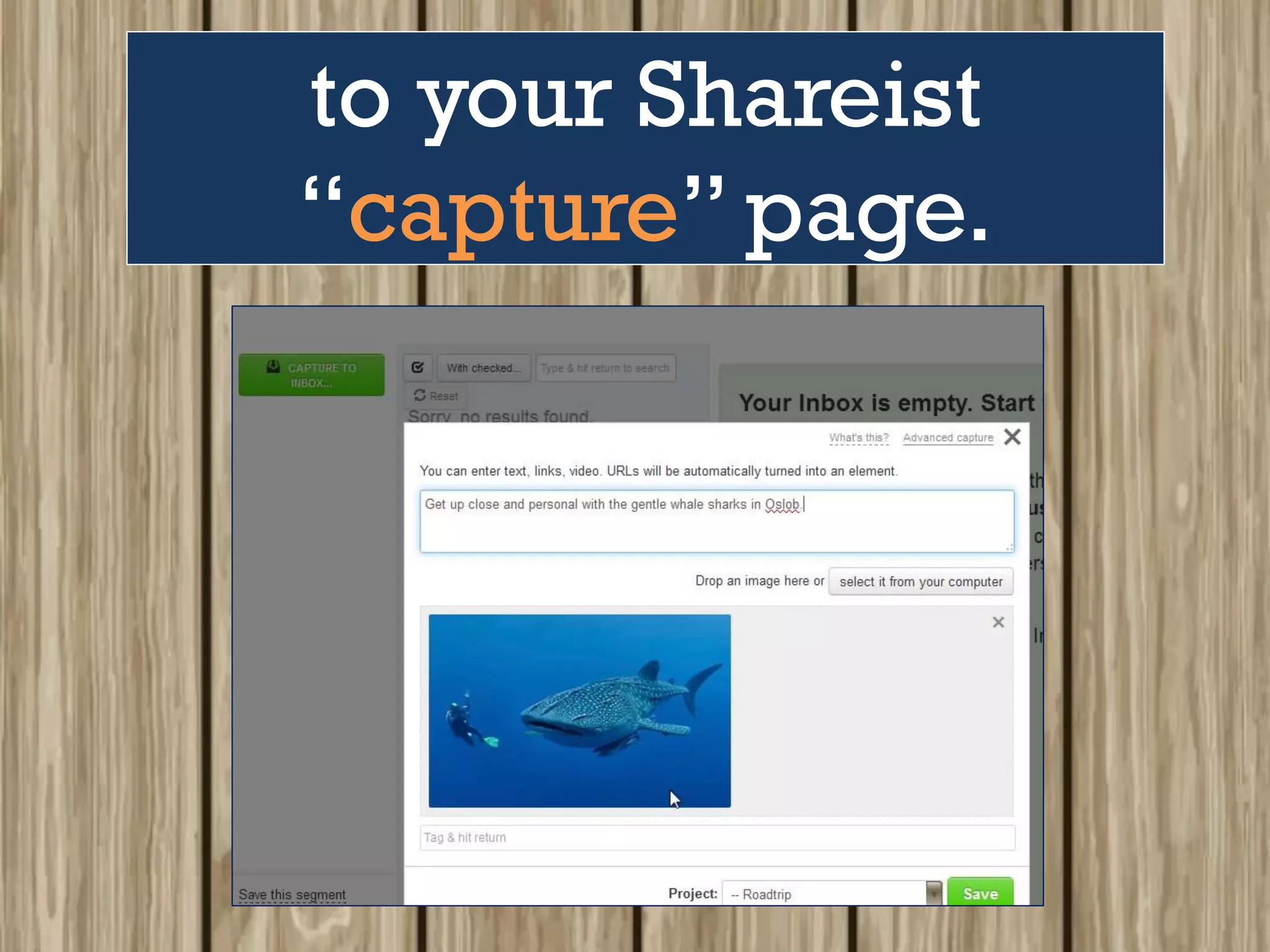
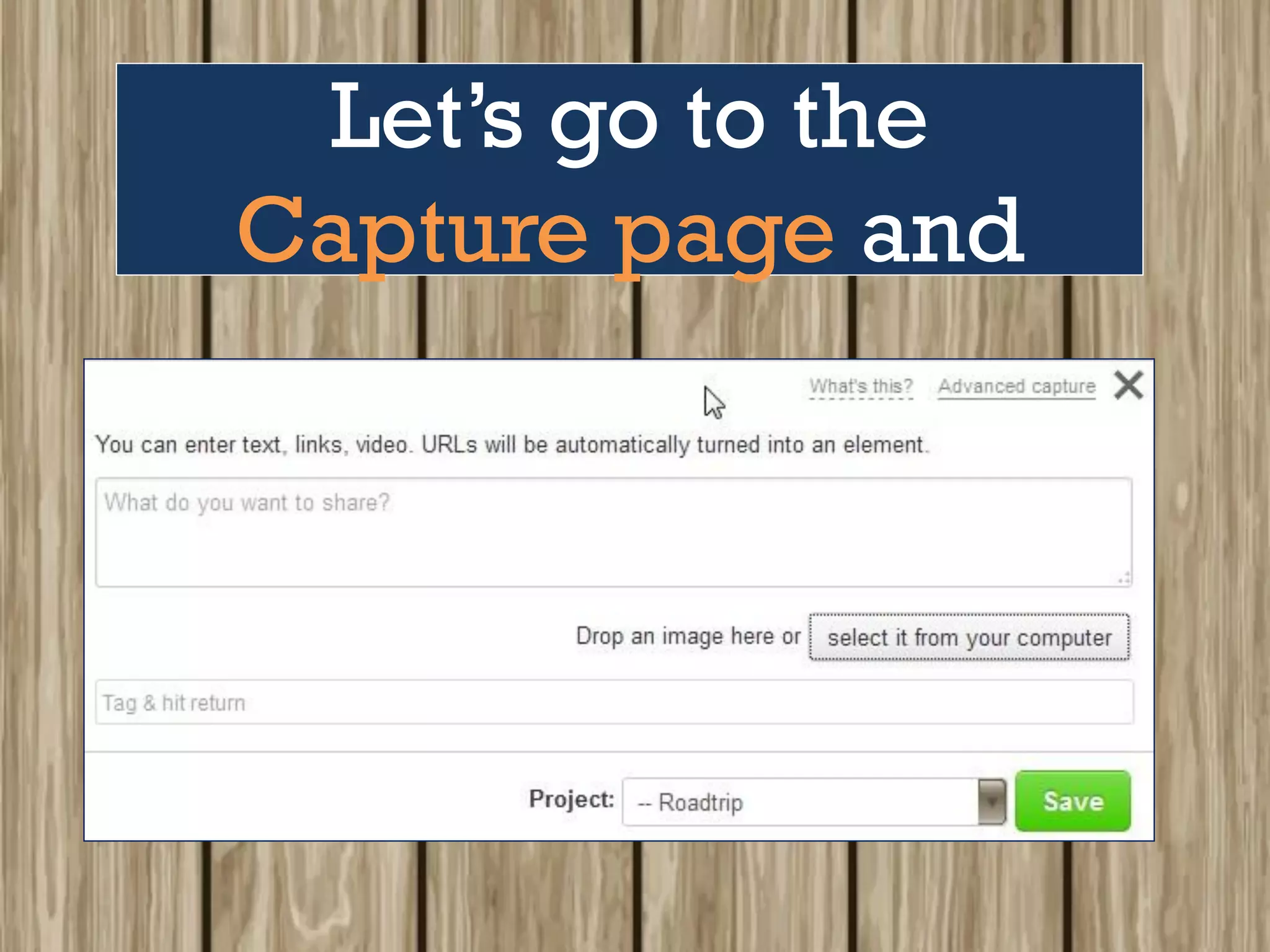
You can enter text,
links, URLS you want
to capture/share in
the space provided.
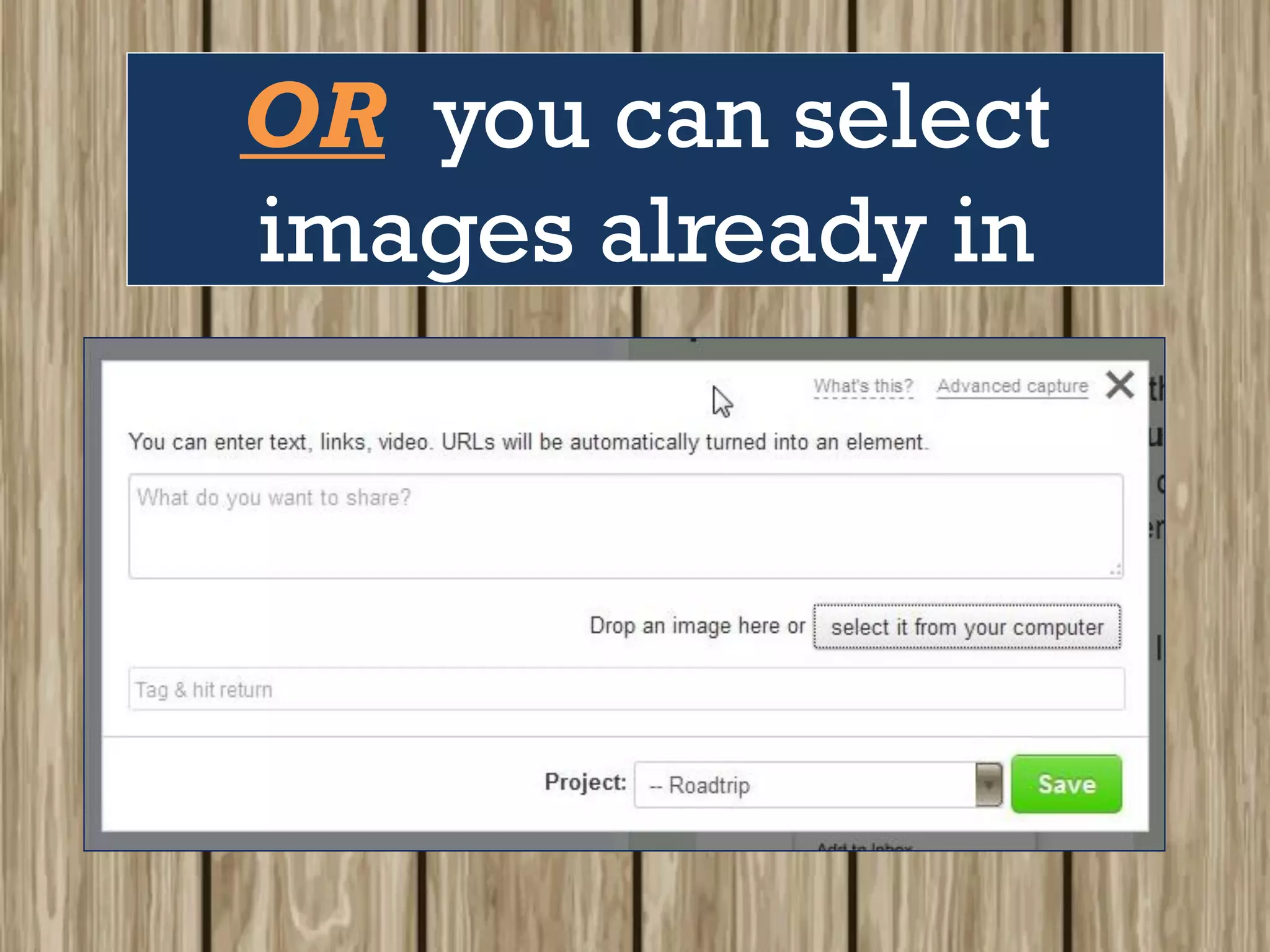
OR you can select
images already in
your computer by
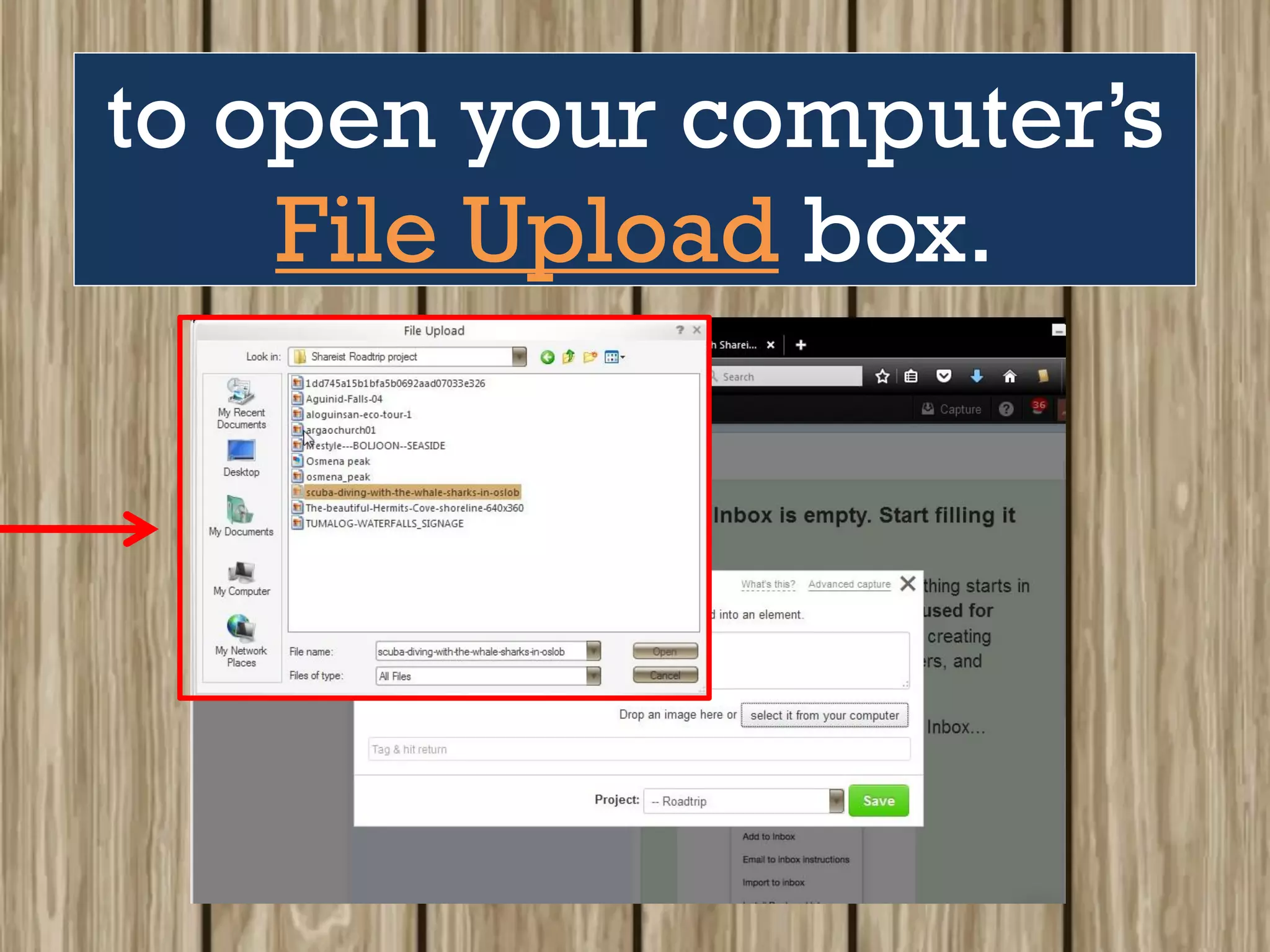
clicking
to open your computer’s
File Upload box.
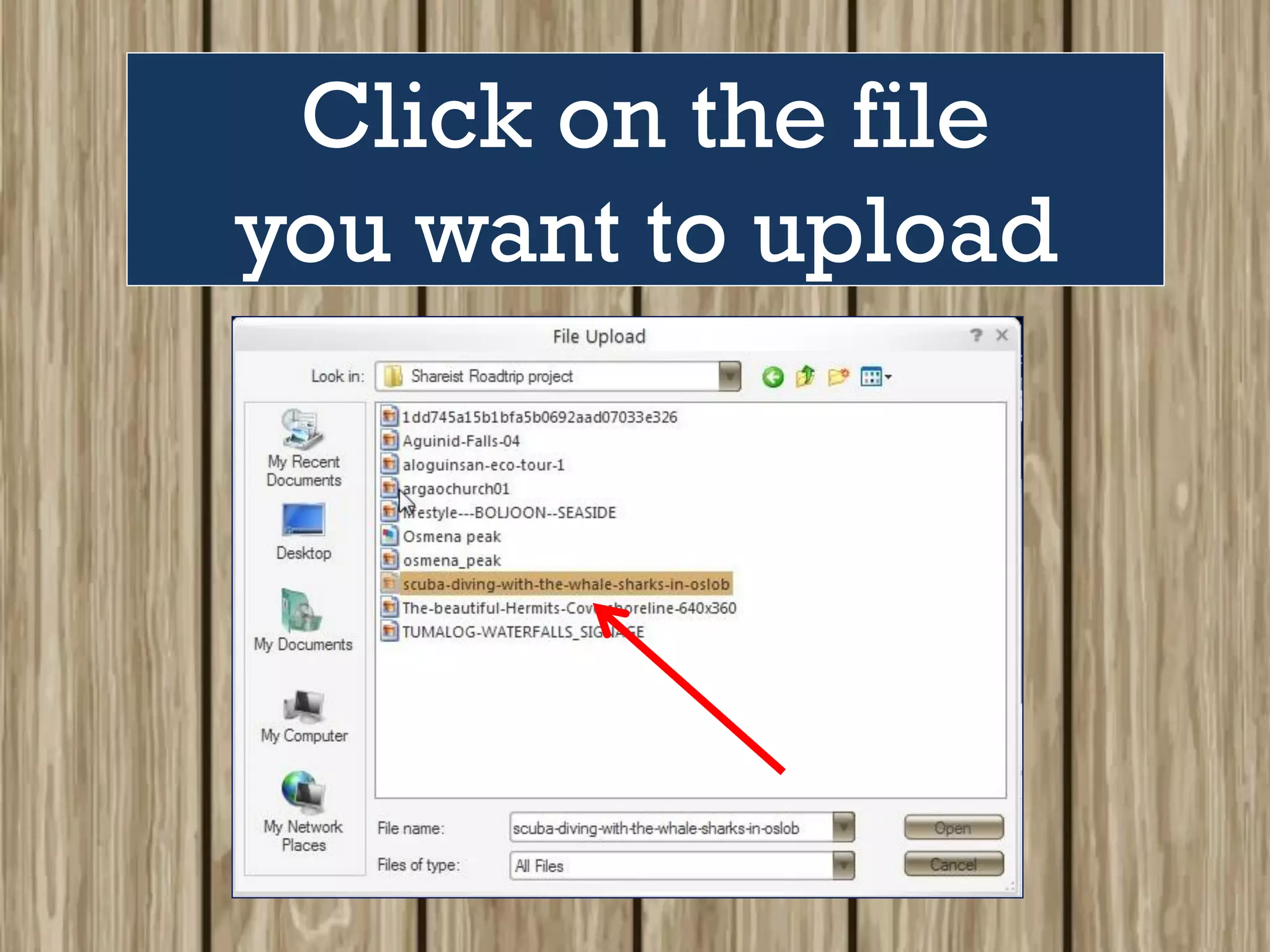
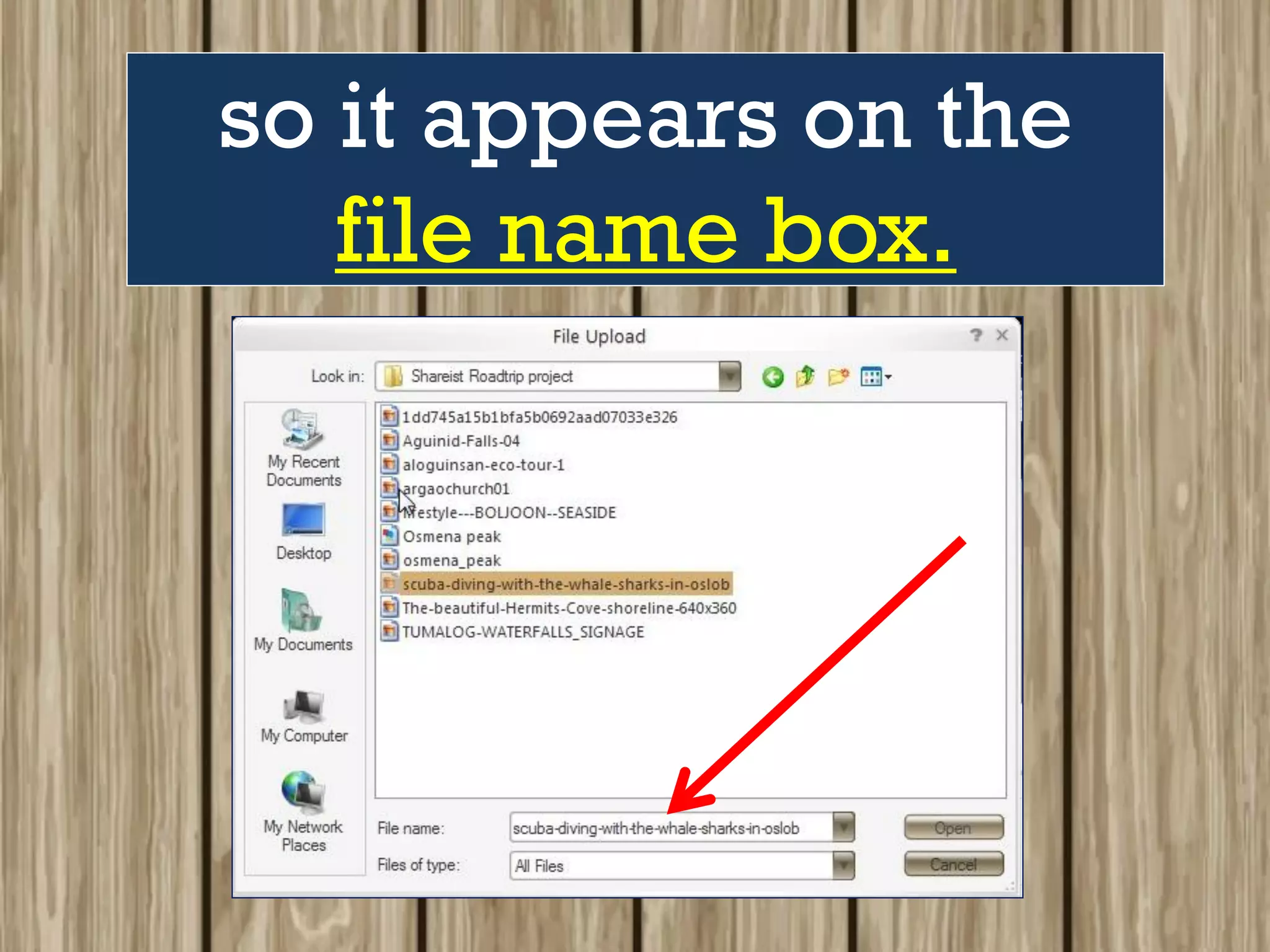
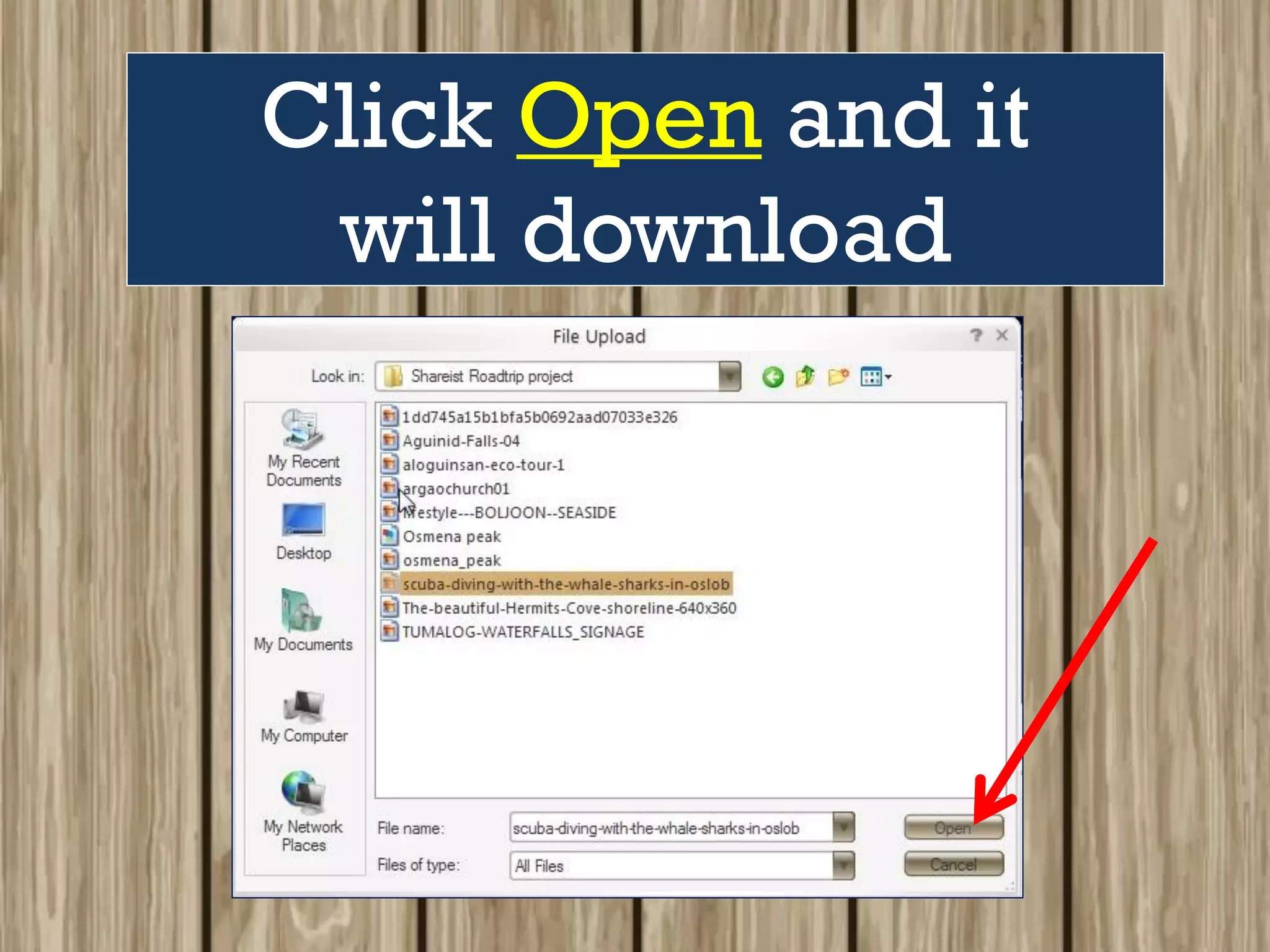
Click on the file
you want to upload
so it appears on the
file name box.
Click Open and it
will download
to your Shareist
“capture” page.
to your Shareist
“capture” page.
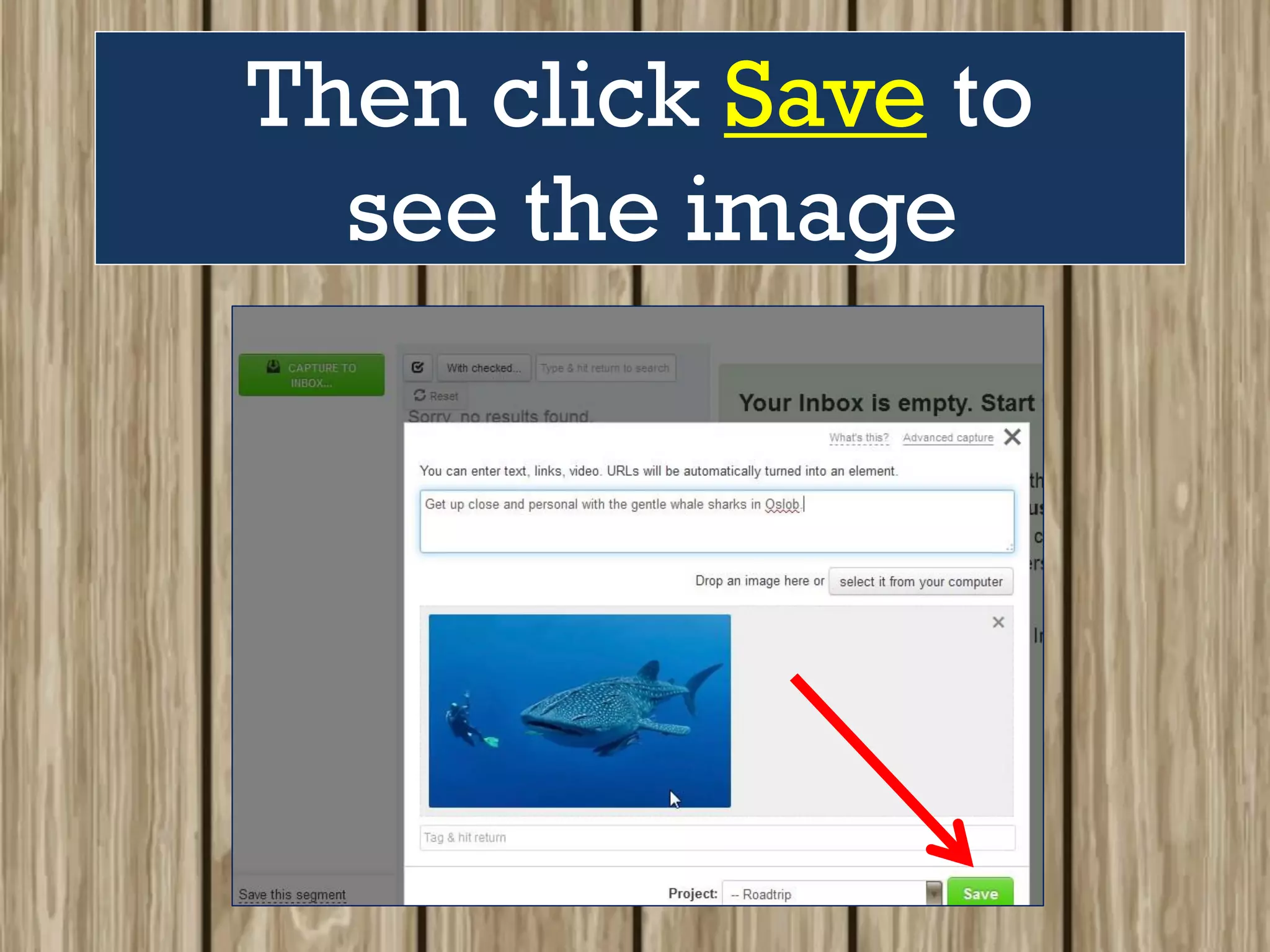
Then click Save to
see the image
in your project Inbox.
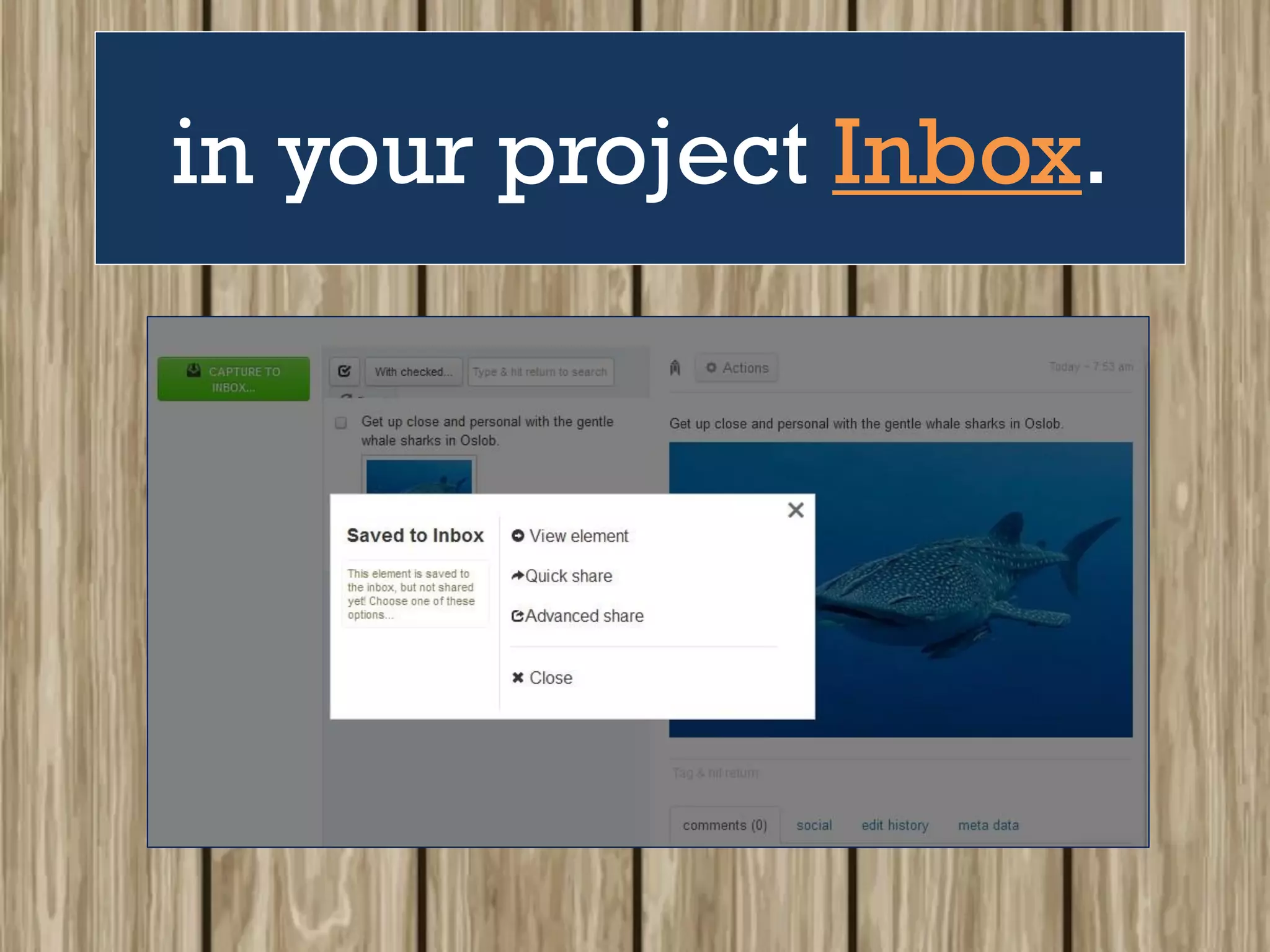
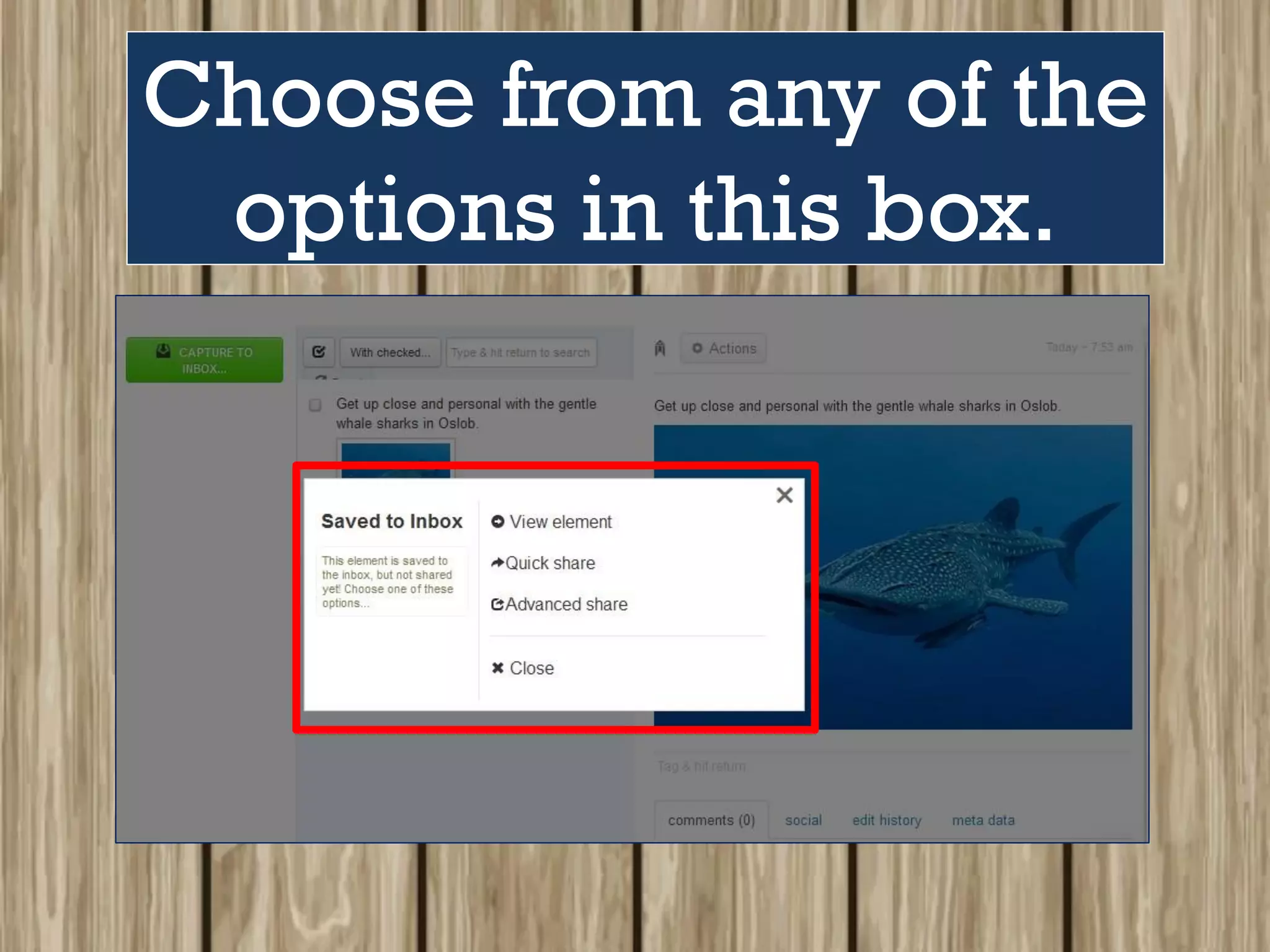
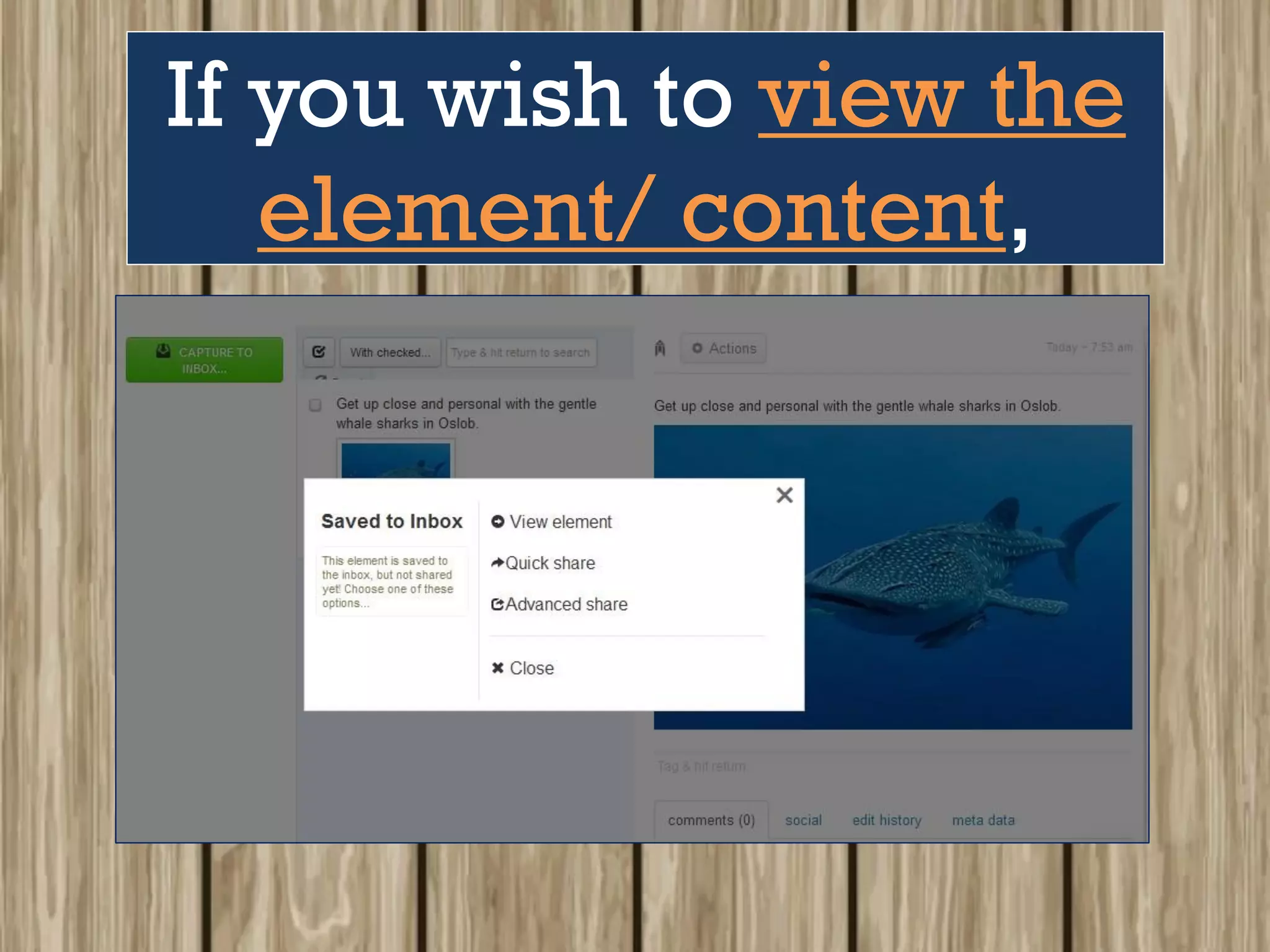
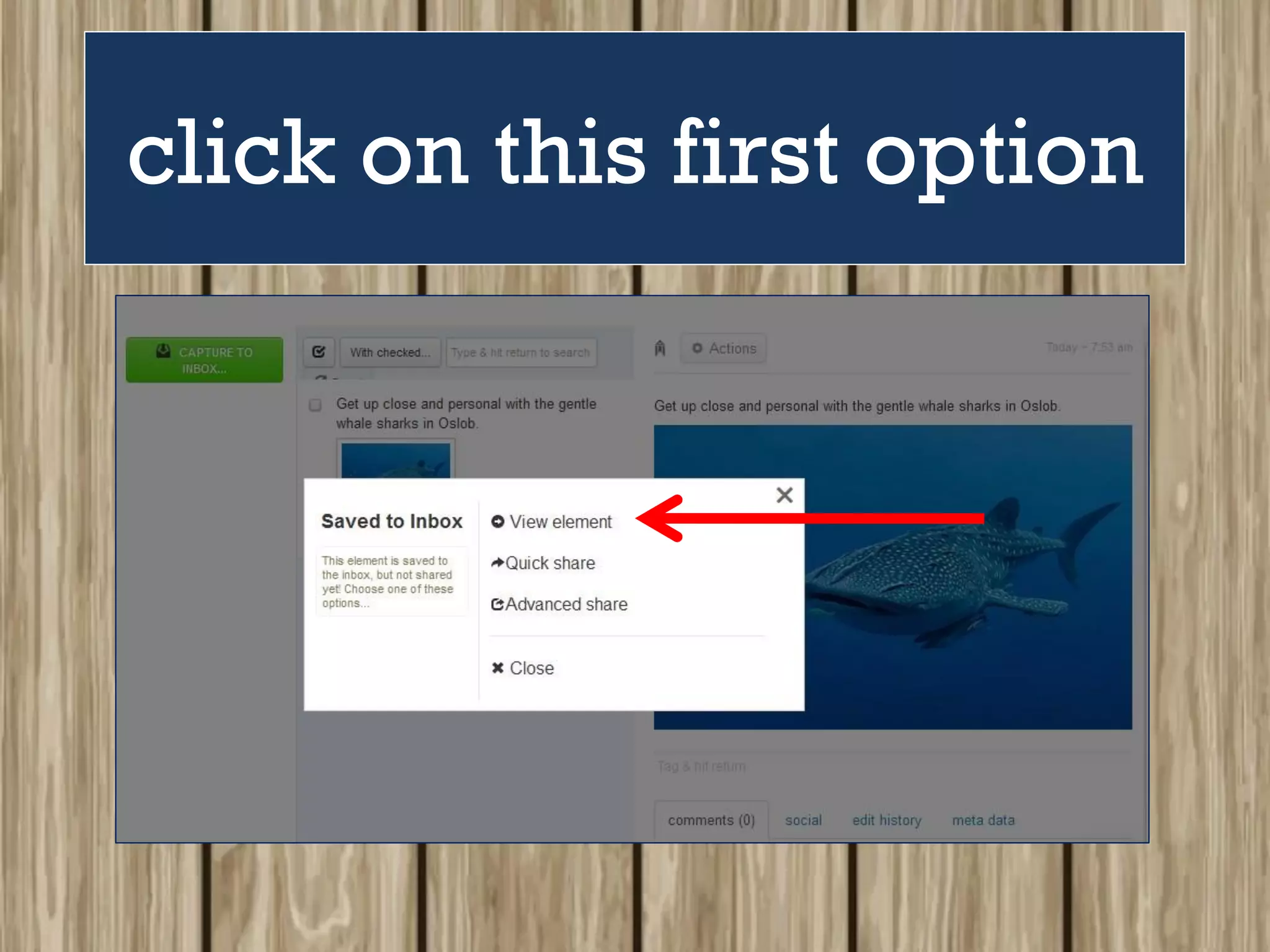
Choose from any of the
options in this box.
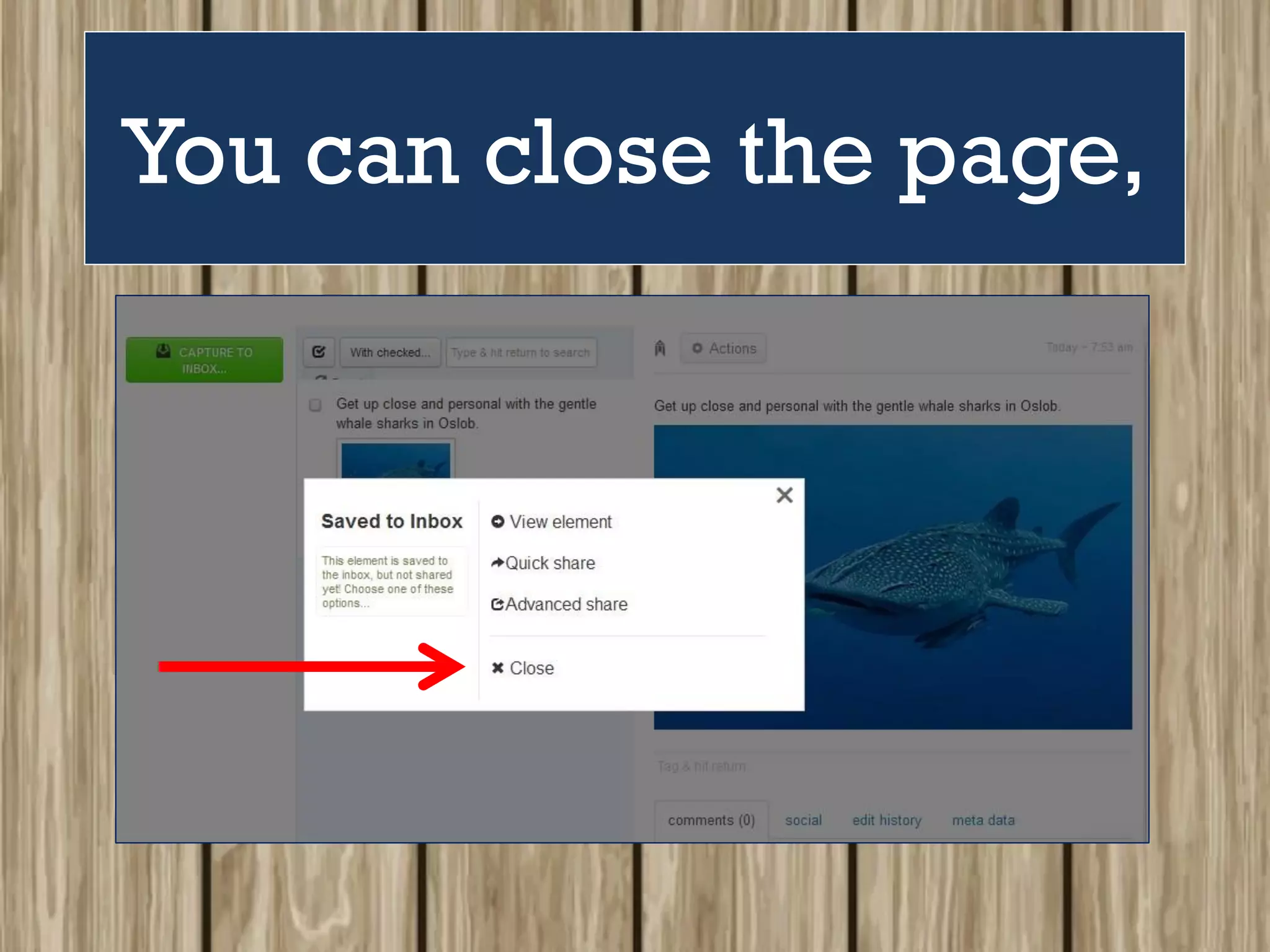
You can close the page,
share right away
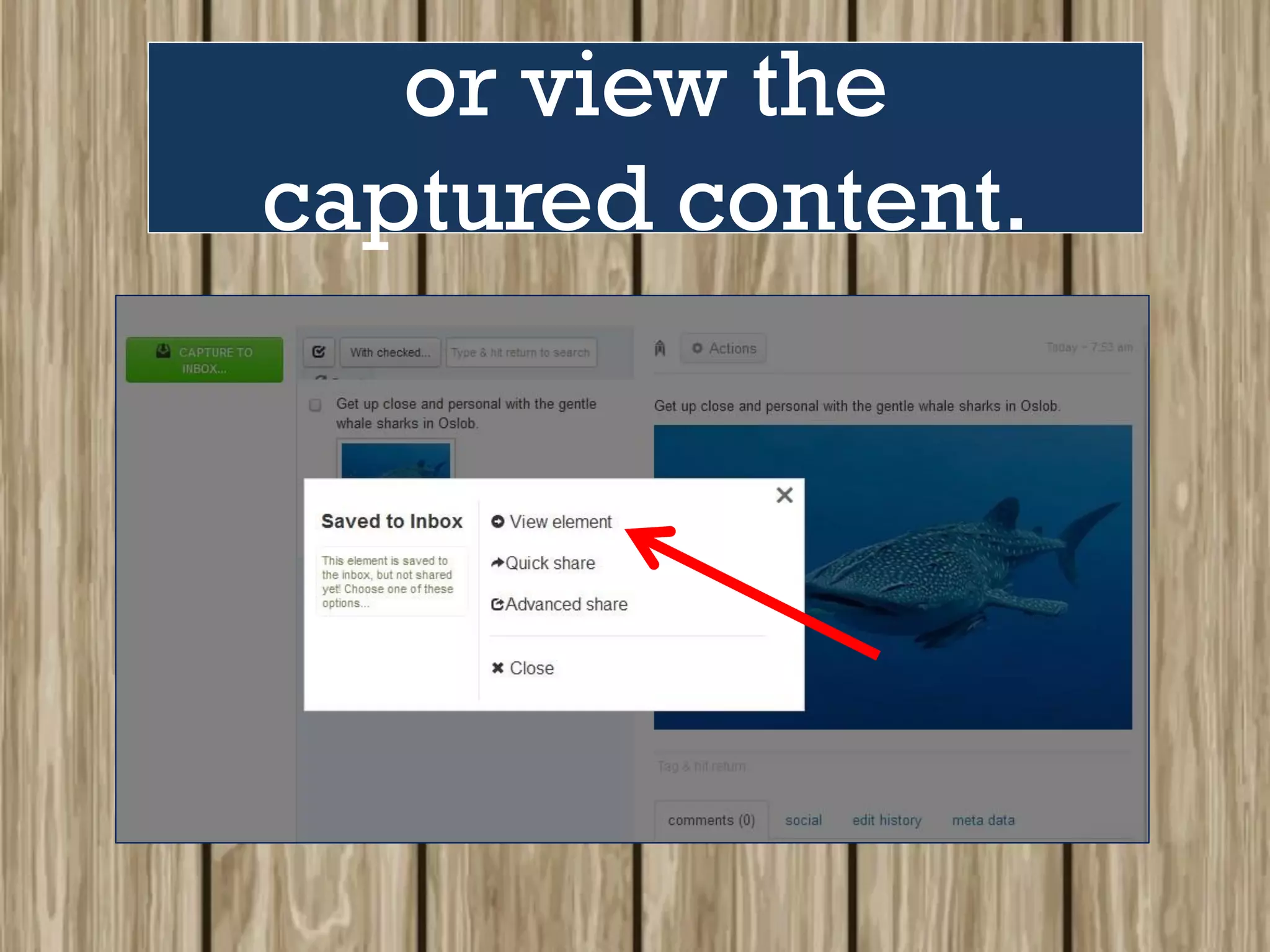
or view the
captured content.
If you wish to view the
element/ content,
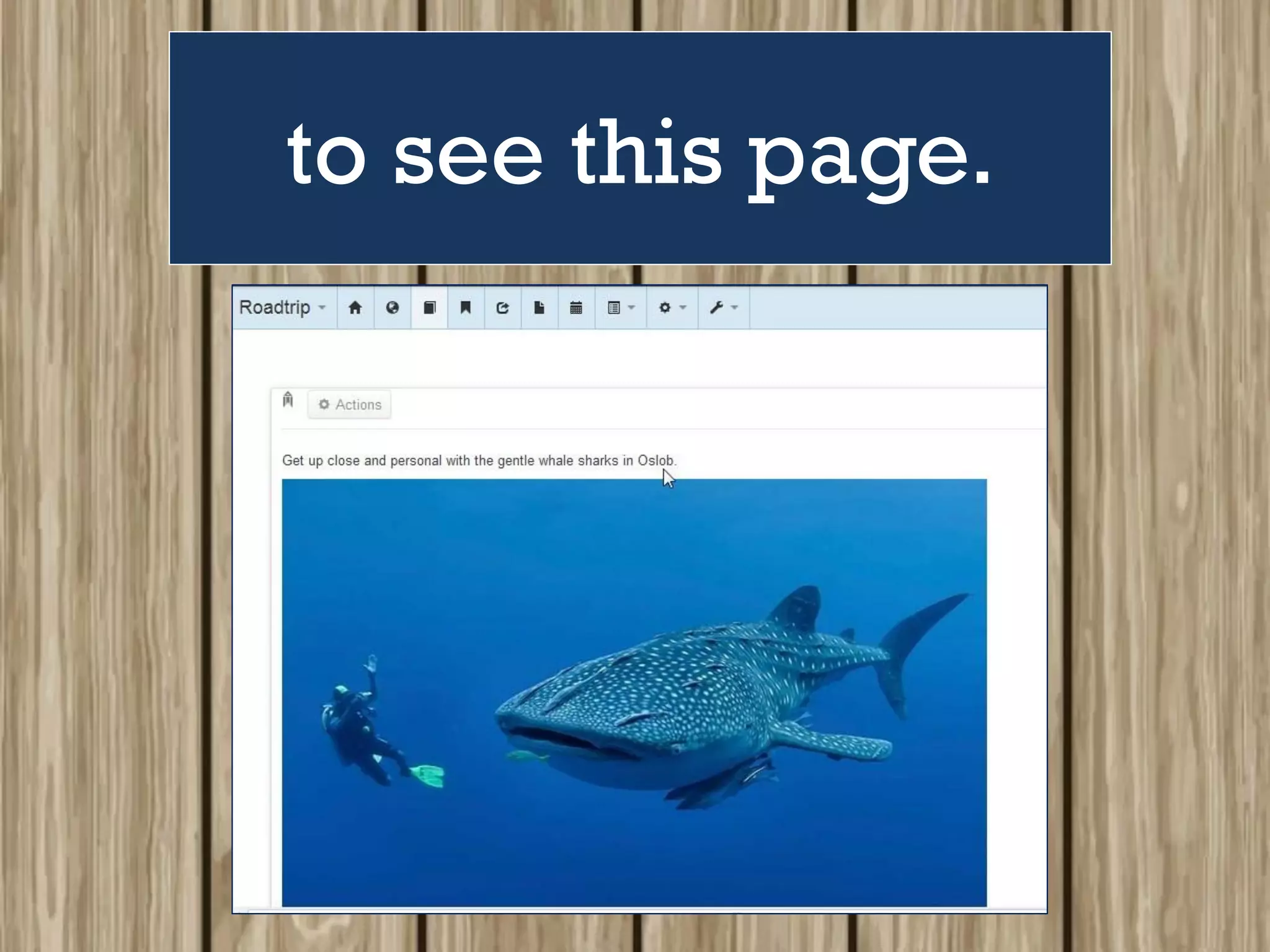
click on this first option
to see this page.
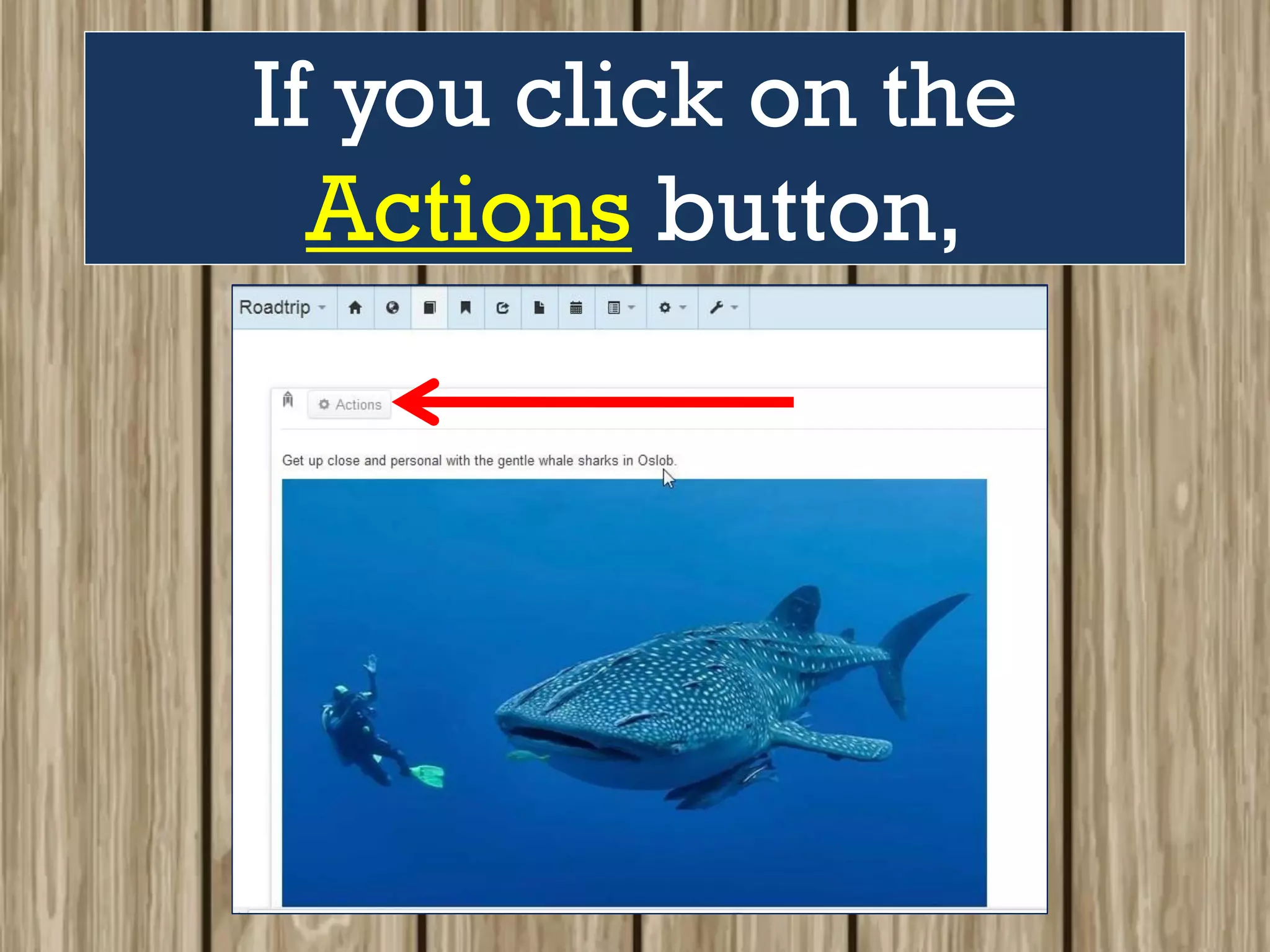
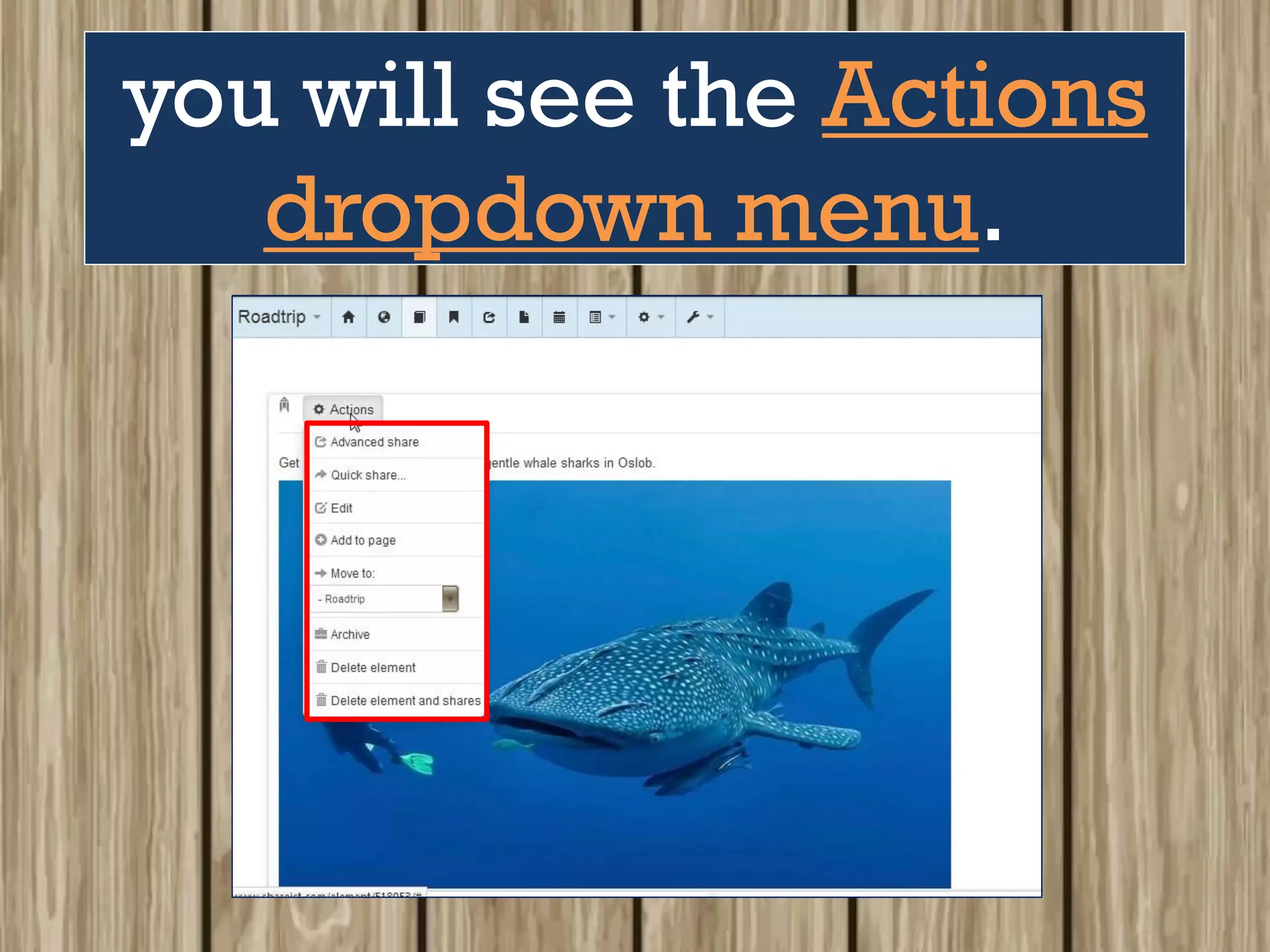
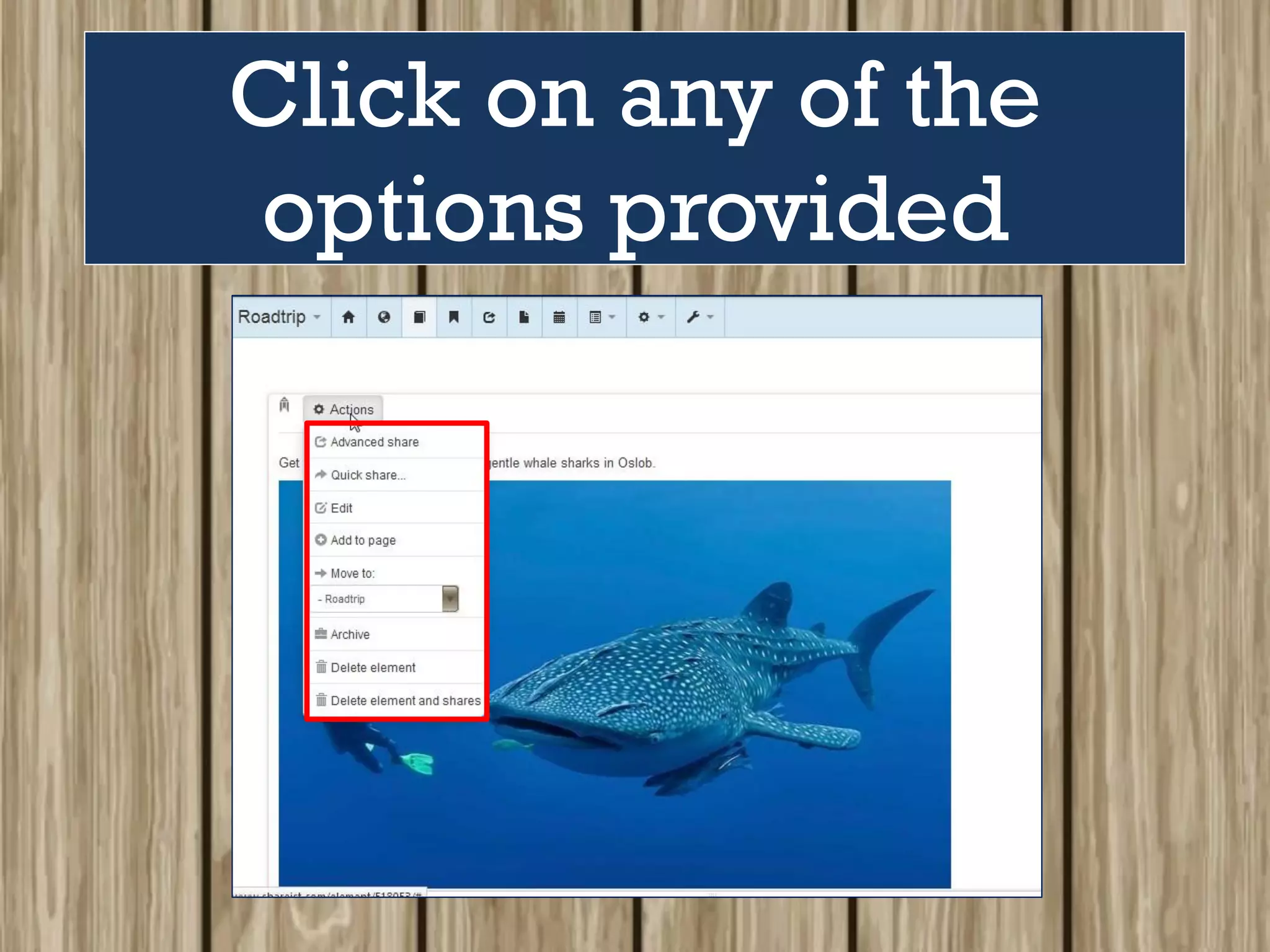
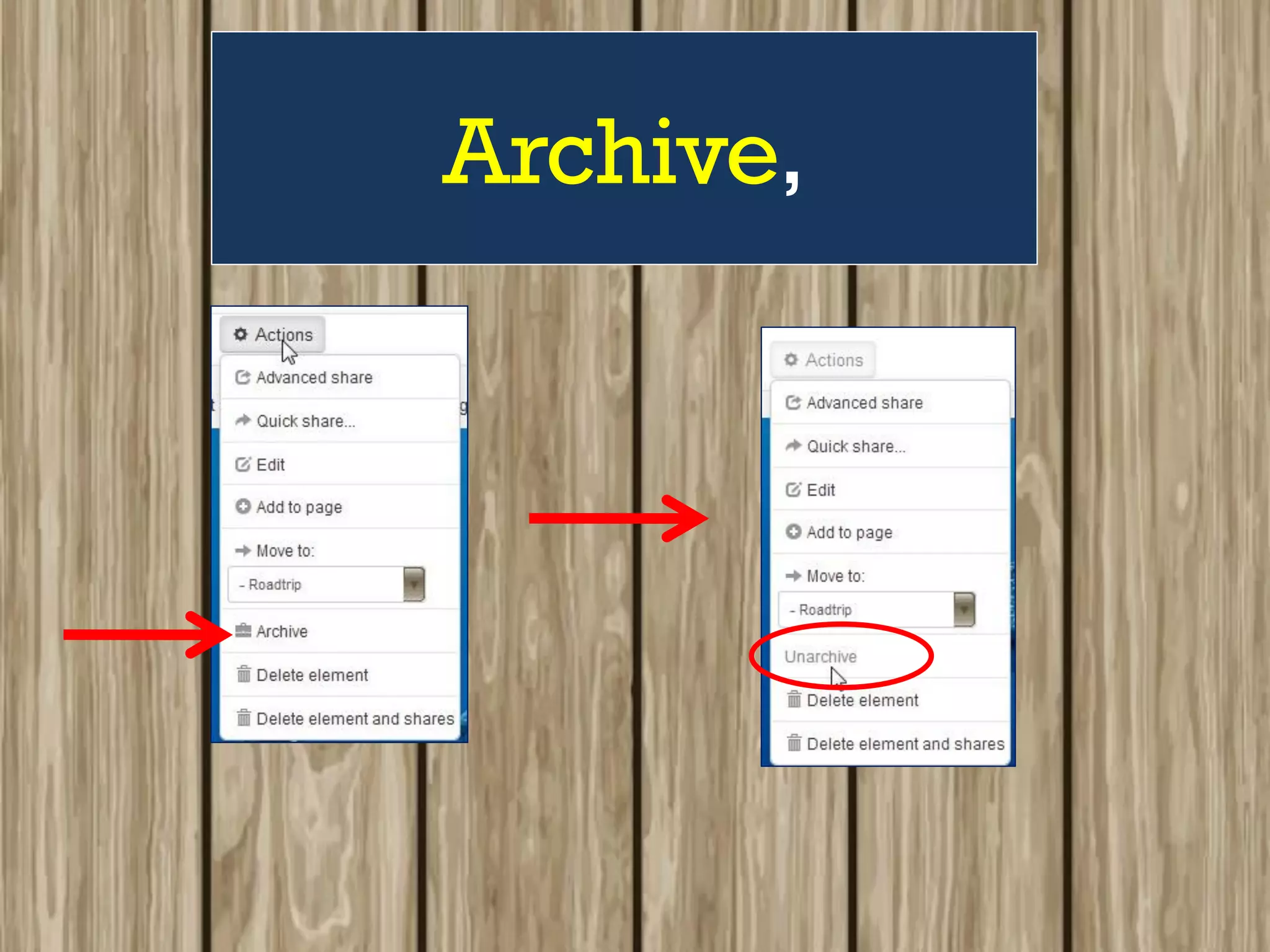
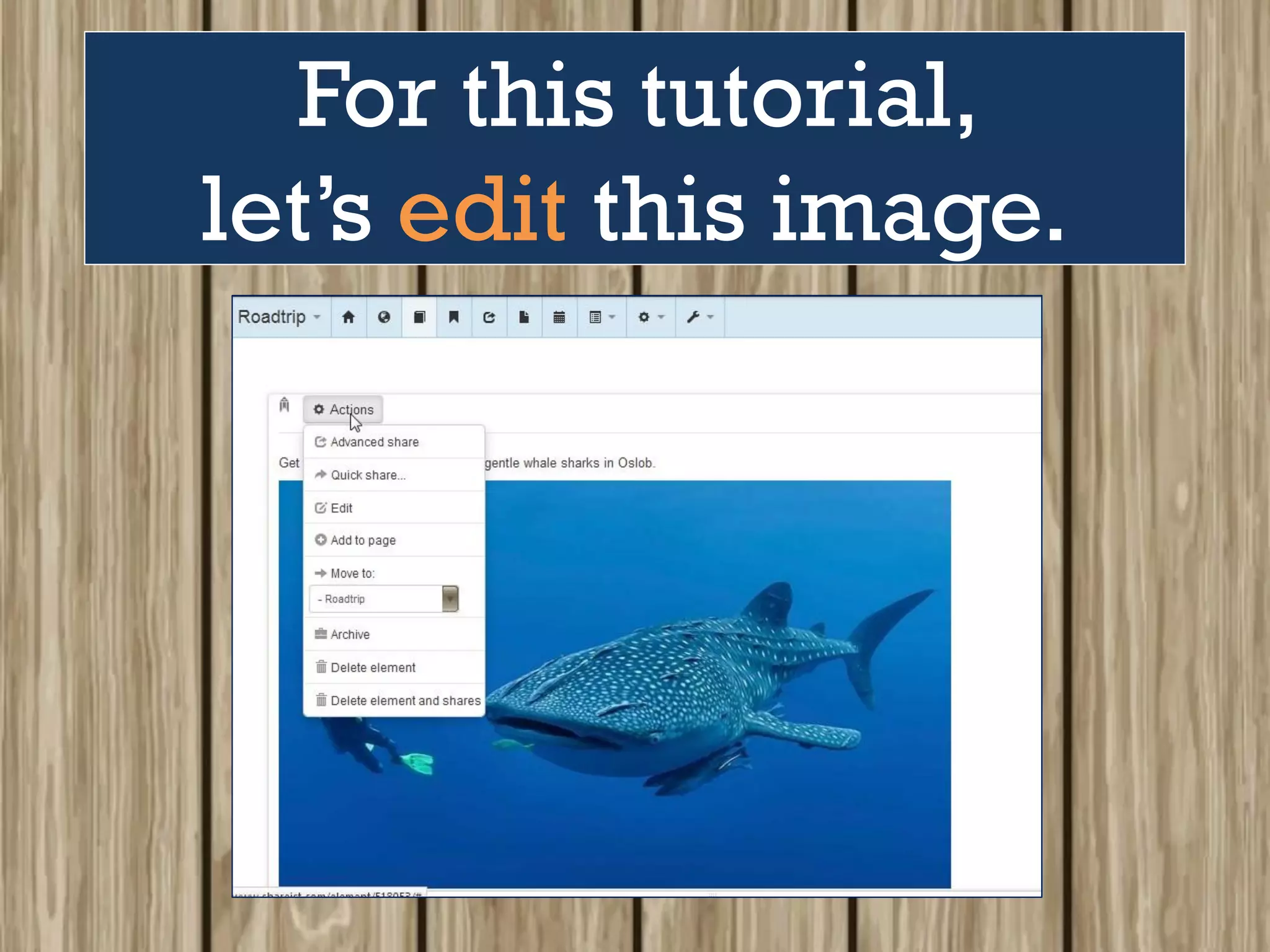
If you click on the
Actions button,
you will see the Actions
dropdown menu.
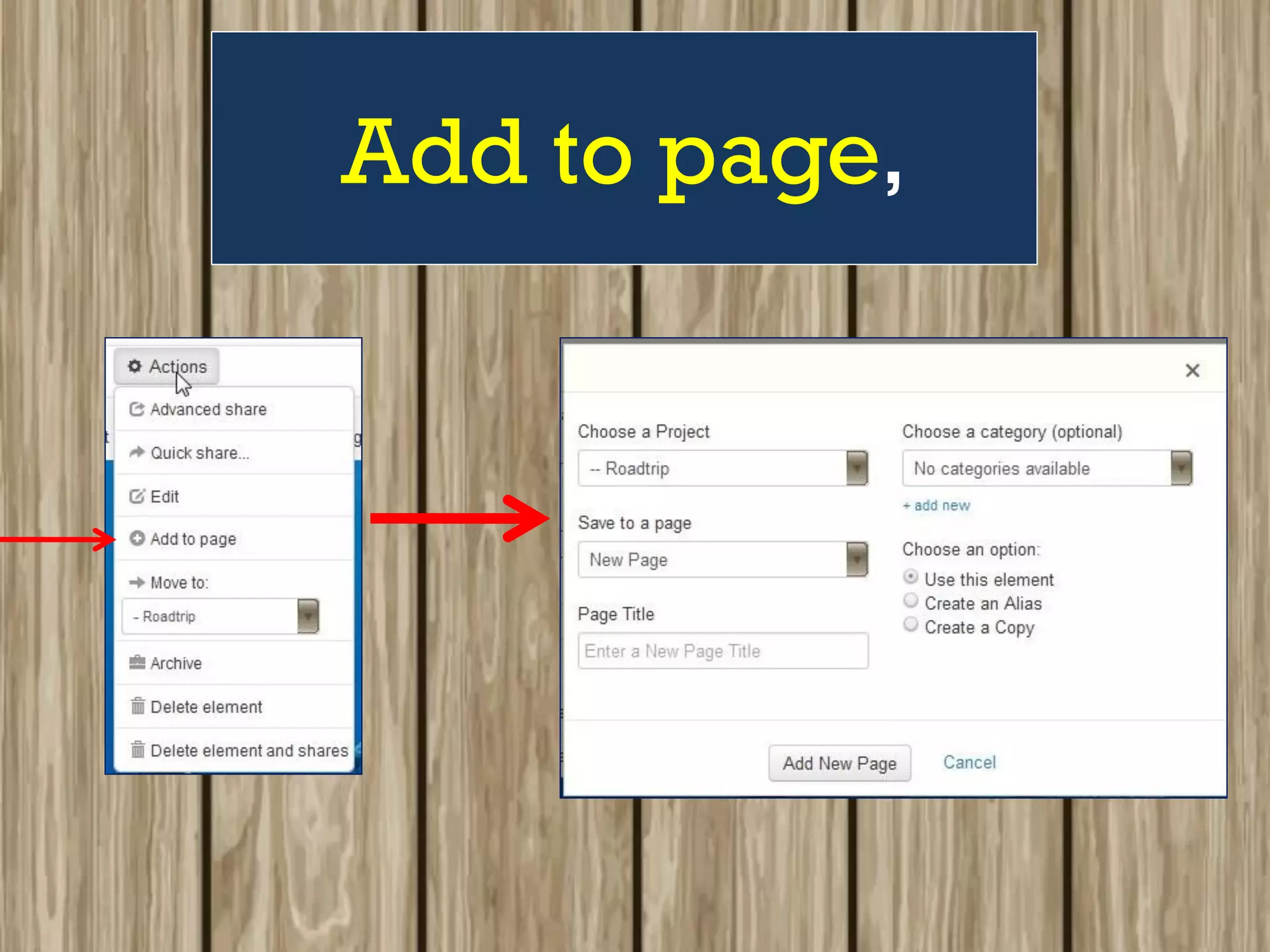
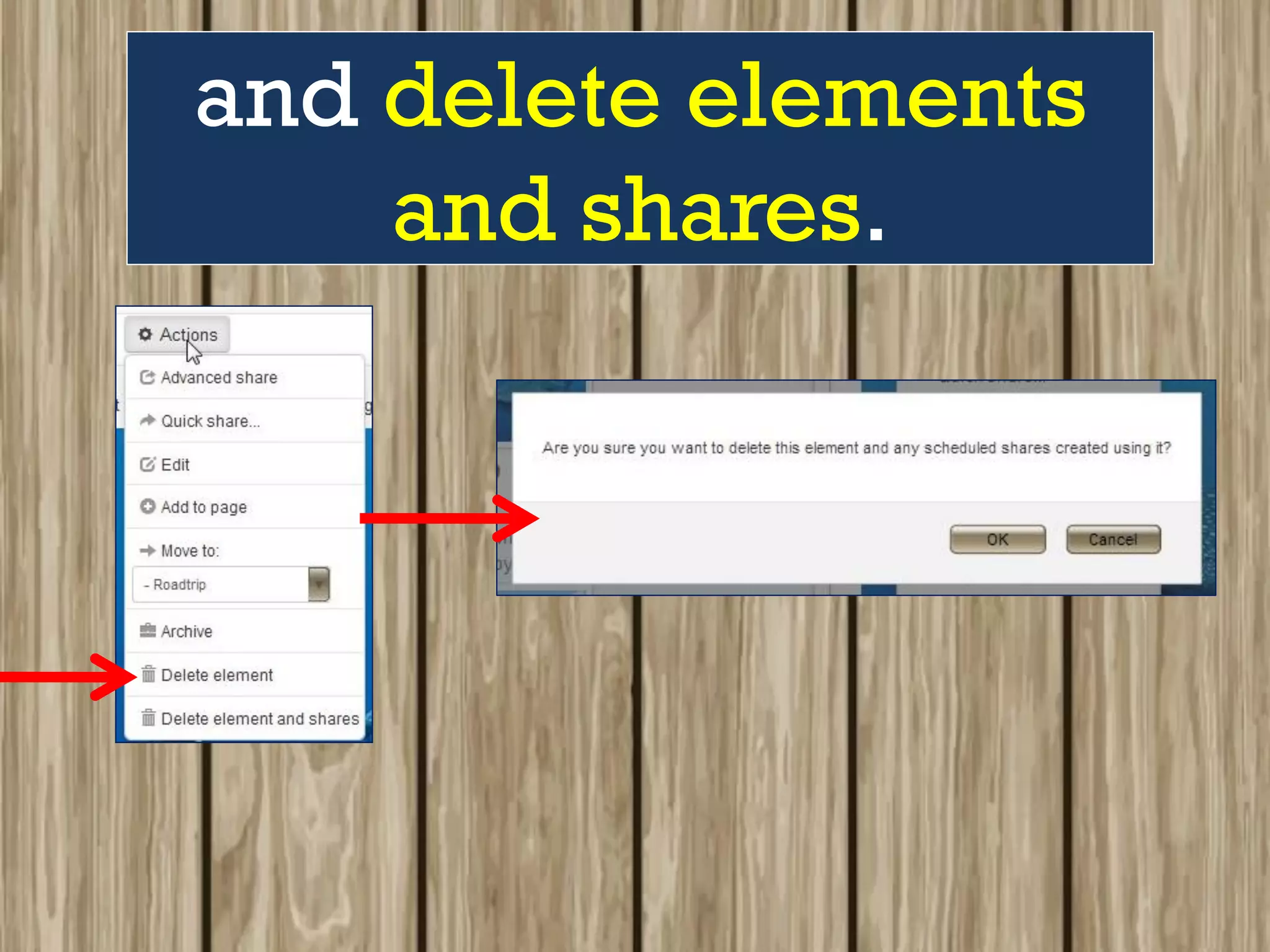
Click on any of the
options provided
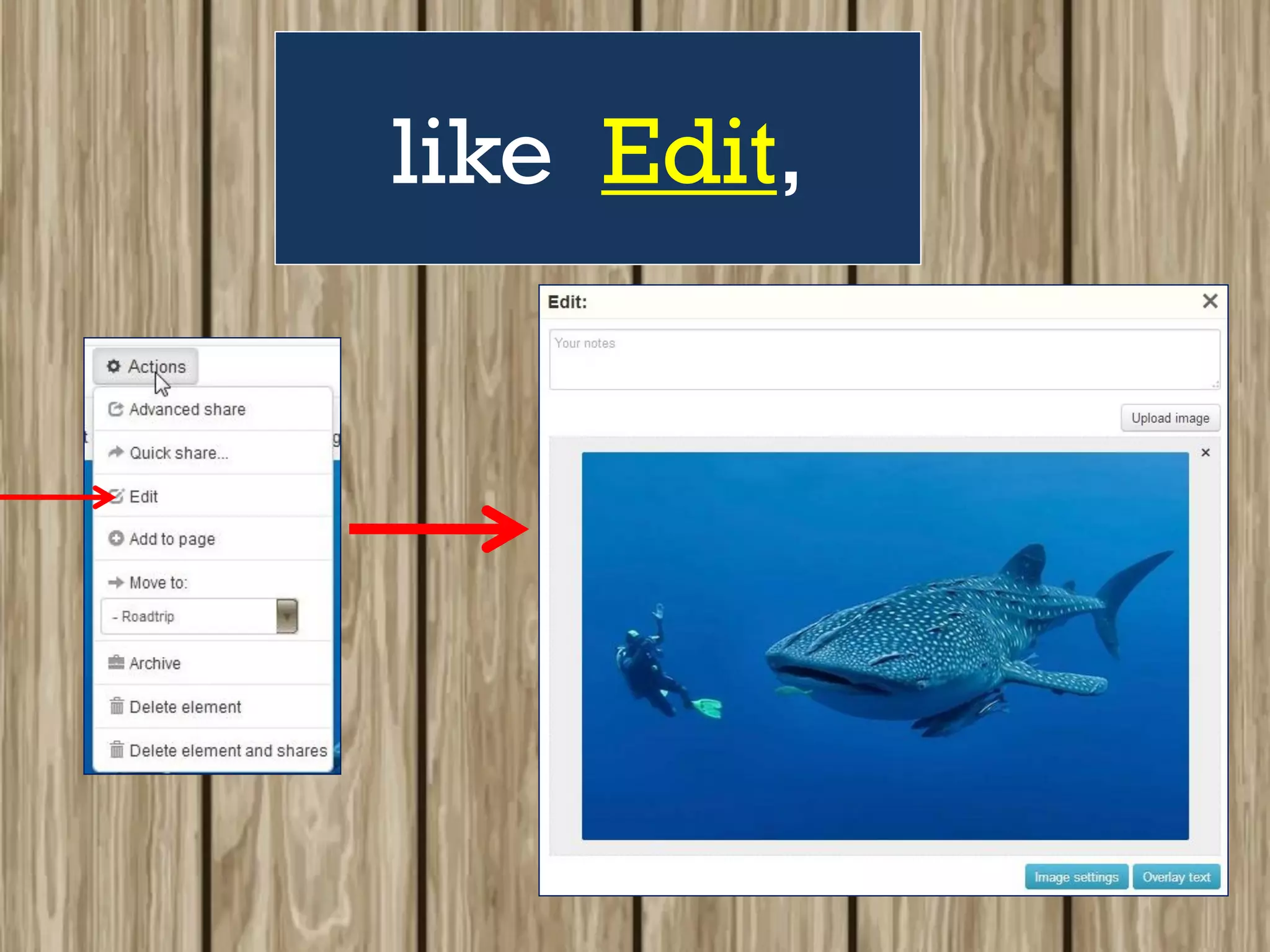
like Edit,
Add to page,
Archive,
and delete elements
and shares.
For this tutorial,
let’s edit this image.
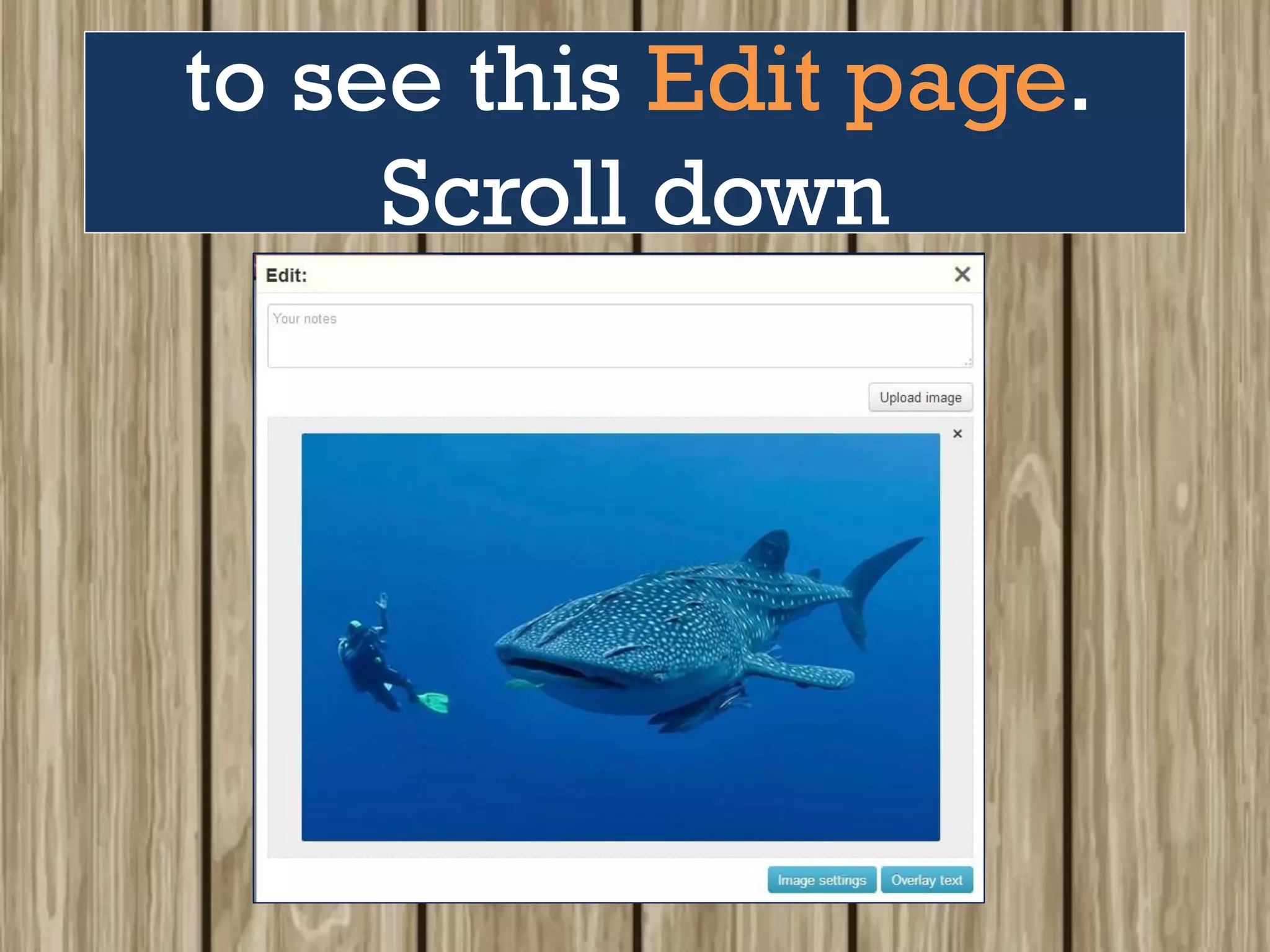
Go ahead and click Edit
to see this Edit page.
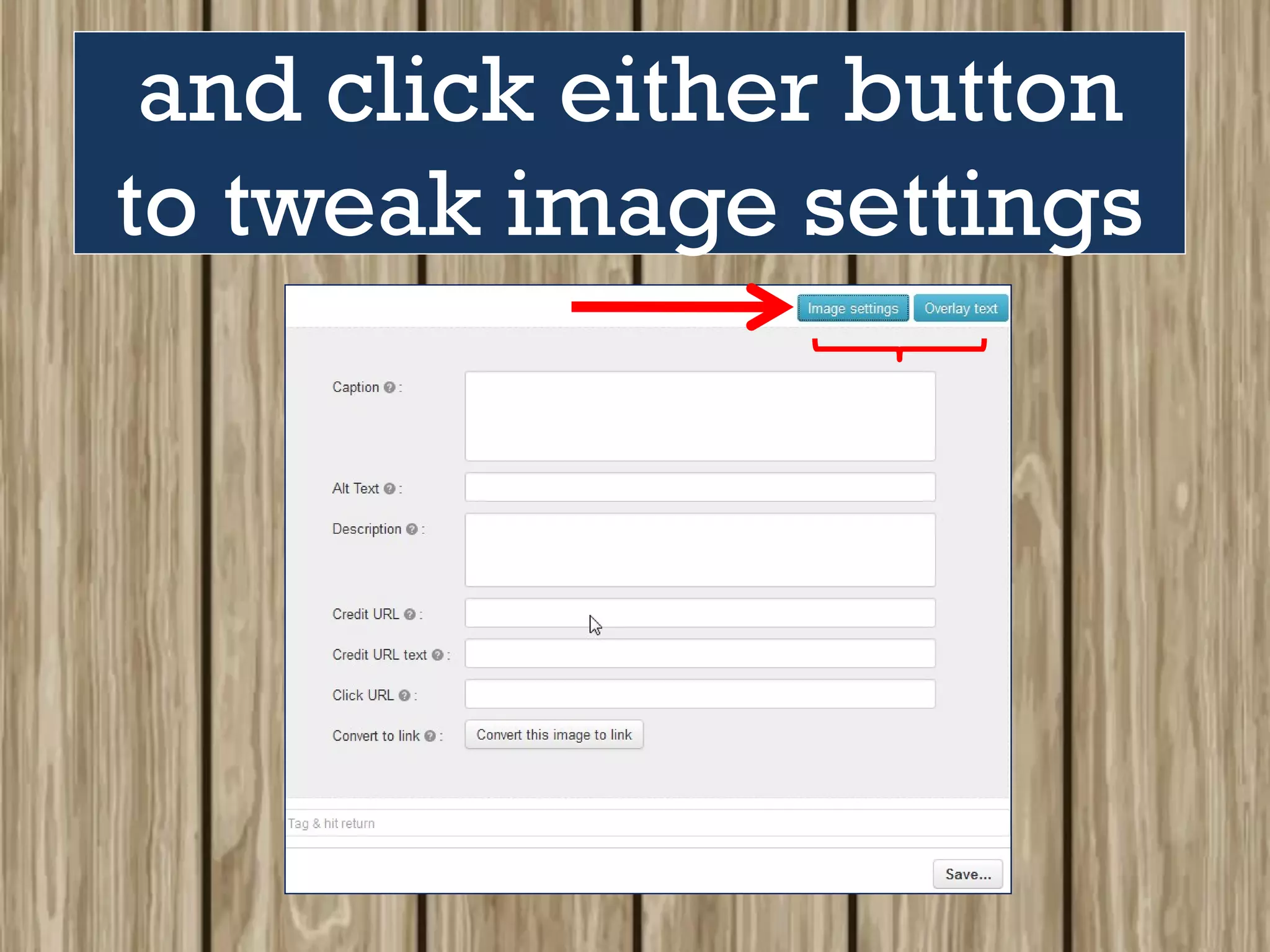
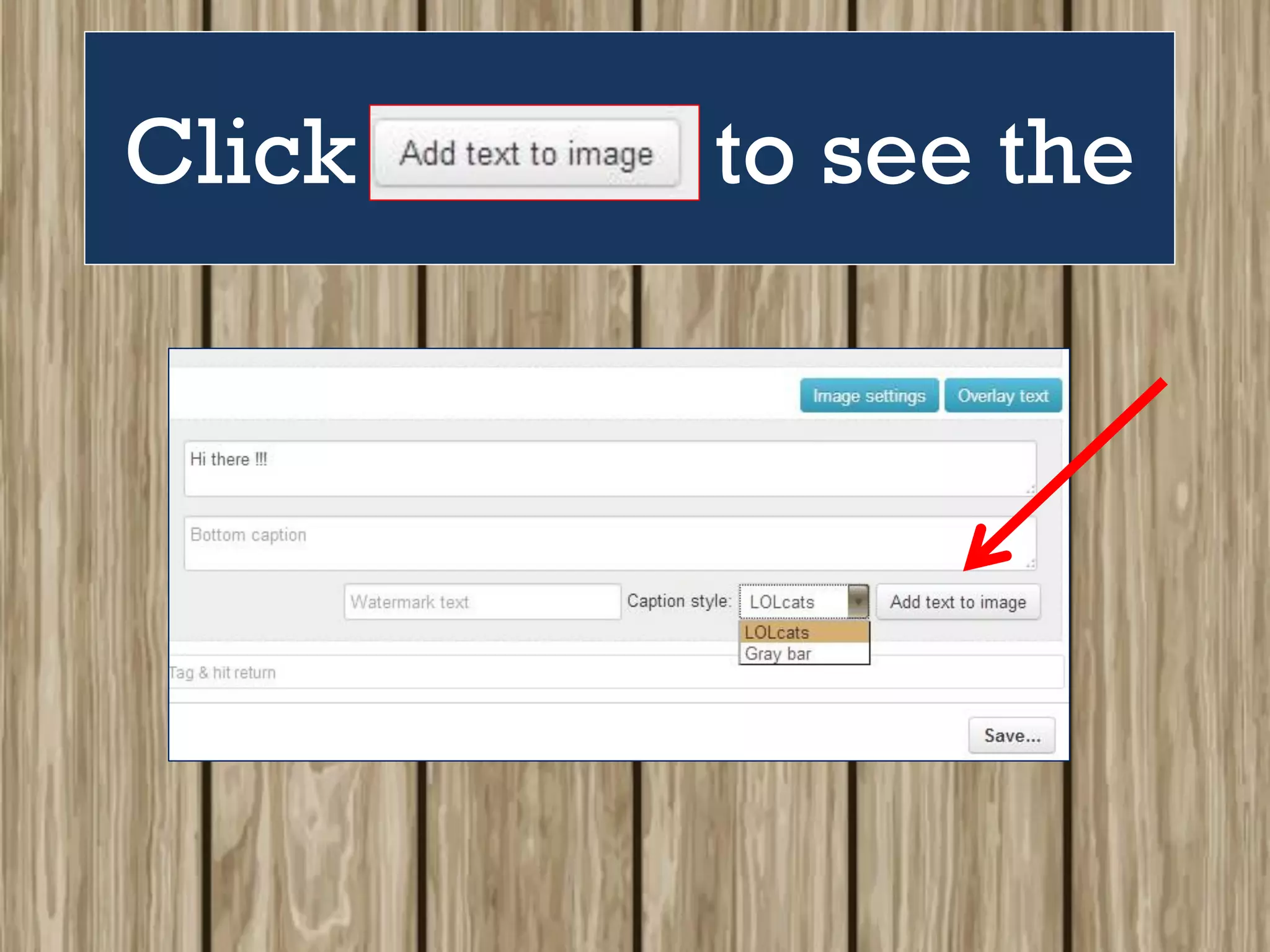
Scroll down
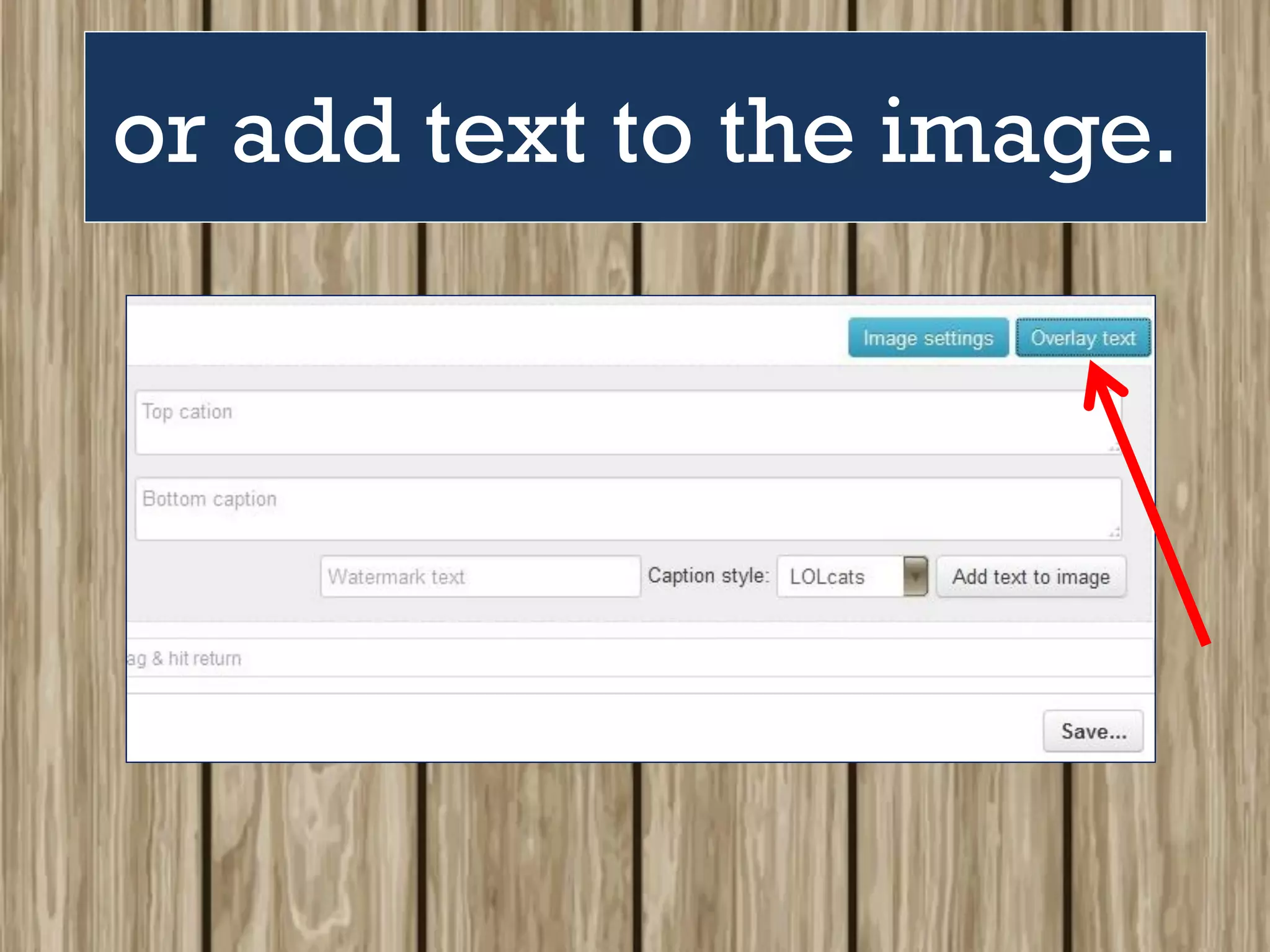
and click either button
to tweak image settings
or add text to the image.
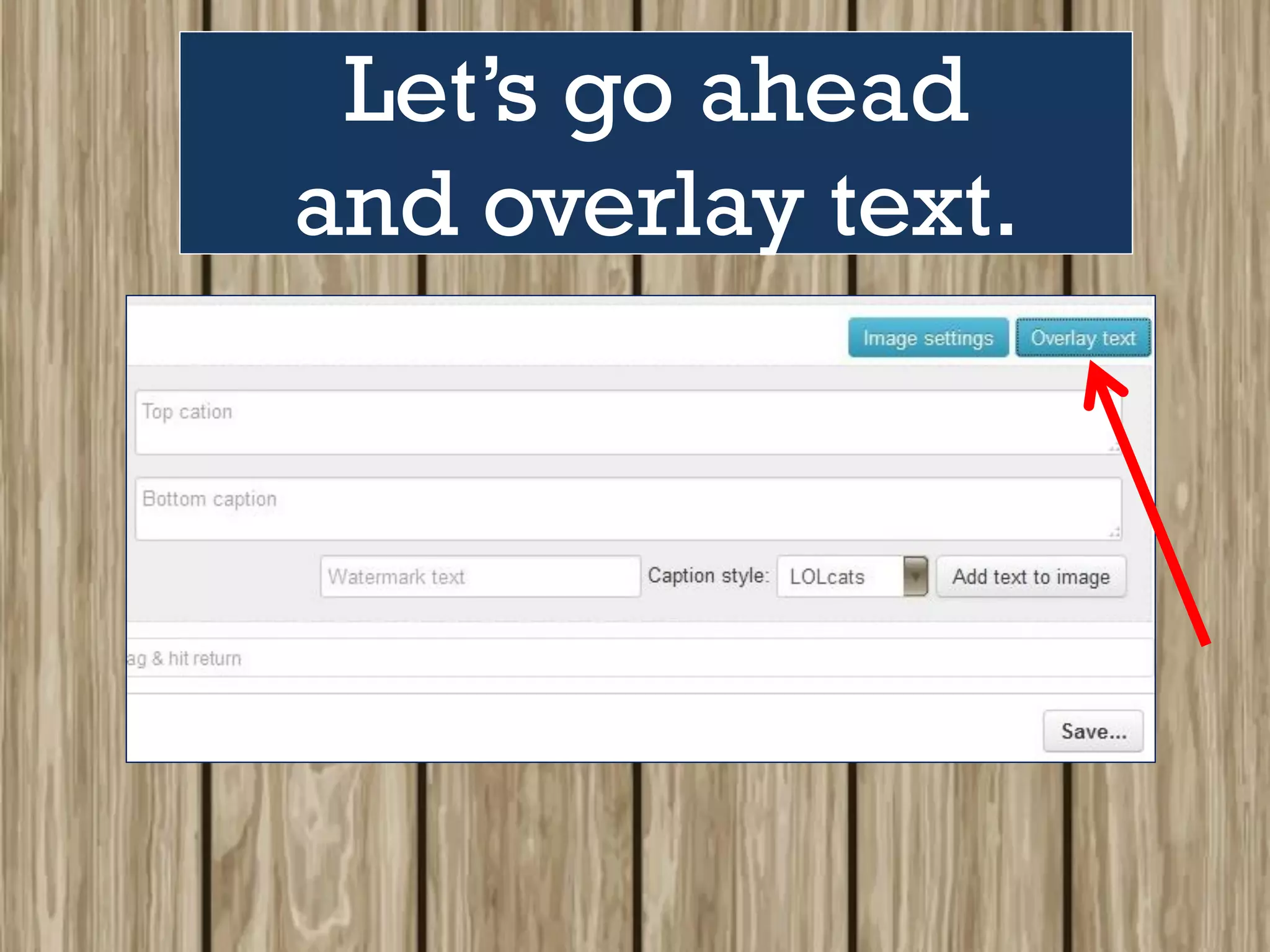
Let’s go ahead
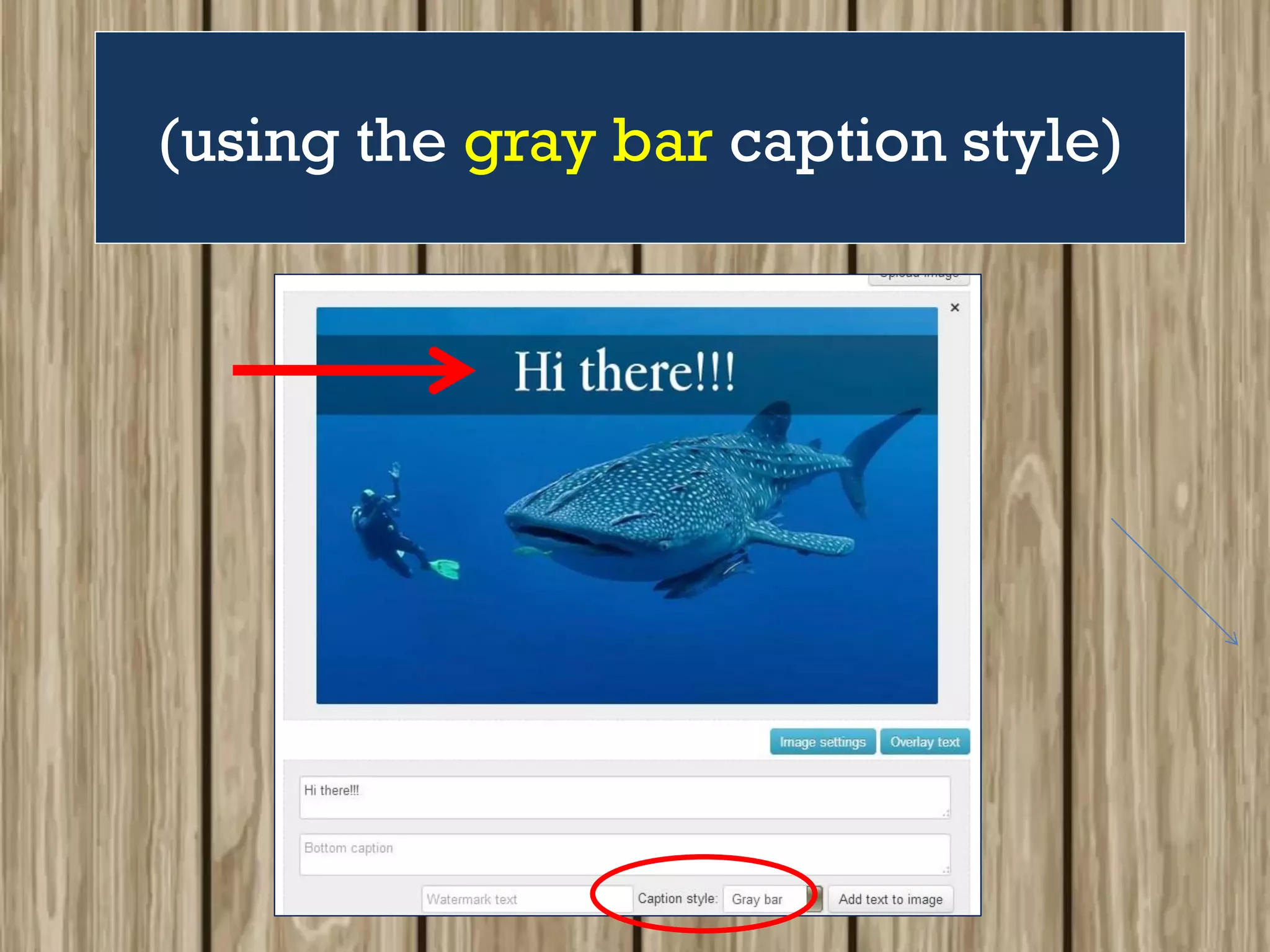
and overlay text.
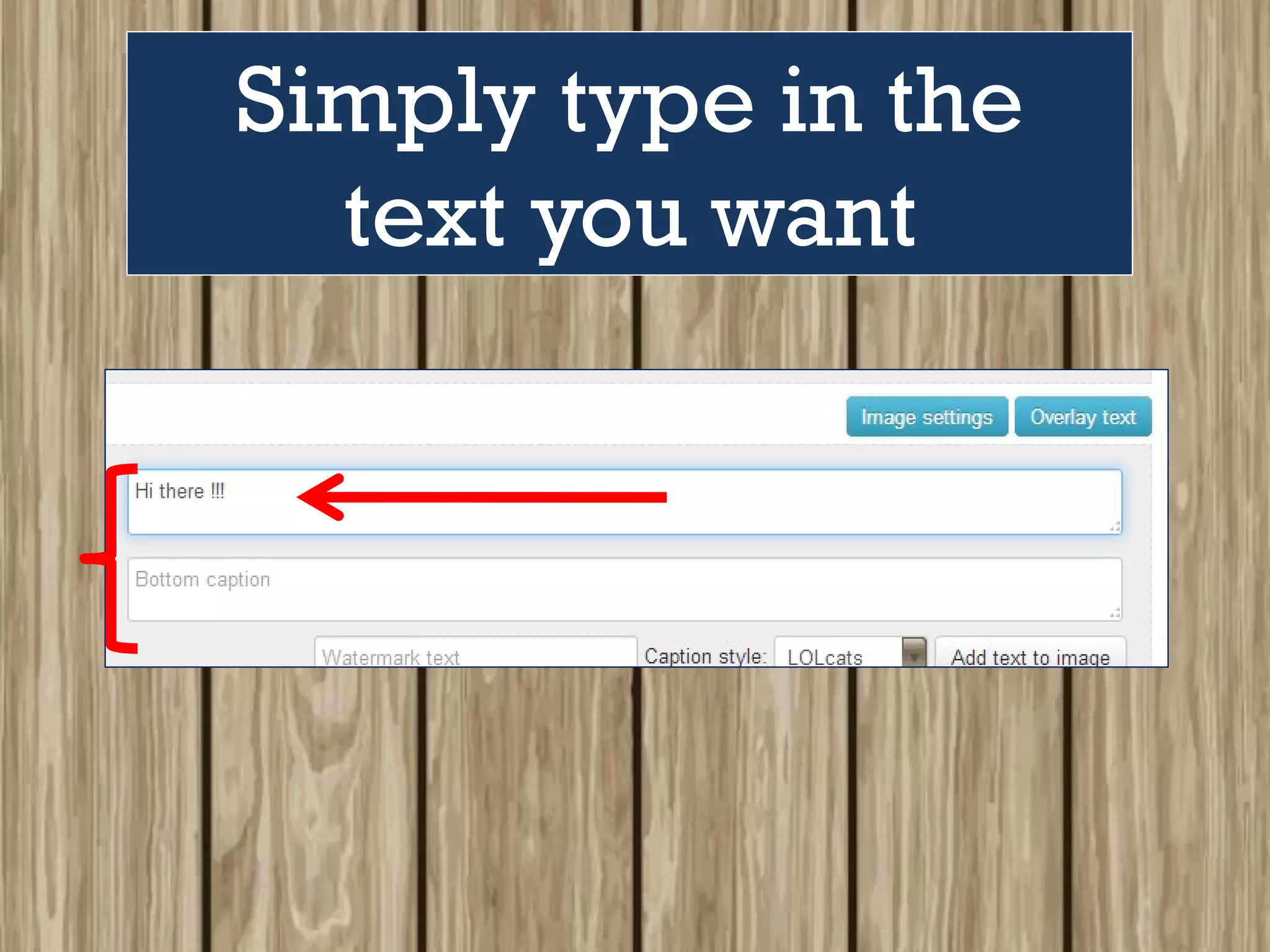
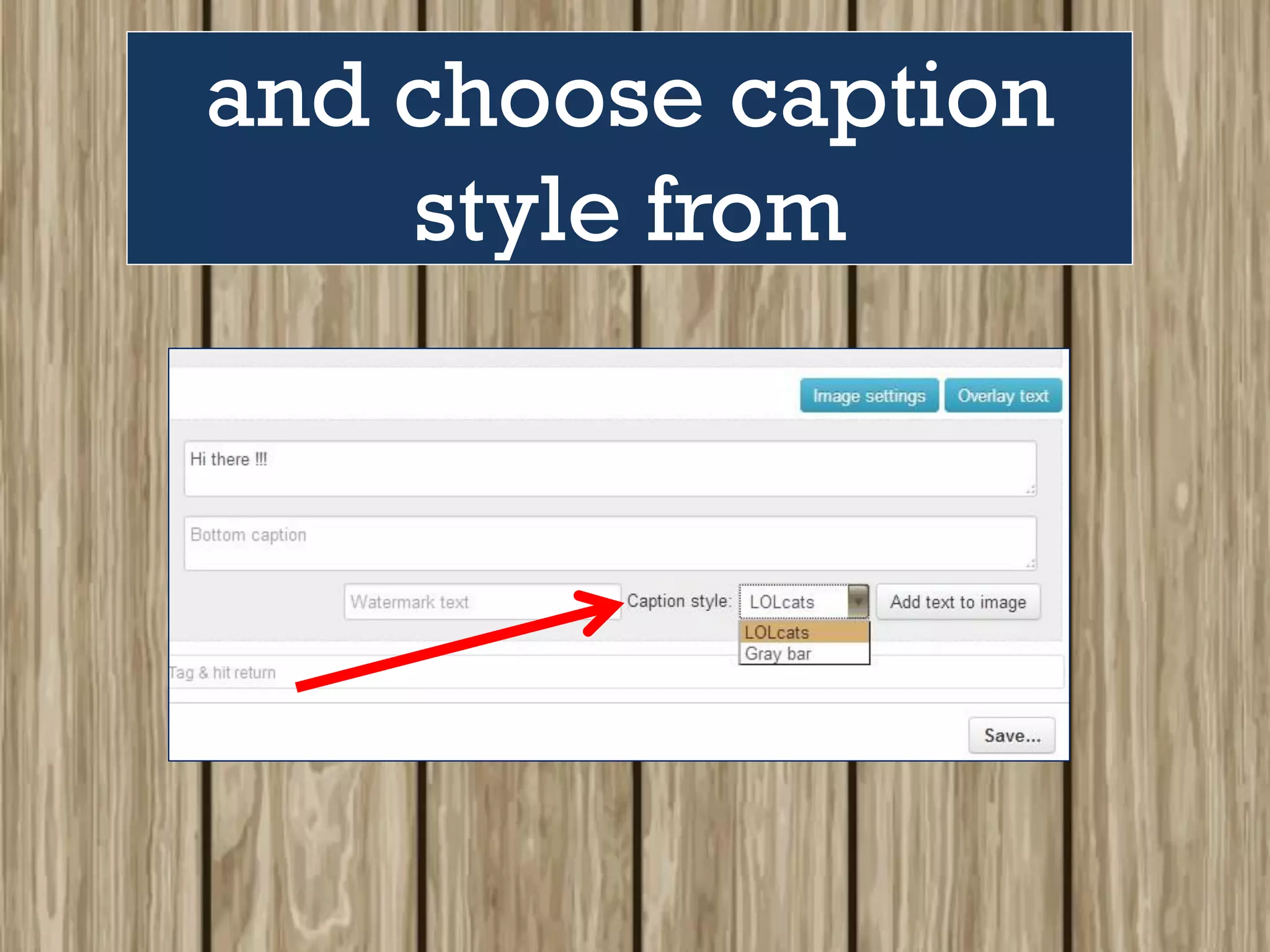
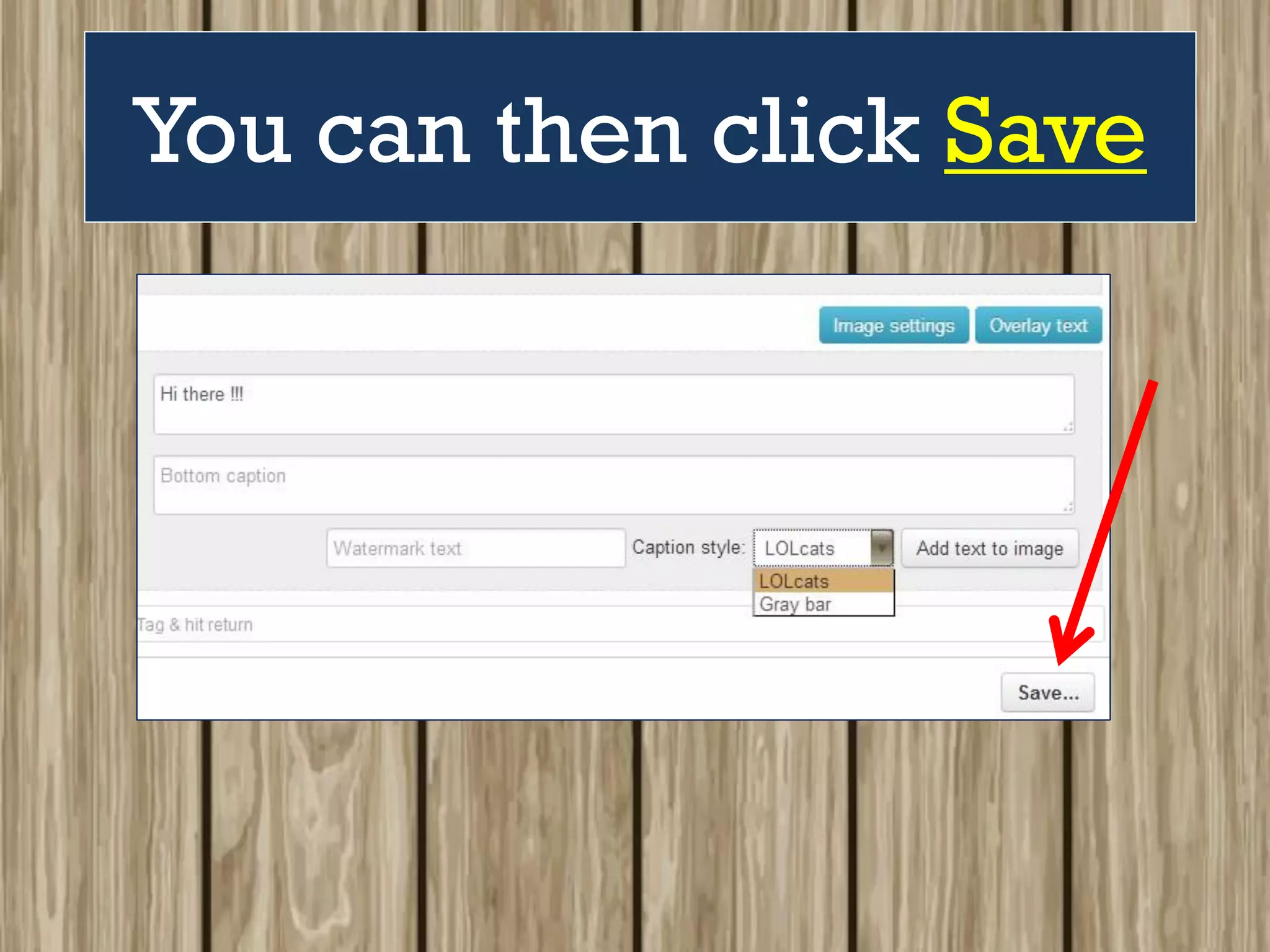
Simply type in the
text you want
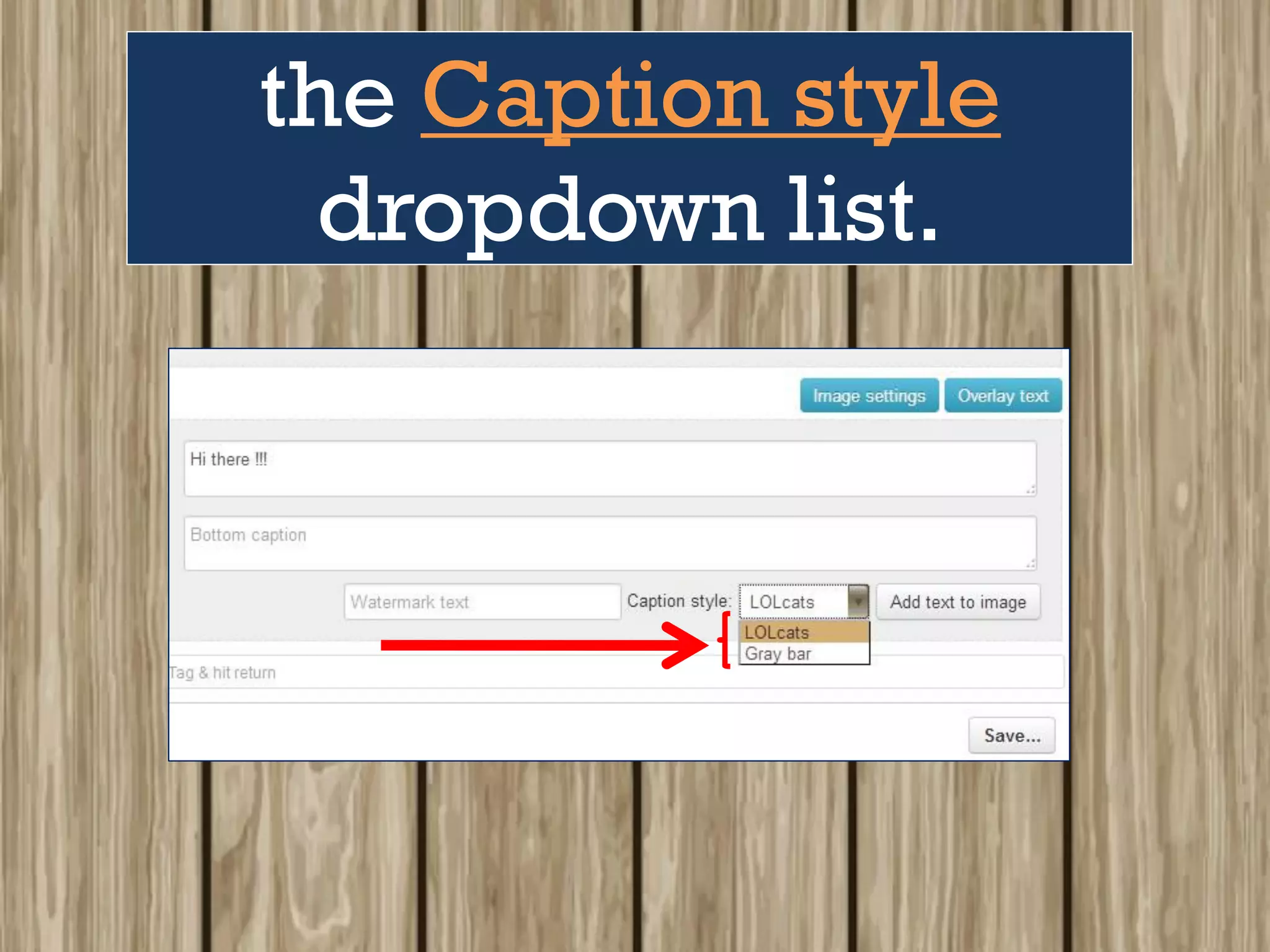
and choose caption
style from
the Caption style
dropdown list.
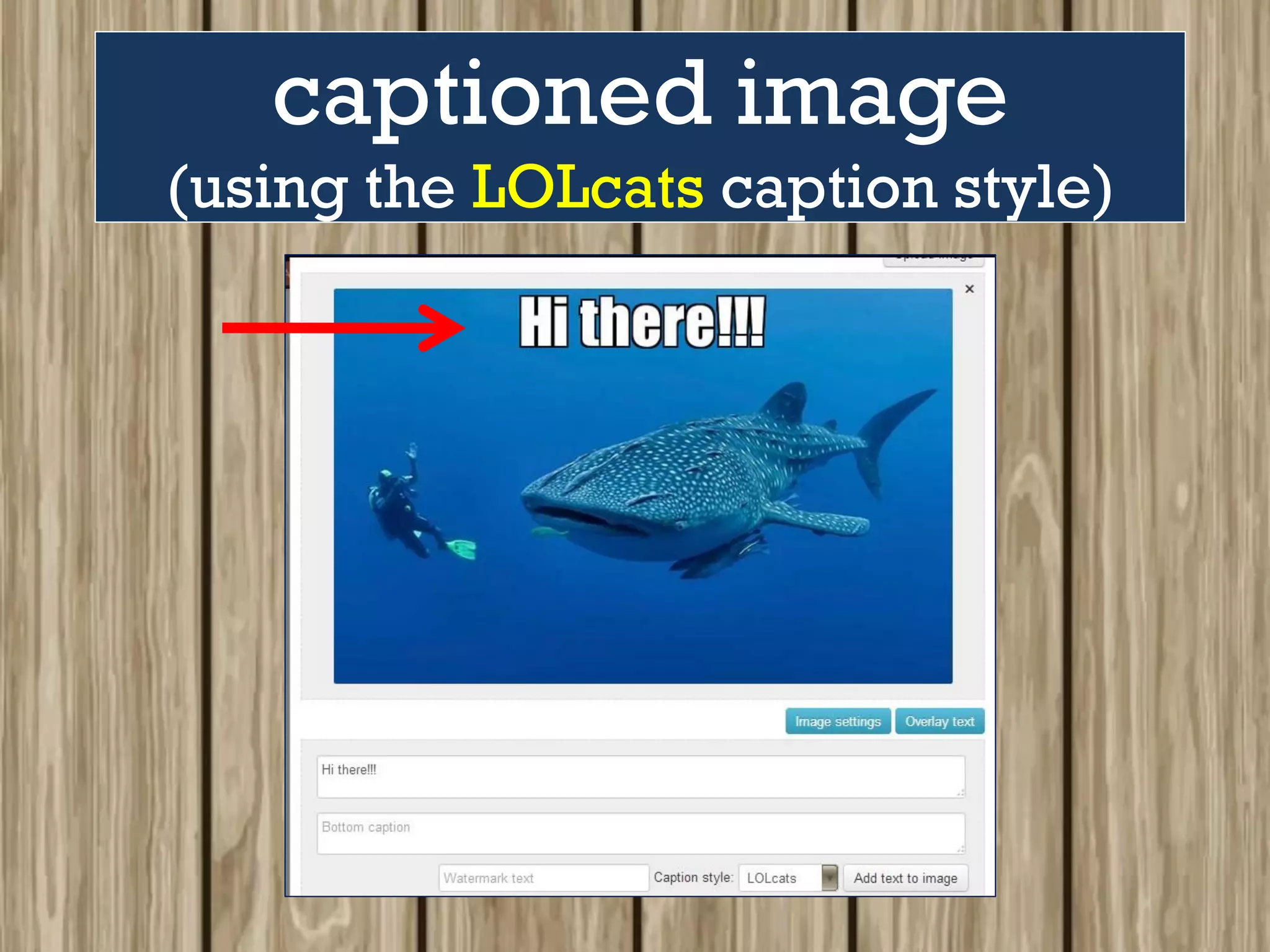
Click to see the
captioned image
(using the LOLcats caption style)
(using the gray bar caption style)
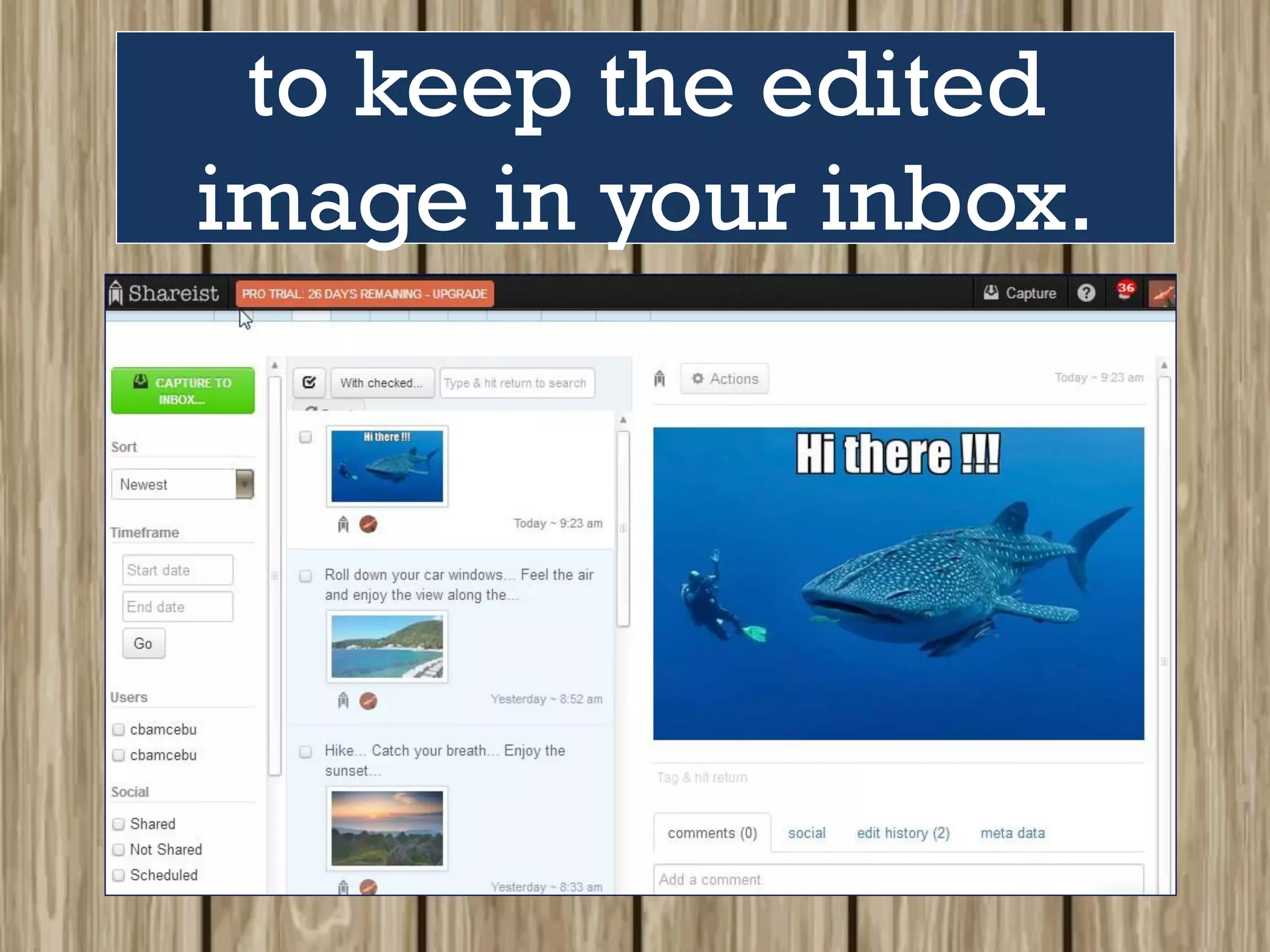
You can then click Save
to keep the edited
image in your inbox.
There you go!!!
It was EASY, right?
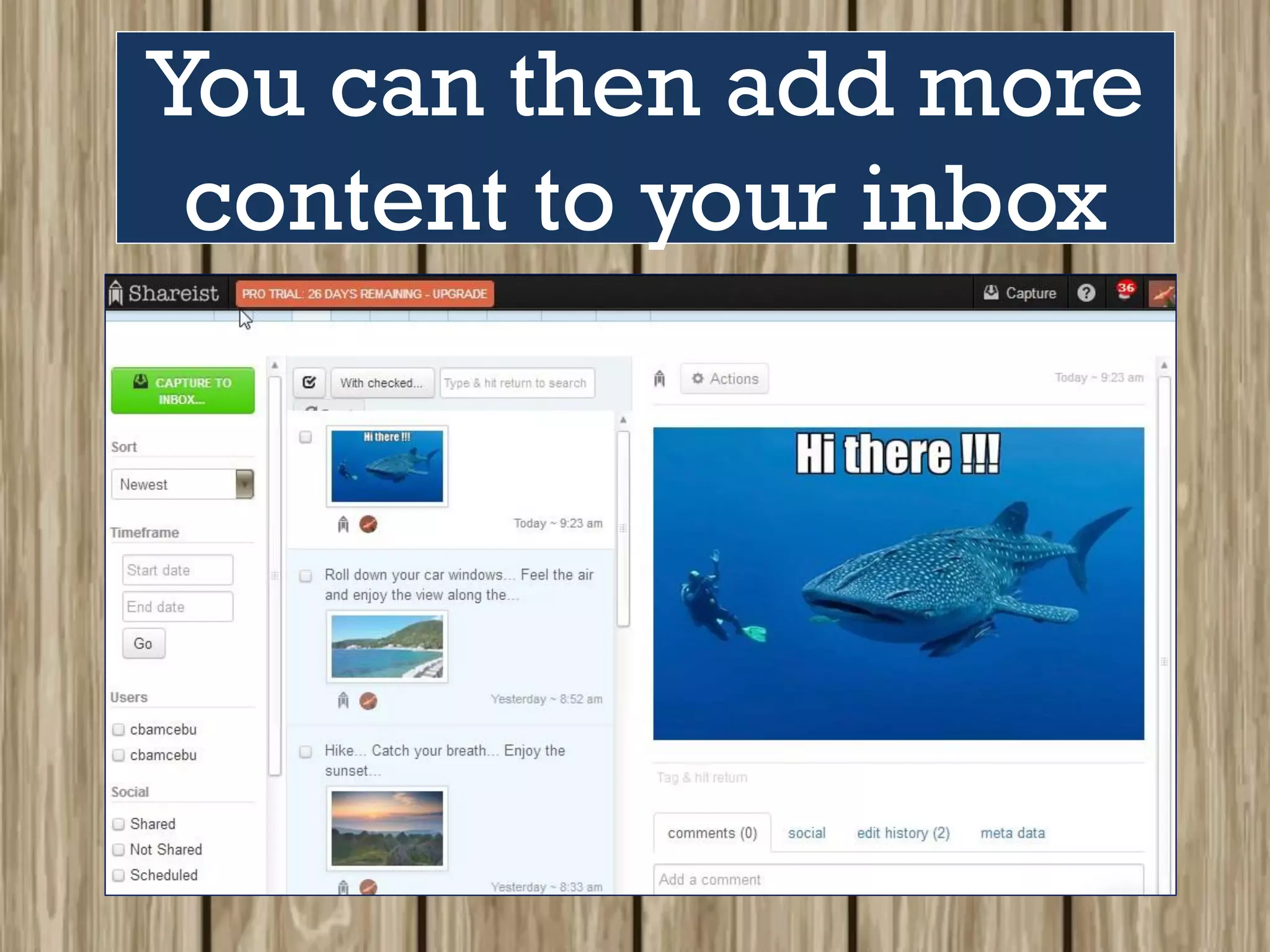
You can then add more
content to your inbox
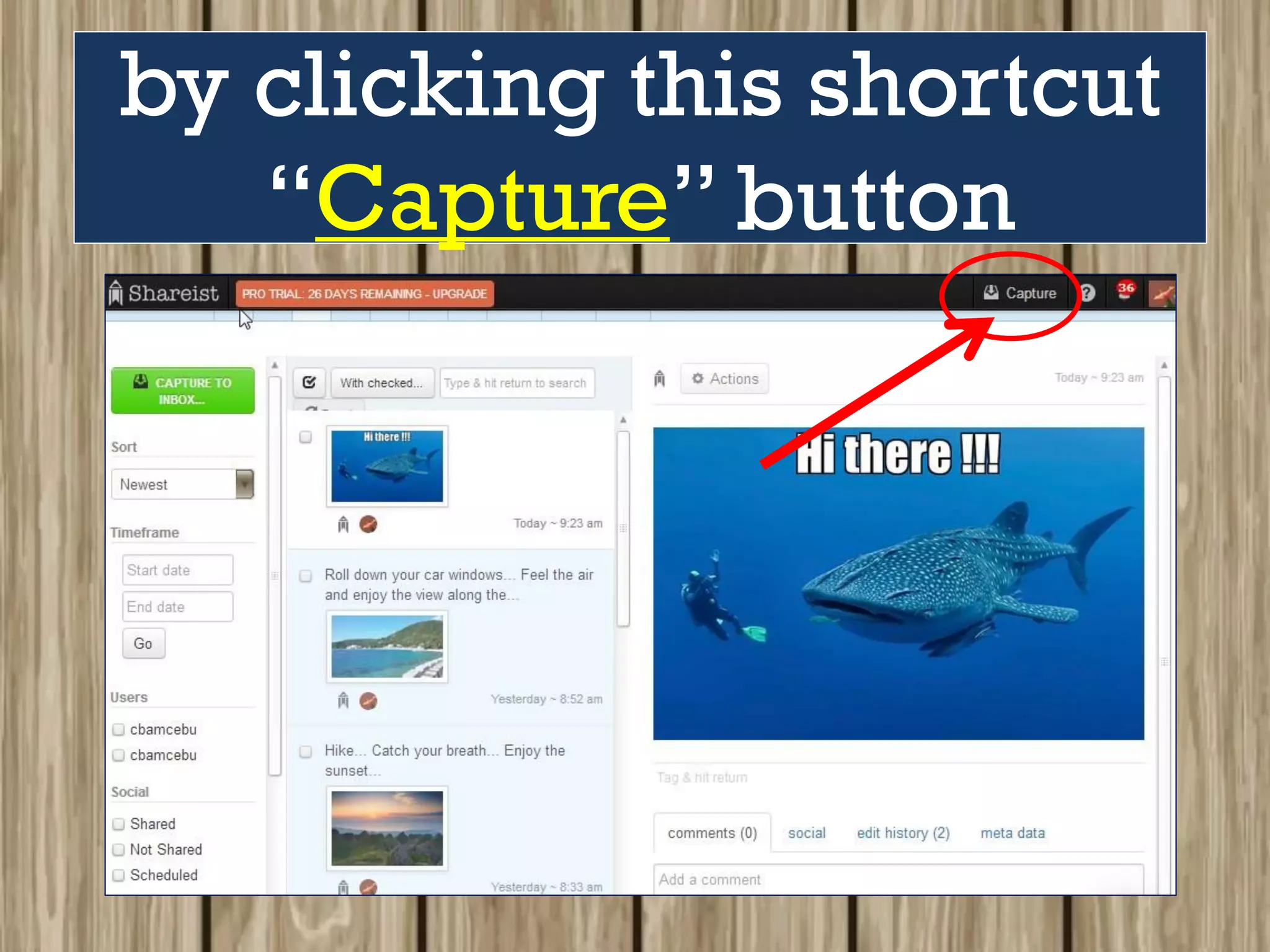
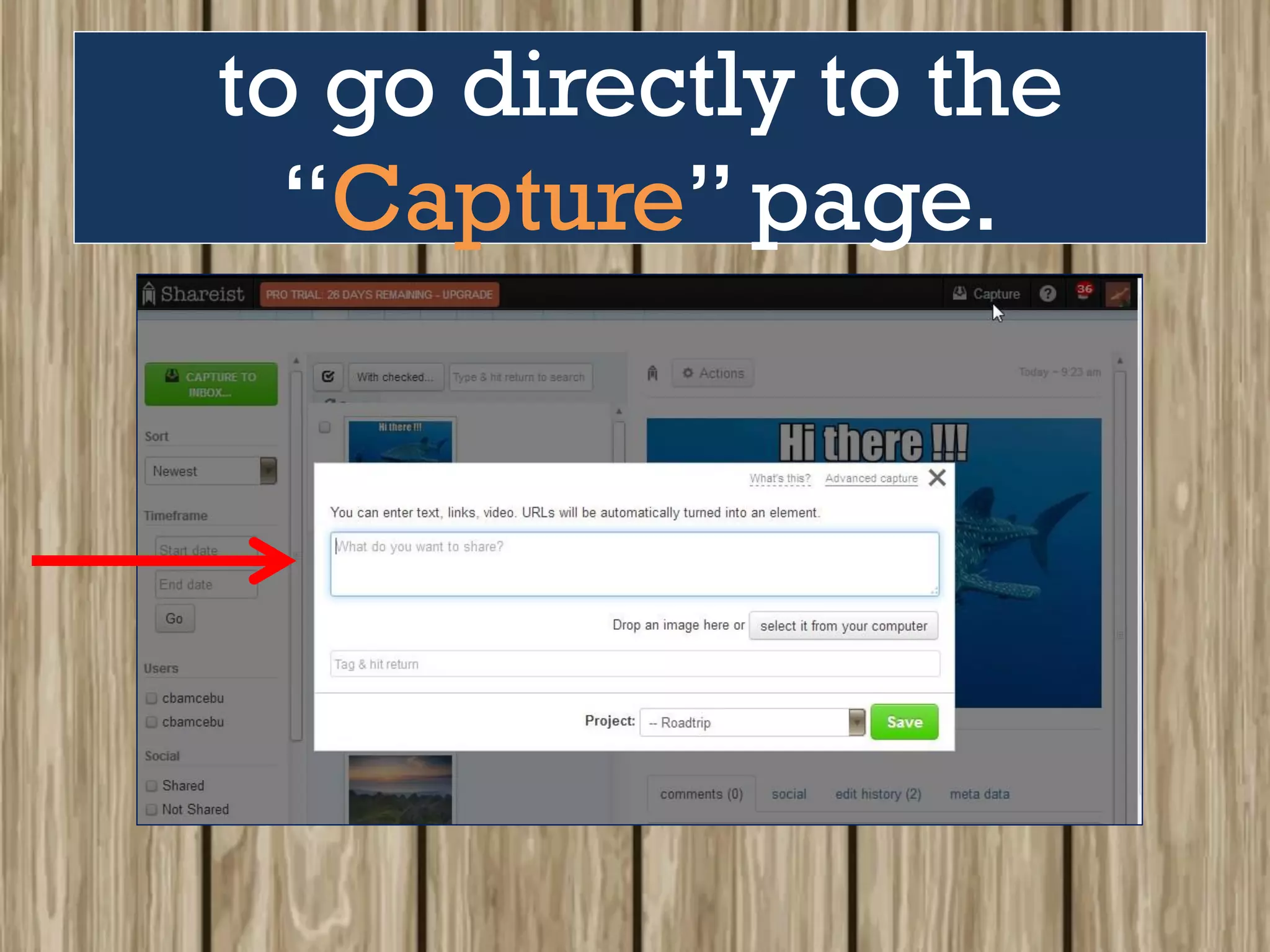
by clicking this shortcut
“Capture” button
to go directly to the
“Capture” page.
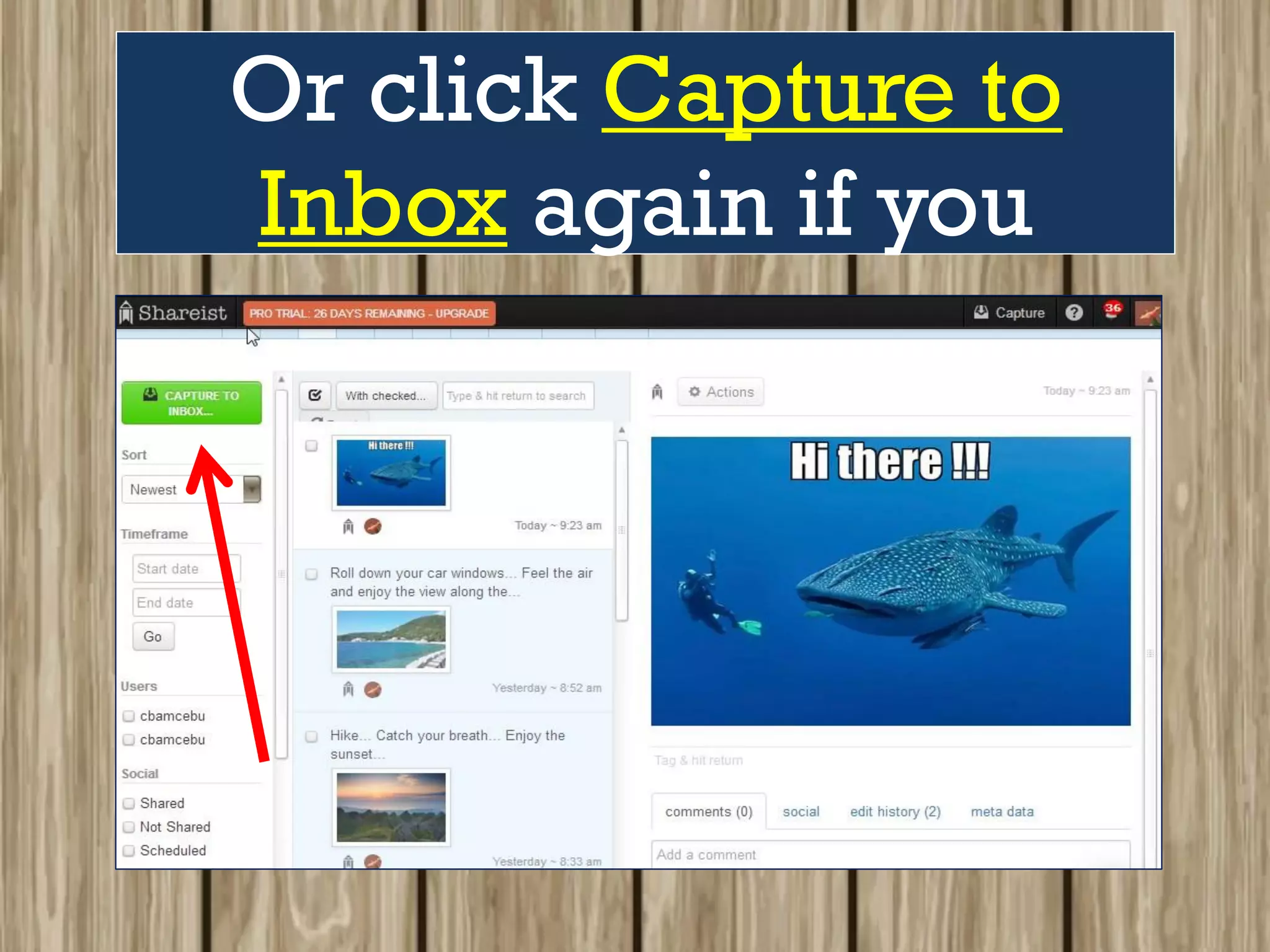
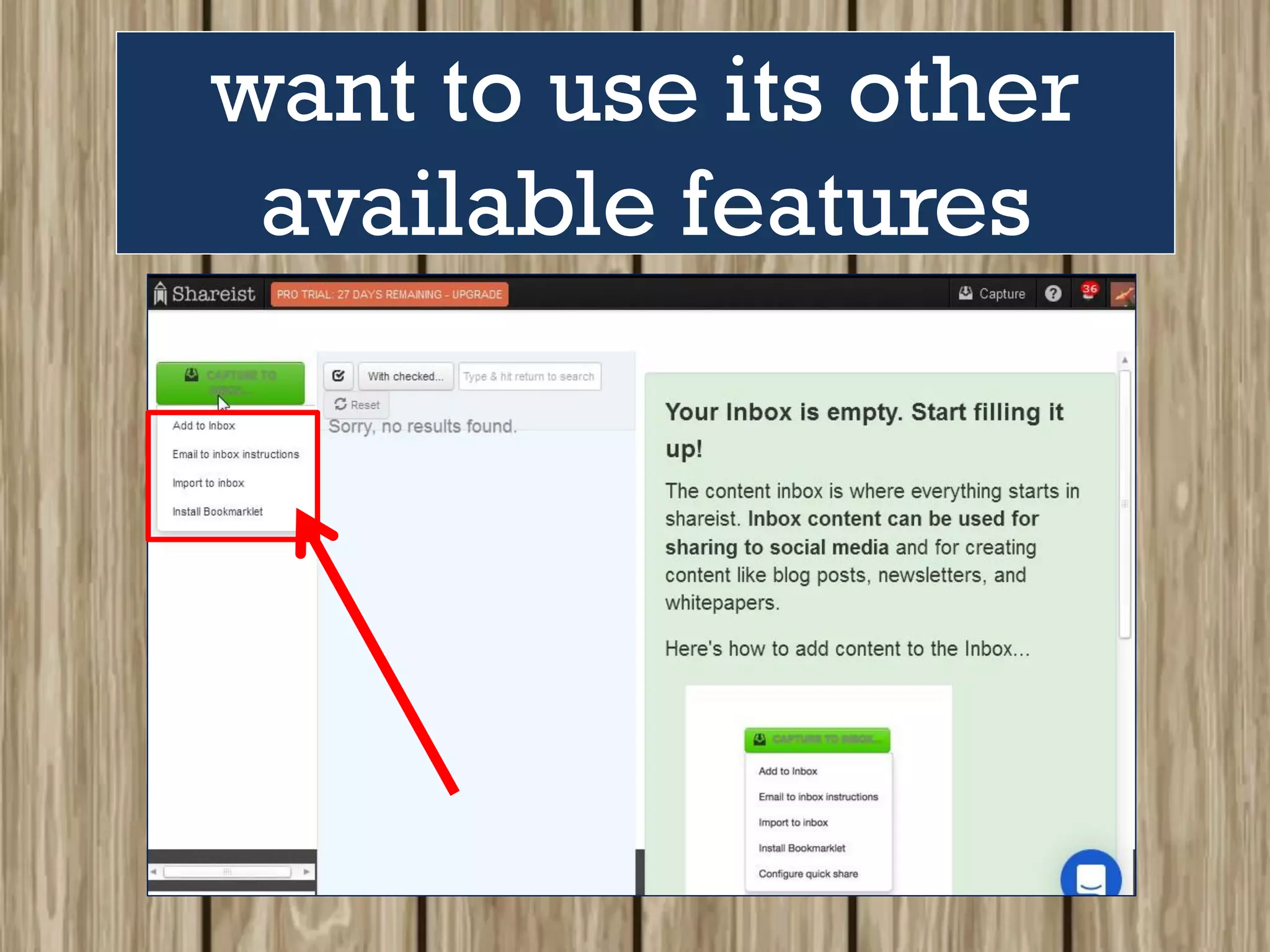
Or click Capture to
Inbox again if you
want to use its other
available features
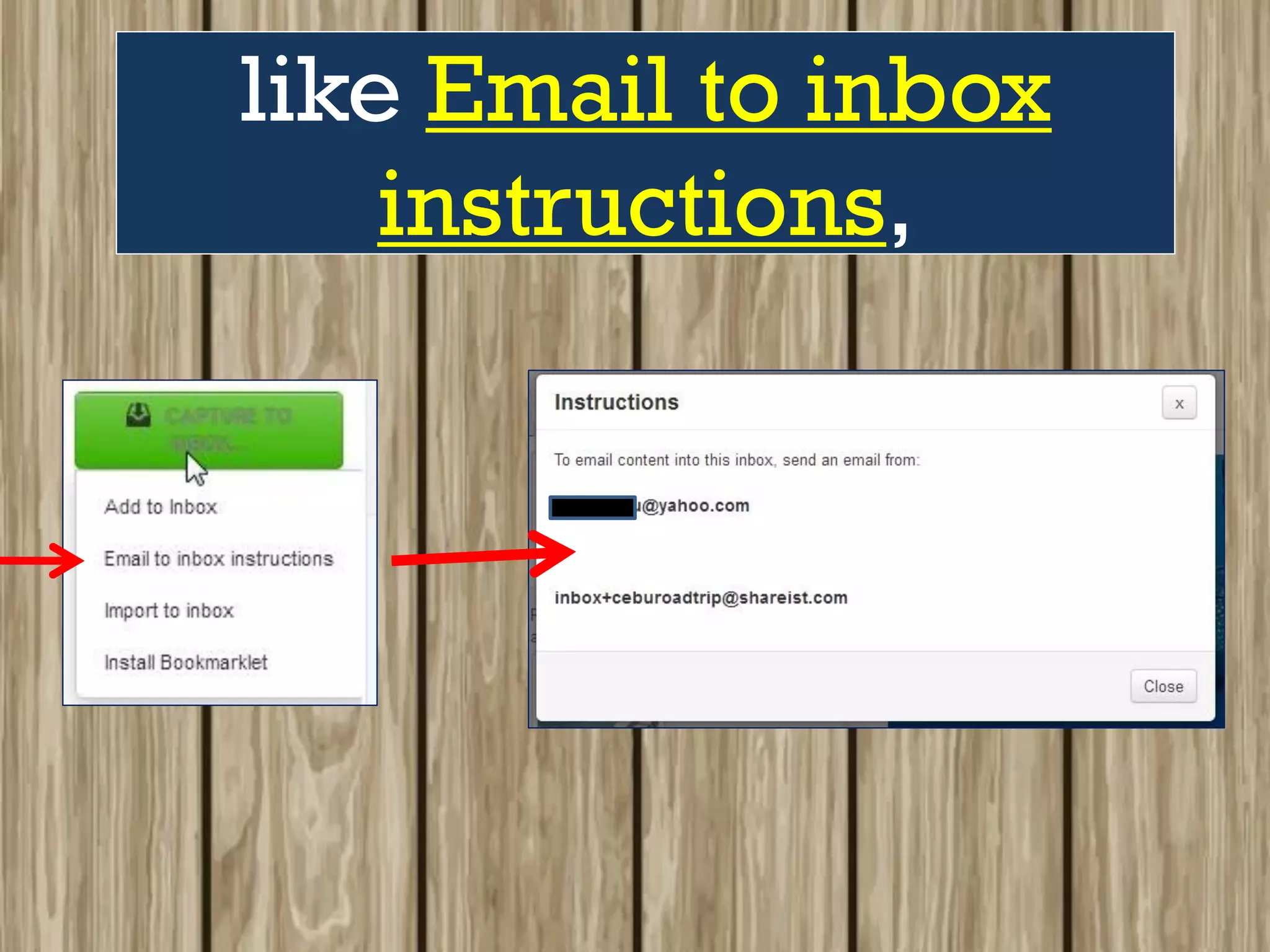
like Email to inbox
instructions,
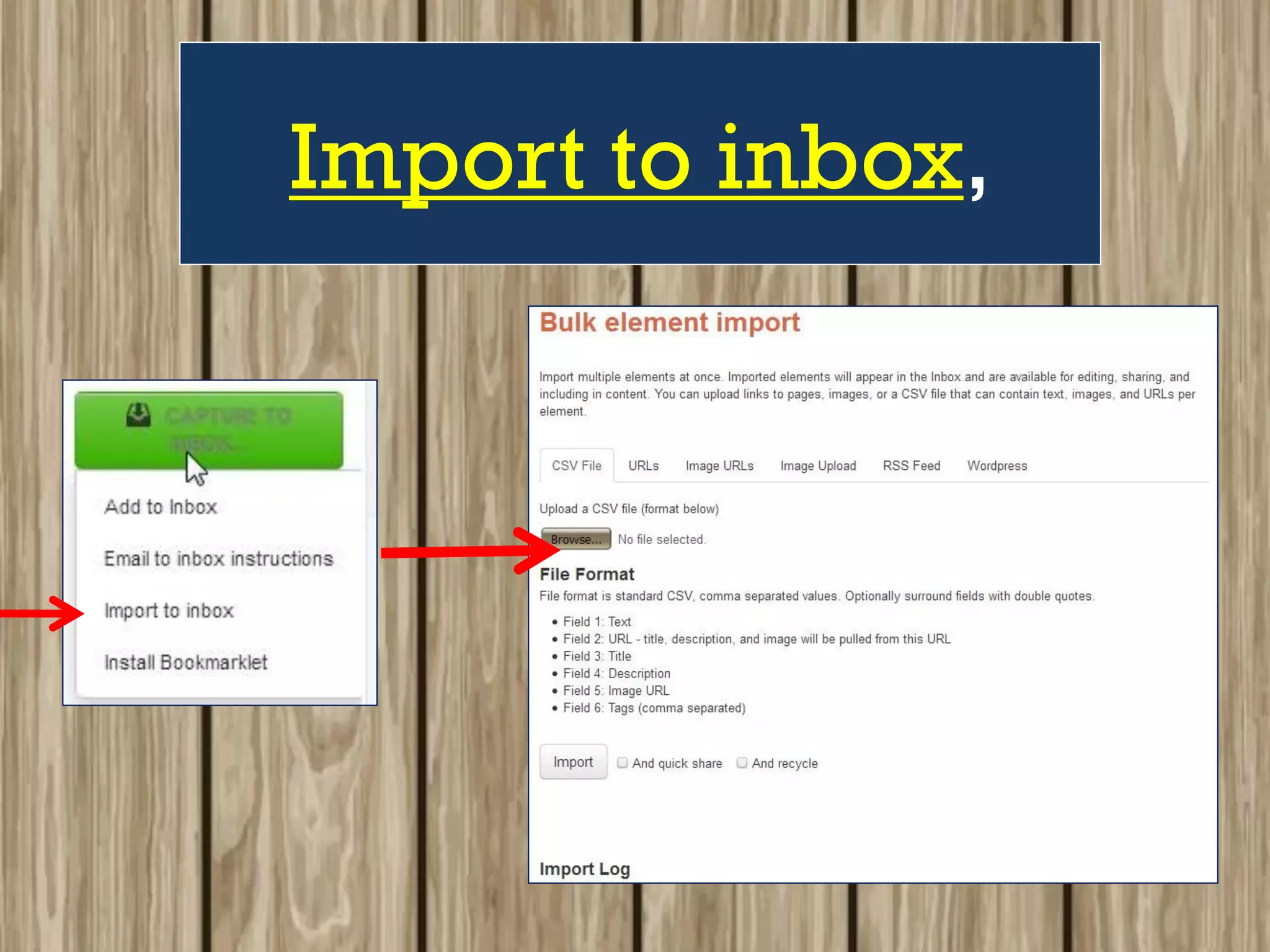
Import to inbox,
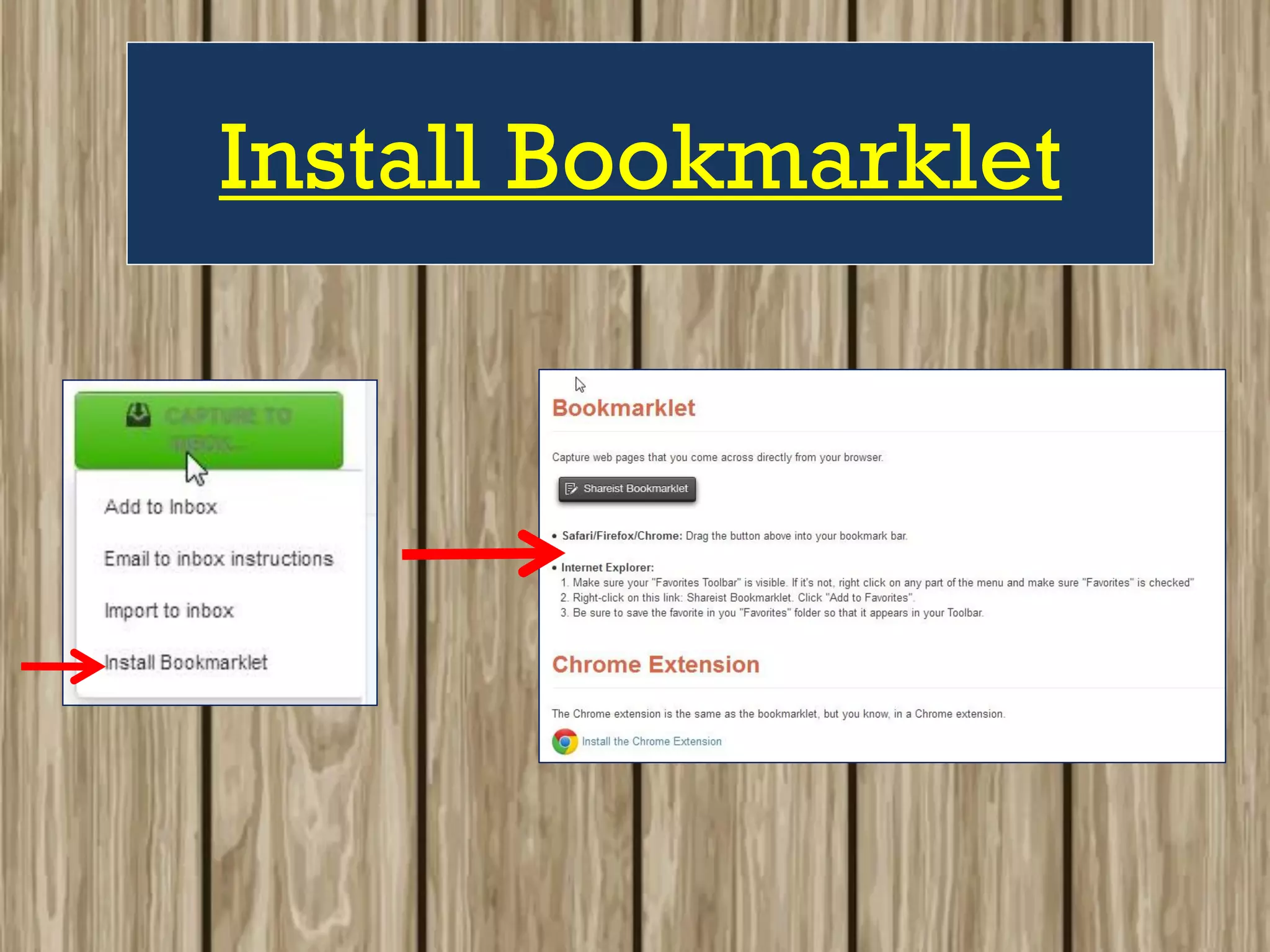
Install Bookmarklet
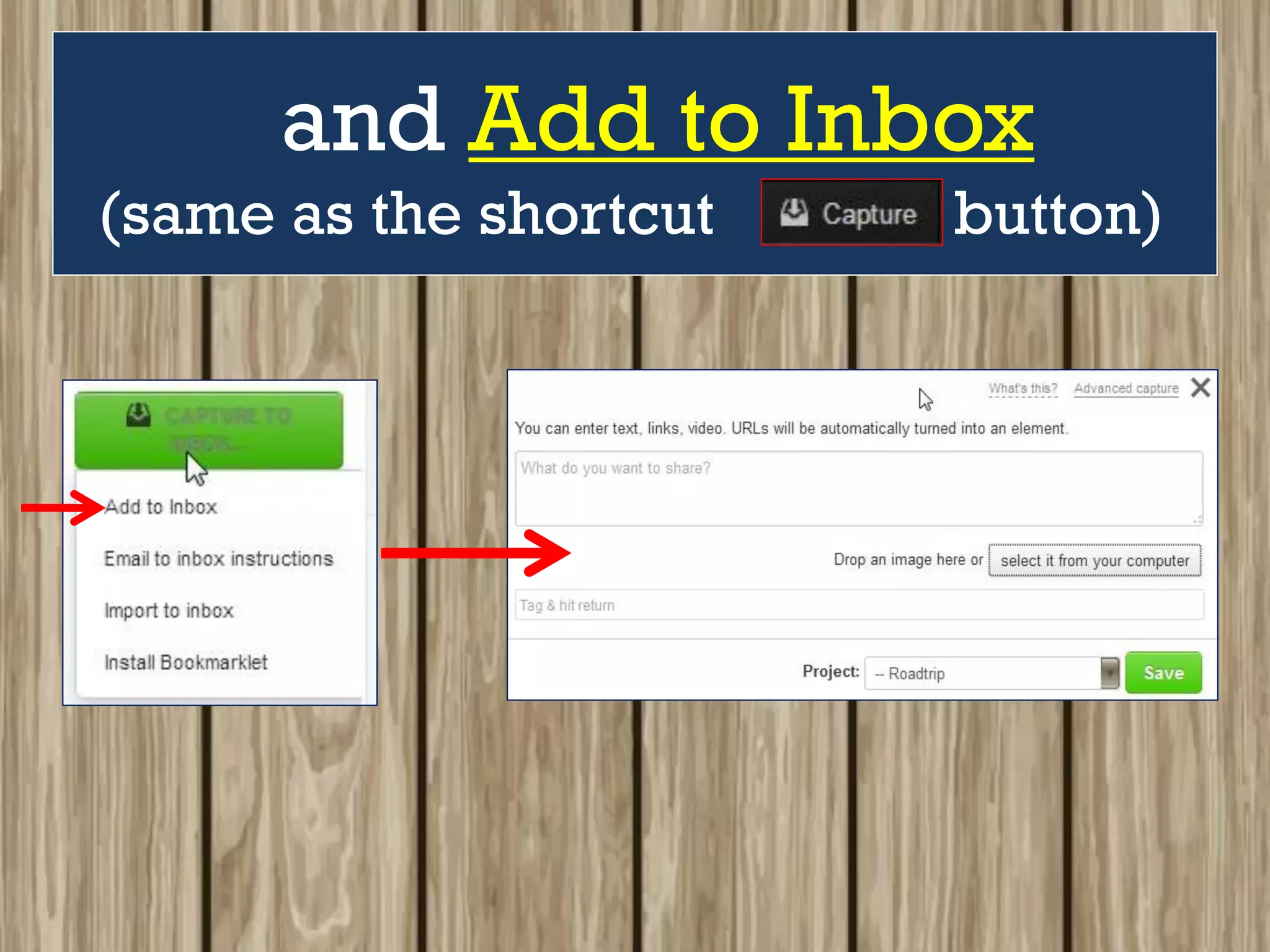
and Add to Inbox
(same as the shortcut button)
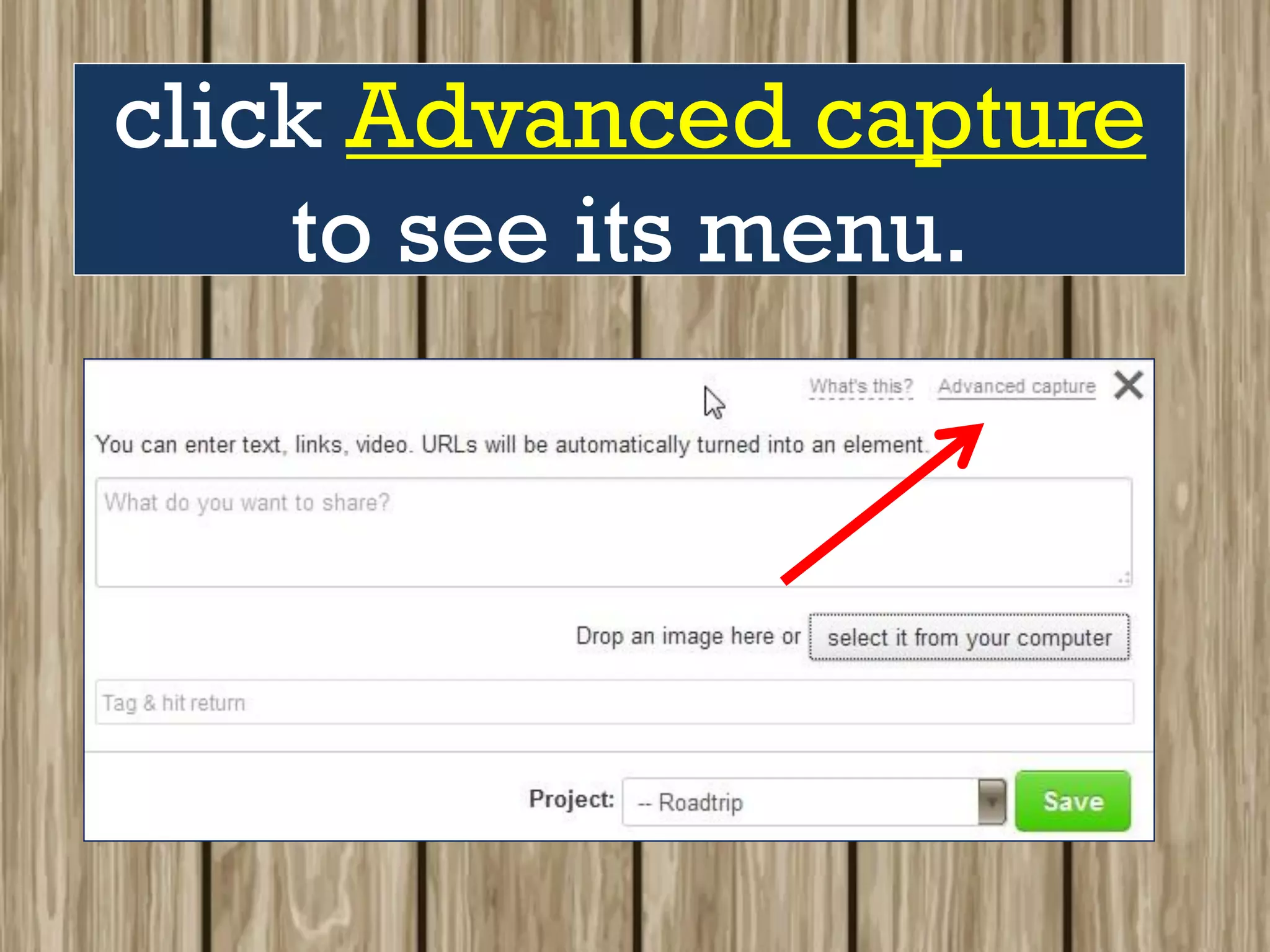
Let’s go to the
Capture page and
click Advanced capture
to see its menu.
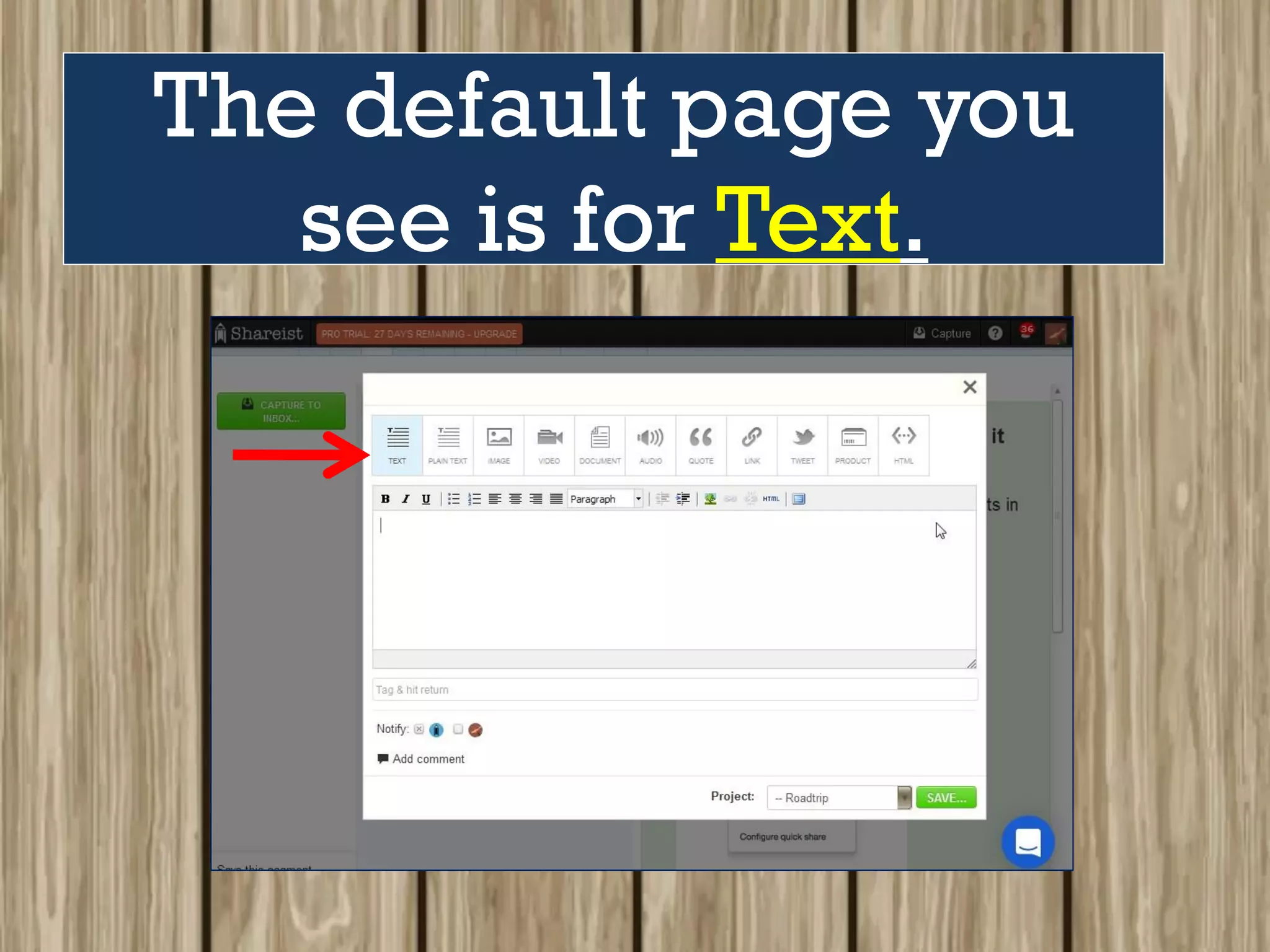
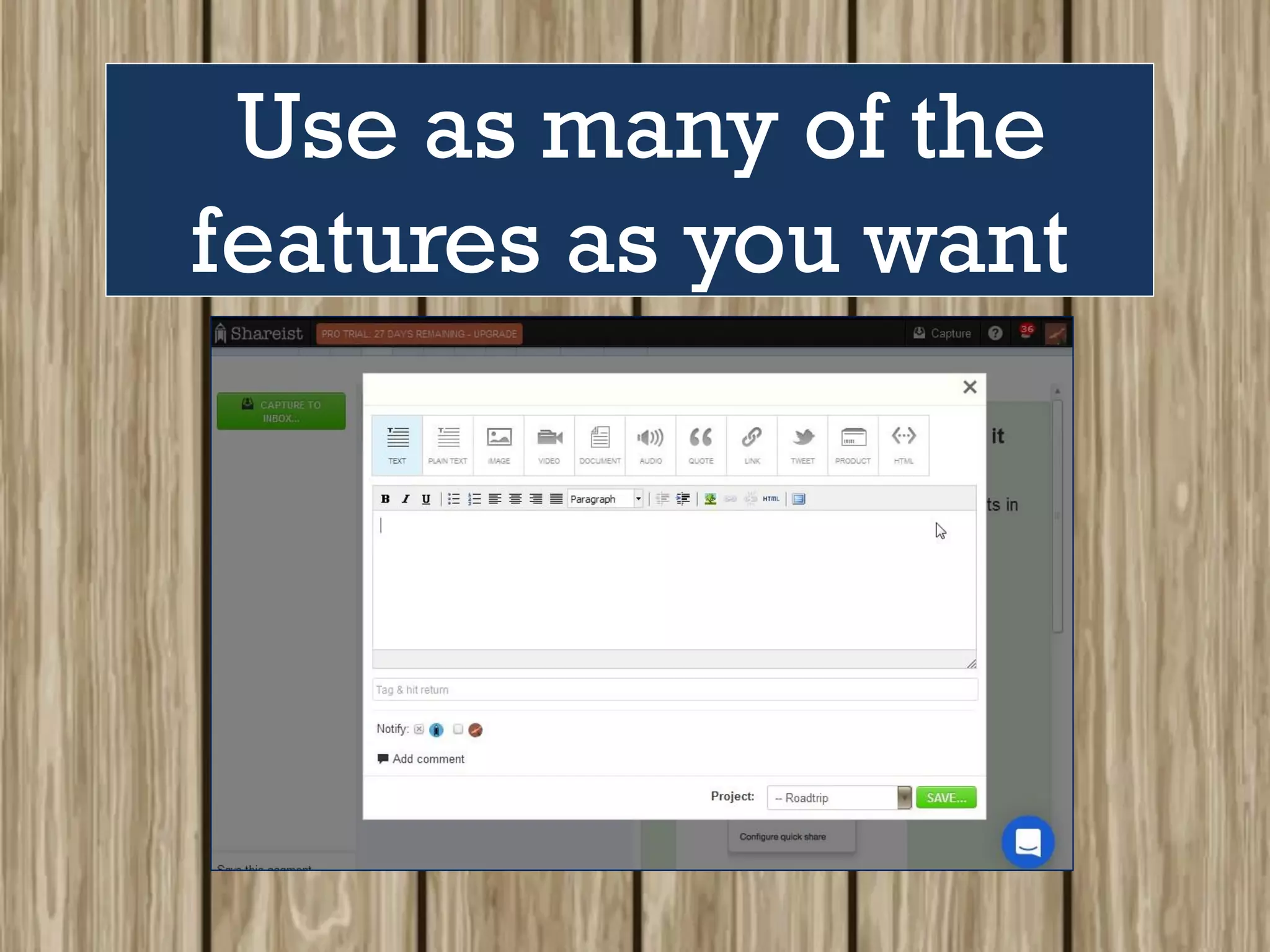
The default page you
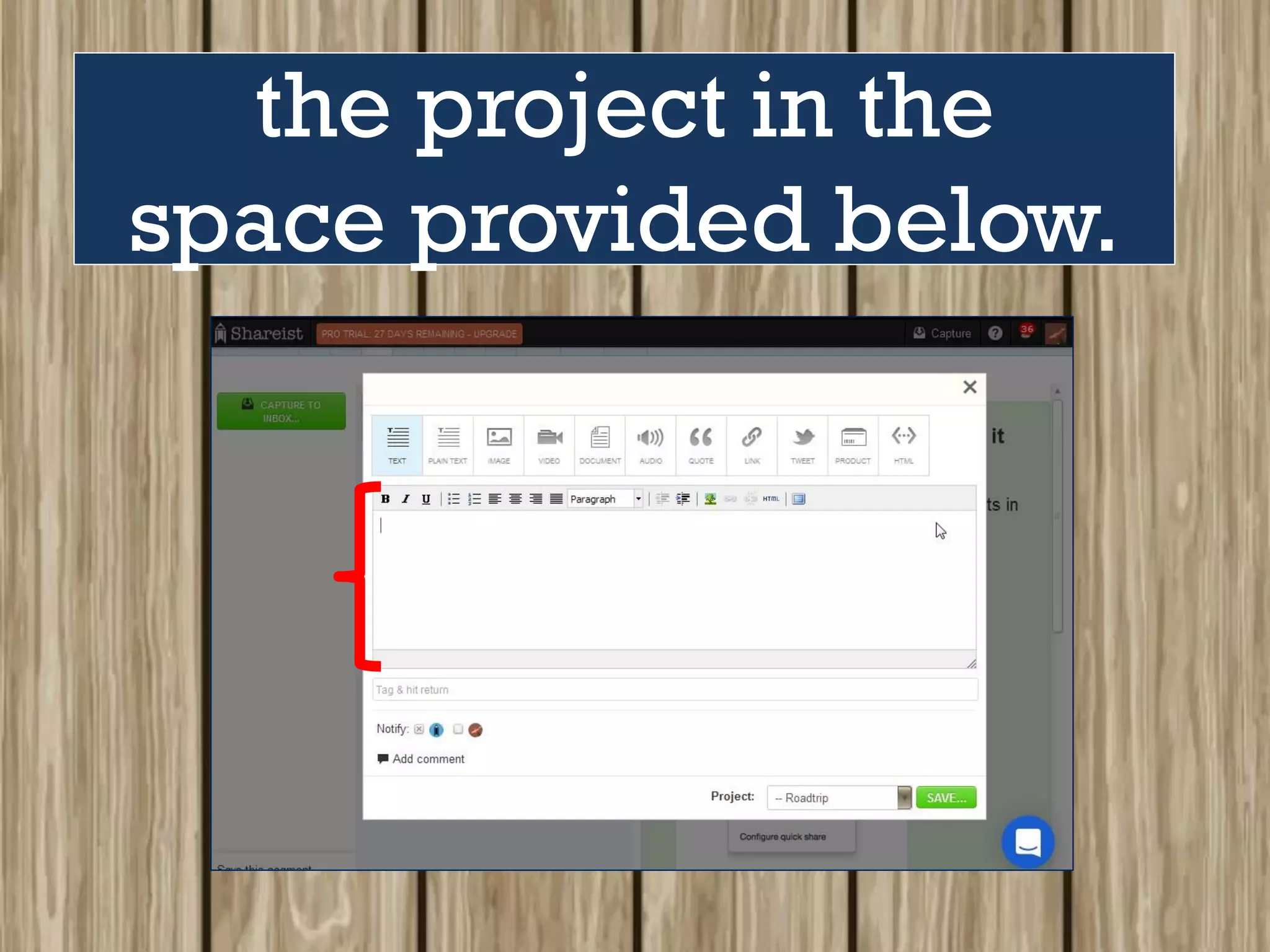
see is for Text.
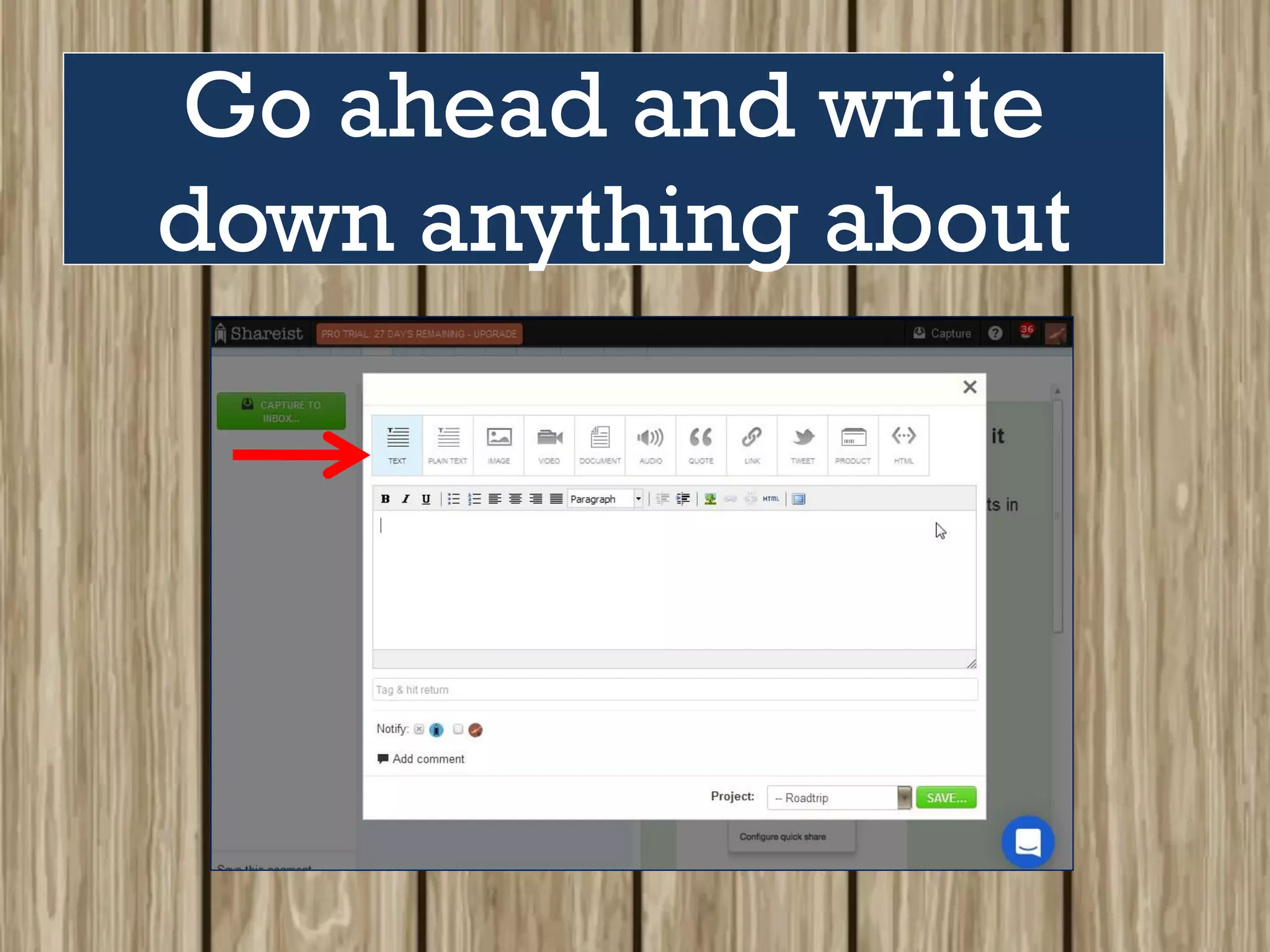
Go ahead and write
down anything about
the project in the
space provided below.
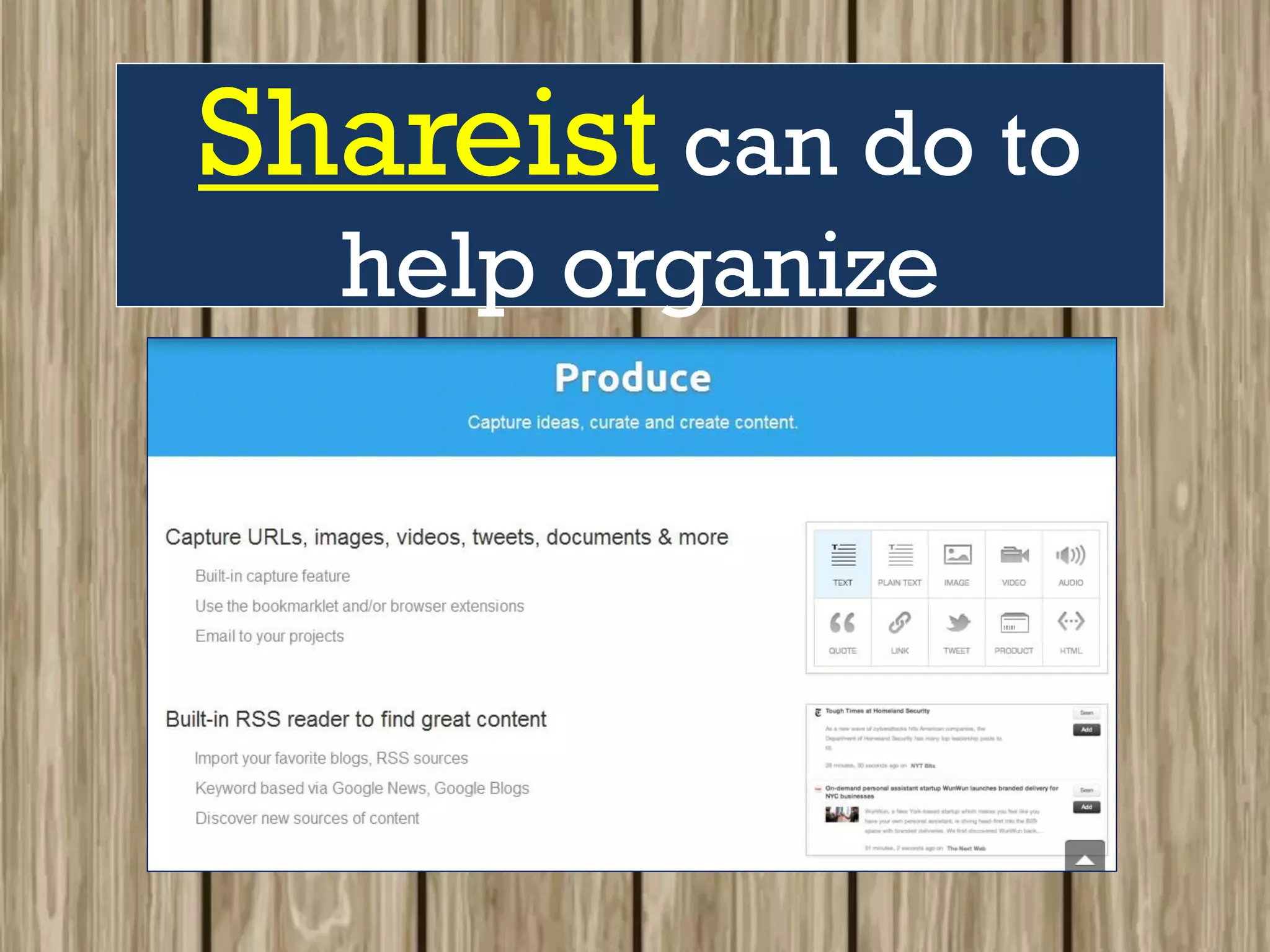
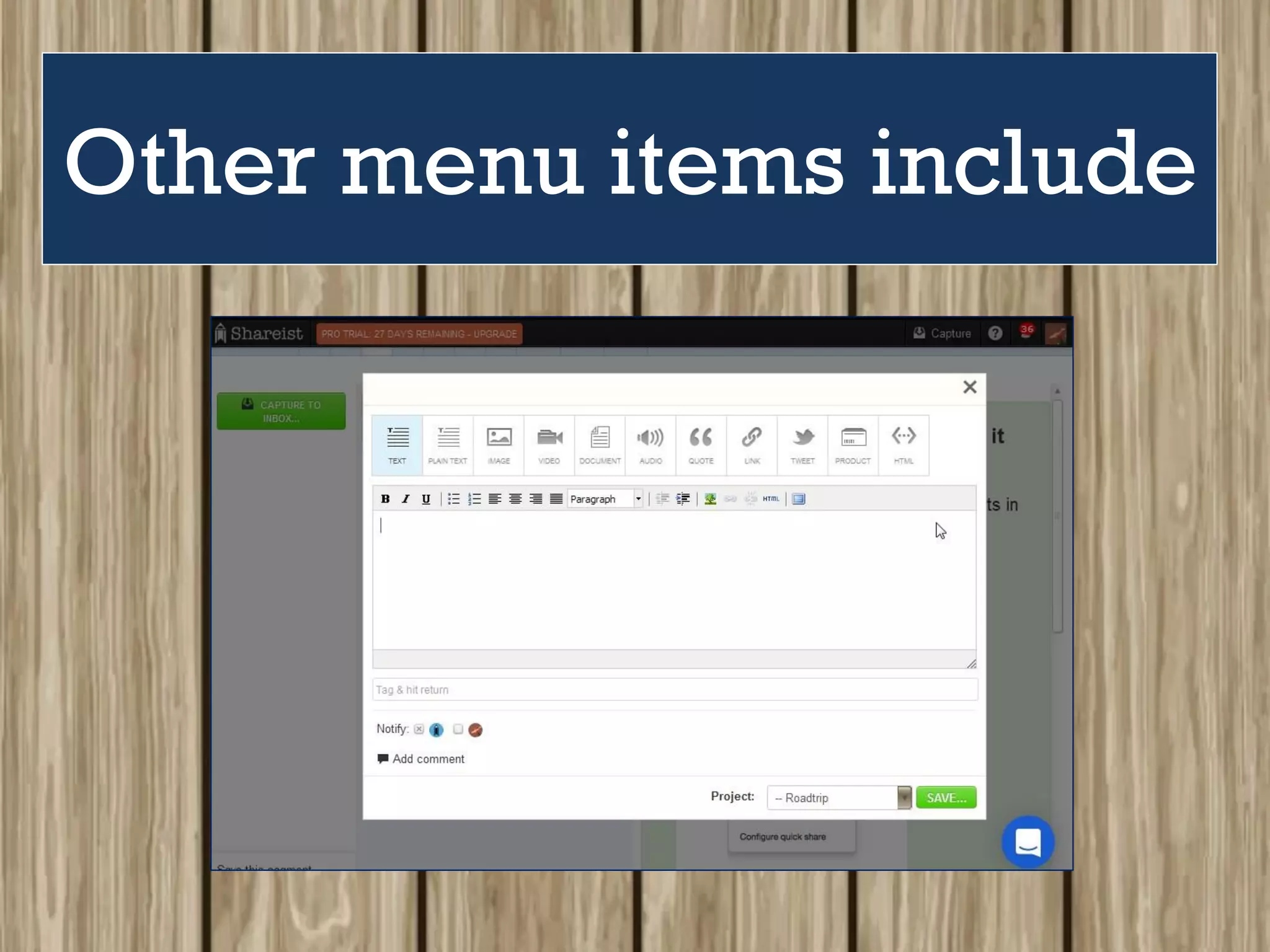
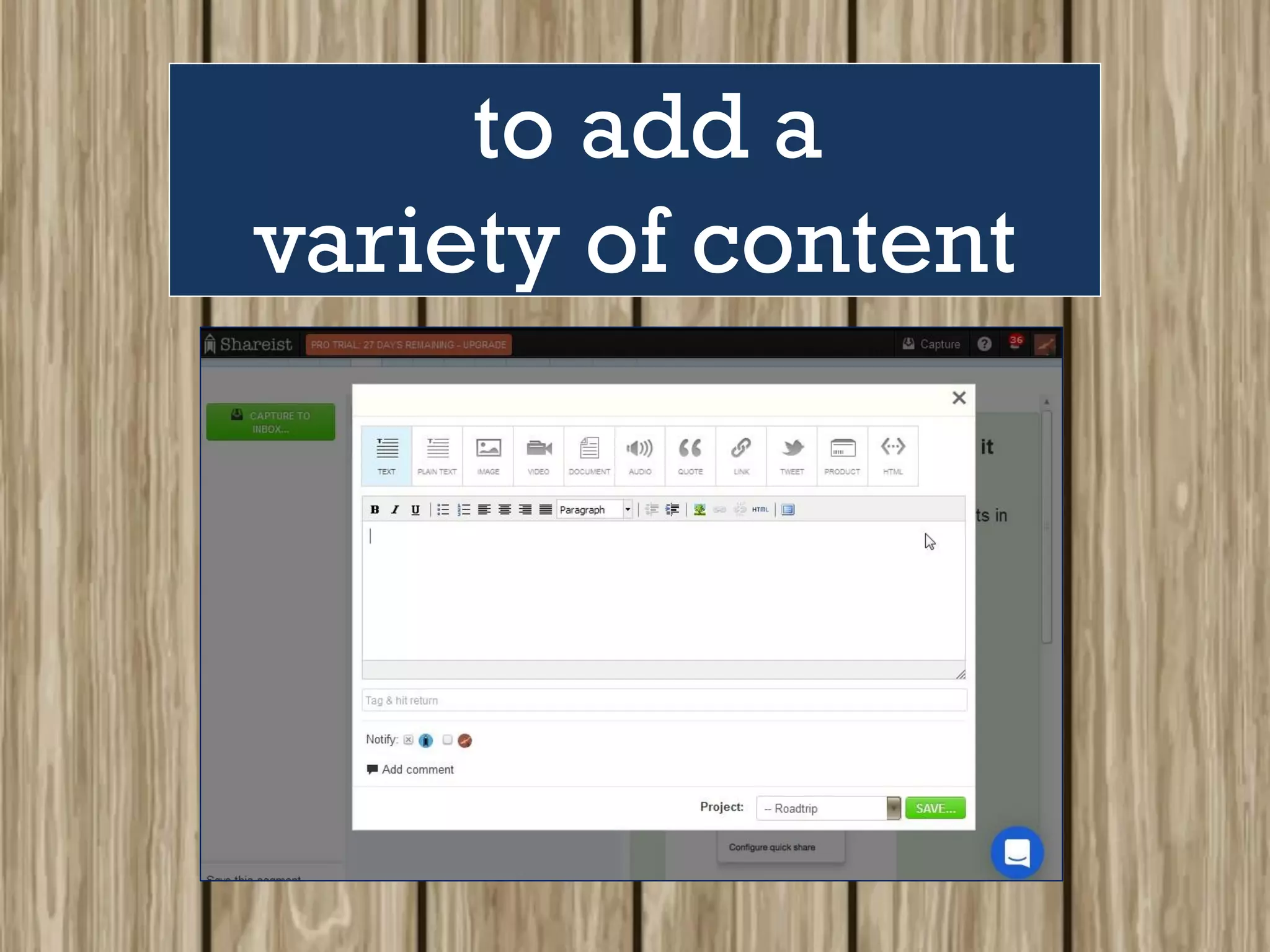
Other menu items include
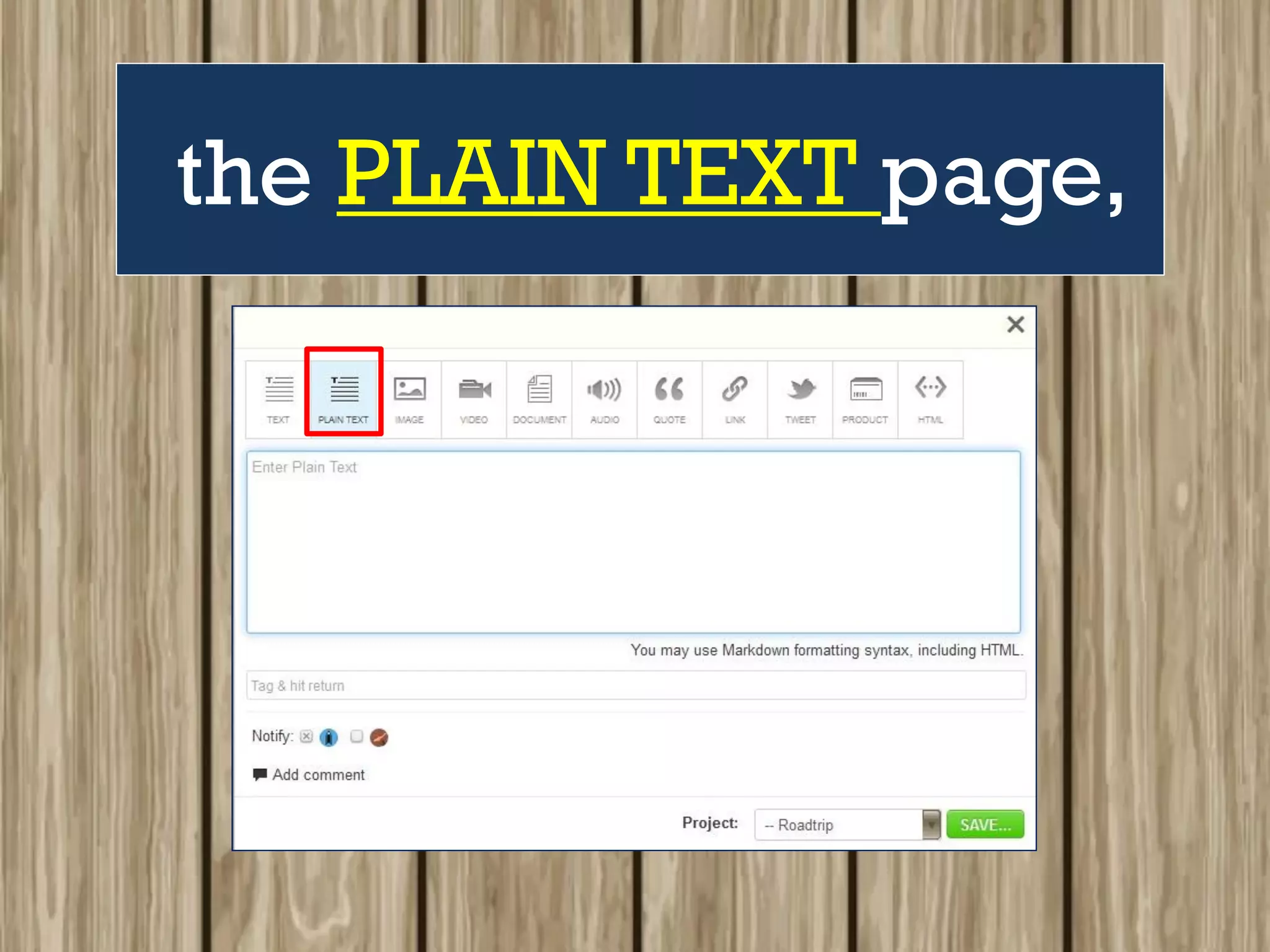
the PLAIN TEXT page,
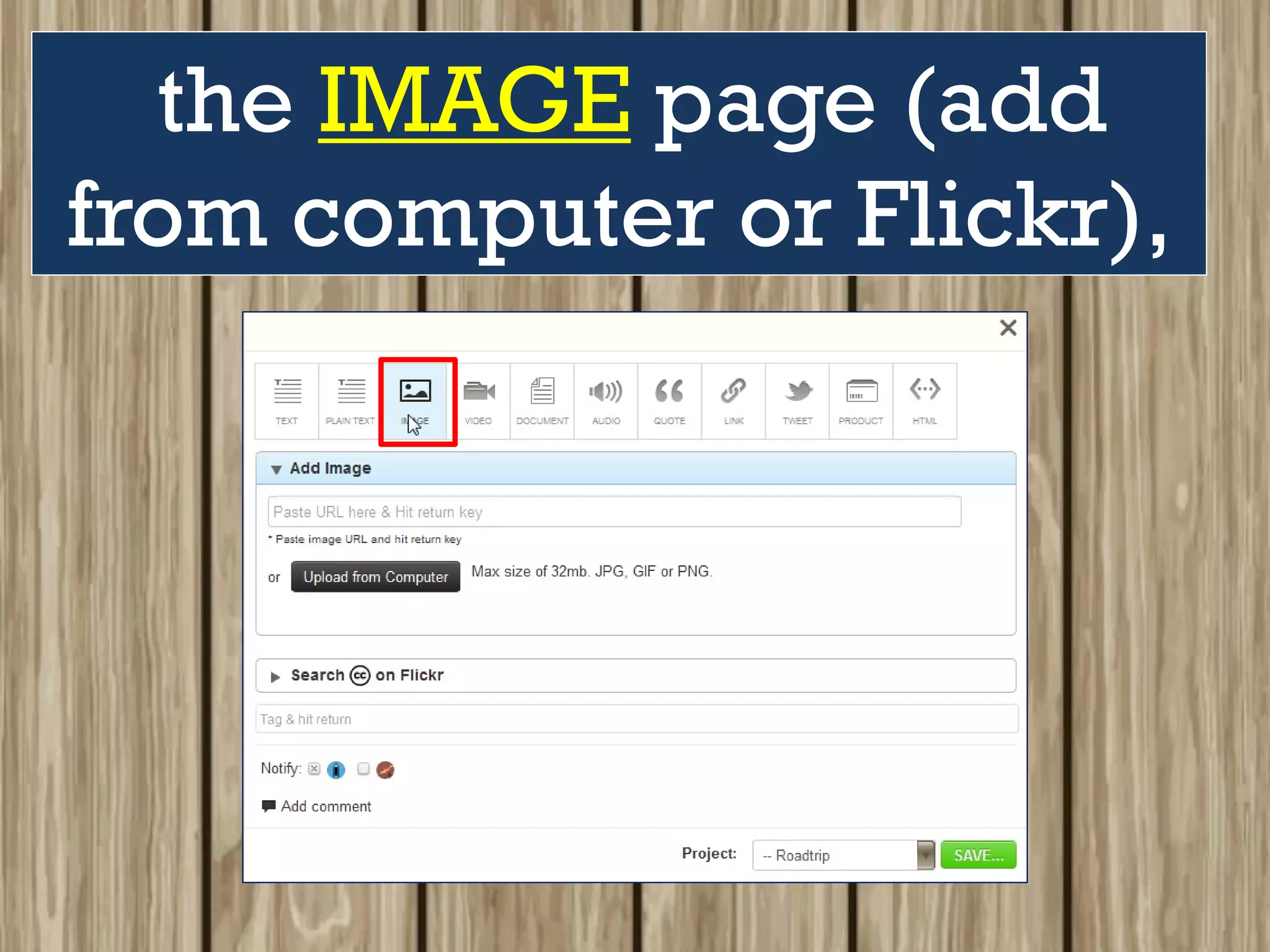
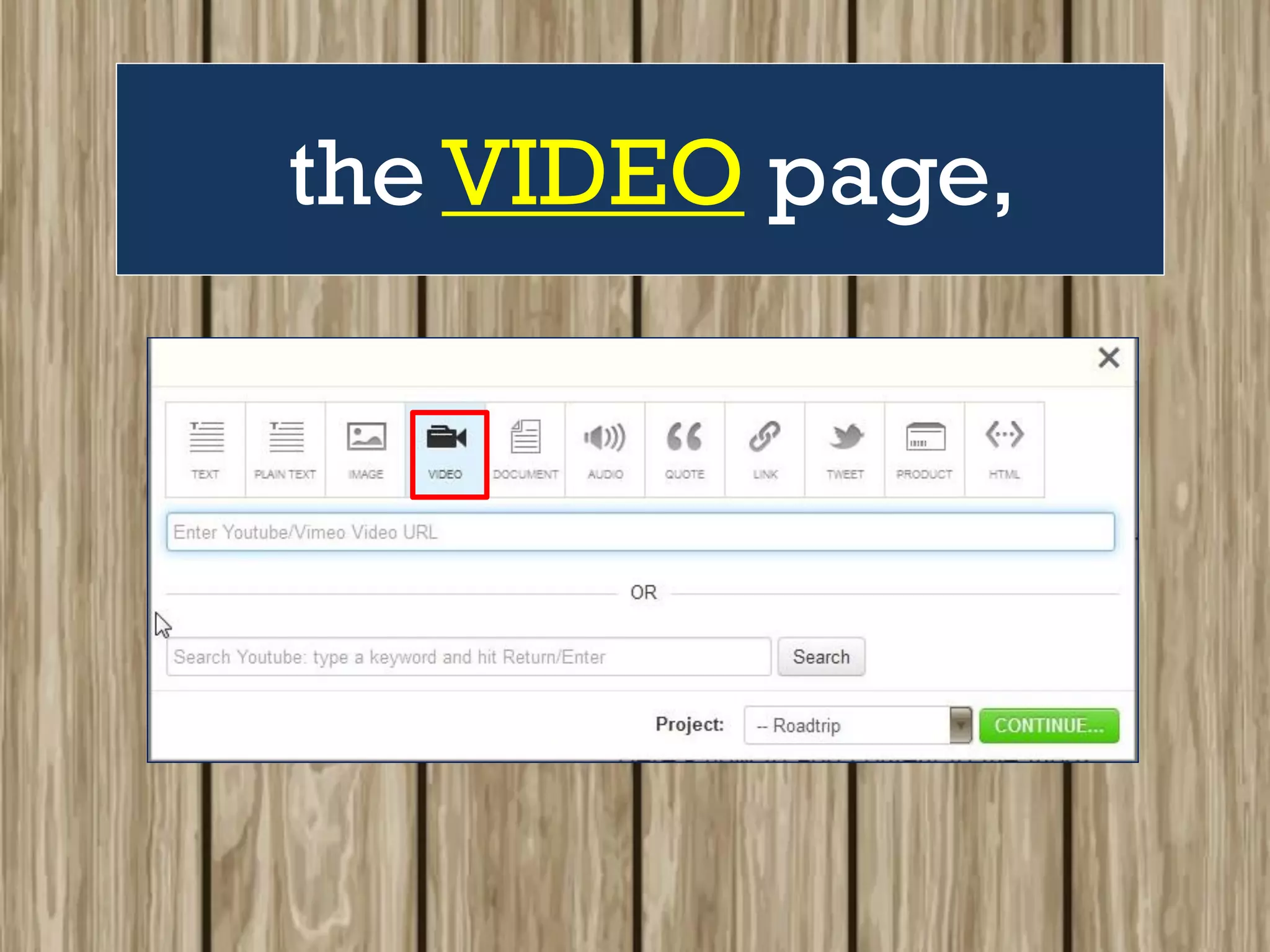
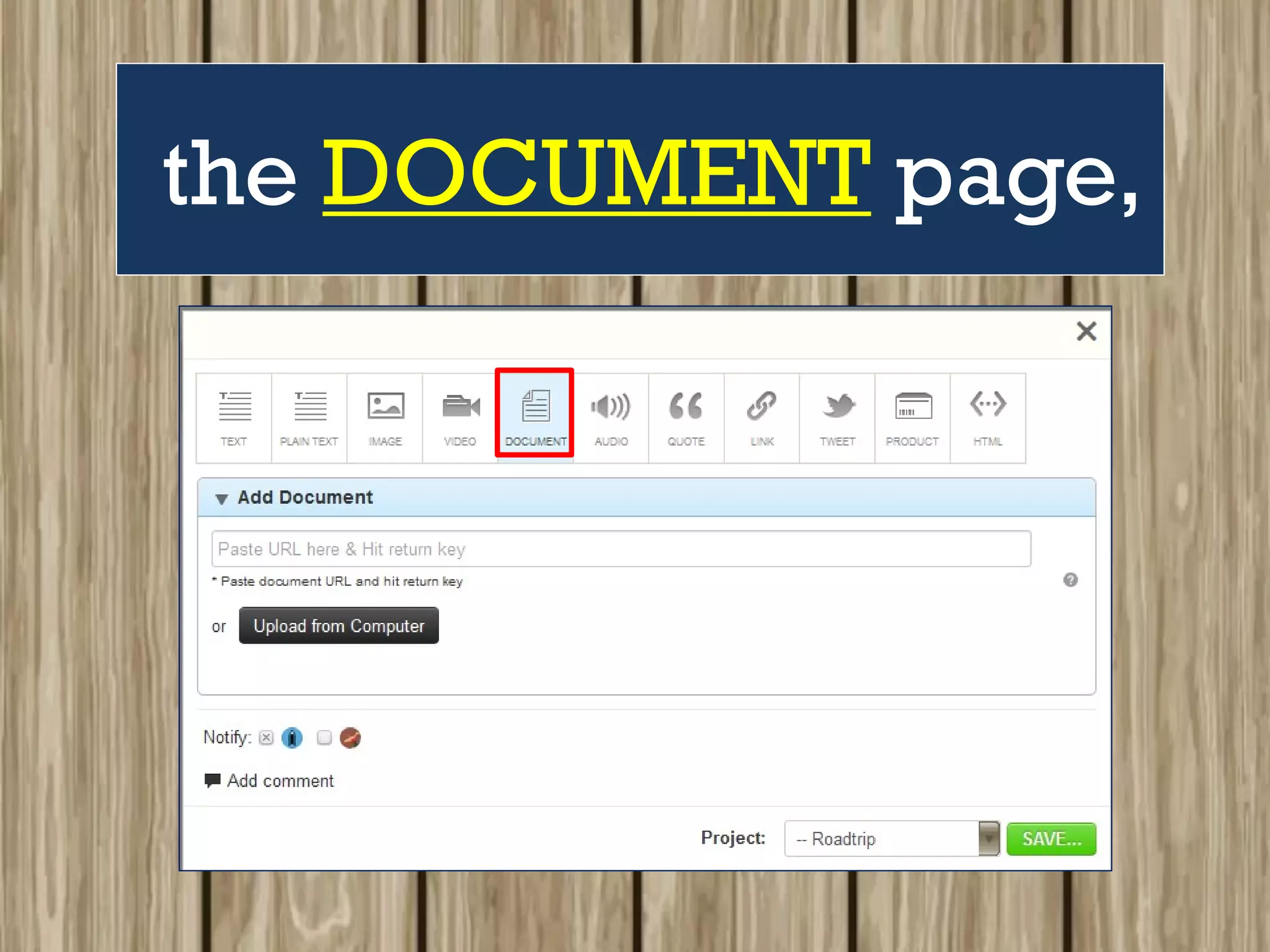
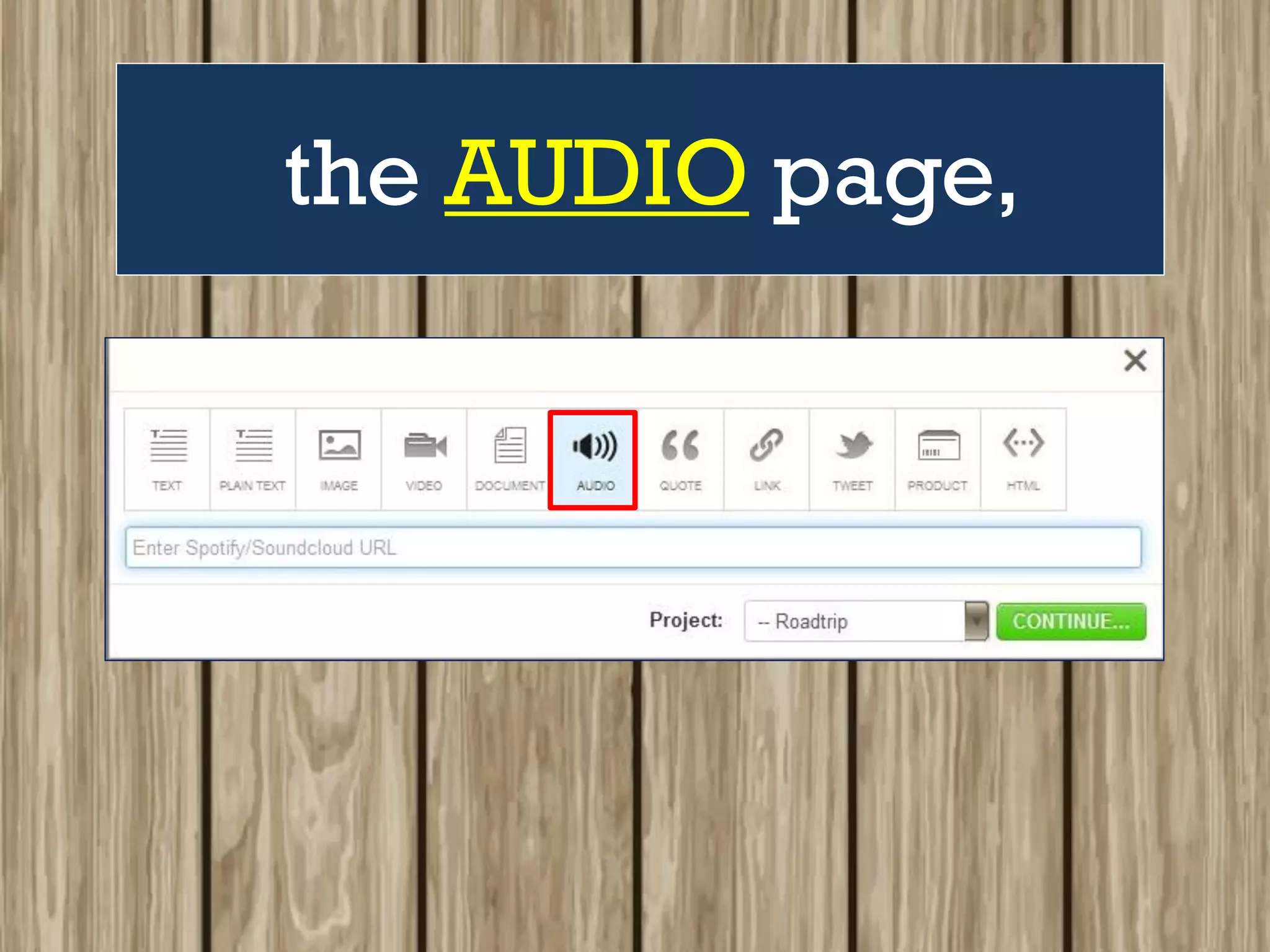
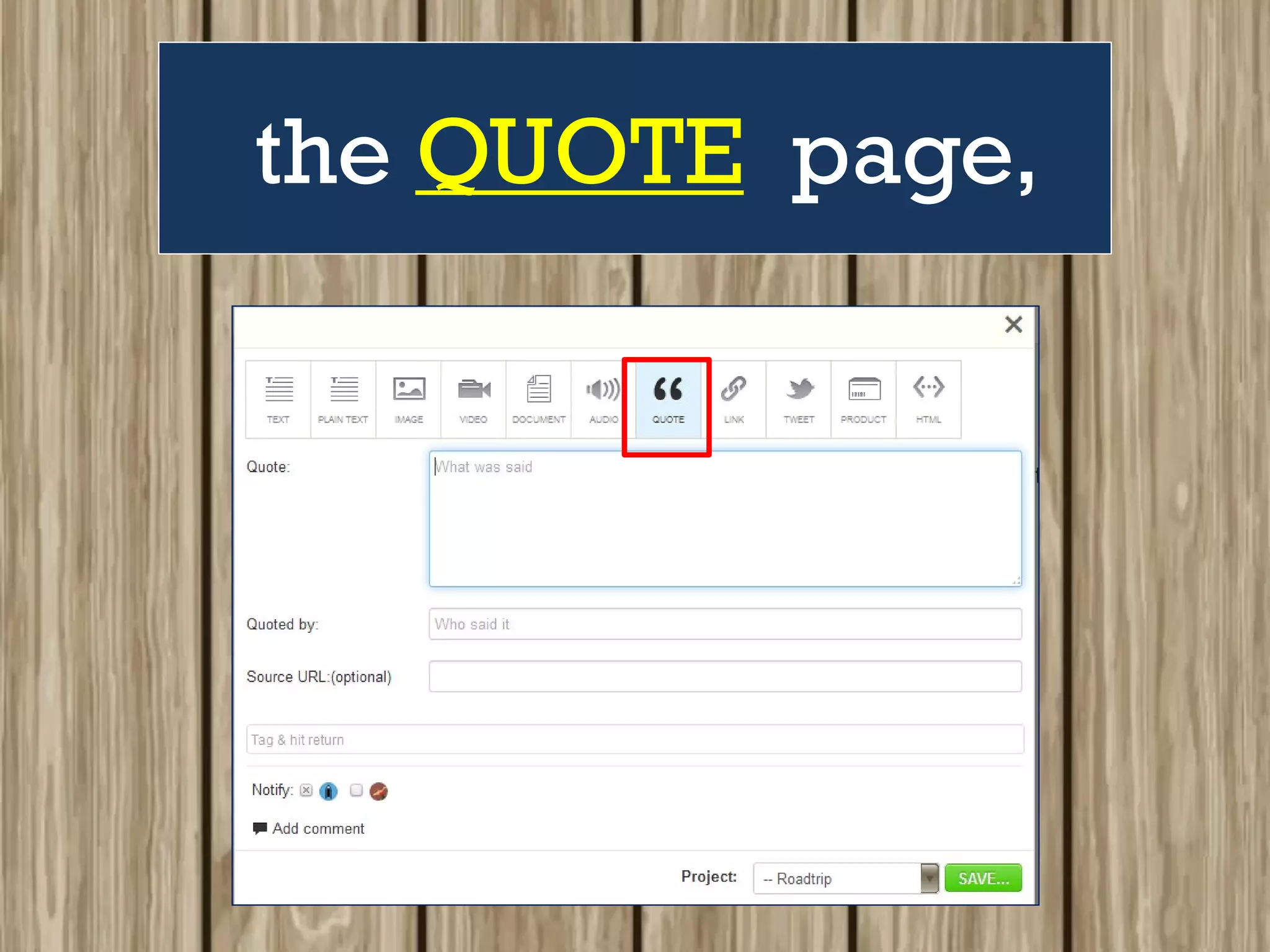
the IMAGE page (add
from computer or Flickr),
the VIDEO page,
the DOCUMENT page,
the AUDIO page,
the QUOTE page,
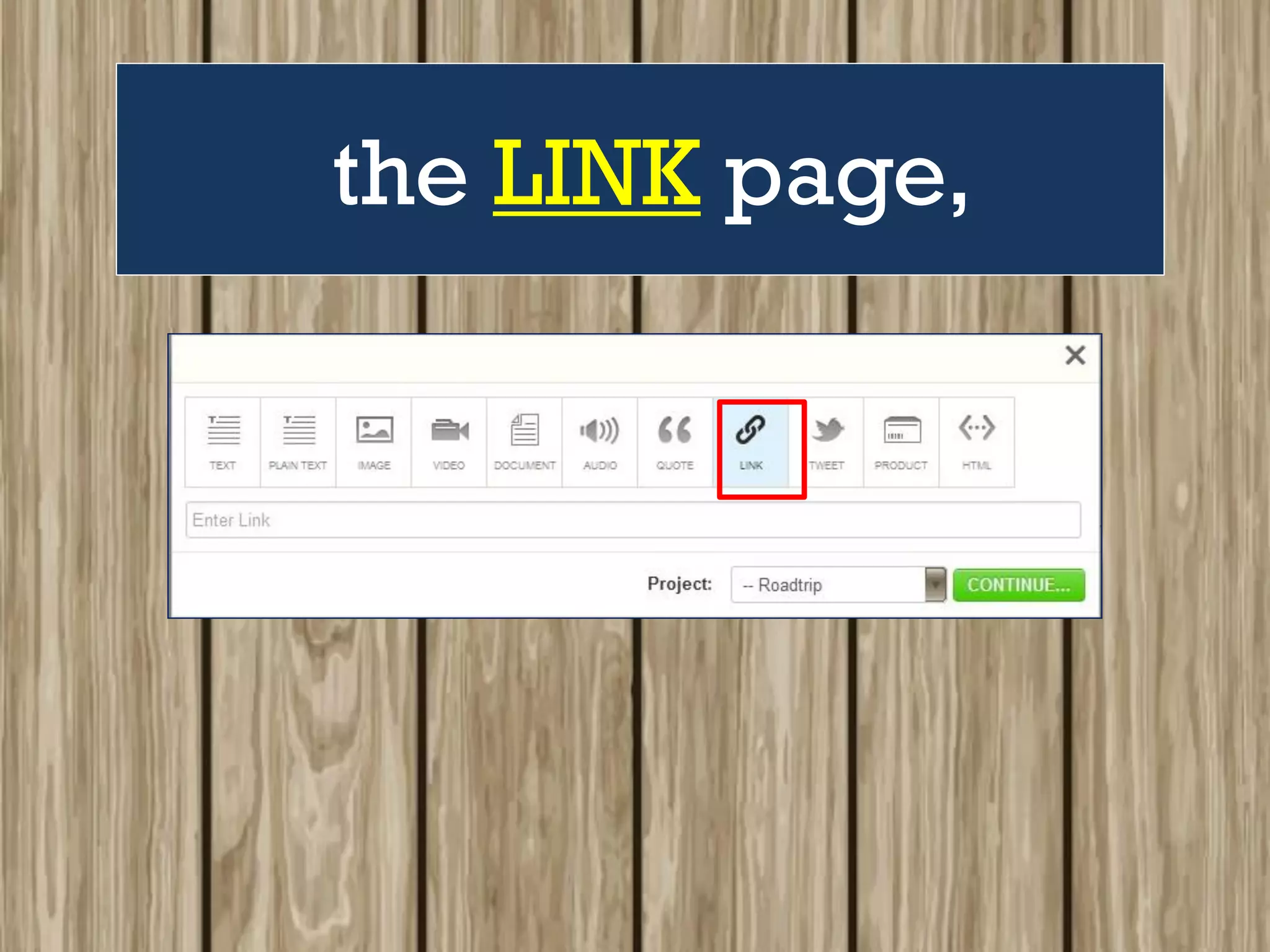
the LINK page,
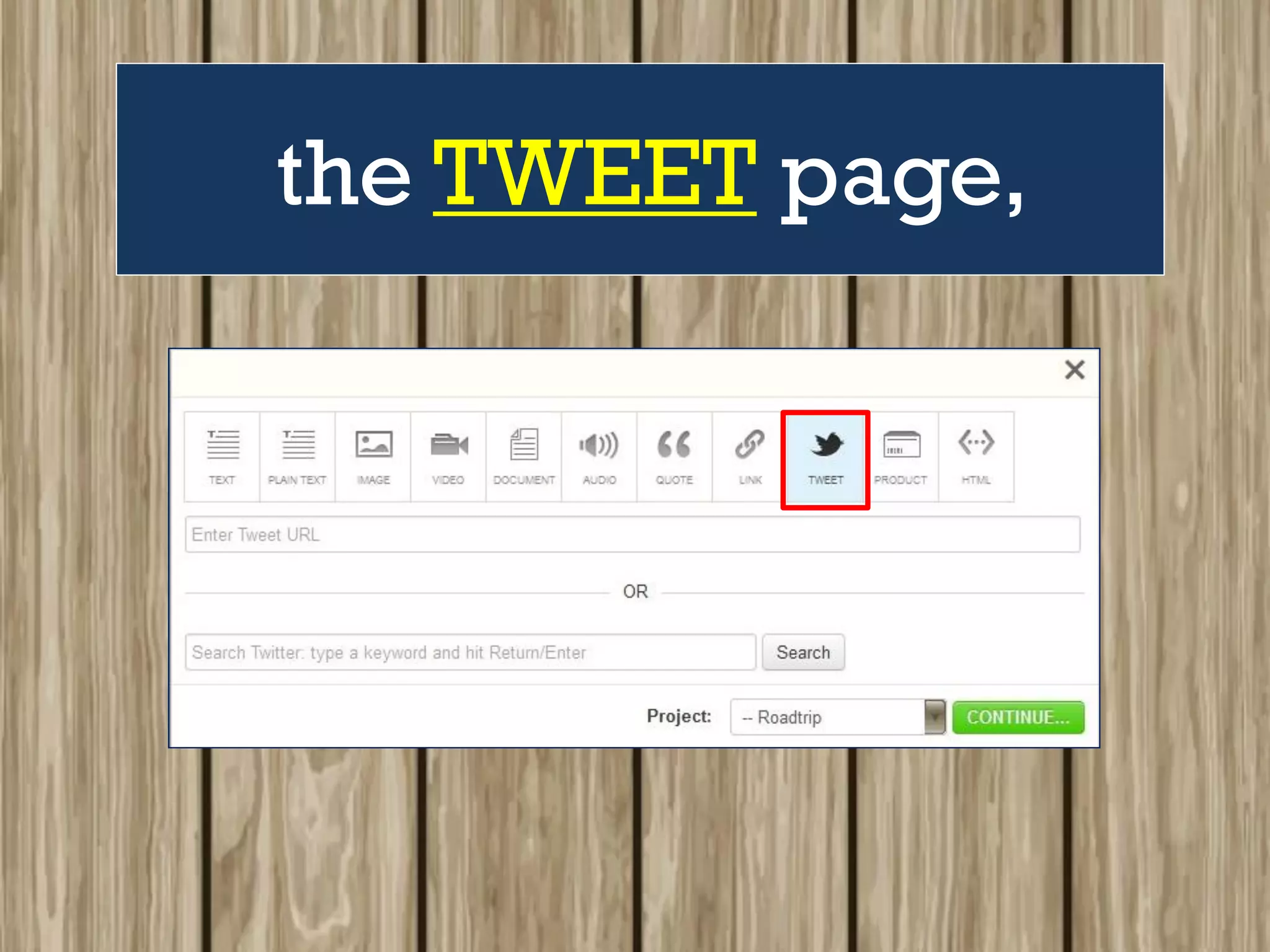
the TWEET page,
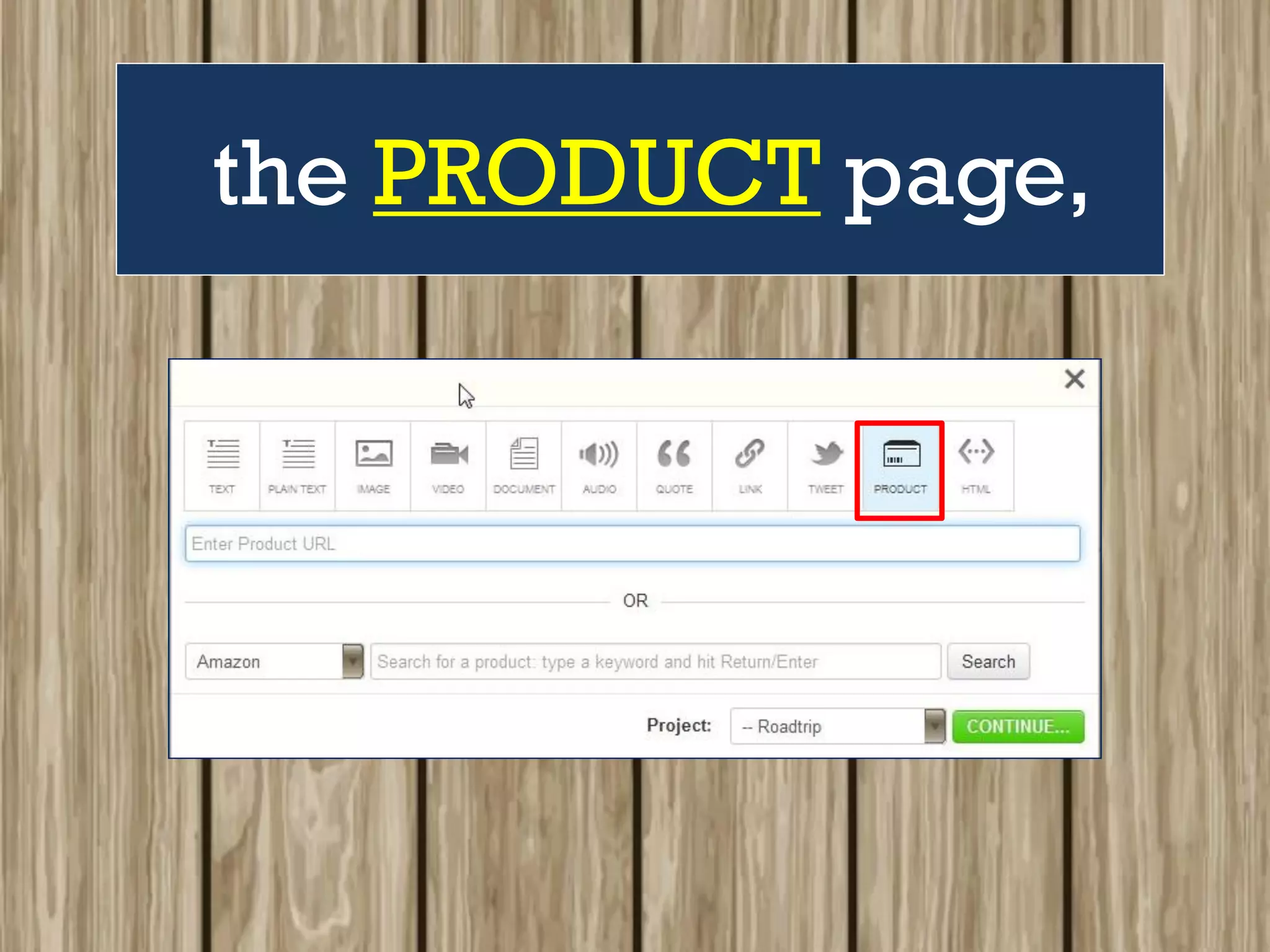
the PRODUCT page,
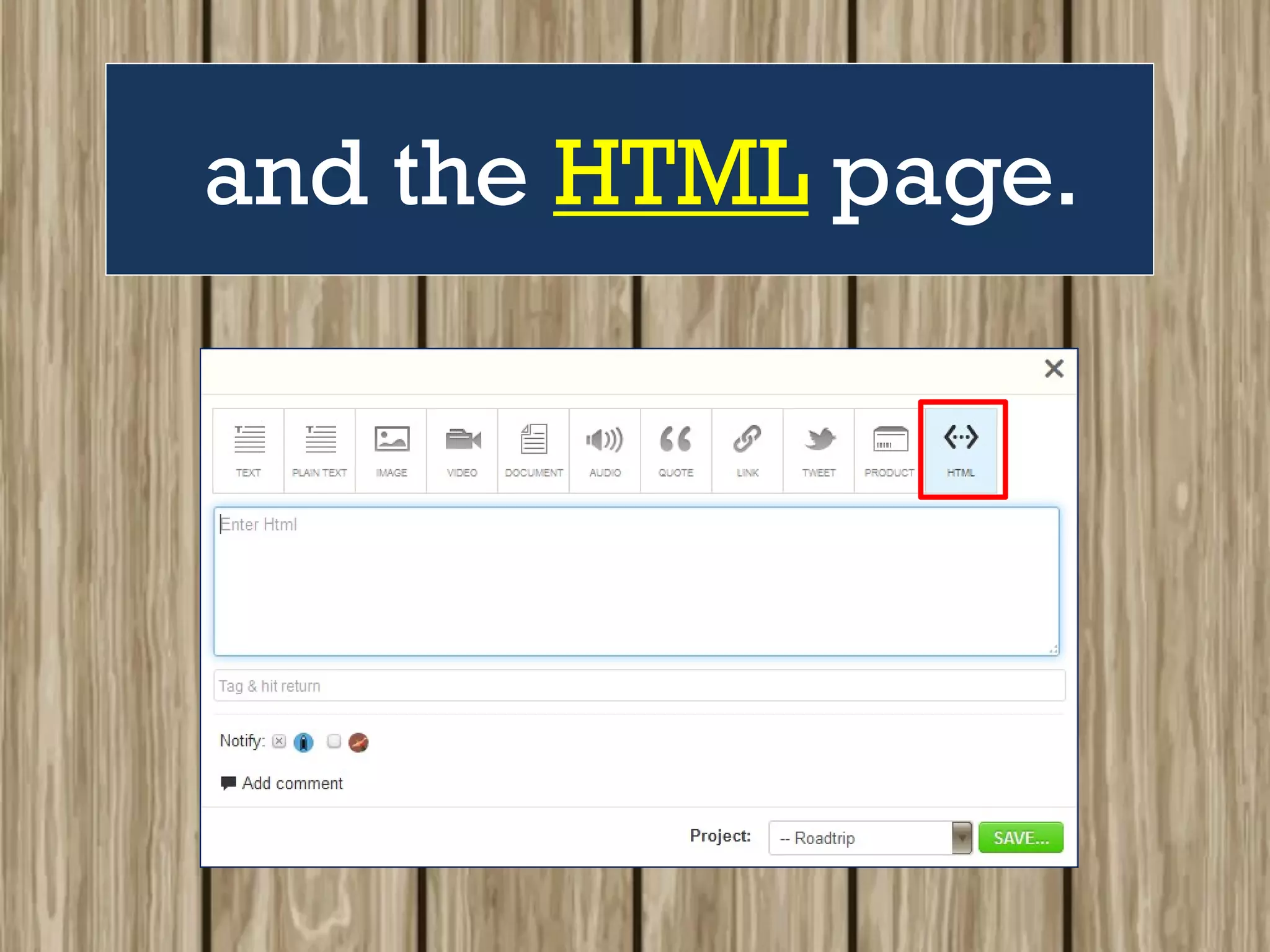
and the HTML page.
Use as many of the
features as you want
to add a
variety of content
for your project in the
Content Inbox.
Go ahead
and
give it a try!!!
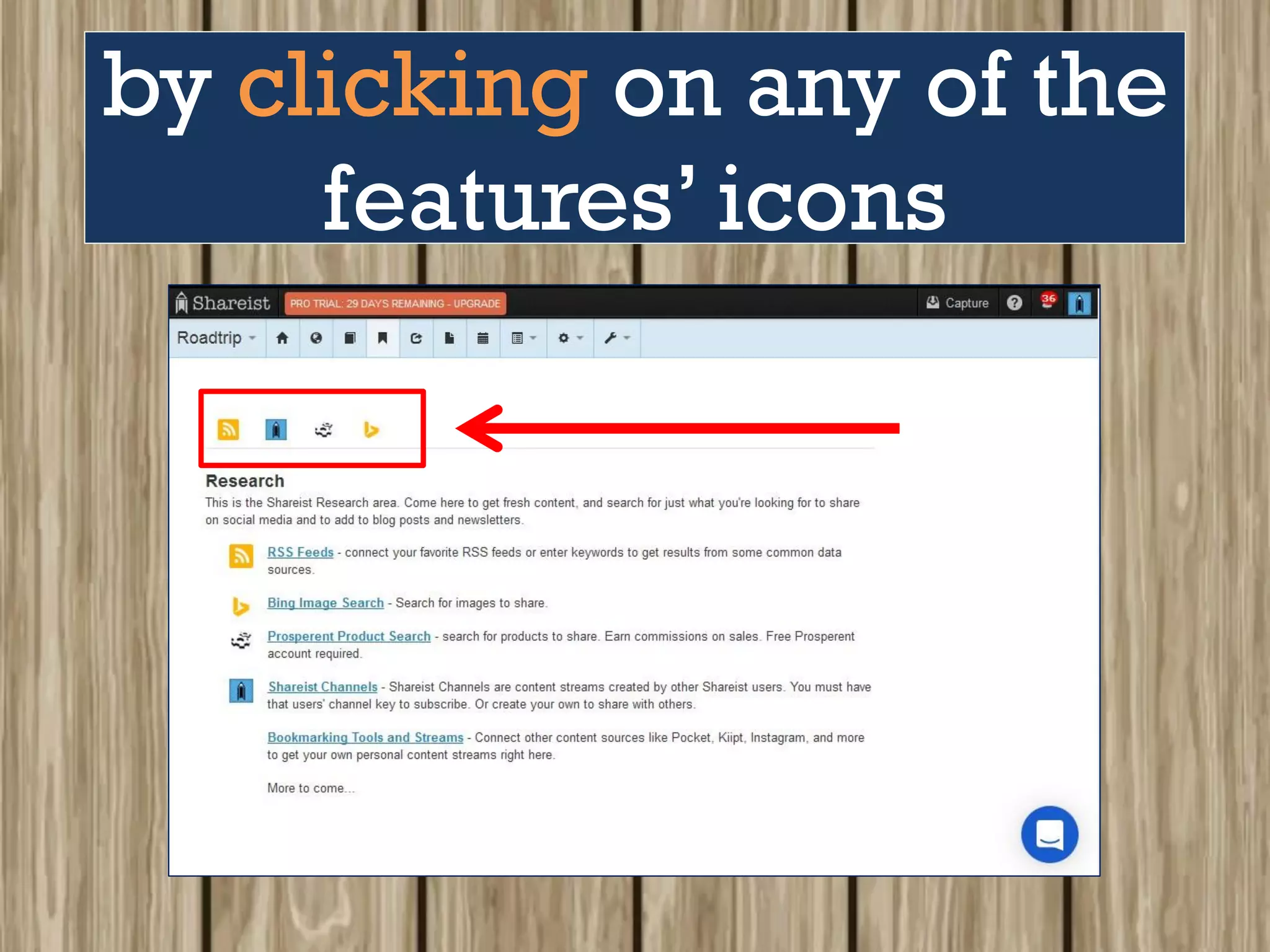
Research
This is another way
to search and get
content for your
project / s.
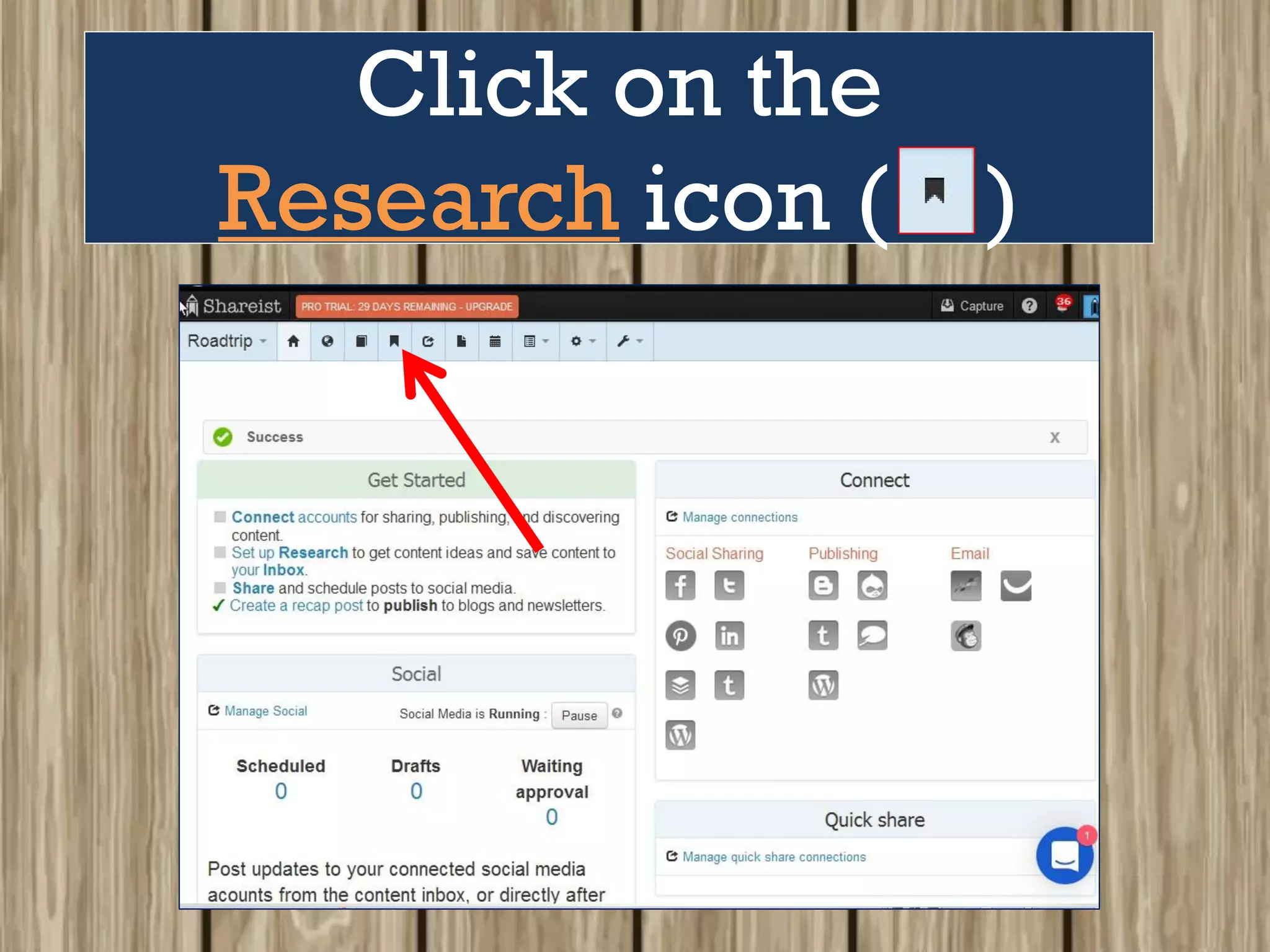
Click on the
Research icon ( )
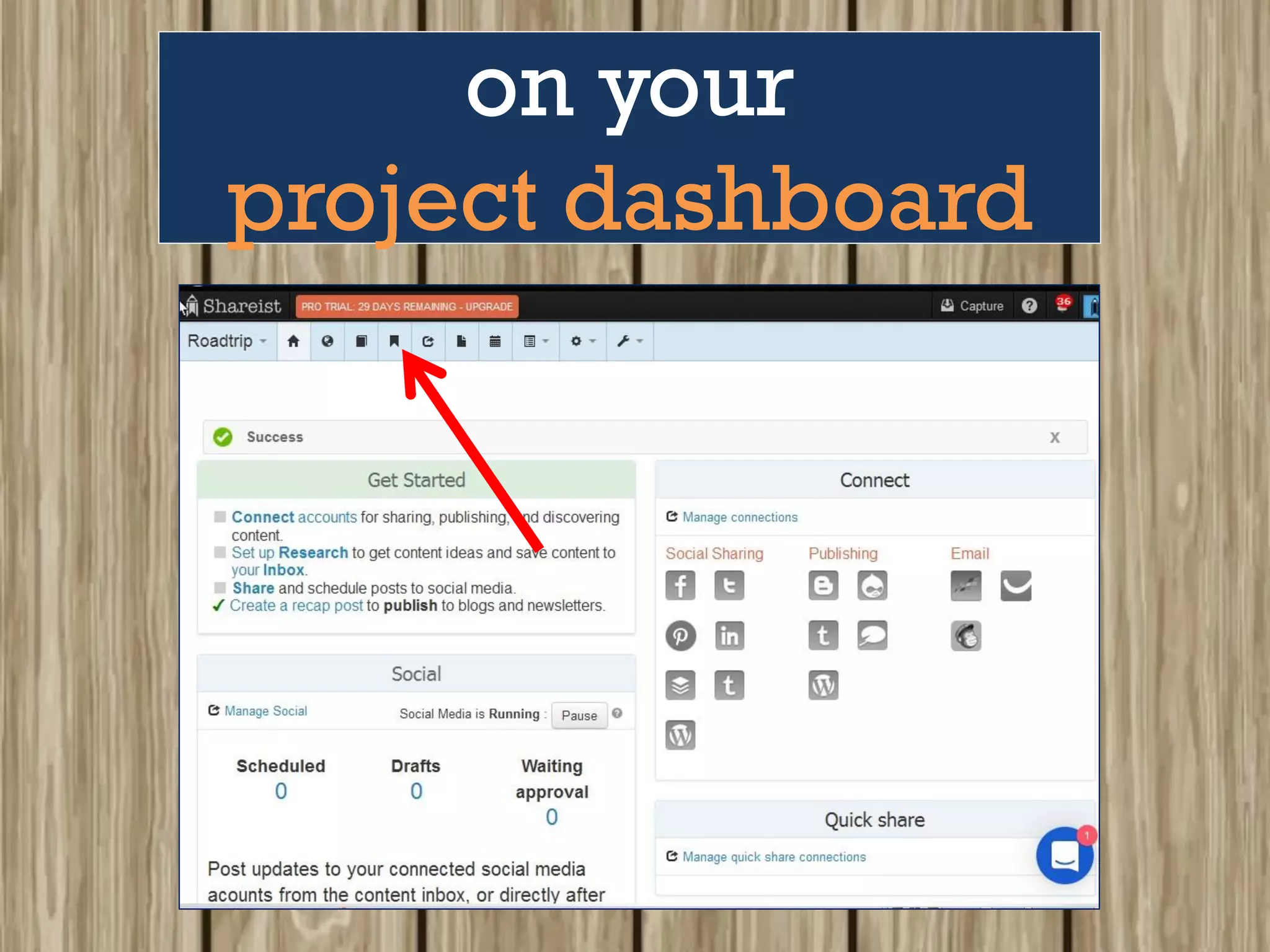
on your
project dashboard
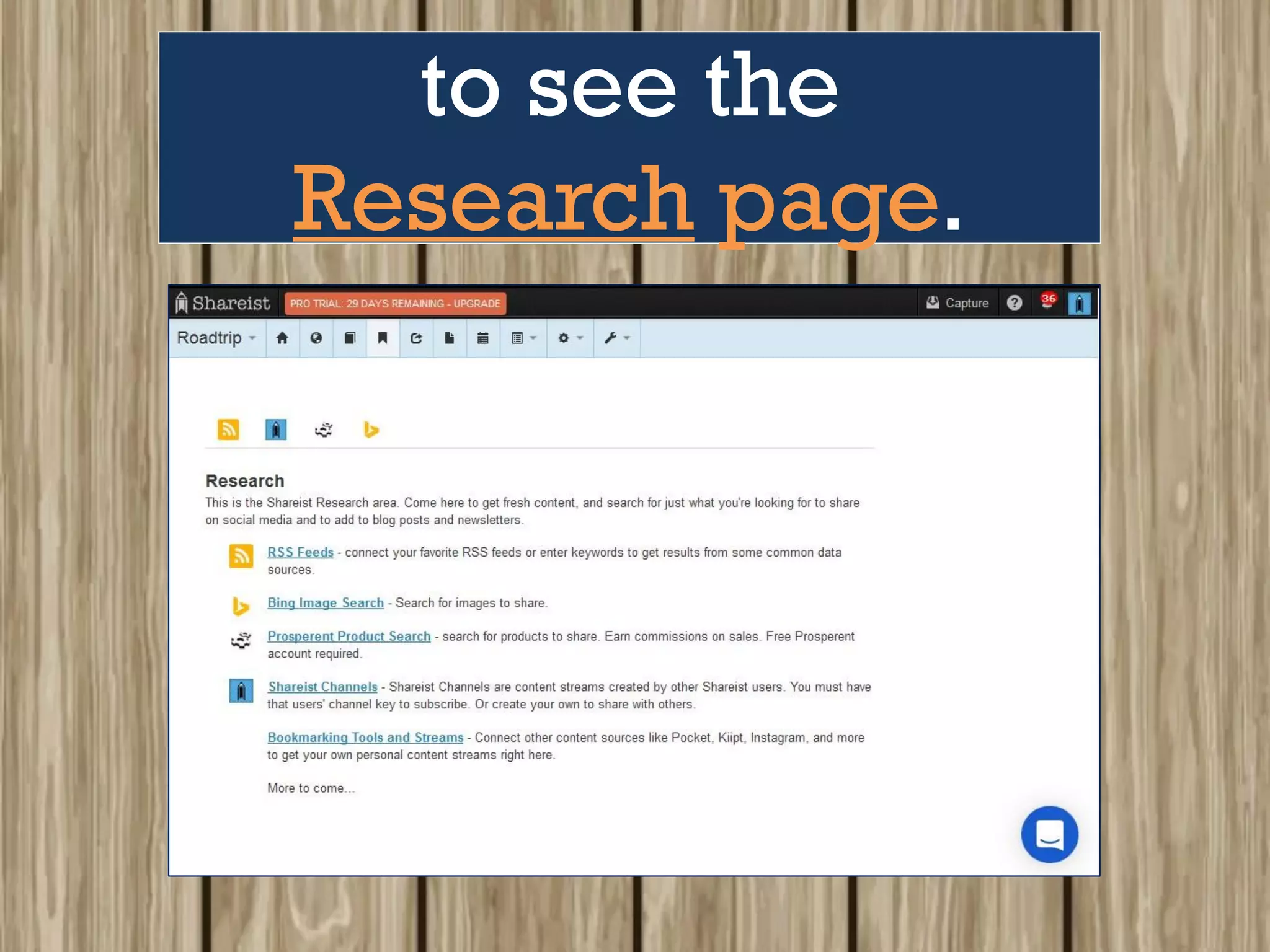
to see the
Research page.
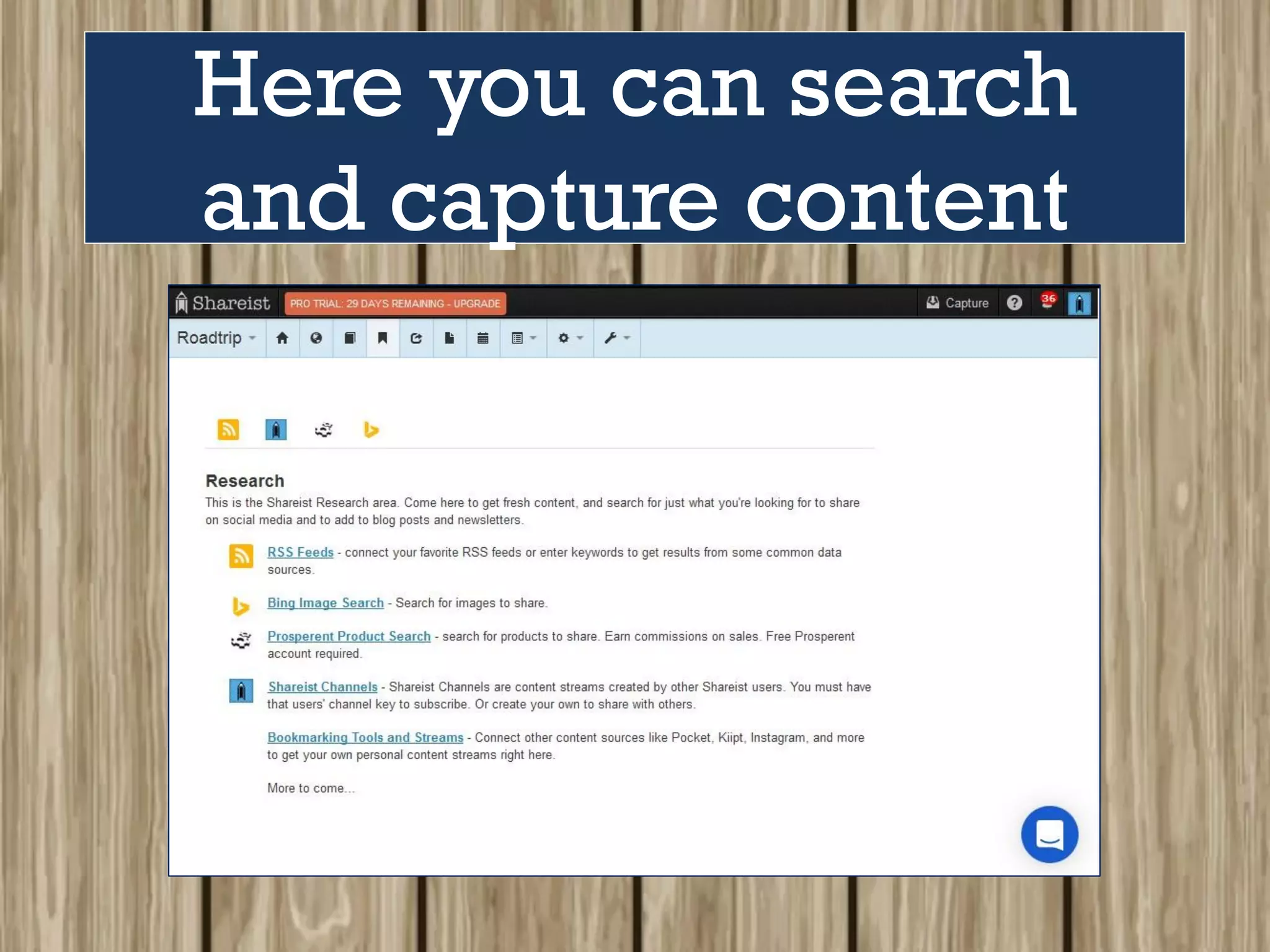
Here you can search
and capture content
by clicking on any of the
features’ icons
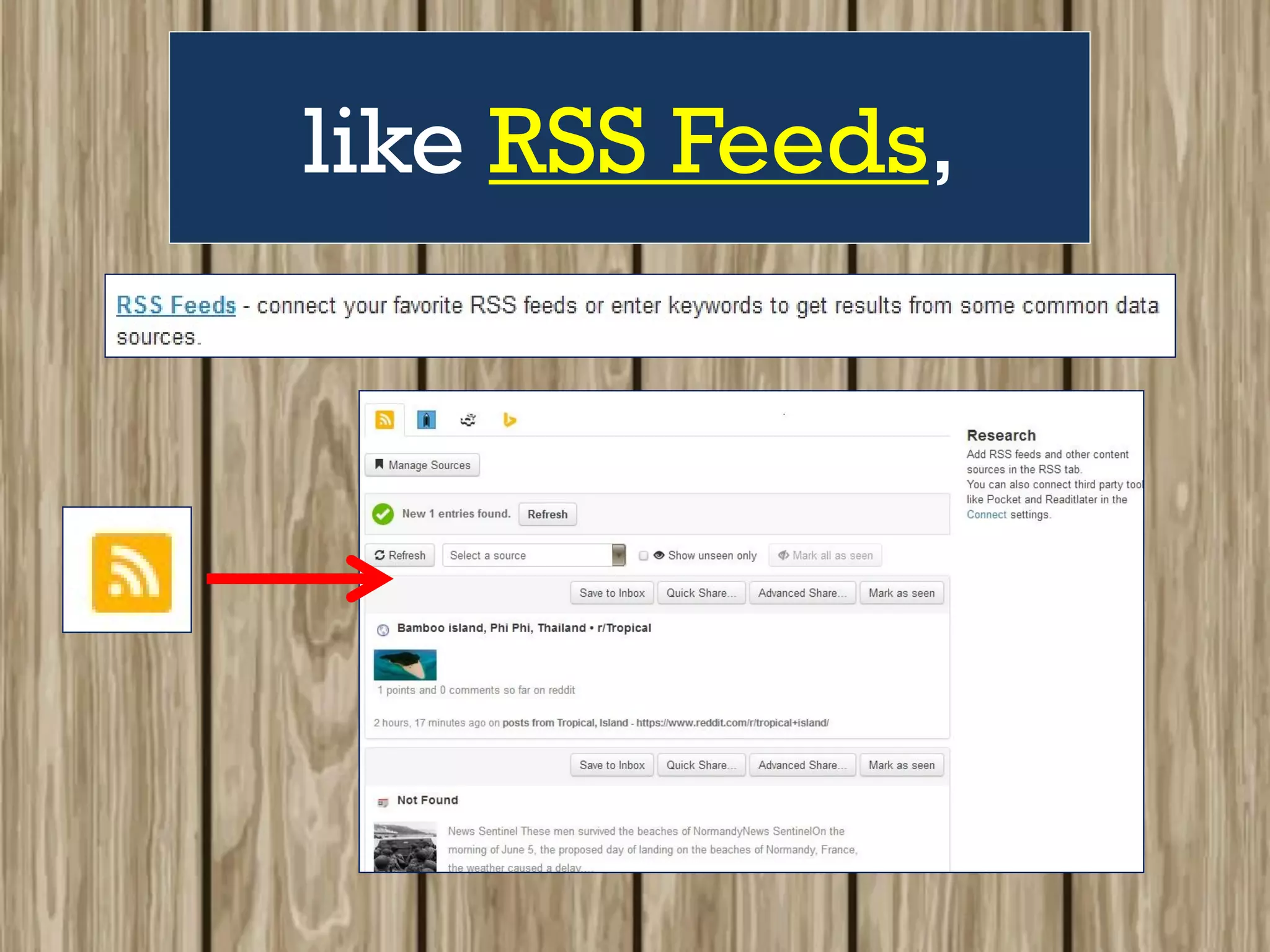
like RSS Feeds,
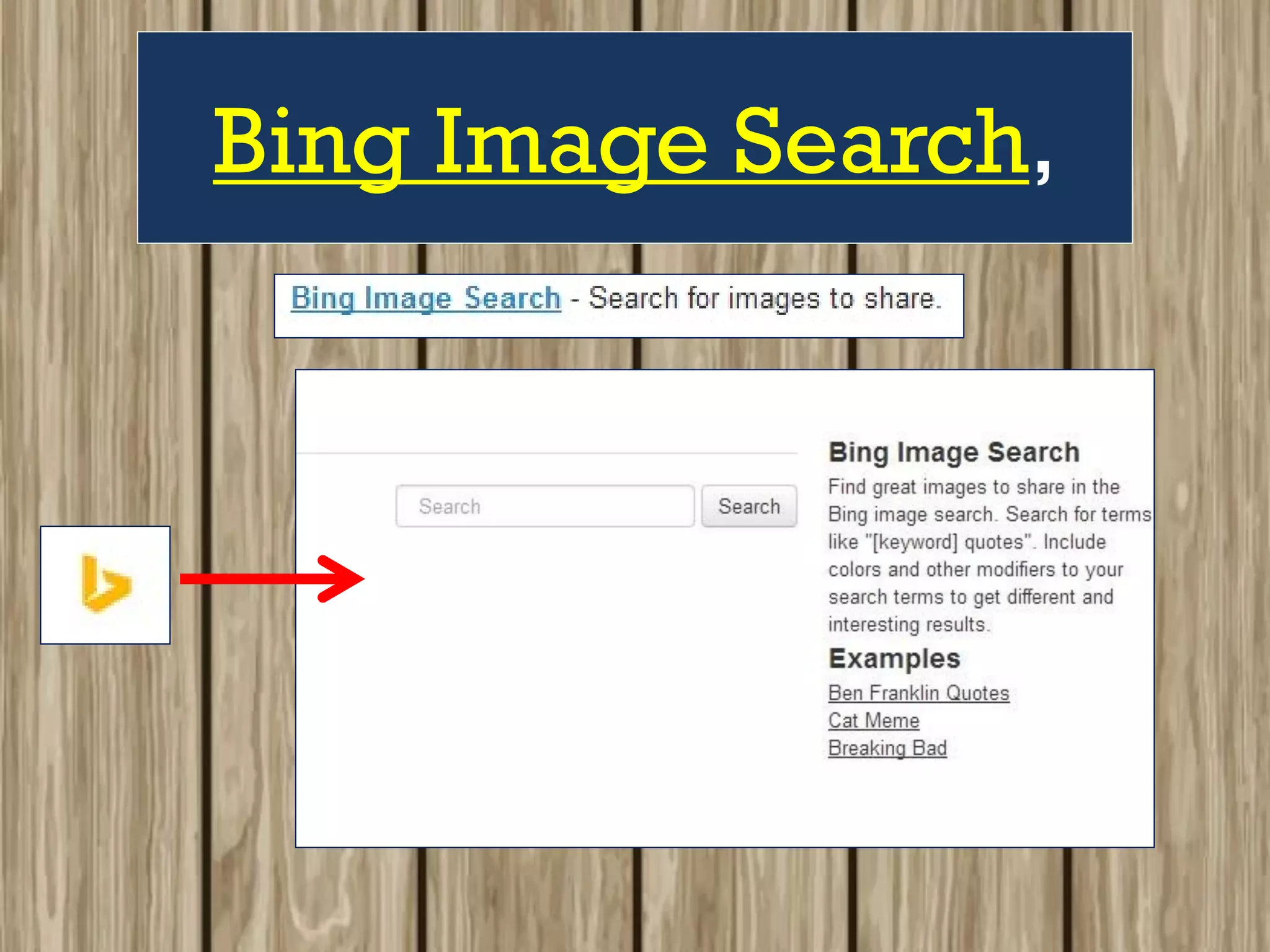
Bing Image Search,
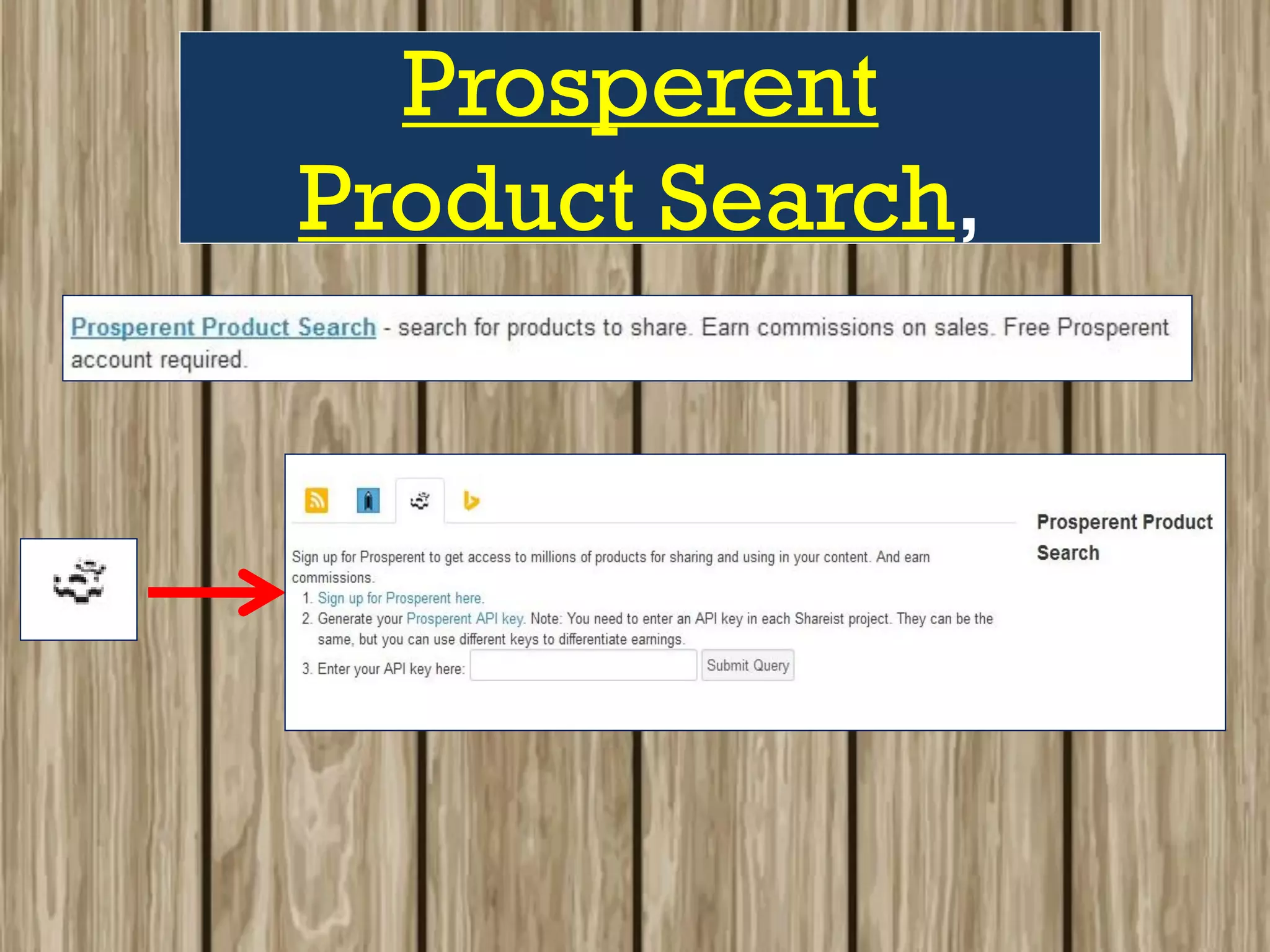
Prosperent
Product Search,
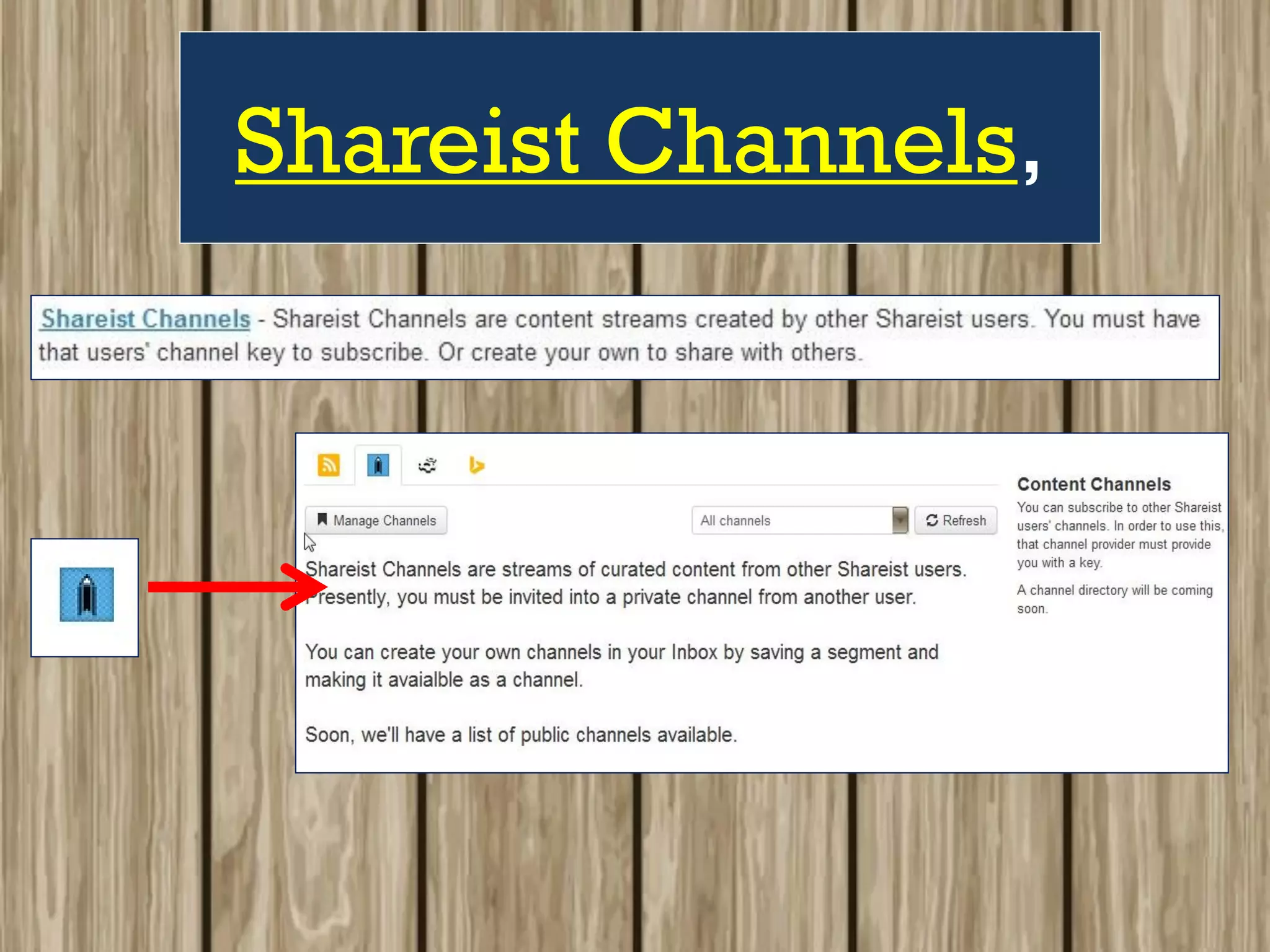
Shareist Channels,
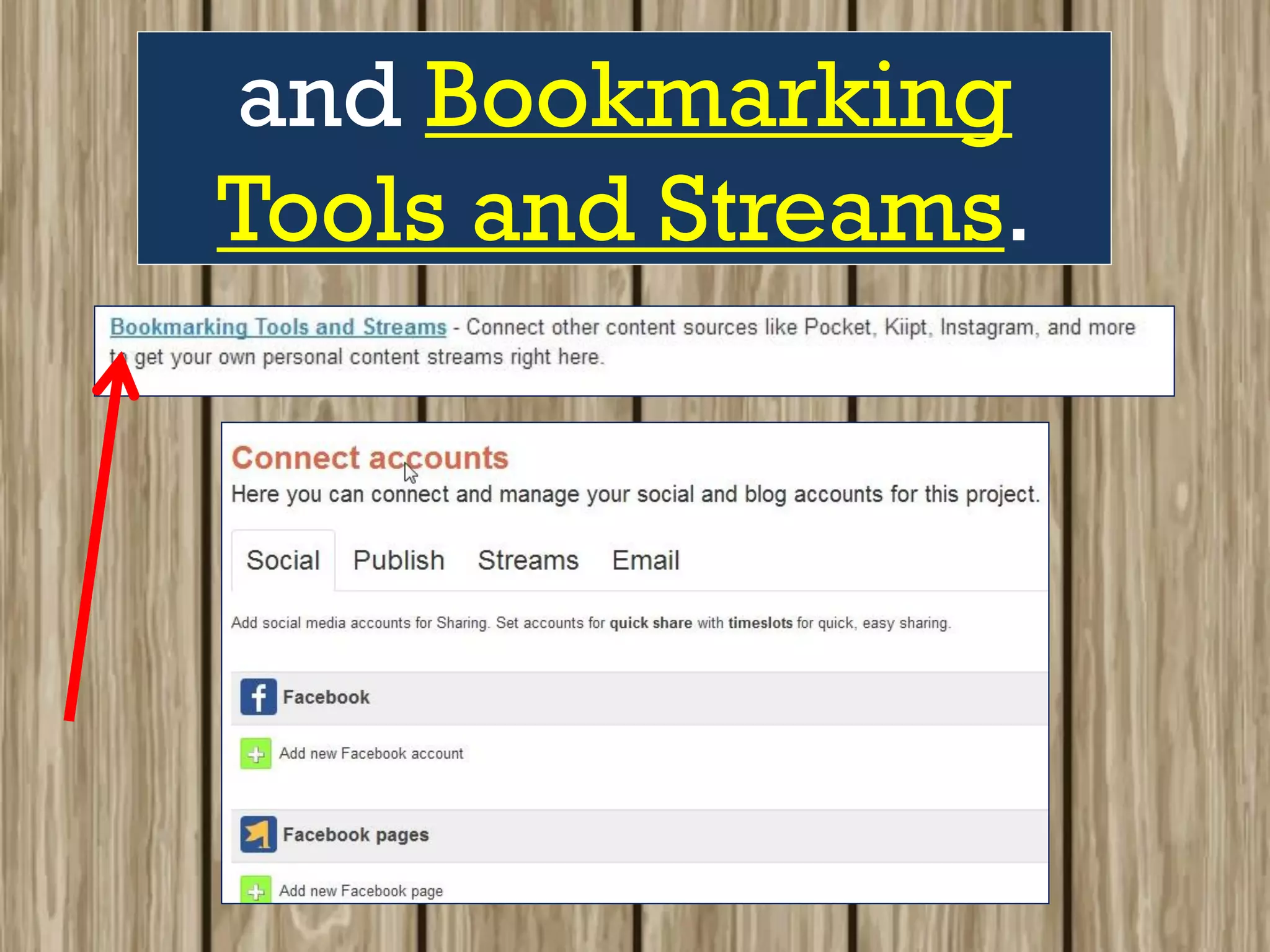
and Bookmarking
Tools and Streams.
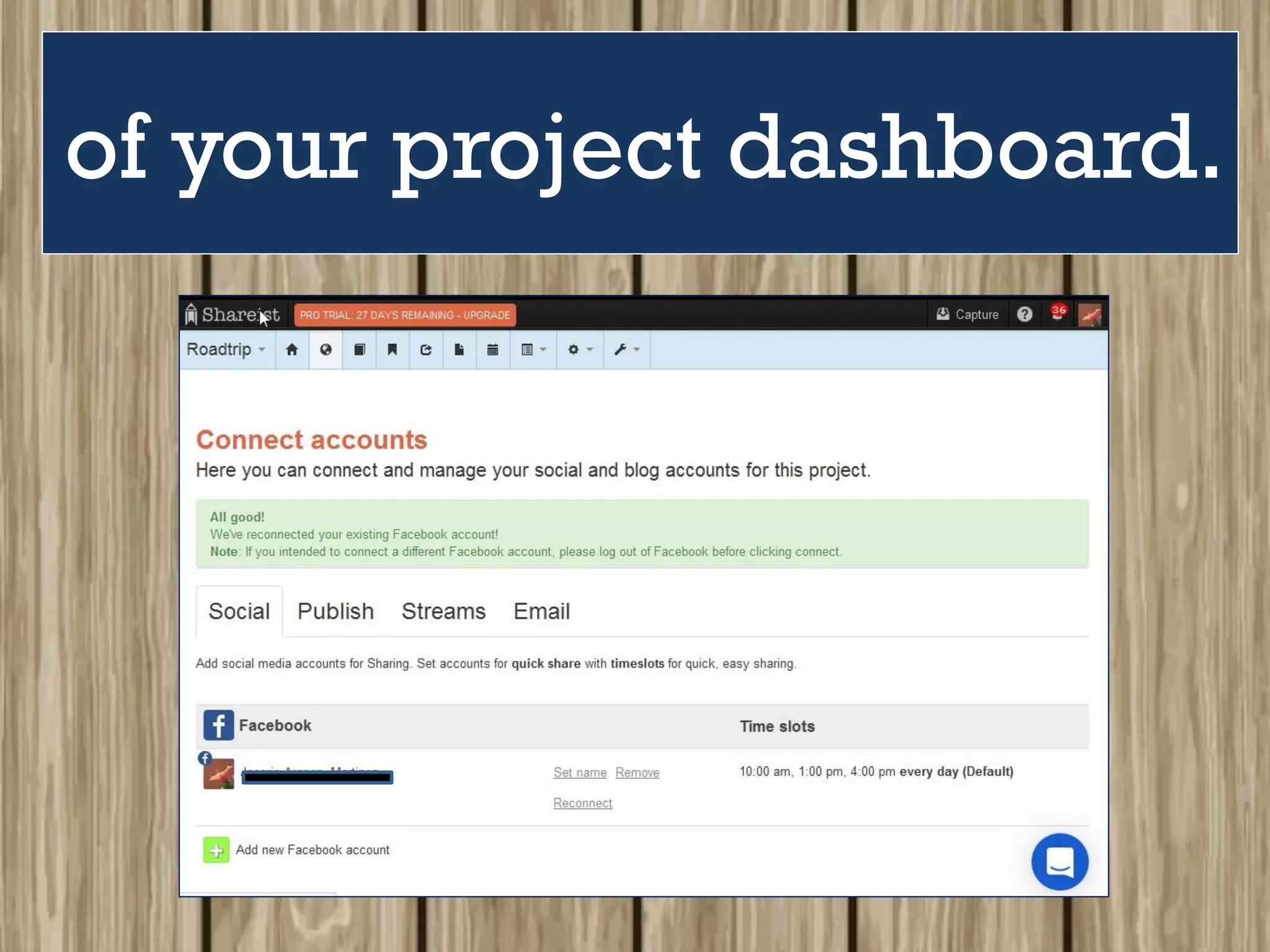
Connect Accounts
This allows you
to connect
to different
social media
platforms,
email providers,
blogs and
even “streams” –
third party
bookmarking or
content tools.
If you want to share
content right after
you’ve ‘captured” it,
then go ahead to
Connect Accounts
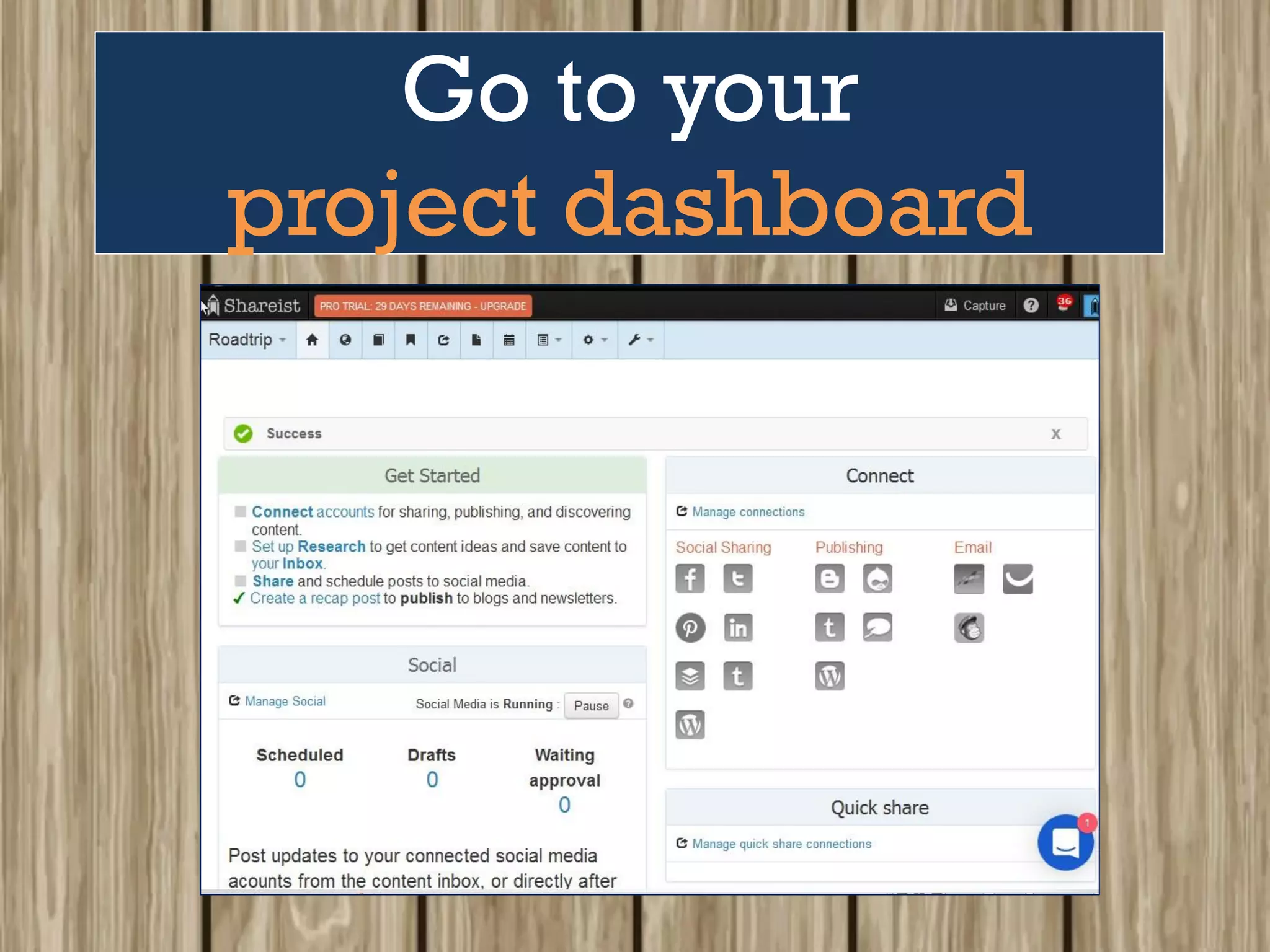
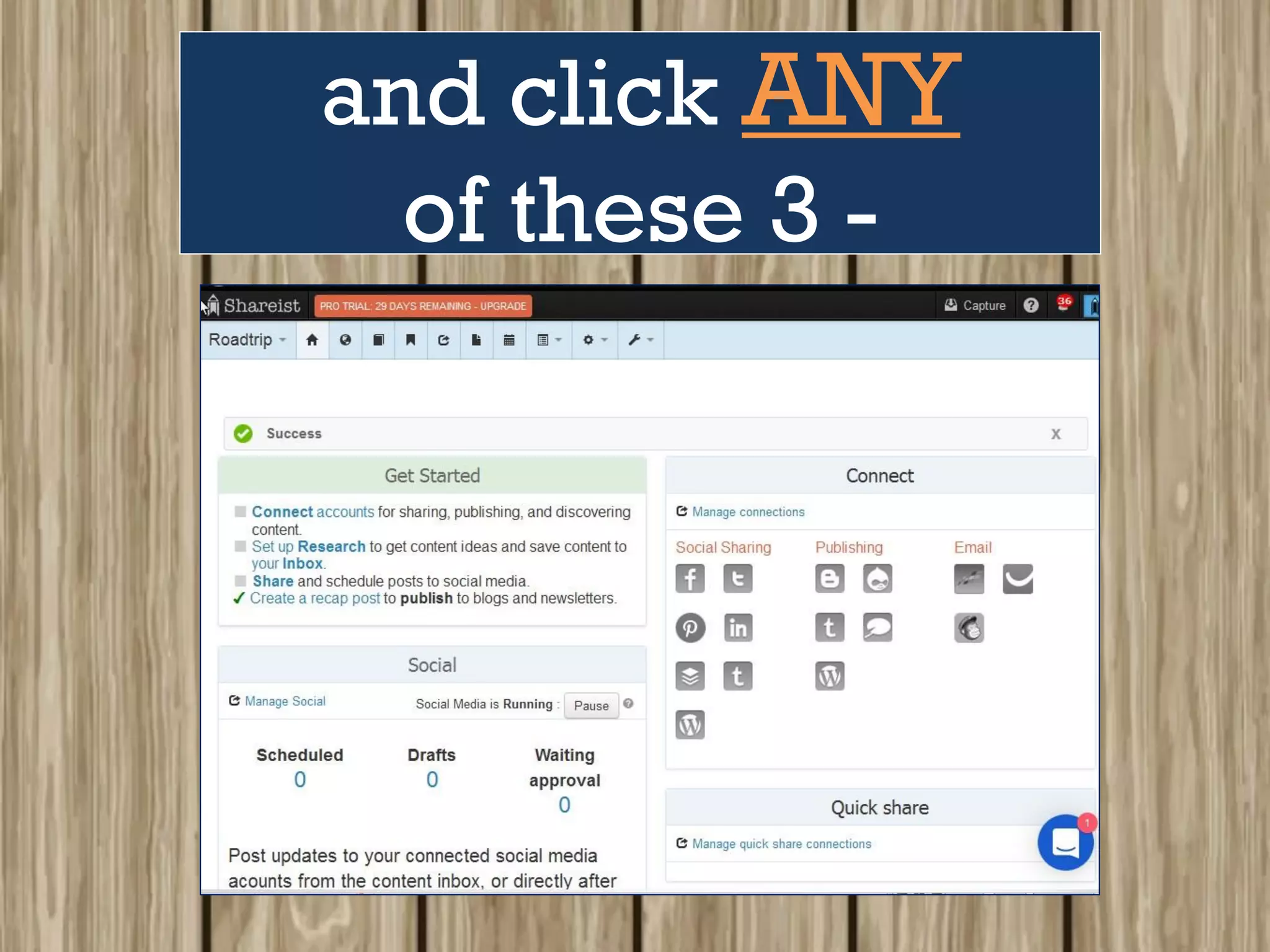
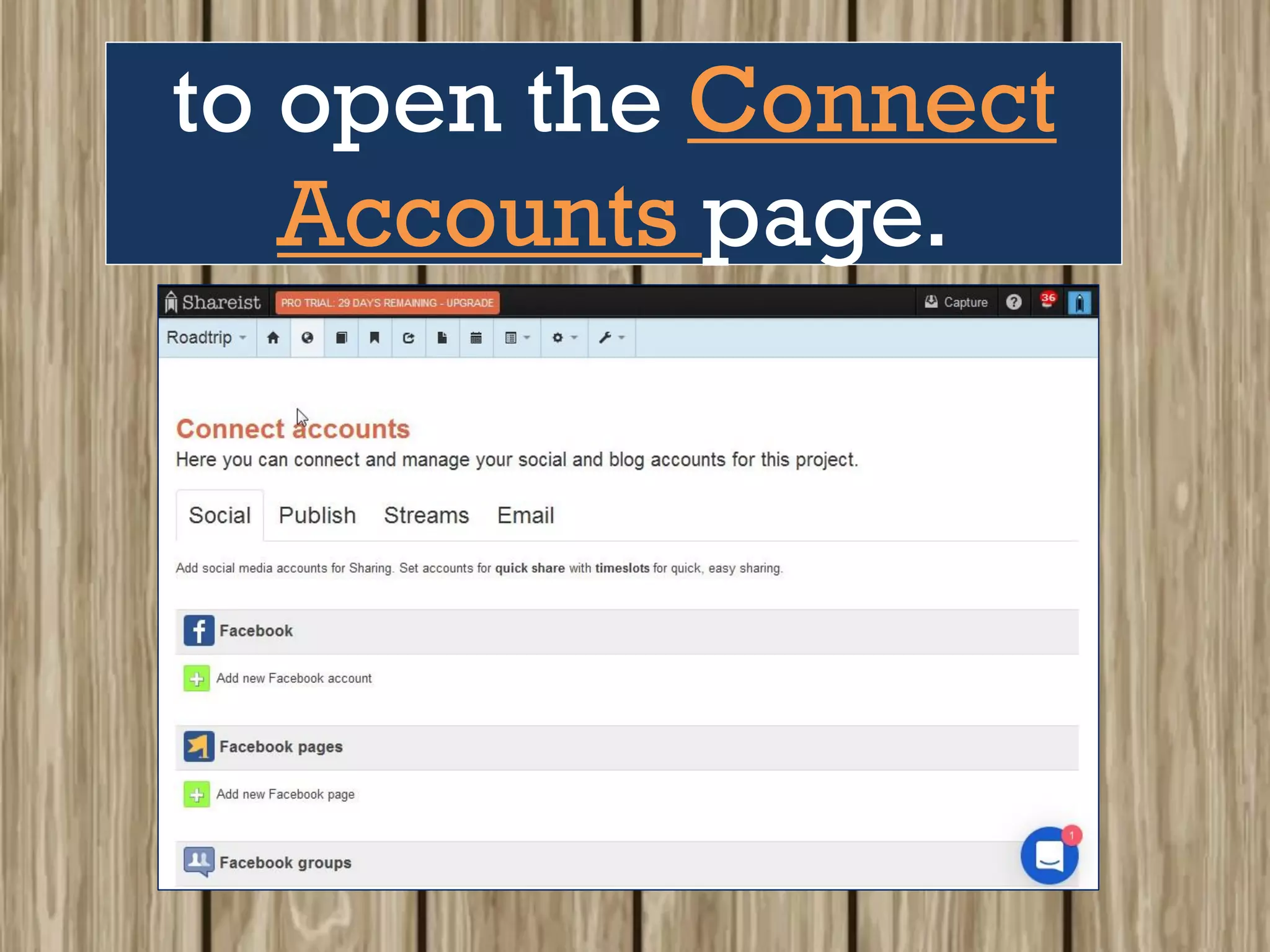
Go to your
project dashboard
and click ANY
of these 3 -
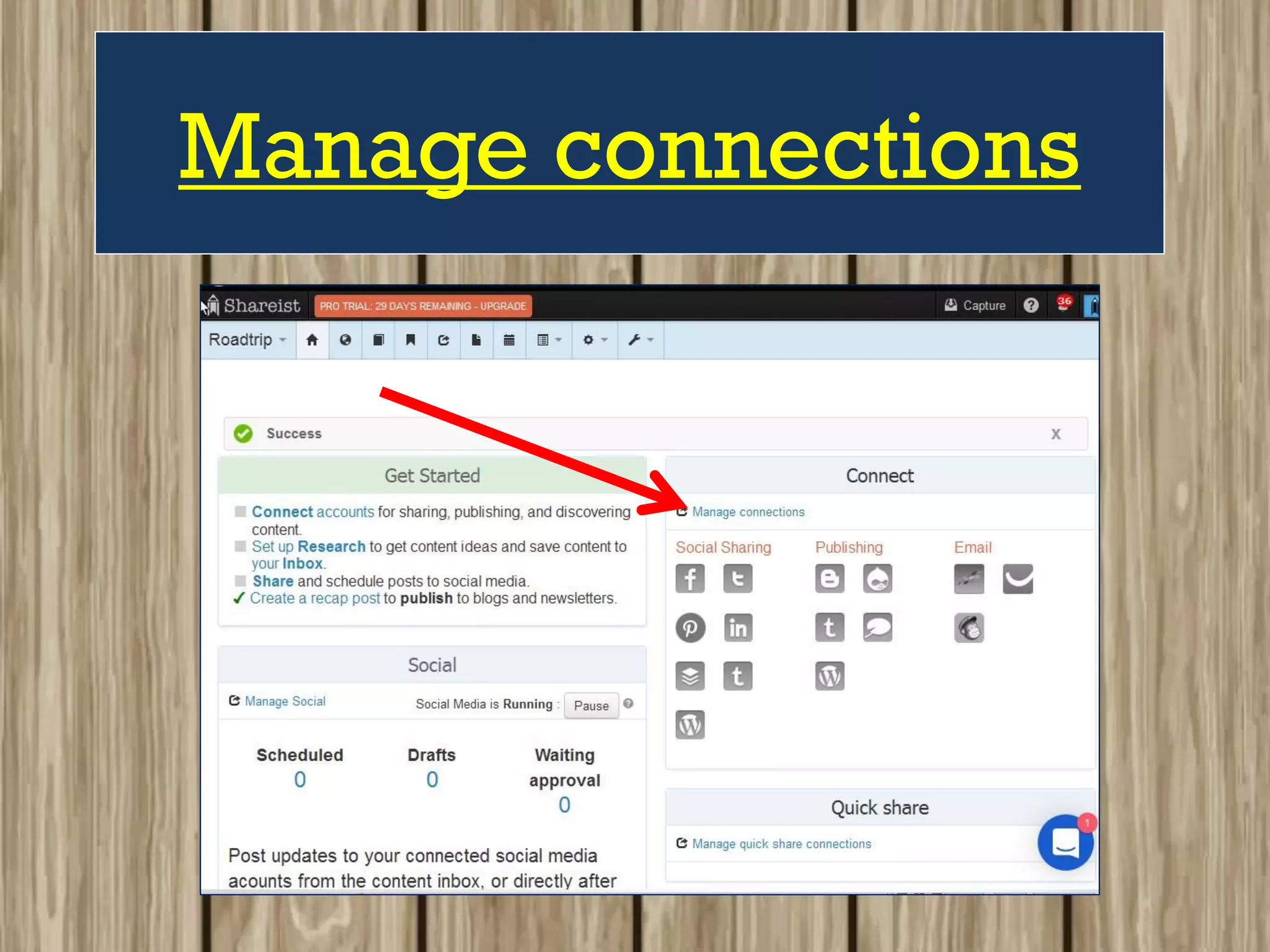
Manage connections
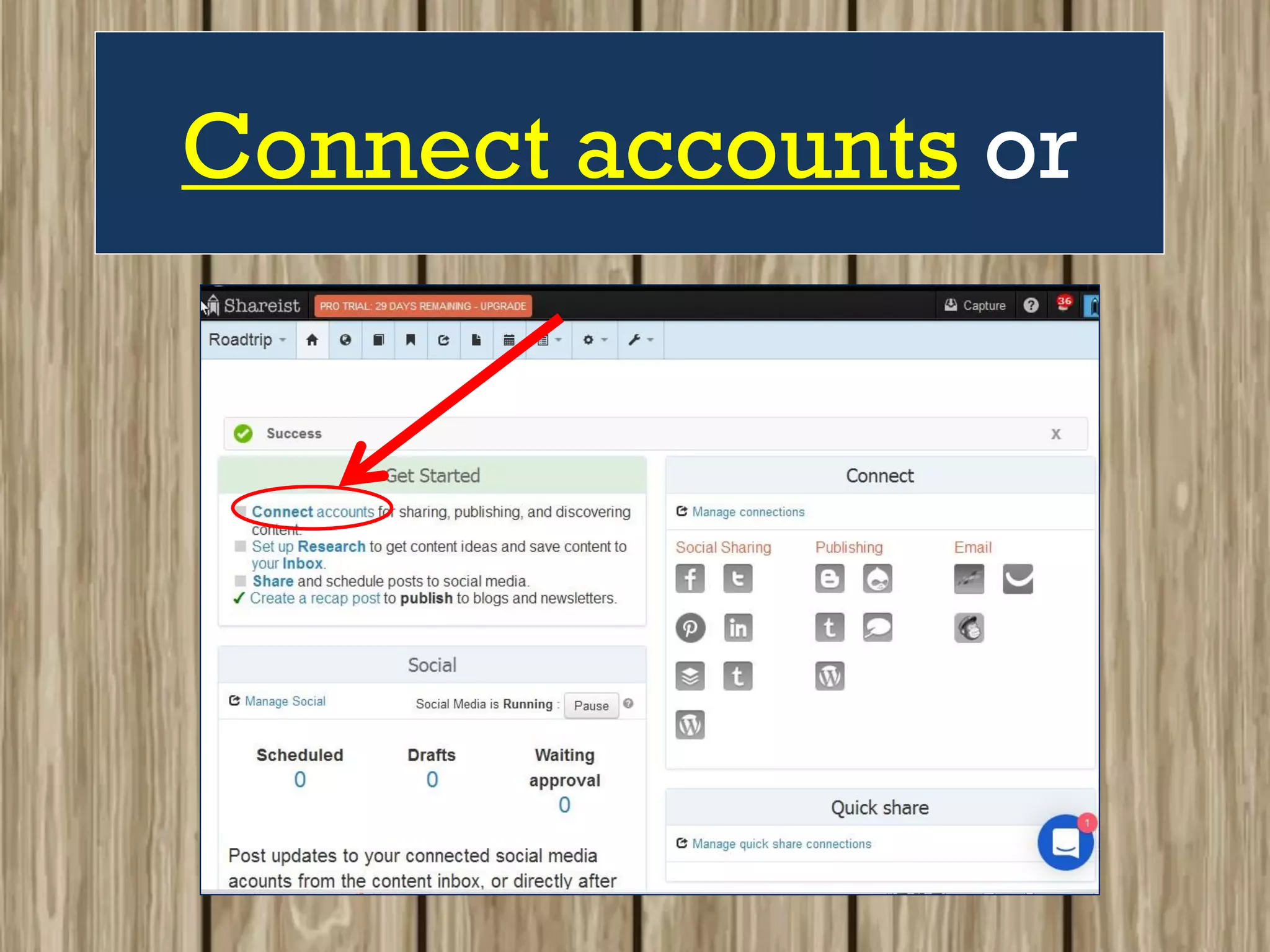
Connect accounts or
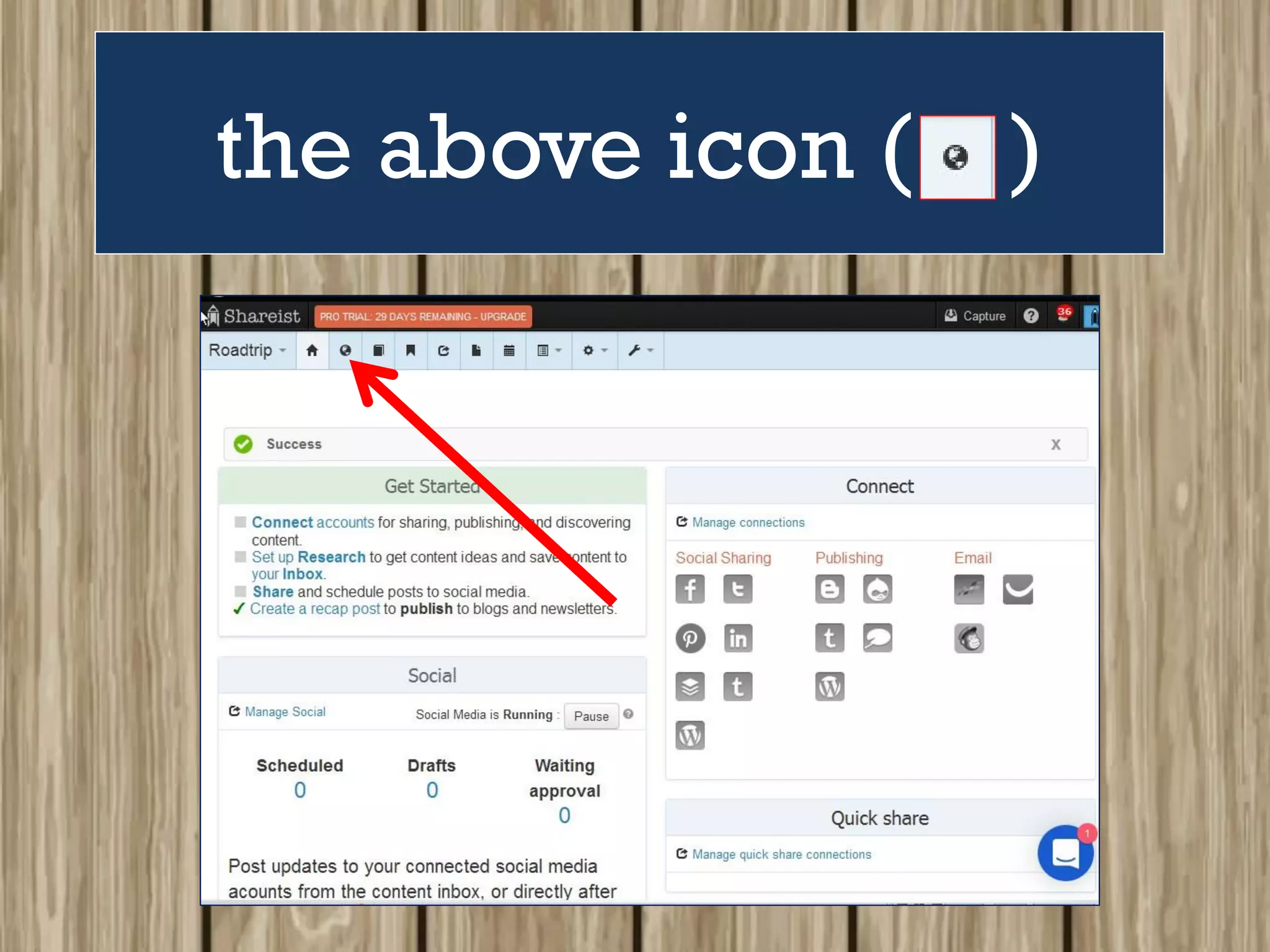
the above icon ( )
to open the Connect
Accounts page.
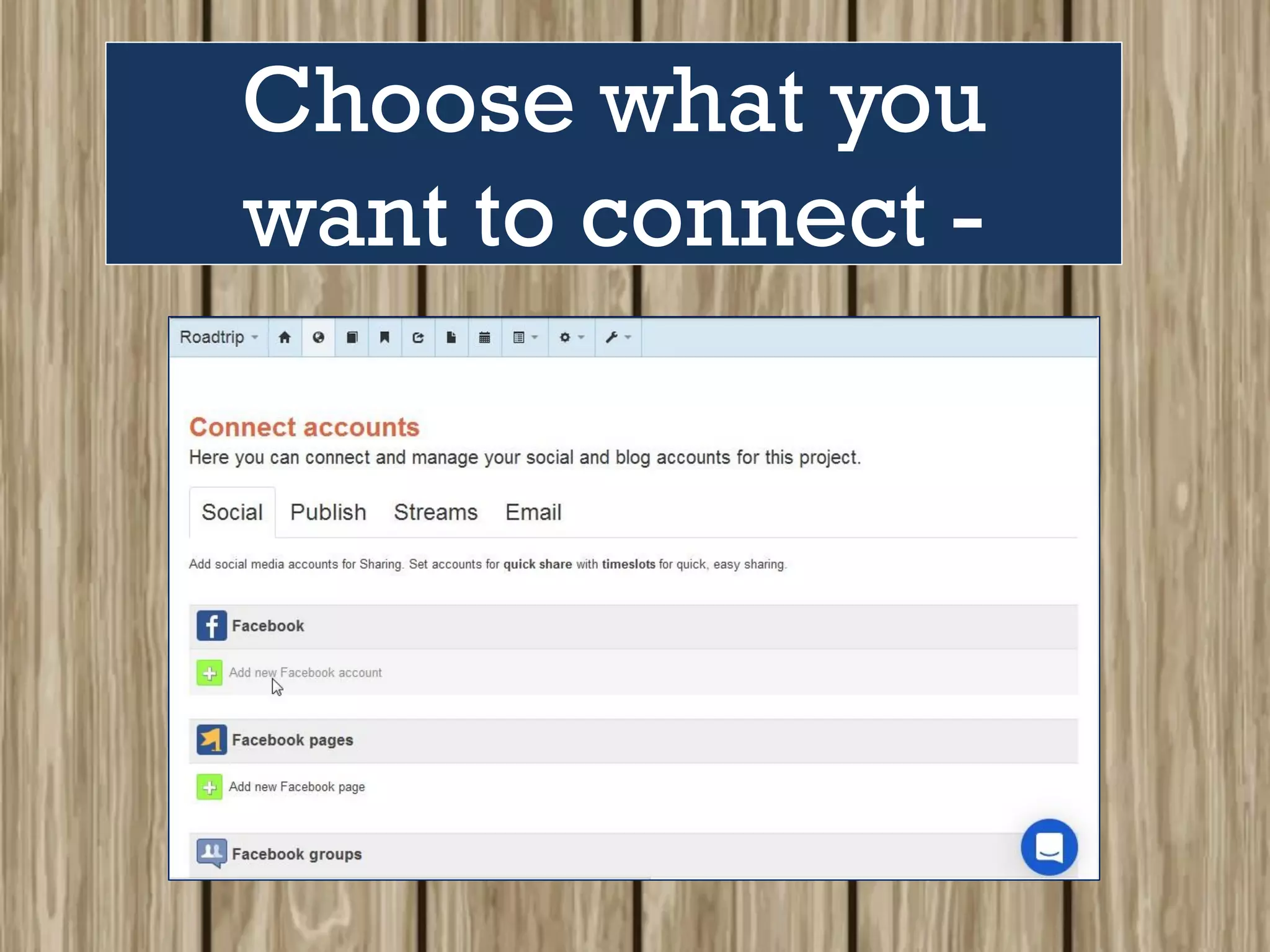
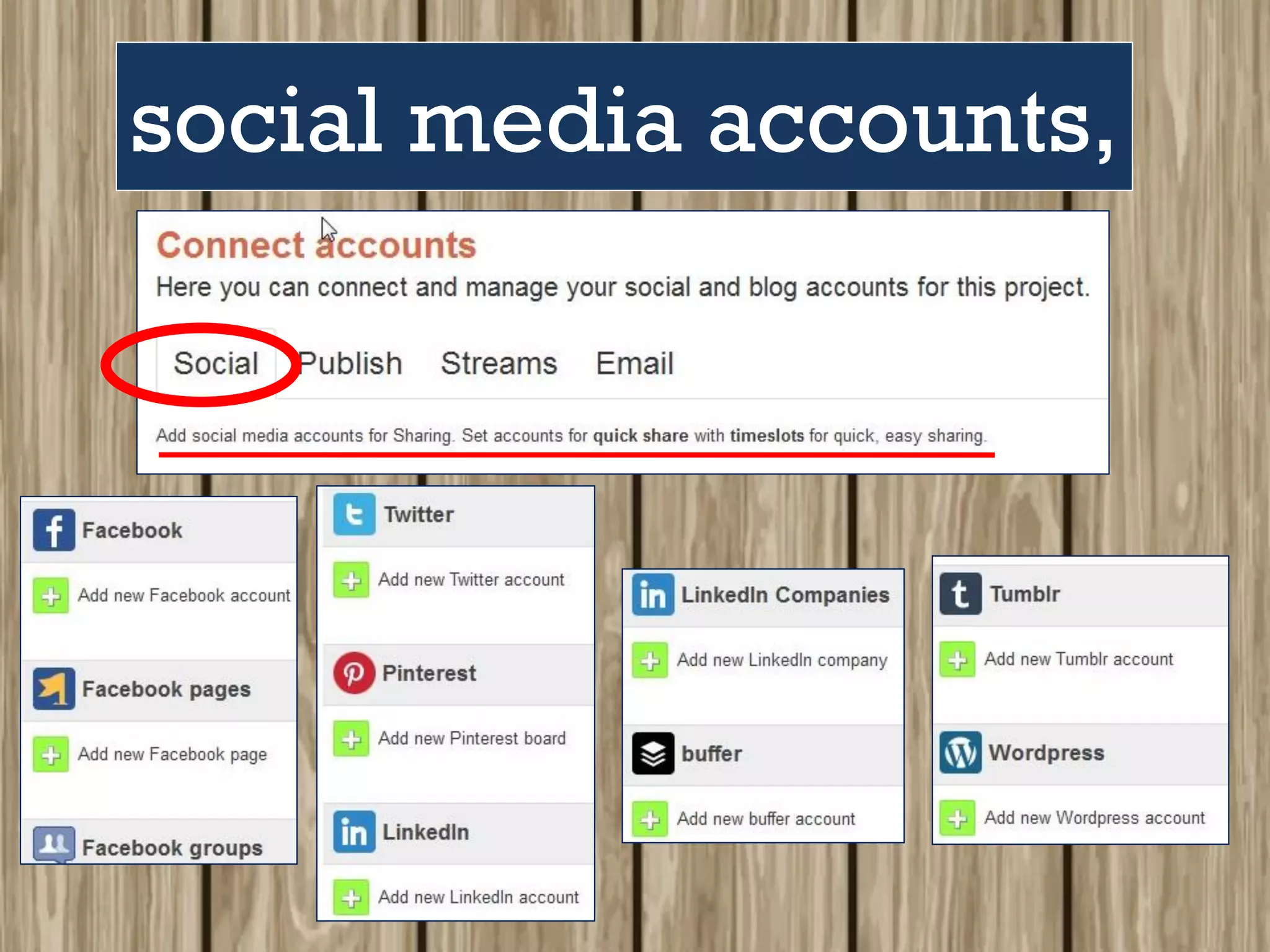
Choose what you
want to connect -
social media accounts,
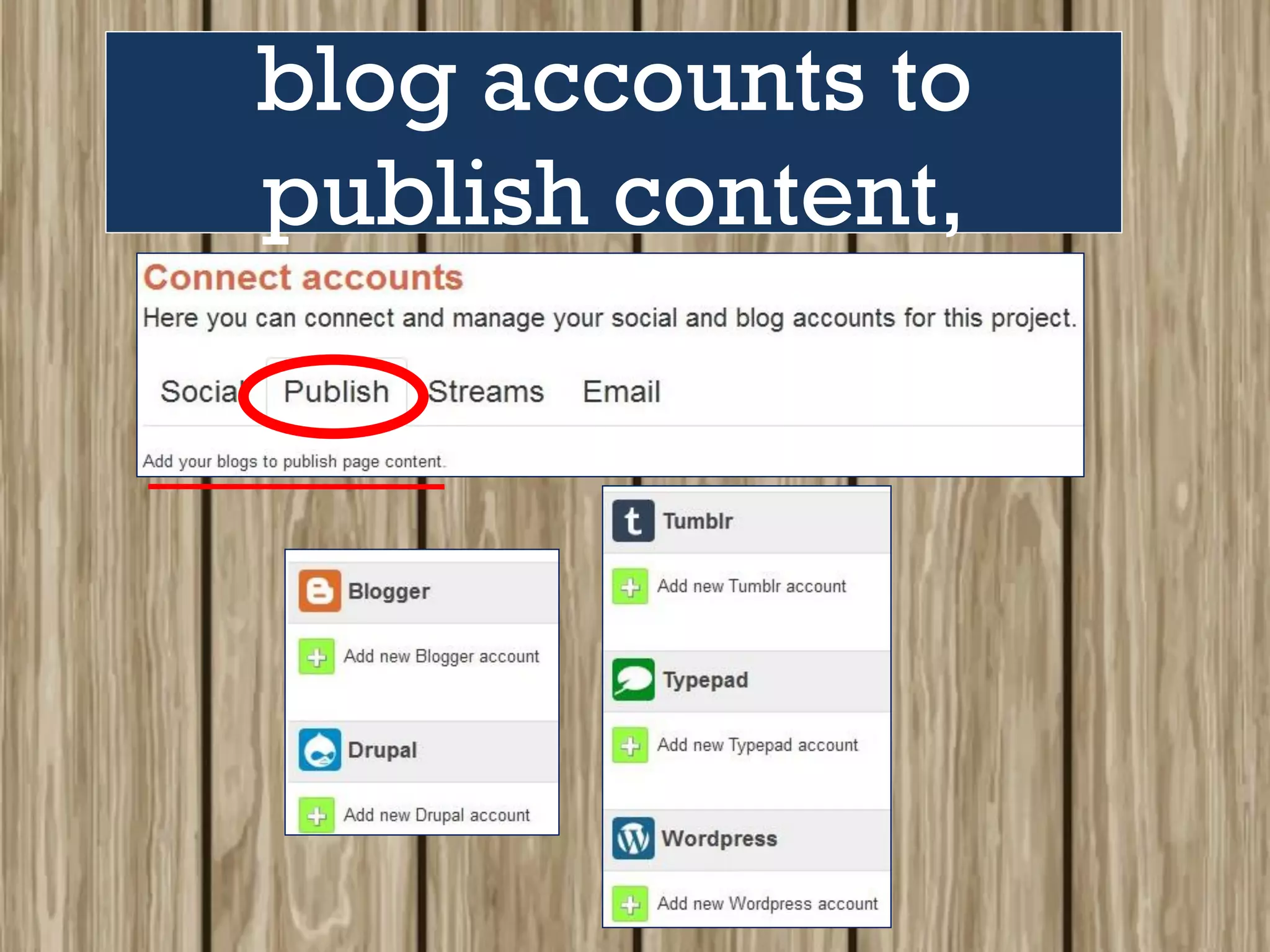
blog accounts to
publish content,
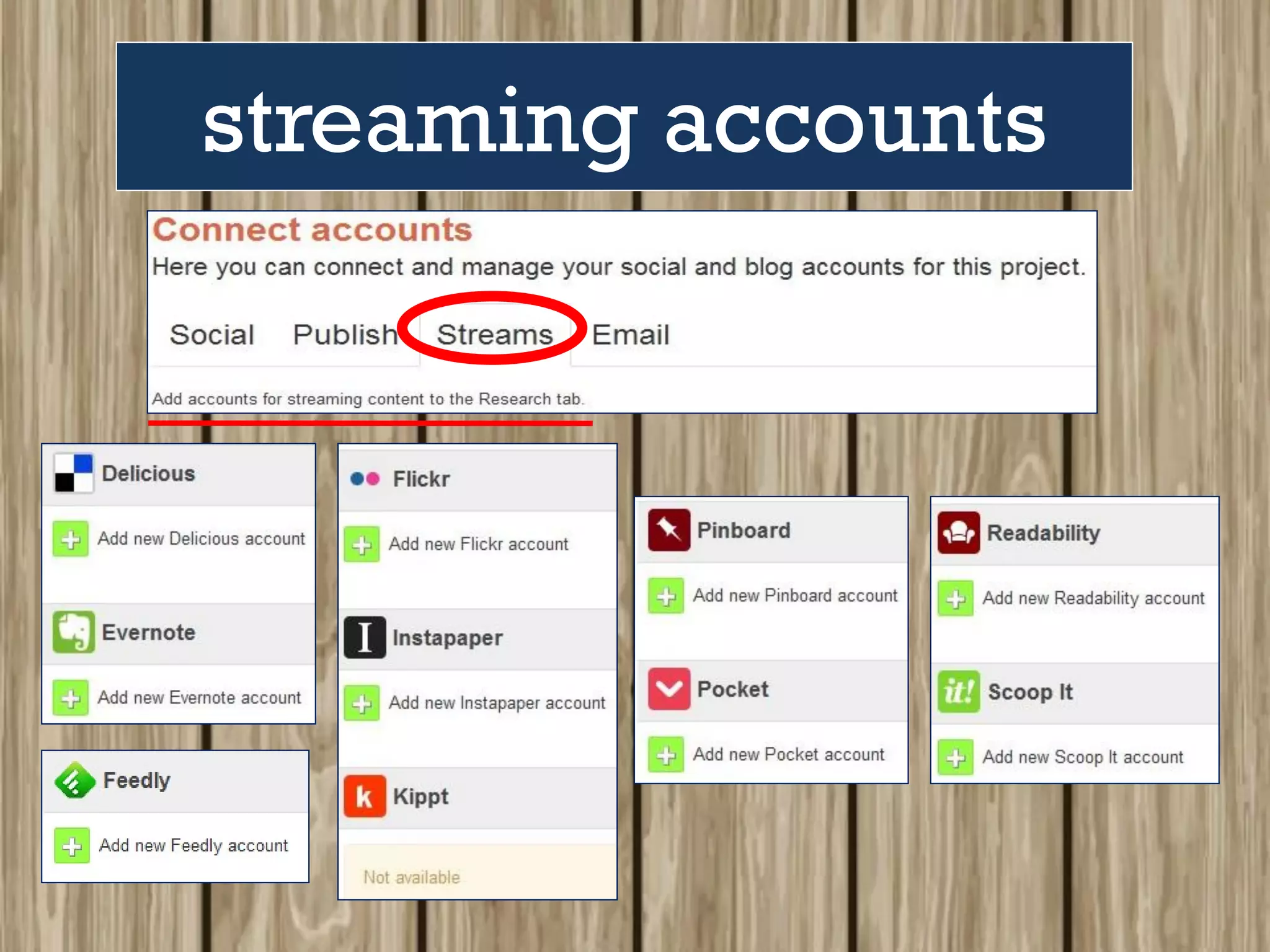
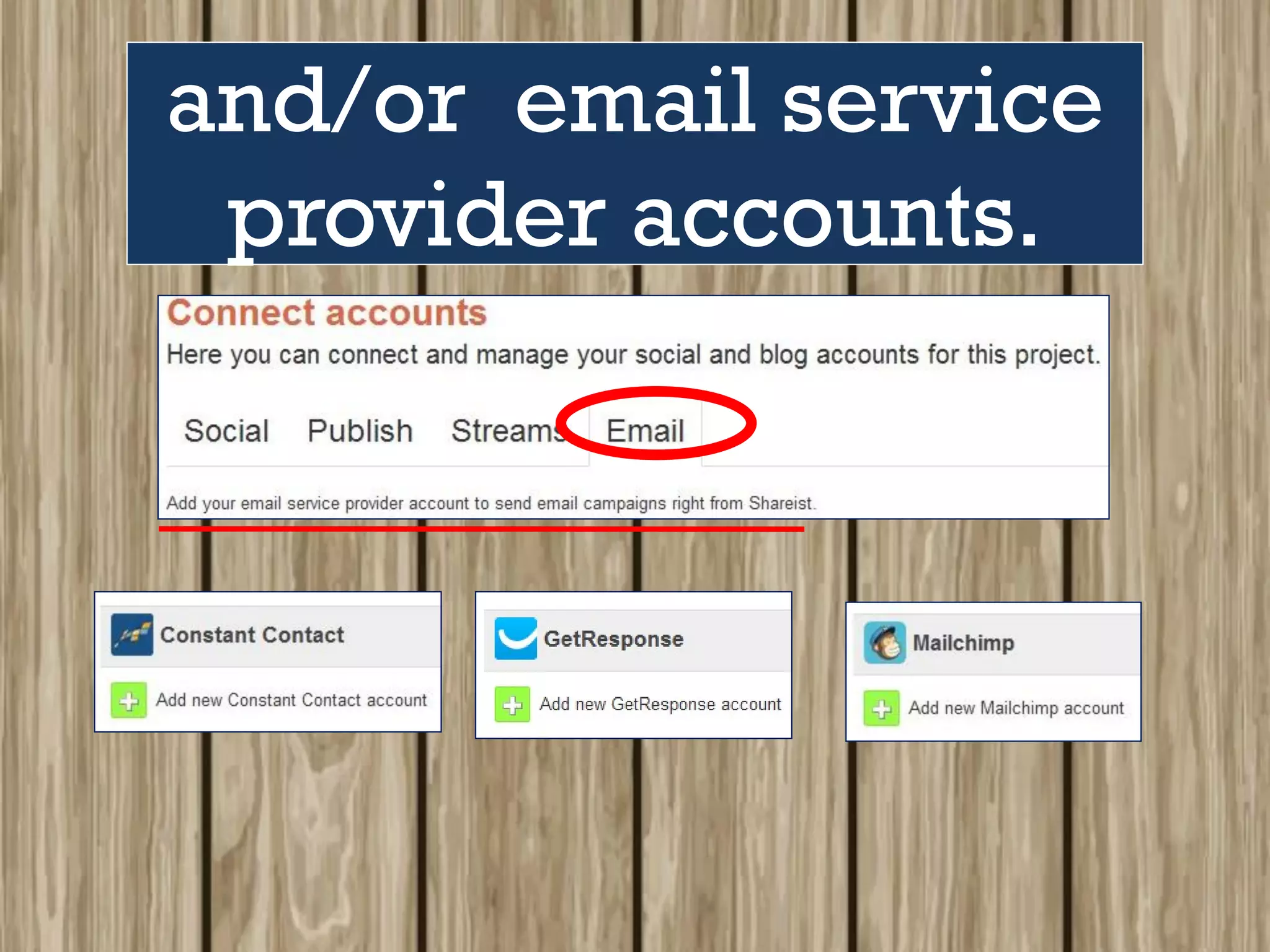
streaming accounts
and/or email service
provider accounts.
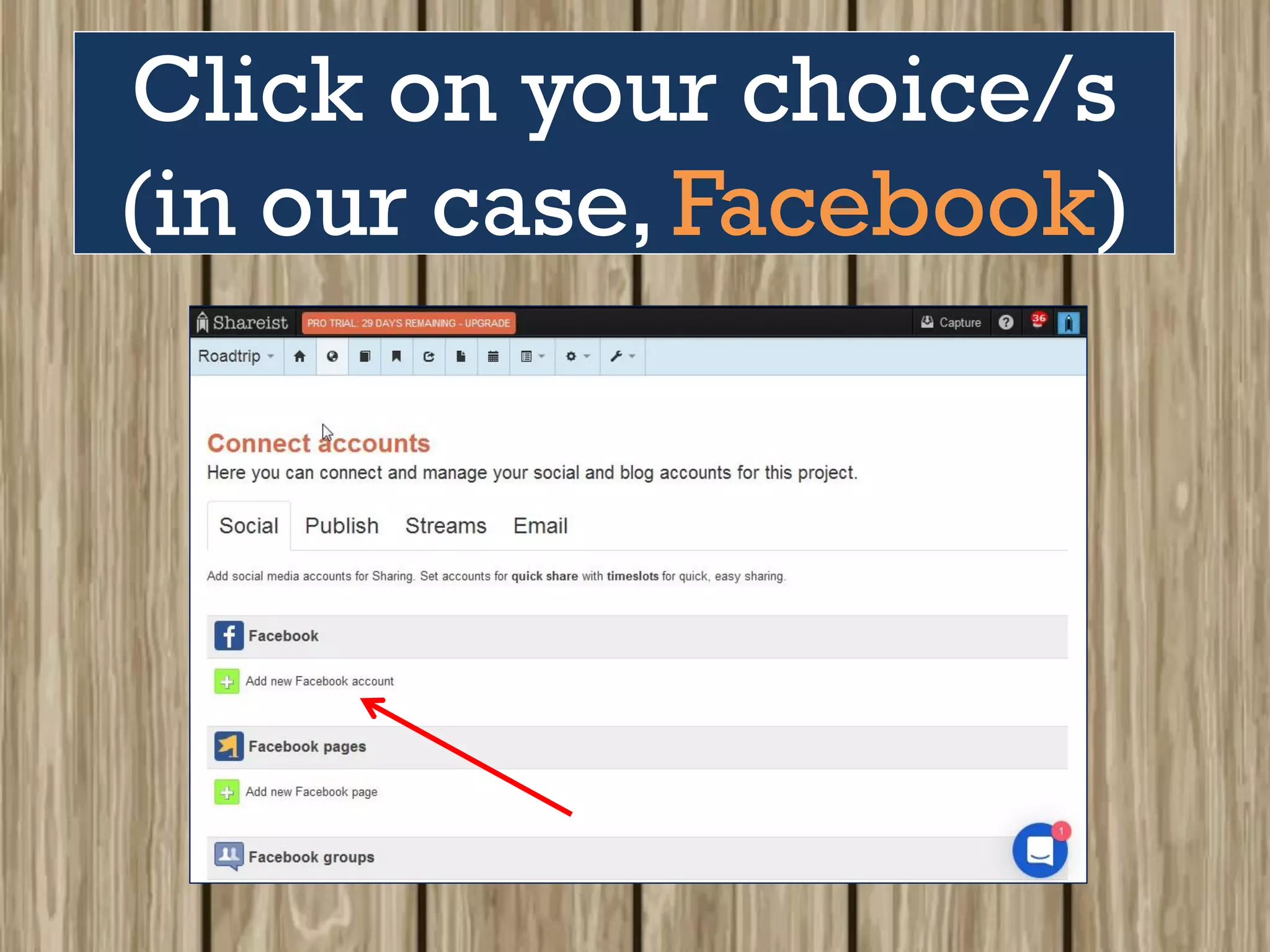
Click on your choice/s
(in our case, Facebook)
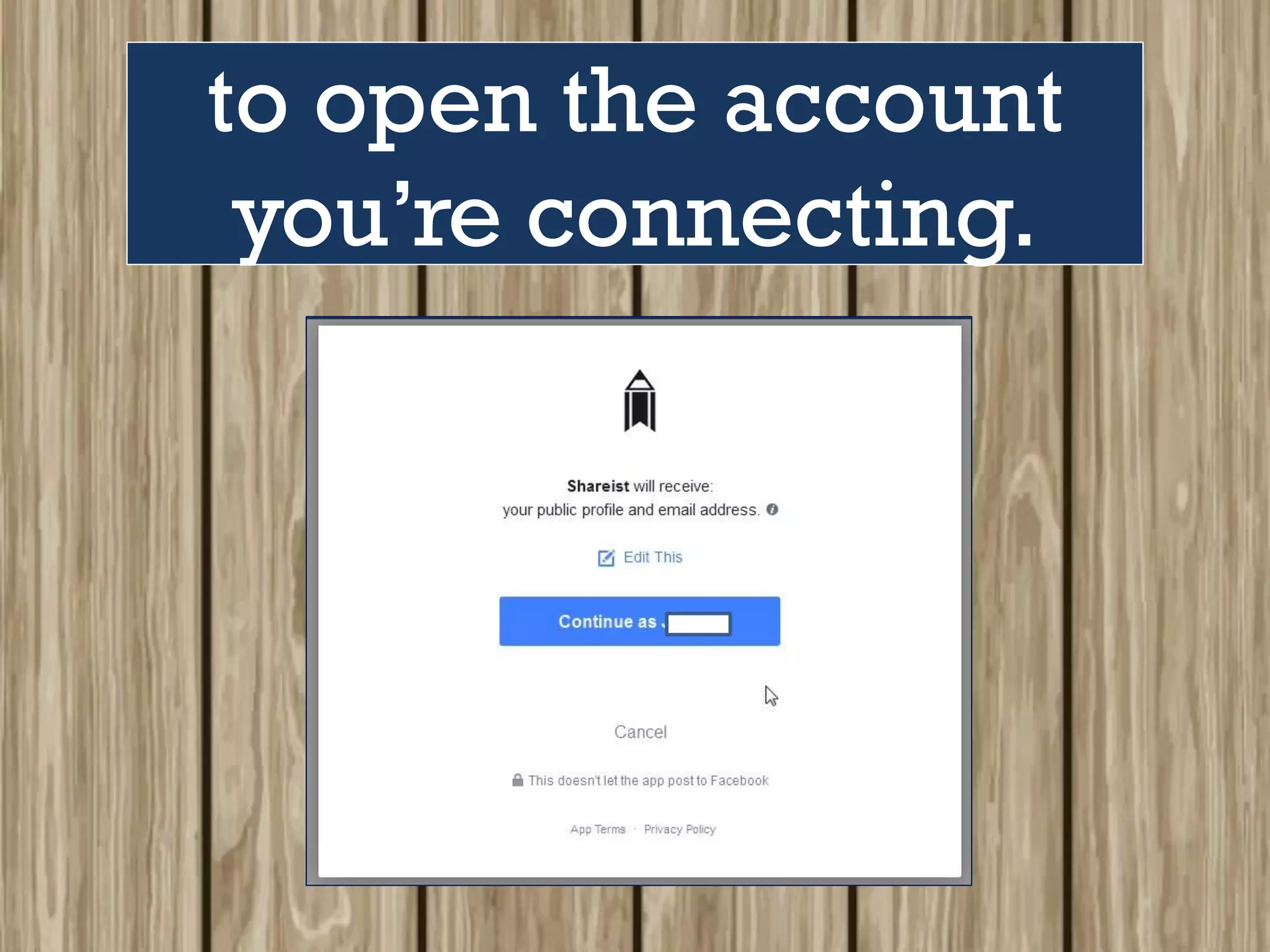
to open the account
you’re connecting.
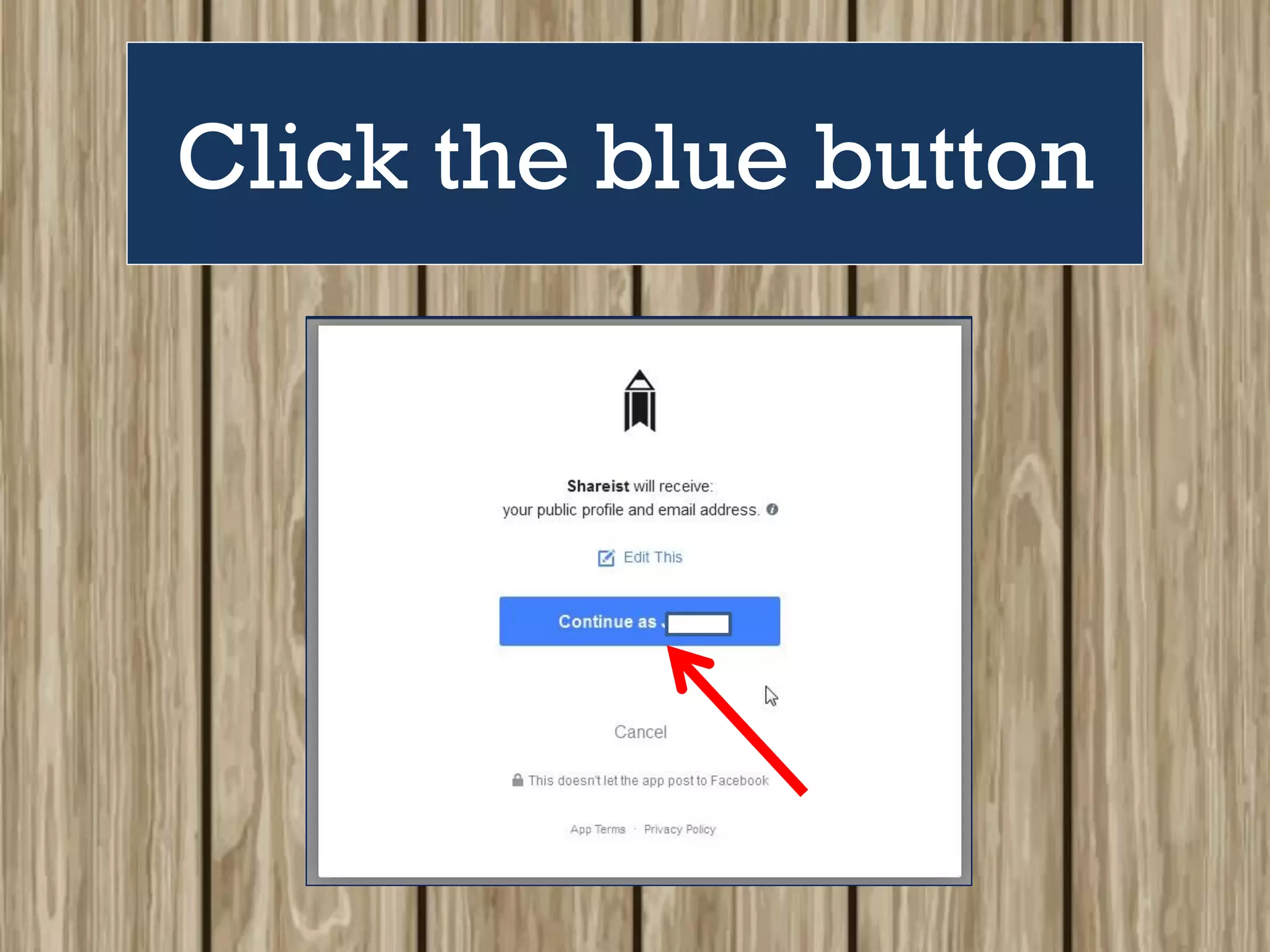
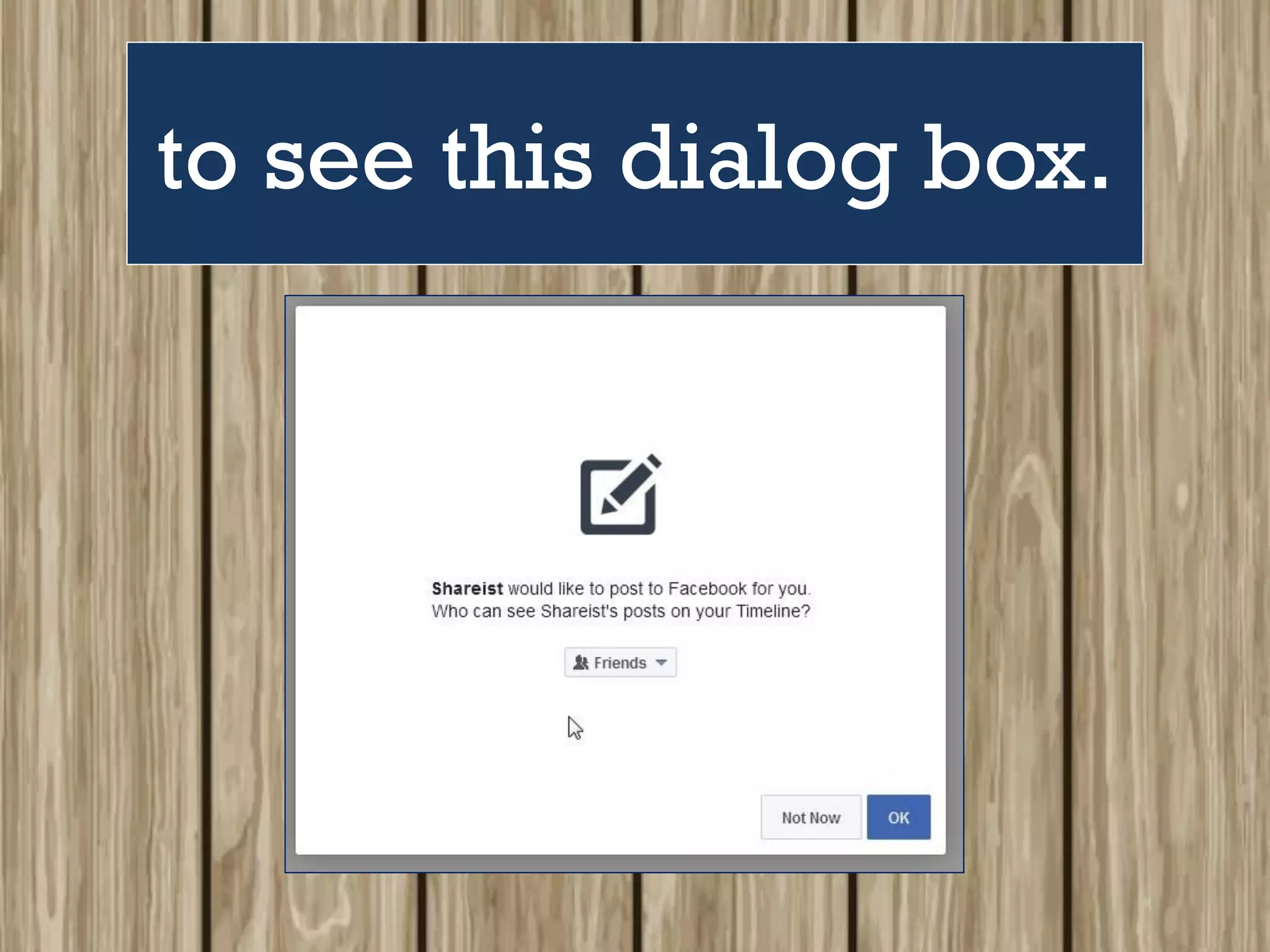
Click the blue button
to see this dialog box.
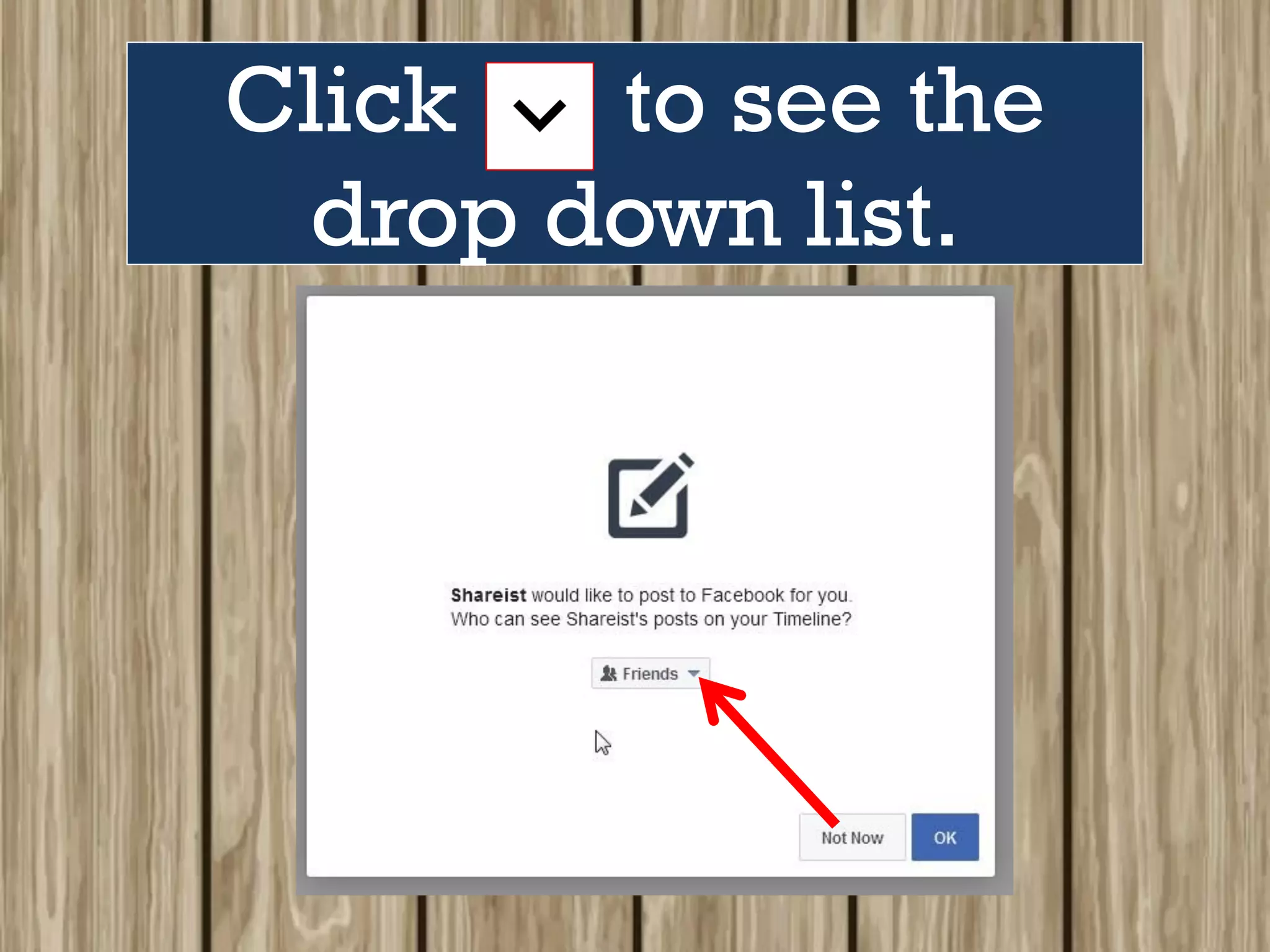
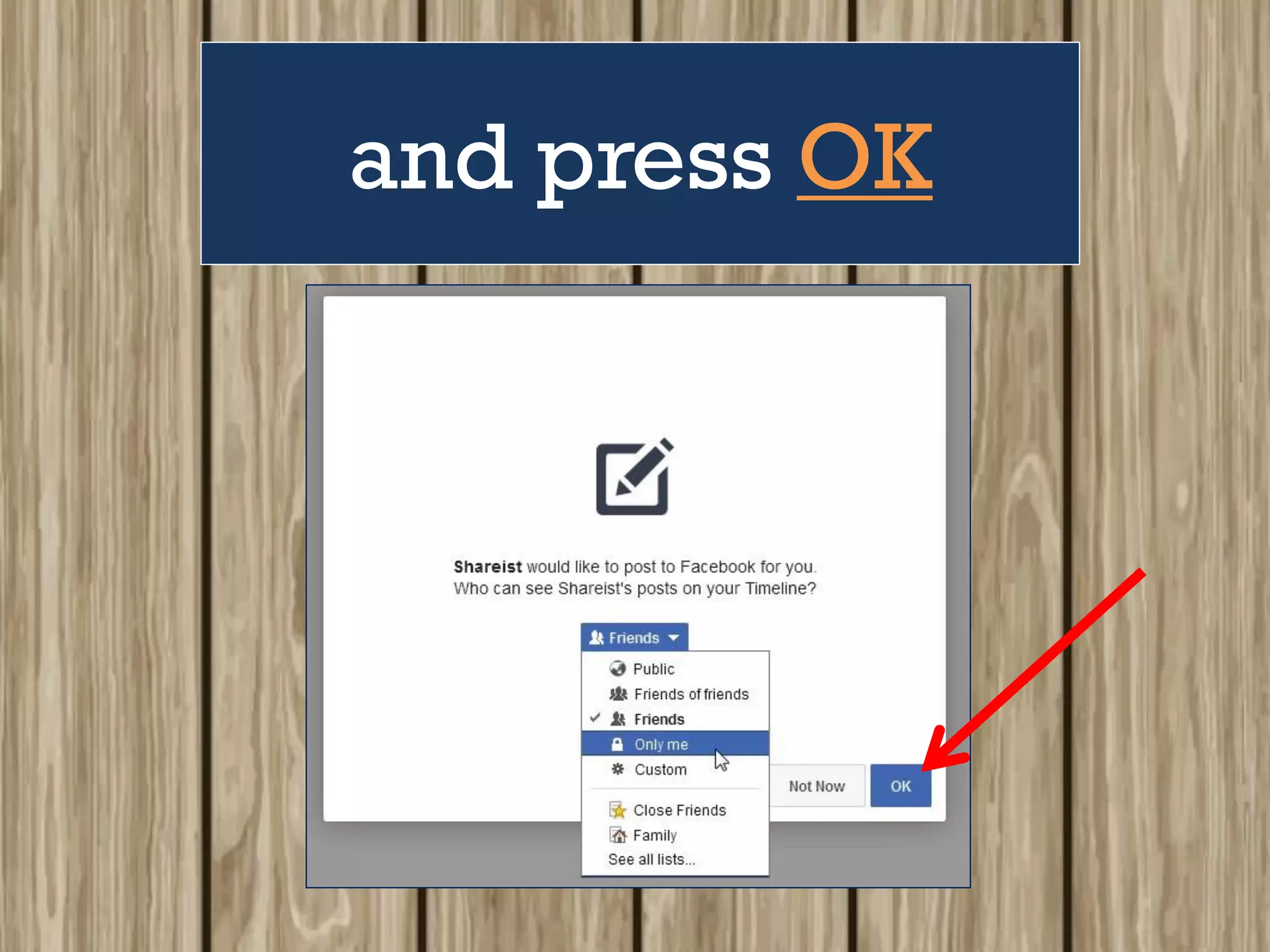
Click to see the
drop down list.
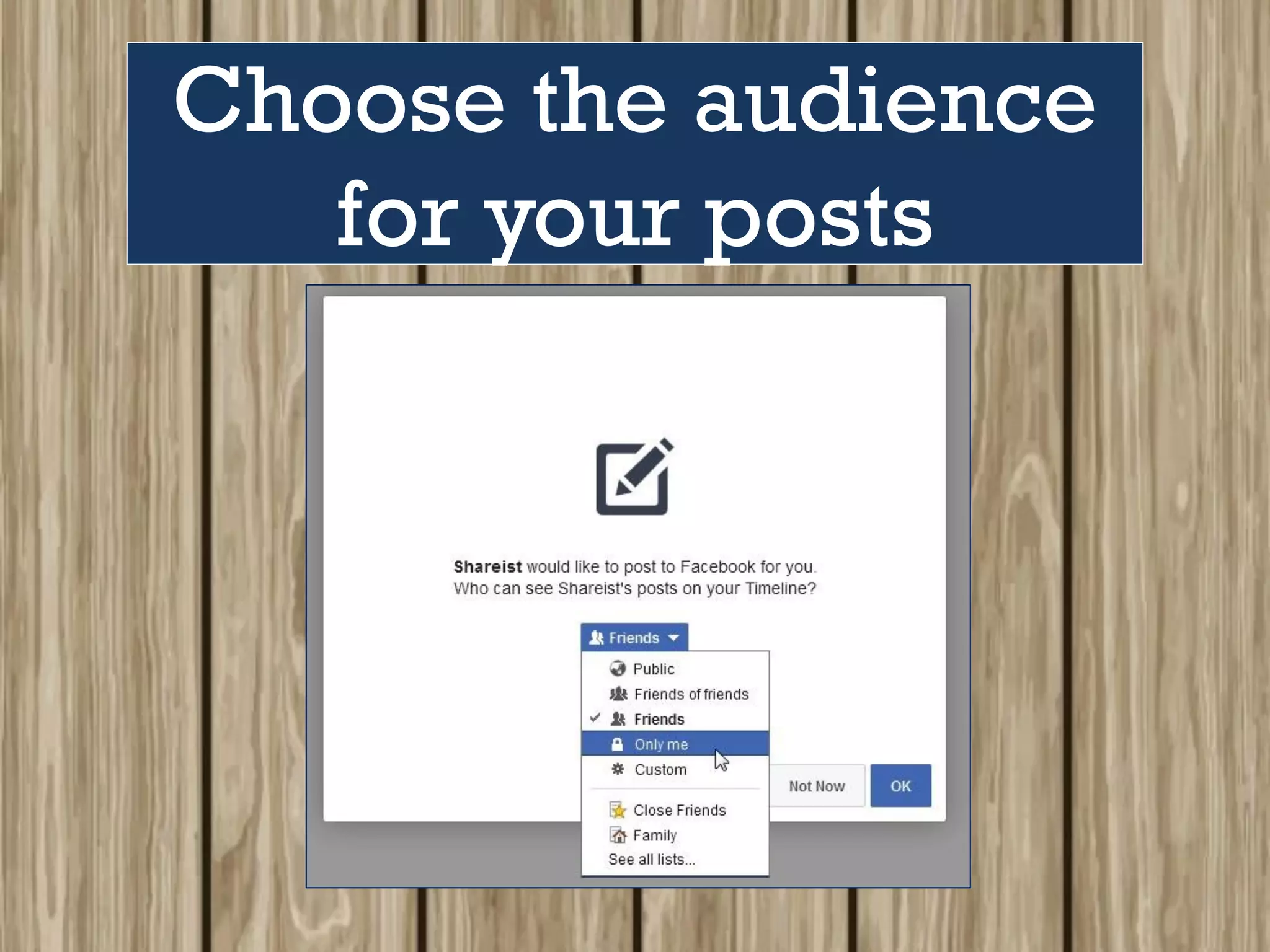
Choose the audience
for your posts
and press OK
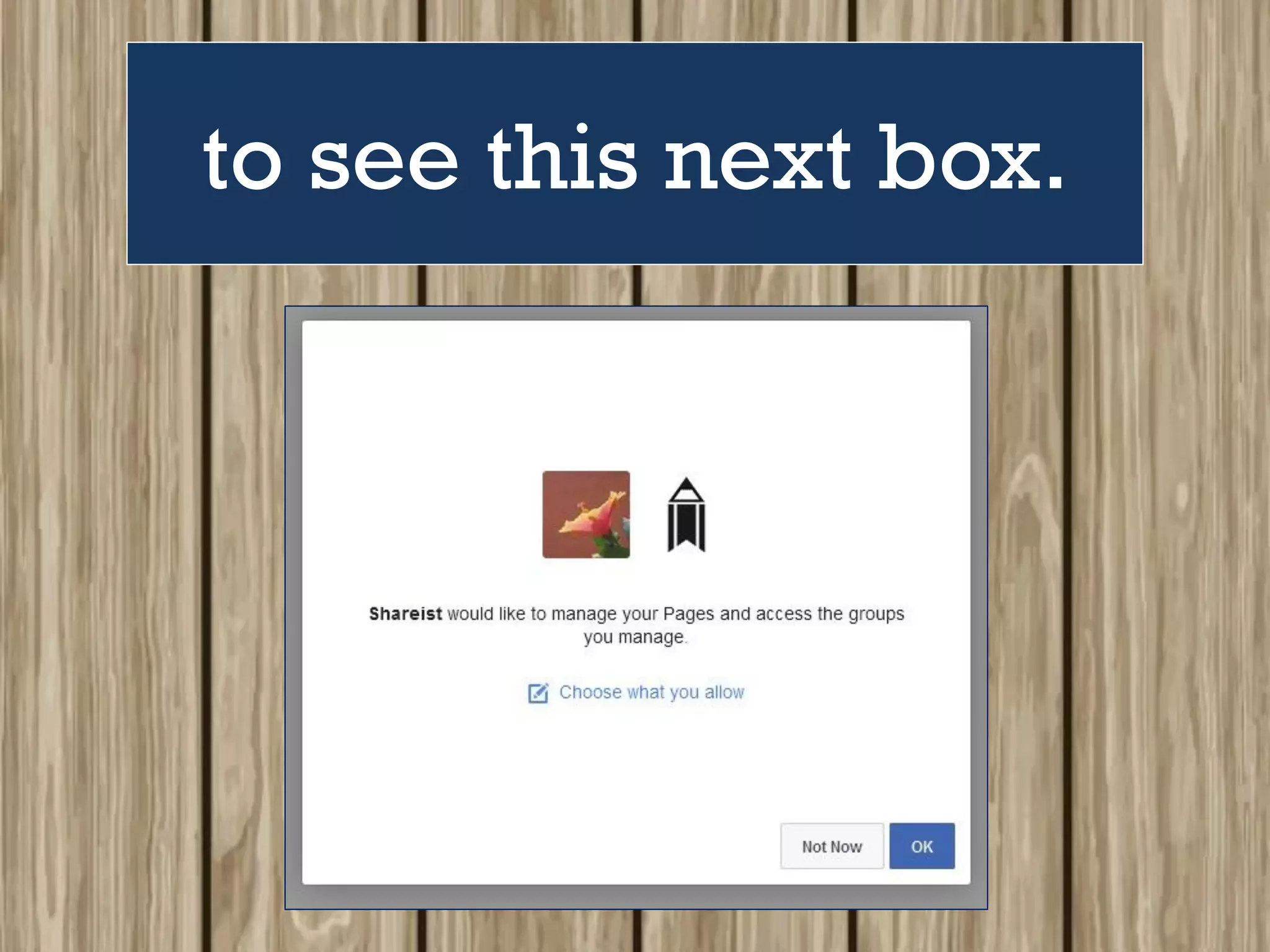
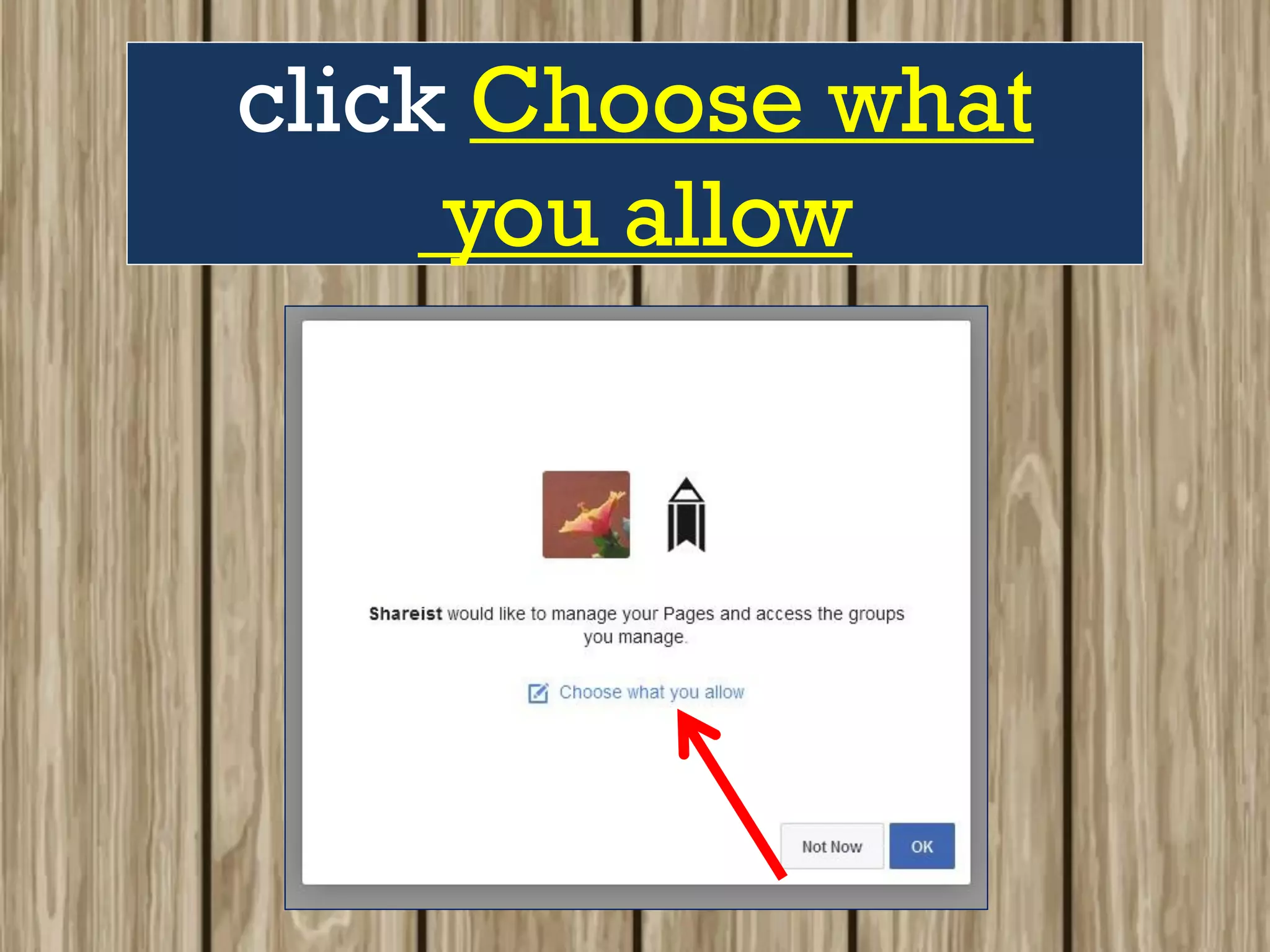
to see this next box.
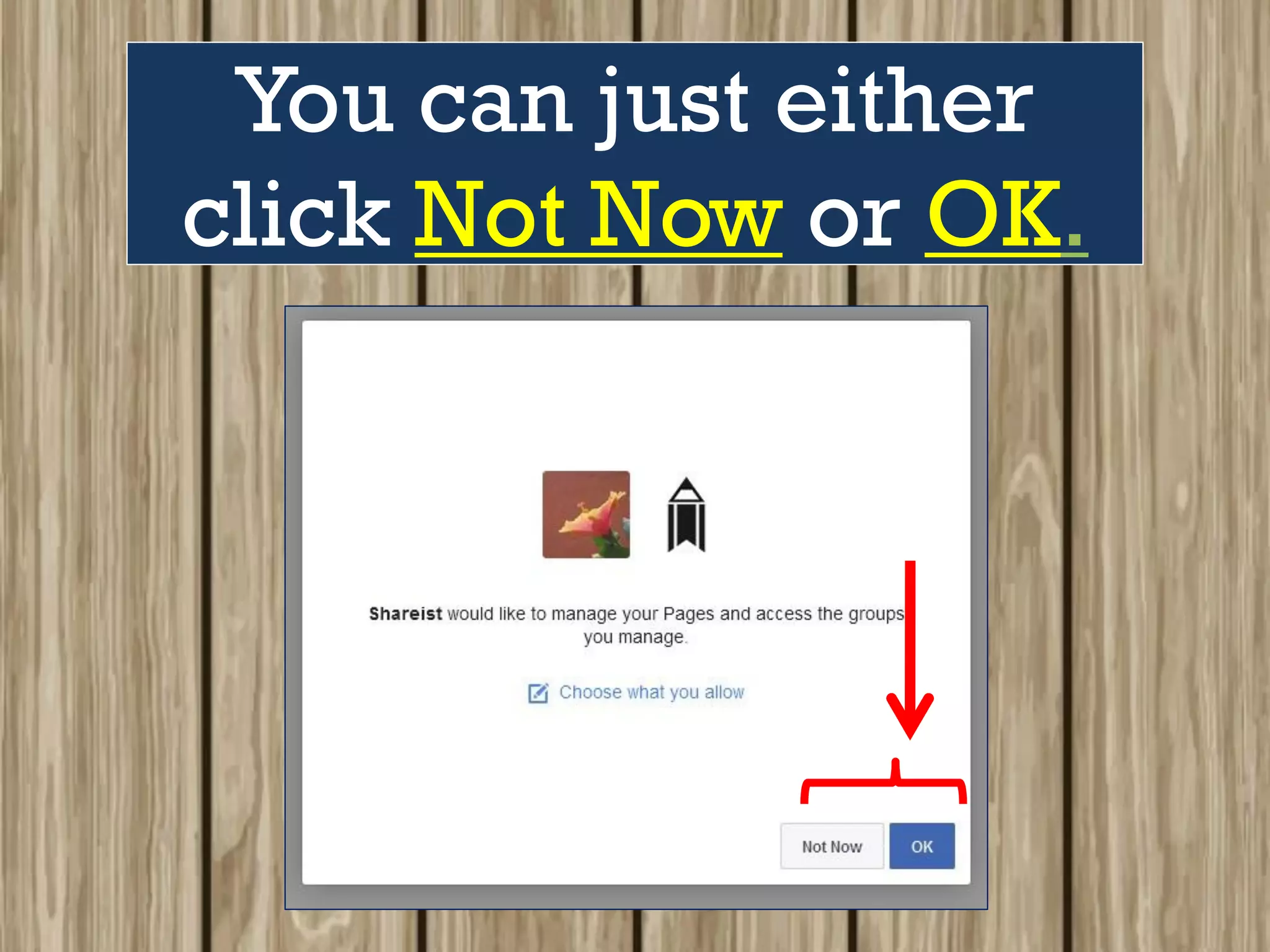
You can just either
click Not Now or OK.
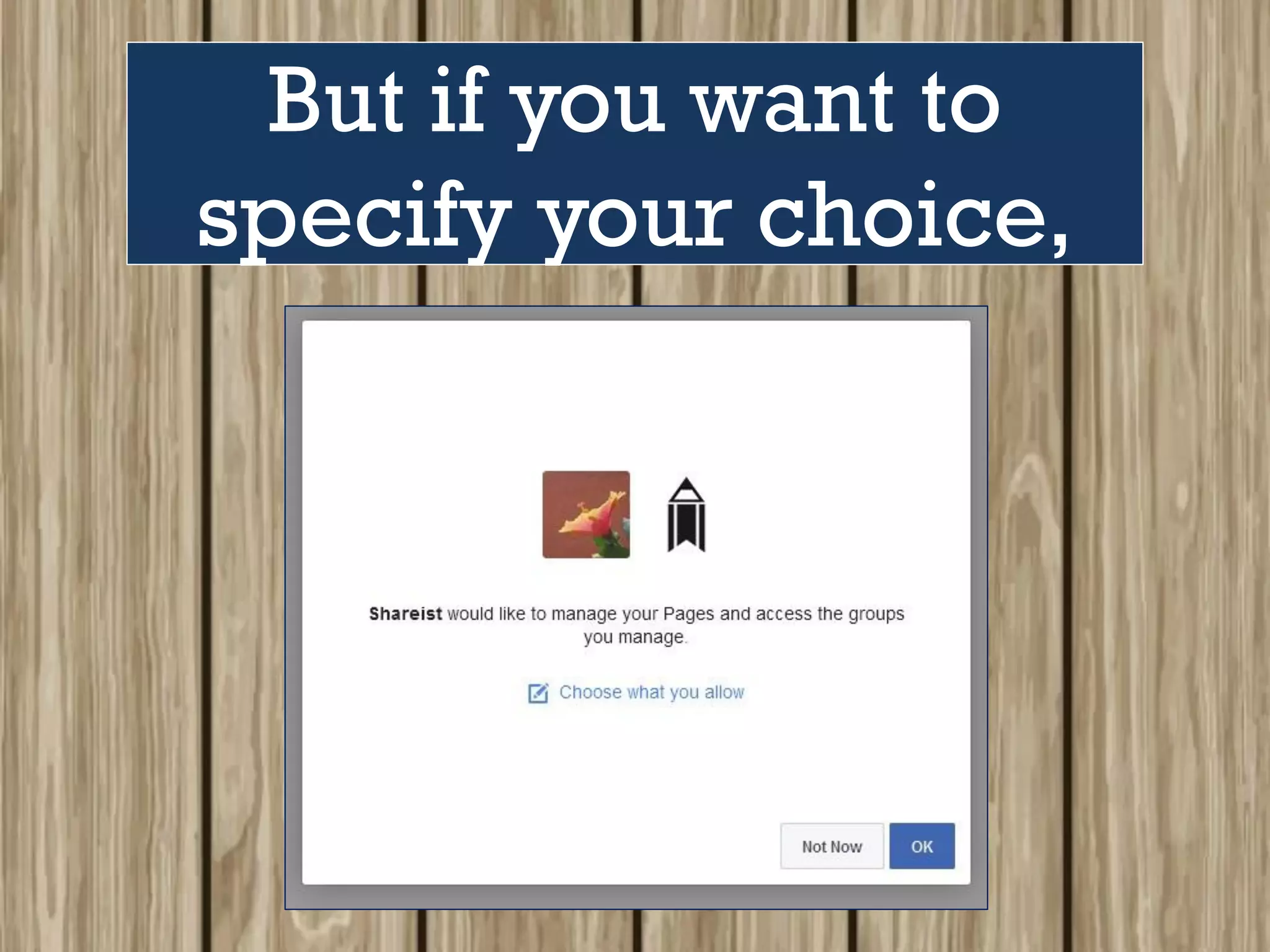
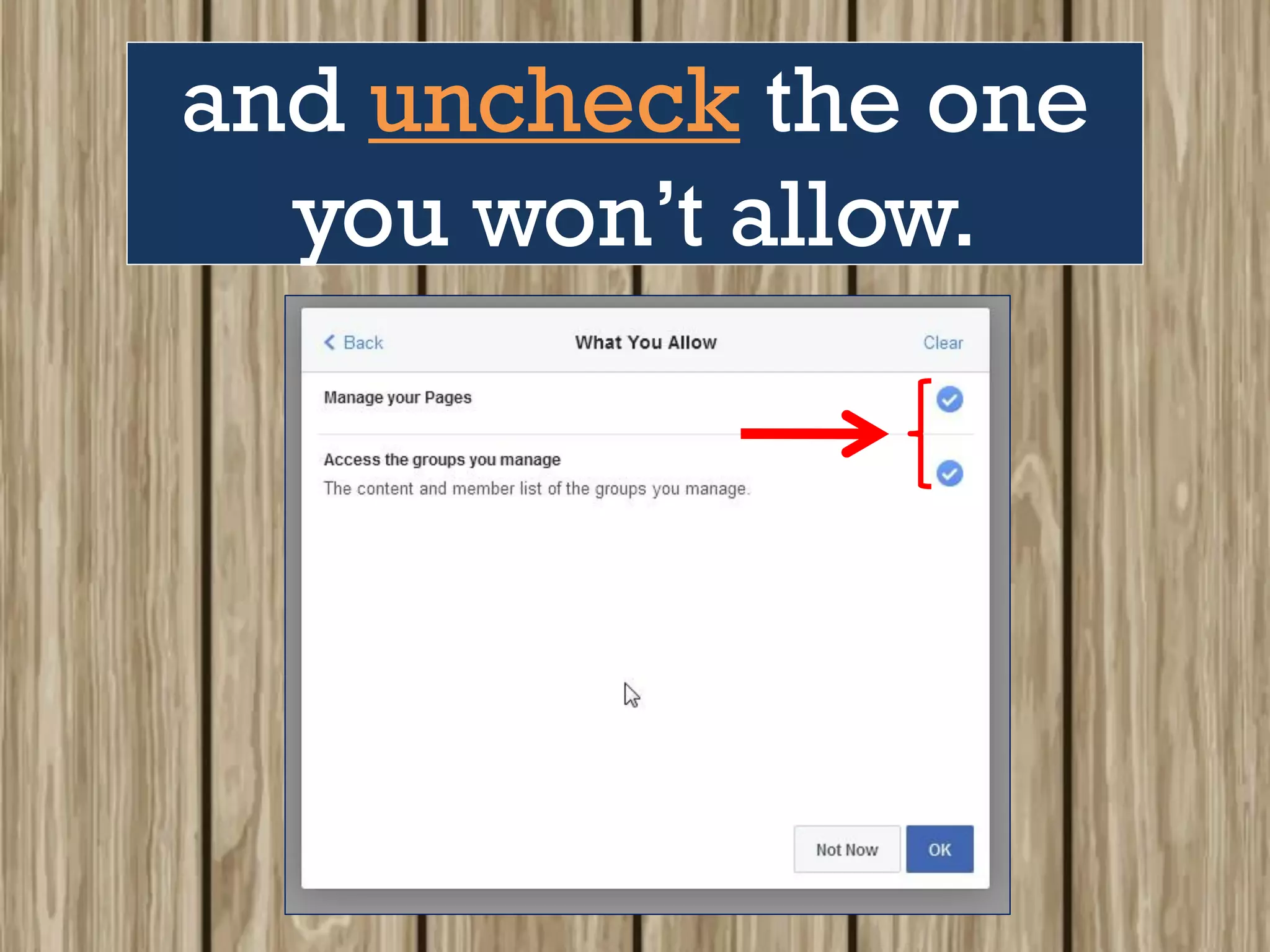
But if you want to
specify your choice,
click Choose what
you allow
and uncheck the one
you won’t allow.
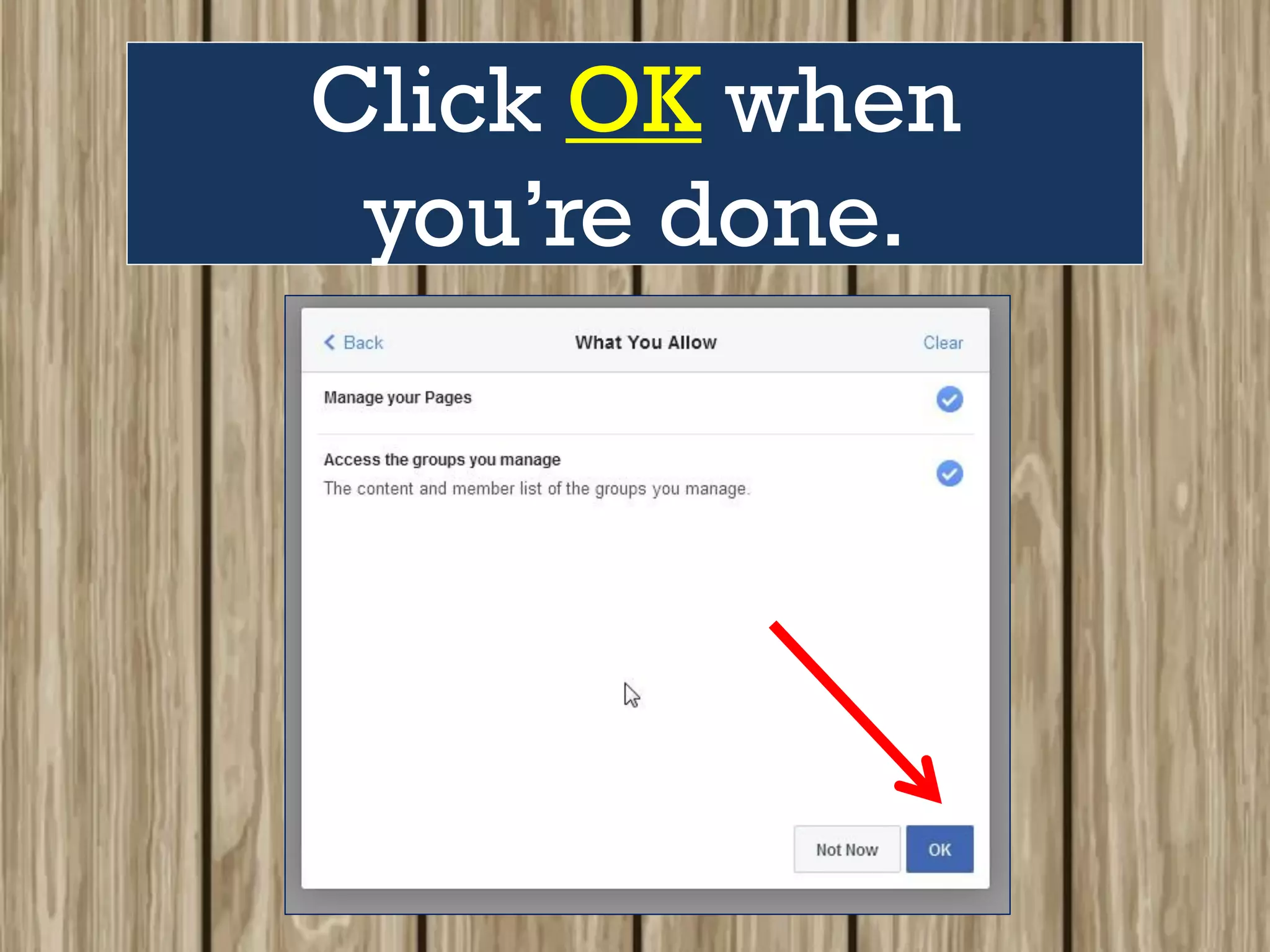
Click OK when
you’re done.
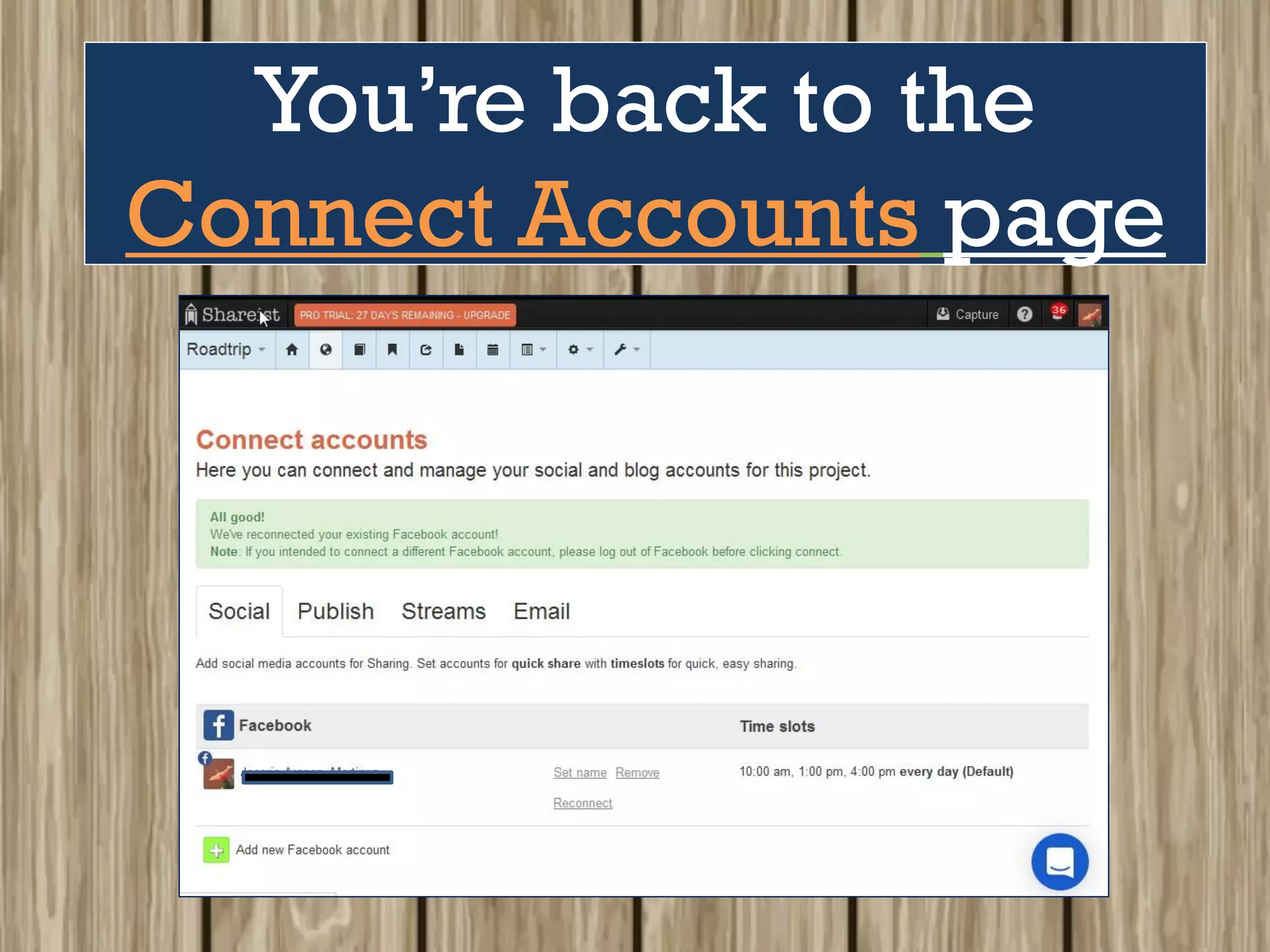
You’re back to the
Connect Accounts page
of your project dashboard.
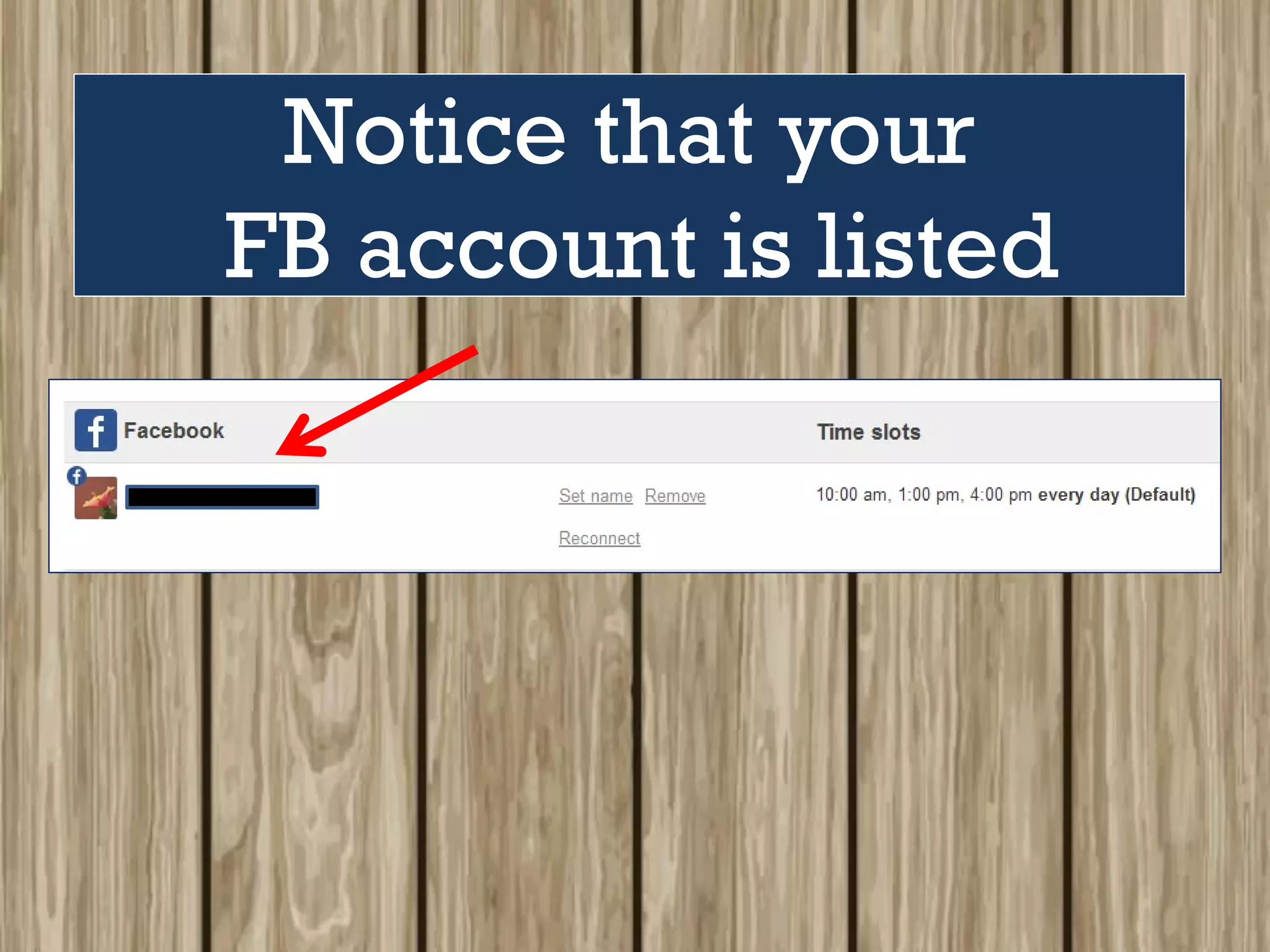
Notice that your
FB account is listed
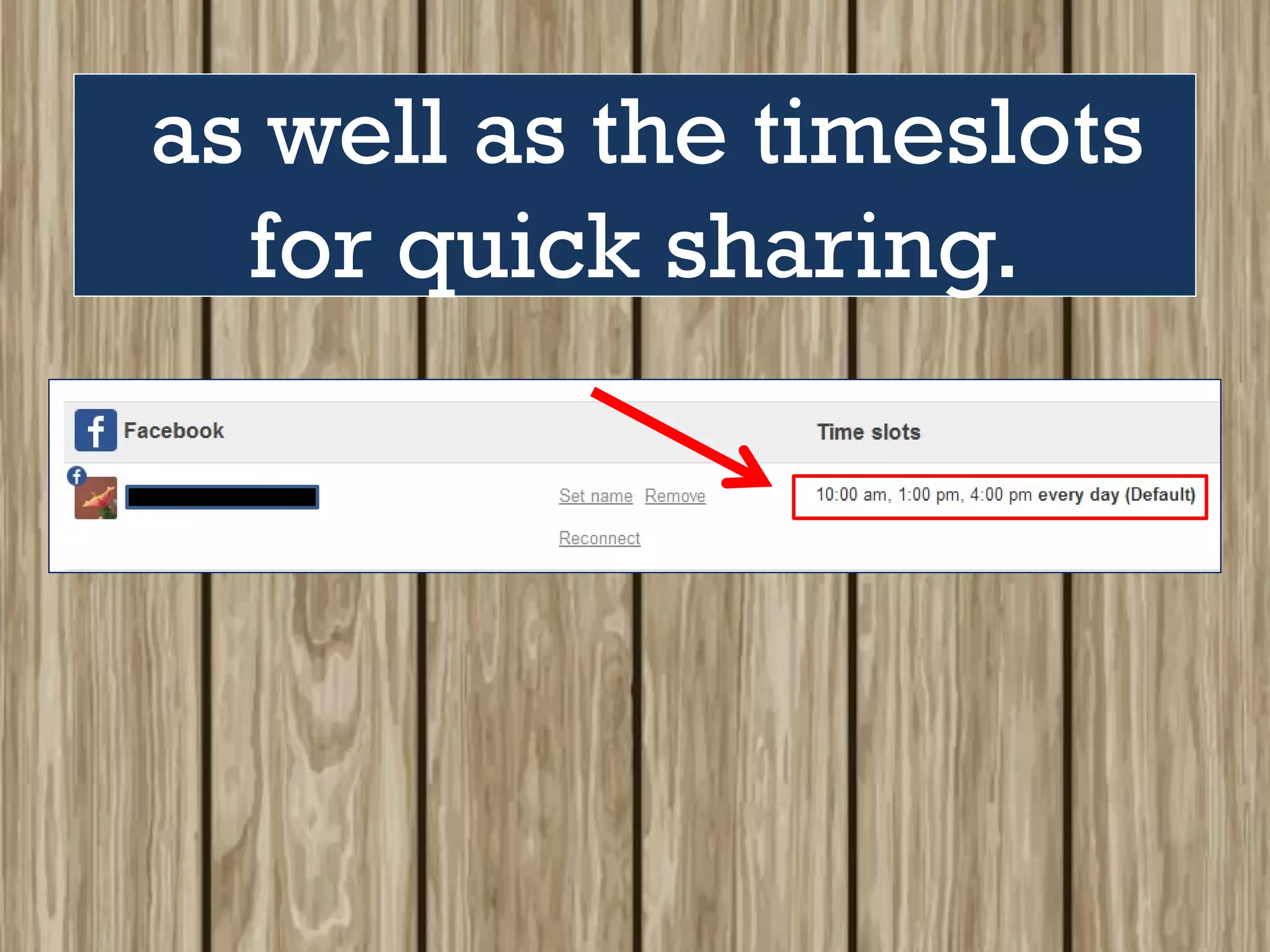
as well as the timeslots
for quick sharing.
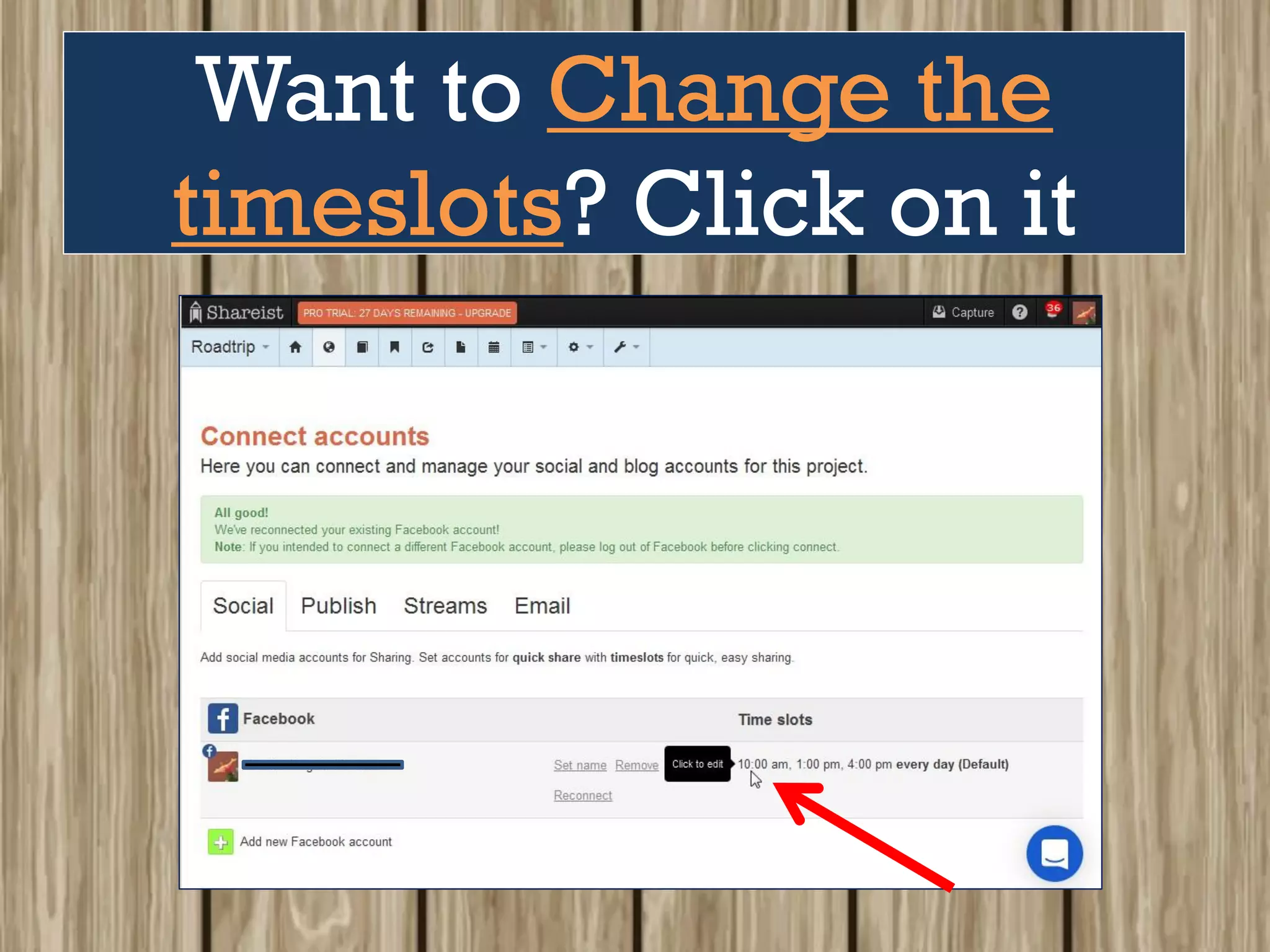
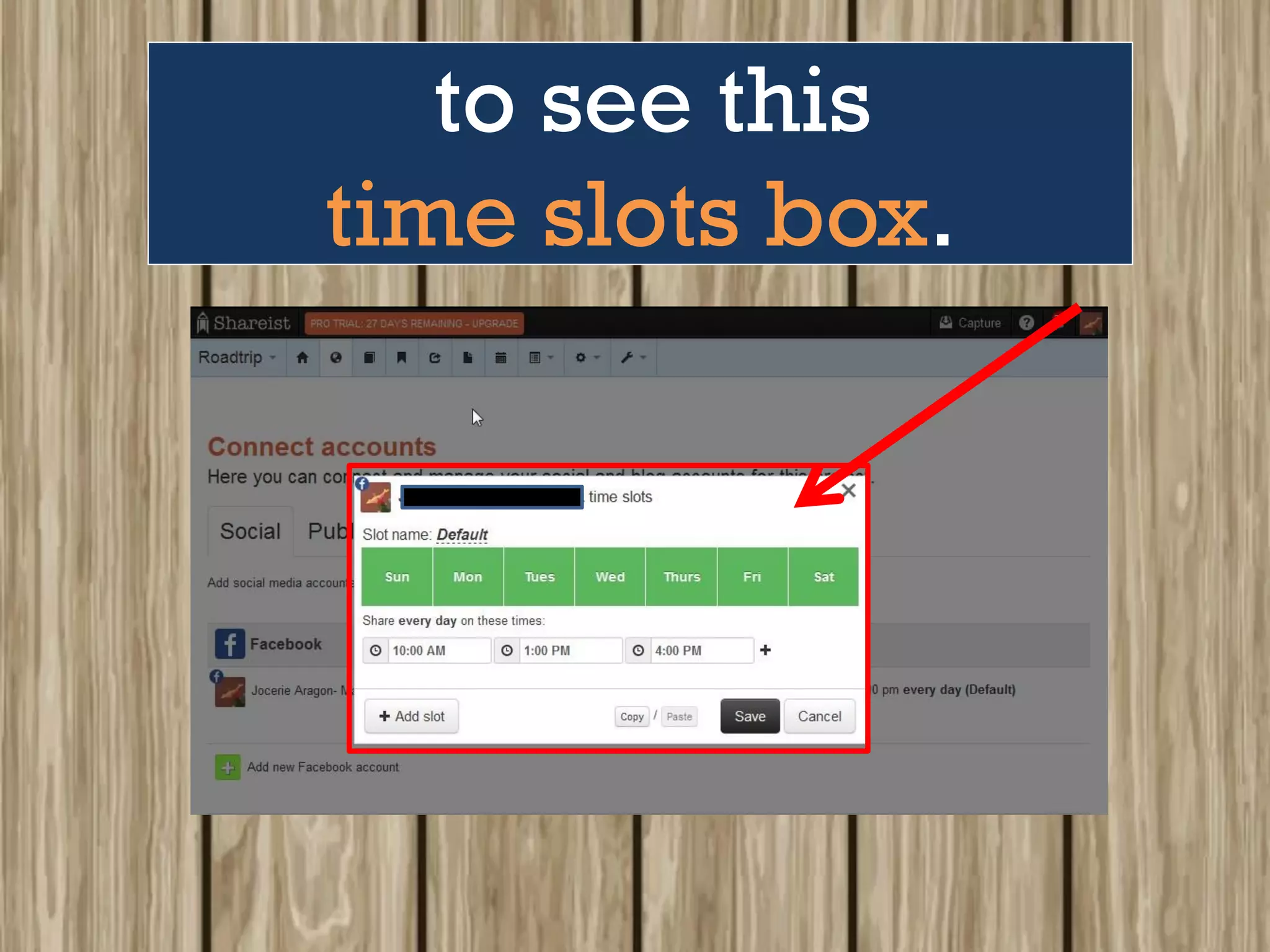
Want to Change the
timeslots? Click on it
to see this
time slots box.
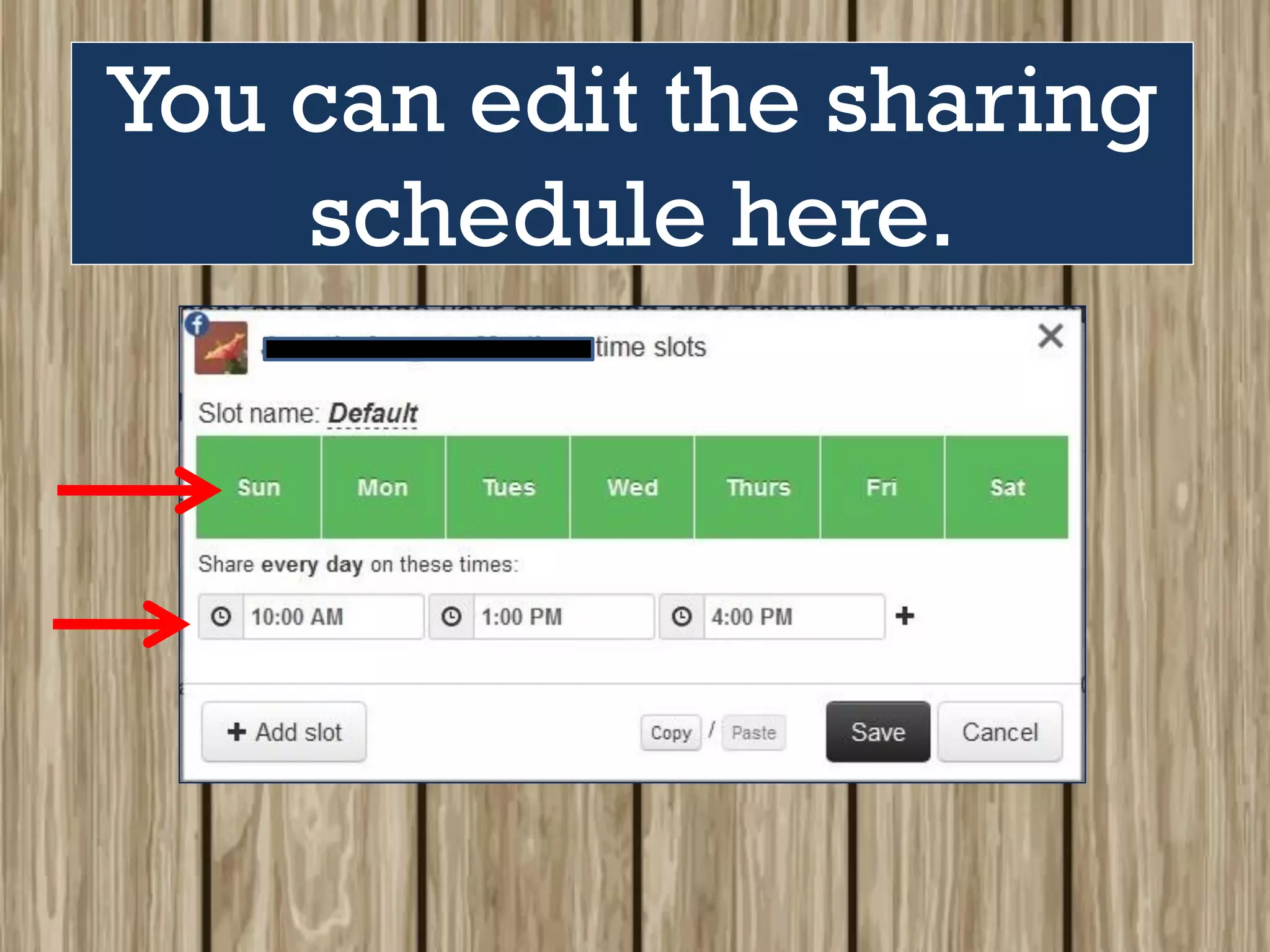
You can edit the sharing
schedule here.
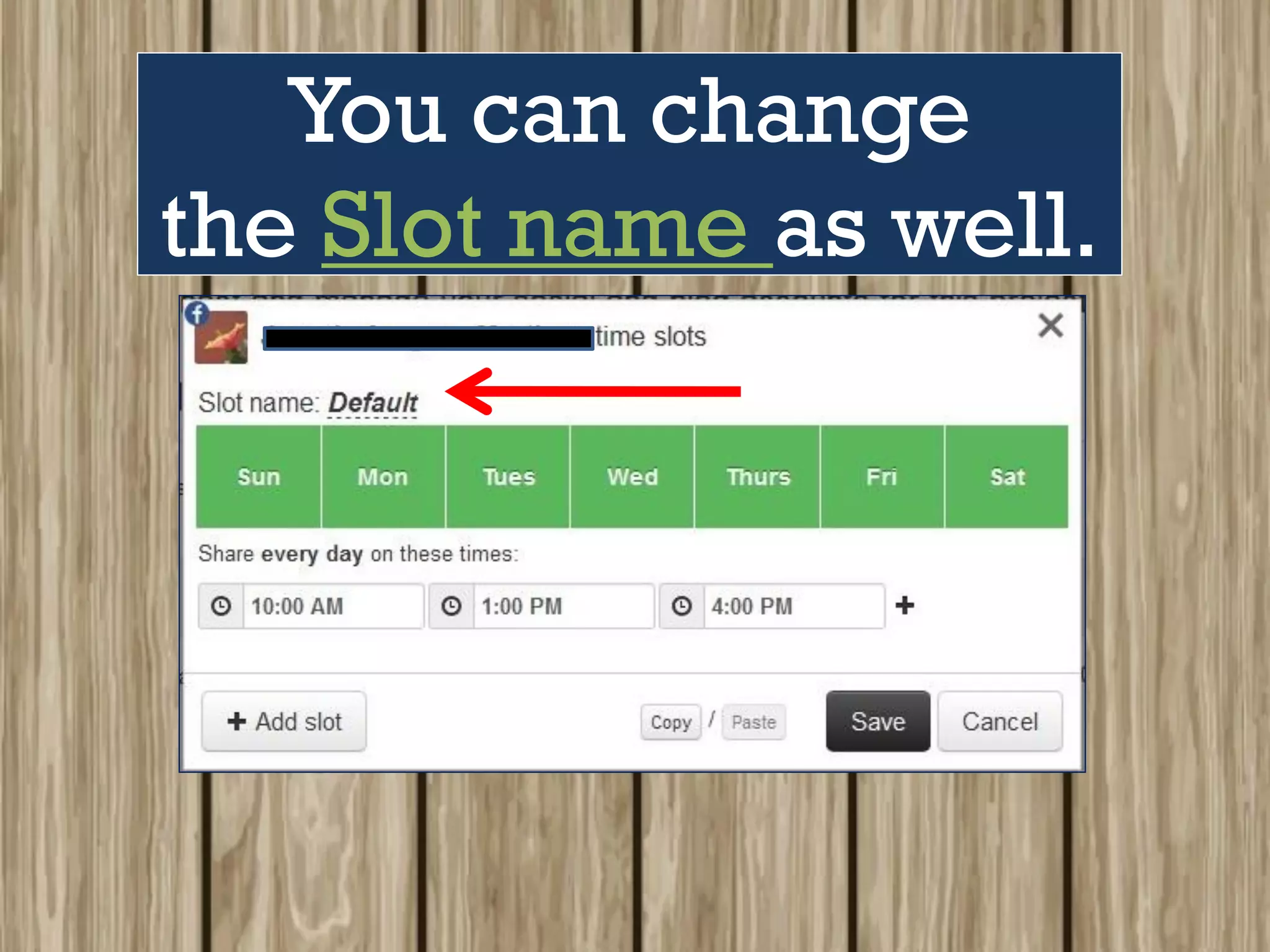
You can change
the Slot name as well.
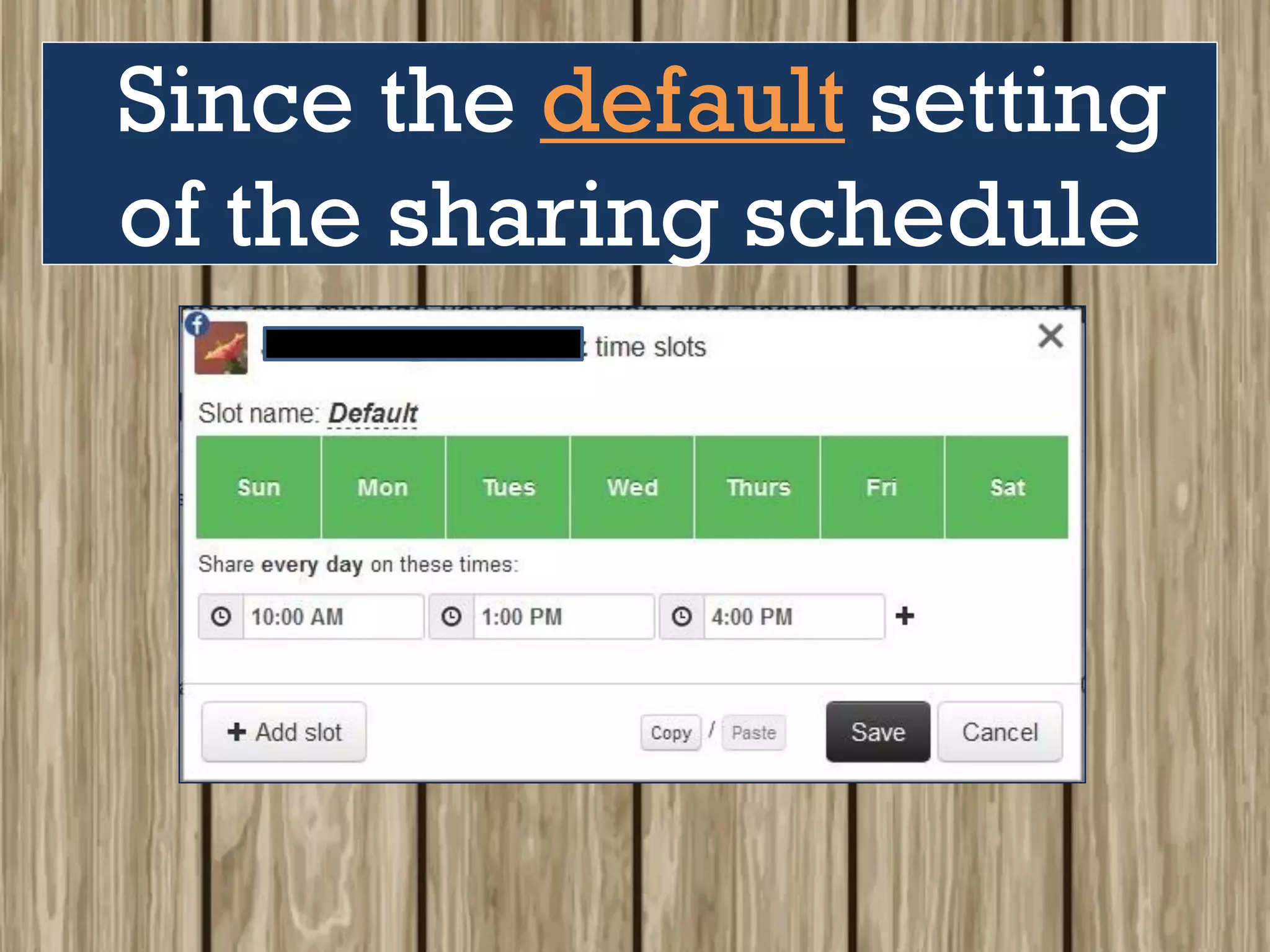
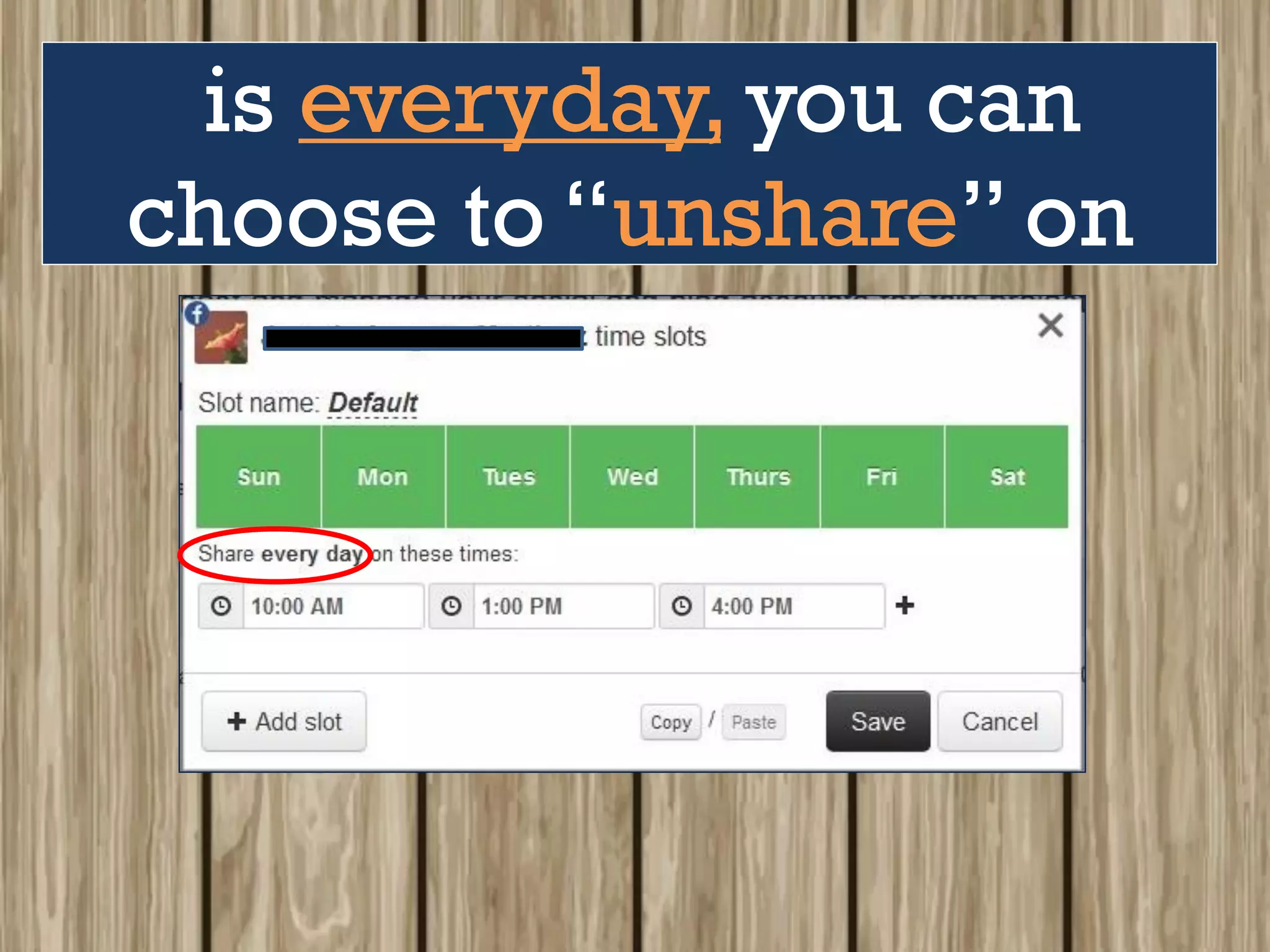
Since the default setting
of the sharing schedule
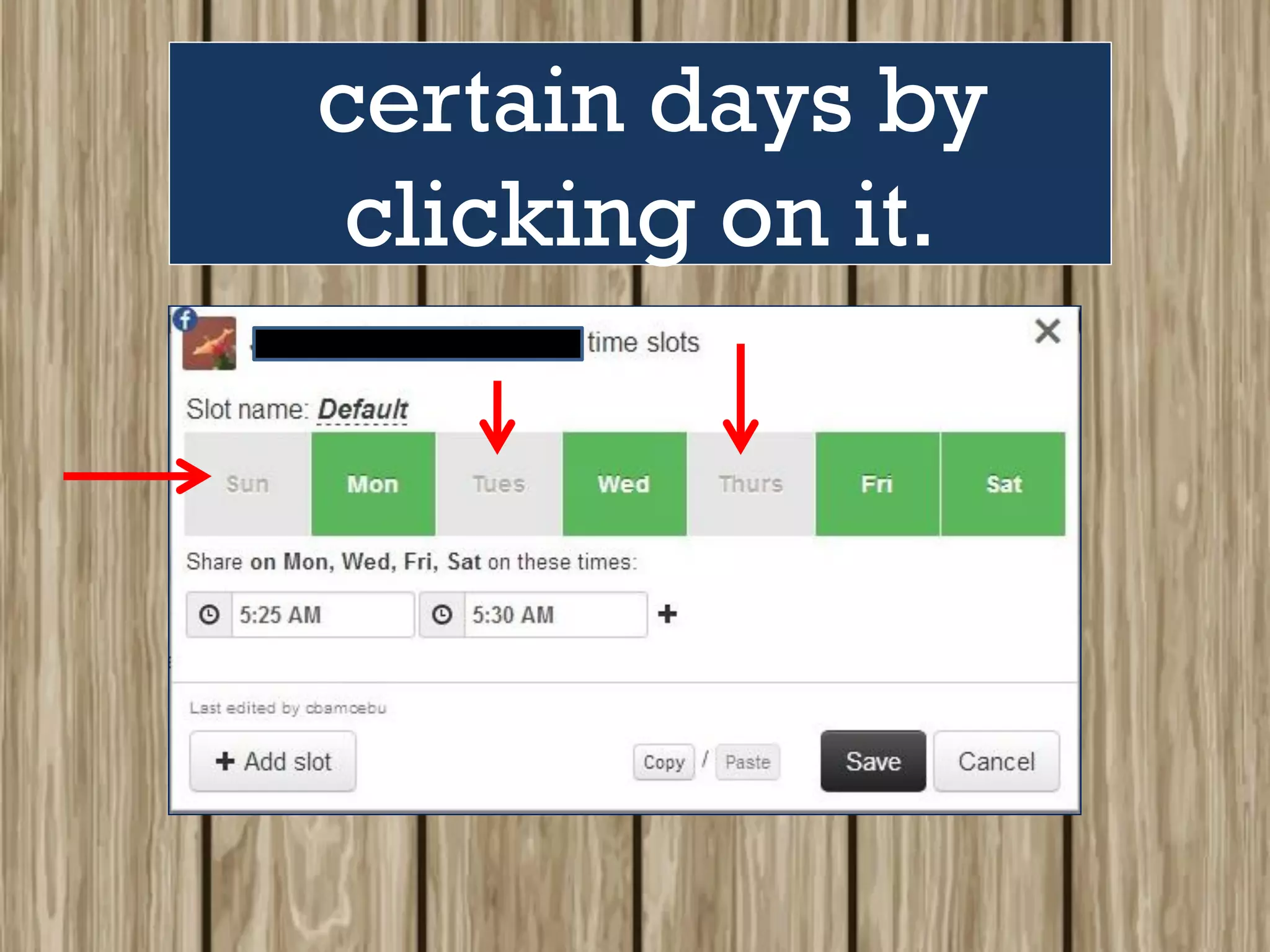
is everyday, you can
choose to “unshare” on
certain days by
clicking on it.
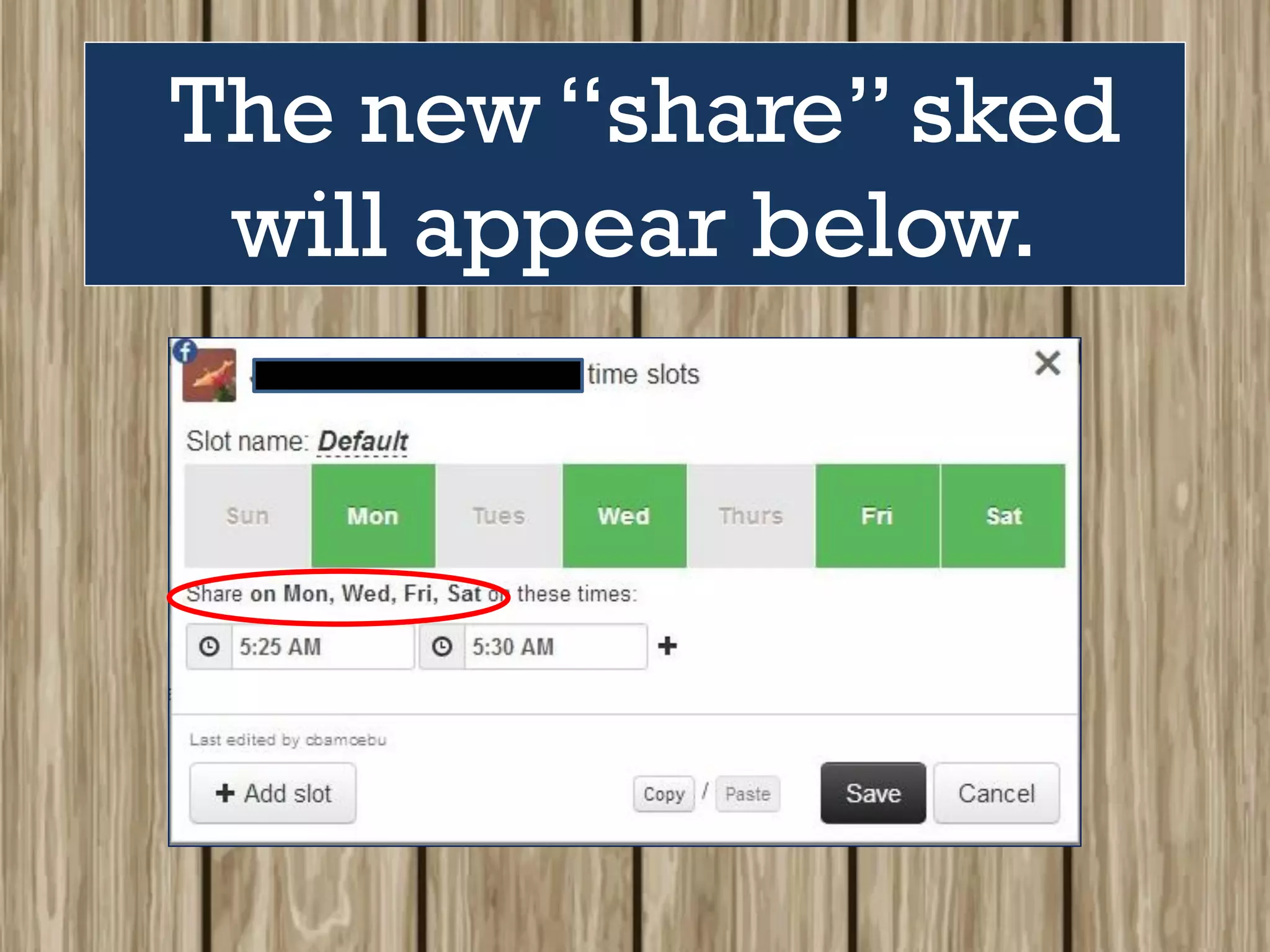
The new “share” sked
will appear below.
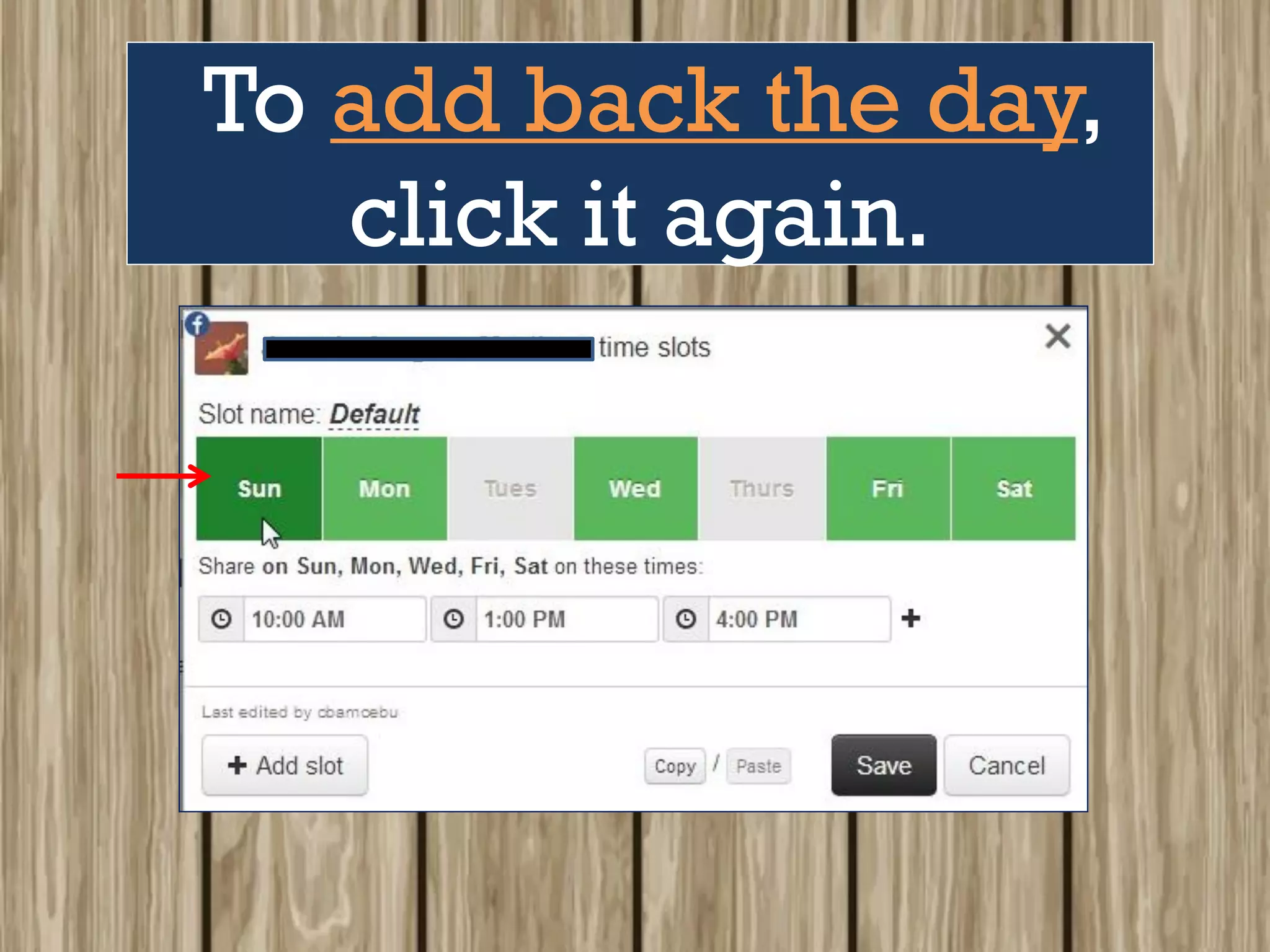
To add back the day,
click it again.
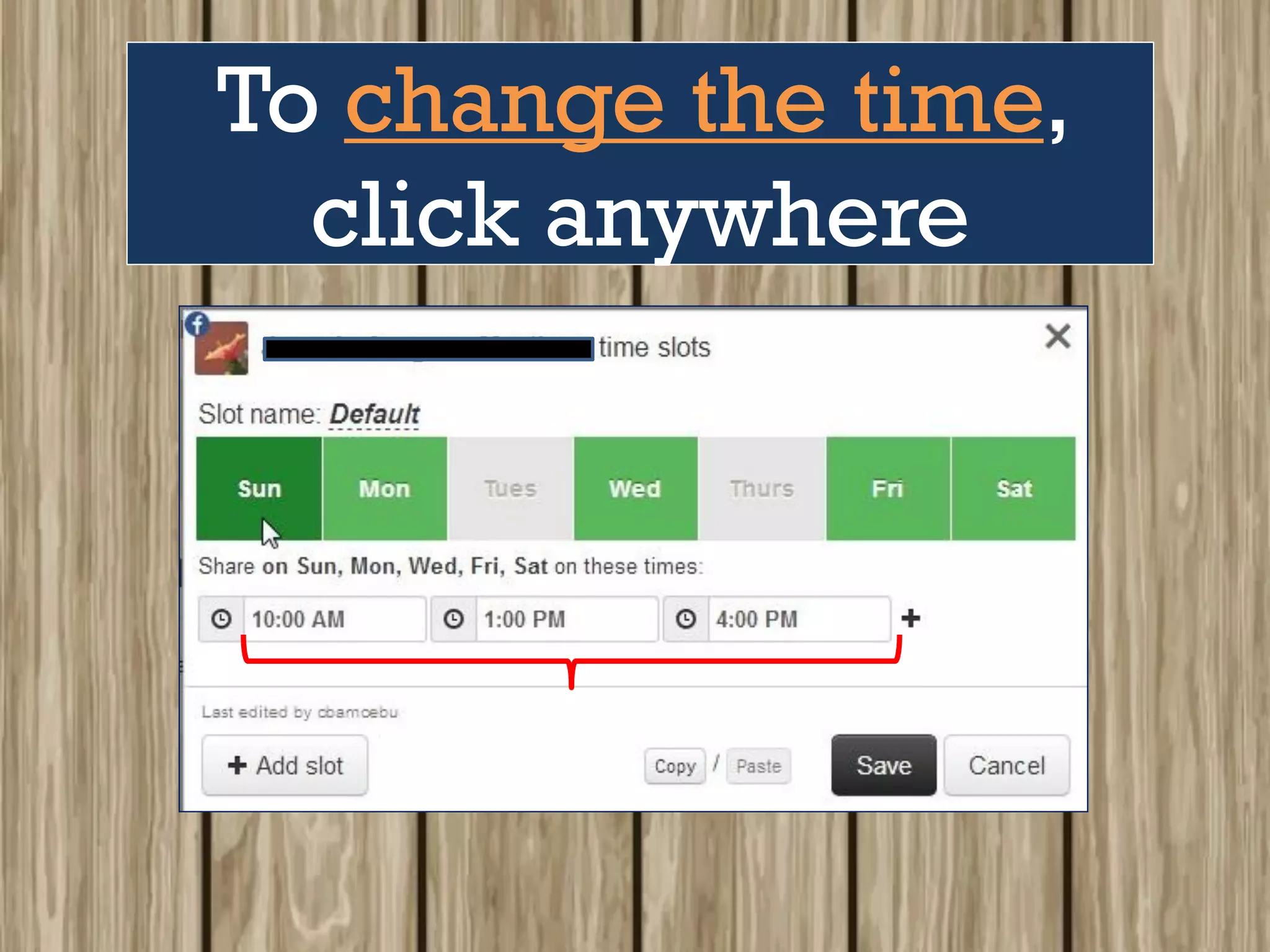
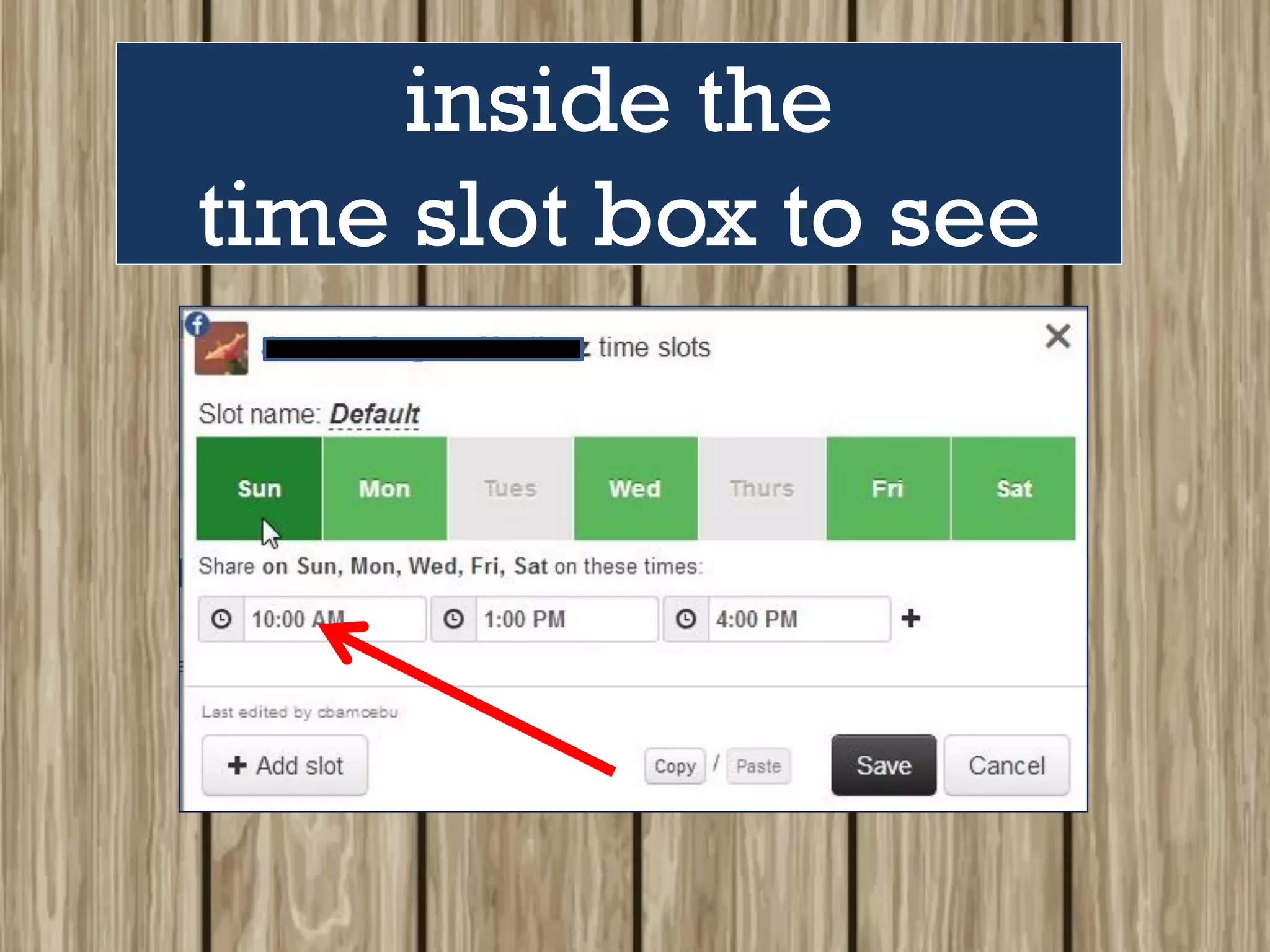
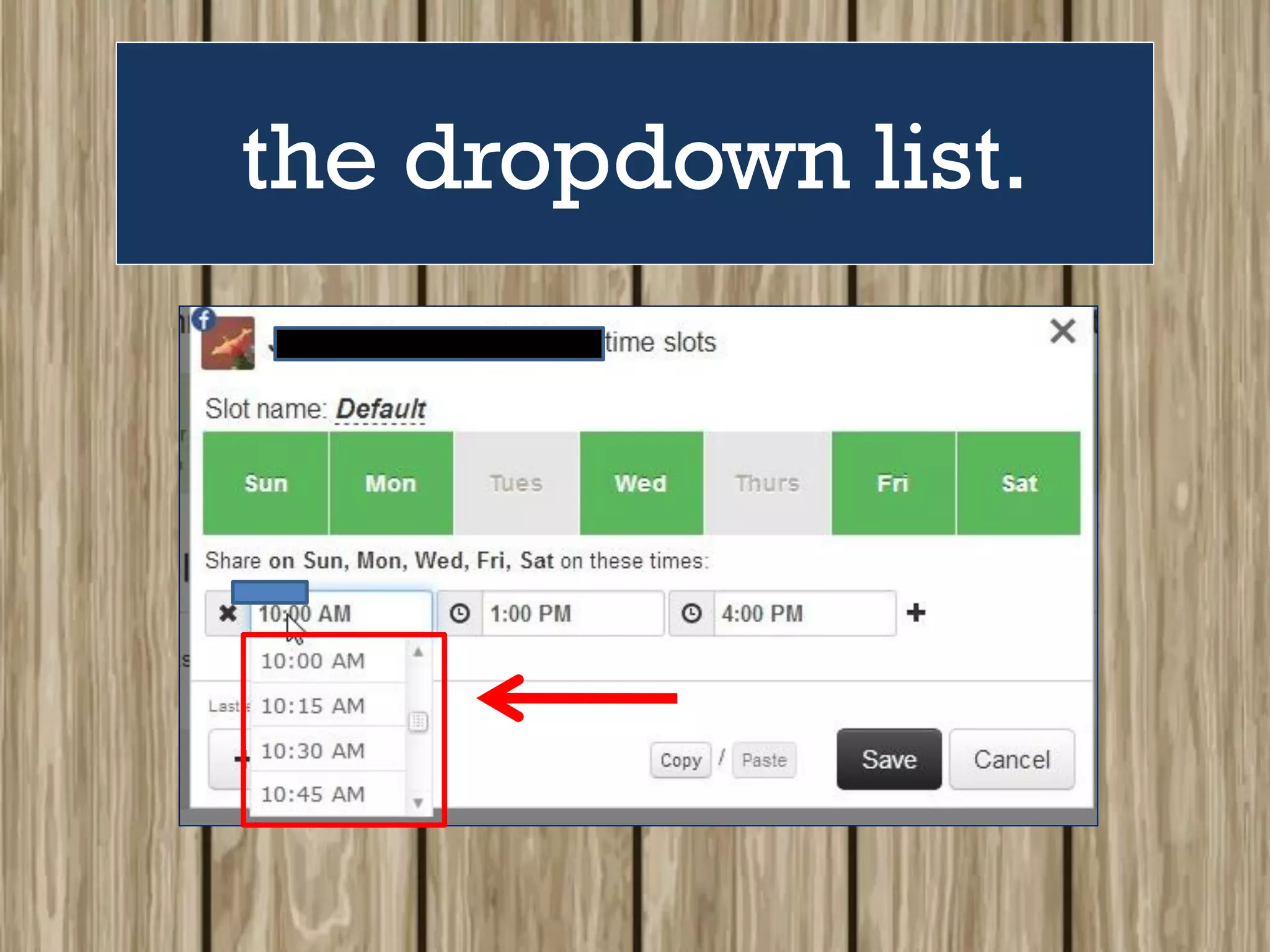
To change the time,
click anywhere
inside the
time slot box to see
the dropdown list.
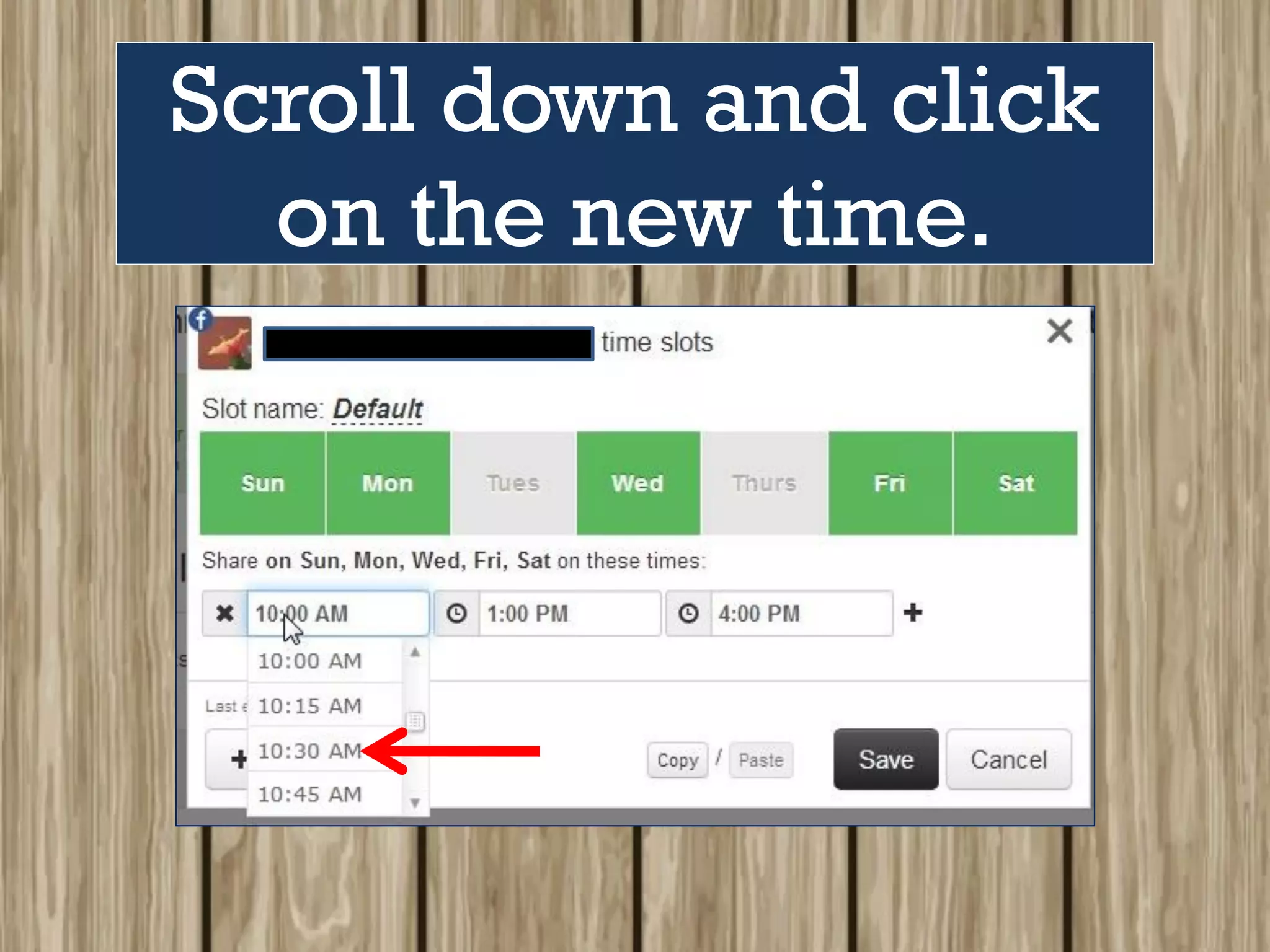
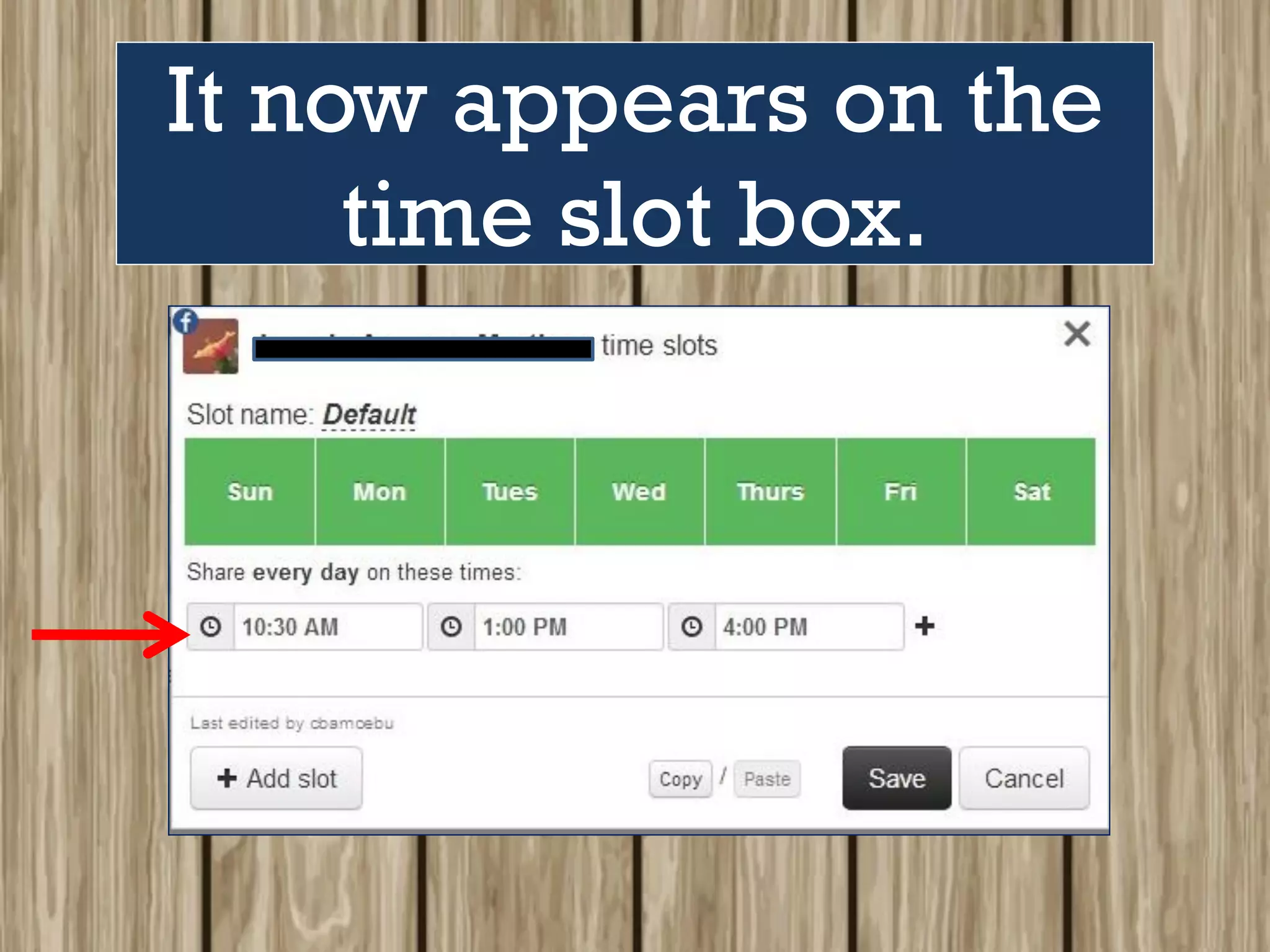
Scroll down and click
on the new time.
It now appears on the
time slot box.
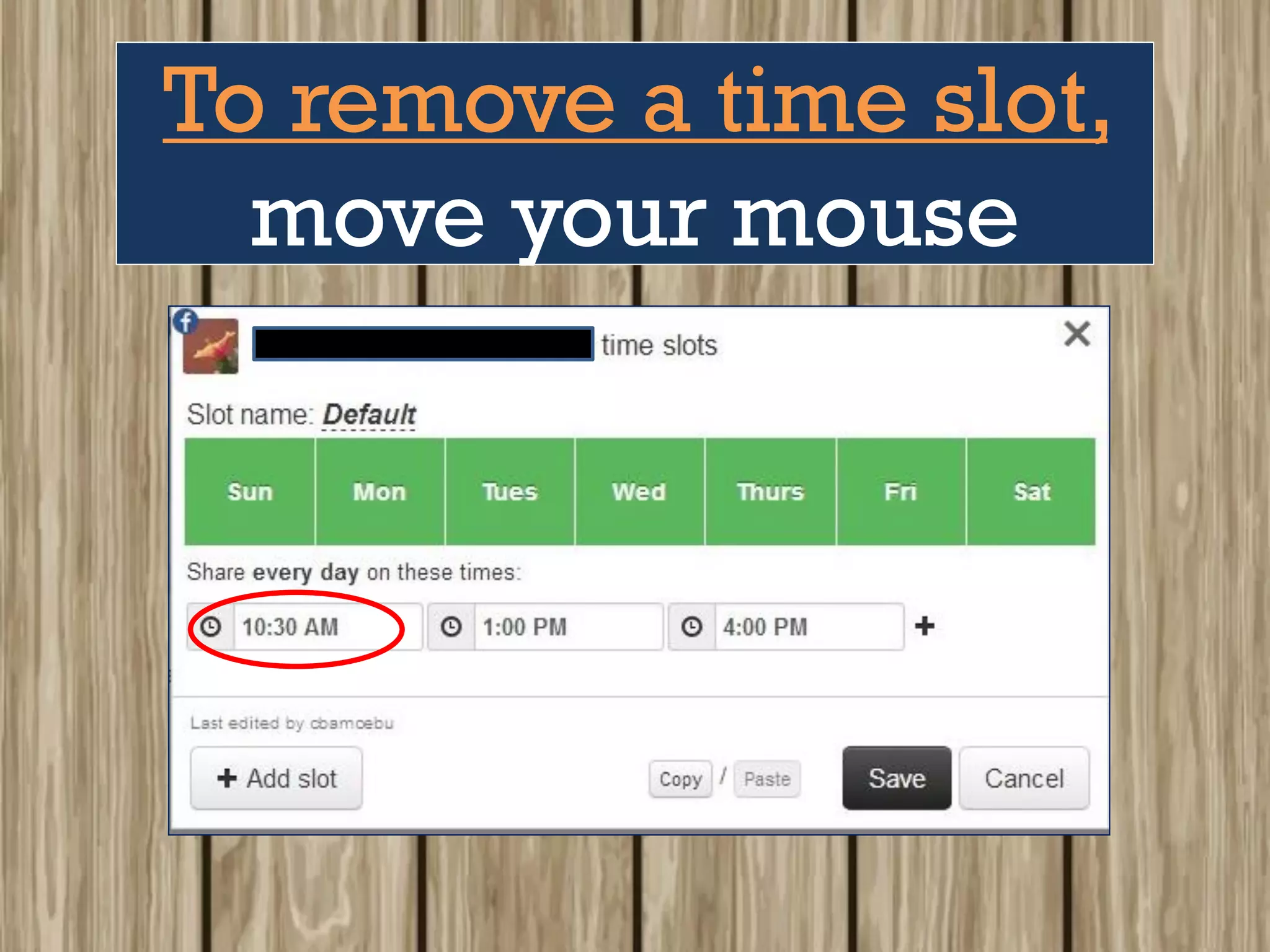
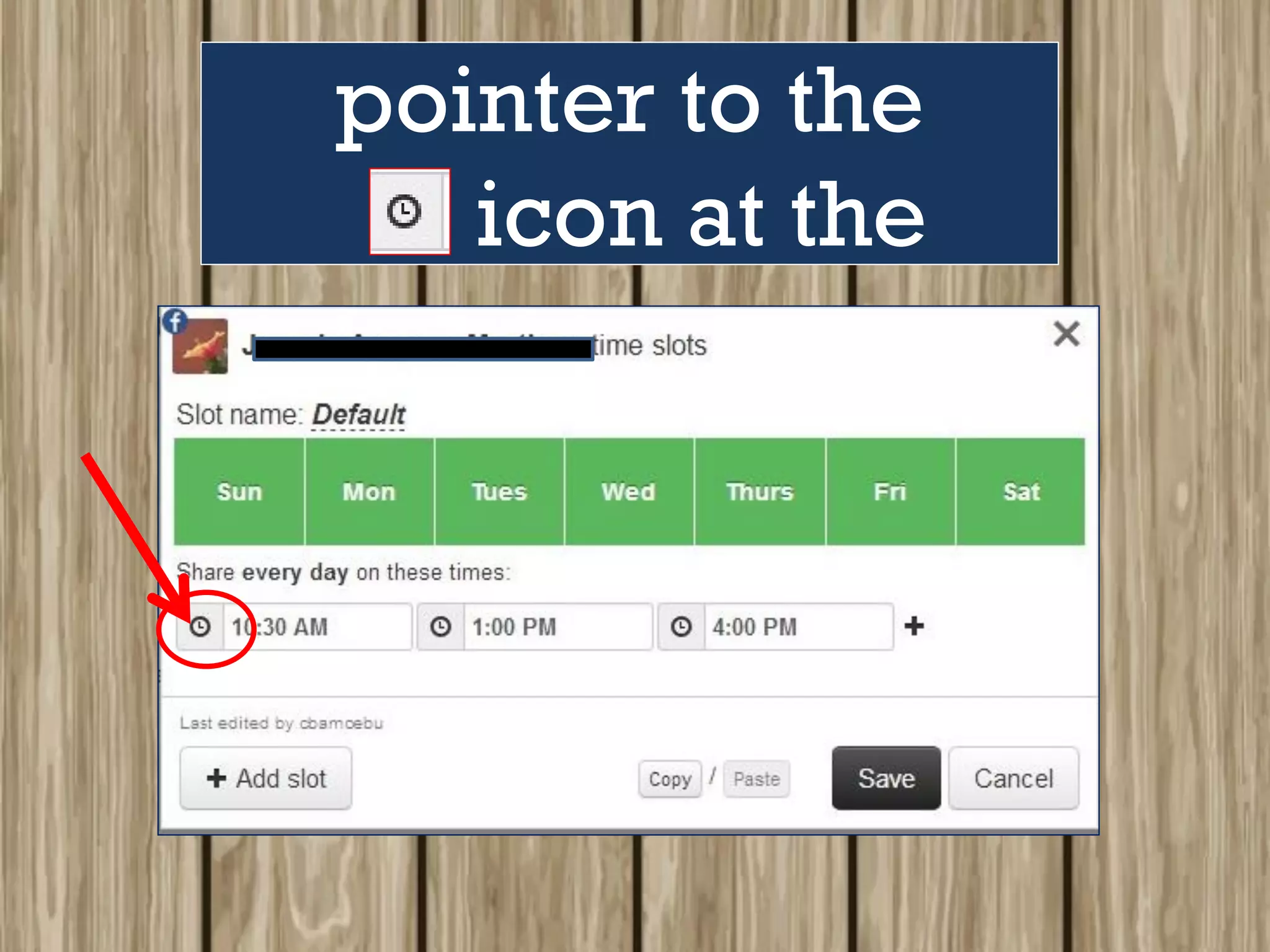
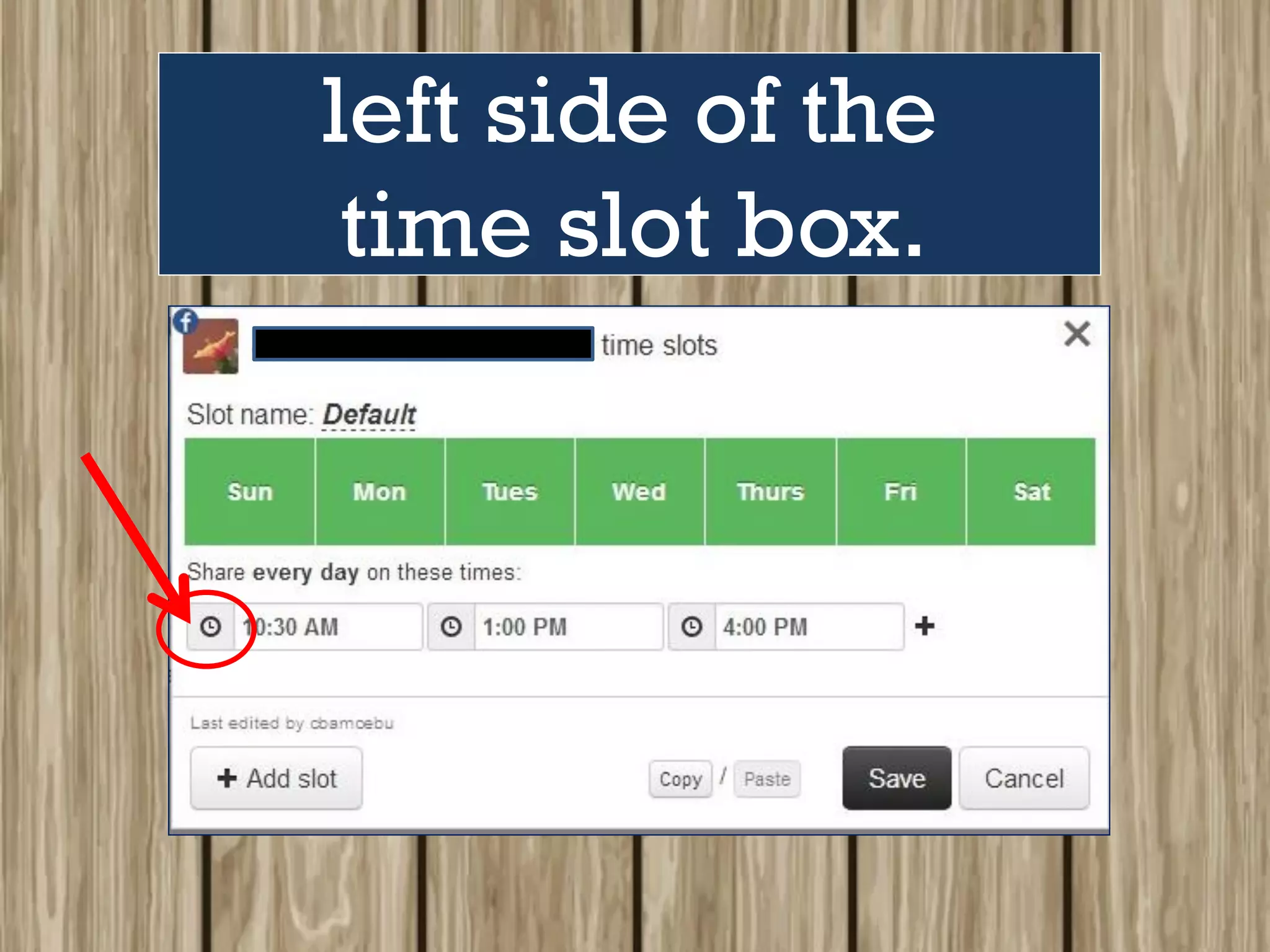
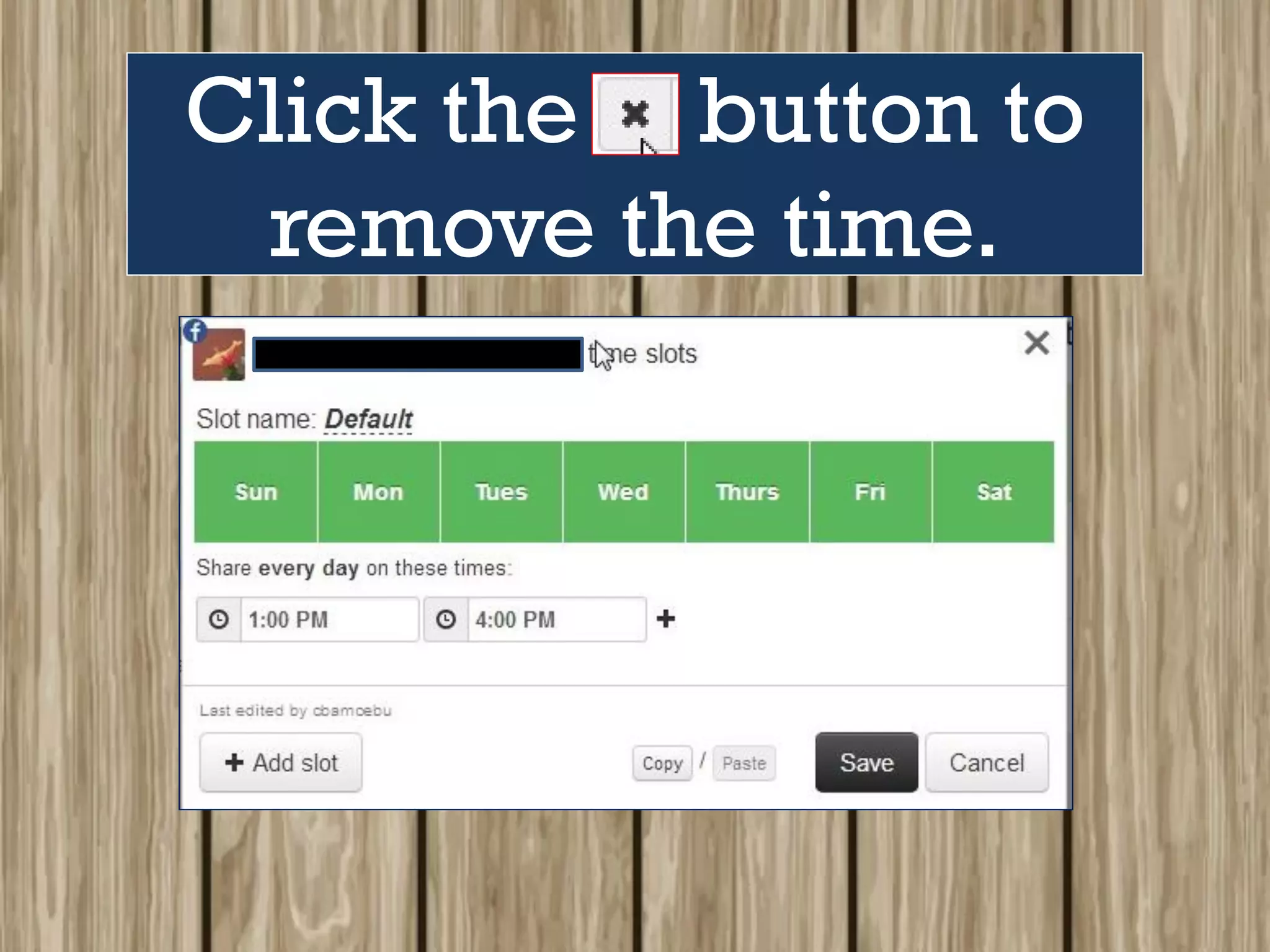
To remove a time slot,
move your mouse
pointer to the
icon at the
left side of the
time slot box.
The will turn
into an .
Click the button to
remove the time.
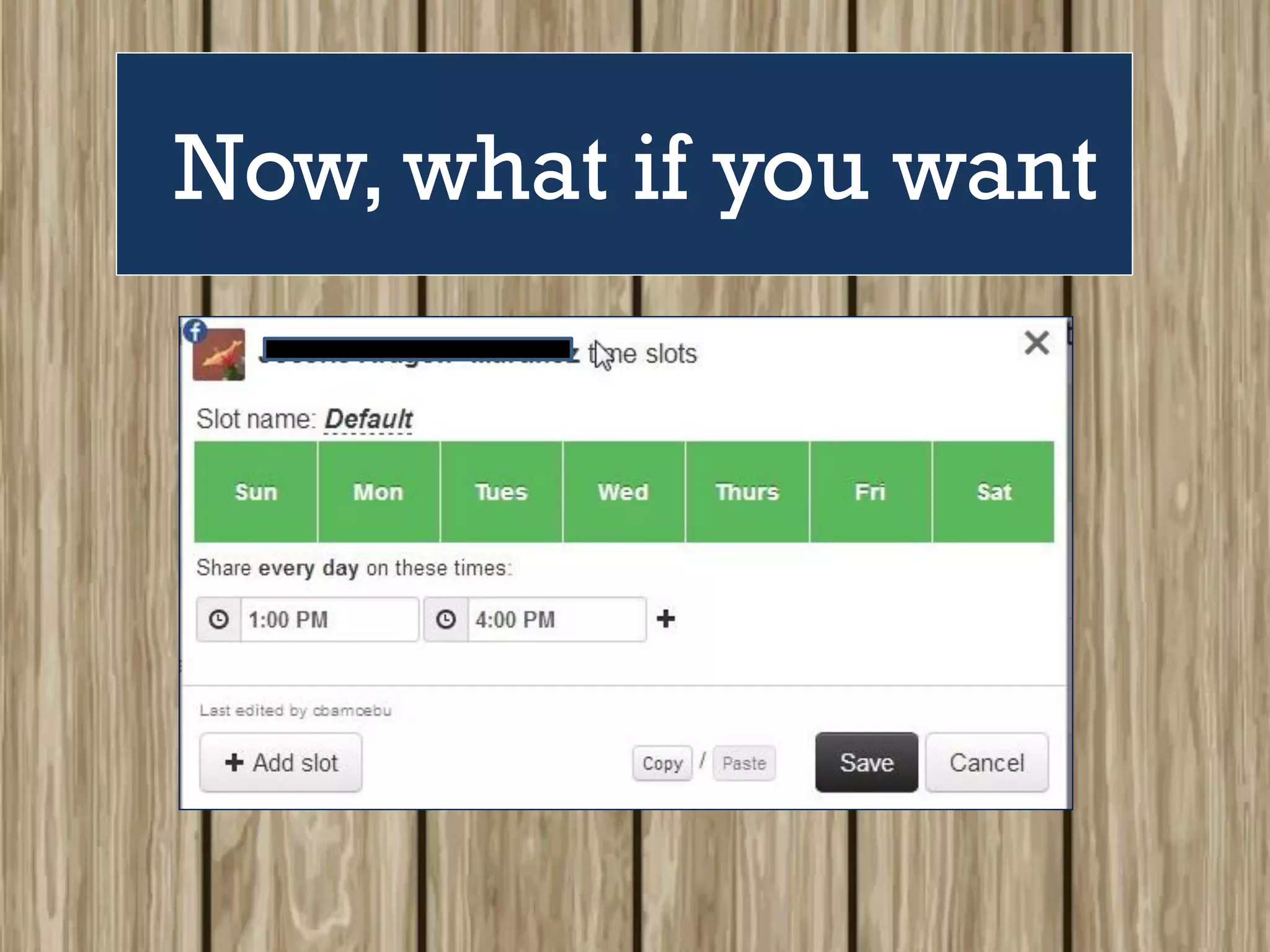
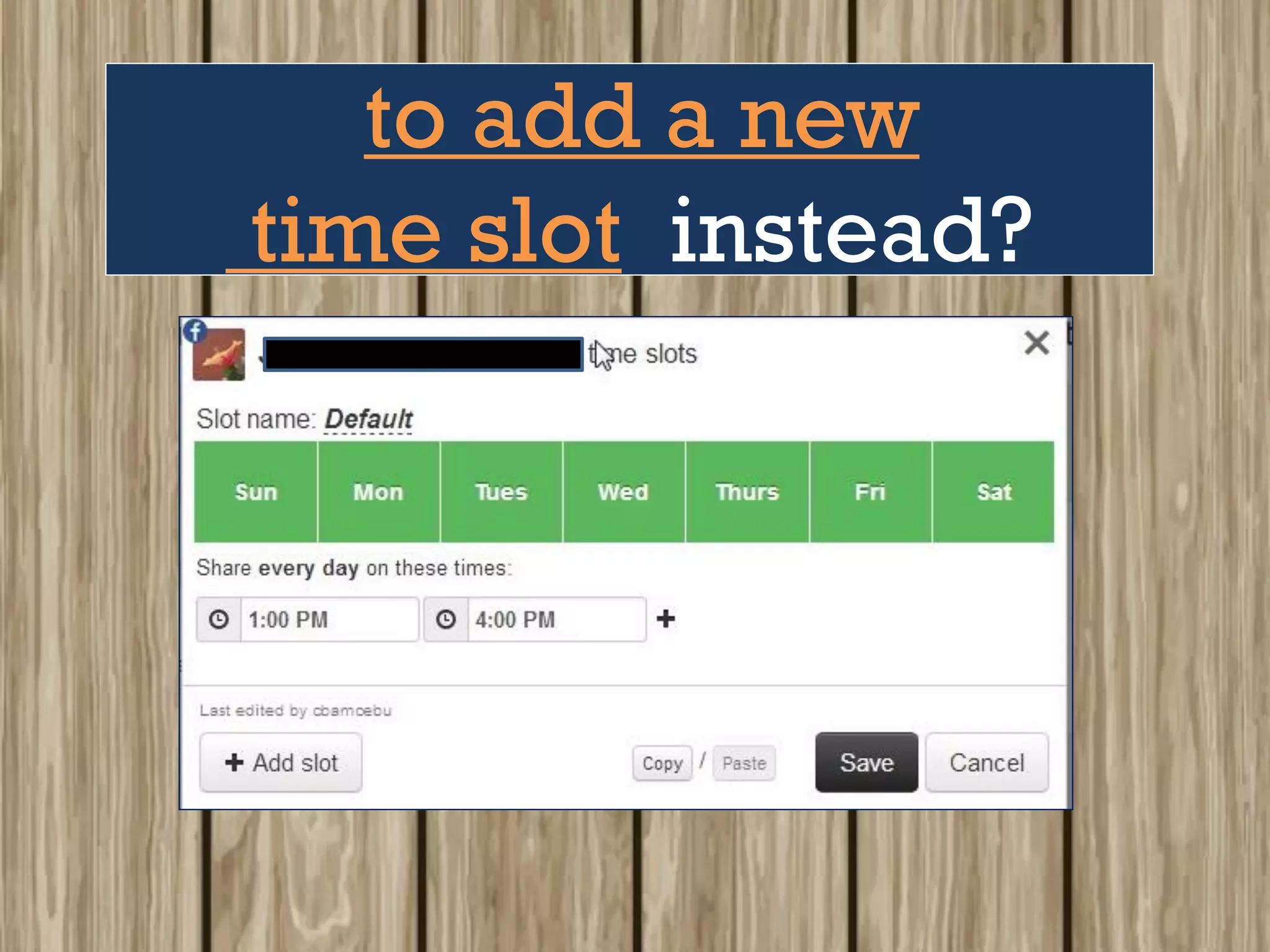
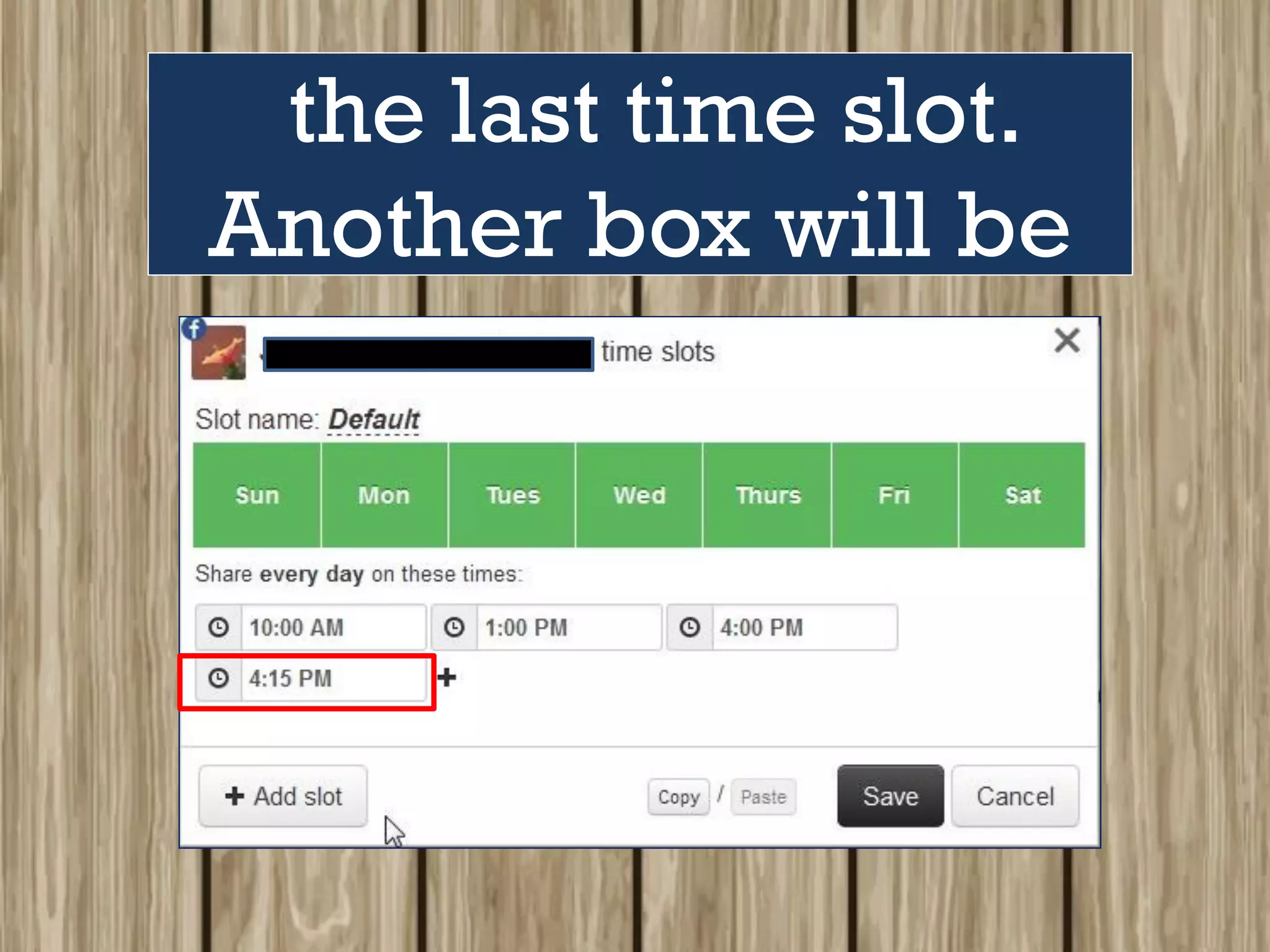
Now, what if you want
to add a new
time slot instead?
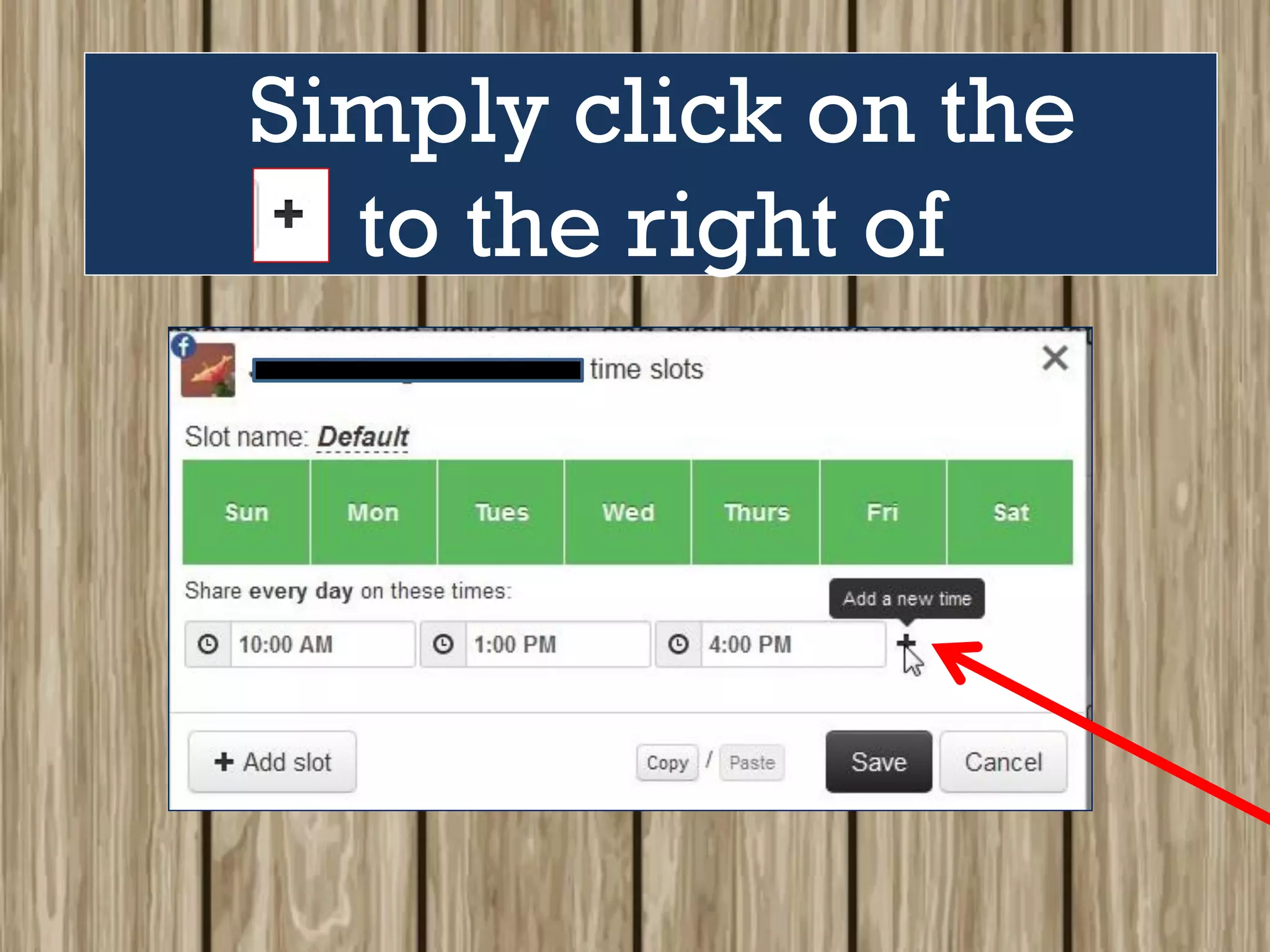
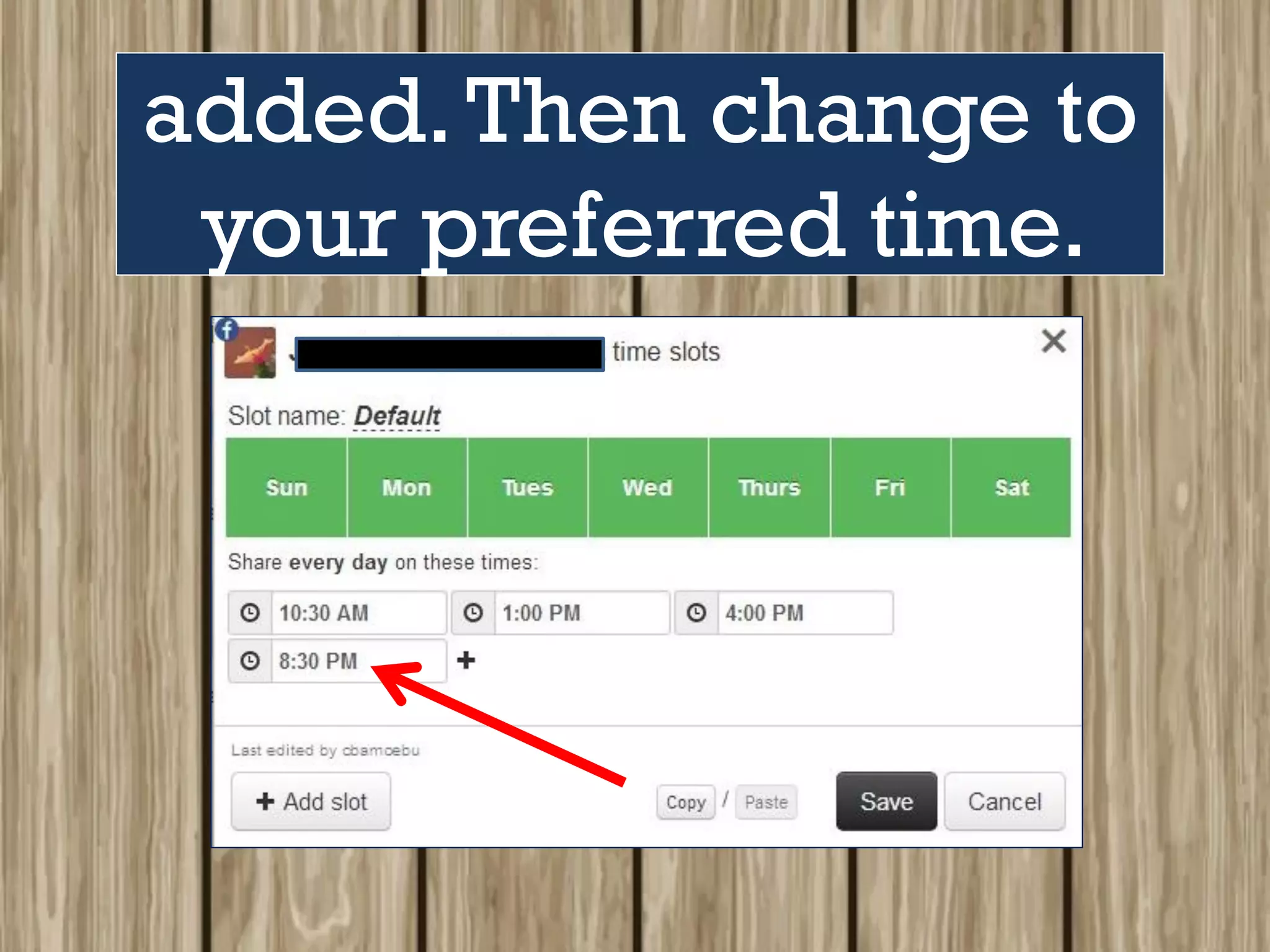
Simply click on the
to the right of
the last time slot.
Another box will be
added.Then change to
your preferred time.
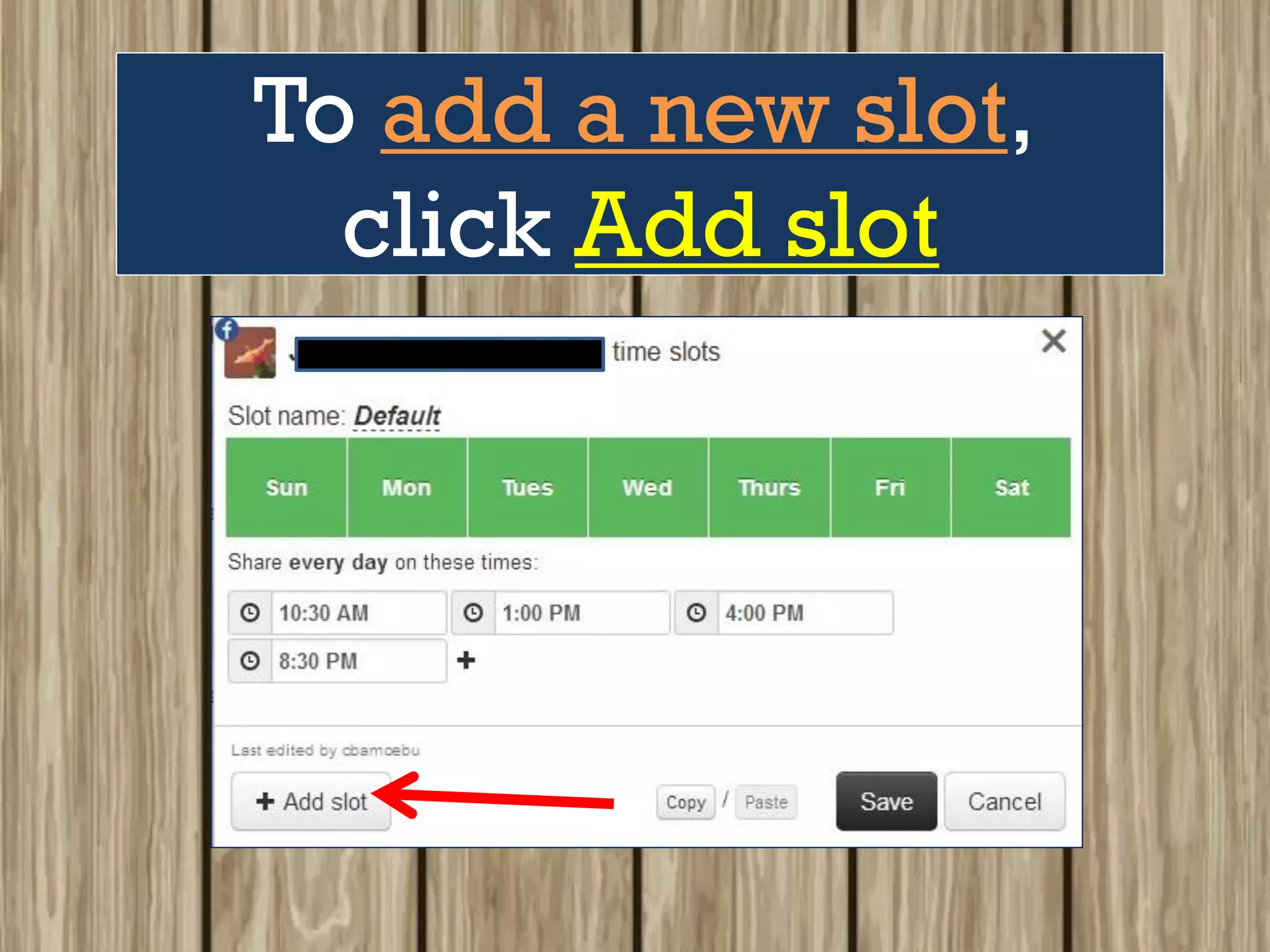
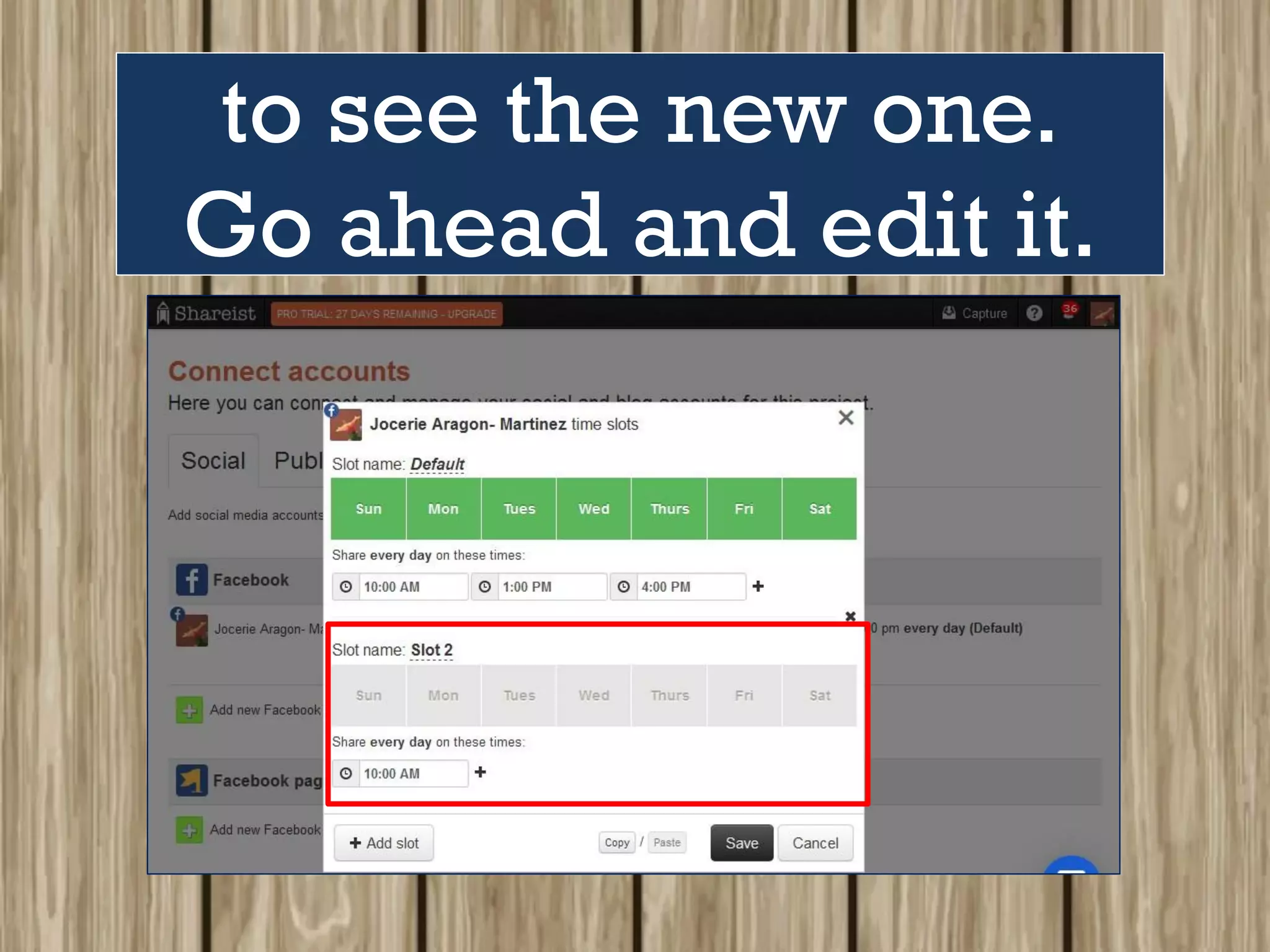
To add a new slot,
click Add slot
to see the new one.
Go ahead and edit it.
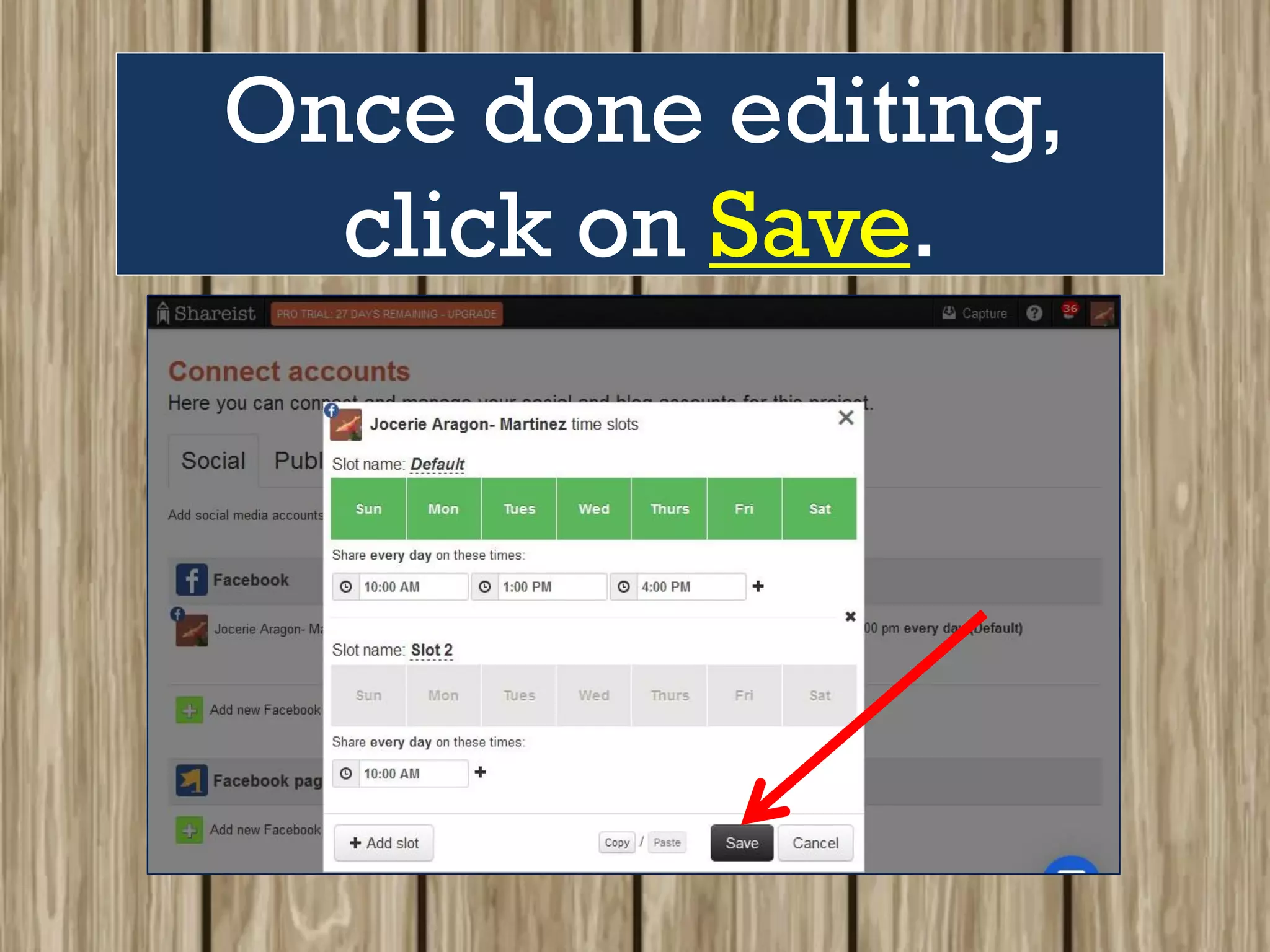
Once done editing,
click on Save.
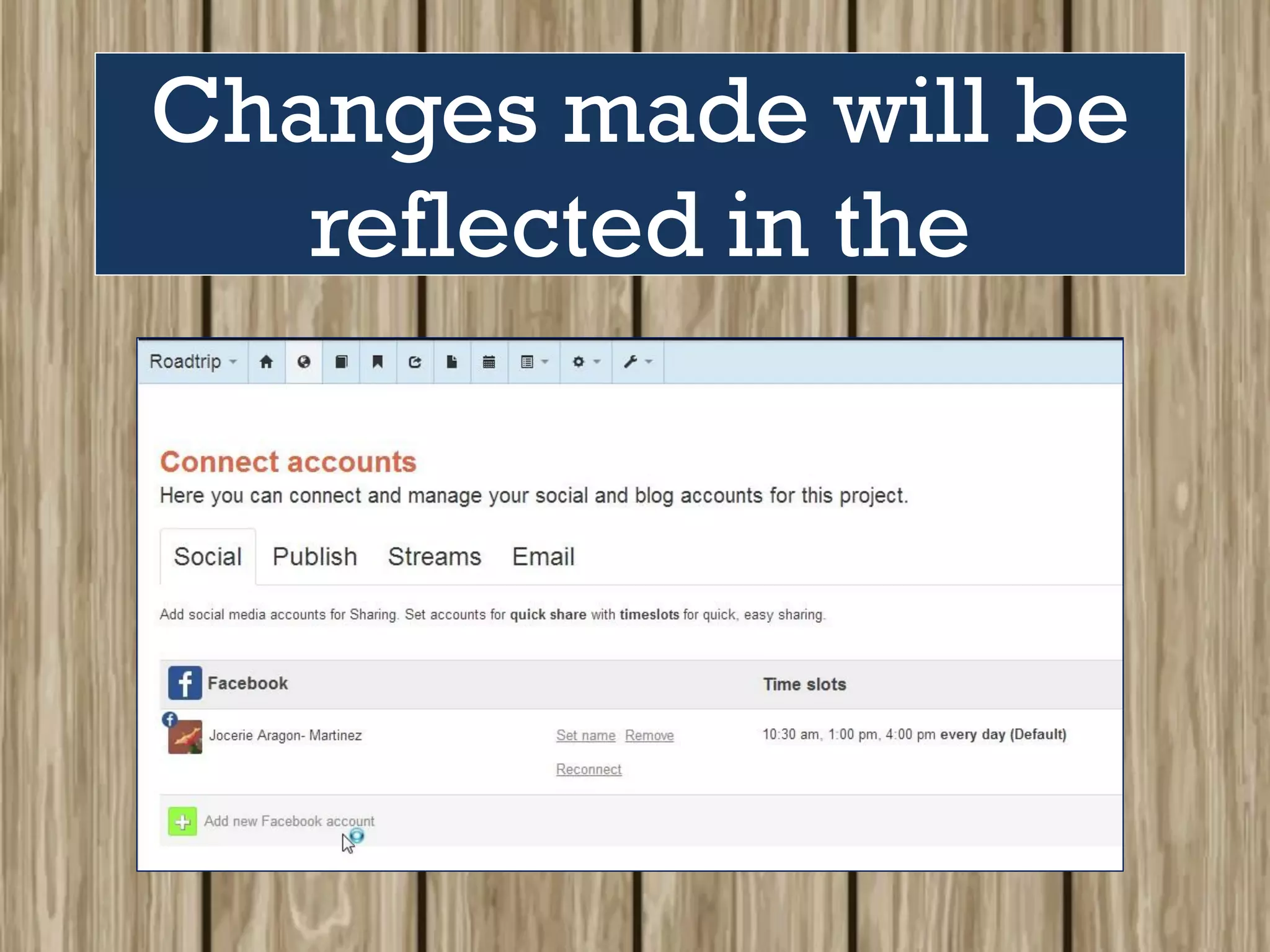
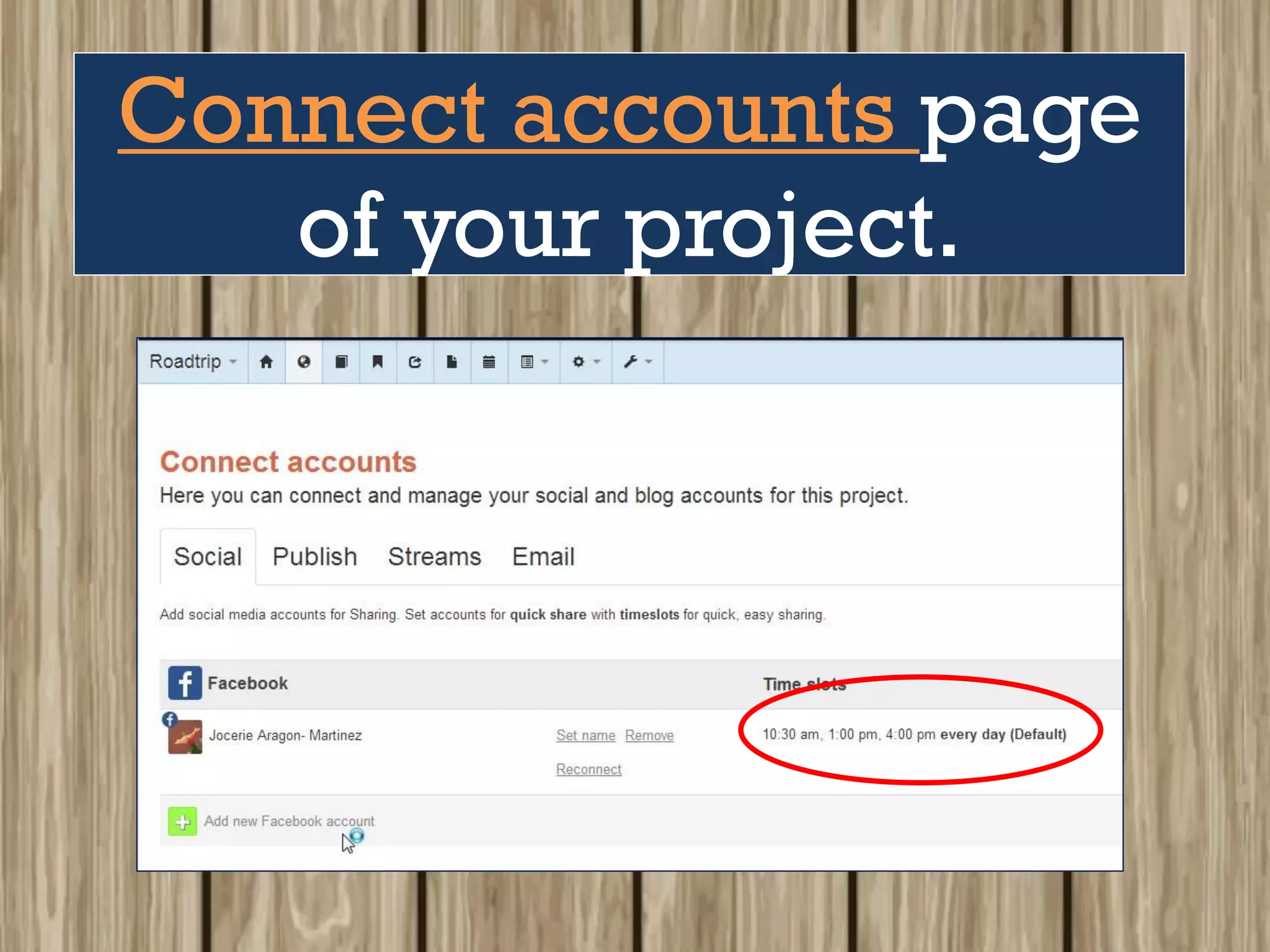
Changes made will be
reflected in the
Connect accounts page
of your project.
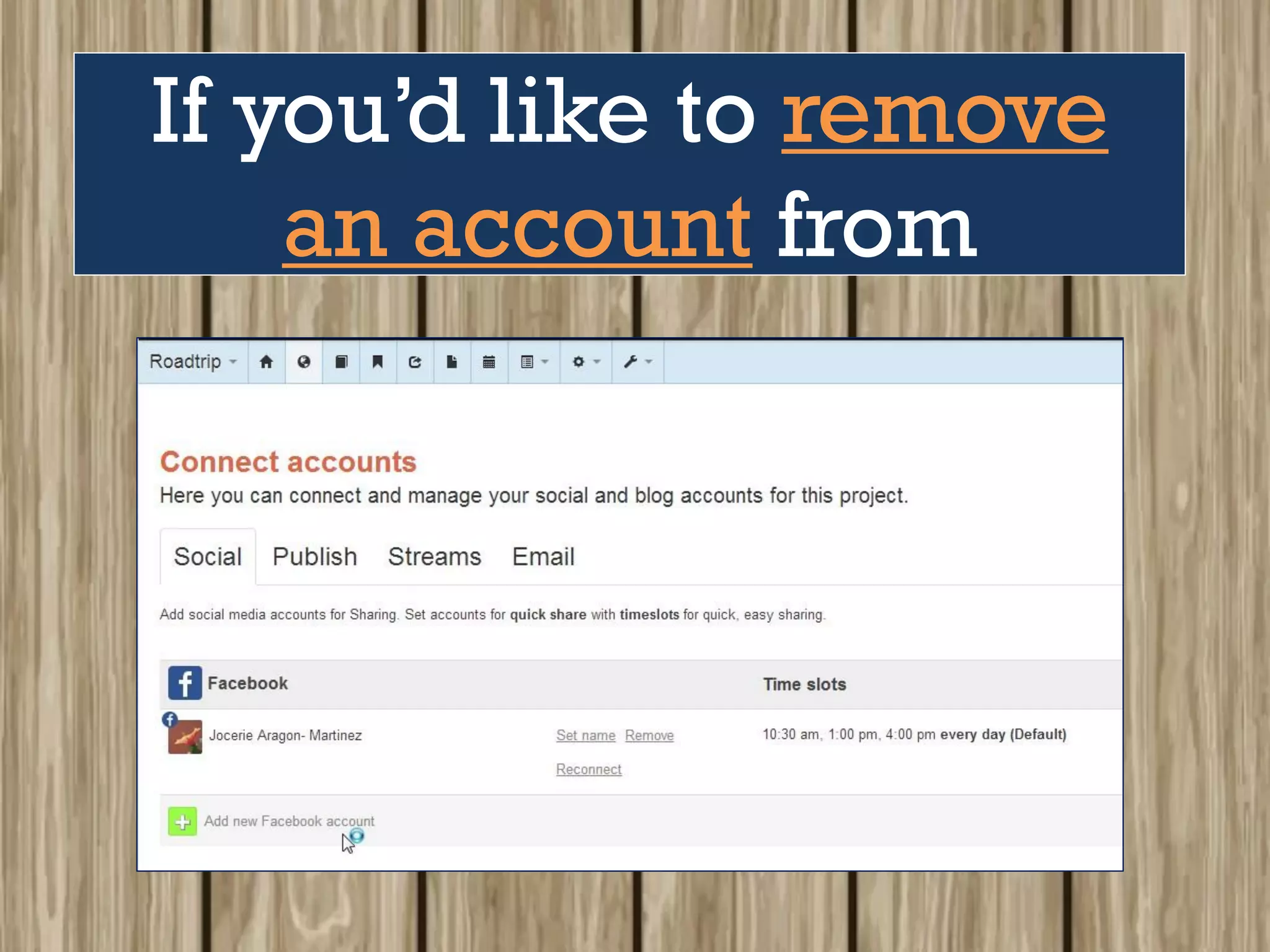
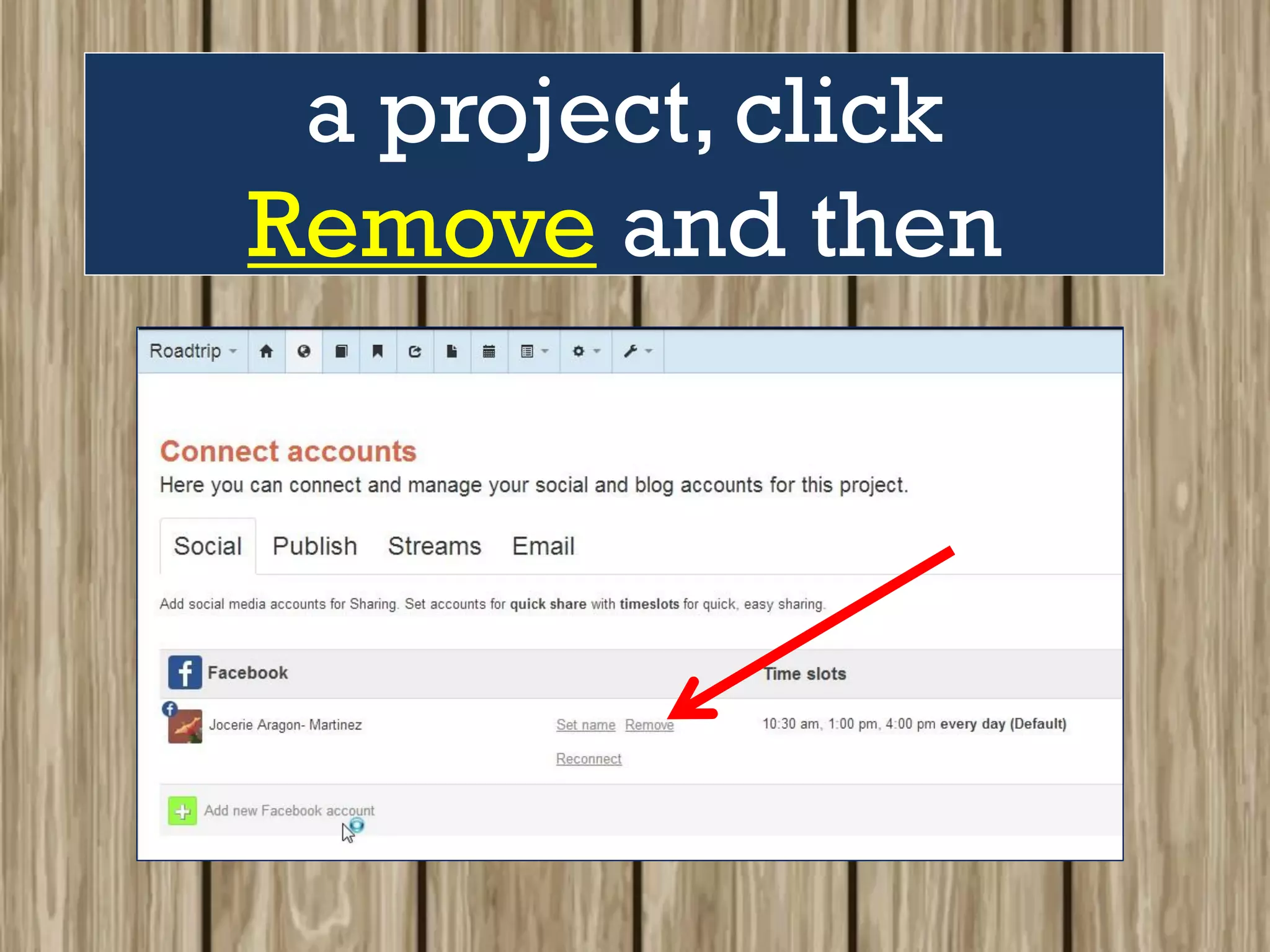
If you’d like to remove
an account from
a project, click
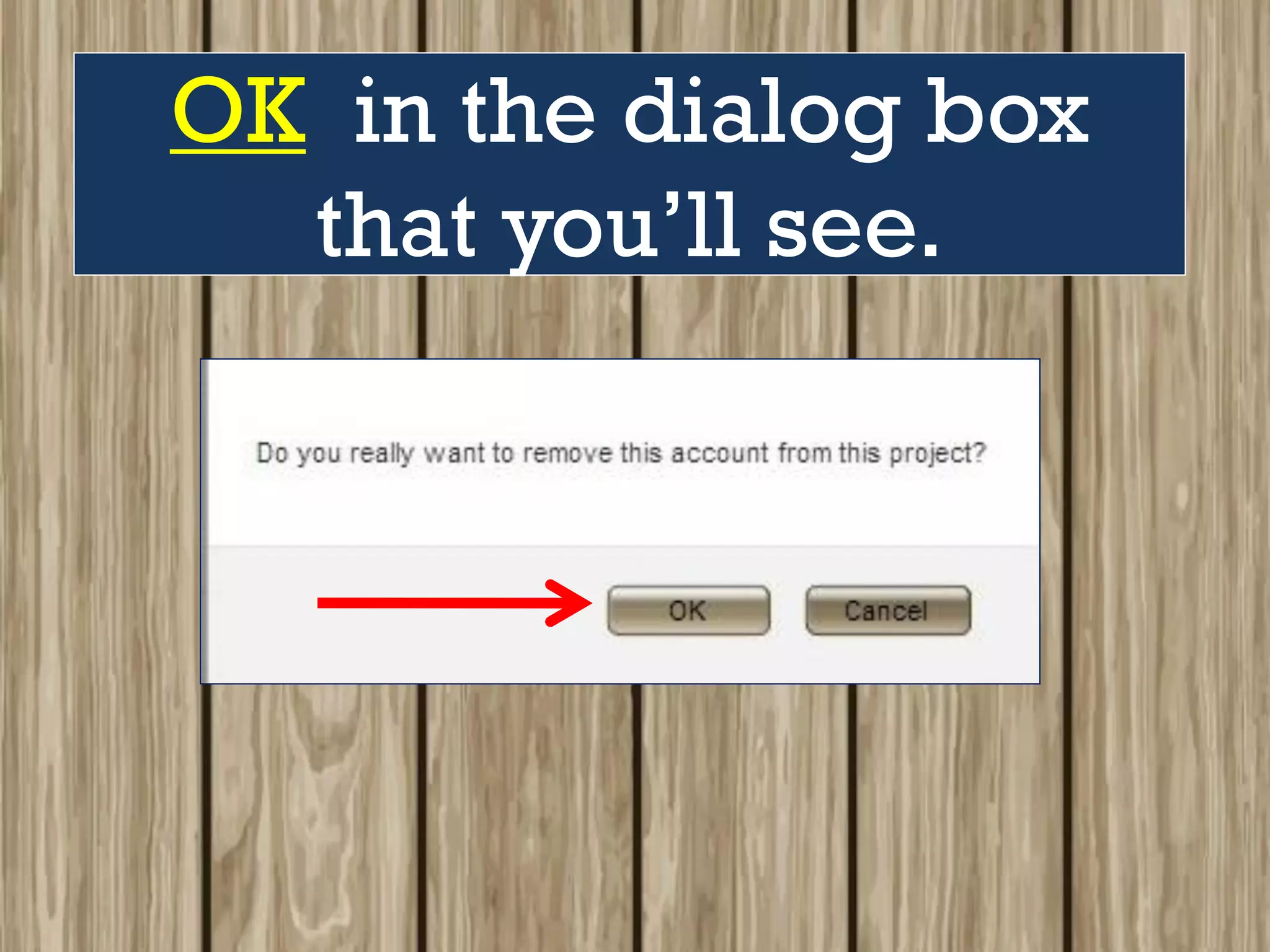
Remove and then
OK in the dialog box
that you’ll see.
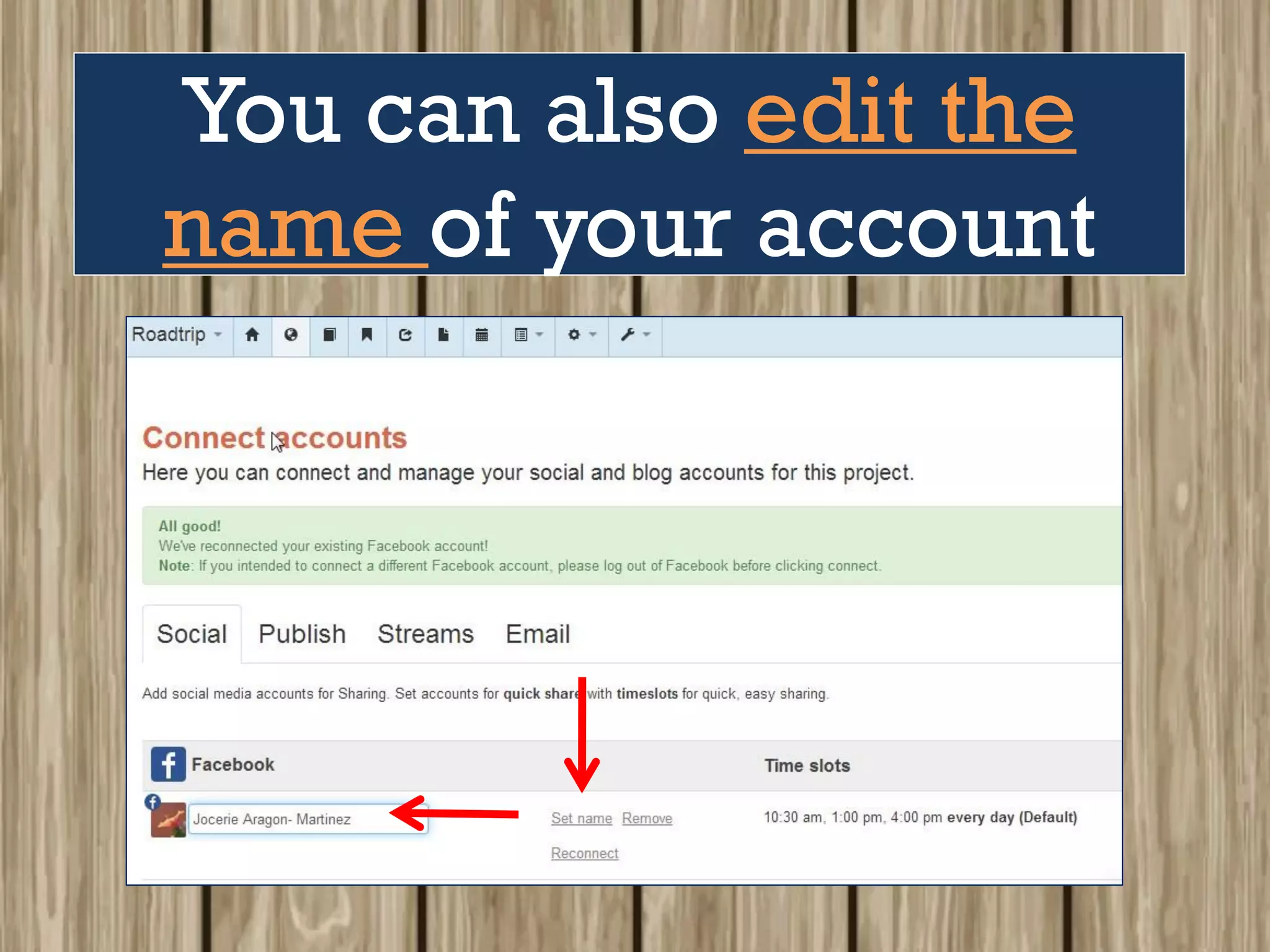
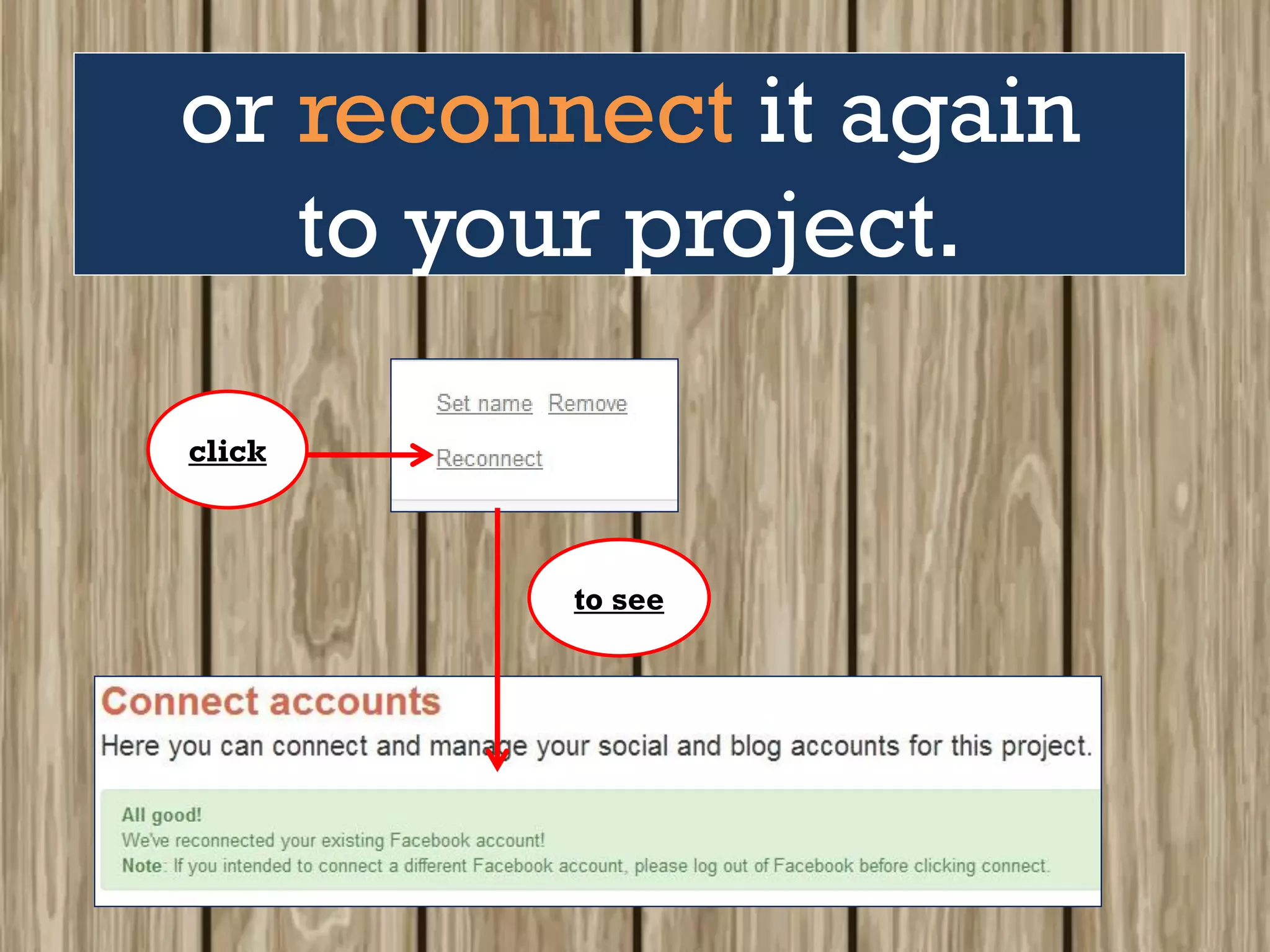
You can also edit the
name of your account
or reconnect it again
to your project.
click
to see
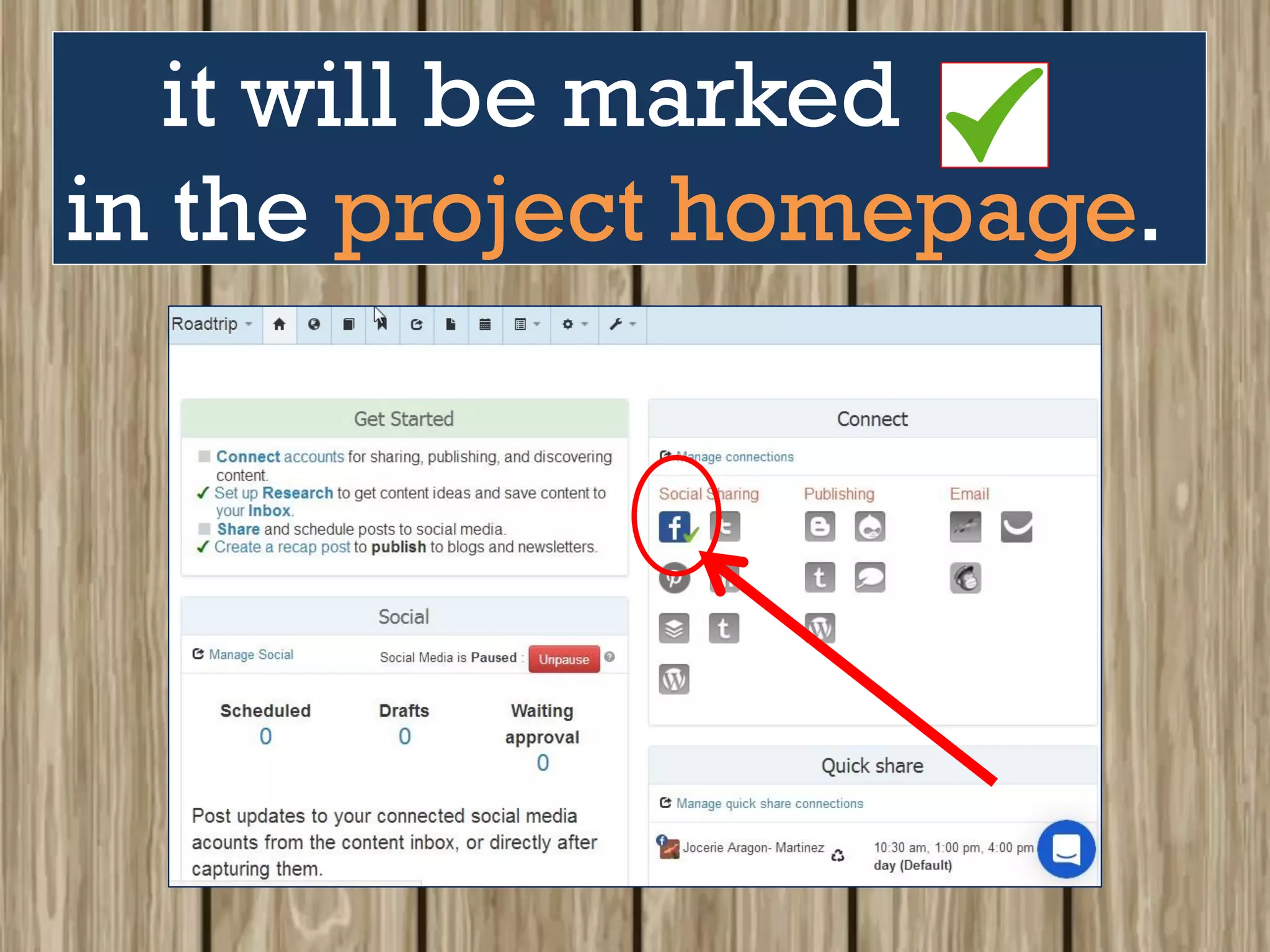
Once you’ve
connected
all the accounts for
the project,
it will be marked
in the project homepage.
There!!!
That sums up
Part 1 of our
Shareist tutorial.
When you’re ready,
check out Part 2
and let’s continue
learning
Shareist together.
Don’t forget!
Photo by Blake Meyer on Unsplash

Shareist tutorial for Beginners