Creating Digital Portfolios
with Google Sites
What to Include & How to Convey It!
Why A Site As A Digital Portfolio?
● Sites are easily accessible and easy to share.
● Employs ISTE-S Standards (3c, 4a, 6a-d)
● A site becomes an accessible body of work for college recruiters and
counselors.
● Fosters effective written and oral communication skills.
● Encourages student ownership
Where to start?
● Get started at http://sites.google.com/new
● Or go to http://drive.google.com
○ Click New > More > Google Sites
Create Pages for your Portfolio
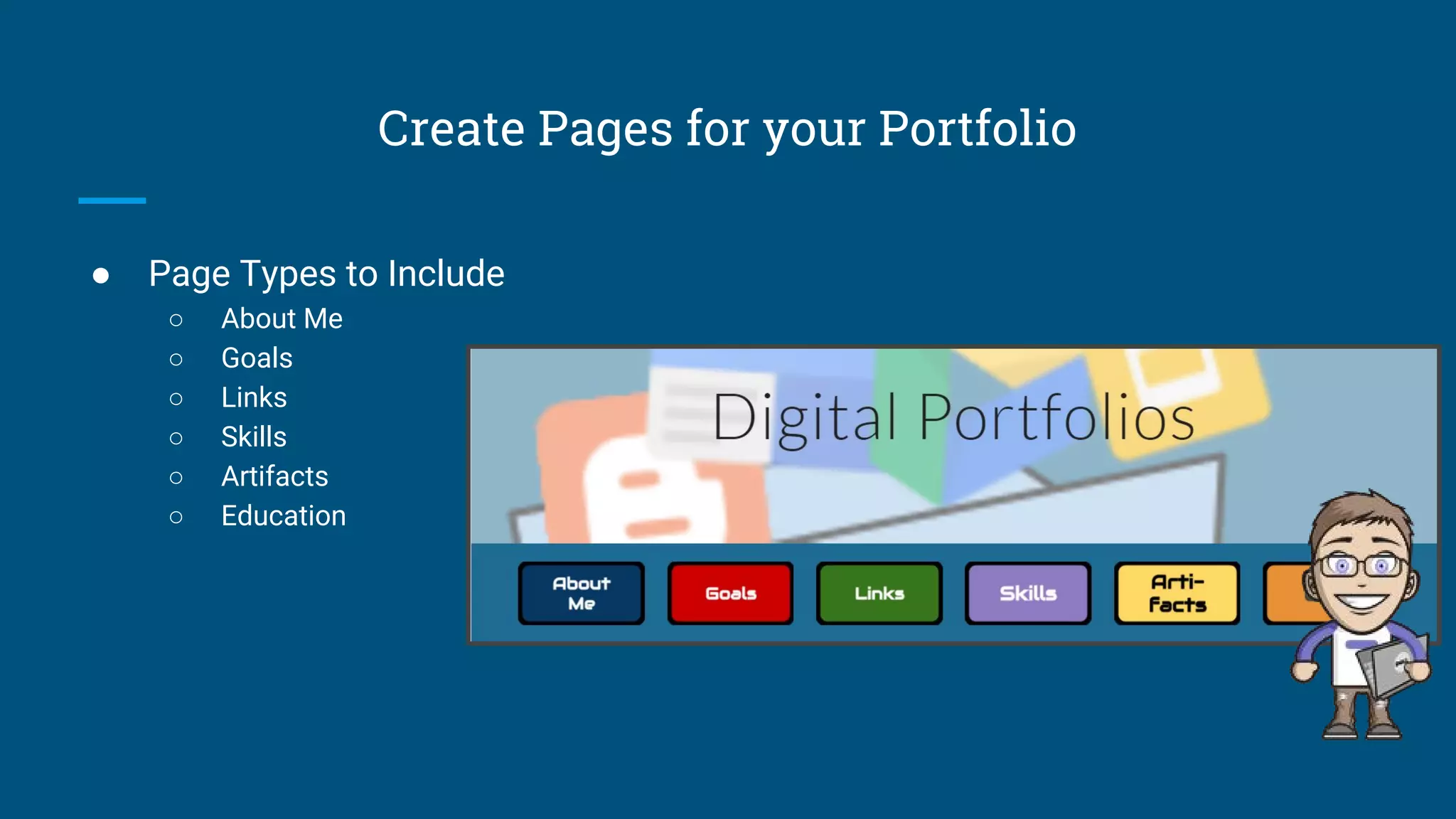
● Page Types to Include
○ About Me
○ Goals
○ Links
○ Skills
○ Artifacts
○ Education
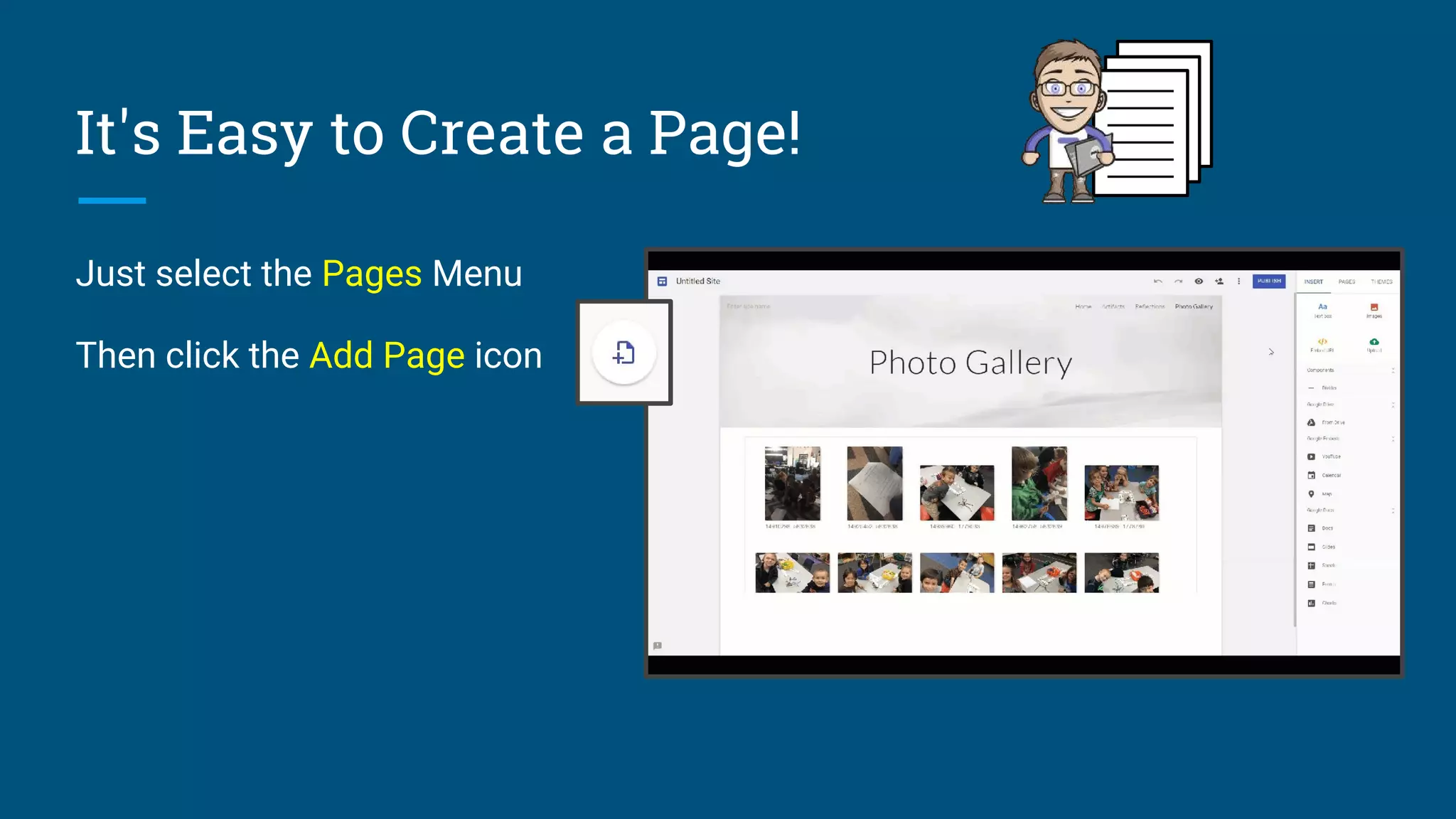
It's Easy to Create a Page!
Just select the Pages Menu
Then click the Add Page icon
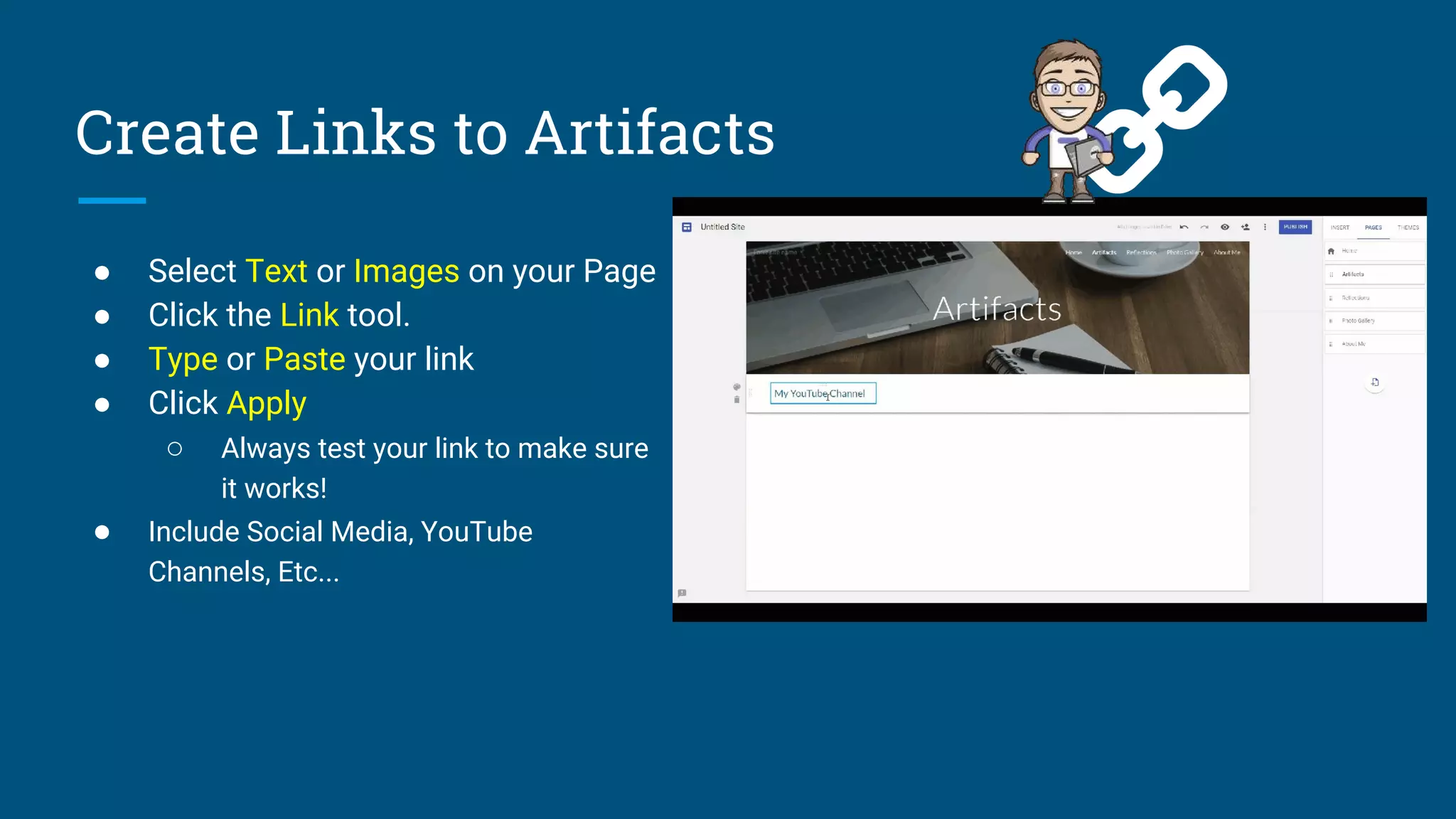
Create Links to Artifacts
● Select Text or Images on your Page
● Click the Link tool.
● Type or Paste your link
● Click Apply
○ Always test your link to make sure
it works!
● Include Social Media, YouTube
Channels, Etc...
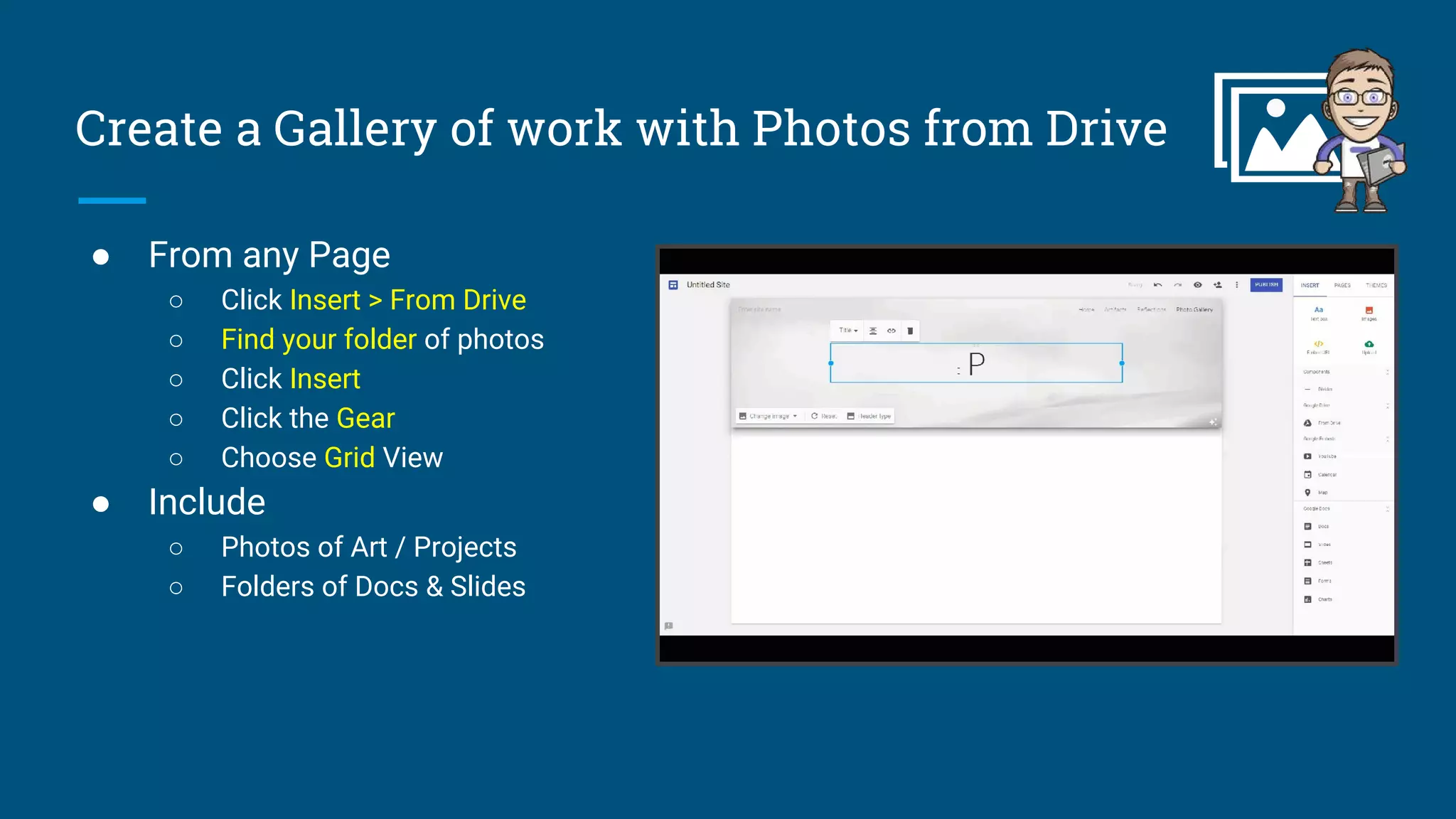
Create a Gallery of work with Photos from Drive
● From any Page
○ Click Insert > From Drive
○ Find your folder of photos
○ Click Insert
○ Click the Gear
○ Choose Grid View
● Include
○ Photos of Art / Projects
○ Folders of Docs & Slides
Showcase your Work
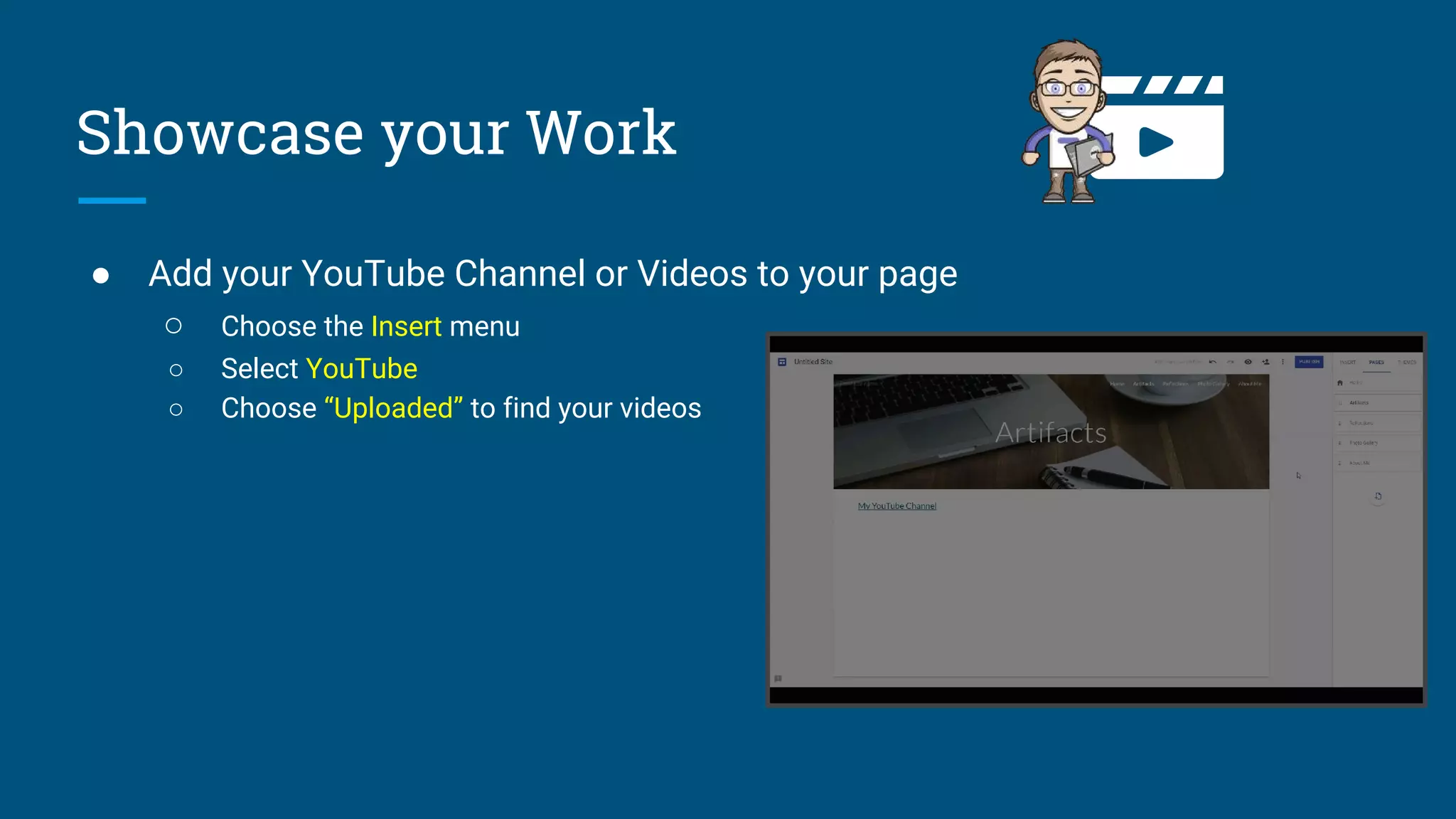
● Add your YouTube Channel or Videos to your page
○ Choose the Insert menu
○ Select YouTube
○ Choose “Uploaded” to find your videos
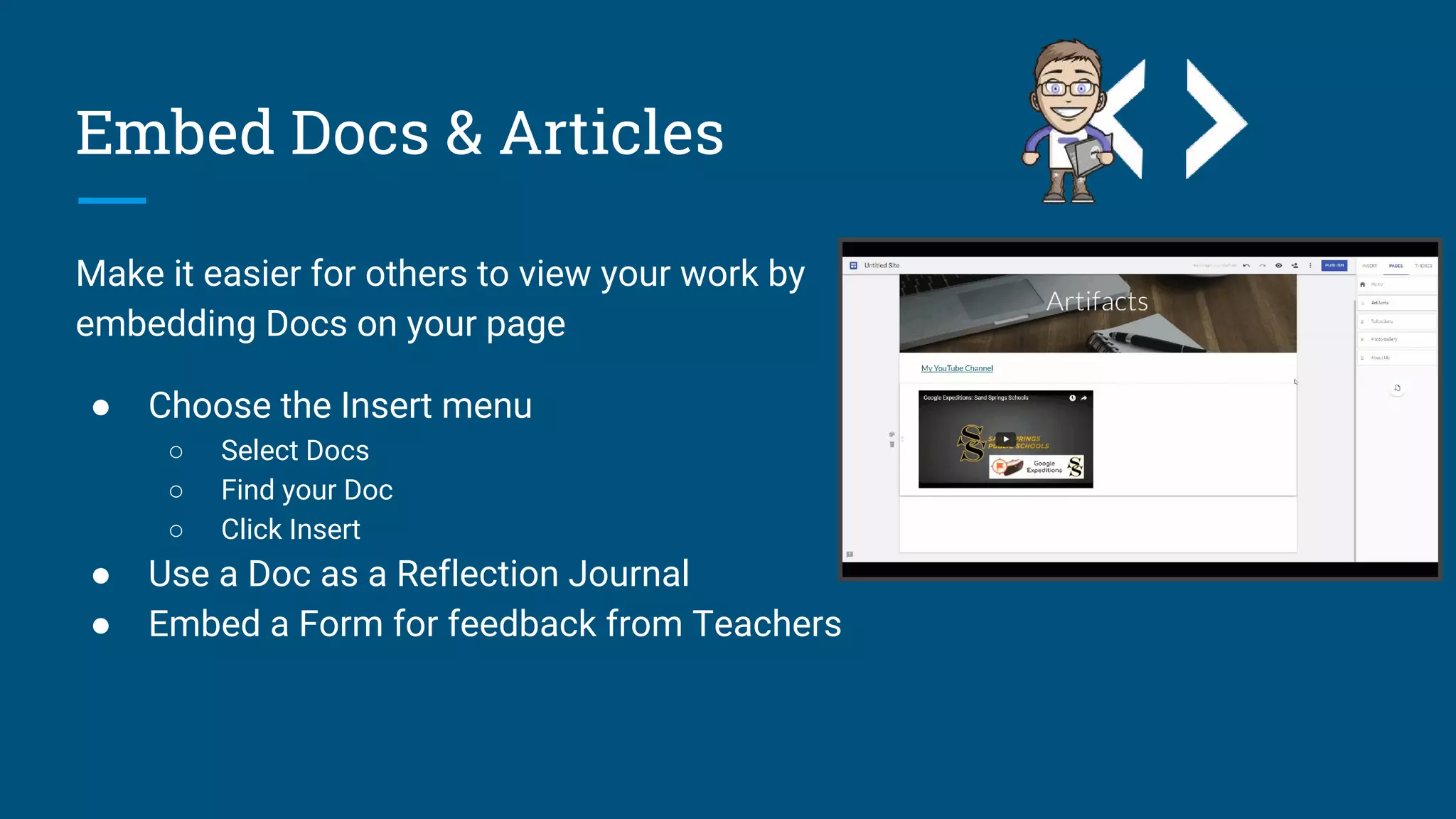
Embed Docs & Articles
Make it easier for others to view your work by
embedding Docs on your page
● Choose the Insert menu
○ Select Docs
○ Find your Doc
○ Click Insert
● Use a Doc as a Reflection Journal
● Embed a Form for feedback from Teachers
Be A Model of Digital Citizenship
● About Me - Use a Professional Email Address
● When linking to Social Media in your Portfolio - Think
before you post
● Be aware of your digital footprint
● If it isn’t yours, give credit where it is due
● Guard your identity - maintain privacy when you publish
Sources
Avatar created using http://doppelme.com
ISTE-S Standards - https://www.iste.org/standards/standards/for-students
Google Sites - http://sites.google.com/new

Creating Digital Portfolios with Google Sites

  • 1.
    Creating Digital Portfolios withGoogle Sites What to Include & How to Convey It!
  • 2.
    Why A SiteAs A Digital Portfolio? ● Sites are easily accessible and easy to share. ● Employs ISTE-S Standards (3c, 4a, 6a-d) ● A site becomes an accessible body of work for college recruiters and counselors. ● Fosters effective written and oral communication skills. ● Encourages student ownership
  • 3.
    Where to start? ●Get started at http://sites.google.com/new ● Or go to http://drive.google.com ○ Click New > More > Google Sites
  • 4.
    Create Pages foryour Portfolio ● Page Types to Include ○ About Me ○ Goals ○ Links ○ Skills ○ Artifacts ○ Education
  • 5.
    It's Easy toCreate a Page! Just select the Pages Menu Then click the Add Page icon
  • 6.
    Create Links toArtifacts ● Select Text or Images on your Page ● Click the Link tool. ● Type or Paste your link ● Click Apply ○ Always test your link to make sure it works! ● Include Social Media, YouTube Channels, Etc...
  • 7.
    Create a Galleryof work with Photos from Drive ● From any Page ○ Click Insert > From Drive ○ Find your folder of photos ○ Click Insert ○ Click the Gear ○ Choose Grid View ● Include ○ Photos of Art / Projects ○ Folders of Docs & Slides
  • 8.
    Showcase your Work ●Add your YouTube Channel or Videos to your page ○ Choose the Insert menu ○ Select YouTube ○ Choose “Uploaded” to find your videos
  • 9.
    Embed Docs &Articles Make it easier for others to view your work by embedding Docs on your page ● Choose the Insert menu ○ Select Docs ○ Find your Doc ○ Click Insert ● Use a Doc as a Reflection Journal ● Embed a Form for feedback from Teachers
  • 10.
    Be A Modelof Digital Citizenship ● About Me - Use a Professional Email Address ● When linking to Social Media in your Portfolio - Think before you post ● Be aware of your digital footprint ● If it isn’t yours, give credit where it is due ● Guard your identity - maintain privacy when you publish
  • 11.
    Sources Avatar created usinghttp://doppelme.com ISTE-S Standards - https://www.iste.org/standards/standards/for-students Google Sites - http://sites.google.com/new