





This document outlines a Jira administration training course led by Brandon Huff, an experienced agile coach with a significant background in managing projects for major companies. The course aims to familiarize participants with Jira's administration features, project configuration, and best practices for managing issues and workflows. Additionally, it covers various areas of Jira administration, including user management, system configuration, and customization options, while highlighting important tools and resources available for effective Jira utilization.
Instructor Background
Brandon Huff
PMP,PMI-ACP, CSM, CSPO
Brandon Huff has 15 years of experience managing large
application, infrastructure, and process development/
improvement projects for Fortune 500 companies. His
experience as an Agile Coach has created successful Agile
Lifecycle Management solutions including customized Agile
training, Tool implementation/customization and lasting Agile
COEs. Brandon has configured hundreds of Atlassian
instances, authored the first Atlassian University courses,
and created the first JIRA SAFe solution.
He has helped companies like Apple, Cisco, Oracle, NetApp,
Ericsson, VISA, and more.
3
4.
Course Overview
4
• ThisJIRA administration course will help you
• Become more familiar with JIRA administration elements
and areas
• Understand where global changes can be made
• Familiarize yourself with system administration impact on
project configuration
• Learn where to find answers to common questions
• This course is not intended to
• Cover all administration aspects of JIRA (there’s just too much!)
• Address every situation you may encounter
5.
What is JIRA
•JIRA is
• A virtual work planning and delivery tool
• Customizable for your company and project needs
• Provides transparency and real-time reporting
5
6.
What can JIRAdo for you?
• JIRA can help you manage your projects
• Manage and hold all your projects in one location
• Track and organize enterprise-wide initiatives
• Follow team activity with real-time reporting
• Monitor single or multiple projects
• Provide visibility and transparency
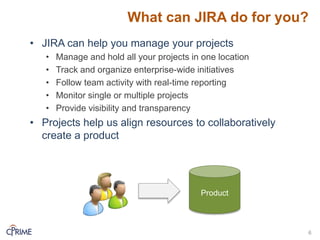
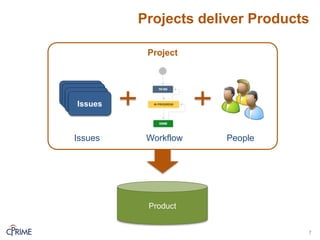
• Projects help us align resources to collaboratively
create a product
6
Product
System Configuration Impact
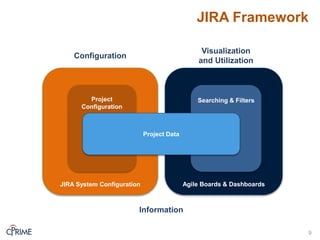
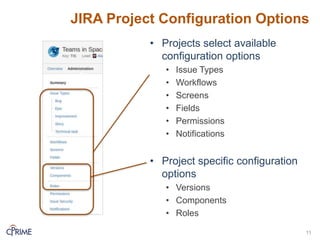
•How we configure JIRA has a large impact on how
teams use JIRA
• Admins must understand
• Team needs and intended usage
• Configuration decisions to be made
• Configuration impact on associated projects (if any)
• How to test!
• Projects must have the right configuration options to
select
8
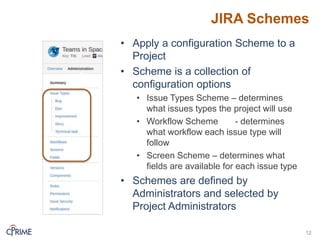
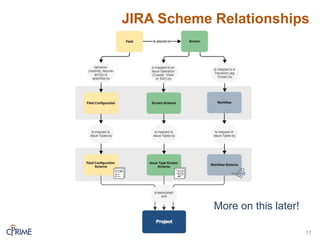
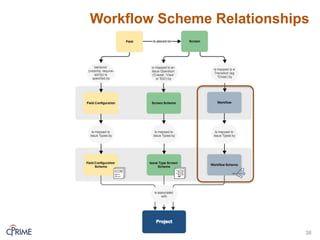
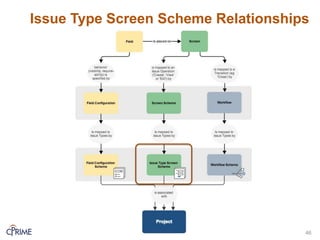
JIRA Schemes
• Applya configuration Scheme to a
Project
• Scheme is a collection of
configuration options
• Issue Types Scheme – determines
what issues types the project will use
• Workflow Scheme - determines
what workflow each issue type will
follow
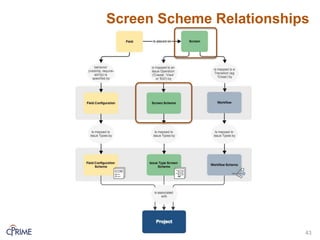
• Screen Scheme – determines what
fields are available for each issue type
• Schemes are defined by
Administrators and selected by
Project Administrators
12
13.
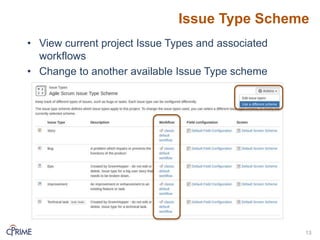
Issue Type Scheme
•View current project Issue Types and associated
workflows
• Change to another available Issue Type scheme
13
14.
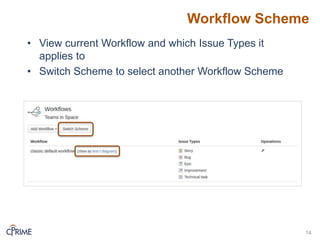
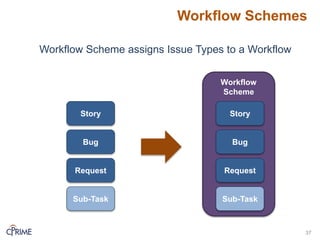
Workflow Scheme
• Viewcurrent Workflow and which Issue Types it
applies to
• Switch Scheme to select another Workflow Scheme
14
15.
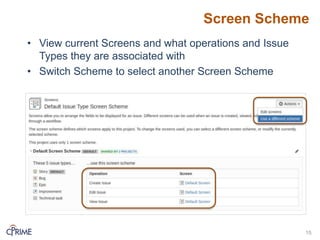
Screen Scheme
• Viewcurrent Screens and what operations and Issue
Types they are associated with
• Switch Scheme to select another Screen Scheme
15
16.
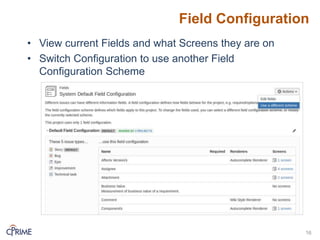
Field Configuration
• Viewcurrent Fields and what Screens they are on
• Switch Configuration to use another Field
Configuration Scheme
16
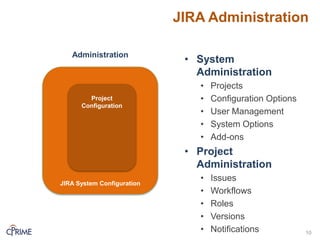
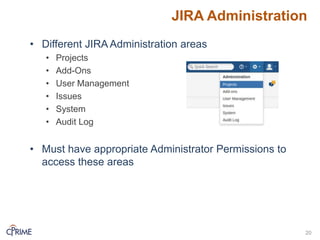
JIRA Administration
• DifferentJIRA Administration areas
• Projects
• Add-Ons
• User Management
• Issues
• System
• Audit Log
• Must have appropriate Administrator Permissions to
access these areas
20
21.
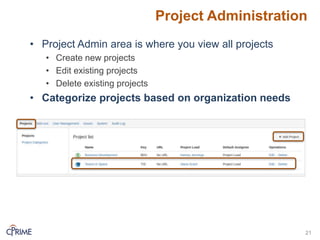
Project Administration
• ProjectAdmin area is where you view all projects
• Create new projects
• Edit existing projects
• Delete existing projects
• Categorize projects based on organization needs
21
22.
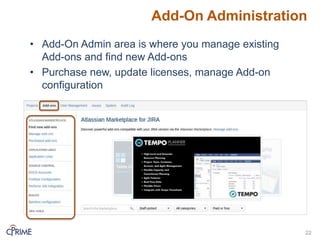
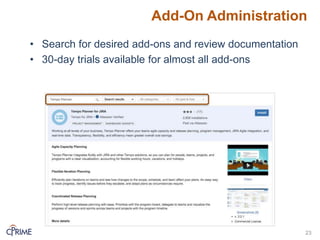
Add-On Administration
• Add-OnAdmin area is where you manage existing
Add-ons and find new Add-ons
• Purchase new, update licenses, manage Add-on
configuration
22
23.
Add-On Administration
• Searchfor desired add-ons and review documentation
• 30-day trials available for almost all add-ons
23
24.
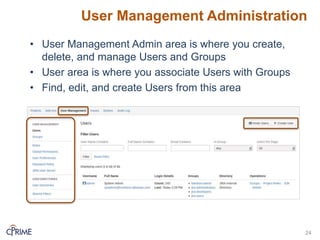
User Management Administration
•User Management Admin area is where you create,
delete, and manage Users and Groups
• User area is where you associate Users with Groups
• Find, edit, and create Users from this area
24
25.
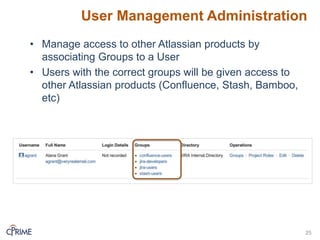
User Management Administration
•Manage access to other Atlassian products by
associating Groups to a User
• Users with the correct groups will be given access to
other Atlassian products (Confluence, Stash, Bamboo,
etc)
25
26.
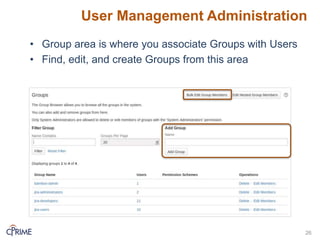
User Management Administration
•Group area is where you associate Groups with Users
• Find, edit, and create Groups from this area
26
27.
User Management Administration
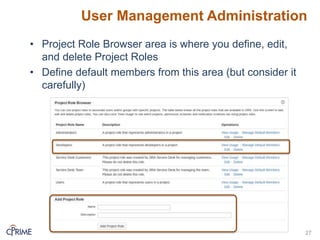
•Project Role Browser area is where you define, edit,
and delete Project Roles
• Define default members from this area (but consider it
carefully)
27
28.
User Management Administration
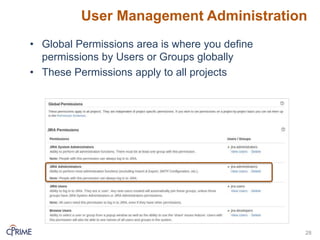
•Global Permissions area is where you define
permissions by Users or Groups globally
• These Permissions apply to all projects
28
Issues Administration
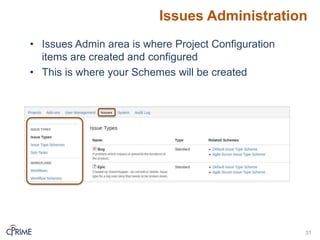
• IssuesAdmin area is where Project Configuration
items are created and configured
• This is where your Schemes will be created
31
32.
Issue Types
32
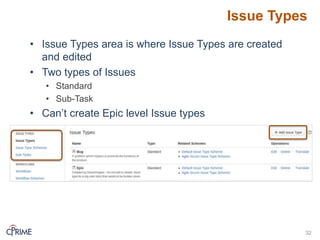
• IssueTypes area is where Issue Types are created
and edited
• Two types of Issues
• Standard
• Sub-Task
• Can’t create Epic level Issue types
33.
Issue Type Schemes
33
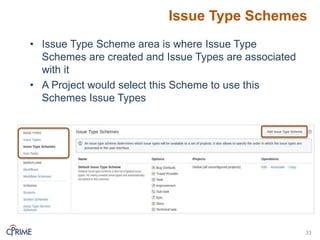
•Issue Type Scheme area is where Issue Type
Schemes are created and Issue Types are associated
with it
• A Project would select this Scheme to use this
Schemes Issue Types
34.
Issue Type
Scheme
Issue TypeSchemes
34
Story
Bug
Request
Sub-Task
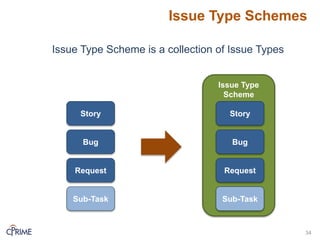
Issue Type Scheme is a collection of Issue Types
Story
Bug
Request
Sub-Task
35.
Workflows
35
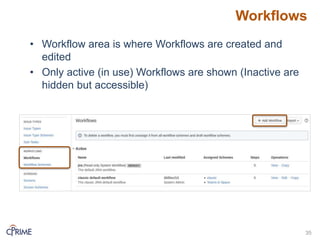
• Workflow areais where Workflows are created and
edited
• Only active (in use) Workflows are shown (Inactive are
hidden but accessible)
36.
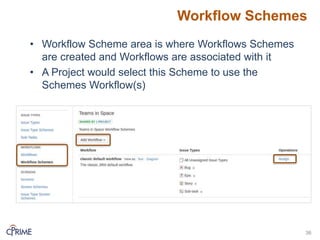
Workflow Schemes
36
• WorkflowScheme area is where Workflows Schemes
are created and Workflows are associated with it
• A Project would select this Scheme to use the
Schemes Workflow(s)
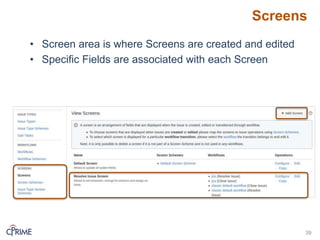
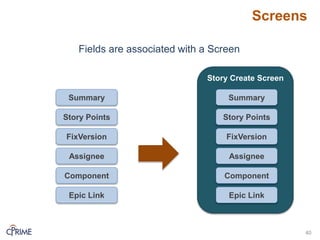
Screens
39
• Screen areais where Screens are created and edited
• Specific Fields are associated with each Screen
40.
Screens
40
Fields are associatedwith a Screen
Story Create Screen
Summary
Story Points
FixVersion
Assignee
Component
Epic Link
Summary
Story Points
FixVersion
Assignee
Component
Epic Link
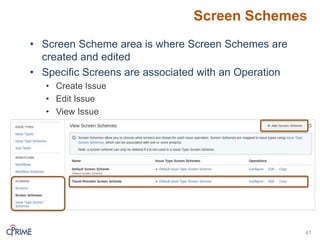
41.
Screen Schemes
41
• ScreenScheme area is where Screen Schemes are
created and edited
• Specific Screens are associated with an Operation
• Create Issue
• Edit Issue
• View Issue
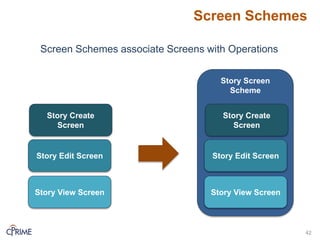
42.
Screen Schemes
42
Screen Schemesassociate Screens with Operations
Story Screen
Scheme
Story Create
Screen
Story Edit Screen
Story View Screen
Story Create
Screen
Story Edit Screen
Story View Screen
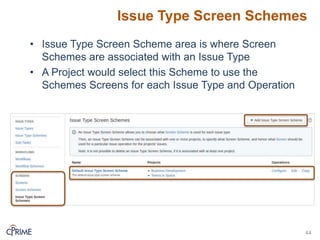
Issue Type ScreenSchemes
44
• Issue Type Screen Scheme area is where Screen
Schemes are associated with an Issue Type
• A Project would select this Scheme to use the
Schemes Screens for each Issue Type and Operation
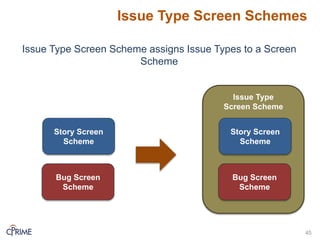
45.
Issue Type
Screen Scheme
IssueType Screen Schemes
45
Issue Type Screen Scheme assigns Issue Types to a Screen
Scheme
Bug Screen
Scheme
Story Screen
Scheme
Bug Screen
Scheme
Story Screen
Scheme
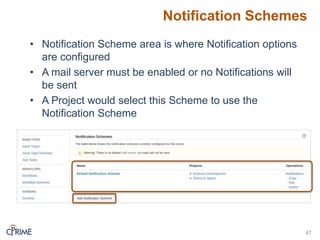
Notification Schemes
47
• NotificationScheme area is where Notification options
are configured
• A mail server must be enabled or no Notifications will
be sent
• A Project would select this Scheme to use the
Notification Scheme
48.
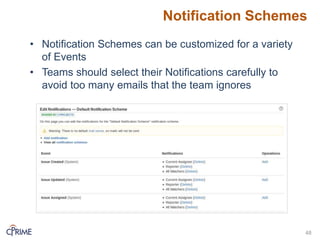
Notification Schemes
48
• NotificationSchemes can be customized for a variety
of Events
• Teams should select their Notifications carefully to
avoid too many emails that the team ignores
49.
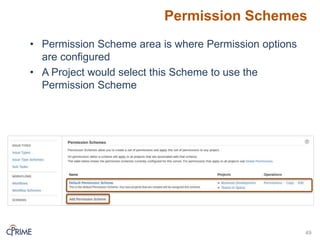
Permission Schemes
49
• PermissionScheme area is where Permission options
are configured
• A Project would select this Scheme to use the
Permission Scheme
50.
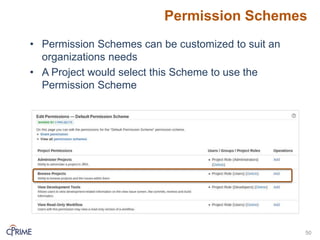
• Permission Schemescan be customized to suit an
organizations needs
• A Project would select this Scheme to use the
Permission Scheme
Permission Schemes
50
51.
Demo
• Issues Administration
•Issue Types and schemes
• Screens and schemes
• Workflows and schemes
• Notification schemes
• Permission schemes
51
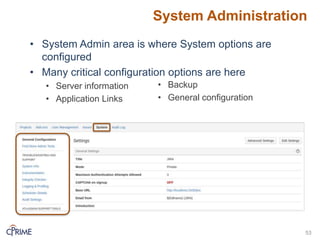
System Administration
53
• SystemAdmin area is where System options are
configured
• Many critical configuration options are here
• Server information
• Application Links
• Backup
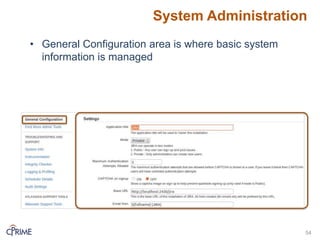
• General configuration
System Administration
55
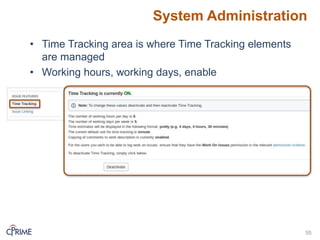
• TimeTracking area is where Time Tracking elements
are managed
• Working hours, working days, enable
56.
System Administration
56
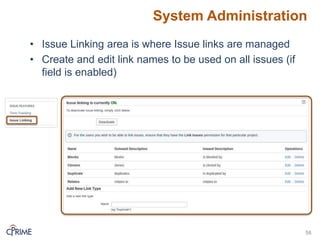
• IssueLinking area is where Issue links are managed
• Create and edit link names to be used on all issues (if
field is enabled)
57.
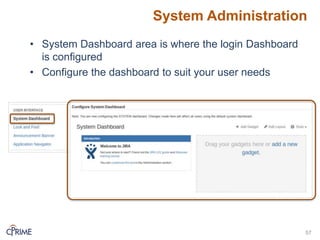
System Administration
57
• SystemDashboard area is where the login Dashboard
is configured
• Configure the dashboard to suit your user needs
58.
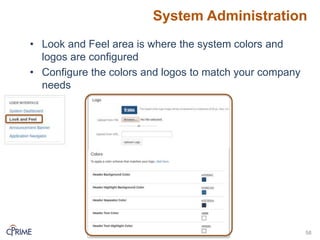
System Administration
58
• Lookand Feel area is where the system colors and
logos are configured
• Configure the colors and logos to match your company
needs
59.
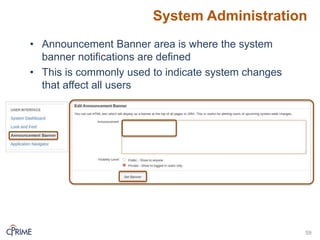
System Administration
59
• AnnouncementBanner area is where the system
banner notifications are defined
• This is commonly used to indicate system changes
that affect all users
60.
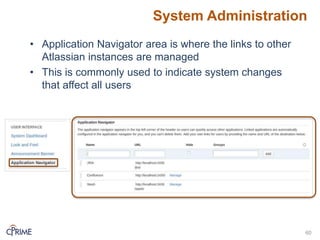
System Administration
60
• ApplicationNavigator area is where the links to other
Atlassian instances are managed
• This is commonly used to indicate system changes
that affect all users
61.
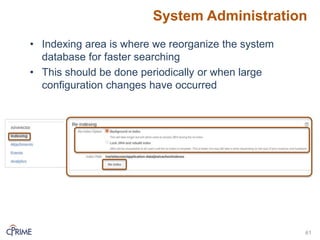
System Administration
61
• Indexingarea is where we reorganize the system
database for faster searching
• This should be done periodically or when large
configuration changes have occurred
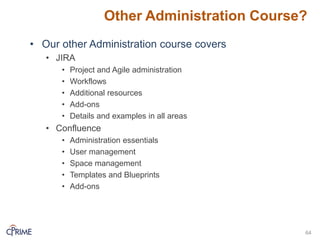
Other Administration Course?
•Our other Administration course covers
• JIRA
• Project and Agile administration
• Workflows
• Additional resources
• Add-ons
• Details and examples in all areas
• Confluence
• Administration essentials
• User management
• Space management
• Templates and Blueprints
• Add-ons
64