iPad
App-citement!Tiffany Brand
Technology Instructor, Dover Adult Learning Center
t.brand@dalc-online.org
What’s Different?
• Instant on – no waiting for boot-up
• Long battery life
• Packs a lot in a small package – Internet, cameras,
document storage, content creation, games, …
• Apps, apps and more apps – many free, for so many
different tasks.
• “Walled Garden” – you can’t “see” your files like you
can on a hard drive. Everything is controlled by
individual apps and passed between them, to the cloud,
or emailed out.
The Right Tool…
• Use the right tool for the job – it
won’t always be the iPad
• How are we using technology to
transform learning experiences?
• SAMR – Substitution –
Augmentation – Modification –
Redefinition
• Today we’ll see some things
that I think the iPad excels at…
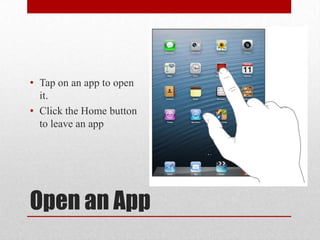
Open an App
• Tap on an app to open
it.
• Click the Home button
to leave an app
Install Apps
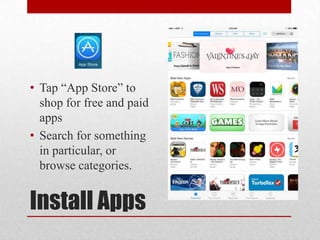
• Tap “App Store” to
shop for free and paid
apps
• Search for something
in particular, or
browse categories.
Install Apps
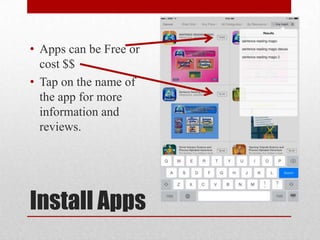
• Apps can be Free or
cost $$
• Tap on the name of
the app for more
information and
reviews.
Install Apps
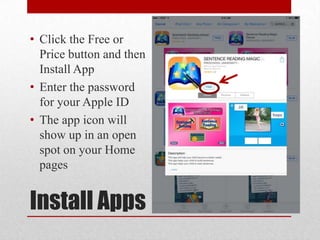
• Click the Free or
Price button and then
Install App
• Enter the password
for your Apple ID
• The app icon will
show up in an open
spot on your Home
pages
Organize Apps
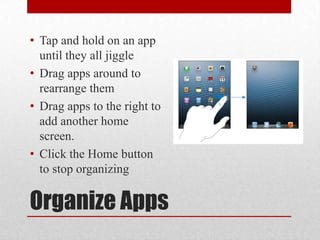
• Tap and hold on an app
until they all jiggle
• Drag apps around to
rearrange them
• Drag apps to the right to
add another home
screen.
• Click the Home button
to stop organizing
App-Citement!
• Most of the apps we’ll
talk about today are
FREE
• The ones that are not
will be marked with
the current price
• Some apps are free,
but have premium
features that are an
extra cost
APP-CITEMENT!
Personal Productivity
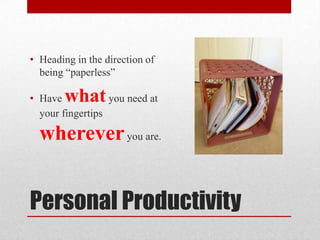
• Heading in the direction of
being “paperless”
• Have whatyou need at
your fingertips
whereveryou are.
Evernote
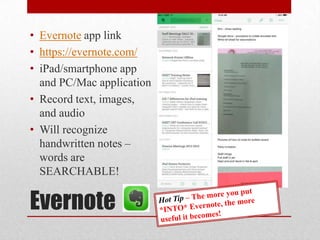
• Evernote app link
• https://evernote.com/
• iPad/smartphone app
and PC/Mac application
• Record text, images,
and audio
• Will recognize
handwritten notes –
words are
SEARCHABLE!
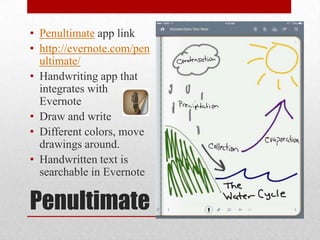
Penultimate
• Penultimate app link
• http://evernote.com/pen
ultimate/
• Handwriting app that
integrates with
Evernote
• Draw and write
• Different colors, move
drawings around.
• Handwritten text is
searchable in Evernote
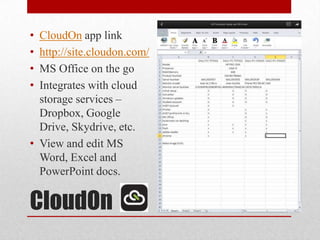
CloudOn
• CloudOn app link
• http://site.cloudon.com/
• MS Office on the go
• Integrates with cloud
storage services –
Dropbox, Google
Drive, Skydrive, etc.
• View and edit MS
Word, Excel and
PowerPoint docs.
APP-CITEMENT!
Creativity
Creativity
• Multimedia creation at your
fingertips
• What used to take multiple
devices, can now be done
with 1 iPad
• Manipulate photos &
drawings, publish and create
books, movies, and more!
Drawing
• Drawing tools at your
fingertips
• Collage
• Mark up photos
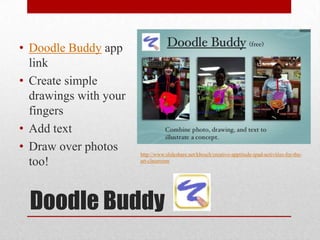
Doodle Buddy
• Doodle Buddy app
link
• Create simple
drawings with your
fingers
• Add text
• Draw over photos
too!
http://www.slideshare.net/kbosch/creative-apptitude-ipad-activities-for-the-
art-classroom
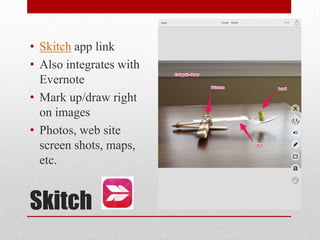
Skitch
• Skitch app link
• Also integrates with
Evernote
• Mark up/draw right
on images
• Photos, web site
screen shots, maps,
etc.
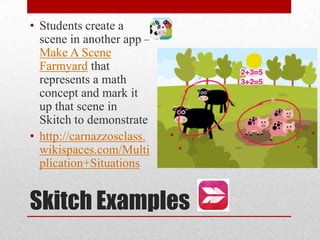
Skitch Examples
• Students create a
scene in another app –
Make A Scene
Farmyard that
represents a math
concept and mark it
up that scene in
Skitch to demonstrate
• http://carnazzosclass.
wikispaces.com/Multi
plication+Situations
Skitch Examples
• Take a picture of student work with the iPad and
then have them explain it to the class while
projecting and marking up with Skitch
http://reflectandrefine.blogspot.com/2012/07/using-
skitch-in-your-classroom.html
• http://carnazzosclass.wikispaces.com/Water+Cycle+
2014
E-Books
• Writing
• Art
• Audio – narration
• Video
• Publishing = more than
printing! Share with a wider
audience.
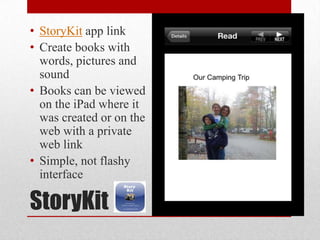
StoryKit
• StoryKit app link
• Create books with
words, pictures and
sound
• Books can be viewed
on the iPad where it
was created or on the
web with a private
web link
• Simple, not flashy
interface
StoryKit Examples
• Review of StoryKit -
http://msclarksteachingworld.weebly.com/story-
kit.html
• Example of a StoryKit story on the web:
http://iphone.childrenslibrary.org/cgi-
bin/view.py?b=gfgv3qofd74k675gstrk
• 5th Grade Social Studies examples:
http://craigsworld37.blogspot.com/2012/10/native-
american-storykit-projects.html
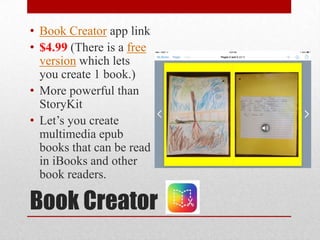
Book Creator
• Book Creator app link
• $4.99 (There is a free
version which lets
you create 1 book.)
• More powerful than
StoryKit
• Let’s you create
multimedia epub
books that can be read
in iBooks and other
book readers.
Book Creator Examples
• http://svasey103.weebly.com/5/post/2013/11/edtech
-in-action-legends-in-the-making.html
• http://www.pinterest.com/bookcreator/made-in-
book-creator/
• Science -
http://www.youtube.com/watch?v=uxZi_N4JJzQ
• Sharing – iPads, e-readers, or on a computer with
the free Readium Chrome extension -
http://readium.org/
Video Apps
• Plan, shoot and edit all on
one device
• Special effects – slow
motion, time lapse – great for
science appliations
• Whiteboard-style videos to
teach and explain
thinking/learning
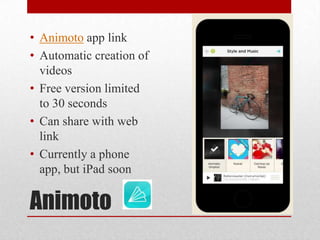
Animoto
• Animoto app link
• Automatic creation of
videos
• Free version limited
to 30 seconds
• Can share with web
link
• Currently a phone
app, but iPad soon
Animoto Examples
• Poetry – Haiku
• Book Trailers – The
Homework Machine
and more
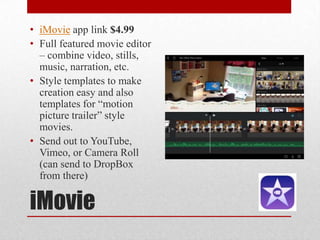
iMovie
• iMovie app link $4.99
• Full featured movie editor
– combine video, stills,
music, narration, etc.
• Style templates to make
creation easy and also
templates for “motion
picture trailer” style
movies.
• Send out to YouTube,
Vimeo, or Camera Roll
(can send to DropBox
from there)
iMovie Examples
• http://lindberghipads.blogspot.com/2013/05/c
reating-book-trailer-in-imovie.html
• http://creatinglllearners.blogspot.com/2013/0
7/readbox-qr-codes-book-trailers-with.html
Book Trailers:
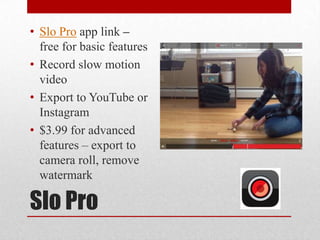
Slo Pro
• Slo Pro app link –
free for basic features
• Record slow motion
video
• Export to YouTube or
Instagram
• $3.99 for advanced
features – export to
camera roll, remove
watermark
Slo Pro Example
• http://mlearninginmedfield.blogspot.com/2013/
04/slow-motion-science.html
Slow Motion Science
IMotion HD
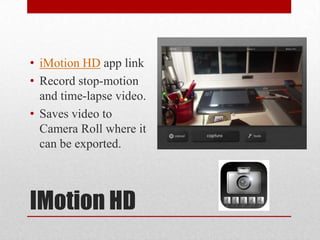
• iMotion HD app link
• Record stop-motion
and time-lapse video.
• Saves video to
Camera Roll where it
can be exported.
IMotion HD Resources
• http://stopmotionintheclassroom.weebly.com/ipad.h
tml
• http://mrbradfordonline.com/experimenting-with-
time-lapse-videos/
Educreations
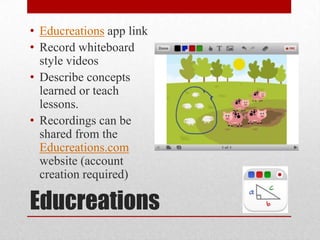
• Educreations app link
• Record whiteboard
style videos
• Describe concepts
learned or teach
lessons.
• Recordings can be
shared from the
Educreations.com
website (account
creation required)
APP-CITEMENT!
Augmented Reality
QR Codes
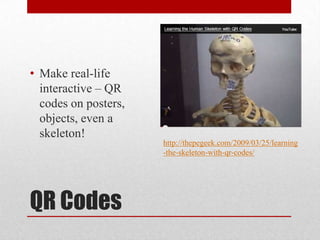
• Make real-life
interactive – QR
codes on posters,
objects, even a
skeleton!
http://thepegeek.com/2009/03/25/learning
-the-skeleton-with-qr-codes/
QR Codes
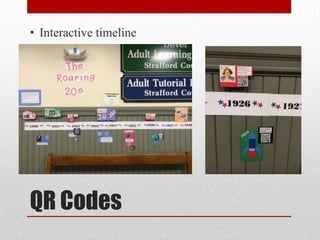
• Interactive timeline
Making QR Codes
• http://www.qrstuff.com
• Create a QR Code in Less Than One
Minute
Scanning QR Codes
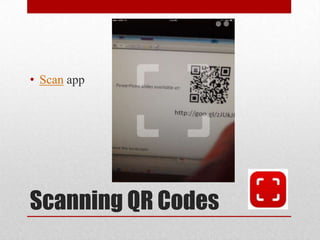
• Scan app
APP-CITEMENT!
Subject Area Apps
Subject Area Apps
• So Many! You just have to try them to find ones you like
for your class.
• Many education websites have lists of apps to check out:
https://sites.google.com/site/brand2learnworkshops/home
/wps-ipad-workshops
• Google is your friend! “Best iPad apps elementary Social
Studies”
• Here are a few examples…
Math
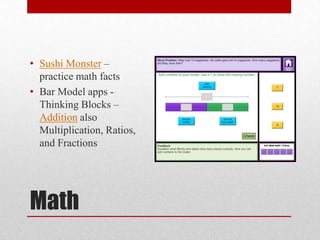
• Sushi Monster –
practice math facts
• Bar Model apps -
Thinking Blocks –
Addition also
Multiplication, Ratios,
and Fractions
Language Arts
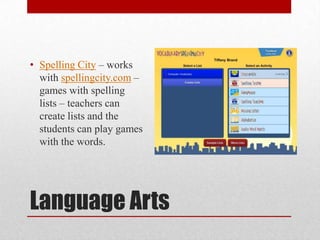
• Spelling City – works
with spellingcity.com –
games with spelling
lists – teachers can
create lists and the
students can play games
with the words.
Science
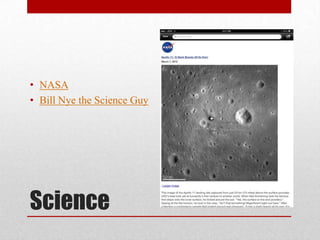
• NASA
• Bill Nye the Science Guy
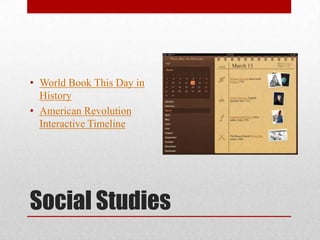
Social Studies
• World Book This Day in
History
• American Revolution
Interactive Timeline
APP-CITEMENT!
Next Steps…
Get Started
• What apps will work in your
classroom to transform learning
experiences?
• SAMR – Substitution –
Augmentation – Modification –
Redefinition
• Pick one app to try, get to know
it, and use it. See what works
and what doesn’t!
Questions?

iPad App-Citement!

  • 1.
    iPad App-citement!Tiffany Brand Technology Instructor,Dover Adult Learning Center t.brand@dalc-online.org
  • 2.
    What’s Different? • Instanton – no waiting for boot-up • Long battery life • Packs a lot in a small package – Internet, cameras, document storage, content creation, games, … • Apps, apps and more apps – many free, for so many different tasks. • “Walled Garden” – you can’t “see” your files like you can on a hard drive. Everything is controlled by individual apps and passed between them, to the cloud, or emailed out.
  • 3.
    The Right Tool… •Use the right tool for the job – it won’t always be the iPad • How are we using technology to transform learning experiences? • SAMR – Substitution – Augmentation – Modification – Redefinition • Today we’ll see some things that I think the iPad excels at…
  • 4.
    Open an App •Tap on an app to open it. • Click the Home button to leave an app
  • 5.
    Install Apps • Tap“App Store” to shop for free and paid apps • Search for something in particular, or browse categories.
  • 6.
    Install Apps • Appscan be Free or cost $$ • Tap on the name of the app for more information and reviews.
  • 7.
    Install Apps • Clickthe Free or Price button and then Install App • Enter the password for your Apple ID • The app icon will show up in an open spot on your Home pages
  • 8.
    Organize Apps • Tapand hold on an app until they all jiggle • Drag apps around to rearrange them • Drag apps to the right to add another home screen. • Click the Home button to stop organizing
  • 9.
    App-Citement! • Most ofthe apps we’ll talk about today are FREE • The ones that are not will be marked with the current price • Some apps are free, but have premium features that are an extra cost
  • 10.
  • 11.
    Personal Productivity • Headingin the direction of being “paperless” • Have whatyou need at your fingertips whereveryou are.
  • 12.
    Evernote • Evernote applink • https://evernote.com/ • iPad/smartphone app and PC/Mac application • Record text, images, and audio • Will recognize handwritten notes – words are SEARCHABLE!
  • 13.
    Penultimate • Penultimate applink • http://evernote.com/pen ultimate/ • Handwriting app that integrates with Evernote • Draw and write • Different colors, move drawings around. • Handwritten text is searchable in Evernote
  • 14.
    CloudOn • CloudOn applink • http://site.cloudon.com/ • MS Office on the go • Integrates with cloud storage services – Dropbox, Google Drive, Skydrive, etc. • View and edit MS Word, Excel and PowerPoint docs.
  • 15.
  • 16.
    Creativity • Multimedia creationat your fingertips • What used to take multiple devices, can now be done with 1 iPad • Manipulate photos & drawings, publish and create books, movies, and more!
  • 17.
    Drawing • Drawing toolsat your fingertips • Collage • Mark up photos
  • 18.
    Doodle Buddy • DoodleBuddy app link • Create simple drawings with your fingers • Add text • Draw over photos too! http://www.slideshare.net/kbosch/creative-apptitude-ipad-activities-for-the- art-classroom
  • 19.
    Skitch • Skitch applink • Also integrates with Evernote • Mark up/draw right on images • Photos, web site screen shots, maps, etc.
  • 20.
    Skitch Examples • Studentscreate a scene in another app – Make A Scene Farmyard that represents a math concept and mark it up that scene in Skitch to demonstrate • http://carnazzosclass. wikispaces.com/Multi plication+Situations
  • 21.
    Skitch Examples • Takea picture of student work with the iPad and then have them explain it to the class while projecting and marking up with Skitch http://reflectandrefine.blogspot.com/2012/07/using- skitch-in-your-classroom.html • http://carnazzosclass.wikispaces.com/Water+Cycle+ 2014
  • 22.
    E-Books • Writing • Art •Audio – narration • Video • Publishing = more than printing! Share with a wider audience.
  • 23.
    StoryKit • StoryKit applink • Create books with words, pictures and sound • Books can be viewed on the iPad where it was created or on the web with a private web link • Simple, not flashy interface
  • 24.
    StoryKit Examples • Reviewof StoryKit - http://msclarksteachingworld.weebly.com/story- kit.html • Example of a StoryKit story on the web: http://iphone.childrenslibrary.org/cgi- bin/view.py?b=gfgv3qofd74k675gstrk • 5th Grade Social Studies examples: http://craigsworld37.blogspot.com/2012/10/native- american-storykit-projects.html
  • 25.
    Book Creator • BookCreator app link • $4.99 (There is a free version which lets you create 1 book.) • More powerful than StoryKit • Let’s you create multimedia epub books that can be read in iBooks and other book readers.
  • 26.
    Book Creator Examples •http://svasey103.weebly.com/5/post/2013/11/edtech -in-action-legends-in-the-making.html • http://www.pinterest.com/bookcreator/made-in- book-creator/ • Science - http://www.youtube.com/watch?v=uxZi_N4JJzQ • Sharing – iPads, e-readers, or on a computer with the free Readium Chrome extension - http://readium.org/
  • 27.
    Video Apps • Plan,shoot and edit all on one device • Special effects – slow motion, time lapse – great for science appliations • Whiteboard-style videos to teach and explain thinking/learning
  • 28.
    Animoto • Animoto applink • Automatic creation of videos • Free version limited to 30 seconds • Can share with web link • Currently a phone app, but iPad soon
  • 29.
    Animoto Examples • Poetry– Haiku • Book Trailers – The Homework Machine and more
  • 30.
    iMovie • iMovie applink $4.99 • Full featured movie editor – combine video, stills, music, narration, etc. • Style templates to make creation easy and also templates for “motion picture trailer” style movies. • Send out to YouTube, Vimeo, or Camera Roll (can send to DropBox from there)
  • 31.
    iMovie Examples • http://lindberghipads.blogspot.com/2013/05/c reating-book-trailer-in-imovie.html •http://creatinglllearners.blogspot.com/2013/0 7/readbox-qr-codes-book-trailers-with.html Book Trailers:
  • 32.
    Slo Pro • SloPro app link – free for basic features • Record slow motion video • Export to YouTube or Instagram • $3.99 for advanced features – export to camera roll, remove watermark
  • 33.
    Slo Pro Example •http://mlearninginmedfield.blogspot.com/2013/ 04/slow-motion-science.html Slow Motion Science
  • 34.
    IMotion HD • iMotionHD app link • Record stop-motion and time-lapse video. • Saves video to Camera Roll where it can be exported.
  • 35.
    IMotion HD Resources •http://stopmotionintheclassroom.weebly.com/ipad.h tml • http://mrbradfordonline.com/experimenting-with- time-lapse-videos/
  • 36.
    Educreations • Educreations applink • Record whiteboard style videos • Describe concepts learned or teach lessons. • Recordings can be shared from the Educreations.com website (account creation required)
  • 37.
  • 38.
    QR Codes • Makereal-life interactive – QR codes on posters, objects, even a skeleton! http://thepegeek.com/2009/03/25/learning -the-skeleton-with-qr-codes/
  • 39.
  • 40.
    Making QR Codes •http://www.qrstuff.com • Create a QR Code in Less Than One Minute
  • 41.
  • 42.
  • 43.
    Subject Area Apps •So Many! You just have to try them to find ones you like for your class. • Many education websites have lists of apps to check out: https://sites.google.com/site/brand2learnworkshops/home /wps-ipad-workshops • Google is your friend! “Best iPad apps elementary Social Studies” • Here are a few examples…
  • 44.
    Math • Sushi Monster– practice math facts • Bar Model apps - Thinking Blocks – Addition also Multiplication, Ratios, and Fractions
  • 45.
    Language Arts • SpellingCity – works with spellingcity.com – games with spelling lists – teachers can create lists and the students can play games with the words.
  • 46.
    Science • NASA • BillNye the Science Guy
  • 47.
    Social Studies • WorldBook This Day in History • American Revolution Interactive Timeline
  • 48.
  • 49.
    Get Started • Whatapps will work in your classroom to transform learning experiences? • SAMR – Substitution – Augmentation – Modification – Redefinition • Pick one app to try, get to know it, and use it. See what works and what doesn’t!
  • 50.