Using Evernote to
Remember Everything
a delightful presentation by @laughtercrystal
What is Evernote?
Tool/App/Service
Mobile/Desktop/Web
“External Brain”
Stores notes, pictures, audio, documents, etc.
Notes, tags, notebooks, reminders, attachments,
links
ÜBER-SEARCHABLE!
•
•
•
•
•
•
How can I use it?
Document storage (Dropbox/iCloud)
Link/article saver (delicious, Pocket)
Inspiration board (Pinterest/scrapbook)
Archive of communications (Gmail/Outlook)
To-do lists (Siri/Wunderlist/pen & paper)
Personal reference information (your brain/files)
•
•
•
•
•
•
How do I add stuff?
Type directly into it on mobile, desktop, or web
interface
Email to your Evernote account email address
Drag & drop to desktop app
Page Camera/Microphone in mobile app
Browser extension (Web Clipper) or mobile apps
(EverClip, Lightly)
IFTTT recipes
•
•
•
•
•
•
How can I search?
Notebooks
Tags
Keywords (very robust)
Text in photos, PDFs, documents
Location created
Date created or modified
•
•
•
•
•
•
Document Storage
Limitless cumulative storage space
Monthly allowance is large (esp. if Premium)
Never have to email yourself
Scan paper docs directly (Doxie/Eye-Fi)
Page Camera (mobile)
•
•
•
•
•
Link/Article Saver
Copy/Paste
Web clipper (browser)
EverClip (mobile)
IFTTT/Pocket
Forward emails
Available offline! (Premium feature)
•
•
•
•
•
•
Inspiration Board
Project lists
Inspiration photos
Household projects
Travel plans
Design/decorating inspiration
Blog post ideas/drafts
Personal & Professional goals
•
•
•
•
•
•
•
Archive of
Communications
Meeting minutes
Notes from calls
Emails/scanned mail
Confirmation numbers/order history
Access, reference, and search easily
•
•
•
•
•
To-do Lists
Default Inbox notebook (empty constantly)
Mark Reminders/Due dates for all actionable
items
Ordered by notebook/project
Link to/between notes for accessing complex
projects (Table of Contents)
Reminder IS the note you’re working on
•
•
•
•
•
Personal Reference
Information
Login usernames/passwords
Account numbers
Bills, pay stubs, reference documents
Manuals (QR linked to item/equipment)
Scan everything—Going paperless
•
•
•
•
•
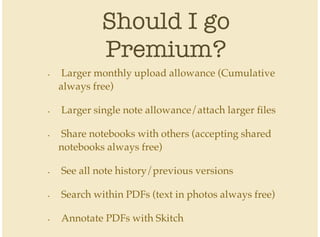
Should I go
Premium?
Larger monthly upload allowance (Cumulative
always free)
Larger single note allowance/attach larger files
Share notebooks with others (accepting shared
notebooks always free)
See all note history/previous versions
Search within PDFs (text in photos always free)
Annotate PDFs with Skitch
•
•
•
•
•
•
Fun Stuff
Extras & Examples•
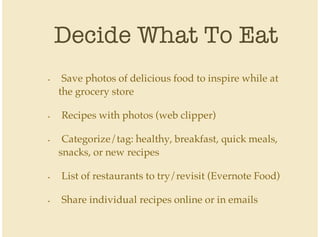
Decide What To Eat
Save photos of delicious food to inspire while at
the grocery store
Recipes with photos (web clipper)
Categorize/tag: healthy, breakfast, quick meals,
snacks, or new recipes
List of restaurants to try/revisit (Evernote Food)
Share individual recipes online or in emails
•
•
•
•
•
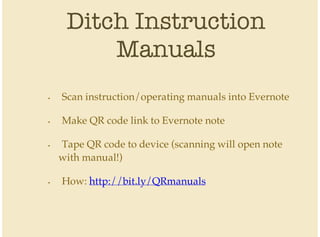
Ditch Instruction
Manuals
Scan instruction/operating manuals into Evernote
Make QR code link to Evernote note
Tape QR code to device (scanning will open note
with manual!)
How: http://bit.ly/QRmanuals
•
•
•
•
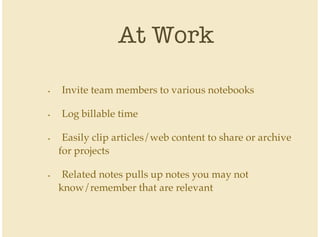
At Work
Invite team members to various notebooks
Log billable time
Easily clip articles/web content to share or archive
for projects
Related notes pulls up notes you may not
know/remember that are relevant
•
•
•
•
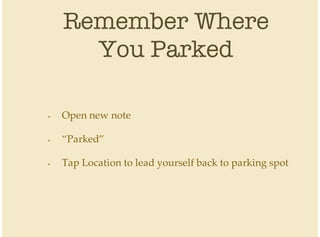
Remember Where
You Parked
Open new note
“Parked”
Tap Location to lead yourself back to parking spot
•
•
•
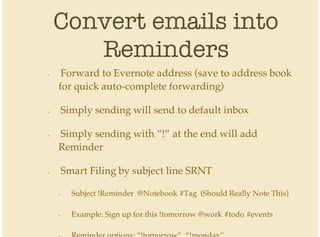
Convert emails into
Reminders
Forward to Evernote address (save to address book
for quick auto-complete forwarding)
Simply sending will send to default inbox
Simply sending with “!” at the end will add
Reminder
Smart Filing by subject line SRNT
Subject !Reminder @Notebook #Tag (Should Really Note This)
Example: Sign up for this !tomorrow @work #todo #events
•
•
•
•
•
•
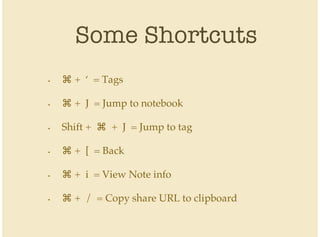
Some Shortcuts
⌘ + ‘ = Tags
⌘ + J = Jump to notebook
Shift + ⌘ + J = Jump to tag
⌘ + [ = Back
⌘ + i = View Note info
⌘ + / = Copy share URL to clipboard
•
•
•
•
•
•
More resources
Endless case studies, examples, tutorials at
blog.evernote.com
Evernote Paperless: jamierubin.net
My tips & tricks: laughtercrystal.com
•
•
•
Questions?
@laughtercrystal
laughtercrystal.com

Using Evernote to Remember Everything

  • 1.
    Using Evernote to RememberEverything a delightful presentation by @laughtercrystal
  • 2.
    What is Evernote? Tool/App/Service Mobile/Desktop/Web “ExternalBrain” Stores notes, pictures, audio, documents, etc. Notes, tags, notebooks, reminders, attachments, links ÜBER-SEARCHABLE! • • • • • •
  • 3.
    How can Iuse it? Document storage (Dropbox/iCloud) Link/article saver (delicious, Pocket) Inspiration board (Pinterest/scrapbook) Archive of communications (Gmail/Outlook) To-do lists (Siri/Wunderlist/pen & paper) Personal reference information (your brain/files) • • • • • •
  • 4.
    How do Iadd stuff? Type directly into it on mobile, desktop, or web interface Email to your Evernote account email address Drag & drop to desktop app Page Camera/Microphone in mobile app Browser extension (Web Clipper) or mobile apps (EverClip, Lightly) IFTTT recipes • • • • • •
  • 5.
    How can Isearch? Notebooks Tags Keywords (very robust) Text in photos, PDFs, documents Location created Date created or modified • • • • • •
  • 6.
    Document Storage Limitless cumulativestorage space Monthly allowance is large (esp. if Premium) Never have to email yourself Scan paper docs directly (Doxie/Eye-Fi) Page Camera (mobile) • • • • •
  • 7.
    Link/Article Saver Copy/Paste Web clipper(browser) EverClip (mobile) IFTTT/Pocket Forward emails Available offline! (Premium feature) • • • • • •
  • 8.
    Inspiration Board Project lists Inspirationphotos Household projects Travel plans Design/decorating inspiration Blog post ideas/drafts Personal & Professional goals • • • • • • •
  • 9.
    Archive of Communications Meeting minutes Notesfrom calls Emails/scanned mail Confirmation numbers/order history Access, reference, and search easily • • • • •
  • 10.
    To-do Lists Default Inboxnotebook (empty constantly) Mark Reminders/Due dates for all actionable items Ordered by notebook/project Link to/between notes for accessing complex projects (Table of Contents) Reminder IS the note you’re working on • • • • •
  • 11.
    Personal Reference Information Login usernames/passwords Accountnumbers Bills, pay stubs, reference documents Manuals (QR linked to item/equipment) Scan everything—Going paperless • • • • •
  • 12.
    Should I go Premium? Largermonthly upload allowance (Cumulative always free) Larger single note allowance/attach larger files Share notebooks with others (accepting shared notebooks always free) See all note history/previous versions Search within PDFs (text in photos always free) Annotate PDFs with Skitch • • • • • •
  • 13.
    Fun Stuff Extras &Examples•
  • 14.
    Decide What ToEat Save photos of delicious food to inspire while at the grocery store Recipes with photos (web clipper) Categorize/tag: healthy, breakfast, quick meals, snacks, or new recipes List of restaurants to try/revisit (Evernote Food) Share individual recipes online or in emails • • • • •
  • 15.
    Ditch Instruction Manuals Scan instruction/operatingmanuals into Evernote Make QR code link to Evernote note Tape QR code to device (scanning will open note with manual!) How: http://bit.ly/QRmanuals • • • •
  • 16.
    At Work Invite teammembers to various notebooks Log billable time Easily clip articles/web content to share or archive for projects Related notes pulls up notes you may not know/remember that are relevant • • • •
  • 17.
    Remember Where You Parked Opennew note “Parked” Tap Location to lead yourself back to parking spot • • •
  • 18.
    Convert emails into Reminders Forwardto Evernote address (save to address book for quick auto-complete forwarding) Simply sending will send to default inbox Simply sending with “!” at the end will add Reminder Smart Filing by subject line SRNT Subject !Reminder @Notebook #Tag (Should Really Note This) Example: Sign up for this !tomorrow @work #todo #events • • • • • •
  • 19.
    Some Shortcuts ⌘ +‘ = Tags ⌘ + J = Jump to notebook Shift + ⌘ + J = Jump to tag ⌘ + [ = Back ⌘ + i = View Note info ⌘ + / = Copy share URL to clipboard • • • • • •
  • 20.
    More resources Endless casestudies, examples, tutorials at blog.evernote.com Evernote Paperless: jamierubin.net My tips & tricks: laughtercrystal.com • • •
  • 21.