LaGrange Area Department of Special Education


     OT & PT APPS
           October 19, 2012

               Presented by:
              Sandy Chiampas
               Ellen Deutsch
                 Kim Hagar
           Michelle Mannix Richard
Purpose
             •To learn about the latest educational
               apps


Protocols:
•Be fully present
•Take care of each other
•Take it personally
•Think outside the box
•Embrace your inner geek
ladseitech.pbworks.com


Check here for an
      updated
list of OT/PT apps,
     Including
      ones not
   demonstrated
       in this
    presentation.
                      •LADSE’S App List
                      •Cheat Sheets
                      •Videos of Apps
                      •App Comparisons
Do Apps Help with Fine
Motor?

                  as a


 •   http://otswithapps.com/2012/05/03/do-app
Special Features:

  Guided Access(ios 6 only)
  Speak Text
  Turn off Auto Correction
  Screen Shots
  Turning off Multitasking
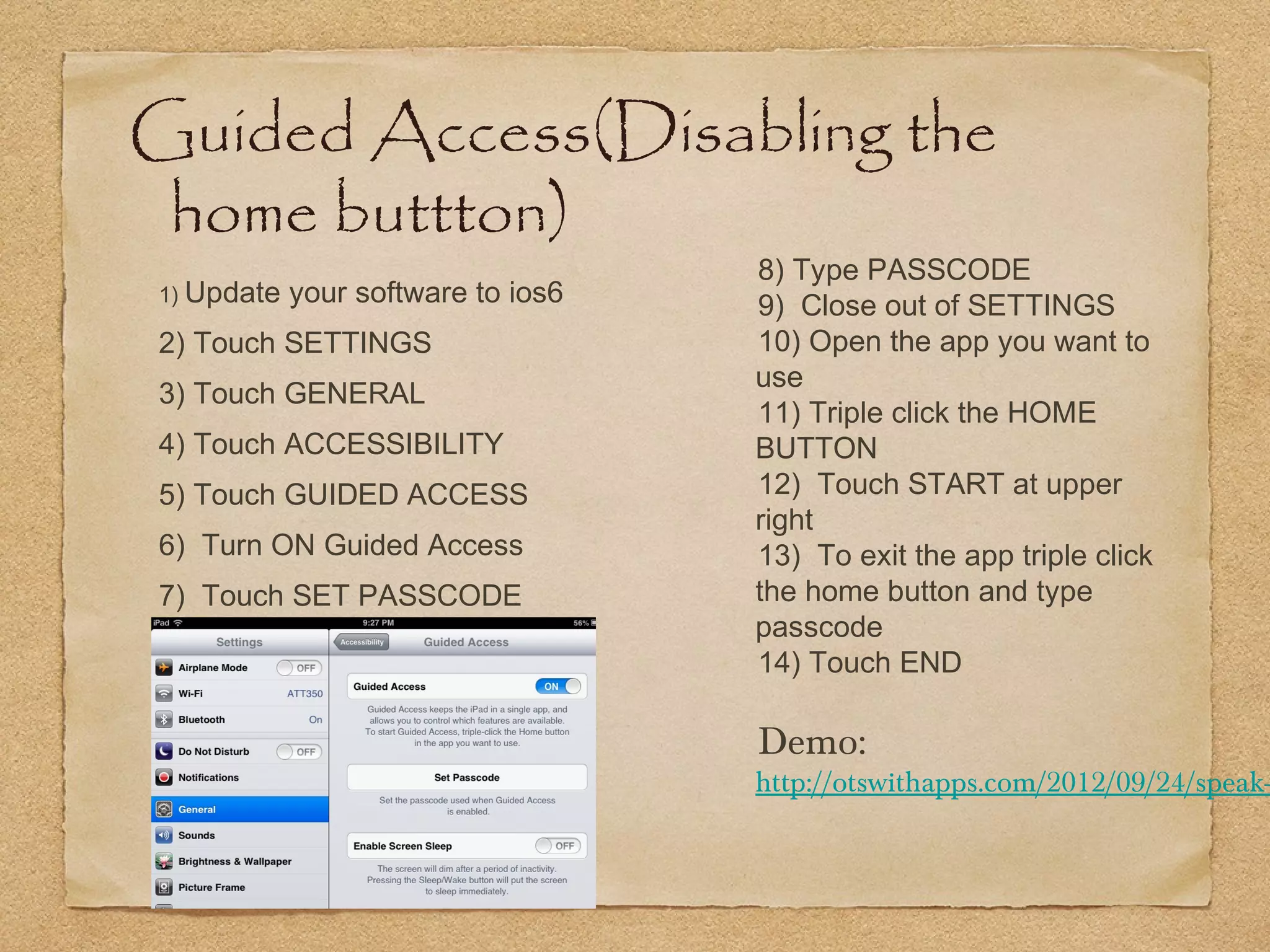
Guided Access(Disabling the
 home buttton)
                                    8) Type PASSCODE
1) Update   your software to ios6   9) Close out of SETTINGS
2) Touch SETTINGS                   10) Open the app you want to
                                    use
3) Touch GENERAL
                                    11) Triple click the HOME
4) Touch ACCESSIBILITY              BUTTON
5) Touch GUIDED ACCESS              12) Touch START at upper
                                    right
6) Turn ON Guided Access            13) To exit the app triple click
7) Touch SET PASSCODE               the home button and type
                                    passcode
                                    14) Touch END

                                    Demo:
                                    http://otswithapps.com/2012/09/24/speak-
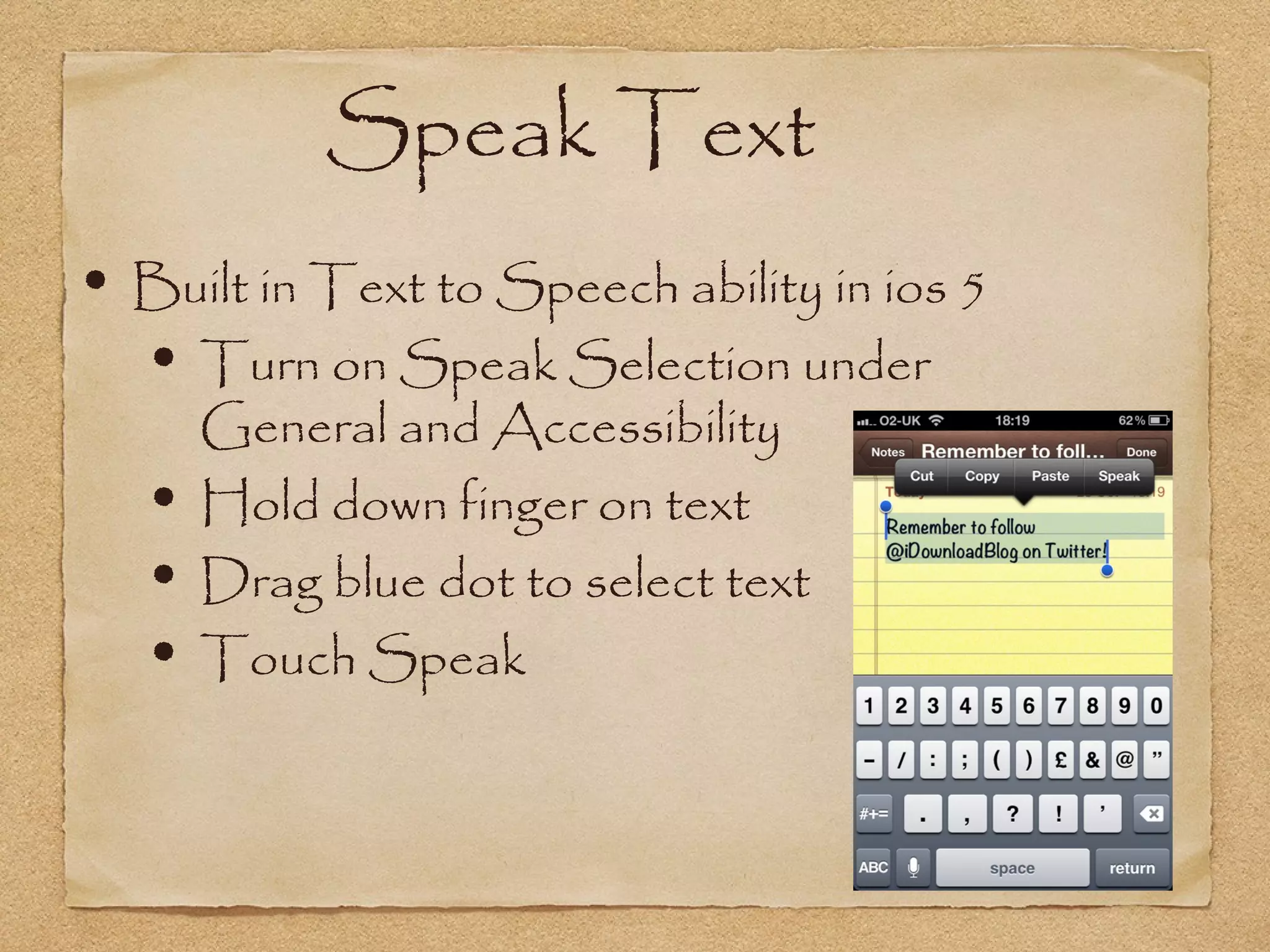
Speak Text
• Built in Text to Speech ability in ios 5
  • Turn on Speak Selection under
       General and Accessibility
   •   Hold down finger on text
   •   Drag blue dot to select text
   •   Touch Speak
Turning off Auto
Correction & Spell
Check
       1.Go to SETTINGS
       2.Go to GENERAL
       3.Go to KEYBOARD
       4.Uncheck AUTO
       CORRECTION
       5.Uncheck CHECK
       SPELLING
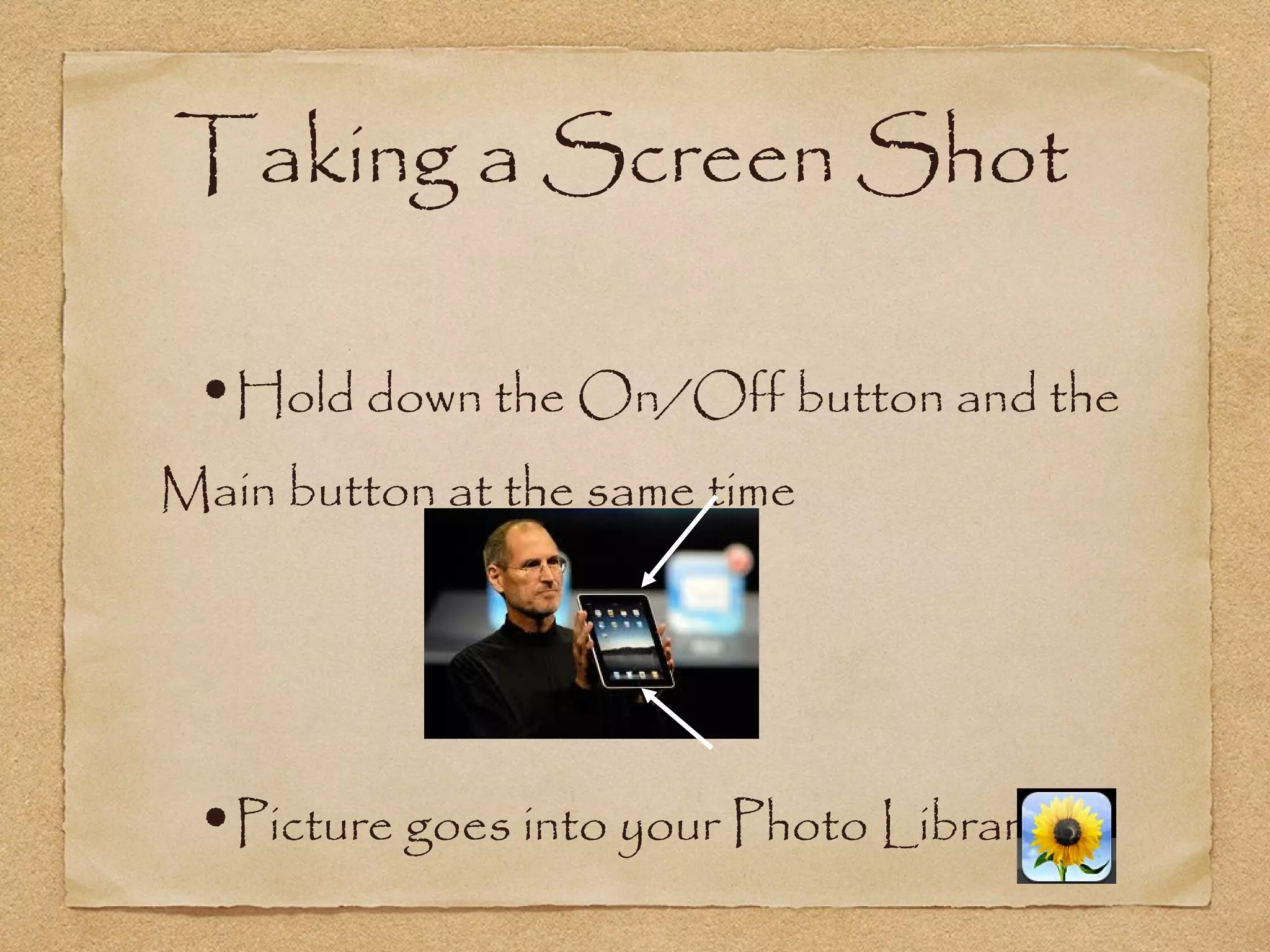
Taking a Screen Shot

 •Hold down the On/Off button and the
Main button at the same time


 •Picture goes into your Photo Library
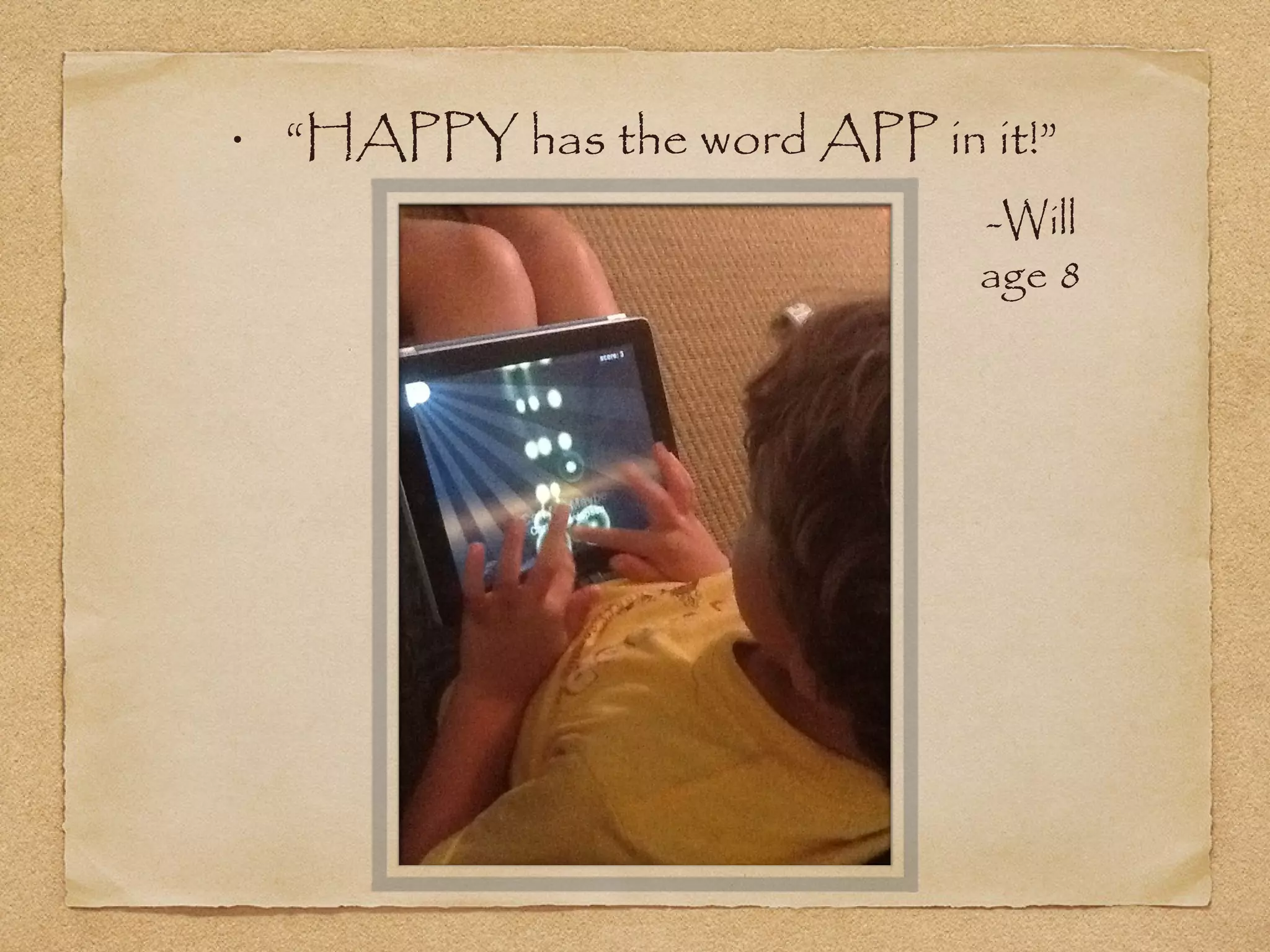
•   “HAPPY has the word APP in it!”
                               -Will
                               age 8
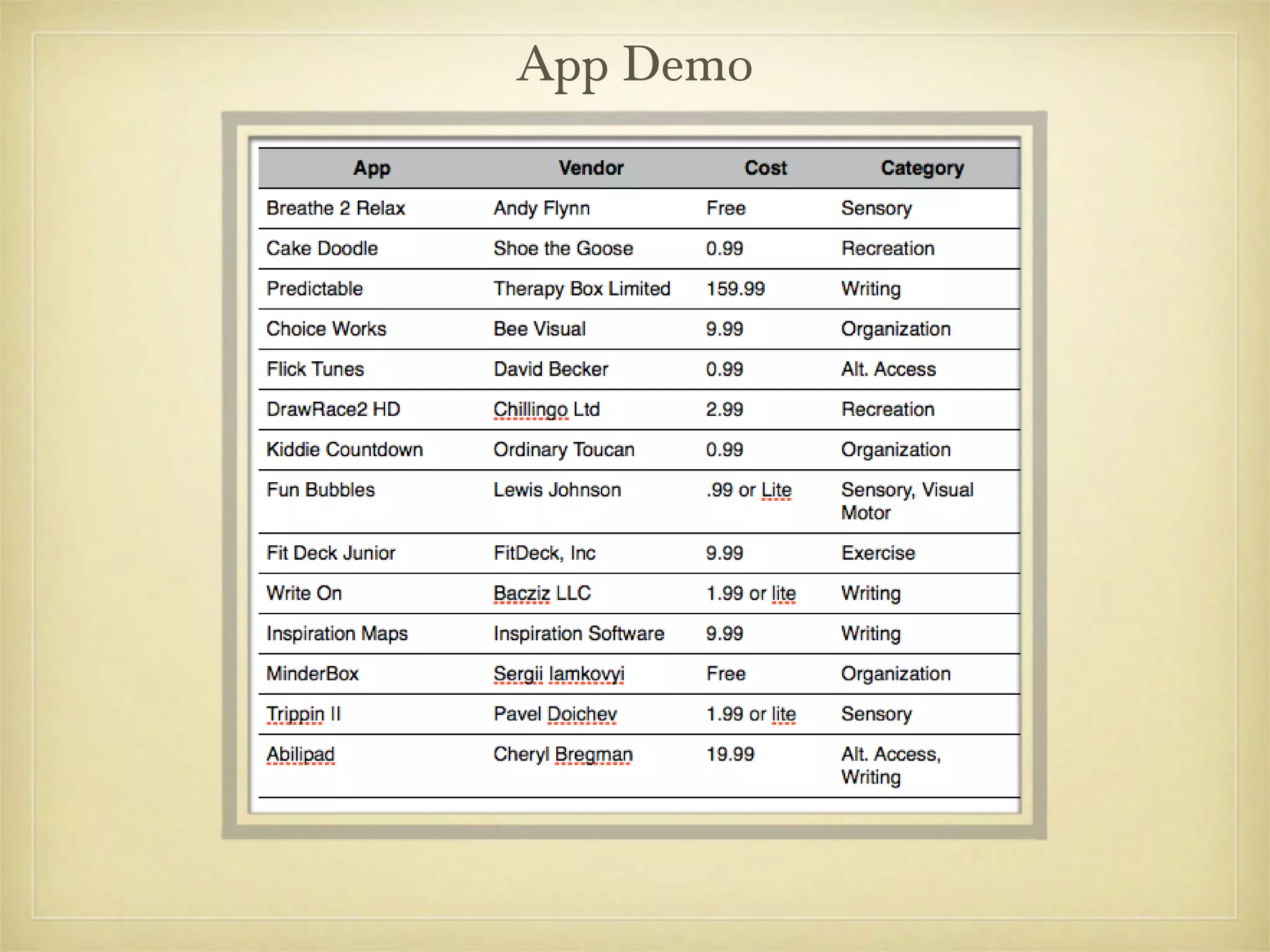
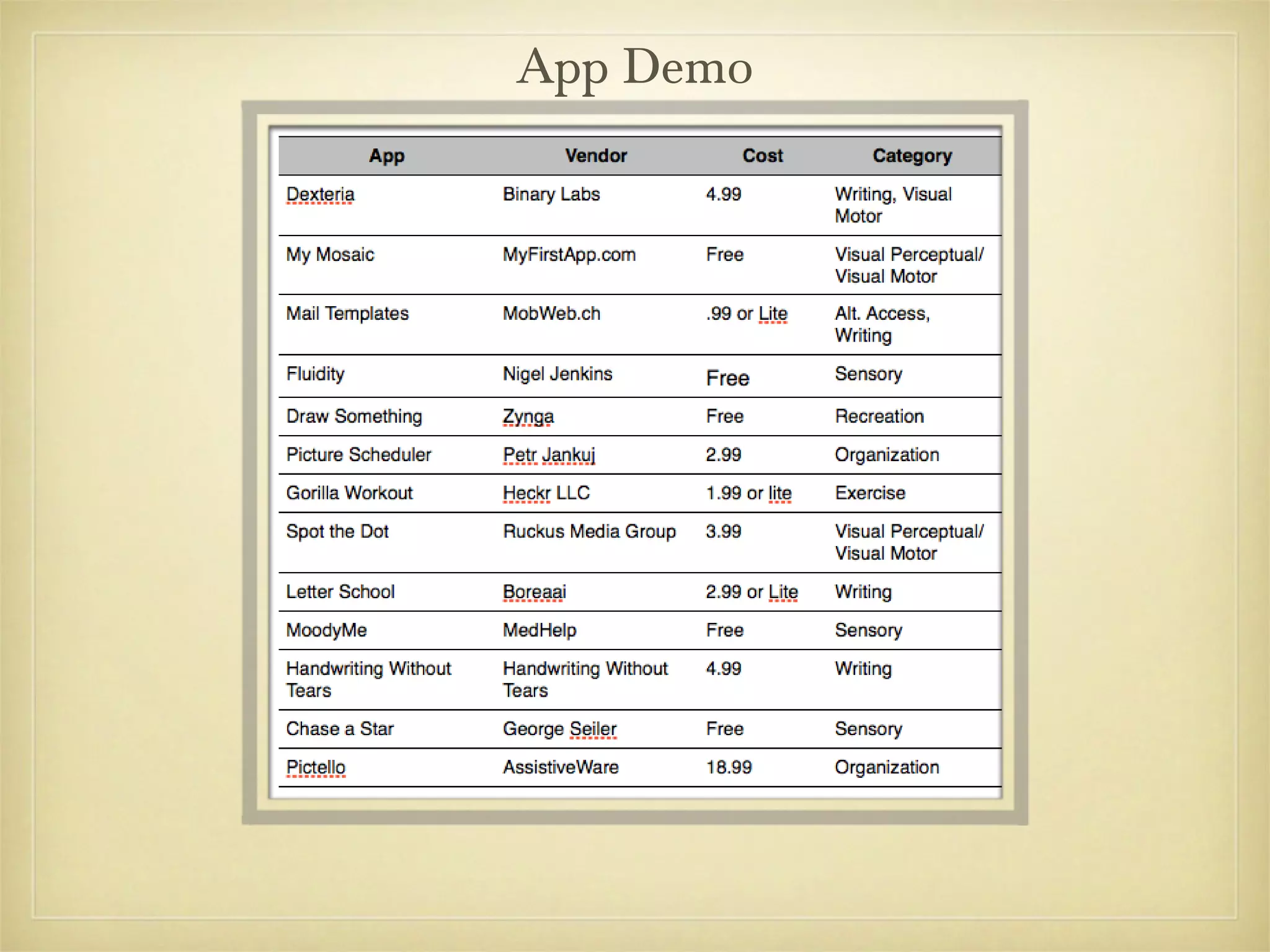
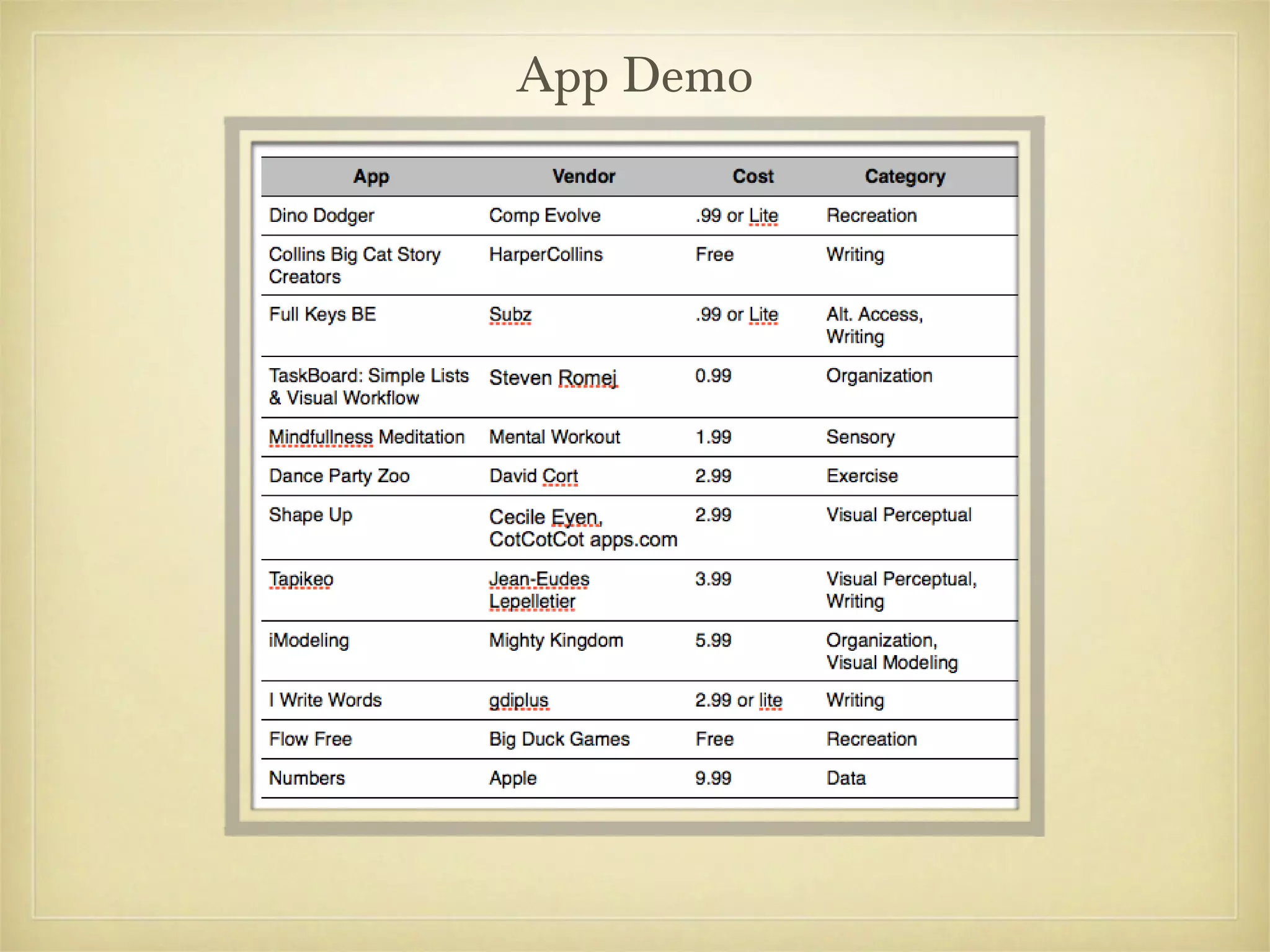
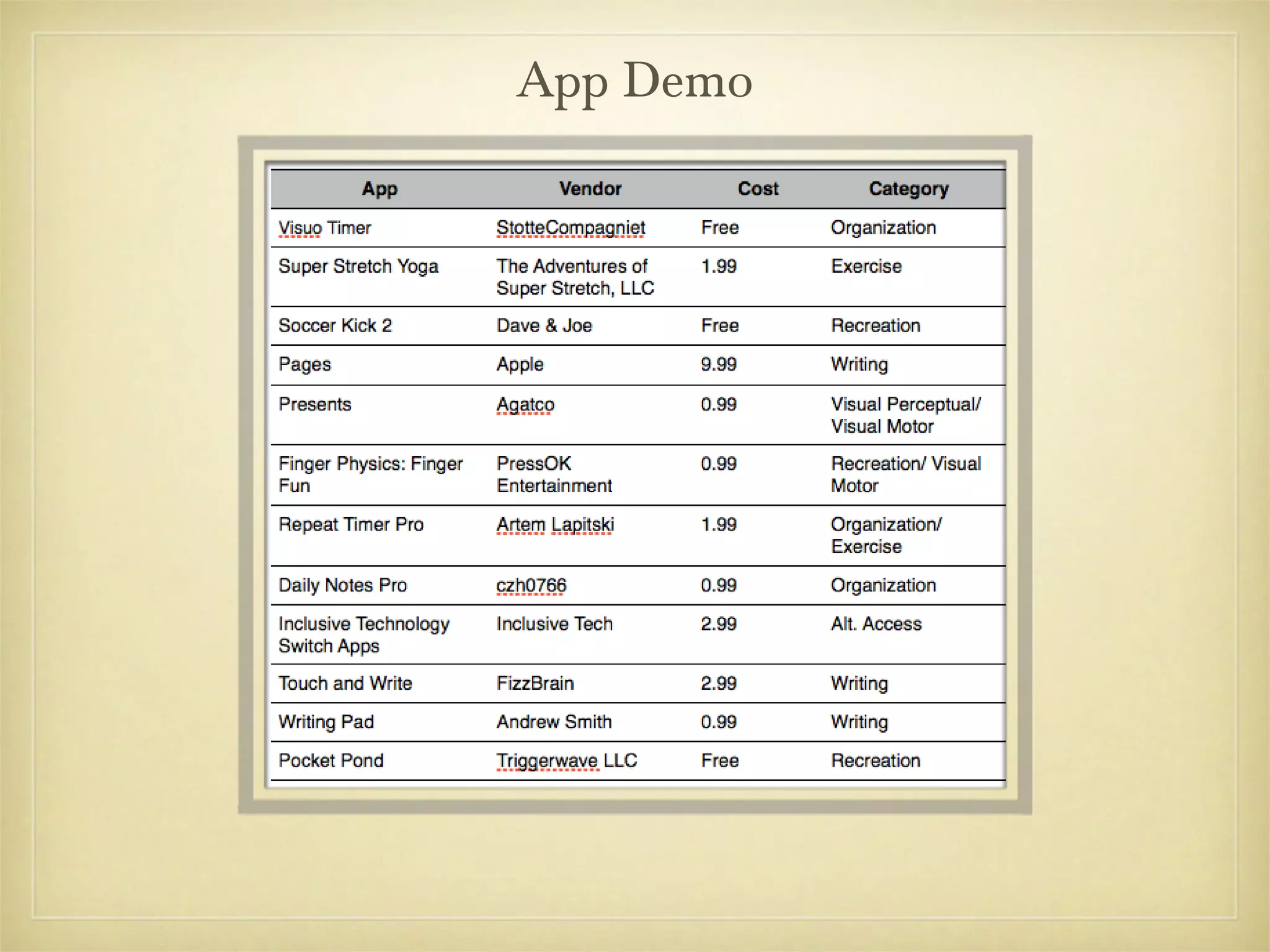
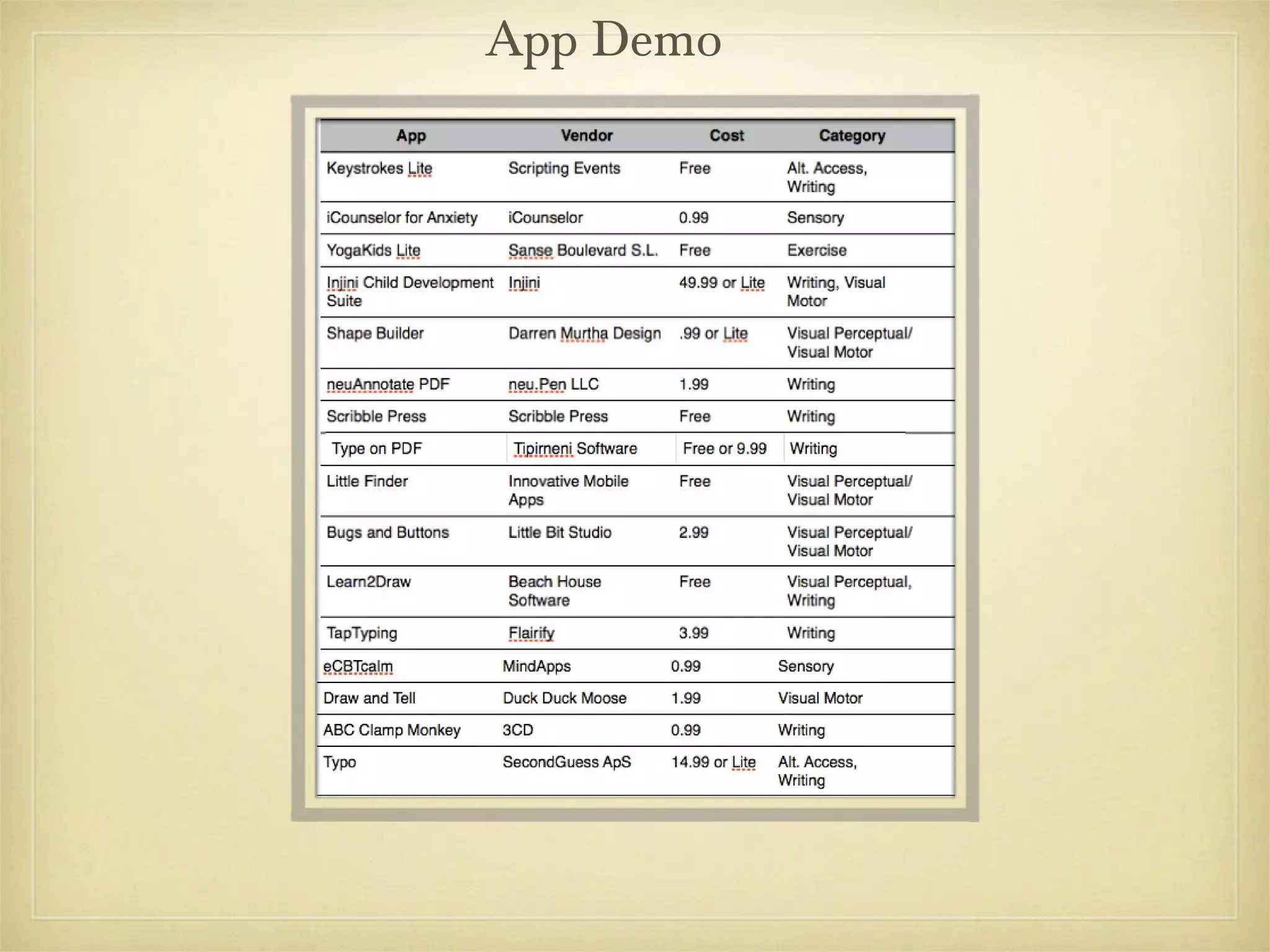
App Demo
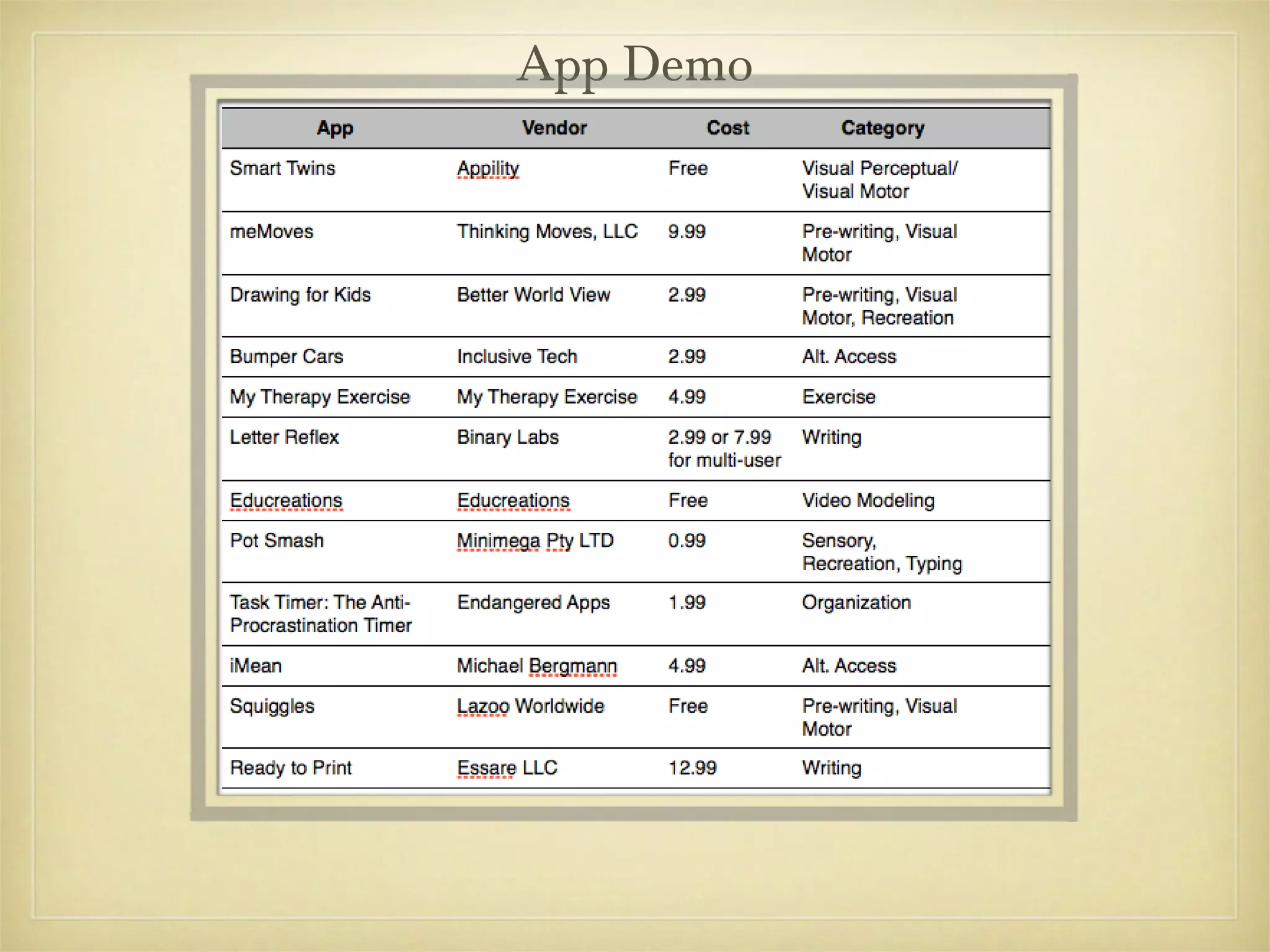
App Demo
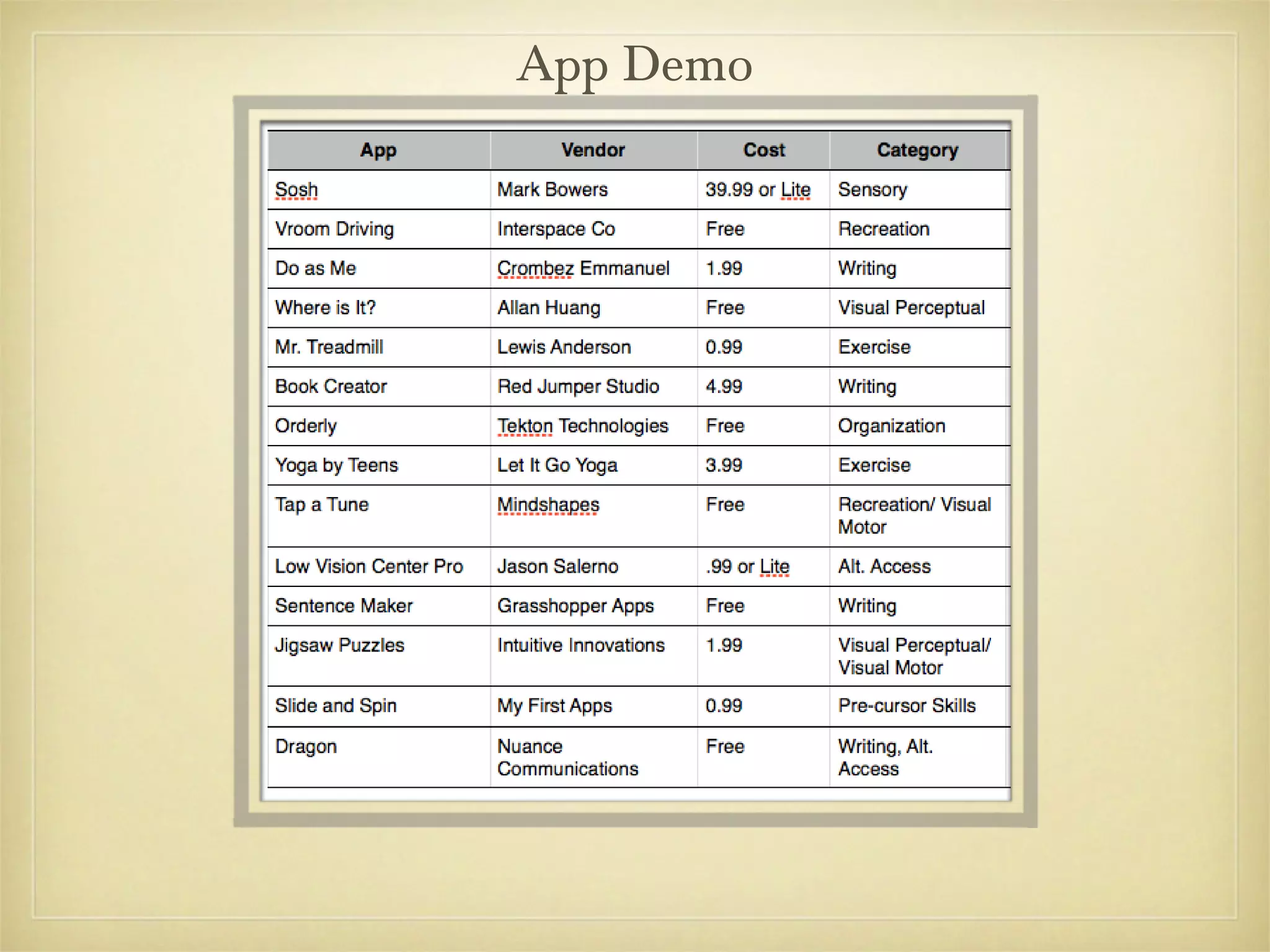
App Demo
App Demo
App Demo
App Demo
App Demo
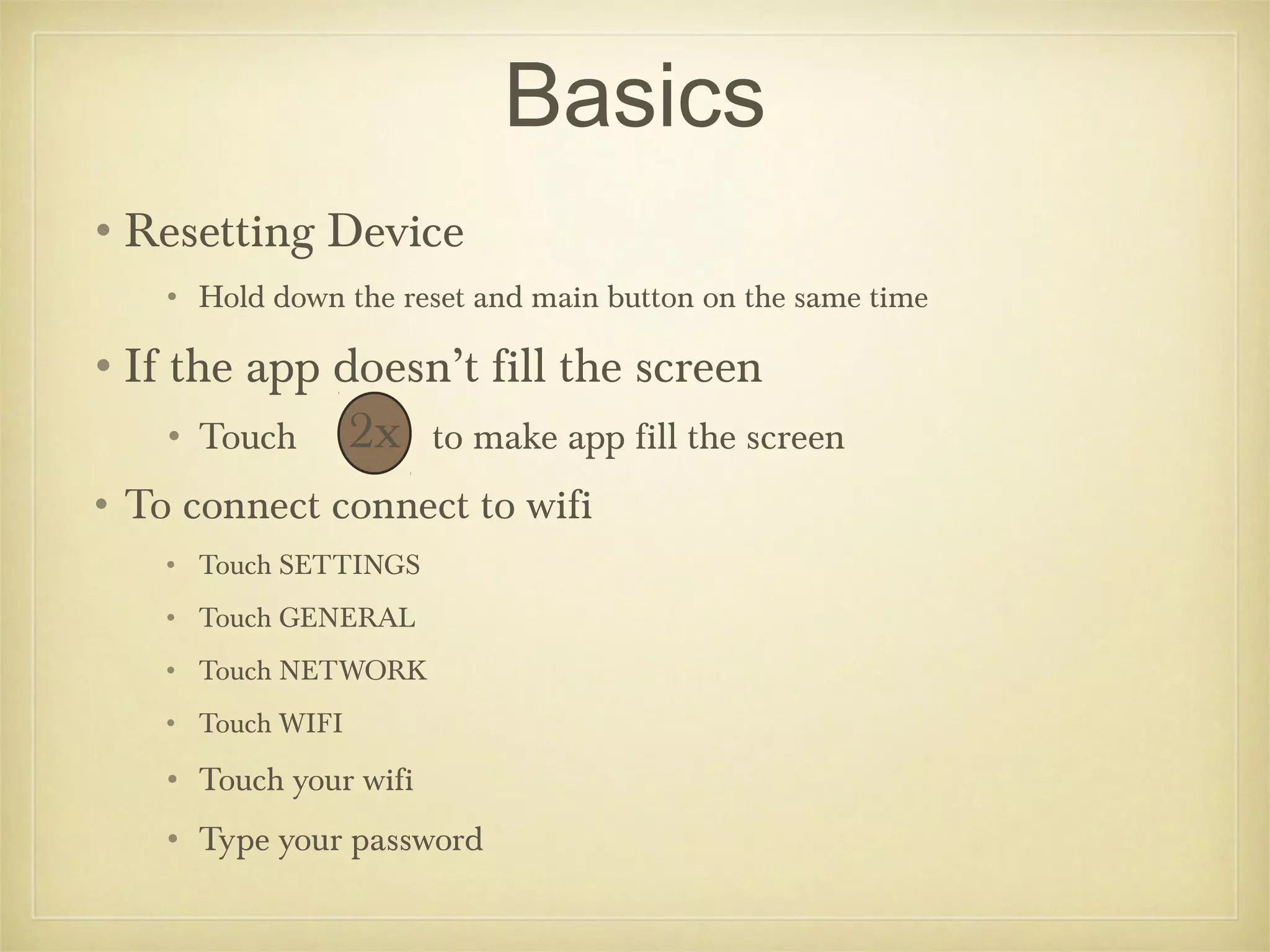
Basics
•Resetting Device
    • Hold down the reset and main button on the same time

•If the app doesn’t fill the screen
    • Touch        2x   to make app fill the screen
• To connect connect to wifi
    • Touch SETTINGS
    • Touch GENERAL
    • Touch NETWORK
    • Touch WIFI

    • Touch your wifi
    • Type your password
Getting a Google Picture
               (must have wifi)
•Touch SAFARI
•In GOOGLE BOX type name of picture
•Touch SEARCH
•Touch IMAGES
•Touch and hold desired picture until SAVE
 IMAGE appears
•Touch SAVE IMAGE
•Picture is in your PHOTO LIBRARY
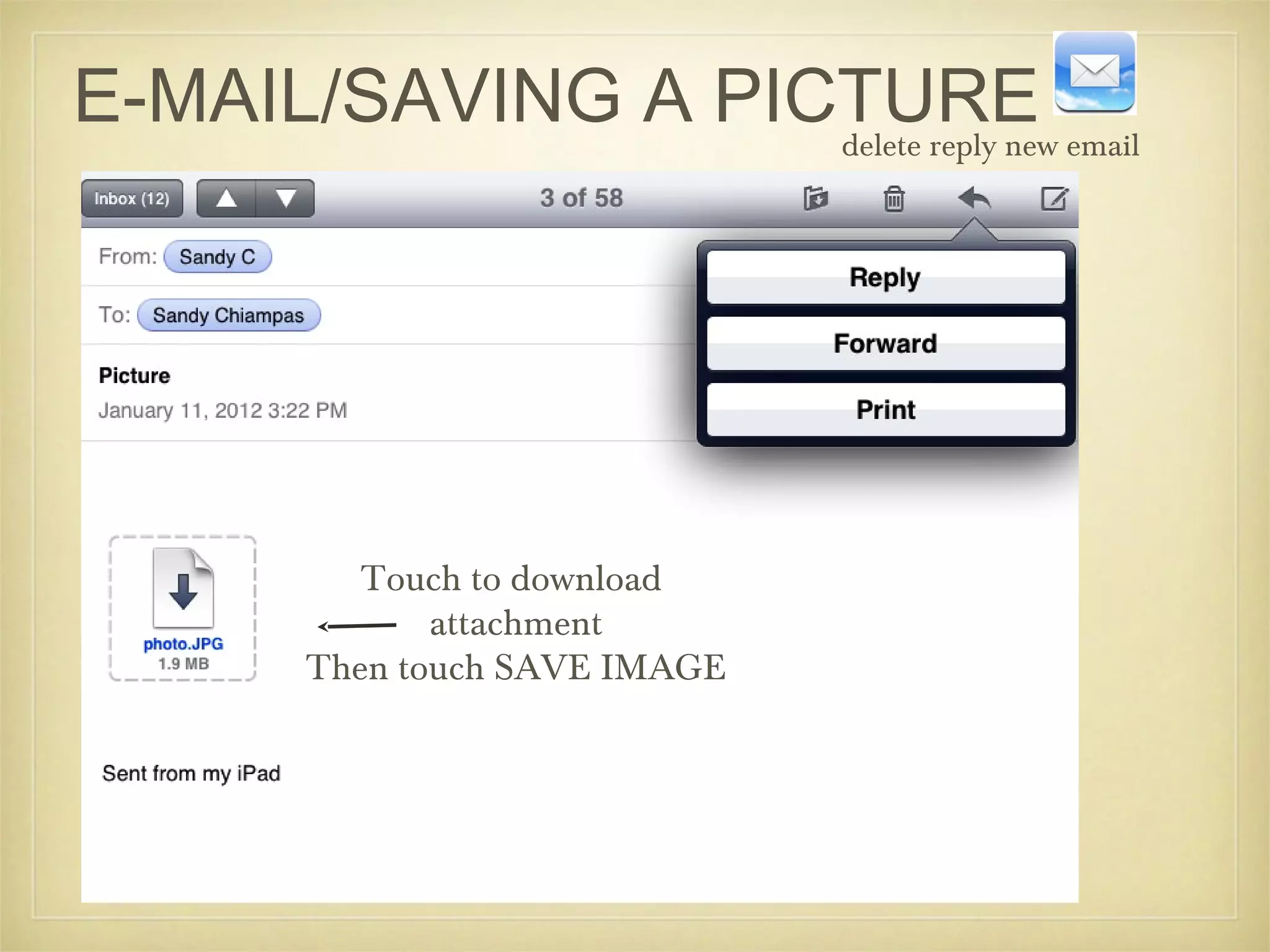
E-MAIL/SAVING A PICTURE email
                   delete reply new


          Touch to download
              attachment
       Then touch SAVE IMAGE
ORGANIZING PHOTOS
•Open Photo Library
• Touch upper right square with arrow
•Select desired photos
•Touch ADD TO
•Touch ADD TO NEW ALBUM
•Type NAME of new album
•Type SAVE
Editing Photos
•Touch Photo Library
•Touch Picture you want to Edit
•Touch EDIT
•Touch desired action on bottom of screen
   •rotate
   •enhance
   •red eye
   •crop
SYNCHING PICTURES
    TO THE CLOUD
•Touch SETTINGS
•Touch iCloud
•Touch PHOTO STREAM then touch ON
•Then on your device under PHOTOS you will see
 PHOTO STREAM as an option for where your
 pictures are stored
• Touch EDIT
                                    Reminders
• Touch CREATE NEW LIST
• Type name of NEW LIST
• Touch DONE
• Touch NAME OF NEW LIST
• Touch + (upper right)
• Type NAME OF NEW TASK
• Touch RETURN to add more tasks or KEYBOARD BUTTON if done
• Touch a TASK
• Touch REMIND ME to add time
• Touch OFF next to ON A DAY
• Touch DATE to change time/date and DONE
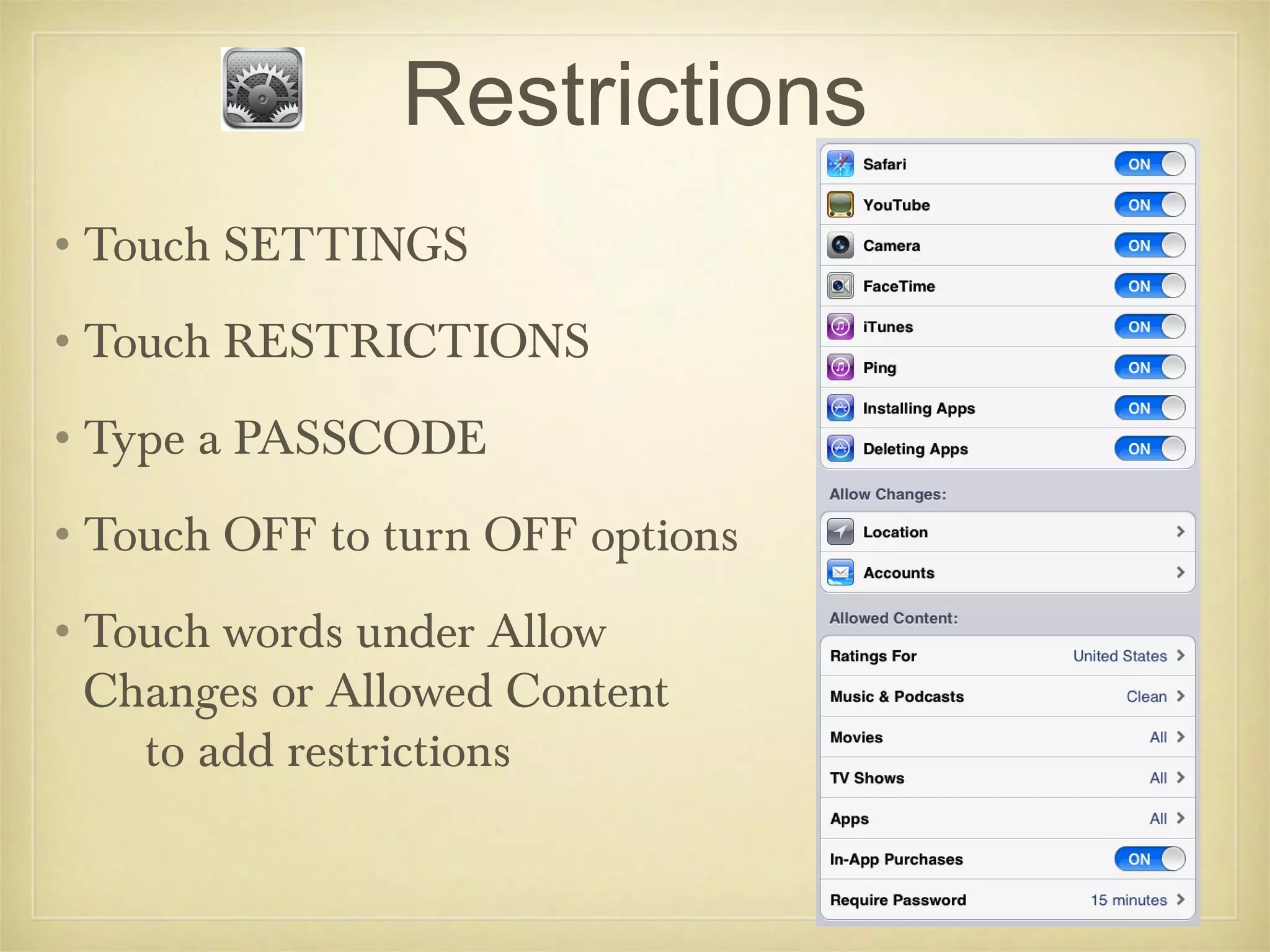
Restrictions
•Touch SETTINGS
•Touch RESTRICTIONS
•Type a PASSCODE
•Touch OFF to turn OFF options
•Touch words under Allow
 Changes or Allowed Content
   to add restrictions
Accessibility
• Touch SETTINGS then GENERAL
• Touch ACCESSIBILITY
• Touch to change the following:
    • Voice over
    • Zoom
    • Large Text
    • White on Black
    • Speak Selection
    • Speak Auto-Text
    • Mono Audio
    • AssistiveTouch
    • Triple-click Home
MORE APP INFO....
Switch Adapted Apps
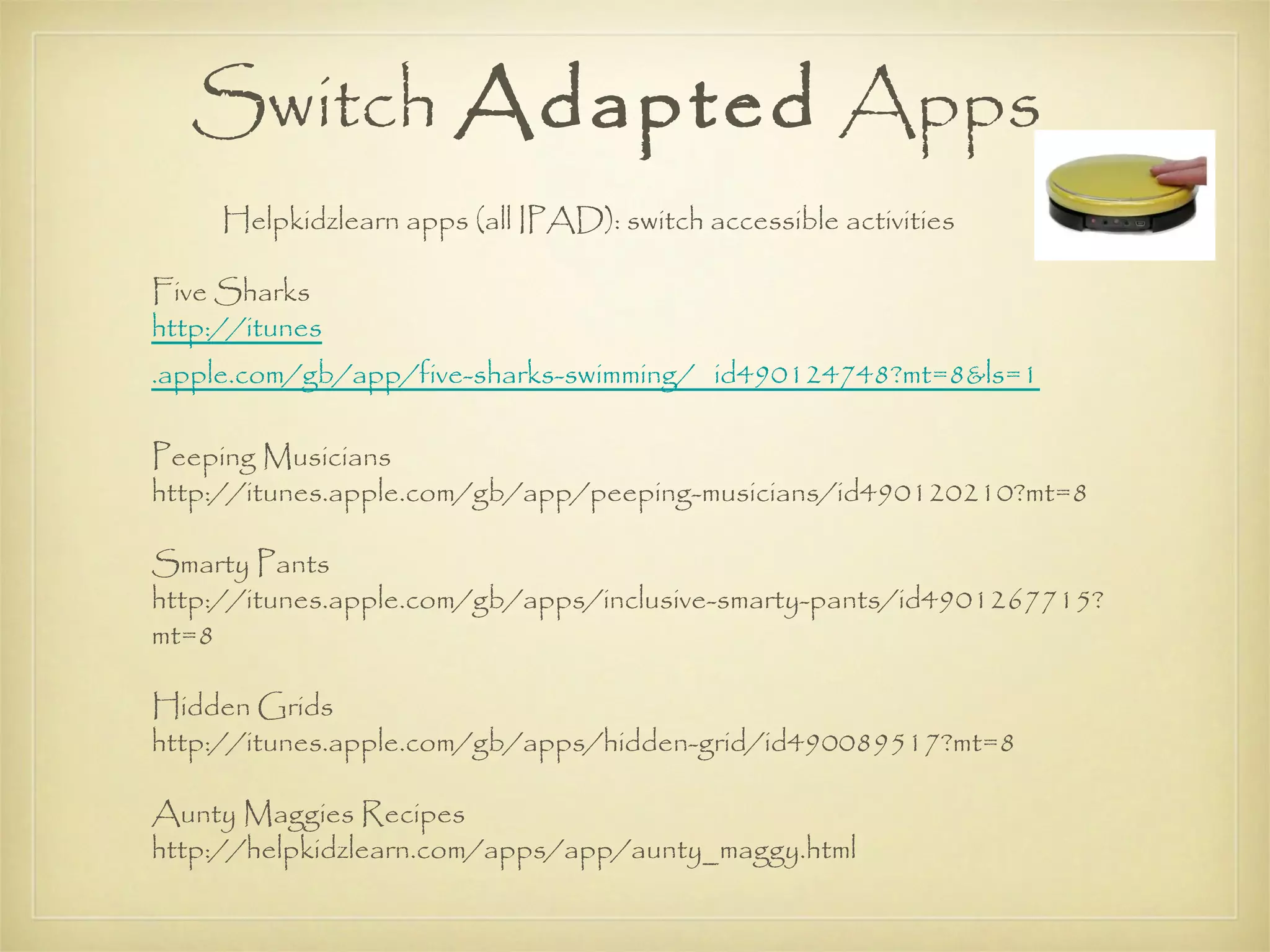
     Helpkidzlearn apps (all IPAD): switch accessible activities

Five Sharks
http://itunes
.apple.com/gb/app/five-sharks-swimming/ id490124748?mt=8&ls=1

Peeping Musicians
http://itunes.apple.com/gb/app/peeping-musicians/id490120210?mt=8

Smarty Pants
http://itunes.apple.com/gb/apps/inclusive-smarty-pants/id4901267715?
mt=8

Hidden Grids
http://itunes.apple.com/gb/apps/hidden-grid/id490089517?mt=8

Aunty Maggies Recipes
http://helpkidzlearn.com/apps/app/aunty_maggy.html
Dragon on the iPad & Computer
• Dragon App                                Dragon Software (Mac/ PC)
• No training required                      •Requires voice training

• No commands to memorize                      •Will learn voice and vocabulary patterns

• Does require wireless access              •Use commands to perform tasks and make
                                            corrections
• Limited to dictation of text within the
  app                                       •No wireless required

• 1 minute maximum                          •Can use to dictate text in multiple
                                            applications AND operate/maneuver around
• Can copy/email to other apps              the computer
• Requires direct select access to          •Better accuracy and recognition capabilities
  work/navigate the app
                                            •No direct select required


http://otswithapps.com/2012/03/07/dragon-dictate-vs-dragon-naturallyspeaking-whats-the-differen
Keyboarding Practice on Your
 iPad or Android – Apps and
      Other Equipment


  • http://otswithapps.com/2012/07/07/keyboarding-pra
6 Best Word Processor Apps
          for iPad


•http://otswithapps.com/2012/09/17/6-best-word-
 processor-apps-for-ipad-techshout/
Best Reading Apps to
        Support Students


•http://otswithapps.com/2012/07/14/reading-apps-
 support-for-students-with-ld-5/
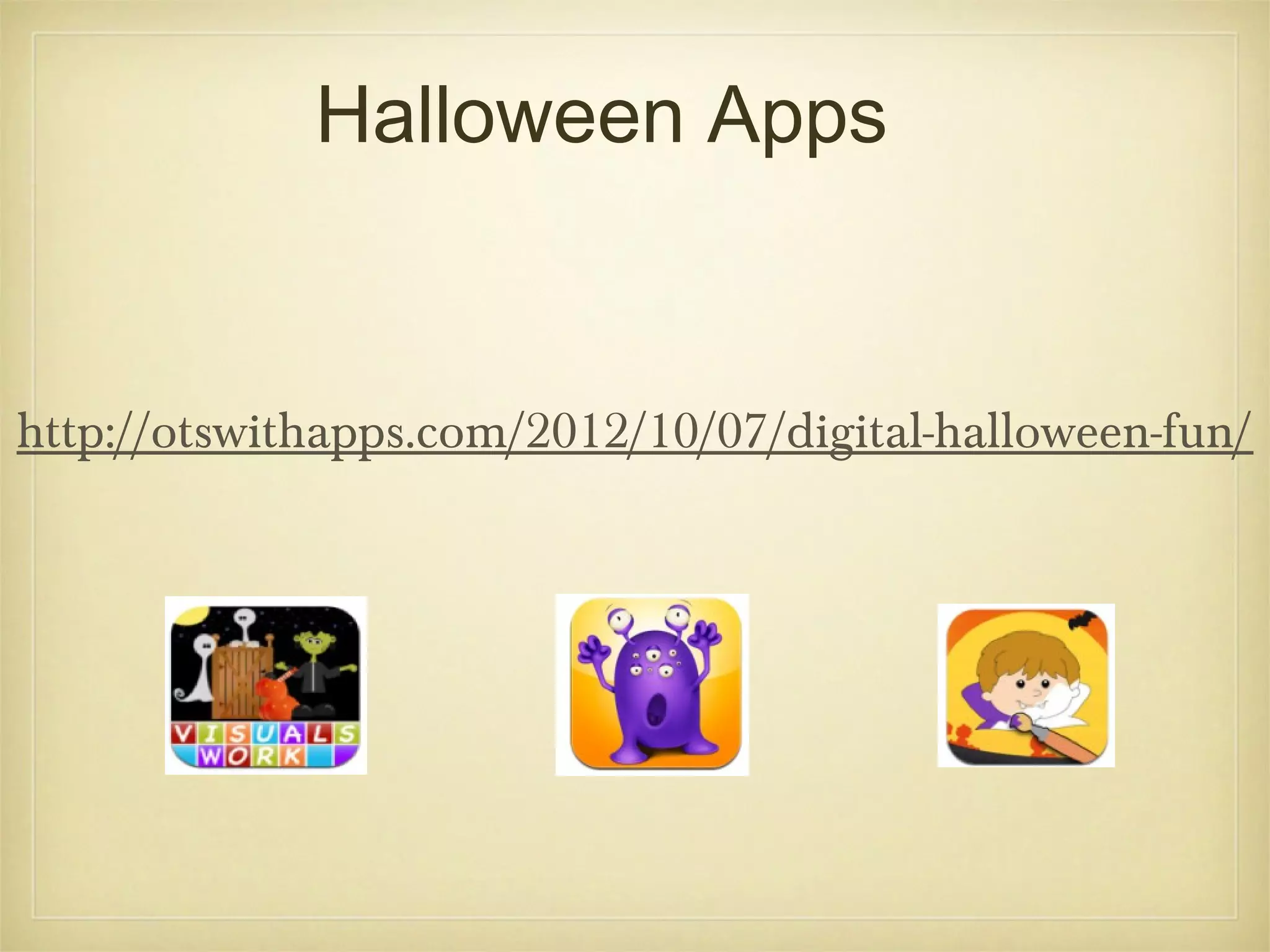
Halloween Apps


http://otswithapps.com/2012/10/07/digital-halloween-fun/
Apps For Data

•Observe
•SuperDuper Data Tracker
•ABC Data
•Percentally
•Counter Lite
Stylus Resources


http://ifaraday.com/

http://beststylus.com/
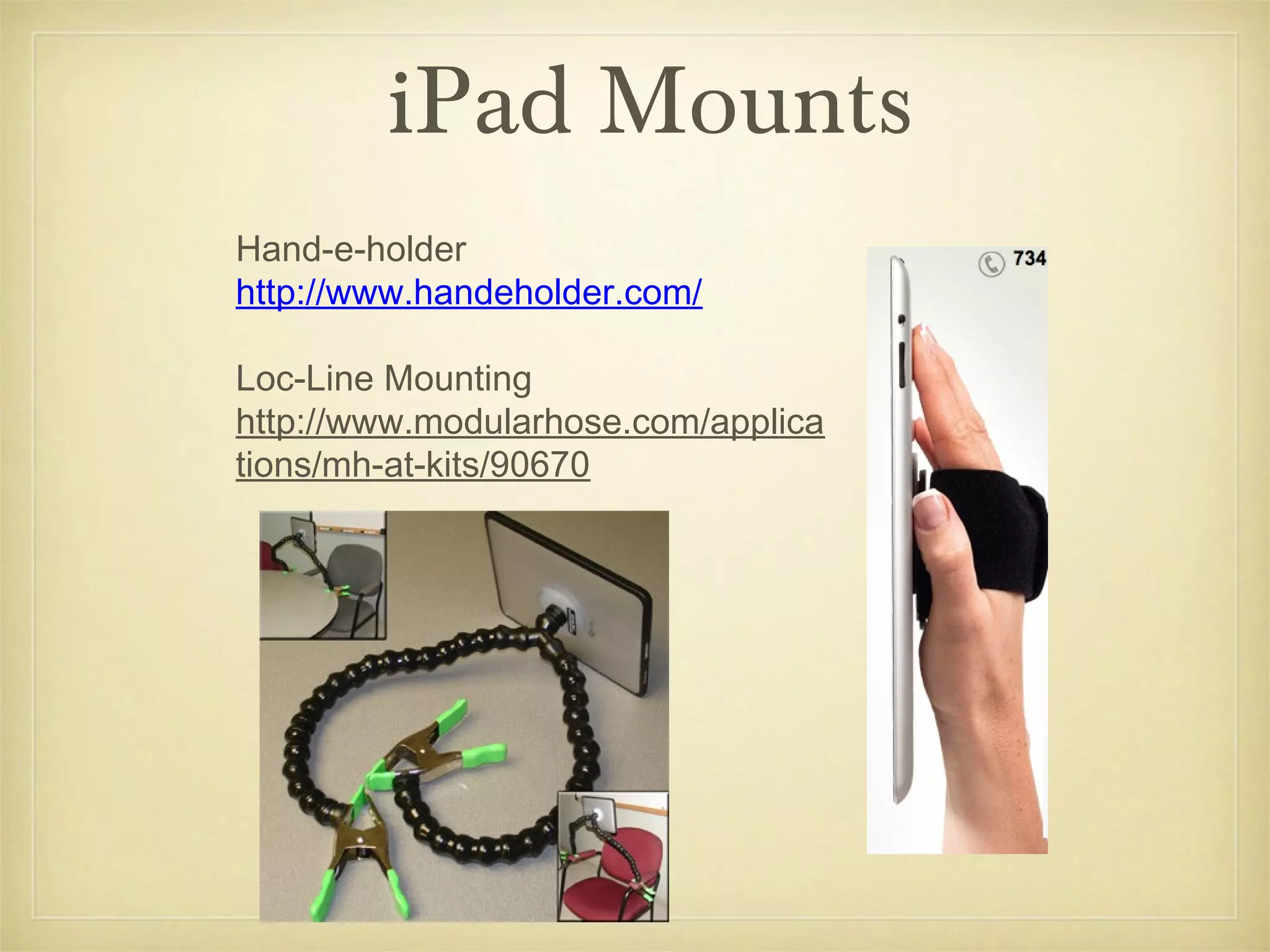
iPad Mounts
Hand-e-holder
http://www.handeholder.com/

Loc-Line Mounting
http://www.modularhose.com/applica
tions/mh-at-kits/90670
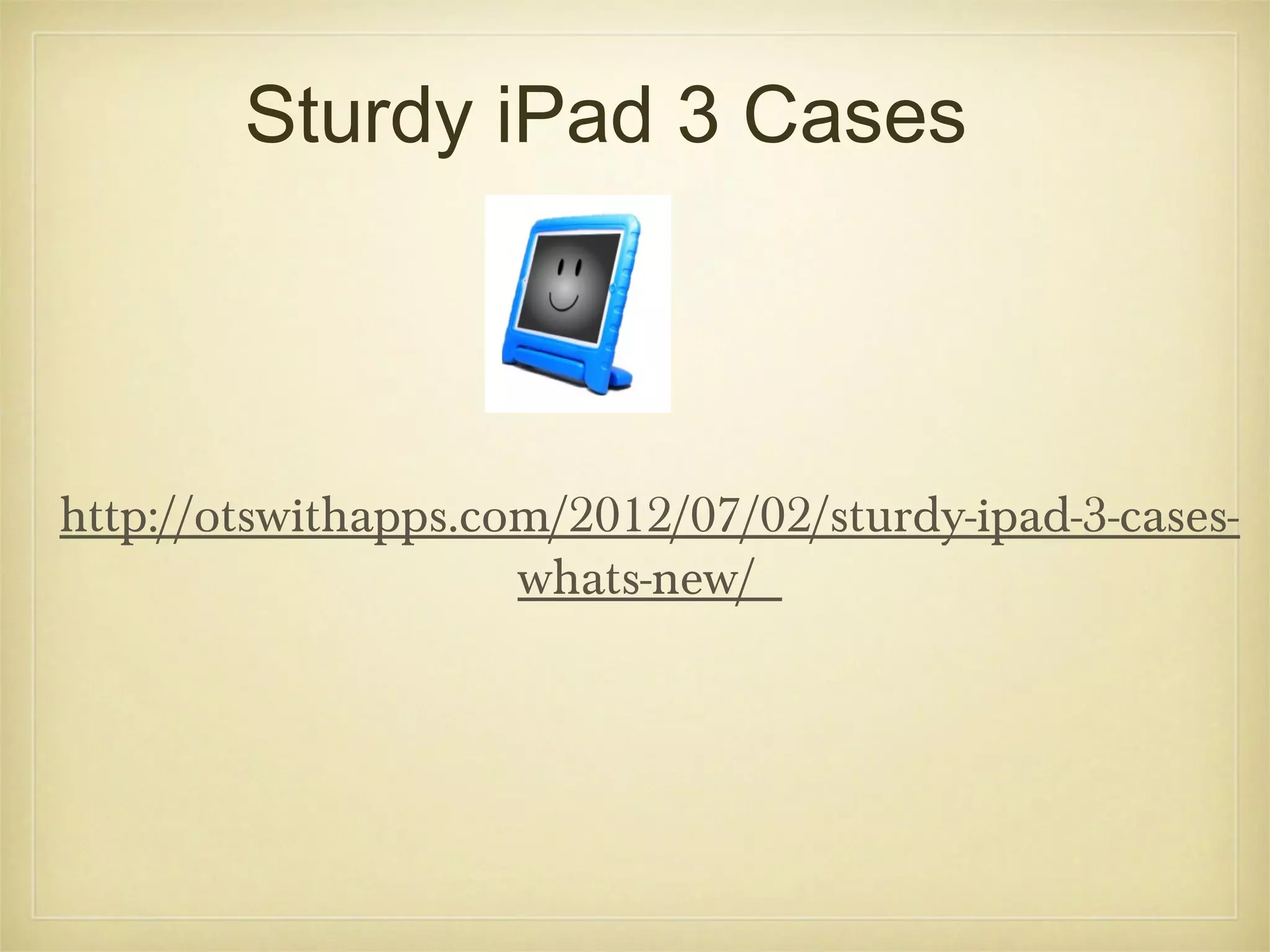
Sturdy iPad 3 Cases


http://otswithapps.com/2012/07/02/sturdy-ipad-3-cases-
                     whats-new/
iPod Touch Apps Help Workers with
  Autism News Article


  http://www.baltimoresun.com/health/bo
  ostershots/la-heb-ipod-touch-autism-
  20120904,0,5176334.story
The Apple iPod Touch as a vocational support aid for
 adults with autism: Three case studies
     Tony Gentrya,∗, Stephanie Laub, Alissa Molinellib, Amy Fallenc And
     Richard Krinerd Adepartment Of Occupational Therapy, Virginia
     Commonwealth University, Richmond, VA, USA Rehabilitation Research And
     Training Center, Virginia Commonwealth University, Richmond, VA,
     USA Ccareer Support Services, Richmond, VA, USA
     Dvirginia
               Department For Aging And Rehabilitative Services, Richmond, VA,
     USA


     http://iospress.metapress.com/content/h
     g67623860j41421/fulltext.pdf
 •
                     or
     http://iospress.metapress.com/content/h
     g67623860j41421/

Ot pt apps 2012 updated

  • 1.
    LaGrange Area Departmentof Special Education OT & PT APPS October 19, 2012 Presented by: Sandy Chiampas Ellen Deutsch Kim Hagar Michelle Mannix Richard
  • 2.
    Purpose •To learn about the latest educational apps Protocols: •Be fully present •Take care of each other •Take it personally •Think outside the box •Embrace your inner geek
  • 3.
    ladseitech.pbworks.com Check here foran updated list of OT/PT apps, Including ones not demonstrated in this presentation. •LADSE’S App List •Cheat Sheets •Videos of Apps •App Comparisons
  • 4.
    Do Apps Helpwith Fine Motor? as a • http://otswithapps.com/2012/05/03/do-app
  • 5.
    Special Features: Guided Access(ios 6 only) Speak Text Turn off Auto Correction Screen Shots Turning off Multitasking
  • 6.
    Guided Access(Disabling the home buttton) 8) Type PASSCODE 1) Update your software to ios6 9) Close out of SETTINGS 2) Touch SETTINGS 10) Open the app you want to use 3) Touch GENERAL 11) Triple click the HOME 4) Touch ACCESSIBILITY BUTTON 5) Touch GUIDED ACCESS 12) Touch START at upper right 6) Turn ON Guided Access 13) To exit the app triple click 7) Touch SET PASSCODE the home button and type passcode 14) Touch END Demo: http://otswithapps.com/2012/09/24/speak-
  • 7.
    Speak Text • Builtin Text to Speech ability in ios 5 • Turn on Speak Selection under General and Accessibility • Hold down finger on text • Drag blue dot to select text • Touch Speak
  • 8.
    Turning off Auto Correction& Spell Check 1.Go to SETTINGS 2.Go to GENERAL 3.Go to KEYBOARD 4.Uncheck AUTO CORRECTION 5.Uncheck CHECK SPELLING
  • 9.
    Taking a ScreenShot •Hold down the On/Off button and the Main button at the same time •Picture goes into your Photo Library
  • 10.
    “HAPPY has the word APP in it!” -Will age 8
  • 11.
  • 12.
  • 13.
  • 14.
  • 15.
  • 16.
  • 17.
  • 18.
    Basics •Resetting Device • Hold down the reset and main button on the same time •If the app doesn’t fill the screen • Touch 2x to make app fill the screen • To connect connect to wifi • Touch SETTINGS • Touch GENERAL • Touch NETWORK • Touch WIFI • Touch your wifi • Type your password
  • 19.
    Getting a GooglePicture (must have wifi) •Touch SAFARI •In GOOGLE BOX type name of picture •Touch SEARCH •Touch IMAGES •Touch and hold desired picture until SAVE IMAGE appears •Touch SAVE IMAGE •Picture is in your PHOTO LIBRARY
  • 20.
    E-MAIL/SAVING A PICTUREemail delete reply new Touch to download attachment Then touch SAVE IMAGE
  • 21.
    ORGANIZING PHOTOS •Open PhotoLibrary • Touch upper right square with arrow •Select desired photos •Touch ADD TO •Touch ADD TO NEW ALBUM •Type NAME of new album •Type SAVE
  • 22.
    Editing Photos •Touch PhotoLibrary •Touch Picture you want to Edit •Touch EDIT •Touch desired action on bottom of screen •rotate •enhance •red eye •crop
  • 23.
    SYNCHING PICTURES TO THE CLOUD •Touch SETTINGS •Touch iCloud •Touch PHOTO STREAM then touch ON •Then on your device under PHOTOS you will see PHOTO STREAM as an option for where your pictures are stored
  • 24.
    • Touch EDIT Reminders • Touch CREATE NEW LIST • Type name of NEW LIST • Touch DONE • Touch NAME OF NEW LIST • Touch + (upper right) • Type NAME OF NEW TASK • Touch RETURN to add more tasks or KEYBOARD BUTTON if done • Touch a TASK • Touch REMIND ME to add time • Touch OFF next to ON A DAY • Touch DATE to change time/date and DONE
  • 25.
    Restrictions •Touch SETTINGS •Touch RESTRICTIONS •Typea PASSCODE •Touch OFF to turn OFF options •Touch words under Allow Changes or Allowed Content to add restrictions
  • 26.
    Accessibility • Touch SETTINGSthen GENERAL • Touch ACCESSIBILITY • Touch to change the following: • Voice over • Zoom • Large Text • White on Black • Speak Selection • Speak Auto-Text • Mono Audio • AssistiveTouch • Triple-click Home
  • 27.
  • 28.
    Switch Adapted Apps Helpkidzlearn apps (all IPAD): switch accessible activities Five Sharks http://itunes .apple.com/gb/app/five-sharks-swimming/ id490124748?mt=8&ls=1 Peeping Musicians http://itunes.apple.com/gb/app/peeping-musicians/id490120210?mt=8 Smarty Pants http://itunes.apple.com/gb/apps/inclusive-smarty-pants/id4901267715? mt=8 Hidden Grids http://itunes.apple.com/gb/apps/hidden-grid/id490089517?mt=8 Aunty Maggies Recipes http://helpkidzlearn.com/apps/app/aunty_maggy.html
  • 29.
    Dragon on theiPad & Computer • Dragon App Dragon Software (Mac/ PC) • No training required •Requires voice training • No commands to memorize •Will learn voice and vocabulary patterns • Does require wireless access •Use commands to perform tasks and make corrections • Limited to dictation of text within the app •No wireless required • 1 minute maximum •Can use to dictate text in multiple applications AND operate/maneuver around • Can copy/email to other apps the computer • Requires direct select access to •Better accuracy and recognition capabilities work/navigate the app •No direct select required http://otswithapps.com/2012/03/07/dragon-dictate-vs-dragon-naturallyspeaking-whats-the-differen
  • 30.
    Keyboarding Practice onYour iPad or Android – Apps and Other Equipment • http://otswithapps.com/2012/07/07/keyboarding-pra
  • 31.
    6 Best WordProcessor Apps for iPad •http://otswithapps.com/2012/09/17/6-best-word- processor-apps-for-ipad-techshout/
  • 32.
    Best Reading Appsto Support Students •http://otswithapps.com/2012/07/14/reading-apps- support-for-students-with-ld-5/
  • 33.
  • 34.
    Apps For Data •Observe •SuperDuperData Tracker •ABC Data •Percentally •Counter Lite
  • 35.
  • 36.
  • 37.
    Sturdy iPad 3Cases http://otswithapps.com/2012/07/02/sturdy-ipad-3-cases- whats-new/
  • 38.
    iPod Touch AppsHelp Workers with Autism News Article http://www.baltimoresun.com/health/bo ostershots/la-heb-ipod-touch-autism- 20120904,0,5176334.story
  • 39.
    The Apple iPodTouch as a vocational support aid for adults with autism: Three case studies Tony Gentrya,∗, Stephanie Laub, Alissa Molinellib, Amy Fallenc And Richard Krinerd Adepartment Of Occupational Therapy, Virginia Commonwealth University, Richmond, VA, USA Rehabilitation Research And Training Center, Virginia Commonwealth University, Richmond, VA, USA Ccareer Support Services, Richmond, VA, USA Dvirginia Department For Aging And Rehabilitative Services, Richmond, VA, USA http://iospress.metapress.com/content/h g67623860j41421/fulltext.pdf • or http://iospress.metapress.com/content/h g67623860j41421/