iPads
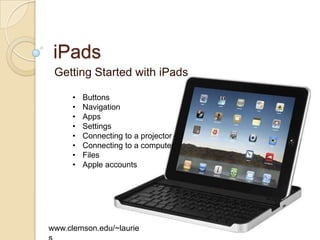
 Getting Started with iPads

      •   Buttons
      •   Navigation
      •   Apps
      •   Settings
      •   Connecting to a projector
      •   Connecting to a computer
      •   Files
      •   Apple accounts


www.clemson.edu/~laurie
iPad Links
   Tigernet Setup on iPad
    ◦ https://ithelp.clemson.edu/MRcgi/MRTicketPa
      ge.pl?MR=146989&PROJECTID=4
   Clemson Exchange Setup on iPad
    ◦ Clemson Exchange Setup
      http://www.clemson.edu/ccit/email_accounts/
      email/exchange/ClientSetup/iphone_ipad_set
      up.html
   iPad User Guide
    ◦ http://manuals.info.apple.com/en/ipad_user_
      guide.pdf
Front
Back
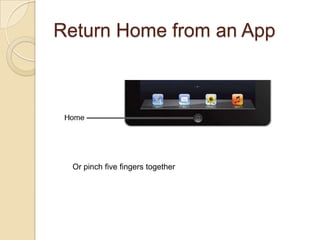
Touch Home to Start
Status Bar
Touch to start an App
Return Home from an App


 Or pinch five fingers together
Close an App
Double tap Home:


Tap and hold an App to get     beside each running App


Tap the     to close the App

 Tap home to make icons stop jiggling
Music Controls

Double tap Home
Flick bottom left to right
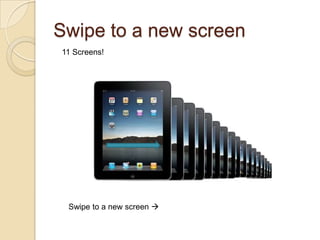
Swipe to a new screen
11 Screens!


 Swipe to a new screen 
Multi-Touch
Dock most
used icons
Search   Swipe left to right of main Home screen for
         search
More keyboard stuff
Copy and Paste
Delete an App
Tap and hold icon until it squiggles and black X
appears
Press X to delete App (deletes data too)
Tap Home to stop the giggling
Move an App
Tap and hold until icons jiggle
Drag to where you want it
If you want it on a new screen, drag to left or right edge of
screen, hold, new screen will appear, drop.
Group Apps


• Drag one icon on top of
  another
• It will offer to let you
  name the group
• Then you will see a black
  icon with little icons
  inside to indicate the
Built in Apps   •
                •
                    Mail
                    Calendar
                •   Photos
                •   Safari
                •   iBooks
                •   Facetime
                •   Maps
                •   Newstand ($$$)
                •   Messages
                •   Reminders
                •   Contacts
                •   iTunes
                •   Music
                •   Videos
                •   YouTube
                •   Notes
                •   Game Center
                •   Photo Booth
                •   Camera
                •   App Store
Apps Store
Great Apps
                        Add during class:
•   Facebook
•   Dropbox
•   Google Drive
•   Adobe Connect
•   Documents
•   Google
•   Chrome
•   Opera Mini
•   Skype
•   Picasa
•   Kindle
•   PocketCloud
•   SlideShark
•   m.Clemson
•   Blackboard Mobile
•   OneNote
•   Dragon Dictation
PocketCloud
Settings
WiFi
Settings
Settings
Settings
Settings
Mail, Contacts, Calendars
Connecting to a projector


Or use Apple TV: http://www.apple.com/appletv/ for wireless connection
                              (HDMI)
Connecting to a computer


  • To charge
  • To synch iTunes
Frozen iPad


  Hold down   Home Sleep
                    and    buttons until Apple logo
  appears.
  Release buttons
Google Apps for iPad


 https://sites.google.com/site/gappsforipad/home
Slide Shark


              Upload PowerPoint to: www.slideshark.com
Offline PowerPoint


  Upload PowerPoint to Google Drive and Open in iBooks
               Other files go in as .PDF
iBooks from Google Drive
iBooks Presentation
Offline Google Documents


      You can also store documents offline
Google Drive Offline
Edit PowerPoint on iPad

 Go to g.clemson.edu in a supported browser
 Click on Desktop at bottom of screen
iPad Screenshot


 Hold Power(Sleep/Wake) and Home for a second – goes in
 Photos
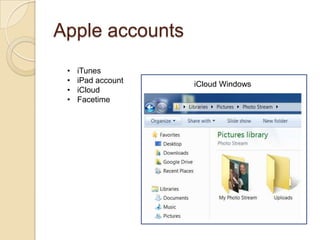
Apple accounts
 •   iTunes
 •   iPad account   iCloud Windows
 •   iCloud
 •   Facetime
iCloud
iCloud


         www.clemson.edu/~lauries

Ipads