iPad I
Tiffany Brand, M.Ed.
Technology Instructor, Dover Adult Learning Center
t.brand@dalc-online.org
http://goo.gl/zJUkJF
• Instant on – no waiting for boot-up
• Long battery life
• Packs a lot in a small package – Internet, cameras,
document storage, content creation, games, …
• Apps, apps and more apps – many free, for so many
different tasks.
• “Walled Garden” – you can’t “see” your files like you
can on a hard drive. Everything is controlled by
individual apps and passed between them or to the
“Cloud”

What’s Different?
IPAD I
Part 1: Getting to Know the iPad Hardware
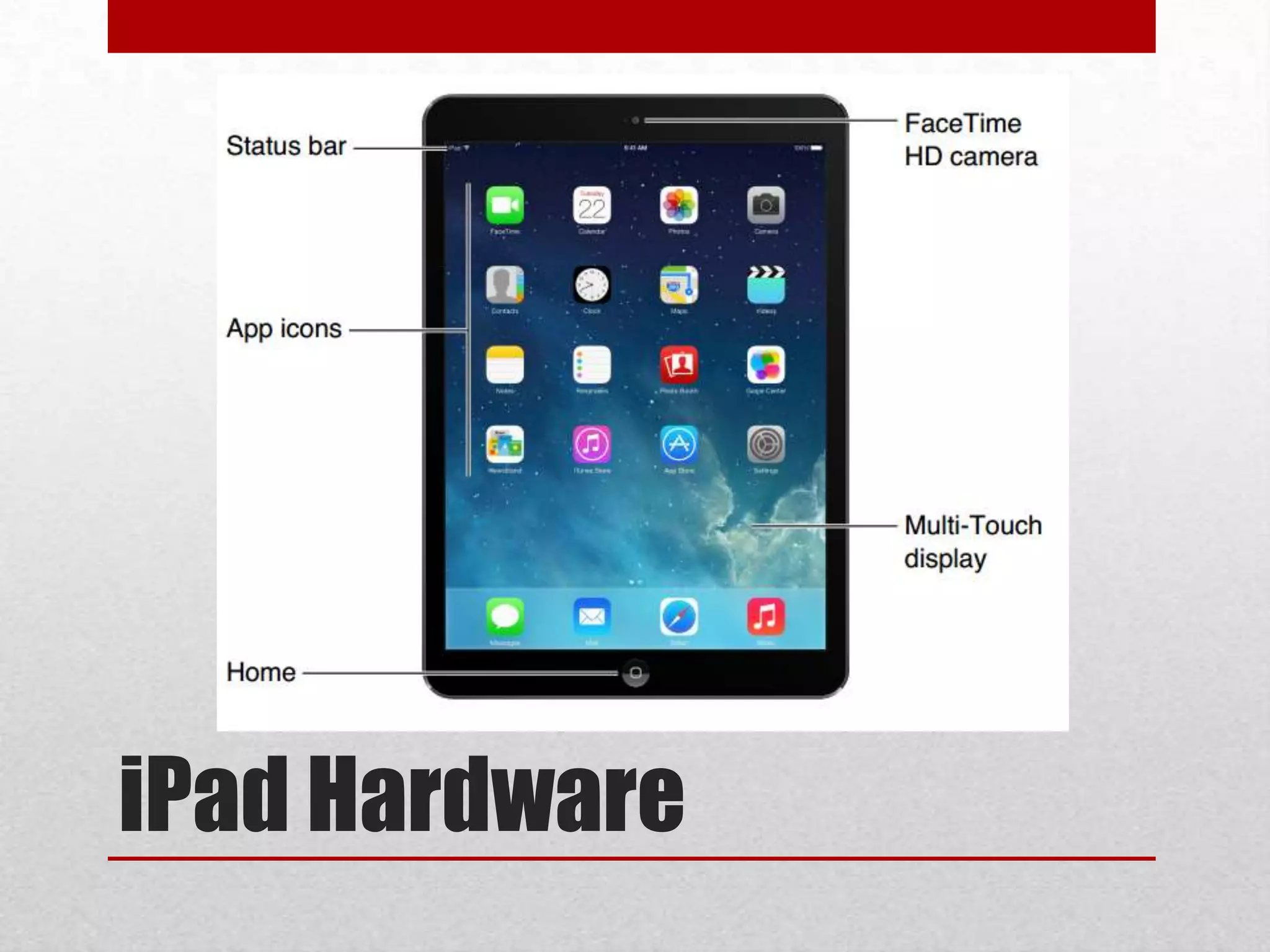
iPad Hardware
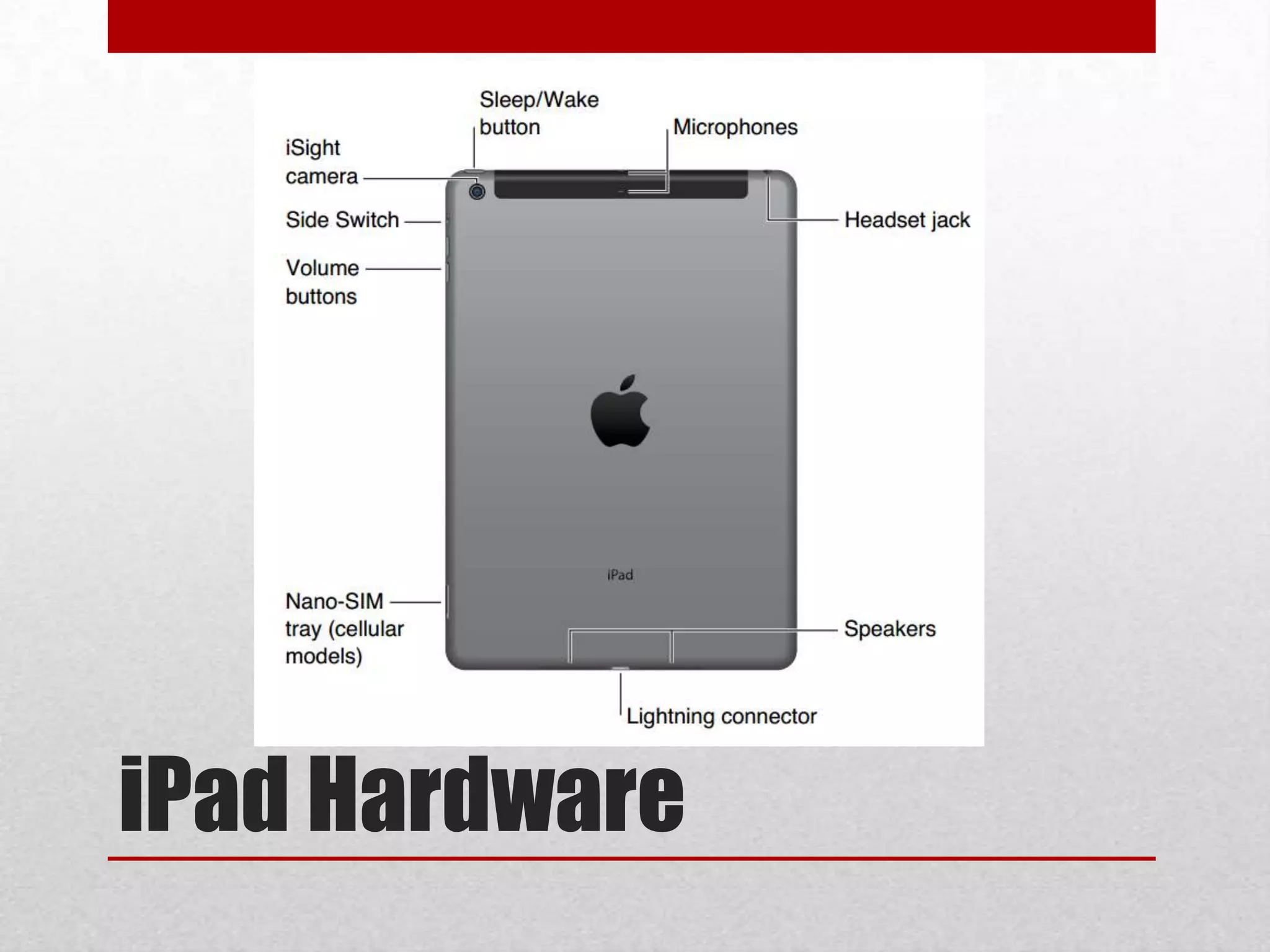
iPad Hardware
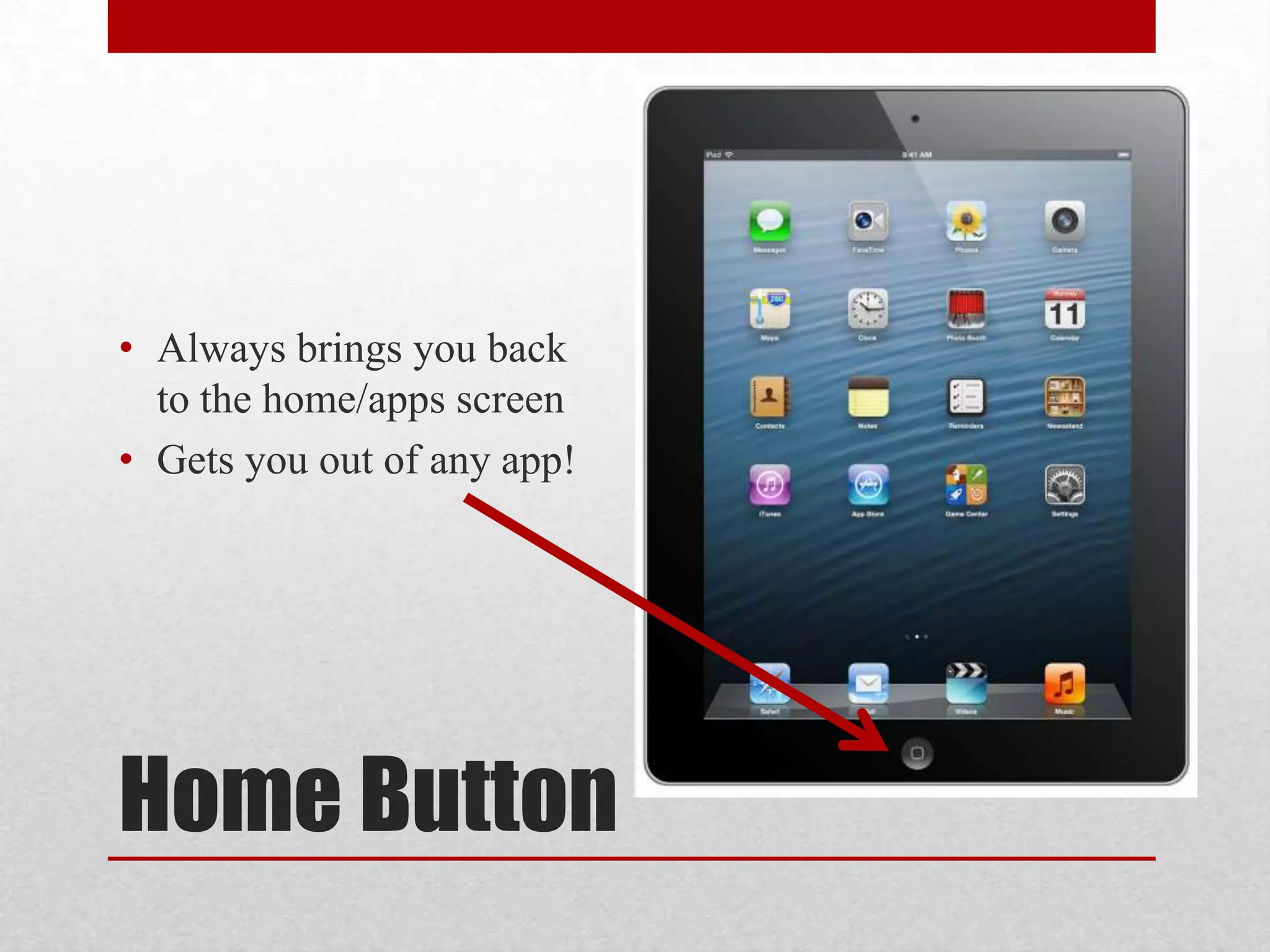
• Always brings you back
to the home/apps screen
• Gets you out of any app!

Home Button
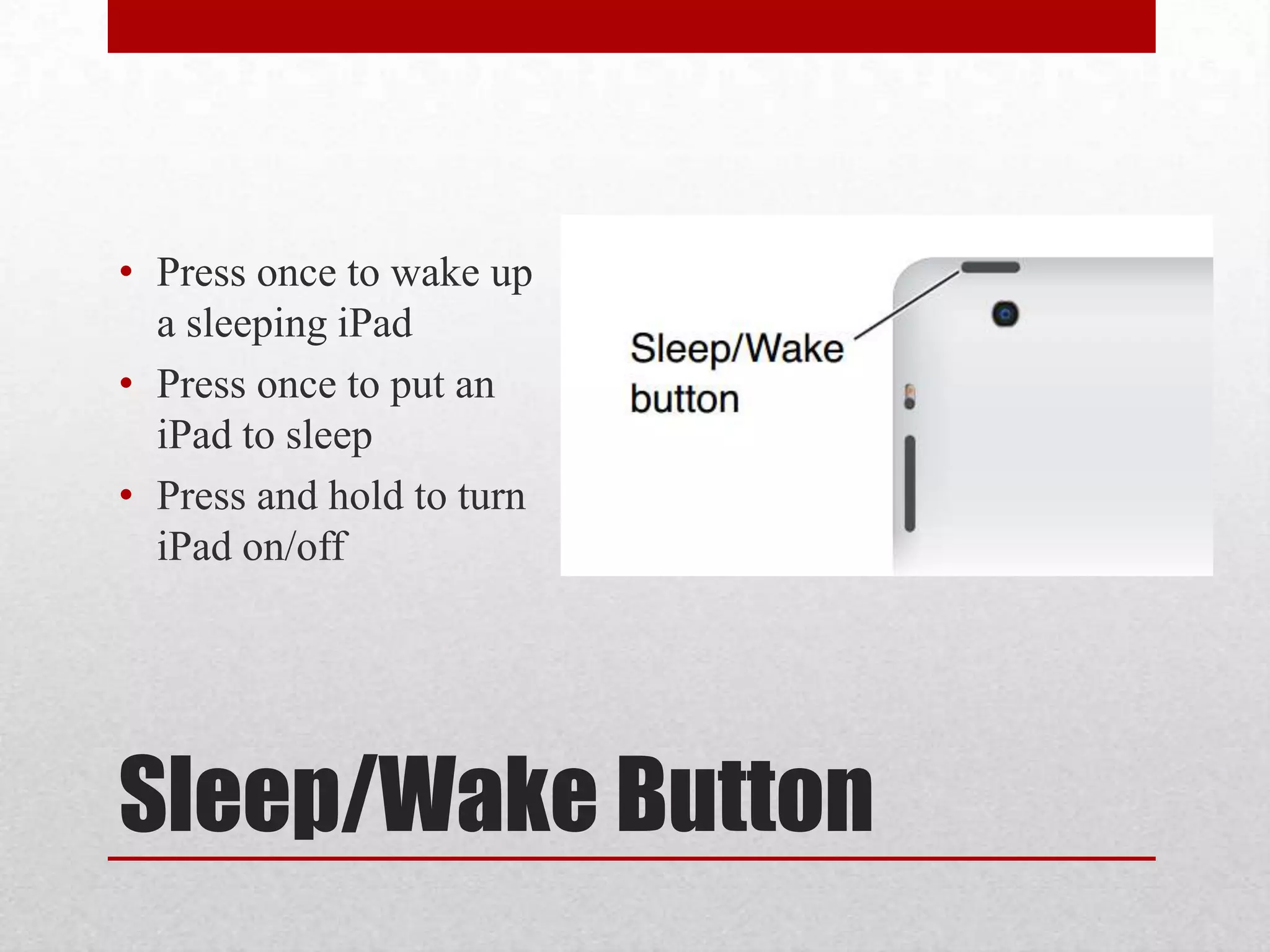
• Press once to wake up
a sleeping iPad
• Press once to put an
iPad to sleep
• Press and hold to turn
iPad on/off

Sleep/Wake Button
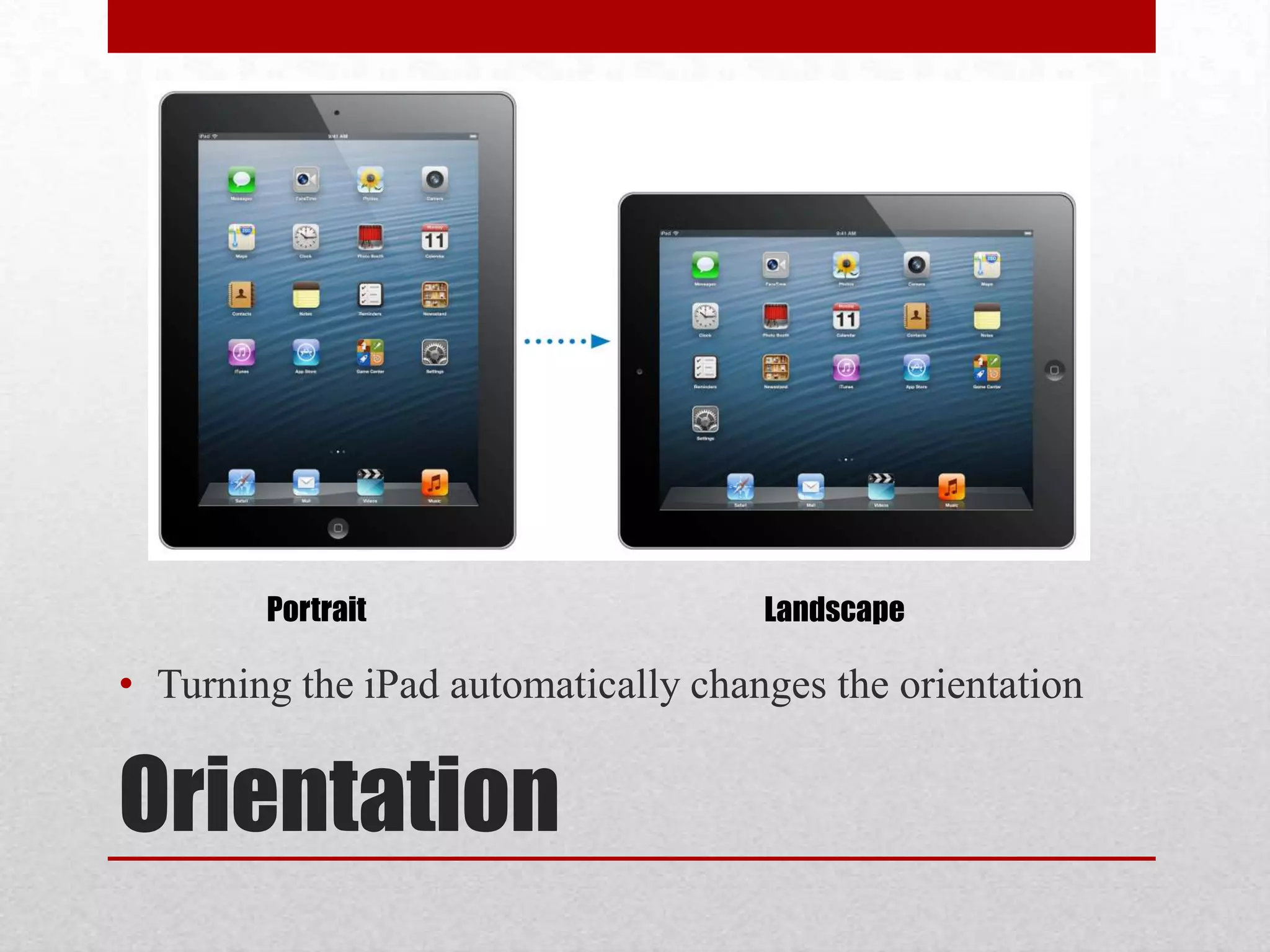
Portrait

Landscape

• Turning the iPad automatically changes the orientation

Orientation
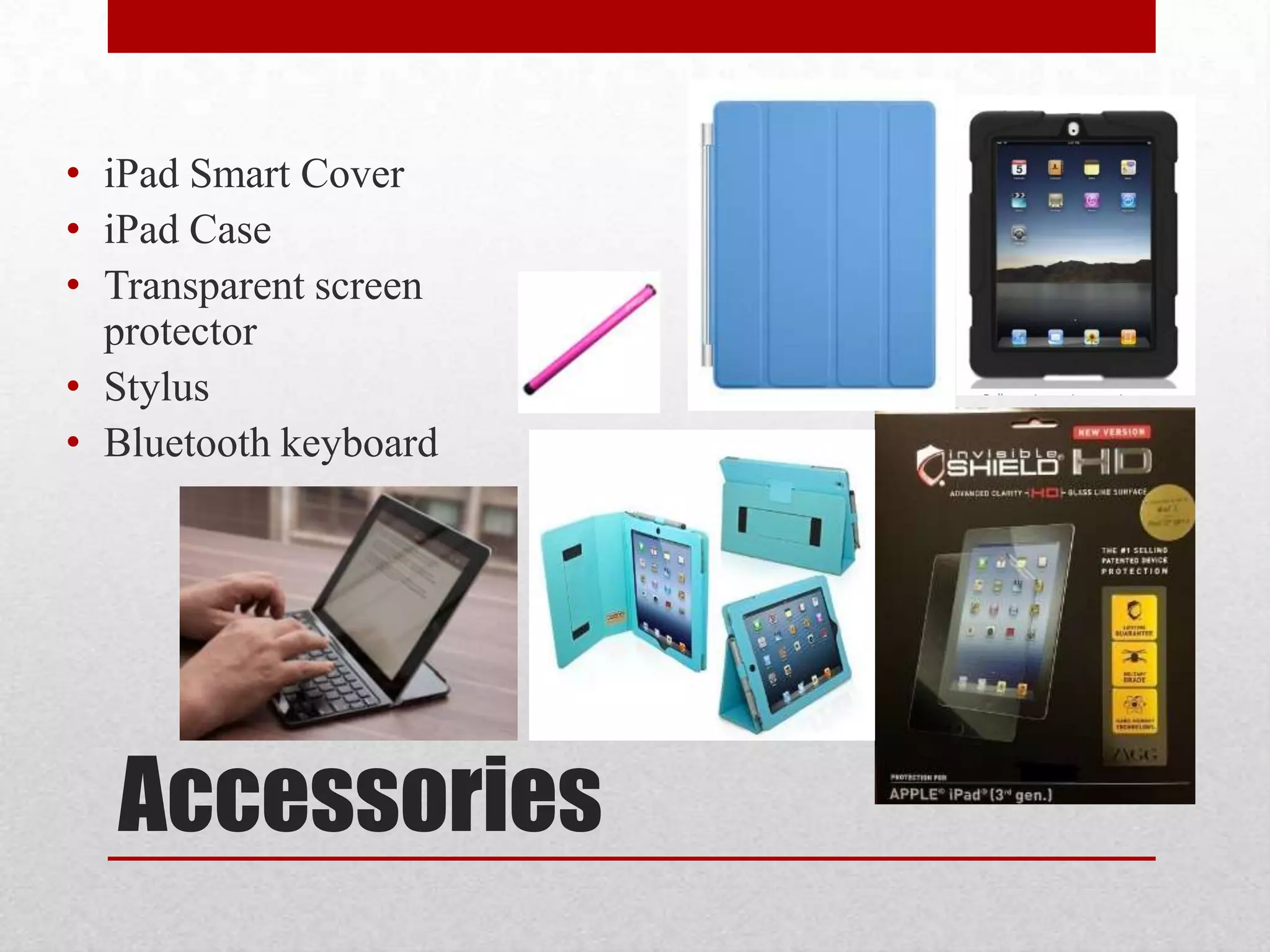
• iPad Smart Cover
• iPad Case
• Transparent screen
protector
• Stylus
• Bluetooth keyboard

Accessories
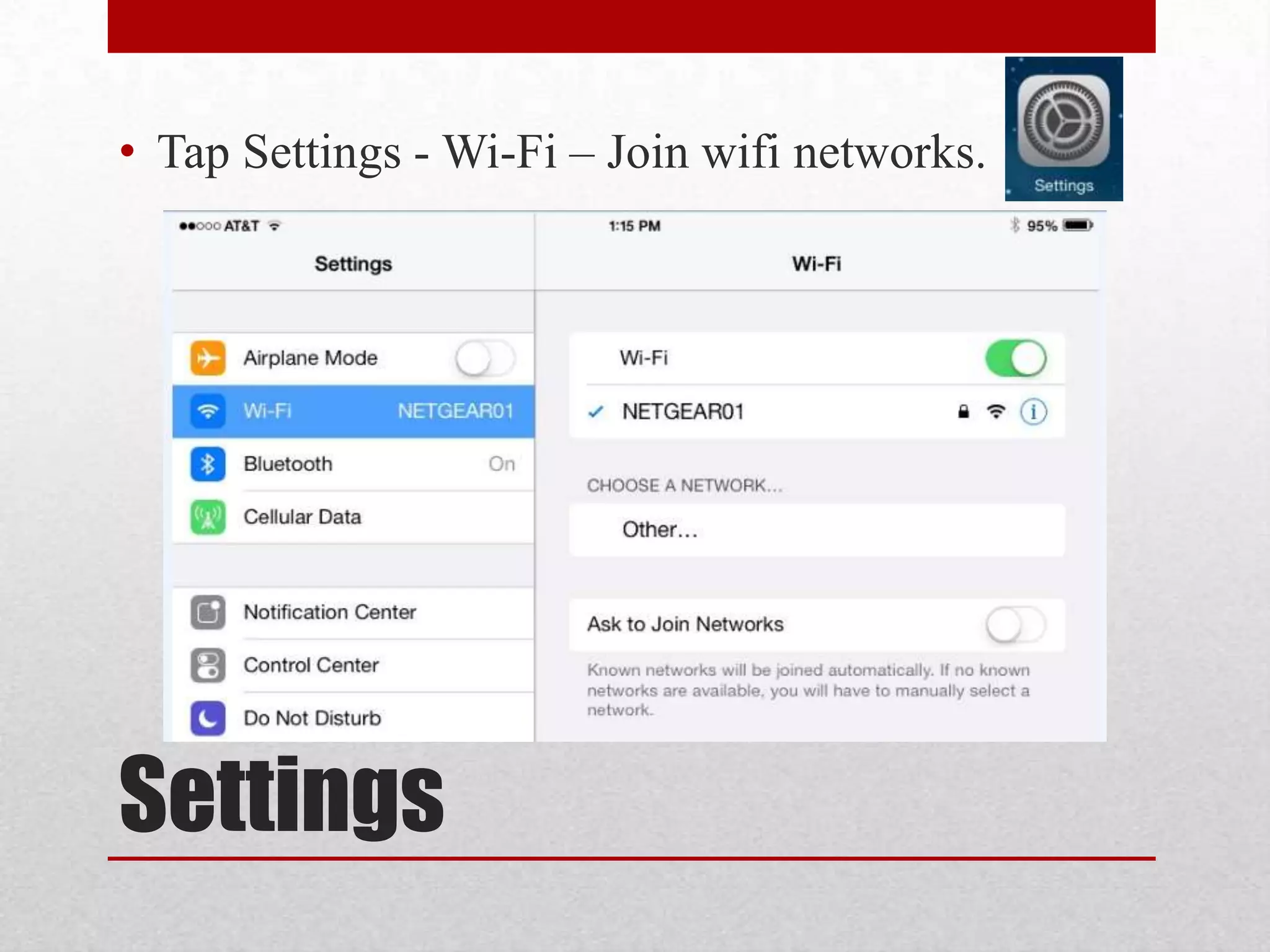
• Tap Settings - Wi-Fi – Join wifi networks.
Settings
IPAD I
Part 2: Gestures
•
•
•
•
•

Tap
Drag
Flick/Swipe
Tap and Hold
Pinch

Gesture Types
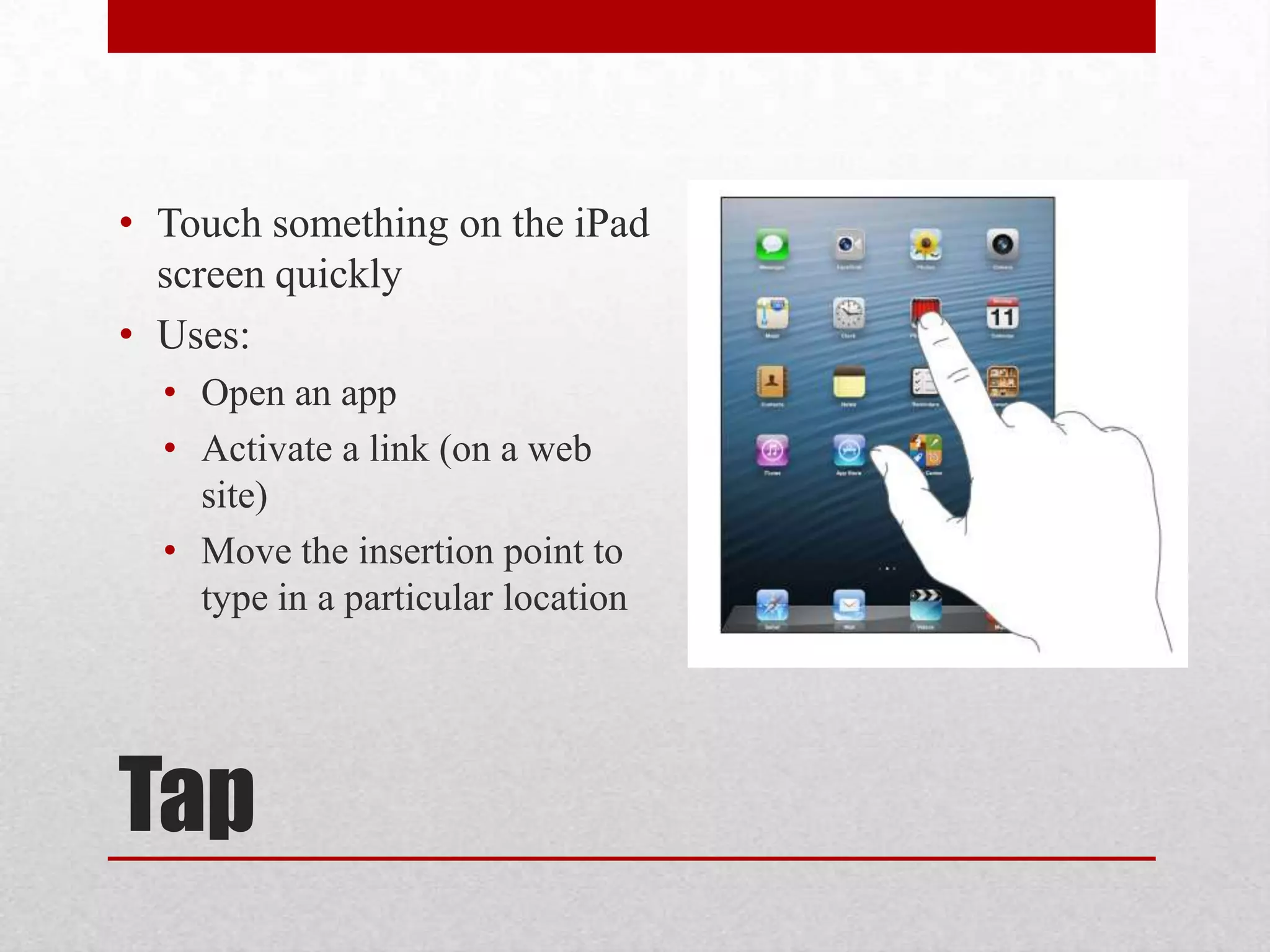
• Touch something on the iPad
screen quickly
• Uses:
• Open an app
• Activate a link (on a web
site)
• Move the insertion point to
type in a particular location

Tap
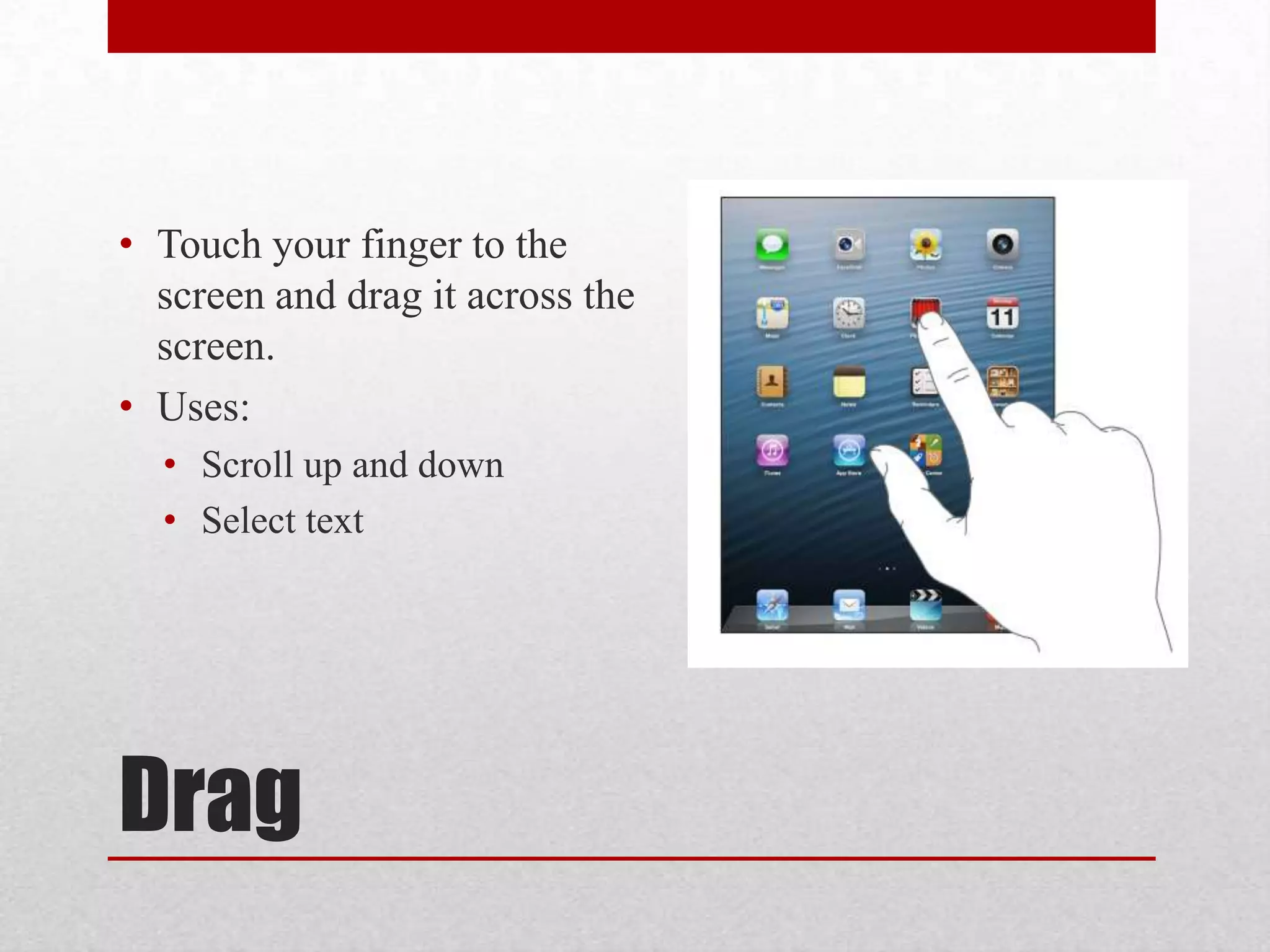
• Touch your finger to the
screen and drag it across the
screen.
• Uses:
• Scroll up and down
• Select text

Drag
• Tap on Maps
• Tap on the “Current Location” icon
• Drag up, down, right, and left to scroll the map around
slowly
• Press the Home button to go back to the home screen

Try it – Tap and Drag
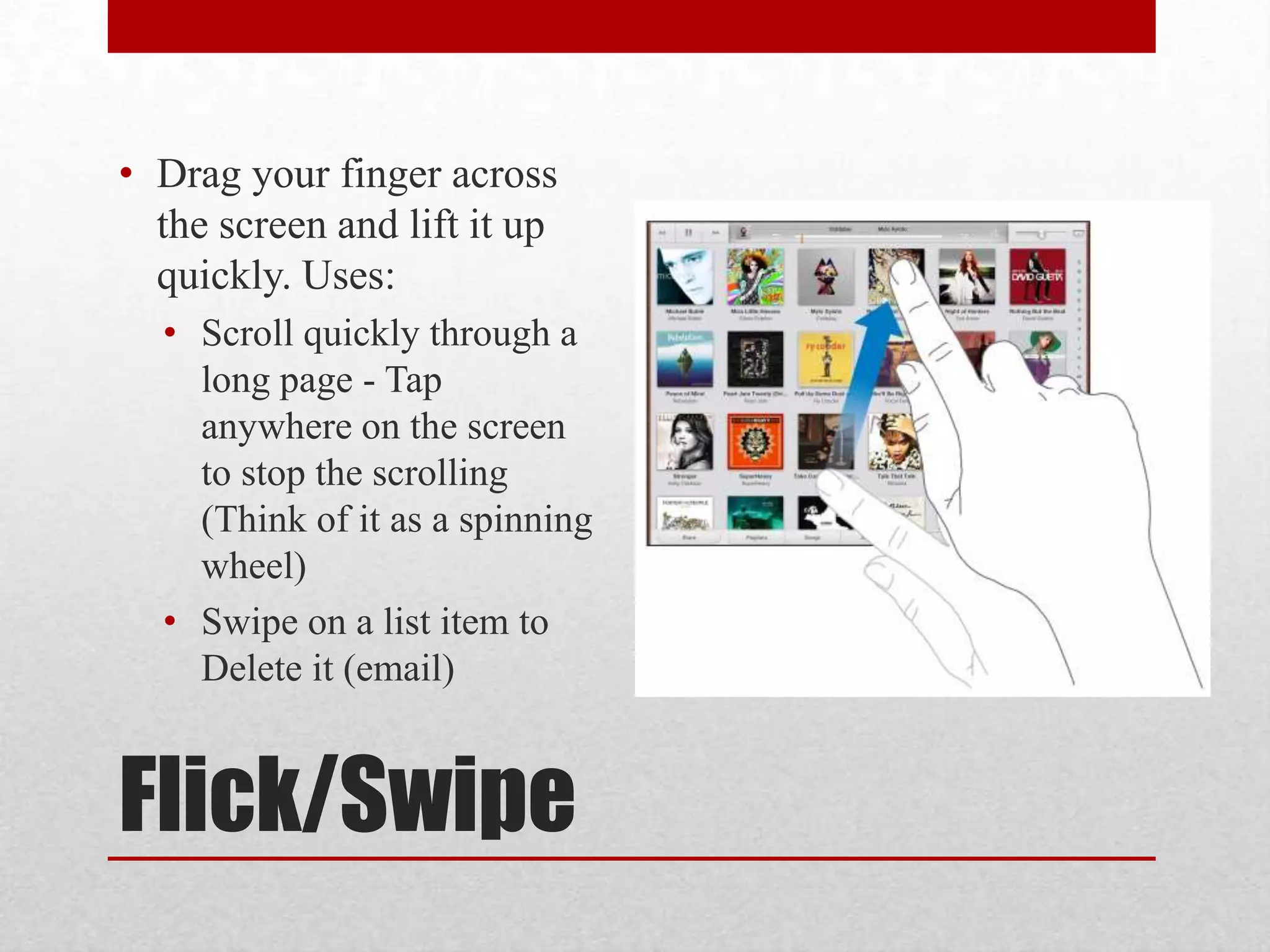
• Drag your finger across
the screen and lift it up
quickly. Uses:
• Scroll quickly through a
long page - Tap
anywhere on the screen
to stop the scrolling
(Think of it as a spinning
wheel)
• Swipe on a list item to
Delete it (email)

Flick/Swipe
• Tap on Maps
• Tap on the “Current Location” icon
• Flick up, down, right, and left to scroll the map around
quickly
• Press the Home button to go back to the home screen

Try it – Flick/Swipe
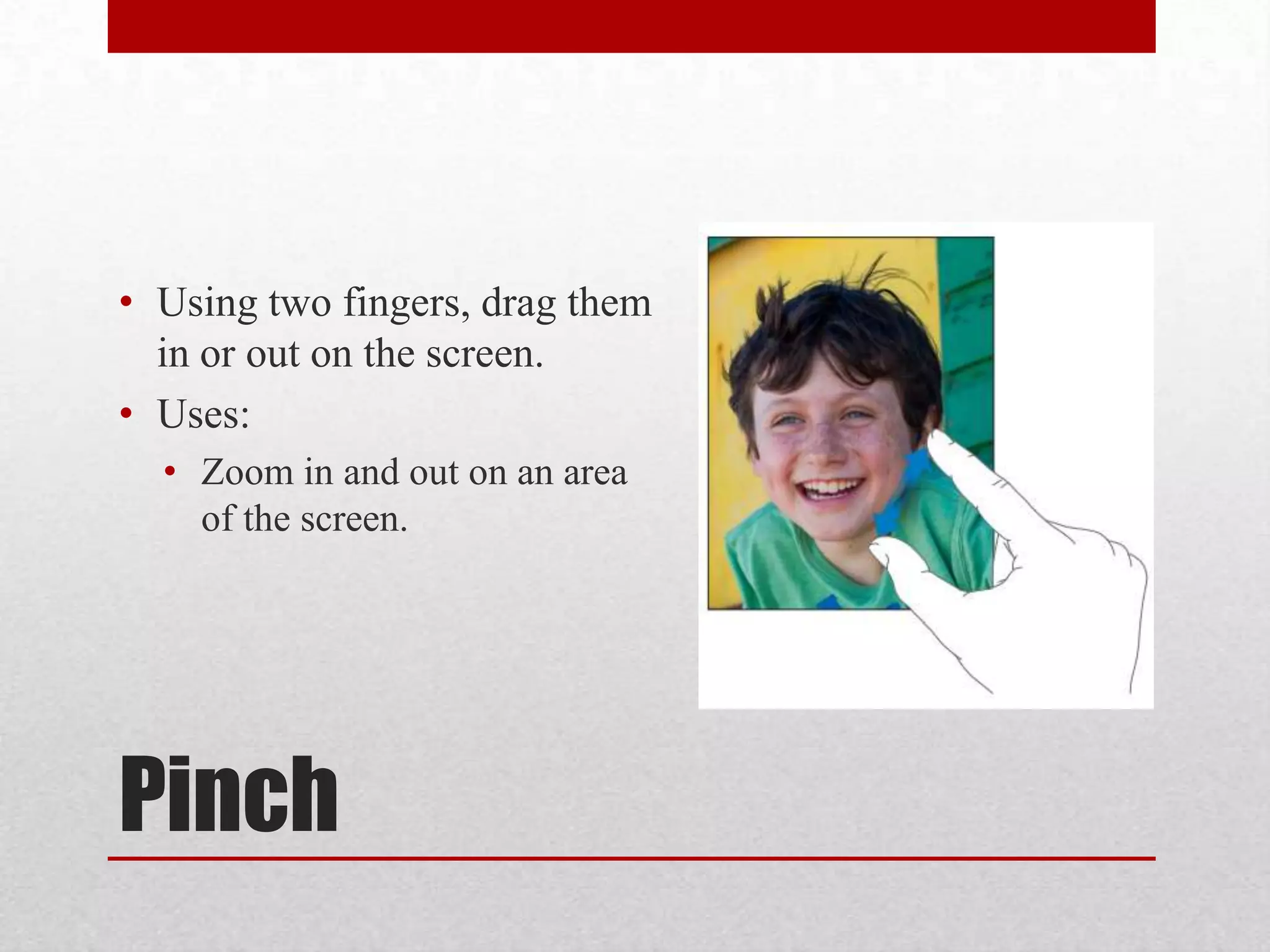
• Using two fingers, drag them
in or out on the screen.
• Uses:
• Zoom in and out on an area
of the screen.

Pinch
• Tap on Maps
• Tap on the “Current Location” icon
• Pinch two fingers together to zoom in on an area of the
map
• Pinch two fingers out to zoom out
• Press the Home button to go back to the home screen

Try it – Pinch
• Press a finger on the screen and hold it there for a second.
• Uses:
• Selecting text
• Bringing up more options for an area on an app
• Rearranging app icons on the Home screens

Tap and Hold
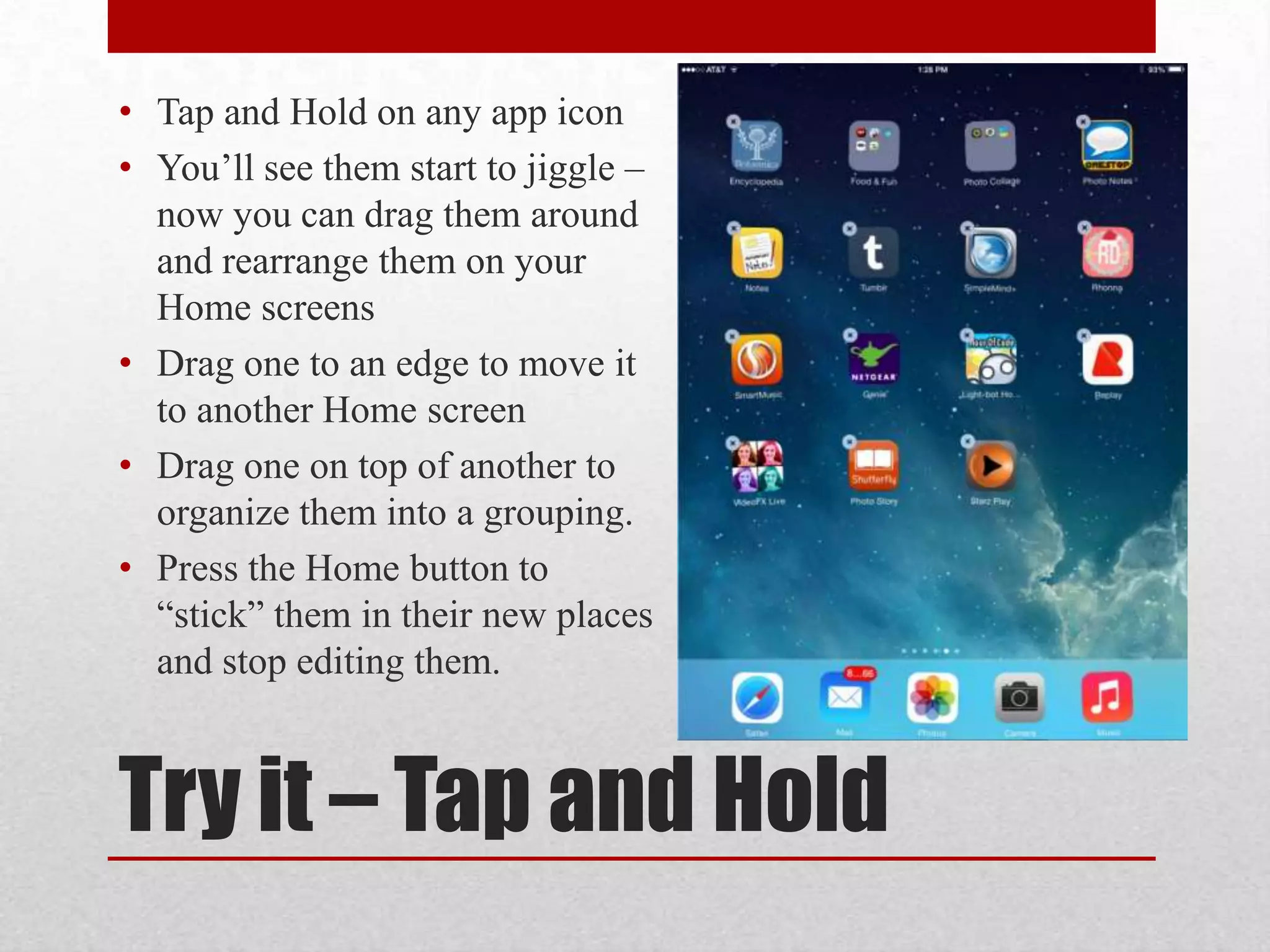
• Tap and Hold on any app icon
• You’ll see them start to jiggle –
now you can drag them around
and rearrange them on your
Home screens
• Drag one to an edge to move it
to another Home screen
• Drag one on top of another to
organize them into a grouping.
• Press the Home button to
“stick” them in their new places
and stop editing them.

Try it – Tap and Hold
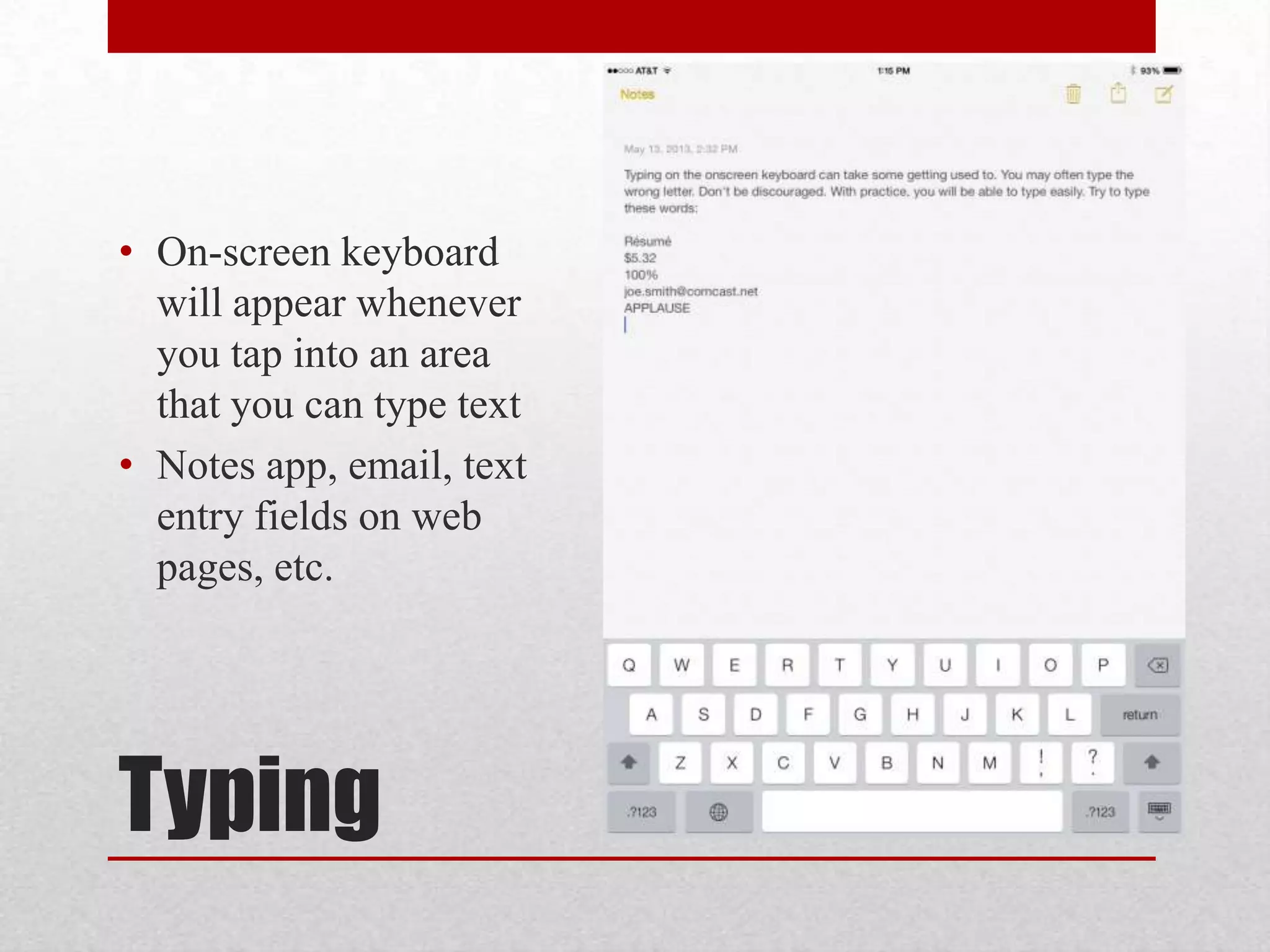
• On-screen keyboard
will appear whenever
you tap into an area
that you can type text
• Notes app, email, text
entry fields on web
pages, etc.

Typing
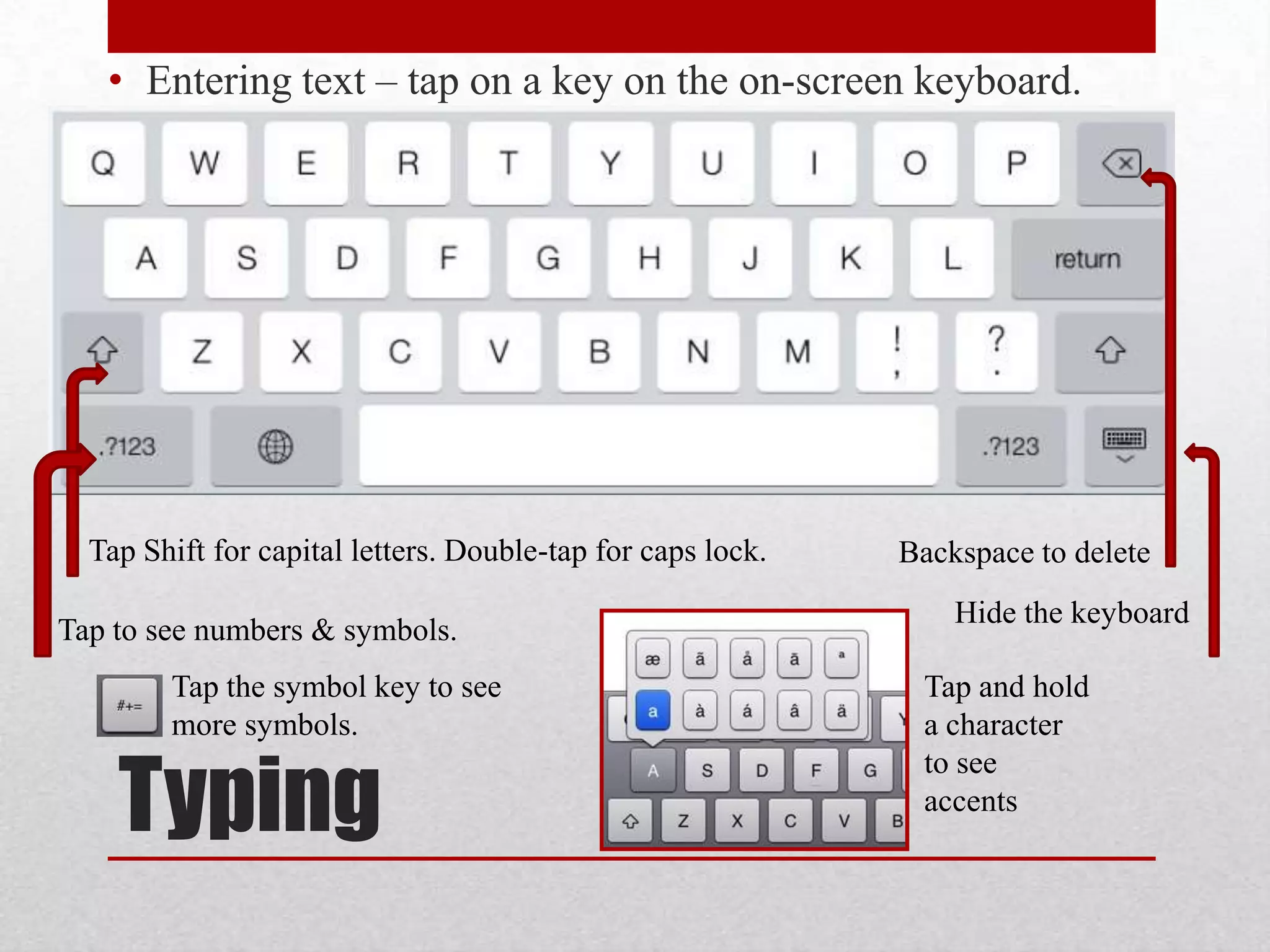
• Entering text – tap on a key on the on-screen keyboard.

Tap Shift for capital letters. Double-tap for caps lock.
Tap to see numbers & symbols.
Tap the symbol key to see
more symbols.

Typing

Backspace to delete
Hide the keyboard
Tap and hold
a character
to see
accents
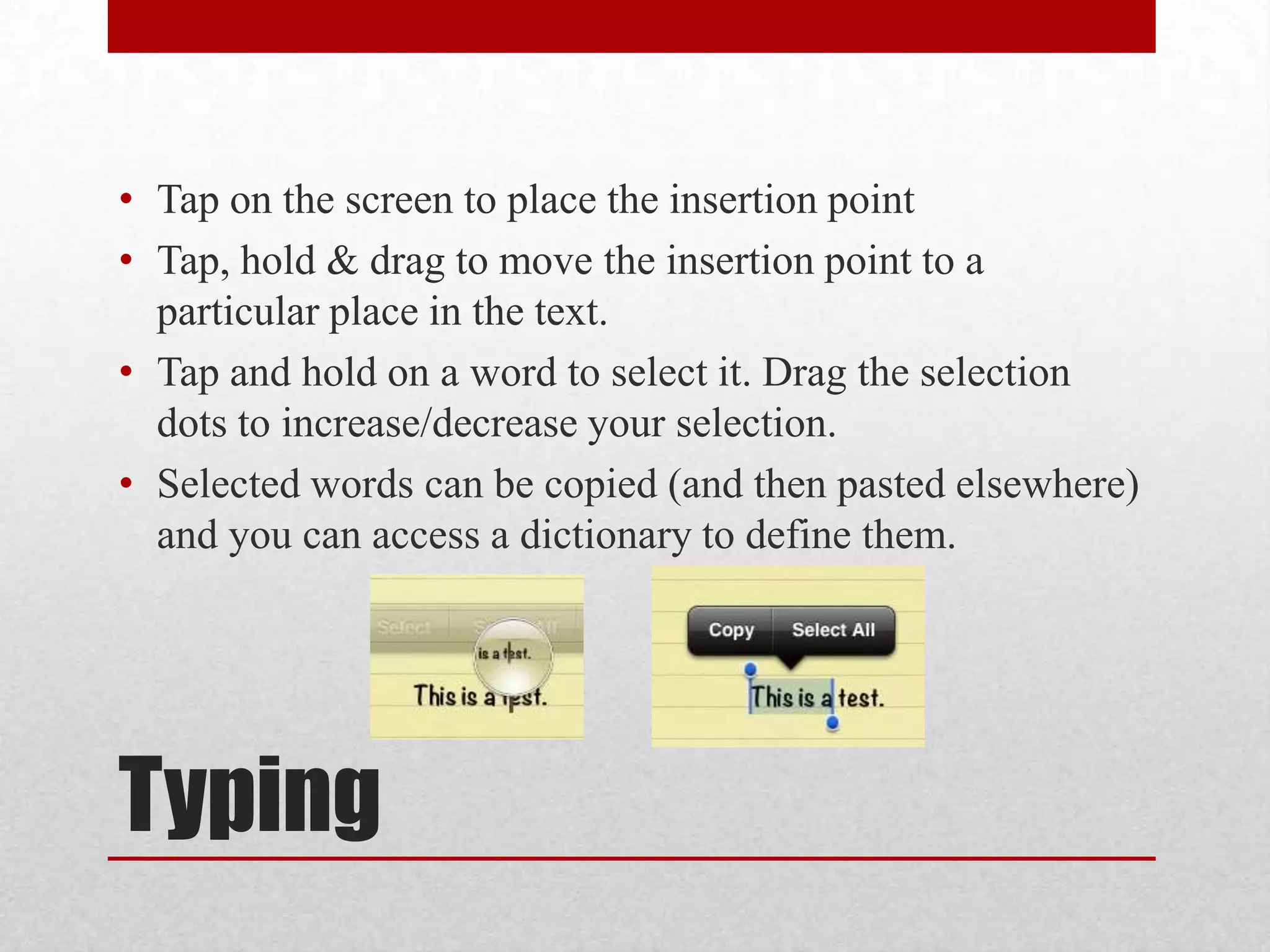
• Tap on the screen to place the insertion point
• Tap, hold & drag to move the insertion point to a
particular place in the text.
• Tap and hold on a word to select it. Drag the selection
dots to increase/decrease your selection.
• Selected words can be copied (and then pasted elsewhere)
and you can access a dictionary to define them.

Typing
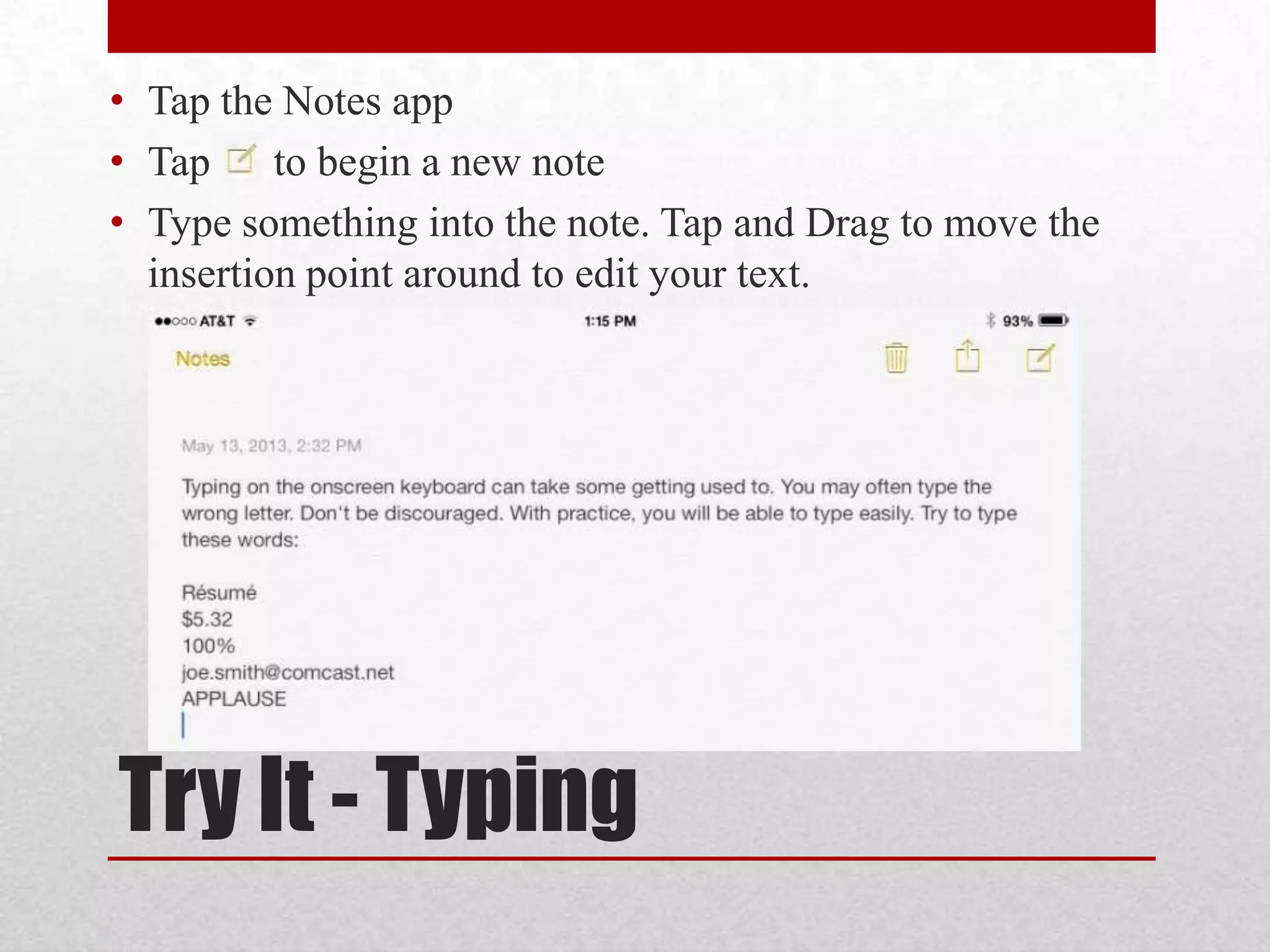
• Tap the Notes app
• Tap to begin a new note
• Type something into the note. Tap and Drag to move the
insertion point around to edit your text.

Try It - Typing
• To Print from an app, tap
and then
• iPads can Print to AirPrint-compatible printers on the
same wifi network
• If you have an old printer that is not AirPrint compatible,
you can install software on a computer connected to a
printer to enable iOS printing.
• For example: Presto by Collobos Software – runs on a
computer connected to a printer and allows iOS devices to
print to it. www.collobos.com

Printing
IPAD I
Part 3: Web browsing with Safari
• Safari is the web
browser that comes
with the iPad
• Tap on the Safari icon
to launch it

Web Browsing in Safari
• Tap here and type to
enter a web address.
• Then tap Go.
• Drag in the main area
to scroll.
• Double tap to quickly
zoom in and out
• Or Pinch to zoom

Web Browsing
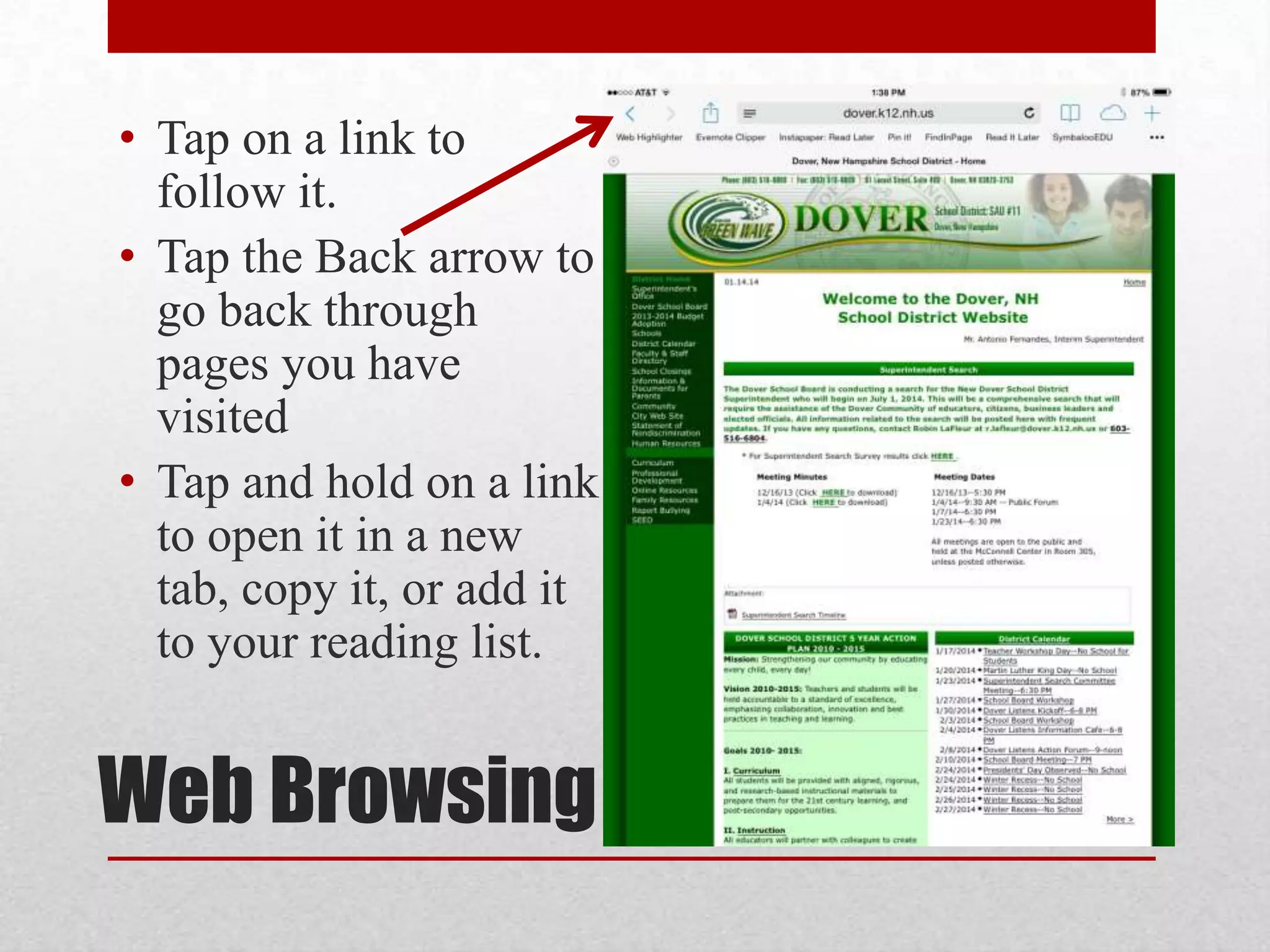
• Tap on a link to
follow it.
• Tap the Back arrow to
go back through
pages you have
visited
• Tap and hold on a link
to open it in a new
tab, copy it, or add it
to your reading list.

Web Browsing
• Tabs allow you to
browse more than one
web page at a time
• Tap the + to open a
new tab.
• Tap the tabs to switch
between them
• Tap the X on a tab to
close it

Web Browsing
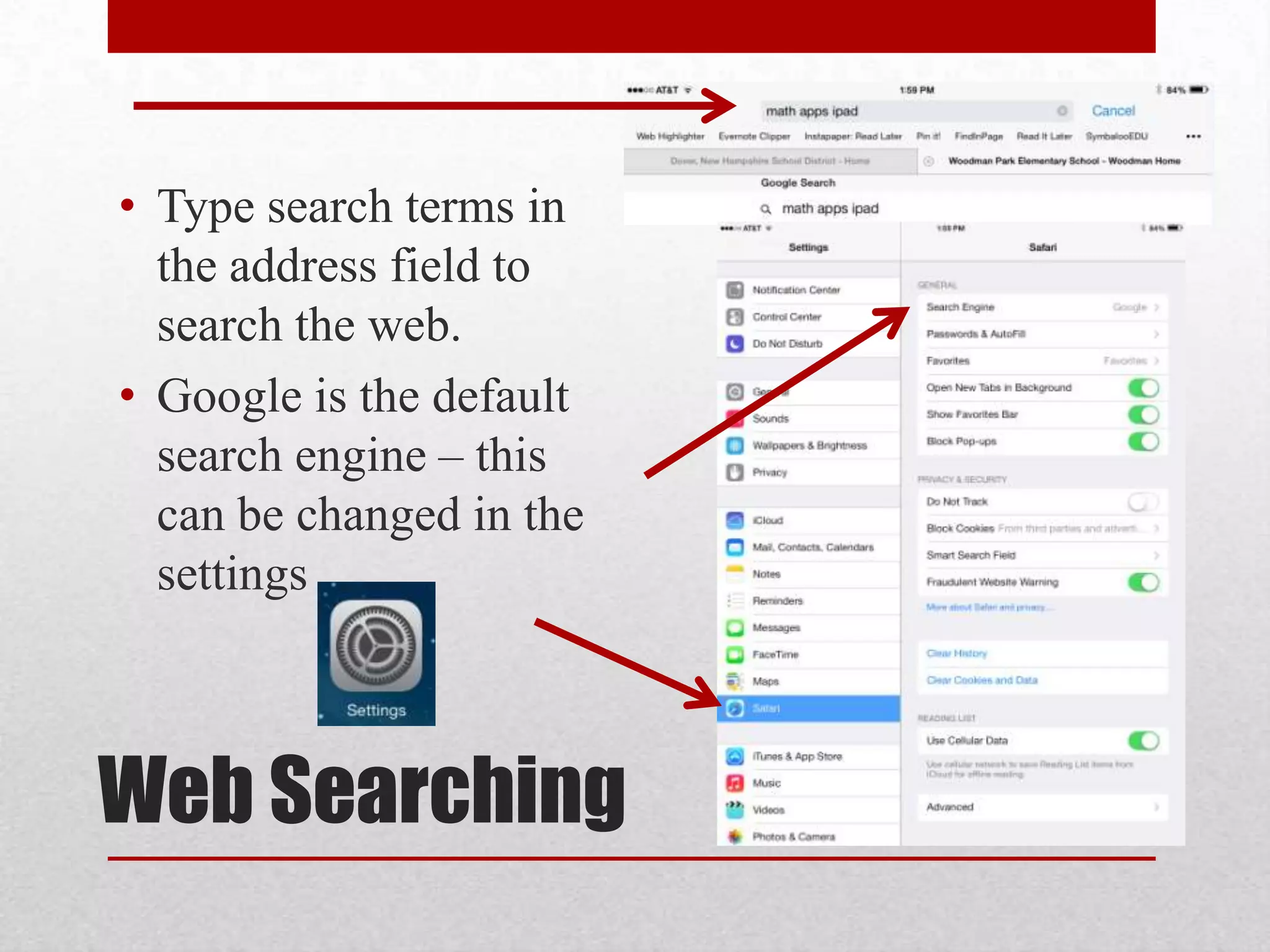
• Type search terms in
the address field to
search the web.
• Google is the default
search engine – this
can be changed in the
settings

Web Searching
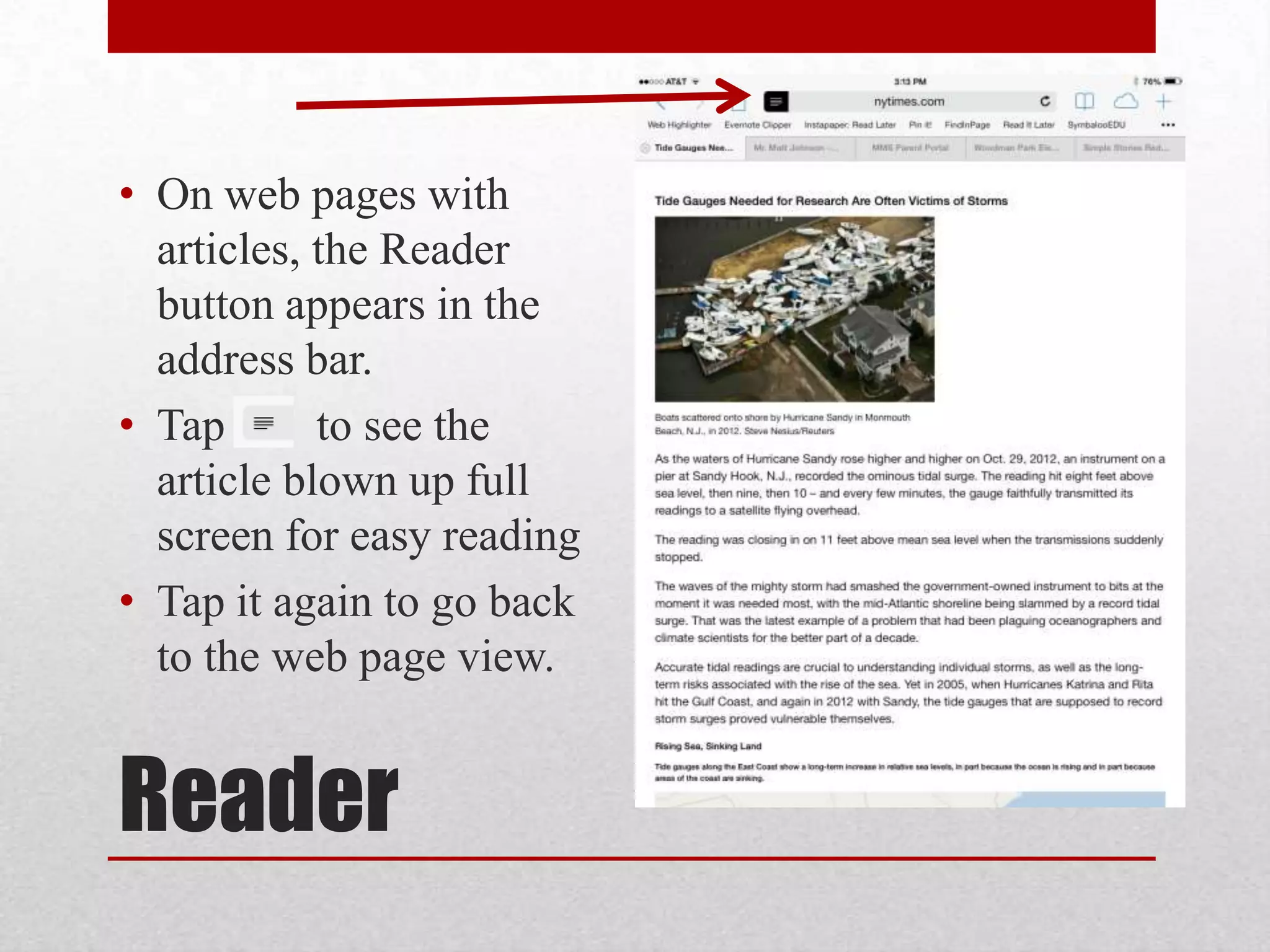
• On web pages with
articles, the Reader
button appears in the
address bar.
• Tap
to see the
article blown up full
screen for easy reading
• Tap it again to go back
to the web page view.

Reader
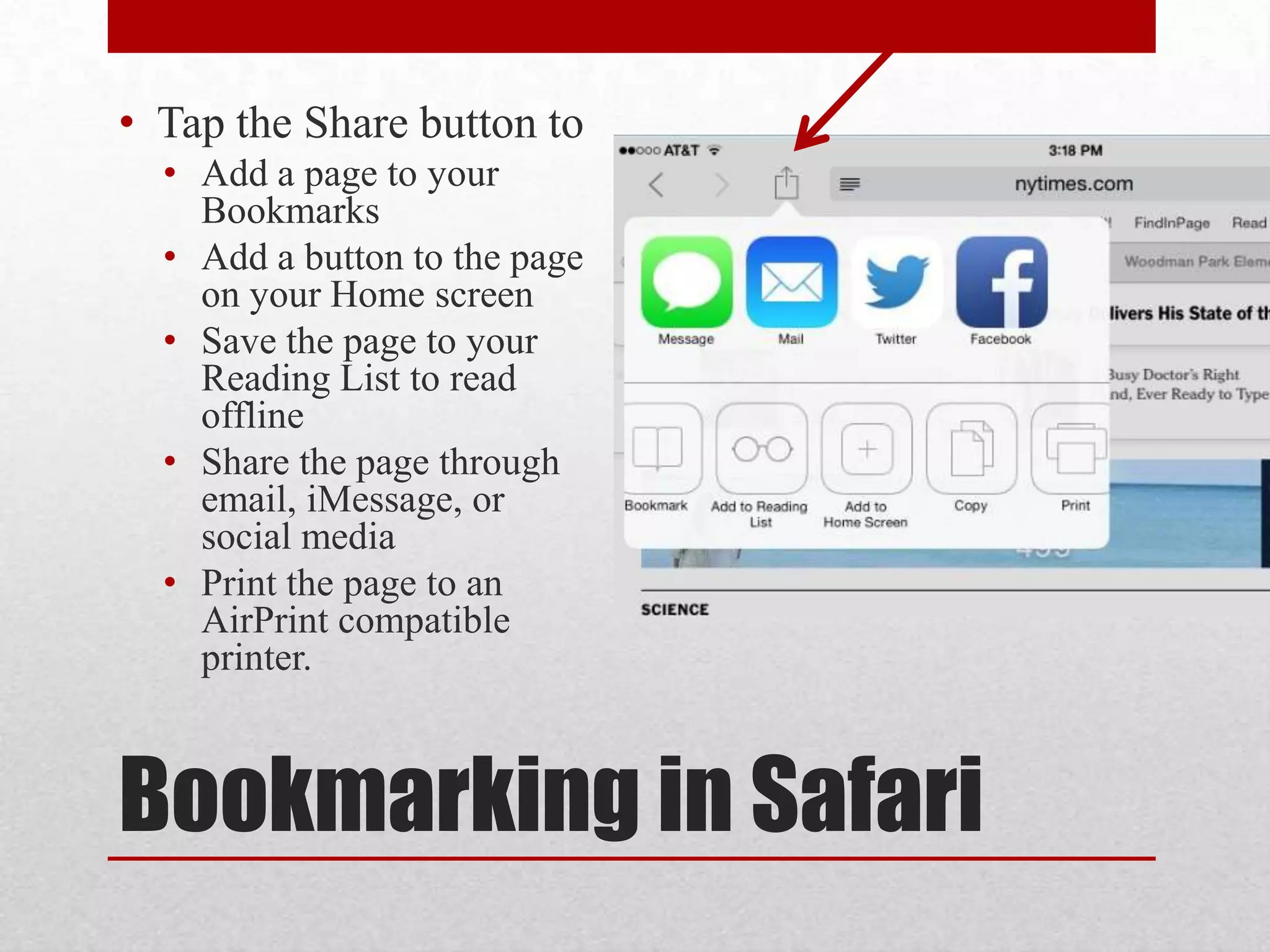
• Tap the Share button to
• Add a page to your
Bookmarks
• Add a button to the page
on your Home screen
• Save the page to your
Reading List to read
offline
• Share the page through
email, iMessage, or
social media
• Print the page to an
AirPrint compatible
printer.

Bookmarking in Safari
• Tap the Bookmarks button
to
• See your list of Bookmarks
• See your browsing history
• See your Reading List

Bookmarking in Safari
• Tap the Edit button to
• Organize your
bookmarks into folders
• Rearrange your
bookmarks
• Delete bookmarks

Organizing Bookmarks
• Navigate to a web page with an address
• Search for a topic on the web
• Open multiple web pages in tabs and switch between
them
• Bookmark a page
• Create a folder for some bookmarks
• Pin a page to your Home Screen

Try It - Safari
•
•
•
•

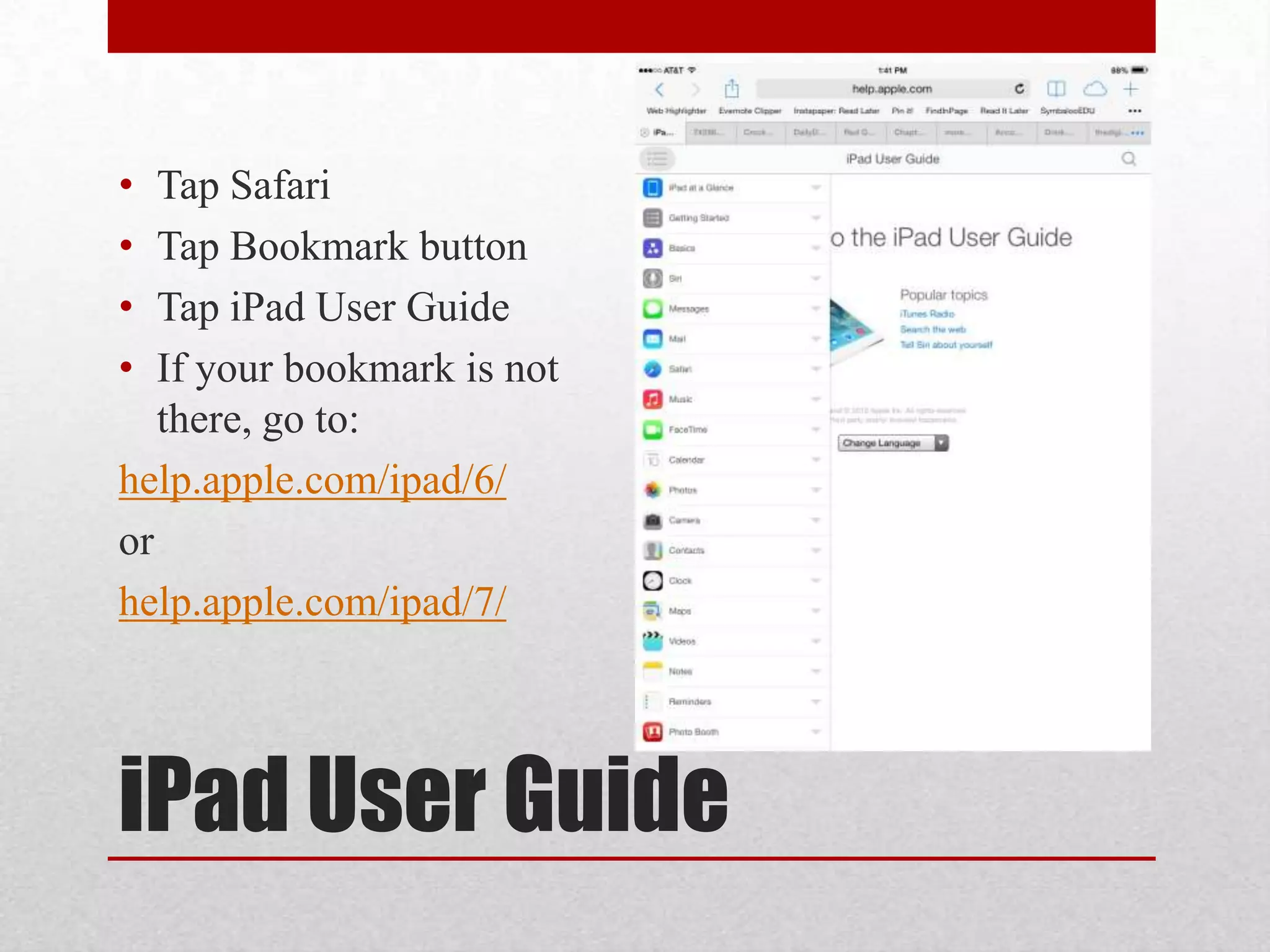
Tap Safari
Tap Bookmark button
Tap iPad User Guide
If your bookmark is not
there, go to:
help.apple.com/ipad/6/
or
help.apple.com/ipad/7/

iPad User Guide
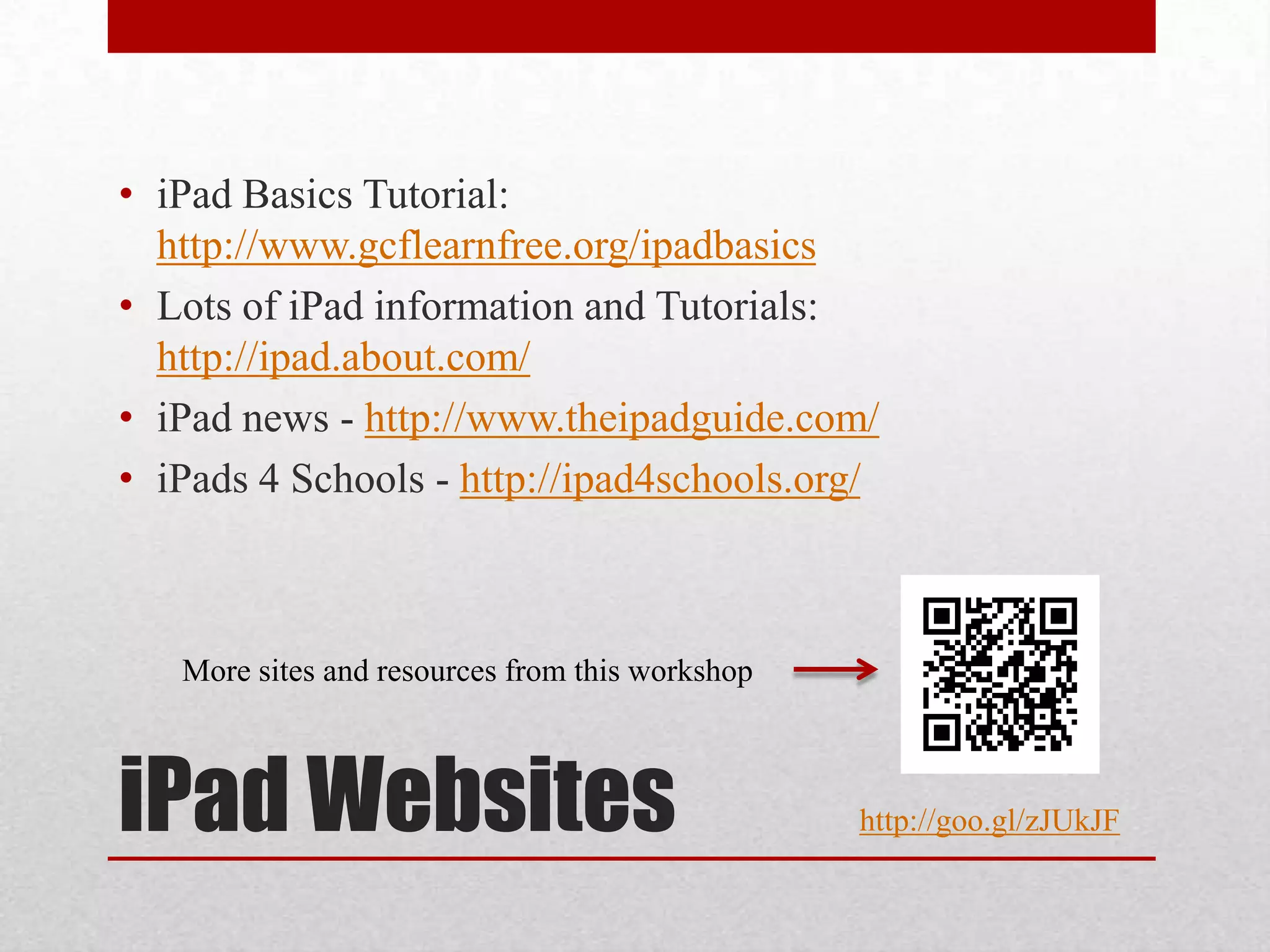
• iPad Basics Tutorial:
http://www.gcflearnfree.org/ipadbasics
• Lots of iPad information and Tutorials:
http://ipad.about.com/
• iPad news - http://www.theipadguide.com/
• iPads 4 Schools - http://ipad4schools.org/

More sites and resources from this workshop

iPad Websites

http://goo.gl/zJUkJF
Questions?

WPS iPad 1 Workshop

  • 1.
    iPad I Tiffany Brand,M.Ed. Technology Instructor, Dover Adult Learning Center t.brand@dalc-online.org http://goo.gl/zJUkJF
  • 2.
    • Instant on– no waiting for boot-up • Long battery life • Packs a lot in a small package – Internet, cameras, document storage, content creation, games, … • Apps, apps and more apps – many free, for so many different tasks. • “Walled Garden” – you can’t “see” your files like you can on a hard drive. Everything is controlled by individual apps and passed between them or to the “Cloud” What’s Different?
  • 3.
    IPAD I Part 1:Getting to Know the iPad Hardware
  • 4.
  • 5.
  • 6.
    • Always bringsyou back to the home/apps screen • Gets you out of any app! Home Button
  • 7.
    • Press onceto wake up a sleeping iPad • Press once to put an iPad to sleep • Press and hold to turn iPad on/off Sleep/Wake Button
  • 8.
    Portrait Landscape • Turning theiPad automatically changes the orientation Orientation
  • 9.
    • iPad SmartCover • iPad Case • Transparent screen protector • Stylus • Bluetooth keyboard Accessories
  • 10.
    • Tap Settings- Wi-Fi – Join wifi networks. Settings
  • 11.
  • 12.
  • 13.
    • Touch somethingon the iPad screen quickly • Uses: • Open an app • Activate a link (on a web site) • Move the insertion point to type in a particular location Tap
  • 14.
    • Touch yourfinger to the screen and drag it across the screen. • Uses: • Scroll up and down • Select text Drag
  • 15.
    • Tap onMaps • Tap on the “Current Location” icon • Drag up, down, right, and left to scroll the map around slowly • Press the Home button to go back to the home screen Try it – Tap and Drag
  • 16.
    • Drag yourfinger across the screen and lift it up quickly. Uses: • Scroll quickly through a long page - Tap anywhere on the screen to stop the scrolling (Think of it as a spinning wheel) • Swipe on a list item to Delete it (email) Flick/Swipe
  • 17.
    • Tap onMaps • Tap on the “Current Location” icon • Flick up, down, right, and left to scroll the map around quickly • Press the Home button to go back to the home screen Try it – Flick/Swipe
  • 18.
    • Using twofingers, drag them in or out on the screen. • Uses: • Zoom in and out on an area of the screen. Pinch
  • 19.
    • Tap onMaps • Tap on the “Current Location” icon • Pinch two fingers together to zoom in on an area of the map • Pinch two fingers out to zoom out • Press the Home button to go back to the home screen Try it – Pinch
  • 20.
    • Press afinger on the screen and hold it there for a second. • Uses: • Selecting text • Bringing up more options for an area on an app • Rearranging app icons on the Home screens Tap and Hold
  • 21.
    • Tap andHold on any app icon • You’ll see them start to jiggle – now you can drag them around and rearrange them on your Home screens • Drag one to an edge to move it to another Home screen • Drag one on top of another to organize them into a grouping. • Press the Home button to “stick” them in their new places and stop editing them. Try it – Tap and Hold
  • 22.
    • On-screen keyboard willappear whenever you tap into an area that you can type text • Notes app, email, text entry fields on web pages, etc. Typing
  • 23.
    • Entering text– tap on a key on the on-screen keyboard. Tap Shift for capital letters. Double-tap for caps lock. Tap to see numbers & symbols. Tap the symbol key to see more symbols. Typing Backspace to delete Hide the keyboard Tap and hold a character to see accents
  • 24.
    • Tap onthe screen to place the insertion point • Tap, hold & drag to move the insertion point to a particular place in the text. • Tap and hold on a word to select it. Drag the selection dots to increase/decrease your selection. • Selected words can be copied (and then pasted elsewhere) and you can access a dictionary to define them. Typing
  • 25.
    • Tap theNotes app • Tap to begin a new note • Type something into the note. Tap and Drag to move the insertion point around to edit your text. Try It - Typing
  • 26.
    • To Printfrom an app, tap and then • iPads can Print to AirPrint-compatible printers on the same wifi network • If you have an old printer that is not AirPrint compatible, you can install software on a computer connected to a printer to enable iOS printing. • For example: Presto by Collobos Software – runs on a computer connected to a printer and allows iOS devices to print to it. www.collobos.com Printing
  • 27.
    IPAD I Part 3:Web browsing with Safari
  • 28.
    • Safari isthe web browser that comes with the iPad • Tap on the Safari icon to launch it Web Browsing in Safari
  • 29.
    • Tap hereand type to enter a web address. • Then tap Go. • Drag in the main area to scroll. • Double tap to quickly zoom in and out • Or Pinch to zoom Web Browsing
  • 30.
    • Tap ona link to follow it. • Tap the Back arrow to go back through pages you have visited • Tap and hold on a link to open it in a new tab, copy it, or add it to your reading list. Web Browsing
  • 31.
    • Tabs allowyou to browse more than one web page at a time • Tap the + to open a new tab. • Tap the tabs to switch between them • Tap the X on a tab to close it Web Browsing
  • 32.
    • Type searchterms in the address field to search the web. • Google is the default search engine – this can be changed in the settings Web Searching
  • 33.
    • On webpages with articles, the Reader button appears in the address bar. • Tap to see the article blown up full screen for easy reading • Tap it again to go back to the web page view. Reader
  • 34.
    • Tap theShare button to • Add a page to your Bookmarks • Add a button to the page on your Home screen • Save the page to your Reading List to read offline • Share the page through email, iMessage, or social media • Print the page to an AirPrint compatible printer. Bookmarking in Safari
  • 35.
    • Tap theBookmarks button to • See your list of Bookmarks • See your browsing history • See your Reading List Bookmarking in Safari
  • 36.
    • Tap theEdit button to • Organize your bookmarks into folders • Rearrange your bookmarks • Delete bookmarks Organizing Bookmarks
  • 37.
    • Navigate toa web page with an address • Search for a topic on the web • Open multiple web pages in tabs and switch between them • Bookmark a page • Create a folder for some bookmarks • Pin a page to your Home Screen Try It - Safari
  • 38.
    • • • • Tap Safari Tap Bookmarkbutton Tap iPad User Guide If your bookmark is not there, go to: help.apple.com/ipad/6/ or help.apple.com/ipad/7/ iPad User Guide
  • 39.
    • iPad BasicsTutorial: http://www.gcflearnfree.org/ipadbasics • Lots of iPad information and Tutorials: http://ipad.about.com/ • iPad news - http://www.theipadguide.com/ • iPads 4 Schools - http://ipad4schools.org/ More sites and resources from this workshop iPad Websites http://goo.gl/zJUkJF
  • 40.

Editor's Notes

  • #4 Status BarYour connection 3g/4g or WiFiTimeBattery LifeApp IconsCustomizable – will look different depending on what apps you have loaded and how you have arranged themHome ButtonAlways brings you back to the home screenFront CameraUsed for FaceTime calls, Skype, etc. or just to take a photo of yourself!Multi-Touch ScreenInteract with the iPad/Apps with multi-touch gestures
  • #5 Sleep/WakePress & hold to turn the iPad on or offPress to wake up the iPad from sleepDock ConnectorCharge the iPad or connect accessories (camera connection, video out, etc.)Side SwitchMute the iPad
  • #13 When scrolling, drag like you are “pushing” the screen up or down.In some apps, like maps, you can drag in all directions.
  • #20 You can also download an iBooks version.