What is HTML?
 Hyper Text Markup Language
 A markup language designed for the creation of web
pages and other information viewable in a browser
 The basic language used to write web pages
 File extension: .htm, .html
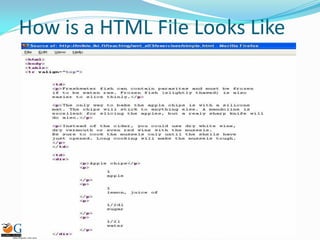
How is a HTML File Looks Like
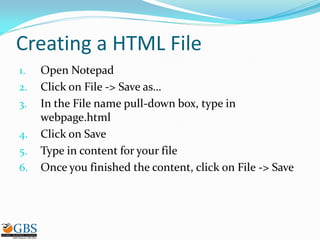
Creating a HTML File
1. Open Notepad
2. Click on File -> Save as…
3. In the File name pull-down box, type in
webpage.html
4. Click on Save
5. Type in content for your file
6. Once you finished the content, click on File -> Save
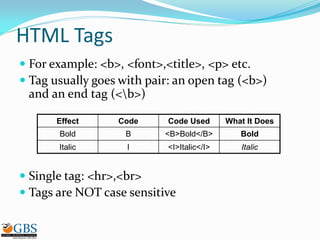
HTML Tags
 For example: <b>, <font>,<title>, <p> etc.
 Tag usually goes with pair: an open tag (<b>)
and an end tag (<b>)
 Single tag: <hr>,<br>
 Tags are NOT case sensitive
Effect Code Code Used What It Does
Bold B <B>Bold</B> Bold
Italic I <I>Italic</I> Italic
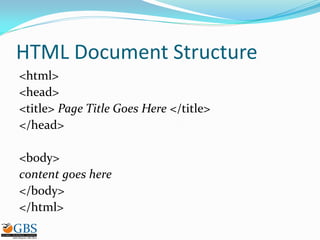
HTML Document Structure
<html>
<head>
<title> Page Title Goes Here </title>
</head>
<body>
content goes here
</body>
</html>
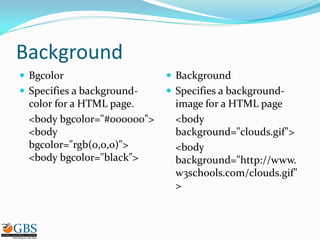
Background
 Bgcolor
 Specifies a background-
color for a HTML page.
<body bgcolor="#000000">
<body
bgcolor="rgb(0,0,0)">
<body bgcolor="black">
 Background
 Specifies a background-
image for a HTML page
<body
background="clouds.gif">
<body
background="http://www.
w3schools.com/clouds.gif"
>
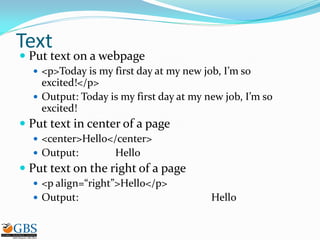
Text
 Put text on a webpage
 <p>Today is my first day at my new job, I’m so
excited!</p>
 Output: Today is my first day at my new job, I’m so
excited!
 Put text in center of a page
 <center>Hello</center>
 Output: Hello
 Put text on the right of a page
 <p align=“right”>Hello</p>
 Output: Hello
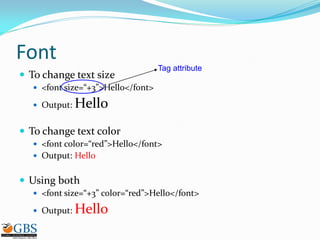
Font
 To change text size
 <font size=“+3”>Hello</font>
 Output: Hello
 To change text color
 <font color=“red”>Hello</font>
 Output: Hello
 Using both
 <font size=“+3” color=“red”>Hello</font>
 Output: Hello
Tag attribute
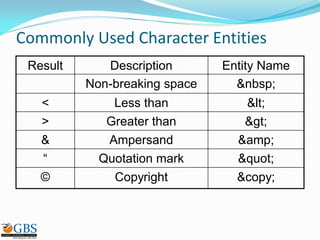
Commonly Used Character Entities
Result Description Entity Name
Non-breaking space &nbsp;
< Less than &lt;
> Greater than &gt;
& Ampersand &amp;
“ Quotation mark &quot;
© Copyright &copy;
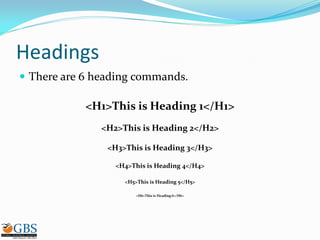
Headings
 There are 6 heading commands.
<H1>This is Heading 1</H1>
<H2>This is Heading 2</H2>
<H3>This is Heading 3</H3>
<H4>This is Heading 4</H4>
<H5>This is Heading 5</H5>
<H6>This is Heading 6</H6>
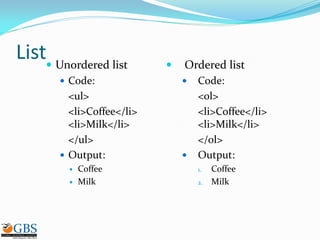
List Unordered list
 Code:
<ul>
<li>Coffee</li>
<li>Milk</li>
</ul>
 Output:
 Coffee
 Milk
 Ordered list
 Code:
<ol>
<li>Coffee</li>
<li>Milk</li>
</ol>
 Output:
1. Coffee
2. Milk
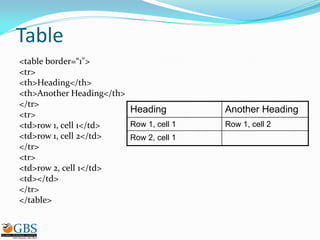
Table
<table border=“1">
<tr>
<th>Heading</th>
<th>Another Heading</th>
</tr>
<tr>
<td>row 1, cell 1</td>
<td>row 1, cell 2</td>
</tr>
<tr>
<td>row 2, cell 1</td>
<td></td>
</tr>
</table>
Heading Another Heading
Row 1, cell 1 Row 1, cell 2
Row 2, cell 1
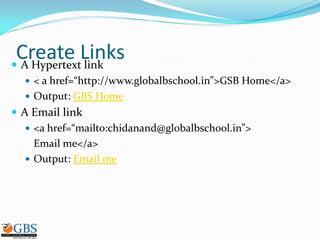
Create Links A Hypertext link
 < a href=“http://www.globalbschool.in”>GSB Home</a>
 Output: GBS Home
 A Email link
 <a href=“mailto:chidanand@globalbschool.in”>
Email me</a>
 Output: Email me
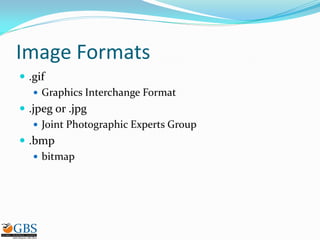
Image Formats
 .gif
 Graphics Interchange Format
 .jpeg or .jpg
 Joint Photographic Experts Group
 .bmp
 bitmap
Inserting Image
 Place all images in the same directory/folder where
you web pages are
 <img src> is a single tag
 <img src=“imagesimage.gif”>
 Output:
 Turn an image into a hyerlink
 <a href=“http://www.iusb.edu”><img
src=“image.gif”></a>
 Output:
Image Size
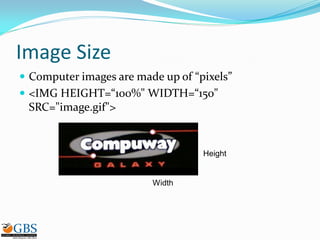
 Computer images are made up of “pixels”
 <IMG HEIGHT=“100%" WIDTH=“150"
SRC="image.gif">
Width
Height
Forms
 A form is an area that can contain form elements.
 <form></form>
 Commonly used form elements includes:
 Text fields
 Radio buttons
 Checkboxes
 Submit buttons
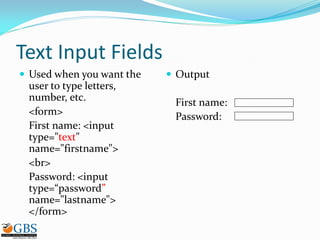
Text Input Fields
 Used when you want the
user to type letters,
number, etc.
<form>
First name: <input
type="text"
name="firstname">
<br>
Password: <input
type=“password”
name="lastname">
</form>
 Output
First name:
Password:
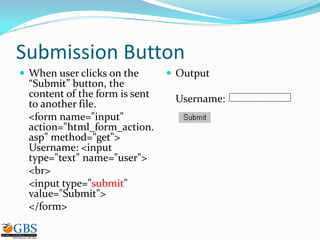
Submission Button
 When user clicks on the
“Submit” button, the
content of the form is sent
to another file.
<form name="input"
action="html_form_action.
asp" method="get">
Username: <input
type="text" name="user">
<br>
<input type="submit"
value="Submit">
</form>
 Output
Username:
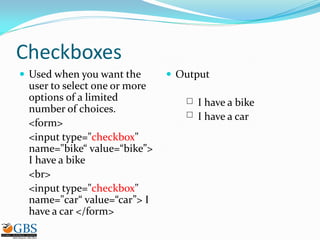
Checkboxes
 Used when you want the
user to select one or more
options of a limited
number of choices.
<form>
<input type="checkbox"
name="bike“ value=“bike”>
I have a bike
<br>
<input type="checkbox"
name="car“ value=“car”> I
have a car </form>
 Output
I have a bike
I have a car
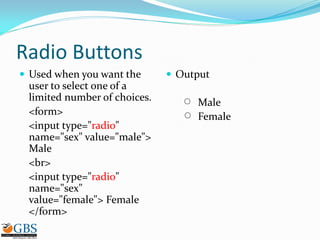
Radio Buttons
 Used when you want the
user to select one of a
limited number of choices.
<form>
<input type="radio"
name="sex" value="male">
Male
<br>
<input type="radio"
name="sex"
value="female"> Female
</form>
 Output
Male
Female
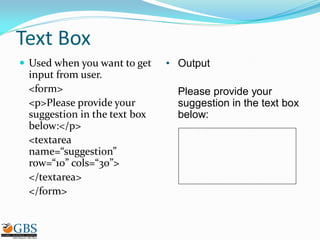
Text Box
 Used when you want to get
input from user.
<form>
<p>Please provide your
suggestion in the text box
below:</p>
<textarea
name=“suggestion”
row=“10” cols=“30”>
</textarea>
</form>
• Output
Please provide your
suggestion in the text box
below:
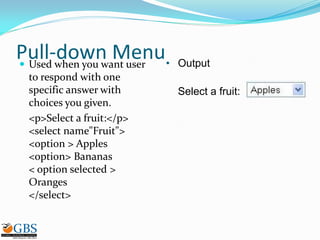
Pull-down Menu Used when you want user
to respond with one
specific answer with
choices you given.
<p>Select a fruit:</p>
<select name"Fruit">
<option > Apples
<option> Bananas
< option selected >
Oranges
</select>
• Output
Select a fruit:
Additional Resource
 http://www.w3schools.com/html/default.asp

Introhtml 2

  • 2.
    What is HTML? Hyper Text Markup Language  A markup language designed for the creation of web pages and other information viewable in a browser  The basic language used to write web pages  File extension: .htm, .html
  • 3.
    How is aHTML File Looks Like
  • 4.
    Creating a HTMLFile 1. Open Notepad 2. Click on File -> Save as… 3. In the File name pull-down box, type in webpage.html 4. Click on Save 5. Type in content for your file 6. Once you finished the content, click on File -> Save
  • 5.
    HTML Tags  Forexample: <b>, <font>,<title>, <p> etc.  Tag usually goes with pair: an open tag (<b>) and an end tag (<b>)  Single tag: <hr>,<br>  Tags are NOT case sensitive Effect Code Code Used What It Does Bold B <B>Bold</B> Bold Italic I <I>Italic</I> Italic
  • 6.
    HTML Document Structure <html> <head> <title>Page Title Goes Here </title> </head> <body> content goes here </body> </html>
  • 7.
    Background  Bgcolor  Specifiesa background- color for a HTML page. <body bgcolor="#000000"> <body bgcolor="rgb(0,0,0)"> <body bgcolor="black">  Background  Specifies a background- image for a HTML page <body background="clouds.gif"> <body background="http://www. w3schools.com/clouds.gif" >
  • 8.
    Text  Put texton a webpage  <p>Today is my first day at my new job, I’m so excited!</p>  Output: Today is my first day at my new job, I’m so excited!  Put text in center of a page  <center>Hello</center>  Output: Hello  Put text on the right of a page  <p align=“right”>Hello</p>  Output: Hello
  • 9.
    Font  To changetext size  <font size=“+3”>Hello</font>  Output: Hello  To change text color  <font color=“red”>Hello</font>  Output: Hello  Using both  <font size=“+3” color=“red”>Hello</font>  Output: Hello Tag attribute
  • 10.
    Commonly Used CharacterEntities Result Description Entity Name Non-breaking space &nbsp; < Less than &lt; > Greater than &gt; & Ampersand &amp; “ Quotation mark &quot; © Copyright &copy;
  • 11.
    Headings  There are6 heading commands. <H1>This is Heading 1</H1> <H2>This is Heading 2</H2> <H3>This is Heading 3</H3> <H4>This is Heading 4</H4> <H5>This is Heading 5</H5> <H6>This is Heading 6</H6>
  • 12.
    List Unordered list Code: <ul> <li>Coffee</li> <li>Milk</li> </ul>  Output:  Coffee  Milk  Ordered list  Code: <ol> <li>Coffee</li> <li>Milk</li> </ol>  Output: 1. Coffee 2. Milk
  • 13.
    Table <table border=“1"> <tr> <th>Heading</th> <th>Another Heading</th> </tr> <tr> <td>row1, cell 1</td> <td>row 1, cell 2</td> </tr> <tr> <td>row 2, cell 1</td> <td></td> </tr> </table> Heading Another Heading Row 1, cell 1 Row 1, cell 2 Row 2, cell 1
  • 14.
    Create Links AHypertext link  < a href=“http://www.globalbschool.in”>GSB Home</a>  Output: GBS Home  A Email link  <a href=“mailto:chidanand@globalbschool.in”> Email me</a>  Output: Email me
  • 15.
    Image Formats  .gif Graphics Interchange Format  .jpeg or .jpg  Joint Photographic Experts Group  .bmp  bitmap
  • 16.
    Inserting Image  Placeall images in the same directory/folder where you web pages are  <img src> is a single tag  <img src=“imagesimage.gif”>  Output:  Turn an image into a hyerlink  <a href=“http://www.iusb.edu”><img src=“image.gif”></a>  Output:
  • 17.
    Image Size  Computerimages are made up of “pixels”  <IMG HEIGHT=“100%" WIDTH=“150" SRC="image.gif"> Width Height
  • 18.
    Forms  A formis an area that can contain form elements.  <form></form>  Commonly used form elements includes:  Text fields  Radio buttons  Checkboxes  Submit buttons
  • 19.
    Text Input Fields Used when you want the user to type letters, number, etc. <form> First name: <input type="text" name="firstname"> <br> Password: <input type=“password” name="lastname"> </form>  Output First name: Password:
  • 20.
    Submission Button  Whenuser clicks on the “Submit” button, the content of the form is sent to another file. <form name="input" action="html_form_action. asp" method="get"> Username: <input type="text" name="user"> <br> <input type="submit" value="Submit"> </form>  Output Username:
  • 21.
    Checkboxes  Used whenyou want the user to select one or more options of a limited number of choices. <form> <input type="checkbox" name="bike“ value=“bike”> I have a bike <br> <input type="checkbox" name="car“ value=“car”> I have a car </form>  Output I have a bike I have a car
  • 22.
    Radio Buttons  Usedwhen you want the user to select one of a limited number of choices. <form> <input type="radio" name="sex" value="male"> Male <br> <input type="radio" name="sex" value="female"> Female </form>  Output Male Female
  • 23.
    Text Box  Usedwhen you want to get input from user. <form> <p>Please provide your suggestion in the text box below:</p> <textarea name=“suggestion” row=“10” cols=“30”> </textarea> </form> • Output Please provide your suggestion in the text box below:
  • 24.
    Pull-down Menu Usedwhen you want user to respond with one specific answer with choices you given. <p>Select a fruit:</p> <select name"Fruit"> <option > Apples <option> Bananas < option selected > Oranges </select> • Output Select a fruit:
  • 25.