K.Sasidhar
WEB TECHNOLOGIESWEB TECHNOLOGIES
By
K. Sasidhar
Hyderabad.
K.Sasidhar
IntroductionIntroduction
WEB ?
A collection of documents inter-linked by
hyperlinks is called a web.
A web page contains hyper text information
system
WWW ?
World wide web is a global hypertext
system that uses the internet as its
transmission medium
K.Sasidhar
Hyper Text ?
The text embedded with another units of
text. Hyperlinks are embedded into the
text.
Hyperlink
Hyperlink is an underlined or emphasized
word that when clicked displays another
document.
K.Sasidhar
Clicking on those links activates the
necessary protocols and pulls up the
chosen web site.
Browsing ?
The process of navigating among the
documents is called as browsing.
Web Browser ?
A program that runs on an computer and
provides access to WWW resources
K.Sasidhar
Browser Types ?
1. Text only Browsers
2. Graphical Web Browsers
Text only browsers does not provide GUI
features and not user friendly.
Ex: Lynx on Unix shell os
K.Sasidhar
Graphical web browsers provide inline
images, fonts and document layouts.
Much user friendly.
Ex: Internet Explorer
 Mozilla fire fox
 Google chrome
 Netscape Navigator
K.Sasidhar
Web SiteWeb Site
A website runs a web server and has
been setup for publishing documents.
Web Server ?
Is a program that accepts requests from
users for information framed according
to the HTTP.
The server processes these requests and
sends the requested documents.
K.Sasidhar
Finally Web Technologies ?
Melding of Technologies
Internet Technology
HTML
JavaScript
Java
CORBA
Multimedia Tools – Flash
Database Connectivity
Client - Server Programming
K.Sasidhar
More ……
JSP
Ajax
Flex
Net Beans
PHP etc…
K.Sasidhar
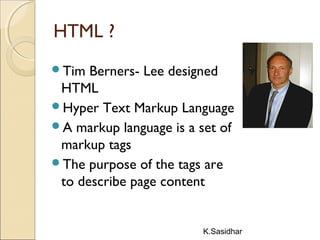
HTML ?
Tim Berners- Lee designed
HTML
Hyper Text Markup Language
A markup language is a set of
markup tags
The purpose of the tags are
to describe page content
K.Sasidhar
HTML Tags
HTML tags are keywords (tag names) surrounded
by angle brackets like <html>
HTML tags normally come in pairs like <b> and
</b>
The first tag in a pair is the start tag, the second
tag is the end tag
The end tag is written like the start tag, with
a forward slash before the tag name
Start and end tags are also called opening
tags and closing tags

K.Sasidhar
HTML Page Structure
<html>
<head> </title>Program Ex. </title>
</head>
<body>
<h1>This a Heading</h1>
<p>This is a paragraph.</p>
<p>This is another paragraph.</p>
</body>
</html>
K.Sasidhar
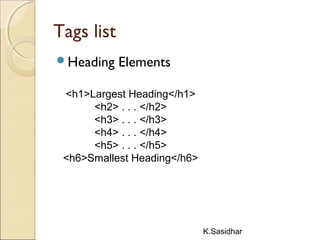
Tags list
Heading Elements
<h1>Largest Heading</h1>
<h2> . . . </h2>
<h3> . . . </h3>
<h4> . . . </h4>
<h5> . . . </h5>
<h6>Smallest Heading</h6>
K.Sasidhar
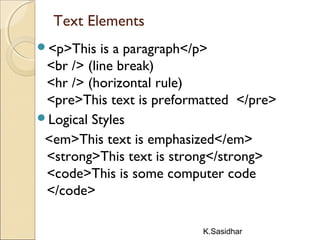
Text Elements
<p>This is a paragraph</p>
<br /> (line break)
<hr /> (horizontal rule)
<pre>This text is preformatted </pre>
Logical Styles
<em>This text is emphasized</em>
<strong>This text is strong</strong>
<code>This is some computer code
</code>
K.Sasidhar
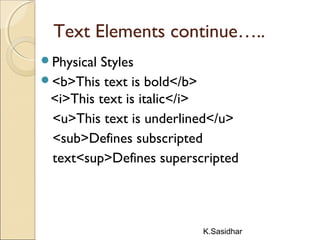
Text Elements continue…..
Physical Styles
<b>This text is bold</b>
<i>This text is italic</i>
<u>This text is underlined</u>
<sub>Defines subscripted
text<sup>Defines superscripted
K.Sasidhar
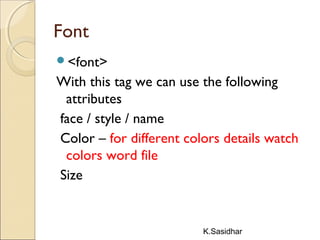
Font
<font>
With this tag we can use the following
attributes
face / style / name
Color – for different colors details watch
colors word file
Size
K.Sasidhar
HTML Hyperlinks (Links)
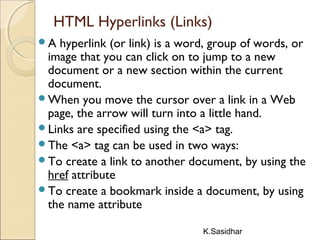
A hyperlink (or link) is a word, group of words, or
image that you can click on to jump to a new
document or a new section within the current
document.
When you move the cursor over a link in a Web
page, the arrow will turn into a little hand.
Links are specified using the <a> tag.
The <a> tag can be used in two ways:
To create a link to another document, by using the
href attribute
To create a bookmark inside a document, by using
the name attribute
K.Sasidhar
Link Syntax
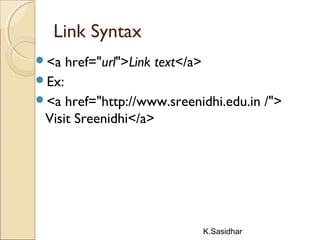
<a href="url">Link text</a>
Ex:
<a href="http://www.sreenidhi.edu.in /">
Visit Sreenidhi</a>
K.Sasidhar
ListsLists
Numbered / Ordered Lists
Bulleted / Unordered Lists
Glossary Lists
Menu Lists
Directory Lists
K.Sasidhar
Numbered ListsNumbered Lists
<ol type =1>
<li>
</li>
</ol>
K.Sasidhar
Unordered ListsUnordered Lists
<ul type=“square”>
<li>
</li>
</ul>
K.Sasidhar
Glossary listGlossary list
Contains a term & its verbose definition
<dl> def.list
<dt> def.term
<dd> def. description
</dt>
</dl>
K.Sasidhar
Menu ListMenu List
<menu>
</menu>
Directory list
<dir>
</dir>
K.Sasidhar
Images
images are defined with the <img> tag
To display an image use the src attribute. src
stands for "source". 
<img src="url" alt="some_text"/>
<img src=“flower" alt=“lilly flower" />
Attributes of image are: width, height & border
K.Sasidhar
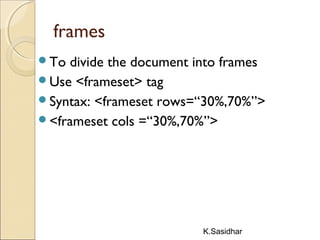
frames
To divide the document into frames
Use <frameset> tag
Syntax: <frameset rows=“30%,70%”>
<frameset cols =“30%,70%”>
K.Sasidhar
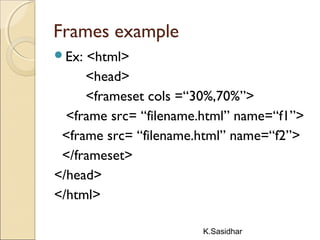
Frames example
Ex: <html>
<head>
<frameset cols =“30%,70%”>
<frame src= “filename.html” name=“f1”>
<frame src= “filename.html” name=“f2”>
</frameset>
</head>
</html>
K.Sasidhar
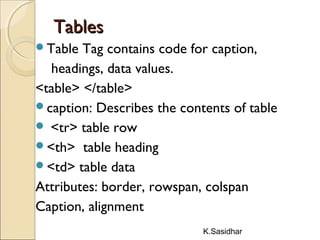
TablesTables
Table Tag contains code for caption,
headings, data values.
<table> </table>
caption: Describes the contents of table
 <tr> table row
<th> table heading
<td> table data
Attributes: border, rowspan, colspan
Caption, alignment
K.Sasidhar
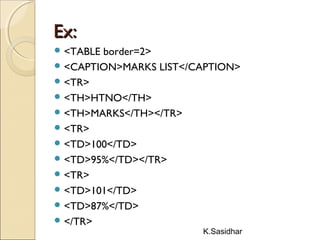
Ex:Ex:
 <TABLE border=2>
 <CAPTION>MARKS LIST</CAPTION>
 <TR>
 <TH>HTNO</TH>
 <TH>MARKS</TH></TR>
 <TR>
 <TD>100</TD>
 <TD>95%</TD></TR>
 <TR>
 <TD>101</TD>
 <TD>87%</TD>
 </TR>
K.Sasidhar
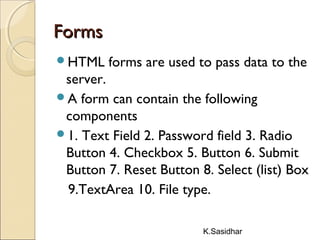
FormsForms
HTML forms are used to pass data to the
server.
A form can contain the following
components
1. Text Field 2. Password field 3. Radio
Button 4. Checkbox 5. Button 6. Submit
Button 7. Reset Button 8. Select (list) Box
9.TextArea 10. File type.
K.Sasidhar
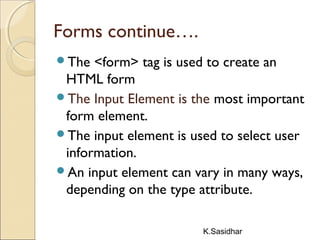
Forms continue….
The <form> tag is used to create an
HTML form
The Input Element is the most important
form element.
The input element is used to select user
information.
An input element can vary in many ways,
depending on the type attribute.
K.Sasidhar
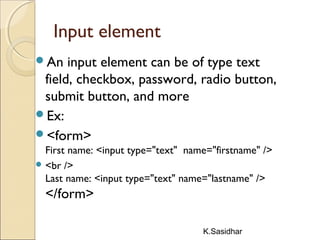
Input element
An input element can be of type text
field, checkbox, password, radio button,
submit button, and more
Ex:
<form>
First name: <input type="text" name="firstname" />
 <br />
Last name: <input type="text" name="lastname" />
</form>
K.Sasidhar
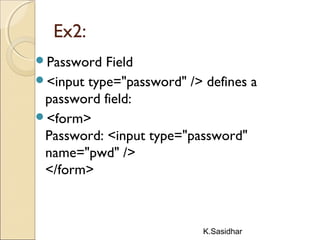
Ex2:
Password Field
<input type="password" /> defines a
password field:
<form>
Password: <input type="password"
name="pwd" />
</form>
K.Sasidhar
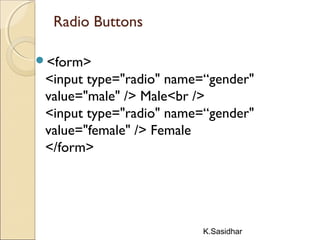
Radio Buttons
<form>
<input type="radio" name=“gender"
value="male" /> Male<br />
<input type="radio" name=“gender"
value="female" /> Female
</form>
K.Sasidhar
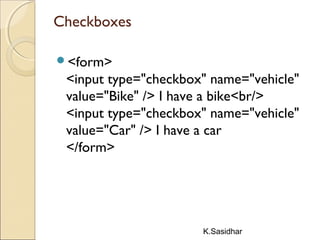
Checkboxes
<form>
<input type="checkbox" name="vehicle"
value="Bike" /> I have a bike<br/>
<input type="checkbox" name="vehicle"
value="Car" /> I have a car 
</form>
K.Sasidhar
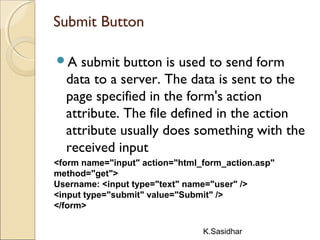
Submit Button
A submit button is used to send form
data to a server. The data is sent to the
page specified in the form's action
attribute. The file defined in the action
attribute usually does something with the
received input
<form name="input" action="html_form_action.asp"
method="get">
Username: <input type="text" name="user" />
<input type="submit" value="Submit" />
</form>
K.Sasidhar
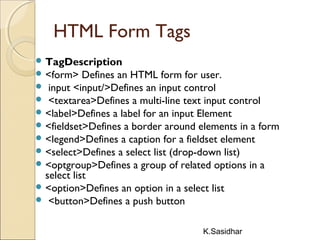
HTML Form Tags
 TagDescription
 <form> Defines an HTML form for user.
 input <input/>Defines an input control
 <textarea>Defines a multi-line text input control
 <label>Defines a label for an input Element
 <fieldset>Defines a border around elements in a form
 <legend>Defines a caption for a fieldset element
 <select>Defines a select list (drop-down list)
 <optgroup>Defines a group of related options in a
select list
 <option>Defines an option in a select list
 <button>Defines a push button
K.Sasidhar
EntitiesEntities
&lt; is the same as <
&gt; is the same as >
&#169; is the same as ©
K.Sasidhar
Cascading Style Sheets (CSS)
CSS stands for Cascading Style Sheets
Styles define how to display HTML elements
External Style Sheets can save a lot of work
External Style Sheets are stored in CSS files
K.Sasidhar
CSS Syntax
A CSS rule has two main parts:
a selector, and one or more declarations:
H1 { color: blue; font-size:12px;}
H1 selector
Color is property and blue is value
CSS declaration always ends with a ;
(semicolon) and delegation groups are
surrounded by curly braces.
K.Sasidhar
CSS EX:
P{color:red; text-align:center;}
K.Sasidhar
Types of CSS
External style sheet
Internal style sheet
Inline style
K.Sasidhar
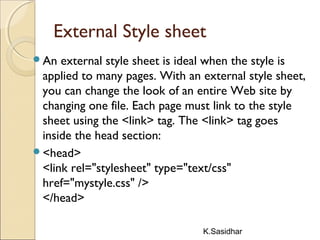
External Style sheet
An external style sheet is ideal when the style is
applied to many pages. With an external style sheet,
you can change the look of an entire Web site by
changing one file. Each page must link to the style
sheet using the <link> tag. The <link> tag goes
inside the head section:
<head>
<link rel="stylesheet" type="text/css"
href="mystyle.css" />
</head>
K.Sasidhar
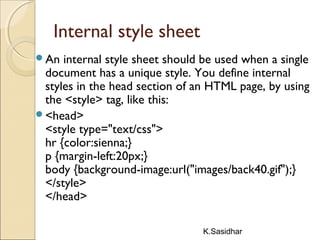
Internal style sheet
An internal style sheet should be used when a single
document has a unique style. You define internal
styles in the head section of an HTML page, by using
the <style> tag, like this:
<head>
<style type="text/css">
hr {color:sienna;}
p {margin-left:20px;}
body {background-image:url("images/back40.gif");}
</style>
</head>
K.Sasidhar
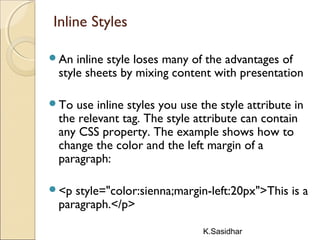
Inline Styles
An inline style loses many of the advantages of
style sheets by mixing content with presentation
To use inline styles you use the style attribute in
the relevant tag. The style attribute can contain
any CSS property. The example shows how to
change the color and the left margin of a
paragraph:
<p style="color:sienna;margin-left:20px">This is a
paragraph.</p>
K.Sasidhar
CSS Background
CSS properties used for background
effects:
background-color
background-image
background-repeat
background-attachment
background-position
K.Sasidhar
CSS Text
The text-align property is used to set the
horizontal alignment of a text.
Text can be centered, or aligned to the
left or right, or justified.
When text-align is set to "justify", each
line is stretched so that every line has
equal width, and the left and right margins
are straight
K.Sasidhar
Ex:
h1 {text-align:center;}
p.date {text-align:right;}
p.main {text-align:justify;}
Text Decoration
The text-decoration property is used to set or remove
decorations from text.
The text-decoration property is mostly used to remove
underlines from links for design purposes:
K.Sasidhar
Examples
H1{text-decoration:overline;}
H2{text-decoration: line-through}
H3{text-decoration: underline}
H4{text-decoration: blink}
K.Sasidhar
Text Transformation
The text-transform property is used to
specify uppercase and lowercase letters
in a text.
It can be used to turn everything into
uppercase or lowercase letters, or
capitalize the first letter of each word.
p.uppercase {text-transform:uppercase;}
p.lowercase {text-transform:lowercase;}
p.capitalize {text-transform:capitalize;}
K.Sasidhar
Text Indentation
The text-indentation property is used to
specify the indentation of the first line of
a text
Ex: p {text-indent:50px;}
K.Sasidhar
Styling Links
Links can be styled with any CSS property (e.g.
color, font-family, background, etc.).
Special for links are that they can be styled
differently depending on what state they are in.
The four links states are:
a:link - a normal, unvisited link
a:visited - a link the user has visited
a:hover - a link when the user mouse moves
over it
a:active - a link the moment it is clicked
K.Sasidhar
Ex:
a:link {color:#FF0000;}  /* unvisited link */
a:visited {color:#00FF00;}  /* visited link
*/
a:hover {color:#FF00FF;}  /* mouse over
link */
a:active {color:#0000FF;} /*selected link */
K.Sasidhar
Background Color
a:link {background-color:#B2FF99;}
a:visited {background-color:#FFFF85;}
a:hover {background-color:#FF704D;}
a:active {background-color:#FF704D;
Different List Item
Markers
ul.a {list-style-type: circle;}
ul.b {list-style-type: square;}
ol.c {list-style-type: upper-roman;}
ol.d {list-style-type: lower-alpha;}
Imageasexample.html
K.Sasidhar
Table Borders
table, th, td
{
border: 1px solid black;
}
Borders.html
Table Color
table, td, th
{
border:1px solid green;
}
th
{
background-color:green;
color:white;
}
K.Sasidhar
The CSS Box Model
All HTML elements can be considered as
boxes. In CSS, the term "box model" is used
when talking about design and layout.
The CSS box model is essentially a box that
wraps around HTML elements, and it consists
of: margins, borders, padding, and the actual
content.
The box model allows us to place a border
around elements and space elements in relation
to other elements.
K.Sasidhar
Ex for Box Model
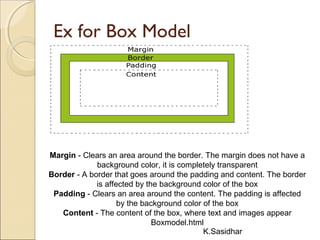
Margin - Clears an area around the border. The margin does not have a
background color, it is completely transparent
Border - A border that goes around the padding and content. The border
is affected by the background color of the box
Padding - Clears an area around the content. The padding is affected
by the background color of the box
Content - The content of the box, where text and images appear
Boxmodel.html
K.Sasidhar
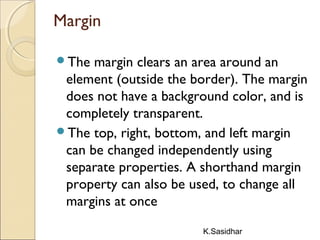
Margin
The margin clears an area around an
element (outside the border). The margin
does not have a background color, and is
completely transparent.
The top, right, bottom, and left margin
can be changed independently using
separate properties. A shorthand margin
property can also be used, to change all
margins at once
K.Sasidhar
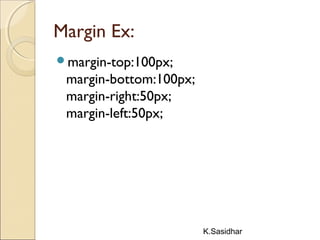
Margin Ex:
margin-top:100px;
margin-bottom:100px;
margin-right:50px;
margin-left:50px;
K.Sasidhar
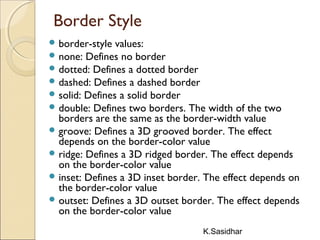
Border Style
 border-style values:
 none: Defines no border
 dotted: Defines a dotted border
 dashed: Defines a dashed border
 solid: Defines a solid border
 double: Defines two borders. The width of the two
borders are the same as the border-width value
 groove: Defines a 3D grooved border. The effect
depends on the border-color value
 ridge: Defines a 3D ridged border. The effect depends
on the border-color value
 inset: Defines a 3D inset border. The effect depends on
the border-color value
 outset: Defines a 3D outset border. The effect depends
on the border-color value
K.Sasidhar
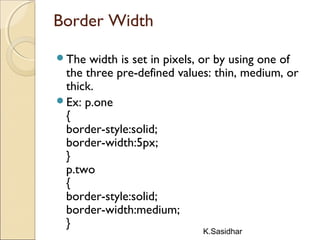
Border Width
The width is set in pixels, or by using one of
the three pre-defined values: thin, medium, or
thick.
Ex: p.one
{
border-style:solid;
border-width:5px;
}
p.two
{
border-style:solid;
border-width:medium;
}
K.Sasidhar
Border Color
The border-color property is used to set
the color of the border. The color can be
set by:
name - specify a color name, like "red"
RGB - specify a RGB value, like
"rgb(255,0,0)"
Hex - specify a hex value, like "#ff0000"
K.Sasidhar
Ex:
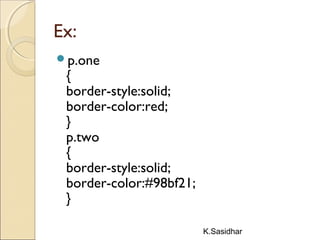
p.one
{
border-style:solid;
border-color:red;
}
p.two
{
border-style:solid;
border-color:#98bf21;
}
K.Sasidhar
Border - Individual sides
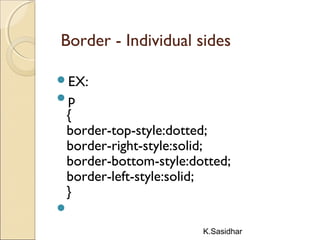
EX:
p
{
border-top-style:dotted;
border-right-style:solid;
border-bottom-style:dotted;
border-left-style:solid;
}

K.Sasidhar
CSS Padding
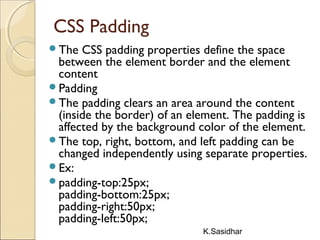
The CSS padding properties define the space
between the element border and the element
content
Padding
The padding clears an area around the content
(inside the border) of an element. The padding is
affected by the background color of the element.
The top, right, bottom, and left padding can be
changed independently using separate properties.
Ex:
padding-top:25px;
padding-bottom:25px;
padding-right:50px;
padding-left:50px;
K.Sasidhar
CSS Grouping
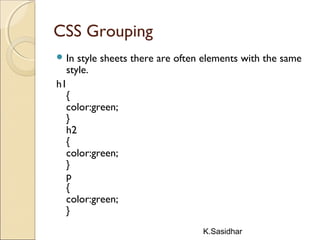
 In style sheets there are often elements with the same
style.
h1
{
color:green;
}
h2
{
color:green;
}
p
{
color:green;
}
K.Sasidhar
Grouping ………
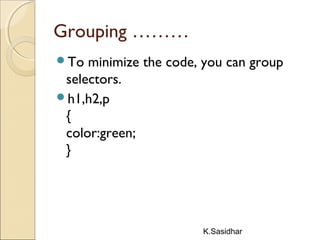
To minimize the code, you can group
selectors.
h1,h2,p
{
color:green;
}
K.Sasidhar
Image gallery
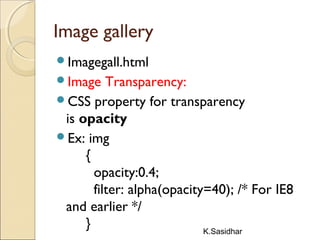
Imagegall.html
Image Transparency:
CSS property for transparency
is opacity
Ex: img
{
opacity:0.4;
filter: alpha(opacity=40); /* For IE8
and earlier */
}
K.Sasidhar
Ifrmaes
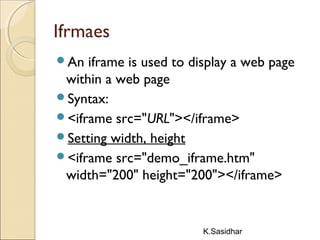
An iframe is used to display a web page
within a web page
Syntax:
<iframe src="URL"></iframe>
Setting width, height
<iframe src="demo_iframe.htm"
width="200" height="200"></iframe>

HTML By K.Sasidhar

  • 1.
  • 2.
    K.Sasidhar IntroductionIntroduction WEB ? A collectionof documents inter-linked by hyperlinks is called a web. A web page contains hyper text information system WWW ? World wide web is a global hypertext system that uses the internet as its transmission medium
  • 3.
    K.Sasidhar Hyper Text ? Thetext embedded with another units of text. Hyperlinks are embedded into the text. Hyperlink Hyperlink is an underlined or emphasized word that when clicked displays another document.
  • 4.
    K.Sasidhar Clicking on thoselinks activates the necessary protocols and pulls up the chosen web site. Browsing ? The process of navigating among the documents is called as browsing. Web Browser ? A program that runs on an computer and provides access to WWW resources
  • 5.
    K.Sasidhar Browser Types ? 1.Text only Browsers 2. Graphical Web Browsers Text only browsers does not provide GUI features and not user friendly. Ex: Lynx on Unix shell os
  • 6.
    K.Sasidhar Graphical web browsersprovide inline images, fonts and document layouts. Much user friendly. Ex: Internet Explorer  Mozilla fire fox  Google chrome  Netscape Navigator
  • 7.
    K.Sasidhar Web SiteWeb Site Awebsite runs a web server and has been setup for publishing documents. Web Server ? Is a program that accepts requests from users for information framed according to the HTTP. The server processes these requests and sends the requested documents.
  • 8.
    K.Sasidhar Finally Web Technologies? Melding of Technologies Internet Technology HTML JavaScript Java CORBA Multimedia Tools – Flash Database Connectivity Client - Server Programming
  • 9.
  • 10.
    K.Sasidhar HTML ? Tim Berners-Lee designed HTML Hyper Text Markup Language A markup language is a set of markup tags The purpose of the tags are to describe page content
  • 11.
    K.Sasidhar HTML Tags HTML tagsare keywords (tag names) surrounded by angle brackets like <html> HTML tags normally come in pairs like <b> and </b> The first tag in a pair is the start tag, the second tag is the end tag The end tag is written like the start tag, with a forward slash before the tag name Start and end tags are also called opening tags and closing tags 
  • 12.
    K.Sasidhar HTML Page Structure <html> <head></title>Program Ex. </title> </head> <body> <h1>This a Heading</h1> <p>This is a paragraph.</p> <p>This is another paragraph.</p> </body> </html>
  • 13.
    K.Sasidhar Tags list Heading Elements <h1>LargestHeading</h1> <h2> . . . </h2> <h3> . . . </h3> <h4> . . . </h4> <h5> . . . </h5> <h6>Smallest Heading</h6>
  • 14.
    K.Sasidhar Text Elements <p>This isa paragraph</p> <br /> (line break) <hr /> (horizontal rule) <pre>This text is preformatted </pre> Logical Styles <em>This text is emphasized</em> <strong>This text is strong</strong> <code>This is some computer code </code>
  • 15.
    K.Sasidhar Text Elements continue….. PhysicalStyles <b>This text is bold</b> <i>This text is italic</i> <u>This text is underlined</u> <sub>Defines subscripted text<sup>Defines superscripted
  • 16.
    K.Sasidhar Font <font> With this tagwe can use the following attributes face / style / name Color – for different colors details watch colors word file Size
  • 17.
    K.Sasidhar HTML Hyperlinks (Links) Ahyperlink (or link) is a word, group of words, or image that you can click on to jump to a new document or a new section within the current document. When you move the cursor over a link in a Web page, the arrow will turn into a little hand. Links are specified using the <a> tag. The <a> tag can be used in two ways: To create a link to another document, by using the href attribute To create a bookmark inside a document, by using the name attribute
  • 18.
    K.Sasidhar Link Syntax <a href="url">Linktext</a> Ex: <a href="http://www.sreenidhi.edu.in /"> Visit Sreenidhi</a>
  • 19.
    K.Sasidhar ListsLists Numbered / OrderedLists Bulleted / Unordered Lists Glossary Lists Menu Lists Directory Lists
  • 20.
    K.Sasidhar Numbered ListsNumbered Lists <oltype =1> <li> </li> </ol>
  • 21.
    K.Sasidhar Unordered ListsUnordered Lists <ultype=“square”> <li> </li> </ul>
  • 22.
    K.Sasidhar Glossary listGlossary list Containsa term & its verbose definition <dl> def.list <dt> def.term <dd> def. description </dt> </dl>
  • 23.
  • 24.
    K.Sasidhar Images images are definedwith the <img> tag To display an image use the src attribute. src stands for "source".  <img src="url" alt="some_text"/> <img src=“flower" alt=“lilly flower" /> Attributes of image are: width, height & border
  • 25.
    K.Sasidhar frames To divide thedocument into frames Use <frameset> tag Syntax: <frameset rows=“30%,70%”> <frameset cols =“30%,70%”>
  • 26.
    K.Sasidhar Frames example Ex: <html> <head> <framesetcols =“30%,70%”> <frame src= “filename.html” name=“f1”> <frame src= “filename.html” name=“f2”> </frameset> </head> </html>
  • 27.
    K.Sasidhar TablesTables Table Tag containscode for caption, headings, data values. <table> </table> caption: Describes the contents of table  <tr> table row <th> table heading <td> table data Attributes: border, rowspan, colspan Caption, alignment
  • 28.
    K.Sasidhar Ex:Ex:  <TABLE border=2> <CAPTION>MARKS LIST</CAPTION>  <TR>  <TH>HTNO</TH>  <TH>MARKS</TH></TR>  <TR>  <TD>100</TD>  <TD>95%</TD></TR>  <TR>  <TD>101</TD>  <TD>87%</TD>  </TR>
  • 29.
    K.Sasidhar FormsForms HTML forms areused to pass data to the server. A form can contain the following components 1. Text Field 2. Password field 3. Radio Button 4. Checkbox 5. Button 6. Submit Button 7. Reset Button 8. Select (list) Box 9.TextArea 10. File type.
  • 30.
    K.Sasidhar Forms continue…. The <form>tag is used to create an HTML form The Input Element is the most important form element. The input element is used to select user information. An input element can vary in many ways, depending on the type attribute.
  • 31.
    K.Sasidhar Input element An inputelement can be of type text field, checkbox, password, radio button, submit button, and more Ex: <form> First name: <input type="text" name="firstname" />  <br /> Last name: <input type="text" name="lastname" /> </form>
  • 32.
    K.Sasidhar Ex2: Password Field <input type="password"/> defines a password field: <form> Password: <input type="password" name="pwd" /> </form>
  • 33.
    K.Sasidhar Radio Buttons <form> <input type="radio"name=“gender" value="male" /> Male<br /> <input type="radio" name=“gender" value="female" /> Female </form>
  • 34.
    K.Sasidhar Checkboxes <form> <input type="checkbox" name="vehicle" value="Bike"/> I have a bike<br/> <input type="checkbox" name="vehicle" value="Car" /> I have a car  </form>
  • 35.
    K.Sasidhar Submit Button A submitbutton is used to send form data to a server. The data is sent to the page specified in the form's action attribute. The file defined in the action attribute usually does something with the received input <form name="input" action="html_form_action.asp" method="get"> Username: <input type="text" name="user" /> <input type="submit" value="Submit" /> </form>
  • 36.
    K.Sasidhar HTML Form Tags TagDescription  <form> Defines an HTML form for user.  input <input/>Defines an input control  <textarea>Defines a multi-line text input control  <label>Defines a label for an input Element  <fieldset>Defines a border around elements in a form  <legend>Defines a caption for a fieldset element  <select>Defines a select list (drop-down list)  <optgroup>Defines a group of related options in a select list  <option>Defines an option in a select list  <button>Defines a push button
  • 37.
    K.Sasidhar EntitiesEntities &lt; is thesame as < &gt; is the same as > &#169; is the same as ©
  • 38.
    K.Sasidhar Cascading Style Sheets(CSS) CSS stands for Cascading Style Sheets Styles define how to display HTML elements External Style Sheets can save a lot of work External Style Sheets are stored in CSS files
  • 39.
    K.Sasidhar CSS Syntax A CSSrule has two main parts: a selector, and one or more declarations: H1 { color: blue; font-size:12px;} H1 selector Color is property and blue is value CSS declaration always ends with a ; (semicolon) and delegation groups are surrounded by curly braces.
  • 40.
  • 41.
    K.Sasidhar Types of CSS Externalstyle sheet Internal style sheet Inline style
  • 42.
    K.Sasidhar External Style sheet Anexternal style sheet is ideal when the style is applied to many pages. With an external style sheet, you can change the look of an entire Web site by changing one file. Each page must link to the style sheet using the <link> tag. The <link> tag goes inside the head section: <head> <link rel="stylesheet" type="text/css" href="mystyle.css" /> </head>
  • 43.
    K.Sasidhar Internal style sheet Aninternal style sheet should be used when a single document has a unique style. You define internal styles in the head section of an HTML page, by using the <style> tag, like this: <head> <style type="text/css"> hr {color:sienna;} p {margin-left:20px;} body {background-image:url("images/back40.gif");} </style> </head>
  • 44.
    K.Sasidhar Inline Styles An inlinestyle loses many of the advantages of style sheets by mixing content with presentation To use inline styles you use the style attribute in the relevant tag. The style attribute can contain any CSS property. The example shows how to change the color and the left margin of a paragraph: <p style="color:sienna;margin-left:20px">This is a paragraph.</p>
  • 45.
    K.Sasidhar CSS Background CSS propertiesused for background effects: background-color background-image background-repeat background-attachment background-position
  • 46.
    K.Sasidhar CSS Text The text-alignproperty is used to set the horizontal alignment of a text. Text can be centered, or aligned to the left or right, or justified. When text-align is set to "justify", each line is stretched so that every line has equal width, and the left and right margins are straight
  • 47.
    K.Sasidhar Ex: h1 {text-align:center;} p.date {text-align:right;} p.main{text-align:justify;} Text Decoration The text-decoration property is used to set or remove decorations from text. The text-decoration property is mostly used to remove underlines from links for design purposes:
  • 48.
  • 49.
    K.Sasidhar Text Transformation The text-transformproperty is used to specify uppercase and lowercase letters in a text. It can be used to turn everything into uppercase or lowercase letters, or capitalize the first letter of each word. p.uppercase {text-transform:uppercase;} p.lowercase {text-transform:lowercase;} p.capitalize {text-transform:capitalize;}
  • 50.
    K.Sasidhar Text Indentation The text-indentationproperty is used to specify the indentation of the first line of a text Ex: p {text-indent:50px;}
  • 51.
    K.Sasidhar Styling Links Links canbe styled with any CSS property (e.g. color, font-family, background, etc.). Special for links are that they can be styled differently depending on what state they are in. The four links states are: a:link - a normal, unvisited link a:visited - a link the user has visited a:hover - a link when the user mouse moves over it a:active - a link the moment it is clicked
  • 52.
    K.Sasidhar Ex: a:link {color:#FF0000;}  /* unvisitedlink */ a:visited {color:#00FF00;}  /* visited link */ a:hover {color:#FF00FF;}  /* mouse over link */ a:active {color:#0000FF;} /*selected link */
  • 53.
    K.Sasidhar Background Color a:link {background-color:#B2FF99;} a:visited{background-color:#FFFF85;} a:hover {background-color:#FF704D;} a:active {background-color:#FF704D; Different List Item Markers ul.a {list-style-type: circle;} ul.b {list-style-type: square;} ol.c {list-style-type: upper-roman;} ol.d {list-style-type: lower-alpha;} Imageasexample.html
  • 54.
    K.Sasidhar Table Borders table, th,td { border: 1px solid black; } Borders.html Table Color table, td, th { border:1px solid green; } th { background-color:green; color:white; }
  • 55.
    K.Sasidhar The CSS BoxModel All HTML elements can be considered as boxes. In CSS, the term "box model" is used when talking about design and layout. The CSS box model is essentially a box that wraps around HTML elements, and it consists of: margins, borders, padding, and the actual content. The box model allows us to place a border around elements and space elements in relation to other elements.
  • 56.
    K.Sasidhar Ex for BoxModel Margin - Clears an area around the border. The margin does not have a background color, it is completely transparent Border - A border that goes around the padding and content. The border is affected by the background color of the box Padding - Clears an area around the content. The padding is affected by the background color of the box Content - The content of the box, where text and images appear Boxmodel.html
  • 57.
    K.Sasidhar Margin The margin clearsan area around an element (outside the border). The margin does not have a background color, and is completely transparent. The top, right, bottom, and left margin can be changed independently using separate properties. A shorthand margin property can also be used, to change all margins at once
  • 58.
  • 59.
    K.Sasidhar Border Style  border-stylevalues:  none: Defines no border  dotted: Defines a dotted border  dashed: Defines a dashed border  solid: Defines a solid border  double: Defines two borders. The width of the two borders are the same as the border-width value  groove: Defines a 3D grooved border. The effect depends on the border-color value  ridge: Defines a 3D ridged border. The effect depends on the border-color value  inset: Defines a 3D inset border. The effect depends on the border-color value  outset: Defines a 3D outset border. The effect depends on the border-color value
  • 60.
    K.Sasidhar Border Width The widthis set in pixels, or by using one of the three pre-defined values: thin, medium, or thick. Ex: p.one { border-style:solid; border-width:5px; } p.two { border-style:solid; border-width:medium; }
  • 61.
    K.Sasidhar Border Color The border-colorproperty is used to set the color of the border. The color can be set by: name - specify a color name, like "red" RGB - specify a RGB value, like "rgb(255,0,0)" Hex - specify a hex value, like "#ff0000"
  • 62.
  • 63.
    K.Sasidhar Border - Individualsides EX: p { border-top-style:dotted; border-right-style:solid; border-bottom-style:dotted; border-left-style:solid; } 
  • 64.
    K.Sasidhar CSS Padding The CSSpadding properties define the space between the element border and the element content Padding The padding clears an area around the content (inside the border) of an element. The padding is affected by the background color of the element. The top, right, bottom, and left padding can be changed independently using separate properties. Ex: padding-top:25px; padding-bottom:25px; padding-right:50px; padding-left:50px;
  • 65.
    K.Sasidhar CSS Grouping  Instyle sheets there are often elements with the same style. h1 { color:green; } h2 { color:green; } p { color:green; }
  • 66.
    K.Sasidhar Grouping ……… To minimizethe code, you can group selectors. h1,h2,p { color:green; }
  • 67.
    K.Sasidhar Image gallery Imagegall.html Image Transparency: CSSproperty for transparency is opacity Ex: img { opacity:0.4; filter: alpha(opacity=40); /* For IE8 and earlier */ }
  • 68.
    K.Sasidhar Ifrmaes An iframe isused to display a web page within a web page Syntax: <iframe src="URL"></iframe> Setting width, height <iframe src="demo_iframe.htm" width="200" height="200"></iframe>