Introduction to Microsoft Teams in
Preview
Chat-centered workspace in Office 365
Agenda
• Microsoft Teams Introduction
• Microsoft Teams Features
• Microsoft Teams Requirements
• Appendix Items
Microsoft Teams is a proprietary business communication platform
developed by Microsoft, as part of the Microsoft 365 family of products.
Teams primarily competes with the similar service Slack, offering workspace
chat and videoconferencing, file storage, and application integration
• What is Microsoft Teams?
Teams Owners
• There can only be 10 owners per Team
• Owners can:
• Add new members and other owners
• Manage Team settings:
• EnableDisable @Mentioning
• Allowing GIFs, stickers, memes, and moderation settings
• Rename the Team
• Delete the Team
Teams Members
• There can be as many as 600 members per Team
• Members can add additional channels to the team
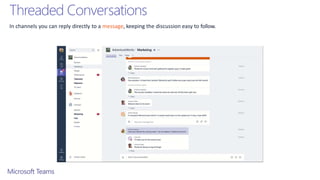
Threaded Conversations
In channels you can reply directly to a message, keeping the discussion easy to follow.
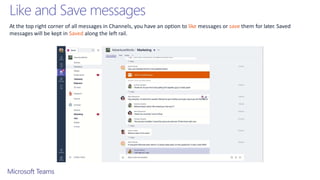
Like and Save messages
At the top right corner of all messages in Channels, you have an option to like messages or save them for later. Saved
messages will be kept in Saved along the left rail.
Documents and Conversations
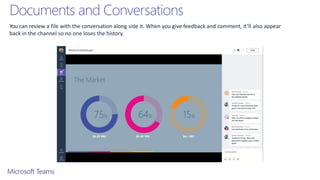
You can review a file with the conversation along side it. When you give feedback and comment, it’ll also appear
back in the channel so no one loses the history.
Mention T
eam Members
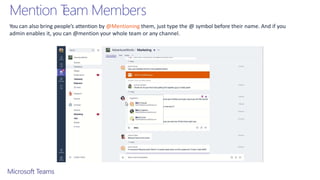
You can also bring people’s attention by @Mentioning them, just type the @ symbol before their name. And if you
admin enables it, you can @mention your whole team or any channel.
Ways to Express Y
ourself
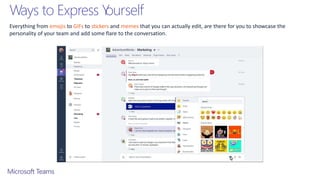
Everything from emojis to GIFs to stickers and memes that you can actually edit, are there for you to showcase the
personality of your team and add some flare to the conversation.
Private Conversations
Open team channels are great for collaboration, but sometimes
you need to talk privately
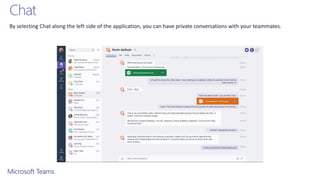
Chat
By selecting Chat along the left side of the application, you can have private conversations with your teammates.
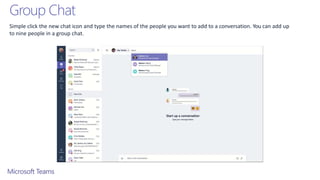
Group Chat
Simple click the new chat icon and type the names of the people you want to add to a conversation. You can add up
to nine people in a group chat.
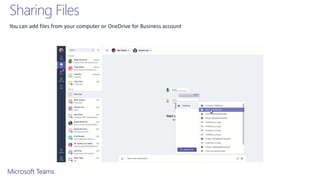
Sharing Files
You can add files from your computer or OneDrive for Business account
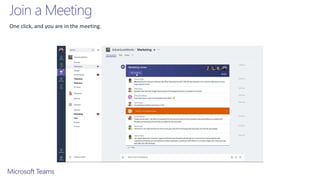
Join a Meeting
One click, and you are in the meeting.
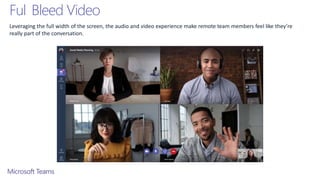
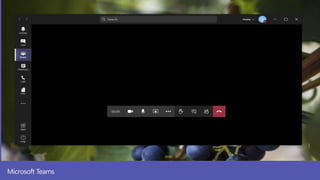
Ful Bleed Video
Leveraging the full width of the screen, the audio and video experience make remote team members feel like they’re
really part of the conversation.
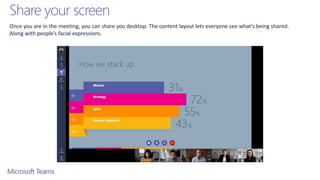
Share your screen
Once you are in the meeting, you can share you desktop. The content layout lets everyone see what’s being shared.
Along with people’s facial expressions.
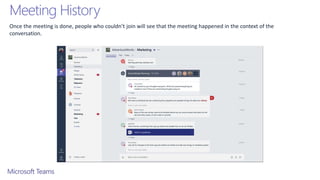
Meeting History
Once the meeting is done, people who couldn’t join will see that the meeting happened in the context of the
conversation.
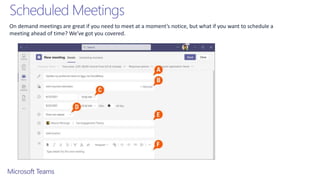
Scheduled Meetings
On demand meetings are great if you need to meet at a moment’s notice, but what if you want to schedule a
meeting ahead of time? We’ve got you covered.
Tabs and Connectors
Allow you to integrate the tools and services you love right into
your chat or channel
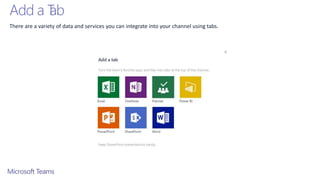
Add a T
ab
There are a variety of data and services you can integrate into your channel using tabs.
Bots
Bots allow users to complete tasks such as querying information
and performing commands
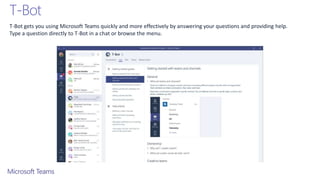
T-Bot
T-Bot gets you using Microsoft Teams quickly and more effectively by answering your questions and providing help.
Type a question directly to T-Bot in a chat or browse the menu.
Bot Framework
• Integrate existing line of business systems with Microsoft Teams via
a bot
• A full suite of indispensable bots are coming soon
• Check out the Microsoft Bot Framework
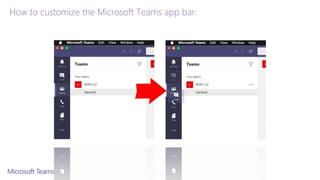
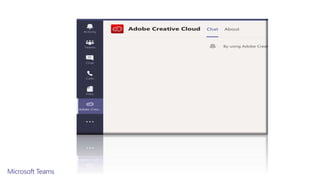
How to customize the Microsoft Teams app bar:
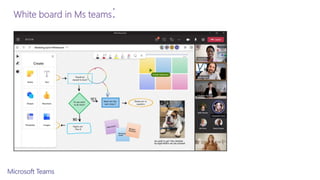
White board in Ms teams:
ls in a single place
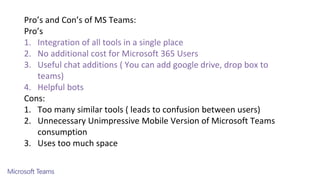
Pro’s and Con’s of MS Teams:
Pro’s
1. Integration of all tools in a single place
2. No additional cost for Microsoft 365 Users
3. Useful chat additions ( You can add google drive, drop box to
teams)
4. Helpful bots
Cons:
1. Too many similar tools ( leads to confusion between users)
2. Unnecessary Unimpressive Mobile Version of Microsoft Teams
consumption
3. Uses too much space
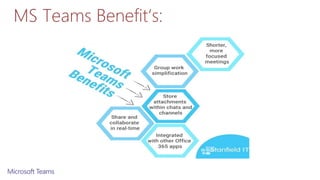
MS Teams Benefit‘s:
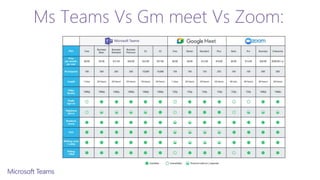
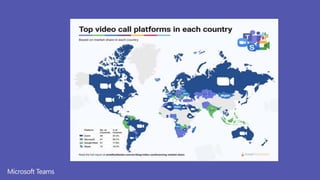
Ms Teams Vs Gm meet Vs Zoom:
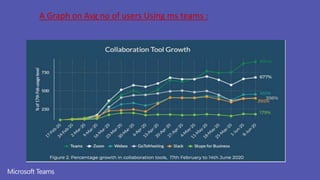
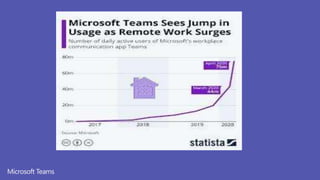
A Graph on Avg no of users Using ms teams :
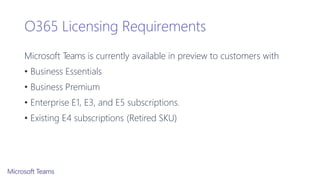
O365 Licensing Requirements
Microsoft Teams is currently available in preview to customers with
• Business Essentials
• Business Premium
• Enterprise E1, E3, and E5 subscriptions.
• Existing E4 subscriptions (Retired SKU)
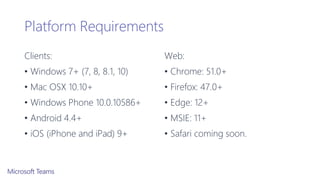
Platform Requirements
Clients:
• Windows 7+ (7, 8, 8.1, 10)
• Mac OSX 10.10+
• Windows Phone 10.0.10586+
• Android 4.4+
• iOS (iPhone and iPad) 9+
Web:
• Chrome: 51.0+
• Firefox: 47.0+
• Edge: 12+
• MSIE: 11+
• Safari coming soon.
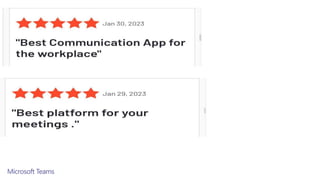
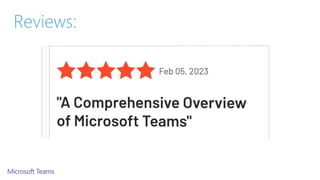
Reviews:
Thank you

introduction_to_microsoft_teams.pptx

  • 1.
    Introduction to MicrosoftTeams in Preview Chat-centered workspace in Office 365
  • 2.
    Agenda • Microsoft TeamsIntroduction • Microsoft Teams Features • Microsoft Teams Requirements • Appendix Items
  • 3.
    Microsoft Teams isa proprietary business communication platform developed by Microsoft, as part of the Microsoft 365 family of products. Teams primarily competes with the similar service Slack, offering workspace chat and videoconferencing, file storage, and application integration • What is Microsoft Teams?
  • 4.
    Teams Owners • Therecan only be 10 owners per Team • Owners can: • Add new members and other owners • Manage Team settings: • EnableDisable @Mentioning • Allowing GIFs, stickers, memes, and moderation settings • Rename the Team • Delete the Team
  • 5.
    Teams Members • Therecan be as many as 600 members per Team • Members can add additional channels to the team
  • 7.
    Threaded Conversations In channelsyou can reply directly to a message, keeping the discussion easy to follow.
  • 8.
    Like and Savemessages At the top right corner of all messages in Channels, you have an option to like messages or save them for later. Saved messages will be kept in Saved along the left rail.
  • 9.
    Documents and Conversations Youcan review a file with the conversation along side it. When you give feedback and comment, it’ll also appear back in the channel so no one loses the history.
  • 10.
    Mention T eam Members Youcan also bring people’s attention by @Mentioning them, just type the @ symbol before their name. And if you admin enables it, you can @mention your whole team or any channel.
  • 11.
    Ways to ExpressY ourself Everything from emojis to GIFs to stickers and memes that you can actually edit, are there for you to showcase the personality of your team and add some flare to the conversation.
  • 12.
    Private Conversations Open teamchannels are great for collaboration, but sometimes you need to talk privately
  • 13.
    Chat By selecting Chatalong the left side of the application, you can have private conversations with your teammates.
  • 14.
    Group Chat Simple clickthe new chat icon and type the names of the people you want to add to a conversation. You can add up to nine people in a group chat.
  • 15.
    Sharing Files You canadd files from your computer or OneDrive for Business account
  • 16.
    Join a Meeting Oneclick, and you are in the meeting.
  • 17.
    Ful Bleed Video Leveragingthe full width of the screen, the audio and video experience make remote team members feel like they’re really part of the conversation.
  • 18.
    Share your screen Onceyou are in the meeting, you can share you desktop. The content layout lets everyone see what’s being shared. Along with people’s facial expressions.
  • 19.
    Meeting History Once themeeting is done, people who couldn’t join will see that the meeting happened in the context of the conversation.
  • 20.
    Scheduled Meetings On demandmeetings are great if you need to meet at a moment’s notice, but what if you want to schedule a meeting ahead of time? We’ve got you covered.
  • 21.
    Tabs and Connectors Allowyou to integrate the tools and services you love right into your chat or channel
  • 22.
    Add a T ab Thereare a variety of data and services you can integrate into your channel using tabs.
  • 23.
    Bots Bots allow usersto complete tasks such as querying information and performing commands
  • 24.
    T-Bot T-Bot gets youusing Microsoft Teams quickly and more effectively by answering your questions and providing help. Type a question directly to T-Bot in a chat or browse the menu.
  • 25.
    Bot Framework • Integrateexisting line of business systems with Microsoft Teams via a bot • A full suite of indispensable bots are coming soon • Check out the Microsoft Bot Framework
  • 27.
    How to customizethe Microsoft Teams app bar:
  • 29.
    White board inMs teams:
  • 30.
    ls in asingle place Pro’s and Con’s of MS Teams: Pro’s 1. Integration of all tools in a single place 2. No additional cost for Microsoft 365 Users 3. Useful chat additions ( You can add google drive, drop box to teams) 4. Helpful bots Cons: 1. Too many similar tools ( leads to confusion between users) 2. Unnecessary Unimpressive Mobile Version of Microsoft Teams consumption 3. Uses too much space
  • 31.
  • 32.
    Ms Teams VsGm meet Vs Zoom:
  • 33.
    A Graph onAvg no of users Using ms teams :
  • 37.
    O365 Licensing Requirements MicrosoftTeams is currently available in preview to customers with • Business Essentials • Business Premium • Enterprise E1, E3, and E5 subscriptions. • Existing E4 subscriptions (Retired SKU)
  • 38.
    Platform Requirements Clients: • Windows7+ (7, 8, 8.1, 10) • Mac OSX 10.10+ • Windows Phone 10.0.10586+ • Android 4.4+ • iOS (iPhone and iPad) 9+ Web: • Chrome: 51.0+ • Firefox: 47.0+ • Edge: 12+ • MSIE: 11+ • Safari coming soon.
  • 39.
  • 41.