MODULE 1/UNIT 1

BY KENNETH AYEBAZIBWE
 256774185458 / 256702555890
Objectives
• On completion of this unit, you will be able to;
  – Identify the components that make up a personal
    computer
  – Describe the functions and capabilities of
    input/output ports
  – Add or Remove peripheral devices
Introduction to the PC
• A PC is a microcomputer. A PC is a single-user
  system, designed to fit on a desk-top; hence the
  word Personal. The IBM PC was introduced in the
  early eighties and since then has been modified and
  improved. Subsequent PCs have been designed to
  run any software written for previous versions of
  the PC. Many other manufacturers have produced
  compatible computers; that is, computers which work
  in the same manner as the IBM PC and use the
  same software. These are often known as clones.
How Bits and Bytes Work
• If you have used a computer for more than five minutes, then
  you have heard the words bits and bytes. Both RAM and hard
  disk capacities are measured in bytes, as are file sizes when you
  examine them in a file viewer.
• You might hear an advertisement that says, "This computer has a
  32-bit Pentium processor with 64 megabytes of RAM and 2.1
  gigabytes of hard disk space."
Decimal Numbers
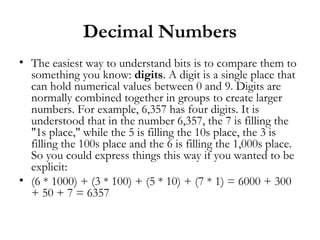
• The easiest way to understand bits is to compare them to
  something you know: digits. A digit is a single place that
  can hold numerical values between 0 and 9. Digits are
  normally combined together in groups to create larger
  numbers. For example, 6,357 has four digits. It is
  understood that in the number 6,357, the 7 is filling the
  "1s place," while the 5 is filling the 10s place, the 3 is
  filling the 100s place and the 6 is filling the 1,000s place.
  So you could express things this way if you wanted to be
  explicit:
• (6 * 1000) + (3 * 100) + (5 * 10) + (7 * 1) = 6000 + 300
  + 50 + 7 = 6357
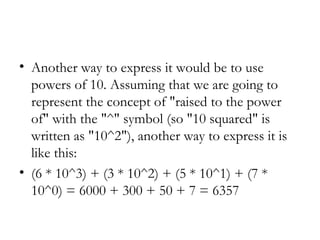
• Another way to express it would be to use
  powers of 10. Assuming that we are going to
  represent the concept of "raised to the power
  of" with the "^" symbol (so "10 squared" is
  written as "10^2"), another way to express it is
  like this:
• (6 * 10^3) + (3 * 10^2) + (5 * 10^1) + (7 *
  10^0) = 6000 + 300 + 50 + 7 = 6357
• What you can see from this expression is that each digit is a
  placeholder for the next higher power of 10, starting in the first digit
  with 10 raised to the power of zero.
• ­That should all feel pretty comfortable -- we work with decimal digits
  every day. The neat thing about number systems is that there is nothing
  that forces you to have 10 different values in a digit. Our base-10
  number system likely grew up because we have 10 fingers, but if we
  happened to evolve to have eight fingers instead, we would probably
  have a base-8 number system. You can have base-anything number
  systems. In fact, there are lots of good reasons to use different bases in
  different situations.
• Computers happen to operate using the base-2 number system, also
  known as the binary number system (just like the base-10 number
  system is known as the decimal number system)
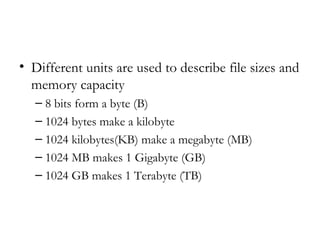
• Different units are used to describe file sizes and
  memory capacity
   – 8 bits form a byte (B)
   – 1024 bytes make a kilobyte
   – 1024 kilobytes(KB) make a megabyte (MB)
   – 1024 MB makes 1 Gigabyte (GB)
   – 1024 GB makes 1 Terabyte (TB)
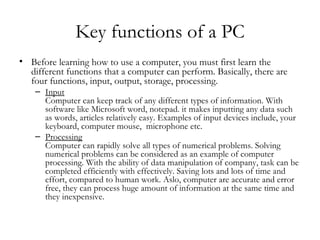
Key functions of a PC
• Before learning how to use a computer, you must first learn the
  different functions that a computer can perform. Basically, there are
  four functions, input, output, storage, processing.
    – Input
      Computer can keep track of any different types of information. With
      software like Microsoft word, notepad. it makes inputting any data such
      as words, articles relatively easy. Examples of input devices include, your
      keyboard, computer mouse,  microphone etc.
    – Processing
      Computer can rapidly solve all types of numerical problems. Solving
      numerical problems can be considered as an example of computer
      processing. With the ability of data manipulation of company, task can be
      completed efficiently with effectively. Saving lots and lots of time and
      effort, compared to human work. Aslo, computer are accurate and error
      free, they can process huge amount of information at the same time and
      they inexpensive.
– Storage
  Imagine you have a collections of ten thousand photos. You are going to
  london to meet your relative and were told to bring that ten thousands
  photos over. Guess what? That is alot of things. So with the advent of
  computer, you can just save that ten thousand photos and bring your
  laptop over. That’s that simple!. Example of computer storage include,
  harddisk, cd rom, dvd rom and others.
– Output
  Output is one of the most commonly used function in computer. It may
  refers to the graph that is being plotted in microsoft excel, the song that
  you are playing from media player, the powerpoint slide, So if anyone ask
  you, what is the basic functions of computer, always remember the below
  story. “I am plotting a graph in microsoft excel, i am entering the values
  (input), the computer will calculate the values and plot the graph for me
  (processing), then display the graph (output), and after that, i will save it
  (storage) in my hardisk.
Personal computer hardware

• Personal computer hardware are the component
  devices that are the building blocks of personal
  computers. These are typically installed into a
  computer case, or attached to it by a cable or
  through a port. In the latter case, they are also
  referred to as peripherals.
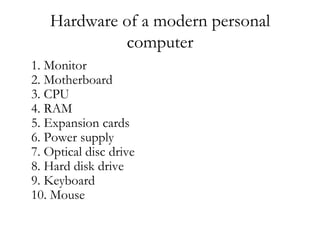
Hardware of a modern personal
            computer
1. Monitor
2. Motherboard
3. CPU
4. RAM
5. Expansion cards
6. Power supply
7. Optical disc drive
8. Hard disk drive
9. Keyboard
10. Mouse
Computer Case
   – A computer case (also known as a computer chassis, cabinet, box, tower,
      enclosure, housing, system unit or simply case) is the enclosure that contains most
      of the components of a computer (usually excluding the display, keyboard and
      mouse). A computer case is sometimes incorrectly referred to metonymously as a
      CPU referring to a component housed within the case. CPU was a common term
      in the earlier days of home computers, when peripherals other than the
      motherboard were usually housed in their own separate cases.
   Power supply
   A power supply unit (PSU) converts alternating current (AC) electric power to low-
      voltage DC power for the internal components of the computer. Some power
      supplies have a switch to change between 230 V and 115 V. Other models have
      automatic sensors that switch input voltage automatically, or are able to accept
      any voltage between those limits. Power supply units used in computers are nearly
      always switch mode power supplies (SMPS). The SMPS provides regulated direct
      current power at the several voltages required by the motherboard and accessories
      such as disk drives and cooling fans.
• Motherboard
• The motherboard is the main component inside the case. It is a large
  rectangular board with integrated circuitry that connects the other parts
  of the computer including the CPU, the RAM, the disk drives (CD,
  DVD, hard disk, or any others) as well as any peripherals connected via
  the ports or the expansion slots.
• Components directly attached to the motherboard include:
    – The CPU (Central Processing Unit) performs most of the calculations
      which enable a computer to function, and is sometimes referred to as the
      "brain" of the computer. It is usually cooled by a heat sink and fan. Most
      newer CPUs include an on-die Graphics Processing Unit (GPU).
    – The Chipset, which includes the north bridge, mediates communication
      between the CPU and the other components of the system, including
      main memory.
    – The Random-Access Memory (RAM) stores the code and data that are
      being actively accessed by the CPU.
• The Read-Only Memory (ROM) stores the BIOS that runs when the
  computer is powered on or otherwise begins execution, a process
  known as Bootstrapping, or "booting" or "booting up".
• The BIOS (Basic Input Output System) includes boot firmware and
  power management firmware. Newer motherboards use Unified
  Extensible Firmware Interface (UEFI) instead of BIOS.
   – Buses connect the CPU to various internal components and to expansion
     cards for graphics and sound.
       • Current
       • PCI Express: for expansion cards such as graphics, sound, network interfaces, TV
         tuners, etc.
       • PCI: for other expansion cards.
       • SATA: for disk drives.
• Ports for external peripherals. These ports may
  be controlled directly by the south bridge I/O
  controller or provided by expansion cards
  attached to the motherboard. USB
• Memory Card
• FireWire
• eSATA
• SCSI
• Expansion Cards
  – The expansion card (also expansion board, adapter card or
    accessory card) in computing is a printed circuit board that
    can be inserted into an expansion slot of a computer
    motherboard or backplane to add functionality to a computer
    system via the expansion bus.
  – An example of an expansion card is a sound card that enables
    the computer to output sound to audio devices, as well as
    accept input from a microphone. Most modern computers
    have hardware support for sound integrated in the
    motherboard chipset but some users prefer to install a
    separate sound card as an upgrade. Most sound cards, either
    built-in or added, have surround sound capabilities and 3-D
    sound effects.
•   Secondary Storage Devices
     – Computer data storage, often called storage or memory, refers to computer components and
       recording media that retain digital data. Data storage is a core function and fundamental
       component of computers.
•   Fixed Media Devices
•   Hard disk drives: a hard disk drive (HDD; also hard drive, hard disk, or disk drive)[2]
    is a device for storing and retrieving digital information, primarily computer data. It
    consists of one or more rigid (hence "hard") rapidly rotating discs (often referred to as
    platters), coated with magnetic material and with magnetic heads arranged to write
    data to the surfaces and read it from them.
•   Solid-state drives: a solid-state drive (SSD), sometimes called a solid-state disk or
    electronic disk, is a data storage device that uses solid-state memory to store persistent
    data with the intention of providing access in the same manner of a traditional block
    I/O hard disk drive. SSDs are distinguished from traditional magnetic disks such as
    hard disk drives (HDDs) or floppy disk, which are electromechanical devices
    containing spinning disks and movable read/write heads.
•   RAID array controller - a device to manage several internal or external hard disks and
    optionally some peripherals in order to achieve performance or reliability
    improvement in what is called a RAID array.
• Removable Media Devices
  – Optical Disc Drives for reading from and writing to various kinds
    of optical media, including Compact Discs such as CD-ROMs,
    DVDs, DVD-RAMs and Blu-ray Discs. Optical discs are the most
    common way of transferring digital video, and are popular for data
    storage as well.
  – Floppy disk drives for reading and writing to floppy disks, an
    outdated storage media consisting of a thin disk of a flexible
    magnetic storage medium. These were once standard on most
    computers but are no longer in common use. Floppies are used
    today mainly for loading device drivers not included with an
    operating system release (for example, RAID drivers).
  – Zip drives, an outdated medium-capacity removable disk storage
    system, for reading from and writing to Zip disks, was first
    introduced by Iomega in 1994.
– USB flash drive plug into a USB port and do not require a separate
  drive. USB flash drive is a typically small, lightweight, removable,
  and rewritable flash memory data storage device integrated with a
  USB interface. Capacities vary, from hundreds of megabytes (in the
  same range as CDs) to tens of gigabytes (surpassing Blu-ray discs
  but also costing significantly more).
– Memory card readers for reading from and writing to Memory
  cards, a flash memory data storage device used to store digital
  information. Memory cards are typically used on mobile devices.
  They are thinner, smaller and lighter than USB flash drives.
  Common types of memory cards are SD and MS.
– Tape drives read and write data on a magnetic tape, and are used
  for long term storage and backups.
Review Questions
       The Visible PC
Follow on the Face Book group page

       Thanks for attending!

Computer Visible Parts

  • 1.
    MODULE 1/UNIT 1 BYKENNETH AYEBAZIBWE 256774185458 / 256702555890
  • 2.
    Objectives • On completionof this unit, you will be able to; – Identify the components that make up a personal computer – Describe the functions and capabilities of input/output ports – Add or Remove peripheral devices
  • 3.
    Introduction to thePC • A PC is a microcomputer. A PC is a single-user system, designed to fit on a desk-top; hence the word Personal. The IBM PC was introduced in the early eighties and since then has been modified and improved. Subsequent PCs have been designed to run any software written for previous versions of the PC. Many other manufacturers have produced compatible computers; that is, computers which work in the same manner as the IBM PC and use the same software. These are often known as clones.
  • 4.
    How Bits andBytes Work • If you have used a computer for more than five minutes, then you have heard the words bits and bytes. Both RAM and hard disk capacities are measured in bytes, as are file sizes when you examine them in a file viewer. • You might hear an advertisement that says, "This computer has a 32-bit Pentium processor with 64 megabytes of RAM and 2.1 gigabytes of hard disk space."
  • 5.
    Decimal Numbers • Theeasiest way to understand bits is to compare them to something you know: digits. A digit is a single place that can hold numerical values between 0 and 9. Digits are normally combined together in groups to create larger numbers. For example, 6,357 has four digits. It is understood that in the number 6,357, the 7 is filling the "1s place," while the 5 is filling the 10s place, the 3 is filling the 100s place and the 6 is filling the 1,000s place. So you could express things this way if you wanted to be explicit: • (6 * 1000) + (3 * 100) + (5 * 10) + (7 * 1) = 6000 + 300 + 50 + 7 = 6357
  • 6.
    • Another wayto express it would be to use powers of 10. Assuming that we are going to represent the concept of "raised to the power of" with the "^" symbol (so "10 squared" is written as "10^2"), another way to express it is like this: • (6 * 10^3) + (3 * 10^2) + (5 * 10^1) + (7 * 10^0) = 6000 + 300 + 50 + 7 = 6357
  • 7.
    • What youcan see from this expression is that each digit is a placeholder for the next higher power of 10, starting in the first digit with 10 raised to the power of zero. • ­That should all feel pretty comfortable -- we work with decimal digits every day. The neat thing about number systems is that there is nothing that forces you to have 10 different values in a digit. Our base-10 number system likely grew up because we have 10 fingers, but if we happened to evolve to have eight fingers instead, we would probably have a base-8 number system. You can have base-anything number systems. In fact, there are lots of good reasons to use different bases in different situations. • Computers happen to operate using the base-2 number system, also known as the binary number system (just like the base-10 number system is known as the decimal number system)
  • 8.
    • Different unitsare used to describe file sizes and memory capacity – 8 bits form a byte (B) – 1024 bytes make a kilobyte – 1024 kilobytes(KB) make a megabyte (MB) – 1024 MB makes 1 Gigabyte (GB) – 1024 GB makes 1 Terabyte (TB)
  • 9.
    Key functions ofa PC • Before learning how to use a computer, you must first learn the different functions that a computer can perform. Basically, there are four functions, input, output, storage, processing. – Input Computer can keep track of any different types of information. With software like Microsoft word, notepad. it makes inputting any data such as words, articles relatively easy. Examples of input devices include, your keyboard, computer mouse,  microphone etc. – Processing Computer can rapidly solve all types of numerical problems. Solving numerical problems can be considered as an example of computer processing. With the ability of data manipulation of company, task can be completed efficiently with effectively. Saving lots and lots of time and effort, compared to human work. Aslo, computer are accurate and error free, they can process huge amount of information at the same time and they inexpensive.
  • 10.
    – Storage Imagine you have a collections of ten thousand photos. You are going to london to meet your relative and were told to bring that ten thousands photos over. Guess what? That is alot of things. So with the advent of computer, you can just save that ten thousand photos and bring your laptop over. That’s that simple!. Example of computer storage include, harddisk, cd rom, dvd rom and others. – Output Output is one of the most commonly used function in computer. It may refers to the graph that is being plotted in microsoft excel, the song that you are playing from media player, the powerpoint slide, So if anyone ask you, what is the basic functions of computer, always remember the below story. “I am plotting a graph in microsoft excel, i am entering the values (input), the computer will calculate the values and plot the graph for me (processing), then display the graph (output), and after that, i will save it (storage) in my hardisk.
  • 11.
    Personal computer hardware •Personal computer hardware are the component devices that are the building blocks of personal computers. These are typically installed into a computer case, or attached to it by a cable or through a port. In the latter case, they are also referred to as peripherals.
  • 13.
    Hardware of amodern personal computer 1. Monitor 2. Motherboard 3. CPU 4. RAM 5. Expansion cards 6. Power supply 7. Optical disc drive 8. Hard disk drive 9. Keyboard 10. Mouse
  • 14.
    Computer Case – A computer case (also known as a computer chassis, cabinet, box, tower, enclosure, housing, system unit or simply case) is the enclosure that contains most of the components of a computer (usually excluding the display, keyboard and mouse). A computer case is sometimes incorrectly referred to metonymously as a CPU referring to a component housed within the case. CPU was a common term in the earlier days of home computers, when peripherals other than the motherboard were usually housed in their own separate cases. Power supply A power supply unit (PSU) converts alternating current (AC) electric power to low- voltage DC power for the internal components of the computer. Some power supplies have a switch to change between 230 V and 115 V. Other models have automatic sensors that switch input voltage automatically, or are able to accept any voltage between those limits. Power supply units used in computers are nearly always switch mode power supplies (SMPS). The SMPS provides regulated direct current power at the several voltages required by the motherboard and accessories such as disk drives and cooling fans.
  • 15.
    • Motherboard • Themotherboard is the main component inside the case. It is a large rectangular board with integrated circuitry that connects the other parts of the computer including the CPU, the RAM, the disk drives (CD, DVD, hard disk, or any others) as well as any peripherals connected via the ports or the expansion slots. • Components directly attached to the motherboard include: – The CPU (Central Processing Unit) performs most of the calculations which enable a computer to function, and is sometimes referred to as the "brain" of the computer. It is usually cooled by a heat sink and fan. Most newer CPUs include an on-die Graphics Processing Unit (GPU). – The Chipset, which includes the north bridge, mediates communication between the CPU and the other components of the system, including main memory. – The Random-Access Memory (RAM) stores the code and data that are being actively accessed by the CPU.
  • 16.
    • The Read-OnlyMemory (ROM) stores the BIOS that runs when the computer is powered on or otherwise begins execution, a process known as Bootstrapping, or "booting" or "booting up". • The BIOS (Basic Input Output System) includes boot firmware and power management firmware. Newer motherboards use Unified Extensible Firmware Interface (UEFI) instead of BIOS. – Buses connect the CPU to various internal components and to expansion cards for graphics and sound. • Current • PCI Express: for expansion cards such as graphics, sound, network interfaces, TV tuners, etc. • PCI: for other expansion cards. • SATA: for disk drives.
  • 17.
    • Ports forexternal peripherals. These ports may be controlled directly by the south bridge I/O controller or provided by expansion cards attached to the motherboard. USB • Memory Card • FireWire • eSATA • SCSI
  • 18.
    • Expansion Cards – The expansion card (also expansion board, adapter card or accessory card) in computing is a printed circuit board that can be inserted into an expansion slot of a computer motherboard or backplane to add functionality to a computer system via the expansion bus. – An example of an expansion card is a sound card that enables the computer to output sound to audio devices, as well as accept input from a microphone. Most modern computers have hardware support for sound integrated in the motherboard chipset but some users prefer to install a separate sound card as an upgrade. Most sound cards, either built-in or added, have surround sound capabilities and 3-D sound effects.
  • 19.
    Secondary Storage Devices – Computer data storage, often called storage or memory, refers to computer components and recording media that retain digital data. Data storage is a core function and fundamental component of computers. • Fixed Media Devices • Hard disk drives: a hard disk drive (HDD; also hard drive, hard disk, or disk drive)[2] is a device for storing and retrieving digital information, primarily computer data. It consists of one or more rigid (hence "hard") rapidly rotating discs (often referred to as platters), coated with magnetic material and with magnetic heads arranged to write data to the surfaces and read it from them. • Solid-state drives: a solid-state drive (SSD), sometimes called a solid-state disk or electronic disk, is a data storage device that uses solid-state memory to store persistent data with the intention of providing access in the same manner of a traditional block I/O hard disk drive. SSDs are distinguished from traditional magnetic disks such as hard disk drives (HDDs) or floppy disk, which are electromechanical devices containing spinning disks and movable read/write heads. • RAID array controller - a device to manage several internal or external hard disks and optionally some peripherals in order to achieve performance or reliability improvement in what is called a RAID array.
  • 20.
    • Removable MediaDevices – Optical Disc Drives for reading from and writing to various kinds of optical media, including Compact Discs such as CD-ROMs, DVDs, DVD-RAMs and Blu-ray Discs. Optical discs are the most common way of transferring digital video, and are popular for data storage as well. – Floppy disk drives for reading and writing to floppy disks, an outdated storage media consisting of a thin disk of a flexible magnetic storage medium. These were once standard on most computers but are no longer in common use. Floppies are used today mainly for loading device drivers not included with an operating system release (for example, RAID drivers). – Zip drives, an outdated medium-capacity removable disk storage system, for reading from and writing to Zip disks, was first introduced by Iomega in 1994.
  • 21.
    – USB flashdrive plug into a USB port and do not require a separate drive. USB flash drive is a typically small, lightweight, removable, and rewritable flash memory data storage device integrated with a USB interface. Capacities vary, from hundreds of megabytes (in the same range as CDs) to tens of gigabytes (surpassing Blu-ray discs but also costing significantly more). – Memory card readers for reading from and writing to Memory cards, a flash memory data storage device used to store digital information. Memory cards are typically used on mobile devices. They are thinner, smaller and lighter than USB flash drives. Common types of memory cards are SD and MS. – Tape drives read and write data on a magnetic tape, and are used for long term storage and backups.
  • 22.
    Review Questions The Visible PC Follow on the Face Book group page Thanks for attending!