INPUTTING YOUR DATA INTO THE STANDARDS MASTERY TRACKER
Before you actually input any
information into the tracker
let’s review a few guiding
principles.
© Relay Graduate School of Education. All rights reserved. 3
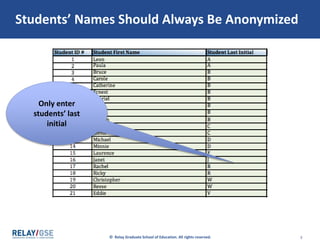
Students’ Names Should Always Be Anonymized
Only enter
students’ last
initial
© Relay Graduate School of Education. All rights reserved. 4
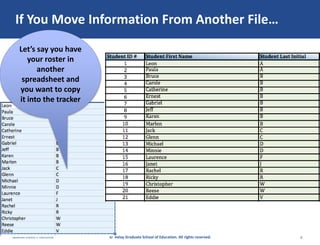
If You Move Information From Another File…
Let’s say you have
your roster in
another
spreadsheet and
you want to copy
it into the tracker
© Relay Graduate School of Education. All rights reserved. 5
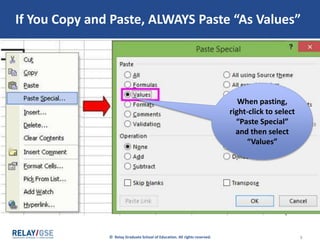
If You Copy and Paste, ALWAYS Paste “As Values”
When pasting,
right-click to select
“Paste Special”
and then select
“Values”
© Relay Graduate School of Education. All rights reserved. 6
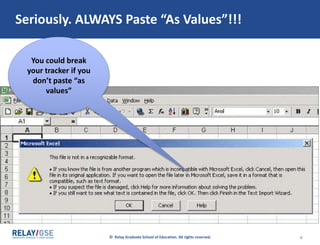
Seriously. ALWAYS Paste “As Values”!!!
You could break
your tracker if you
don’t paste “as
values”
© Relay Graduate School of Education. All rights reserved. 7
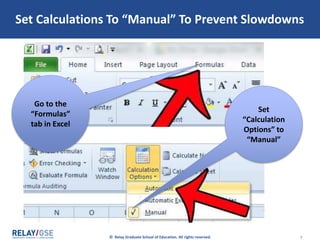
Set Calculations To “Manual” To Prevent Slowdowns
Go to the
“Formulas”
tab in Excel
Set
“Calculation
Options” to
“Manual”
© Relay Graduate School of Education. All rights reserved. 8
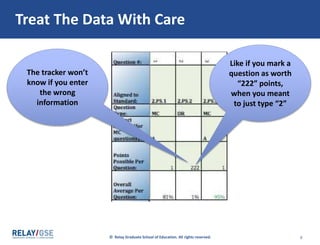
Treat The Data With Care
The tracker won’t
know if you enter
the wrong
information
Like if you mark a
question as worth
“222” points,
when you meant
to just type “2”
© Relay Graduate School of Education. All rights reserved. 9
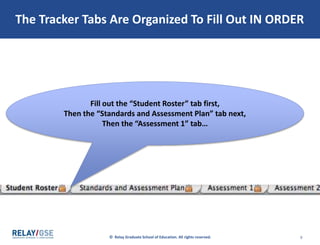
The Tracker Tabs Are Organized To Fill Out IN ORDER
Fill out the “Student Roster” tab first,
Then the “Standards and Assessment Plan” tab next,
Then the “Assessment 1” tab…
© Relay Graduate School of Education. All rights reserved. 10
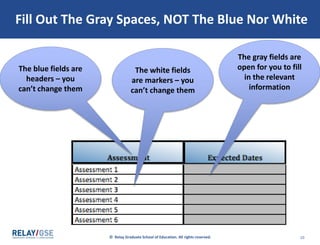
Fill Out The Gray Spaces, NOT The Blue Nor White
The blue fields are
headers – you
can’t change them
The white fields
are markers – you
can’t change them
The gray fields are
open for you to fill
in the relevant
information
© Relay Graduate School of Education. All rights reserved. 11
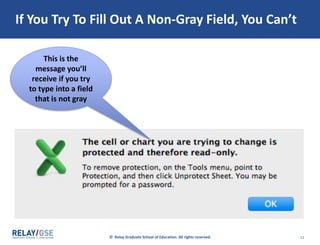
If You Try To Fill Out A Non-Gray Field, You Can’t
This is the
message you’ll
receive if you try
to type into a field
that is not gray
© Relay Graduate School of Education. All rights reserved. 12
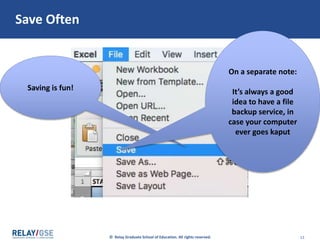
Save Often
Saving is fun!
On a separate note:
It’s always a good
idea to have a file
backup service, in
case your computer
ever goes kaput
© Relay Graduate School of Education. All rights reserved. 13
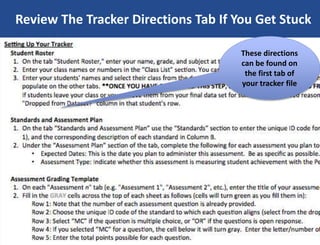
Review The Tracker Directions Tab If You Get Stuck
These directions
can be found on
the first tab of
your tracker file
Great!
Time to input information!
Start by
describing your plan
for measuring learning
© Relay Graduate School of Education. All rights reserved. 16
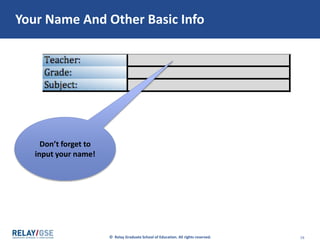
Your Name And Other Basic Info
Don’t forget to
input your name!
© Relay Graduate School of Education. All rights reserved. 17
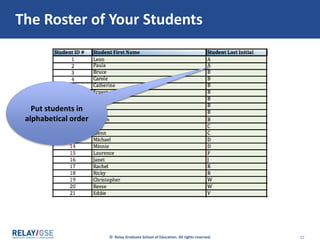
The Roster of Your Students
Put students in
alphabetical order
© Relay Graduate School of Education. All rights reserved. 18
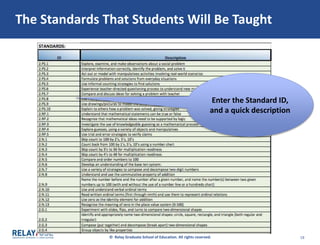
The Standards That Students Will Be Taught
Enter the Standard ID,
and a quick description
© Relay Graduate School of Education. All rights reserved. 19
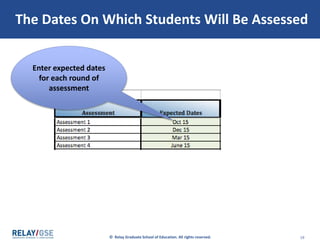
The Dates On Which Students Will Be Assessed
Enter expected dates
for each round of
assessment
That was easy!
Now start entering
assessment data.
© Relay Graduate School of Education. All rights reserved. 21
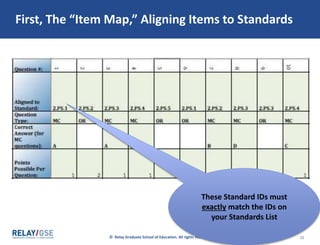
First, The “Item Map,” Aligning Items to Standards
These Standard IDs must
exactly match the IDs on
your Standards List
© Relay Graduate School of Education. All rights reserved. 22
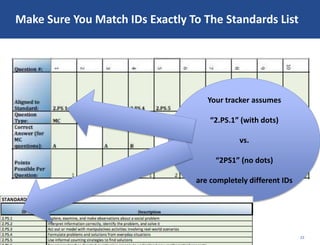
Make Sure You Match IDs Exactly To The Standards List
Your tracker assumes
“2.PS.1” (with dots)
vs.
“2PS1” (no dots)
are completely different IDs
© Relay Graduate School of Education. All rights reserved. 23
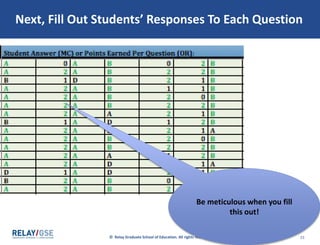
Next, Fill Out Students’ Responses To Each Question
Be meticulous when you fill
this out!
You can see overall results on
the “FINAL” tab.
© Relay Graduate School of Education. All rights reserved. 25
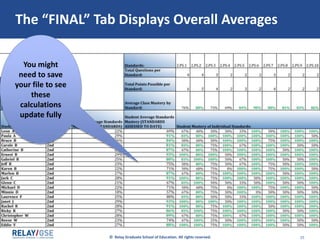
The “FINAL” Tab Displays Overall Averages
You might
need to save
your file to see
these
calculations
update fully
It’s now your turn to get
started using the tracker file.
Have fun!

Inputting Your Data

  • 1.
    INPUTTING YOUR DATAINTO THE STANDARDS MASTERY TRACKER
  • 2.
    Before you actuallyinput any information into the tracker let’s review a few guiding principles.
  • 3.
    © Relay GraduateSchool of Education. All rights reserved. 3 Students’ Names Should Always Be Anonymized Only enter students’ last initial
  • 4.
    © Relay GraduateSchool of Education. All rights reserved. 4 If You Move Information From Another File… Let’s say you have your roster in another spreadsheet and you want to copy it into the tracker
  • 5.
    © Relay GraduateSchool of Education. All rights reserved. 5 If You Copy and Paste, ALWAYS Paste “As Values” When pasting, right-click to select “Paste Special” and then select “Values”
  • 6.
    © Relay GraduateSchool of Education. All rights reserved. 6 Seriously. ALWAYS Paste “As Values”!!! You could break your tracker if you don’t paste “as values”
  • 7.
    © Relay GraduateSchool of Education. All rights reserved. 7 Set Calculations To “Manual” To Prevent Slowdowns Go to the “Formulas” tab in Excel Set “Calculation Options” to “Manual”
  • 8.
    © Relay GraduateSchool of Education. All rights reserved. 8 Treat The Data With Care The tracker won’t know if you enter the wrong information Like if you mark a question as worth “222” points, when you meant to just type “2”
  • 9.
    © Relay GraduateSchool of Education. All rights reserved. 9 The Tracker Tabs Are Organized To Fill Out IN ORDER Fill out the “Student Roster” tab first, Then the “Standards and Assessment Plan” tab next, Then the “Assessment 1” tab…
  • 10.
    © Relay GraduateSchool of Education. All rights reserved. 10 Fill Out The Gray Spaces, NOT The Blue Nor White The blue fields are headers – you can’t change them The white fields are markers – you can’t change them The gray fields are open for you to fill in the relevant information
  • 11.
    © Relay GraduateSchool of Education. All rights reserved. 11 If You Try To Fill Out A Non-Gray Field, You Can’t This is the message you’ll receive if you try to type into a field that is not gray
  • 12.
    © Relay GraduateSchool of Education. All rights reserved. 12 Save Often Saving is fun! On a separate note: It’s always a good idea to have a file backup service, in case your computer ever goes kaput
  • 13.
    © Relay GraduateSchool of Education. All rights reserved. 13 Review The Tracker Directions Tab If You Get Stuck These directions can be found on the first tab of your tracker file
  • 14.
  • 15.
    Start by describing yourplan for measuring learning
  • 16.
    © Relay GraduateSchool of Education. All rights reserved. 16 Your Name And Other Basic Info Don’t forget to input your name!
  • 17.
    © Relay GraduateSchool of Education. All rights reserved. 17 The Roster of Your Students Put students in alphabetical order
  • 18.
    © Relay GraduateSchool of Education. All rights reserved. 18 The Standards That Students Will Be Taught Enter the Standard ID, and a quick description
  • 19.
    © Relay GraduateSchool of Education. All rights reserved. 19 The Dates On Which Students Will Be Assessed Enter expected dates for each round of assessment
  • 20.
    That was easy! Nowstart entering assessment data.
  • 21.
    © Relay GraduateSchool of Education. All rights reserved. 21 First, The “Item Map,” Aligning Items to Standards These Standard IDs must exactly match the IDs on your Standards List
  • 22.
    © Relay GraduateSchool of Education. All rights reserved. 22 Make Sure You Match IDs Exactly To The Standards List Your tracker assumes “2.PS.1” (with dots) vs. “2PS1” (no dots) are completely different IDs
  • 23.
    © Relay GraduateSchool of Education. All rights reserved. 23 Next, Fill Out Students’ Responses To Each Question Be meticulous when you fill this out!
  • 24.
    You can seeoverall results on the “FINAL” tab.
  • 25.
    © Relay GraduateSchool of Education. All rights reserved. 25 The “FINAL” Tab Displays Overall Averages You might need to save your file to see these calculations update fully
  • 26.
    It’s now yourturn to get started using the tracker file. Have fun!